
Learn practical vocal-processing techniques with three UAD plug-ins: Oxide Tape Recorder for tape coloration, Pure Plate Reverb for ambience, and Galaxy Tape Echo for delay. This guide explains their settings and applications, including input/output levels, tape speed, reverb time, and delay time. It offers hands-on vocal-engineering tips for beginning and intermediate music producers.
More High-Quality Vocal Processing with UAD Plug-ins
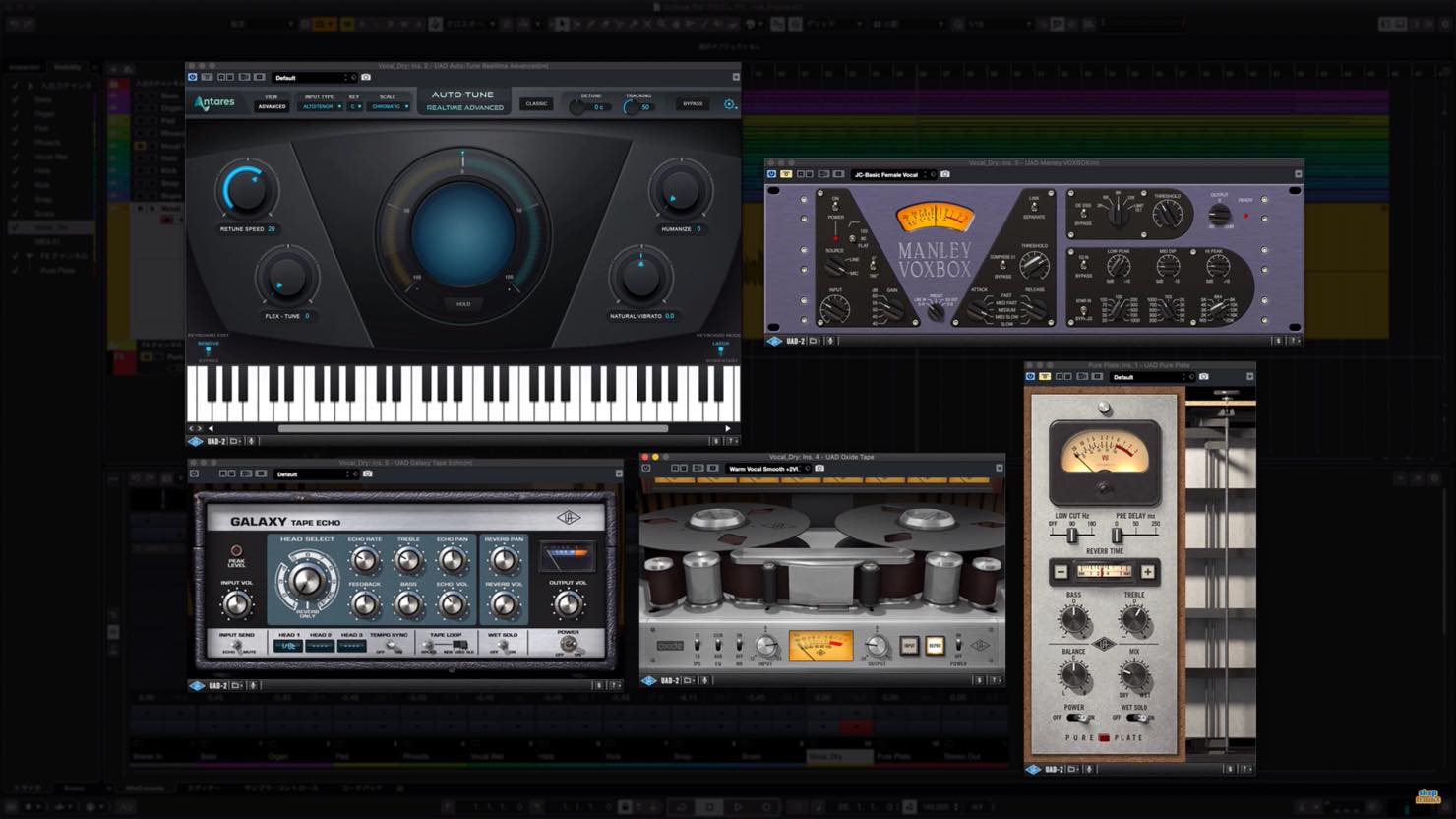
In part two of our UAD vocal-processing series, we explore tape coloration and spatial effects using reverb and delay.
When the UAD DSP plug-ins discussed here run in an Apollo interface's Console software, they can process the incoming signal in real time. You can record with the effects applied, or hear them only in your monitor mix while recording the dry signal.


Let's take a closer look at each plug-in.
UAD Vocal Processing, Part 2: Video
Selected Questions and Answers from the YouTube Video

I always enjoy your videos. I'm commenting because I would appreciate some help. I bought a microphone and recorded in Cubase, but for some reason the sound seems to have an echo. If you know how to resolve this, I would be grateful for your advice.

Could you try turning off the monitoring control shown in the linked screenshot? https://app.box.com/s/d499zmypd2xqfbwjevqf198eezhyy045
Product link: https://hookup.co.jp/blog/35007
Oxide Tape Recorder
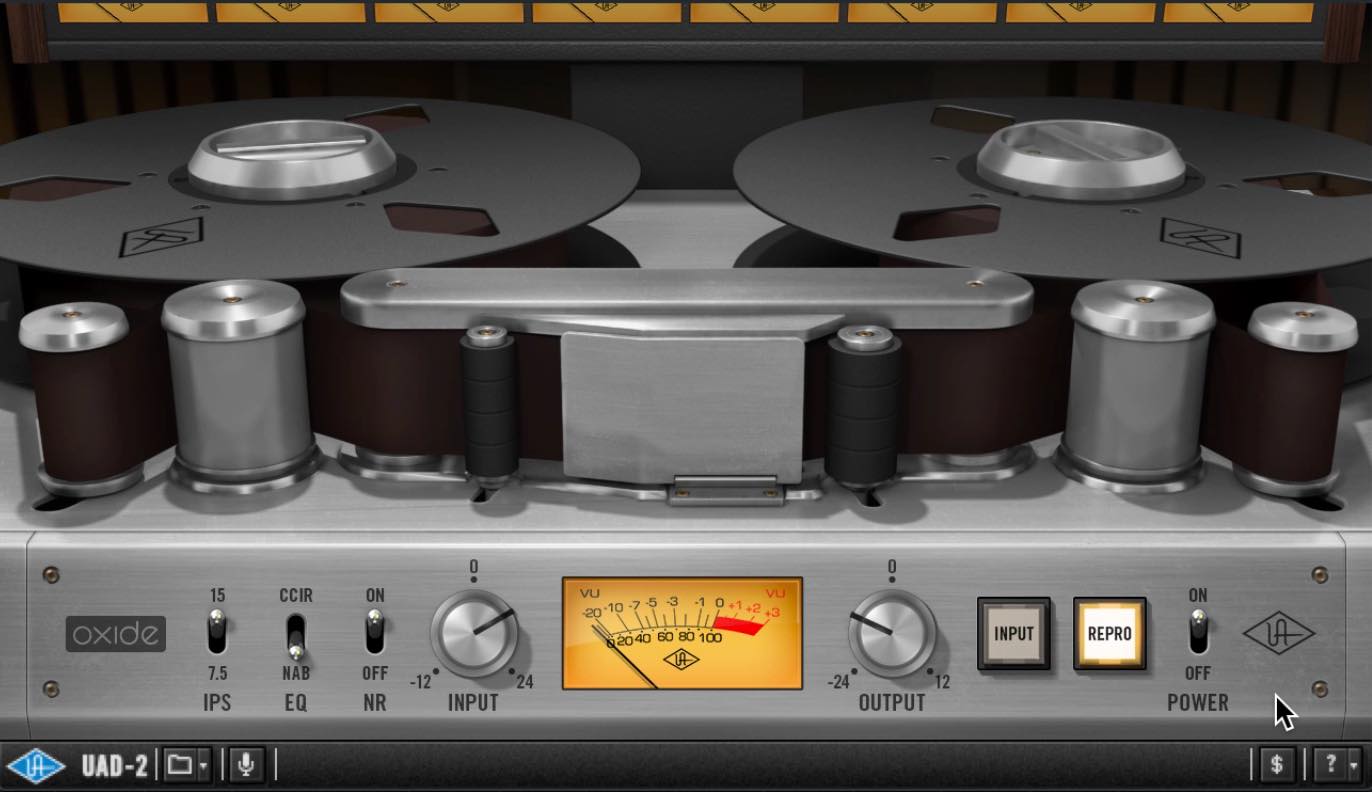
First up is Oxide Tape Recorder, a tape-simulation plug-in.
On vocals, a tape simulator can add the characteristic texture of a tape machine, including gentle compression and emphasis, for a more analog feel. Harmonics introduced by saturation can also help the vocal cut through the mix.
Oxide Tape makes it easy to achieve these effects with a simple set of controls.
- INPUT/OUTPUT
INPUT sets the level recorded to the modeled tape. A higher input level produces more tape coloration. To make the effect easy to hear at first, try driving the VU meter to around 0 to +2. Raising INPUT also raises the volume, so compensate with OUTPUT. Keep the processed and unprocessed signals at comparable levels for a fair comparison. - IPS (Tape Speed)
In this example, the 15 IPS setting gives a full, solid sound, with a low-frequency rise known as the head bump.
By comparison, we hear a slightly brighter top end and a leaner low end at 7.5 IPS, producing a clearer impression. These descriptions reflect the sound in this demonstration. - EQ (Emphasis)
Emphasis is the recording equalization designed to reduce noise and optimize tape performance. Although it may seem less relevant when working in a DAW, you can use the resulting tonal differences creatively.
In our listening comparison, NAB gives a slight lift above roughly 3 kHz for a dry, bright character. CCIR seems to act higher, above around 6.3 kHz, giving a more defined, forward sound. These are tonal impressions from the demonstration. - NR (Noise Reduction)
NR removes the modeled tape hum and hiss. You might switch it off for a more authentic noisy-tape character, but leaving it on is generally fine. - INPUT/REPRO
INPUT mode models the machine's electronics without the tape sound. With the tape effect absent, the IPS setting has no effect, while the EQ coloration remains. REPRO is the default mode and includes the complete effect. Choose INPUT when you want the electronics' character without tape compression or saturation.
Pure Plate Reverb
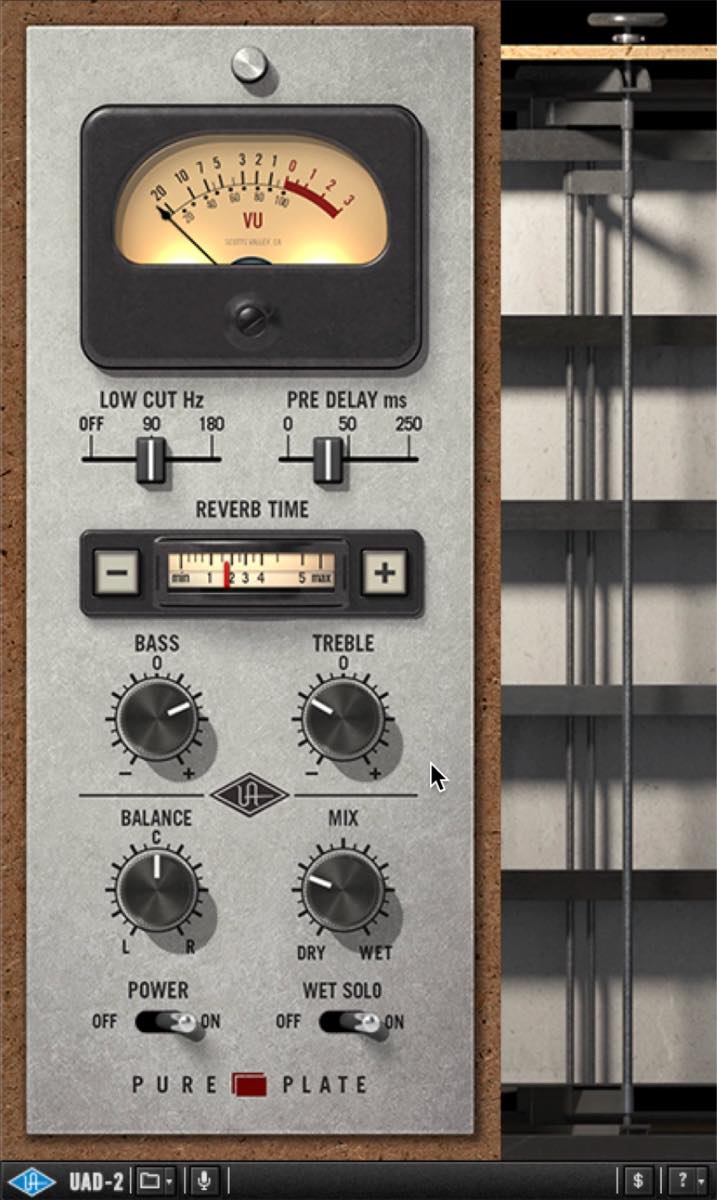
Pure Plate Reverb is a simple plug-in dedicated to plate reverb. Its excellent sound and straightforward controls make it appealing for quick, intuitive adjustments.
For this example, we create a reverb FX track and send the vocal to it. Since we are using a send/return setup, we enable Wet Solo for a fully wet return.
- REVERB TIME
This controls the length of the reverb tail and plays a major role in the vocal's atmosphere. Adjust it so the reverb settles naturally into the backing track during gaps in the vocal, without clouding phrases where the lyrics continue in quick succession. - LOW CUT
It is common to remove some low end from vocal reverb. Pure Plate Reverb offers 90 Hz and 180 Hz low-cut settings. - PRE DELAY
This sets the delay before the reverb begins. A small delay helps keep the start of each phrase clear. Avoid delaying it so much that it creates an unwanted rhythmic effect. - BASS/TREBLE
These controls EQ the reverb tail. The right setting depends on the song and your taste, so there is no fixed rule. The manual specifies a gain range of ±12 dB; the manual consulted for this article did not give the frequencies. Listen carefully and adjust by ear.
Galaxy Tape Echo
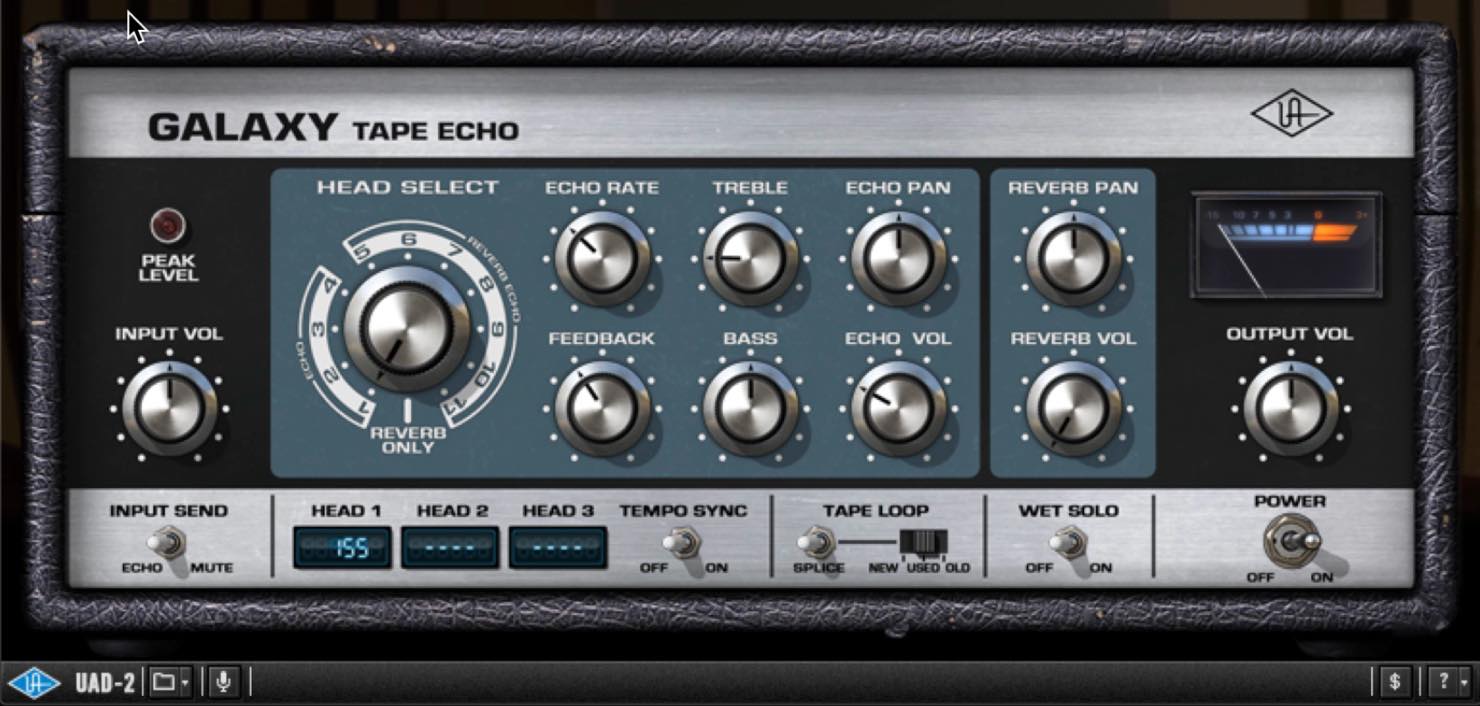
Galaxy Tape Echo models the Roland RE-201 Space Echo and can provide tape delay, spring reverb, or both. Since we are already using Pure Plate for reverb, we will use Galaxy for delay only.
Here, we insert the plug-in directly on the vocal track in mono, to add a little body and a lingering tail.
- HEAD SELECT
Choosing a delay time starts with selecting the tape head. The large HEAD SELECT knob offers 12 echo/reverb combinations. For delay only, choose one of the ECHO positions, 1–4. Moving from head 1 to 3 shifts the available range toward longer delay times. Position 4 combines heads 2 and 3. - TREBLE/BASS
These controls EQ the delayed signal. On vocals, reducing TREBLE is a common way to keep sharp transients in the repeats from becoming distracting. - ECHO RATE
Set the delay time for the tape head chosen with HEAD SELECT. Start with ECHO RATE fully clockwise for the shortest delay, then gradually turn it back to lengthen the delay. Look for a point that does not sound like obvious doubling and does not disturb the rhythm. Depending on the tempo, around 140–180 ms is a useful starting point for this example, within the selected head's available range. - ECHO VOL
This sets the delay level. Turn it up while adjusting the other controls so you can hear the effect, then lower it until it blends into the backing track. The delay need not be obvious as a separate effect. - FEED BACK
This controls how strongly the echoes repeat and decay. If you only want extra body, you may not need feedback. If you want a lingering tail that helps the vocal settle more gently into the backing track, add a little feedback. Keep it subtle enough that the delay does not draw too much attention.
That concludes our two-part look at vocal processing with UAD plug-ins.
UAD offers many appealing processors, but the plug-ins covered in this series provide a complete vocal-processing workflow. Their high sound quality can help take your recordings and mixes a step further.
Product link: https://hookup.co.jp/blog/35007
Part two of our UAD vocal-processing series explores tape coloration and spatial effects using reverb and delay.
> How to Use Oxide Tape, Pure Plate Reverb, and Galaxy Tape Echo
🎥 YouTube: https://t.co/8oV04PS0bx📝 Article: https://t.co/hcurcwVxY1 pic.twitter.com/NB5SAVS3Wf
— SLEEP FREAKS (@SLEEPFREAKS_DTM) May 2, 2020
Frequently Asked Questions
Q1. What is a useful starting point for Oxide Tape Recorder's INPUT level?
Try driving the VU meter to around 0 to +2 to make the effect easy to hear. Increasing INPUT intensifies the tape coloration, but compensate with OUTPUT so the processed and dry signals remain at comparable levels.
Q2. Why use LOW CUT on vocal reverb?
Too much low-frequency content in the reverb can make the vocal sound cloudy, so removing some low end is common practice. Pure Plate Reverb offers 90 Hz and 180 Hz settings; choose according to the song.
Q3. What delay time is a useful starting point with Galaxy Tape Echo's ECHO RATE?
Depending on the tempo, around 140–180 ms is a useful starting point for the subtle effect described here, within the selected head's range. Find a balance that does not sound like obvious doubling or interfere with the rhythm.
NEW ARTICLES
Latest English Articles









































































































































































































