
This article documents the November 2023 announcement of Ableton Live 12 using the Live 12 Suite beta. It covers the Arrangement mixer, simultaneous editor and Device View display, browser tags and similarity search, scale and tuning settings, MIDI tools and new devices. Release plans, edition labels and the Live 11 discount/free-upgrade offer describe the announcement period; they are not current purchasing terms. These changes were designed to reduce view switching, speed up sound searches and support more intuitive, experimental music making.
New features with a direct impact on workflow
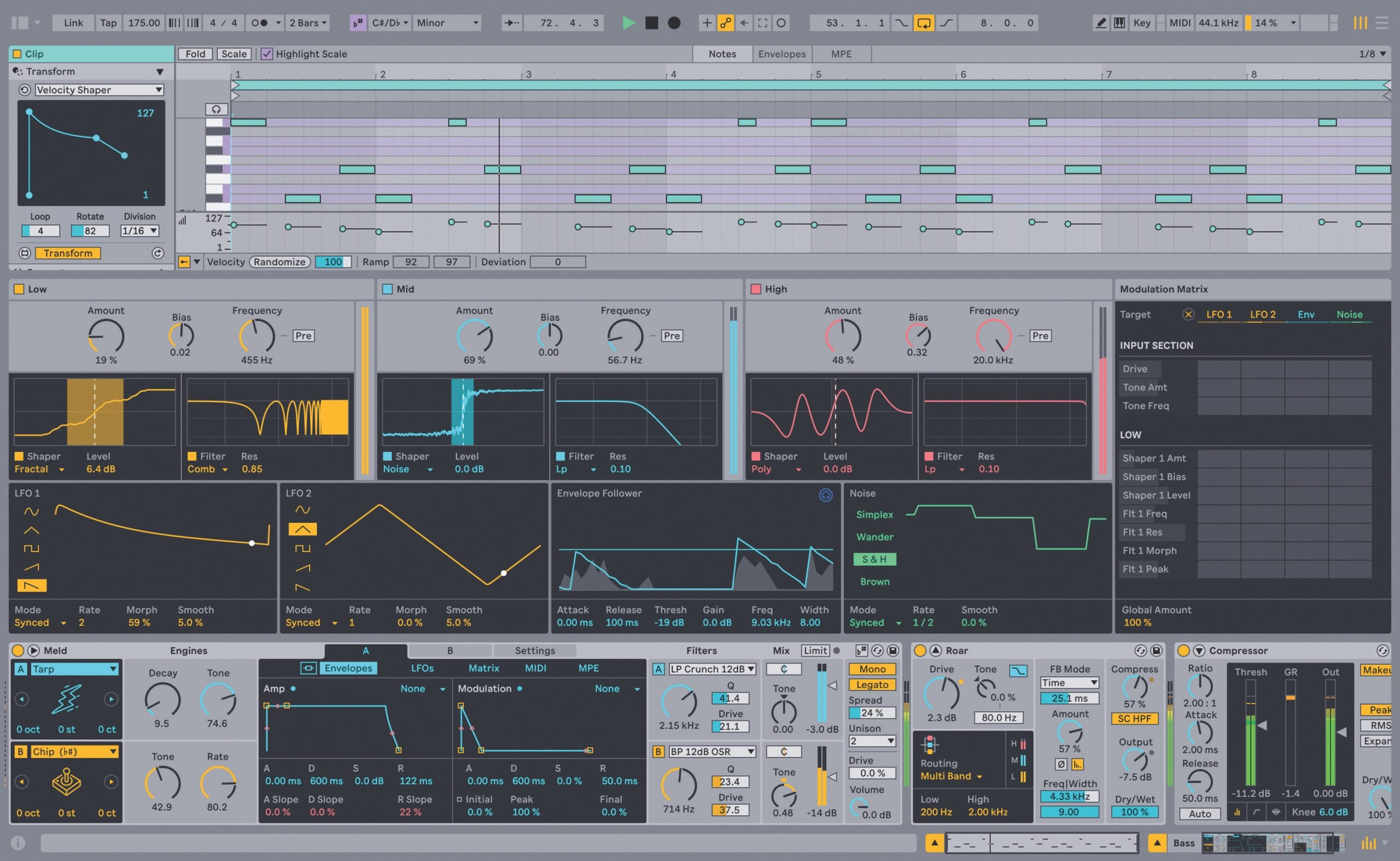
Ableton announced Live 12 with many new features. At the time of this article, the full release was planned for early 2024.
New elements build on existing features to support more intuitive and experimental music making.
Using the Live 12 Suite beta, we explored the key additions in a YouTube livestream.
Ableton Live 12: selected highlights and new features
Selected questions and answers from the YouTube videos

I use Live 11 Standard. Is upgrading to Live 12 a paid upgrade?

Upgrading from Live 11 Standard to Live 12 was generally a paid upgrade. A qualifying purchase of the older version during a specified promotion could include the new version. Check Ableton's official website for current upgrade prices and offers.
I am a beginner. I can hear YouTube and system sounds in my headphones, but I cannot preview the samples in Live 12 Lite. Why?
Check the Main track's Cue Out routing in the mixer and select the output connected to your headphones. The headphone-level knob adjusts the preview volume. This was the suggested troubleshooting step in the original reply, rather than a diagnosis of every possible audio-routing problem.
Can Live convert incoming audio into MIDI in real time?
The audio-to-MIDI workflow described in the original reply does not provide real-time conversion.
Ableton Live 12: a detailed look at the new features — Original livestream: 9 p.m. Japan time
Pricing and the announced free upgrade from Live 11
The announced editions were Lite, Intro, Standard and Suite, as with Live 11.
At the time of the announcement, a promotion offered 20% off Live 11, with a free upgrade to Live 12 for qualifying purchases during the promotional period. This is a historical offer; eligibility depended on the promotion's terms.
Compare edition features on Ableton's website. The linked comparison reflects the current site, which may differ from this beta overview.
Interface and layout changes
First, let's look at interface features that affect everyday operation.
Mixer in Arrangement View (all editions in the original overview)
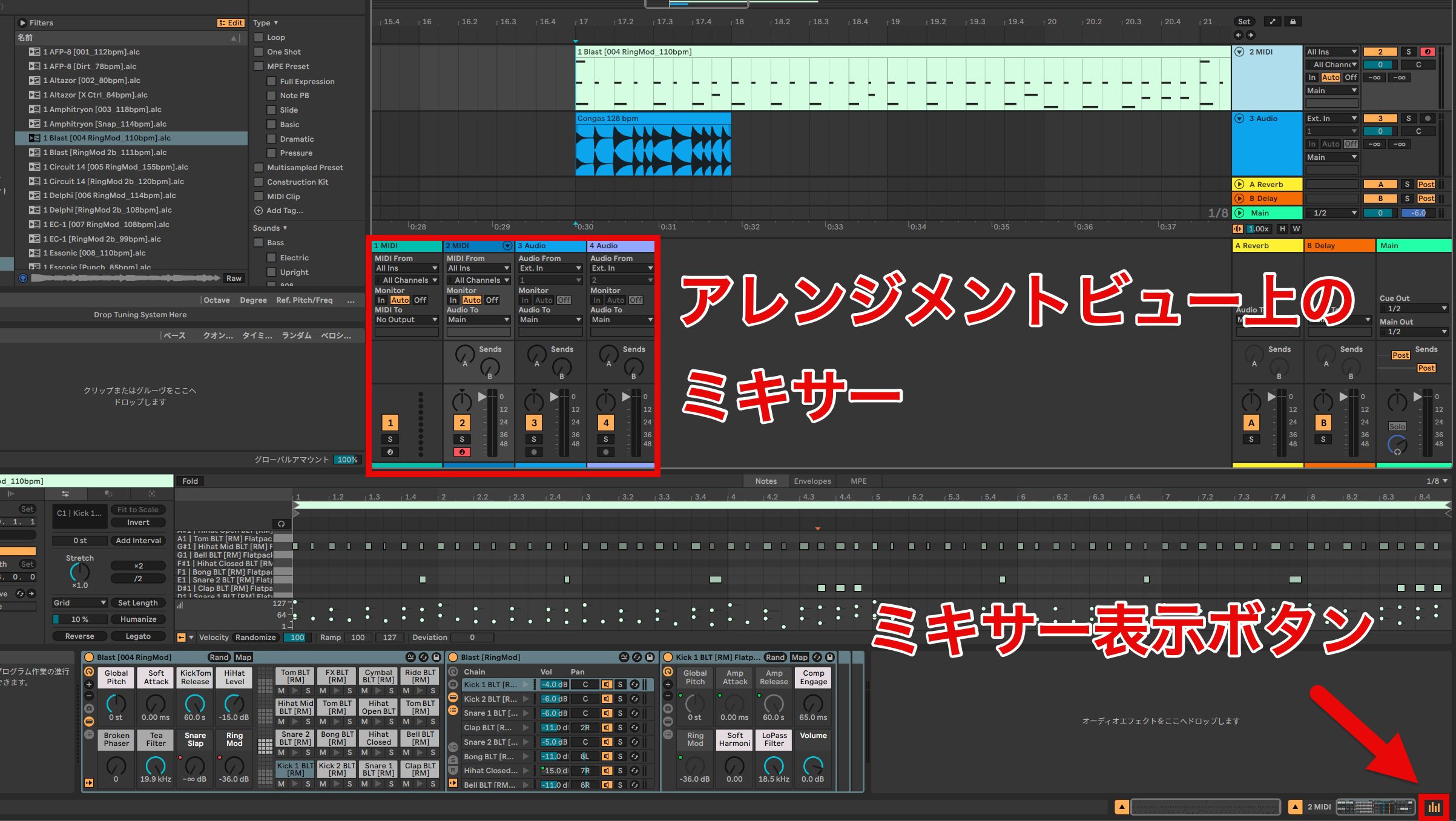
Previously, the full mixer was shown in Session View. Live 12 also lets you display it in Arrangement View.
There is less need to switch views on a single display, helping you keep working efficiently.
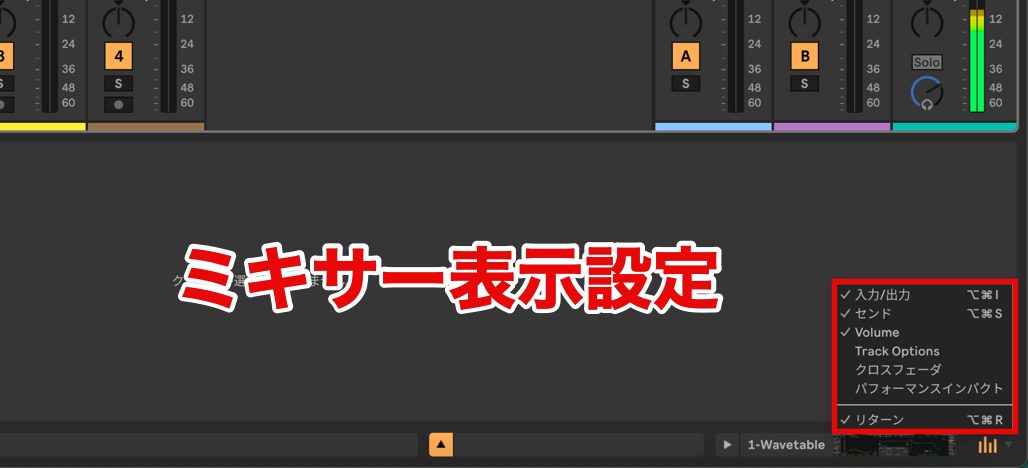
Use the ▼ menu to choose details such as input/output and send controls.
Editor and Device View shown together (all editions in the original overview)
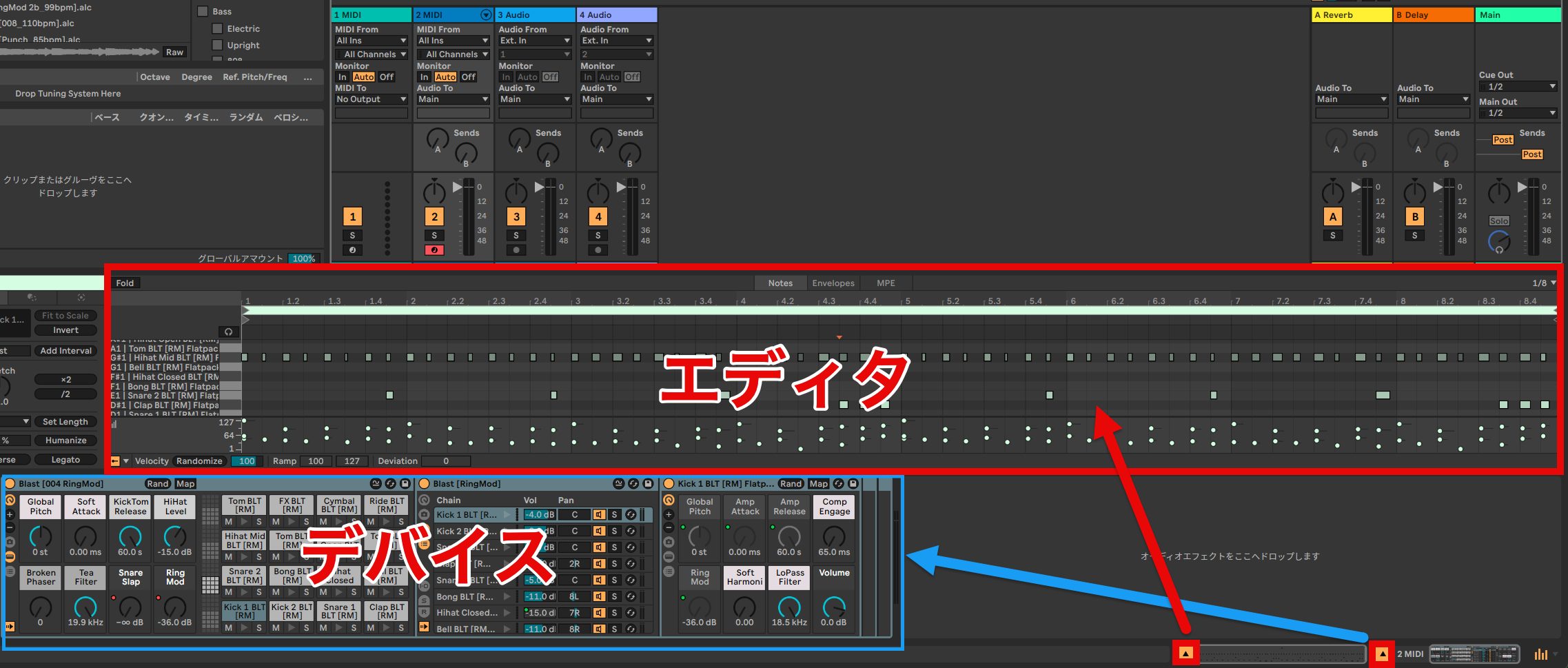
Alongside the mixer, the MIDI or sample editor and Device View can be shown together in a single window.
These two changes make more information visible without switching views, which we found valuable for saving time.
There are further visual improvements too.
Zooming audio waveforms (all editions in the original overview)
You can zoom the audio waveform display in Arrangement View.
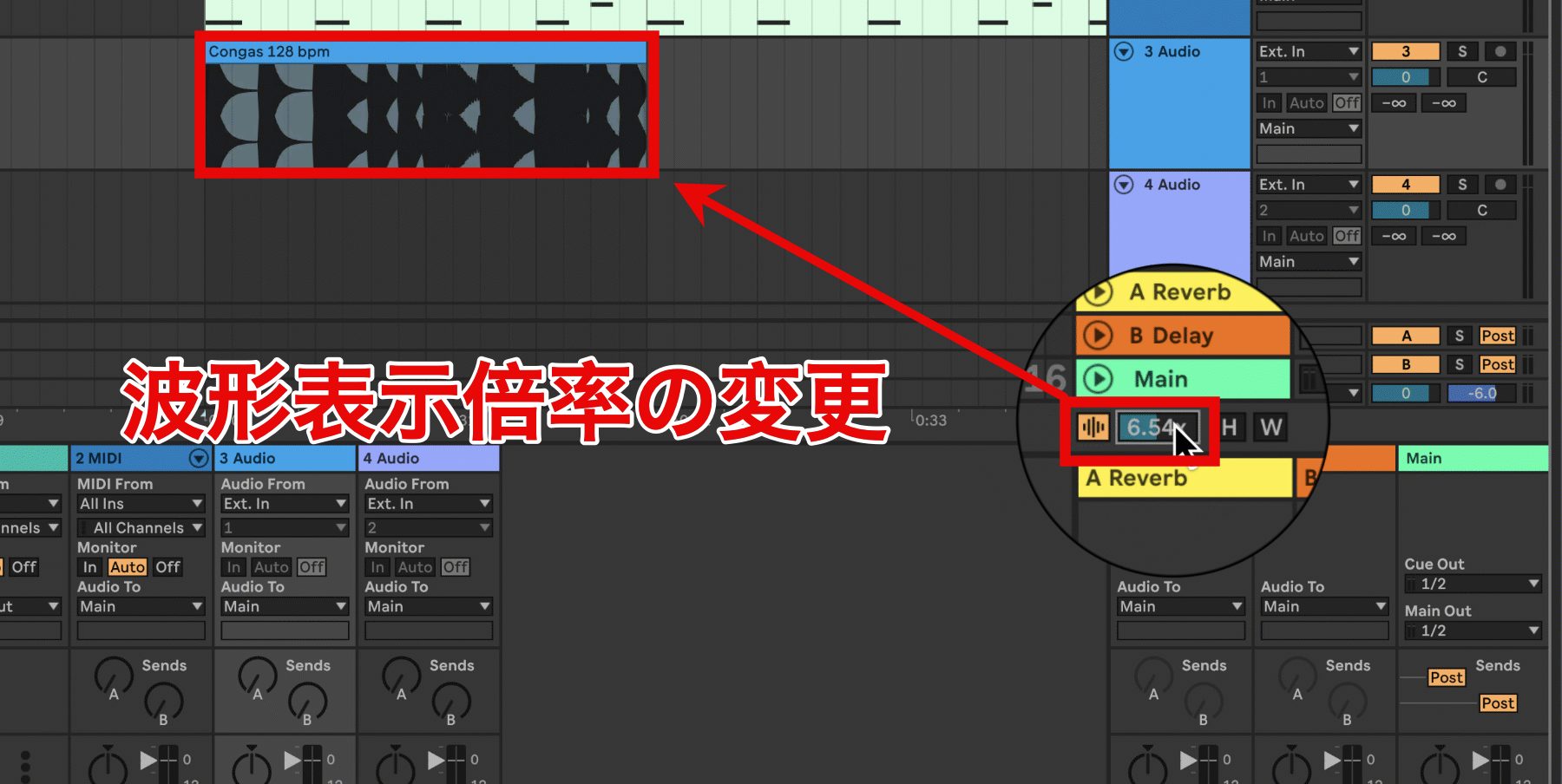
Enable the vertical-zoom control and set its magnification numerically.
Disable it to return immediately to the original magnification.
Quickly adjusting vertical and horizontal zoom (all editions in the original overview)
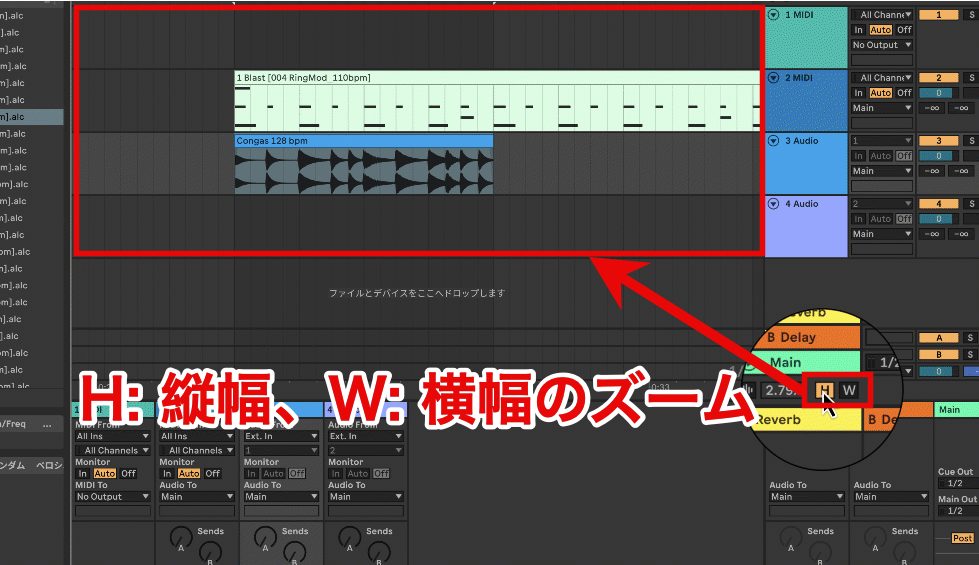
The H and W buttons let you adjust the timeline's visible height and width.
We found this useful for detailed editing.
Quickly returning to a view of the whole timeline can also help the workflow.
Browser improvements
Searching for instruments, effects and musical material is considerably more flexible.
Tag-based filters (all editions in the original overview)
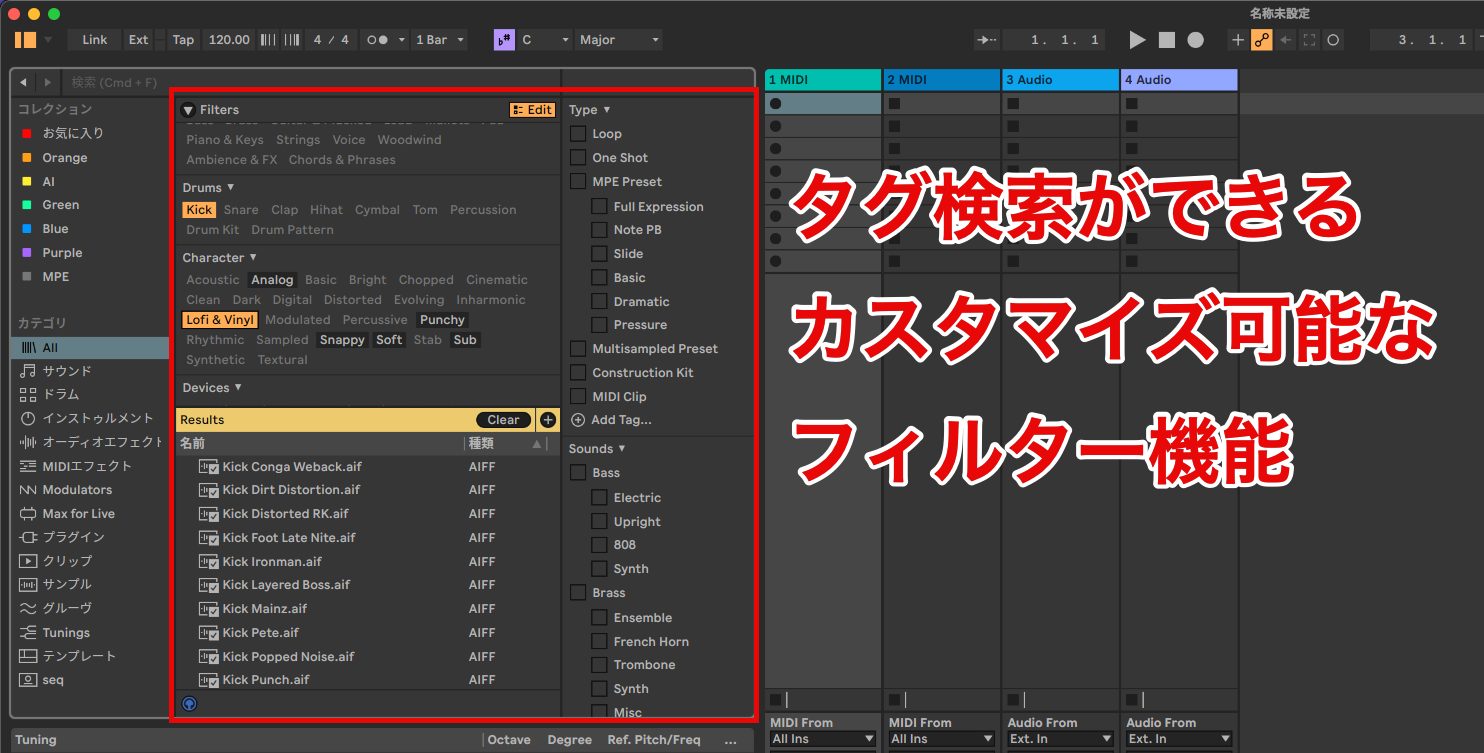
You can assign tags to Live devices, presets, samples and plug-ins.
The included Core Library comes with tags, and you can edit the tags yourself.
You can also manually tag third-party plug-ins and samples.
Saved searches, search history and similar-sound search (Intro and above in the original overview)
For text searches, you can return to previous searches and save frequently used terms.
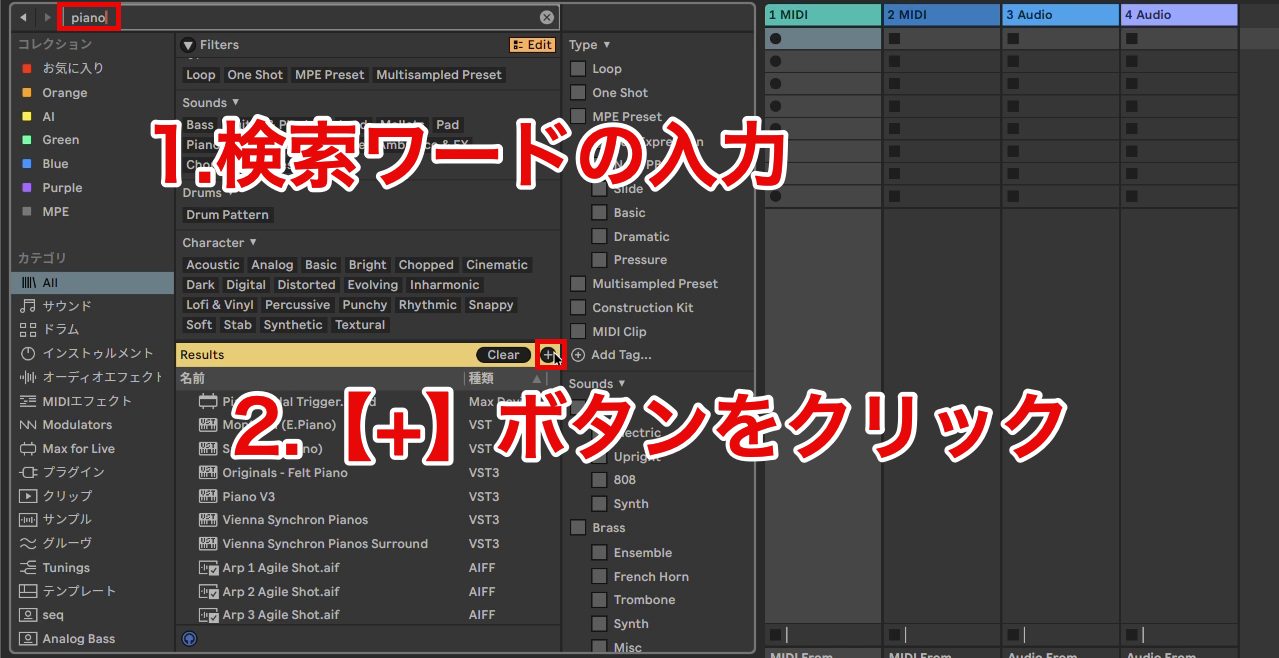
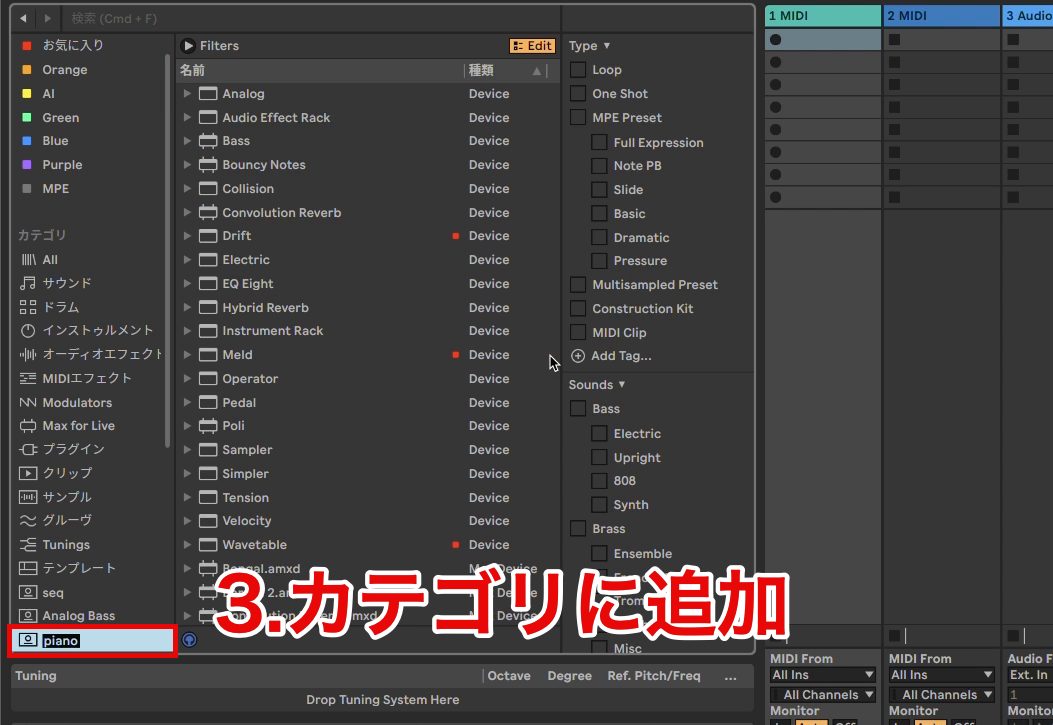
Click the save button beside Results to store the current search in the browser.
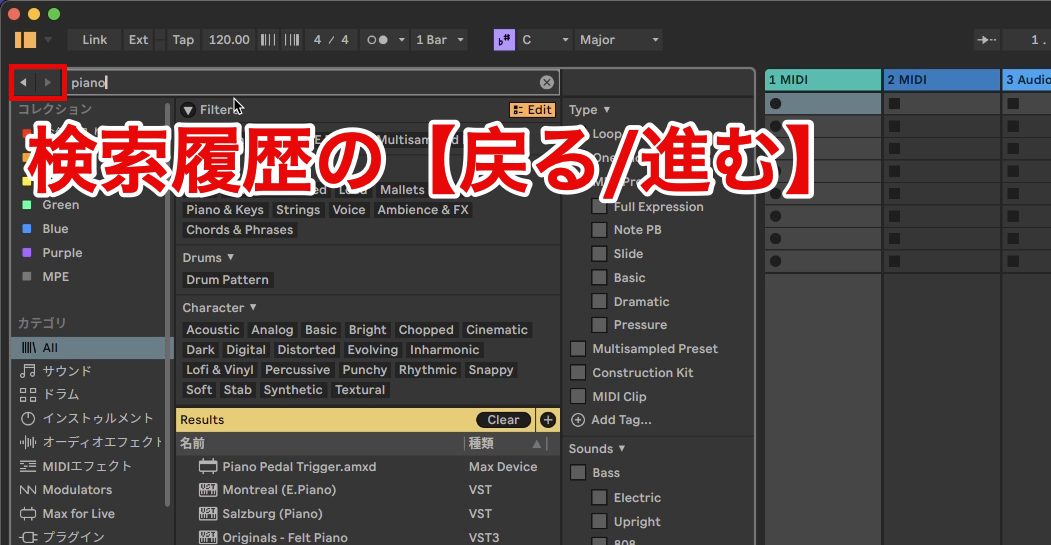
The arrows to the left of the search field let you move through browser history.
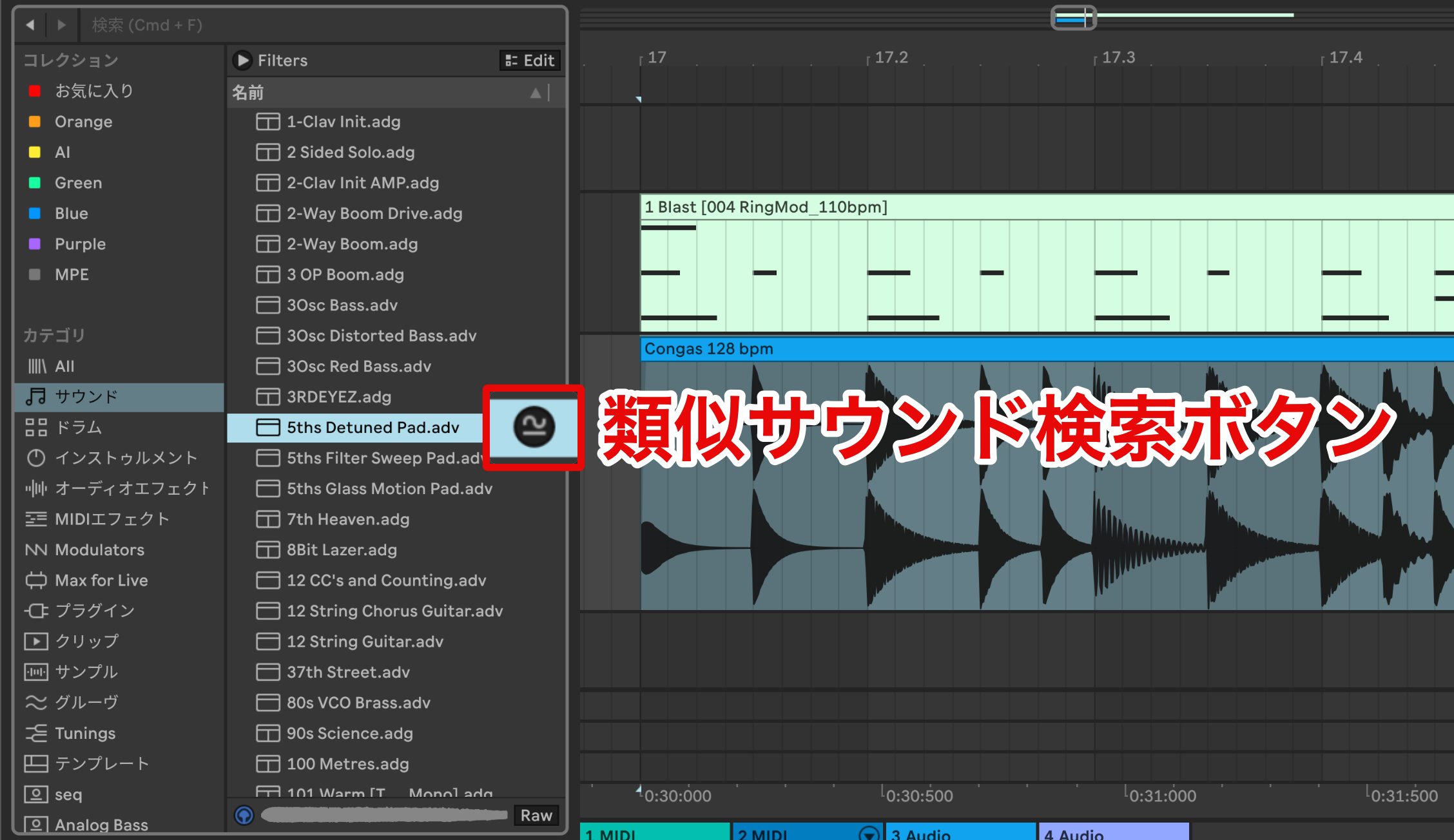
For Live device presets and samples, including third-party samples, you can search for similar sounds.
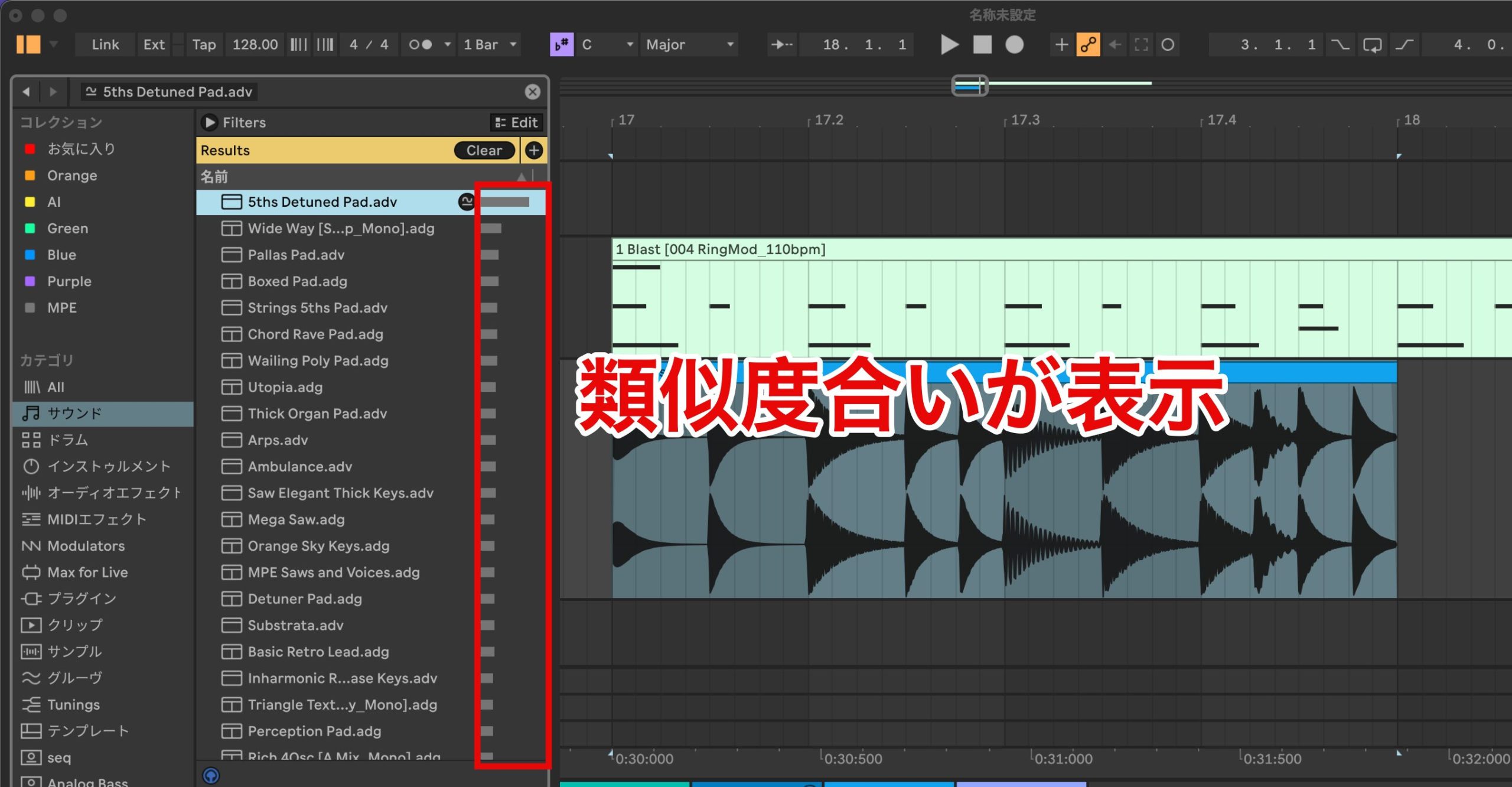
Select an item and use its dedicated button or choose Show Similar Files from the context menu. Similar sounds appear with a bar indicating similarity.
Live analyzes the character of the sound to determine similarity, so the feature also works with untagged items.
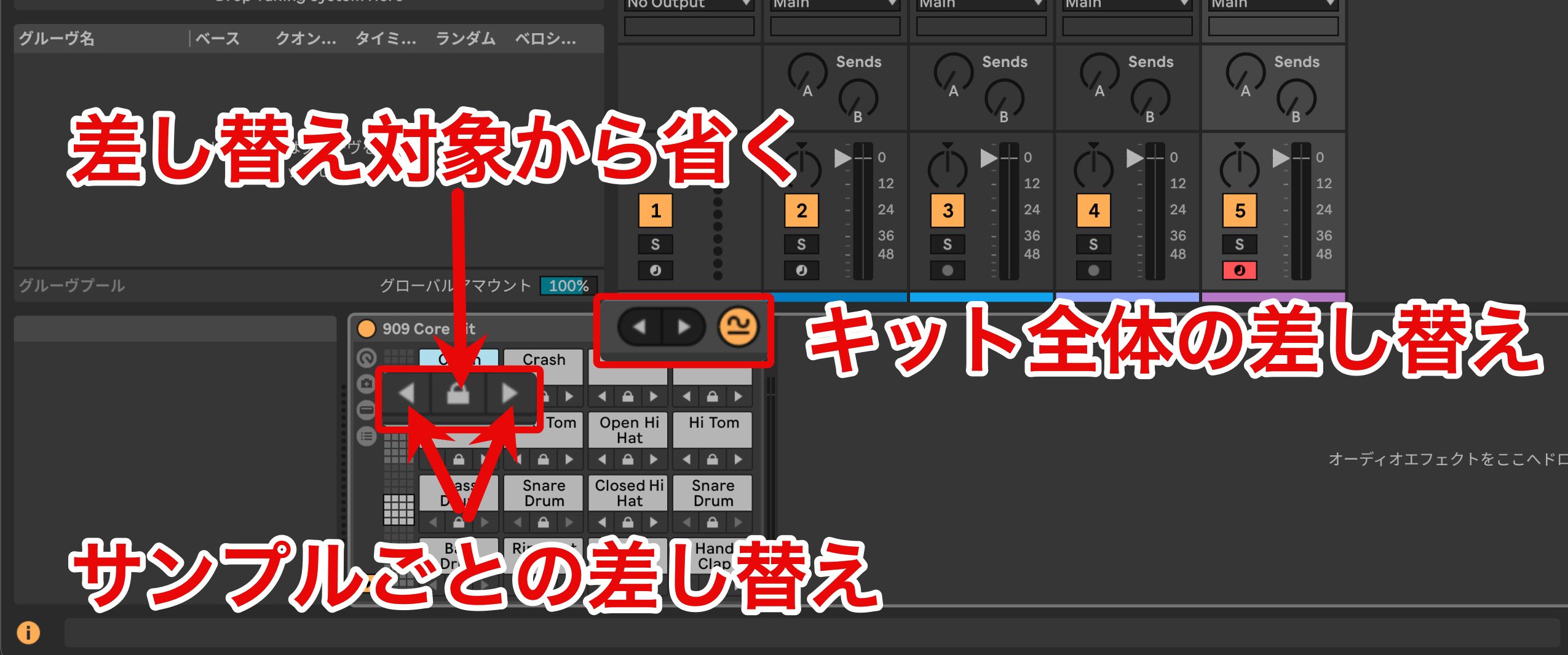
Similar-sound search is also available in Drum Rack.
Click Show Similar Files in the device title bar, then use the displayed arrows to swap similar samples for the whole kit or individual pads.
Lock a pad to keep its sound, allowing you to retain that sound while changing the others.
This is useful for finding a slightly different variation with a similar character.
A separate Modulation category (Standard and above in the original overview)
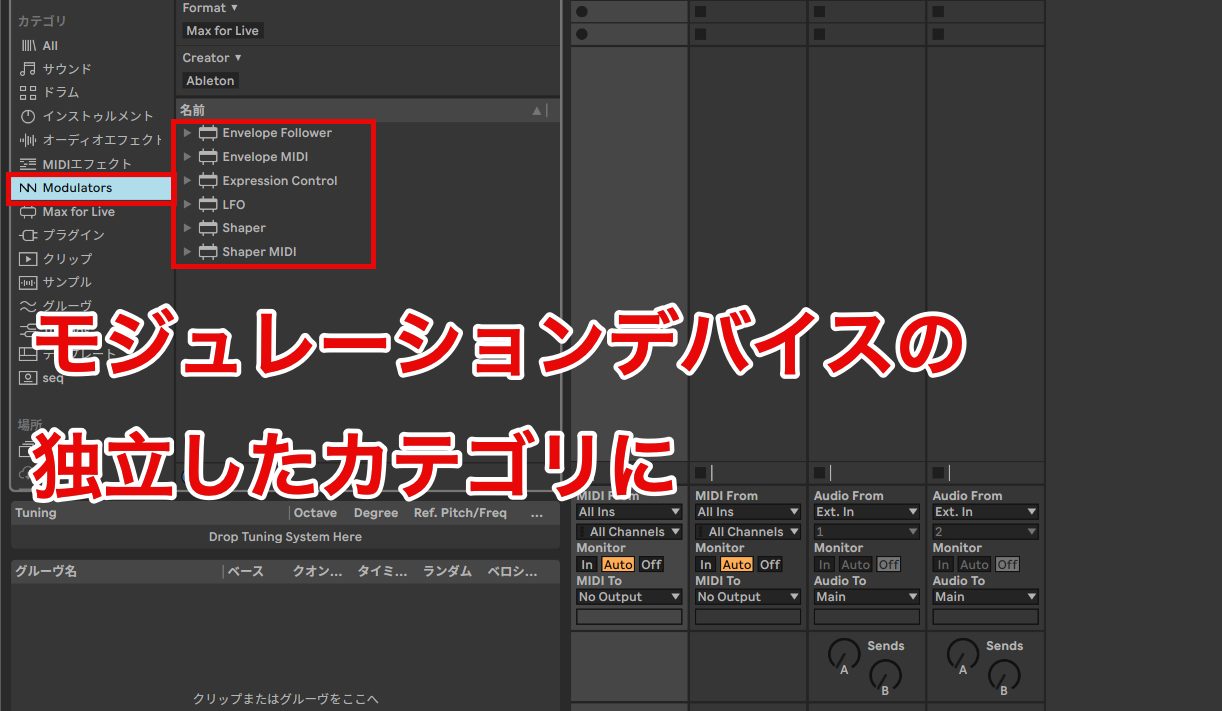
Modulation-source devices such as LFO and Envelope Follower, already part of Live, now appear in a separate Modulation category.
These are frequently used in sound design, so easier access can improve the workflow.
New key, scale and tuning settings (all editions in the original overview)
So far, we have covered visual and workflow changes. Next, we turn to additions that affect the music itself.
Live 12's beta adds settings for key, scale and tuning, expanding the possibilities for making music.
Setting the key and scale (all editions in the original overview)
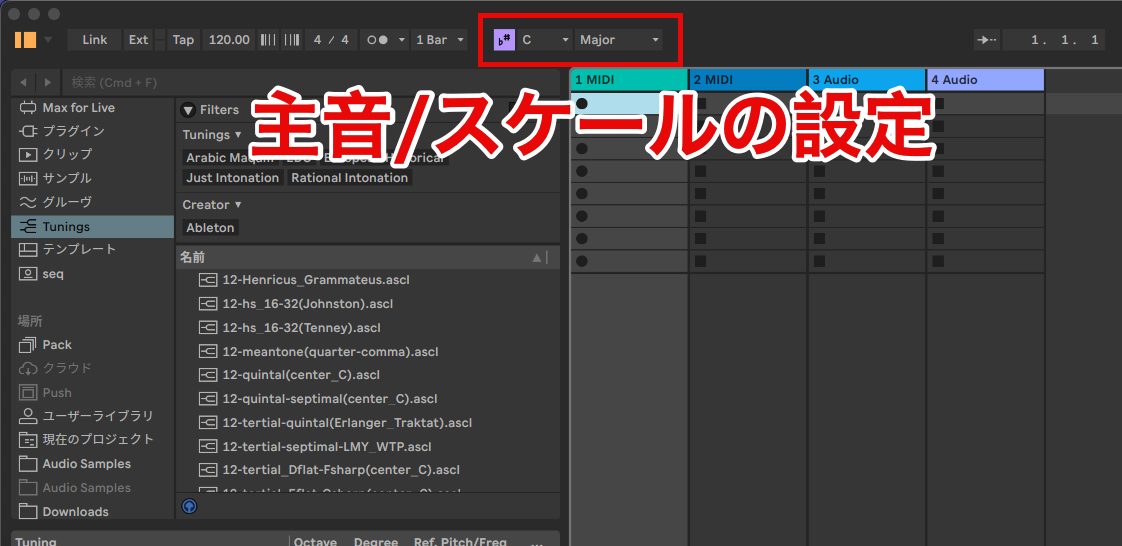
Use the Scale Mode control at the top of the window to select a root note and scale type.
With this setting, compatible pitch-related MIDI devices and instruments recognize the selected scale.
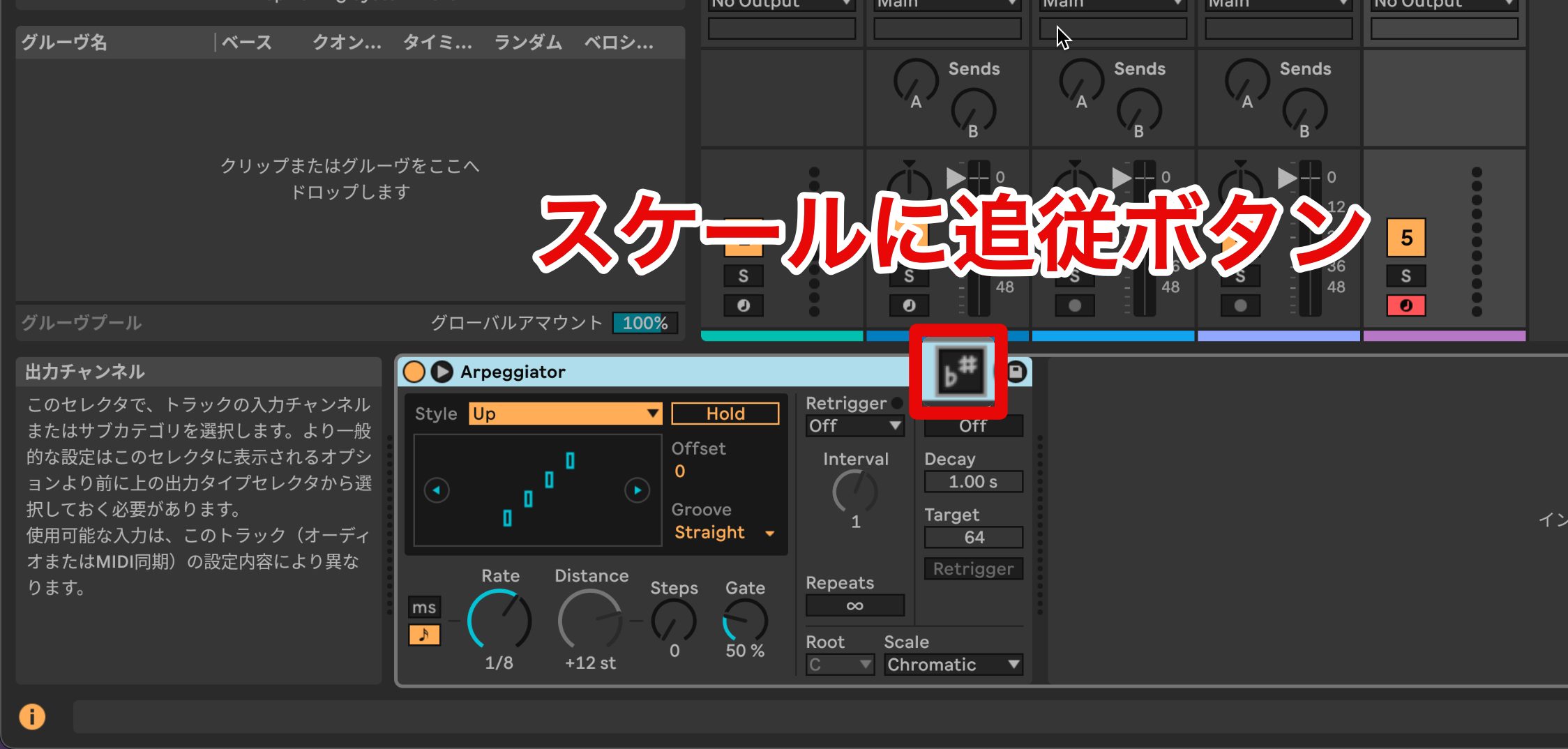
Many MIDI effects, including Arpeggiator, were updated for this workflow.
The MIDI editor discussed below can follow the scale too, making it easier to work with its notes.
Tuning systems (all editions in the original overview)
Much contemporary popular music is based on equal temperament.
Other musical traditions and experimental music may use different tuning systems.
The new tuning-system support lets you incorporate fine pitch relationships from tunings beyond equal temperament.
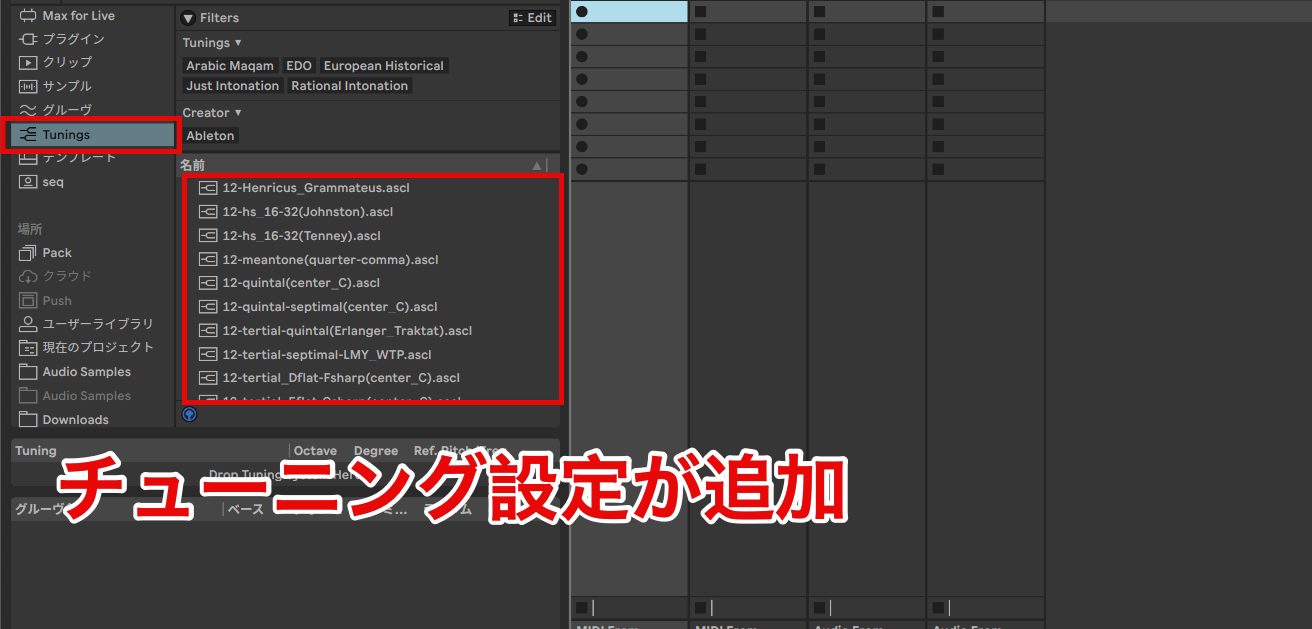
Load a tuning file from the browser's Tunings category. Compatible included instruments and MPE-capable third-party instruments can follow the selected tuning.
Alongside the supplied tunings, Scala-format file import lets you add further tuning systems later.
This opens possibilities for ensembles involving instruments whose tuning is not well represented by equal temperament, as well as experimental music and other forms of expression.
New MIDI utilities
The MIDI editor gains several of the update's most distinctive features.
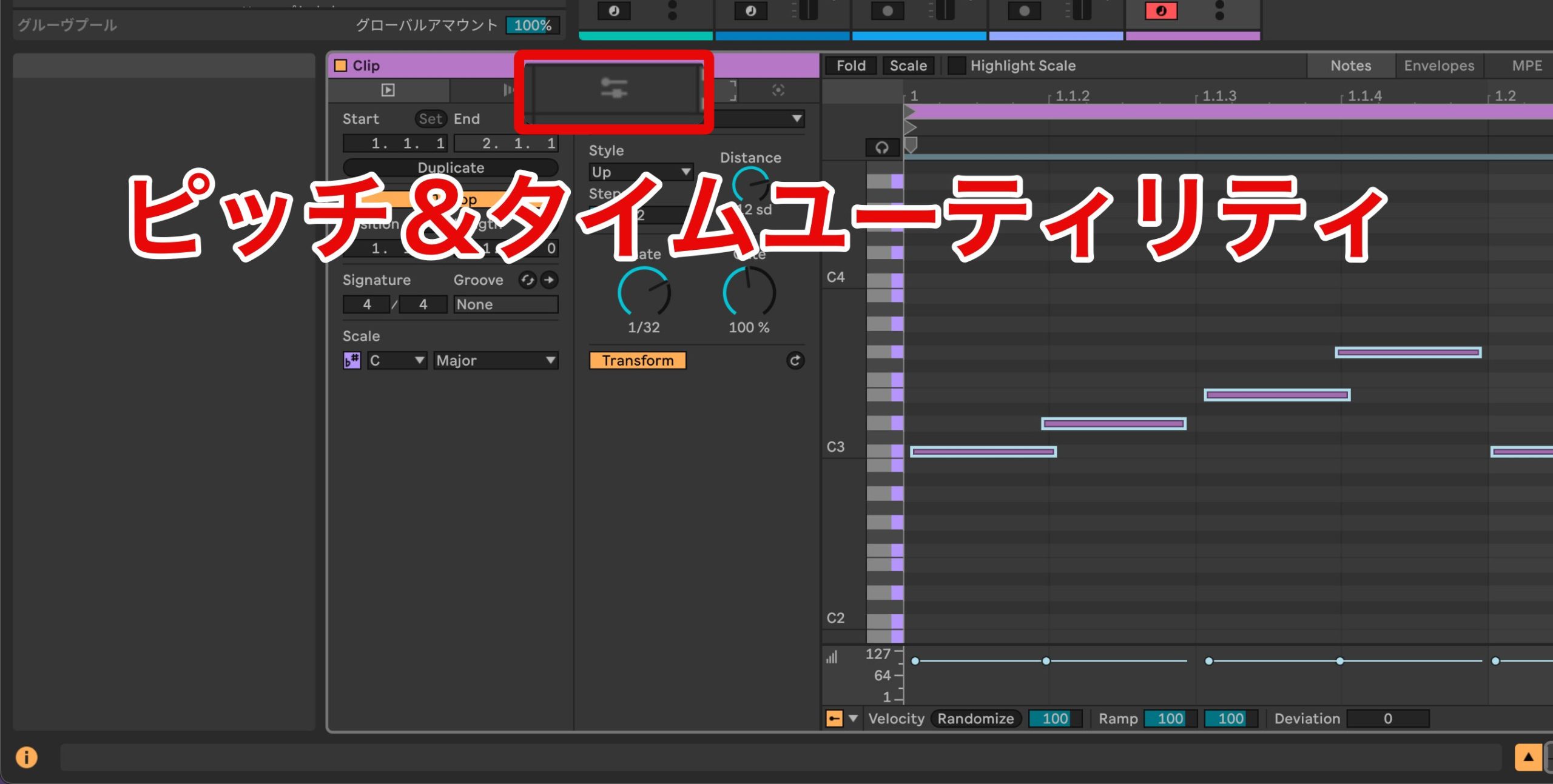
These utilities adjust the pitch and timing of existing notes.
Fit to Scale (all editions in the original overview)
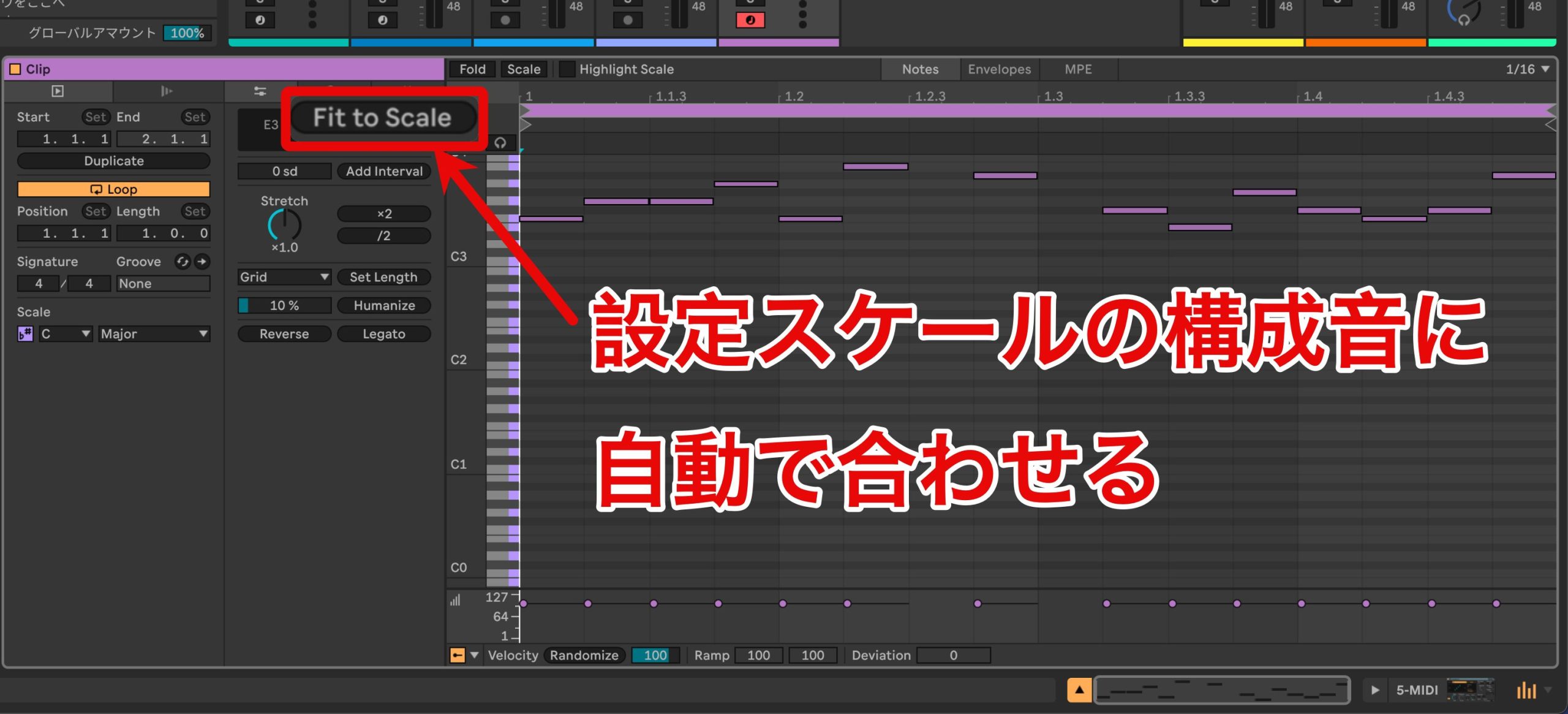
This automatically moves note pitches onto notes of the selected scale.
It affects selected notes when there is a selection, or the whole clip when no notes are selected.
Add Interval (all editions in the original overview)
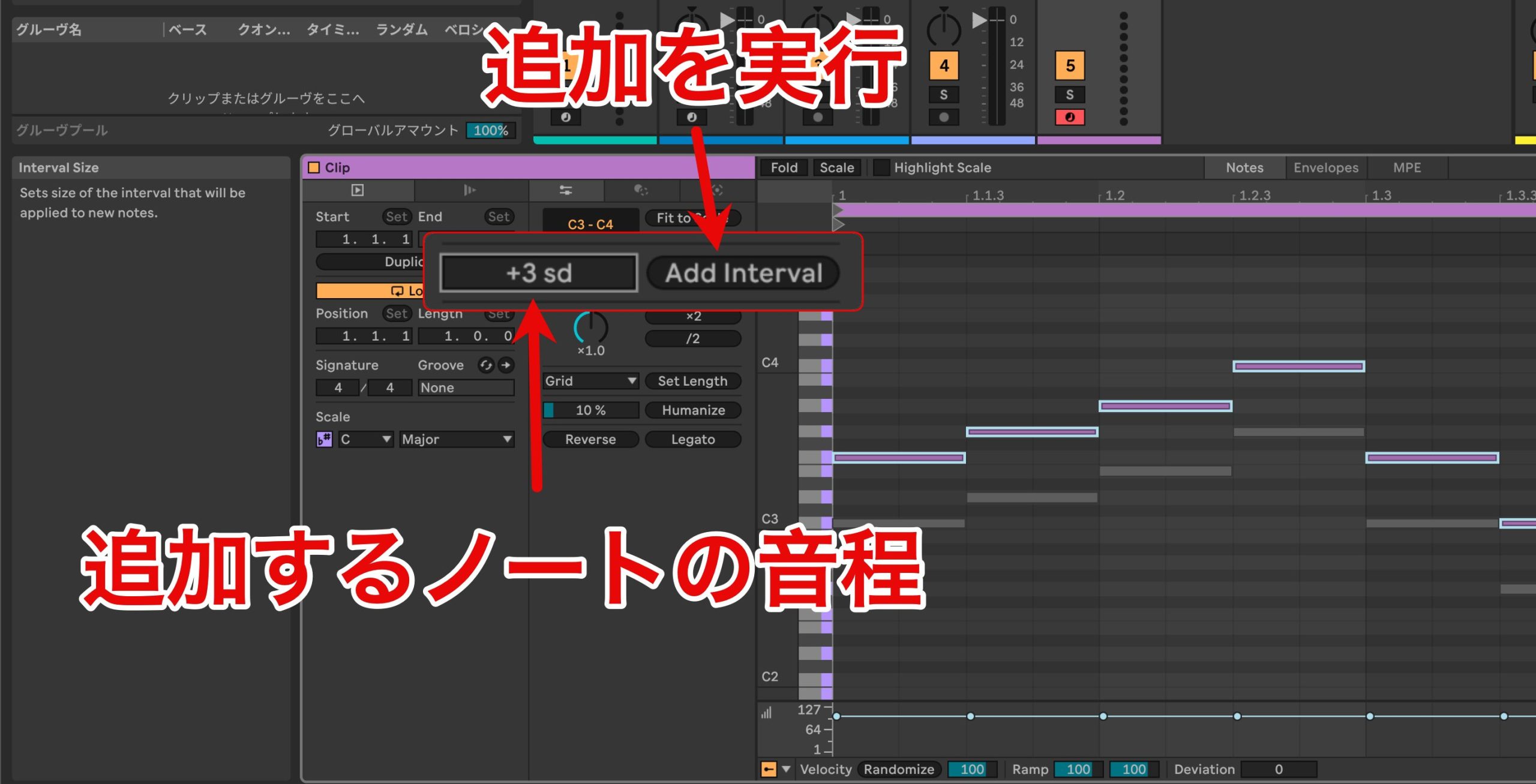
This adds notes at a specified interval relative to selected notes.
With a scale set, you can specify intervals within that scale; without one, intervals are specified in semitones.
Quickly adding harmony to a line can save time.
Stretch (all editions in the original overview)
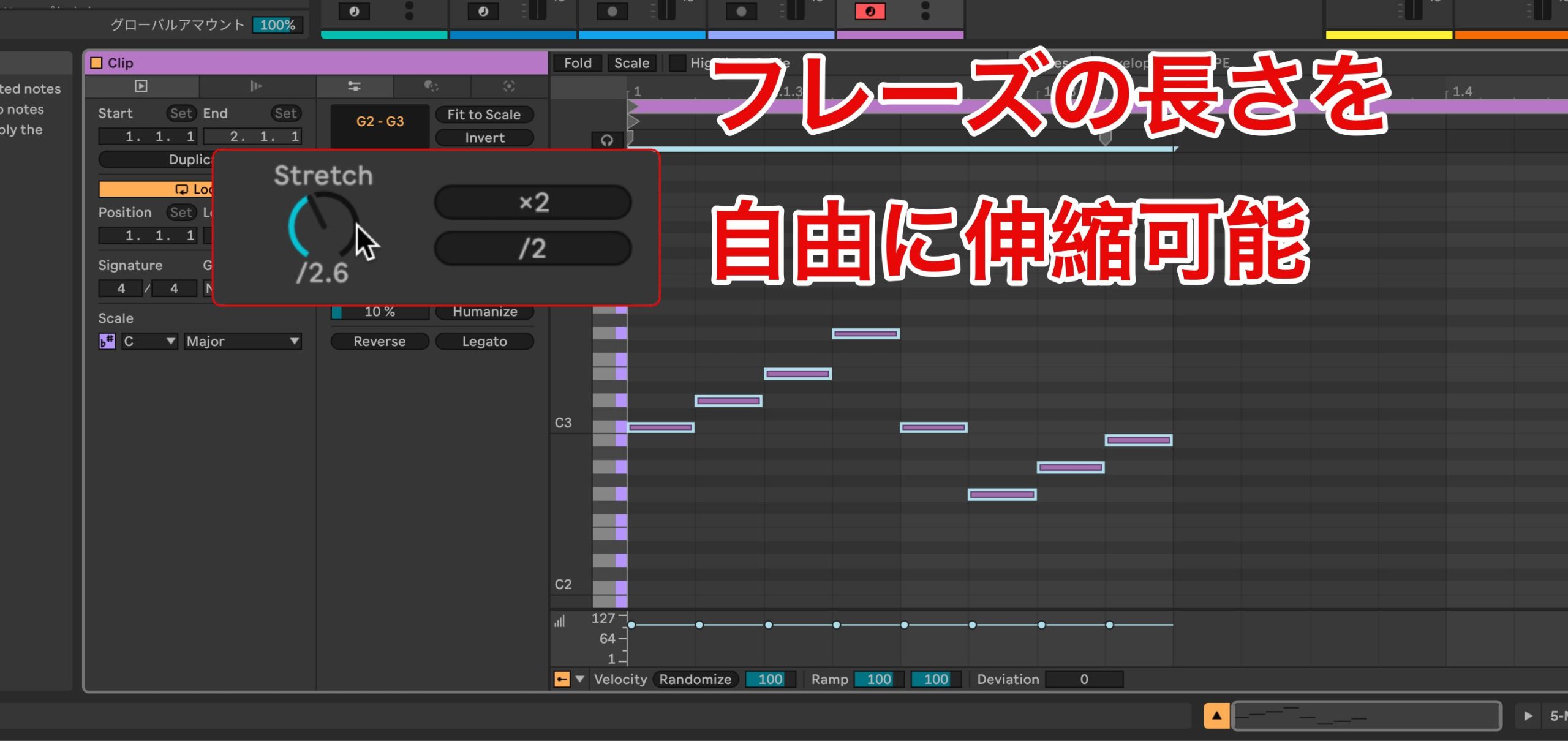
The earlier ×2 and ÷2 controls let you double or halve the timing. Live 12 adds finer stretch-ratio control in the tools tab.
Humanize (all editions in the original overview)
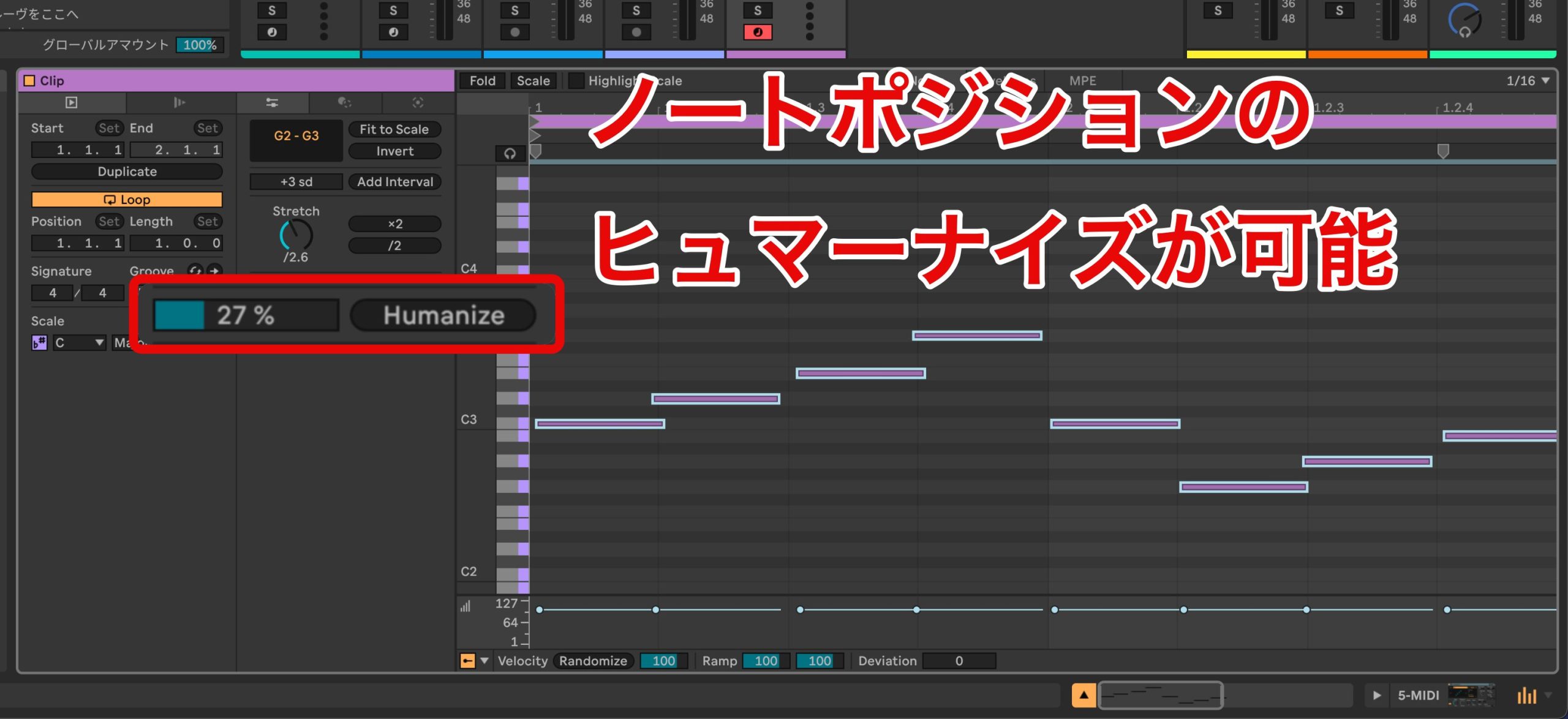
This introduces random offsets to note-start timing.
The percentage setting controls the amount of variation.
MIDI Transformation Tools
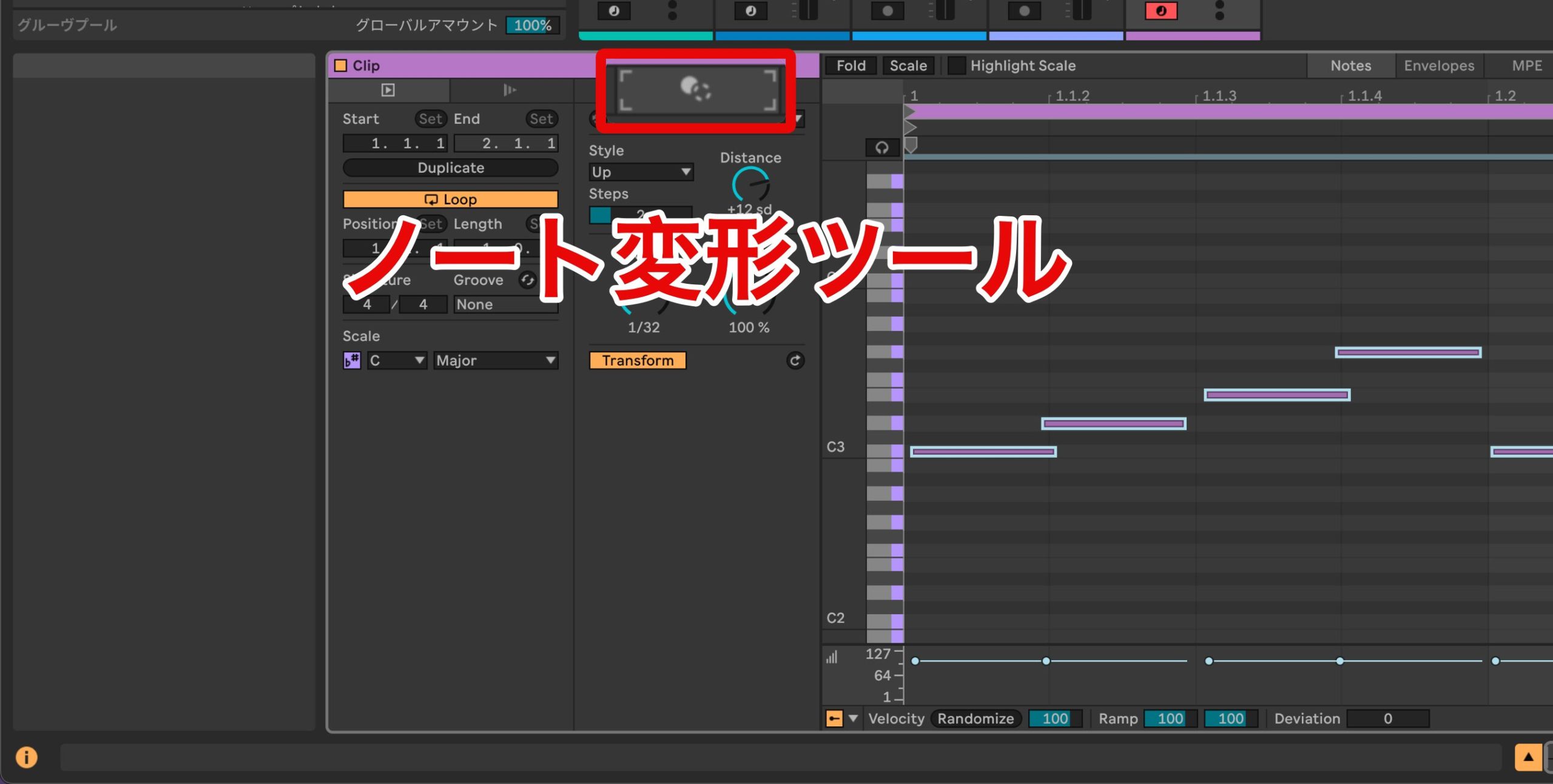
New tools let you transform existing notes into a range of performance patterns.
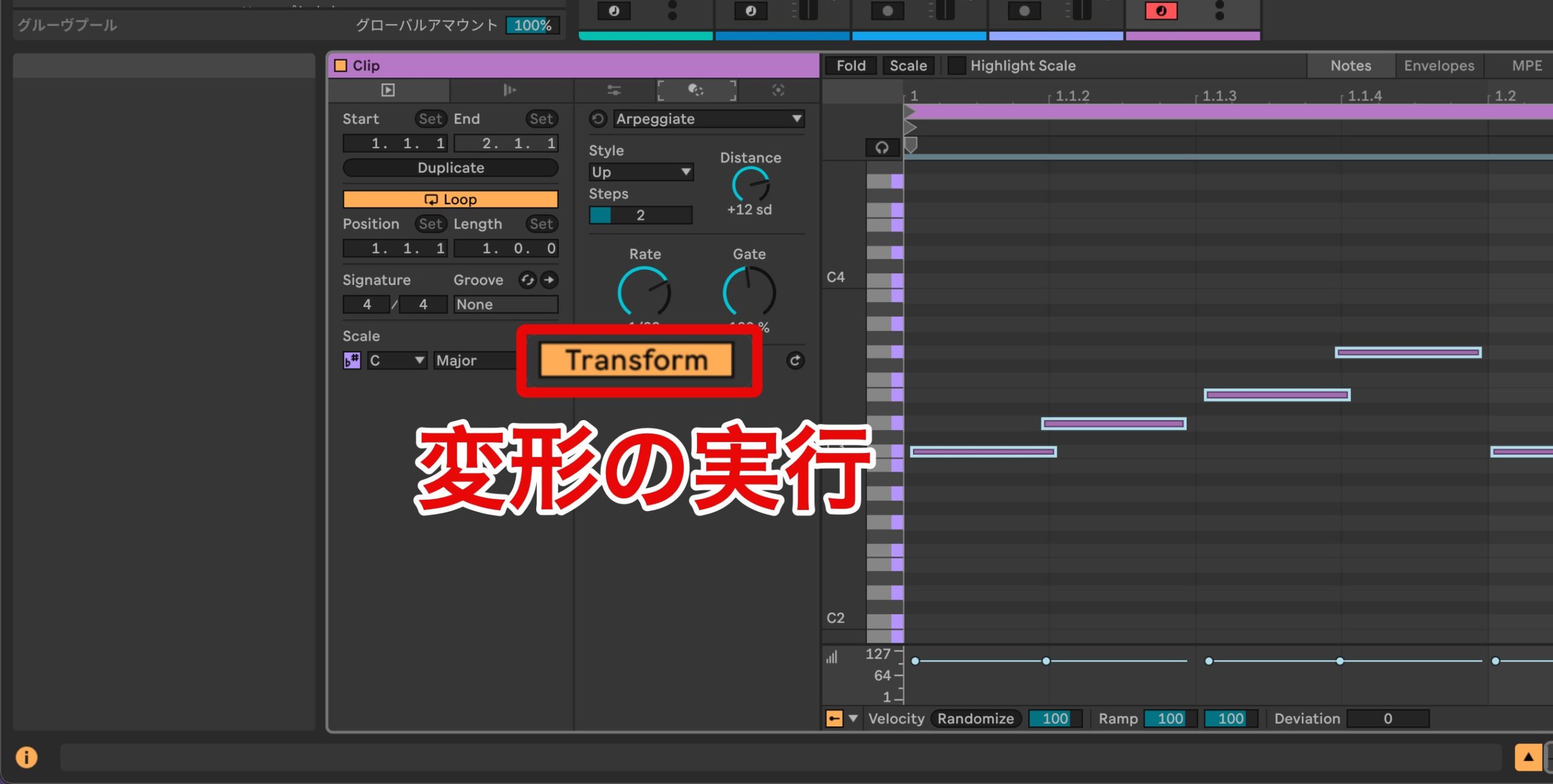
For each tool, set its parameters and enable Transform to apply the result to the notes.
Disabling it lets you return to the original state in the beta workflow shown here.
Arpeggiate (Standard and above in the original overview)
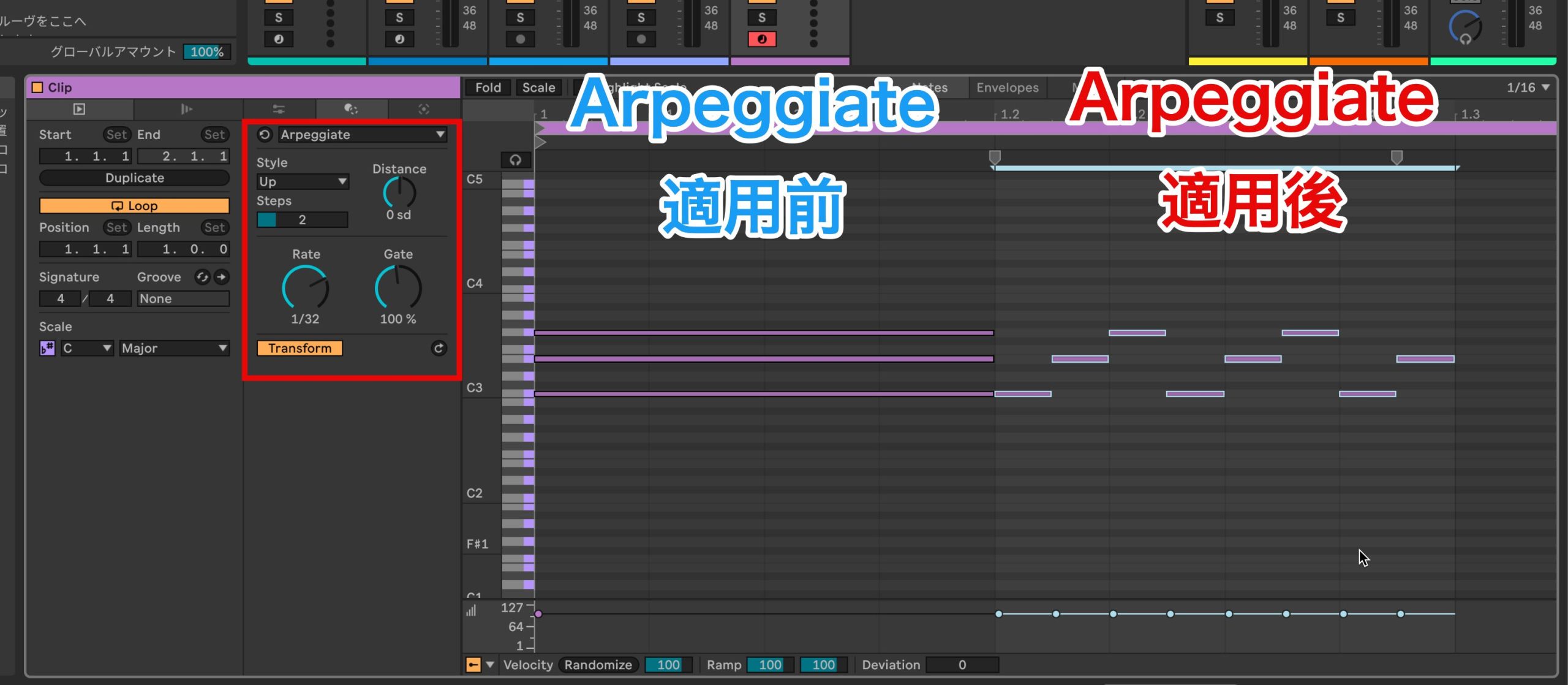
Turn a chord into an arpeggio.
Connect (Standard and above in the original overview)
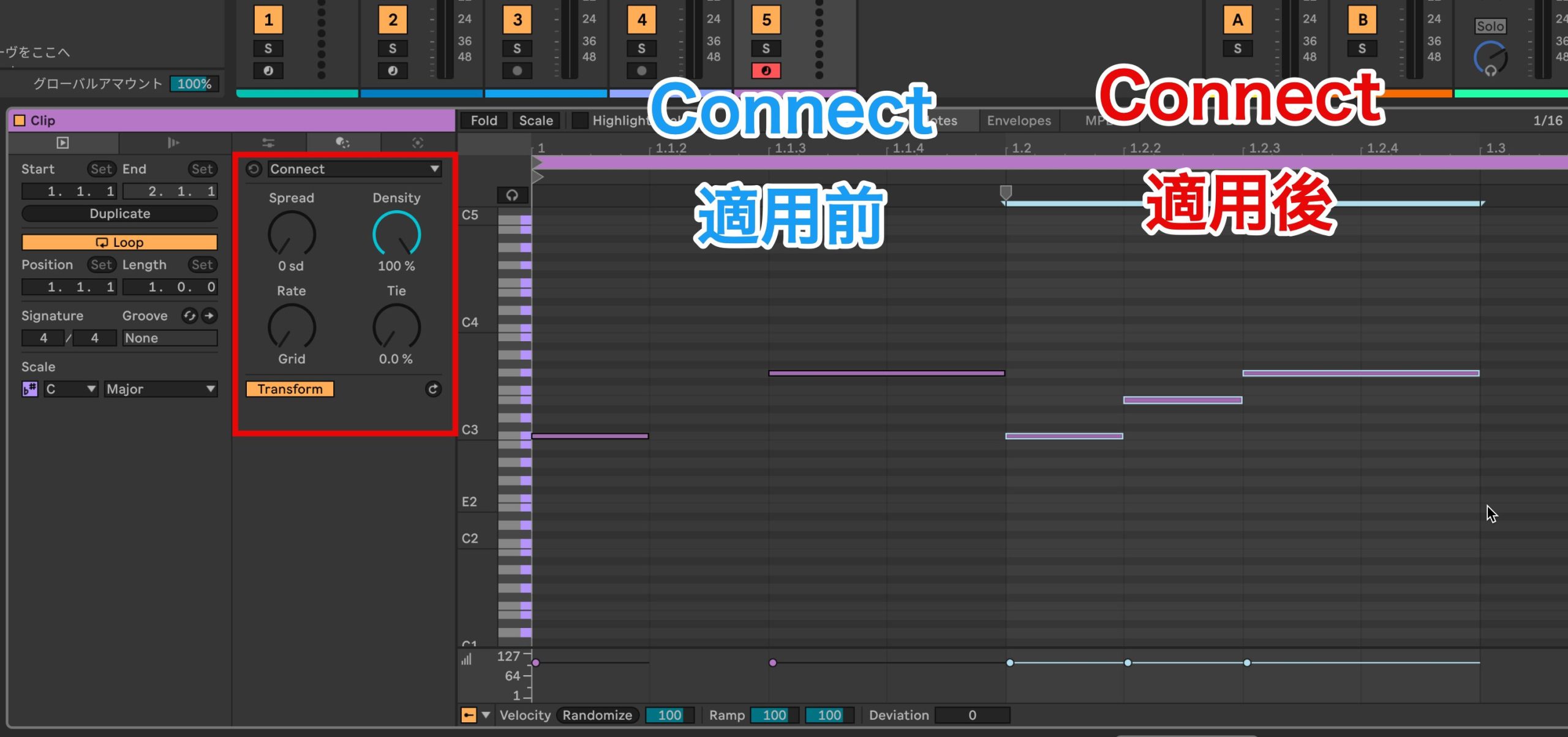
Fill gaps between existing notes.
You can enter just the accents and randomly fill the remaining spaces, potentially producing unexpected phrases.
Ornament (Standard and above in the original overview)
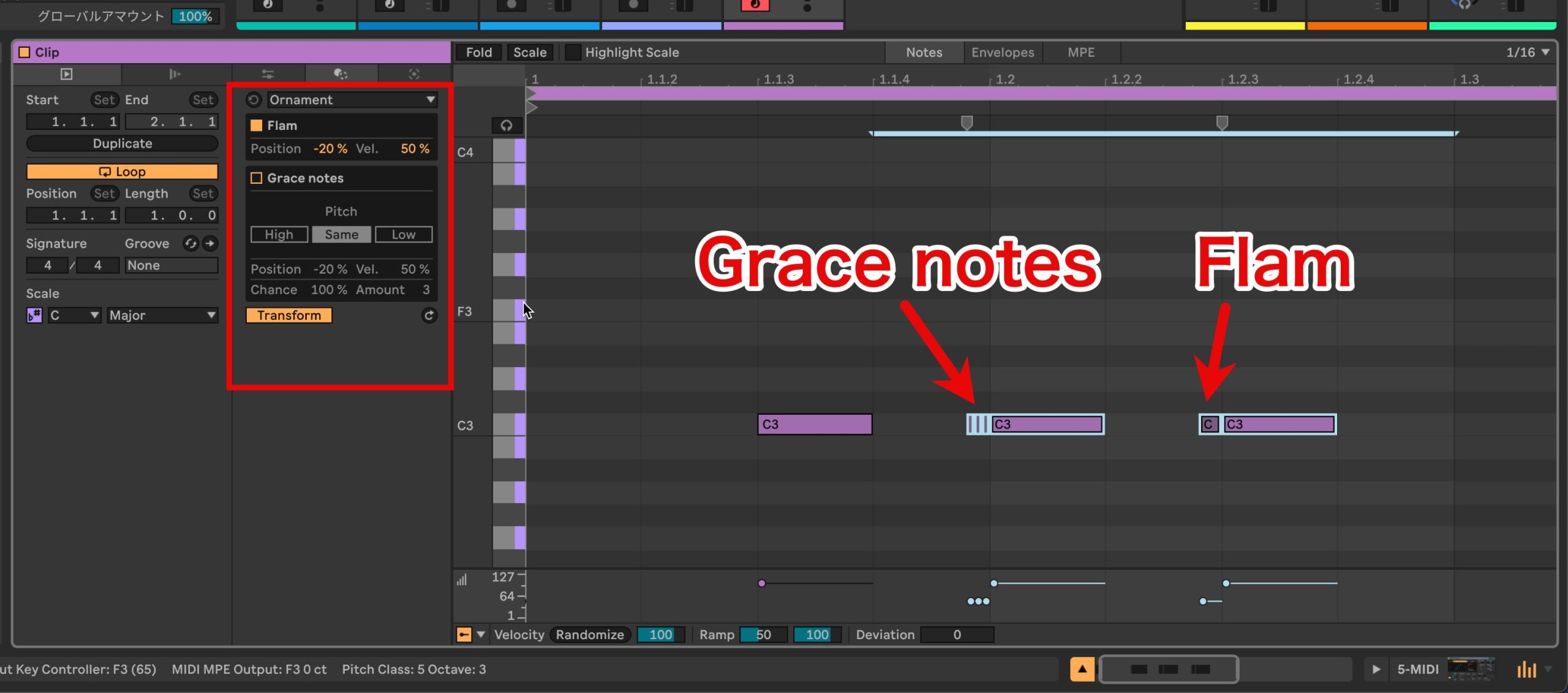
Add flams or grace notes around selected notes.
It can be effective on melodies and other non-drum material as well as percussion.
Recombine (Standard and above in the original overview)
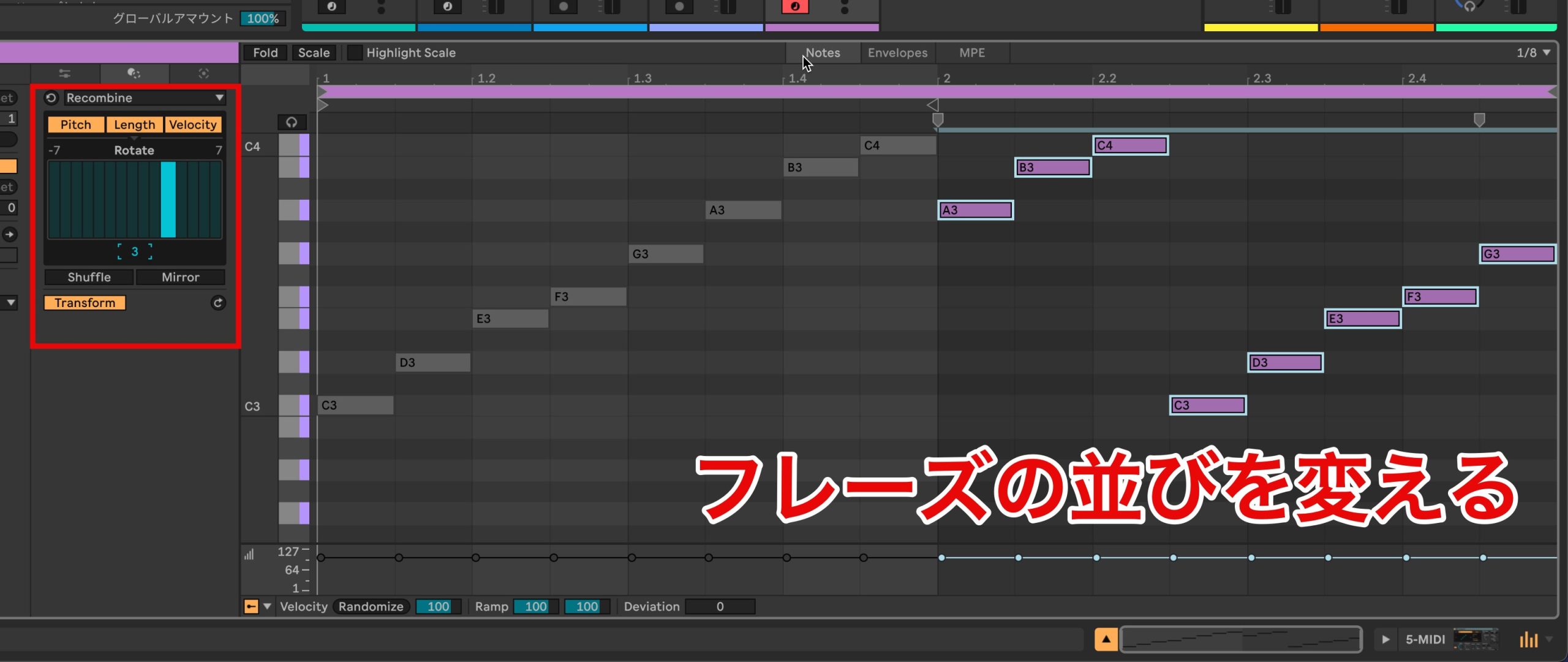
Rearrange note pitches, velocities and durations.
Shuffle randomizes them, while Mirror provides reflected transformations, including reversing their order.
This helps create variations on an existing phrase.
Span (Standard and above in the original overview)
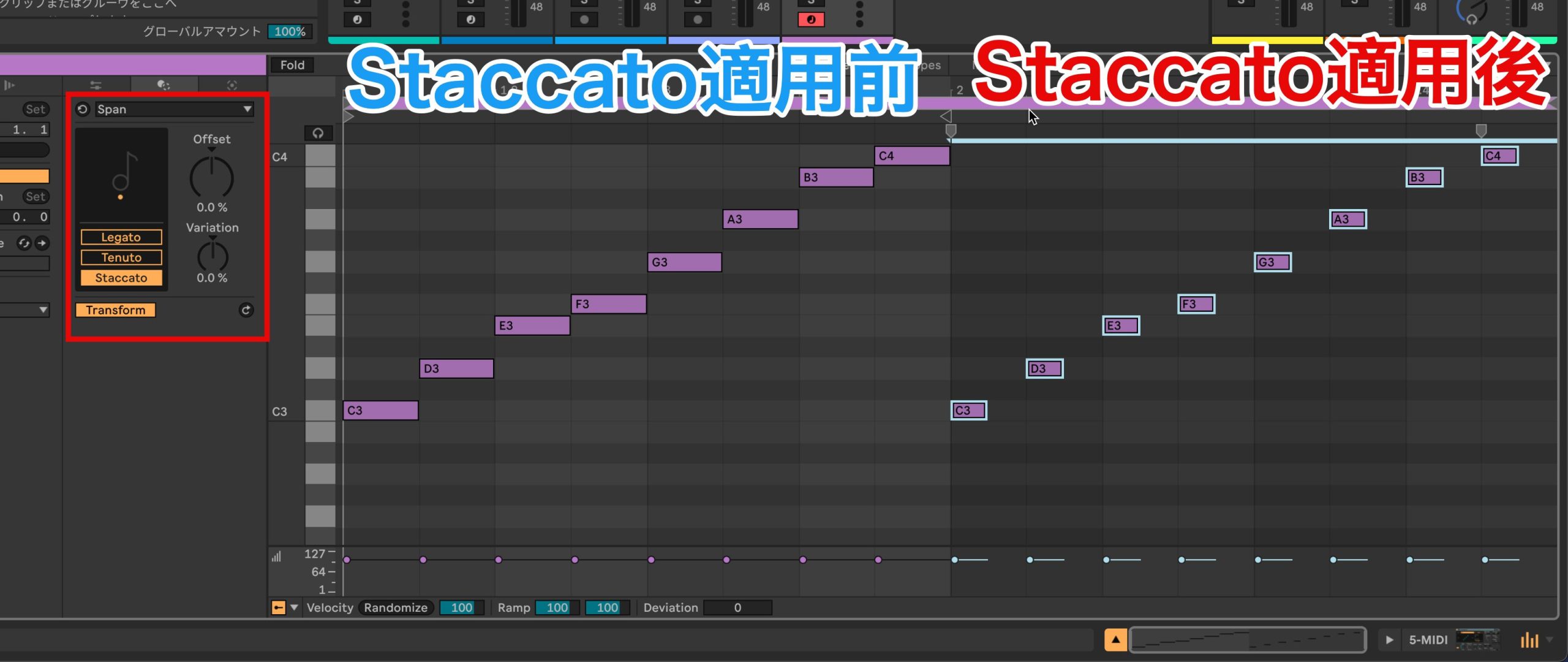
Adjust the durations of selected notes together for effects such as legato or staccato.
Variation randomly changes the amount applied, helping create a more organic performance.
Strum (Standard and above in the original overview)
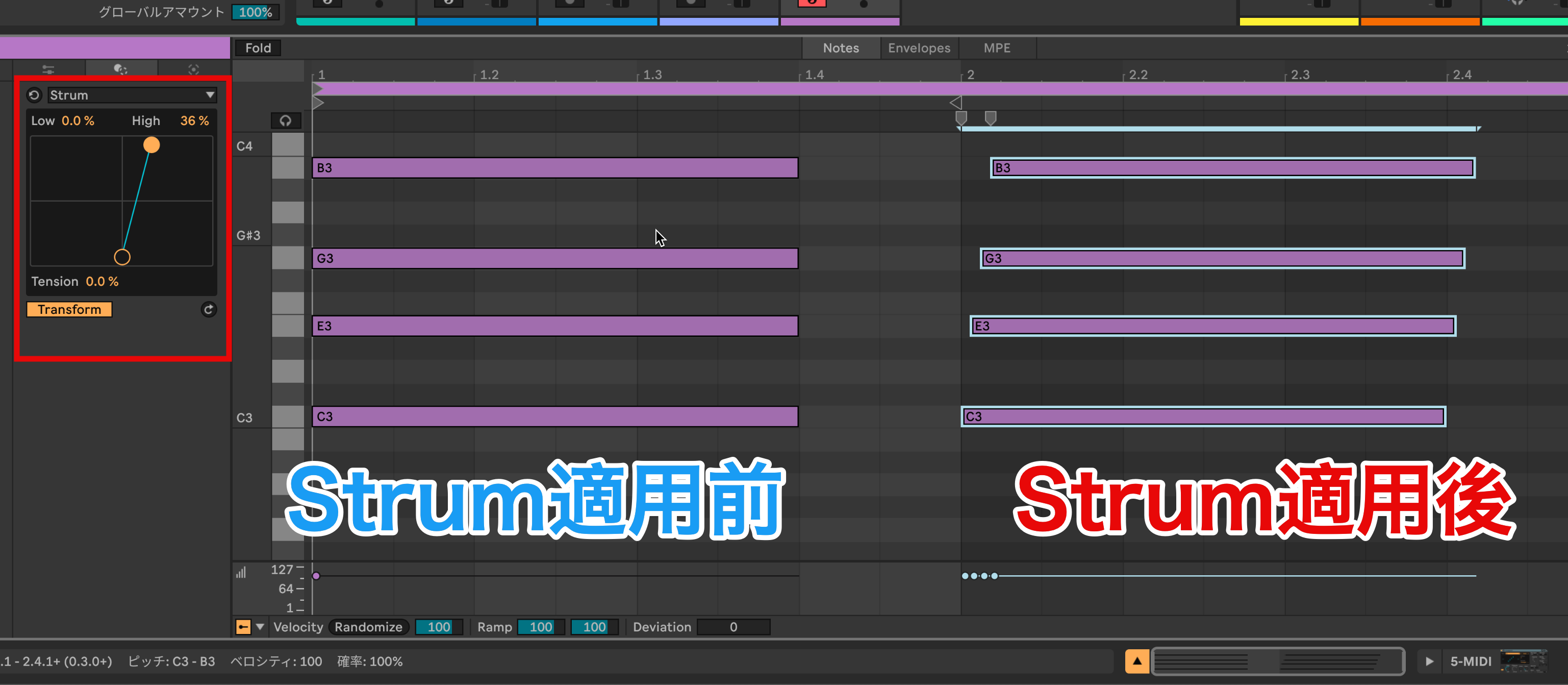
Offset individual notes of a chord to suggest the strumming of a guitar or another stringed instrument.
The timing offsets are controlled visually, which makes the tool approachable.
Time Warp (Standard and above in the original overview)
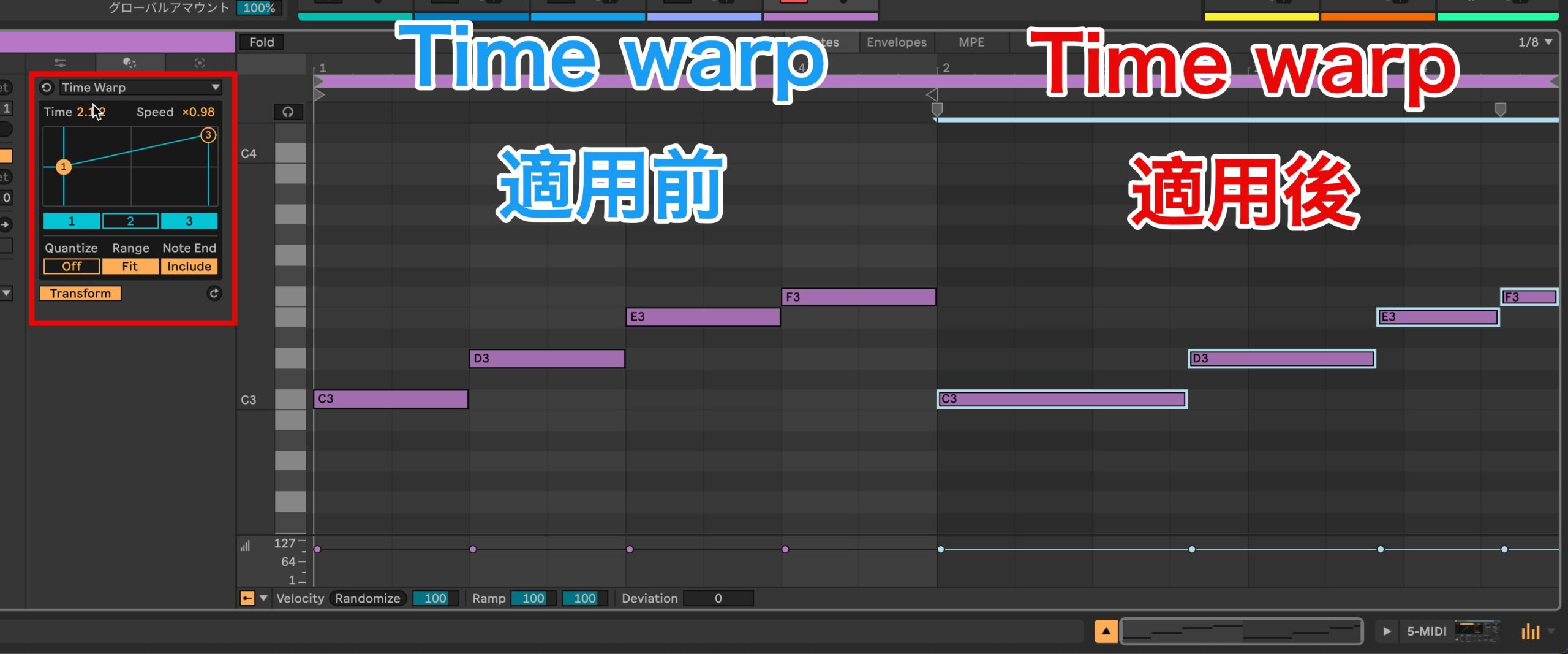
Gradually speed up or slow down the timing of selected notes.
It is easy to add an accelerating feel, which could be useful for rolls in rhythm parts.
Velocity Shaper (Suite only in the original overview)
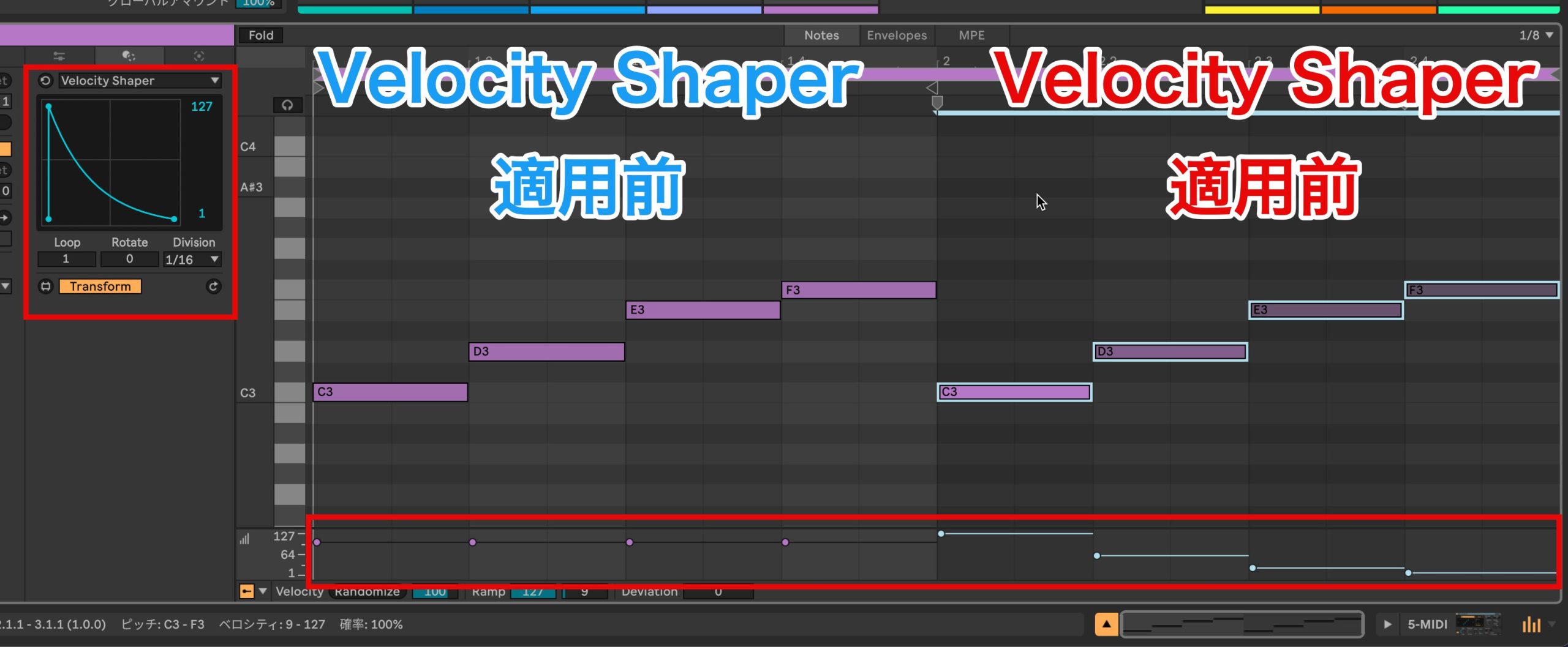
Apply a velocity contour to multiple notes at once.
You can freely redraw the shape to give a phrase the dynamic movement you want.
MIDI Generators
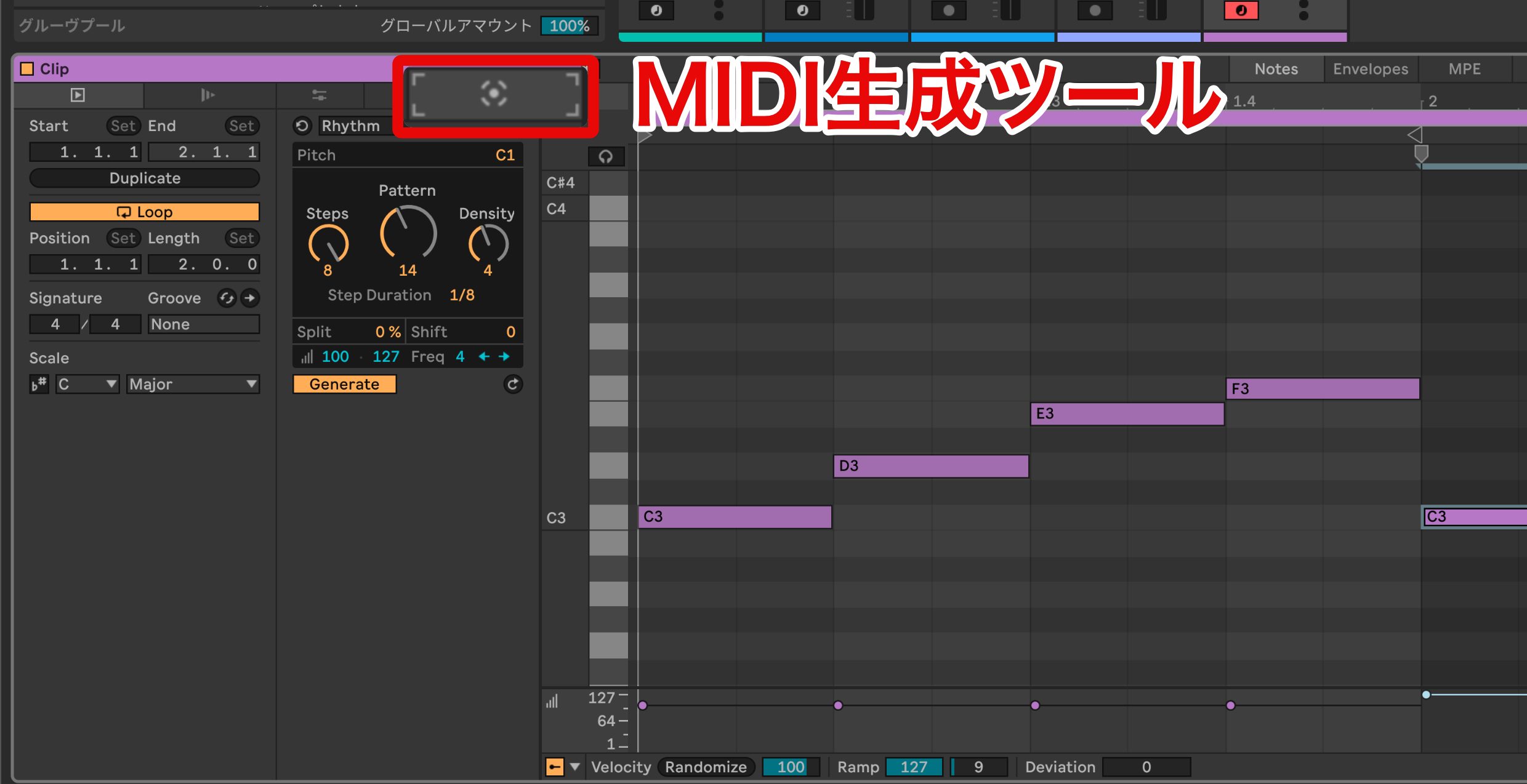
New generators create several types of phrases without requiring every note to be entered manually.
Rhythm (Standard and above in the original overview)
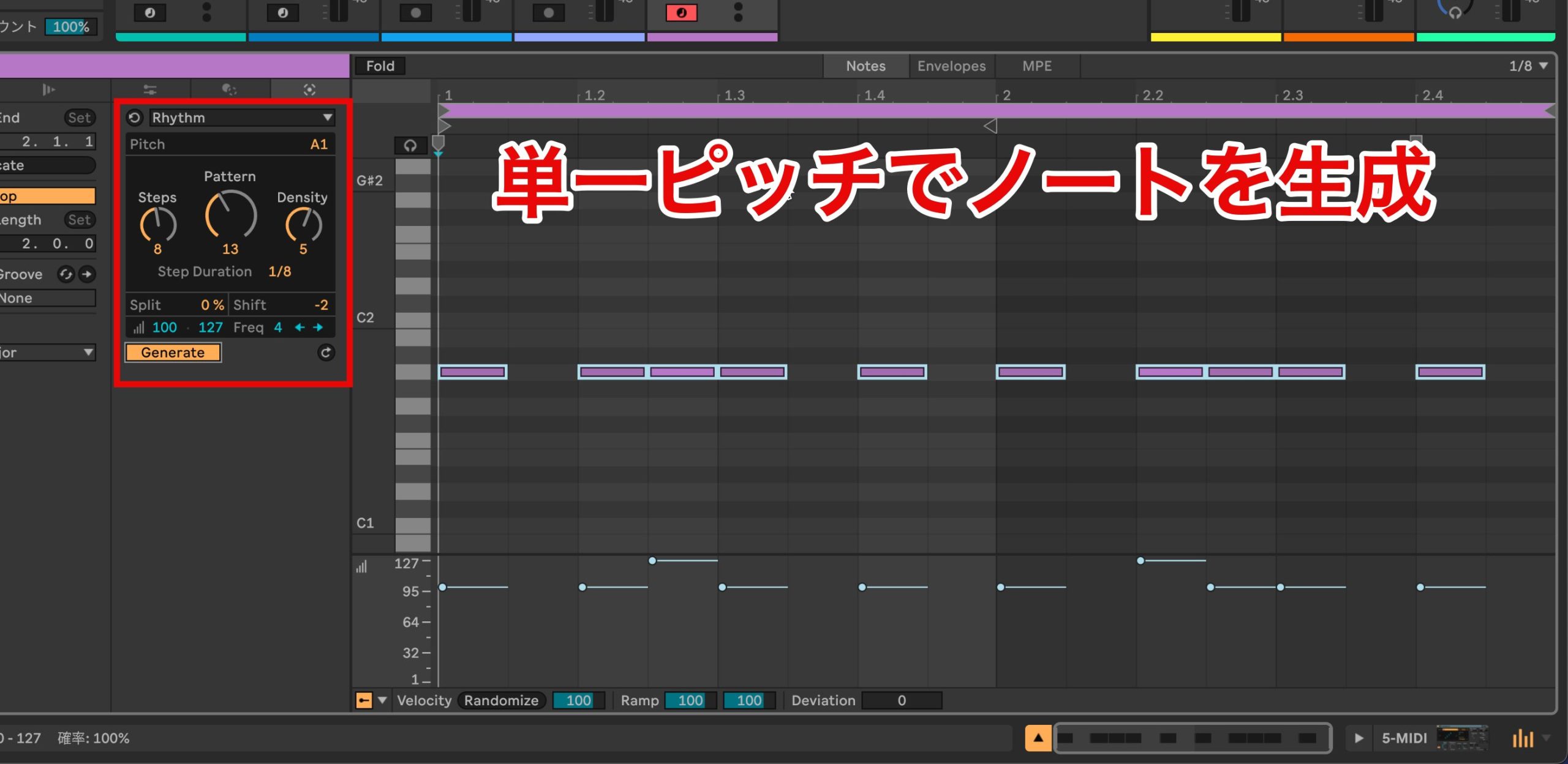
Generate varied rhythmic patterns at a single pitch.
It is a useful way to try rhythmic ideas when building a rhythm track.
Seed (Standard and above in the original overview)
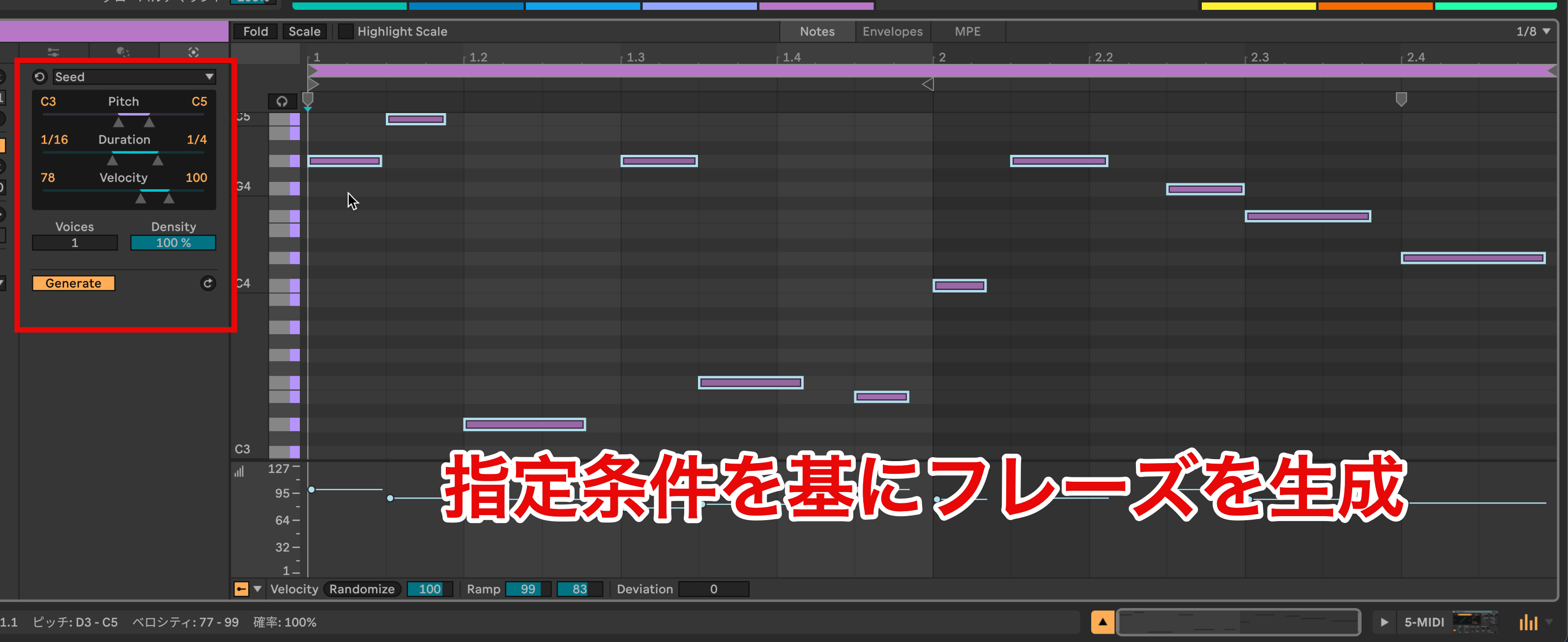
Generate random notes within specified ranges of pitch, duration and velocity.
With a scale set, the generated phrases can be guided by its notes.
Shape (Standard and above in the original overview)
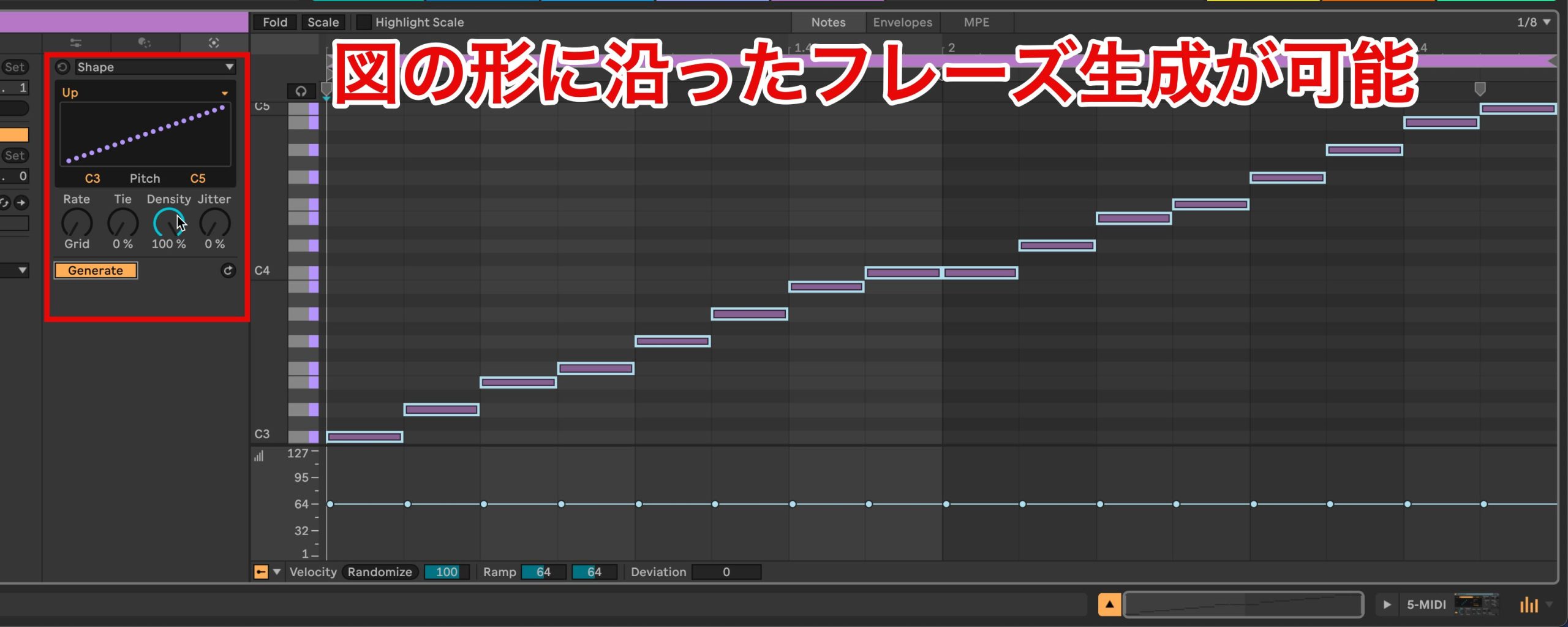
Choose a preset shape to generate a MIDI phrase that follows it.
You can also draw a line in the graph with the mouse to generate a phrase.
It turns a broad idea of rising and falling pitch into notes, enabling intuitive phrase generation.
Stacks (Standard and above in the original overview)
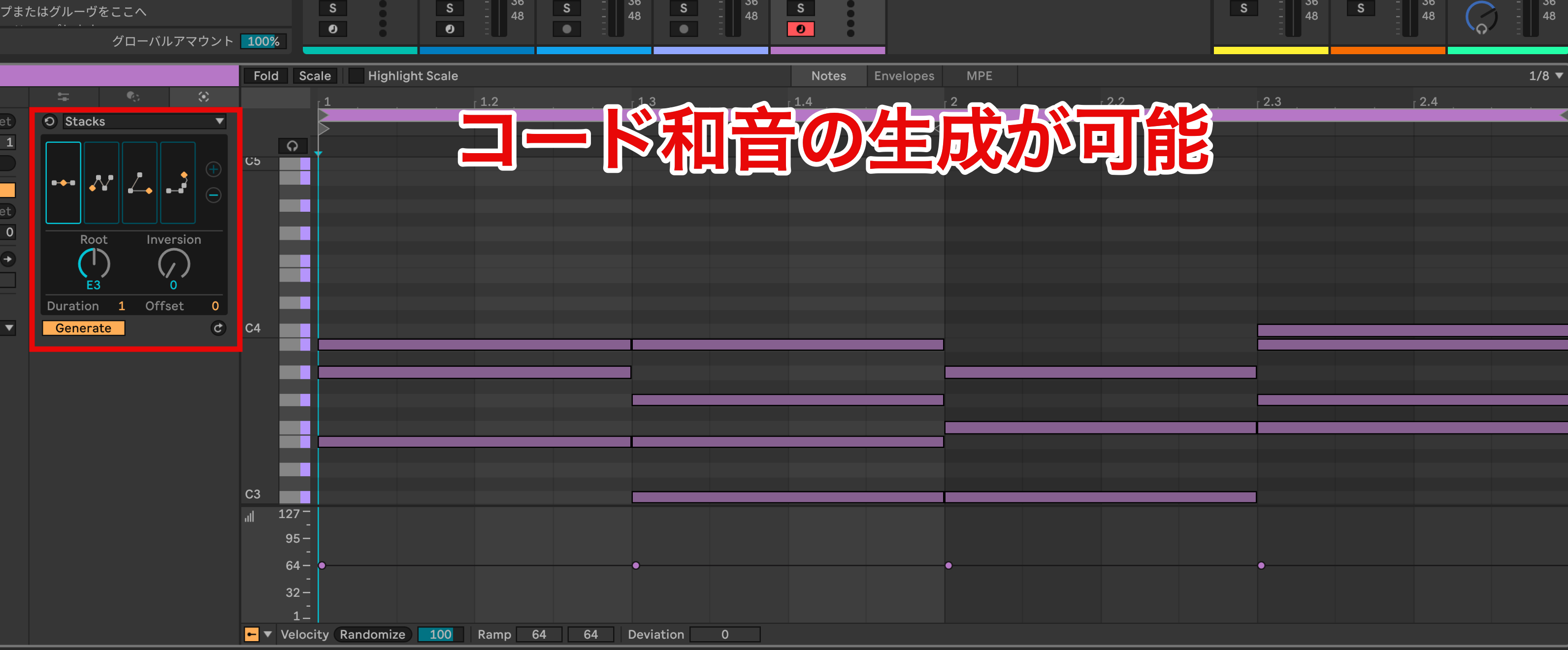
Generate chords corresponding to the shapes shown in the center of the tool.
The + button adds chords, and the arrows above and below each shape change the chord type.
Euclidean Generator (Suite only in the original overview)
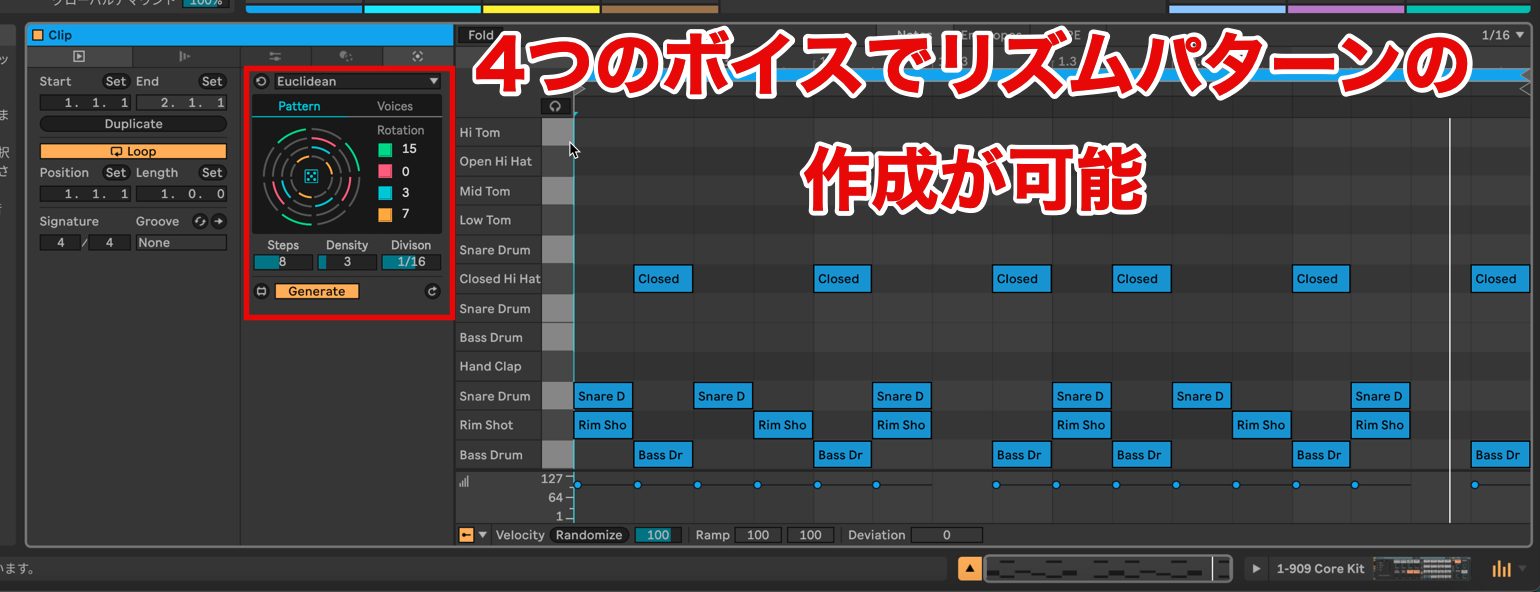
Create rhythmic phrase patterns using four independently pitched voices.
The Pattern tab controls the number of steps, pattern density and the time value of each step.
In the Voice tab, set the pitch and velocity for each of the four voices.
It can help explore rhythms, but could also be useful for chordal backing and sequenced phrases.
Other MIDI-editor changes
Grouped note probability (all editions in the original overview)
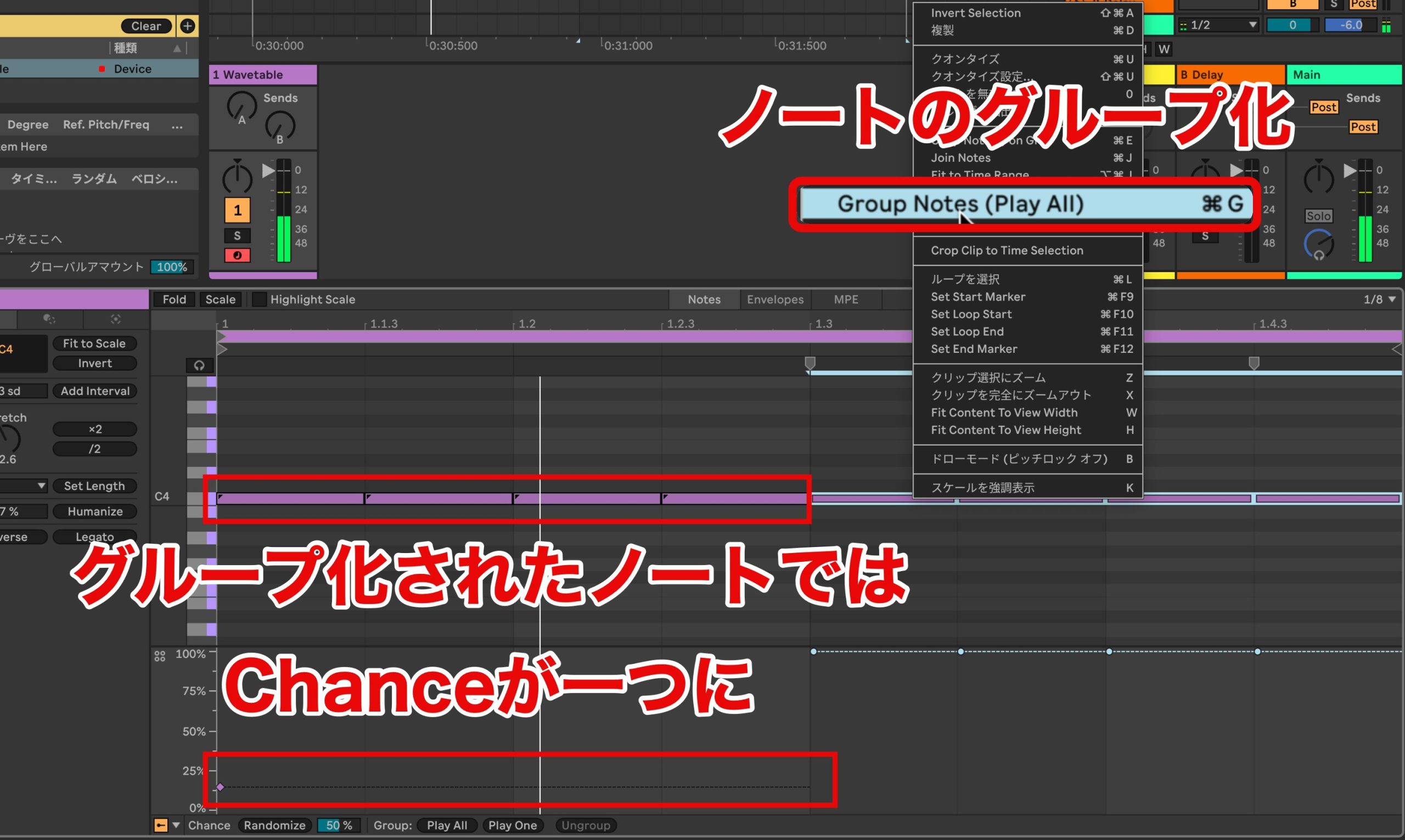
Previously, note probability was set per note. Live 12 allows you to group several notes and control their probability together.
- Mac: ⌘+G
- Windows: Control+G
Chopping notes (all editions in the original overview)
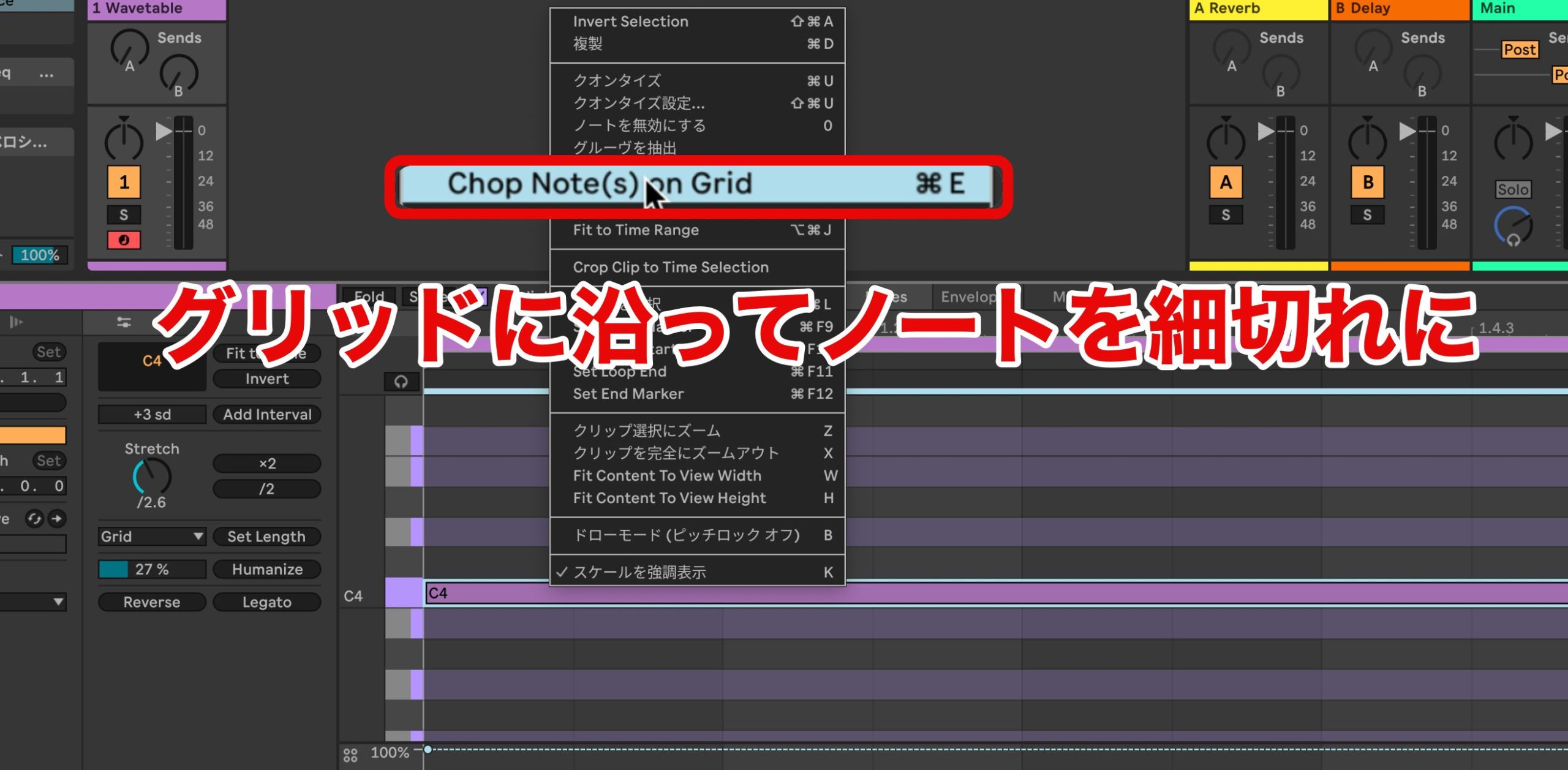
Select notes and choose Chop Note(s) on Grid from the context menu to divide them according to the displayed grid.
- Mac: ⌘+E
- Windows: Control+E
Splitting notes (all editions in the original overview)
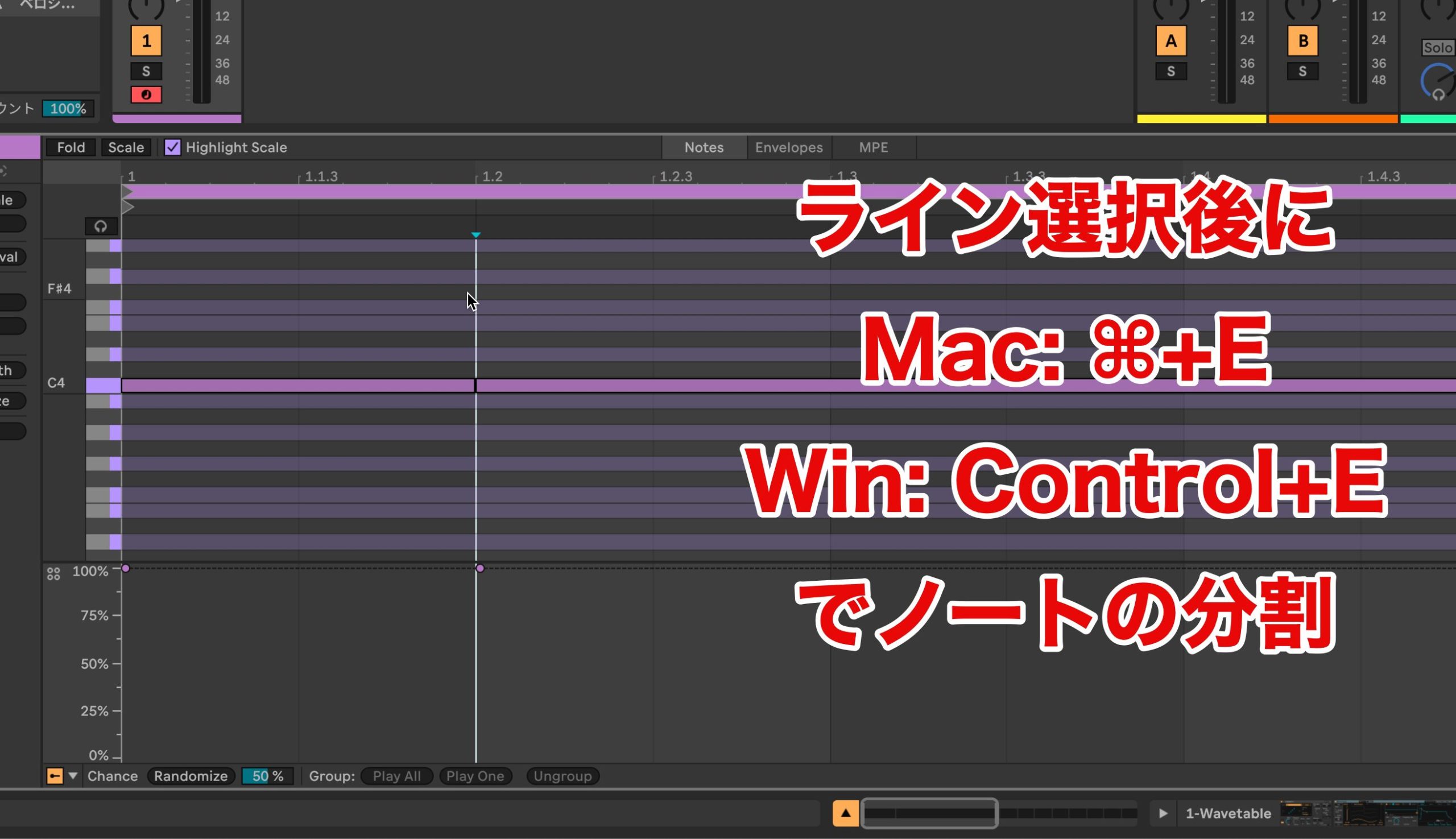
With no notes selected, select a time position and choose Split Note(s) from the context menu to split notes there.
- Mac: select the position, then ⌘+E
- Windows: select the position, then Control+E
Joining notes (all editions in the original overview)
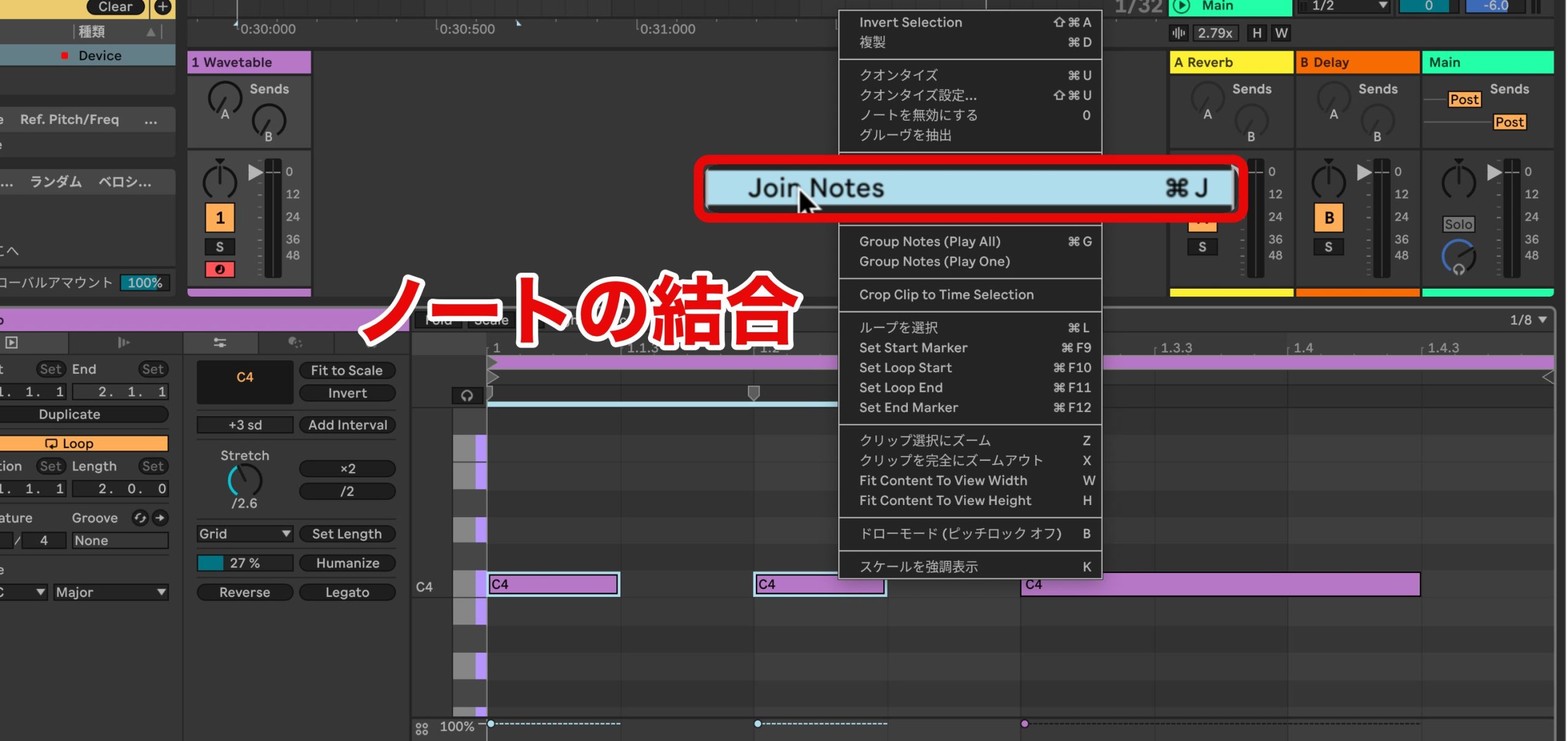
Select two or more notes and choose Join Notes from the context menu to combine them.
The notes do not have to touch each other to be joined.
- Mac: ⌘+J
- Windows: Control+J
Extending notes (all editions in the original overview)
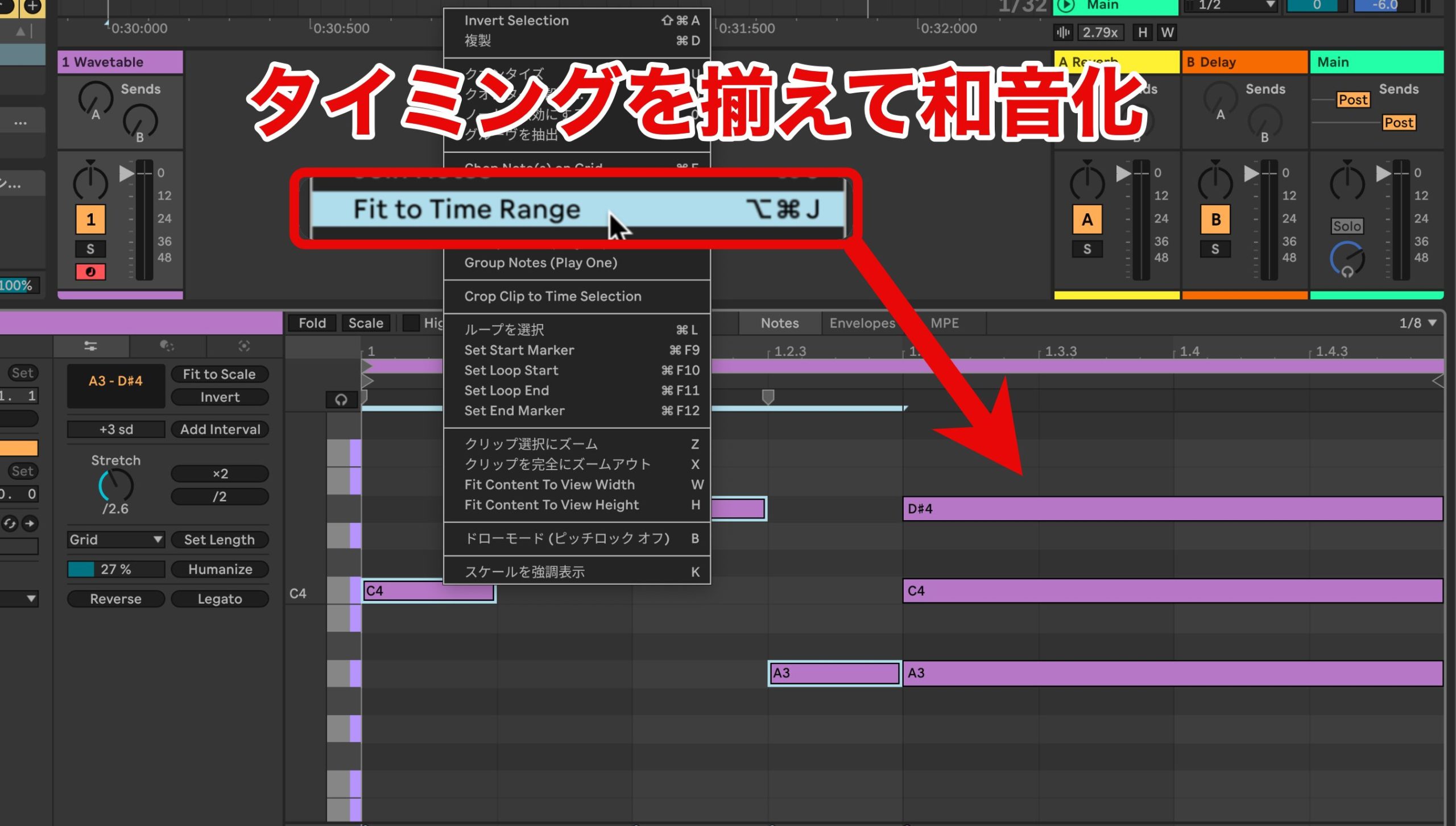
Align notes with different start times to turn them into a chord.
Quickly turning the notes of a melody into a chord can save time when that is the desired result.
Velocity randomization and ramps (all editions in the original overview)
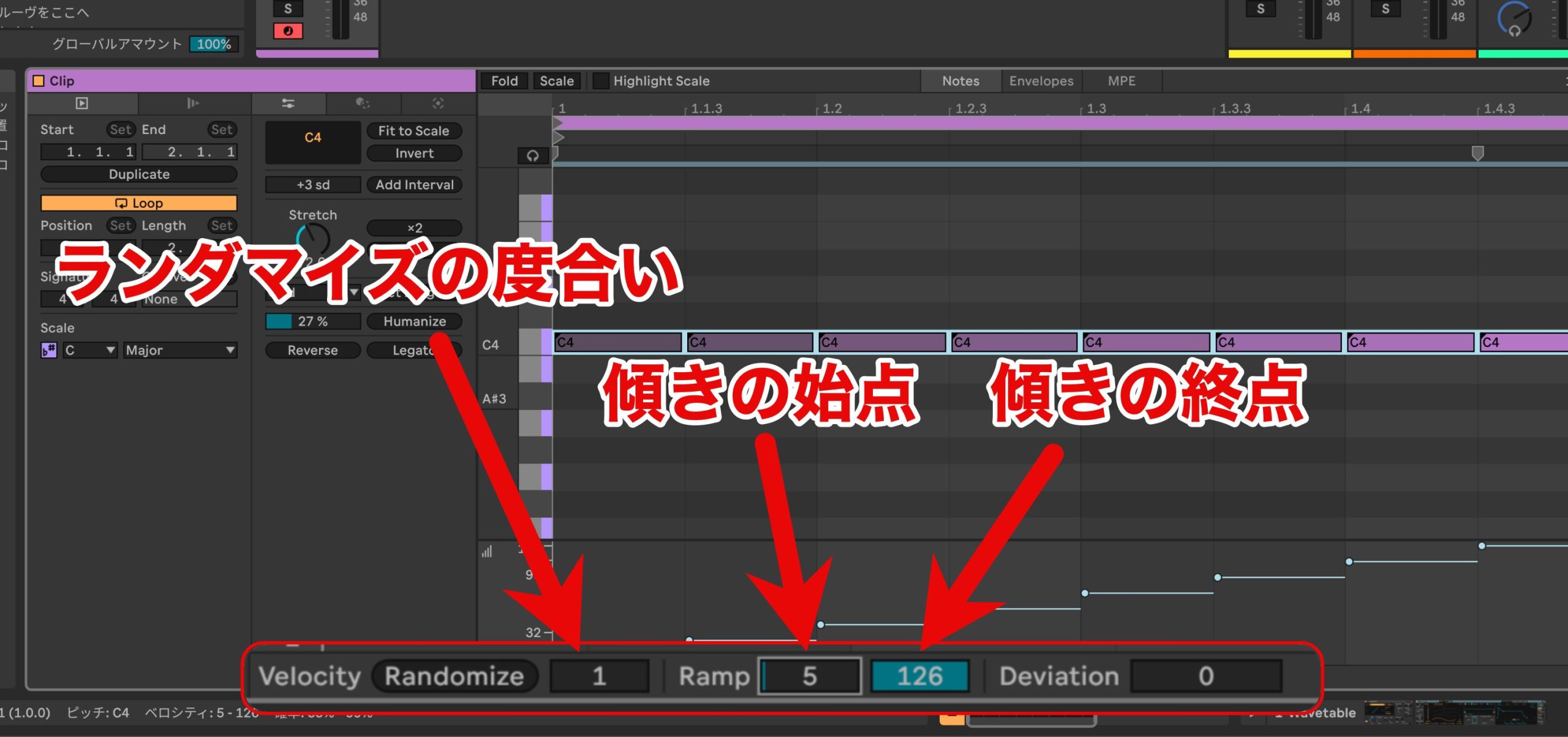
The velocity lane gains a Randomize button, which randomizes values by the specified amount.
With multiple notes selected, setting Ramp creates a rising or falling velocity contour.
This makes effects such as crescendos easier to create.
New included devices
New instruments and effects are included too.
Meld synthesizer (Suite only in the original overview)
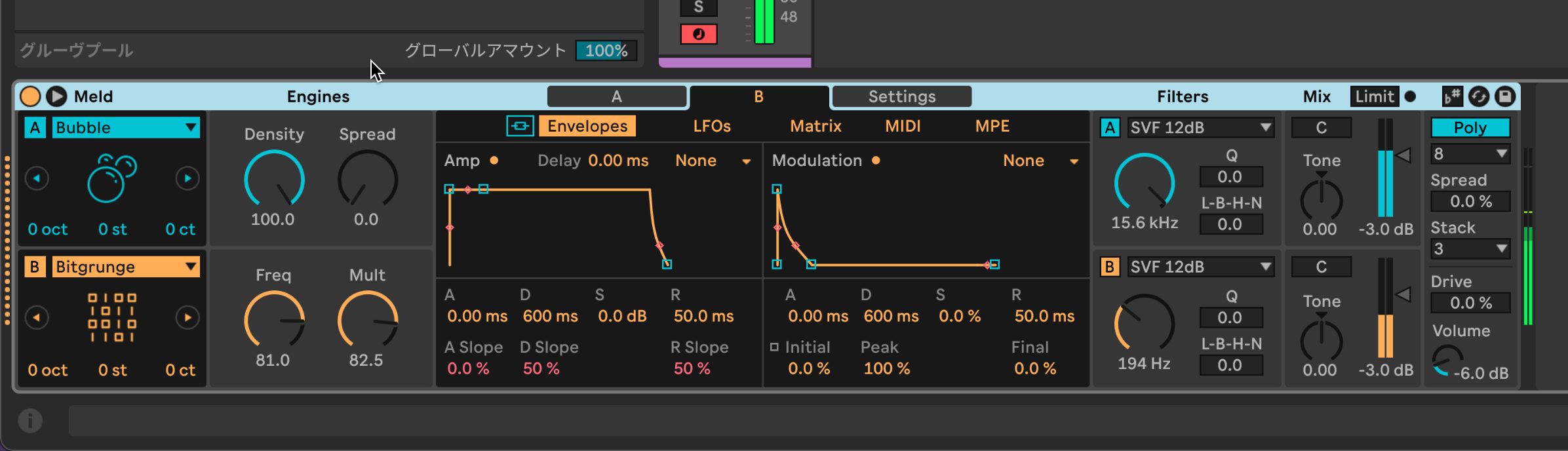
Meld uses multiple synthesis approaches to produce a wide range of sounds.
Its two oscillators are accompanied by two sets of filters, envelopes and LFOs with matrix modulation. What makes it distinctive is its range of oscillator types, including noise, environmental and other less conventionally pitched sounds.
These sounds are synthesized by individual engines rather than simply played back as samples, allowing detailed adjustments.
It is well suited to sound effects, and can also add unusual elements to conventional synth sounds. If you want to design sounds with a distinctive character, the reviewer recommends exploring it.
It also supports MPE.
Granulator III: an updated granular synthesizer (Suite only in the original overview)
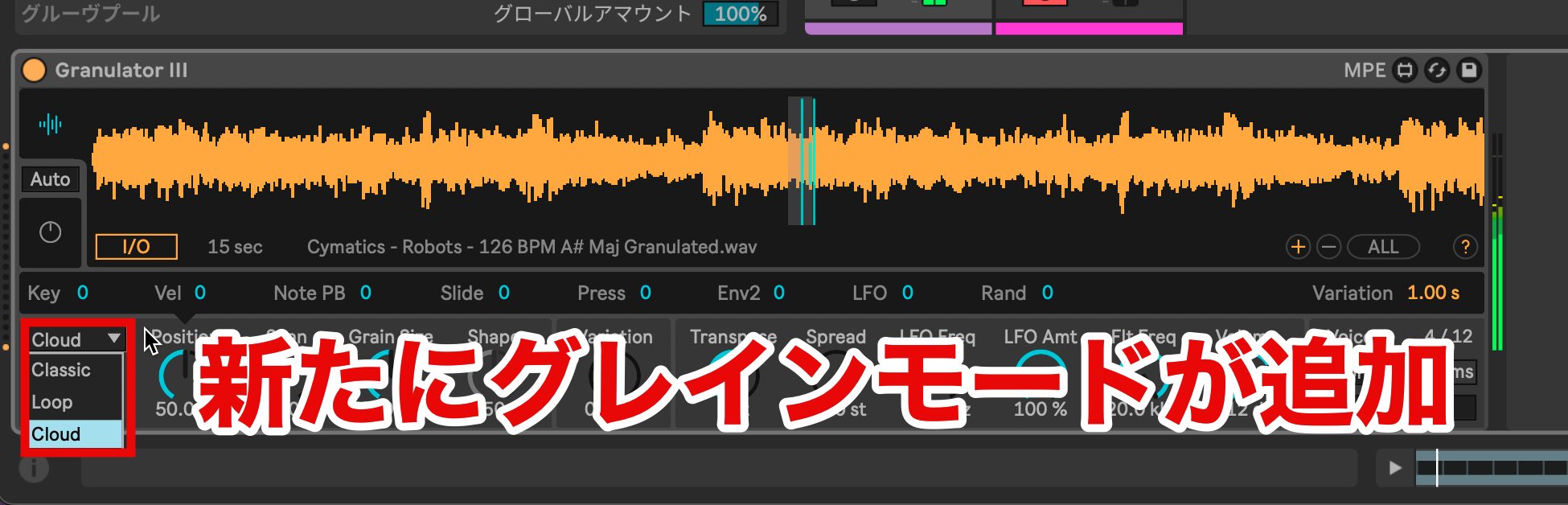
Granulator II becomes Granulator III, improving both usability and functionality.
New playback modes notably expand the range of sounds it can create.
Roar: a creative shaping effect (Suite only in the original overview)
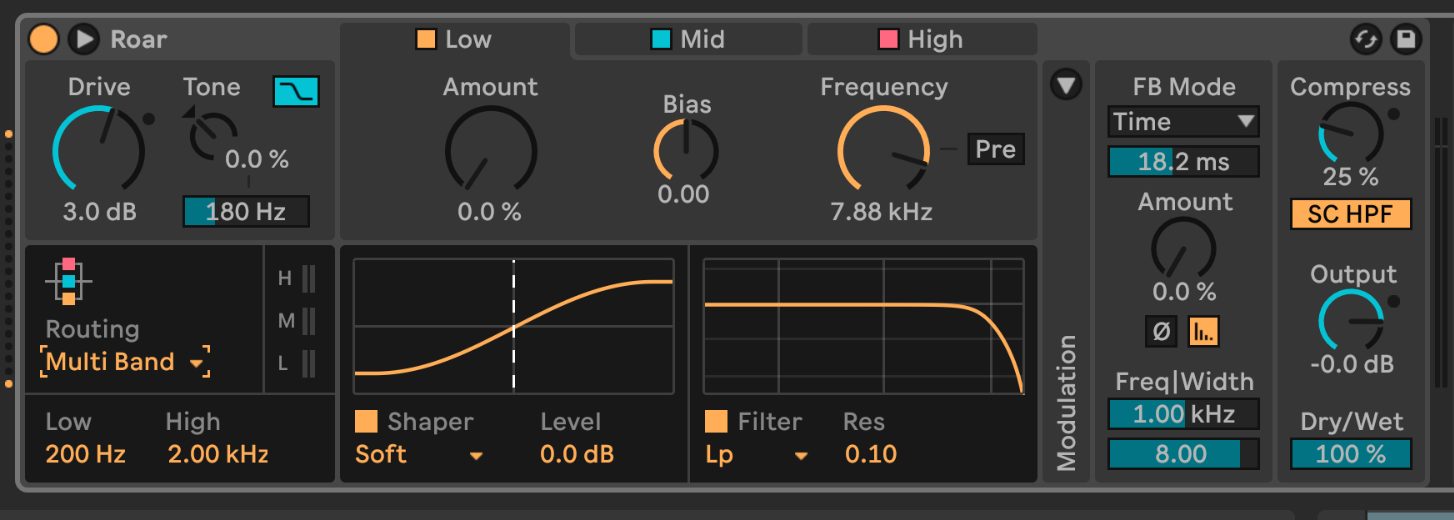
Roar offers flexible routing, including three-band processing, serial or parallel stages and mid/side operation, with modulation from LFOs and an envelope follower.
Its modulation sources include two LFOs, one envelope follower responding to the incoming audio, and a random Noise source.
A matrix lets you route those sources to different parameters for creative sound design that goes beyond conventional shaping and feels closer to working with a synthesizer.
Other new and updated devices and Packs
Beyond the devices above, Live 12 adds or updates a range of devices and Packs. Edition assignments below reproduce the original beta overview; consult the current edition comparison before purchasing.
Instruments
Operator (updated): Suite only
Packs
Lost and Found (new Pack): Suite only
Surround Panner (new Pack): Suite only
Performance Pack (new Pack): Suite only
Singularities (new Pack): Suite only
MIDI effects
CC Control (new device): Standard and above
Arpeggiator (updated): all editions in the original overview
Chord (updated): all editions in the original overview
Note Length (updated): all editions in the original overview
Random (updated): all editions in the original overview
Scale (updated): all editions in the original overview
Modulation
Envelope Follower (updated): Standard and above
Envelope MIDI (updated): all editions, with limited functionality in Intro and below, according to the original overview
Expression Control (updated): Intro and above
LFO (updated): all editions, with limited functionality in Intro and below, according to the original overview
Shaper (updated): all editions, with limited functionality in Intro and below, according to the original overview
Shaper MIDI (updated): Standard and above
More devices and Packs in the lower editions
Compared with the more limited instrument and Pack selections in Standard and lower editions previously, the original overview highlighted expanded included content in Live 12.
Instruments
Analog: Standard and above
Collision: Standard and above
Electric: Standard and above
Tension: Standard and above
Packs
Beat Tools by Ableton: all editions in the original overview
Build and Drop: all editions in the original overview
Electric Keyboards: Standard and above
Orchestral Strings: Standard and above
Synth Essentials: Standard and above
Session Drums Club: Standard and above
Session Drums Studio: Standard and above
Guitar and Bass: Standard and above
Vinyl Classics: Standard and above
Loopmasters Mixtape: Standard and above
Audio effects
Corpus: Standard and above
Glue Compressor: Standard and above
Three years after Live 11, this major update felt like a substantial response to user requests.
In particular, its inventive MIDI tools for exploring ideas and its practical workflow improvements made Live's development feel distinctive.
The original article looked forward to the planned early-2024 release and invited Live 11 owners to apply for the beta program. That invitation describes the announcement period, not a promise of access to the same historical beta today.
Ableton beta program
Frequently asked questions
Q1. Did the Live 12 announcement include a free upgrade from Live 11?
The original promotion included a free upgrade with qualifying purchases during its specified period. Owning Live 11 alone did not mean every user automatically received a free upgrade. Check Ableton's official site for current eligibility, prices and offers.
Q2. What is the scale setting useful for?
Selecting a root and scale type in Scale Mode lets compatible MIDI devices and instruments follow that scale, making scale-based composition more efficient. The separate tuning system also supports exploration beyond equal temperament.
Q3. Can Live 12 be used efficiently with a single display?
The Arrangement mixer and the ability to display the MIDI or sample editor alongside Device View reduce the need to switch views, helping a single-display workflow.
NEW ARTICLES
Latest English Articles





















































































