
When programming drums in Ableton Live, velocities often start out at the same value. This article introduces three practical ways to edit them efficiently: drawing a straight line across velocities with Command or Ctrl, adjusting only a selected sound, and adding Shift to make varied velocities uniform. These techniques can help you shape the groove quickly.
Edit Velocities Efficiently
When you first sketch out an idea for drums or another part in Live,
the velocities are often all the same, as shown below.
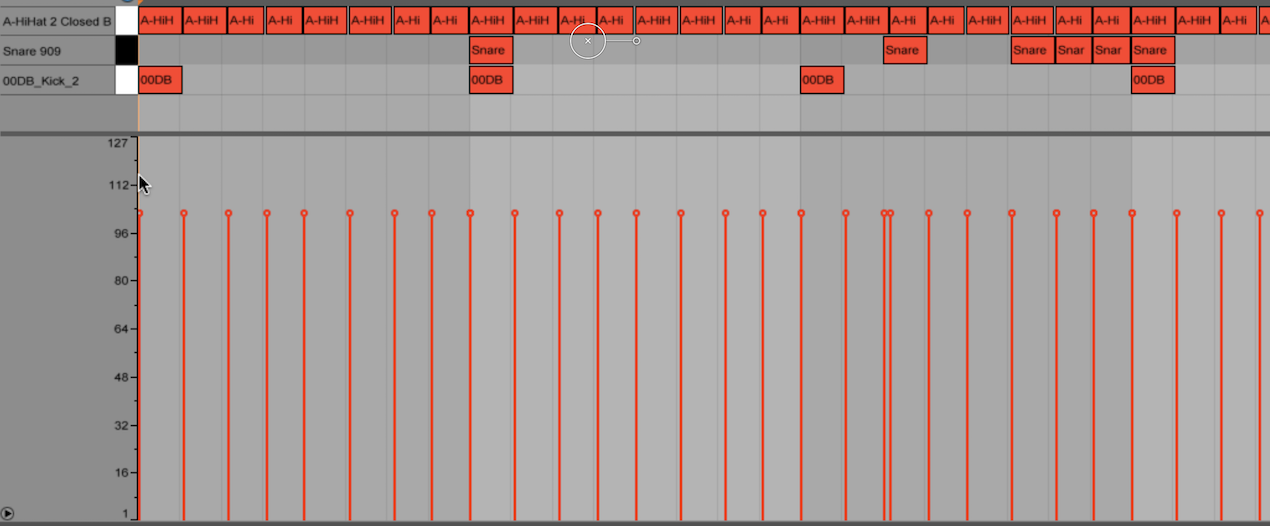
You will want to adjust them, but editing each note individually takes time.
Here is a simple way to adjust multiple velocities at once.
Ableton Live Tips: Efficient Velocity Editing
View product details

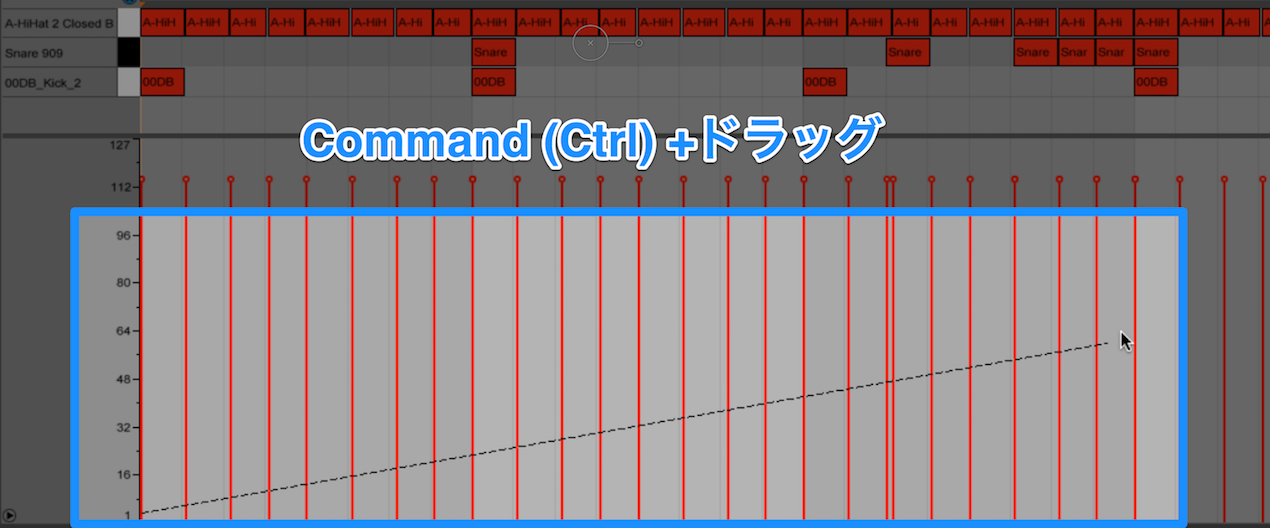
Change All Velocities in a Straight Line
First, let’s look at how to change all velocities along a straight line.
The operation is simple. In the velocity lane, do the following:
- Mac: Hold Command and drag
- Windows: Hold Ctrl and drag
Change Velocities for a Specific Sound in a Straight Line
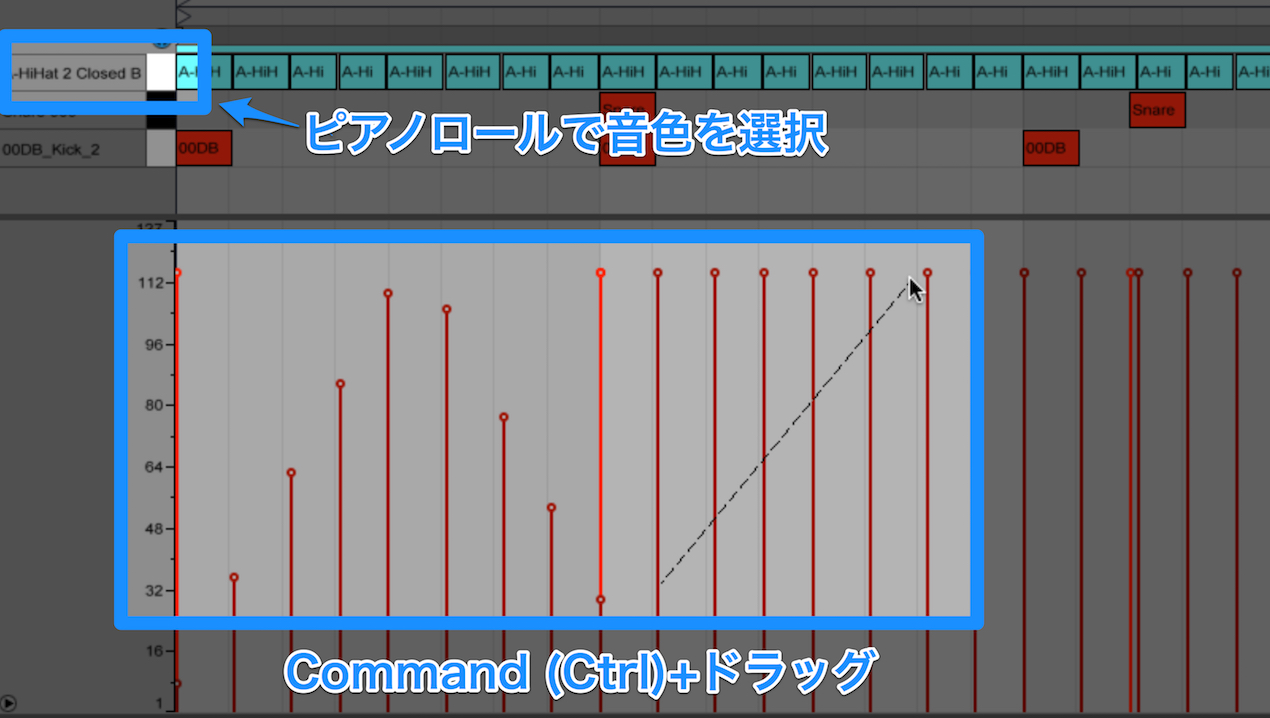
You may want to adjust the velocity of one sound rather than all of them.
In that case, first select the sound you want to change in the piano roll.
Then use the same operation as above to edit only the notes for the selected sound or pitch
along a straight line.
Make Varied Velocities Uniform
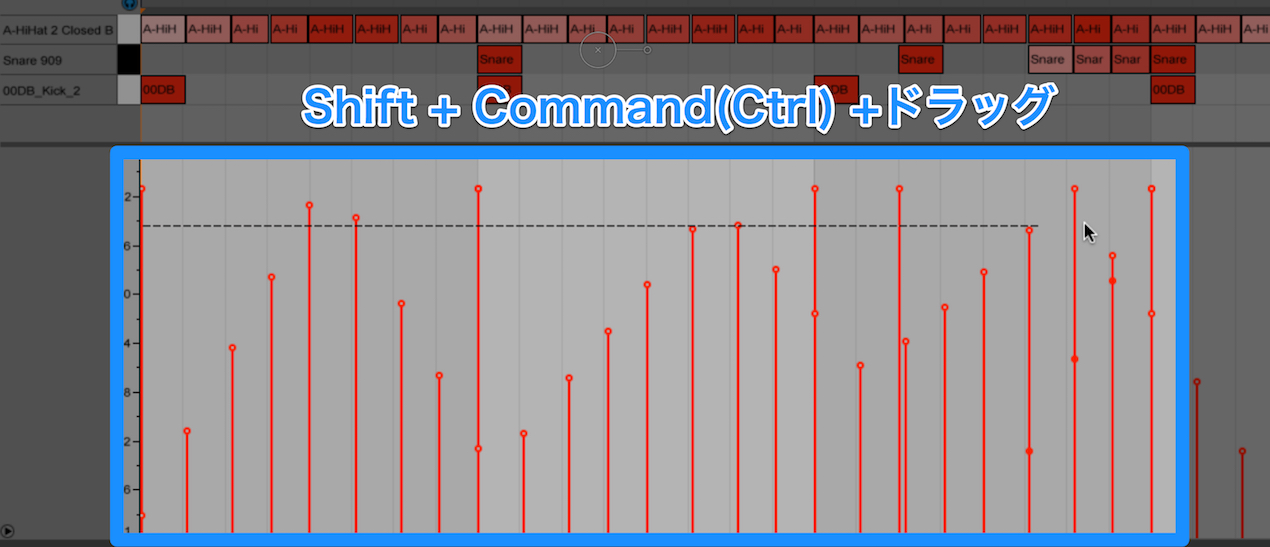
Conversely, if you want to make varied velocities uniform, add Shift to the operation above.
This lets you draw a horizontal line.
- Mac: Hold Shift + Command and drag
- Windows: Hold Shift + Ctrl and drag
Try these techniques to make velocity editing more efficient.
View product details
Frequently Asked Questions
Q1. How can I change multiple velocities at once in Ableton Live?
In the velocity lane, hold Command on Mac or Ctrl on Windows and drag to change all velocities along a straight line. This saves time compared with editing each note individually.
Q2. How can I change the velocity of just one drum sound?
First select the sound or pitch you want to change in the piano roll, then hold Command on Mac or Ctrl on Windows and drag. Only notes for the selected sound are edited along the line; other sounds are unaffected.
Q3. How can I make velocities uniform?
Hold Shift + Command on Mac or Shift + Ctrl on Windows while dragging in the velocity lane. This draws a horizontal line and sets multiple notes to the same velocity.
NEW ARTICLES
Latest English Articles




































































































































































































































































































































































































































