Native Instruments REAKTOR 6 introduces Blocks, a framework for intuitive modular synthesizer patching. This guide starts with loading presets and shows how to combine more than 30 Blocks, including oscillators, envelopes and mixers, to build your own synthesizer. Learn practical workflows for connecting patches, duplicating instances and managing multiple oscillators.
REAKTOR receives a major update as REAKTOR 6
REAKTOR has received a major update and been released as REAKTOR 6.
The new Blocks framework brings not only new features but also a more polished appearance.
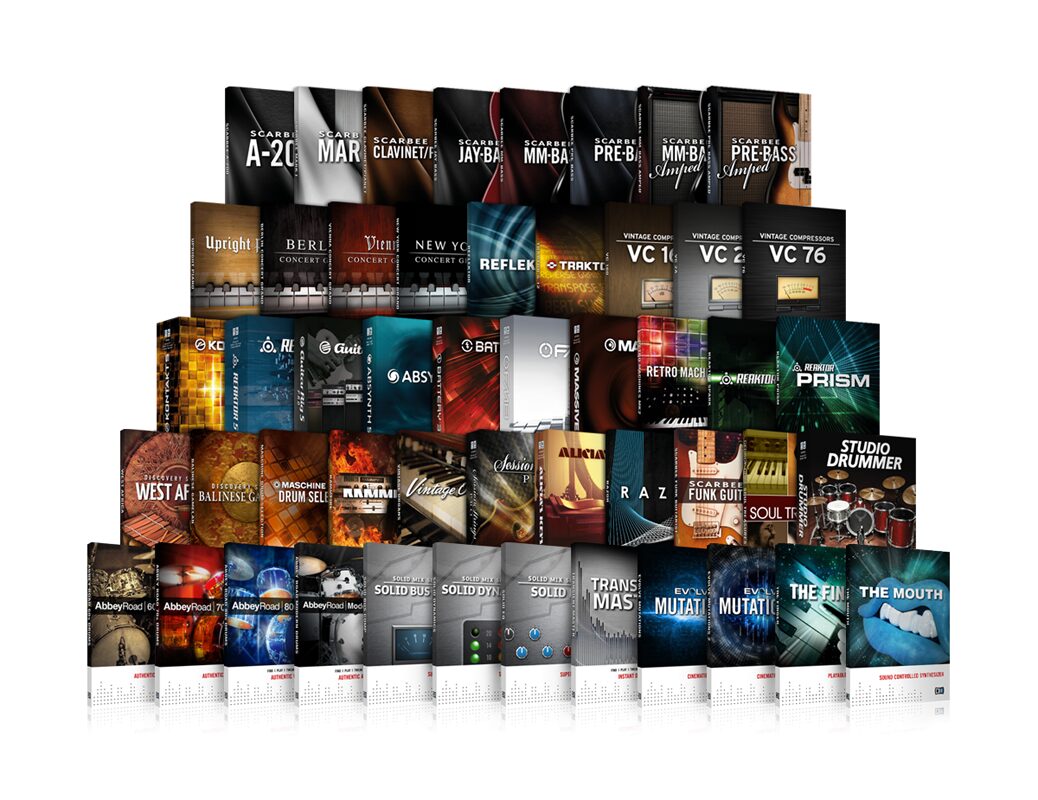
There are more than 30 Blocks, including oscillators, filters, amps, effects and sequencers, as well as components from ROUNDS and MONARK.
You can create your own patches, but first let’s explore the presets.
Video: Reviewing the new Blocks feature
Using presets
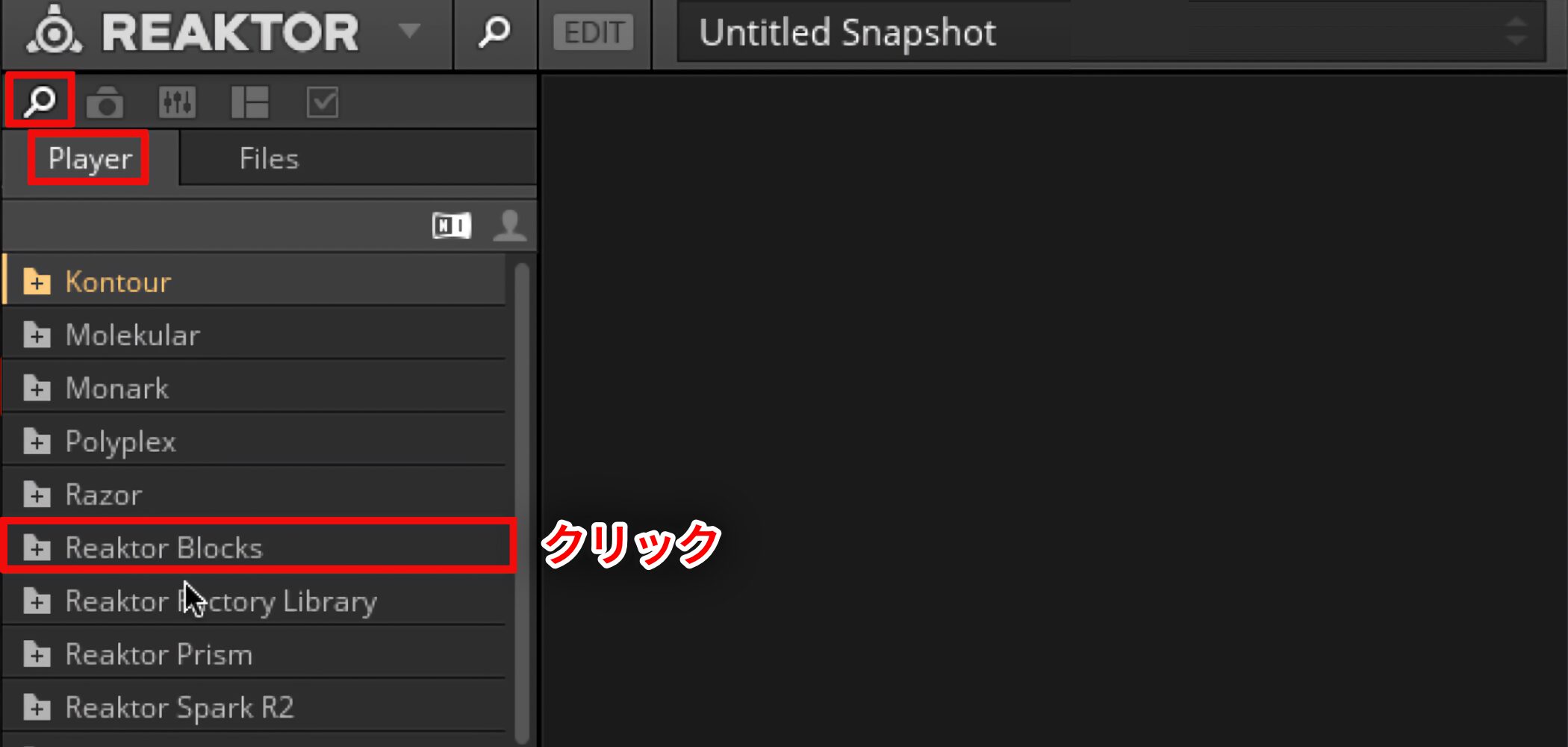
Click “Player” → “Reaktor Blocks” to display the presets.
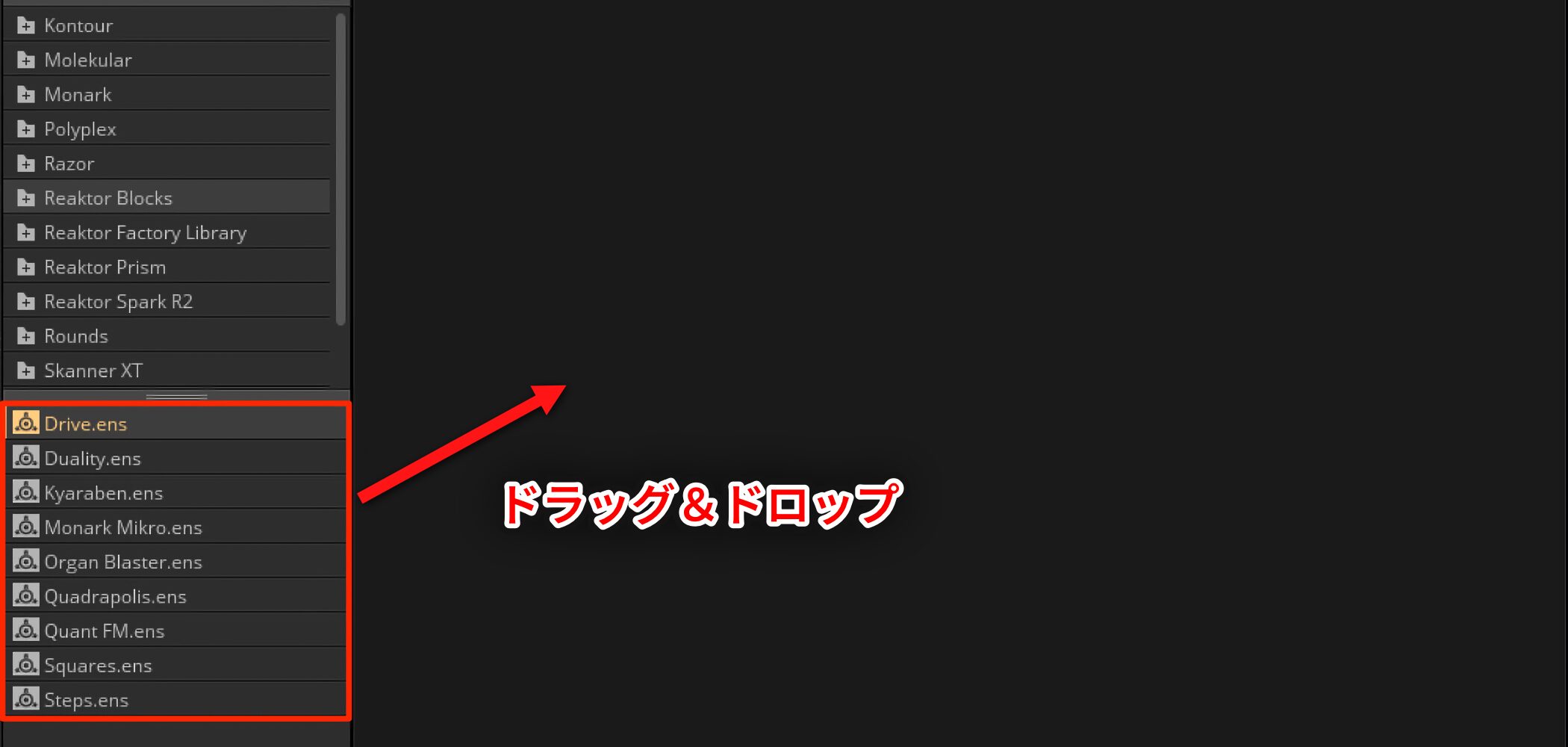
Load a preset with the .ens extension by dragging it into the space on the right or double-clicking it.
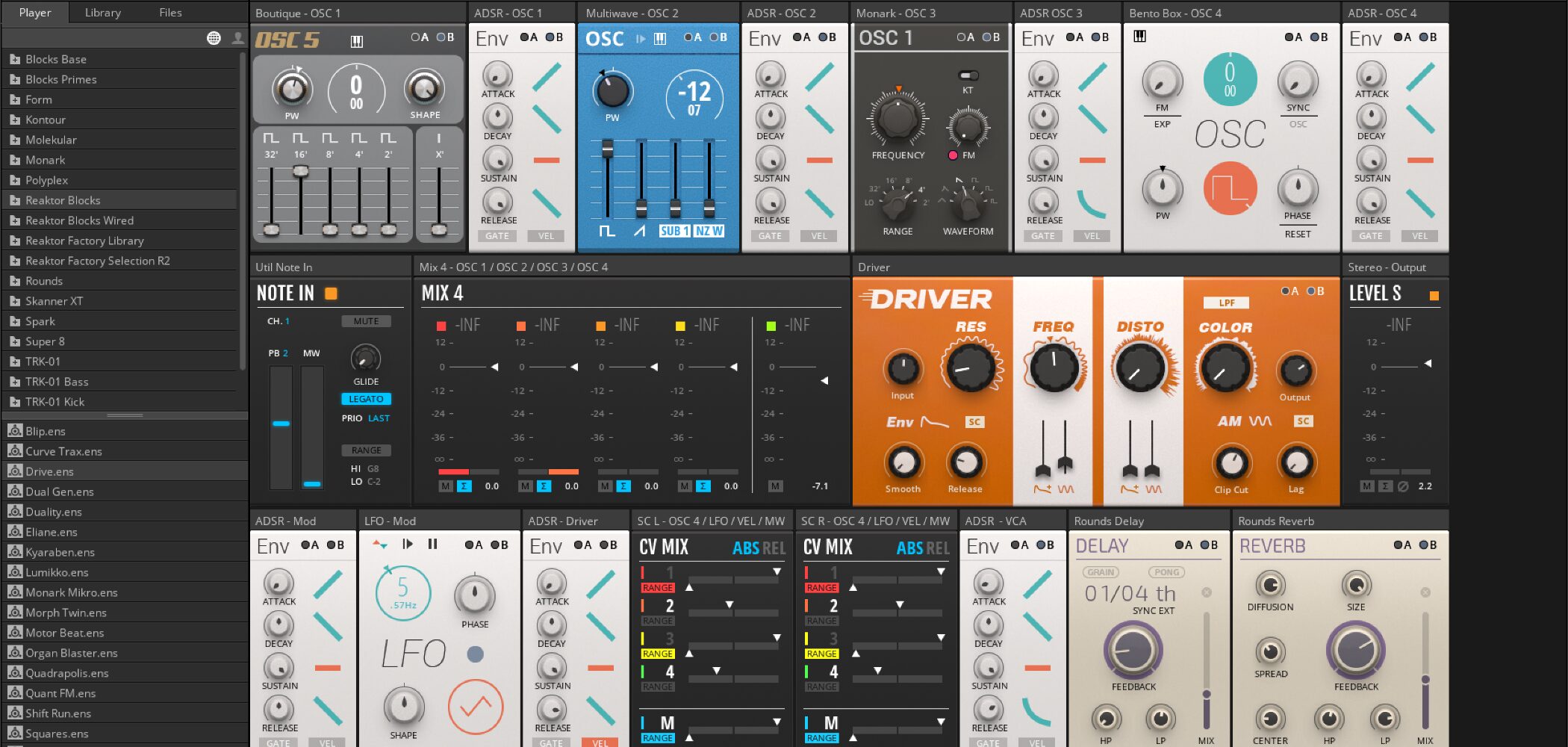
Blocks are divided into six categories: BENTO BOX, BOUTIQUE, MODERN, DIGILOG, NI ALL-STARS and UTIL.
See the link below for details.
REAKTOR 6 BLOCKS
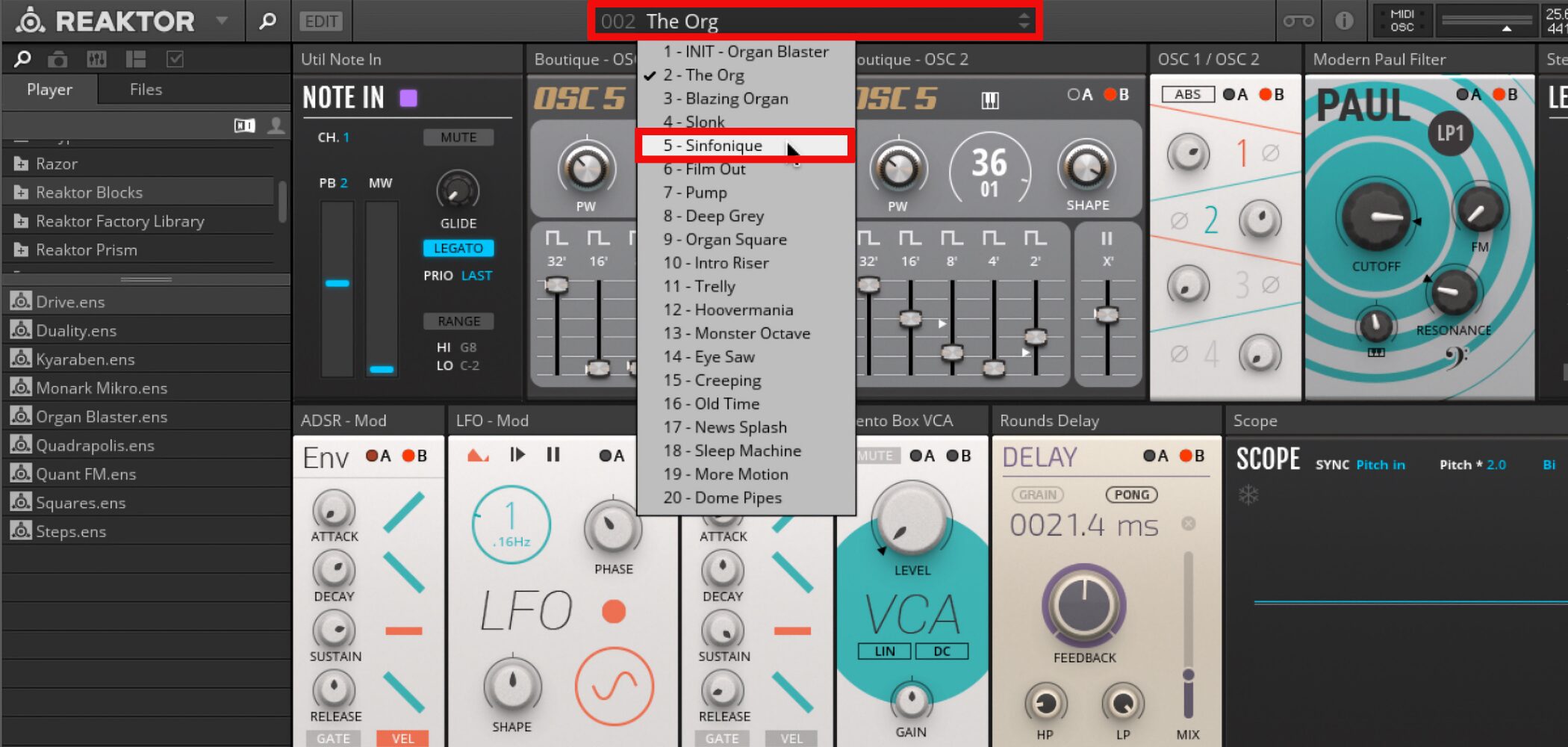
To switch sounds, use the tabs at the top.
If you hear no sound
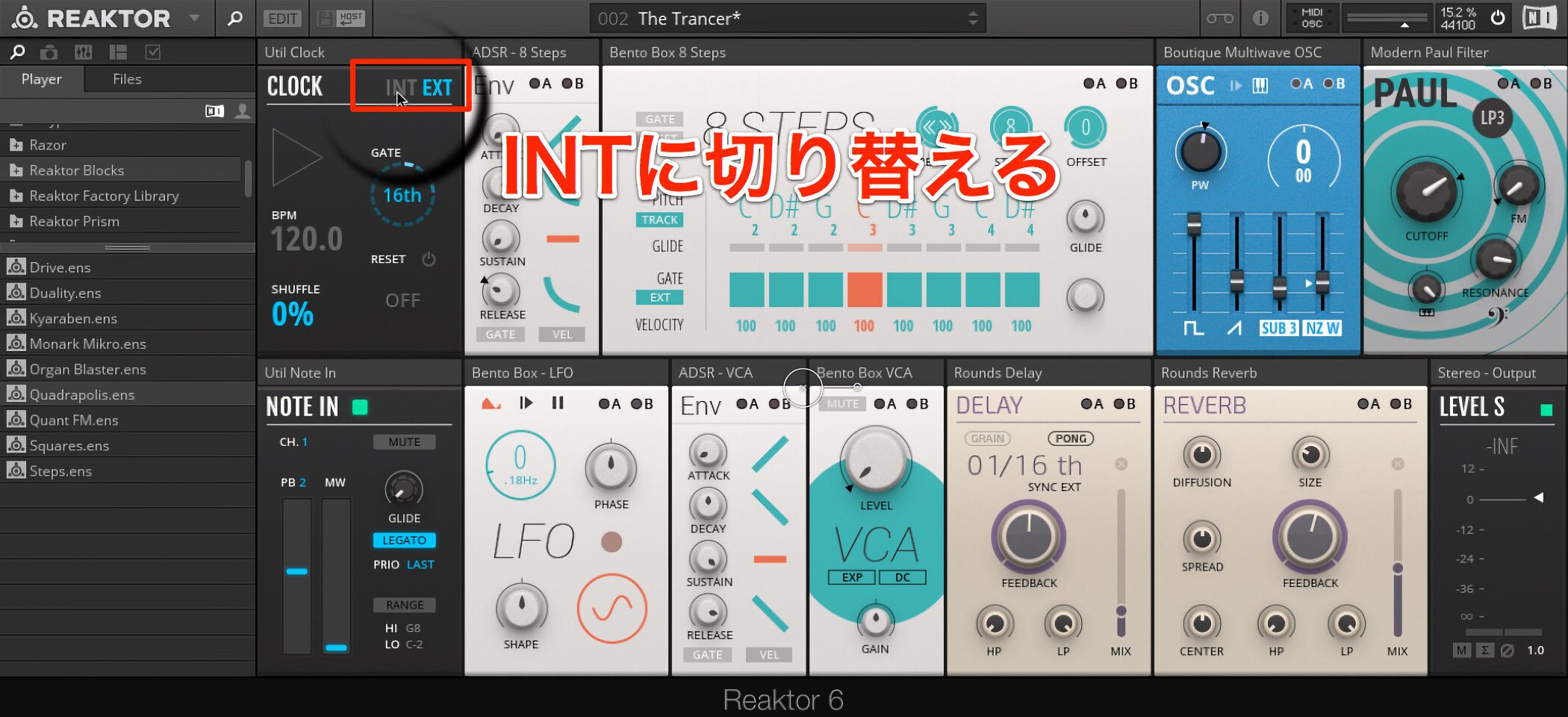
Some presets use a sequencer. If you hear no sound, switch CLOCK from EXT to INT.
Build your own synth by combining Blocks
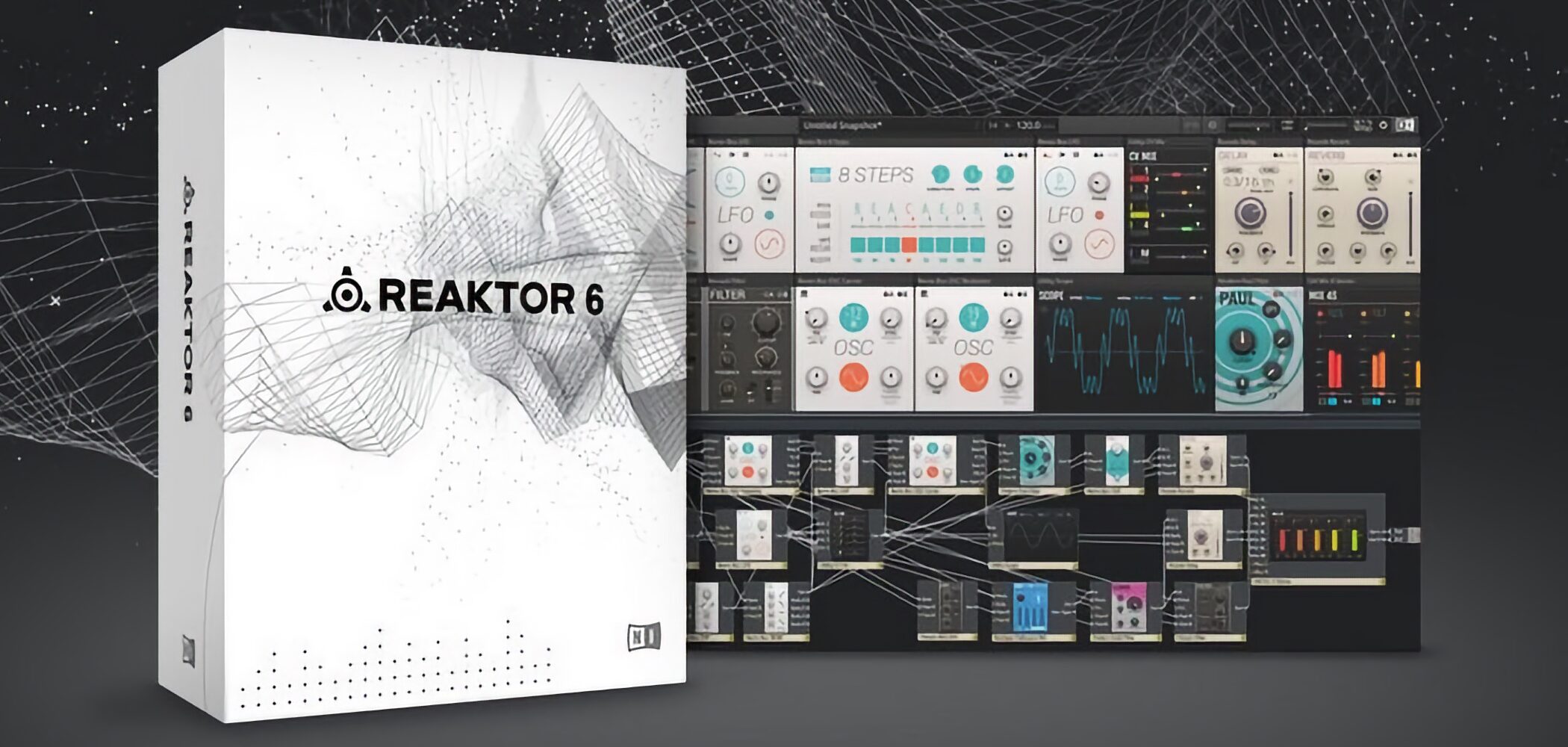
Blocks makes it easy to patch components as you would on an analog modular synthesizer.
Let’s look at the basics and how to produce sound.
Video: Patching with Blocks
Loading Blocks
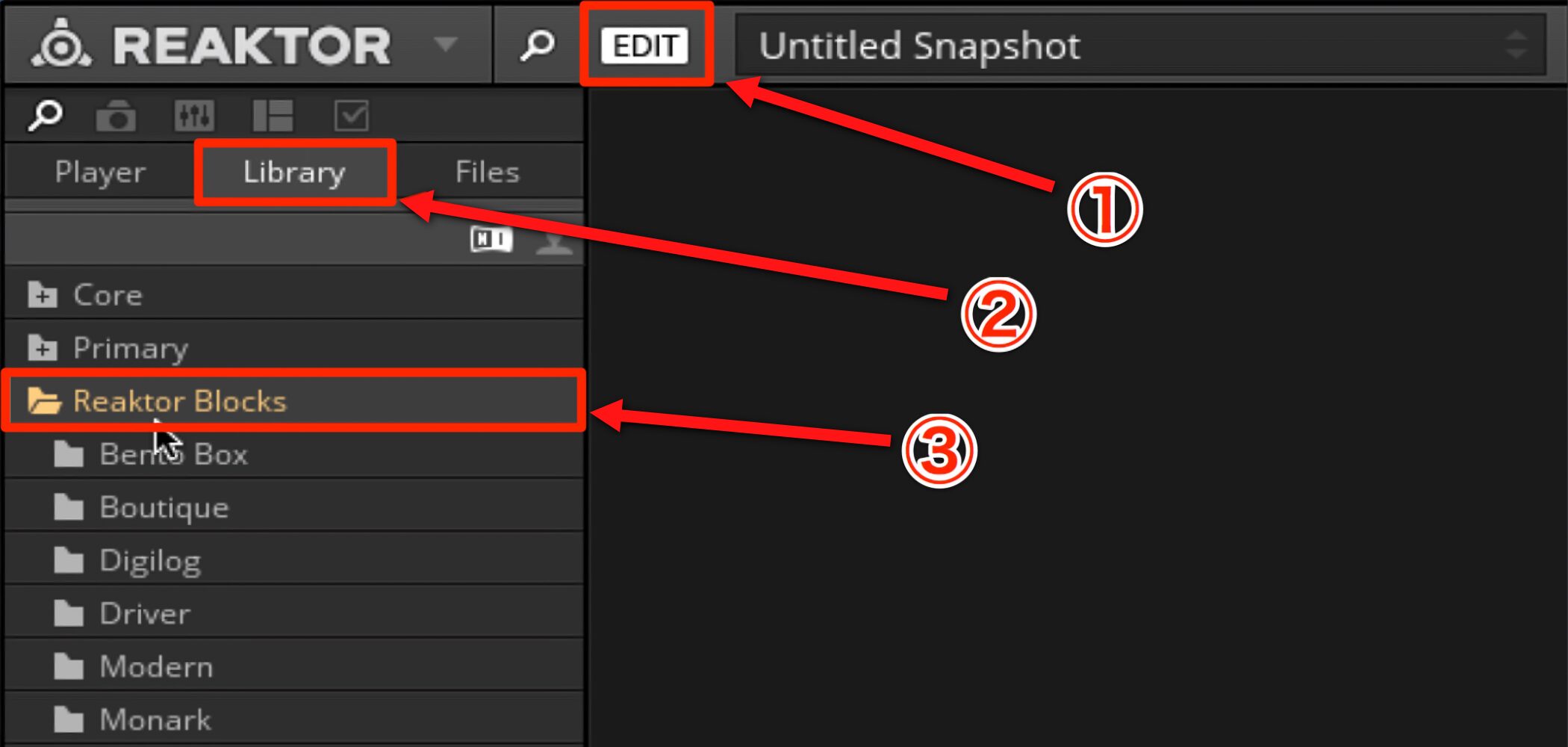
Launch REAKTOR and open the location where Reaktor Blocks is installed.
If you used the default location, click “EDIT” → “Library” → “Reaktor Blocks”.
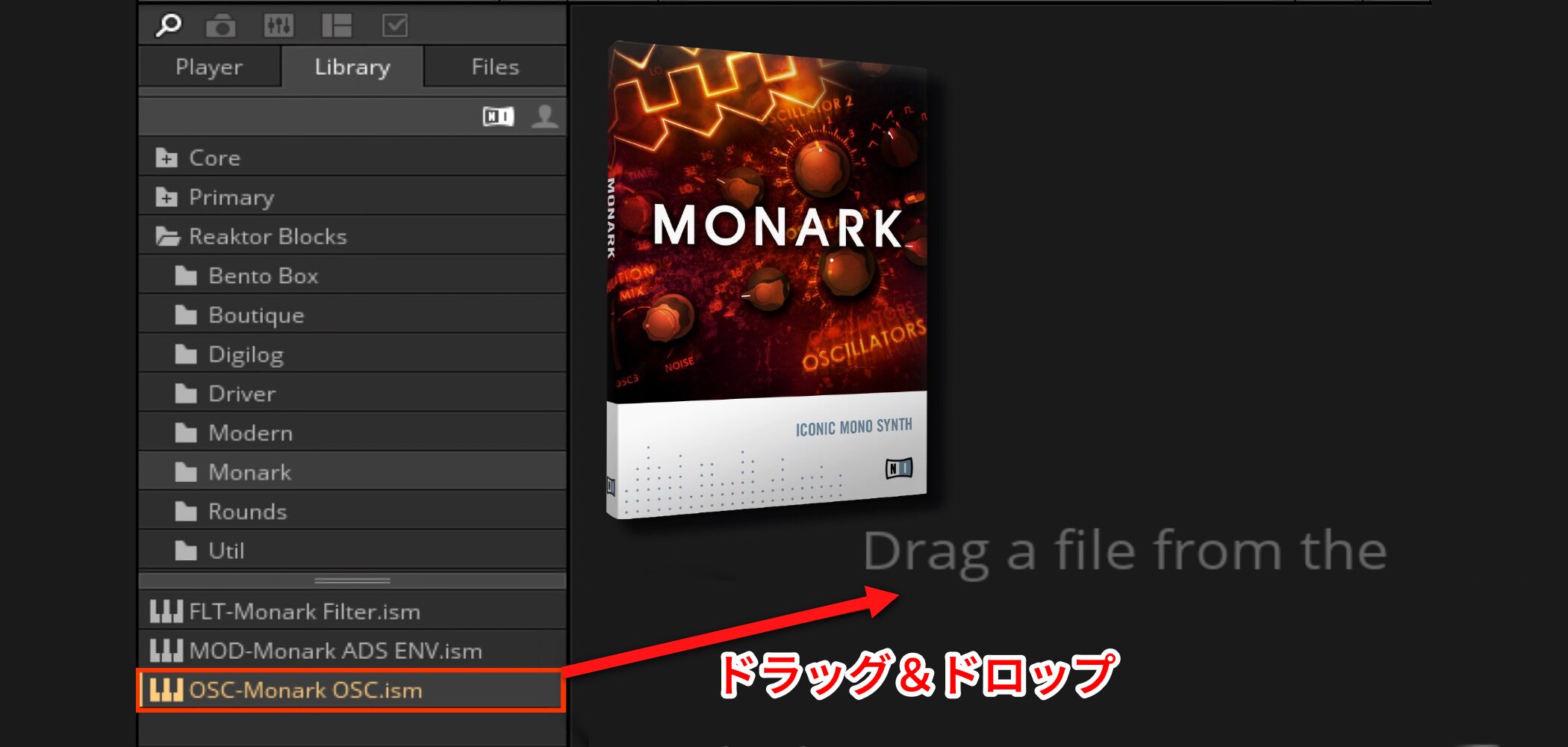
For this example, we’ll use the Monark oscillator.
Drag and drop “Reaktor Blocks” → “Monark” → “OSC-Monark OSC.ism”.
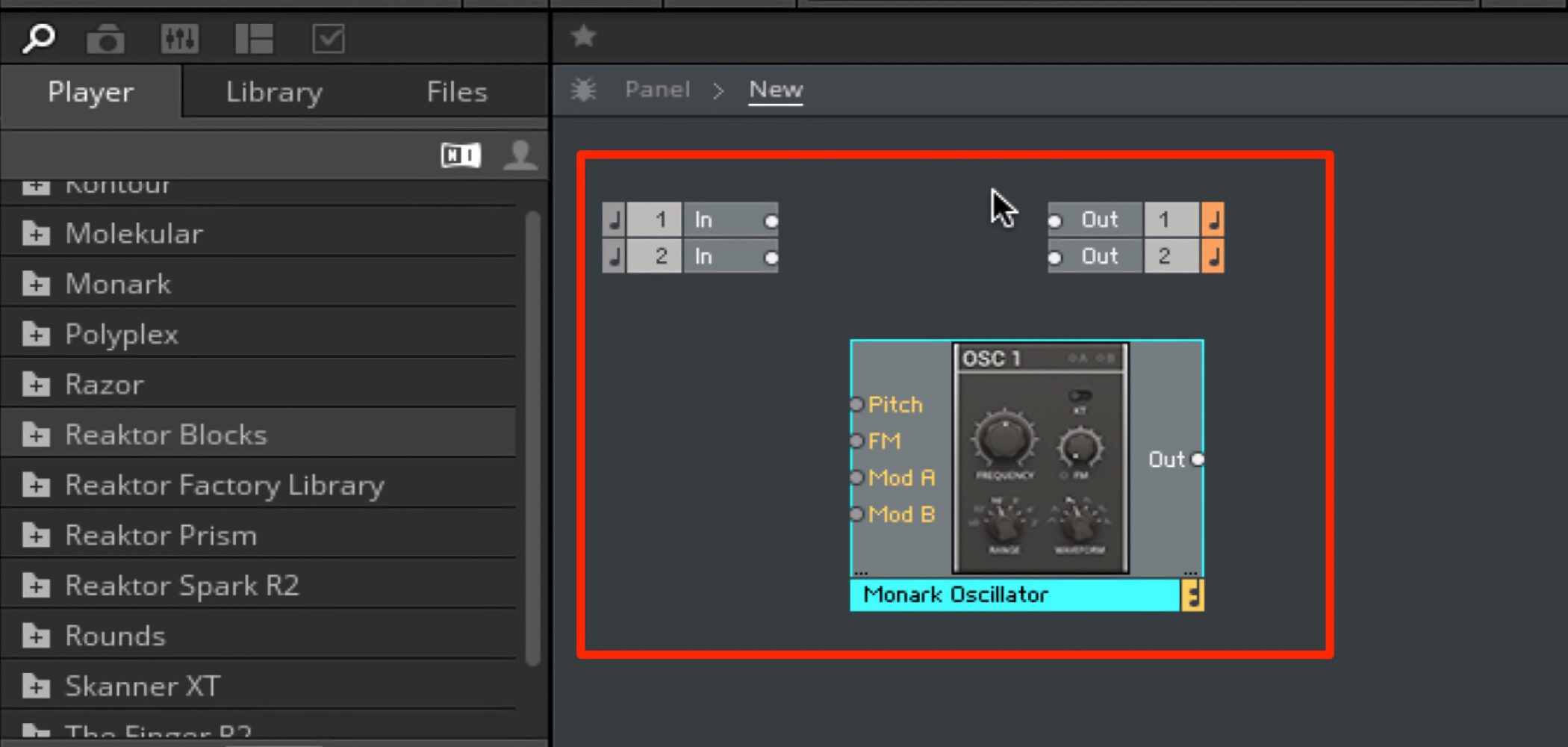
The Monark oscillator now appears.
Next, we’ll combine it with other Blocks.
Connecting Blocks
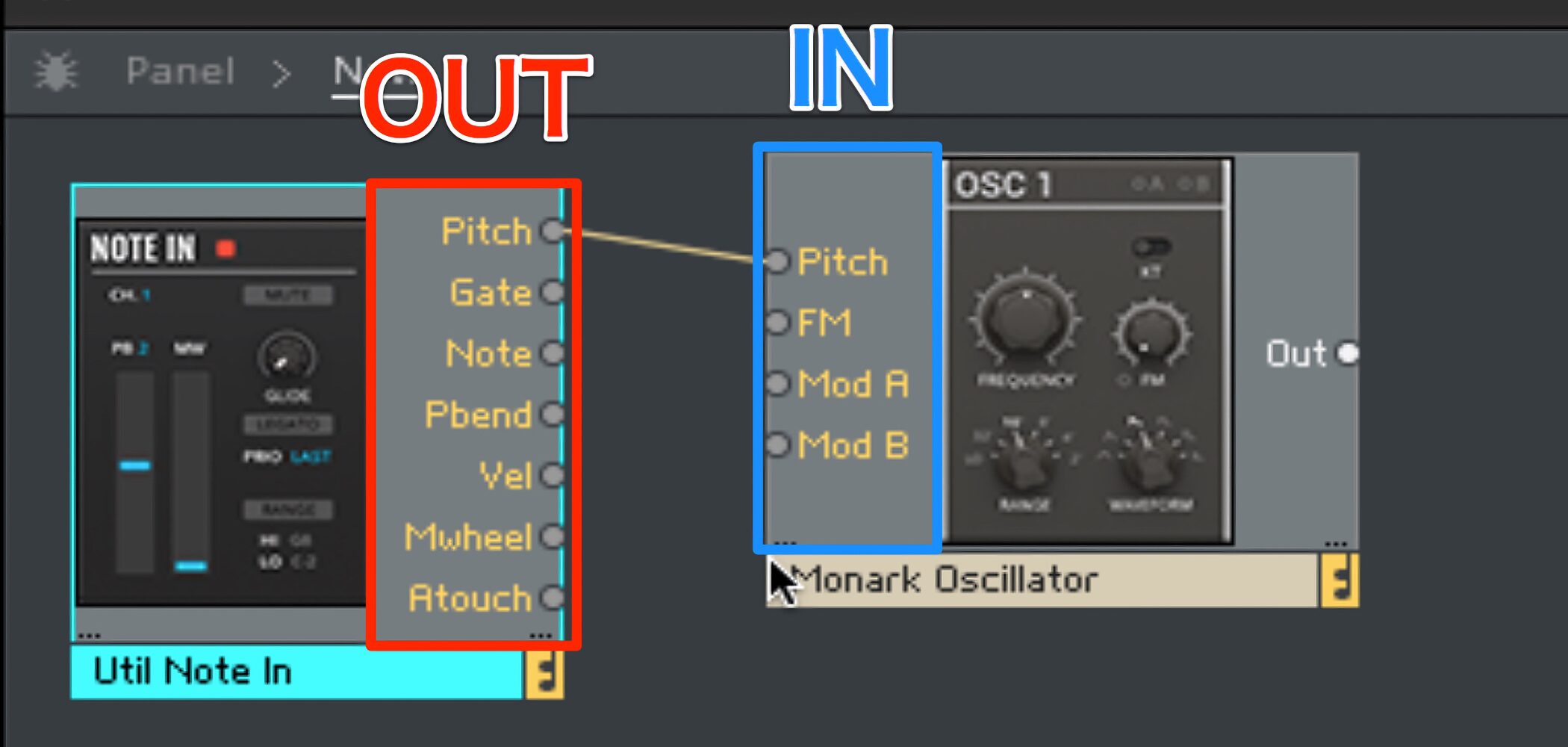
The “Util Note In” on the left was added by dragging “Reaktor Blocks” → “Util” → “INT-Note In.ism” into the workspace.
The basic patching convention is:
- Right side of a Block → OUT
- Left side of a Block → IN
Connect the Pitch output of Util Note In to the Pitch input of Monark Oscillator.
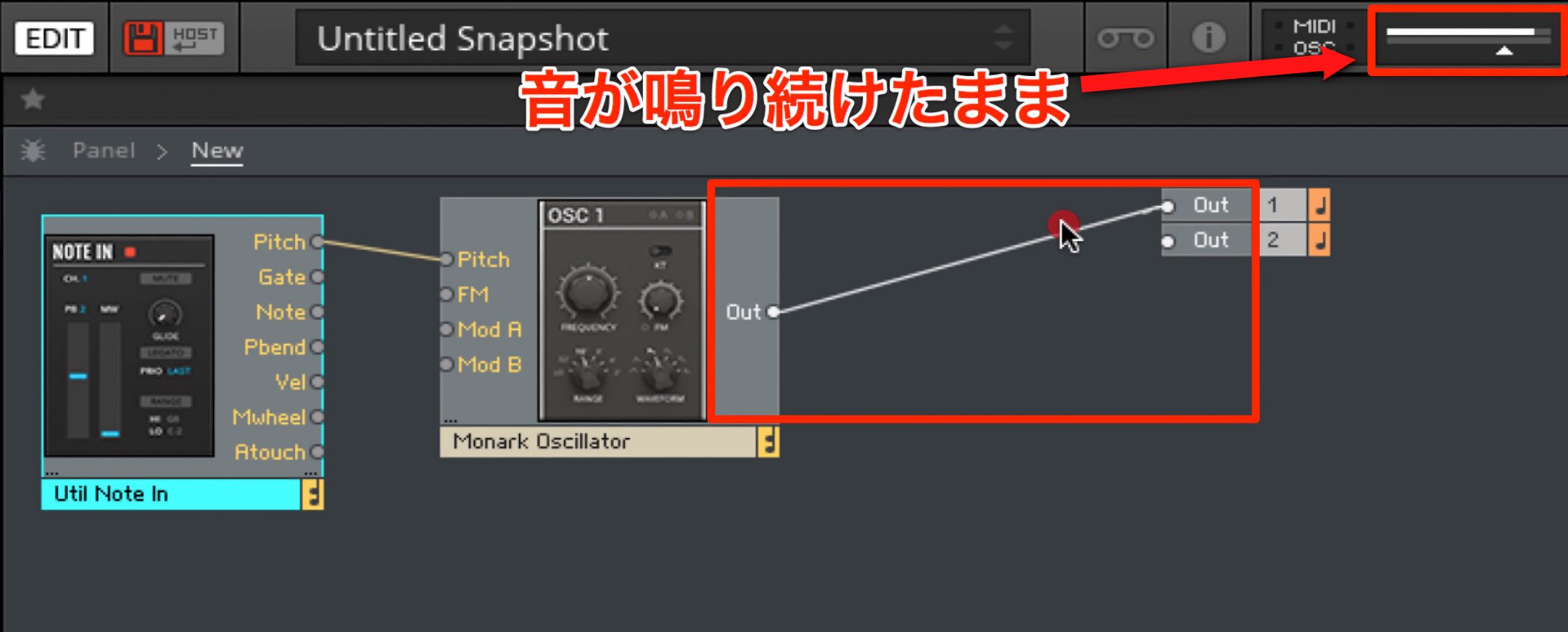
Connecting the oscillator directly to Out at this point would produce a continuous sound.
Connecting an envelope
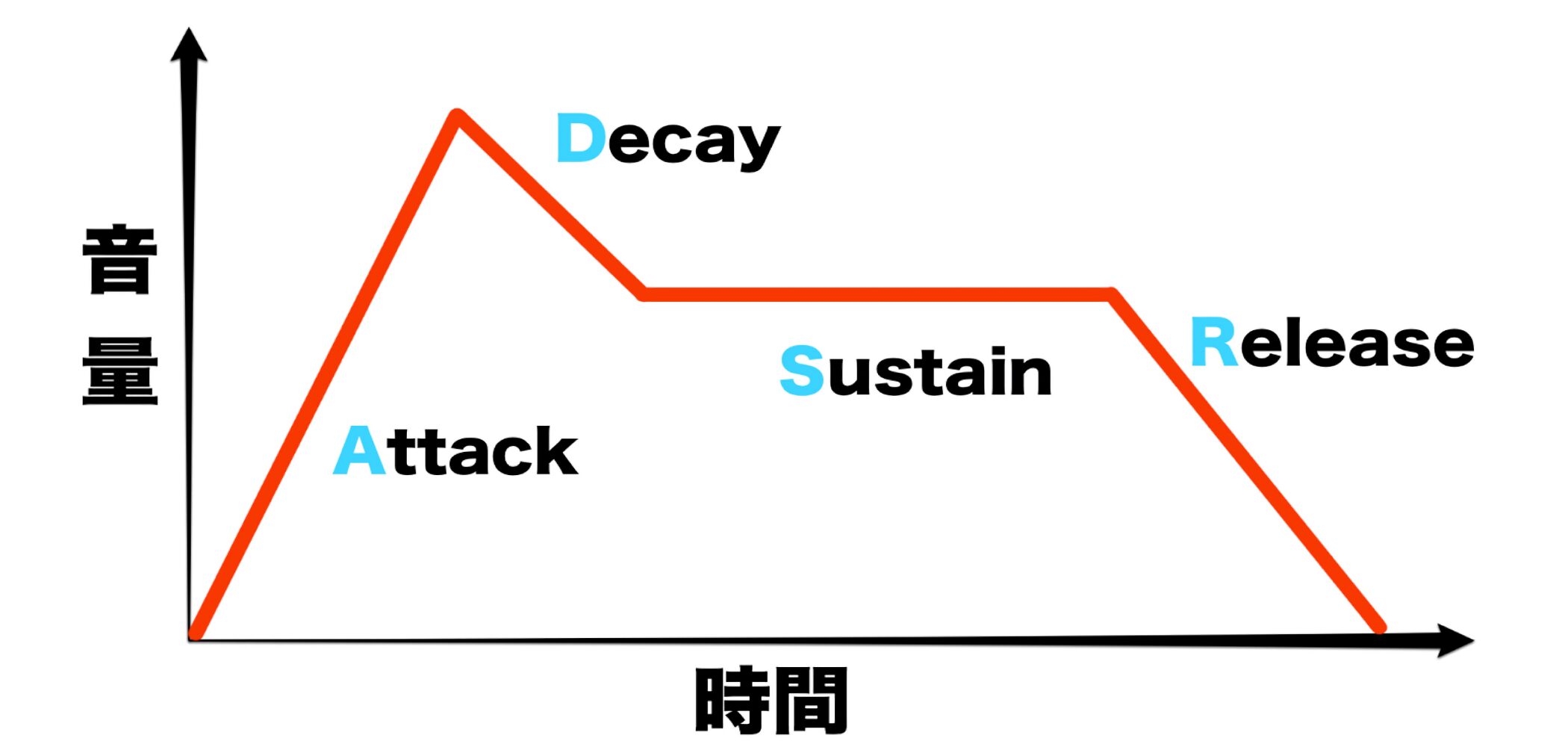
If you are unfamiliar with envelopes that control a synthesizer’s volume, see the article below.
Synthesizer Basics 6: AMP and Envelope
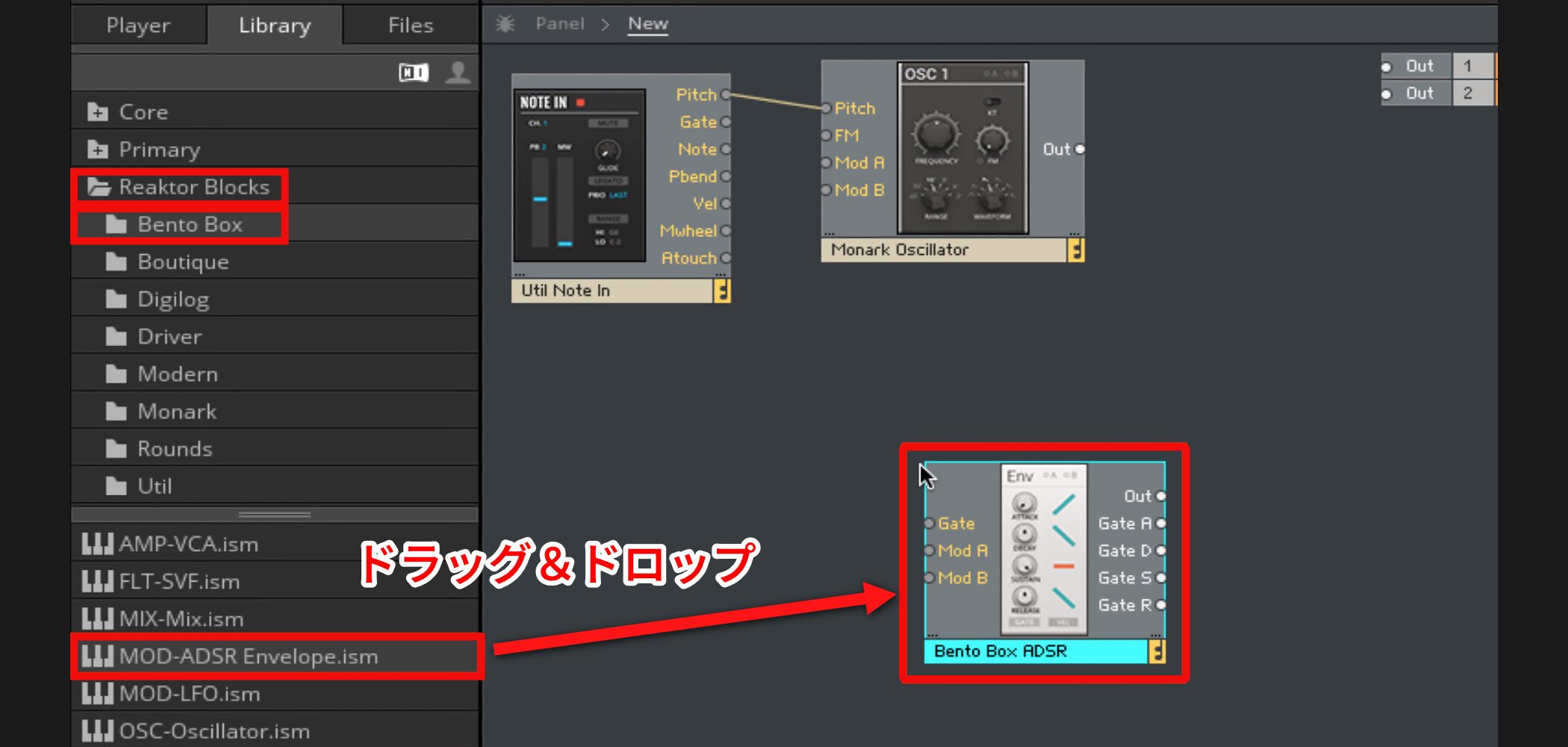
Select an envelope from Blocks.
Drag and drop “Reaktor Blocks” → “Bento Box” → “MOD-ADSR Envelope.ism”.
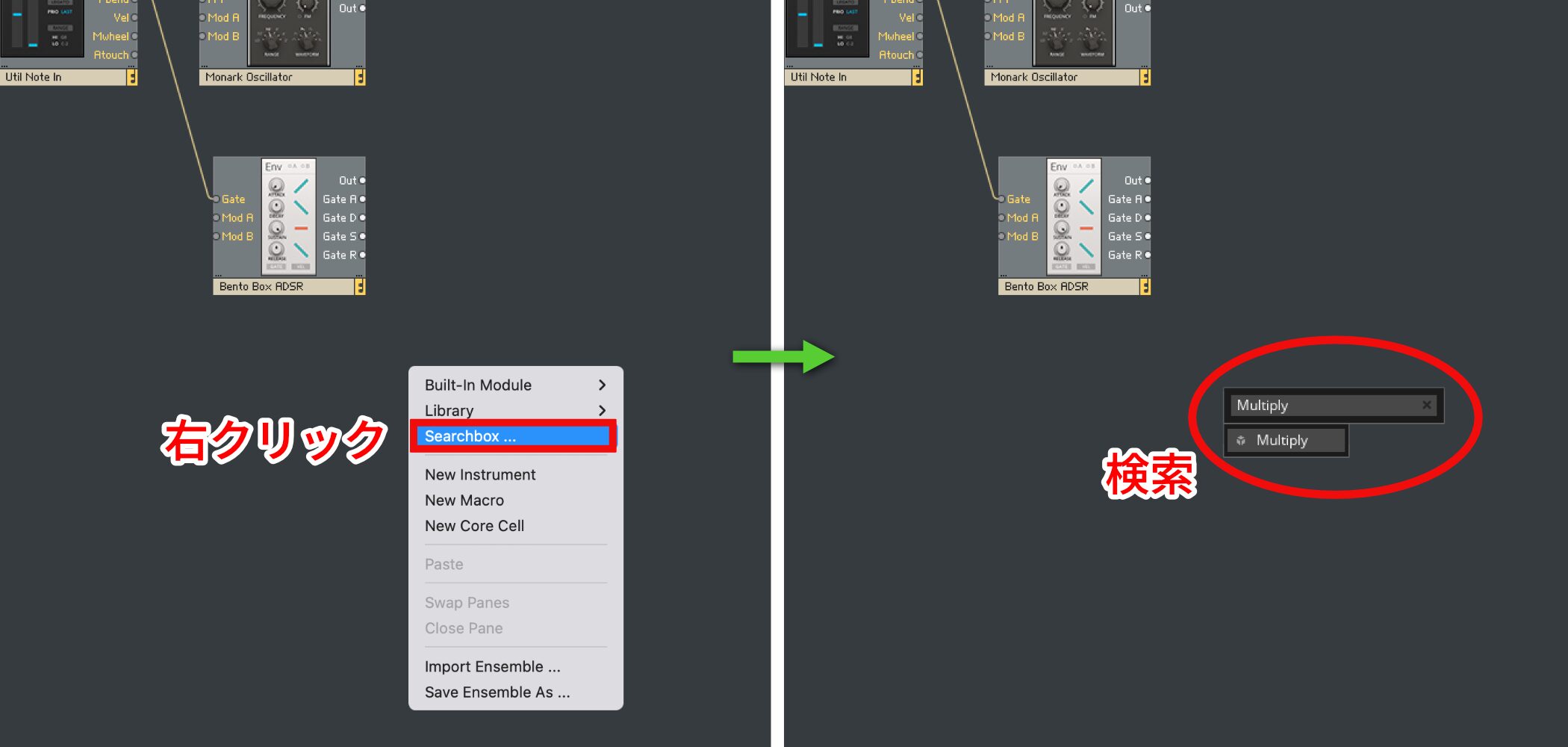
Also add “Multiply” to combine the oscillator and envelope signals.
Right-click, open Searchbox and search for “Multiply”.
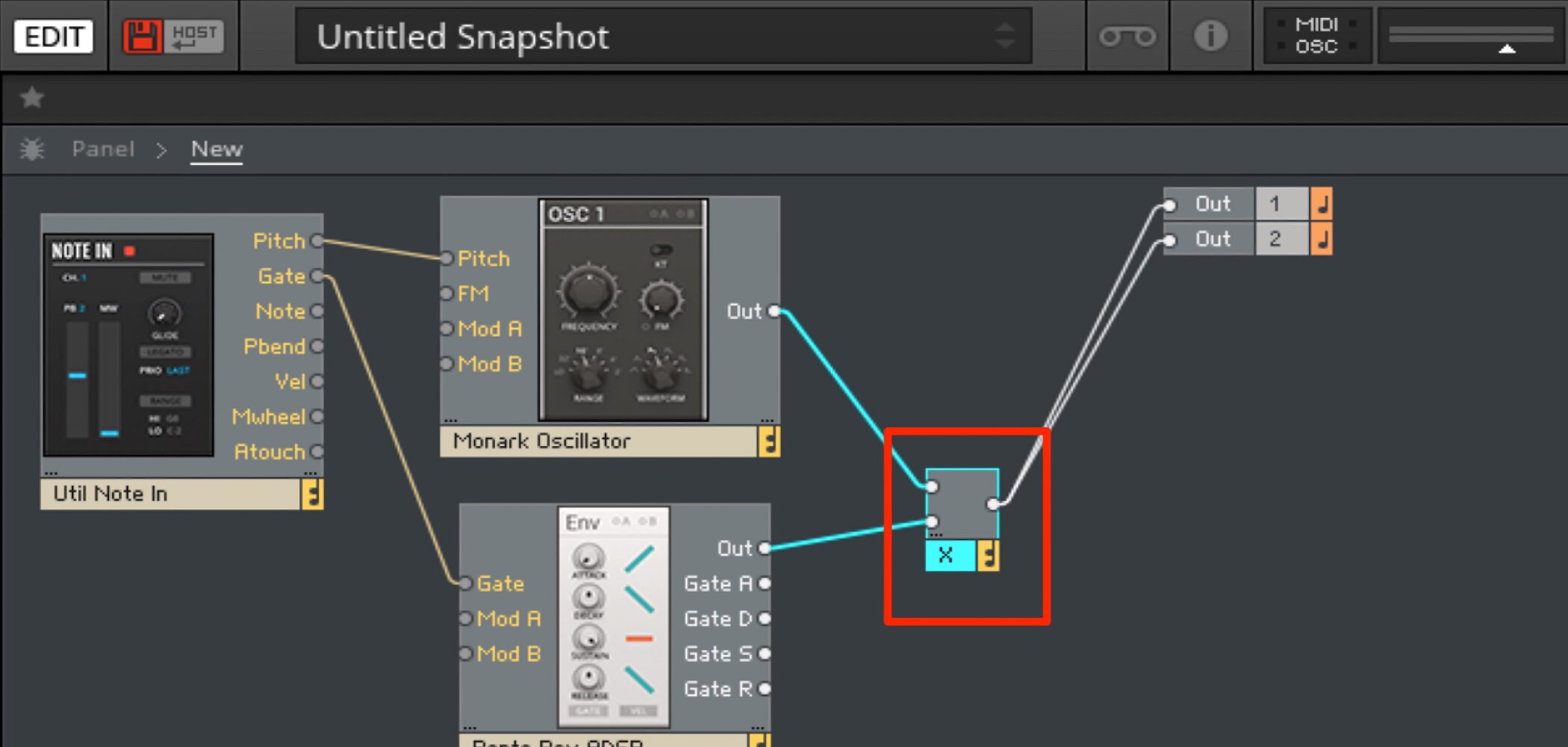
Connect the oscillator and envelope to Multiply, then connect Multiply to Out.
Switching views
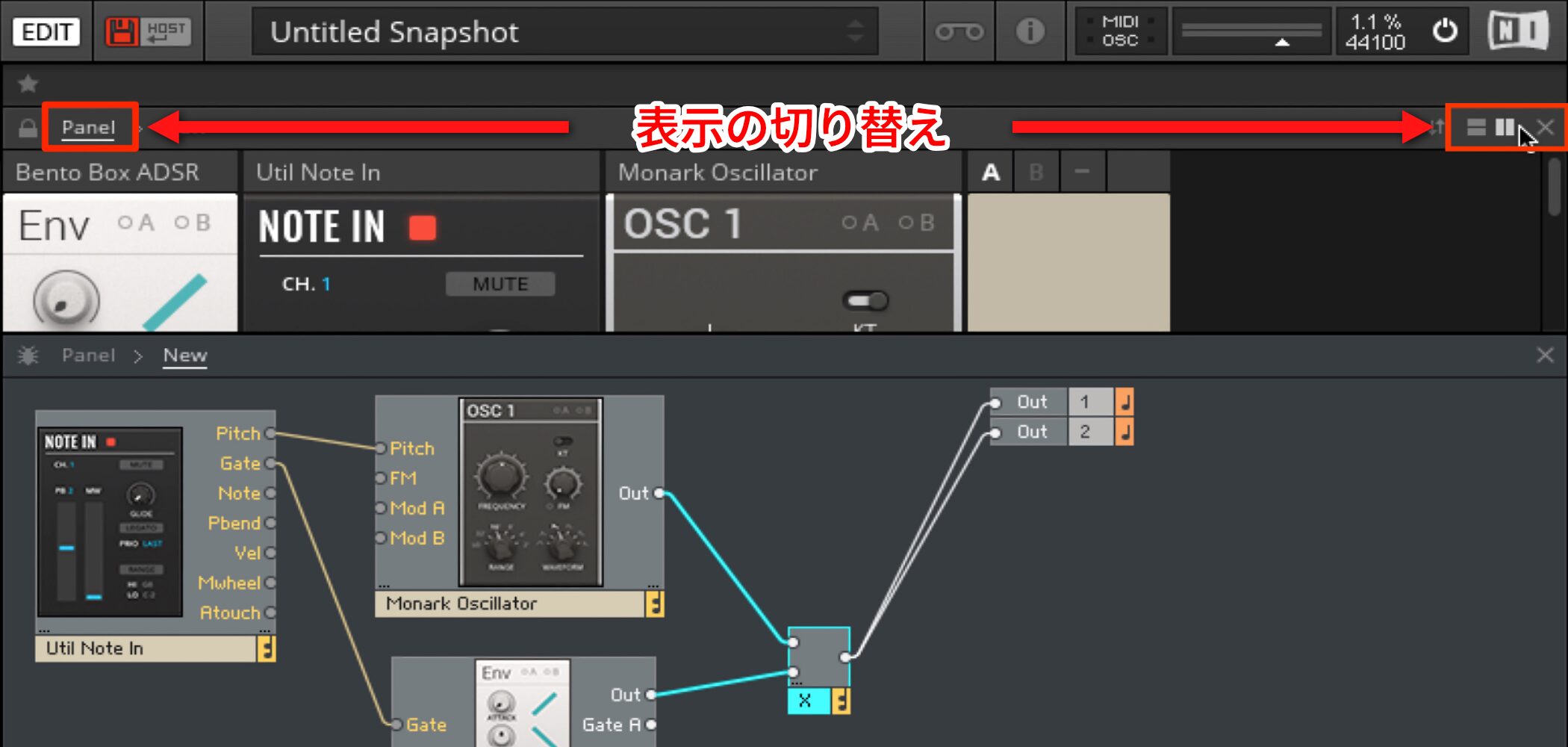
To change the REAKTOR view, click the Panel button at the upper left or the icons on the right.
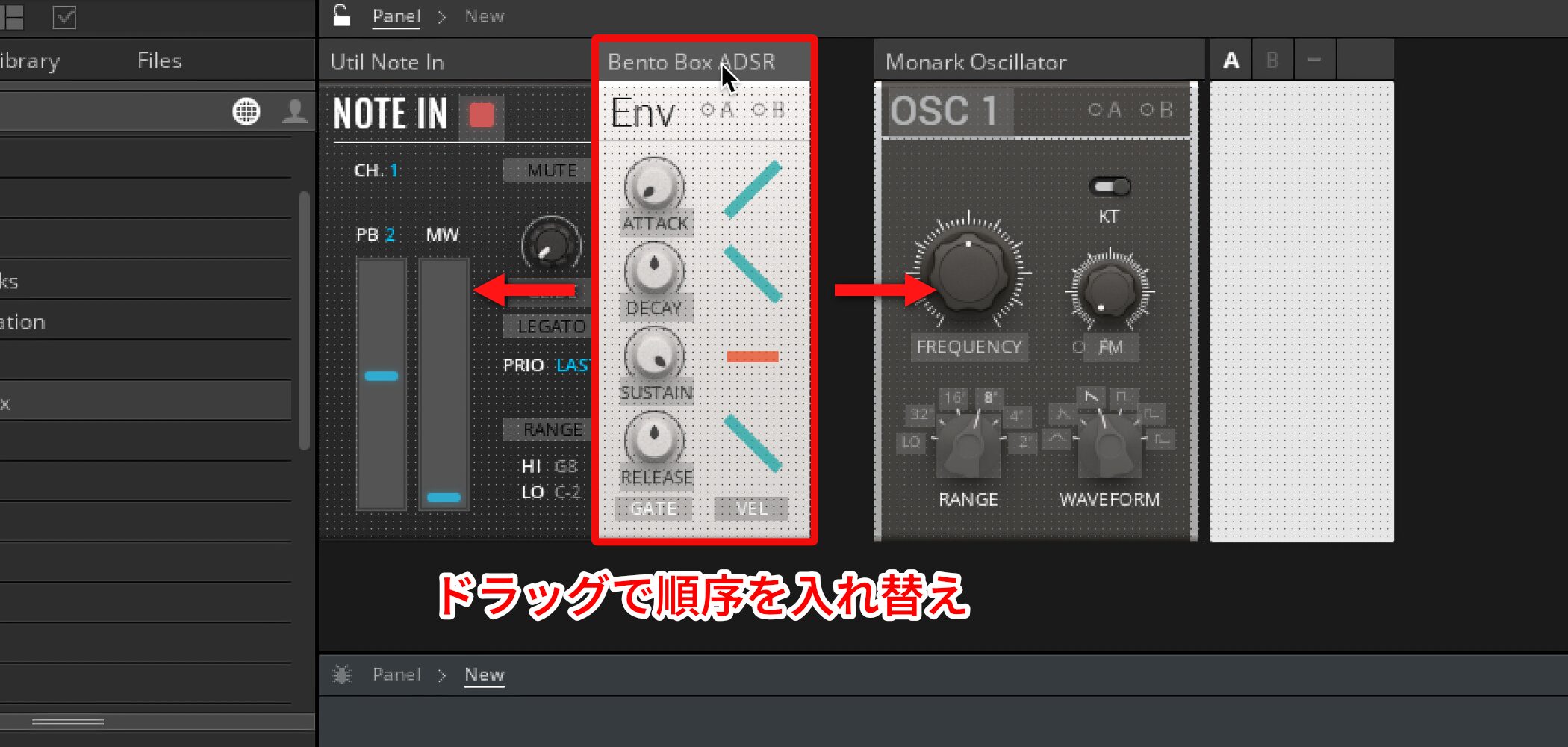
To rearrange Blocks, drag them directly into the desired order.
Adding oscillators in Blocks
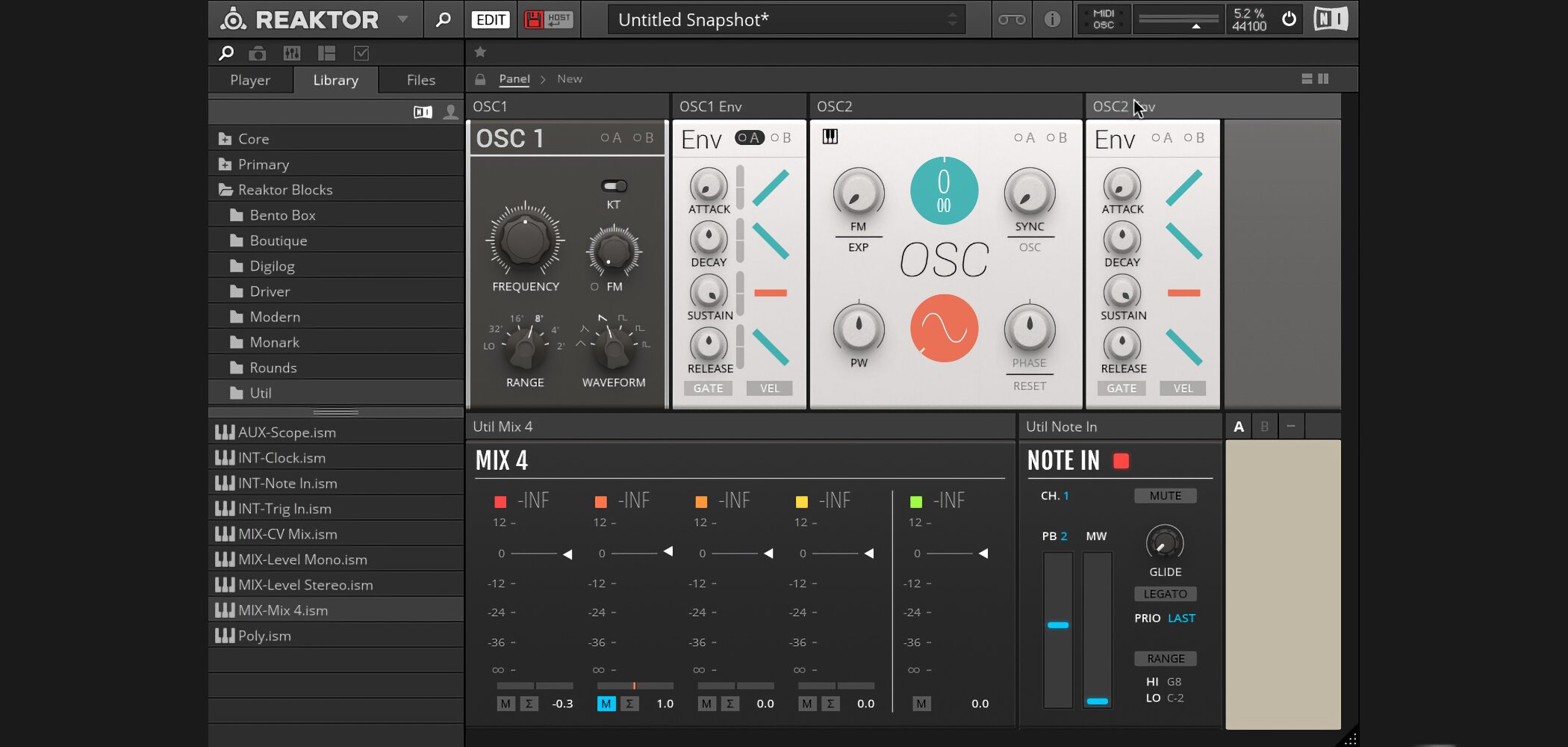
Next, let’s add an oscillator.
Blocks makes adding, connecting and arranging oscillators faster and more intuitive.
Video: Adding oscillators and saving an ensemble
Duplicating instances
You can add an oscillator by dragging it from the library, but duplicating multiple instances together with their patch connections can be more efficient.
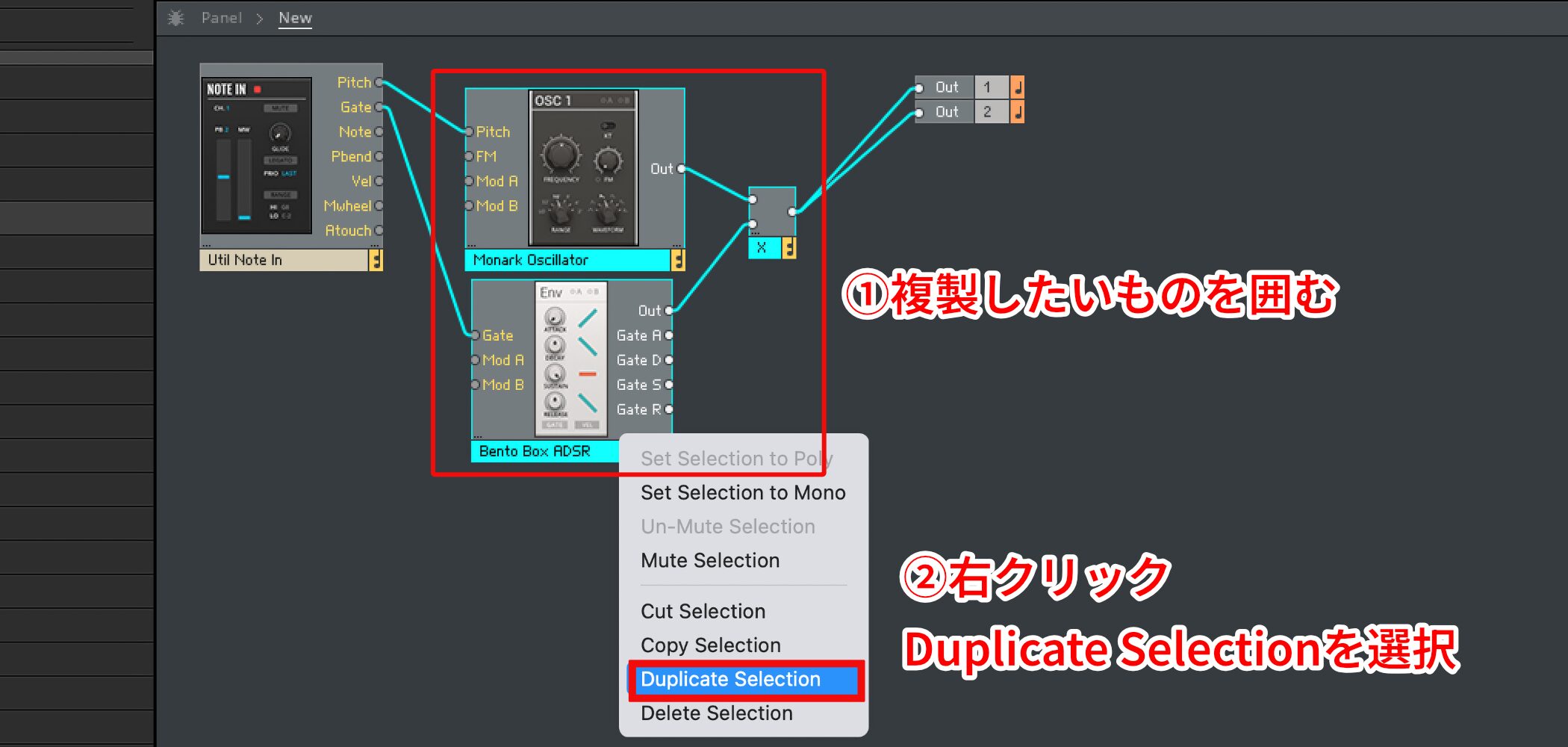
Drag a selection around the required instances, right-click and choose “Duplicate”.
Changing the oscillator
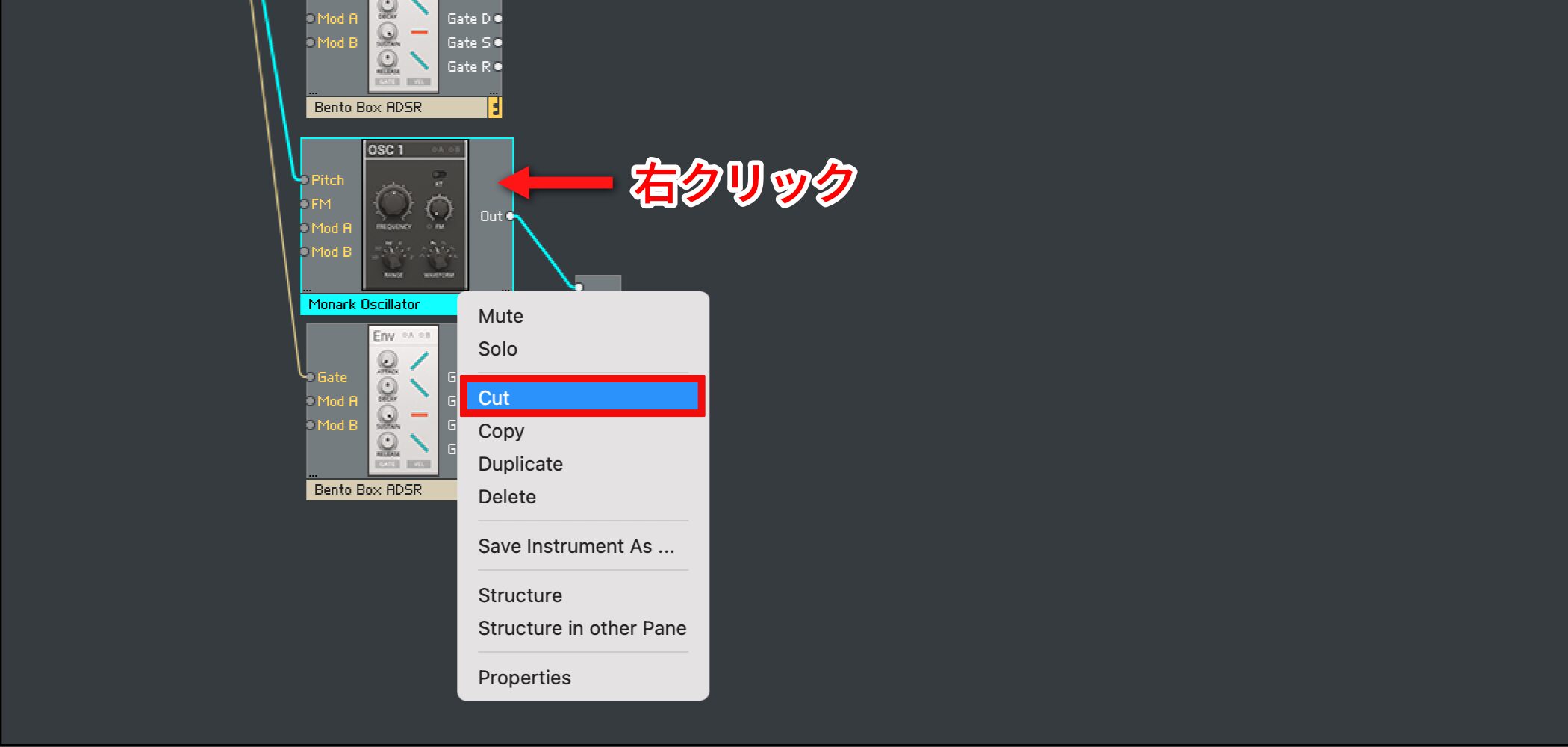
To replace only the oscillator among the duplicated instances, right-click it and select “Cut”.
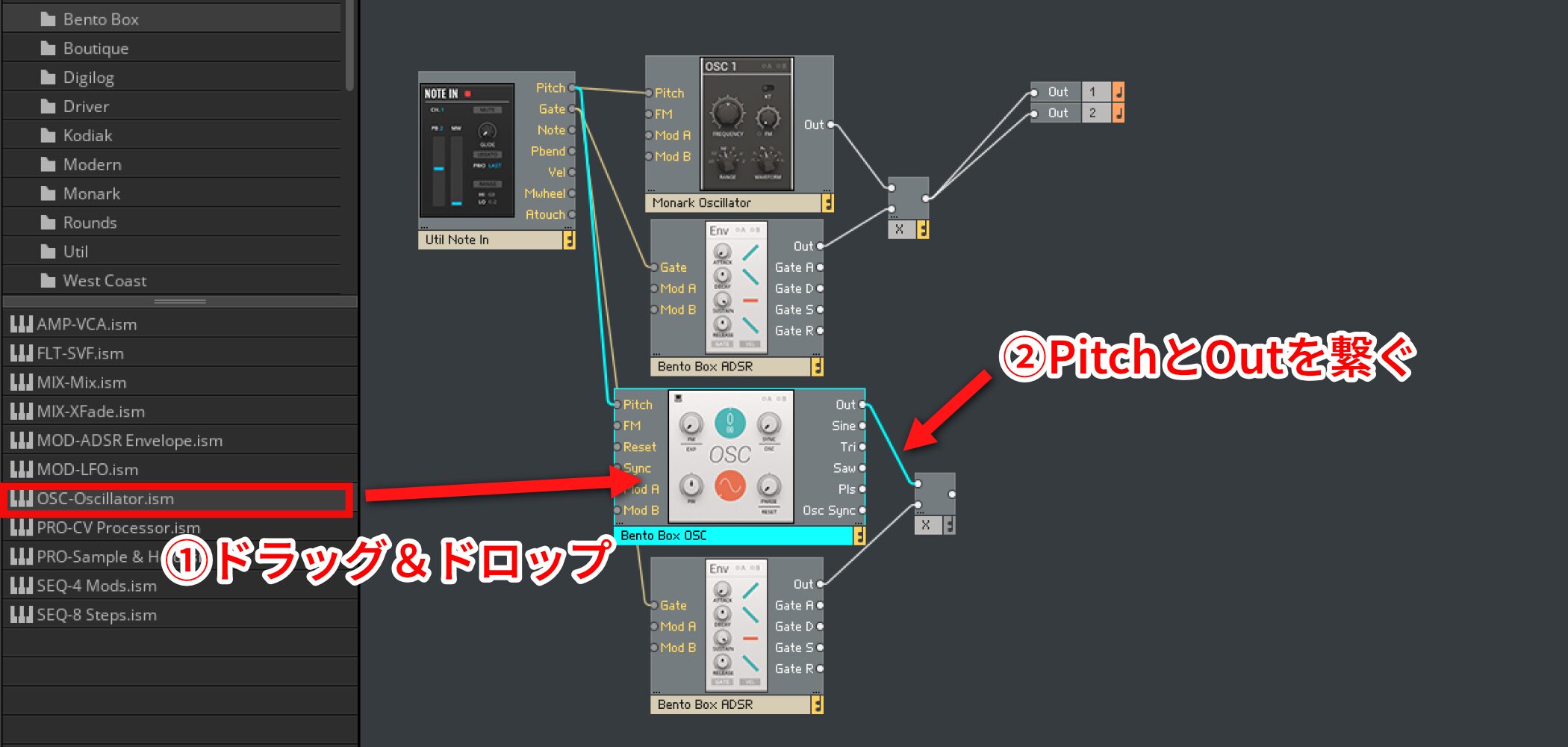
Then drag the desired oscillator from the library, connect Pitch from NOTE IN and connect its Out to Multiply.
Adding a mixer
Add a mixer to adjust the balance between the two oscillators.
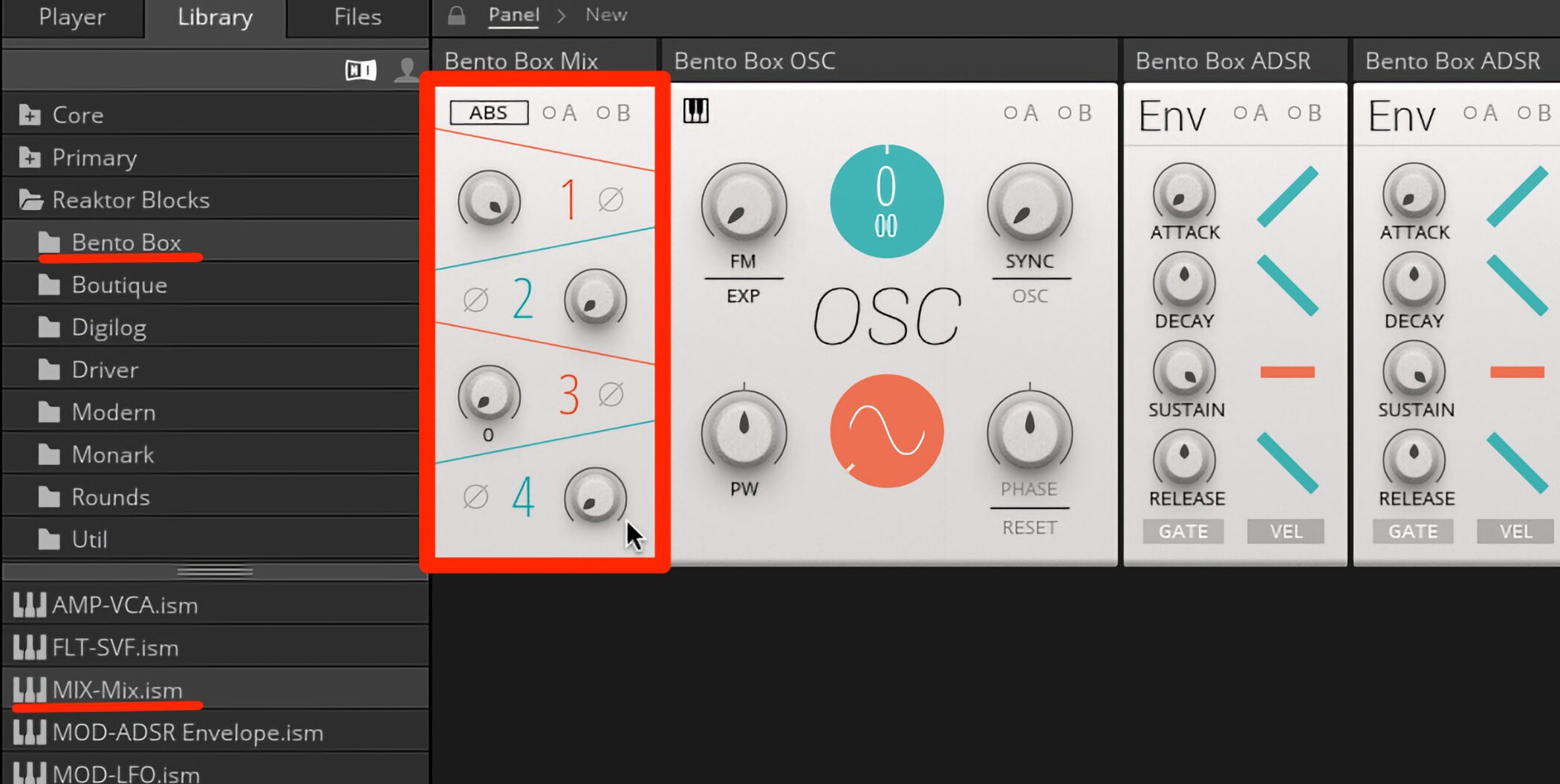
Blocks provides these two mixers:
- “Bento Box” → “Mix-Mix.ism”
A four-channel mixer for volume control.
- “Util” → “Mix-Mix4.ism”
A four-channel mixer with volume, pan, mute and level meters.
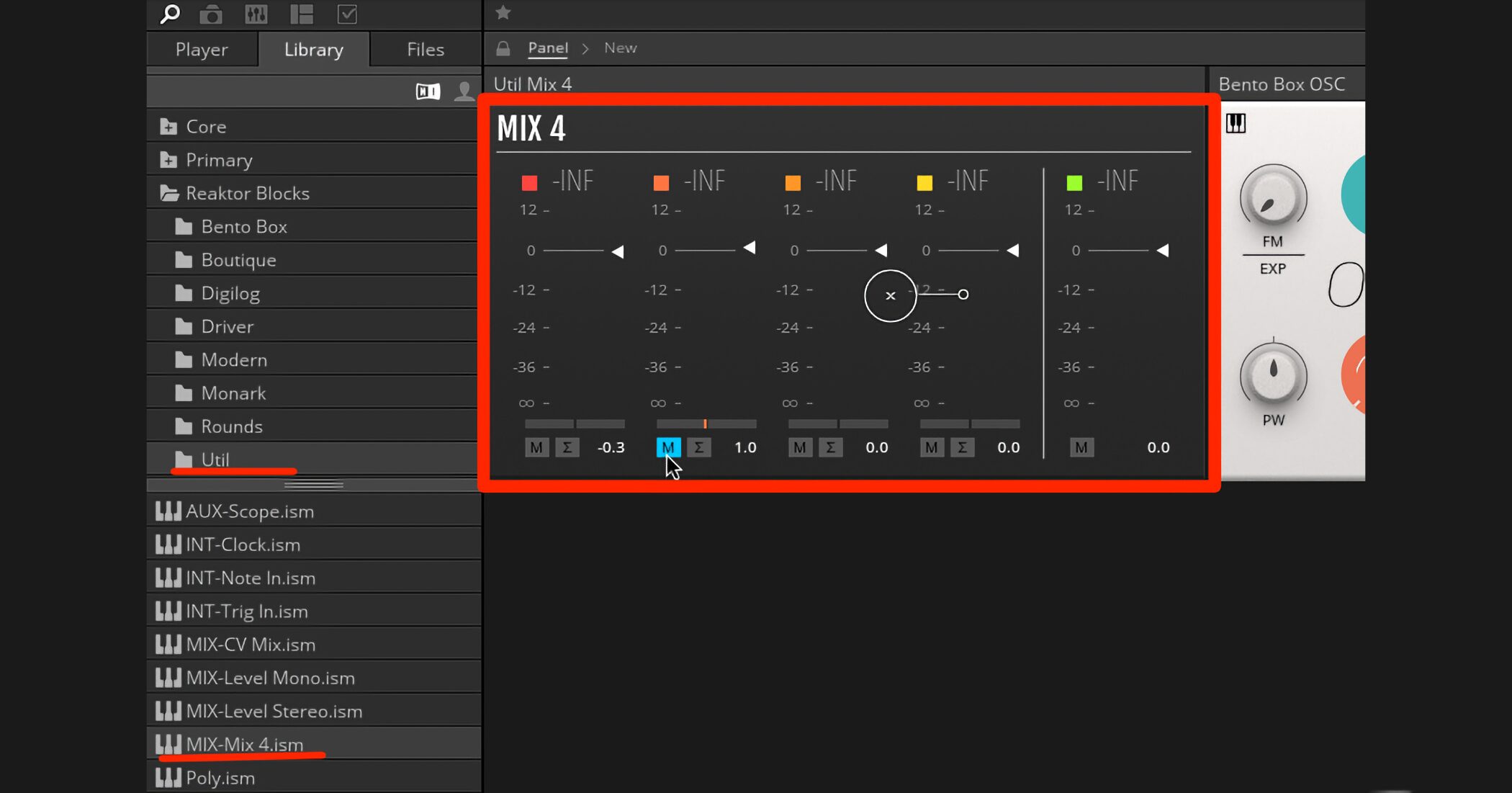
We’ll use the latter, Mix4, for this example.
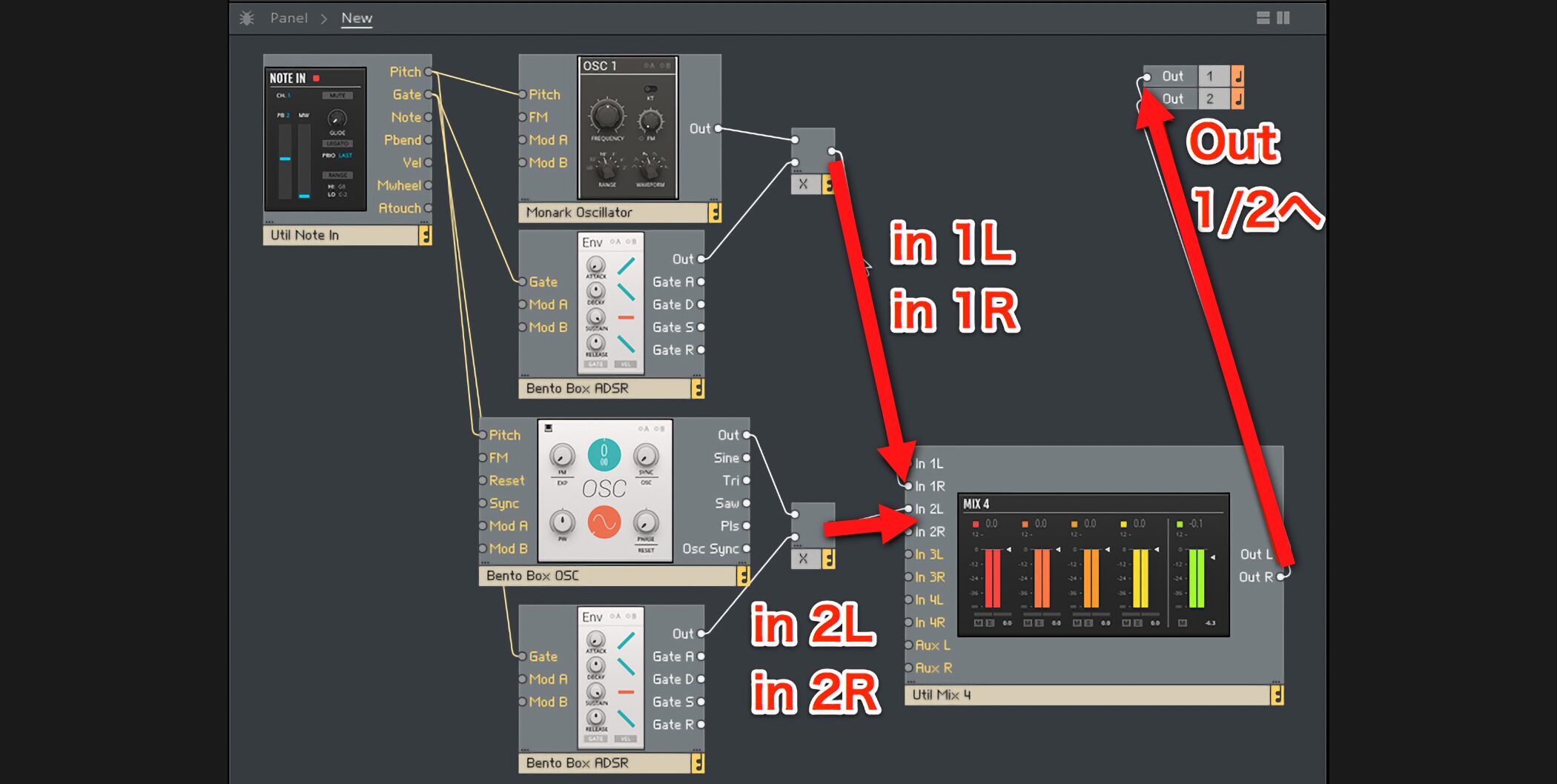
After dragging it from the library, connect oscillator 1’s Multiply to Mix4’s In1 L and In1 R, and oscillator 2’s Multiply to In2 L and In2 R. Then connect Mix4’s Out to Out 1/2.
Renaming and arranging Blocks
Once the oscillators are in place, rename the Blocks and rearrange the panel to make the patch easier to read.
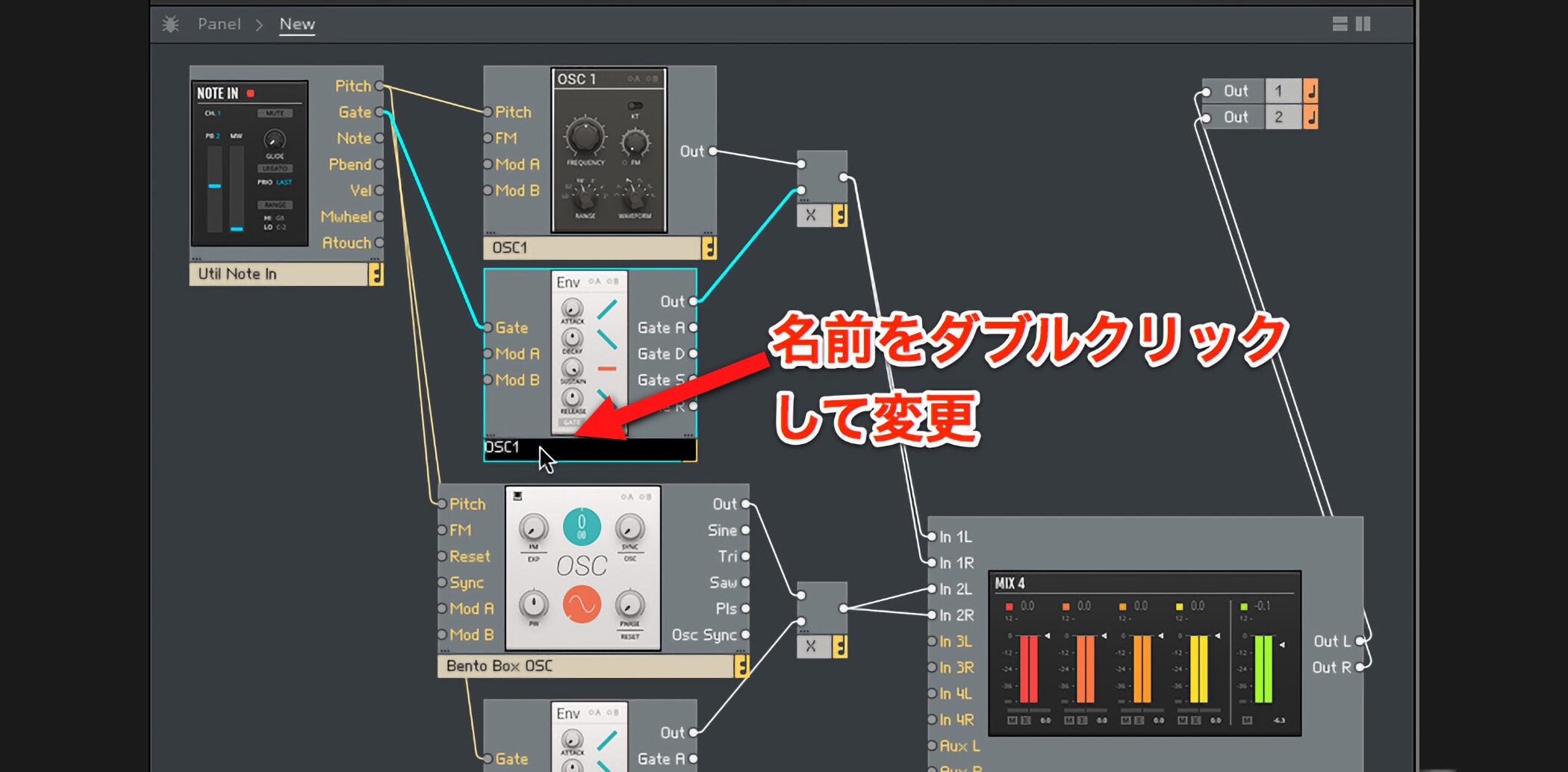
To rename a Block, double-click its default name (such as Monark Oscillator) and type a new one.
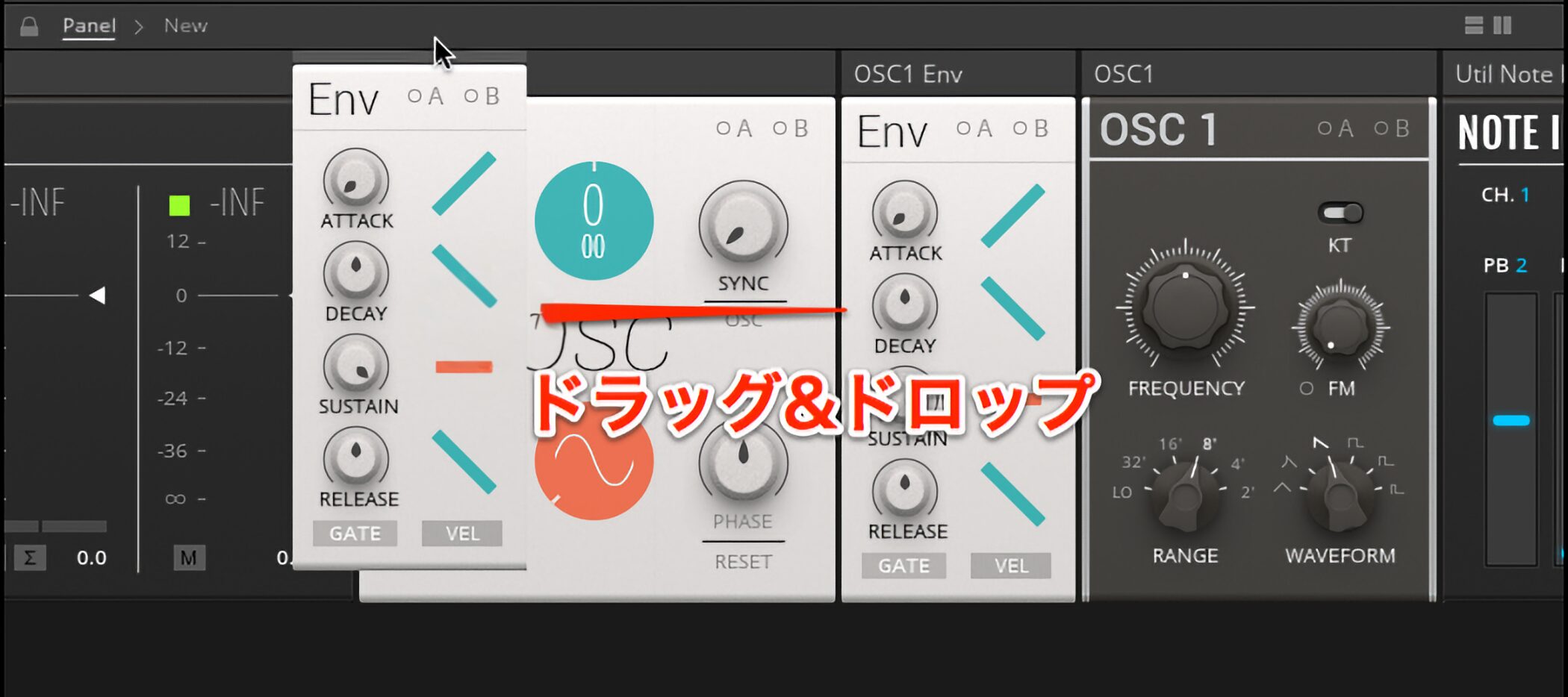
To change the layout, switch to Panel view and drag and drop the Blocks.
Patching FM and Sync
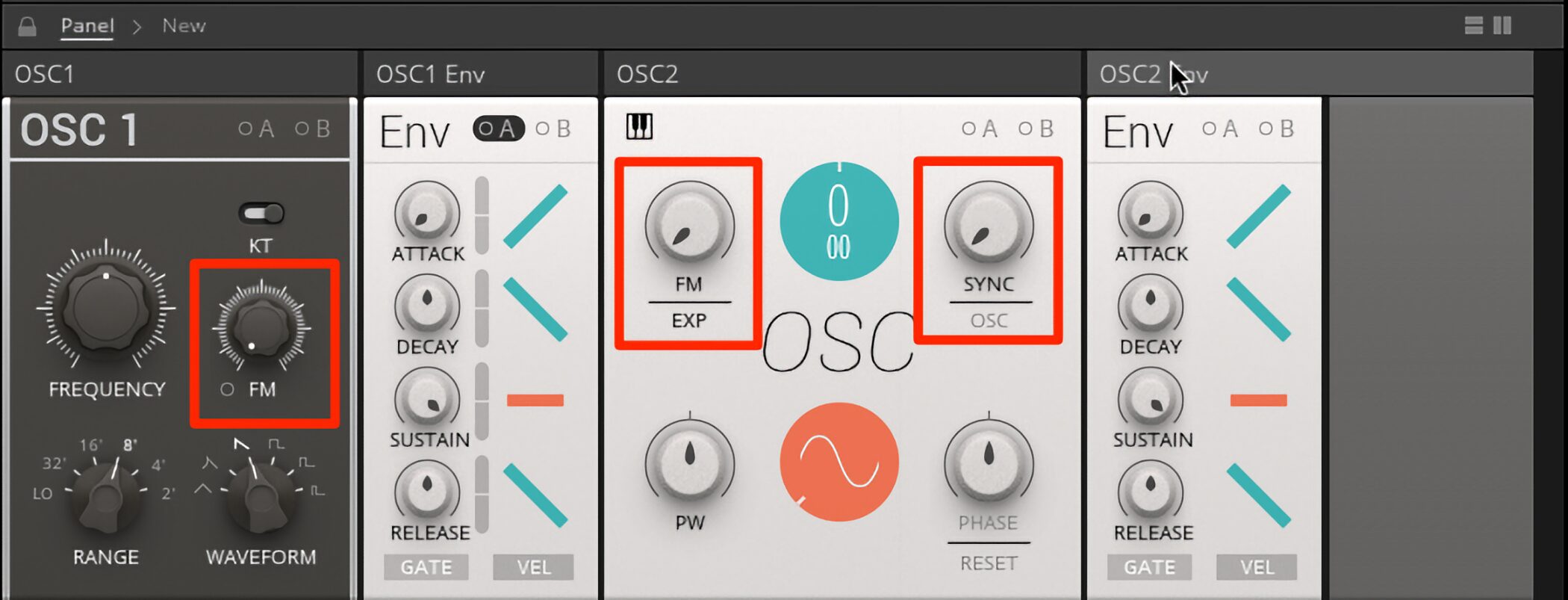
Each oscillator includes features such as FM and Sync for interaction with an external oscillator.
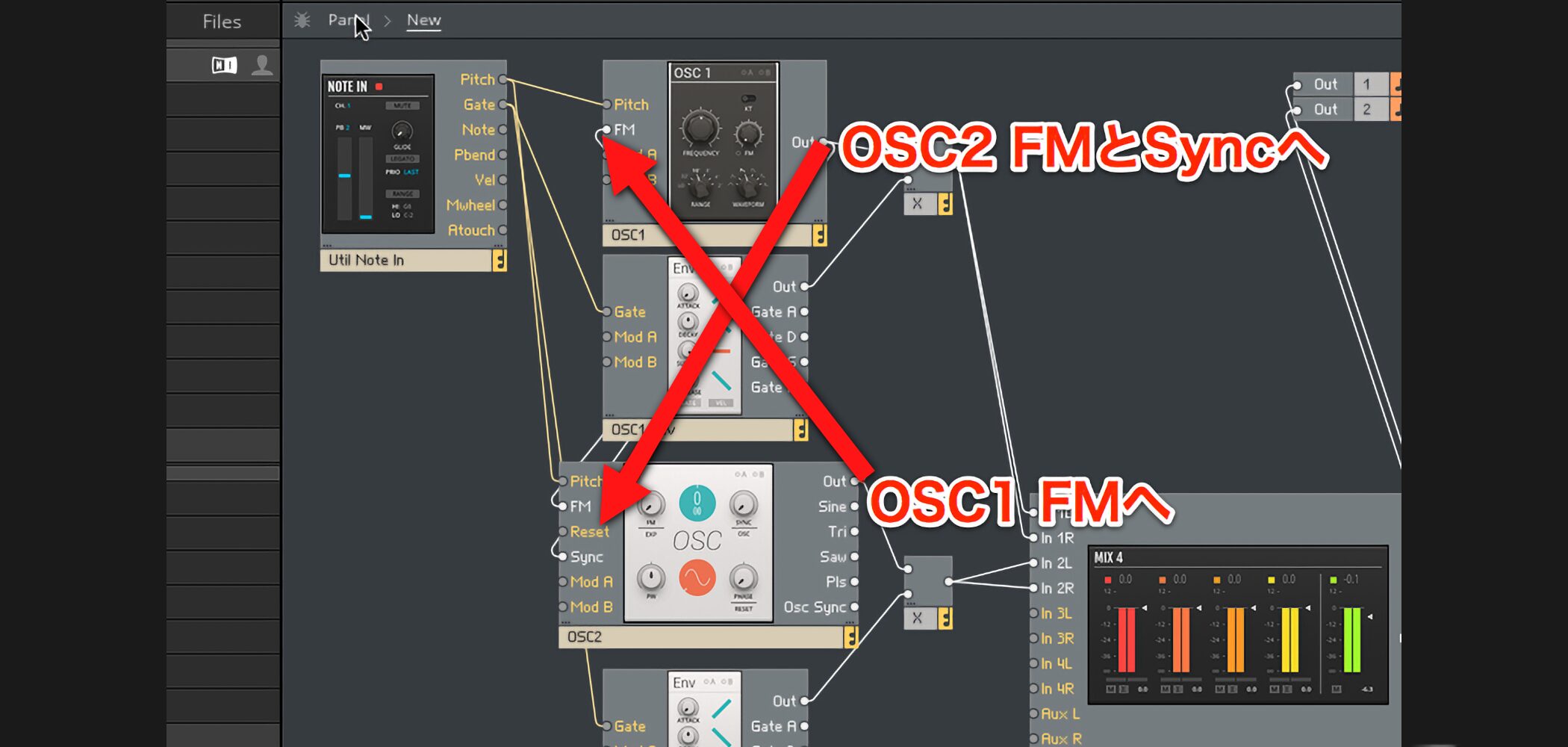
To use these with two oscillators, patch one oscillator’s Out to the other oscillator’s FM or Sync input.
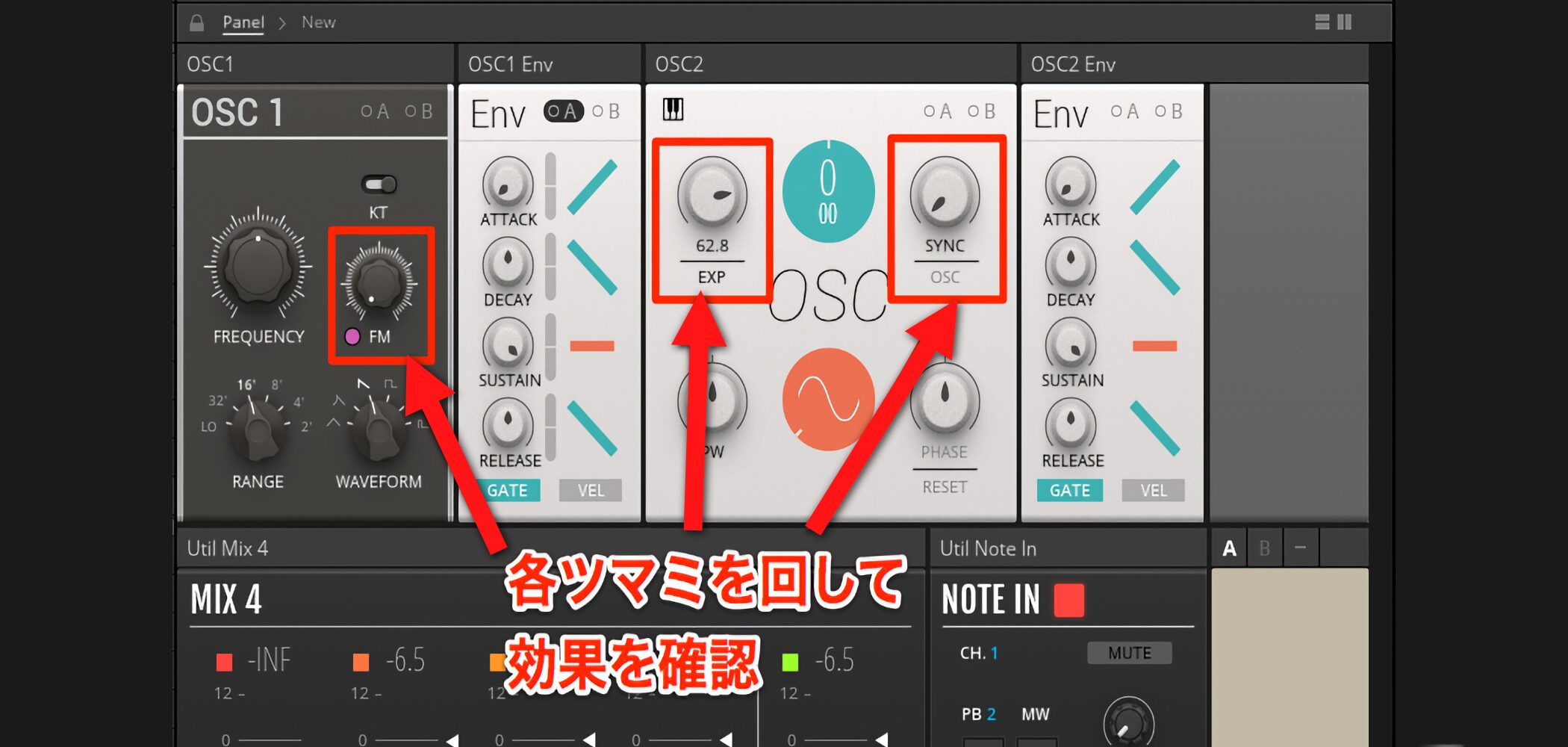
Once connected, play a sound and adjust the FM or Sync knob in Panel view to hear the effect.
Saving the ensemble
Once your custom synthesizer is taking shape, be sure to save it as an ensemble.
Saving the host DAW project alone does not save the REAKTOR ensemble as a separate file
, so remember to save it separately.
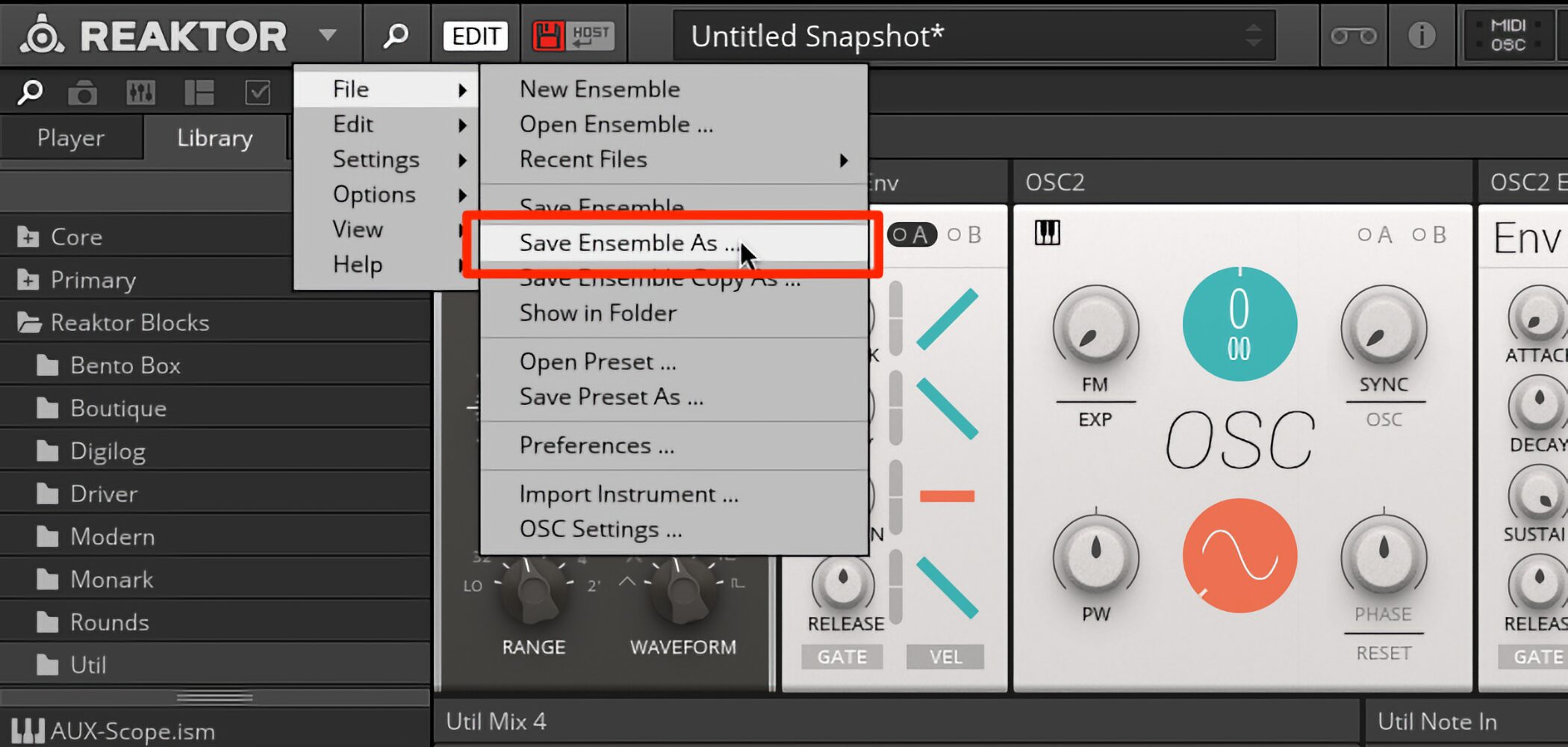
Click the ▼ next to the REAKTOR logo at the upper left, choose File → Save Ensemble As, then name and save it in your preferred location.
Frequently Asked Questions
Q1. What should I do if REAKTOR 6 makes no sound?
Some presets use a sequencer, so check the Clock setting. If it is set to EXT, switching to INT can allow it to play.
Q2. What is the basic rule for connecting Blocks?
Block outputs are on the right and inputs are on the left. Connect a cable from an output to an input to make a patch.
Q3. How can I add multiple oscillators efficiently?
Instead of dragging each one from the library, select existing instances by dragging around them, right-click and choose Duplicate. This duplicates their patching too.
Q4. How can I control the balance of two or more oscillators?
Use the Mix4 mixer included with Blocks. It provides volume, pan, mute and level meters.
NEW ARTICLES
Latest English Articles