
This practical guide shows how to perform techno live using Ableton Live's Session View. It covers the interaction between Session View and the APC40 MKII controller, looping clips, and controlling several effects together with Macros, along with the settings needed for real-time performance. By learning to build a track from prepared loops in real time, even beginners can create intuitive, creative live performances.
Real-Time Performance with Ableton Live
Real-Time Live Performance with Ableton Live is a three-part series.
Three Sleepfreaks instructors each perform using Ableton Live, then introduce and explain the distinctive features and custom setups they used.
In this third installment, instructor Machida (Svan code) performs using Session View and explains his system and the features behind it.
Real-Time Live Performance: Techno
About the Performance
For this performance, I used Ableton Live's Session View and recorded the result on video.
The genre is techno. I build the music in real time by combining loops prepared in Session View.
To convey how much fun this can be, I did not decide on a fixed arrangement beforehand. Instead, I develop and play the track whenever it feels right.
The Controller and Its Role
The controller used throughout the performance is the AKAI APC40 MKII, designed for Ableton Live.
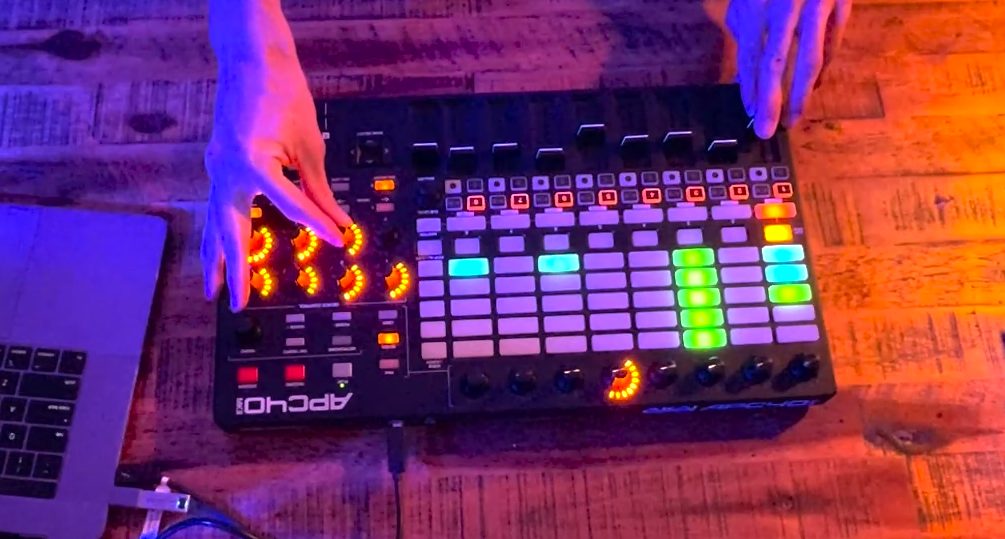
The APC40 MKII's pad layout mirrors Session View, with illuminated pads and device controls indicating what is playing and what you are controlling.
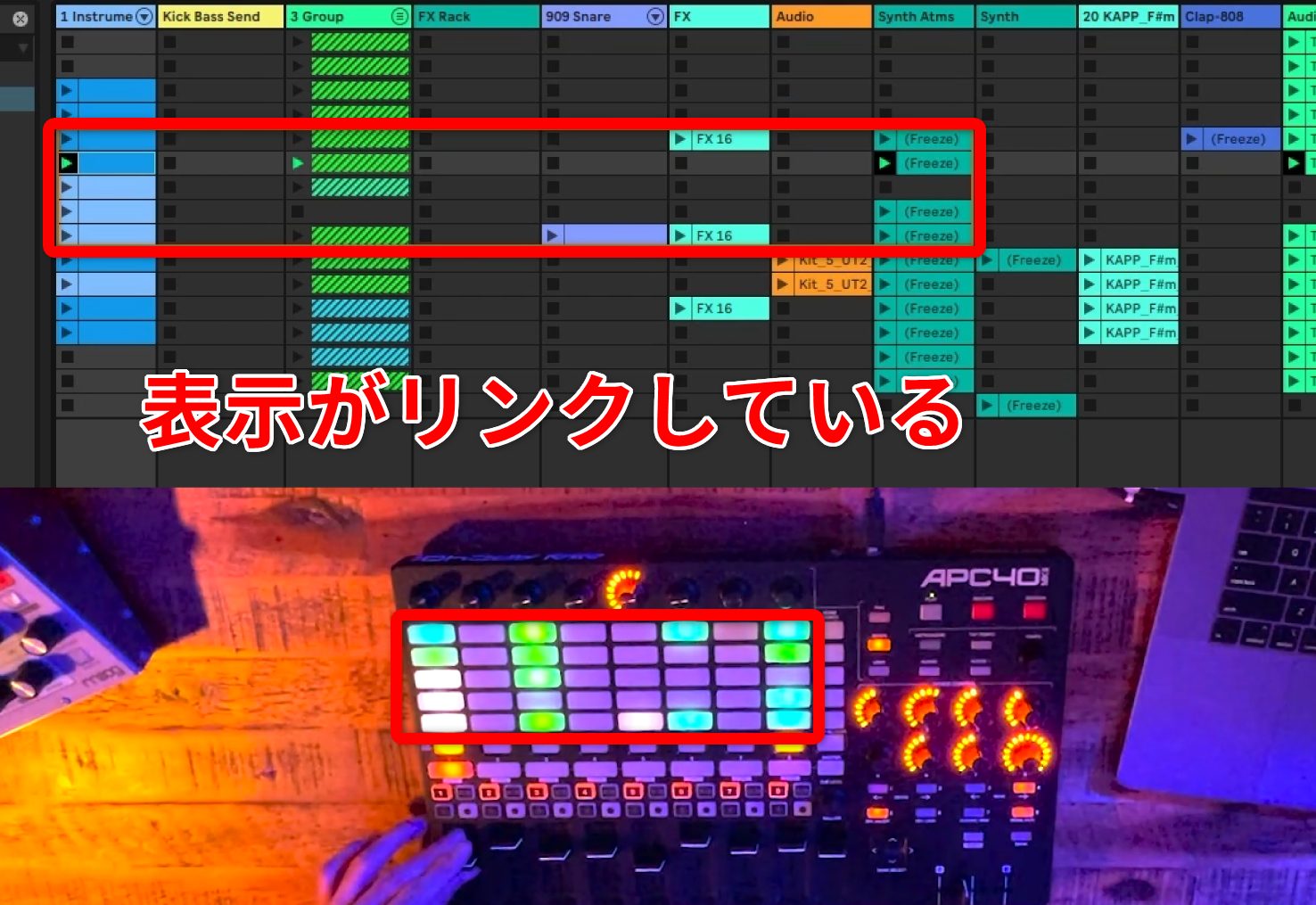
For example, when the clips are arranged like this in Session View, the APC displays the same layout.
Playing and stopped clips are shown in different colors, making it easy to see which parts are active and how much effect is being applied without looking at the computer. This lets me concentrate on the controls under my hands.
These features make it an ideal controller for real-time performance in Session View, and I use it regularly.
An Overview of Session View
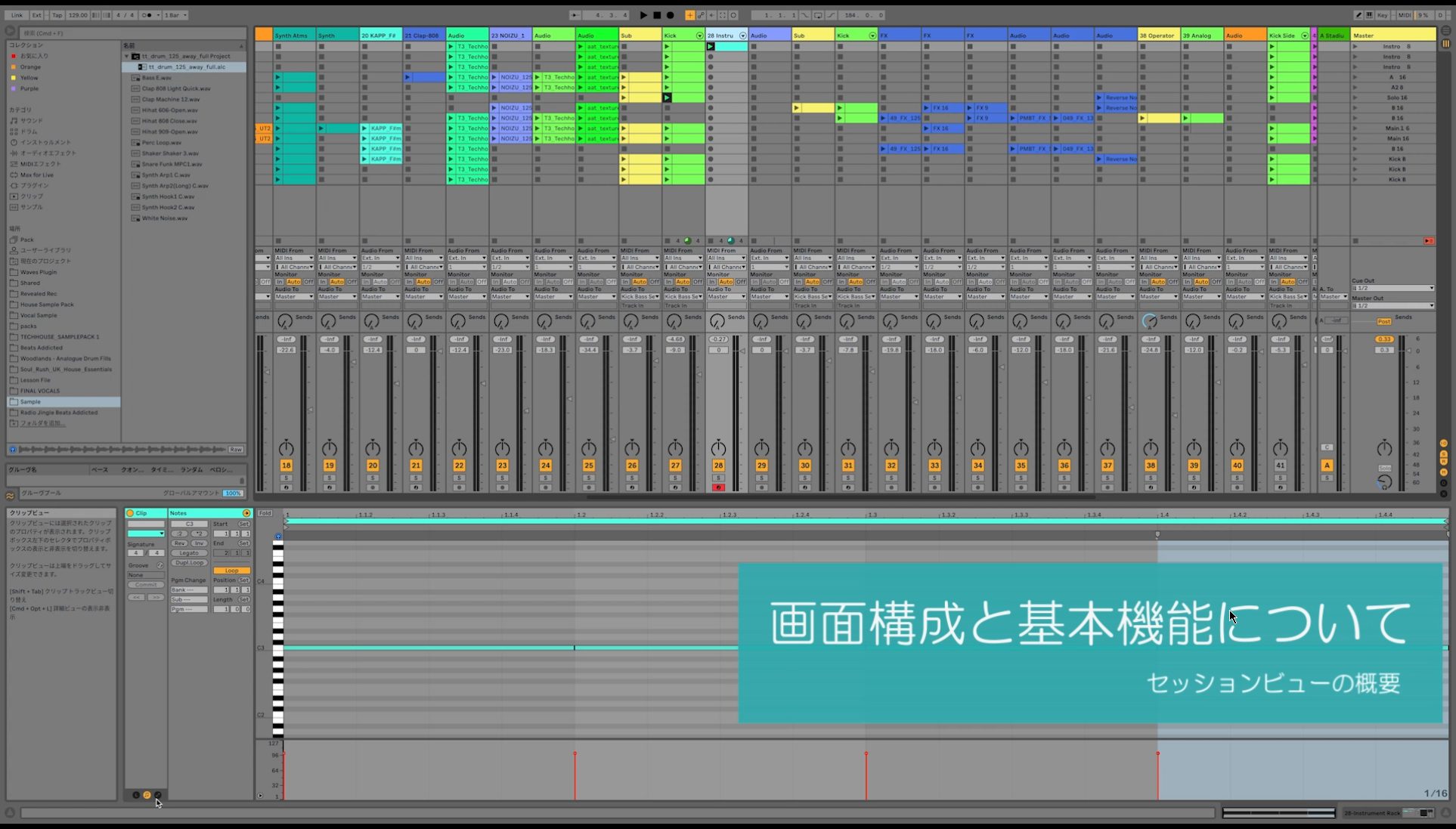
Before looking at the performance itself, let us review what you can do in Ableton Live's Session View.
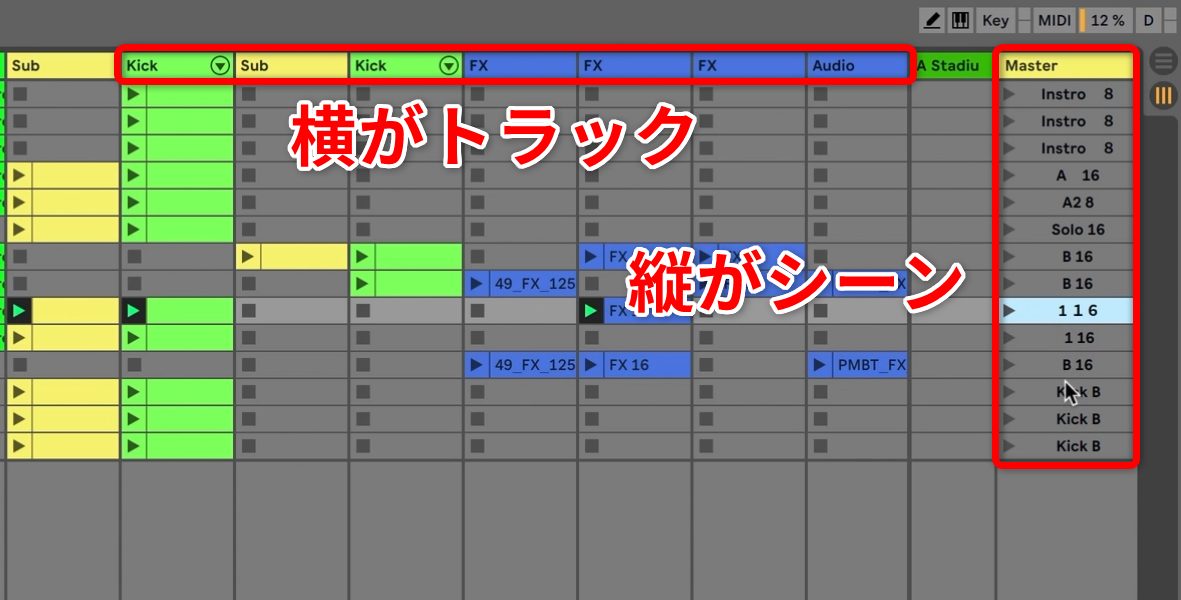
Instrument parts, called tracks, are arranged as columns across Session View. Song sections, called scenes, are arranged as rows down the view.
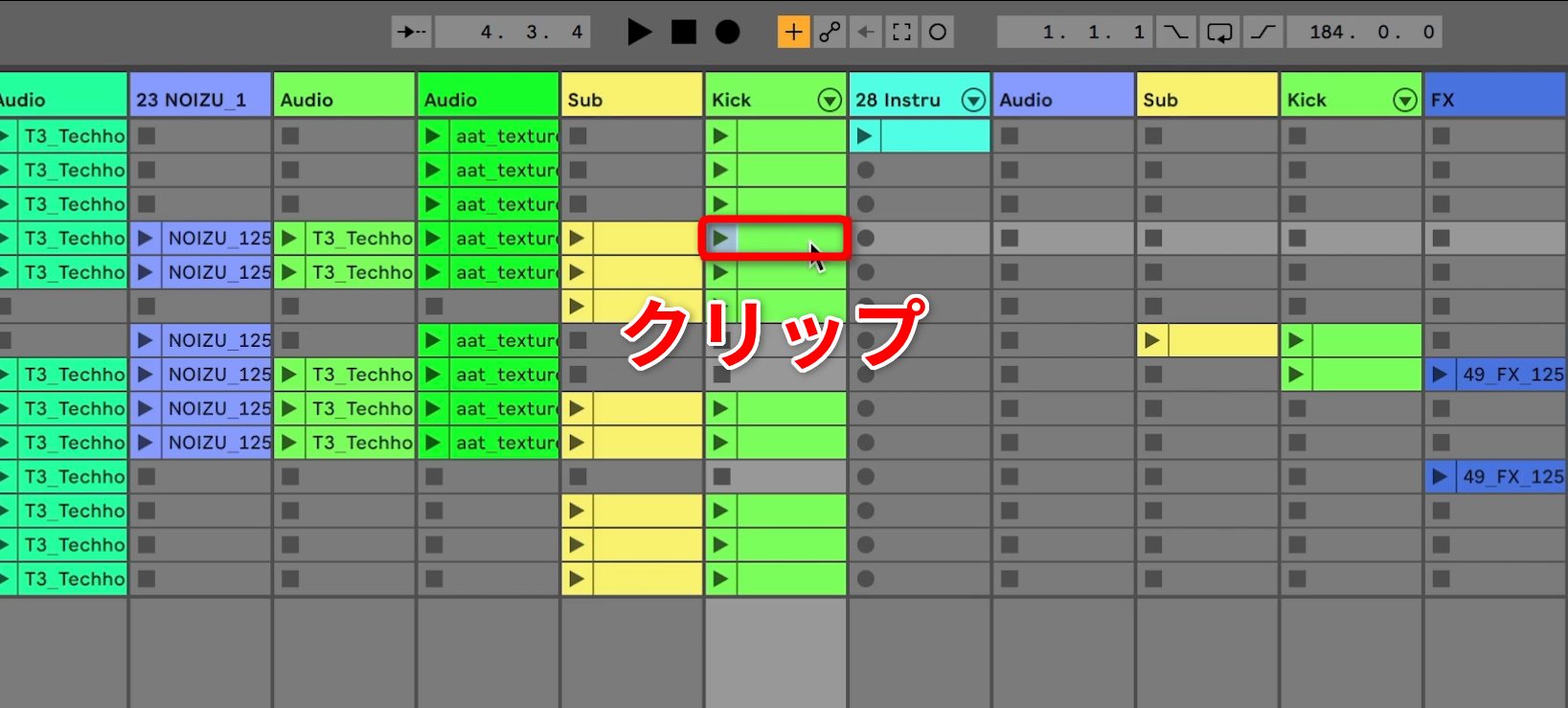
Each slot can hold a musical phrase called a clip.
As we will see later, clips can loop their stored phrases. Layering clips from different tracks lets you build the music as you perform.
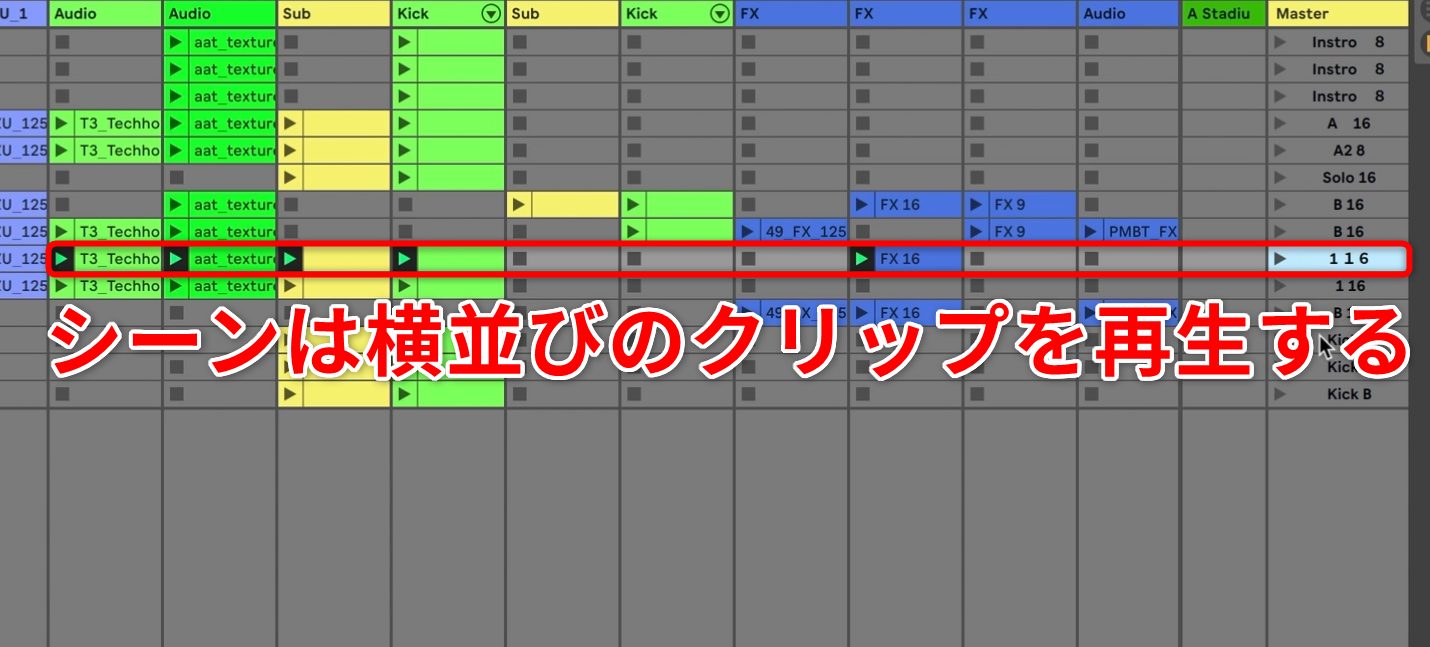
You can also name scenes in the Master track. Pressing a scene's launch button starts all the clips in that scene across the tracks at once.
For this performance, I arranged the scenes beforehand along a song flow such as section A, chorus, and section B, while choosing when to move between them during the performance.
Creating Clips
There are two types of clips: MIDI clips and audio clips.
- A clip created on a MIDI track stores a phrase programmed as MIDI notes.
- A clip created on an audio track holds audio material.
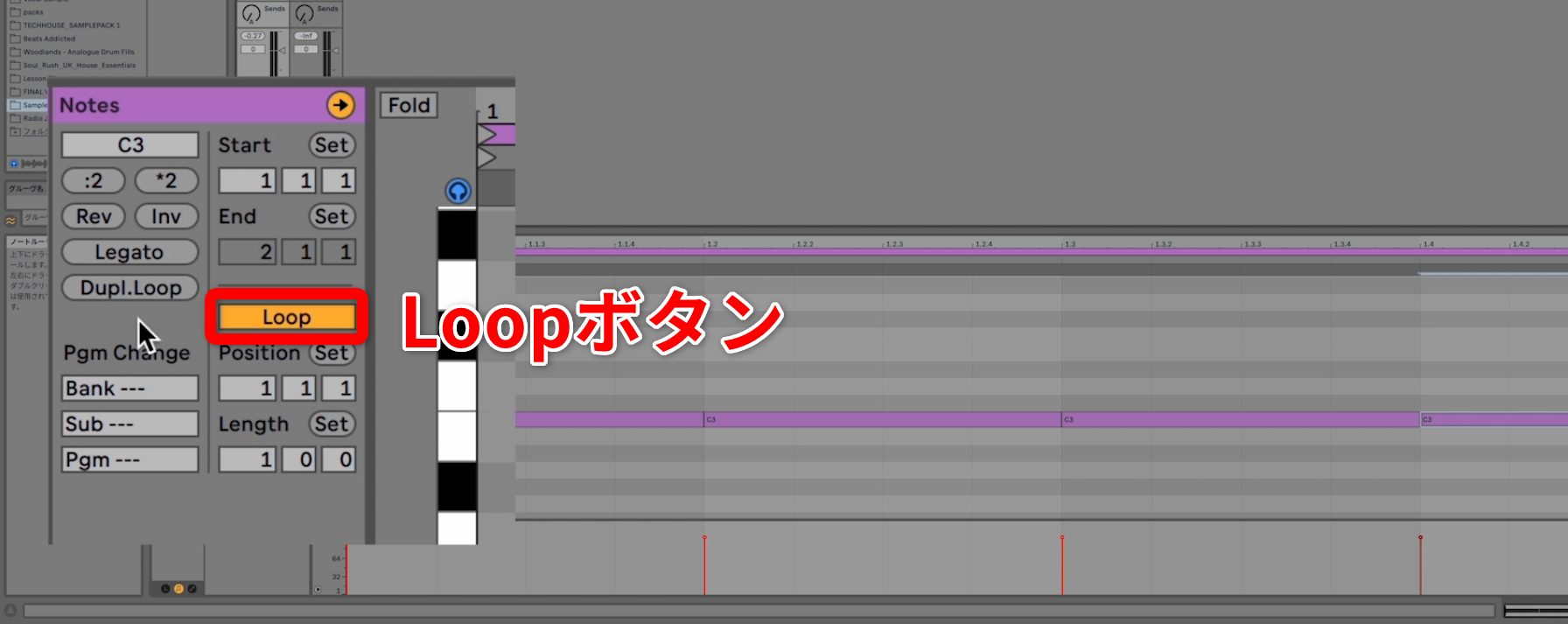
Whether you are using MIDI or audio clips, enable the Loop button to repeat the phrase.
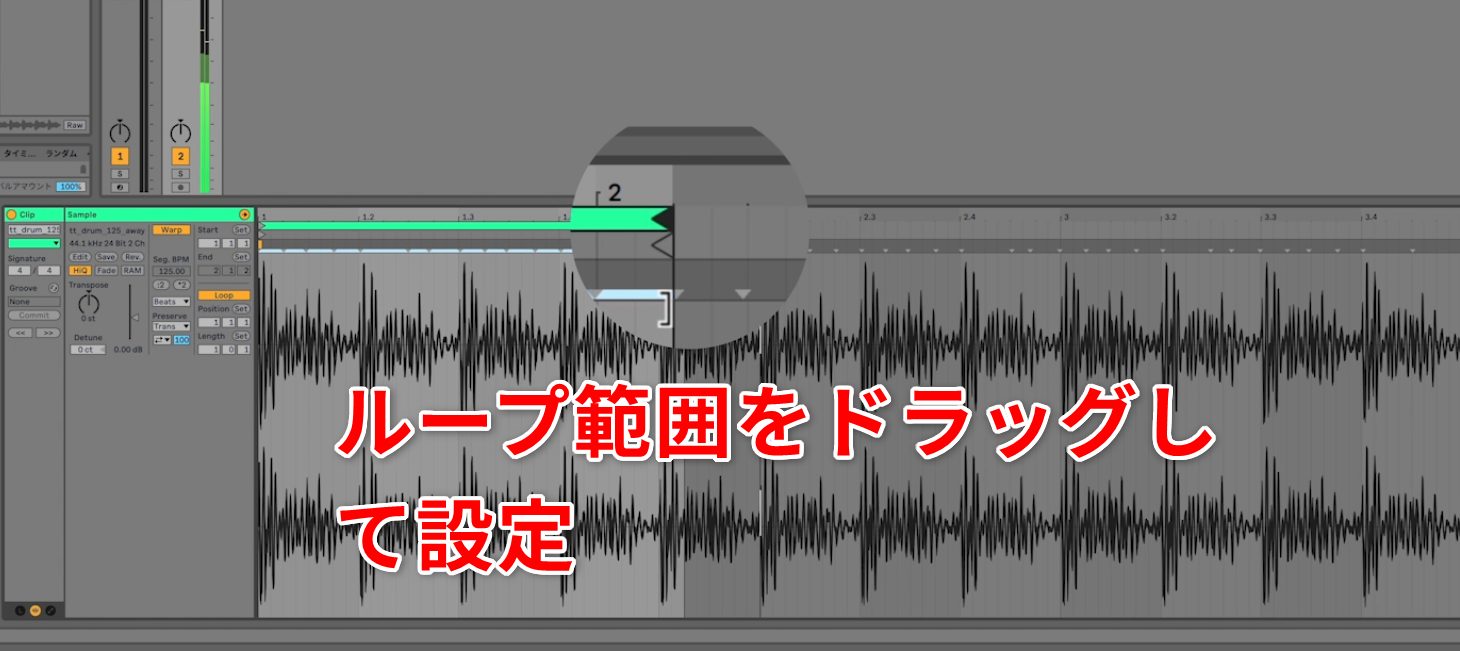
You can change the loop length intuitively by dragging the Loop Length bar.
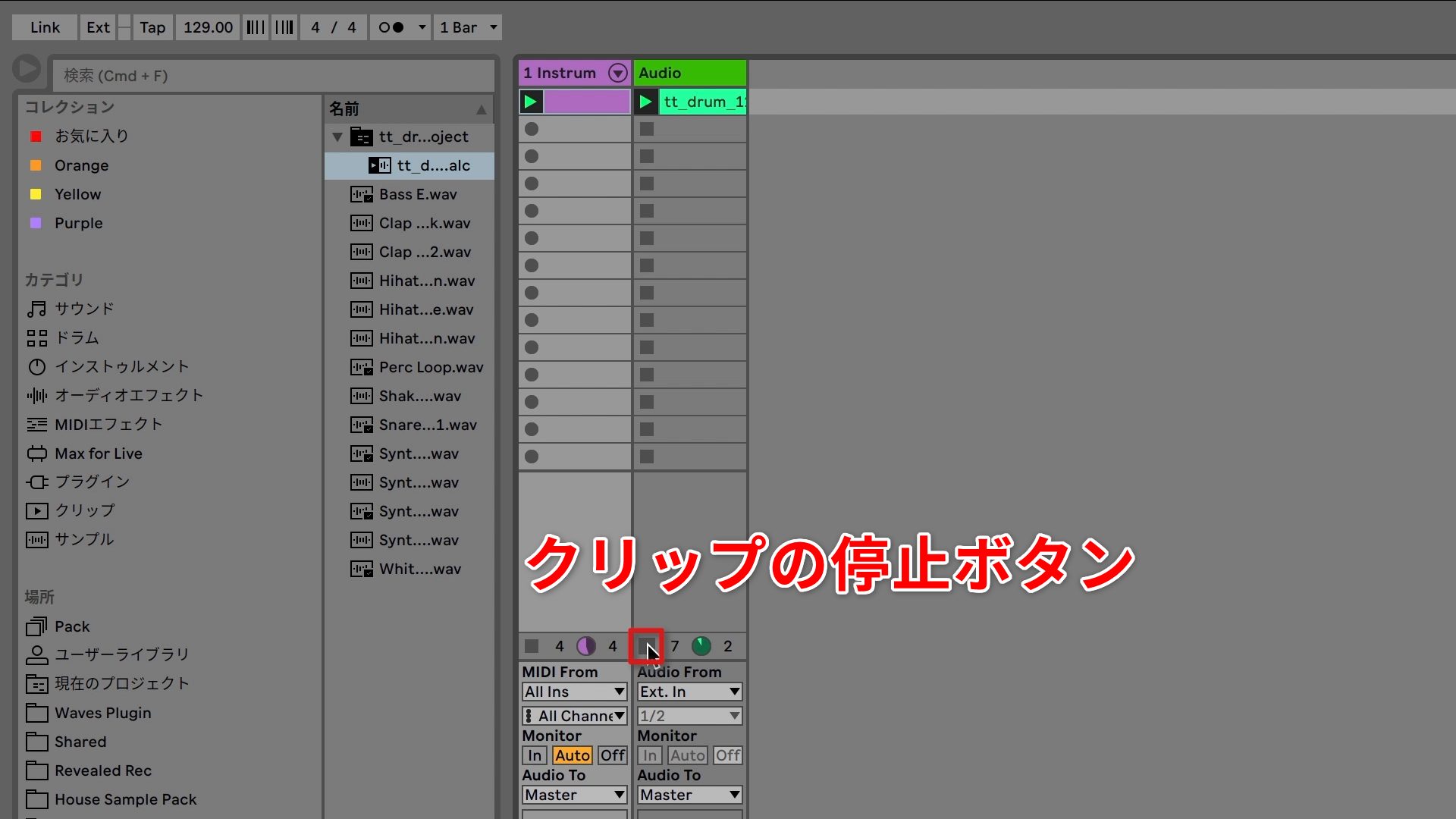
To stop an individual playing clip, press the stop button for its track.
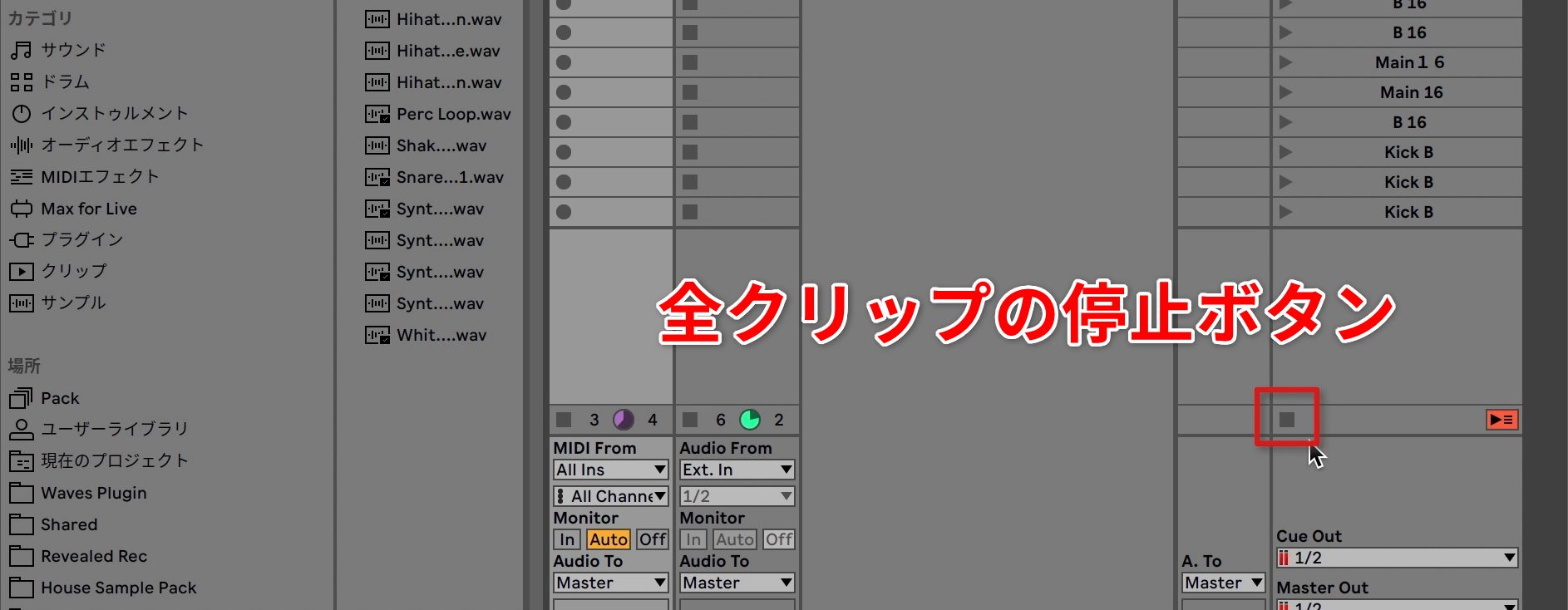
To stop all playing clips, press the stop button in the Master track.
Macro Controls
One Ableton Live feature I used frequently during this performance was Macro controls.
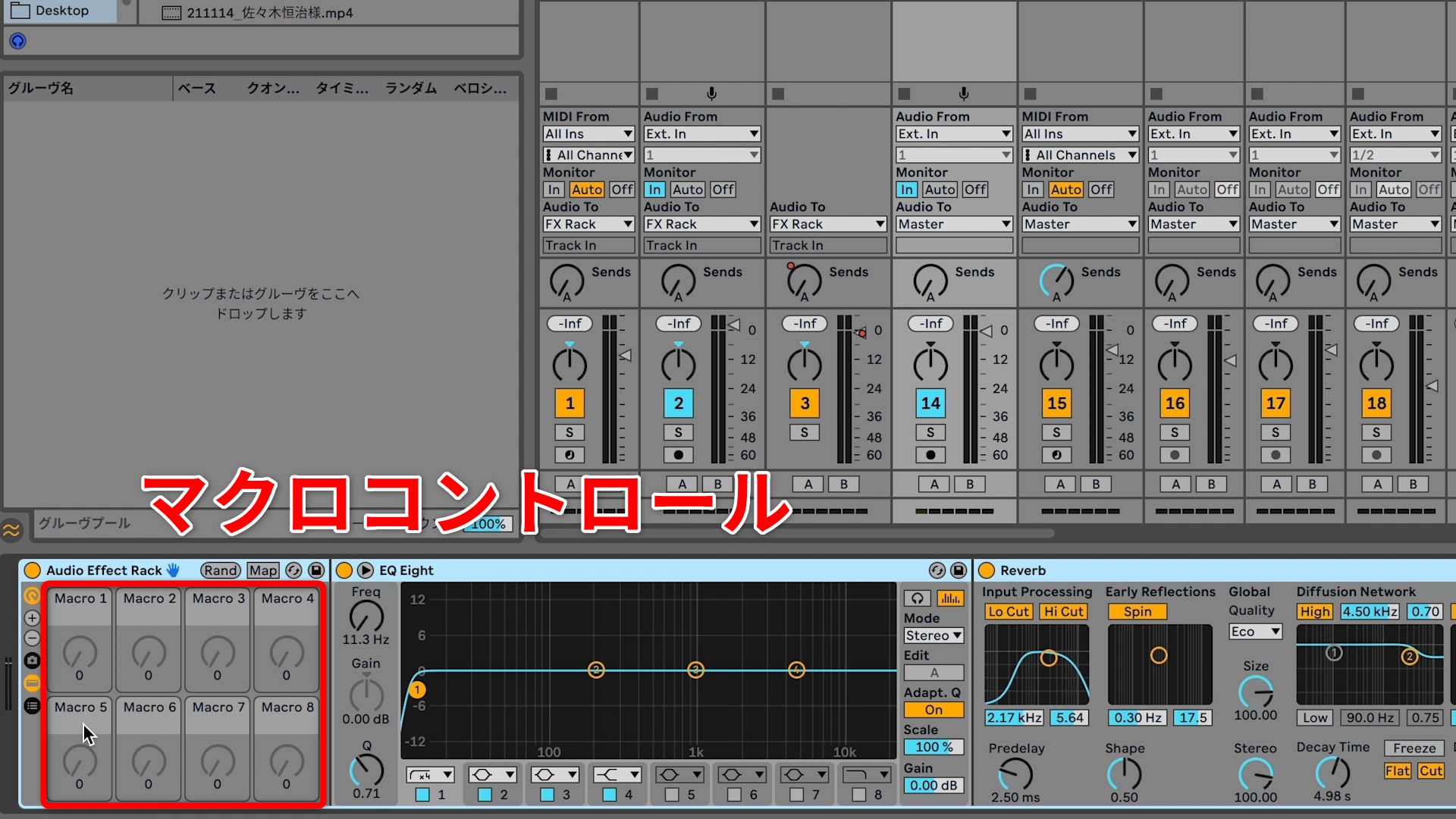
Macros simplify operation by letting you control multiple instrument or effect parameters together.
Here, I will explain the following two setups that I actually used.
Controlling Several Effects Together
First, let us look at controlling several effects at once.
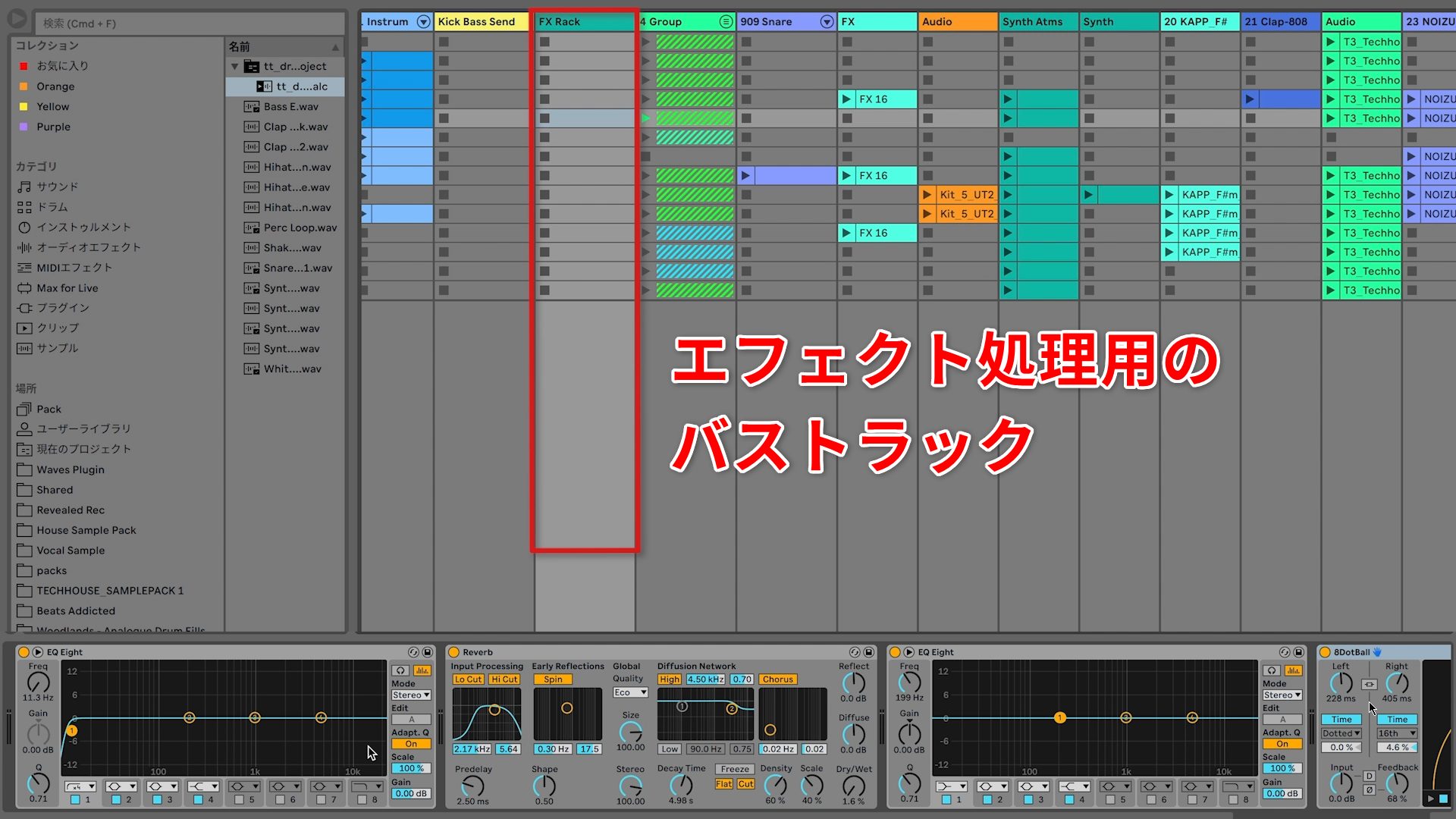
In the performance, I created a dedicated track to apply effects to several tracks together. I changed the sound by controlling Reverb and EQ simultaneously.
The parameters mapped to the Macro were Reverb's Dry/Wet and the low-cut Freq parameter in EQ Eight. A single knob adjusts both parameters.
To do this, first put the devices you want to control together inside an Audio Effect Rack.
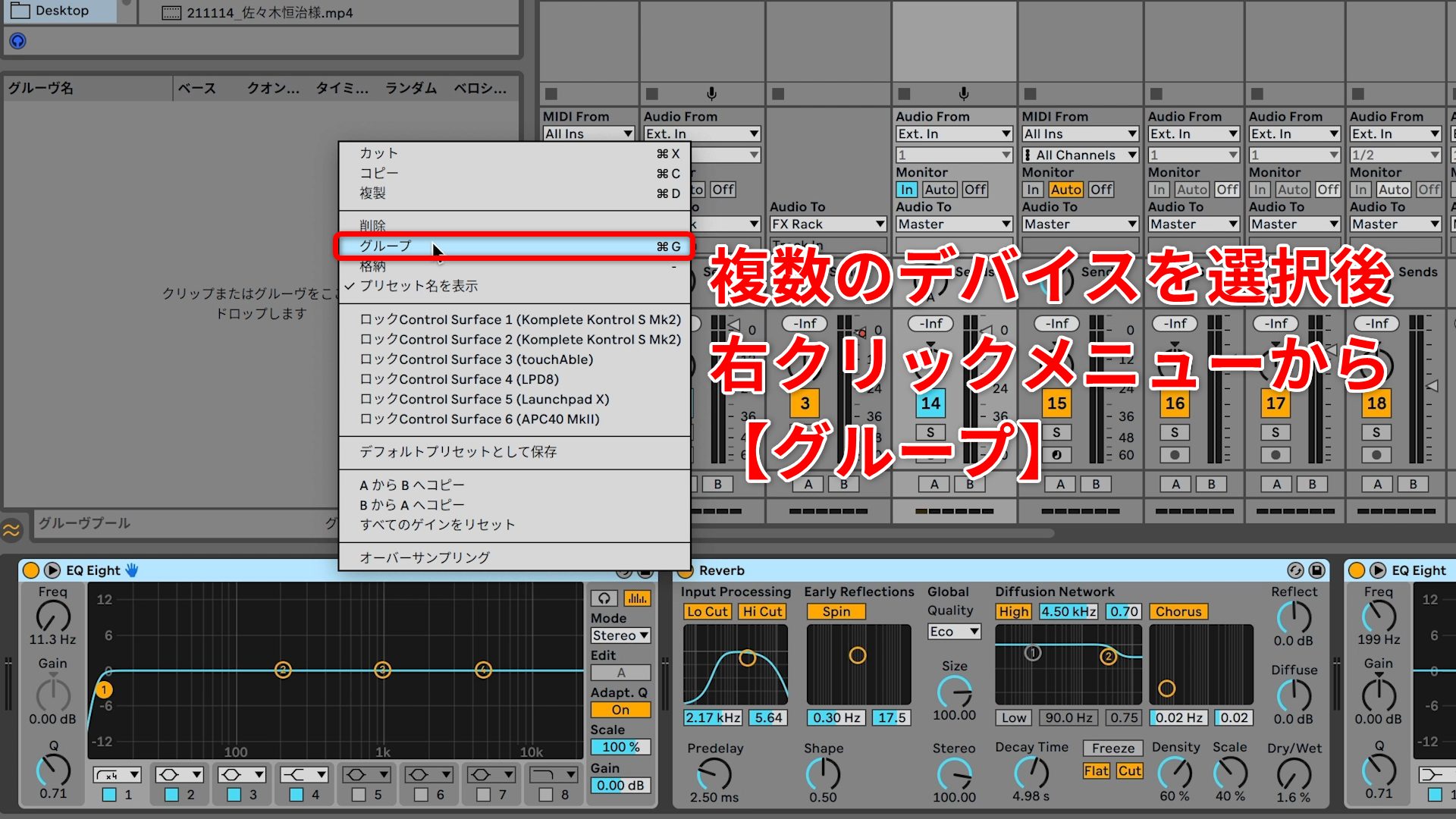
The steps are simple: select the devices, then choose Group from the right-click menu. They are automatically placed in an Audio Effect Rack.
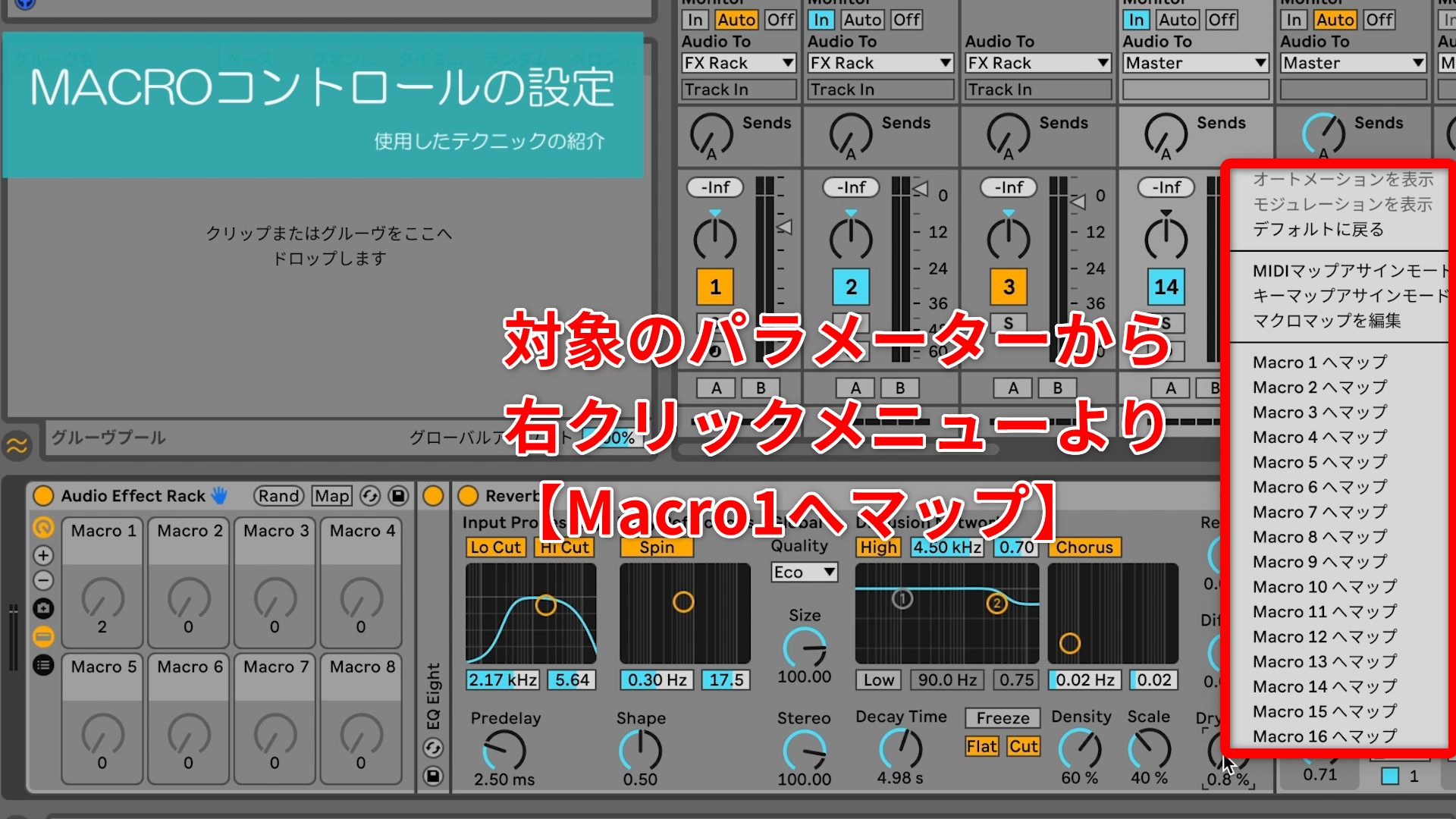
Next, right-click a parameter on a device in the rack and choose Map to Macro from the menu. The selected Macro can now control that parameter.
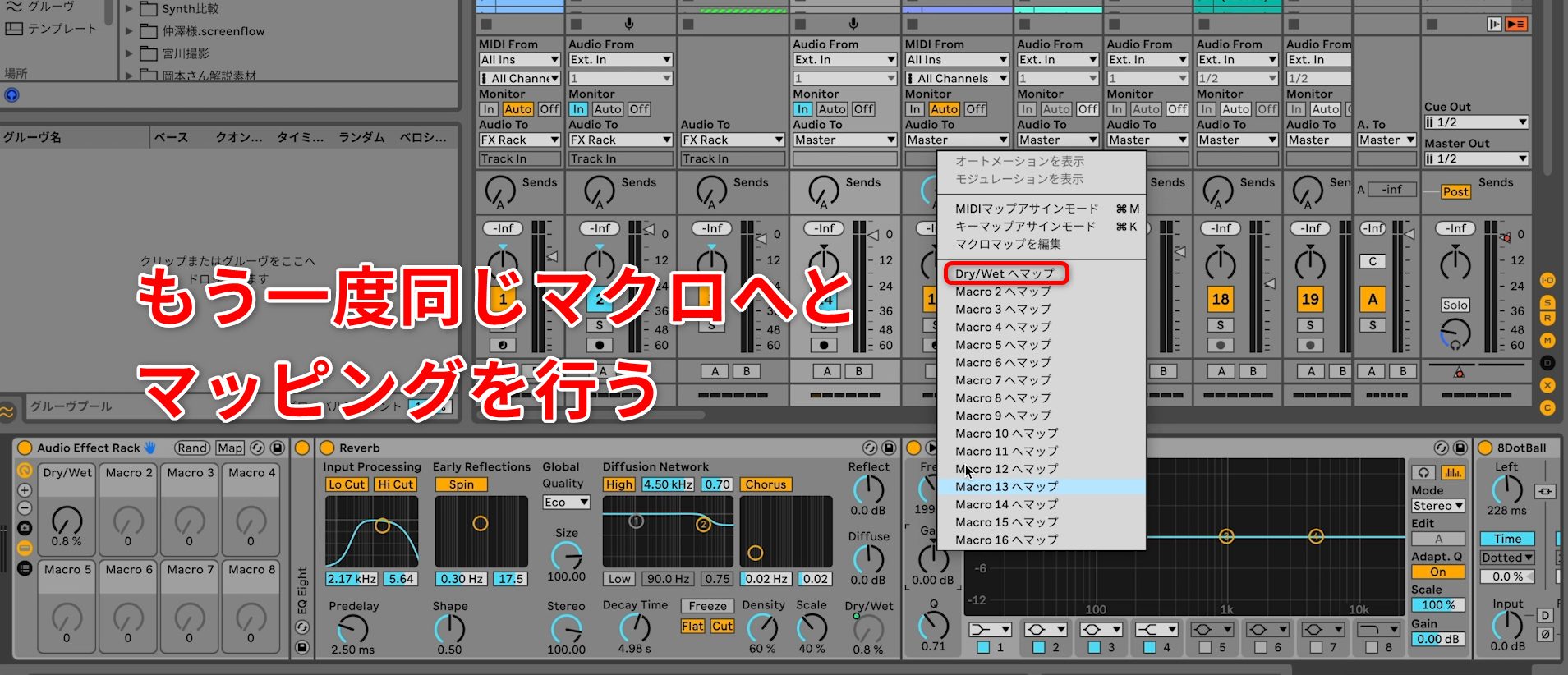
Since we want to control both parameters from one knob, map the second parameter to the same Macro in the same way.
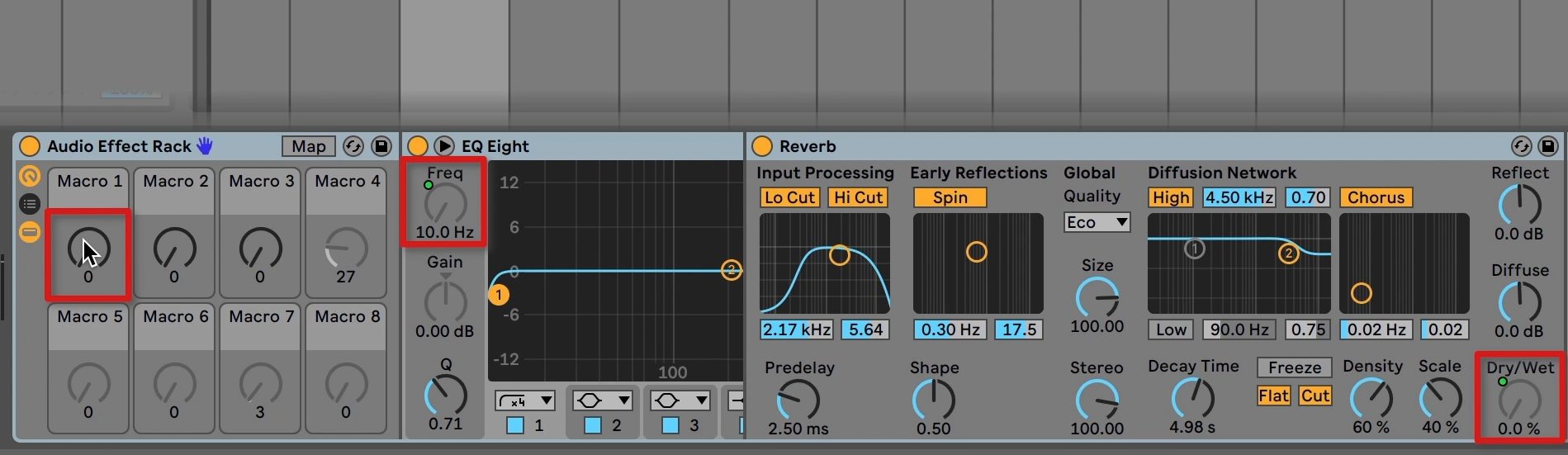
You can now control the two effects simultaneously with a single knob.
Setting an Effect's Range with a Macro
In this performance, I mapped Reverb's Dry/Wet to a Macro. With the default mapping, turning the Macro all the way up would make the effect 100% wet.
If you want to keep the parameter's maximum value lower, adjust its mapping range.
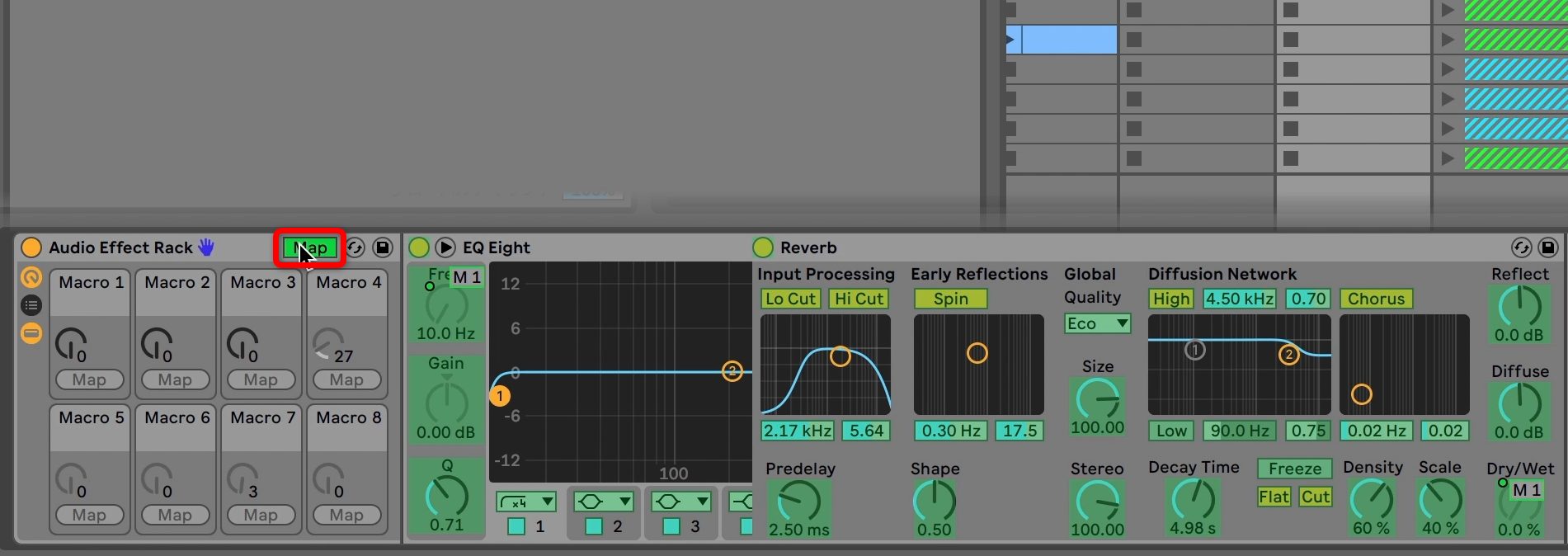
First, activate Map Mode.
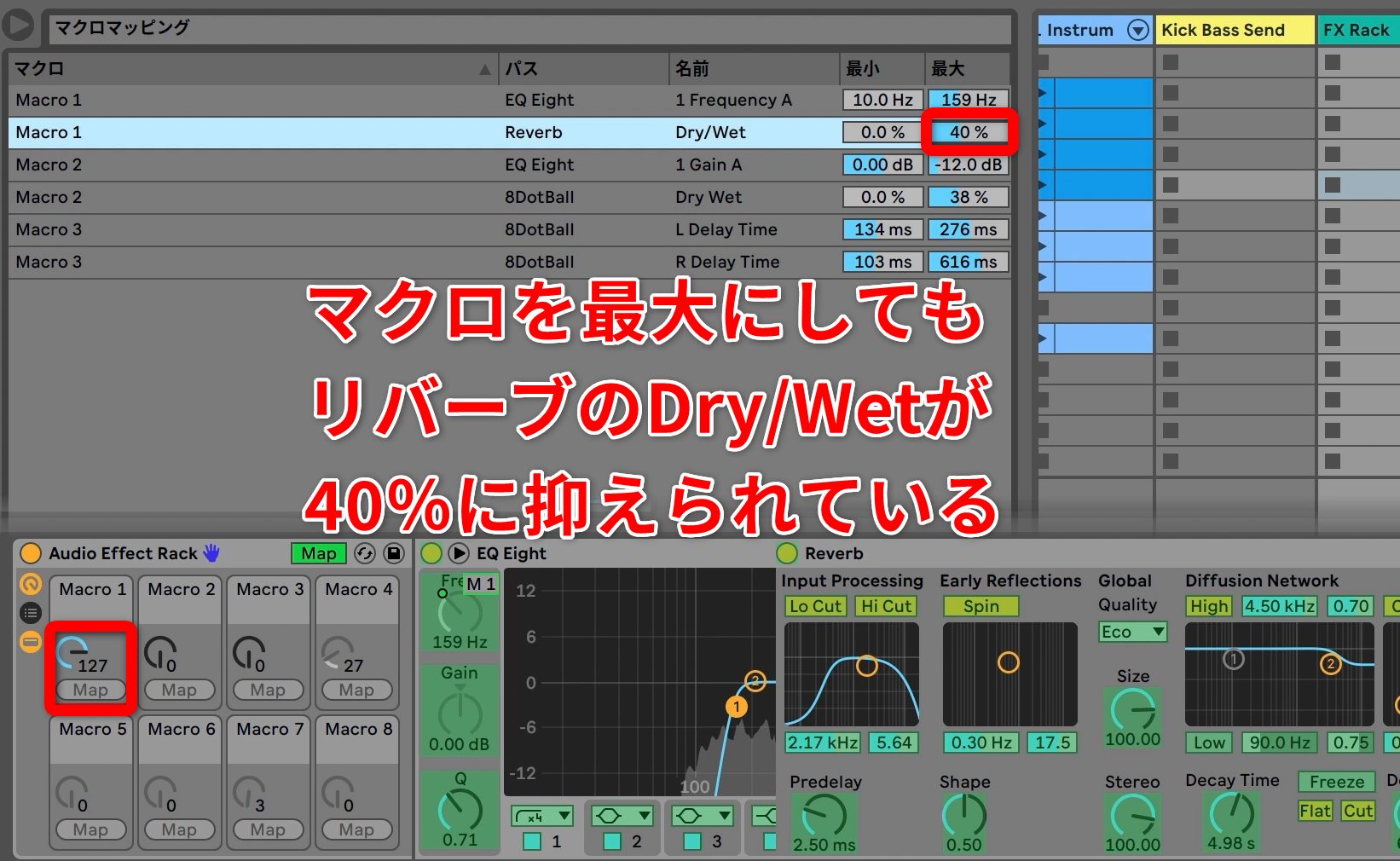
Find the Reverb mapping you want to adjust and set the maximum Dry/Wet value to 40%. Even with the Macro turned all the way up, Reverb will then stay at 40%.
Being able to set an effect's range this easily makes Macros particularly convenient to use.
Of course, Macro knobs can also be controlled easily from an external MIDI controller.
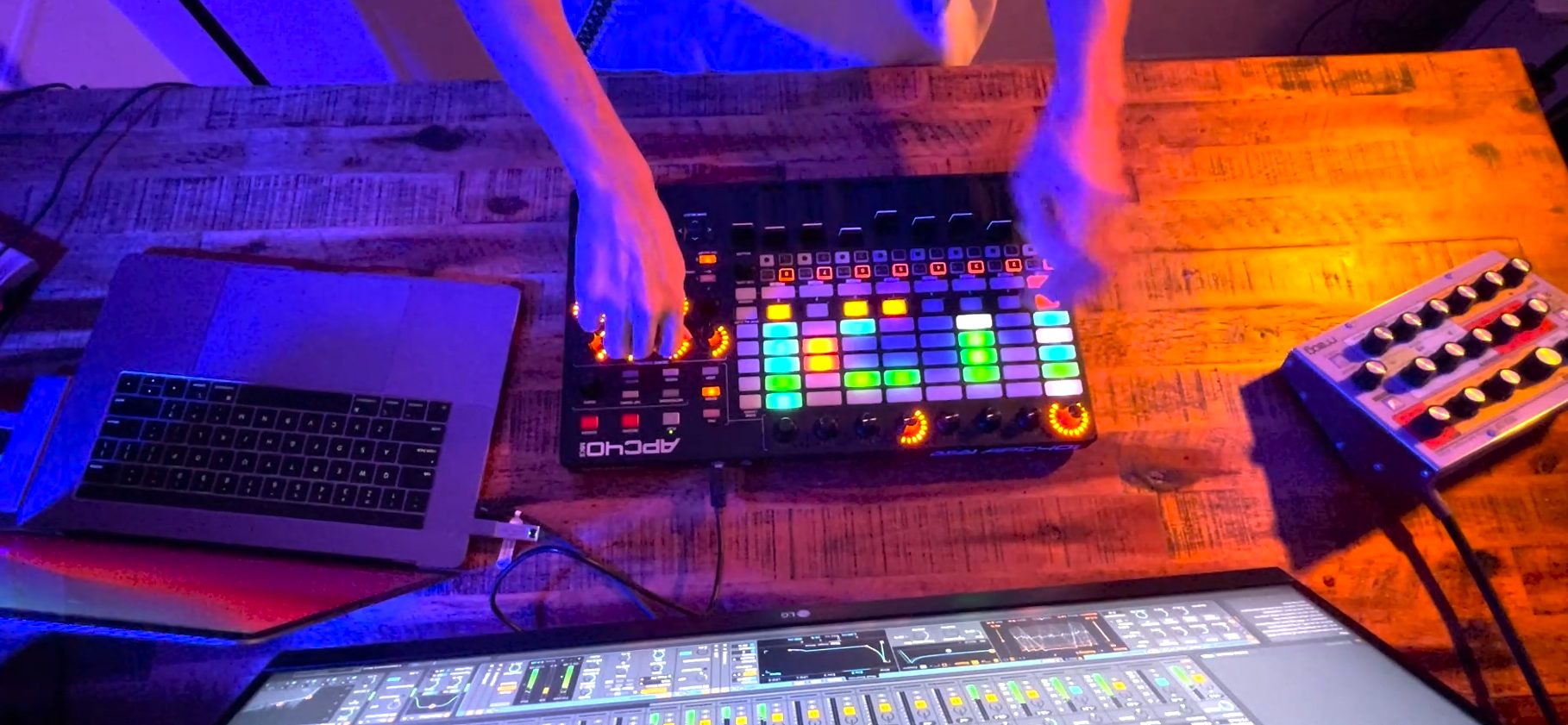
For this performance, I assigned the Macros to my controller and adjusted them in real time.
This is useful for producing music as well as performing, so give it a try.
As you have seen, even the basic features of Ableton Live's Session View make it possible to perform intuitively and easily.
Another major advantage for live performance is how easily you can operate many of its features with your MIDI controller.
Ableton Live lets you perform and produce without losing your inspiration. If it interests you, try it for yourself.
Frequently Asked Questions
Q1. How do Session View and Arrangement View differ in Ableton Live?
Session View lets you freely combine clips across tracks and scenes for real-time performance. Tracks appear as columns across the view, while scenes are rows down it. Arrangement View is suited to building music along a timeline and making detailed edits. Session View is the recommended starting point for the performance approach shown here.
Q2. What are the advantages of Macro controls?
You can adjust several effects or parameters with one knob, reducing the number of controls you need to operate live so you can focus on performing. You can also set the mapping ranges to keep the sound under control and easily connect the Macros to an external MIDI controller.
Q3. What equipment do I need to perform live with Ableton Live?
A computer and Ableton Live are enough for a basic performance. A dedicated controller such as the APC40 MKII mirrors Session View, making it easier to see what is happening and perform more comfortably and expressively.
NEW ARTICLES
Latest English Articles


































































































































