
Cubase Pro 9 introduced several tools for a more efficient workflow. Multiple marker tracks help organize song structure and edit points, and cycle-marker ranges can be exported. The Sampler Track makes it quick to sample and shape audio using pitch, AudioWarp, filter and other controls. Retrologue’s audio input also lets you process audio tracks and software instruments with its parameters.
Features for a More Refined Workflow
Part two of our Cubase Pro 9 overview focuses on sound-related features.
The new Sampler Track is designed to make creative audio processing smoother.
It is a useful way to turn ideas into sound quickly.
Cubase Pro 9 Video Tutorial
Questions and Answers from YouTube

Thank you as always. If I transfer a sound from a Sampler Track to HALion, can I recall it in another project? It seems the sample itself may not be saved in HALion. I would appreciate your help.

The preset can be used in another project as long as the audio file loaded into the Sampler Track stays in the same location. If the file is moved or deleted, you may need to locate it again when opening the preset.
Multiple Marker Tracks
You can now create up to ten marker tracks in one project.

This makes it easier to see and manage markers for structure, cycles, zoom locations and more.
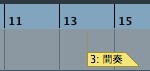
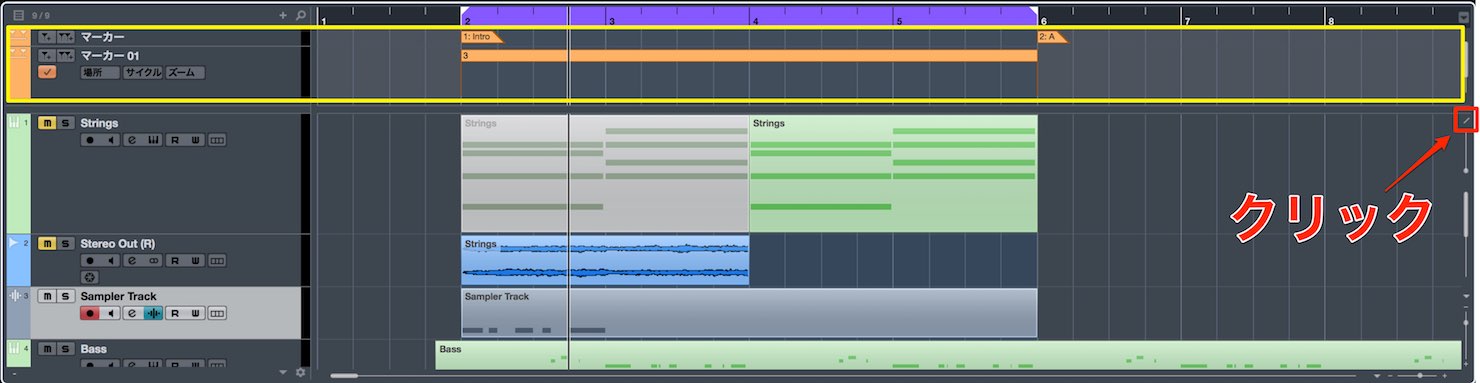
Click the icon shown to split the marker track so it stays visible at the top of the screen.
Exporting Cycle Ranges
The Audio Mixdown export function
can now export ranges defined by cycle markers.
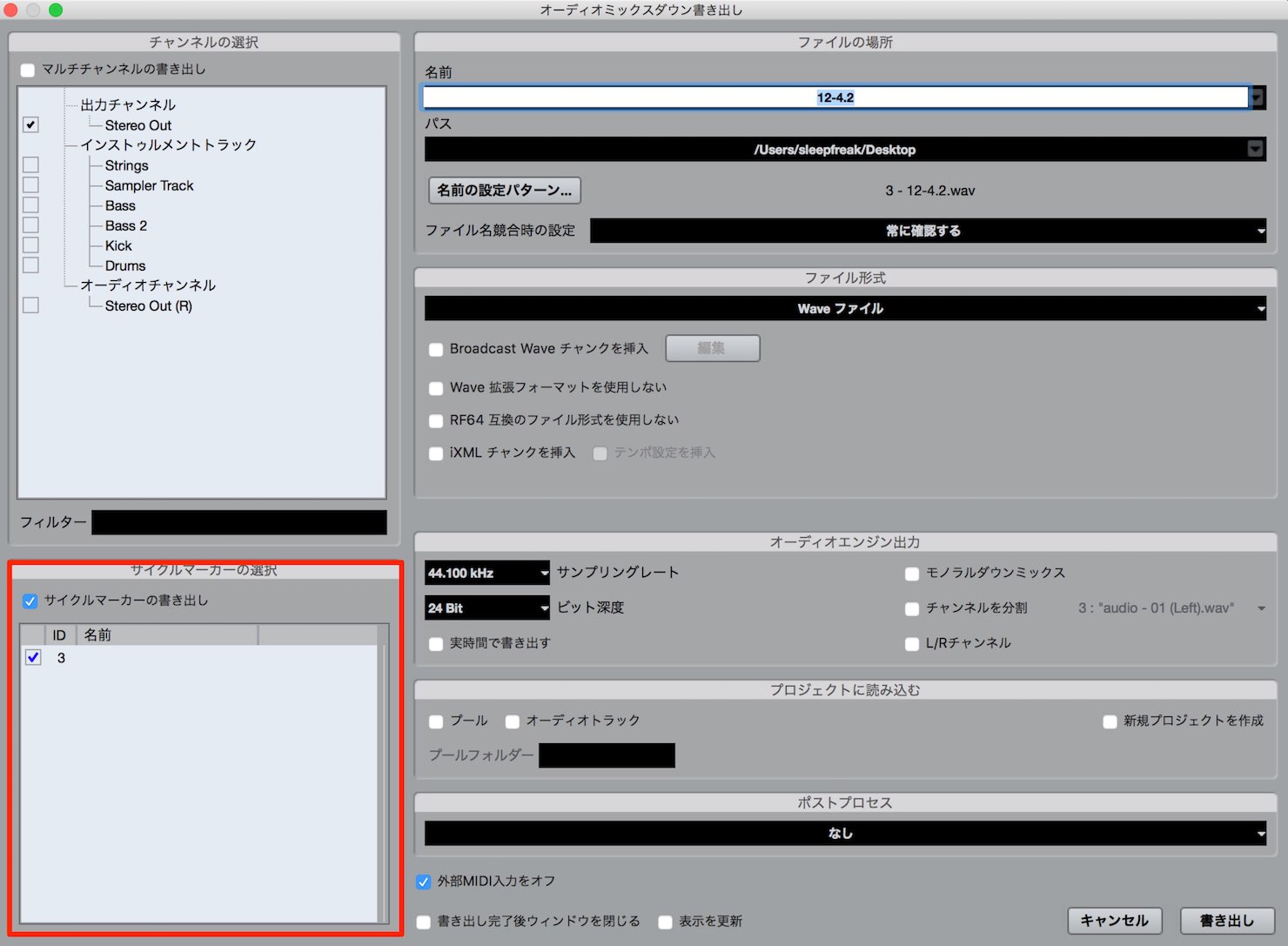
Check the desired cycle ranges to export them quickly.
Audio-Ins
Retrologue, included with Cubase, gained a sidechain input that lets you process audio tracks and software instruments using Retrologue’s parameters.
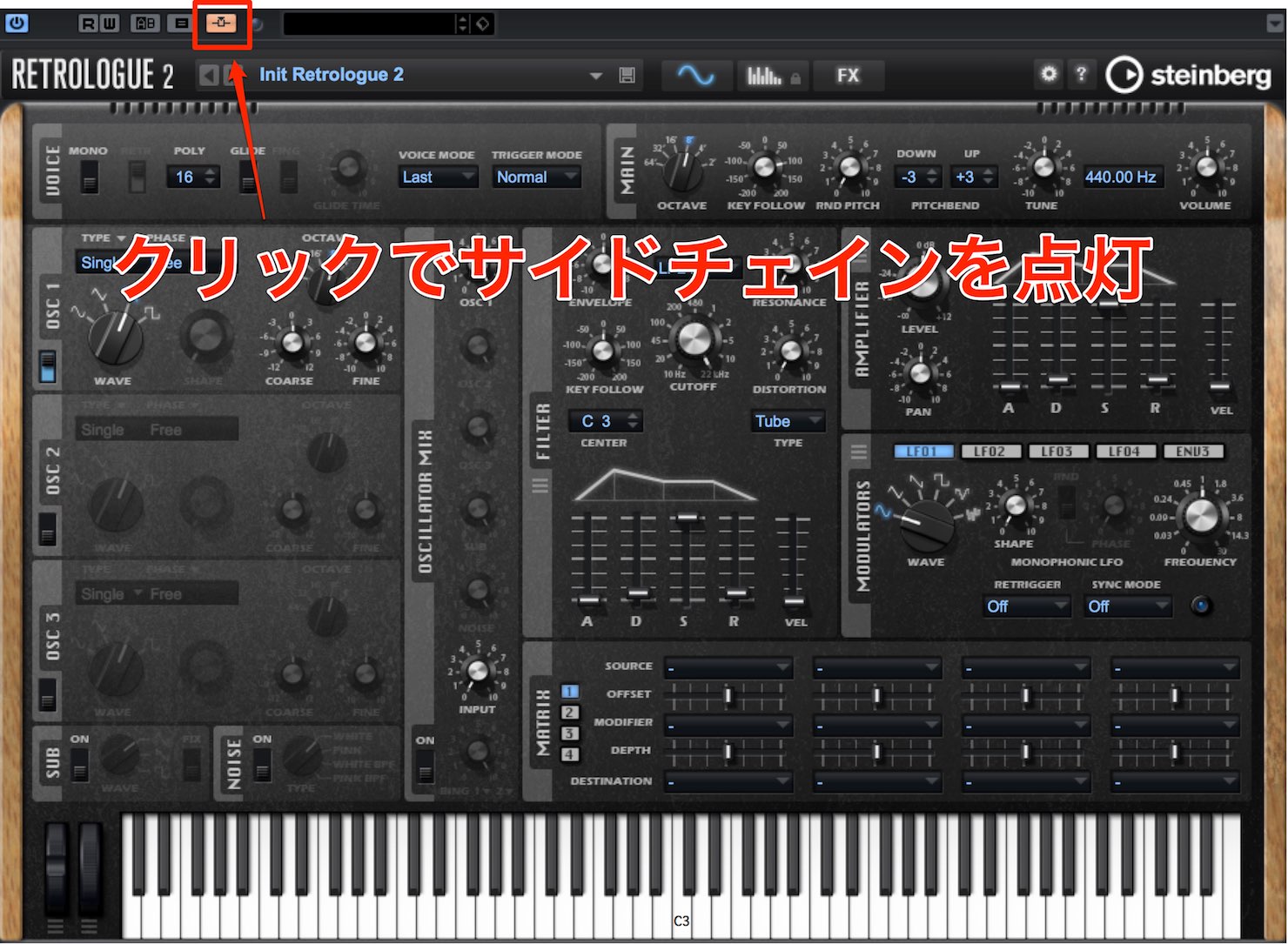
Enable the sidechain button.
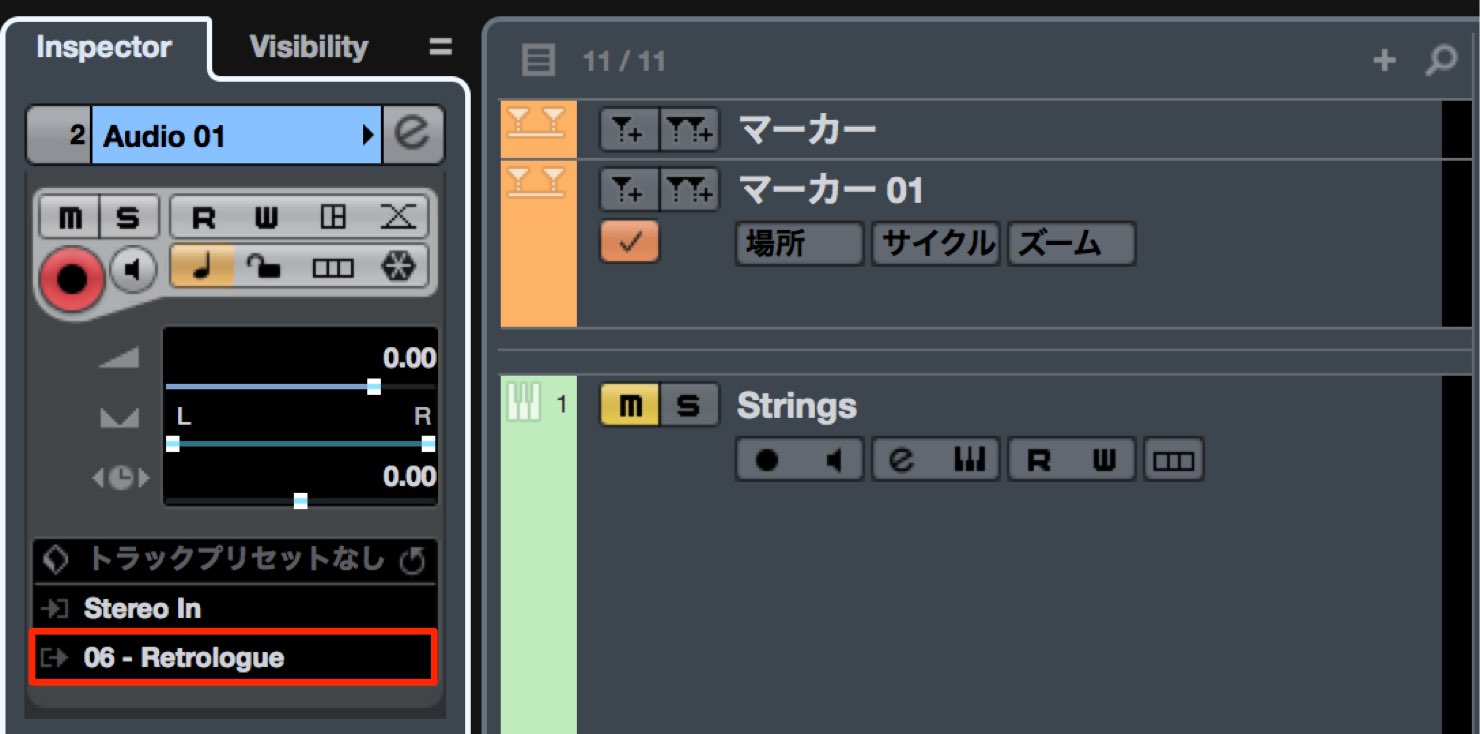
For an audio track, route the track output to Retrologue.
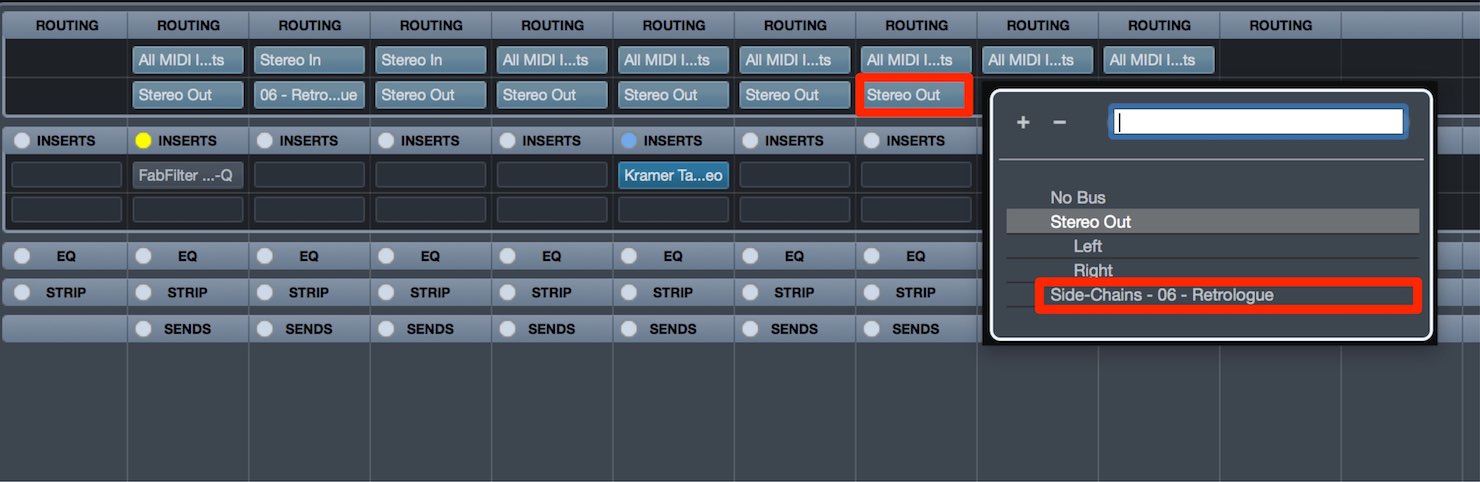
For a software instrument, route its track output to Retrologue using ROUTING in the MixConsole.
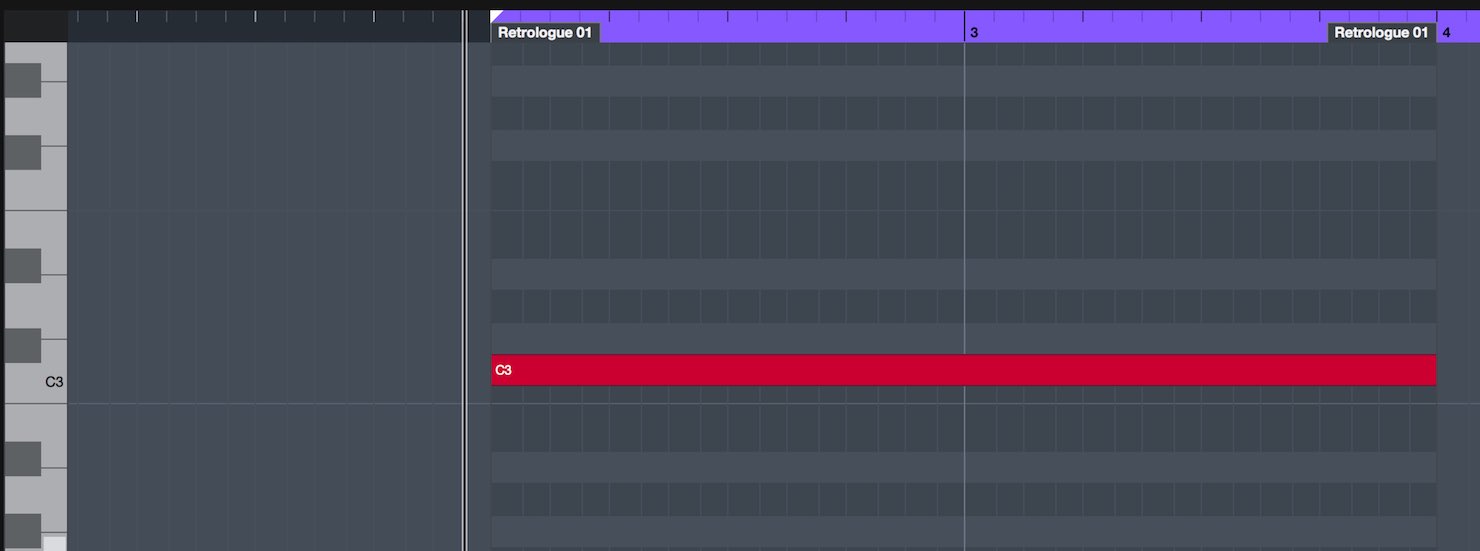
Enter MIDI notes in a Retrologue event.
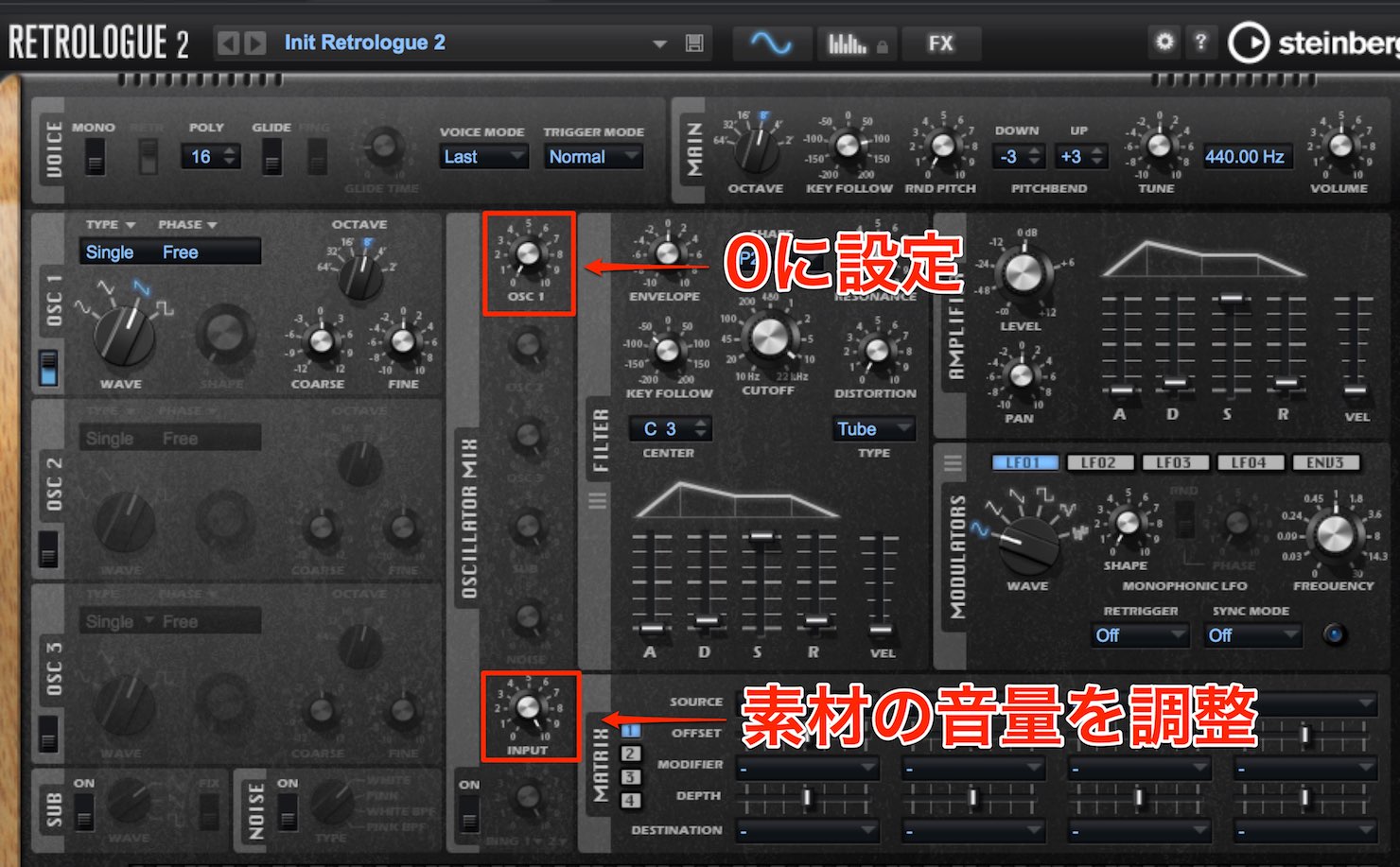
Set the oscillator volume to zero so its own sound does not mix in.
Use INPUT to adjust the level of the sidechain source.
The setup is now complete.
You can process the incoming sound with Retrologue’s parameters.
At the time of this article, Retrologue supported this feature. Support in other instruments could make it even more interesting.
Sampler Track
Production often calls for sampling a sound and processing it creatively.
The Sampler Track makes this quick.
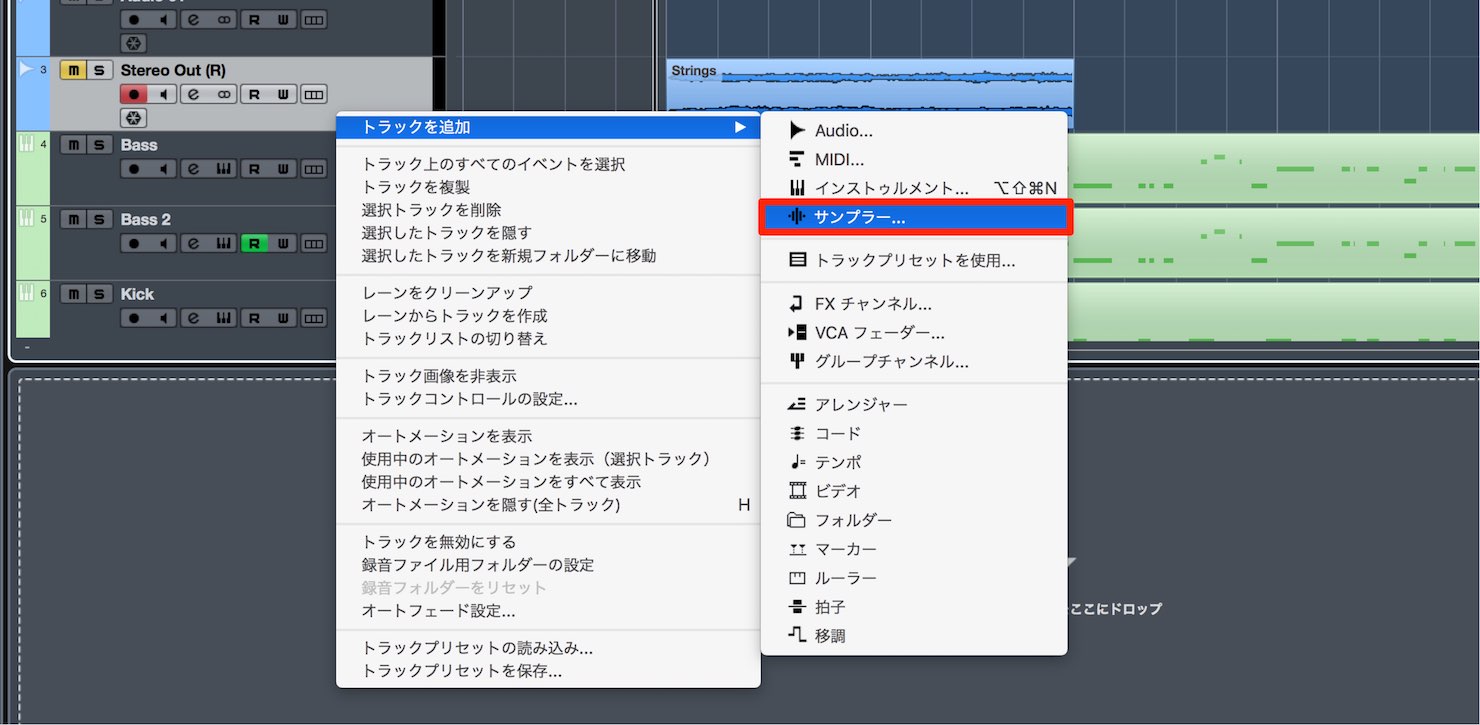
Create a Sampler Track as you would any other track.
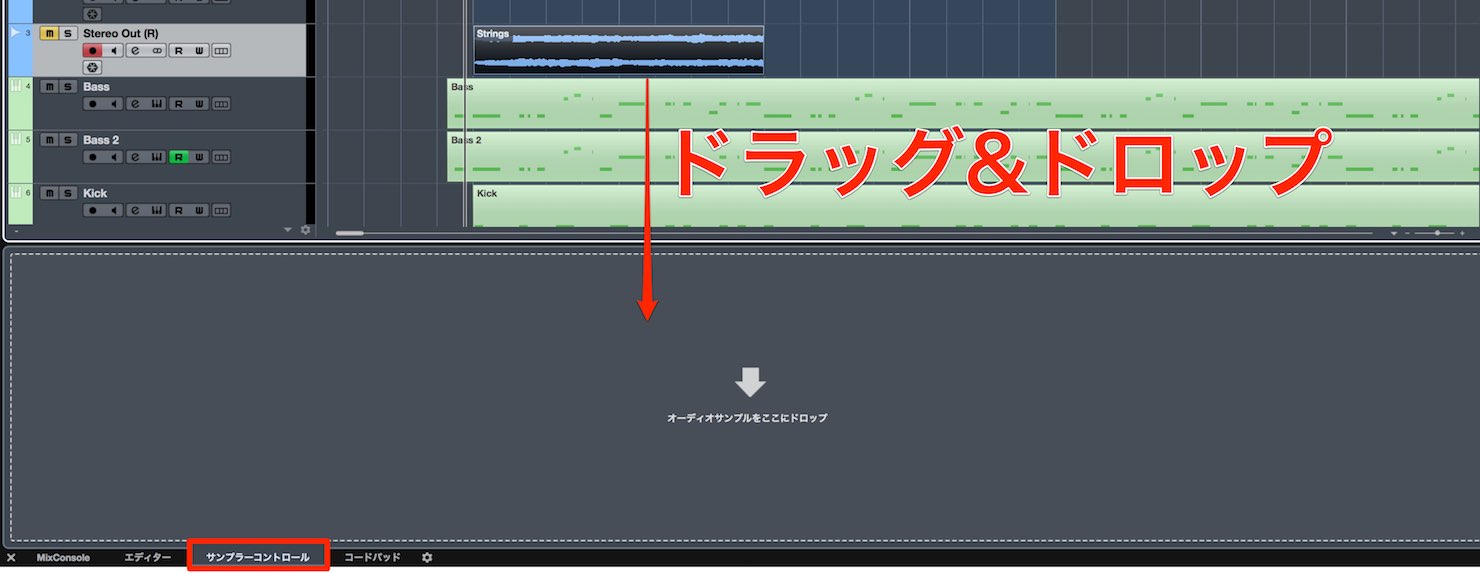
You can also select Sampler Control in the Lower Zone and drag in audio to create a Sampler Track automatically.
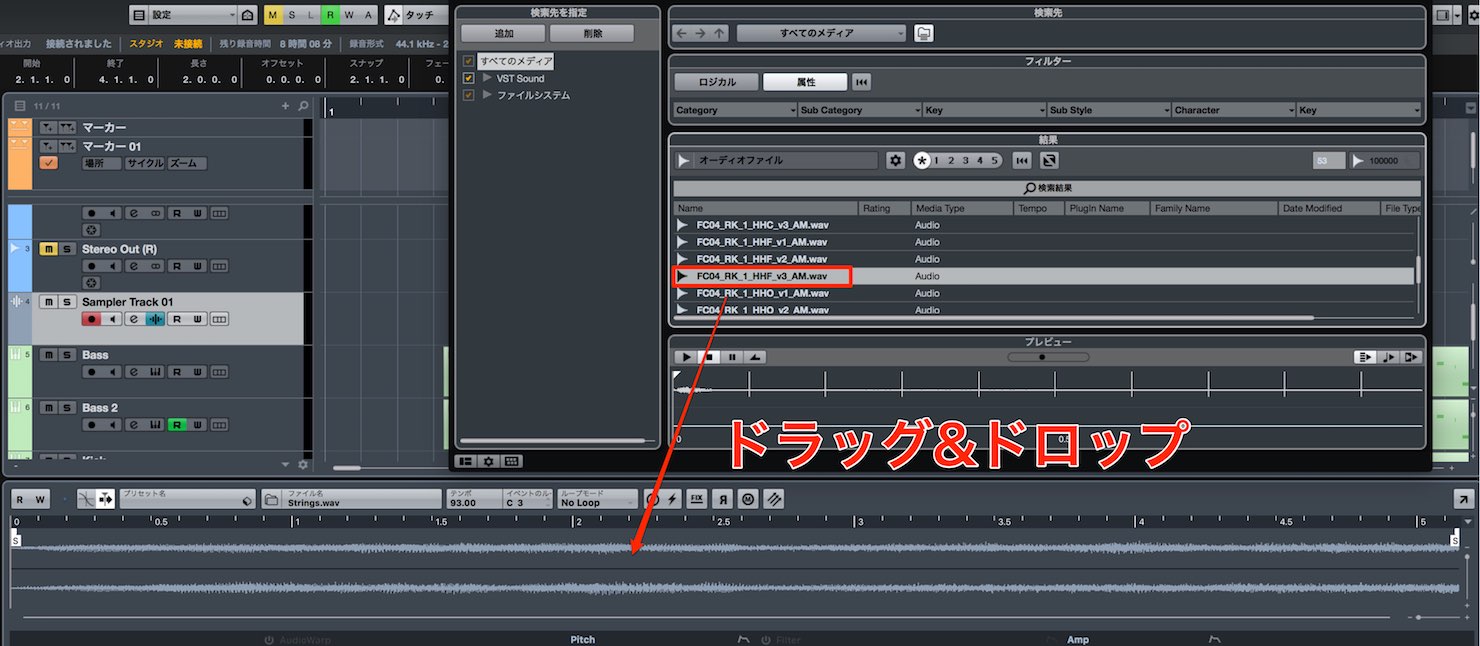
Audio can also be imported directly from MediaBay.
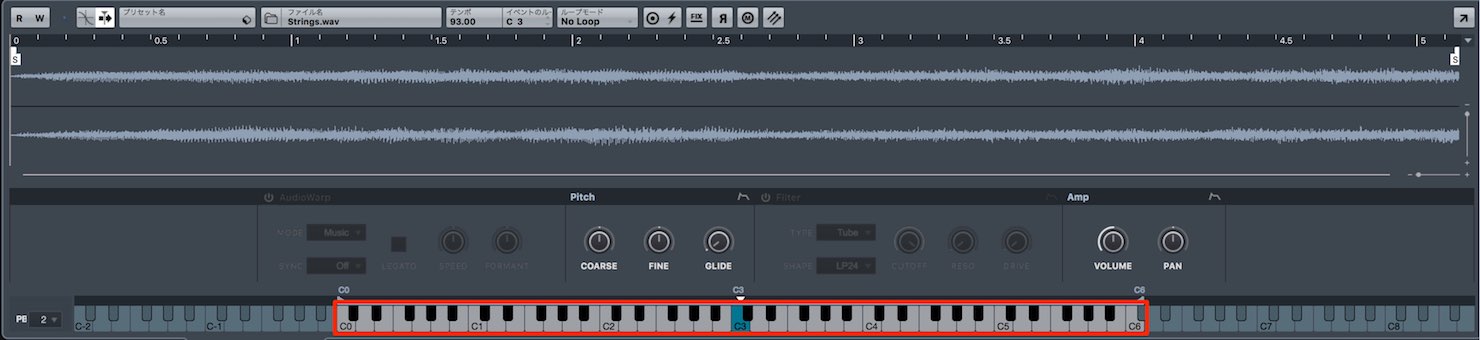
The imported sample is automatically mapped across the keyboard, ready for MIDI programming.
C3 is colored to indicate that it plays the original sample at its original pitch.
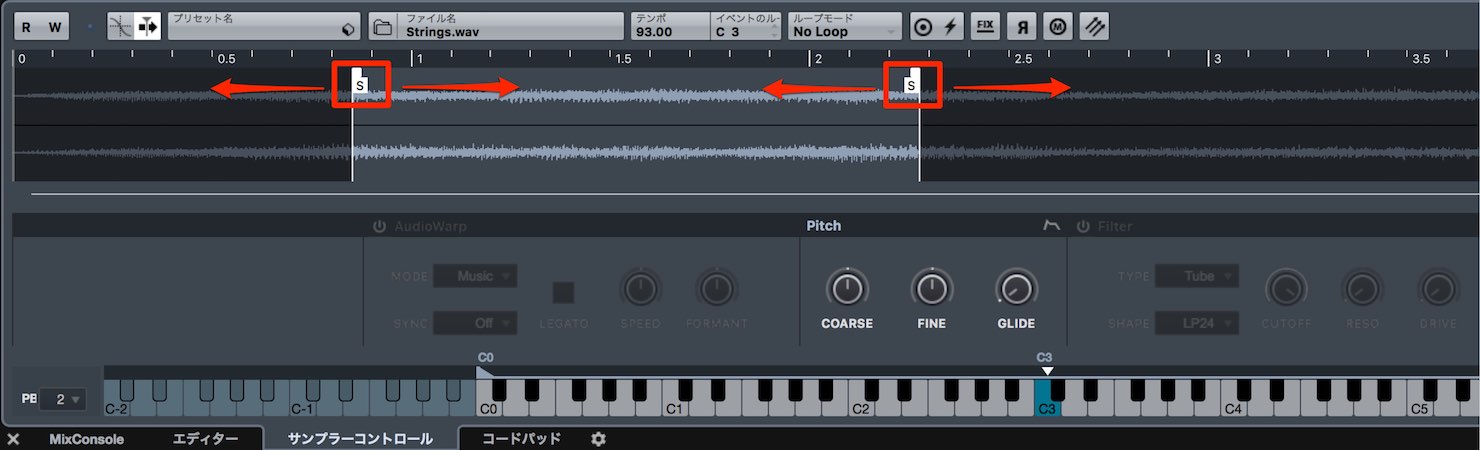
Drag the start and end points to select the range to use.
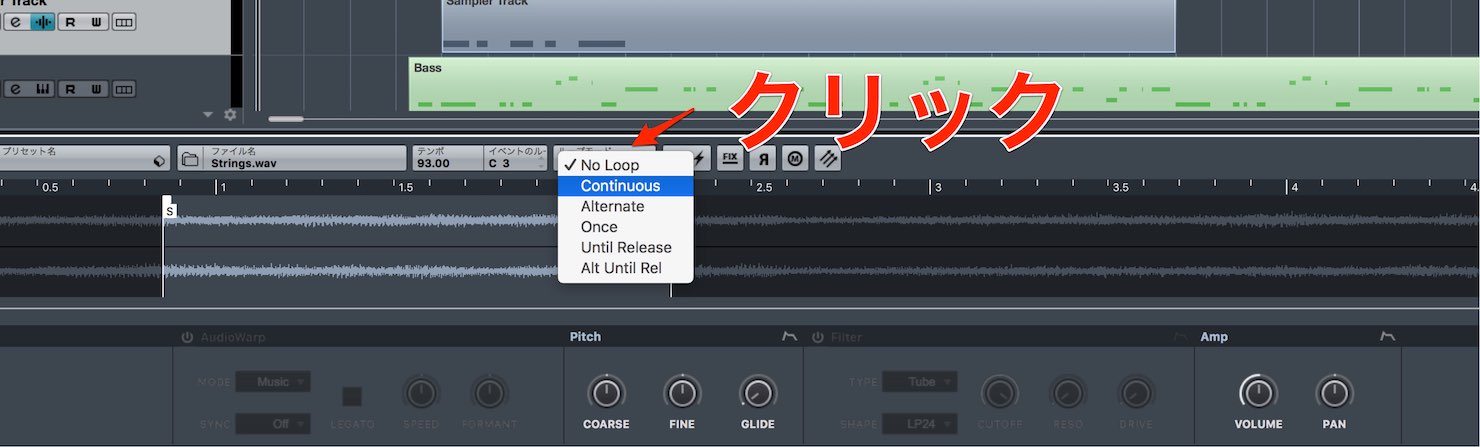
Use loop mode to choose how the selected range plays.
Options include repetition and reverse playback, allowing a short sample to keep playing.
The buttons at the top perform these functions:
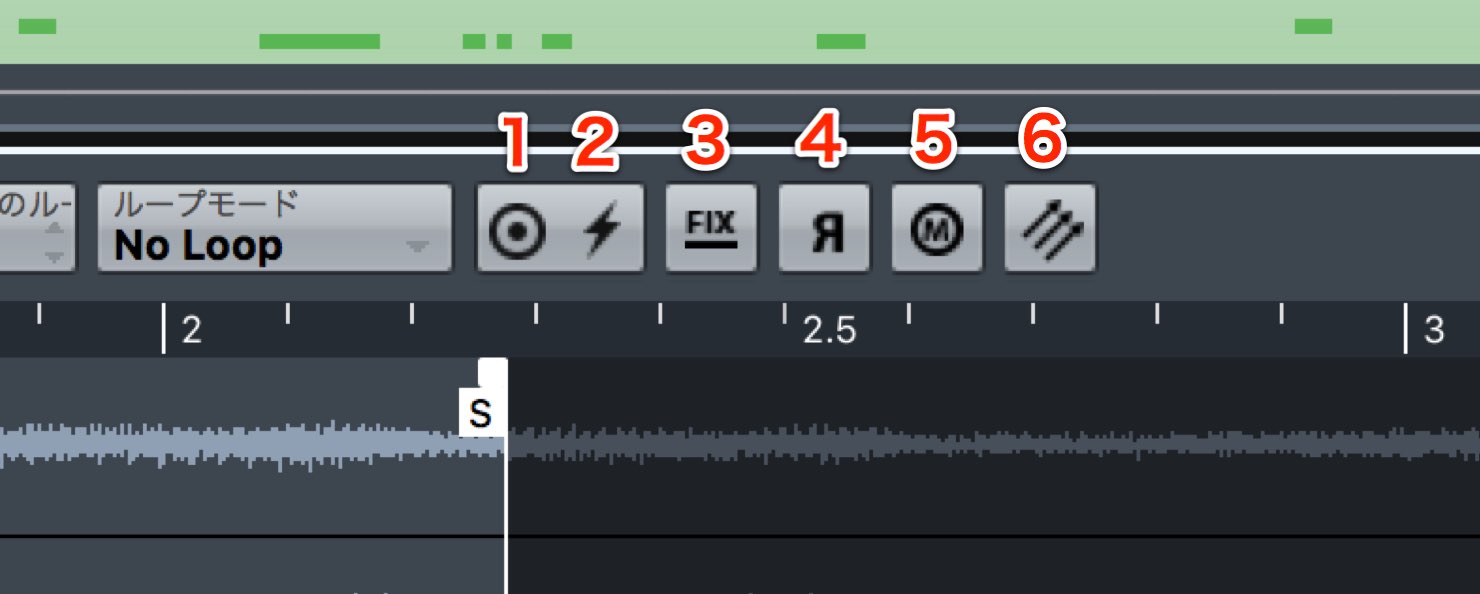
- 1. One Shot: Plays the entire selected range regardless of MIDI note length.
- 2. MIDI Reset: Resets MIDI problems such as a stuck note.
- 3. Fix: Plays the same pitch across the keyboard.
- 4. Reverse: Reverses the waveform for a reverse effect.
- 5. Monophonic: Restricts playback to one note at a time.
- 6. Send to Instruments: Transfers the sample and edits to a sampler such as Groove Agent.
Pitch Section
Control the pitch of the sample.

- COARSE: Adjust pitch in semitones.
- FINE: Fine-tune pitch in cents, or hundredths of a semitone.
- GLIDE: Smoothly transitions between pitches; set the transition time in milliseconds.
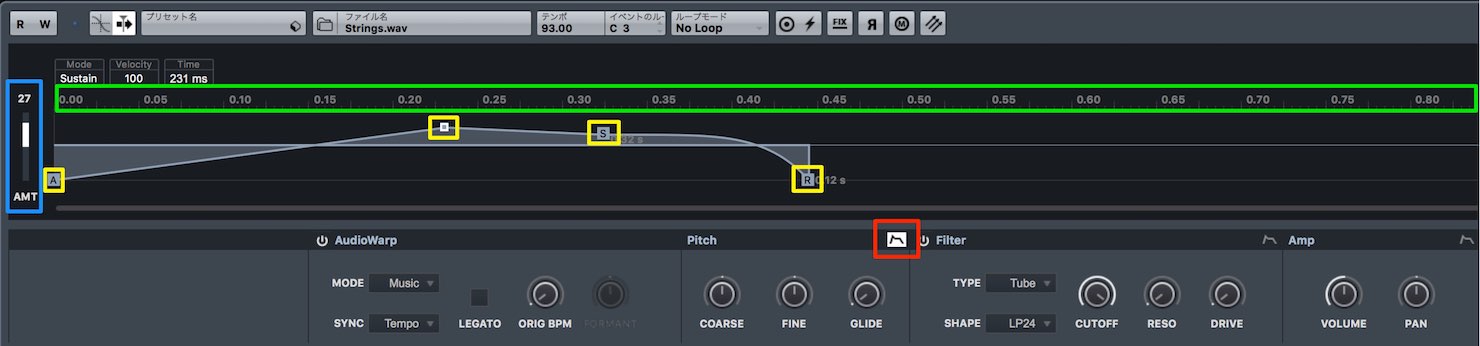
Press the envelope button outlined in red to adjust the pitch curve.
- Blue: Set the envelope’s pitch range in semitones.
- Green: Set the envelope speed.
- Yellow: Drag points to shape the pitch curve.
AudioWarp Section

Initially, higher notes play the sample faster and lower notes play it slower.
This causes the end time to vary with pitch.
Enabling AudioWarp can maintain the sample’s duration across different pitches.
- MODE: Choose the type of material.
Music is recommended for chords and Solo for monophonic material. Solo enables the FORMANT control, which can produce sound-design effects. - SYNC: Choose whether playback speed follows tempo or the original sample length.
- SPEED: Set playback speed according to the SYNC setting.
Filter Section

Apply a filter to shape the sound.
Several basic filter types are available.

As with Pitch, press the envelope button to draw a filter curve.
Amp Section

Control the sample’s volume and pan.
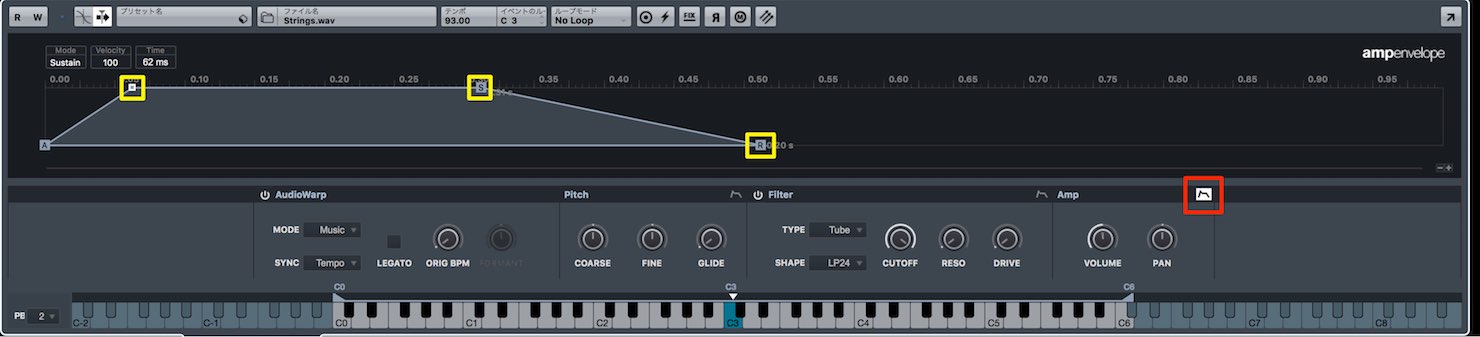
Press the envelope button to draw a volume curve.
In particular, adjusting the release tail can greatly change the character of the sound.
Frequently Asked Questions
Q1. When are multiple marker tracks useful in Cubase Pro 9?
Use up to ten marker tracks to organize song structure, cycle ranges and zoom positions, making navigation, playback and editing easier.
Q2. How do I program MIDI with a Sampler Track?
Import audio through MediaBay or by dragging and dropping it; it is mapped to the keyboard automatically. Set the start and end points, then enter MIDI notes to play it.
Q3. What does AudioWarp solve?
It compensates for speed differences when a sample is played at different pitches, helping maintain a consistent playback duration across the keyboard.
Q4. What can Retrologue’s sidechain input do?
It lets you process audio from another track or software instrument using Retrologue’s parameters, opening up creative sound-design possibilities.
NEW ARTICLES
Latest English Articles











































































































































































































































































































































































