
If audio file editing functions are unavailable in Logic X, the Edit tab may be missing from the Sample Editor. In the version shown here, you can enable it in Preferences under Advanced Tools by selecting Audio in Additional Options. This setting gives access to basic editing functions such as Reverse and Normalize. Follow the steps below to restore normal editing.
Unable to Edit in the Sample Editor
When you try to edit an audio file using functions such as Reverse or Normalize,

here is what to do if the Edit tab does not appear as shown.
Video Tutorial
How to Fix It
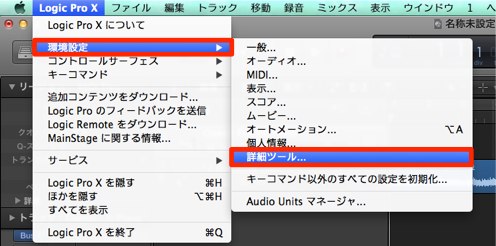
From the top menu,
choose Logic X → Preferences → Advanced Tools.
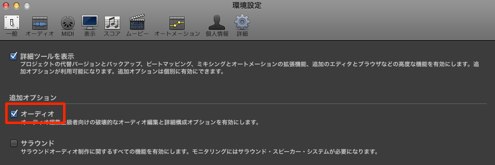
Under Additional Options, select Audio.
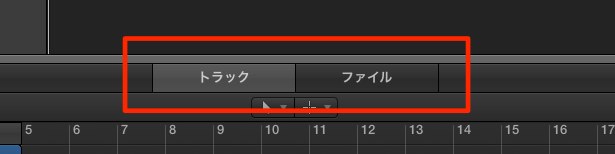
The tab appears, and you can edit as usual.
Frequently Asked Questions
Q1. Why is the Edit tab missing in Logic X?
The Audio option under Additional Options in Advanced Tools is not enabled. Select its checkbox to display the Edit tab.
Q2. How do I enable the Audio option?
In the Logic X menu, choose Preferences → Advanced Tools, then select Audio in the Additional Options section. The change takes effect immediately.
Q3. What if I cannot use Reverse or Normalize?
These functions are in the Edit tab. Enable Audio in the preferences described above to use these Sample Editor functions.
NEW ARTICLES
Latest English Articles


































































































































































































































































































































































































































































































































































































