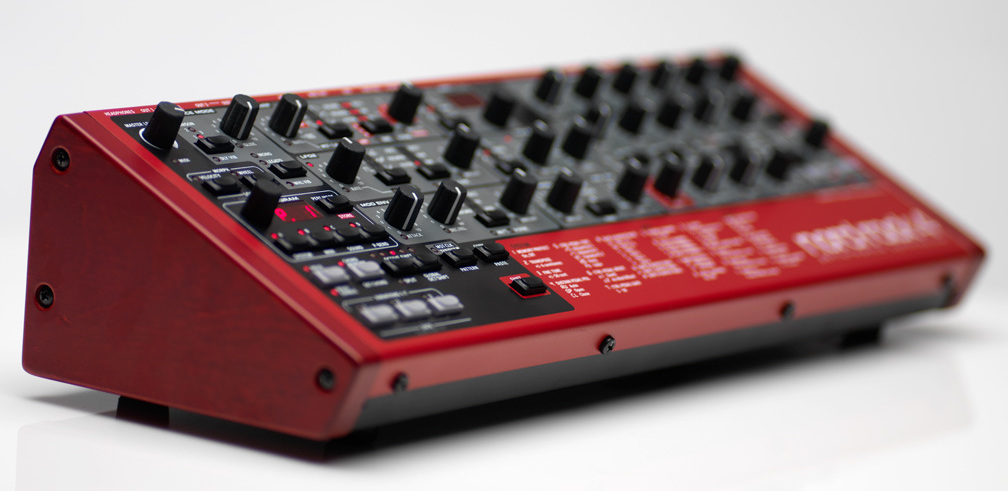
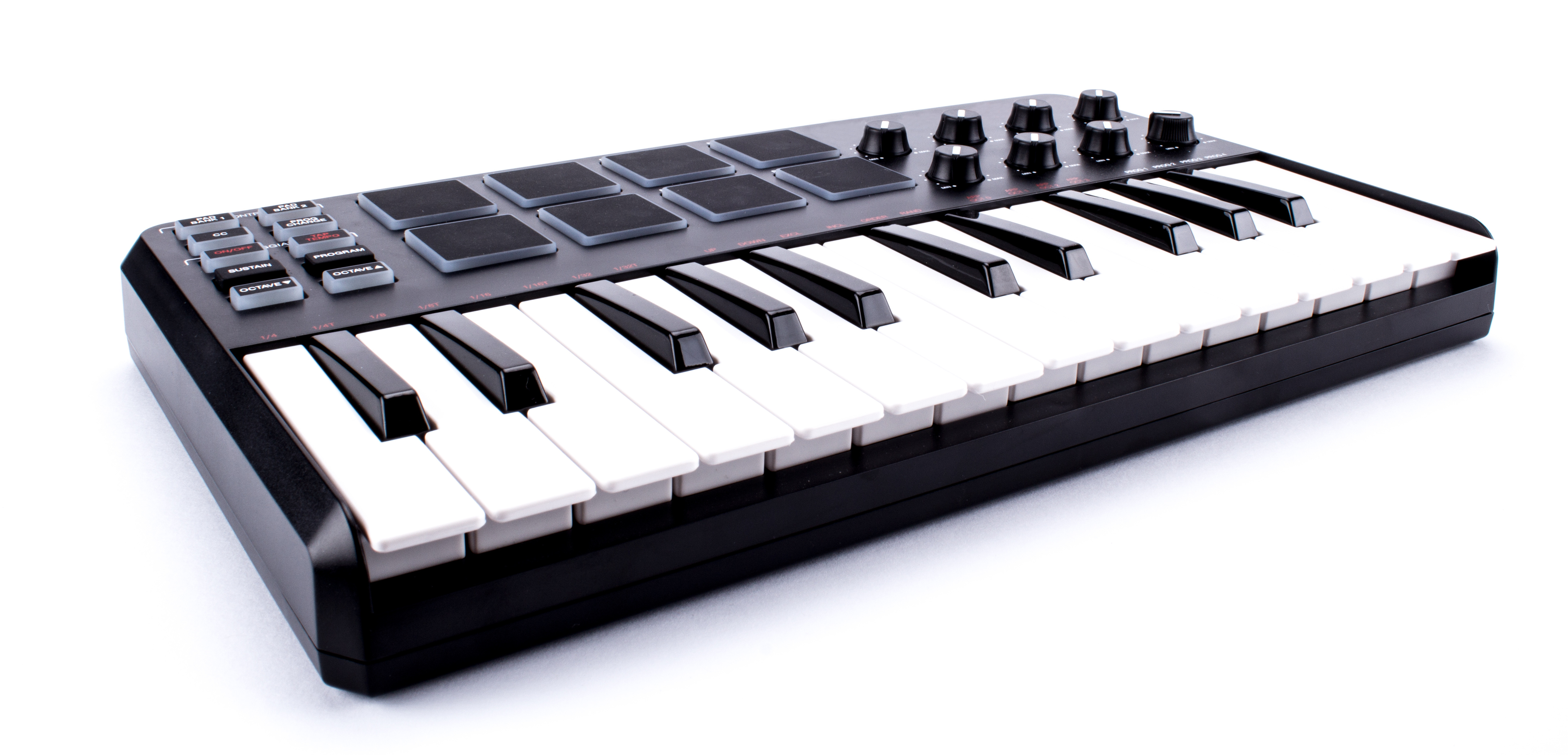
The Light Guide and Clear View displays on the KOMPLETE KONTROL S-SERIES keyboard shown in this tutorial help make music production more intuitive. The Light Guide above the keys uses colors to show sound mappings and key switches. Clear View displays automatically show important parameters for a loaded preset, reducing manual setup. Touch-sensitive knobs also let you check values as you work.
Two Features for a More Comfortable Workflow
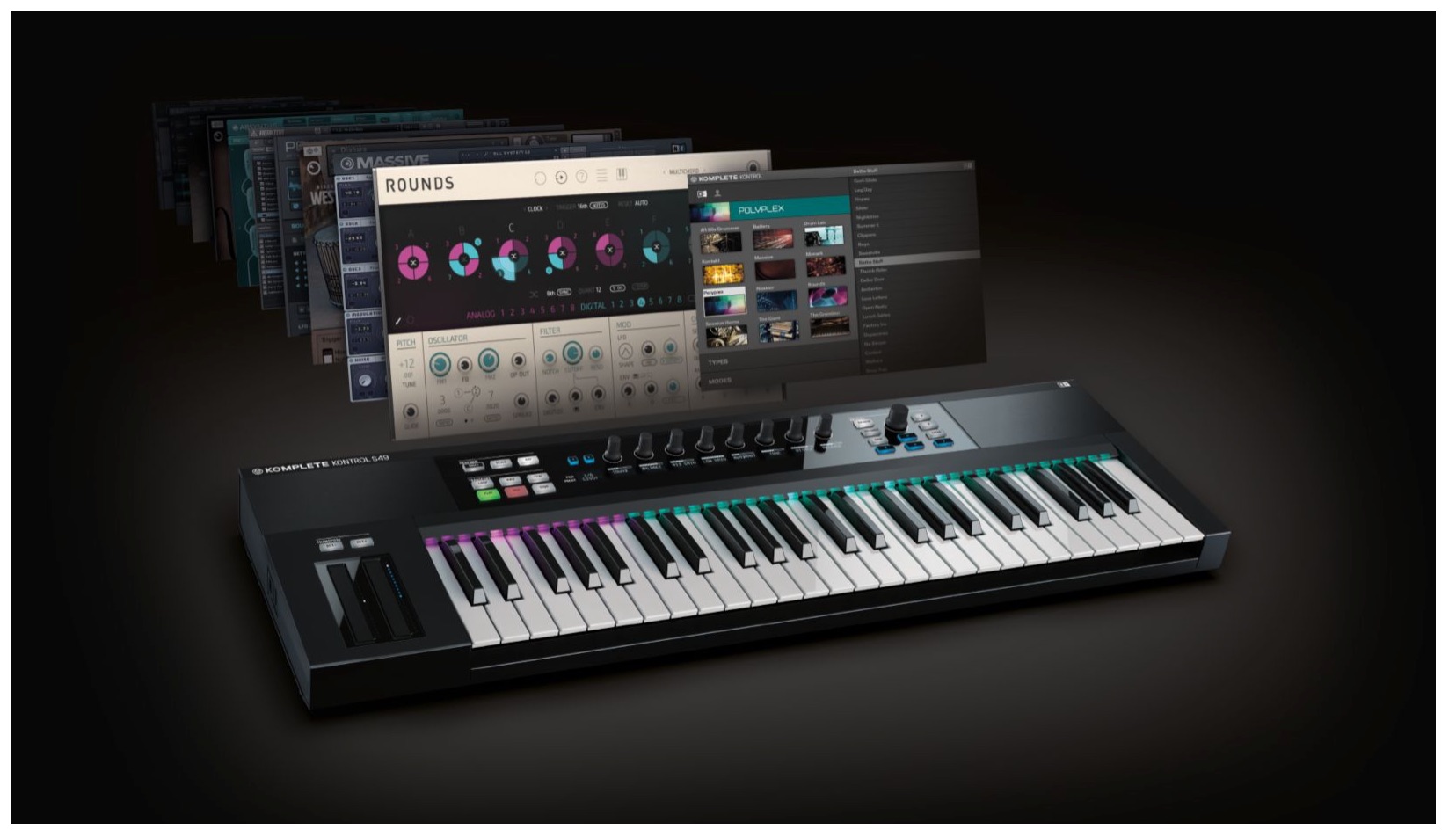
In the previous tutorial on Native Instruments KOMPLETE KONTROL S-SERIES,
we covered browsing presets efficiently.
This time, we’ll look at two features for editing and playing the presets you load:
the Light Guideandthe Clear View displays.
These visual features make operation more comfortable.
Komplete Kontrol Video Tutorials
- 1Product Overview
- 2Browsing
- 3Light Guide and Clear View Displays
- 4Scale Feature
- 5Chord Feature
- 6Arpeggiator
- 7Automation and MIDI Mode
- 8What’s New in Komplete Kontrol 1.1
- 9What’s New in KOMPLETE KONTROL 1.5
- 10What’s New in KOMPLETE KONTROL 1.6.2
- 11KOMPLETE KONTROL 1.9.3: Streamlining Your Workflow with DAW Control
- 12Komplete Kontrol 1.9.3 Host Integration: Cubase
- 13KOMPLETE KONTROL 2.0: NKS FX
- 14Maschine / Komplete Kontrol Favorites
At the time of this tutorial, purchasing KOMPLETE KONTROL
included a bundle of 10 products calledKOMPLETE SELECT; current bundle contents may differ.
Light Guide
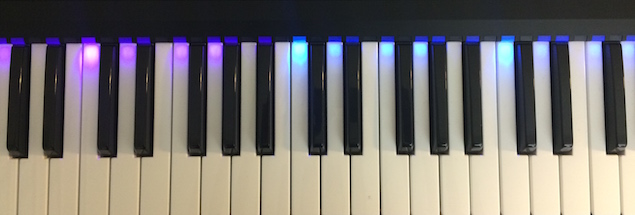
The Light Guide is located above the keyboard.
It uses colors to show instrument mappings and key switches.
It is also useful with thescale and arpeggiator featurescovered in later tutorials.
If the Light Guide does not work,
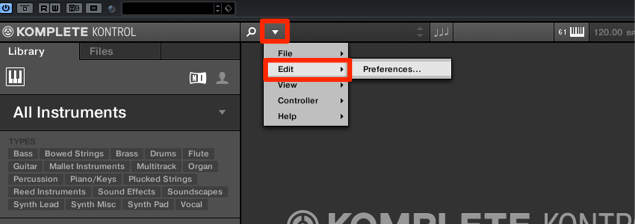
choose Edit → Preferences in the outlined area.
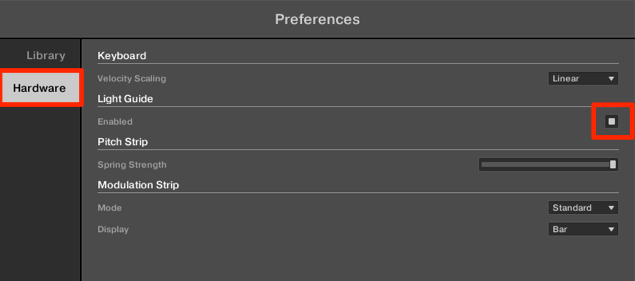
Select Hardware and enable the Light Guide checkbox. Menu locations may vary in newer versions.
Changing Octaves
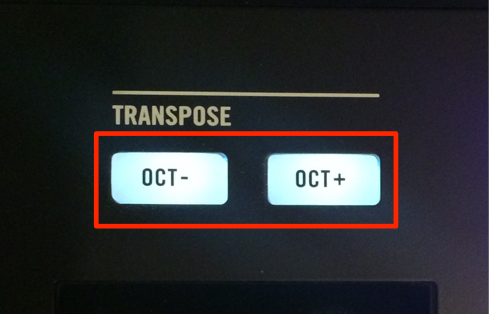
This works like a conventional MIDI keyboard.
OCT− shifts the keyboard down one octave, while OCT+ shifts it up one octave.
Clear View Displays
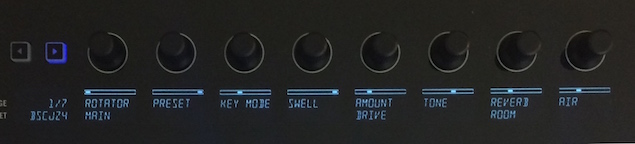
When you load a preset,
its main parameters are automatically assigned to the Clear View displays.
This saves you from assigning them manually and speeds up your workflow.
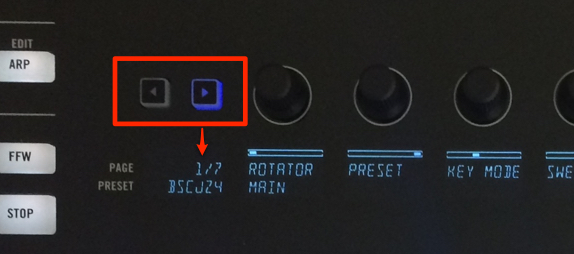
Eight main parameters are shown by default; you can switch to other pages.
The bottom section shows the current page and total number of pages.
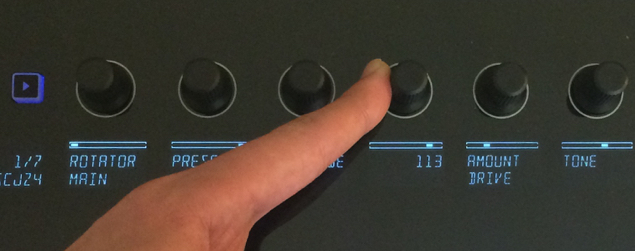
The knobs are touch-sensitive:
they show parameter names until touched, then display their current values.
This makes operation more intuitive and precise.
Frequently Asked Questions
Q1. What if the Light Guide does not light up?
In the version shown, choose Edit → Preferences, then enable Light Guide under Hardware. Check your version’s settings if the menu differs.
Q2. Can I change the parameters shown on the Clear View displays?
Yes. Eight main parameters appear by default, and you can switch pages to work with others.
Q3. What is the benefit of touch sensitivity?
Before you touch a knob, the display shows its parameter name; touching it reveals the current value, making adjustments easier to follow.
NEW ARTICLES
Latest English Articles