
The Arturia KeyLab MkII is a MIDI keyboard with extensive DAW integration. This article explains how to set it up with a DAW such as Cubase, use transpose to shift the keyboard to suit a song’s key, and play chords with its 16 pads. Chord Memory lets you play accompaniment and a melody simultaneously, while Chord Transpose lets you transpose a stored chord. These features help both beginners and experienced players work more comfortably when making music.
KeyLab MkII: Packed with Features to Support Music Production
In this tutorial, we’ll explore Arturia’s KeyLab MkII MIDI keyboard.
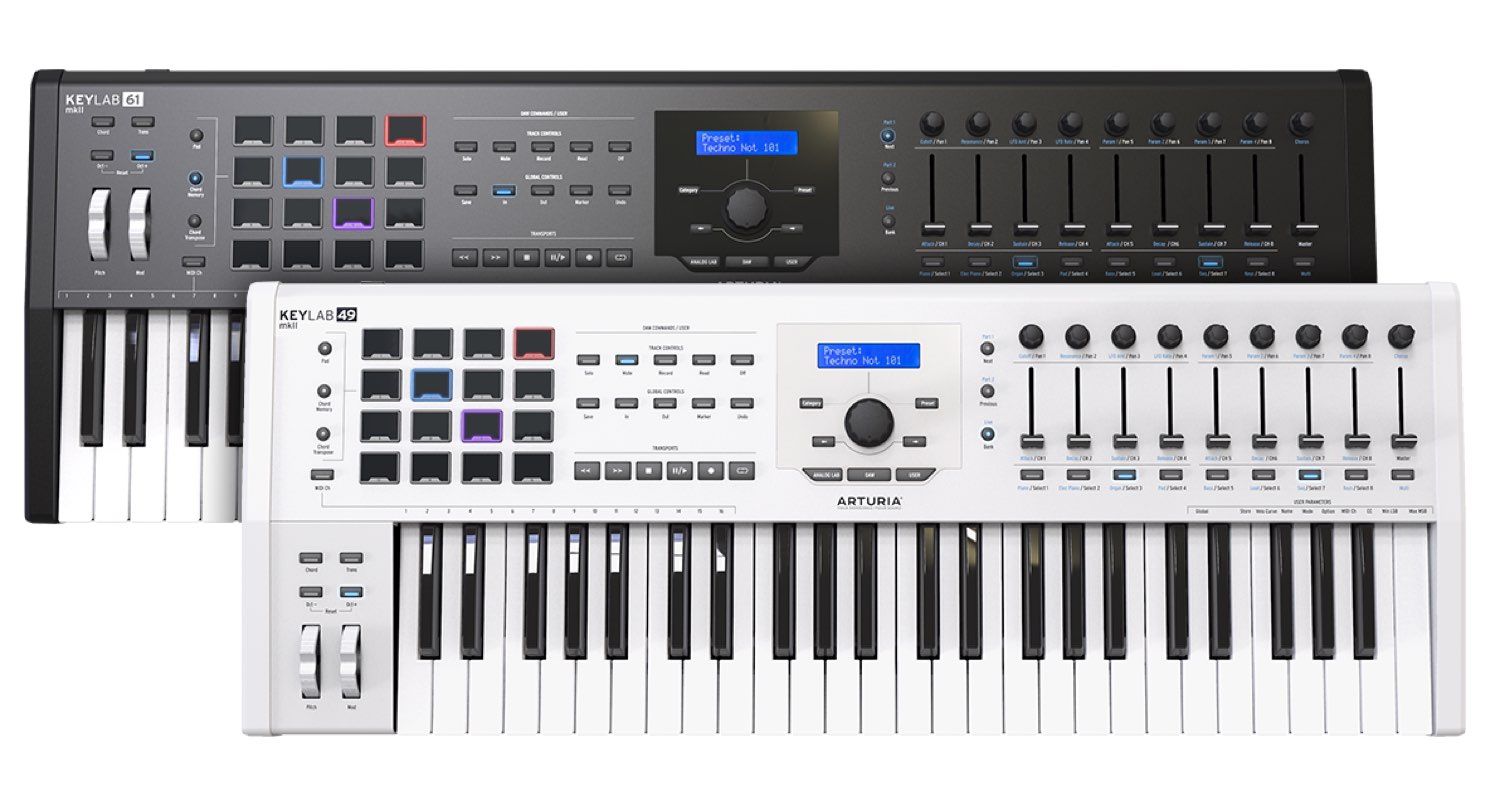
This MIDI keyboard brings together Arturia’s technology and experience.
High-quality 49-key and 61-key models are available in black or white.
The keyboard offers an excellent playing feel, designed to satisfy both beginners who are still getting used to playing and experienced performers who want a solid response.
It also supports detailed velocity response (how hard you play) and aftertouch (pressure applied after pressing a key), allowing expressive nuances to be reproduced and recorded faithfully.
Another major feature is its integration with DAW software.
Its onboard controls provide:
- Control of your DAW
- High-quality bundled instruments, ready to use and control
- Features that help you enter notes and chords
- Pads for performing rhythm tracks
These features make music production more comfortable.
Let’s look at the DAW control setup and the especially useful chord and transpose functions.
DAW Integration, Transpose, and Chord Functions
- 1DAW Integration, Transpose, and Chord Functions
- 2Pad Performance, Analog Lab Integration, and DAW Mixer Control
- 3Customizing MIDI Controllers with MIDI Control Center
Visit the Product Page Contact: Korg / KID Customer Support in Japan. Tel: 0570-666-569
Selected Questions and Answers from the YouTube Video

Hi! Where did you get the vocal sample used here? Also, if you know of any free vocal samples, please let me know!

We used this sample pack, although it is a paid product: https://www.functionloops.com/future-pop-acapellas.html
Integrating with Your DAW
To control Cubase from the KeyLab MkII, you first need to configure the integration.
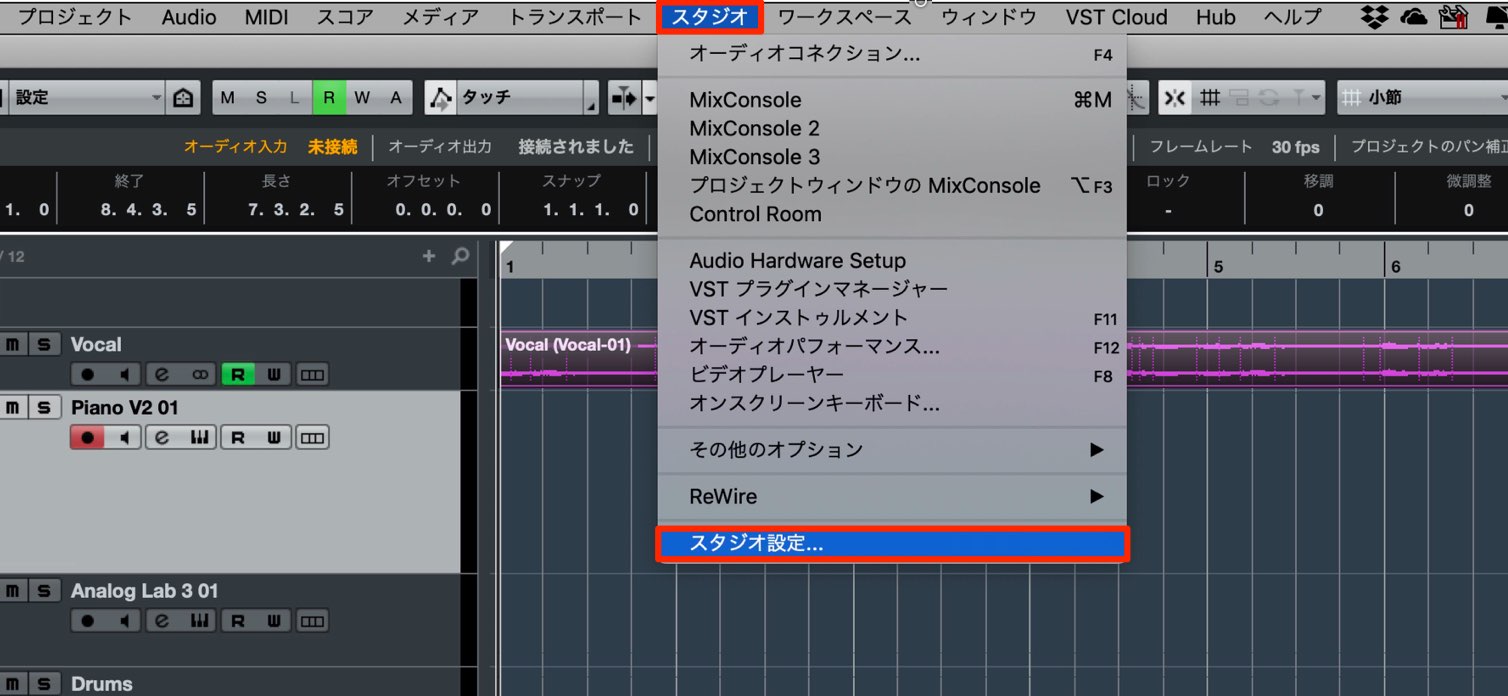
From the Cubase menu, select Studio → Studio Setup.
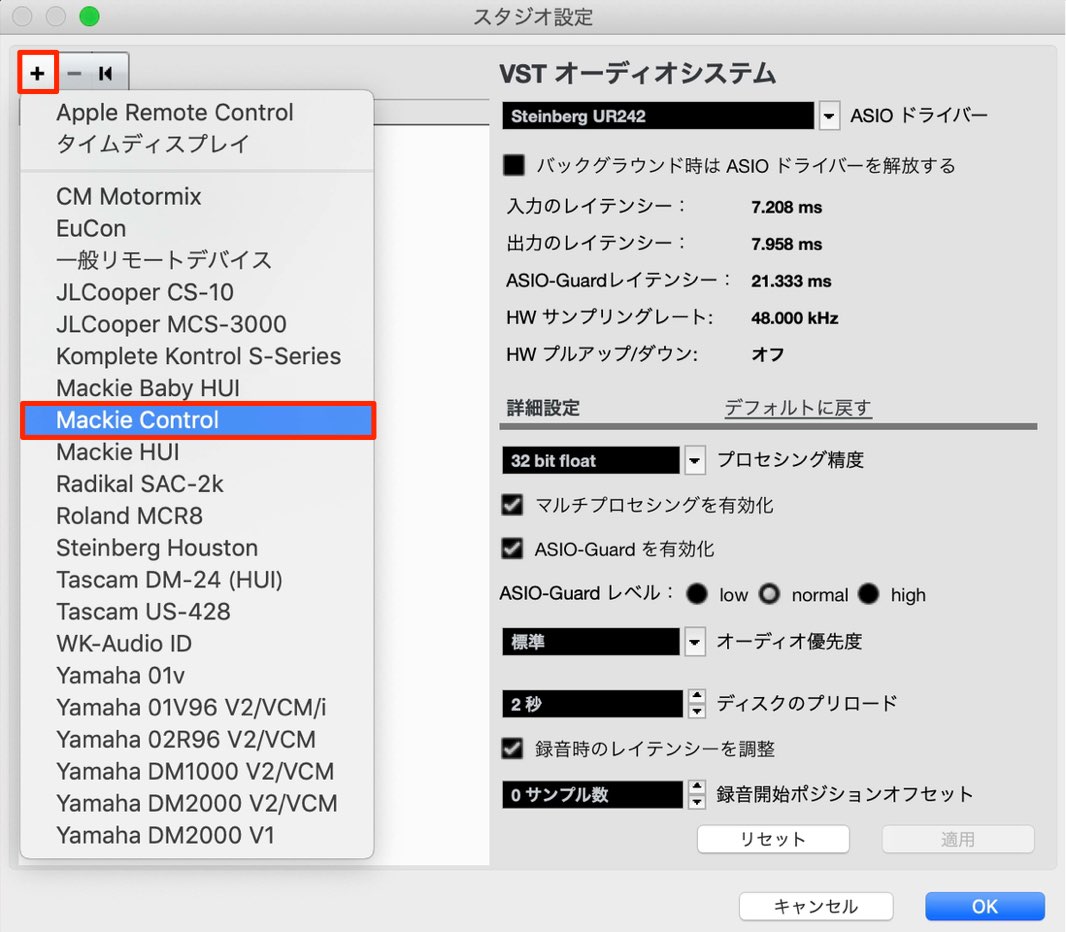
Click the + button and select Mackie Control.
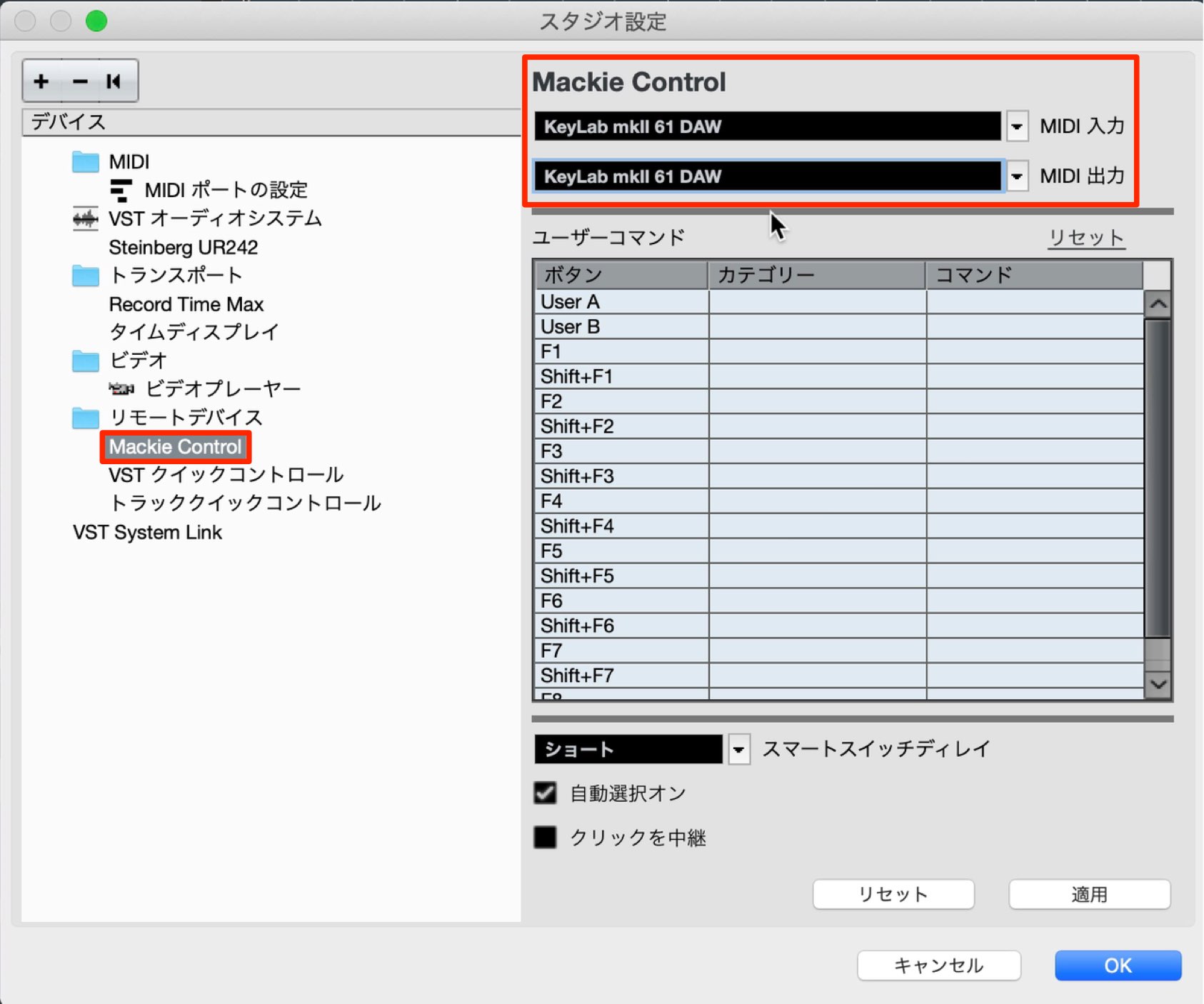
Select the Mackie Control device you added, then set both MIDI Input and MIDI Output to KeyLab mk2 DAW.
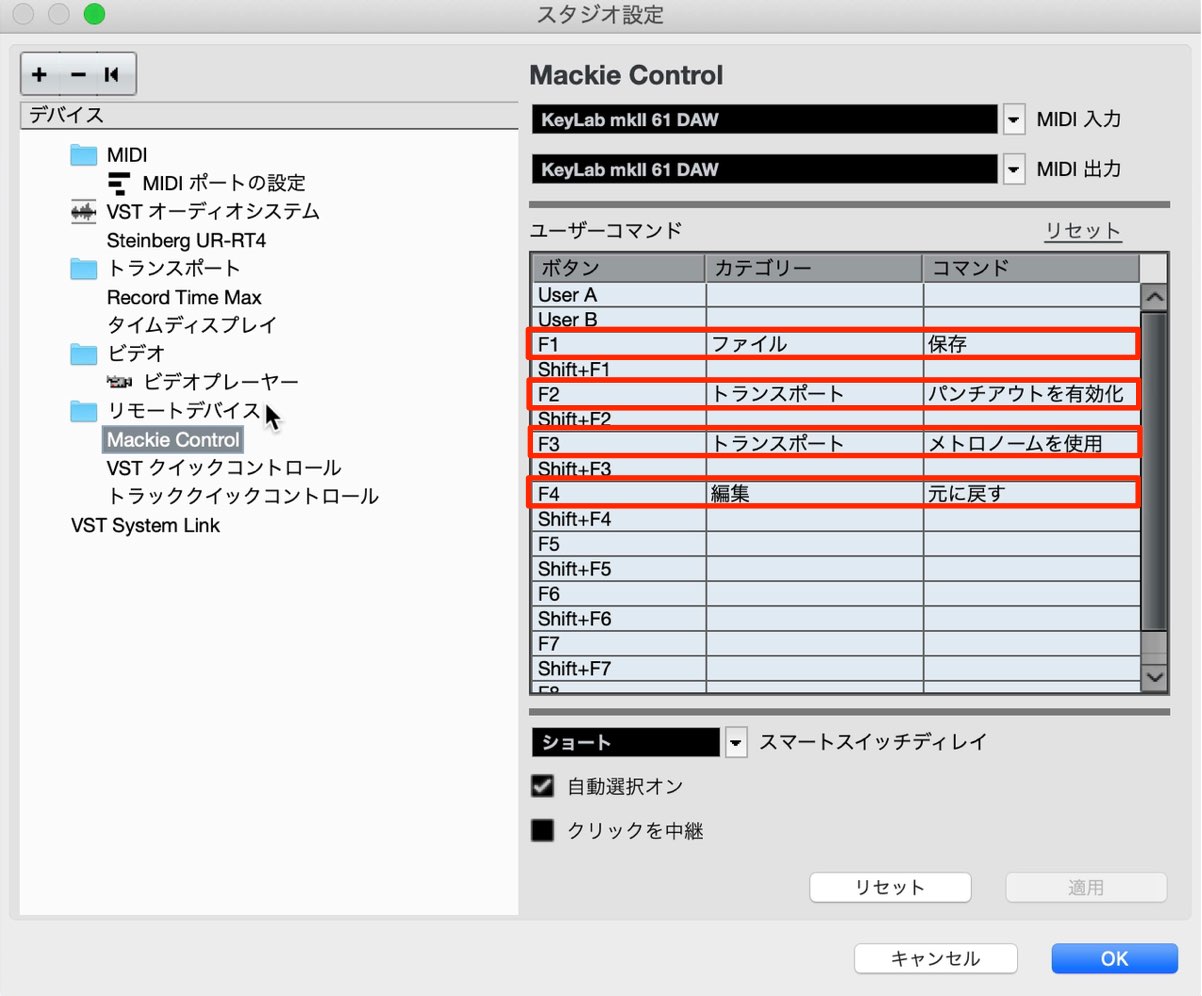
Assign the commands shown in the image to F1–F4.
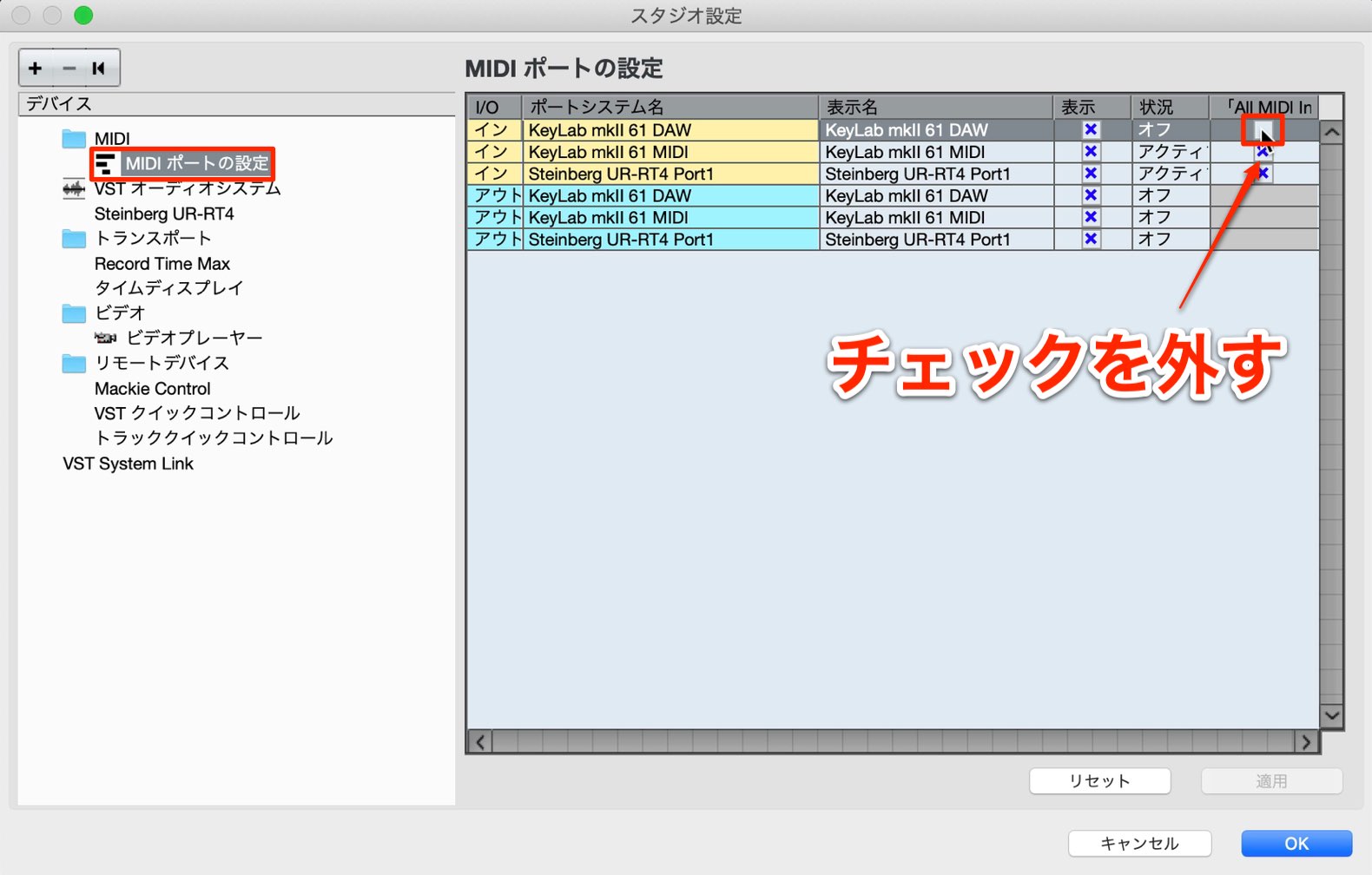
In the MIDI Port Setup tab, clear the In ‘All MIDI Inputs’ checkbox for KeyLab mk2 DAW. This prevents unwanted MIDI notes from being recorded when you operate the controls.
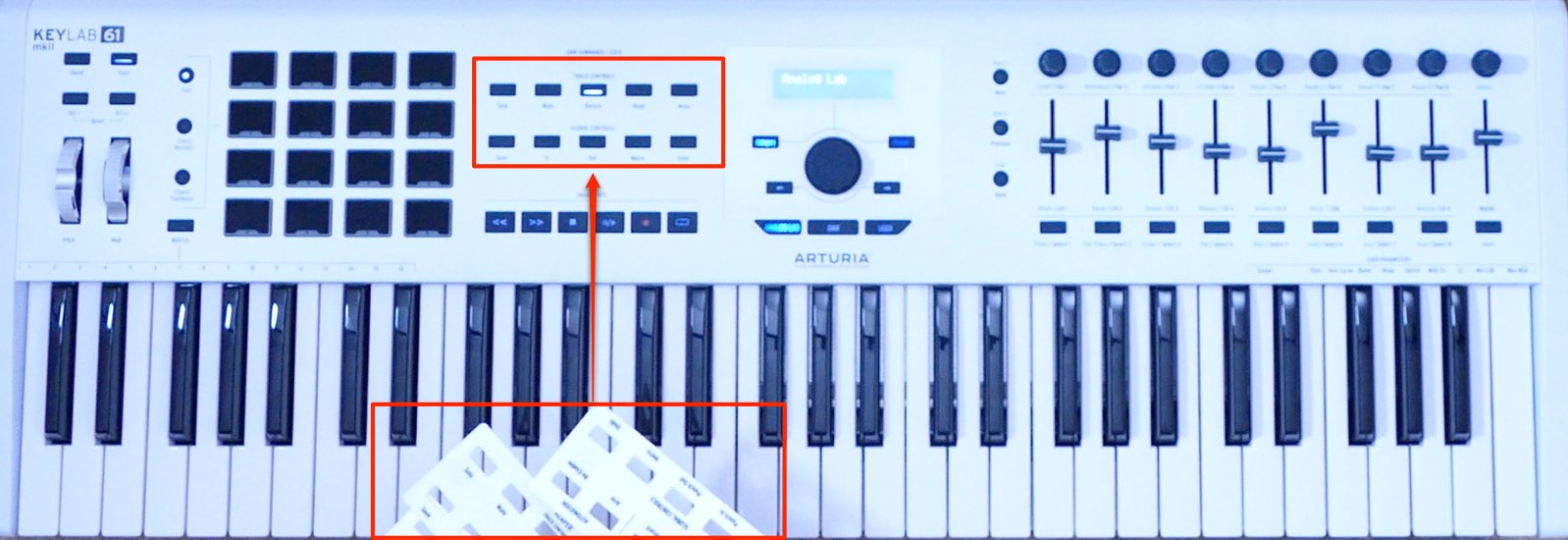
Fit the included DAW command overlay.
Overlays are provided for Cubase, Ableton Live Lite, Studio One, Reaper, Pro Tools, and Logic Pro.
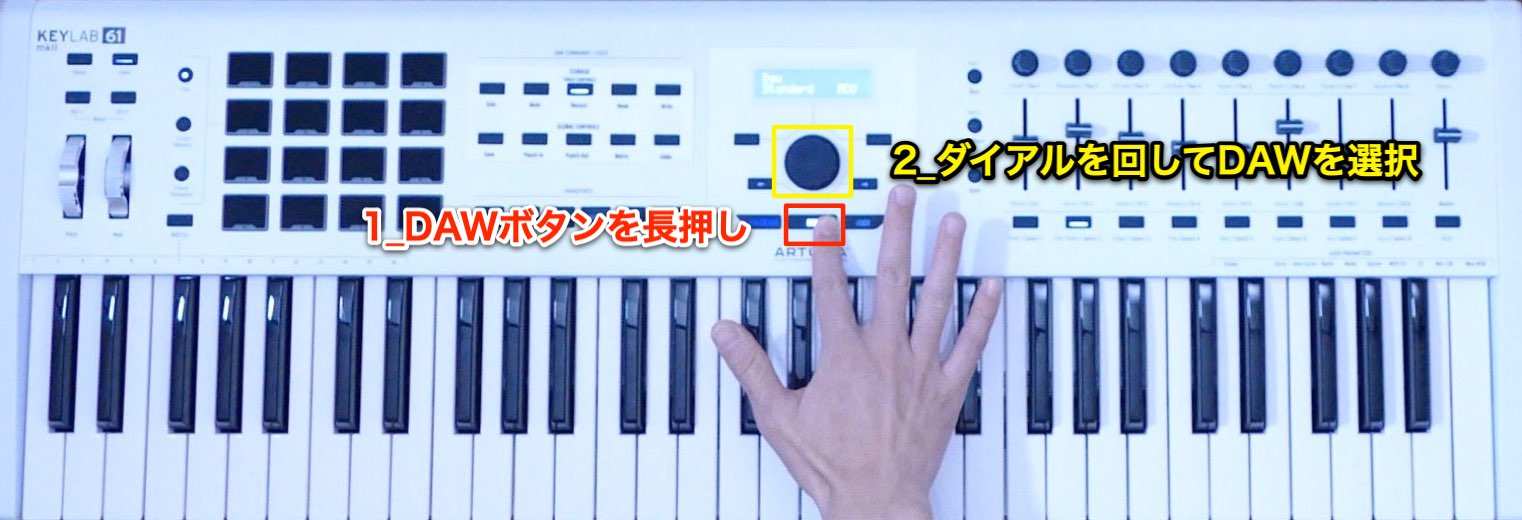
Hold down the DAW button below the display, then turn the dial to select the DAW you want to control.
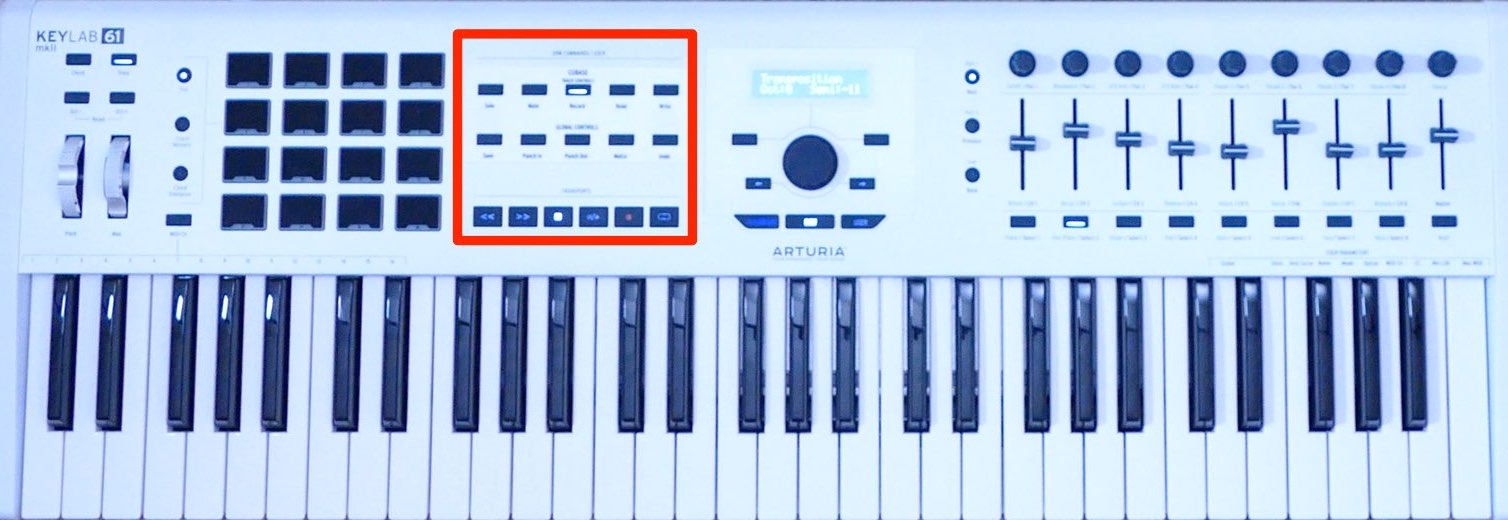
With this setup complete, you can conveniently control your DAW from the KeyLab MkII.
Shift the Keyboard’s Notes with Transpose
The KeyLab MkII includes a transpose function that shifts the notes played by the keyboard to suit the key of your song.
This makes keys with many flats or sharps easier to play, so even if keyboard playing is not your strong point, you can enjoy making music.
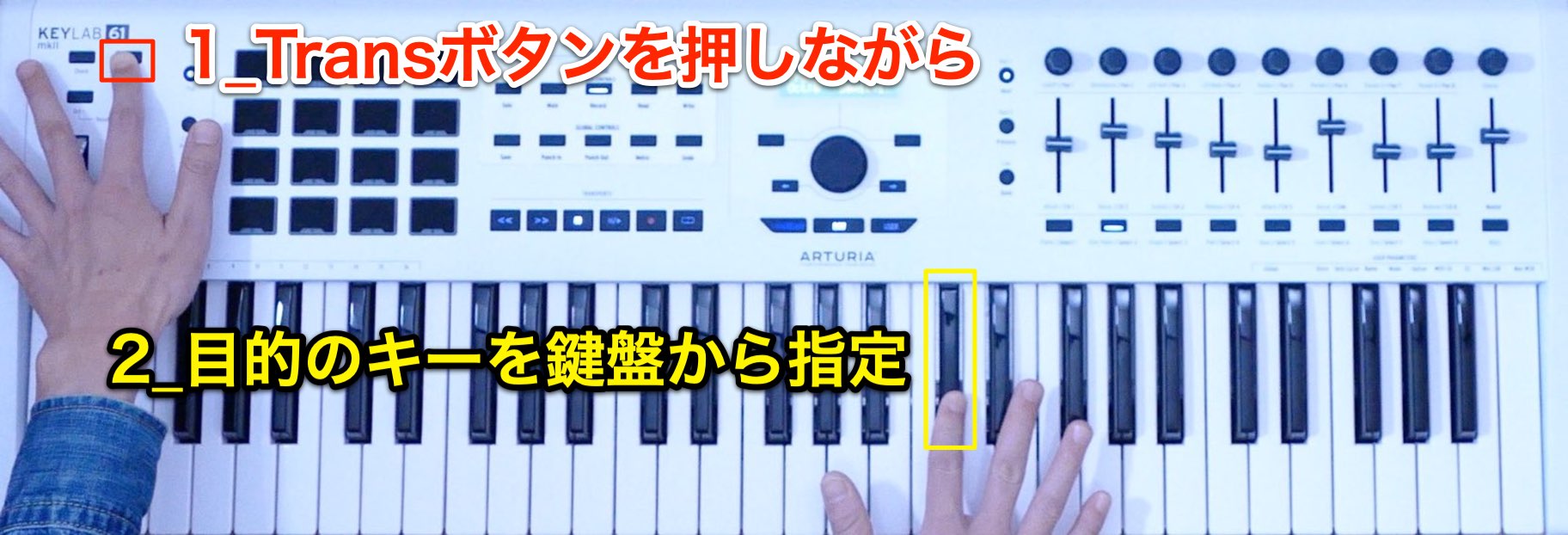
Hold down the Trans button and press the key corresponding to the desired transposition.
Here, we selected C♯.
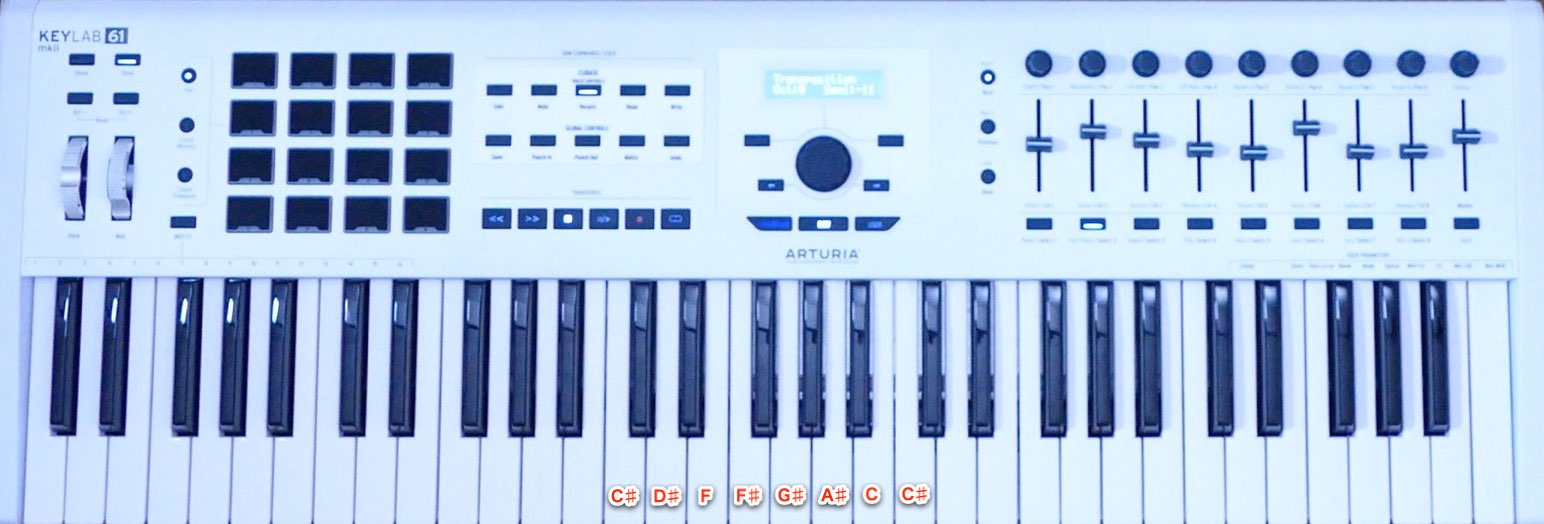
The white keys now play the notes of the major scale starting on the selected note.
Selecting C♯ in a different octave also changes the octave of the resulting notes.
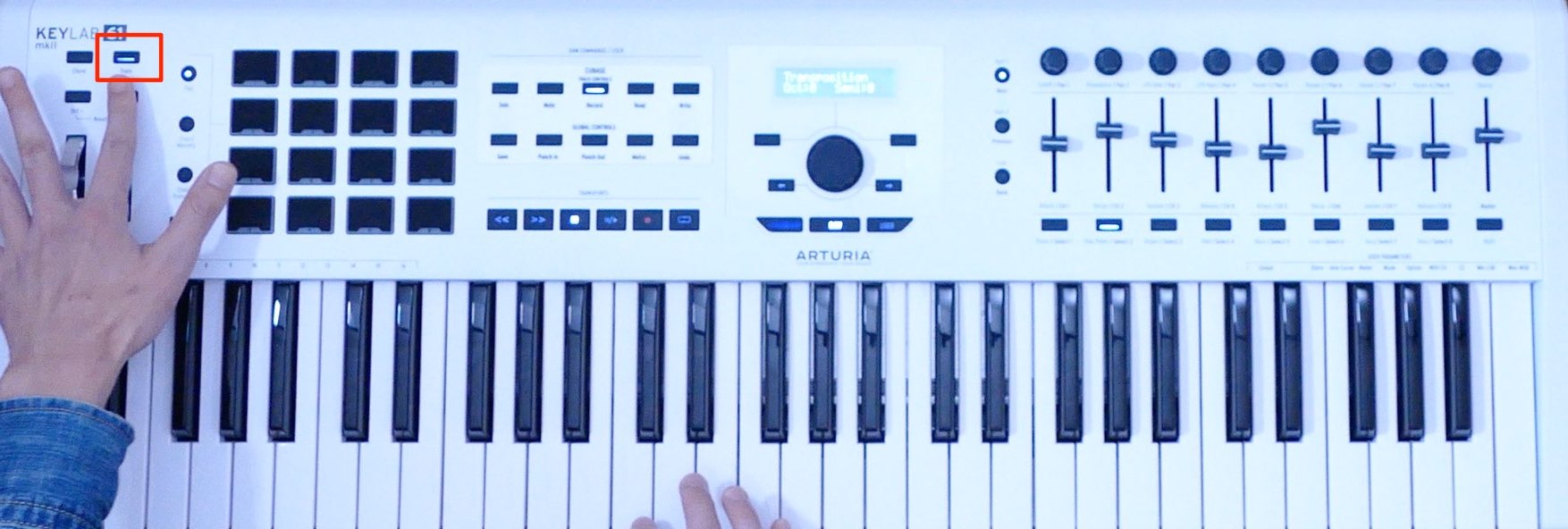
To temporarily disable this function, press the Trans button.
The button dims to indicate that transposition is temporarily bypassed.
Press Trans again: the button lights brightly, and the previously selected transposition—C♯ in this example—is restored.
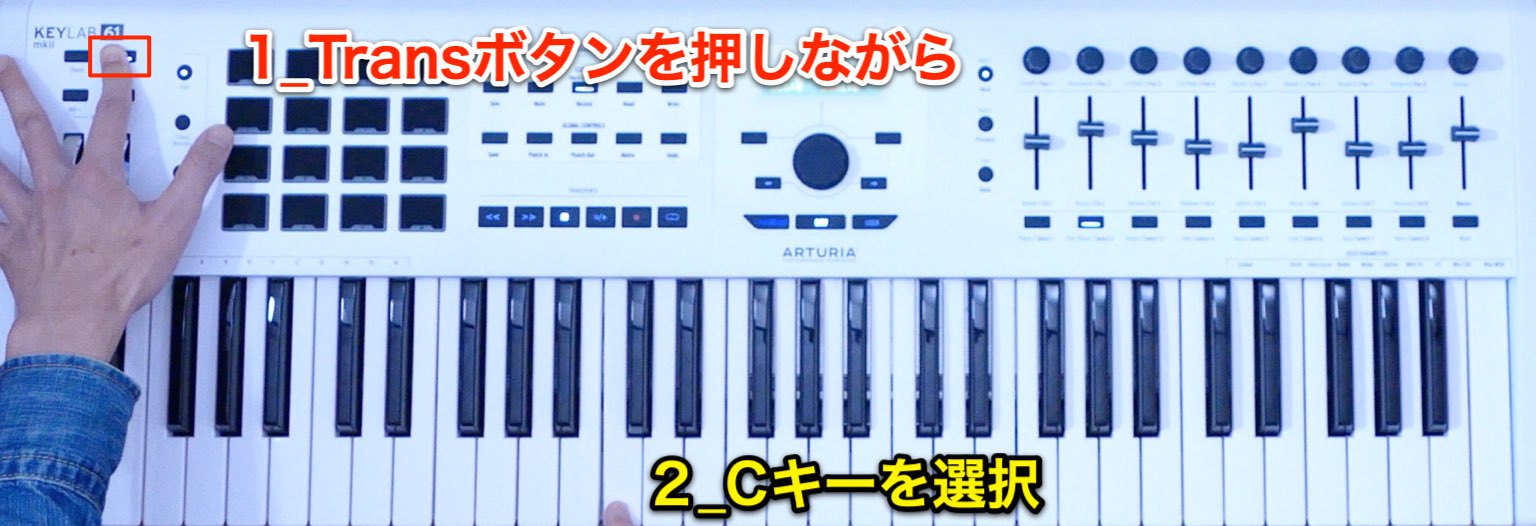
To reset transposition completely, hold down Trans and press C on the keyboard.
The button turns off to indicate that transposition has been reset.
Changing the Octave
Let’s also look at changing the keyboard’s octave.
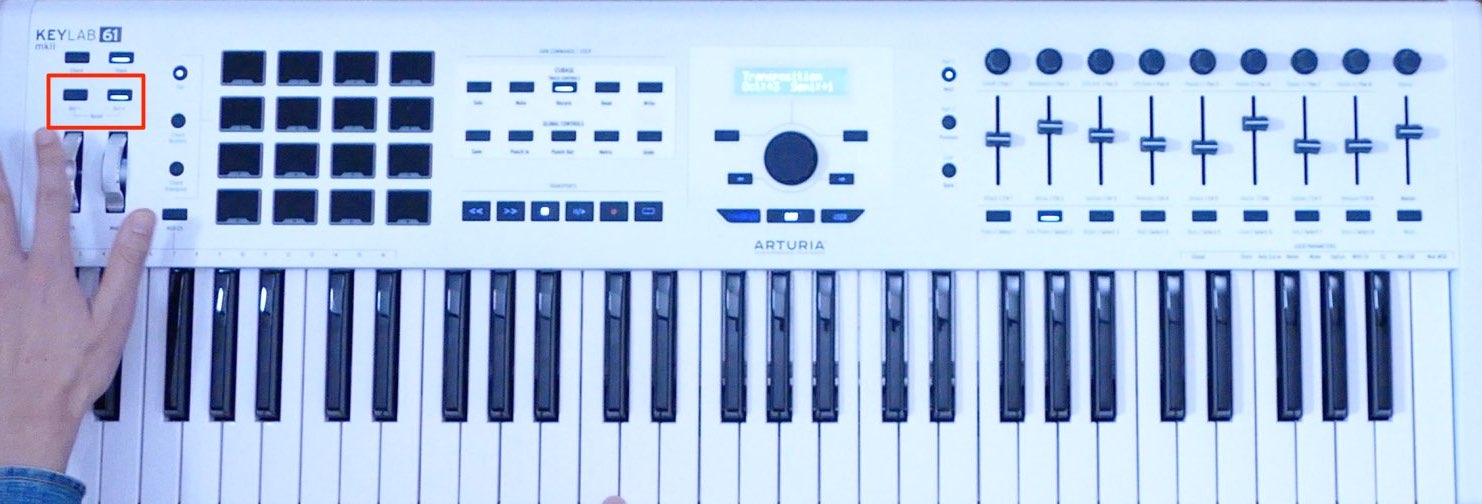
The Oct− and Oct+ buttons let you shift down or up by as much as three octaves.
An illuminated Oct button indicates that the octave has been shifted.
In the image, the keyboard has been shifted upward.
You can also check the octave setting on the central display.
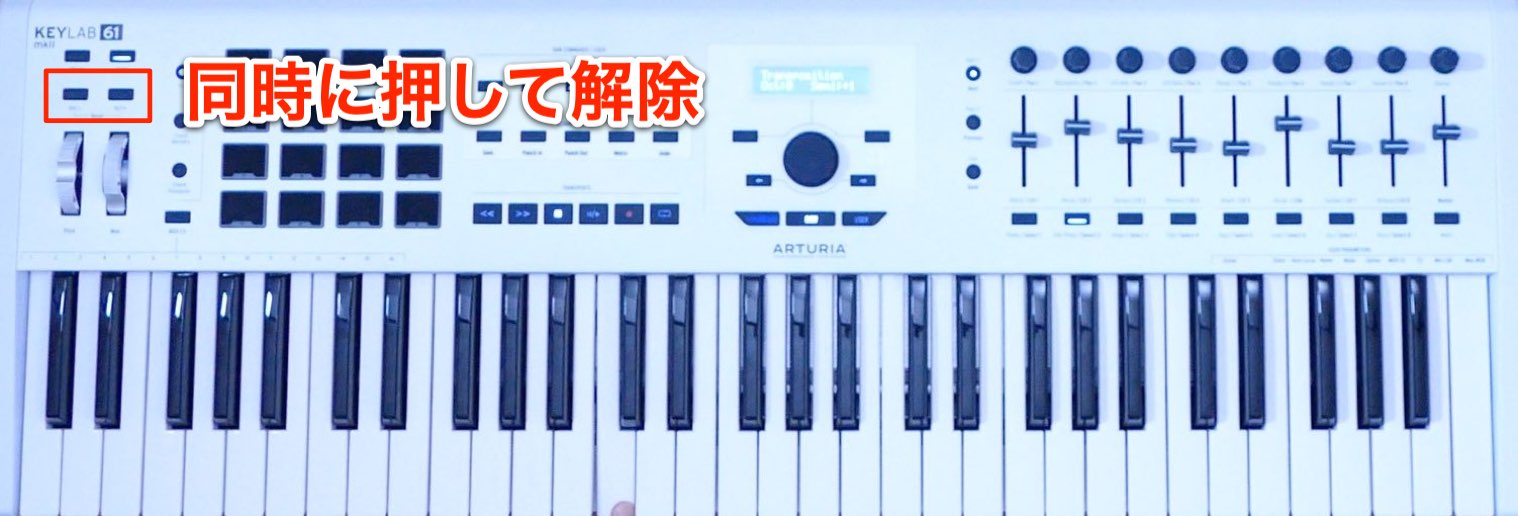
To reset the octave shift, press Oct− and Oct+ together.
The buttons turn off to indicate that the octave shift has been cleared.
Chord Functions Using the 16 Pads
Next, let’s explore the chord functions that use the 16 pads.
By storing your preferred chords in advance, you can play a whole chord with a single pad or key.
There are two chord modes.
Chord Memory: Store Chords and Play Them with the Pads
Chord Memory lets you store a chord on each of the 16 pads and play those chords from the pads.
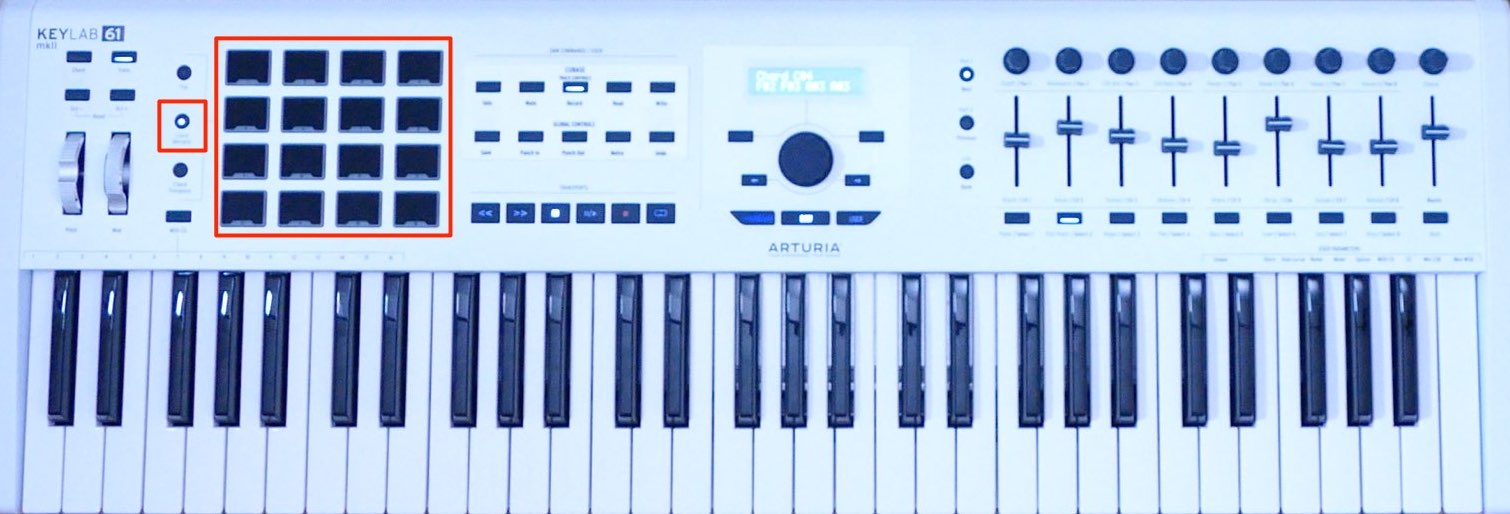
First, press the Chord Memory button.
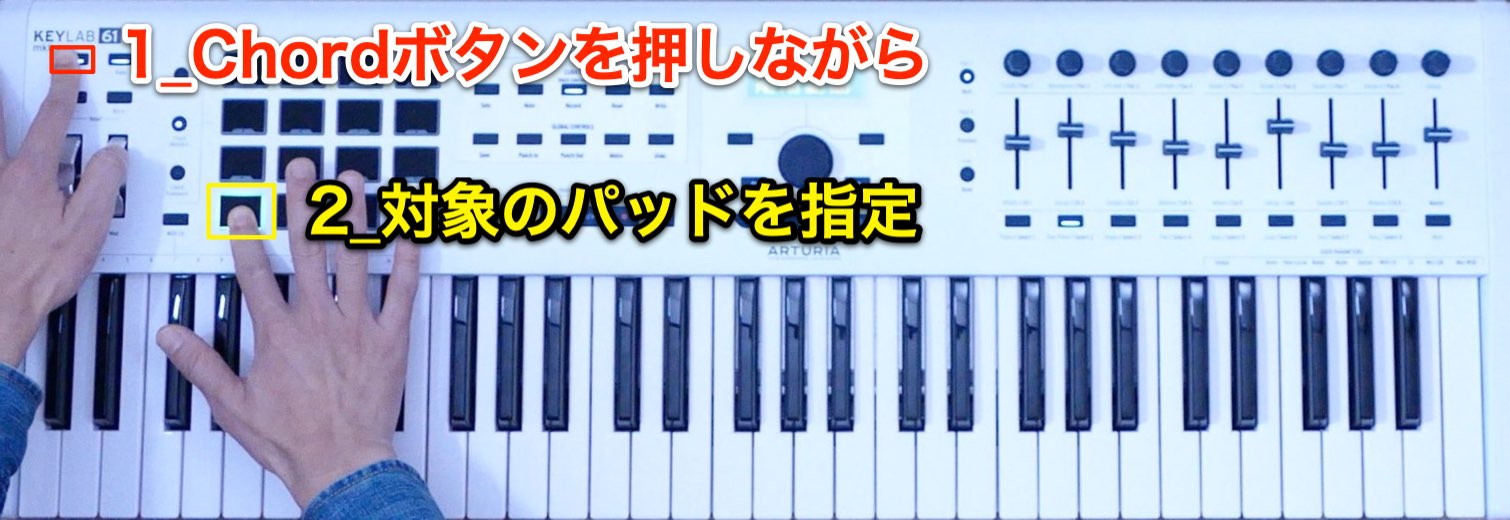
Hold down Chord and select the pad on which you want to store a chord.
The selected pad lights blue, indicating that it is ready for chord entry.
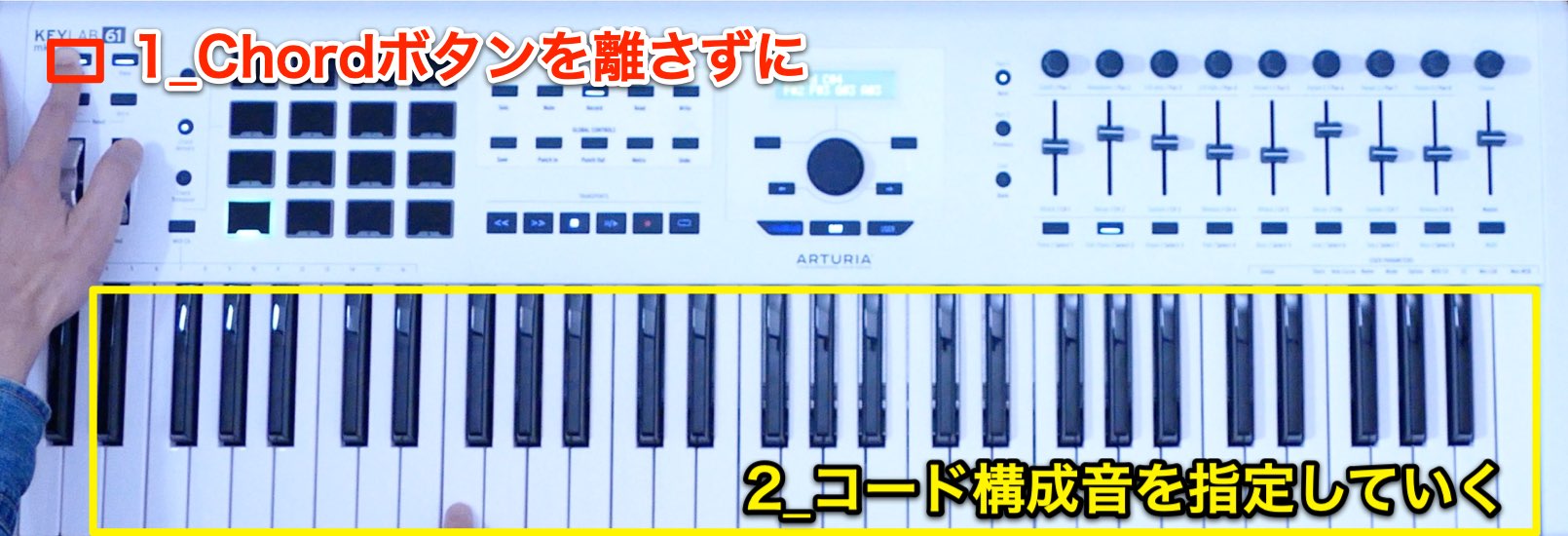
Without releasing Chord, play the notes of your desired chord on the keyboard.
You can enter up to six notes in a chord.
For added convenience, you can also use the transpose function described above when entering the notes.
Once you have entered the chord notes, release Chord to finish storing the chord.
Pressing the pad now plays the stored chord.
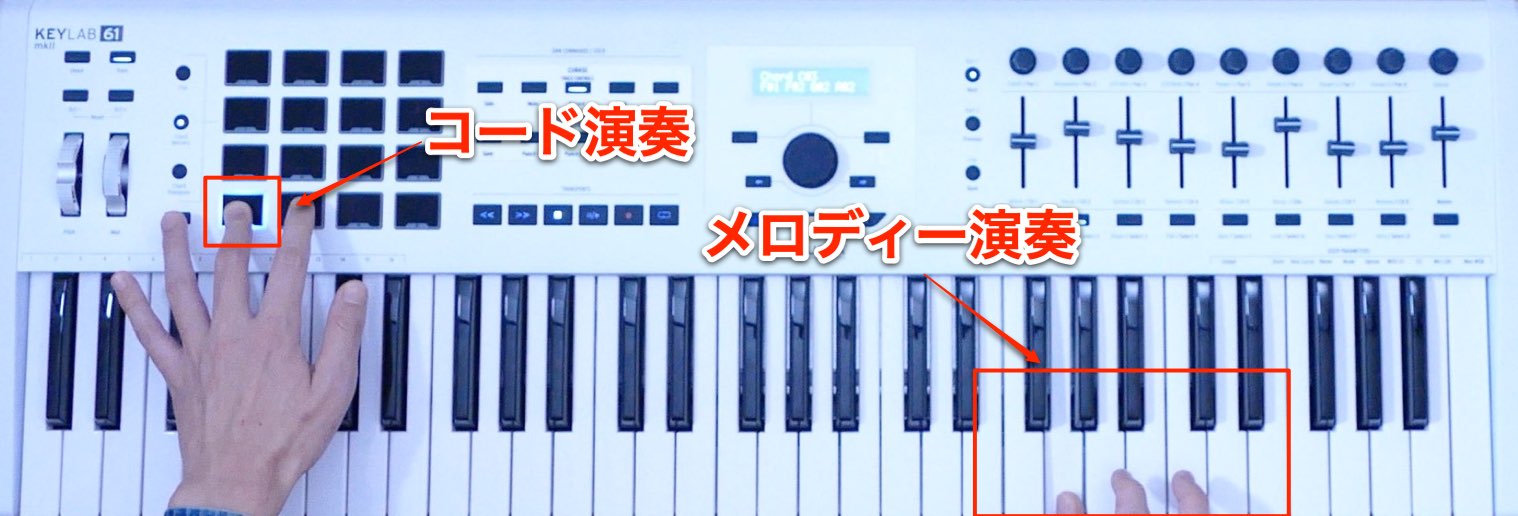
A useful feature of this mode is that you can still play the keyboard normally.
This means you can play chord accompaniment on the pads and a melody on the keyboard.
It is very handy when developing ideas for a song.
The pads also support velocity and aftertouch, faithfully reproducing the nuances of your performance.
Chord Transpose: Play and Transpose Chords with a Single Key
Now let’s look at the other mode: Chord Transpose.
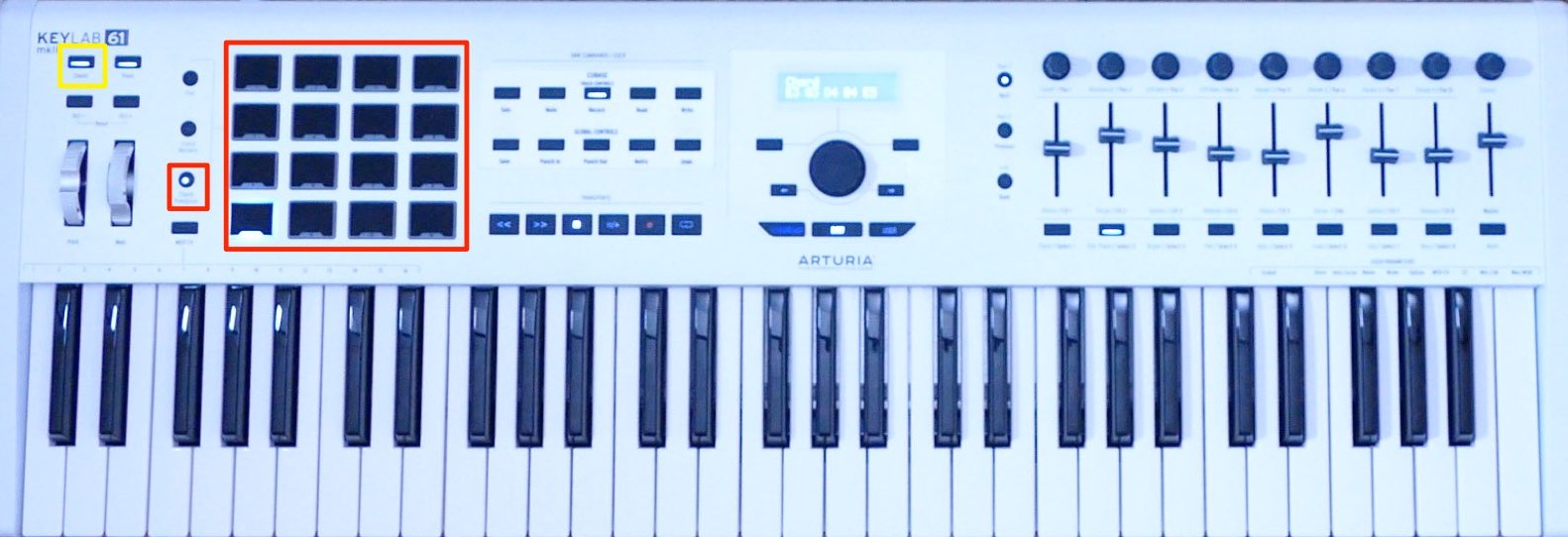
Press the Chord Transpose button.
To use this mode, enable the Chord button at the top left.
Next, store your desired chord using the same procedure as in Chord Memory above.
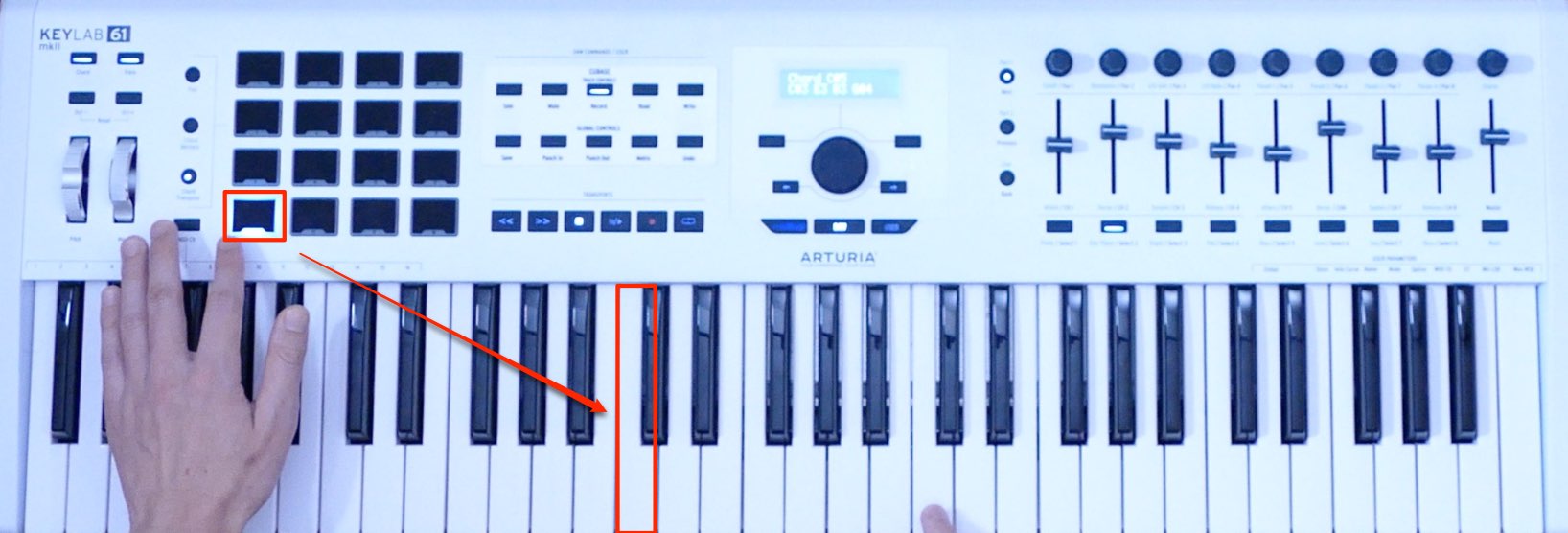
In Chord Transpose mode, select the chord you want with a pad, then play it from the keyboard.
Middle C plays the stored chord at its original pitch.
For example, if you assigned FM7 (Fmaj7) to a pad, pressing middle C plays Fmaj7.
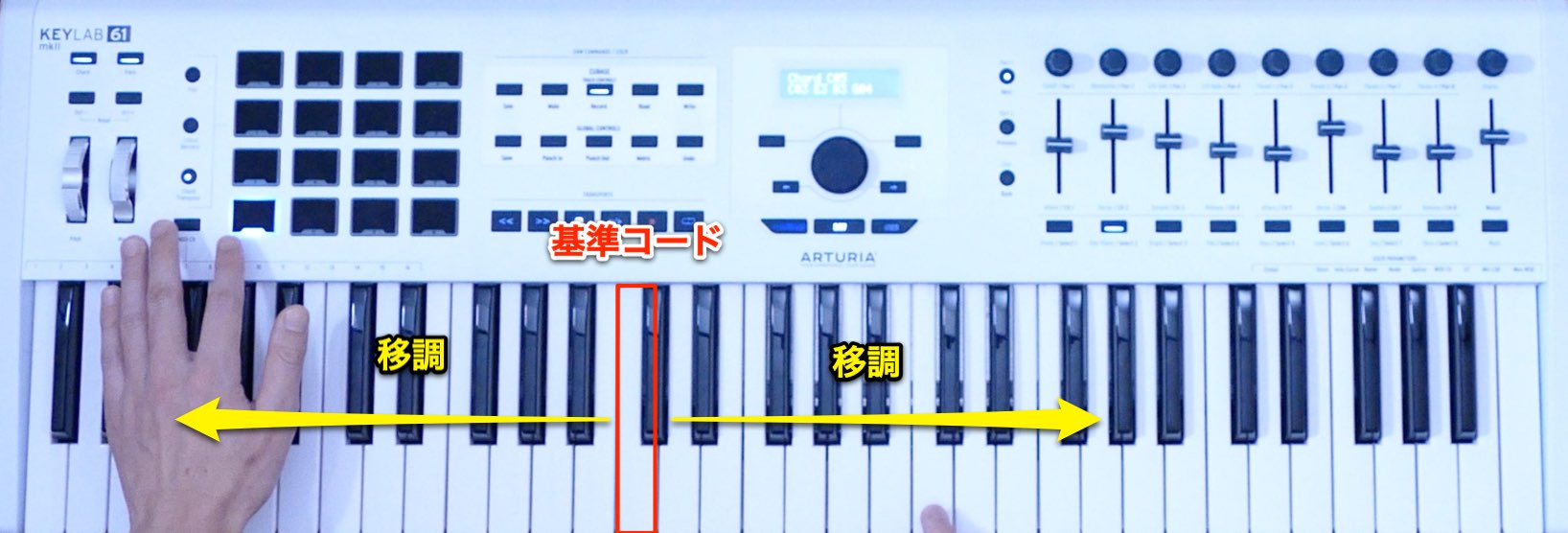
Moving to a different key transposes the stored chord.
For example, with FM7 (Fmaj7) stored on a pad:
- Press middle C to play FM7 (Fmaj7).
- Press B, one semitone lower, to play EM7 (Emaj7).
- Press D♯, three semitones higher, to play G♯M7 (G♯maj7).
The chord is transposed by the interval between the key you play and middle C.
This makes it easy to play parallel chord movements of the kind often heard in club music.
What do you think?
You have convenient access to frequently used DAW transport controls and commands,
as well as transpose and chord functions that broaden your composing options.
These are appealing features indeed.
But the Arturia KeyLab MkII has still more to offer.
Next time, we’ll explore features that can enhance your productions, including programming rhythms with the pads and controlling software instruments.
- 1DAW Integration, Transpose, and Chord Functions
- 2Pad Performance, Analog Lab Integration, and DAW Mixer Control
- 3Customizing MIDI Controllers with MIDI Control Center
Visit the Product Page Contact: Korg / KID Customer Support in Japan. Tel: 0570-666-569
Frequently Asked Questions
Q1. Which DAWs does the KeyLab MkII support?
It supports major DAWs including Cubase, Ableton Live Lite, Studio One, Reaper, Pro Tools, and Logic Pro. The included DAW command overlays help you identify the controls for each application.
Q2. What does the transpose function do?
It shifts the notes played by the keyboard to suit a song’s key. This lets you use familiar white-key fingerings in keys with many flats or sharps, making music creation easier for keyboard beginners.
Q3. What is the difference between Chord Memory and Chord Transpose?
Chord Memory lets you play chord accompaniment on the pads while playing a melody on the keyboard. Chord Transpose transposes a stored chord according to the key you press, making it particularly useful for club music production.
Q4. Do the pads respond to velocity?
Yes. All 16 pads support velocity and aftertouch, allowing expressive performance nuances to be reproduced and recorded.
NEW ARTICLES
Latest English Articles
























































































































































































































































































