
Ableton Live’s plug-in device provides an XY pad that can control two configured parameters at once. This guide shows how to enable Configure for an instrument such as MASSIVE, assign parameters to the X and Y axes, and record their movements as automation. Move the yellow point across the pad to explore changes in sound during production or performance.
Control Two Parameters Together with Configure

When you drag an instrument such as MASSIVE into Ableton Live,
its device view includes an XY pad and a Configure button.
You can use them to move two parameters together for more complex changes.
This is useful both in production and during live performance.
The setup is straightforward, so let’s learn how it works.
Ableton Live Tips: Morph Plug-in Parameters with Configure
Go to the product details page

Assigning Parameters
First, enable Configure and choose the parameters you want to assign.
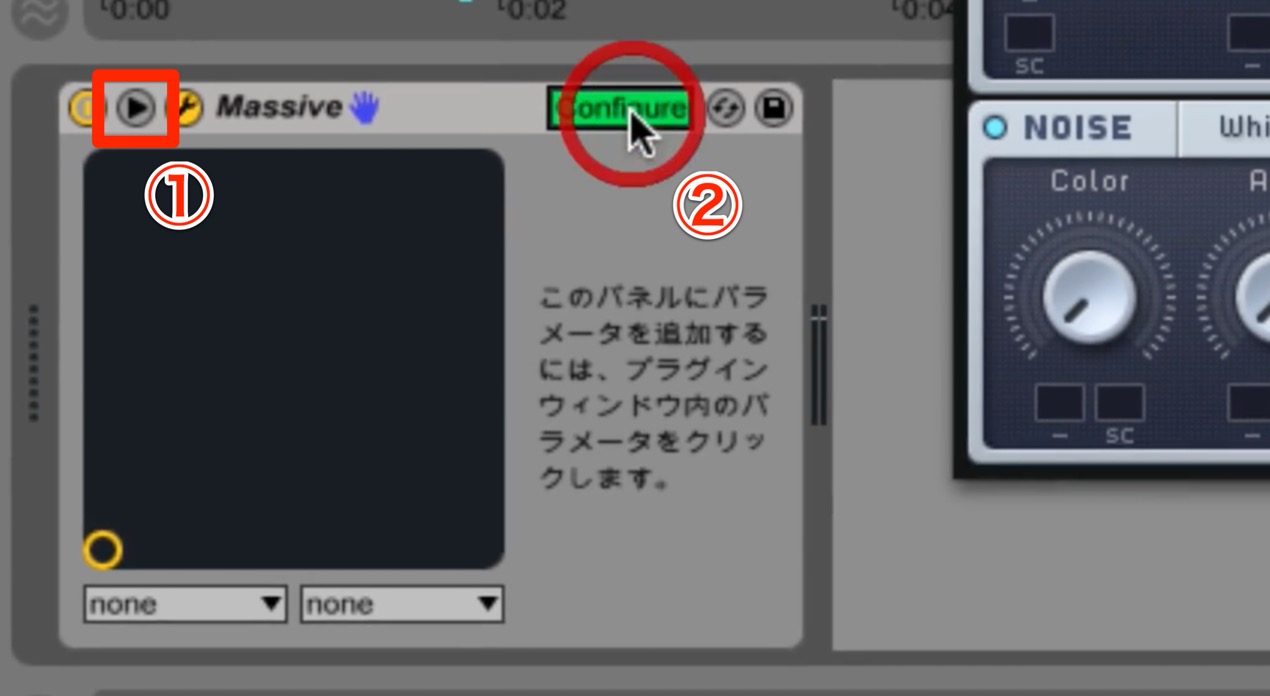
Click ① to reveal the device title bar.
Then click ②, Configure, so it lights up.
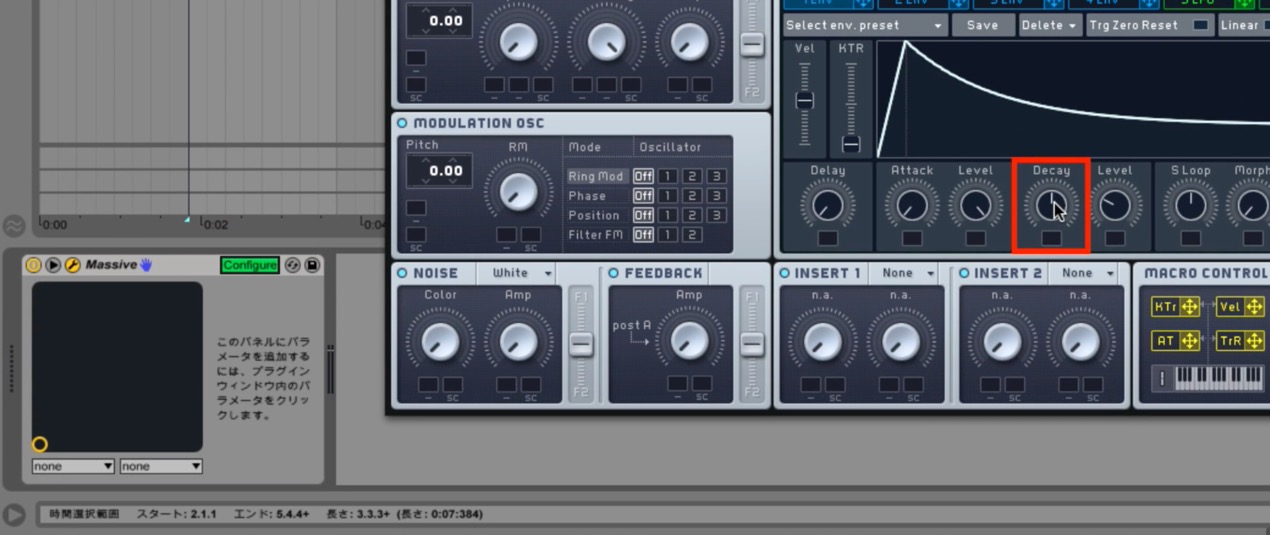
Next, click the parameter you want to assign in the instrument’s interface.
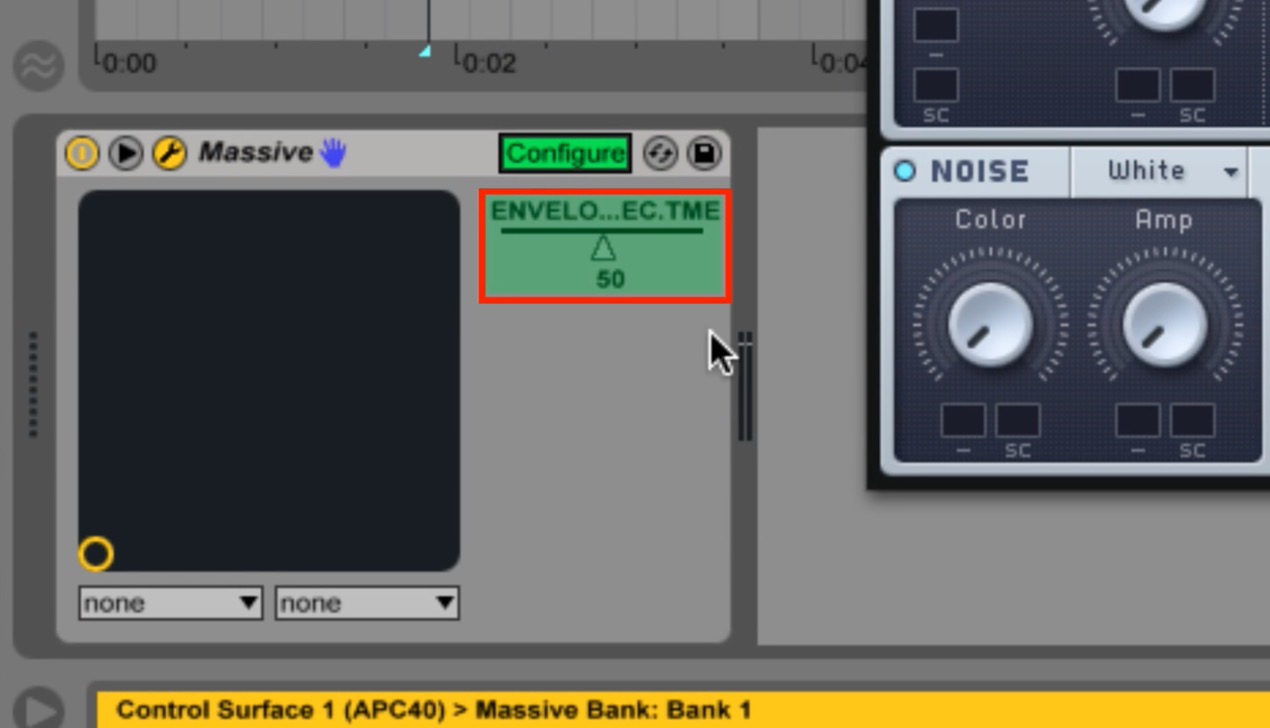
The parameter will now appear in Live’s configured controls as shown.
Next, assign parameters to the X and Y axes.
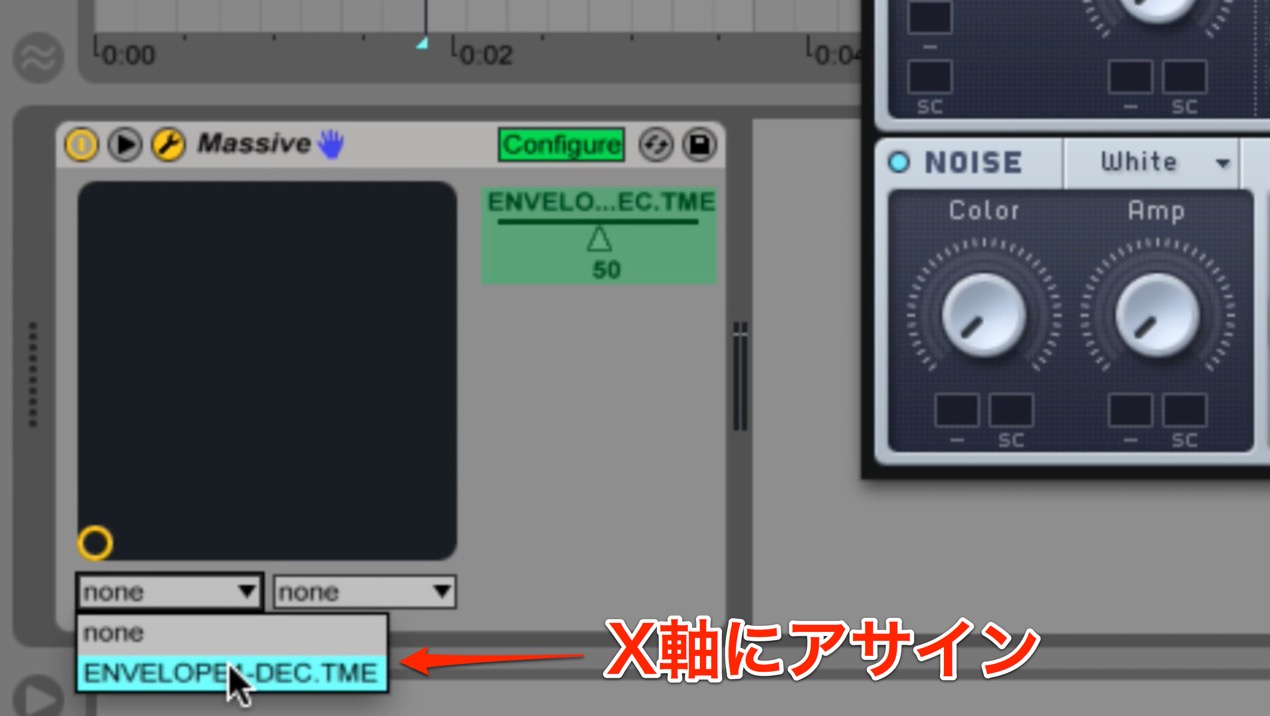
The fields marked “none” below the pad correspond to X on the left and Y on the right.
Let’s assign the X axis first.
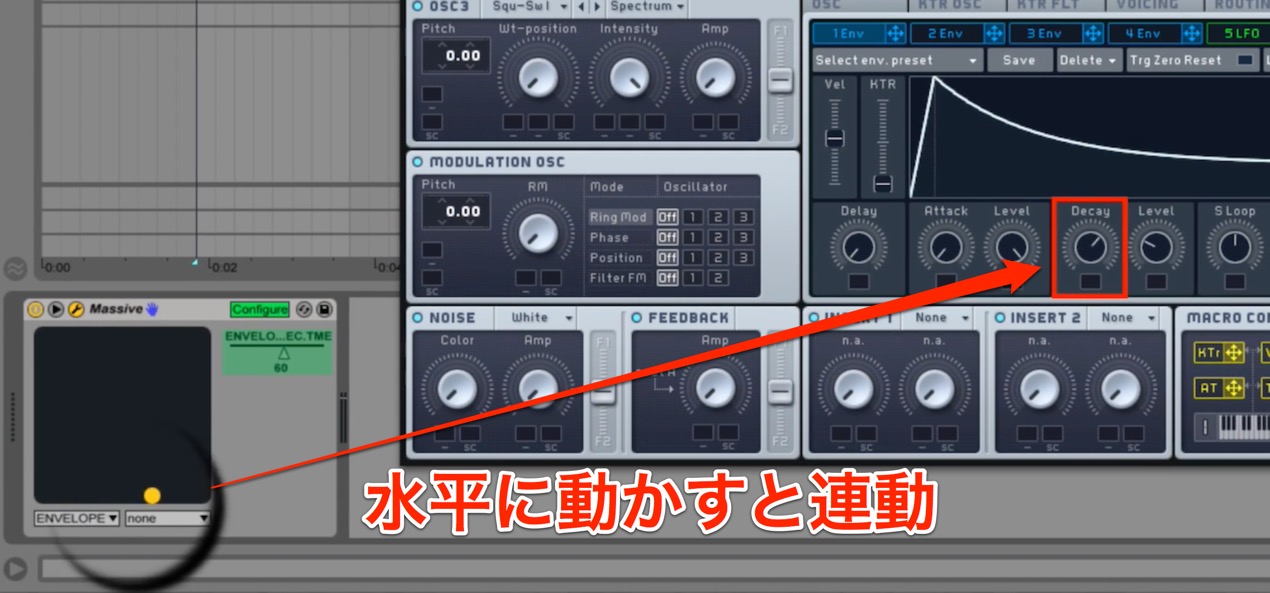
Now move the yellow point horizontally across the pad; the assigned parameter moves with it.
Repeat the same steps to set the Y axis.
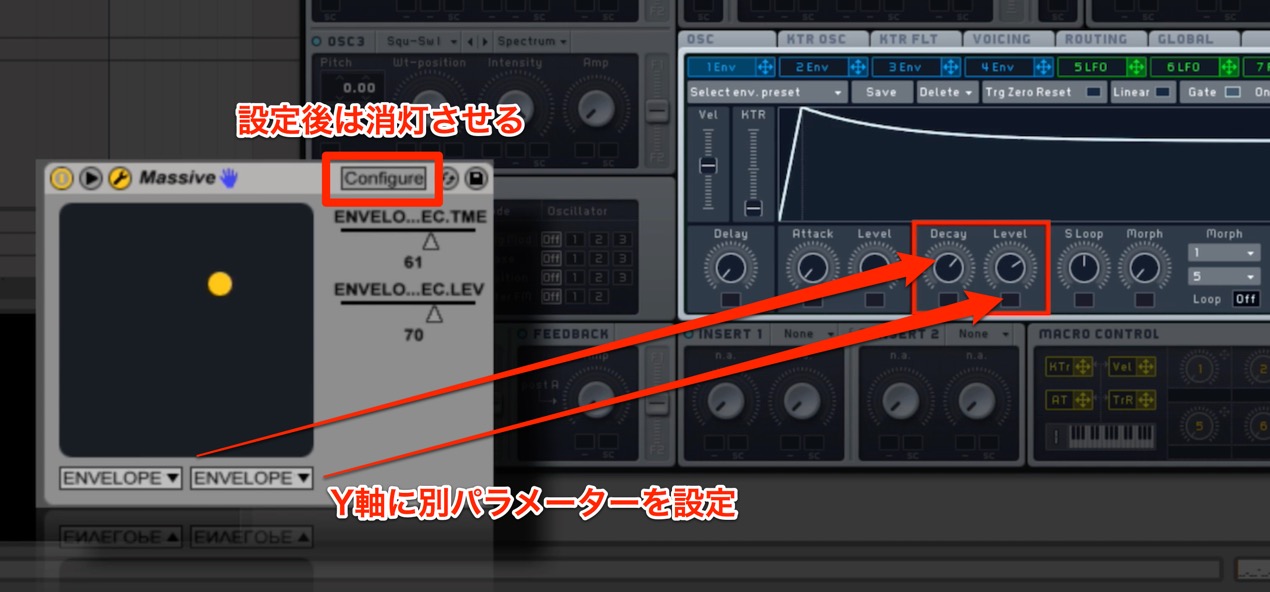
When you’re finished, click Configure again to turn it off.
Moving the yellow point horizontally and vertically now changes both parameters together,
letting you create interesting effects.
This kind of operation is commonly called morphing.
Recording Configure Automation
You can record these parameter movements as automation.
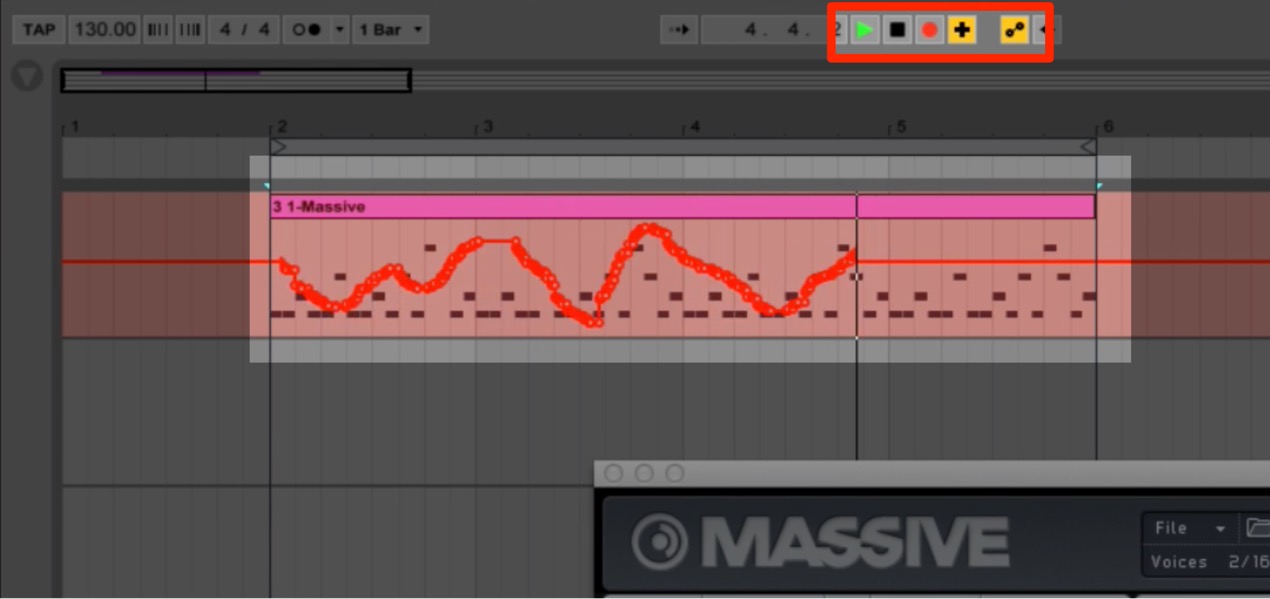
Make sure Automation Arm and Overdub are on,
then move the pad while recording.
Both parameters are recorded at the same time.
One point to keep in mind: as discussed in Automation Editing Tips and Precautions,
the original tutorial notes that third-party plug-in automation may become disabled after saving and reopening a set. Behavior may depend on the Live version and the plug-in.
If that happens,
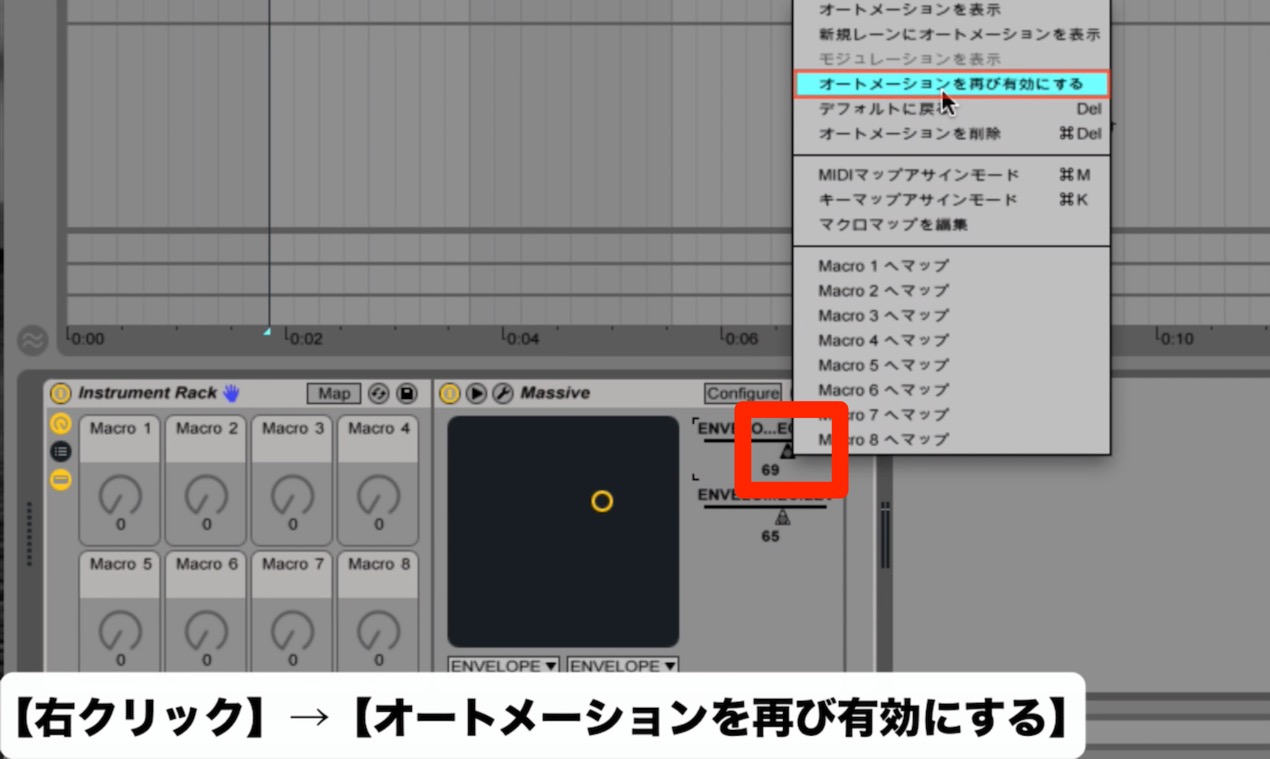
right-click the parameter in the configured controls
and choose “Re-enable Automation.”
Go to the product details page
Frequently Asked Questions
Q1. What is Configure in Ableton Live?
Configure exposes plug-in parameters in Live’s device view. In the setup shown here, the XY pad can control two of those parameters at once.
Q2. Can I record parameter movements from the XY pad as automation?
Yes. Enable Automation Arm and Overdub, then record while moving the pad to capture both parameters.
Q3. What if Configure automation for a third-party plug-in becomes disabled?
Right-click the configured parameter and select “Re-enable Automation.”
Q4. Can I use this with plug-ins other than MASSIVE during live performance?
Yes. Compatible plug-ins can also be controlled in real time during a performance.
NEW ARTICLES
Latest English Articles





























































































































































































































































































































































































































