
Keyboard shortcuts can make music production in Cubase much faster. This article explains frequently used commands for transport, audio and MIDI editing, zooming, automation, and mixing. It also covers consistent shortcuts across applications and a gradual approach to learning them. The assignments shown come from the original 2020 demonstration; some are customized, and availability or defaults may vary with your version, edition, and key-command preset.
Essential Cubase Shortcuts Explained

In this livestream, we explain practical ways to use keyboard shortcuts when producing music in Cubase.
Alongside less familiar commands, we also cover related operating techniques.
Watch the video to develop your music-production skills.
We would also love to hear about your favorite shortcuts in the comments.
Cubase Shortcut Techniques: Edited Video
Correction for Loop Selection at 6:21 in the video: the correct shortcut is Mac: Option + P / Windows: Alt + P. Corrected May 17, 2020.
We apologize for the incorrect shortcut shown in the original video.
How to Approach Keyboard Shortcuts
Keep the following points in mind when assigning shortcuts to get more benefit from them.
- If you use several DAWs or video-editing applications, matching your customizable shortcuts to an application whose assignments cannot be changed can make the controls more consistent.
- Do not try to memorize everything at once. Start with the operations you use often, then gradually add more commands.
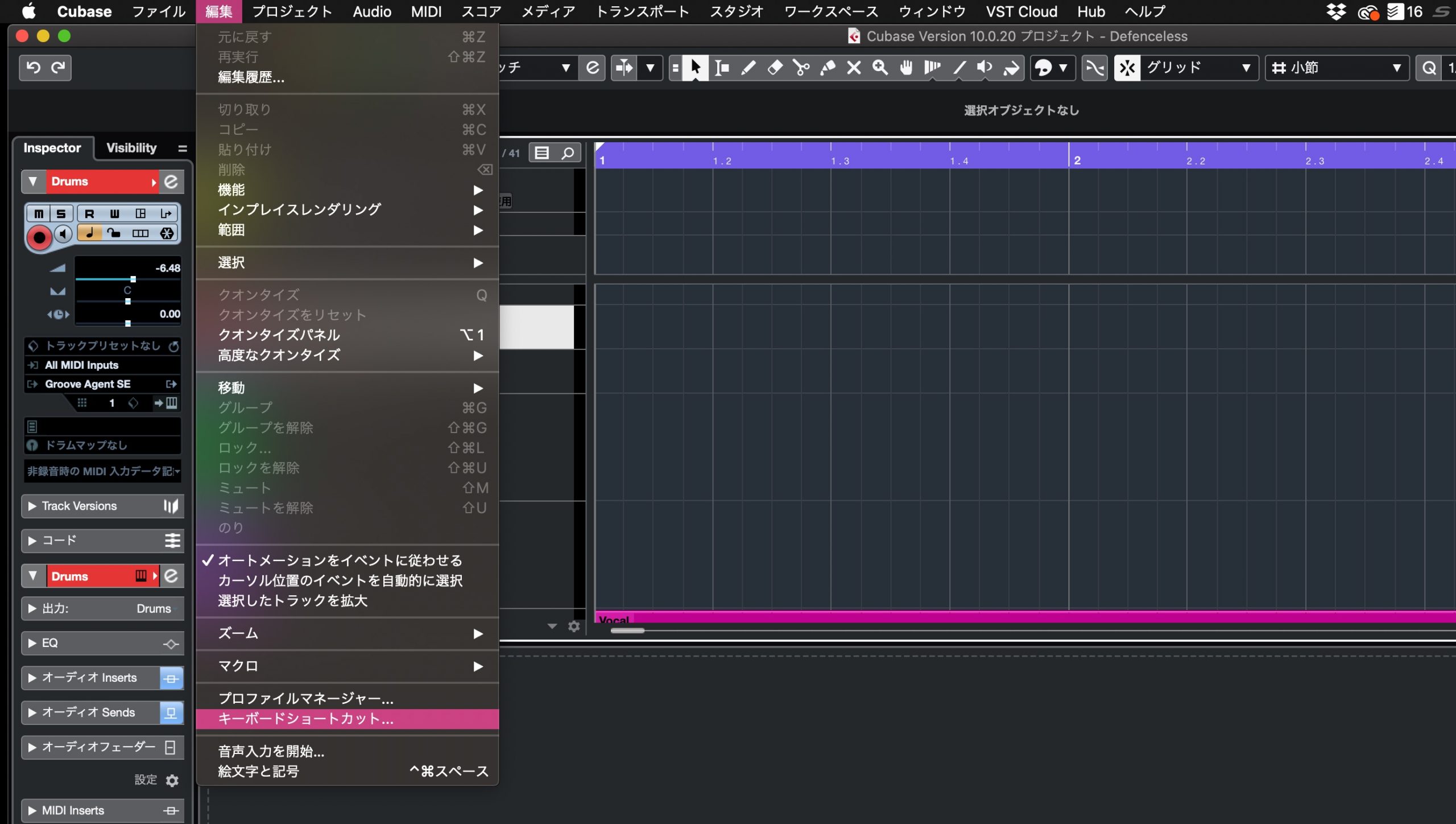
To check or assign shortcuts in the version shown, open Edit → Key Commands from the top menu.
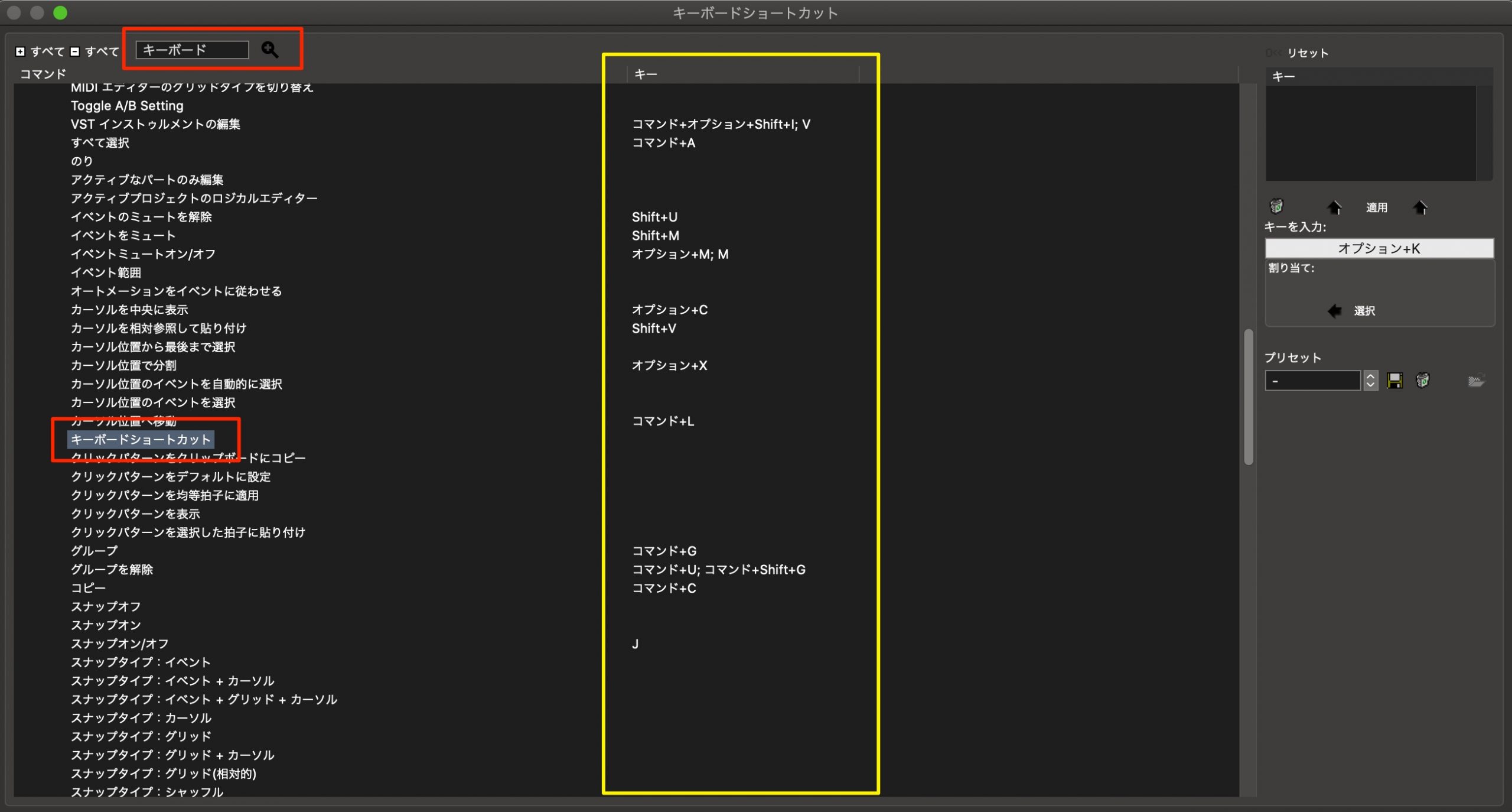
You can search for a command by name at the top of the window, highlighted in red.
Assigned keys appear beside the corresponding command, highlighted in yellow. Commands without an assignment have a blank Key field.
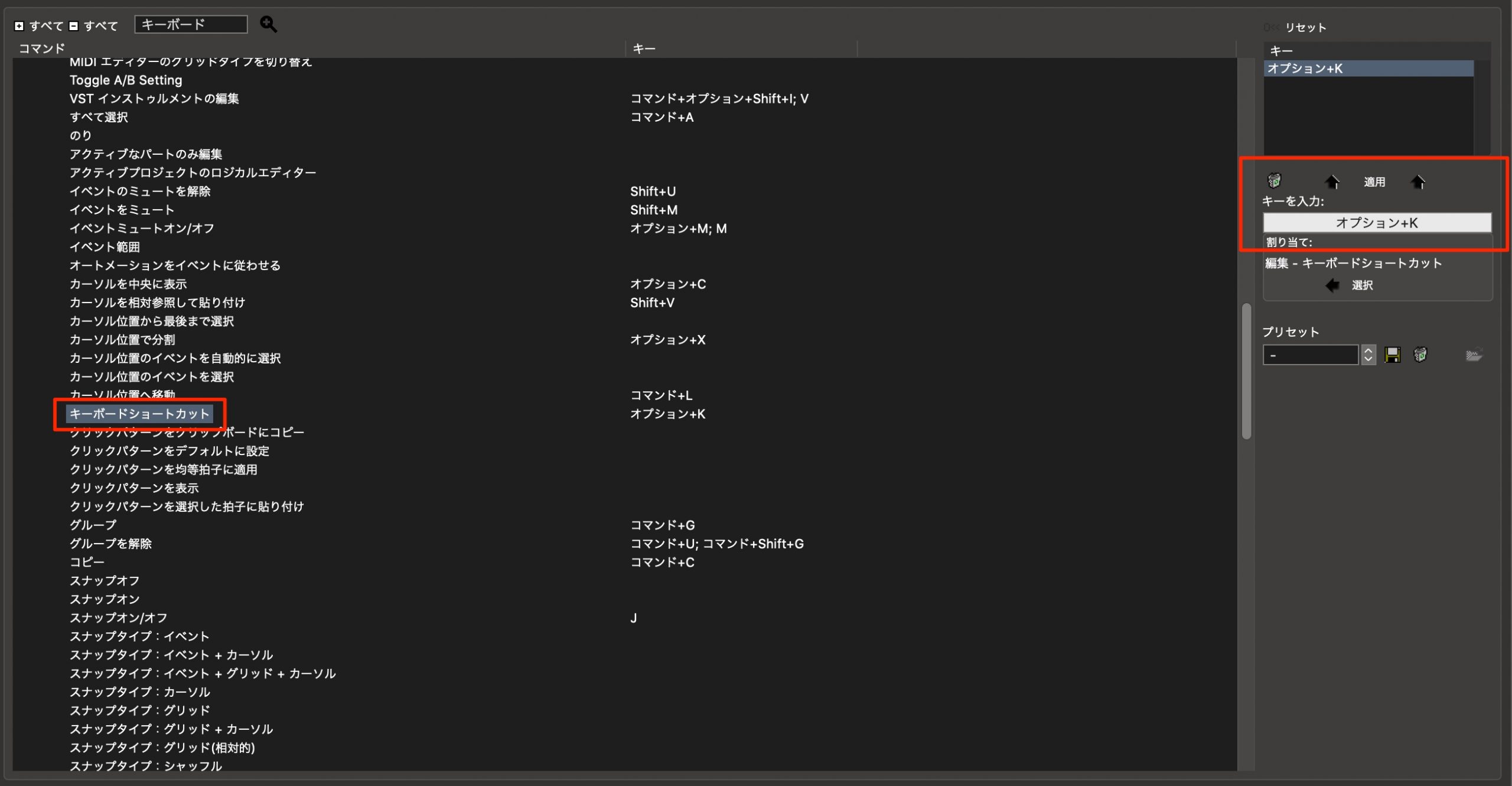
Select the command, click Type in Key on the right, and press the key combination you want to assign.
Then click Assign to bind that combination to the command.
If you are configuring many shortcuts, assigning a shortcut to the Key Commands window itself is convenient.
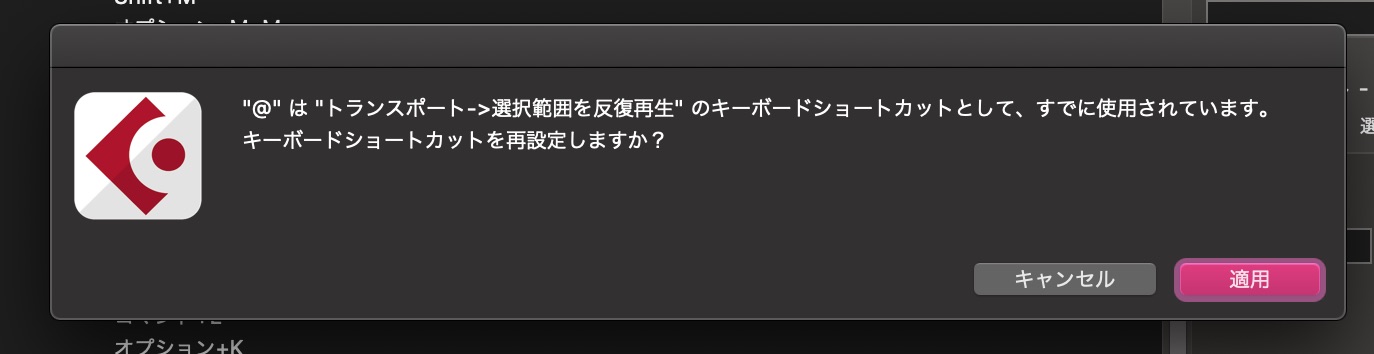
You cannot assign a conflicting key combination to multiple commands in the same context.
If an assignment conflicts, a dialog like this asks which command should take priority.
Now let's look at a selection of useful shortcuts. The combinations below are those discussed in the original demonstration; check your own Key Commands settings.
NA marks a command with no assigned shortcut in the setup described here.
Assign a key combination of your choice to these commands.
Transport Shortcuts
First, let's look at frequently used transport commands, including playback and stop, which use the Space bar.
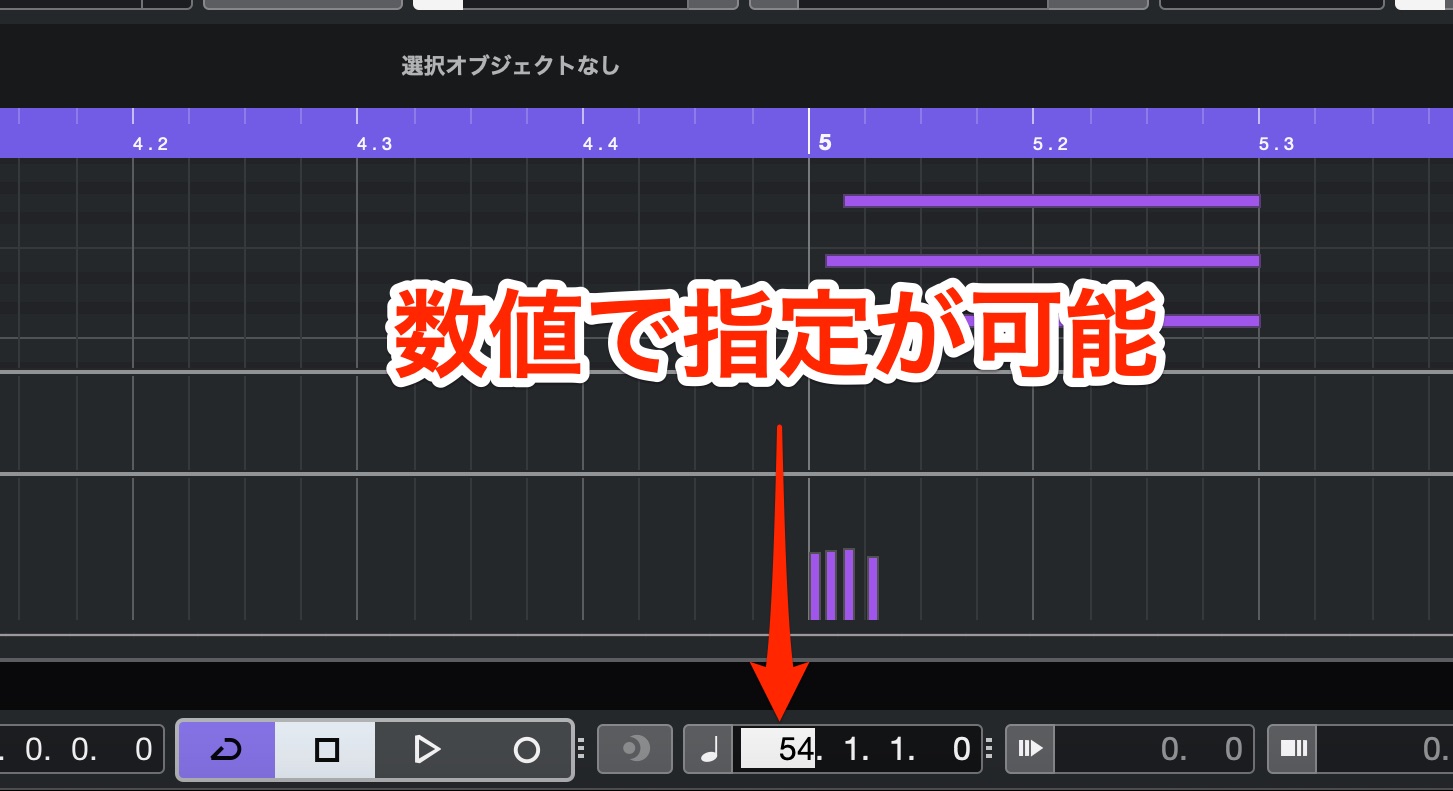
- Enter Project Cursor Position: Shift + P
Enter a numeric value to specify the project cursor position.
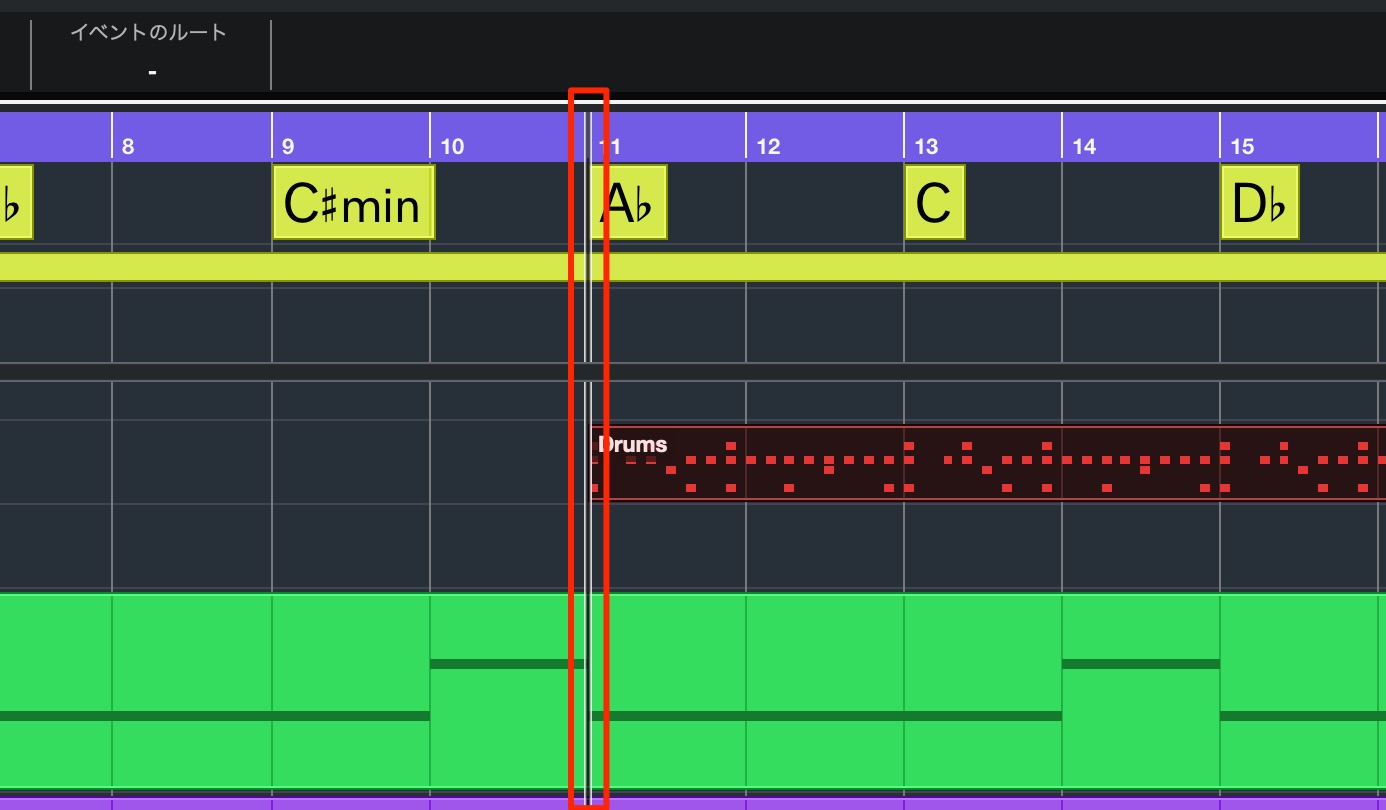
- Locate Selection Start: L
Move the project cursor to the beginning of the selected event.
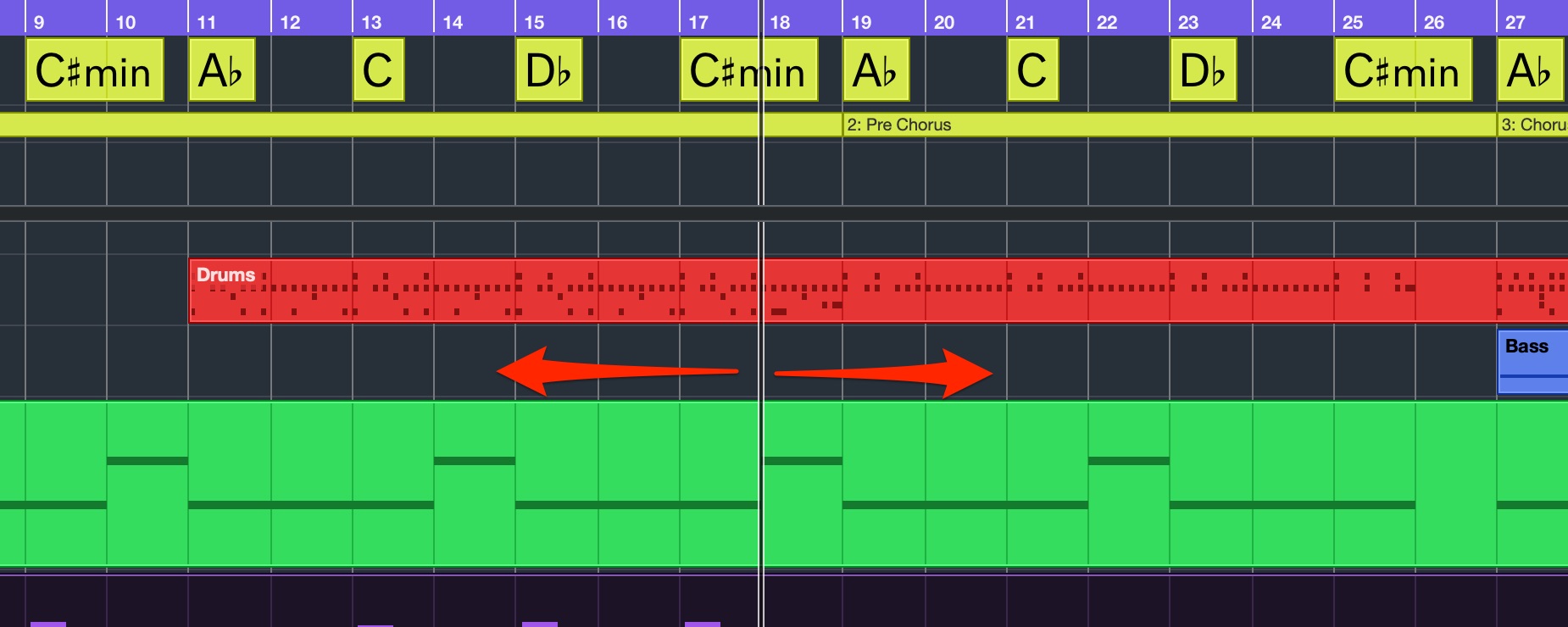
- Rewind / Forward: Numeric keypad − / +
Move the project cursor backward or forward to refine its position.
If your keyboard has no numeric keypad, consider assigning alternative keys.
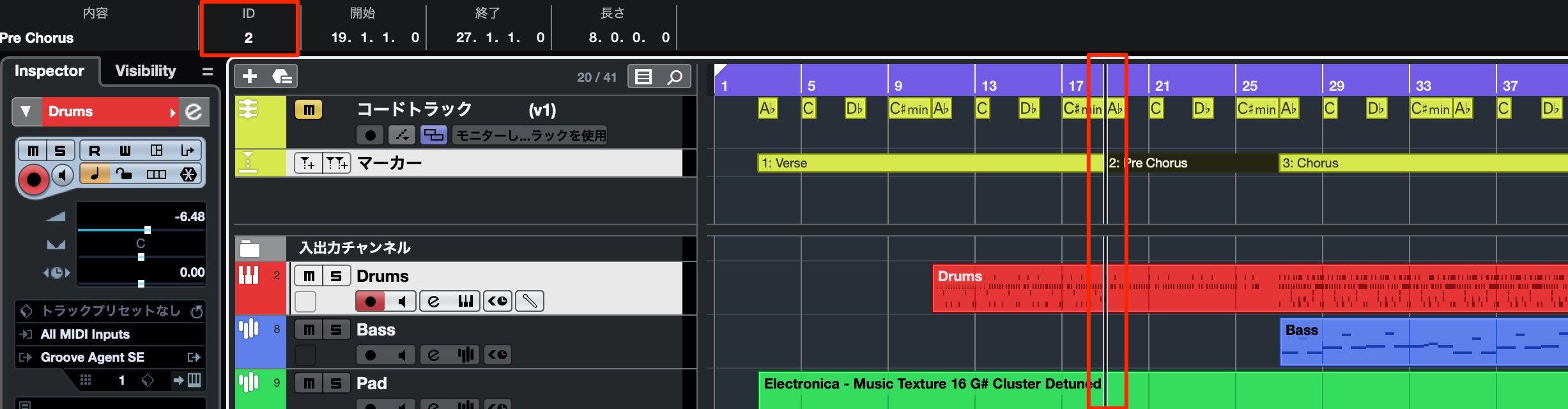
- Recall Cycle Markers: Shift + 1–9, as shown in the demonstration
Recall the cycle marker with the corresponding ID.
- Locate Markers: Mac: Command + 1–9 / Windows: Control + 1–9, as shown in the demonstration
Move the project cursor to the marker with the corresponding ID.
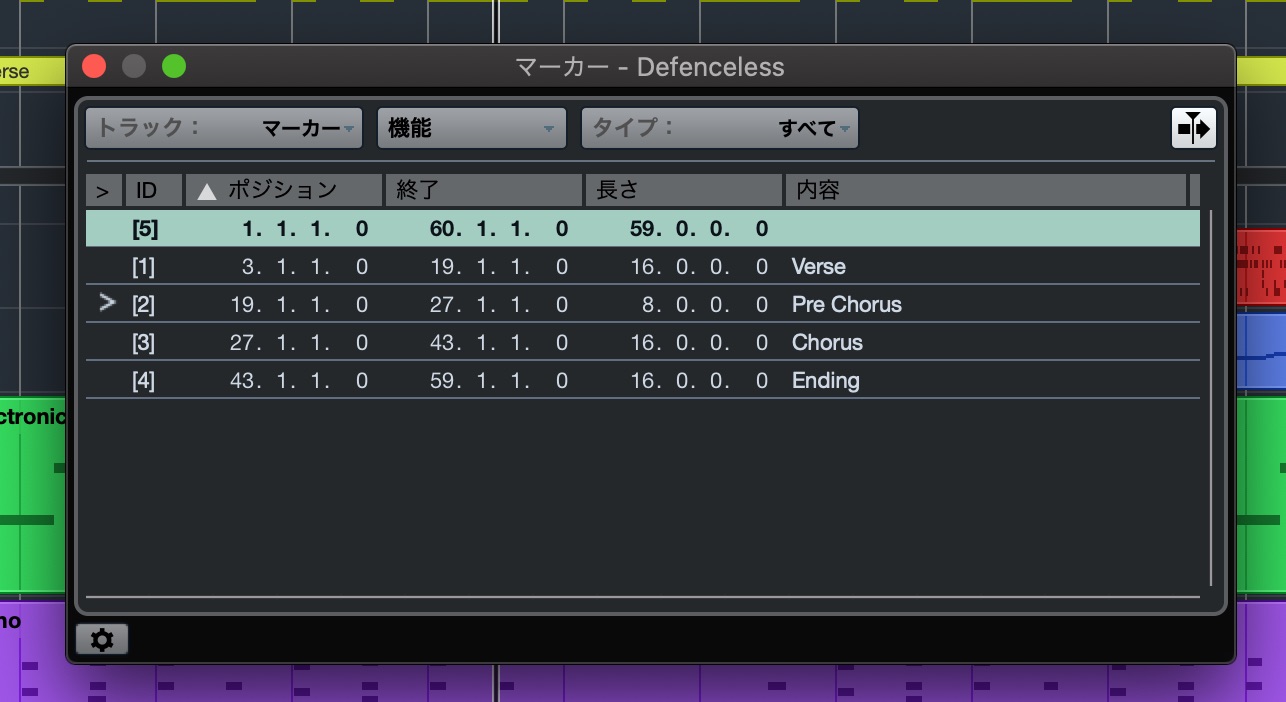
- Insert and Name Marker: NA
Insert a marker at the project cursor and open the marker-management window.
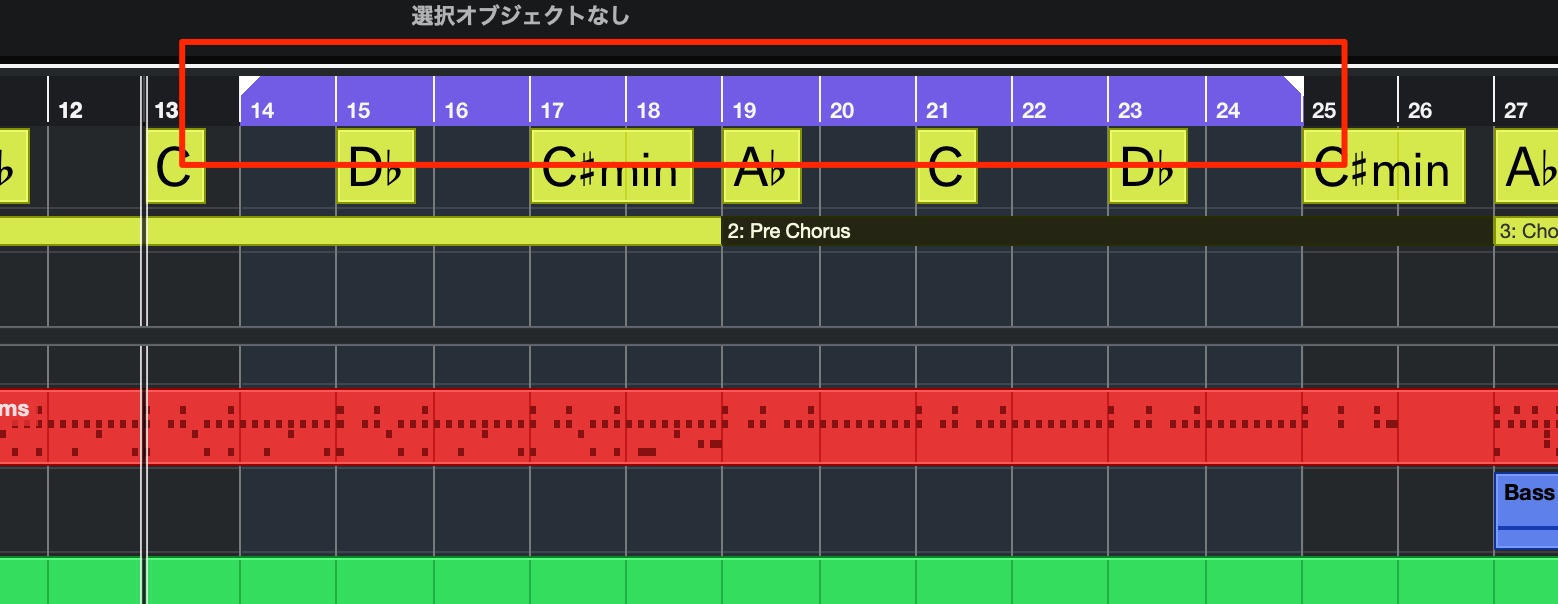
- Cycle: Numeric keypad /
Turn cycle playback within the locator range on or off.
If your keyboard has no numeric keypad, consider assigning alternative keys.
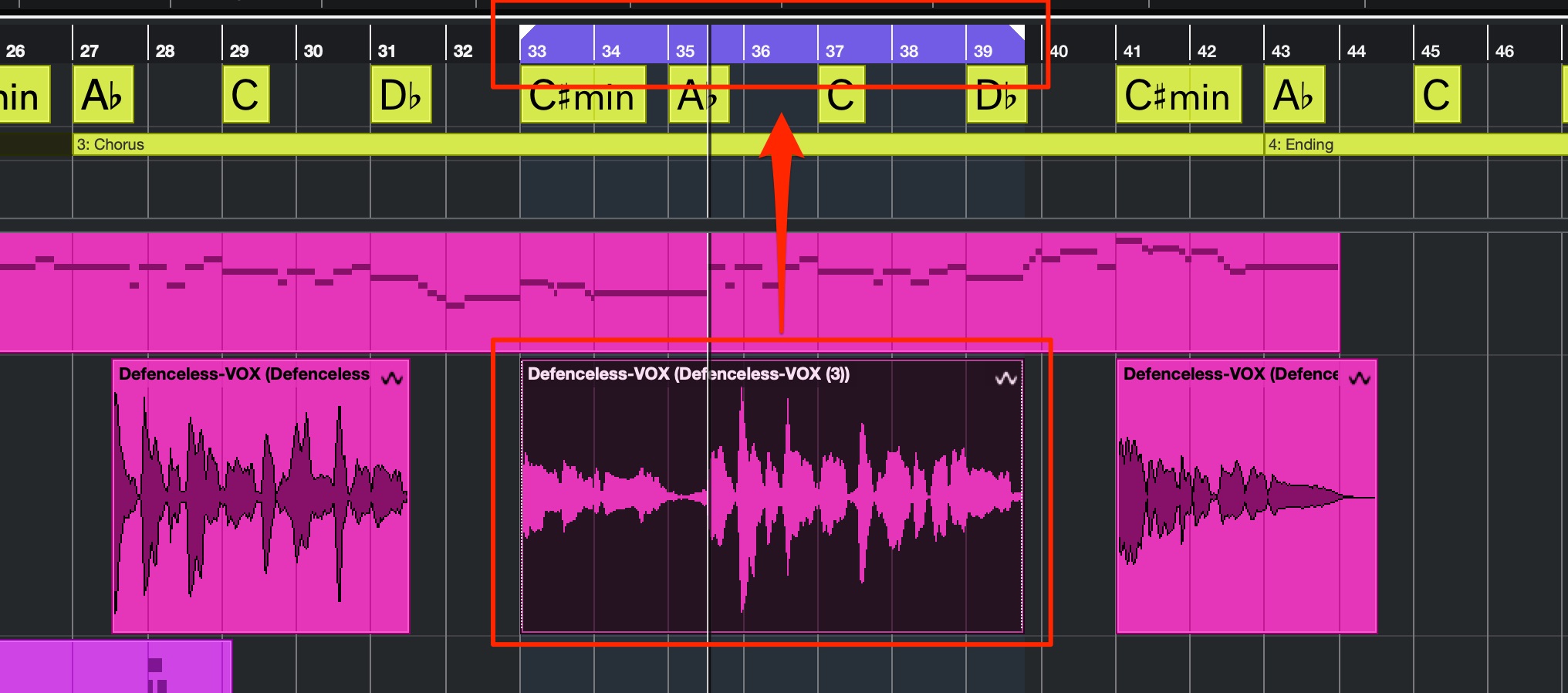
- Loop Selection: Mac: Option + P / Windows: Alt + P (corrected May 17, 2020)
Set the cycle range to the selected events or notes and start playback.
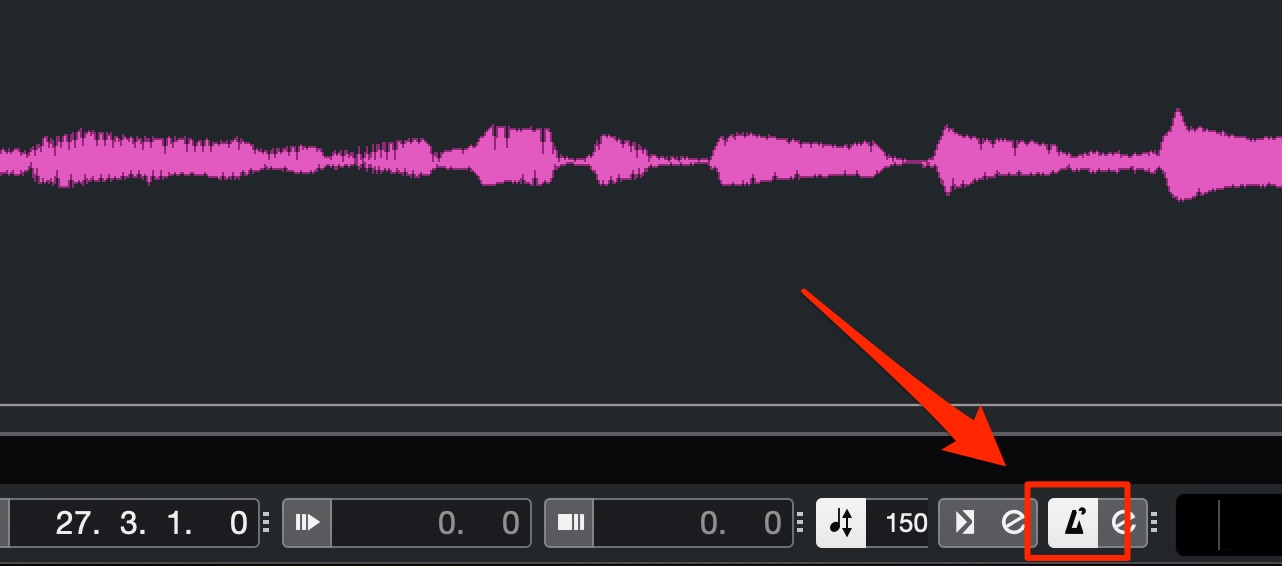
- Activate Metronome: C
Turn the metronome on or off.
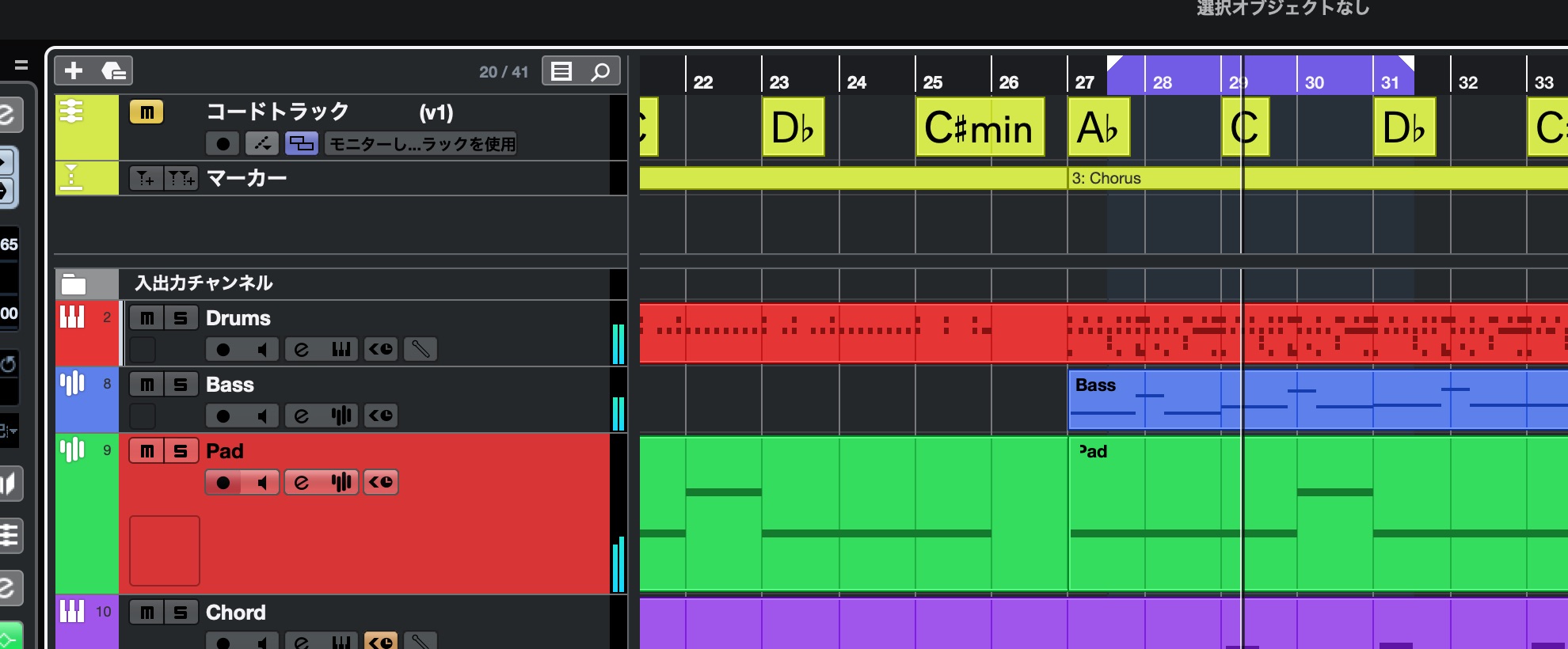
- Record: Numeric keypad *
Start recording.
If your keyboard has no numeric keypad, consider assigning alternative keys.
Commands for Both Audio and MIDI
Next, let's look at operations used with both audio and MIDI.
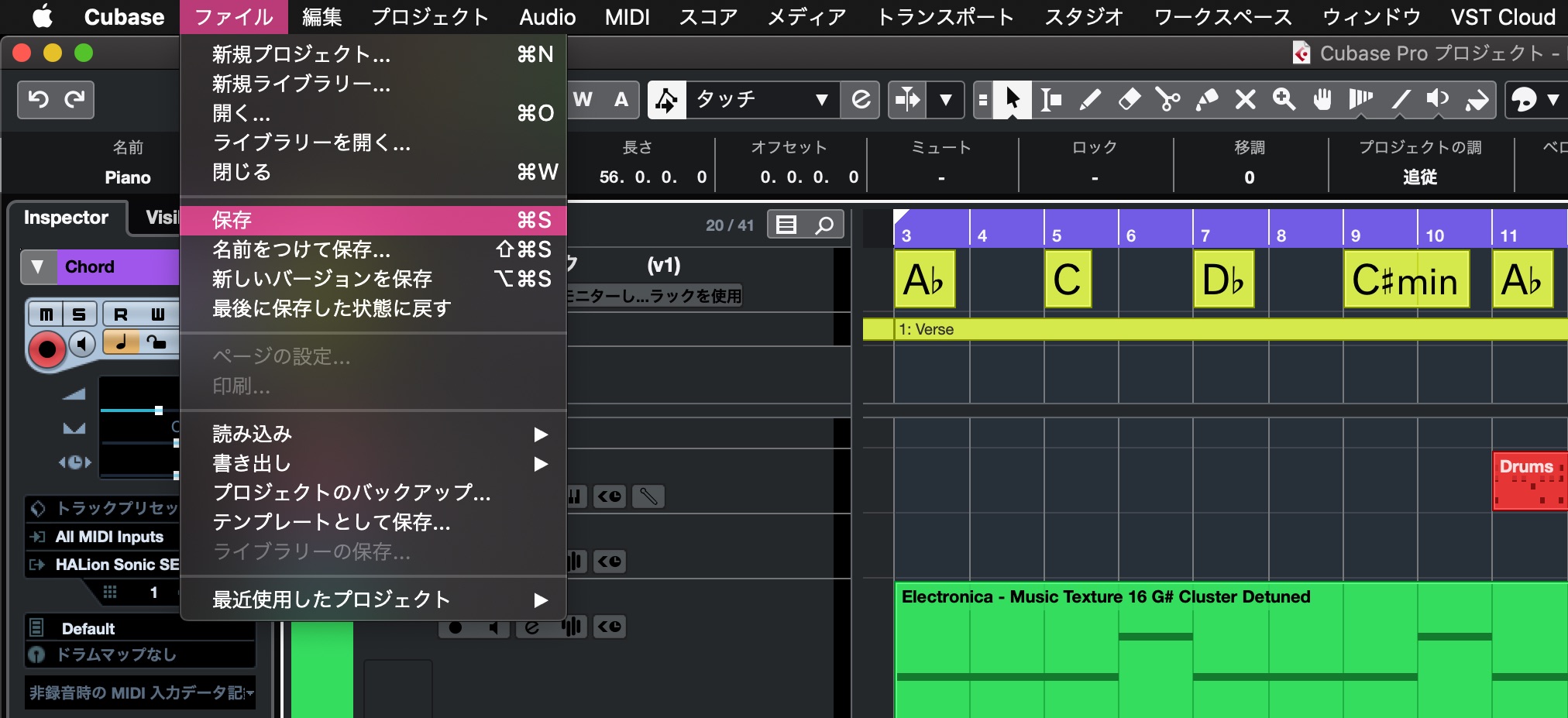
- Save: Mac: Command + S / Windows: Control + S
Save changes to the current project.
- Save As: Mac: Command + Shift + S / Windows: Control + Shift + S
Save the project under a different name, which is useful when creating an alternative version.
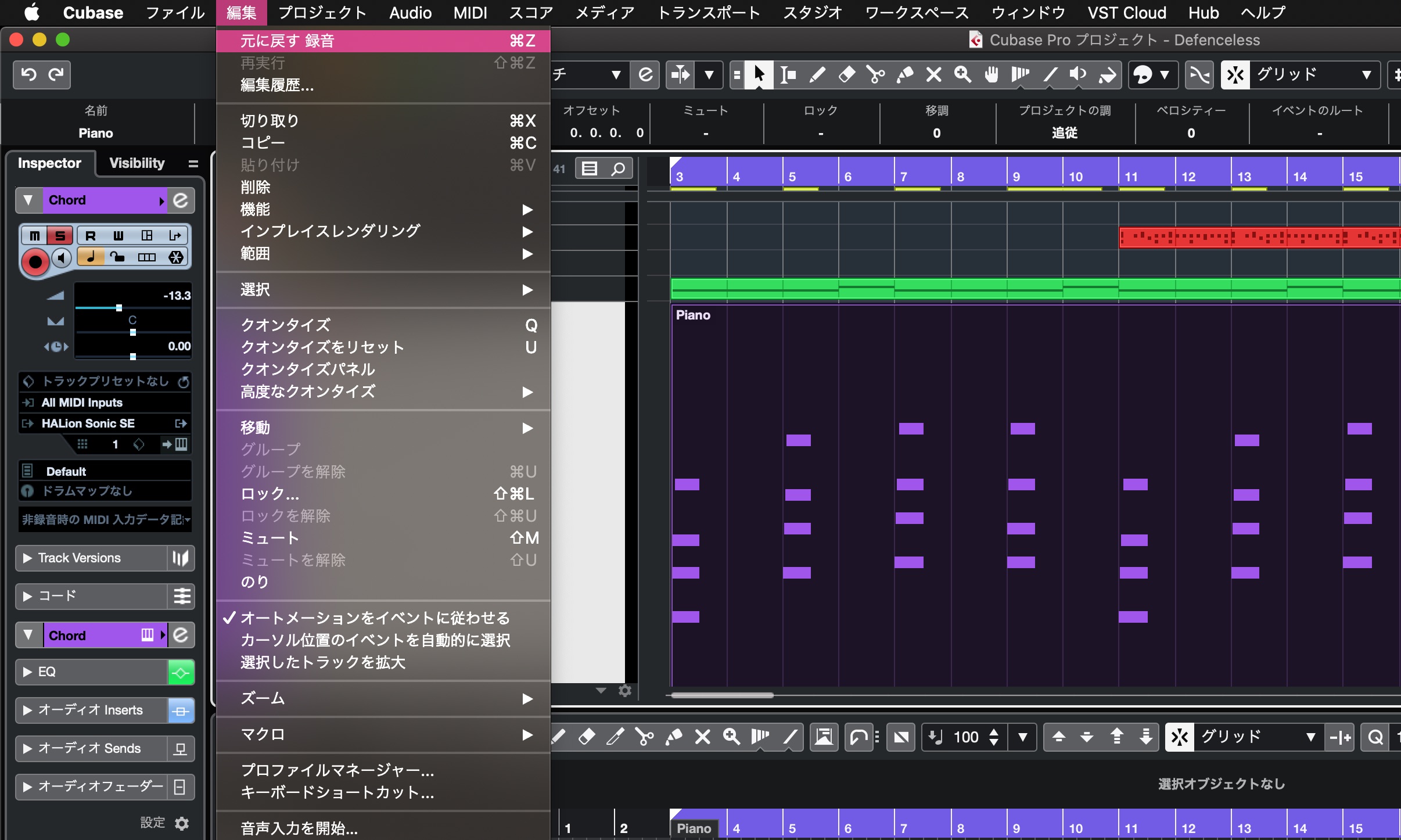
- Undo: Mac: Command + Z / Windows: Control + Z
Undo the previous operation.
- Redo: Mac: Command + Shift + Z / Windows: Control + Shift + Z
Reapply an operation that you undid.
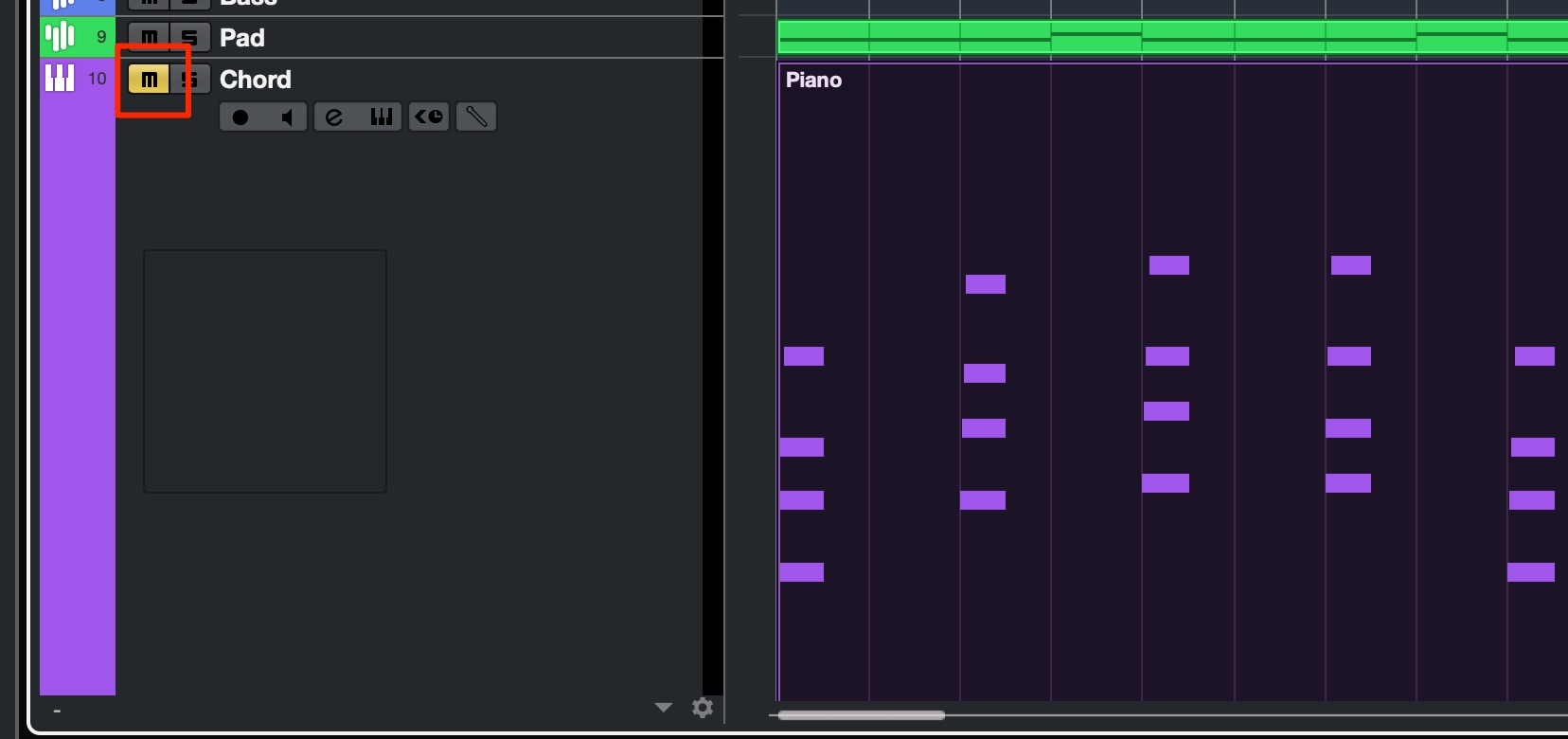
- Mute: M
Turn track mute on or off.
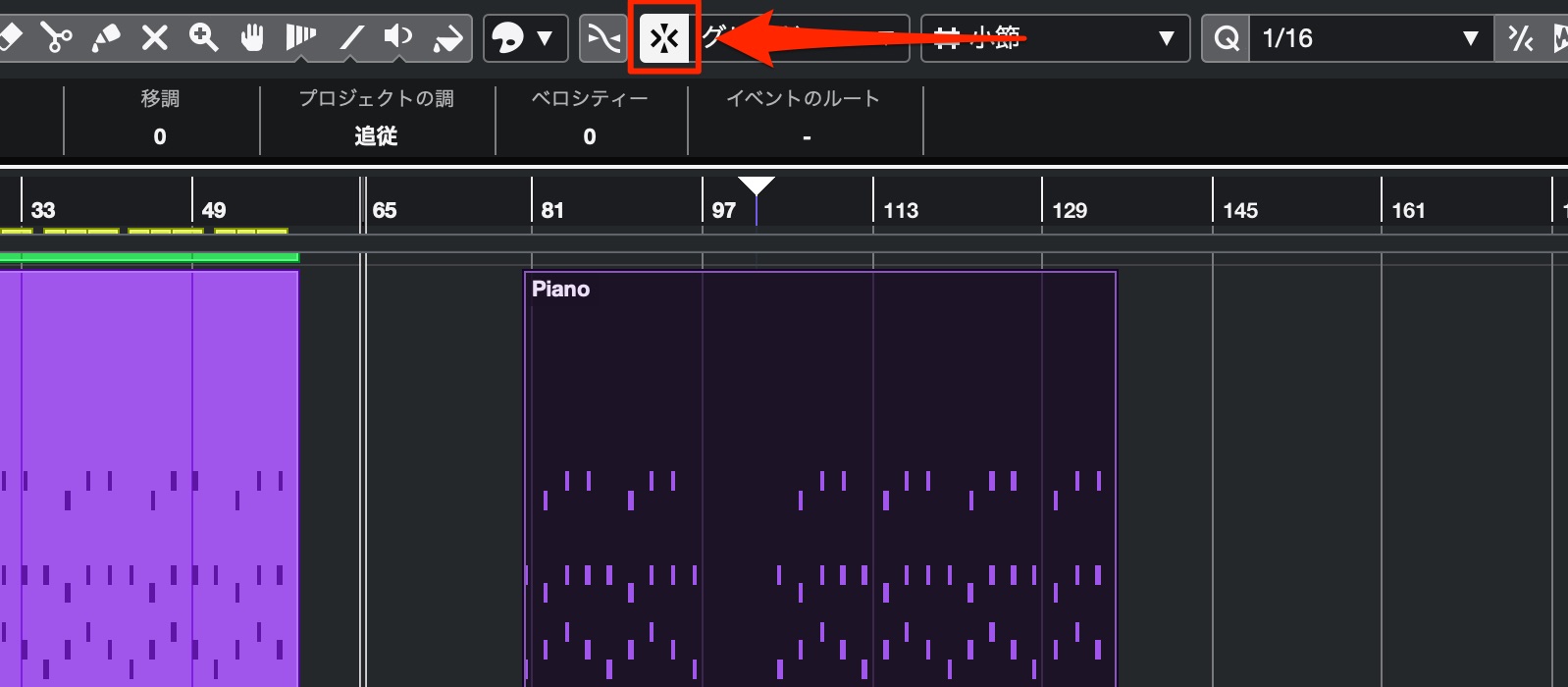
- Snap On/Off: J
Enable or disable snapping to the editing grid.
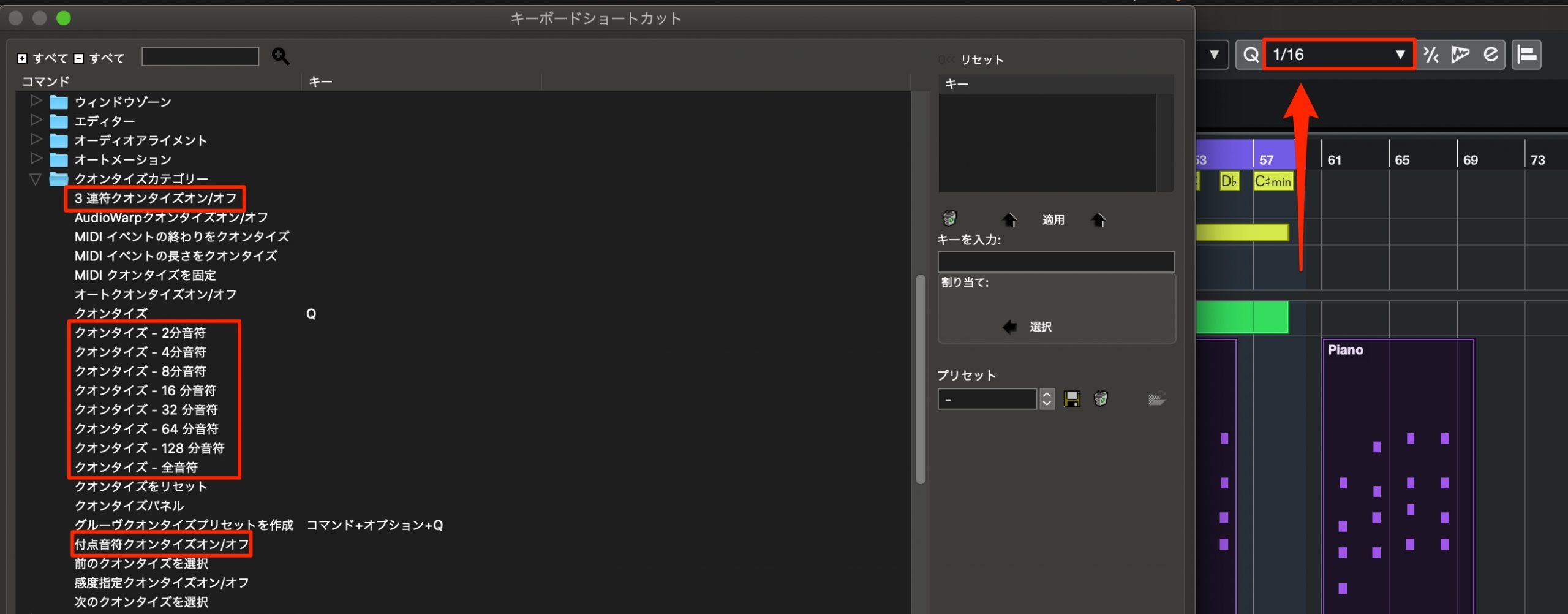
- Change Quantize Value: NA
Change the quantize note value. Commands are also available for switching triplet and dotted quantize values on or off.
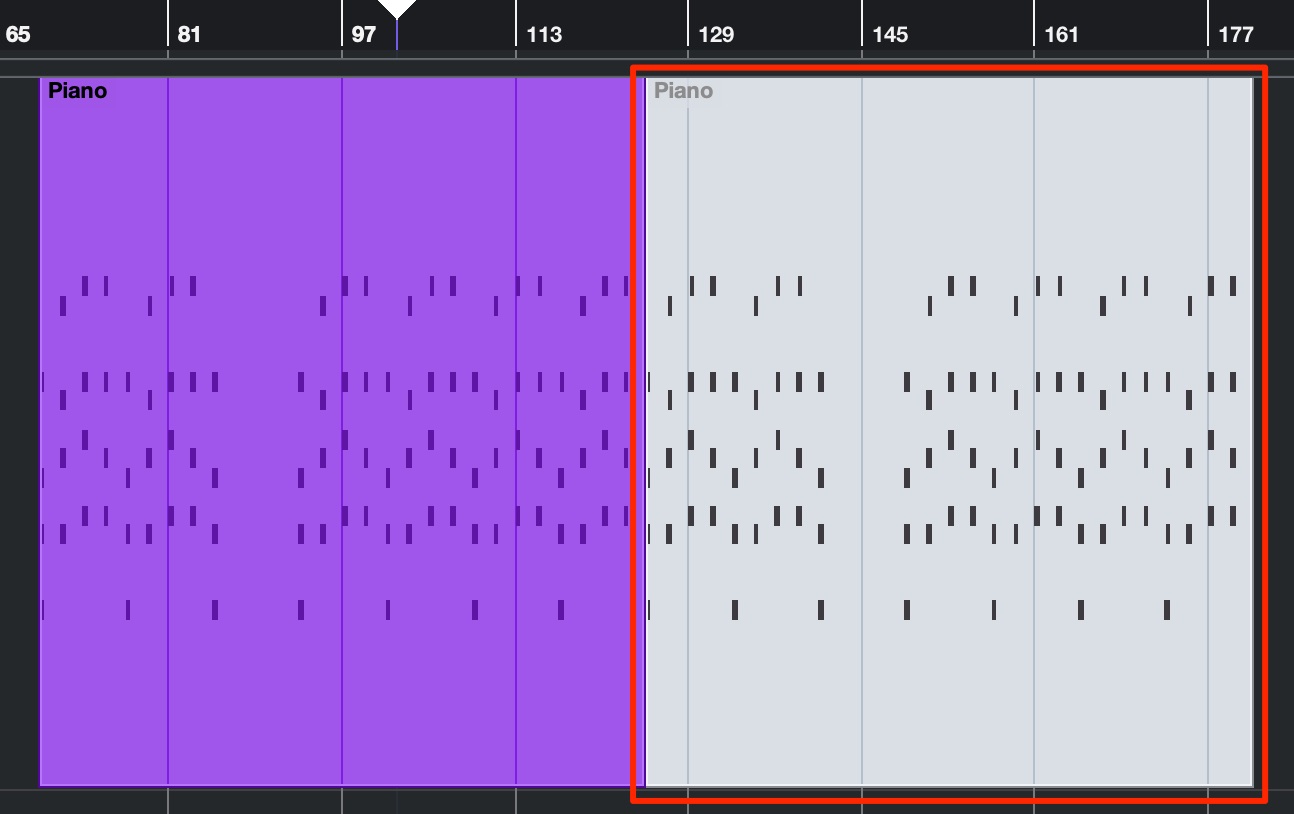
- Mute Events: Mac: Option + M / Windows: Alt + M
Mute selected events or notes, or unmute them if they are already muted.
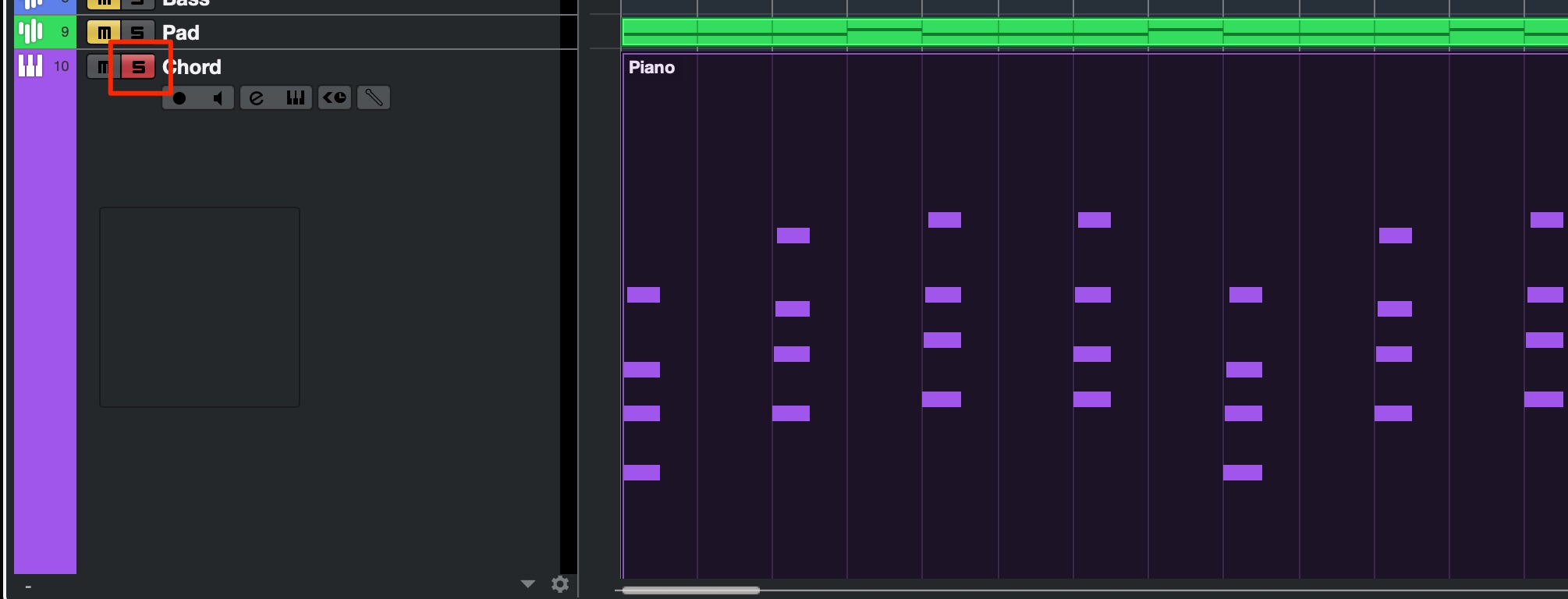
- Solo: S
Turn track solo on or off.
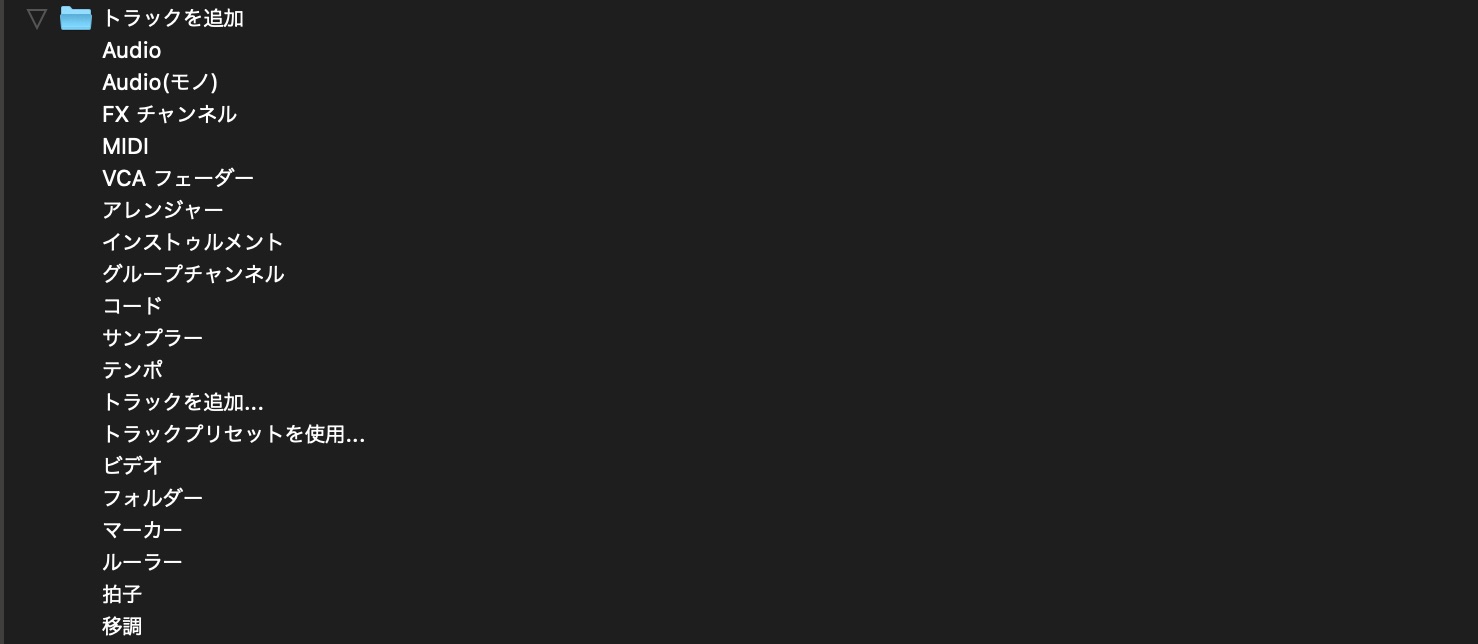
- Add Track: NA
Assign shortcuts for the track types you use frequently.
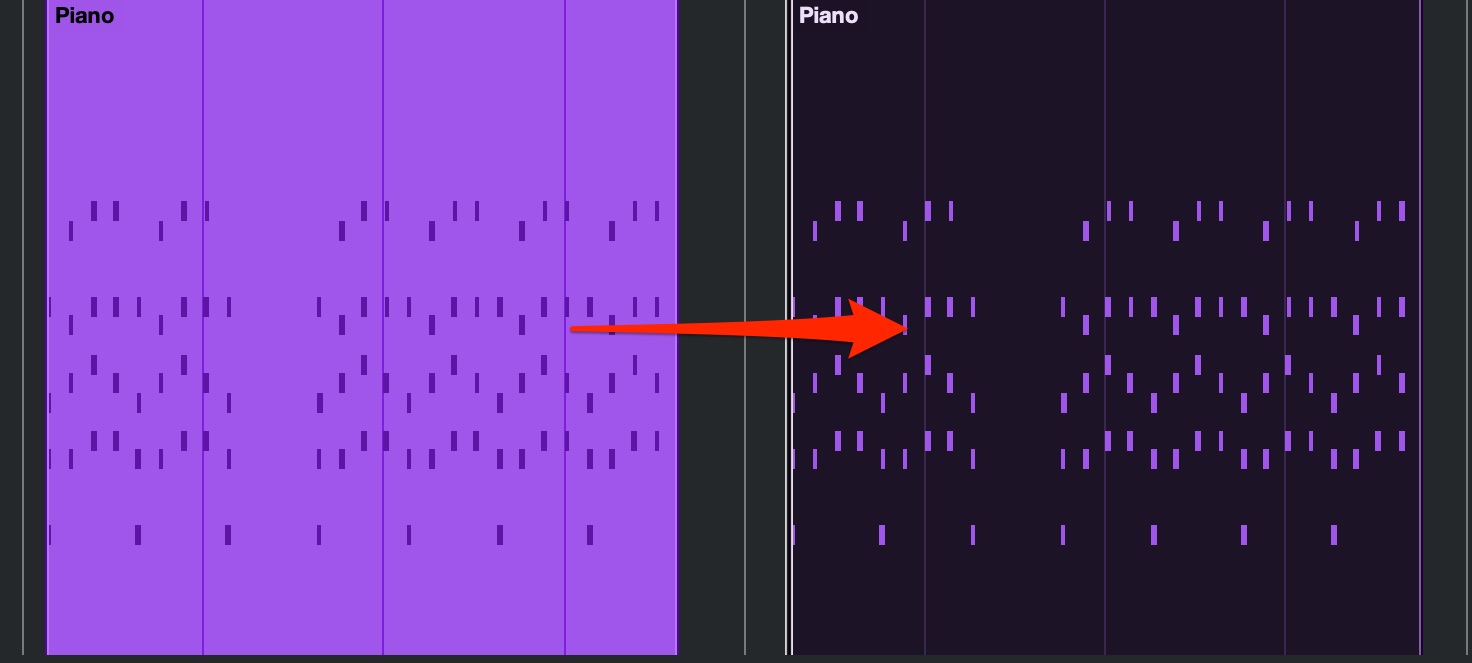
- Copy: Mac: Command + C / Windows: Control + C
Copy the selected events or notes.
- Paste: Mac: Command + V / Windows: Control + V
Paste the copied events or notes.
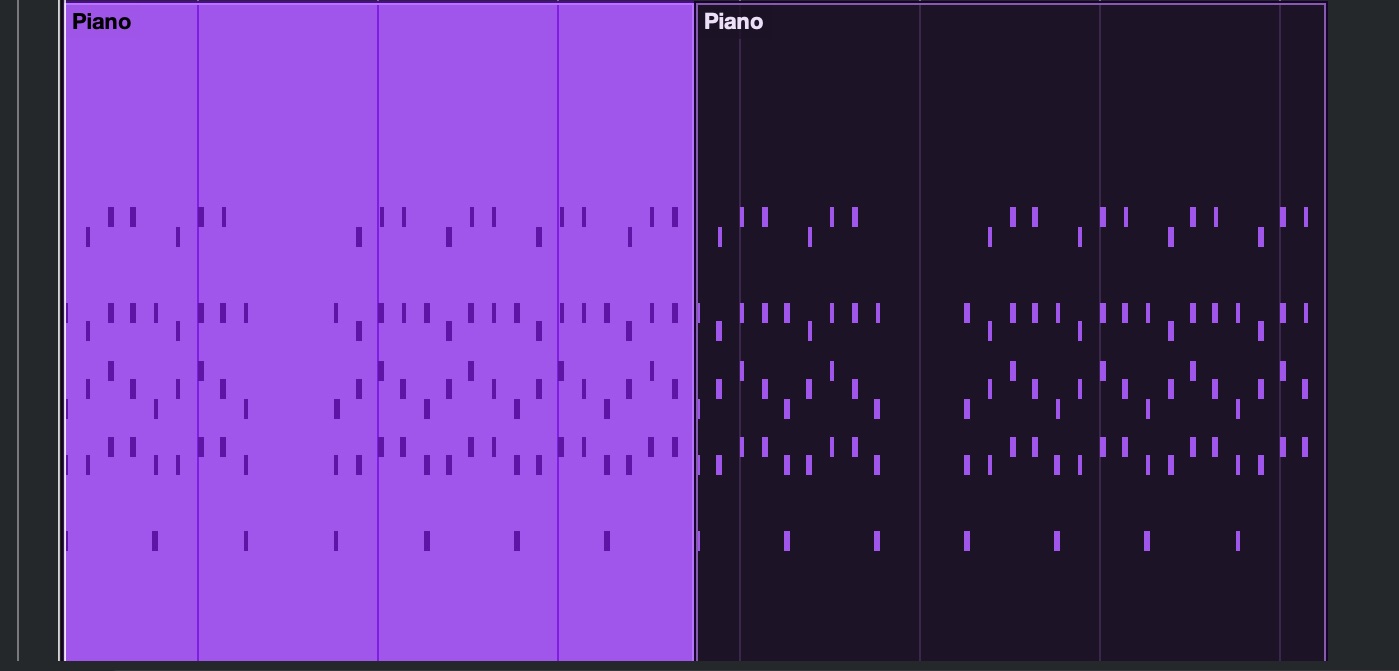
- Duplicate: Mac: Command + D / Windows: Control + D
Create a copy immediately after the selected events or notes.
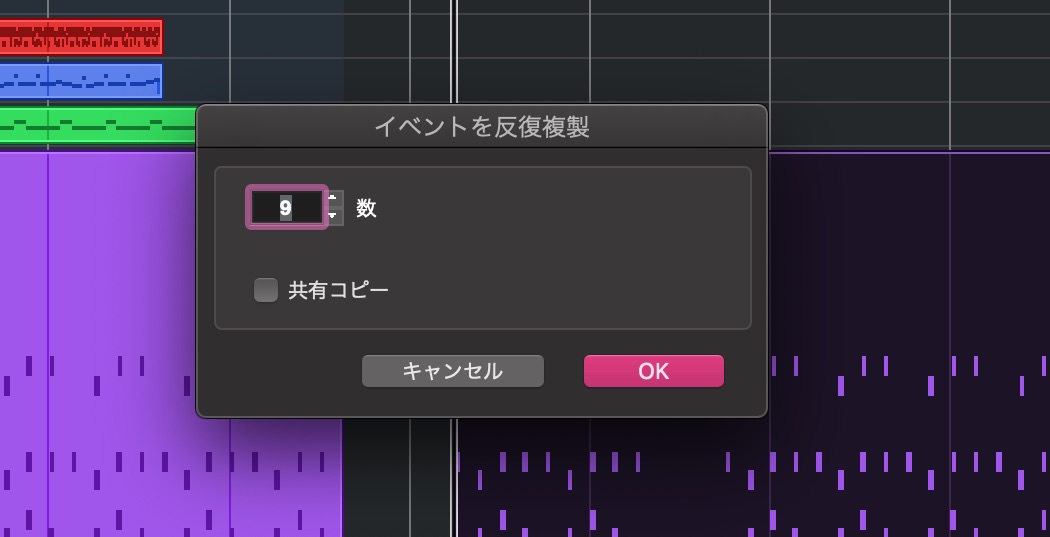
- Repeat Events: Mac: Command + K / Windows: Control + K
Create a specified number of copies of the selected events or notes.
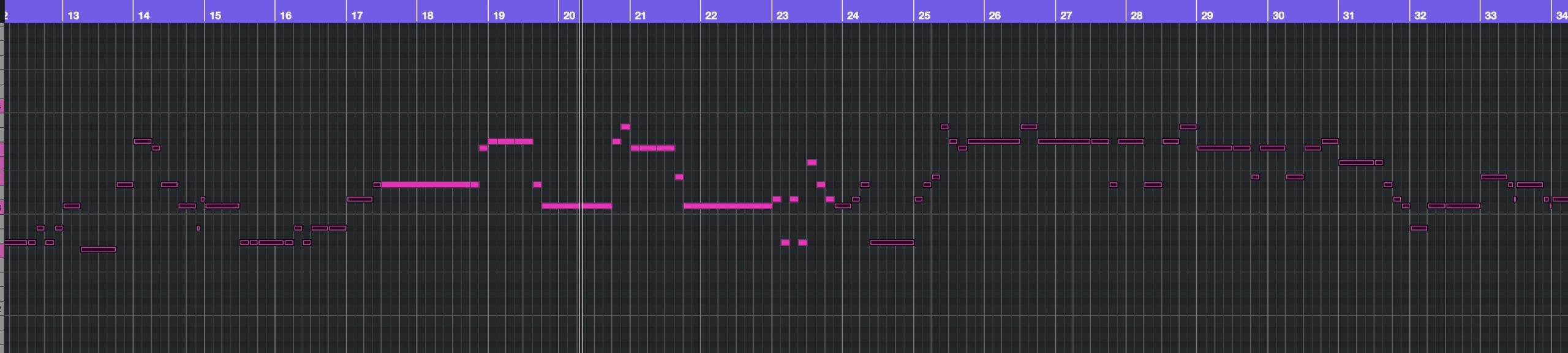
- Invert Selection: Mac: Command + Option + I / Windows: Control + Alt + I
Swap selected and unselected items.
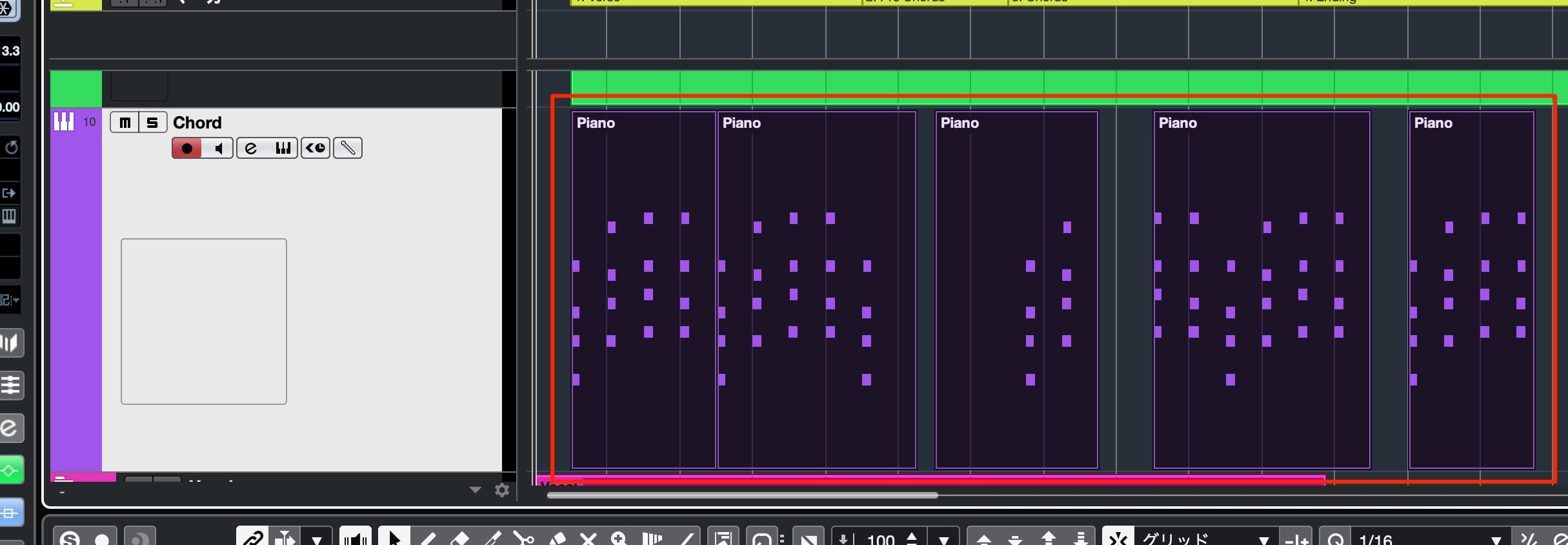
- Select All Events on Selected Tracks: NA
Select the events placed on the specified tracks at once.
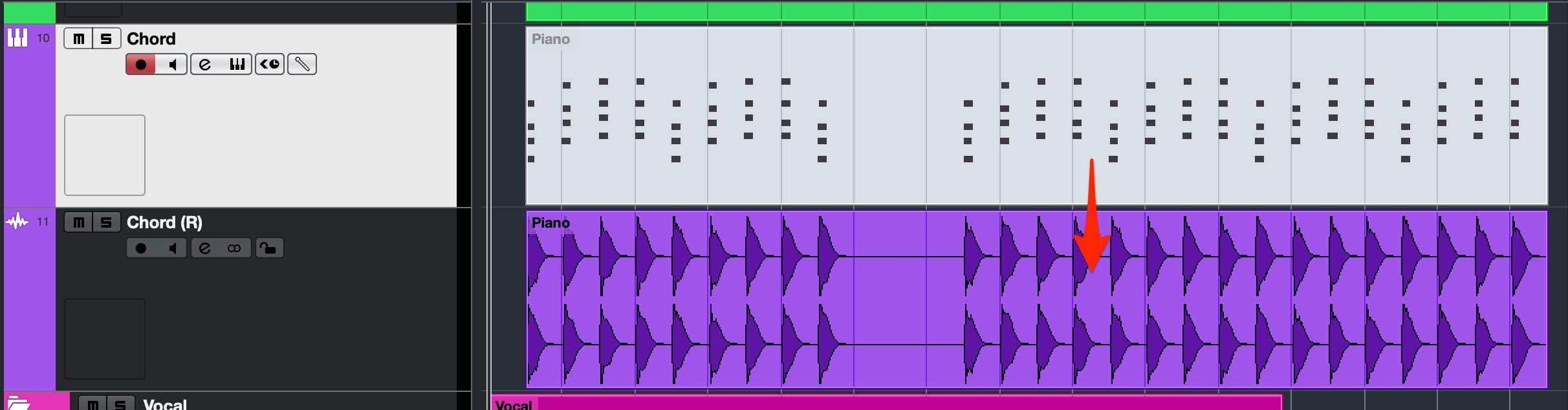
- Render with Current Settings: NA
Create an audio file from the selected events.
Audio Editing Shortcuts
These essential commands apply specifically to audio events.
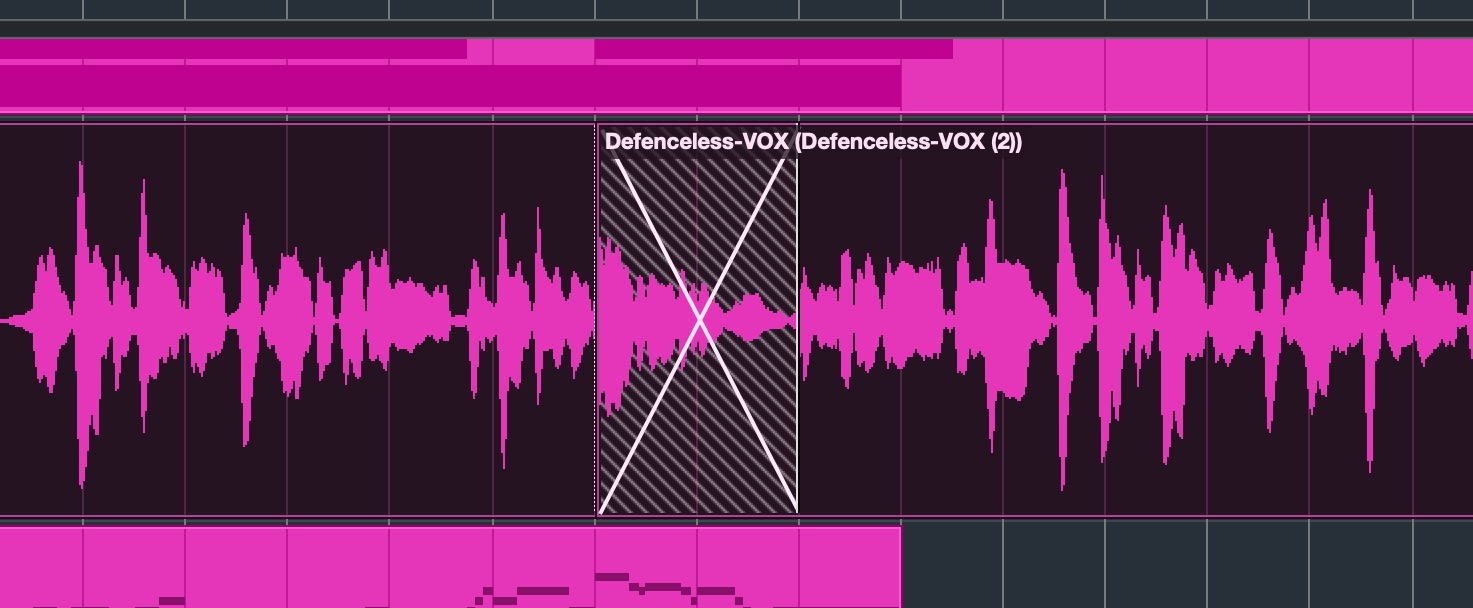
- Crossfade: X
Create a crossfade between overlapping audio events.
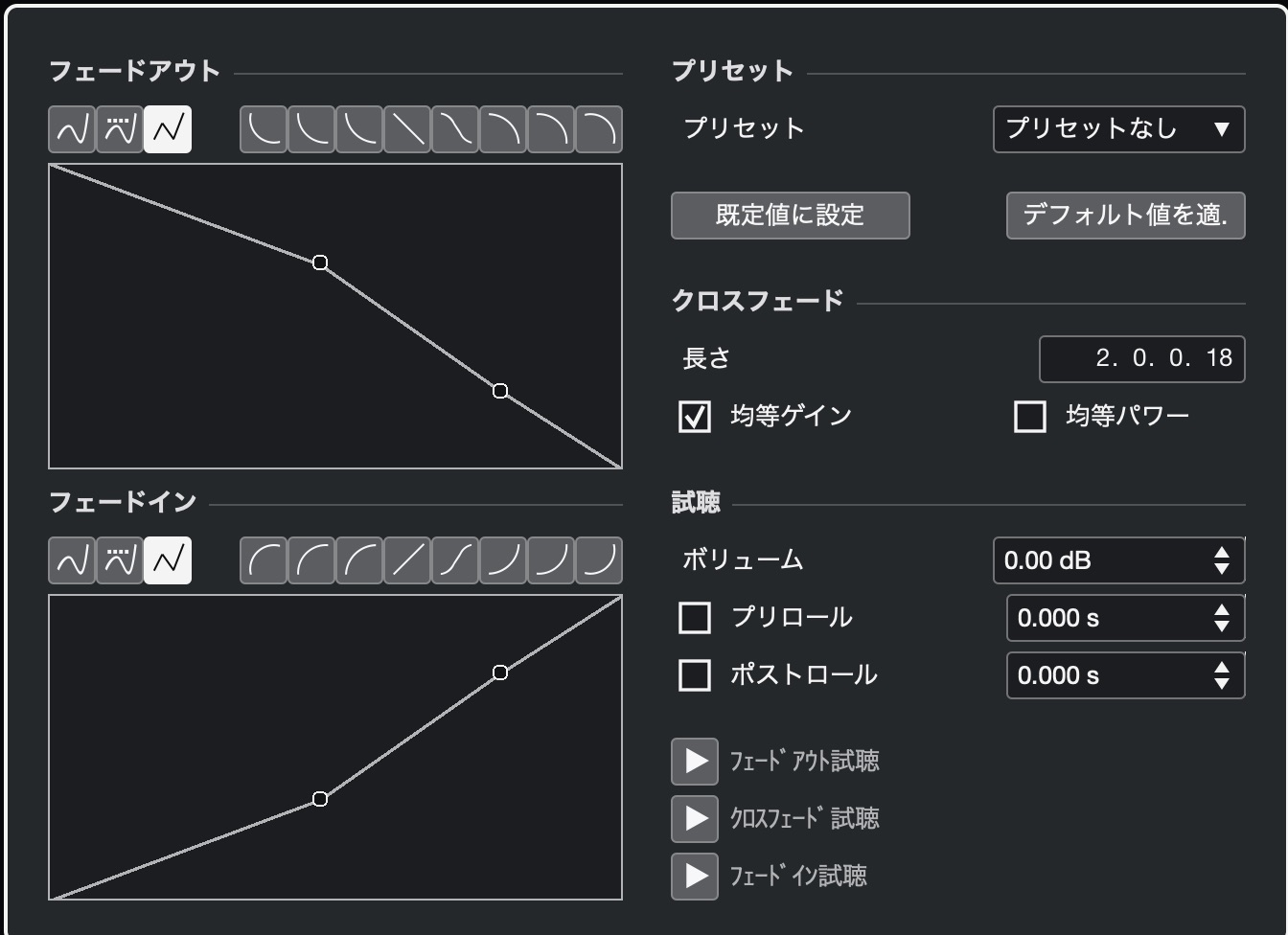
- Open Fade Editor: NA
Open an editor for adjusting the fade curve.
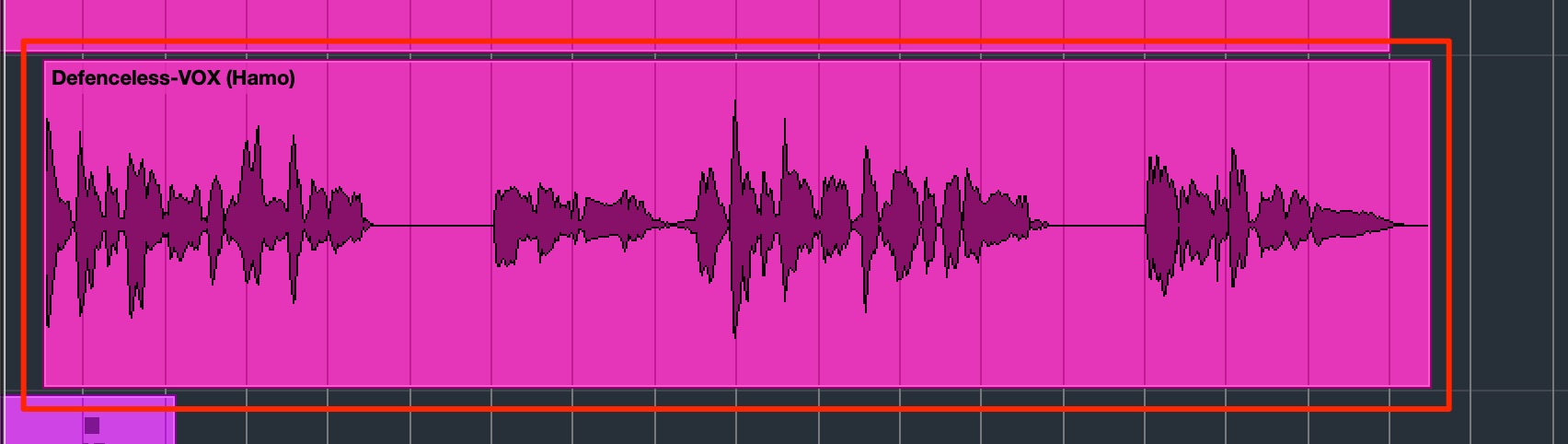
- Bounce Selection: NA
Combine the selected audio events into a new audio file.
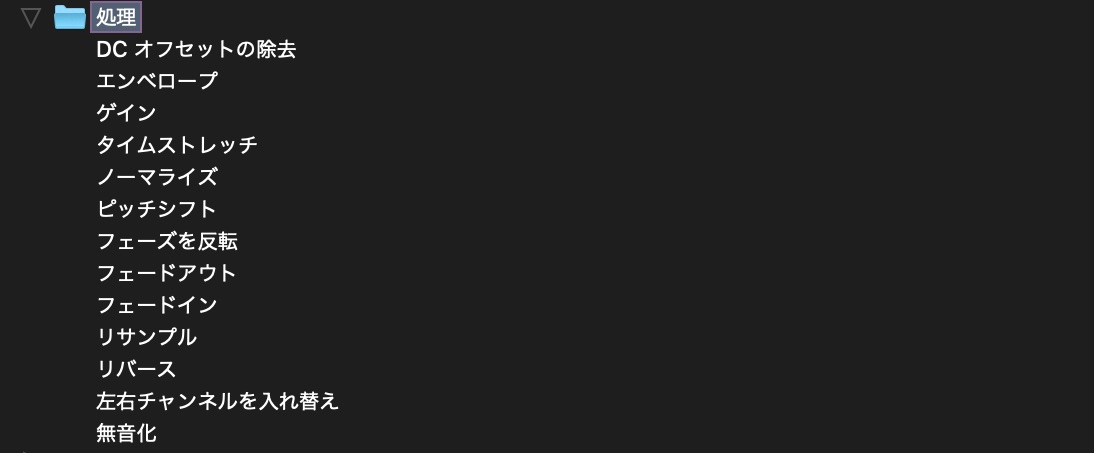
- Audio Process Commands: NA
Assign shortcuts to processes you use frequently, such as Reverse or Normalize.
MIDI Editing Shortcuts
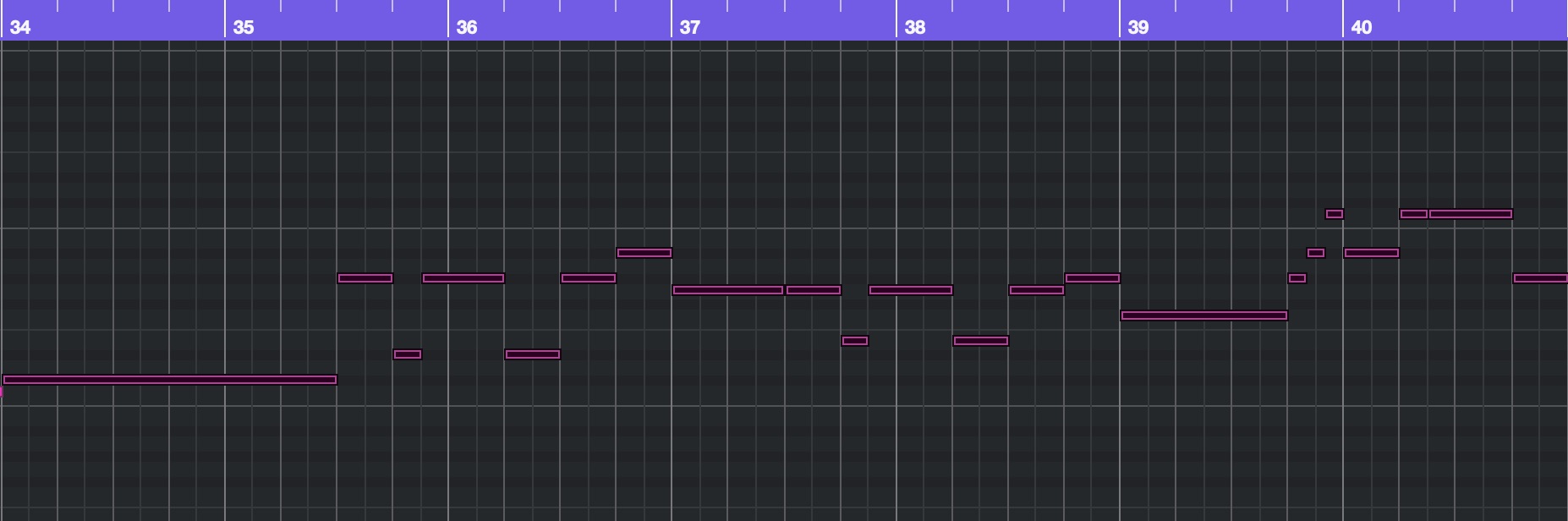
- Quantize: Q
Quantize the selected notes to adjust their timing.
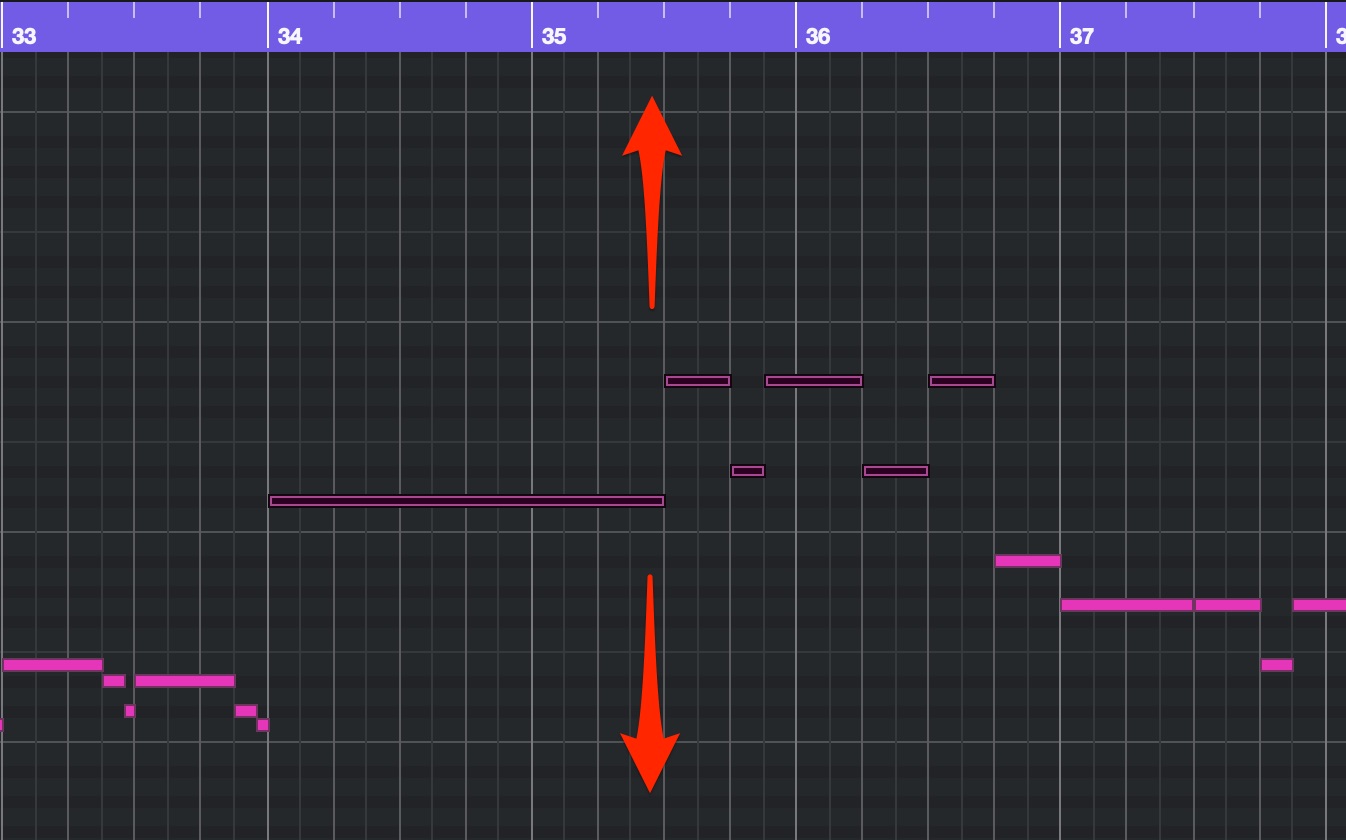
- Transpose by Semitone: Up Arrow / Down Arrow
Up raises the pitch by a semitone; Down lowers it. Hold Shift to transpose by octaves.
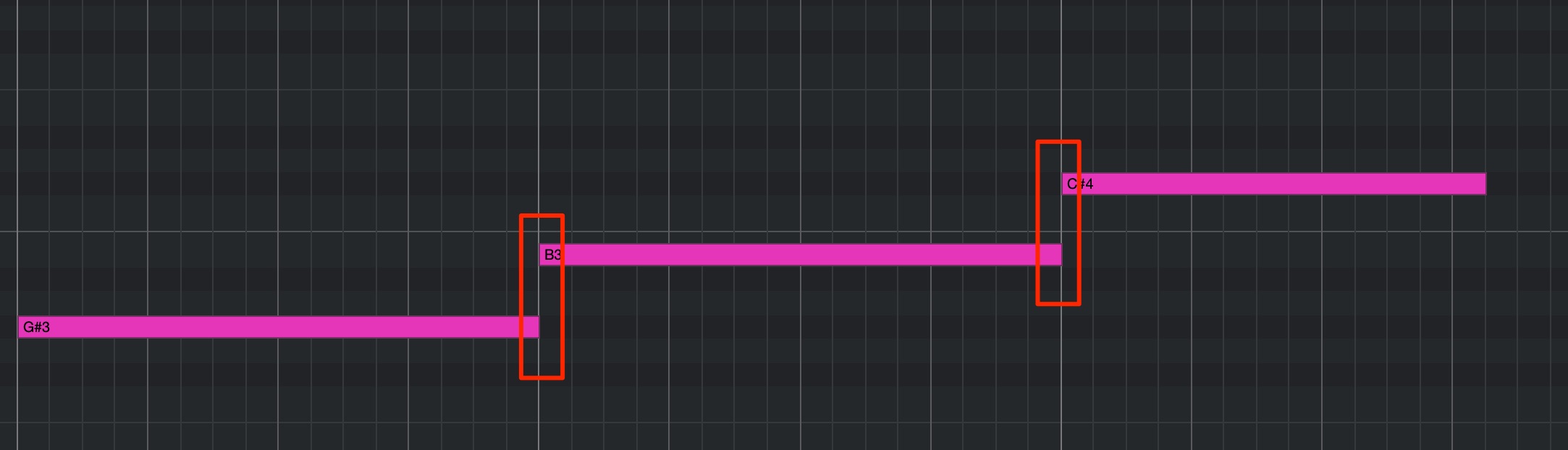
- Delete Overlaps (poly): NA
Adjust note lengths to remove overlaps.
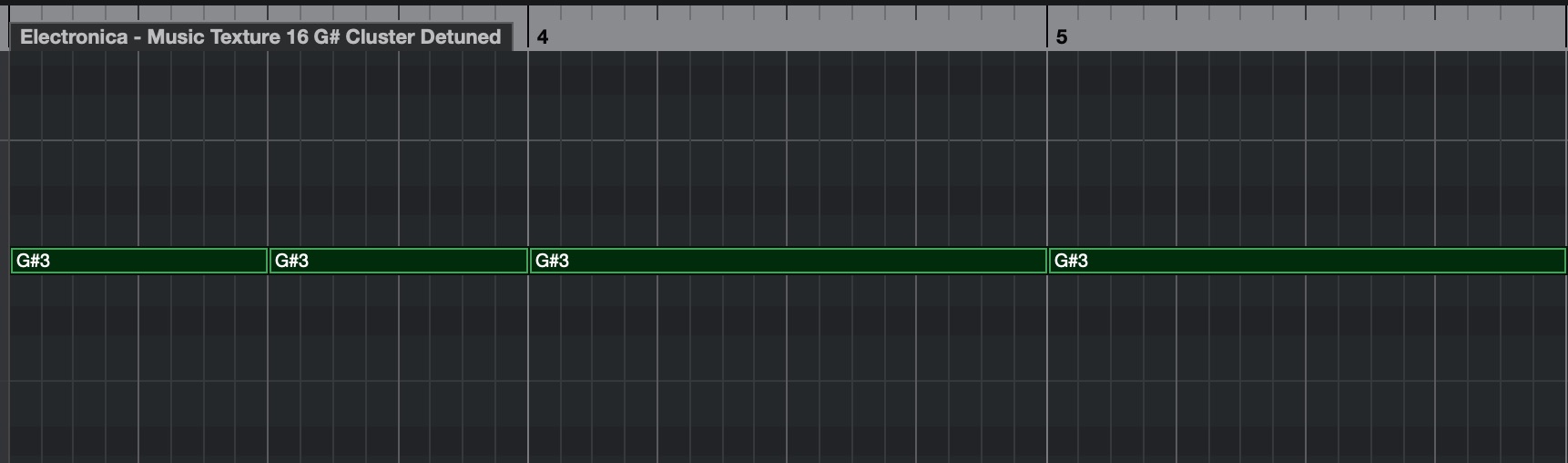
- Legato: NA
Adjust MIDI note lengths so the notes join together.
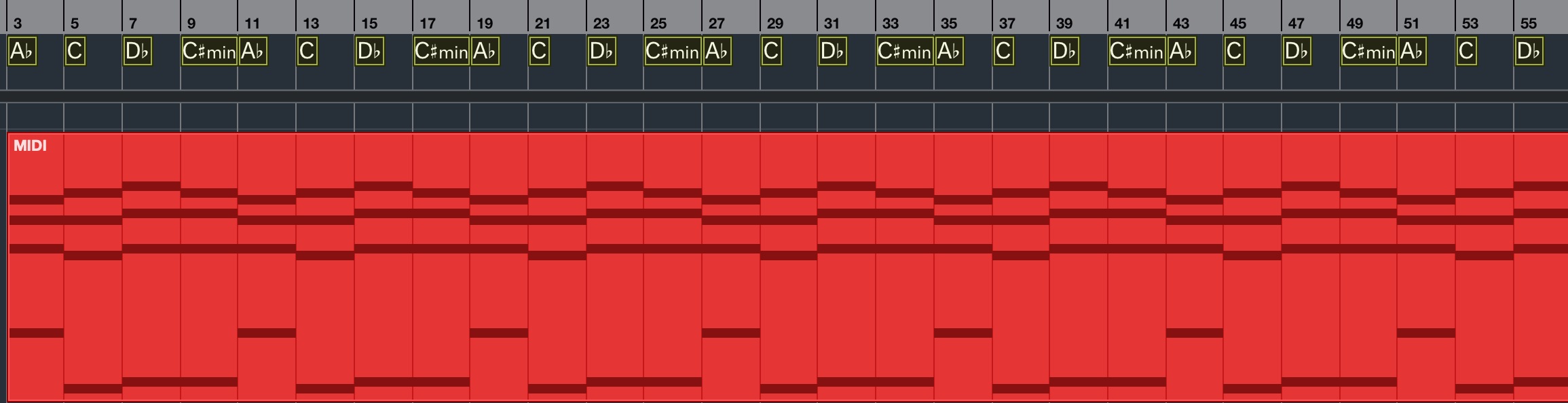
- Convert Chords to MIDI: NA
Convert chord-track chords into MIDI notes.
- Bounce MIDI: NA
Combine multiple selected MIDI parts into one part.
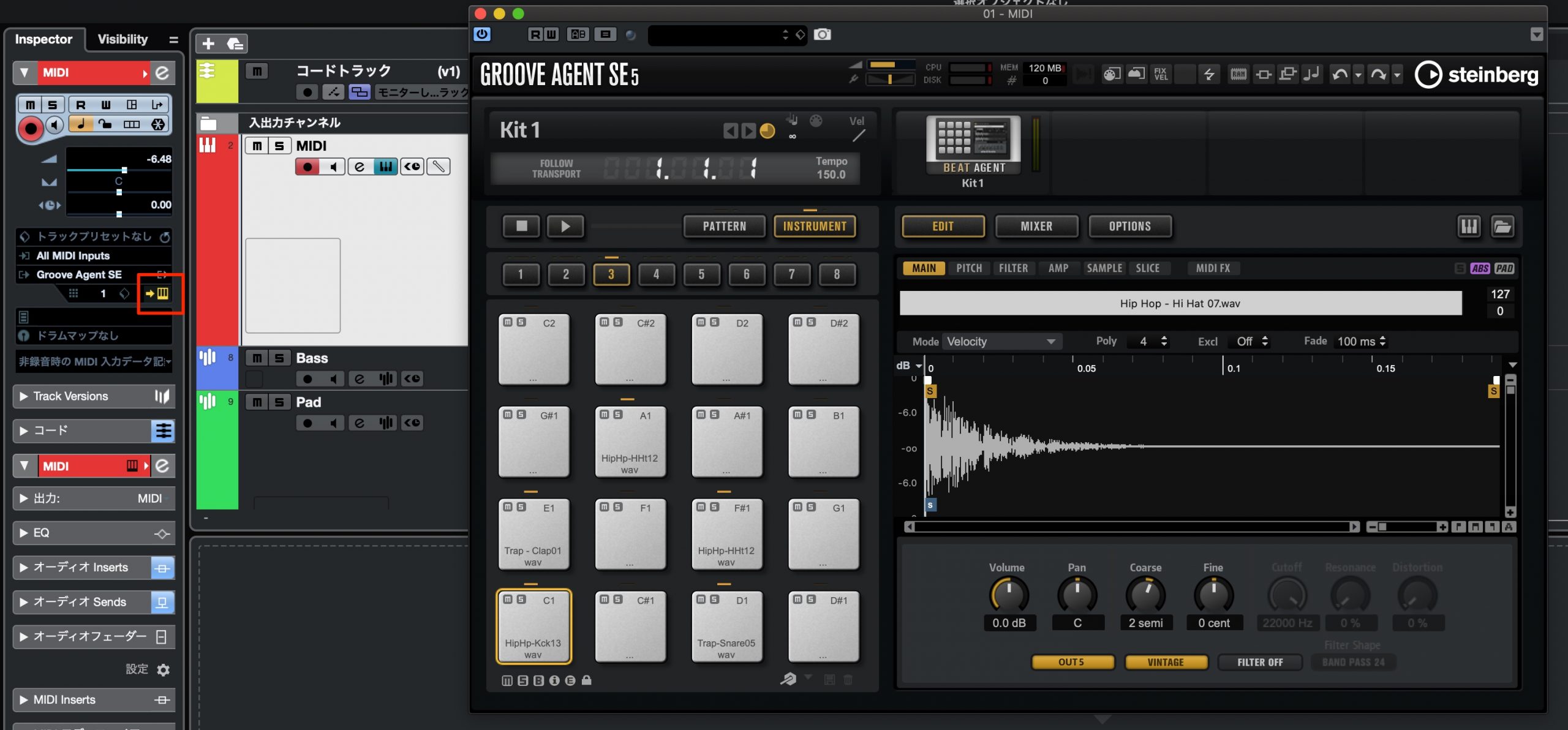
- Edit VST Instrument: NA
Show or hide the software instrument used by the selected track.
Zoom Shortcuts
Next, let's look at zoom commands that can make editing more comfortable.
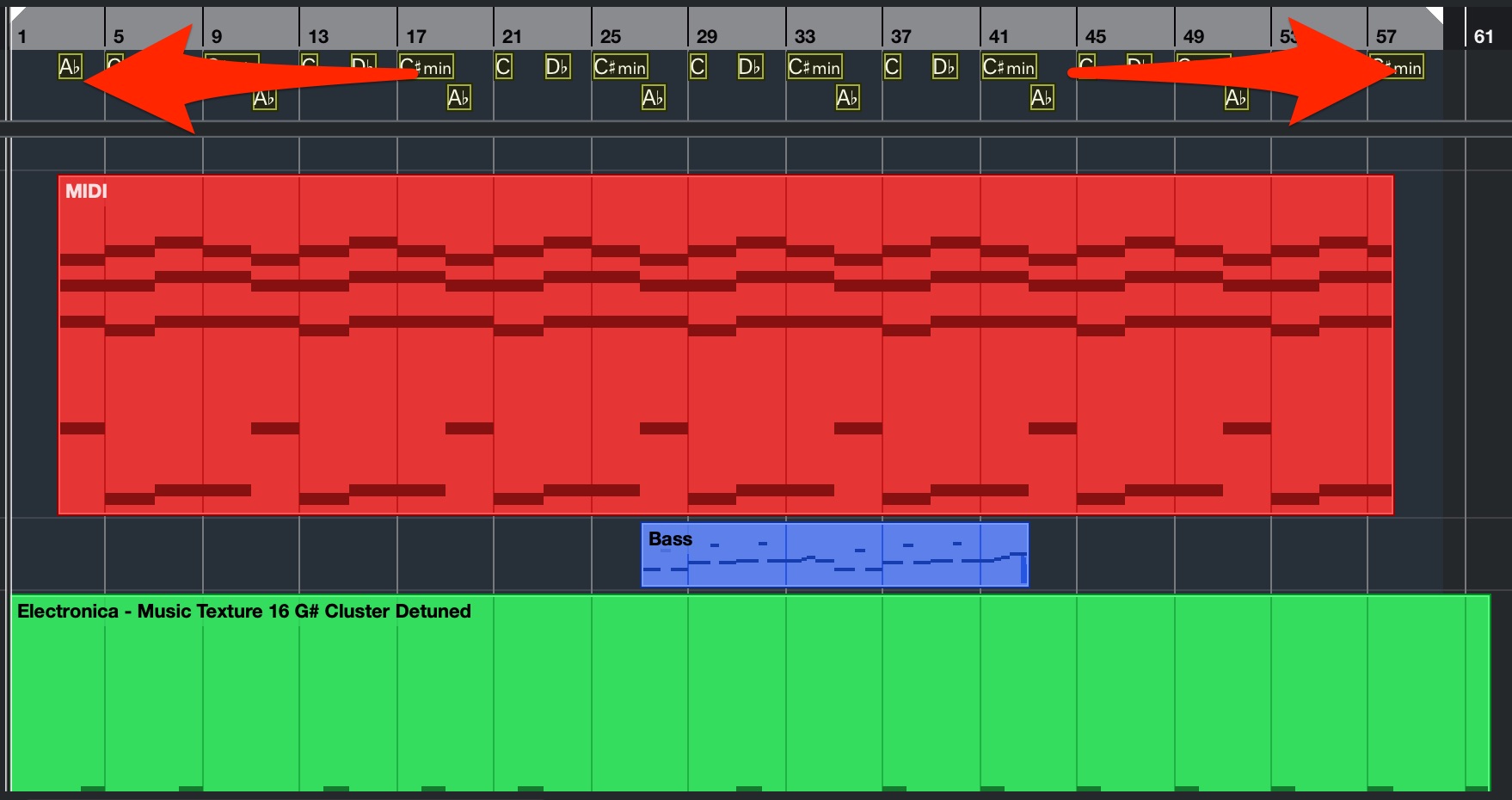
- Zoom In / Zoom Out: H / G
Increase or decrease horizontal magnification.
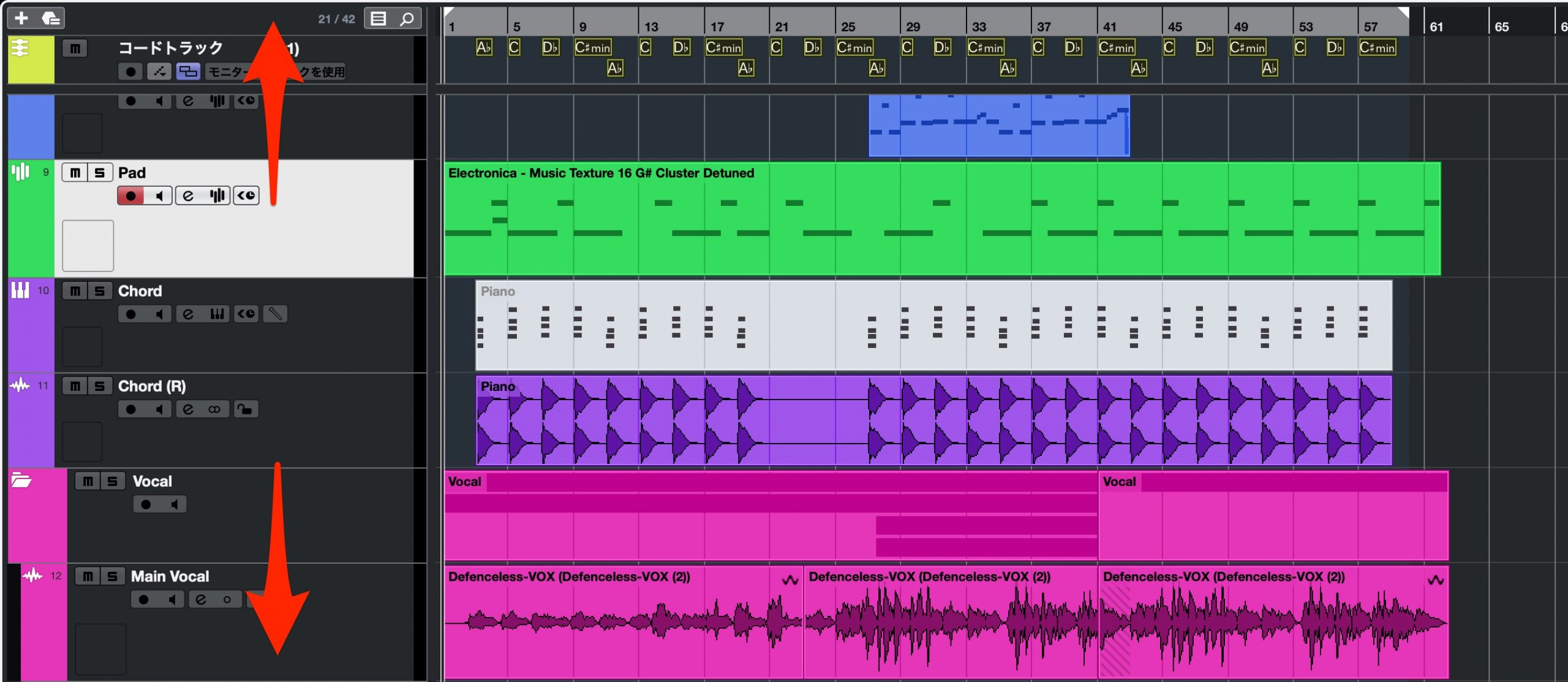
- Zoom In Vertically / Zoom Out Vertically: Shift + H / Shift + G
Increase or decrease vertical magnification.
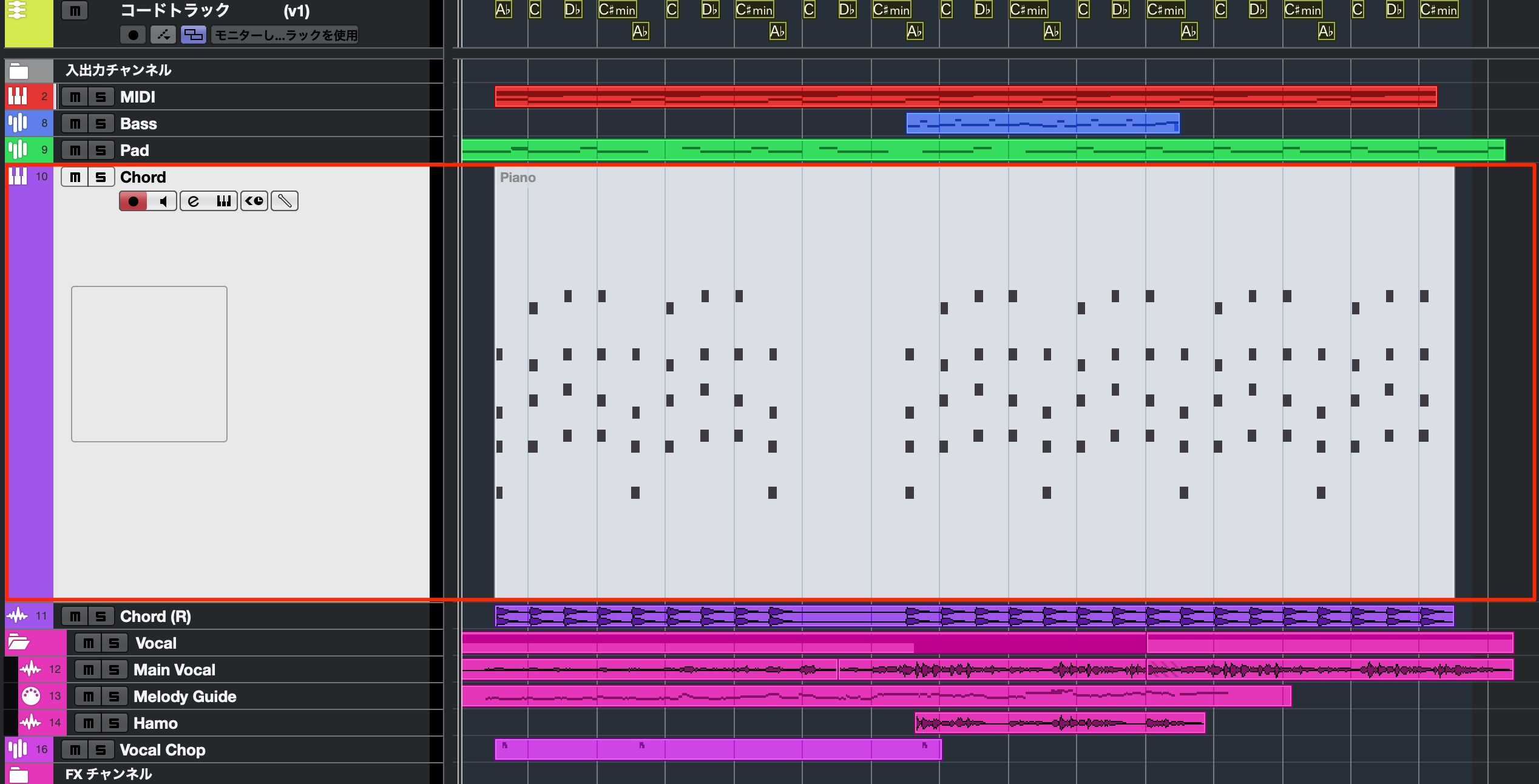
- Zoom Selected Tracks: Z
Toggle enlarged display of the selected tracks.
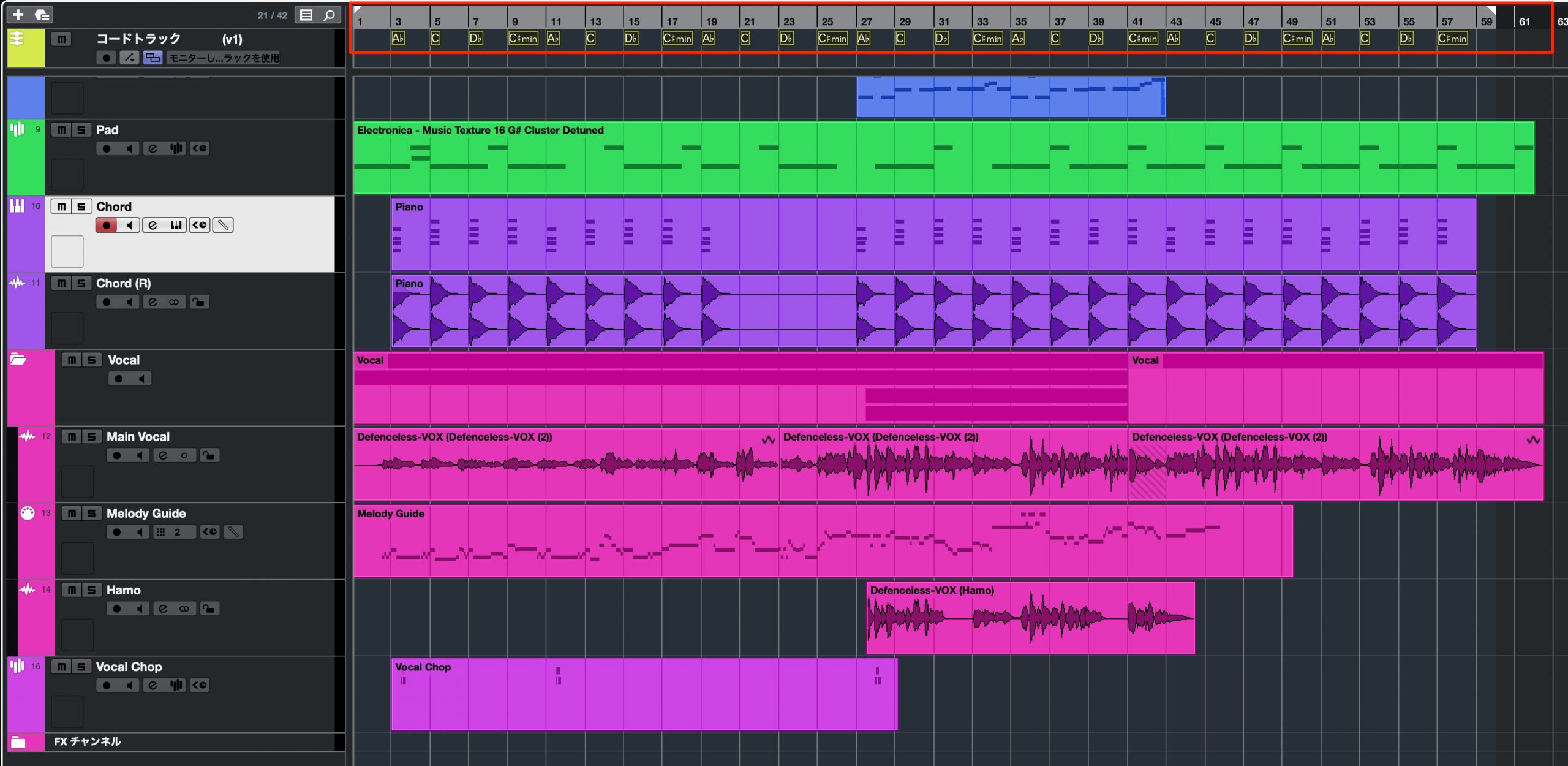
- Zoom Full: Shift + F
Adjust horizontal zoom so all the song's events fit in the window.
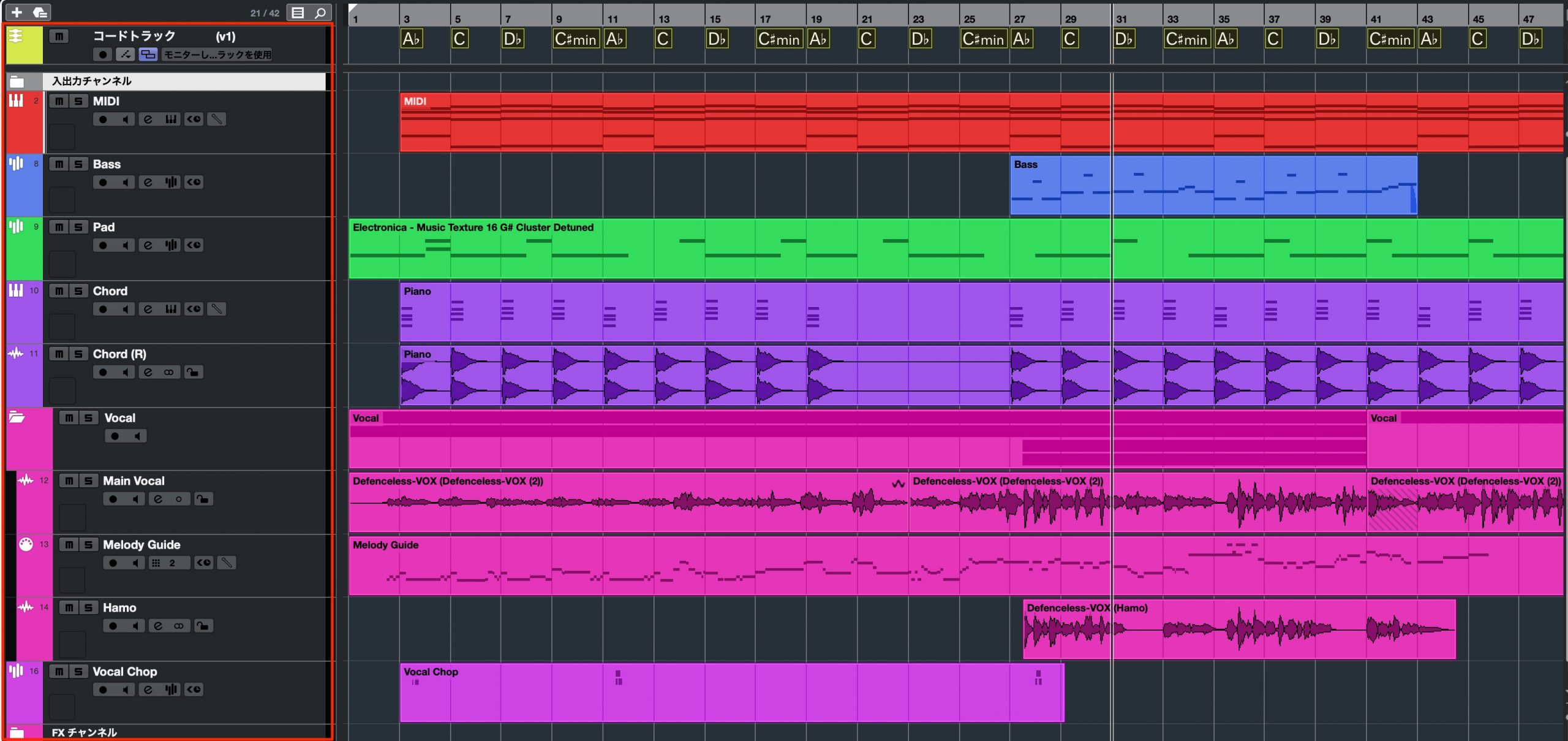
- Zoom Tracks Full: NA
Adjust vertical zoom so all tracks fit in the window.
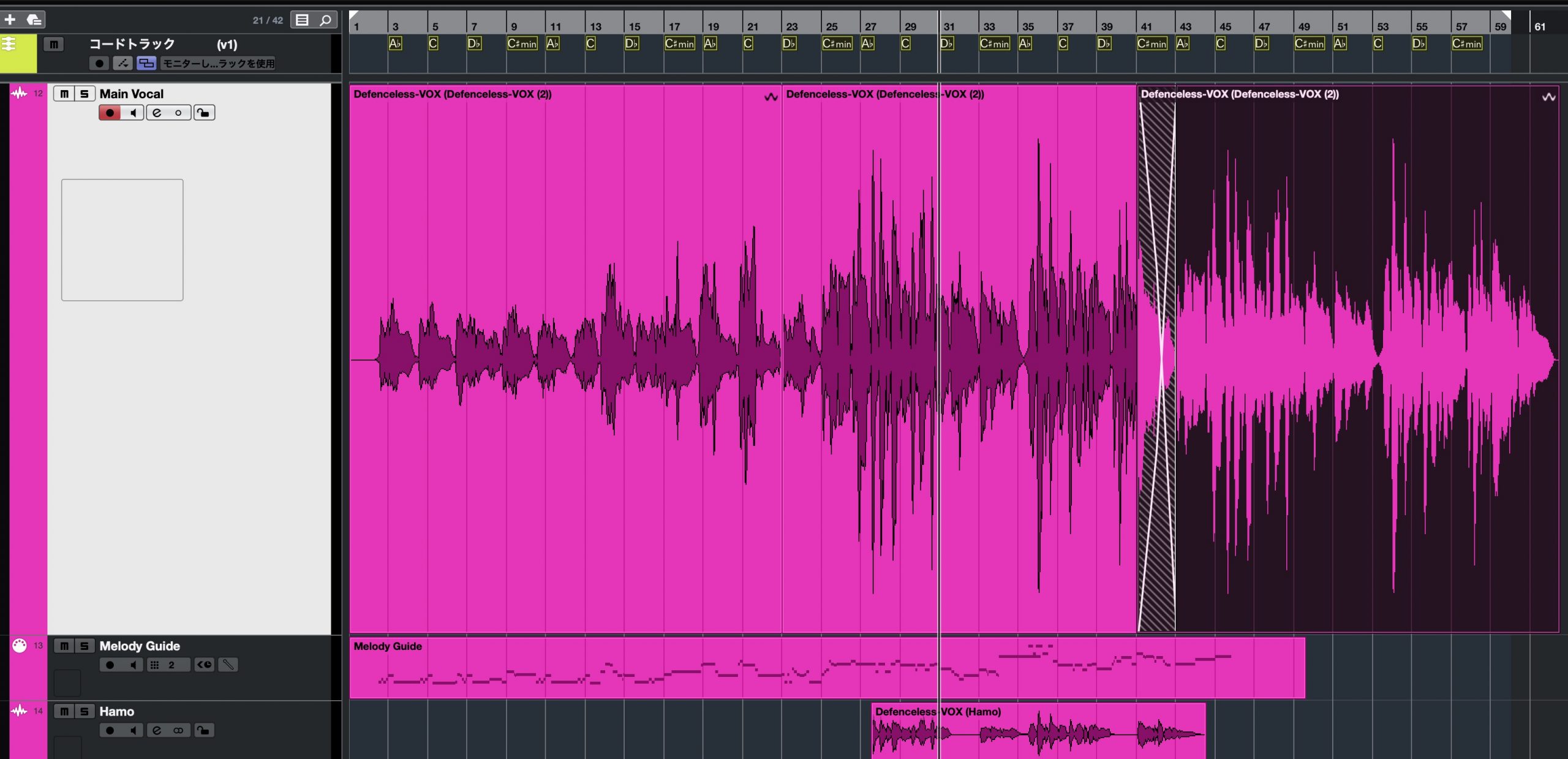
- Zoom to Selection: Mac: Command + Option + S / Windows: Control + Alt + S, as assigned in the demonstration
Zoom in on the selected events.
- Undo Zoom: NA
Return to the preceding zoom setting.
Automation Shortcuts
These shortcuts control automation, which changes parameters automatically over time.
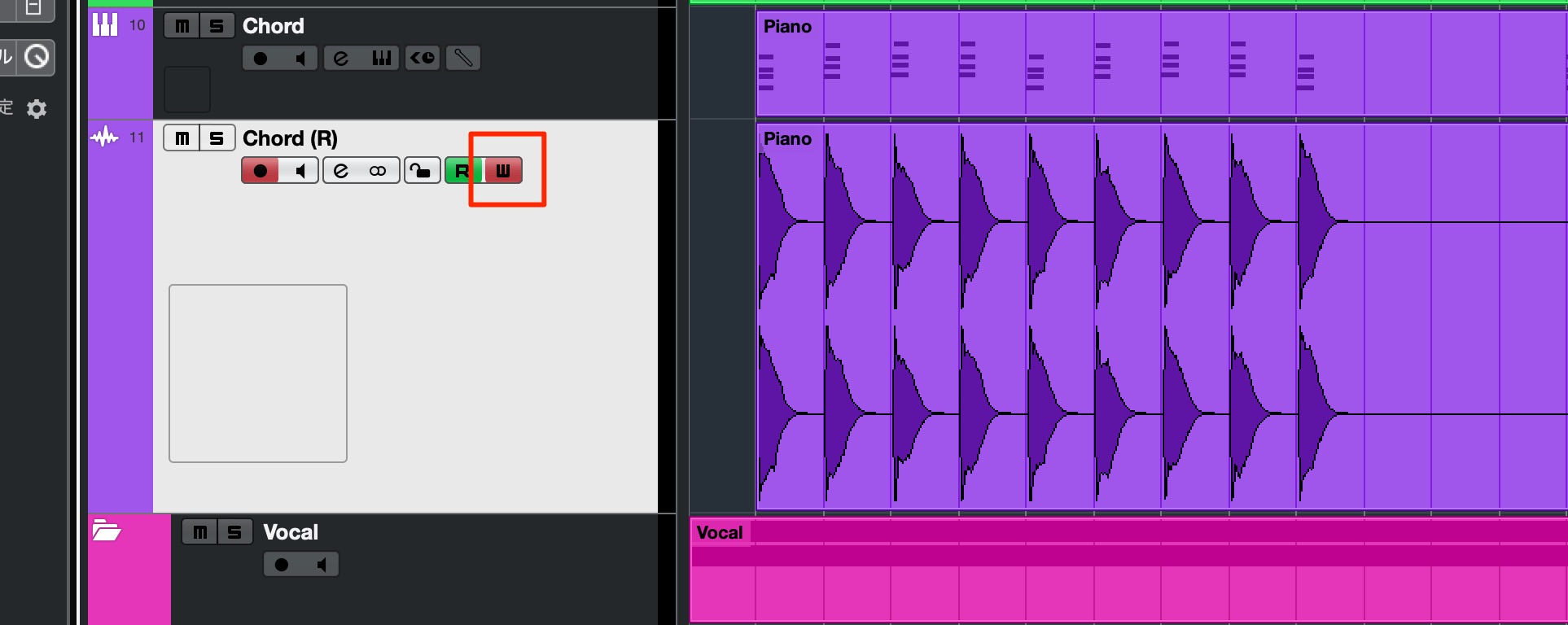
- Toggle Write Automation on Selected Tracks: NA
Turn W on or off for the selected tracks.
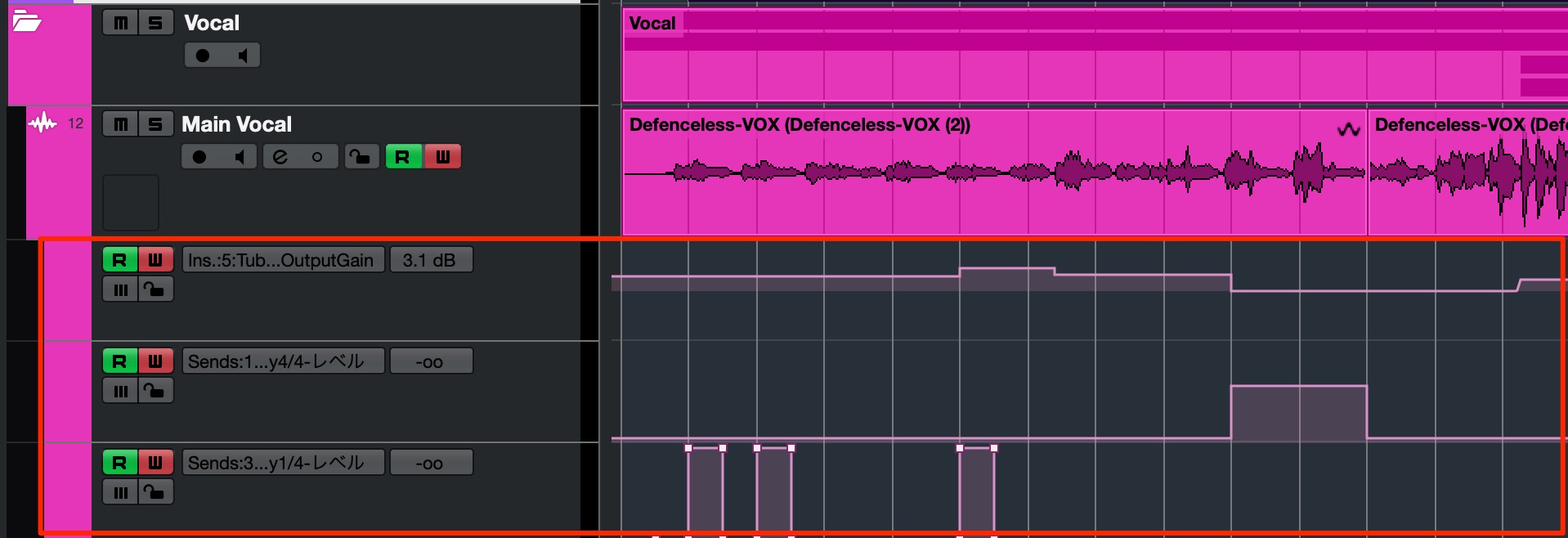
- Show All Used Automation: NA
Show automation lanes containing recorded automation across all tracks.
- Hide All Automation: NA
Hide the displayed automation lanes across all tracks.
MixConsole Shortcuts
Next are commands used with the MixConsole.
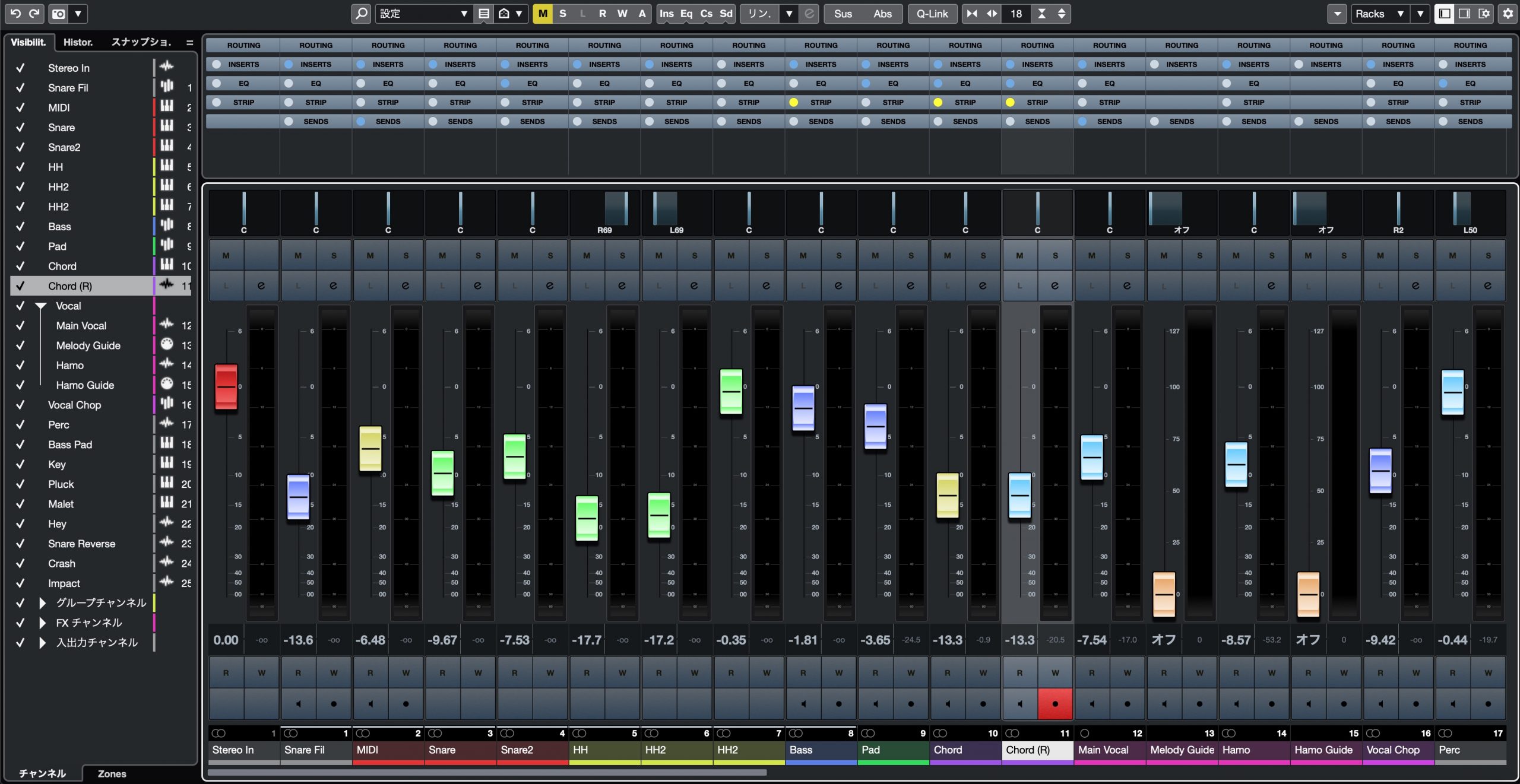
- MixConsole: NA
Open the MixConsole in a separate window.
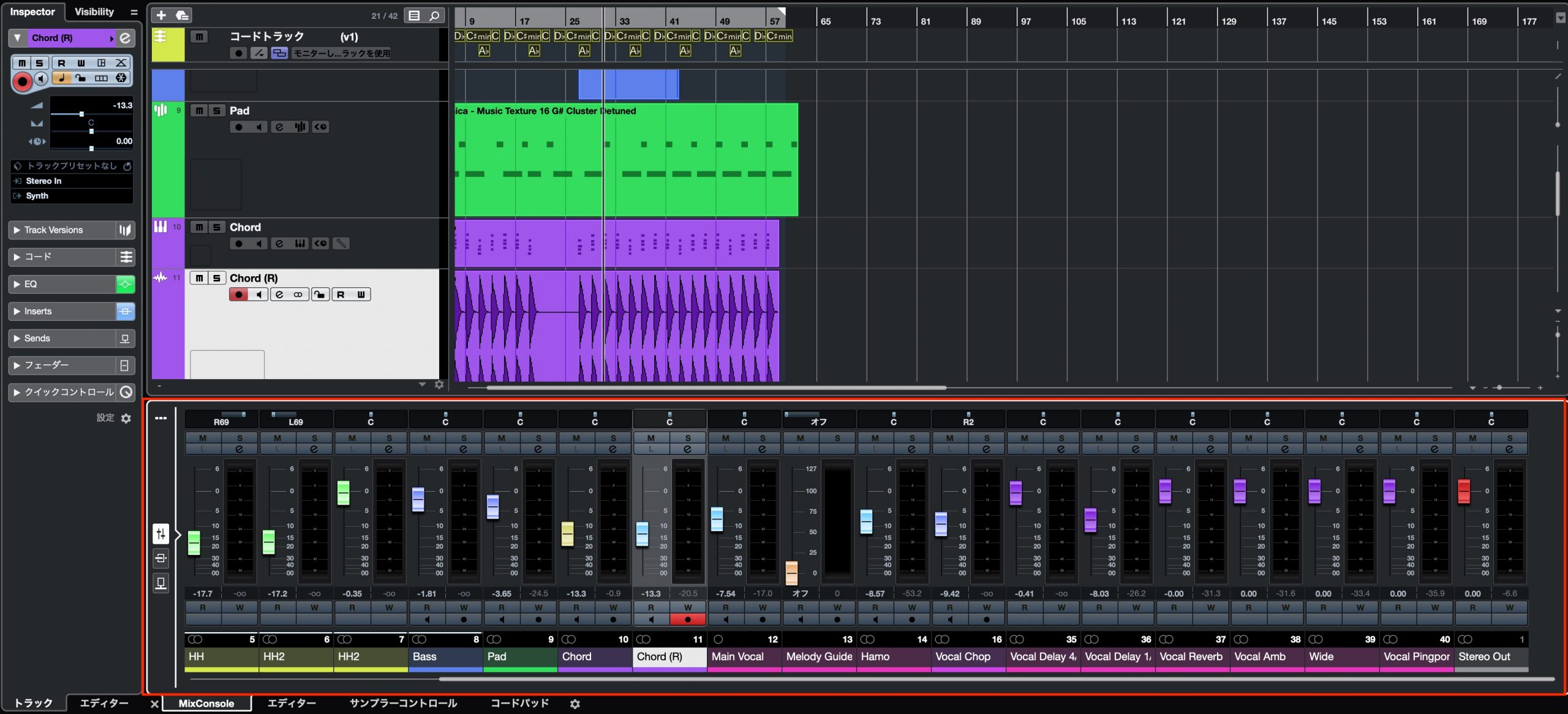
- MixConsole in Lower Zone: Mac: Option + F3 / Windows: Alt + F3
Open the MixConsole in the lower zone.
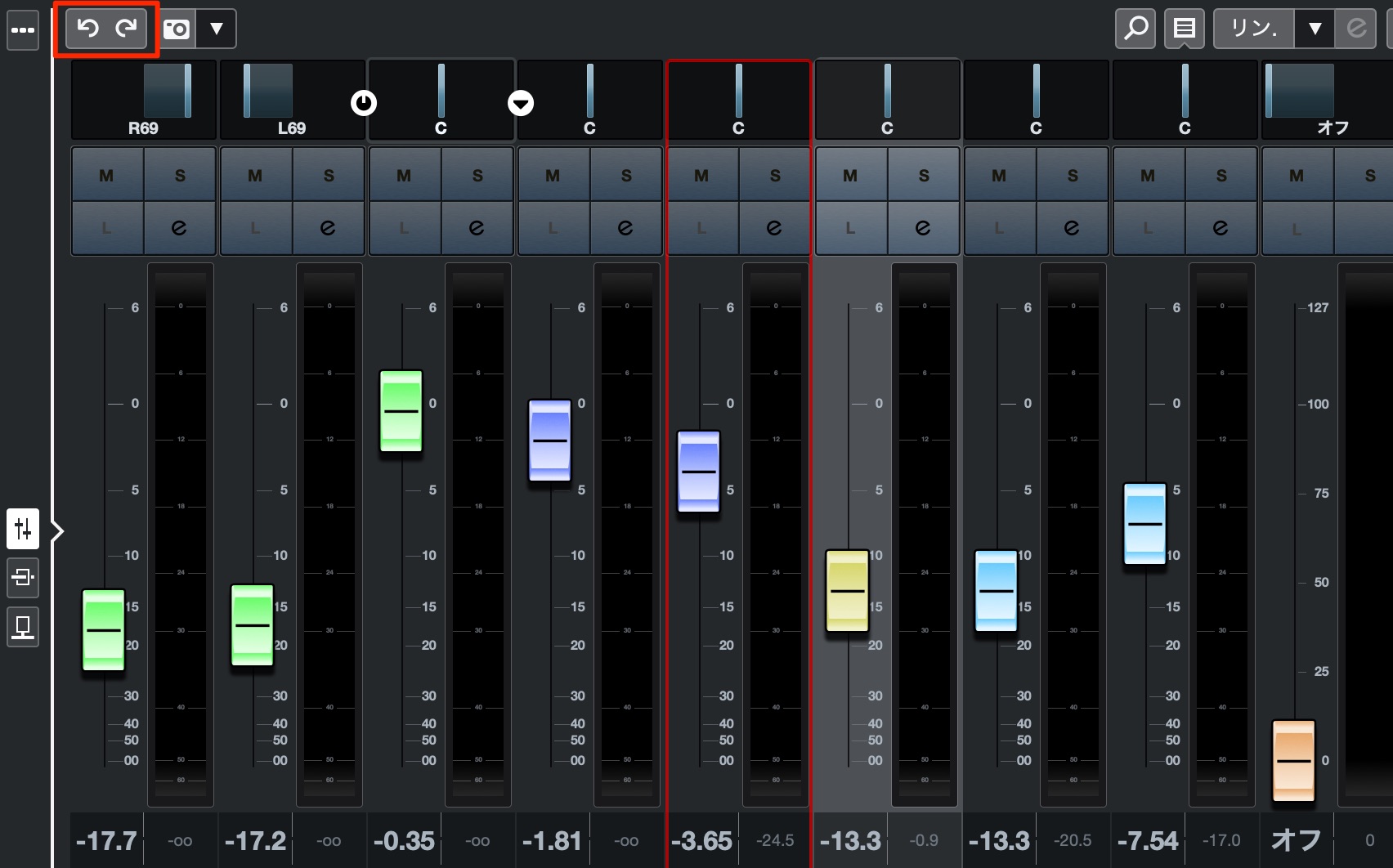
- Undo MixConsole Step: Mac: Option + Z / Windows: Alt + Z
Undo a MixConsole operation, including supported volume and effect changes, independently of project-editing undo.
- Redo MixConsole Step: Mac: Option + Shift + Z / Windows: Alt + Shift + Z
Reapply a MixConsole operation that you undid.
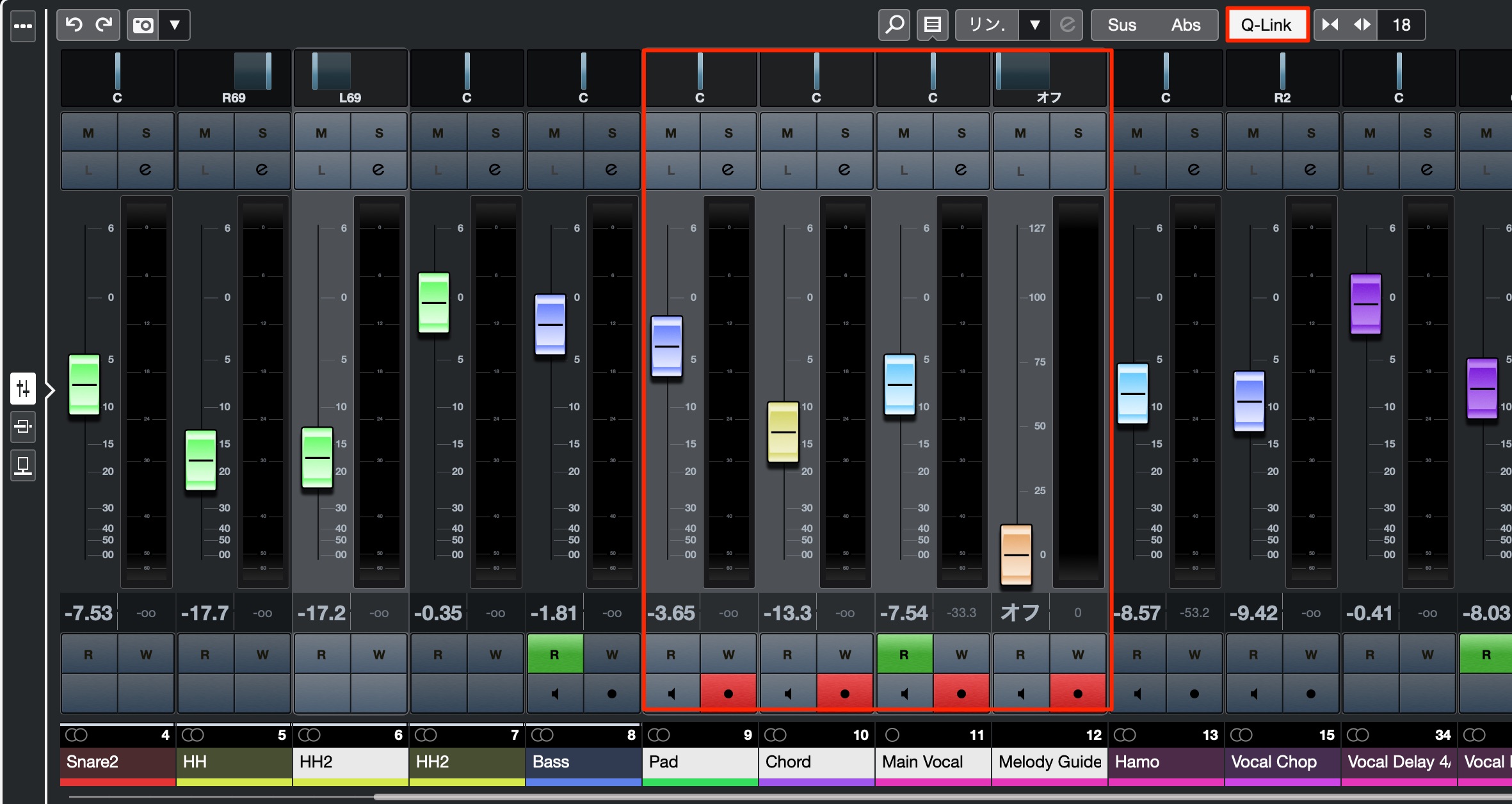
- Q-Link: NA
Link editing operations across multiple selected channels.
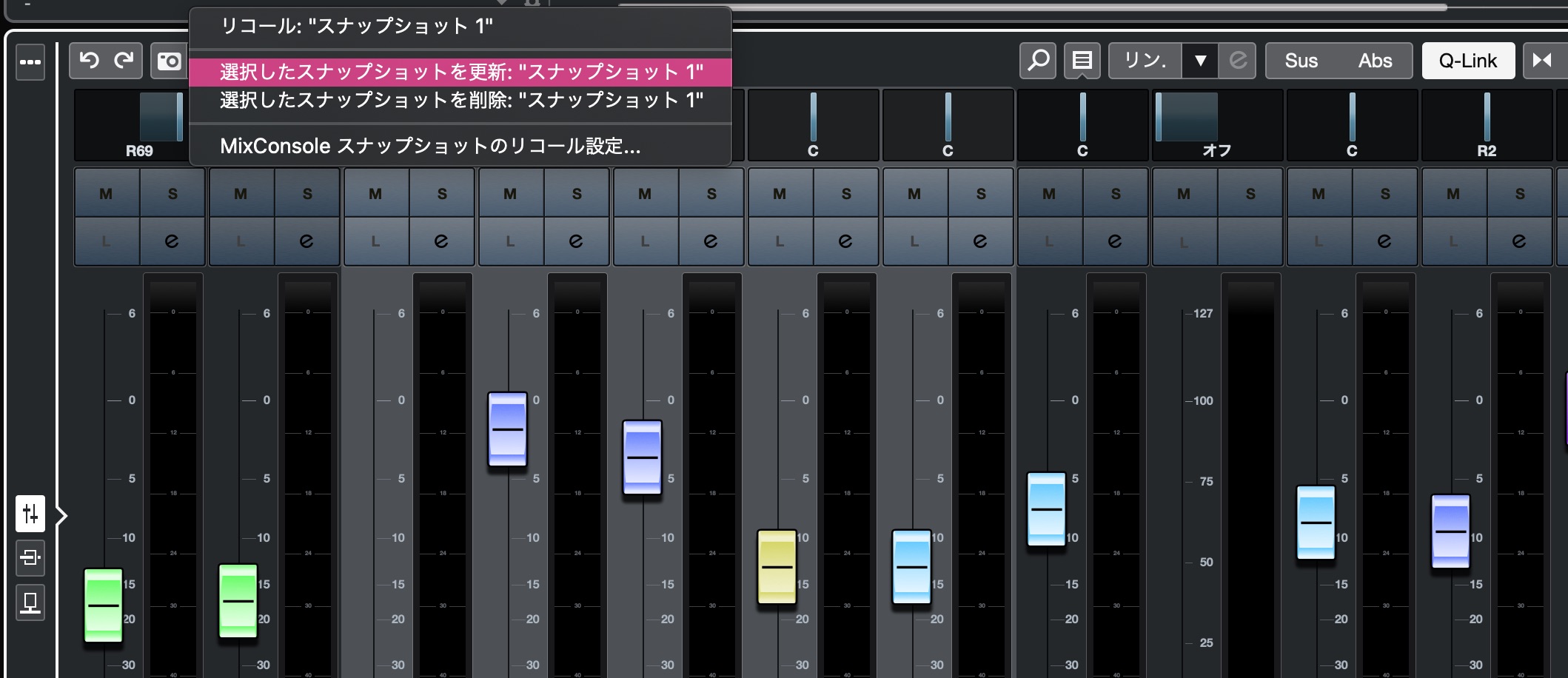
- Save MixConsole Snapshot: NA
Save the mixer state as a snapshot for later recall.
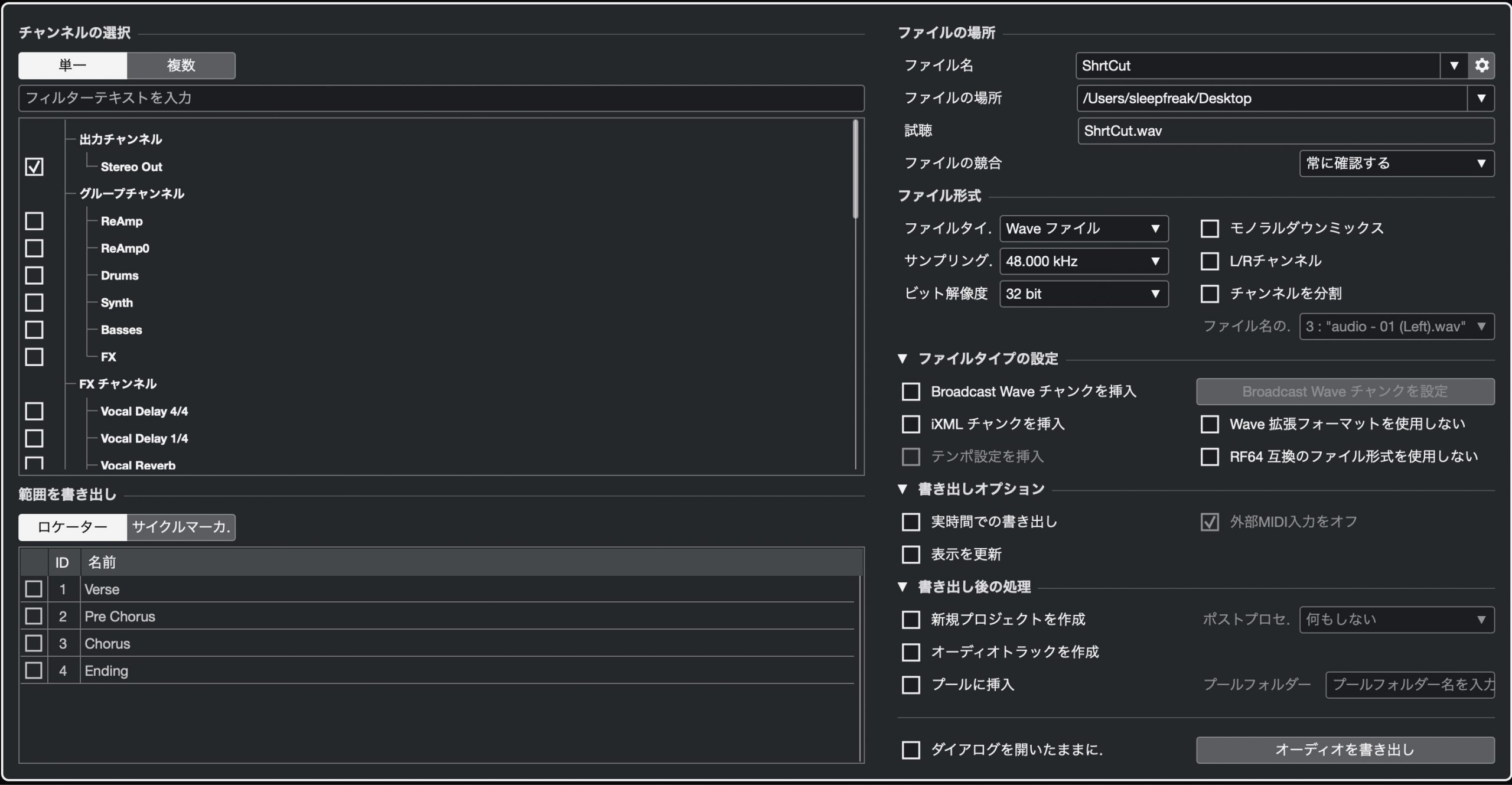
- Export Audio Mixdown: NA
Export the song as an audio file.
Workspace Shortcuts
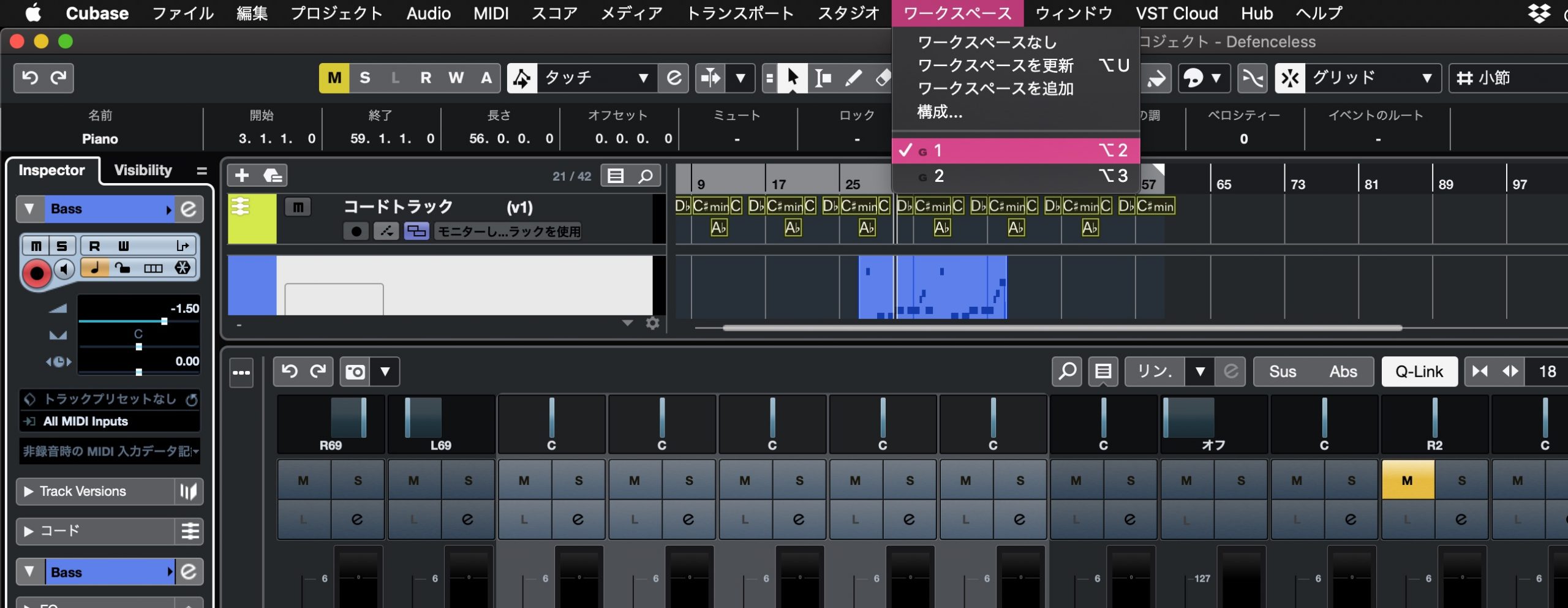
- Workspaces 0–9: Mac: Option + numeric keypad 0–9 / Windows: Alt + numeric keypad 0–9
Recall the saved window layouts by number; 0 selects No Workspace.
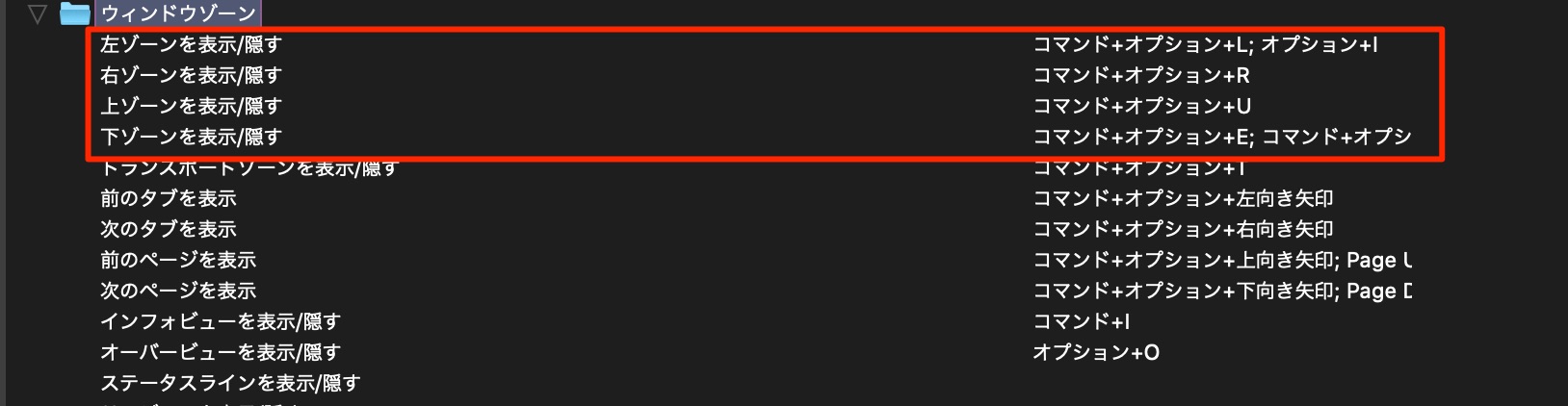
Shortcuts for showing and hiding individual zones are useful alongside workspaces.
Macros: Combine Multiple Commands
A macro combines several commands so you can execute them in one sequence.
Macros are useful for operations that follow a repeatable sequence.
For this example, we will select an export range, set the locators, and open the export command.
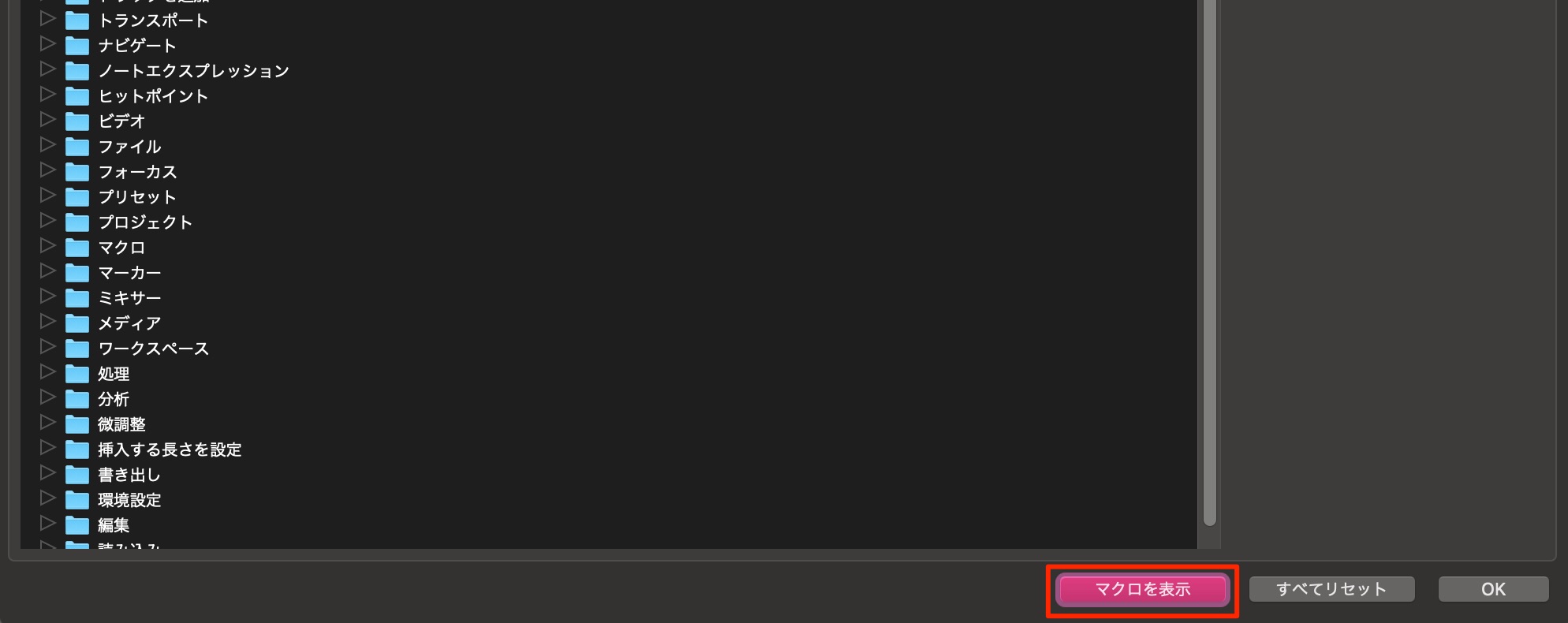
Click Show Macros at the bottom of the Key Commands window.
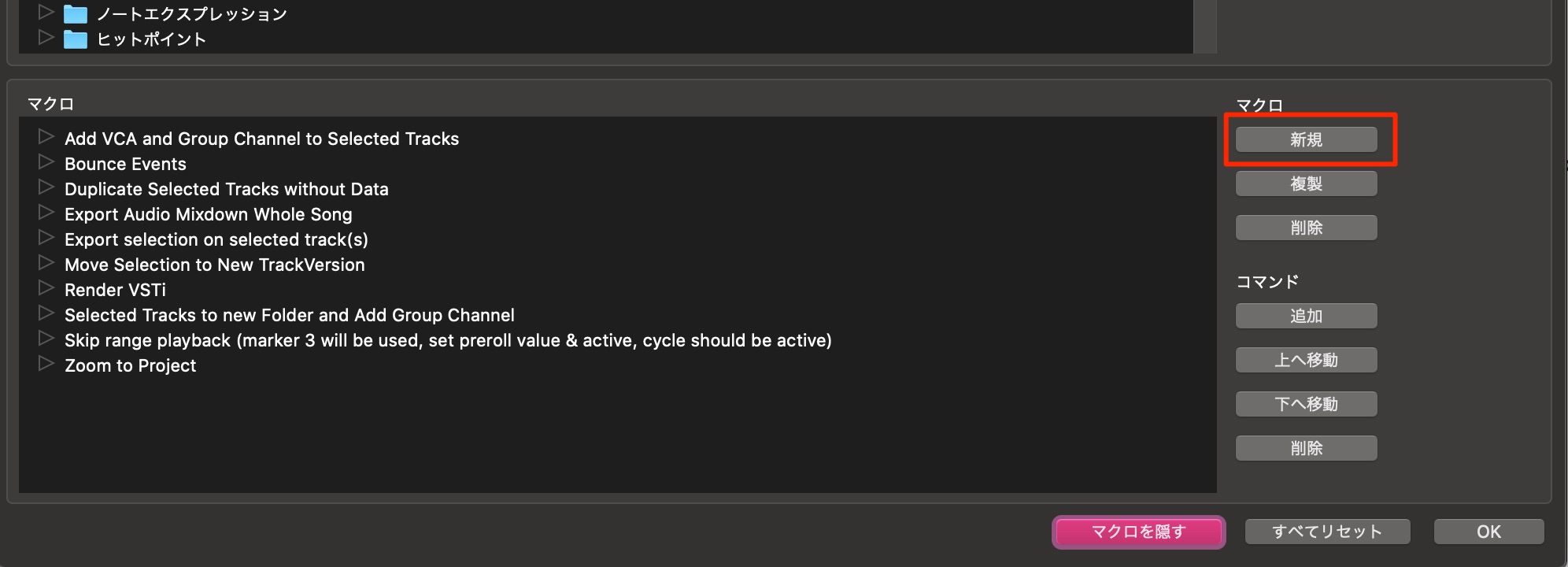
Click New Macro in the expanded section.
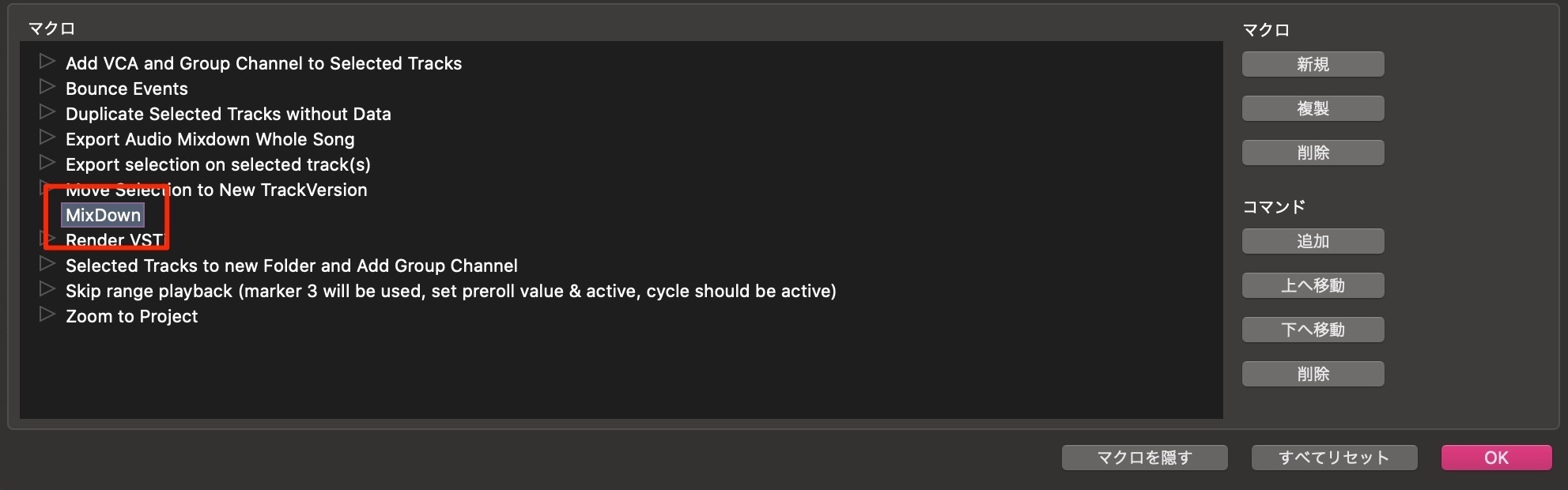
A macro is added, and you can give it a name.
Here, we named it MixDown.
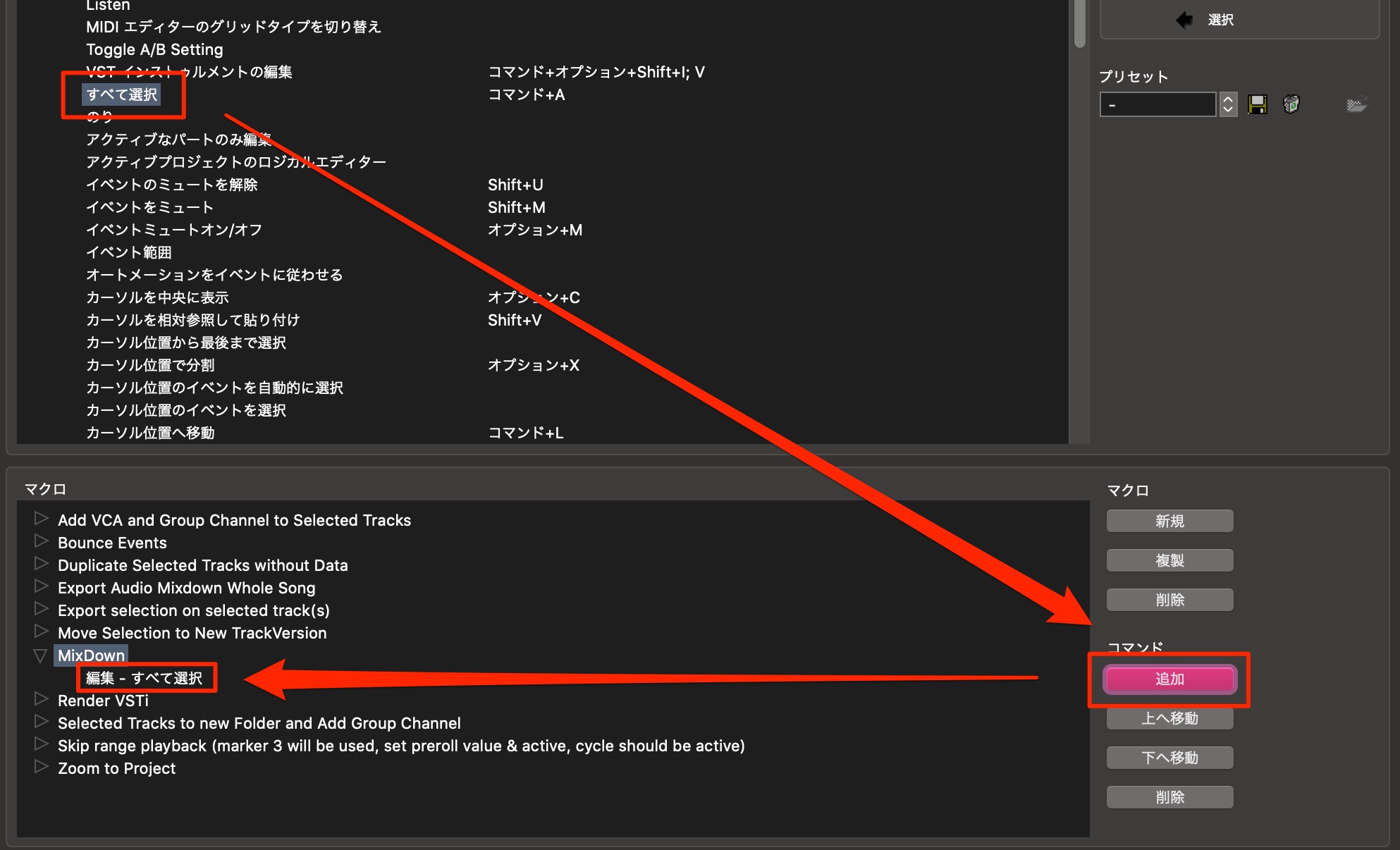
With the MixDown macro selected, choose the desired command in the upper section.
Click Add Command to register it in the macro.
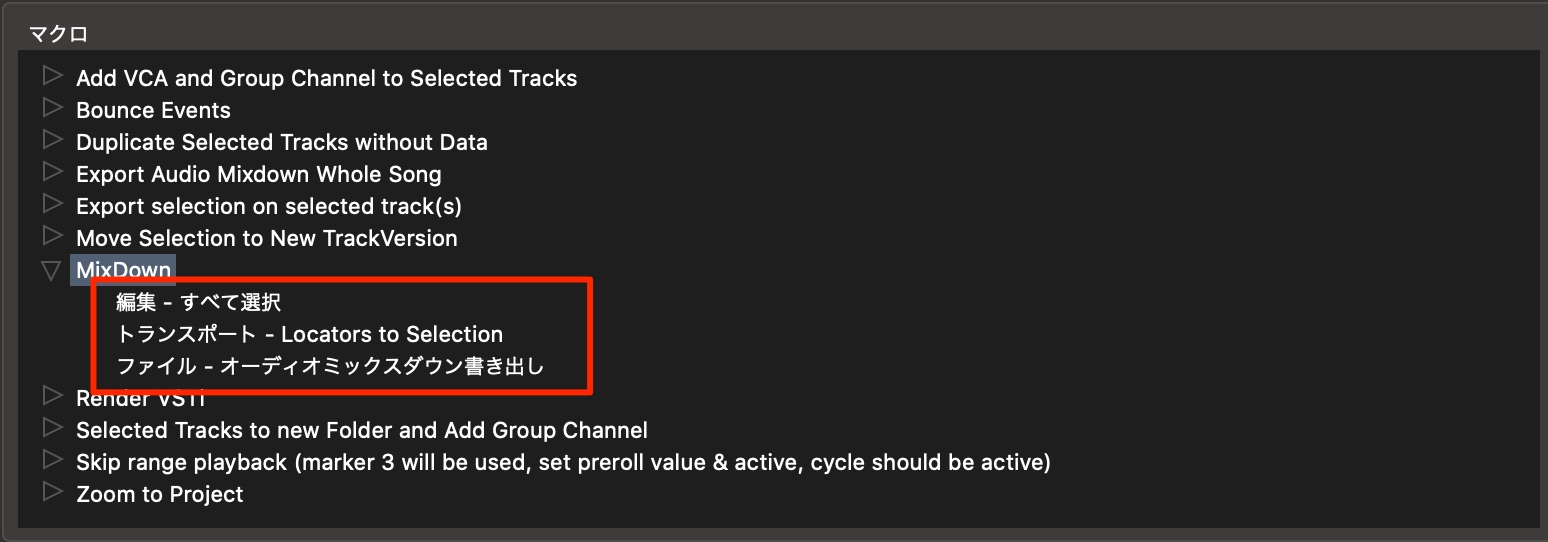
We repeated this process to add three commands.
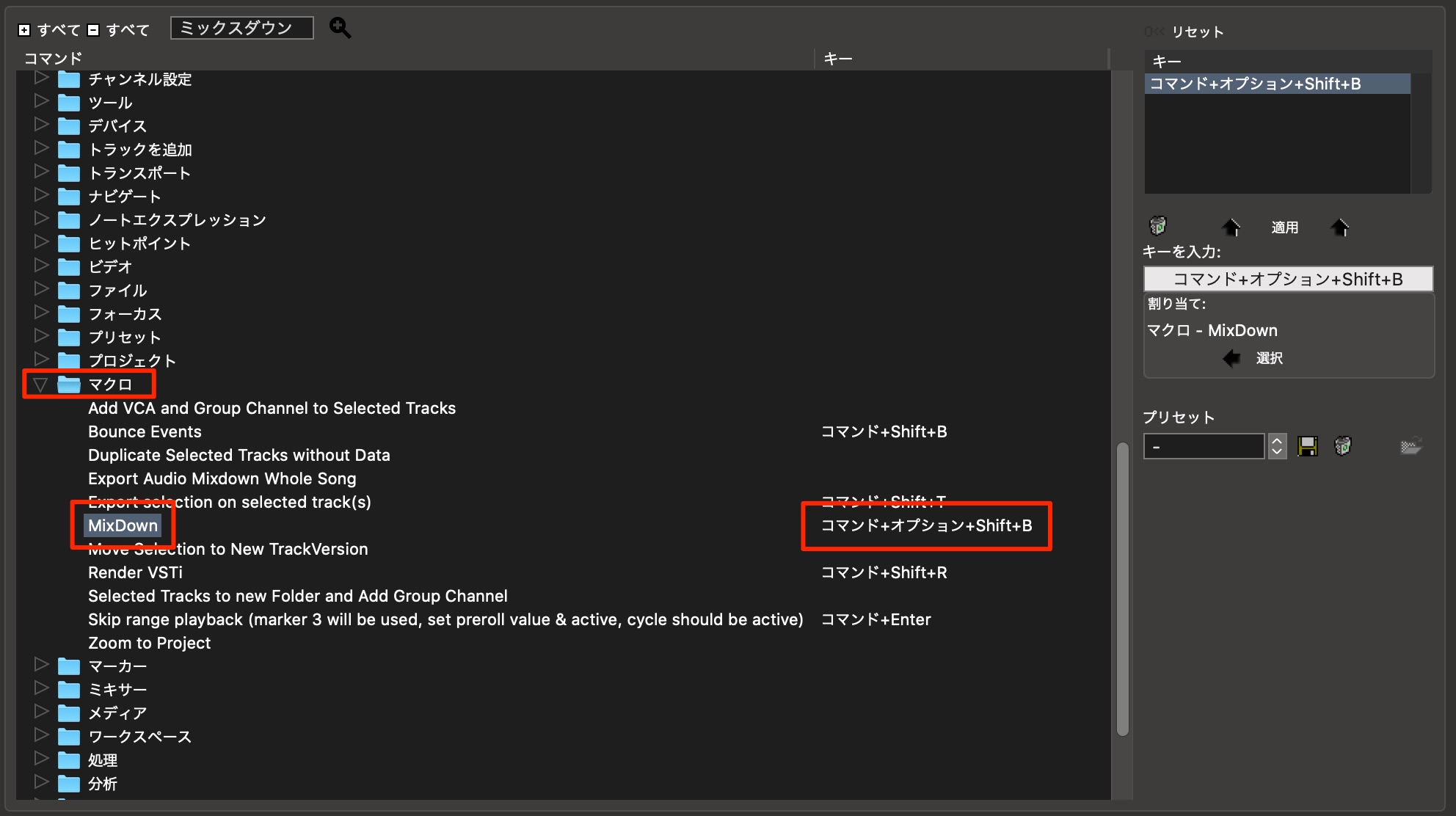
The macro appears in the Macros category of the regular command list. Assign a key combination to it.
You can now execute the registered sequence with that shortcut.
Saving Your Key Commands
Finally, let's back up the shortcuts you have created.
This lets you restore your own assignments when changing computers or working environments.
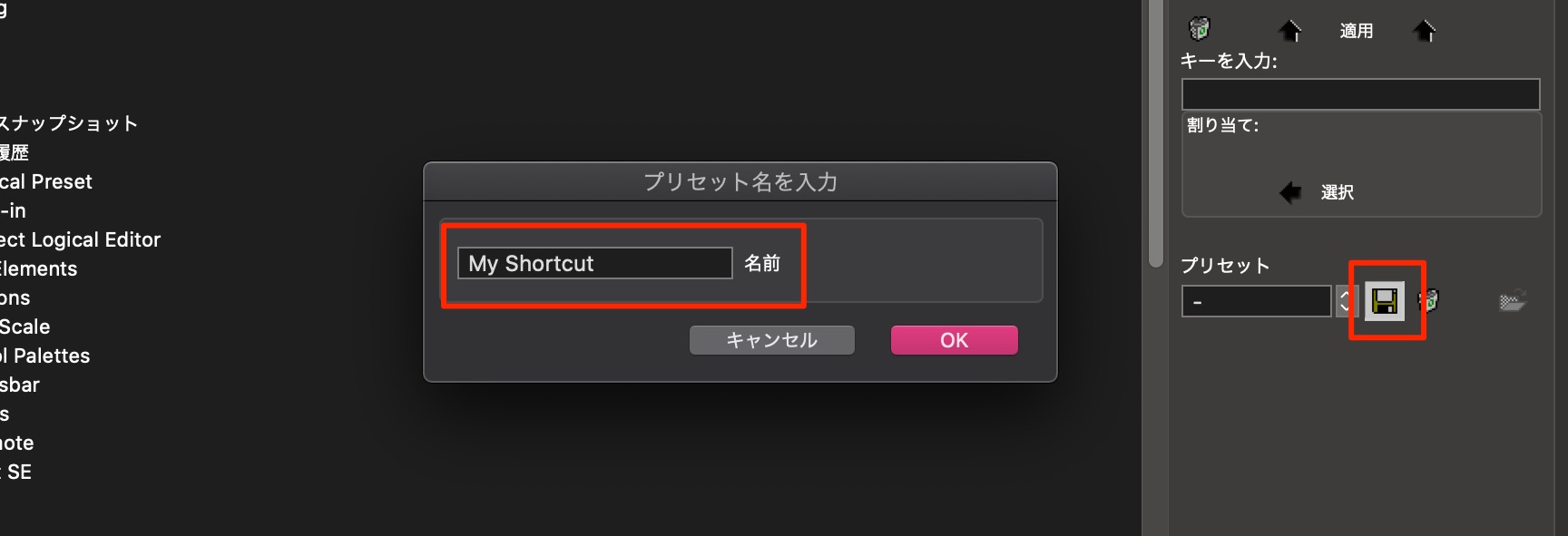
Click the floppy-disk save icon on the right of the Key Commands window.
Give the preset a name in the dialog and click OK.
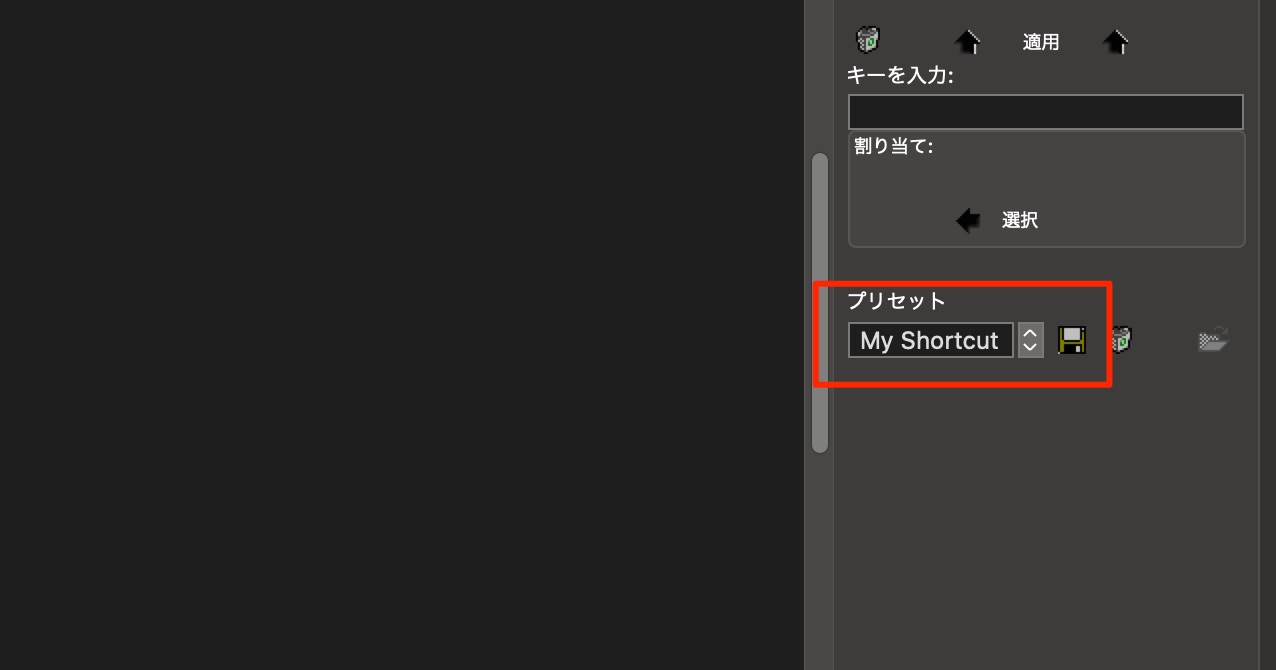
You can recall a saved key-command preset from the menu.
That is reassuring if you accidentally change an assignment.
The preset file is stored in the following version-specific location.
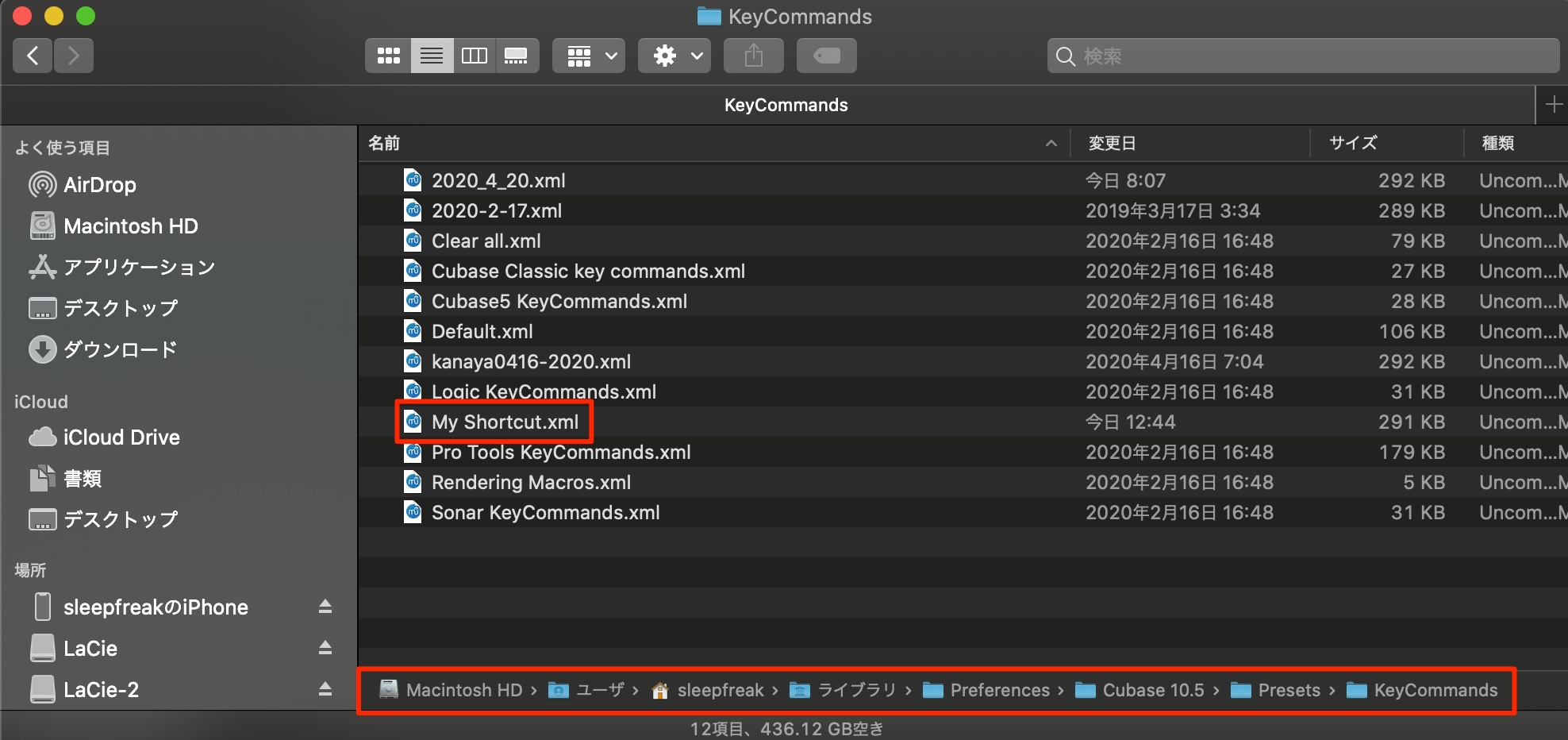
- Mac: Your user folder → Library → Preferences → Cubase [version] → Presets → KeyCommands.
- Windows: In the Start menu, open Steinberg Cubase [version] → User Settings Data Folder, then Presets → KeyCommands. The settings folder is under %APPDATA%/Steinberg/Cubase [version].
The file is small and easy to copy or back up.
You can also keep a copy in email or cloud storage.
To use it on another computer, place the preset file in that installation's KeyCommands folder, then start Cubase.
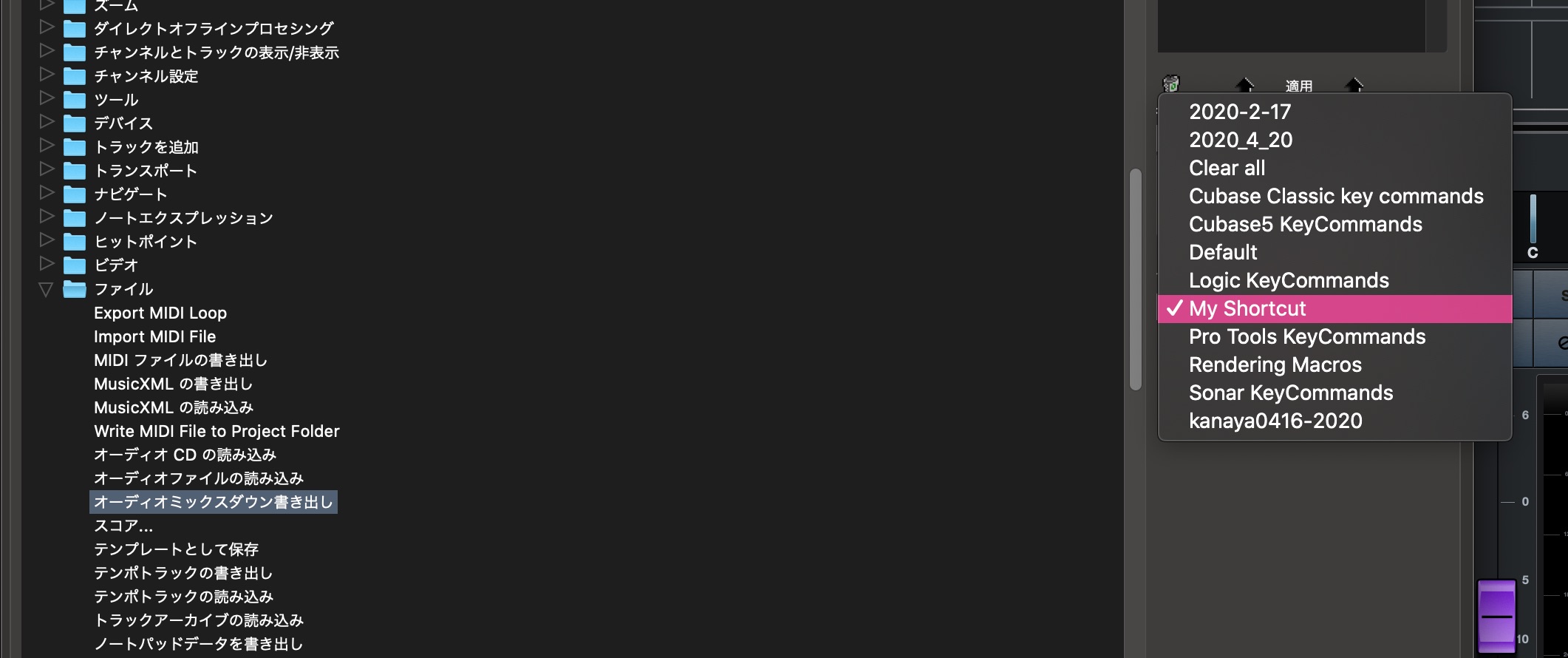
Select it from the preset menu to apply your saved key assignments.
How did you find these techniques?
Even this selected list includes quite a few commands.
Each can be useful in production, so try incorporating the ones that suit your workflow.
Related Articles
6. Working with Track Groups in Cubase
Use Cubase's grouping tools to manage multiple tracks and mix more efficiently. This article covers VCA faders introduced in Cubase 8 and Q-Link in Cubase 7…

14. Useful Cubase Preference Settings
Customizing Cubase preferences can improve production efficiency. This article explores settings for VST instruments, transport, editing, audio, MIDI, and plug-ins…
85. Work Efficiently with Cubase Event Editing Modes
Cubase's event editing modes help streamline production. This article explains modes such as Grid, Grid Relative, Events, Shuffle, and Cursor…
29. Organize Your Cubase Project with Colors
Cubase's color tools help organize tracks and regions visually. Use colors by instrument type, work date, or performer to make complex projects easier to navigate…
Frequently Asked Questions
Q1. How can I customize Cubase shortcuts?
In the version shown, open Edit → Key Commands. Search for the desired command, click Type in Key, press the combination, and click Assign. If you use several applications, matching customizable assignments to an application with fixed shortcuts can make the controls more consistent.
Q2. Do I need to memorize every shortcut?
No. Start with commands you use frequently and gradually add more. Prioritizing common operations makes learning manageable and can improve production speed.
Q3. Should I reassign numeric-keypad shortcuts on a computer without a keypad?
Yes, this can be useful. Commands such as Rewind, Forward, Cycle, and Record use numeric-keypad assignments in the setup described. On a laptop without a keypad, assign convenient alternatives in Key Commands.
NEW ARTICLES
Latest English Articles












































































































































































































