
Waves Curves AQ is a next-generation equalizer plugin powered by AI. Click the Learn button and it automatically analyzes your audio, generating five original EQ curves based on the characteristics of the instrument or vocal. It also offers extensive hands-on controls, including static/dynamic EQ balance, Smart Tilt Control, and MixSense. From beginners to advanced users, it aims to make mixing more efficient while delivering high-quality results. It can automatically resolve frequency clashes between multiple tracks, helping you save production time without compromising sound quality.
Streamline Music Production with Innovative AI Technology
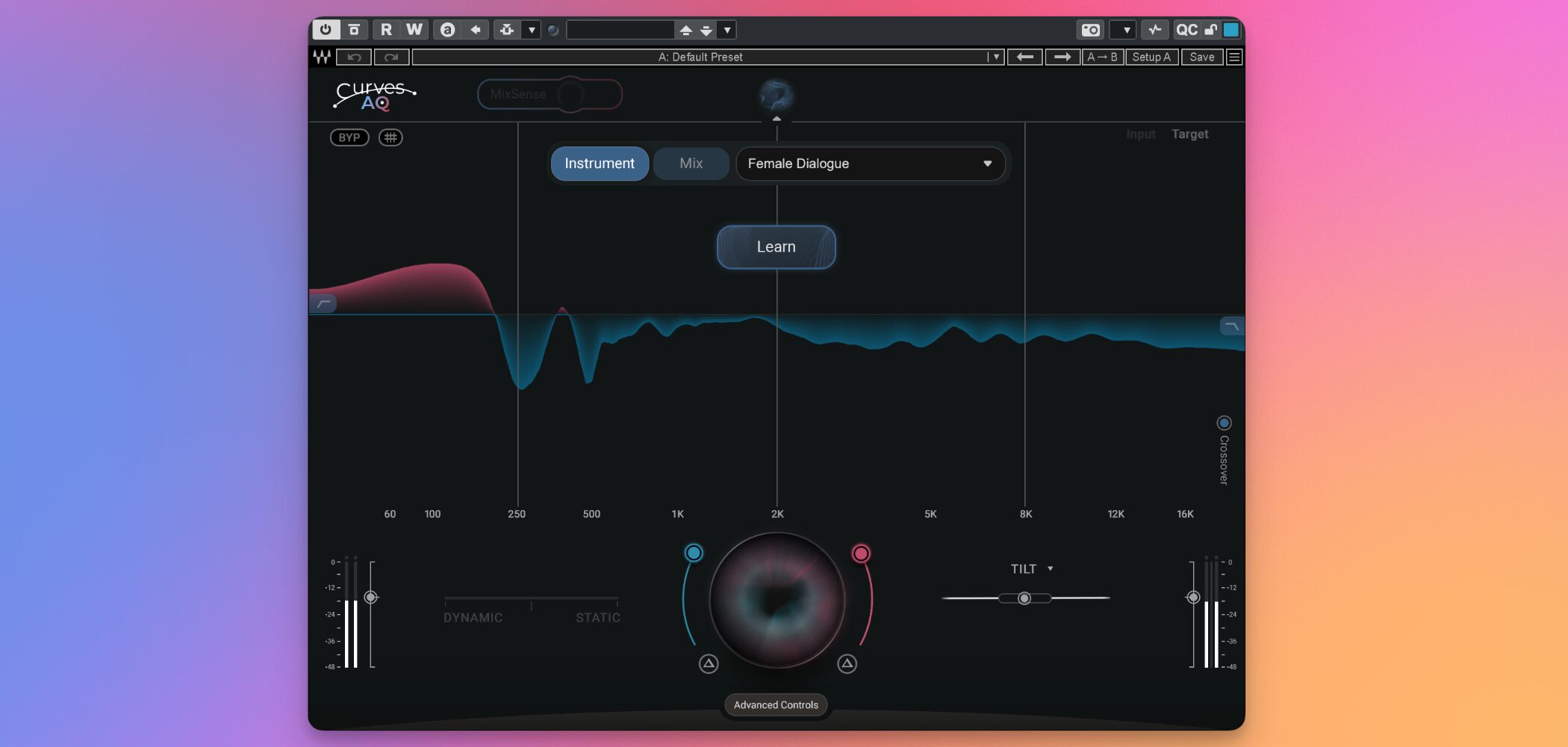
EQ is an important part of music production and has a major impact on sound quality, but finding the right settings takes experience and time.
When mixing multiple tracks, you can spend a great deal of time balancing the frequencies of each instrument.
Waves Curves AQ was designed to address this challenge.
It uses AI to analyze audio and generate an optimized EQ curve—a next-generation plugin that has attracted considerable attention.
Here, we look at Curves AQ's key features and how to use them.
Selected Questions and Answers from the YouTube Video

Which would you recommend: this or iZotope Neutron?

Because it suggests original EQ settings tailored to the source material, I think this product may produce more natural, better results. Both products have demo versions, so I encourage you to try them.
I heard that it analyzes overlapping frequency ranges across the parts and applies the results to the EQ, maybe using the MixSense display above, but I can't find a clear explanation anywhere and don't really understand how it works. Waves plugin manuals are also hard to find, so the specifications aren't clear! I'd love to see a second installment about it.
We explain the feature you mentioned in this article, in the section titled “Optimizing the Overall Mix with MixSense.”
What Is Curves AQ? Key Features and Audio Comparisons

Curves AQ isa plugin described as the world's first “Autonomous EQ”.
Many products known as “smart EQs” simply recommend a suitable option from a set of prepared presets. Curves AQ instead analyzes audio from the ground up and processes it in detail, taking into account the characteristics of the instrument or vocal, as well asthe overall mix, to suggest an original EQ curve.
Here are its main features:
- AI-driven EQ processing: Automatically analyzes audio with a single click of the Learn button
- Unique EQ profiles: Automatically generates five profiles so you can choose your preferred sound
- MixSense: Considers the balance of the overall mix and resolves frequency clashes between tracks
- EQ balance control: Adjusts the balance between static and dynamic EQ
- Smart Tilt Control: Intuitively adjusts the overall tonal balance
- Offset: Moves the target curve to change the focus of the processing
First, listen to these audio samples of vocals and instruments before and after applying Curves AQ.
After processing, the sound feels more focused and easier to listen to overall.
This is the result of the AI analysis. Curves AQ can help optimize audio for a more pleasing sound without requiring you to make every adjustment by hand.
AI-Powered EQ Generation and Profile Selection
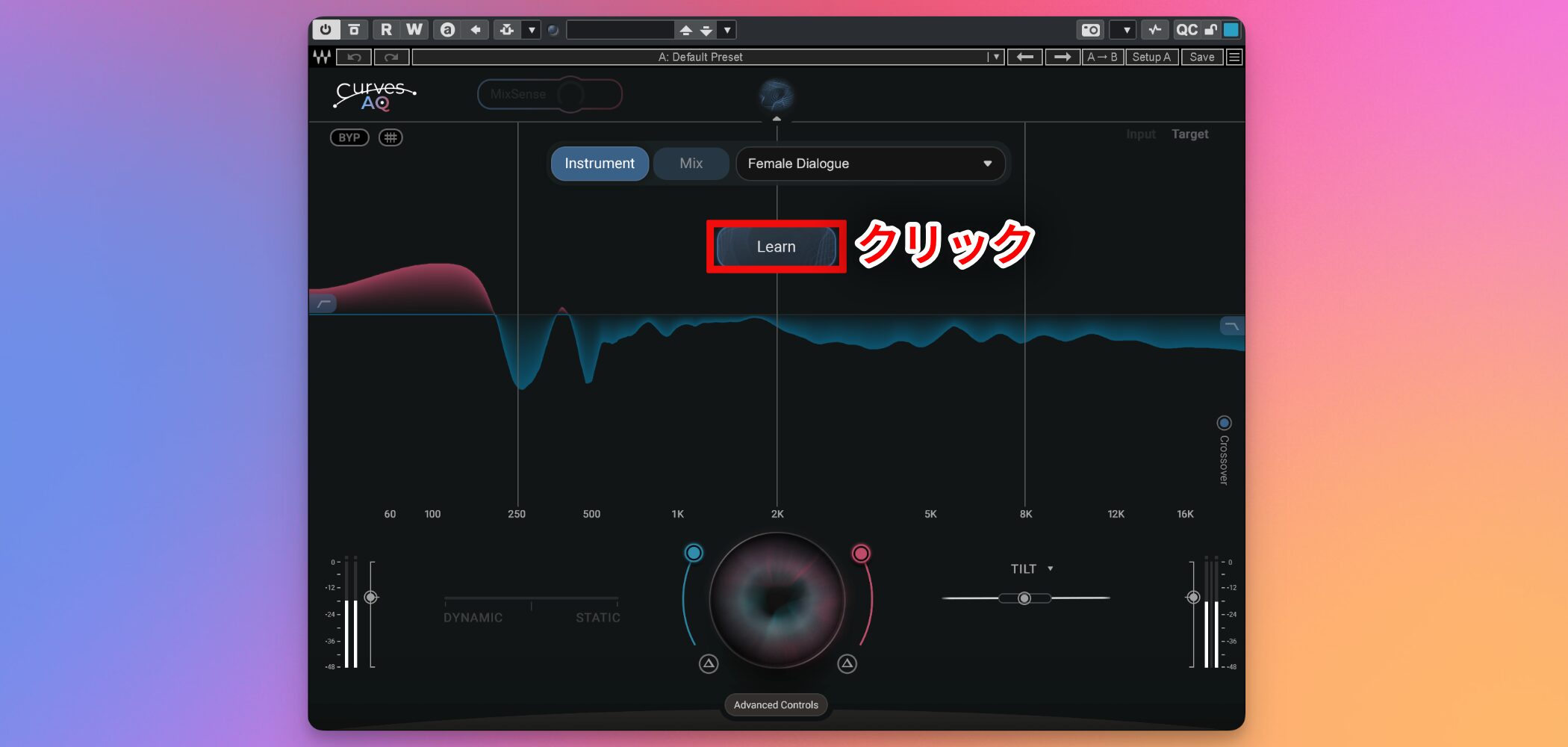
Curves AQ is very simple to use.
Insert Curves AQ on the track you want to adjust in your DAW, then click the Learn button. The plugin willautomatically begin processing.
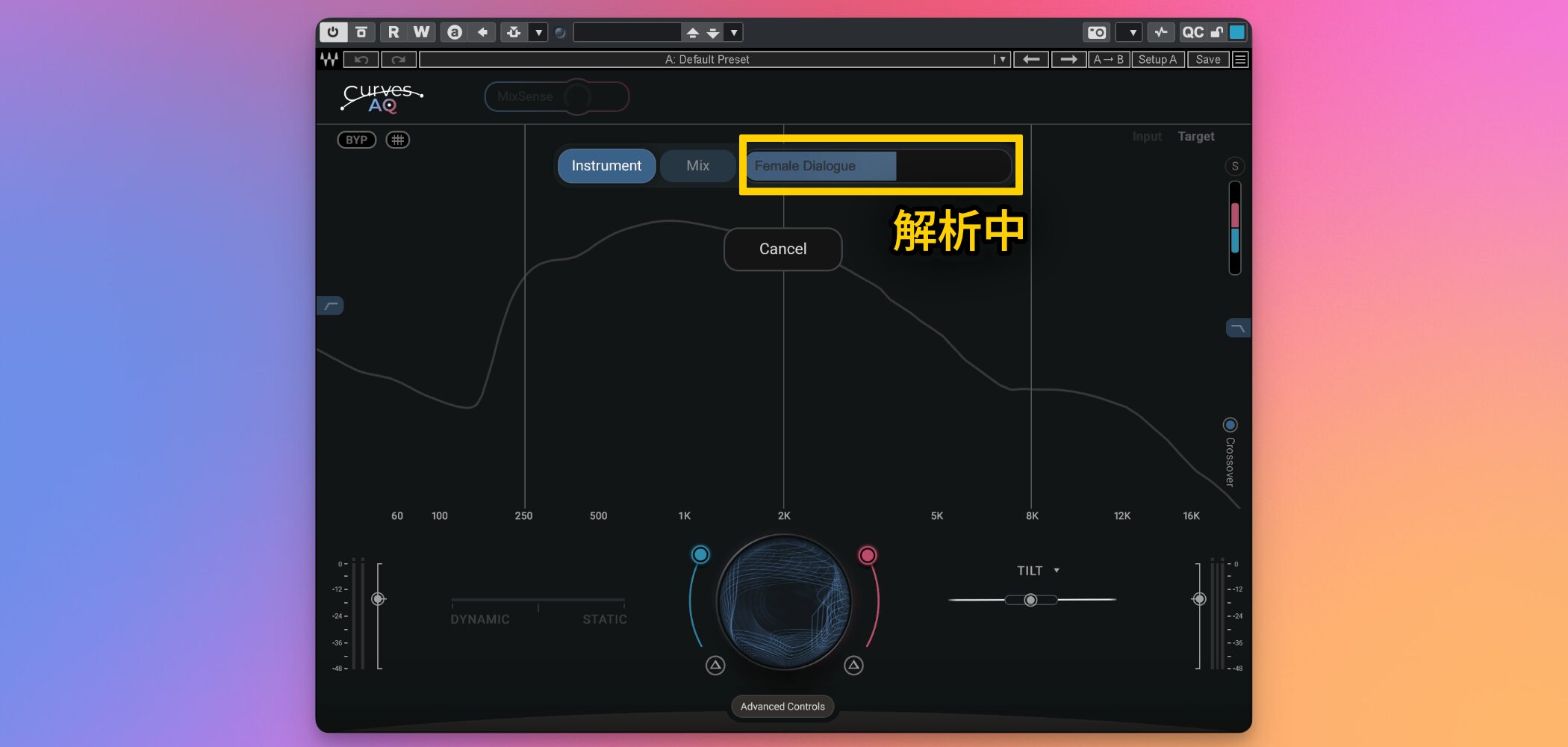
It analyzes the audio and uses a technique called “spectral targeting” to determine an appropriate sound target for the track.
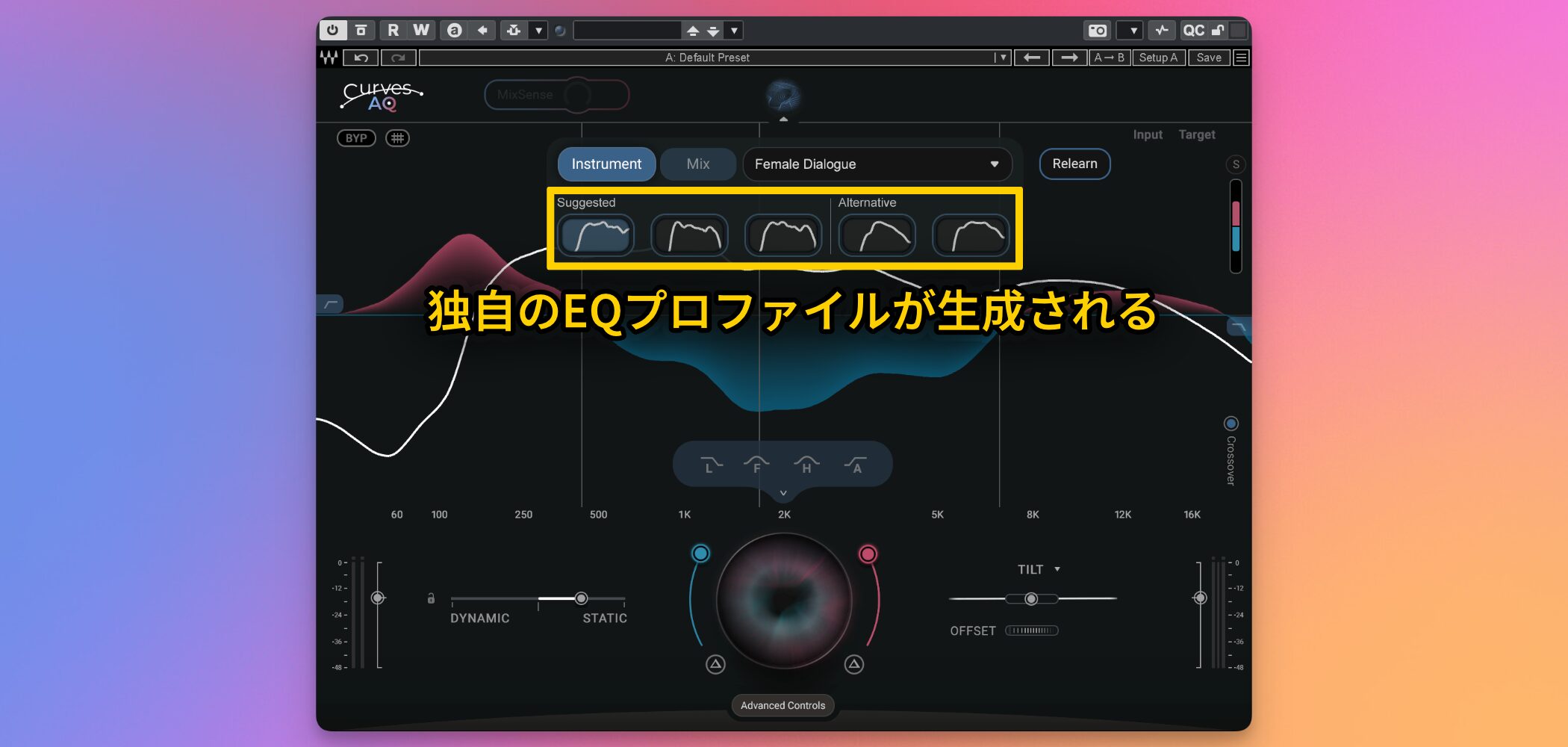
The analysis generatesfive unique EQ profiles.
Unlike ordinary presets, these are original curves generated based on a detailed analysis of the characteristics of each instrument, vocal, or even the overall mix.
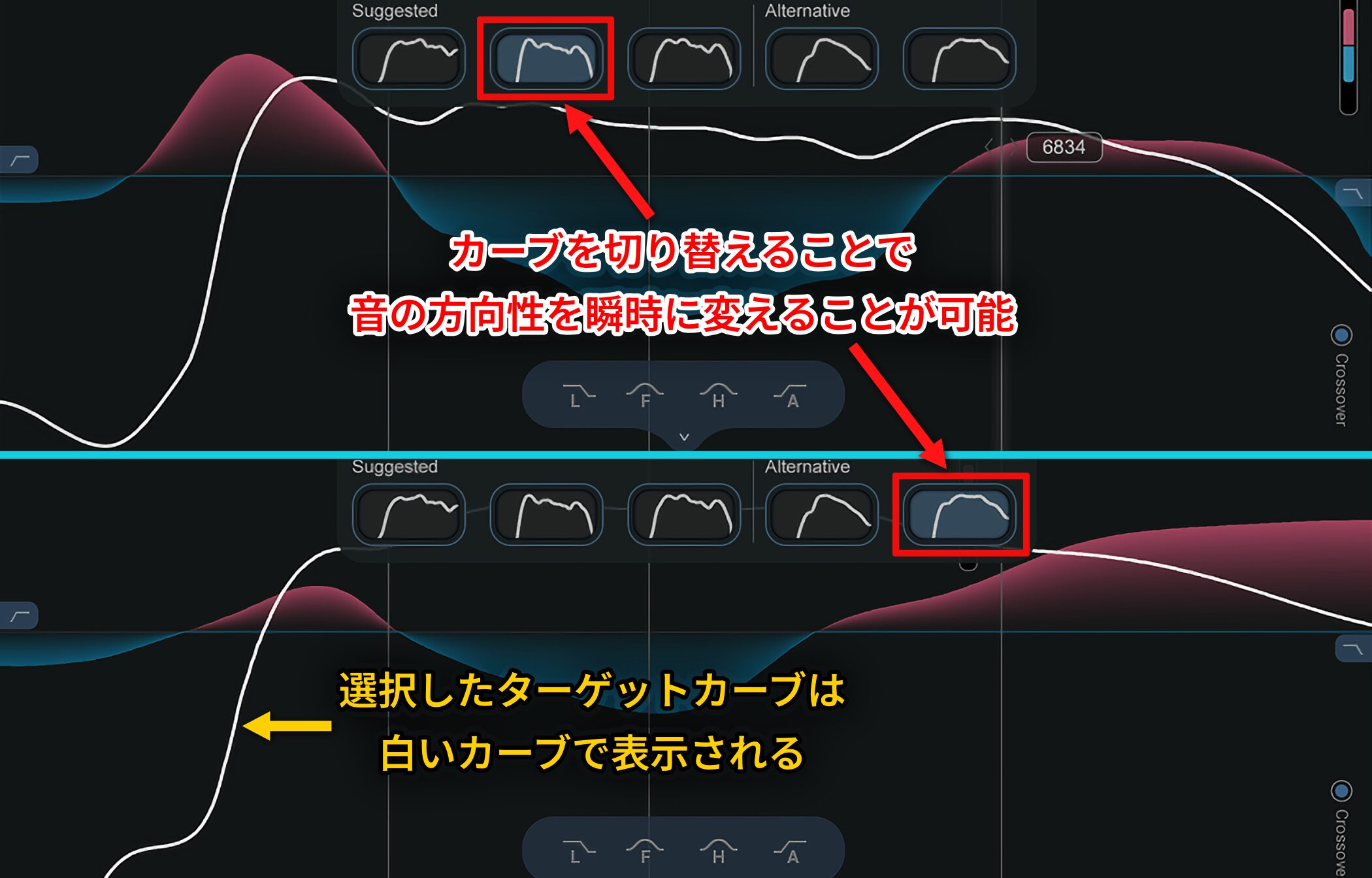
You can instantly change the tonal direction by switching between the five generated curves.
Thetarget curve for each profile is shown as a white line. This gives you a reference for subsequent EQ processing and further sound shaping.
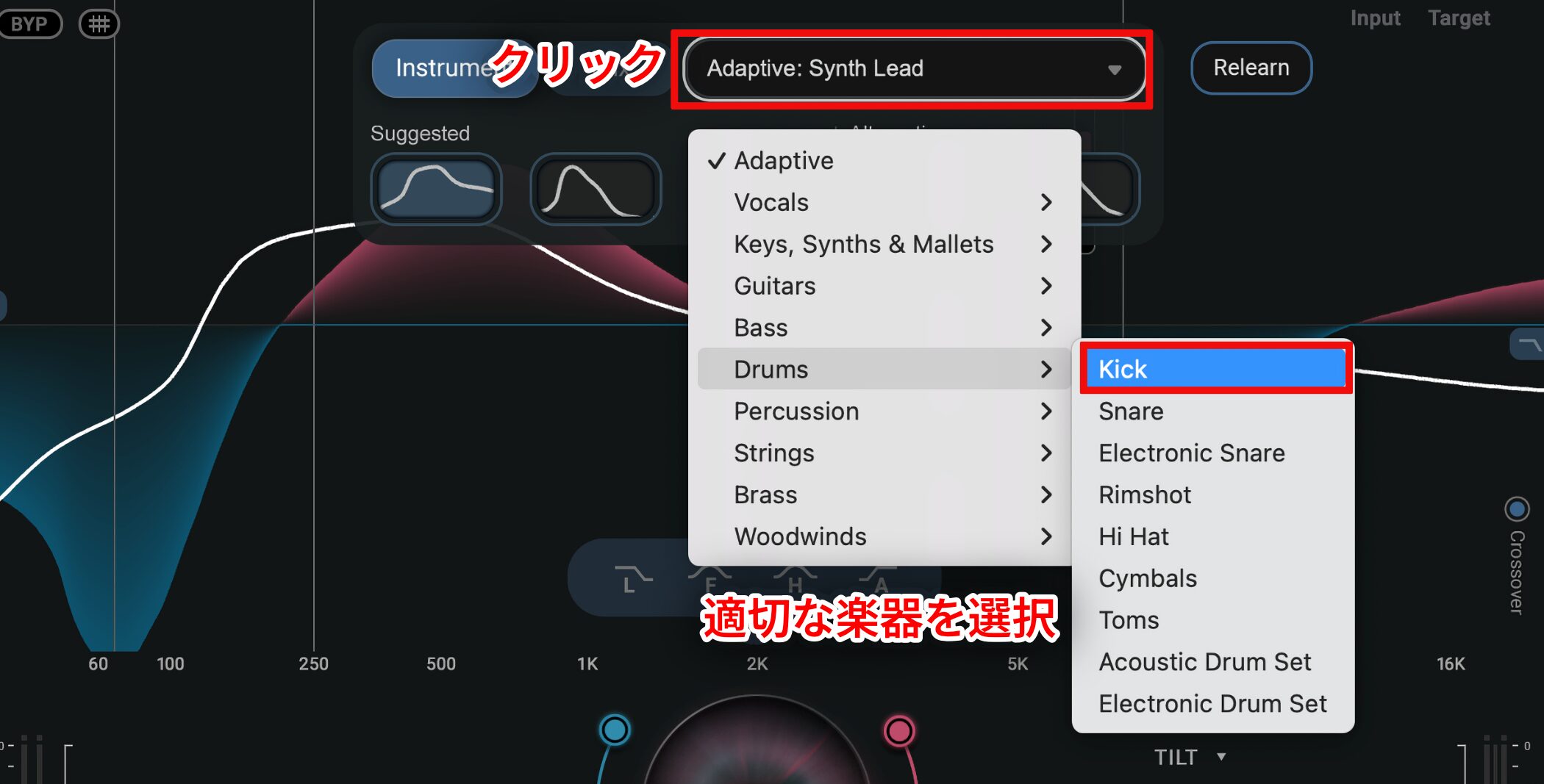
The instrument type best suited to the audio is assigned automatically after you click Learn. If the selection isn't what you intended, click the area outlined in red in the image to choose a type manually.
You can do this either before or after the analysis, andif you change it afterward, the adjustment is applied automatically—there is no need to click Relearn.
Adjusting and Customizing EQ Curves
In addition to AI-powered automatic processing, Curves AQ includes a range of manual controls to help you shape the sound more precisely.
Independent Boost and Cut Controls
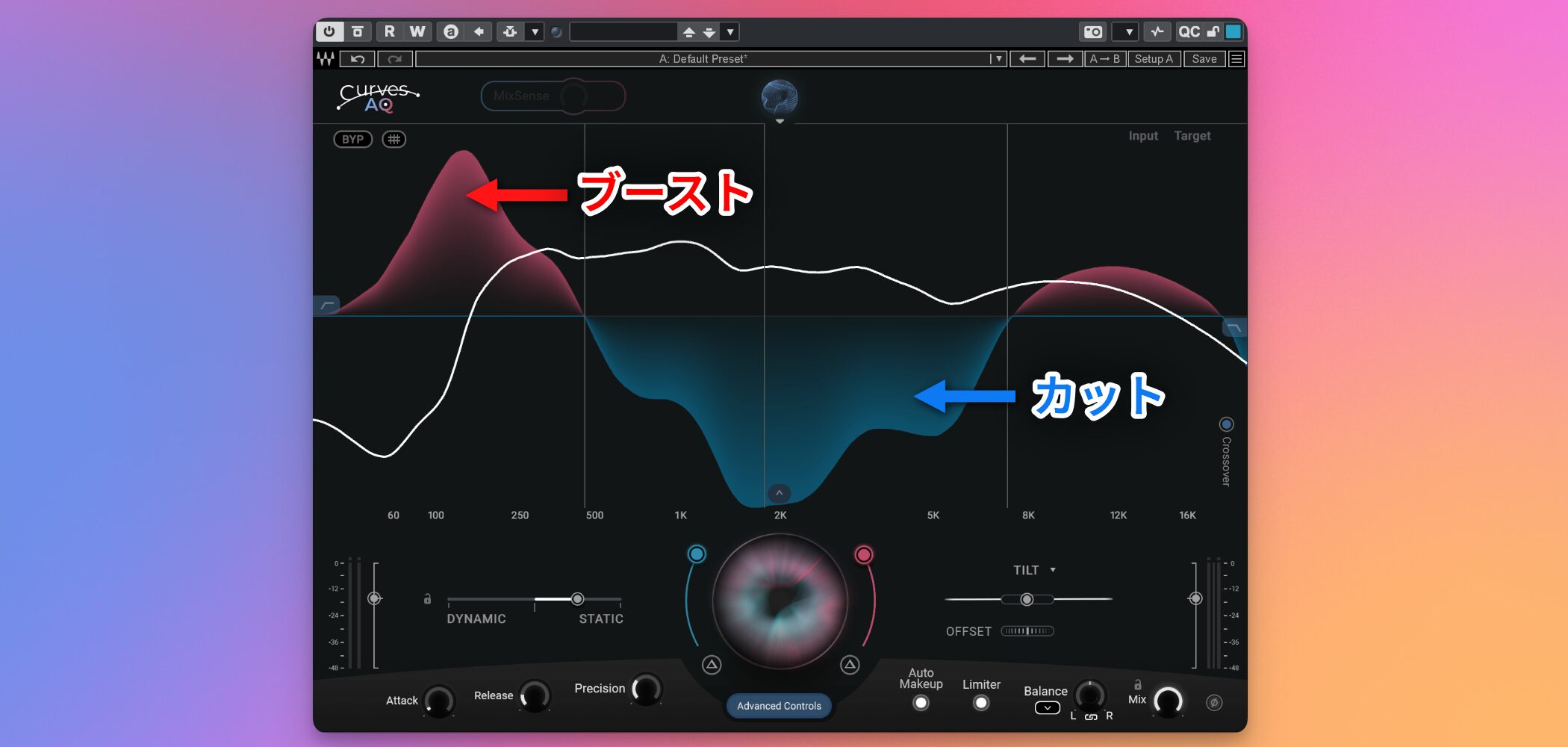
You can adjust the amount of AI-suggested EQ (blue for cuts, red for boosts) globally or for each individual band.
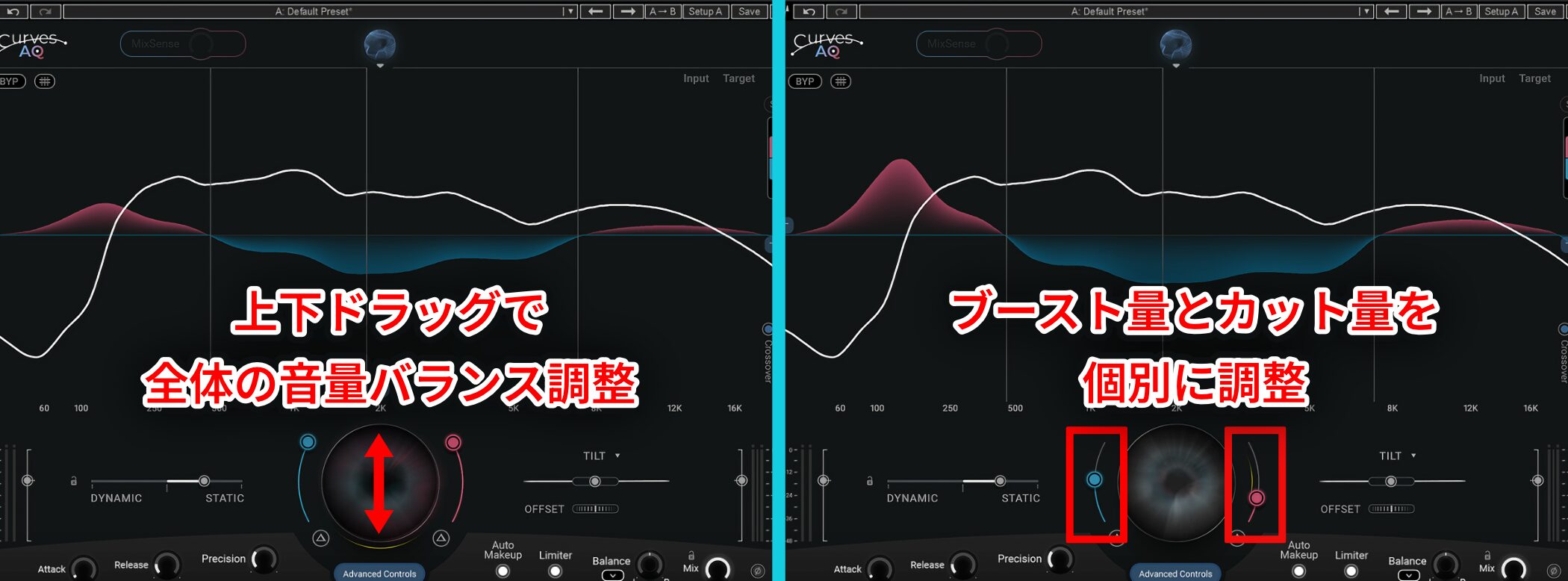
Drag the circular control at the bottom center up or down to adjust the overall level balance. Use the side sliders to adjust boost and cut amounts independently.
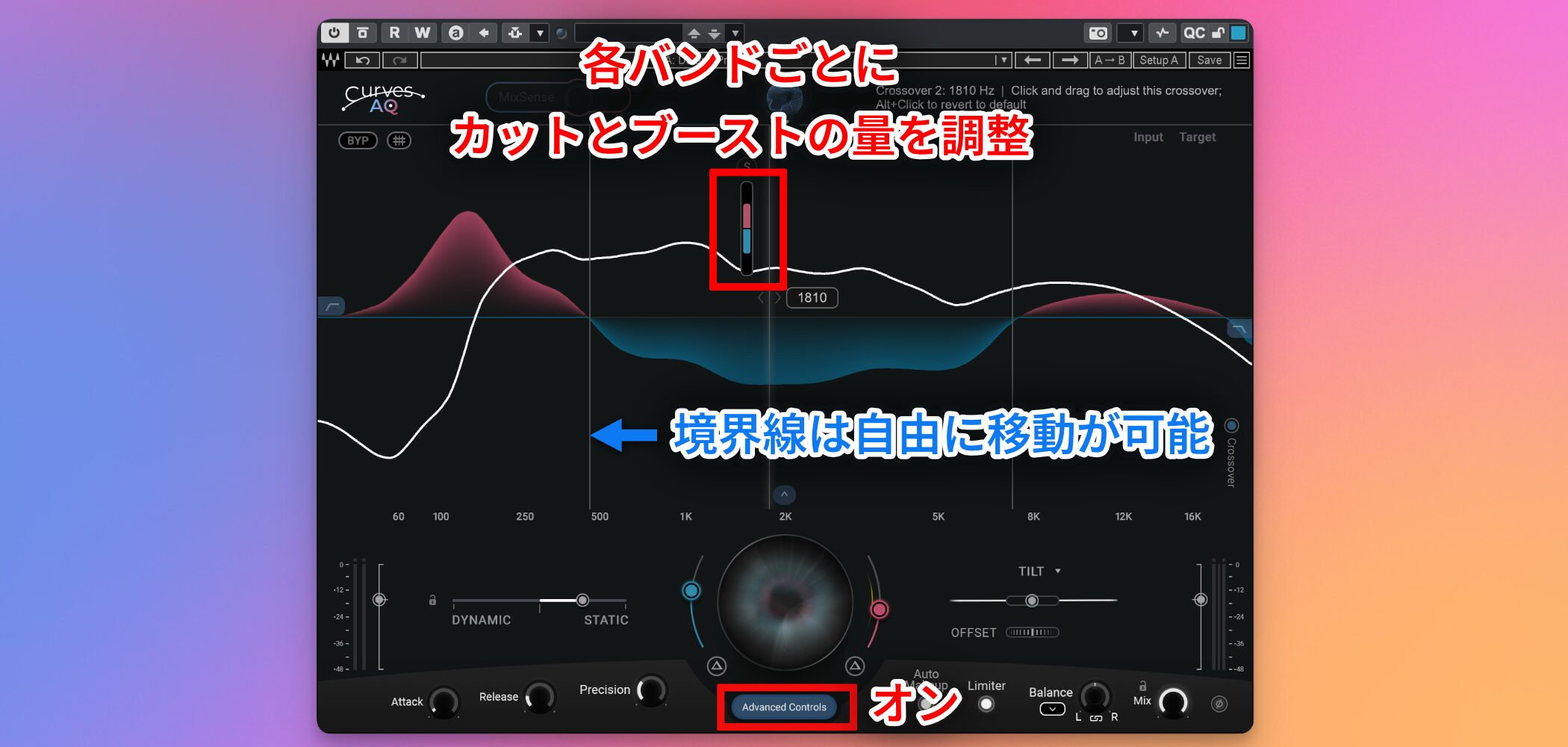
To adjust individual bands, turn on Advanced Controls and use the sliders that appear when you hover over the four crossover points.
You can freely move the crossover points between bands.
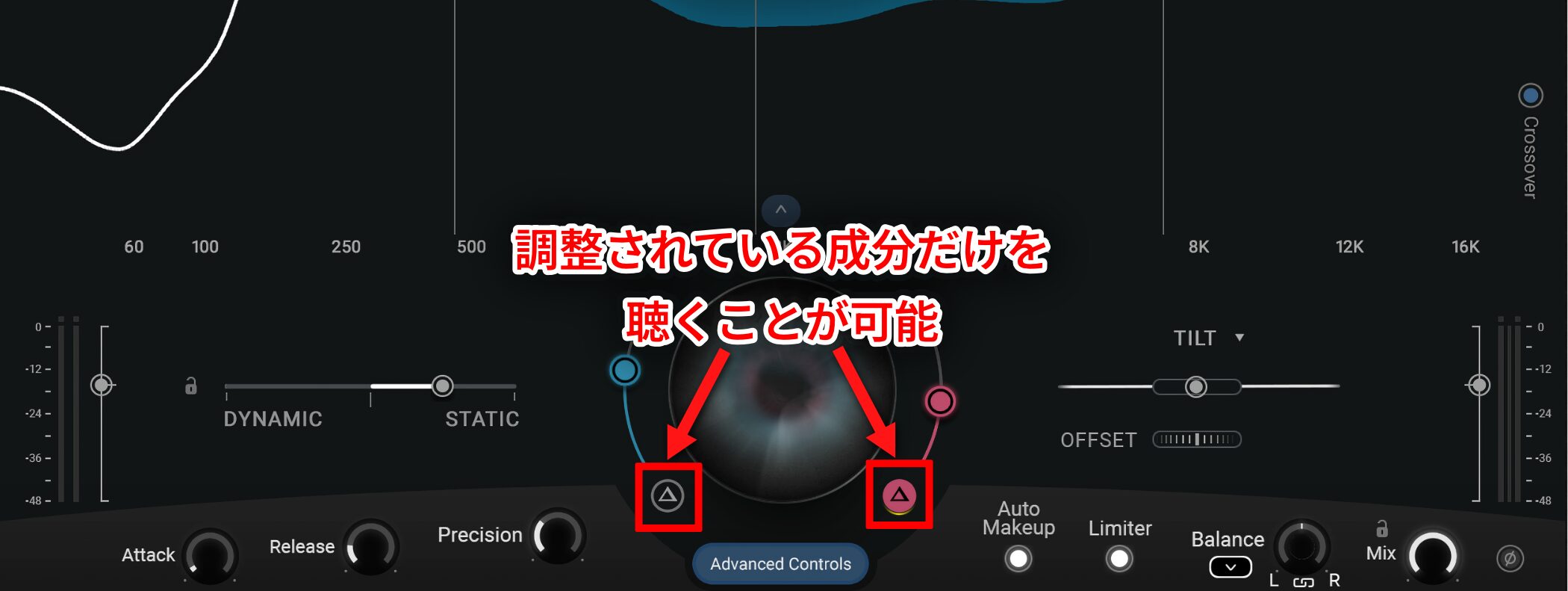
The Δ (Delta) button lets youhear only the components being adjusted.
Balancing Static and Dynamic EQ
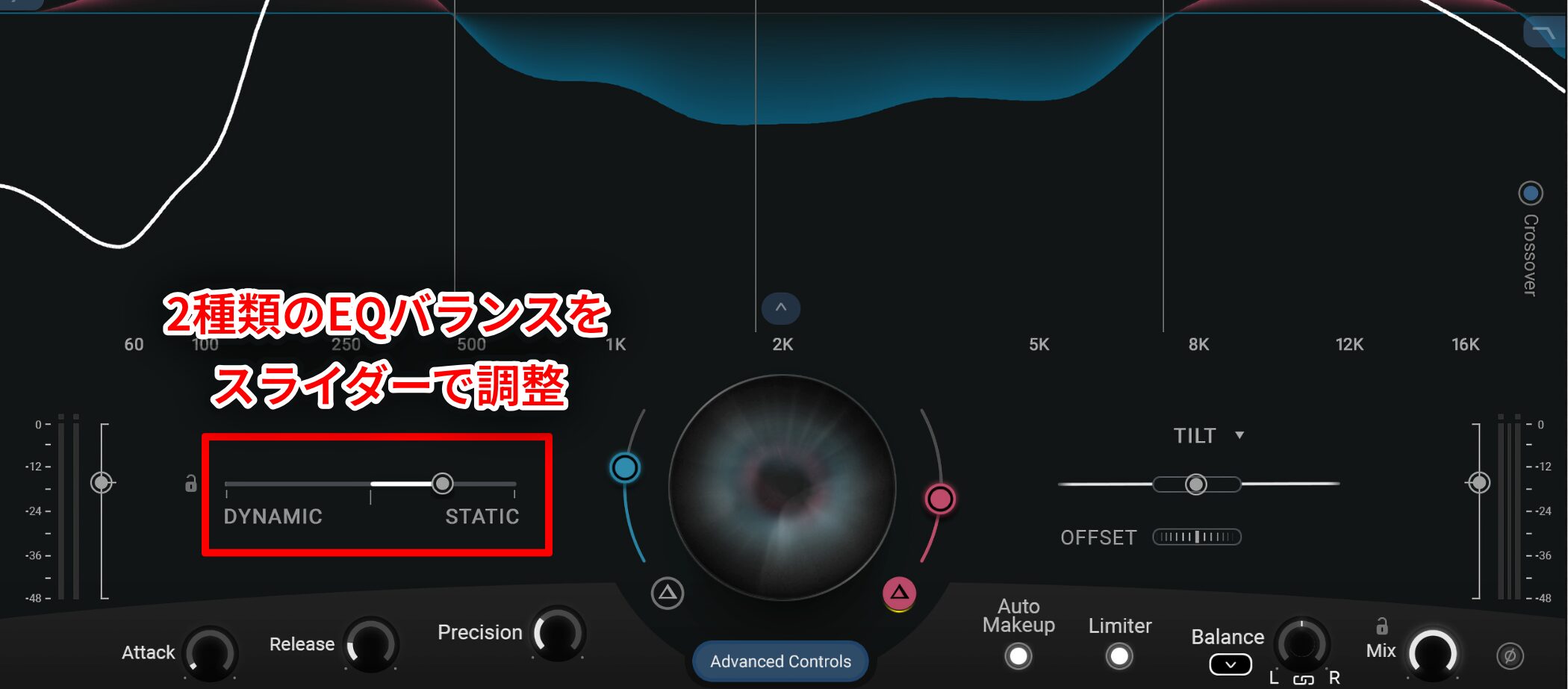
Curves AQ lets you usetwo types of EQ to shape the sound.
- STATIC: Applies a consistent correction. Useful for reducing unwanted instrument resonances, for example.
- DYNAMIC: Automatically varies the amount of processing in response to changes in level or specific frequencies. Useful for taming harsh vocal frequencies only when they occur.
Use more Static when you want a constant correction, or more Dynamic when you want to address only certain moments. You can also blend the two characteristics.
Smart Tilt Control
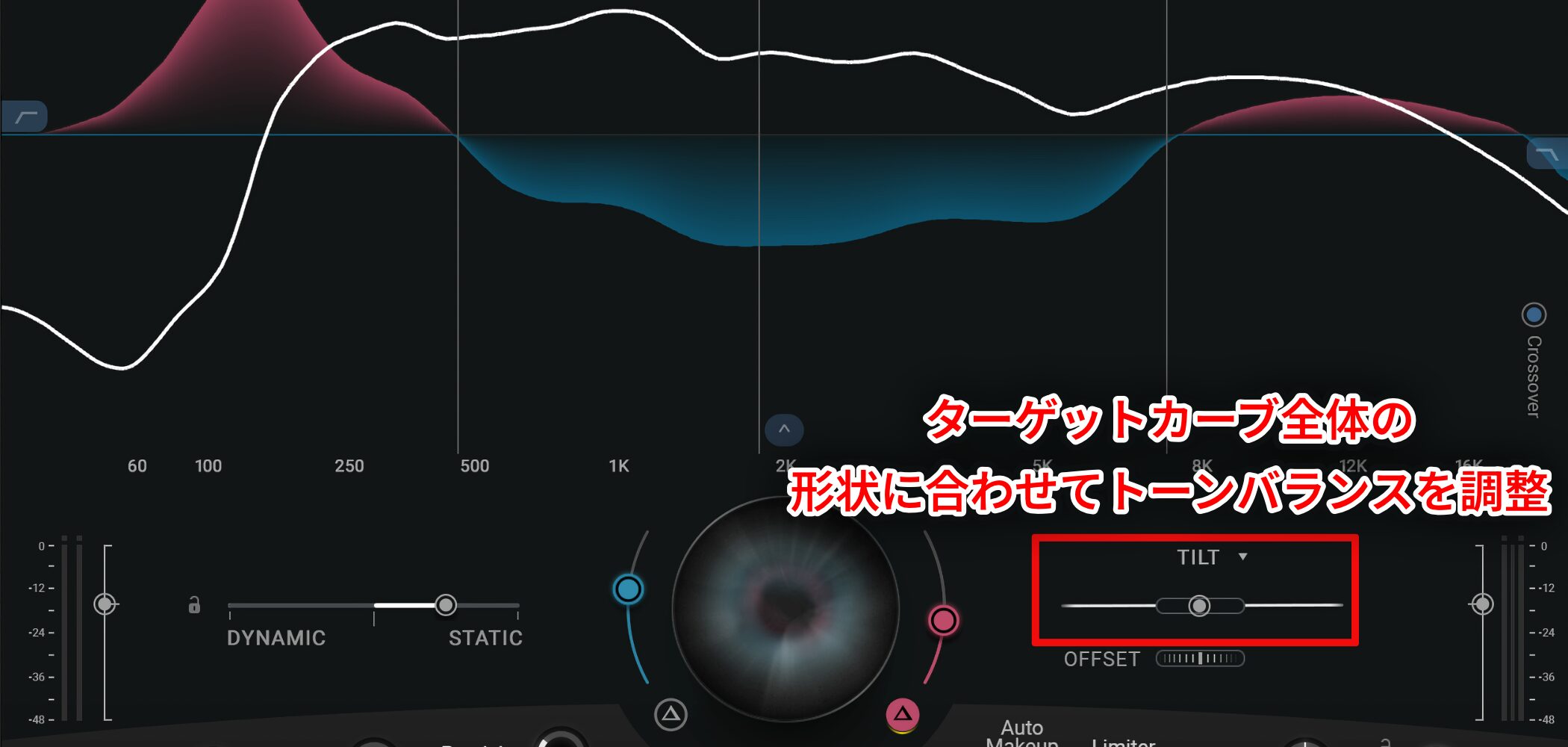
Adjusts the overall tonal balance of a track.
Unlike a conventional tilt EQ, it adjusts the tonal balance in relation to the shape of the target curve analyzed by the AI.
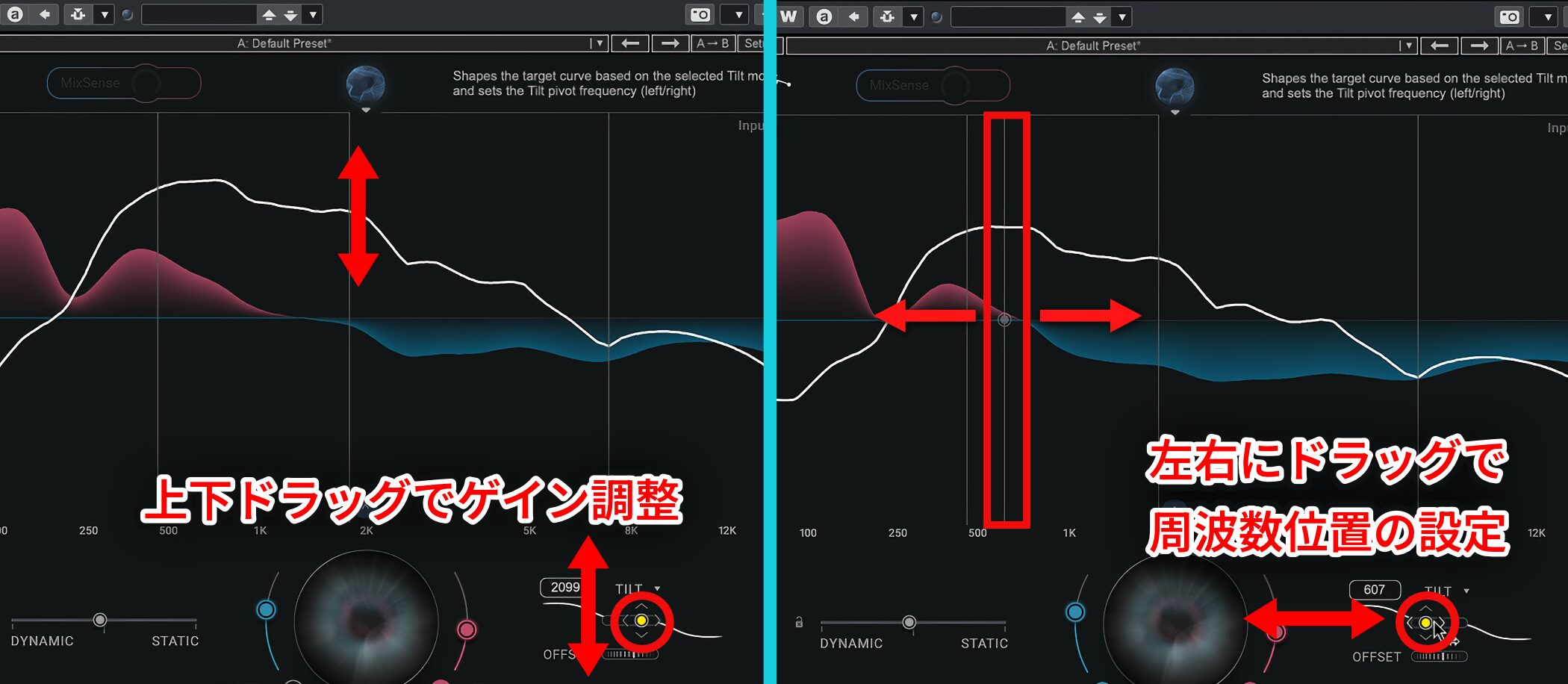
Drag the dot up or down to adjust gain, or left and right to set the center frequency.
To change the direction of a control, briefly release the mouse button.
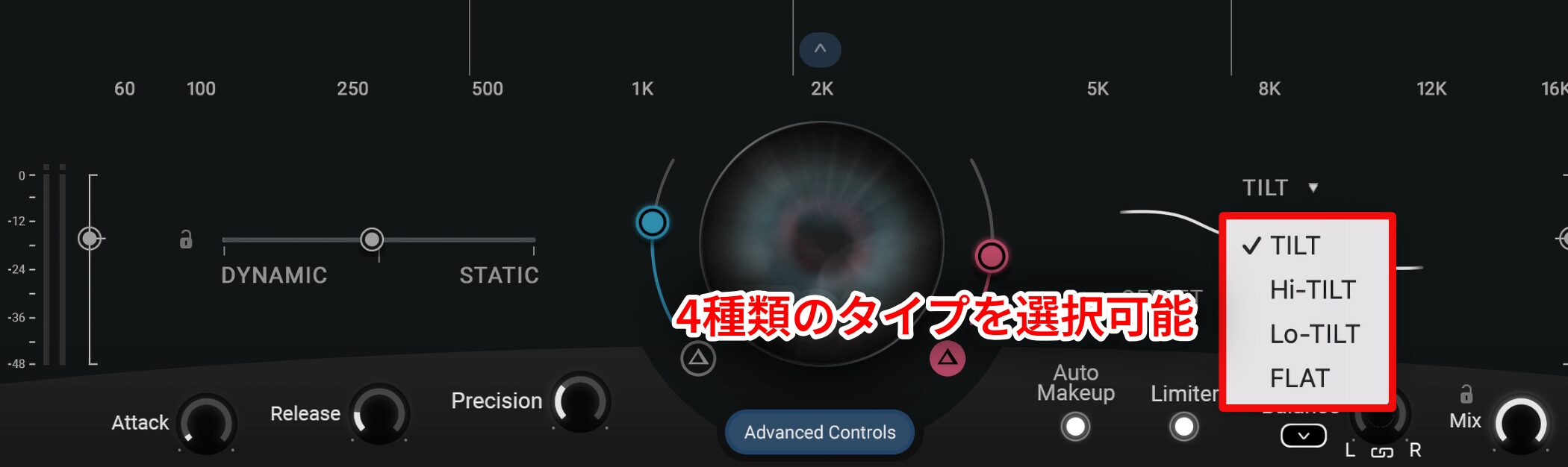
You can also choose fromfour types of tilt curvesto suit the character of the sound:
- TILT: Boosts and cuts symmetrically around the selected frequency, like a seesaw
- Hi-TILT: Primarily boosts or cuts the high frequencies, with little effect on the low end
- Lo-TILT: Primarily boosts or cuts the low frequencies, with little effect on the high end
- FLAT: Applies a flat curve to the current target curve, removing the tilt effect
Offset
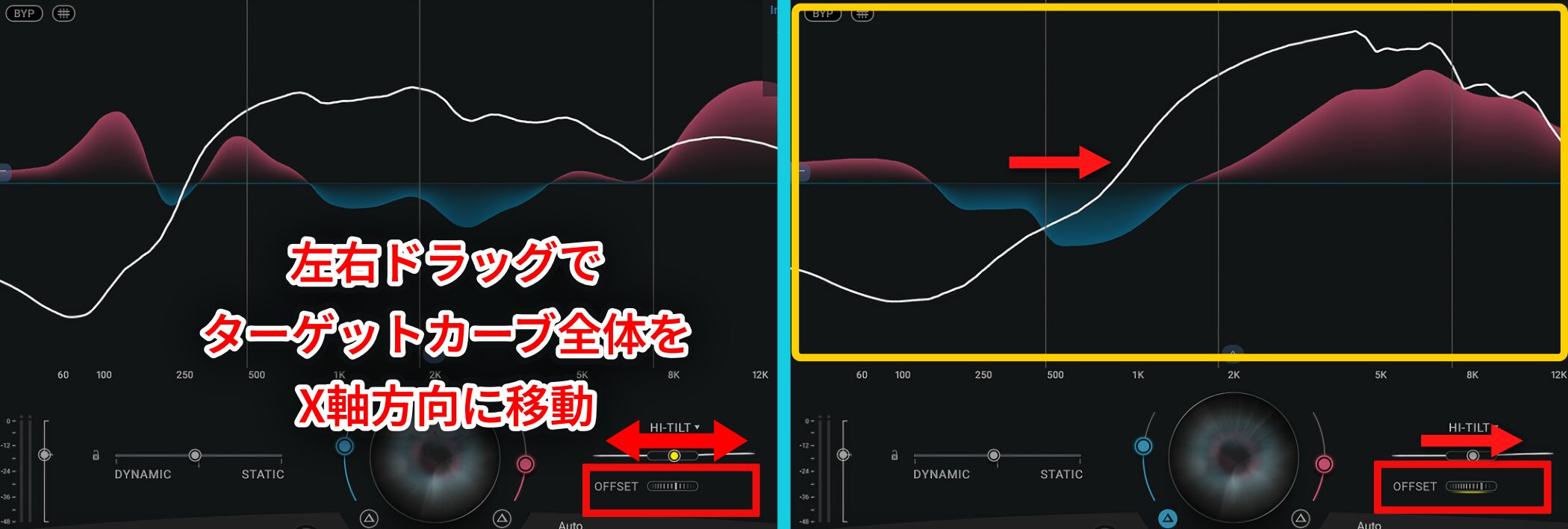
Moves the entire target curve along the X-axis to adjust the position of the fundamental frequencies.
For example, this can be useful when you want to shift the focus of low-frequency processing slightly lower, or change the range where high-frequency harmonics are emphasized.
Optimizing the Overall Mix with MixSense
Curves AQ's MixSense feature is designed to optimize the overall tonal balance of a mix andresolve frequency clashes between tracks.
Here, we'll show you how to use MixSense in Cubase.
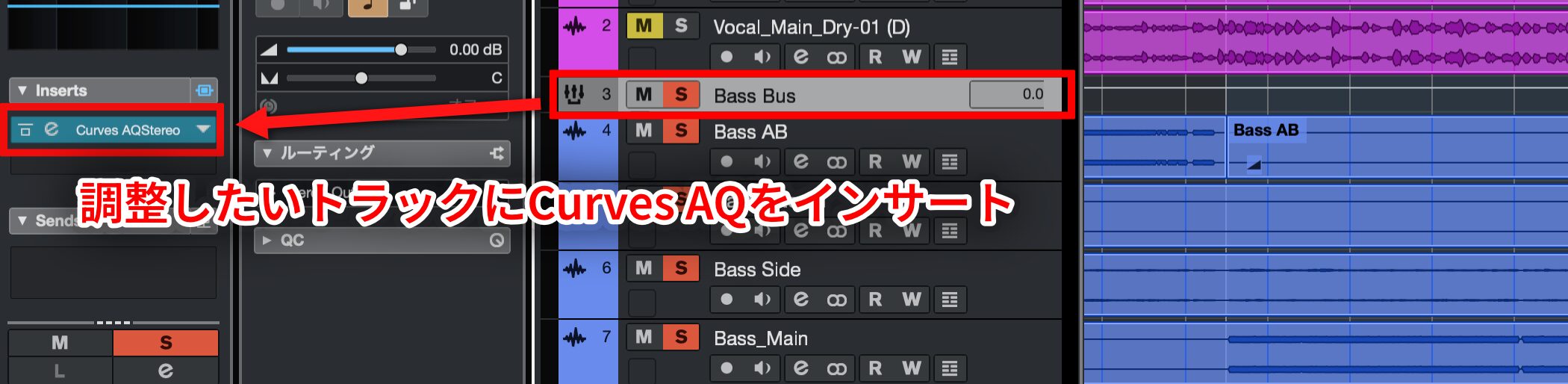
First, insert Curves AQ on the track you want to adjust—in this example, the bass.
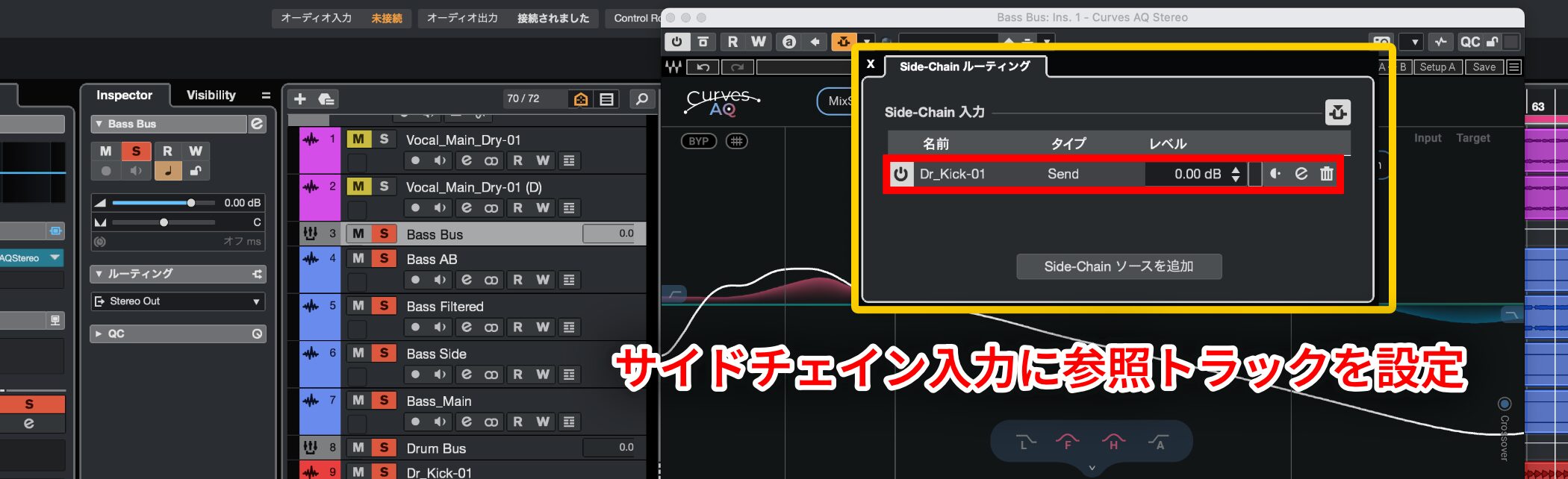
Next, select a reference track—in this example, the kick drum—as the sidechain input.
This sends the reference track (the kick drum) to Curves AQ so it can “listen” to it.
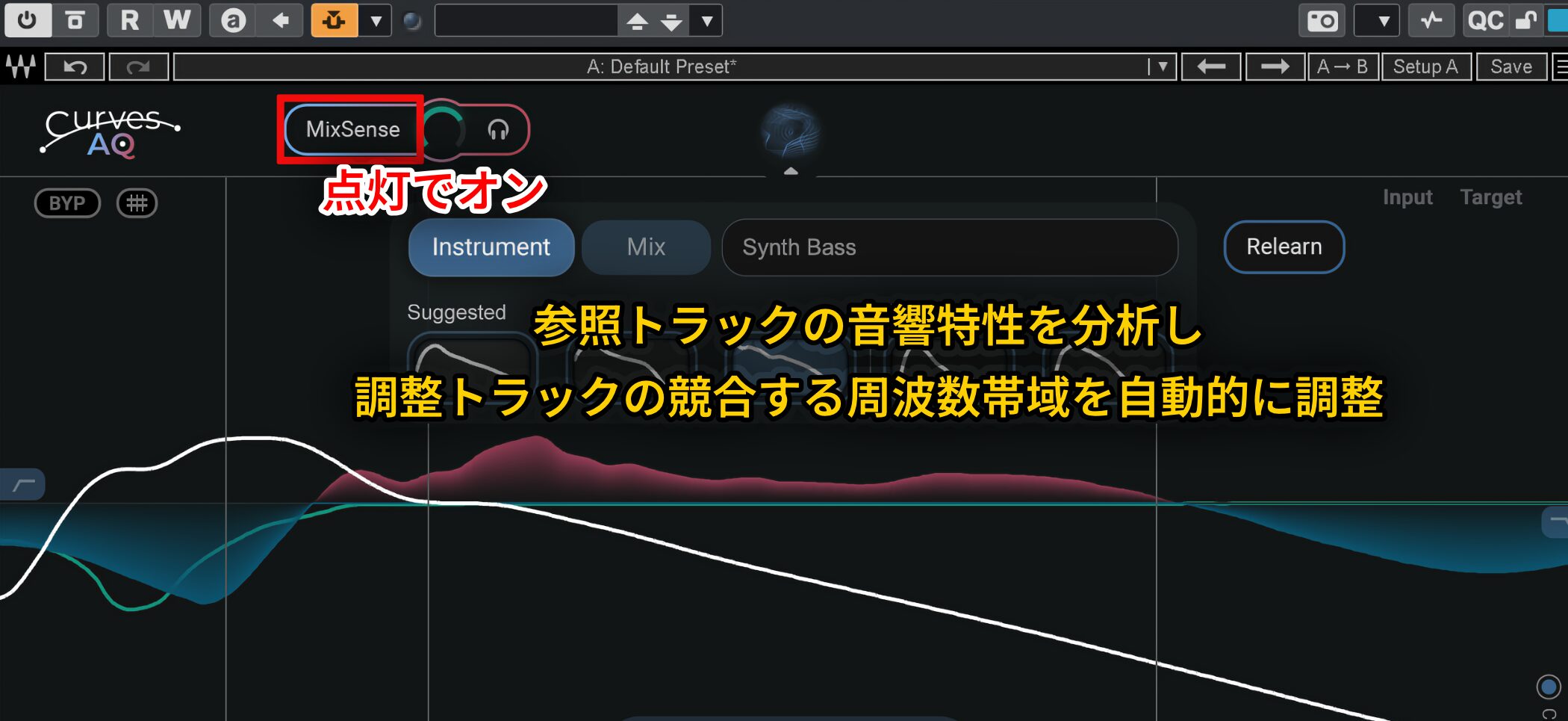
When you turn on MixSense in Curves AQ, it analyzes the sonic characteristics of the reference track (the kick drum) and automatically adjusts thecompeting frequency rangesin the track you want to process (the bass).
Instead of simply lowering the volume like conventional ducking, it makes the necessary adjustments at the frequency level. This improves the separation between instruments and allows formore natural and effective processing.
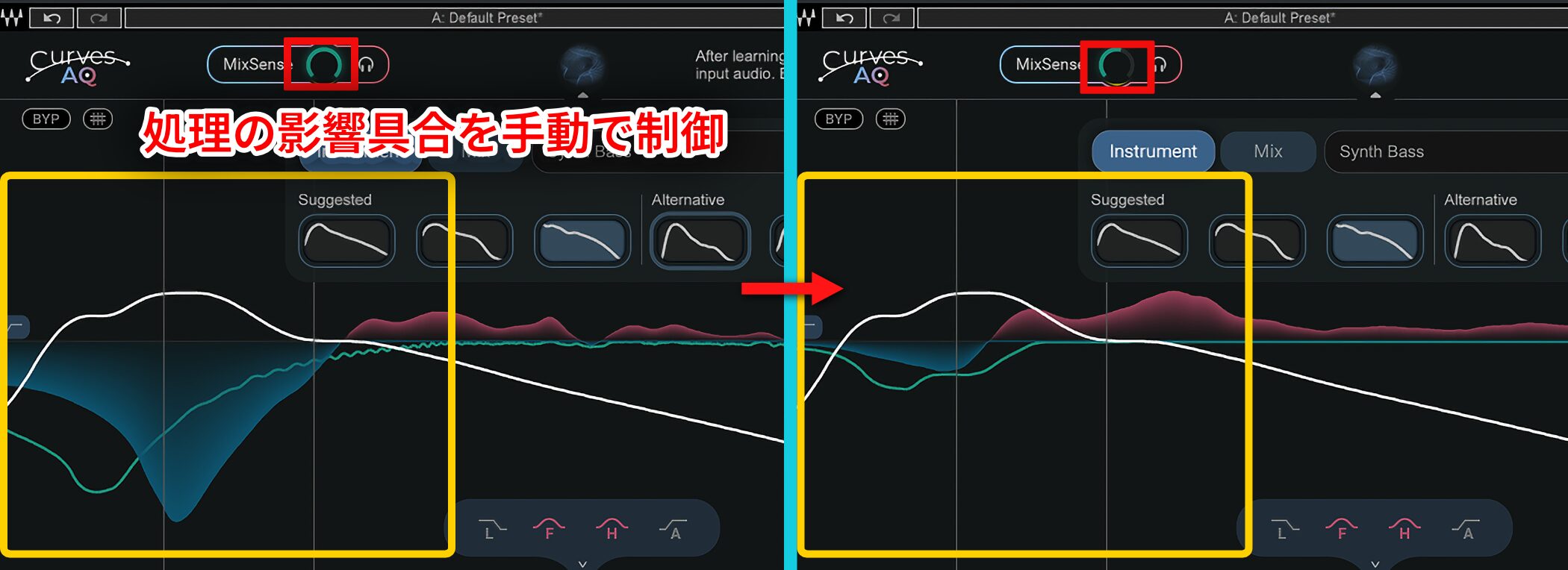
The knob on the right also lets you manually controlhow much the reference track (the kick drum) affects the processing of the target track (the bass).
Four Frequency Anchors
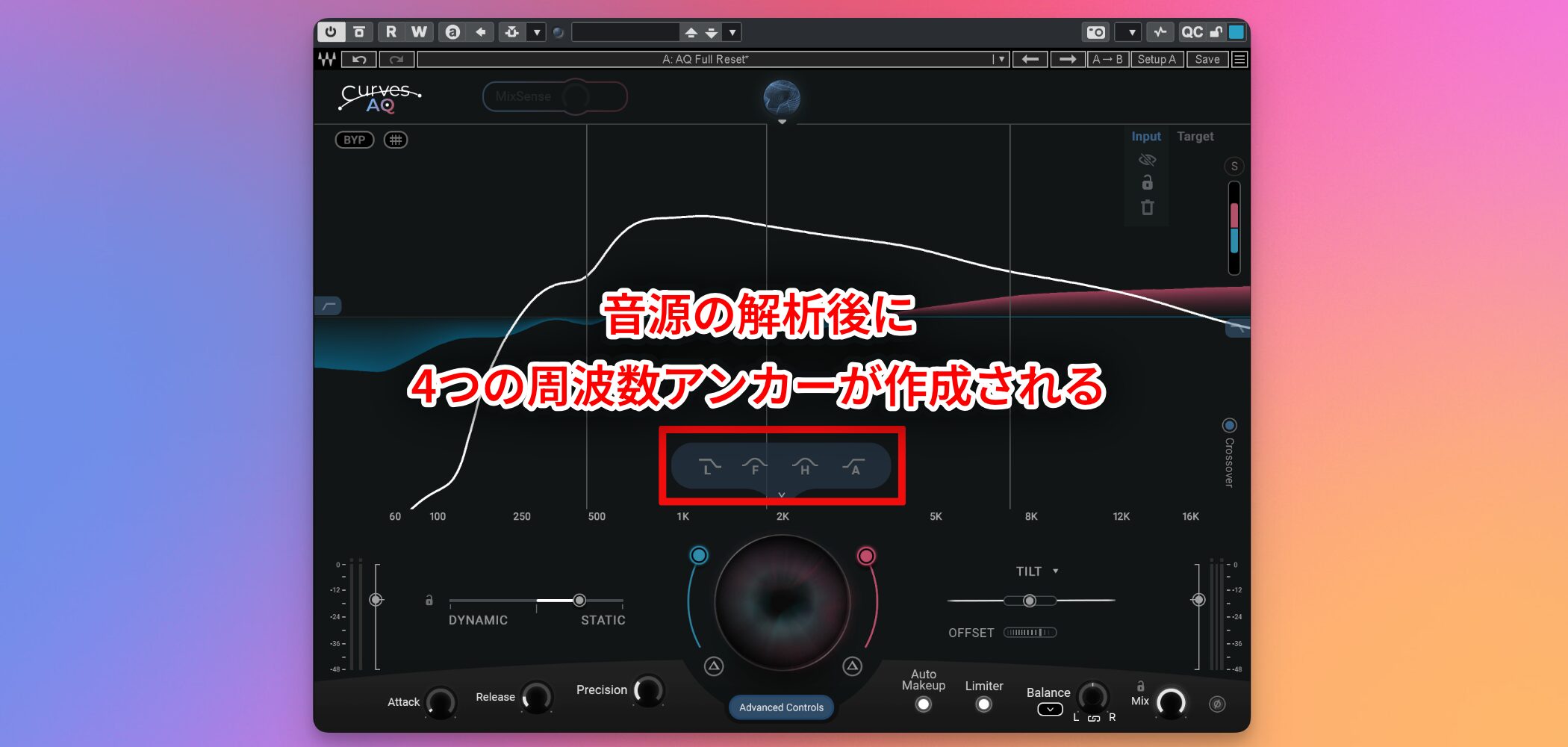
When analyzing audio, Curves AQautomatically identifies four key elementsand displays them as anchors.
Adjust each anchor individually to control its corresponding element intuitively.
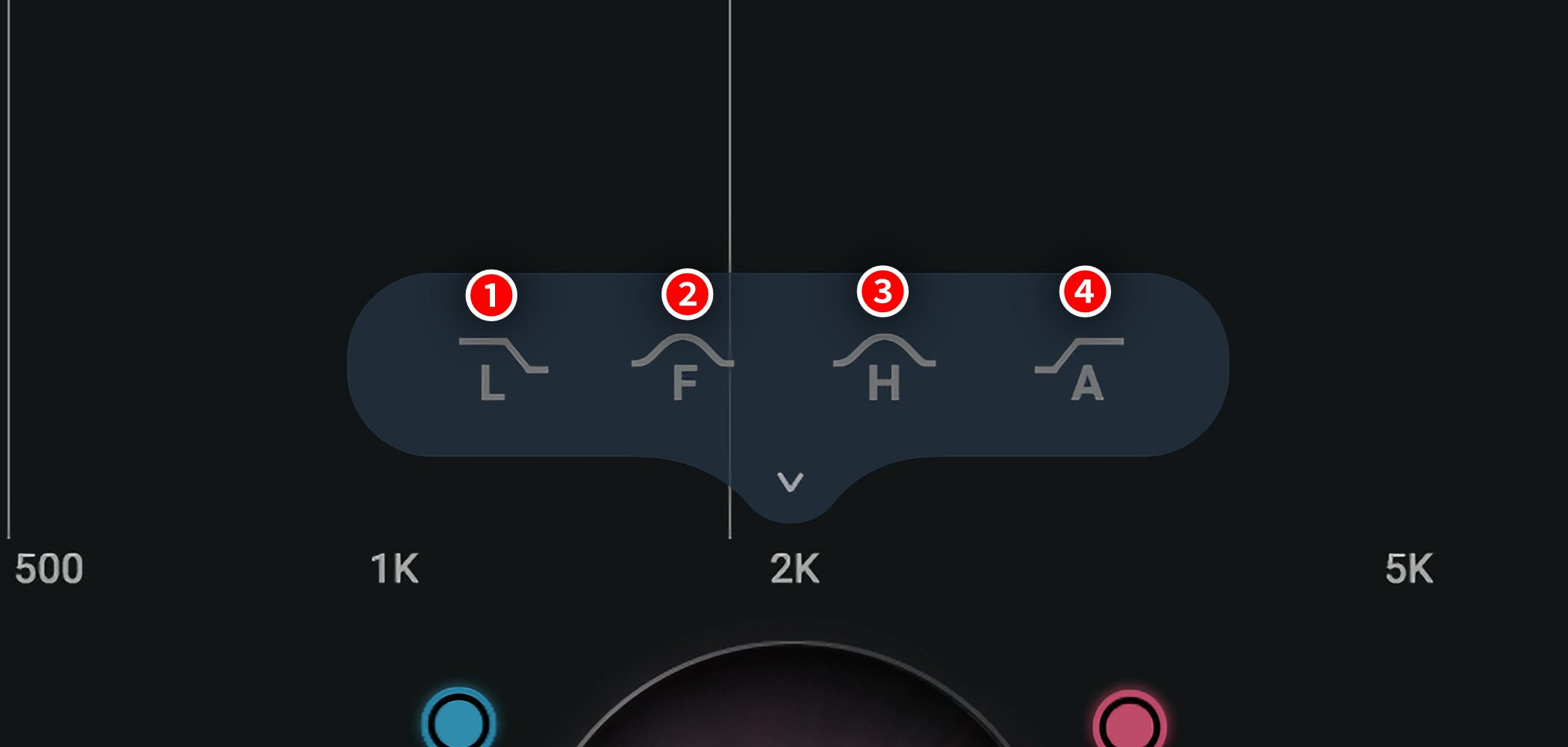
- Low: An anchor dedicated to the low frequencies. Adjusts the weight and tightness of the bass
- Fundamental: An anchor that captures the main frequency range of the audio. Adjusts the clarity of its core frequencies
- Harmonics: An anchor that controls harmonic content. Adjusts the texture and presence of the sound
- Air: An anchor dedicated to the high frequencies. Adjusts brightness and openness
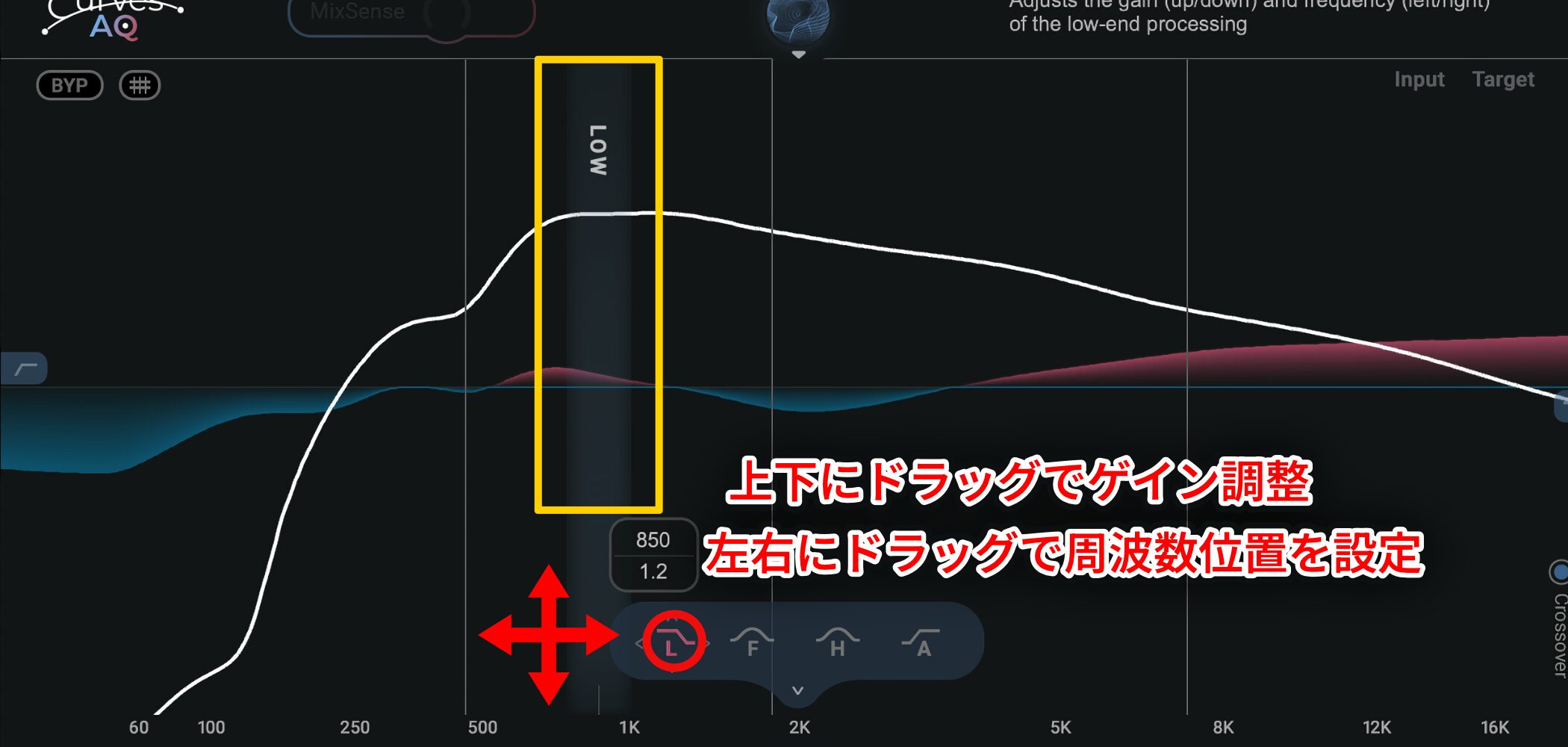
The controls work like Smart Tilt Control: drag up and down to adjust gain, or left and right to set the center frequency.
System Requirements
Mac
• CPU: Intel Core i7/i9/Xeon-W, Apple M1 (some products excluded)
• Memory: 8 GB (16 GB or more recommended)
• OS: 10.15.7, 11.6.5, 12.3.1
• Free storage: 16 GB or more
Windows
• CPU: Intel Core i5/i7/i9/Xeon (5th generation or later), AMD quad-core
• Memory: 8 GB
• OS: Windows 10 64-bit (21H2), Windows 11 (21H2)
• Free storage: 16 GB or more
Free Trial and Purchasing Options
Before purchasing Curves AQ, you can trythe 7-day free trial.
Download it from the Waves Central app to try all features without restrictions.
For instructions, seethis page.
The official website offers two ways to get the product: aperpetual licensethat remains yours after a one-time purchase, or asubscription licensethat you pay for during the period of use.
Prices vary by retailer and over time, so be sure to check the latest information before purchasing.
Conclusion
What do you think?
Curves AQ has the potential to take your music production to the next level as an accessible tool for saving time on EQ, improving precision, and discovering new sounds.
It's particularly recommended for those who:
- Want to spend less time on EQ
- Aren't confident making adjustments by ear alone
- Want to create high-quality mixes efficiently
- Want to explore new sound-design possibilities
.
Try the demo and experience what it can do for yourself!
Frequently Asked Questions
Q1. How is Curves AQ different from conventional smart EQs?
Conventional smart EQs simply make suggestions from a set of presets. Curves AQ analyzes the source audio in detail from the ground up and automatically generates an original EQ curve based on its characteristics. This allows for more precise and flexible EQ processing.
Q2. Is it easy for beginners to use?
Yes. Simply press the Learn button to complete the automatic processing, making it easy for beginners to achieve high-quality EQ results. It also offers extensive manual controls, so you can shape the sound in more detail as your skills develop.
Q3. What does MixSense do?
It processes multiple tracks together and automatically resolves frequency clashes between them. By optimizing the overall mix balance, it can help each instrument remain clear and distinct.
Q4. When is dynamic EQ useful?
It's useful for sounds you want to tame only in specific situations, such as harshness in a vocal. Its processing automatically changes in response to level or frequency variations, allowing for more natural, less fatiguing EQ.
NEW ARTICLES
Latest English Articles













































