
Using Ableton Live’s Simpler, you can create scratch, tape-stop and fast-forward effects reminiscent of DJ performances. This guide walks through dropping a sample onto a Drum Rack pad, setting up the pitch envelope and mapping a MIDI controller. Adjusting Pitch Envelope Amount with a knob lets you shape the effect in real time, raising or lowering the amount to produce fast-forward and stopping sounds.
A Sound-Design Technique Using Sampler Pitch Changes

In this tutorial, we will make scratch, tape-stop and fast-forward sounds in Ableton Live.
By adjusting Simpler’s pitch settings, you can easily create scratch, tape-stop and fast-forward sounds.
How to Make Scratch and Tape-Stop Sounds
Product Details

Questions and Answers from YouTube

Thank you for the tutorial. Can I do this in the Intro edition of Ableton Live 10?

According to the edition comparison, Intro includes Simpler, so it should be possible. Check the current edition comparison for up-to-date availability:https://www.ableton.com/ja/live/compare-editions/
I would like to learn how to use DAW apps on iPad, and also Korg iM1.
We introduce iOS apps here:https://sleepfreaks-dtm.com/ios/soft/daw-ios/We do not yet have an iM1 guide, but we may consider one if there is enough demand.
Setting Up the Sampler for Scratching
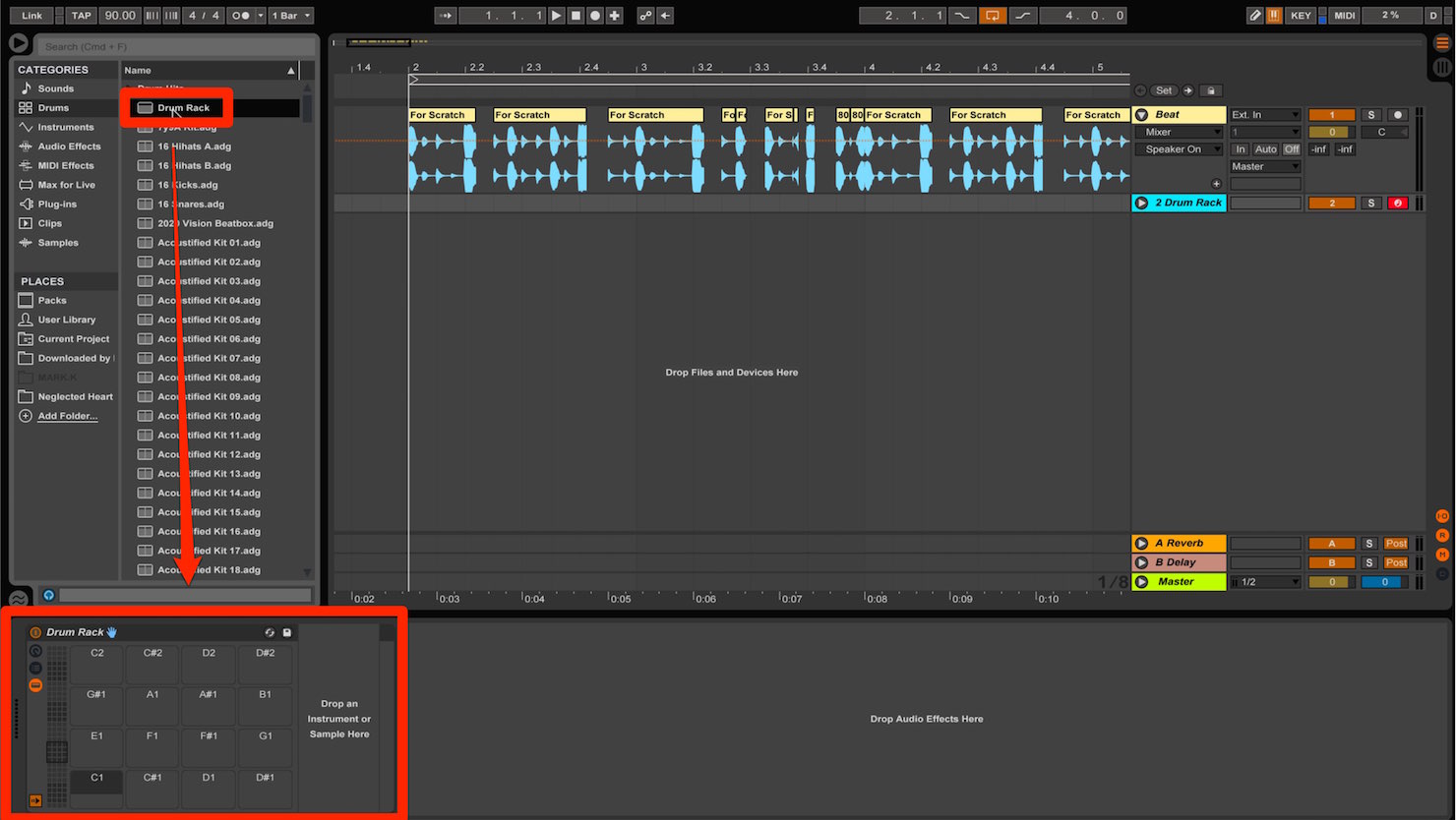
First, open a Drum Rack.
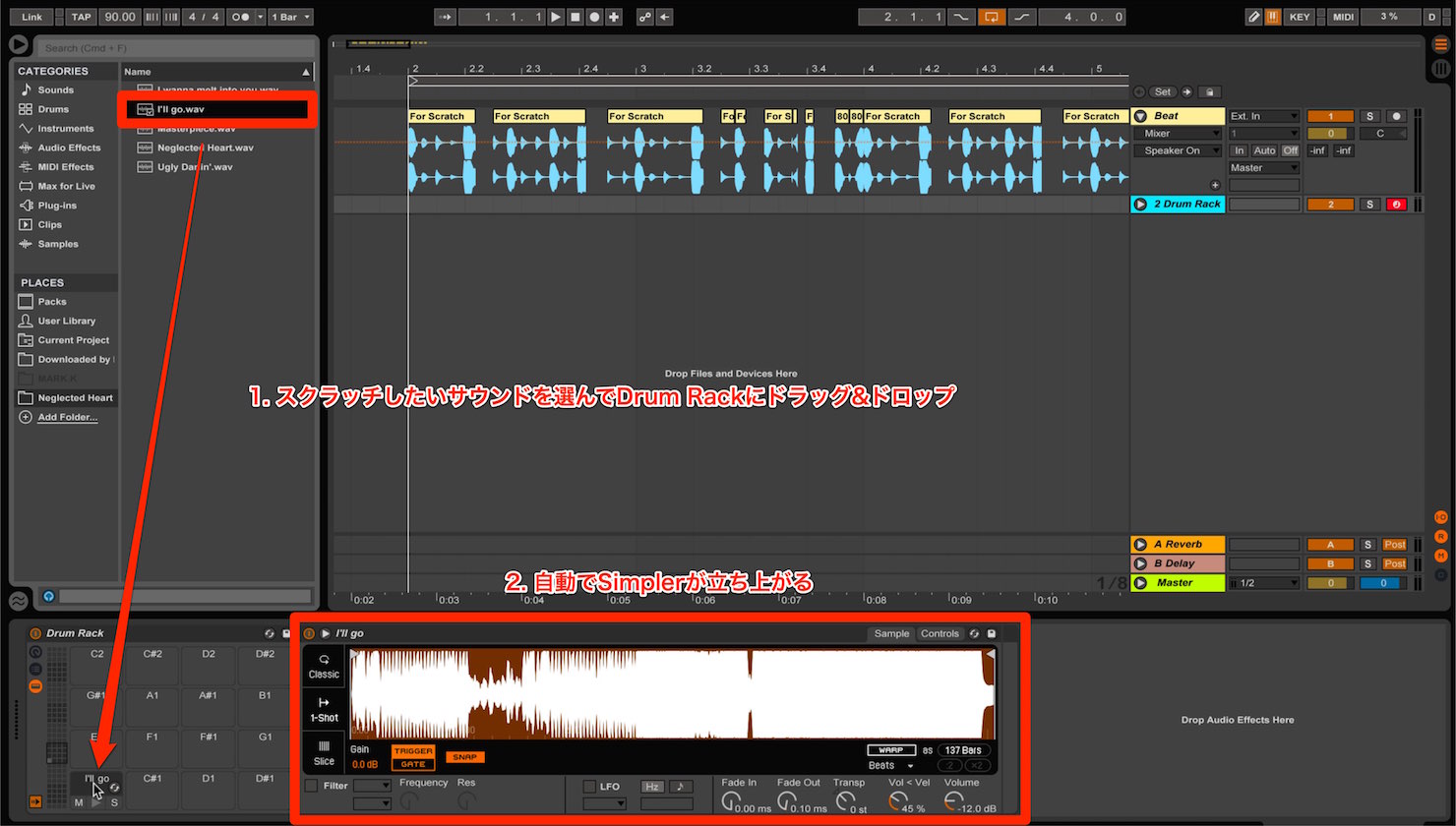
Choose the sound you want to scratch and drag it onto a Drum Rack pad.
When you drop the sound onto the pad, Simpler opens automatically.
We will use Simpler to create scratch, tape-stop and fast-forward sounds.
When you first load a sample, its entire range is available in Simpler. Select the section you want to use for scratching.
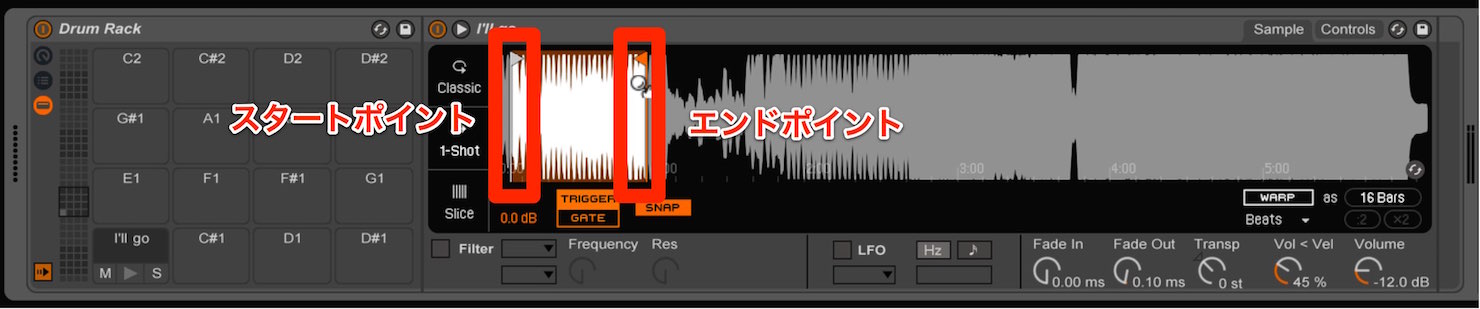
Drag the Start and End points to choose that section.
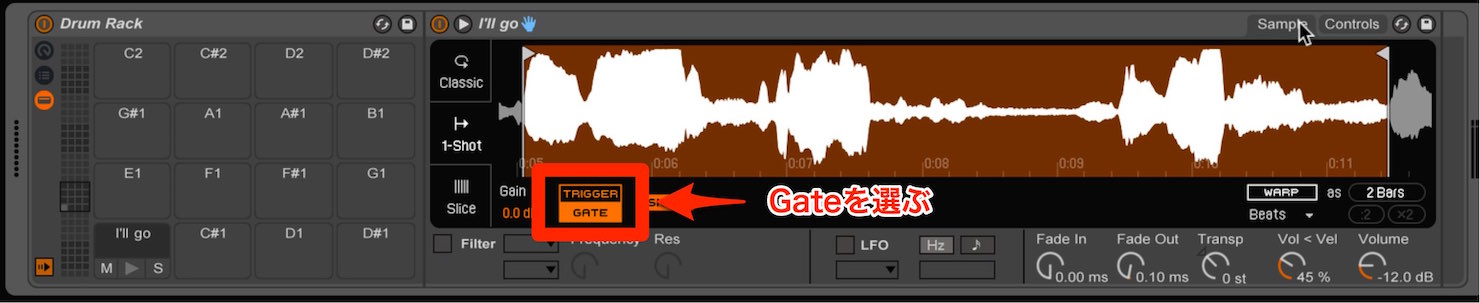
By default, pressing a pad once triggers one-shot playback of the selected sample range through to the end, even if you release the pad.
Change this mode to “Gate.”
Now the sound stops when you release the pad.
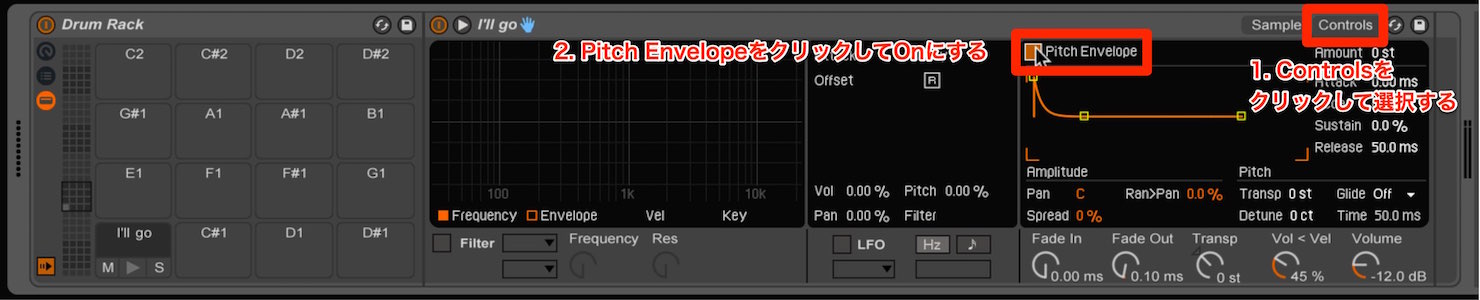
Next, select the Controls tab and enable Pitch Envelope.
Then set up a MIDI controller to adjust Pitch Envelope Amount.
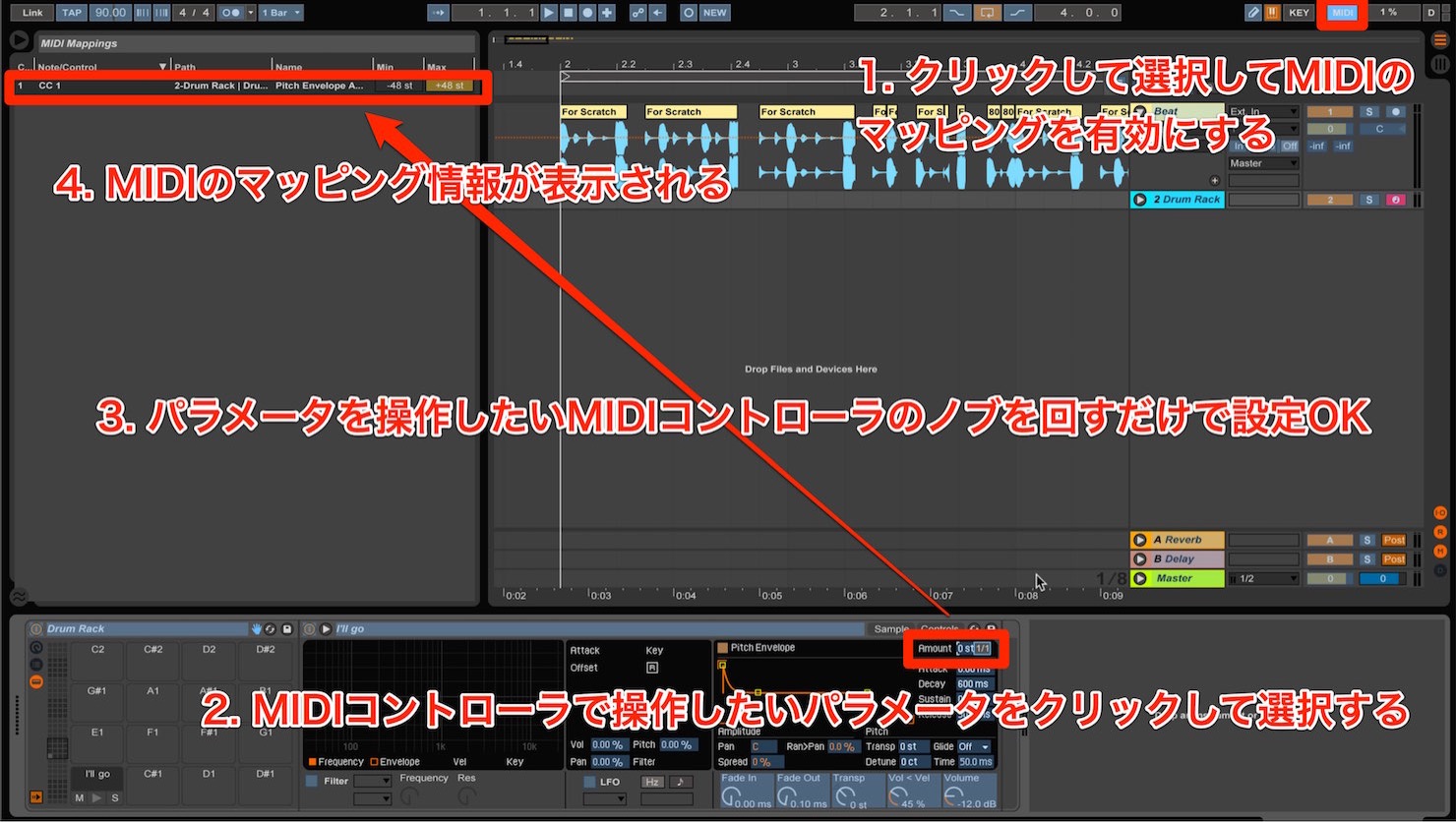
- 1. Click the MIDI button at the top right of the screen to enter MIDI mapping mode.
- 2. Click Pitch Envelope Amount to select it.
- 3. Turn the MIDI controller knob you want to use for Amount.
- 4. The MIDI mapping information appears at the top left of the screen.
Click the MIDI button at the top right again to exit MIDI mapping mode and complete the setup.
Turning the controller knob now moves Pitch Envelope Amount.
While pressing the pad, turn the knob to adjust Amount.
You can now control the scratch sound.
While holding the pad, raise Amount for a fast-forward tape effect or lower it for a tape-stop effect.
Product Details
Frequently Asked Questions
Q1. Which Ableton Live feature can create scratch and tape-stop sounds?
Use Simpler’s Pitch Envelope. Dropping a sample onto a Drum Rack pad opens Simpler automatically; map Pitch Envelope Amount to a MIDI controller to shape the effect.
Q2. How do I create different scratch and tape-stop sounds?
Raising Pitch Envelope Amount creates a fast-forward-style effect, while lowering it creates a tape-stop effect. Hold the pad and turn the mapped knob to control it in real time.
Q3. How do I set up the MIDI controller?
Click the MIDI button at the top right to enter mapping mode, select Pitch Envelope Amount, and turn the desired controller knob. Click MIDI again to finish.
NEW ARTICLES
Latest English Articles









































































































































































































































































































































































