
Ableton Live's Session View is a powerful way to build songs by freely combining phrases across drum, bass, guitar, keyboard, and other tracks. Hardware controllers such as Ableton Push let you control clips intuitively, while real-time recording and drag-and-drop make it easy to transfer ideas into Arrangement View. Session View lets you experiment, quickly try out ideas, and compare different patterns, helping guitarists and other music producers create sophisticated arrangements efficiently.
Session View: A Different Approach to Timeline-Based Production
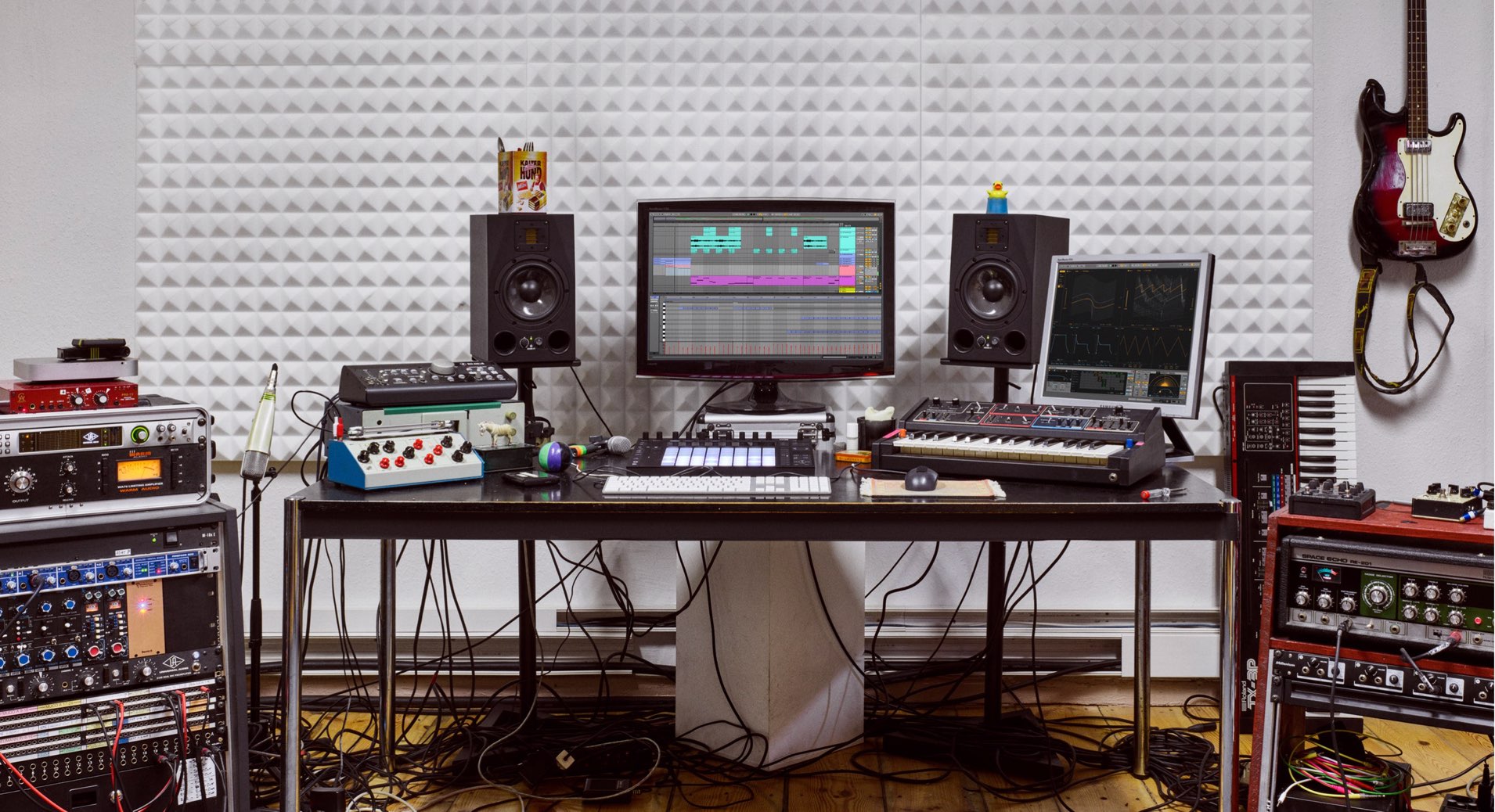
In part 5, we'll use Session View to combine drum, bass, guitar, and keyboard phrases and build a song.
Session View is a powerful feature for quickly and comfortably putting together phrases on different tracks. Let's learn the essentials.
Ableton Live for Guitarists #5 — Video Tutorial
- 1A Workflow for Creating Drum Tracks
- 2A Workflow for Recording MIDI and Audio with a Guitar
- 3Creating Lead Sounds with Instrument Rack and External Instrument
- 4Programming Keyboard Chords with MIDI Effects
- 5Building a Song with Session View
- 6Exploring Live's Mixing Features
- 7Download the Tutorial Project
Control Clips Intuitively with an External Controller
So far, we've used Session View to record a variety of clips on each track.
You can also control the playback of these clips from a hardware controller such as Push.
This makes it easy to try out combinations of phrases as though you were playing an instrument. It's particularly convenient because you can use several fingers to control different tracks simultaneously.
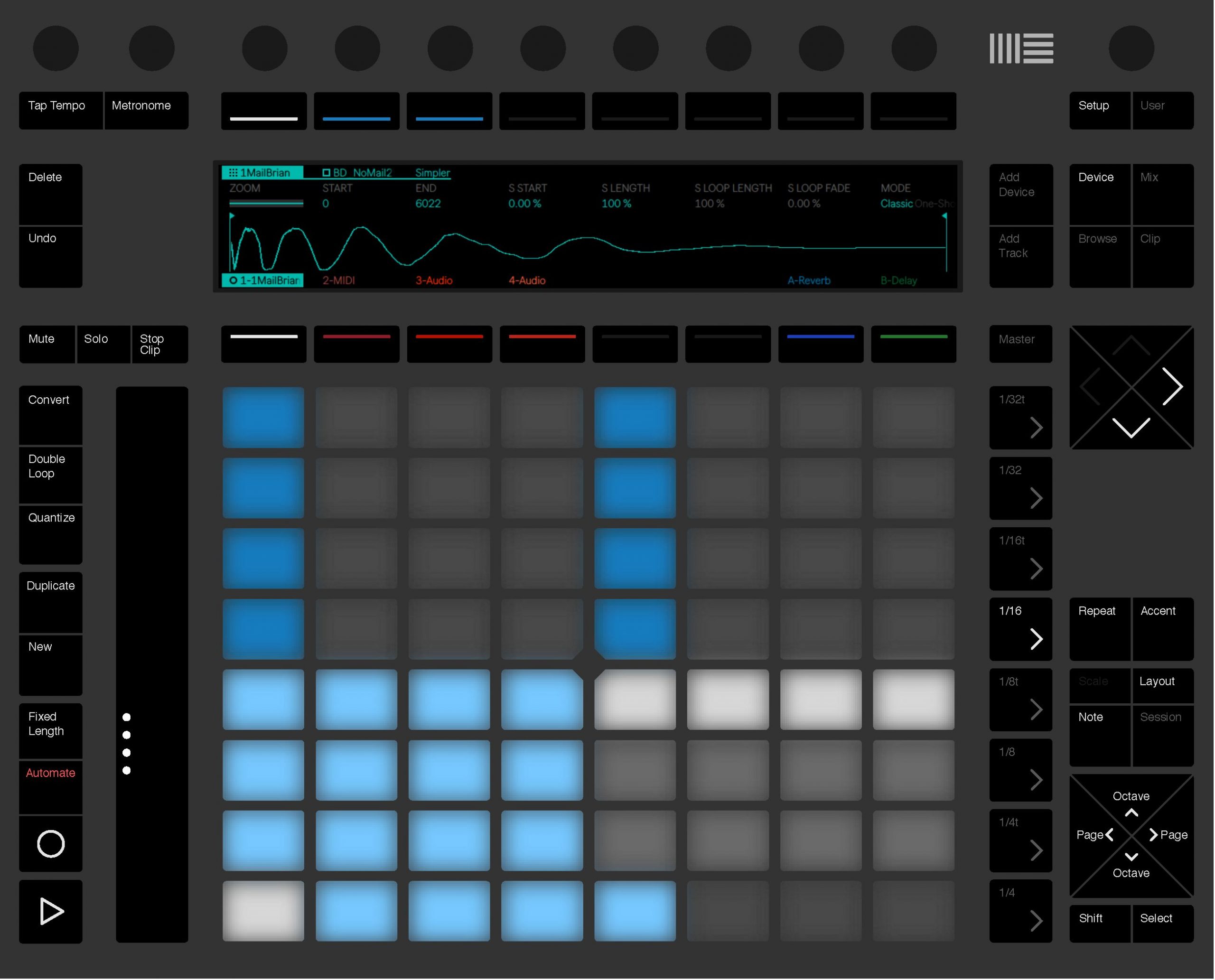
In the video, we use Ableton Push to switch clips in real time and put together a combination of phrases for the outro.
Recording Clips into Arrangement View
Once you've decided how to combine your clips, transfer them to Arrangement View.
Arrangement View is a timeline-based editing workspace, similar to those found in other DAWs.
There are two main ways to transfer clips into Arrangement View.
Transfer Clips by Recording in Real Time
The first method uses the Record button.
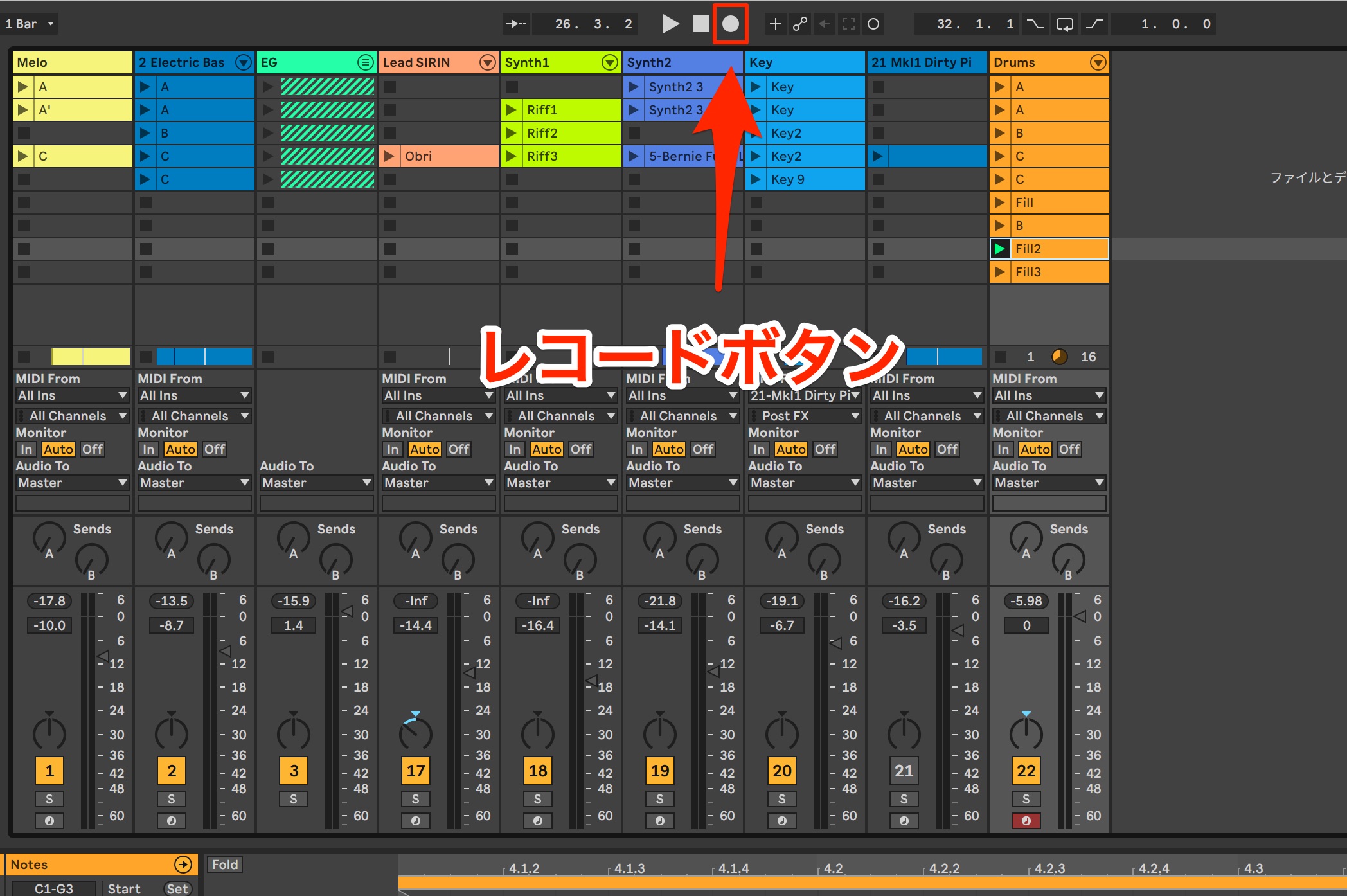
When you play Session View clips with this Record button enabled, the performance is recorded into Arrangement View.
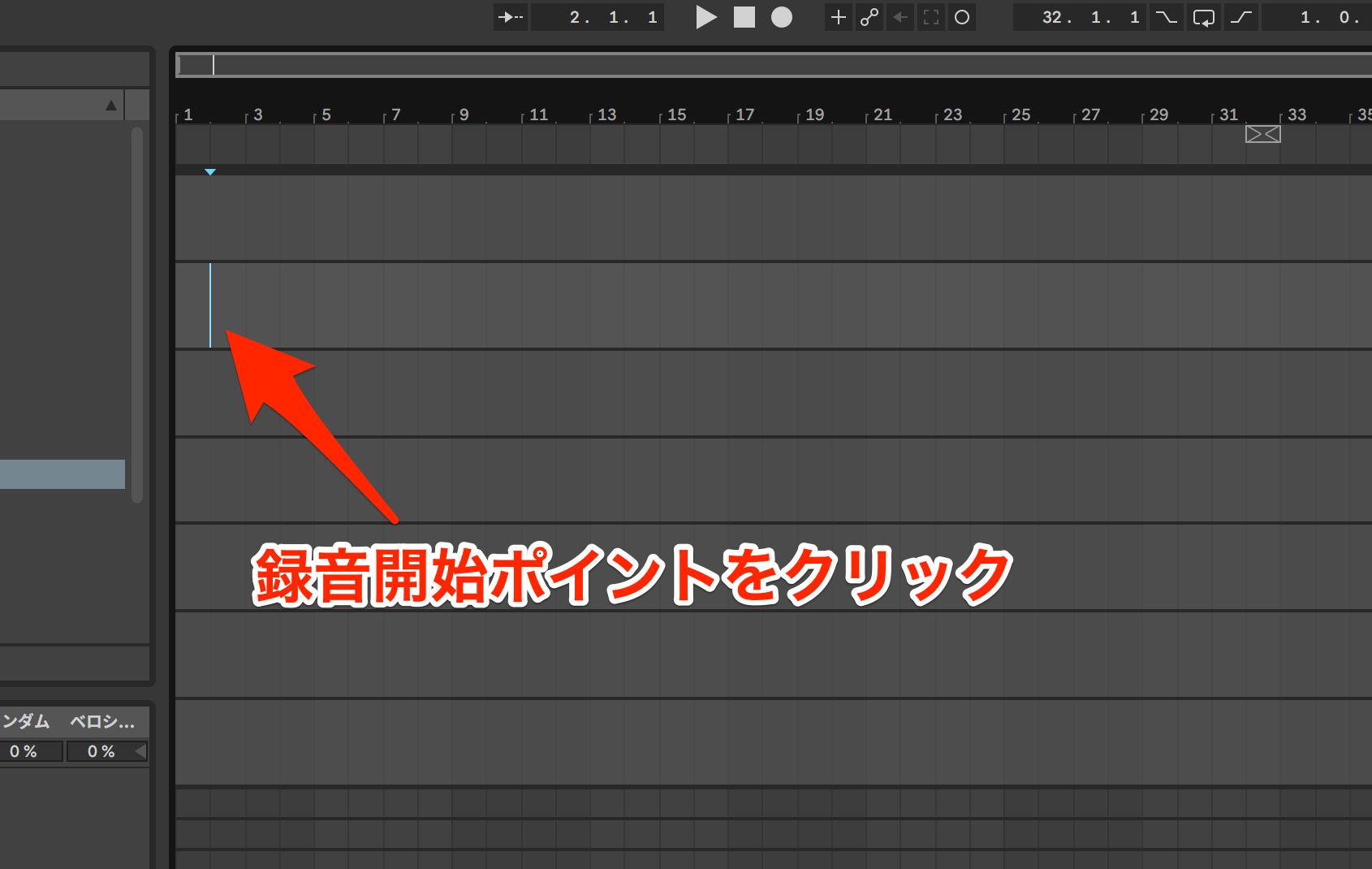
First, select the bar in Arrangement View where you want recording to begin.
Then return to Session View and click the Record button.
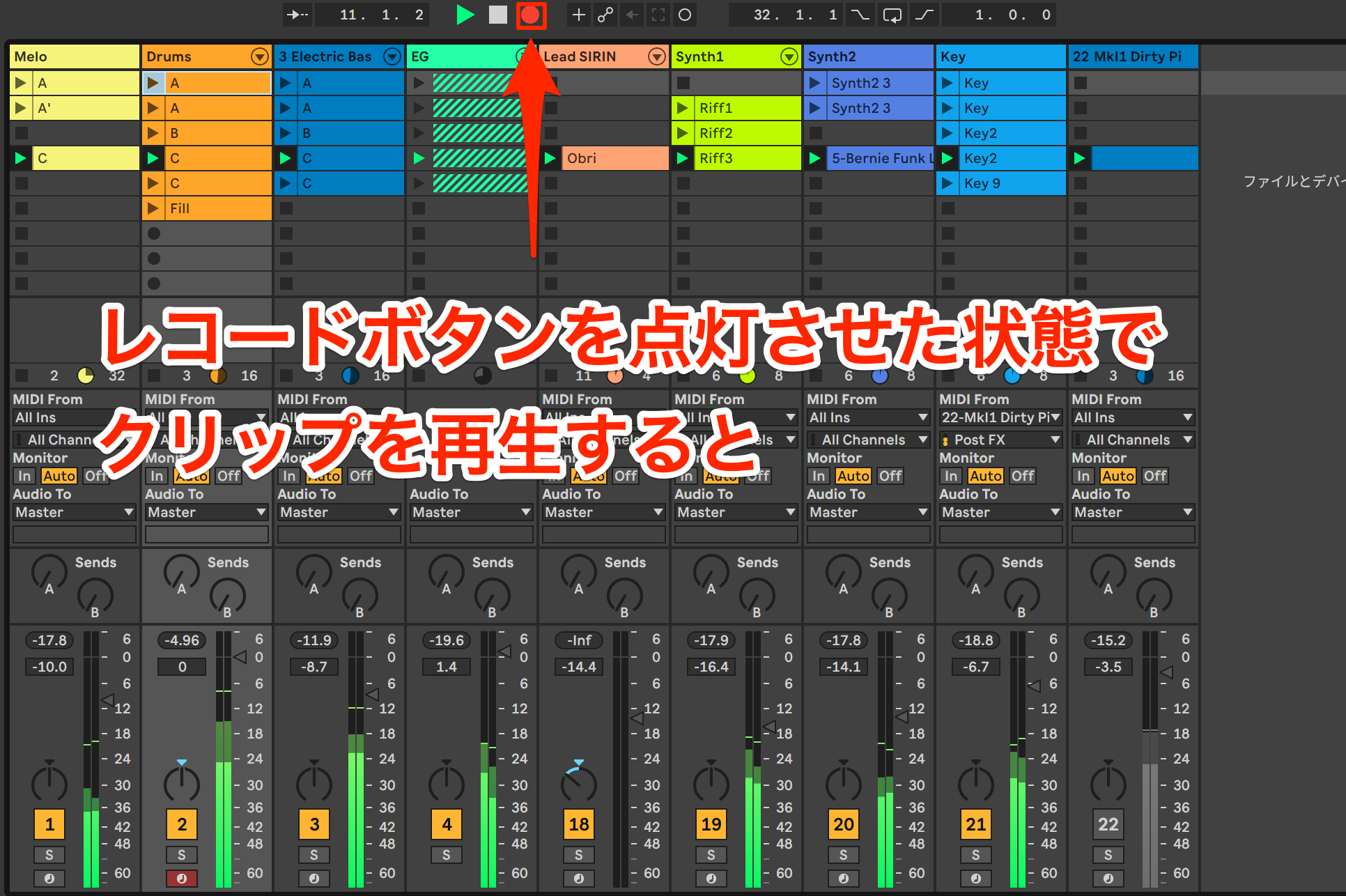
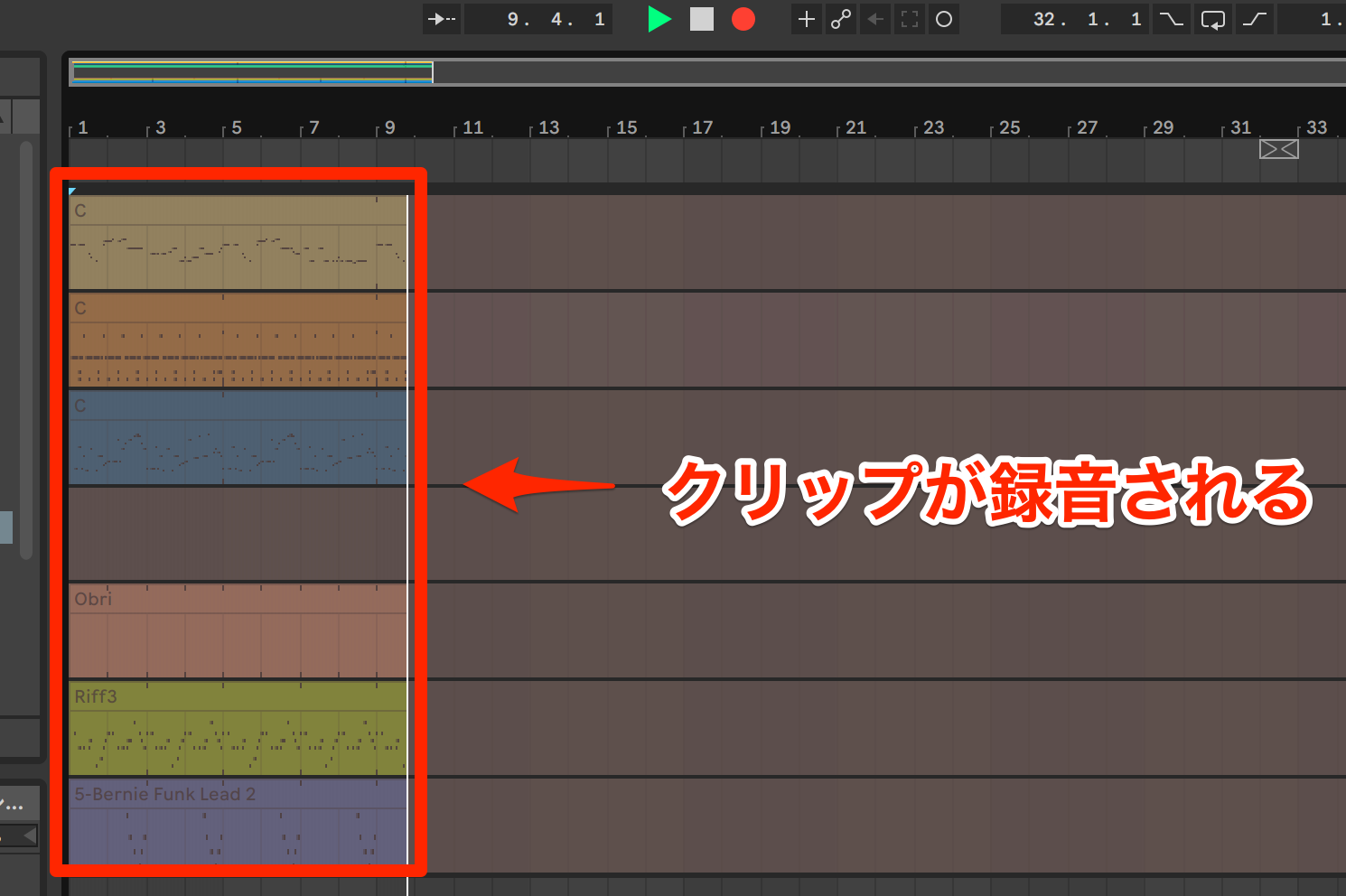
The clips playing in Session View are recorded into Arrangement View like this.
If you switch clips or turn instrument and effect knobs while recording, those changes are also captured in real time.
Try this distinctive Live workflow: capture the energy and feel of a performance as a rough take, then refine the details afterward.
Transfer Clips with Drag-and-Drop
You can also transfer clips directly by dragging and dropping them.
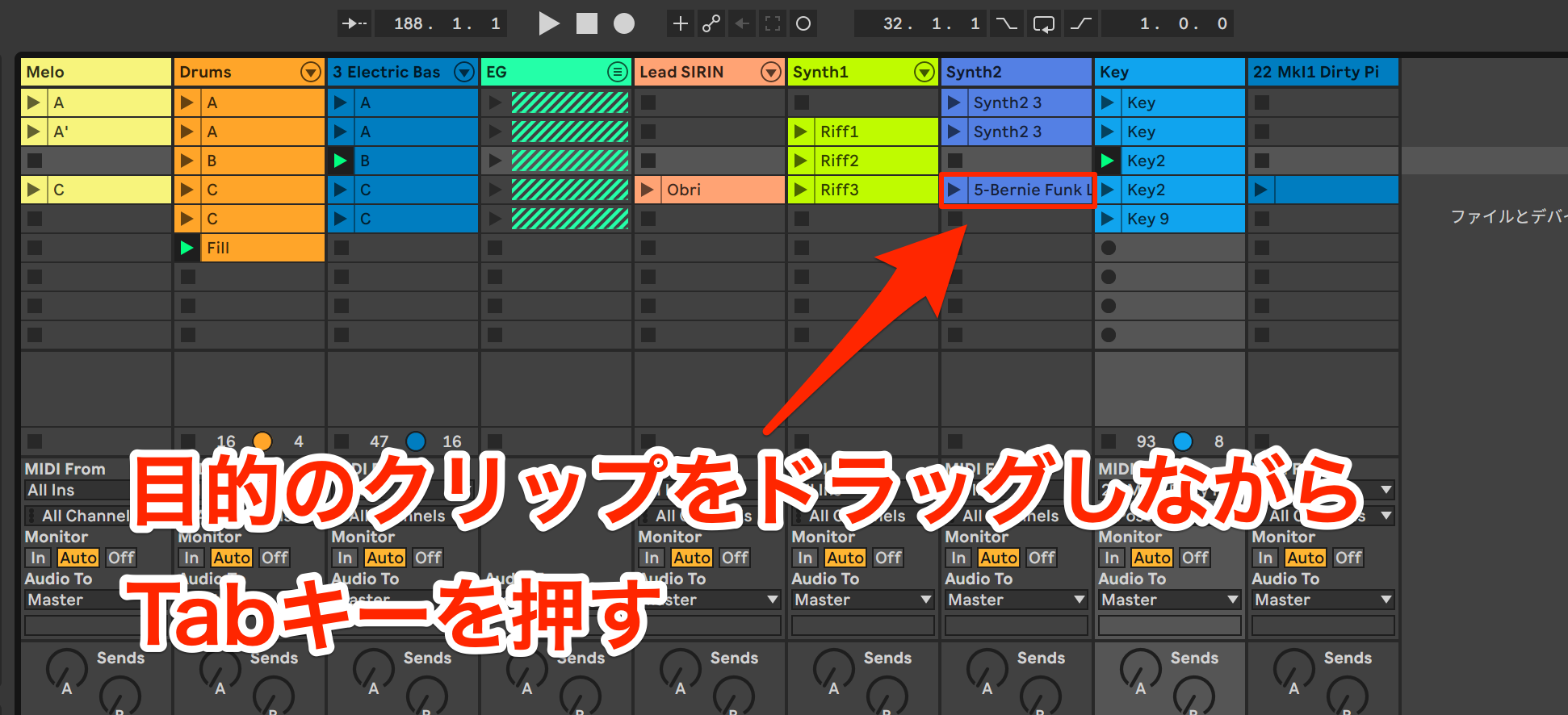
While dragging the clip you want to transfer, press Tab
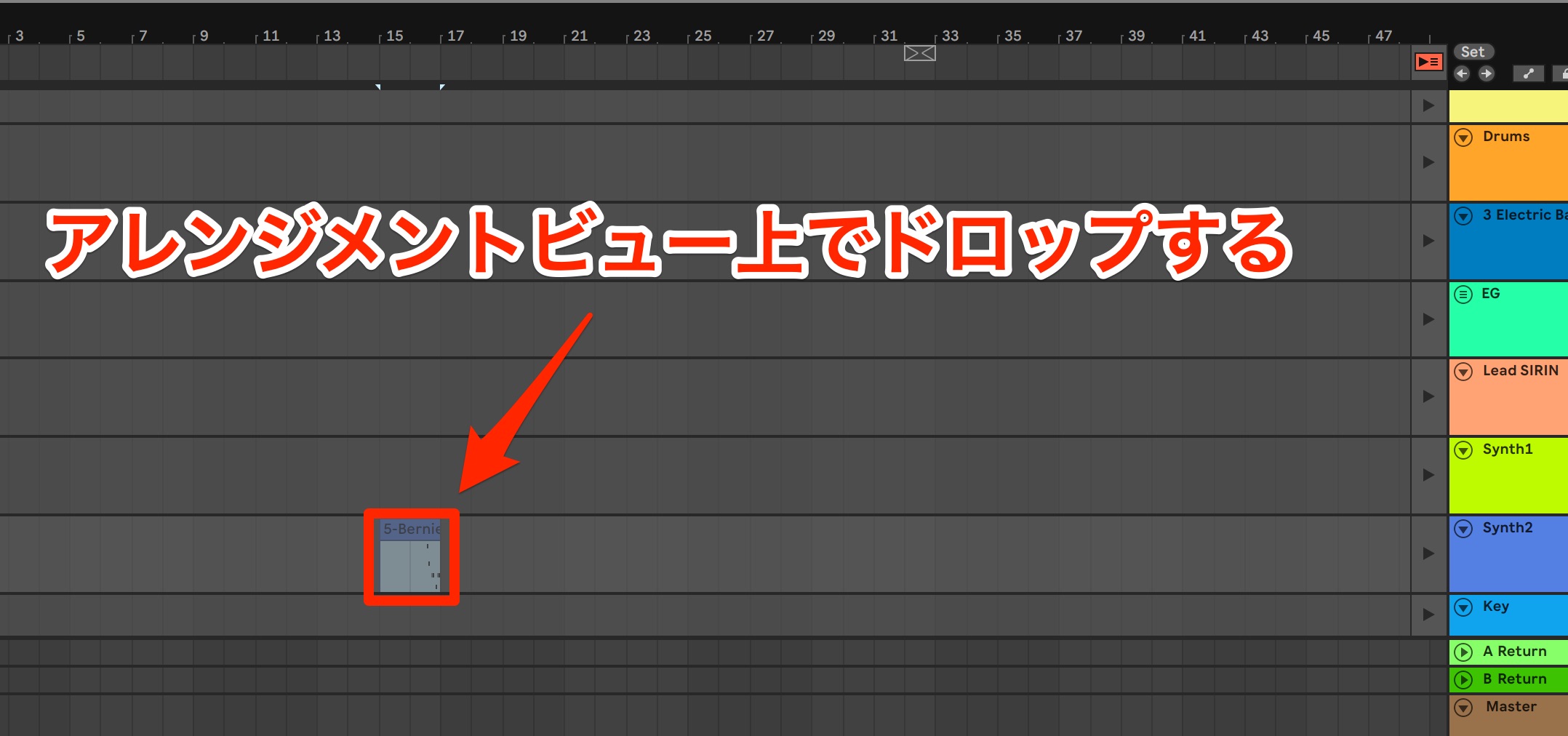
to switch to Arrangement View, then drop it where you want it. It's that simple.
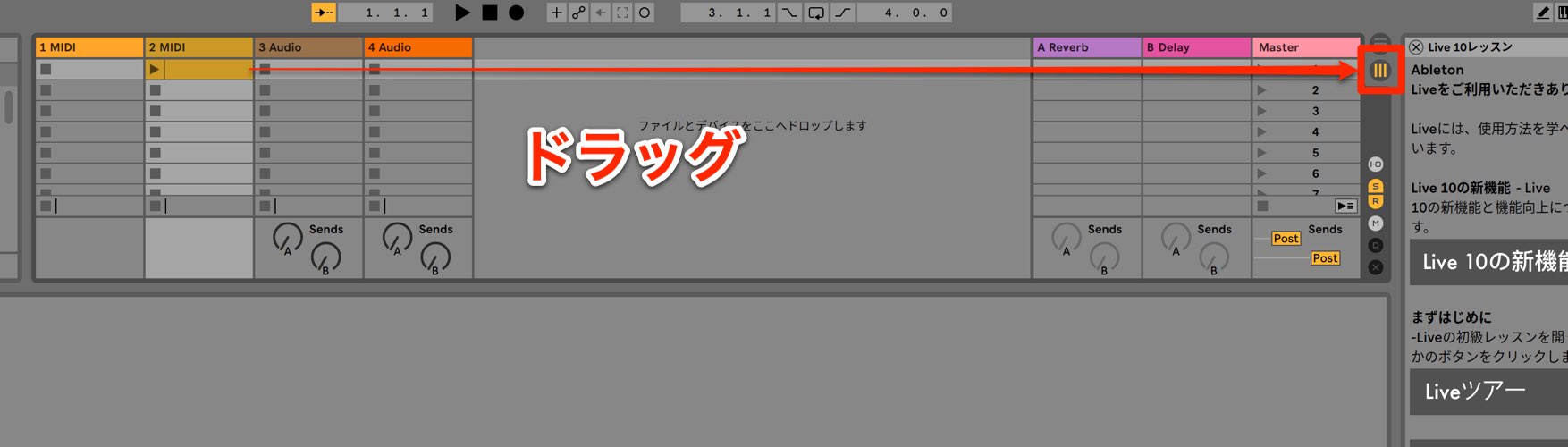
You can achieve the same result without pressing Tab by dragging onto the Arrangement View button.
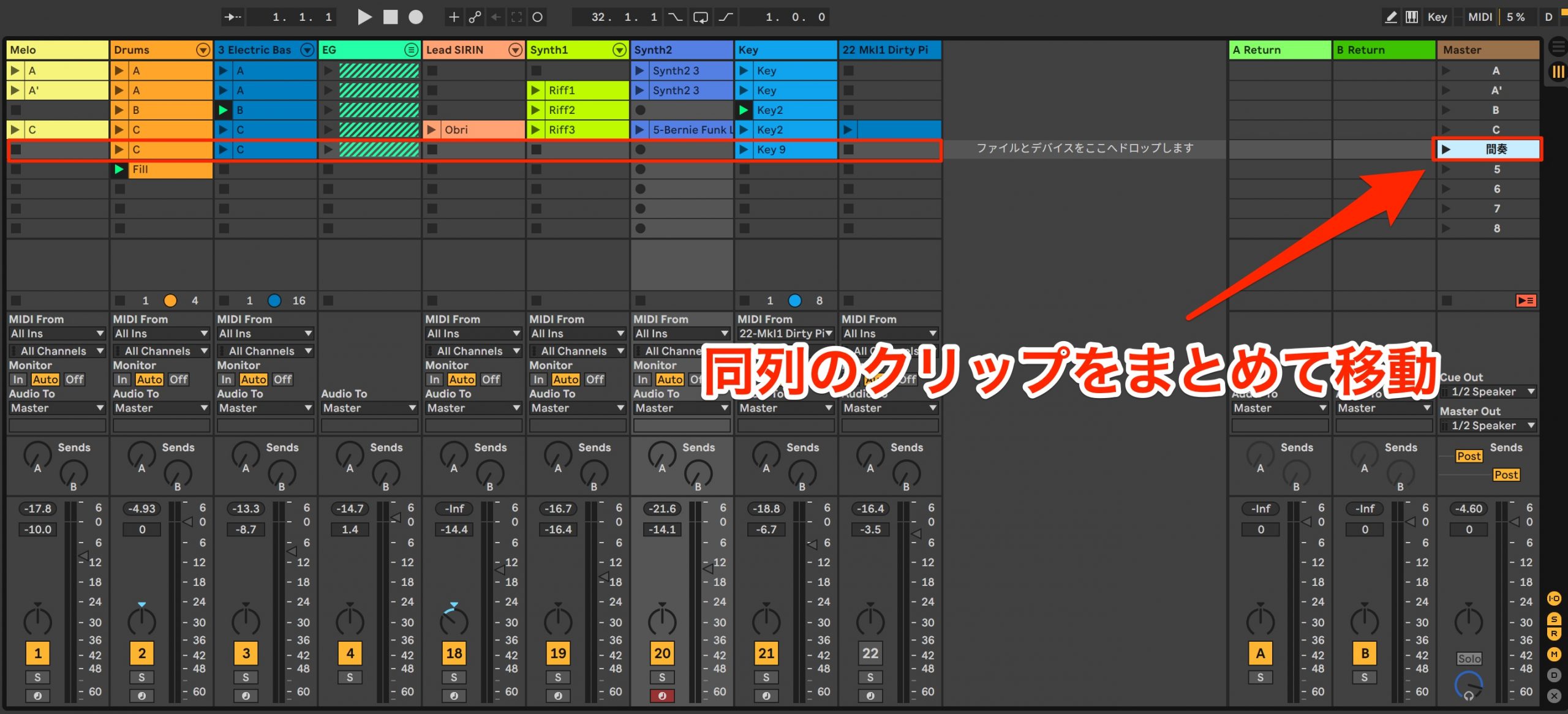
On the right side of Session View, the Master column lets you manage the clips in each horizontal row together.
Dragging a scene from here lets you transfer all the clips in that row at once.
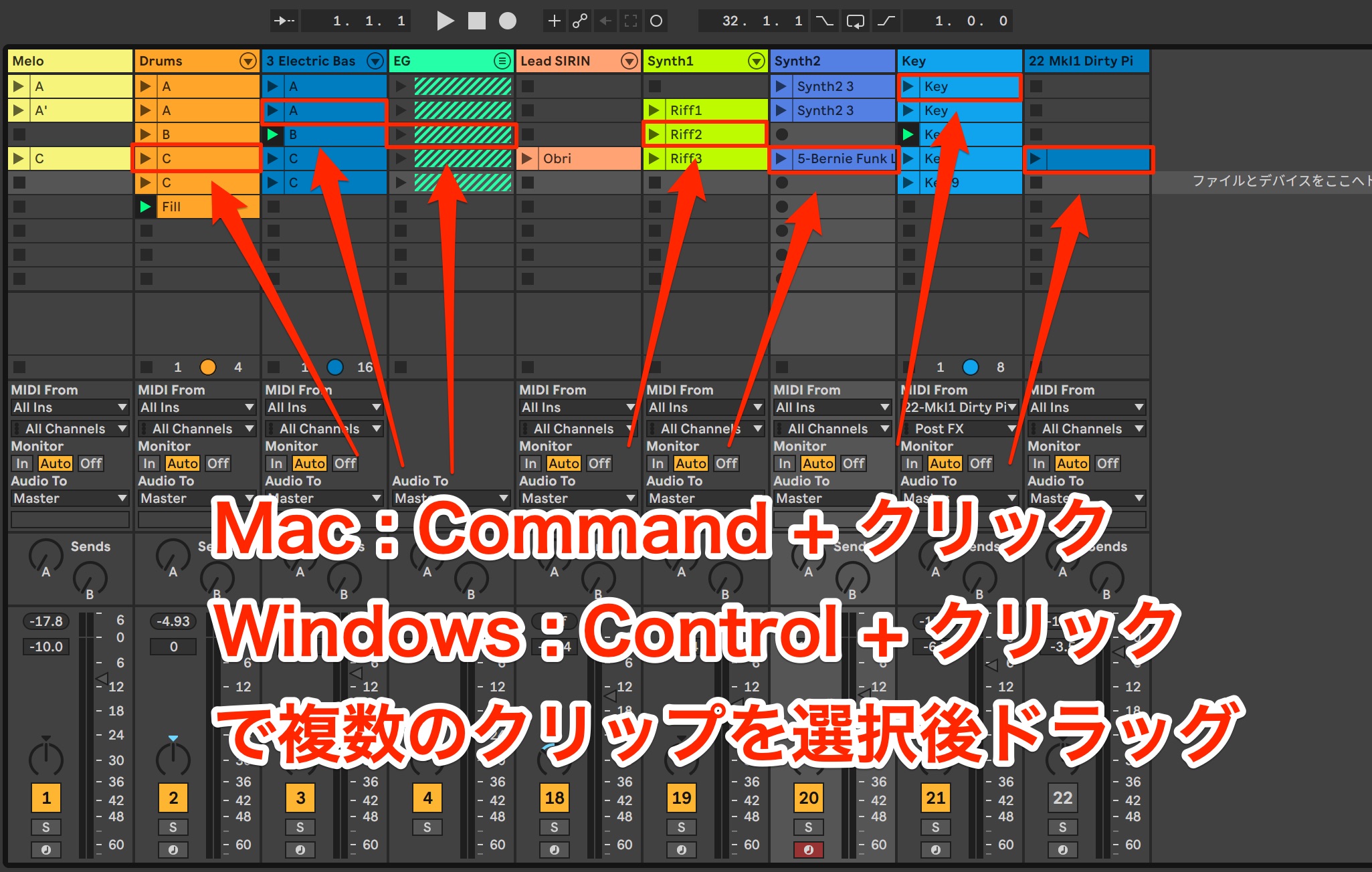
- Mac: Command + click
- Windows: Control + click
You can also select several clips and transfer them together.
The key is that you can choose a flexible transfer method to suit your task and the clips you're working with.
Building a Song in Arrangement View
As mentioned earlier, Arrangement View excels at editing clips along a timeline.
Adjust the lengths of the transferred clips and add fills to looping phrases to give the song a sense of progression.
Setting Loop Lengths
Looking at the clips placed in Arrangement View, some are too short and stop partway through.
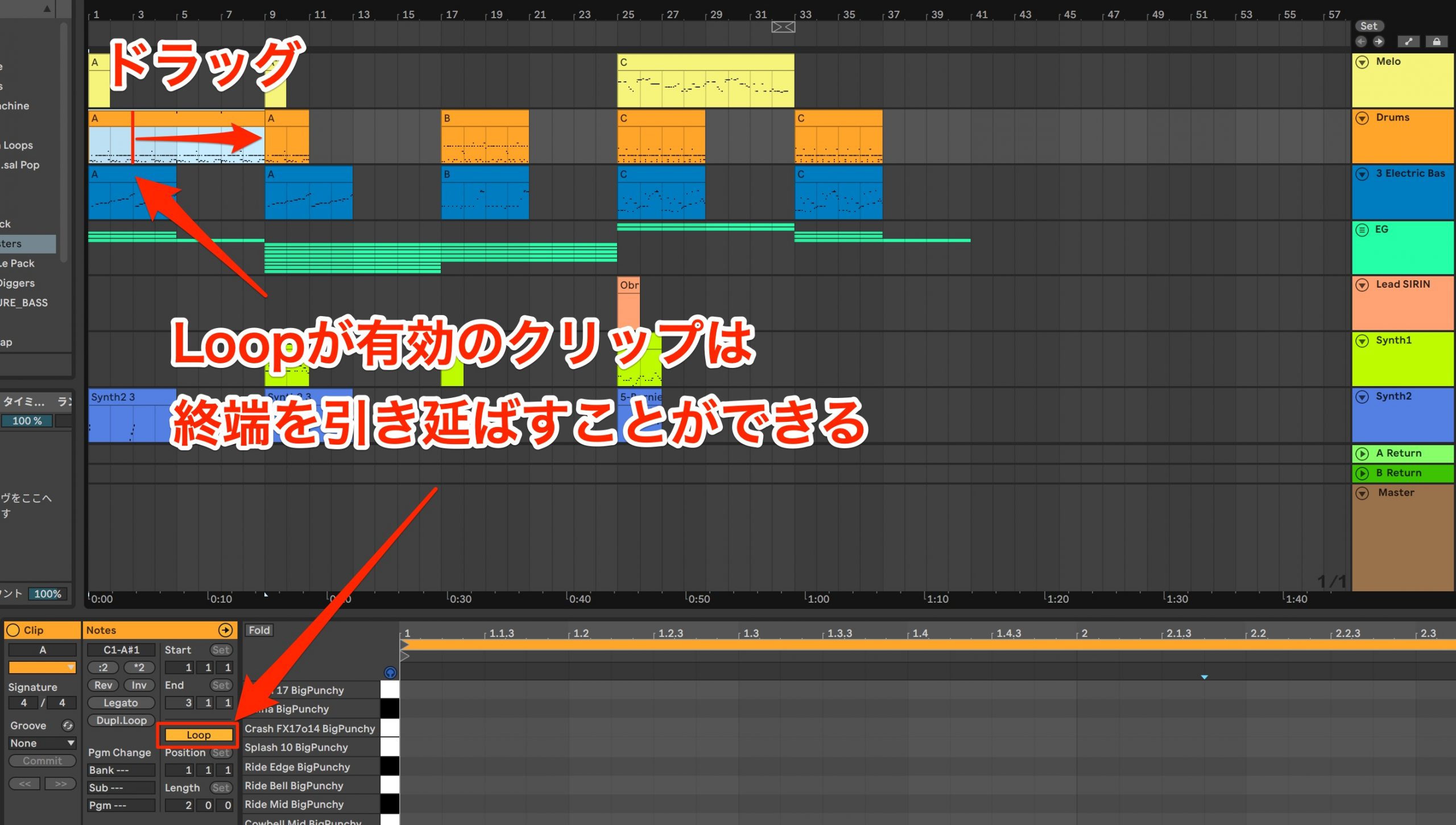
For clips with Loop enabled, you can extend the number of repetitions by dragging the end of the clip.
Playing Clips in Arrangement View
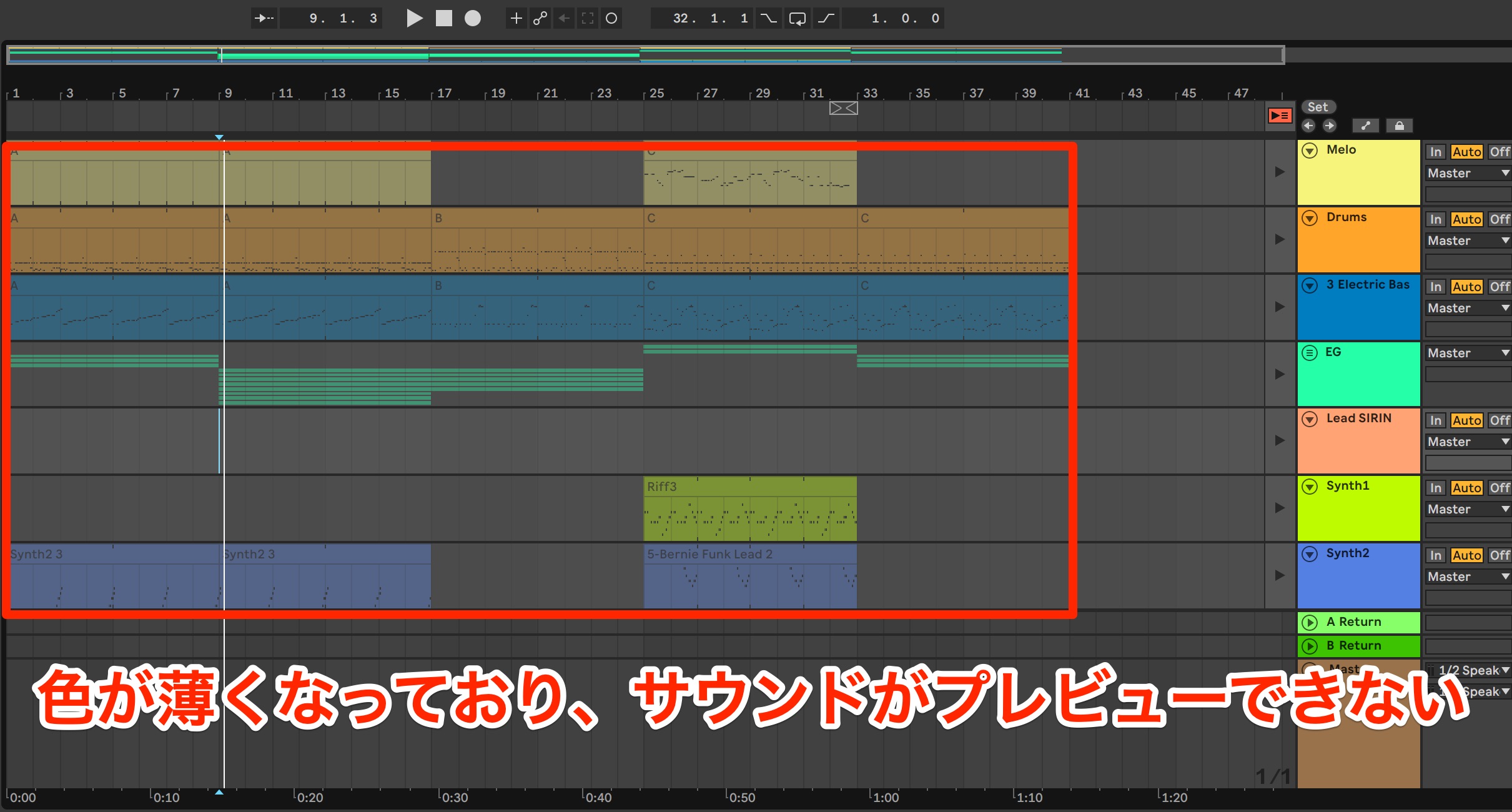
Immediately after you transfer them, the clips in the Arrangement are grayed out and do not play.
This is because clip playback from Session View is still active.
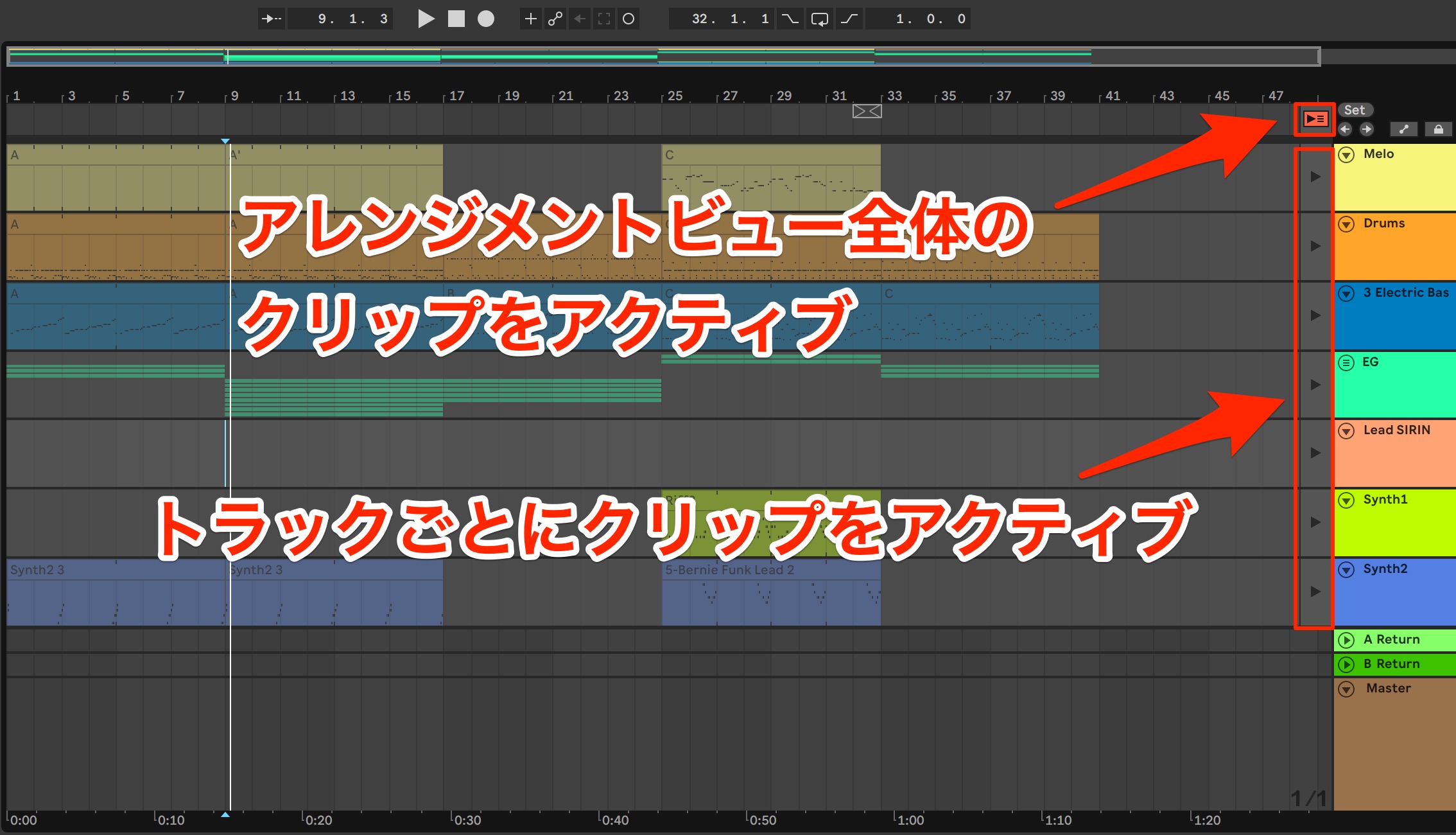
To enable the clips in Arrangement View, click the area outlined in red.
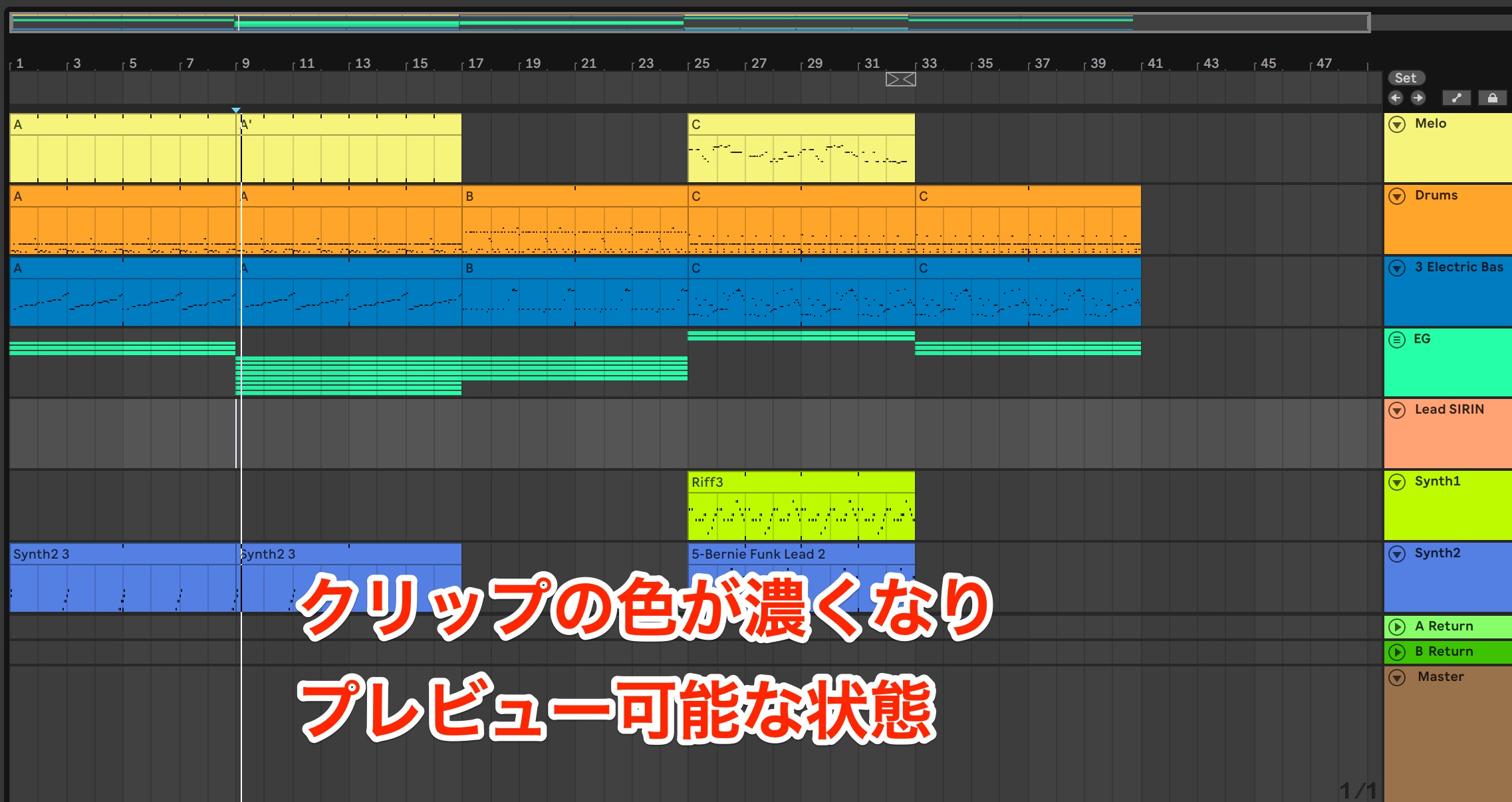
The clips are no longer grayed out, and you can now play them back.
Editing Clips in Arrangement View
Simply repeating loops can leave a song feeling short on development.
Let's add a drum fill just before the chorus.
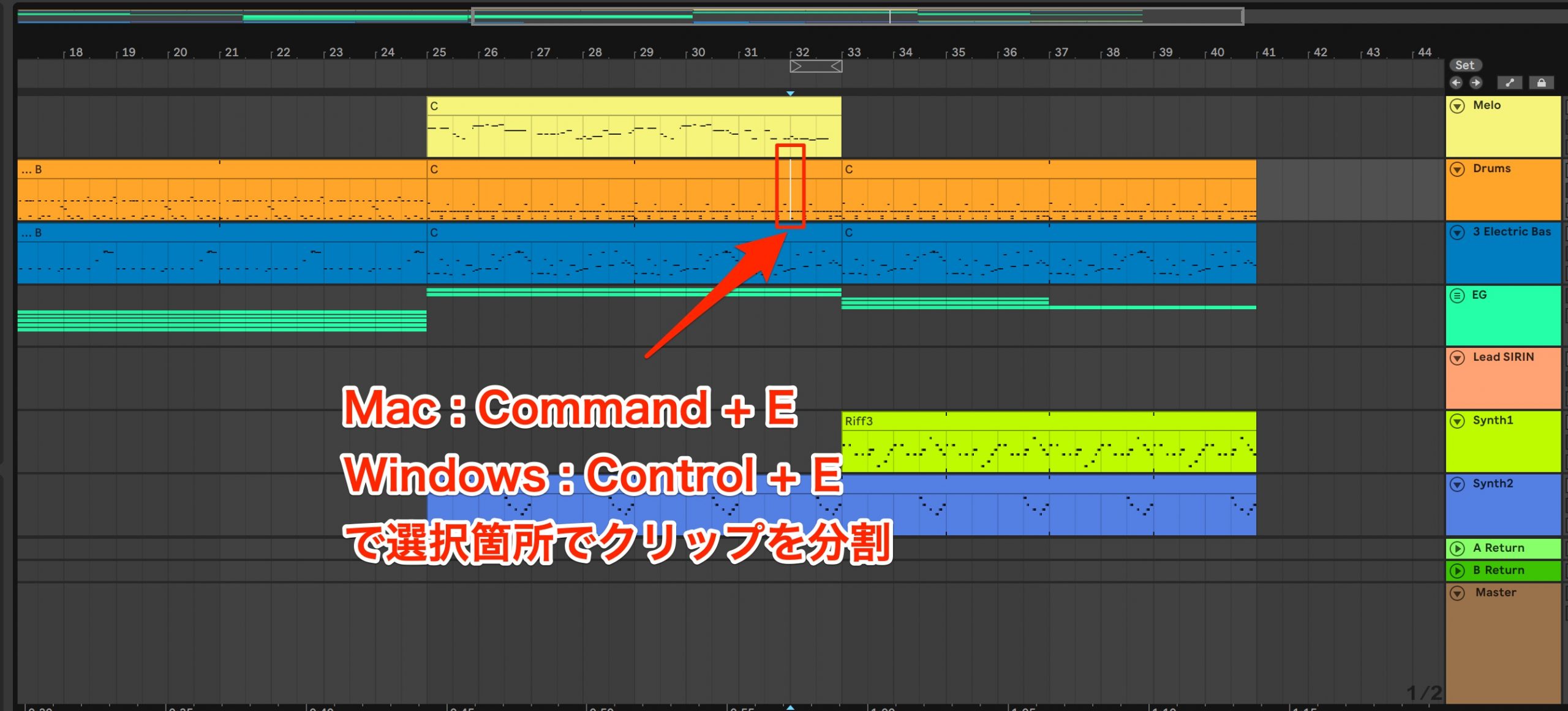
We want to change the drum clip one bar before the chorus, at bar 32, so first split the clip.
- Mac: Command + E
- Windows: Control + E
This shortcut lets you split a clip quickly.
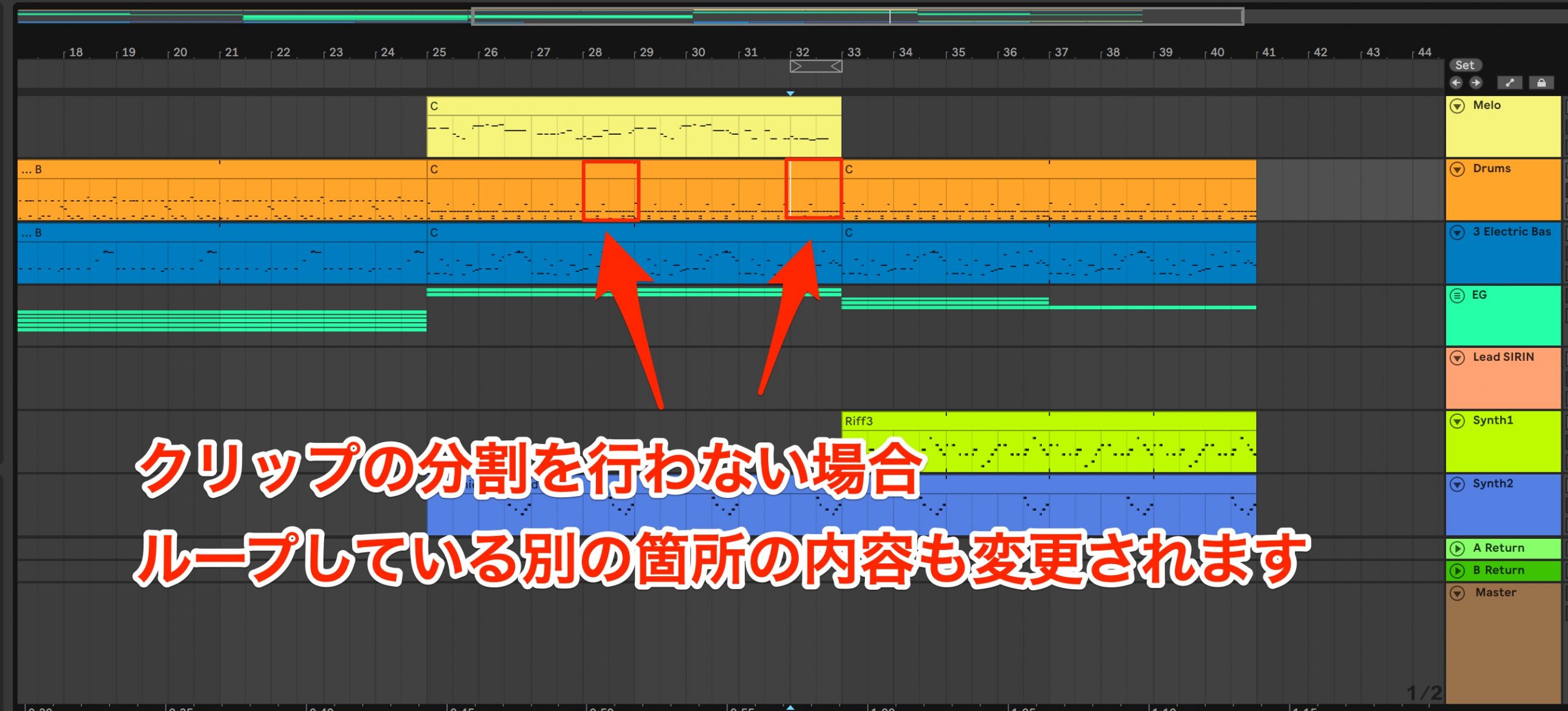
Be careful: if you edit the content without first splitting the clip, your changes will also affect the other repetitions.
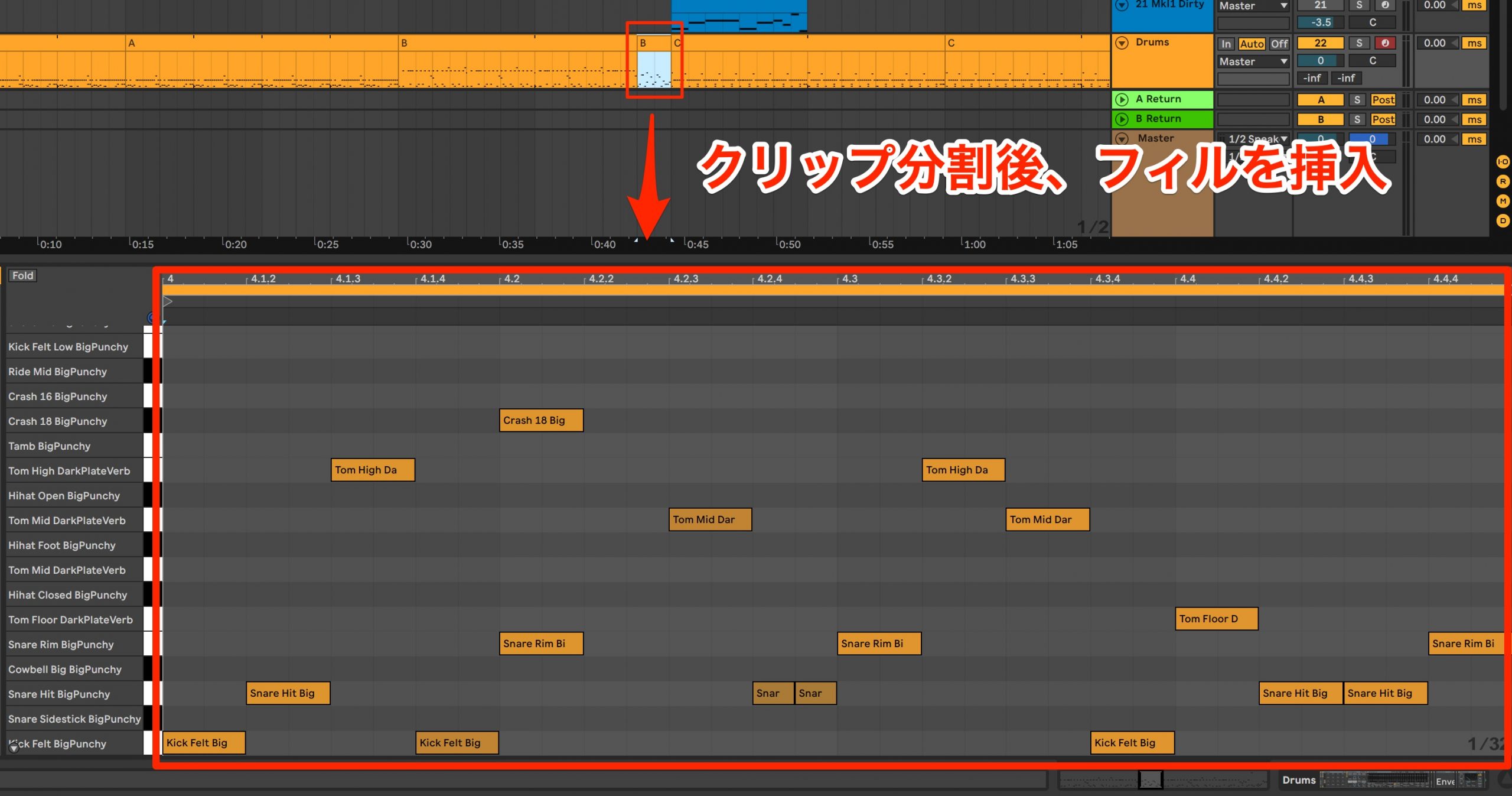
Delete the notes in the split clip and enter a new drum fill.
Save Clips and Compare Different Patterns
We'd like to try another fill pattern, but keep the clip we've already made just in case.
In situations like this, Session View is a convenient place to store clips.
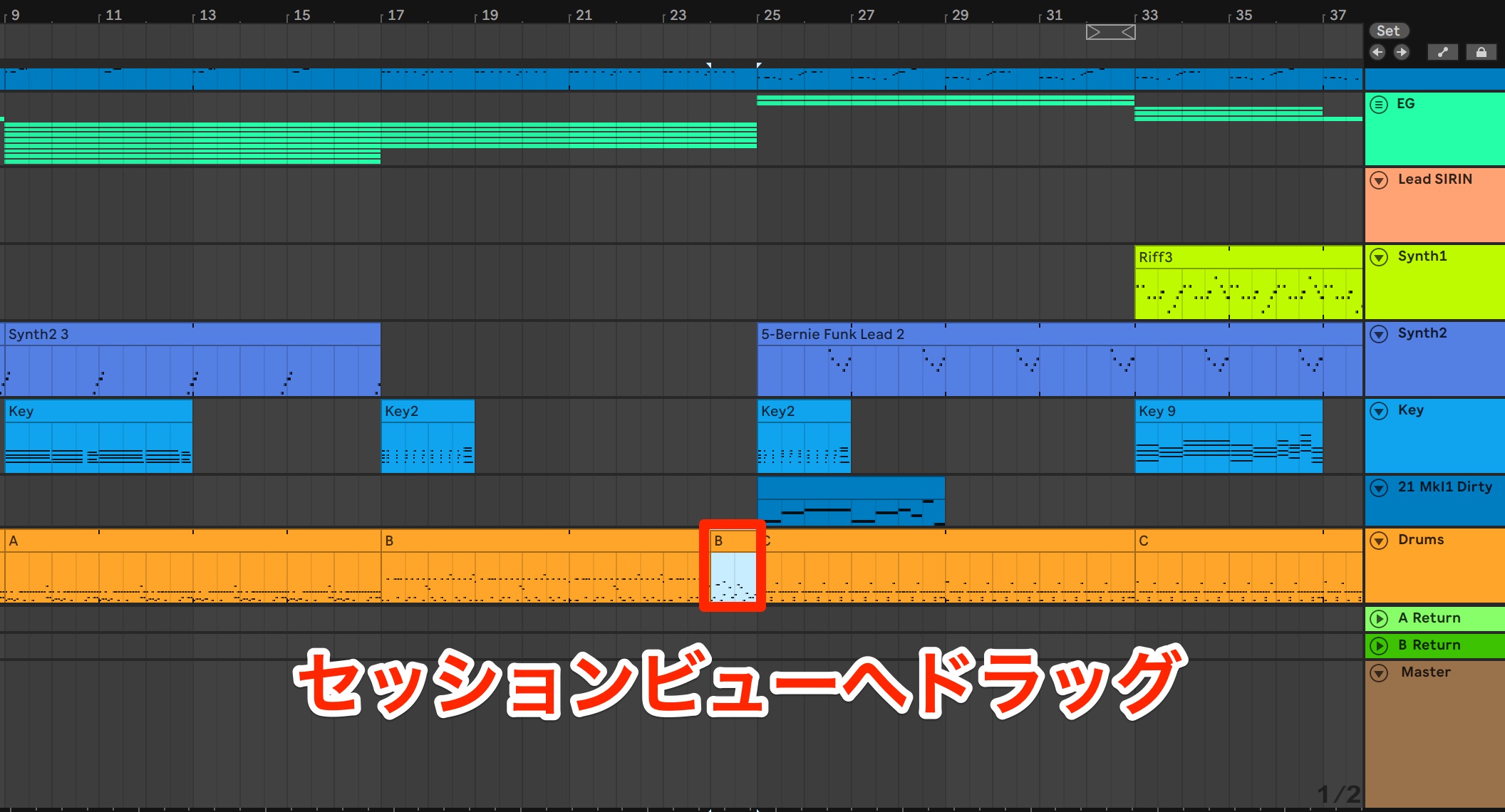
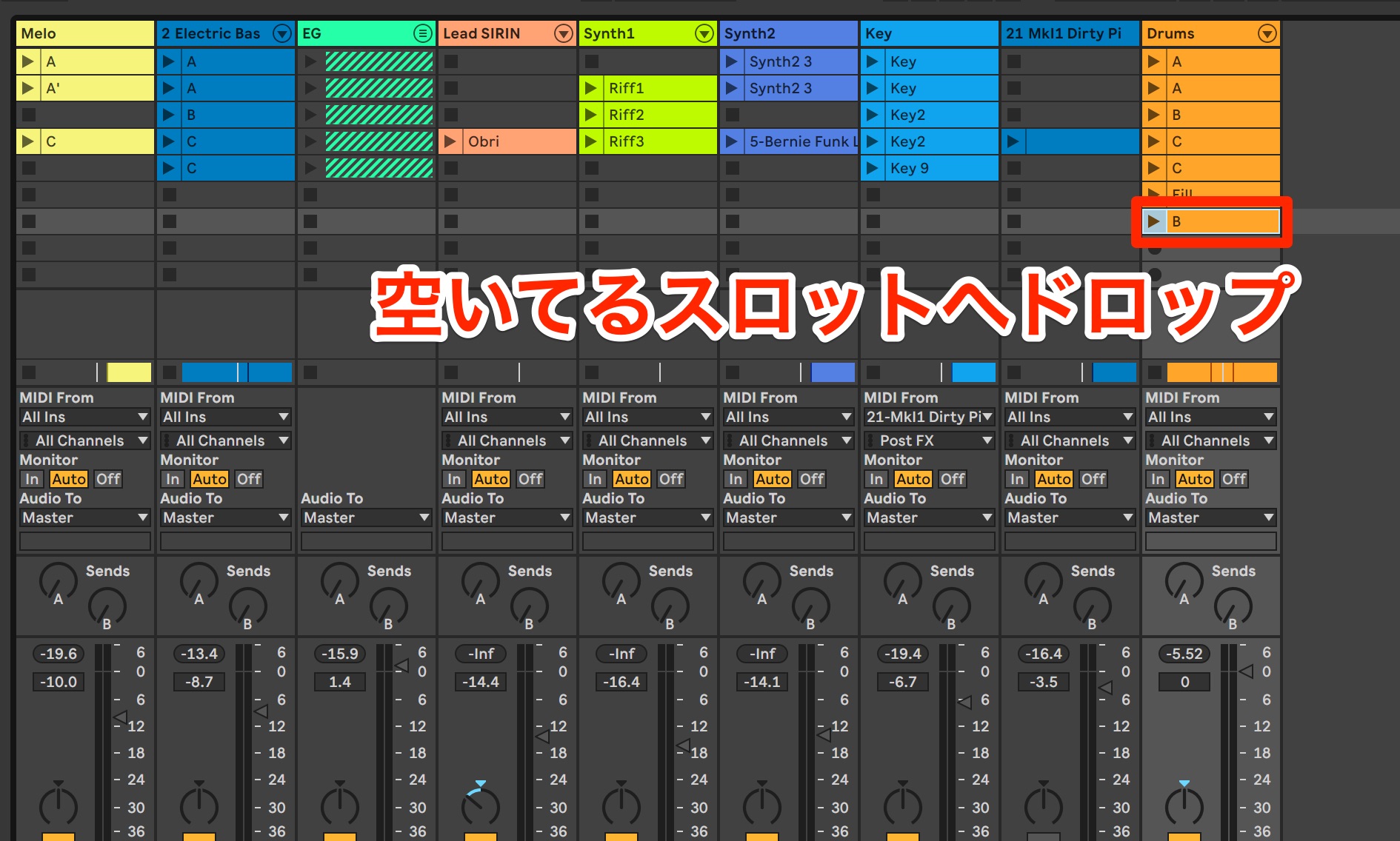
Select and drag the clip from Arrangement View, then press Tab to switch to Session View.
Drop it into an unused slot to save the phrase for later.
If you try a new fill and decide you prefer the original, you can transfer the saved clip back from Session View.
You may also want to try several clip phrases alongside the other tracks to find the ideal sound.
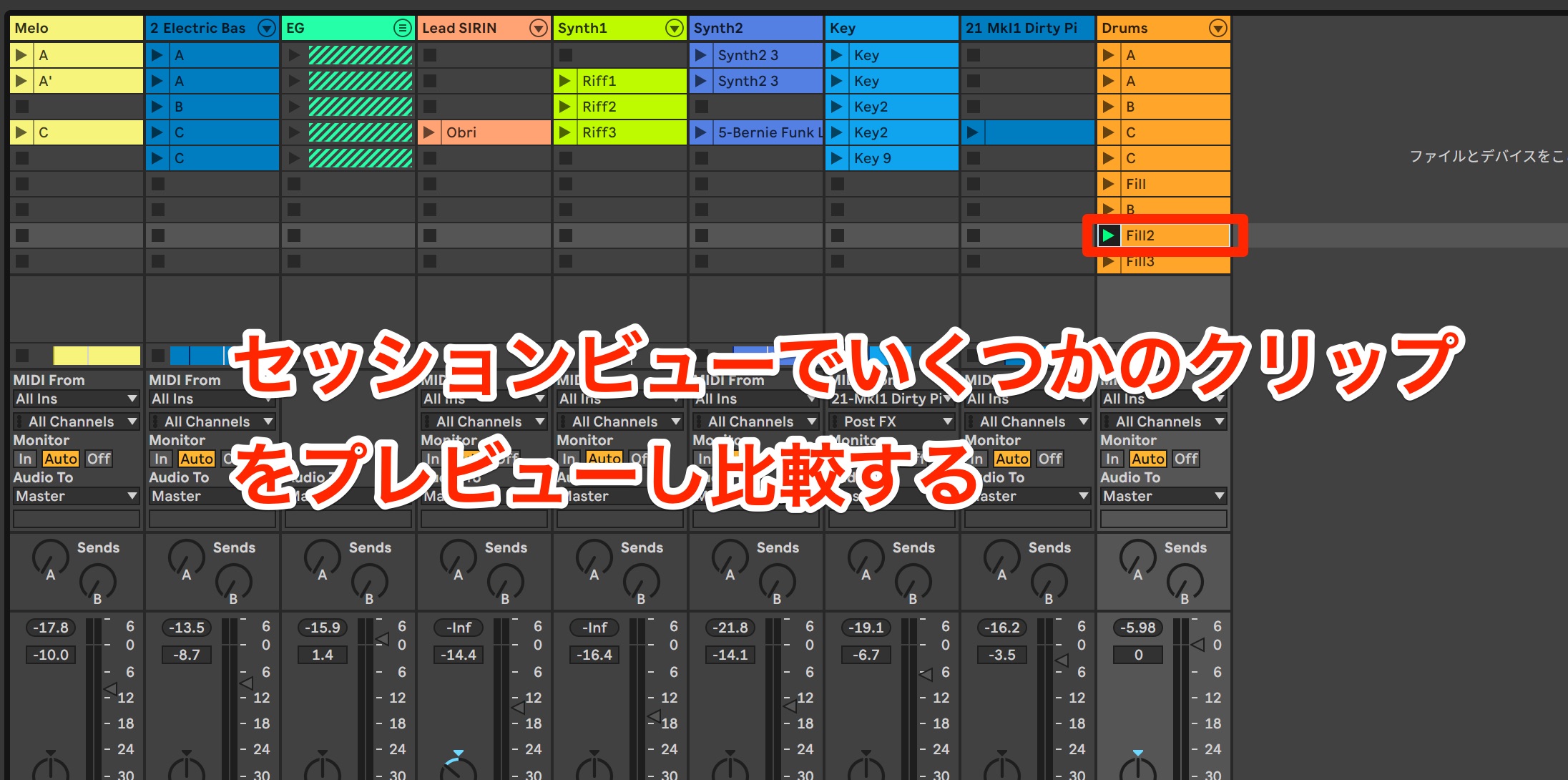
To do this, simply launch the clip in Session View.
Only that track plays the selected Session View phrase; the other tracks continue playing from Arrangement View.
Ableton Live makes it easy to try ideas as soon as they occur to you, making it a powerful tool for fresh arrangements and new approaches.
Make effective use of Session View in your production workflow so those valuable moments of inspiration don't slip away.
https://www.ableton.com/ja/trial
Ableton Live lets you try ideas immediately, making it a powerful tool for creating fresh arrangements.
> Ableton Live for Guitarists #5: Building a Song with Session View and Arrangement View
📝 Article: https://t.co/Q6bwhmxdD8
🎥 YouTube: https://t.co/LwxUSoy5Yx#DTM #Composition pic.twitter.com/cts9gi8beM
— SLEEP FREAKS (@SLEEPFREAKS_DTM) January 19, 2020
Frequently Asked Questions
Q1. What is the difference between Session View and Arrangement View in Ableton Live?
Session View uses a grid where you can freely combine and play clips, making it ideal for experimenting with phrases in real time. Arrangement View lets you place and edit clips on a timeline, making it well suited to refining the final structure of a song.
Q2. What are the advantages of using Ableton Push?
A hardware controller lets you switch and control clips intuitively, as though you were playing an instrument rather than operating a computer. You can use several fingers to control different tracks simultaneously, making it easier to build a dynamic arrangement in real time.
Q3. How can I transfer clips from Session View to Arrangement View?
There are two main methods: record the performance in real time using the Record button, or drag the clips directly and press Tab to switch views before dropping them. You can also transfer multiple clips together.
Q4. What should I do with the original clip when trying another pattern, such as a drum fill?
We recommend keeping different versions of your clips in Session View. If a pattern you try in Arrangement View doesn't work, you can transfer the original clip back from Session View and compare the alternatives.
NEW ARTICLES
Latest English Articles




























































































































































































































