
Nektar Bolt's ENV and LFO sections provide modulation functions that are essential to synthesizer sound design. Envelopes (ADSR) change volume and other parameters over time, while LFOs create repeating movement, helping you build expressive sounds that suit your music. Combining these with general parameters such as Glide and Voice Double opens up possibilities for unique, clear sounds. Mastering envelopes and LFOs will improve your sound-design skills on any synthesizer.
Modulation: Essential to Synthesizer Sound Design
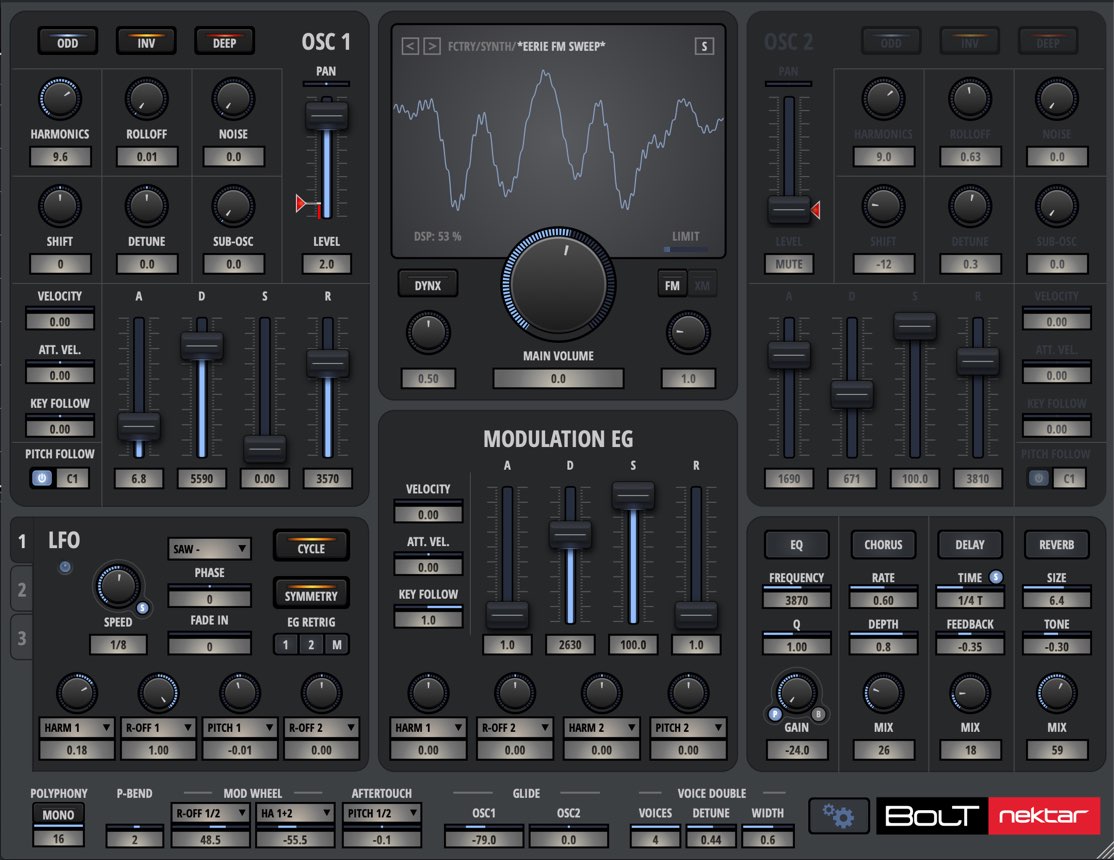
Following the previous article, we continue our look at Nektar's Bolt synthesizer.
Here, we'll explore the modulation section, an essential part of synthesizer sound design.
Using Bolt's envelopes and LFOs to add movement helps you shape sounds to suit your music.
These concepts apply to all kinds of synthesizers, so take this opportunity to master them!
How to Use Bolt, Part 2: Shaping Sounds with ENV and LFO
Product URL: https://beatcloud.jp/product/931?atag=007
Shaping Sounds with the ENV and LFO Sections
Let's look at how to use Bolt's envelope and LFO sections.
Controlling OSC Volume
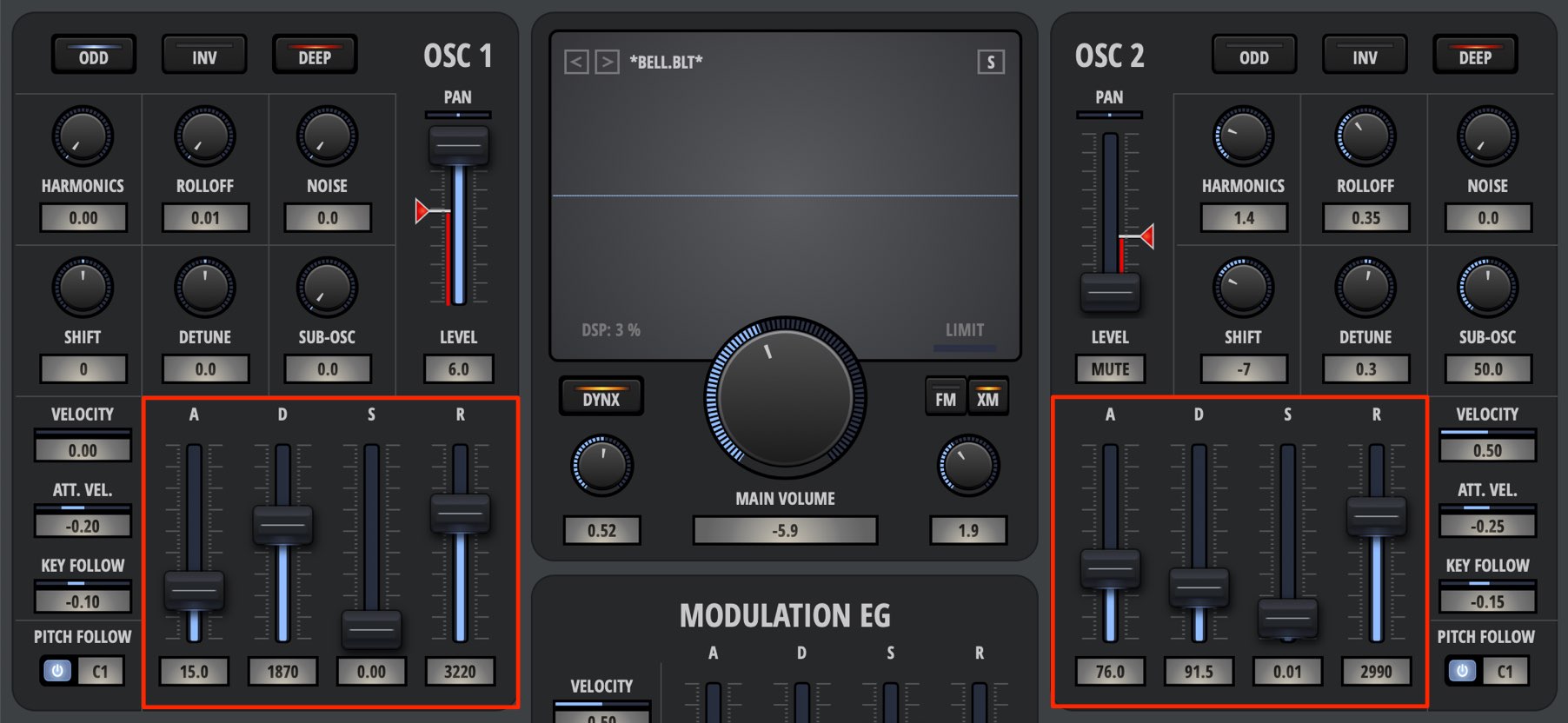
You can set a different volume envelope for each oscillator.
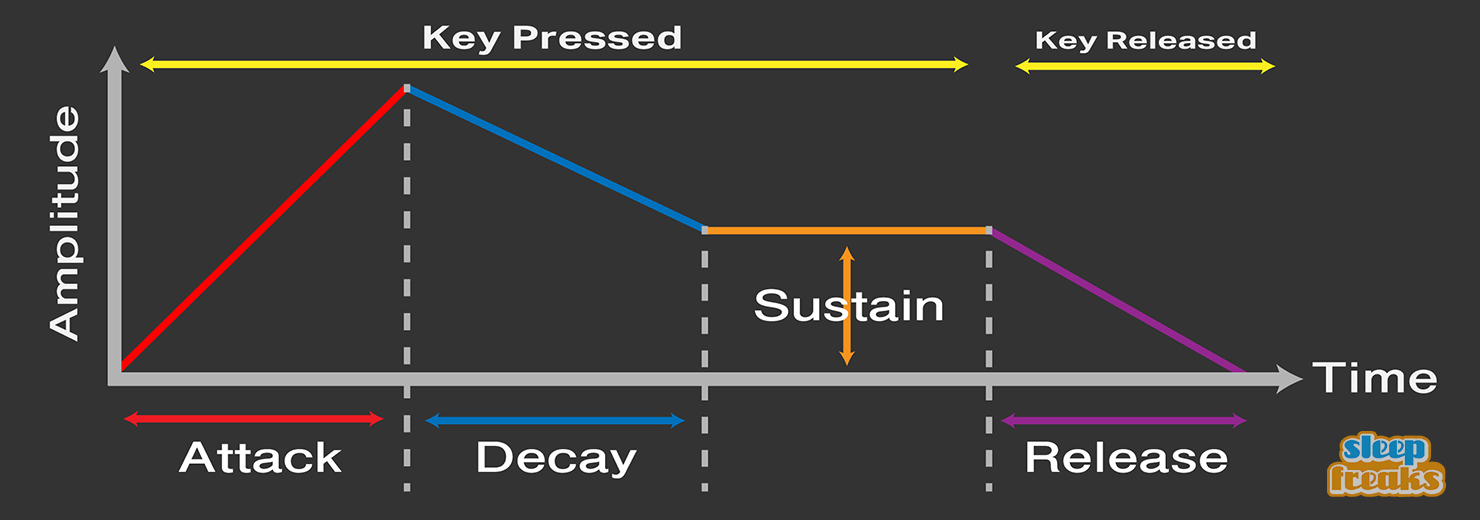
- Attack: Sets how long the volume takes to reach its maximum after a note starts.
- Decay: Sets how long the volume takes to fall from the peak reached after the attack to the Sustain level.
- Sustain: Sets the volume level maintained while the note is held.
- Release: Sets how long the sound takes to fade to silence after the note is released.
Changing these volume characteristics gives your sounds more variety and expression.
The Envelope Section
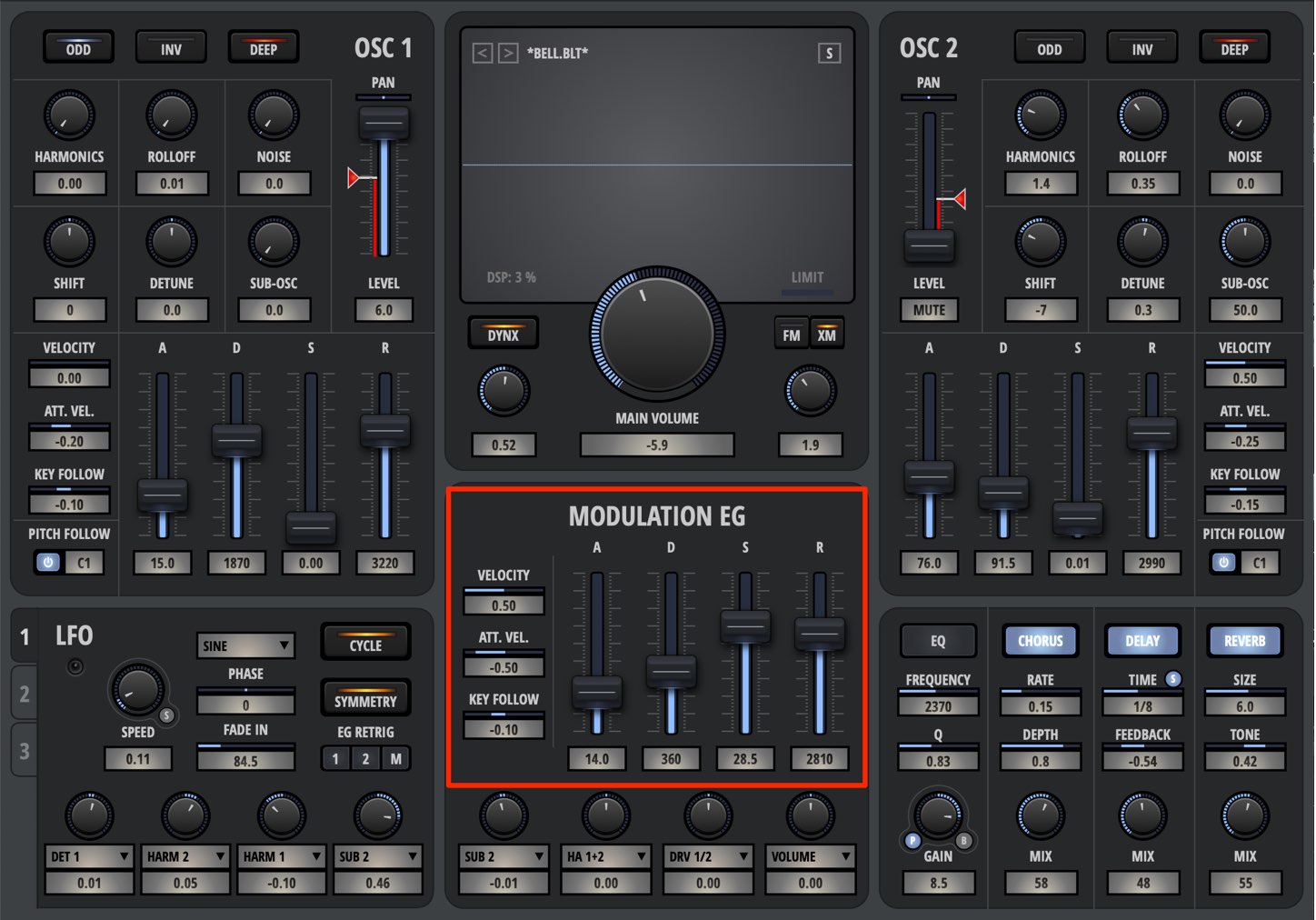
A separate envelope is available in addition to the volume envelopes above.
This envelope lets you apply ADSR movement to parameters in Bolt.
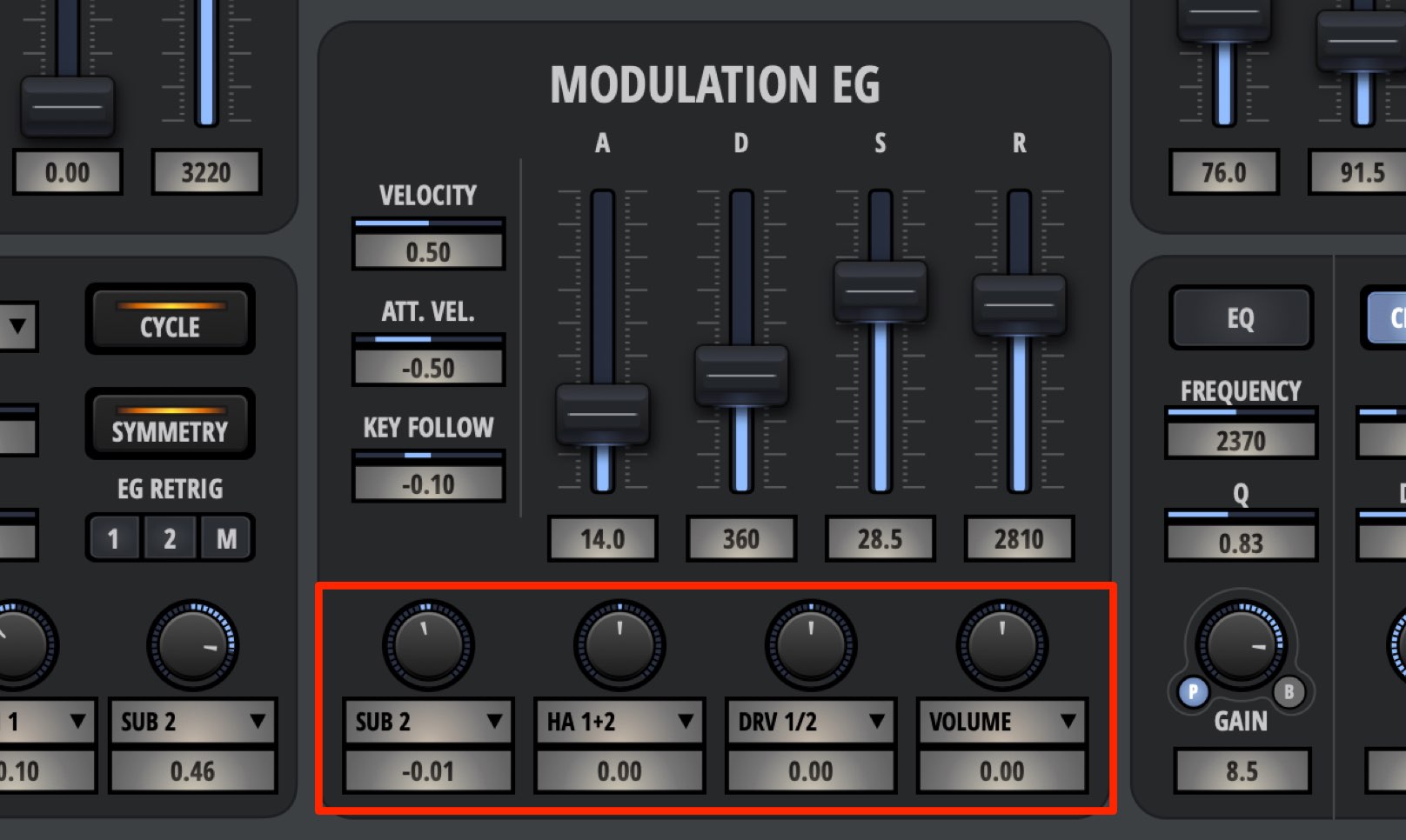
You can modulate up to four parameters.
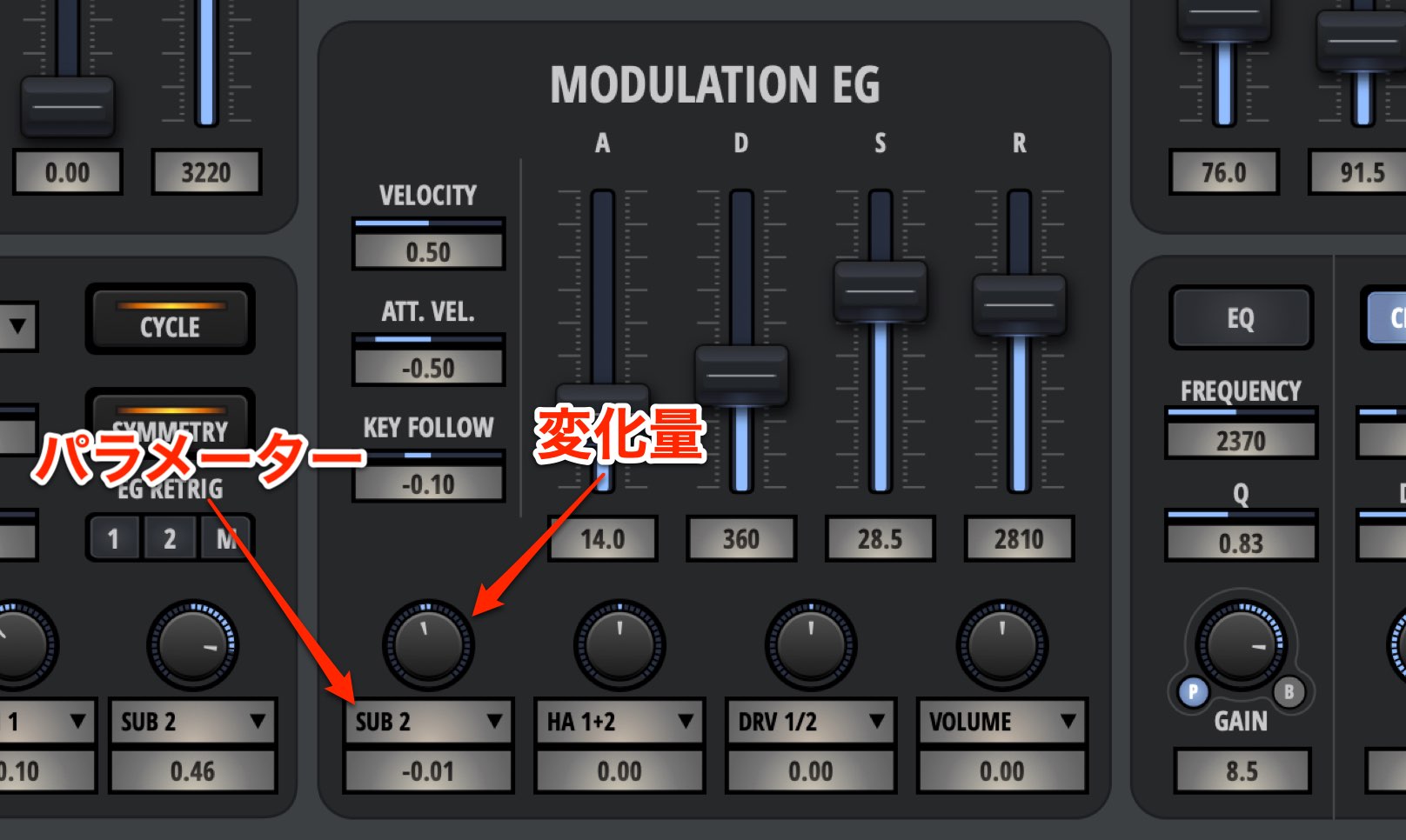
Select the parameter to control from the menu above each knob, then use the knob to adjust the modulation depth (the amount of movement).
The LFO Section
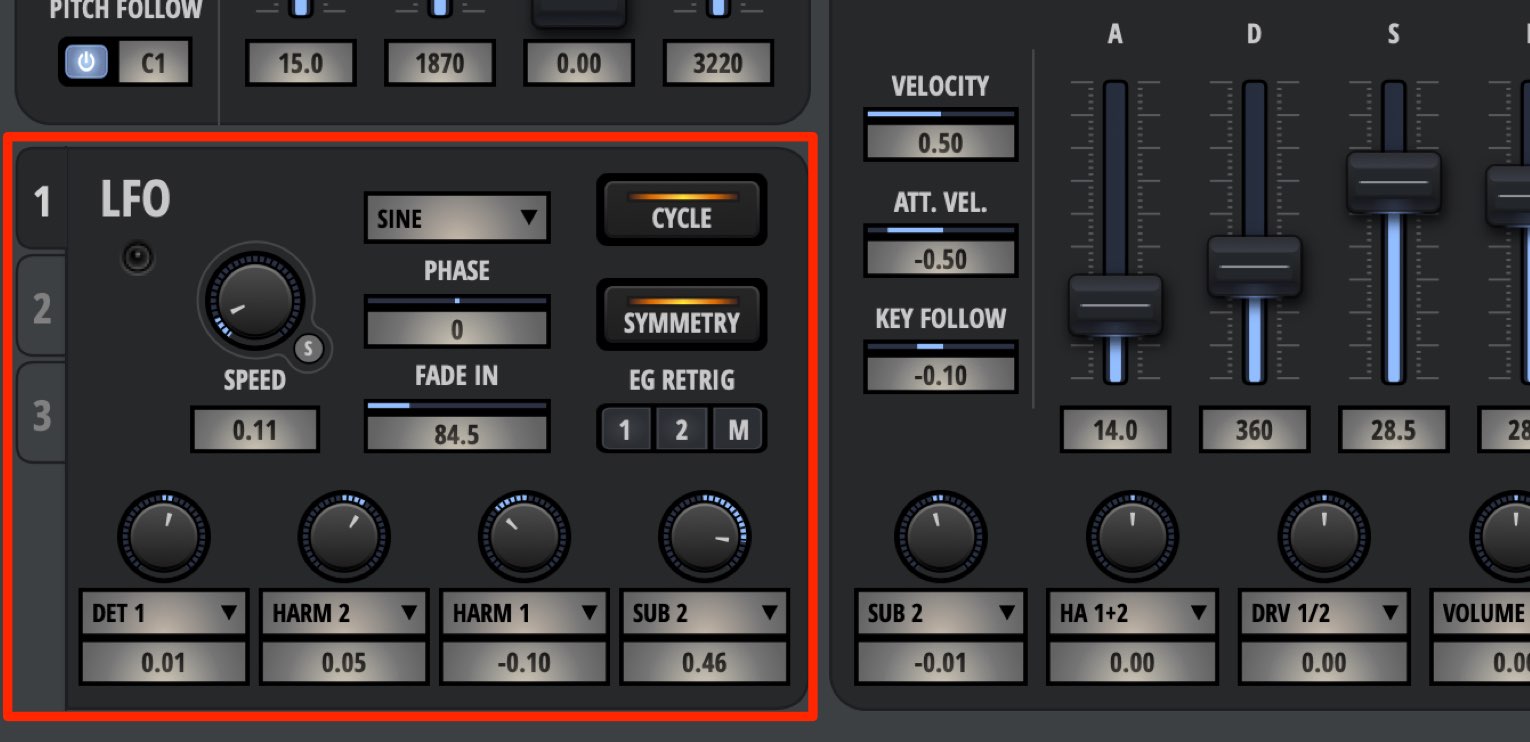
Like envelopes, LFOs can add movement to Bolt's parameters.
The key difference is that an LFO keeps repeating the movement you specify.
Three LFOs are available; use the numbered tabs to switch between them.
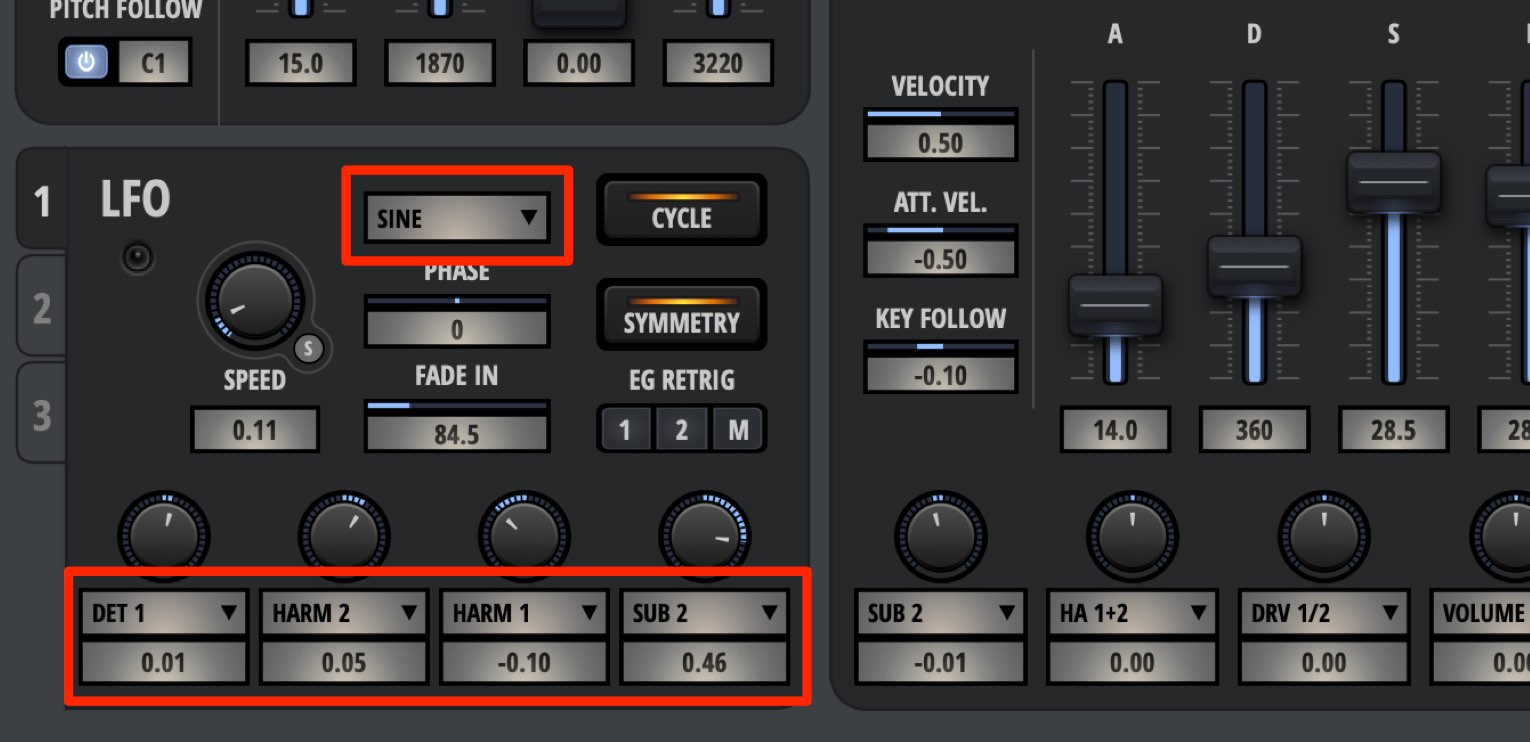
Choose a waveform (the LFO's pattern of movement) and the parameter to control.
Then adjust the modulation depth (the amount of movement). This works in the same way as the envelope section.
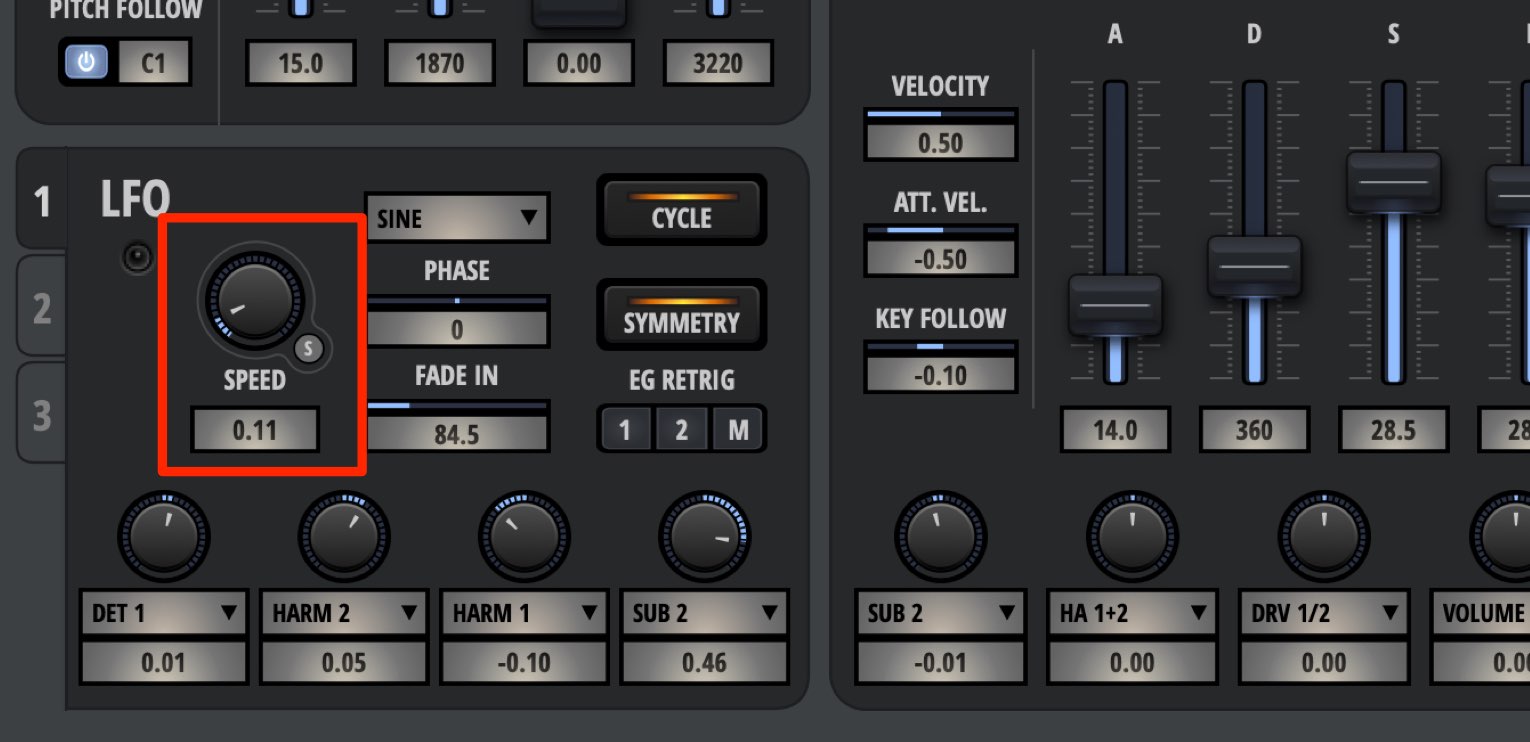
Adjust SPEED to change the LFO's cycle rate and shape the effect.
The unit is Hz, which specifies how many times the cycle repeats per second.
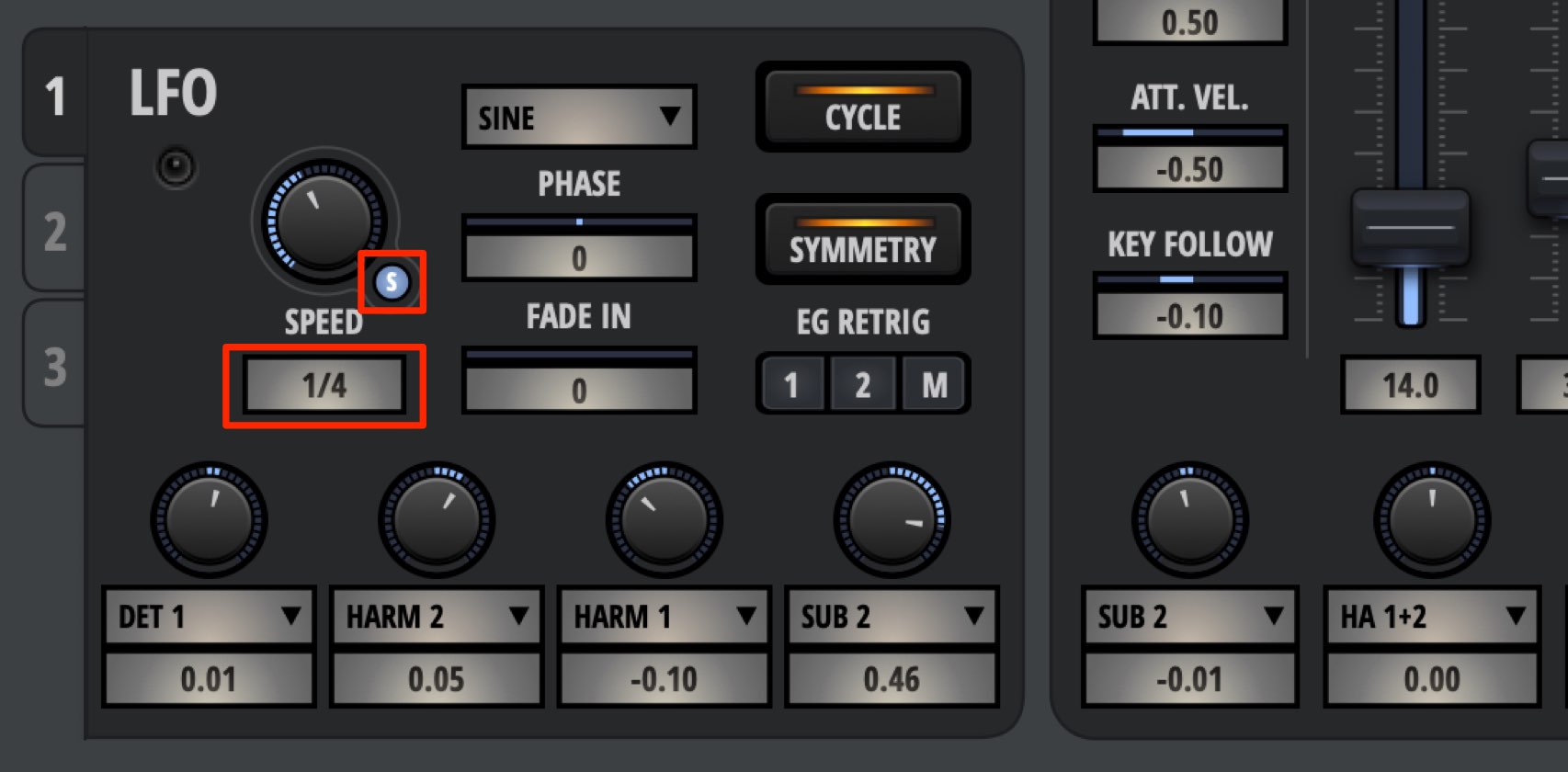
Turn on S to choose a note value synchronized to your DAW's tempo.
Synchronizing the LFO's movement to the tempo can produce a more musical effect.
General Parameters

Bolt's General Parameters section lets you set how the sound behaves when notes are played.
You can also set the pitch-bend range and modulation-wheel behavior here.
Let's look at some of the key settings.

POLYPHONY lets you choose between monophonic (MONO) and polyphonic (POLY) playback.
Turn MONO off to play chords, or turn it on for single-note parts such as bass or lead lines.
If you want to play a selected preset as chords, this is a good setting to check.
The choice between MONO and POLY also changes how GLIDE works, as described below.

GLIDE changes the pitch as a note is played.
You can set it independently for each oscillator. Positive values make the pitch approach the played note from above, while negative values make it approach from below.
When MONO is selected in the playback mode above, the pitch glides smoothly between notes.

VOICE DOUBLE layers the specified number of voices onto each note you play.
- VOICES: Sets the number of voices to layer.
- DETUNE: Slightly offsets the pitch of the layered voices to thicken the sound.
- WIDTH: Spreads the layered voices left and right to add stereo width.
That concludes our two-part look at Bolt. How did you find it?
Using these envelopes and LFOs to add movement can make your sounds even more exciting.
We also found it interesting to actively modulate the oscillator parameters.
Bolt can produce unique sounds with impressive clarity, making it a synth worth considering if you're looking for your next instrument.
Give it a try!
Product URL: https://beatcloud.jp/product/931?atag=007
If you're not sure what the synthesizer parameters ADSR mean, take this opportunity to learn them!
> How to Use Nektar Bolt, Part 2: Shaping Sounds with ENV and LFO
Details: https://t.co/rcdDtMN9ce #DTM #nektartech pic.twitter.com/XIgphGexCM— SLEEP FREAKS (@SLEEPFREAKS_DTM) March 28, 2019
Frequently Asked Questions
Q1. What is ADSR on a synthesizer?
ADSR stands for Attack, Decay, Sustain, and Release: four parameters that control how a note's volume changes over time. They play an important role in shaping a sound's expression.
Q2. What is the difference between an envelope and an LFO?
An envelope applies a single sequence of changes to an individual note, whereas an LFO provides cyclic modulation, repeatedly applying the specified movement while the note is played.
Q3. What is Glide used for?
Glide adds smooth pitch changes as notes are played. In MONO mode in particular, it smoothly connects pitches, creating a bending effect that allows for more expressive playing.
Q4. What effects can Voice Double create?
Layering multiple voices adds fullness. Detune offsets their pitches to thicken the sound, while Width adds stereo spread, turning a mono sound into a richer, more spacious stereo sound.
Q5. What is the benefit of synchronizing LFO Speed with S?
Synchronizing the LFO to your DAW's tempo ties the modulation to the rhythm of the song, helping you create a more musical and cohesive sound.
NEW ARTICLES
Latest English Articles





































































































































































































































































