
Ableton Live is an ideal DAW for a guitarist's music production workflow. This article explains how to turn a guitar audio recording into MIDI to create a bass track, shape your sound with the included Amp and Cabinet effects, and integrate hardware effects using External Audio Effect. Learn practical techniques for producing music with your guitar alone, without a keyboard, and creating professional tracks.
A Songwriting Workflow for Guitarists in Ableton Live
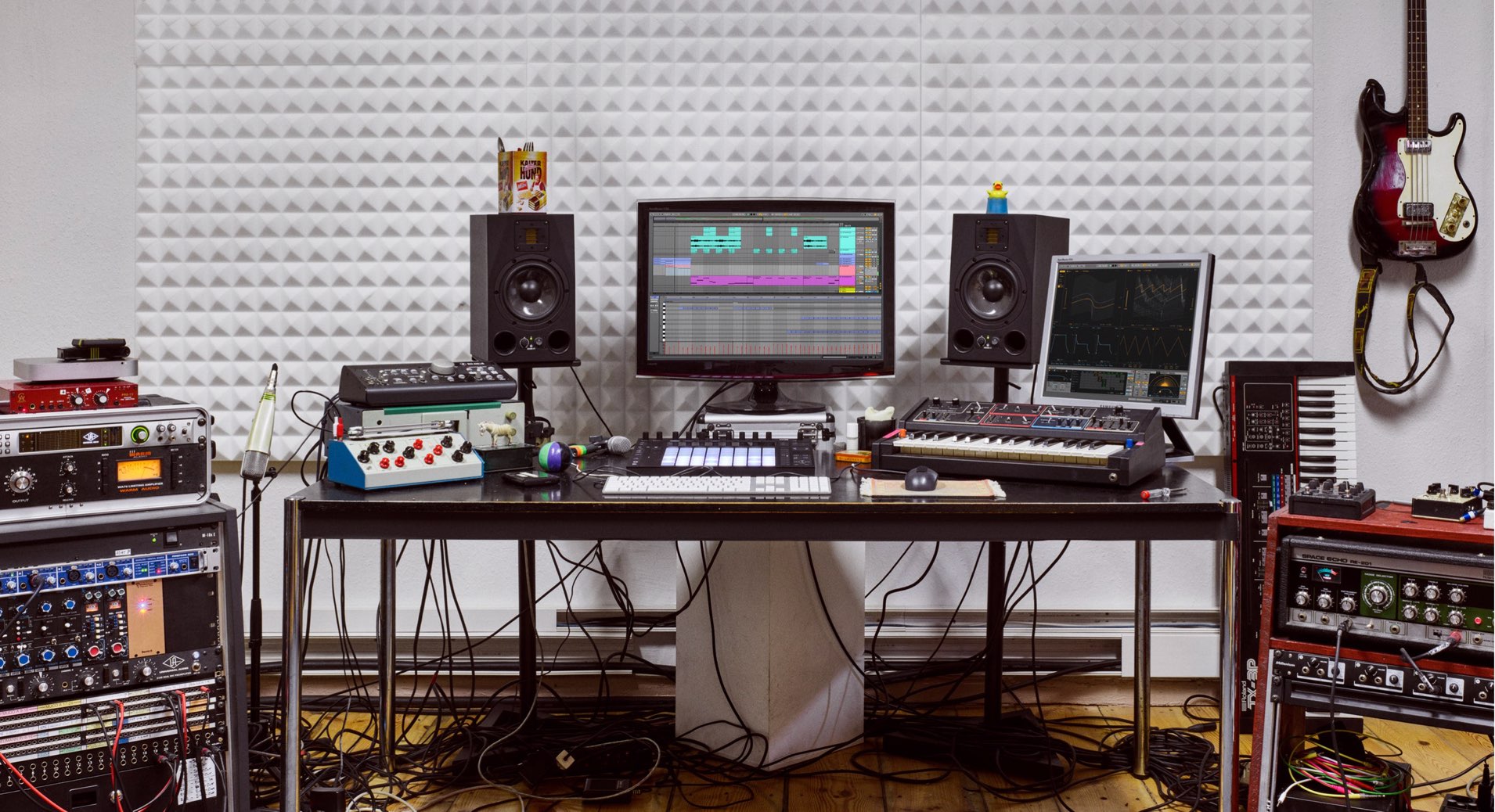
In this series, we use the various features of Ableton Live Suite to explain a music production workflow from a guitarist's perspective.
In Part 2, we show you how to convert a recorded guitar take into MIDI and use it to play a bass track, without using a keyboard.
We also cover shaping your sound with Live's included guitar effects and incorporating hardware effects into your setup.
Video: Creating Bass and Guitar Tracks
- 1Drum Track Production Workflow
- 2MIDI and Audio Recording Workflow Using Guitar
- 3Creating Lead Sounds with Instrument Rack and External Instrument
- 4Programming Keyboard Chords with MIDI Effects
- 5Building a Song with Session View
- 6Exploring Live's Mixing Features
- 7Download the Tutorial Project
Selected Questions and Answers from YouTube

I have just switched from Logic to Ableton and had a lot of questions, so this is really helpful! At 4:22, it looks like you are using a keyboard shortcut to adjust MIDI note lengths to the grid. What is this command called in Ableton, and which shortcut is assigned to it?

For the Live shortcut you asked about, you can change the length of selected notes with Shift + Left Arrow or Right Arrow. Here is a list of keyboard shortcuts that you may find helpful: https://www.ableton.com/ja/manual/live-keyboard-shortcuts/
Choosing a Bass Sound
We will use an instrument for the bass track, so first find a sound you like among Live's included instruments.
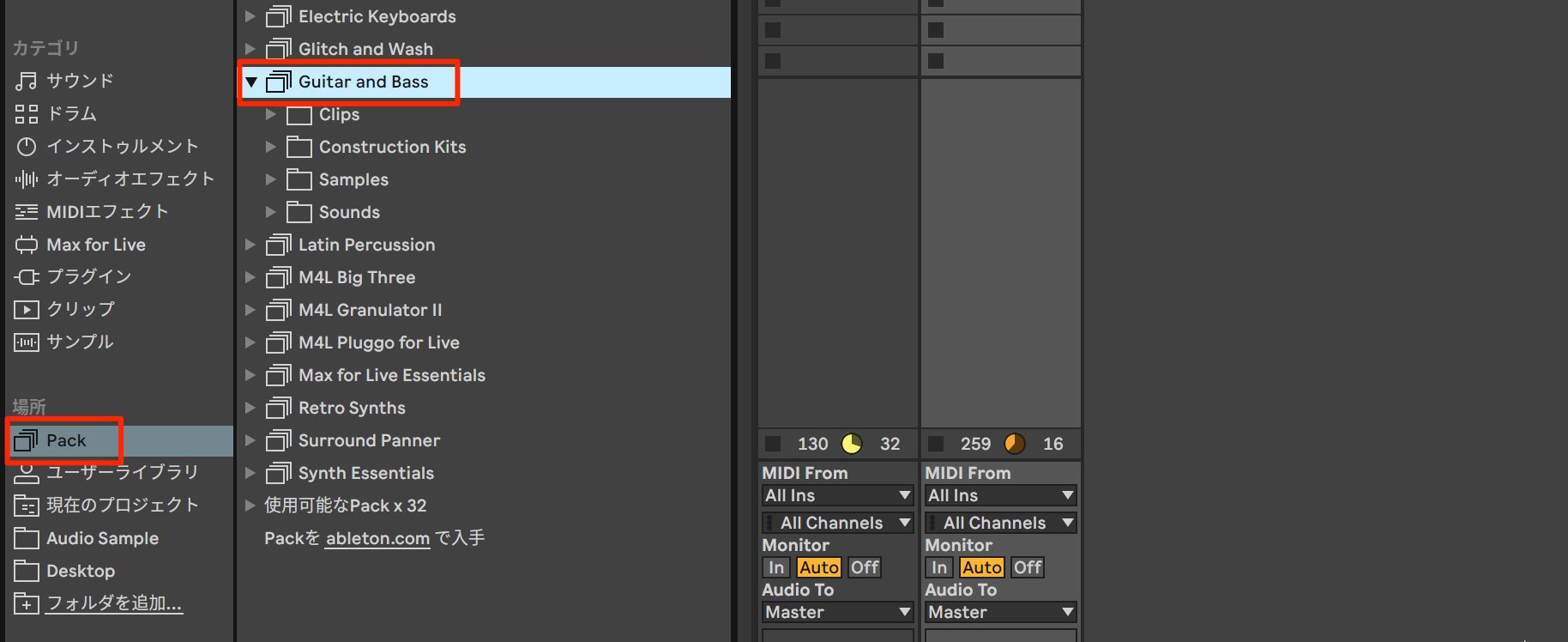
From Packs, which contains a variety of sounds, choose a sound from Guitar and Bass, a Pack of electric guitar and electric bass sounds that can be added to Live Suite at no extra charge.
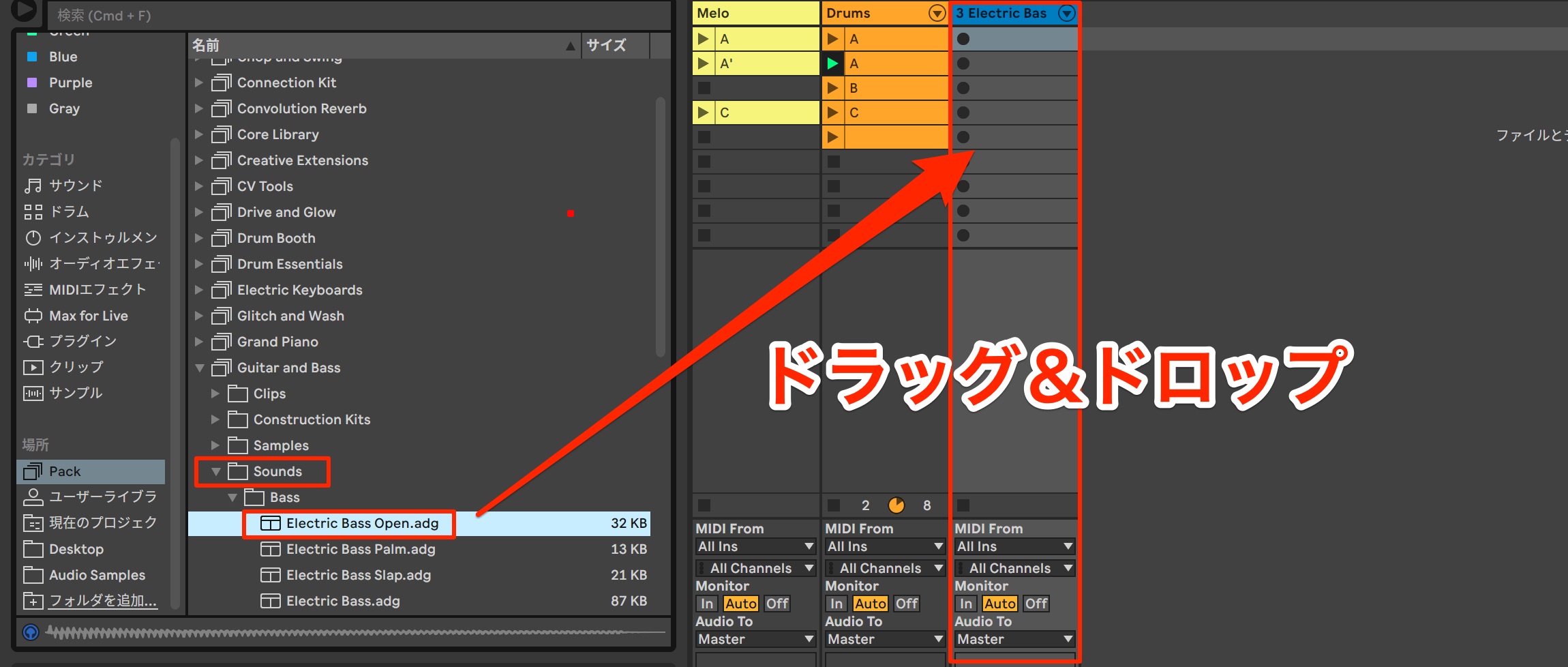
Inside the folder, open Sounds, where the instrument presets are stored, and drag the Electric Bass Open instrument into the drop area.
Once a new MIDI track has been created, you are ready.
Creating a Track for Recording Guitar
We will convert audio recorded with a guitar into MIDI and use it to play the bass instrument.
First, create a new audio track. We will now set it up for guitar recording.
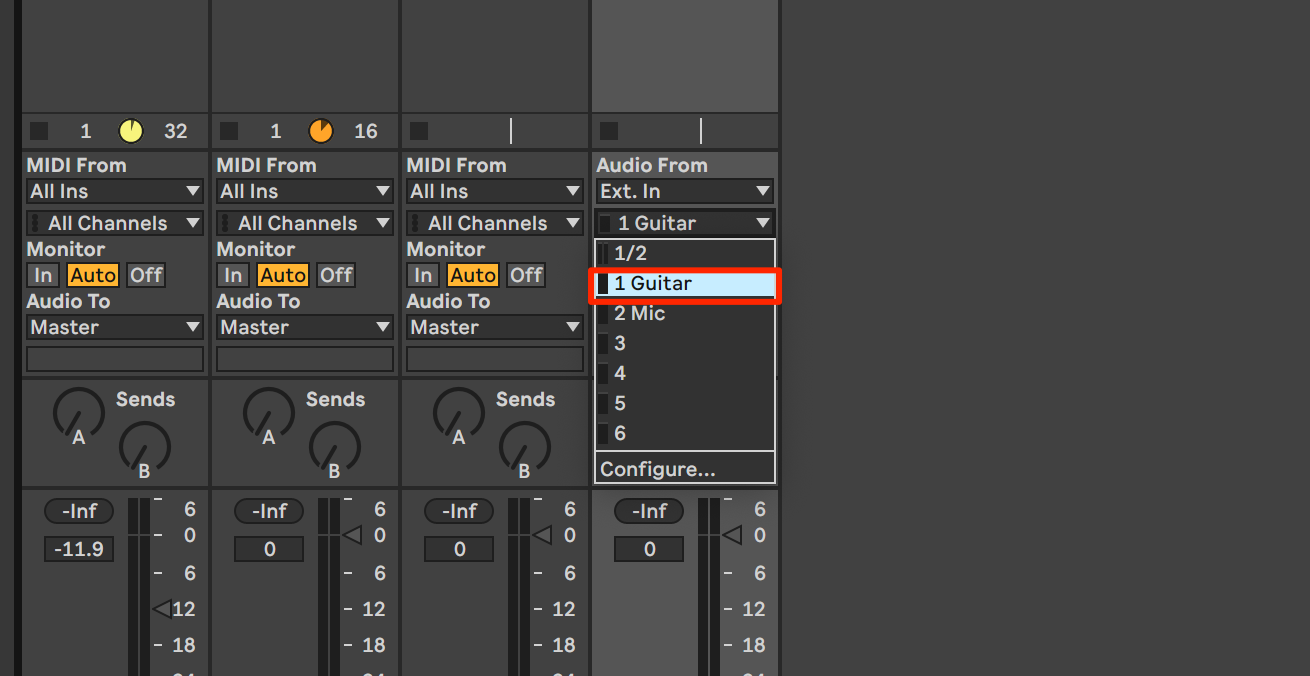
Select the input channel on your audio interface to which your guitar is connected.
Each input channel has a level indicator. Play your guitar and check which channel responds before proceeding.
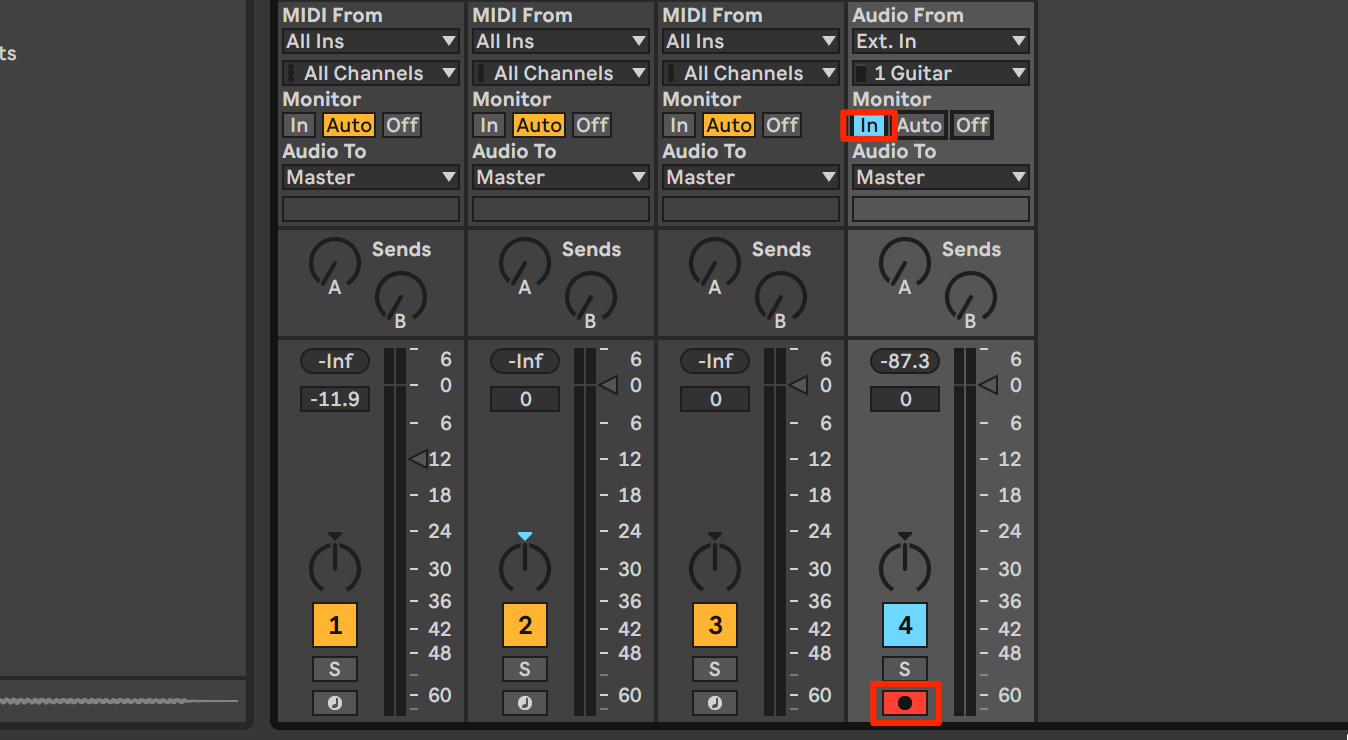
After checking the guitar input, enable the Arm button to put the track into record-ready mode.
Setting Monitor to In lets you hear the guitar sound that will be recorded, which is also useful when shaping your tone.
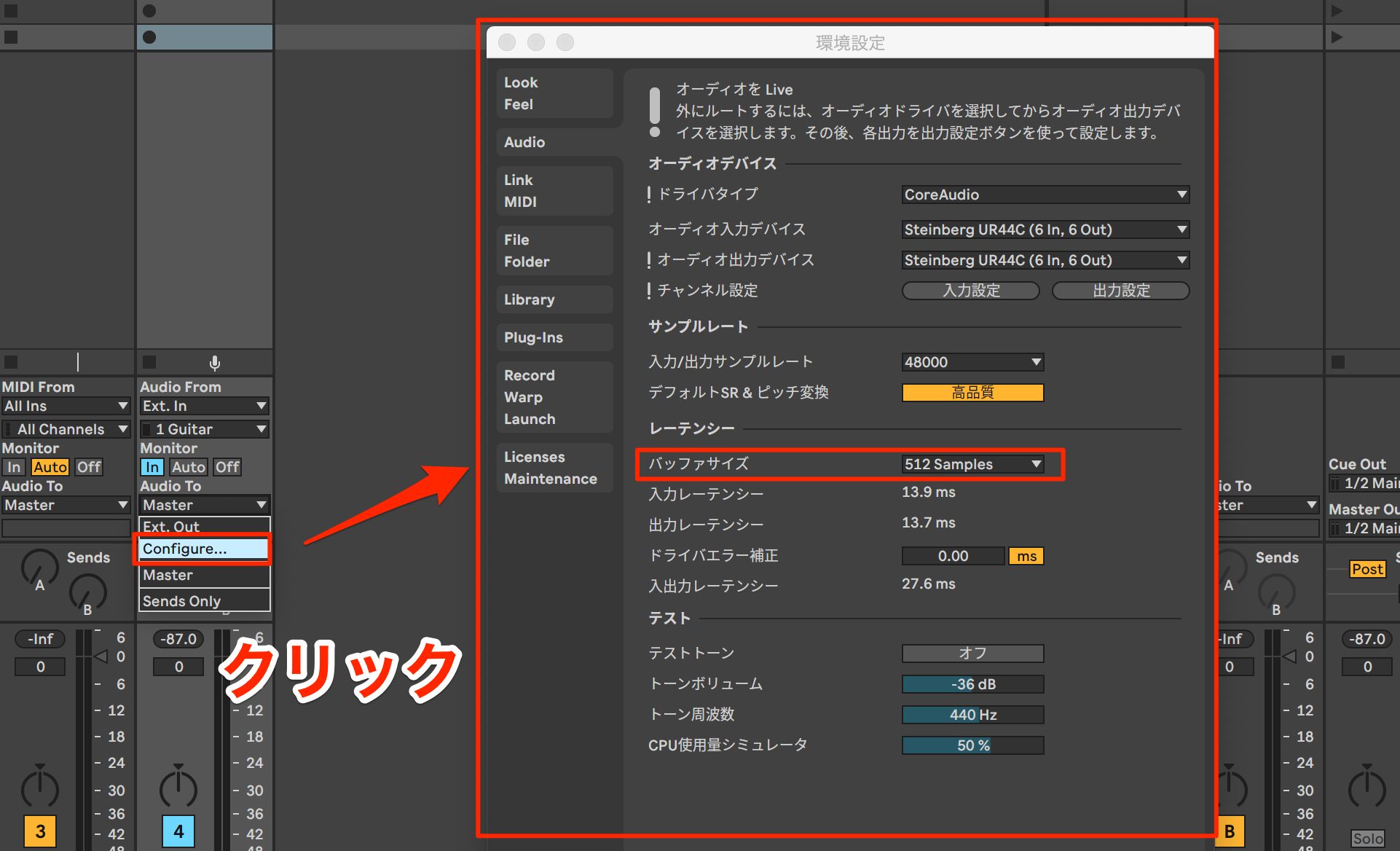
If you notice a delay in the monitored sound, select Configure from the input channel selection list.
The Preferences window will open. Lowering the buffer size here can reduce the delay.
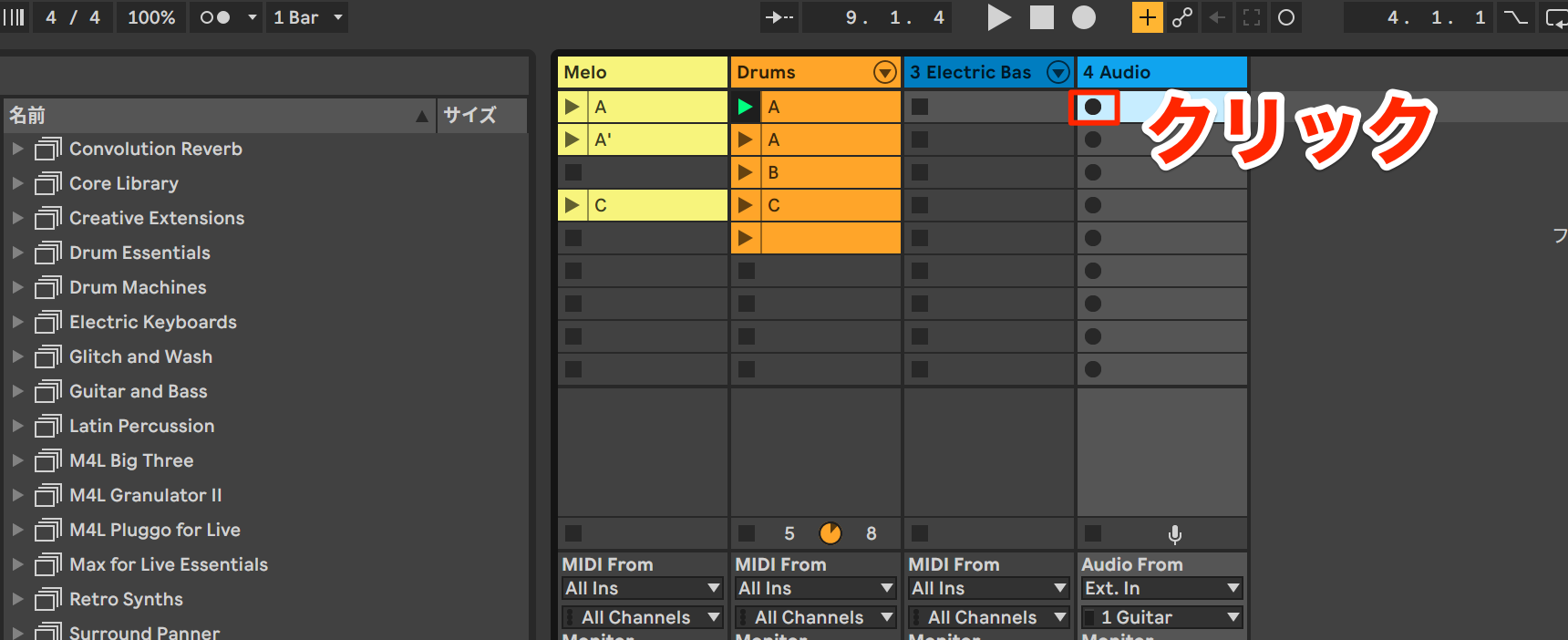
You are now ready to record.
Click the record button (●) on the left of the clip you want to record into to start recording.
Slowing down the tempo while recording can also help you play more accurately.
Here, we have lowered the tempo by about 20 BPM.
Keep recording in a loop until you get your best take.
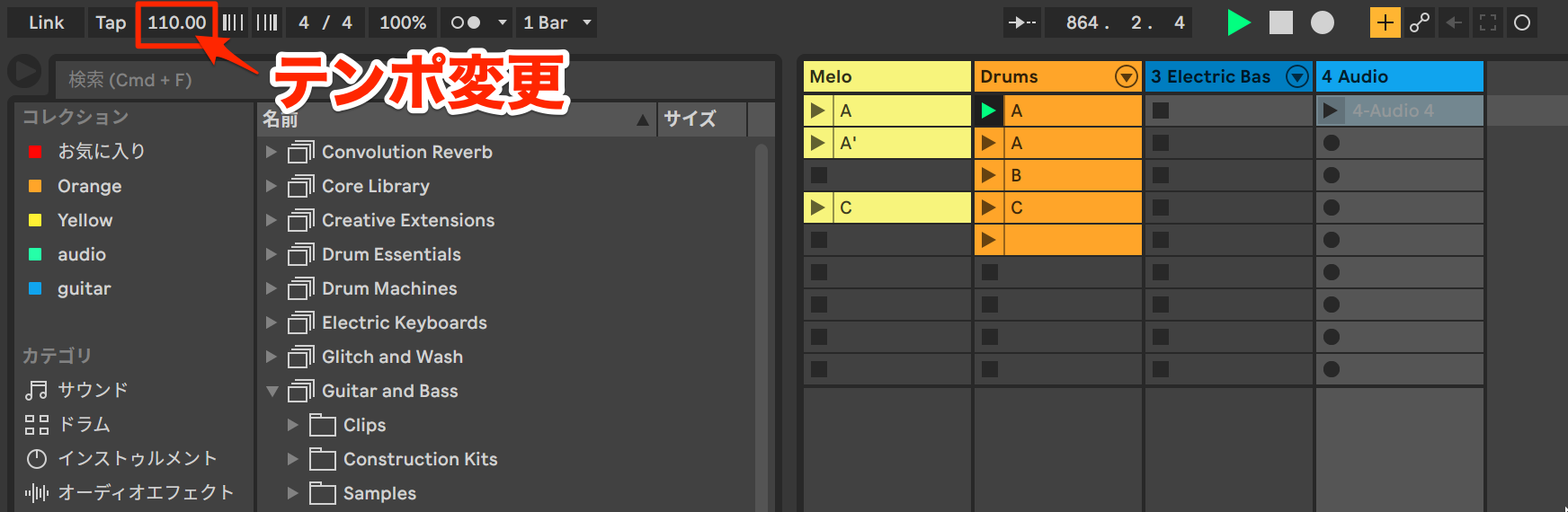
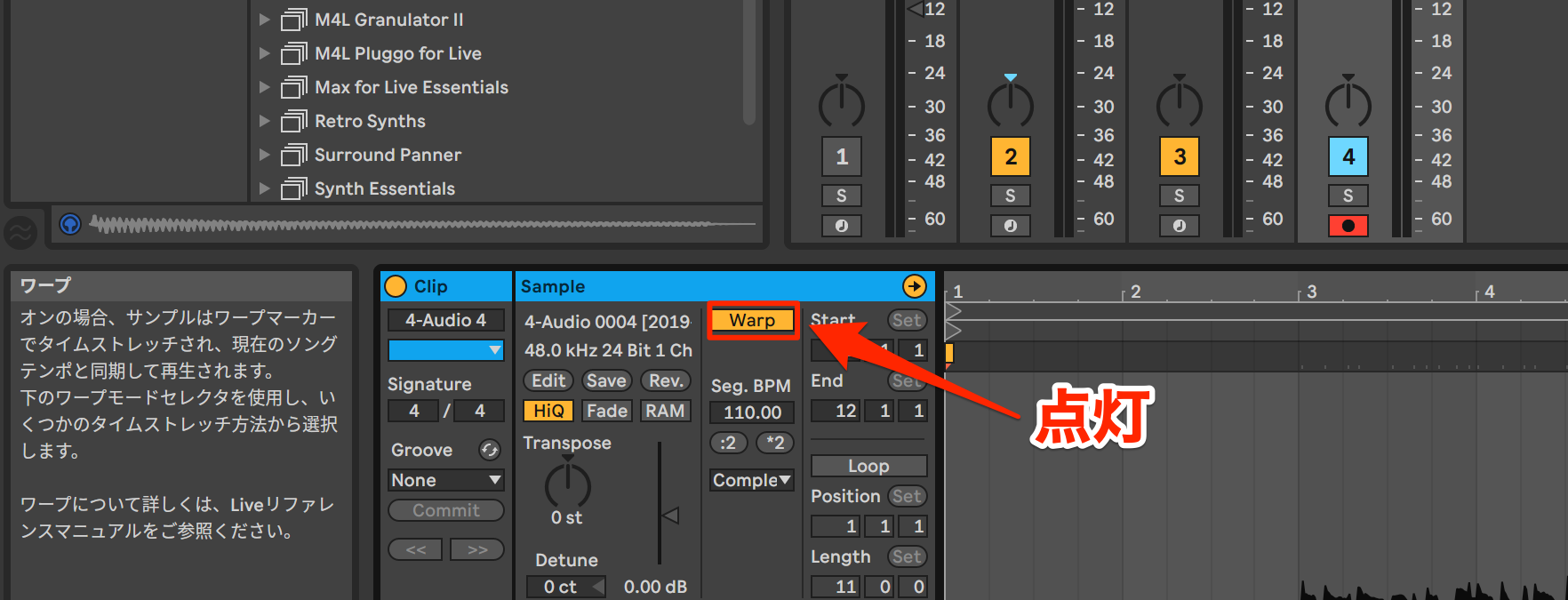
Turning Warp on makes the audio clip follow the song's tempo.
This keeps the audio performance in sync with MIDI, so you can freely change the tempo as you work.
Converting a Recorded Guitar Take to MIDI
After recording, double-click the clip you created to view the take.
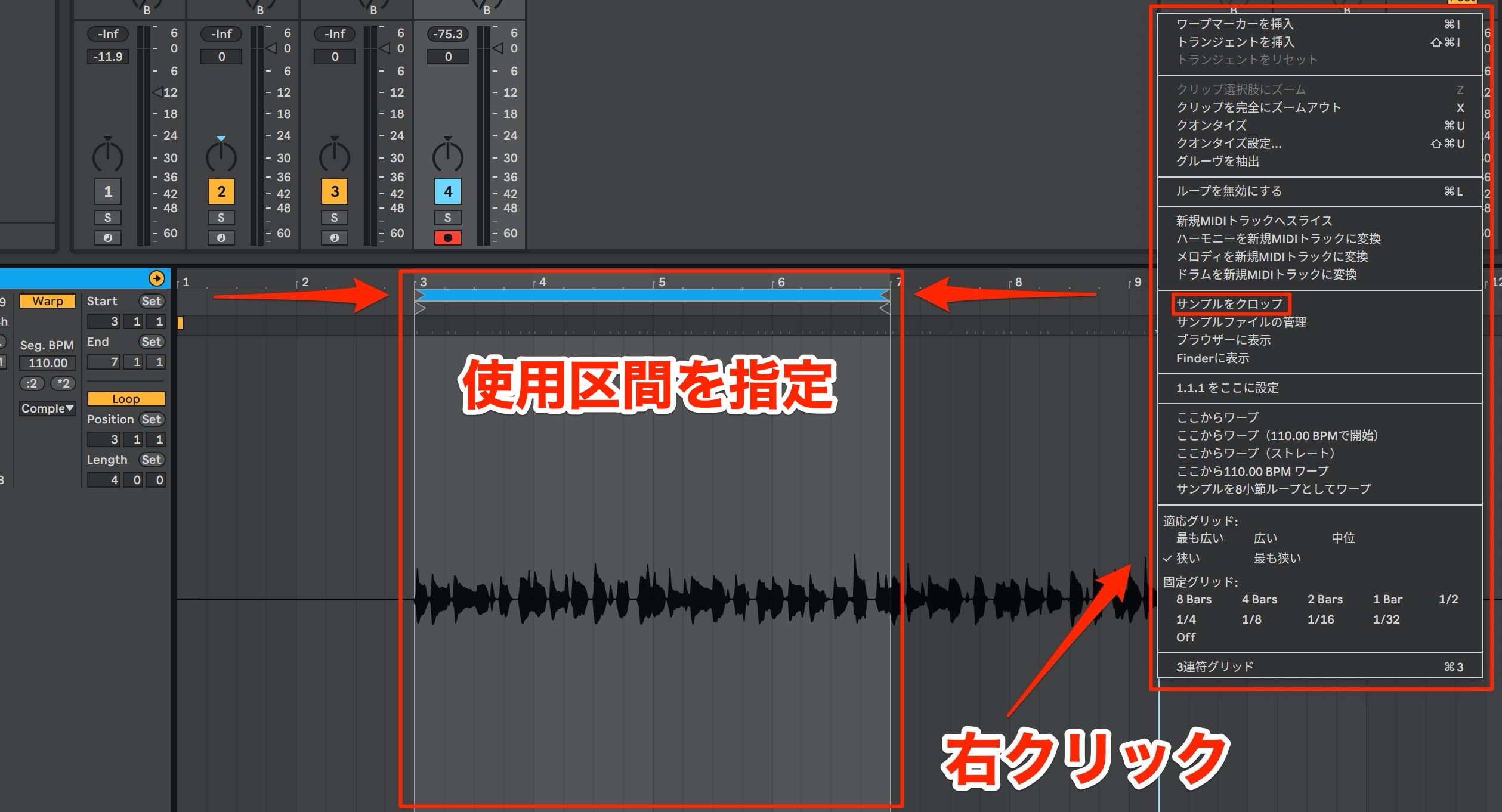
Select the section you want to use, then choose Crop Sample from the right-click menu.
This lets you use only the part of the recorded take that you need in your song.
Next, we will set up the programmed bass track to play this guitar phrase.
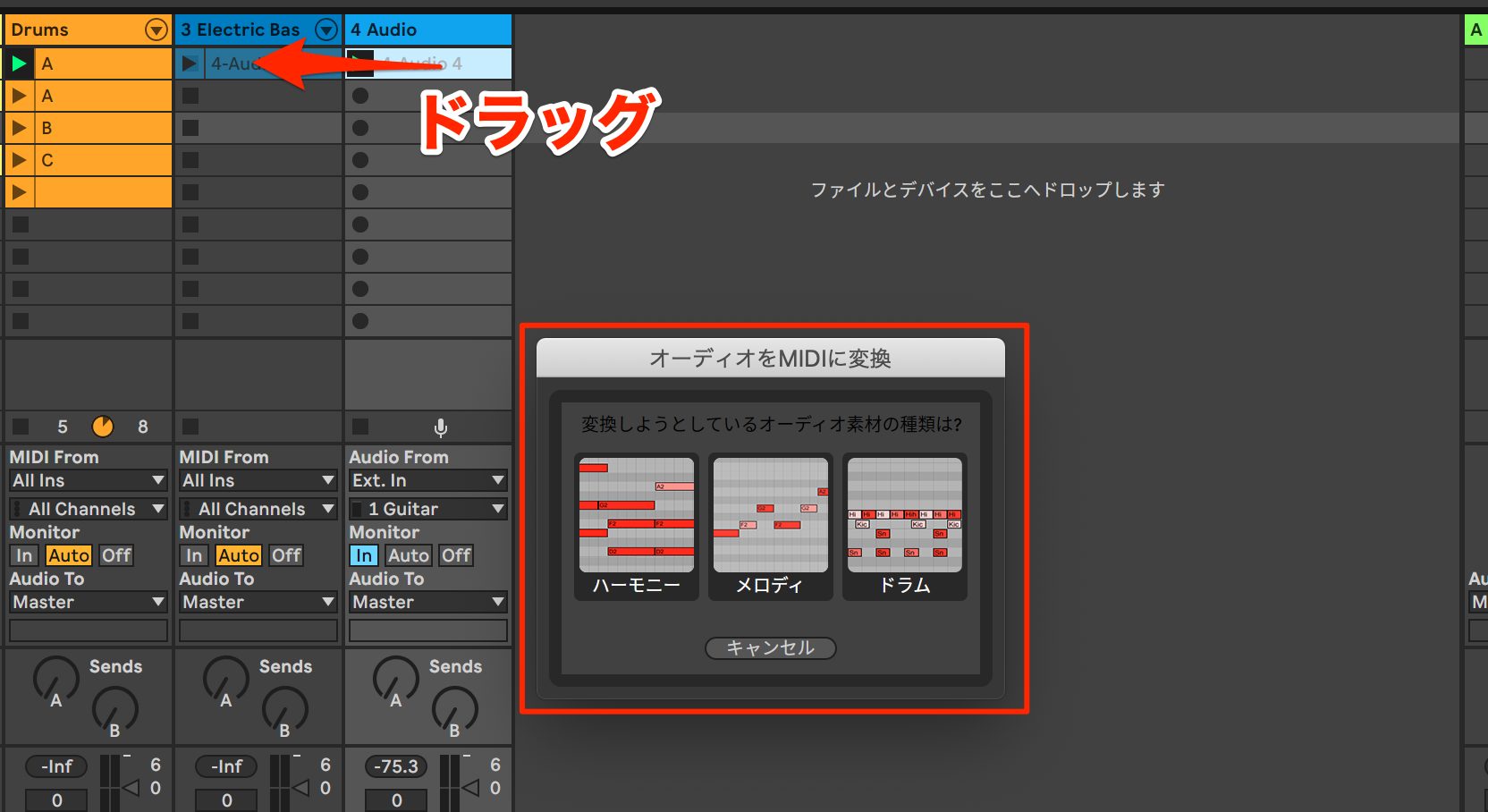
Drag the guitar audio clip onto the instrument track for the bass.
The Convert Audio to MIDI dialog will appear. Select the appropriate option.
Since this bass line consists of single notes rather than chords, choose Melody.
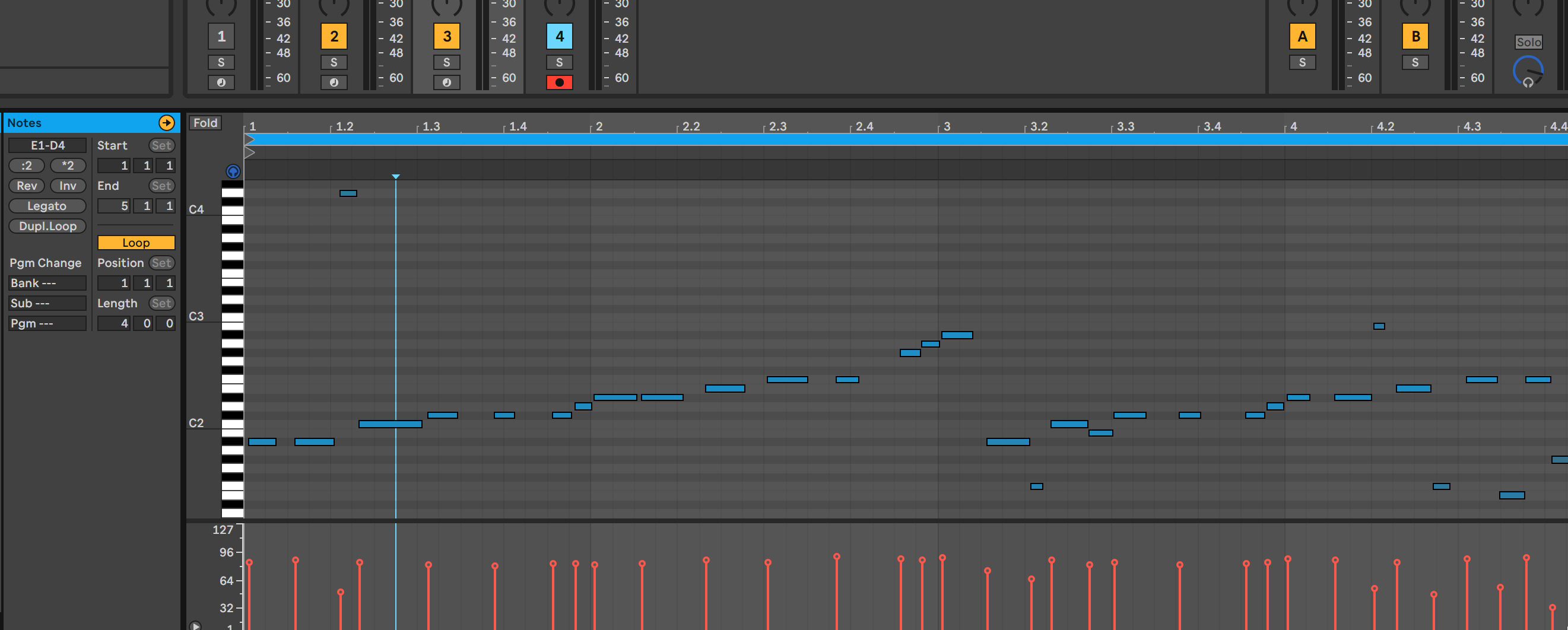
When you inspect the converted clip, you will see that the guitar performance has been turned into MIDI notes.
Finally, adjust the timing and pitch of the notes in the converted MIDI clip as needed, and you are done.
Converting audio to MIDI does not require a complicated process, making it easy to incorporate into your production workflow.
Shaping the Guitar Track's Sound
Next, let's move on to recording the guitar part.
For this part, we will record the guitar as regular audio.
As before, create a new audio track and arm it for recording.
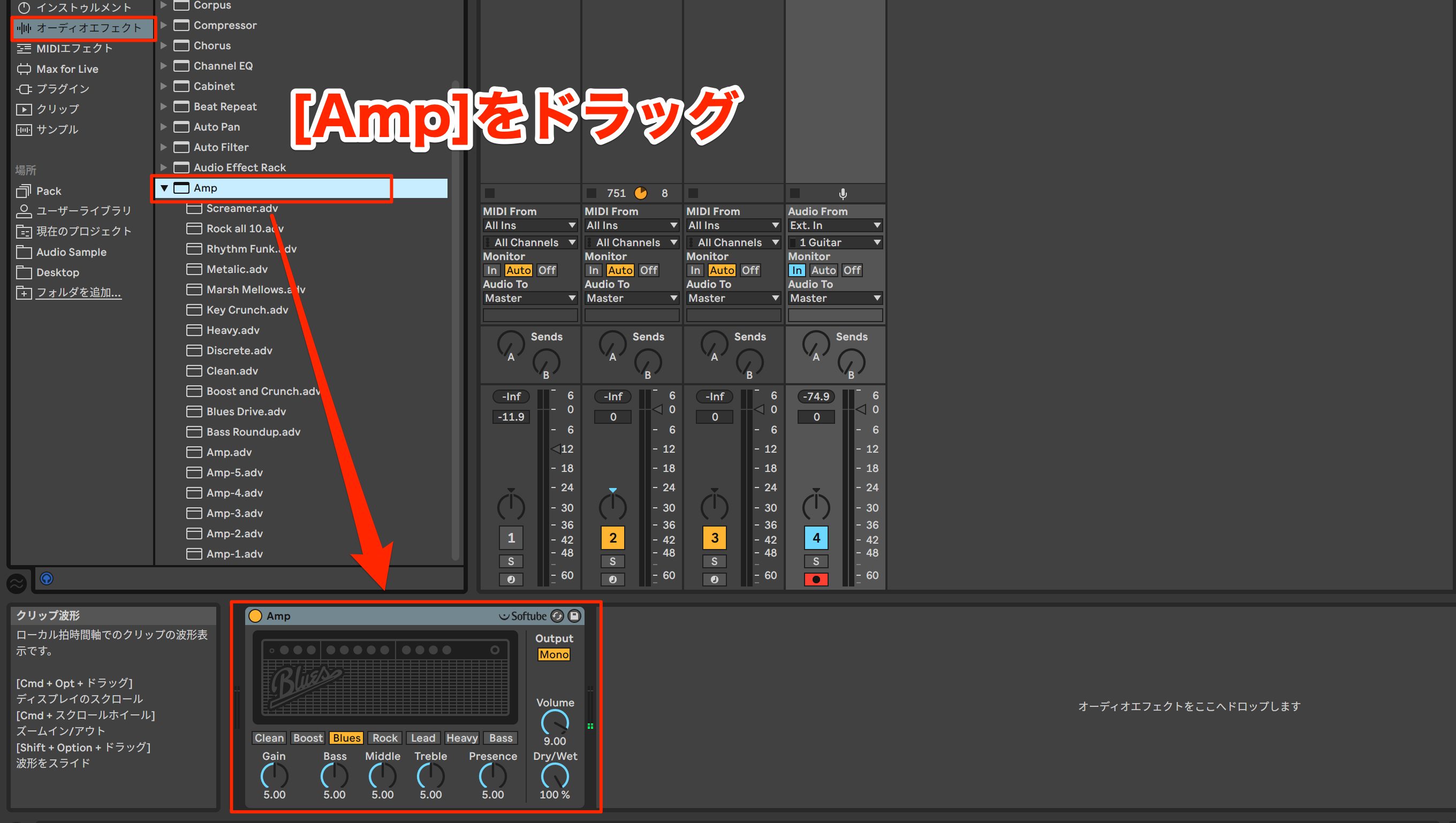
An amp is an essential part of shaping an electric guitar's sound.
Here, we will add Amp, the amp simulator effect included with Ableton Live.
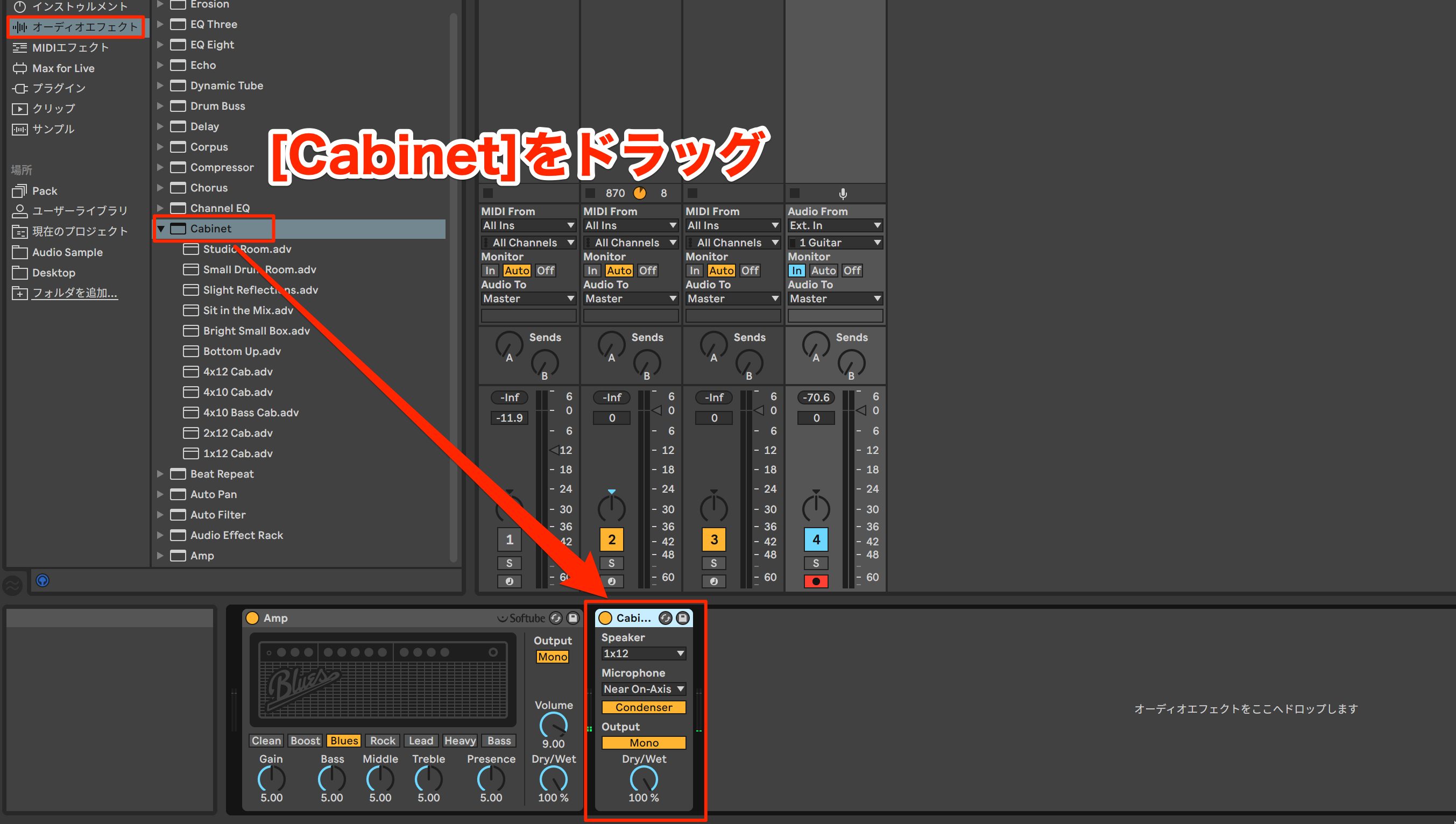
Next, add Cabinet, the cabinet simulator.
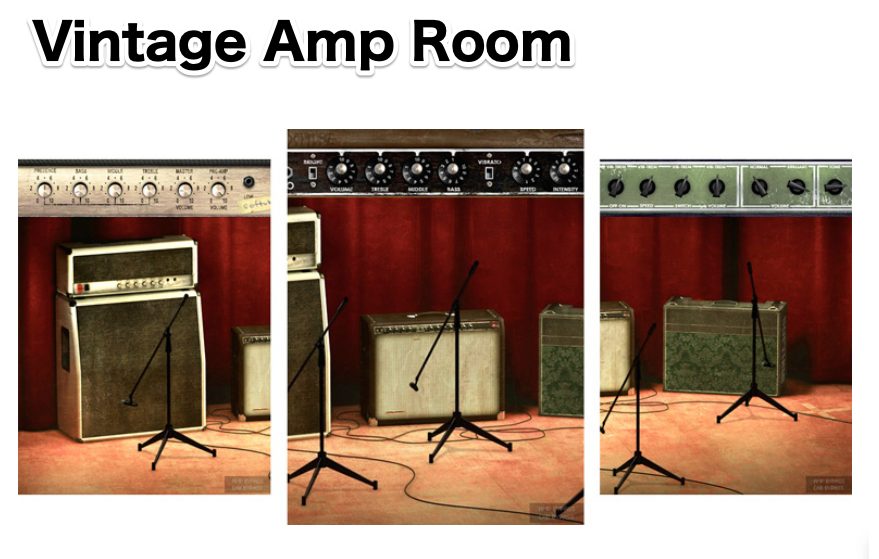
Amp was developed by Softube, the company behind the Vintage Amp Room amp simulator plug-in.
It offers models based on classic Vox, Fender, Marshall, and Mesa/Boogie amps, allowing for a wide range of tones.
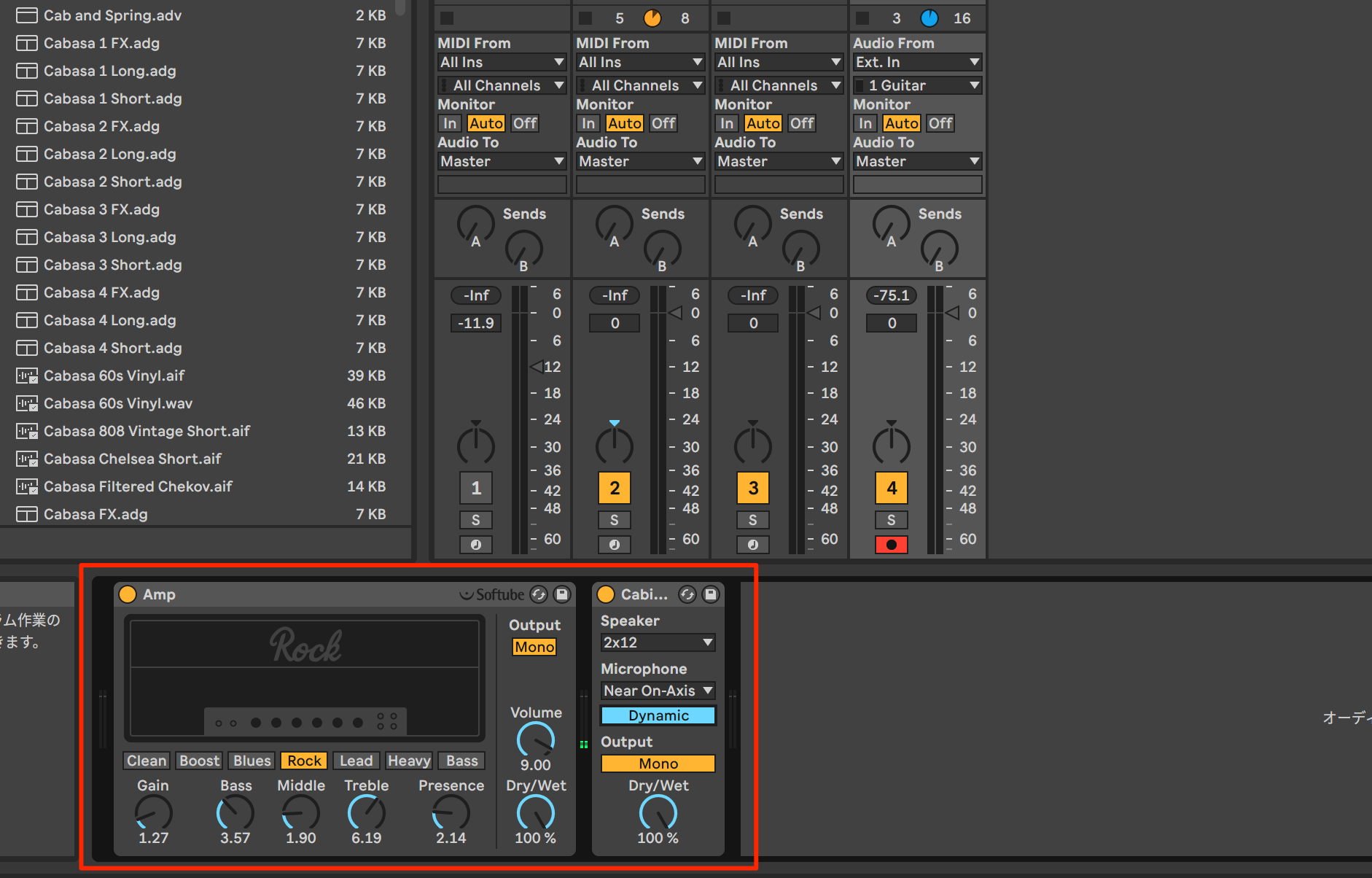
Adjust Amp and Cabinet while listening to the take we recorded earlier for the bass part.
To add a little more distortion, select a distortion effect from Audio Effects.
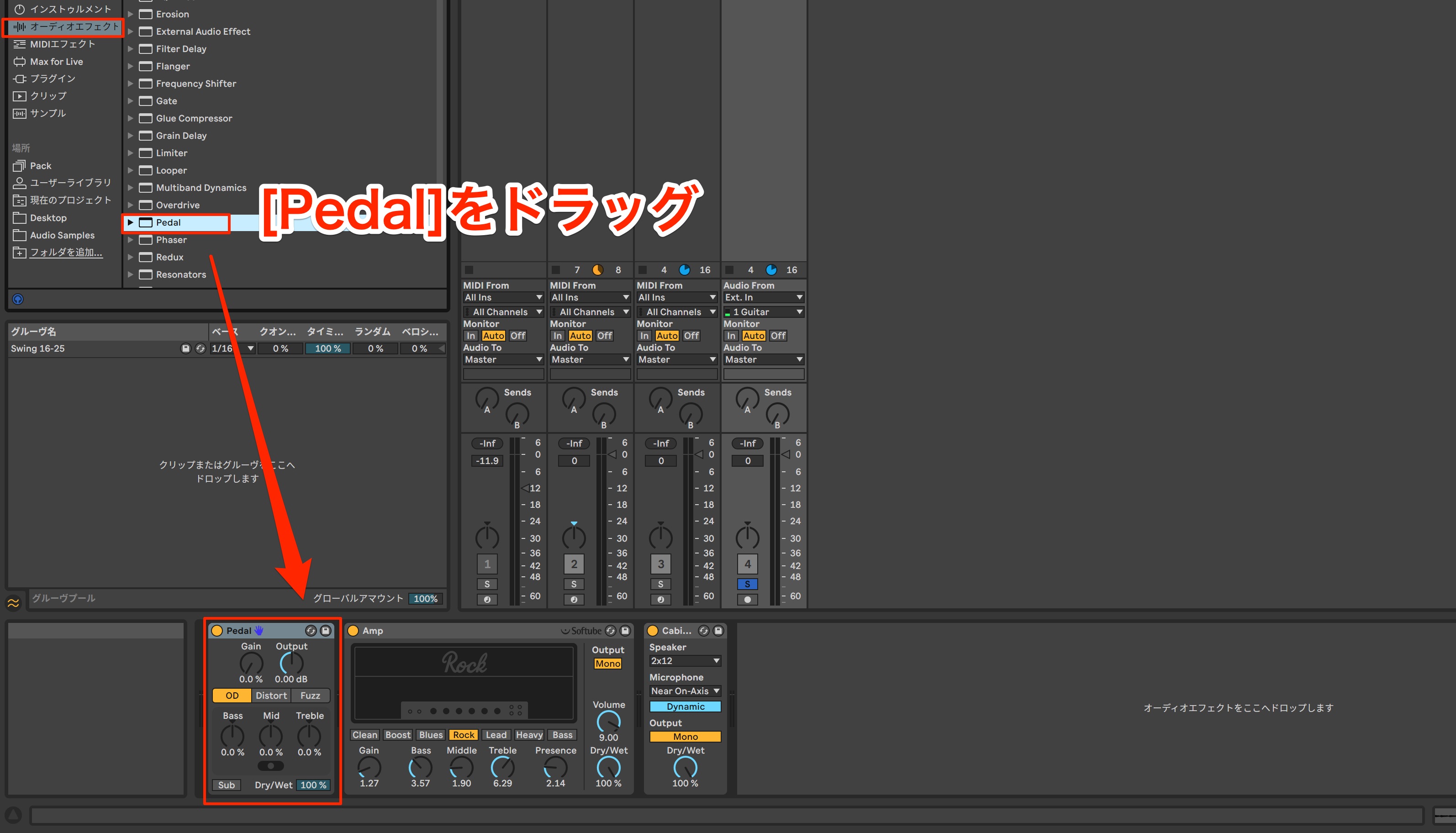
Pedal is a distortion effect that recreates analog tones ideal for electric guitar, from overdrive to fuzz.
Here, we will use overdrive to add a little more grit.
Integrating Hardware Effects
You may also want to use your favorite hardware effects.
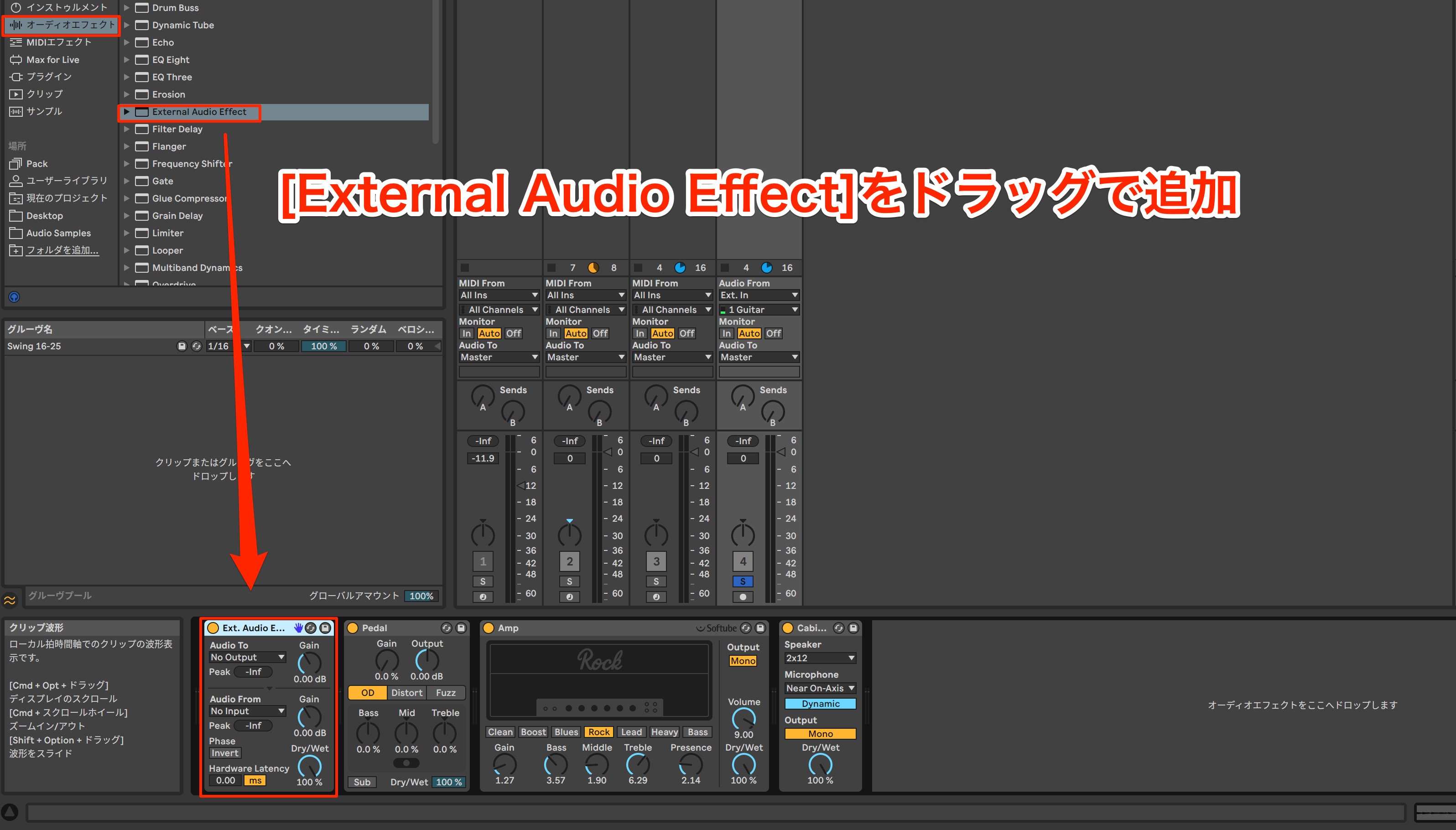
This is where the External Audio Effect device comes in.
It makes it easy to incorporate hardware effects into your Live Set.
To use this feature, your audio interface needs at least one available mono or stereo input and output channel.
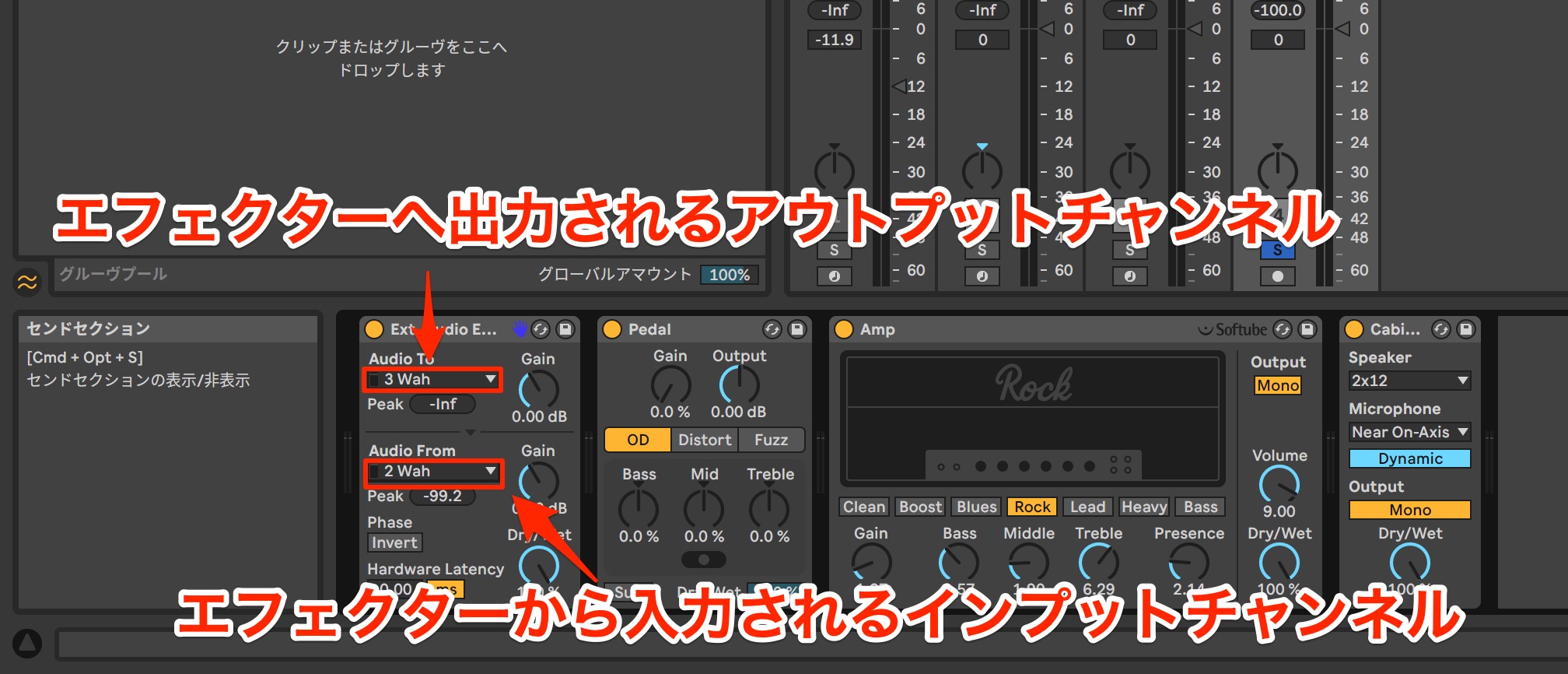
Simply set Audio To to the audio interface output connected to your effect, and Audio From to the interface input receiving the effect's output. You can then use your hardware effect within Live.
The diagram shows how these connections work.
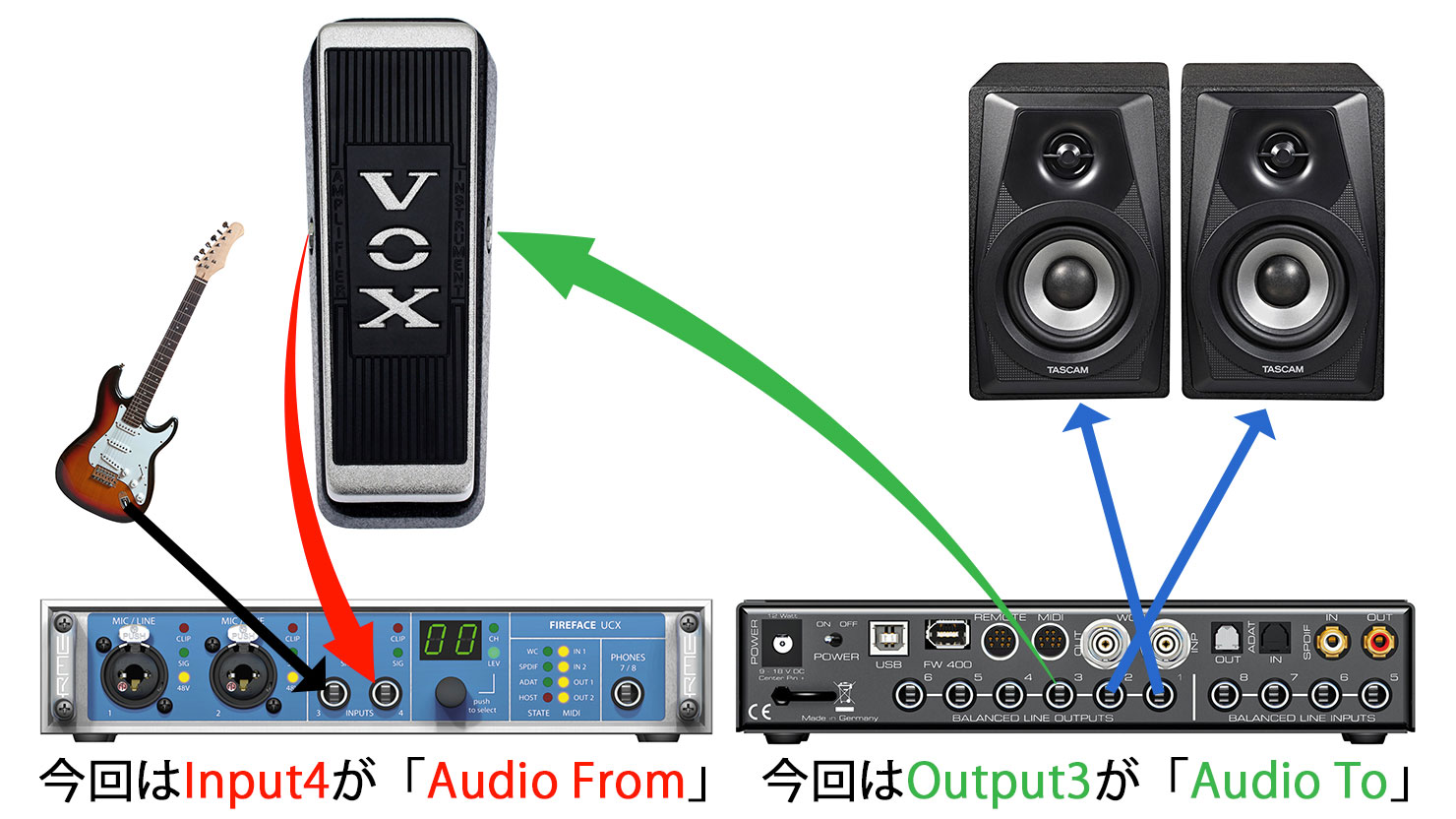
Here, we have added a wah pedal, whose expressive performance can be difficult to reproduce with a plug-in.
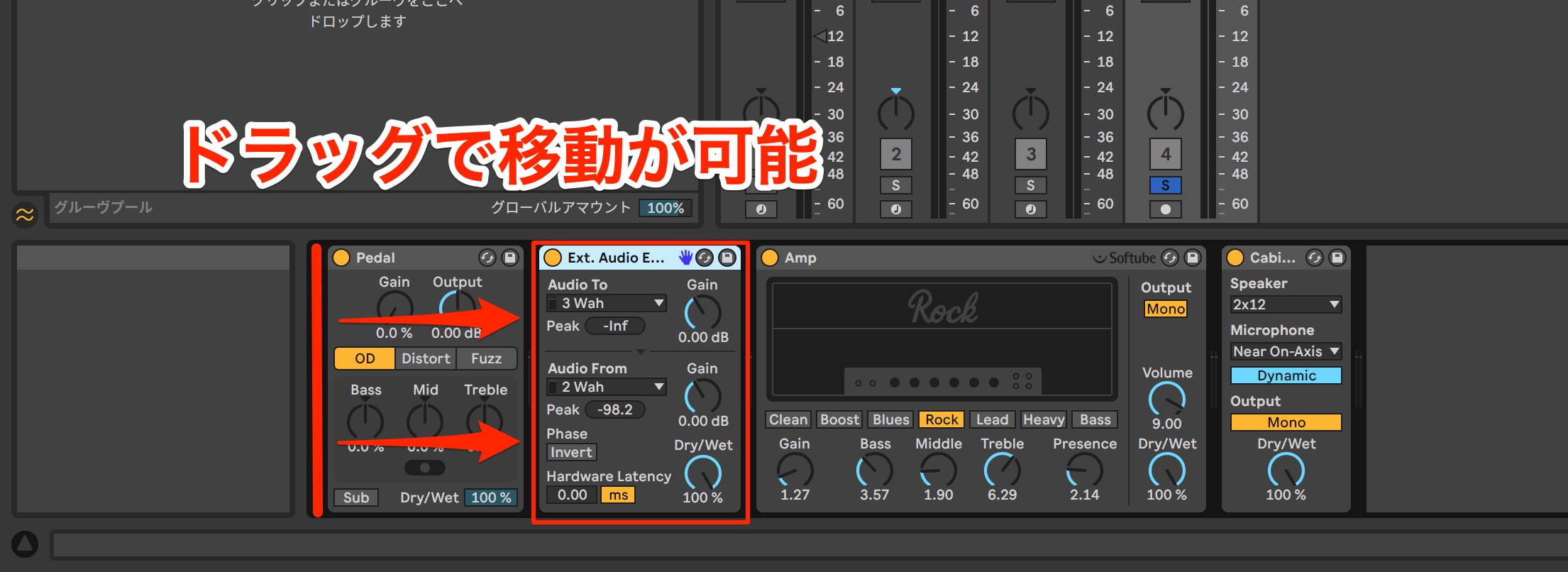
Like a regular plug-in, External Audio Effect lets you freely change the order of plug-in and hardware effects in the chain, which is very convenient.
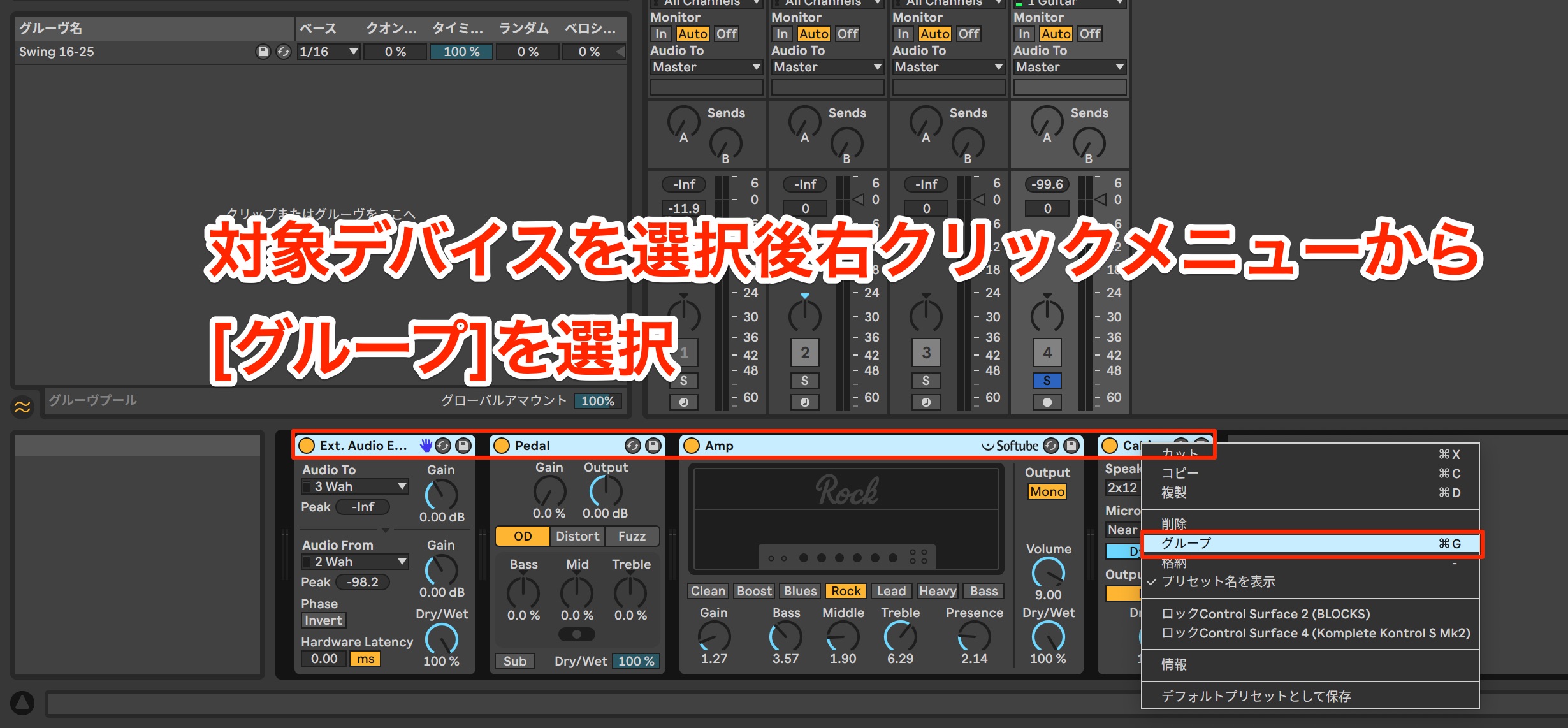
You can also save the effect setup you have created and instantly recall it in another situation or song.
Select all the effects in your setup and choose Group from the right-click menu to place them in an Audio Effect Rack.
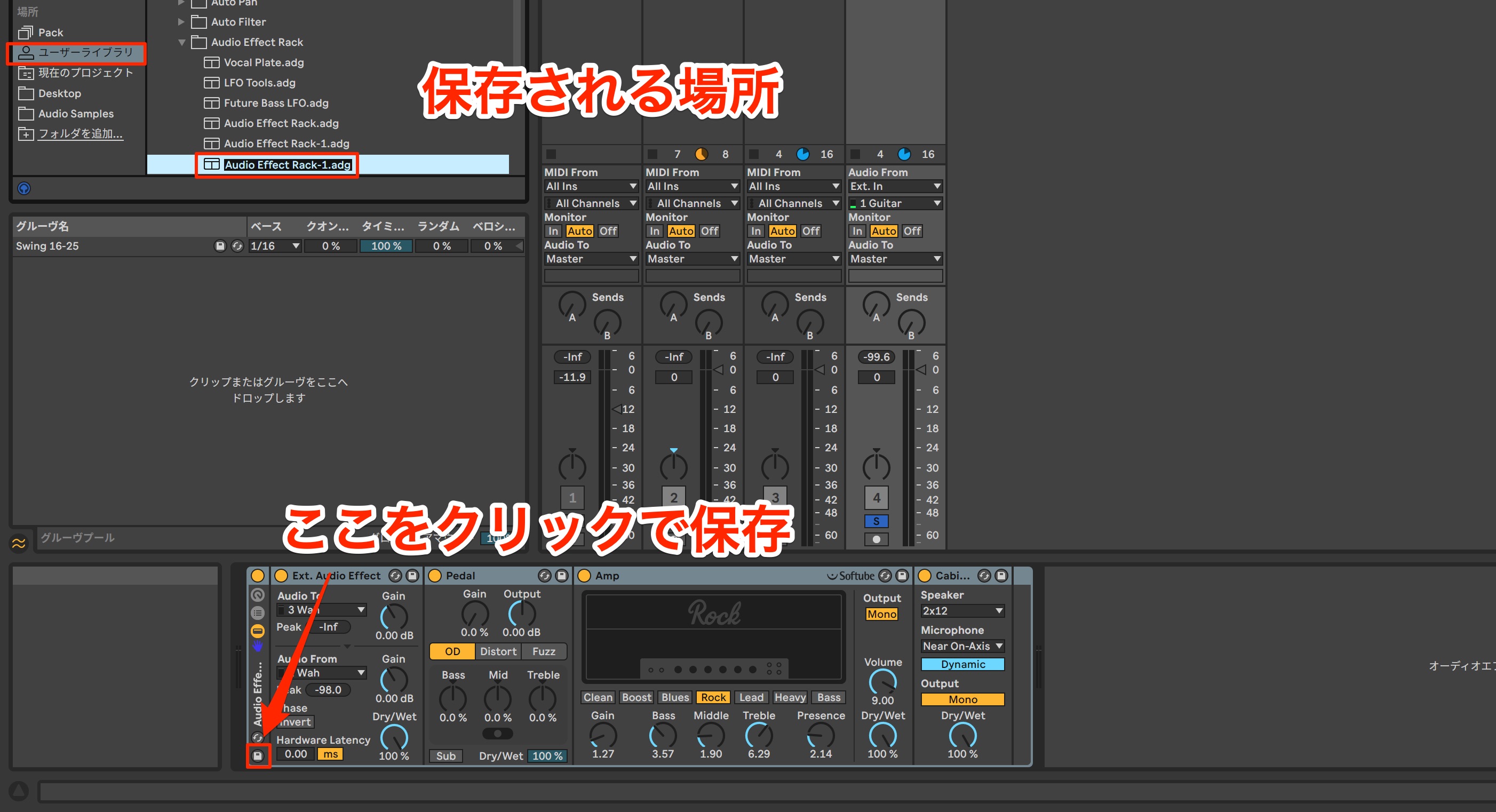
Click the floppy disk icon on the Audio Effect Rack device to save everything in the Rack to your User Library.
Even complex setups containing both hardware and plug-ins can be saved and recalled easily, giving you plenty of flexibility.
Recording Audio and Correcting a Take's Timing
Now that we have set up the sound, let's record the rhythmic guitar part.
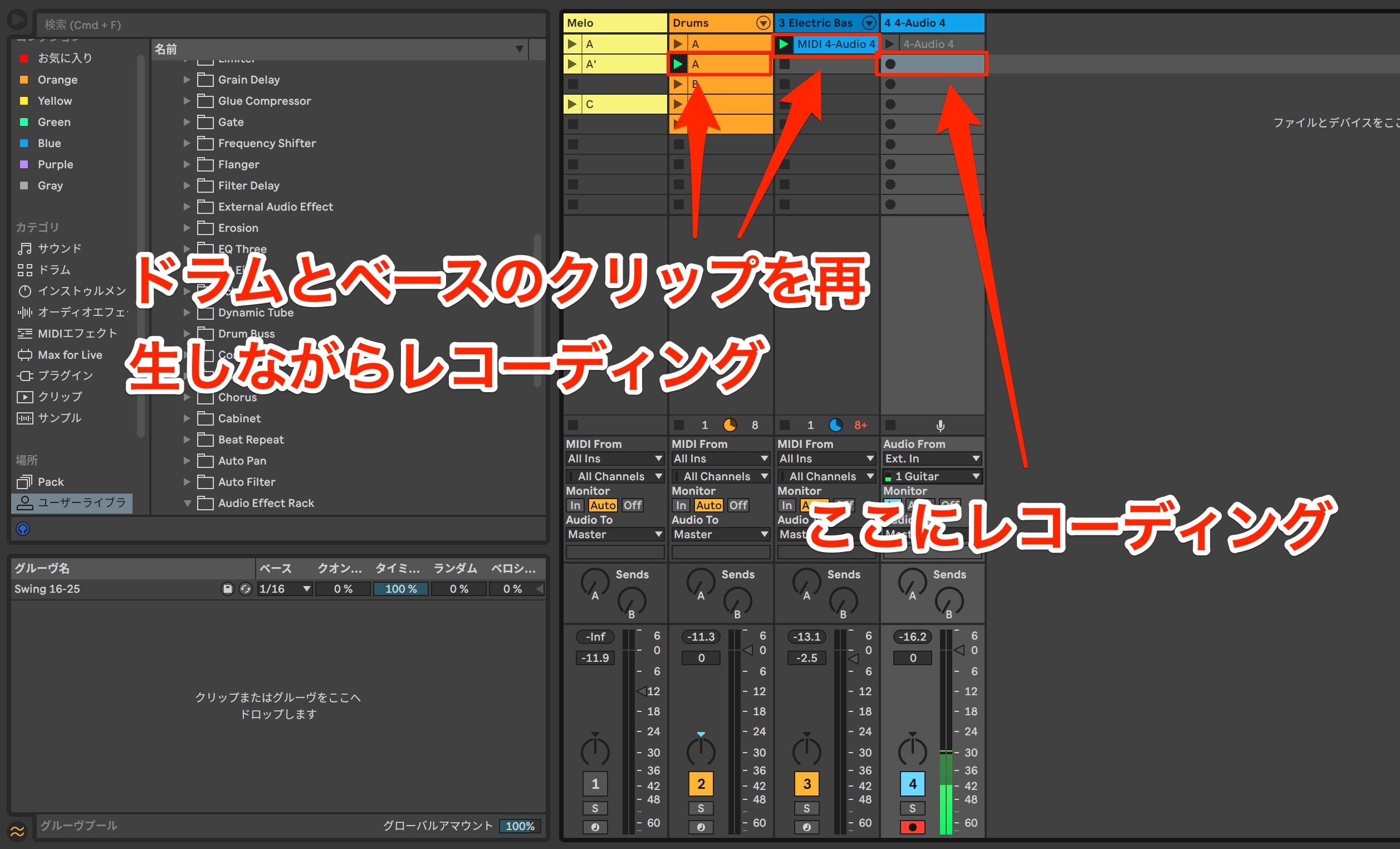
We will again use our recommended recording approach: loop the drum and bass clips in Session View and keep playing without stopping until you get a good take.
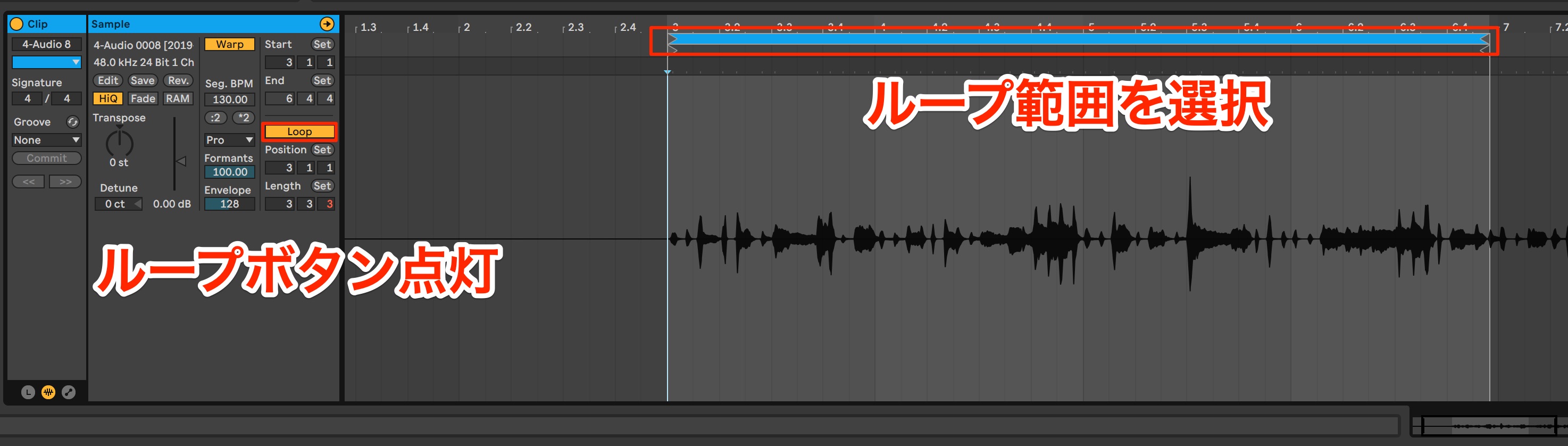
After recording, move the clip's playback start and end points as shown to remove unwanted sections of the loop recording and keep only the best part.
To repeat this phrase throughout the song, turn Loop on and set the loop's start and end points.
Next, we will correct any timing issues that stand out in the performance.
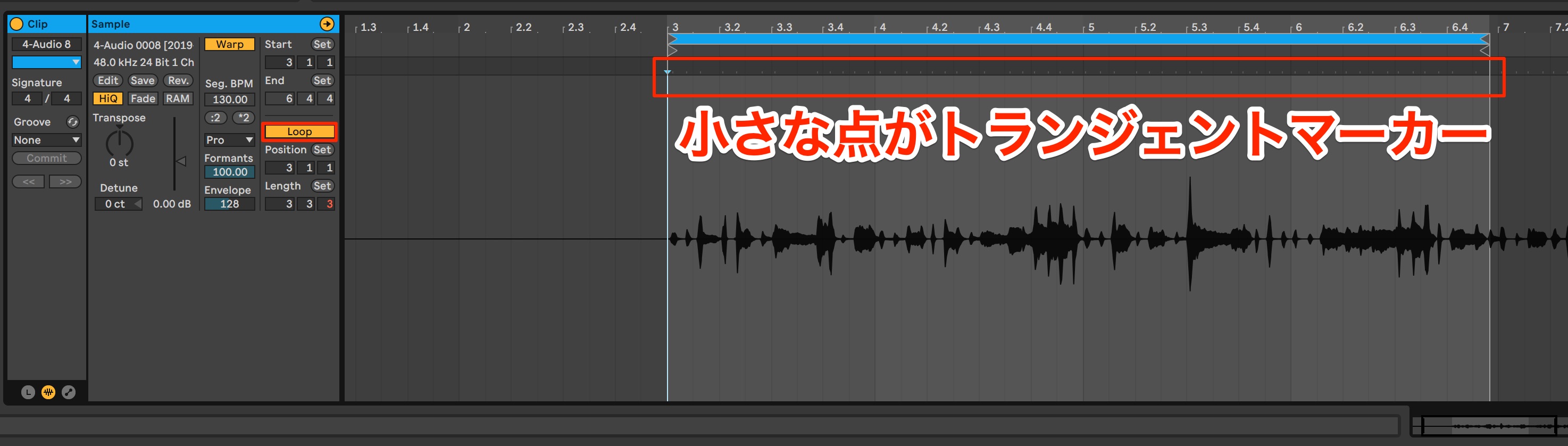
When Warp is enabled in an audio clip, Live automatically detects the sound's attacks and creates transient markers.
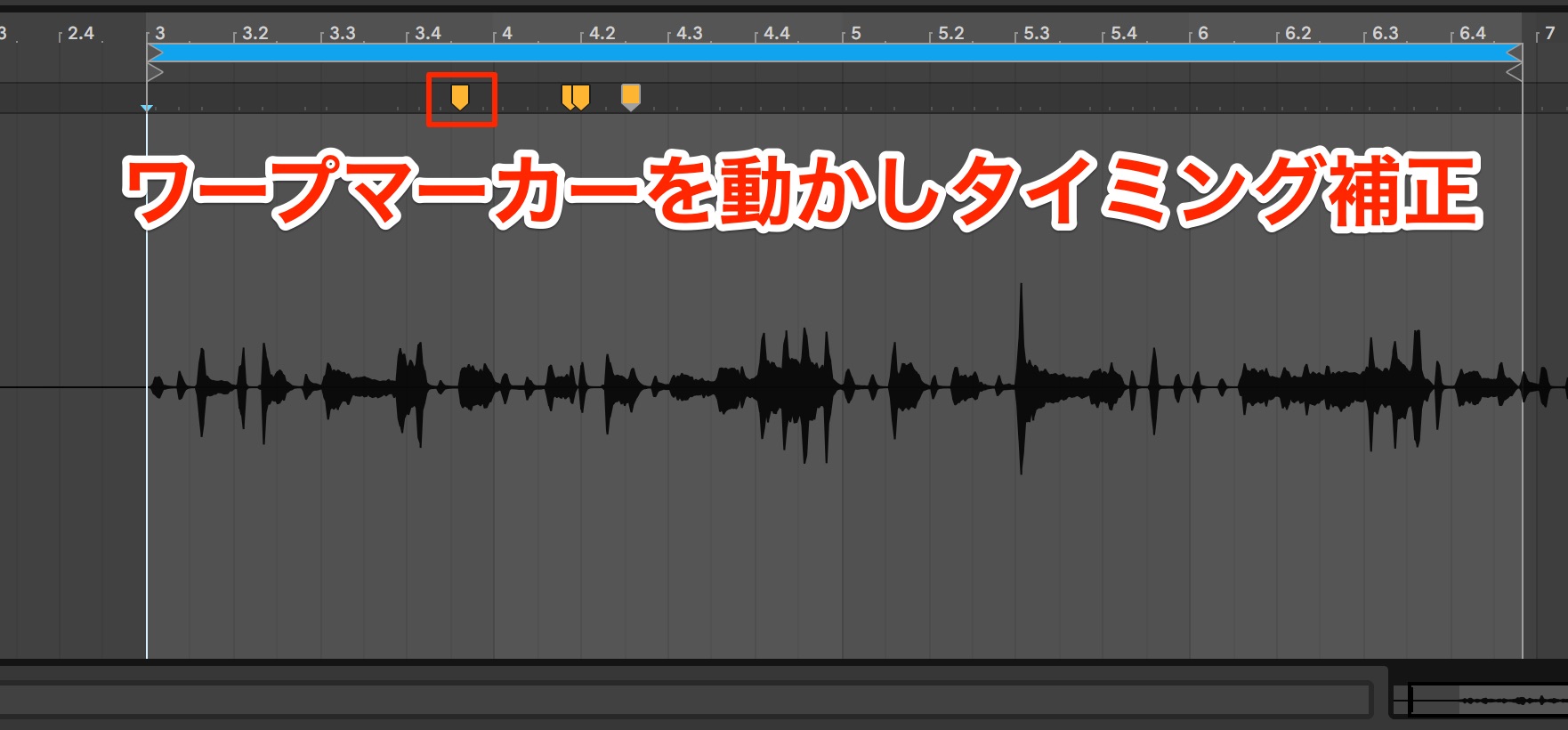
Double-click a transient marker to turn it into a Warp Marker, then drag it earlier or later to easily adjust the performance's timing.
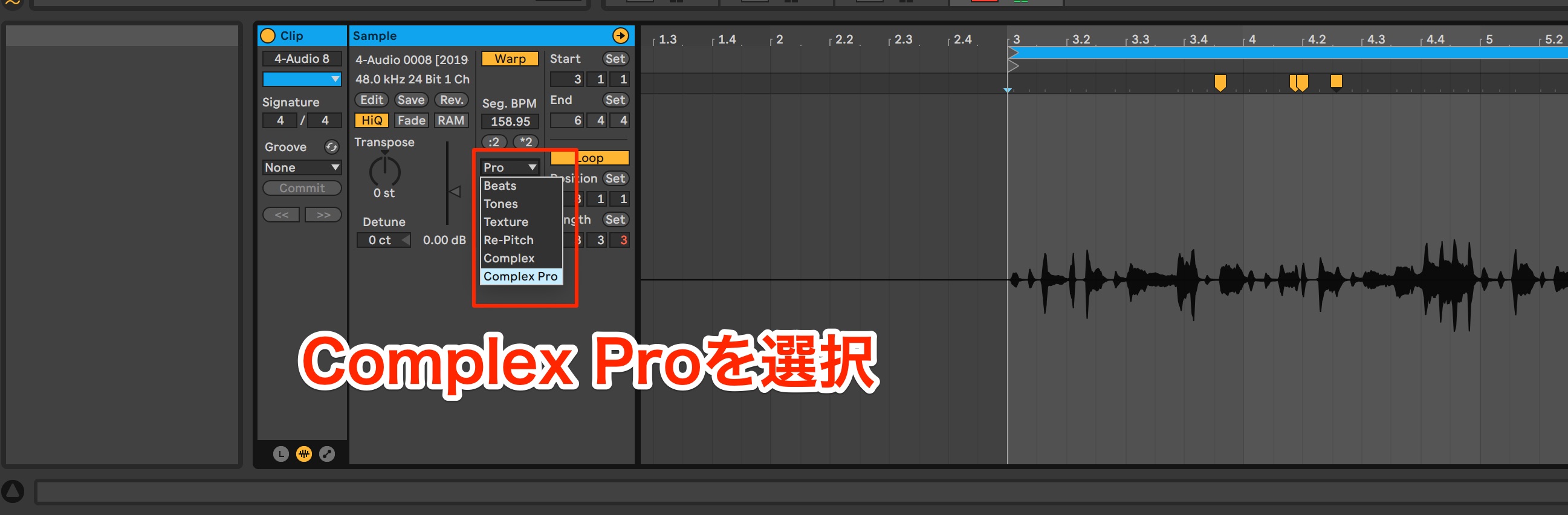
If the sound deteriorates when you make a correction, the current Warp Mode may not be suitable for the audio clip.
For instruments that can play both single notes and chords, such as guitar and piano, we recommend Complex Pro.
This note is a little early, so create a Warp Marker at the point you want to correct, as well as at the transient markers before and after it, to hold the surrounding rhythm in place.
Then move the marker at the point you want to correct.
How did you find this workflow?
We have explored audio-to-MIDI conversion, audio timing correction, using your hardware effects like plug-ins with External Audio Effect, and saving entire effect setups together.
A key strength of Ableton Live is that tasks that seem complicated can be performed quickly with simple operations.
Next time, we will explain a workflow for adding keyboard parts to a song.
Ableton Live also offers a demo that lets you try all its features free for 30 days.
If you are interested, give it a try.
https://www.ableton.com/ja/trial
This time, we show you how to convert recorded guitar audio into MIDI to play a bass track without a keyboard, and
how to incorporate hardware effects into your sound setup.Ableton Live for Guitarists — Part 2
📝 Article: https://t.co/bfYMRlAeAD🎥 YouTube: https://t.co/yZEbOouJ92 pic.twitter.com/SVFtUsTqqo
— SLEEP FREAKS (@SLEEPFREAKS_DTM) November 21, 2019
Frequently Asked Questions
Q1. Can I convert guitar audio to MIDI in Ableton Live?
Yes. Drag a recorded guitar audio clip onto a MIDI track to open the Convert Audio to MIDI dialog. Choose Melody or Harmony to automatically convert your guitar performance into MIDI notes.
Q2. How can I reduce latency when recording guitar?
Select Configure from your audio interface's input channel settings, then lower the buffer size in the Preferences window. Smaller values reduce latency.
Q3. What do I need to use hardware effects in Ableton Live?
Use the External Audio Effect device. You need at least one available mono or stereo input and output channel on your audio interface. Connect the effect's input and output to the corresponding interface channels and configure them in the device.
NEW ARTICLES
Latest English Articles








































































































































































































































