
Released as the latest version of the industry-standard audio repair tool at the time, iZotope RX 9 introduced six major improvements. Dialogue Isolate offered a substantial increase in separation accuracy, allowing clear dialogue extraction even in noisy environments. Ambience Match gained a Complex mode for changing background sounds, while De-hum added a Dynamic mode with up to 1,024 notch filters to tackle hum with many harmonics. These improvements made professional audio editing for podcasts, voice-overs, and video production more efficient and effective.
Greater Accuracy and Improved Usability
In this article, originally published in November 2021, we examine the improvements in the newly released RX 9, the latest version of the industry-standard audio repair tool at the time.
We also ran our own tests to find out how accurate it really was. Take a look at the results below.
There are six main improvements.
- 1Much more accurate separation with Dialogue Isolate (Advanced)
- 2A new Complex mode in Ambience Match
- 3A new Dynamic mode in De-hum
- 4The new Restore Selection feature (Advanced and Standard)
- 5Spectral Editor support inside Logic (Advanced and Standard)
- 6A much longer History List (Advanced and Standard)
Let us look at each in turn.
RX 9 New Features: Video Overview
Much More Accurate Separation with Dialogue Isolate
Dialogue Isolate lets you remove noise from dialogue recorded in a noisy setting, or adjust how much noise remains. It is available only in Advanced.
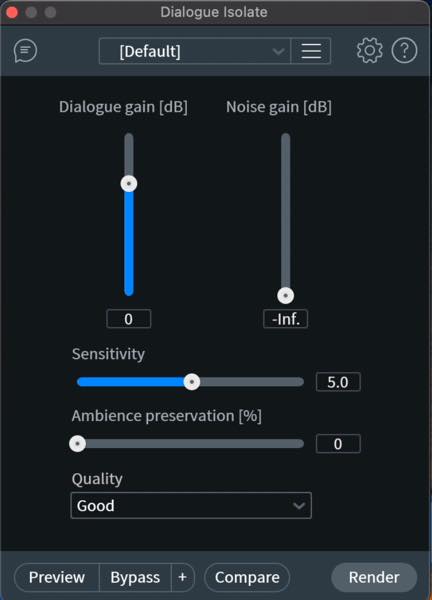
The basic workflow is simple: set the extraction sensitivity with Sensitivity, then adjust the balance between Dialogue gain and Noise gain. Use Ambience preservation if you want to retain some of the atmosphere around the dialogue rather than removing everything except the voice.
In RX 9, separation accuracy improved considerably, making it possible to extract dialogue clearly even against relatively loud noise.
We prepared some samples. First, listen to the unprocessed recording.
We then rendered it with Sensitivity set to about 3, favoring the dialogue, and Quality set to Best.
The noise has been effectively removed while the dialogue remains clear.
Now compare it with the result from RX 8, rendered with almost the same settings.
Most of the noise is gone, but some artifacts seem to cling to the dialogue, so it is not completely clear.
You can hear the clear improvement in accuracy in RX 9.
Ambience Match Gains a Complex Mode
Ambience Match extracts background ambience from dialogue recorded on location so you can blend it into separately recorded dialogue for a seamless transition. This module is available only in Advanced.
RX 9 adds a Complex mode that can handle background sounds that change over time, rather than only steady ambience.

We have prepared samples for this feature too. Have a listen.
This recording contains road noise and birds calling at irregular intervals.
Here is the sample whose ambience we want to match to it.
First, generate the ambience.
In Complex mode, you sample background sound from a section without dialogue to generate ambience that can be used continuously. Select as long a dialogue-free section as possible, then click Learn.

Once the ambience has been generated, switch to the file you want to apply it to and render the result.
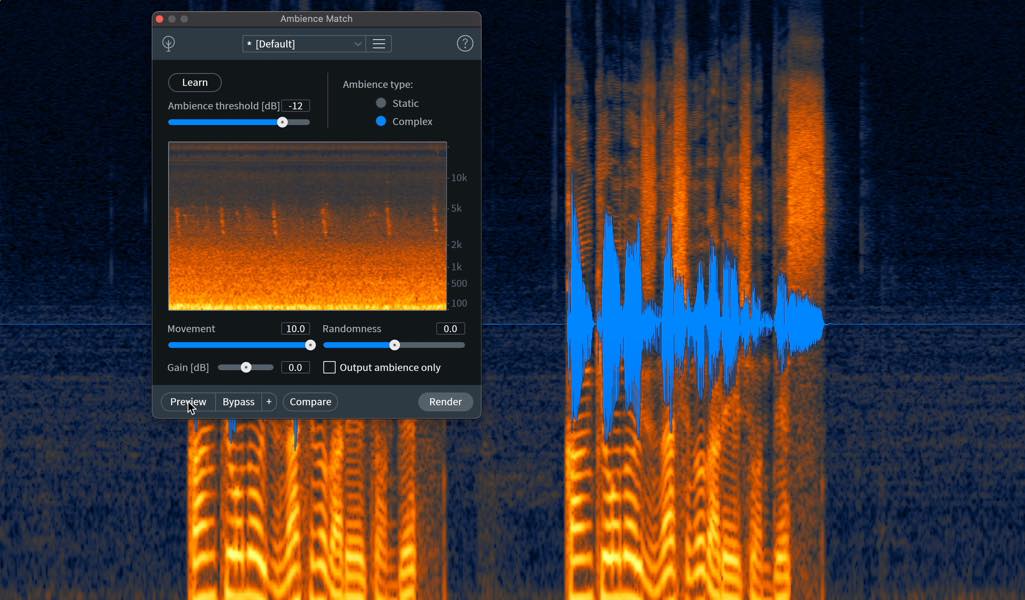
Here is the clean recording with the ambience added.
The background sounds match nicely, and the bird calls sound natural too.
The default settings often give good results, but some material may need fine adjustment.
- Movement: Lower this value to thin out the moving elements in the ambience.
- Randomness: Adjusts how randomly the ambience changes. Too much randomness can sound unnatural. At the minimum negative setting, the result stays close to the sampled material and feels more like a loop.
- Gain: Adjusts the ambience level.
De-hum Gains a Dynamic Mode
As its name suggests, De-hum removes hum. We covered it in an earlier video.

Previously, the workflow covered in that article used Static mode. RX 9 adds Dynamic mode.
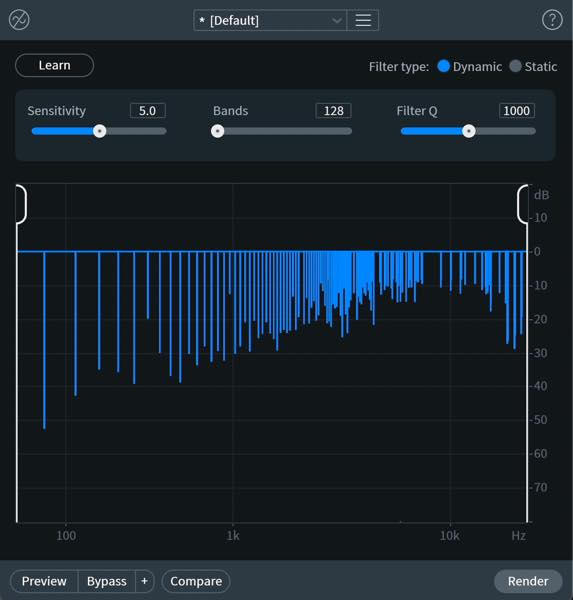
With the number of notch filters increased from 16 to as many as 1,024, and their gain adjusting automatically to the input signal, it can process hum with many harmonics while minimizing the effect on the desired audio.
Let us try it on a sample.
This recording contains very strong hum.
First, we processed it using the existing Static mode.
Some noise remains, and the processing has a substantial effect on the voice.
Next, we tried Dynamic mode. We used Learn on a noise-only section, set Bands, the number of notch filters, to its maximum of 1,024, and set Filter Q to 100, the widest setting used in this example.
The noise is greatly reduced and the voice is very clear. The difference from Static mode is striking.
The New Restore Selection Feature
After processing an entire recording, this convenient feature lets you undo the processing only within a selected area.
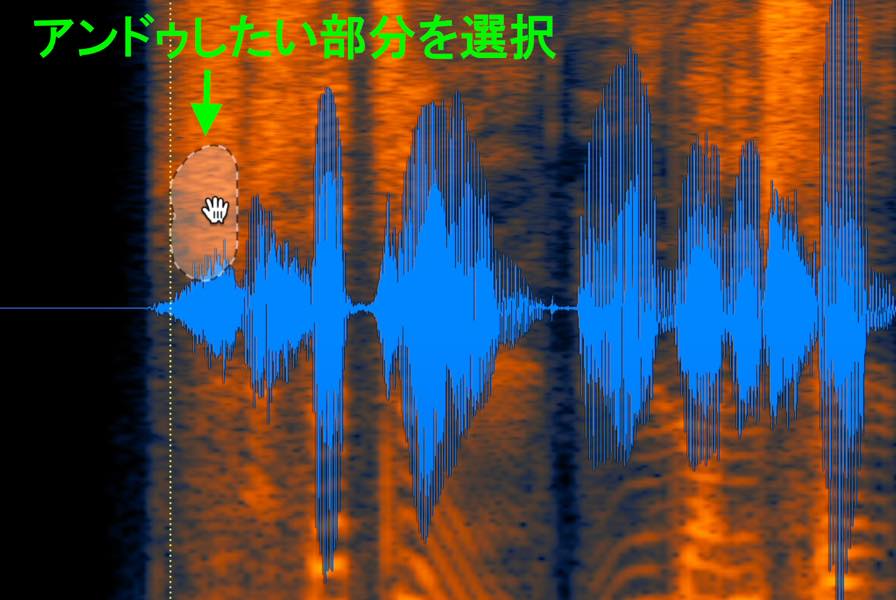
For example, suppose De-ess has acted too strongly in one spot and made the voice harder to understand.
Select only the frequency range you want to restore in that spot.
In the History panel at the lower right, move the pointer to the right of the state you want to restore, Initial State in this example. The icon shown here appears.
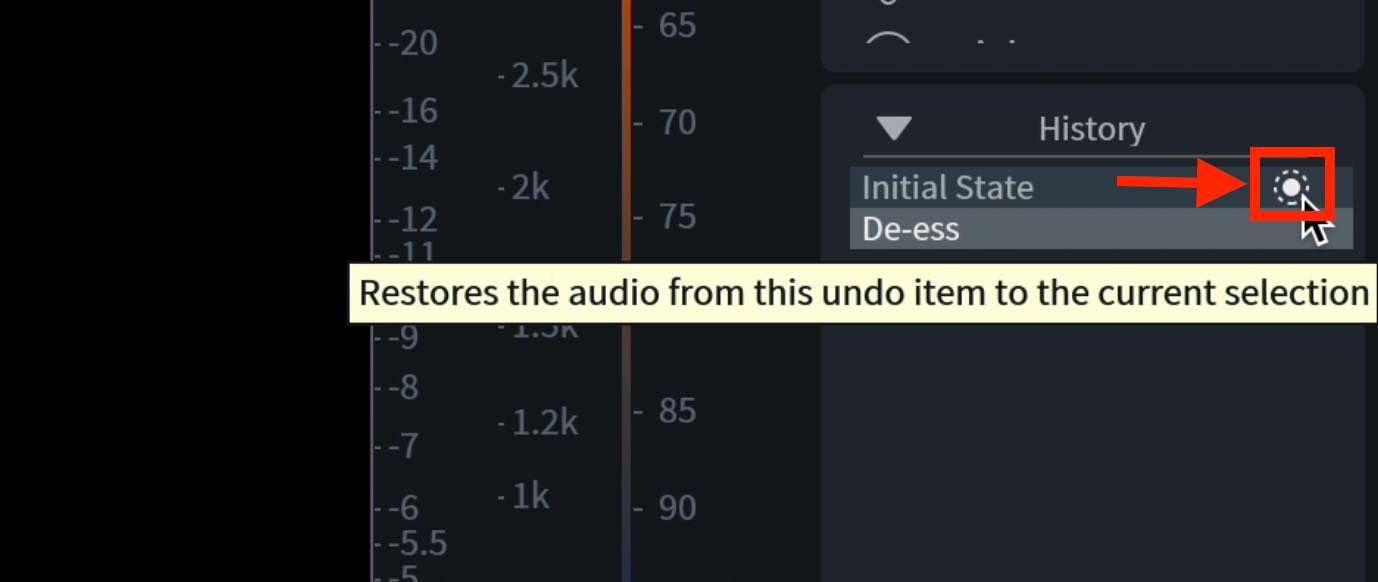
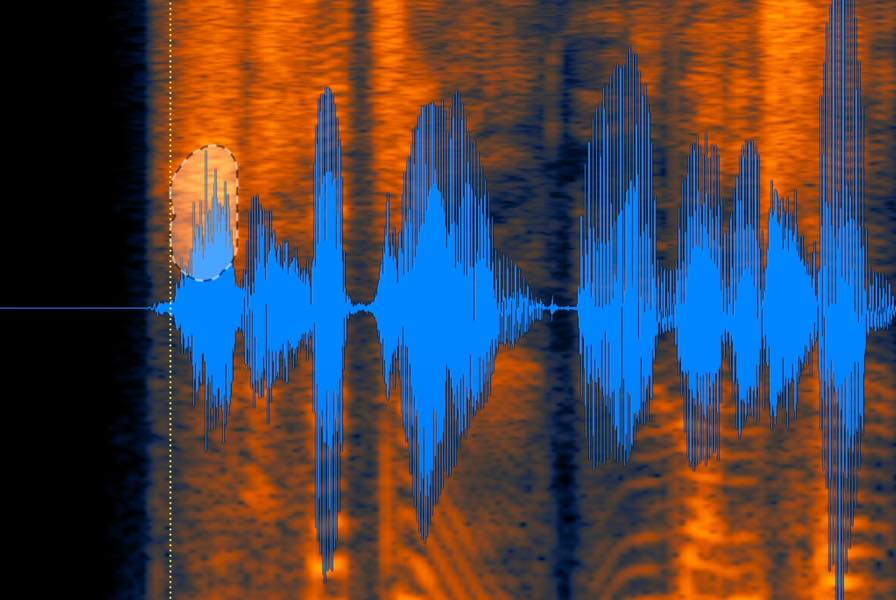
Click it to restore only the selected area to that history state.
Spectral Editor Now Works Inside Logic
Spectral Editor can now be used as an ARA plug-in inside Logic.
To use an ARA plug-in in Logic, it must occupy the first insert slot.
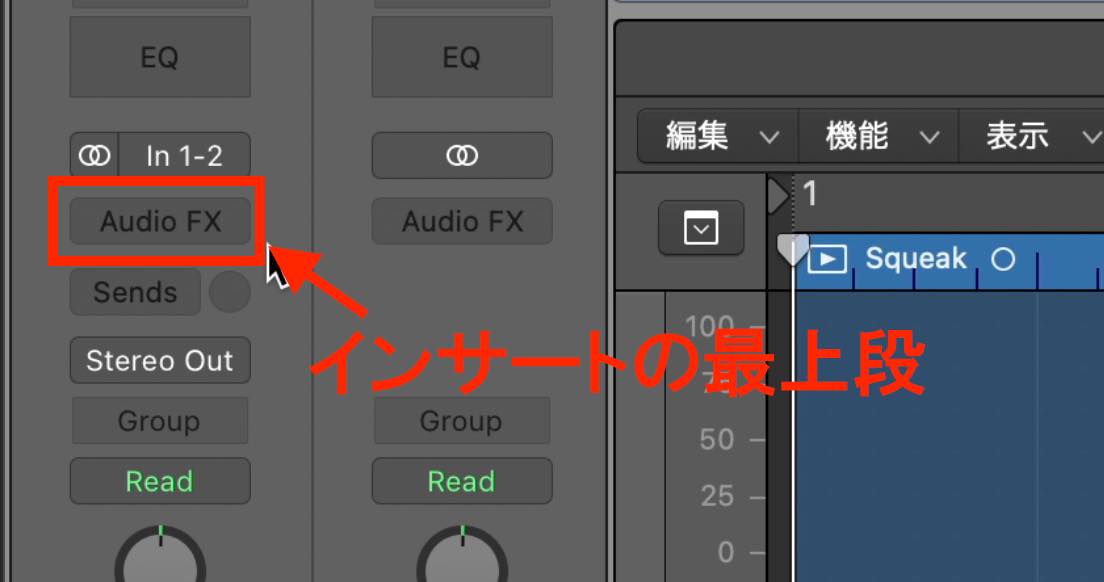
Find the editor entry marked (ARA) and select it.
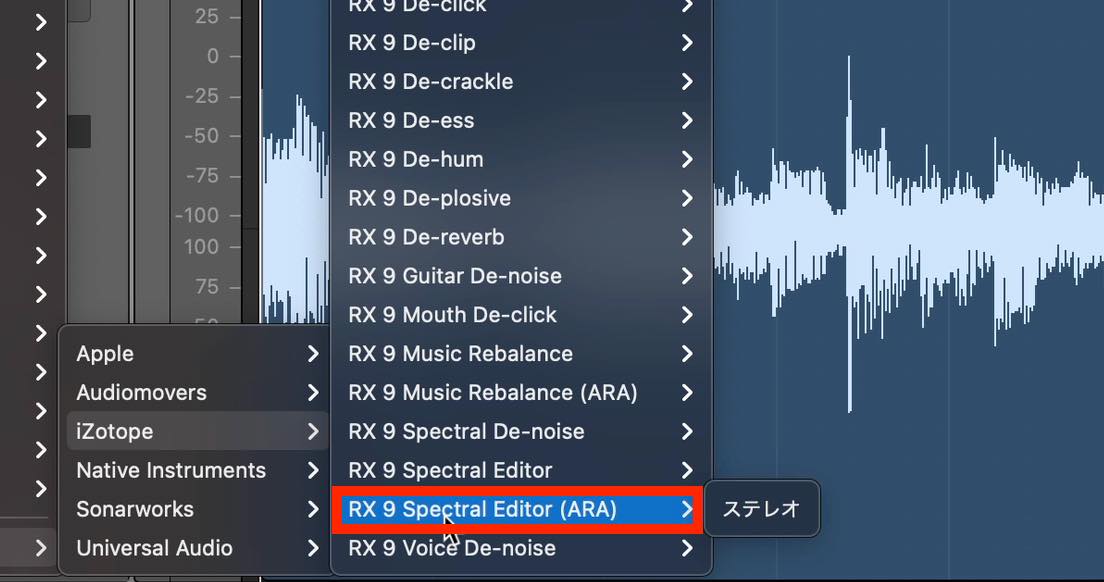
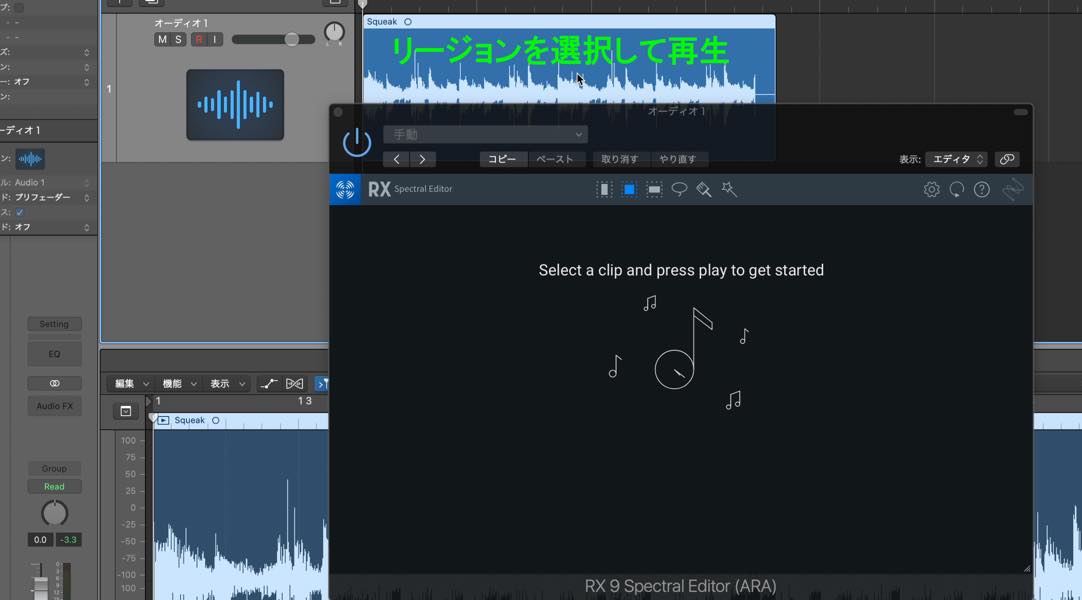
Spectral Editor is now inserted as an ARA plug-in. Select the region you want to process and play it back.
In Spectral Editor, you can select a noise component and remove or reduce it.
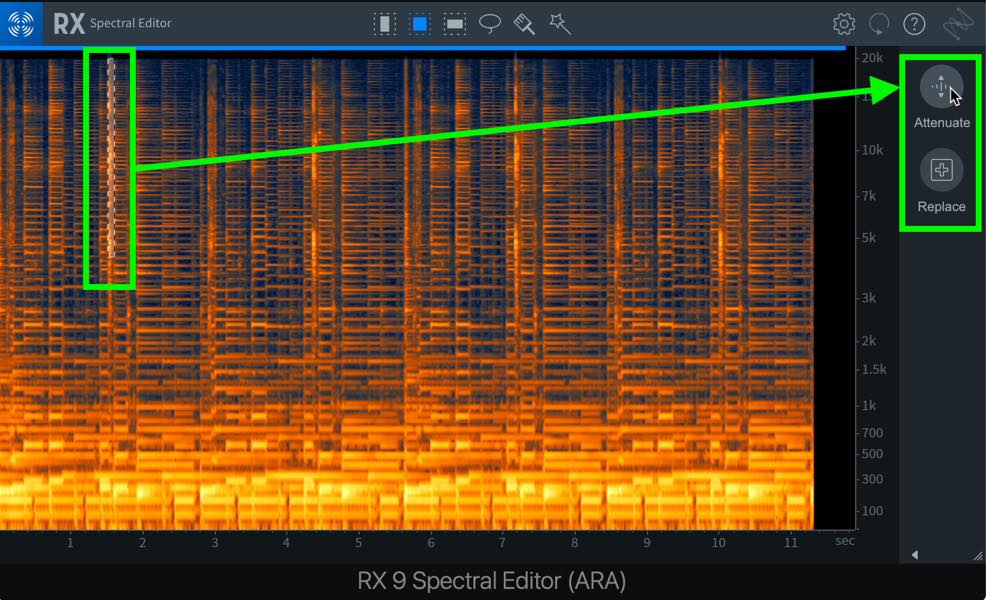
This is especially useful when you want to repair a specific spot rather than process an entire region.
A Much Longer History List
Previously, the list was limited to five steps; it can now show up to 30 steps for returning to earlier states.
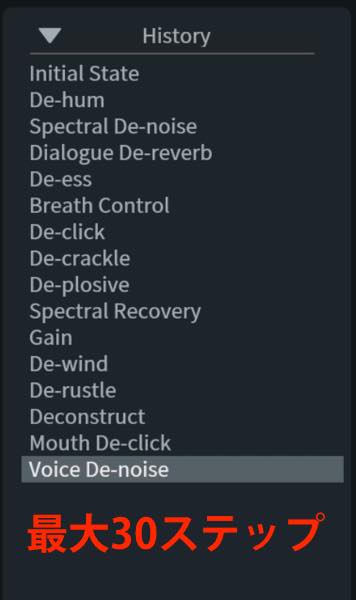
Together with Restore Selection, this makes the workflow much more convenient.
Those are the main improvements in RX 9.
The release was also reported to fix crashes when using RX Connect in Cubase and when saving files with Japanese filenames.
It became an even more useful tool for those details that are otherwise difficult to fix.
If you are interested in RX 9 and the audio repair capabilities demonstrated here, try it for yourself. This is a review of the version released in 2021.
New features in iZotope RX 9, the latest version of the industry-standard audio repair tool at the time!
We ran our own tests to find out just how much its accuracy had improved. Check out the results.
Our original announcement also said that RX 9 would be covered by DTM Sale Information (@DTM_SALE) later.
Details: https://t.co/TMuCSXrDsL #DTM #DAW pic.twitter.com/A2gypR8POY
— SLEEP FREAKS (@SLEEPFREAKS_DTM) November 29, 2021
Frequently Asked Questions
Q1. How did Dialogue Isolate improve in RX 9 compared with RX 8?
RX 9 substantially improved separation accuracy, making it possible to extract dialogue clearly even from loud background noise. In our tests, comparable settings preserved more vocal clarity and left fewer noise artifacts than RX 8.
Q2. When is the Complex mode in Ambience Match useful?
It can handle background sounds that change over time, such as road noise and birdsong, making it useful for matching ambience naturally during dialogue replacement. Even irregular sounds can be blended into the recording smoothly.
Q3. What does Filter Q do in De-hum's Dynamic mode?
Filter Q controls the width of the notch filters. Our example uses a value of 100 for wide notches when treating complex hum. Editorial correction: the original Japanese FAQ reverses the relationship between Q and width; increasing Q makes the notches narrower, not wider, as explained in iZotope's De-hum technical guide (https://www.izotope.com/community/blog/deep-dive-into-rx-de-hum).
Q4. When is Restore Selection useful?
After processing a whole recording, you can select a frequency range where the effect was too strong and restore only that area to its earlier state for a more natural result.
Q5. What is required to use Spectral Editor in Logic?
When using Spectral Editor as an ARA plug-in in Logic, it must be placed in the first insert slot. Select and insert the ARA version.
NEW ARTICLES
Latest English Articles

































































































































