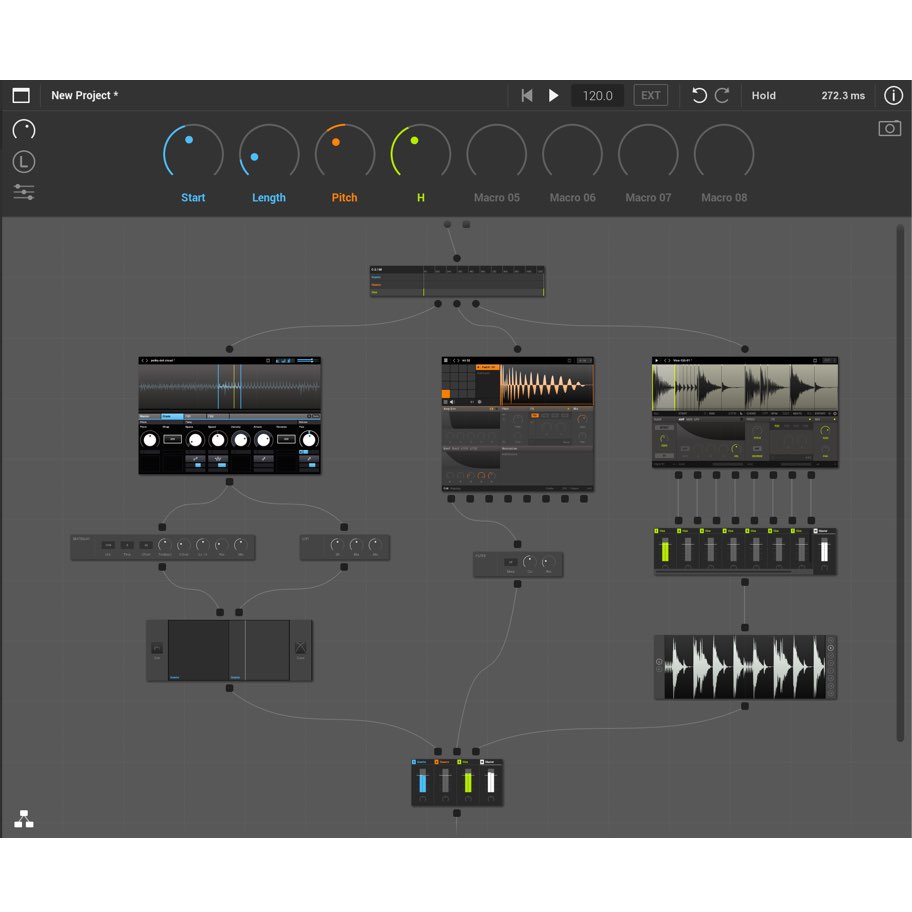
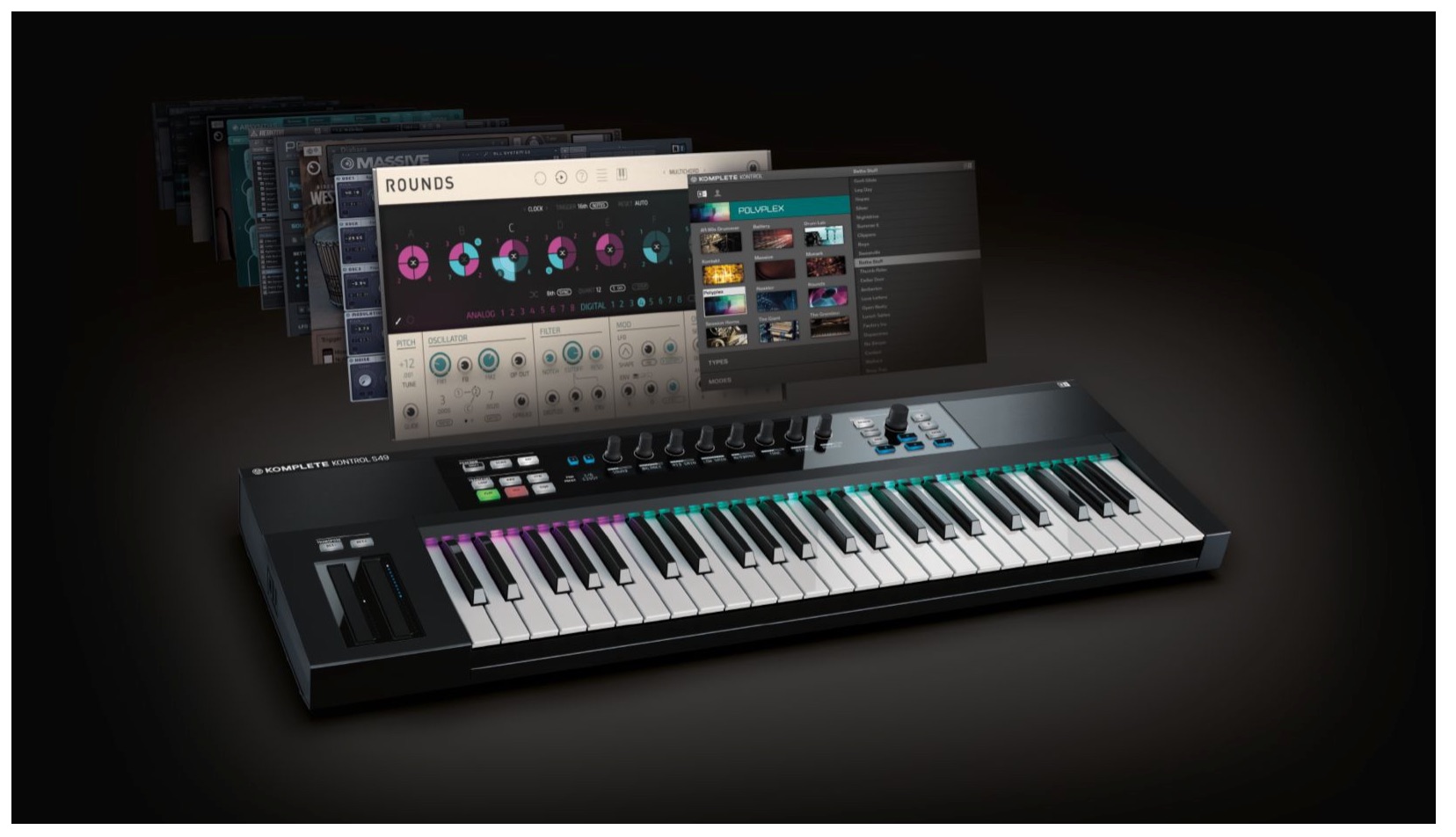
Native Instruments ROUNDS is a hybrid synthesizer that combines digital and analog synth sounds. It runs in REAKTOR and offers eight Sound Blocks, each containing four Sound Cells that can be combined to create a wide range of sounds. Voice Modes (MONOCHORD, UNISON, and MULTICHORD) and Progress Modes (NOTE, TIME, and SEQ) offer different ways to add movement and depth to a phrase.
ROUNDS: Combining Digital and Analog Synth Sounds

ROUNDS is a hybrid synthesizer that combines digital and analog sounds.
This opens up a vast range of possibilities for creating new sounds and material.
Video: Basic Concepts
Opening ROUNDS
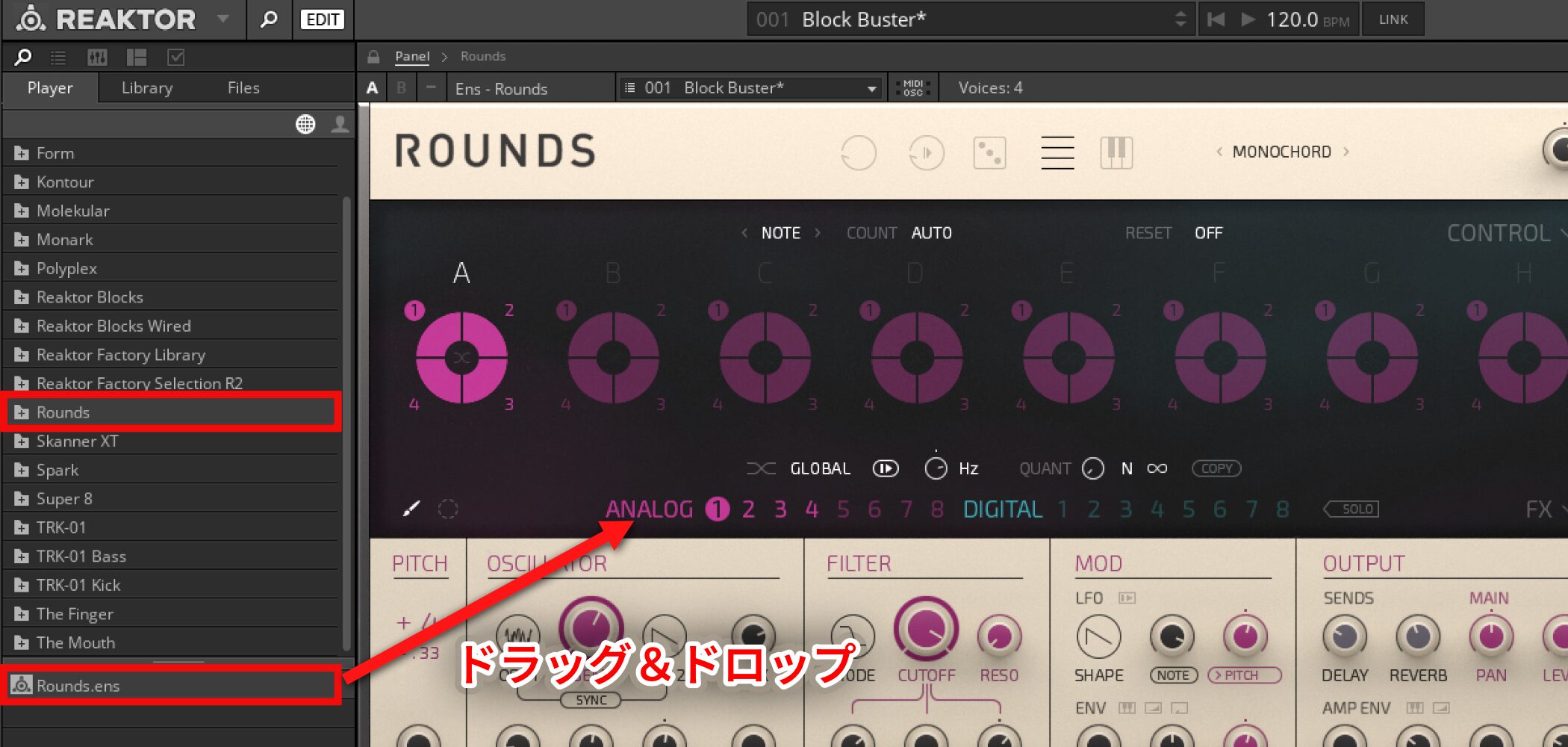
Open ROUNDS in REAKTOR.
Drag and drop ROUNDS from the Player.
Sound Blocks and Sound Cells
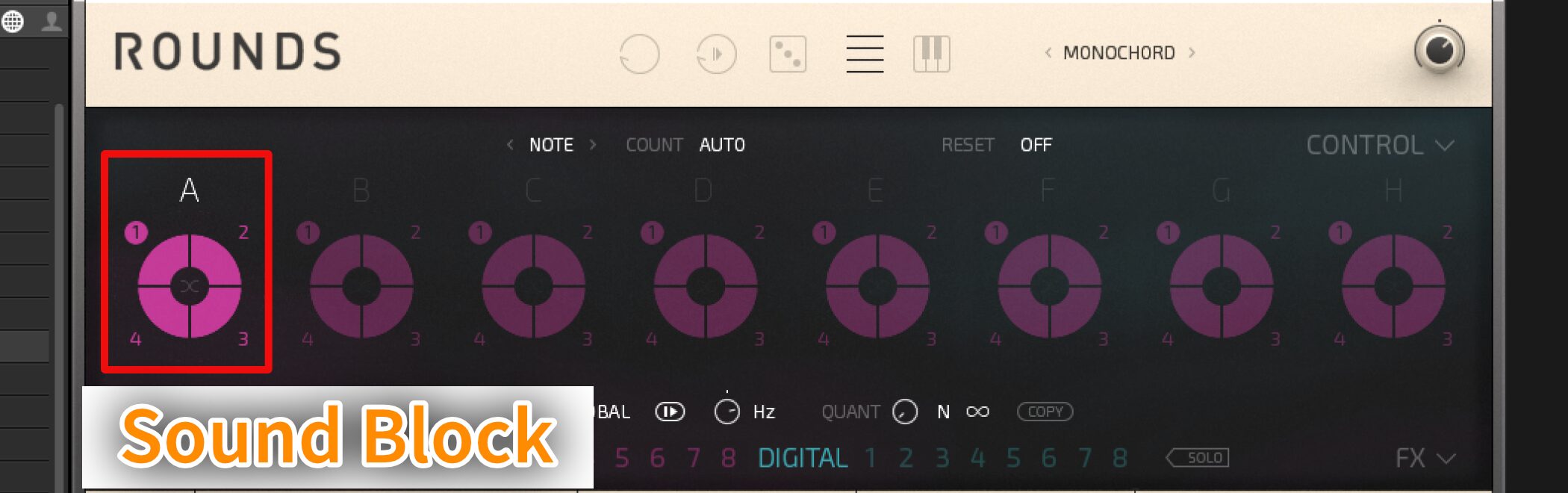
ROUNDS has eight Sound Blocks, labeled A through H.
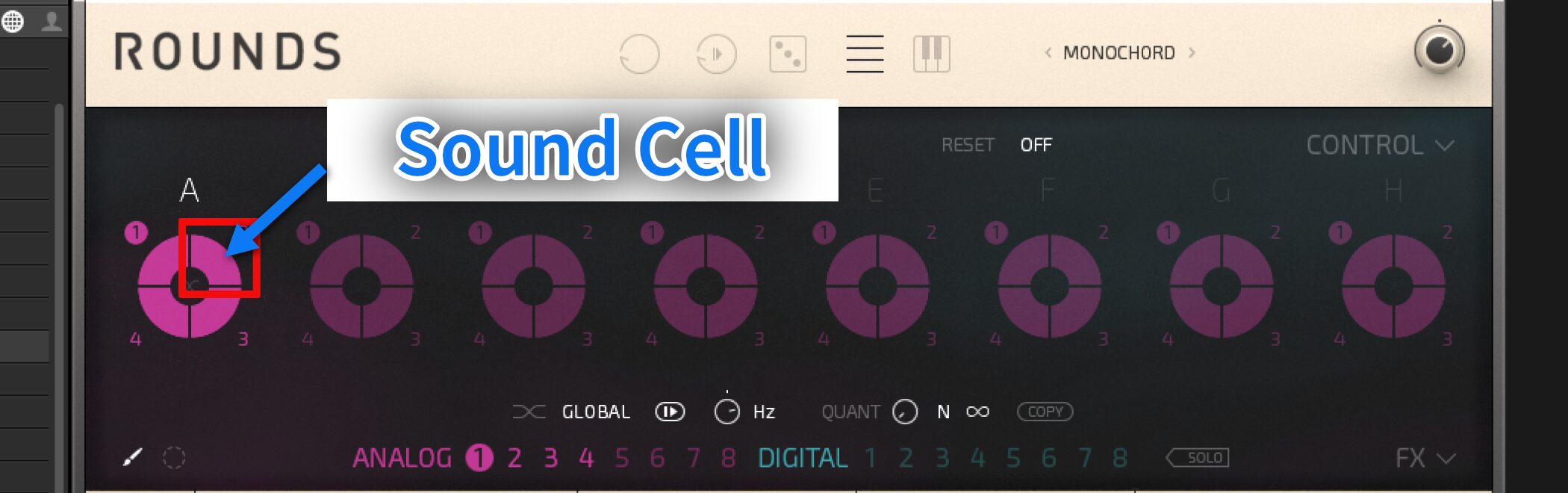
Each Sound Block contains four Sound Cells.
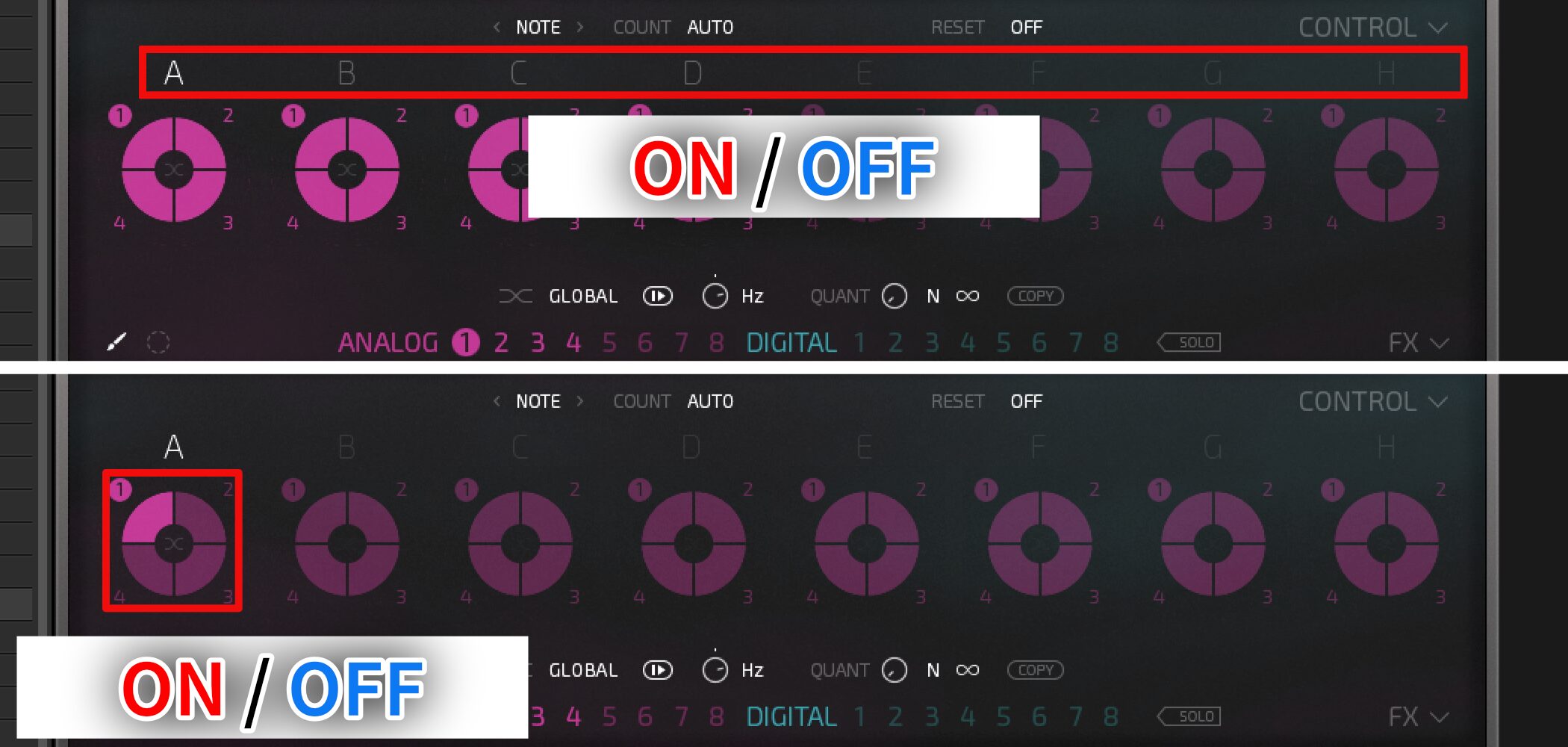
Click a Sound Block or Sound Cell to toggle it on or off.
Paint Mode / Replace Mode
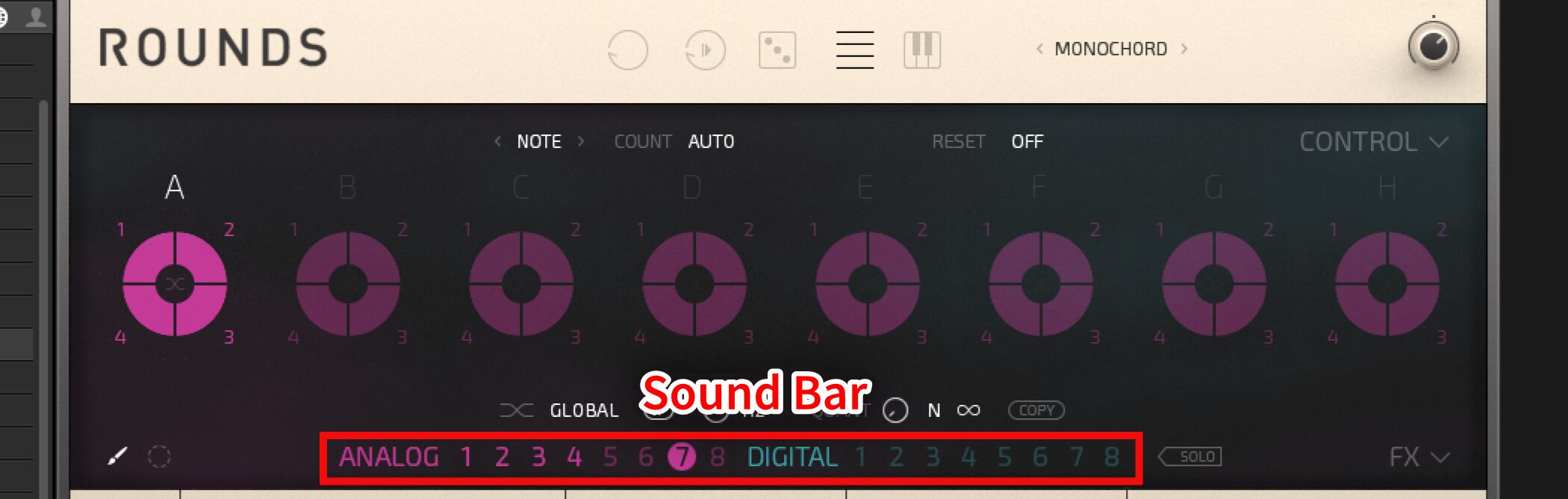
You can change a Sound Cell's contents by choosing from the Sound Bar (ANALOG 1–8 and DIGITAL 1–8).
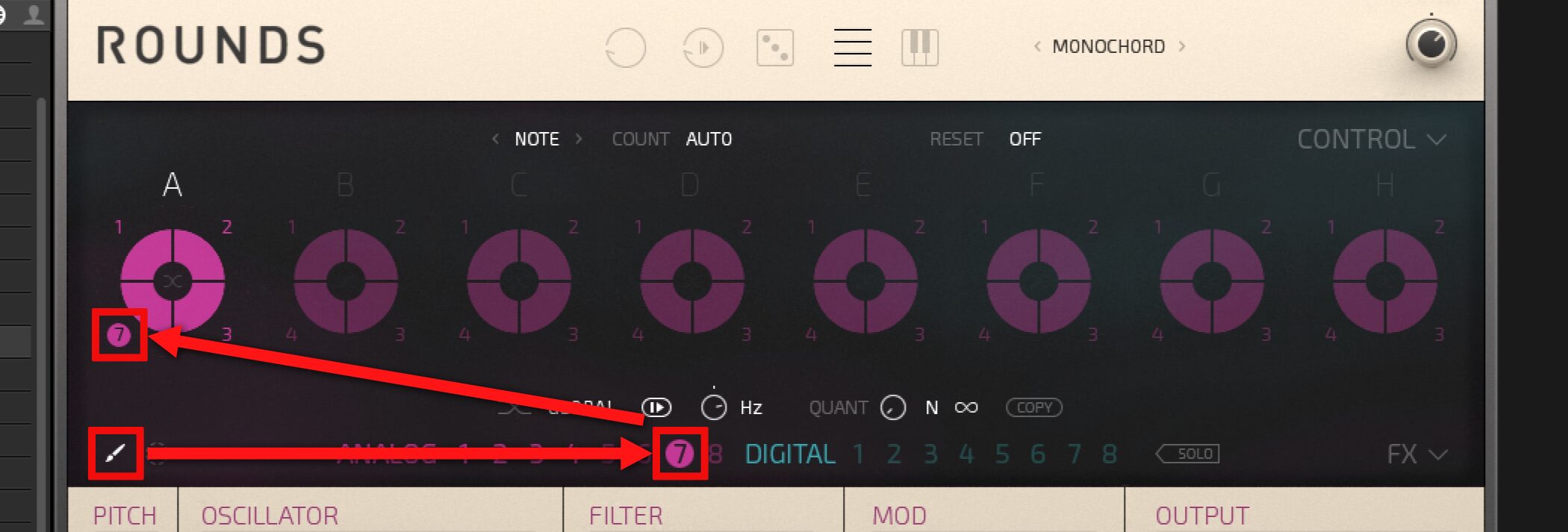
In Paint Mode, select the sound number you want to use, then click the Sound Cell you want to change.
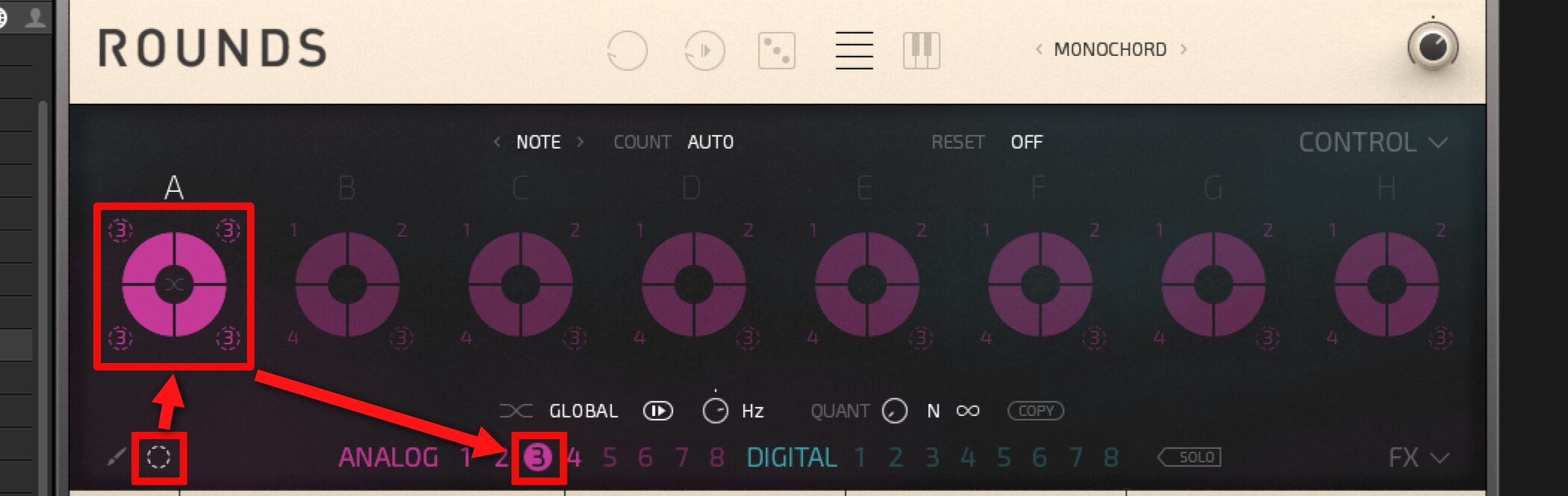
In Replace Mode, select the Sound Cell you want to change; the selected sound can then be replaced throughout.
Choosing How ROUNDS Plays
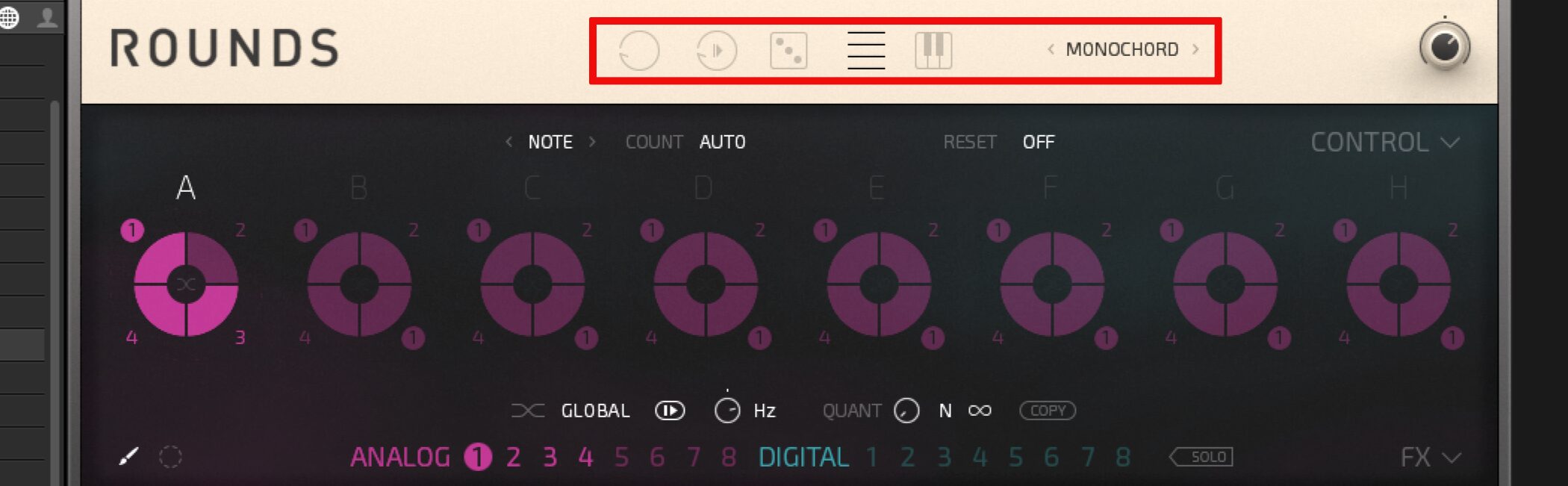
Now that we have covered the basics of ROUNDS, let's go a step further and look at Voice Mode controls.
This is a central part of ROUNDS, so take time to get comfortable with it.
Video: Understanding Voice Modes
What Each Voice Mode Does
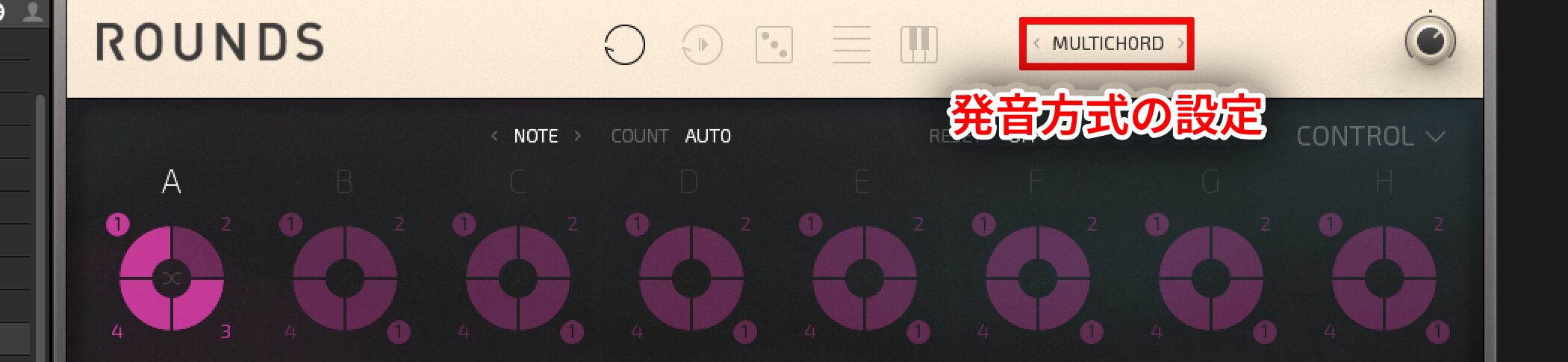
- MONOCHORD: Plays single notes rather than chords.
The block changes each time a note is played. - UNISON: Plays single notes rather than chords.
The sounds are slightly detuned relative to one another,
giving them a thicker character. - MULTICHORD: Allows you to play chords.
A corresponding number of cells plays according to the number of notes in the chord.
Combine these modes with the following options to create substantial changes in sound as you play.
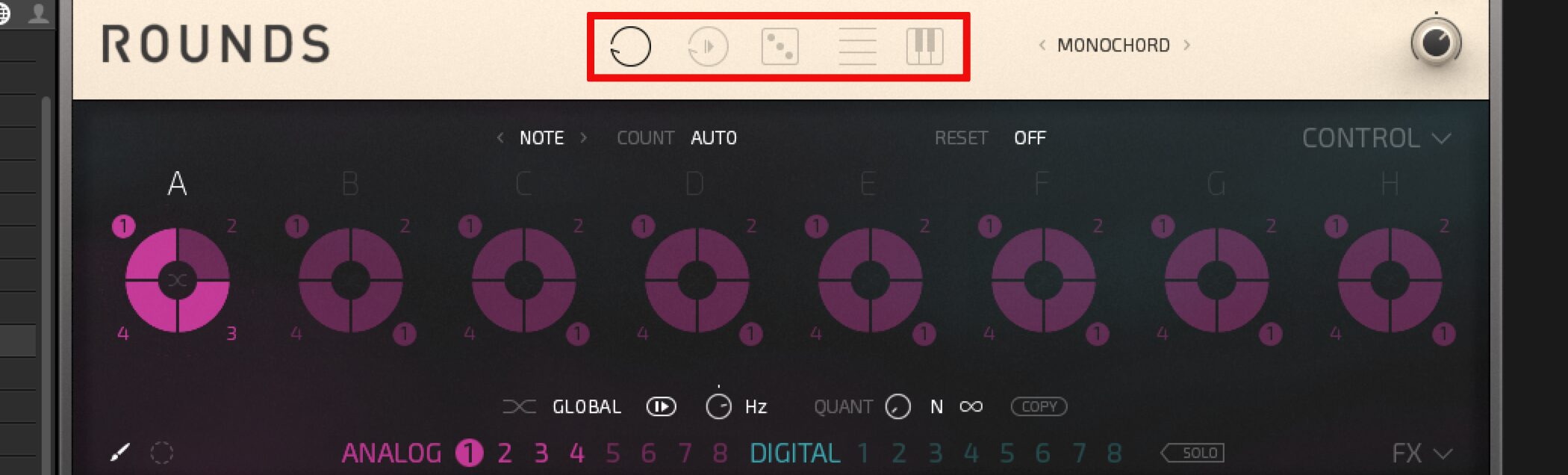
Rotate, on the far left, cycles through the cells as you play.
The dice in the center triggers cells at random.
The Layer option to its right plays a block in sequence.
Controlling Sound Movement in ROUNDS
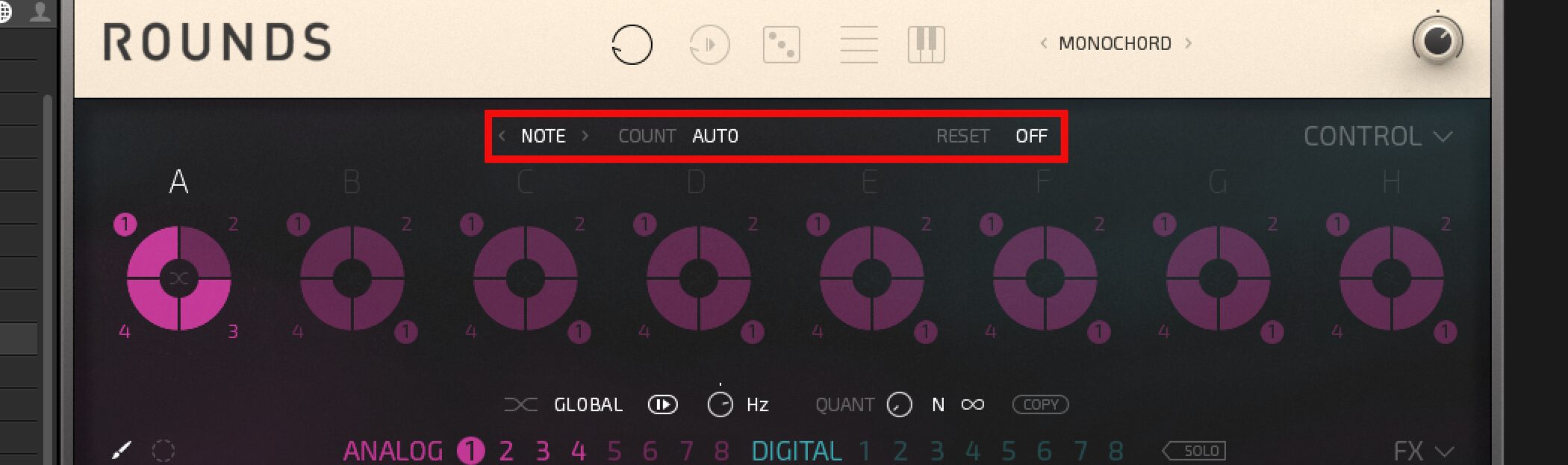
Here we explain Progress Modes, which determine how ROUNDS moves through its sounds.
Changing the playback order alone can give a phrase a great deal of movement.
Video: Progress Modes
Progress Modes in Detail
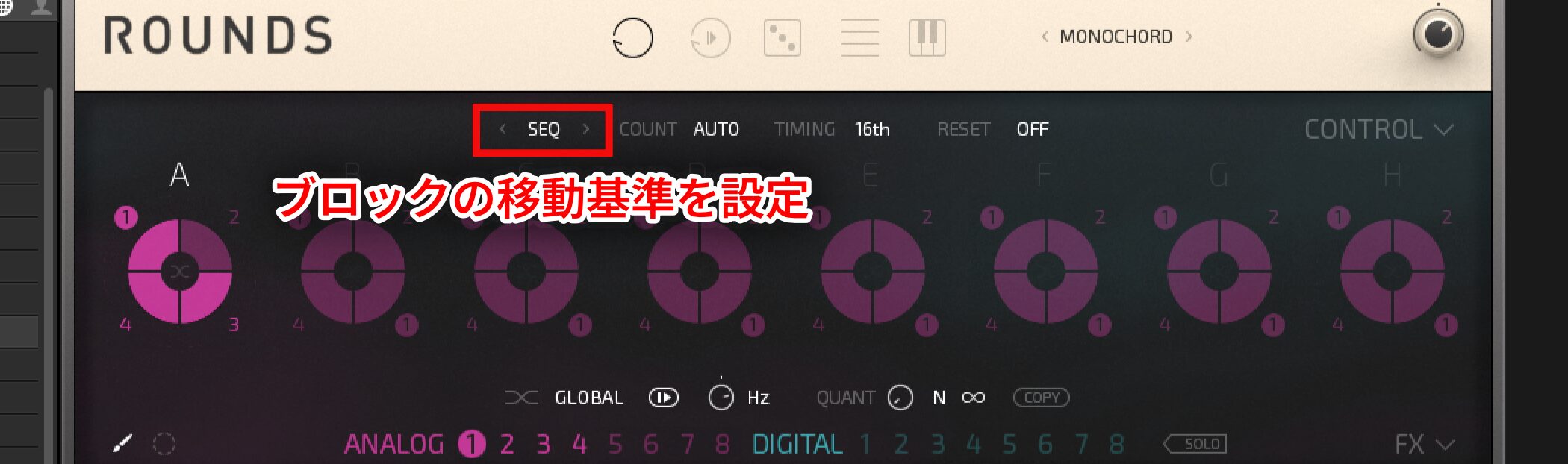
Use this section to set what controls movement between blocks.
- NOTE: Moves between blocks according to the number of MIDI notes played.
The block advances after the number of notes set by COUNT on the right. - TIME: Specifies block changes in bars or beats.
Choose the desired bars or beats under TIMING. - SEQ: Use TIMING to set the speed of cell changes.
The next block is selected after the number of repetitions specified by COUNT.
Frequently Asked Questions
Q1. What do I need to use ROUNDS?
Native Instruments REAKTOR is required. In a DAW with REAKTOR installed, drag and drop ROUNDS from the Player to open it.
Q2. What is the difference between a Sound Block and a Sound Cell?
ROUNDS has eight Sound Blocks, each with four Sound Cells. You can place different analog and digital sounds in the cells and manage the playback flow using the blocks.
Q3. Which Voice Mode should I choose?
Try UNISON for a thicker monophonic sound, MULTICHORD for playing chords, or MONOCHORD for dynamic block changes. Choose according to the part and effect you want.
Q4. How should I choose a Progress Mode?
NOTE advances based on the number of notes played; TIME uses bars or beats; and SEQ controls the speed of cell changes and advances after the specified count. Choose a mode that suits the tempo and rhythm of your phrase.
NEW ARTICLES
Latest English Articles