
Cubase 14 is a major update released about a year after the previous version, bringing significant improvements to music-production workflows. Startup and project-loading speeds are faster, stability is improved with 64-bit projects, and support for the DAWproject standard greatly improves compatibility with other DAWs. The Pro and Artist editions add rhythm-focused features such as Drum Track and Pattern Events, making electronic music production more efficient. At the original release, a grace-period offer also allowed eligible users of earlier versions to upgrade free of charge.
A powerful update that could change your music-production workflow
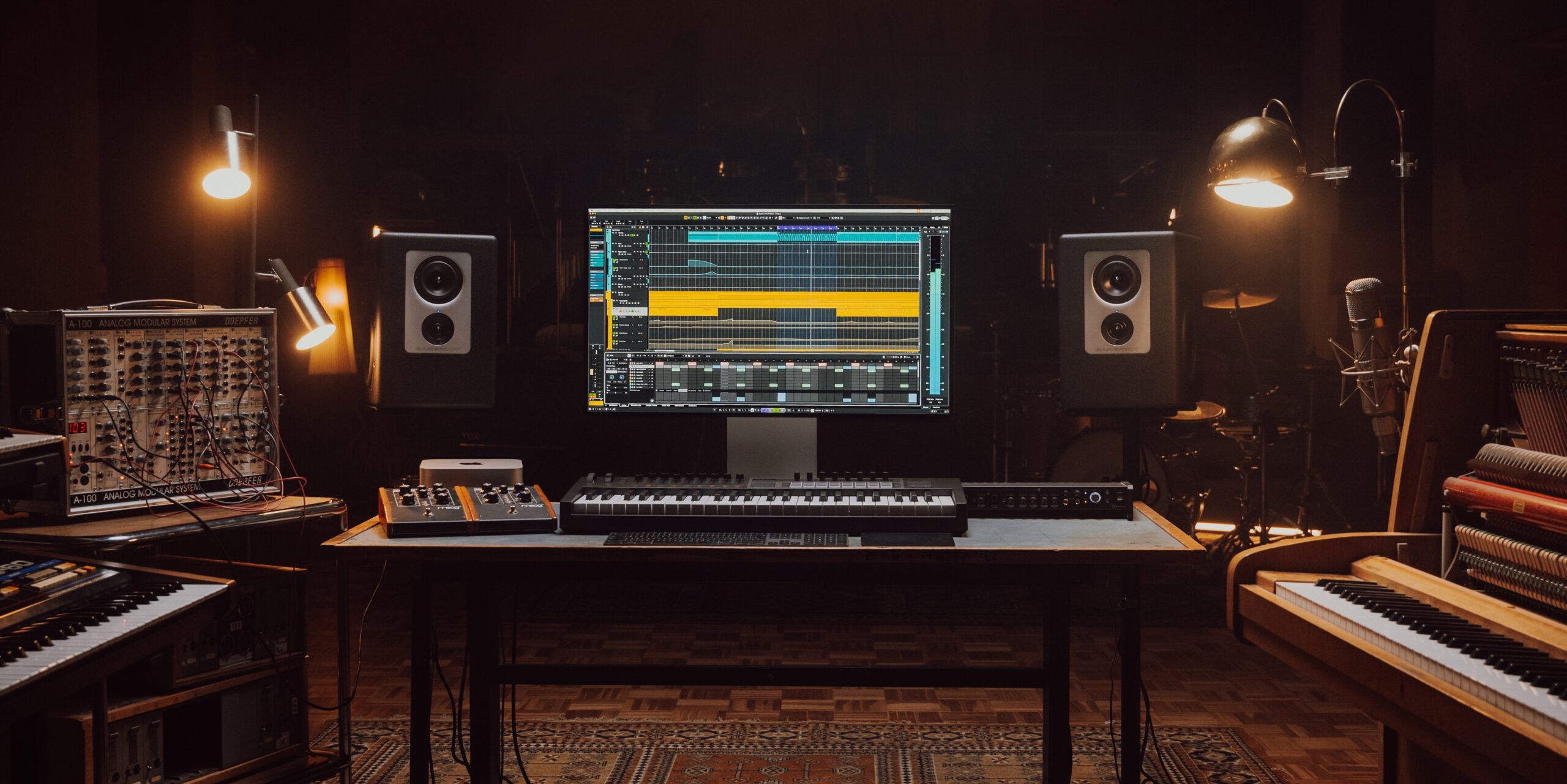
The popular DAW Cubase has been updated to version 14, about a year after its previous release.
As before, three editions are available: Pro, Artist, and Elements with powerful features that could change your production workflow.
At the time of the Cubase 14 release, users who activated an older Cubase version on or after October 10, 2024 (Japan time) were eligible for a free upgrade to the same edition of Cubase 14.
Let's take a look at the notable new features.
Cubase 14: New Features Explained
Selected questions and answers from the YouTube video at the time of release

I'm planning to buy Cubase for the first time. I want to get Cubase 14 Pro, but would it still be cheaper to buy Cubase 13 Pro and upgrade for free, or would the upgrade be paid?

If you register the code on or after October 10, you can upgrade to version 14 for free. Reference: https://faq.yamaha.com/jp/s/article/000026871 However, the prices for versions 13 and 14 have not changed, so I think you can simply buy version 14. Some retailers may sell it for less than the official online store, though.
Sorry, I have a question. Can I use my own samples in the Drum Track? It looks like I could drop audio data into the “Drop Sample or…” area.
Yes. You can also add samples from MediaBay and specify the range to use.
System updates
First, let's look at system-level updates at the core of Cubase.
Faster startup (all editions)
Optimized memory allocation improves startup and project-loading times.
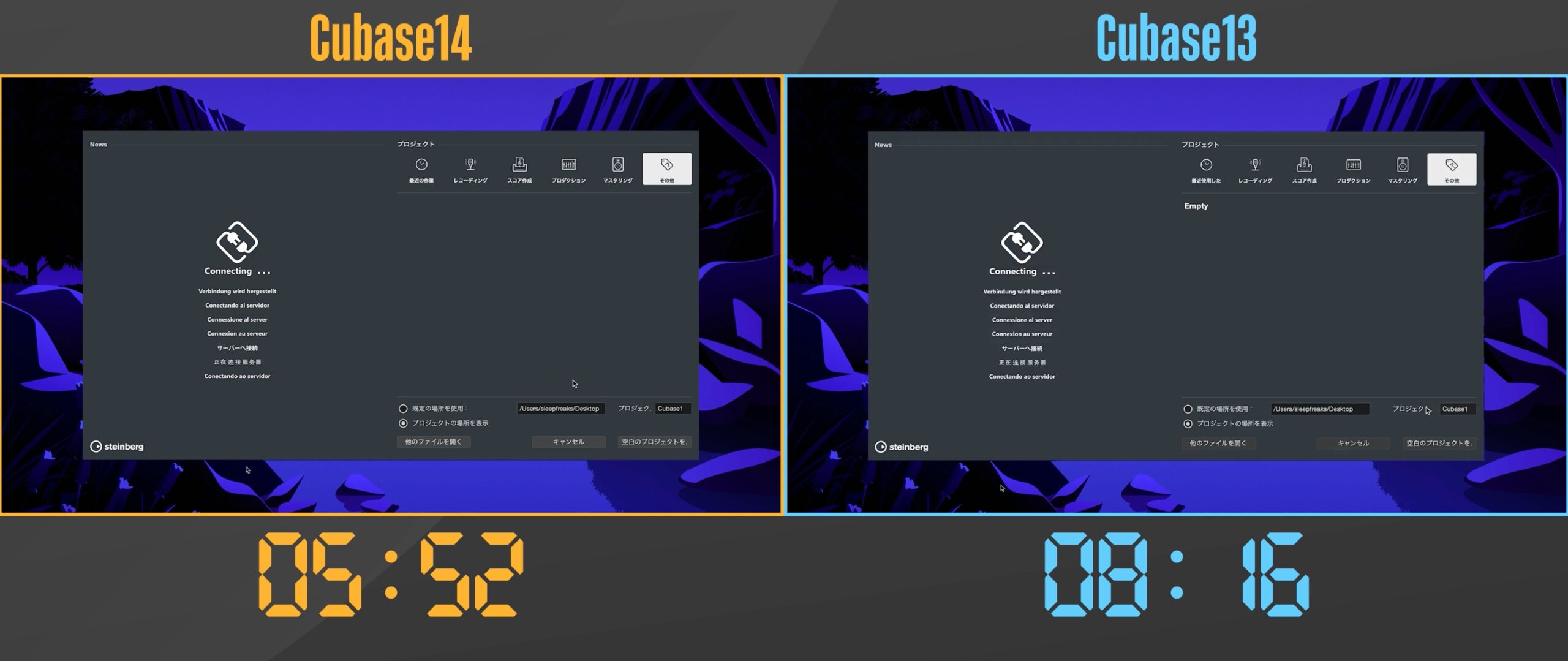
After about 10 tests, we confirmed faster performance on both Mac and Windows.
All Cubase 14 users benefit, regardless of edition.
Backup projects are easier to manage (all editions)
The location for backup projects has changed.
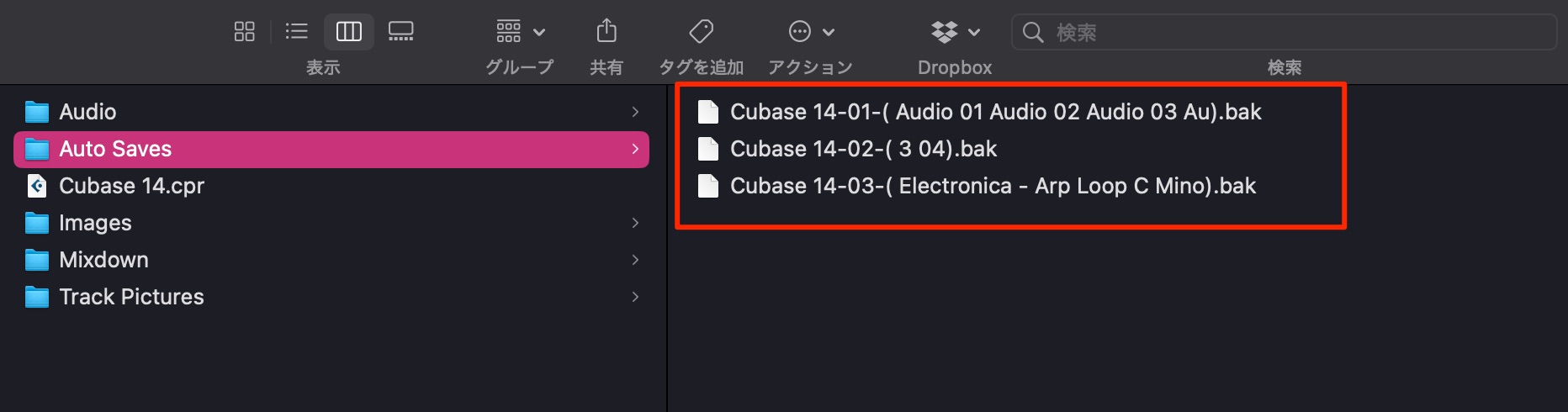
A dedicated “Auto Saves” folder is now created to store them.
It is also helpful that the operations performed on the project are listed, making it easier to see what has changed.
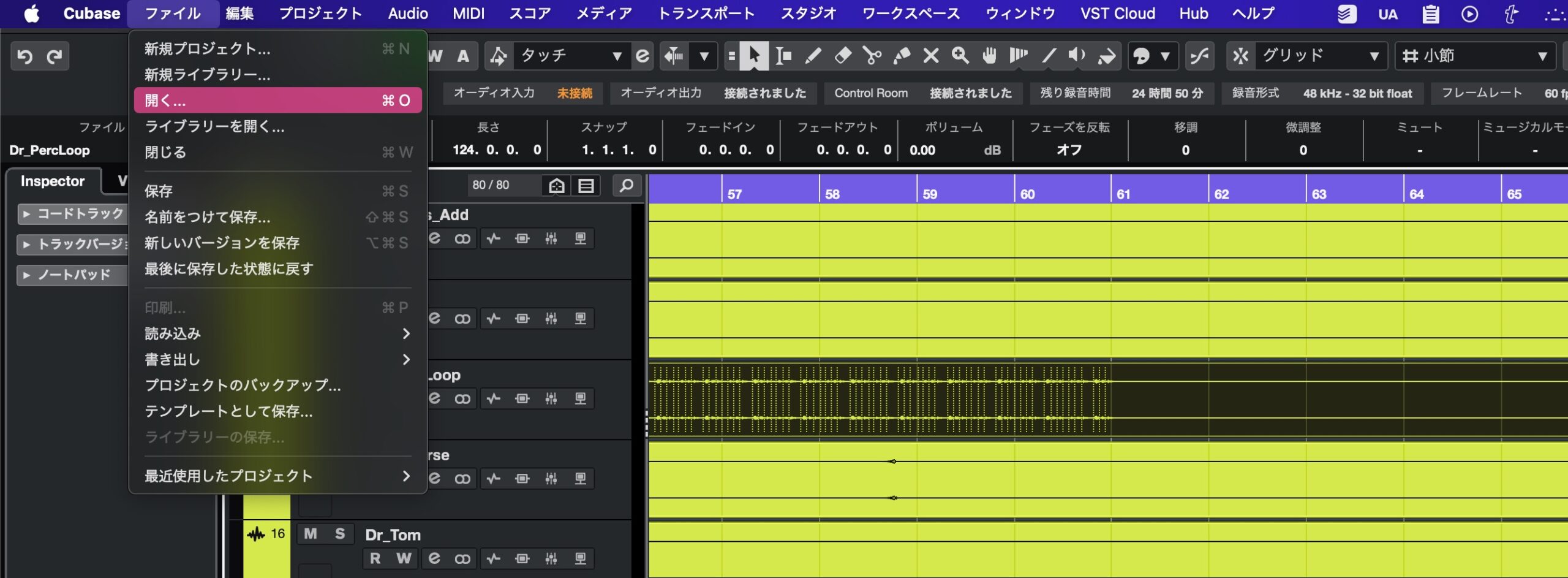
To open a backup project, select “File” → “Open” from the top menu.
64-bit projects (all editions)
Cubase 14 song projects are created entirely in 64-bit, reducing the risk of corruption for projects larger than 2 GB.
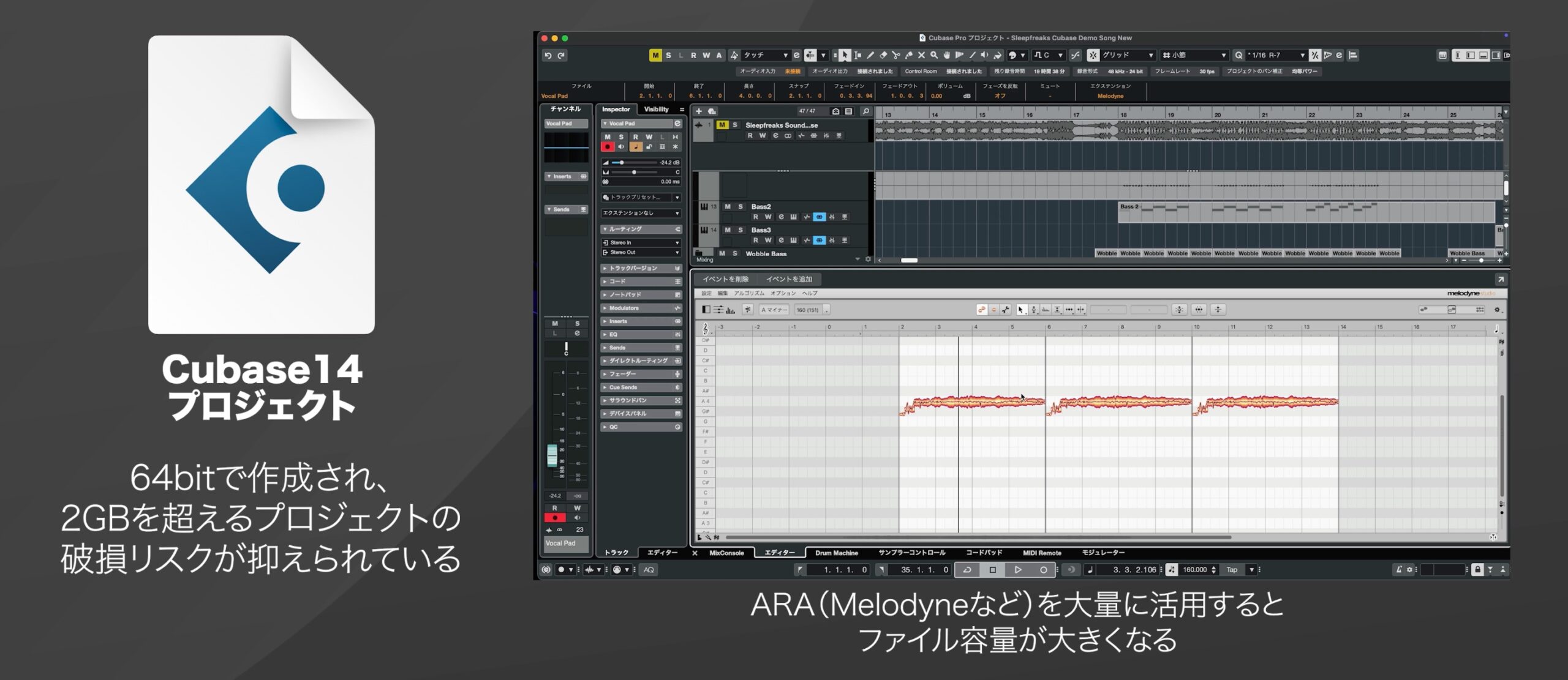
You can open existing 32-bit projects in version 14, but they are converted to 64-bit when saved.
Note that these 64-bit projects can only be opened in Cubase 13.0.30 or later.
DAWproject support greatly improves compatibility with other DAWs (Pro/Artist only)
Cubase now supports DAWproject, a format that has drawn attention in Studio One and Bitwig.
This promising format lets you work with song files created in different DAWs.
Here, we will open a Cubase project in Studio One.
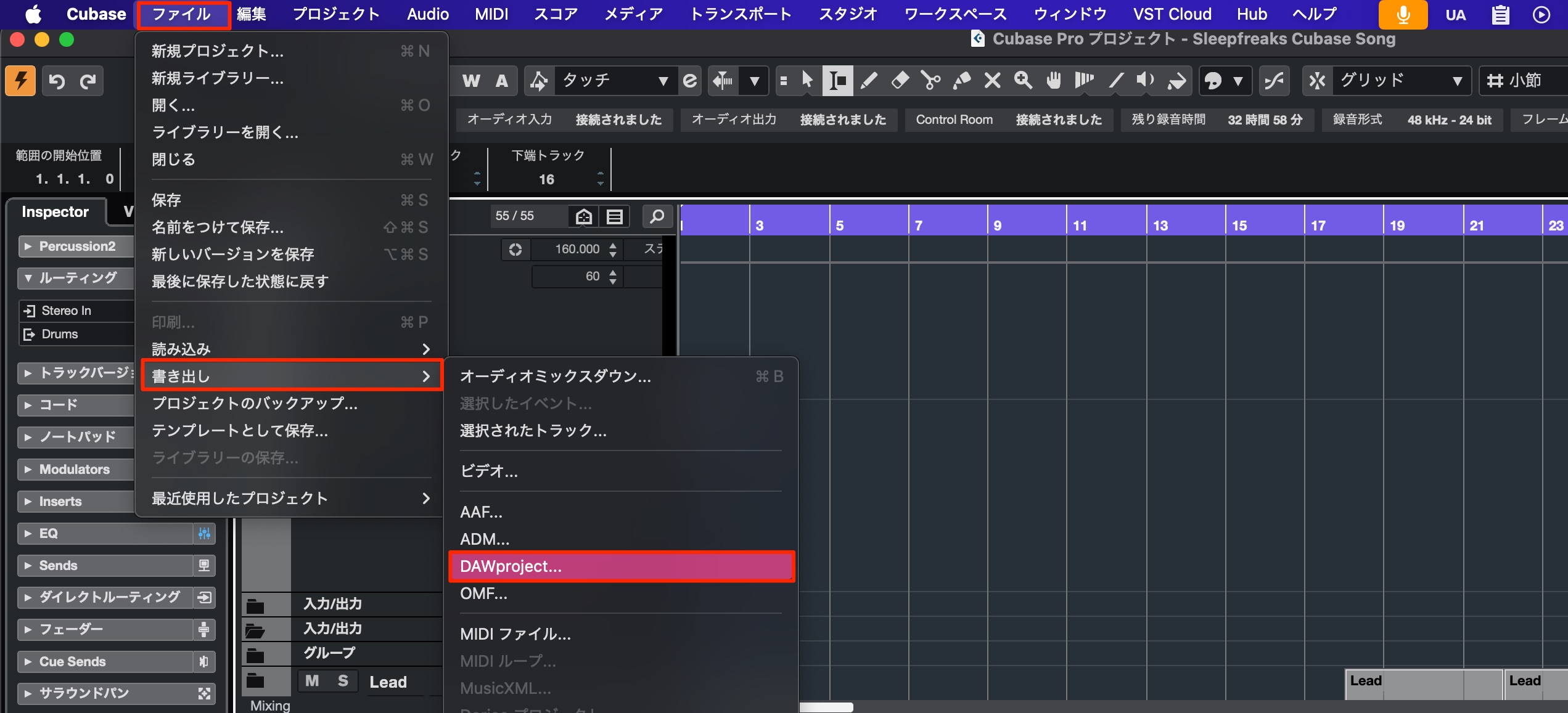
From the top menu, select “File” → “Export” → “DAWproject” and export the project.
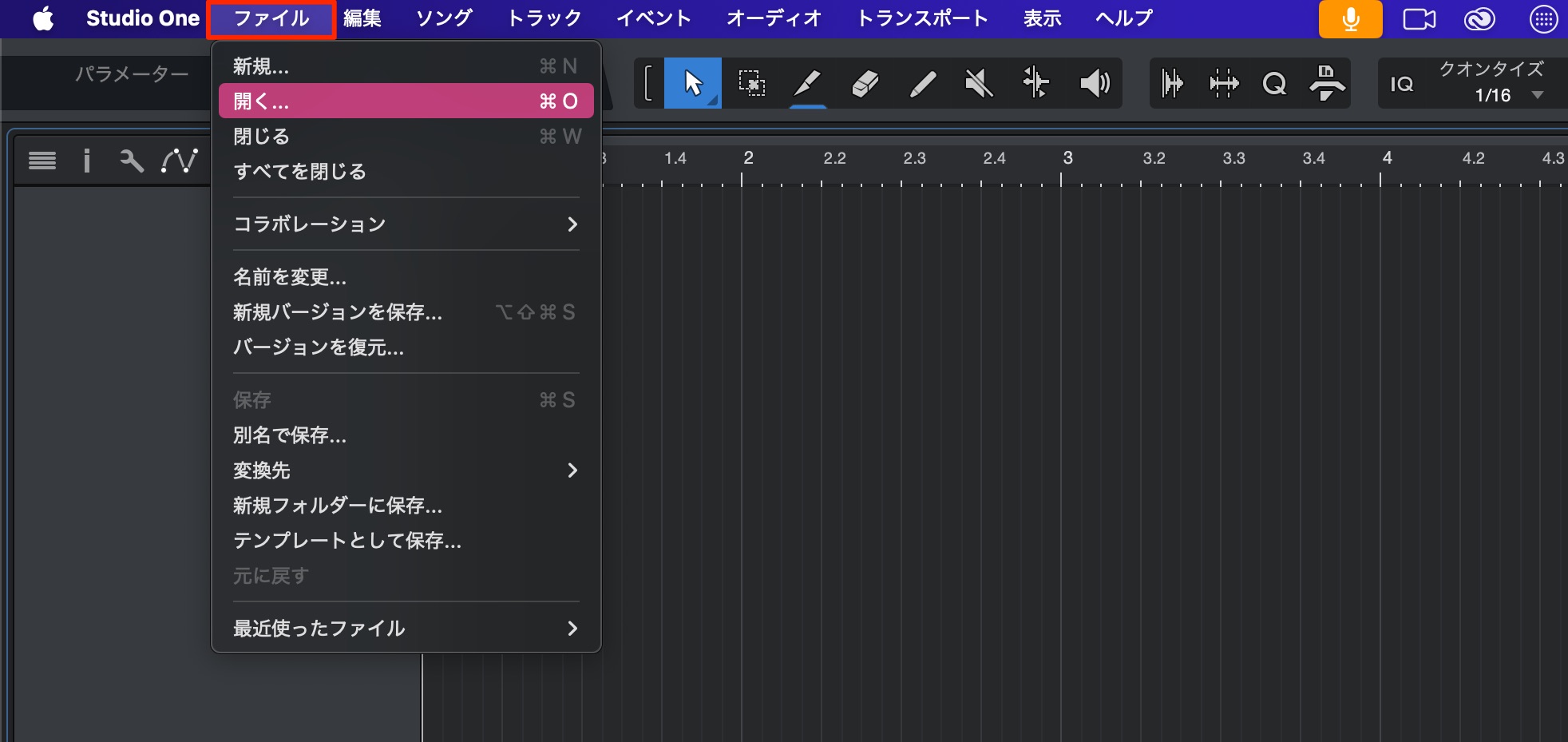
Launch Studio One, select “File” → “Open,” and choose the exported file.
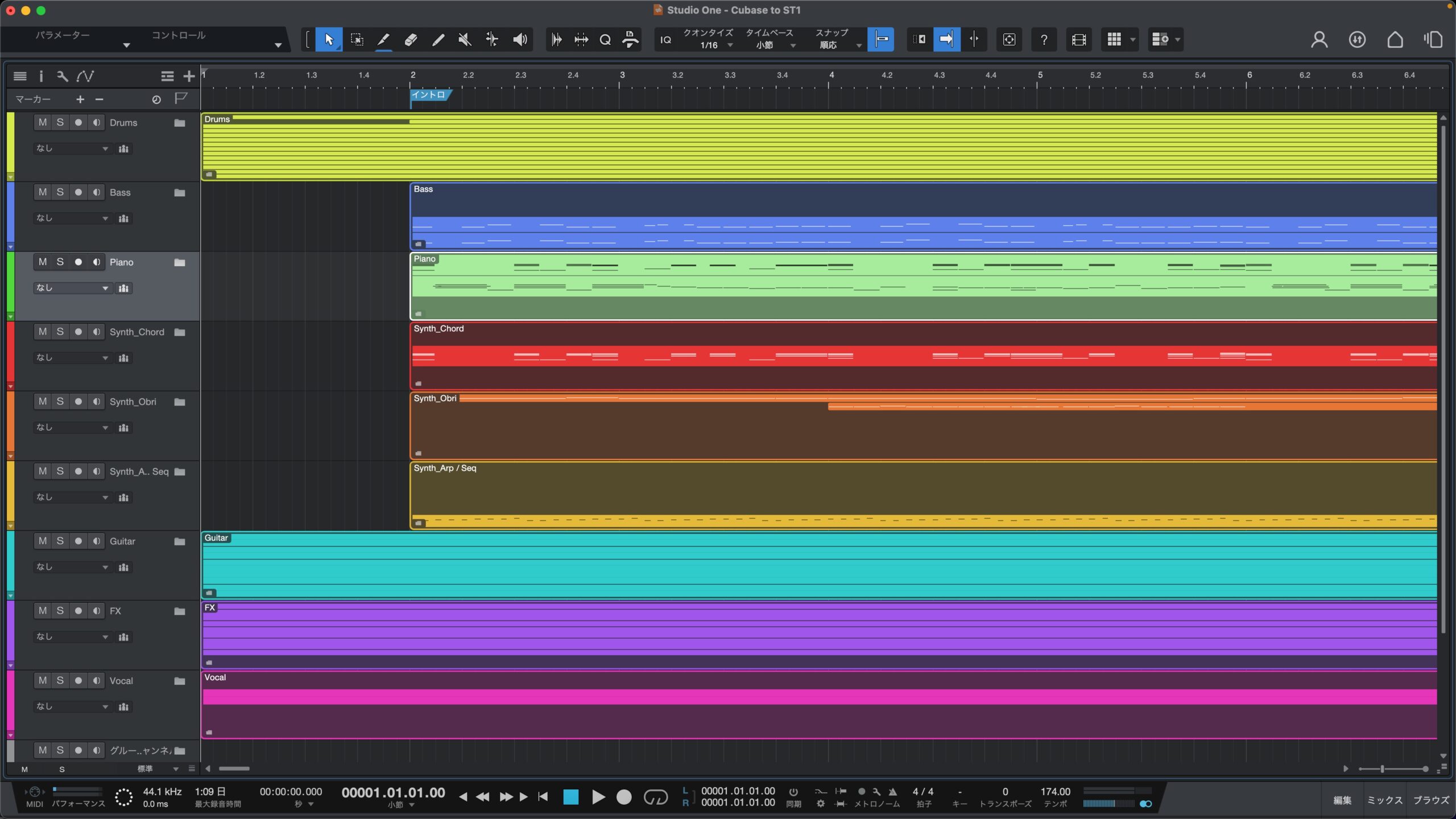
As you can see, the project opens while retaining its track state.
You can also move a Studio One project to Cubase.
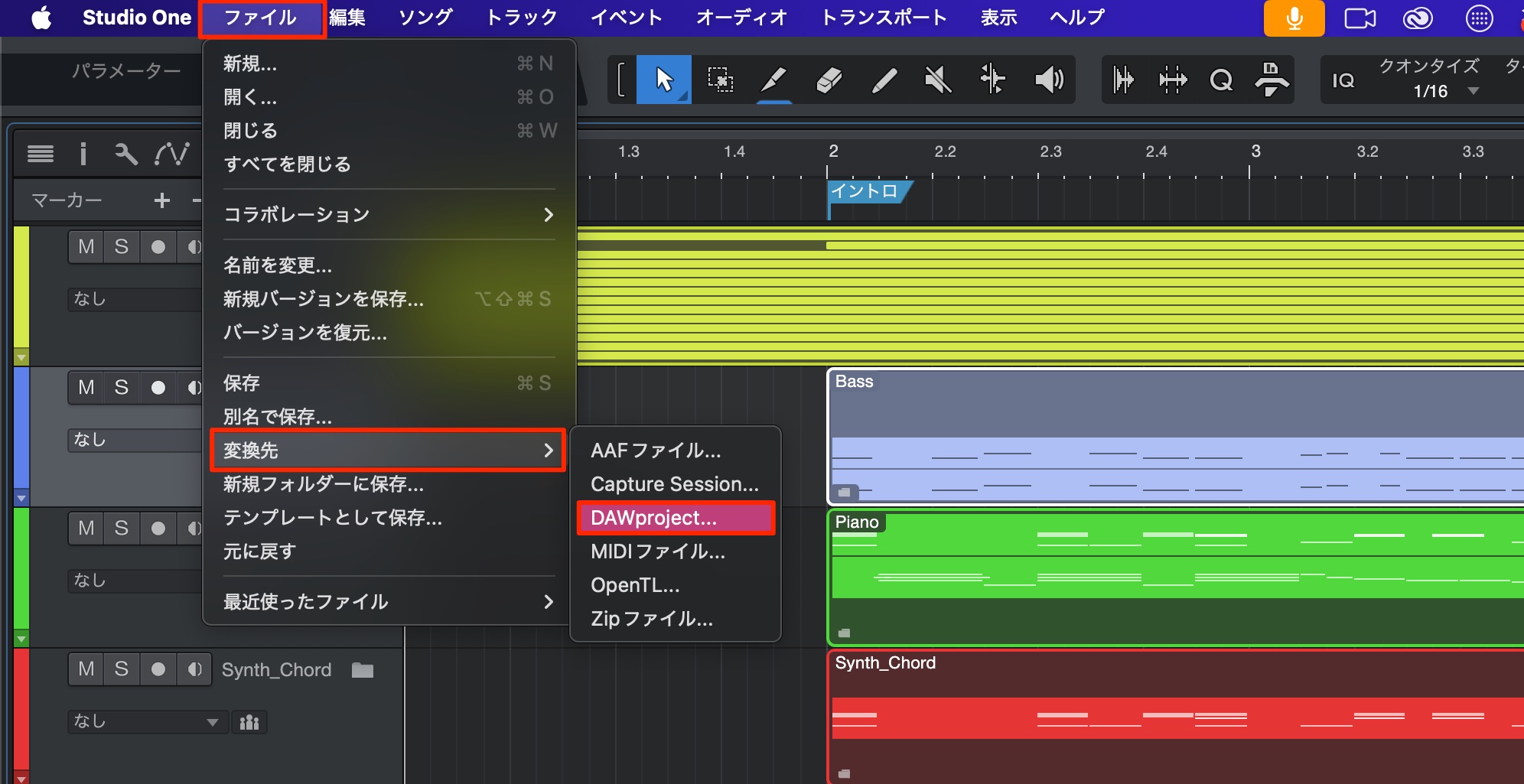
In Studio One, select “File” → “Convert To” → “DAWproject” from the top menu and export the file.
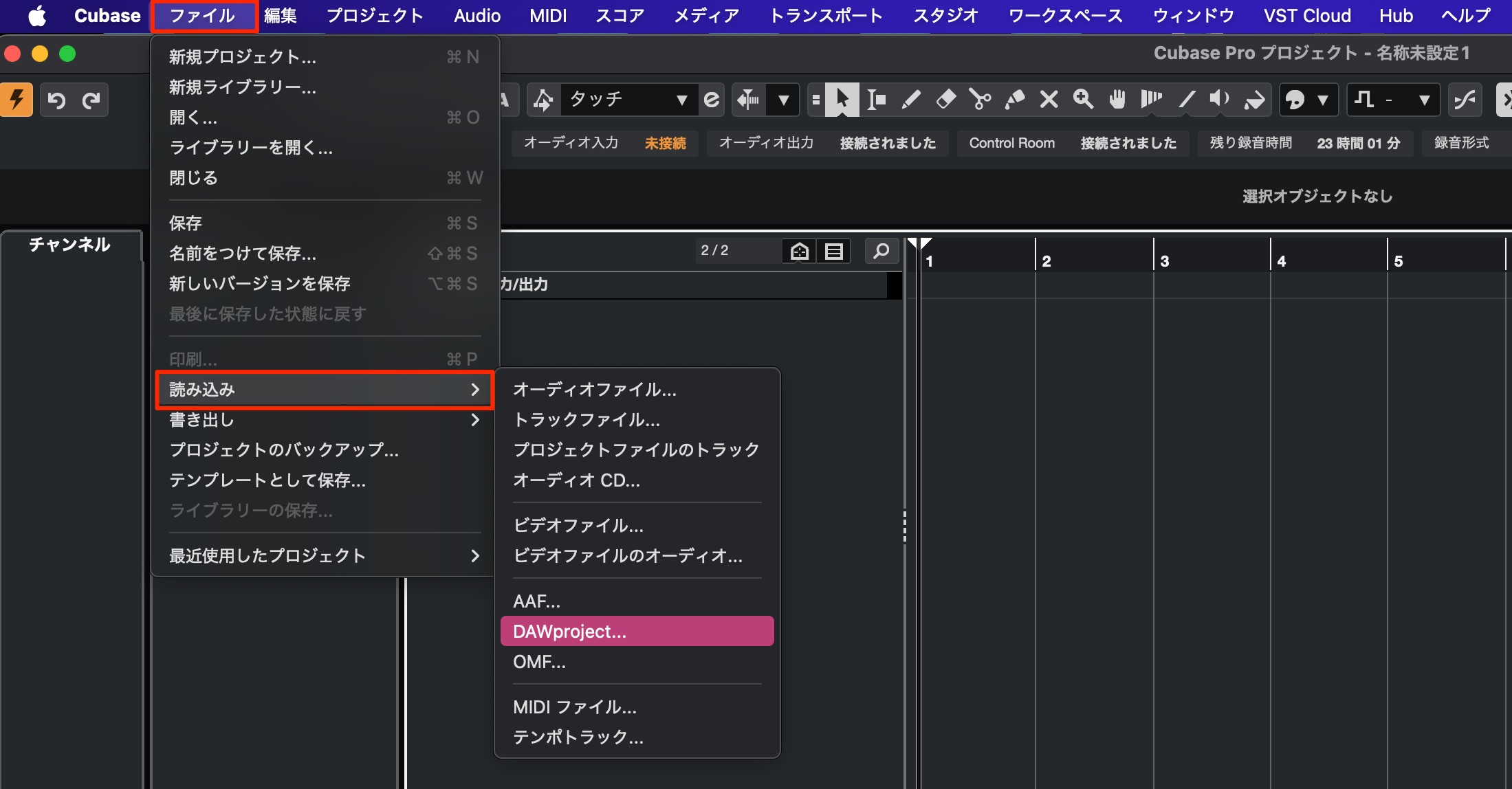
Then simply import the project into Cubase using File → Import.
One limitation is that instruments and effects bundled with each DAW are not reproduced in other DAWs.
At the time of the original article, automation, fades and crossfades, MIDI CC, and note expression were not supported for interchange. These limitations are worth keeping in mind, and we look forward to the format developing further.
Configure audio devices from the status line
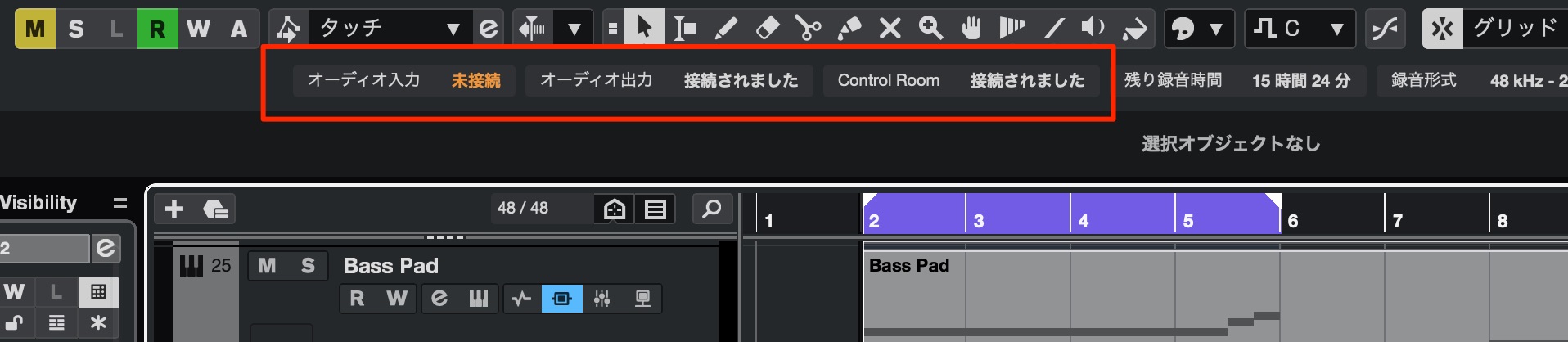
Audio-device inputs and outputs are now accessible from the status line.
You can also access Control Room from there.
This is a welcome improvement for anyone who changes devices frequently.
Drum Track (Pro/Artist only)
A new Drum Track lets you create sounds tailored to electronic music.
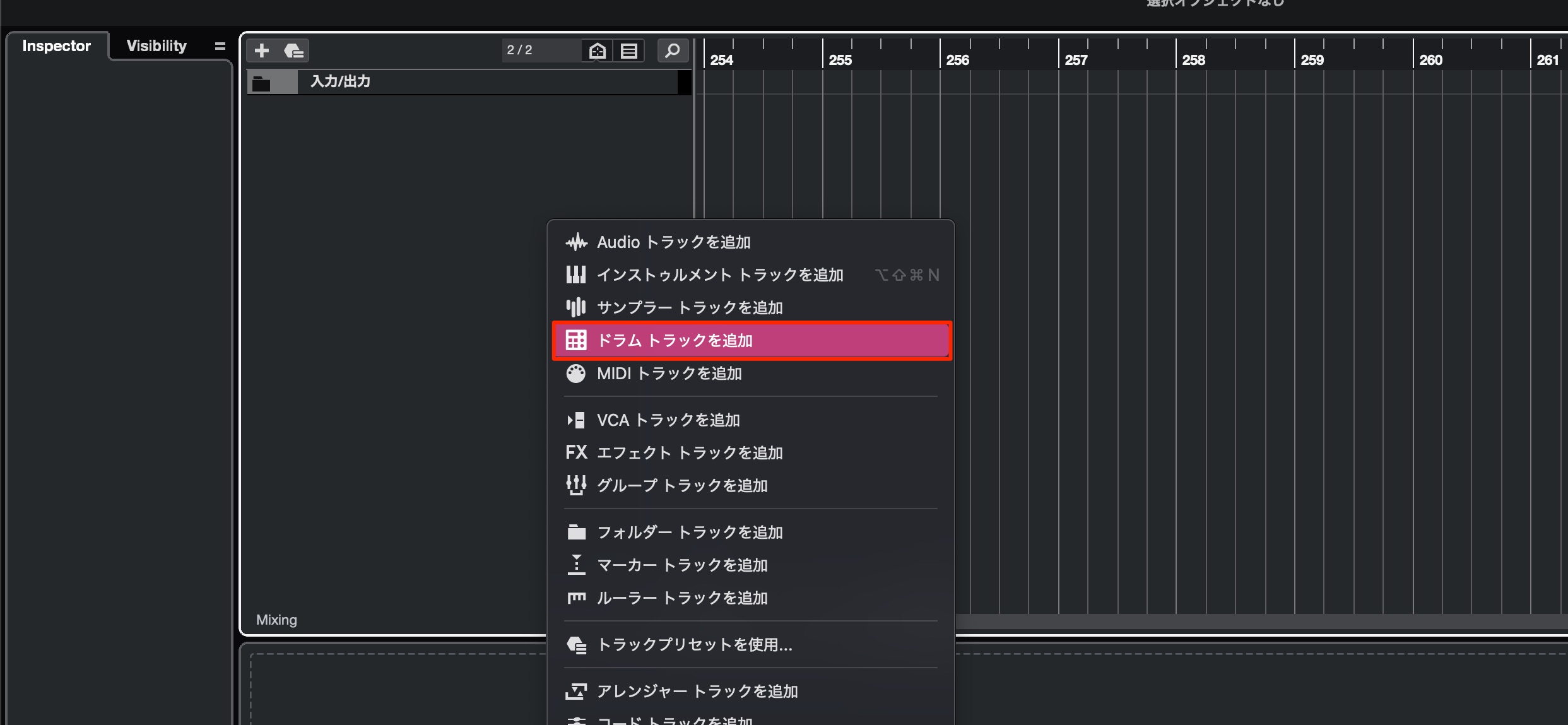
It has been added to the list when you add a track.
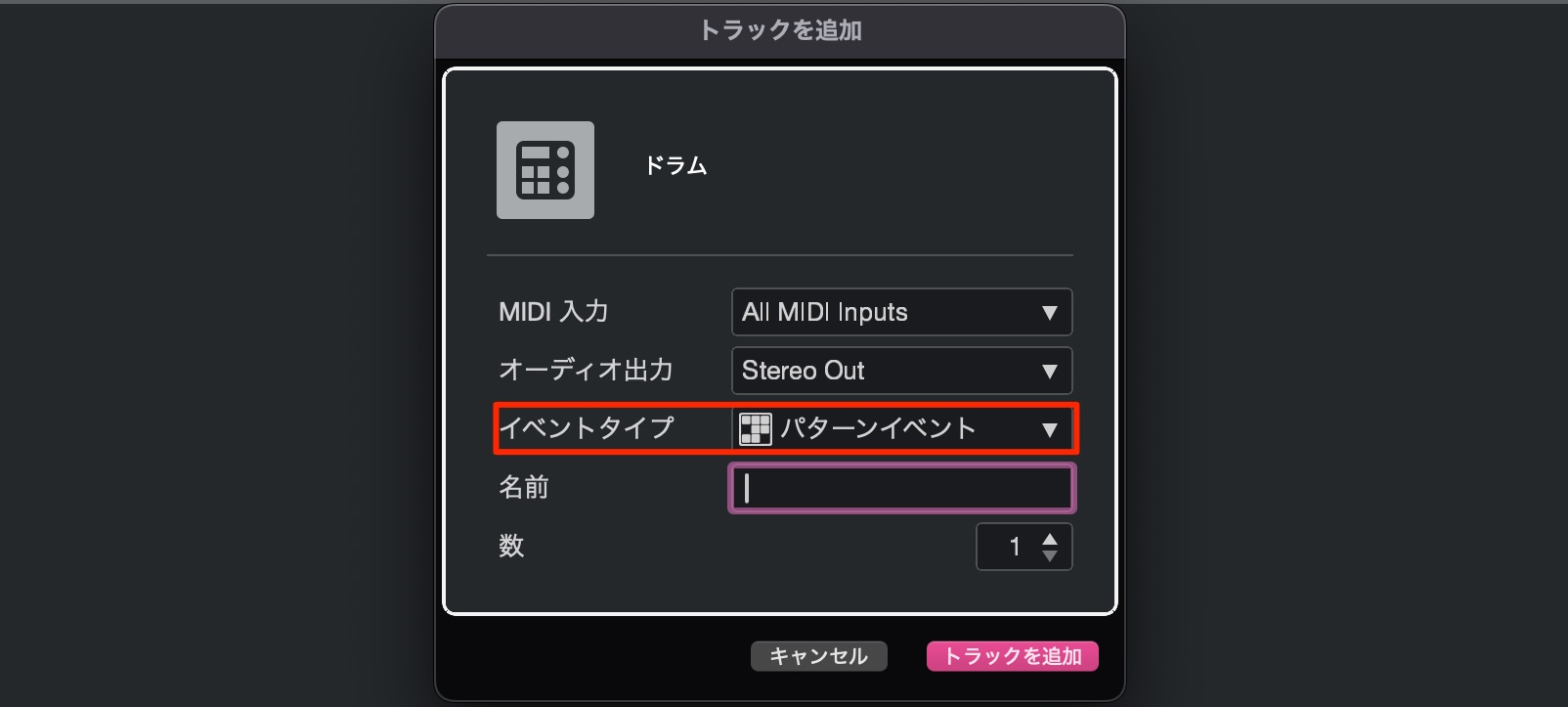
A new editor dedicated to rhythm programming, called “Pattern Events,” has also been added. (We will cover it in the next section.)
Pattern Events is selected by default for Drum Track, so you can continue with that setting.
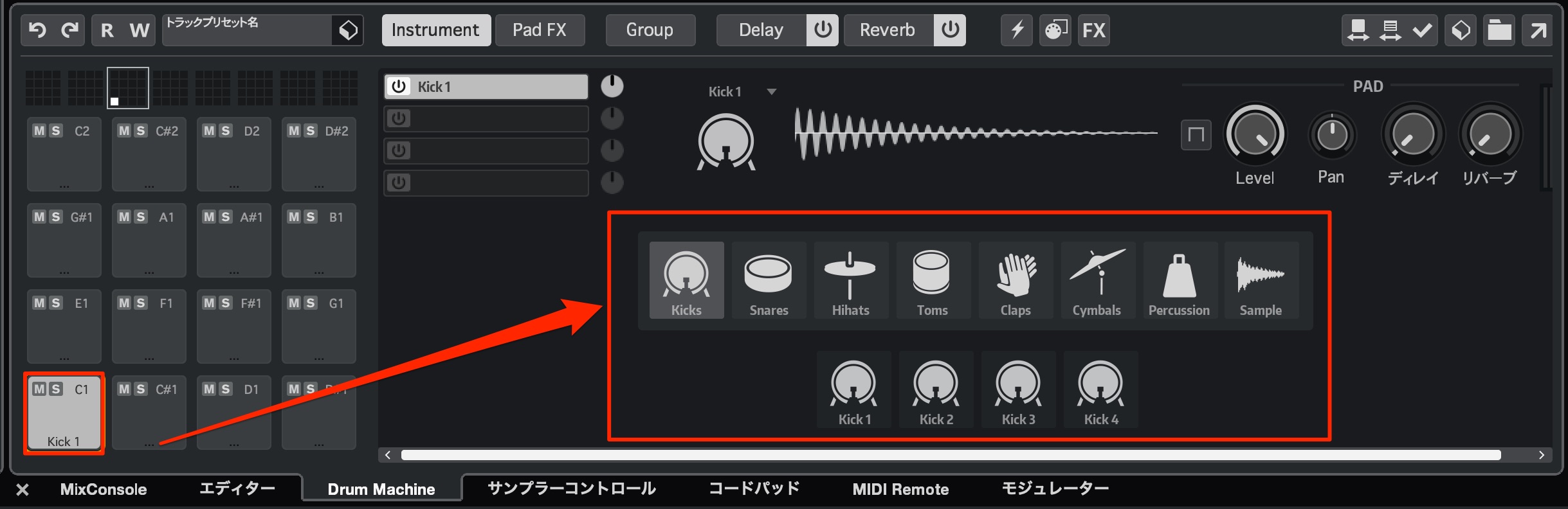
Select the desired cells and assign the kit you want.
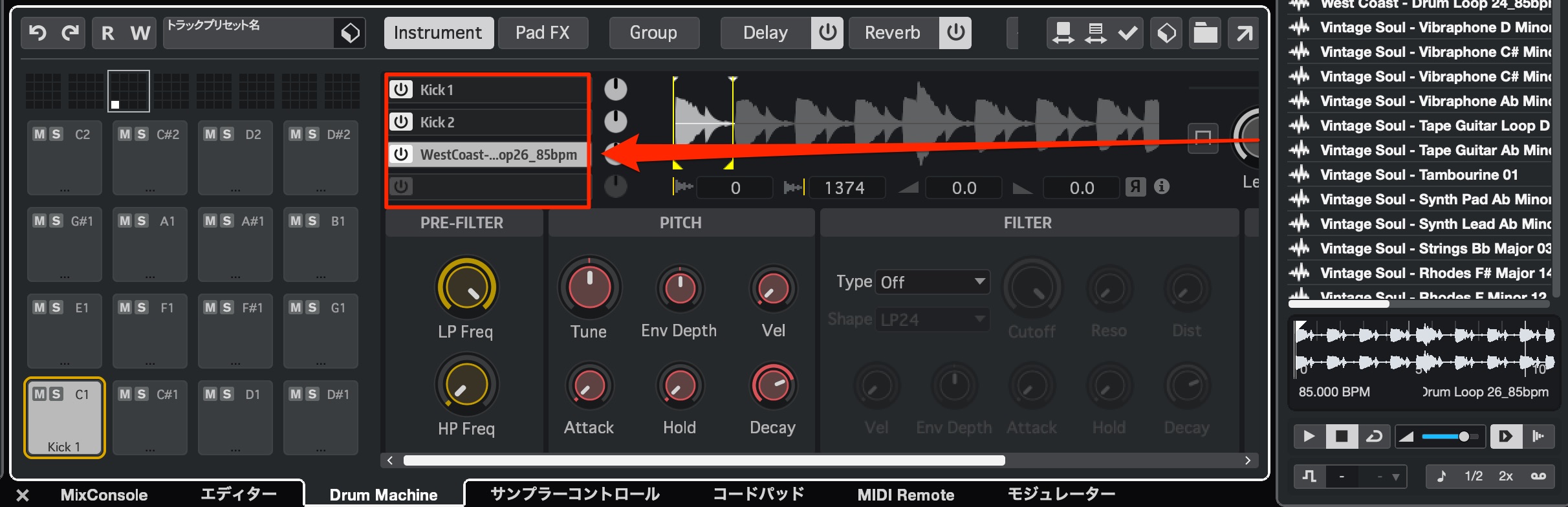
You can layer up to four sounds in each cell, and you can also add sounds from MediaBay.
You can also conveniently drag to specify the range to be played.
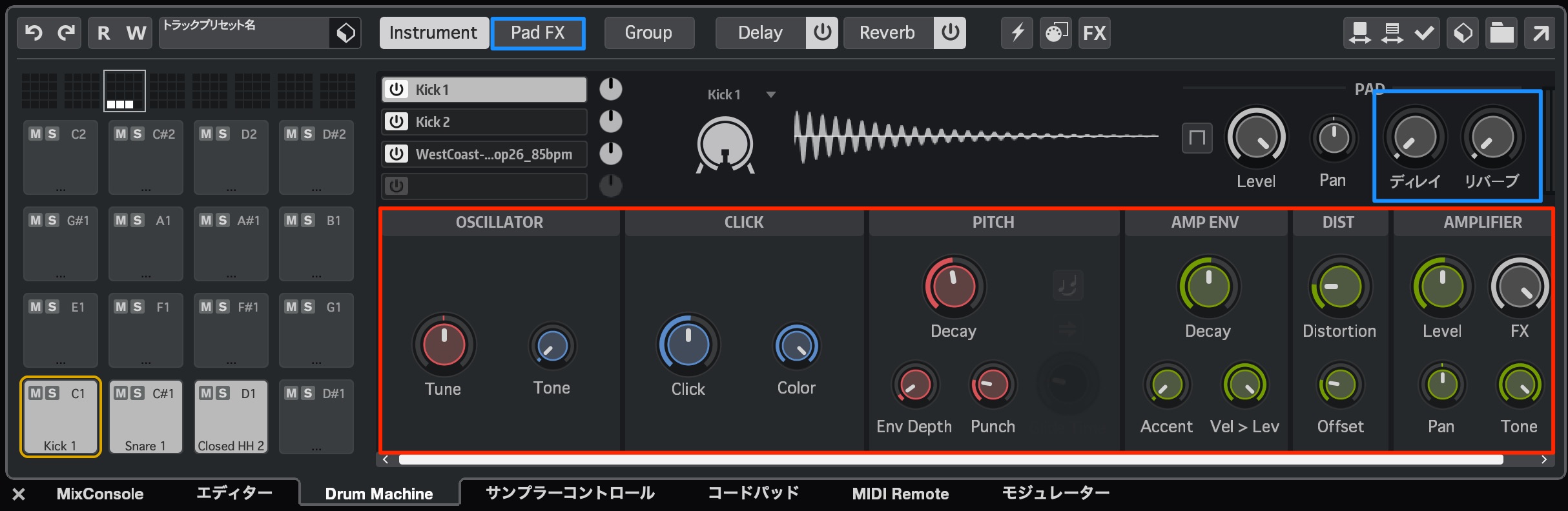
Each kit can be customized in detail and comes with effects.
It's great that Drum Track lets you build sounds quickly.
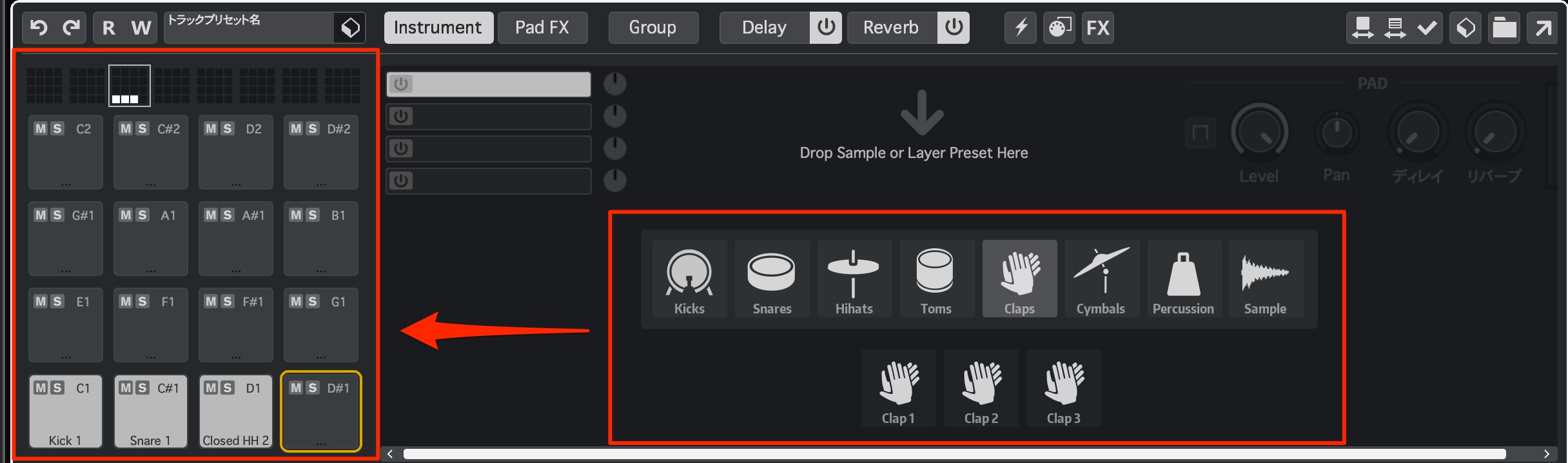
From there, build your kit by repeating the same steps.
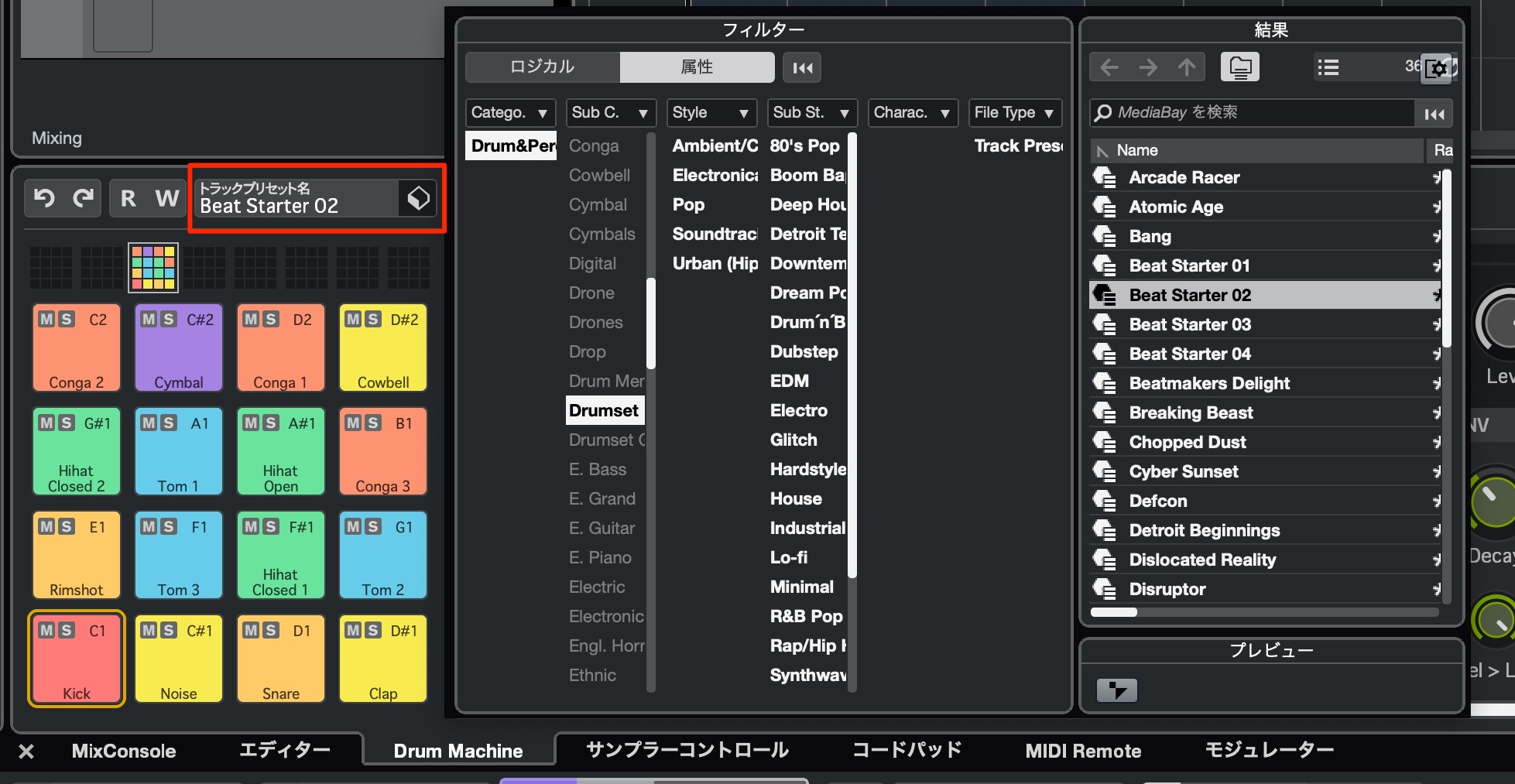
Presets are also available, making it easy for anyone to create high-quality electronic rhythms.
Pattern Events (Pro/Artist only)
Version 14 lets you program in a step-sequencer style using Pattern Events.
Pattern Events is selected by default for the Drum Track described above, but you can also use it with existing instruments.
This feature introduces a new workflow: create patterns and place them on the timeline.
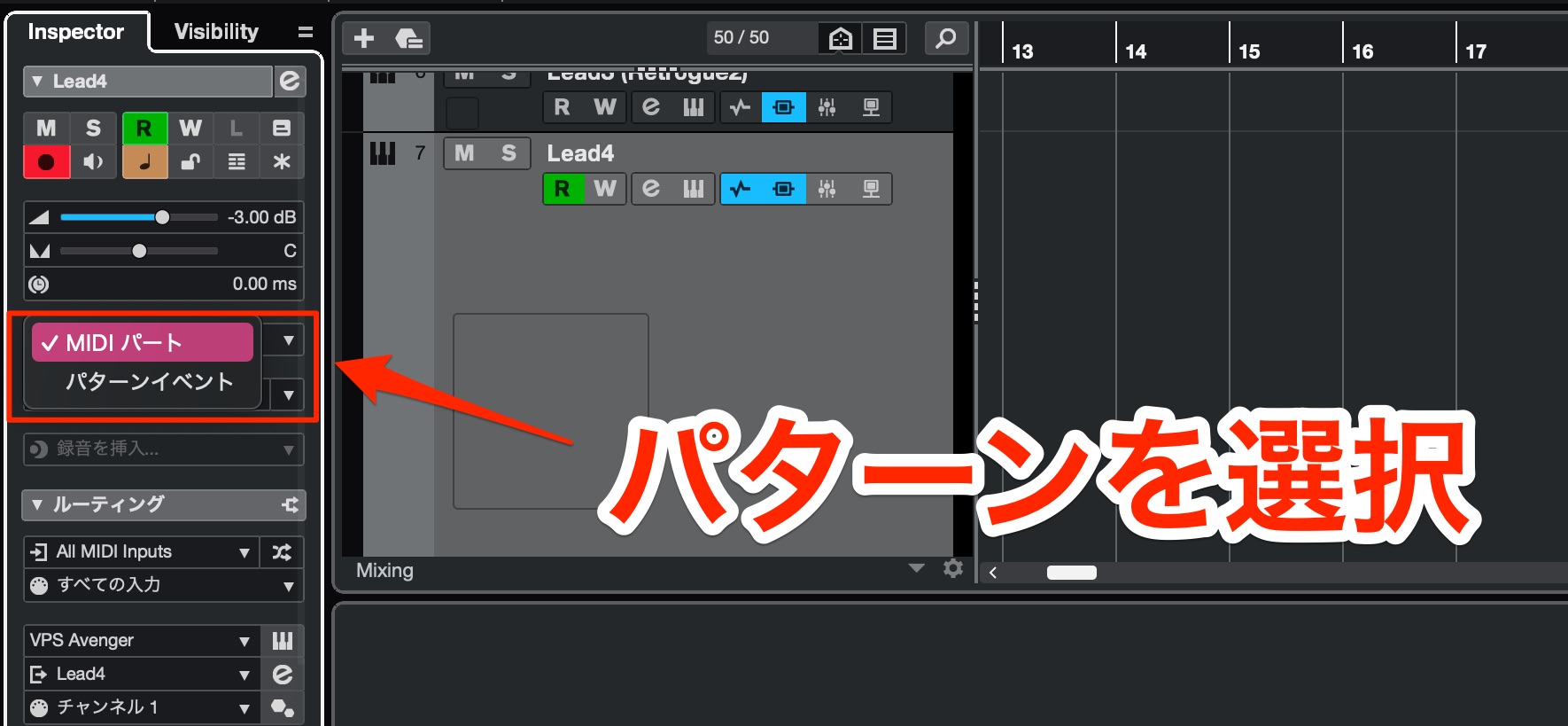
Simply change this section to Pattern Events.
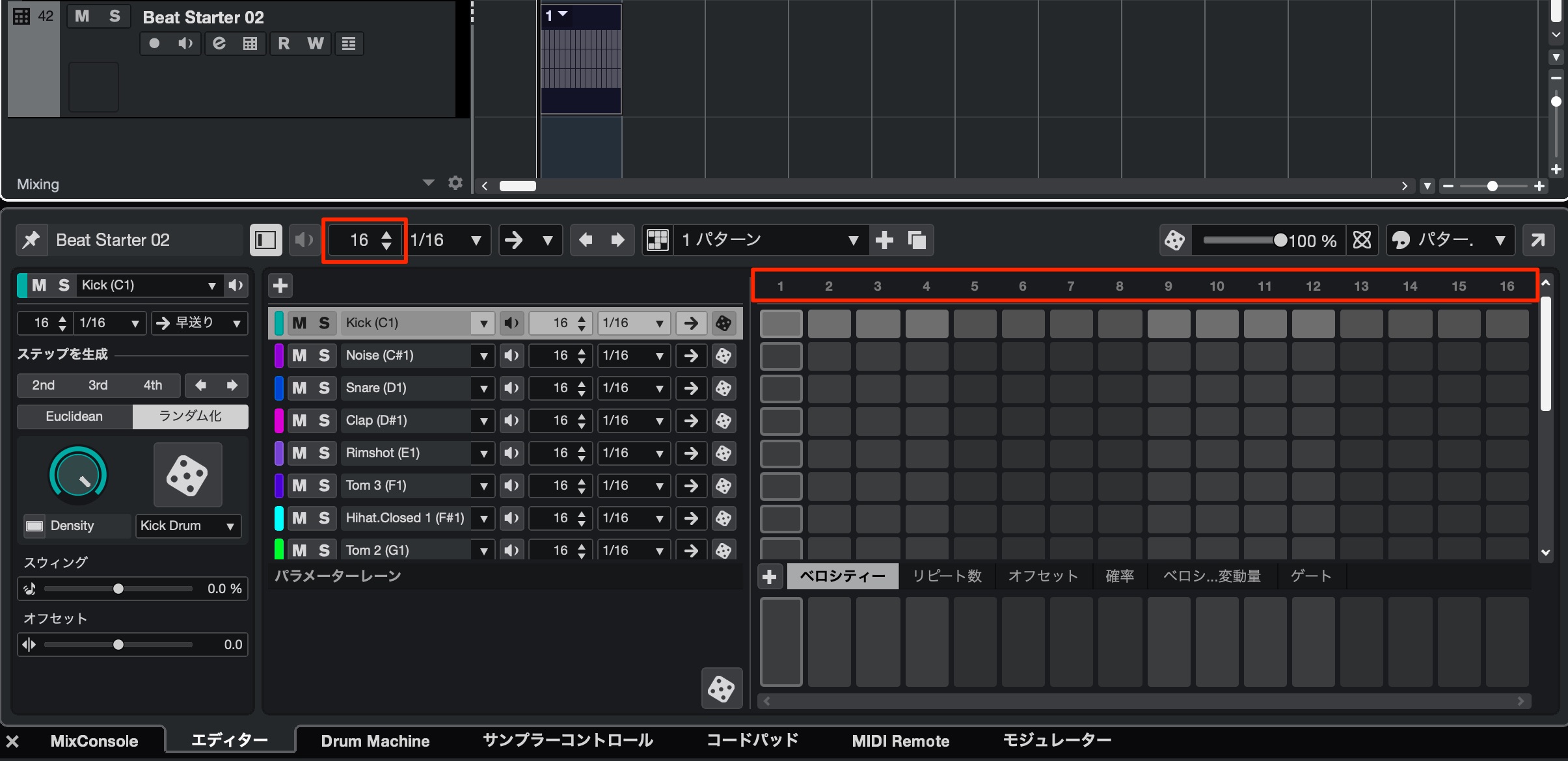
The default pattern is one bar. Change its length here.
The default uses 16 steps for 16th notes. Double that to 32 steps to program a two-bar pattern.
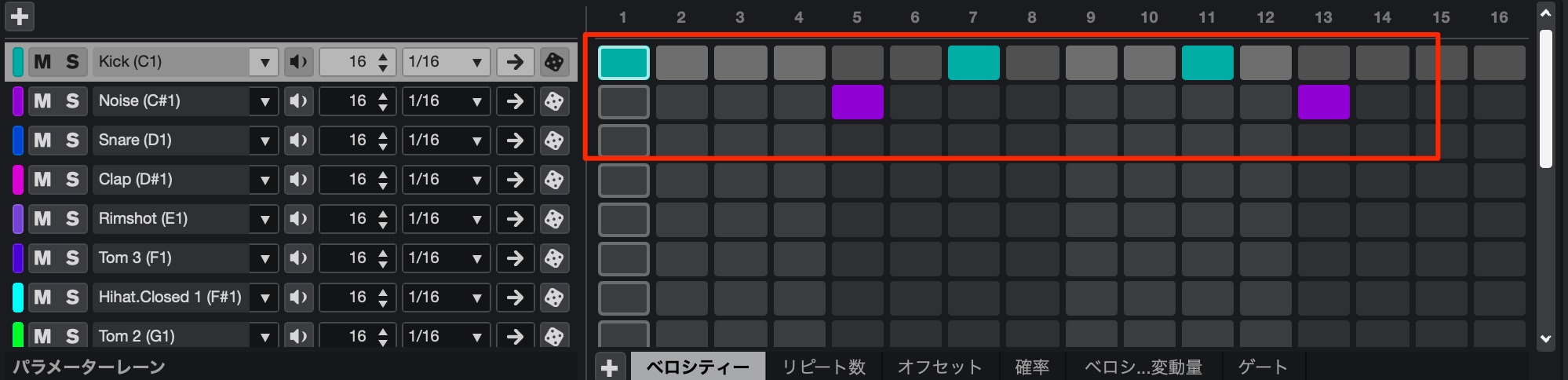
Click a step to enter a note; click it again to remove the note.
Programming while listening to playback makes it fun and easy to create musical patterns.
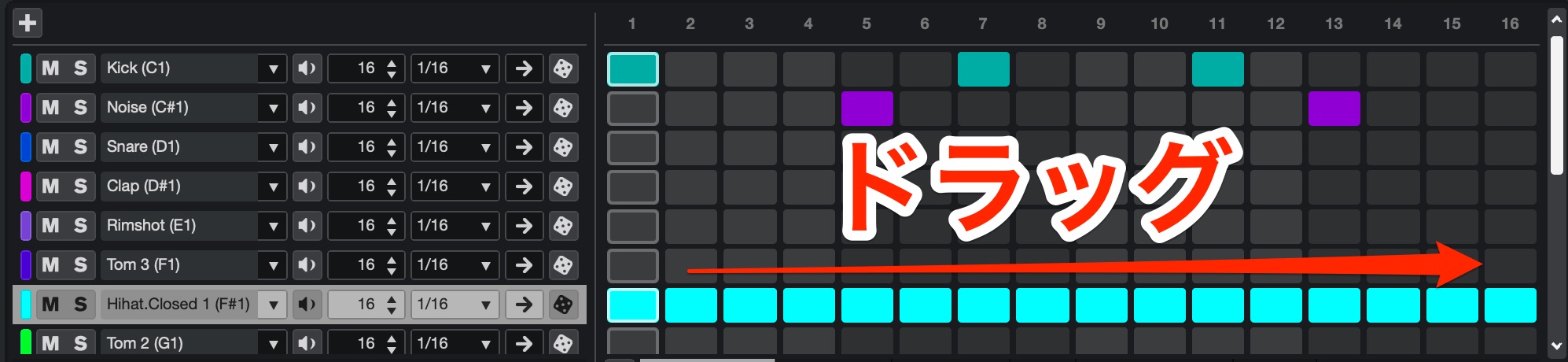
Hold down the mouse button to enter consecutive steps.
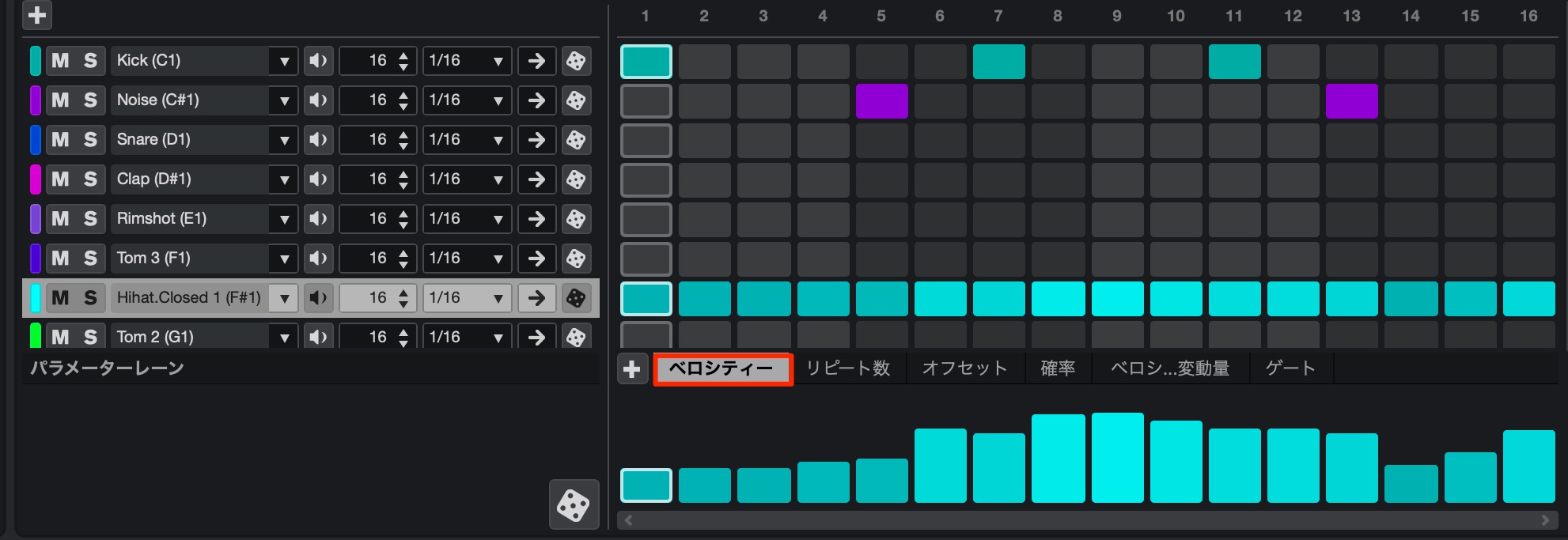
You can also enter consecutive velocity values, making it easier to shape a phrase.
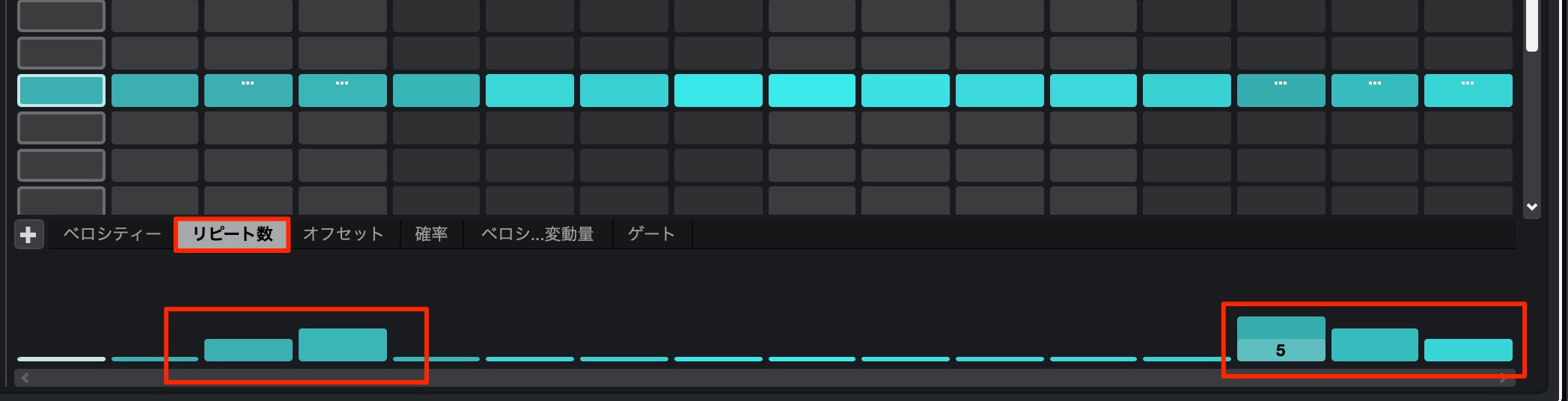
You can set a step to repeat rapidly, making it easy to program effects such as trap hi-hats.
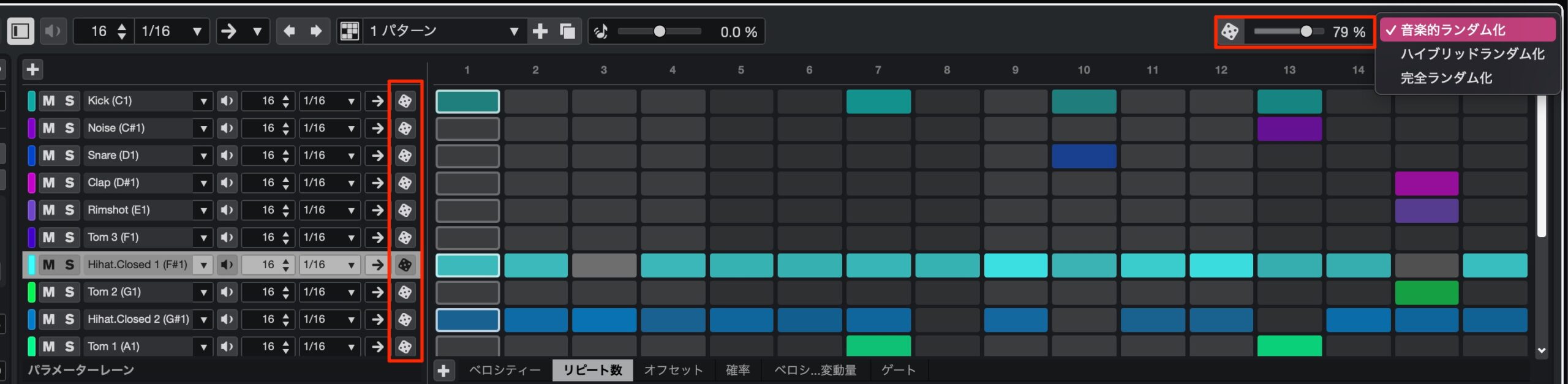
A distinctive randomization feature is also included.
Musical randomization makes it easy to create usable phrases and patterns that can give you ideas.
Adjust the number of notes in a phrase with the slider to generate many variations.
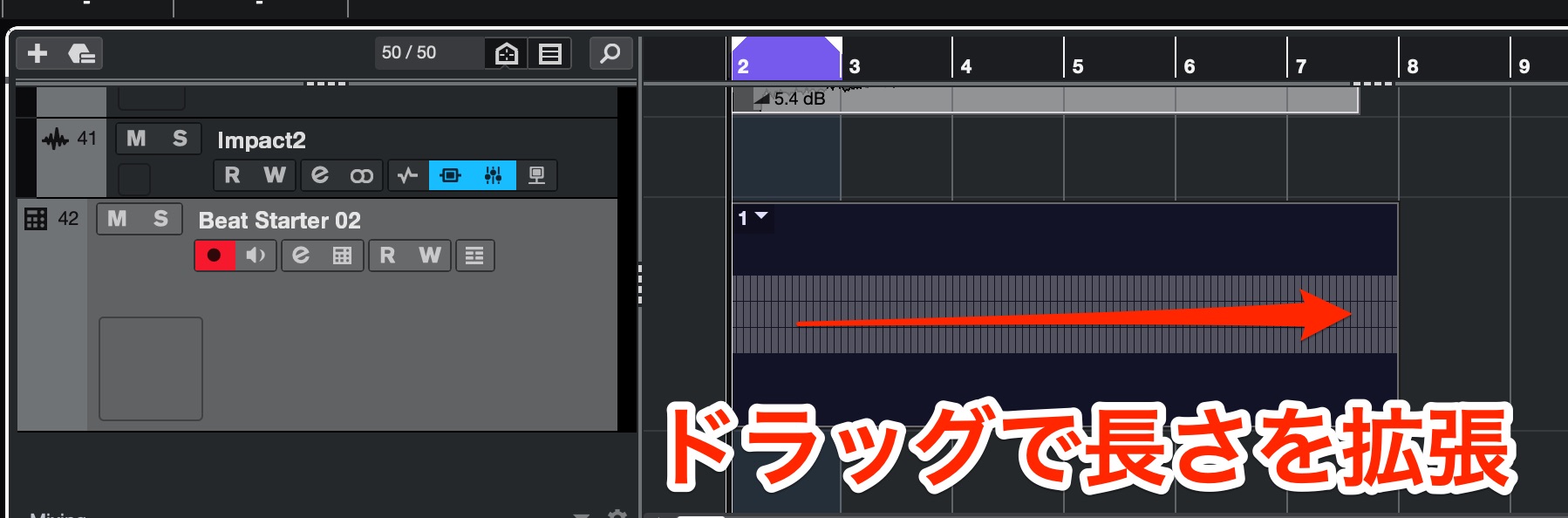
When you extend a Pattern Event on the timeline, its pattern repeats until the event ends.
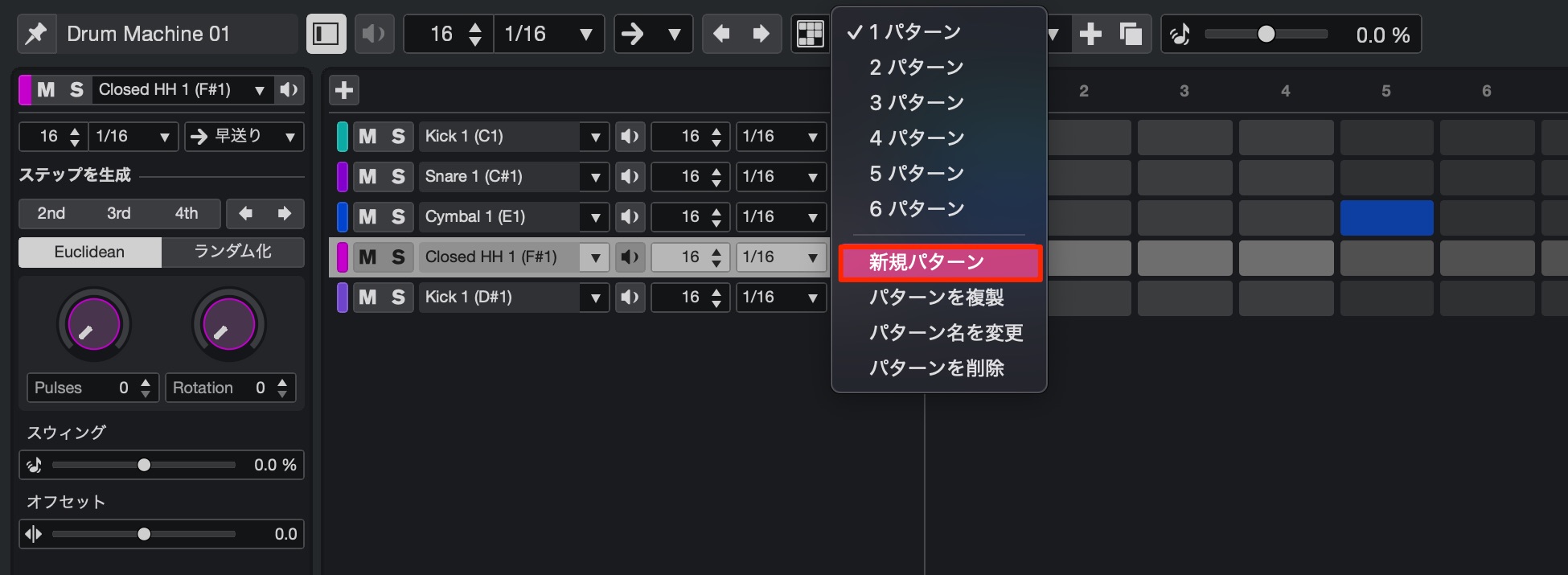
Create several patterns using “New Pattern,” then
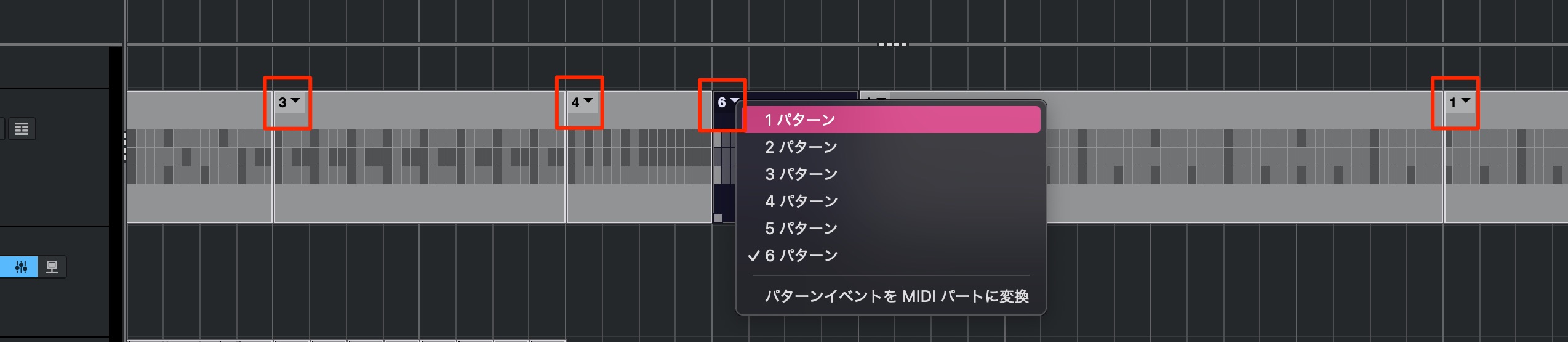
switch between them as the song progresses.
Enhanced audio volume curves
You can now draw volume curves for events with greater freedom and precision.
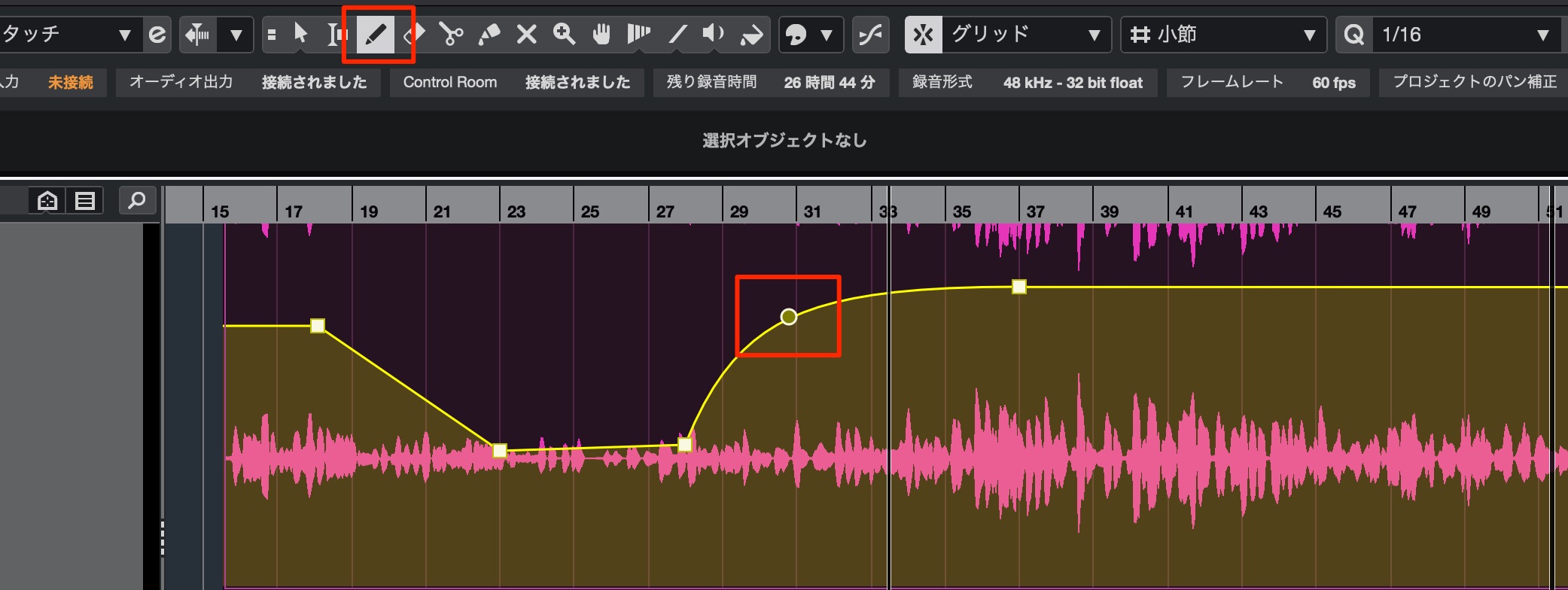
Click an audio event with the “Draw” tool to edit it.
You can change the curve using points, as shown here.
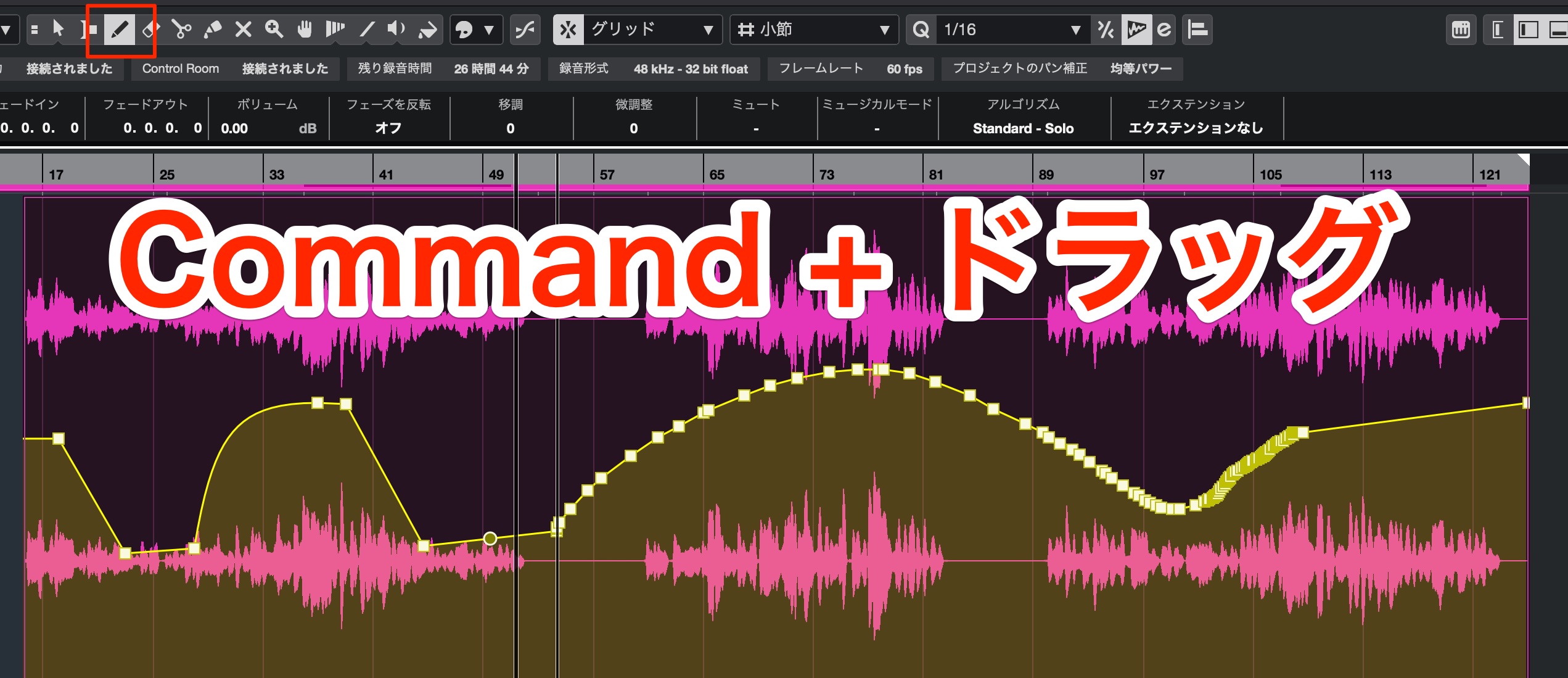
Hold Command on Mac or Control on Windows while dragging to draw a free-form curve.
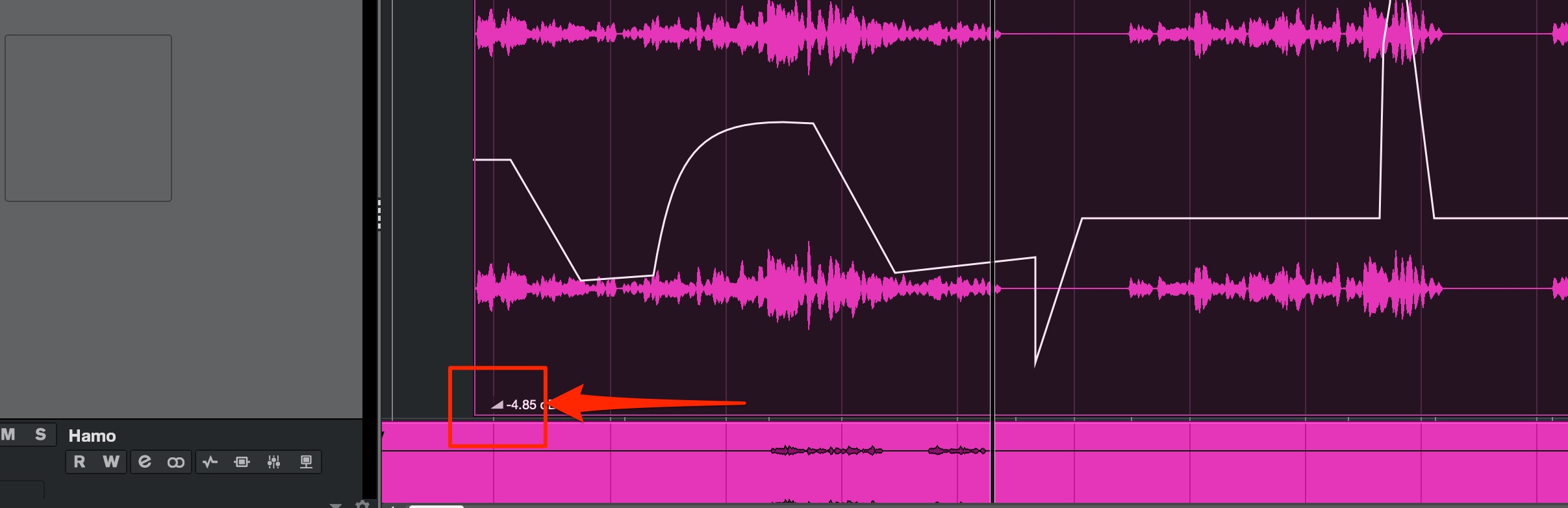
Adjust the volume of the entire event using the handle at the lower left.
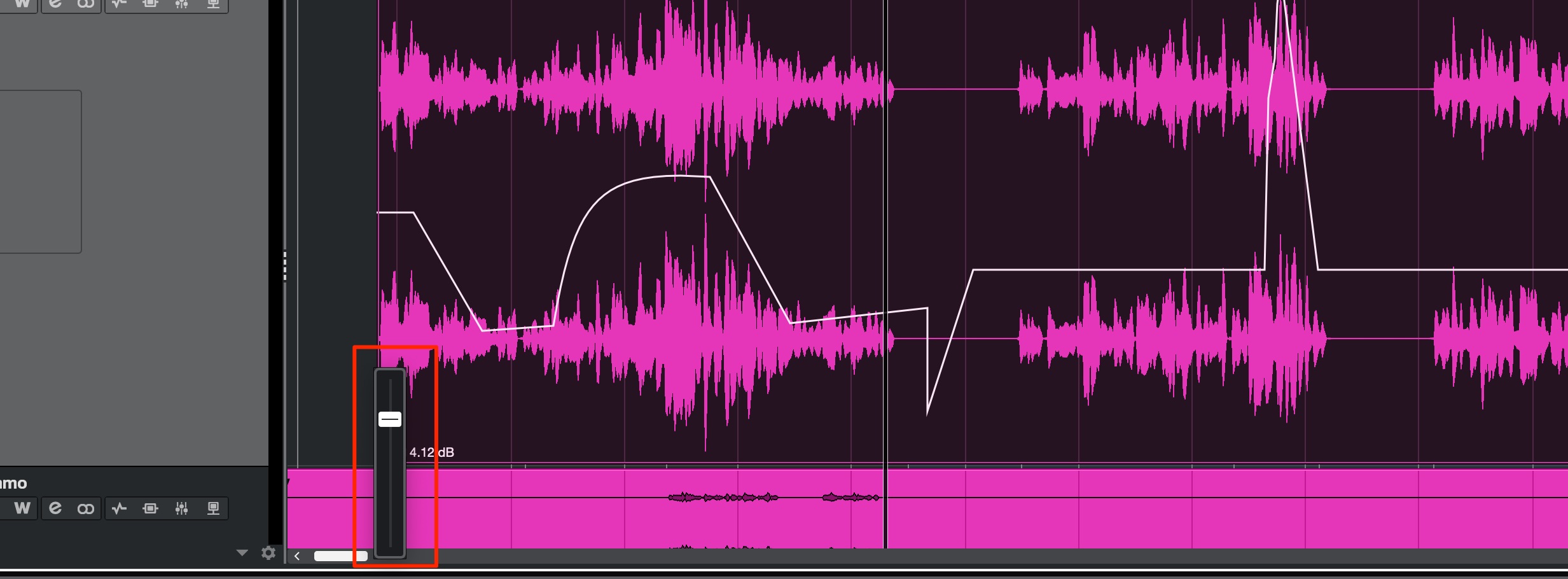
Hold Shift while adjusting for finer control.
Hold Command or Control and click to reset the value to “0.”
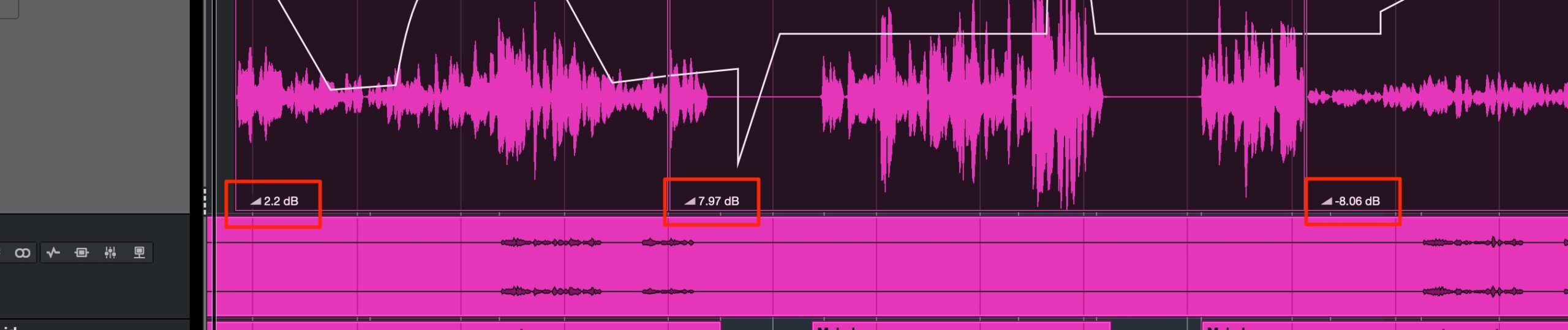
Splitting an event lets you set different values for each resulting event.
Modulators (Pro only)
This innovative feature adds movement to a wide range of parameters, enabling many kinds of sound design.
Because it can also be applied to third-party instruments and plugins, its potential is virtually limitless.
Apply modulators to individual tracks and access them from the following areas:
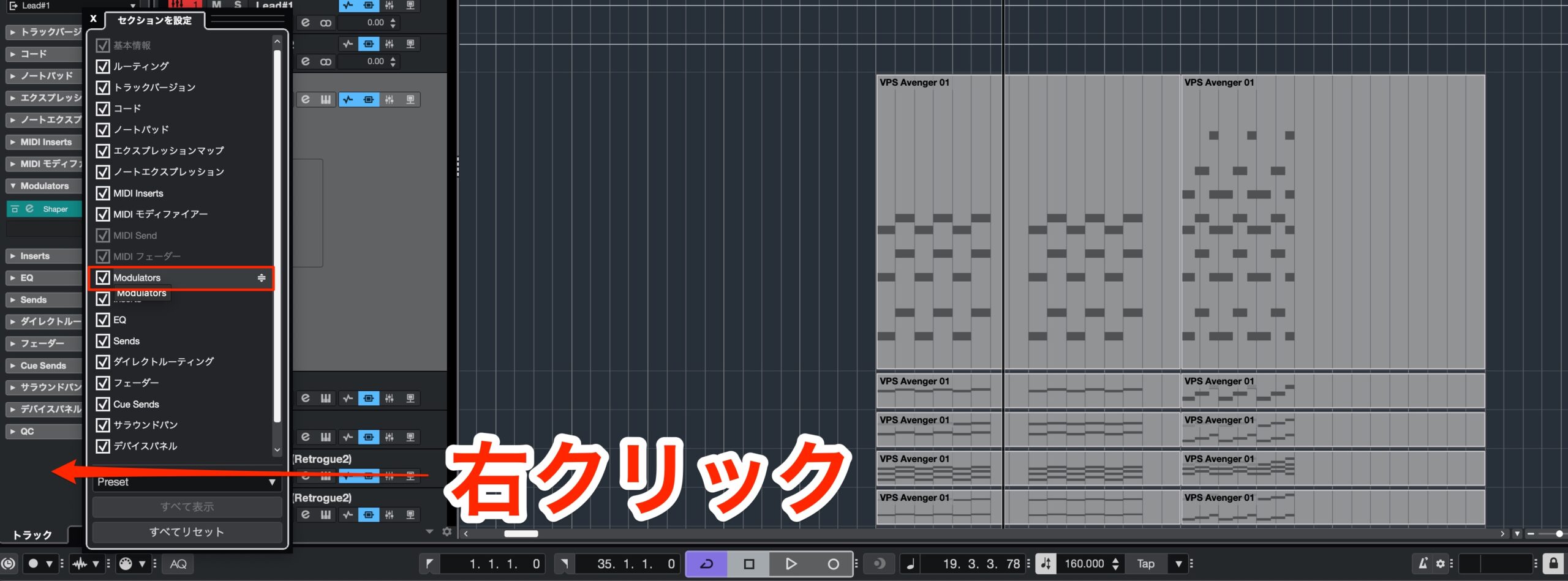
Left Zone (shown when Modulators is checked)
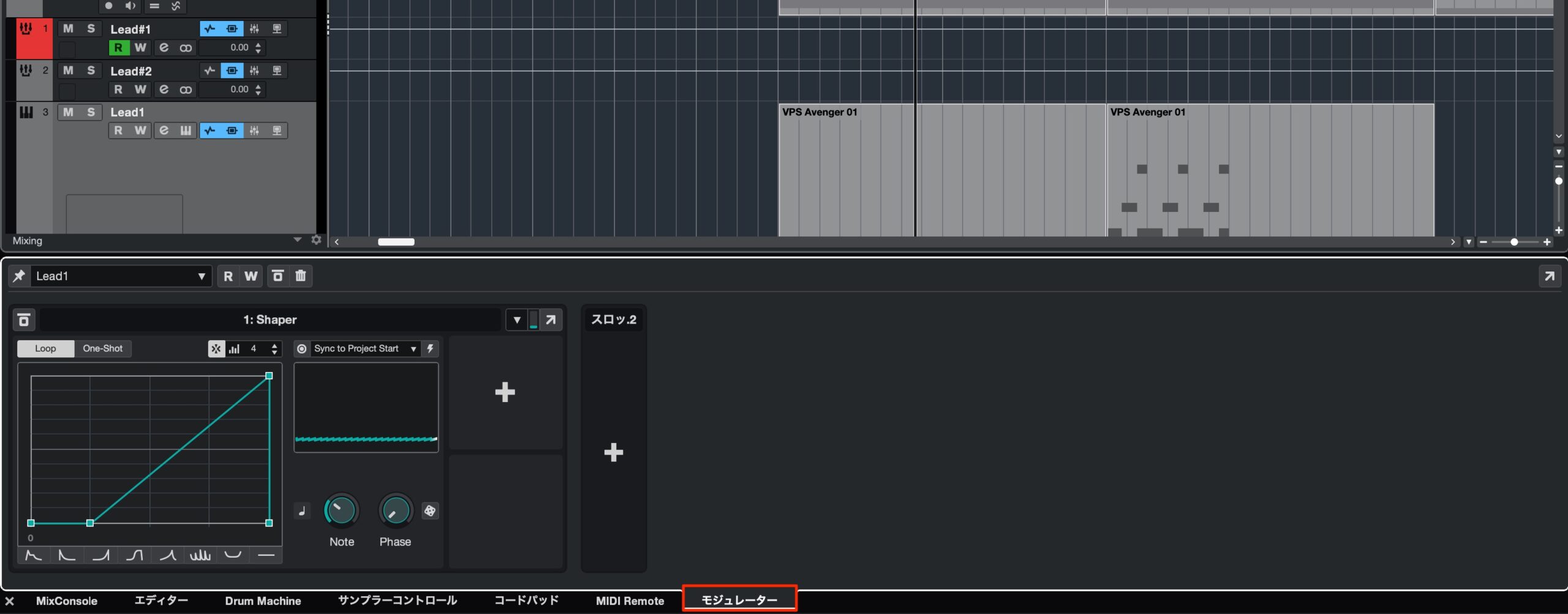
Lower Zone
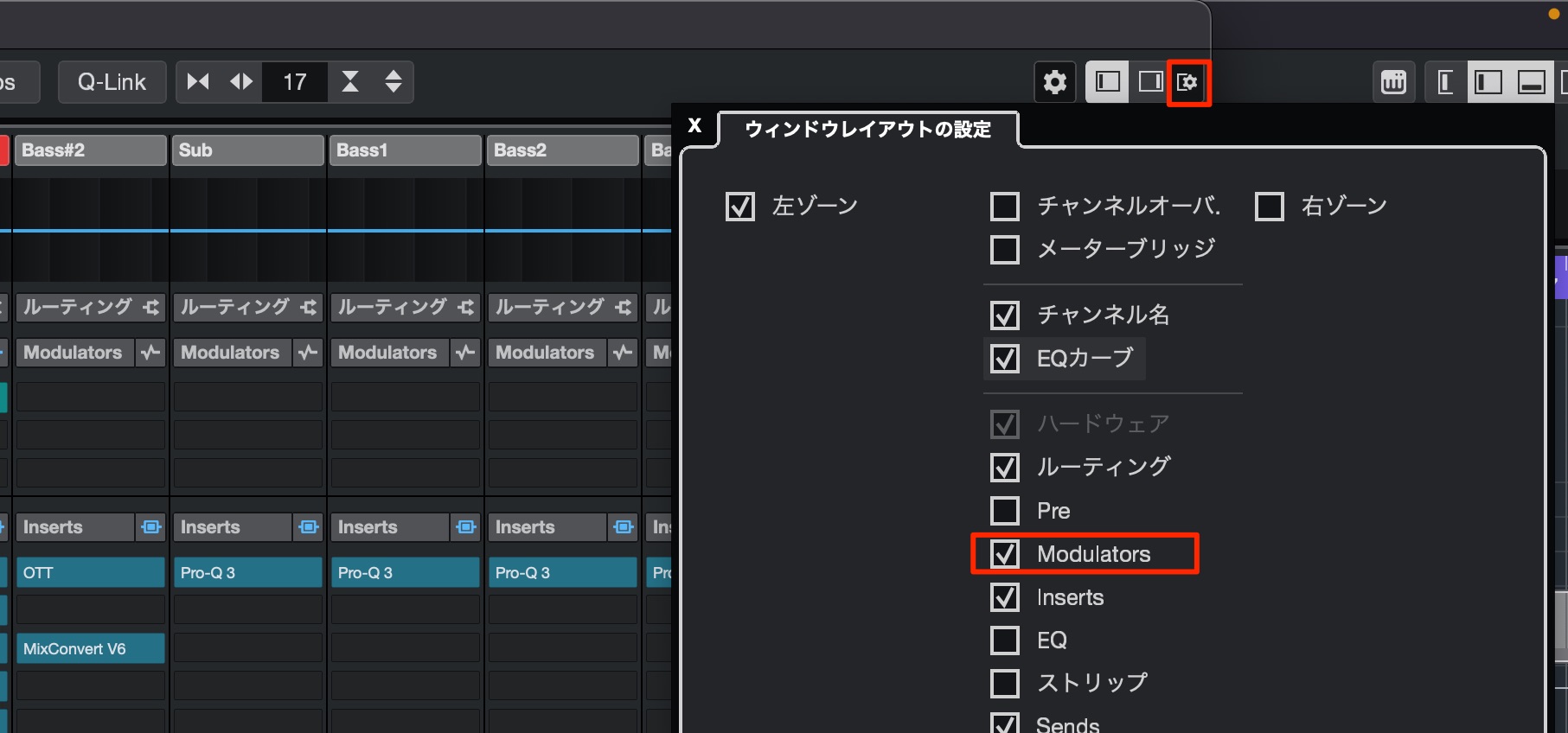
MixConsole (shown when Modulators is checked)
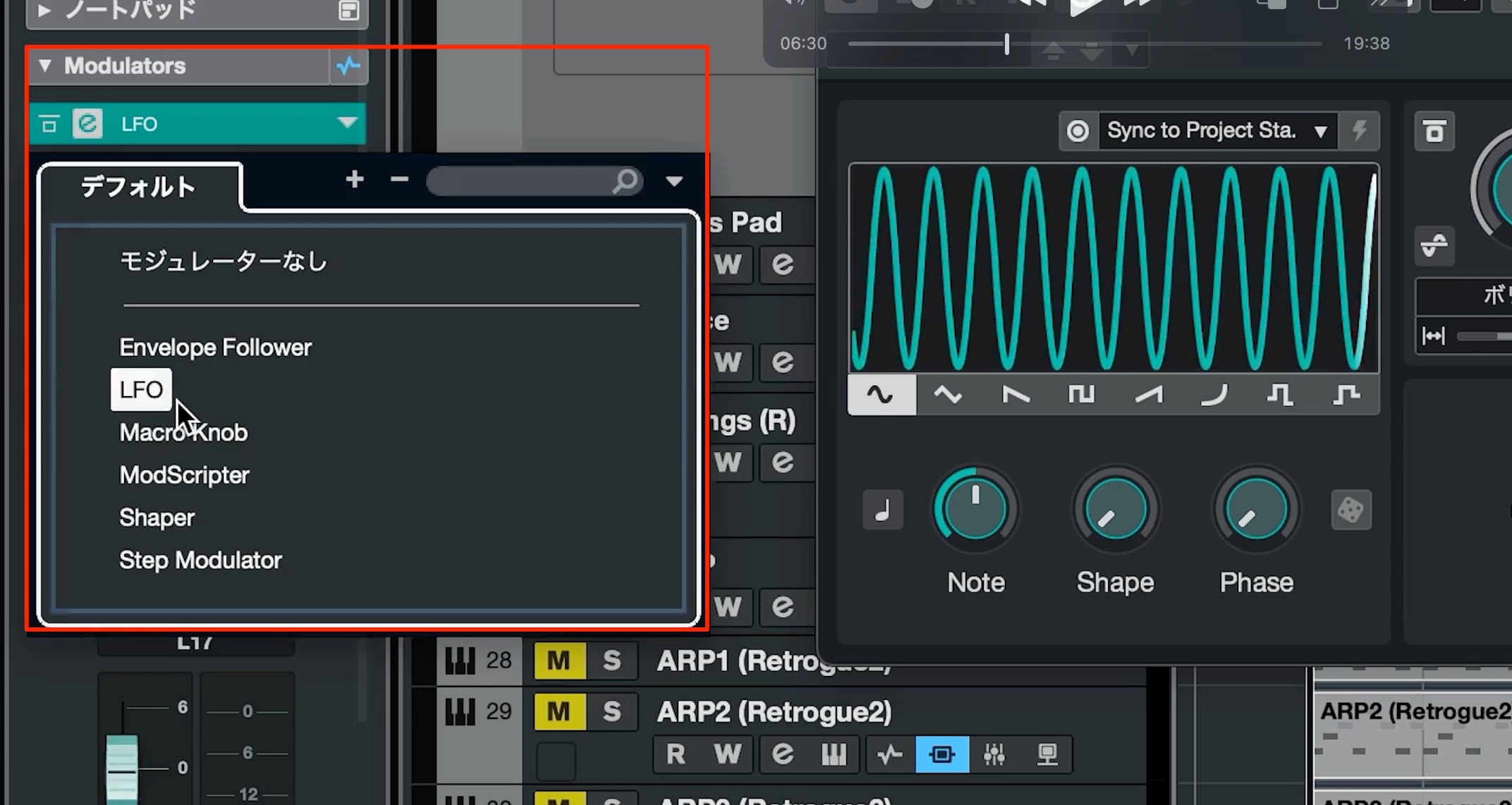
The available modulator types are listed below, each with its own behavior and characteristics.
- Envelope Follower
- LFO
- Macro Knob
- ModScripter
- Shaper
- Step Modulator
Here, we will apply an LFO to volume as an example.
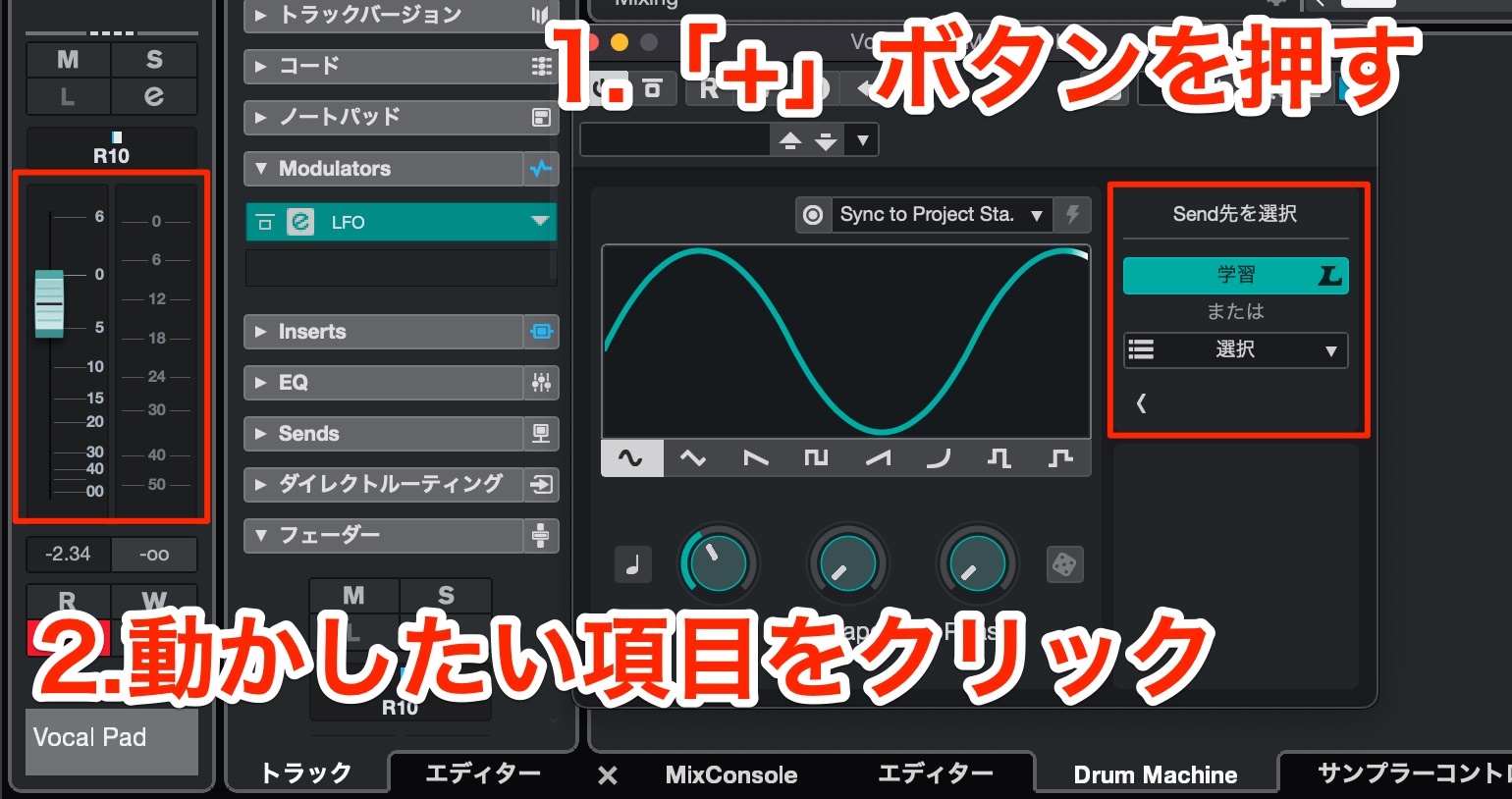
Just click “+” and then click the parameter you want to assign.
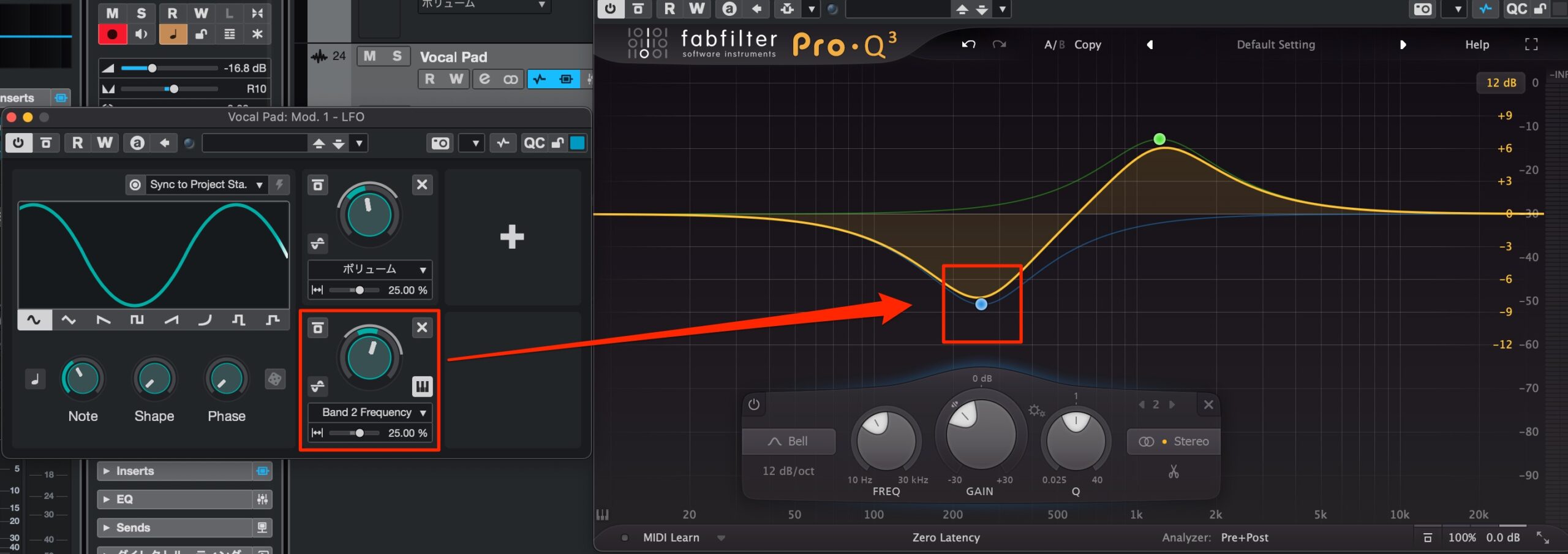
As shown here, modulators can also be applied to third-party plugins.
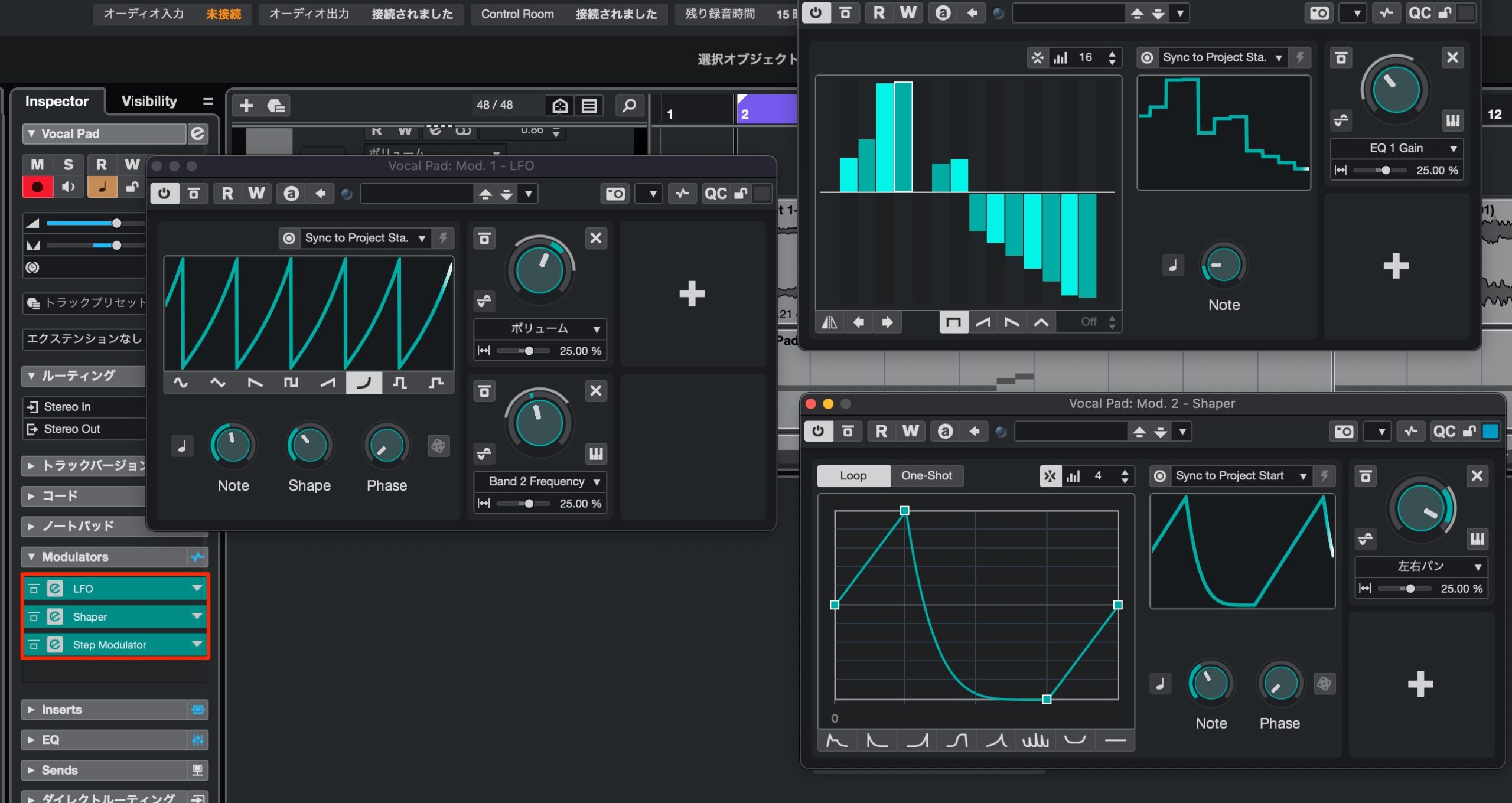
The only rule is that the parameter must be on the same track.
You can combine multiple modulators and precisely set the amount and rate of change for each one.
Improved MediaBay preview (all editions)
MediaBay, which manages loops, one-shots, and other music assets, has also been improved.
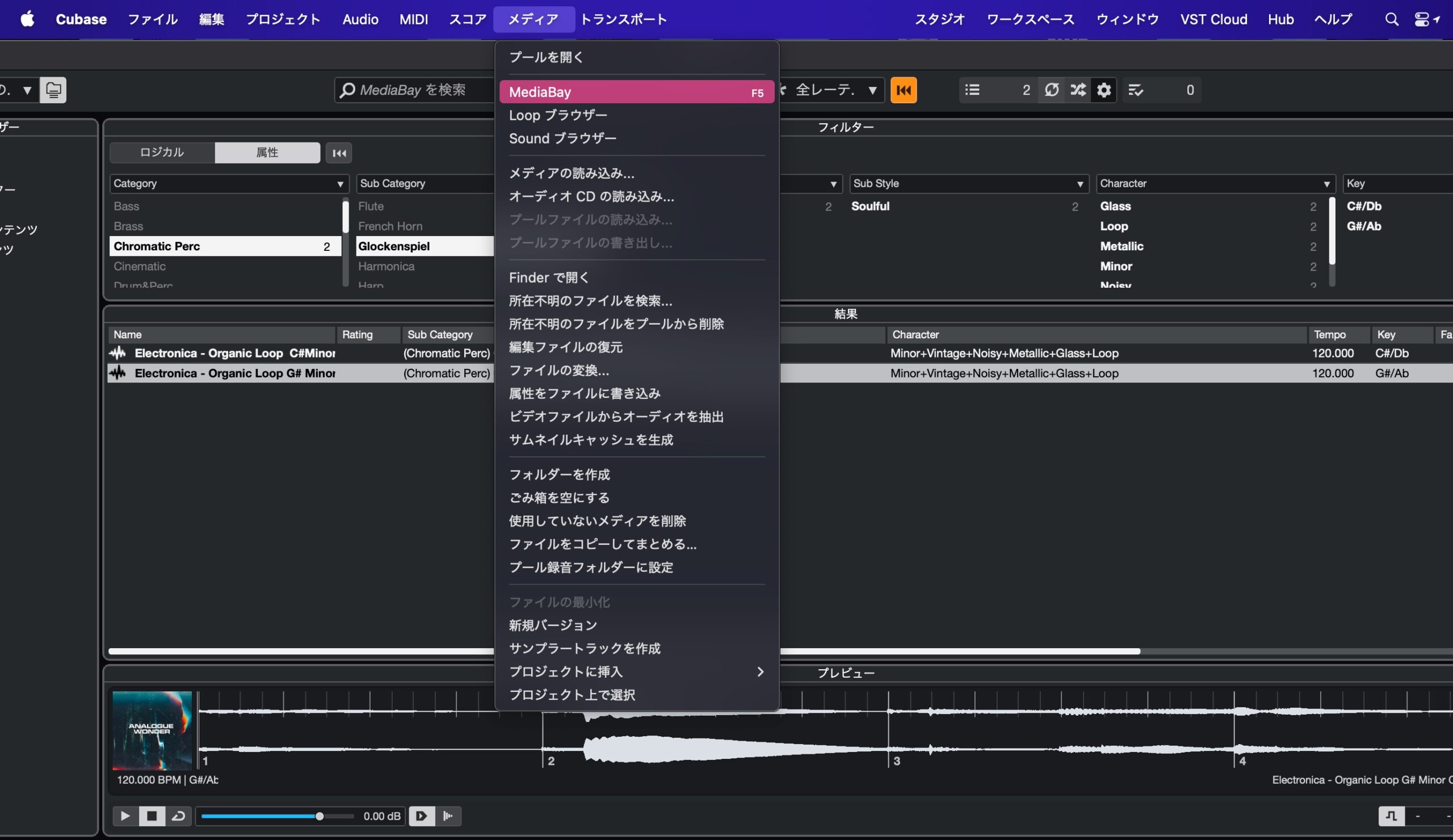
To access MediaBay, select “Media” → “MediaBay” from the top menu,
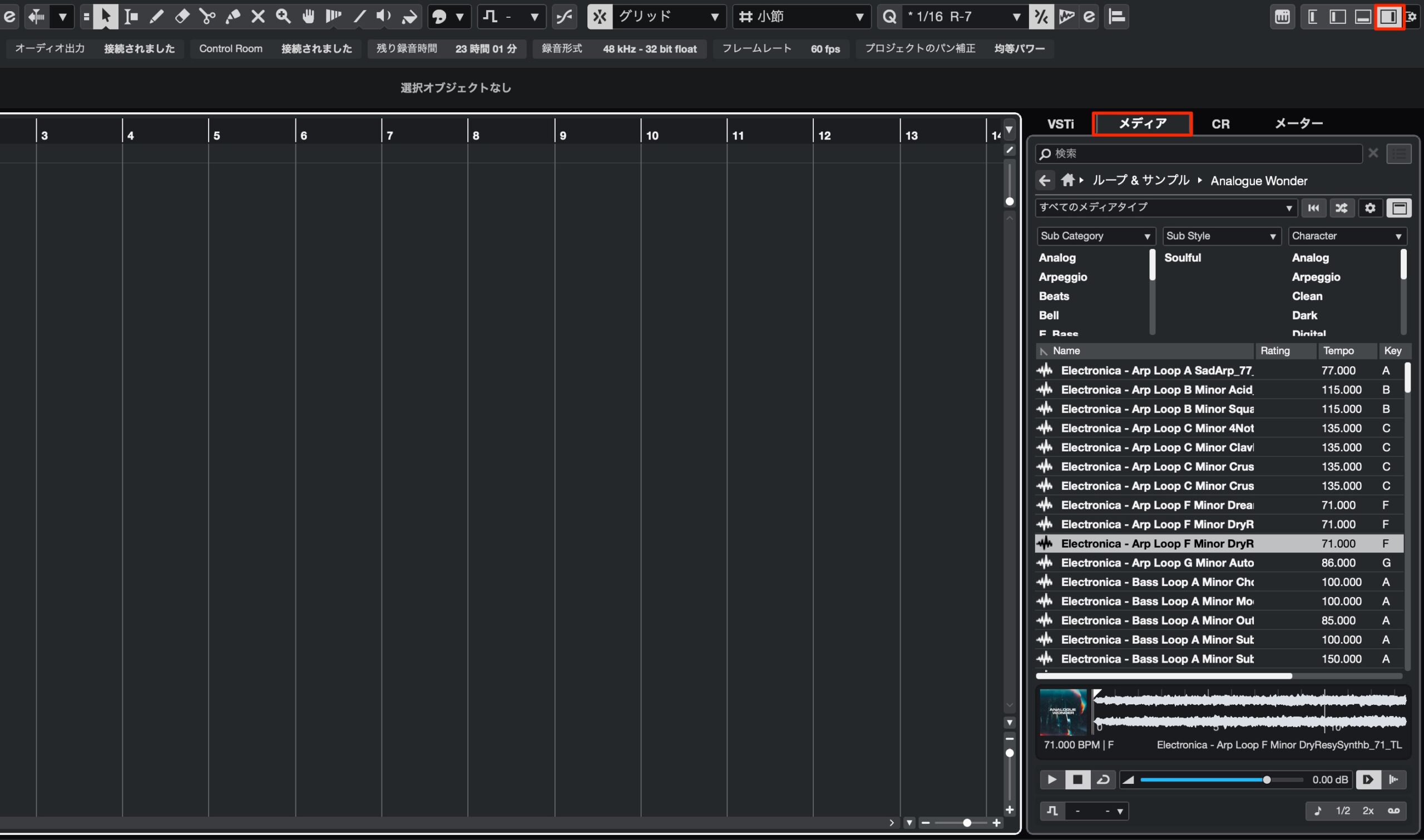
or open it from the Right Zone.
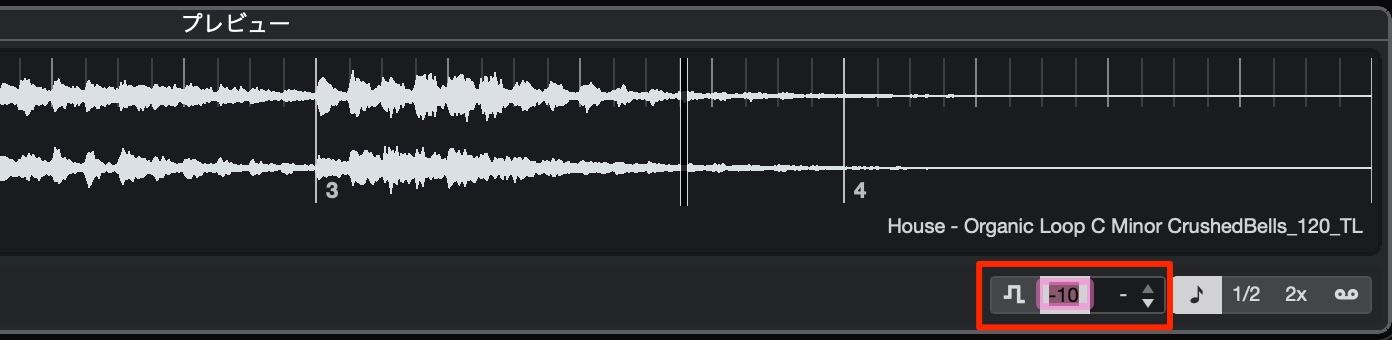
You can now specify the key and transpose when previewing media.

Playback at double or half speed also expands the range of genres and effects you can explore.
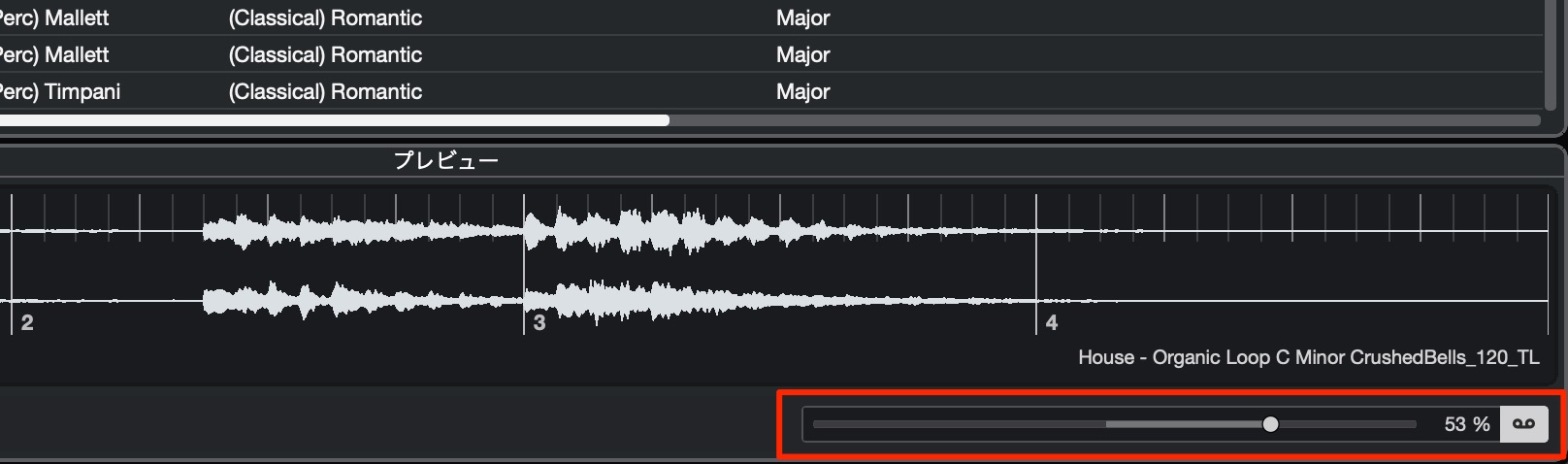
In Tape mode, tempo and pitch change together, like tape playback.
MixConsole display and track reordering (all editions)
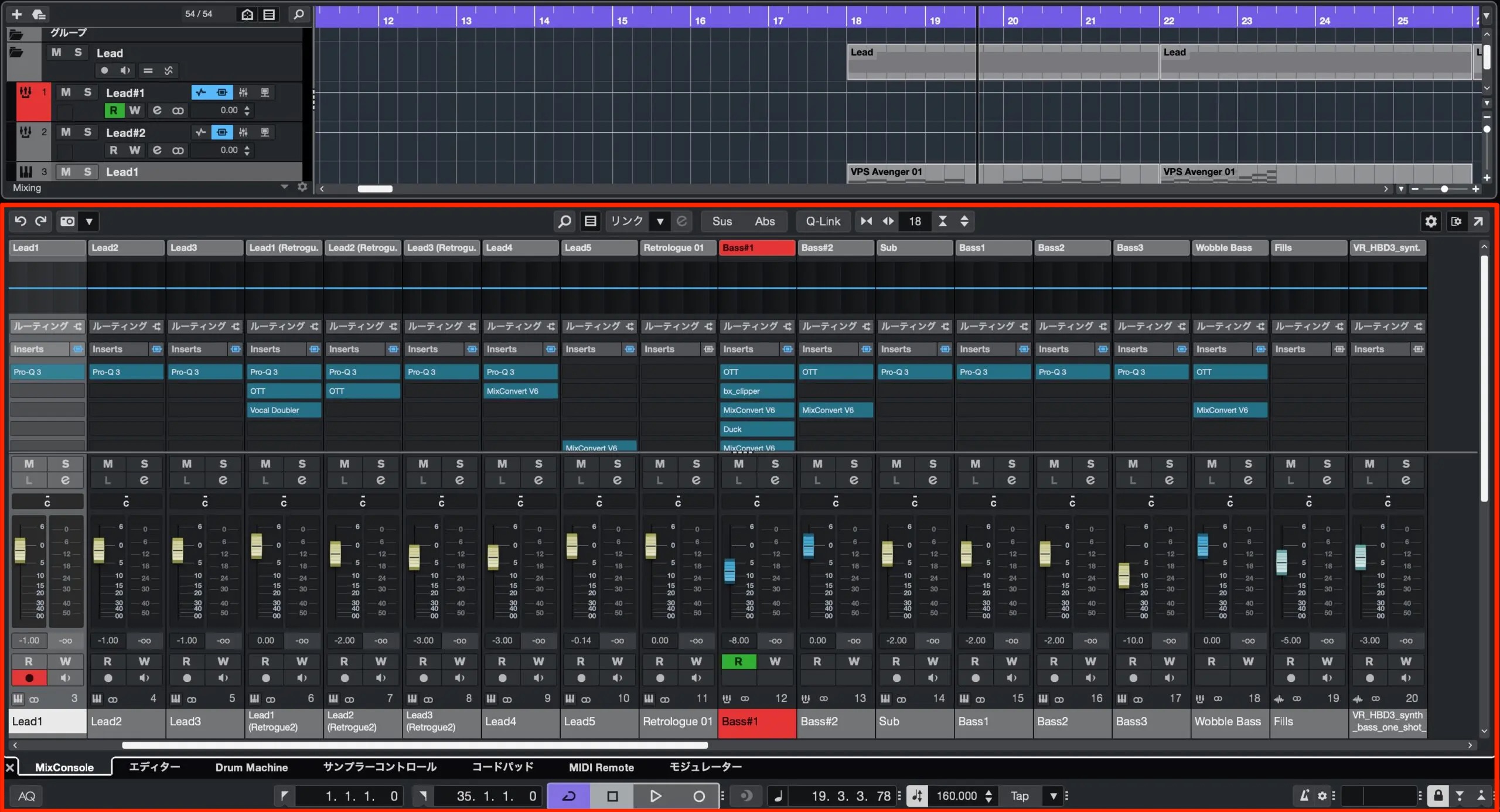
The MixConsole in the Lower Zone now has the same display as the dedicated window.
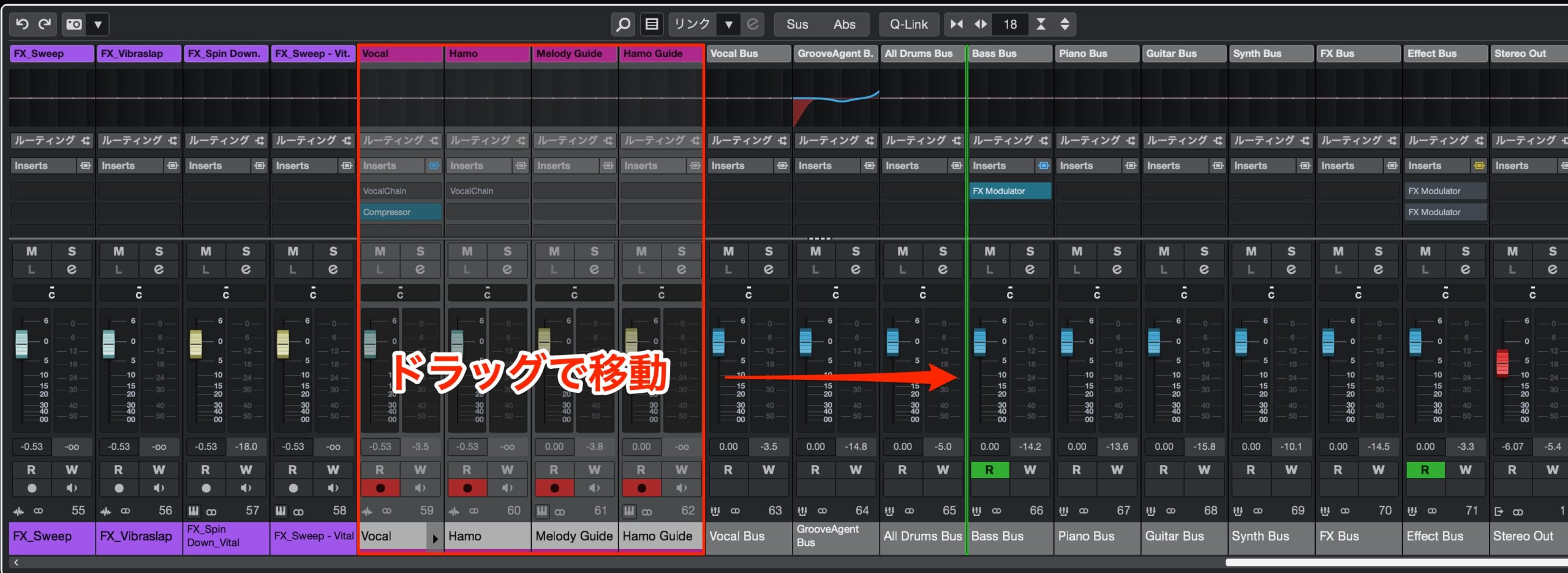
You can also reorder tracks by dragging them.
New key commands for insert plugins (all editions)
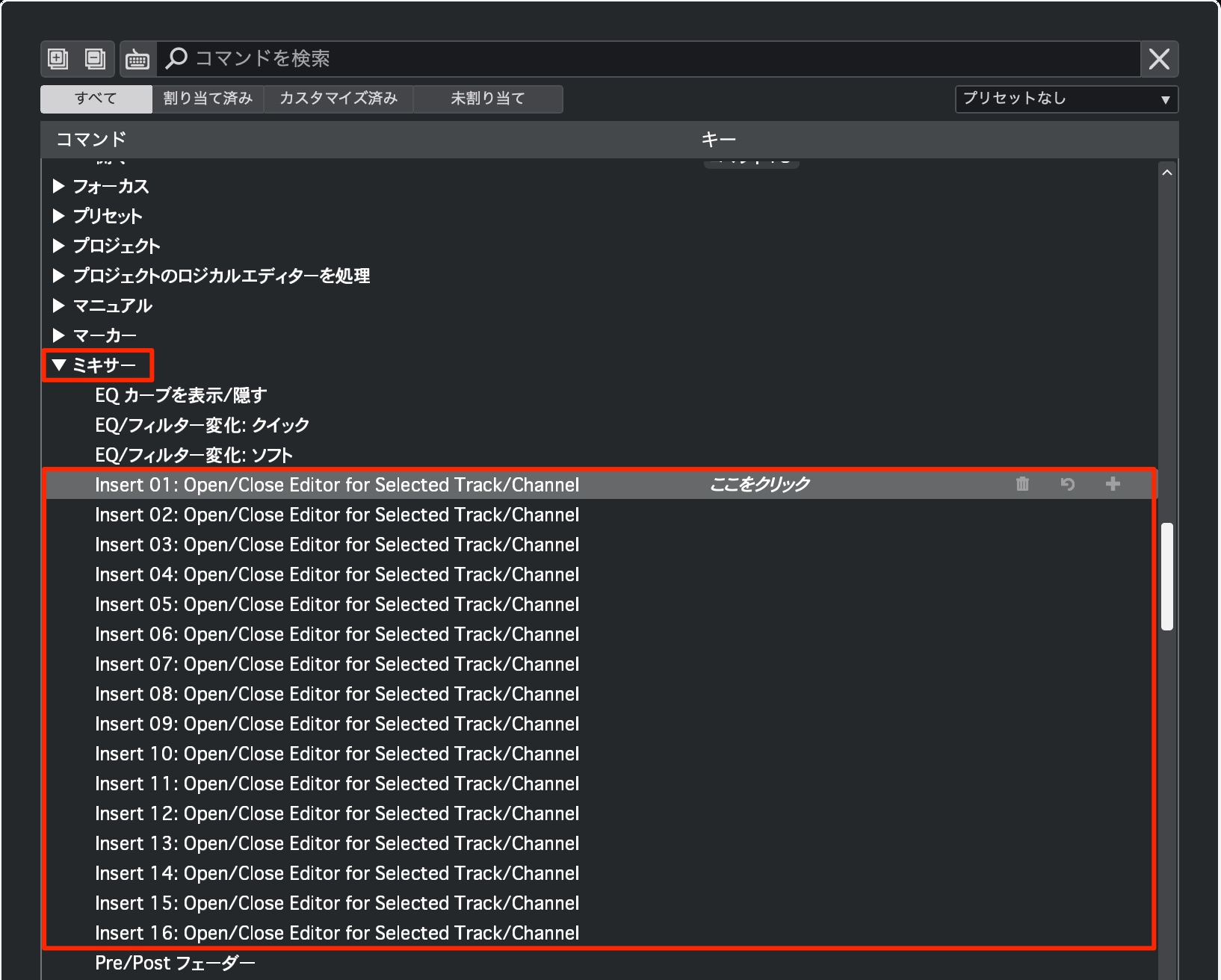
Shortcuts are now available for opening insert effects.
You can open or close plugins 1–16 on the selected track.
New effects
Several excellent effects useful for production have been added in this release.
They also work very well with the new modulation features.
Shimmer (Pro/Artist only)
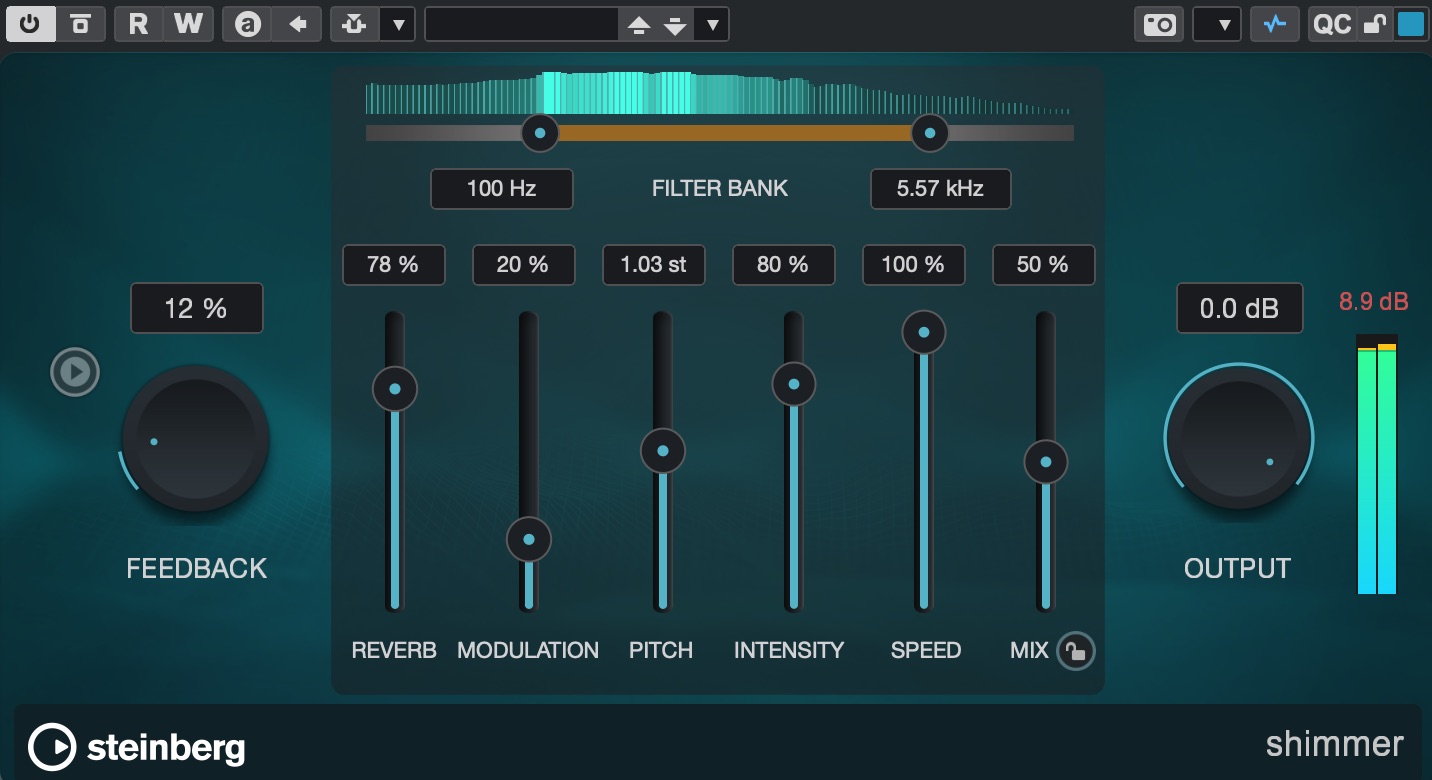
A dreamy reverb that adds pitch and movement to the reverb tail.
It is often used in contemporary electronic music and is useful when you want to shape the sound more actively.
Studio Delay (Pro/Artist only)
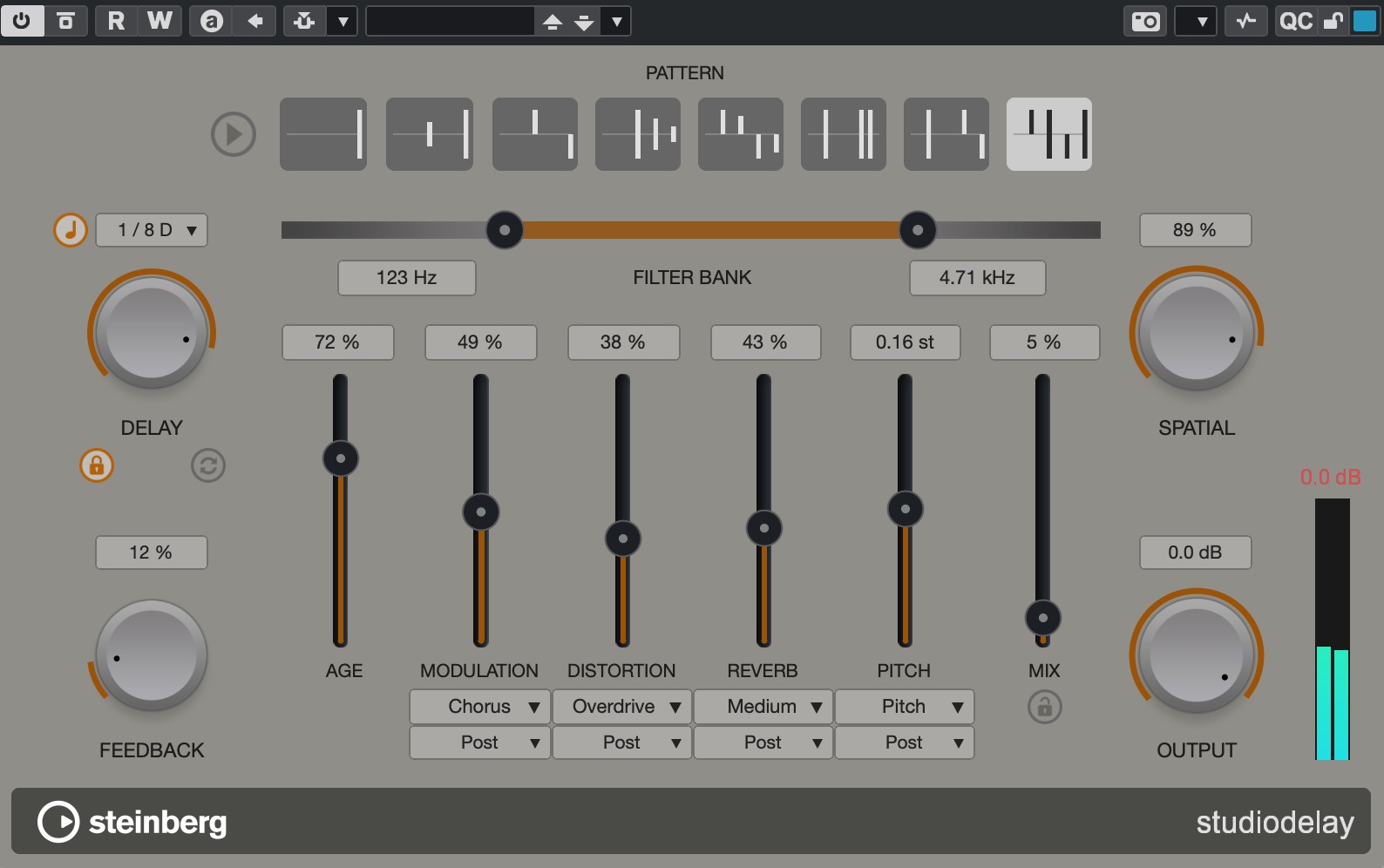
A delay that covers a wide range of uses, from simple setups to more elaborate ones.
It is a versatile plugin for any track, with control over echo positioning, tone, and modulation.
Auto Filter (Pro/Artist only)
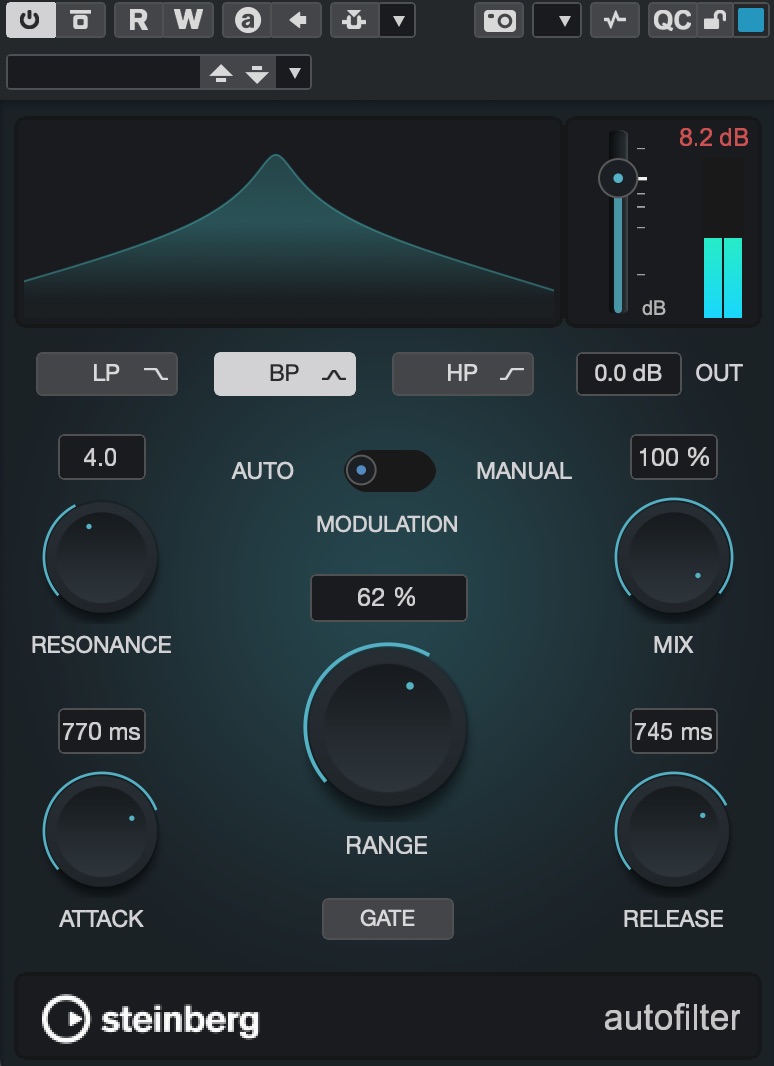
A plugin that automatically changes the sound using filters.
It works well with midrange tracks and is effective on leads and backing parts.
Underwater (all editions)
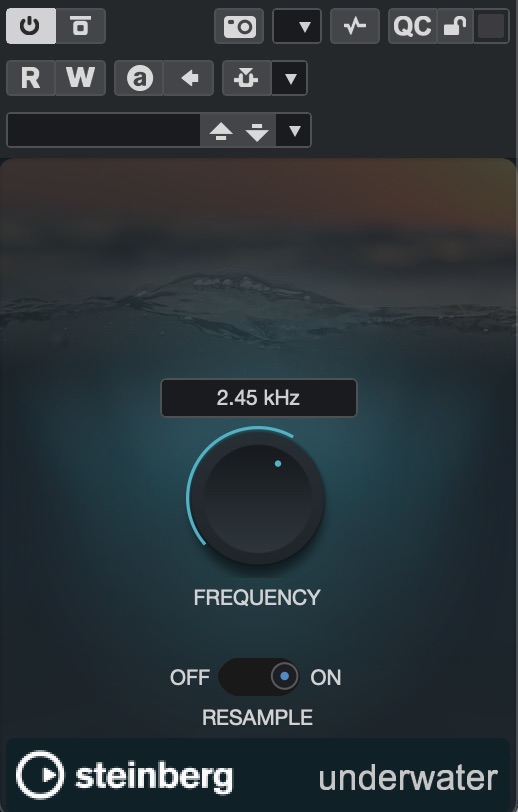
As the name suggests, this simple low-pass filter creates a sound as if it were underwater.
It can soften harsh sounds or quickly create a classic effect where the filter gradually opens.
Volume (Pro only)
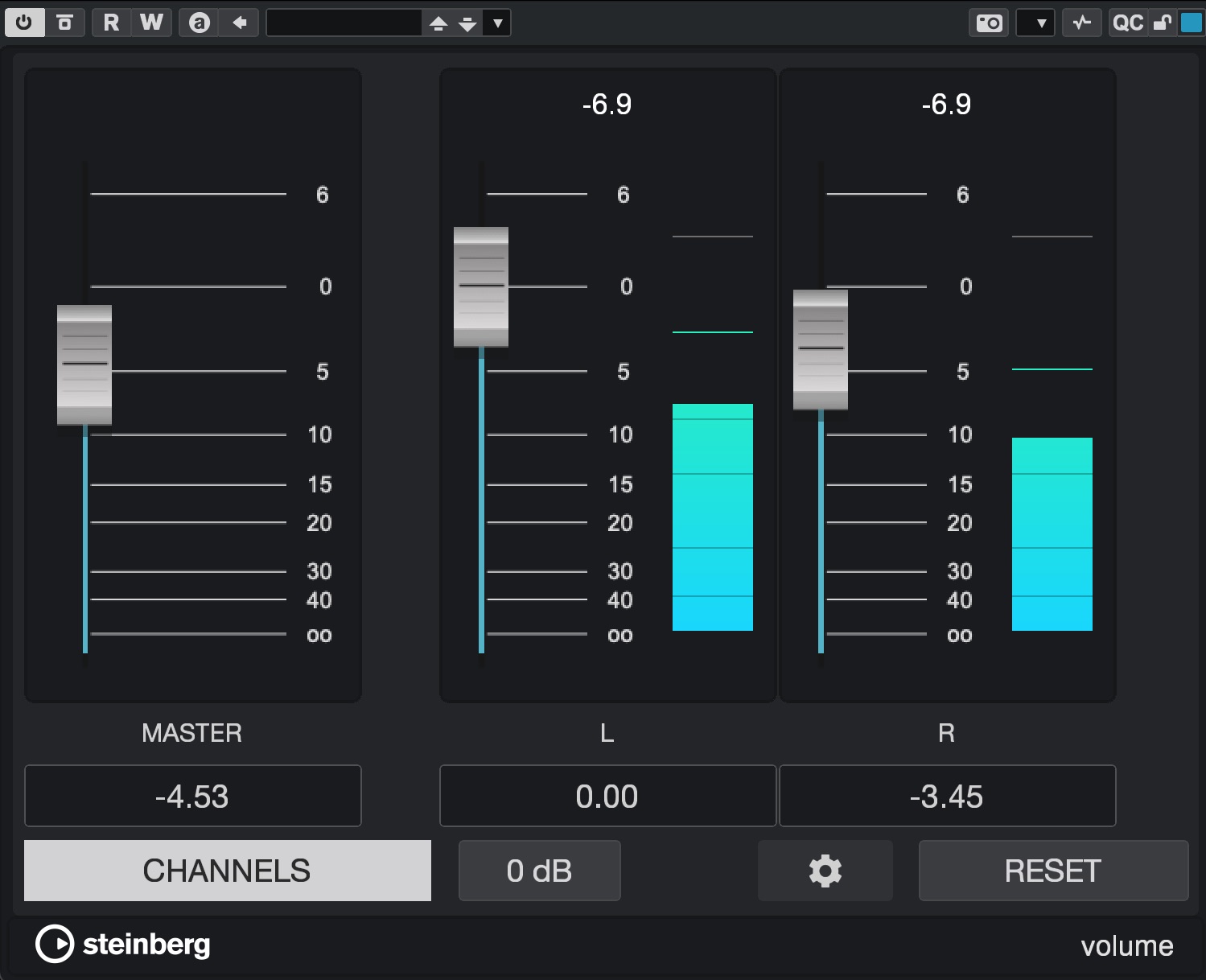
As the name suggests, this is a simple volume fader.
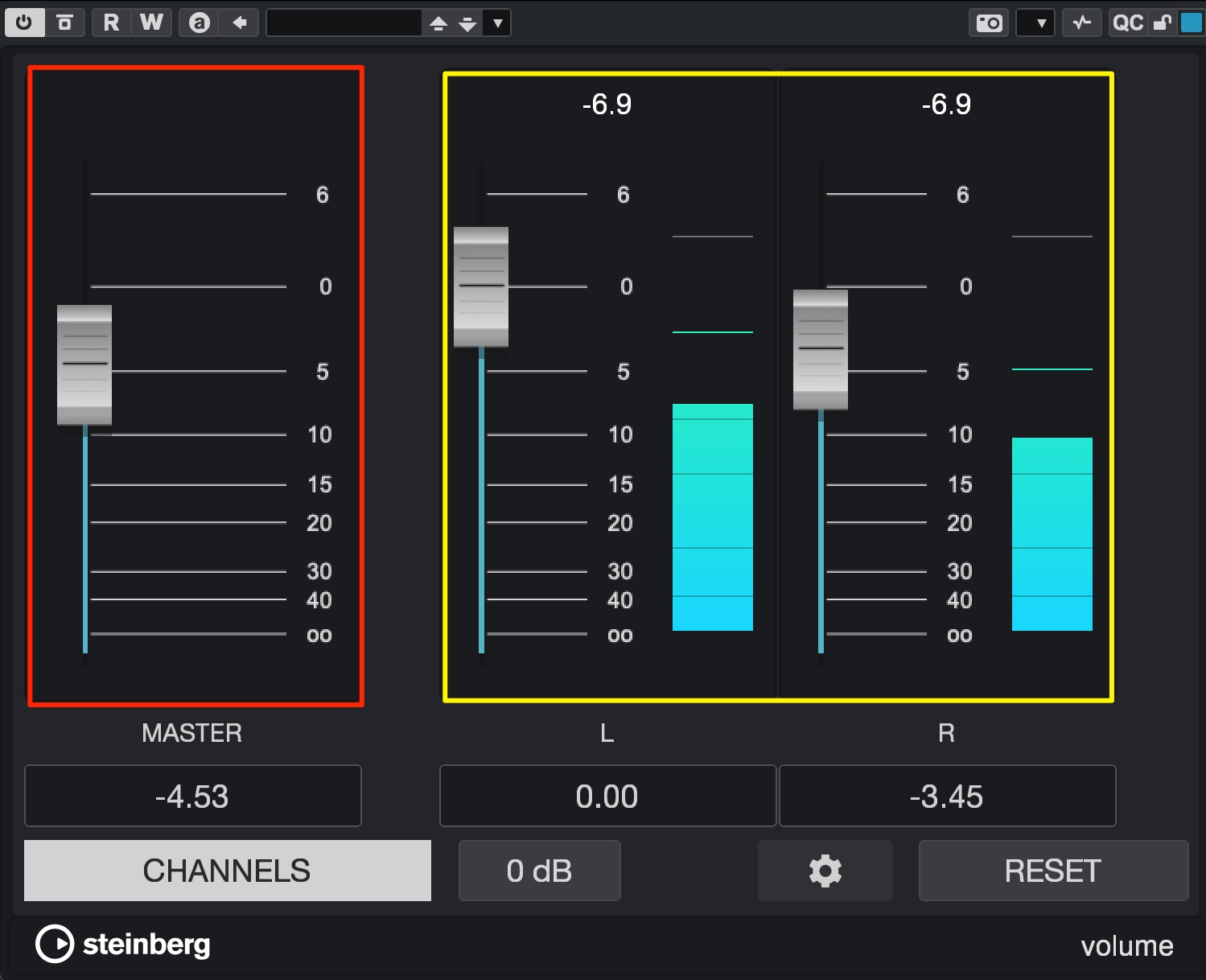
It can control left and right channels separately, in addition to track volume.
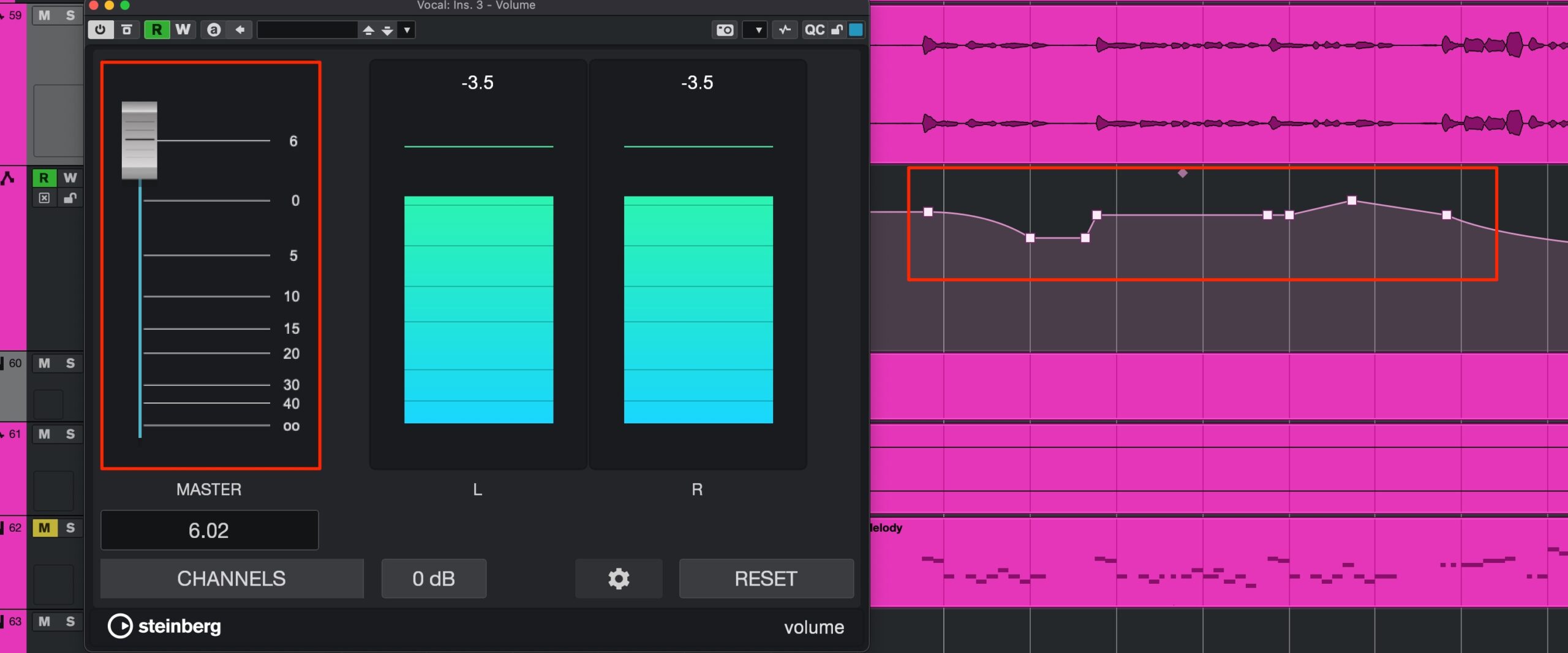
It should also be useful for managing the overall volume of tracks with volume automation.
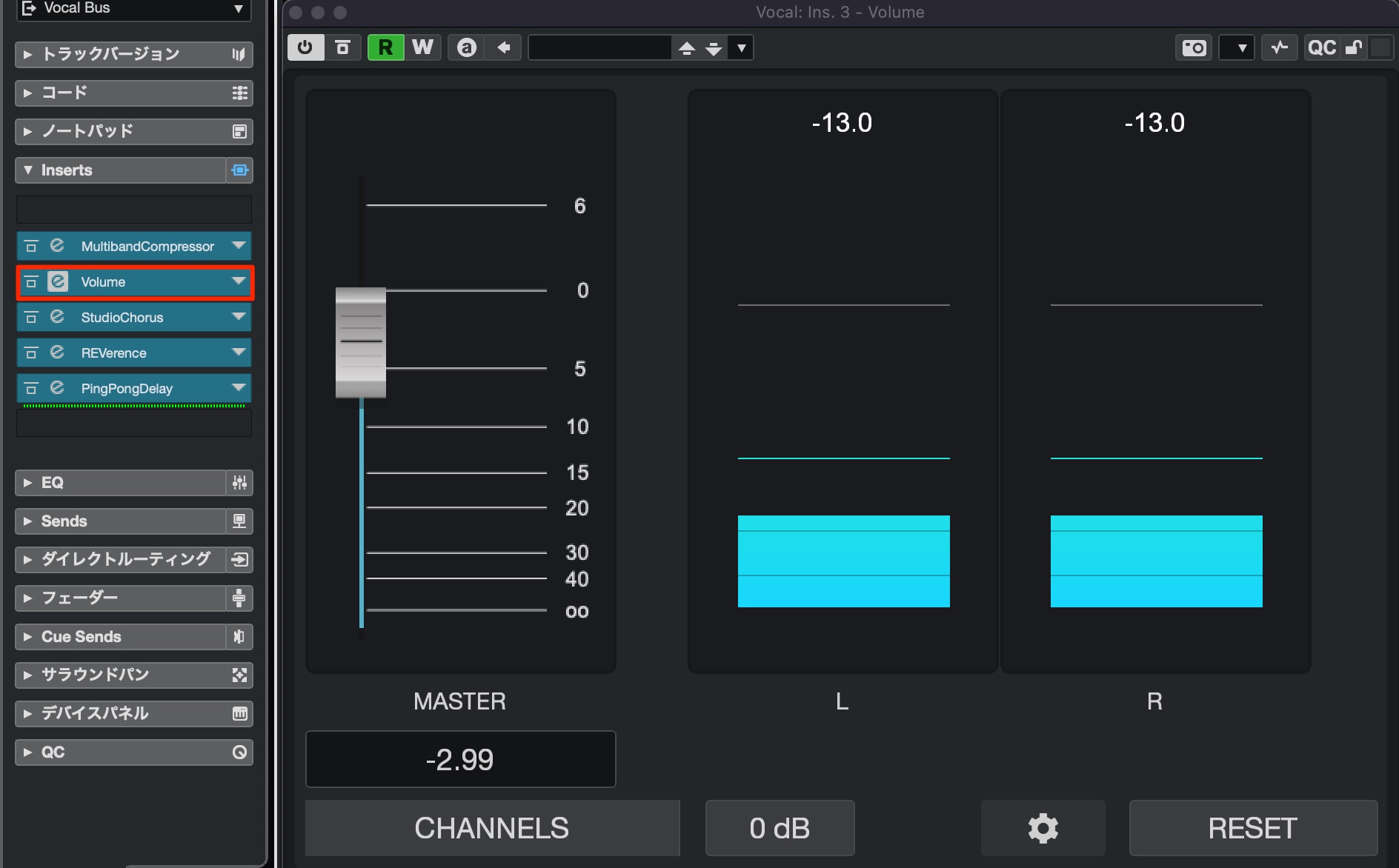
It can also be placed between effects to adjust the level feeding into the following effect.
This plugin has many useful applications.
Score Editor integration with Dorico (all editions)
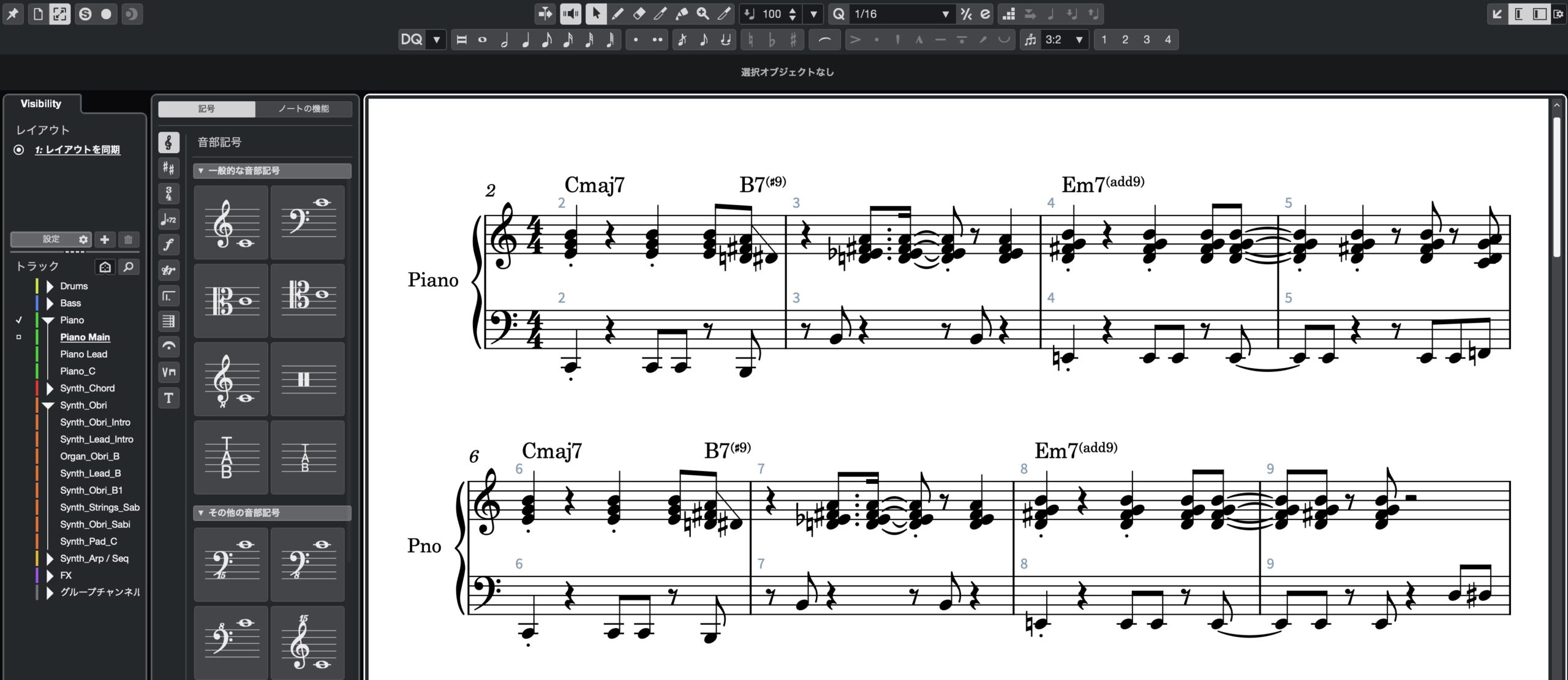
The Score Editor now incorporates technology from Dorico, the company's notation software.
At the time of the original article, further compatibility improvements were planned to allow Cubase projects to be exported as Dorico projects.
What did you think?
Drum Track, modulation, effects, and more.
The update feels especially focused on strengthening electronic music production.
If any of these features caught your eye, consider updating.
Frequently asked questions
Q1. What are the benefits of upgrading to Cubase 14?
It offers faster startup, reduces the risk of project corruption with 64-bit projects, and greatly improves compatibility with other DAWs such as Studio One through DAWproject support. In Pro/Artist, Drum Track and Pattern Events also make rhythm production more efficient.
Q2. Can I open projects from older versions in Cubase 14?
Yes. However, they are automatically converted to 64-bit when saved, and afterward can only be opened in Cubase 13.0.30 or later.
Q3. What does DAWproject support let me do?
You can open projects created in other DAWs, such as Studio One and Bitwig, in Cubase. It allows project files to be exchanged while retaining their track structure.
Q4. Which editions include Drum Track?
Drum Track and Pattern Events are available only in the Pro and Artist editions. They are not included in Elements.
NEW ARTICLES
Latest English Articles


































































