
Cubase 7’s Chord Assistant automatically suggests chord progressions as you create music. It can help when you know the first and last chords but cannot think of what goes between them, or when the ending does not sound quite right. Insert and double-click an X to open the feature, then adjust the suggestion level, mode, and type to choose chords that suit your song. By connecting a software instrument, you can also hear suggested chords while working, making it possible to build effective progressions without prior knowledge of music theory.
Automatic Chord Suggestions
Following our previous introduction to Harmony Voice,
we will look at a new Cubase 7 feature: Chord Assistant.
As the name suggests, it helps with chord progressions in situations such as:
- You know the first and last chords but cannot think of what goes between them.
- The chords at the end do not feel quite right.
It can help in situations like these.
Cubase 7 Chord Assistant Video
Harmony Voice
Chord Assistant (this page)
MixConsole: Setup
MixConsole: Reverb and Pan Techniques
MixConsole: Inserts and Channel Strip
MixConsole: Vocal Processing and Routing
Loudness and the RMS Meter
CurveEQ
Video Focus: Using the Assistant
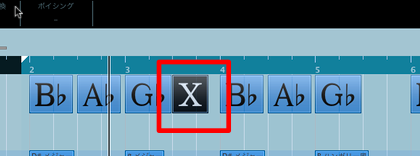
Insert an X at the point where you want to add a chord.
For instructions on creating a chord track, see this guide.
Double-click the X.
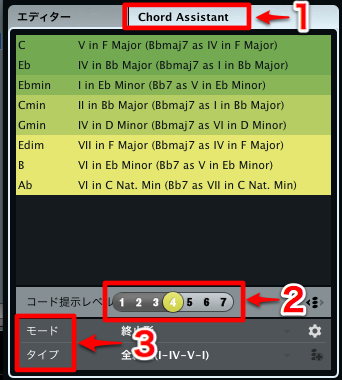
The Chord Assistant opens.
- 1. Switch to the Chord Assistant tab.
- 2. Use the chord suggestion level to set how many chords are displayed.
Higher numbers offer more complex and advanced choices. - 3. Change the mode and type
to alter the direction of the suggested chords.
These topics were also planned for more detailed coverage in the music theory series.
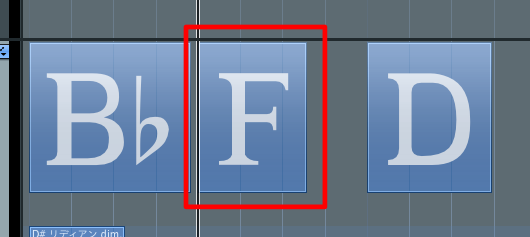
Then simply click a suggested chord,
and the X changes to that chord.
Video Focus: Monitoring Chords
You need to hear the assigned chords to judge how they sound.
Chord monitoring makes this easy
by playing the chord track through an instrument.
The setup is simple.
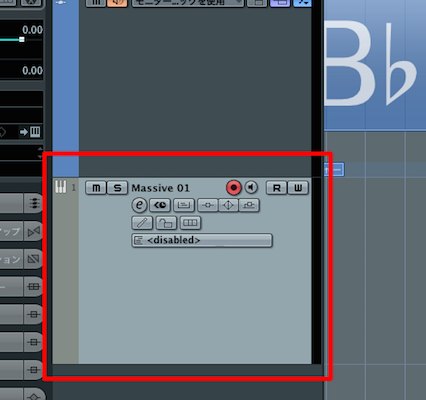
Open the software instrument you want to use for the chords.
Choose a piano, synth, or another sound you like.
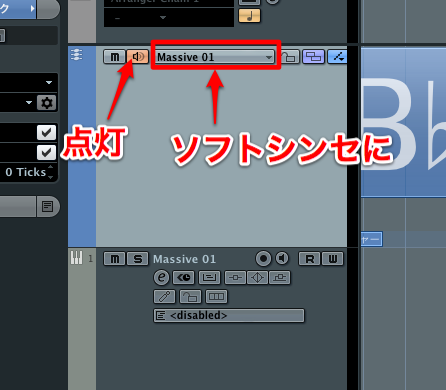
Set the red-outlined control on the chord track
to the software instrument you created above.
Turn on the monitoring button on the left.
You can now hear each selected chord while creating your progression.
Frequently Asked Questions
Q1. What is the Chord Assistant in Cubase 7?
It is a Cubase 7 feature that automatically suggests chord progressions. After choosing the starting and ending chords, you can use Chord Assistant in between to display and select from several suggestions based on music theory.
Q2. How do I start using Chord Assistant?
Insert an X where you want to add a chord and double-click it. When the window opens, select the Chord Assistant tab, set the suggestion level, mode, and type, and choose a chord.
Q3. Can I hear chords while choosing them?
Yes. Open a software instrument such as a piano or synth, and set the chord track output to that instrument so you can hear the selected chords as you work.
NEW ARTICLES
Latest English Articles





















































































































































































































































































































































































































































































































































































































































