
PreSonus Studio One 5 was a major update released after roughly two years, with substantial improvements for both music production and live performance. Practical additions include 64-bit floating-point support, recording at up to 384 kHz, volume envelopes, and a dark mode for the Score Editor. Three editions were offered: Professional, Artist, and the free Prime edition. A free upgrade to the same edition of version 5 was available to users who registered or activated Studio One during the qualifying period specified below in 2020. Improvements to audio editing, MIDI production, and plug-in support make music production more efficient and comfortable.
New Features Make Music Production Easier and More Enjoyable
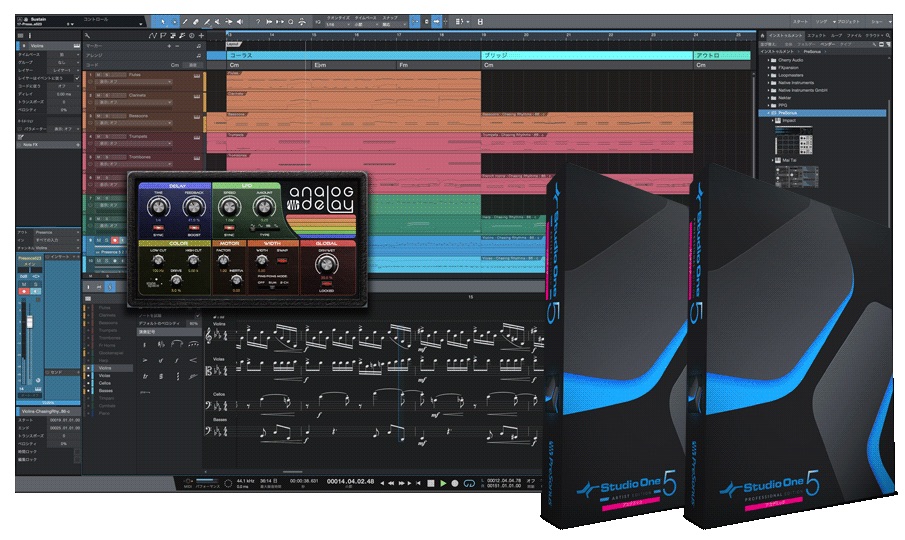
PreSonus has released Studio One 5.
Arriving roughly two years after the previous major release, this version adds useful music-production features as well as a new set of features dedicated to live performance.
There are many additions, so we will focus on the features we particularly recommend.
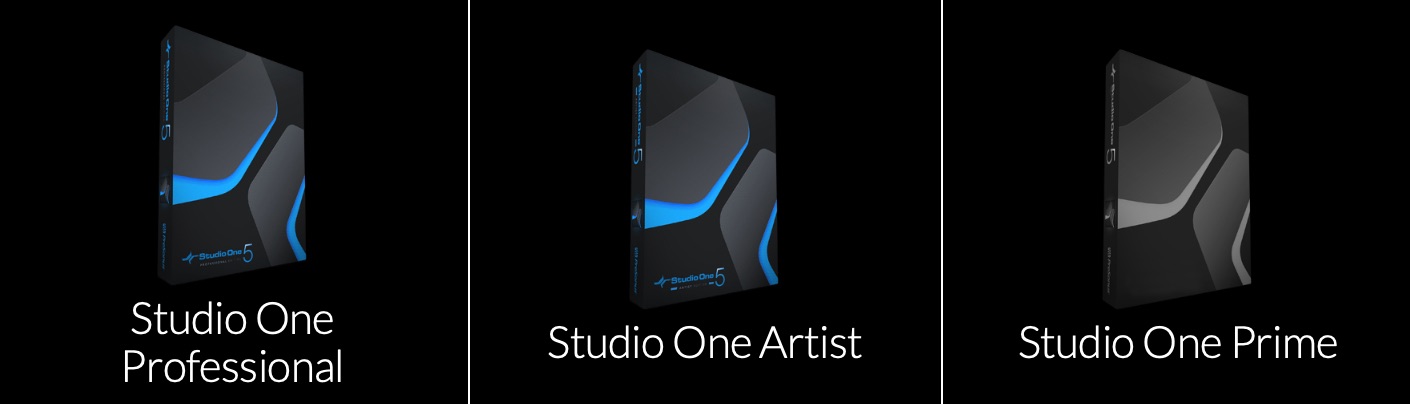
There are three editions: Professional (the flagship edition), Artist (the entry-level paid edition), and Prime (the free edition). You can compare their features at the URL below.
URL: https://www.mi7.co.jp/products/presonus/studioone/compare/
Studio One Prime 5 has also been released. The following page explains the download and installation process in detail.

There are many additions, so we will focus on the features we particularly recommend.
Users who registered or activated Studio One between April 8, 2020 at 2:00:00 p.m. JST and July 7, 2020 were eligible for a free upgrade to the same edition of Studio One 5.
Details: https://www.mi7.co.jp/products/presonus/studioone/support/
Studio One 5 New Features: Video
Compatibility with Earlier Versions
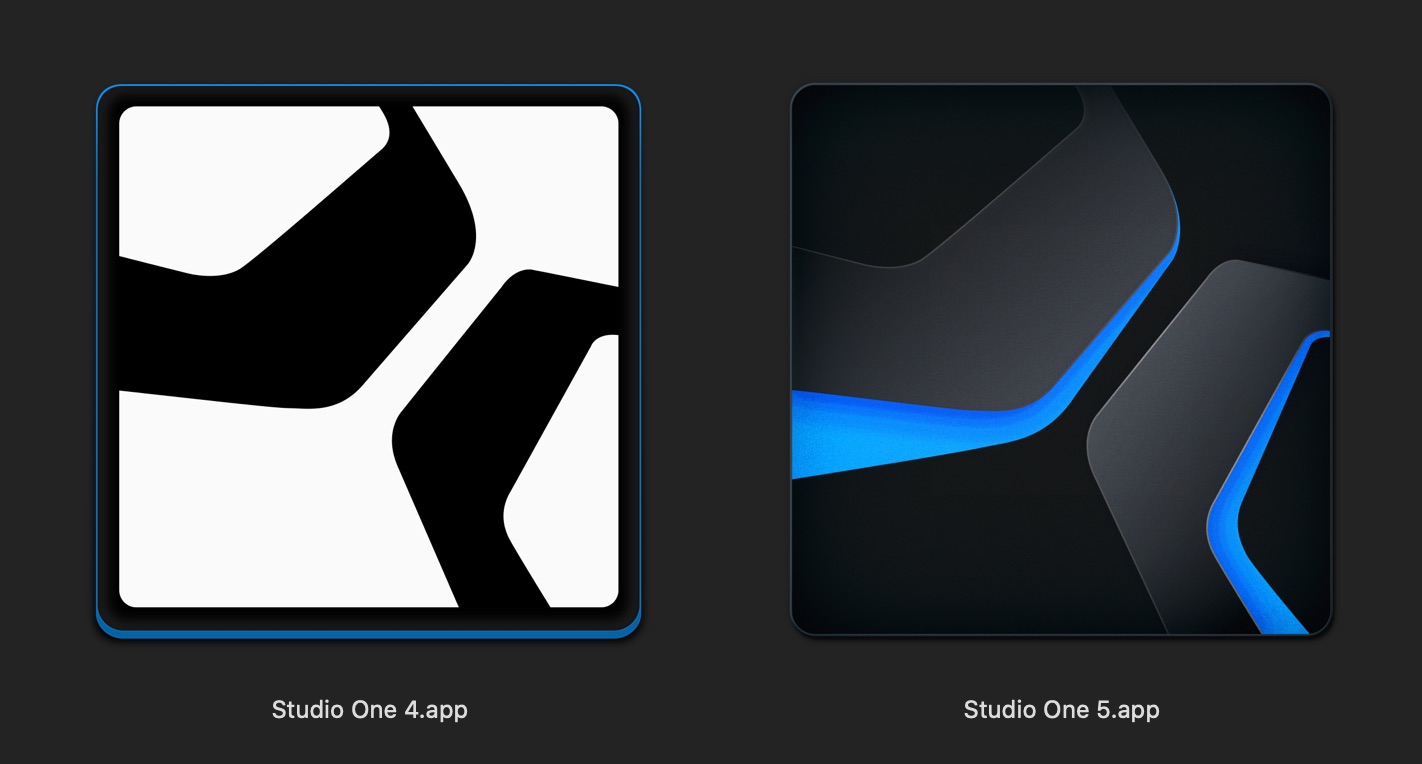
Installing Studio One 5 does not remove earlier versions.
You can keep using it alongside the version you already have.
You can open Songs and Projects created in earlier versions, but once you save them in Studio One 5, you can no longer open them in an earlier version.
Please keep this in mind.
VST, AU, and ReWire Support
Available in Professional and Artist
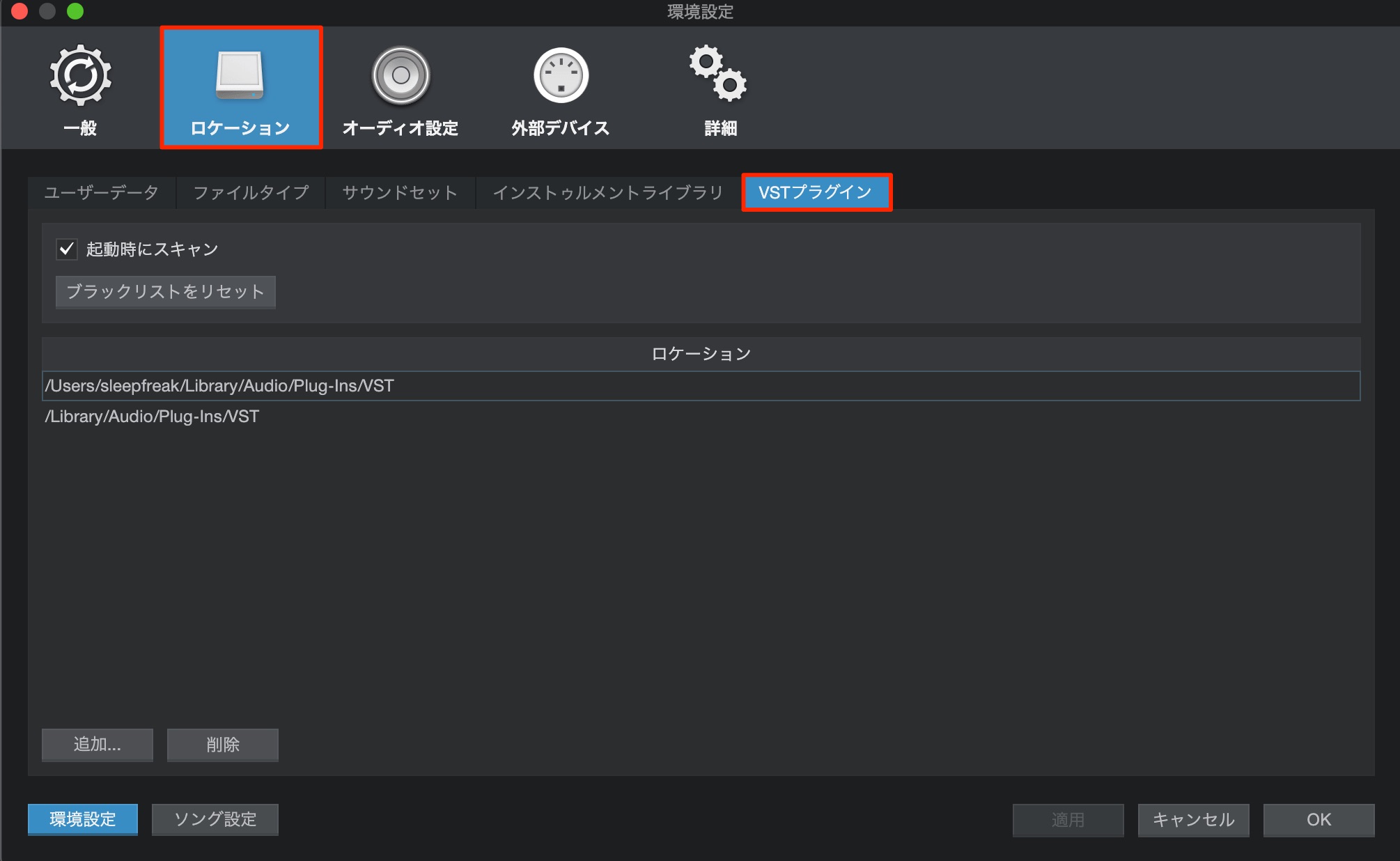
VST2, VST3, and AU plug-ins (64-bit only), ReWire, and Studio One Remote are supported.
Up to version 4, using third-party VST plug-ins in Artist required a separately purchased expansion. In version 5, you can use your purchased VST plug-ins right away.
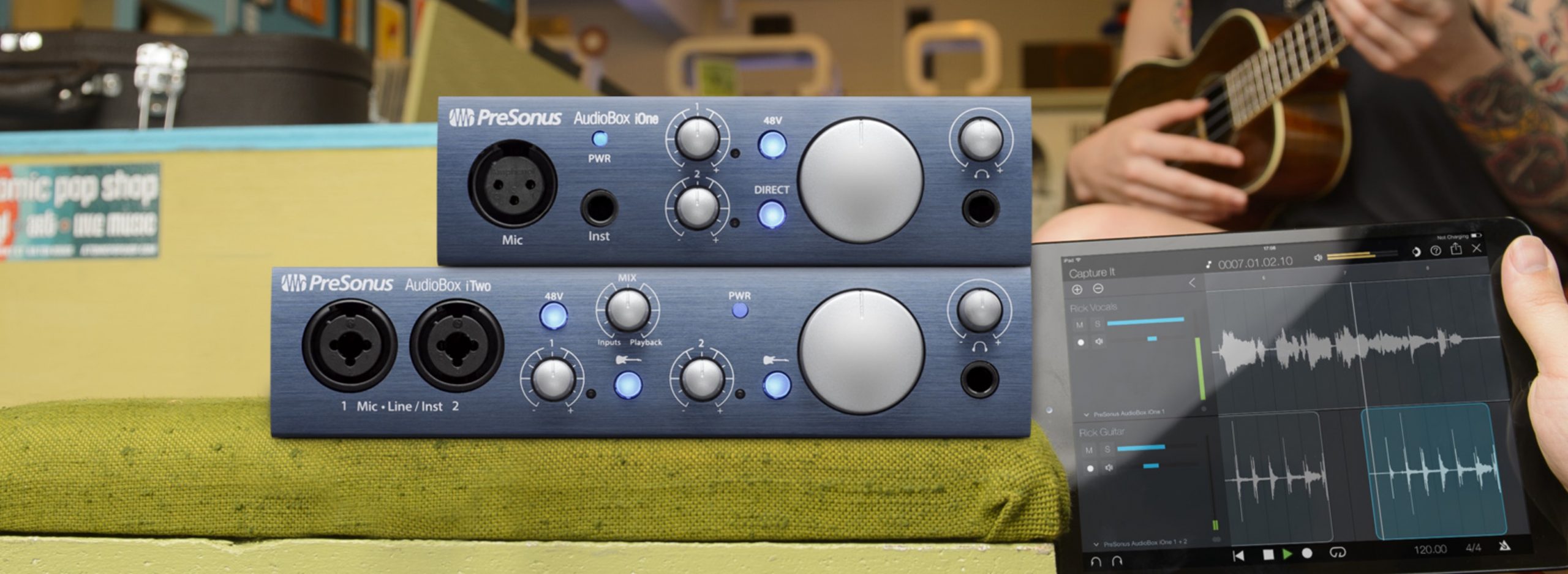
At the time covered by this article, all PreSonus audio interfaces included Studio One Artist, and the AudioBox iOne was listed at ¥10,165 in Japan.
Buying an AudioBox iOne was therefore a cost-effective way to obtain both hardware and a VST-compatible production environment.
64-Bit Floating Point and Recording/Playback at up to 384 kHz
Available in Professional only
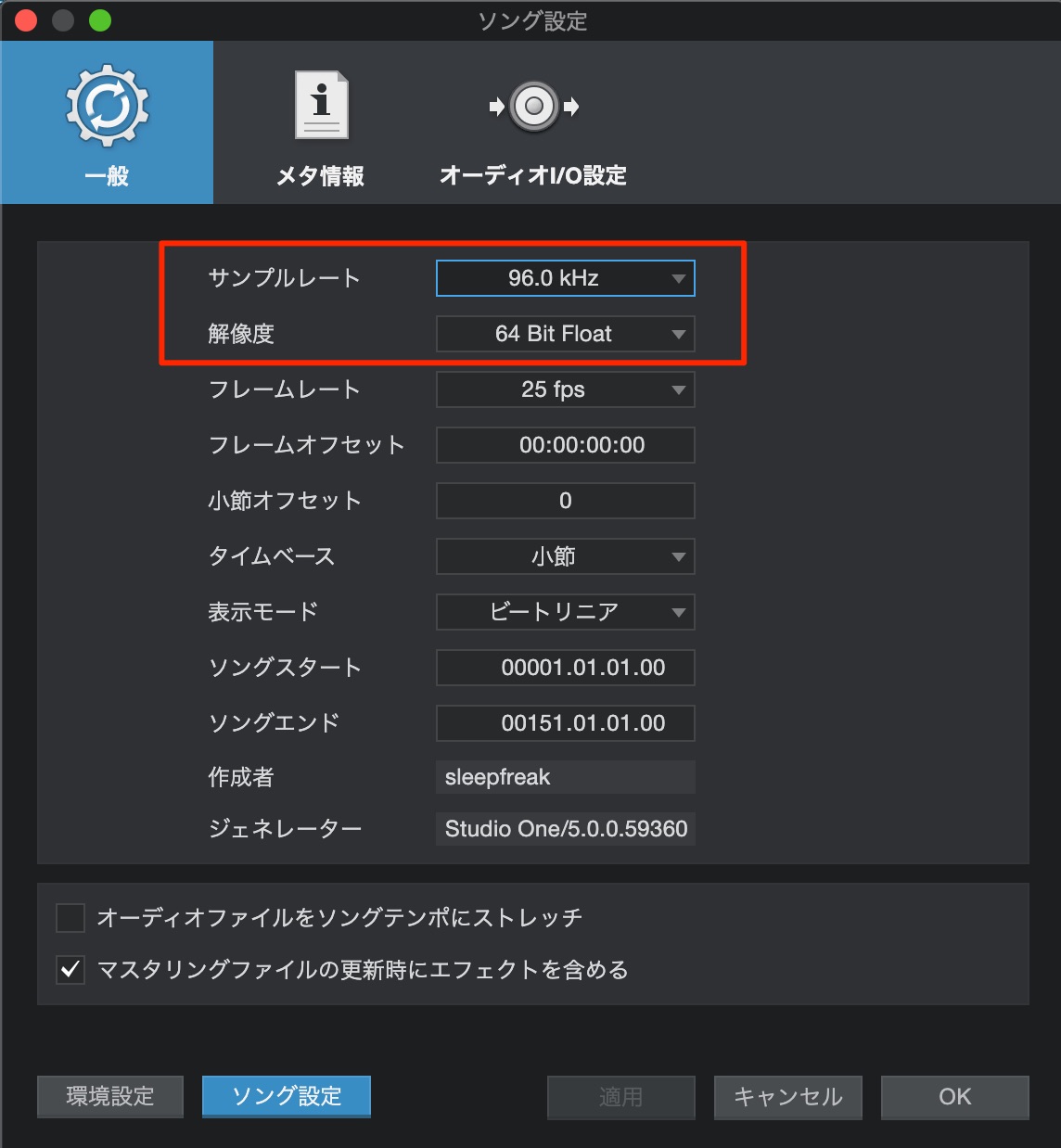
The audio-quality settings for Songs and Projects can now be set as high as the following values.
The actual maximum values depend on your sound device or audio interface.
- Sample rate: up to 384 kHz
- Resolution: 64-bit floating point
Sample Rate Explained
Bit Depth Explained
32-Bit Float Explained: Video
What Is a 64-Bit Floating-Point Audio Engine?
Switch Plug-ins and the Score Editor to Dark Mode
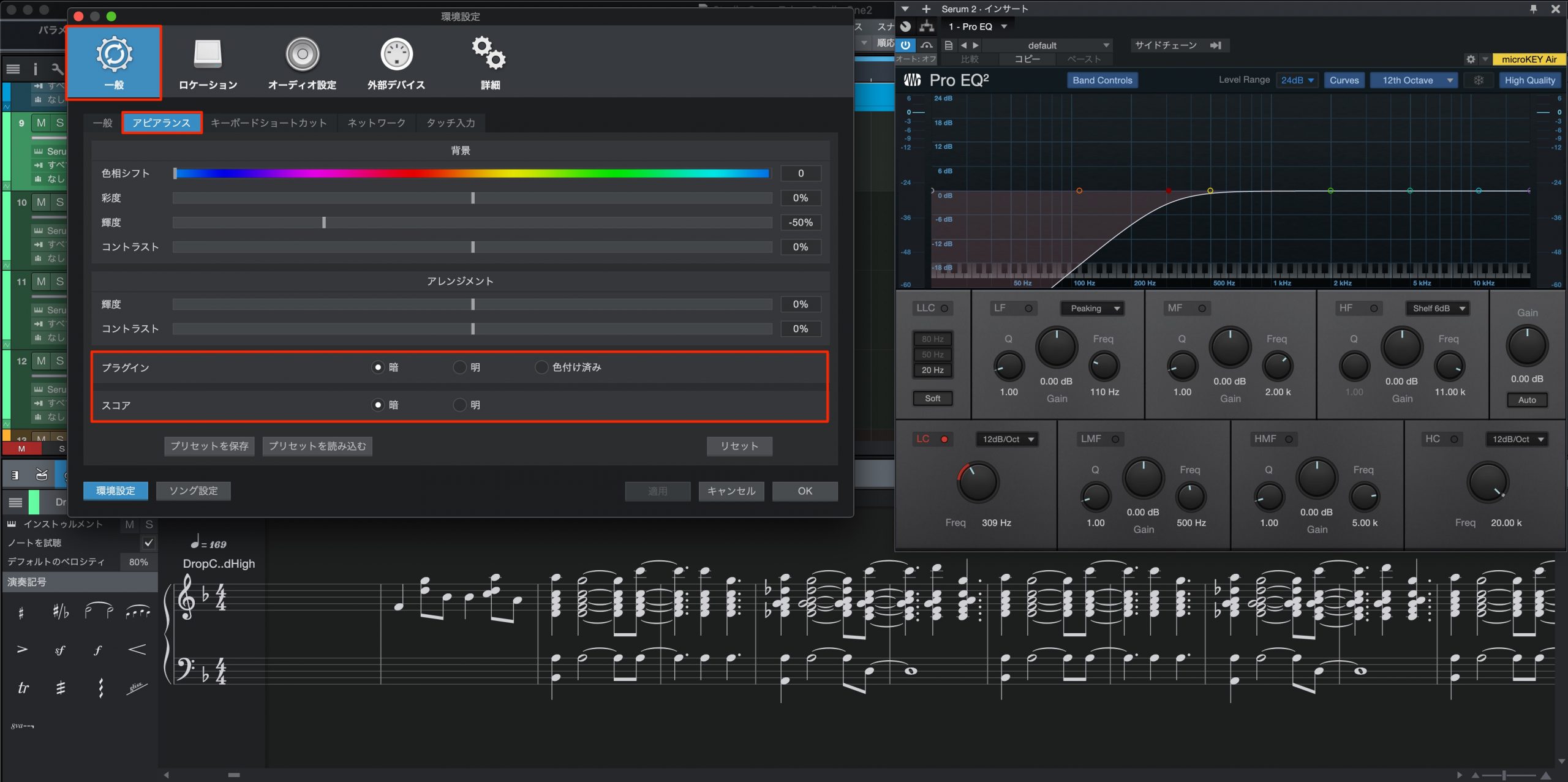
Studio One 5 lets you switch plug-ins and the Score Editor between dark and light modes.
This helps when you want to concentrate on parameter editing, or when a bright white score background causes eye fatigue.
Audio Features
First, let’s look at new audio features that you can put to work immediately.
Adjust Dynamics with Volume Envelopes
Available in all editions
You can now apply a volume envelope to the waveform of an audio track.
The waveform display changes size with the envelope value, making editing easy to follow visually.
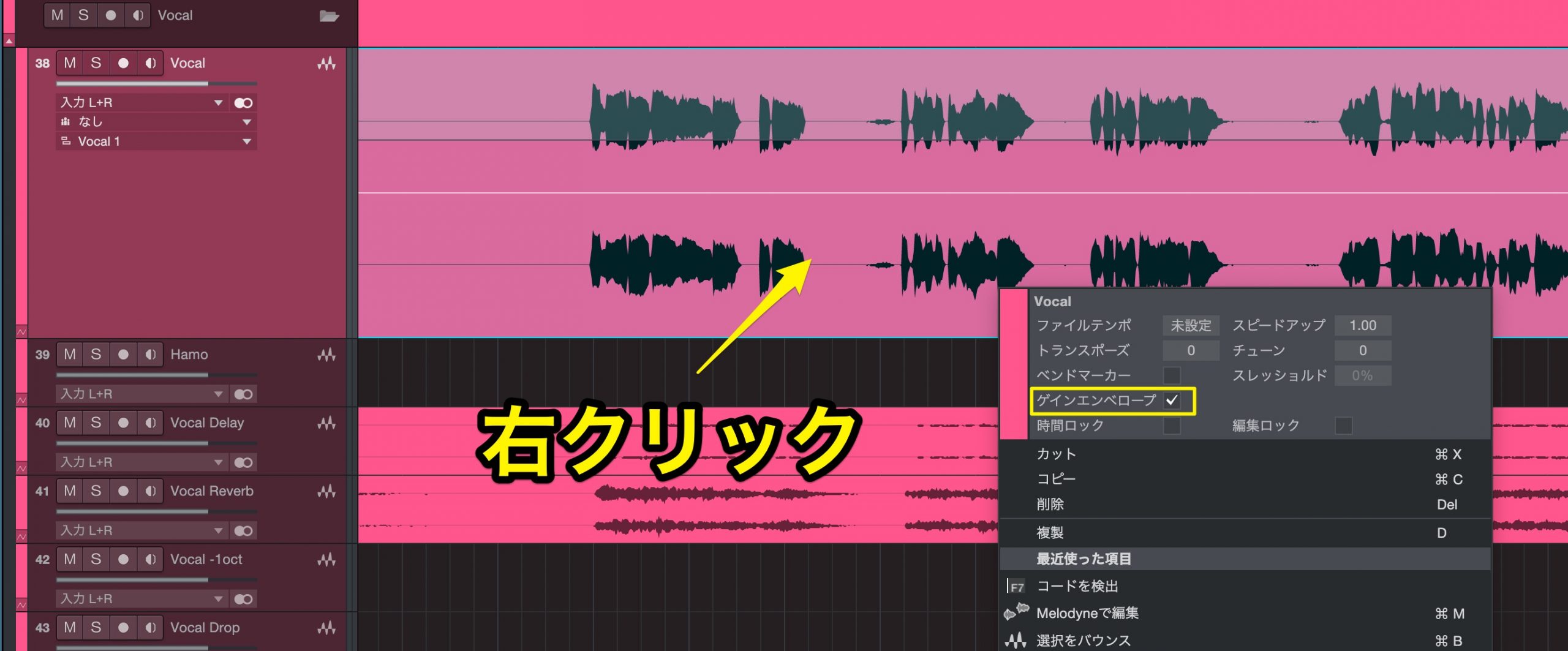
Right-click the event on the relevant track and enable Gain Envelope.
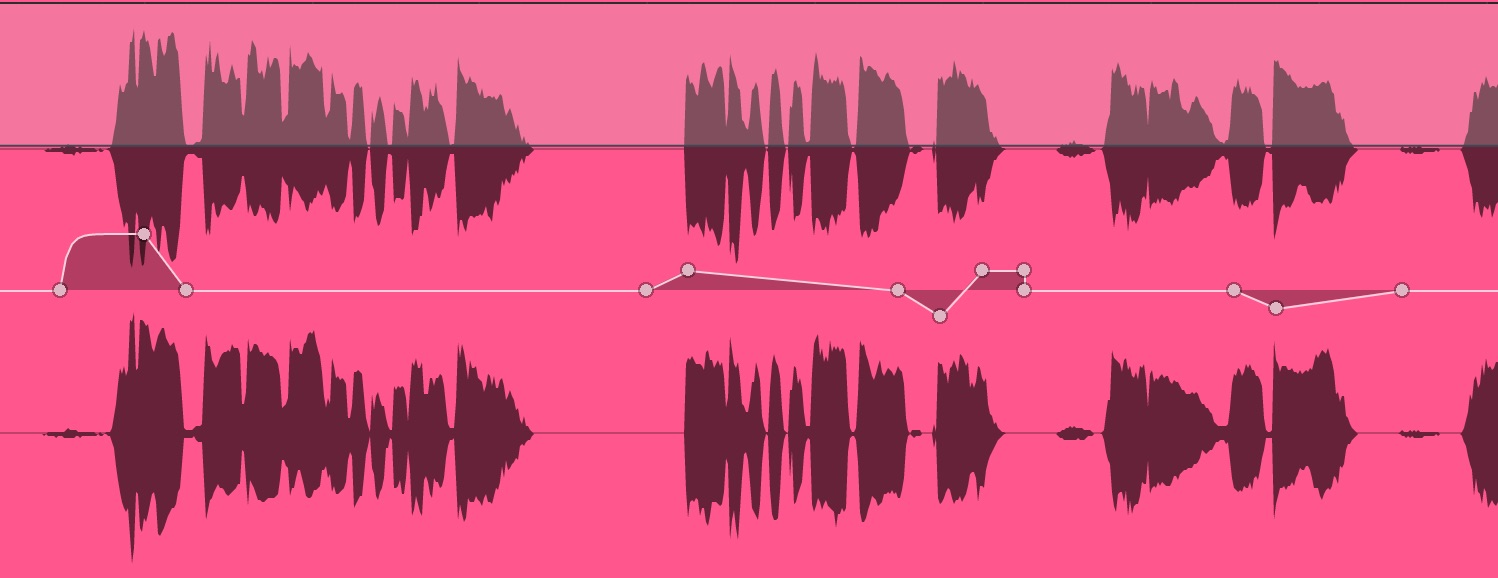
Simply click to add points and draw the curve.
This can be particularly useful for editing vocals.
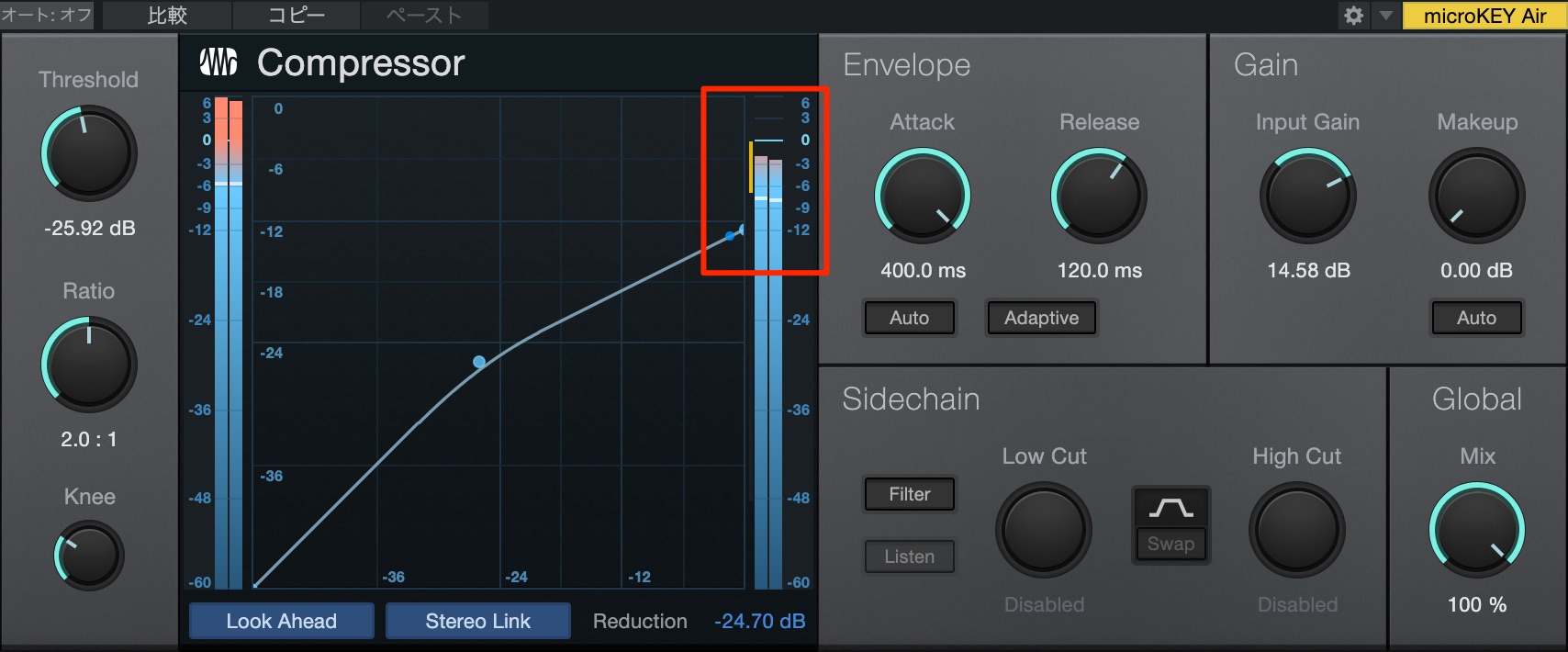
A key feature is that the gain changes are applied before effects processing.
Reducing excessively loud passages also changes how strongly level-dependent effects such as compressors respond, helping you produce a more natural-sounding track.
Tape Resampling Added to the Timestretch Modes
Available in all editions
A Tape mode has been added for timestretching audio events, allowing the pitch to change with the tempo.
It is also useful as a creative effect on individual tracks or the master sound.
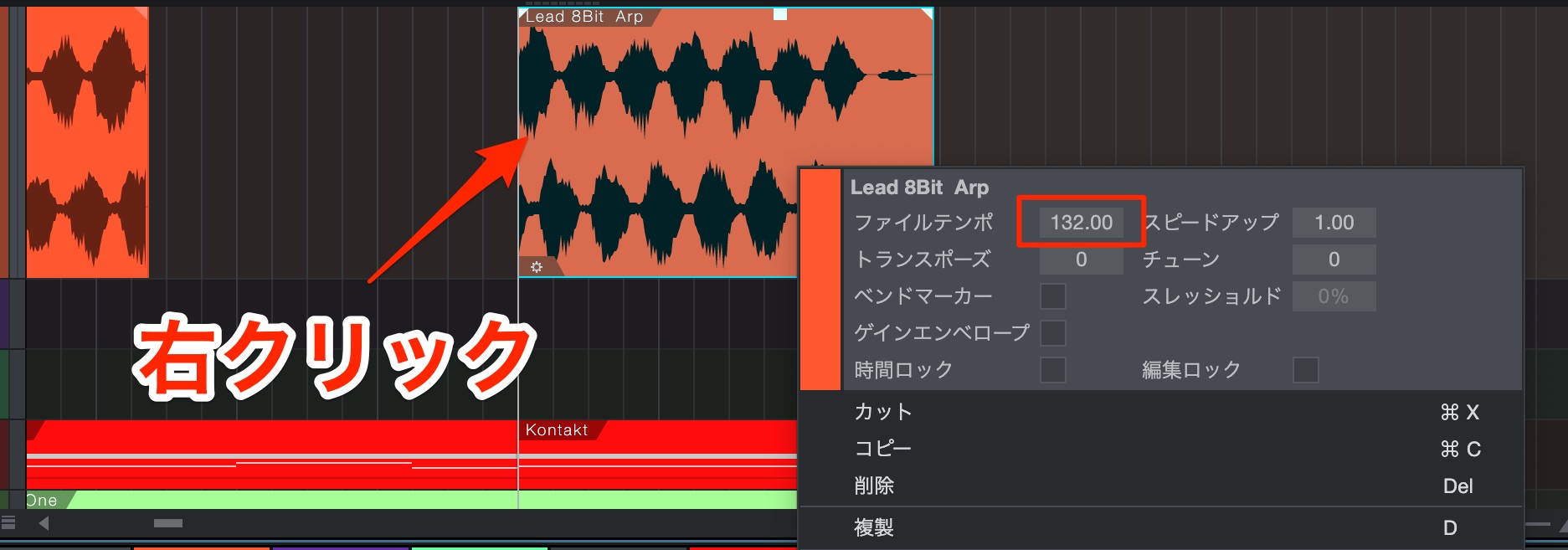
Right-click the audio event and check whether File Tempo is set.
If it is not, enter the current song tempo.
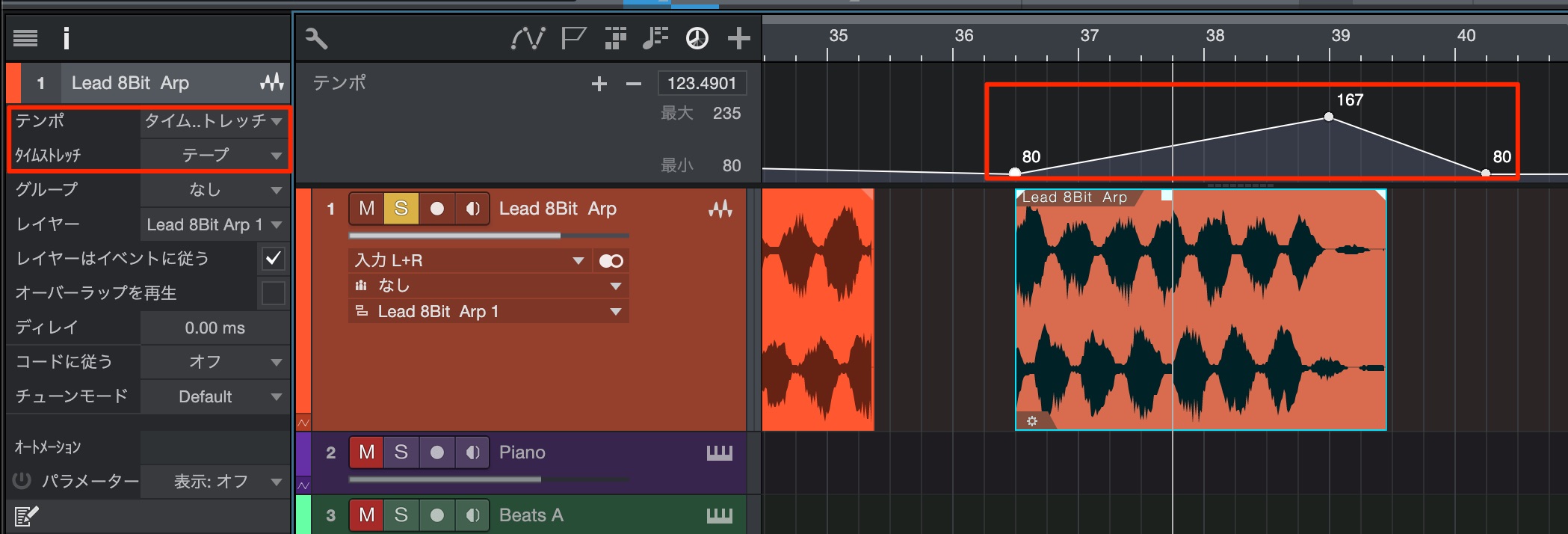
Set Tempo to Timestretch, then set the timestretch mode to Tape.
Changing the song tempo will now alter both the event’s playback speed and pitch, creating a distinctive effect.
Improved Melodyne Integration
Available in Professional; Artist includes a trial version
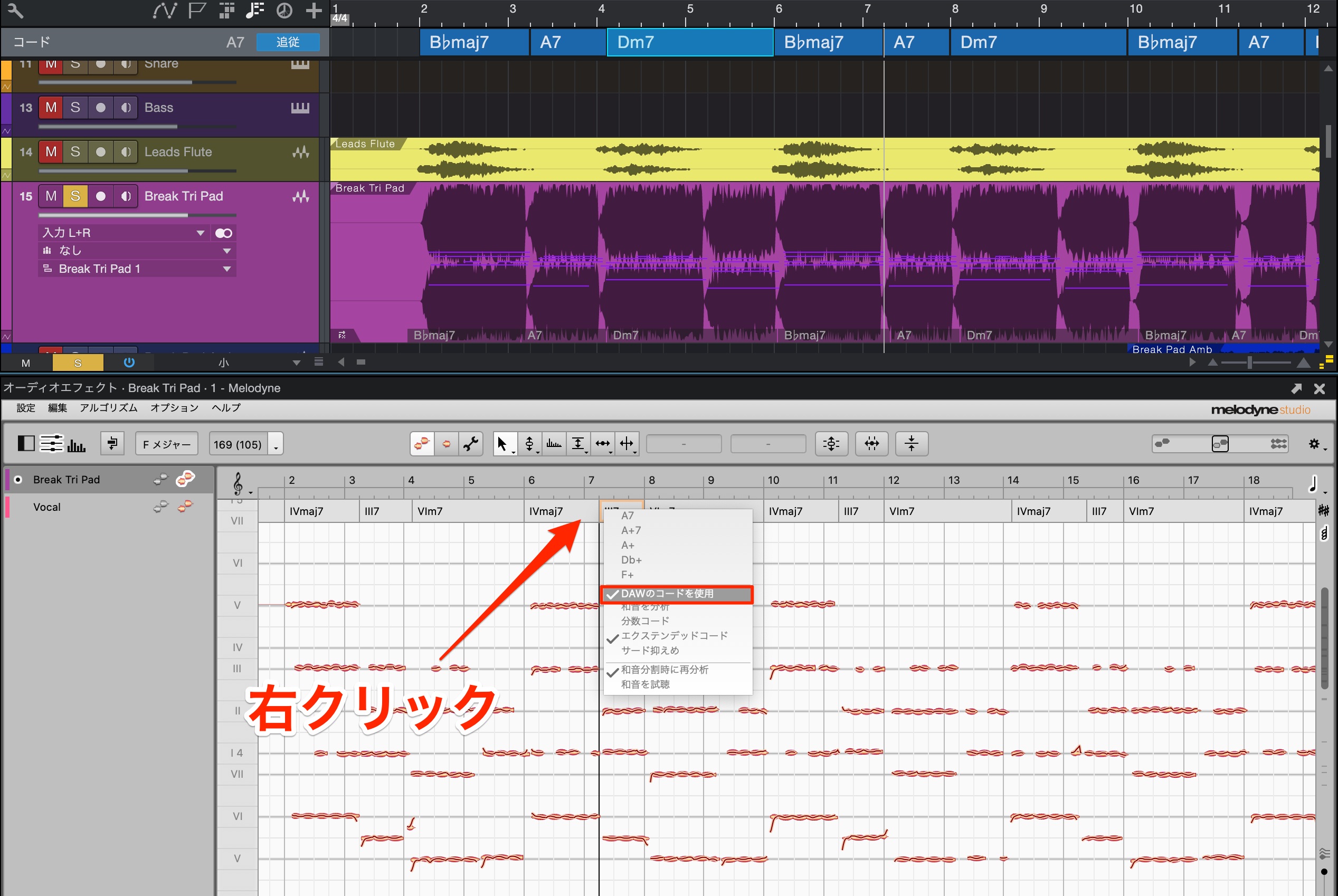
Chord integration has also been improved when applying Melodyne to audio events.
Right-click the timeline to assign the chords you have set in Studio One.
MIDI Features
This update also adds the long-awaited score functionality.
Score View
Available in Professional
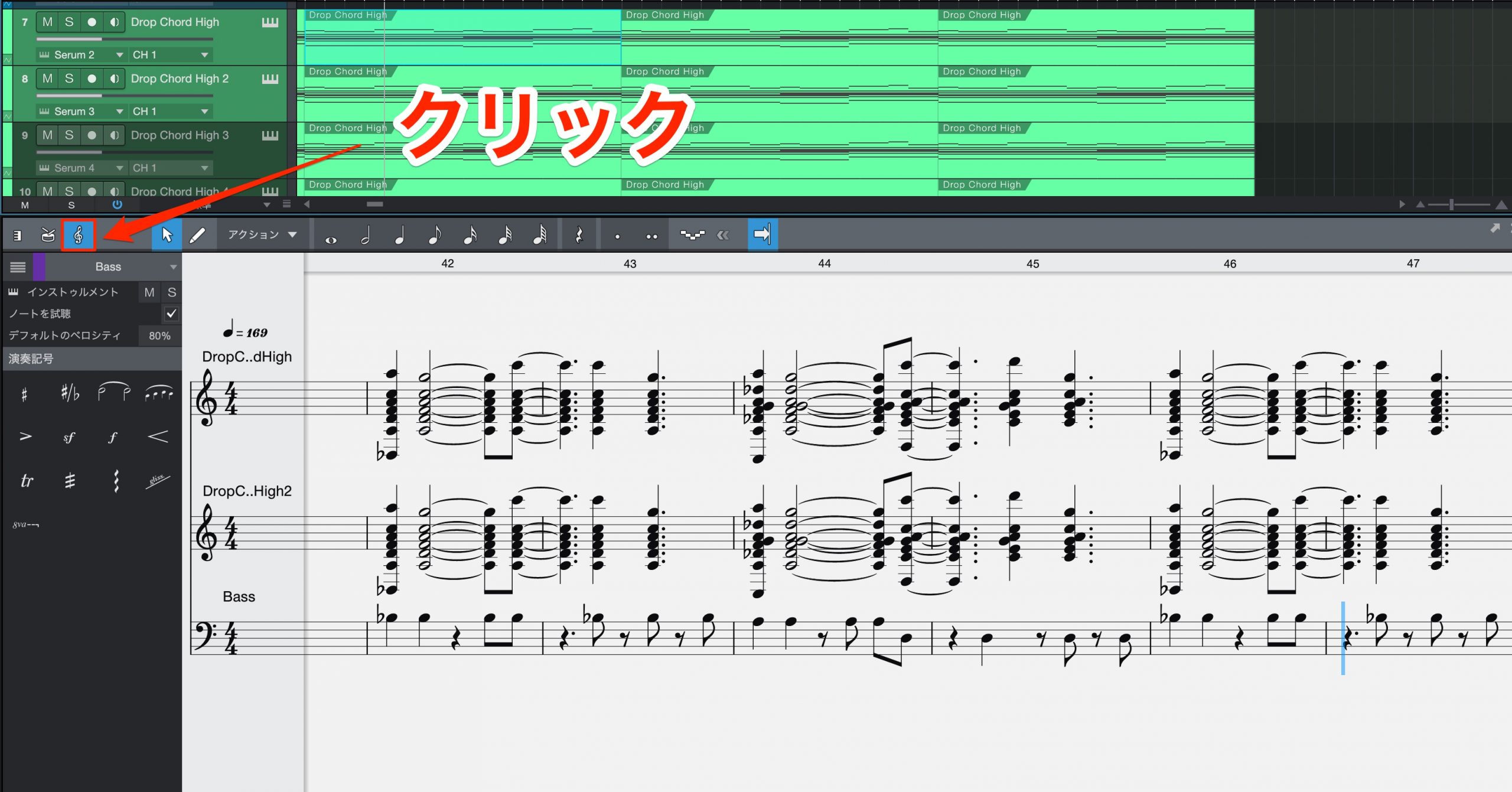
Select the MIDI event you want to edit and click the Score icon.
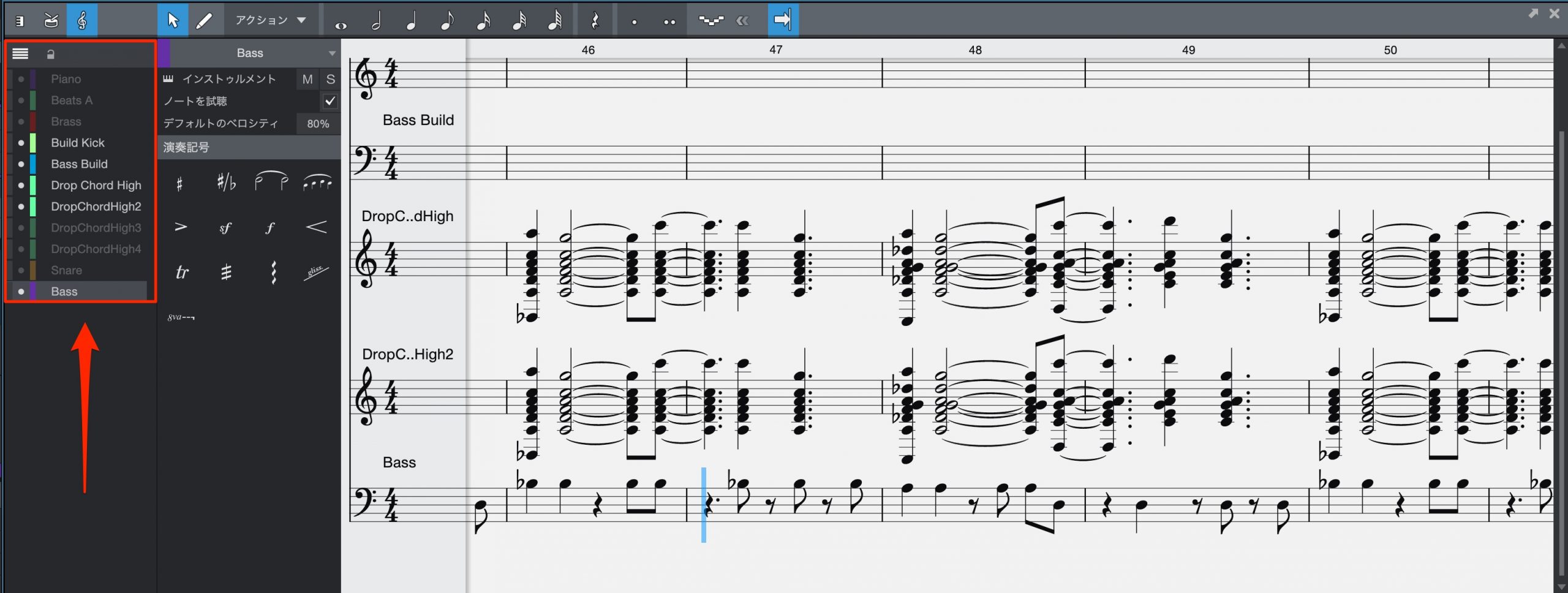
You can also use the track list to specify which tracks appear in the score.
Recording Articulations
Available in all editions
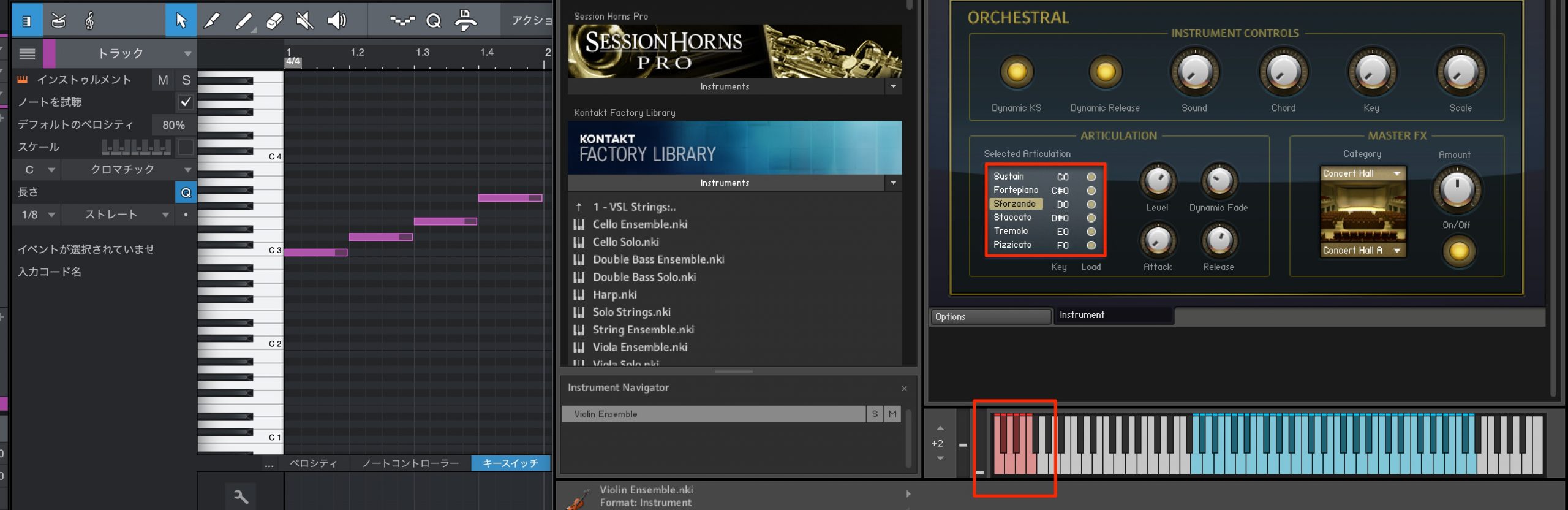
Sampled acoustic-instrument libraries often use keyswitches to change the playing articulation within a phrase.
You switch articulations by entering the notes specified by the instrument.
Managing these changes is now much easier.
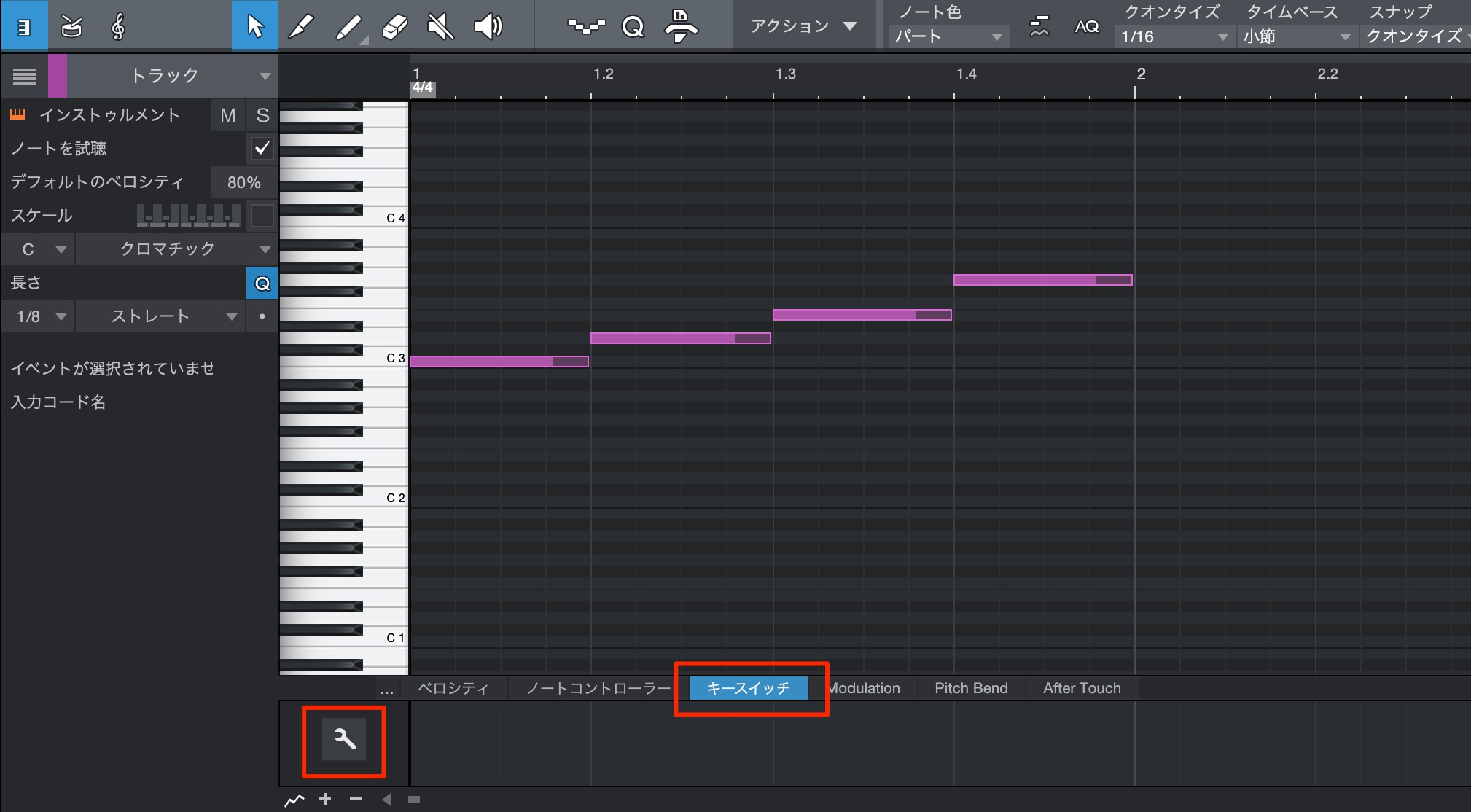
Select Key Switches in the event editor and click the Setup icon.
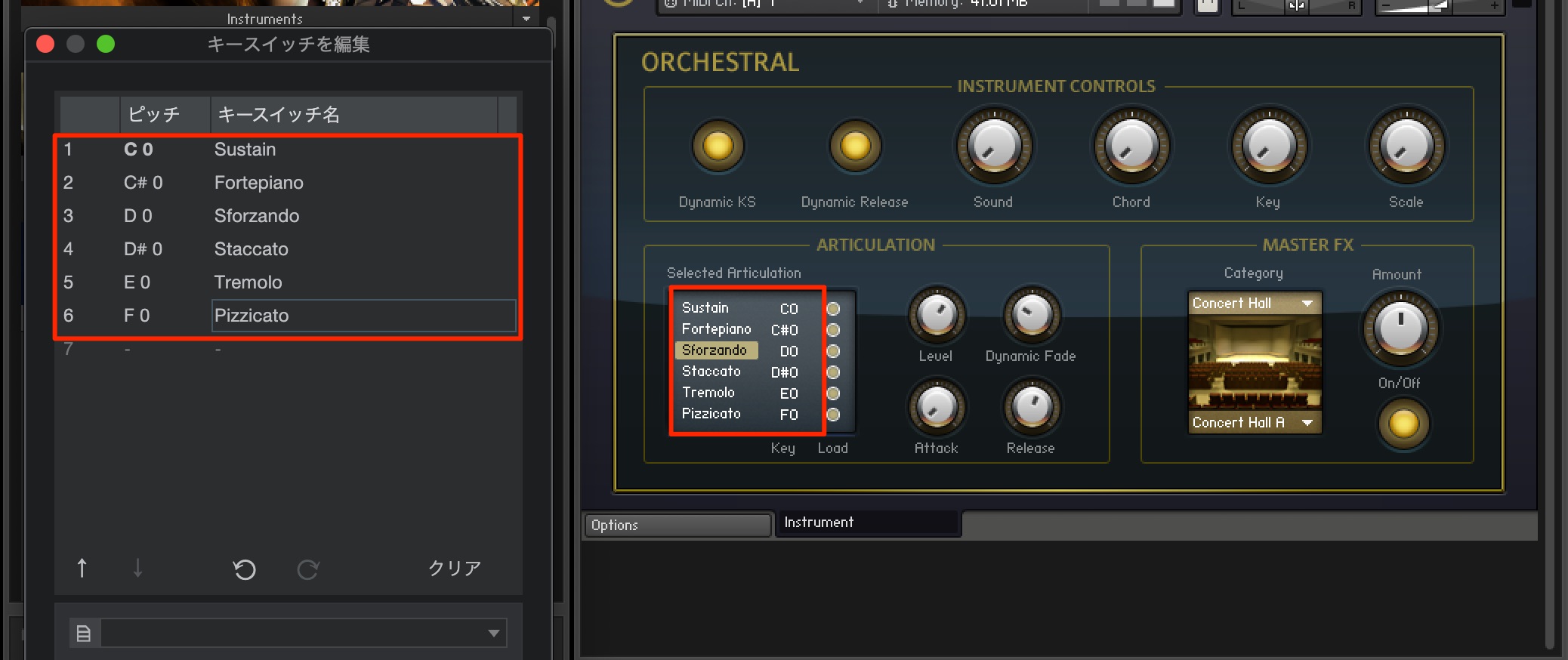
The first time, create a keyswitch map that matches the instrument.
Check the instrument’s keyswitch assignments and enter the note pitches and articulation names.
Click OK when you have finished.
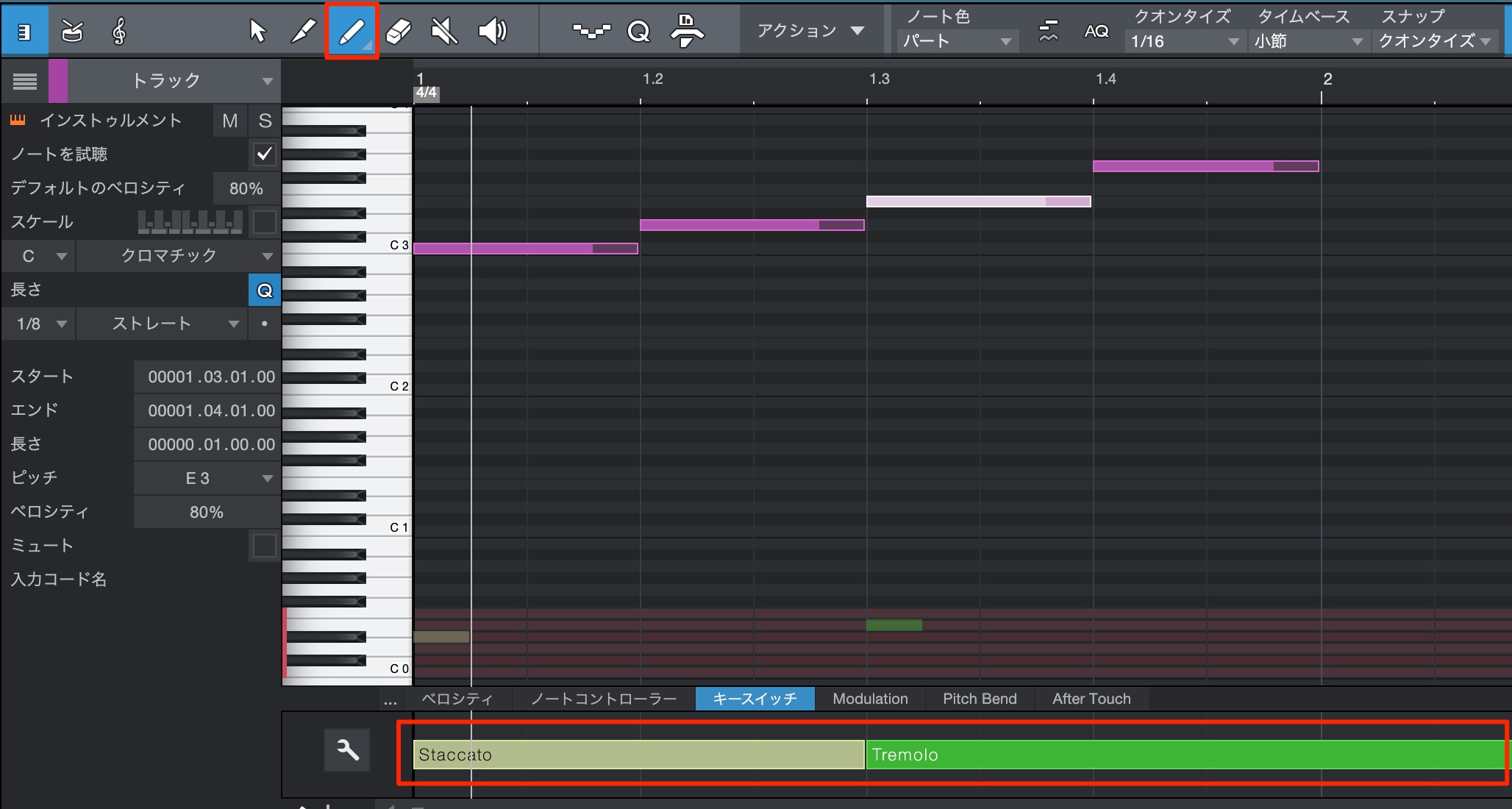
Then simply assign the desired articulations at the appropriate points.
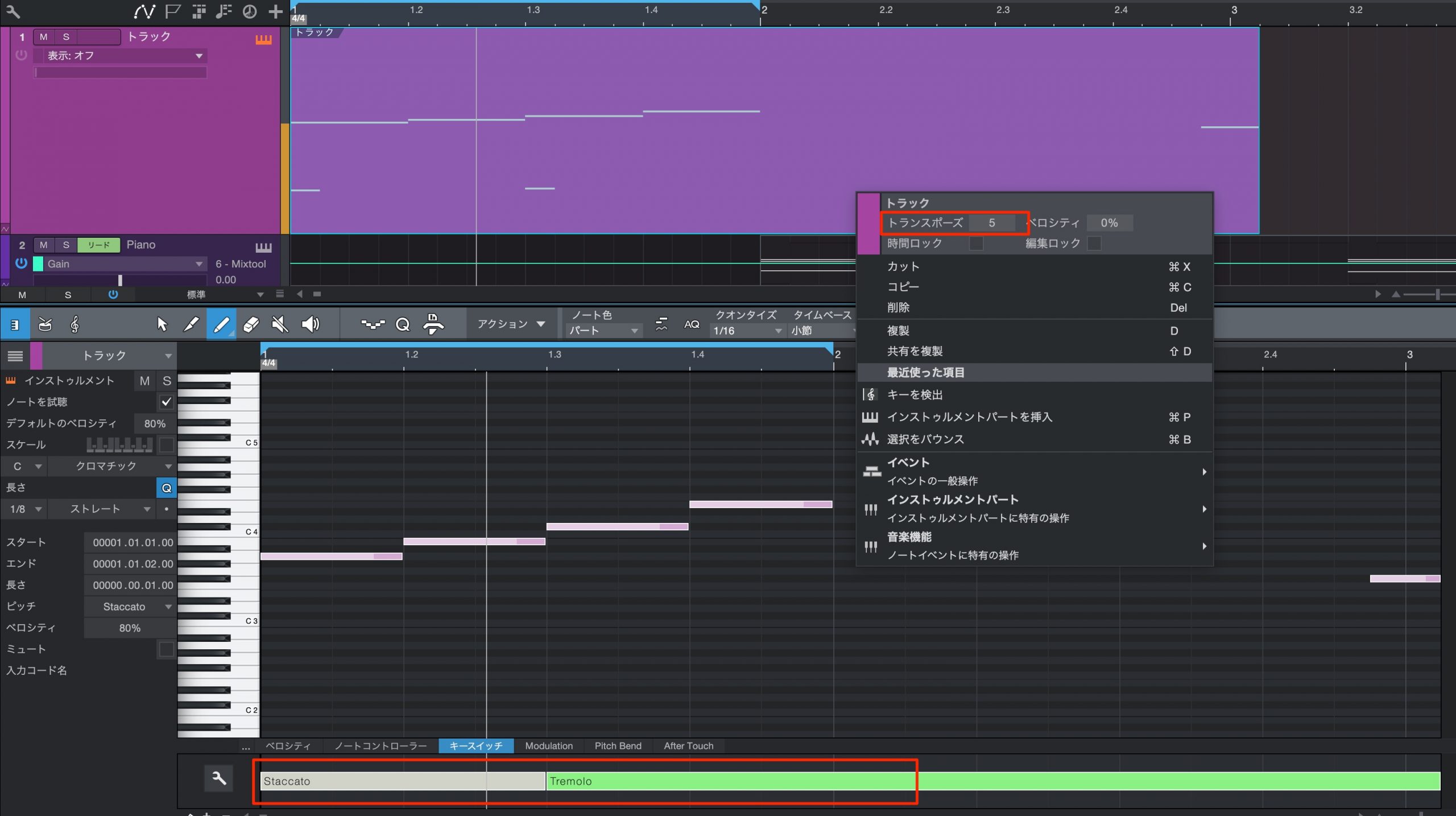
This is easy to follow visually, and the keyswitch assignments are also preserved when you transpose the part.
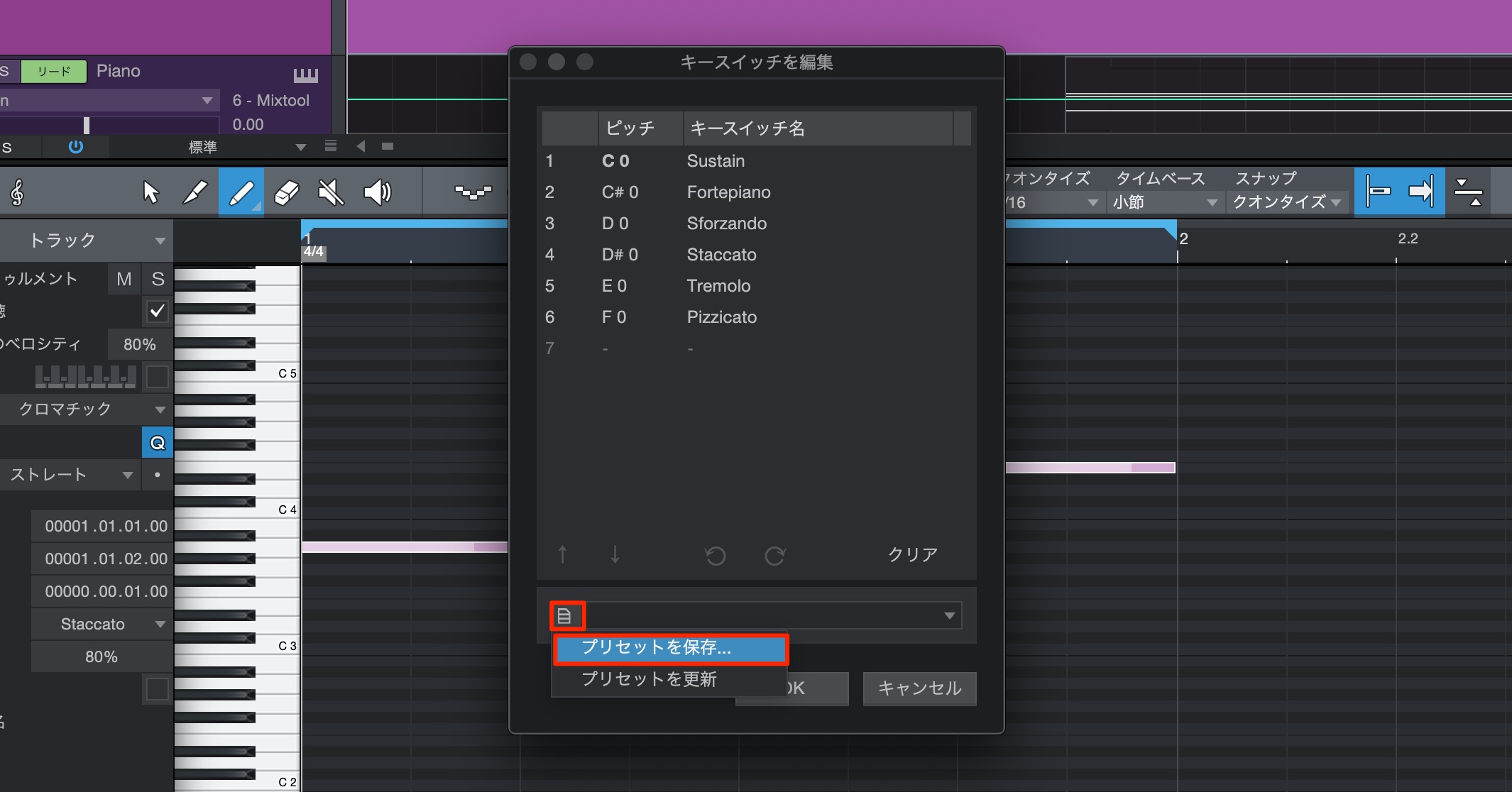
These keyswitch maps can be saved as templates, so
once you have created a setup, you can reuse it on other tracks and in other songs.
Easier Integration of External Synthesizers
Available in Professional
Registering your external synth makes it easier to bring its sound into a song.
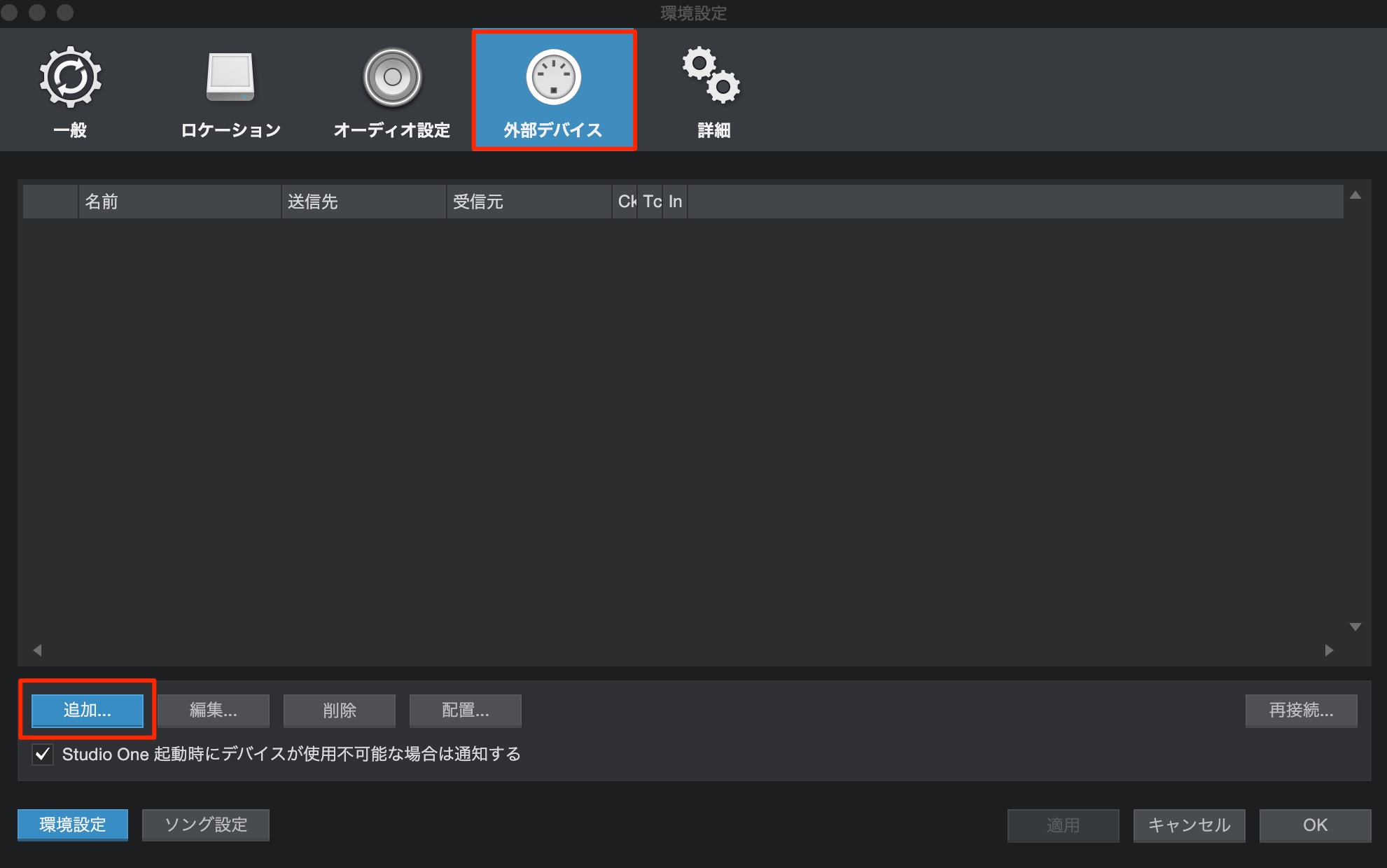
Open External Devices in Preferences and click Add.
Next, configure the device’s audio settings.
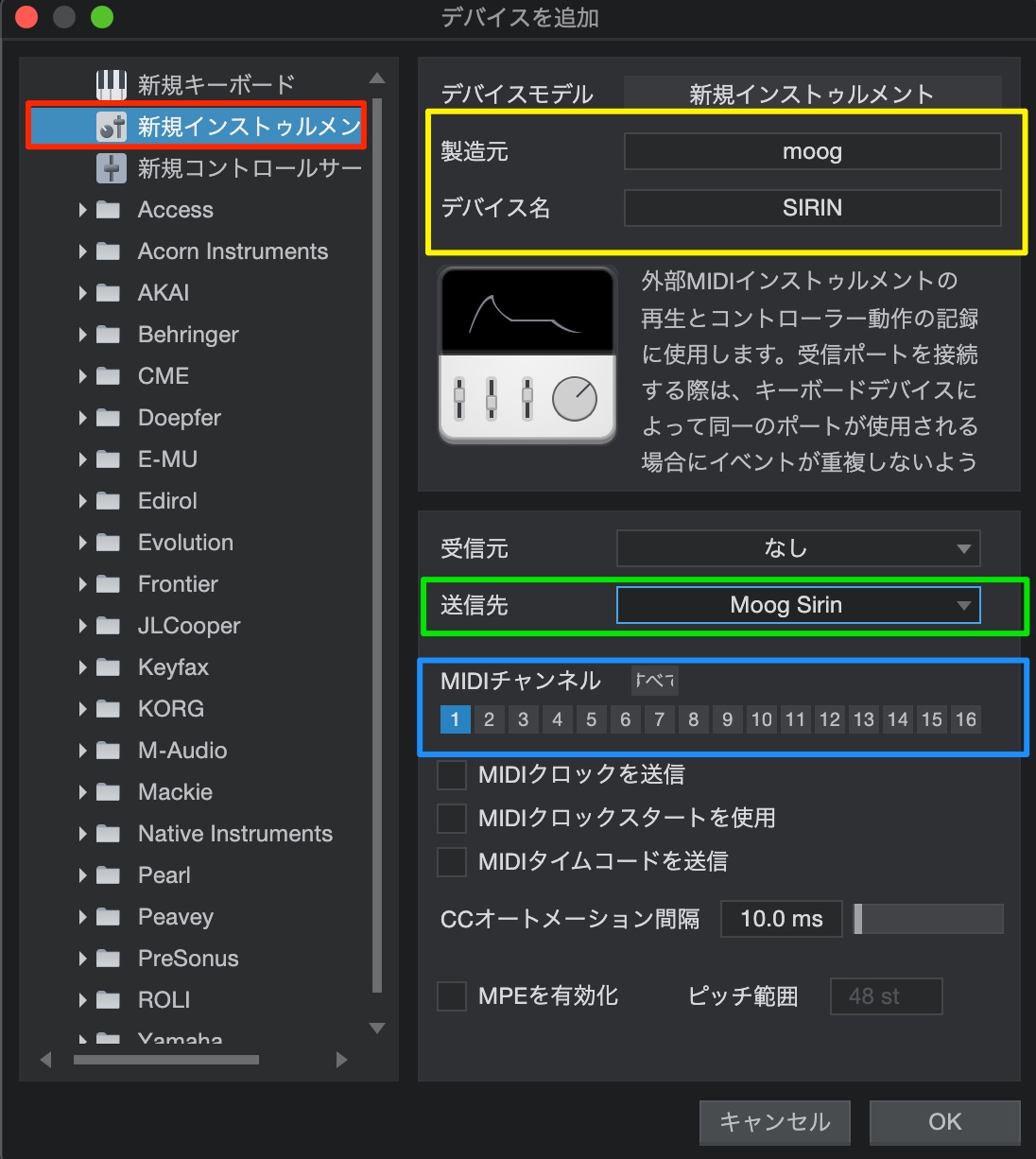
- Red: select New Instrument.
- Yellow: enter the manufacturer and product name.
- Green: under Send To, select the device itself or the MIDI interface to which it is connected.
- Blue: specify the MIDI channels you need, if applicable.
This completes the device’s MIDI setup.
Click OK to finish.
Next, configure the audio settings.
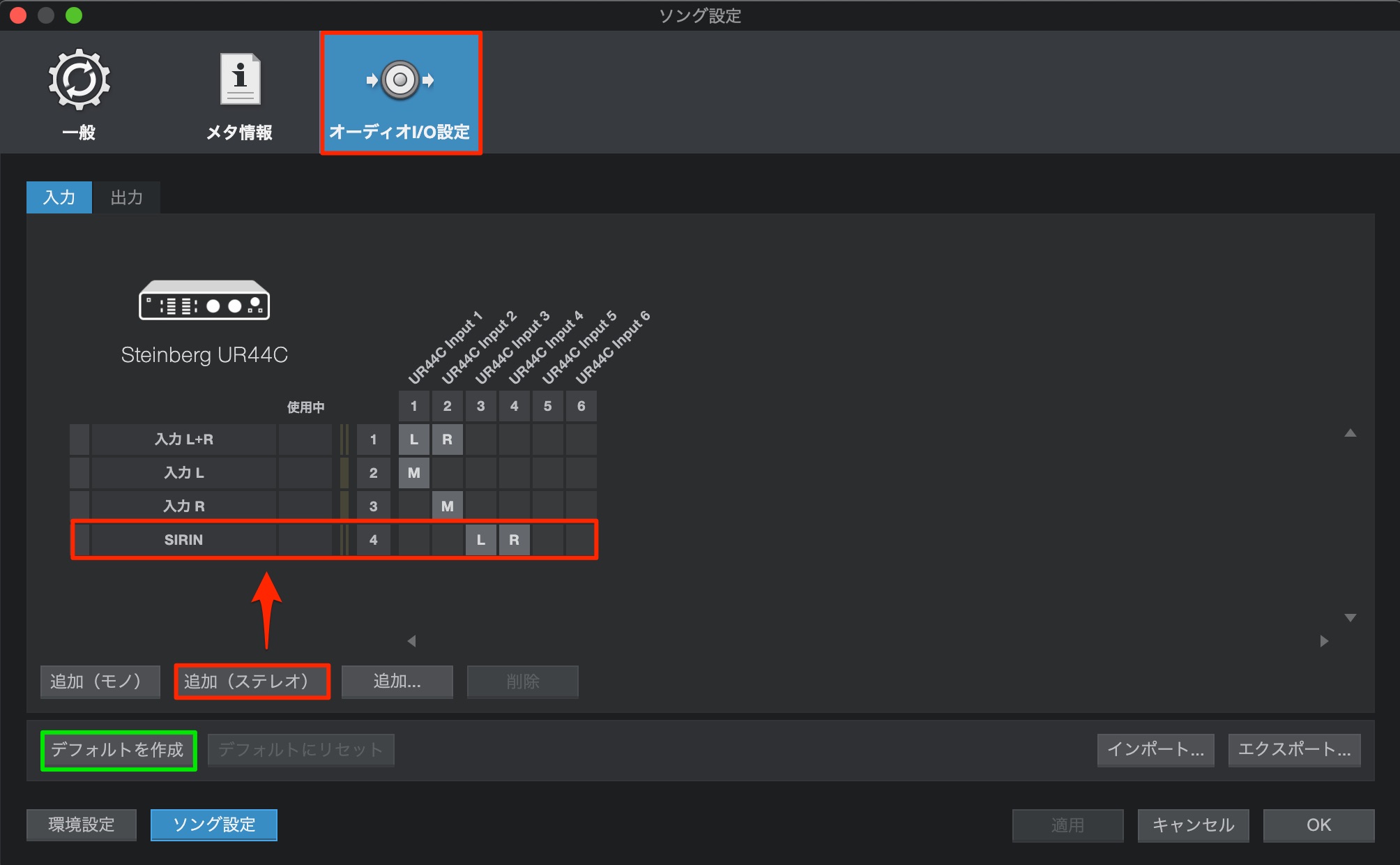
In Song Setup, select Audio I/O Setup.
Enable the audio inputs to which the device is connected. Here, it is connected to inputs 3/4 of the interface. Giving the inputs the device’s name makes them easier to identify.
The audio setup is now complete.
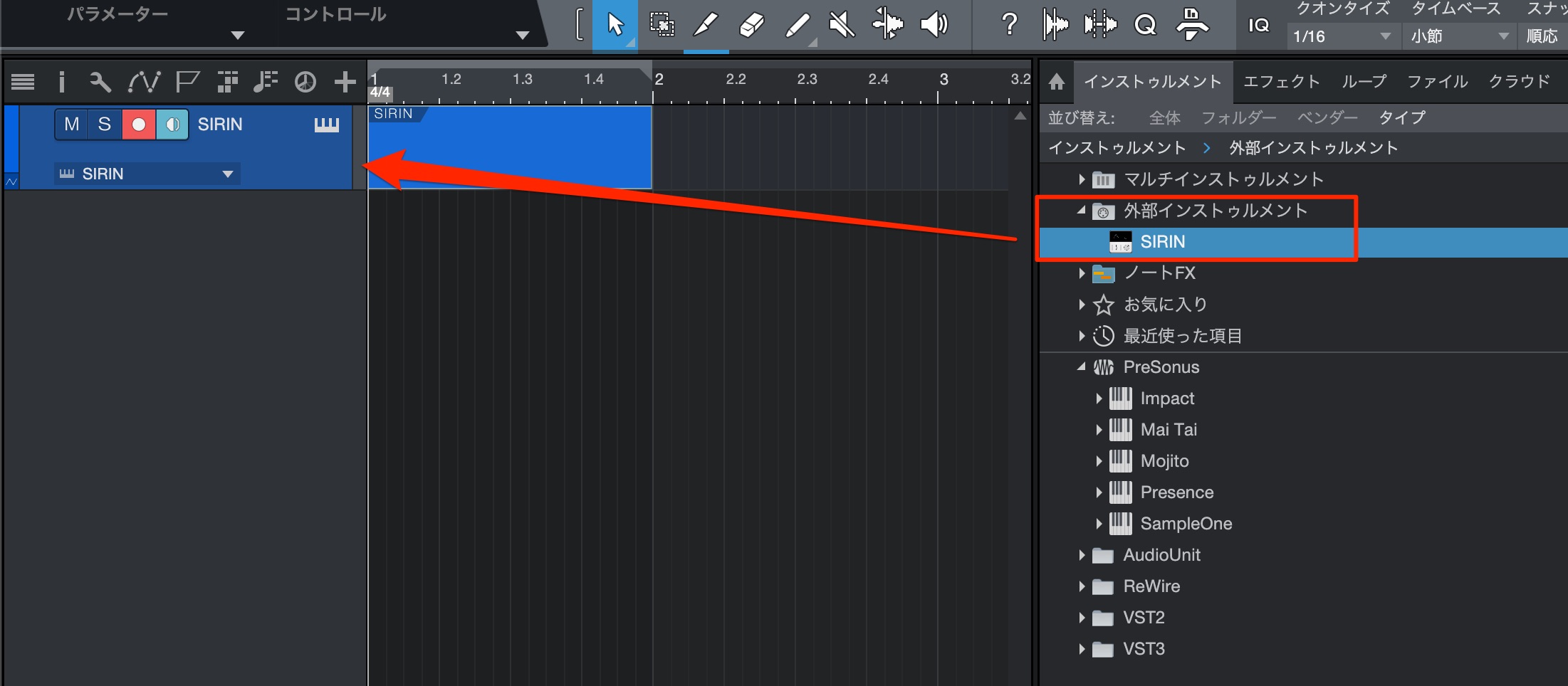
The device you configured appears in the External Instruments folder in the Browser.
Drag and drop it into your song just as you would a software instrument.
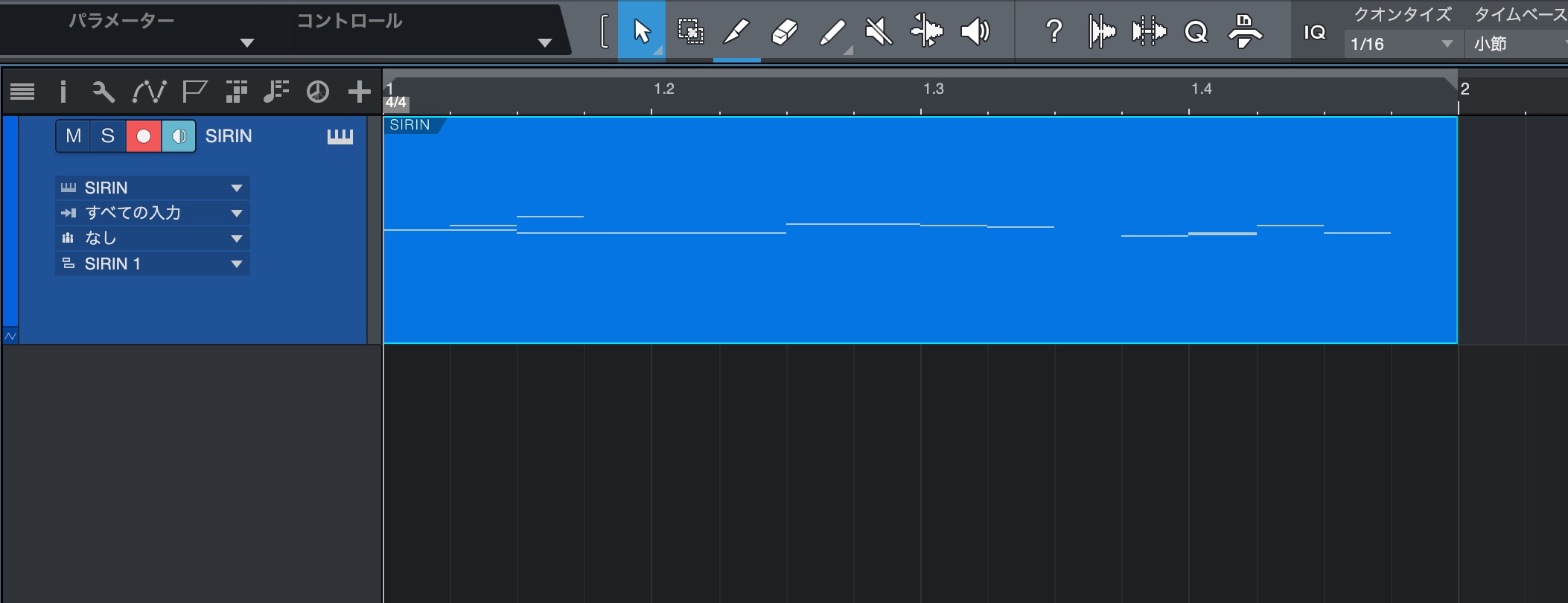
You can enter notes in the same way as with a software synth.
You may also want to record the hardware synth’s sound as an audio waveform.
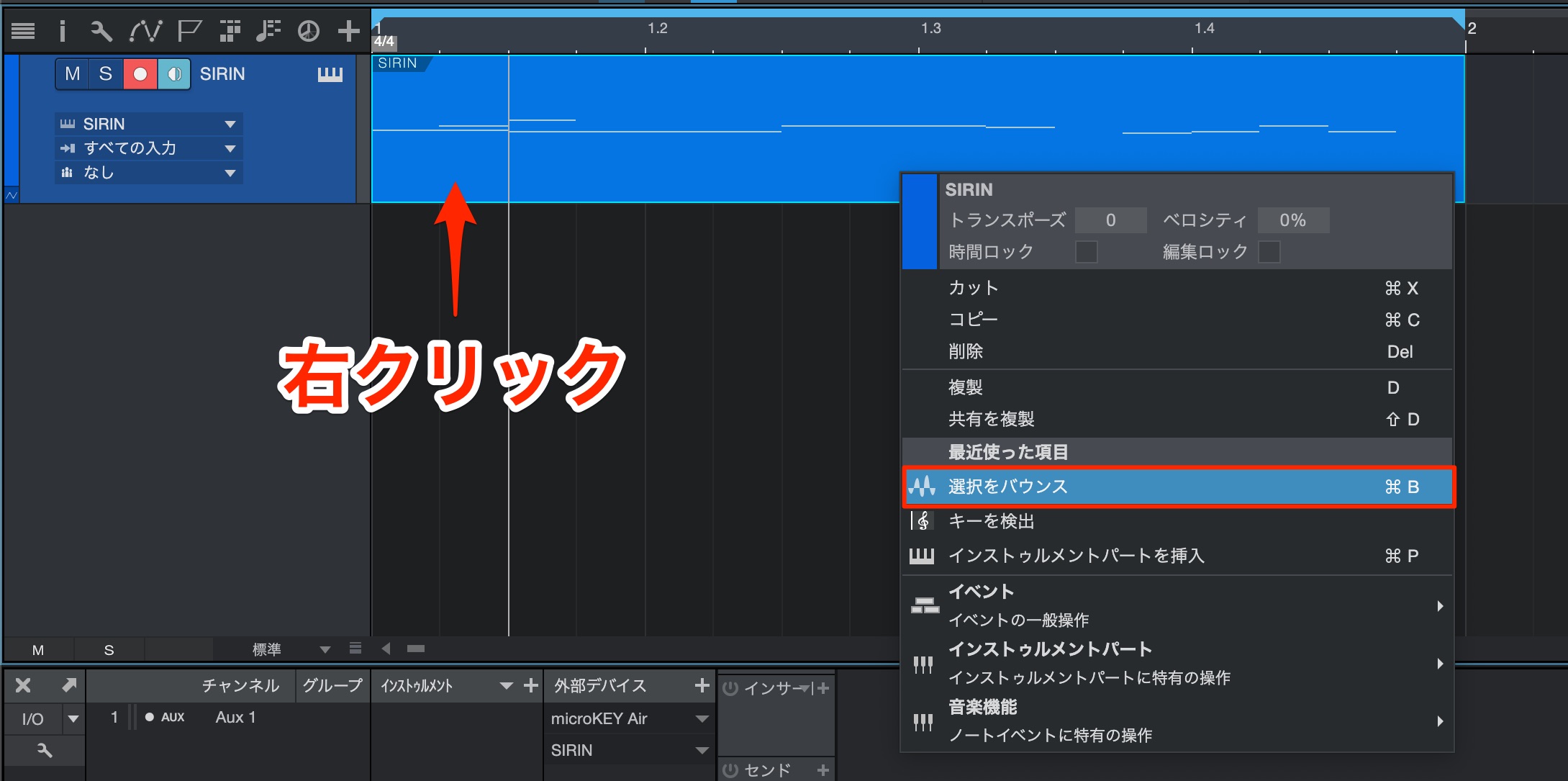
Right-click the event and choose Bounce Selection.
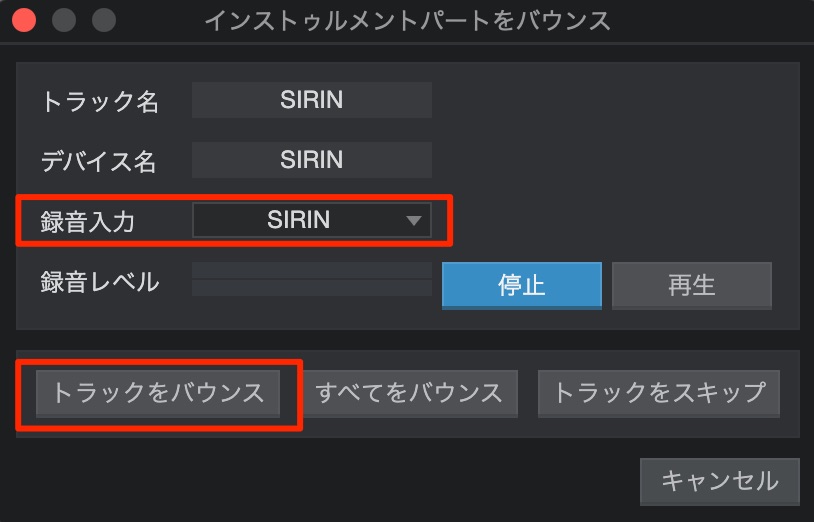
Set Record Input to the inputs connected to the hardware synth, then click Bounce Track.
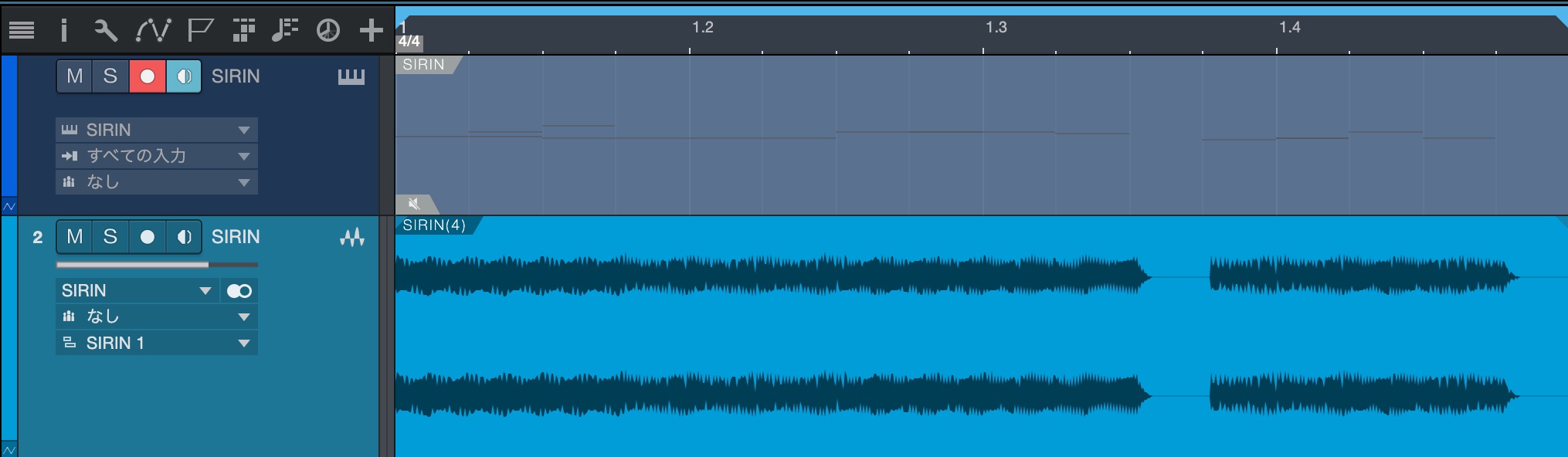
Aux Channels for More Flexible Audio Routing
Available in Professional and Artist
The new Aux channel is a convenient channel type for controlling inputs from your audio device.
It provides a useful way to manage the audio routing of hardware synths such as the one discussed above.
Let’s use an Aux channel with the hardware synth we just configured.
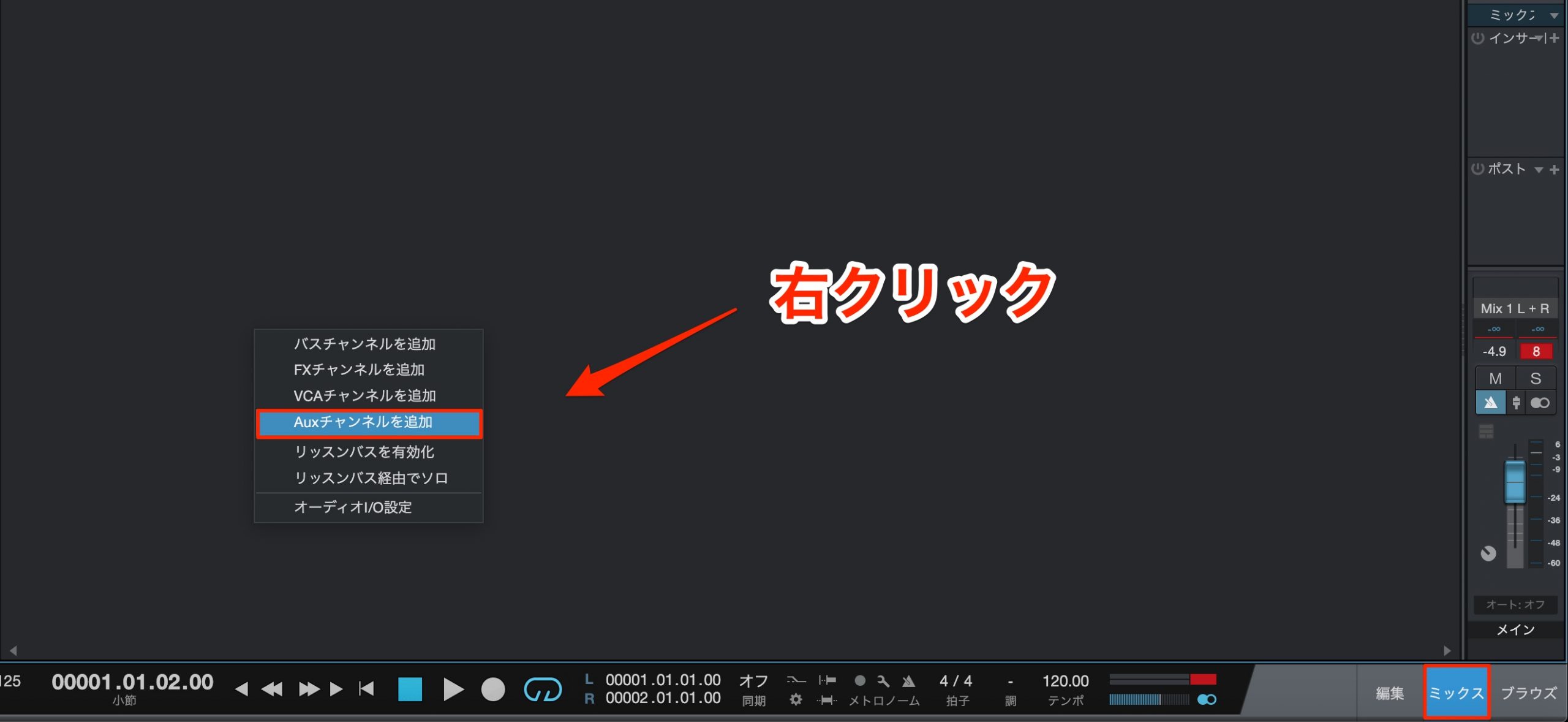
Open the Mix view and right-click an empty area.
Choose Add Aux Channel from the menu.
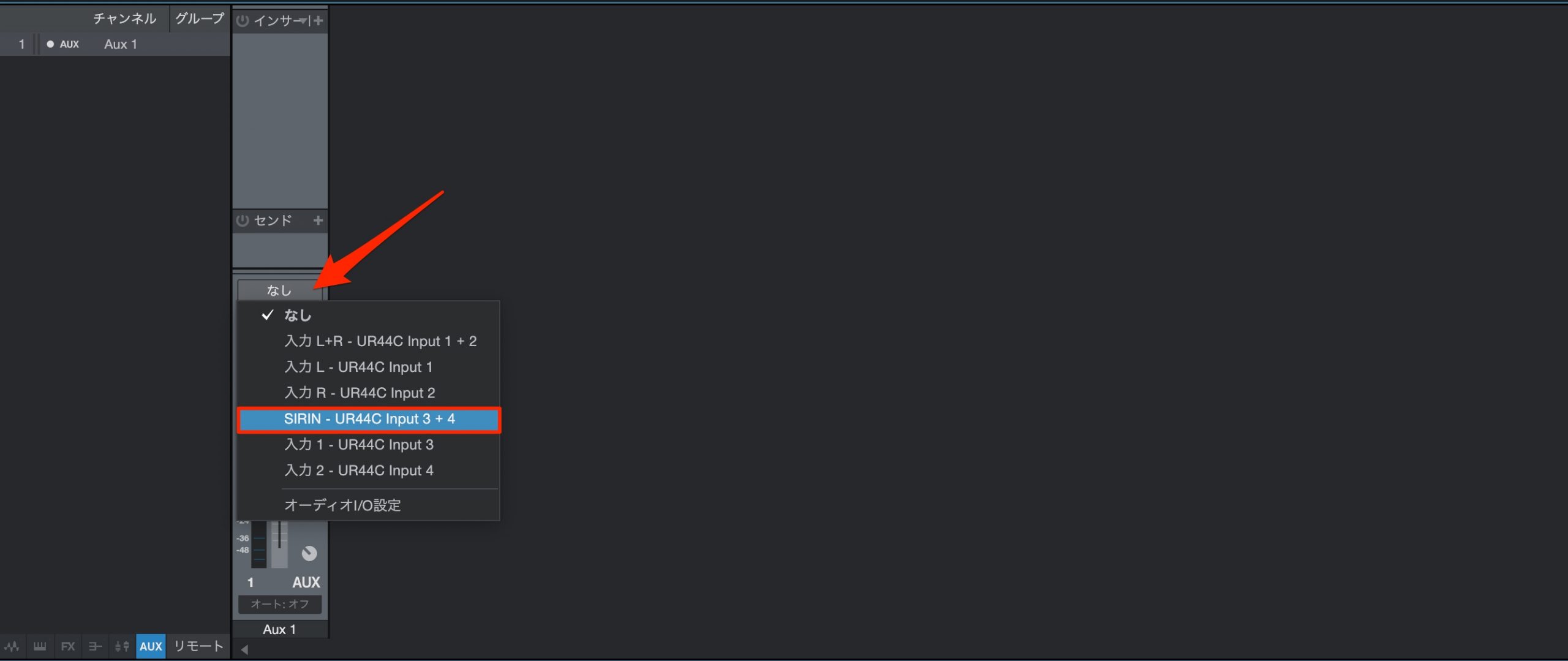
Set the new Aux channel’s input to the audio inputs connected to the hardware synth.
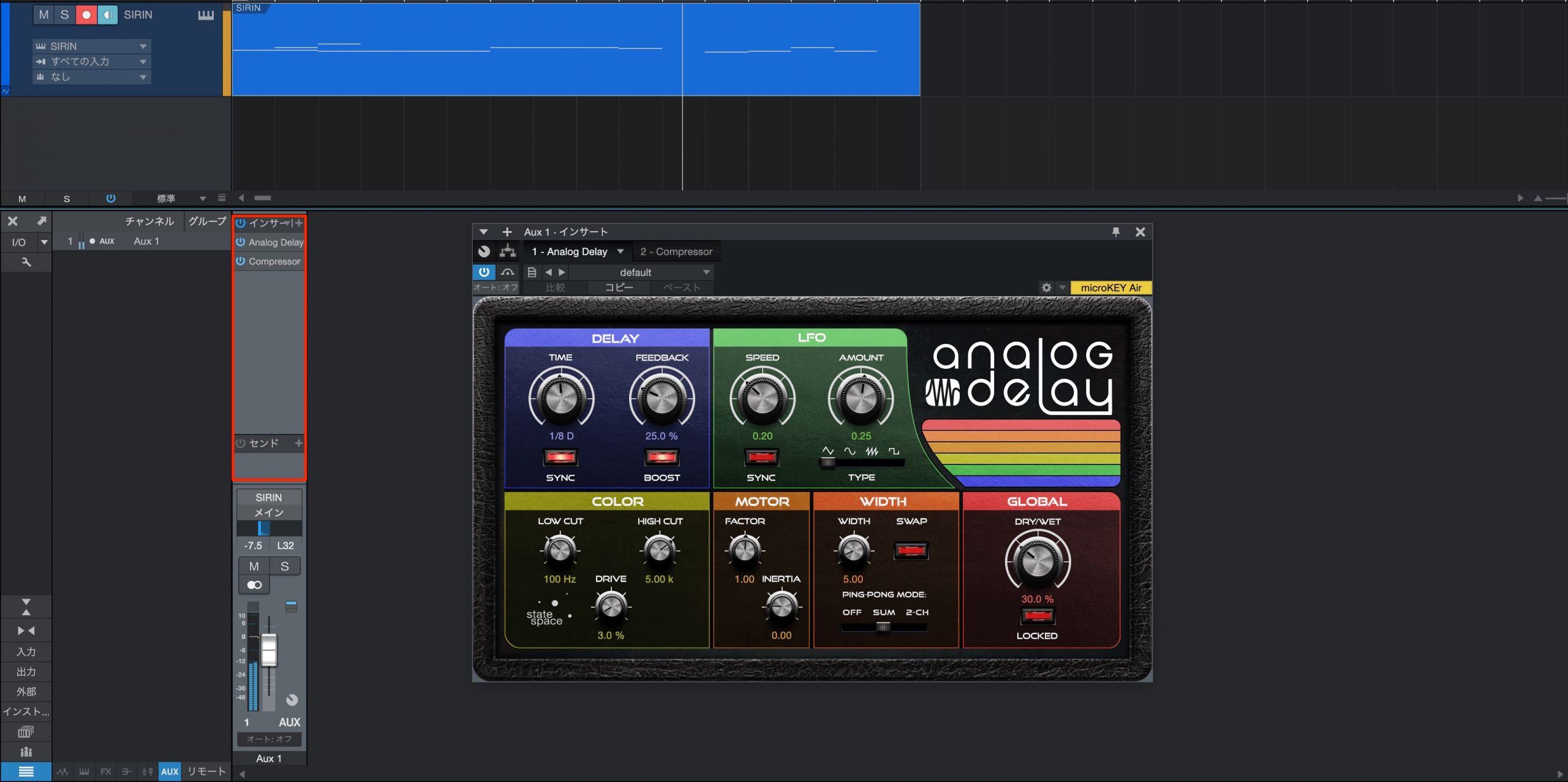
The channel now receives the hardware synth’s sound, letting you apply insert and send effects in real time.
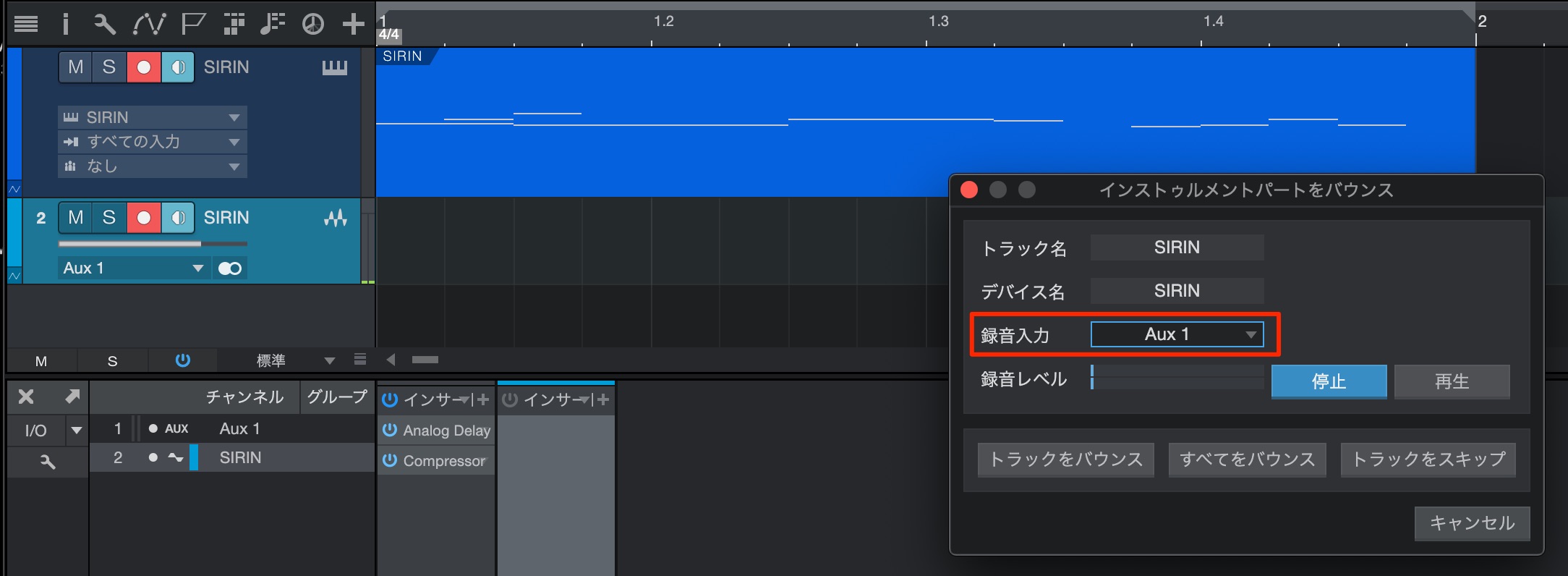
You can also render the Aux channel’s sound to audio.
In the bounce dialog described above, select Aux and perform the bounce.
Mixer Features
This version also brings a range of mixing improvements.
Mixer Recall with Scenes
Available in Professional
Scenes let you save the mixing state of each track—including volume, pan, sends, and effects—and instantly recall or switch between those states.
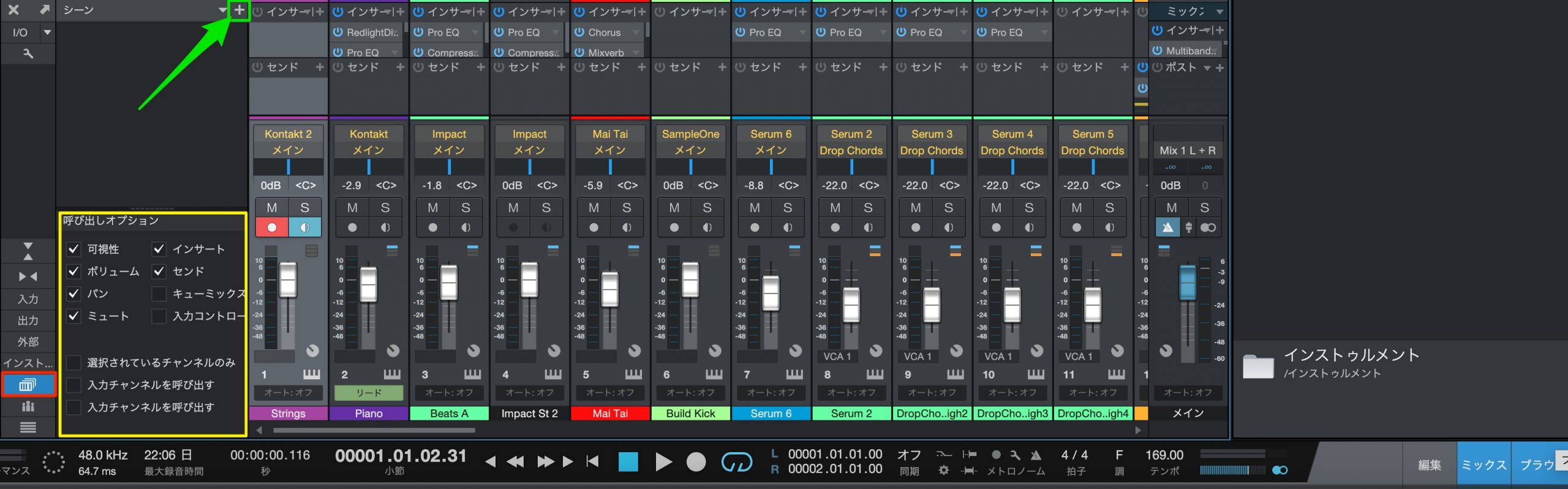
- Red: open the Scenes window.
- Yellow: select which settings to save.
- Green: click the + button to save the current state.
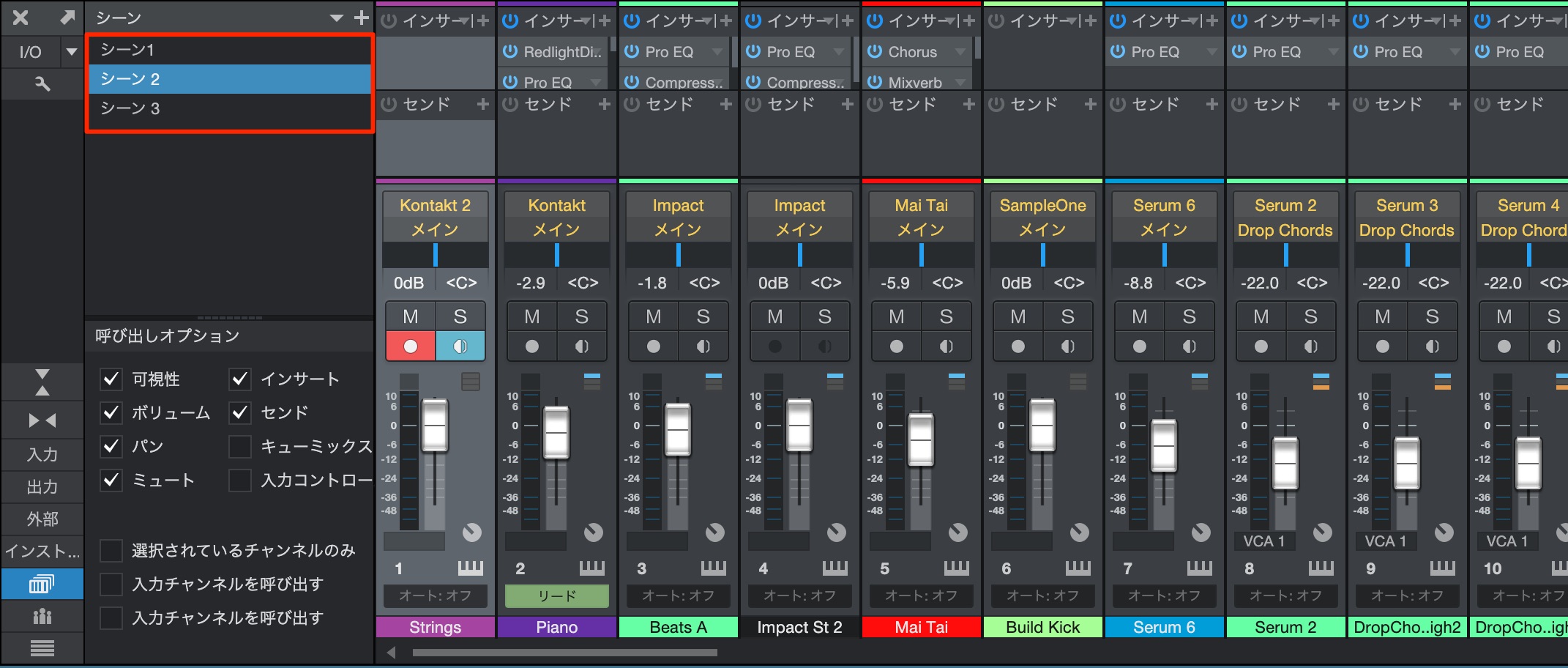
You can store multiple states as shown here, then double-click to recall and switch between them.
The Convenient Listen Bus
Available in Professional
This is a feature you may find hard to live without once you have tried it.
It makes it easy to send track audio to different devices for different purposes, and you can also choose to monitor only soloed tracks through the Listen Bus.
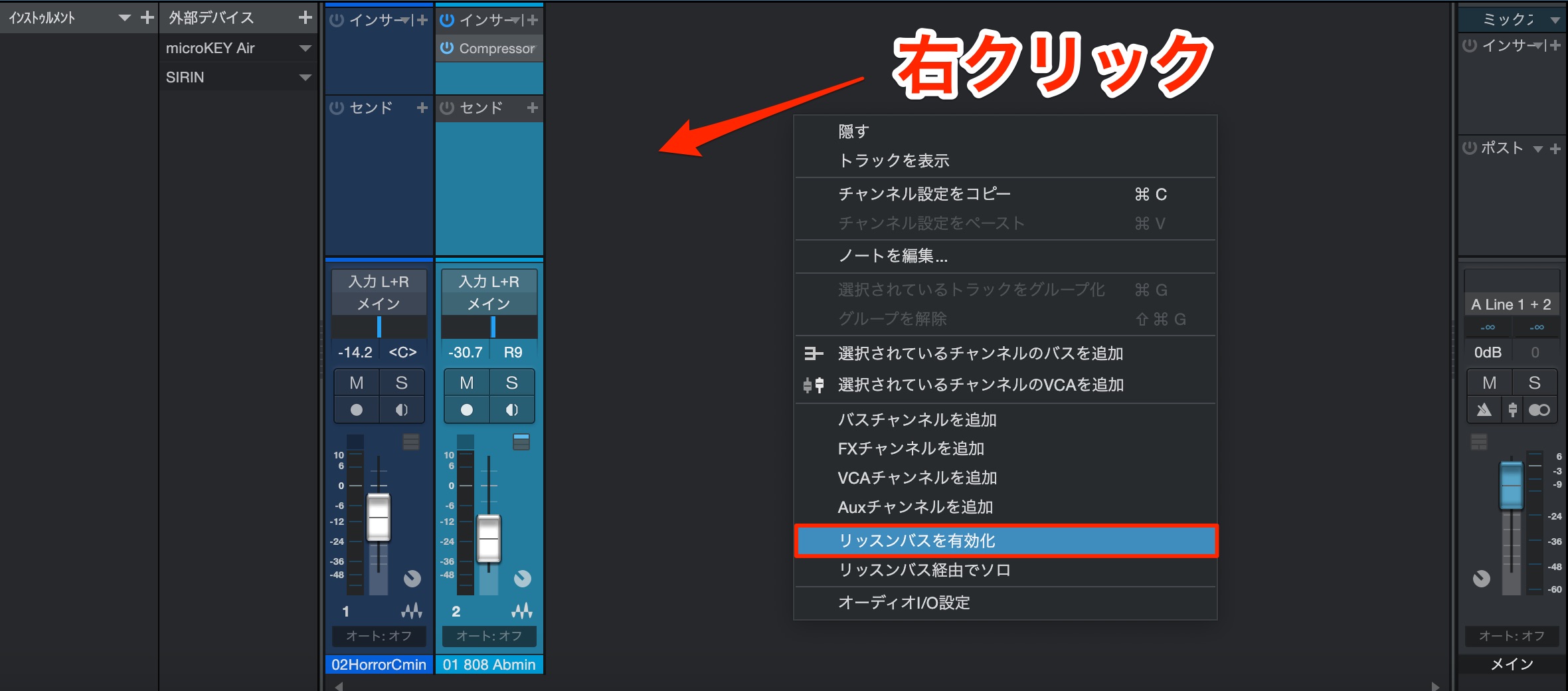
Right-click an empty area of the mixer and select Enable Listen Bus.
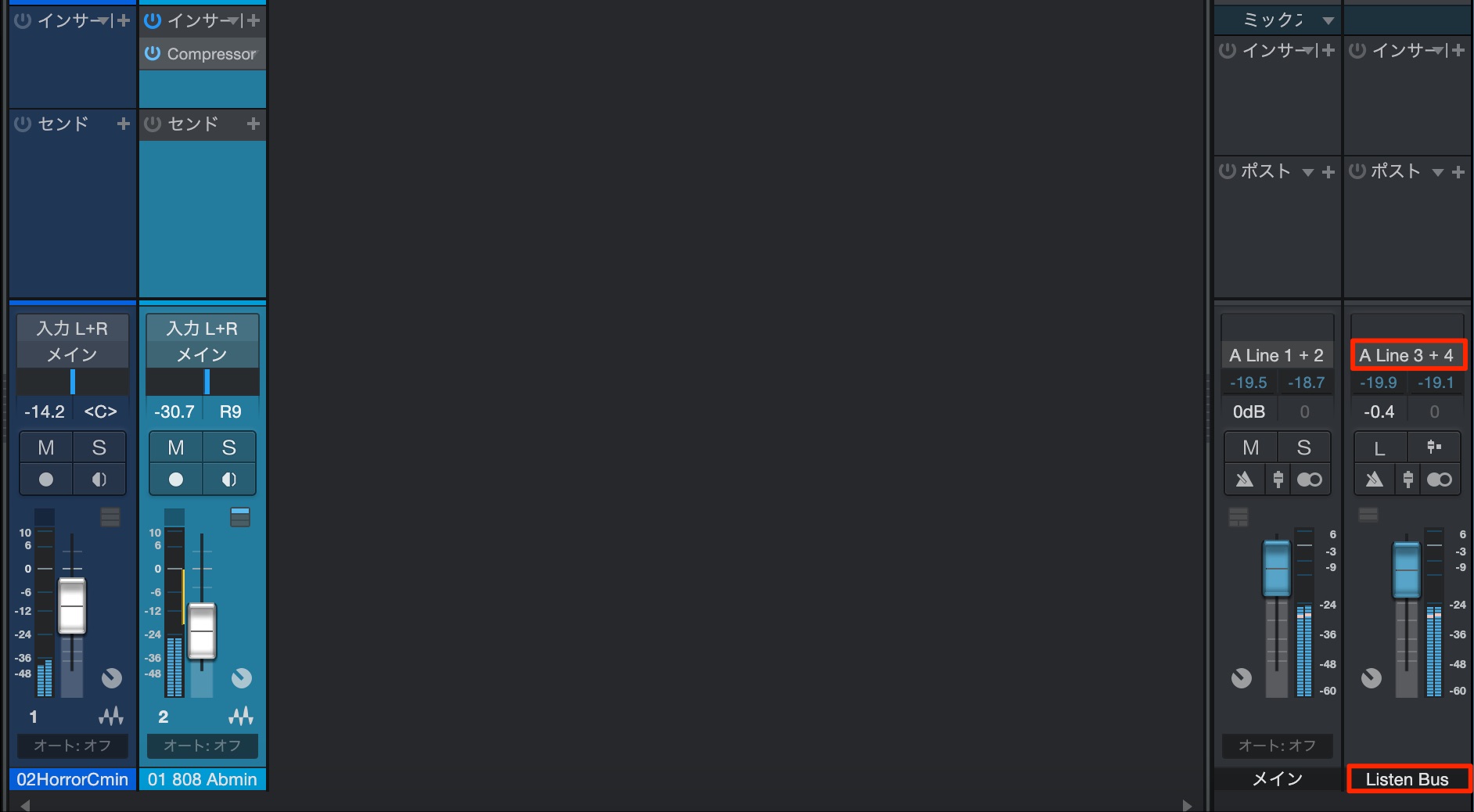
Change the output of the new Listen Bus to monitor immediately through the desired device connected to your audio interface.
For this setup, your audio interface needs at least two stereo output pairs.
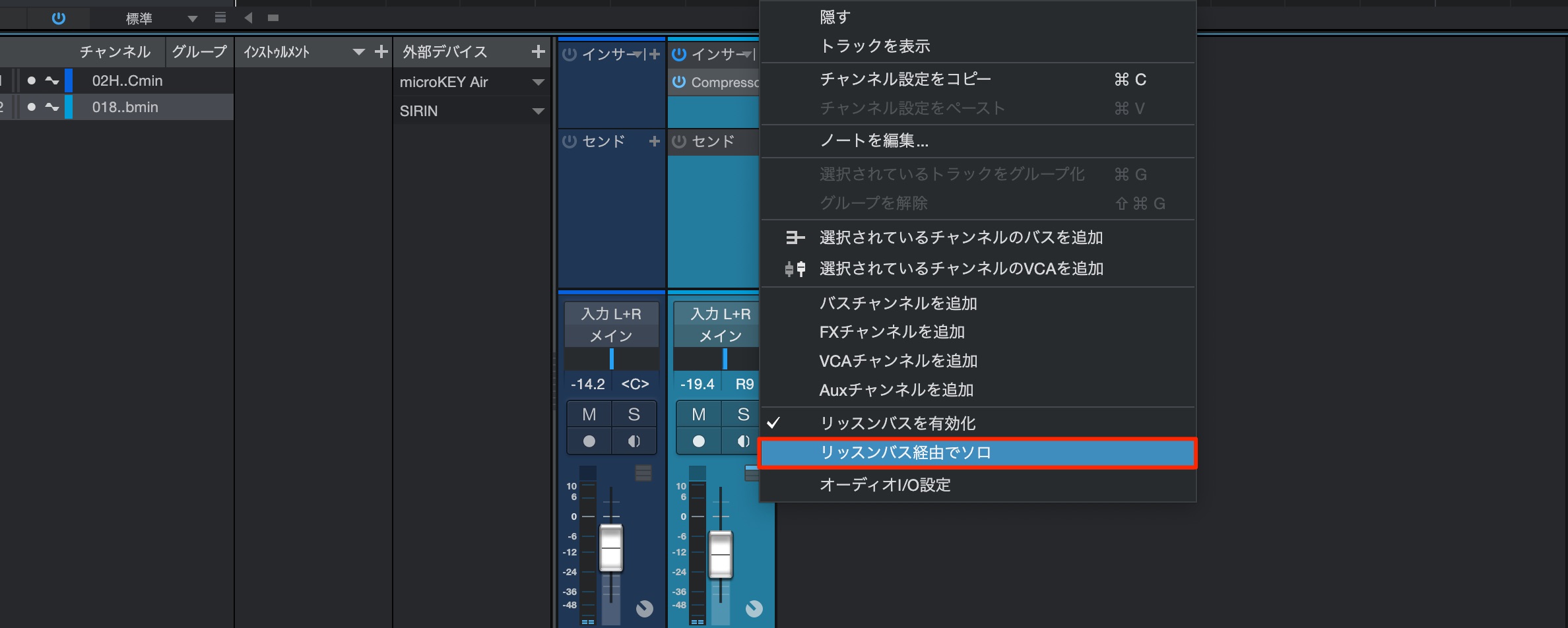
In the same menu, enable Solo through Listen Bus to monitor only soloed tracks through the Listen Bus.
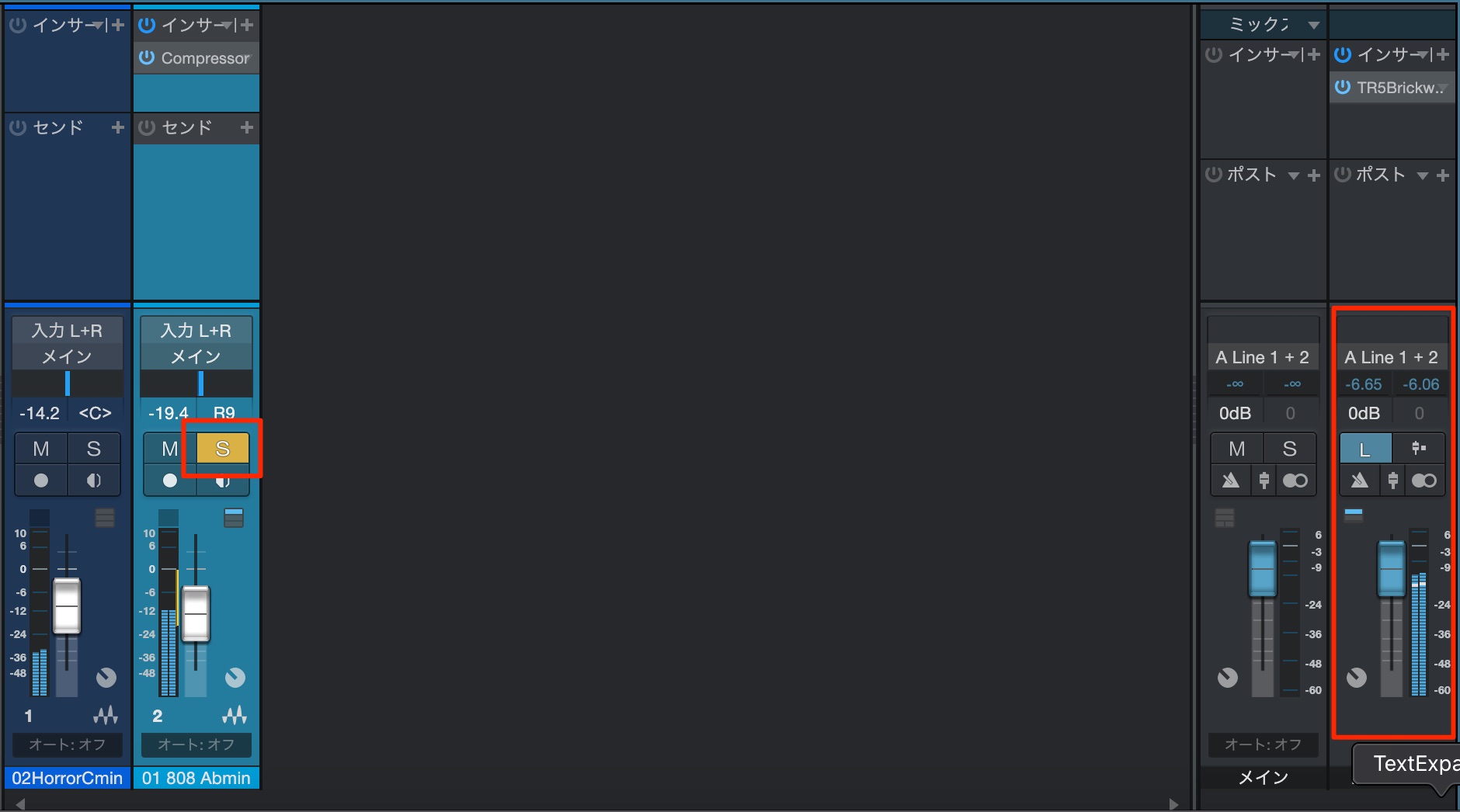
As shown here, the soloed track’s audio is played through the Listen Bus.
You can also apply effects to the Listen Bus, allowing you to monitor soloed tracks with additional processing.
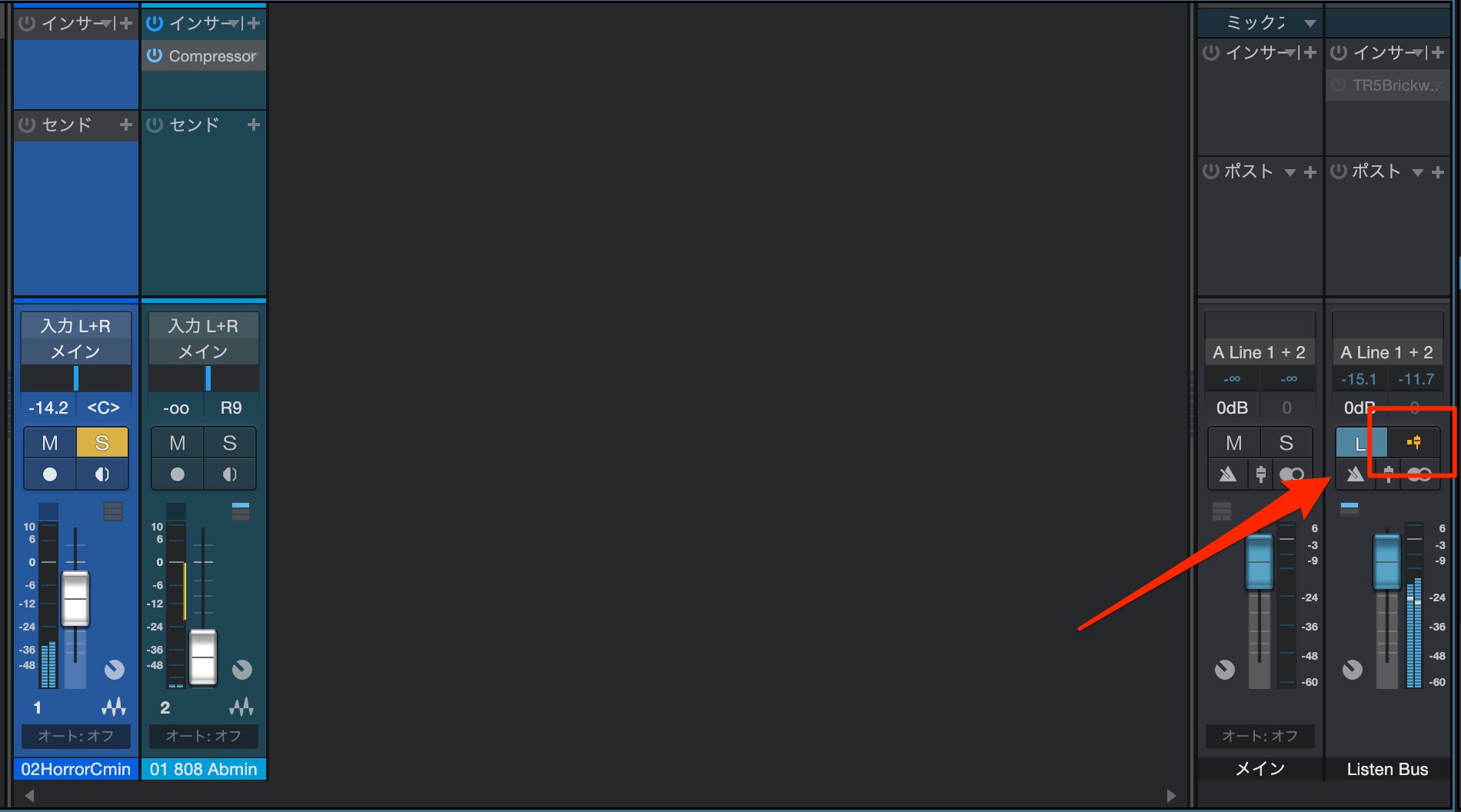
Enable the Pre-Fader Listen button to audition the signal before the track’s volume and pan settings.
Updated Effects and Instruments
The effects and instruments included with Studio One have also been refreshed with more powerful features.
- Analog Delay: State Space Modeled drive stage and improved Width control
- Autofilter: State Space Modeled drive stage
- Beat Delay: improved Width control
- Chorus: improved Width control
- Compressor: filter for the external sidechain input
- Expander: filter for the external sidechain input
- Fat Channel XT: external sidechain input
- Gate: filter for the external sidechain input and consolidated Threshold control
- Limiter2: external sidechain input, new curve mode, and new attack modes (Fast, Normal, and Slow)
- Multiband Dynamics: external sidechain input
- Pedalboard: improved autopan modulation
- Phaser: new Soft modulation mode and Stereo Spread control
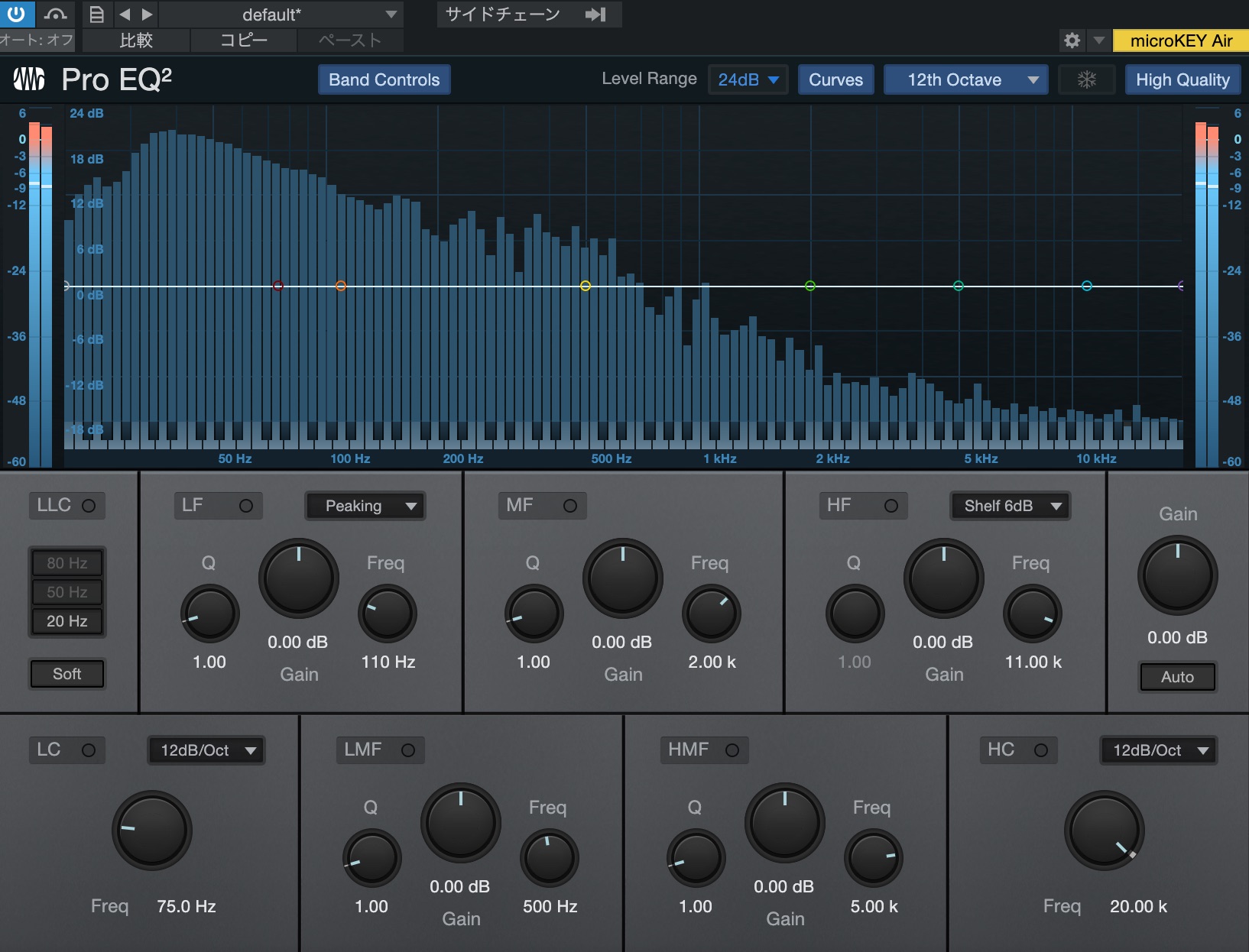
- ProEQ2: phase-linear low-frequency EQ with 12 dB/24 dB modes at fixed 20 Hz/50 Hz/80 Hz frequencies; input metering; 1/12-octave analysis and keyboard overlay; adjustable meter range; and peak-hold metering for the sidechain input
- Rotor: State Space Modeled drive stage
- Tricomp: State Space Modeled drive stage, external sidechain input, and new attack modes (Fast, Normal, and Slow)
Side-by-Side Editors
Available in all editions
Side-by-side editing is now available for the editor windows.
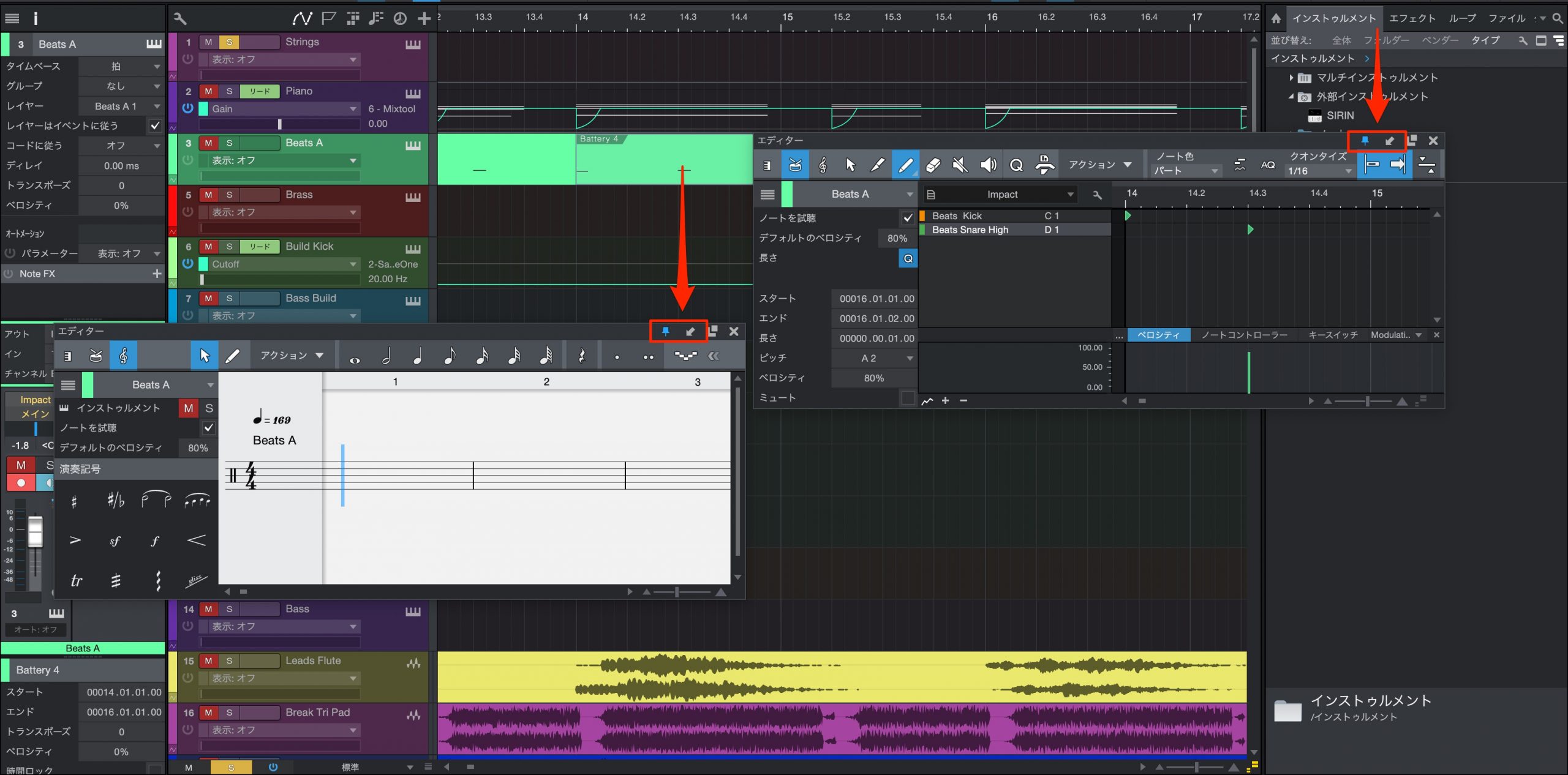
Click the downward arrow in an editor to float its window, then enable the pin icon. You can freely display and arrange multiple editors.
The Show Page for Live Performance
Available in Professional
Finally, let’s look at the innovative Show Page, which makes live performance more enjoyable and efficient.
Designed for real-time use such as concerts and livestreams, this feature lets you instantly switch or recall track settings for the songs in your setlist.
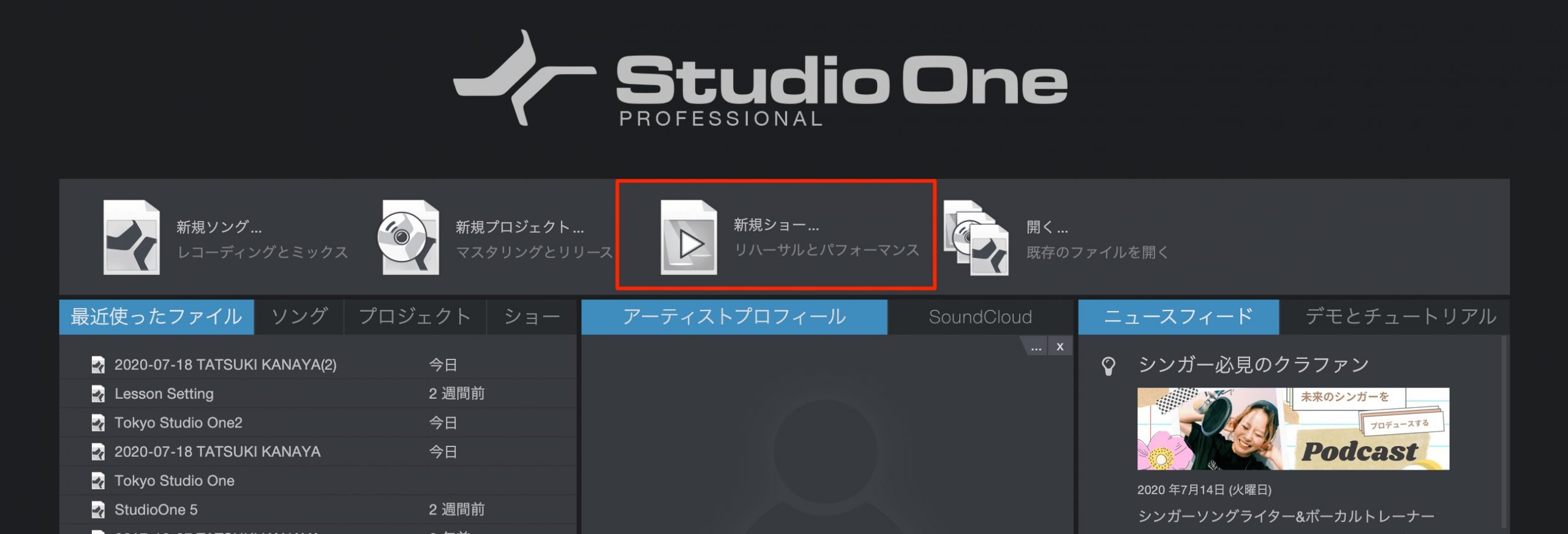
You can create a Show from the start screen.
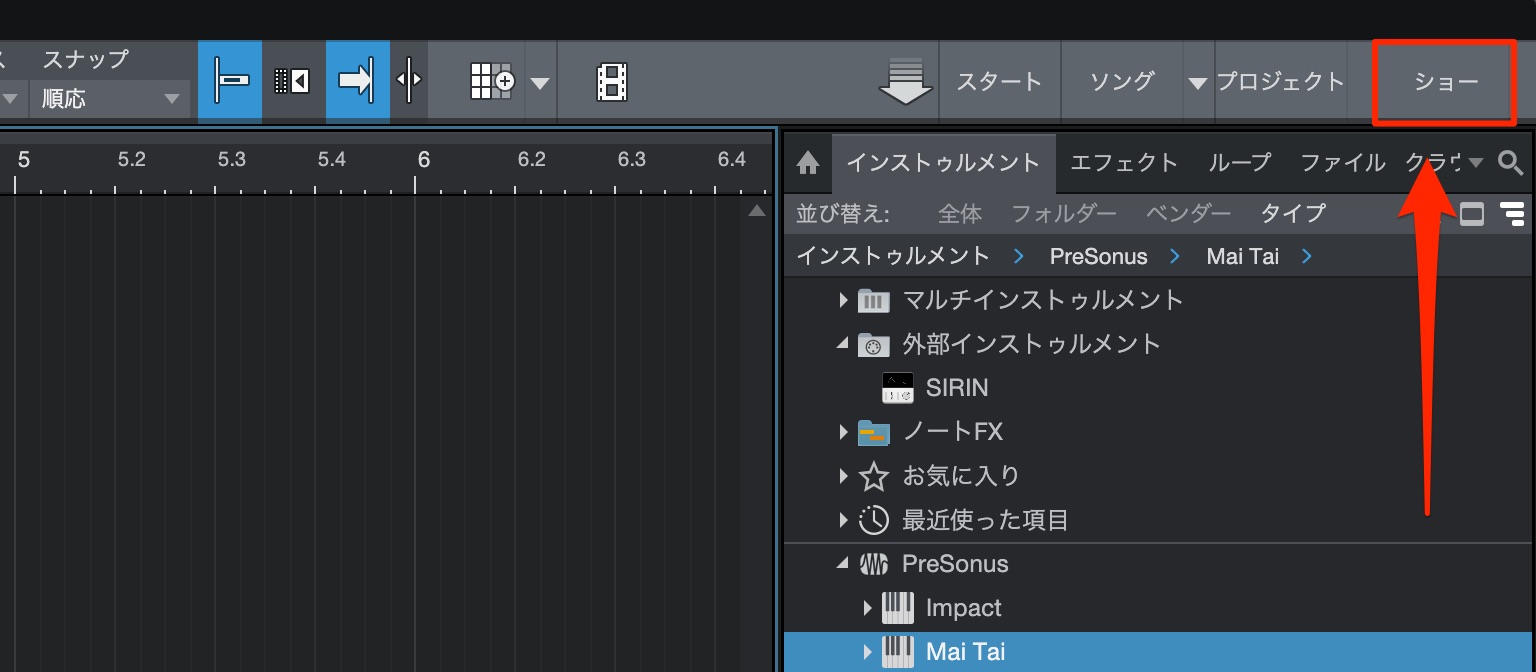
You can also access it using the Show button to the right of Song and Project.
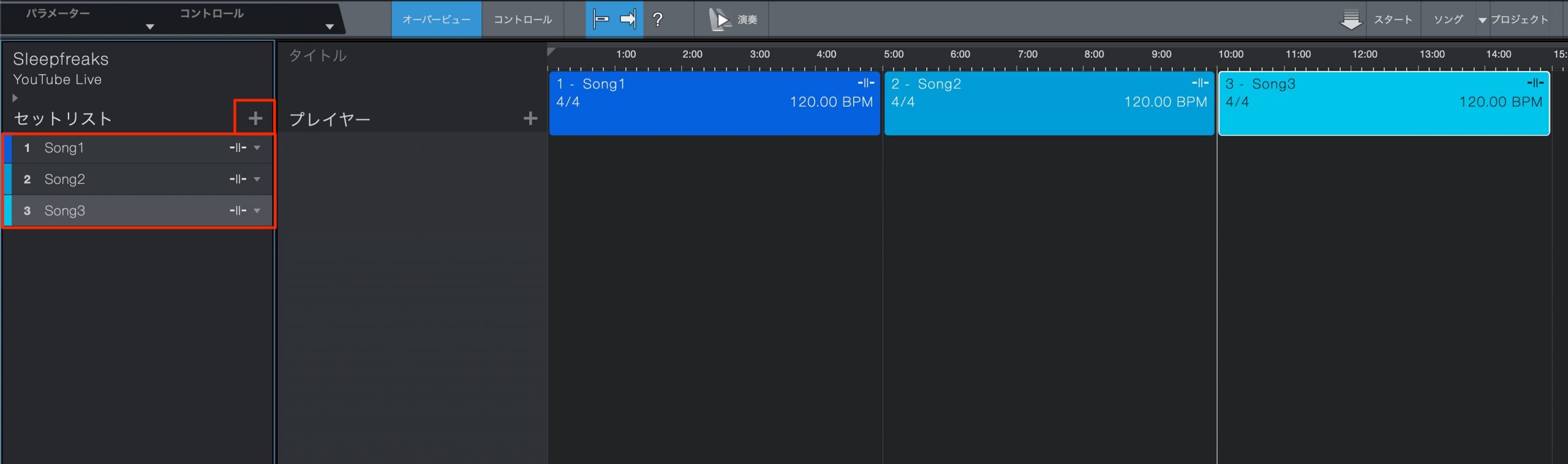
Use the + button on the left to add setlist items, each corresponding to a song.
Here, we have added three songs. You can set each song’s tempo and time signature independently.
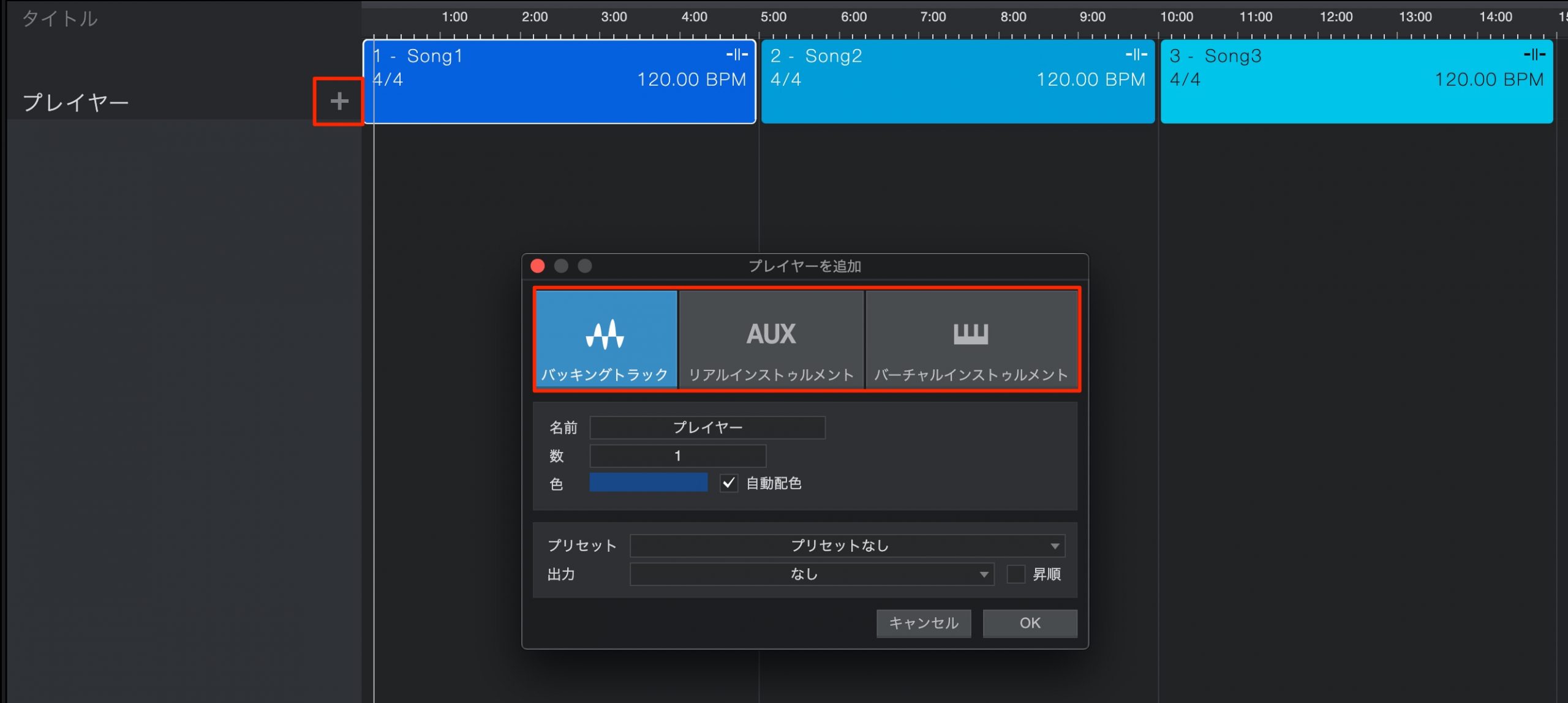
Next, add players for your backing tracks and live instruments.
Click + and select a player type.
- Backing Track: add audio files, such as drum loops or a complete song backing track.
- Real Instrument: use hardware synths via Aux channels as described above, or acoustic/electric instruments and microphones such as guitar and vocals.
- Virtual Instrument: use software instruments on your computer.
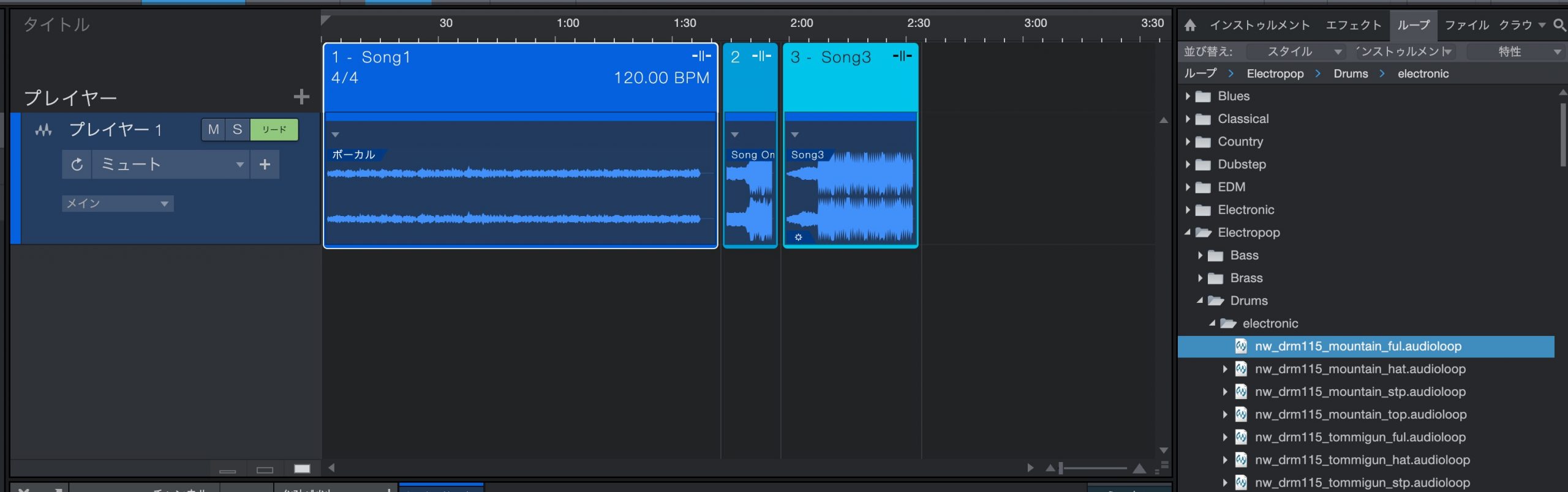
Create a Backing Track player, then drag and drop each song’s WAV backing file into place.
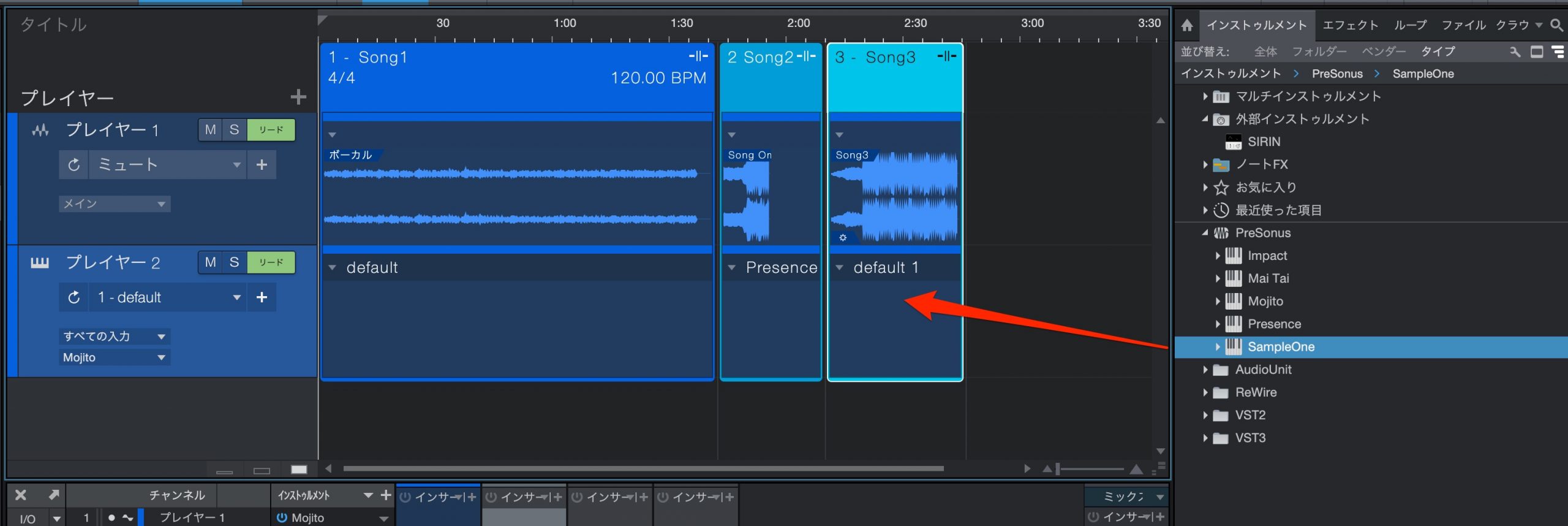
Next, we have added a Virtual Instrument player.
You can assign a different software synth to each song and switch between them automatically.
Very convenient!
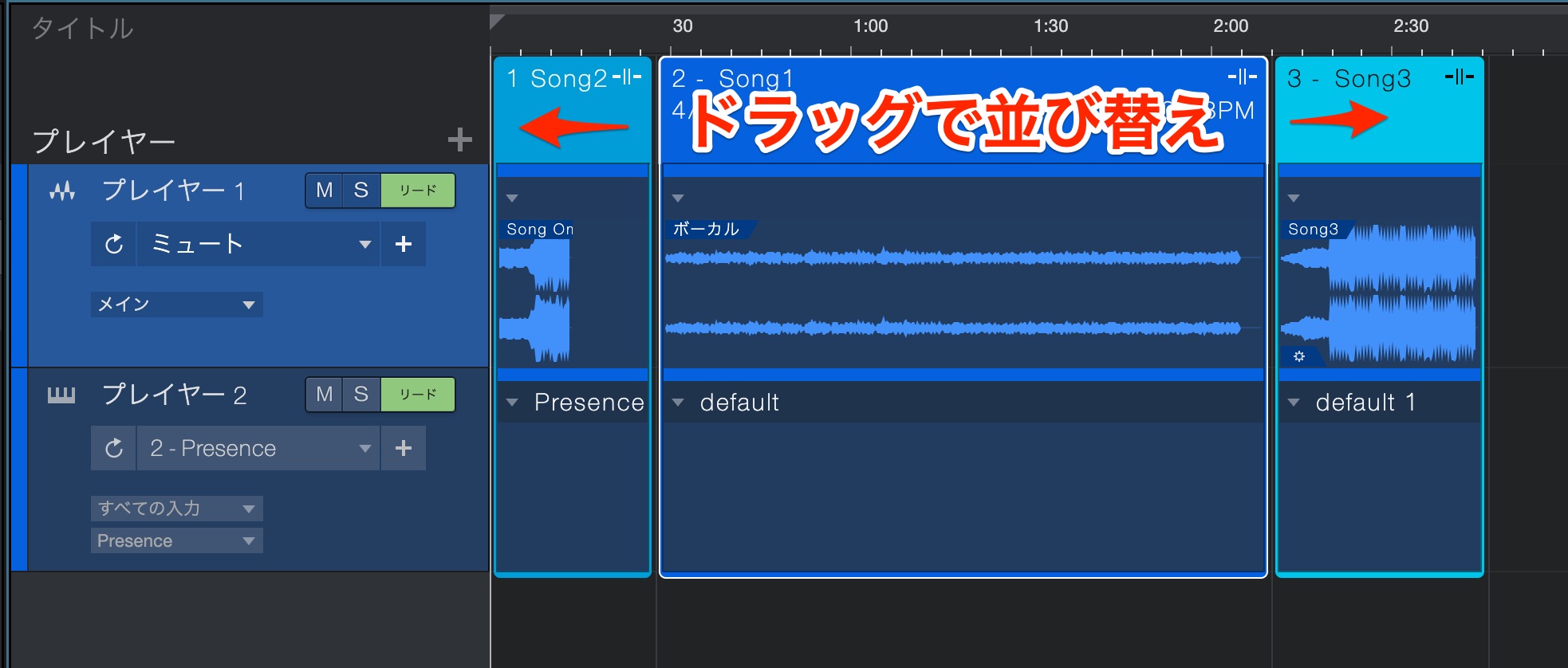
You can drag songs to change their order.
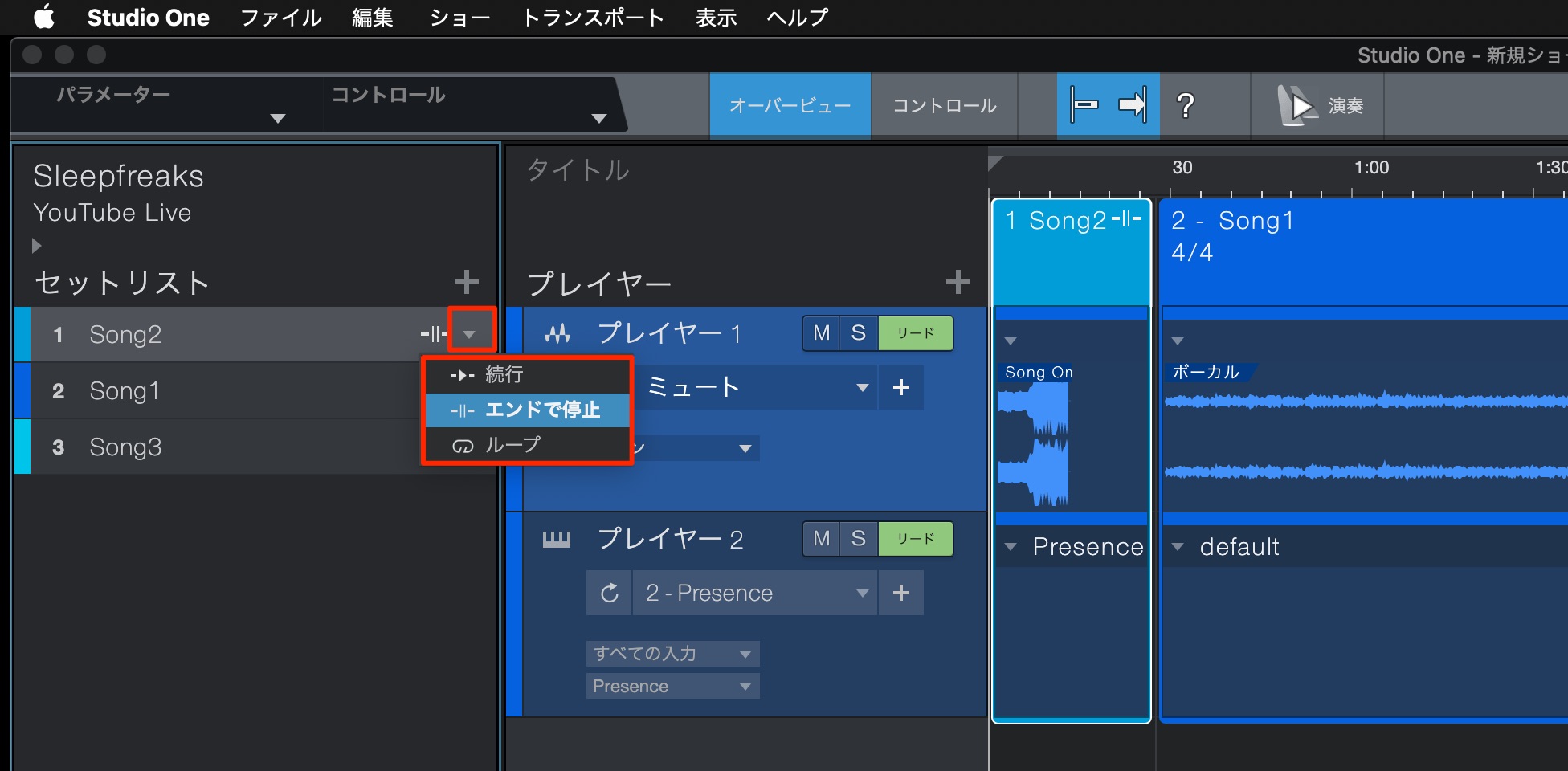
You can also specify what happens when each song ends.
This really is a feature built for live performance.
What do you think of the new features in Studio One 5?
There are plenty of practical additions to help you get more done when composing.
Try bringing the features you like into your own workflow!
[Studio One 5 New Features Explained]
This version arrives roughly two years after the previous major release, adding useful music-production tools as well as new features dedicated to live performance.
Here, we introduce a selection of the new features.Read more: https://t.co/bK3ym7DOCG #DTM #DAW pic.twitter.com/Q7P1bSmI8k
— SLEEP FREAKS (@SLEEPFREAKS_DTM) August 1, 2020
Frequently Asked Questions
Q1. Can I use Studio One 5 alongside an earlier version?
Yes. Earlier versions are not removed and can coexist with Studio One 5. However, projects saved in Studio One 5 can no longer be opened in earlier versions.
Q2. Can I use VST plug-ins in Artist?
Yes. Studio One 5 Artist supports your purchased VST plug-ins without an additional expansion. Up to version 4, a separate purchase was required.
Q3. Are the new features available in the free Studio One Prime edition?
Some features are restricted in Prime. Gain envelopes and timestretching are available in Prime, but 64-bit floating-point support and the score functionality are exclusive to Professional.
Q4. When is Tape resampling useful?
Because changing the tempo also changes the pitch, it is useful for retro sounds and vintage-style effects. It can substantially alter the character of individual tracks or the master sound.
Q5. Can Studio One 5 open project files from earlier versions?
Yes. Studio One 5 can open projects created in earlier versions. However, after saving them in version 5, you can no longer open them in an earlier version.
NEW ARTICLES
Latest English Articles



























































































































































































