

In Part 2 of this practical mastering course, professional engineer Ryuichi Kojima explains specific plug-in settings. Learn how to bring out the character of a mix by adding warmth with tape simulation, monitoring levels with a VU meter, and shaping individual frequency ranges with EQ. The walkthrough covers both identifying the musical elements in each frequency range and applying concrete settings.
Mastering with Plug-ins
In the previous installment, we discussed the preparations to make before mastering.
Now we will begin the actual mastering process using individual plug-ins.
Our example song is “Beach SS Sunset,” which is also used on the Sleepfreaks YouTube channel.
Beach SS Sunset — Original Mix
First, identify the musical elements in each frequency range.
- The upper midrange, from 2 kHz to 5 kHz, contains elements such as vocals, rhythm guitar, piano, and synthesizers.
- The high-frequency range from 8 kHz to 12 kHz contains bright elements such as hi-hats and cymbals.
- The low-midrange from 90 Hz to 300 Hz contains the core of the bass sound. Below that, around 50 Hz to 60 Hz, is the low end of the kick drum.
Keep these ranges in mind as we proceed.
Adding Warmth with a Tape Simulator
Here we will use Slate Digital’s Virtual Tape Machines to add analog-style warmth to the track.
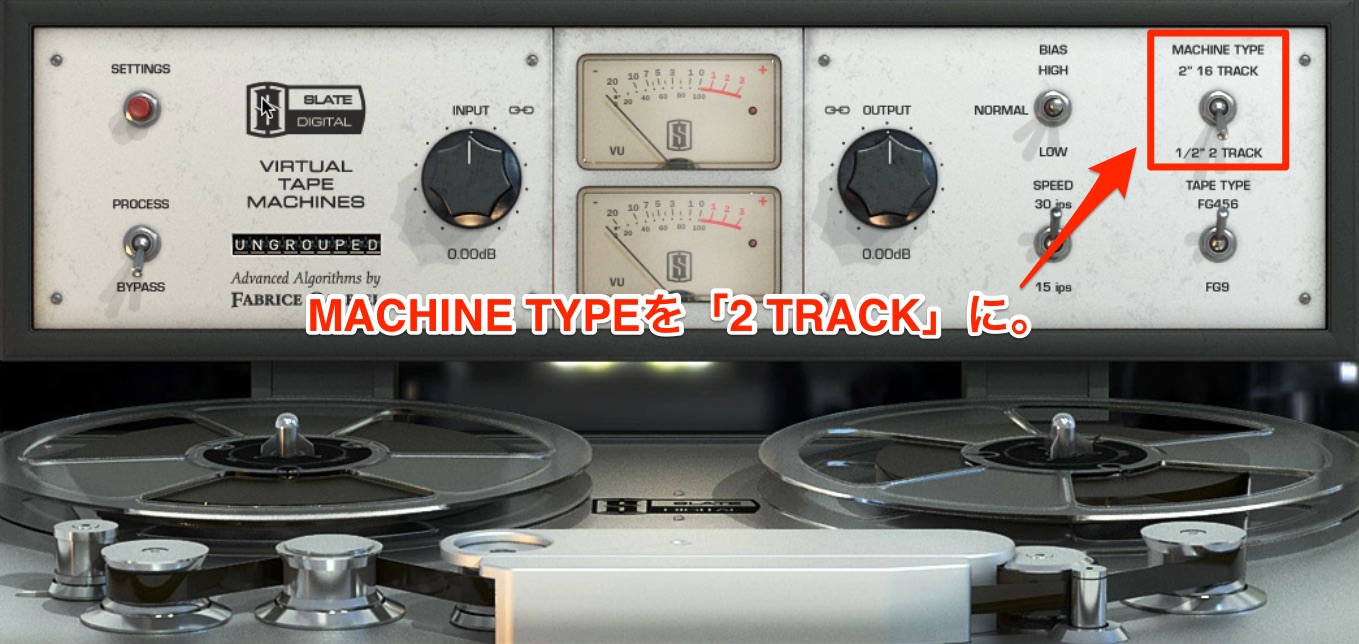
First, choose the type of tape machine to simulate.
- MACHINE TYPE: Tape machines were used either for multitrack recording (16 channels) or for the stereo master (2 channels).
For this example, set MACHINE TYPE to 2 TRACK.
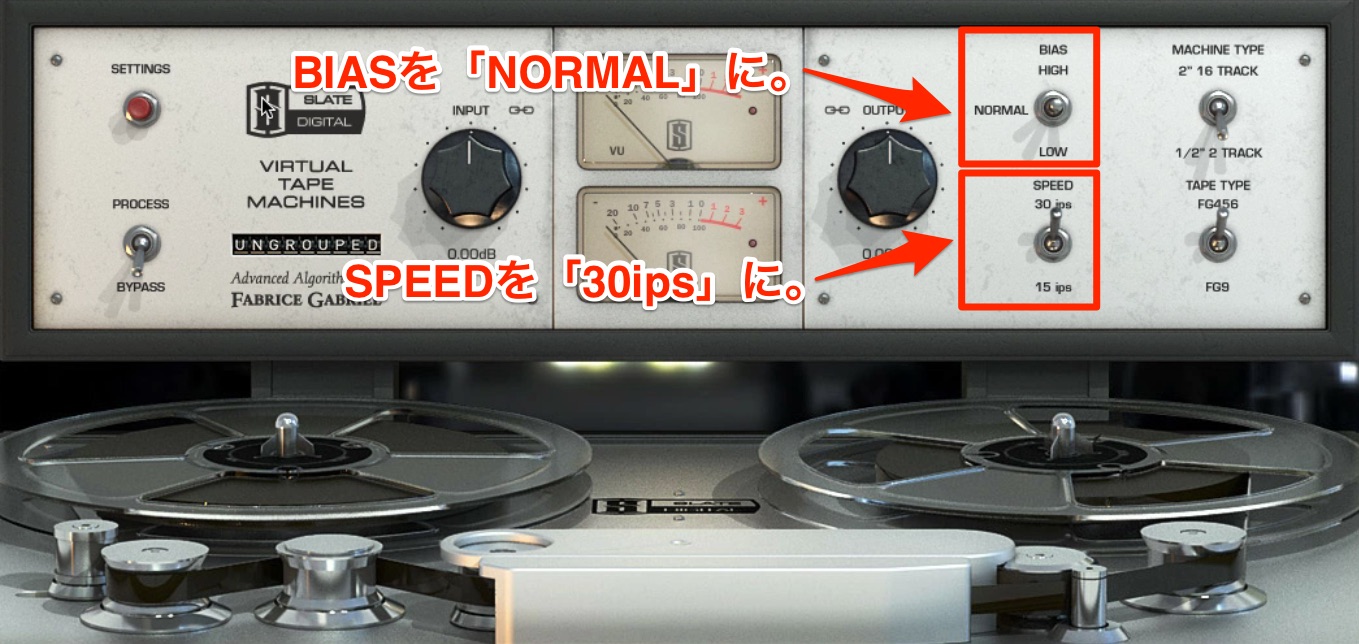
- BIAS: An ultrasonic signal added to reduce distortion when recording to magnetic tape.
- SPEED: The speed at which the tape moves.
A slower speed reduces the high-frequency response while emphasizing the low end.
A faster speed retains more high frequencies and gives a more balanced sound, with less low-end emphasis than the slower speed.
Here, set BIAS to NORMAL and SPEED to 30 ips.
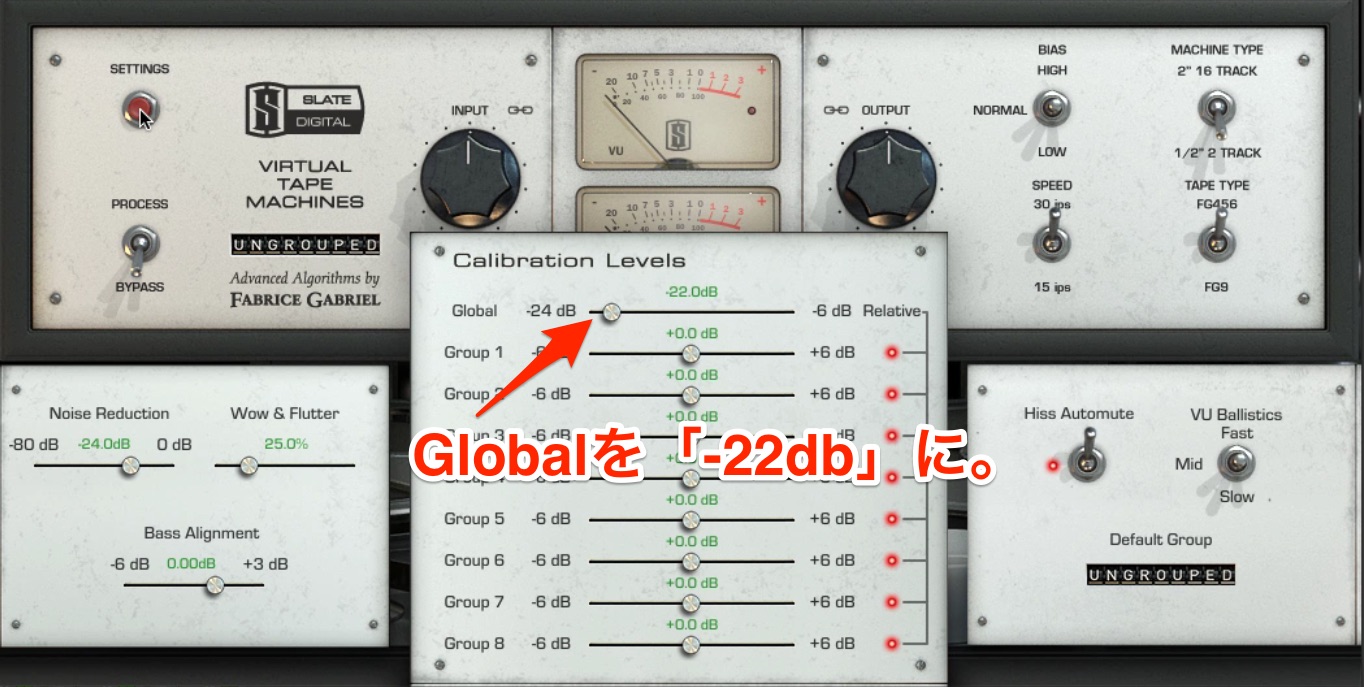
Set the Global calibration level shown in the screenshot to −22 dB. In this example, the aim is to apply a light amount of tape saturation to the whole song.
Let’s compare the sound before and after tape simulation.
- Without processing (bypassed)
Tape Simulation — Bypassed
- With processing
After Tape Simulation
One point to watch here: lower the input so that the tape plug-in’s VU meter does not exceed the 0 mark in this example.
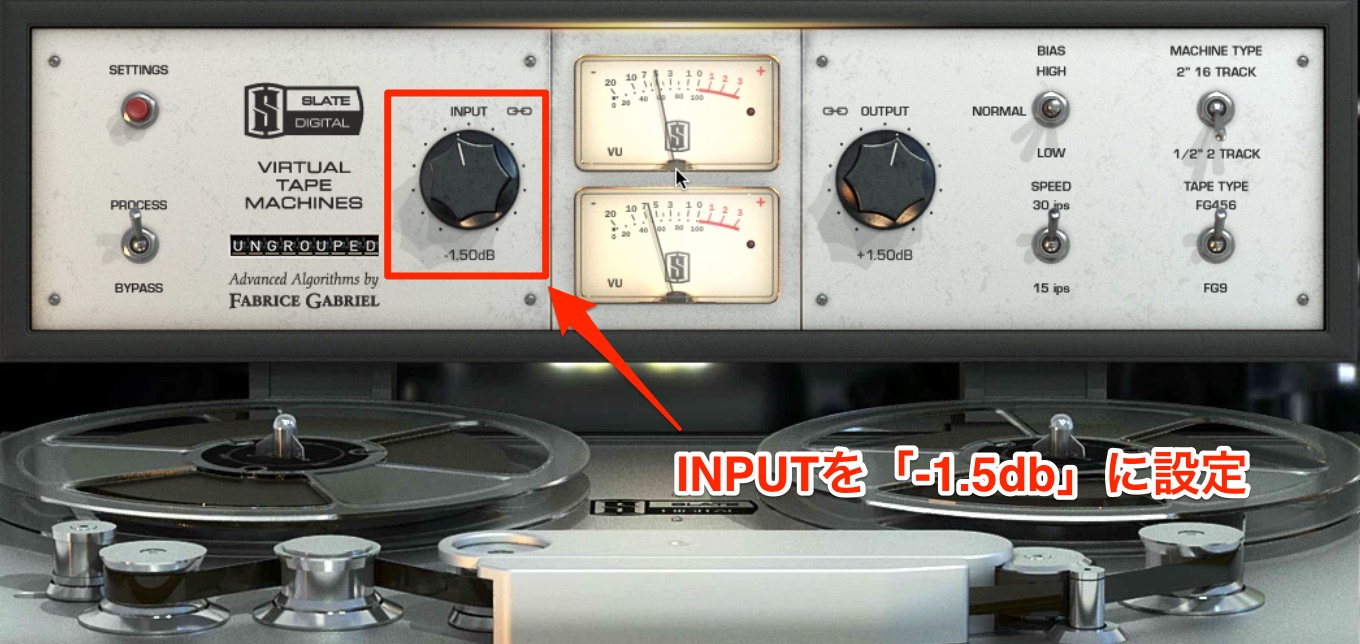
Adjust the INPUT knob so that the needle sits around 0 VU.
Here, INPUT is set to −1.5 dB. Compare the sound before and after this adjustment.
After Input Adjustment
Can you hear how the attack of the drums comes forward?
Tape-simulator settings have a substantial effect on the sound, and extreme settings can change it dramatically.
Compare the processed and bypassed signals as you adjust the effect carefully.
Product website: http://www.miyaji.co.jp/MID/product.php?item=VTM
Checking Levels with a VU Meter
Passing audio through plug-ins will change its level to some extent.
We will use a VU-meter plug-in to monitor the level as we bring the sound closer to its finished state.
Here we are using PSPaudioware TripleMeter.
Product website: https://beatcloud.jp/product/149
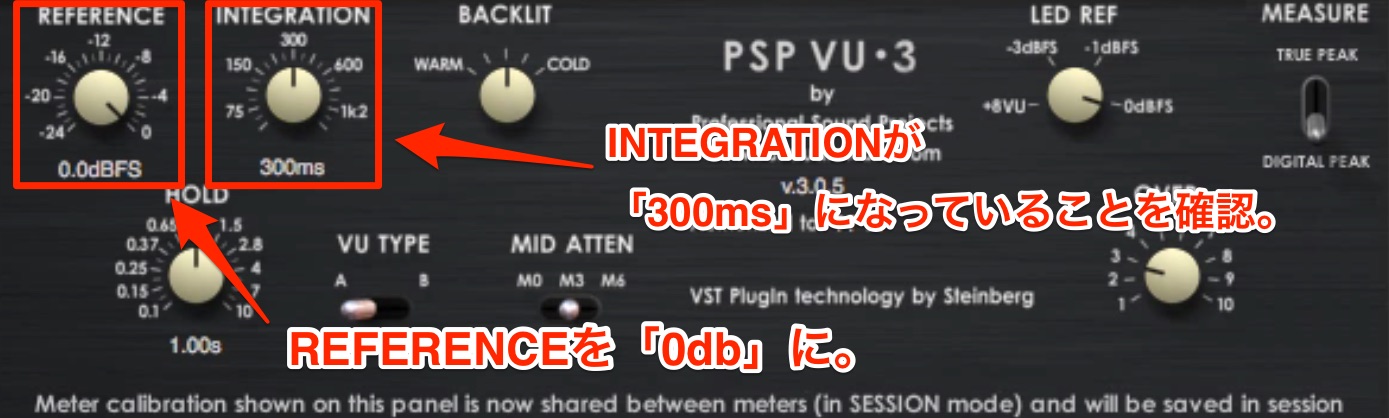
- REFERENCE: The reference level.
- INTEGRATION: The integration time.
For the meter setup used in this example, set REFERENCE to 0 dB
and check that INTEGRATION is set to 300 ms.
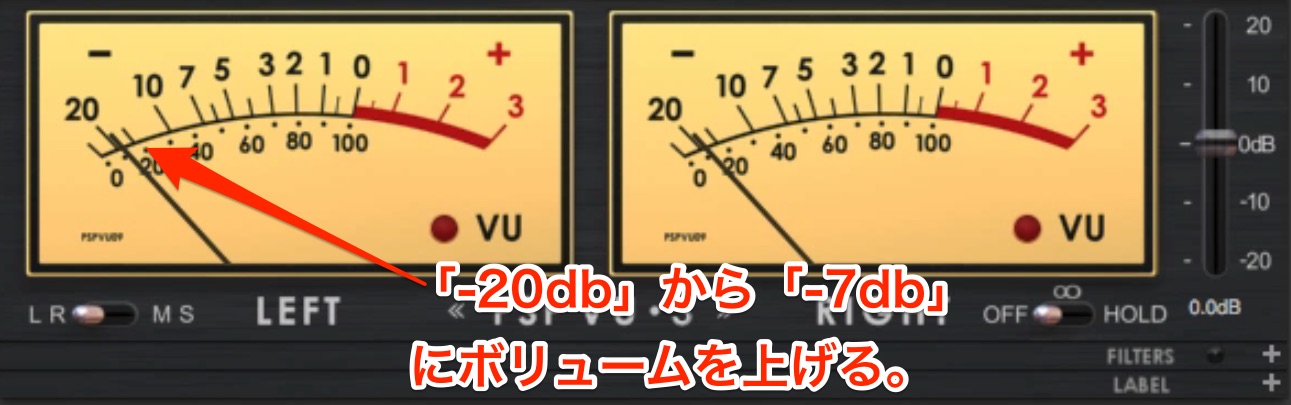
Now check the VU-meter reading.
Here it reads around −20 dB. To raise it toward the example’s target of approximately −7 dB on this meter,
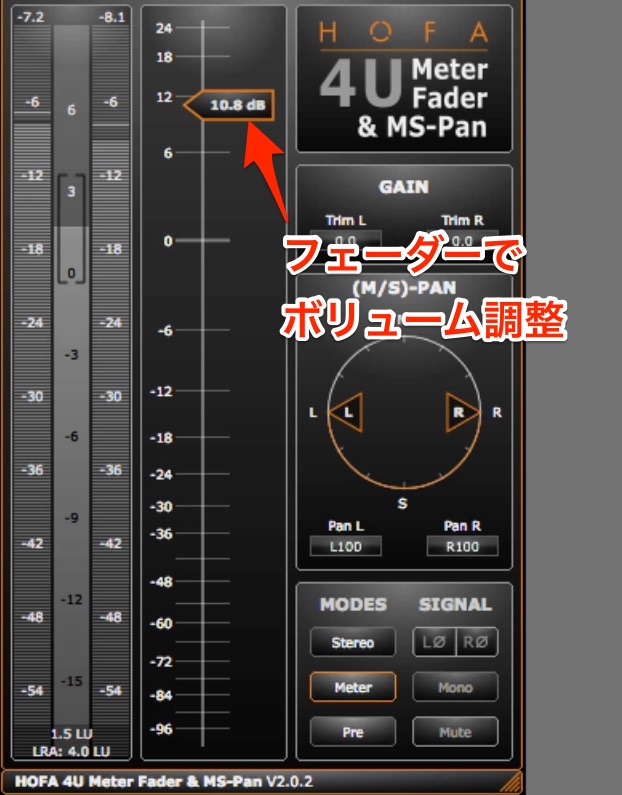
use HOFA 4U Meter, Fader & MS-Pan to adjust the level. These readings depend on the meter calibration used here; −7 dB is not a universal mastering loudness target.
Product website: https://hofa-plugins.de/en/plugins/4u/
Shaping the Sound with EQ
Next, loop a section containing vocals while adjusting the tonal balance with EQ.
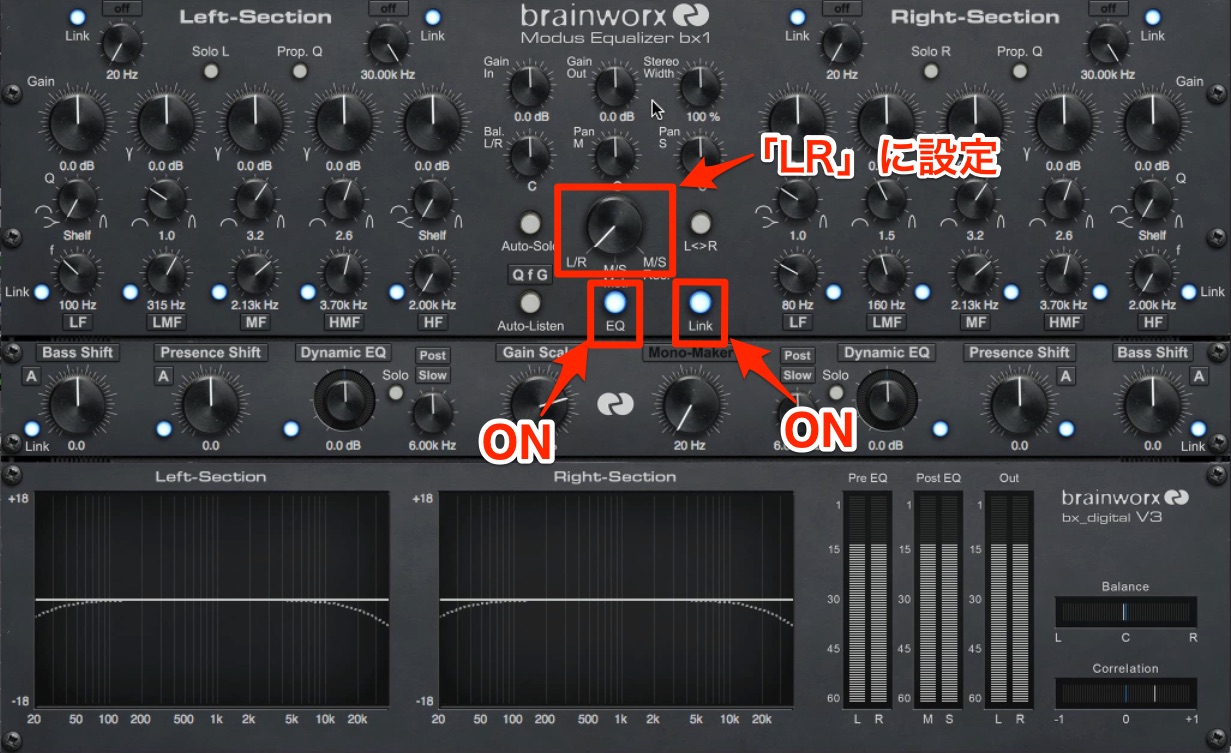
The plug-in used here is Brainworx bx_digital V3.
It is a feature-rich EQ, but we will use a simple setup to shape the stereo mix.
Product website: https://www.plugin-alliance.com/en/products/bx_digital_v3.html
Turn on EQ and enable LINK so that the left and right channels use the same settings.
Also check that the central mode knob is set to LR.
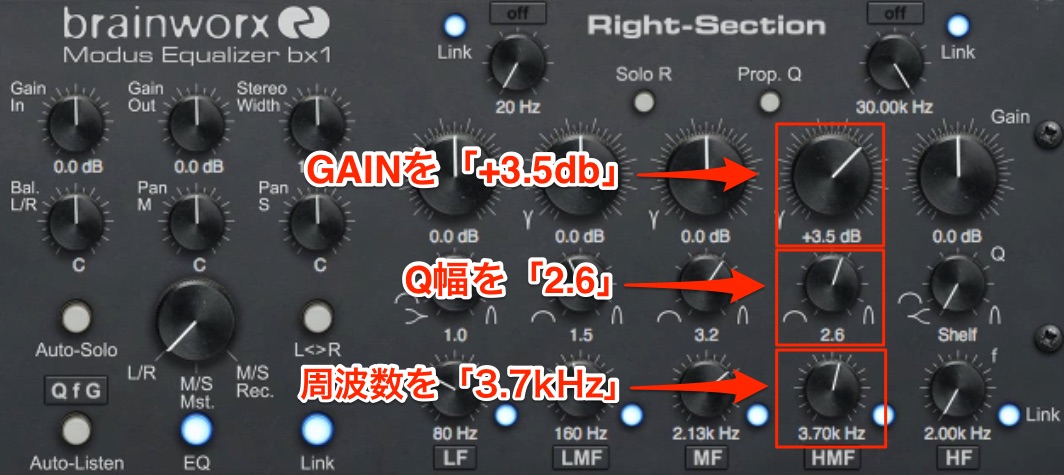
To bring the vocal forward a little, explore the range around 3 kHz to 4 kHz.
Raise GAIN and narrow the bandwidth with Q as you make the adjustment.
For this song, approximately 3.7 kHz sounded right.
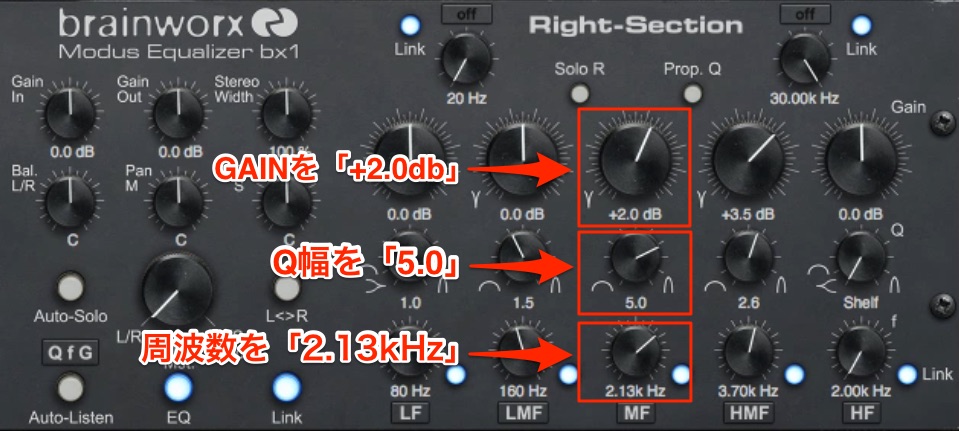
Next, to give the guitar more of a rock character, try adjusting the range around 2 kHz to 3 kHz.
As with the vocal, raise GAIN and narrow the bandwidth while searching for the right frequency. Here, it is around 2.13 kHz.
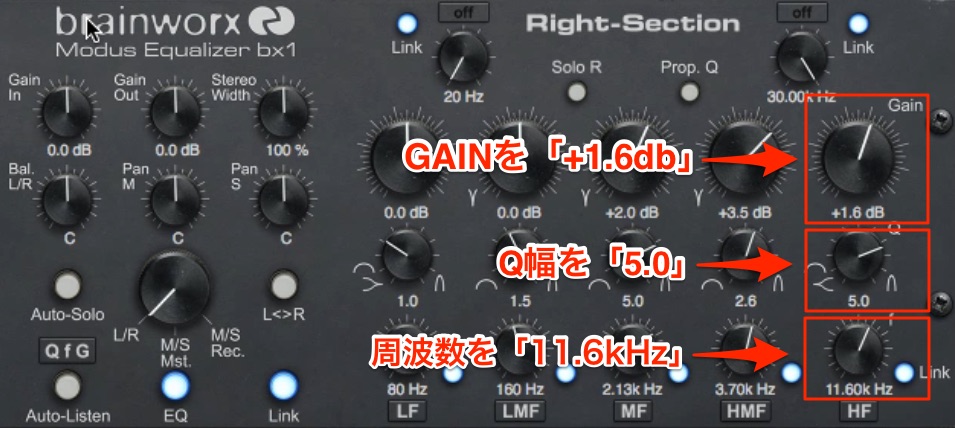
Let’s adjust the high end as well.
Find the range where the hi-hat is prominent and apply a boost.
This helps the sound cut through more clearly.
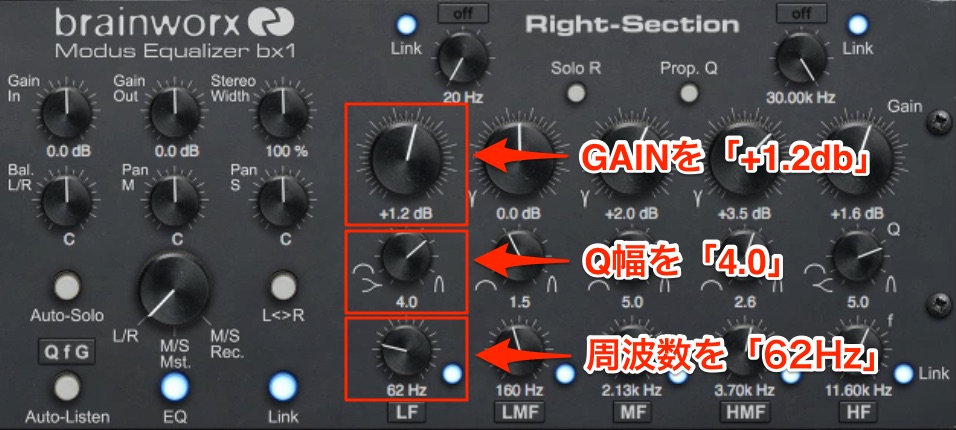
Finally, adjust the low end of the kick and bass.
To give the kick more impact, focus on the range around 60 Hz to 70 Hz.
For this song, 62 Hz seems to work well.
That completes the EQ processing. Let’s compare the results.
- Without processing (bypassed)
EQ — Bypassed
- With processing
After EQ
How does it sound? The song should now have considerably more impact.
Mixing often involves using EQ to cut unwanted frequencies. For the mastering approach demonstrated here, we assume the mix is already in good shape and use boosts to bring out its strengths.
That covers the main EQ adjustments.
In the next installment, we will build on this sound using level-control processors such as a limiter and a mix-bus compressor.
Stay tuned!
Frequently Asked Questions
Q1. How does mastering EQ differ from mixing EQ?
The approach described in this tutorial contrasts cutting unwanted elements during mixing with boosting desirable elements during mastering, assuming the mix is already complete. This is the approach used for this example, rather than a rule that mastering must use boosts or mixing must use cuts.
Q2. How does the tape simulator’s SPEED setting affect the sound?
A slower tape speed reduces high frequencies while emphasizing the low end. A faster speed retains more high frequencies and produces a more balanced response, with less added low end. Choose the setting that suits the direction of the song.
Q3. Why adjust the input to keep the meter around the 0 mark during mastering?
Plug-in processing changes the level, so input adjustment helps maintain the intended operating level and avoid unwanted distortion. In the tape-simulator example, the needle is kept around 0 VU. This is a calibrated VU reference, not the digital clipping ceiling of 0 dBFS; digital peaks must be monitored separately.
NEW ARTICLES
Latest English Articles



















































































































































































































































































































