
This beginner guide covers installing Cubase 11 and creating and saving your first project: Steinberg Download Assistant, a Steinberg ID, download access codes, USB-eLicenser activation, and the application and bundled instruments. It documents the setup shown in March 2021. Current licensing note: Steinberg ended eLicenser services on May 20, 2025, so the activation sequence below is historical guidance. Existing licensed products can still run with the required working eLicenser and license. Consult Steinberg’s current licensing guidance before installing or upgrading.
Welcome to our Cubase 11 beginner series. We will explain music production in Cubase from the ground up for those just getting started.
Our aim is to make the series understandable without prior knowledge and help you keep going. Follow along to the end.
In this first installment, we cover the first steps after purchase: installation and project creation.
Installing Cubase and Creating a Project: Video
Selected Questions and Answers from YouTube

I want to select a Yamaha driver in the Cubase AI included with my UR22C, but it is not listed. What should I do? Is the Yamaha driver unavailable to install?

First, check that the latest dedicated driver is installed correctly. Visit the official website ( https://japan.steinberg.net/jp/support/downloads/ur_c.html ) and download and install the UR22C driver. Disconnect the UR22C from your computer during installation, then reconnect it once installation is complete.
Installing Steinberg Download Assistant
After purchasing Cubase, download and install the software.
To download the files required for Cubase installation, use Steinberg Download Assistant as shown below.
Search for it in your web browser and open the download page.
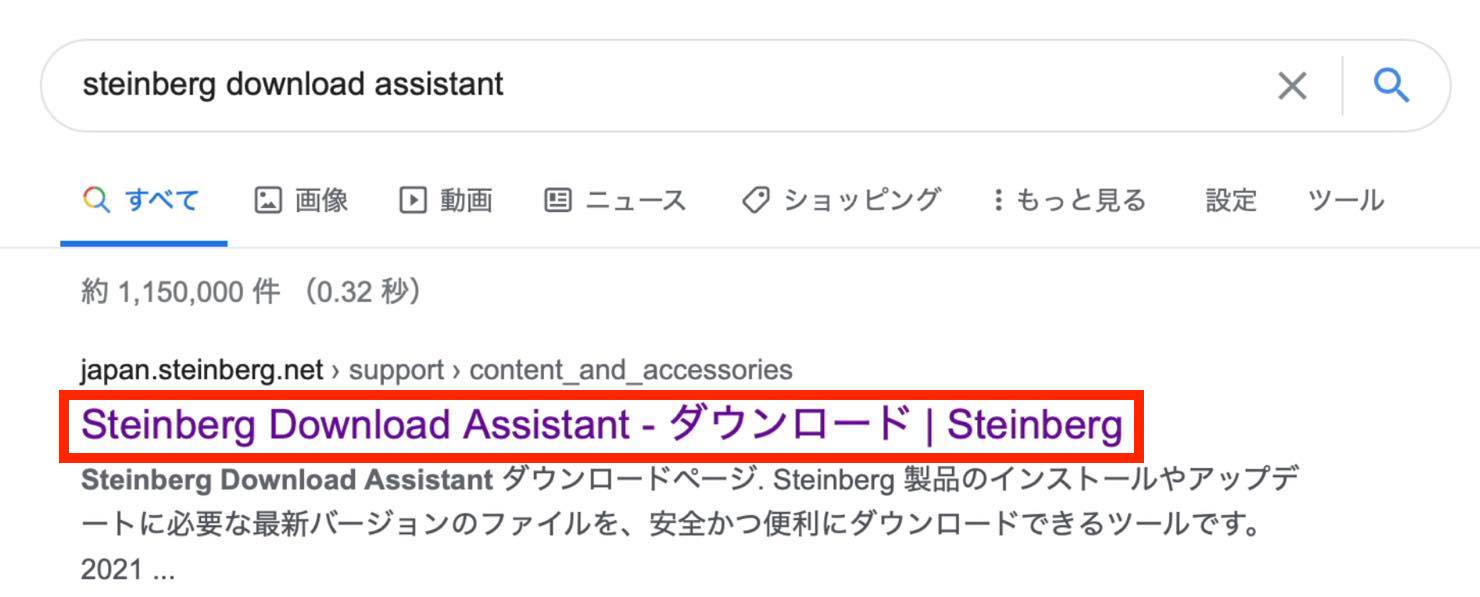
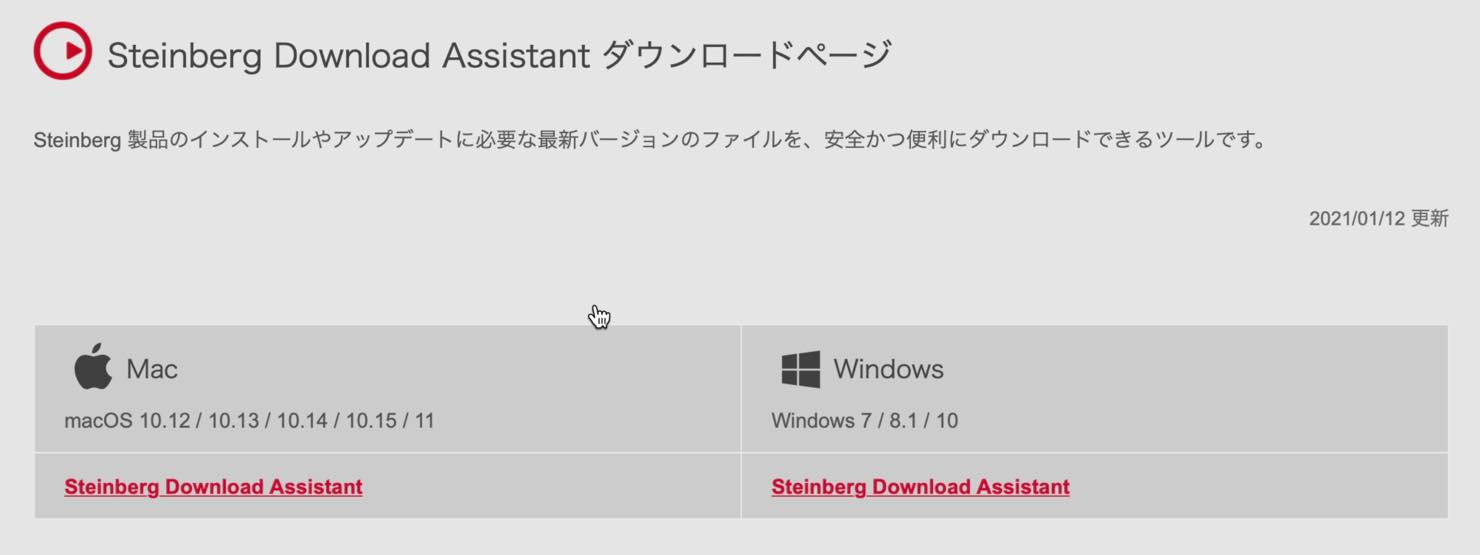
The page provides download links like these. Download the Mac or Windows installer for your computer.
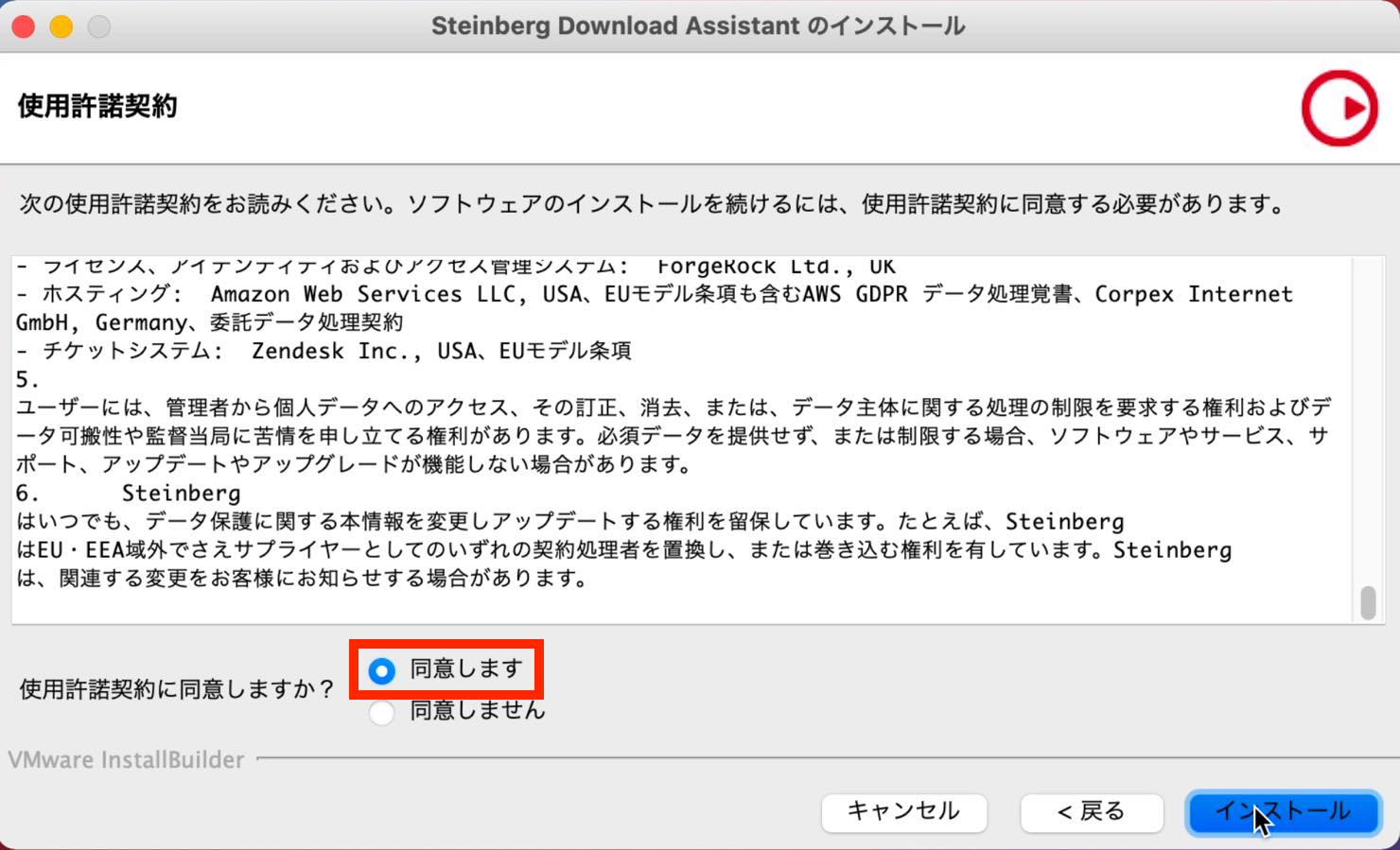
Open the downloaded installer. Read the license agreement, select the option to agree if you accept its terms, then click Install.
Once installation finishes, you will be prompted to log in. Click to continue.
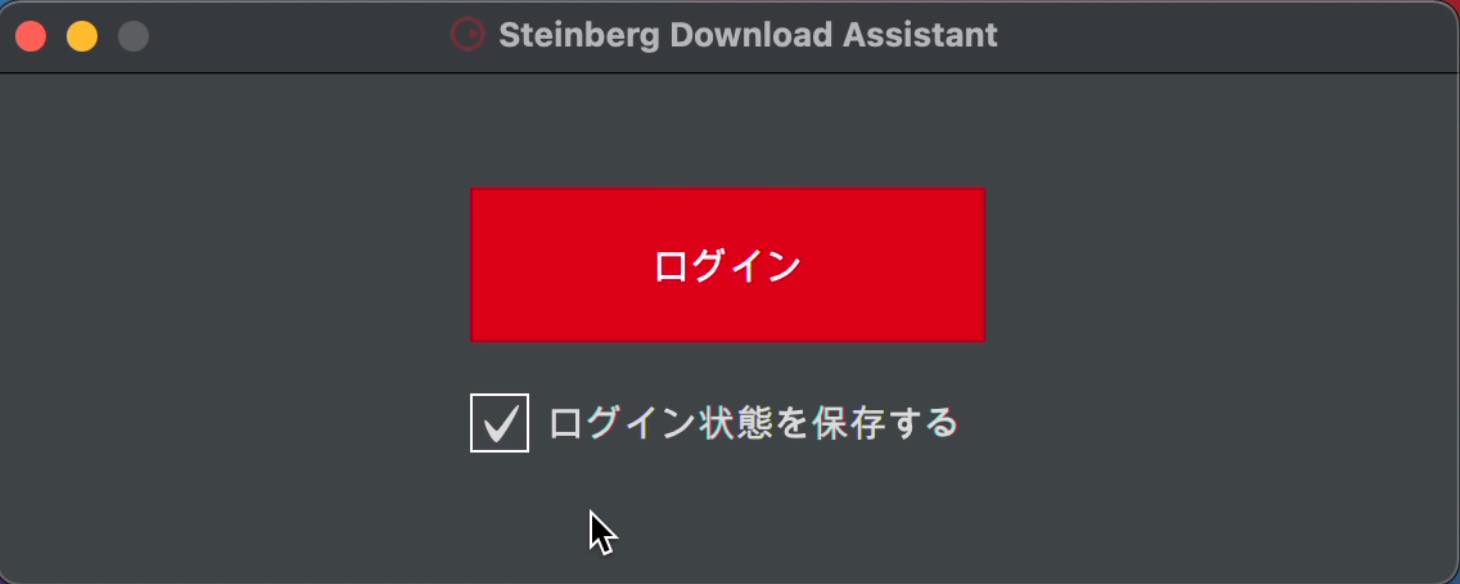
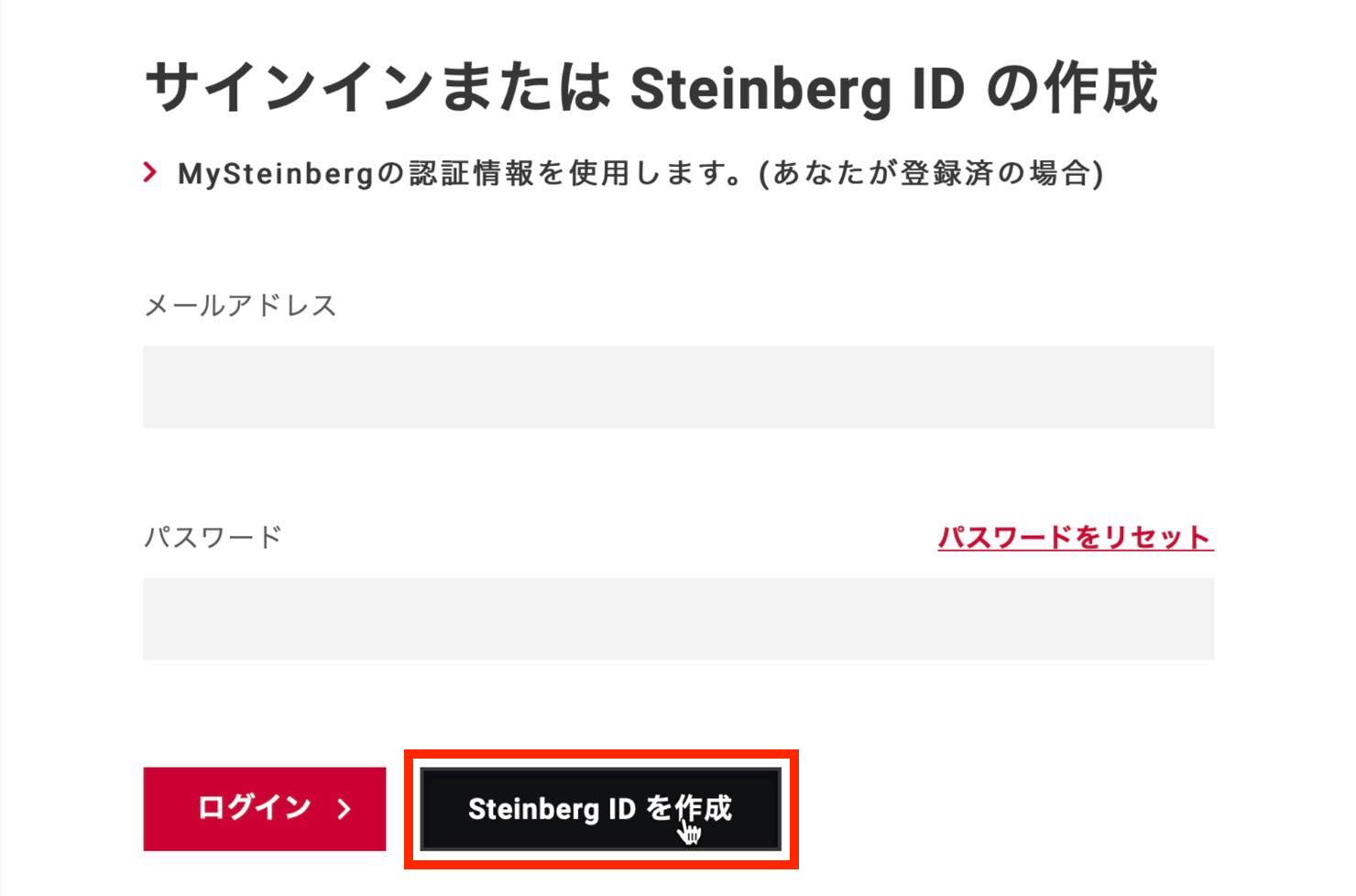
Your web browser opens the sign-in page.
If you already have a Steinberg ID, enter your email address and password to sign in.
If you do not have one, click Create Steinberg ID.
Creating a Steinberg ID
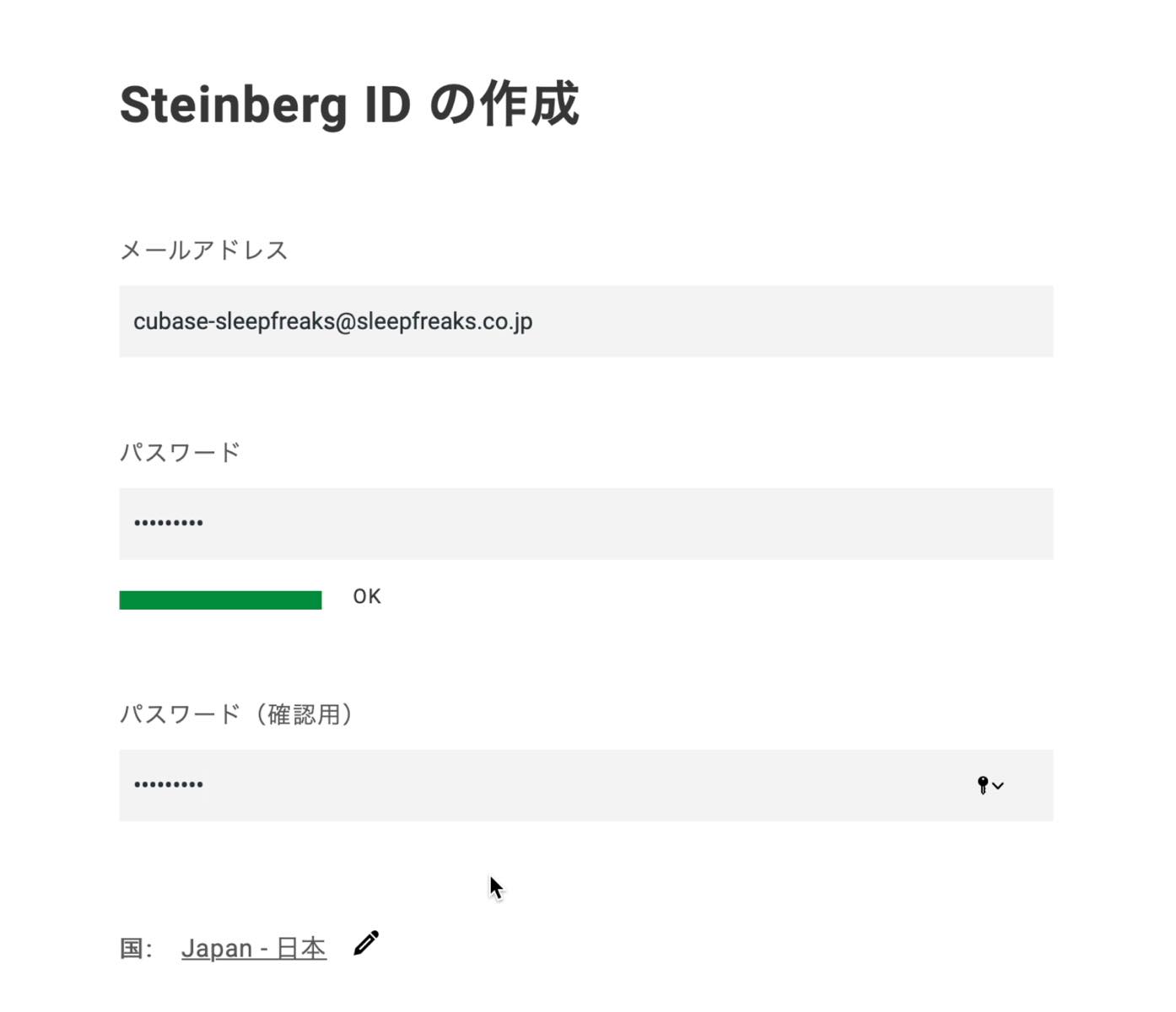
Enter your email address and choose a password. Enter the same password again in the confirmation field.
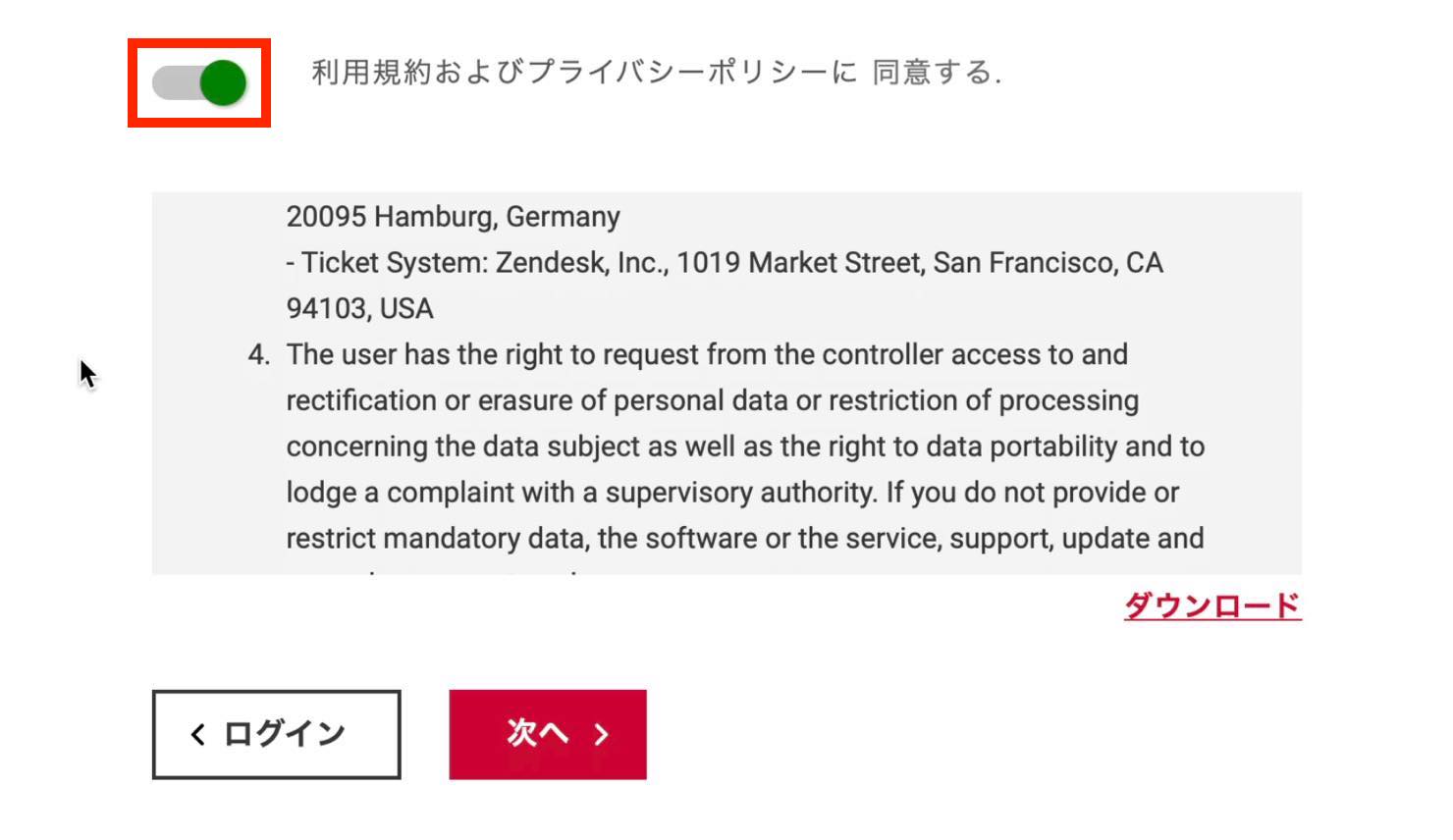
Read the terms of use and privacy policy, then agree if you accept them and continue to the next step.
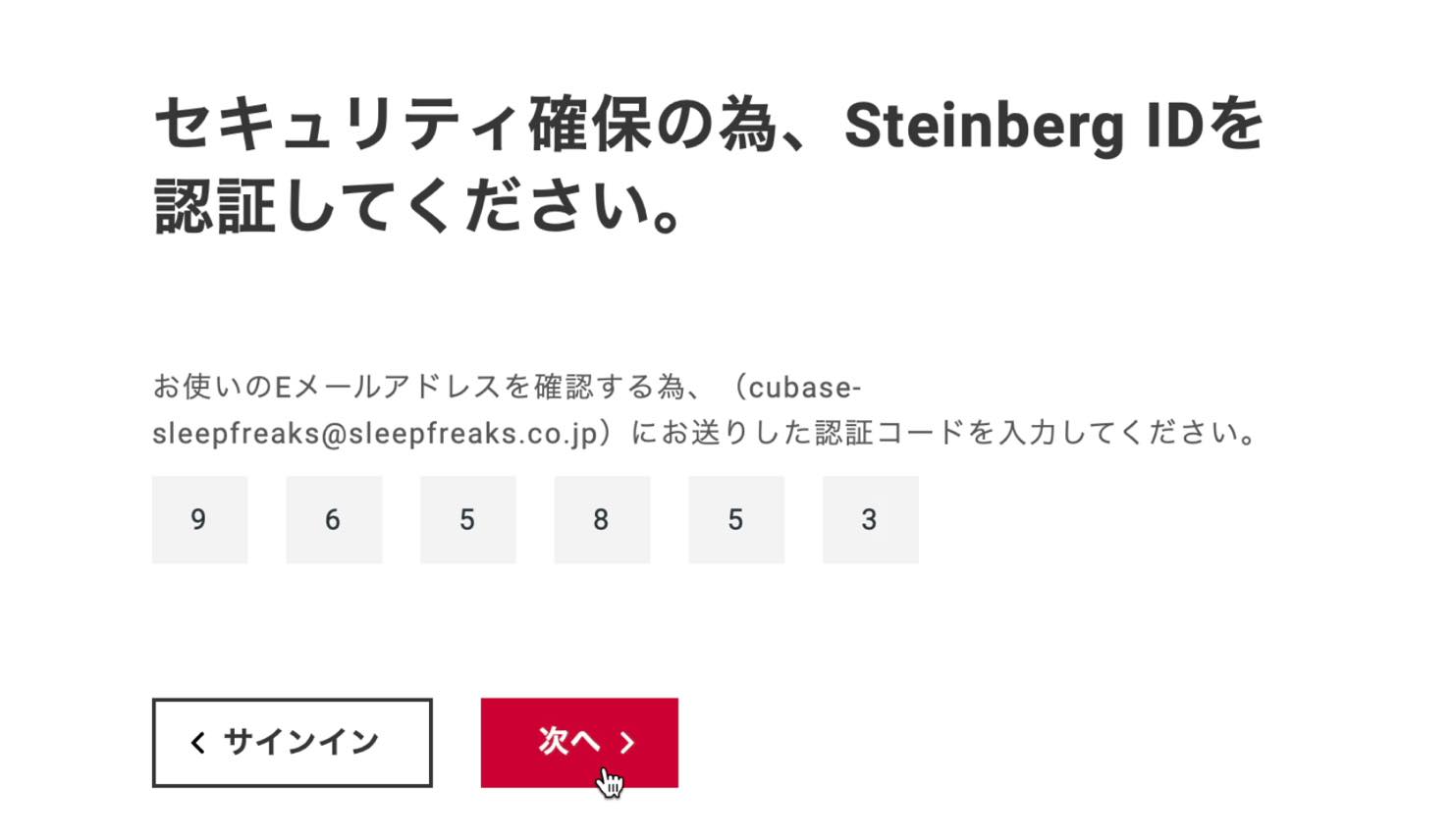
Enter the verification code sent to the email address you supplied.
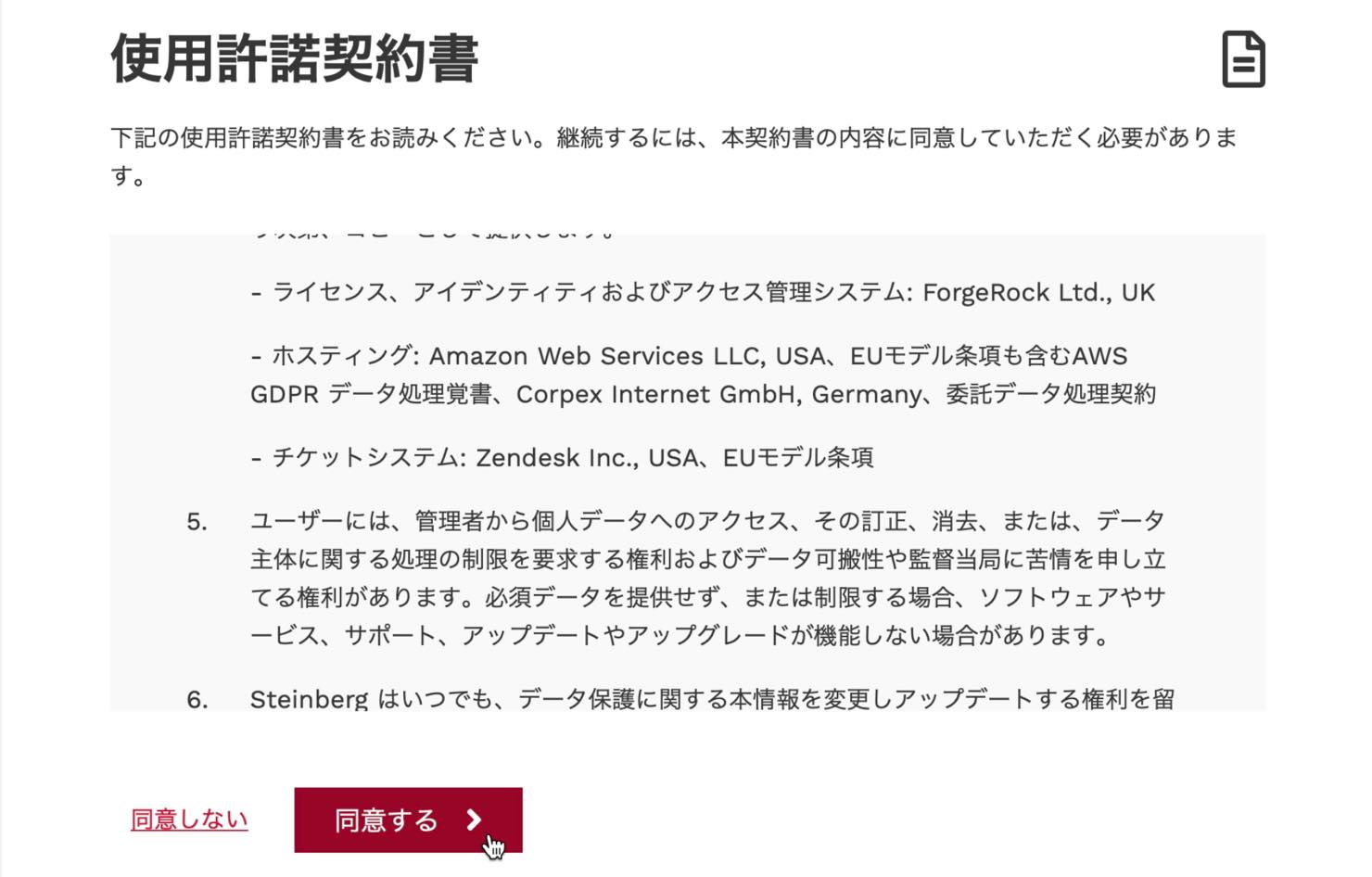
Read the displayed license agreement and click Agree if you accept it.
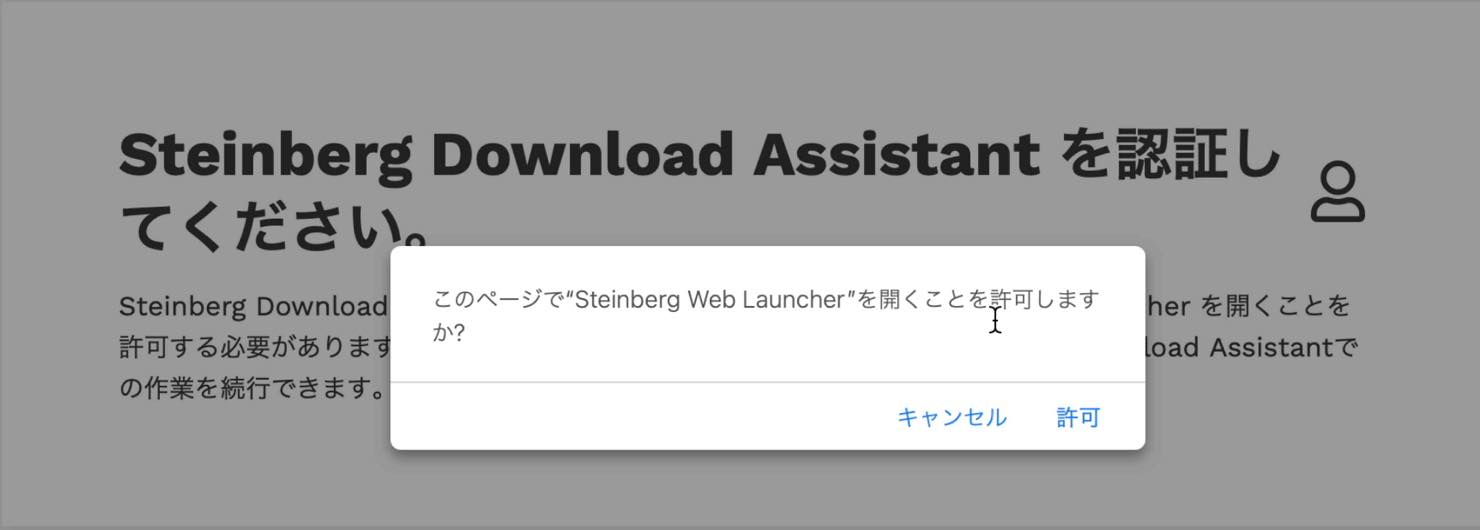
Once verification is complete, a screen like this appears. Click Allow to authorize the application.
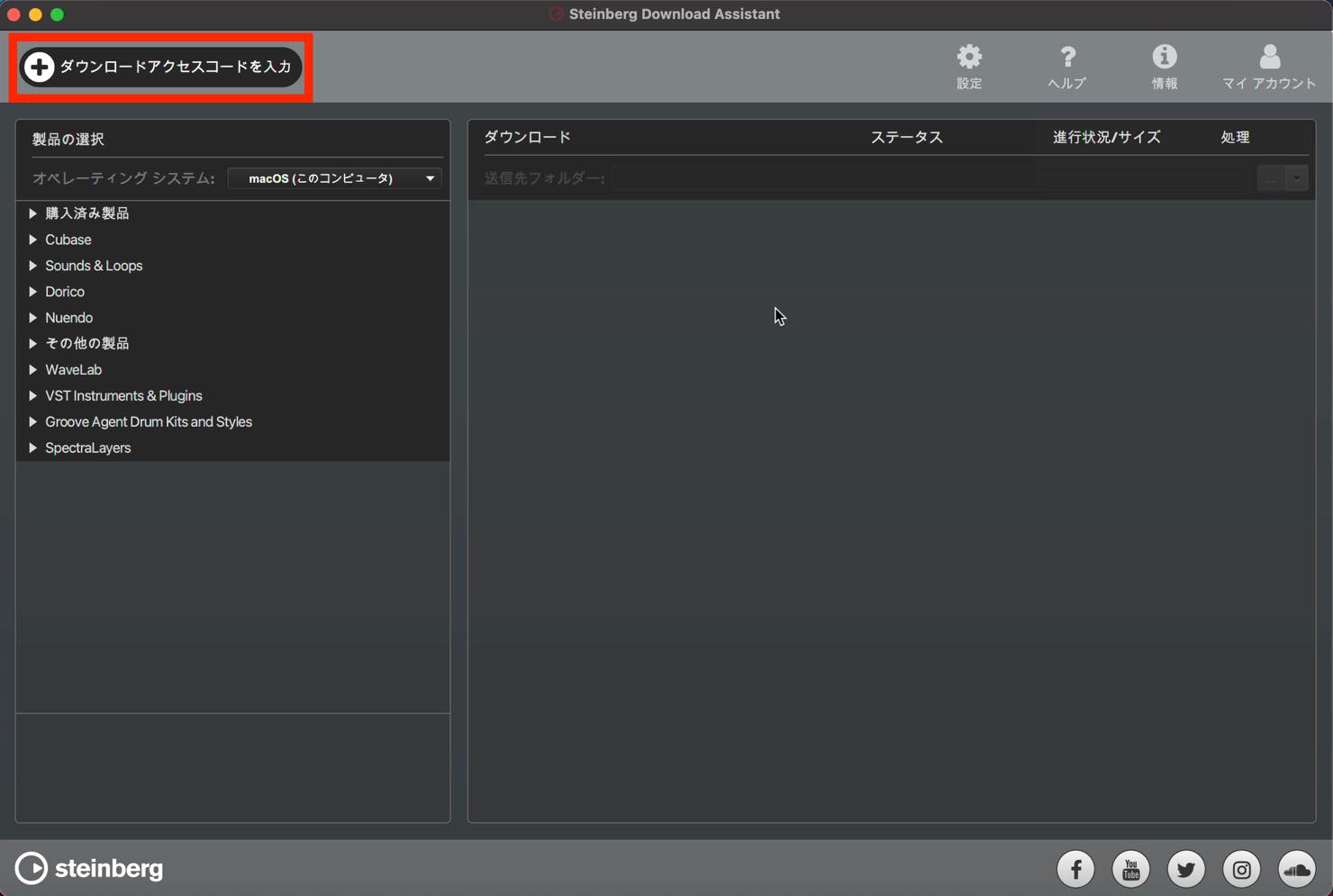
Steinberg Download Assistant then launches automatically, already signed in.
Activating Cubase: The Original Cubase 11 Procedure
Click Enter Download Access Code in the upper-left corner. The following activation steps describe the 2021 procedure shown in the video; eLicenser activation services have since closed.
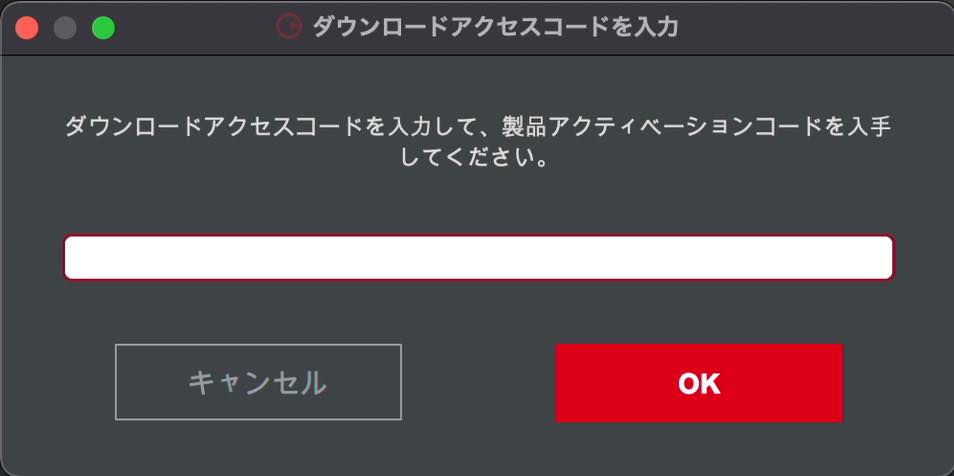
In the pop-up, enter the download access code issued with your Cubase purchase, then click OK.
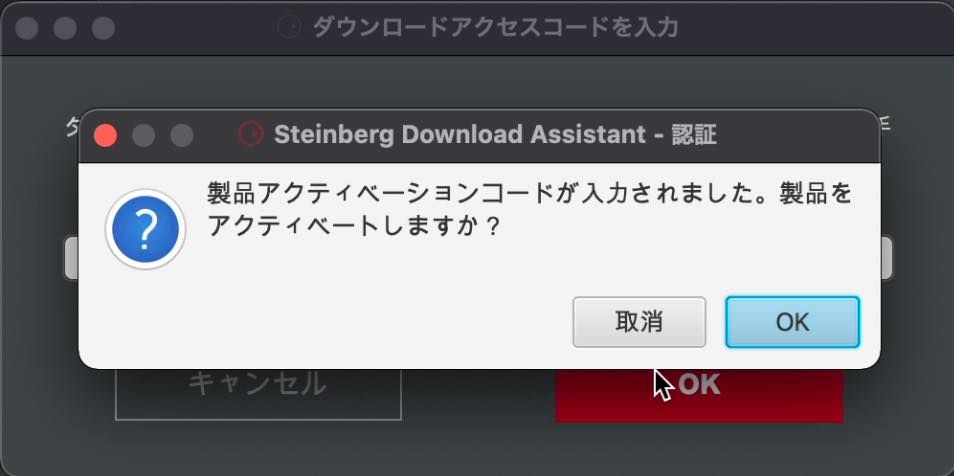
When asked whether to activate the product, click OK.
The activation screen then appears as shown. Click Next.
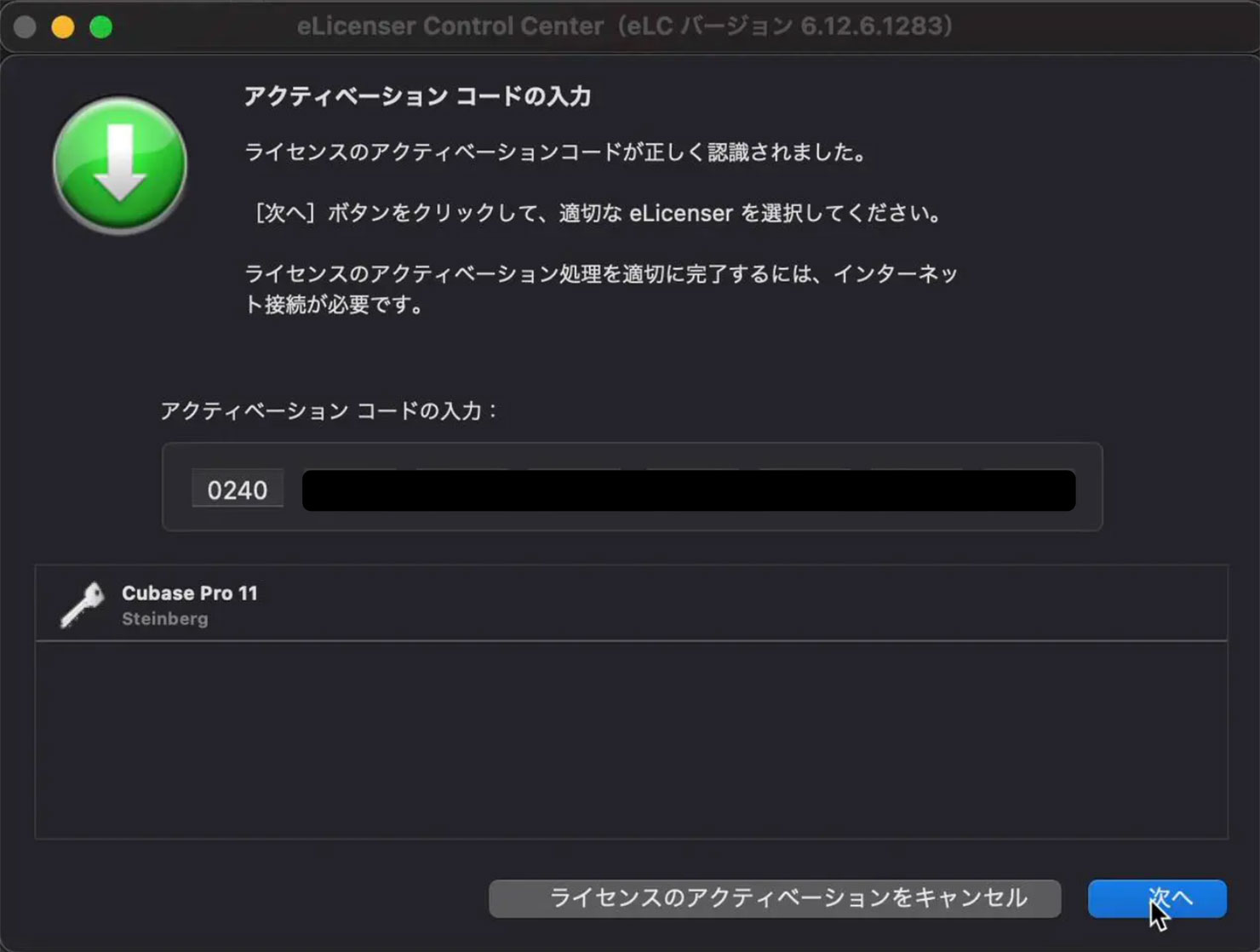
For the USB-eLicenser-based Cubase 11 edition demonstrated here, the supplied USB-eLicenser had to be connected to the computer at this stage.
The license was stored on this USB key, so keep the USB key connected whenever you use this licensed Cubase 11 installation as required by its licensing system.
Select the valid USB key and click Activate License, as shown in the original procedure.
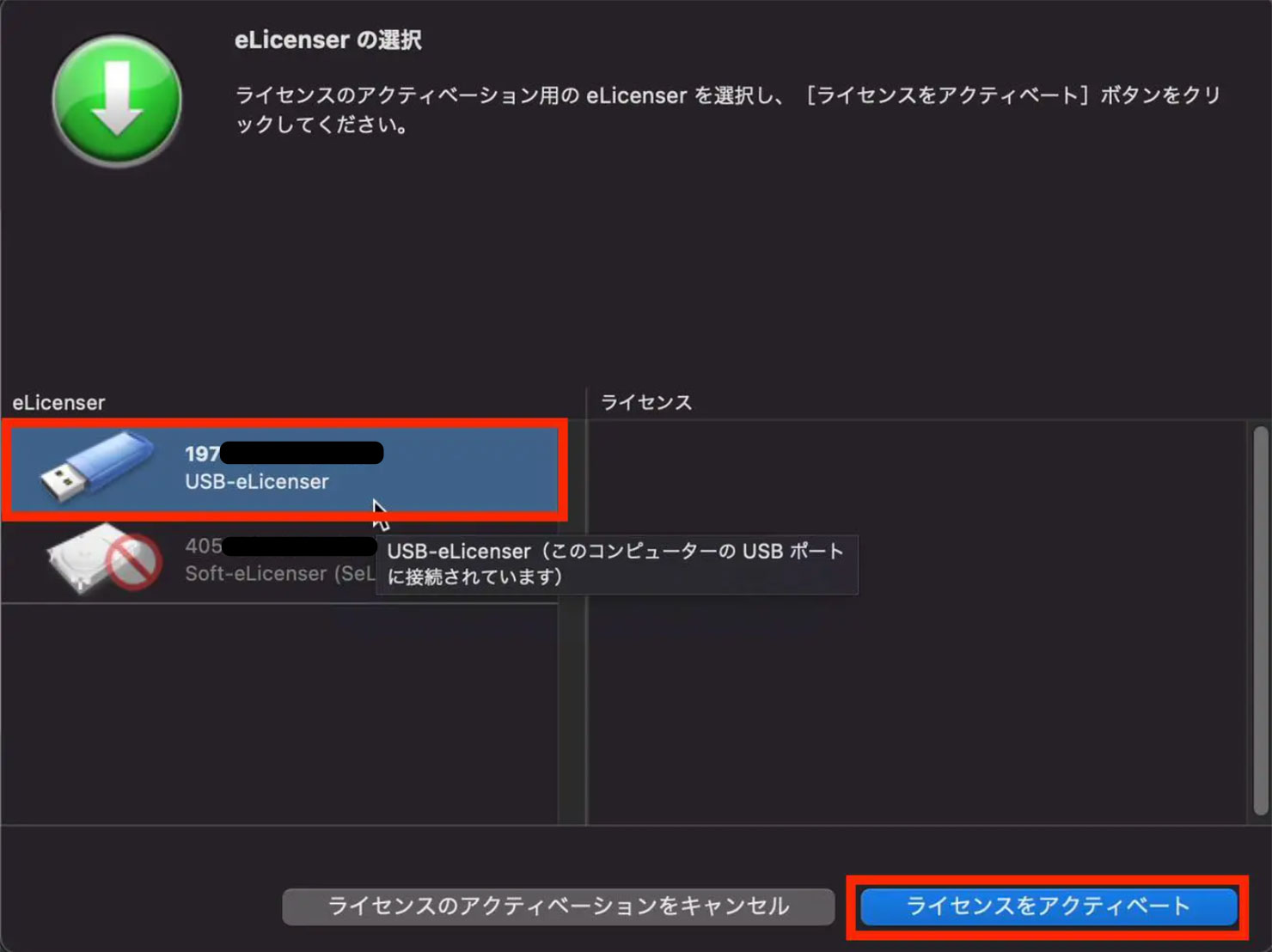
Wait until activation completes. During this process, do not unplug the USB key or quit the application until it has finished.
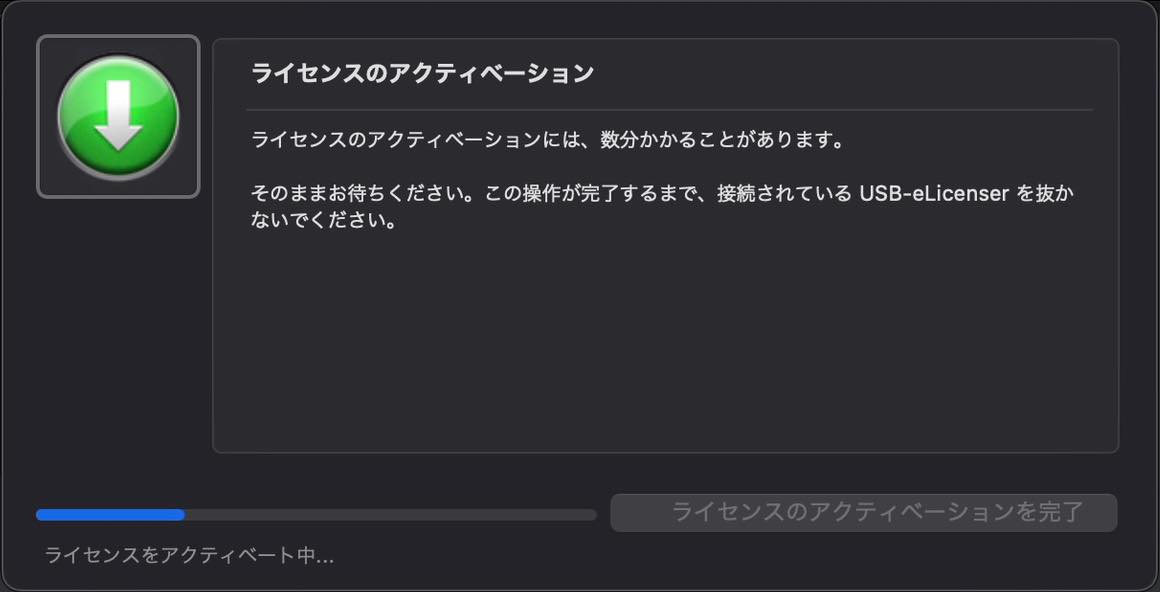
Once activation was complete, the purchased products appeared in the list and became available to download.
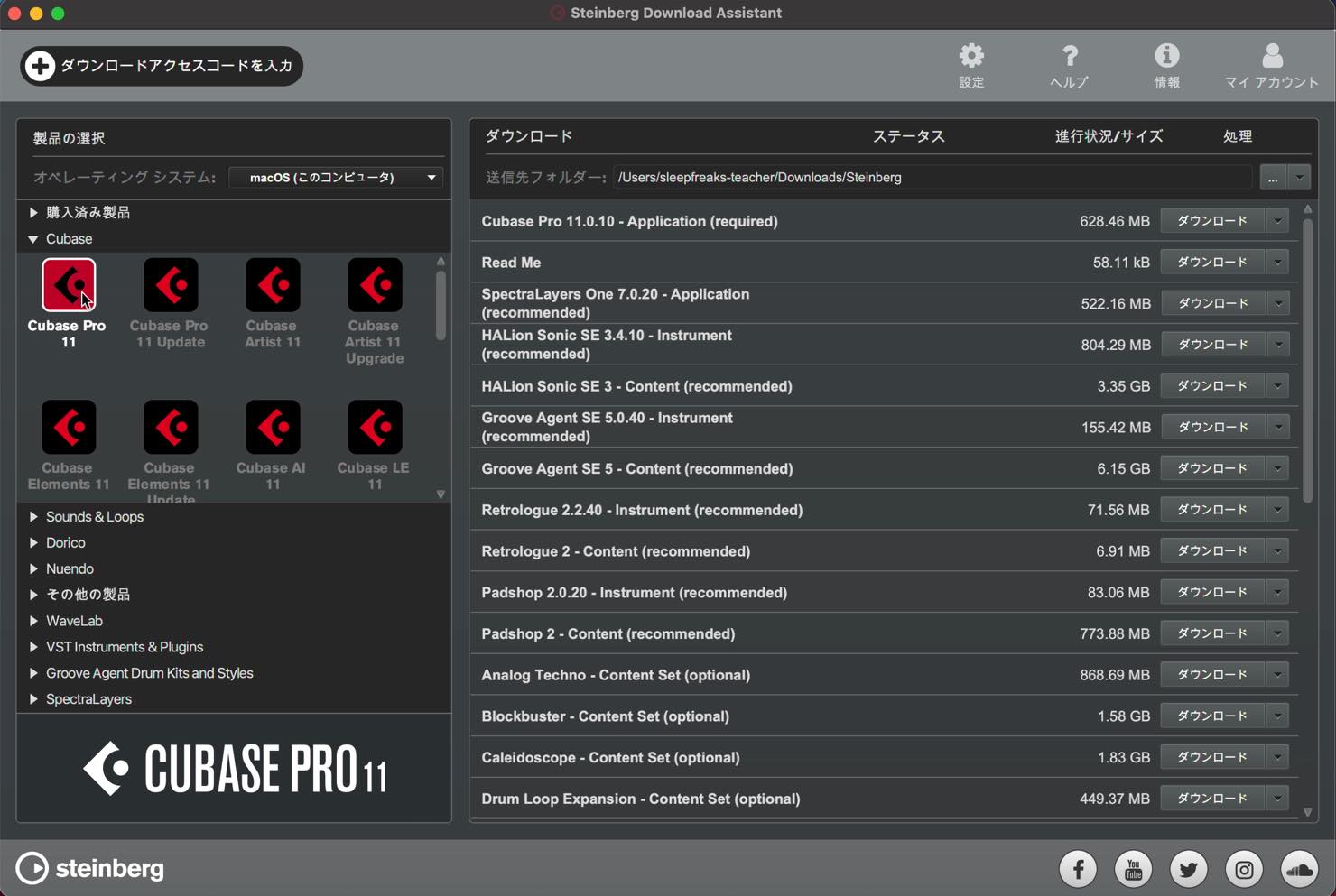
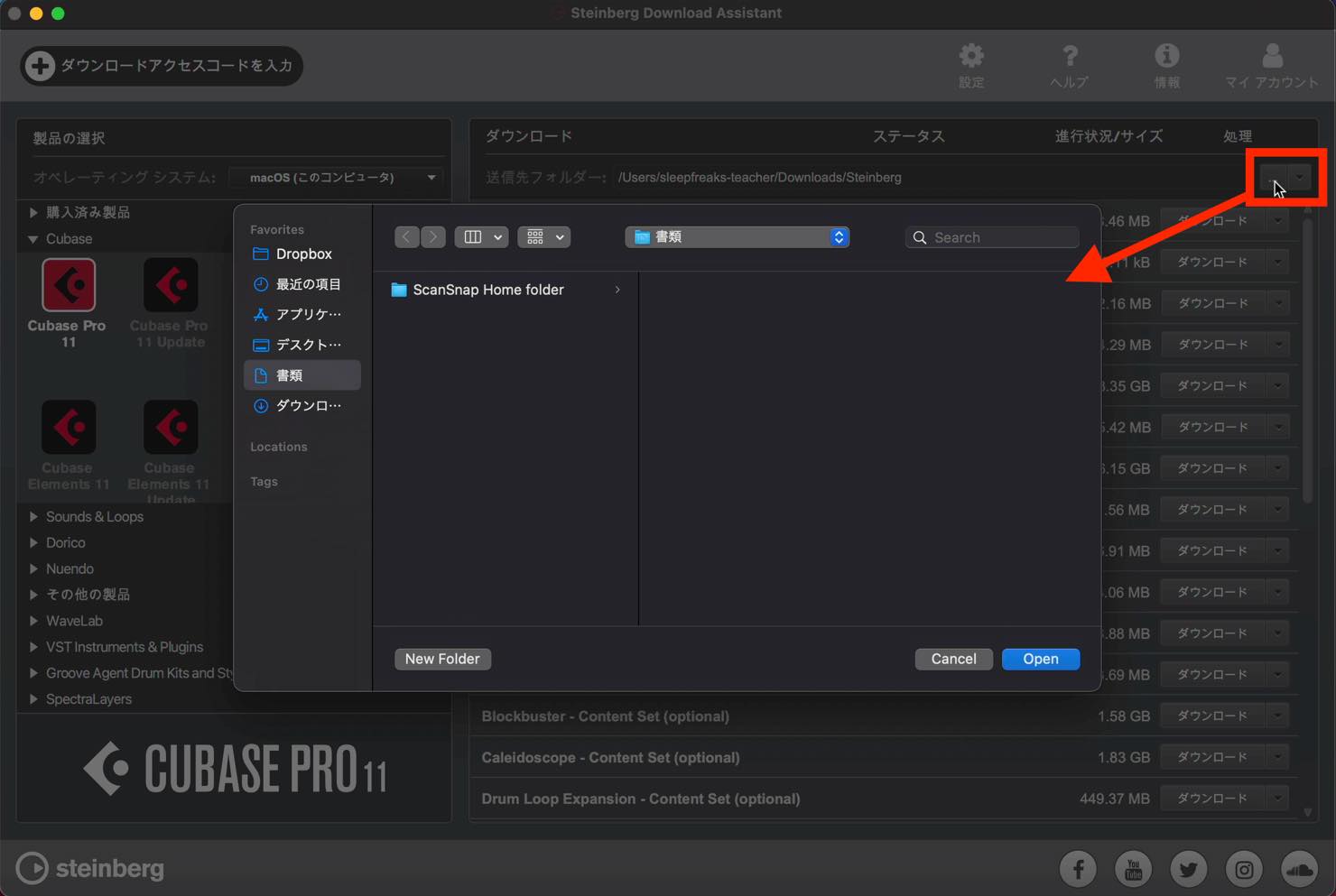
To change the download destination, click the destination-folder button in the upper-right corner and choose a location.
Installing Cubase and Its Bundled Content
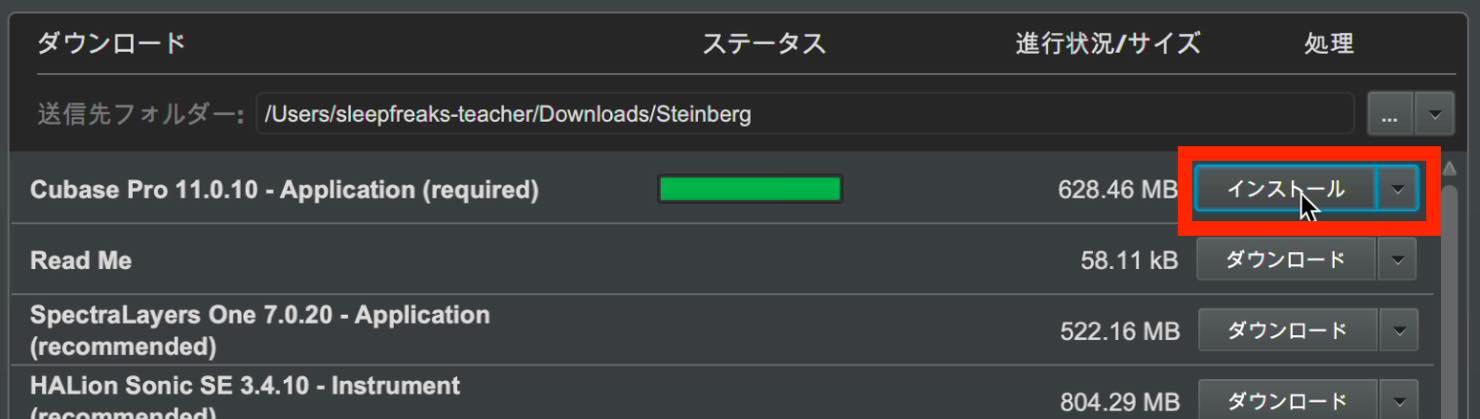
Once you have chosen a location, start downloading. First, click the download button for the Cubase application itself.
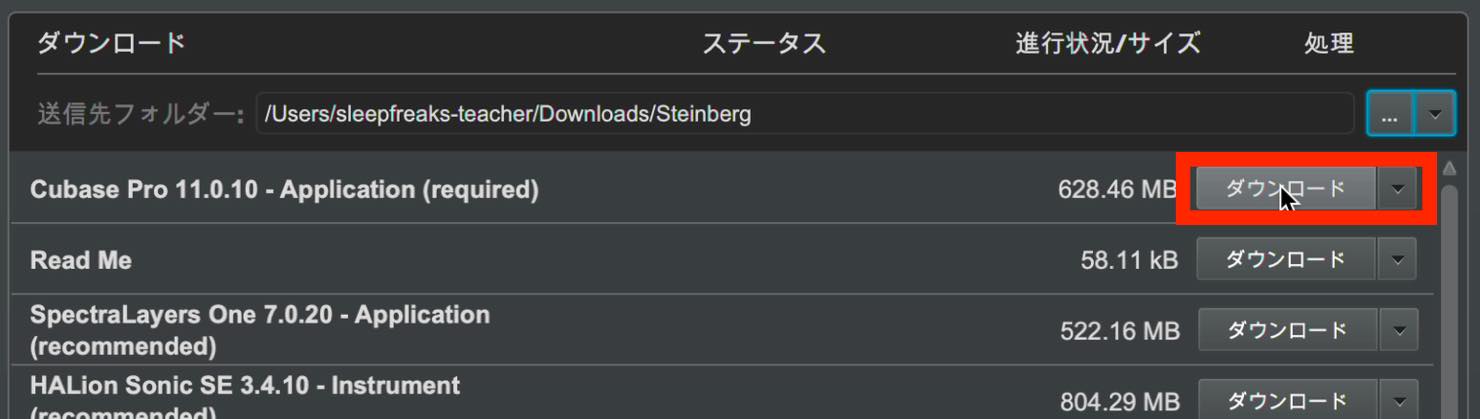
When the download finishes, the button changes to Install. Click it.
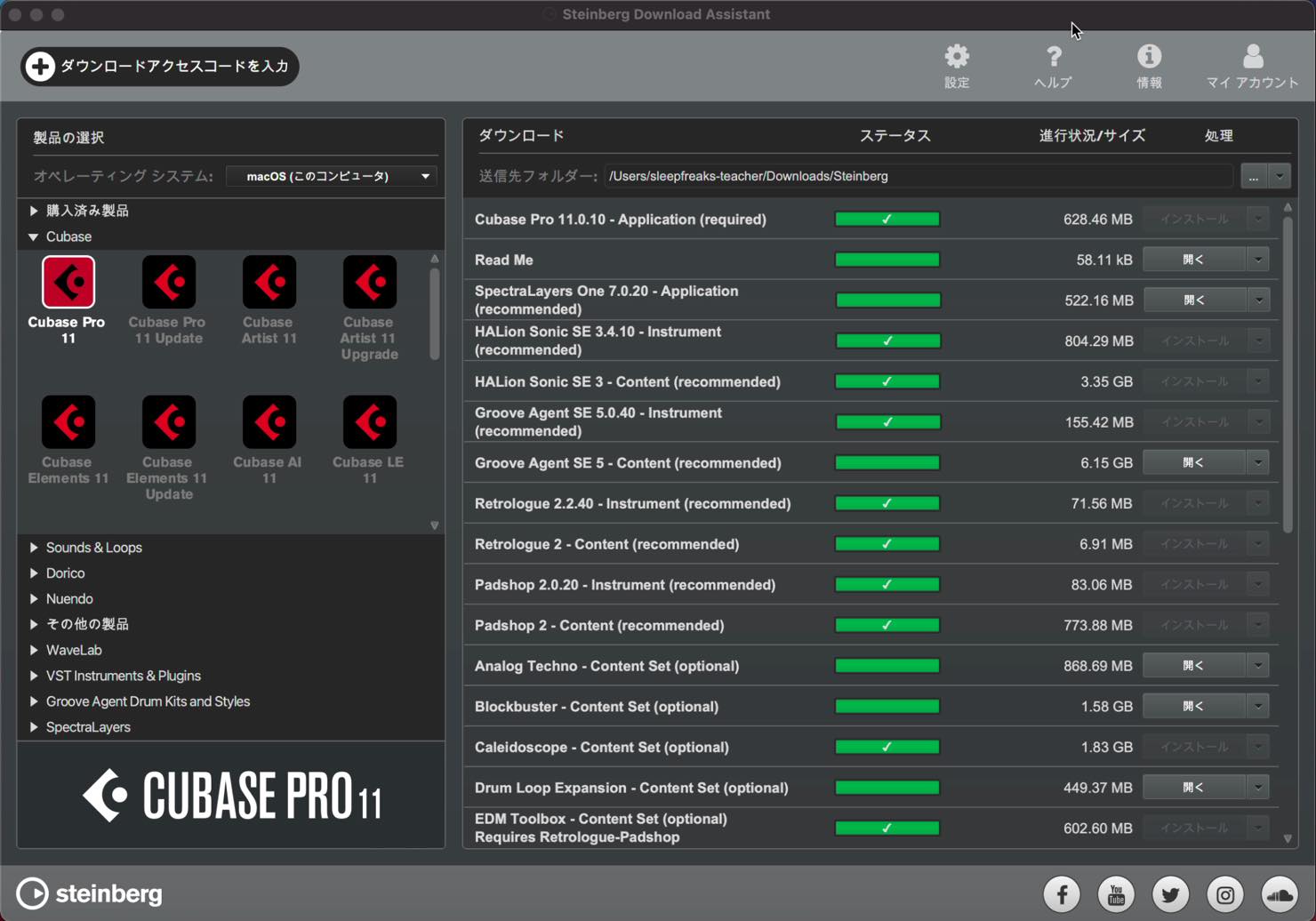
A check mark appears when installation is complete.
Repeat this for all the instruments and sounds you want to install from the bundled content.
Managing Sound Libraries with Steinberg Library Manager
The content downloaded and installed so far takes up a substantial amount of storage.
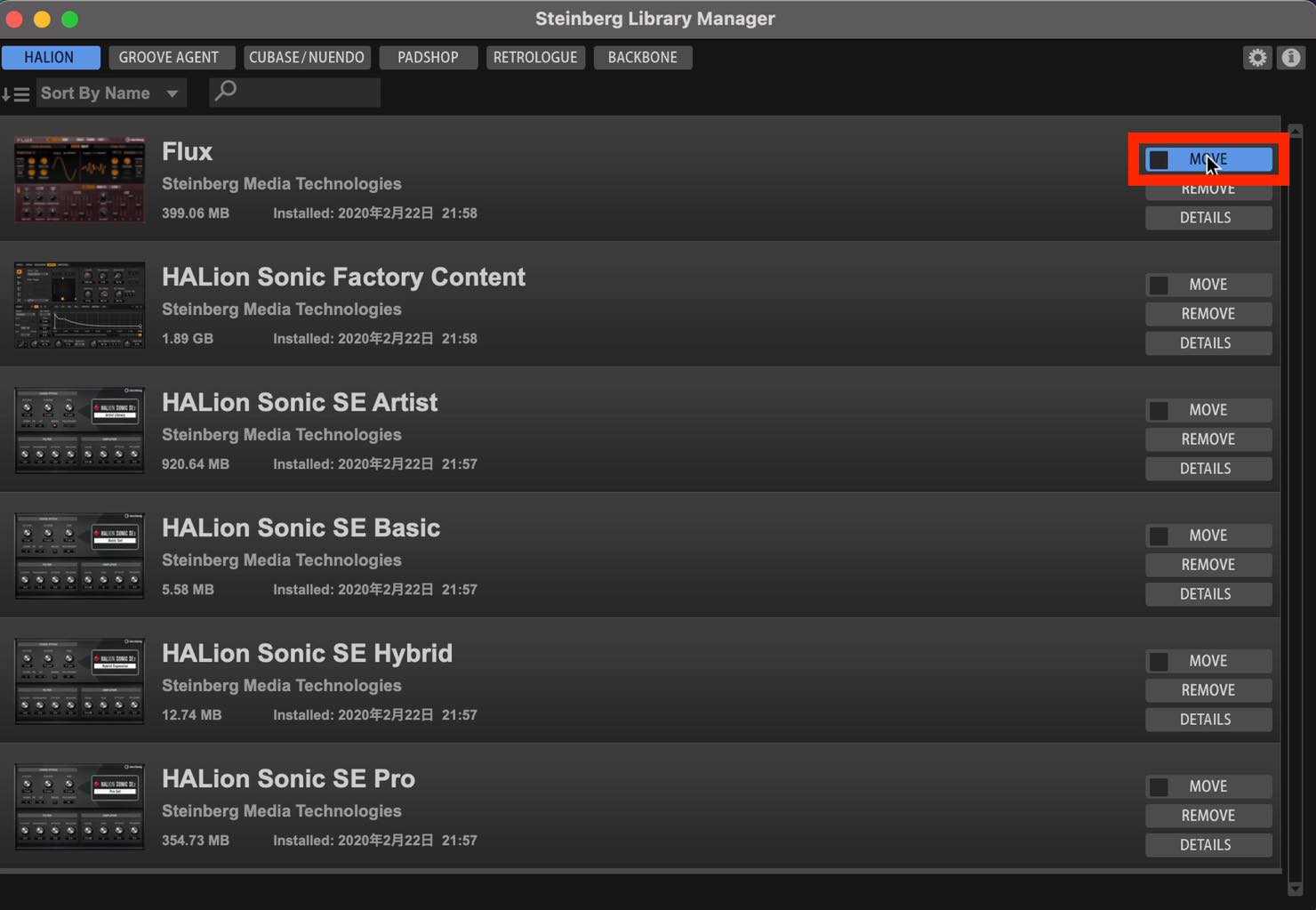
If space on your computer is running low, you can move the libraries to another location later.
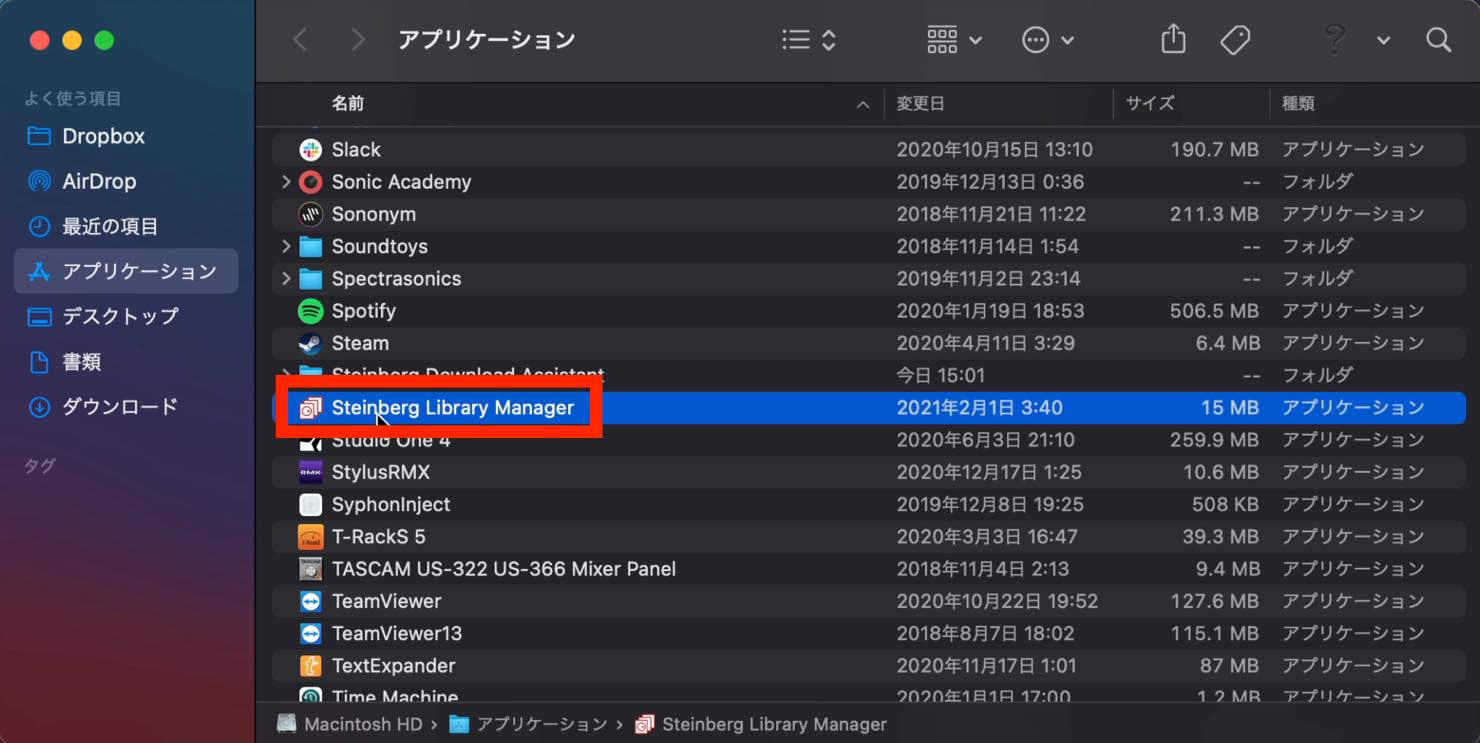
Open Steinberg Library Manager from your Applications folder.
Click MOVE for the library you want to relocate, then choose its destination.
Launching Cubase and Creating a Project
Now let’s launch Cubase.
On the Mac shown here, you can find it in the Applications folder. Adding it to the Dock gives you quicker access for future sessions.
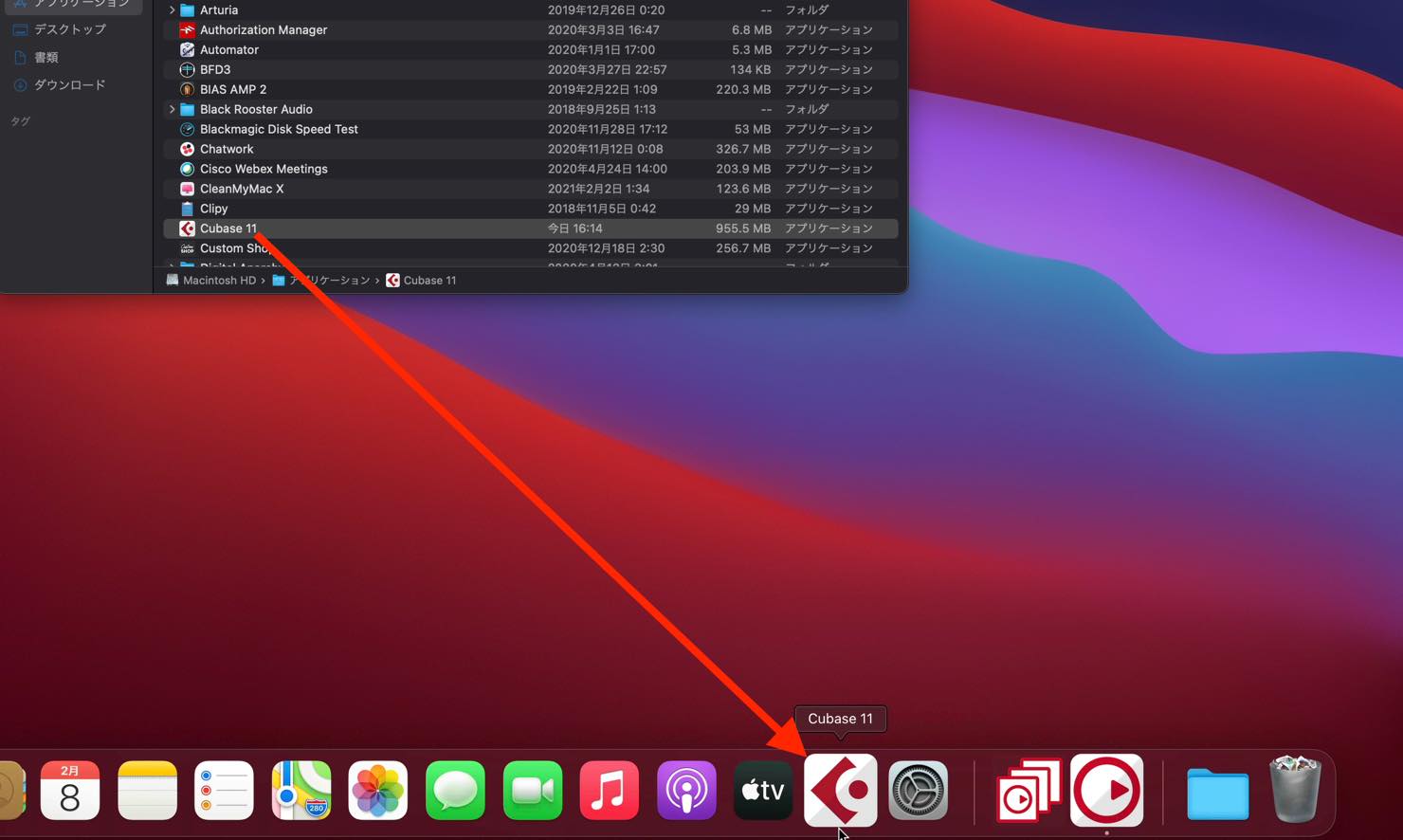
Click the application to launch it.
The first launch may take a little time; subsequent launches should be quicker.
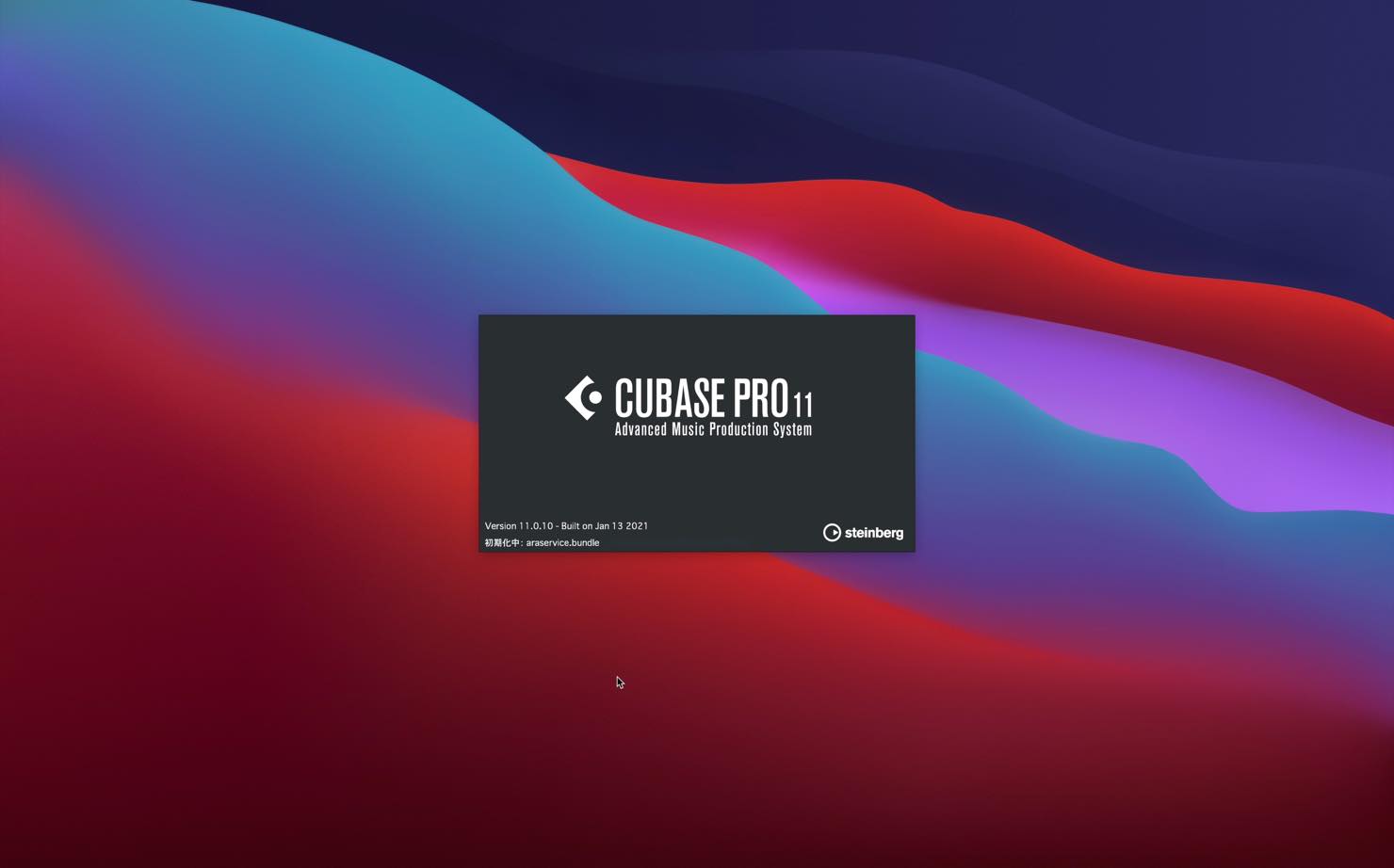
Once startup finishes, Steinberg Hub appears.
You can choose recording or scoring templates here. To learn from scratch, select Empty under Other.
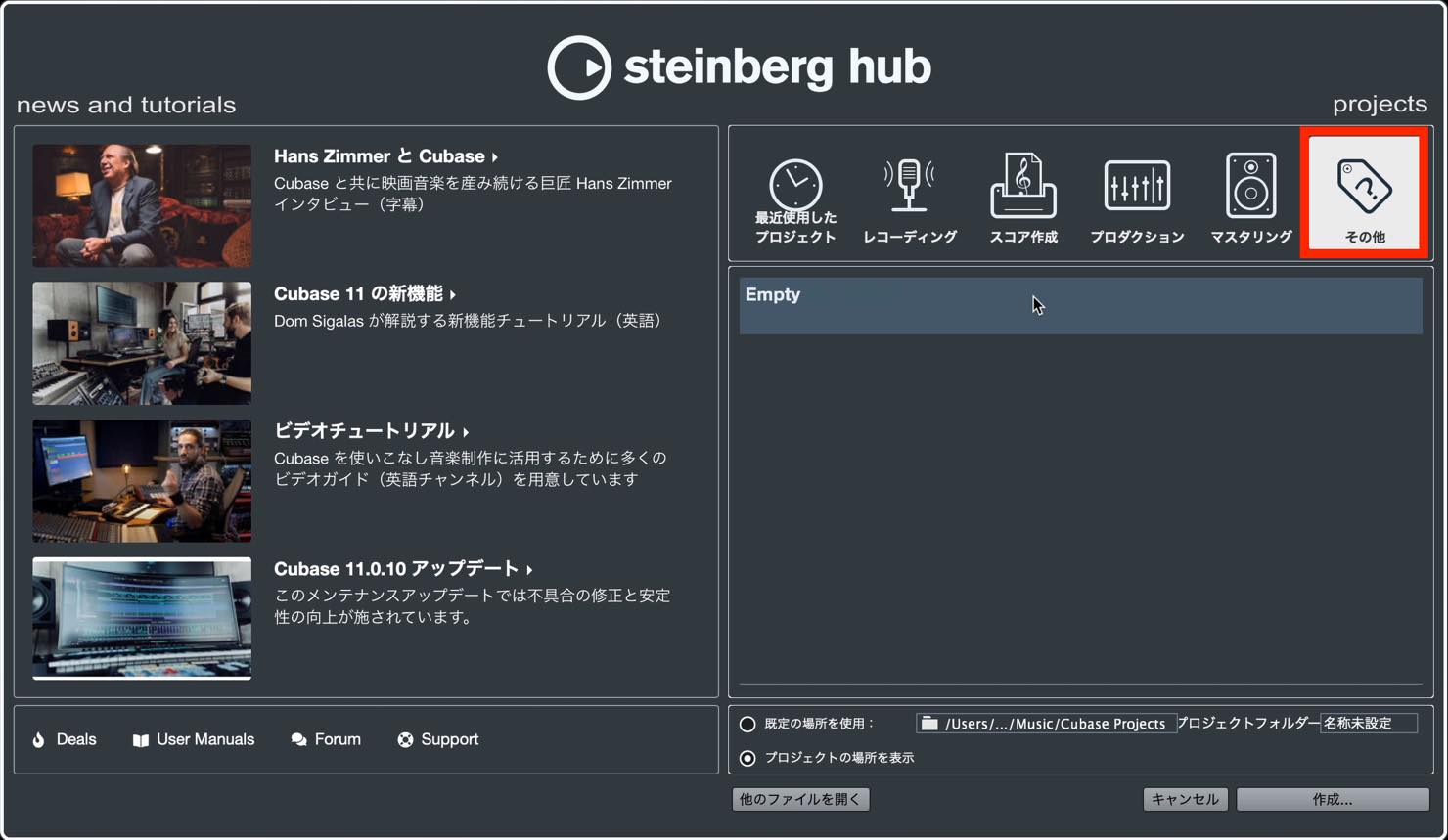
There is a useful setting to configure before proceeding.
Choosing a location and name when creating a project makes it easier to find later and helps prevent file-management problems.
Near the bottom of the Hub, select Use Default Location. Click the location field to its right and choose where to create the project folder.
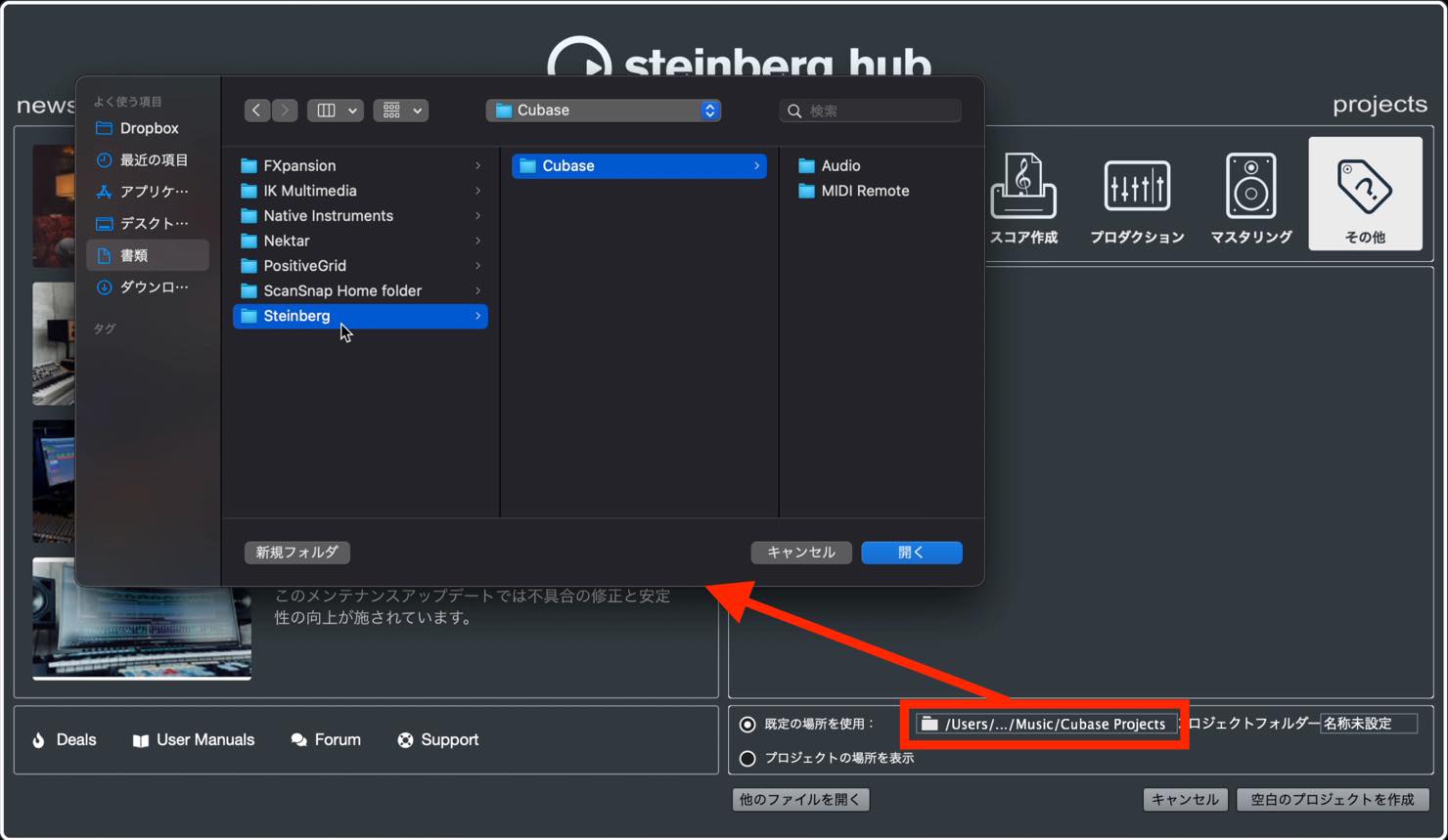
In the field farther to the right, enter a name for the project folder.
Normally, each song has its own project folder, so using the song title is a good approach.
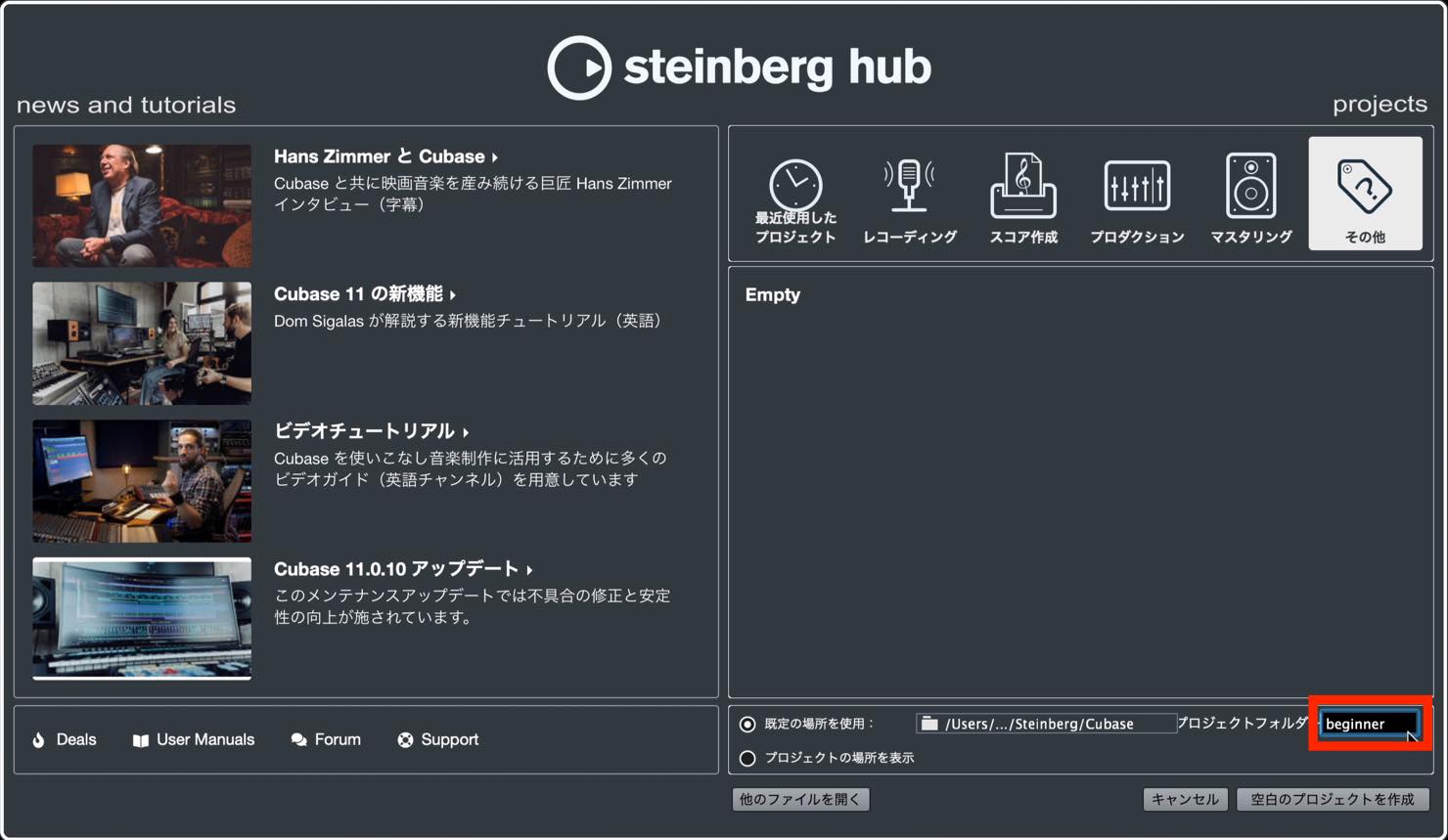
Once the settings are ready, click Create Empty Project.
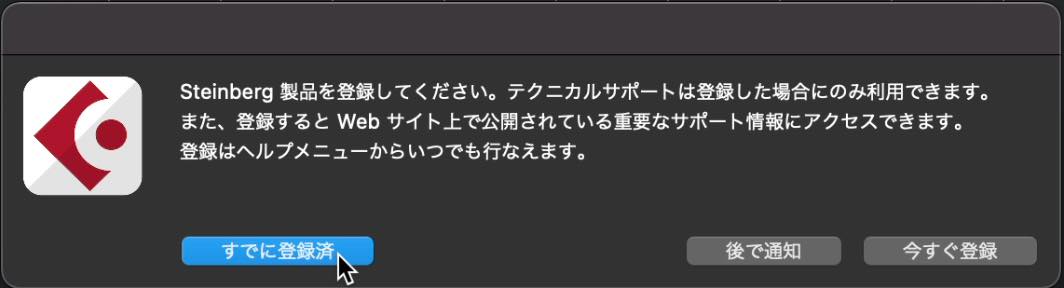
On the first launch, a registration pop-up like this may appear. In the original setup shown here, registration was already completed during the preceding steps, so click Already Registered.
Saving Your Project
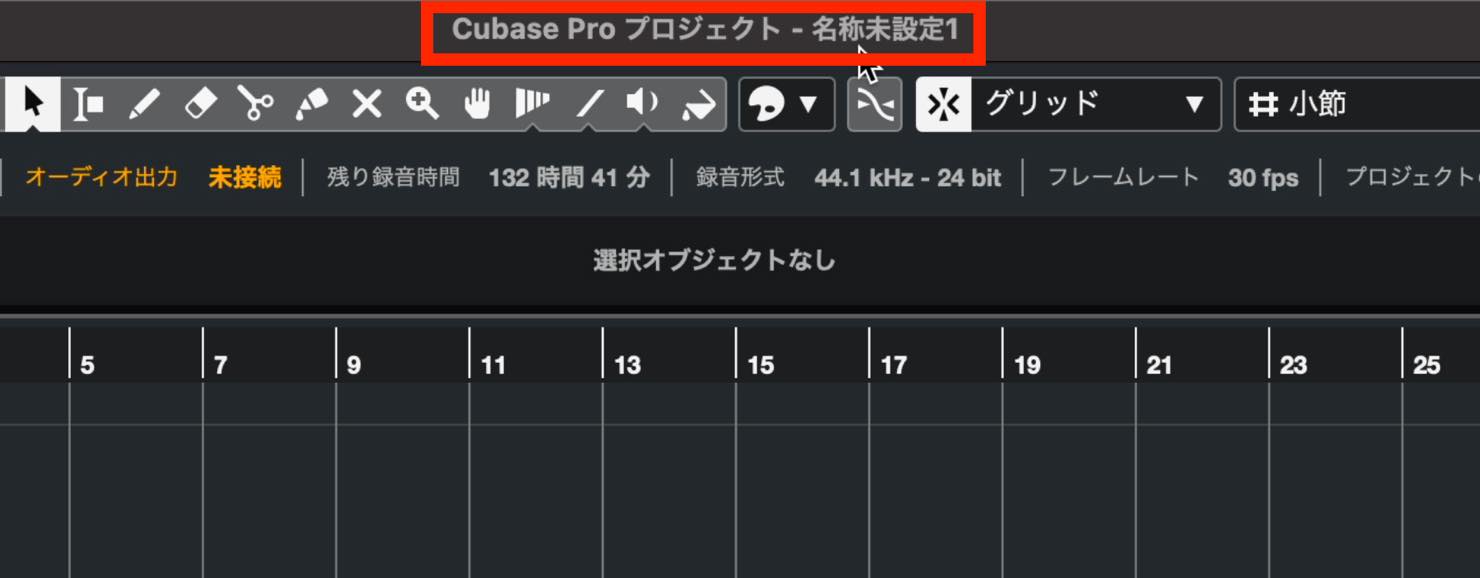
An empty project opens, but the name at the top is Untitled1 because it has not yet been saved.
Let’s save it first.
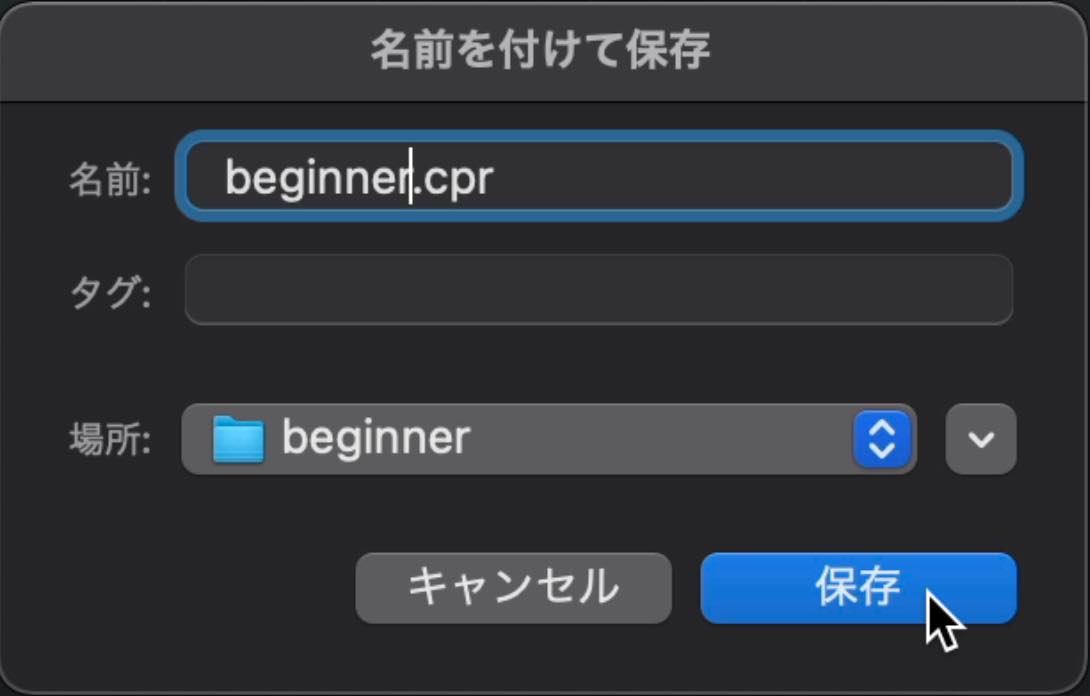
Choose Save from the File menu, or press Command+S on Mac or Ctrl+S on Windows, to open the save dialog.
As a general organizational practice, use the same name for the project and its folder, usually the song title.
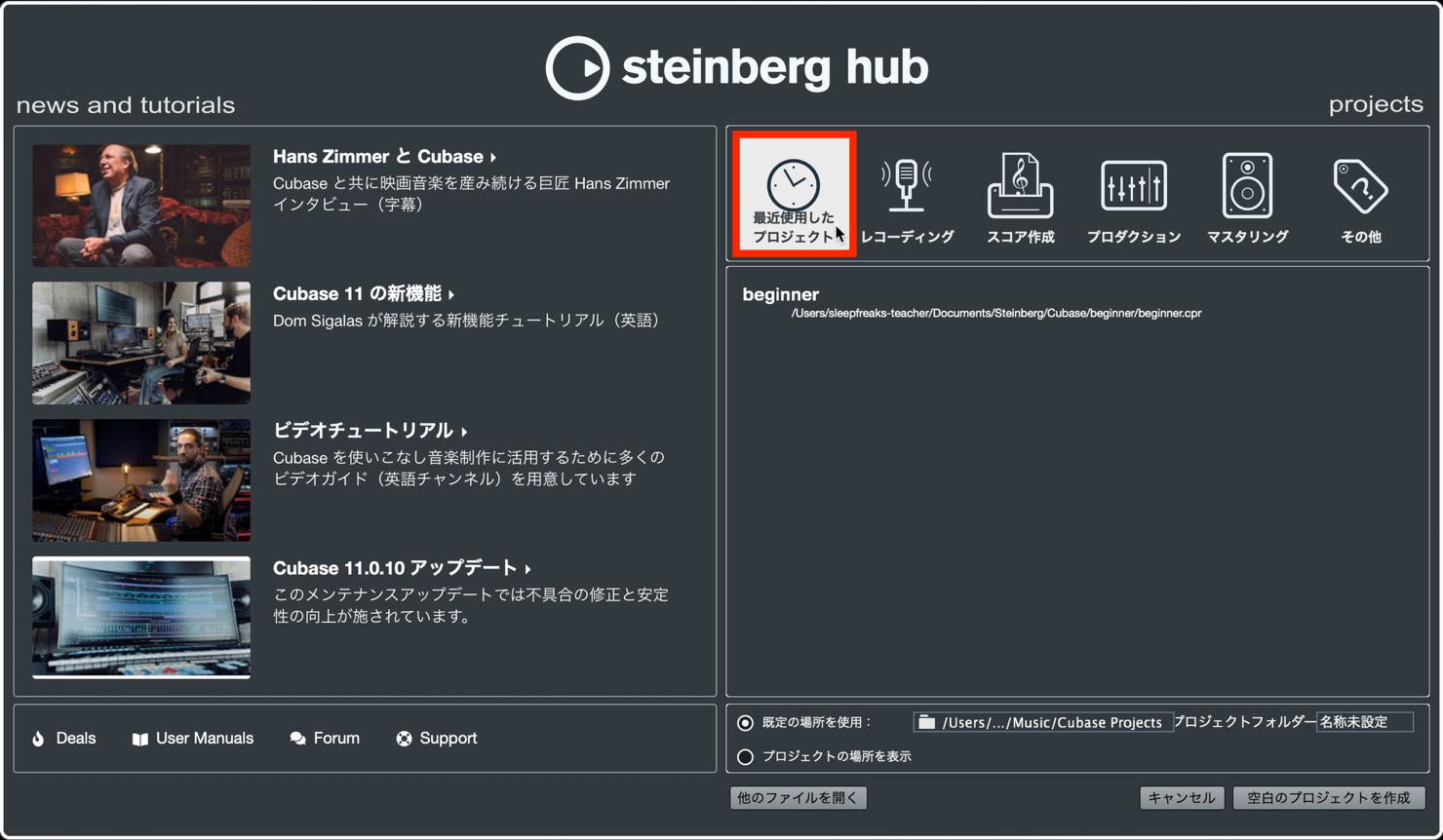
After saving, close Cubase and launch it again. The project now appears among recently used projects in Steinberg Hub.
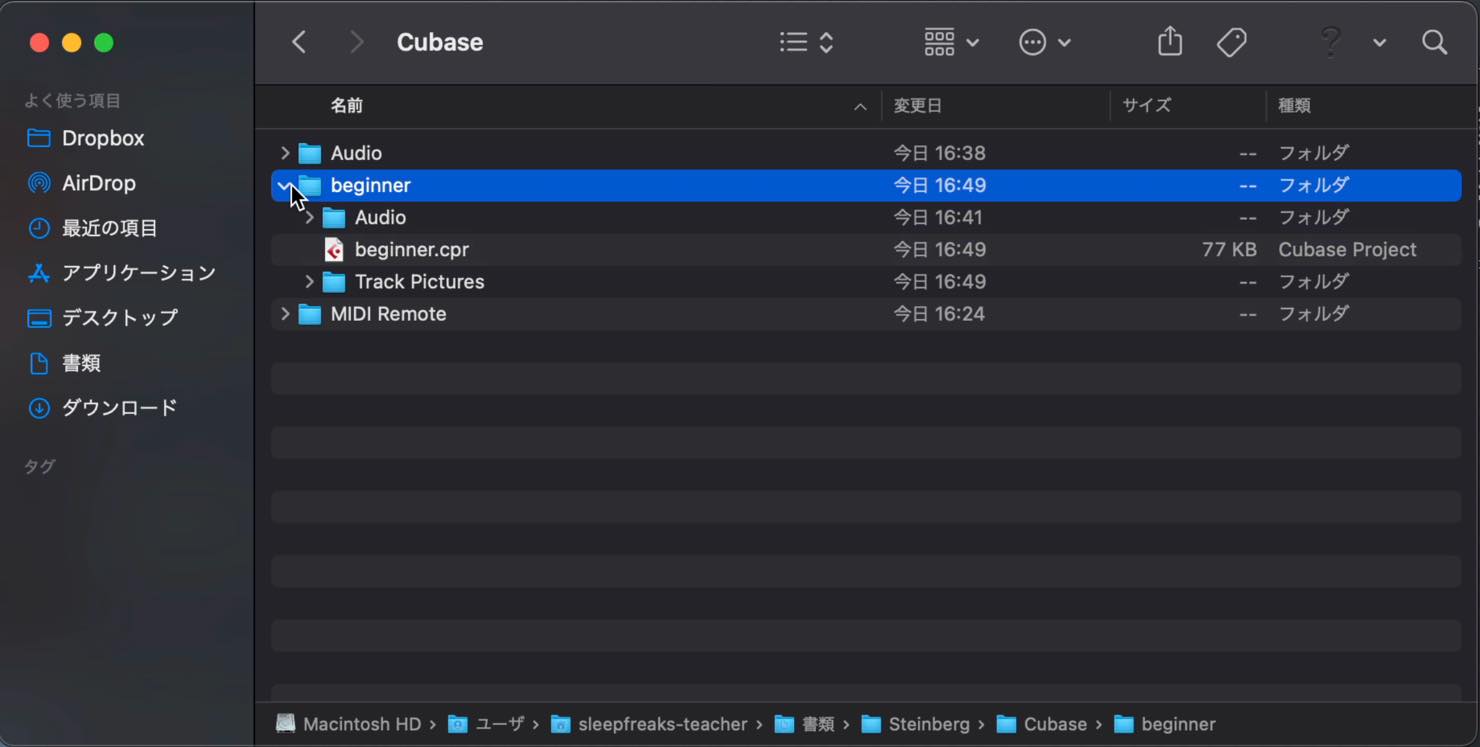
Open the saved location to confirm that the project file is inside the project folder you created.
When moving or copying the project to another drive, move or copy the entire project folder.
That covers the installation and project-creation workflow demonstrated in this Cubase 11 tutorial.
Next, we will set up an audio interface and a MIDI keyboard so you can start working with sound.
From our March 2021 announcement: our Cubase beginner series was renewed for version 11, the latest version at that time.
The videos and articles explain Cubase from the ground up for those starting music production.
We hope you will follow the series to the end.Part 1 covers installation and project creation. https://t.co/j9dfkDkvgr #DTM #MusicComposition #Cubase
— SLEEP FREAKS (@SLEEPFREAKS_DTM) March 13, 2021
Frequently Asked Questions
Q1. Is a USB-eLicenser required to use Cubase?
The USB-eLicenser-based Cubase 11 edition demonstrated in this 2021 tutorial requires its licensed USB key to remain connected when running the software. This is not a rule for every Cubase edition or current version. eLicenser activation services closed in May 2025; see the licensing note at the start of this article.
Q2. How do I create a Steinberg ID if I do not have one?
In the setup shown here, click Create Steinberg ID and enter your email address and a password. Then enter the verification code sent by email to complete verification.
Q3. What if the bundled sound libraries take up too much space?
Open Steinberg Library Manager, click MOVE for the library you want to relocate, and choose another location, such as an external drive.
Q4. How should I name the project folder and project?
Using the song title for both the project folder and project file makes multiple songs easier to organize and helps prevent confusion later.
Q5. What does Already Registered mean in the first-launch pop-up?
In the original installation process shown here, license registration had already been completed. Selecting Already Registered lets you continue without repeating that registration.
NEW ARTICLES
Latest English Articles
































































































































































