
Pondashi is an iOS and macOS app for easily playing sound effects and background music at events such as live streams, stage shows, and school festivals. It is intuitive to use even without music-production expertise, and offers detailed controls including fade-in and fade-out, playback start positions, and looping. MIDI controller support lets you operate it with pads or a keyboard, making professional sound cues possible with a lighter setup than a DAW. You can create groups with up to 100 players each and add audio from cloud storage or local folders.
Trigger sound effects with a tap: shape the performance with your ideas
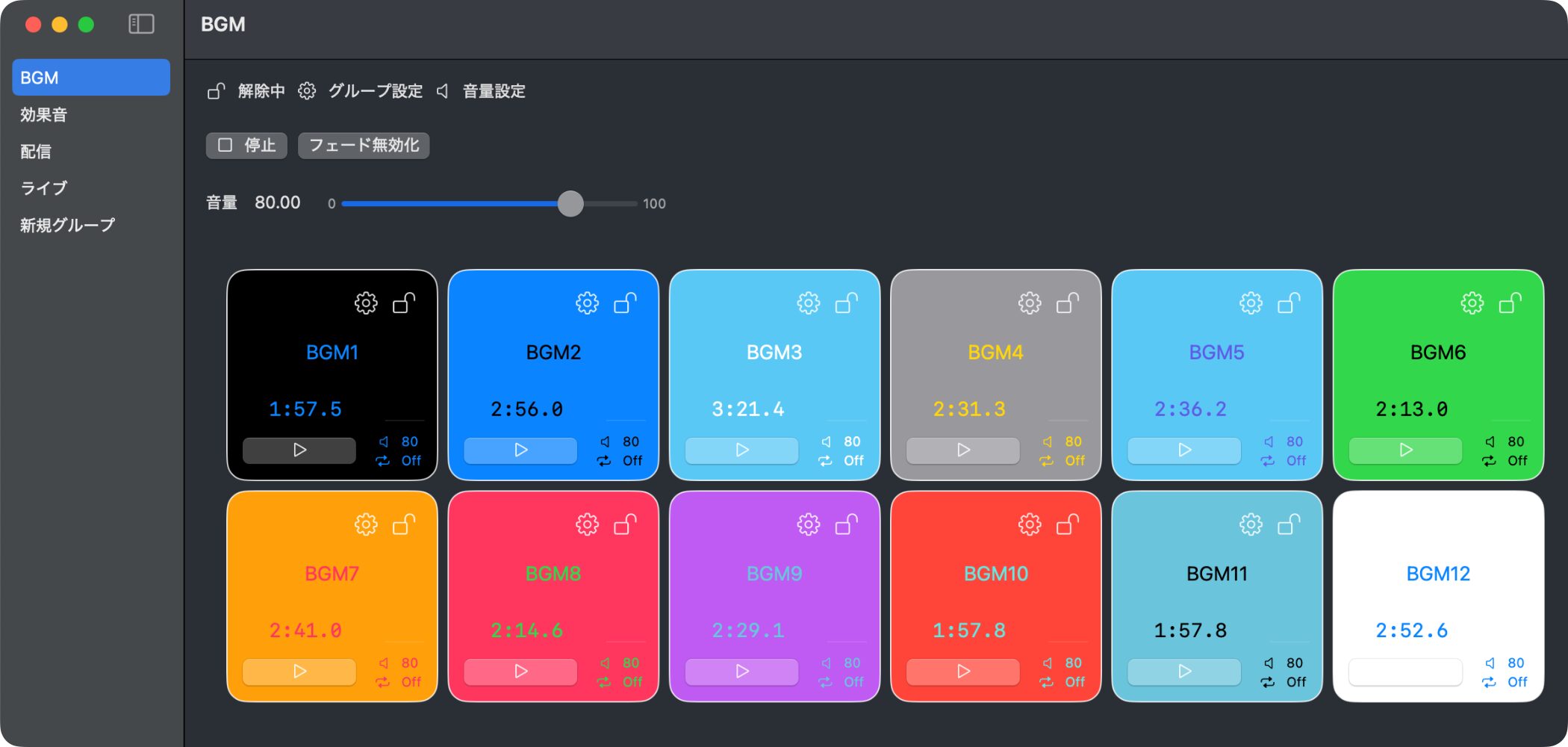
Pondashi is an app for iOS and macOS that makes it easy to playsound effects and background musicat events such as streams, stage shows, live performances, and school festivals.
It is simple to use and flexible, so anyone can get started right away without specialist knowledge.
At the time of this article, the app was in beta testing, with an opportunity to try it for free early.
This article also explains how to apply, so read on for the details.
Pondashi App Overview Video
A clear, approachable design with simple controls
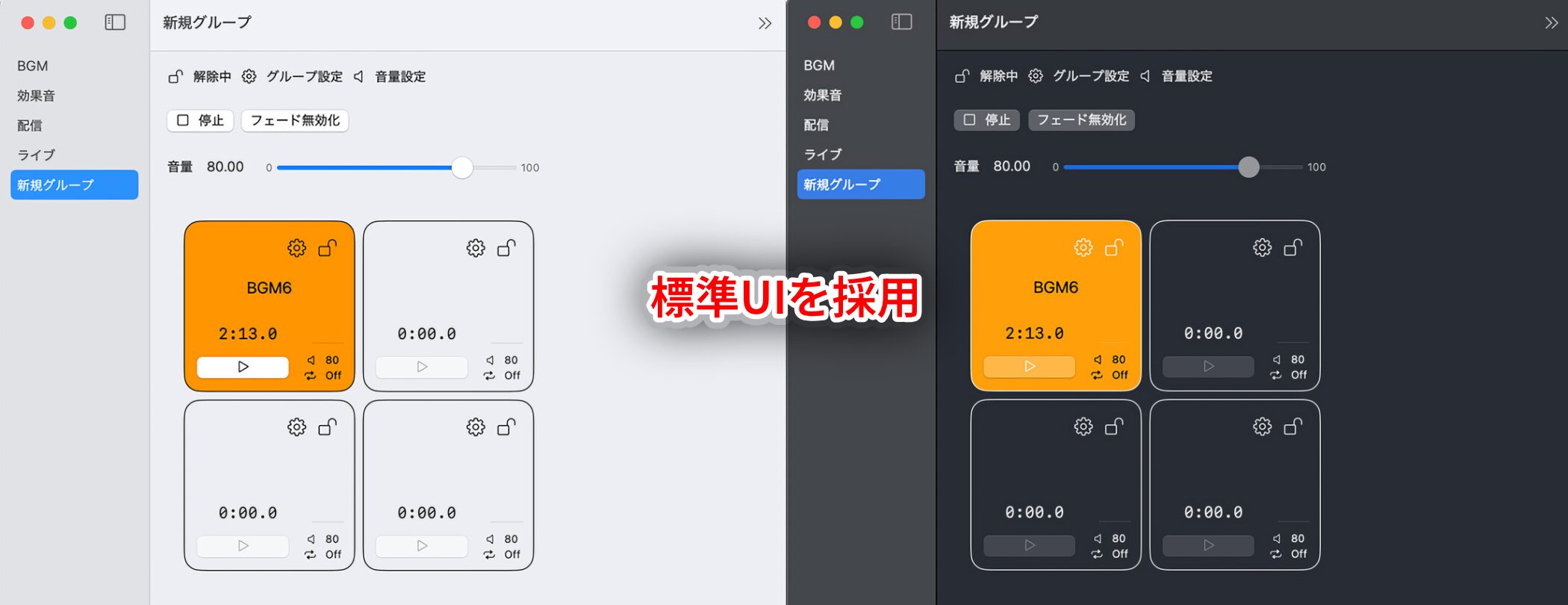
Pondashi uses familiar terms such as “Group” and “Volume Settings,” making it easy to understand even if you have no background in music or sound.
It also uses thestandard iOS and macOS interface, so there is no need to learn special controls. If you already use an iPhone or Mac, you canuse it intuitively.
The app supports the operating system’s language settings and Dark Mode, so you can use it with the display settings that suit you.
A DAW offers many features, which can make cue playback feel complicated. This app ispurpose-built for sound cues, soits biggest advantage is how easy it is to use.
Key Features
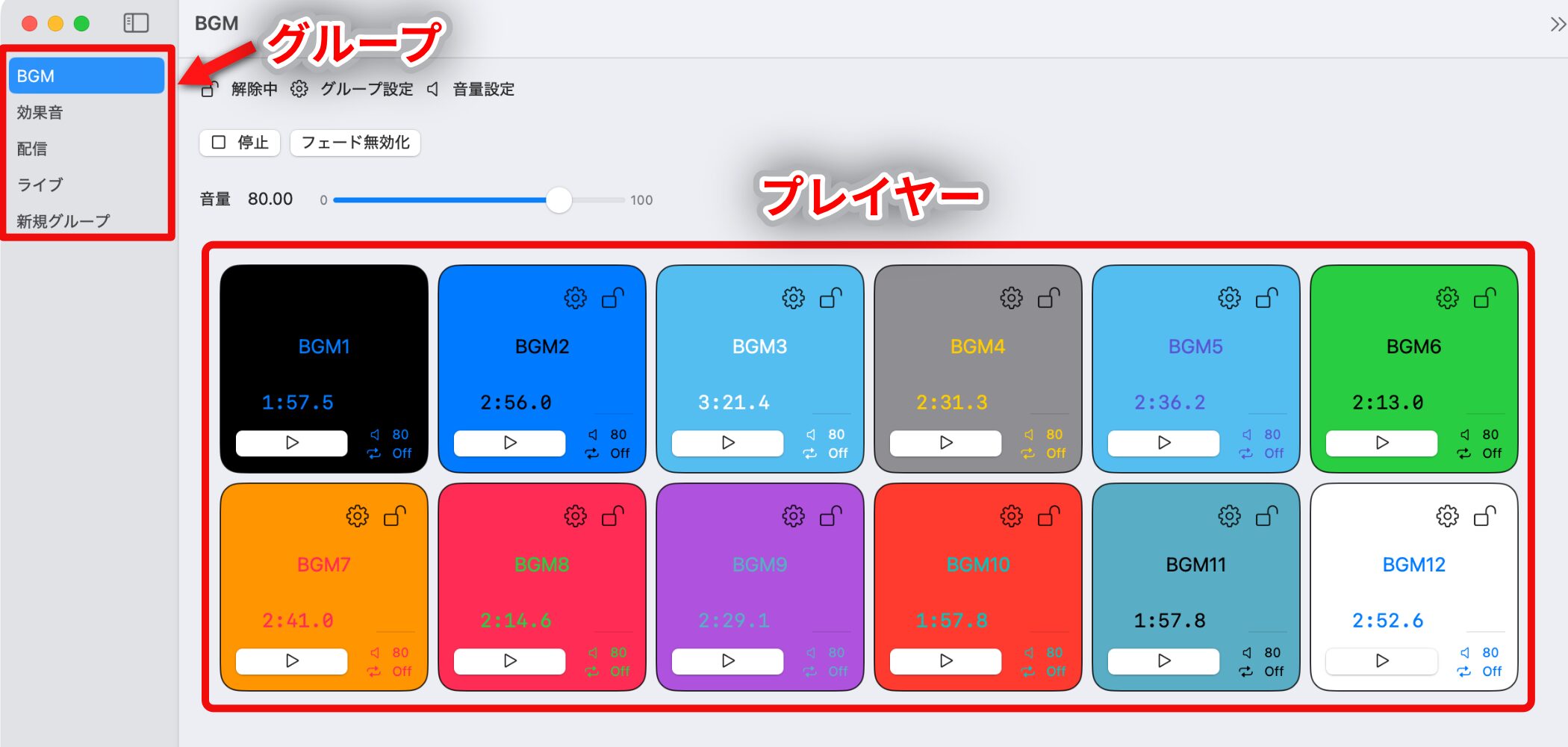
Playback controls and flexible audio management
Each player has settings for fade-in and fade-out, playback start position, and looping.
You can create as many groups as you need, and placeup to 100 players in each group.
Note: Creating an excessive number of groups or players may cause unstable performance depending on your device specifications, operating system version, and other apps in use.
Add audio files with ease
If a file can be opened through the Files app or Finder and Pondashi has permission to access it, you can add audio directly froma variety of locations, including Google Drive, other cloud storage services, and local folders.
You can also add tracks stored in the Music app on your iPhone or Mac with just a few steps.
Intuitive control with a MIDI controller
Pondashi supports MIDI controllers, so you can connect a pad controller or MIDI keyboard and start or stop playback more intuitively.
If you normally use a DAW, you can bring a lighter setup to the venue and still create sophisticated sound cues—the possibilities depend on your ideas.
Basic Operation
The iOS and macOS versions differ slightly, but the basic workflow is the same.
The instructions below focus on the iOS version of Pondashi.
Add a group and load audio
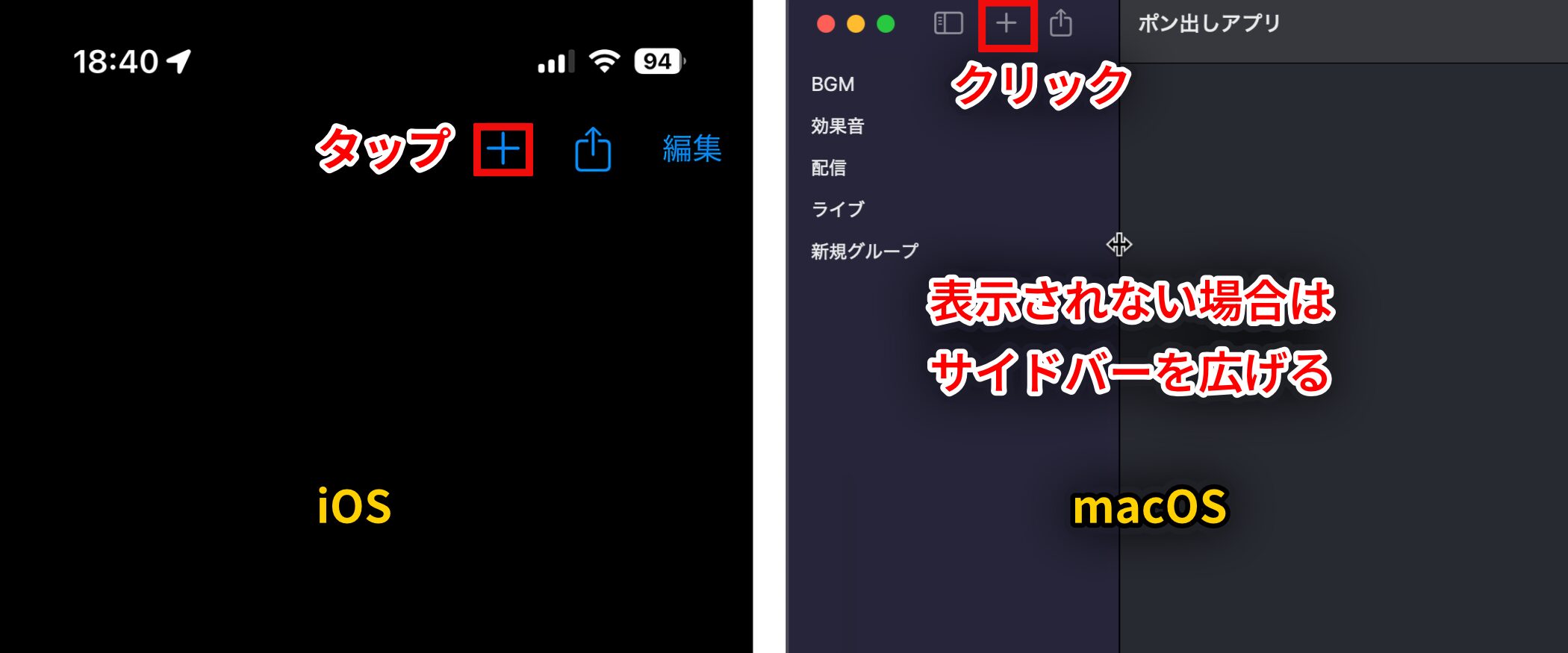
Tap or click the plus icon to add a new group.
On macOS, the plus icon is at the top of the left sidebar, though it may not be visible if the sidebar is too narrow.
If you cannot see it, widen the sidebar.
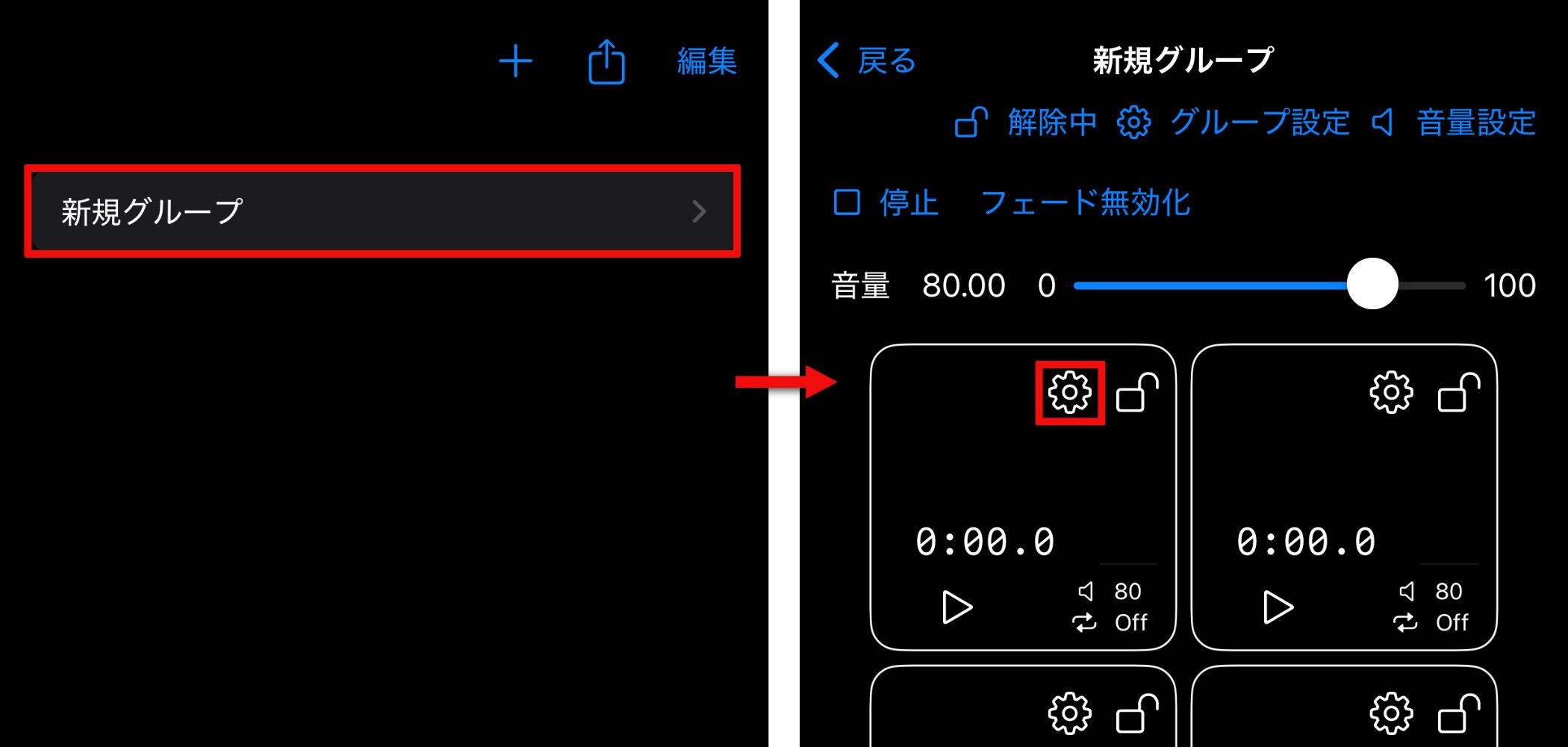
Tap a group to display its players.
To add audio, tap the gear icon on a player.
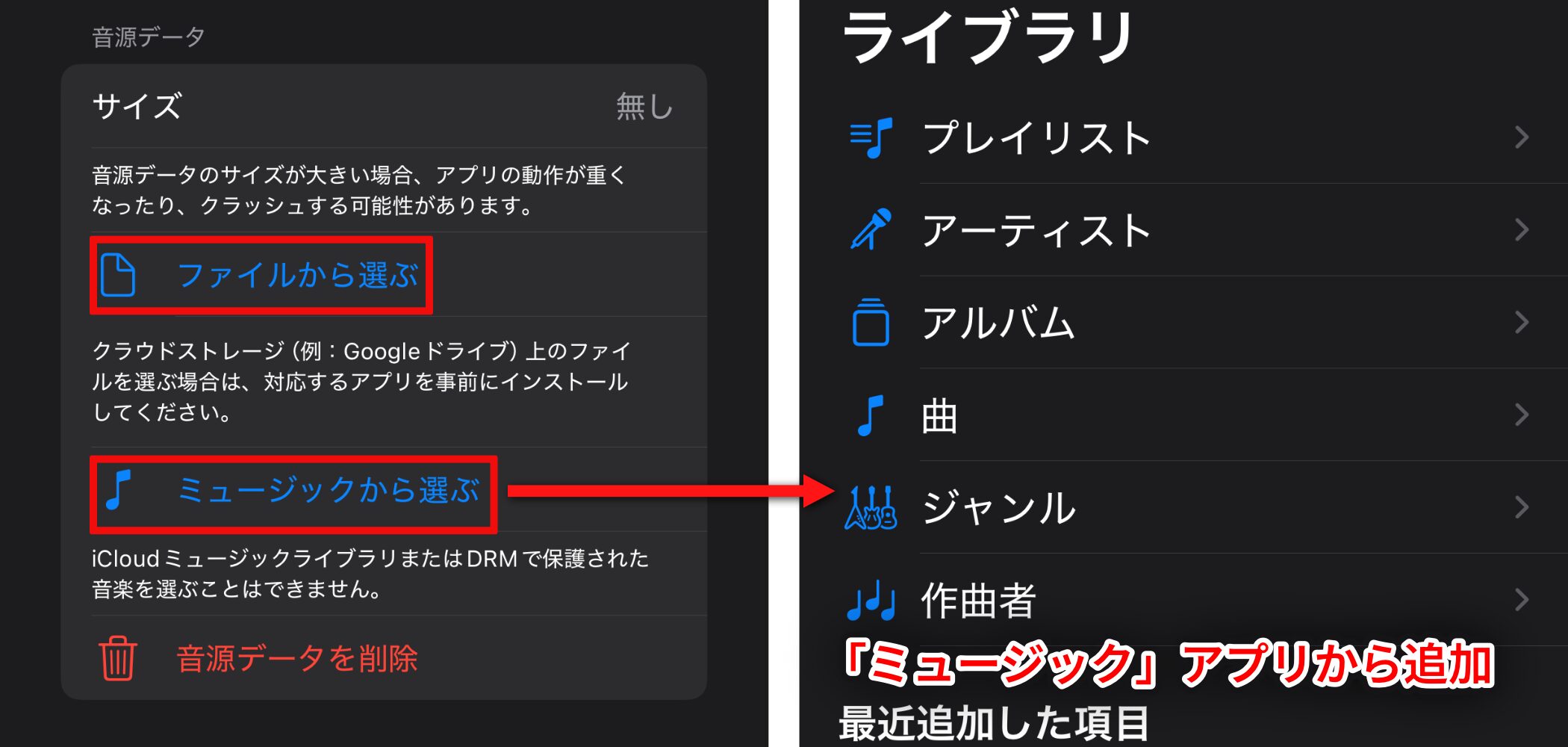
Tap “Choose from Files” to add audio from a folder of your choice.
On iOS, you can also choose “Choose from Music” to add audio directly from the Music app.
To replace an audio file, select another one; it will replace the current file automatically.
Customize players
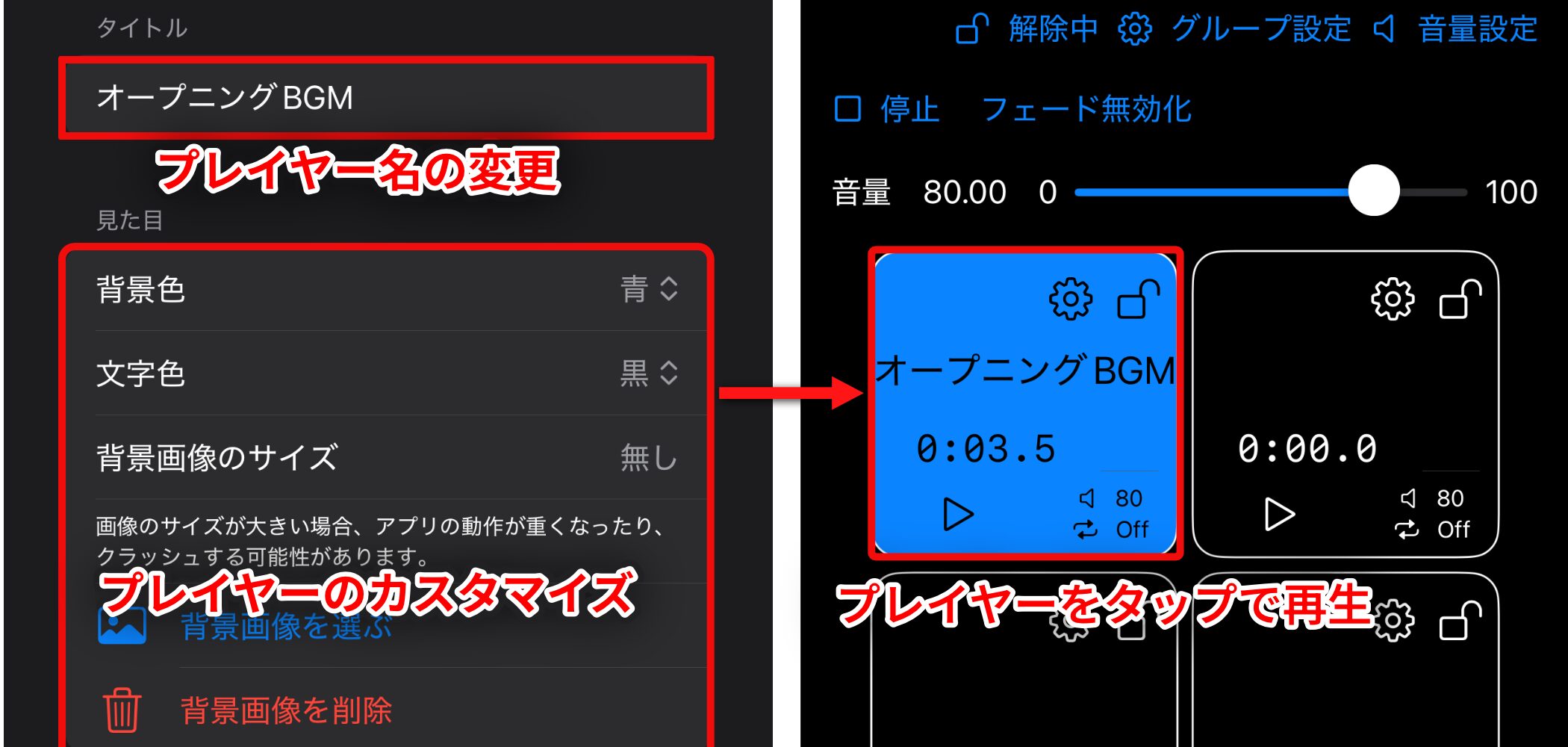
Use the title field below to rename a player, and open “Appearance” to customize its background and text colors.
Tap a player to play its assigned audio.
On macOS, click the play icon (▷) to start playback.
Playback Settings
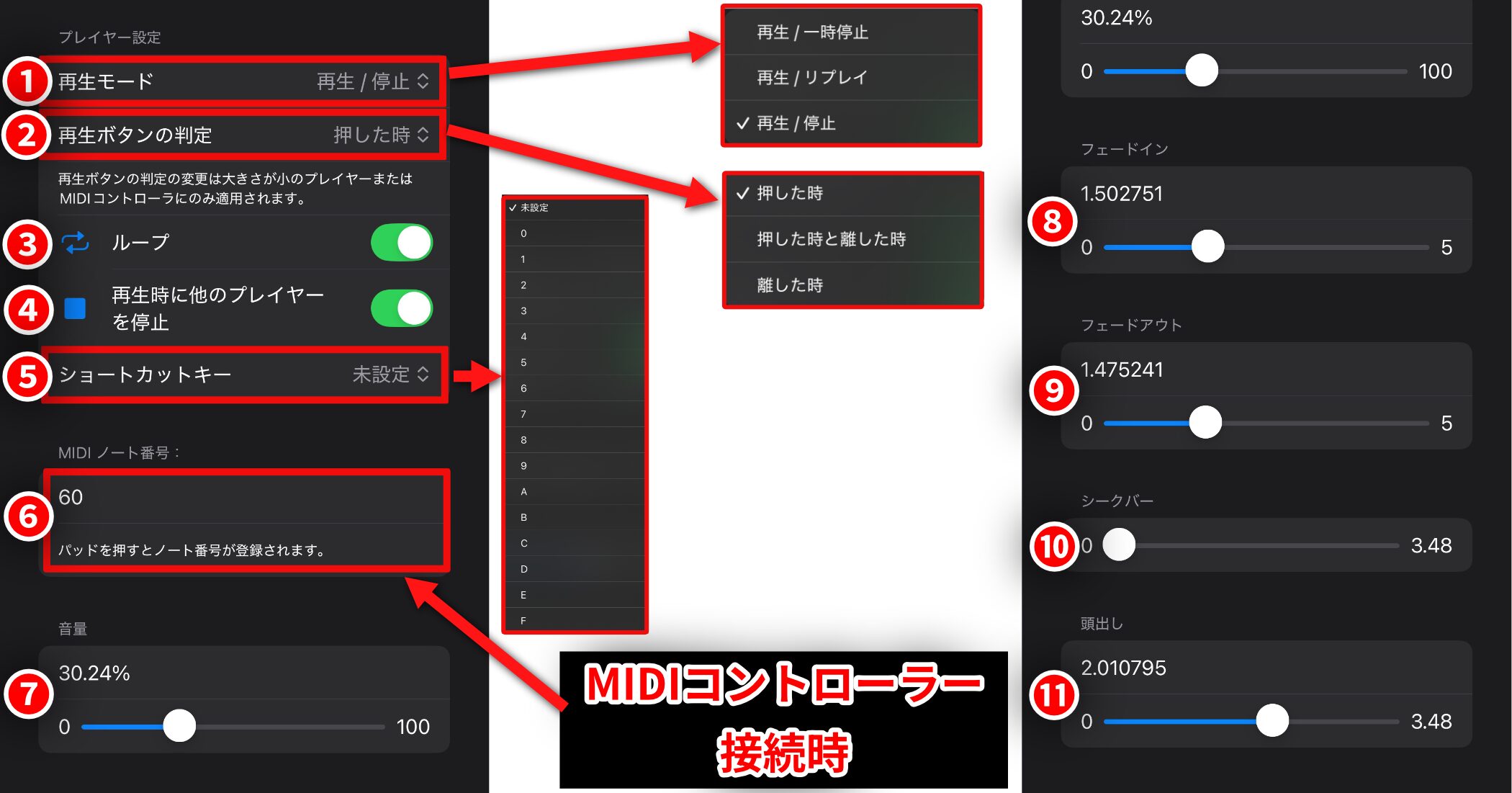
Scroll down from the “Appearance” screen to find the playback settings for each player.
1. Playback Mode : Choose what happens when you tap the play button
2. Play Button Behavior : Choose how the timing of playback start is handled
3. Loop : Choose whether the audio should loop automatically when it finishes
4. Stop Other Players on Playback : Choose whether starting this player automatically stops the others
5. Shortcut Key : Assign a shortcut key to the player’s play button
6. MIDI Note Number : The number assigned to the player when a MIDI controller is connected
7. Volume : Set the volume with the slider or by entering a value
8. Fade In : Set the fade-in with the slider or by entering a value
9. Fade Out : Set the fade-out with the slider or by entering a value
10. Seek Bar : Fast-forward or rewind the audio
11. Start Position : Set the audio start position with the slider or by entering a value
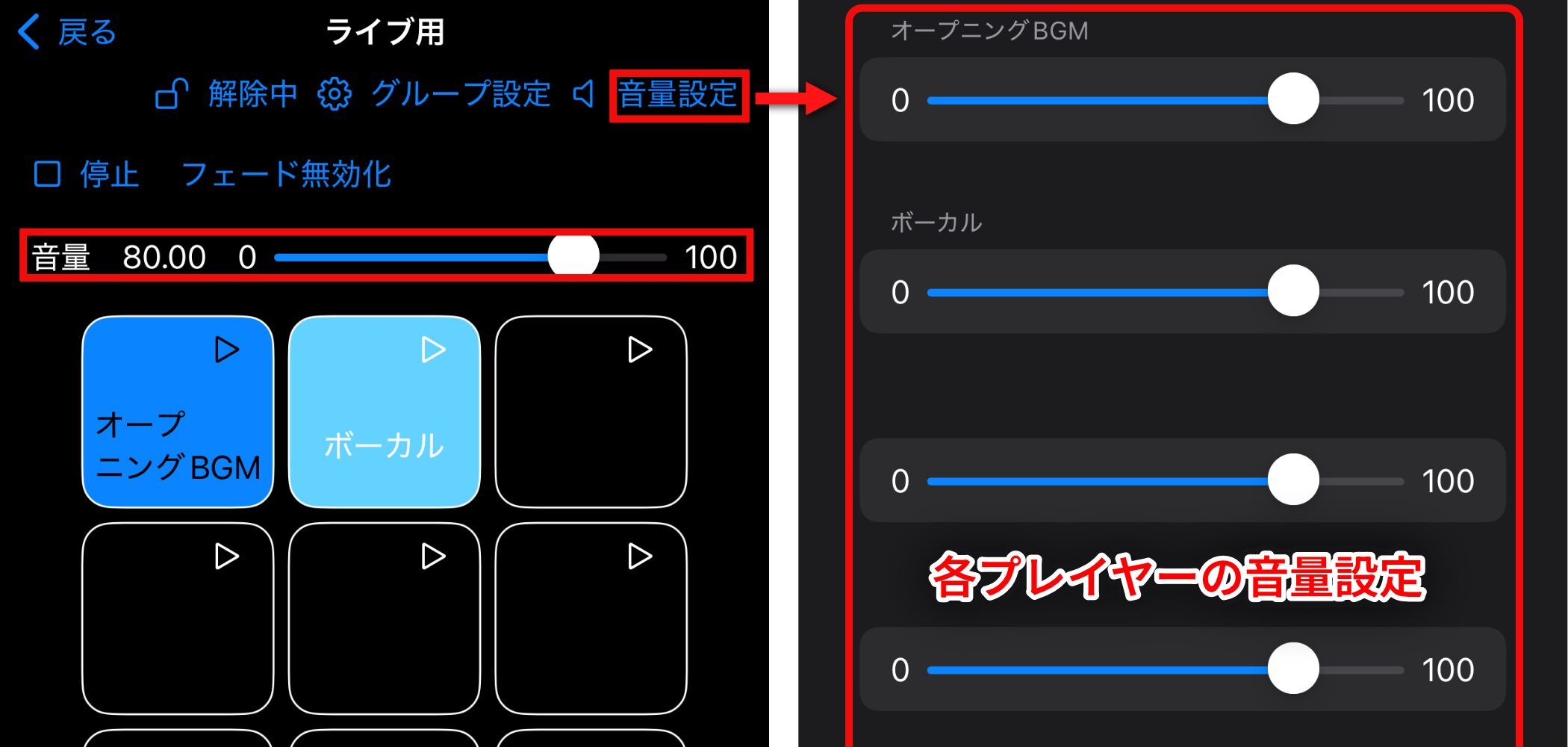
The “Volume” shown at the top of the player screen controls the group volume and applies to every player in that group.
Tap “Volume Settings” in the upper-right corner to adjust each player’s volume on one screen.
Rename a group and adjust the number of players
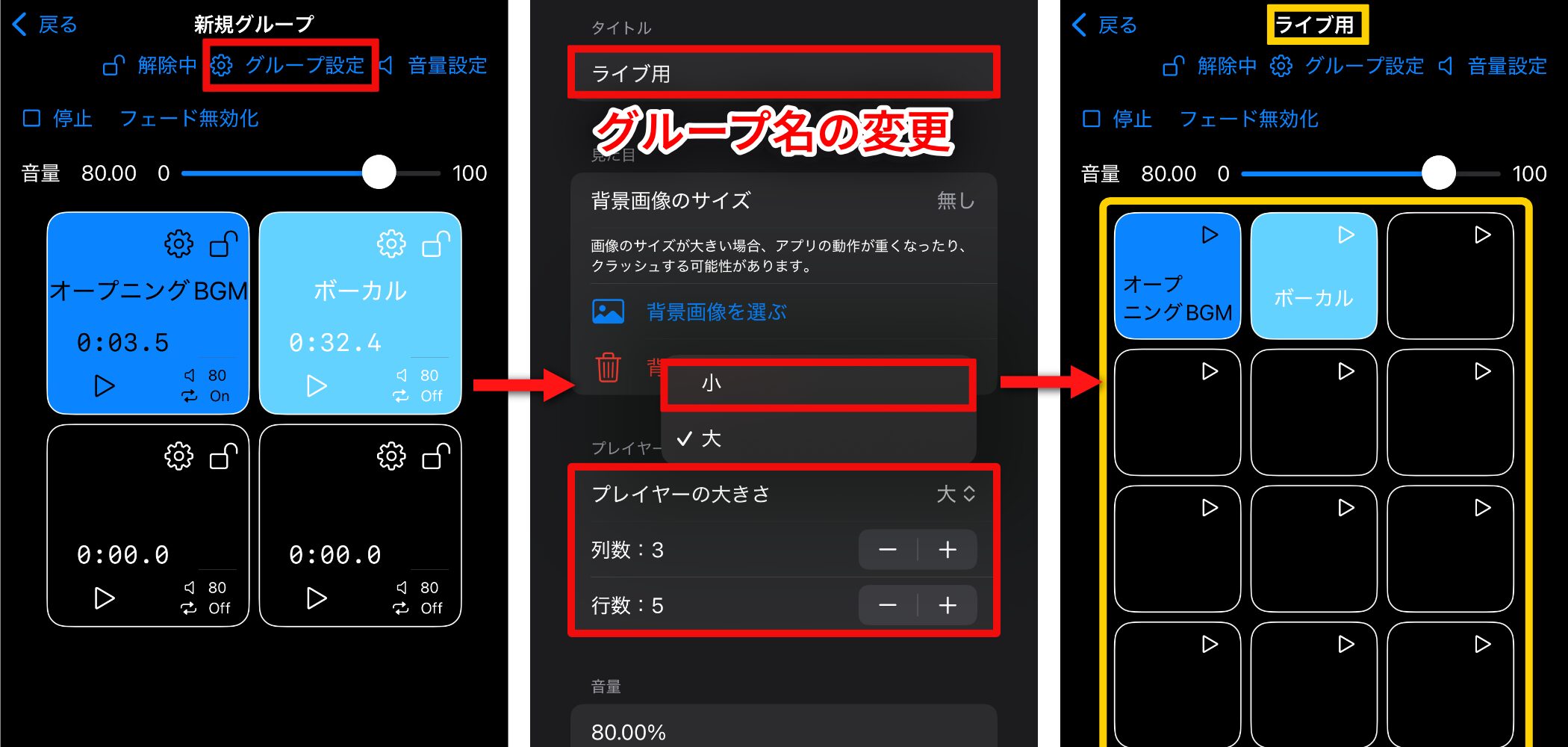
Tap “Group Settings” at the top of the player screen to rename groups, change player size (iOS only), and adjust the number of players.
Note: If you reduce the number of rows or columns after loading audio, the hidden players will reappear with their audio still assigned when you increase the count again.
Lock controls to prevent accidental operation
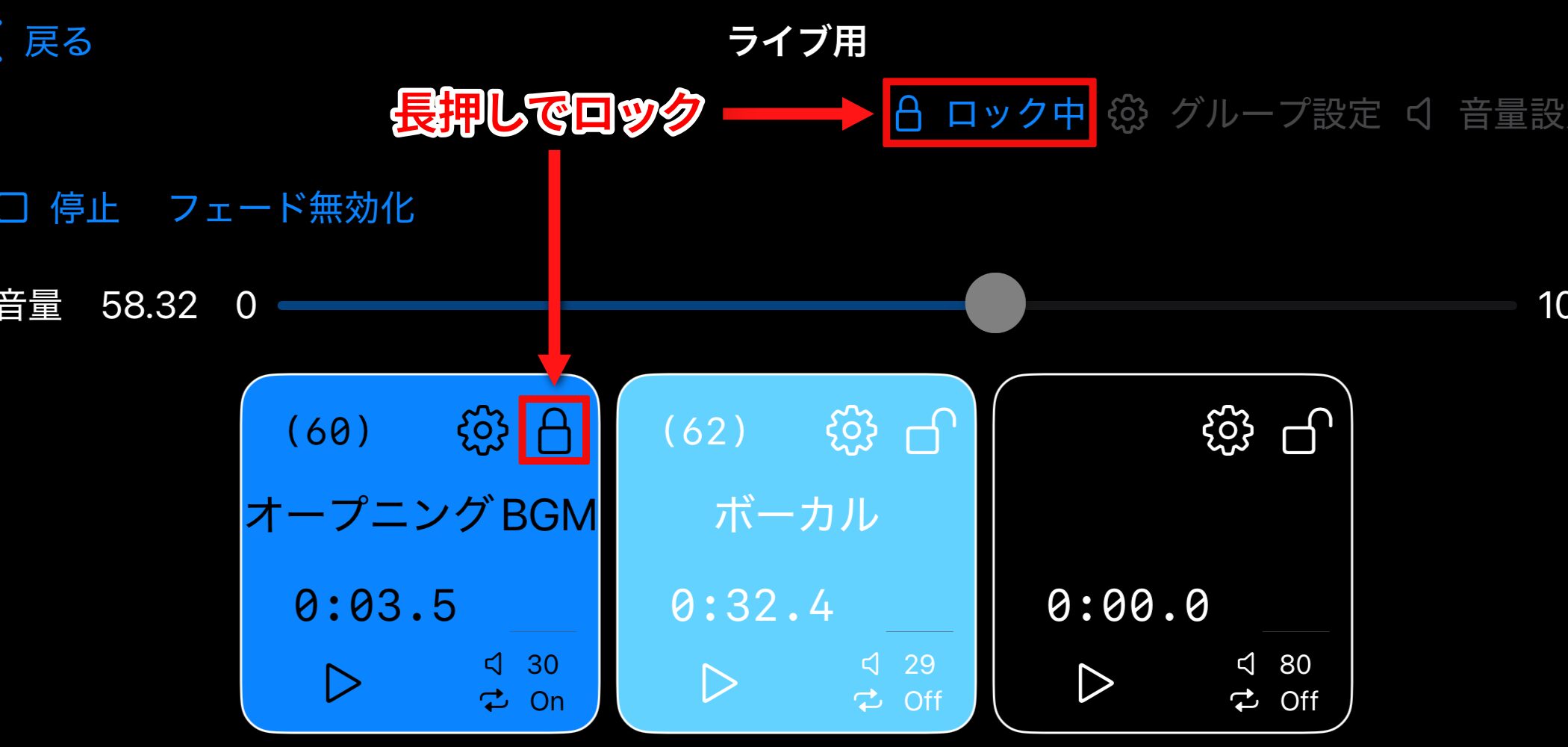
Pondashi includes a feature to prevent accidental touches from triggering a button.It has a locking feature.
Press and hold the lock icon at the top of the player screen to lock Group Settings and Volume Settings.
Press and hold the lock icon on an individual player to lock its settings. Tapping that player will then only start or stop playback.
Set Up a MIDI Controller
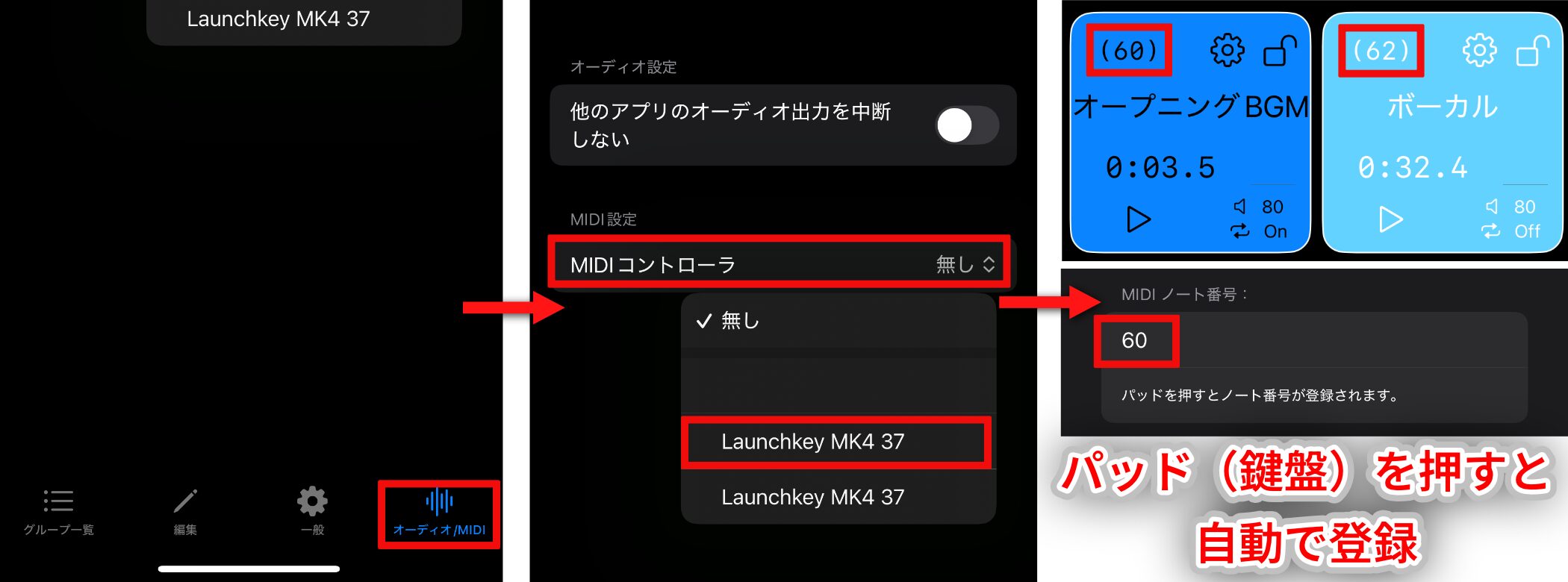
Connect a pad controller or MIDI keyboard, then tap “Audio/MIDI” → “MIDI Controller.” The name of the connected device will appear.
Tap the device name, select the player you want to assign, and press a pad or key. The player will beassigned automatically.
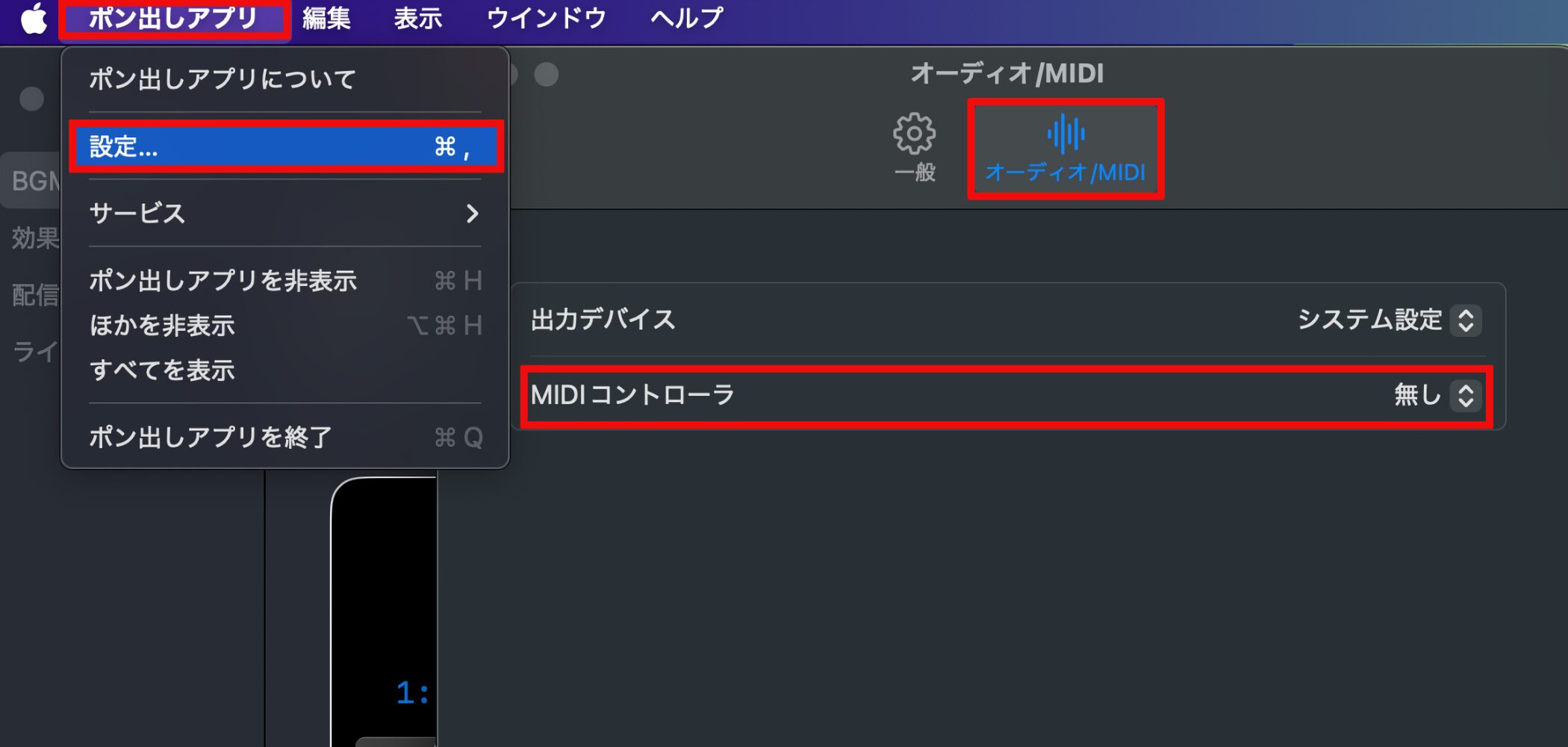
On macOS, open the same screen from “Pondashi App” → “Settings” in the menu bar.
Trim Audio
On iOS, you can usethe trimming feature to extract only the part of an audio file you need.
You can save a trimmed audio file and assign it to a player.
If you already know the start and end points you need, trimming the file in advance is convenient because you will not need to set the playback position after assigning it to a player.
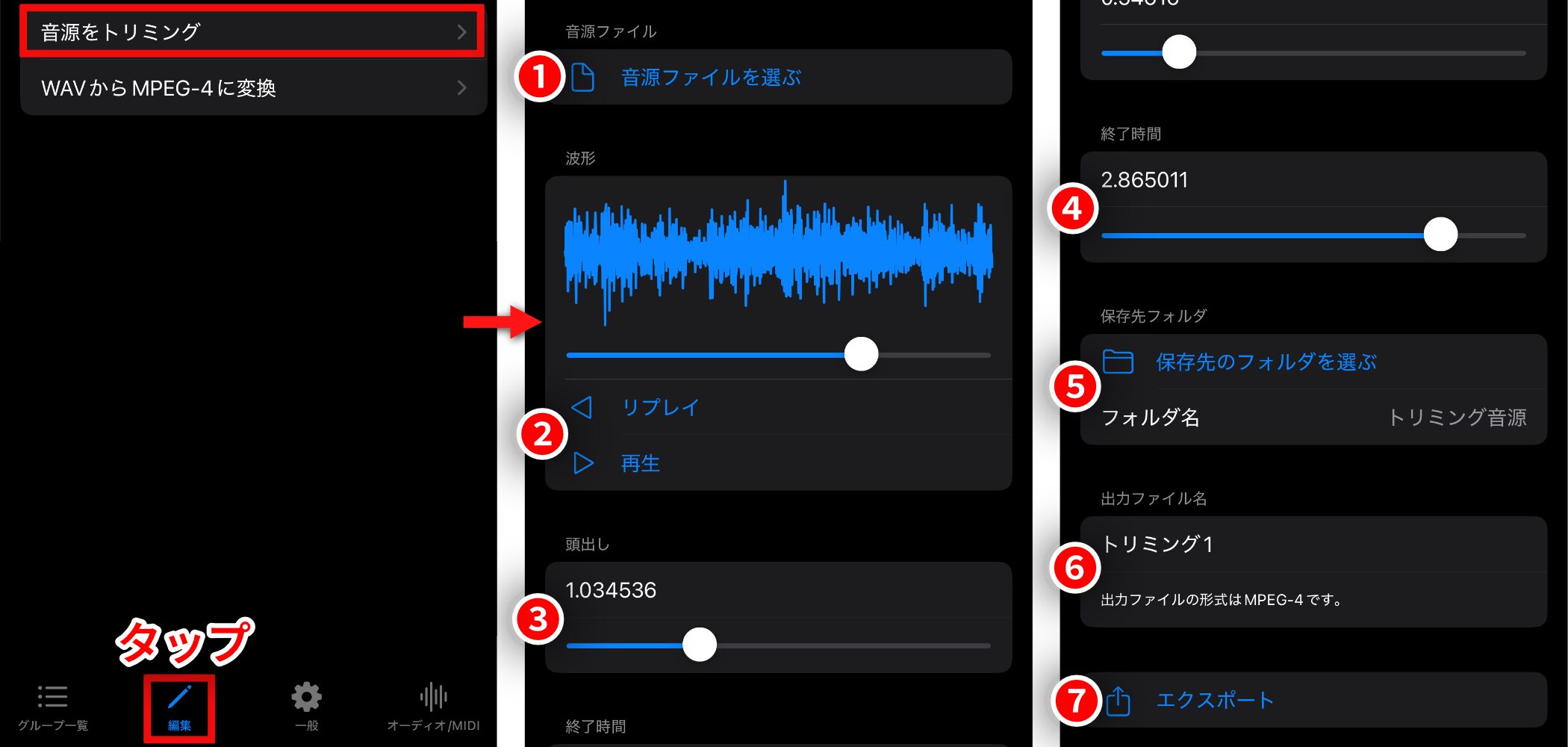
Tap “Edit” → “Trim Audio” at the bottom of the screen, then follow these steps to trim and save the file.
1. Choose an audio file : Select the file to trim. Its waveform appears below.
2. Replay / Play : Replay from the beginning or play the audio while editing. You can also fast-forward or rewind with the slider above.
3. Start Position : Set the audio start position with the slider or by entering a value
4. End Time : Set the audio end position with the slider or by entering a value
5. Destination Folder : Choose where to save the trimmed audio file
6. Output File Name : Enter a name for the trimmed audio file
7. Export : Tap to save the trimmed audio file
System Requirements and Supported Audio Formats
iOS : iPhone and iPad
macOS : Intel- or Apple silicon-based Mac
•Common audio formats such as WAV, AIFF, and MP3
•High-quality formats such as Apple Lossless
•Audio tracks in MPEG-4 format
As a general rule, the app supports audio formats and MPEG-4 formats supported by your operating system version.
Official Website and Beta Tester Information
What did you think?
For more information and instructions, visit the official website.
Pondashi App User Manual
You could also try the app for free by joining the beta test through the form below.
The basic controls are easy to learn, even for first-time users. Try it as a new sound-cue tool for your streams or live performances.
Frequently Asked Questions
Q1. Is Pondashi easy for beginners to use?
Yes. The app is designed for people without music-production expertise and uses familiar terms such as “Group” and “Volume Settings.” Its standard iOS and macOS interface makes it intuitive for anyone who uses a smartphone or Mac.
Q2. Do I need a MIDI controller?
No. You can operate the app on its own by tapping or clicking the screen. Connecting a pad controller or MIDI keyboard can make performance more intuitive and professional, but it is optional.
Q3. Where can I add audio from?
You can add audio from local folders, cloud storage such as Google Drive, and the Files app or Finder. Tracks stored in the Music app on your iPhone or Mac can also be added directly with a few steps.
Q4. Is there a limit to the number of players in a group?
You can place up to 100 players in each group. However, creating too many may cause unstable performance depending on your device specifications and operating system version.
Q5. Is there a way to prevent accidental operation?
Yes. The lock feature lets you lock group settings and individual player settings with a lock icon. Once locked, only playback and stop controls remain available, helping prevent mistakes during a live performance.
NEW ARTICLES
Latest English Articles












































