
Ultimate Vocal Remover is a free AI-powered tool for separating vocals from a song. Available for Windows and Mac, it can produce separate vocal and instrumental files with just a few clicks, opening up possibilities for remixing and audio editing. This walkthrough shows the interface and model used in our 2023 test; separation quality depends on the material and settings.
Separate Vocals in Just a Few Clicks
At some point in music production or other musical activities, you may want to separate the vocal track from a song.
When that happens, one tool to try is the free AI vocal-separation application Ultimate Vocal Remover
. It offers a straightforward way to separate vocals in just a few clicks.
Download and Launch
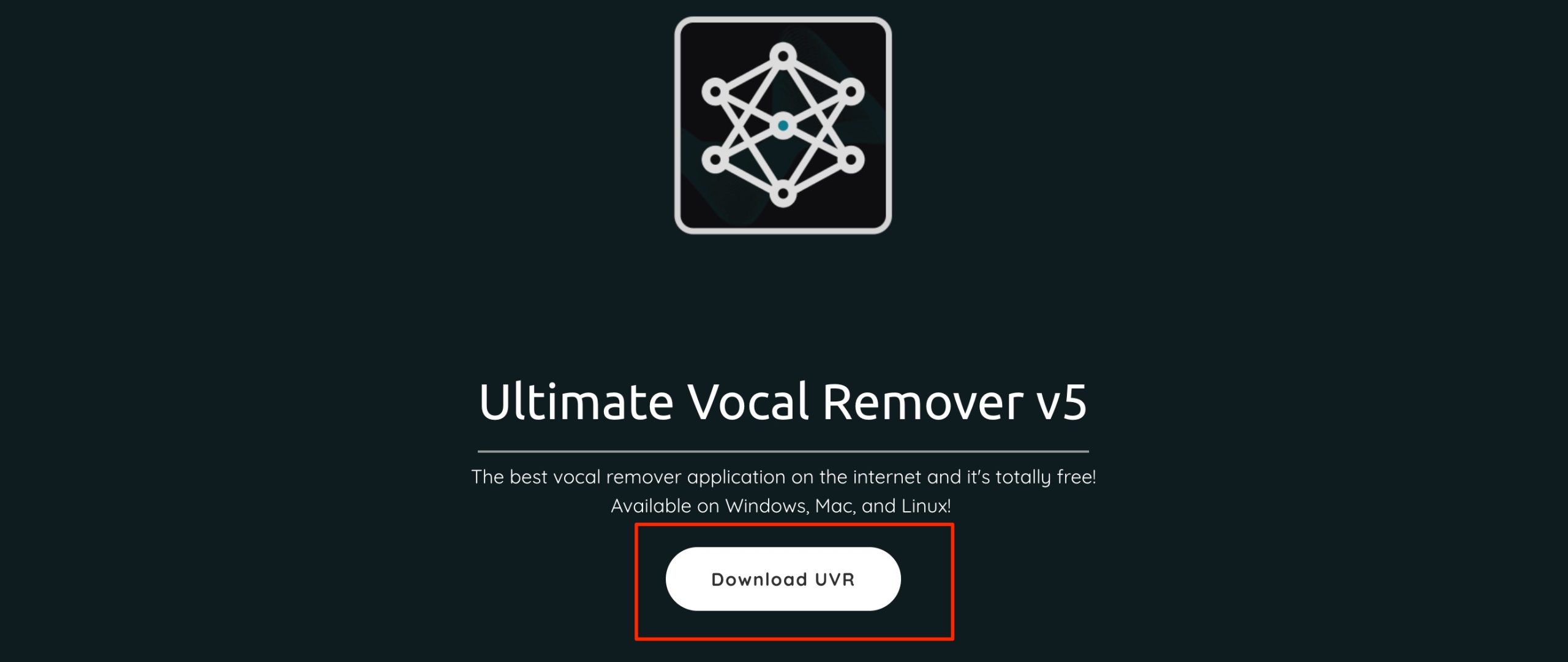
First, visit the Ultimate Vocal Remover website and click “Download UVR.”
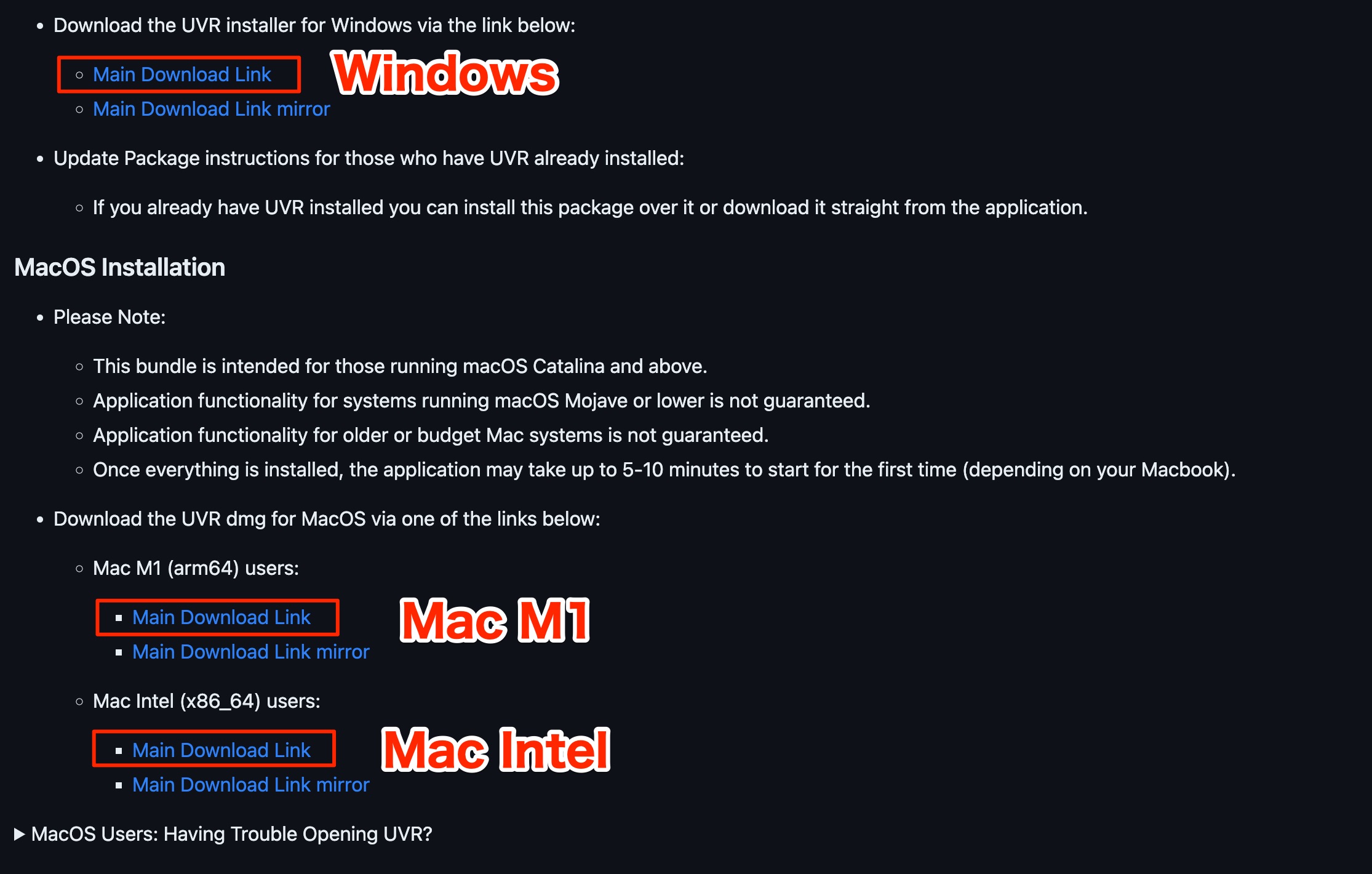
Download the file for your computer.
Then double-click the downloaded file to begin installation.
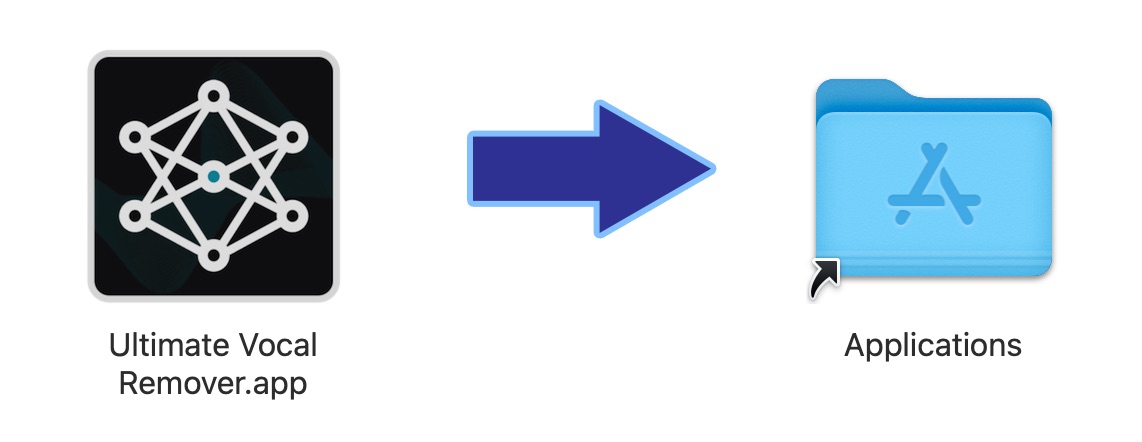
On Mac, drag the application into the Applications folder to install it.

You can then launch the application.
A Note for Mac Users
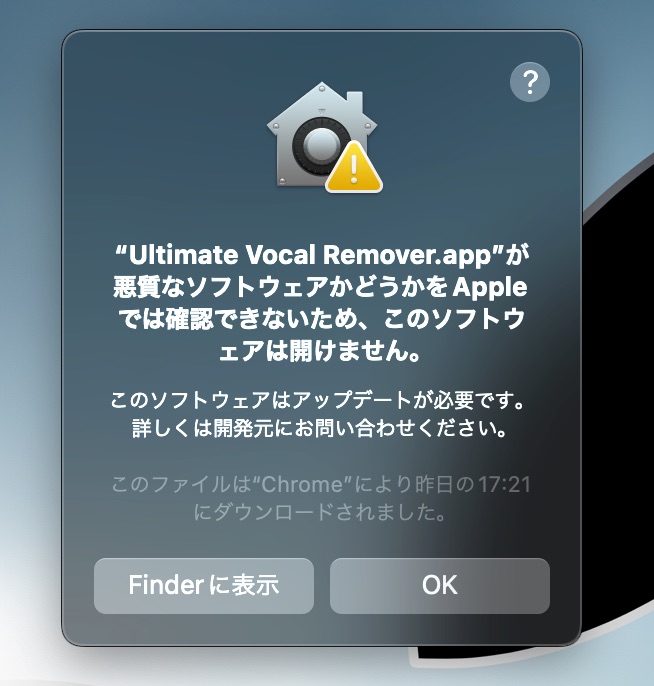
On first launch, macOS may display a security message like the one shown here.
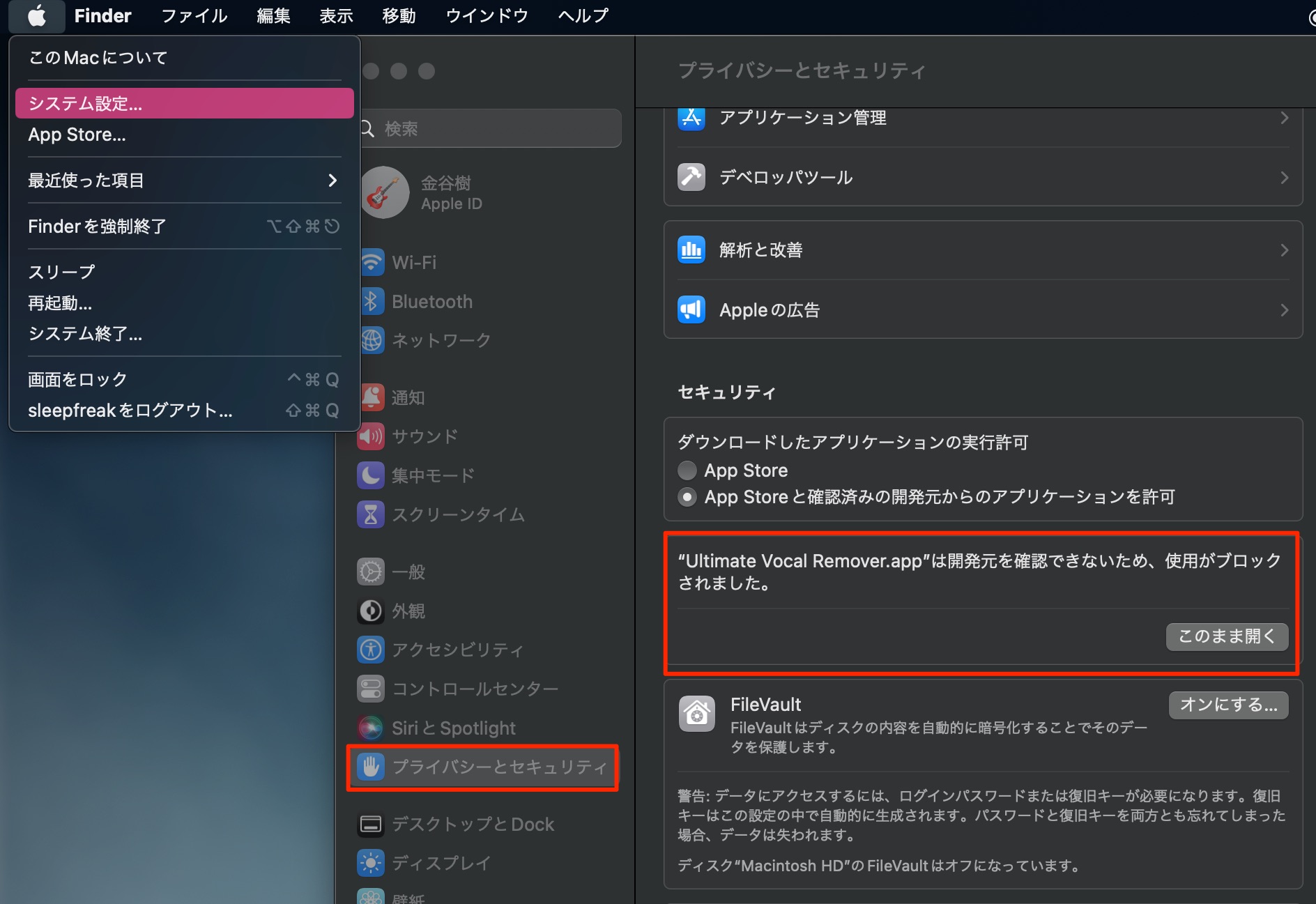
Open System Settings and look for the message under Privacy & Security.
The original walkthrough selects “Open Anyway.” Only proceed if you obtained the application from the official source and trust it; do not override a warning for an unfamiliar download.
You can then open the application. The exact prompts may vary with your macOS version.
Using Ultimate Vocal Remover
The basic workflow is straightforward.
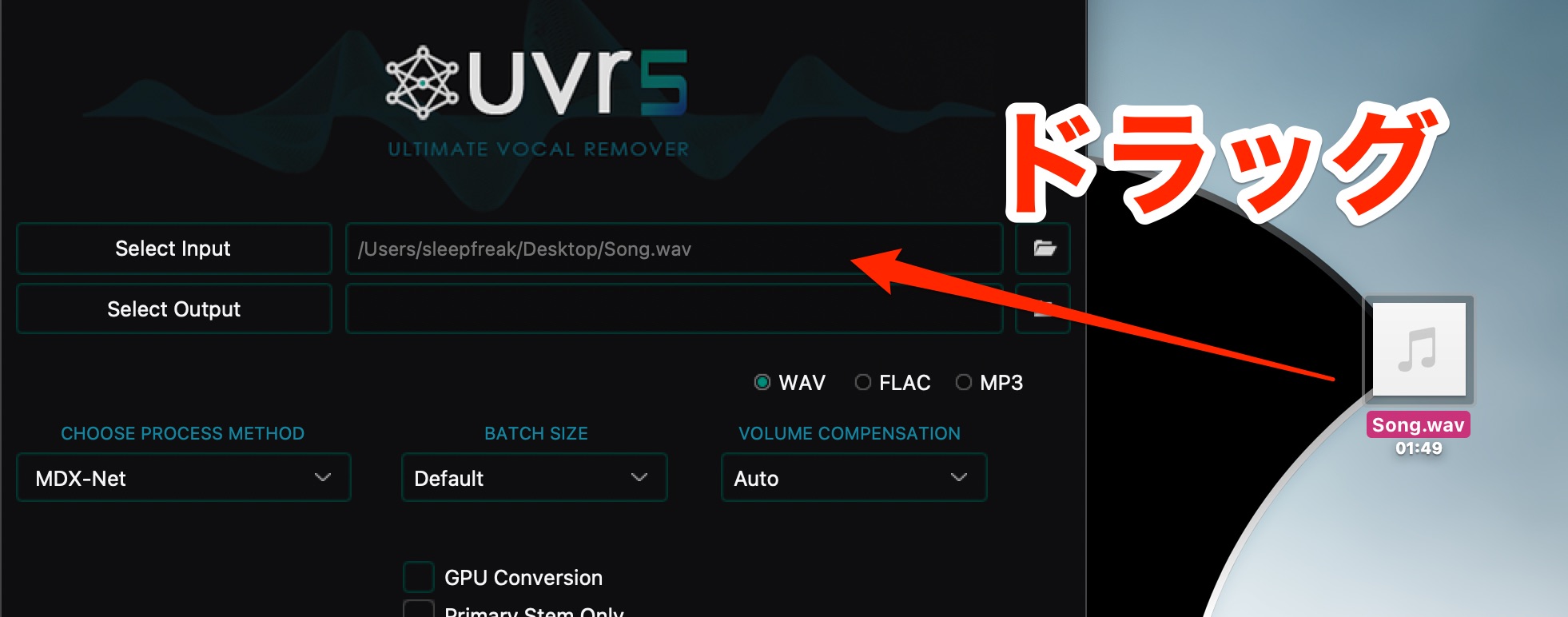
Drag your song file into the application.
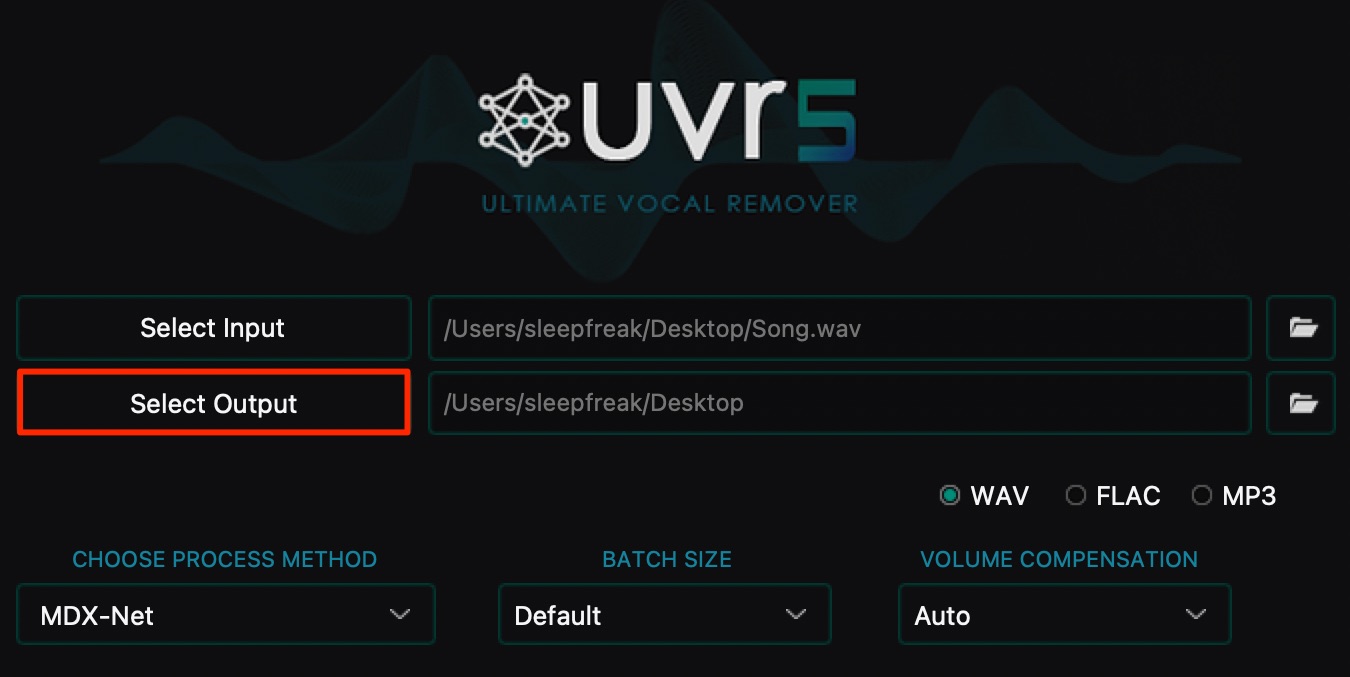
Choose where to save the processed files. In this example, we selected the Desktop.
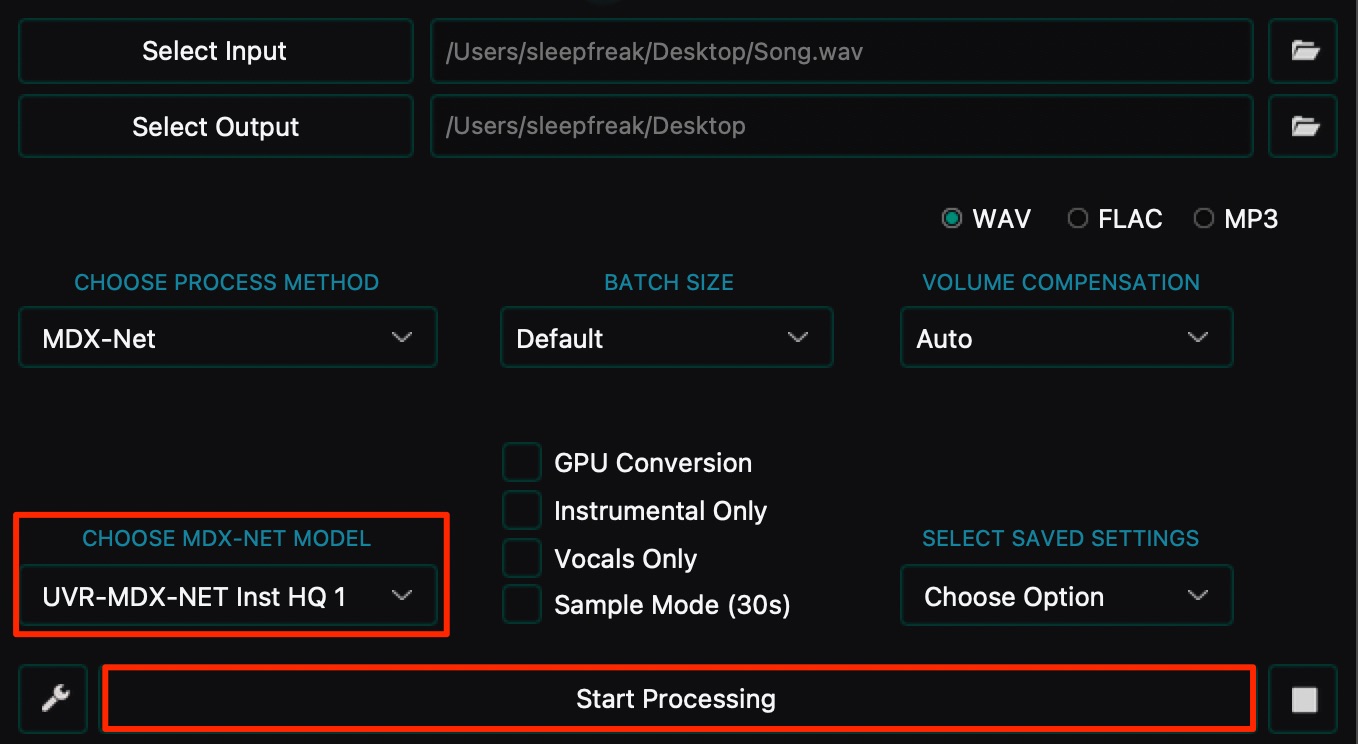
In the model selector, choose “UVR-MDX-NET Inst HQ1,” then click “Start Processing” to begin. This is the model used in the example below.
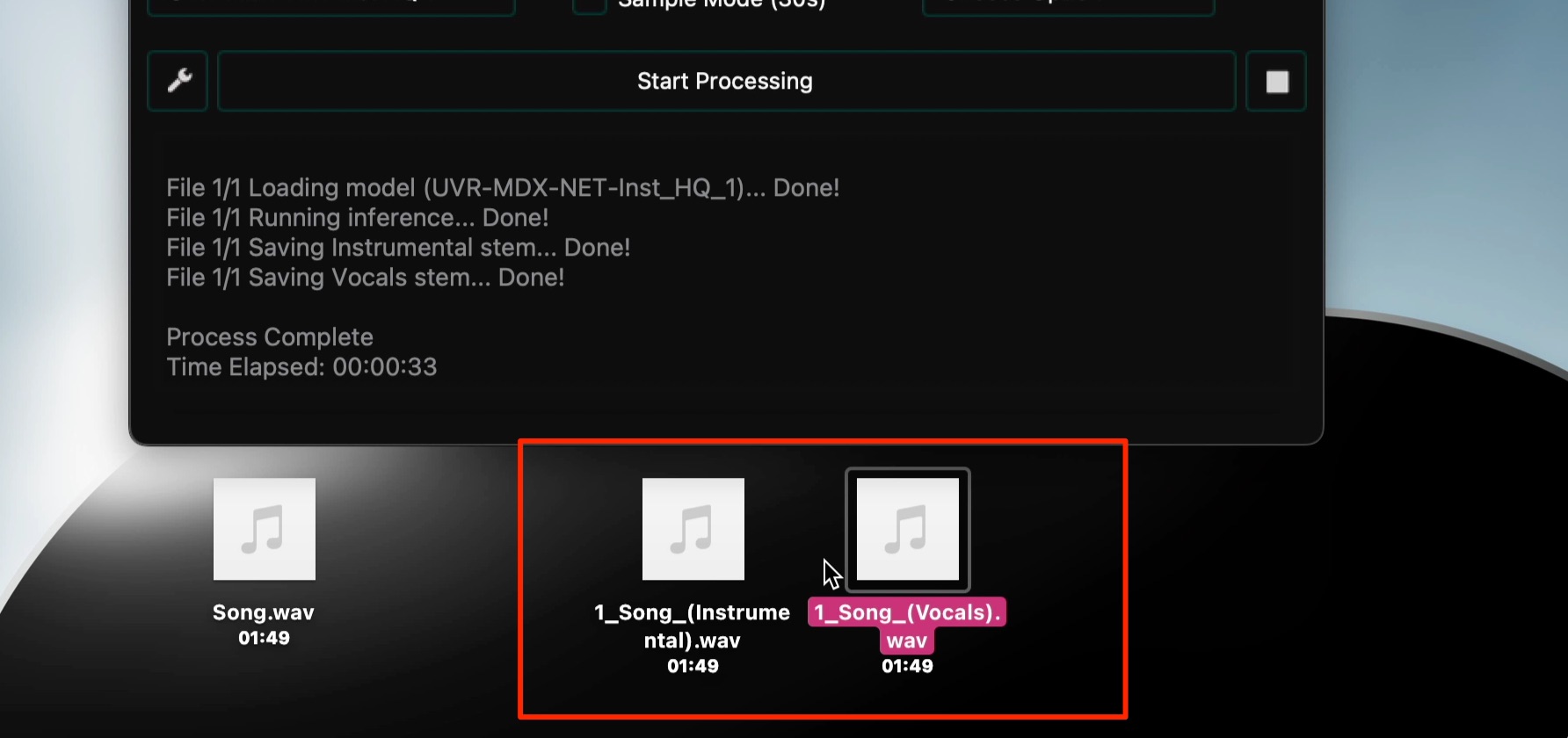
When processing finishes, the vocal and instrumental files are exported.
Here is how the results sound.
- Original Song
Original Song
- Separated Vocals
Separated Vocals
- Separated Instrumental
Separated Instrumental
The results in this example are impressively clear. Try it with your own material to hear how well it works for your needs.
Frequently Asked Questions
Q1. Is Ultimate Vocal Remover really free?
Yes. The application is available free of charge from its official website. You can download and install it to use its vocal-separation features without an application purchase.
Q2. How do I install it on Mac?
Drag the downloaded application into the Applications folder. If macOS displays a security message, the original walkthrough uses “Open Anyway” in Privacy & Security. Only do this for a trusted copy obtained from the official source; prompts can differ between macOS versions.
Q3. How long does vocal separation take?
Processing time depends on the song length, computer hardware and selected model. The original article describes many jobs finishing within a few minutes, but this is not a guaranteed processing time. More capable hardware can speed up processing.
Q4. What file format is used for the separated files?
This walkthrough does not specify the export format. Its listening examples are MP3 files, which does not establish every export option in the application. Check the current application's output settings and official documentation for the formats available in your version.
Q5. Which model gives the most accurate results?
This article demonstrates “UVR-MDX-NET Inst HQ1,” which produced good results in our example. That does not make it the best model for every song or task. Other models can be selected to suit the material and the separation you need.
NEW ARTICLES
Latest English Articles
































































































