
Cubase 10 offers a range of tools for professional music production, including Audio Alignment for automatically matching the timing of multiple audio tracks, substantial improvements to Chord Pads, and an update to Groove Agent SE 5. Timing adjustments for doubled vocals and multi-mic drum recordings, along with Note Expression support for MPE-compatible MIDI keyboards, help users work more efficiently and create more expressive music.
Taking Audio Editing and Plug-ins to the Next Level
Welcome to the third installment of our guide to the highlights of Cubase 10.
Continuing from the previous article, we will walk through more improvements and new features.
Audio Alignment and Groove Agent SE 5 are among the many highlights still to explore.
Let's take a closer look.
Cubase 10 New Features, Part 3 — Video
Download the Cubase 10 Song Project Here!
Lyrics and vocals: 3SECONDS Lisa Briar Rose (@3secondslb) / Music and arrangement: L75-3 (@l75_3)
Follow us on Twitter for music-production tips and tutorials.
- 1Cubase 10 New Features: The Evolution of VariAudio
- 2Cubase 10 New Features: MixConsole Recall, New Plug-ins, and More
- 3Cubase 10 New Features: Audio Alignment, Groove Agent SE 5, and More
The New Audio Alignment Feature
Audio Alignment matches the timing of multiple audio events. It makes it easy to correct timing differences when positioning doubled vocals, vocal harmonies, or multi-mic drum recordings.
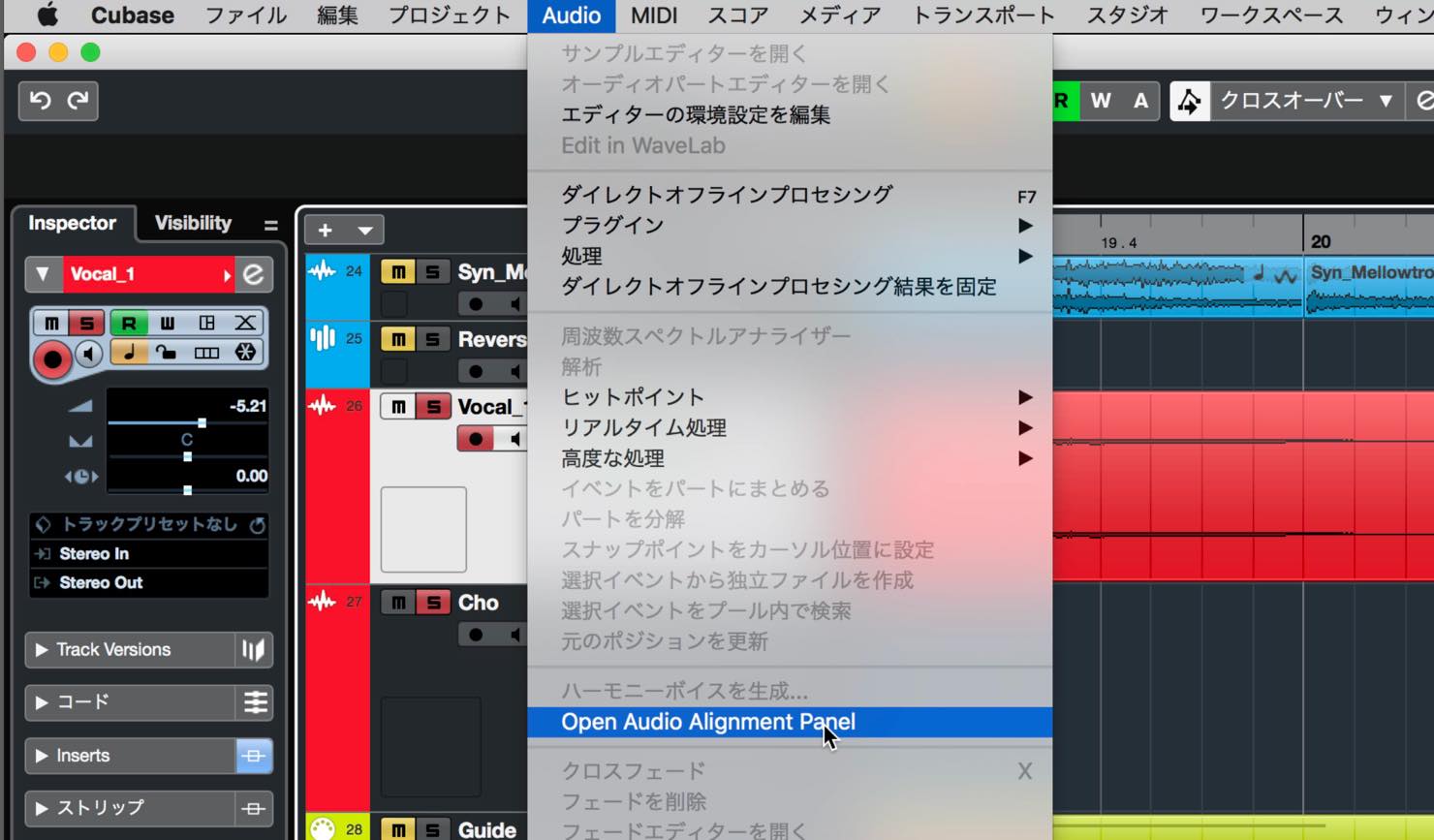
To use it, first choose “Open Audio Alignment Panel” from the Audio menu.
In the Project window, select the audio event you want to use as the timing reference, then click the “+” button in the Reference section.
The event name and waveform should appear.
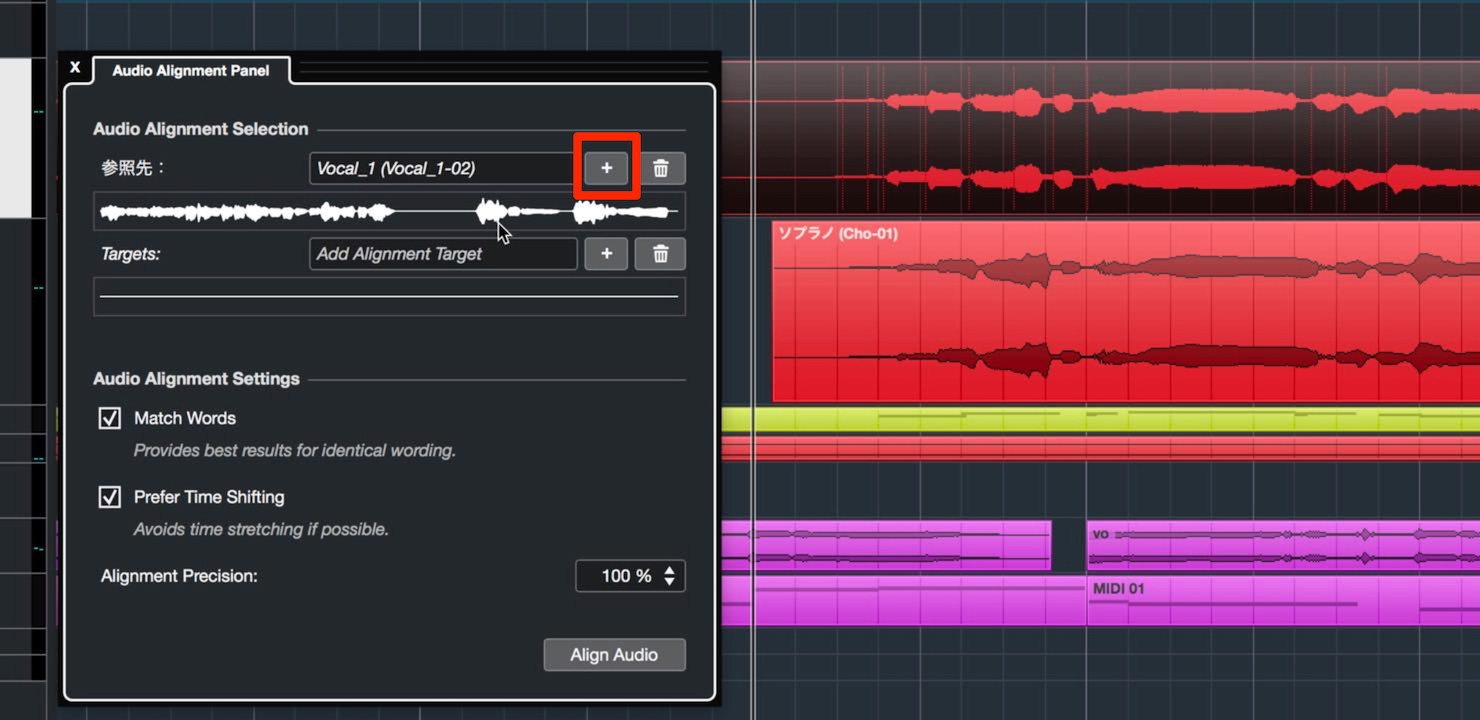
Next, select the audio event you want to align and click the “+” button in the Target section.
Its event name and waveform should also appear.
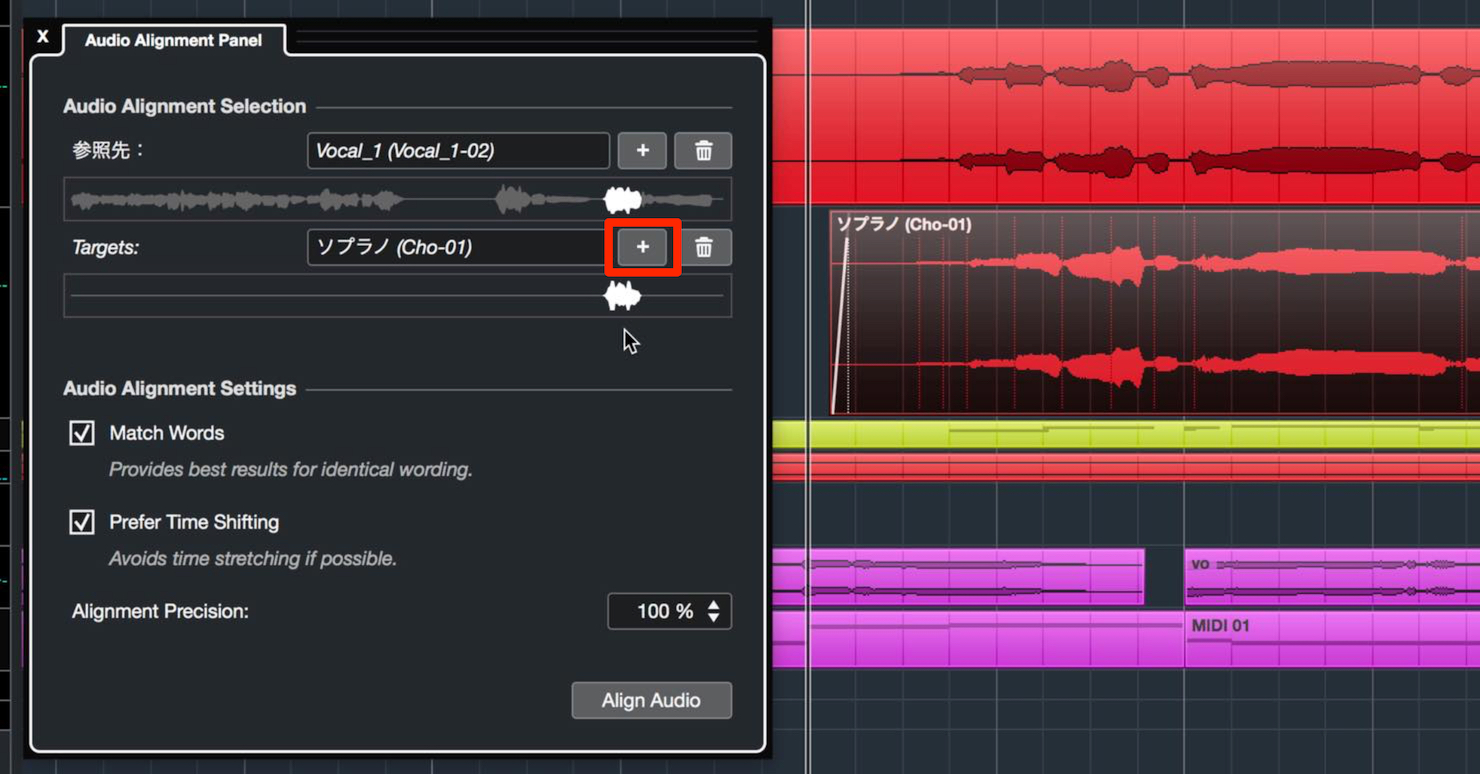
The settings below let you tailor the process to your source material.
- Match Words: Optimizes alignment for material such as vocal tracks with lyrics.
- Prefer Time Shifting: Enable this if you want to adjust the position without time-stretching.
- Alignment Precision: Adjusts how strongly the alignment is applied.
Once you have set these options, click “Align Audio” to run the process.
Chord Pads Improvements
Chord Pads have also been improved.
The settings opened with the “e” button are now focused solely on player settings.
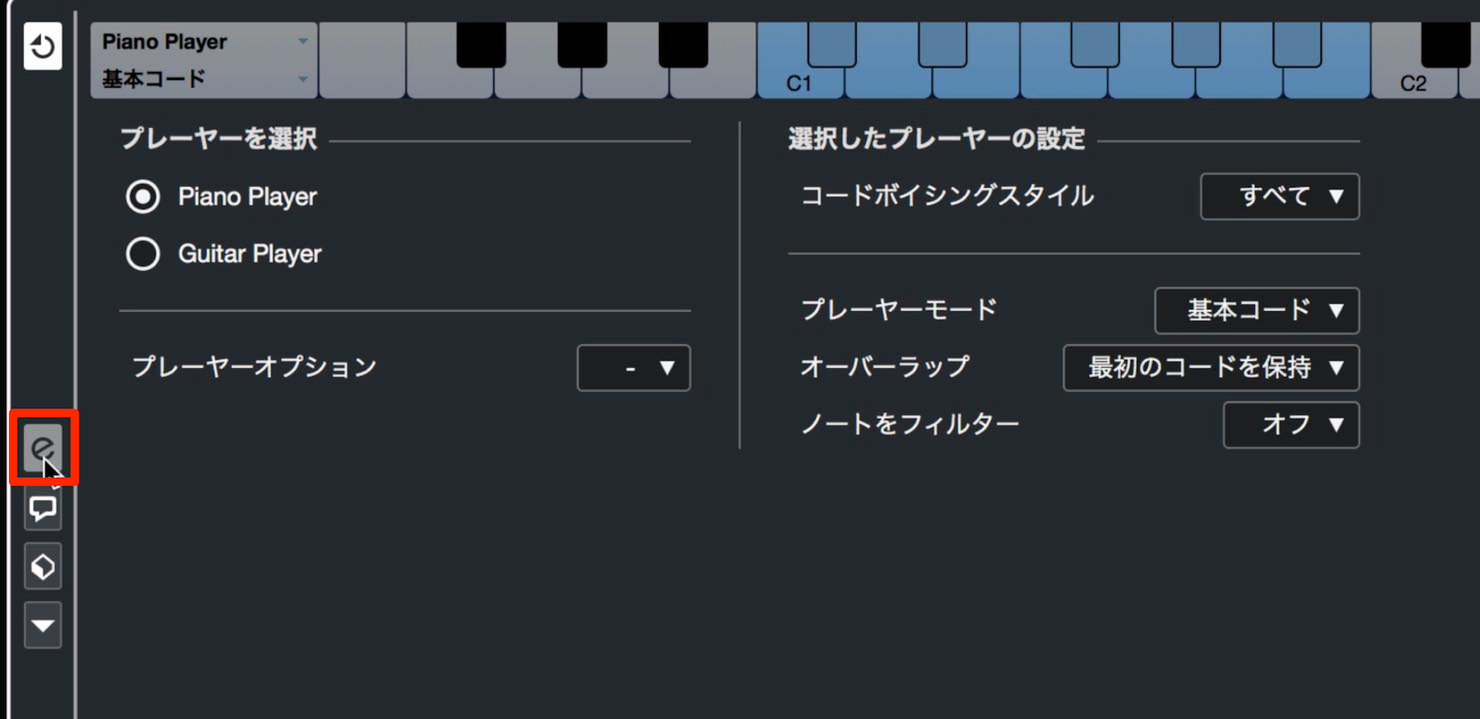
For other options, click the gear icon to open a dedicated settings window.
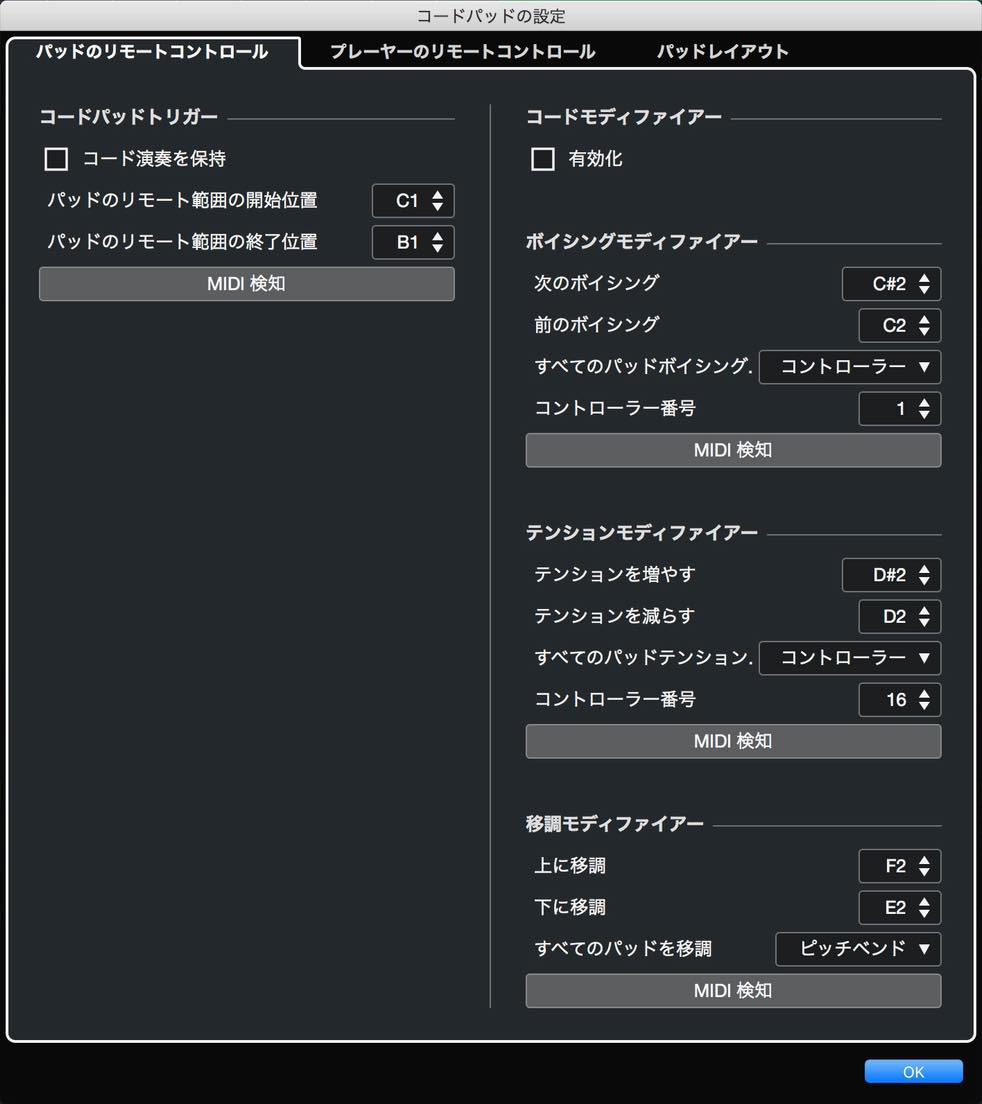
You can now play chords from a MIDI keyboard even after leaving the Chord Pads view in the lower zone.
To set this up, click the MIDI input field in the Inspector for the track you want to use for chord playback.
The list now contains a new “Chord Pads” option.
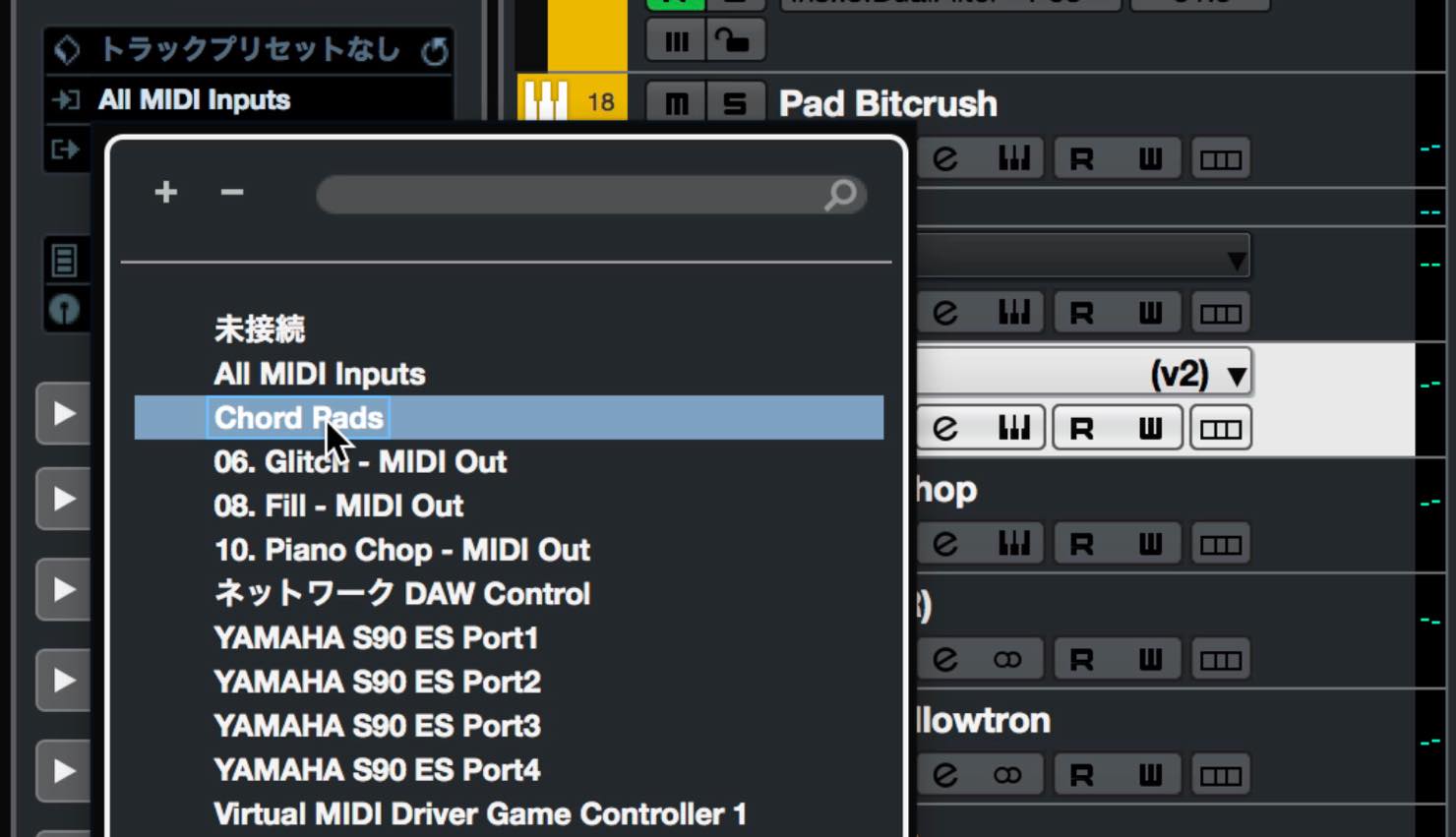
Select it and enable recording or monitoring on the track. You can then play chords from your MIDI keyboard even when the Chord Pads view is no longer open.
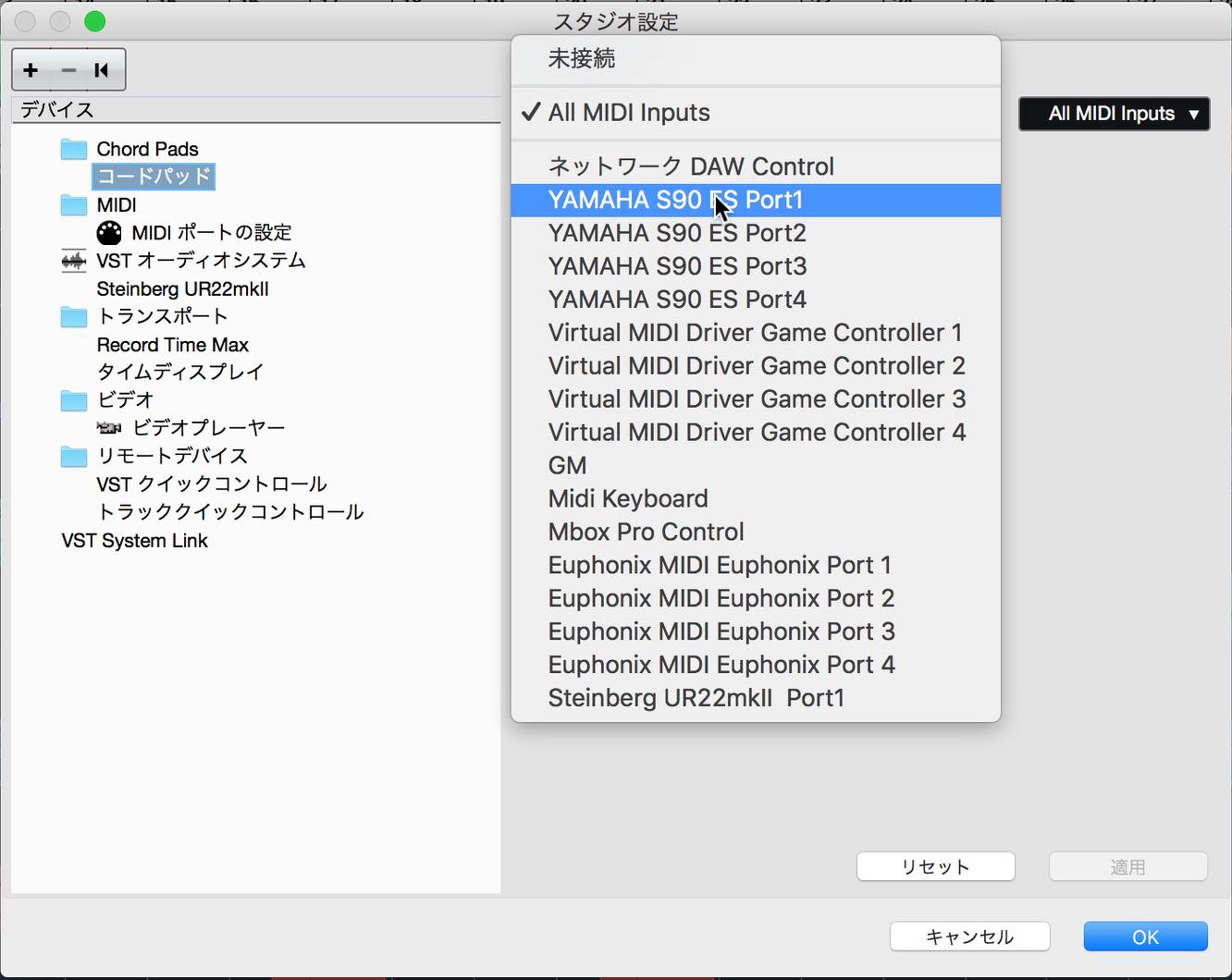
Because “Chord Pads” is a virtual MIDI input, you can also specify the physical MIDI input that feeds it.
Open Studio Setup from the Studio menu, then select Chord Pads in the list on the left.
Click “All MIDI Inputs” at the upper right to choose the MIDI input you want to use.
Groove Agent SE 5
Groove Agent SE has been updated to version 5.
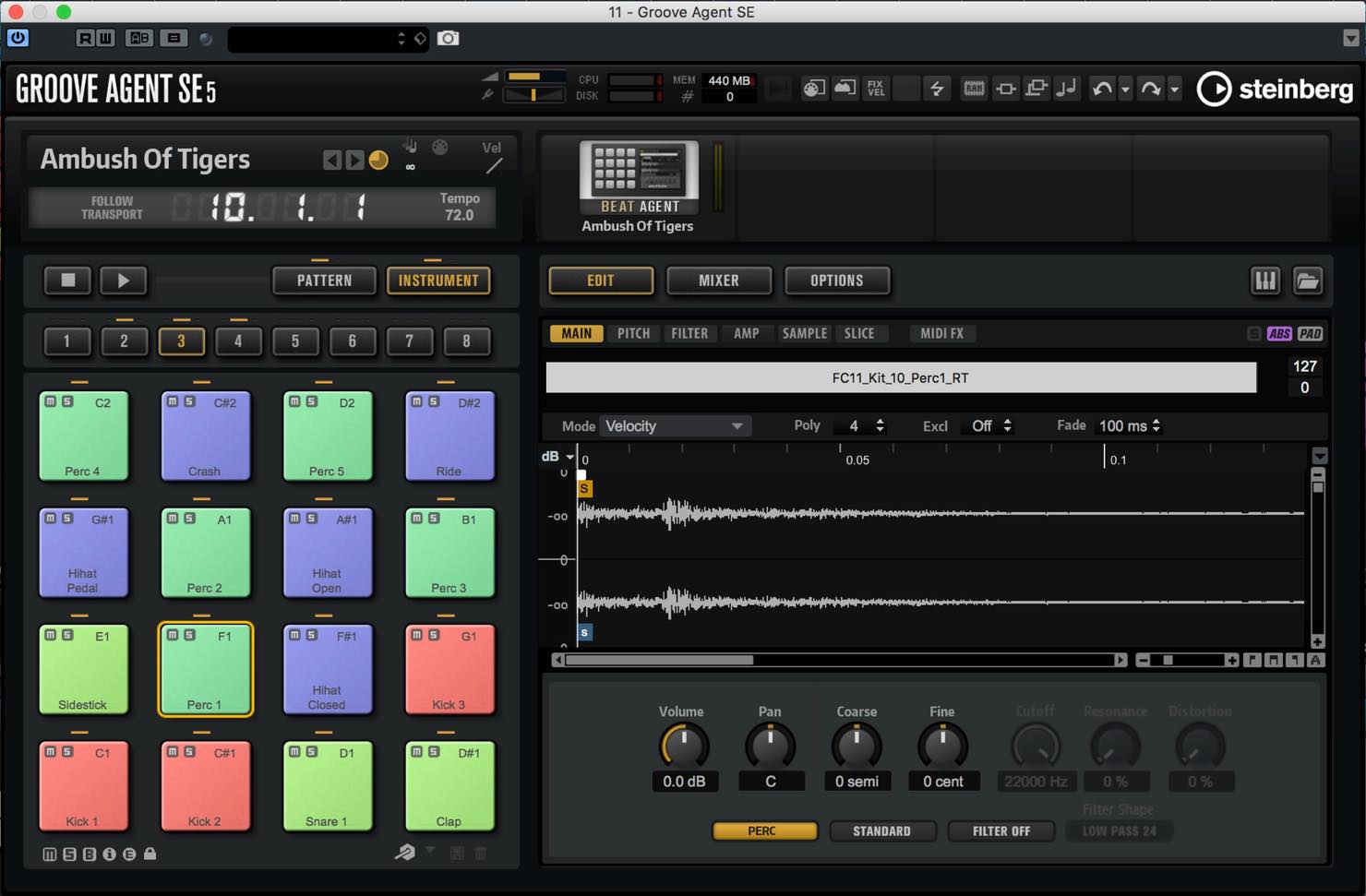
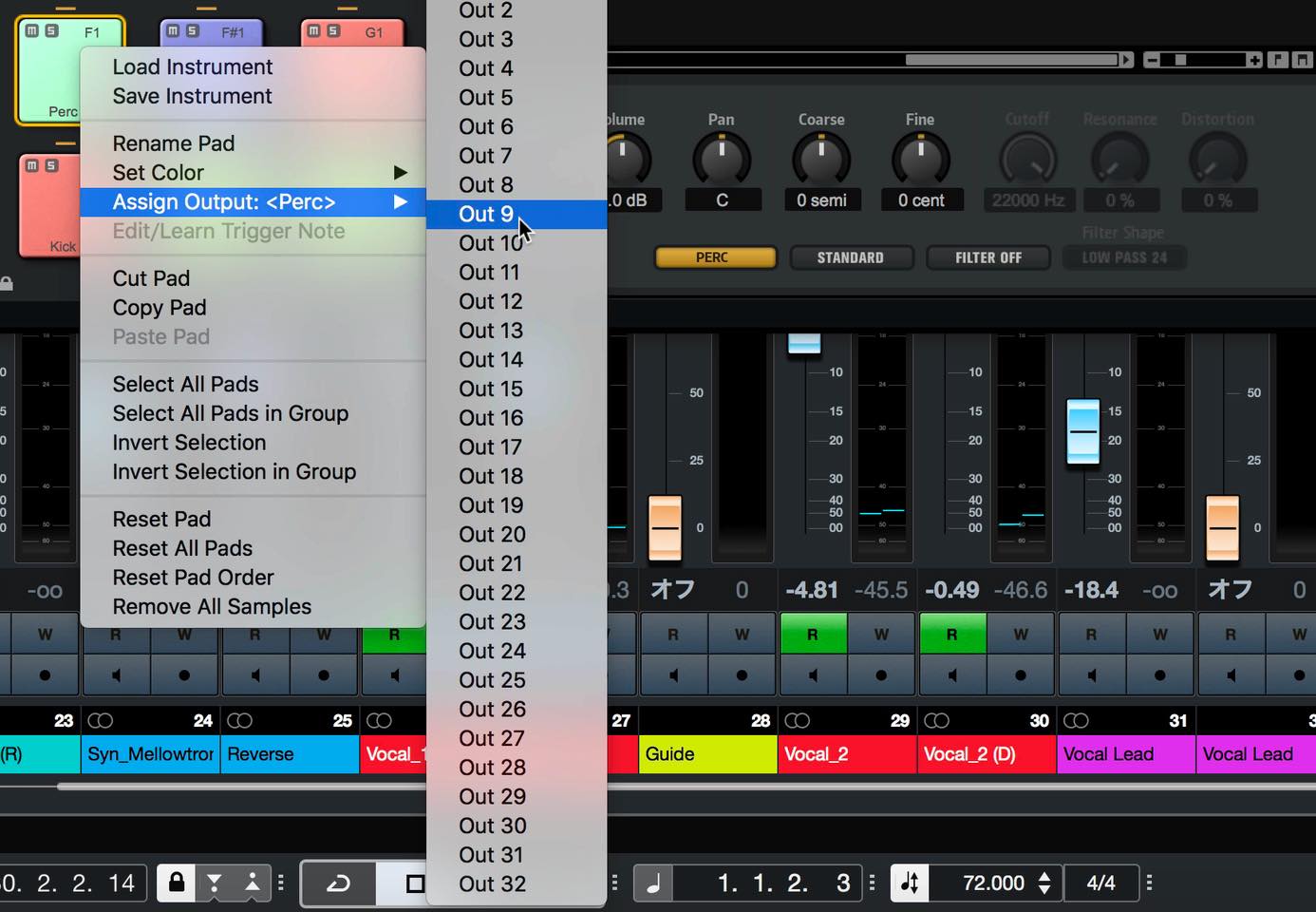
One change is support for up to 32 separate output channels.
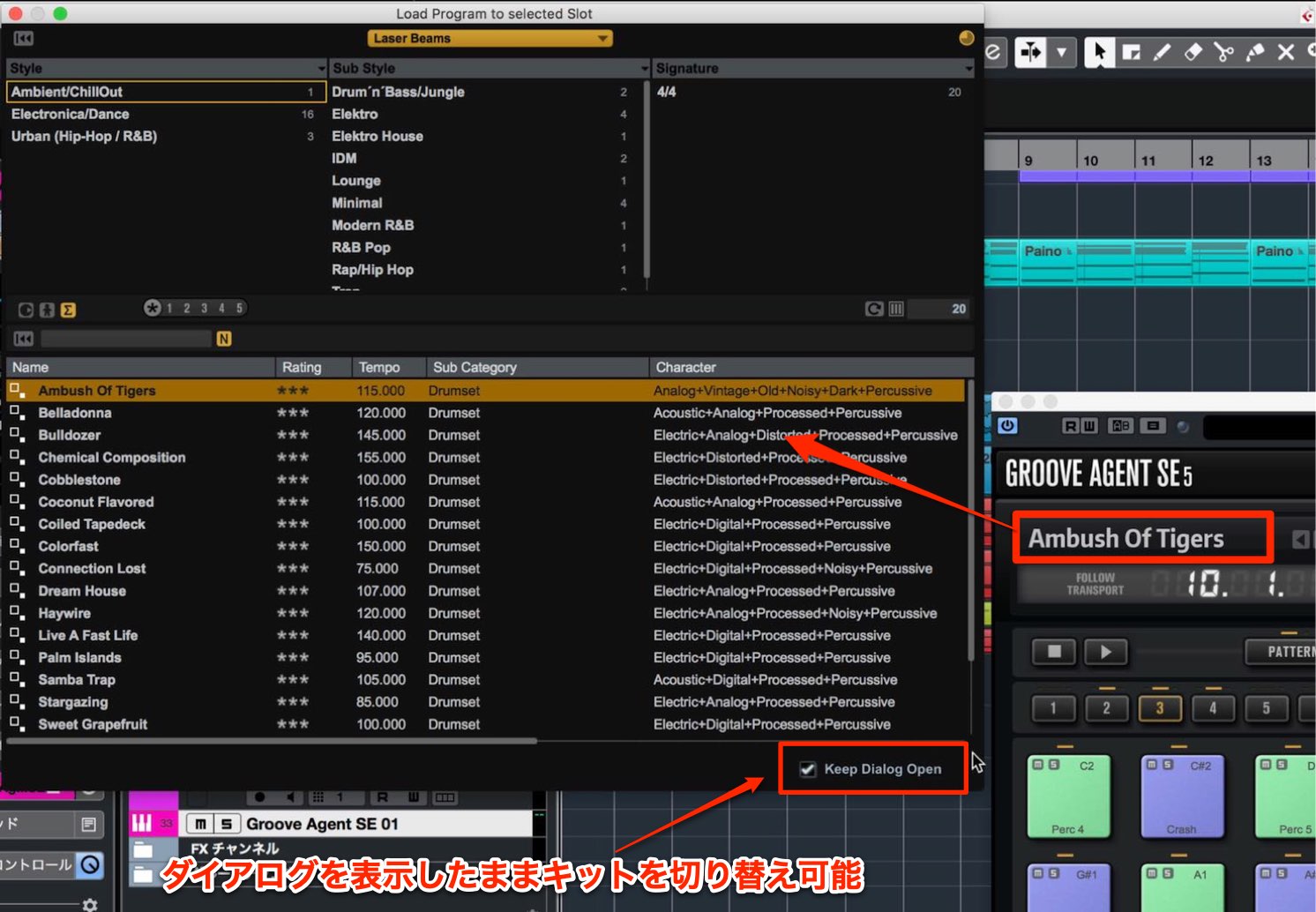
Clicking the kit name when choosing a kit now opens the dialog shown below.
With “Keep Dialog Open” enabled, double-click a kit name to switch kits while leaving the dialog open.
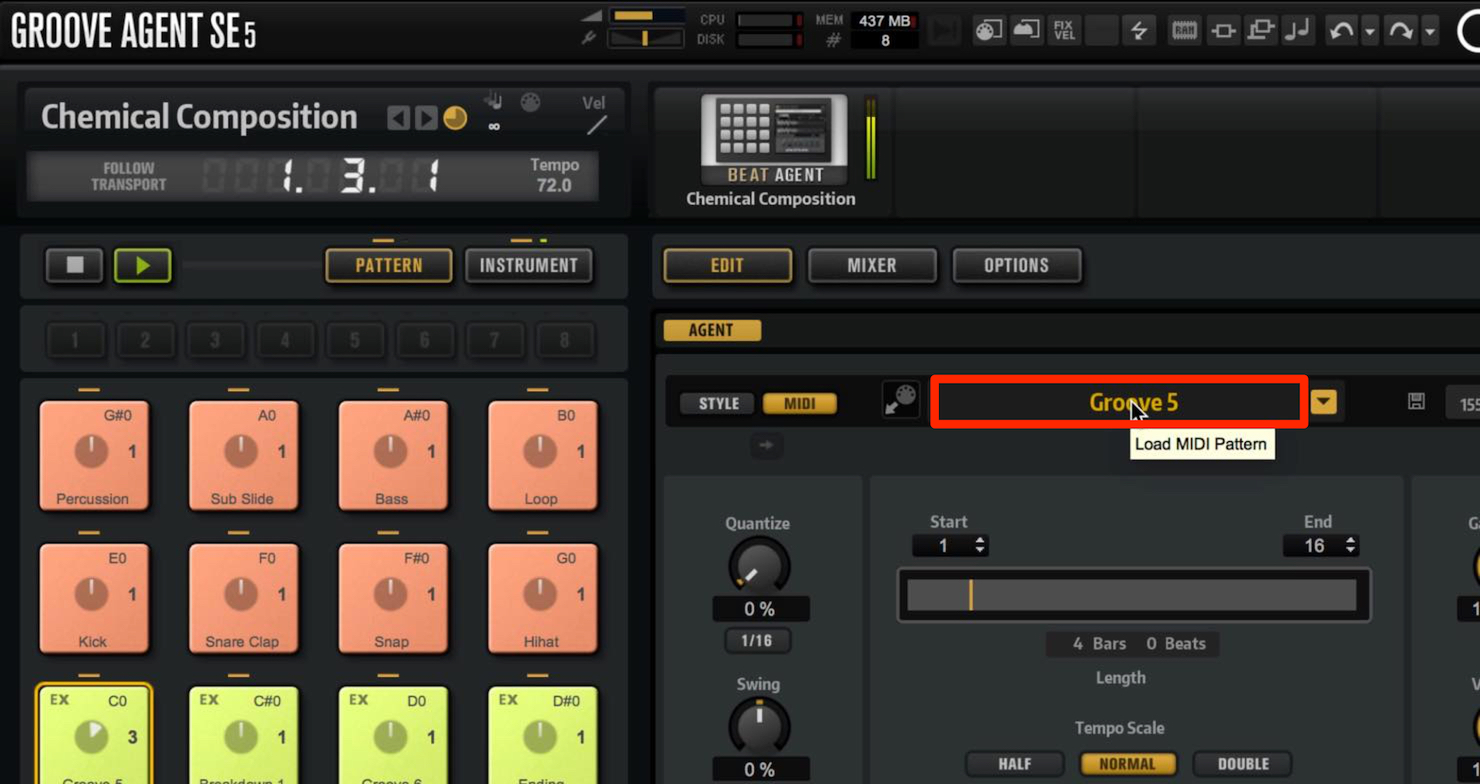
The pattern dialog also lets you audition other patterns while playback continues.
Start pattern playback, then click the pattern name to open the dialog.
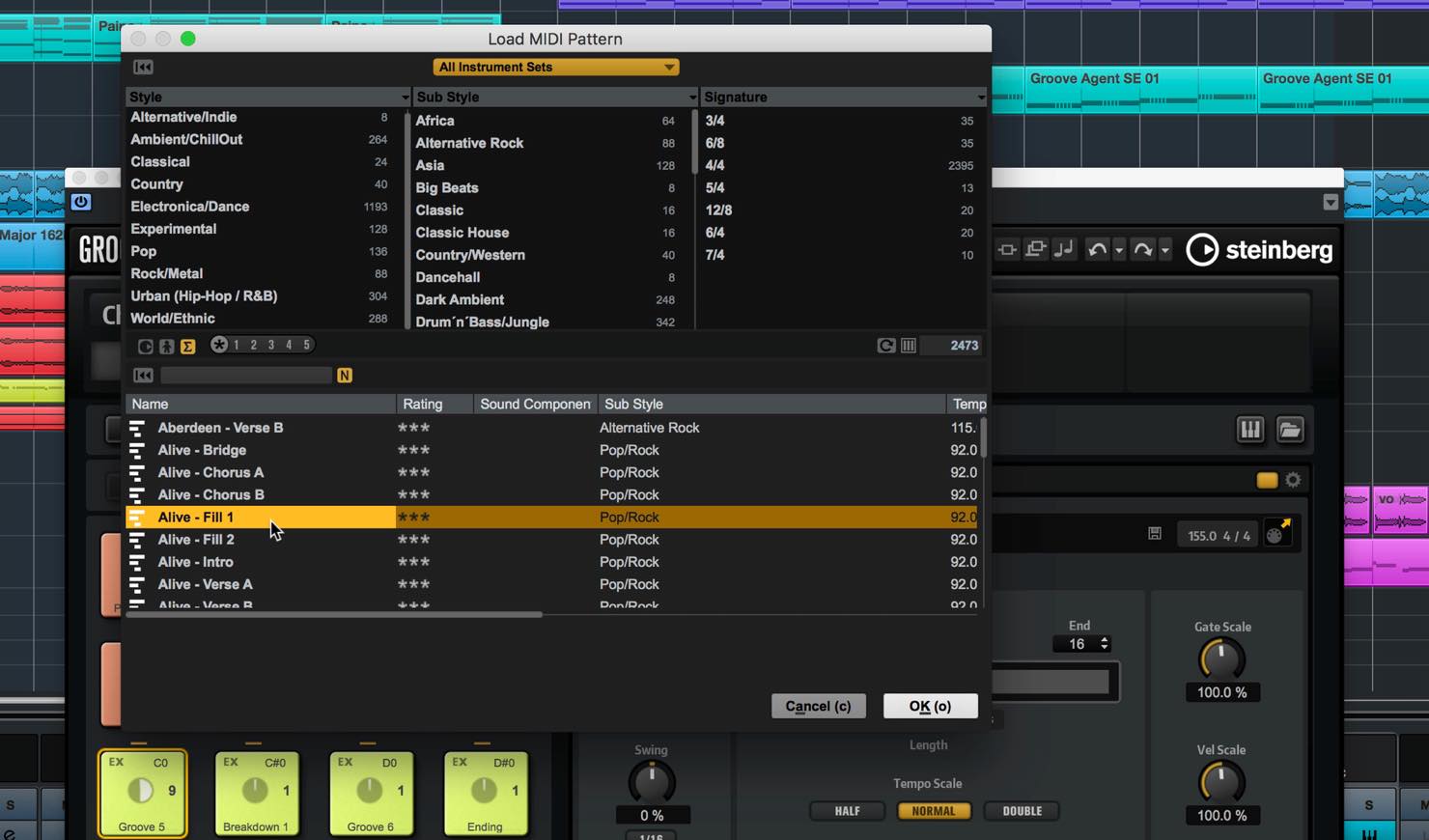
Selecting a different pattern name changes what is played.
Back in the kit dialog, click the sound-set name at the top to choose a sound set.
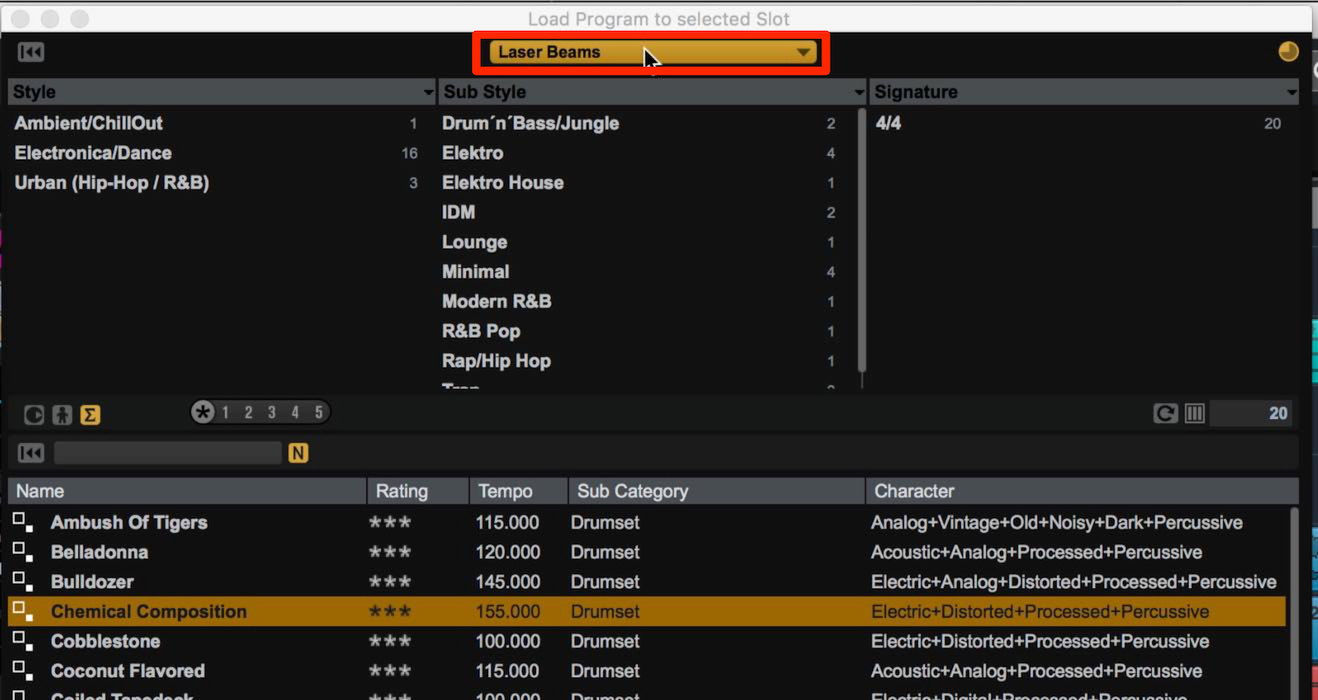
The newly added sets, with new sounds, are “LASER BEAMS” and “THE KIT SE.”
“LASER BEAMS” provides rhythm kits for contemporary electronic music, while “THE KIT SE” offers high-quality acoustic drums with a different character from the existing Acoustic Agent SE.
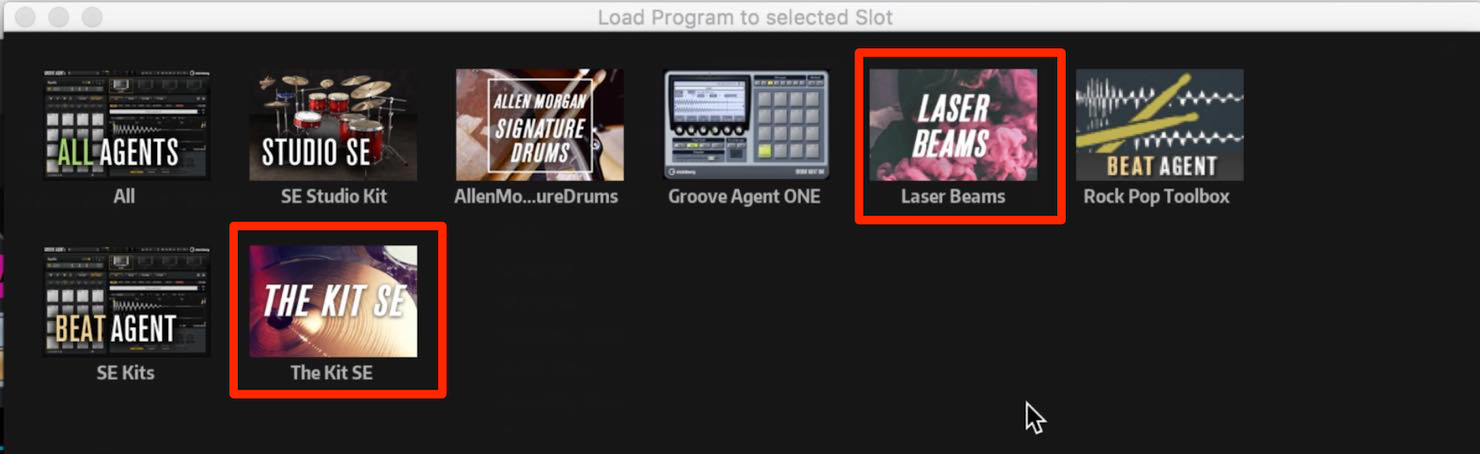
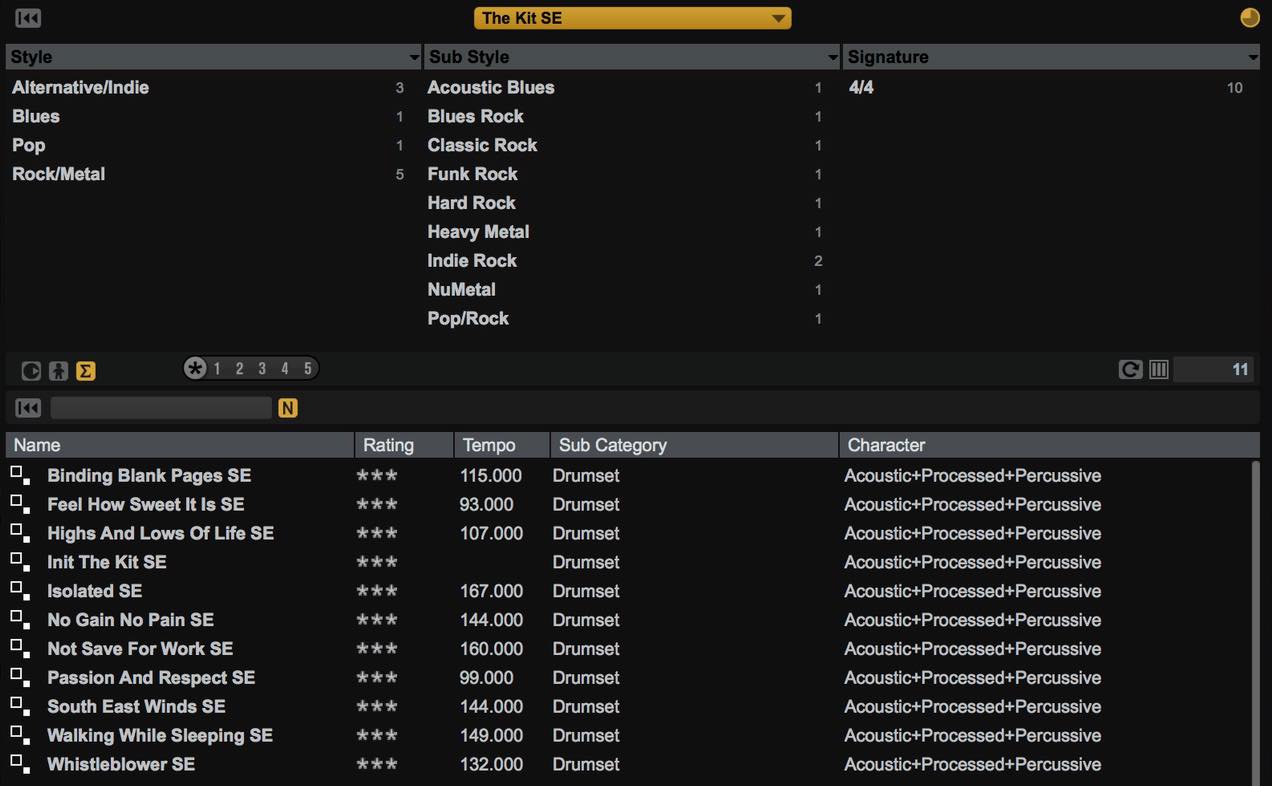
Let's open “THE KIT SE” as an example. The kits are filtered by sound set, as shown here.
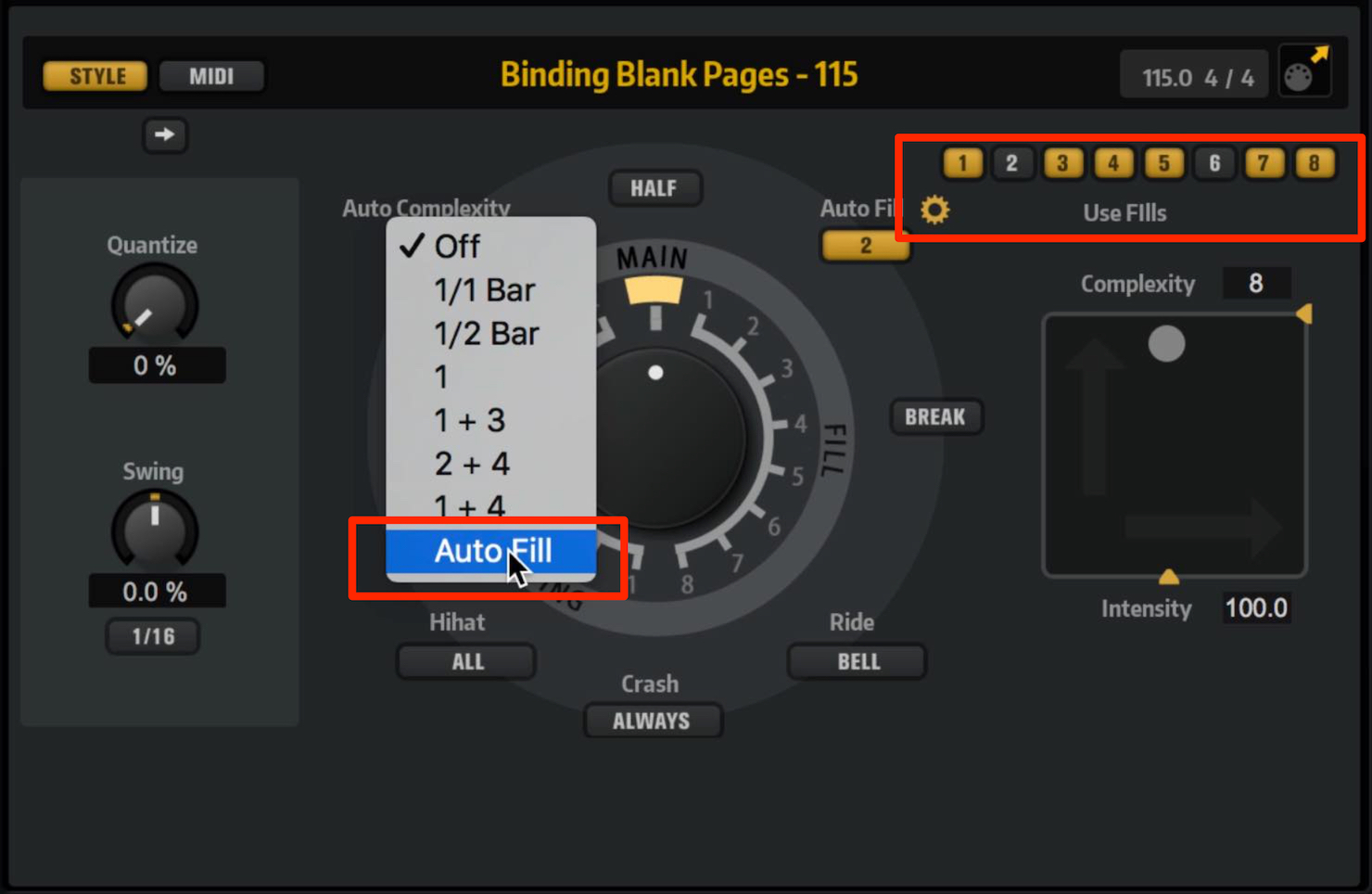
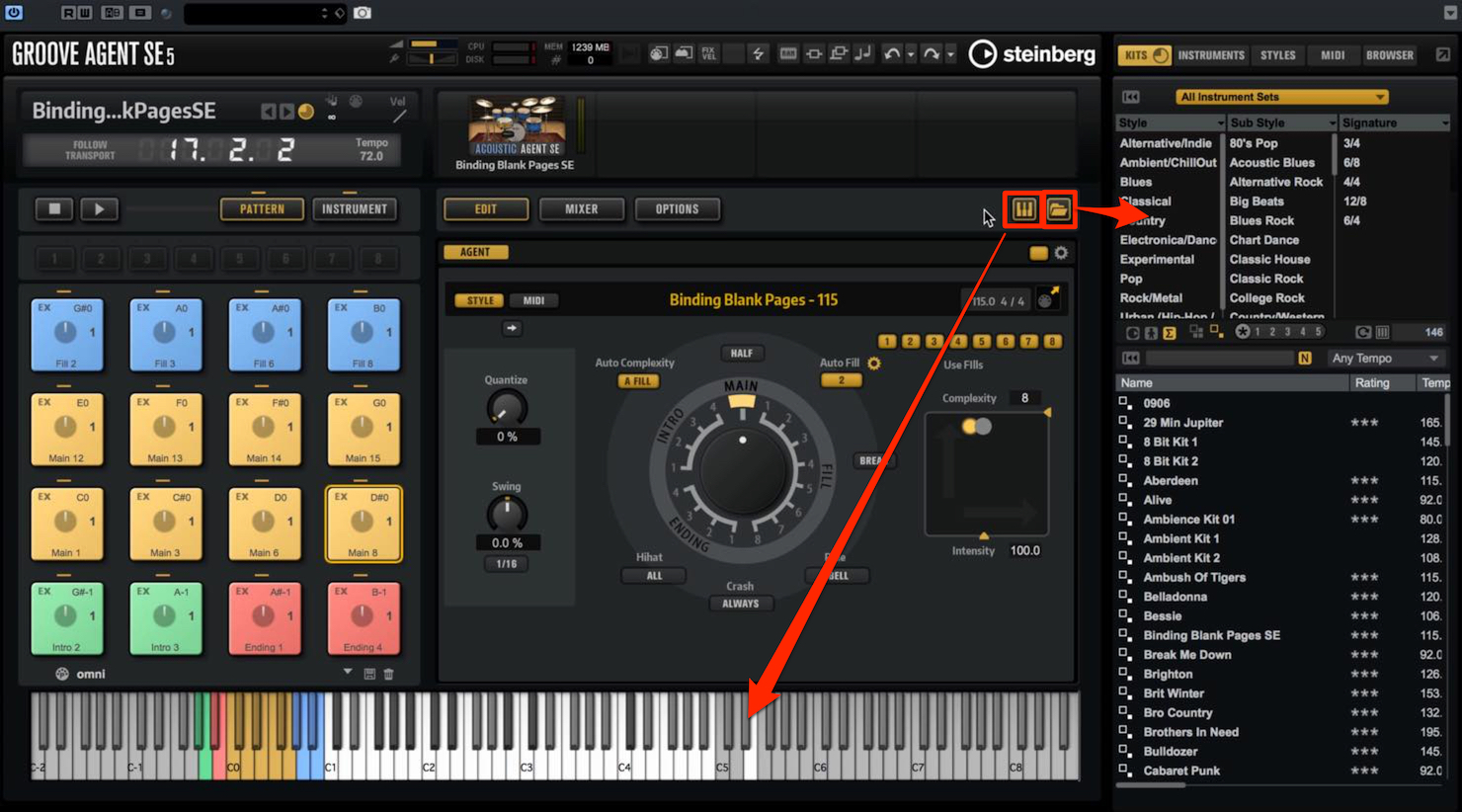
The Style Player has also been redesigned for instruments that play patterns based on styles, such as “THE KIT SE” and “Acoustic Agent SE.”
Auto Fill now lets you choose which fill patterns are used at random. A new Auto Complexity mode changes the number of hits, or complexity, each time an automatic fill occurs.
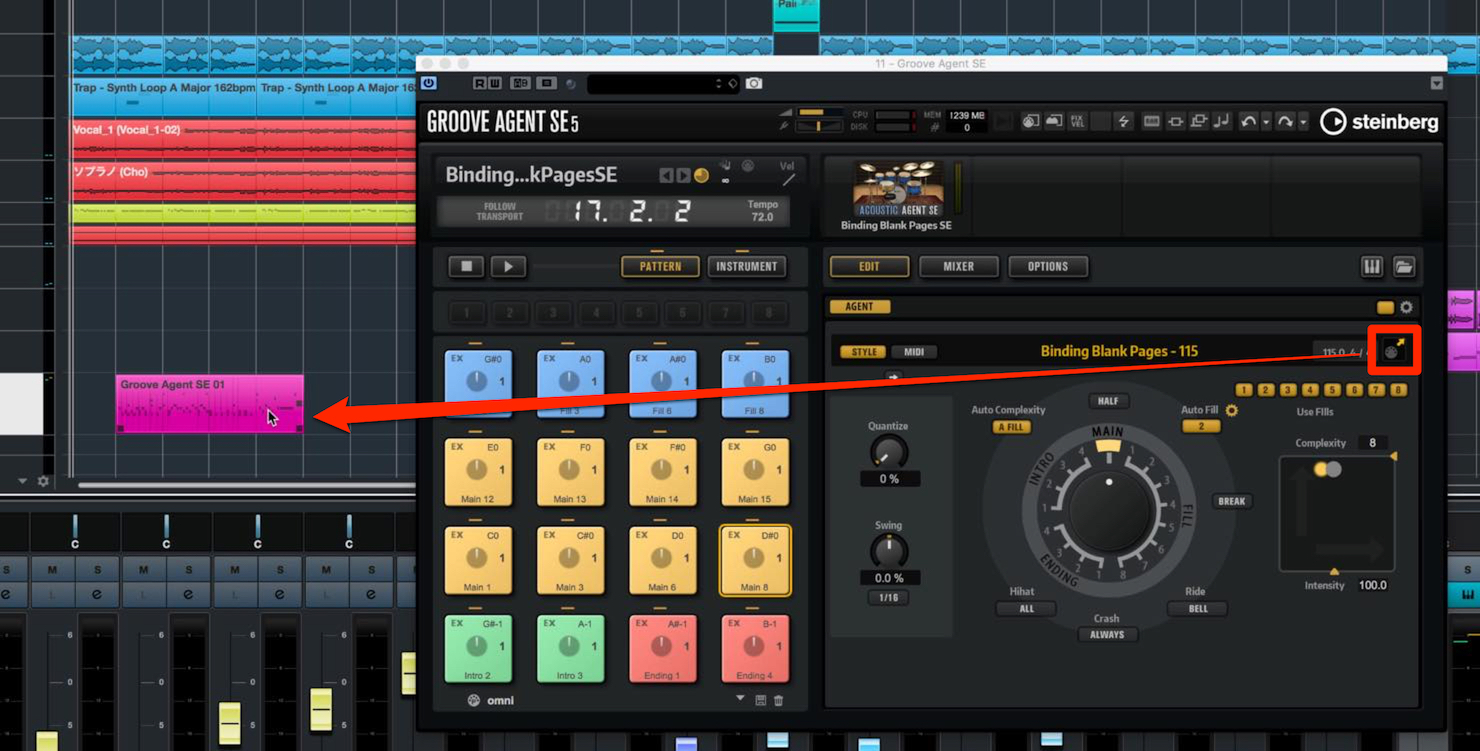
You can also drag and drop a performance that includes Auto Complexity to convert it to MIDI.
The folder icon now opens a browser on the right, and the keyboard icon displays a keyboard along the bottom.
Note Expression Input Devices and MPE Support
Note Expression Input Devices let you connect MIDI input devices that support the MPE standard to Cubase's Note Expression system.
Using an MPE-compatible MIDI keyboard to play a VST3 instrument that supports Note Expression allows richer expression on individual notes.
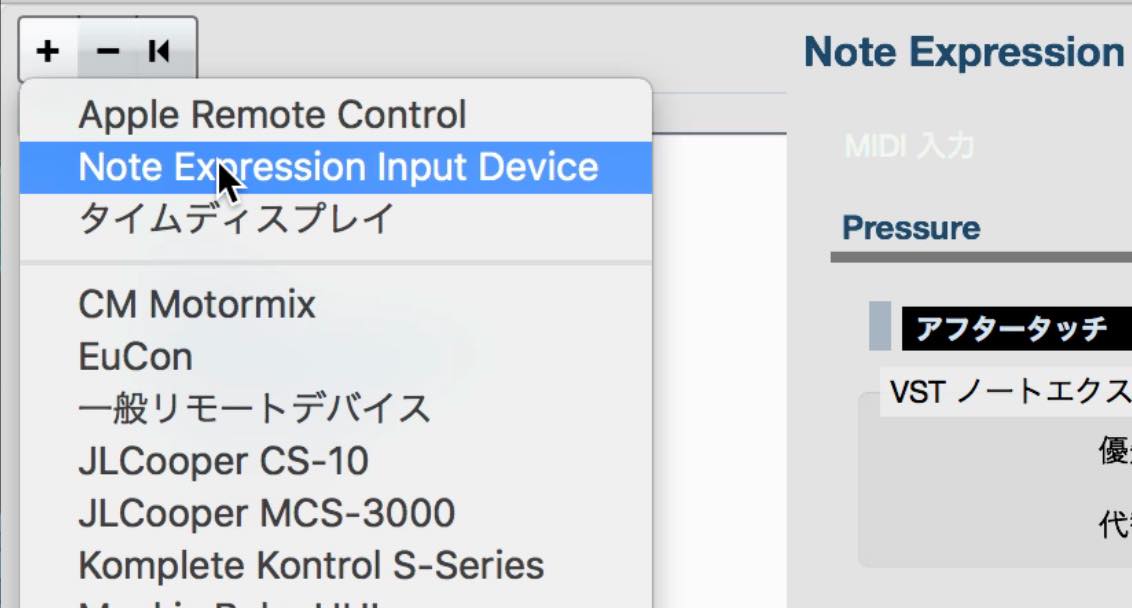
Configure Note Expression Input Devices in Studio Setup.
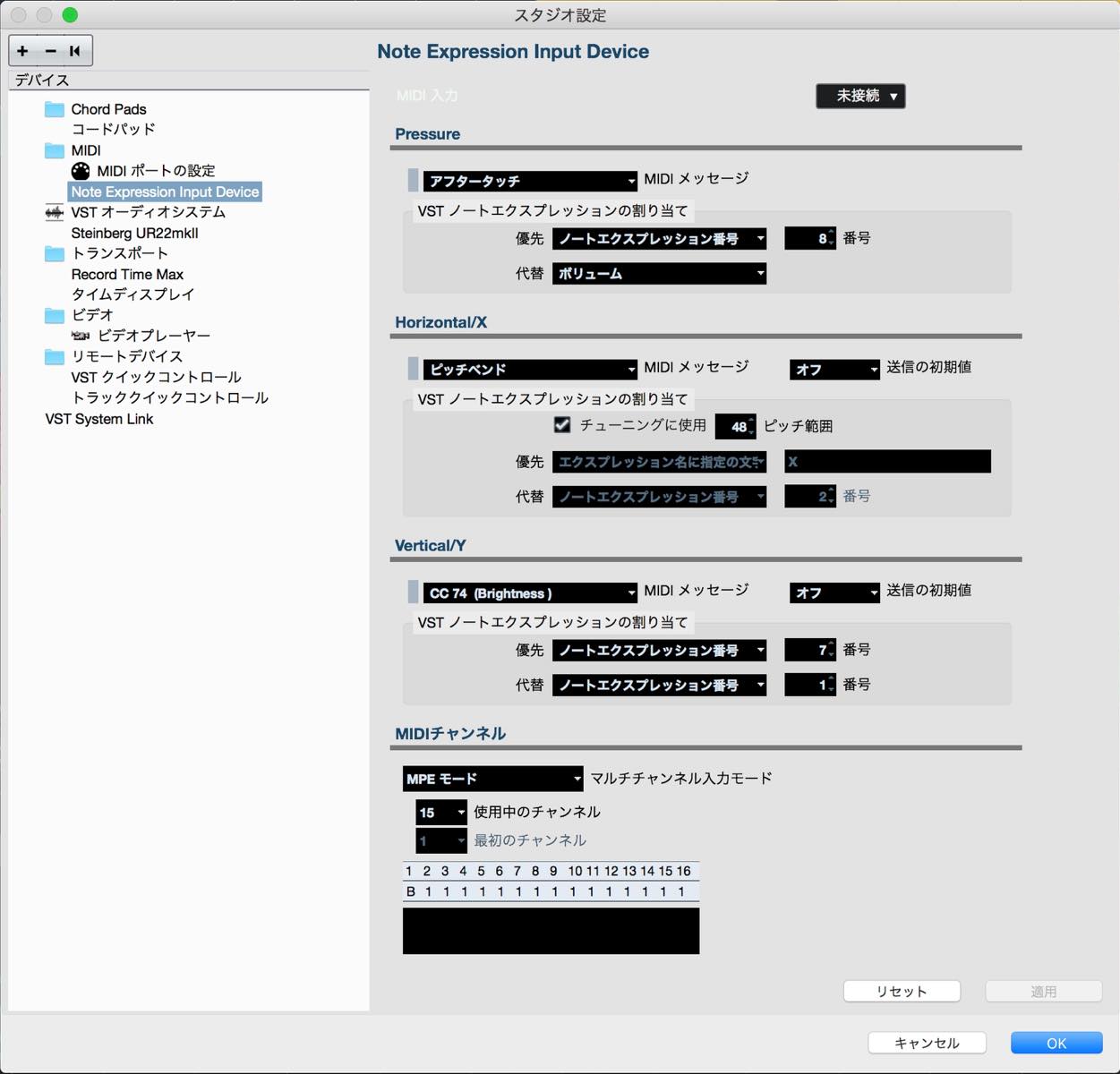
If the item is not listed, add it using the “+” button at the upper left.
Other Changes
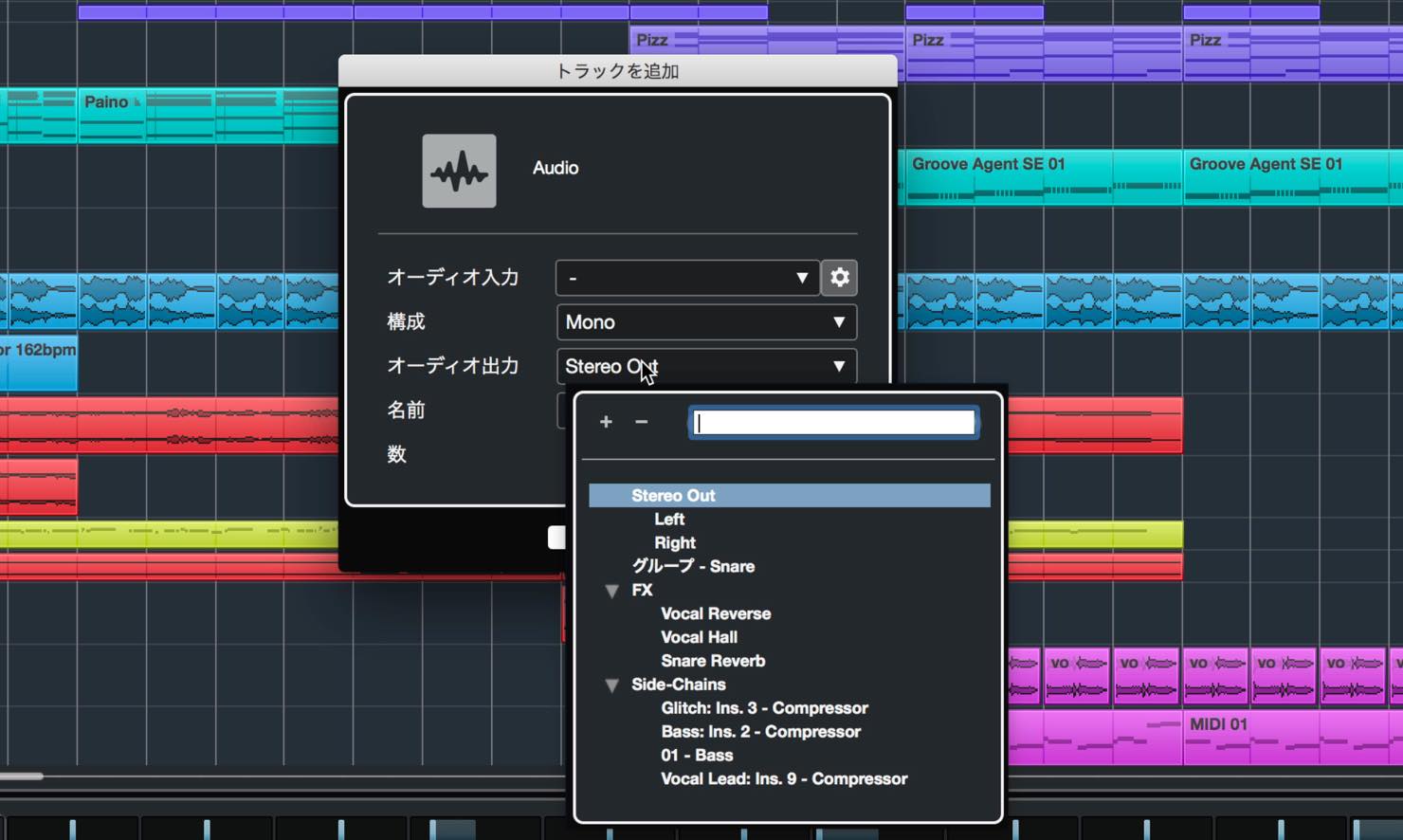
The window for creating tracks has a slightly updated appearance, and you can now set output routing at the same time. This is useful when routing a track to a group channel, for example.
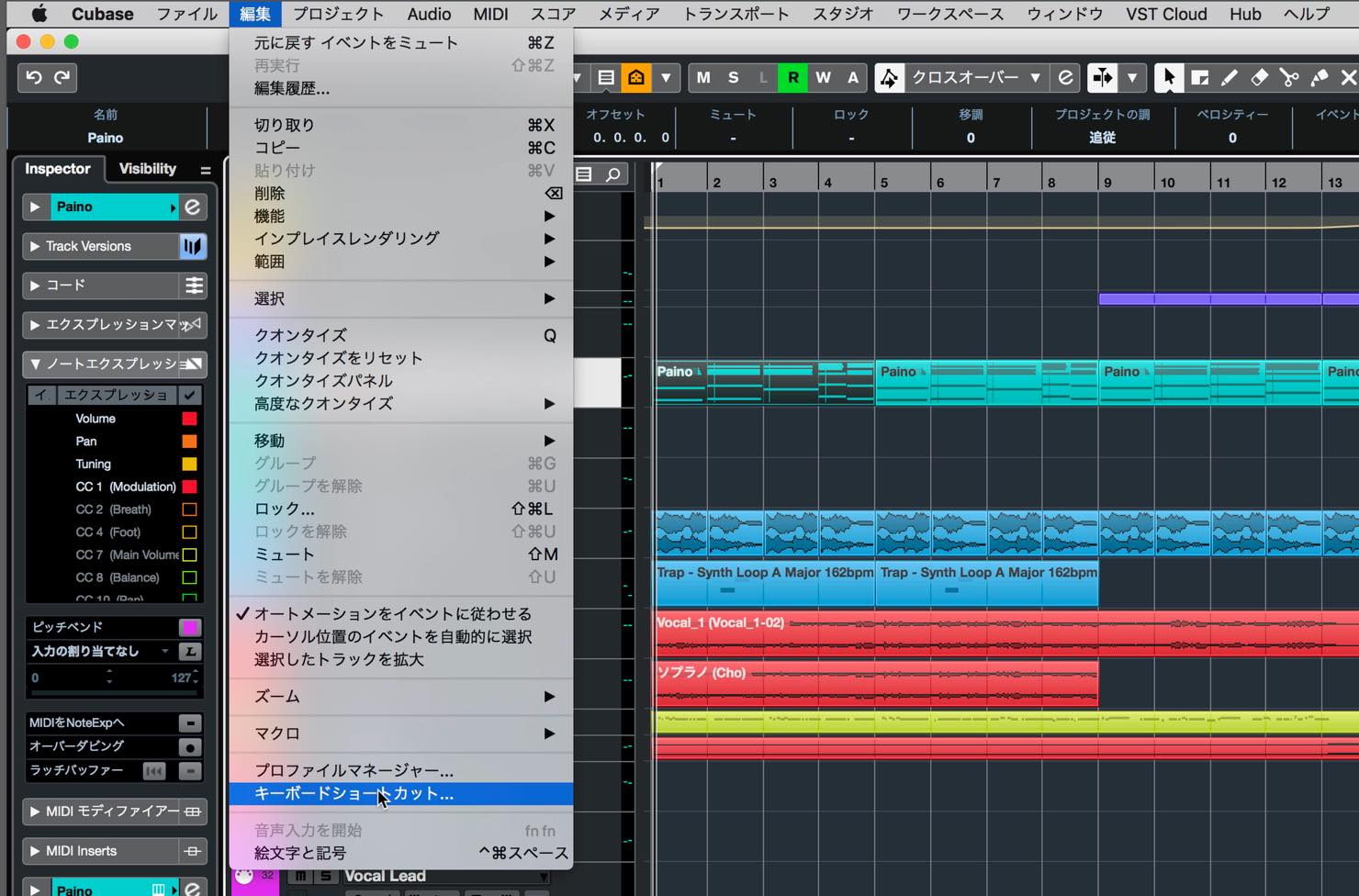
The Key Commands settings have also moved to the Edit menu, so keep that in mind when looking for them.
That concludes our three-part look at the highlights of Cubase 10. This update makes a wide range of improvements with users' workflows in mind.
We hope you will try these improvements for yourself.
Steinberg Distributor — Resources from Yamaha Music Japan Co., Ltd.
- Yamaha Music Japan MPP (YouTube) https://www.youtube.com/user/SteinbergJapan
- MPP (Twitter) https://twitter.com/SteinbergJP
- Sound Roster Music Production Show (Fresh!) https://freshlive.tv/ymjsoundroster
Product Page: https://bit.ly/2UiQvP5
Frequently Asked Questions
Q1. When is Audio Alignment useful?
It is useful when multiple audio tracks, such as doubled vocals, harmonies, or multi-mic drum recordings, have timing differences. Choose “Open Audio Alignment Panel” from the Audio menu, specify the reference audio and the audio to align, then run the process to adjust the timing automatically.
Q2. What is new in Groove Agent SE 5?
It supports up to 32 separate output channels and adds the “LASER BEAMS” and “THE KIT SE” sound sets. The redesigned Style Player also expands performance options with Auto Fill and Auto Complexity, which automatically varies the complexity of phrases.
Q3. How do I set up Chord Pads to play from a MIDI keyboard?
Open the MIDI input settings in the track's Inspector and select “Chord Pads” from the list. Then specify your MIDI input device under Chord Pads in Studio Setup. This lets you play chords from your MIDI keyboard even after closing the Chord Pads view.
NEW ARTICLES
Latest English Articles
























































































































































































































































































