
Native Instruments’ MASCHINE MK3 is a music production device with a refined design and an integrated audio interface. This article walks through setup from unpacking to first use: downloading and installing Native Access, creating an account, entering a serial number, downloading software, connecting the hardware and configuring audio output.
A complete guide from purchase to first use
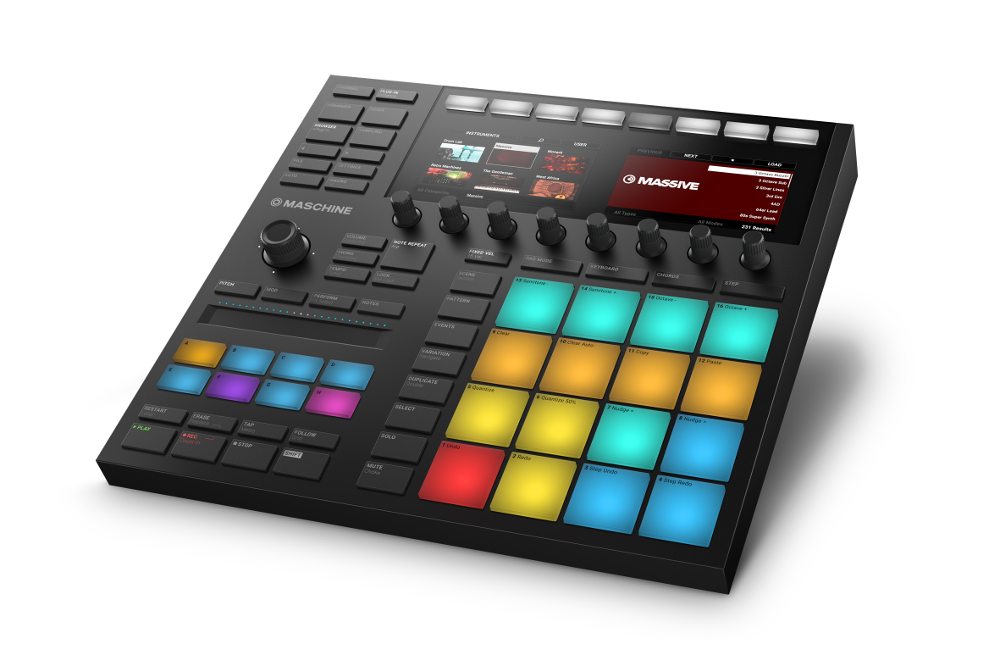
Native Instruments’ MASCHINE MK3 features a refined design
and can also function as an audio interface,
making music production more comfortable.
After purchasing the product, you will need to set it up.
If setup feels daunting, this guide takes you from unboxing the MASCHINE MK3 to using it.
Video: Setting up MASCHINE MK3
Downloading Native Access
Unpack the product and locate the activation card.
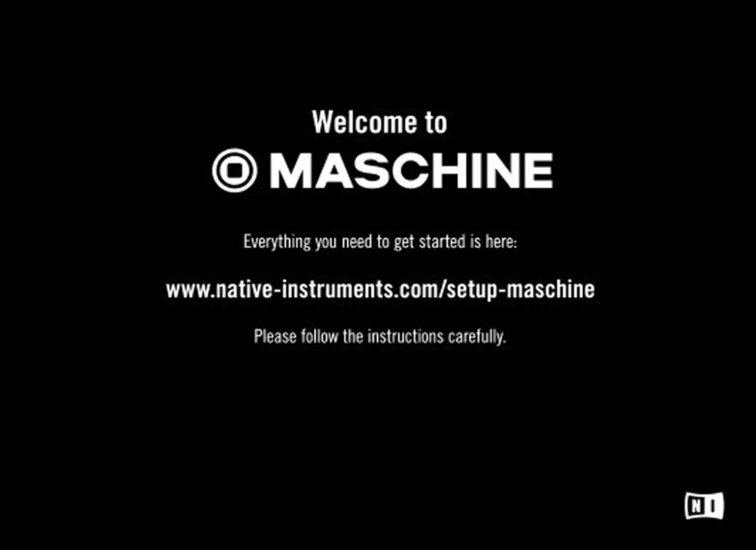
Visit the setup URL printed on the card.
https://www.native-instruments.com/setup-maschine/
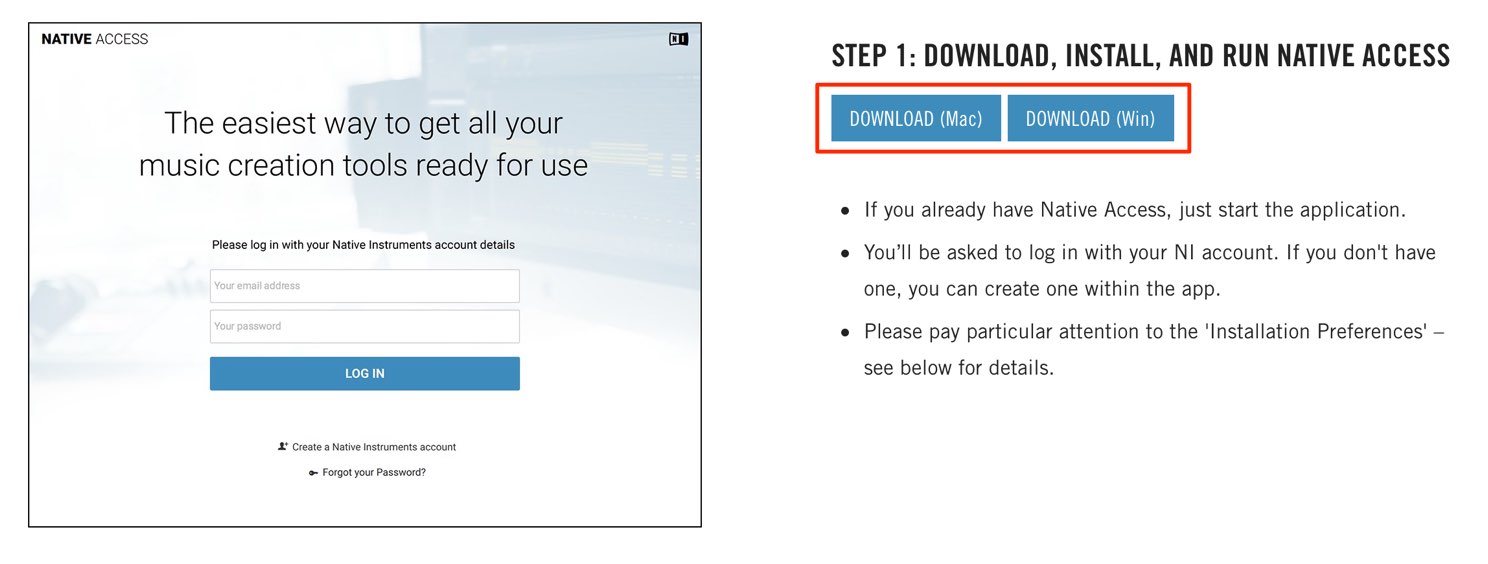
You need Native Access software to register and use the product.
Download the version for your computer.
Next, install the downloaded Native Access software.
On Mac
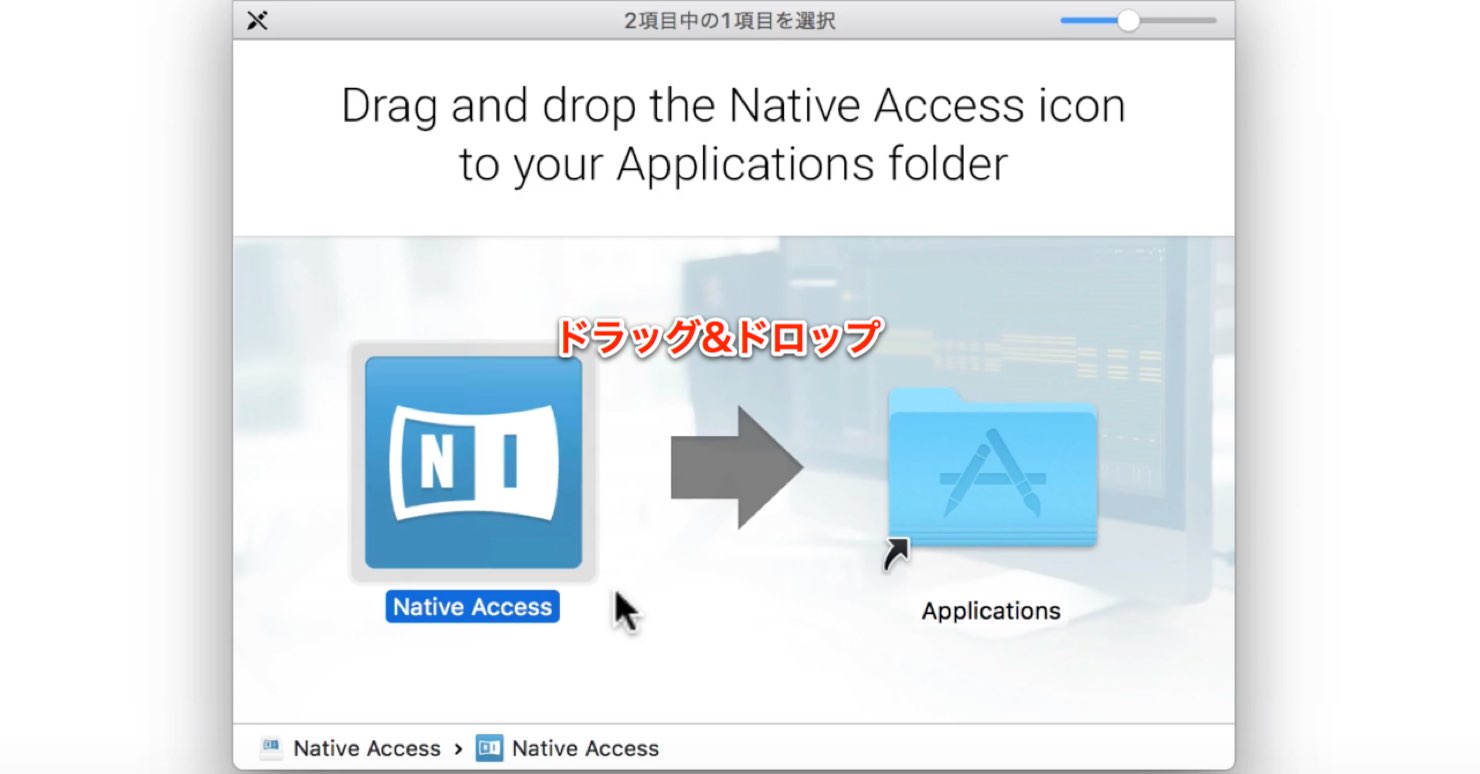
Double-click the installer to open this window.
Drag and drop the application into the Applications folder.
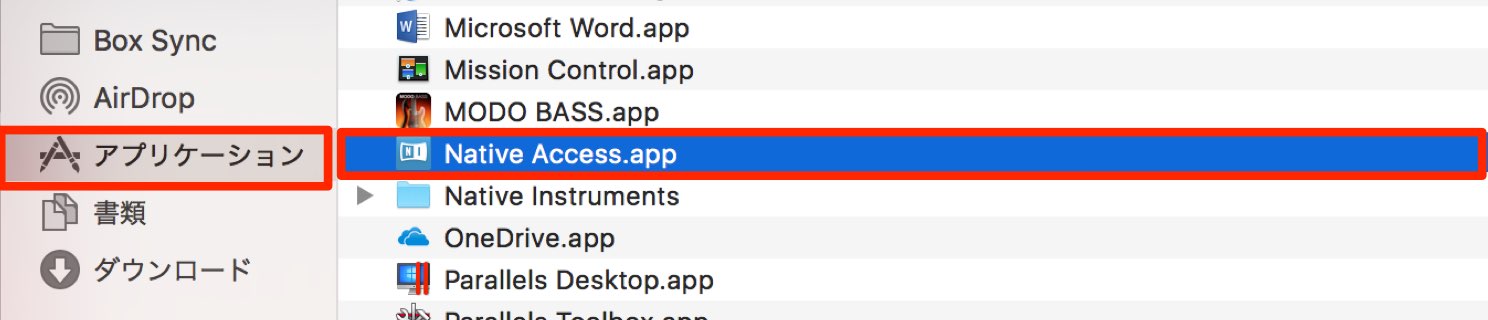
Open the Applications folder and double-click Native Access to launch it.
On Windows
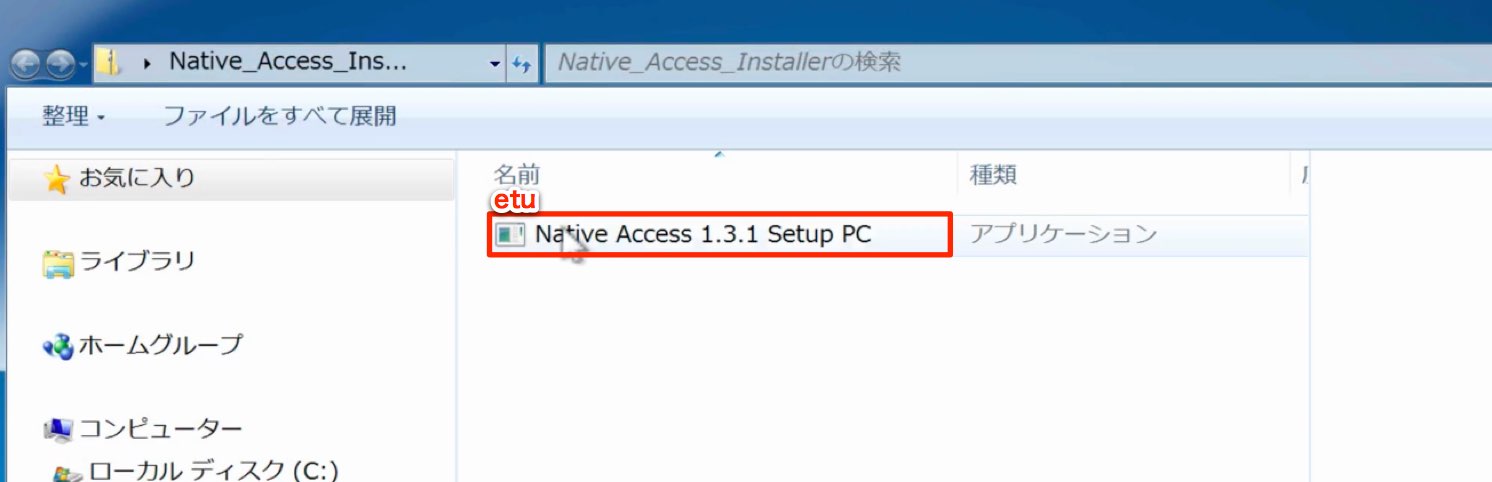
The installer is inside the downloaded ZIP file.
Double-click it to start.
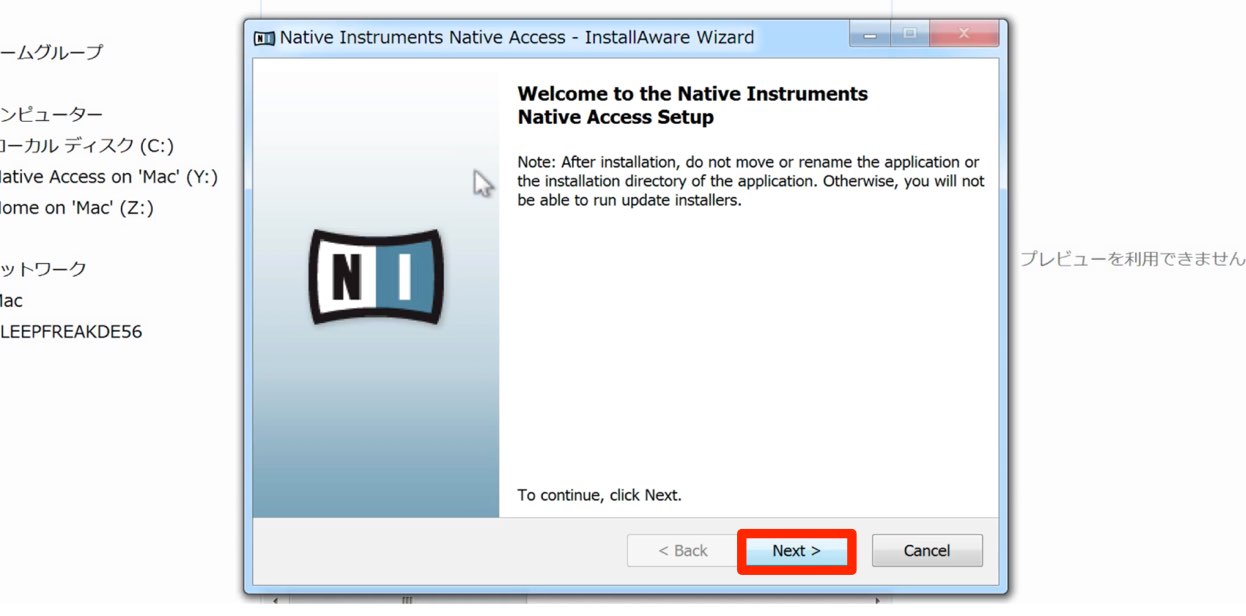
Click Next in the dialog to proceed.
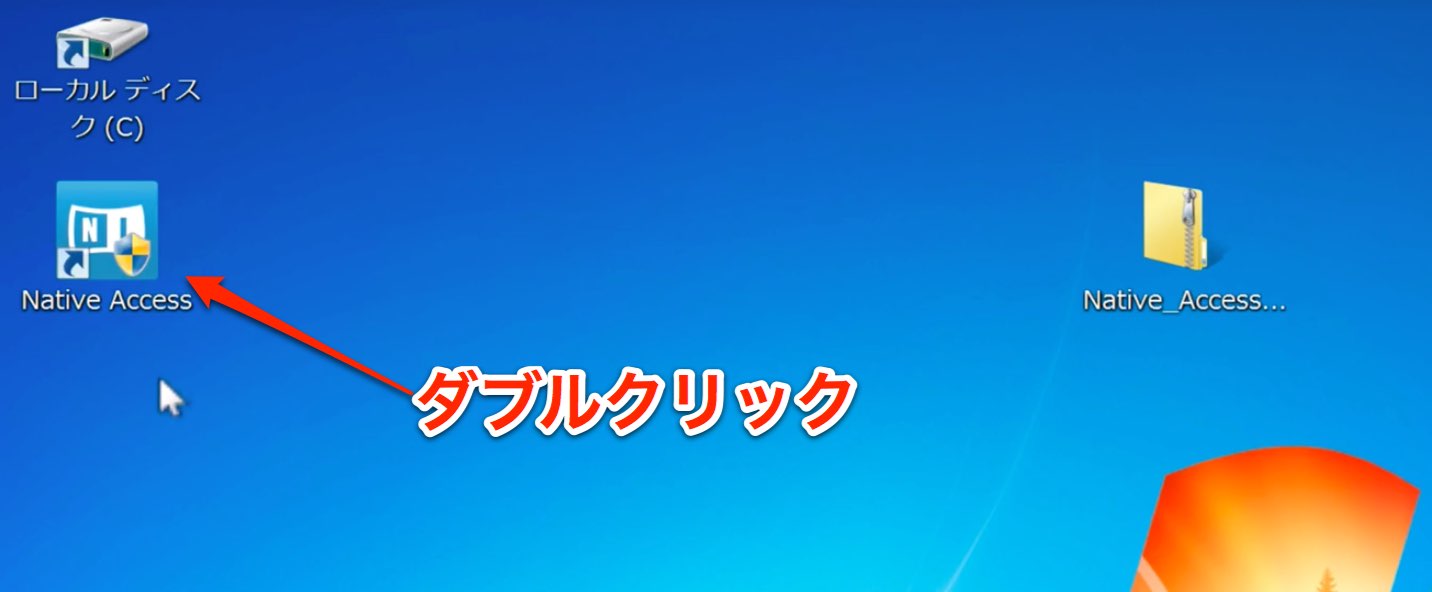
A shortcut is created on the desktop. Double-click it to launch the application.
Registering MASCHINE MK3 to your account
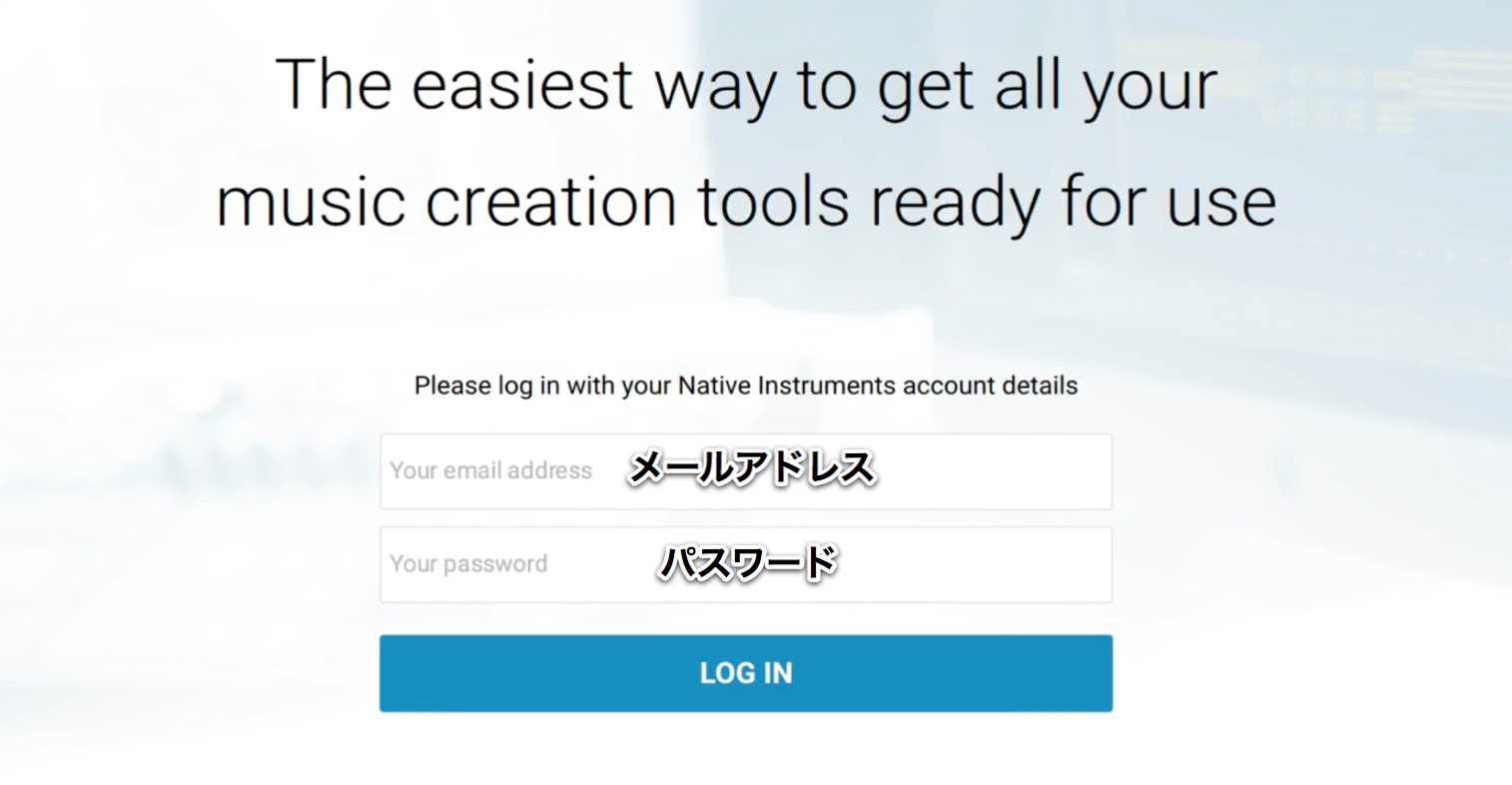
If you already have a Native Instruments account, enter your registered email address and password and click LOG IN.
If you do not yet have an account, follow these steps to create one.
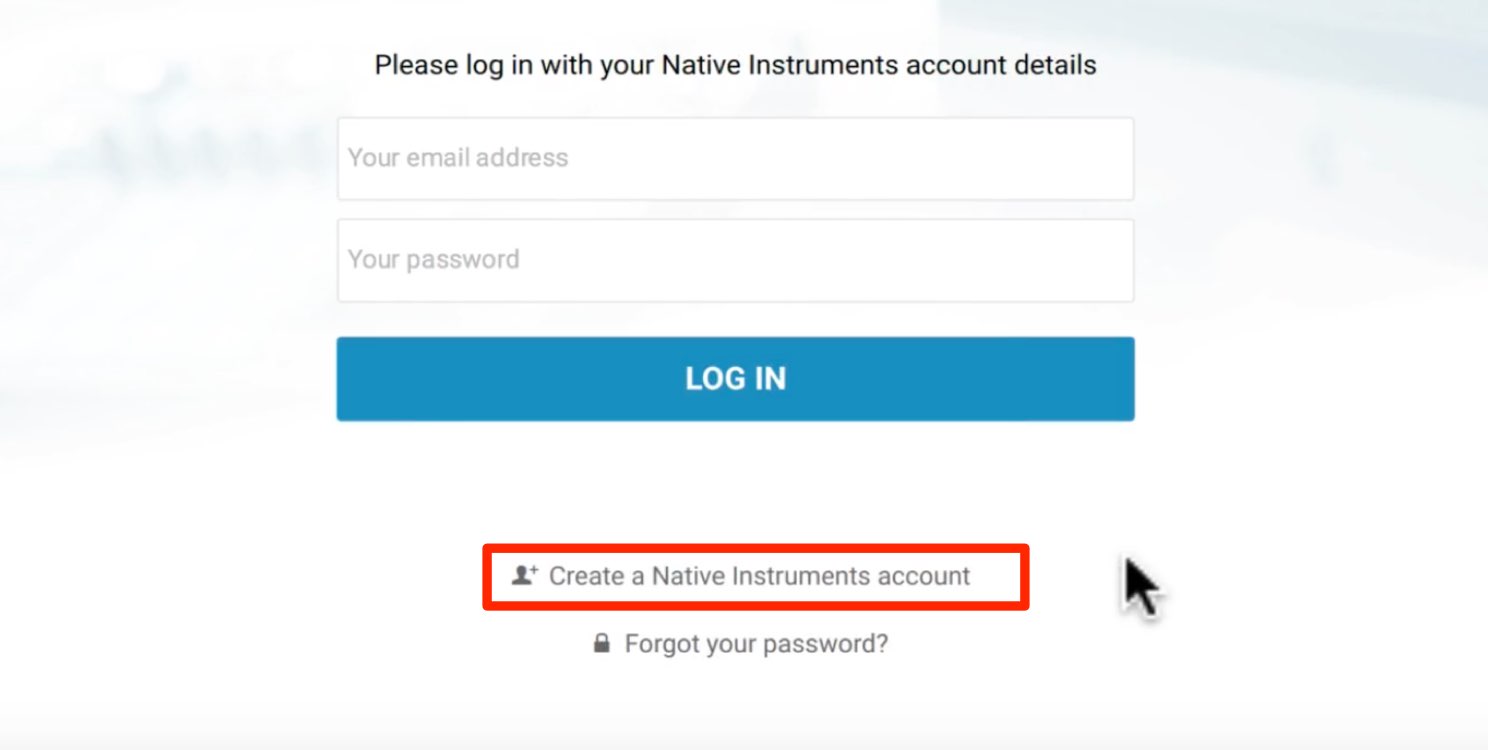
Click Create a Native Instruments account.
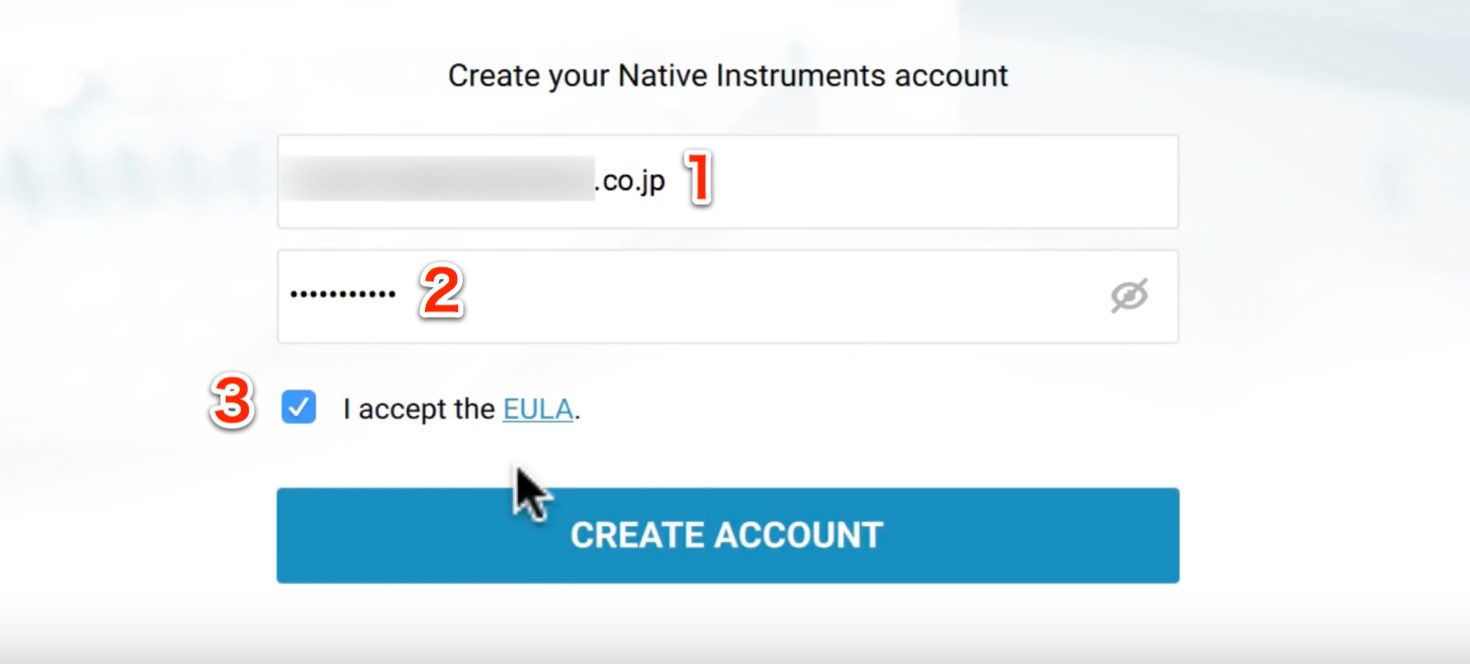
- 1. Enter your email address.
- 2. Choose and enter an account password.
Use at least 10 characters, including at least one special character such as %, ! or #. - 3. Check the box for the terms and click CREATE ACCOUNT.
Your account registration is complete.
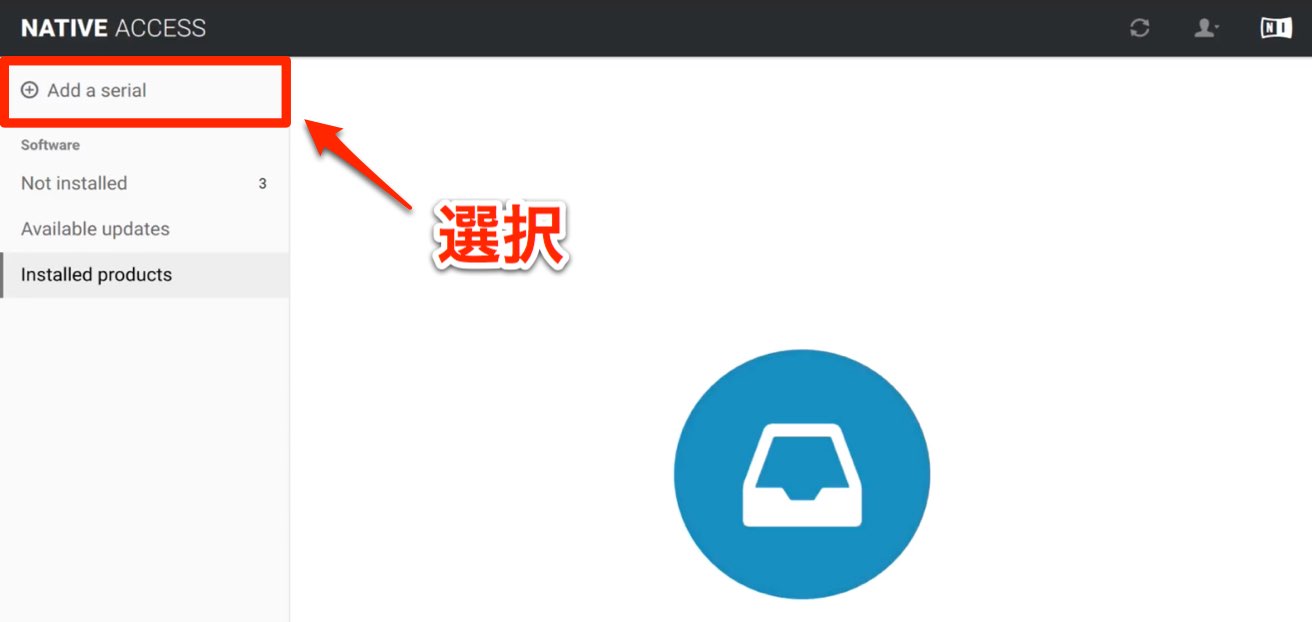
Click Add a serial.
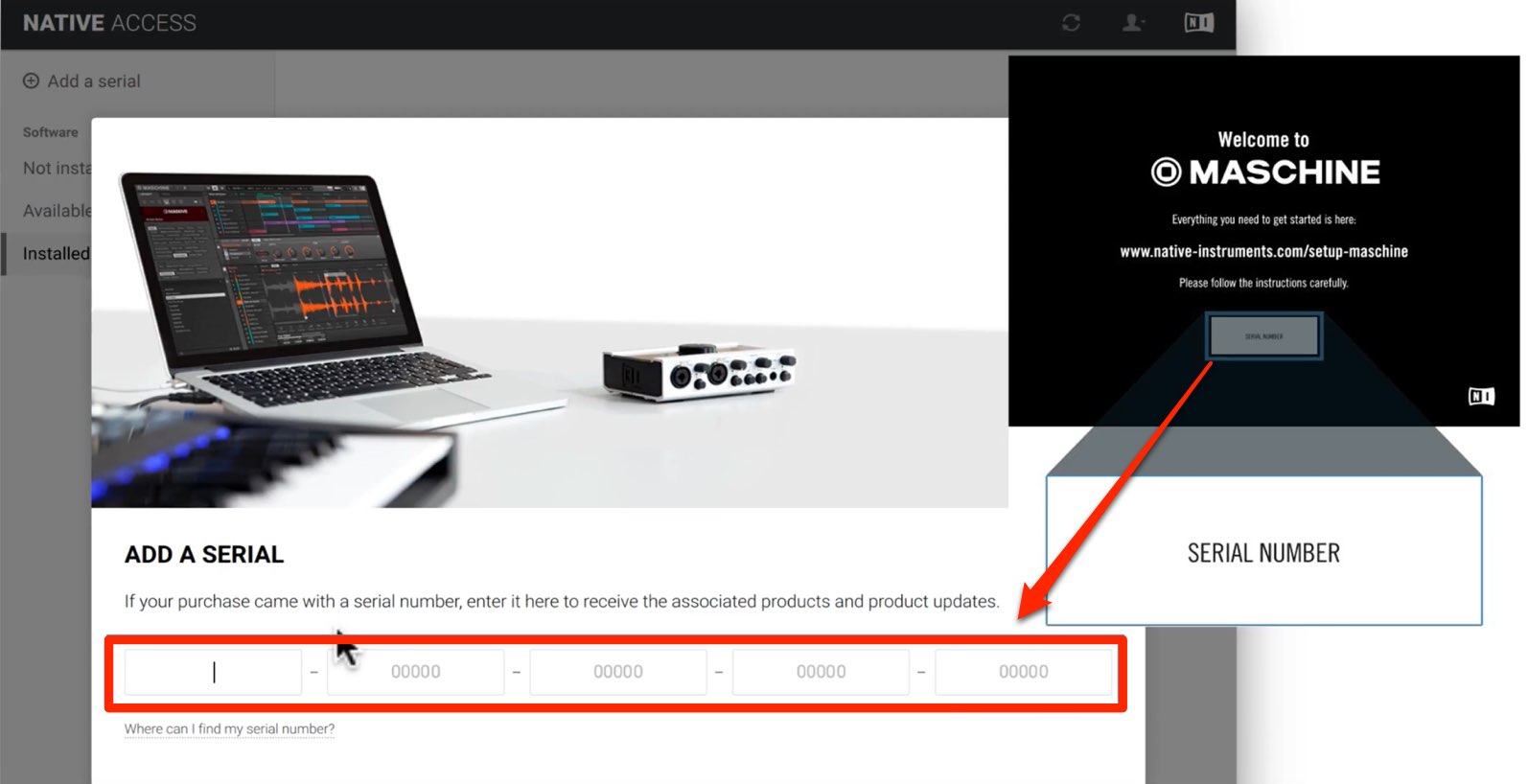
Enter the serial number printed on the activation card included with the product.
If you have lost the card, the serial number is also on a sticker on the underside of the MASCHINE MK3.
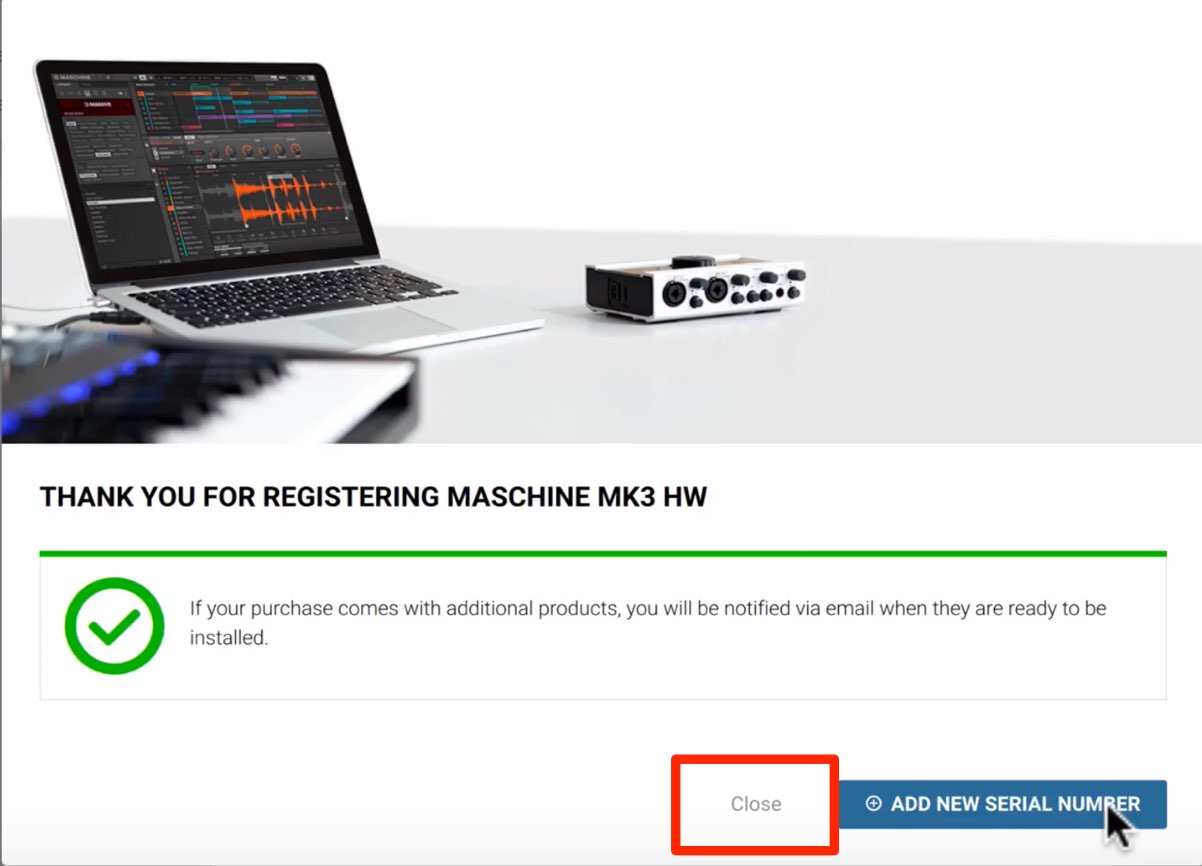
When this screen appears, product registration is complete.
Click Close to close the window.
Downloading the product software
After registering, you can download the software associated with MASCHINE MK3.
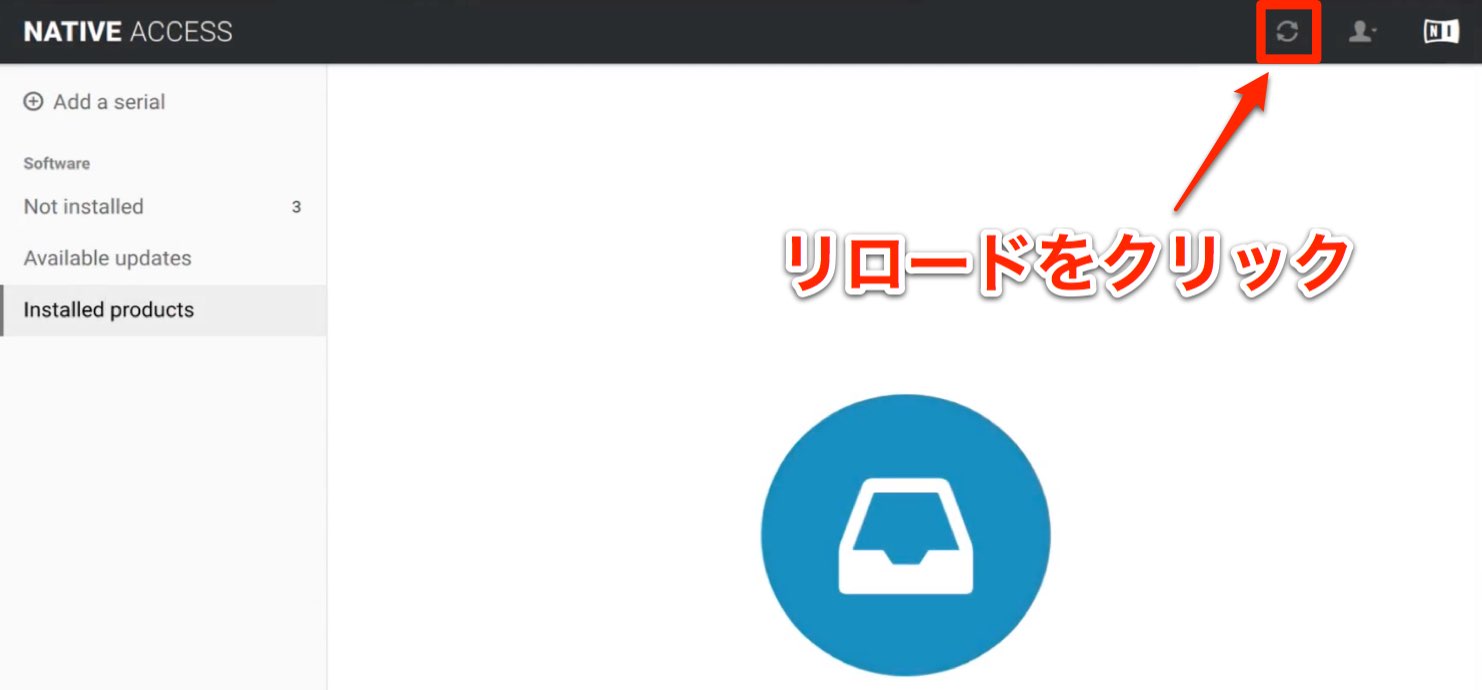
Click the reload icon.
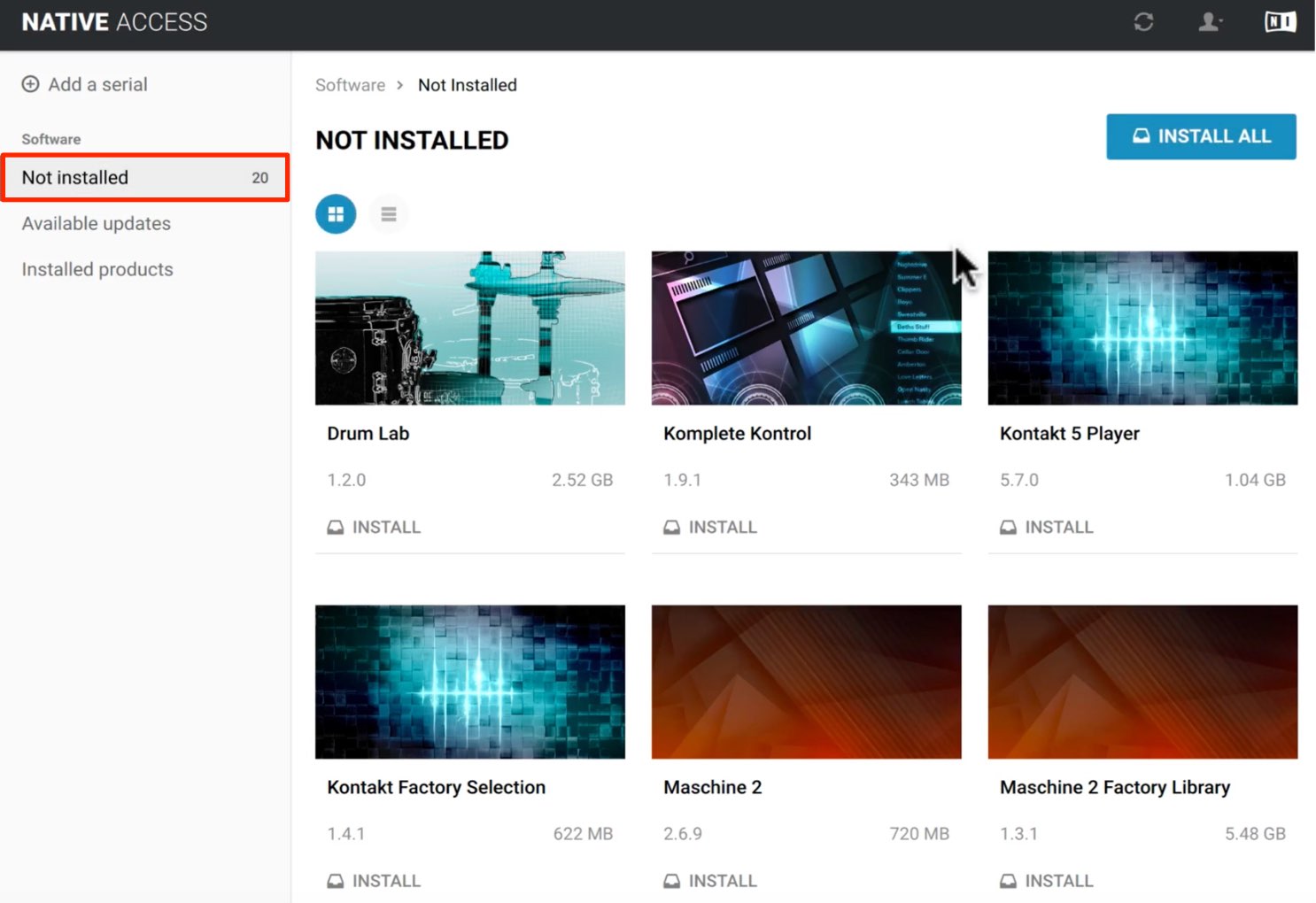
Click Not installed to see the products available for installation.
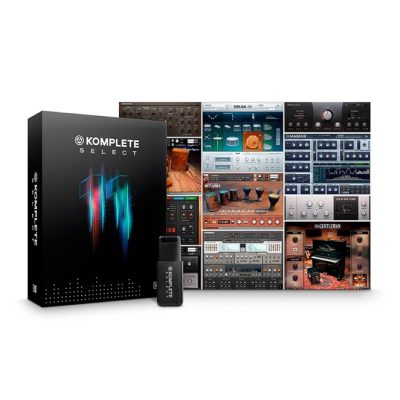
Alongside the MASCHINE software, the selection includes synthesizers and acoustic instrument libraries.
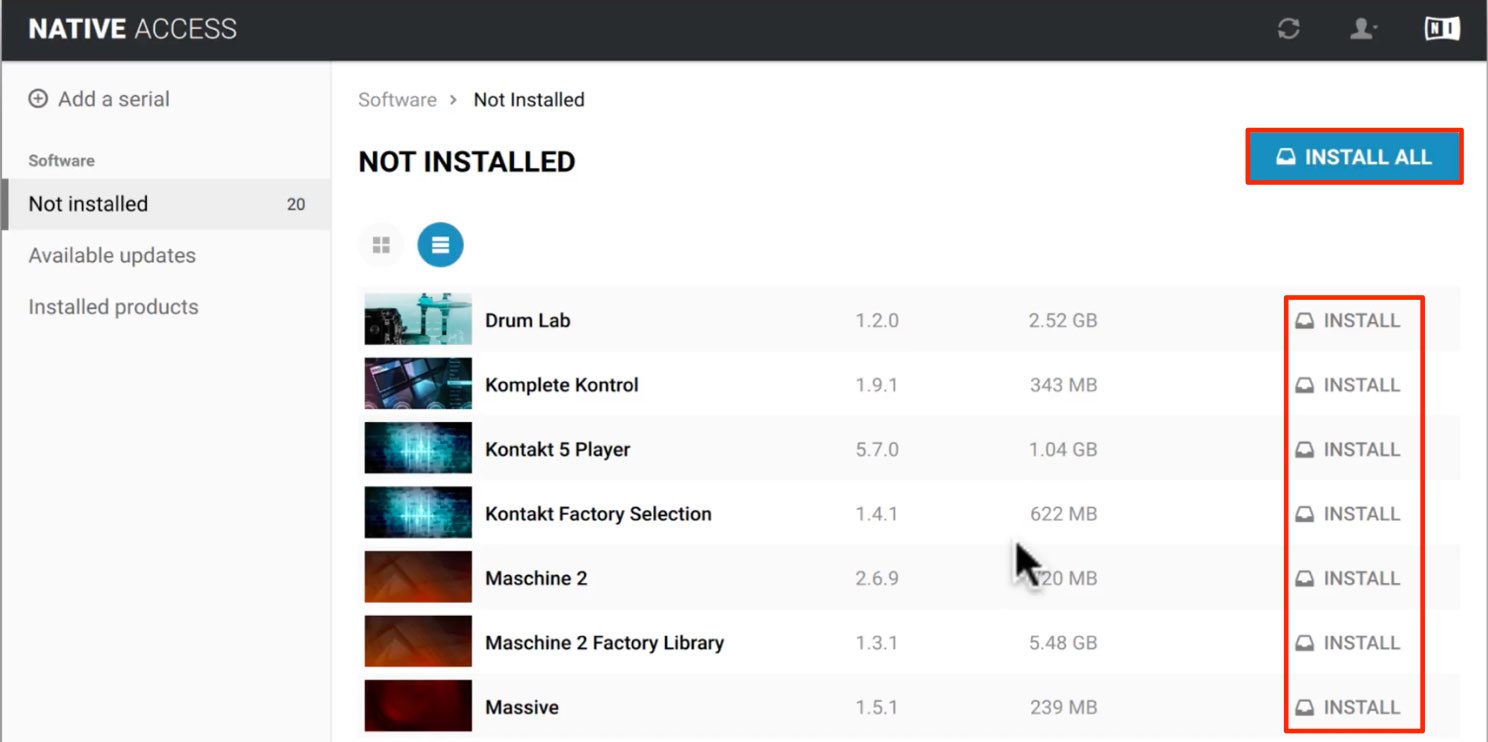
Click INSTALL ALL to download and install all available products at once.
Alternatively, click INSTALL beside an individual product to install it separately.
Storing large libraries on an external hard drive
Some instrument libraries require substantial storage.
You may prefer to install them on an external hard drive.
Click Install to open a dialog like the one below.
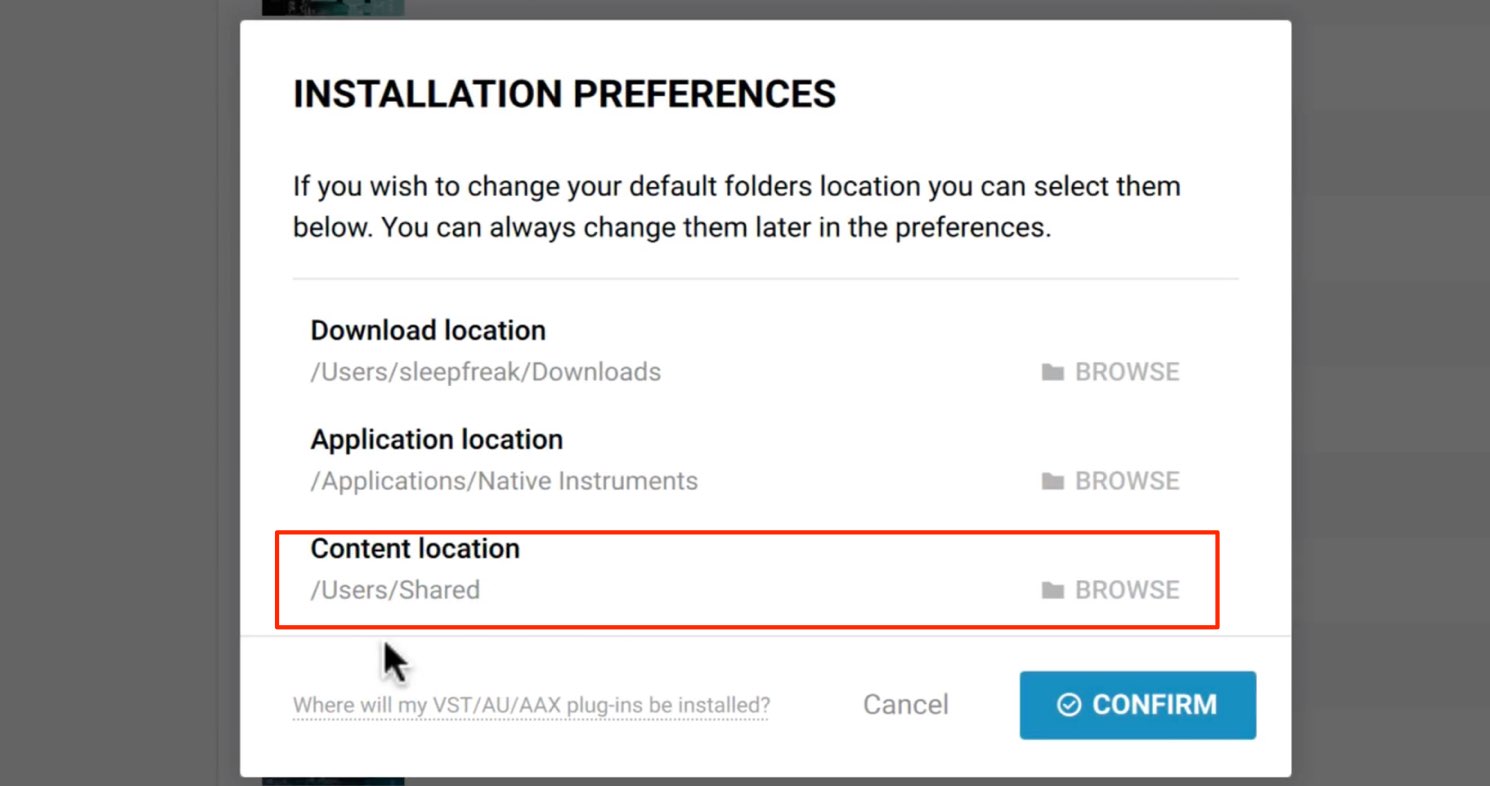
Under Content location, click BROWSE and select a folder on the external drive to change the installation destination.
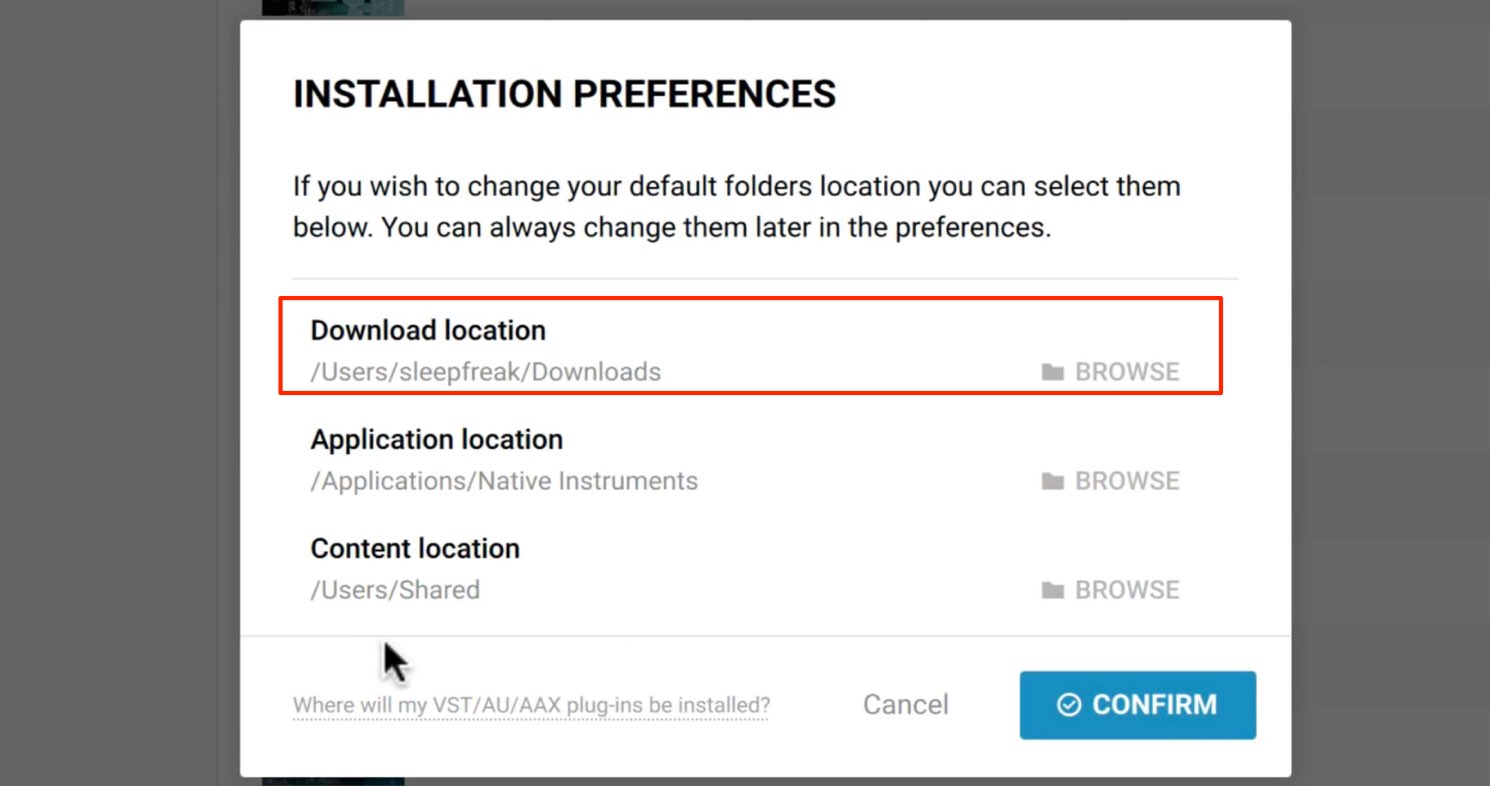
If the drive used for downloading does not have enough free space, also select a folder on the external drive under Download location.
After checking these settings, click CONFIRM to start downloading and installing the product.
This can take some time, so wait until everything finishes.
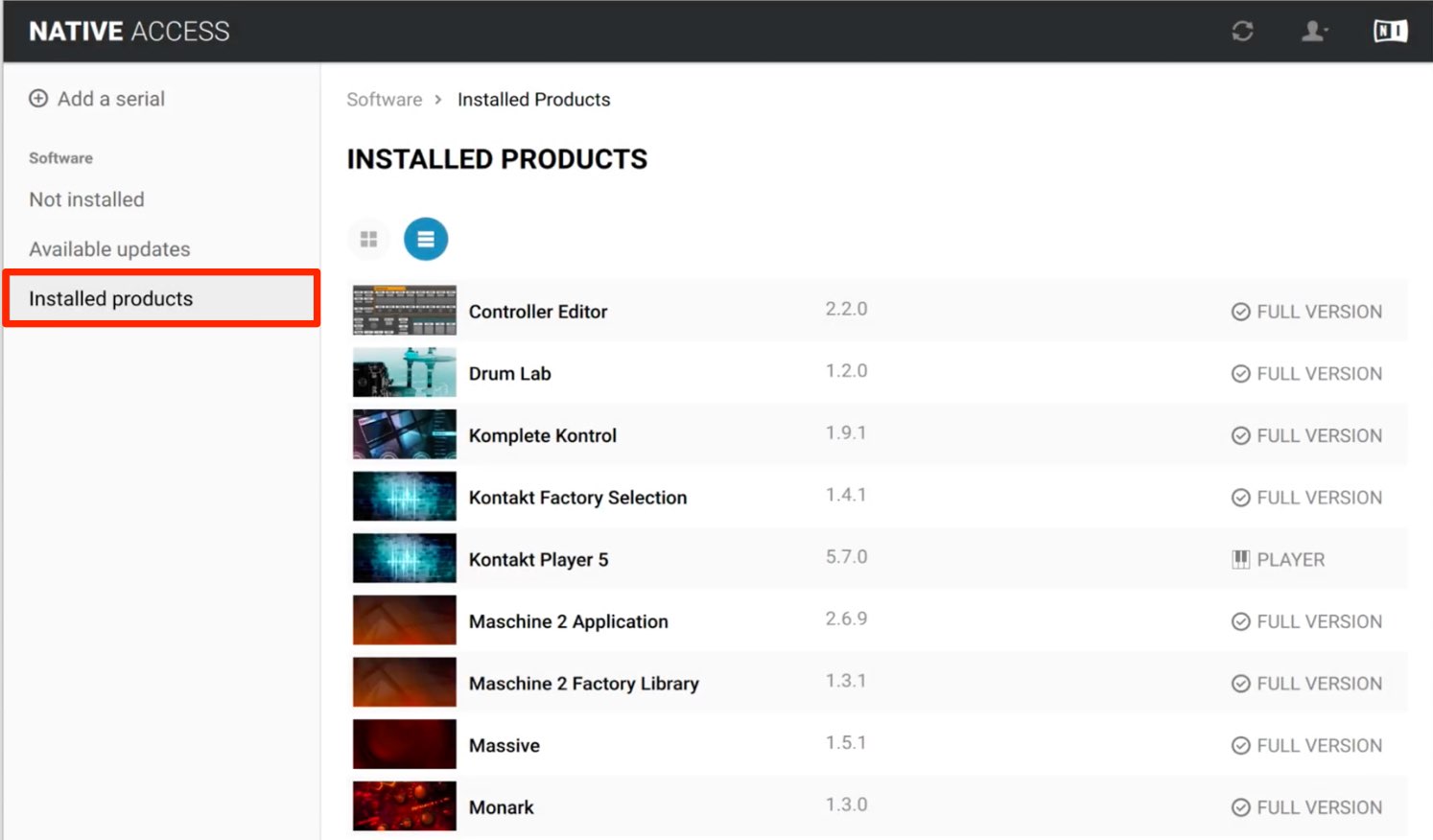
Once complete, the products appear under Installed products.
The software is now ready for use with MASCHINE MK3.
Connecting MASCHINE MK3
Next, connect the MASCHINE MK3.
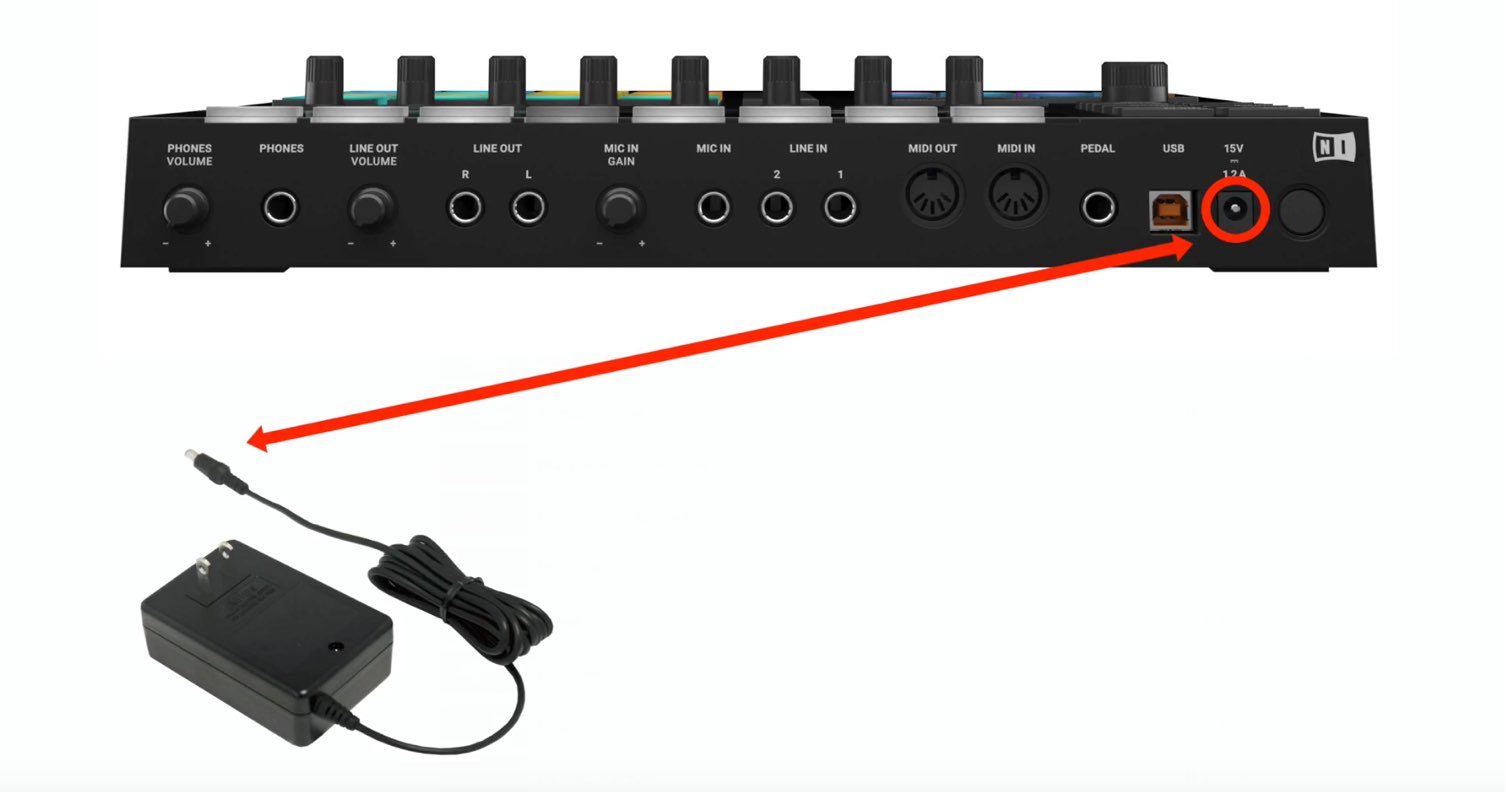
Connect the supplied power adapter to the MASCHINE MK3.
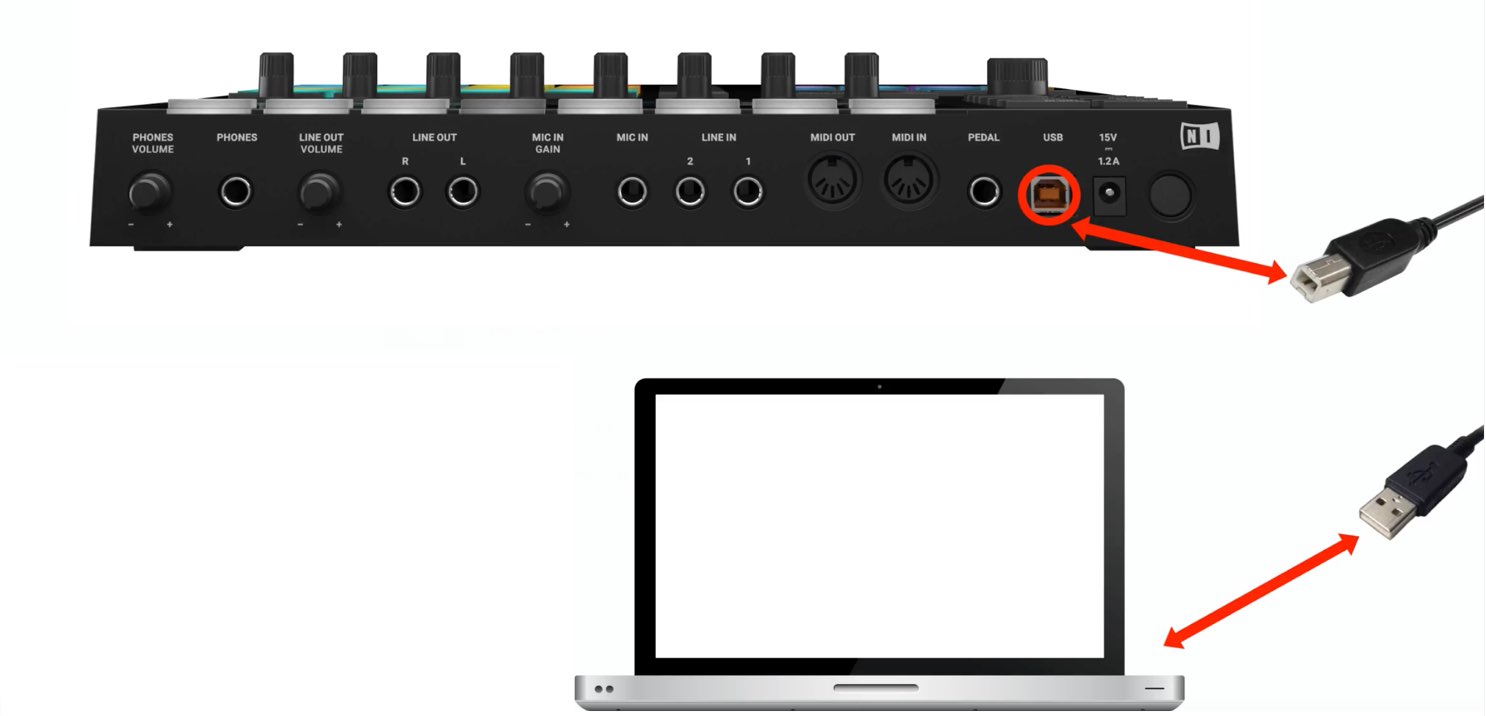
Use the supplied USB cable to connect the MASCHINE MK3 to your computer.
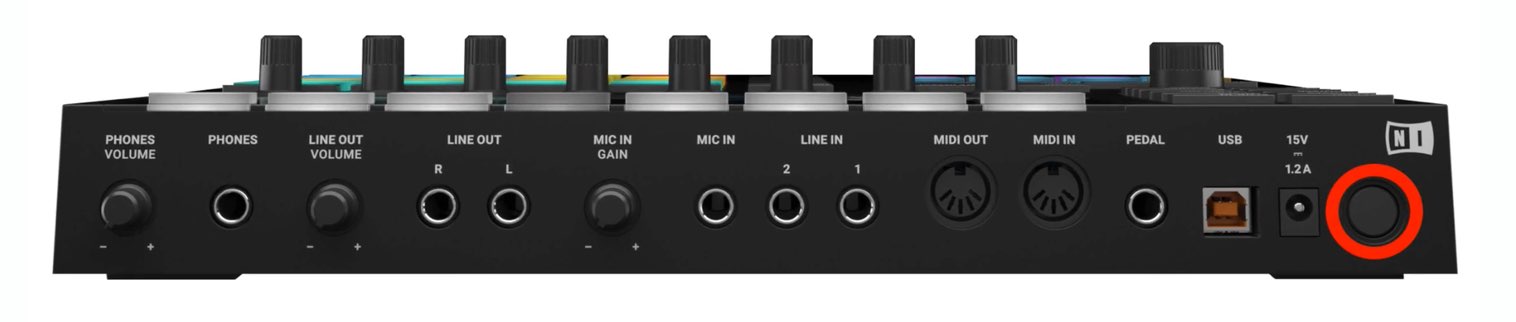
Finally, turn on the power button on the back of the MASCHINE MK3.
Setup is now complete.
Configuring MASCHINE MK3
Let’s launch the MASCHINE software.
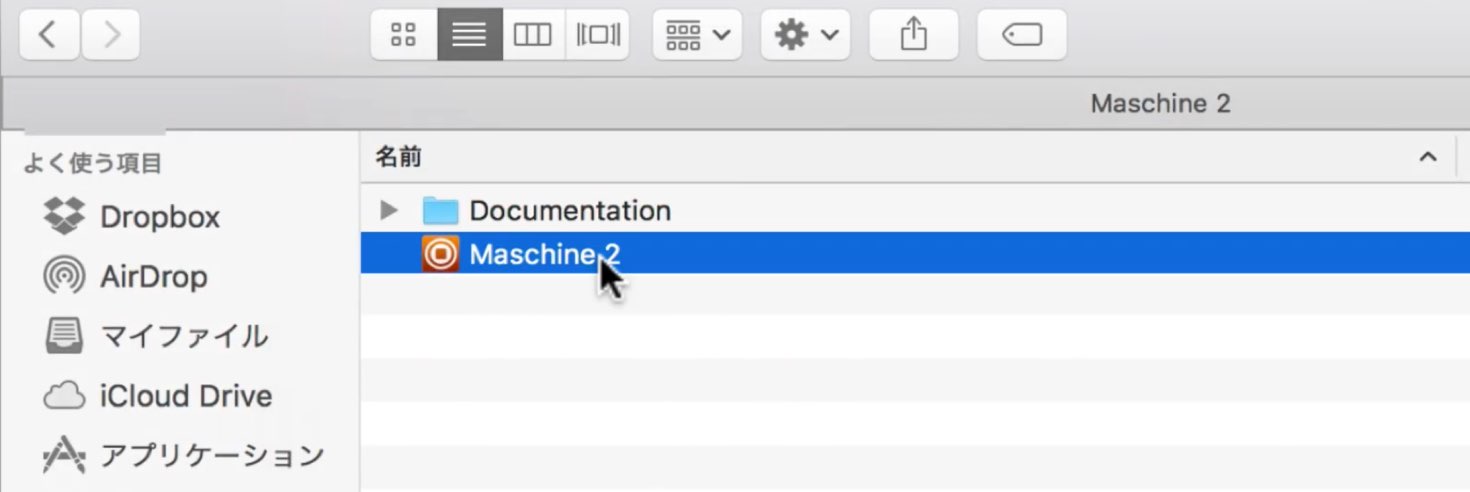
On Mac, find the software under Applications → Native Instruments → Maschine 2.
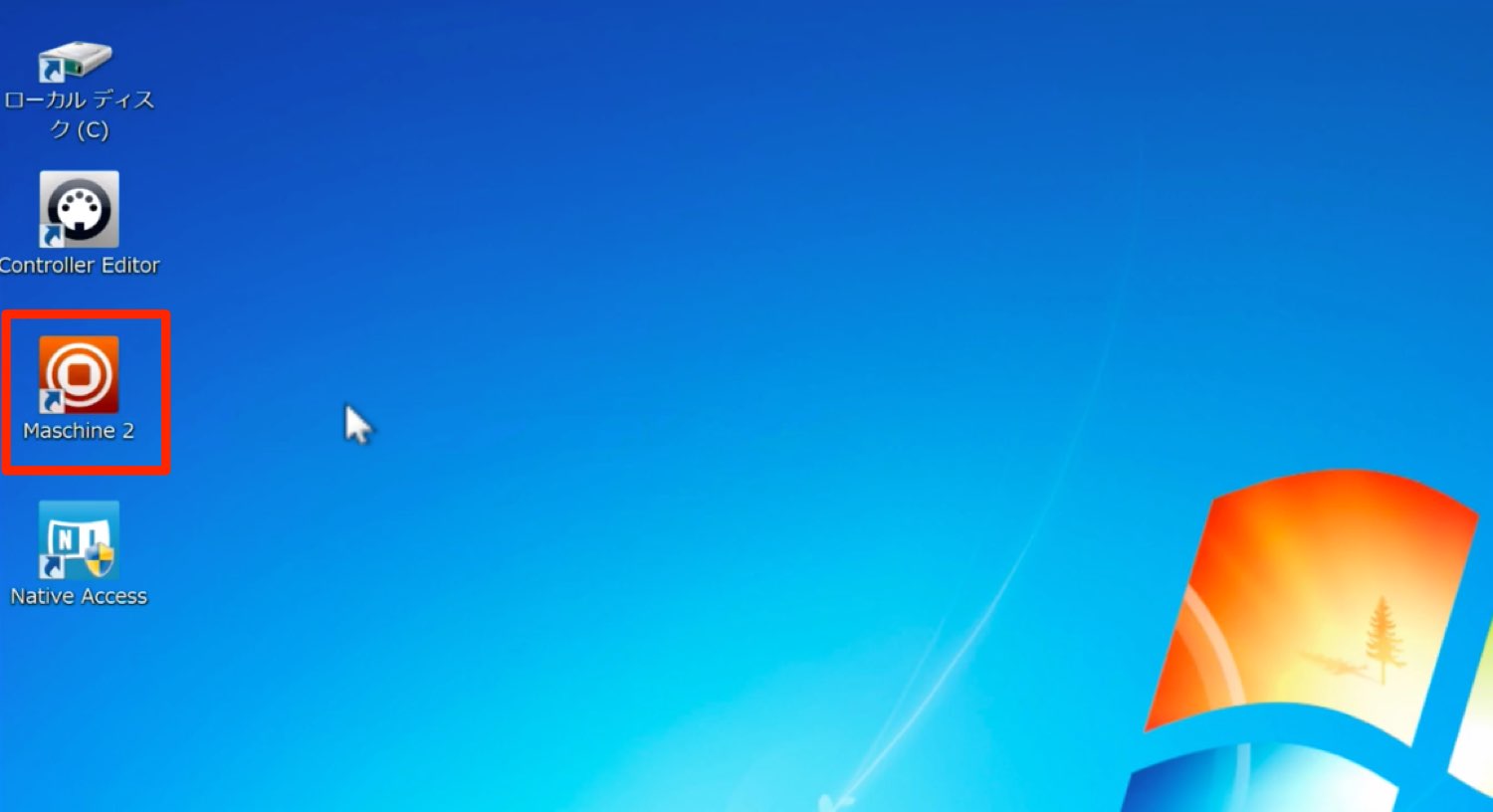
On Windows, a shortcut is created on the desktop.
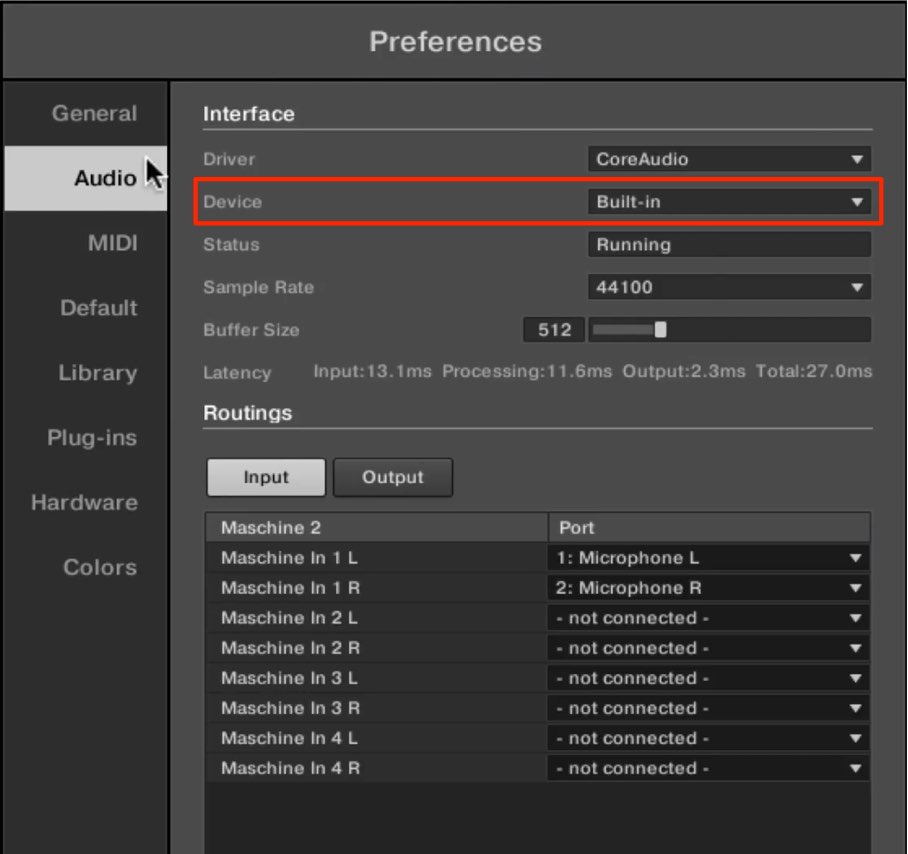
When the MASCHINE software launches, the preferences window opens.
Under Device on the Audio tab, choose where the MASCHINE software’s sound will be output.
You can select your computer or the audio interface you are using.
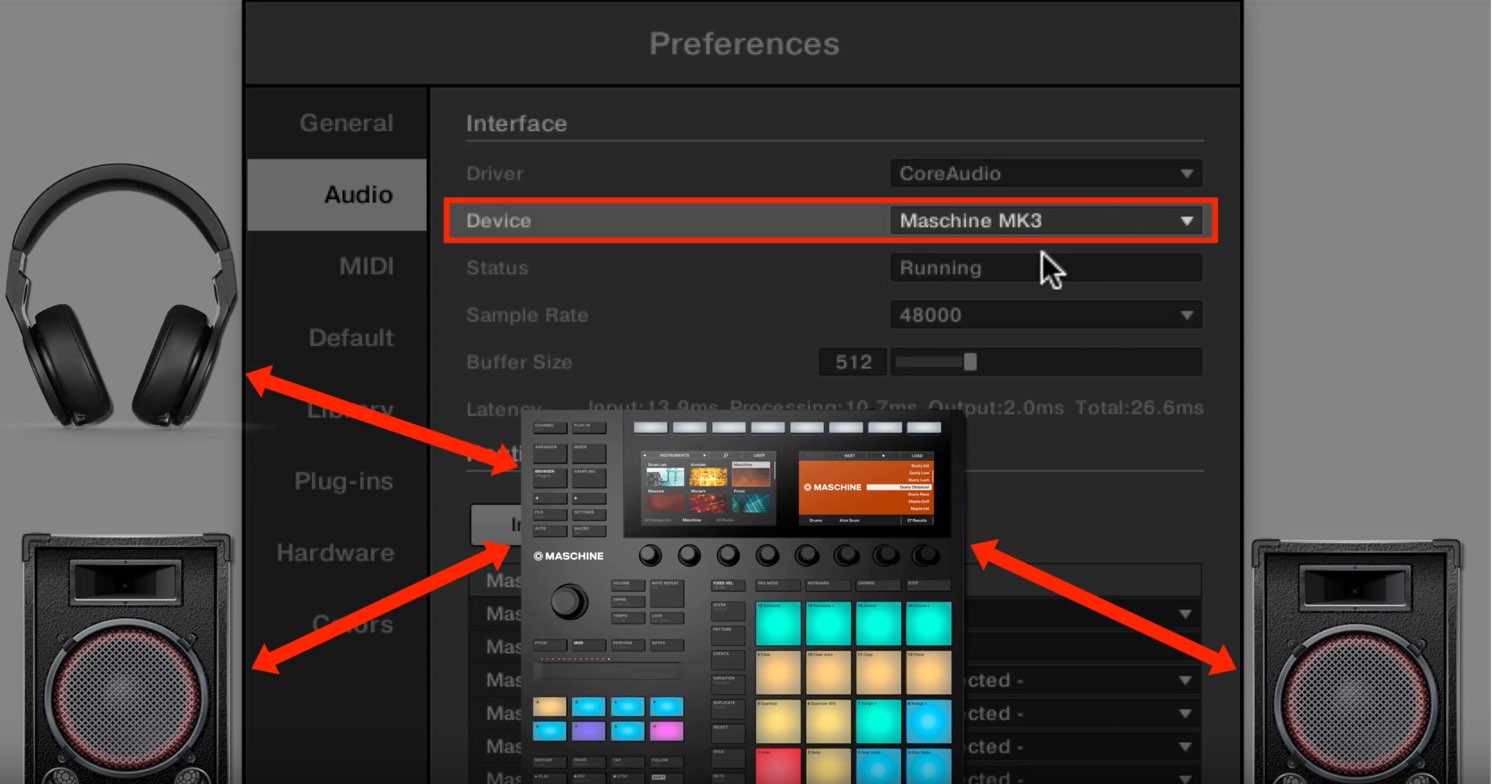
You can also set Device to MASCHINE MK3.
In that case, the software’s sound is output through the MASCHINE MK3 itself, allowing you to connect headphones or speakers.
This completes the process from registering the MASCHINE MK3 to using it.
Configure these settings carefully and enjoy making music.
Frequently asked questions
Q1. What should I do first after purchasing MASCHINE MK3?
Find the included activation card and visit the setup URL printed on it. Then download and install Native Access.
Q2. What if I do not have a Native Instruments account?
Launch Native Access and click Create a Native Instruments account. Enter an email address and password of at least 10 characters including a special character, then agree to the terms to create an account.
Q3. Can I store large instrument libraries on an external hard drive?
Yes. In the installation dialog, click BROWSE under Content location and select a folder on the external drive.
Q4. Can I connect speakers or headphones directly to MASCHINE MK3?
Yes. Set Device to MASCHINE MK3 in the MASCHINE software’s audio output settings to output through the hardware and connect speakers or headphones.
Q5. Is installation different on Mac and Windows?
Yes. On Mac, drag and drop the downloaded application into the Applications folder. On Windows, double-click the installer inside the downloaded ZIP file.
NEW ARTICLES
Latest English Articles
















































































































































































































































































































































