BFD3 is a high-quality drum instrument from inMusic Brands, designed to reproduce the realism of live drums. This guide covers purchasing it from the official site, installing BFD License Manager, and setting up BFD3 and its library. Once installed, you can build a kit using Presets, Kits or Drums and customize its sound for different genres. BFD3 also works in a DAW, with microphone and room controls for producing drum tracks.
Expressive Live-Drum Sound with BFD3
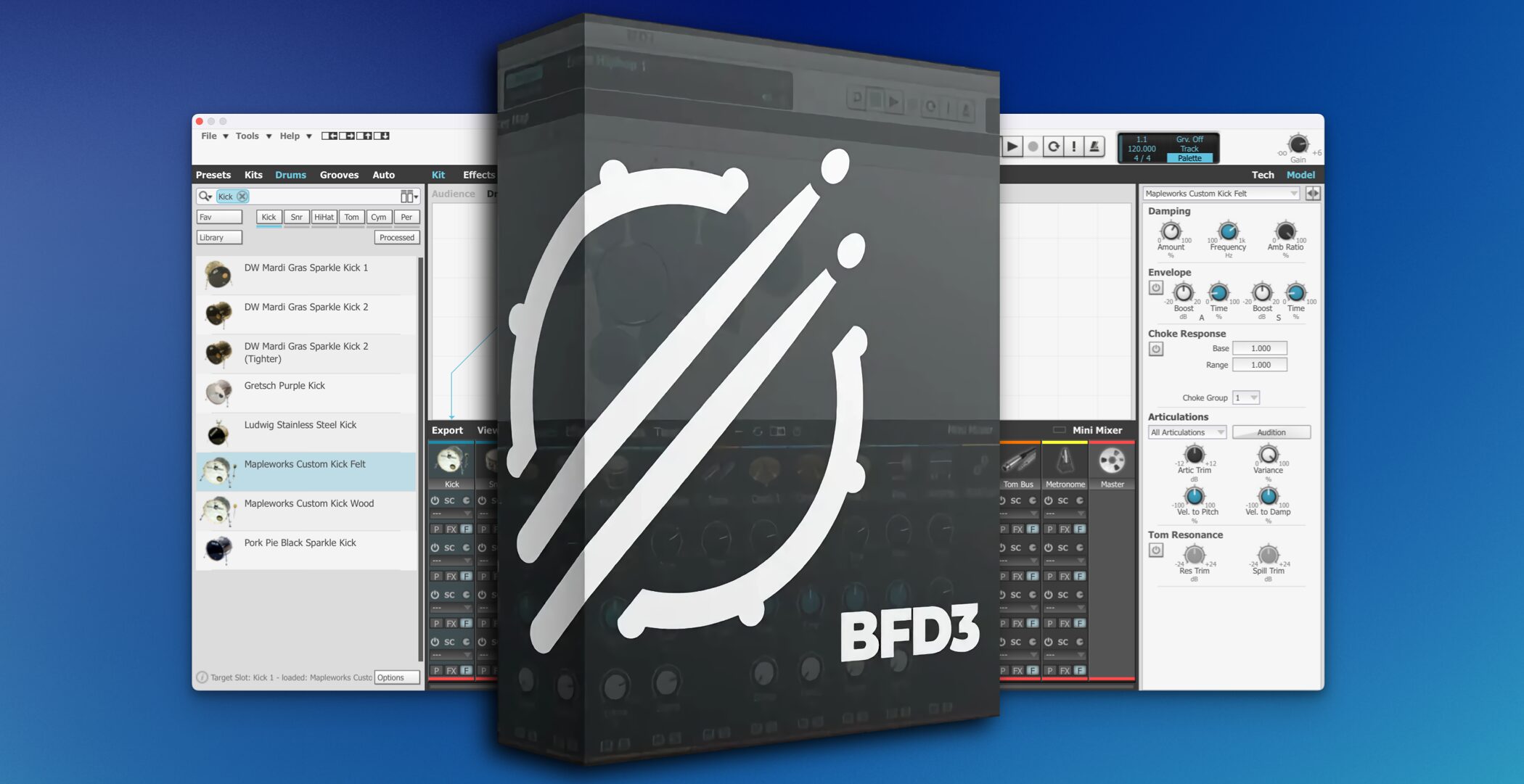
BFD3 is a drum instrument known for its realism and expressiveness.
Its high-quality samples and advanced engine recreate the sound of a live performance, while its varied kits and flexible mixing tools suit a range of genres.
Detailed microphone and room controls also let you build your ideal drum sound.
This article explains BFD3's features and how to use them.
Purchase, Download and Installation
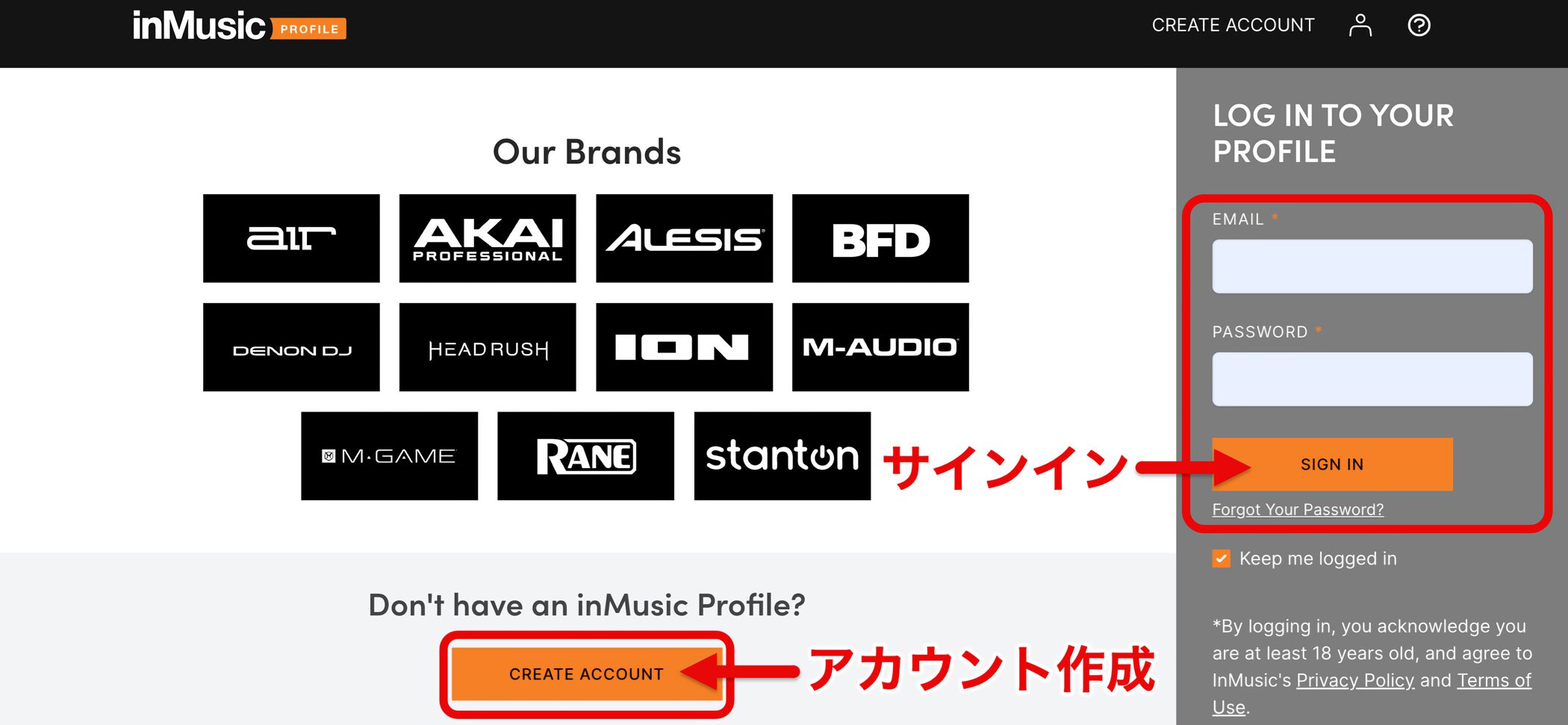
Visit the inMusic Brands official site and sign in.
If you need an account, choose CREATE ACCOUNT and follow the instructions.
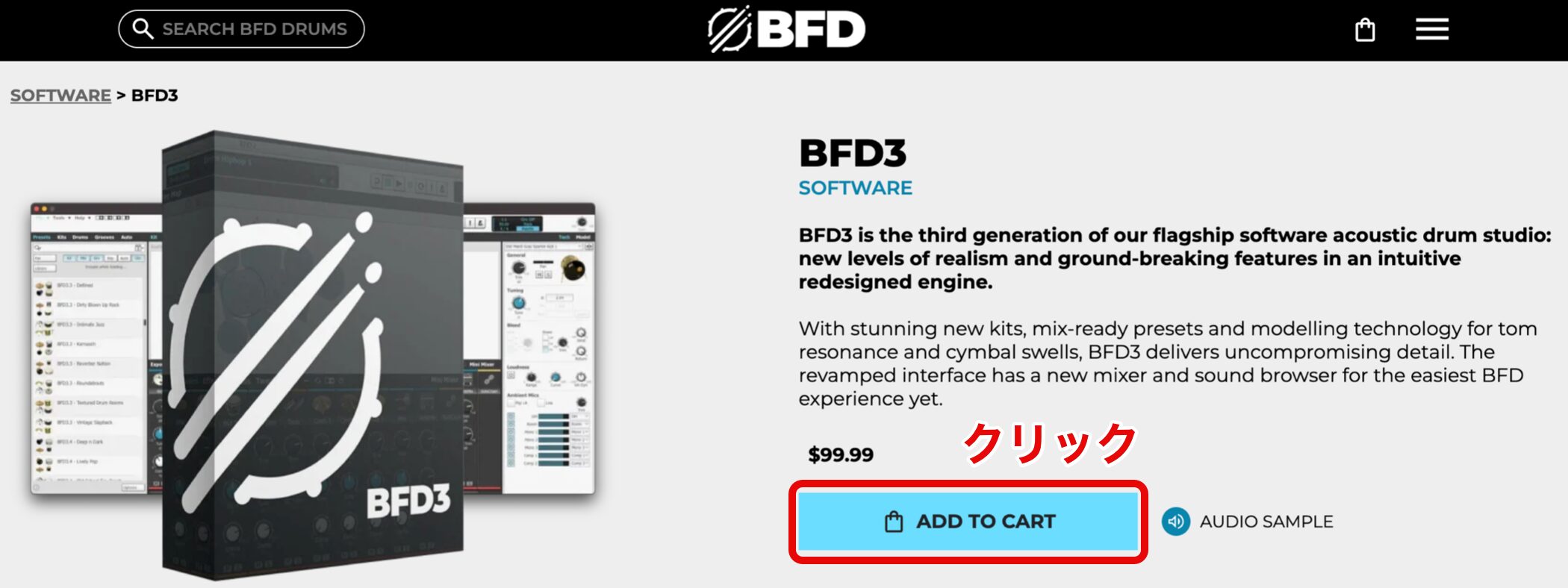
Then visit the BFD Drums official site and click ADD TO CART to complete your purchase.
Credit card and PayPal are supported payment methods.
Install BFD License Manager
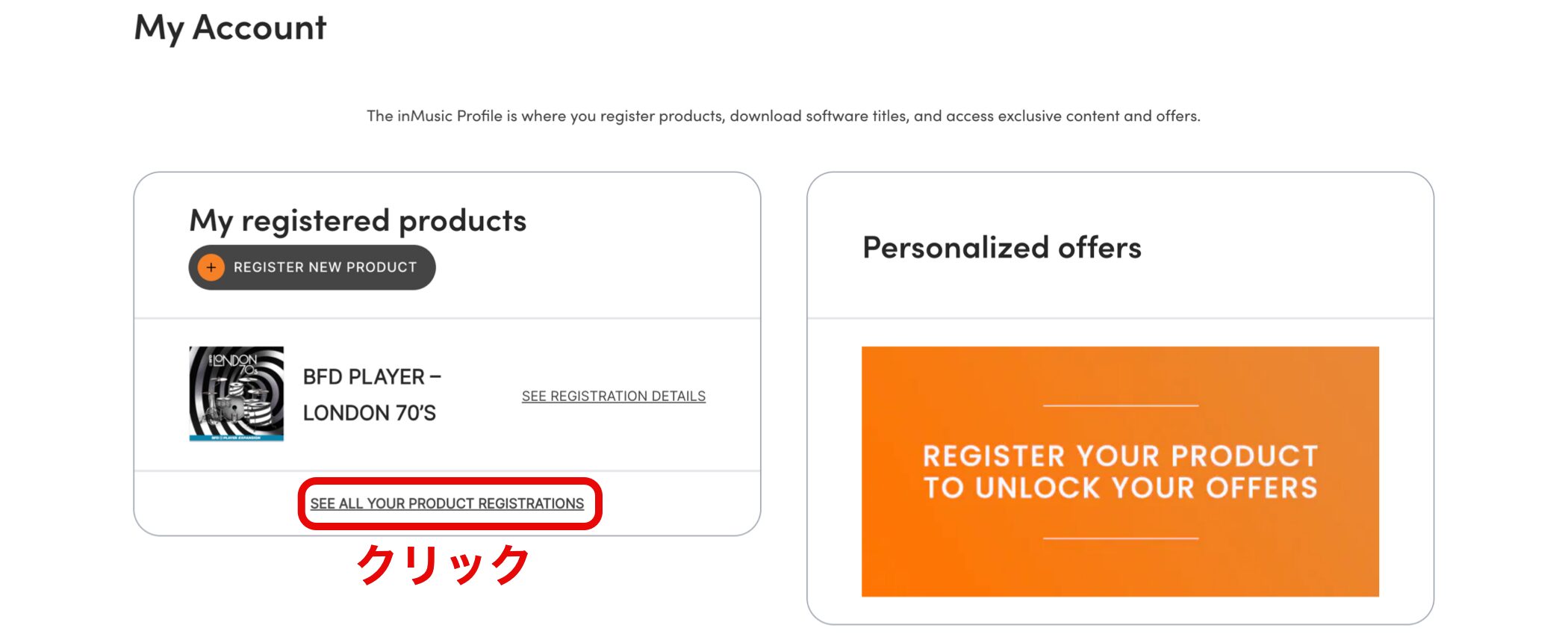
Install BFD License Manager, which is needed to download and install BFD3.
Open My Account and click SEE ALL YOUR PRODUCT REGISTRATIONS.
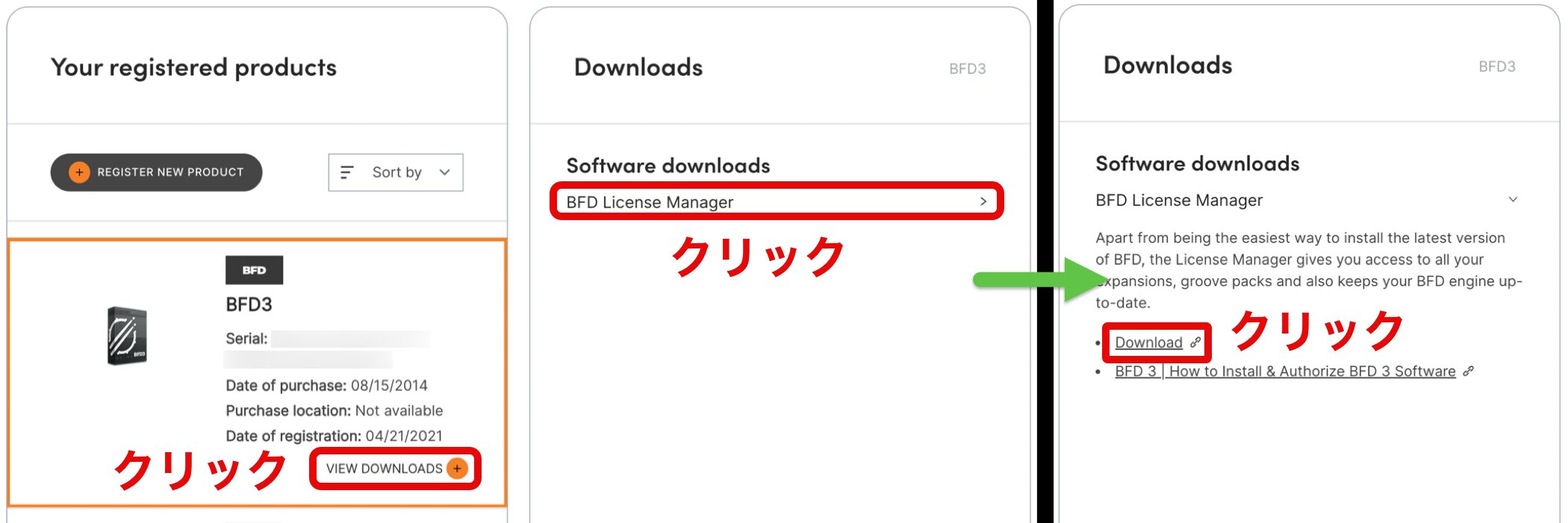
Under BFD3, click VIEW DOWNLOADS, then BFD License Manager and Download.
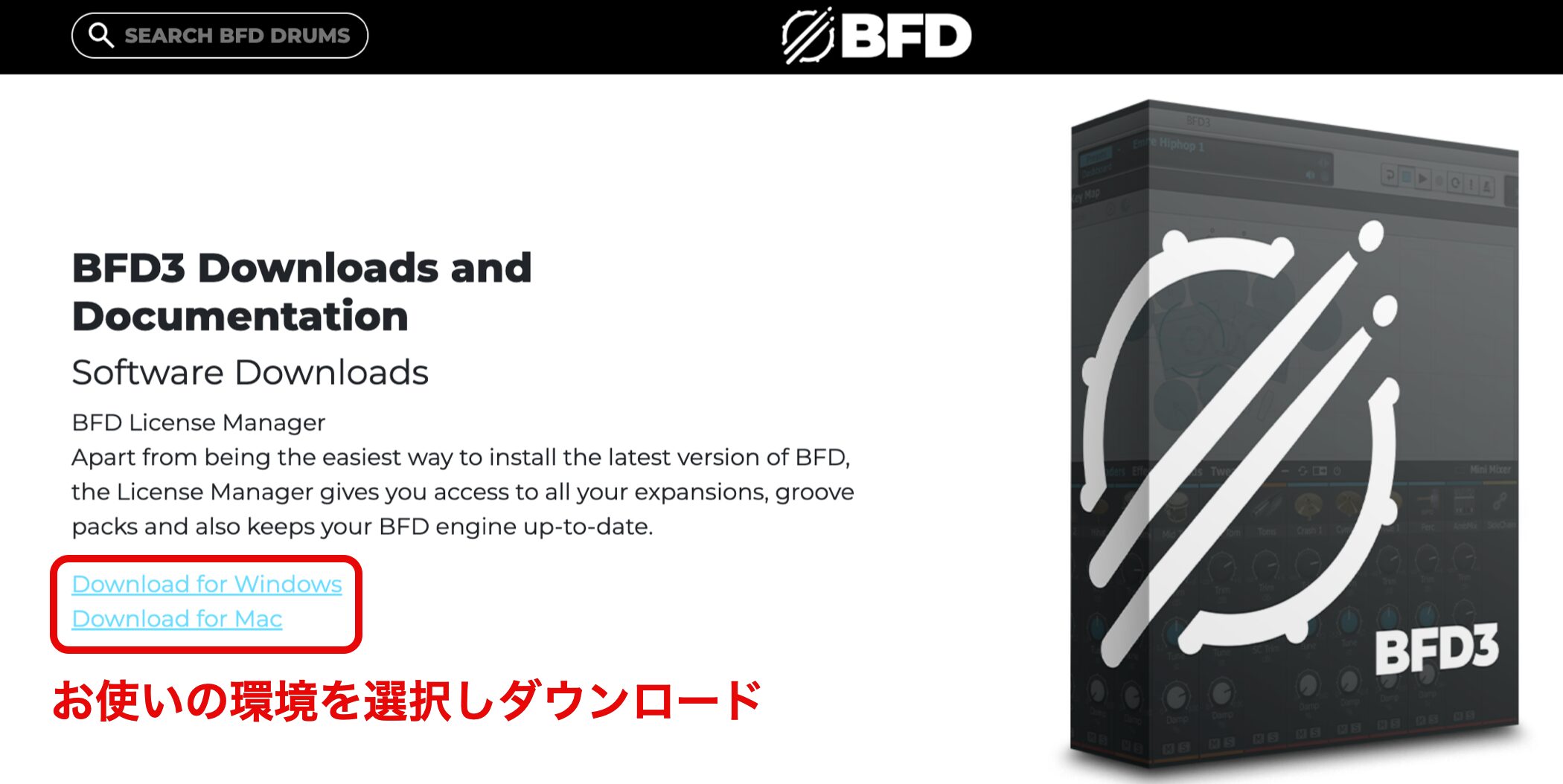
Select Mac or Windows for your system and download it.
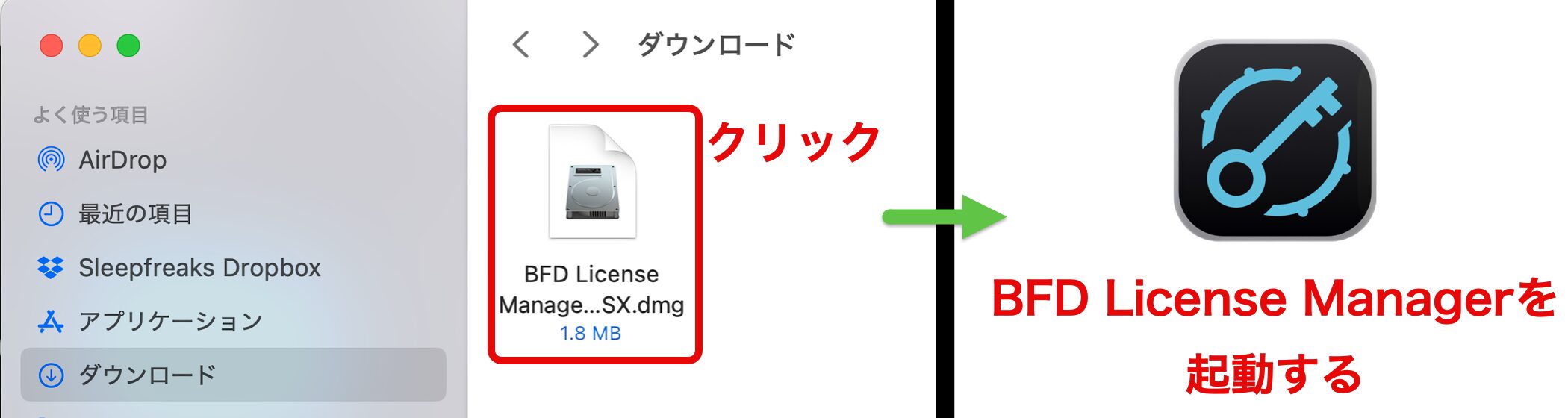
Run the BFD License Manager installer and install it.
Once installed, launch BFD License Manager.
Install BFD3
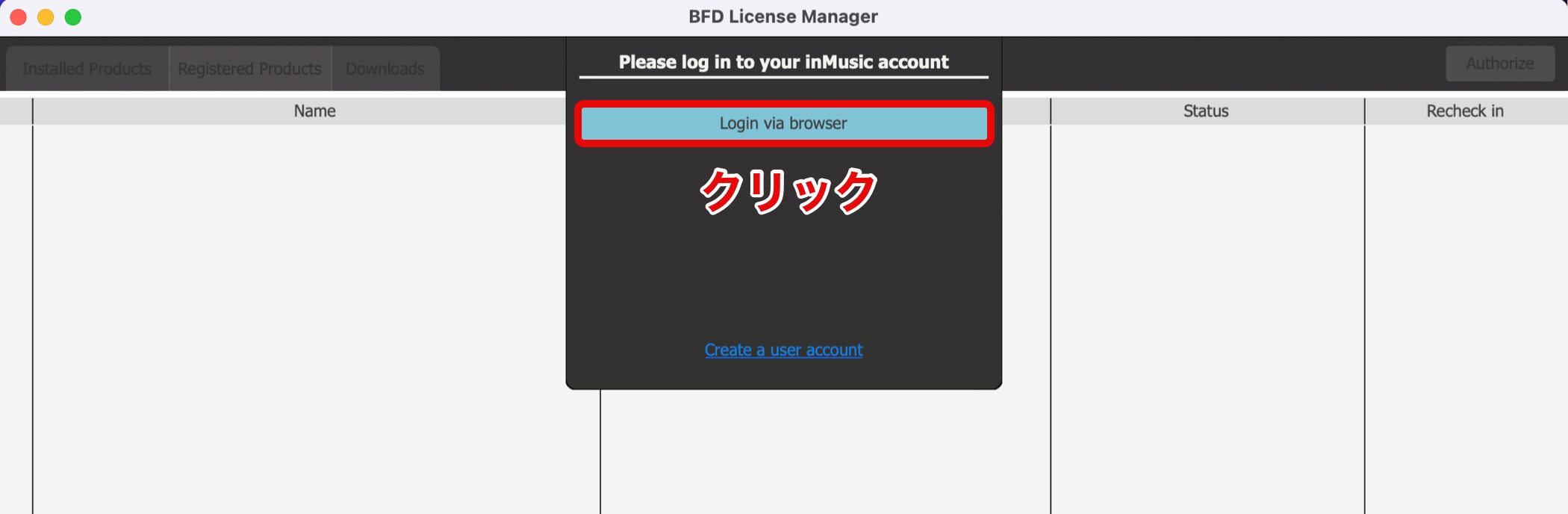
When BFD License Manager asks you to sign in, click Login via browser.
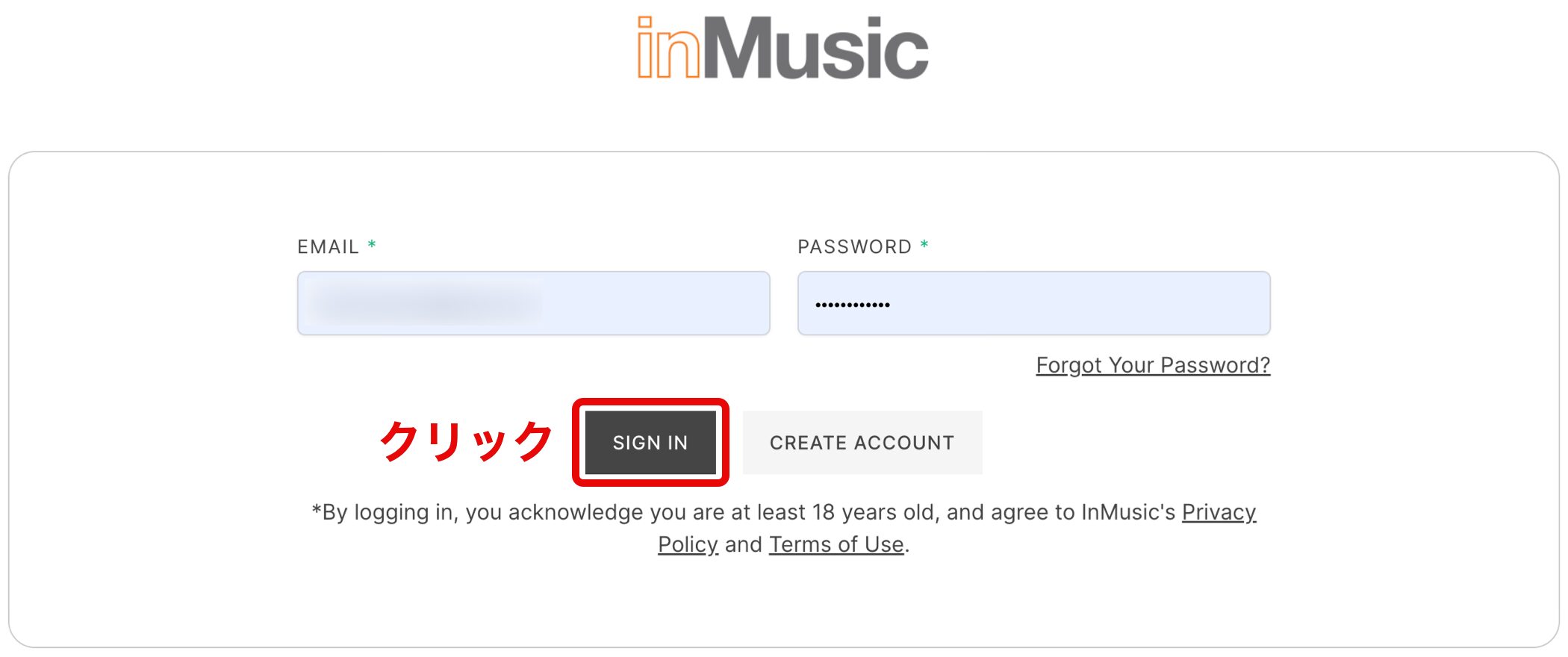
A sign-in page opens in your browser. Enter your registered email address and password and sign in.
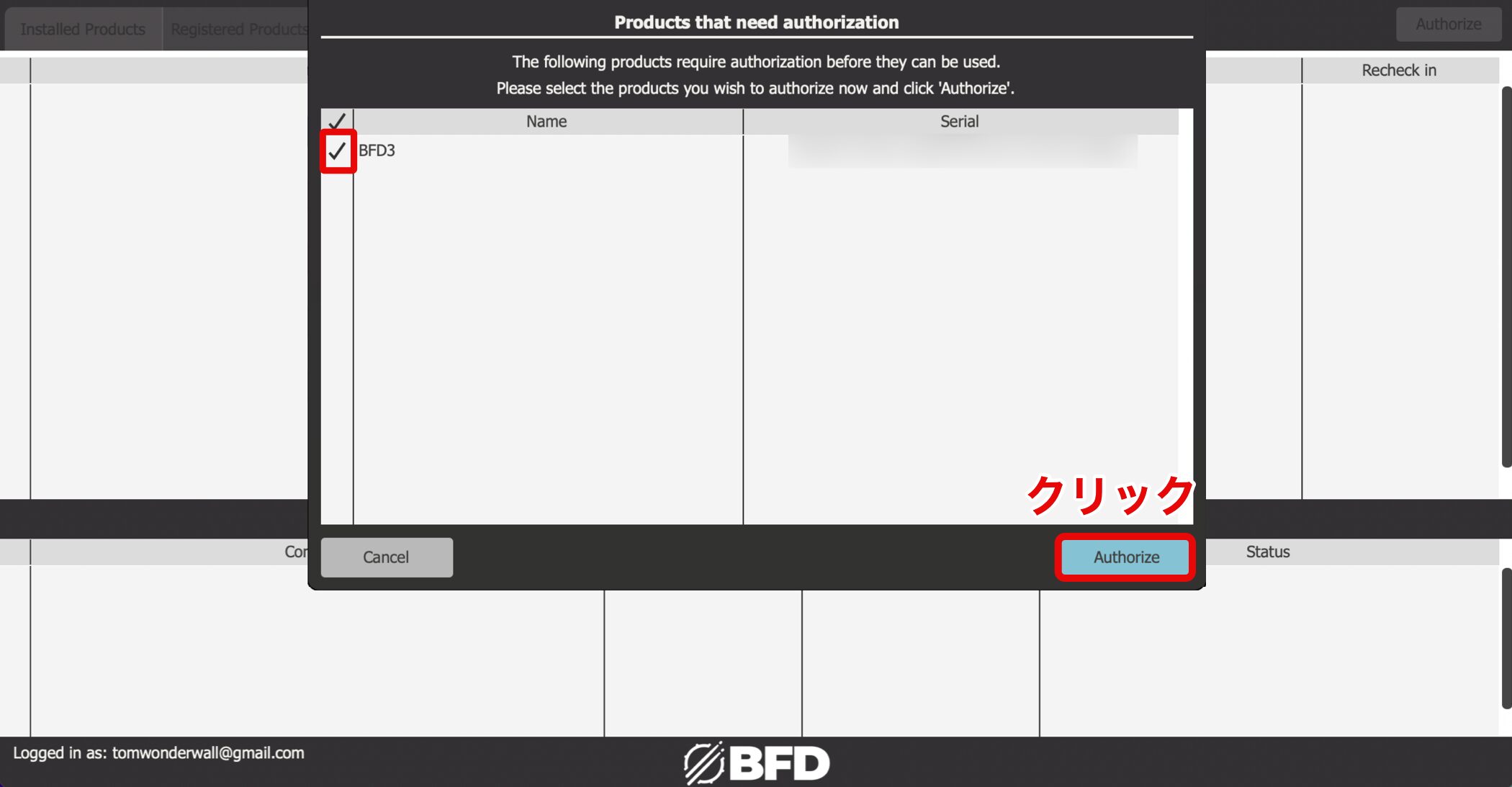
Make sure BFD3 is checked and click Authorize.

If you click Cancel and Registered Products shows Not authorized, use the Authorize button at the upper right.
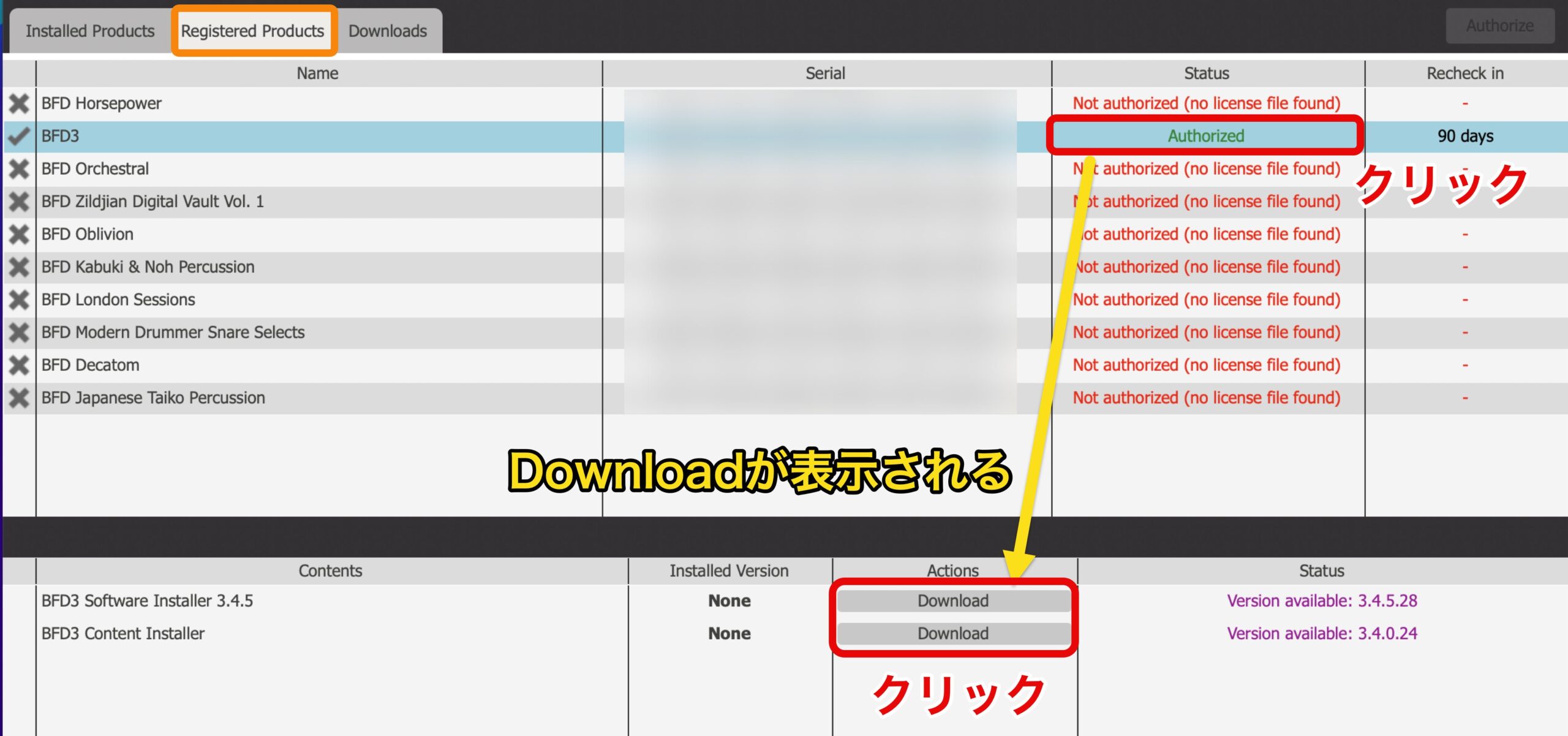
Click Authorized for BFD3. Download buttons for the software and library content appear below; click each one.
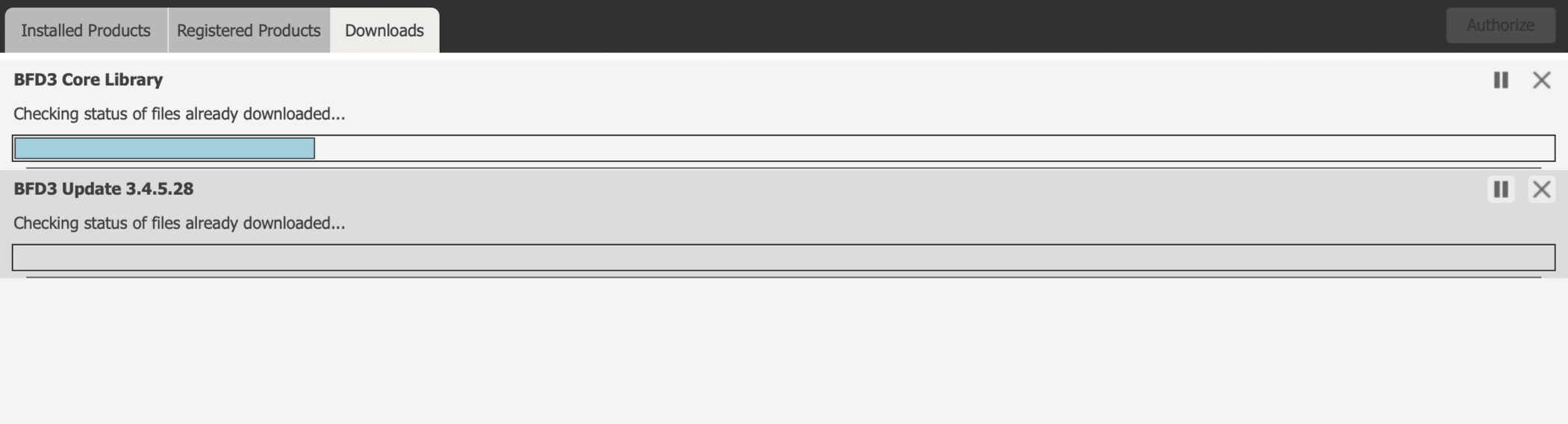
Wait for the downloads to finish.
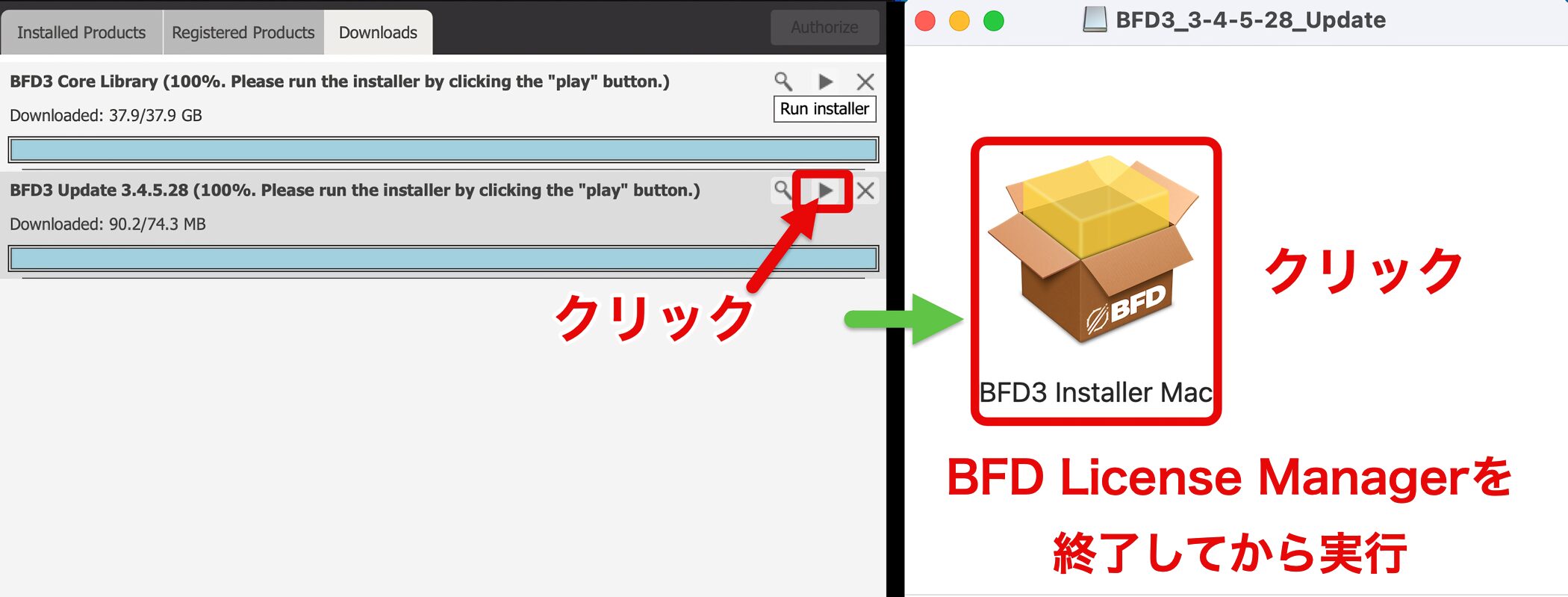
When a download is complete, a play icon appears.
Click it to launch the installer.
Quit BFD License Manager before running the BFD3 software installer.
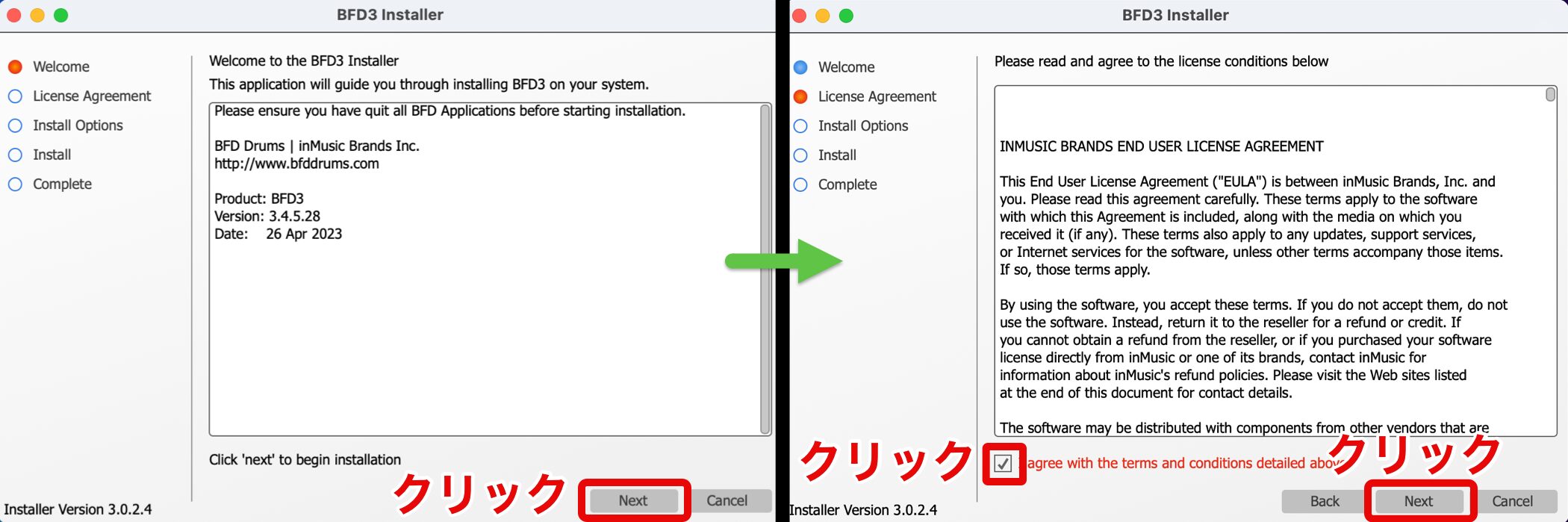
Follow the on-screen instructions to complete installation.
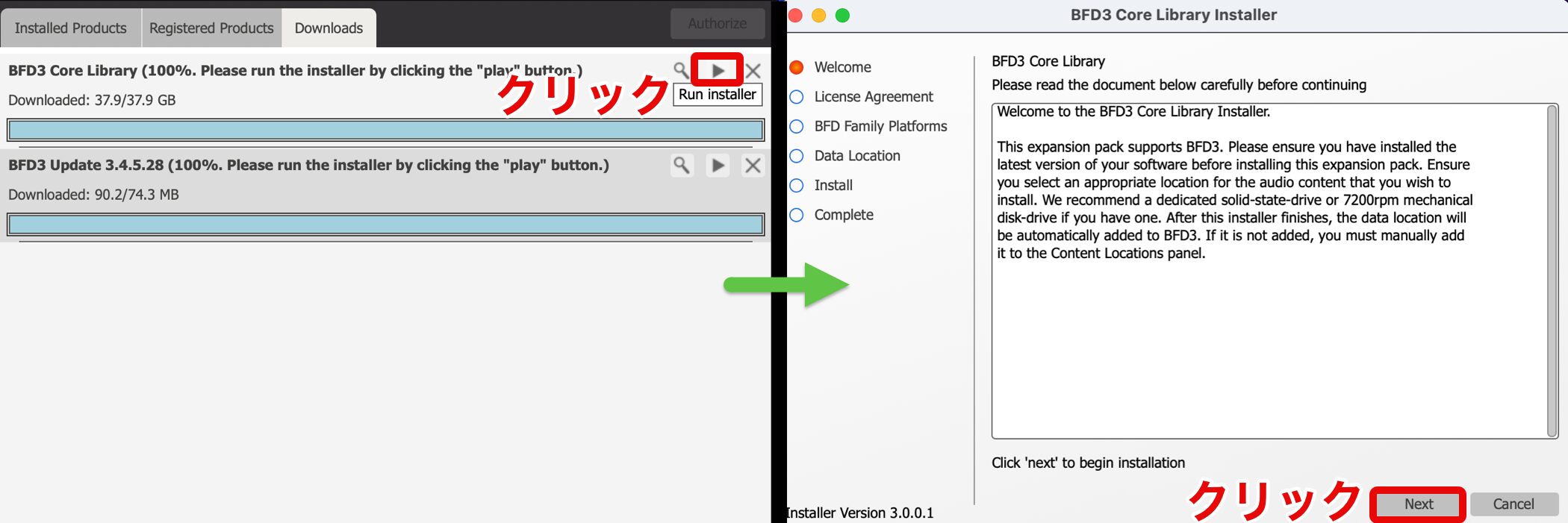
Next, install the library in the same way.
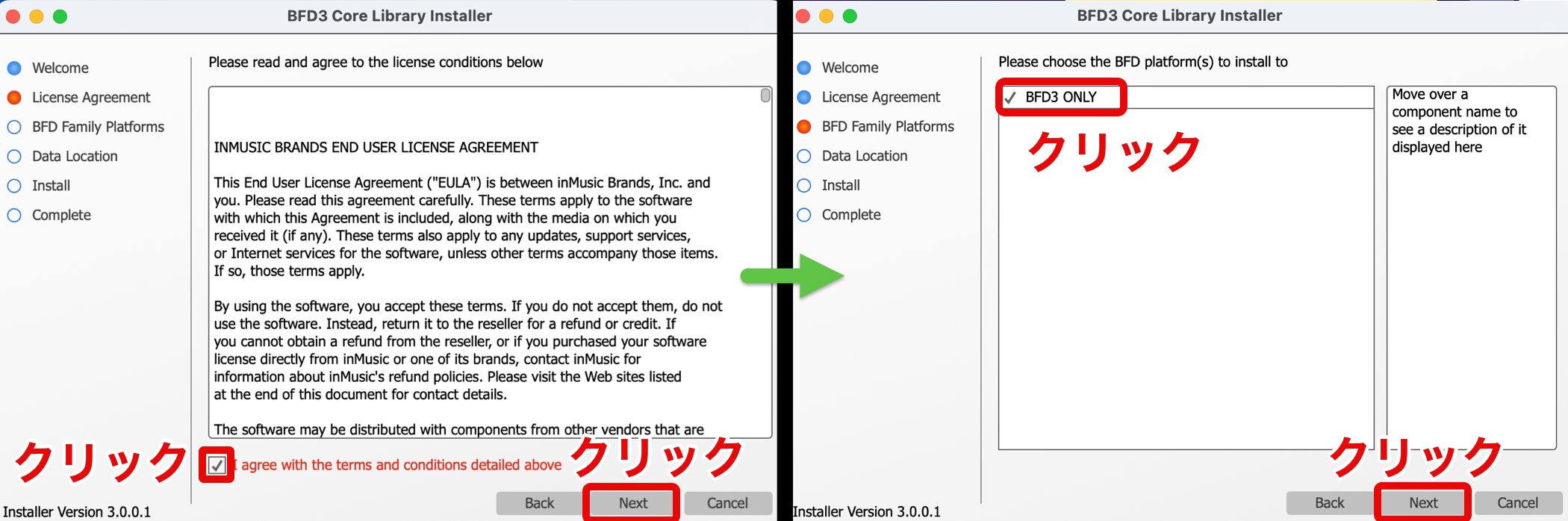
Click Next and follow the on-screen instructions.
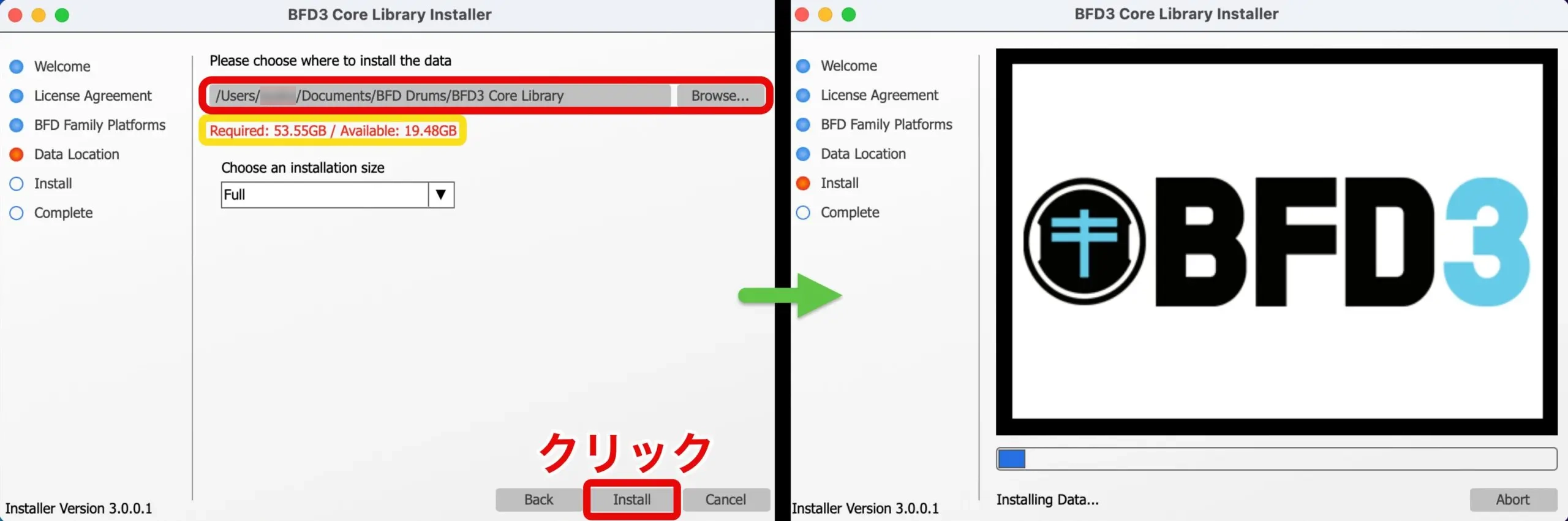
Pay particular attention to this step of library installation.
Required and Available disk space are displayed; you cannot continue if there is insufficient free space
Free up space or use Browse to select a drive with enough capacity.
Click Install and wait for the installation to finish.
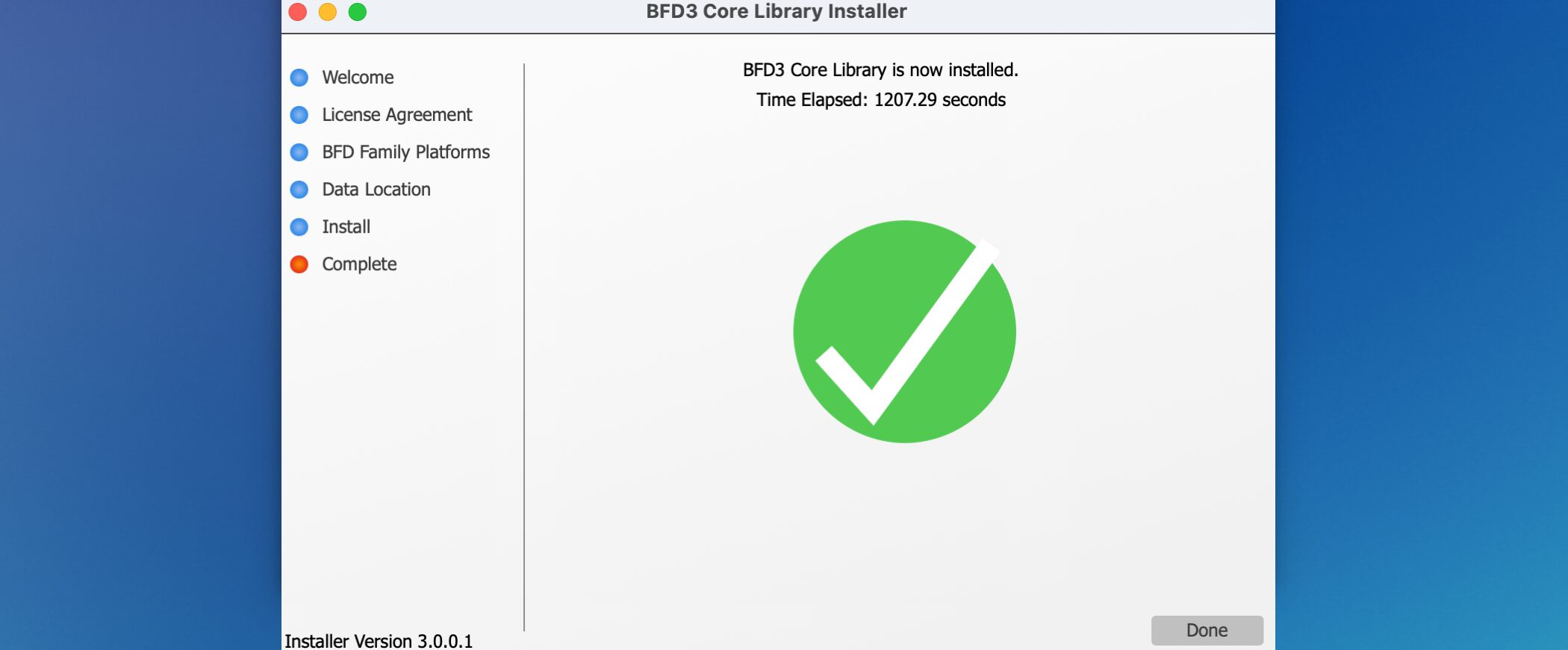
Installation is complete.
Launch BFD3
After installation, launch BFD3.
Authorize the software before using it.
If authorization fails, see the following article:
https://sleepfreaks-dtm.com/dtm-trouble/bfd3-authorize/

- Mac: Applications
- Windows: Program Files
are where it is installed.
Alternatively,
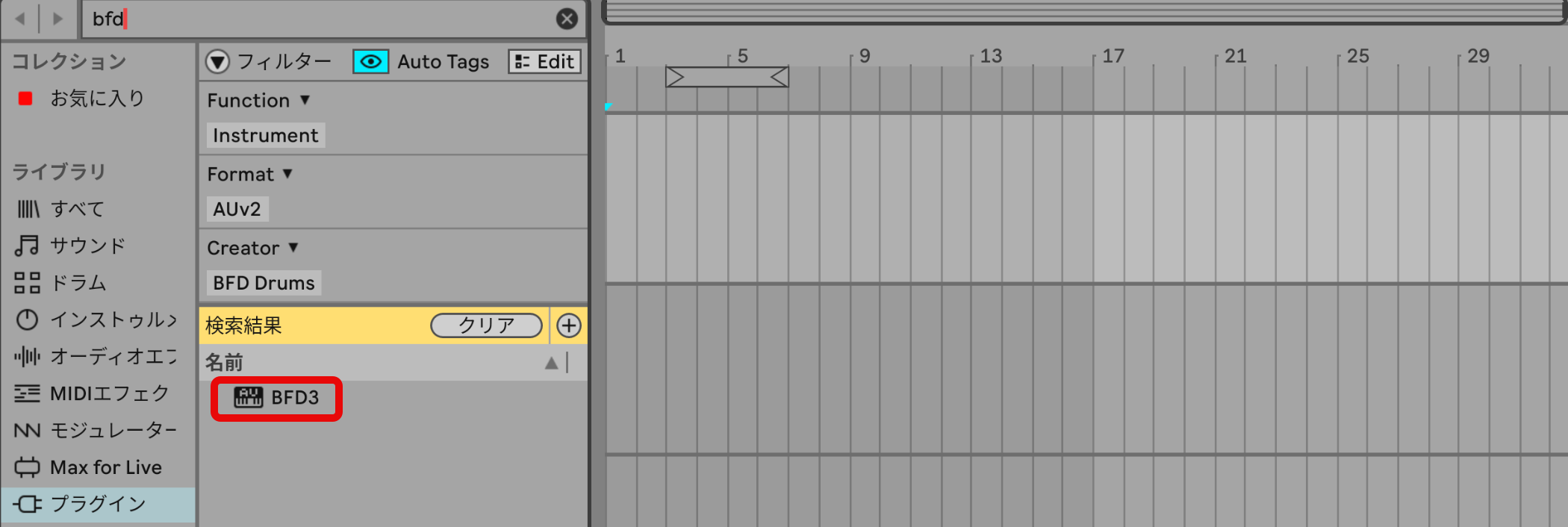
launch it from your DAW.
Loading and Saving Kits
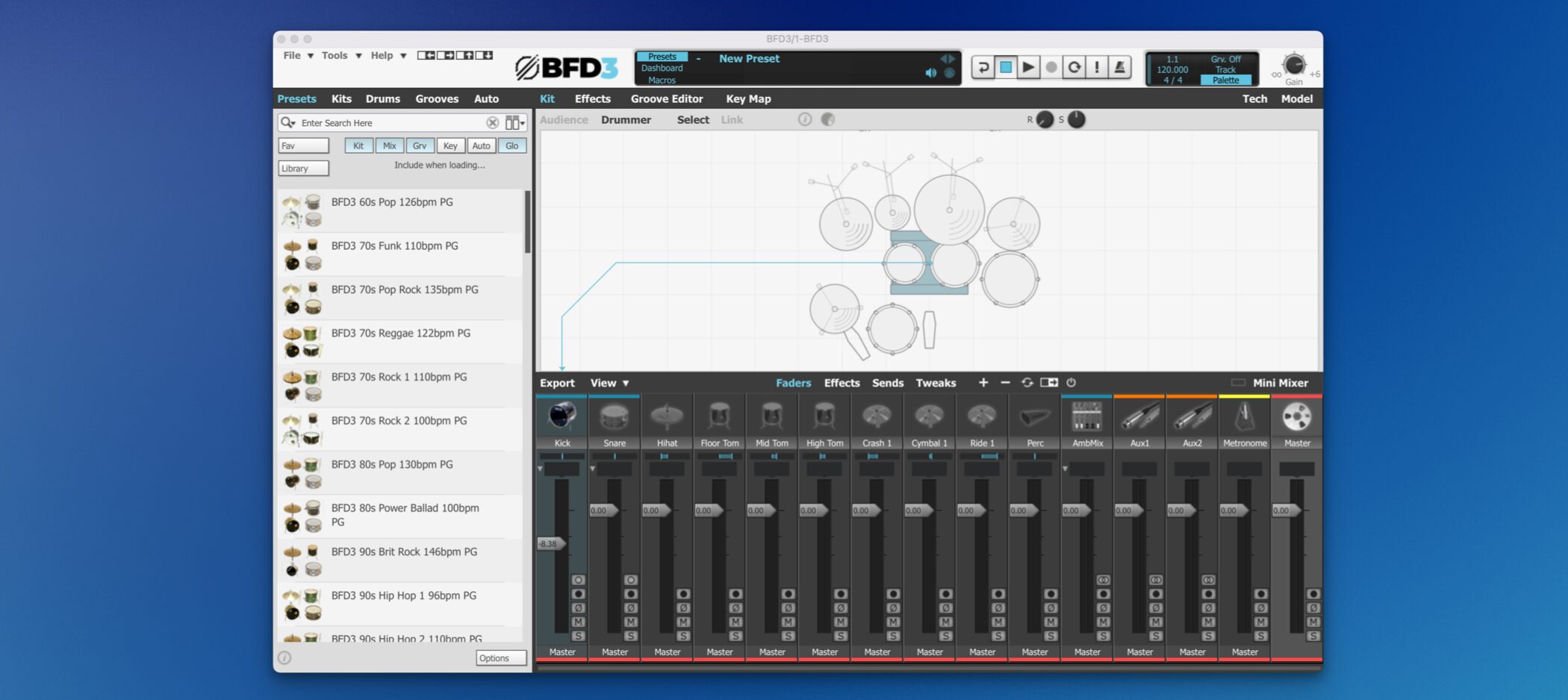
Next, let's explore BFD3.
Our impression in a word: it really does sound good.
Bringing this sound into a song can help raise its quality.
BFD3 Video: Loading and Saving Kits
The Kit Concept
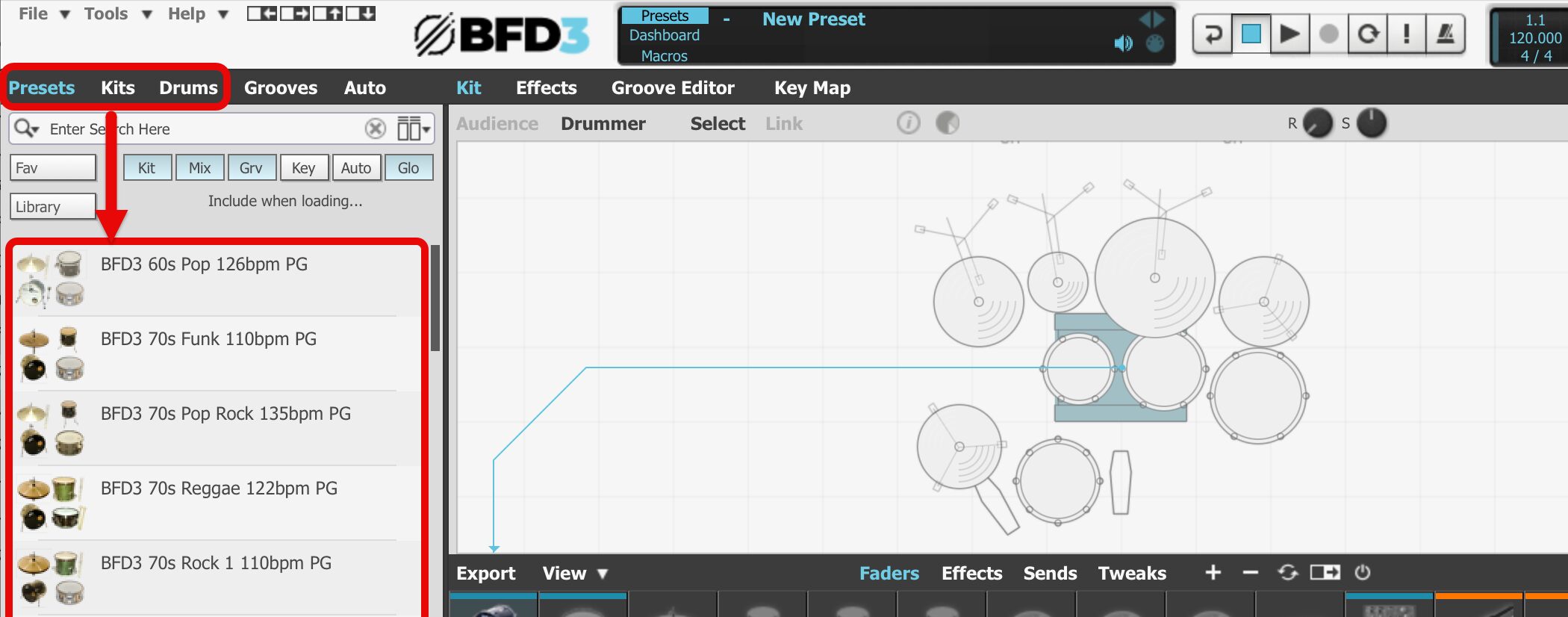
The first thing to do after launching BFD3 is choose a kit.
By default the kit is empty, so no sound is produced.
There are three main ways to load a kit:
- Presets: load the whole kit, mixer, patterns and more together.
- Kits: primarily load a combination of kit pieces.
- Drums: select kit pieces individually.
The search results change depending on the loading method.
Here we will use Kits.
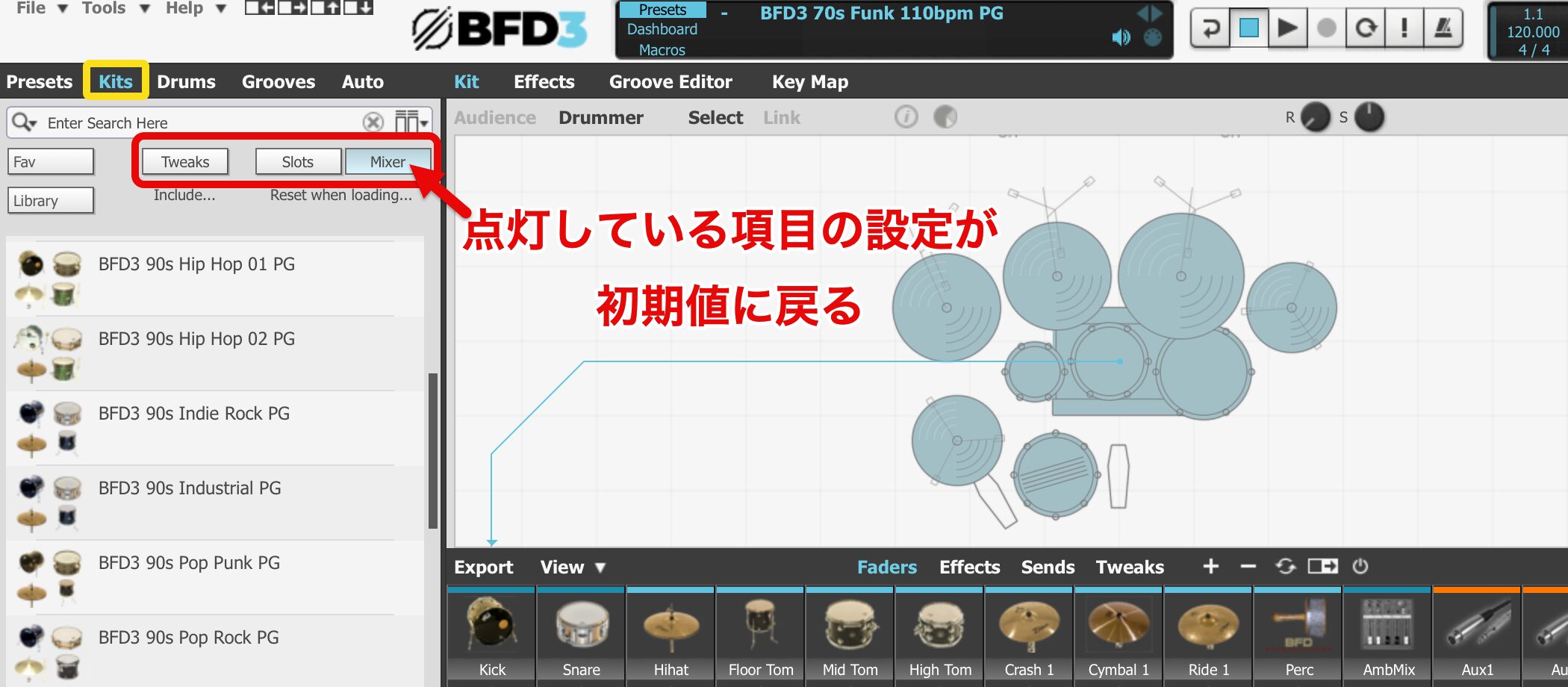
When loading a kit, enabling an item resets its settings to their defaults.
In the image above, only the mixer will return to its defaults.
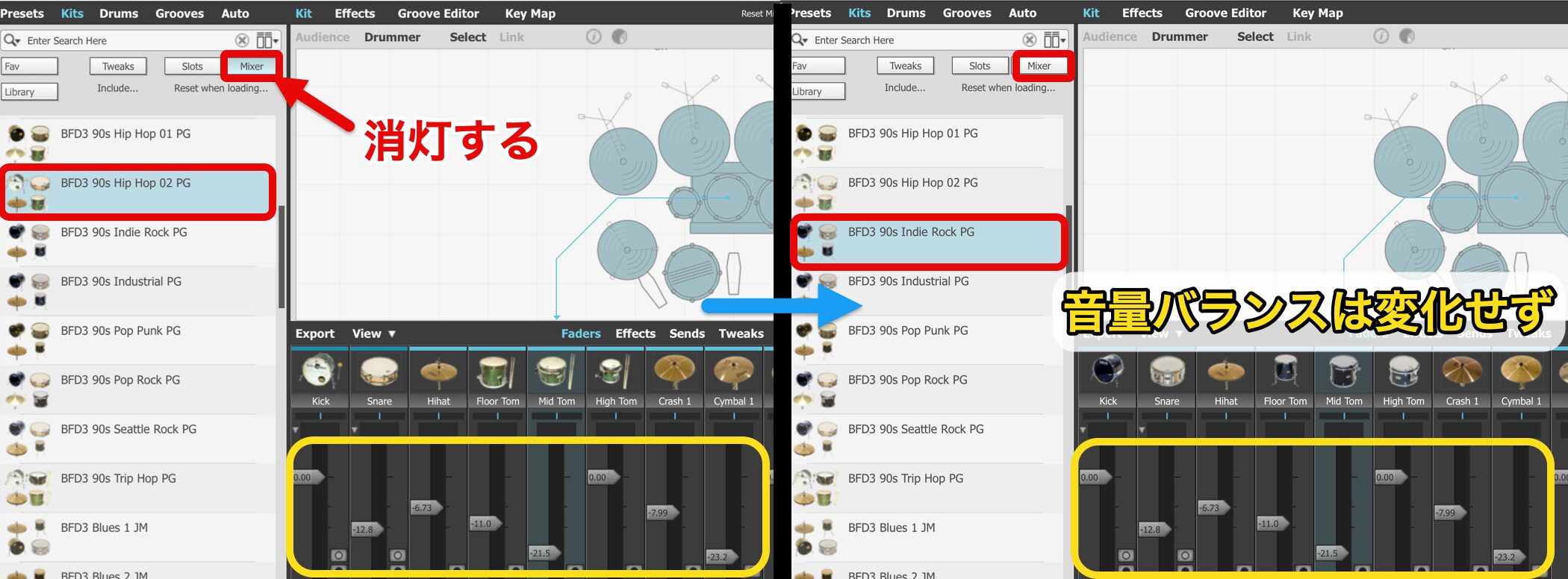
For example, disabling Mixer changes the kit while retaining the volume balance.
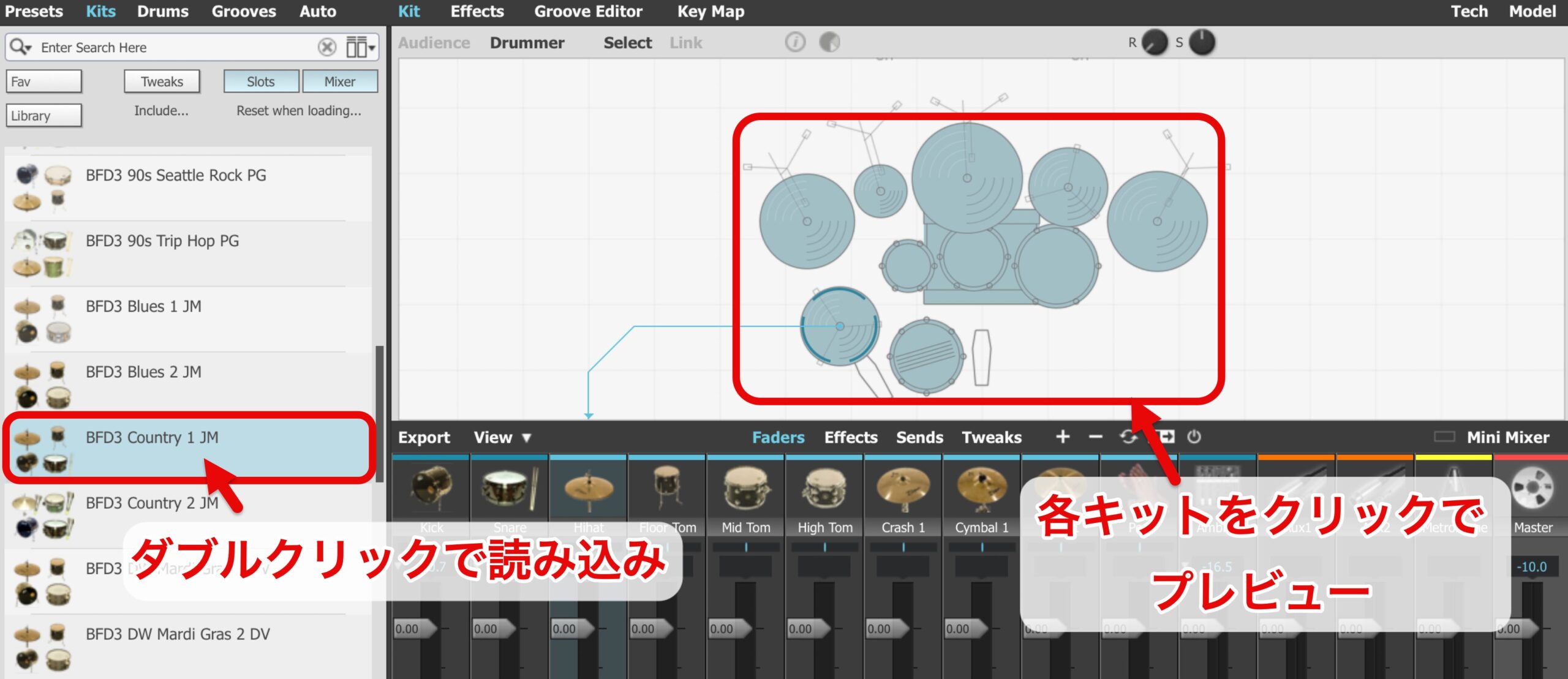
Double-click the chosen kit to load it.
Once loaded, click the kit image to preview its sound.
Loading Individual Kit Pieces
You can choose and combine individual pieces such as kicks and snares.

- 1. Select Drums.
- 2. Select the kit piece you want to load.
- 3. Matching options appear; double-click one to load it.
- 4. Use this control to choose a different type of kit piece.
Using BFD Series Kits
You can use BFD2 kits and additional expansion kits.
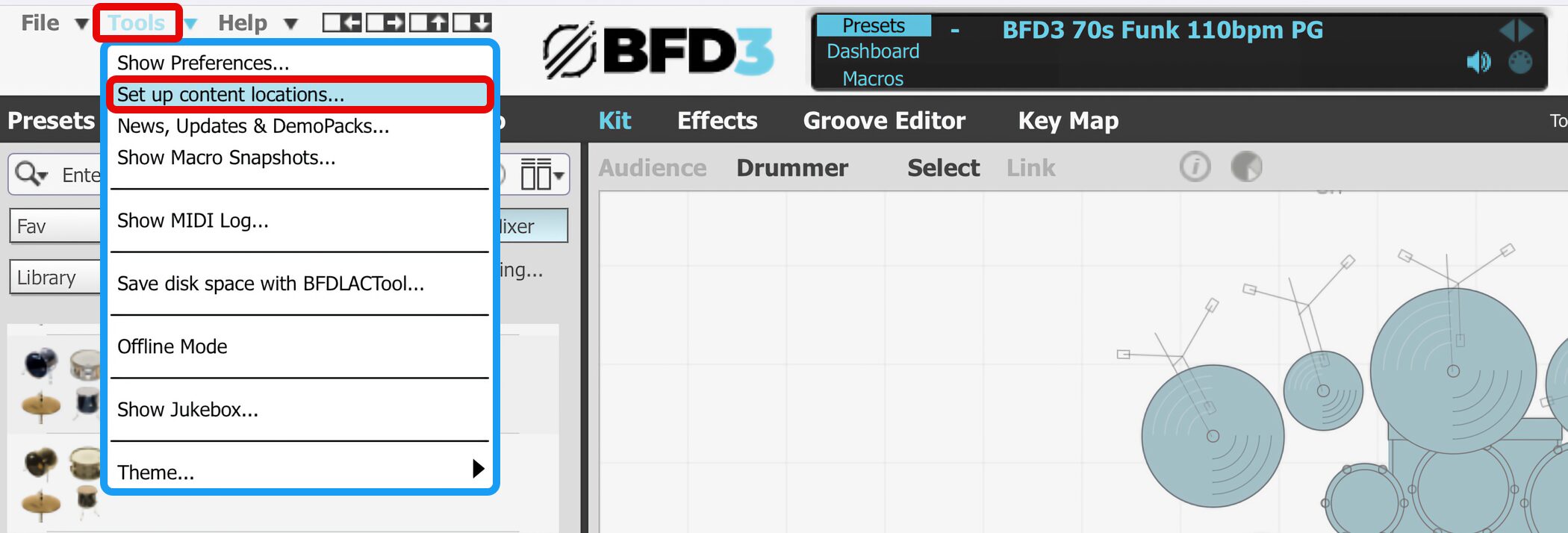
From Tools, select Set up content locations.
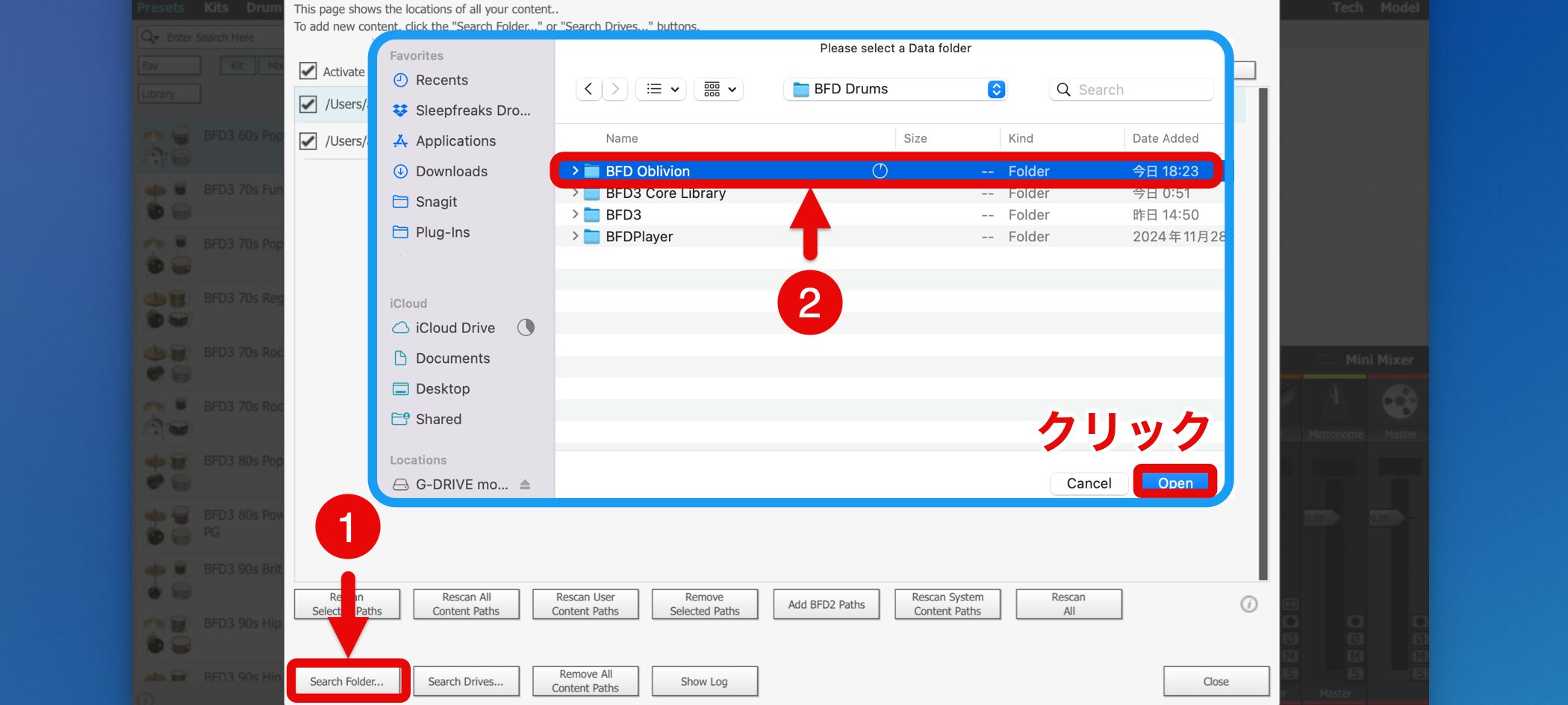
Click Search Folder and select the kit folder to add inside the BFD folder.
If BFD and expansion kits are stored in multiple locations, load both folders.
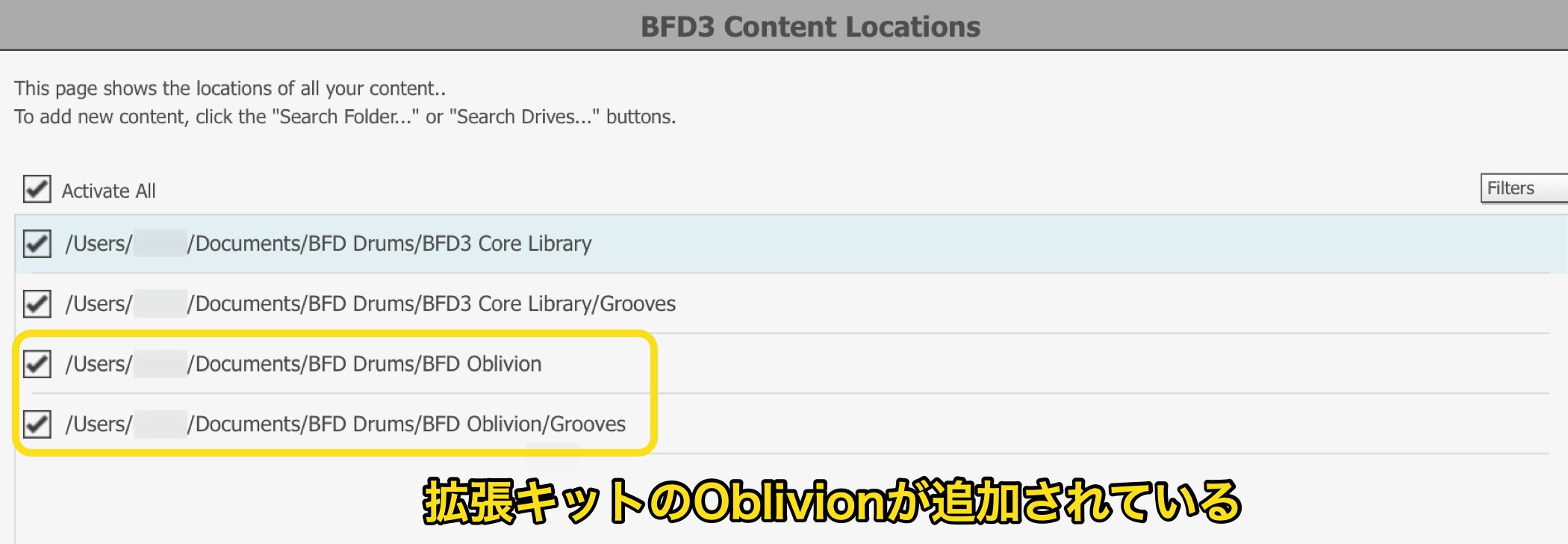
A display like this indicates success.
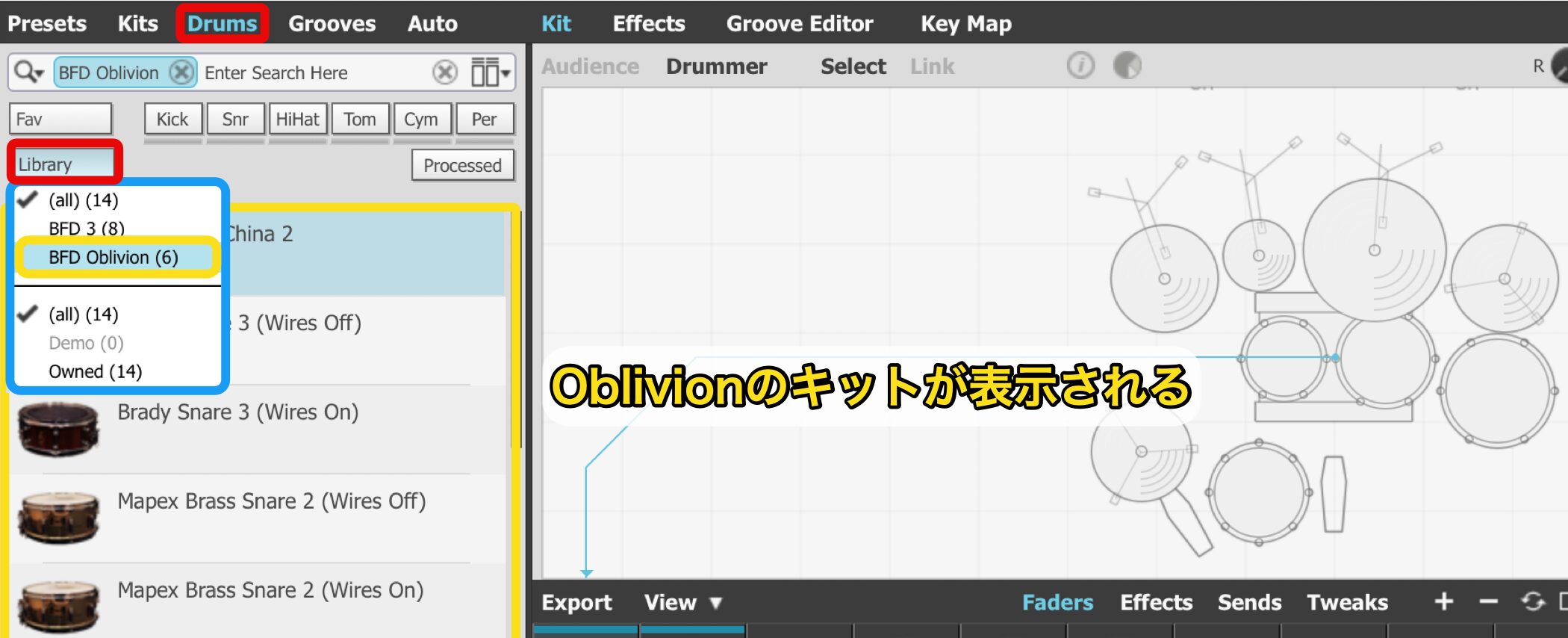
Under Drums, the kit pieces from the BFD Oblivion expansion folder now appear.
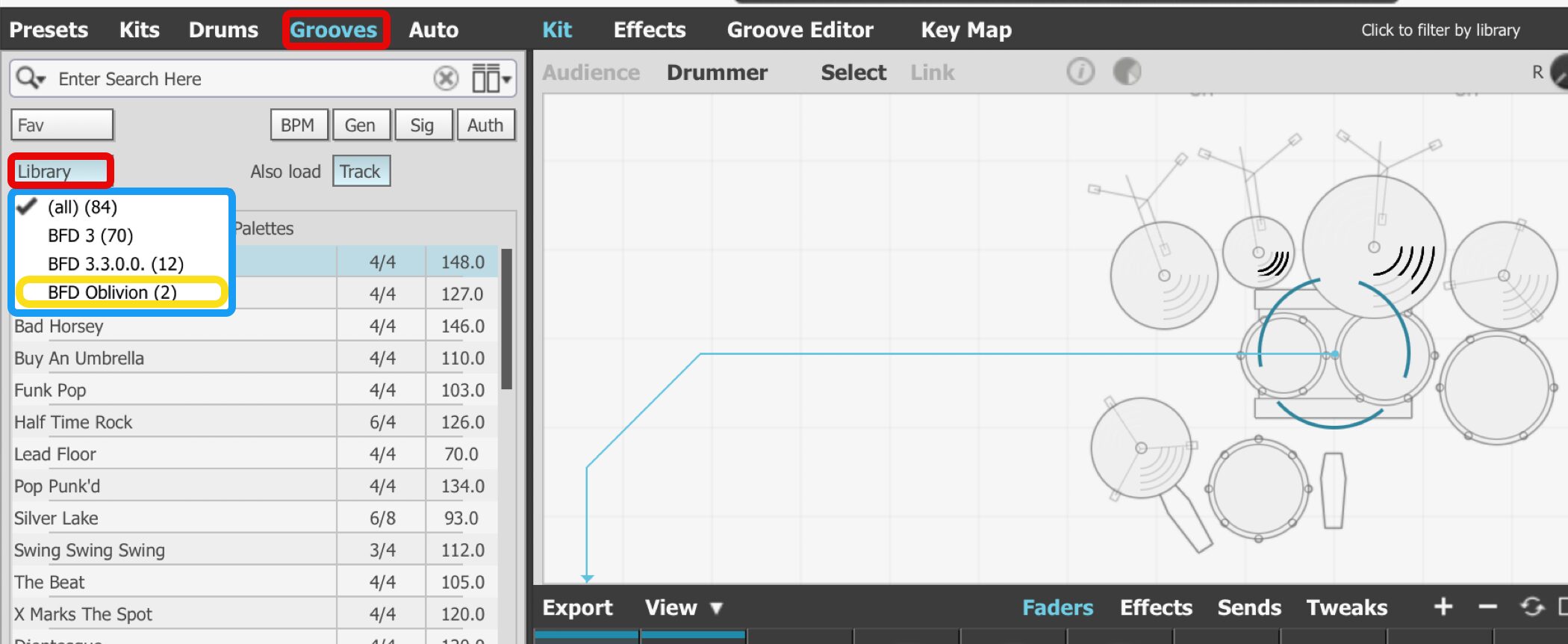
Patterns are loaded in the same way.
Saving a Kit
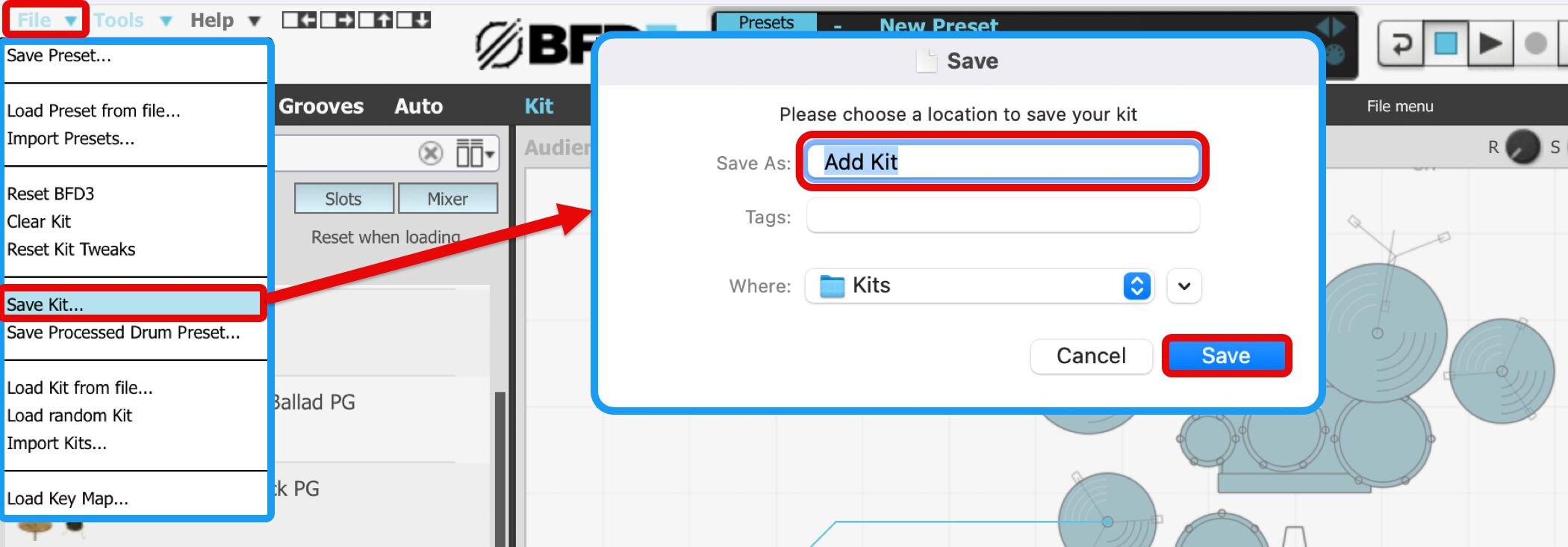
Choose File > Save Kit, name the kit and save it.
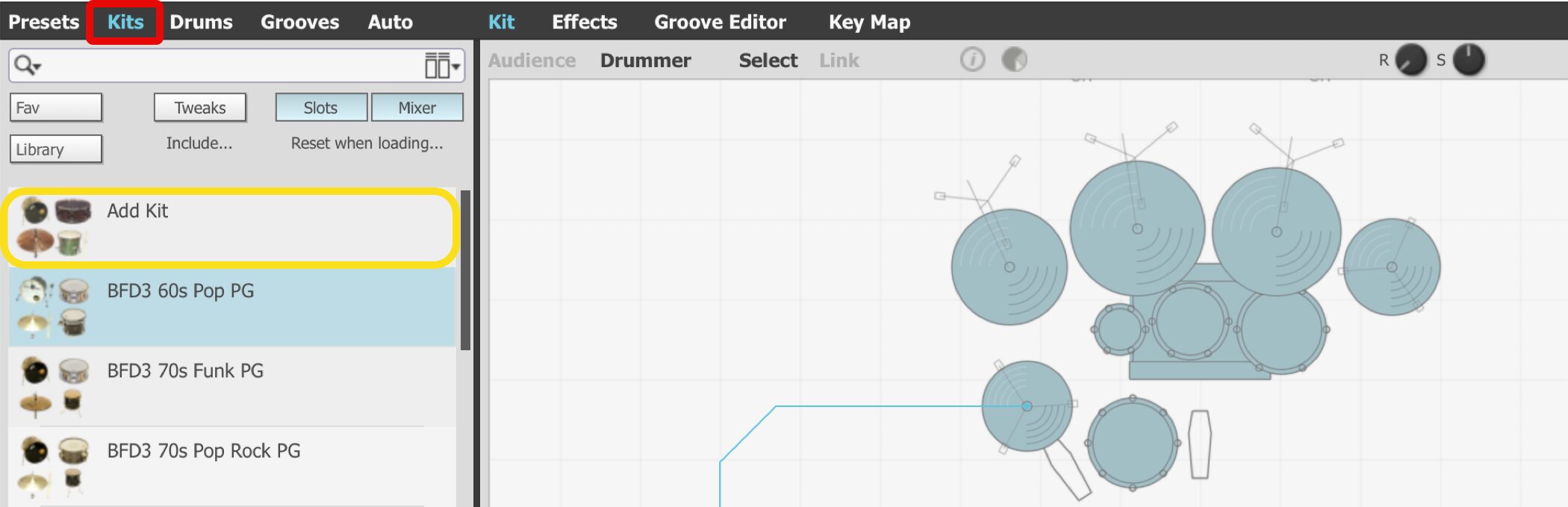
You can load the saved kit from Kits.
Using Groove Rhythm Patterns
An extensive selection of rhythm patterns has become a staple of the BFD series.
Next, let's explore Groove, which controls those patterns.
Even if you aren't confident programming drums, you can quickly add a great pattern to your song!
BFD3 Video: Using Groove Rhythm Patterns
Accessing Groove
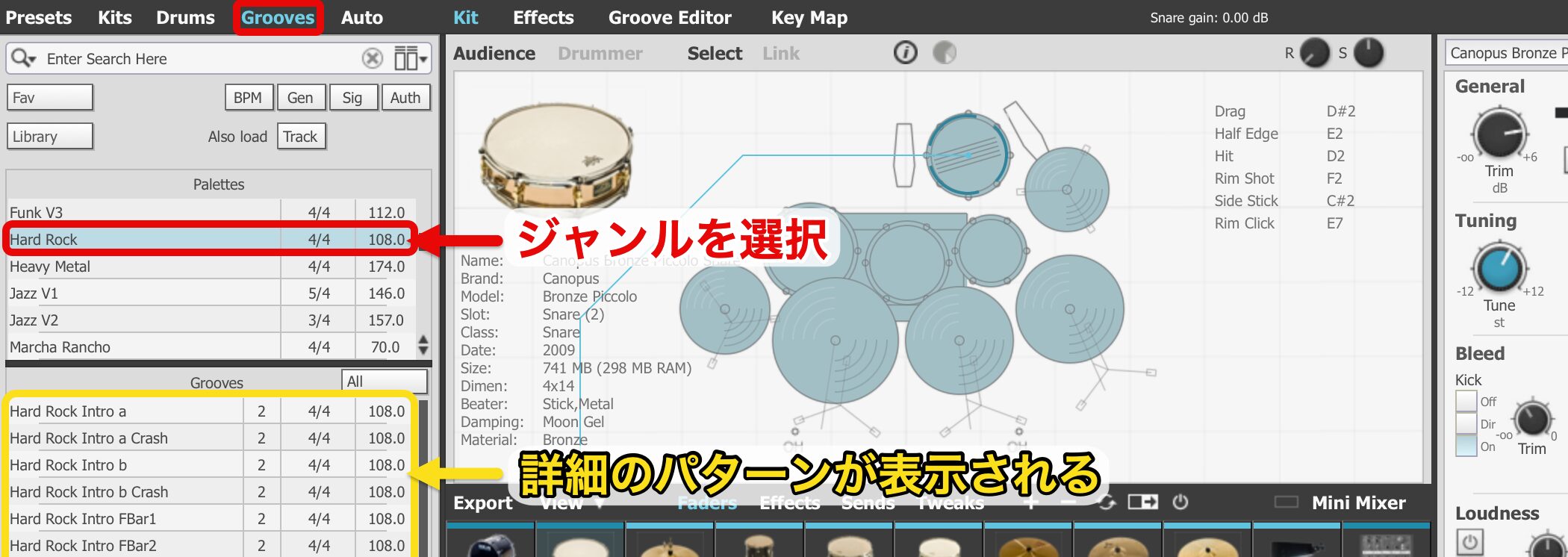
Click Groove to audition patterns.
Choose a genre in the upper section to display its detailed patterns below.
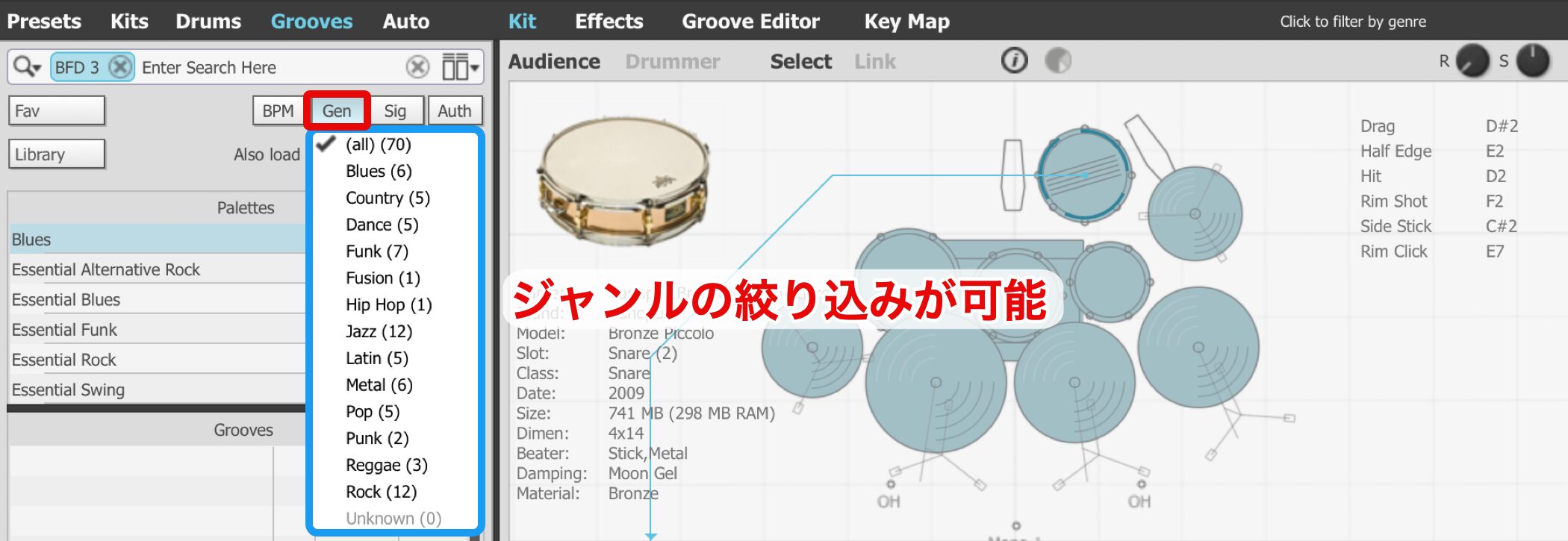
Use Gen to select a pattern genre and narrow the results.
Accessing the Groove Editor
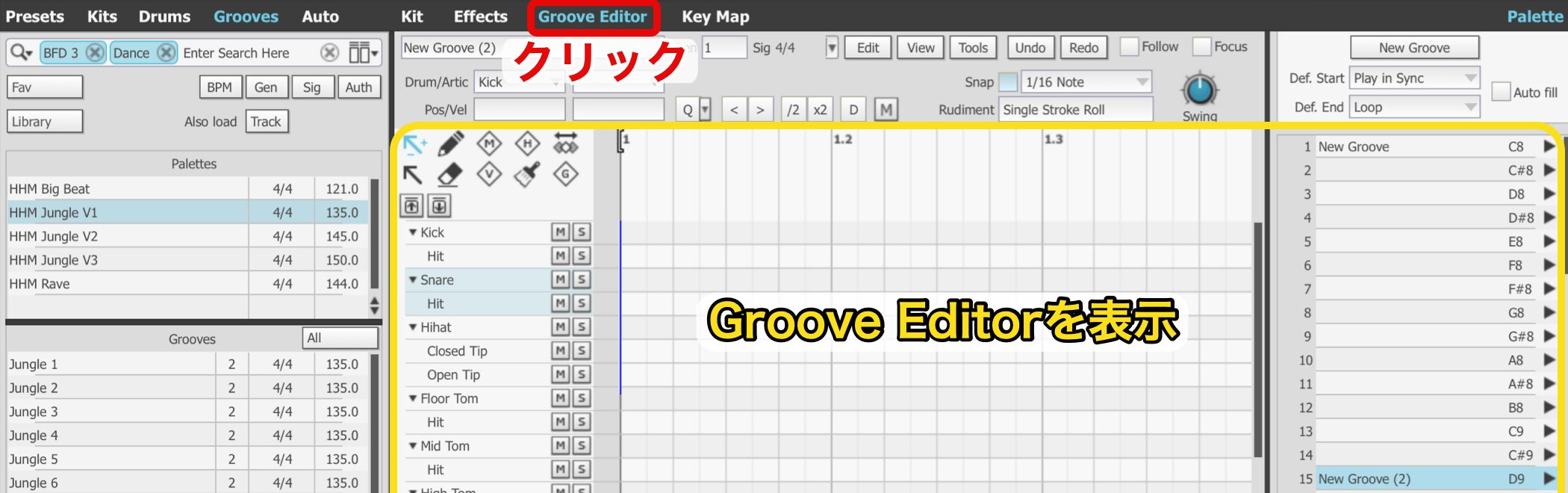
Select Groove Editor to open it.
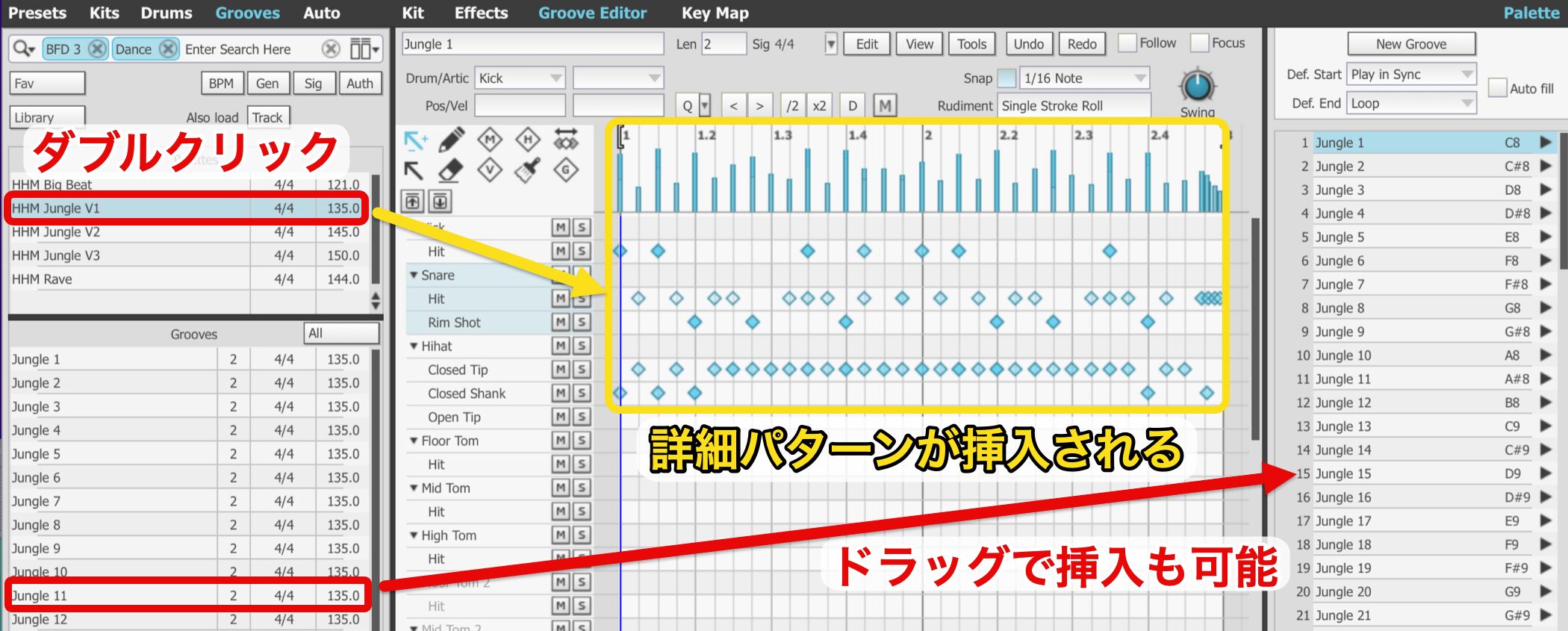
Double-click a genre in the upper section to insert its detailed patterns below all at once.
You can also drag individual patterns in.
Video Point: Insert a Pattern into Your DAW
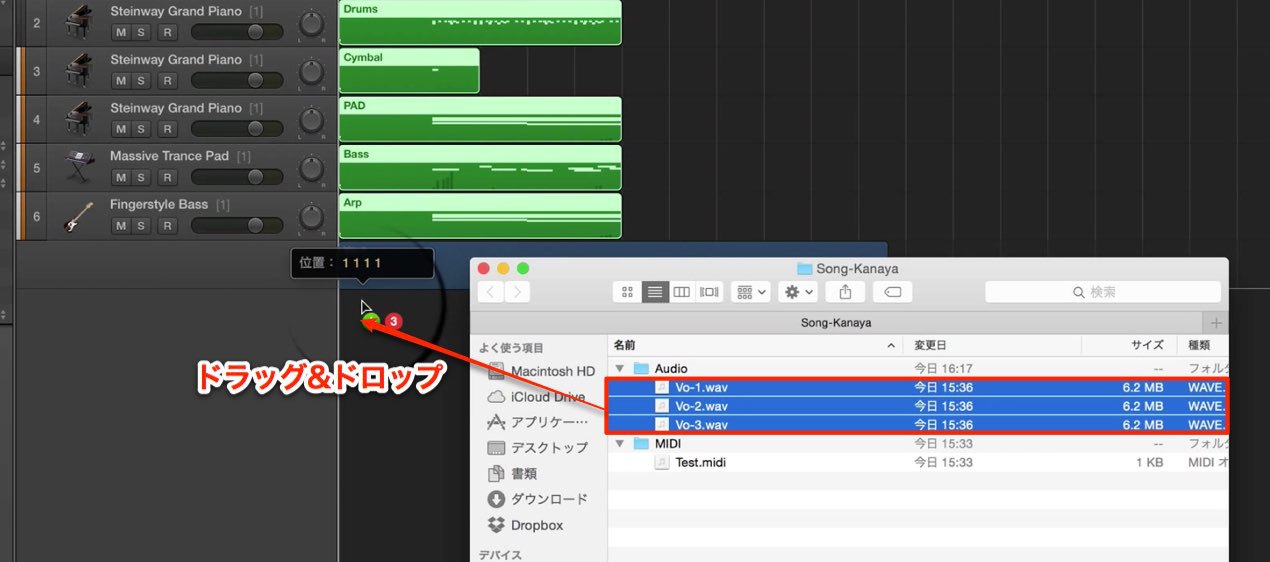
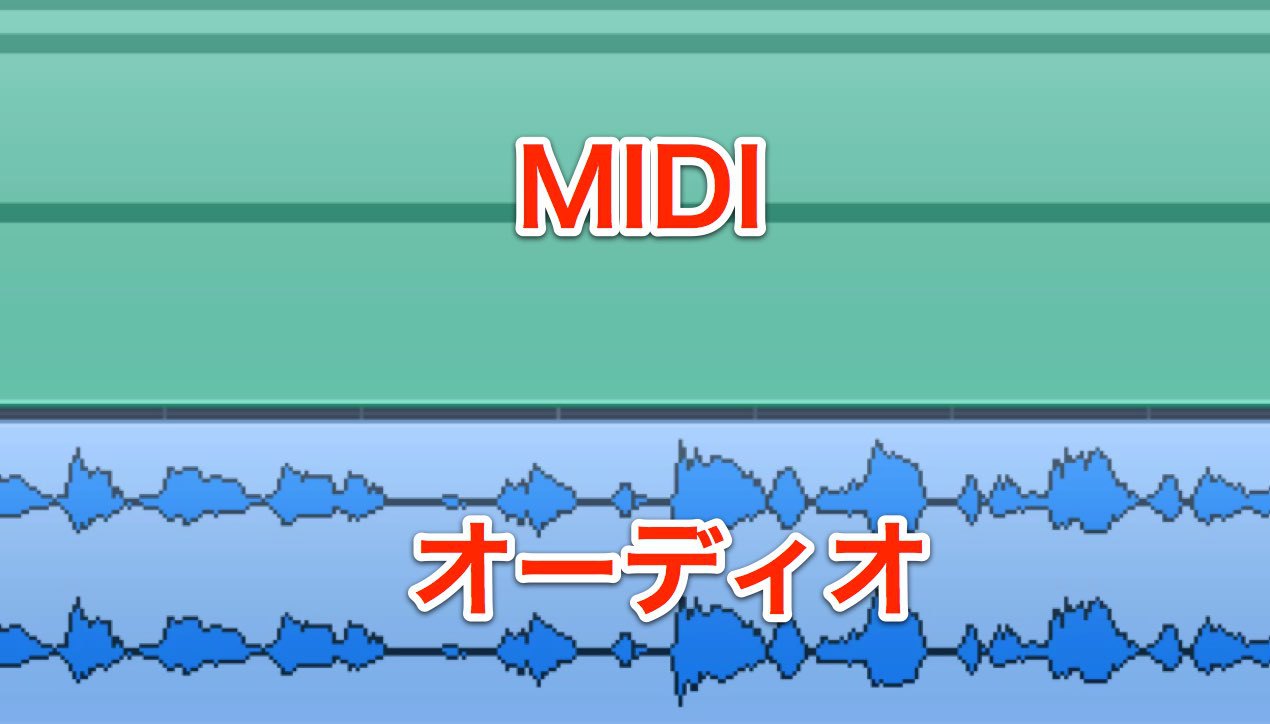
Patterns can be inserted into a DAW as MIDI files.
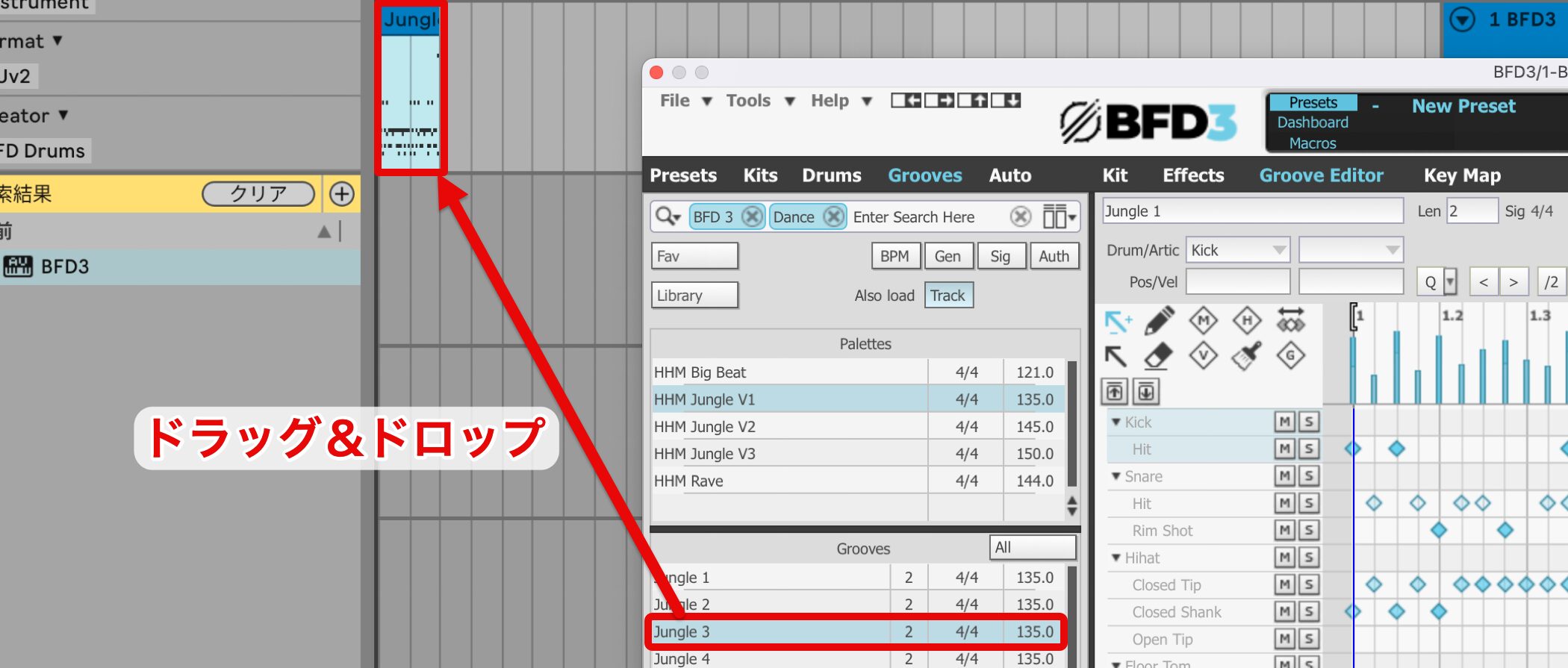
Simply drag a pattern you like onto the BFD3 track in your DAW.
Insert a Pattern into Your DAW as Audio
You can also insert a pattern as an audio file instead of MIDI.
This makes audio-specific processing easy.
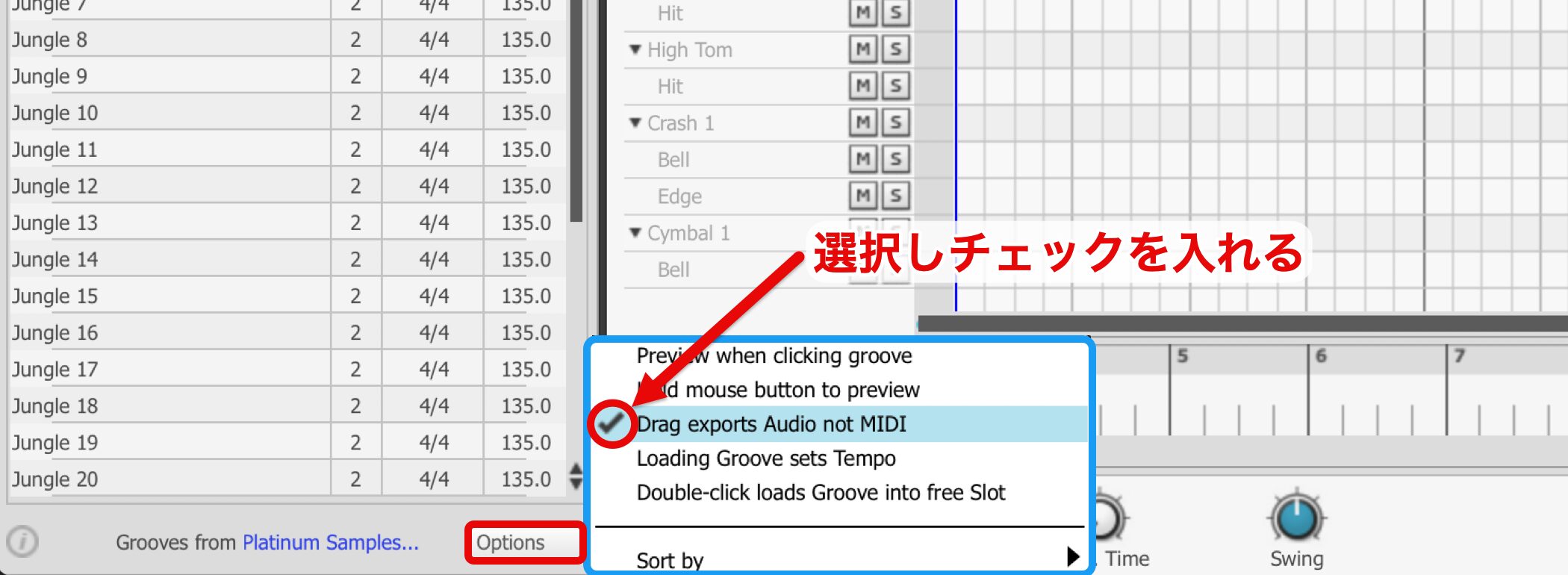
Under Options, check Drag exports Audio not MIDI.
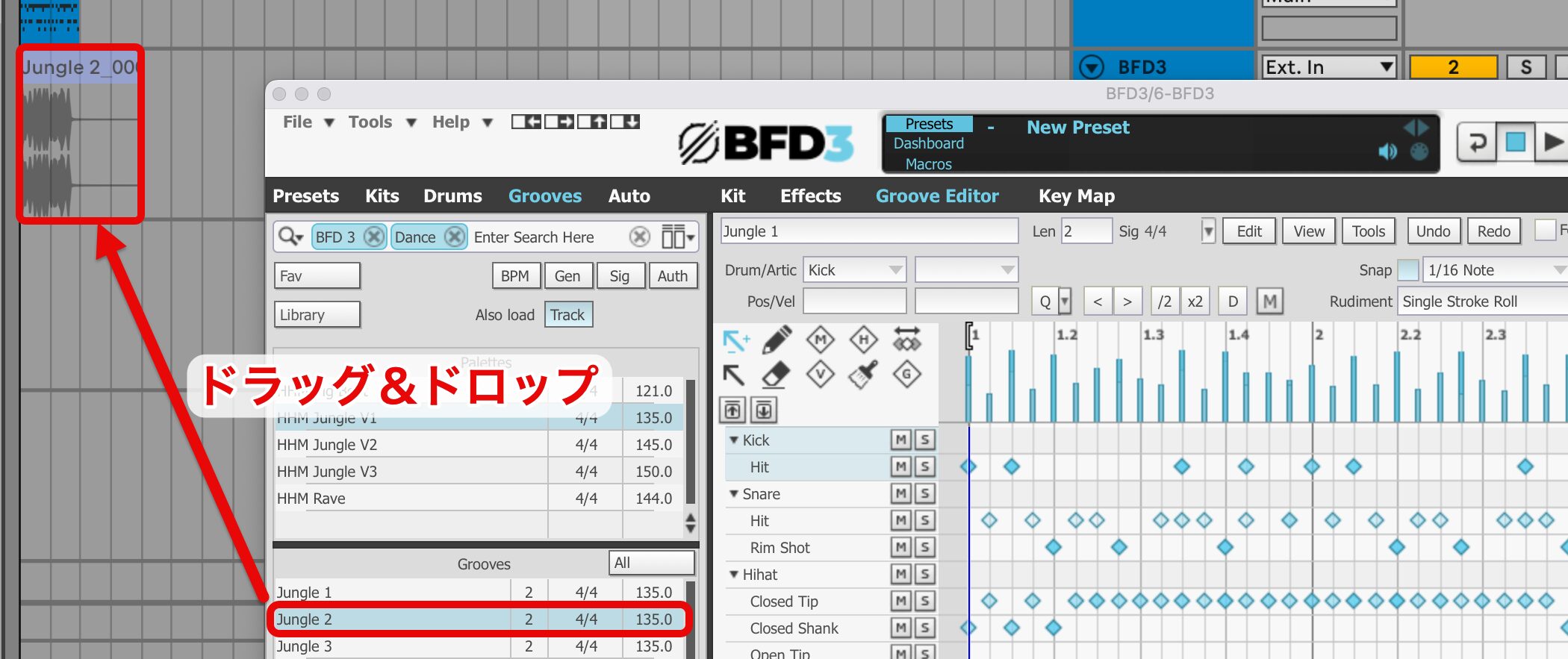
Then drag and drop the pattern as you would with MIDI.
Editing a Kit
After choosing a kit and pattern, adjust the kit to suit the song.
This is one of BFD3's great pleasures.
The editing is so detailed that, at worst, it can take all day!
Be sure to save an edit you like.
BFD3 Video: Editing a Kit
Changing Stereo Perspective
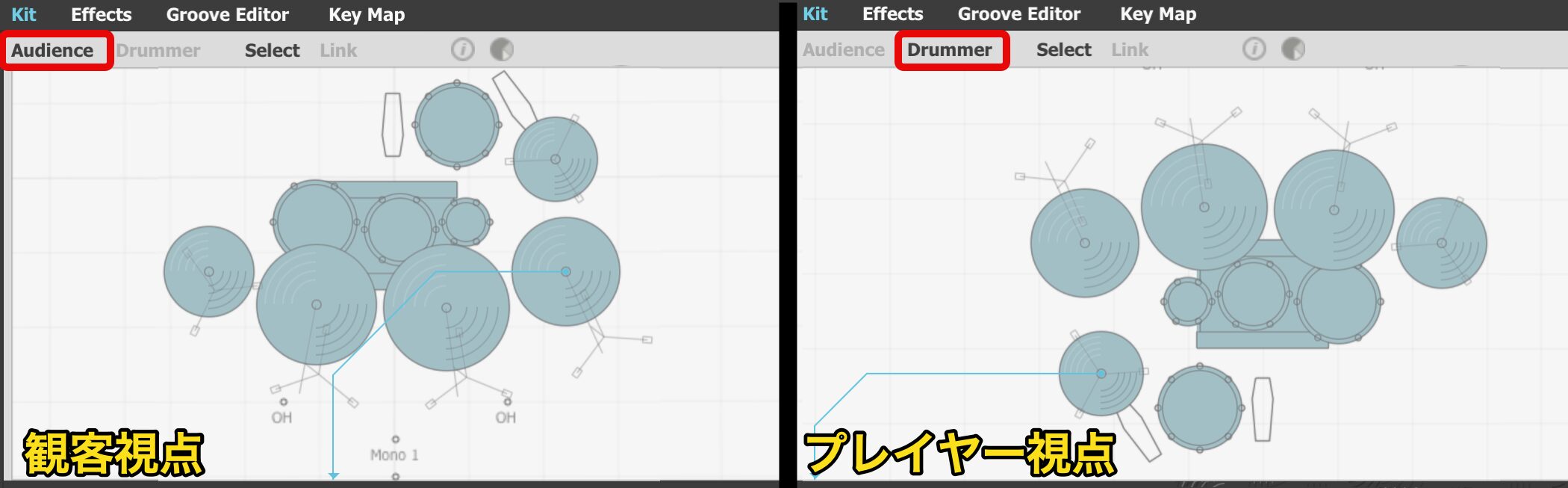
You can change the drum perspective with a click.
- Audience: the kit layout as viewed by the audience.
- Drummer: the kit layout as viewed by the player.
Choose whichever fits the song and your intended image.
General
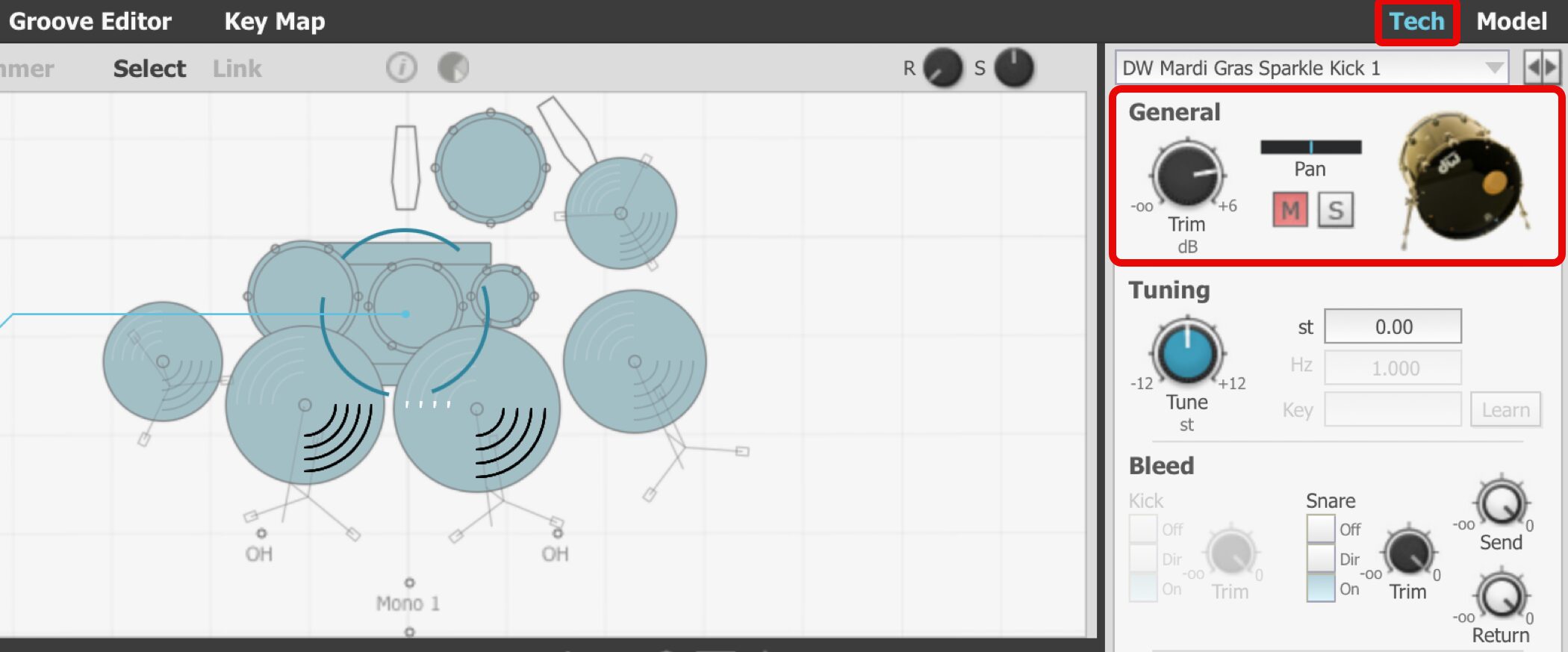
The General section of the Tech tab lets you control volume, pan, mute and solo.
DAW users should find these controls familiar, but note that Trim (volume) also affects microphone bleed.
Tuning
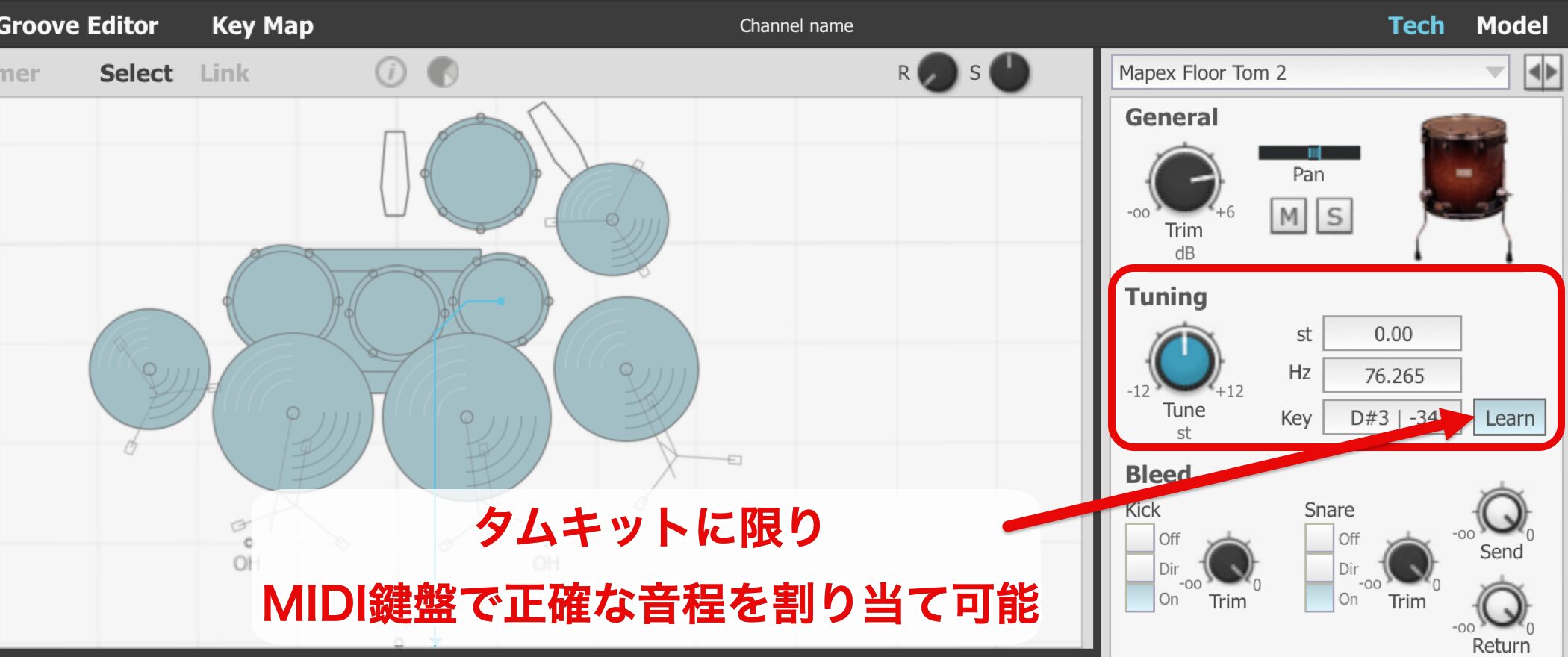
Tuning lets you adjust the pitch of each kit piece.
For toms, you can also enable Learn and play a MIDI key to assign an exact pitch.
Bleed
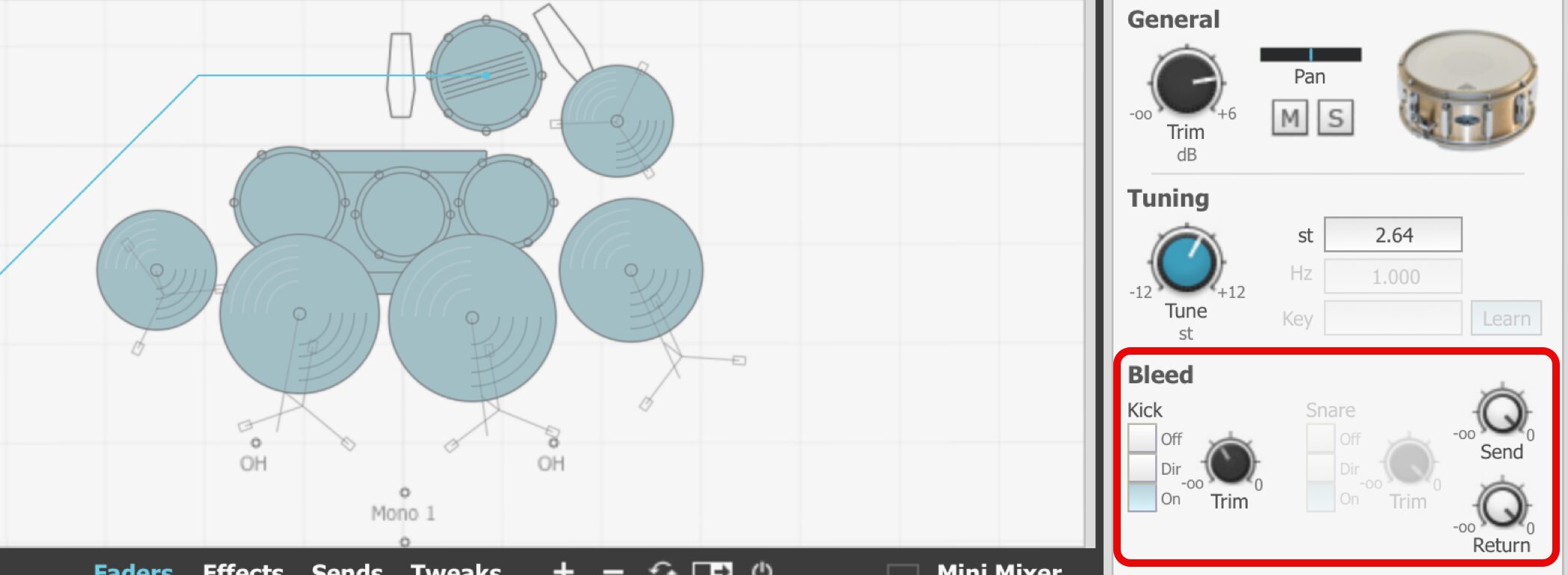
Bleed determines how much of a kit piece is picked up by the kick and snare microphones.
This spill is a characteristic of live drum recording and adds a rougher, thicker sound.
The default amount is relatively high.
Reduce it if you want a tighter sound.
Ambient Mics

Think of these as microphones placed some distance from the drums to capture the surrounding space.
The OH microphones sit above the cymbals and capture the whole drum kit.
They are particularly important among the ambient microphones.
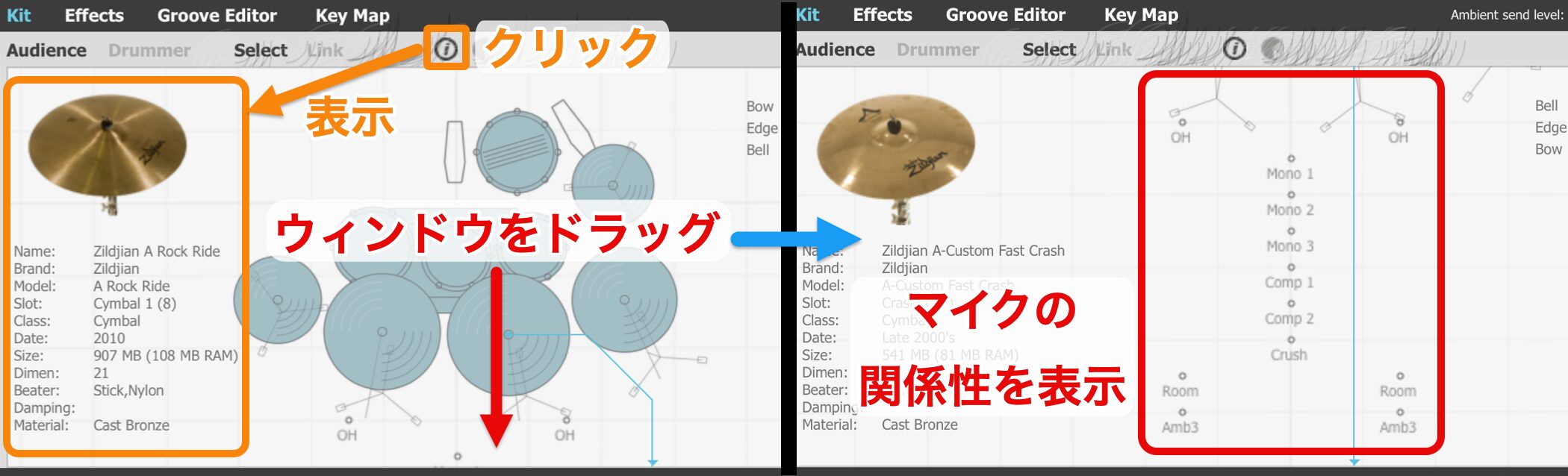
You can drag the window to see the microphones' relationships visually.
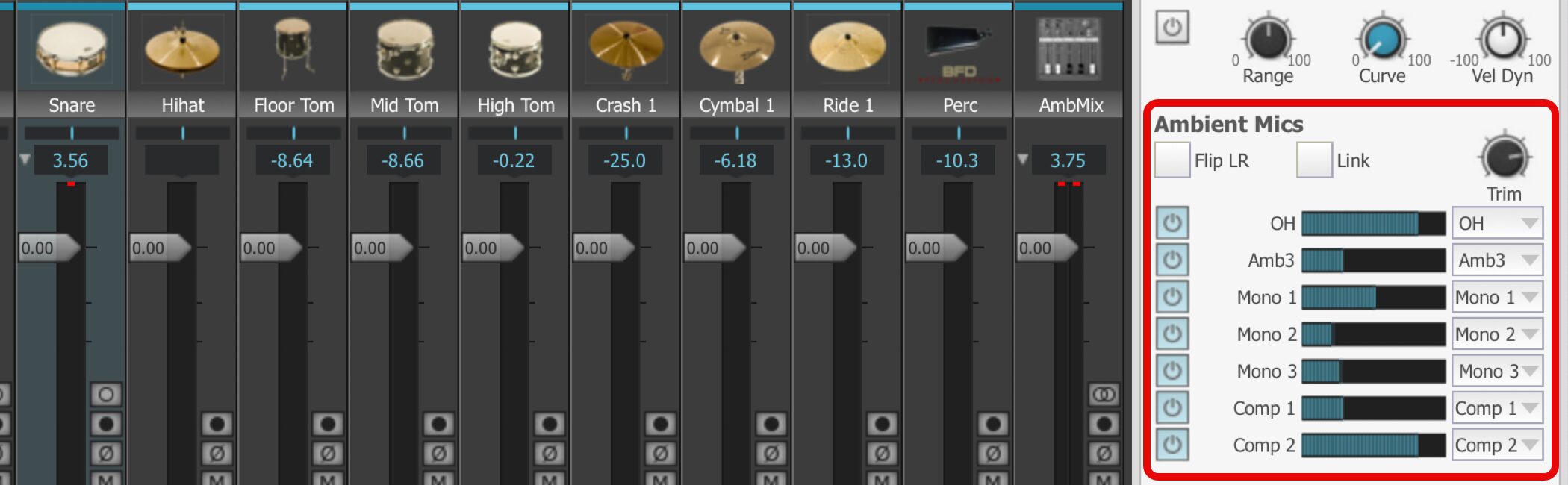
A considerable amount is set by default.
Adjust while listening to the ambience, focusing on the OH microphones.
Damping and Articulations (Model)
You can edit your adjusted kit in more detail.
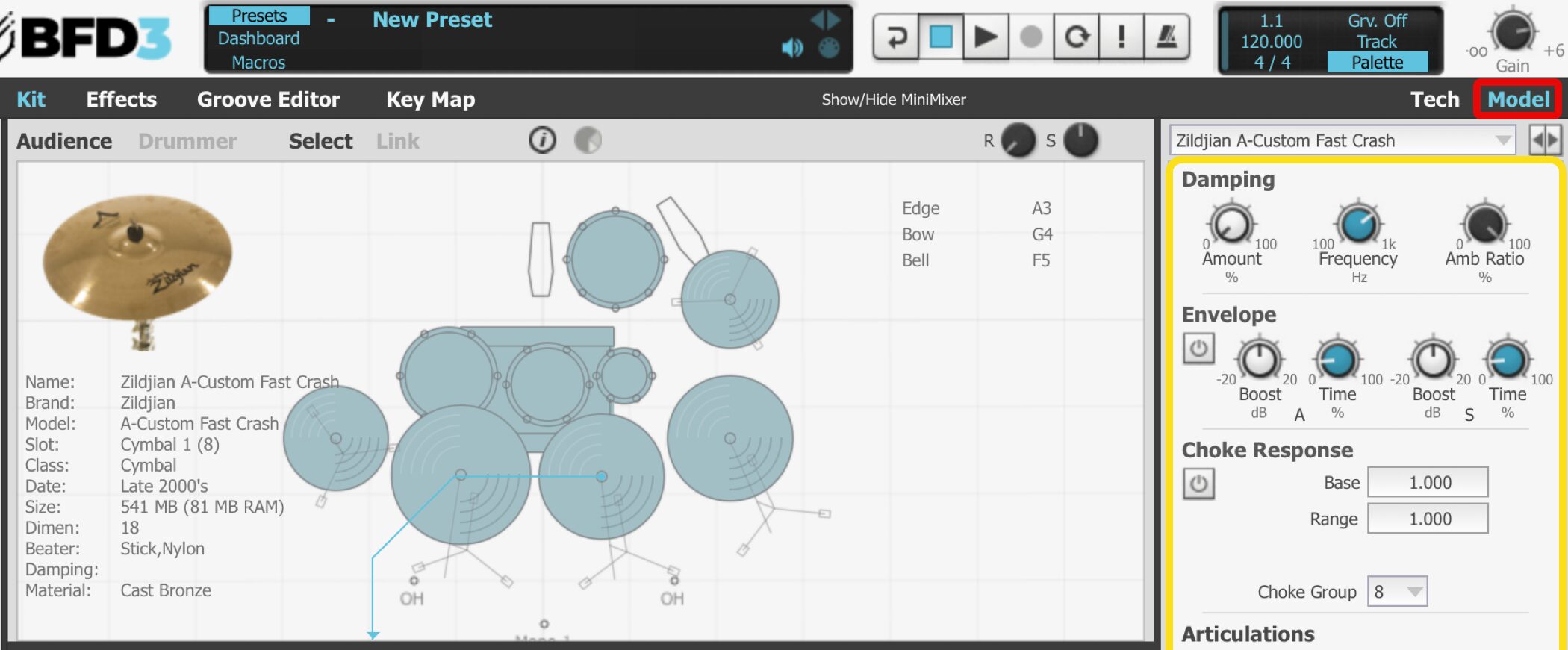
In the Model section, adjust the kit's resonance, damping and playing techniques.
These controls may seem specialized, but they help you get the most out of BFD3 and fit it to your song.
BFD3 Video: Model
Damping
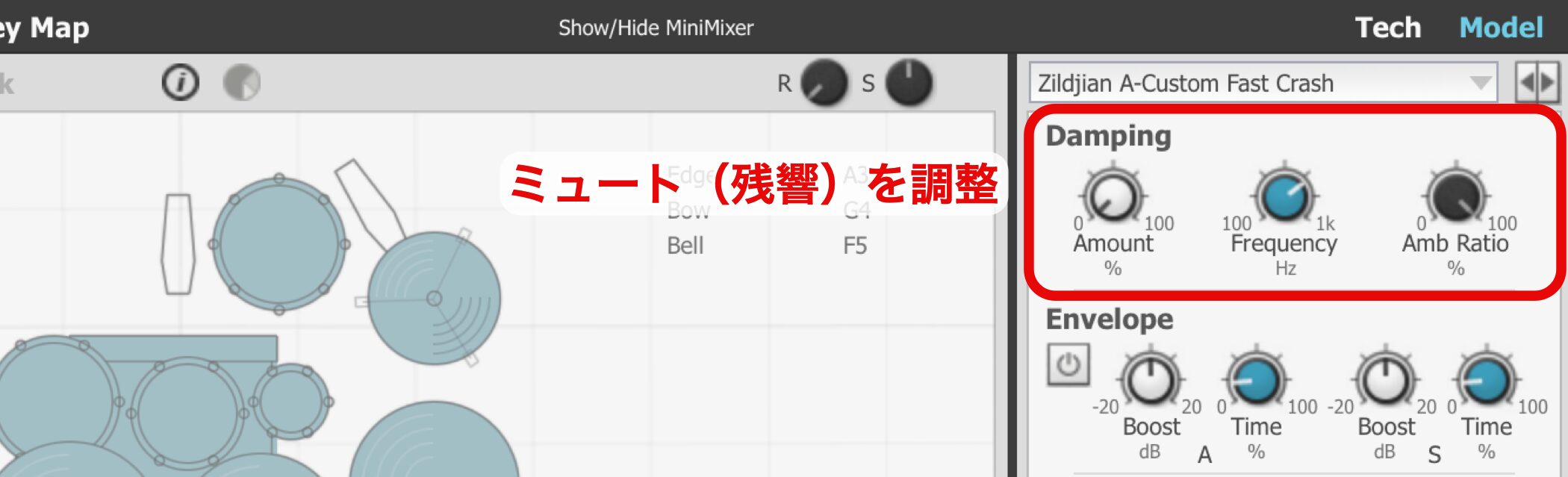
Damping lets you adjust the kit's damping and resonance.
- Amount: higher values shorten the kit's resonance.
- Frequency: specifies the frequency used to shape Amb Ratio below.
- Amb Ratio: determines the ambient microphones' resonance.
Lower values shorten the resonance.
Damping is an important element that has a major effect on the groove and feel of a song.
Articulations
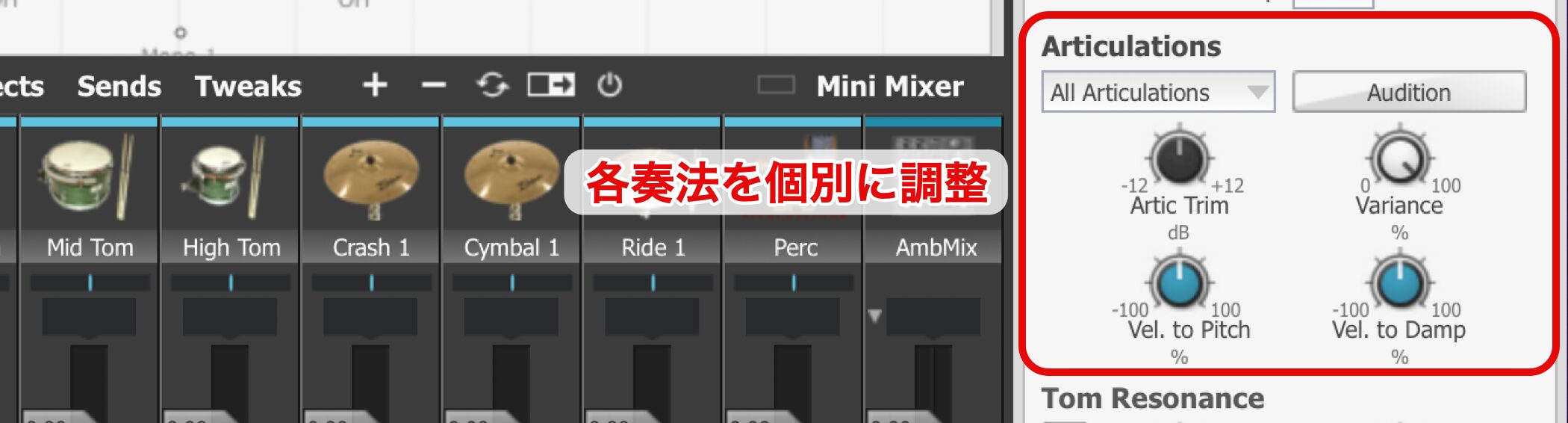
Kit pieces contain various playing techniques.
In Articulations, you can adjust each technique individually.
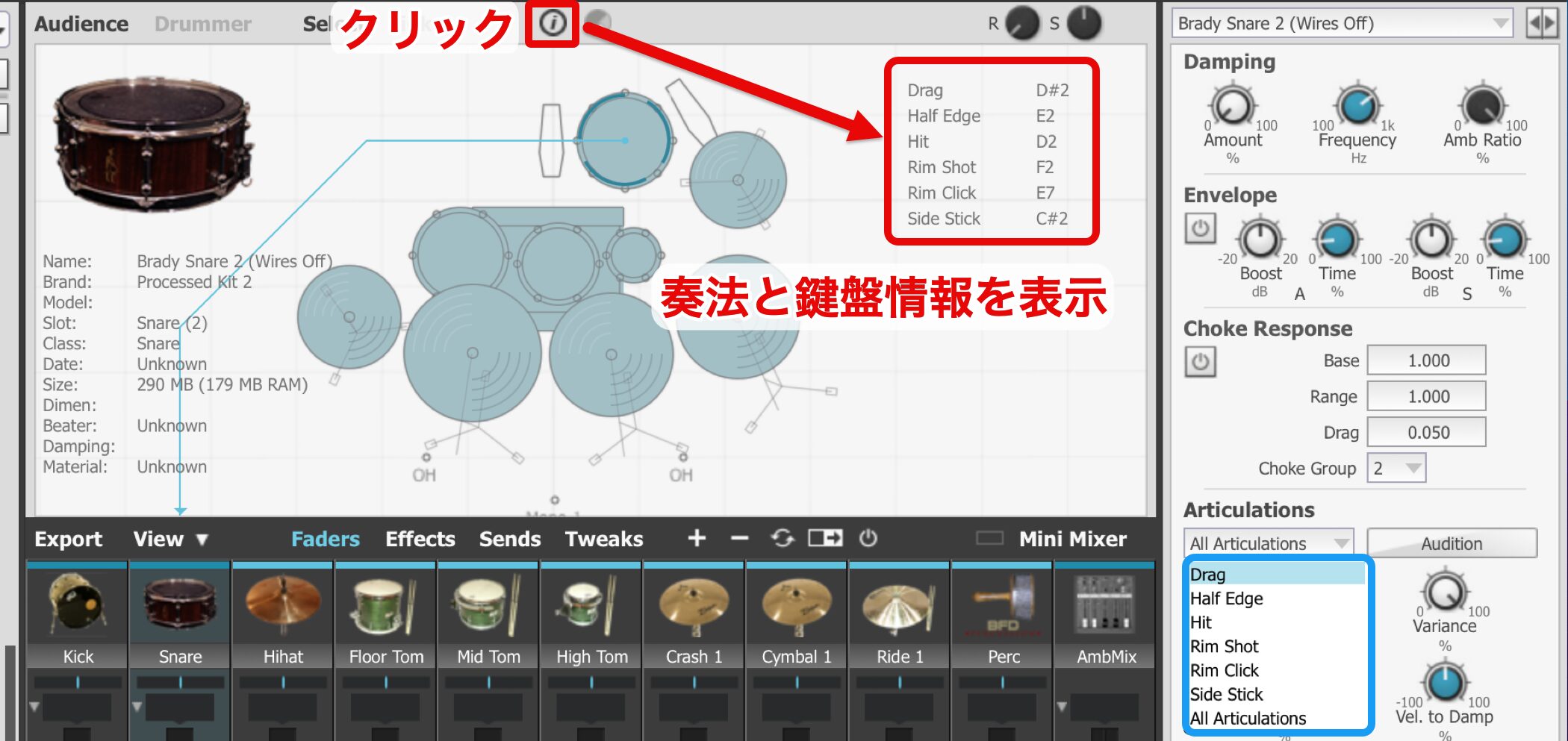
Enable the i in the area outlined in red to see each kit piece's articulations and corresponding keys.
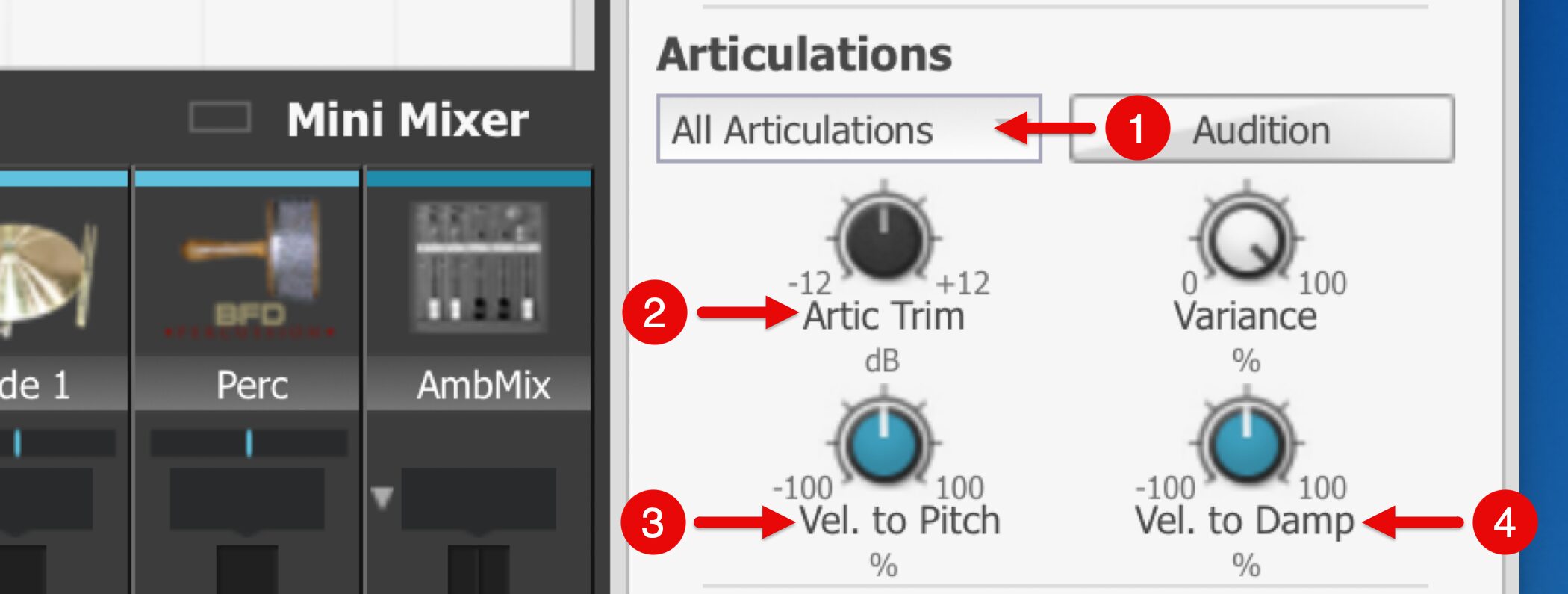
- 1. Select the articulation to adjust.
- 2. Arctic Trim: control the volume of the selected articulation.
- 3. Vel to Pitch: adjust how much velocity changes pitch.
- 4. Vel to Damp: adjust how velocity changes resonance.
The pitch of a real drum changes with playing strength.
For that reason, try adding a small amount of Vel to Pitch.
Mixer and Separate Outputs
Once the kit is adjusted, it's time to move on to exporting.
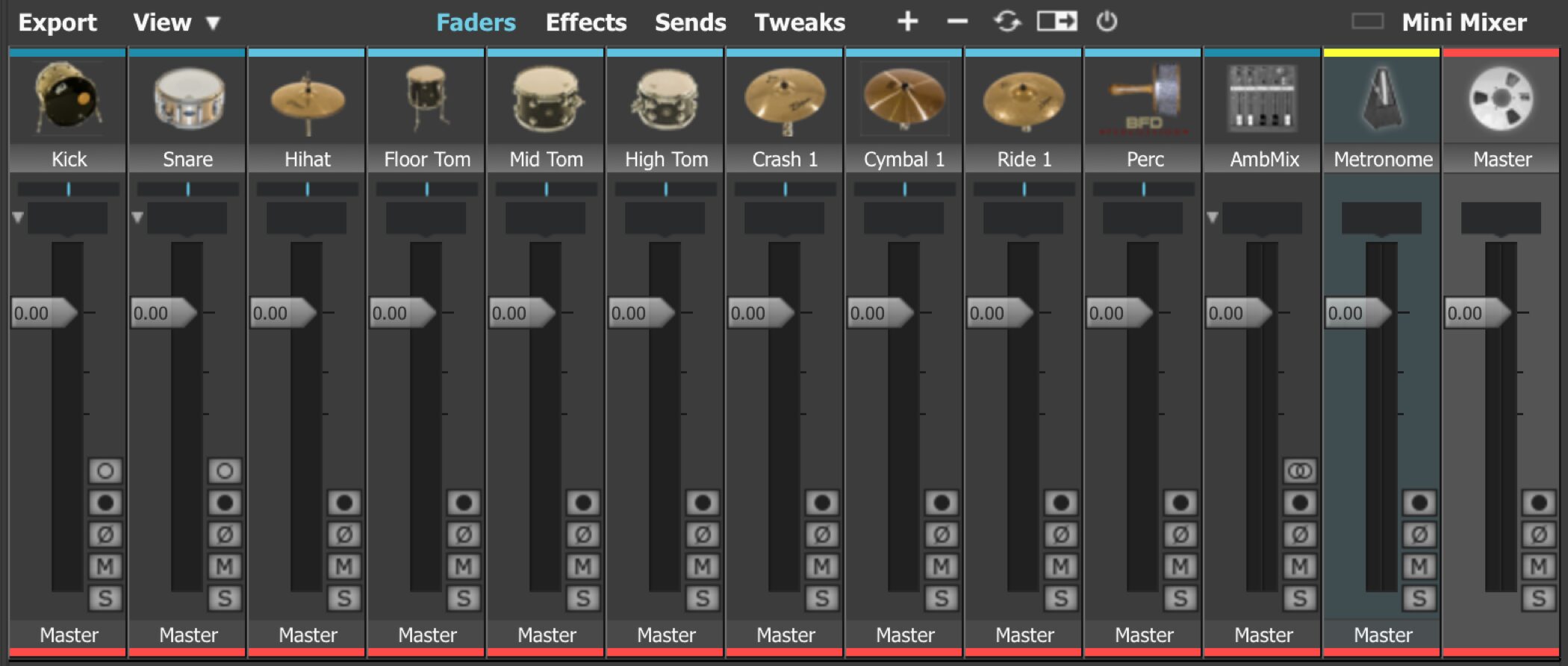
Let's examine the BFD3 mixer, focusing on separate outputs for detailed track editing.
BFD3 Video: Mixer and Separate Outputs
Expanded Mixer
Most mixer parameters are shared with DAWs,
so the controls should feel familiar.
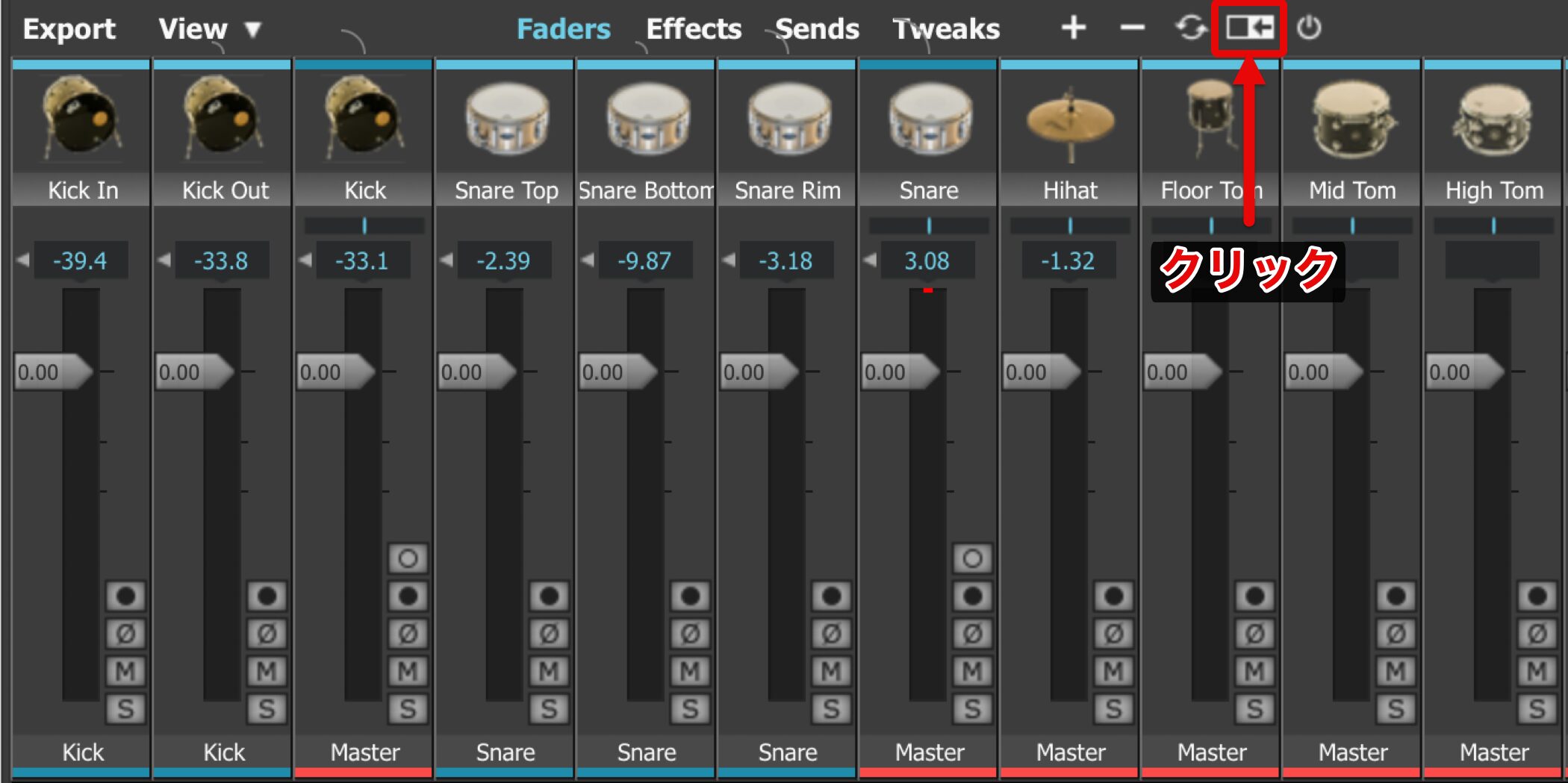
Click the expanded section outlined in red to adjust individual microphones in detail.
Multiple microphones are available for kick, snare, ambience and other sources.
You can adjust their levels and apply effects individually.
AUX Tracks
Use AUX tracks to group several kit pieces or create send-return processing.
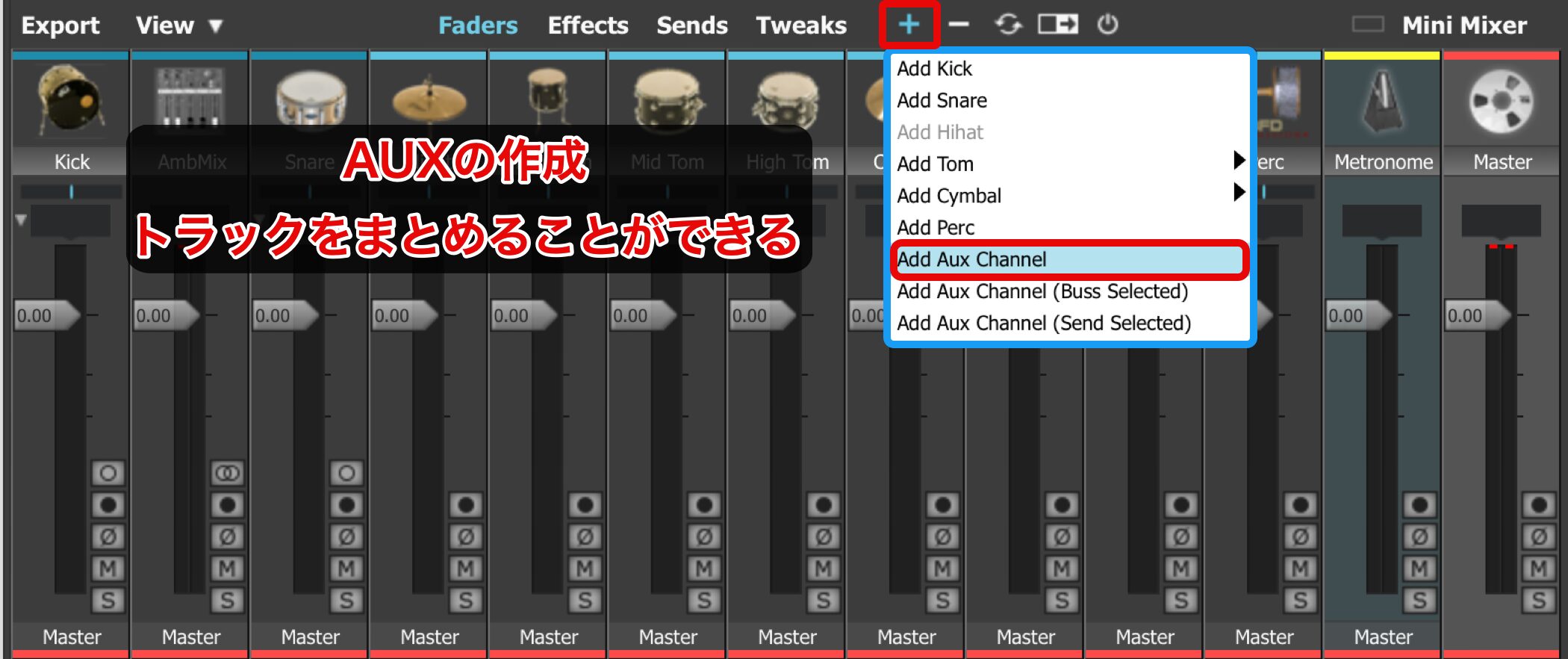
Click + and select Add Aux Channel.
An AUX track is added.
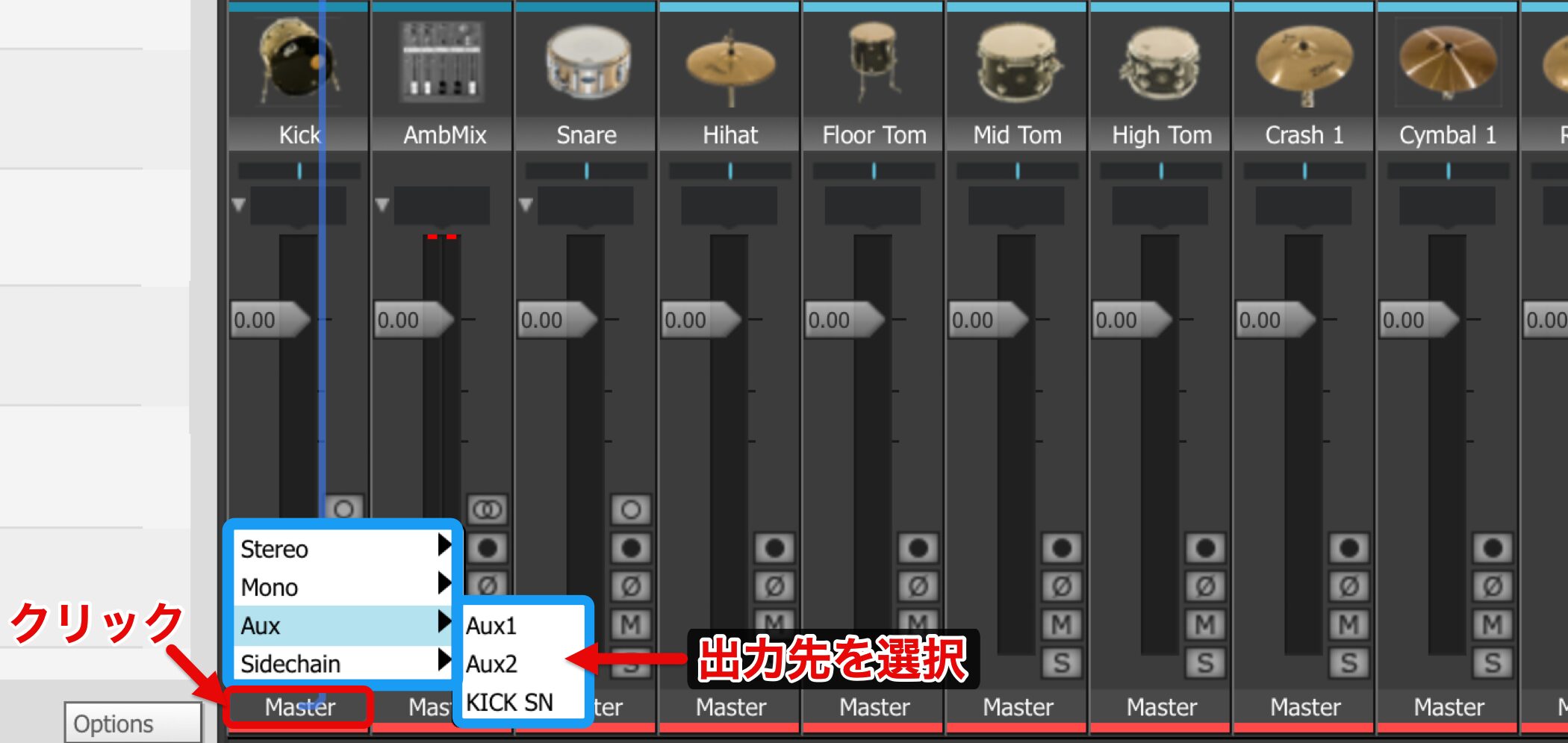
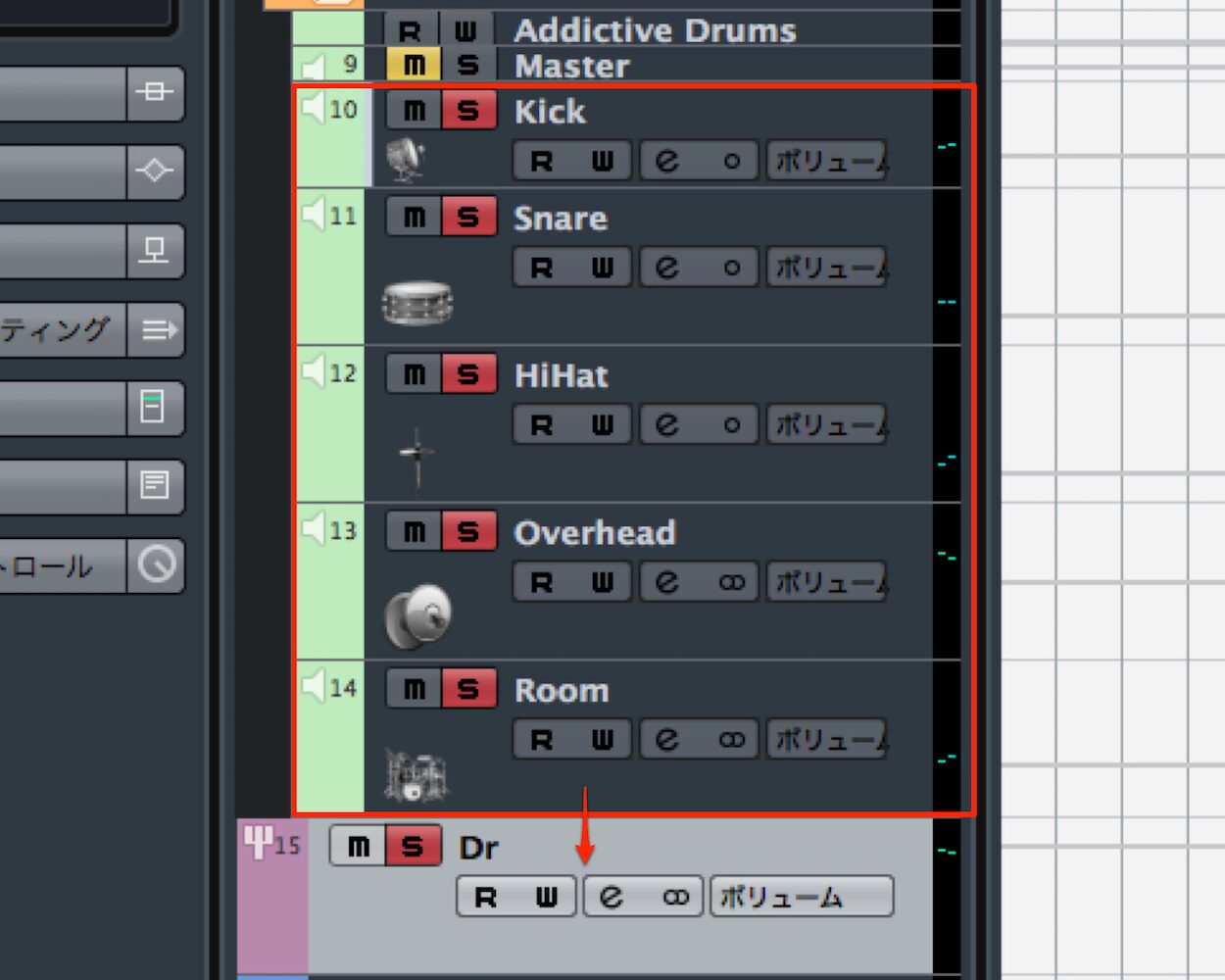
The areas outlined in red are the outputs for each kit piece.
Route the sound from here to an AUX.
Assign several kit pieces to the same AUX to control them together.
Video: AUX
Separate Outputs While Using MIDI

You can route each kit piece to a separate output while it is still played via MIDI.
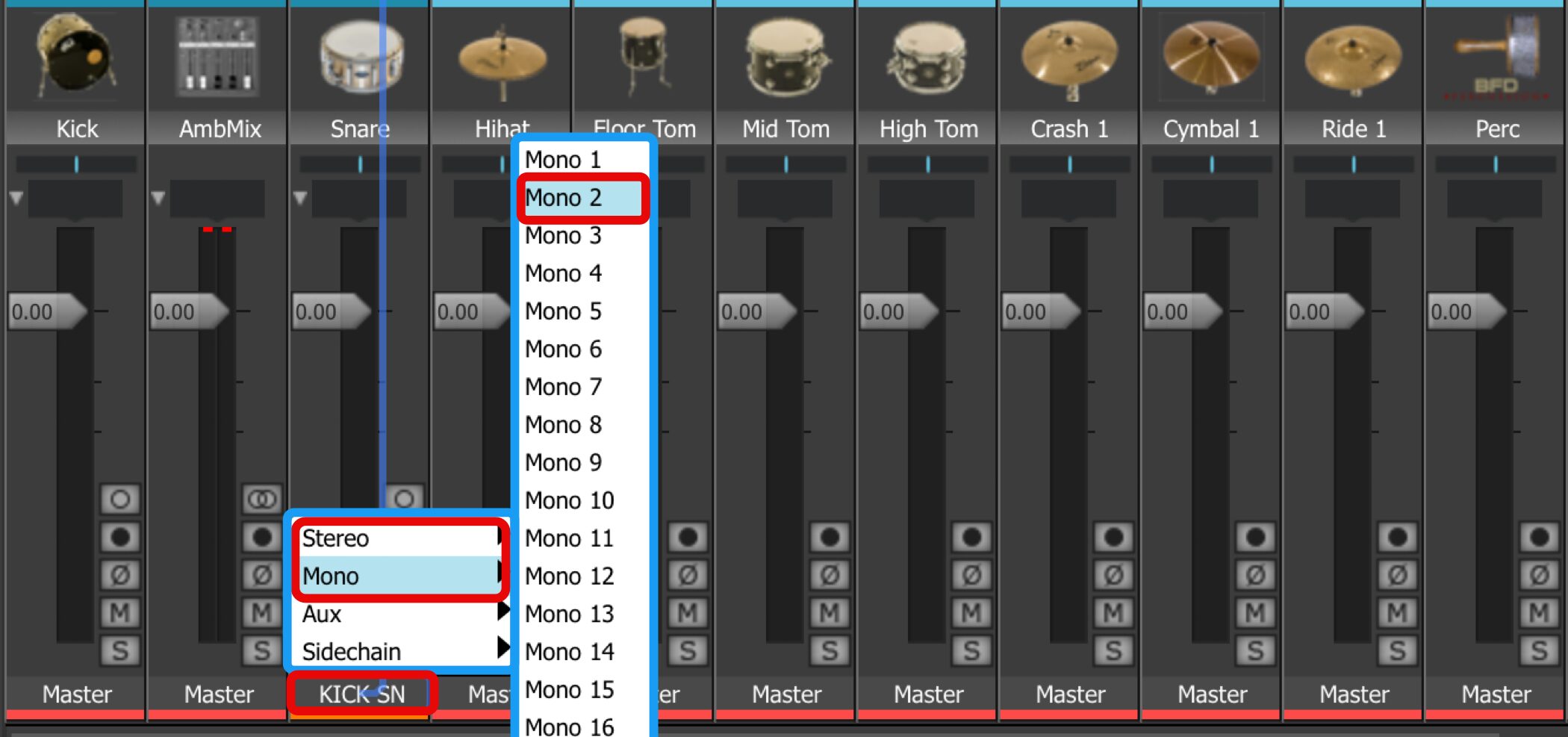
As with AUX, choose Mono or Stereo from each kit piece's output.
Use a different output channel for each piece.

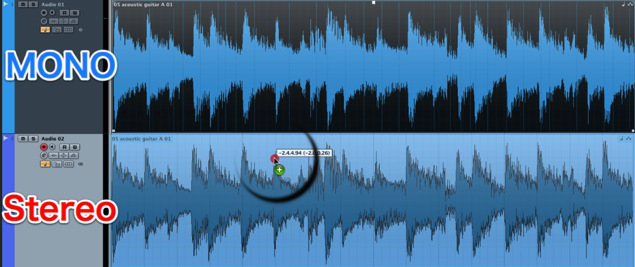
Here's how to distinguish Stereo and Mono:
- Left: two meters indicate Stereo.
- Right: one meter indicates Mono
.
Then configure your DAW.
Separate Output Instructions by DAW
 Logic
 Cubase
 Ableton Live
 Studio One
 FL Studio
Exporting Separate Audio Outputs
You can export each kit piece as an audio file.
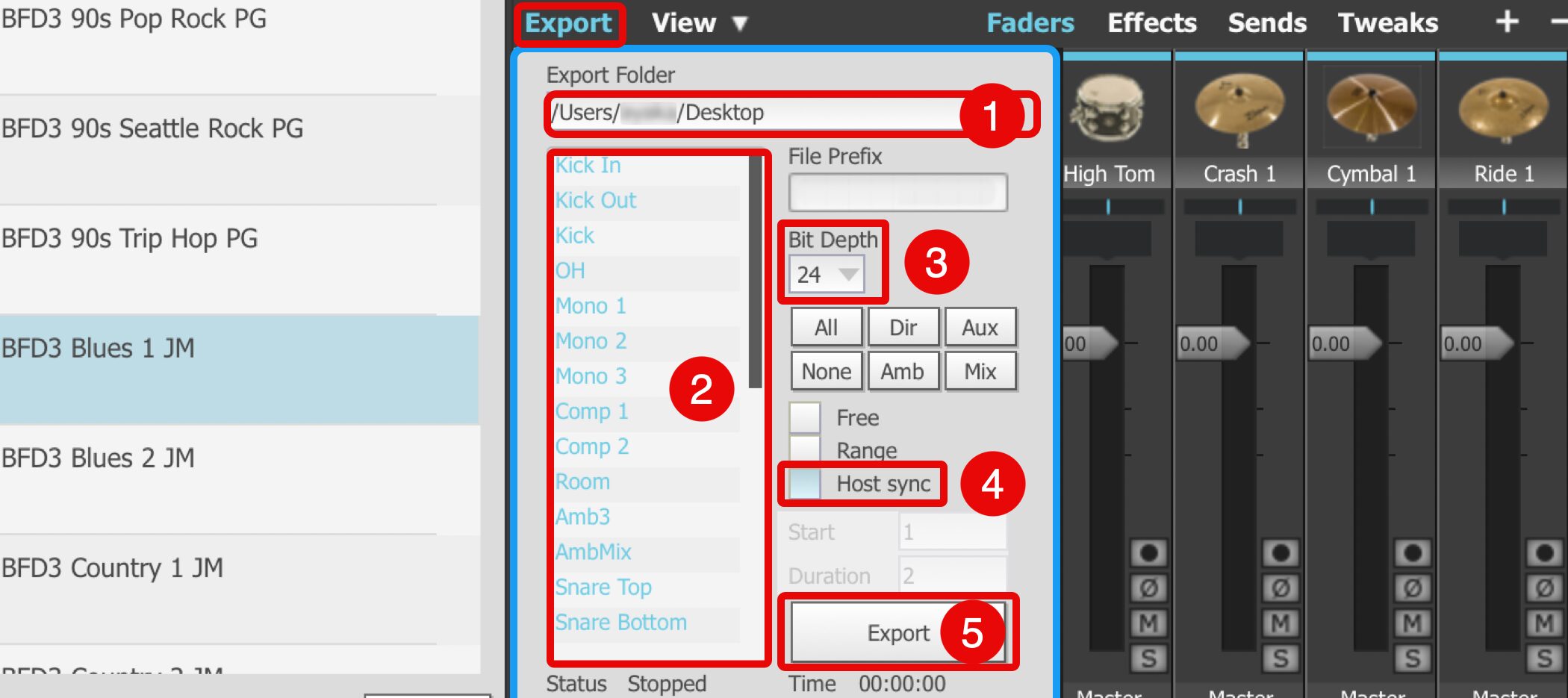
Click Export.
- 1. Choose where to save the files.
- 2. Click the kit pieces to export; they light up blue.
- 3. Match the song's bit depth.
- 4. Check Host sync.
The export will sync to your DAW's bars. - 5. Click Export.
BFD3 will wait to export; play the DAW from the first bar to the end of the song.
Audio files will be exported for the range played.
Mapping MIDI Performances from Other Drum Software
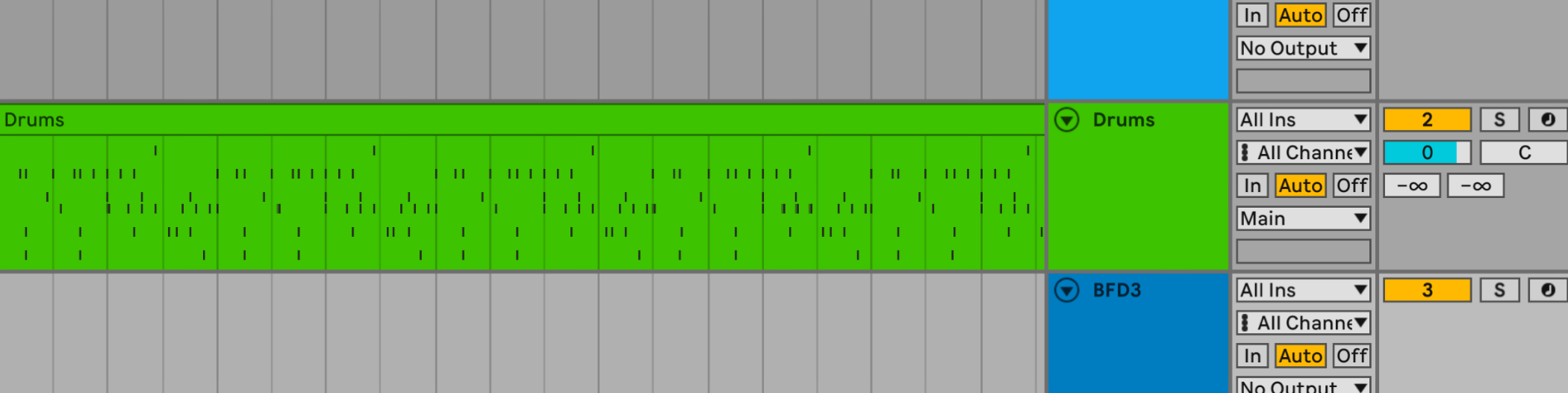
You have drum patterns programmed in other software.
You may want to play those patterns with BFD3.
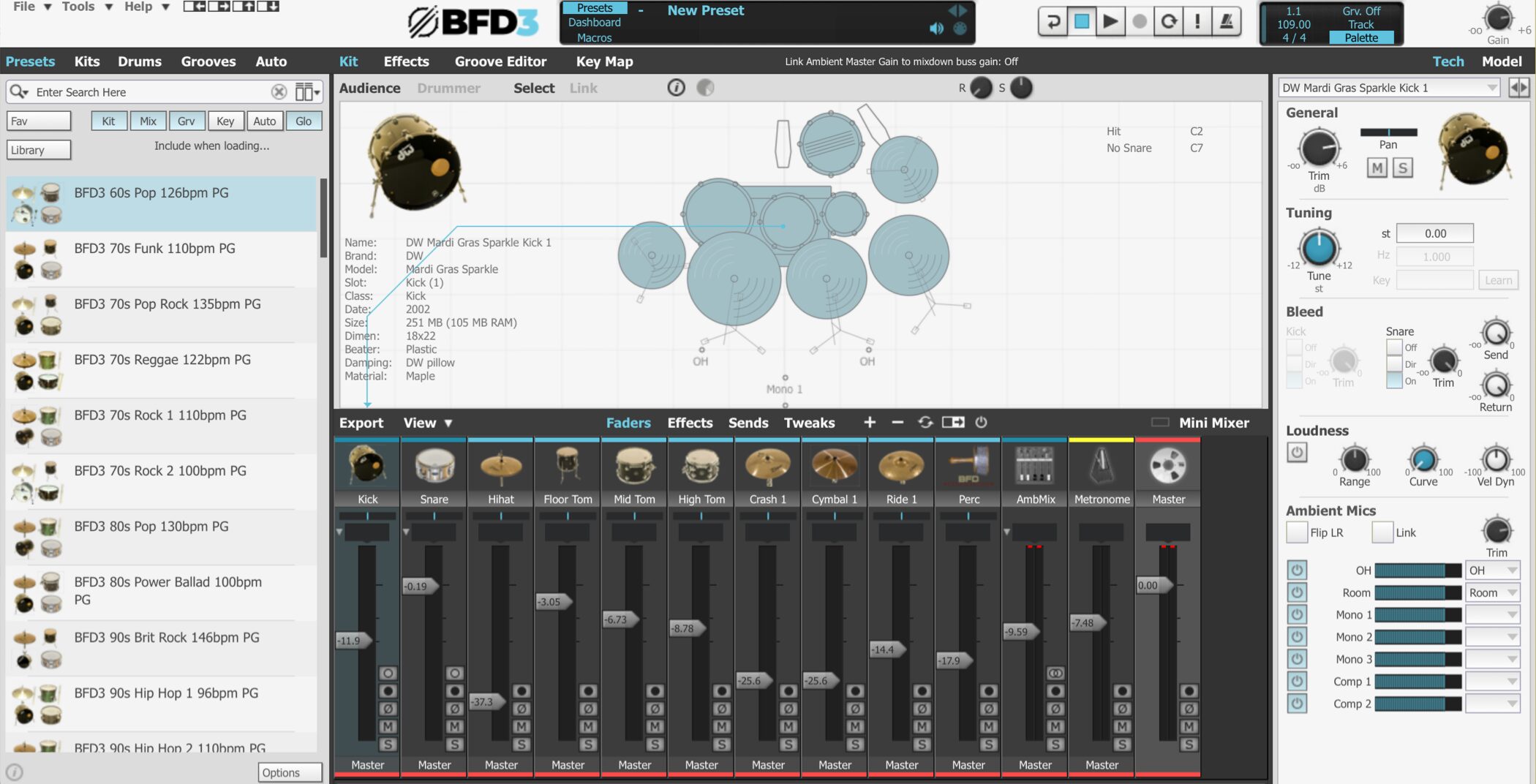
Simply assigning BFD3 can produce unexpected results.
This is because the kit layout differs between instruments.
Here's how to resolve it.
Using a KeyMap Preset
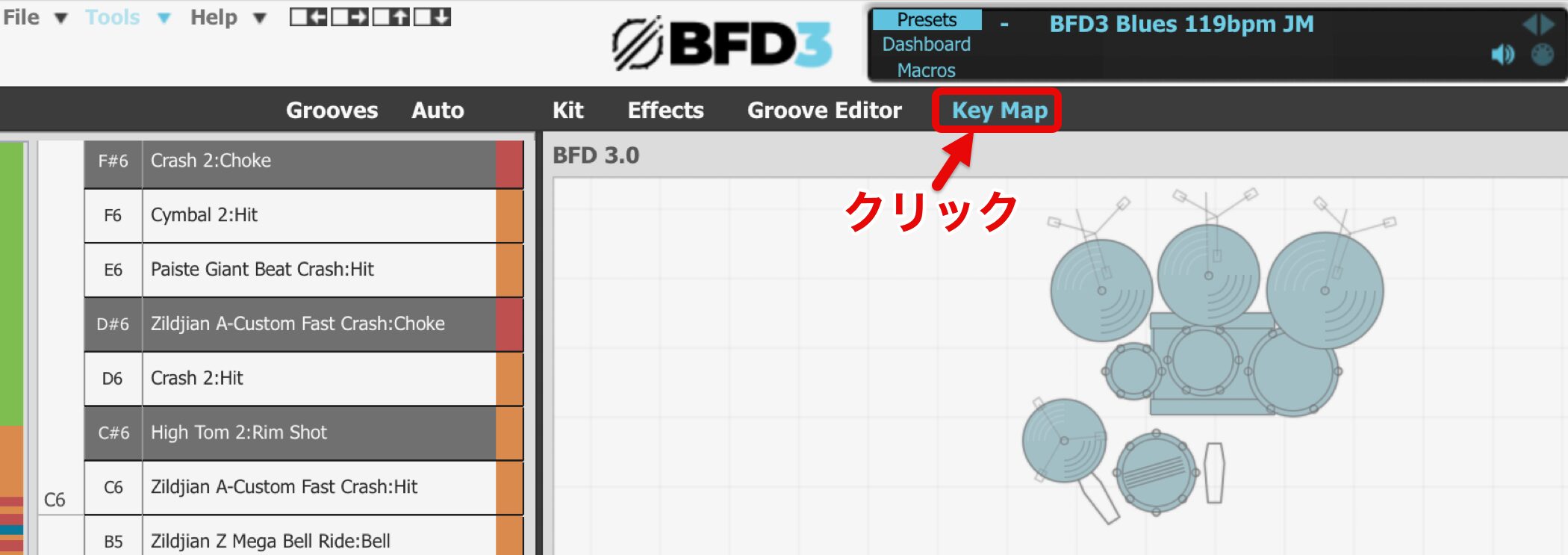
Select KeyMap in the area outlined in red.
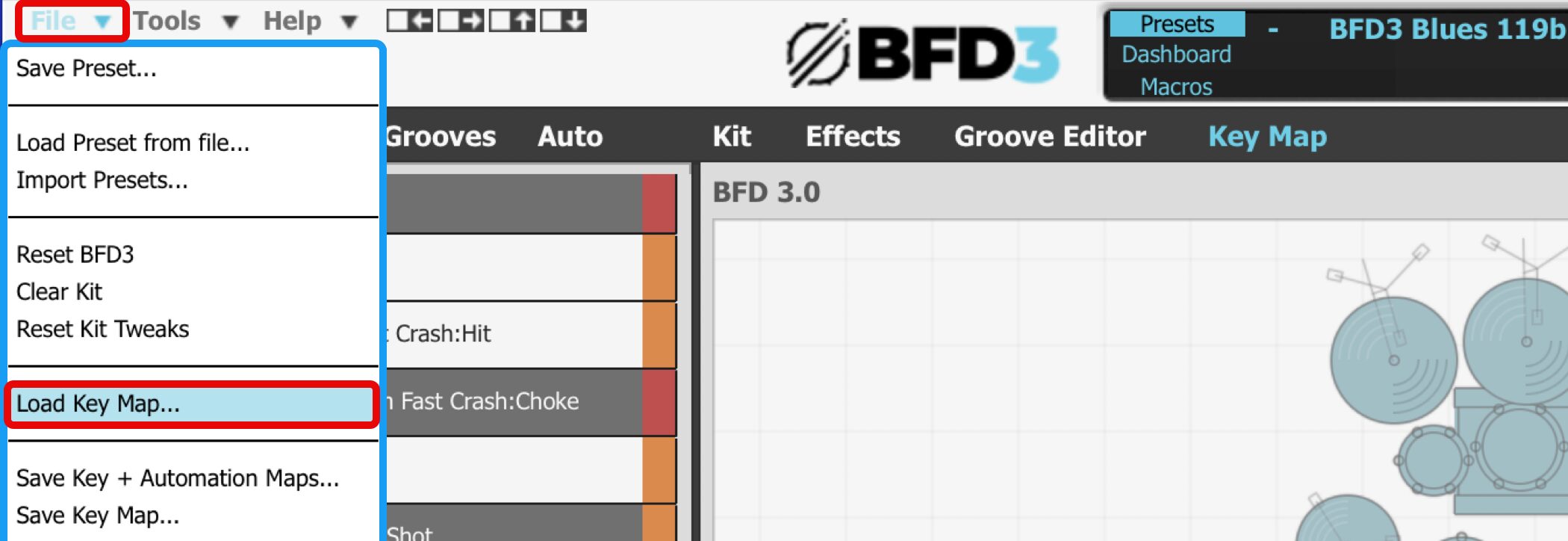
Choose File > Load Key Map.
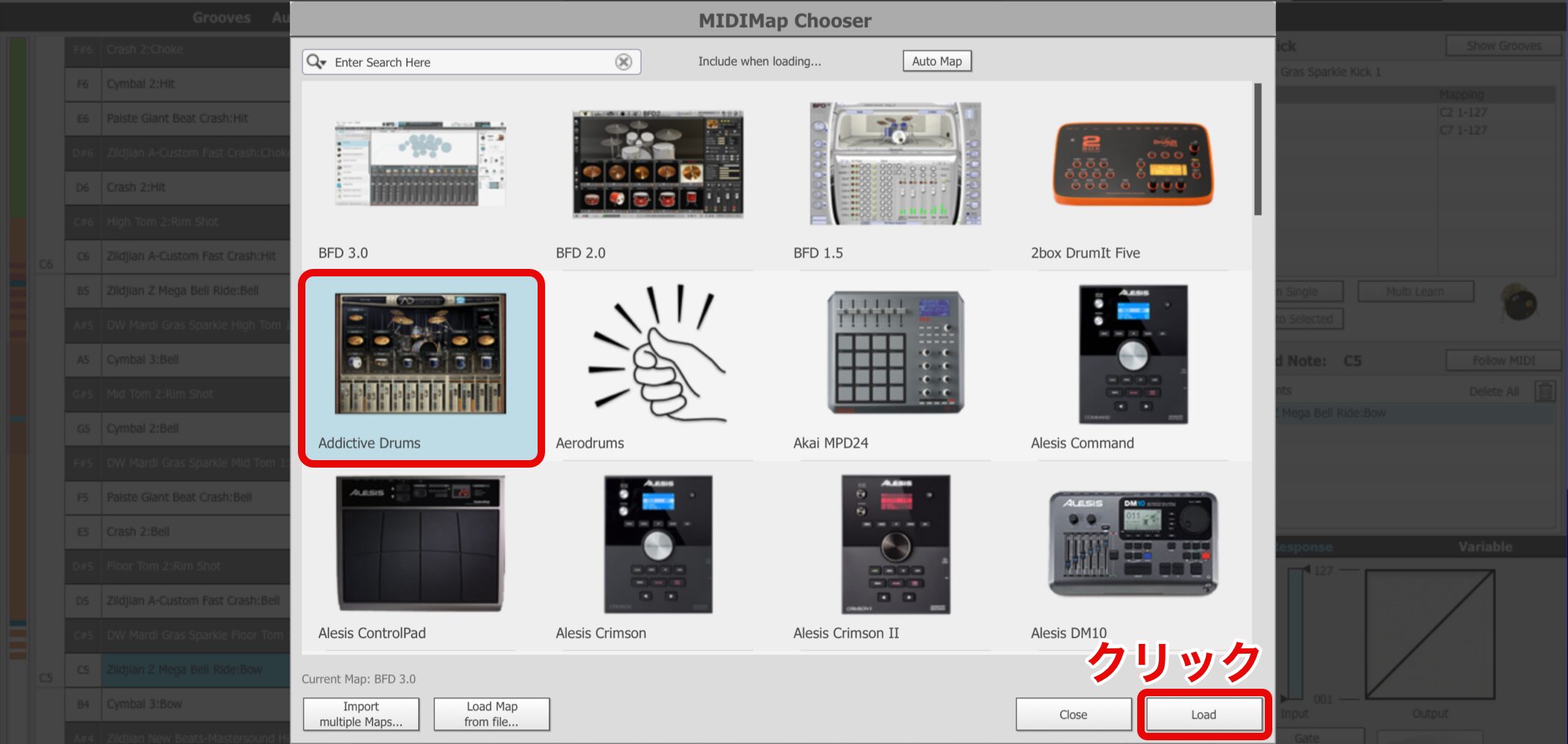
Select the drum instrument used to program the part and click Load.
That's it.
The kit is rearranged to the layout optimized for that instrument.
Frequently Asked Questions
Q1. What should I do before installing BFD3?
Create an account or sign in on the inMusic Brands site and purchase BFD3. Then download and install BFD License Manager before installing BFD3.
Q2. What if there is not enough space for the BFD3 library?
If Required exceeds Available space, free up space or use Browse to choose a drive with enough capacity as the installation destination.
Q3. How many ways are there to load kits?
There are three: Presets load the overall settings, Kits load kit combinations, and Drums lets you select individual instruments.
Q4. Can I use BFD2 kits in BFD3?
Yes. BFD2 kits and additional expansion kits can be used in BFD3, allowing you to use your existing content.
Q5. Can BFD3 be launched from a DAW?
Yes. BFD3 can be launched from a DAW and used as a plug-in on Mac and Windows.
NEW ARTICLES
Latest English Articles