
RealGuitar 4’s SONG feature lets you assemble guitar patterns on a DAW-like timeline. Filter patterns by tempo and playing technique, drag them into the timeline and double-click to enter chords. Host-synchronized playback and the Humanize feature help create natural guitar performances and streamline production with an acoustic guitar instrument.
RealGuitar 4 Adds Helpful Production Features
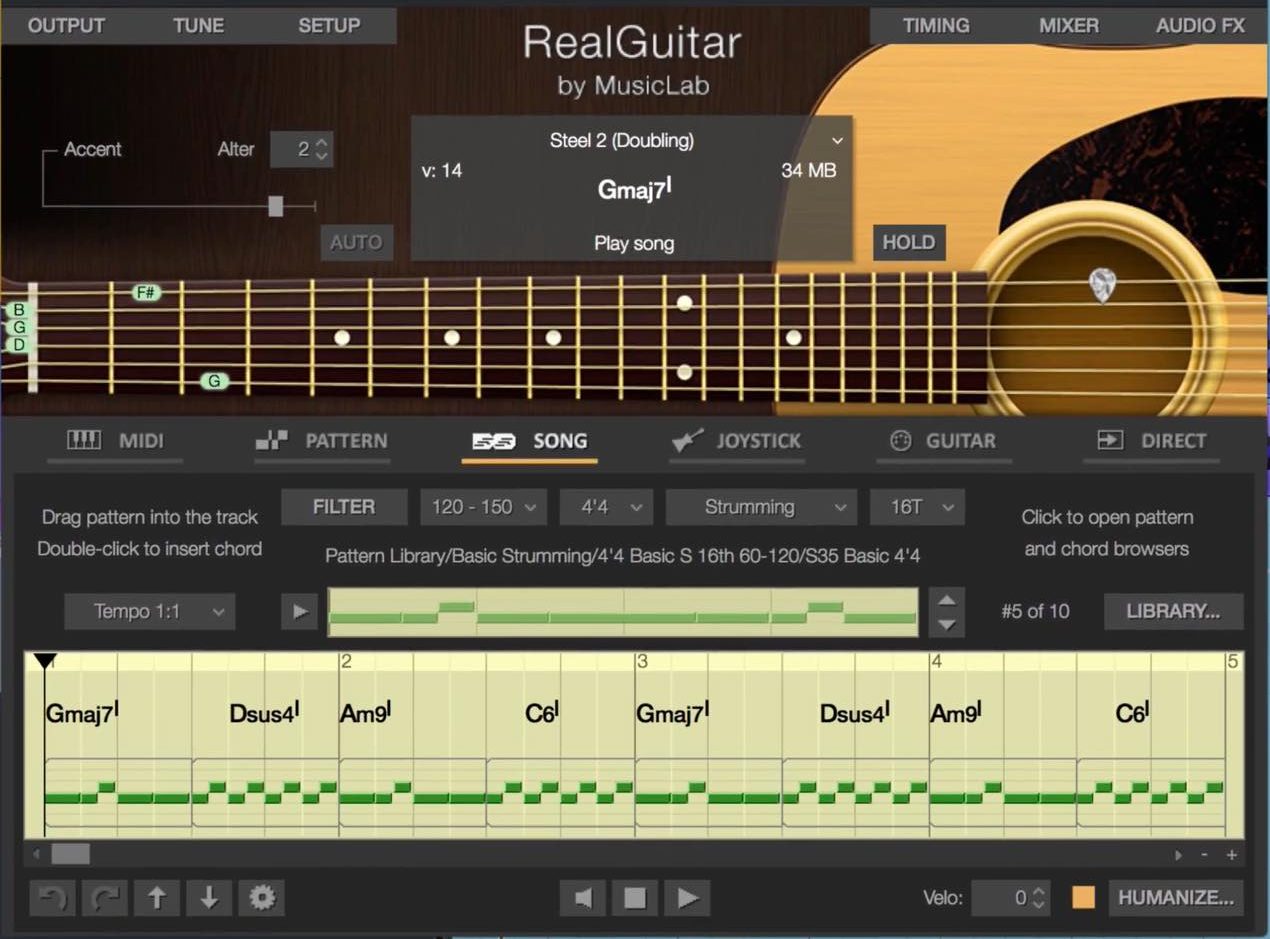
RealGuitar, a pioneer in realistic acoustic guitar instruments, reached version 4
with several new features.
Here we focus on SONG,
a powerful tool that can help with production.
Product page: http://www.crypton.co.jp/mp/do/prod?id=39520
RealGuitar 4 SONG Tutorial Videos
- 1Authorization
- 2Basics and Patterns
- 3RealGuitar 3 in Practice: Chords and Articulations
- 4RealGuitar 3 in Practice: Expressive Arpeggios
- 5RealGuitar 4: How to Use SONG (this article)
Product Purchase
Selected Questions and Answers from the YouTube Video

Thank you for the interesting tutorial. Can a pattern created in SONG, including its chords, be pasted into a DAW?

We thought it might be possible and attempted a final test, but on our Mac 10.14.2 system the software crashed every time we tried to drag and drop. We tested Cubase, Logic and Studio One, with the same result. If a future update fixes the problem, we will test again. This describes the test environment at the time.
How do I import a pattern created in RealGuitar into Cubase?
Can you drag and drop the pattern directly onto the track hosting RealGuitar? The following video covers an older version: https://youtu.be/mYCekmn93b8?t=4m16s
Can I switch to Solo mode during chord playing?
Set MIDI CC16 to a value at or below halfway to enter MIDI mode, then set CC54 to 13 or lower to enter Solo mode.
Can I use slash chords?
Yes. Click the slash symbol at the bottom center of the circular chord-selection popup.
Accessing SONG Mode
First, switch modes to use SONG.
Click SONG near the center, alongside the existing modes.
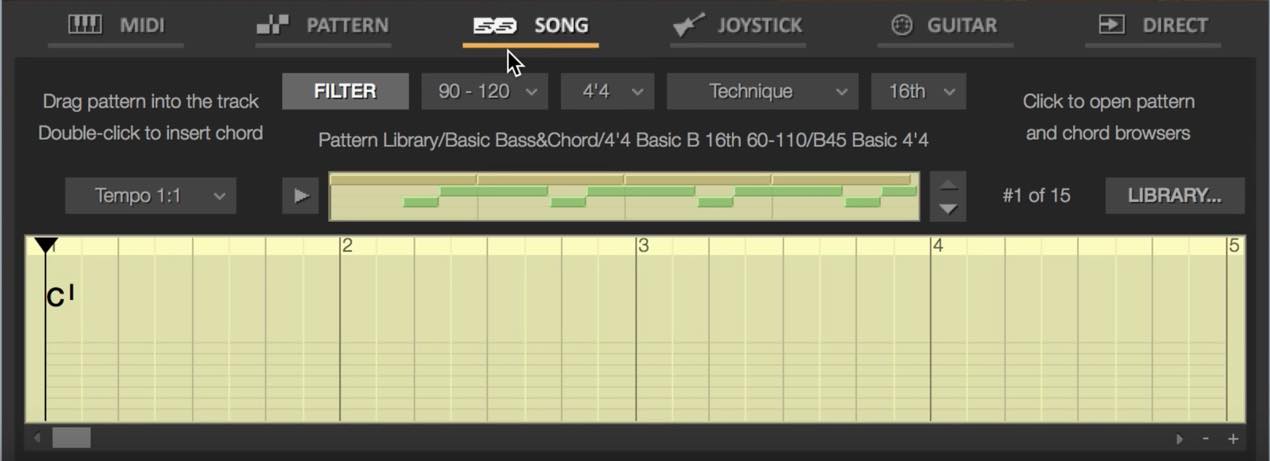
The screen shown above appears.
This is a DAW-style timeline; the numbers indicate bars.
Playback can be started with the space bar as in a DAW, and RealGuitar can also
synchronize with the host DAW.
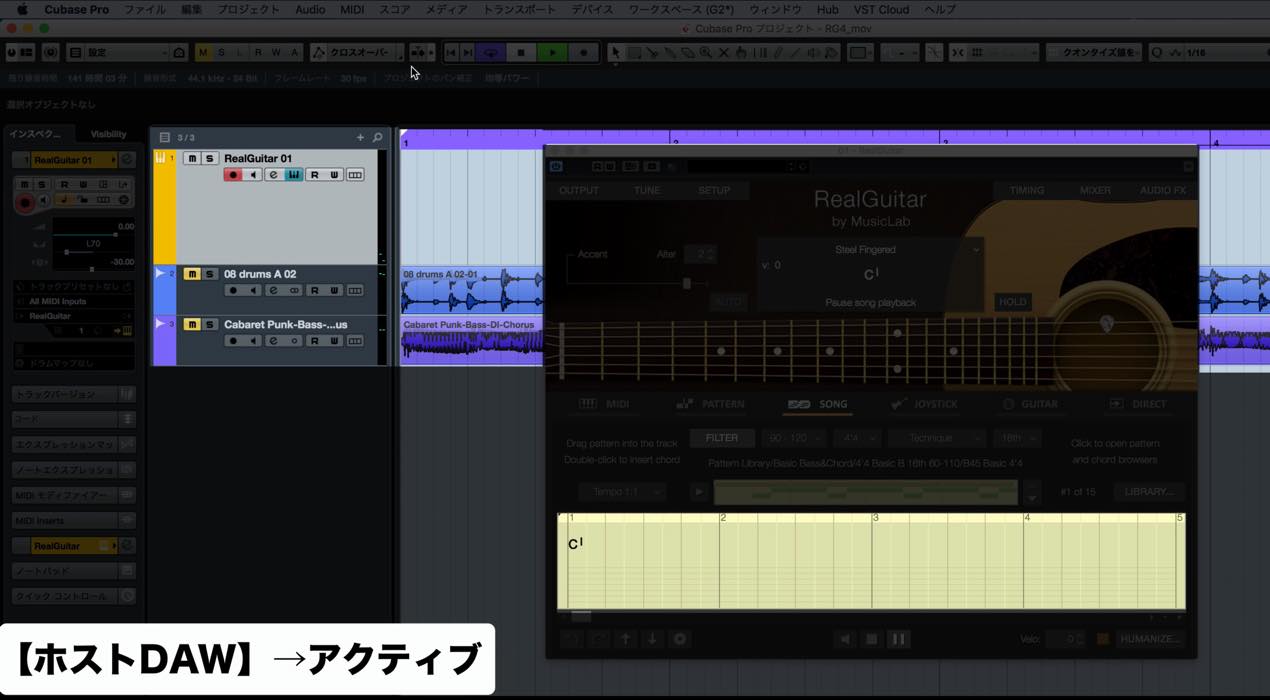
It is simple: activate the DAW window (Cubase in this example) and start playback.
RealGuitar and the DAW should now advance together.
Choosing a Pattern
First, choose the pattern RealGuitar will play.
Use the pattern display above the timeline.
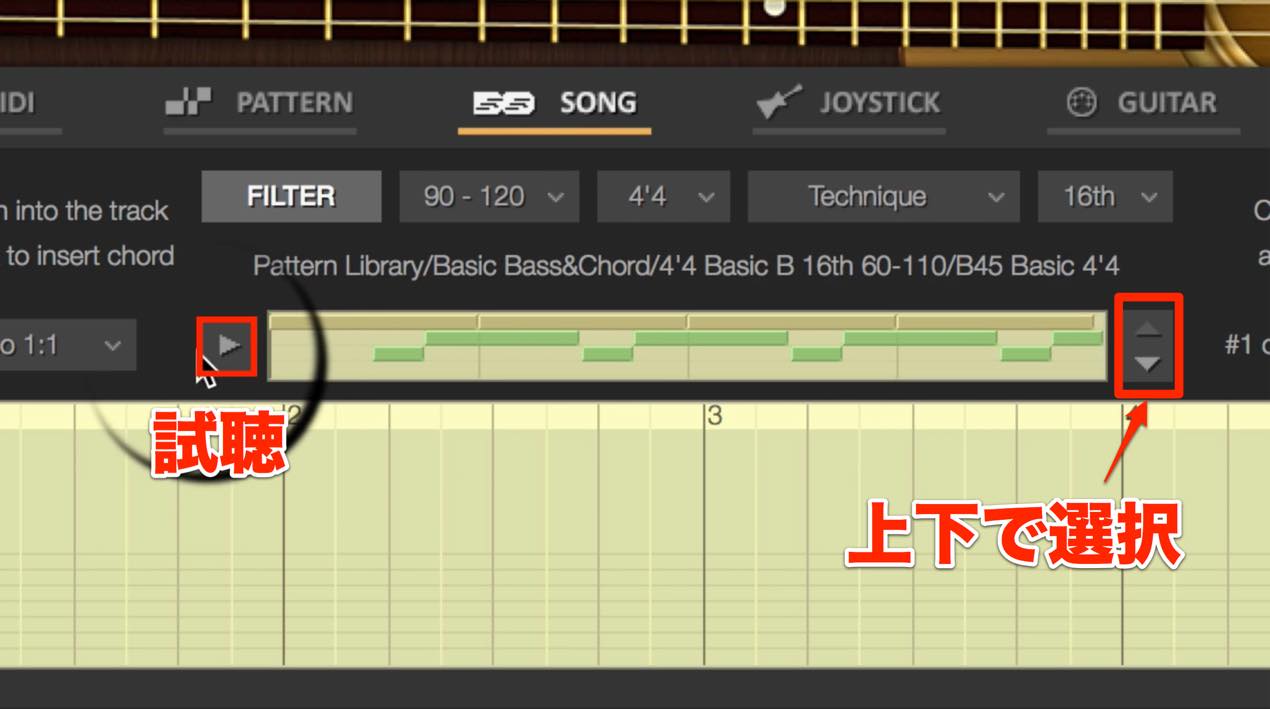
Use the up and down arrows on the right to select a pattern and the play button on the left to audition it.
By default this moves through every pattern, but Filter can narrow the list.
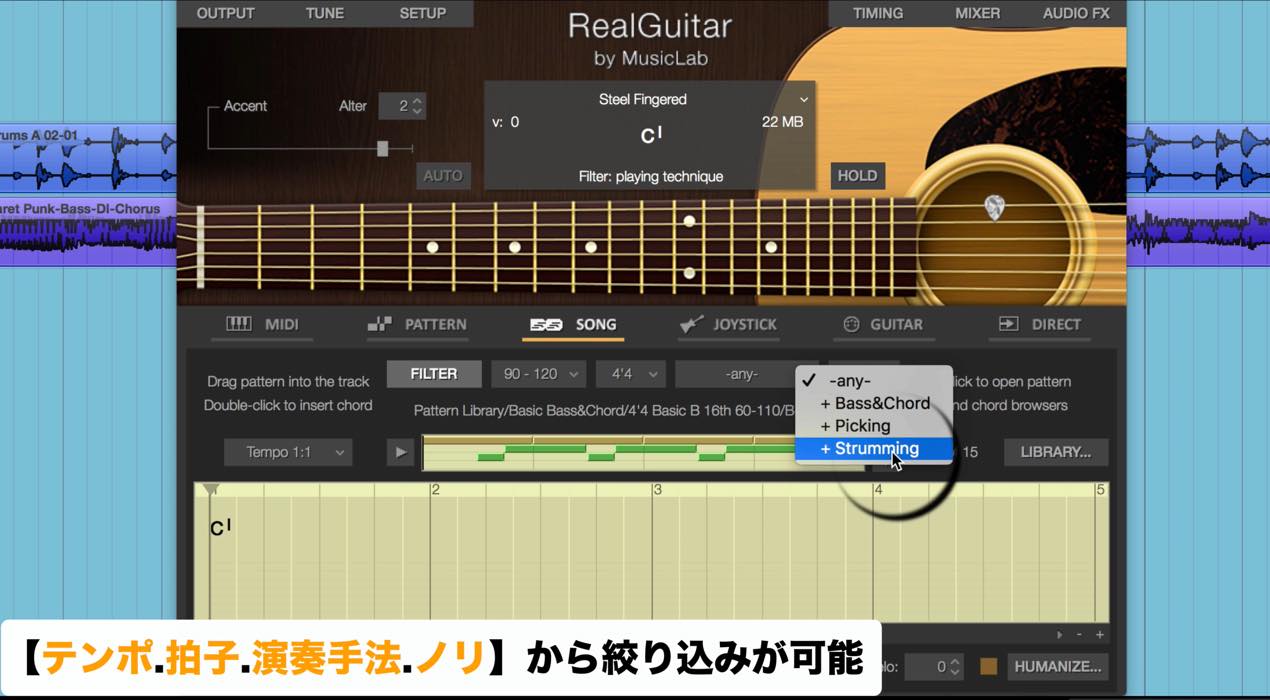
Press Filter above the pattern display
and choose tempo, time signature, playing technique and feel.
Then use the arrows to select from the filtered results.
You Can Also Choose from LIBRARY
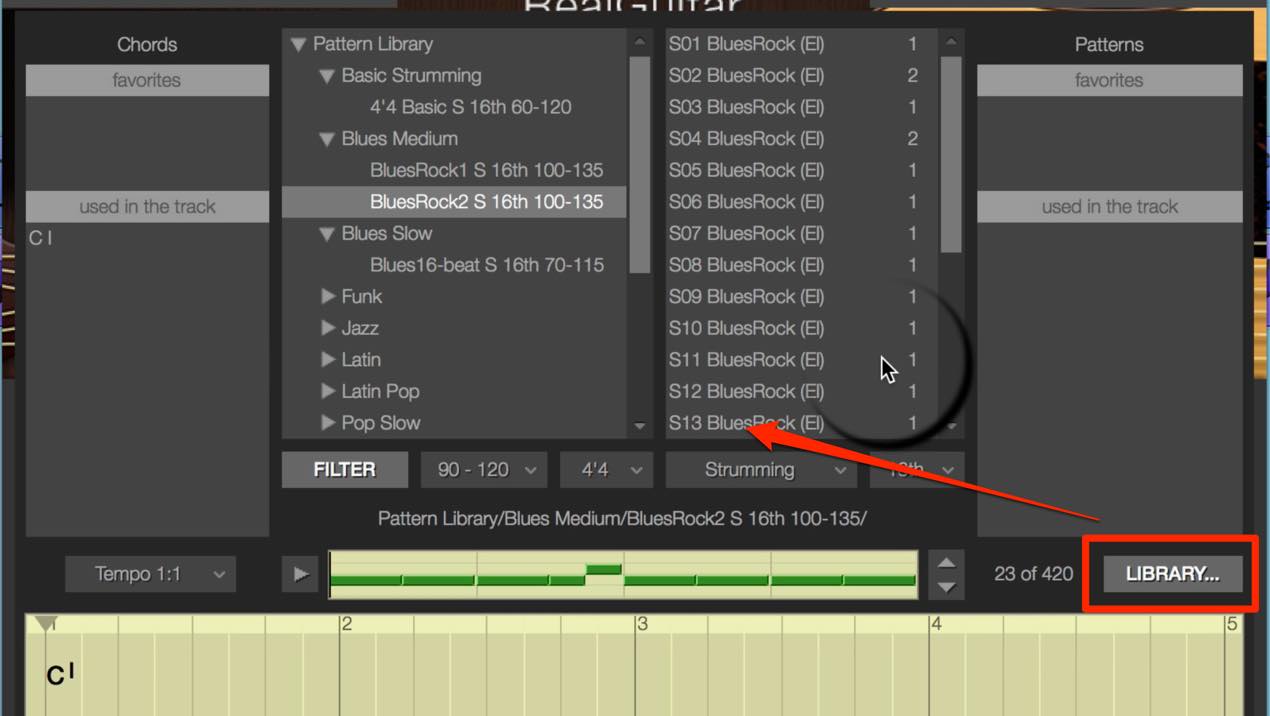
As in PATTERN mode, you can select patterns from LIBRARY.
Once you have chosen a pattern, drag and drop it onto the timeline.
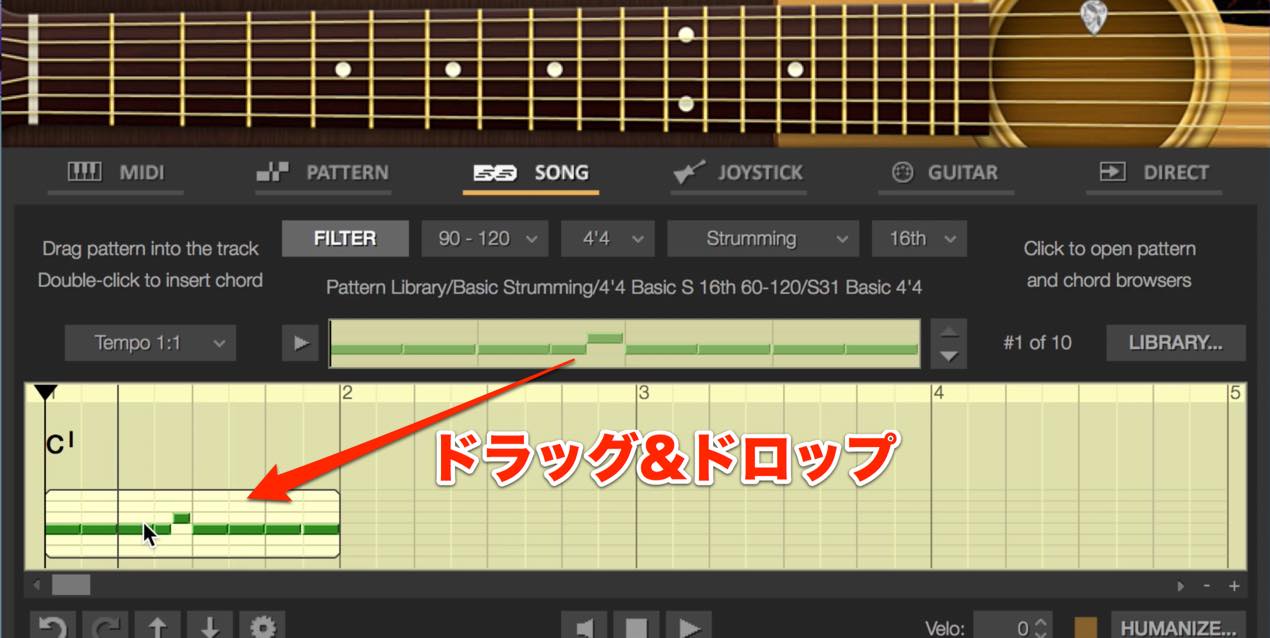
Entering Chords
Next, enter the chords.
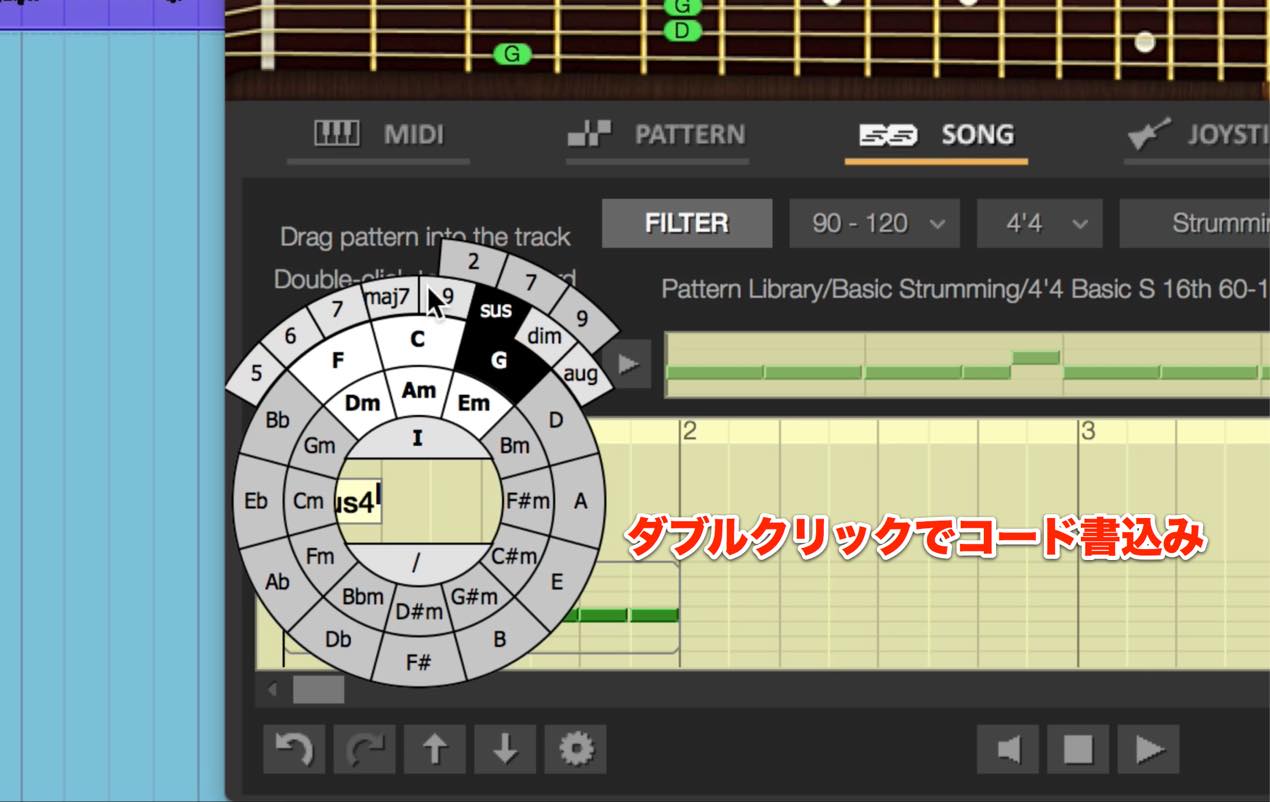
Double-click the timeline to open chord entry.
If a chord is already there, this changes it.
You can specify roots, major or minor, sevenths, ninths, sus chords and more in considerable detail.
You can also audition the sound easily.
DAW-Like Editing
Editing on RealGuitar’s timeline feels similar to working in a DAW.
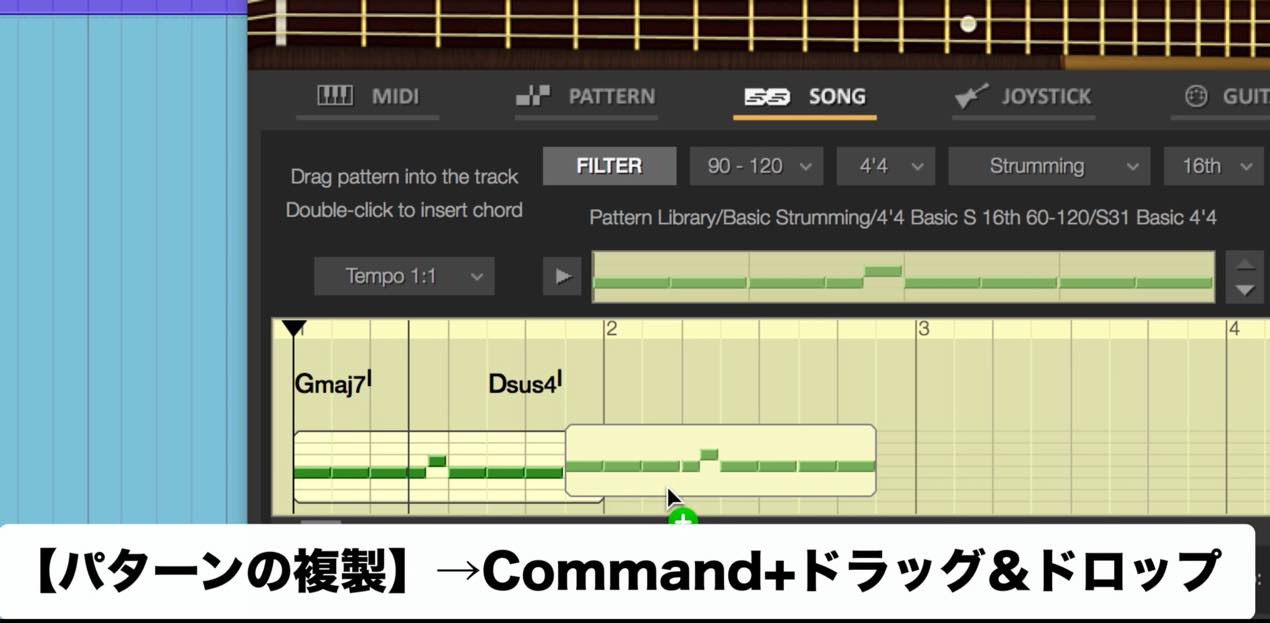
Duplicate with Command-drag and drop, or Control-drag on Windows.
Select an item and press Delete to remove it.
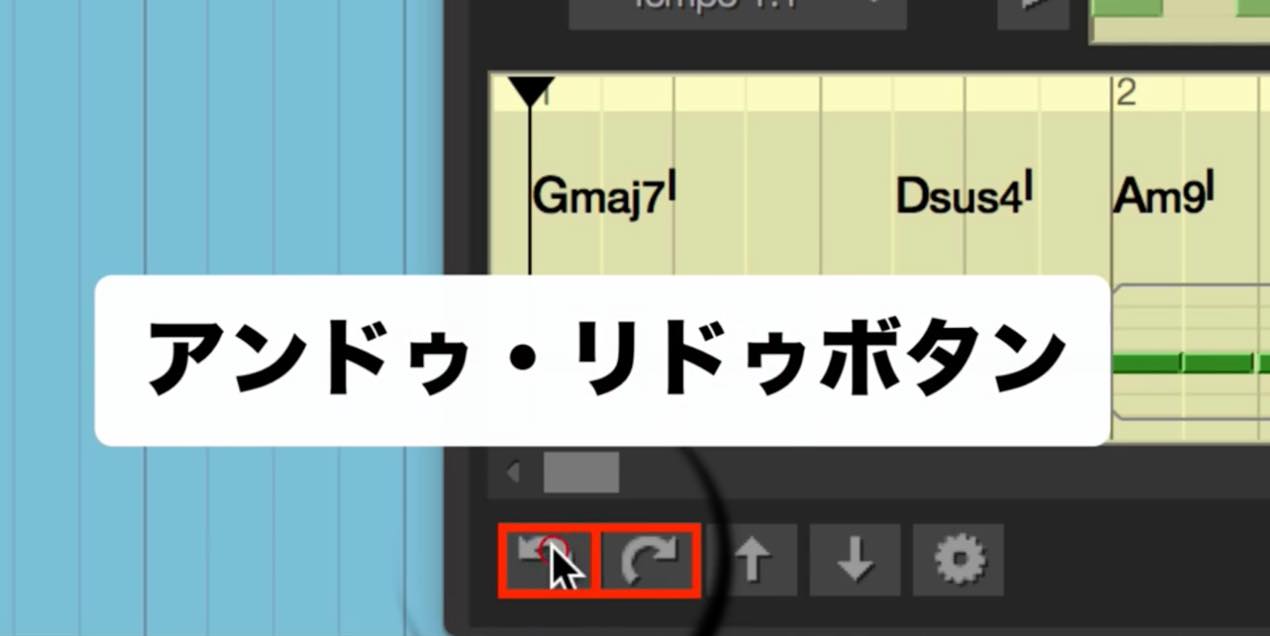
Undo and redo buttons are at the lower left.
However, these functions have no assigned shortcuts, so pressing Command+Z or a similar shortcut
will undo an action in the DAW. Be careful.
Auditioning Another Pattern with the Same Progression
After creating a progression and pattern, you may want to try another pattern
with the same progression.
Change the pattern in the box above the timeline; when it becomes highlighted,
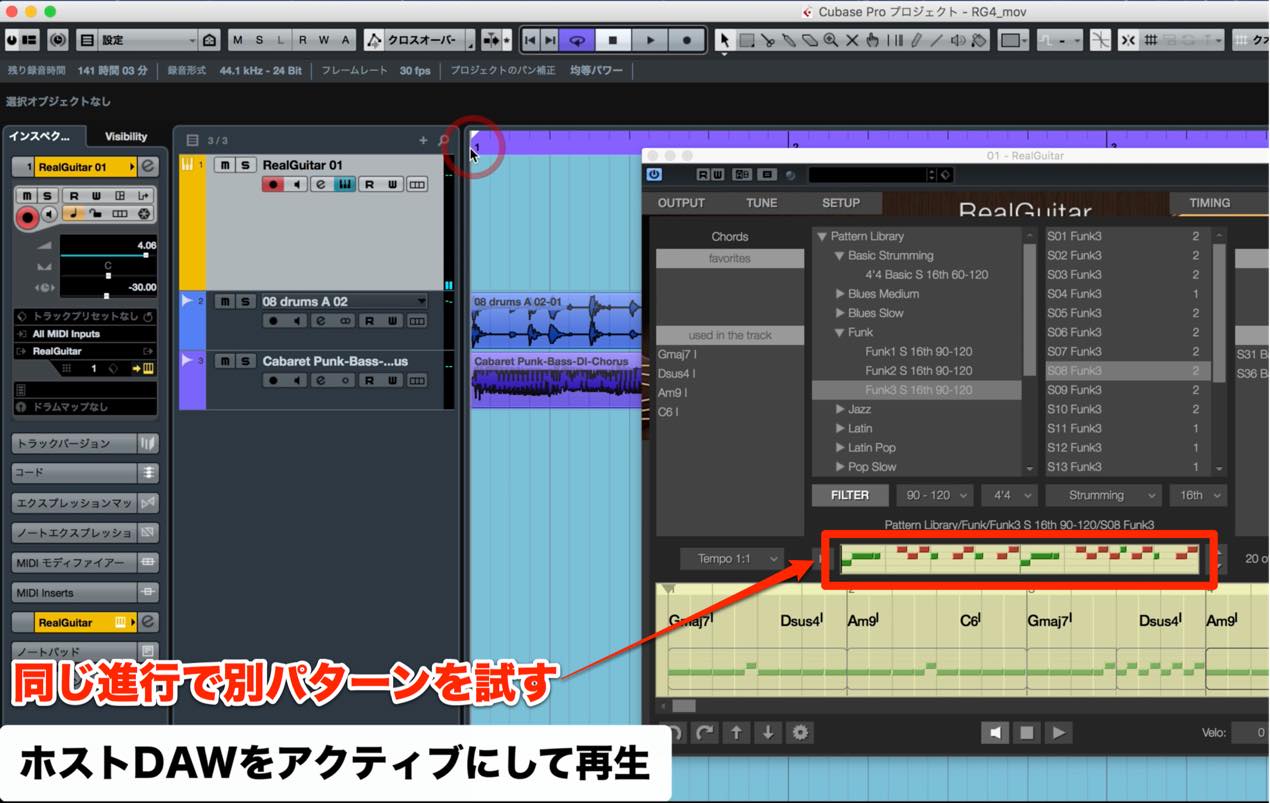
start playback in the host DAW. The selected pattern should play over the progression.
To return, click the timeline again.
The HUMANIZE Feature
Finally, let’s briefly look at the new Humanize feature.
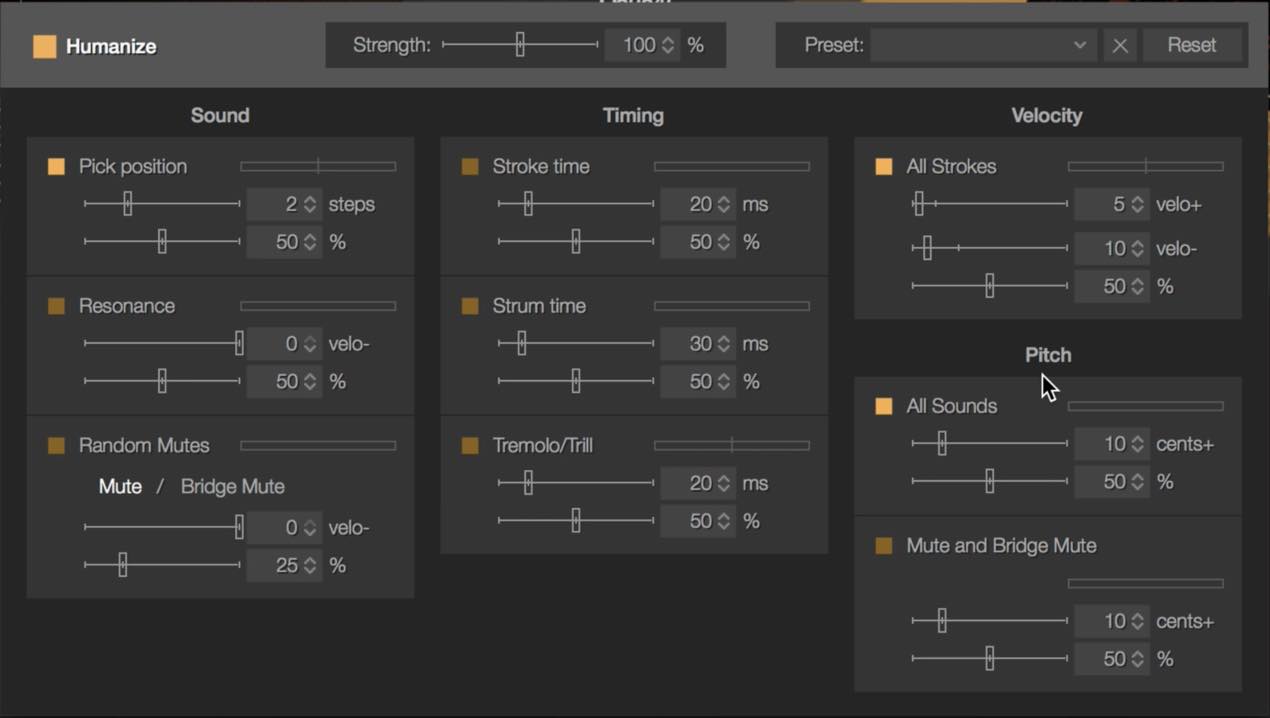
It randomly varies RealGuitar parameters to
make the performance sound less mechanical.
There are several parameters: the upper slider sets the range of variation,
and the lower slider sets its strength.
A useful tip is not to make the variation range too wide.
Instead of turning everything on at once, try
Pick Position, Velocity and Pitch first to create a more natural feel.
That concludes our look at RealGuitar’s new SONG feature.
If you own it, give it a try.
Product Purchase
Frequently Asked Questions
Q1. Can RealGuitar 4 SONG mode synchronize with a DAW?
Yes. Activate the DAW window and start playback to synchronize RealGuitar with the host, as demonstrated with Cubase.
Q2. How do I enter chords in SONG mode?
Double-click the timeline to open chord entry. You can specify the root, major or minor quality, sevenths, ninths and other chord types, and audition the result.
Q3. What is Humanize?
It randomly varies RealGuitar parameters to reduce mechanical-sounding playback. Try Pick Position, Velocity and Pitch for a more natural performance.
Q4. How can I narrow down the pattern selection in SONG mode?
Use Filter above the pattern box to choose tempo, time signature, playing technique and feel. You can also select directly from LIBRARY.
NEW ARTICLES
Latest English Articles








































































































































































































































































































































































































