Kontakt 5 is a powerful sampler from Native Instruments with a large library of preset instruments. This guide covers loading presets from libraries, searching the database, using multiple instruments, assigning MIDI channels and routing separate outputs for processing. It also introduces ways to edit samples, apply effects and use modulation to create your own sounds. The screenshots and workflows refer to Kontakt 5; later versions may differ.
Kontakt: A High-Quality, Feature-Rich Sampler
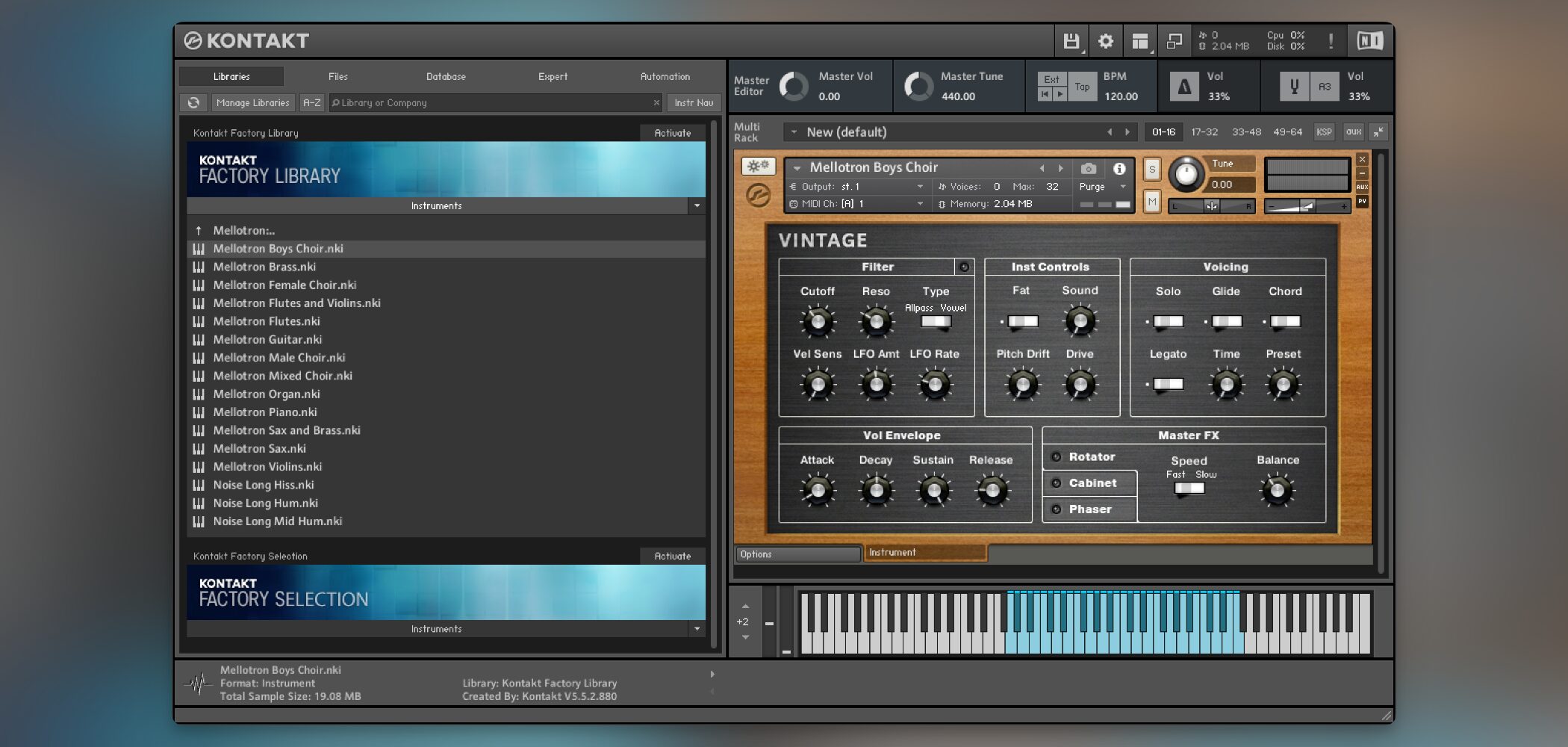
Kontakt comes with a large collection of sounds ready to use.
Additional libraries from manufacturers offer further expansion, and using presets alone can produce polished results.
Kontakt has another side, too: you can create sounds with your own material and presets as well.
Its tools make building original sounds an enjoyable part of working with Kontakt.
This article explains how to use Kontakt 5.
Using Kontakt's Extensive Presets
Let's load the presets included with Kontakt.
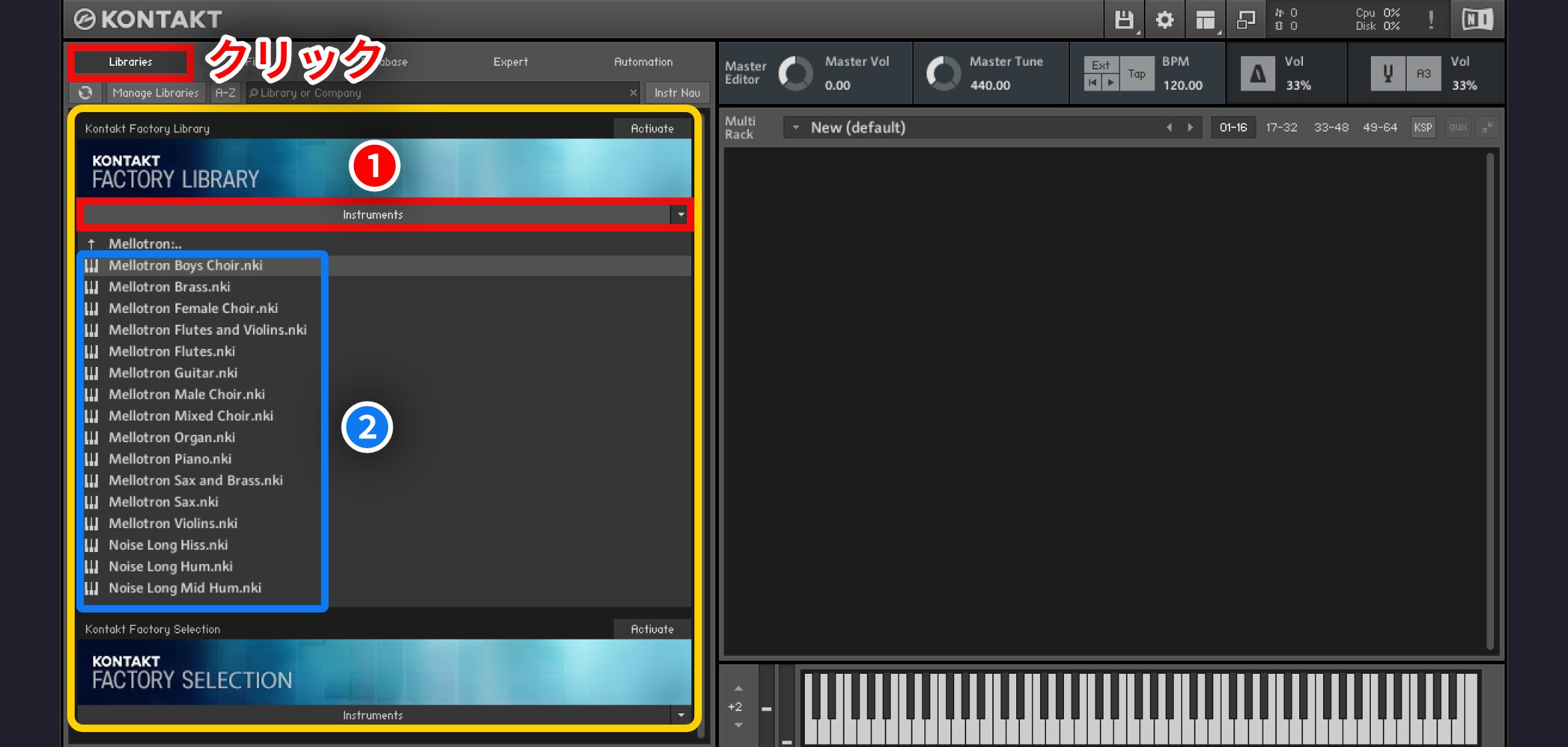
Click the Libraries tab to view the included libraries.
They appear as library racks, including piano, electric piano and synth collections.
Among them, FACTORY LIBRARY is a broad collection containing many types of instruments.
The loading procedure is generally the same for each library.
1 (Red): Click the Instruments tab in the library rack to open its contents.
2 (Blue): When the rack opens, double-click an instrument marked with a keyboard icon to load it.
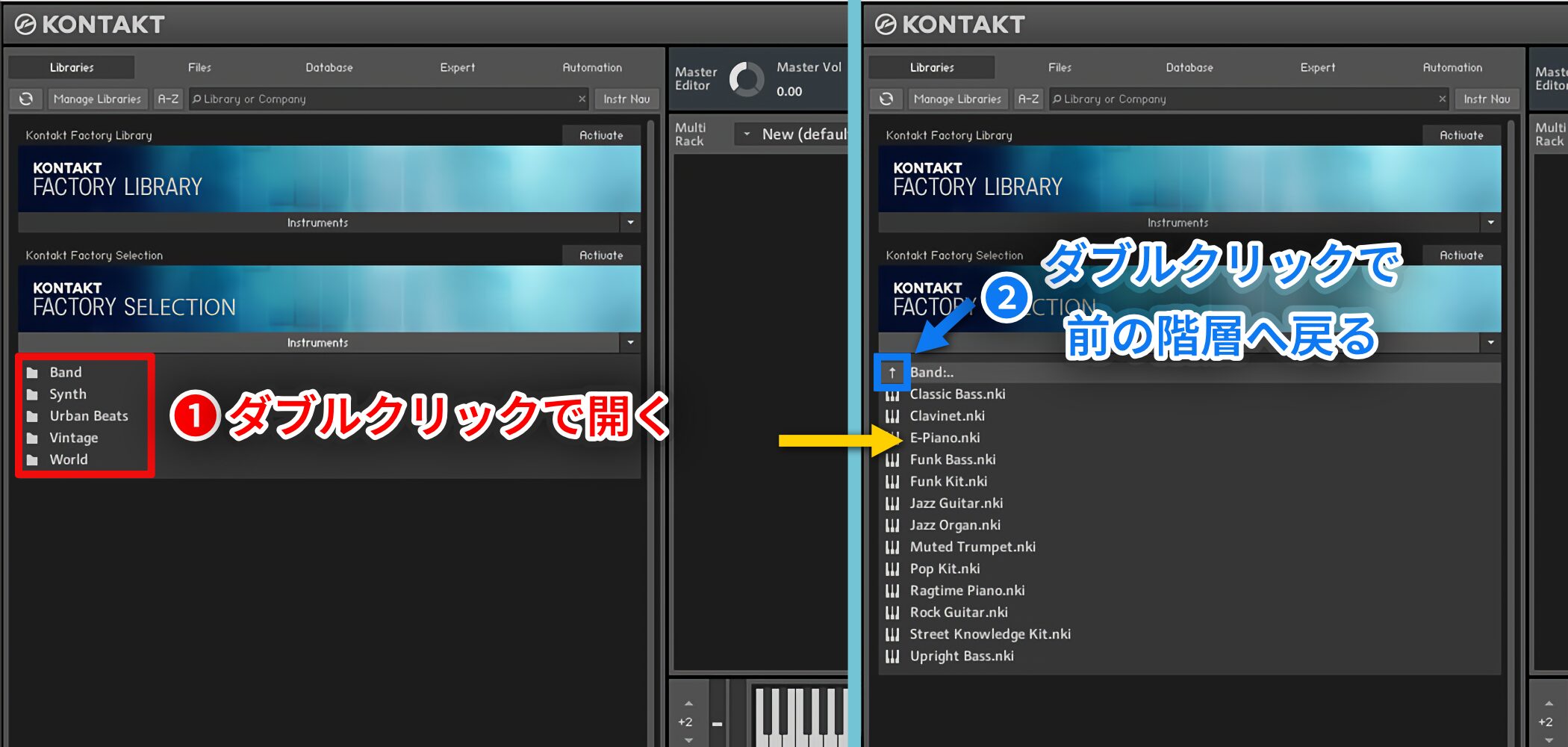
Some sounds are organized into folders by genre.
1 (Red): Double-click a folder to open it.
2 (Blue): To return to the previous folder level, double-click the arrow at the top.
Tips for Loading Presets
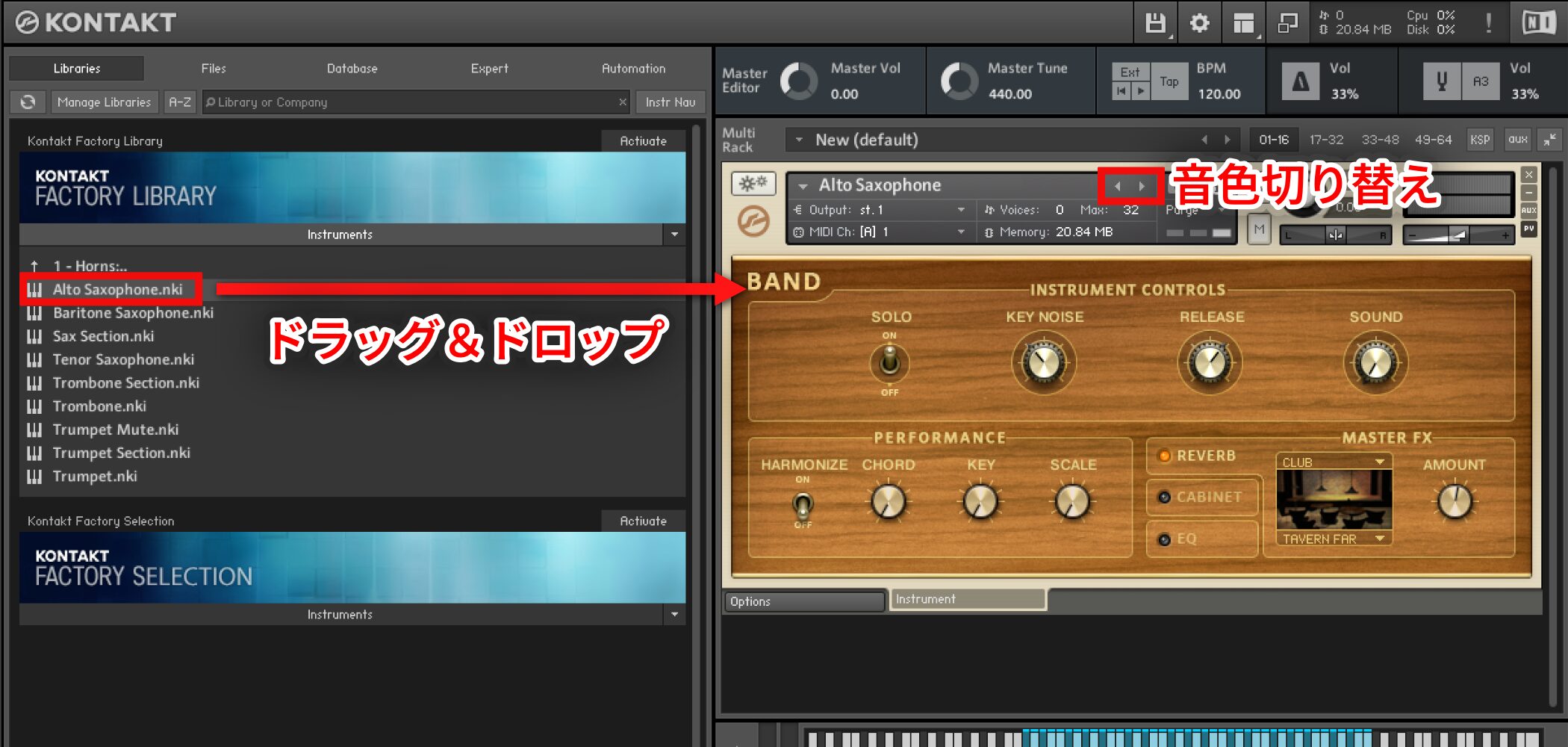
One instrument is loaded here.
To replace it with another sound, double-clicking a new instrument adds it rather than replacing the existing one. The earlier instrument remains loaded,
which makes previewing the second sound less convenient.
Instead, drag and drop the new instrument onto the one already loaded to replace it.
You can also use the highlighted arrows to step through sounds in the folder.
Searching the Database
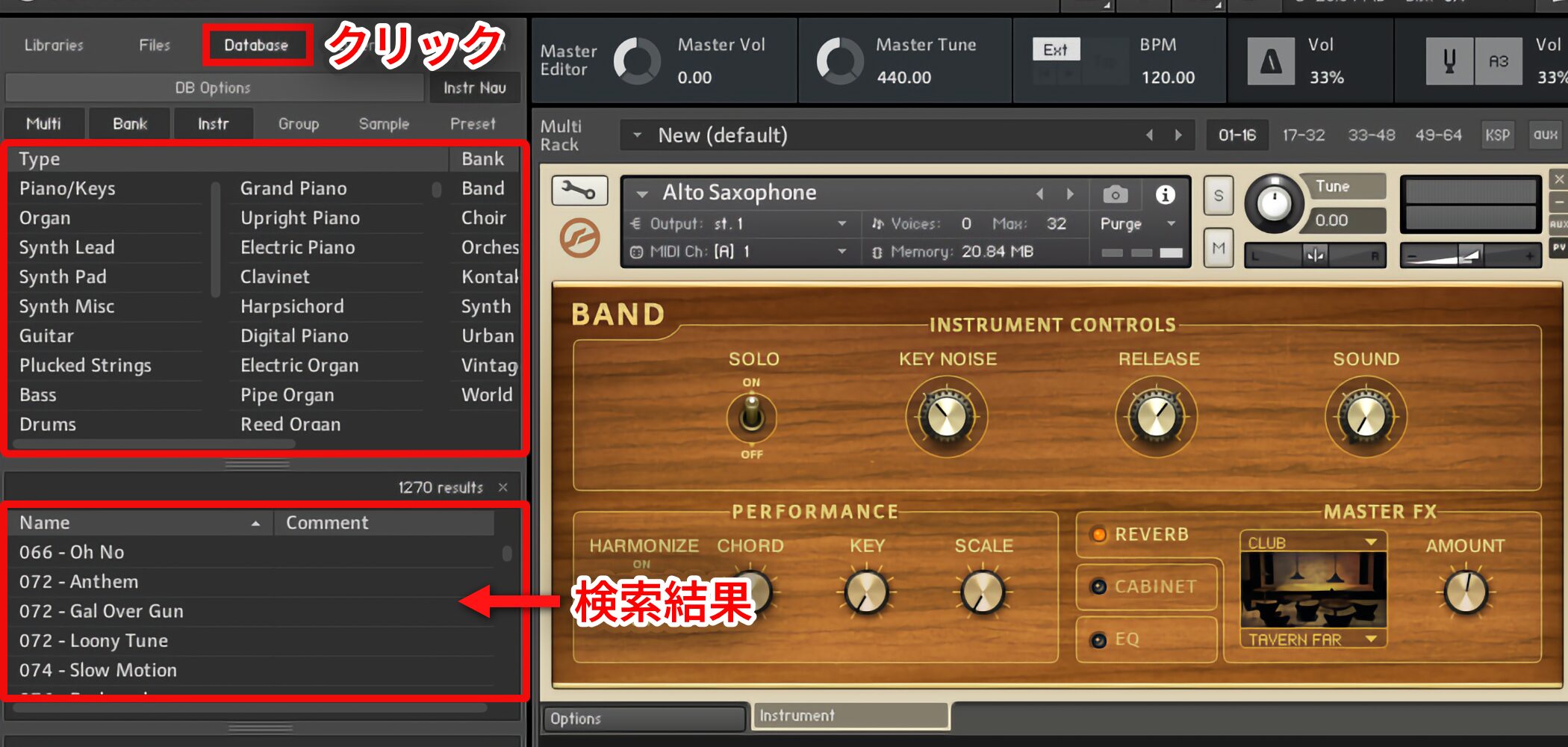
Click the Database tab to search beyond individual library racks with flexibility.
Click an instrument category in the highlighted area to display results below.
Load a result into Kontakt by double-clicking or dragging and dropping, as described above.
Loading Multiple Instruments
A single instance of Kontakt 5 can load up to 64 instruments.
The procedure is simple:
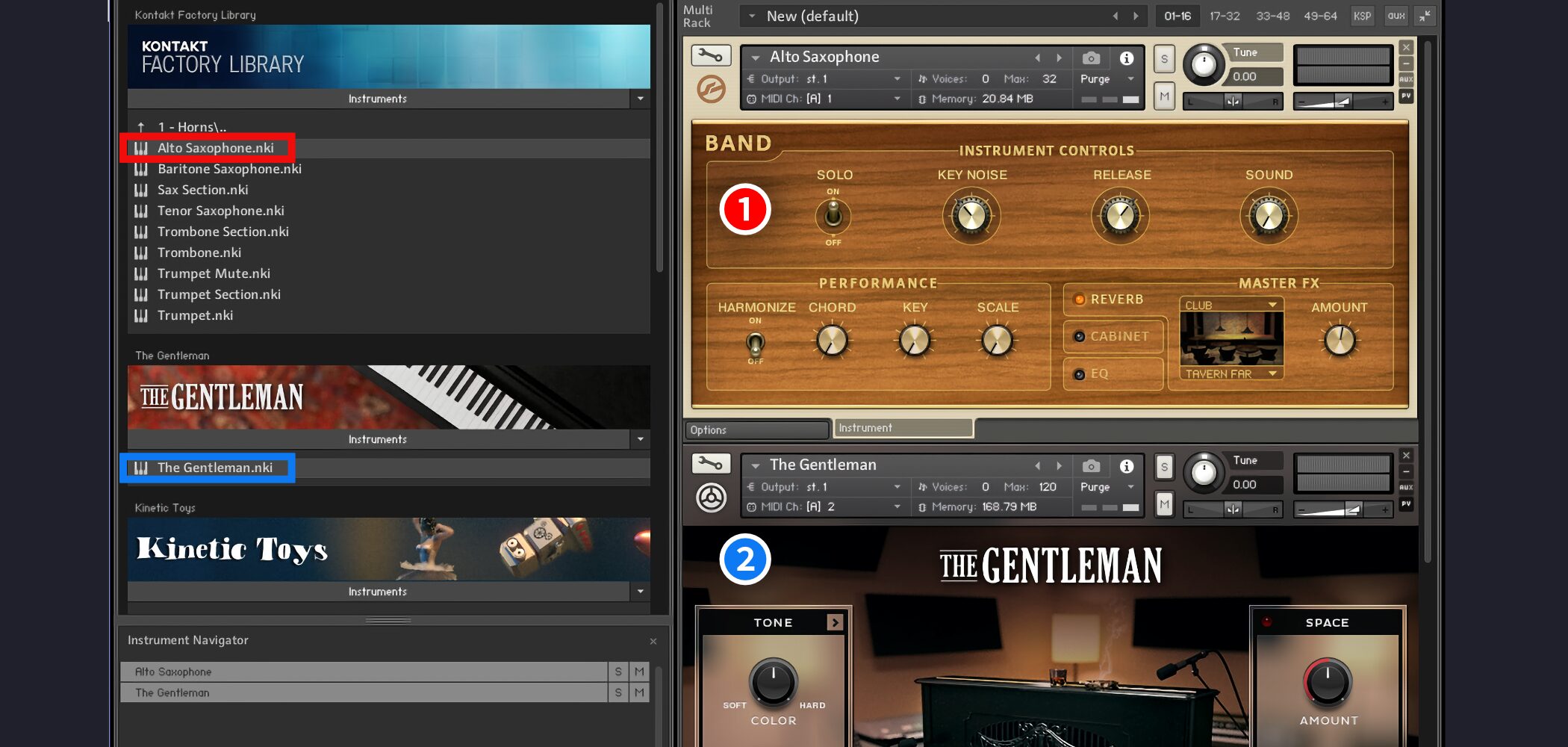
just double-click each instrument you want to use to load it.
As shown by 1 and 2 in the image, instruments are added vertically to the rack.
Assigning MIDI Channels in Kontakt
Loading multiple instruments alone is not enough to control each independently.
You must also set up MIDI tracks in the DAW for the instruments you want to play.
First, configure Kontakt.
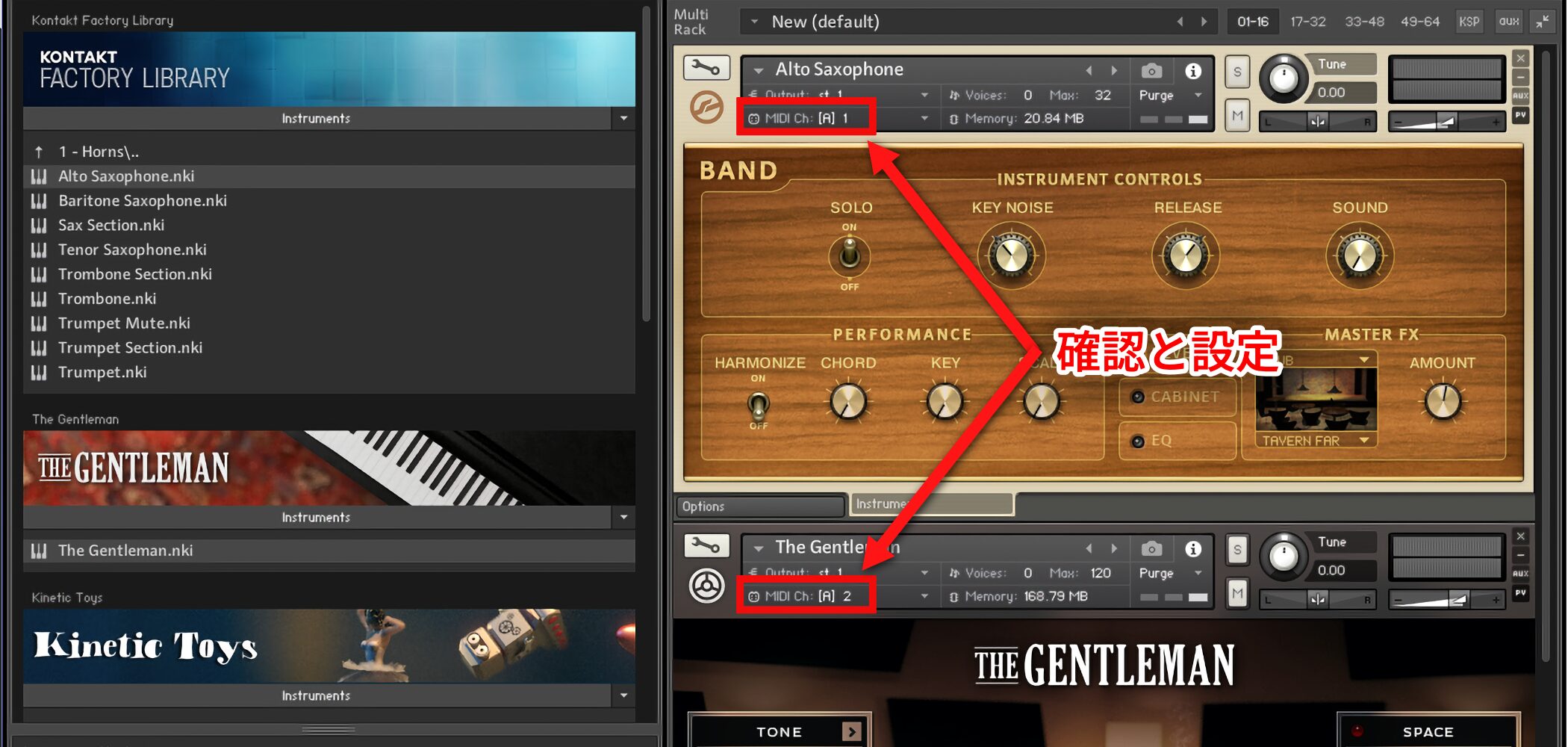
Click the highlighted area to assign a MIDI channel.
The key point is to use a different MIDI channel for each instrument when you want to address them separately.
After checking these assignments, configure the corresponding MIDI channels in your DAW.

 Logic
 Cubase
 Ableton Live
 Studio One
 FL Studio
Routing Each Instrument to a Separate Output
Even after loading several instruments and assigning MIDI channels, they may appear in the DAW as one Kontakt instance.
For separate processing, use multiple outputs.
This lets you adjust pan and volume and apply different DAW effects to each routed instrument.
Video: Multiple Outputs
Selected Questions and Answers from the YouTube Video

I downloaded Kontakt and put several files in a Steinberg folder, but Kontakt 5 does not appear among Cubase's VST instruments. What should I do?

The following article may help. https://sleepfreaks-dtm.com/dtm-trouble/windows-plugin/ Please give it a try. Check the plug-in version and DAW compatibility as well.
Hello, and thank you for your helpful videos. My question is more about MIDI than Kontakt: can I assign multiple sounds loaded in Kontakt to separate external hardware keyboards? For example, can keyboard A play sound 1 and keyboard B play sound 2? I am unsure how to connect the MIDI devices. If keyboard A's MIDI OUT goes to keyboard B's MIDI THRU and then to the interface's MIDI IN, B would only pass the signal through, correct? My interface has one MIDI input and one output. Would a MIDI hub work, or could I use a separate USB MIDI interface cable for each keyboard? Thank you for your advice.
Could you try opening Kontakt on separate tracks and choosing a different MIDI input for each? In either case, you need suitable connections for both controllers, such as separate MIDI interface inputs or USB MIDI connections. Routing and device support depend on your setup.
The example had eight stereo outputs. Can it output up to sixteen?
Each stereo output uses two channels, so eight stereo outputs use sixteen channels in total.
Question: Windows 8.1.
Your site often uses Cubase in its examples. Are there videos on the same topics using Pro Tools? I use Pro Tools and would appreciate such a page.
Thank you for watching. We often use Cubase because many viewers use it, but we also have articles about Pro Tools basics. Please see this category. https://sleepfreaks-dtm.com/category/for-advance-protools/
I understand separate outputs in Kontakt. Can Komplete Kontrol use separate outputs too?
Thank you for your question. At the time of the original answer, Komplete Kontrol hosted one instrument rather than providing separate outputs for different hosted instruments. An instrument with its own multiple-output capability, such as a drum instrument, could provide separate outputs. Check current version and host support for your setup.
How to Set Up Separate Outputs in Kontakt
Kontakt's output setup differs somewhat from other software instruments.
First,
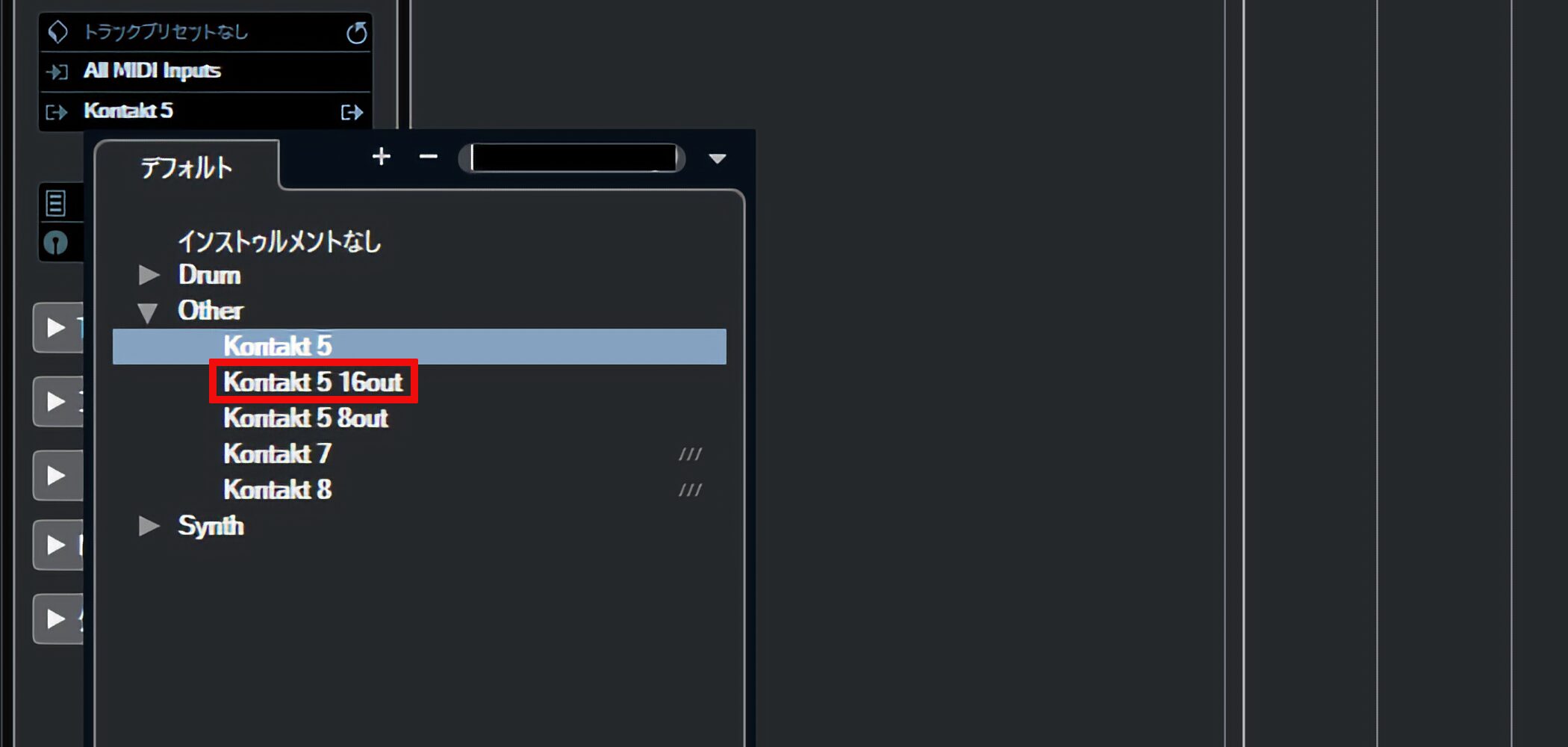
open the multiple-output version of Kontakt.
The original example uses the 16-out version, one of several available formats.
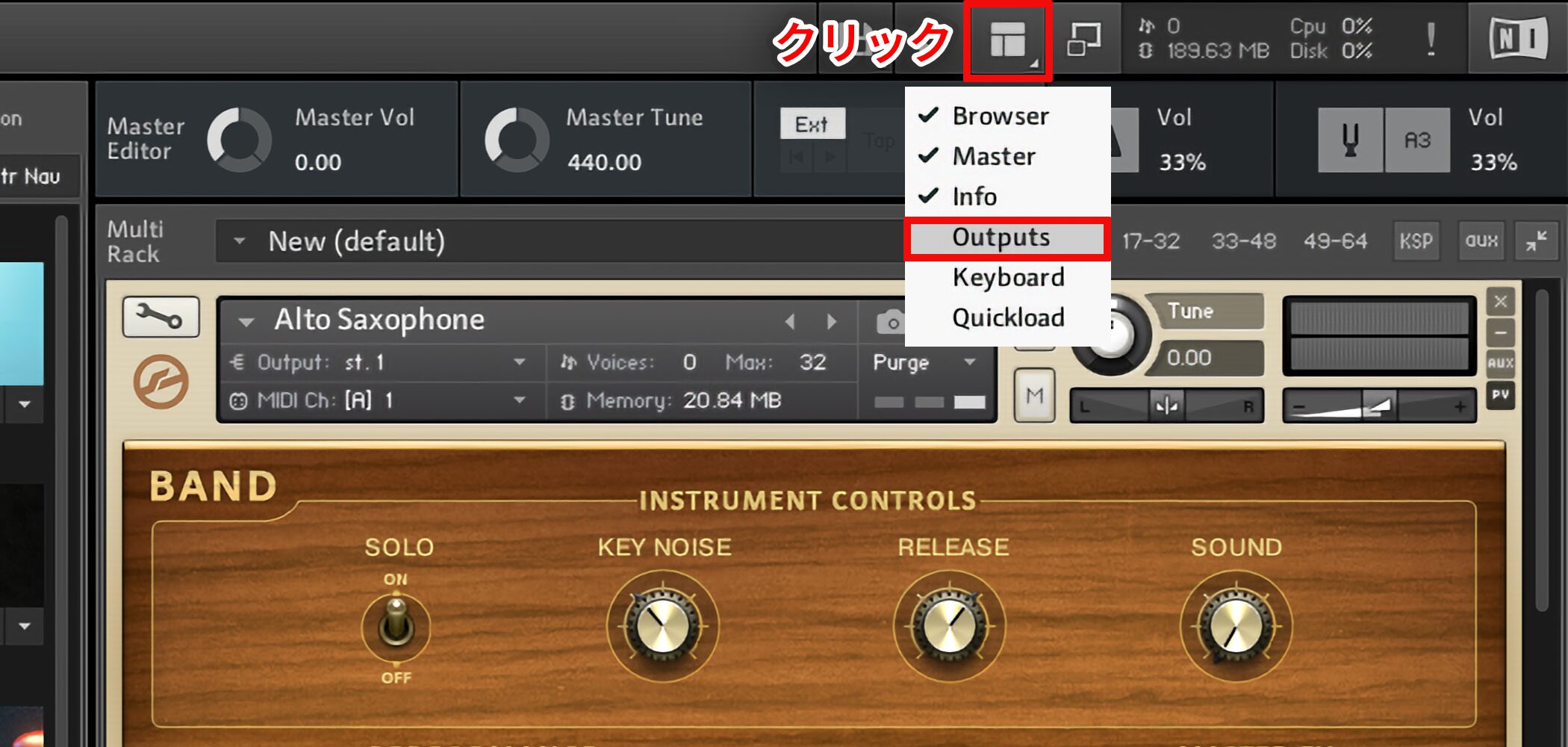
Click the highlighted area and select Outputs to display the mixer.
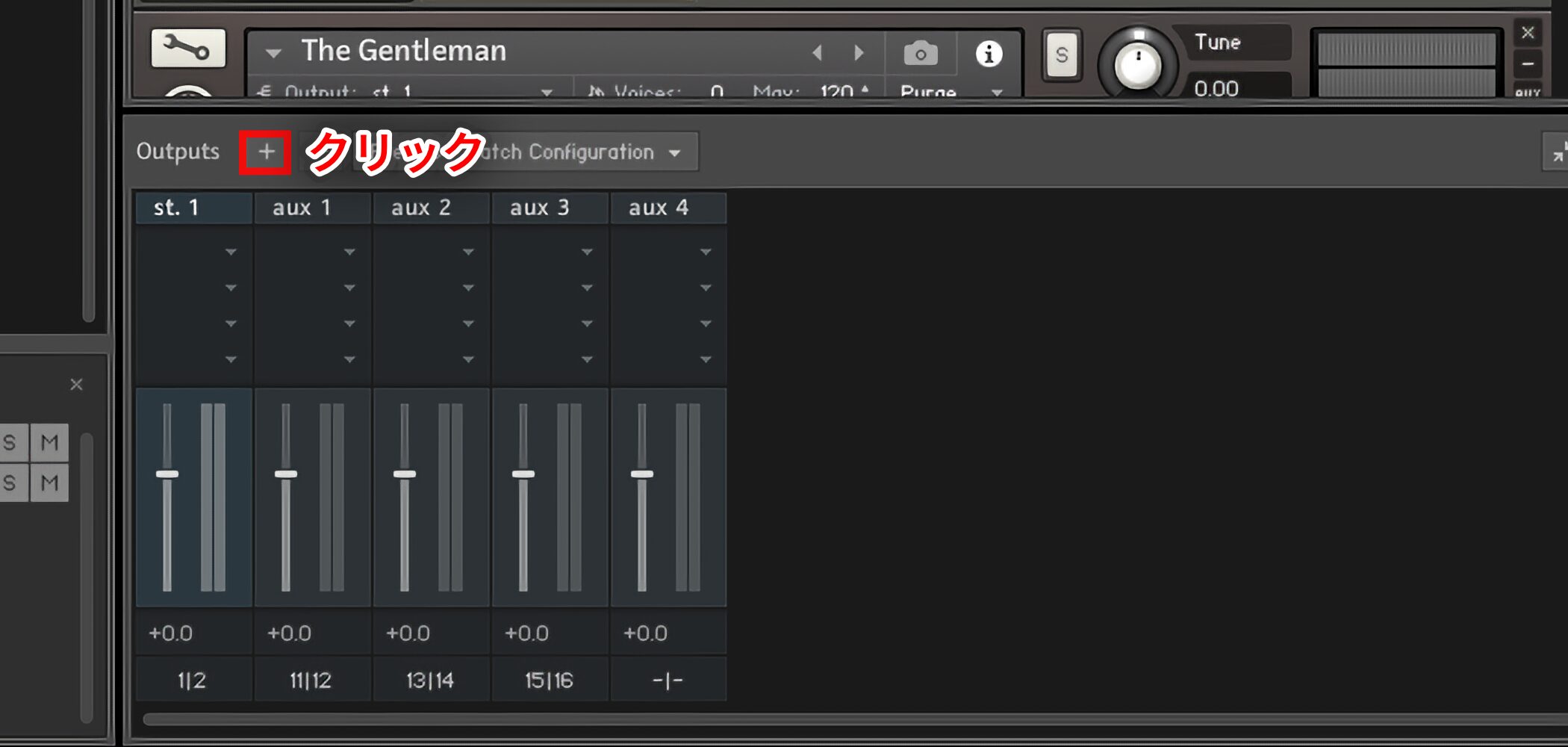
Click the highlighted plus button in the mixer.
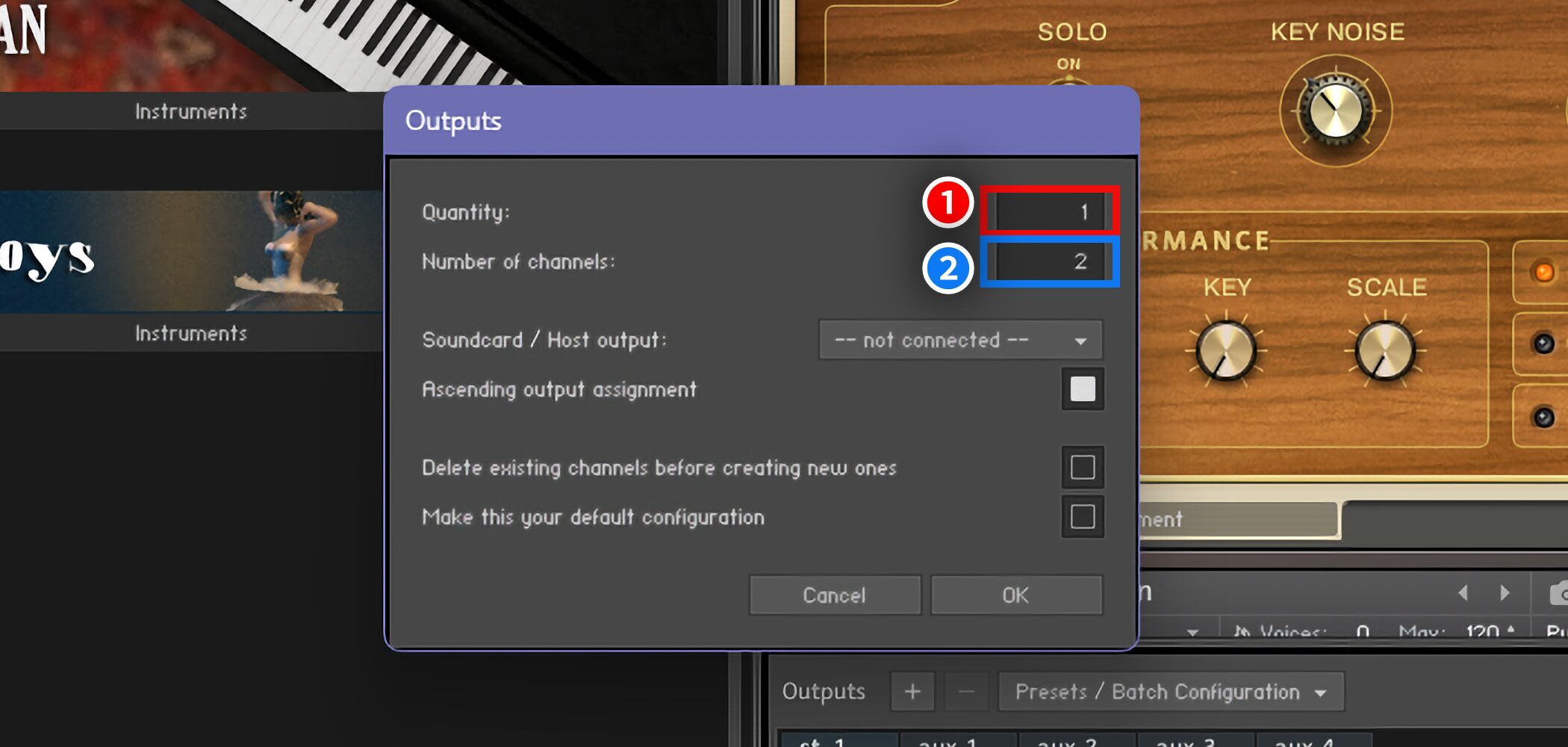
1 (Red): Choose how many output channels to add. The setting is retained, so you may want a few extra.
2 (Blue): Set the number of channels per output: 1 for mono, 2 for stereo, and 3 or more for surround and similar configurations.
The example uses 2 for stereo.
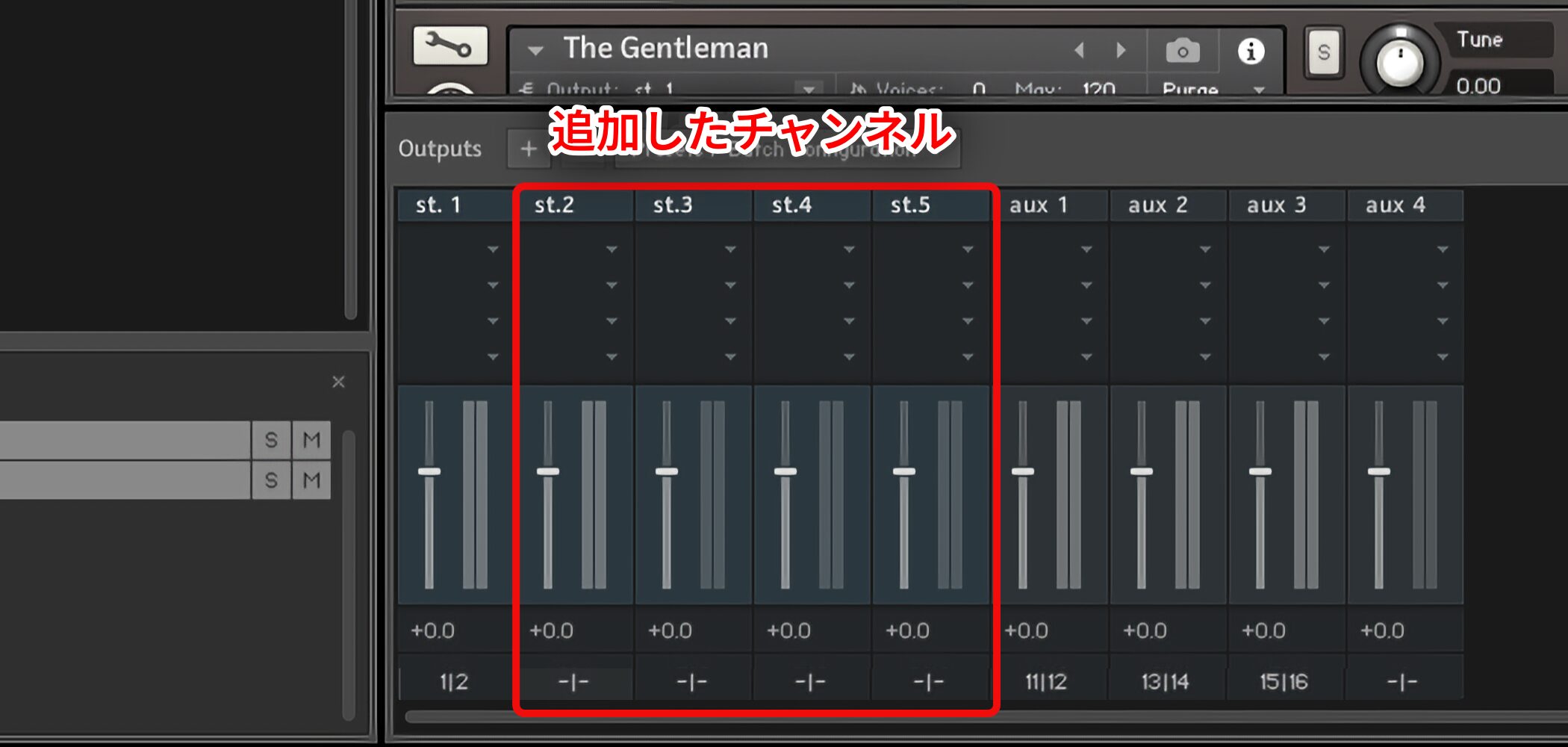
This is the display after adding channels.
Here, four channels were added.
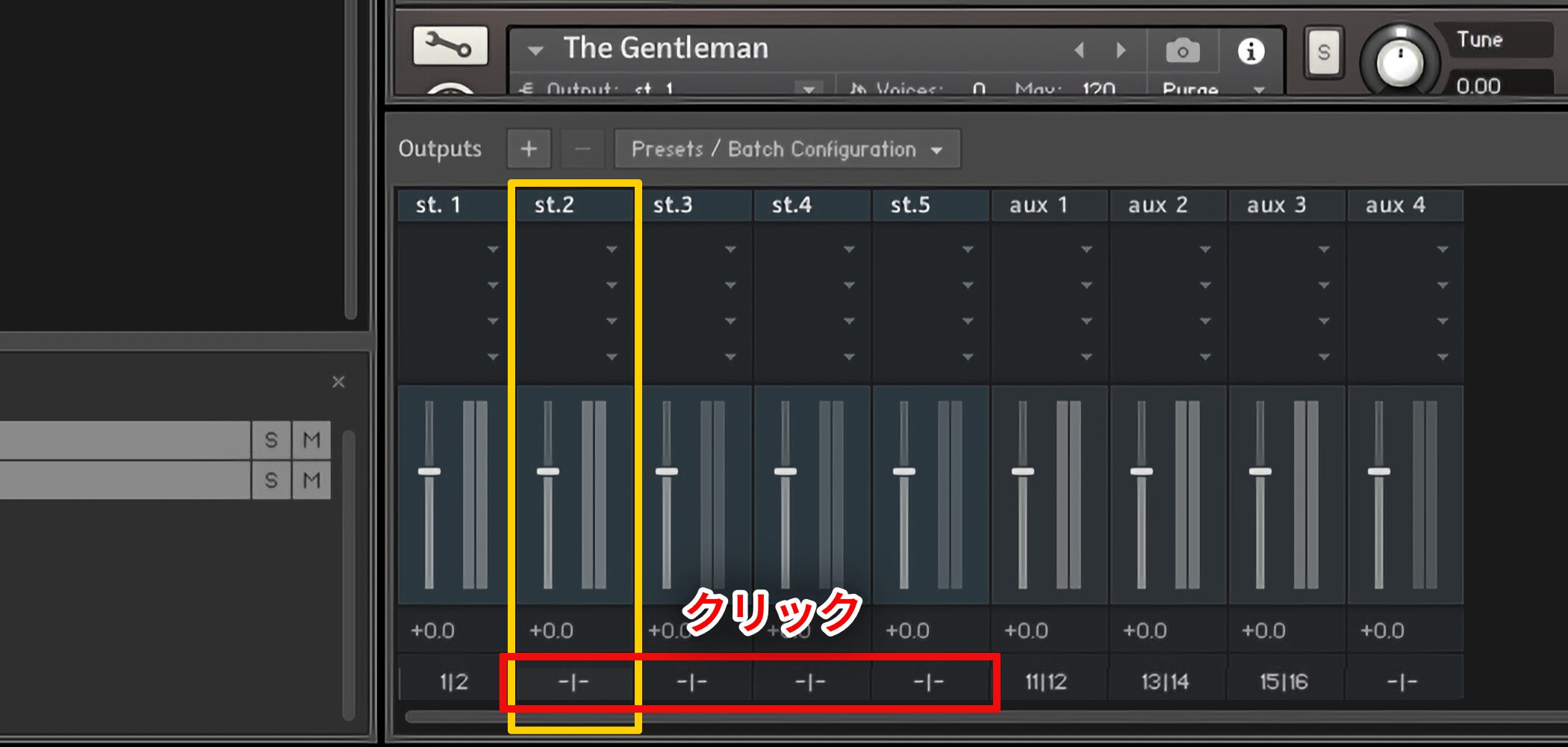
Click the highlighted area to assign the destination channels.
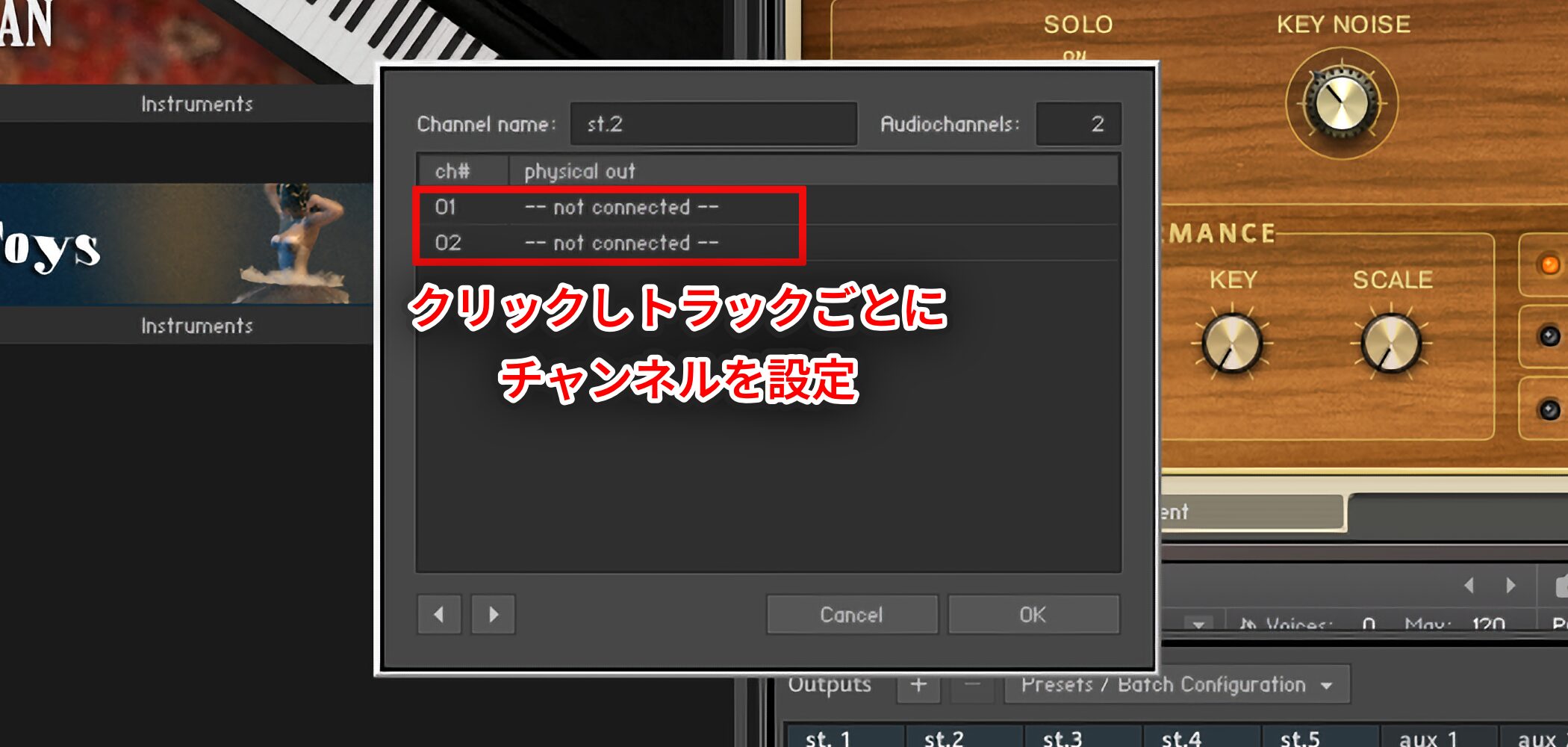
Configure each output so that its destination channels do not overlap.
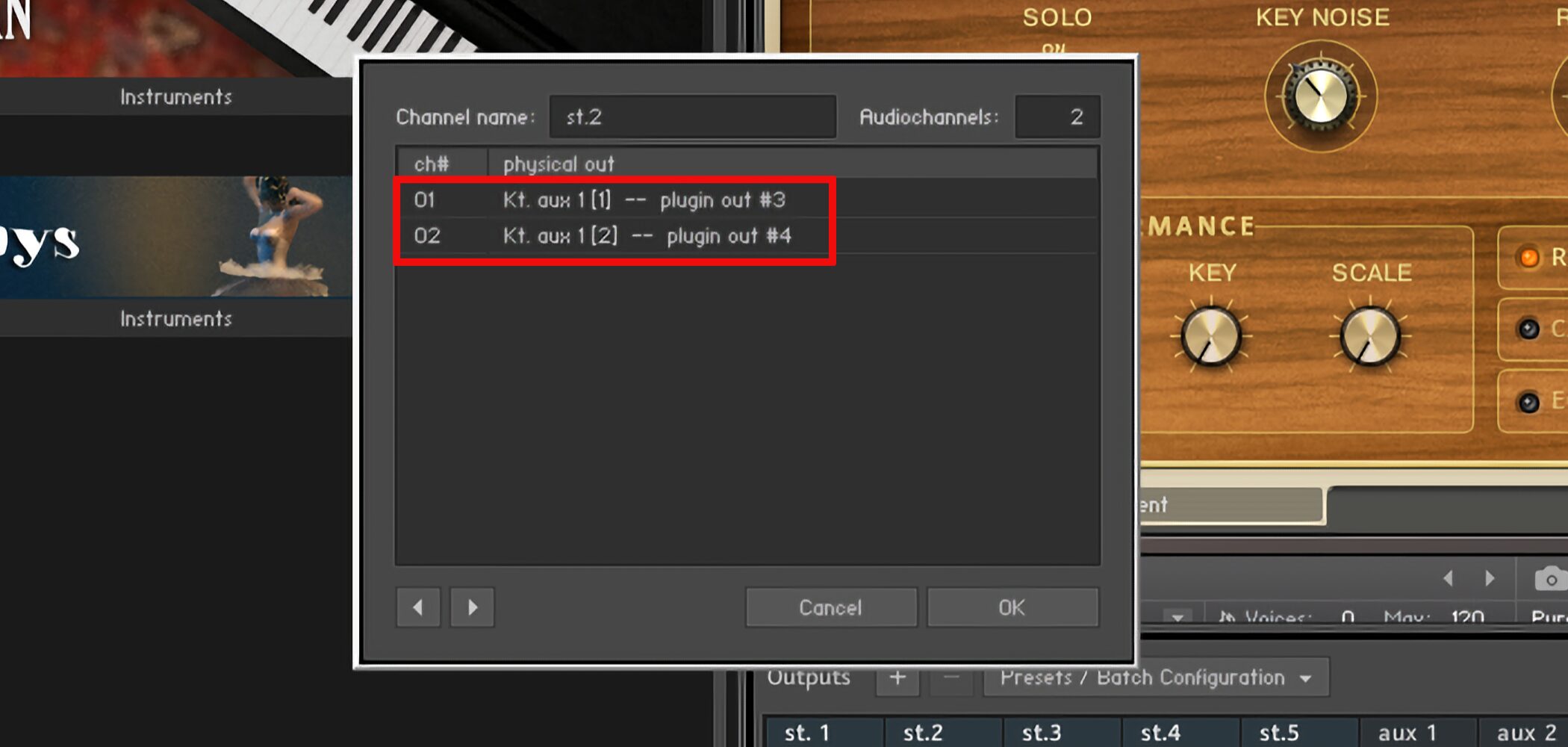
The result looks like this.
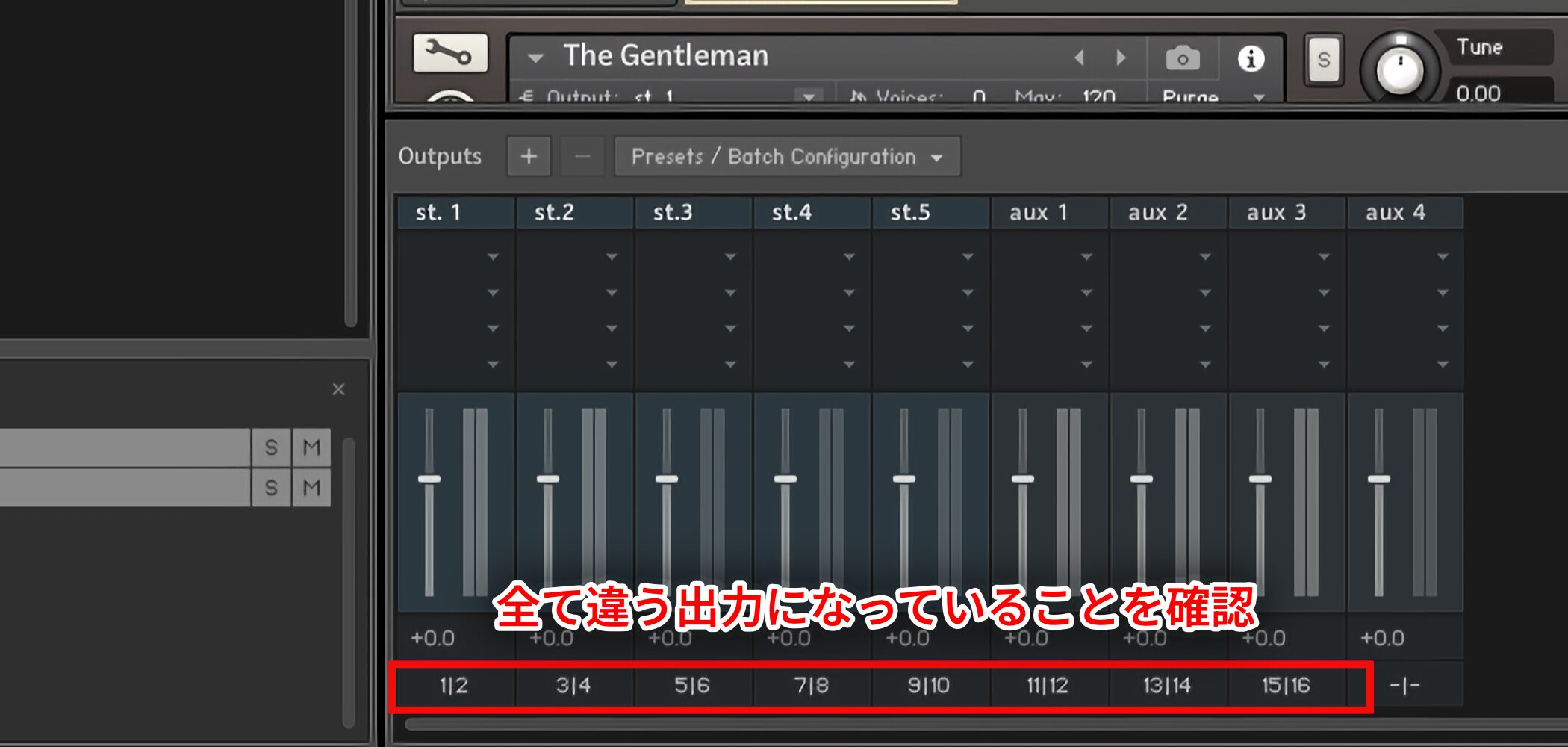
Repeat the assignments for all the outputs.
Check that each output uses a different destination.
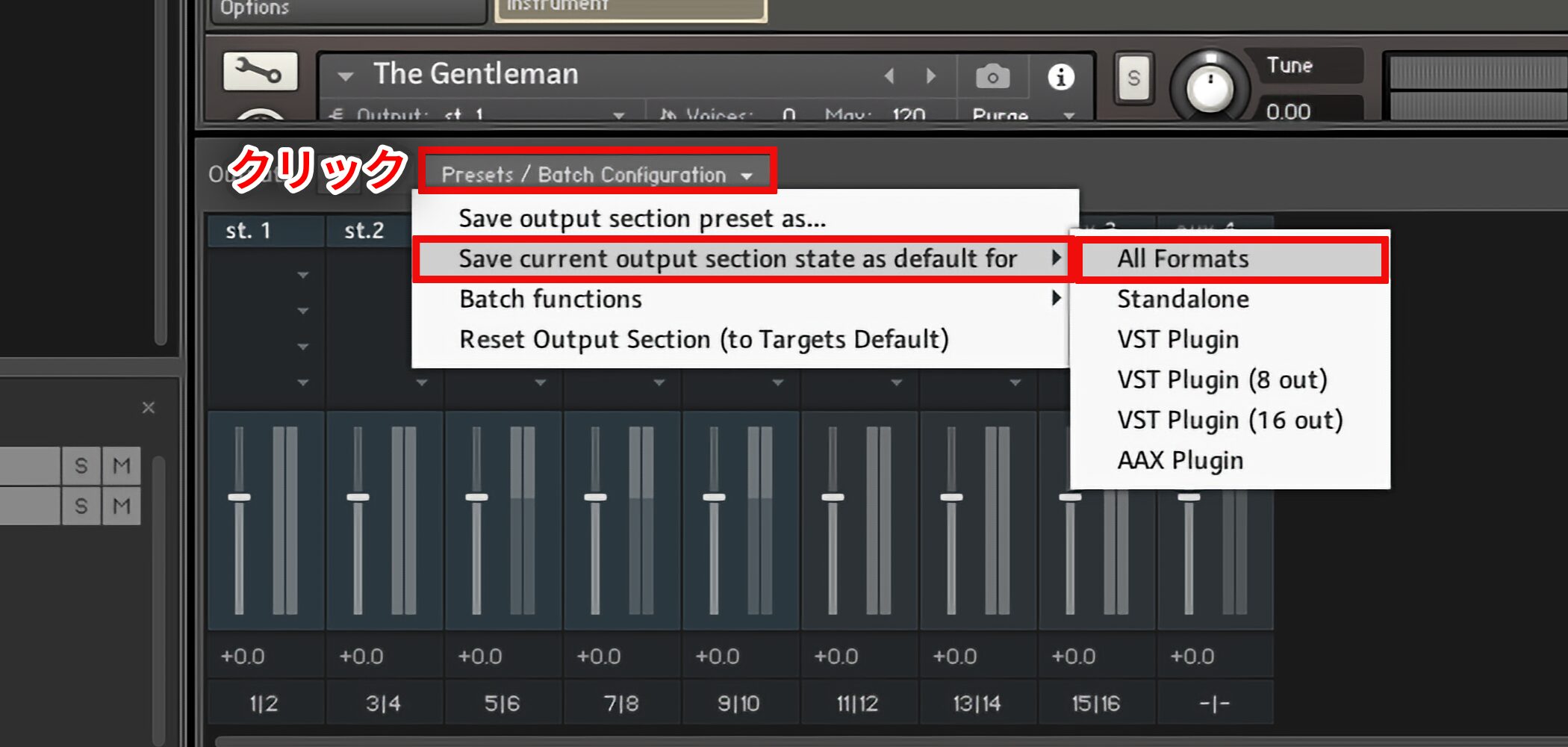
Save the configuration once it is complete.
Click the highlighted area and choose All Formats under Save current output section state as default for.
Then restart Kontakt to make the separate outputs available.
The configuration is saved, so it can be used more quickly next time. These steps describe Kontakt 5; newer versions and DAWs may differ.
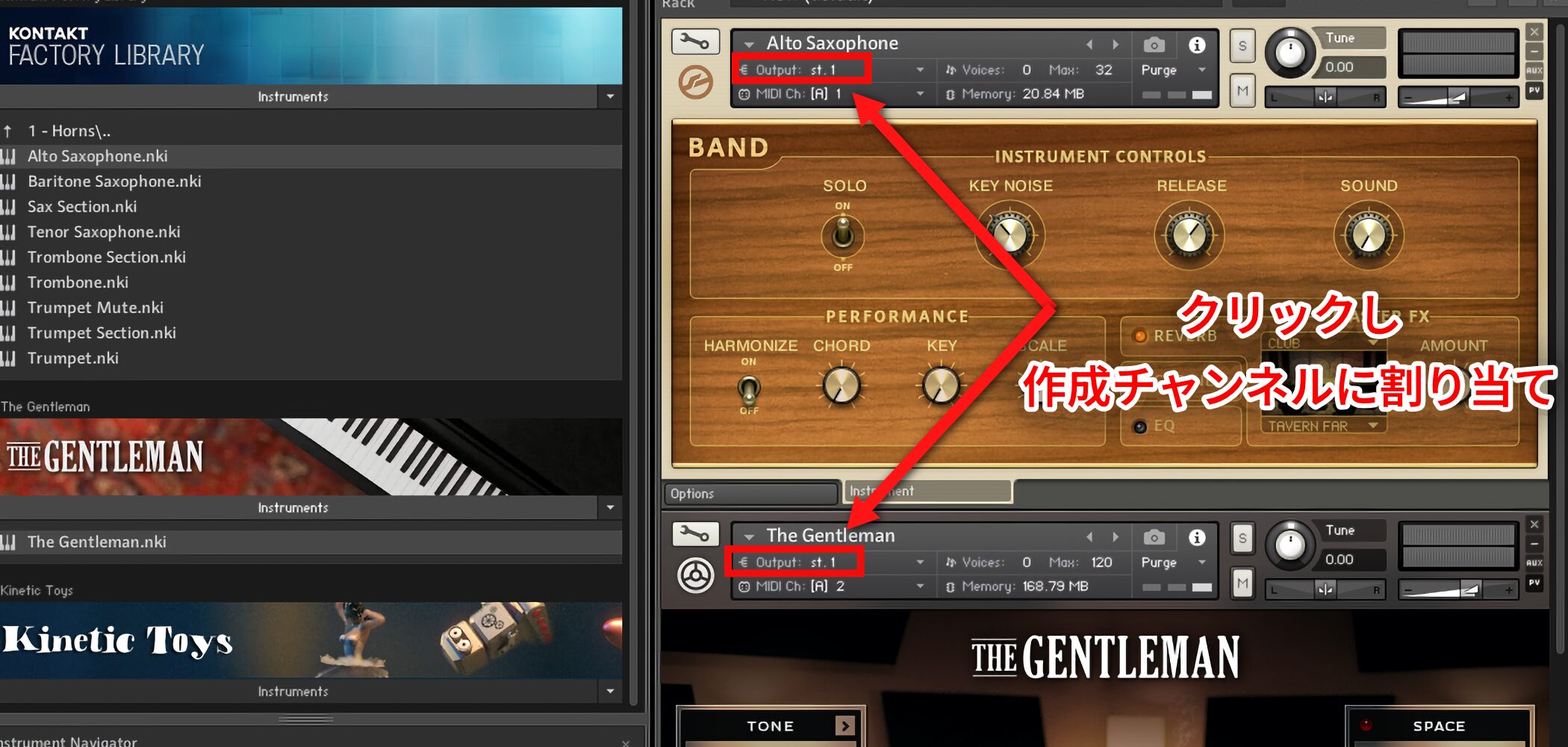
Click an instrument's Output field and assign it to one of the channels created above.
See the following guides for multiple-output setup in each DAW.
Convenient Batch Output Assignment
You can route several instruments loaded in Kontakt to separate outputs in one operation.
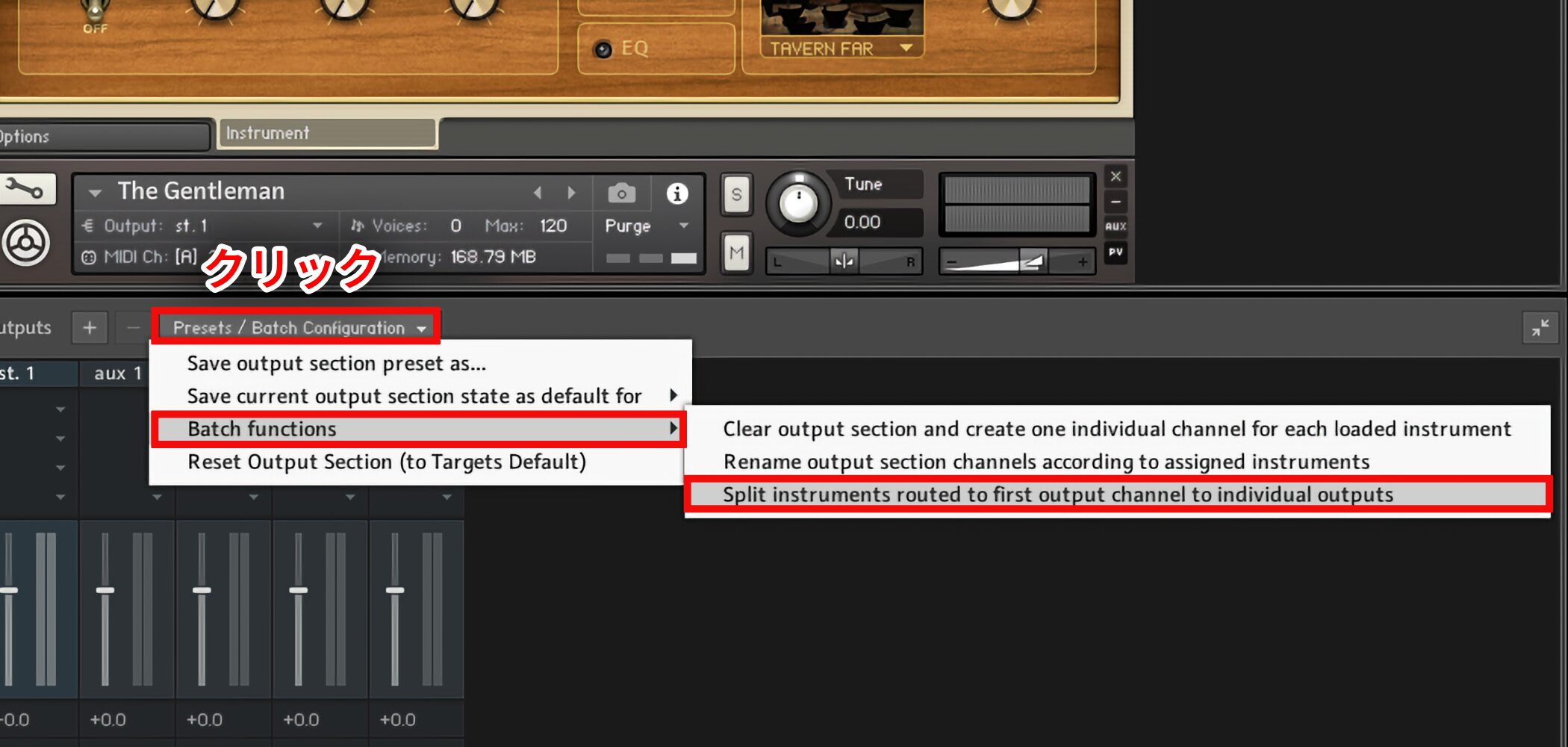
Click Presets/Batch Configuration and choose Batch functions.
Then select Split instruments routed to first outputs.
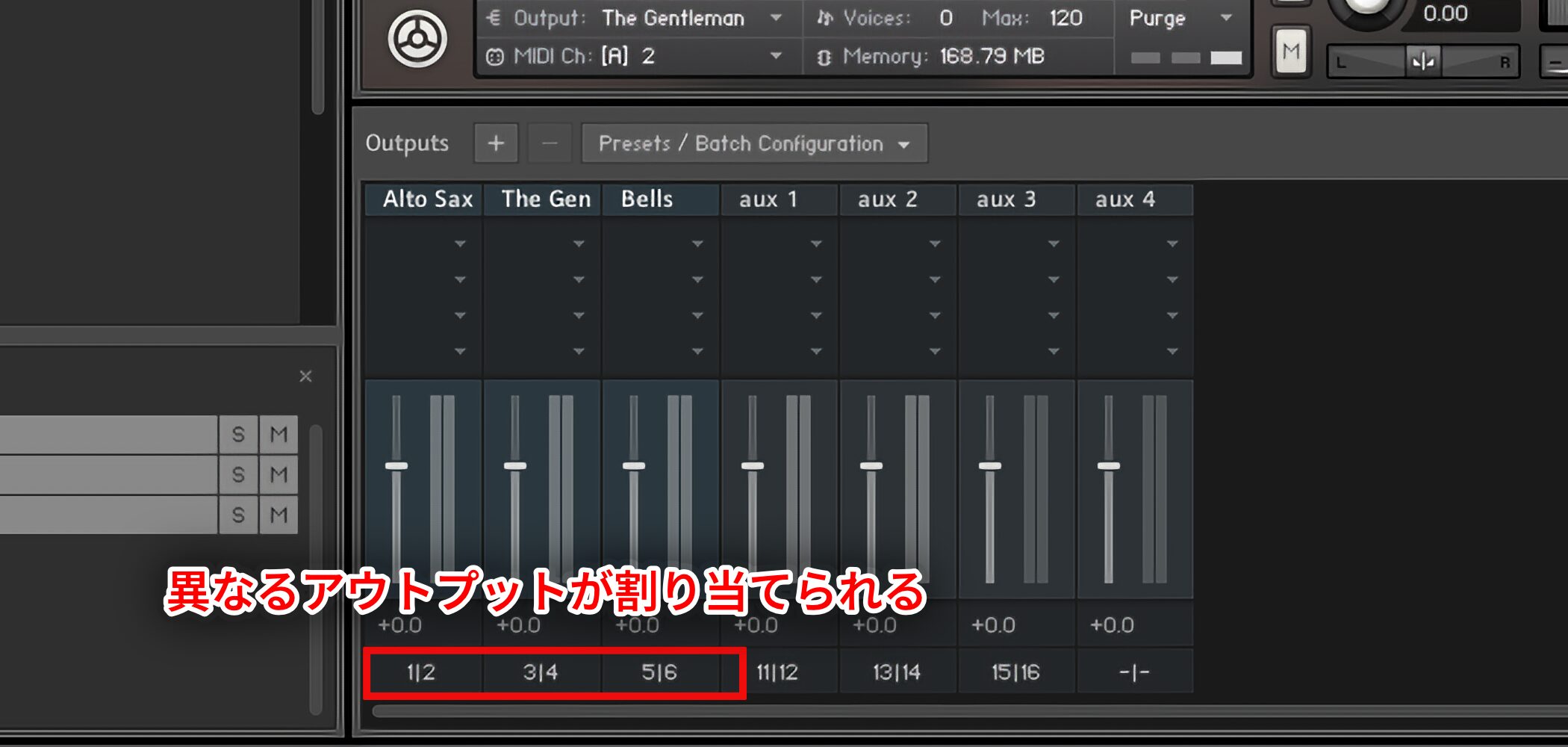
Different outputs are assigned to the instruments at once.
This is very convenient.
Kontakt Multiple Outputs: 8-out vs. 16-out
Kontakt provides 8-out and 16-out plug-in formats for multiple-output setups. This guide explains the difference between them.
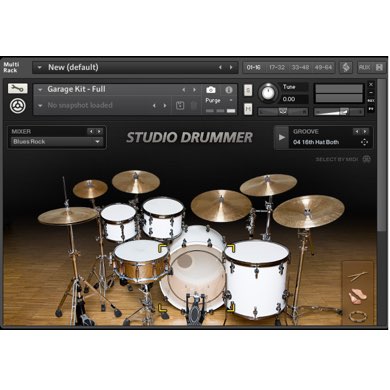
Routing Individual Outputs from a Kontakt Drum Instrument
With a drum instrument, you may want separate outputs for the kick, snare and hi-hat within the same instrument. This guide explains the setup.
Kontakt's Main Windows
Understanding the main windows is the first step toward using the software effectively.
Video: Main Windows
Adjusting Master Tune
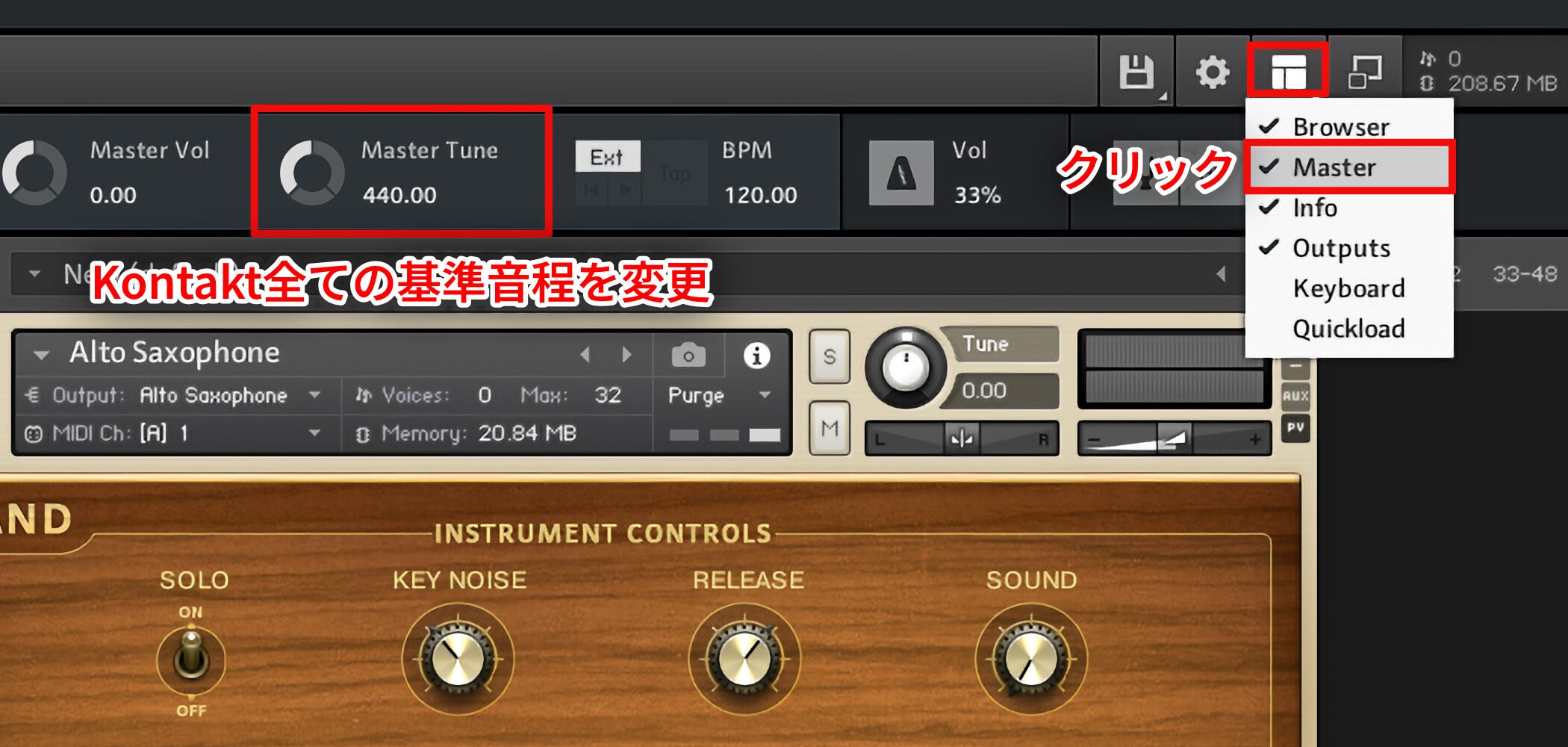
Change Tune from the Master tab.
This changes the reference pitch for all of Kontakt, so use it to match the tuning of the song.
Quick-Load
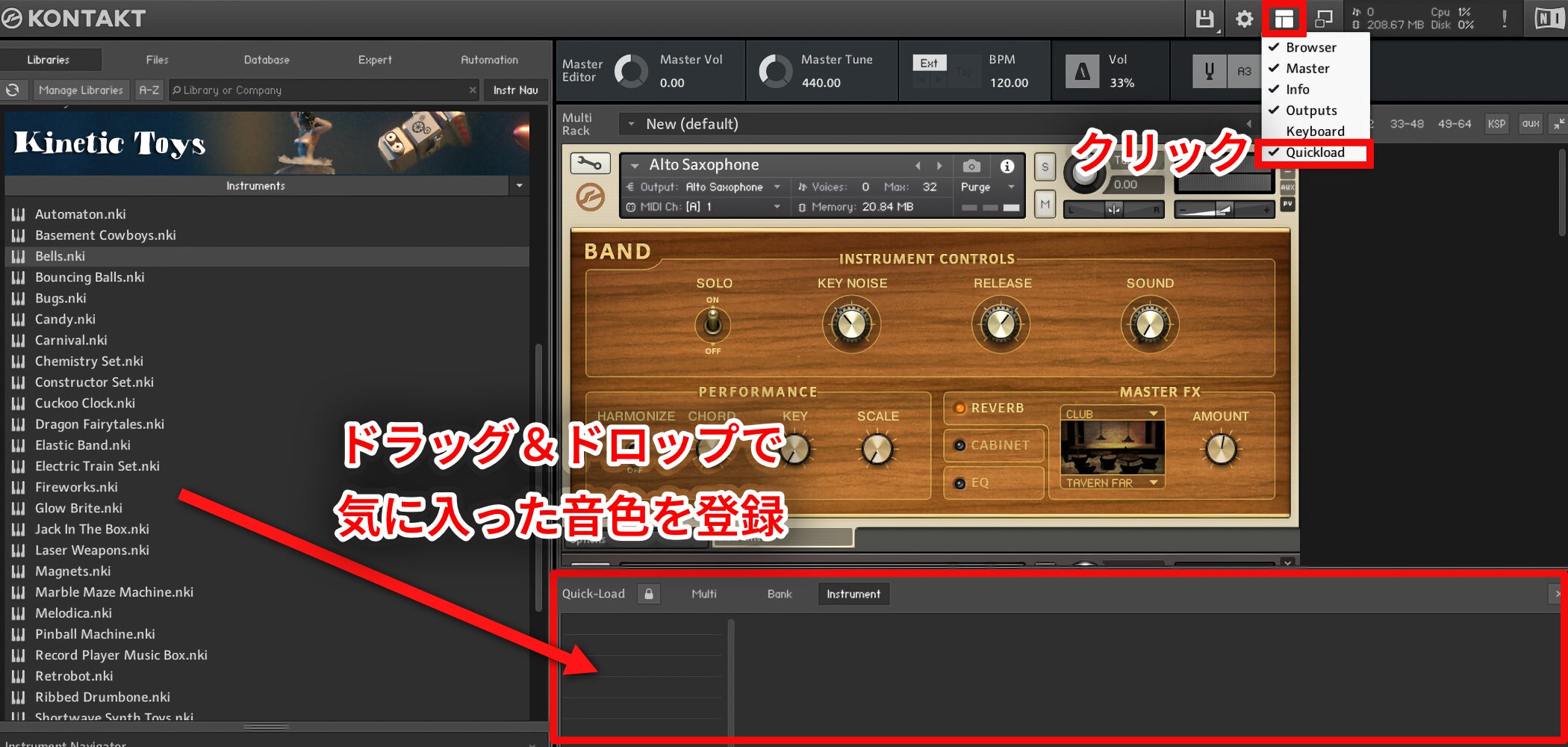
Quick-Load lets you register favorite sounds from your collection for easy access.
Add them by dragging and dropping.
Saving an Instrument
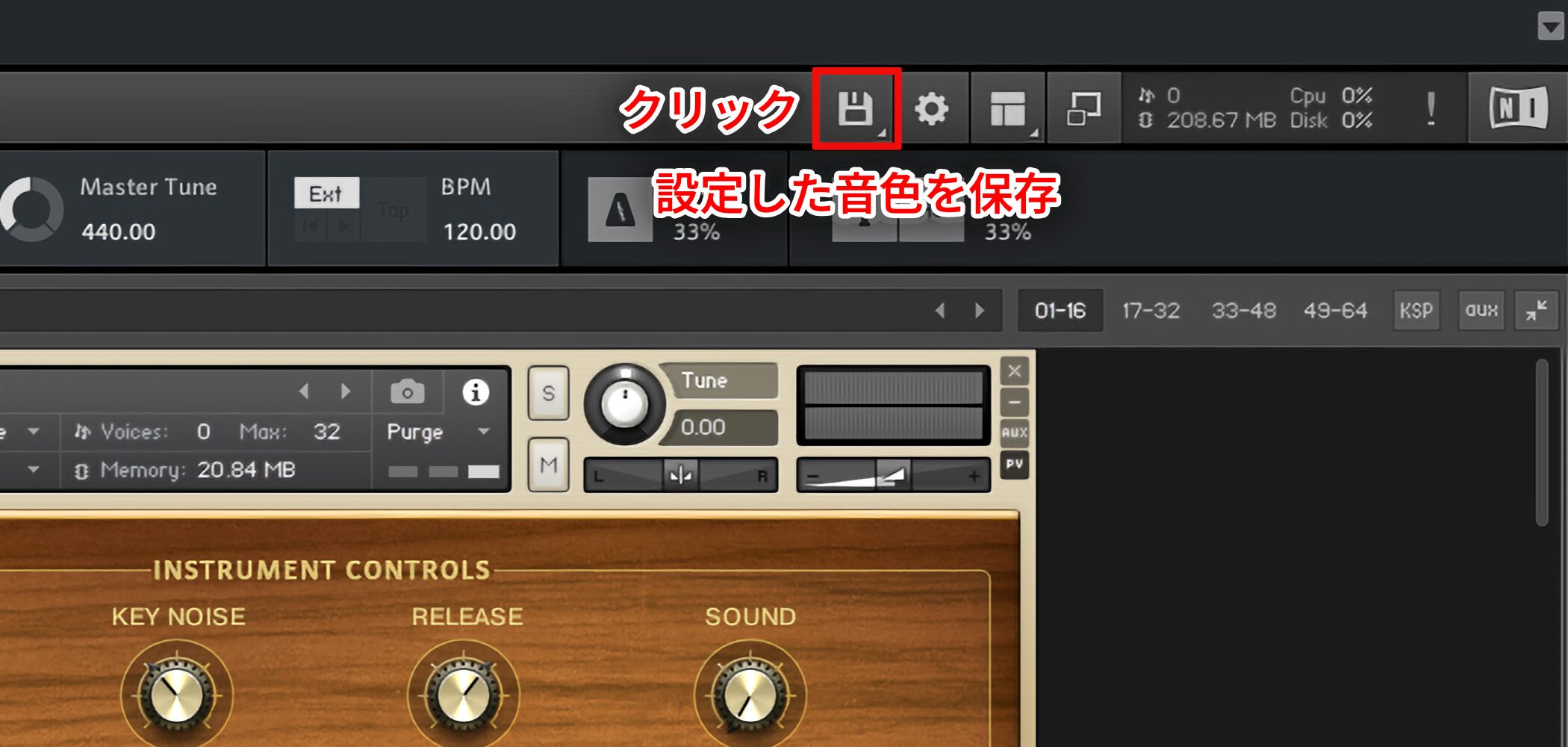
Choose Save as from the File menu to save an instrument you have configured for later use.
Arranging and Editing Samples in Kontakt
Now let's explore the sampler functions using your own samples.
First, we'll arrange and edit prepared samples.
Video: Assigning and Editing Samples
Importing Samples
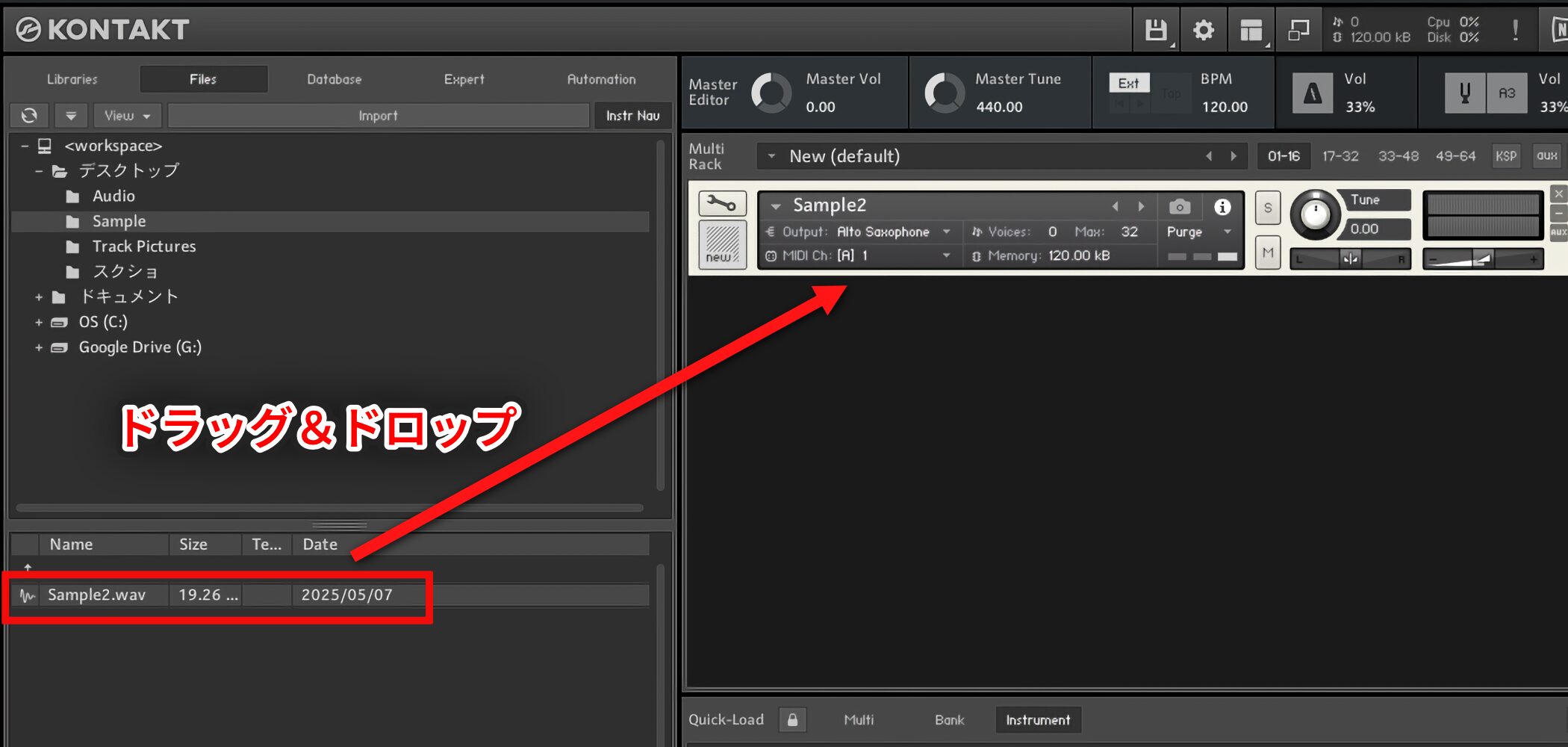
Drag and drop prepared samples into the Kontakt window to load them.
Mapping Pitches
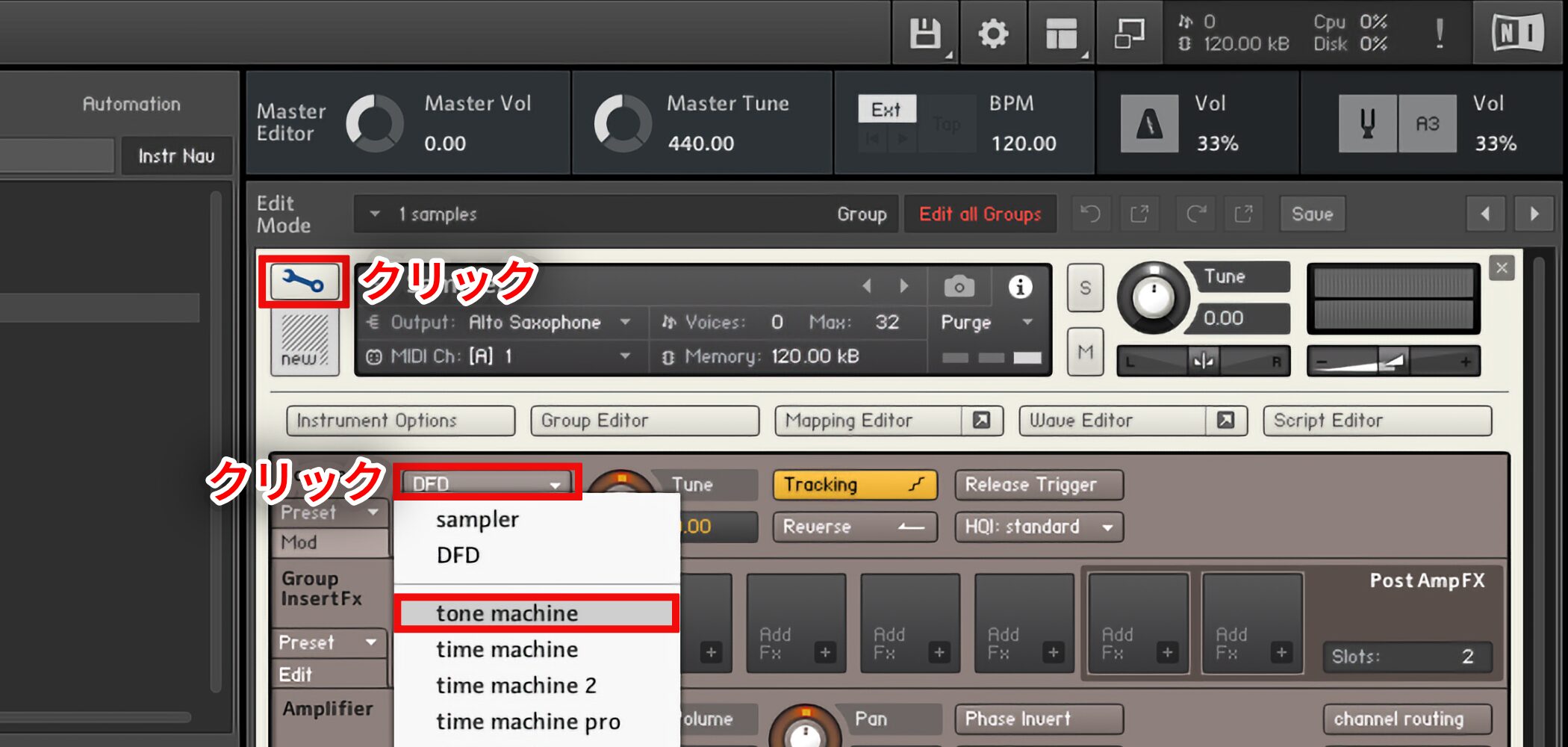
Click the wrench icon to enter edit mode.
Set the highlighted section to Tone Machine so that pitches can be assigned to the sample in the setup shown.
Setting the Sample Range
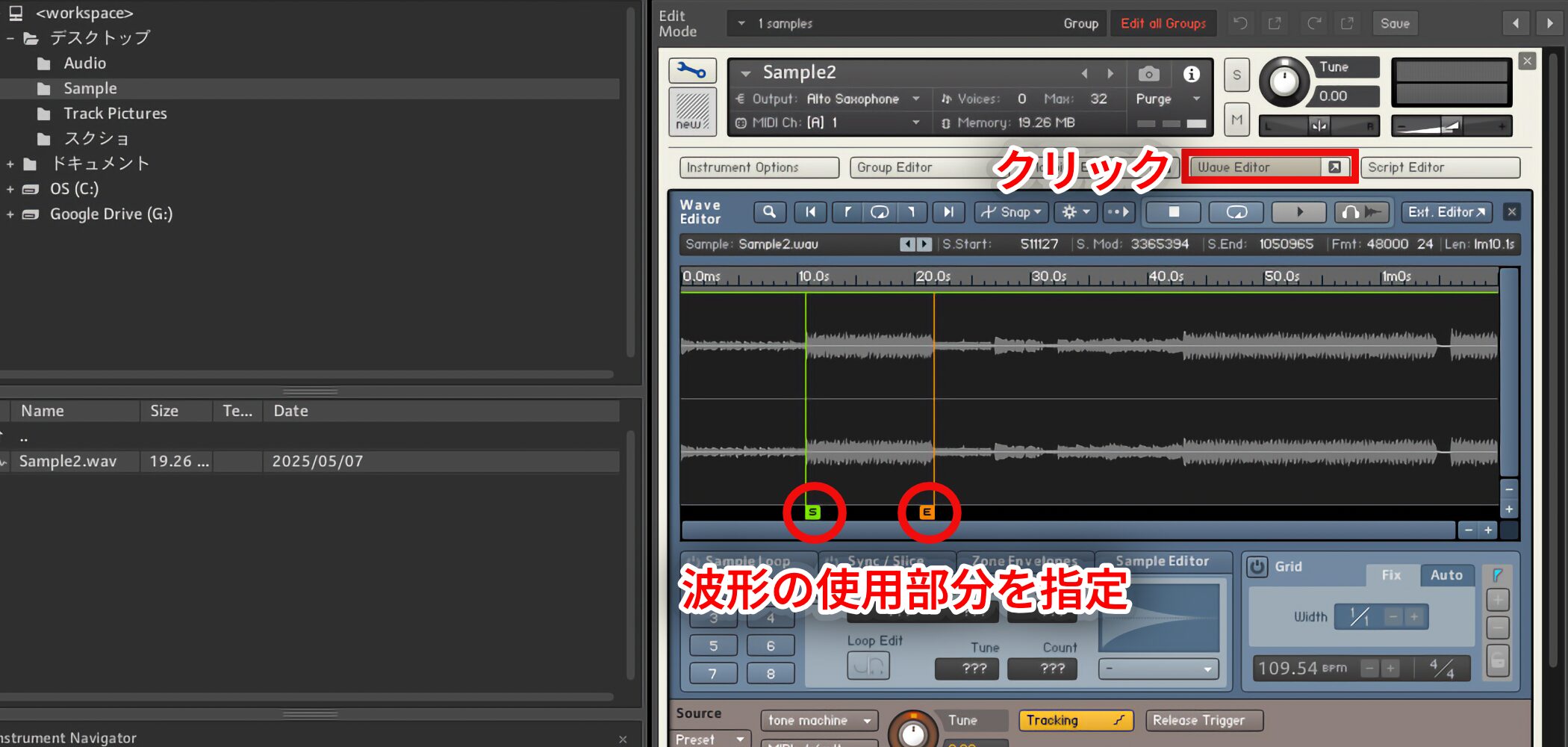
In the Wave Editor, drag the start and end markers to choose the portion of the waveform to use.
Polishing Sounds with Effects in Kontakt
Once you have imported and arranged audio samples in Kontakt, you can apply effects to them.
Video: Using Effects
Loading Effects
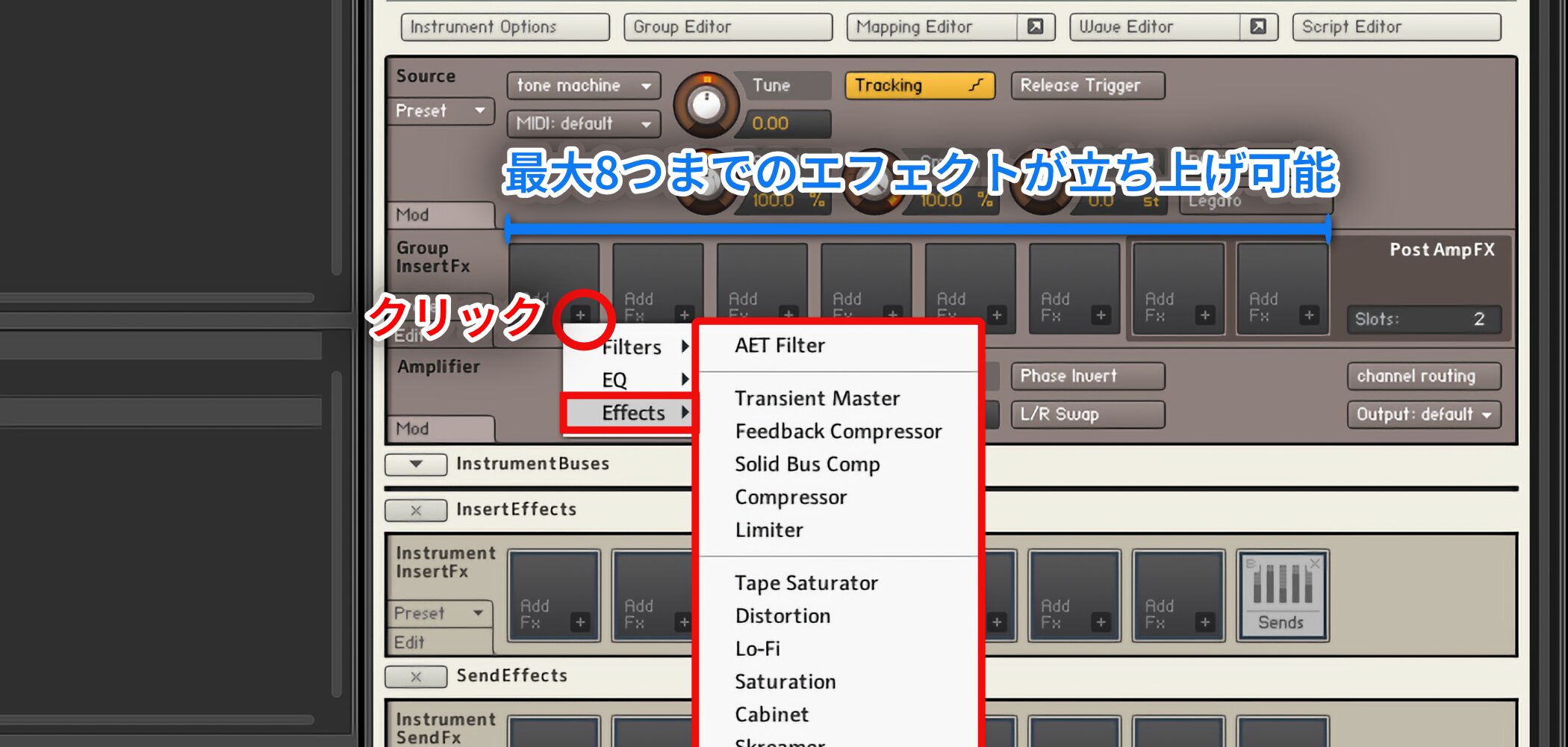
Click the plus button in a slot to choose an effect.
You can load up to eight effects in the setup shown.
Spatial Effects
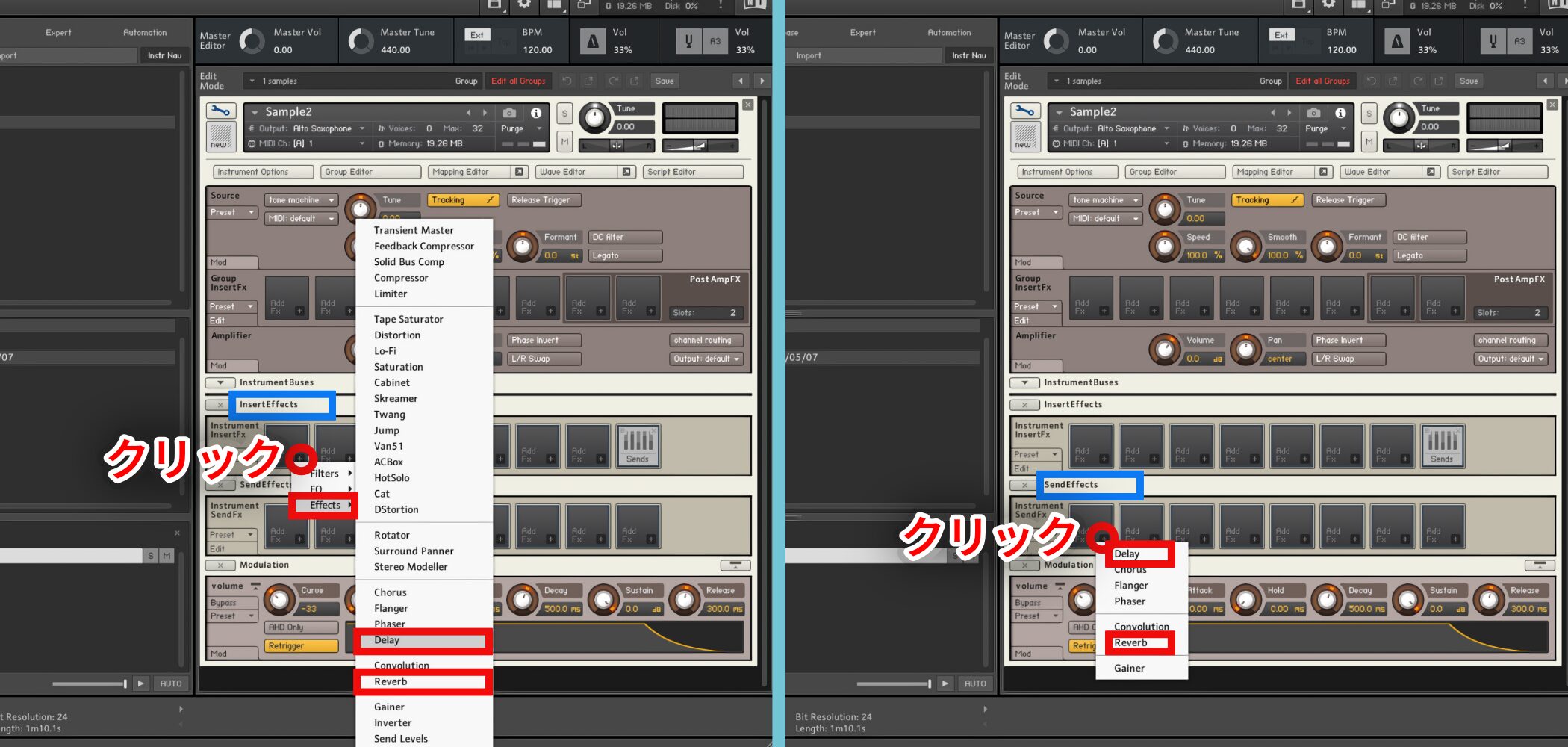
Spatial Effects Effects such as reverb and delay can be loaded from Insert Effects or Send Effects in Kontakt.
Bypassing an Effect
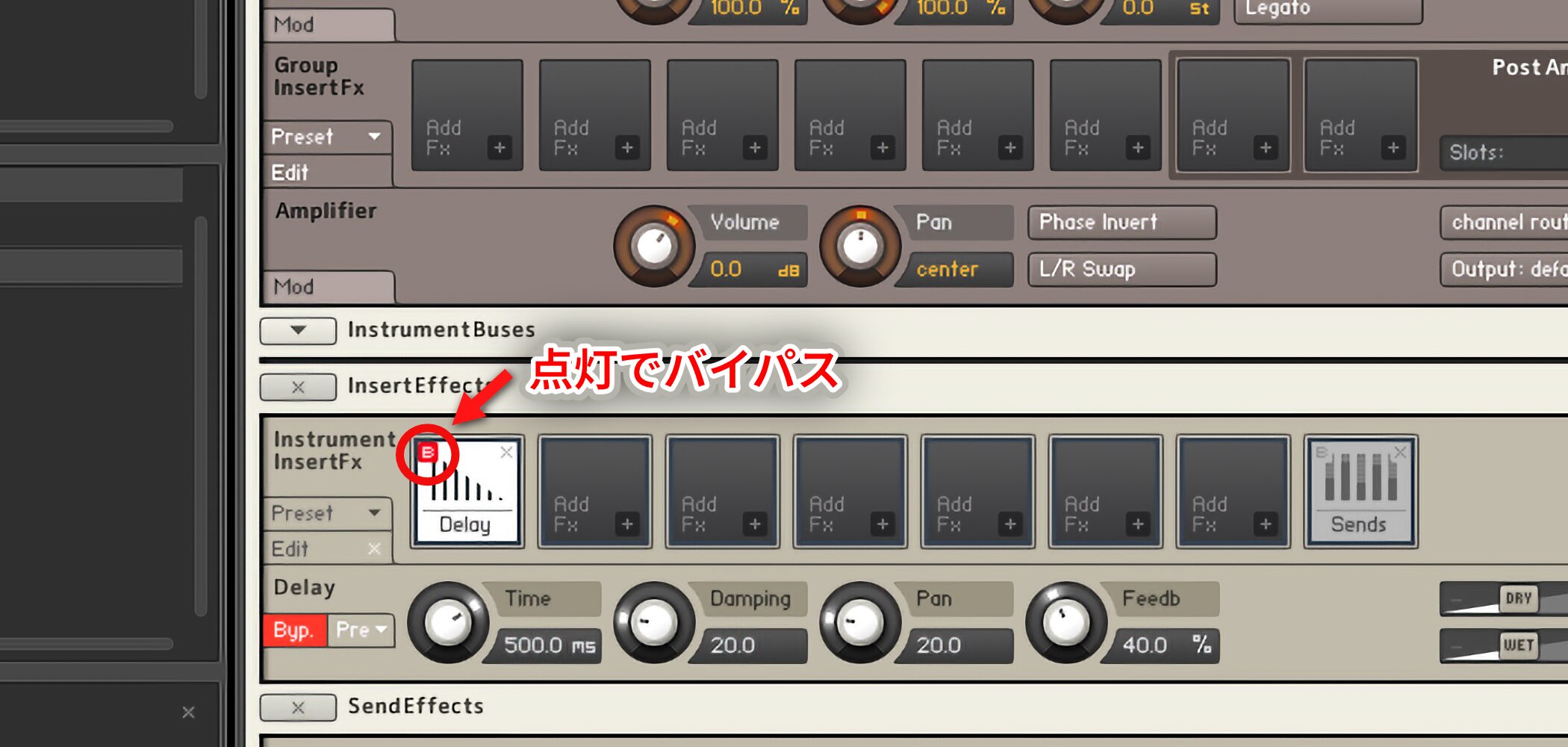
To bypass an effect, click B at its upper left.
When lit, the effect is bypassed and no longer processes the signal.
Click it again to turn bypass off.
Modulation: Adding Movement to a Kontakt Sound
Modulation can add movement and bring a sound to life.
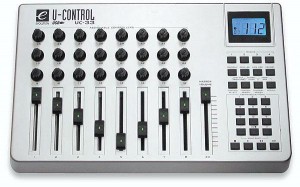
You can also assign controls on a MIDI device to Kontakt knobs for hands-on operation.
Video: Modulation
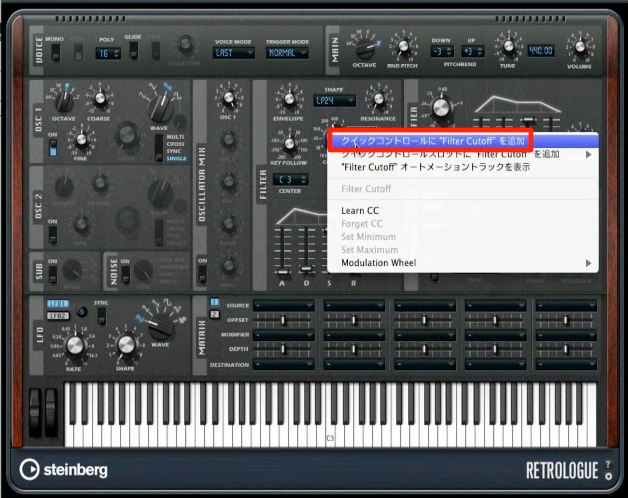
Assigning a Controller with MIDI Learn
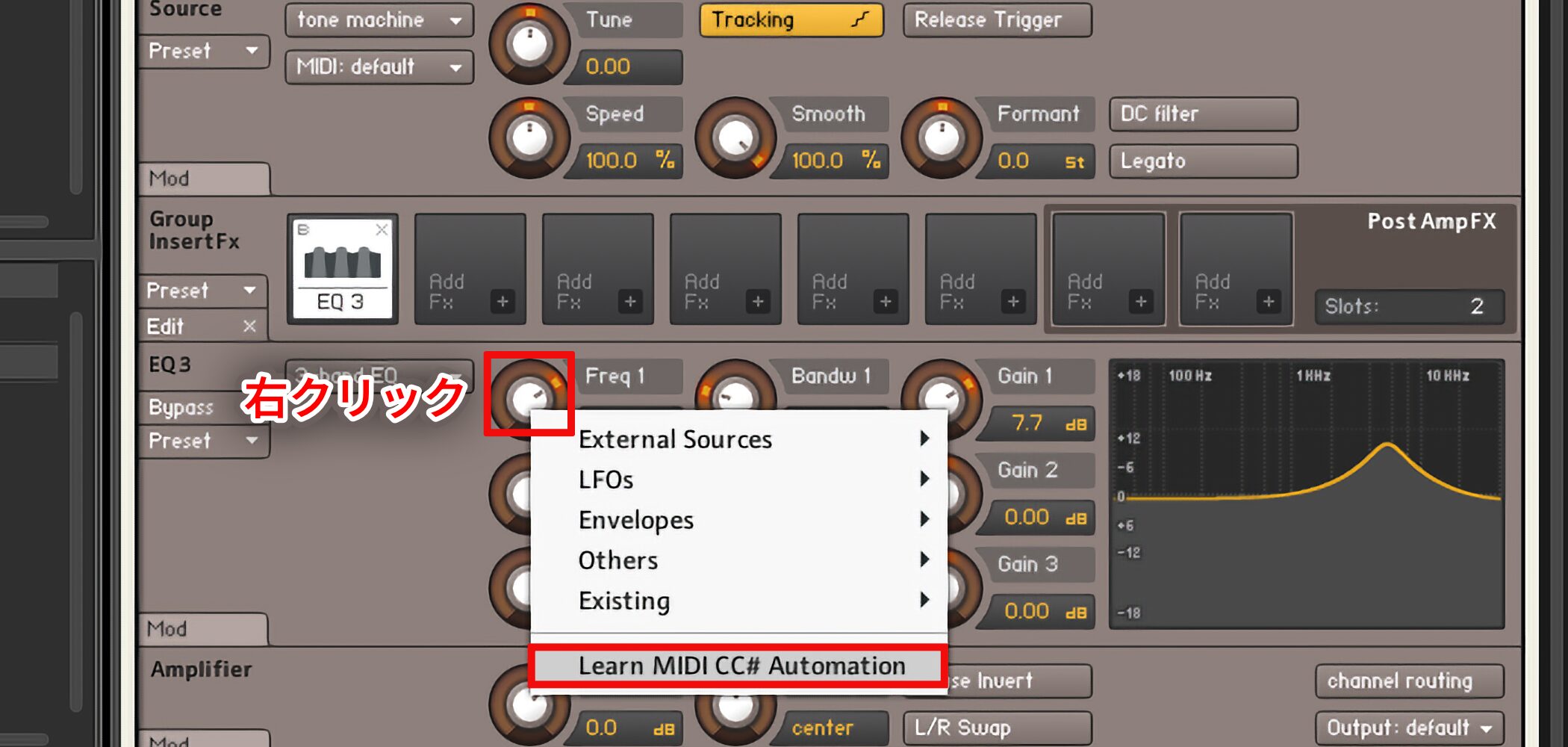
MIDI Learn is very useful.
Right-click the knob or fader you want to control and choose Learn MIDI CC.
Then move the knob on your MIDI controller.
Using Modulators
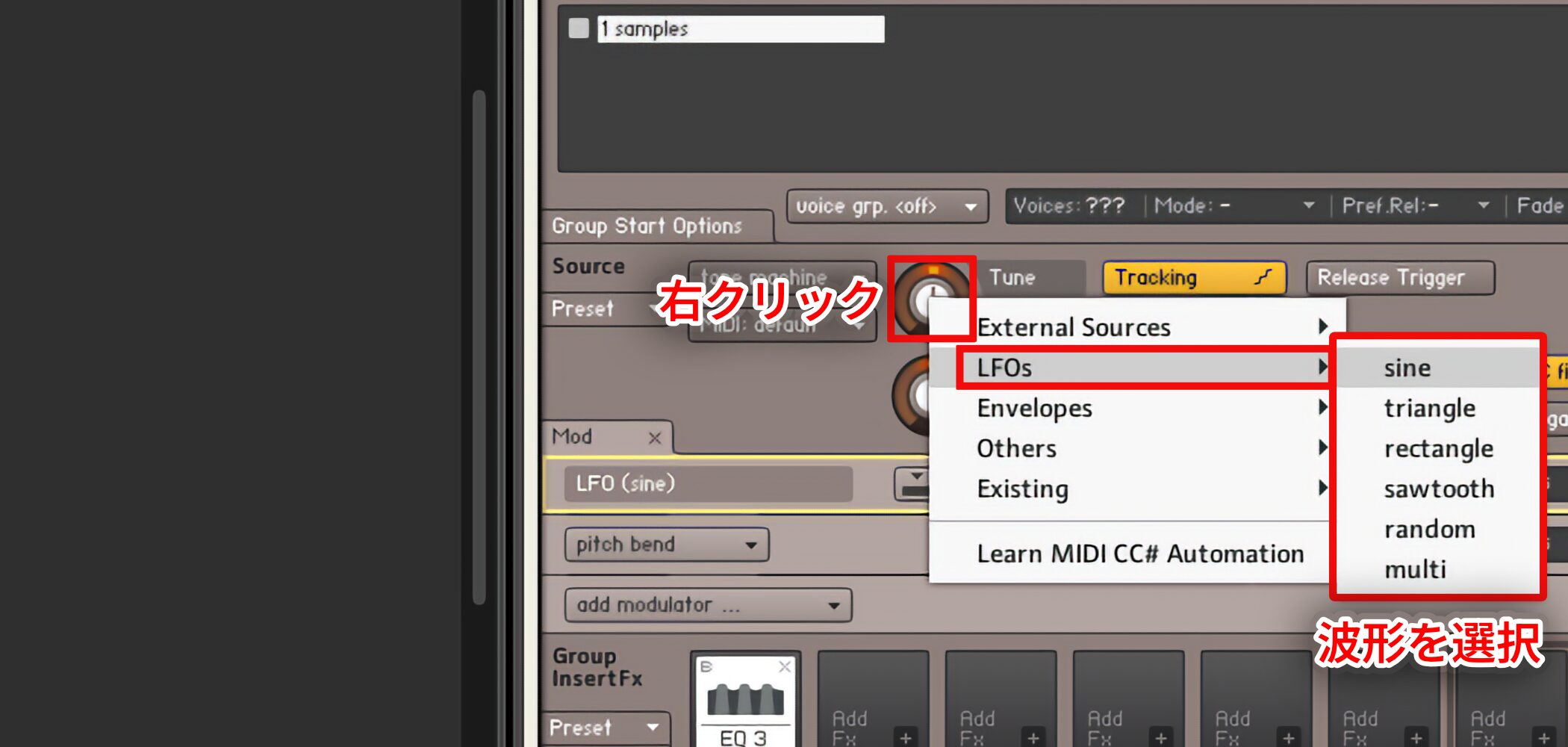
Right-click the control you want to modulate and choose a waveform from LFOs to assign modulation.
Reviewing and Applying Kontakt Techniques
Let's use the techniques covered so far to create a jingle for our videos.
Video: Making a Jingle
Conclusion
Kontakt lets you build instruments from audio material and shape them in many ways.
Experiment with sound design and enjoy exploring its possibilities.
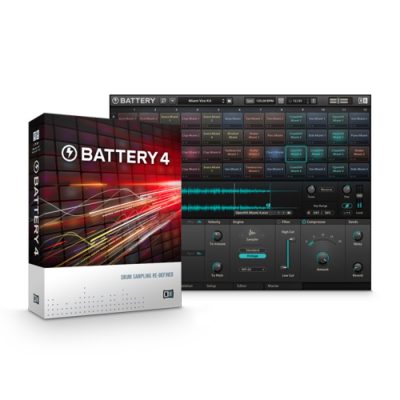
Battery 4: Built for Customization
A rhythm instrument that imports your own samples for editing, with a broad selection of presets suited to electronic sounds.
Sample One: Creating an Orchestral Hit, Part 1 (Studio One)
Use prepared samples to create an orchestral hit.
EXS24, Part 1: Loading and Arranging Samples
Import and process prepared samples in Logic's EXS24 sampler.
Frequently Asked Questions
Q1. What do I need to use multiple instruments at once in Kontakt 5?
Load the instruments, assign them different MIDI channels in Kontakt for independent control, and configure the corresponding MIDI tracks in your DAW. One Kontakt 5 instance can host up to 64 instruments.
Q2. How do I replace a loaded instrument with a preset?
Double-clicking loads an additional instrument. To replace the existing instrument, drag and drop the new one onto it.
Q3. Why use separate outputs?
They let you adjust pan and volume and apply effects separately in the DAW. The 16-out plug-in format provides multiple output channels in the Kontakt 5 setup shown.
Q4. How can I search Kontakt presets efficiently?
Use the Database tab to search by instrument category across libraries. The arrow buttons also let you step through sounds in a folder.
NEW ARTICLES
Latest English Articles