
In the final installment of our Cubase 11 beginner series, we explain how to export a finished song for playback in music players, distribution services or on an audio CD. The guide covers the export range, Audio Mixdown settings, WAV and MP3 formats, bit depth, sample rate and dithering, followed by the queue for batch-exporting multiple settings. The steps and interface refer to Cubase 11 as shown in the original January 2022 tutorial; some features depend on your Cubase edition.
In this final installment, we explain how to export your finished song.
Until now, you have played the project inside Cubase. Exporting lets you import the finished audio into various players, upload it for distribution or burn it to a CD.
The process is straightforward but essential, so make sure you understand it.
Exporting your song: video tutorial
Choosing the export range
The first step is to select the part of the project you want to export.
Set the export range using the left and right locators in the ruler, as you would when defining a loop.
The start can coincide with the beginning of the song. Allow a little extra time at the end, however, because long release tails, delay or reverb may still be sounding.
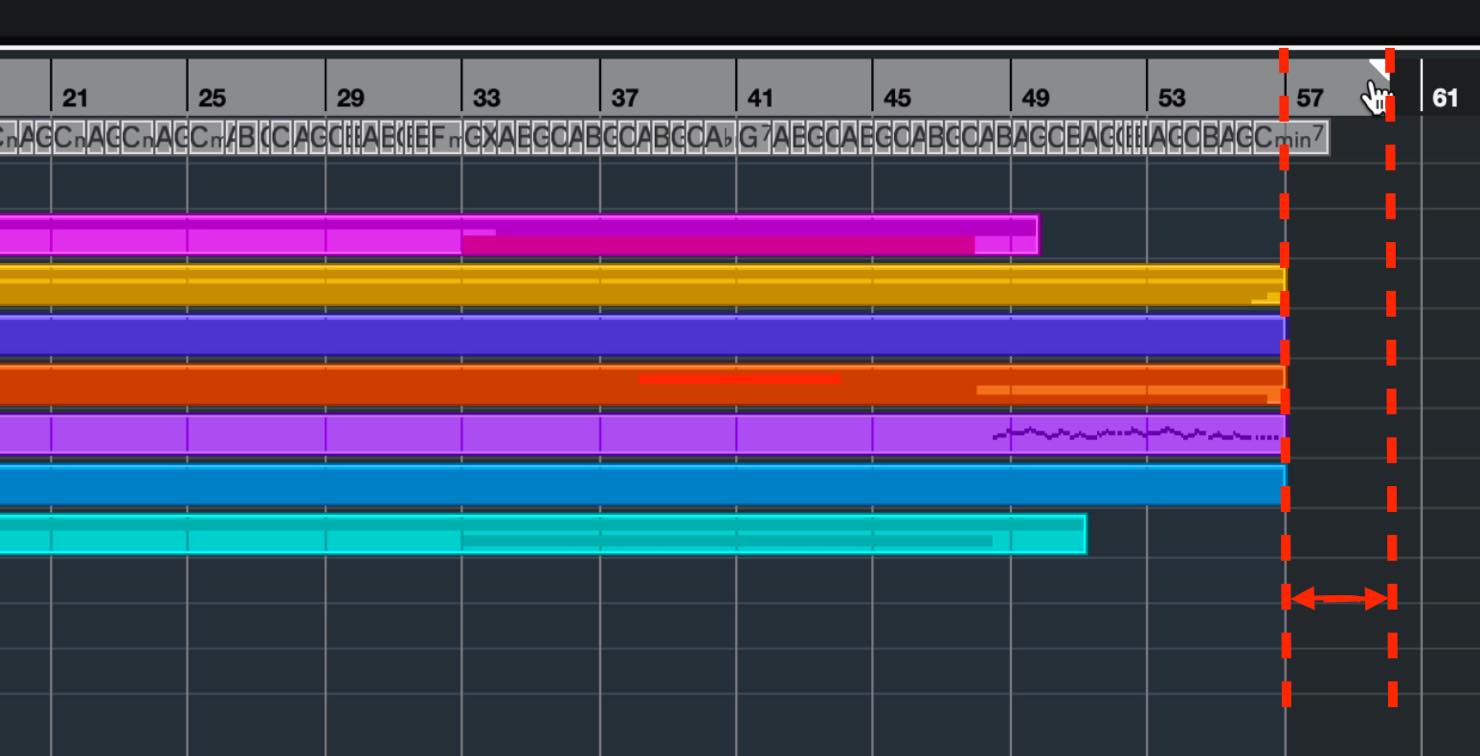
When exporting for distribution, this ending also affects the space before the next song. Choose a length that gives listeners the lingering impression you want.
Export settings
Once the range is set, choose File > Export > Audio Mixdown.
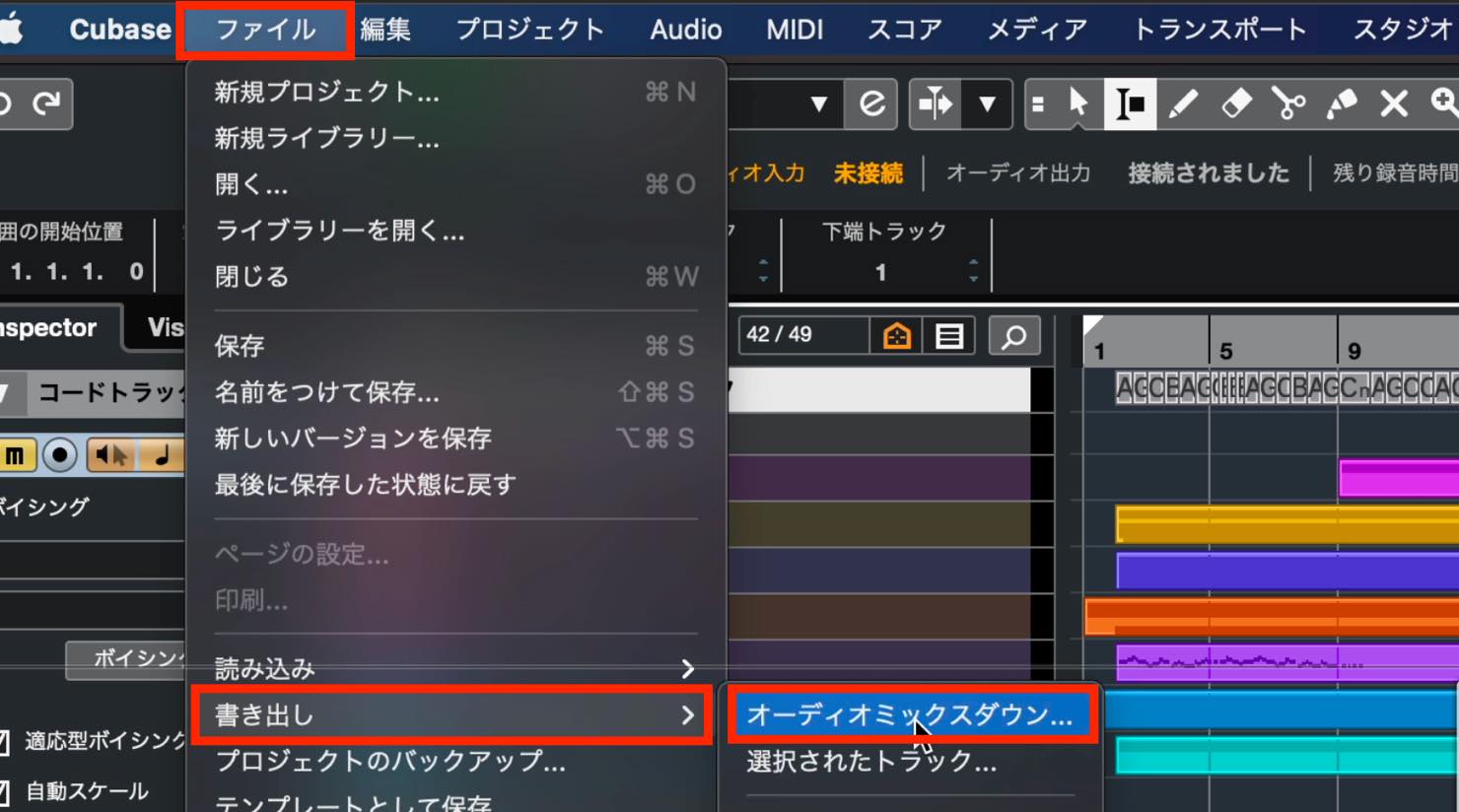
The Export Audio Mixdown window appears as shown here.
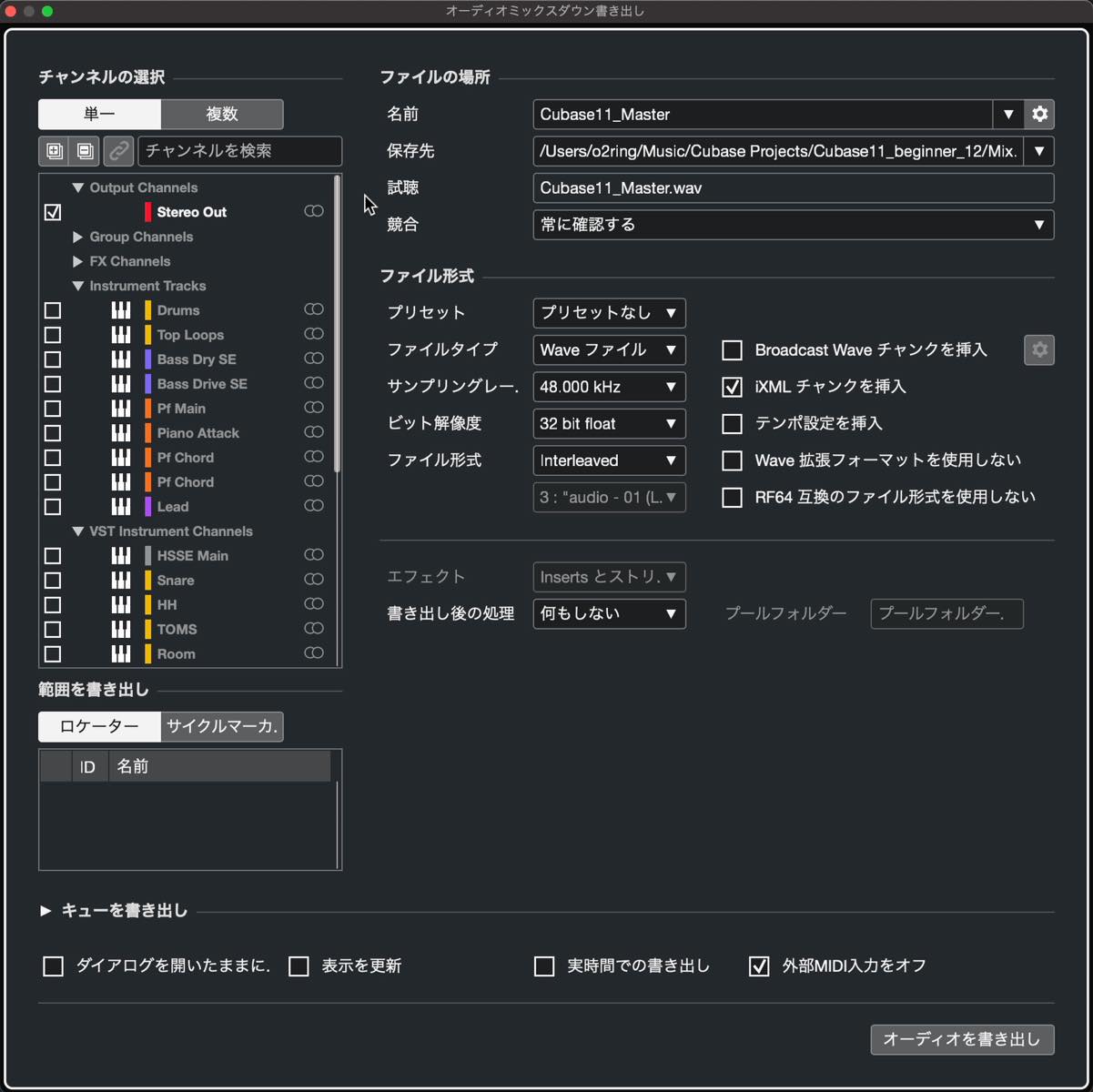
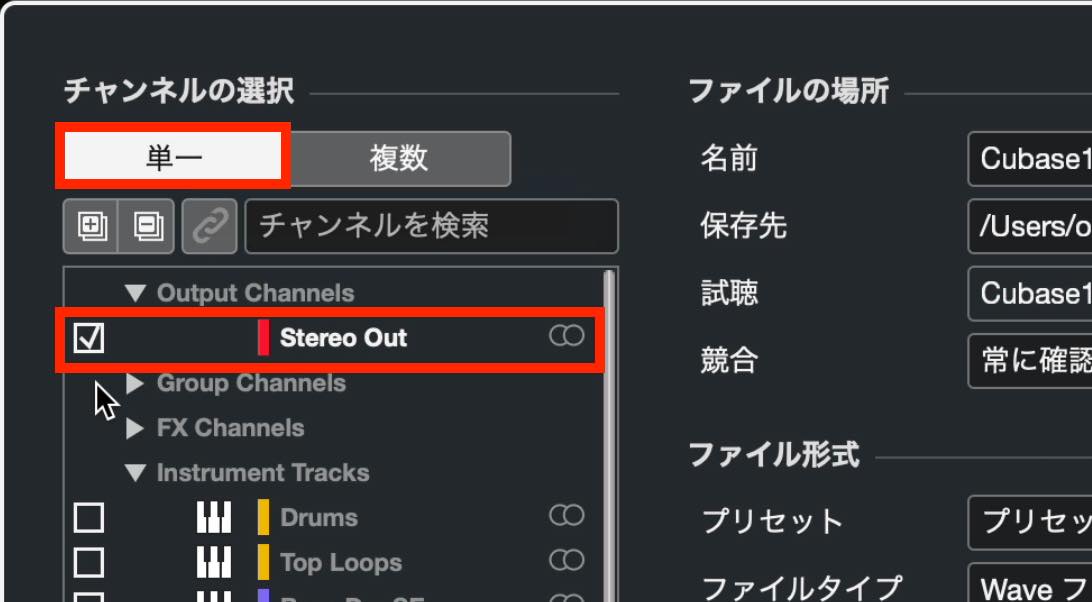
To mix down a finished song, choose Single under Channel Selection and select Stereo Out.
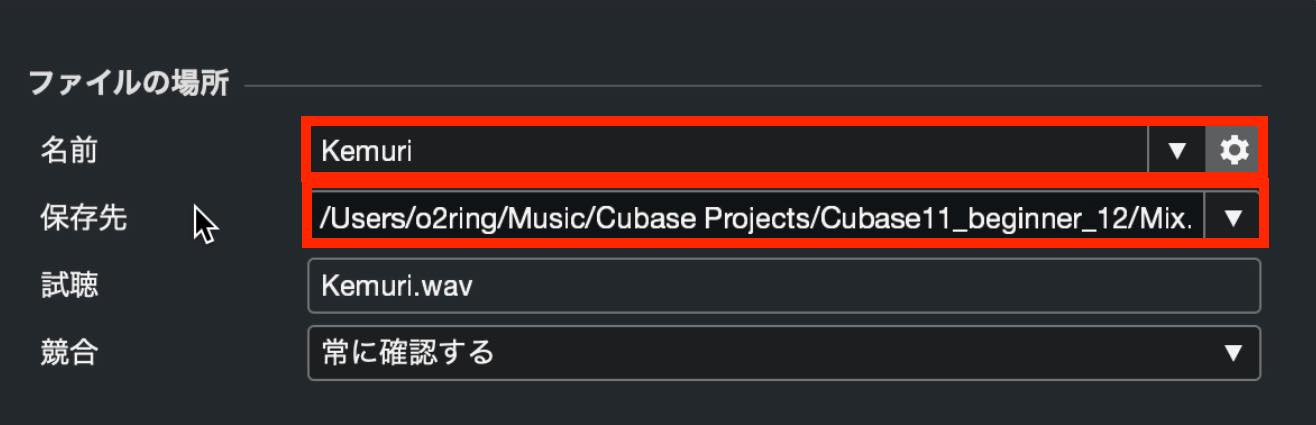
On the right, enter the exported file’s name and save location. Choose a folder you can easily find.
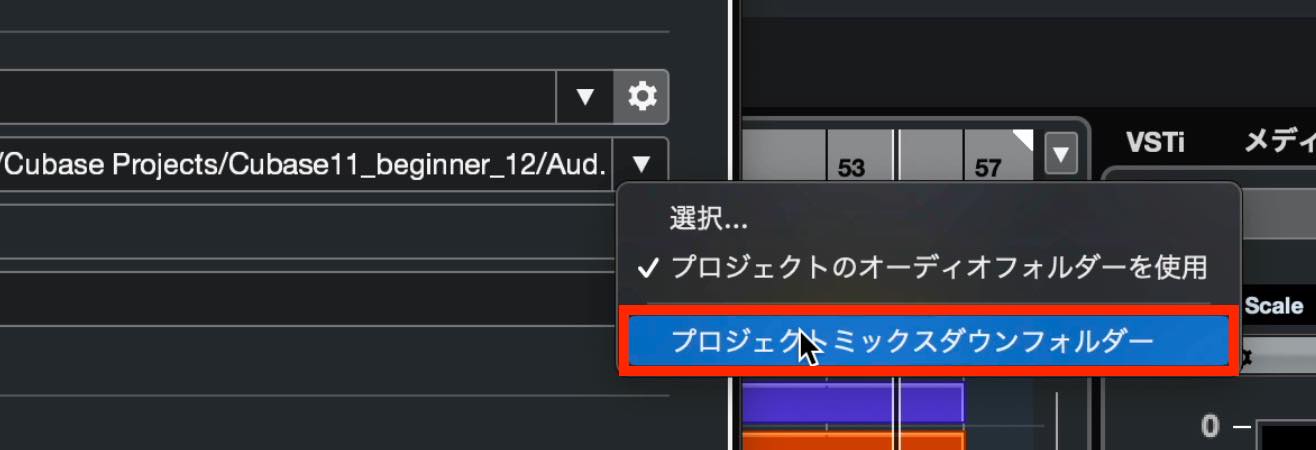
Alternatively, click the ▼ button on the right and select the project’s mixdown folder. The file will be exported into a folder named “MixDown” inside the project folder.
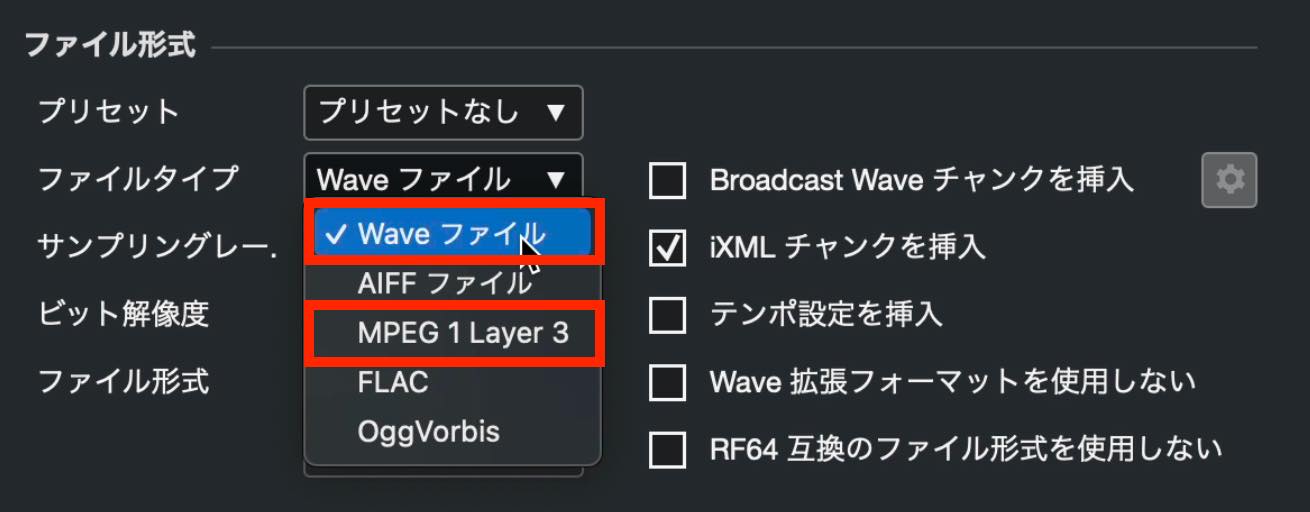
Next, choose the file type.
There are several options, but the two to remember are Wave files and MPEG 1 Layer 3, better known as MP3.
Wave files are uncompressed, preserving audio quality as far as the chosen export settings allow. The trade-off is a larger file.
MP3 uses lossy compression: it sacrifices some audio quality to produce a smaller file.
For a Wave file, set the sample rate and bit depth.
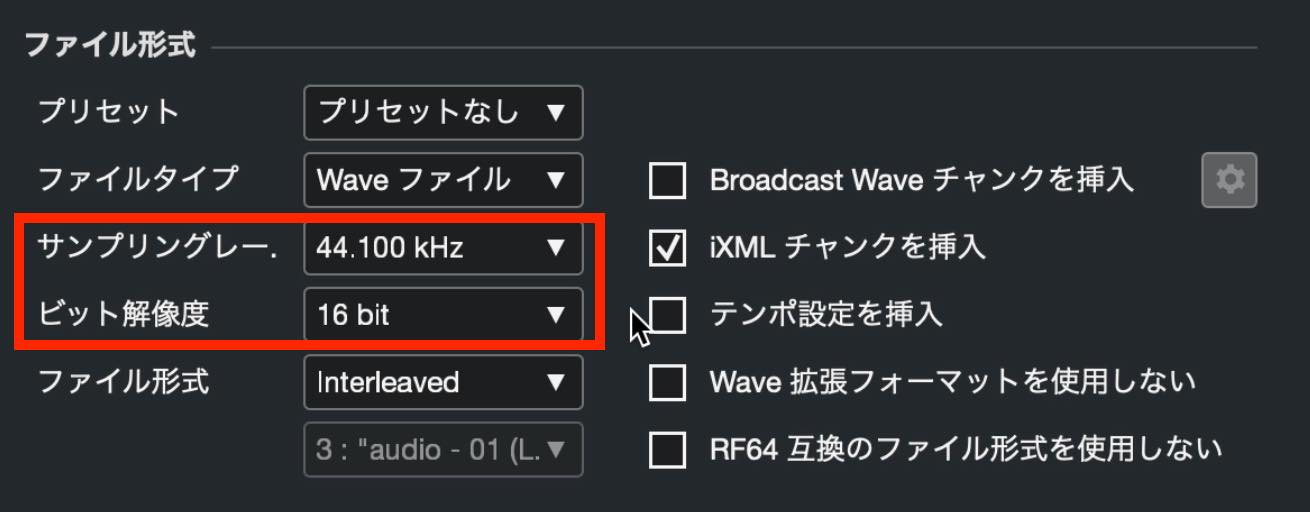
The guide recommends 44.1 kHz, the traditional audio CD sample rate, for broad compatibility. For the higher-resolution exports described here, choose 48 or 96 kHz.
For bit depth, the 16-bit audio CD format is also widely compatible. Choose 24-bit for the higher-resolution export described here.
If you are preparing audio for an audio CD, use 16-bit/44.1 kHz.
For MP3, set the sample rate and bit rate. The sample-rate setting serves the same purpose as it does for Wave files.
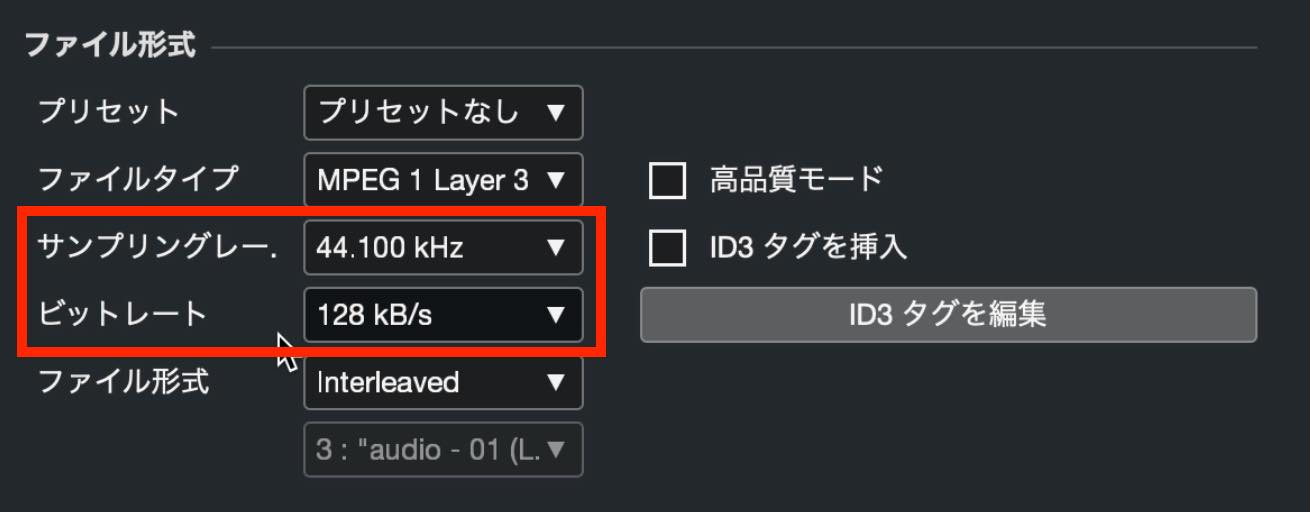
Bit rate affects the degree of compression: higher values generally improve audio quality but increase file size. The original guide recommends at least 192 kbit/s and estimates a file size around one-sixth that of a Wave file; the actual ratio depends on the WAV settings. Editorial correction: the Japanese source writes “192 kB/s,” but MP3 bit rate is expressed in kbit/s, as in Steinberg’s Cubase 11 manual.
Applying dither
There is one more step to consider here.
We selected 16-bit or 24-bit output above. The tutorial describes Cubase’s internal processing as 32-bit floating point, so exporting to these integer formats reduces the bit depth.
Dither helps control quantization distortion when reducing the bit depth. The tutorial uses a dithering plug-in for this purpose.
Insert the dither plug-in into a post-fader insert slot on Stereo Out, below the green line shown here.
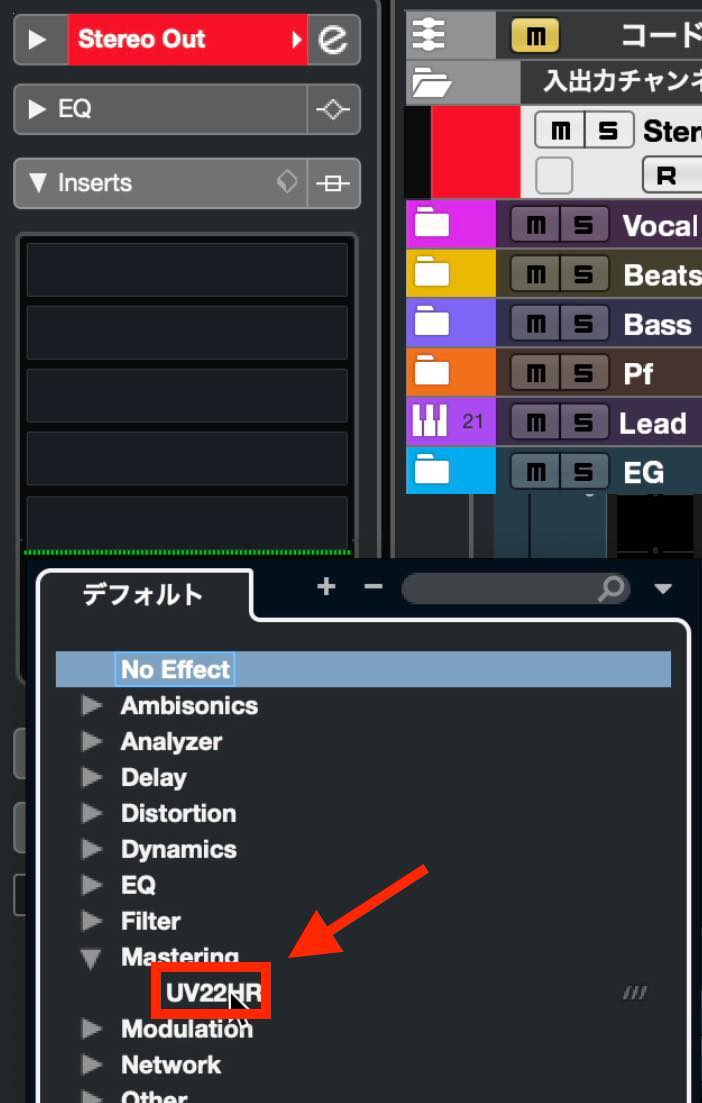
The included dither plug-in used in this Cubase 11 tutorial is UV22HR, found under Mastering.
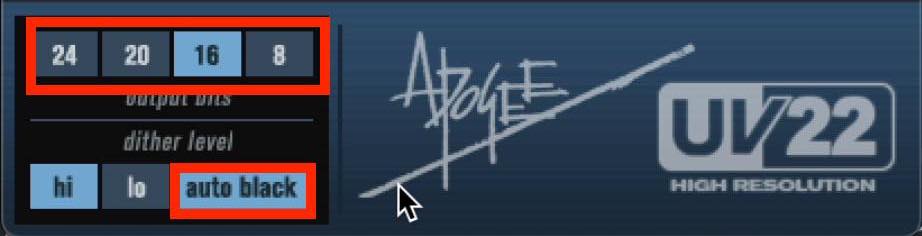
In the plug-in window, match Output Bits to the export bit depth: 16 for a 16-bit file, or 24 for a 24-bit file.
No other adjustment is needed for the example, though you may enable Auto Black. Dither adds an extremely low level of noise; Auto Black switches it off automatically during silent passages.
Exporting and using the queue
With these settings in place, try exporting. Click Export Audio at the bottom right.
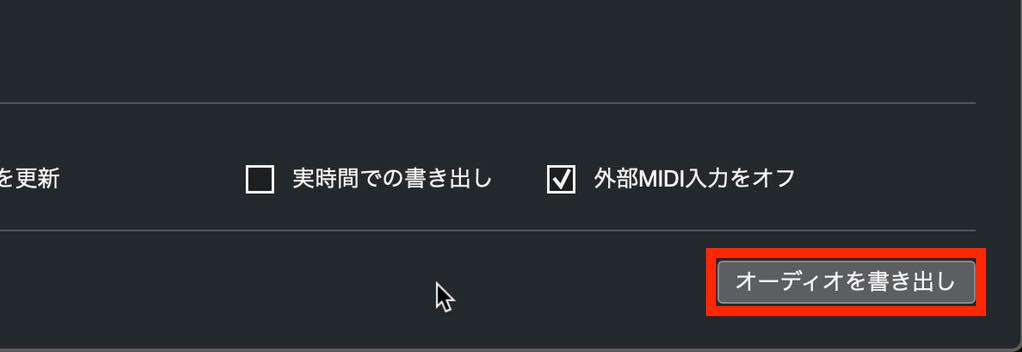
Once the export has finished, check the folder you selected as the save location.
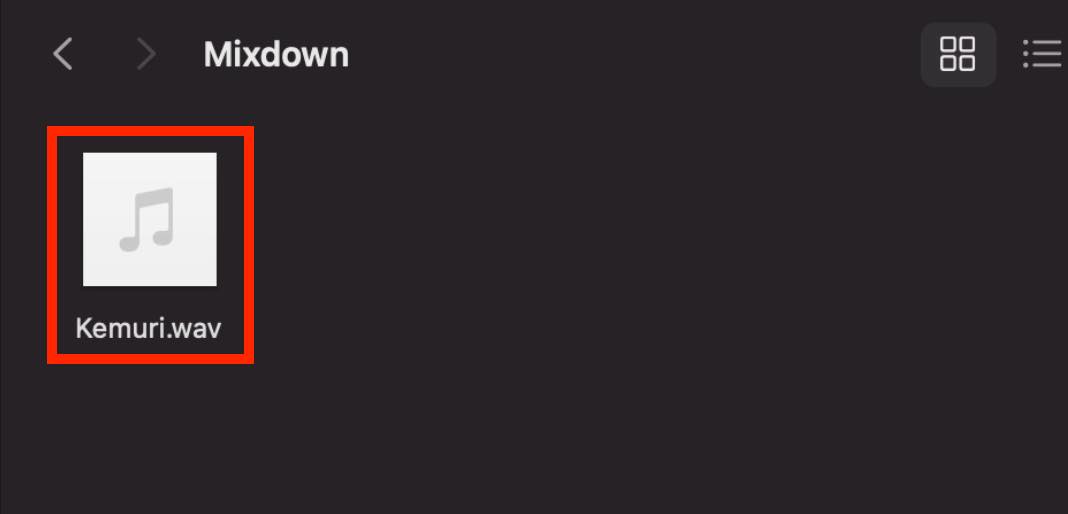
If the file plays in your computer’s music player, the export has worked.
Finally, here is another useful way to export.
Click the Export Queue tab at the bottom of the window to store different export settings as jobs. One export command then processes them in sequence. This queue is a Cubase Pro feature.
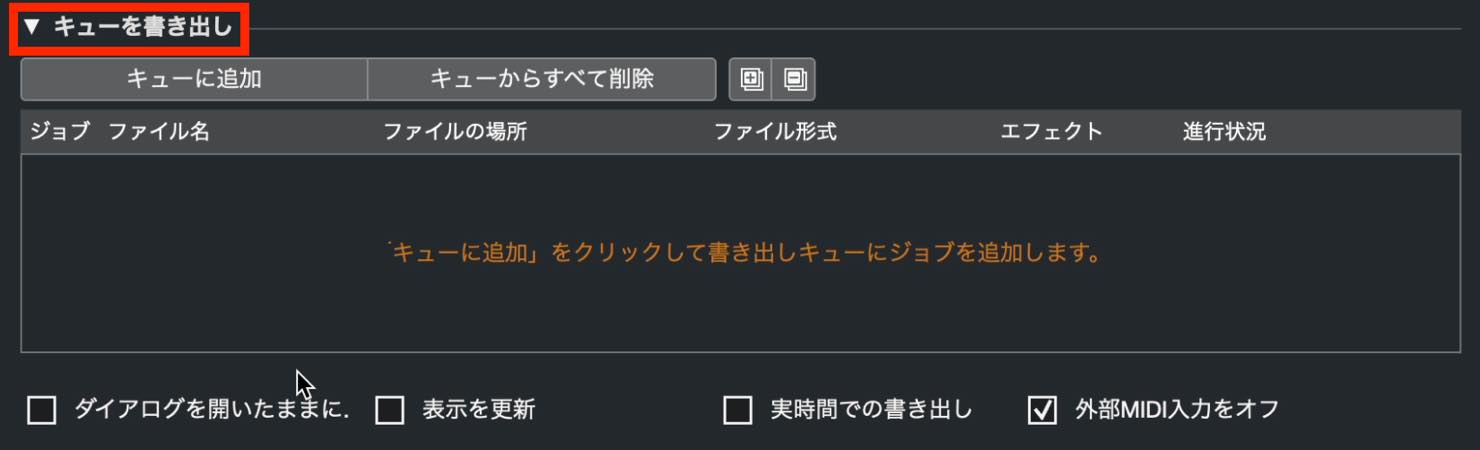
Change the export settings and click Add to Queue. Each set of settings appears as a job in the list.
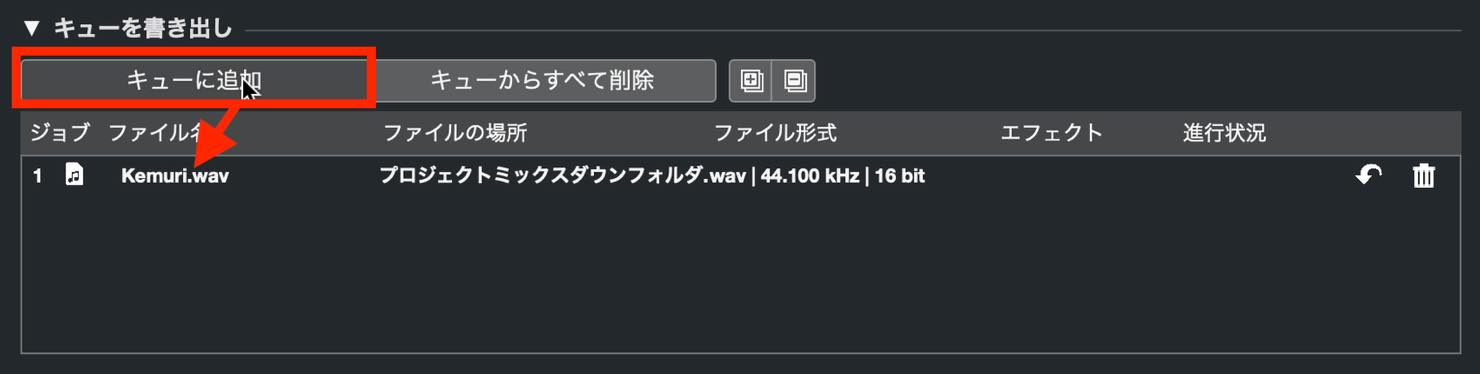
You can then start the queued exports and leave them running until all jobs are complete.
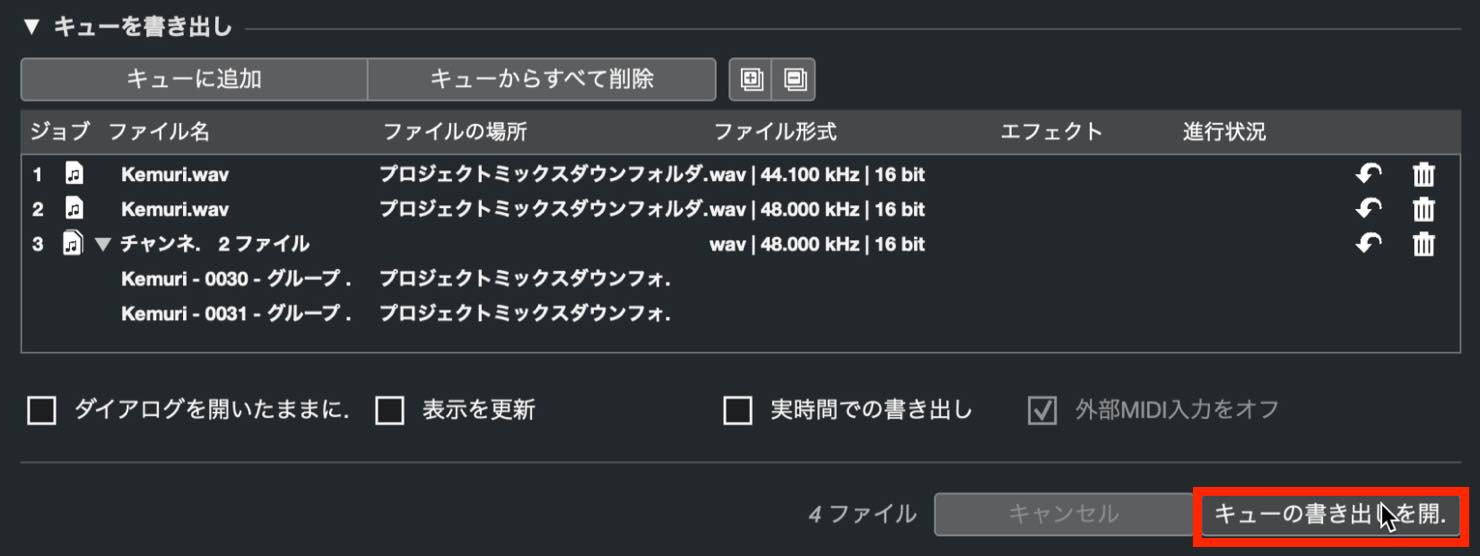
This is useful when you need many exports in different formats or configurations.
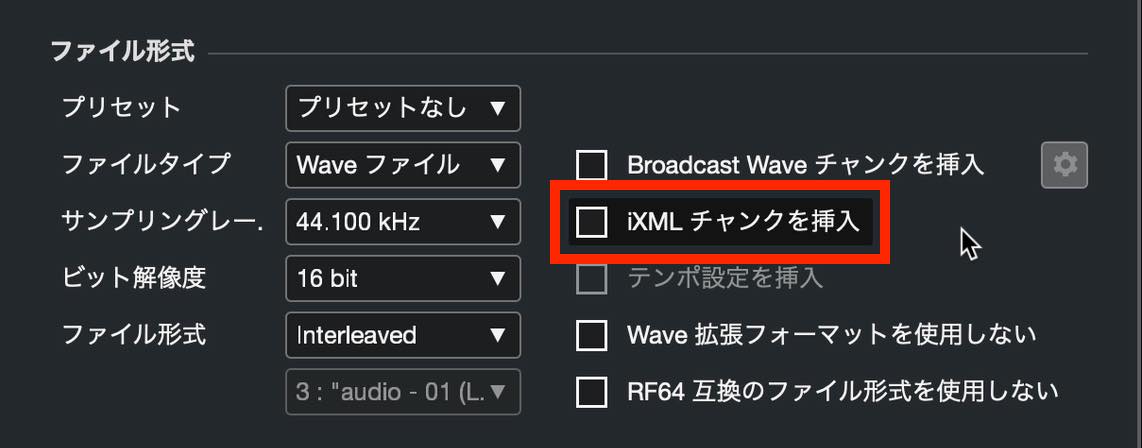
About iXML chunks
One final precaution.
The Export Audio Mixdown window includes an Insert iXML Chunk option. The original guide recommends leaving it unchecked when importing the exported file into another DAW, because the added metadata may cause compatibility problems in some applications.
That concludes our explanation of exporting an audio mixdown.
This is the final, essential step in sharing your completed music with other people, so make sure you understand it.
This also brings our 18-part Cubase 11 beginner series to a close.
If you have followed the topics covered so far, you should now be ready to start producing music from beginning to end.
From here, put your own ideas and musical sensibility to work and create great music.
We hope this series has helped you get started.
[Final installment] Part 18 of our Cubase 11 beginner series explains how to export your music.
This concludes the full 18-part Cubase 11 beginner series.
From here, put your own musical sensibility to work and create great music.Details: https://t.co/8Qf6oXcKqI #DTM #DAW #DTMer #Cubase
— SLEEP FREAKS (@SLEEPFREAKS_DTM) January 20, 2022
Frequently asked questions
Q1. Which file format should I choose when exporting music from Cubase?
Choose Wave for an uncompressed export—for example, 16-bit/44.1 kHz or 24-bit/48 kHz—or MP3 for a smaller file. The guide recommends MP3 at 192 kbit/s or higher; “kB/s” in the Japanese source is a unit typo. Use 16-bit/44.1 kHz for an audio CD.
Q2. What is dither, and why is it used?
Dither helps control quantization distortion when reducing the bit depth from the 32-bit floating-point processing described in the tutorial to 16-bit or 24-bit output. Insert UV22HR from the Mastering category in a post-fader insert slot on Stereo Out, and match its Output Bits setting to the target bit depth.
Q3. What is the export queue used for?
In Cubase Pro, it is useful for making multiple exports with different settings in one batch. Change the settings and click Add to Queue to register each job; the exports then run automatically in sequence.
Q4. How should I choose the export range?
Start at the beginning of the song and leave extra time at the end for release tails, delay and reverb. For distribution, consider the space before the next song and how long you want the final sound to linger.
Q5. Do I need to insert an iXML chunk?
If you plan to import the exported file into another DAW, the original guide recommends leaving this unchecked to avoid potential compatibility problems.
NEW ARTICLES
Latest English Articles




























































































































