
Native Instruments The Mouth is a REAKTOR instrument and effect that adds pitch, melody, harmony, synthesis and vocoder effects to audio. This guide covers setup, MIDI routing and sound design in several DAWs.
Add Melody and Harmony to Audio Material

The Mouth is an instrument and effect for Native Instruments REAKTOR.
As its name suggests, it can process vocals and other audio by changing pitch, adding melody or harmony, and creating synth or vocoder effects for unusual and creative results.
Here we explain how to use The Mouth.
Video: Applying It to Vocals and Basic Setup
Questions and Answers from the YouTube Video

This video made me interested in The Mouth. Is the plug-in free? I looked at the website but could not quite understand.

The Mouth is a paid Native Instruments product that runs in REAKTOR. At the time of this reply, KOMPLETE ULTIMATE 11 was suggested as a bundle option alongside separate purchases of REAKTOR and The Mouth. Bundles, compatibility and sale terms may have changed; check current product details before purchasing.
Applying The Mouth
We will begin with Cubase as an example.
Other DAWs are covered later; first, let’s look at the basics.
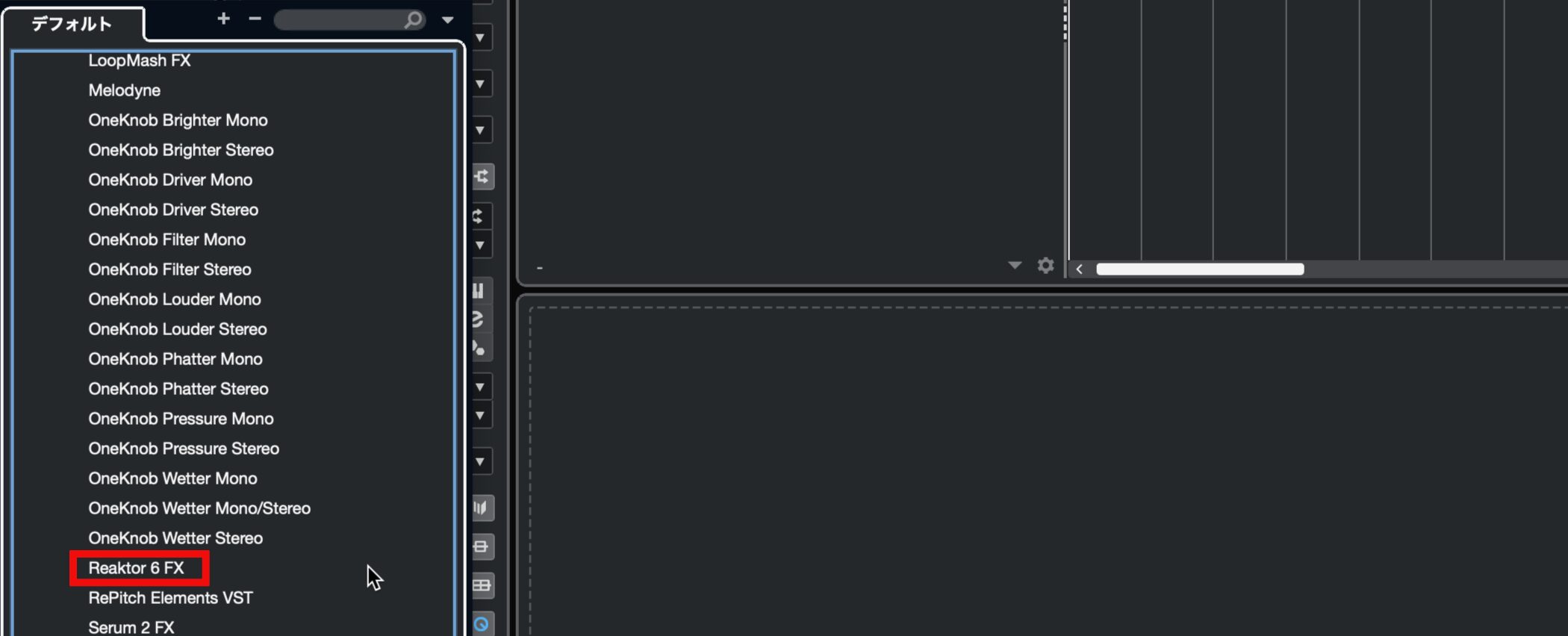
To apply it to audio in Cubase, select REAKTOR 6 FX as an insert effect on the audio track.
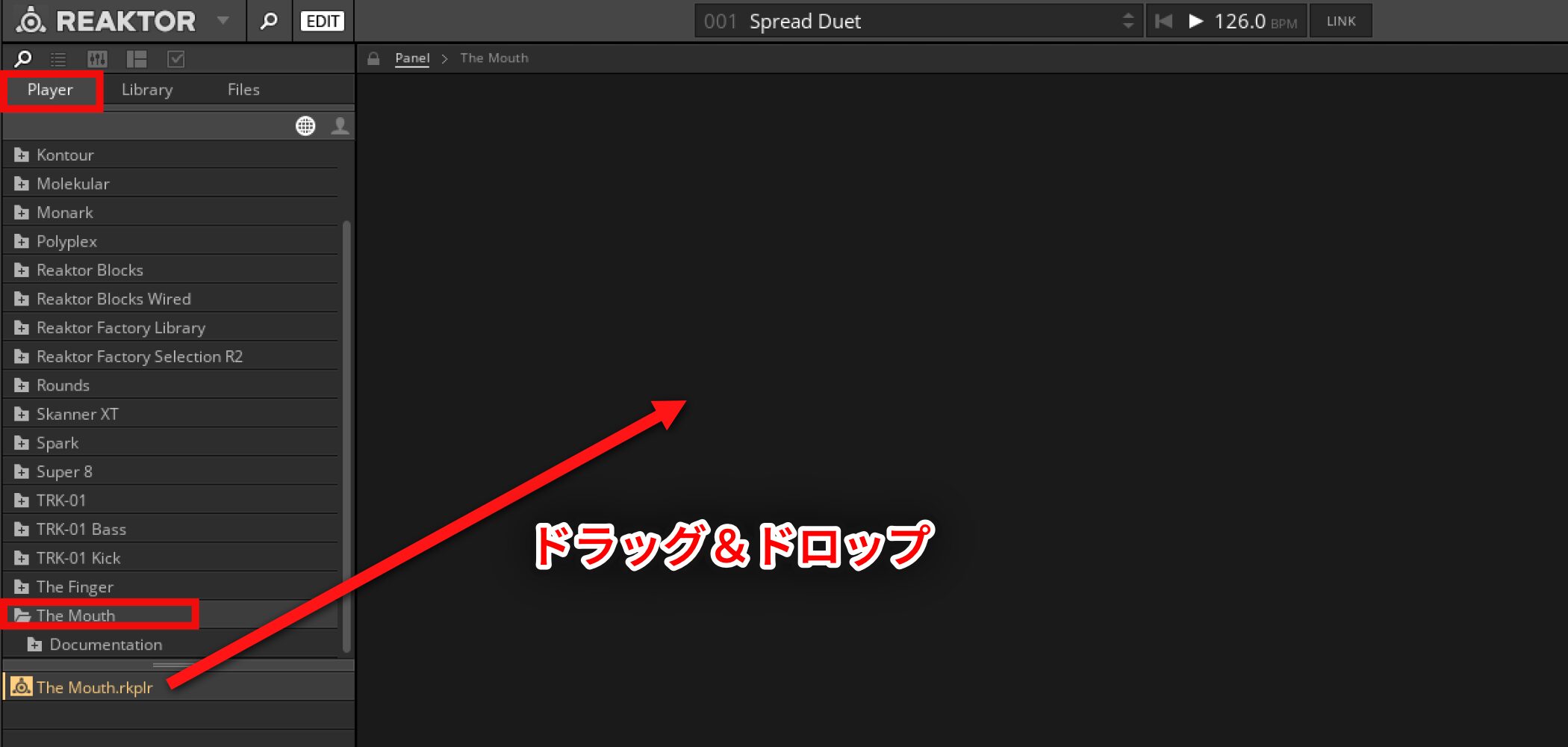
In REAKTOR, select The Mouth in the Player tab on the left and drag its rkplr file into the main area.
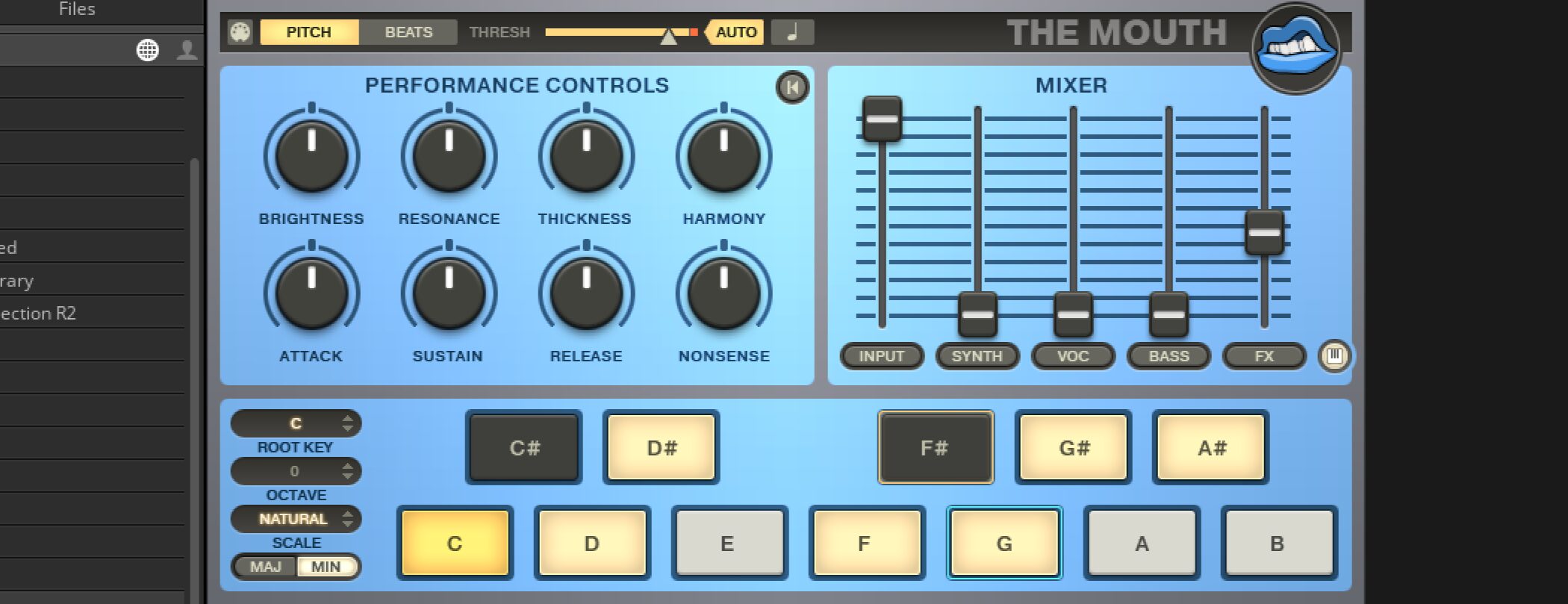
The Mouth opens as shown.
Selecting a Preset
Play some audio and try the different presets.
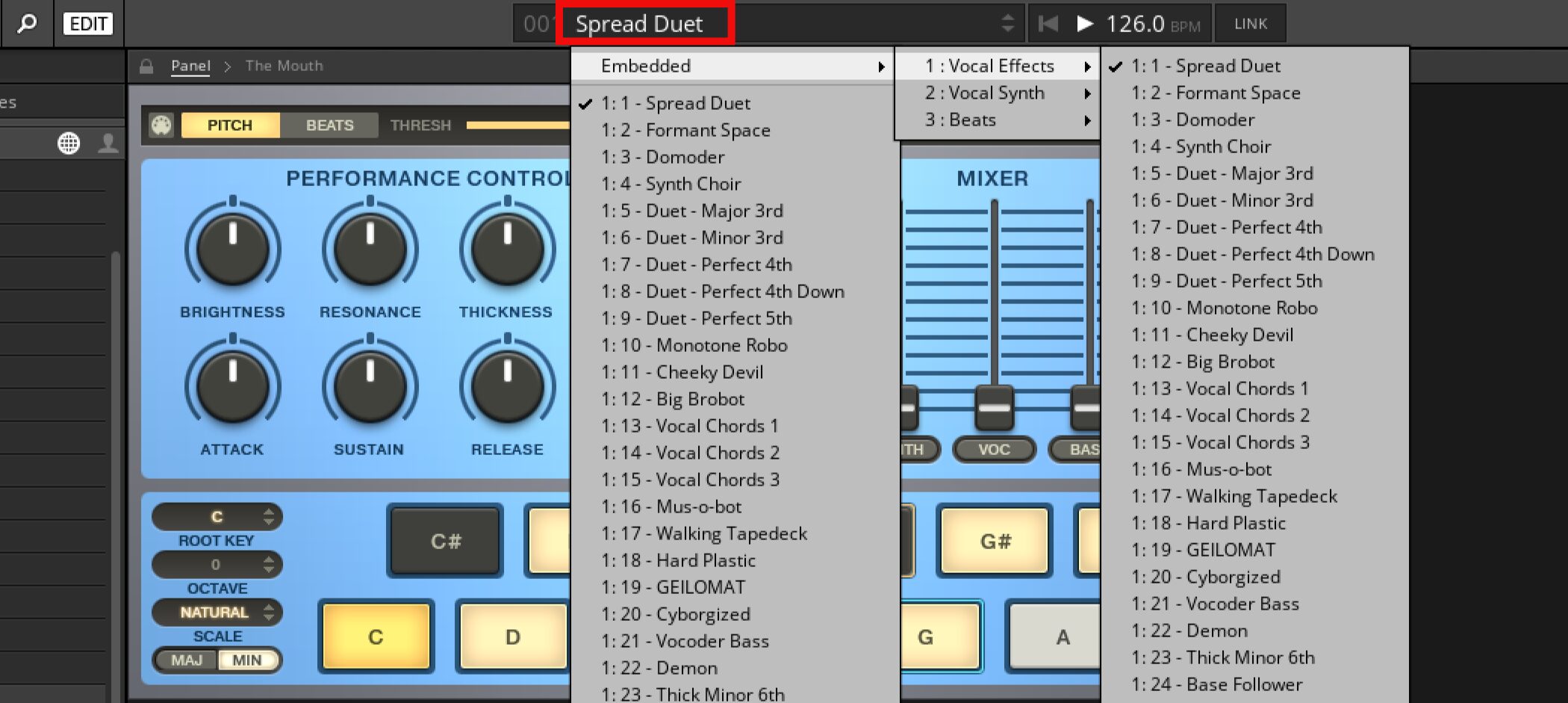
Select presets at the top of REAKTOR; several categories and presets are available.
Setting the Key
After selecting a preset and listening alongside other tracks, you may notice the key does not match.
The default key when The Mouth opens is C minor, so change it to suit the song.
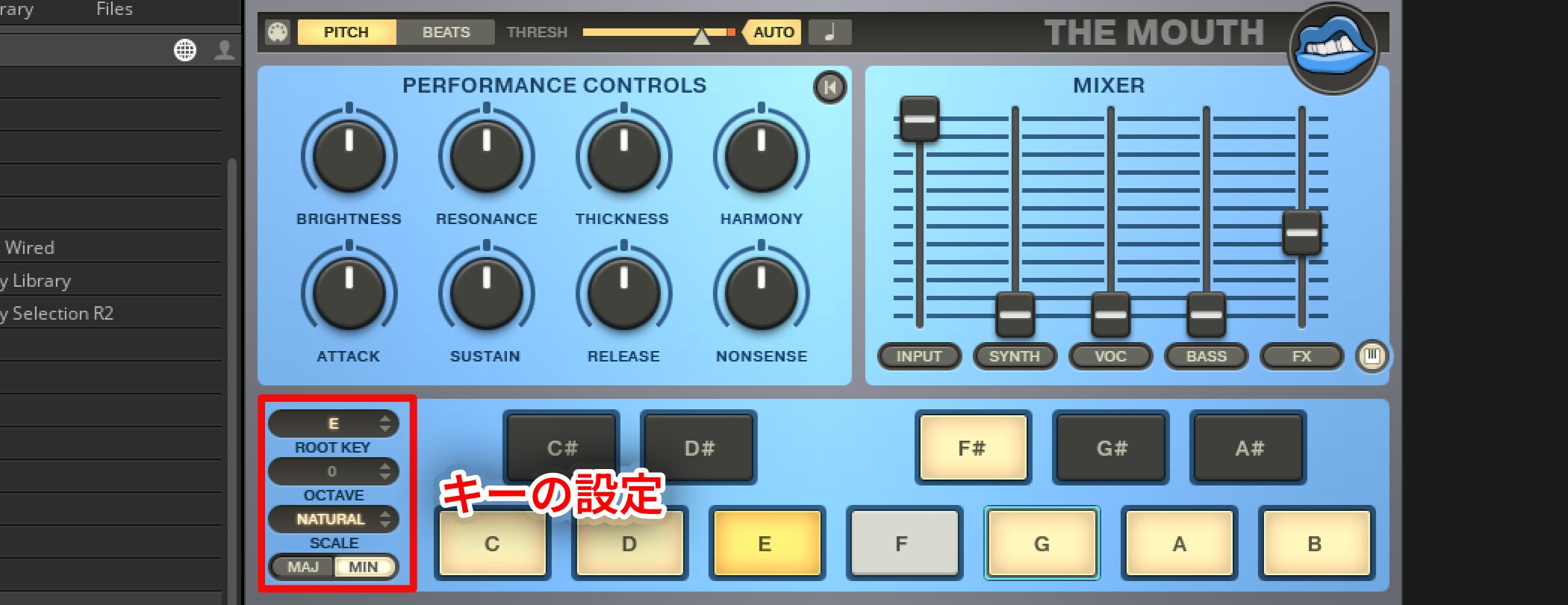
The key section is at the bottom left.
- ROOT KEY: Select the root of the song’s key.
- OCTAVE: Set the register in octaves.
- SCALE: Select a scale; the corresponding keys light up on the keyboard at right.
- MAJ/MIN: Select major or minor.
Applying a MIDI Melody
Next, let’s apply a melody programmed on a MIDI track.
We will also cover how to set this up in other DAWs.
- Cubase
- Logic
- Ableton Live
In Cubase and DAWs with similar routing, insert the effect as above, then follow these steps.
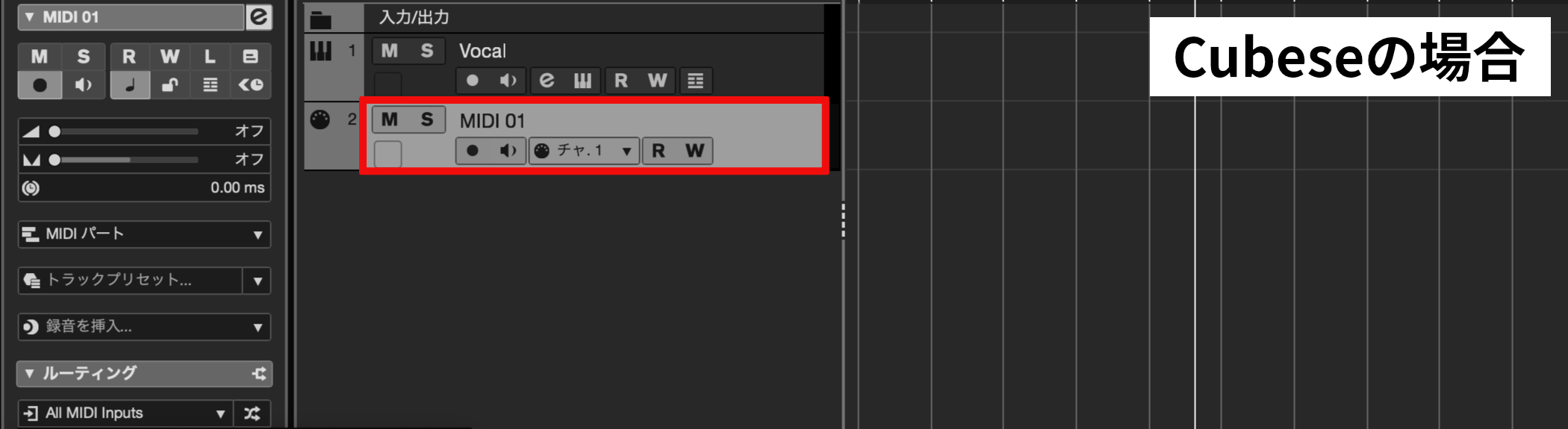
Create a MIDI track.
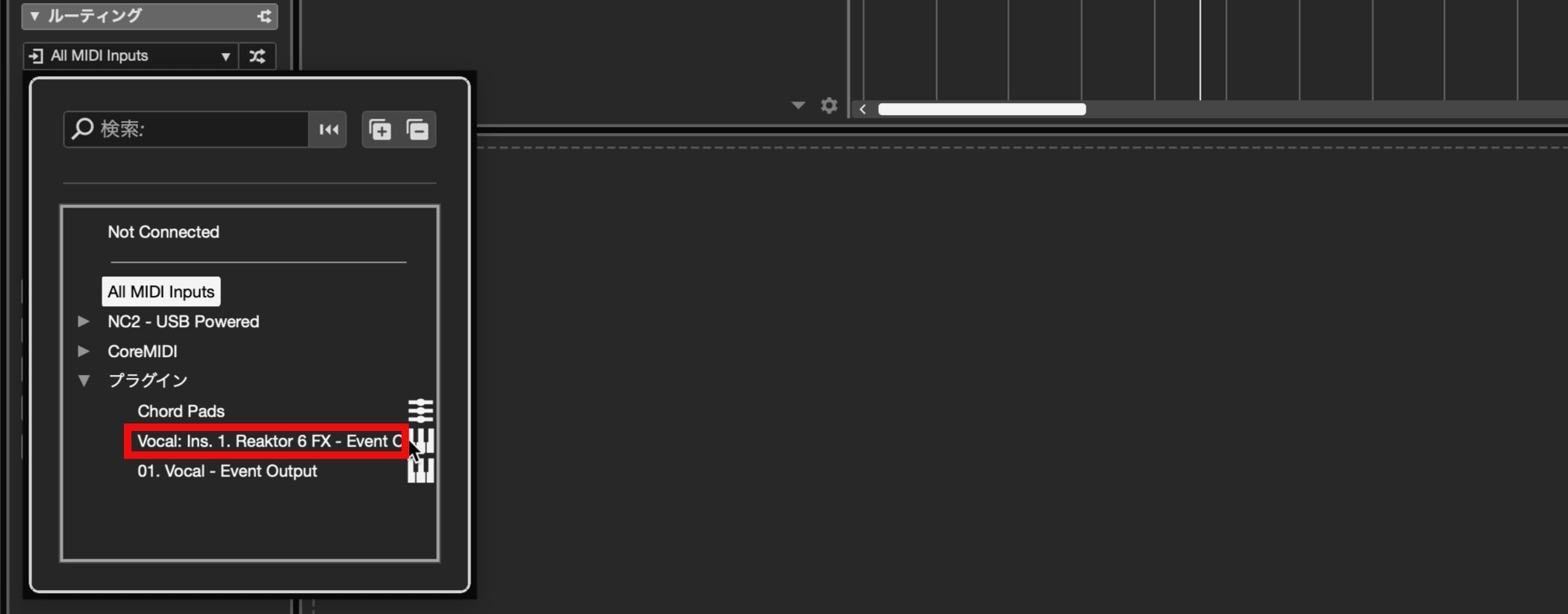
Set its output to the audio track containing REAKTOR 6 FX.
Program the desired melody on the MIDI track; the audio pitch follows it.
In Logic, the setup differs when using MIDI.
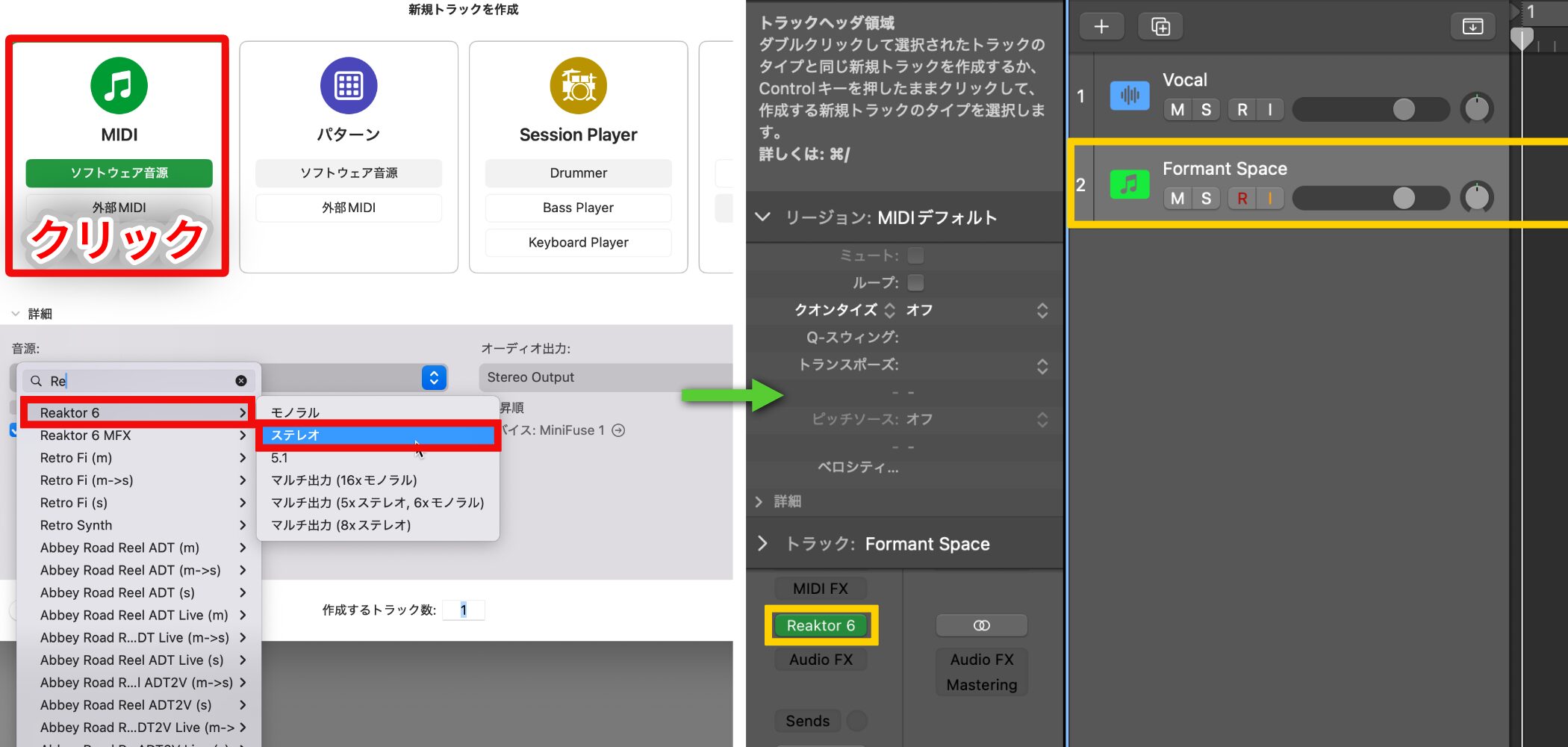
Create a software instrument track and load REAKTOR 6, then open The Mouth.
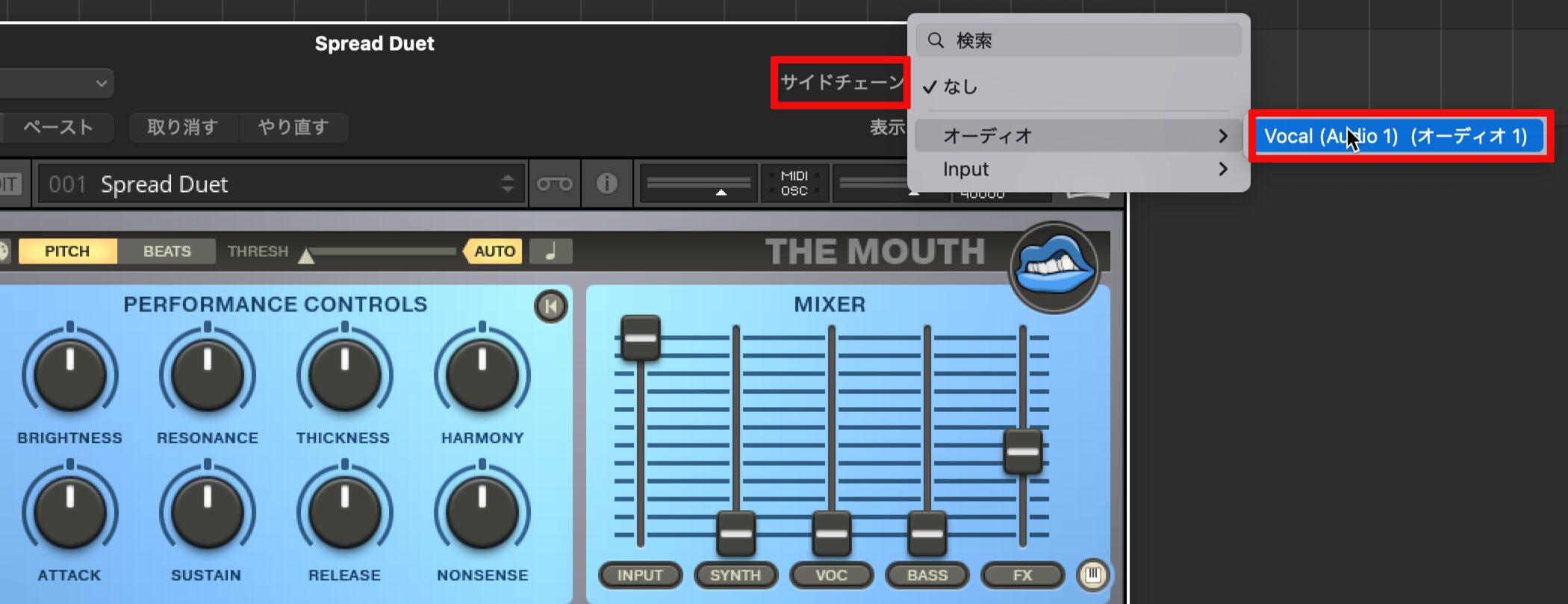
Use the Side Chain selector at the upper right to choose the audio track to process.
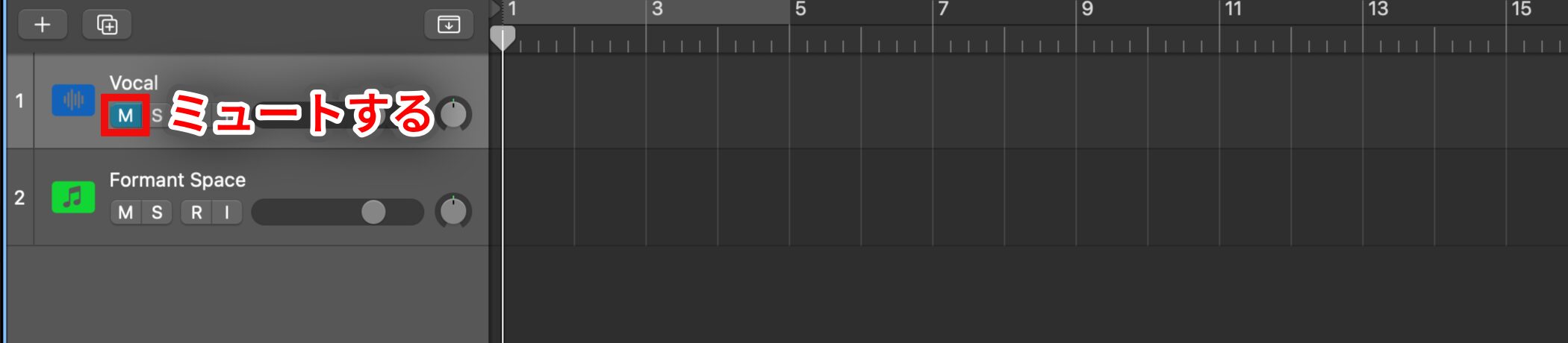
Mute the original track so its unprocessed sound does not mix in.
Then program the desired melody on the track hosting REAKTOR 6.
Ableton Live uses a similar idea to Cubase, with slightly different routing.
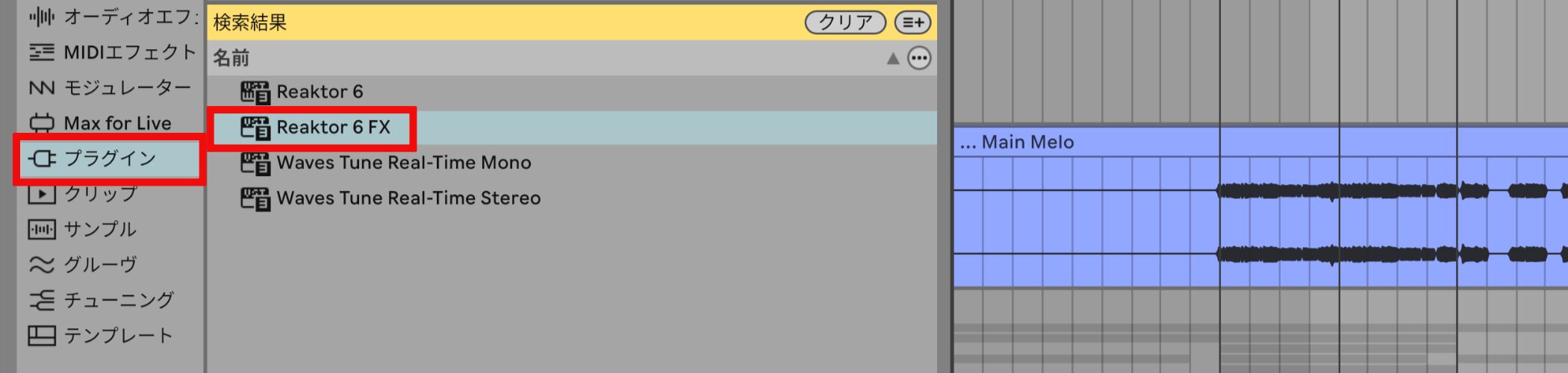
Insert REAKTOR FX on the audio track you want to process and open The Mouth.
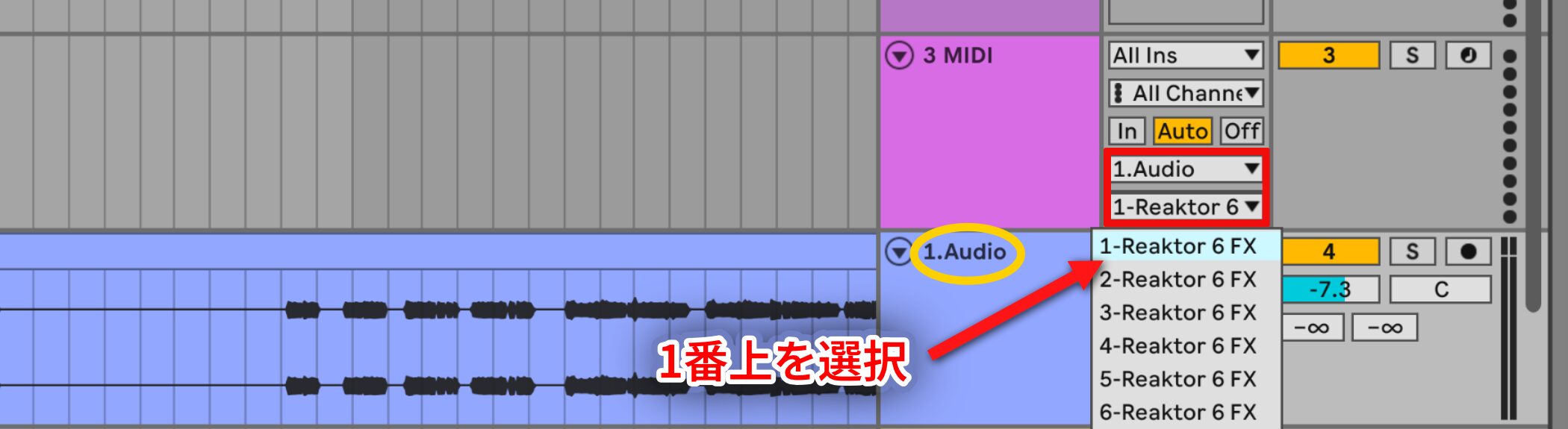
Create a separate MIDI track and select the destination track (here “1.Audio”) and plug-in (here “1-Reaktor6 FX”).
If multiple REAKTOR destinations are listed, select the first one in this example.
Program the desired melody on that MIDI track.
- Cubase
- Logic
- Ableton Live
Audio Processing and Synthesis
Now let’s explore sound design in more detail.
We will look at INPUT and SYNTH.
INPUT Settings
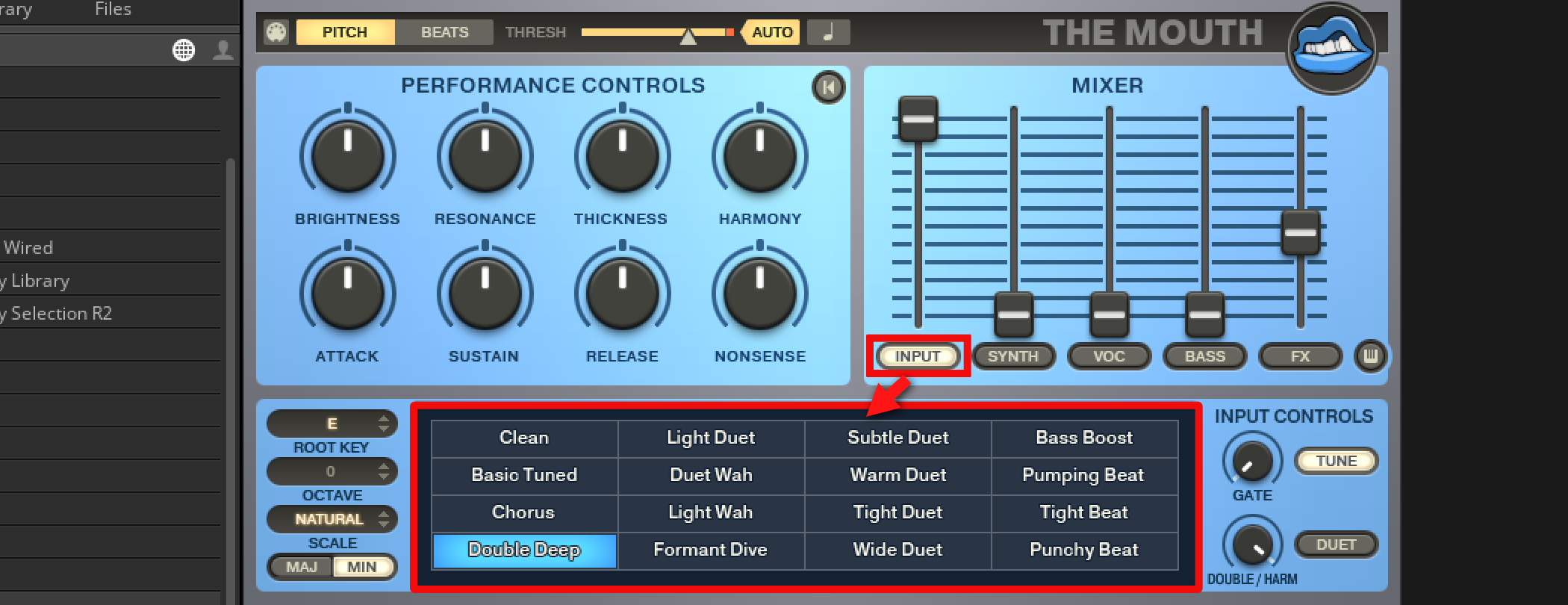
The leftmost slider in the MIXER section on the right is INPUT.
It sets the input level; press the INPUT button to access processing options.
The names in the matrix are presets.
Start by choosing an effect you like.
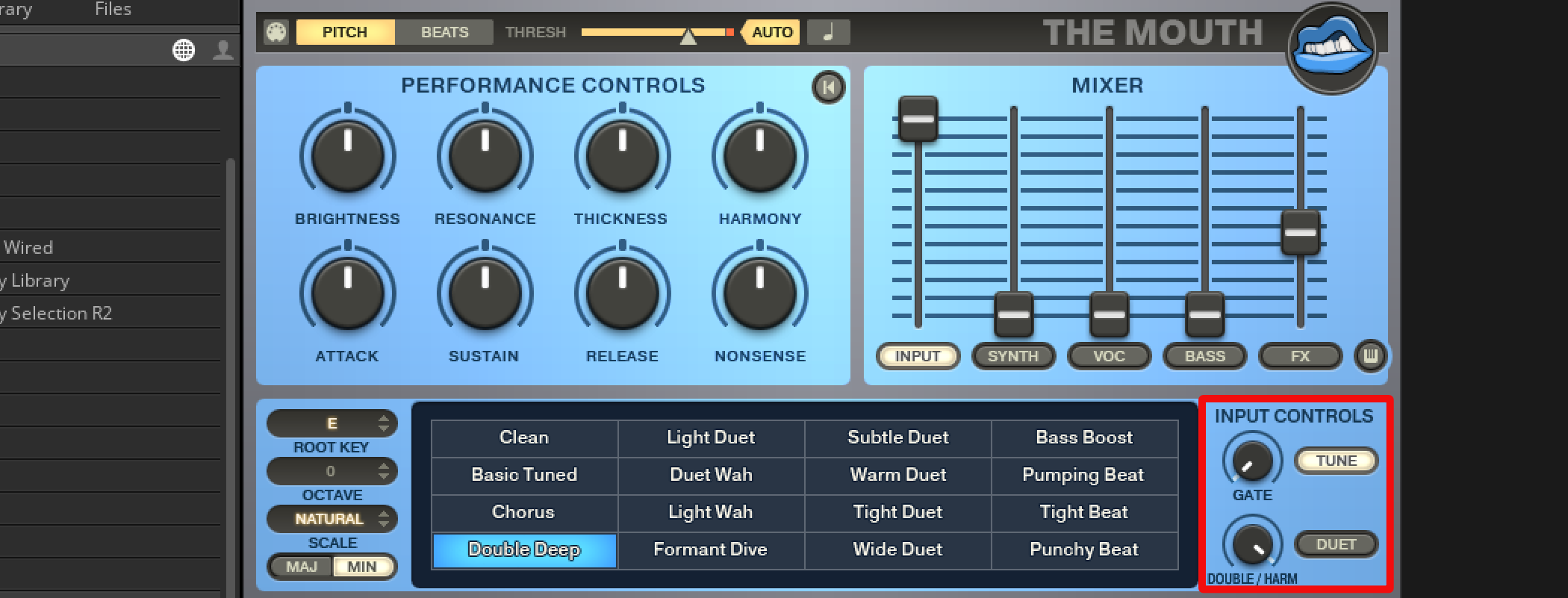
INPUT CONTROLS on the right provides the following settings:
- GATE: Turning right retains louder portions and removes quieter ones.
- DOUBLE/HARM: Enable TUNE to use this control. Turning right increases the effect; DUET changes which effect is controlled.
- DUET: On adds harmony; off adds a doubling effect.
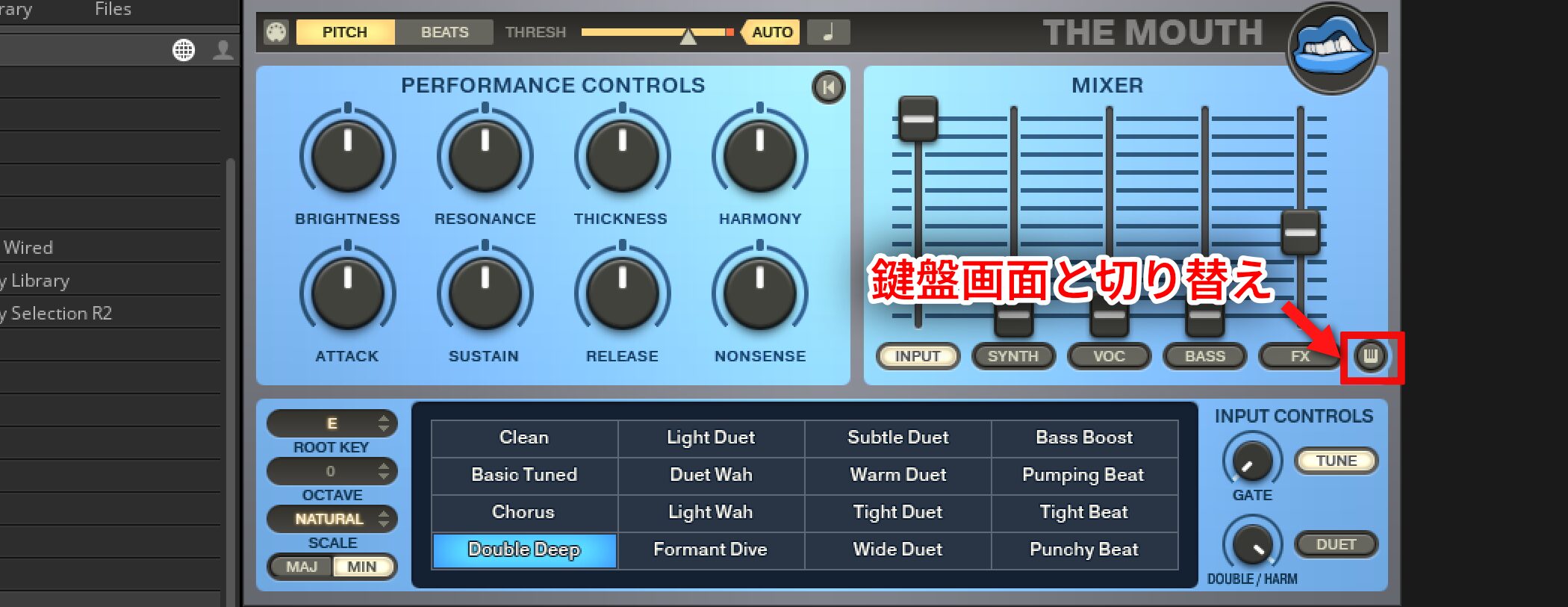
Press the keyboard icon at the far right to return to the keyboard view.
SYNTH Settings
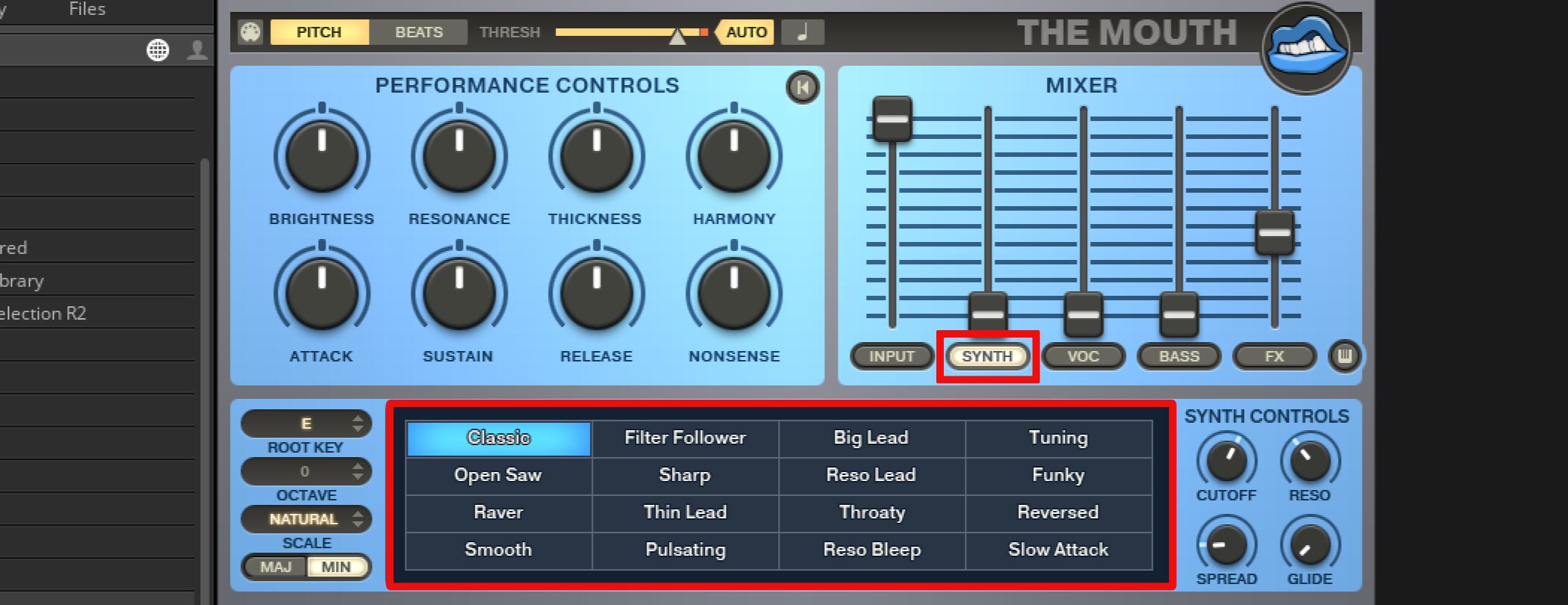
SYNTH, next to INPUT, plays synth sounds from pitch detected in the audio or a programmed MIDI melody.
Raise the slider to mix the synth with the original sound.
As with INPUT, press the button to open its settings.
Start by choosing a synth sound from the presets.
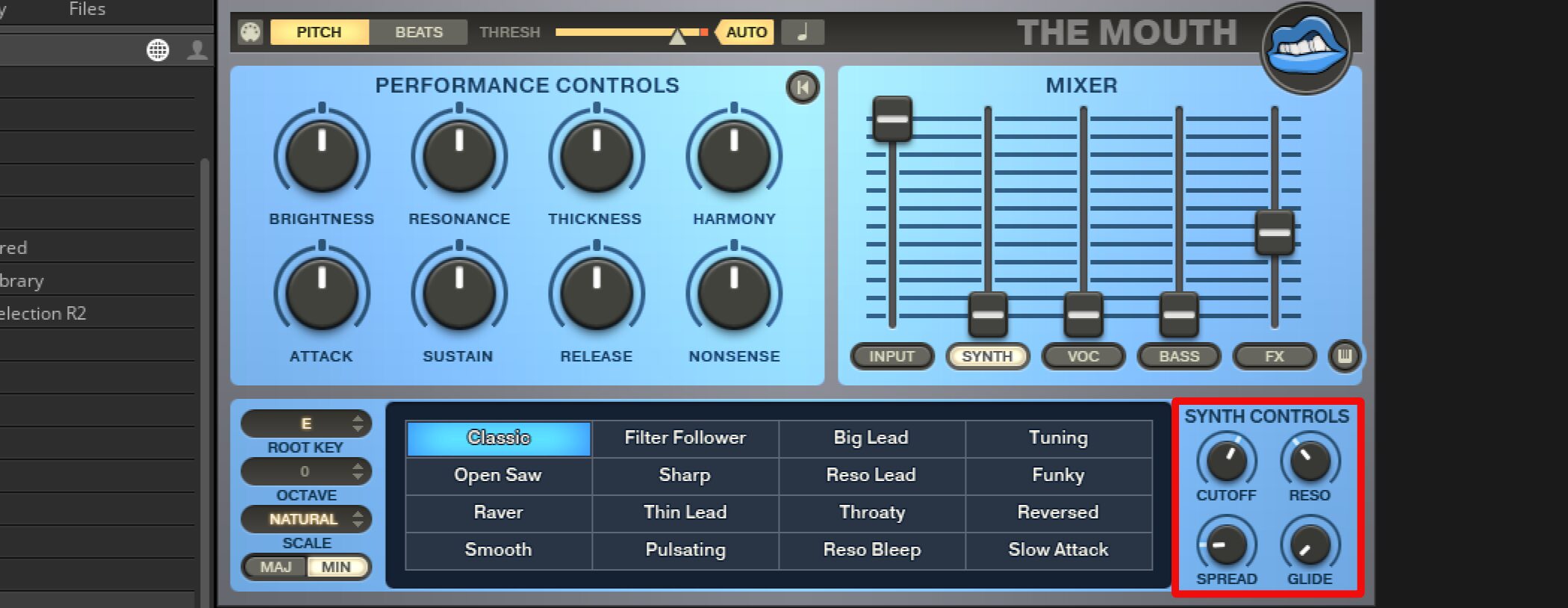
SYNTH CONTROLS on the right provides:
- CUTOFF: Adjust the filter cutoff frequency.
- RESO: Adjust the strength of filter resonance.
- SPREAD: Turn right for a wider stereo image.
- GLIDE: Smooth the pitch transition between notes; turn right for a slower transition.
Creating Different Sounds from Audio
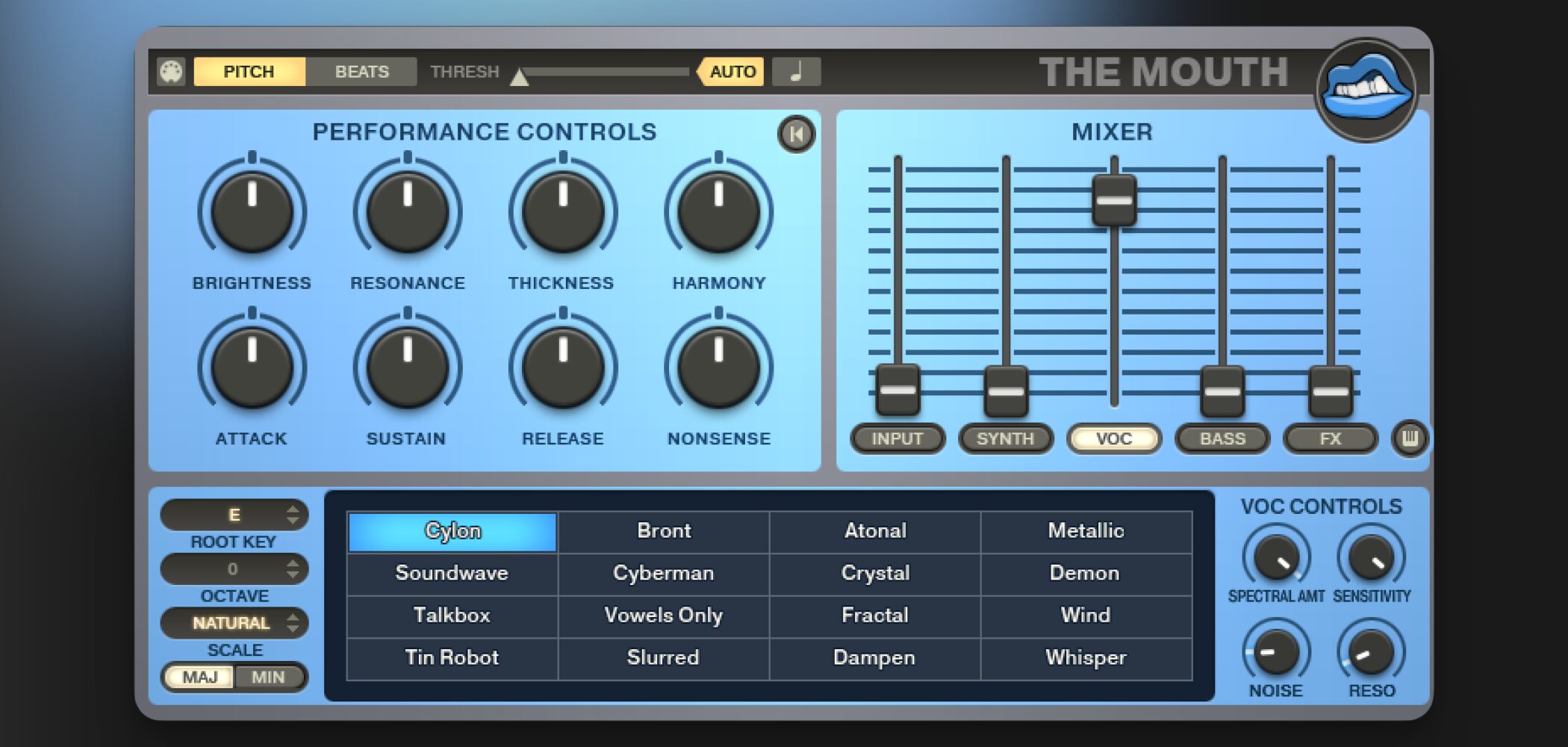
Next we look at the vocoder, FX and BASS, plus an example of using BEATS mode in a track.
Video: Vocoder, FX, Bass and Beats
Applying VOC (Vocoder)
A vocoder is an effect that can produce a sound combining qualities of the human voice and a synthesizer.
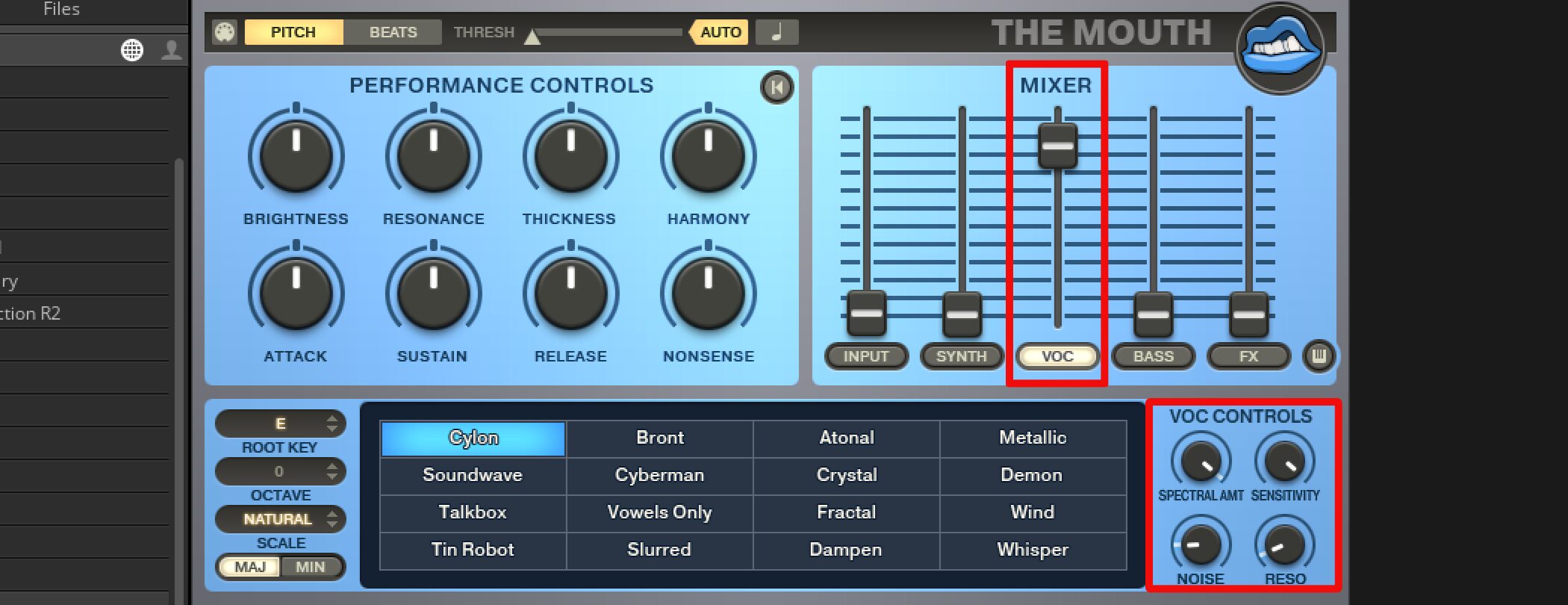
Raise The Mouth’s VOC fader to apply its vocoder effect.
Press the VOC button below the fader to show presets and controls for adjusting it.
- SENSITIVITY: Adjust vocoder sensitivity.
- SPECTRAL AMT: Adjust the vocoder’s frequency characteristics and voice quality.
- NOISE: Add a rough or breathy, whisper-like quality.
- RESO: Turn right to emphasize certain frequencies for a sharper sound.
Applying FX
The FX section applies delay and compression to the sound.
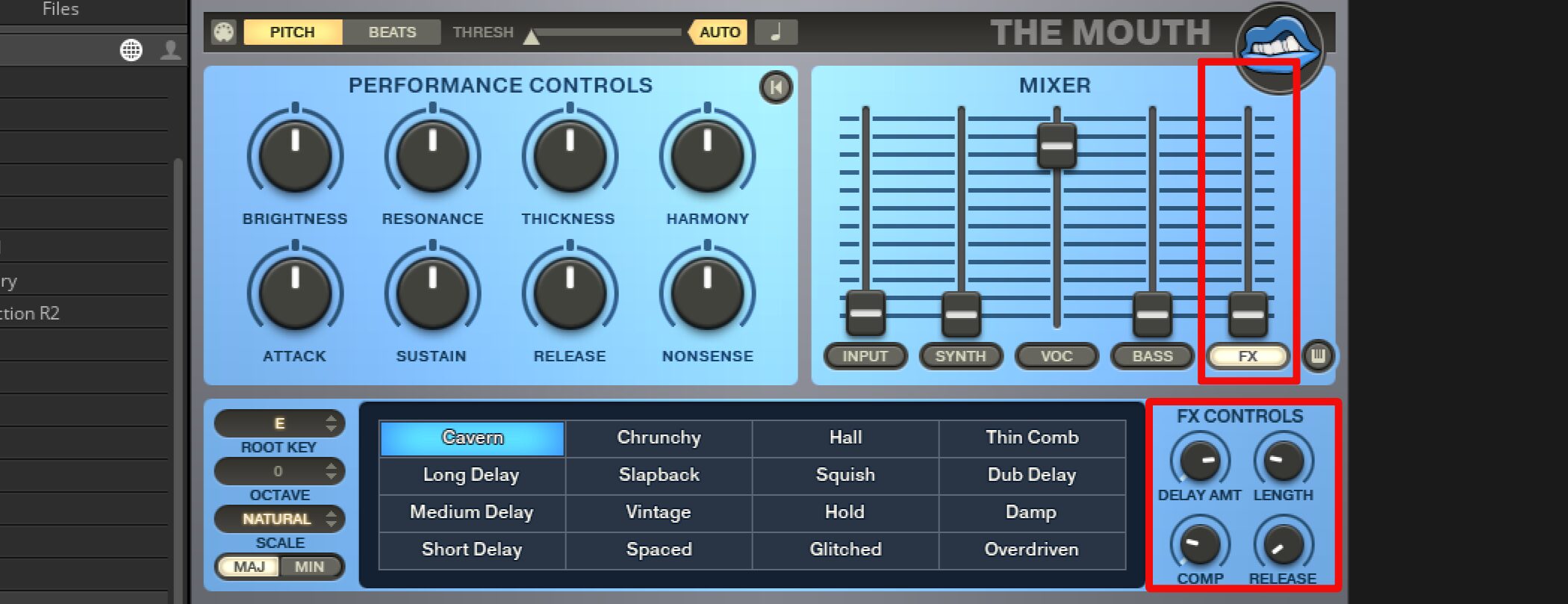
As before, press FX to access its presets and parameters.
- DELAY AMT: Adjust the amount of delay.
- LENGTH: Adjust delay length.
- COMP: Adjust the amount of compression.
- RELEASE: Adjust the compressor release time.
PERFORMANCE CONTROLS
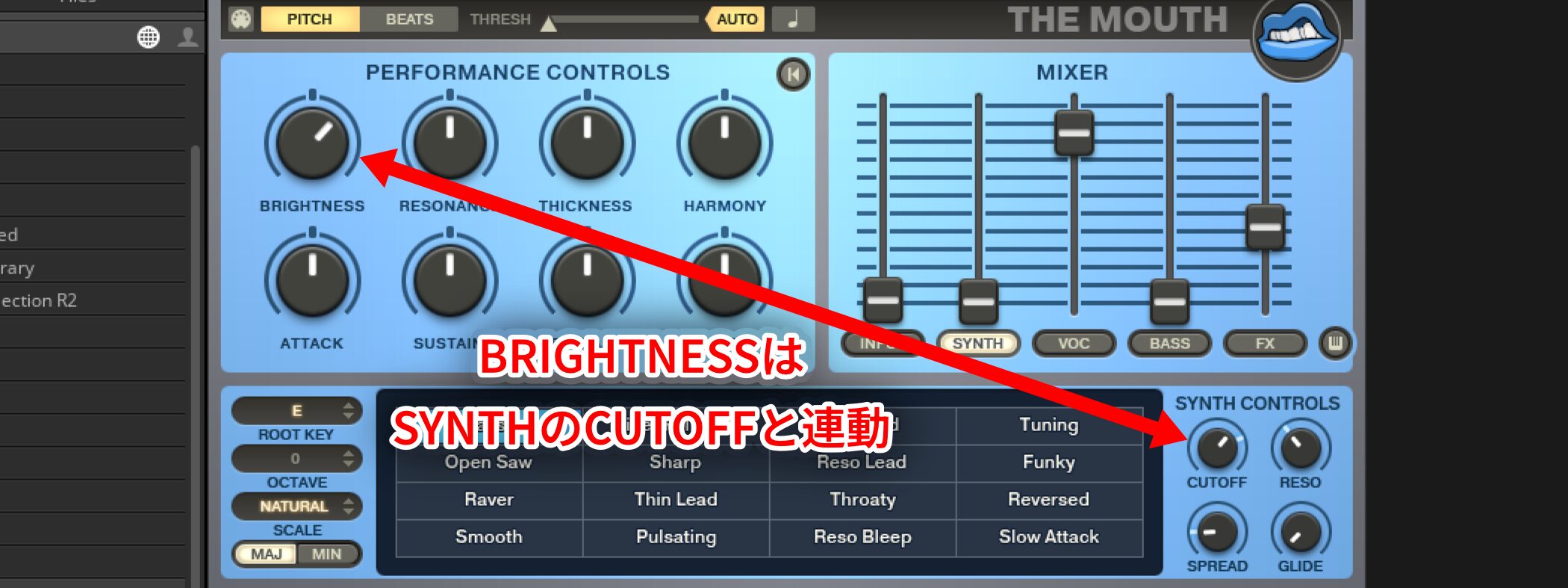
Most controls in the upper-left PERFORMANCE CONTROLS section are linked to individual effect controls.
For example, BRIGHTNESS corresponds to SYNTH CUTOFF, as shown below.
The controls correspond as follows:
- BRIGHTNESS: SYNTH CUTOFF
- RESONANCE: SYNTH and VOC RESO
- THICKNESS: INPUT DOUBLE/HARM and SYNTH SPREAD
- NONSENSE: SYNTH RESO and VOC SPECTRAL AMT/NOISE
After setting each effect, these knobs are useful for final sound shaping and live performance.
The assignments of these knobs cannot be changed.
Envelope Settings
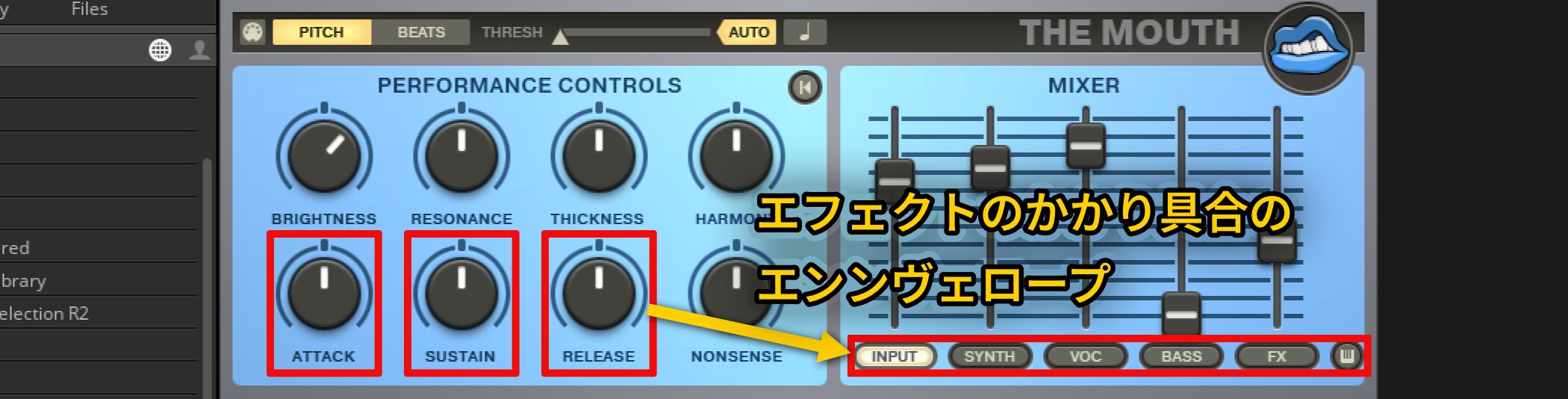
The ATTACK, SUSTAIN and RELEASE knobs in PERFORMANCE CONTROLS set the envelope, affecting how the effects respond.
- ATTACK: Adjust the time until the effect reaches its full response.
- SUSTAIN: Adjust the sustained level of the effects.
- RELEASE: Adjust how long the effects fade after release.
Applying BASS
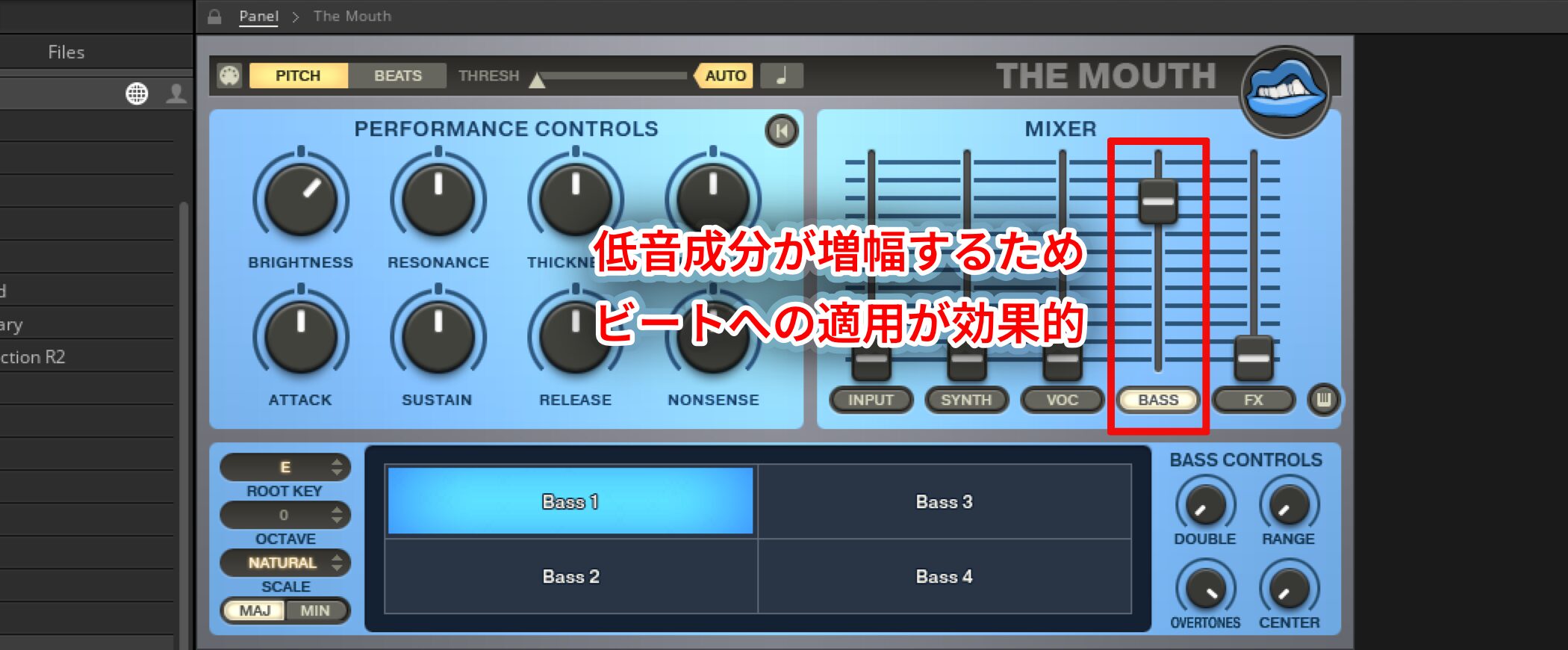
The remaining effect, BASS, adds low-frequency content to audio, much like a bass part.
It may overlap with a separate bass track in an arrangement.
It can be useful for adding bass to a beat.
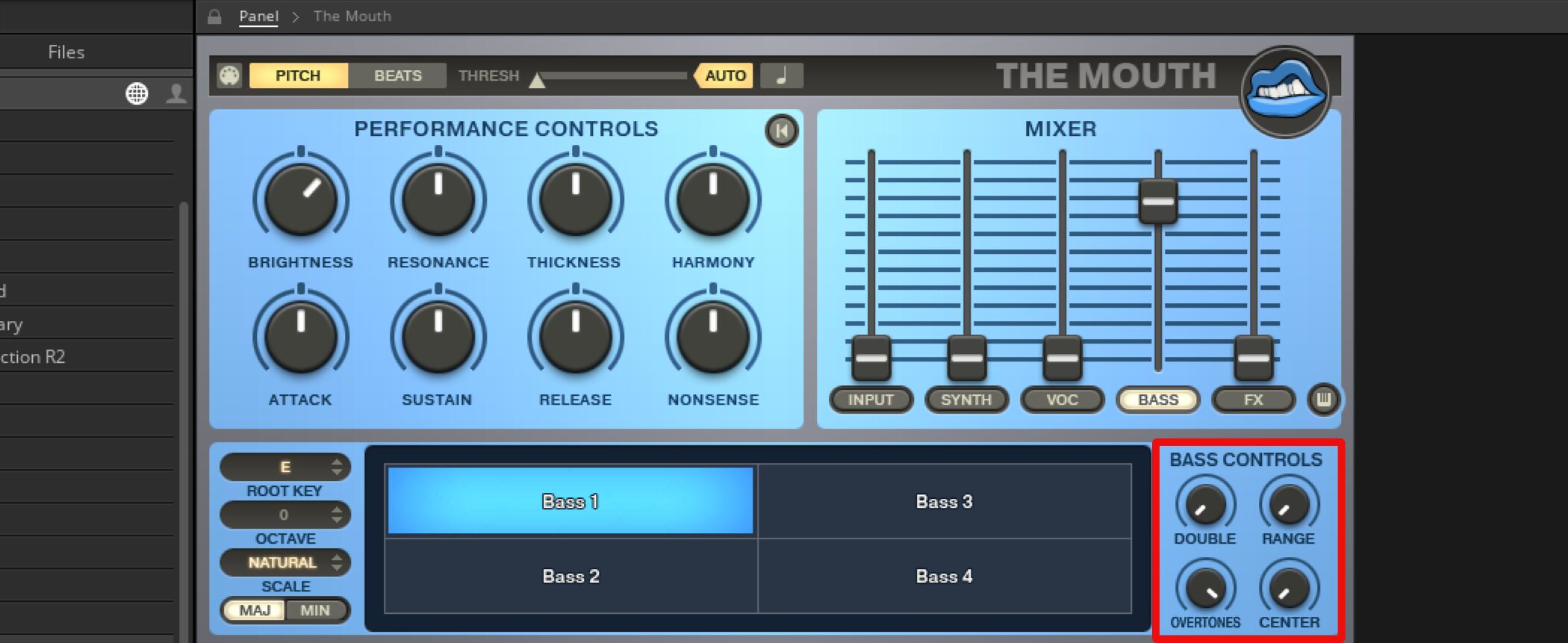
Choose a BASS preset and adjust the parameters.
- DOUBLE: Adjust the amount of low-frequency reinforcement.
- RANGE: Select a low-frequency range from one to three octaves.
- CENTER: Adjust how much of the low range selected by RANGE is applied.
- OVERTONES: Add higher frequencies to give the sound definition.
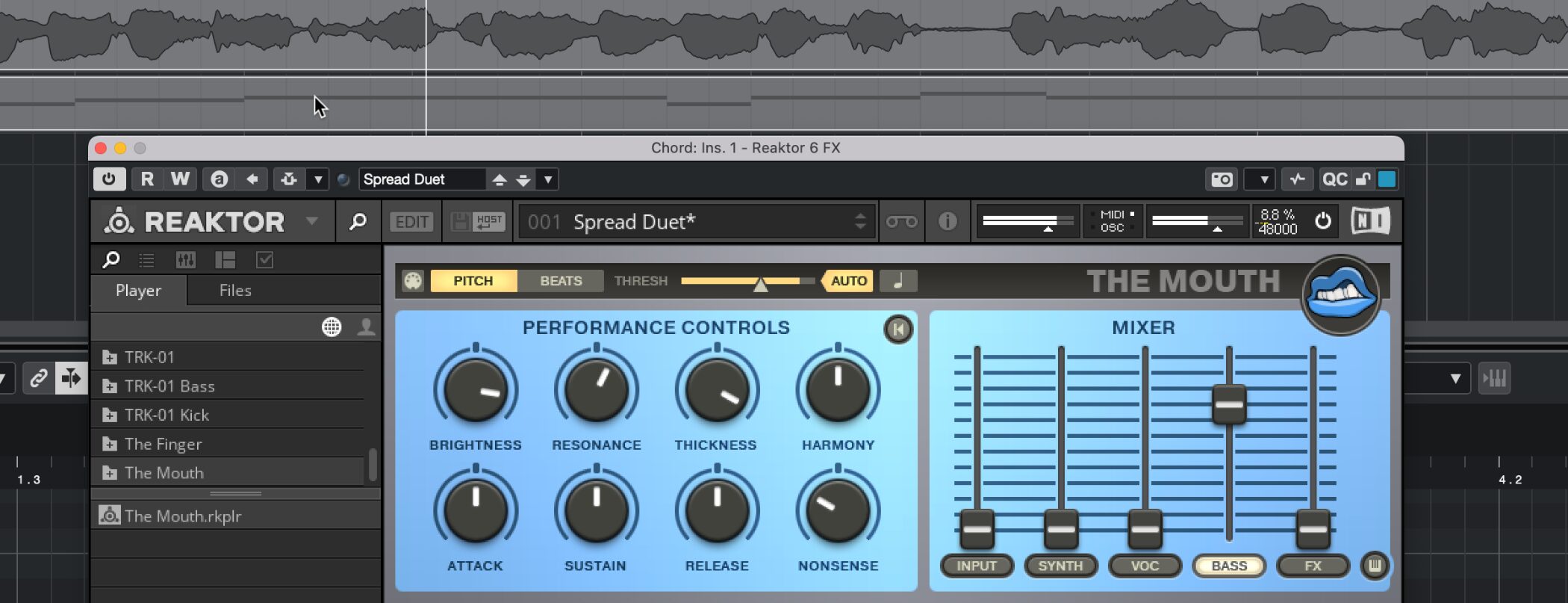
Combined with the MIDI technique above, it can also be used to generate a bass line from a beat.
Using BEATS Mode in a Track
Finally, let’s look at BEATS mode.
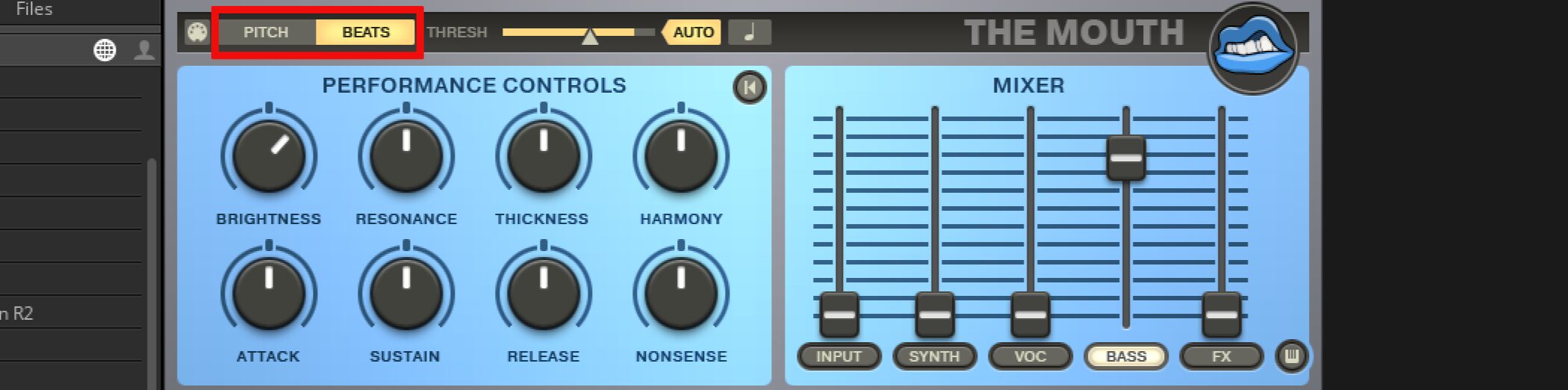
At the upper right, switch from the default PITCH mode to BEATS.
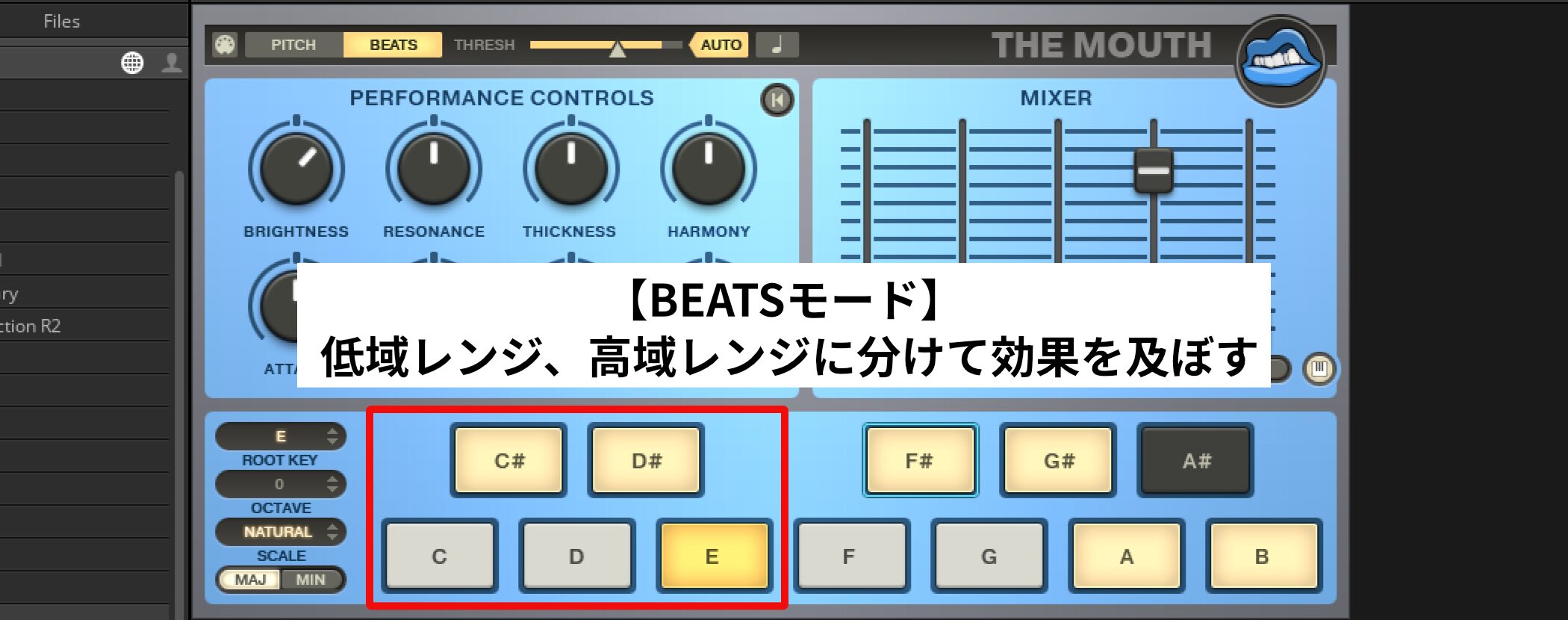
Even without MIDI notes, low-frequency sounds such as a kick produce lower notes, while higher sounds such as a snare produce higher notes; pitch is selected automatically according to the key setting.
Applying It to a Track
How might you use BASS and BEATS mode in a production?
Here is one example.
The waveform below shows a beat pattern.
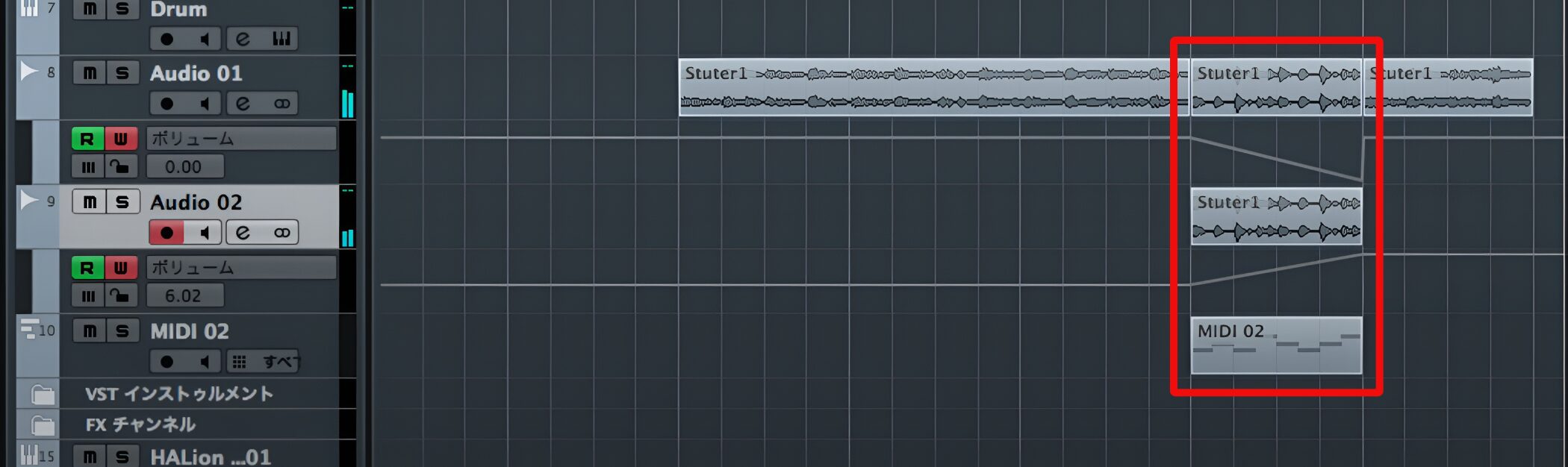
In a section containing a drum break, copy that section to another track and apply The Mouth.
Then use volume automation to gradually blend it in for an effect that helps build excitement.
See the video for details.
These settings are examples. Learn what the parameters do and find your own creative uses.
Frequently Asked Questions
Q1. Can The Mouth be used in DAWs other than Cubase?
Yes. It can also be used in Logic Pro and Ableton Live, with MIDI and audio routing configured for each DAW.
Q2. What is the default key?
The guide shows C minor as the default. Adjust Root Key, Octave, Scale and Maj/Min to suit the song and selected preset.
Q3. Can I apply a MIDI melody as well as audio?
Yes. Route MIDI to the REAKTOR instance processing the audio. The setup differs by DAW; Logic uses the instrument and sidechain method described above.
Q4. How do I add a vocoder effect?
Raise the VOC fader to mix in The Mouth’s vocoder sound.
Q5. How do I add a synth sound?
Use SYNTH. Raise its slider to mix a synth sound based on detected pitch or MIDI notes with the original audio.
NEW ARTICLES
Latest English Articles



















































































































































































































































































































































































