Tempo is an important part of a track’s character in FL Studio. This article explains how to change the tempo by dragging the value at the top of the window and how to use Tap to find a tempo from the intervals between mouse clicks. Choosing an approximate tempo early makes programming and arranging smoother and helps bring the track closer to your intended sound. You can also adjust the tempo in real time during playback.
Control the Tempo to Match Your Vision
Tempo has a major effect on the feel of a track.
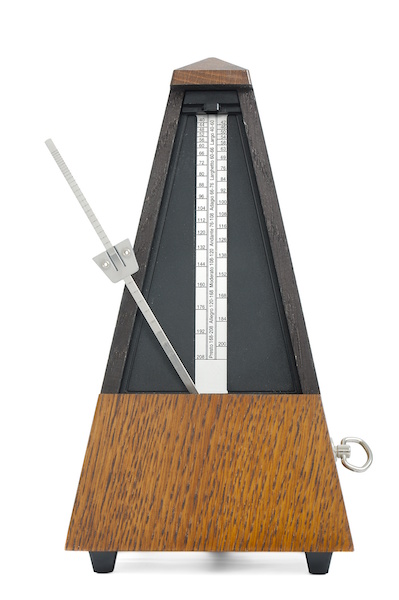
You can change it during production or even later in the process,
but it also affects the track’s character and how you program its parts, so we recommend that you choose an approximate tempo early
in the process.
Try adjusting it while listening to the pattern you programmed in the previous section.
Video: Changing the Tempo
Quarter Notes and Tempo
How to Change the Tempo
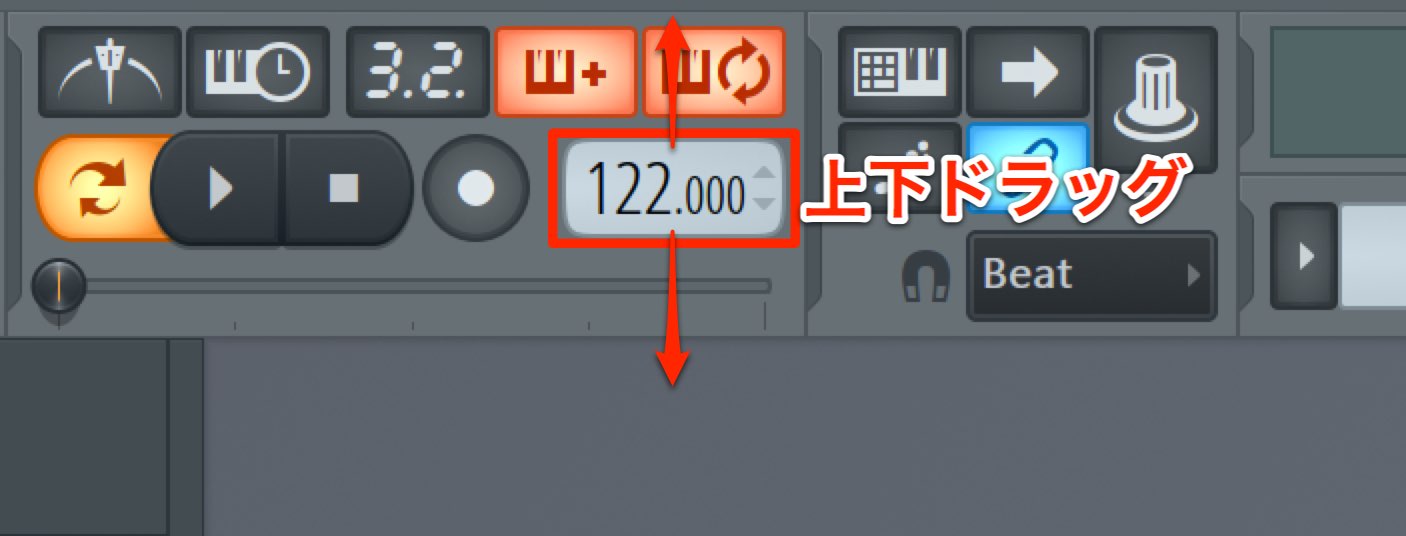
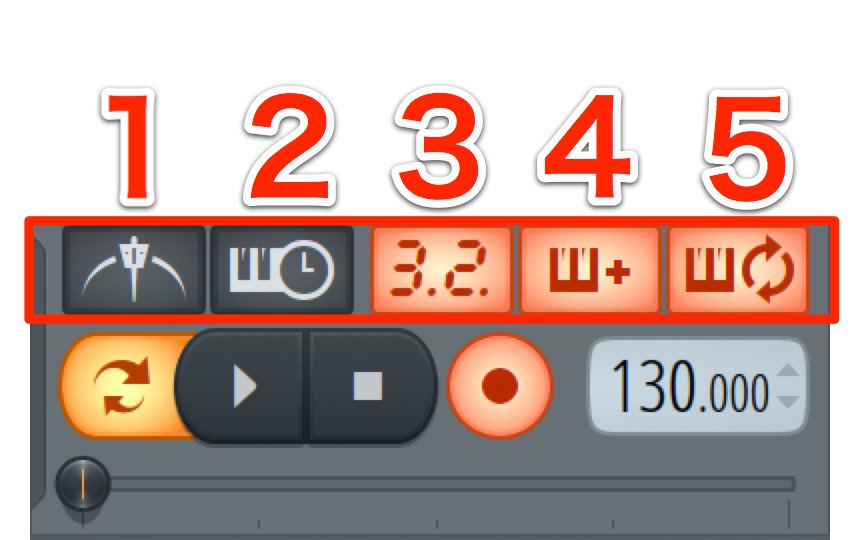
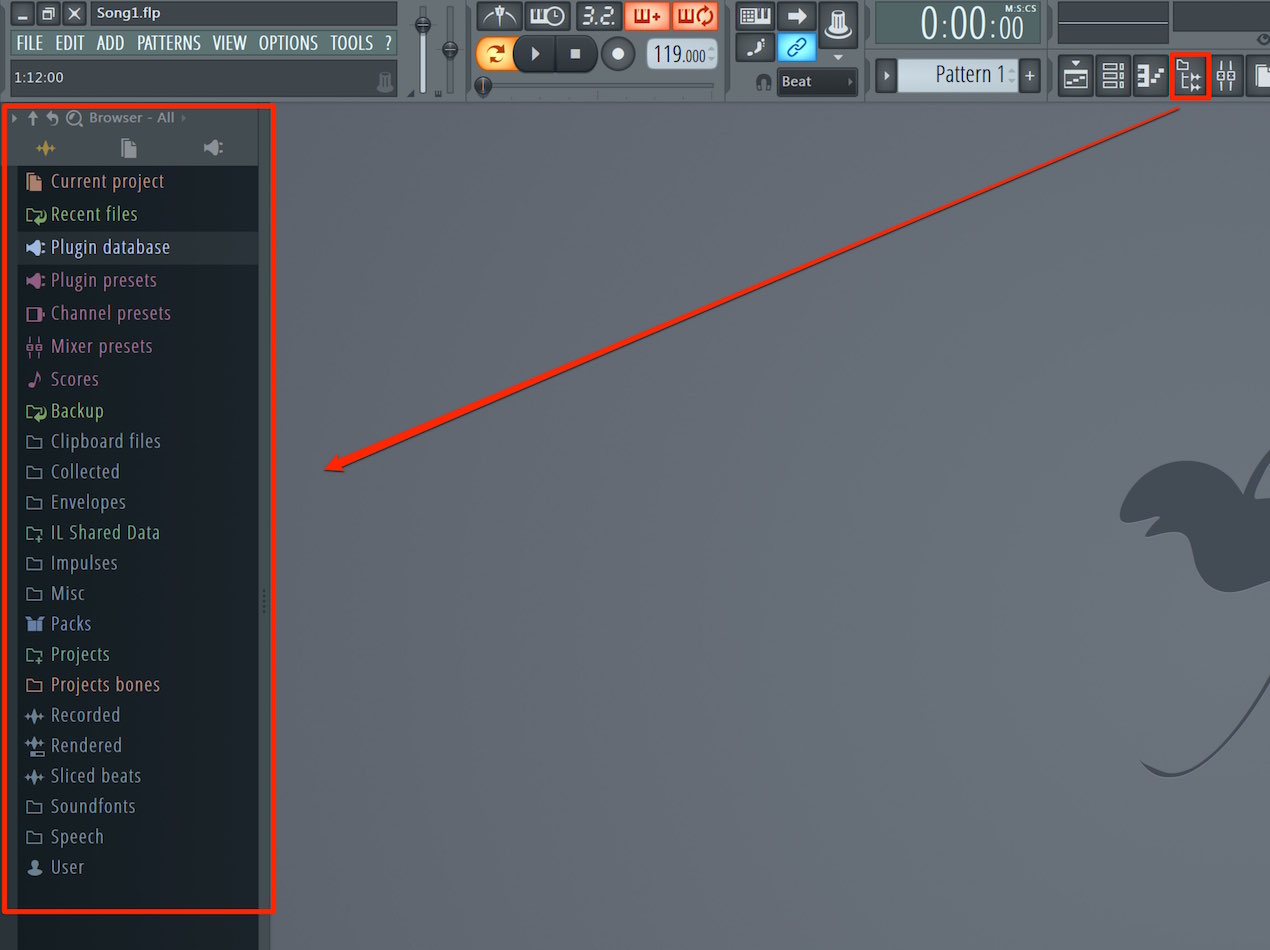
Drag the tempo value at the top of the window up or down.
You can change it during playback as well.
There is also a method called Tap.
Click the mouse several times to set the tempo from the intervals between clicks.
Video: Tap Tempo

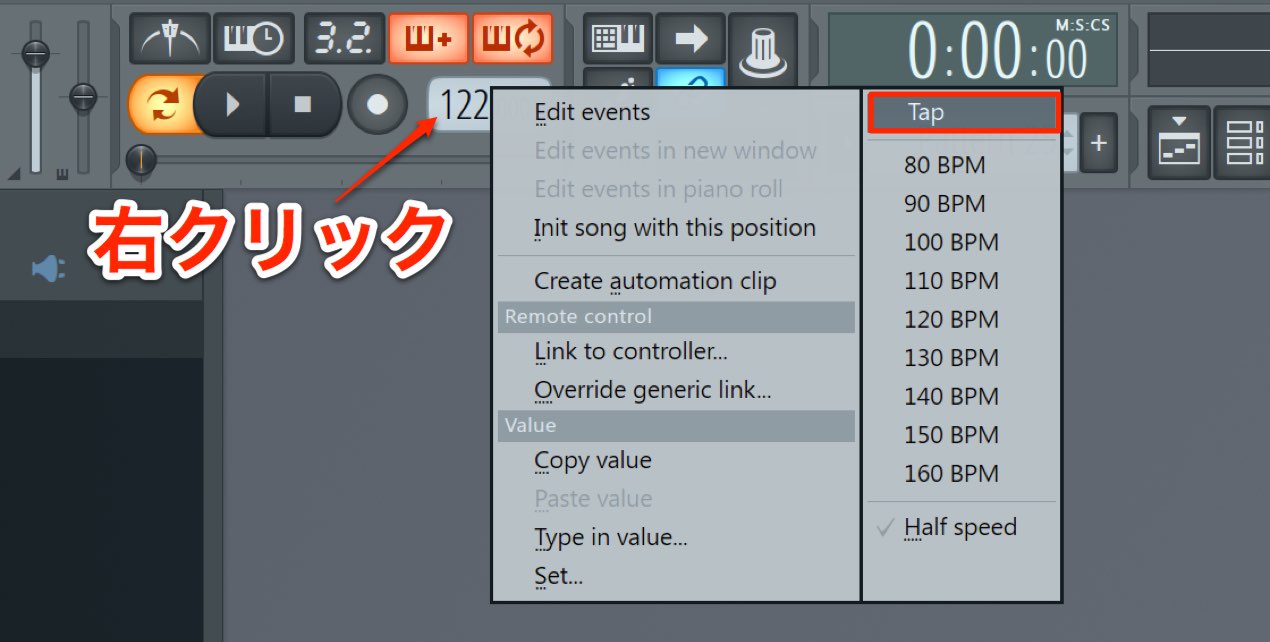
Right-click the tempo display and select “Tap.”
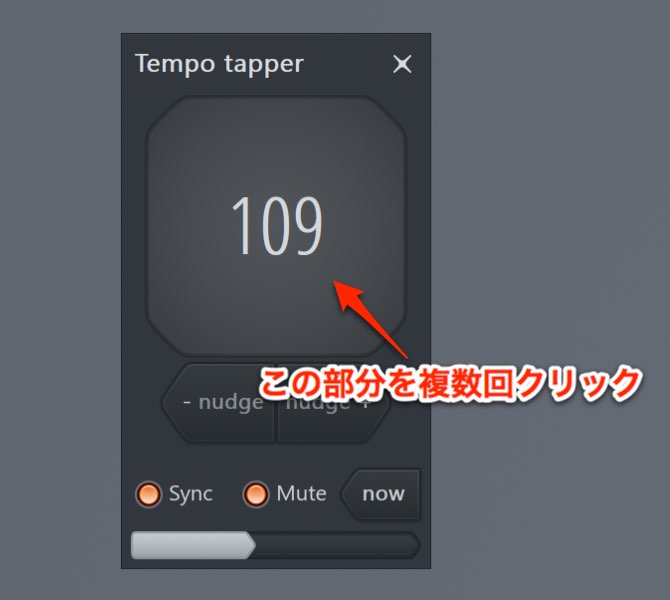
Click this area several times. FL Studio calculates the average and applies it to the tempo.
This is an intuitive way to find a tempo.
The following article explains how to change the tempo during a song.

Frequently Asked Questions
Q1. How can I change the tempo in FL Studio?
You can drag the tempo value at the top of the window up or down, or right-click the tempo display, select “Tap,” and click several times to calculate an average tempo. Both methods can be used during playback.
Q2. When should I decide on the tempo when starting a track?
Tempo has a major effect on a track’s character and how its parts are programmed, so we recommend deciding on an approximate tempo early. You can change it later, but deciding beforehand can make production more efficient.
Q3. How does the Tap feature work?
Tap calculates the average interval between repeated mouse clicks and applies the result to the tempo. It offers an intuitive way to find a tempo and is especially useful when working it out from an existing track or reference recording.
NEW ARTICLES
Latest English Articles