
Arturia KeyLab Essential mk3 offers a step-by-step setup process, from creating an Arturia account and registering the product to updating its firmware and installing the bundled software, so you can start making music. Update the keyboard through MIDI Control Center and install the bundled software, including Analog Lab V, to access more than 2,000 synthesizer presets, a DAW, and instrument libraries. Integration with major DAWs such as Logic Pro X and Cubase helps both beginners and experienced users build a music production setup. This guide describes the software bundle and setup screens covered in the original May 2023 article; current offers and software interfaces may differ.
Arturia KeyLab Essential mk3
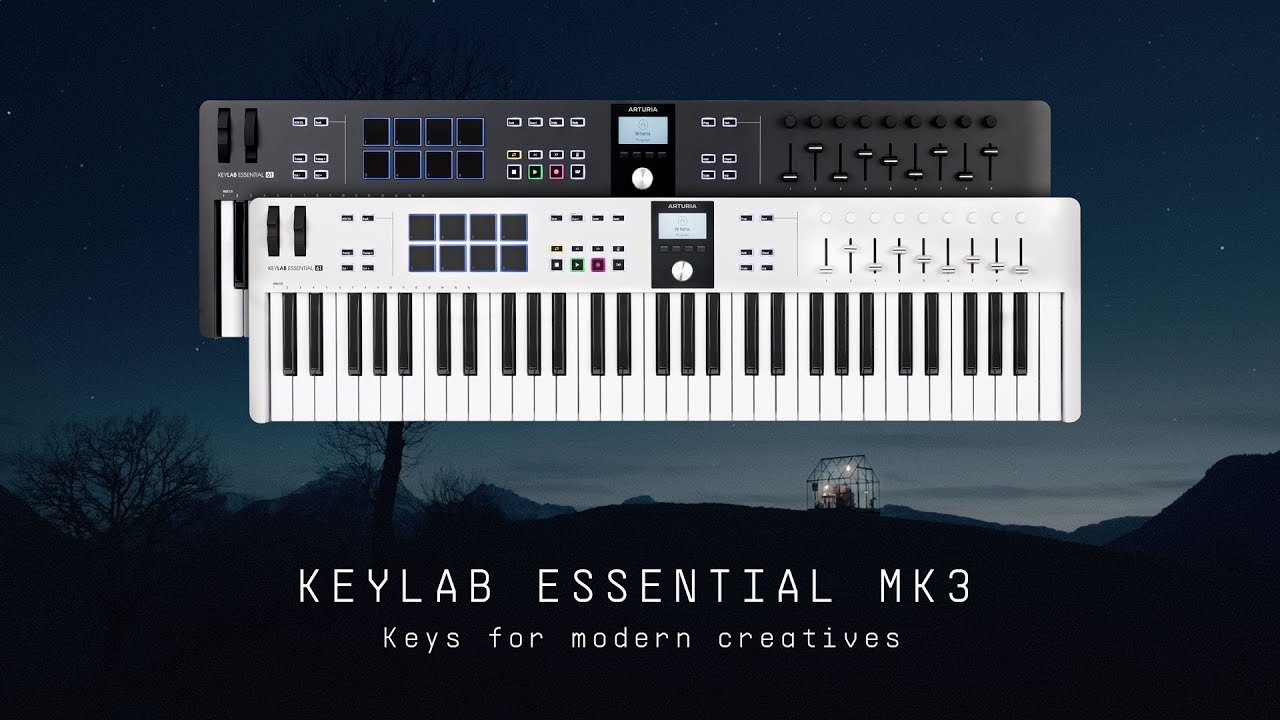
This guide covers Arturia's KeyLab Essential mk3 and the settings and software needed to use it.
For a guide to using the keyboard itself, see the related article below.

- 1Creating an Arturia Account
- 2Registering Your Product
- 3Updating the Firmware
- 4Installing the Bundled Analog Lab V Software
- 5Installing the Other Bundled Software
- 5.1Ableton Live Lite
- 5.2Native Instruments The Gentleman
- 5.3UVI Grand Piano Model D
- 5.4Melodics
- 5.5Loopcloud
- 6DAW Integration
- 6.1Logic Pro X
- 6.2Cubase
- 6.3Ableton Live
- 6.4FL Studio
- 6.5Bitwig Studio
Setup: Creating an Arturia Account
First, create an Arturia account.
If you already have an account, go to the next section, Registering Your Product.
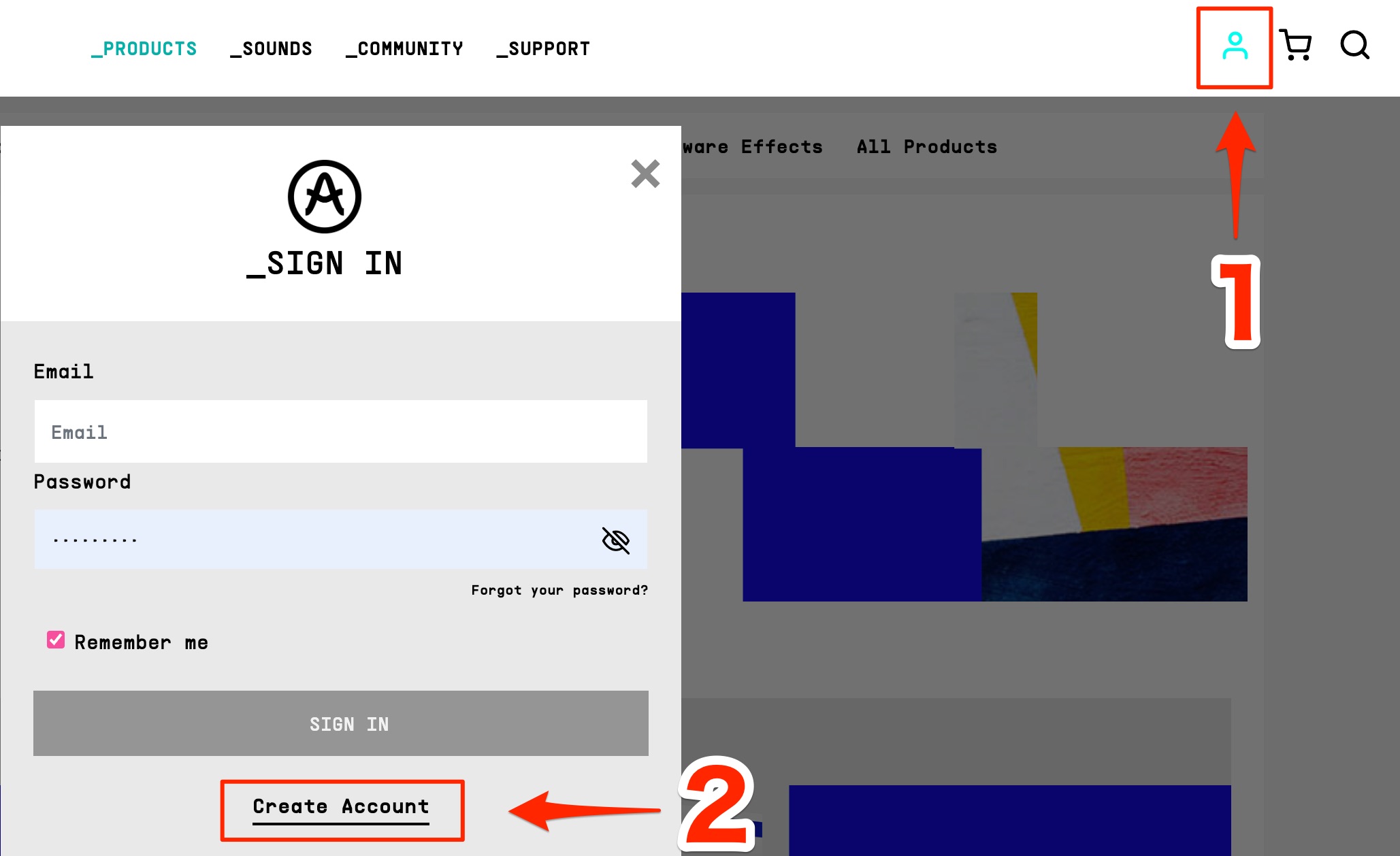
Visit the Arturia website, click the user icon at the top right, and select Create Account.
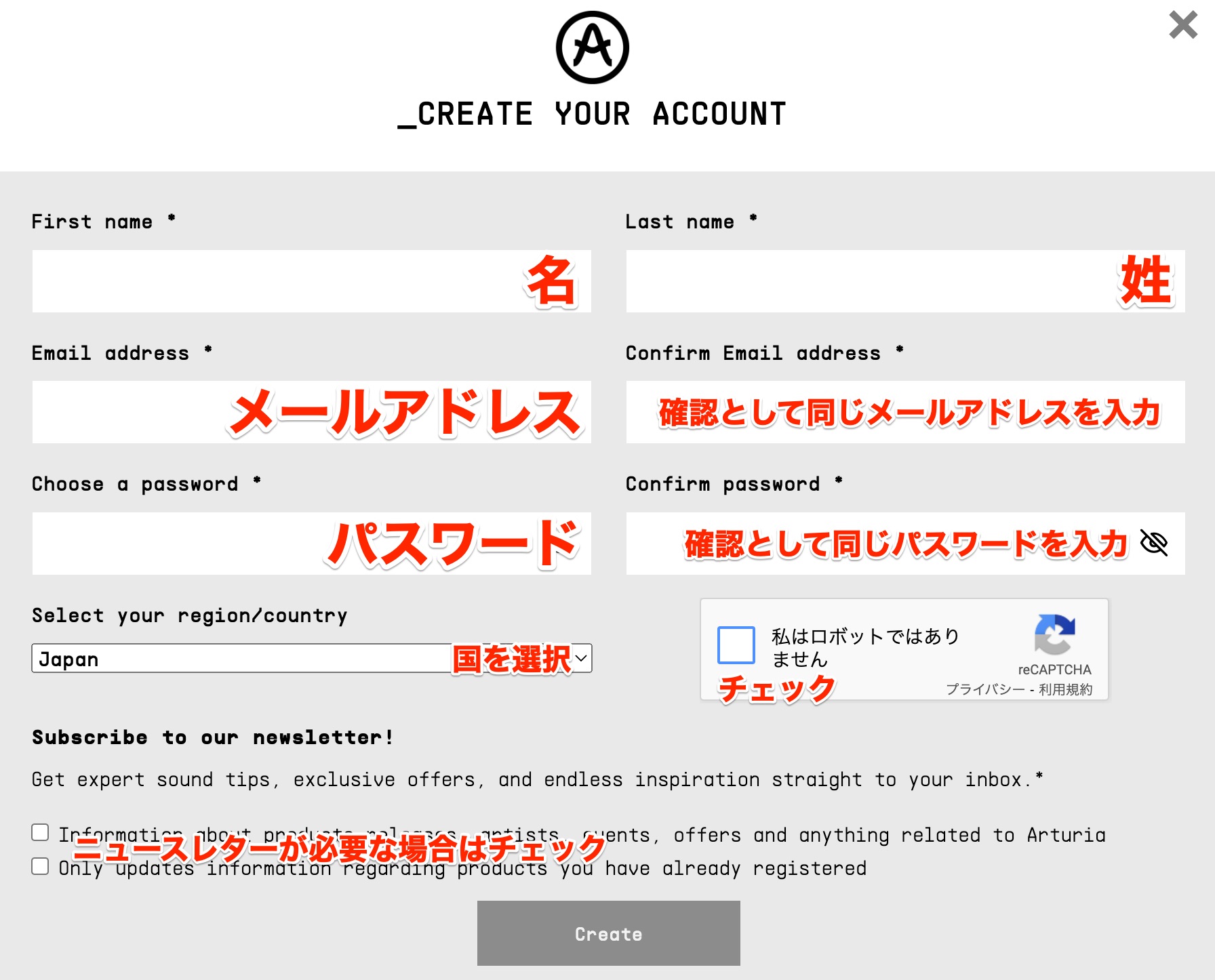
Enter the required information and select Create.
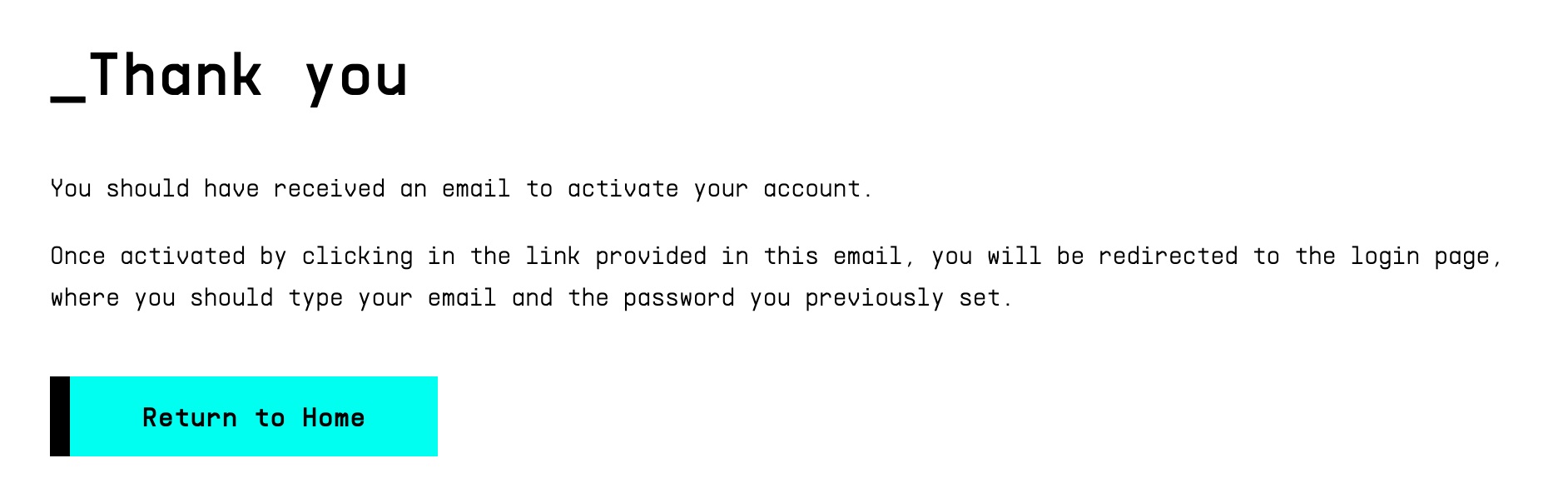
The screen will change as shown here.

A confirmation link will be sent to the email address you registered.
Click Confirm email to finish creating your account.
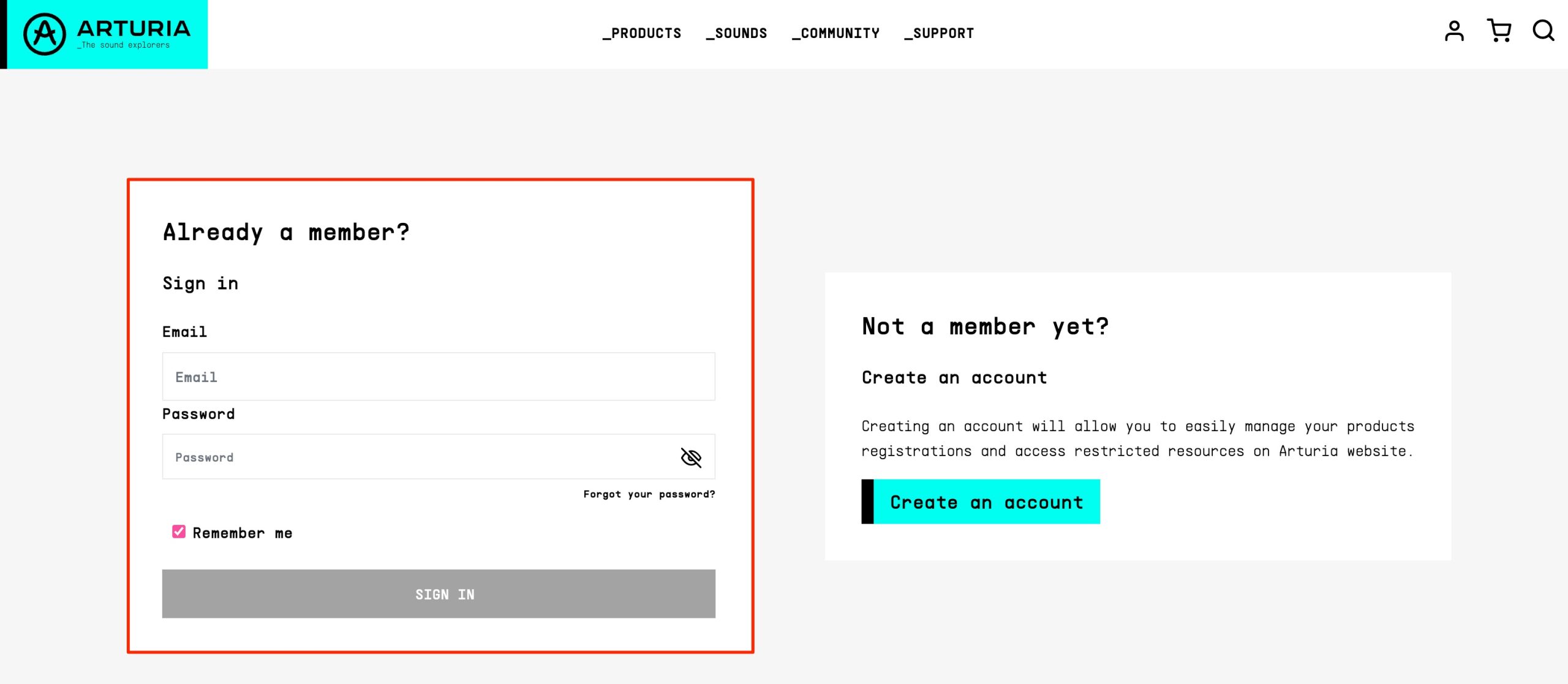
Log in with the account you just created.
Registering Your Product
Next, register the product to your account.
https://www.arturia.com/kle-mk3-start is the setup page to visit.
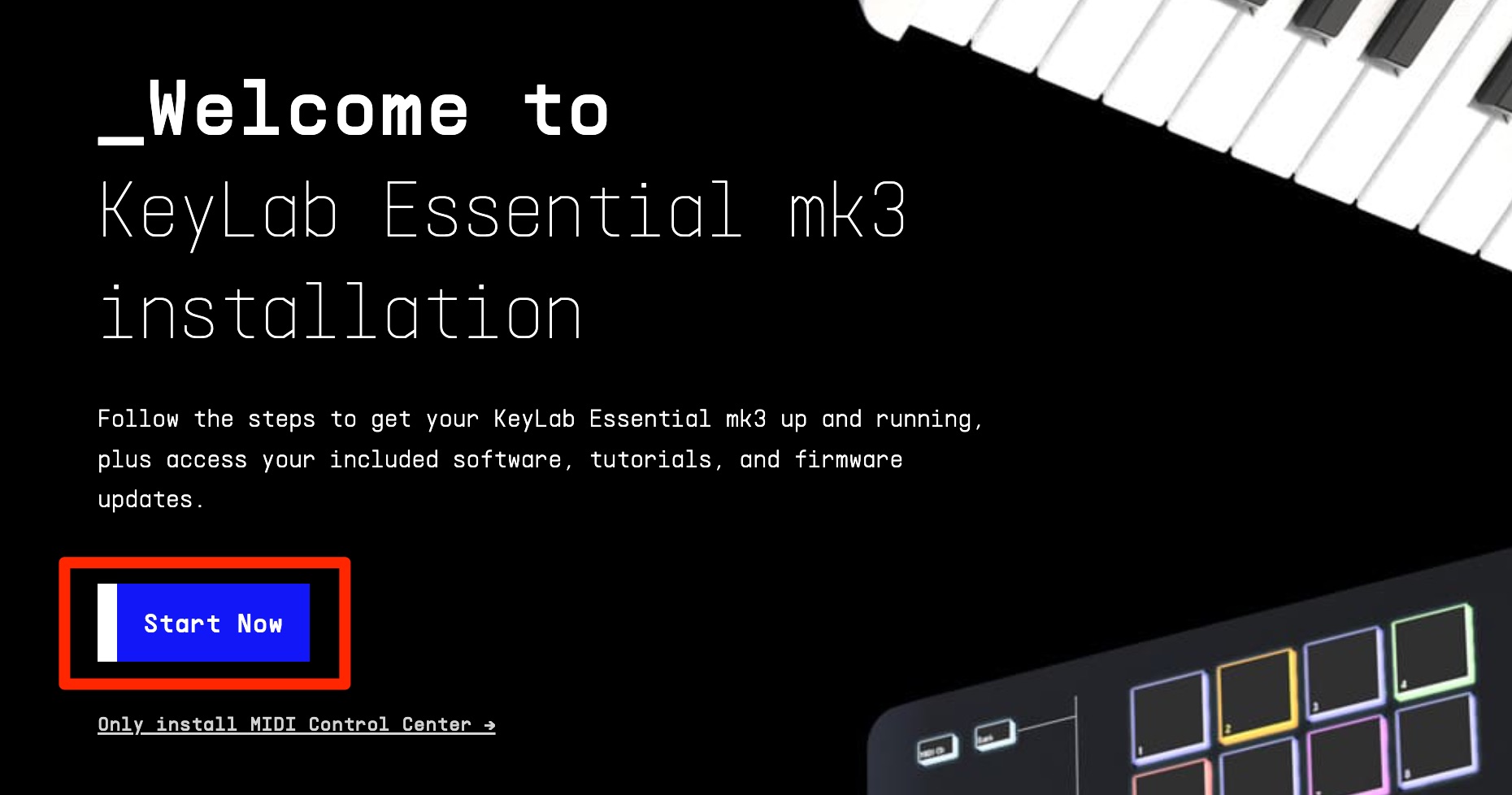
Click Start Now. You will need to be logged in.
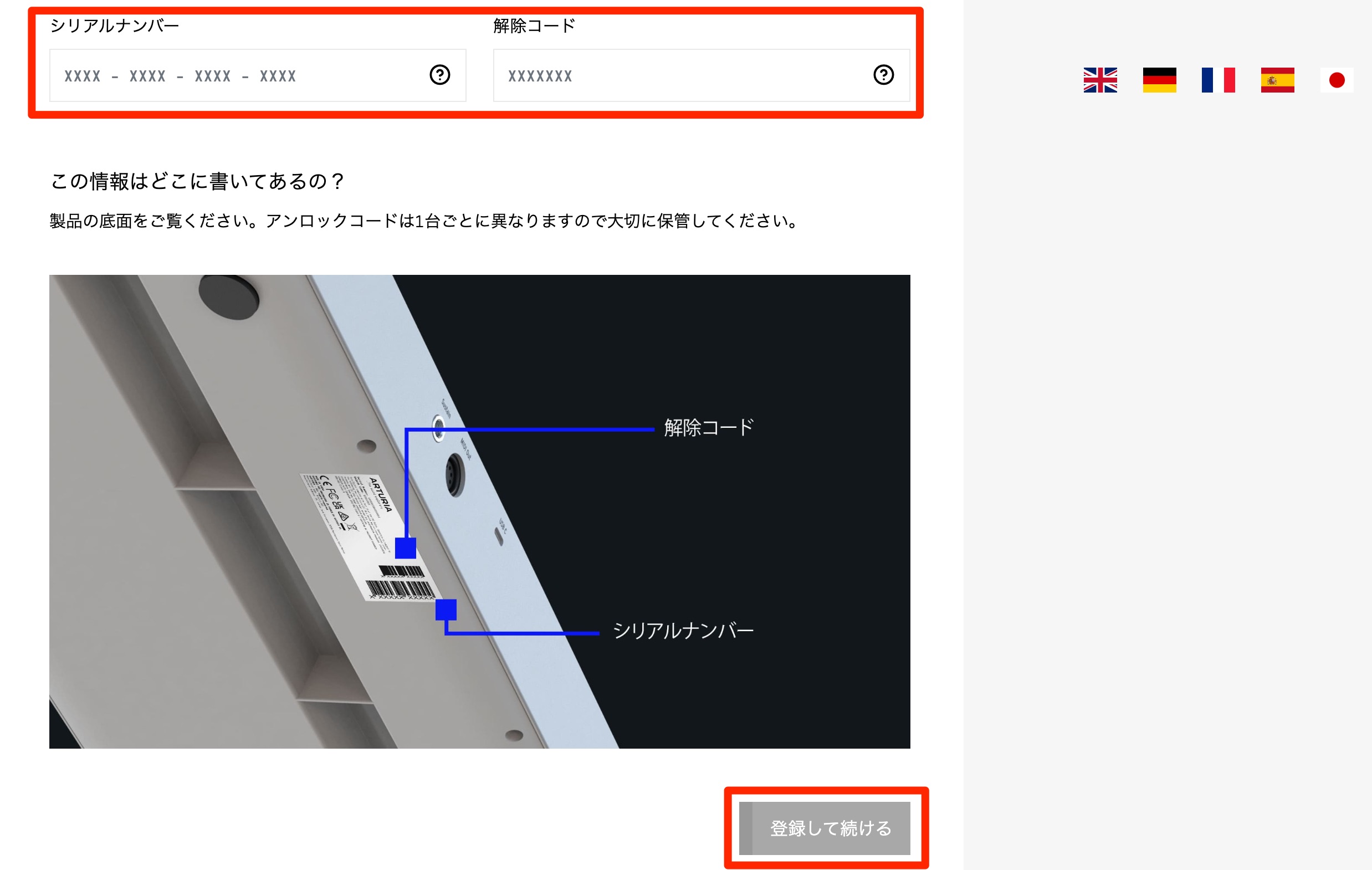
Enter the product's serial number and unlock code, then continue.
These are printed on the underside of the keyboard or on the card included in the box.
The page will change, confirming that the product has been registered to your account.
Continue with setup. If you close the navigation page partway through,
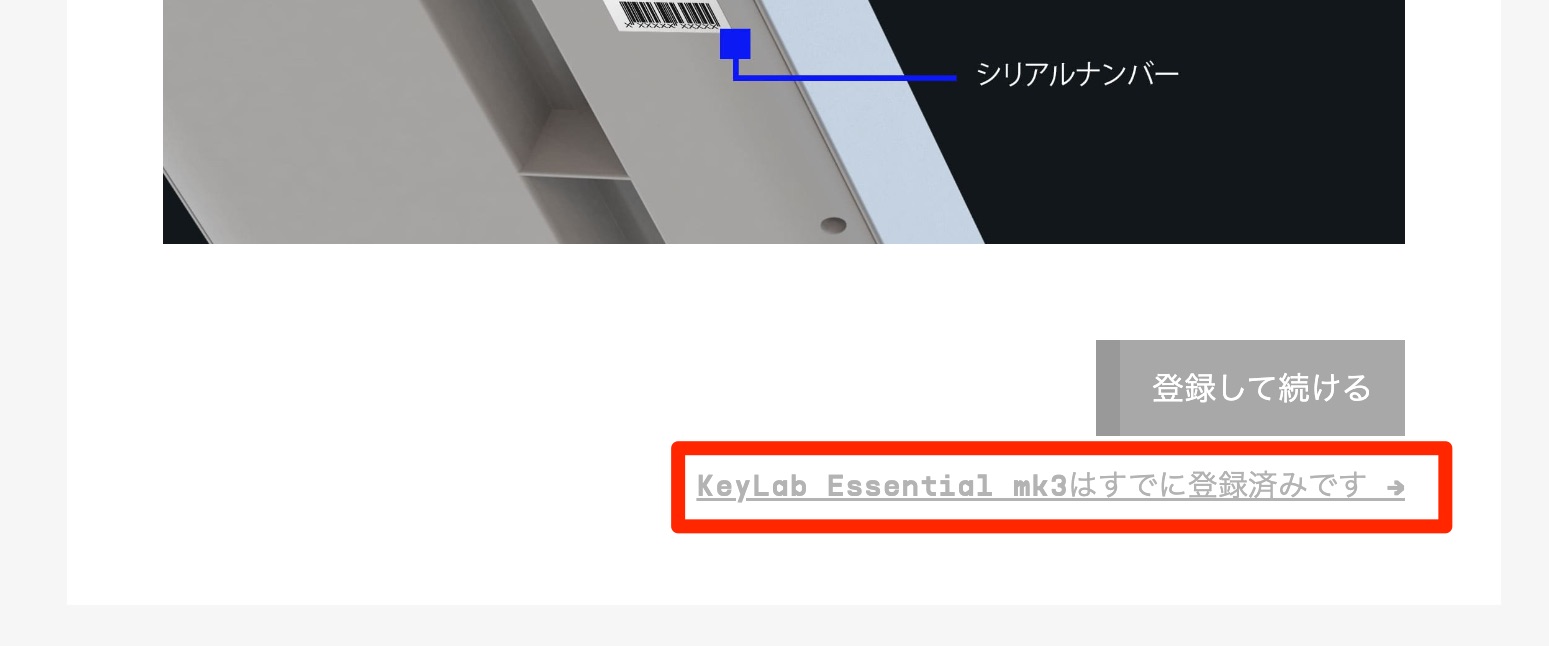
click the area shown here to open it again.
Updating the Firmware
On the next page, download the software needed to set up your keyboard.
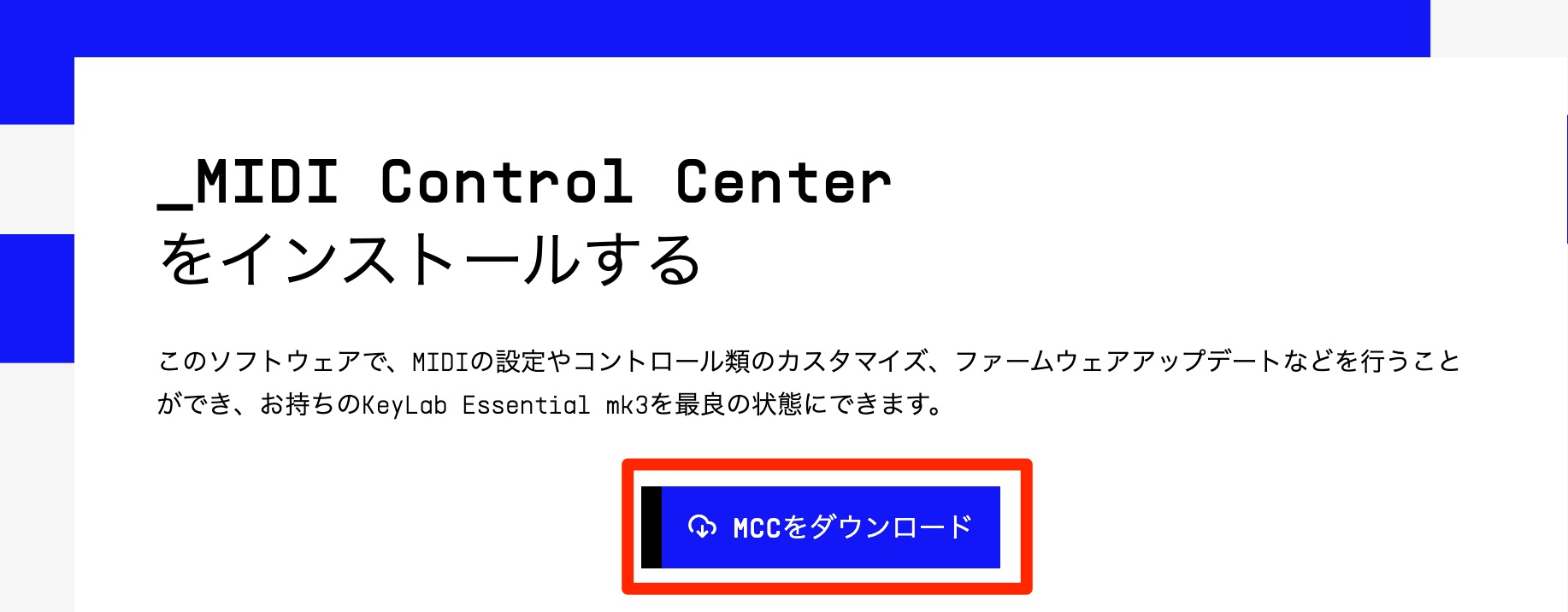
Click the Download MCC button to download MIDI Control Center to your computer.

Double-click the downloaded file and install it.
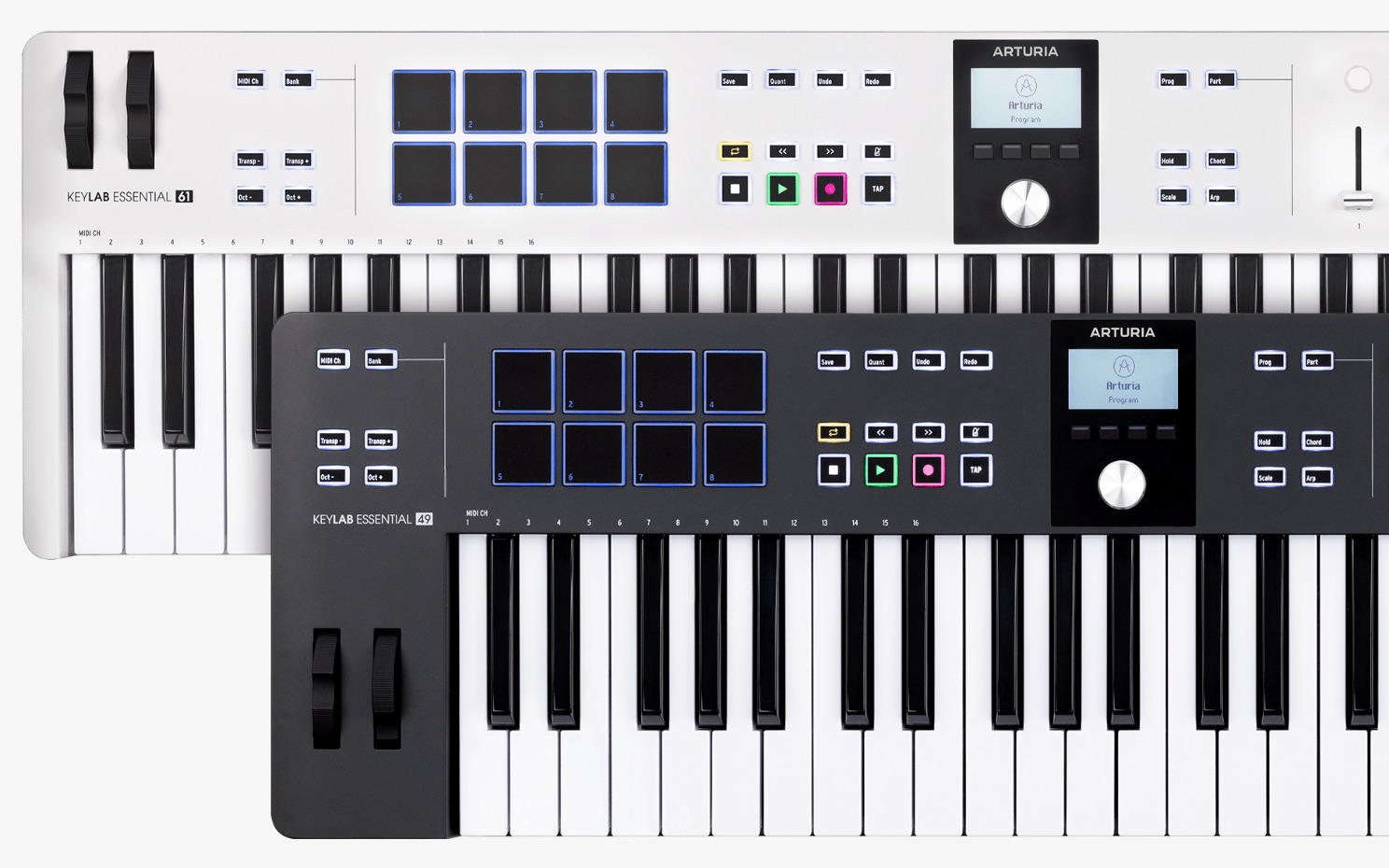
Connect KeyLab Essential mk3 to your computer using the included USB-C to USB-A cable, or your own USB-C to USB-C cable.

Launch the installed MIDI Control Center from the following location.
- Mac: Applications → Arturia → MIDI Control Center
- Windows: C: → Program Files → Arturia → MIDI Control Center
When MIDI Control Center starts, it automatically detects the connected keyboard.
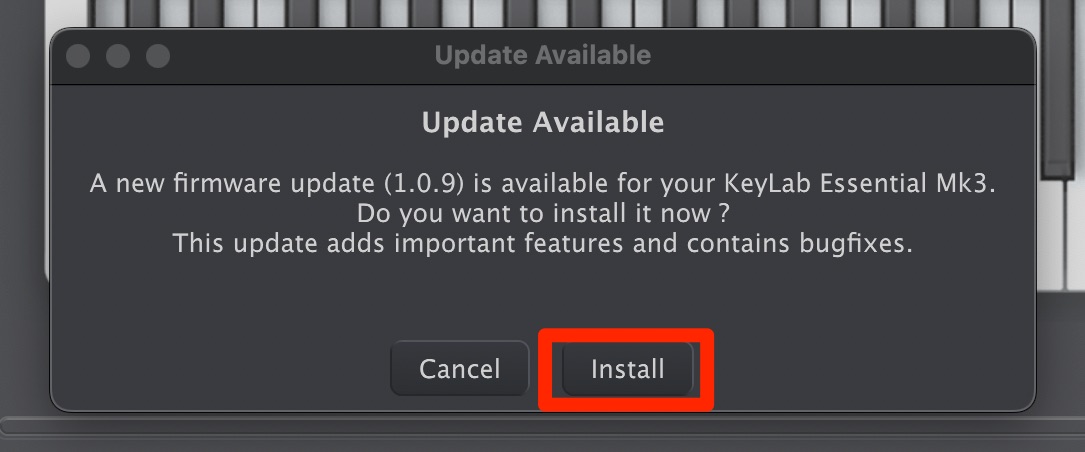
If the message shown here appears, a newer firmware version is available to download.
Install the update to benefit from performance improvements and bug fixes.
Click Install to prepare the update.
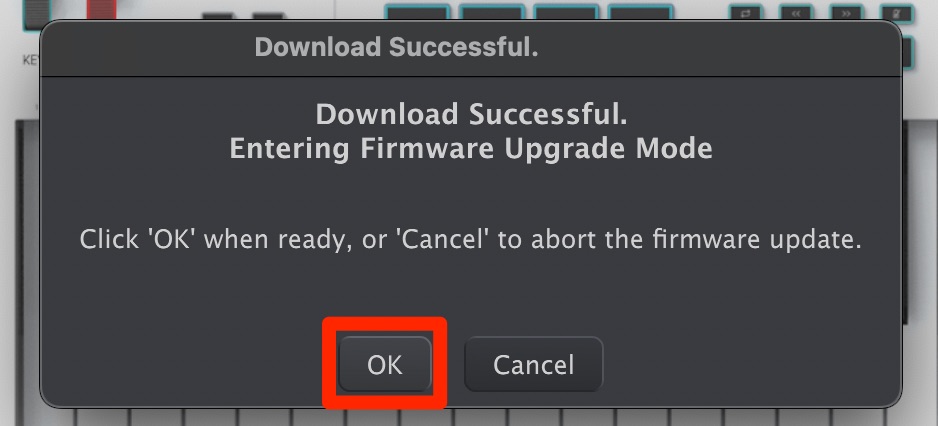
Click OK to begin updating.
Do not turn off your computer or disconnect the keyboard during the update.
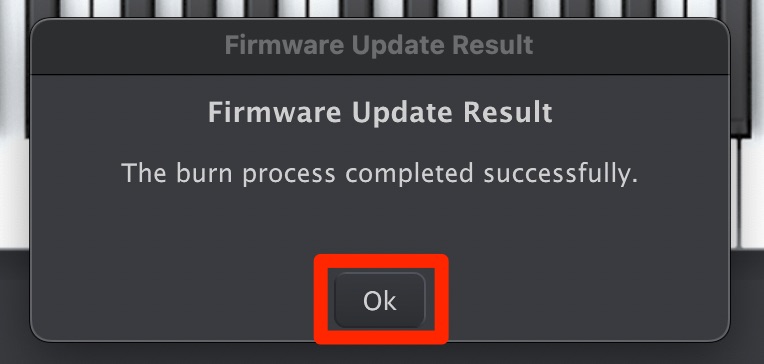
The message shown here indicates that the update is complete.
Click OK to finish.
Installing the Bundled Analog Lab V Software

KeyLab Essential mk3 includes an extensive bundle of music production software, instruments, and loops at no additional charge, as described in the original 2023 article.
Here are their main features and setup steps.
Analog Lab V
First, install Arturia's Analog Lab V.
It includes more than 2,000 synthesizer, keyboard, and other sound presets.
First, go to the software page.
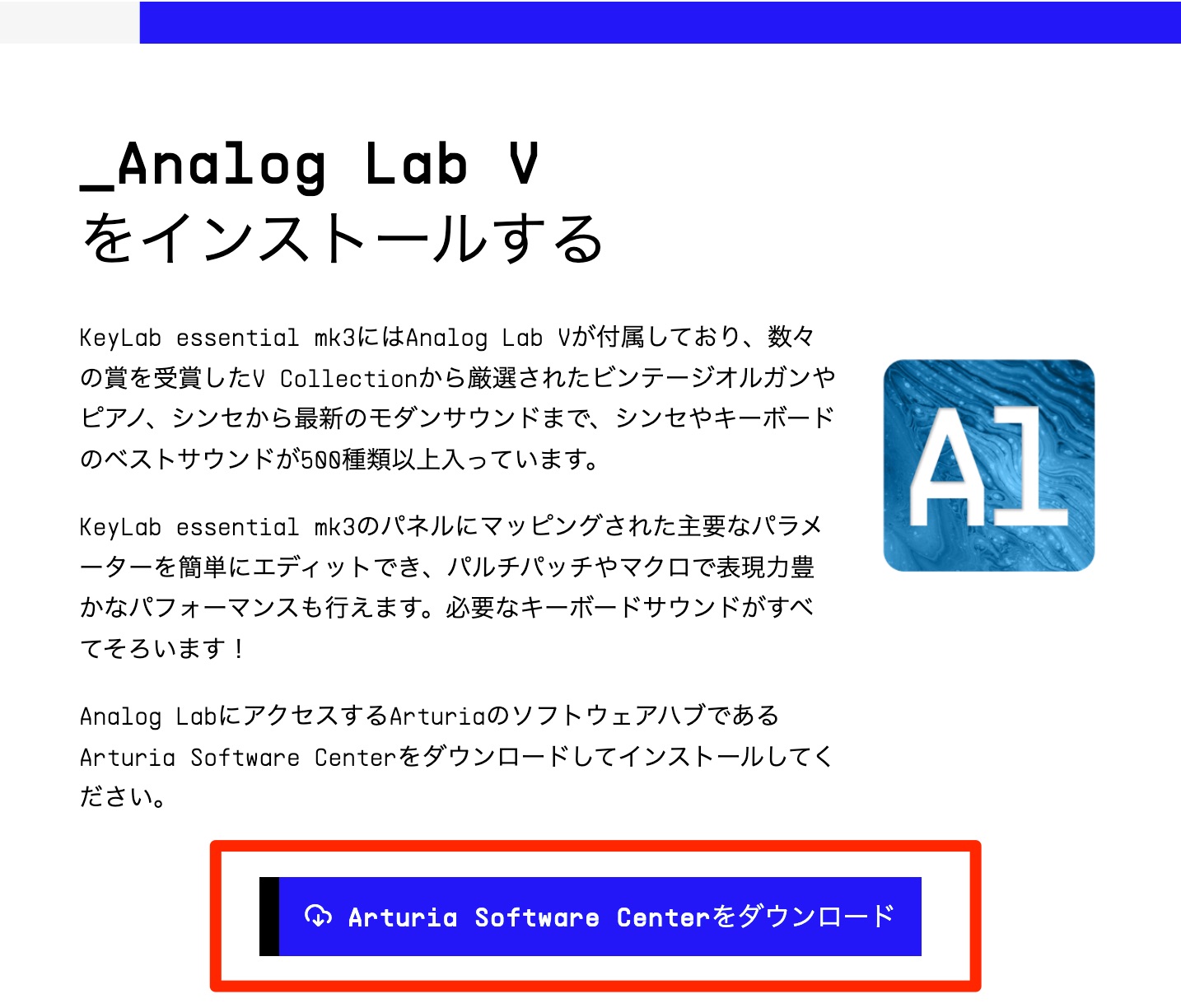
Click Download Arturia Software Center.

Double-click the downloaded installer to install Arturia Software Center.
Arturia Software Center is installed in the following location.
- Mac: Applications → Arturia folder
- Windows: C: → Program Files → Arturia folder
Launch Arturia Software Center.
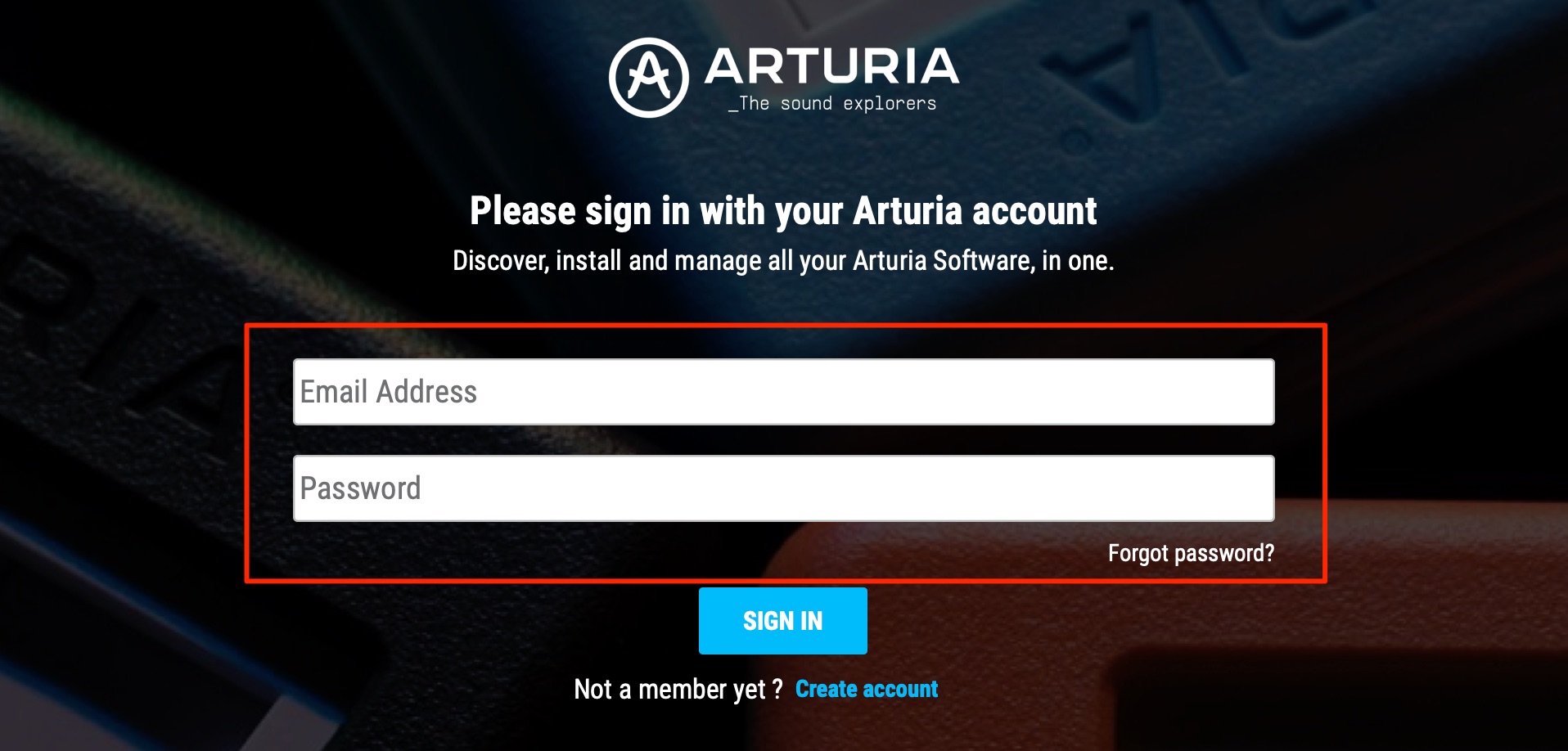
When prompted, log in with your Arturia account.
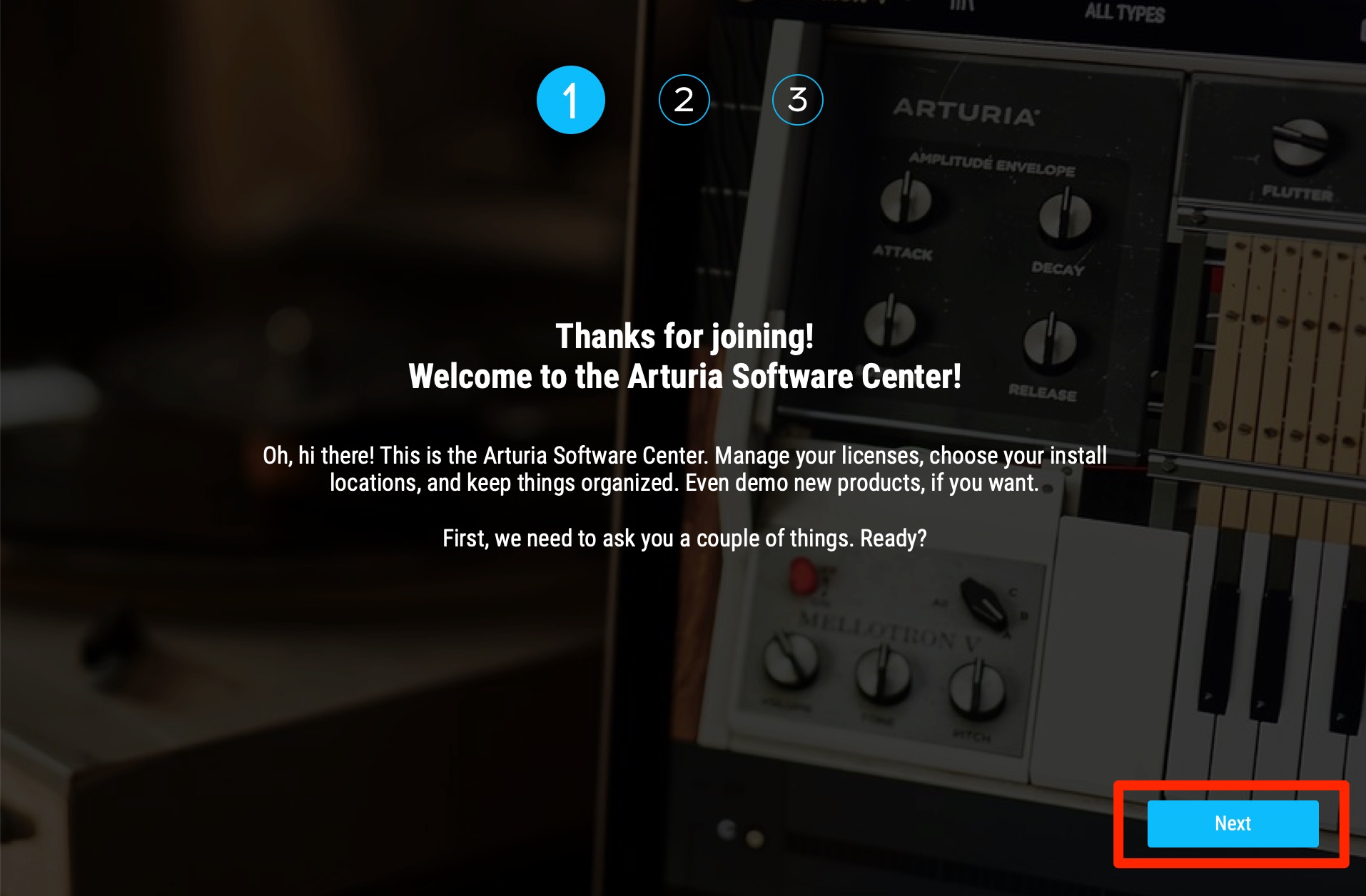
The first time you launch it, this screen will appear.
Click Next.
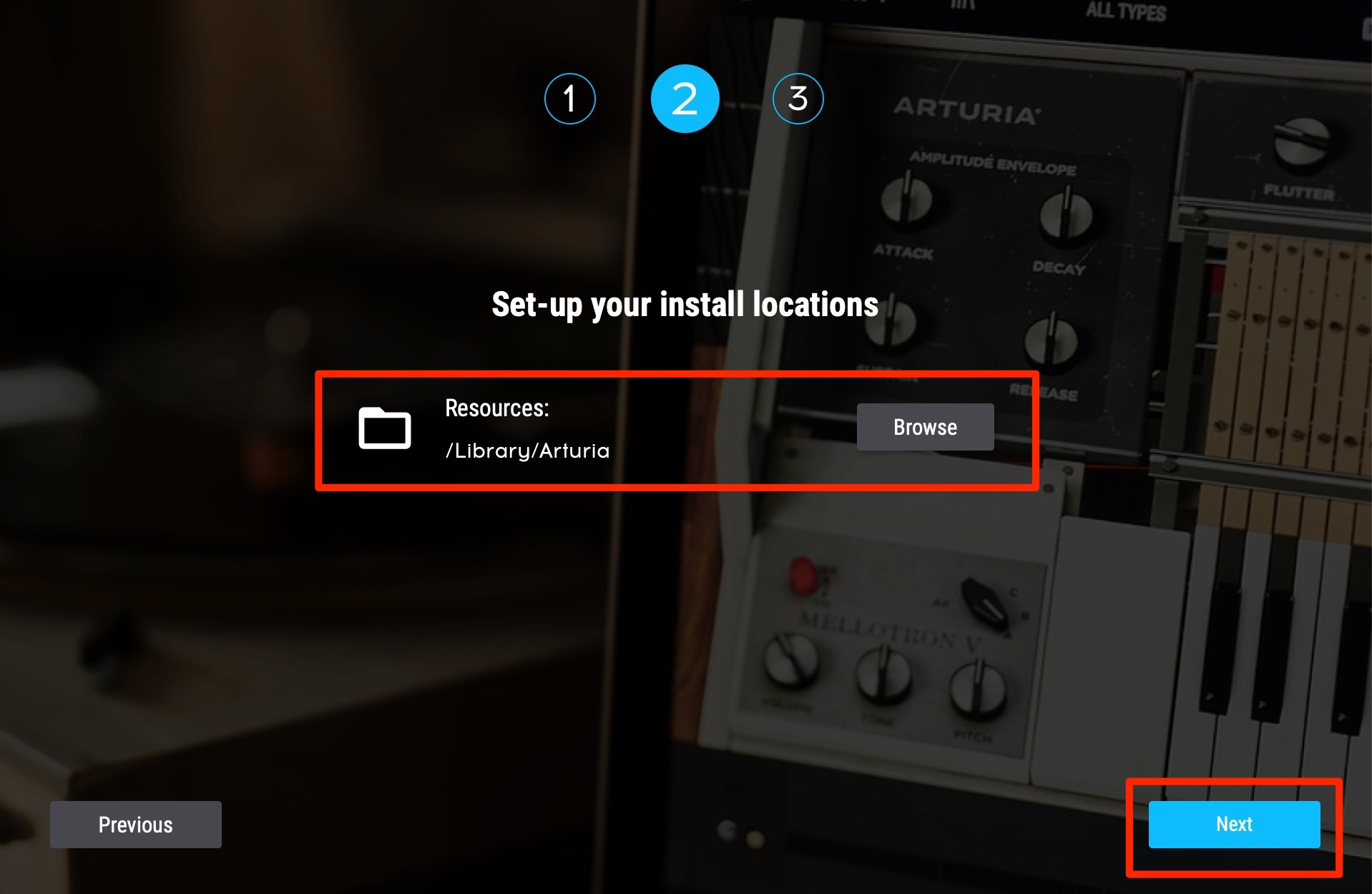
Some instruments have large sound libraries, which can take up a considerable amount of space on your main drive.
To avoid this, you can choose where the sound files are stored.
Click Browse and select a folder on your preferred drive, such as an external drive.
If you do not need to change the location, simply click Next.
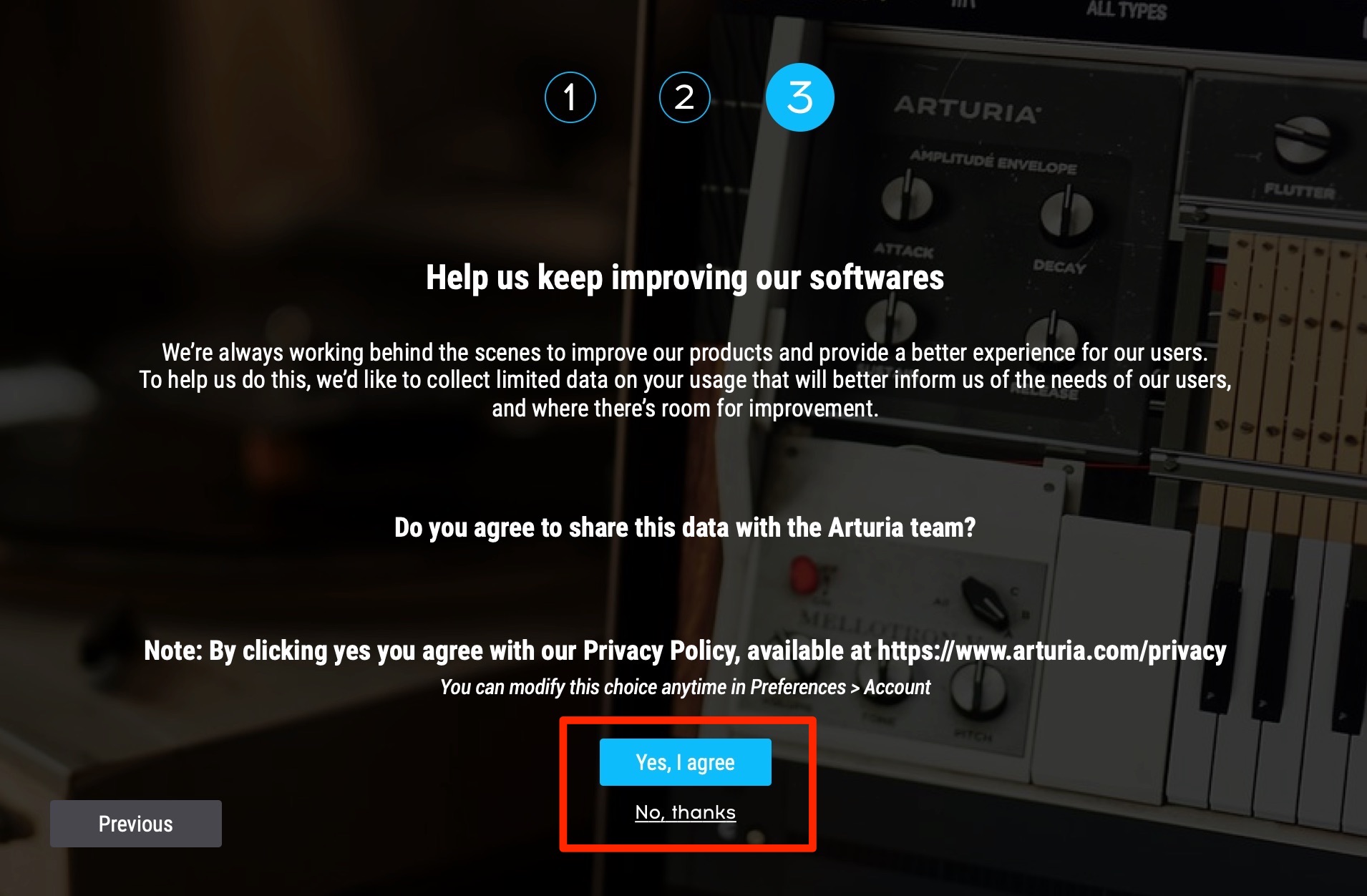
This screen explains the automatic collection of information about how you use the software and any problems that occur.
Select YES if you agree, or NO if you do not want to allow this.
The initial settings are now complete.
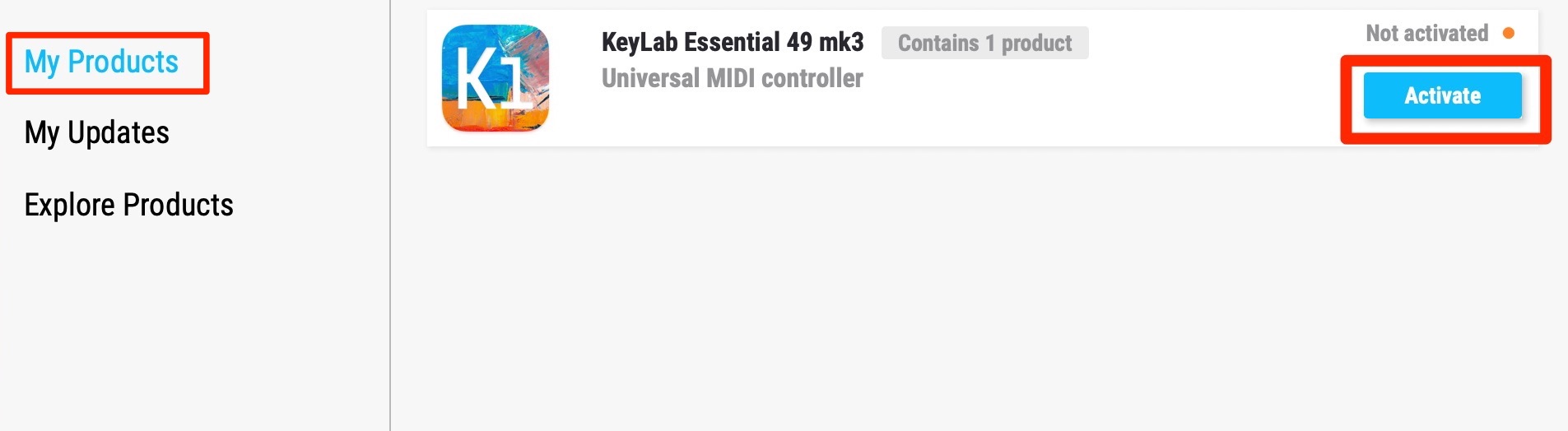
Click Activate for KeyLab Essential mk3.
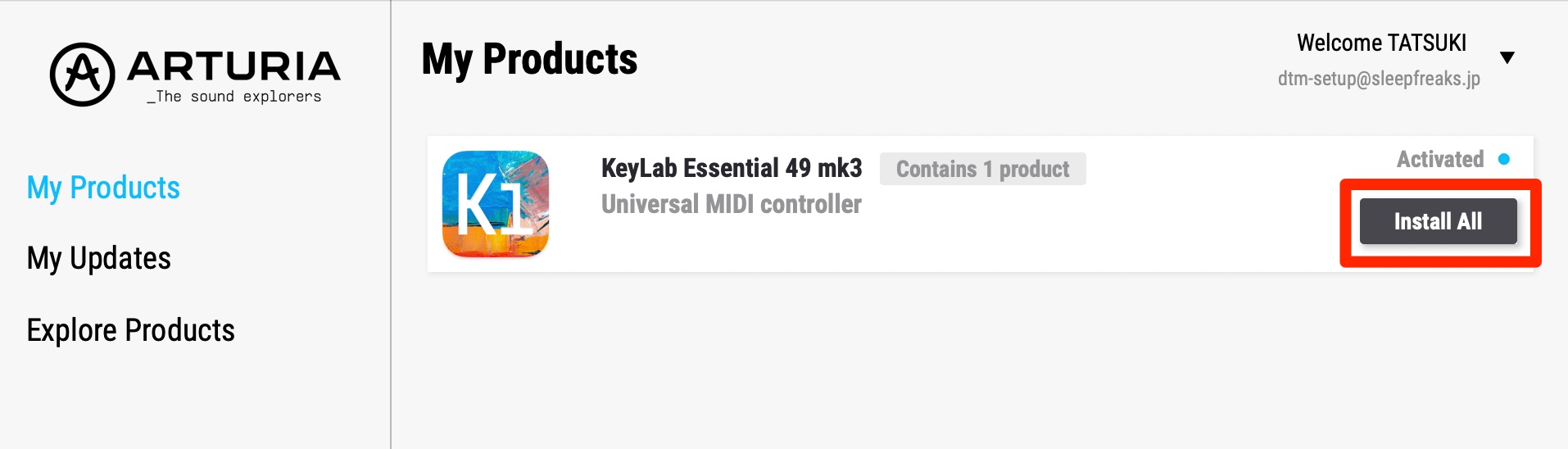
Then select Install All.
You can now use Analog Lab V in your DAW and integrate it with KeyLab Essential mk3.
Installing the Other Bundled Software
Open Arturia's My Arturia product page. You will need to log in.
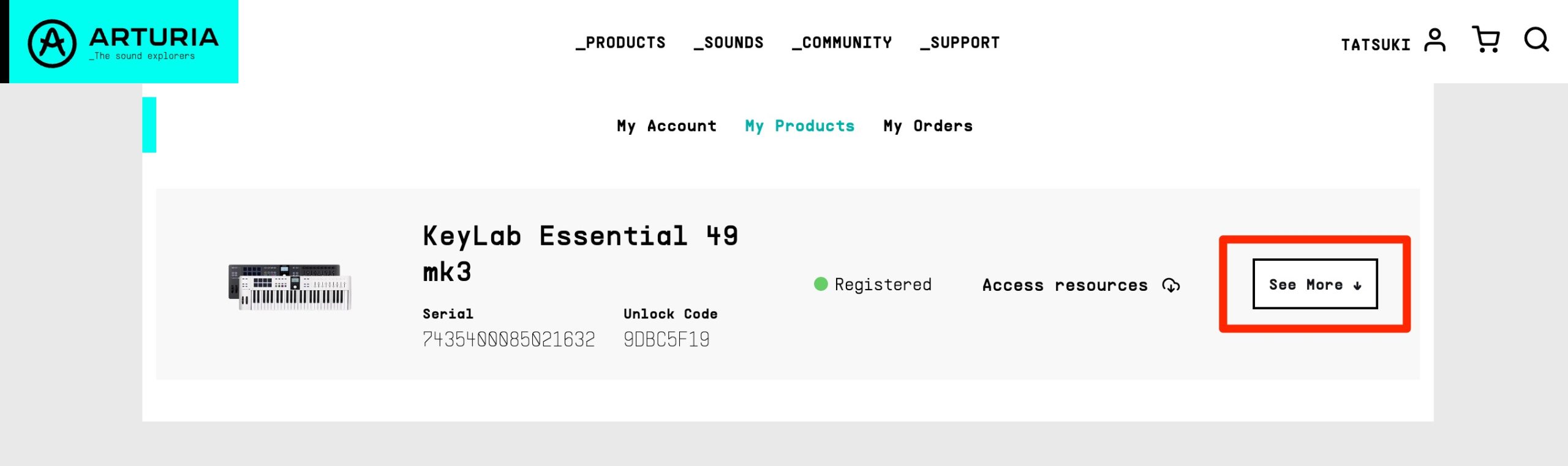
Click See More.
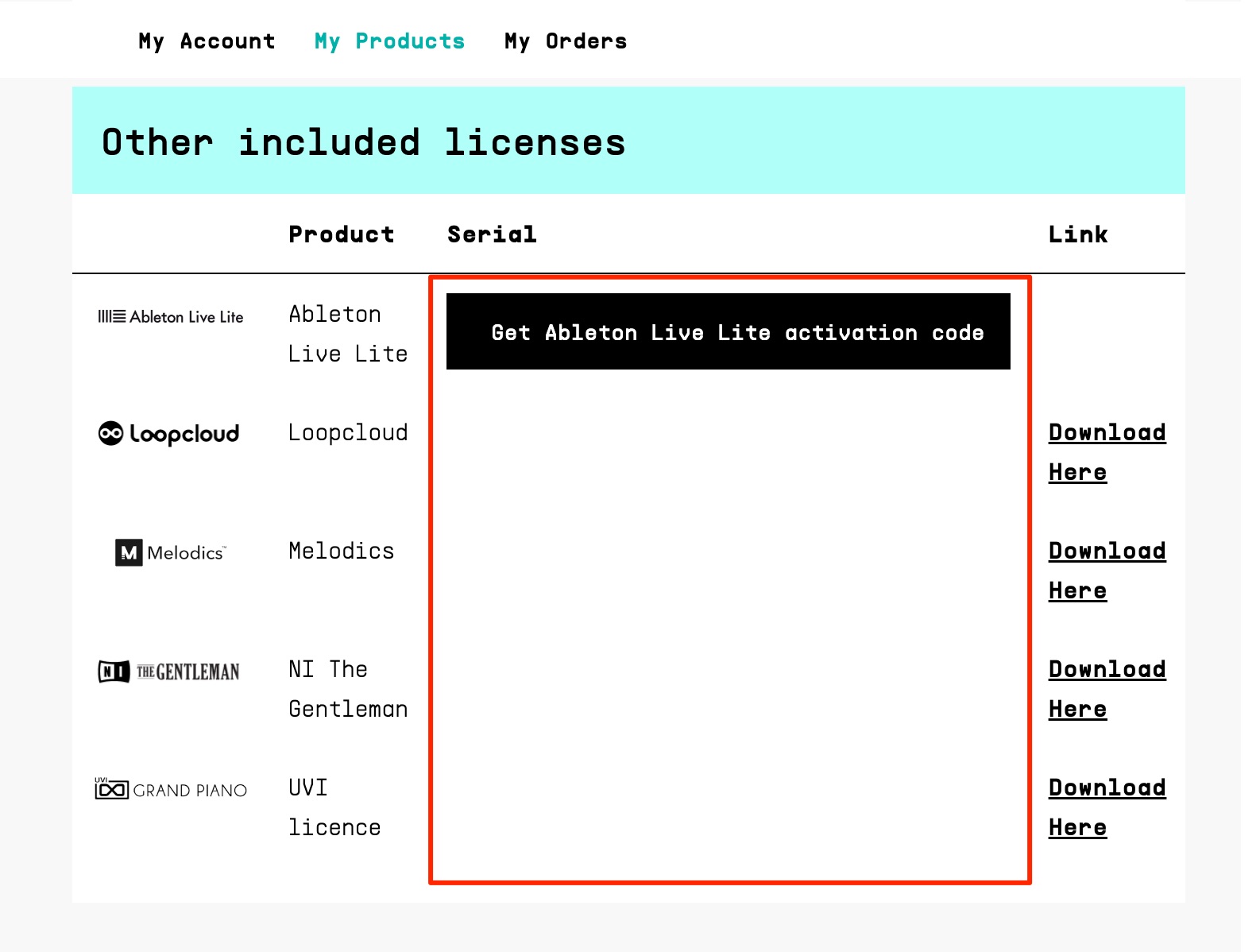
Scroll down to find the software links and serial numbers.
Use these to continue with setup.
Ableton Live Lite

Ableton Live Lite is a DAW for music production. Although it is limited to eight tracks, it supports MIDI programming, recording, and full music production workflows. It is a good starting point for anyone beginning to use a DAW.
Official website: https://www.ableton.com/ja/products/live-lite/
Open the serial number page to continue.
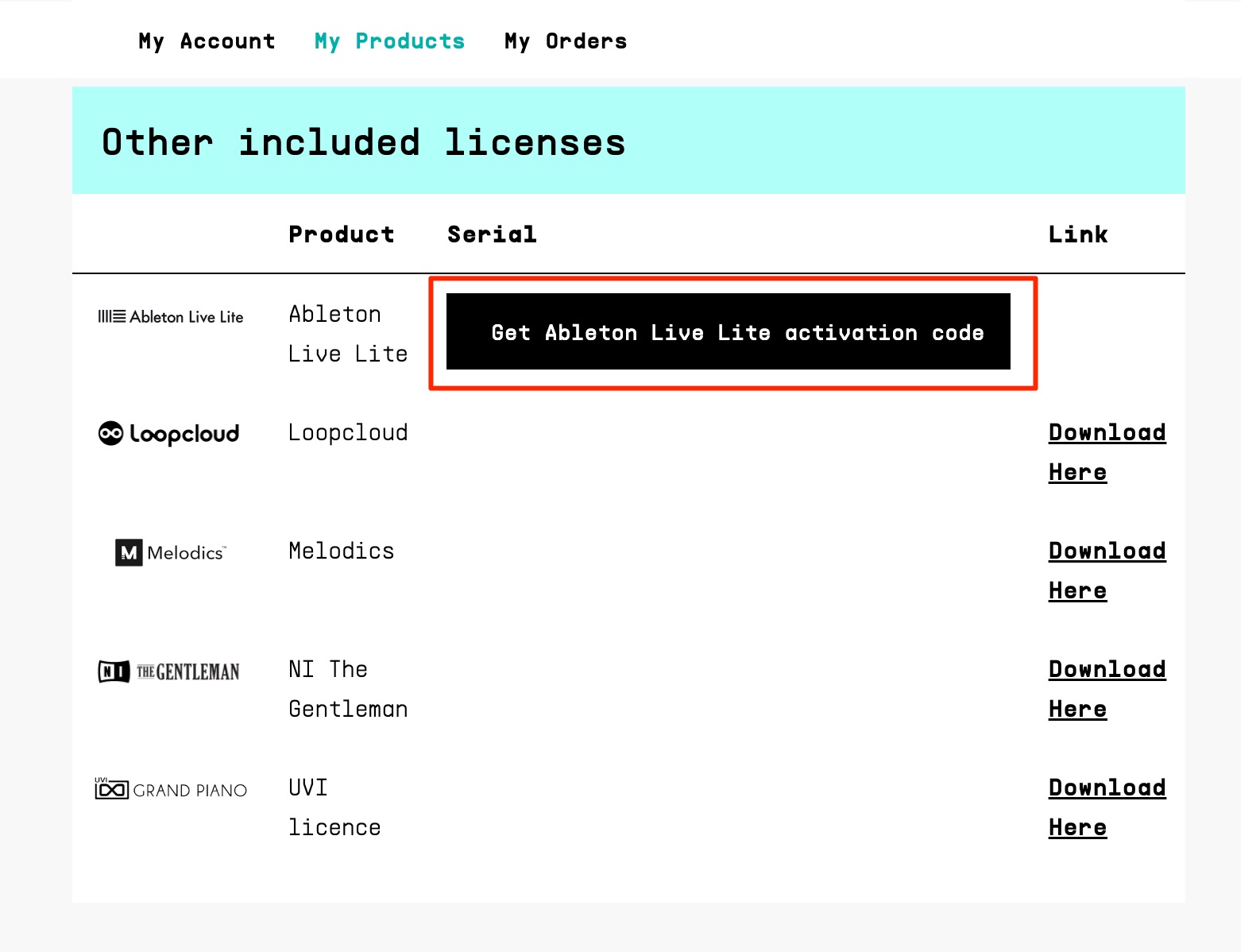
Click Get Ableton Live Lite activation code.
The page reloads. Check the same area again to find your serial number.
The article below covers the full process, from registration to getting started.

Our website also offers Live tutorials and practical examples.
Use them when considering the software and when learning after purchase.

Making a Pop Track for Beginners with Live Lite
This article explains how beginners can make a pop track using Ableton's entry-level Live Lite. Live Lite is bundled with many music production products…

Ableton Live Basics: Session View
These videos and articles explain how to use Ableton Live so that even beginners can start making music. This section focuses on Session View, one of Live's most distinctive and useful editing features.

Ableton Live Advanced Tutorials: Arrangement View
After learning the basics of Ableton Live, move on to building complete songs. These videos and articles cover more practical techniques for producing higher-quality music.
Native Instruments The Gentleman

The Gentleman is a popular piano instrument from Native Instruments, a developer known for its extensive range of high-quality instruments. Its light, expressive sound suits many genres, making it easy to work with.
Product website: https://www.native-instruments.com/jp/products/komplete/keys/the-gentleman/

UVI Grand Piano Model D

Grand Piano Model D is another piano instrument from a well-known developer. Its rich, substantial sound makes it especially suitable for music in which the piano takes center stage.
Product website: https://www.uvi.net/jp/pianos-keyboards/model-d.html

Melodics

Melodics is a practice app for improving your MIDI keyboard performance skills. With practice pieces ranging from beginner to advanced levels and an engaging visual interface, it lets you enjoy learning to play the keyboard.
Official website: https://melodics.com/

KeyLab Essential mk3 users can unlock a selection of pieces to practice.
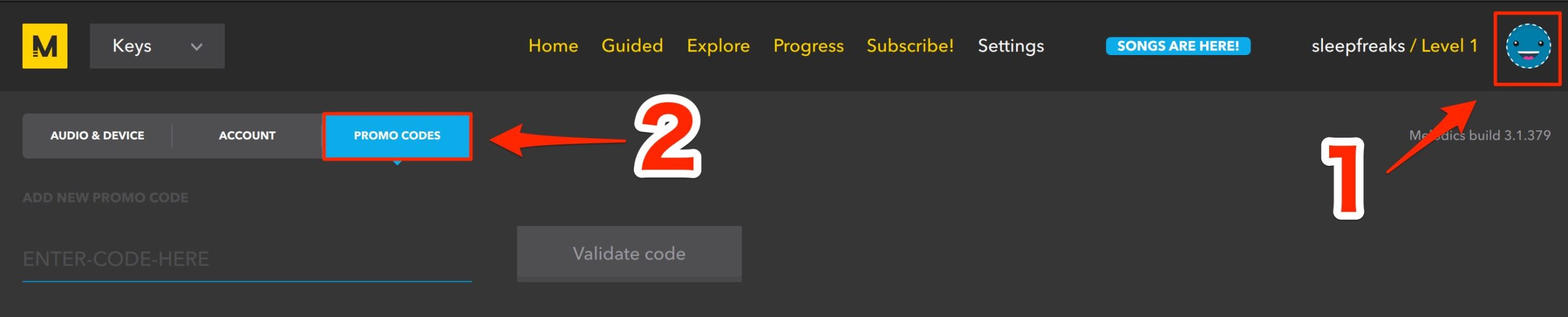
Click the user icon and open the PROMO CODES tab.
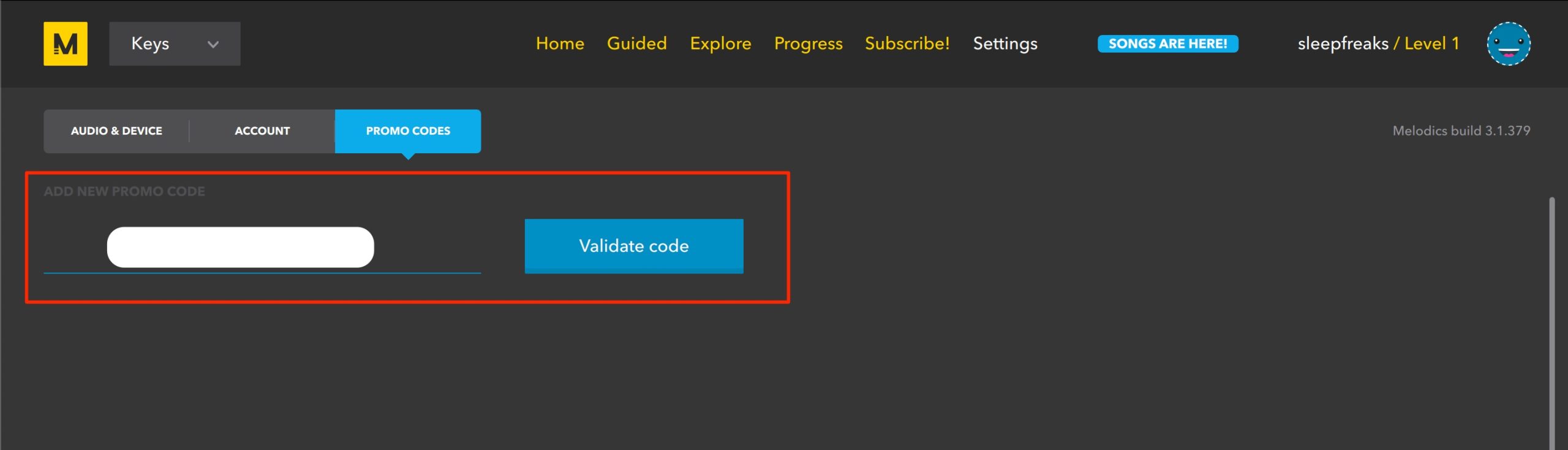
Enter the code issued to your account and activate it.

This unlocks the practice pieces shown here.
Loopcloud

As its name suggests, Loopcloud lets you download the samples you want from a library of more than four million loops and use them in your tracks. Simply combining performances you like can help you create an original song.
The bundle described in the original 2023 article includes two months of free use.
Official website: https://www.loopcloud.com/cloud
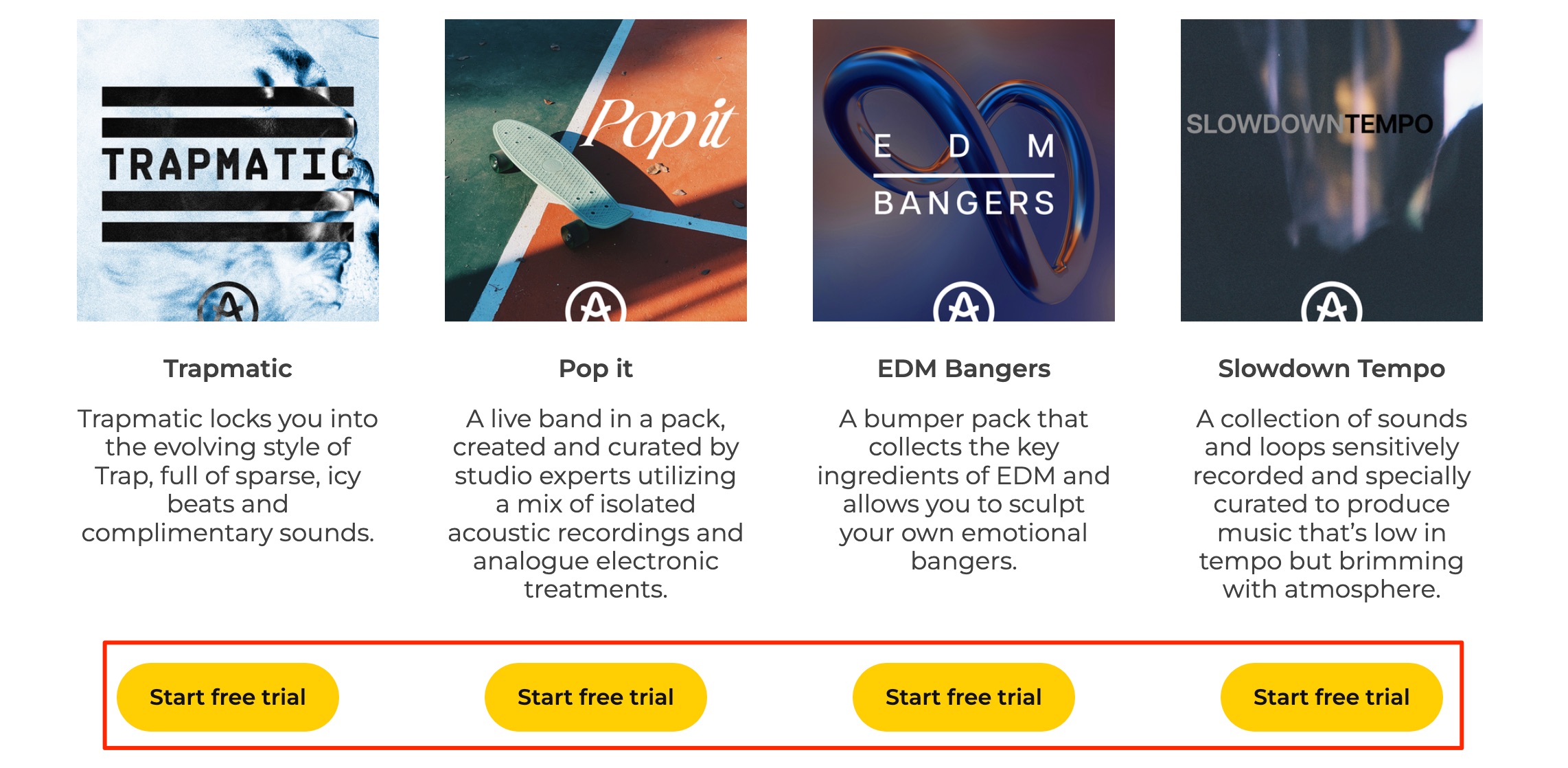
Start on this page, choose the sample pack you want, and register.
Loopcloud requires a credit card and renews automatically.
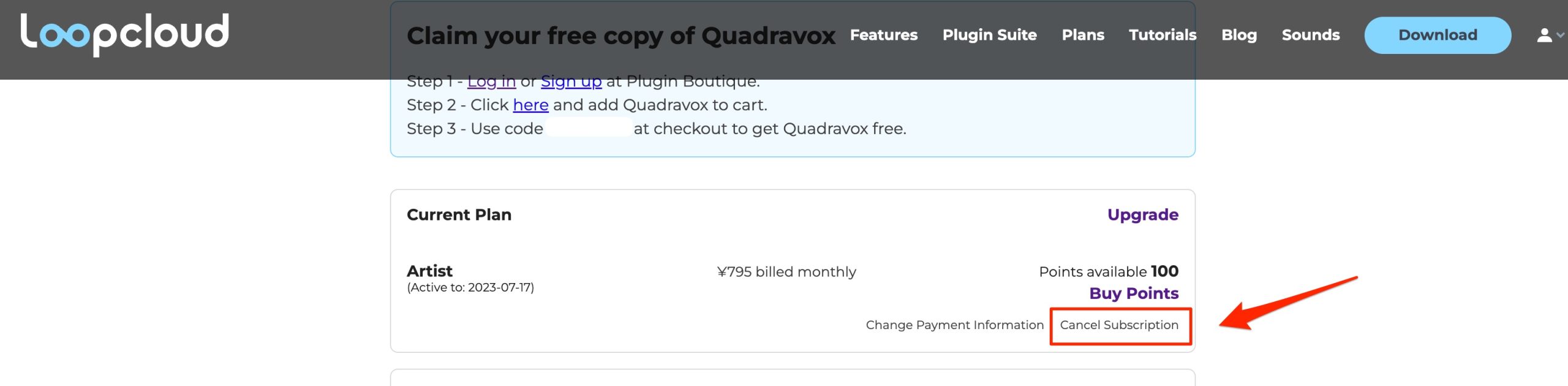
If you like it after trying it, you can continue using the subscription.
If you do not need it, cancel from My Account.
Loopcloud Basics: Video Tutorial
DAW Integration

KeyLab Essential mk3 provides DAW integration for seamless, convenient control of your music software.
Here are the setup steps for each DAW.
The article below explains how to use the controls in more detail.
Use an up-to-date version of your DAW. The instructions and screen layouts below are those covered in the original 2023 guide.
Logic Pro X
Download the files linked above.
Double-click the included Install KeyLab Essential mk3 Scripts disk image, then
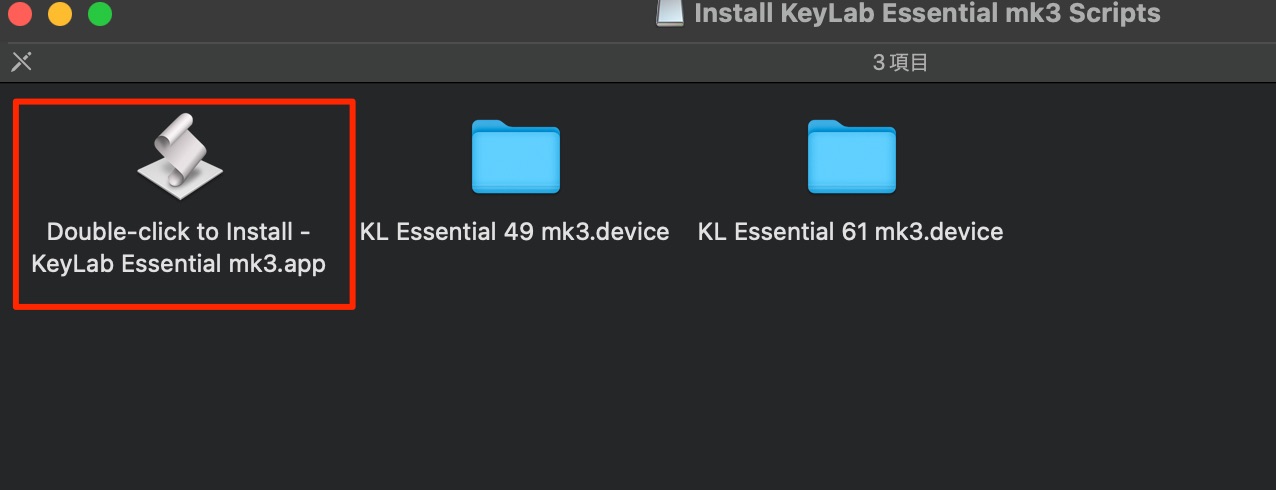
double-click the installer application shown here.
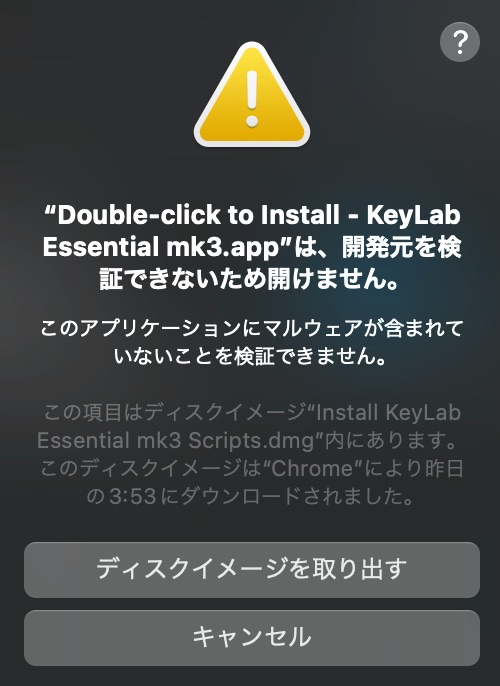
If the warning shown here appears,
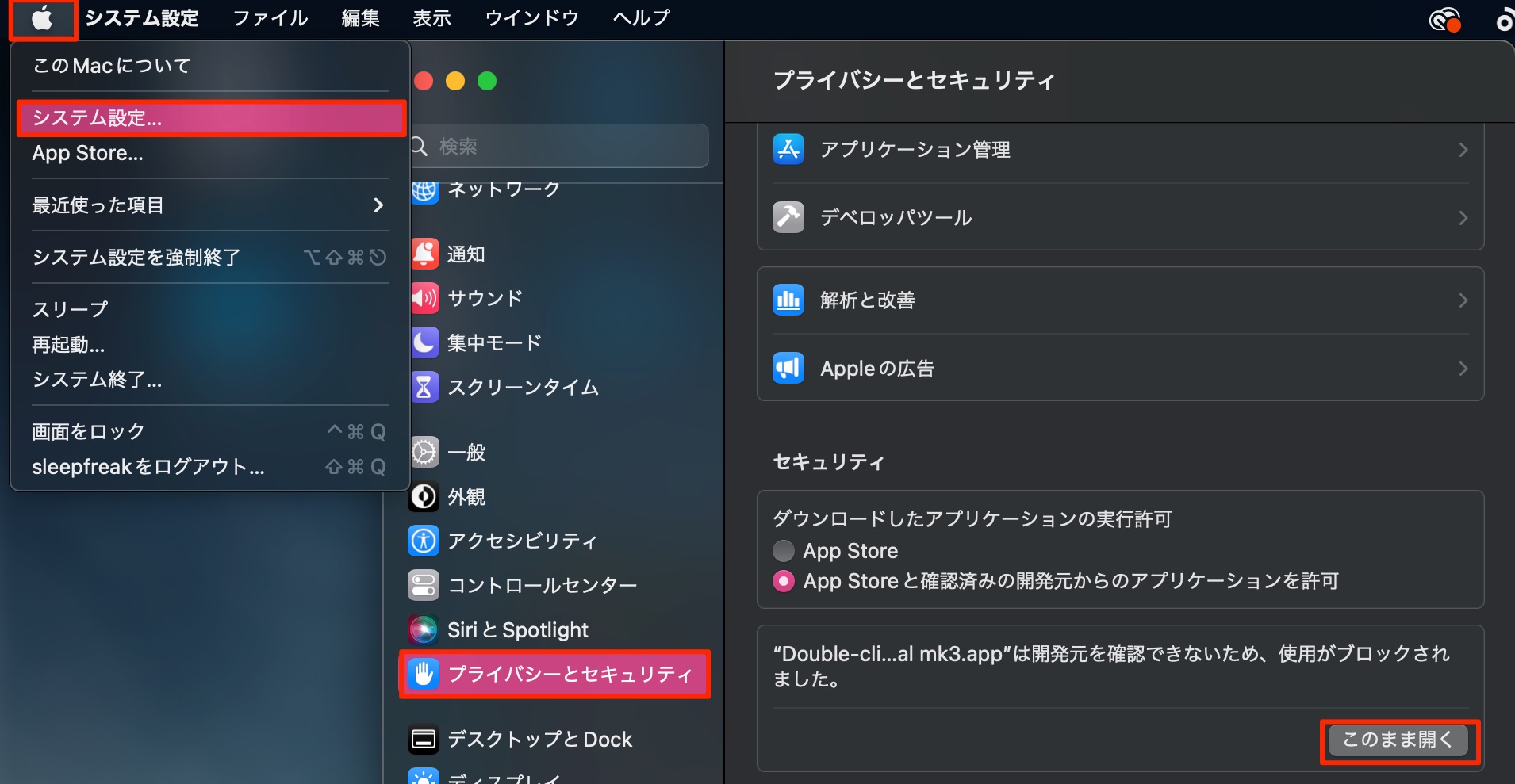
Open Apple menu → System Settings → Privacy & Security, then select Open Anyway for this downloaded installer.
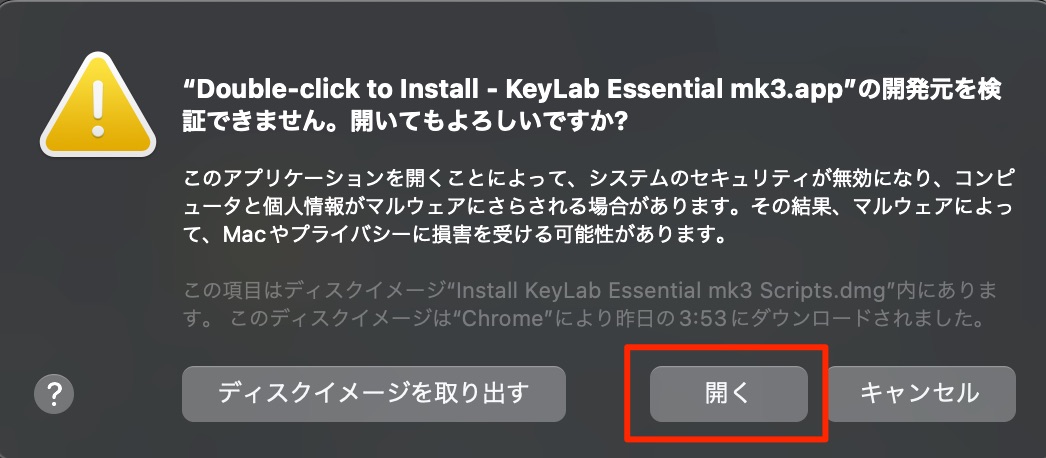
Select Open.
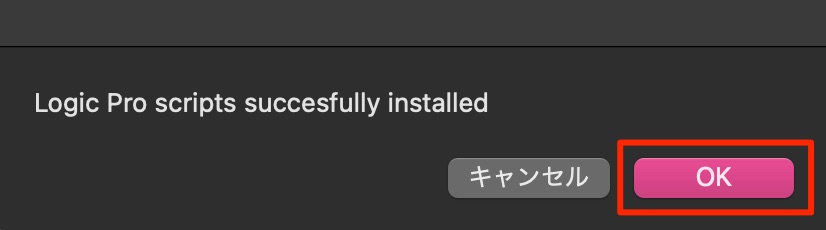
The installer will then run successfully.
Next, launch Logic Pro.
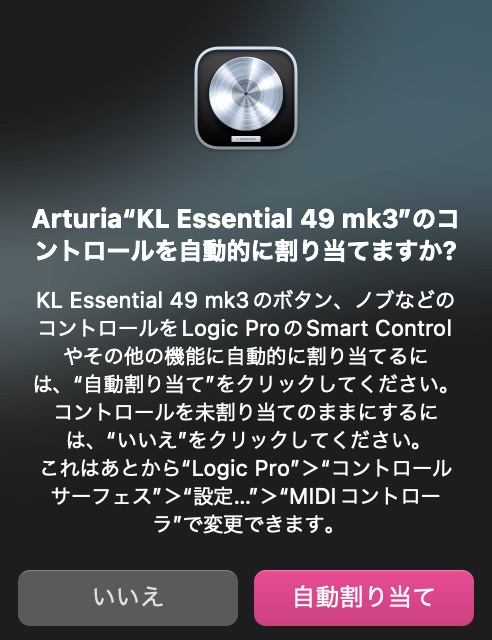
When this message appears, select Auto Assign to complete setup.
Cubase
Download the files linked above.
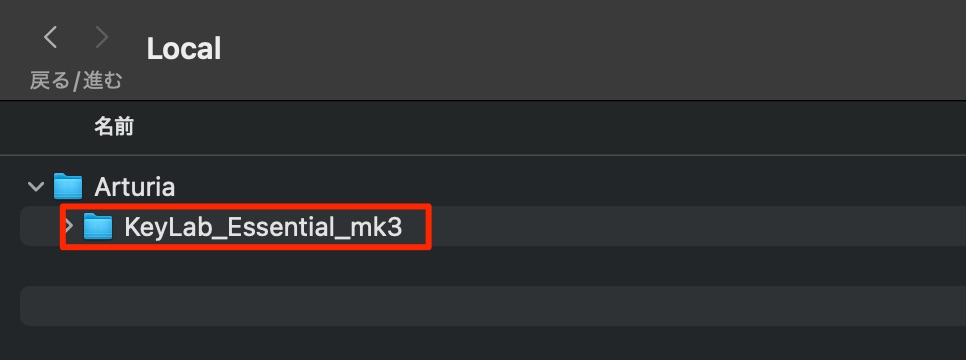
Inside the downloaded Cubase Scripts folder, move the KeyLab_Essential_mk3 folder to the following location.
Windows: C:\Users\<username>\Documents\Steinberg\Cubase\MIDI Remote\Driver Scripts\Local\Arturia
macOS: /Users/<username>/Documents/Steinberg/Cubase/MIDI Remote/Driver Scripts/Local/Arturia
If the Local folder does not contain an Arturia folder, create one yourself.
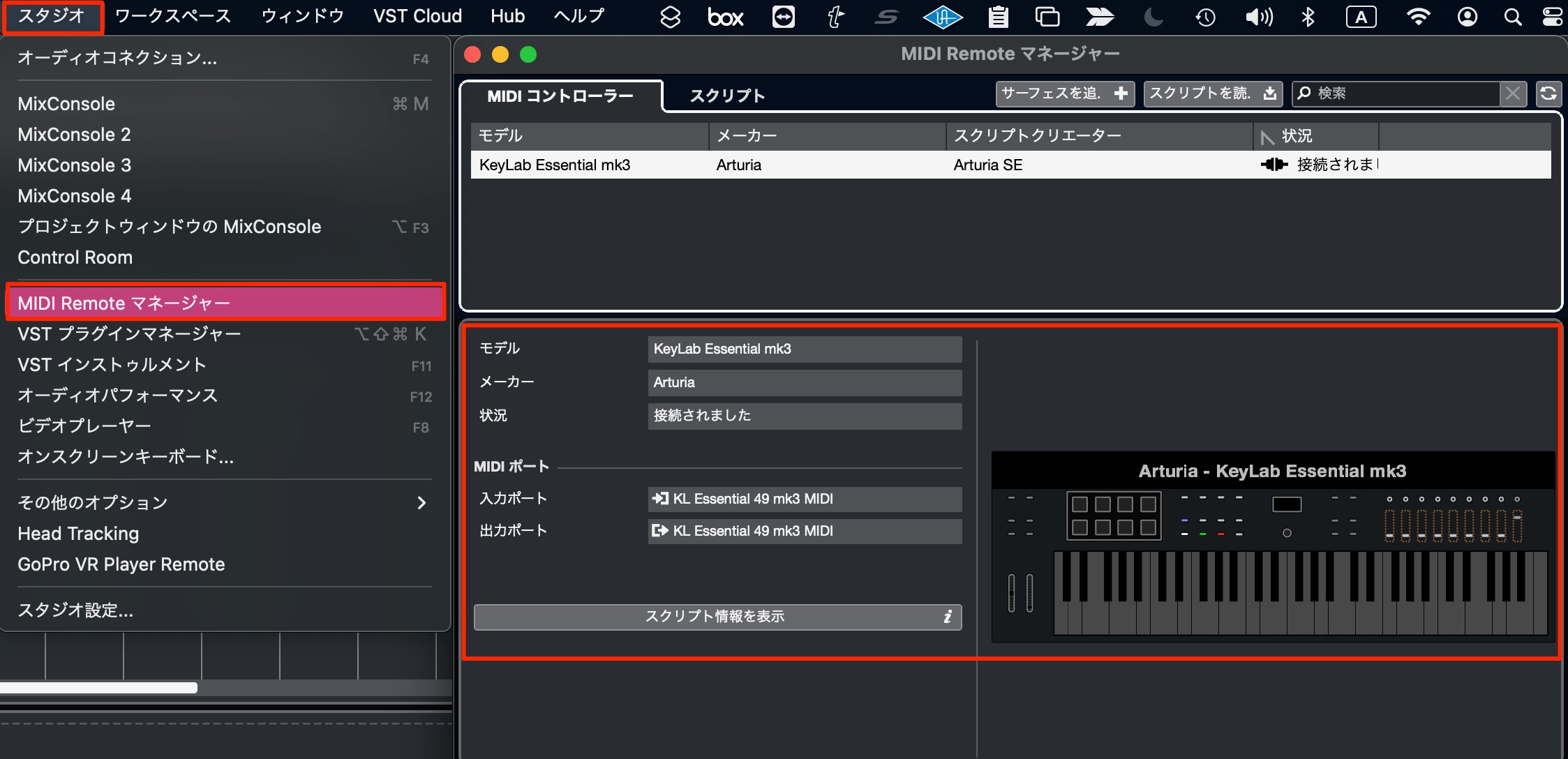
KeyLab should appear in MIDI Remote as shown here.
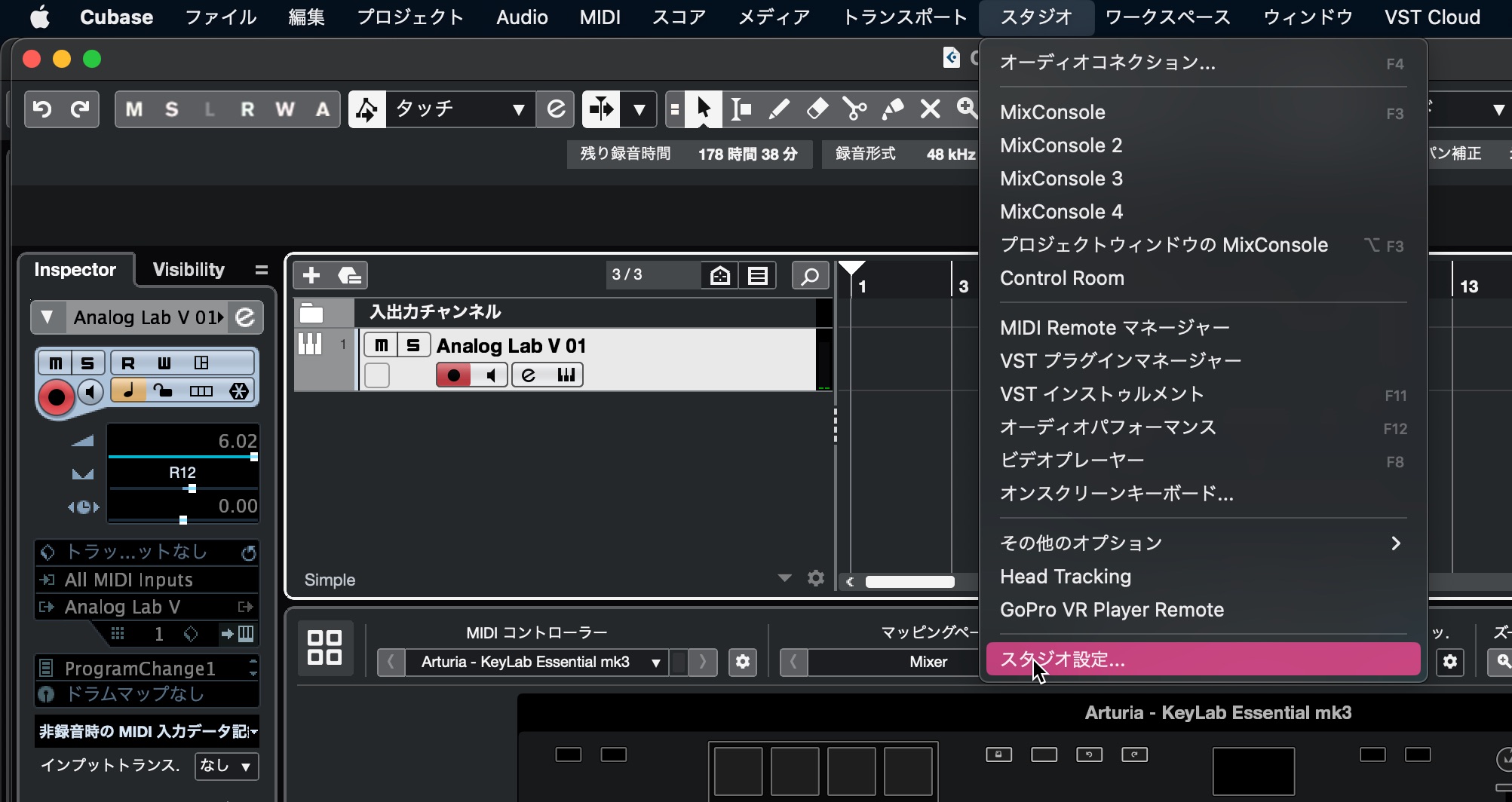
Next, open Studio → Studio Setup from the menu bar.
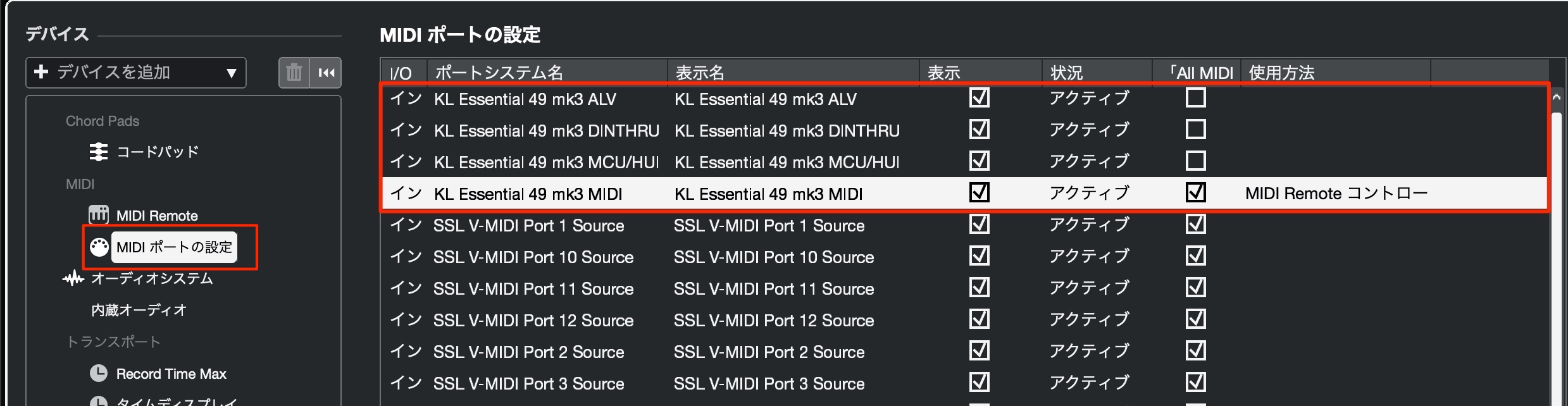
Select MIDI Port Setup and, as shown in the image, clear In 'All MIDI Inputs' for all ports except KL Essential 49 mk3 MIDI (clear ALV, DINTHRU, and MCU/HUI).
You can now control Cubase from the keyboard.
Ableton Live
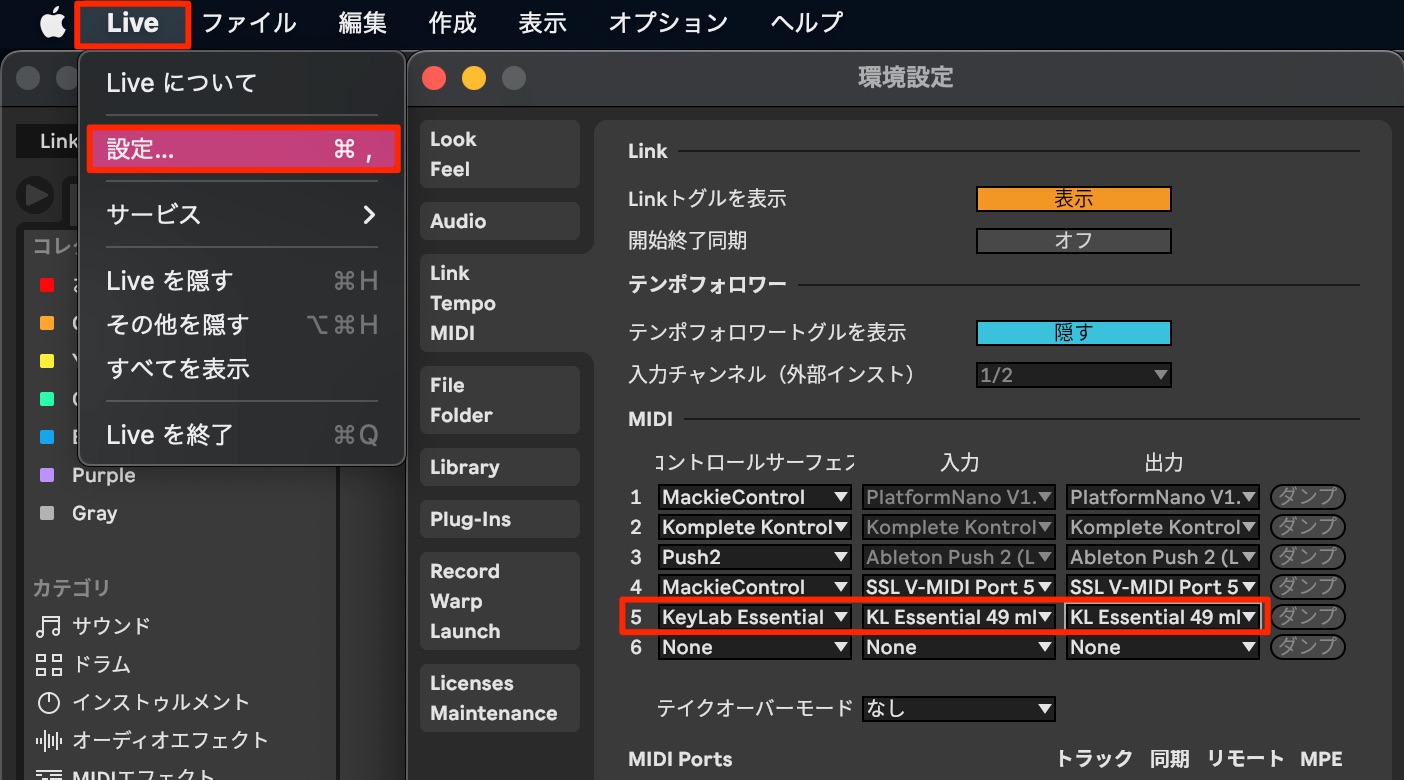
Open Live → Settings from the menu bar, then select the Link/Tempo/MIDI tab.
Set Control Surface to KeyLab Essential mk3 and Input/Output to KL Essential MIDI.
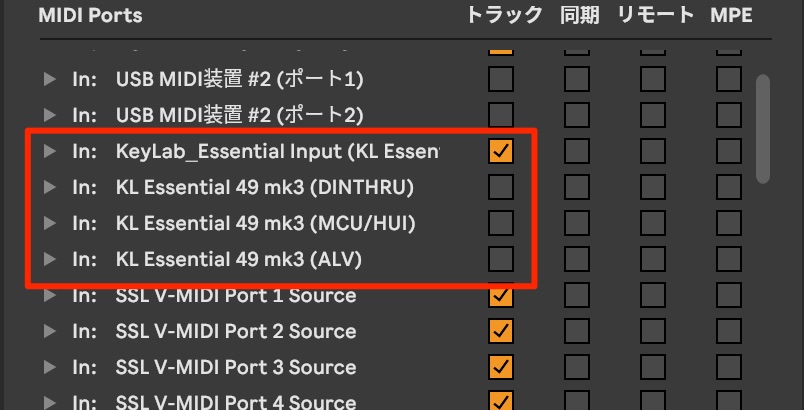
Under MIDI Ports, clear the checkboxes for ports other than KL Essential.
Setup is now complete.
FL Studio
In our test, the keyboard was recognized and ready to use simply by launching FL Studio normally.
If it is not recognized correctly, download the files linked above.
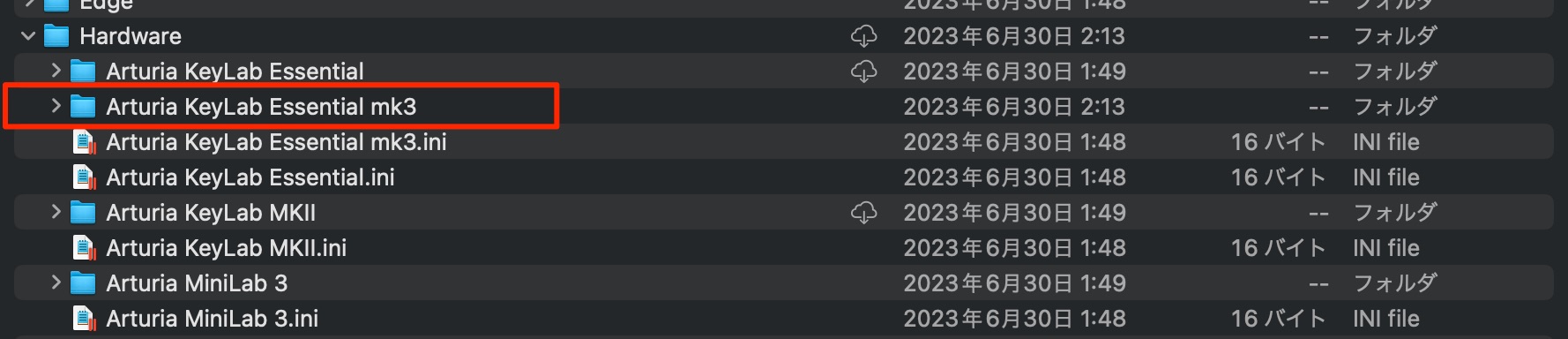
Inside the downloaded FL Studio Scripts folder, move Arturia KeyLab Essential mk3 to the following location.
Windows: C:\Users\<username>\Documents\Image-Line\FL Studio\Settings\Hardware
macOS: /Users/<username>/Documents/Image-Line/FL Studio/Settings/Hardware
Then restart FL Studio.
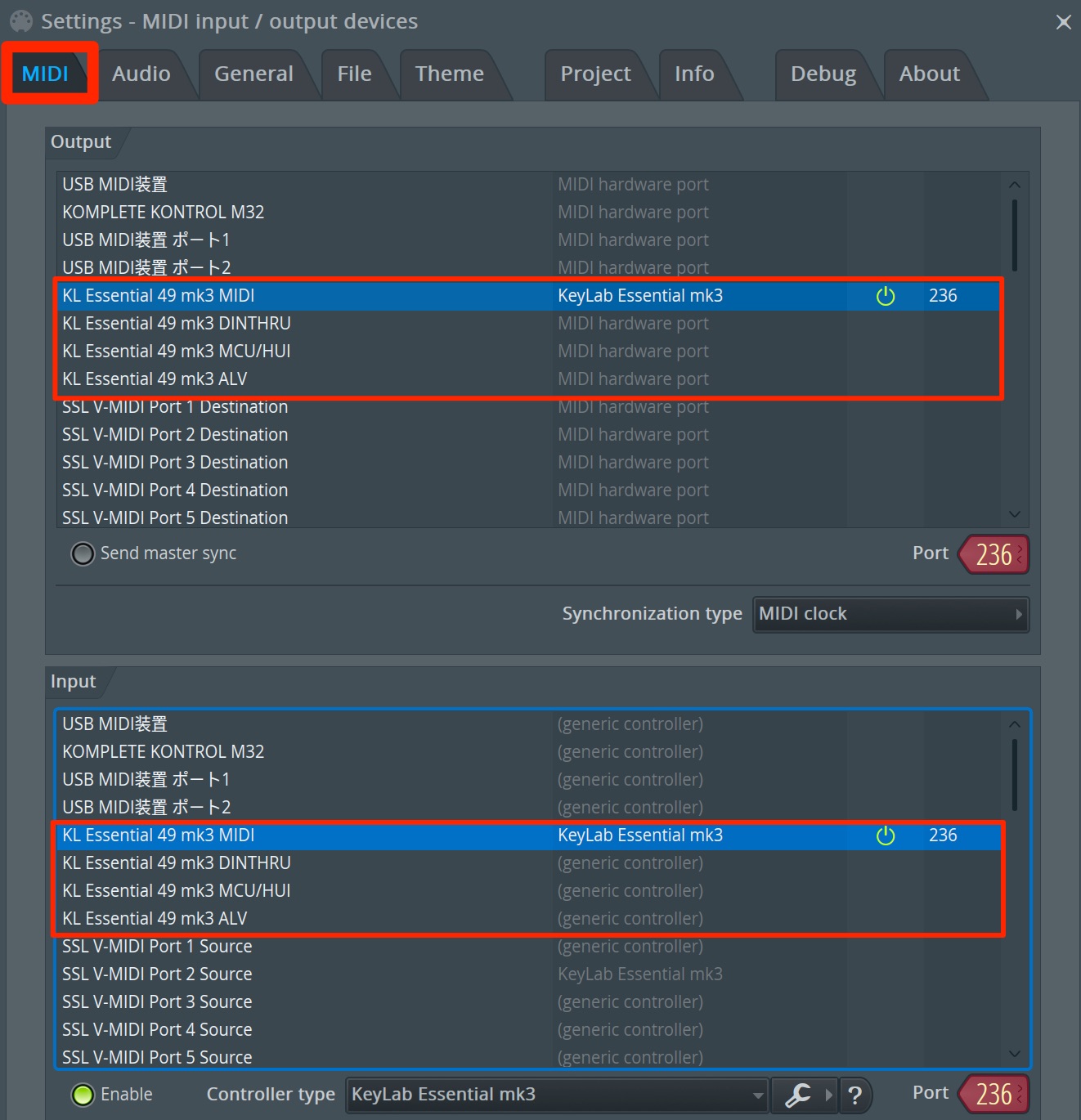
In MIDI settings, enable KL Essential mk3 MIDI for both Output and Input.
Disable the DIN THRU, MCU/HUI, and ALV ports listed below it.
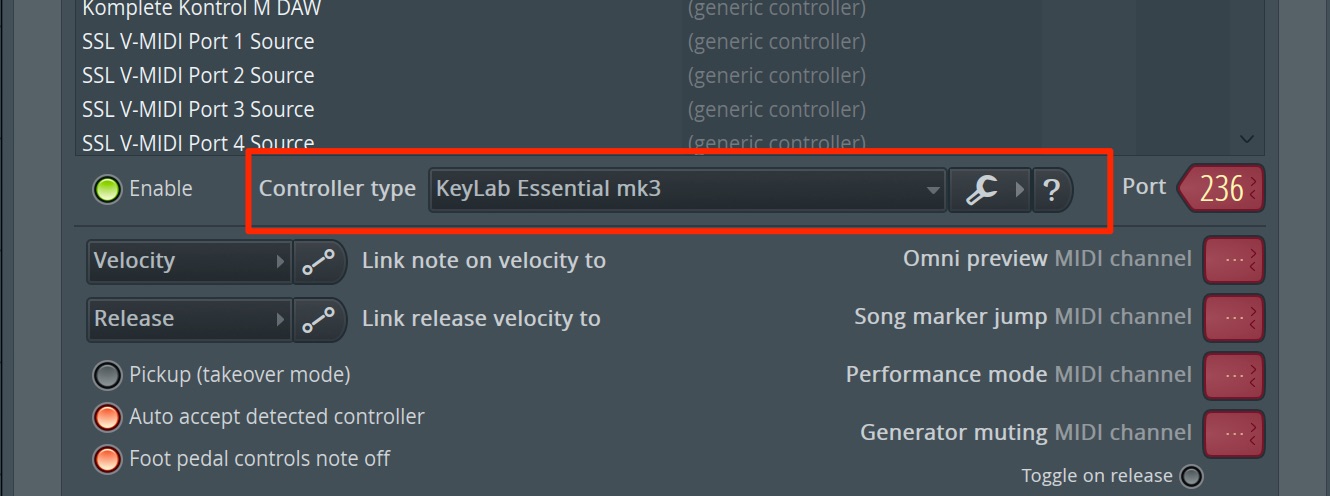
Set Controller type to KeyLab Essential mk3.
Setup is now complete.
Bitwig Studio
In our test, the keyboard was recognized and ready to use simply by launching Bitwig Studio normally.
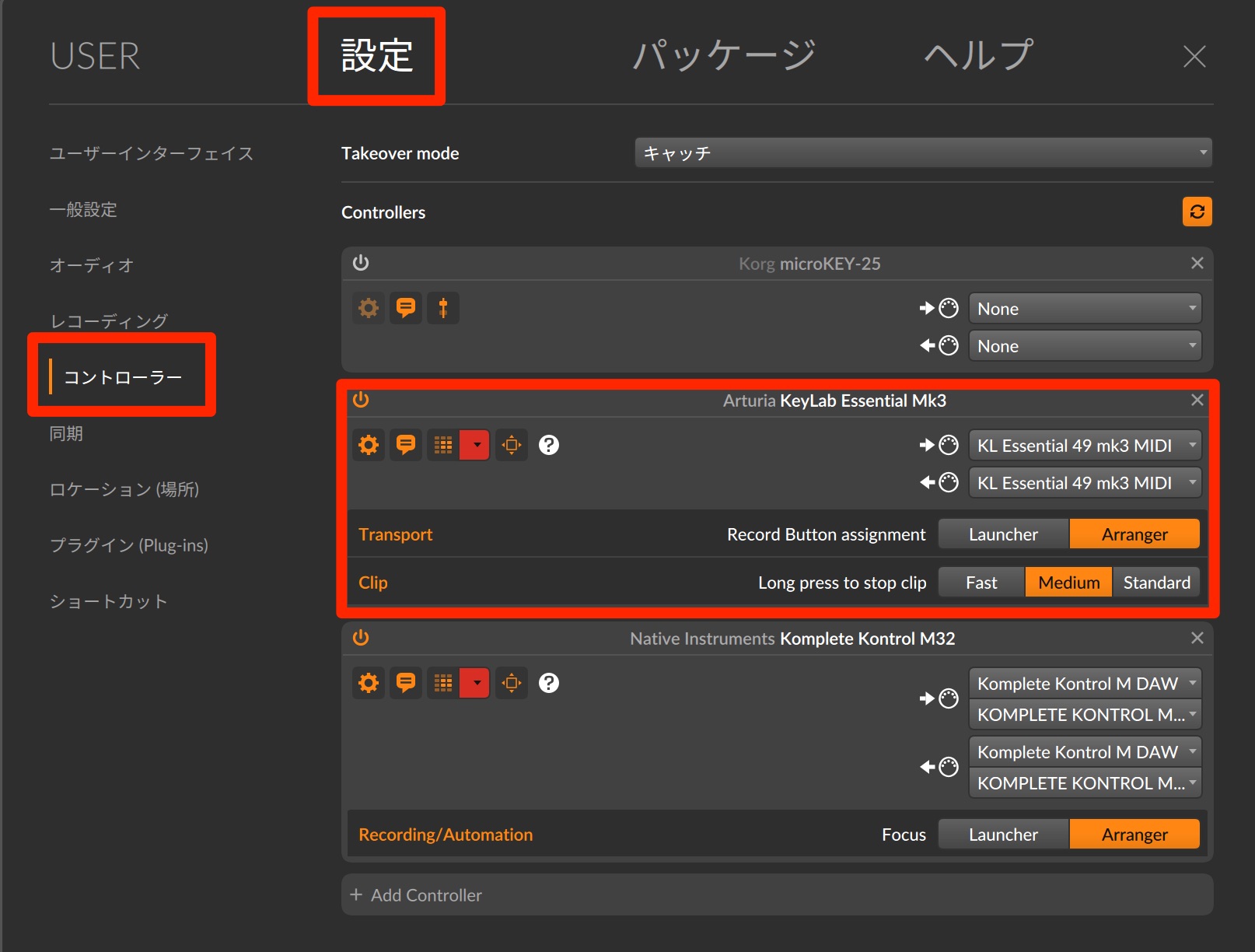
If the controls do not work properly, add KeyLab Essential mk3 MIDI under Controllers in Settings.
That completes the setup of KeyLab Essential mk3.
With everything configured, enjoy a smooth music production workflow.
For a guide to using the keyboard, see below.
Frequently Asked Questions
Q1. What should I do first after buying KeyLab Essential mk3?
Create an Arturia account and register the product using its serial number. Then download MIDI Control Center and update the firmware to apply the available features and bug fixes.
Q2. What can I do if I do not have enough storage space to install the bundled software?
During the initial Arturia Software Center setup, you can choose an external drive or HDD as the location for sound files. Click Browse and select your preferred folder to avoid filling your main drive.
Q3. Does KeyLab Essential mk3 support multiple DAWs?
Yes. It supports major DAWs including Logic Pro X, Cubase, Ableton Live, FL Studio, and Bitwig Studio. The dedicated sections in this guide explain their integration settings.
Q4. What happens if I disconnect the keyboard during a firmware update?
Disconnecting the keyboard or interrupting power during a firmware update can cause serious problems. Keep the keyboard connected and do not turn off the computer until the update is complete.
NEW ARTICLES
Latest English Articles





































































































