
In Part 3 of our Ableton Live series for guitarists, we show you how to build keyboard parts efficiently. We cover features unique to Live: layering multiple synths with Instrument Rack, converting guitar performances to MIDI, and integrating hardware instruments with External Instrument. These tools make it easier for guitarists to create keyboard and synth parts and work with external gear, giving you greater flexibility and a more efficient production workflow.
Packed with Features for Creating Keyboard and Synth Parts
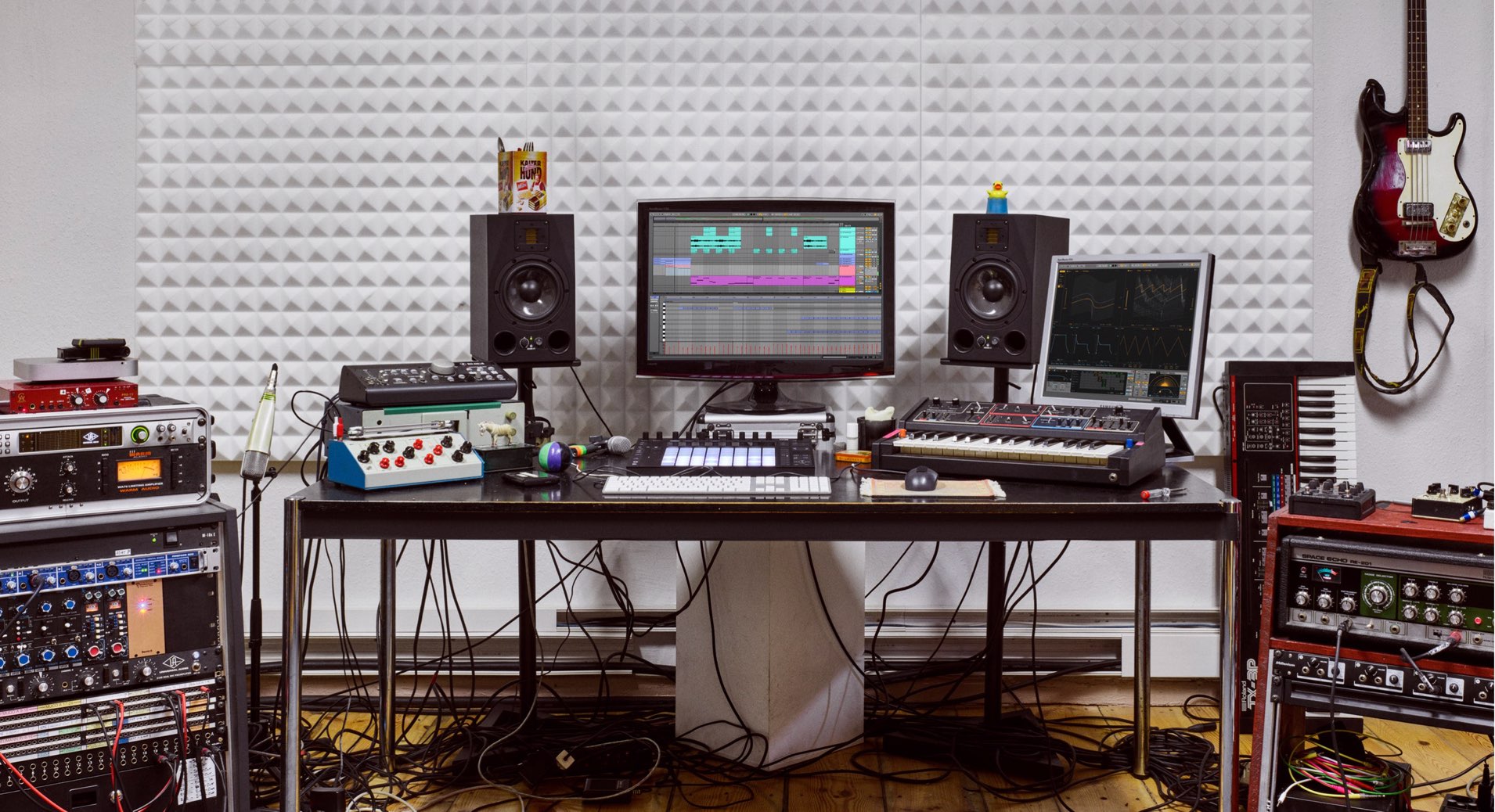
In this series, we explore music production workflows from a guitarist’s perspective, using the wide range of features in Ableton Live Suite.
In Part 3, we show you how to build keyboard parts efficiently using Live’s distinctive features.
Ableton Live for Guitarists, Part 3: Video Tutorial
- 1A Workflow for Creating Drum Tracks
- 2A Workflow for Recording MIDI and Audio with a Guitar
- 3Creating Lead Sounds with Instrument Rack and External Instrument
- 4Programming Chords for Keyboard Tracks with MIDI Effects
- 5Building a Song with Session View
- 6Exploring Live’s Mixing Features
- 7Download the Tutorial Project
Setting Up a Lead Synth Sound
Ableton Live Suite includes a wide range of keyboard instruments, from analog-modeling, FM, and physical-modeling synths to PCM-based instruments such as samplers.
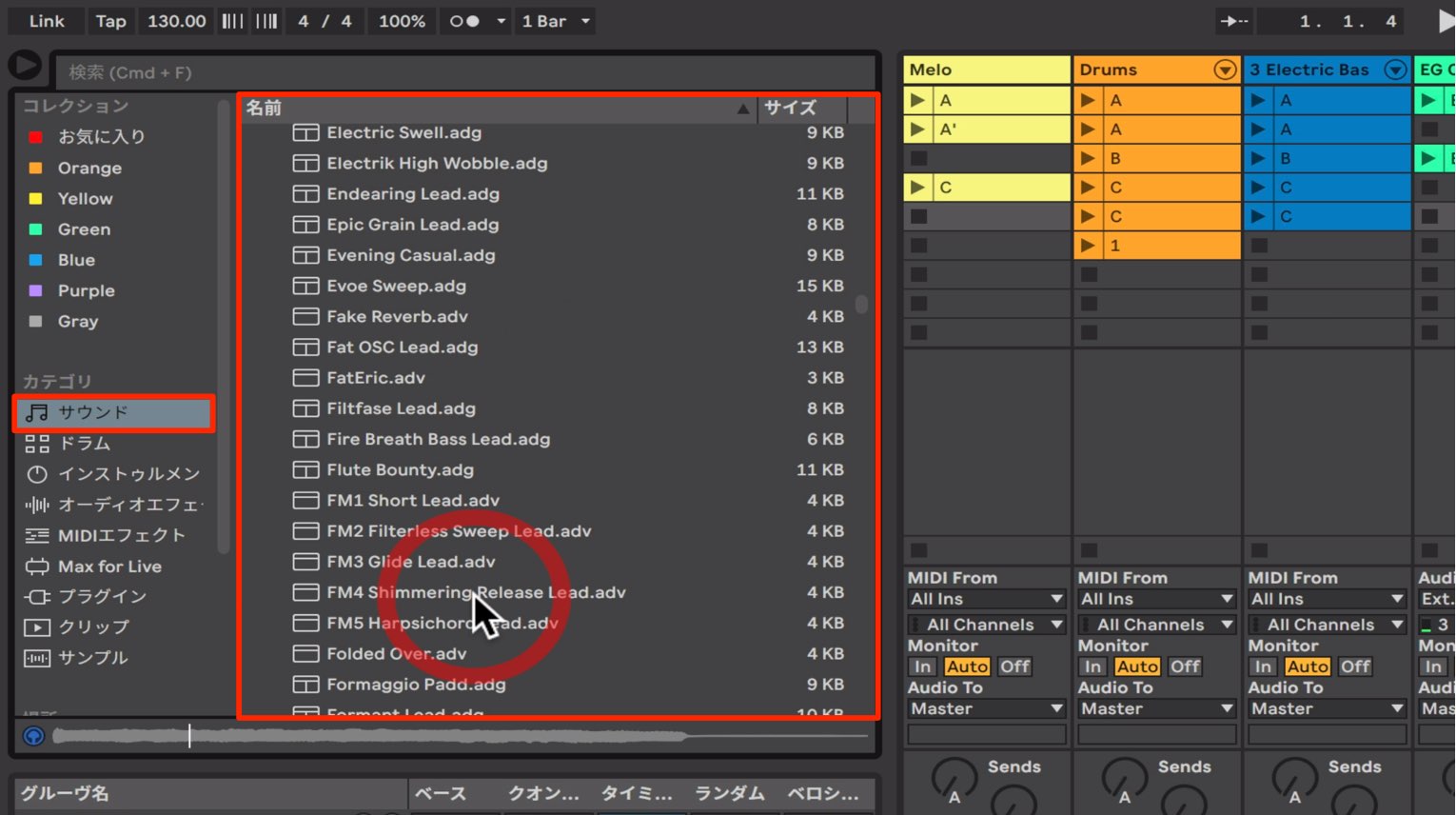
There are two ways to add an instrument: choose a device under Instruments, or select a preset under Sounds.
Simply selecting a preset lets you preview its sound. Even if you are unfamiliar with the different types of synths, you can listen as you browse to find the sound you want.
Layering Sounds with Instrument Rack
We would like a little more weight in this sound, so let’s layer it with another synth.
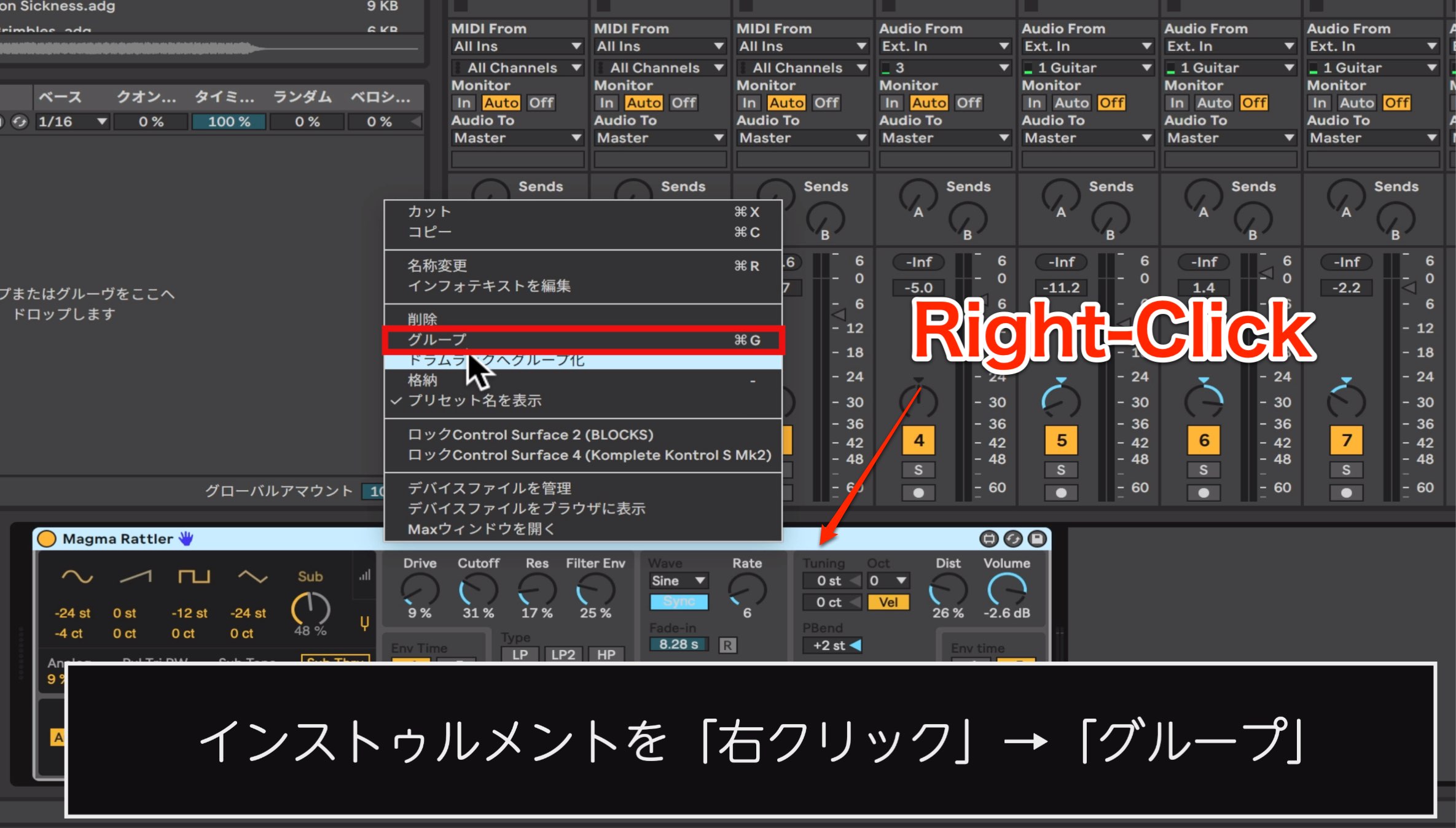
To do this, right-click the instrument you have already loaded and choose Group.
This places it inside an Instrument Rack, one of Live’s distinctive devices.
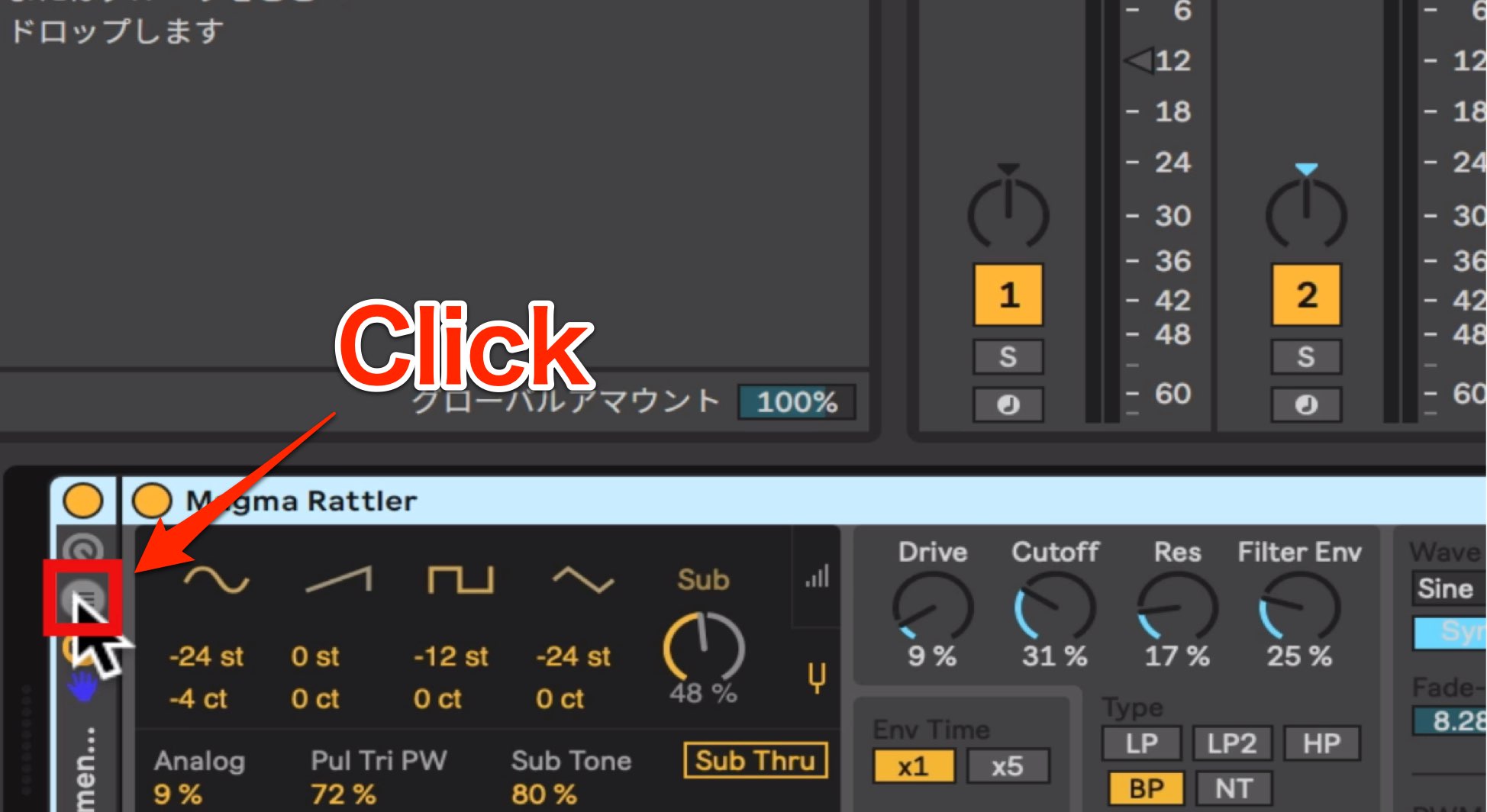
Click the button shown here to display the Instrument Rack’s chains. Chains let you load multiple instruments on a single track.
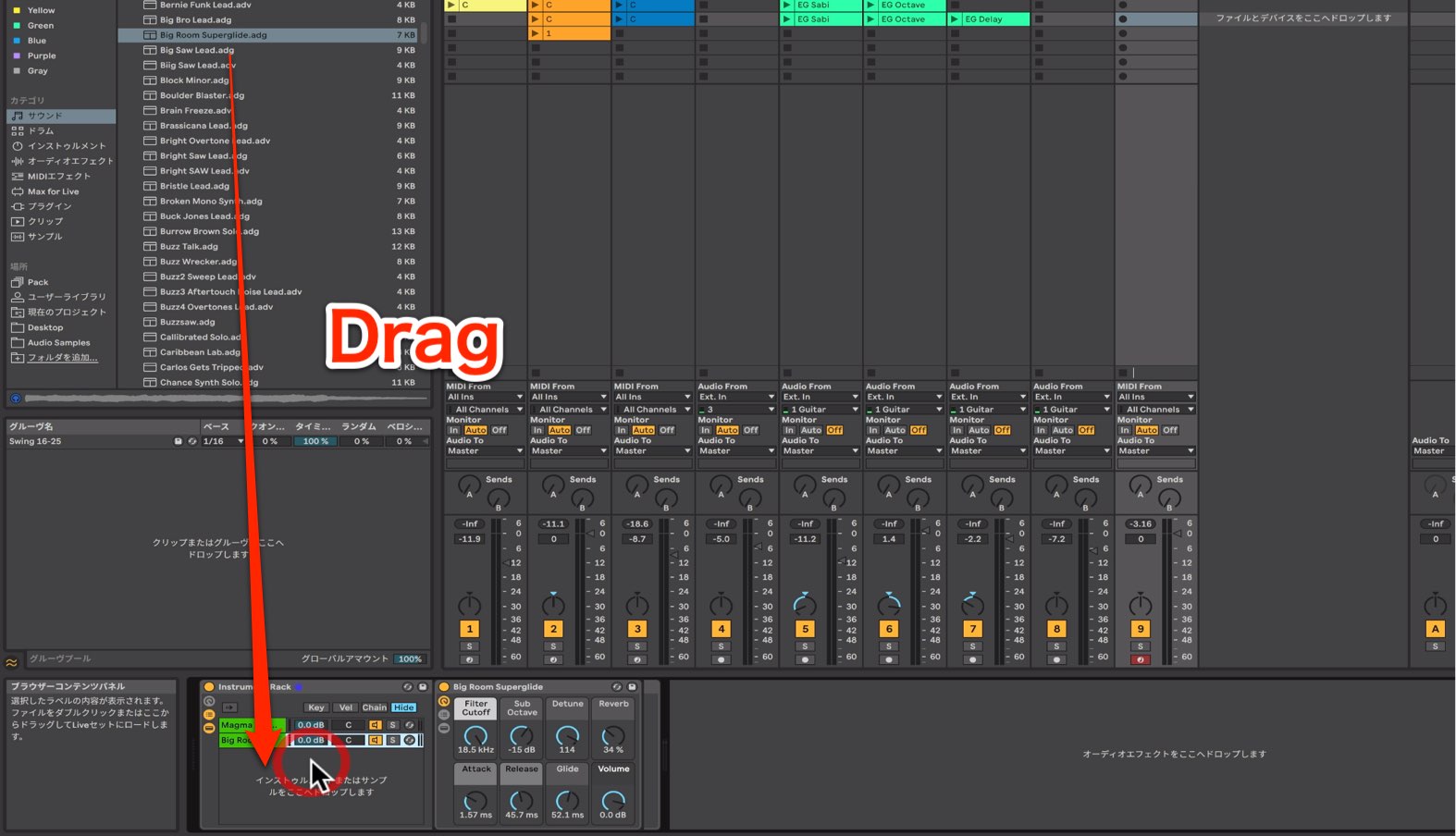
Drag another instrument into the empty area as shown, and you can play both synths at the same time.
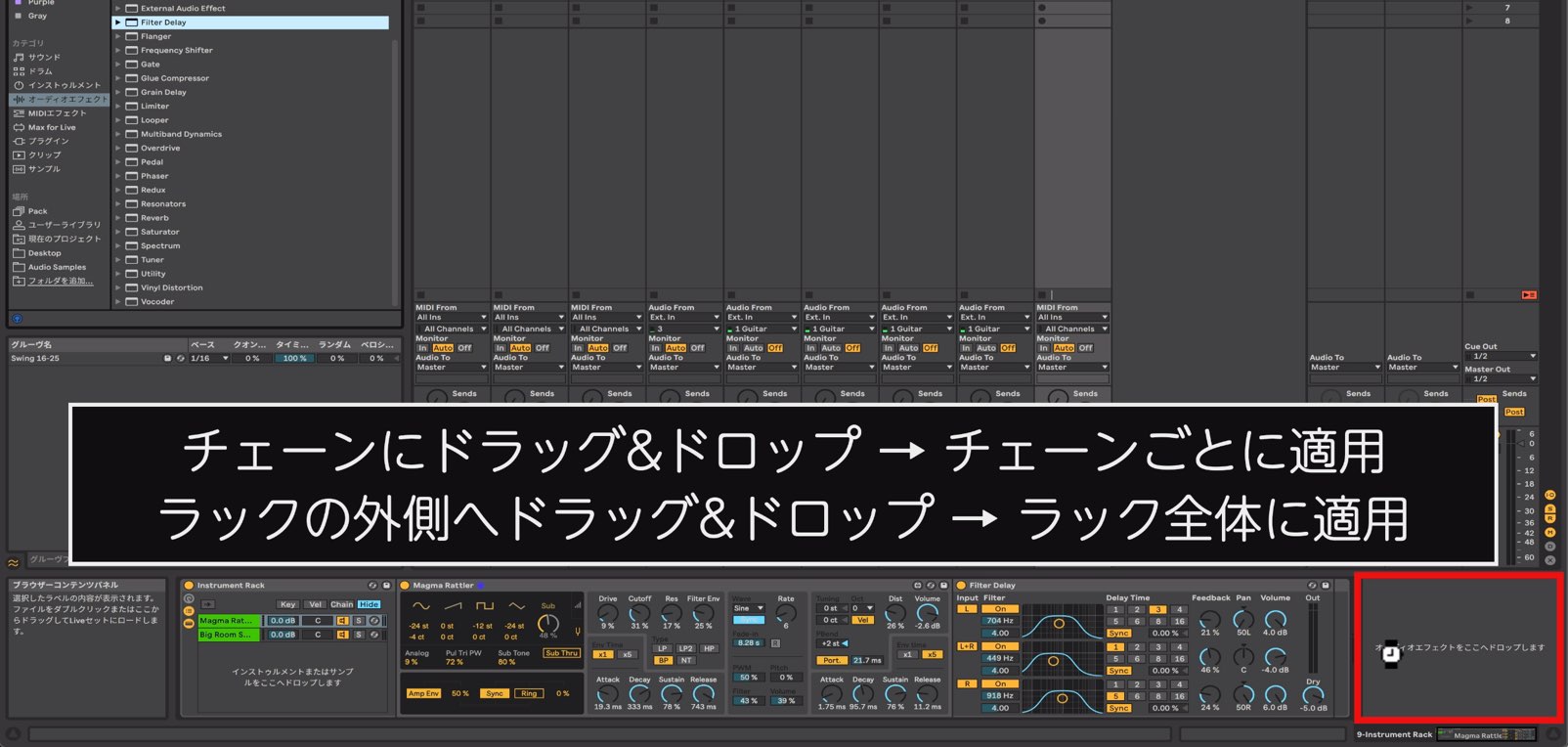
Setting Up Effects
Next, let’s add some effects.
When using an Instrument Rack, inserting an effect inside a chain applies it to that individual chain.
Inserting an effect outside the rack lets you process multiple chains together.
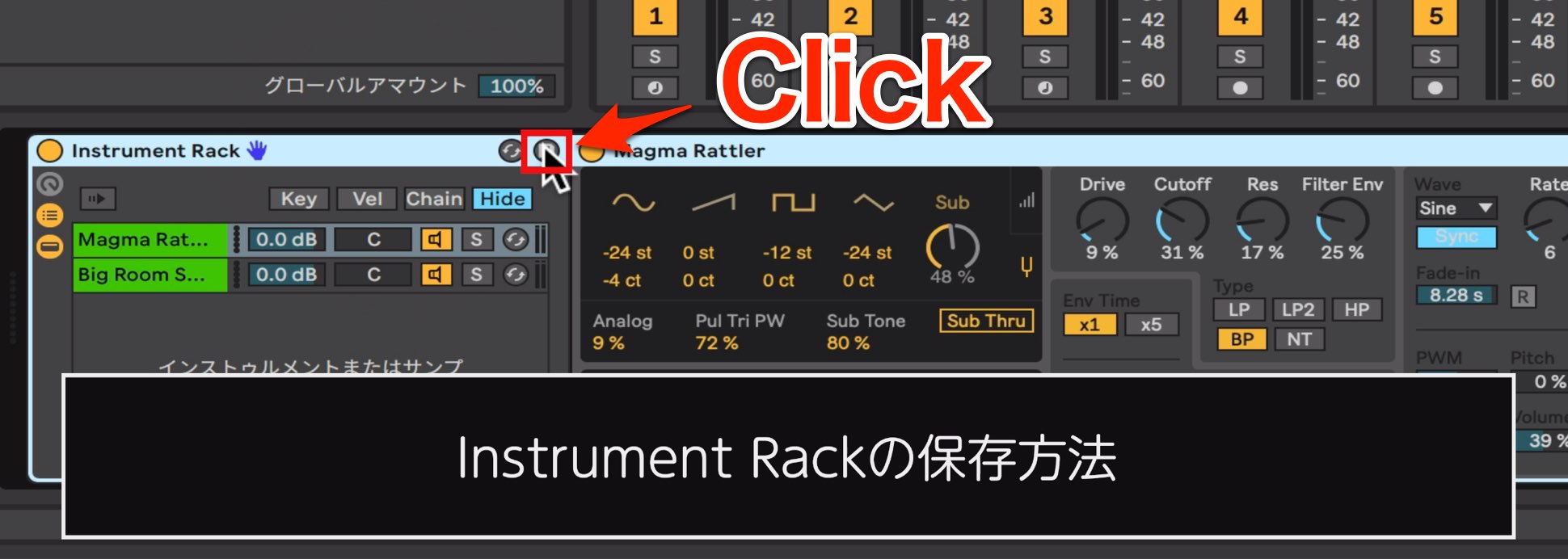
If you like the combination of sounds you have created, use the Save button to store it for use in other songs.
Entering a Lead Synth Phrase
As with the bass part in the previous installment, we will convert a recorded guitar phrase to MIDI and use it to play the synth.
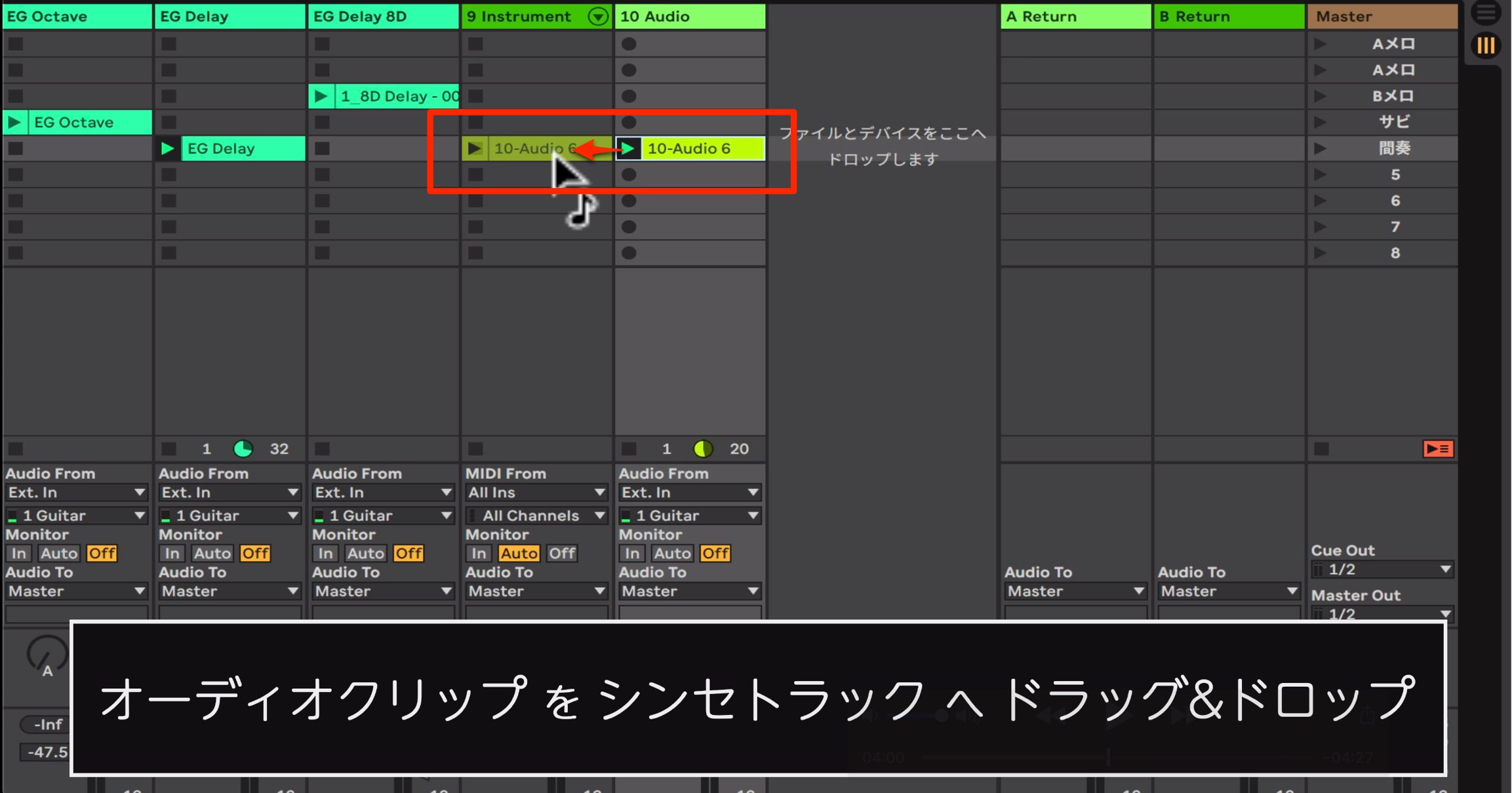
Simply drag the audio clip containing your guitar performance onto the synth track.
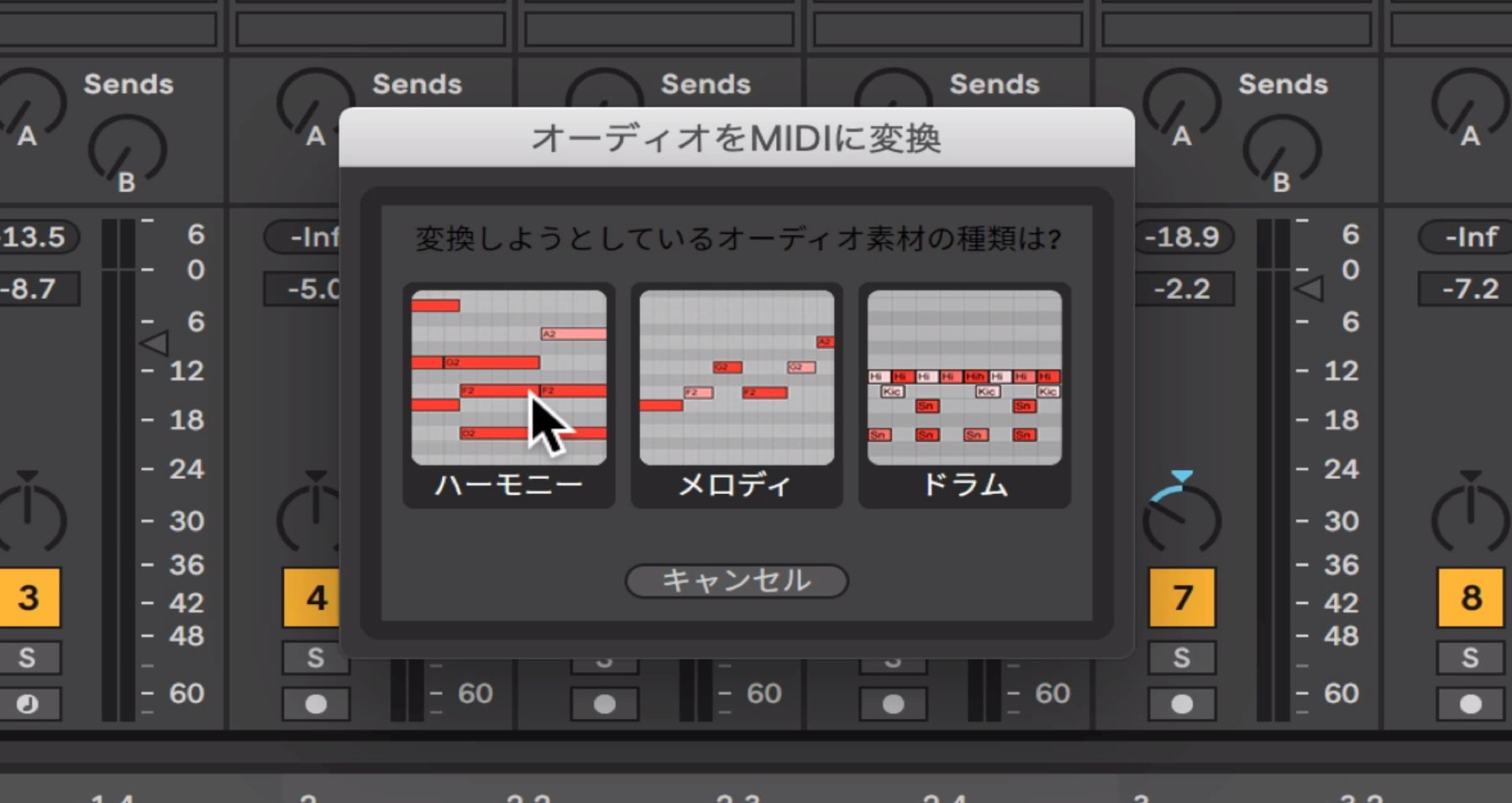
The MIDI conversion dialog appears.
Choose Melody for a single-note lead line,
and Harmony for a performance that includes chords, then convert it to MIDI.
Our phrase contains no chords, so we will choose Melody.
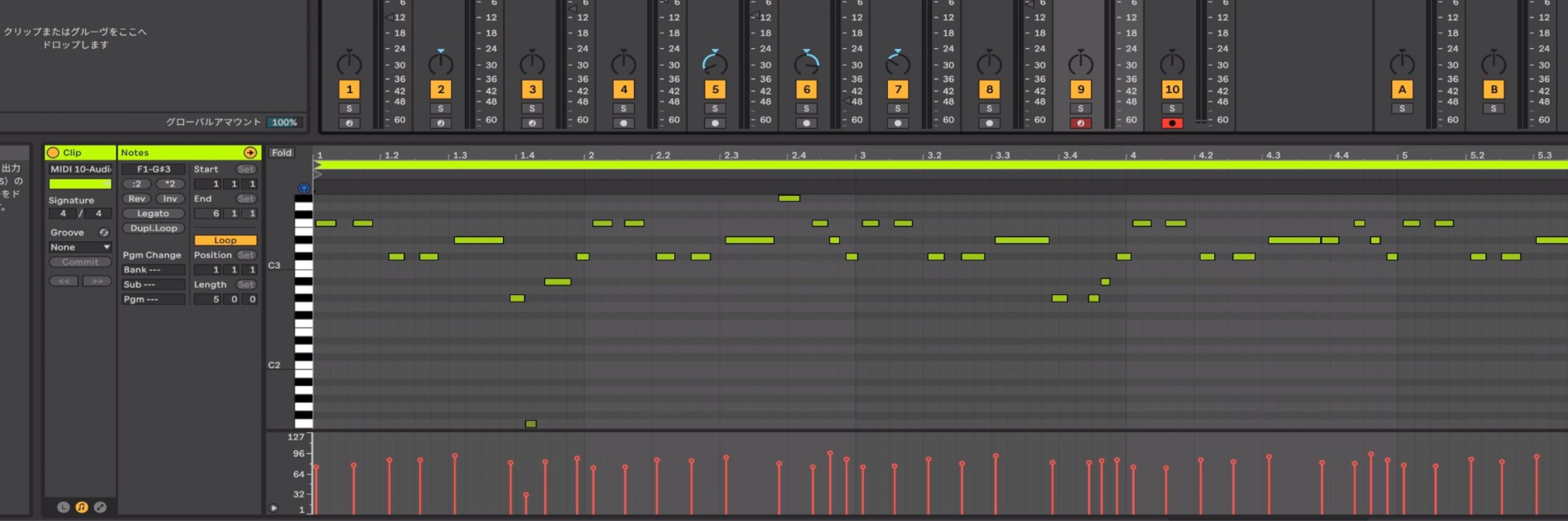
Check the converted MIDI and make any necessary fine adjustments. That completes the process.
Integrating Hardware Sounds with External Instrument
If you own a hardware synth, or have a keyboardist in your band, you may want to use the sounds of your favorite hardware instruments in a song.
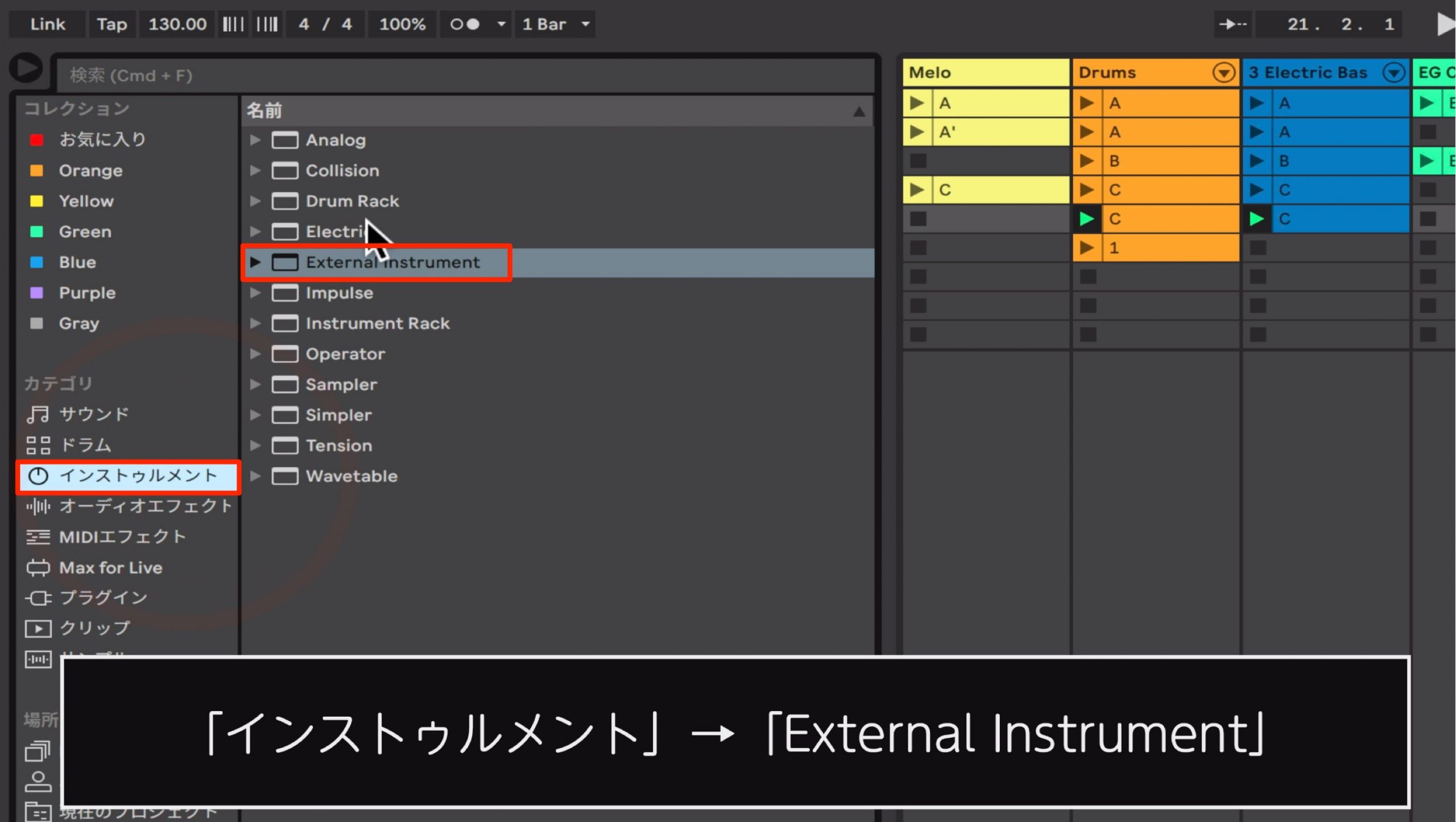
Live’s External Instrument device lets you incorporate an external hardware sound source into your production.
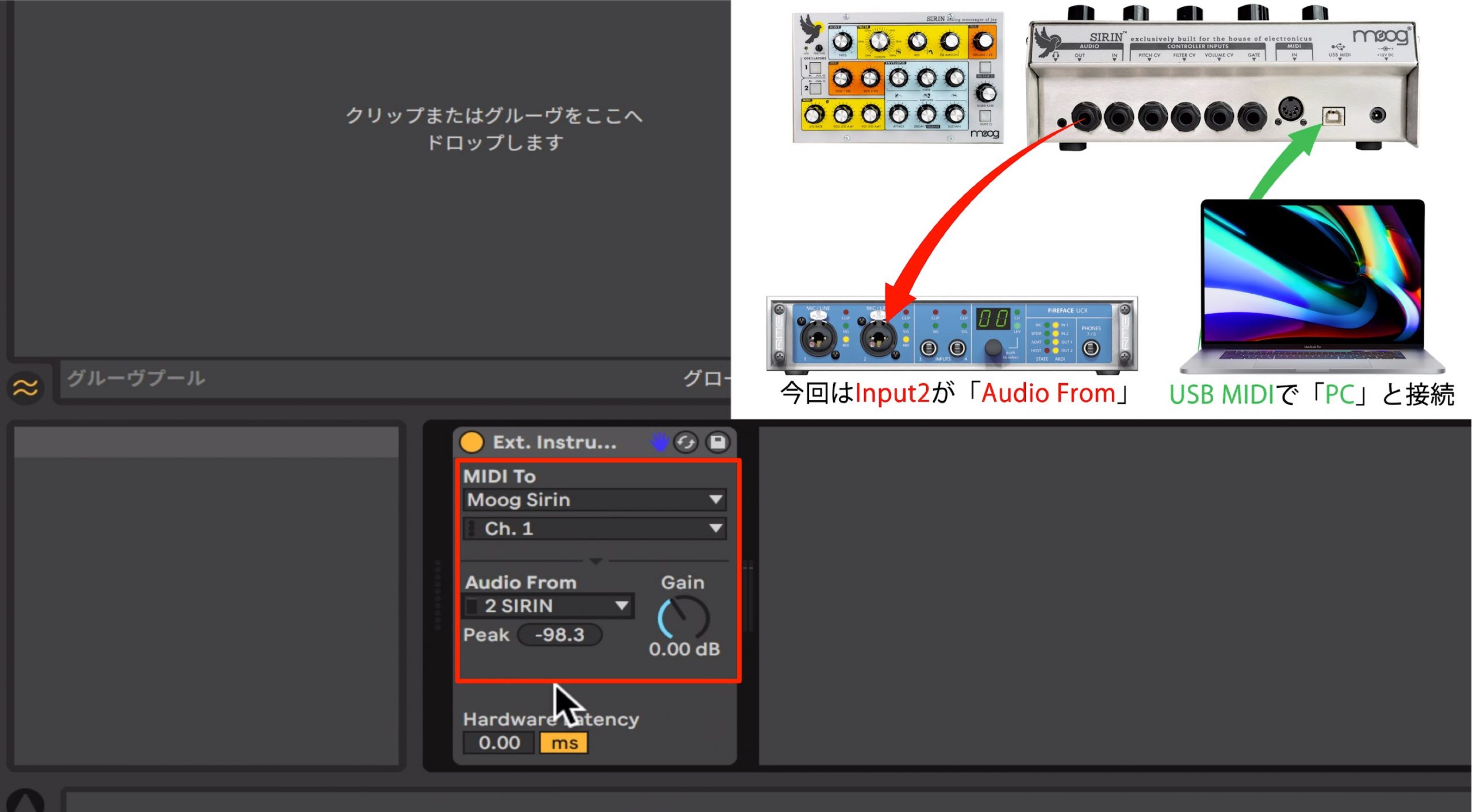
When you load External Instrument, you will see the MIDI To and Audio From settings.
Set MIDI To to the MIDI port connected to your external instrument, and Audio From to the input channel receiving its audio.
In our setup, MIDI is sent to and received from the external instrument over USB. We therefore set MIDI To to the port connected to the synth, and Audio From to the audio interface channel connected by an audio cable to the synth’s audio output.
With this routing, MIDI is sent to the hardware synth, and the sound it produces returns as an audio signal.
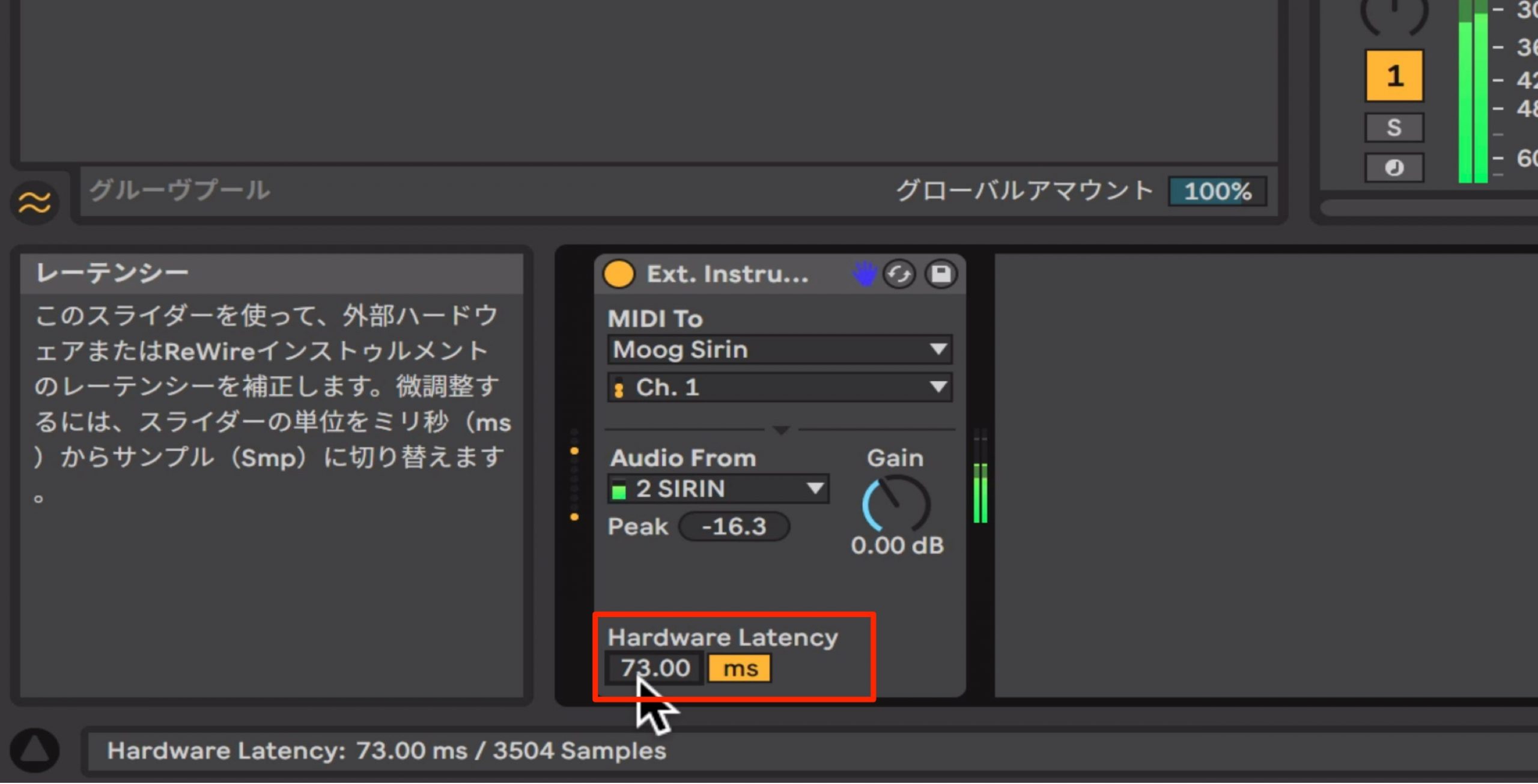
Using external instruments can introduce a noticeable delay in the timing of the performance, known as latency.
If you notice latency during playback, increase the Hardware Latency value. This advances the performance timing by the specified amount to compensate for the delay.
Increase the value gradually while listening to the result.
How did you find these techniques?
Chains let you manage multiple instruments as a single instrument, while hardware integration gives you access to your external gear. Together, these features can make your production setup easier to work with.
Try incorporating them into your own workflow.
At the time of this article, Ableton Live offered a free, fully featured 30-day trial.
If you are interested, visit the trial page below for the current offer.
/https://www.ableton.com/ja/trial
This time, we show you how to build keyboard parts efficiently using Live’s distinctive features.
> Ableton Live for Guitarists, Part 3: Creating Lead Sounds with Instrument Rack and External Instrument
📝 Article: https://t.co/u6r6hJVGsz
🎥 YouTube: https://t.co/wthfwQTWzb pic.twitter.com/tdLpBZpe7A
— SLEEP FREAKS (@SLEEPFREAKS_DTM) December 7, 2019
Frequently Asked Questions
Q1. What is Instrument Rack in Ableton Live?
Instrument Rack is a Live feature that lets you manage multiple synths and samplers on a single track. Its chains allow you to layer different instruments and apply effects to each chain individually, making it easy to add depth and complexity to a sound.
Q2. How do I convert a guitar performance to MIDI?
Drag the audio clip of your recorded guitar performance onto a synth track to open the MIDI conversion dialog. Choose Melody for a single-note line or Harmony for a performance containing chords. After conversion, make any necessary fine adjustments.
Q3. How do I compensate for latency when using hardware with External Instrument?
If you notice a delay during playback, increase the Hardware Latency value. Adjust it gradually while listening: this advances the performance timing to compensate for the delay. The correct value depends on your setup, so some experimentation is needed.
Q4. Can I try Ableton Live for free?
The original article describes a free, fully featured 30-day trial. A trial lets you test the features in your own production setup before buying and see whether Live suits your workflow as a guitarist. Check the linked trial page for the current terms.
NEW ARTICLES
Latest English Articles




































































































































































































































