
Ableton Live’s Link feature synchronizes tempo and playback across devices and DAWs over Wi-Fi. It connects compatible applications, including iPad instrument apps, multiple computers, and Native Instruments Maschine, making sessions and live performance more flexible. Setup is simple, and the feature can help distribute CPU load and support spontaneous music making. Actual audio latency depends on each device and its configuration.
Synchronize Devices over Wi-Fi
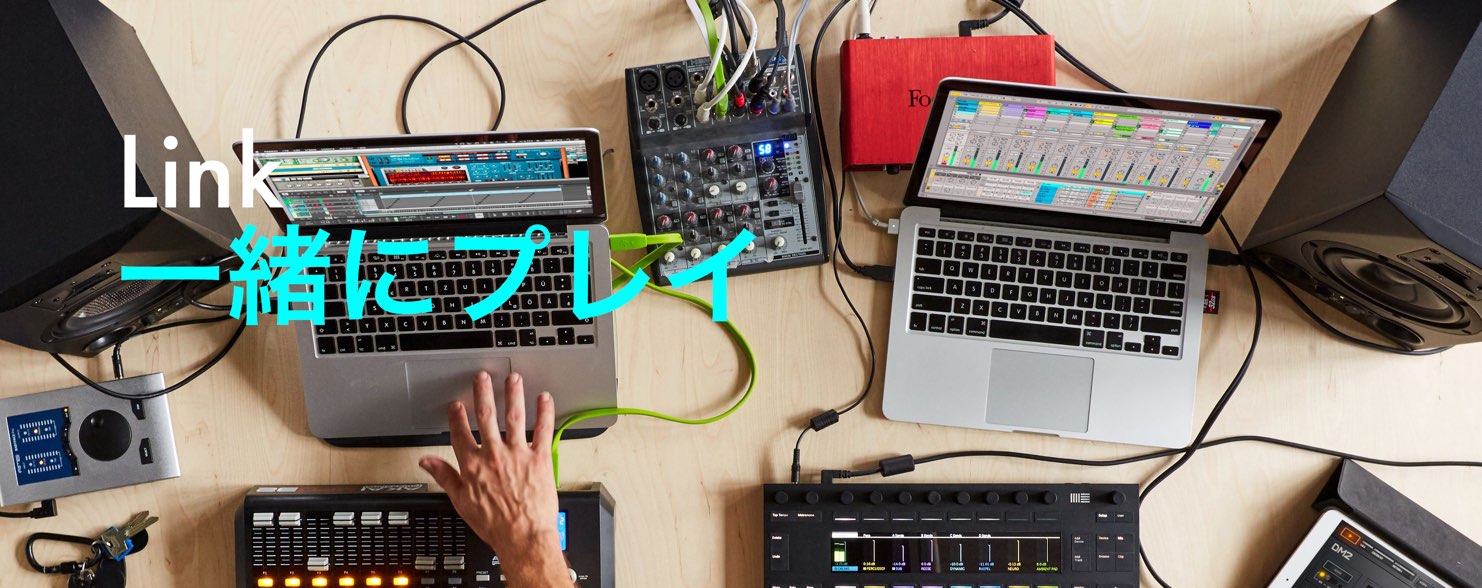
In this tutorial, we explore Ableton Live’s Link feature.
In this example, Live provides the tempo for instrument apps and devices on the same network. Link synchronizes their musical timing; it does not require a permanent master.
This makes it easy to play together across instrument apps and devices.
Setup is straightforward and makes it easy to connect them. Audio latency can still occur depending on the setup.
- Synchronize Live projects on two or more computers
- Synchronize an iPad instrument with Live
- Synchronize NI Maschine running standalone with Live on another computer
These are just a few of the possibilities.
The number of instrument apps supporting Link has been growing. You can check compatible products on Ableton’s website:
https://www.ableton.com/ja/link/apps/
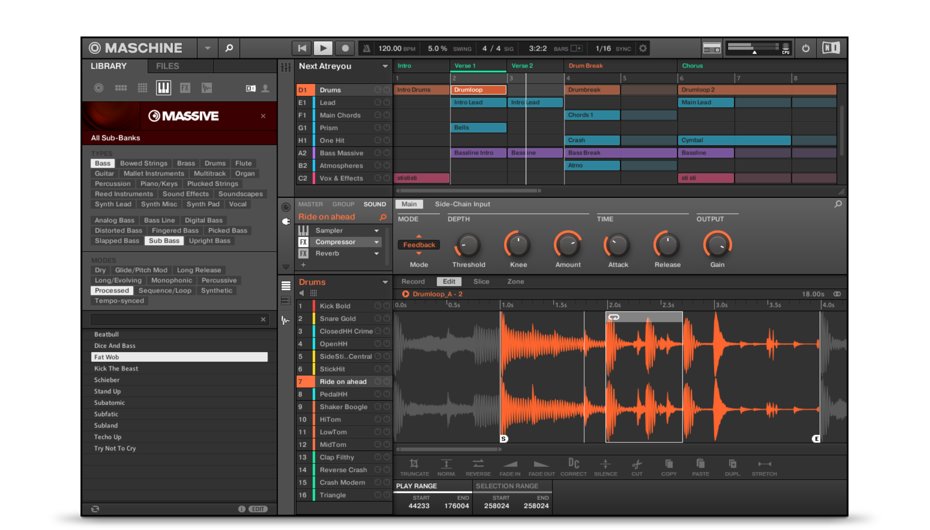
Native Instruments Maschine also supports Link,
so for this session we will use three applications: iELECTRIBE on an iPad, Ableton Live, and Maschine.
Here we run Live and Maschine on one computer, but sessions can also use multiple computers.
For example, Live on one computer and Maschine on another can be synchronized with Link, as can two Live projects.
Ableton Live Link: Video Tutorial
Product Details

How to Use Link
First, we will connect Ableton Live and iELECTRIBE using Link.

Click “Link” at the top left of Ableton Live so that it lights up.
This enables Link in Ableton Live.
Start playback of a track.
Next, turn on Link in iELECTRIBE on the iPad.
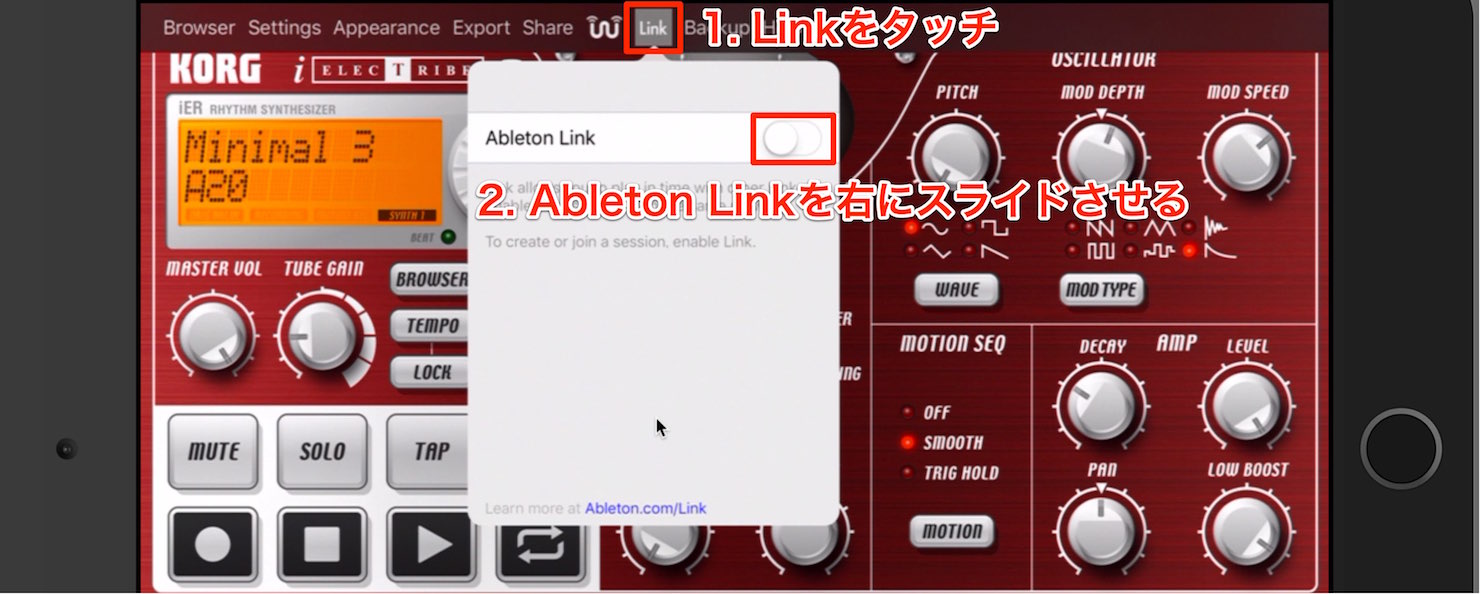
Touch the Link button and slide Ableton Link to the right.
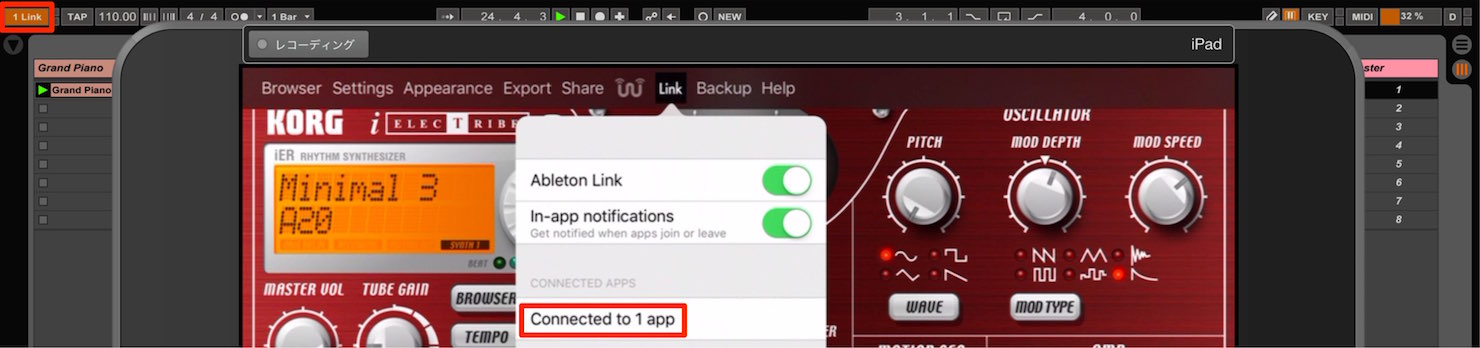
Live displays “1 Link” and iELECTRIBE displays “Connected to 1 app,” indicating that they are connected through Link.
Now start the iELECTRIBE track.
It will play in time with Ableton Live’s tempo regardless of when you start it.
It is that simple.
Because the tempos are synchronized, changing the tempo on either device updates the other as well.
Next, let’s add Maschine to the session.
We use one computer here, but the same steps apply to Maschine running on another computer.
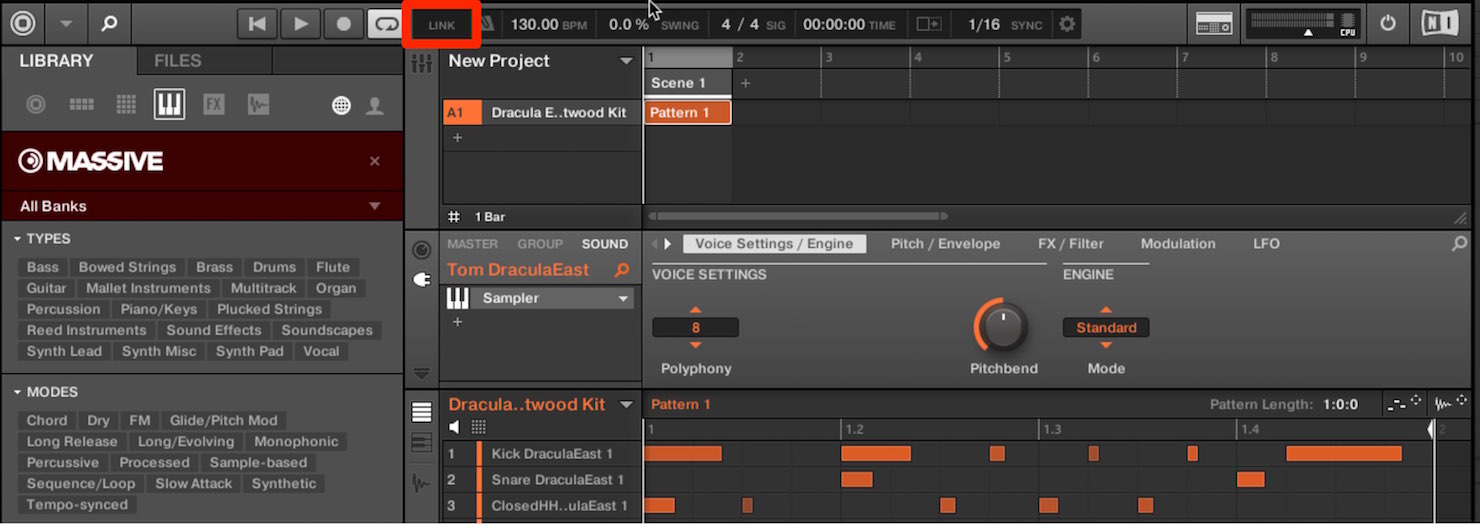
Simply click “Link” in the Maschine window.
As shown, both Ableton Live and Maschine display “2 Links,” indicating that synchronization is complete.
The Maschine project was at 130 BPM, but Link has automatically changed it to match Ableton Live’s 110 BPM.
Now whenever you start Maschine, it plays in time with Ableton Live and iELECTRIBE, completing the session setup. It is very convenient.
If one device stops playback, the other devices continue playing in this example.
To rejoin the session, start the track again whenever you like.
You could link two Live instances to distribute CPU load during production, or use Link for live performances where real-time interaction matters.
Give it a try.
Product Details
Frequently Asked Questions
Q1. What do I need to use Ableton Live Link?
You need multiple devices connected to the same Wi-Fi network and Link-compatible applications, such as Ableton Live, iELECTRIBE, or Native Instruments Maschine. No complicated setup is required.
Q2. Can I synchronize multiple computers using Link?
Yes. Applications such as Live and Maschine running on different computers can be synchronized with Link. This can help distribute CPU load or enable sessions across multiple systems.
Q3. What happens if one device stops playing during a Link session?
In the setup described here, the other devices continue playing. Restart the track when you are ready, and it can rejoin at the shared tempo. Some apps also offer an optional Start Stop Sync setting.
Q4. Which instrument apps support Link?
Native Instruments Maschine, iELECTRIBE, and many other applications support Link. See Ableton’s official website for the current list of compatible products.
NEW ARTICLES
Latest English Articles







































































































































































































































































































































































