
Panning and depth are key to mixing vocal harmonies. Separating them from the lead vocal can create a richer, more convincing vocal performance. Use doubling plug-ins such as Waves Doubler or iZotope Vocal Doubler to spread harmonies left and right, then add depth with compression and reverb so that they coexist naturally with the lead. These harmony-specific techniques help the backing vocals support the lead and improve the overall polish of the song.
Improve Your Mix with Harmony-Specific Processing
In this tutorial, we will look at mixing vocal harmonies—an important part of songs and cover-song productions.
You will need a basic understanding of vocal mixing. If you are unsure of the fundamentals, start with our earlier series, “The Basic Process of Mixing Home-Recorded Vocals.”

Mixing Home-Recorded Vocals: Basic Processing
Home vocal recordings inevitably pick up environmental noise and room reflections, but suitable processing can greatly improve their sound. This article introduces the fundamentals of bringing home-recorded vocals up to a professional standard…

Mixing Home-Recorded Vocals: Refining the Mix
Once basic processing is complete, the next stage is to polish the vocal while blending it into the song. Adjusting the tone with EQ and adding clarity with an enhancer are part of this process…
Here is what we will cover:
- 1The Role of Vocal Harmonies and the Effect of Mixing
- 2Separate Harmonies from the Lead with Doubling
- 3Create Depth with Compression, EQ, and Reverb
Let's get started.
Mixing Vocal Harmonies: Video
Product links (includes affiliate and promotional links; product availability and bundle contents reflect the original May 2021 article):
• Waves Doubler
• iZotope Vocal Doubler (free at the time of the original article)
• Waves Reel ADT
• Waves CLA-76
• Waves Renaissance Reverb
• Waves Gold (includes Doubler and Renaissance Reverb in the bundle described here)
The Role of Vocal Harmonies and the Effect of Mixing
The Japanese term “hamori” comes from the English word “harmony”: the verb “hamoru,” meaning to harmonize, became the noun “hamori.” It generally refers to singing harmony with the same lyrics as the main melody, sometimes called “ji-hamo” in Japanese.
Adding harmonies at key moments creates a rich, pleasing sound and can make a vocal performance more dramatic and convincing.
Let's compare the same passage with and without harmonies. This is the opening of the chorus in our example song.
Without harmonies
With harmonies
The harmonies make it feel as though the chorus has really arrived. But their impact also depends on being mixed properly.
For example, here is what happens if we simply apply the same type of processing as the lead vocal…
Harmonies processed like the lead vocal
Harmony-specific mix
With suitable processing, the lead and harmony vocals coexist at the right balance, and the vocals also blend better with the backing track.
Let's look at the mixing techniques that make this possible.
Separate Harmonies from the Lead with Doubling
First, consider the stereo position of the harmonies—their placement from left to right.
There are situations where you might place them in the center alongside the lead. In many cases, however, separating their stereo positions helps the harmonies support the lead more clearly.
If you have only one harmony take and pan it away from the center, the left-right balance can become uneven. Here is an example.
A single harmony take panned right
A common way to avoid this is to record the same part twice and pan the two takes to opposite sides. This is called doubling.
You can certainly record two takes. Here, though, we will introduce useful plug-ins for anyone who would prefer a quicker approach, or who has already finished recording and has only one take available.
These are generally known as doubler plug-ins.
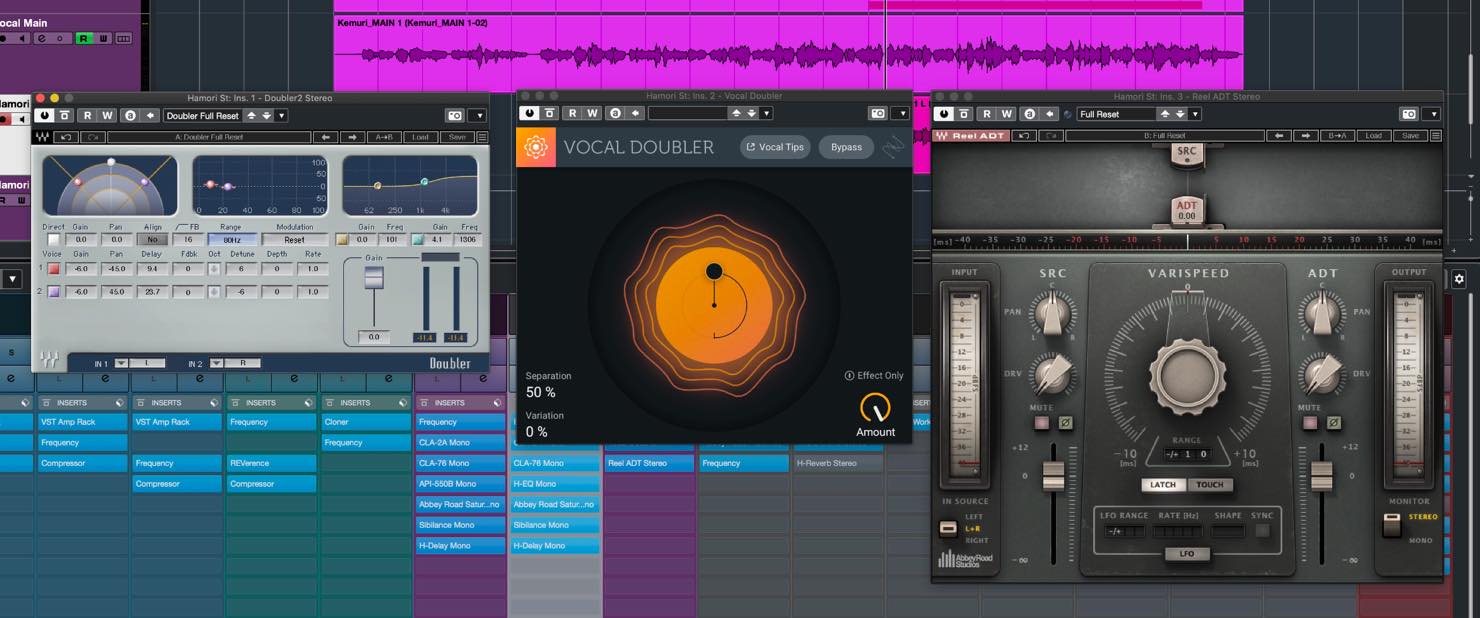
The vintage-looking plug-in on the right emulates the machine associated with the origins of artificial doubling. The story behind it is that John Lennon asked for a way to avoid having to sing the same part repeatedly.
On the far left is Waves Doubler, one of the longest-established plug-ins of this type.
It was included in the Gold bundle described in the original article, so many readers may already have it.
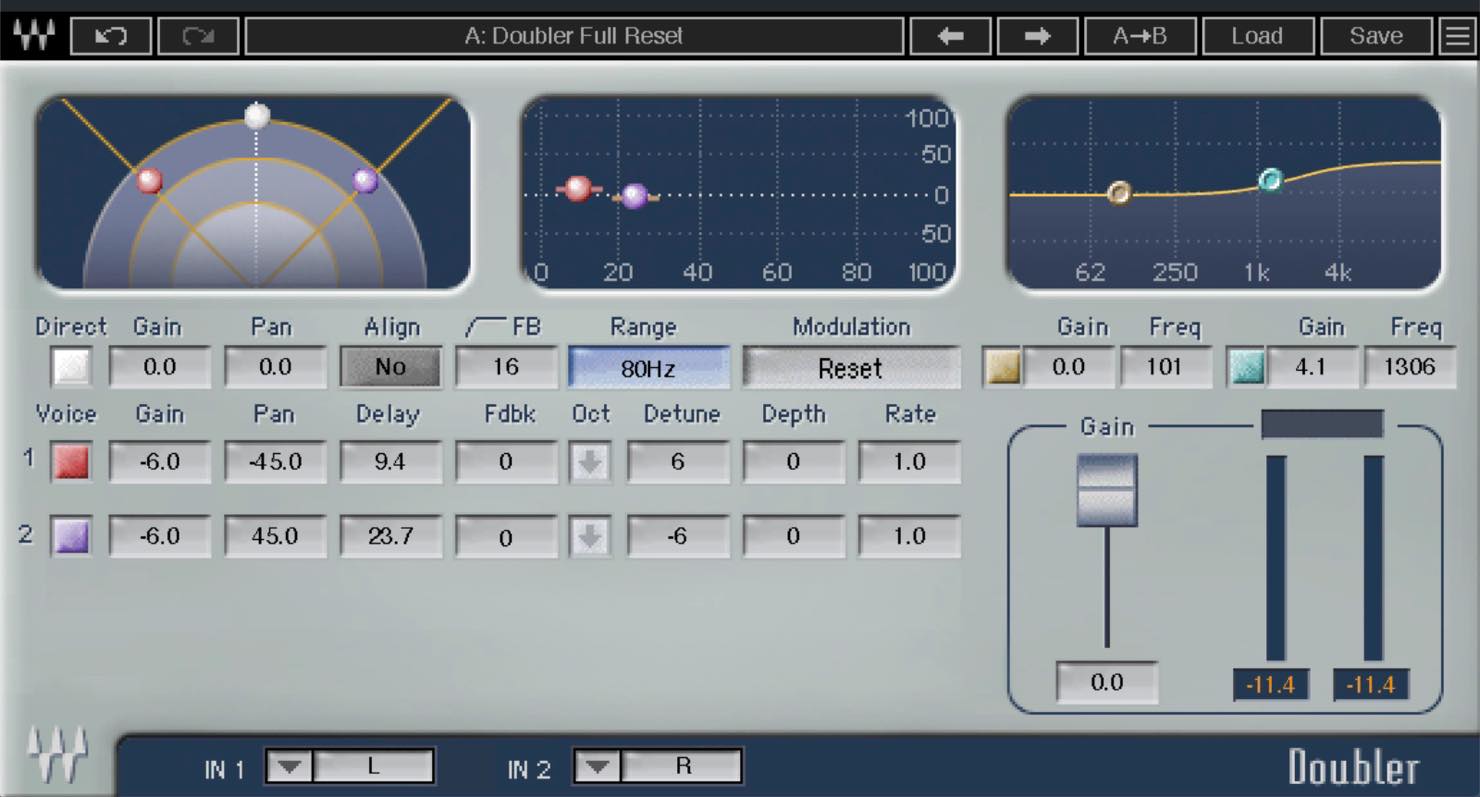
Let's start with a simple setup. The version shown here is Doubler 2.
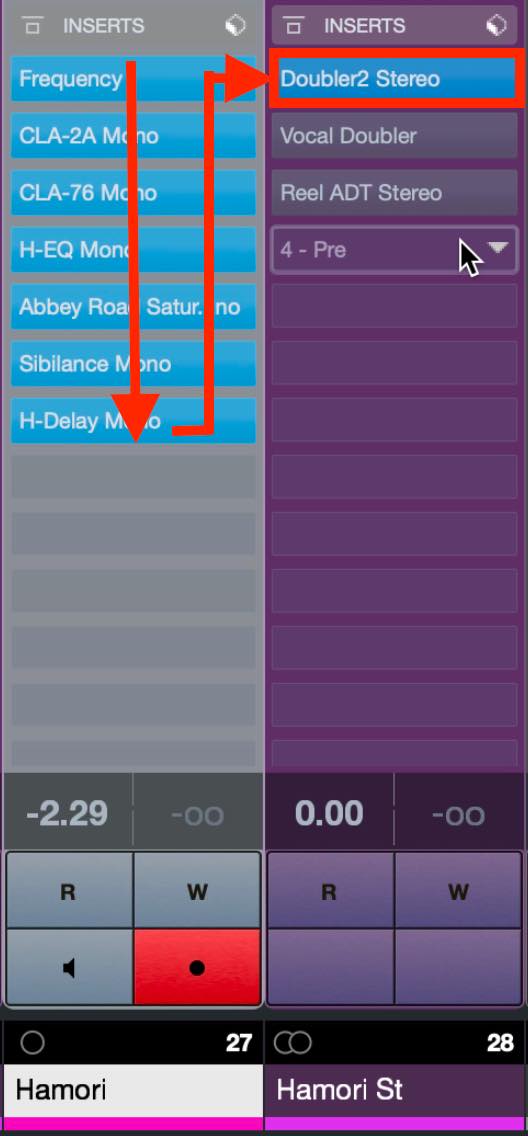
There are a few points to keep in mind. To get a stereo doubling effect with this setup, the track hosting the plug-in needs to be stereo.
In Cubase, a quick approach is to create a separate stereo group track and route the vocal through it.
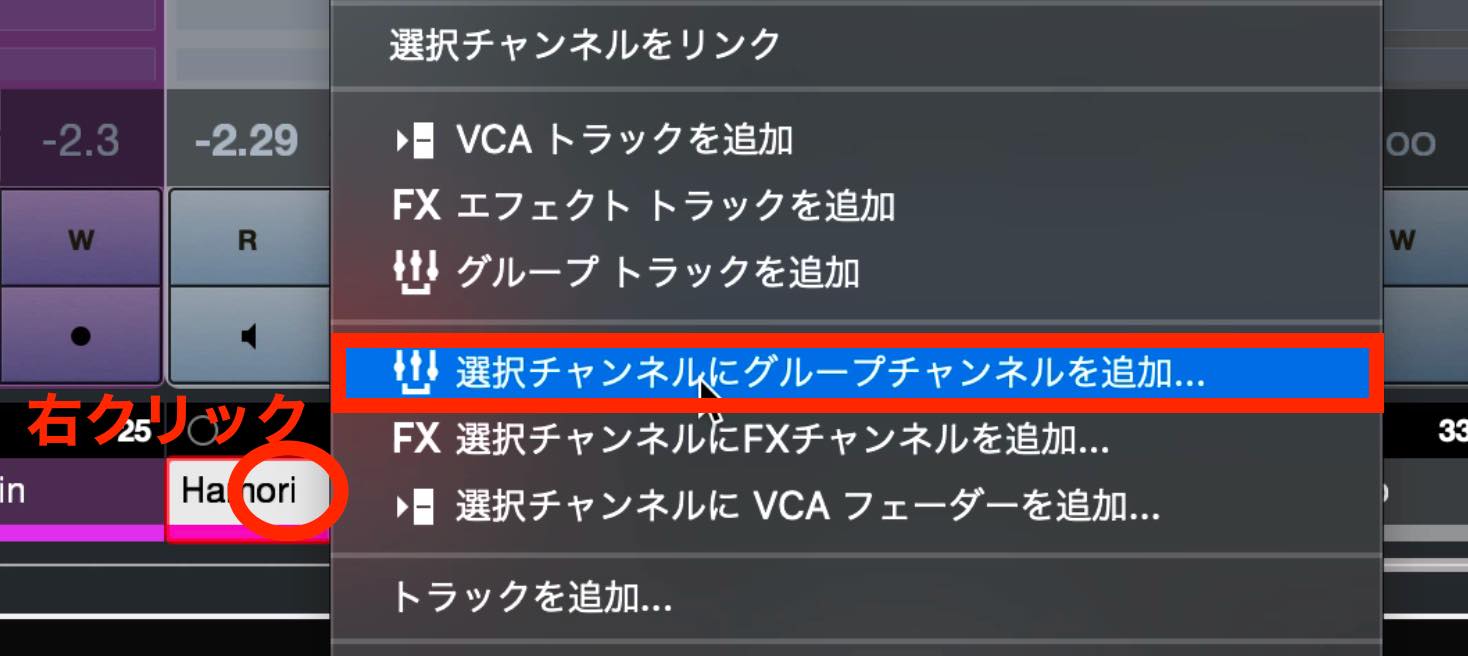
Right-click the original mono track, choose Add Group Channel to Selected Channels, set the configuration to stereo, and create the channel.
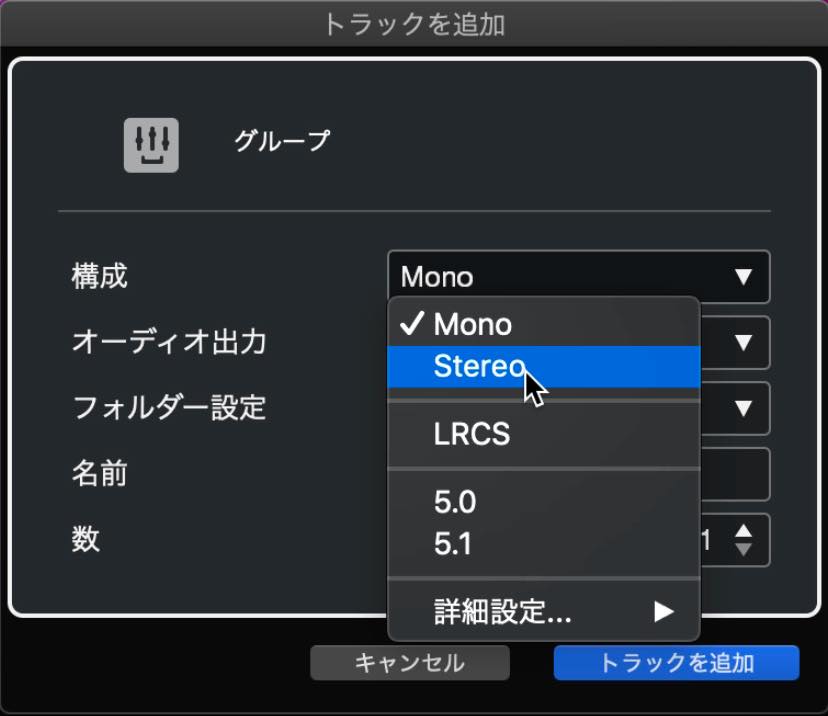
Then insert the doubler on the new group track.
In Pro Tools or Logic, select the mono-to-stereo version of the plug-in to make the processing stereo from that point onward.
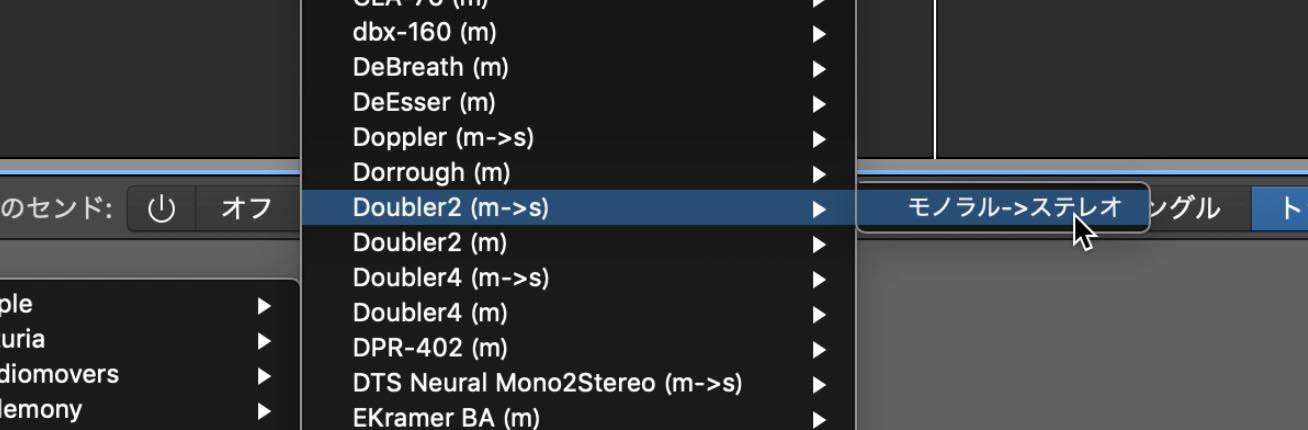
Insert the doubler after processors such as EQ and compression. It can be easier to judge the overall result if you set up the doubler first, then adjust the EQ and compressor placed before it in the chain.
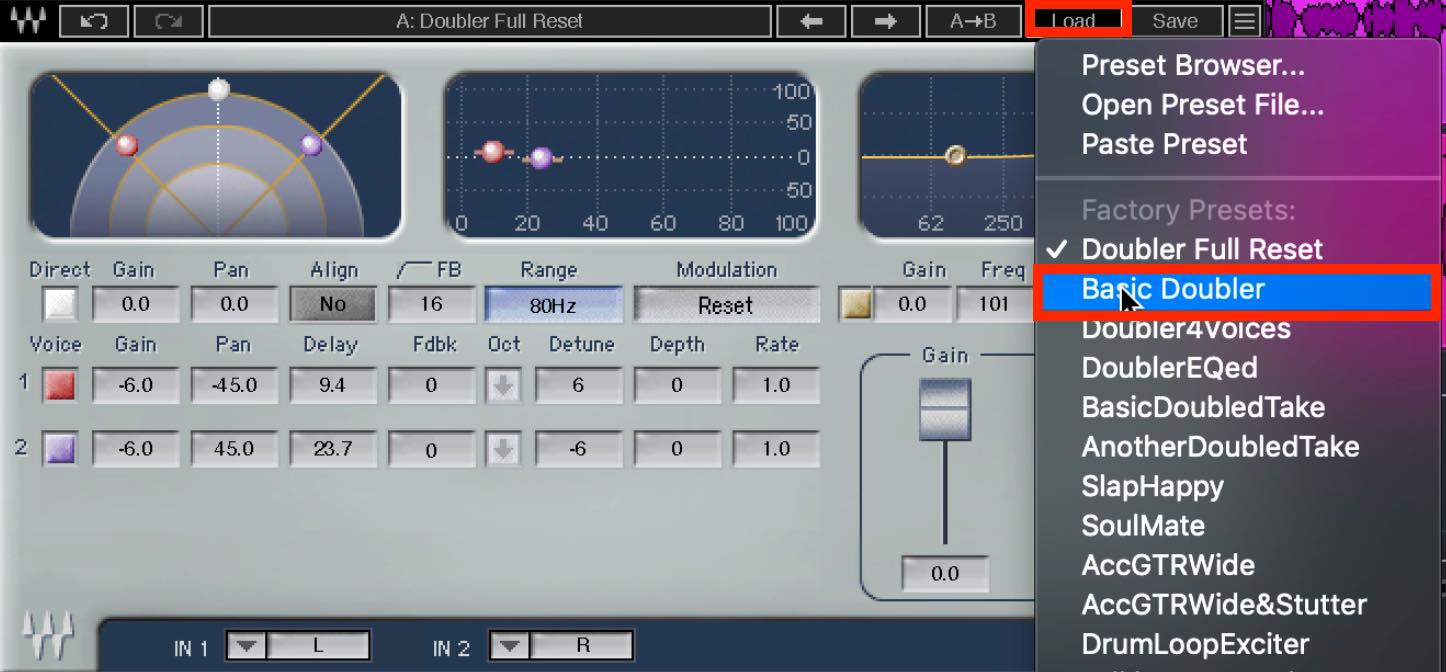
Now, let's configure Waves Doubler itself.
First, select the Basic Doubler preset.
Then double-click the white circle in the center to turn the direct signal off.
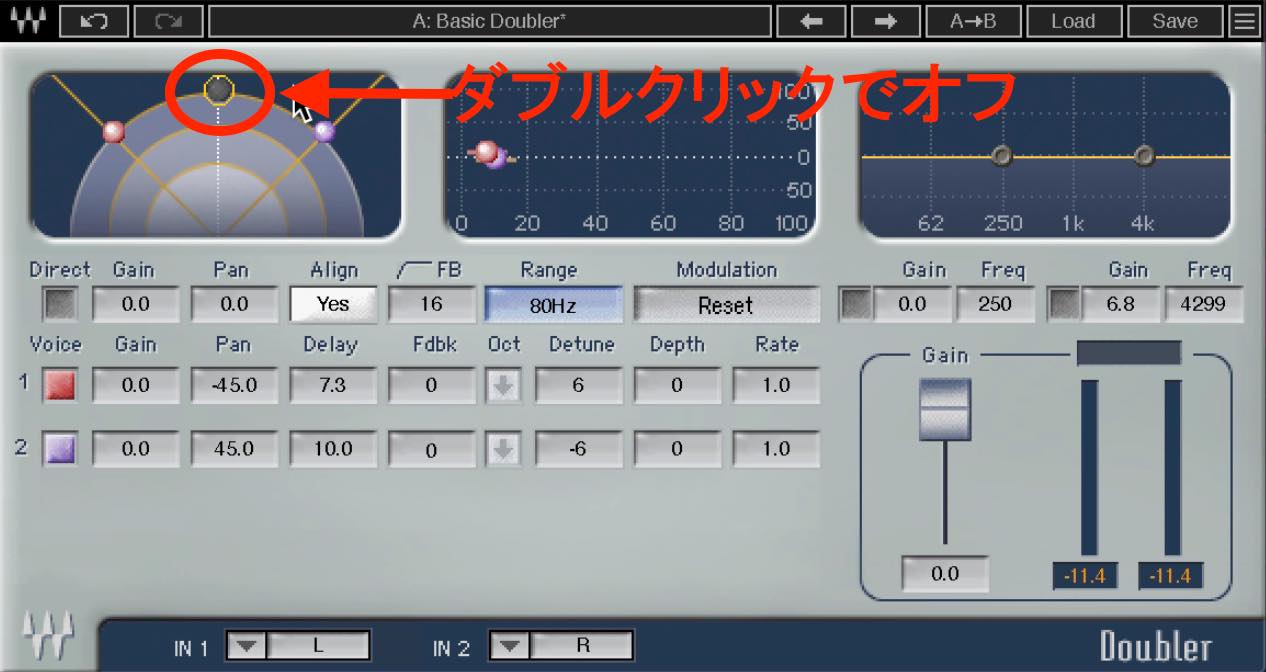
That's all you need for this basic setup.
Let's hear it with the lead vocal.
Waves Doubler with the lead vocal
The harmony is now spread left and right, separating it from the lead.
Understanding the controls in more detail will let you customize the effect to taste. We have several other topics to cover, though, so we will leave this setup here for now.
Let's look at the other doublers.
Next is iZotope Vocal Doubler. It was available free when this article was originally published, making it a convenient starting point for trying this technique.
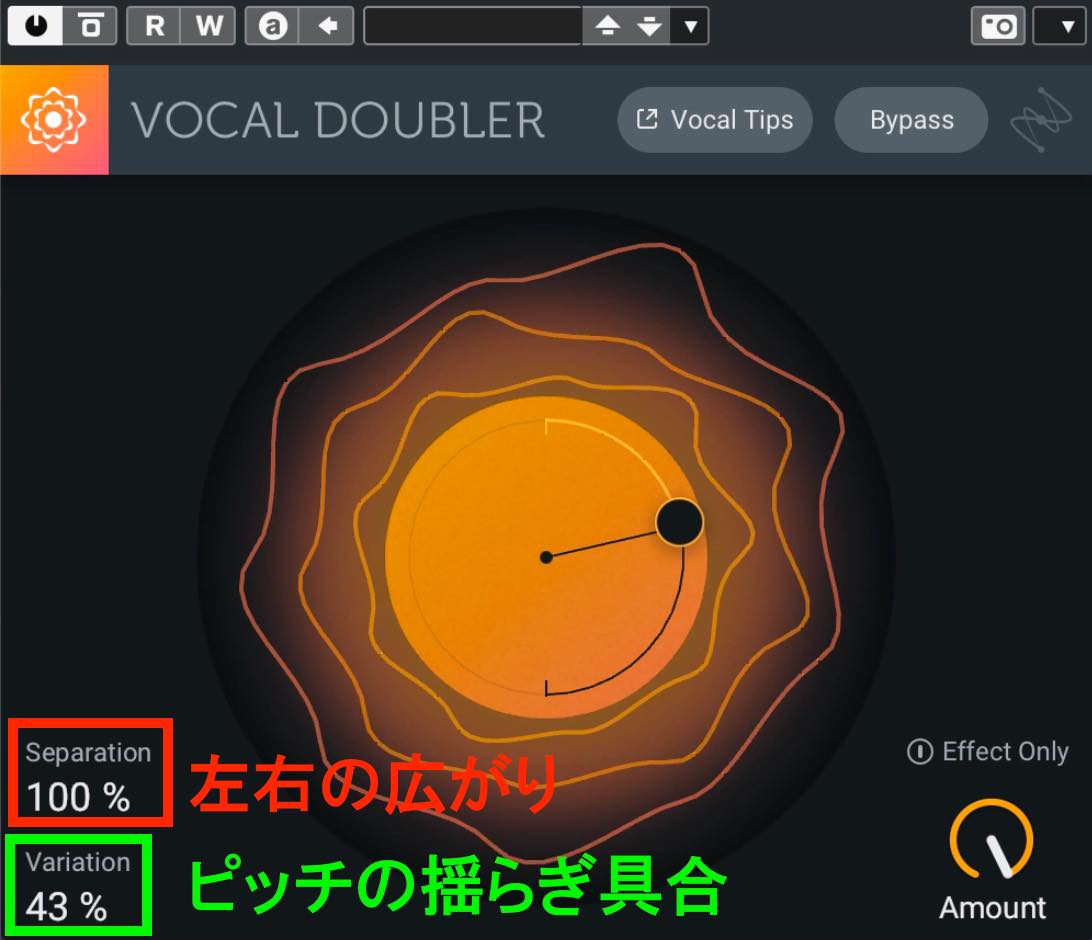
Its controls are straightforward: Separation adjusts the stereo spread, and Variation changes the amount of pitch variation. Be careful not to add so much variation that the harmony sounds out of tune.
Let's hear it together with the lead vocal.
iZotope Vocal Doubler with the lead vocal
It has a slightly different sound from Waves Doubler. The limited fine control is a drawback, but as a free option at the time of this comparison, it was well worth having.
The third option is the vintage-style plug-in introduced earlier, Waves Reel ADT.
For a quick setup, simply choose the Fake Stereo preset.
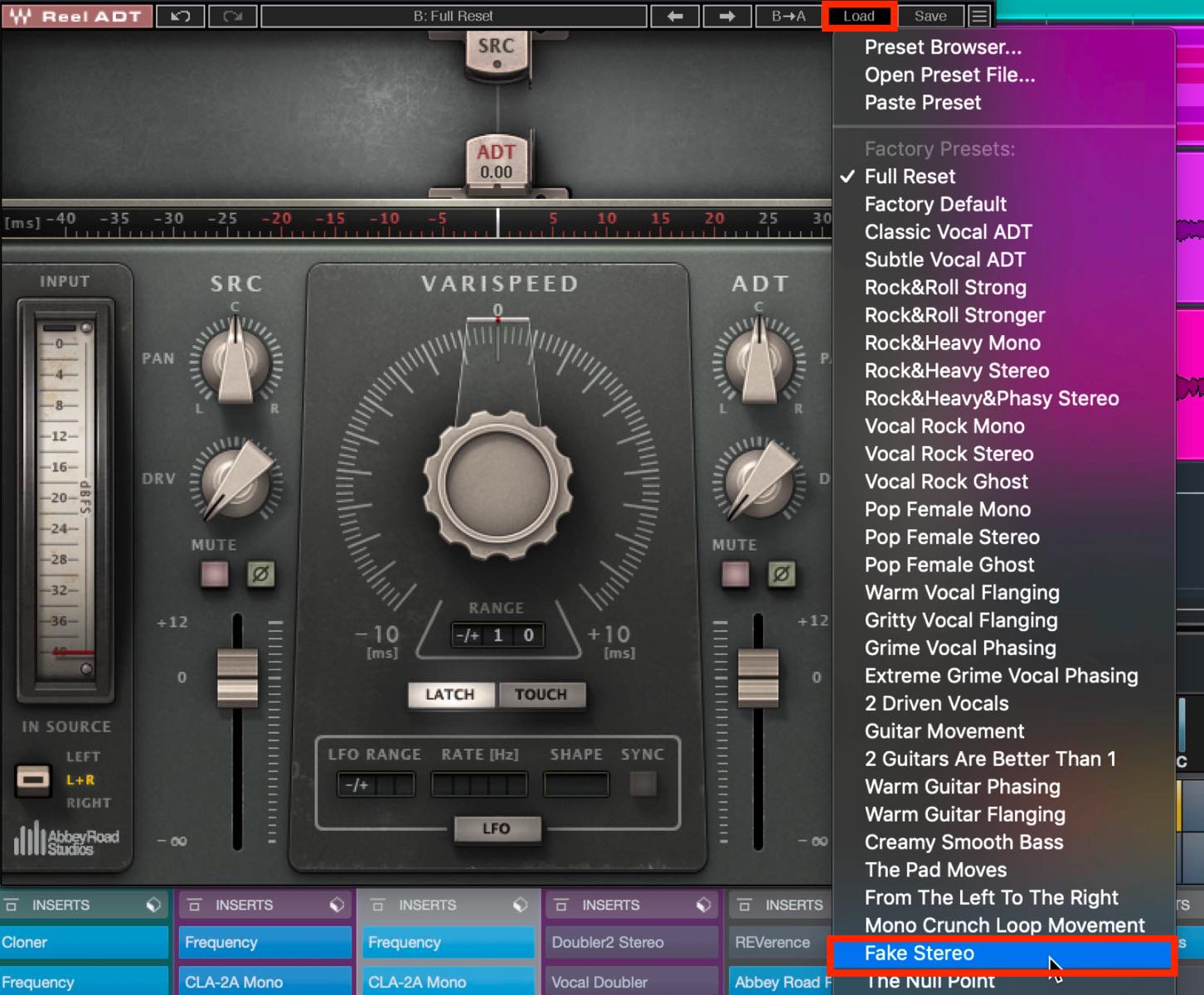
With the preset unchanged, the sound seems slightly biased toward the right.
Doubling uses small timing differences between the two sides. We tend to perceive the sound as coming from the side that arrives first. In this example, the right side is about 10 ms earlier, making it seem right-heavy. Try setting the right-hand slider to around -1.
This principle also applies to other doublers, so keep it in mind.
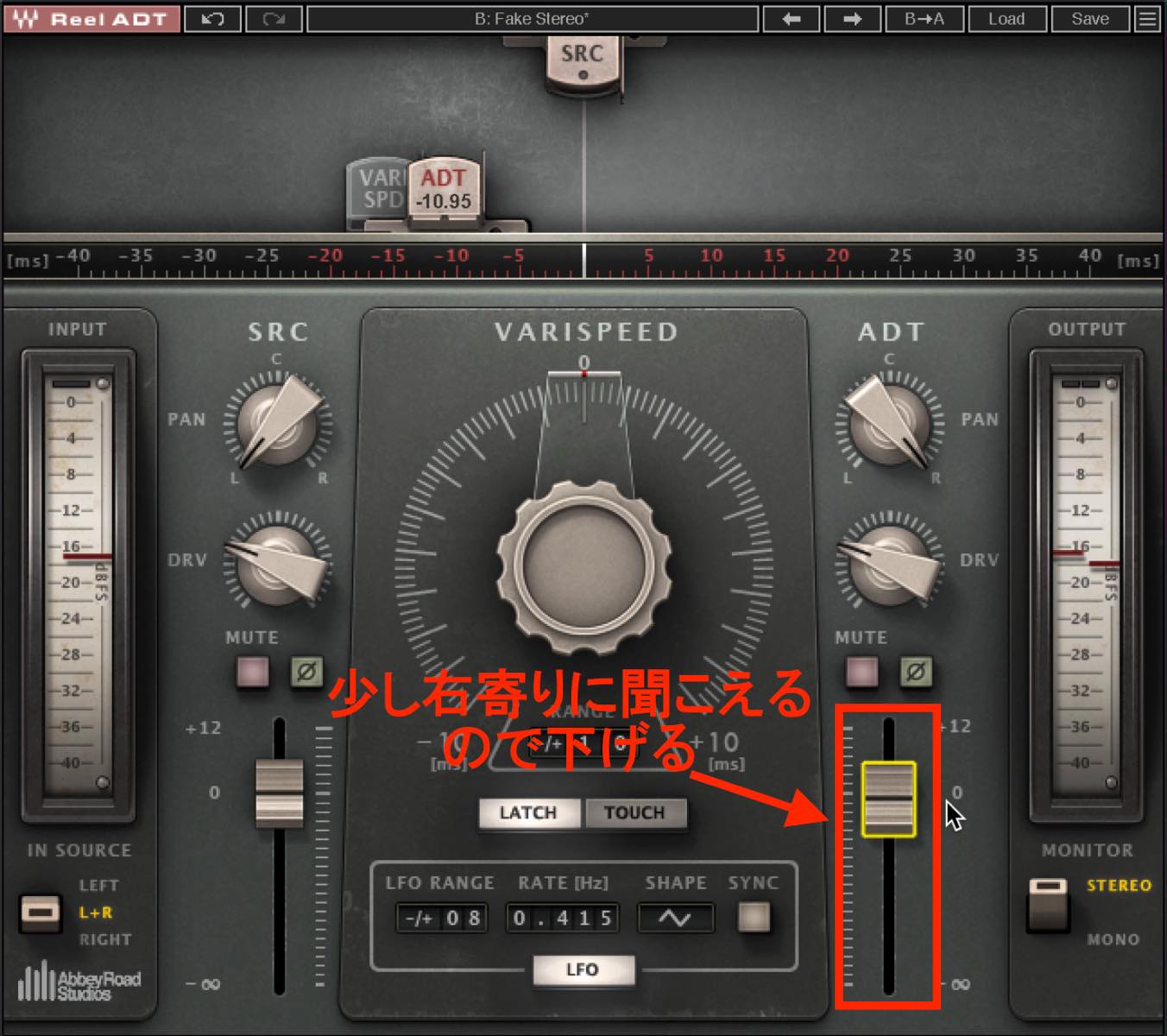
Let's check the sound.
Waves Reel ADT with the lead vocal
One of Reel ADT's distinctive features is Drive, which lets you shape the sound with saturation. We covered it in more detail in an earlier article—take a look there.

Create Depth with Compression, EQ, and Reverb
Now, let's create depth with compression, EQ, and reverb.
So far, we have separated the harmonies from the lead through stereo placement. Next, we will make them seem to sit slightly behind the lead vocal.
The first consideration is level balance. The harmonies should generally be quieter than the lead in this example, but simply turning them down can make them hard to hear. Here are techniques for placing them one step back while preserving their musical role.
Compression
First, use a compressor to control transients and dynamics.
For vocals, think of transients as the sharpness of articulation. A clearly articulated voice tends to feel close, while softer, less distinct articulation can seem farther away.
The compressor's attack time helps control this. We used a relatively slow attack on the lead; for the harmonies, try a much faster setting.
Also adjust the compressor for somewhat more gain reduction. At the loudest points in this example, around 10 dB of reduction can work.
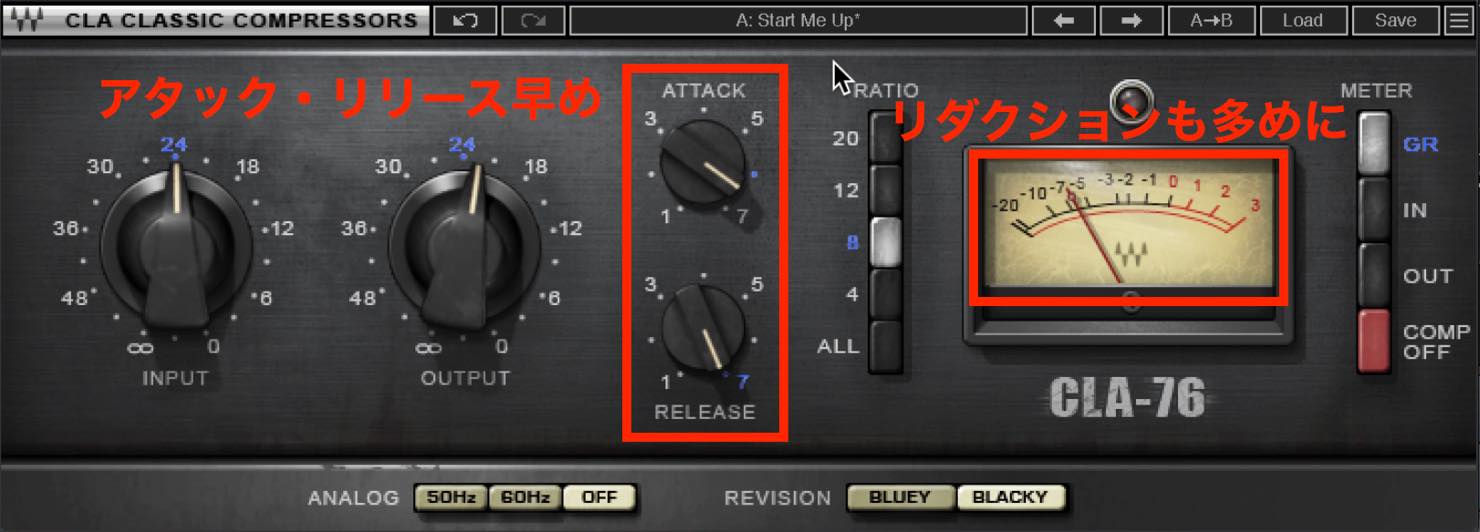
We also set a fast release to produce a fairly even result.
Reduced dynamics can make the harmony sound more mechanical and less prominent. Besides differentiating it from the lead, this can help it bridge the vocal and instrumental parts.
Let's compare the compression settings suited to the lead with those used for the harmonies.
Compression settings for the lead vocal
Compression settings for harmonies
EQ
Next is EQ, particularly control of the high frequencies.
We are using a conventional parametric EQ here because its settings are easy to see, but you can choose an EQ you prefer.
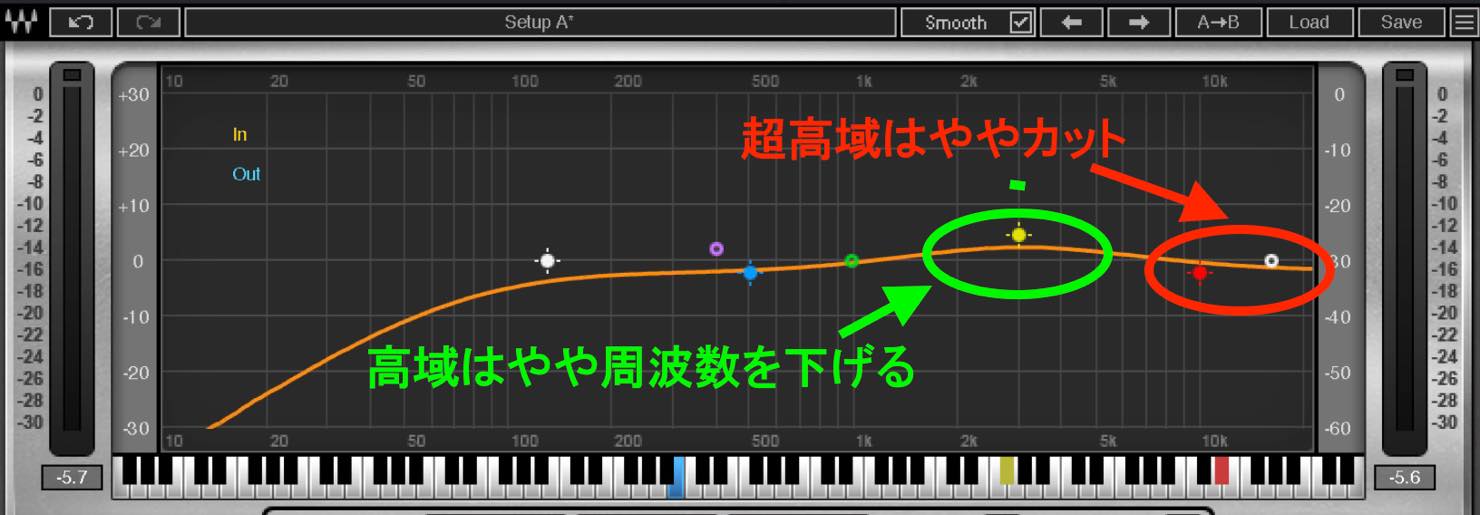
On the lead vocal, we boosted the very high frequencies by about 2 dB to bring the sound forward. To push the harmonies back, make this range relatively quieter than on the lead. For a clear comparison, we cut it by 2 dB here.
For the upper harmonics, the lead has a 4.5 dB boost centered on 5 kHz. On the harmonies, we instead target a slightly lower area, around 3 kHz. This gives them presence without competing directly with the lead.
Let's compare the EQ settings for the lead and the harmonies.
EQ settings for the lead vocal
EQ settings for harmonies
With the lead-style EQ, the lead and harmonies crowd together and sound cramped. The harmony-specific settings create a more comfortable sense of distance, allowing the lead to sound more open while the harmonies remain clearly present.
These values are examples, not fixed rules. Explore settings that suit the voice and the song.
Reverb
Finally, use reverb to distinguish the harmonies from the lead.
For the lead, we used plate reverb to add sheen and help the vocal stand out from the other tracks.
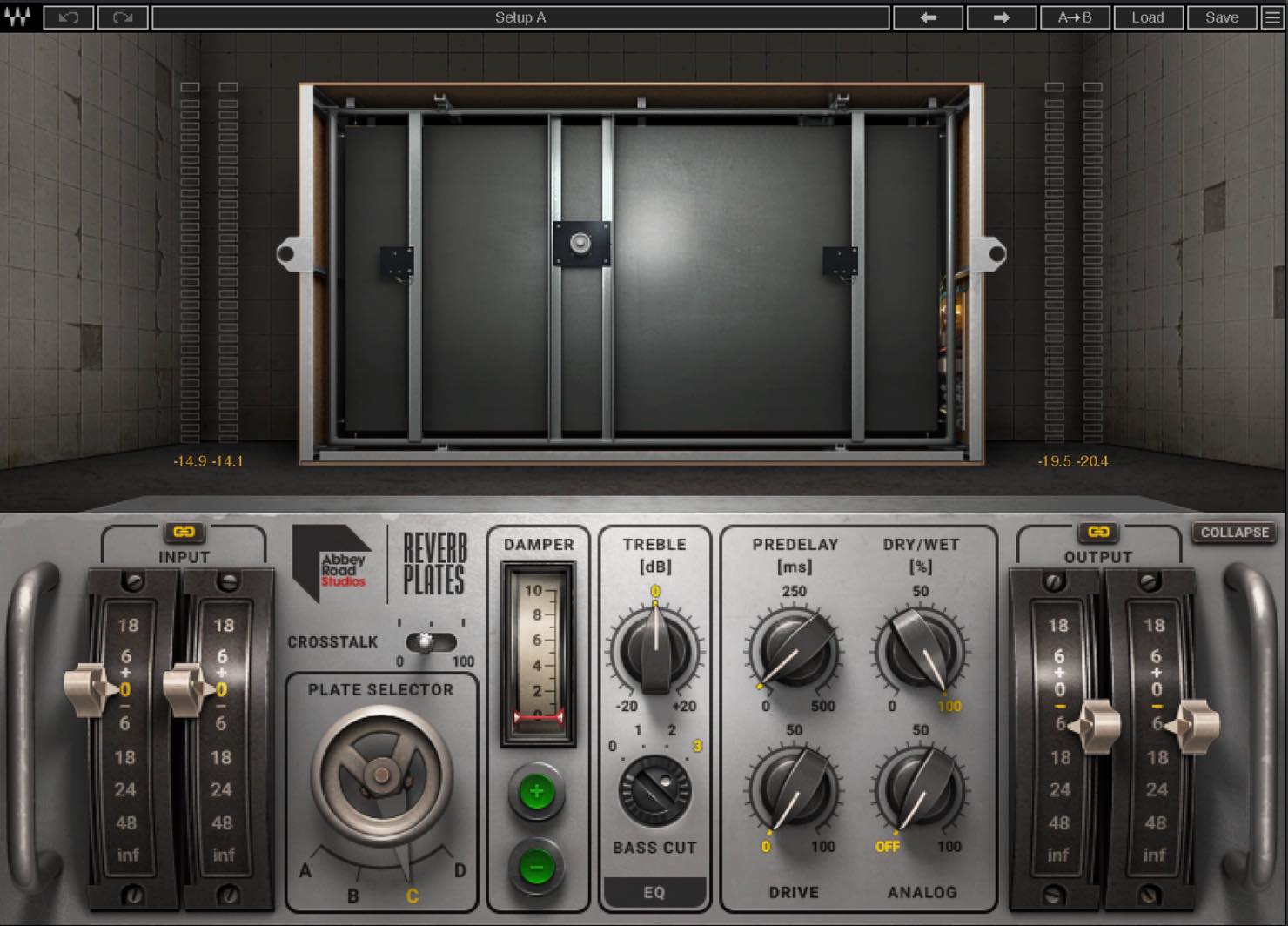
Should we simply apply the same reverb to the harmonies?
That may work if the two parts are intended as twin lead vocals. For backing harmonies like those in this example, however, we recommend a different approach.
Use mainly room or hall reverb to help the harmonies blend with the other tracks and distinguish them from the lead.
Because this reverb is also used with the instrumental backing, choose one that suits the space you want the mix to convey. Here, we chose a relatively small room.
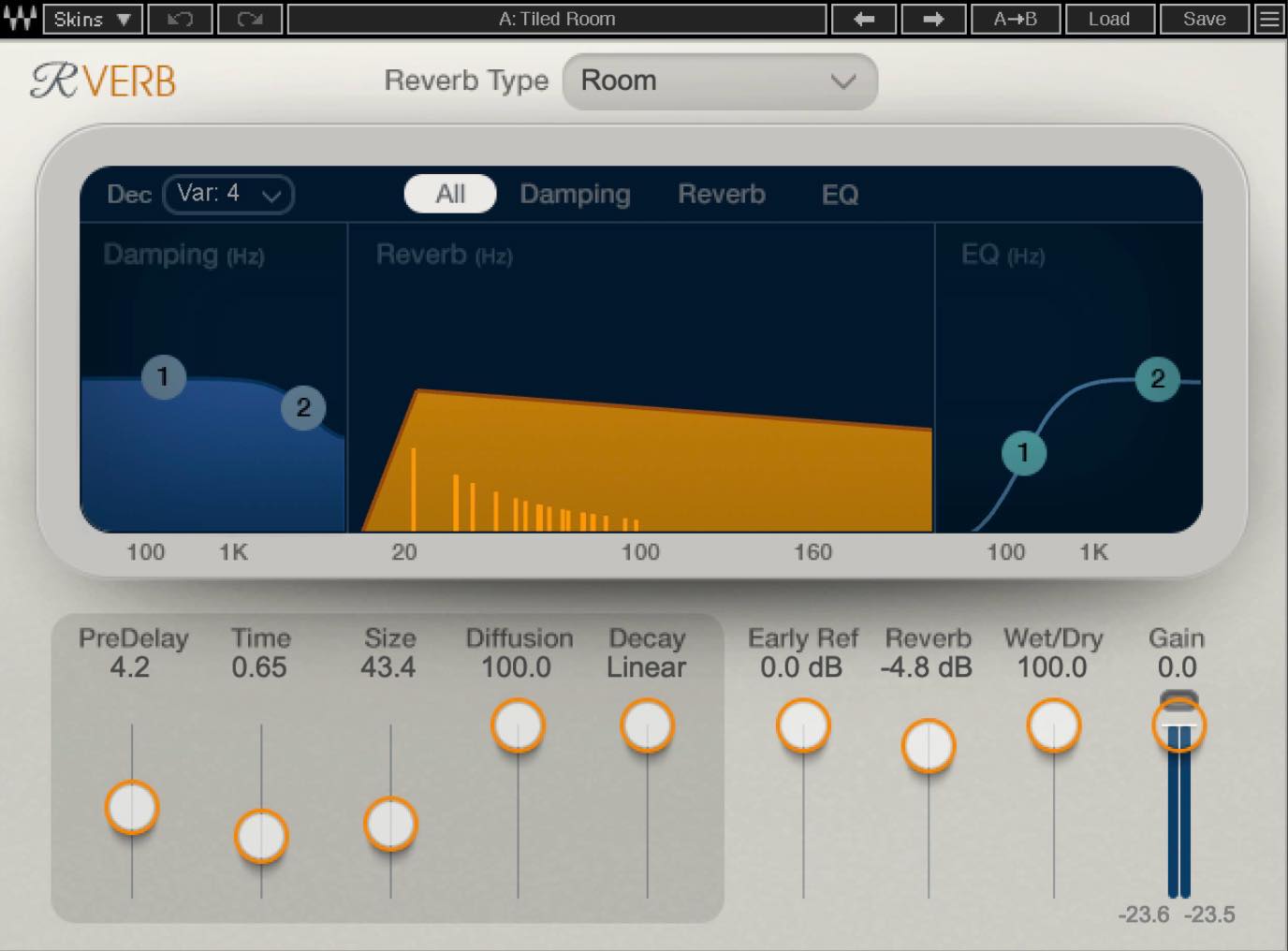
Let's compare plate reverb and room reverb on the harmonies.
Harmonies with plate reverb
Harmonies with room reverb
With plate reverb, the lead and harmonies seem to merge, reducing the harmonies' distinct presence. The result also has some of the cramped quality we heard in the EQ comparison.
Room reverb gives the lead and harmonies different spatial characters, making the mix feel more three-dimensional. A little of the same room reverb is also blended into the lead, so the two parts do not feel disconnected. This produces a useful sense of distance.
That covers the key points of mixing vocal harmonies.
You do not need to copy every setting exactly. By combining these ideas and adjusting the parameters, you can work toward the harmony mix you want.
Try them on your own harmony tracks.
Panning and Depth: How to Mix Vocal Harmonies
In Part 3 of “The Basic Process of Mixing Home-Recorded Vocals,” we look at mixing vocal harmonies—an important part of songs and cover-song productions. https://t.co/EfqKfgwVha #MusicProduction #Mixing pic.twitter.com/AxhrYKfcQK— SLEEP FREAKS (@SLEEPFREAKS_DTM) May 22, 2021
Frequently Asked Questions
Q1. What are vocal harmonies?
The Japanese term “hamori” derives from “harmony” and refers to singing notes that harmonize with the main melody using the same lyrics. Often called “ji-hamo,” this technique can add drama at key moments, such as the start of a chorus.
Q2. Why does stereo placement matter for harmonies?
Placing harmonies in the center alongside the lead can make the sound crowded. Spreading them left and right makes the separation clearer and creates a more balanced result.
Q3. What if I only have one harmony take?
Use a doubling plug-in, such as Waves Doubler or iZotope Vocal Doubler, to process the single harmony track and spread it across the stereo field, creating an effect similar to separately recorded doubles.
Q4. Where should I insert the doubler?
Insert it after processors such as EQ and compression. Setting up the doubler first, then adjusting the processing before it, can make the result easier to judge.
Q5. Should I add reverb to harmonies?
Yes—in the approach demonstrated here, reverb adds depth and helps the harmonies sit behind the lead while blending naturally into the mix.
NEW ARTICLES
Latest English Articles

























































































































































