
Connecting equipment can be a stumbling block for beginners in music production. This article explains how to connect key devices such as MIDI keyboards and audio interfaces to a computer, connect instruments and microphones to inputs, and connect speakers or headphones to outputs. Understanding USB connections, driver installation, and the correct input and output connections will help you set up recording and monitoring in your DAW and start making music.
Basic Music Production Equipment Connections
Have you bought equipment but are unsure how to connect it?
We have prepared a diagram to help.
Use it as a reference if you get stuck.
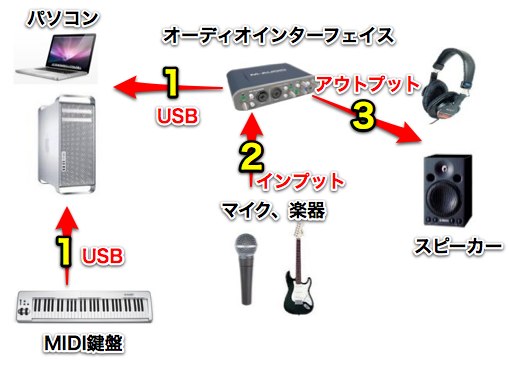
1. Connect USB devices to your computer
Connect your MIDI keyboard and audio interface
to your computer using USB cables.

Use the USB cable supplied
with each product.
Note: You may need a driver for your computer to recognize a device.
See our manufacturer-specific driver download links below.
https://sleepfreaks-dtm.com/dtm-trouble/driverup/
Connecting a USB MIDI keyboard
Questions and answers from the YouTube video

When I press the keys, the chord name appears at the top, but I hear no sound. What should I do?

The keyboard is being recognized correctly. The likely cause is that no software instrument is loaded, or that an instrument track is not selected. The video below explains how to create an instrument track. https://youtu.be/CWAG5UU7mNs
I would like to connect an MPC1000. Is connecting it by USB enough, or do I need to change settings?
The original reply suggested that a USB connection would likely make the MPC1000 available as a MIDI device. Correction: the MPC1000 manual describes its USB port as a data-transfer connection and identifies separate MIDI IN and OUT ports. For MIDI communication with a computer, use a suitable MIDI interface and configure the MIDI connections. See the MPC1000 operator’s manual: https://cdn.inmusicbrands.com/akai/mpc1000/mpc1000v2_operators_manual_00.pdf_055b8b24eeb101e27a2f4042c6819727.pdf
Thank you for the clear explanation; it is very helpful. I want to use an Arturia MicroBrute as a keyboard, but I cannot get it working. My Mac recognizes it, and it works in GarageBand, but not in Logic. How can I fix this?
It would probably be quickest to check the project itself, but here are some possible causes. When you press a key, does the area shown in the image respond? You should see note names such as C or A. https://app.box.com/s/2ulr7hnmefs0tz5f5mb7mmhfe9w3yiso If it responds, check the following: no instrument is loaded on the track, or an audio track is selected; no sound preset is loaded in the instrument (check the instrument and preset names); Logic’s master track volume is turned down (check whether audio tracks or loops play); or the instrument track’s R (record-enable) button is off (click it so it lights red). Finally, check that the instrument track’s MIDI channel is set to All or 1. https://app.box.com/s/ptlzit0nvchdlql03qqyxmagd0dl3k5q
Connecting through a MIDI interface
2. Connect an instrument to the audio interface
Connecting an instrument or microphone to an audio interface
lets you record into your DAW.
Connect it to an input on the audio interface.
Use a standard instrument cable for an instrument.
Use a microphone cable for a microphone.
If you use a condenser microphone, turn on the audio interface’s
48 V switch.
3. Connect headphones or speakers
To monitor your DAW audio, connect the audio interface’s
outputs to your speakers.
These may also be labeled Line Out.
Connect L to the left speaker
Connect R to the right speaker.
Use the appropriate cable for your interface outputs and speakers.
Two cables are needed, one for each speaker.
To hear audio through headphones, plug them into the audio interface’s
headphone socket.

 Logic
 GarageBand
 Cubase
 Ableton Live
 Studio One
 FL Studio
Frequently Asked Questions
Q1. My DAW does not recognize my MIDI keyboard after I connect it to my computer.
After connecting it with the supplied USB cable, you may need to install the manufacturer’s driver. Download and install the appropriate driver from the manufacturer-specific links. If the keyboard is still not recognized, try connecting it directly to a USB port on the computer instead of through a USB hub.
Q2. What cable should I use to connect an instrument to an audio interface?
Connect instruments such as guitars to the audio interface input with a standard instrument cable. Use a microphone cable for a microphone. For a condenser microphone, turn on the 48 V phantom power switch.
Q3. My speakers do not produce sound.
Check that your speakers are connected by suitable cables to the audio interface’s Output or Line Out sockets. You need two cables, one from L to the left speaker and one from R to the right. For headphones, connect them directly to the headphone socket to hear the output.
NEW ARTICLES
Latest English Articles































































































































































































































































































































































































































































































































































































































































