
Creating Music Together with AI — More Than a One-Click Result
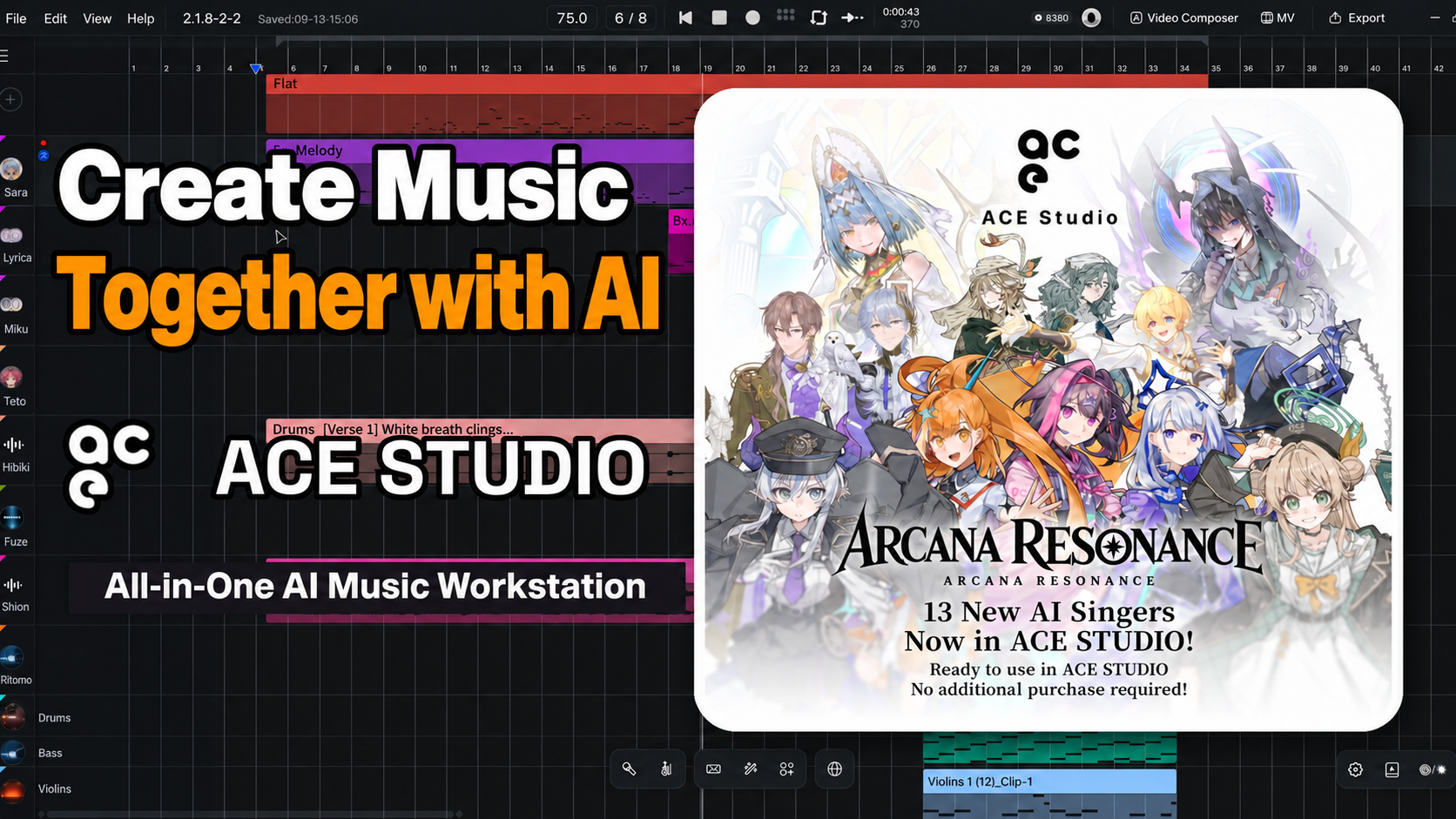
When you hear about making music with AI, you may picture a service that creates a finished song at the press of a button.
ACE Studio focuses on collaboration between people and AI.
Tell the AI what you want to do, and it responds with suggestions that you can develop together into a finished piece.
You can split a generated song into stems and place them on tracks, or convert vocals into editable data. Being able to work with the results immediately as production material is a key difference from typical AI composition services.
It provides the tools to complete a song, from music generation and vocal editing to arranging and export.
ACE Studio has three main strengths:
- Music generation and stem separation turn generated songs into editable production material.
- Japanese vocal conversion and intuitive expressive editing.
- Connect with ChatGPT or Claude and request edits in natural language.
A Production Workflow That Starts with Music Generation
We will start by using the music generation feature, Inspire Me, to build the basic structure of a song.
You may not be aware of it, but ACE Studio also includes music generation features.
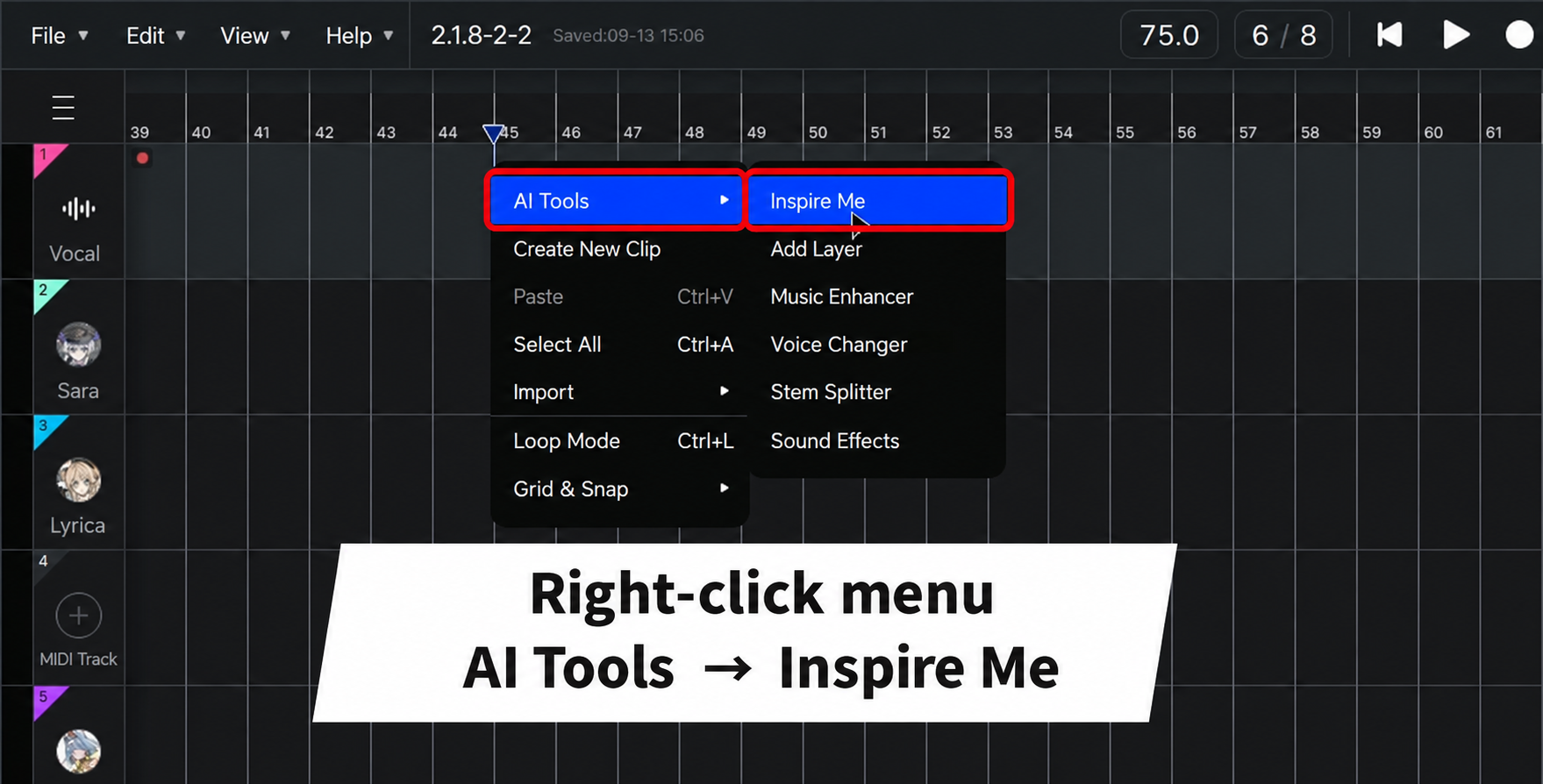
AI Tools brings together ACE Studio's AI features. You can also open the Stem Splitter and Sound Effects features introduced later from this menu.
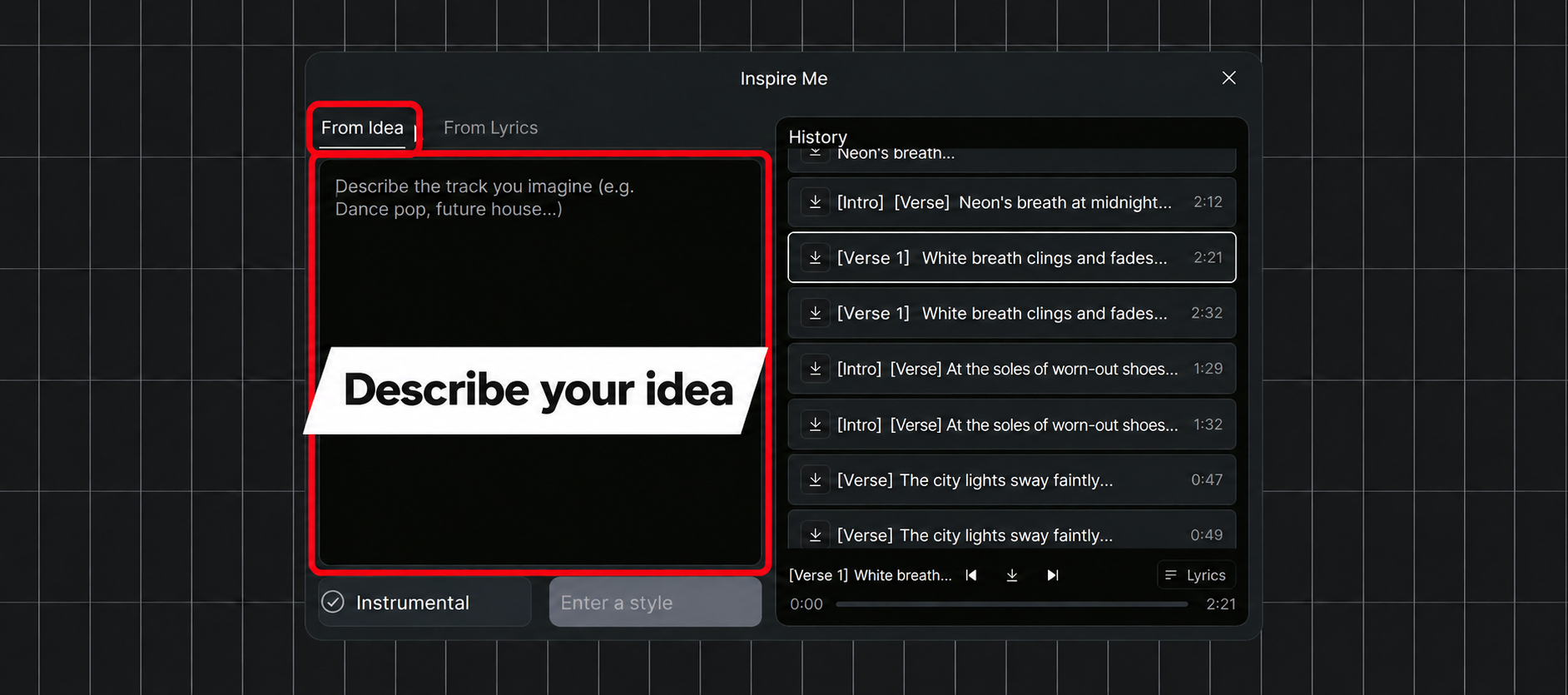
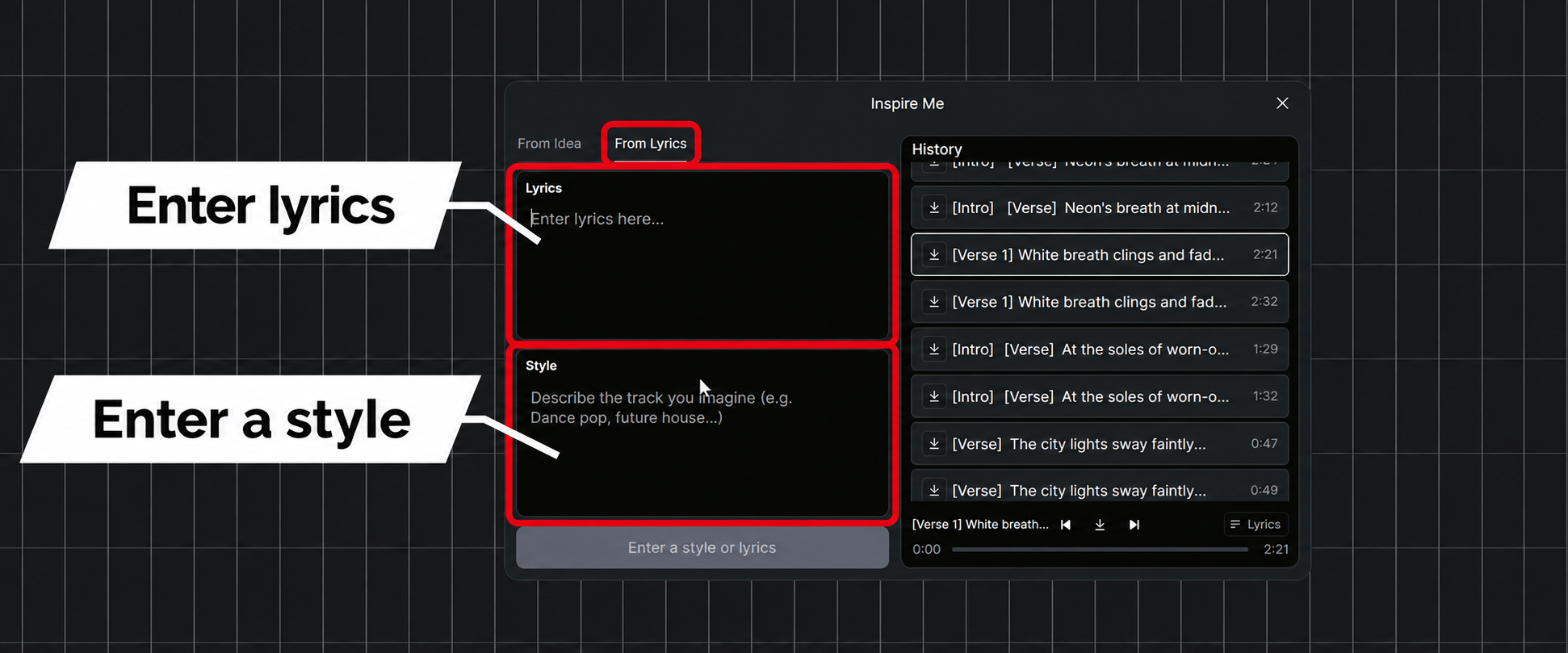
The History panel on the right lists songs you have generated. You can display and copy the prompts used, which is helpful when you want to try again in the same direction.
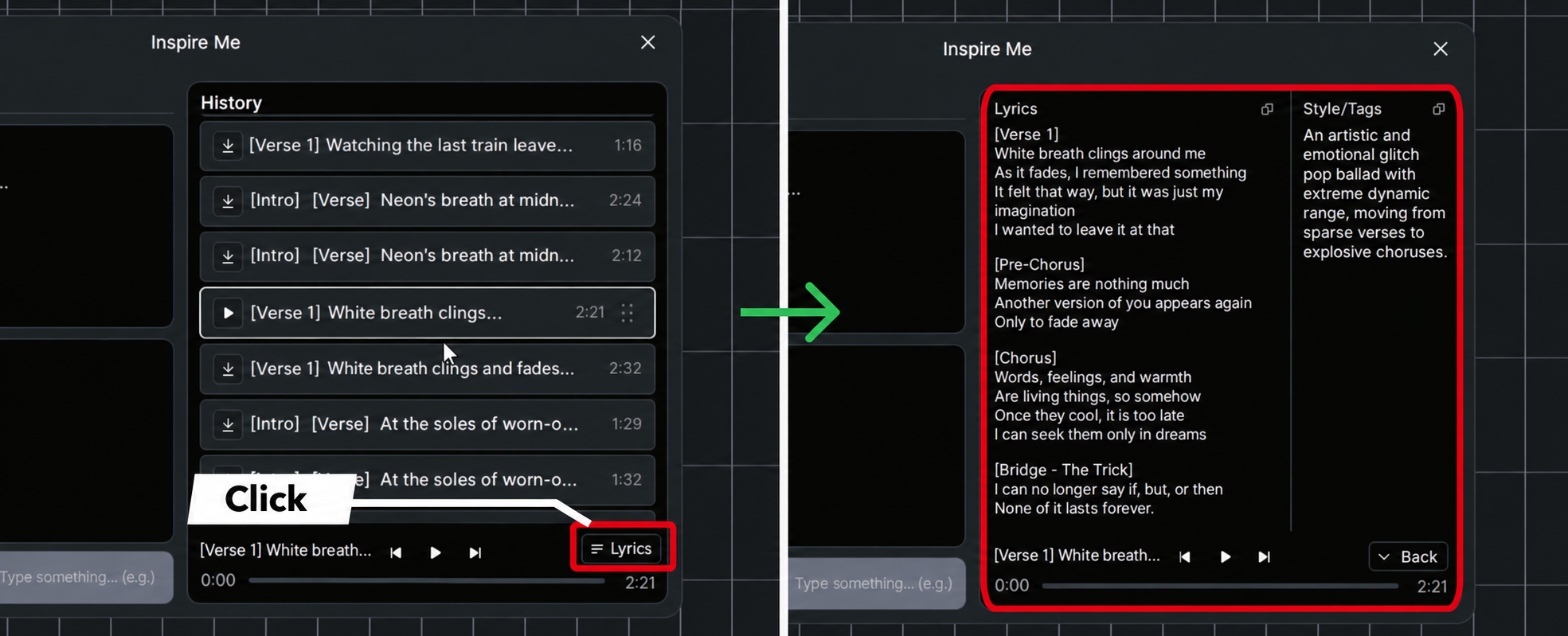
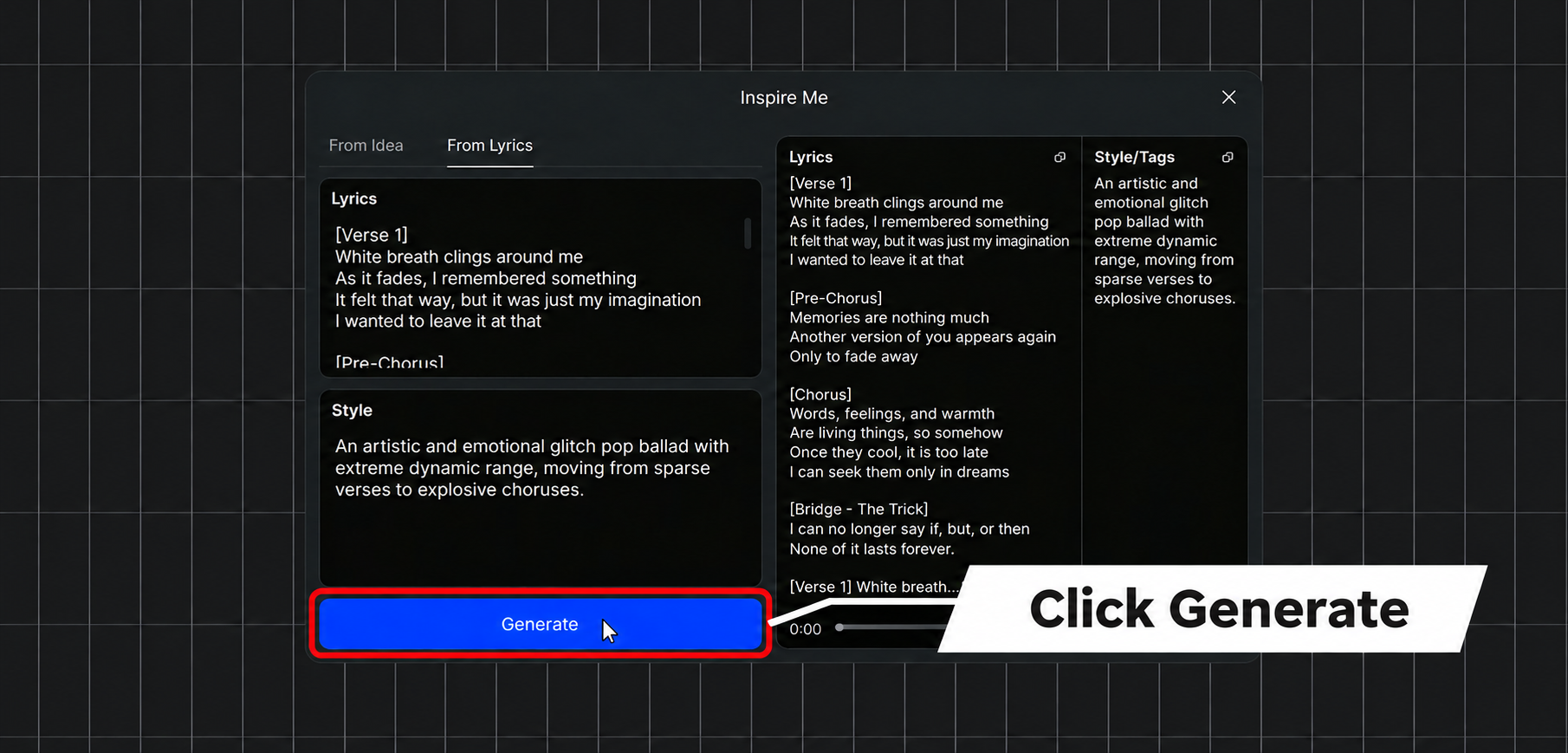
You can also use prompts from other music generation services as they are, so try it with some of your favorites.
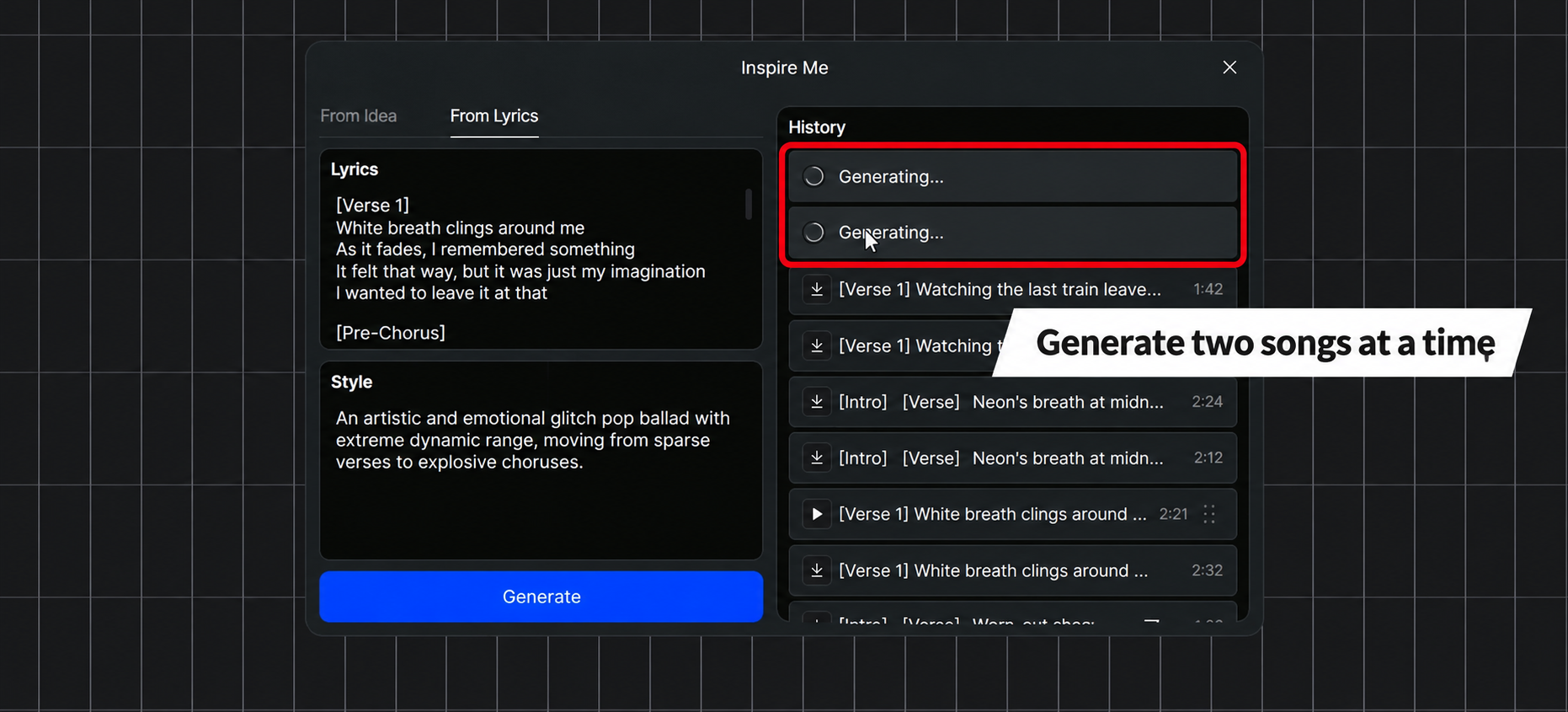
Each generation produces two songs, allowing you to compare them and choose the one you prefer.
In our hands-on experience, one distinguishing feature was its ability to generate music with a distinctly Japanese feel.
Importing a generated song onto a track is easy, too.
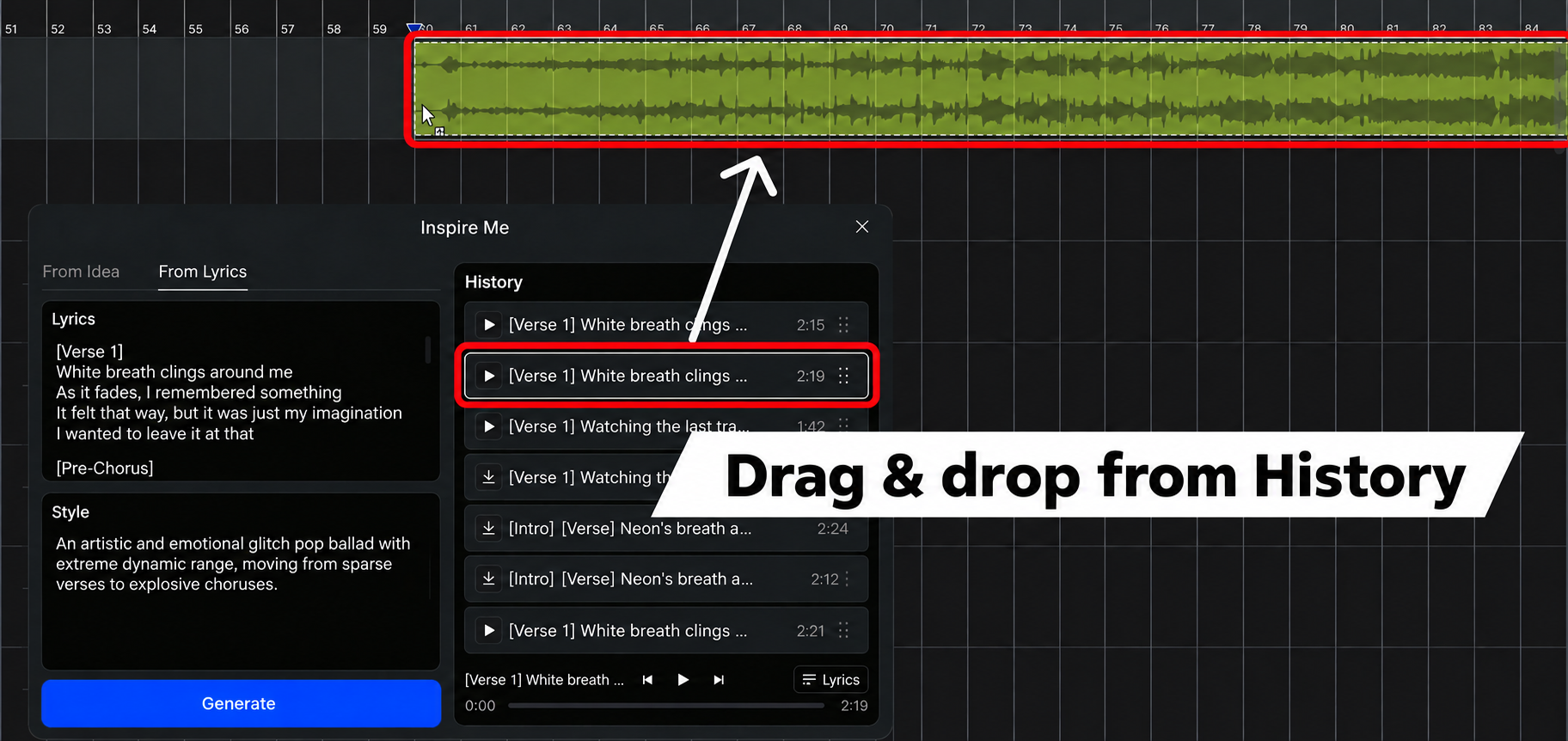
When you import a song onto a track, its tempo is displayed automatically. Use this to set the tempo and time signature.
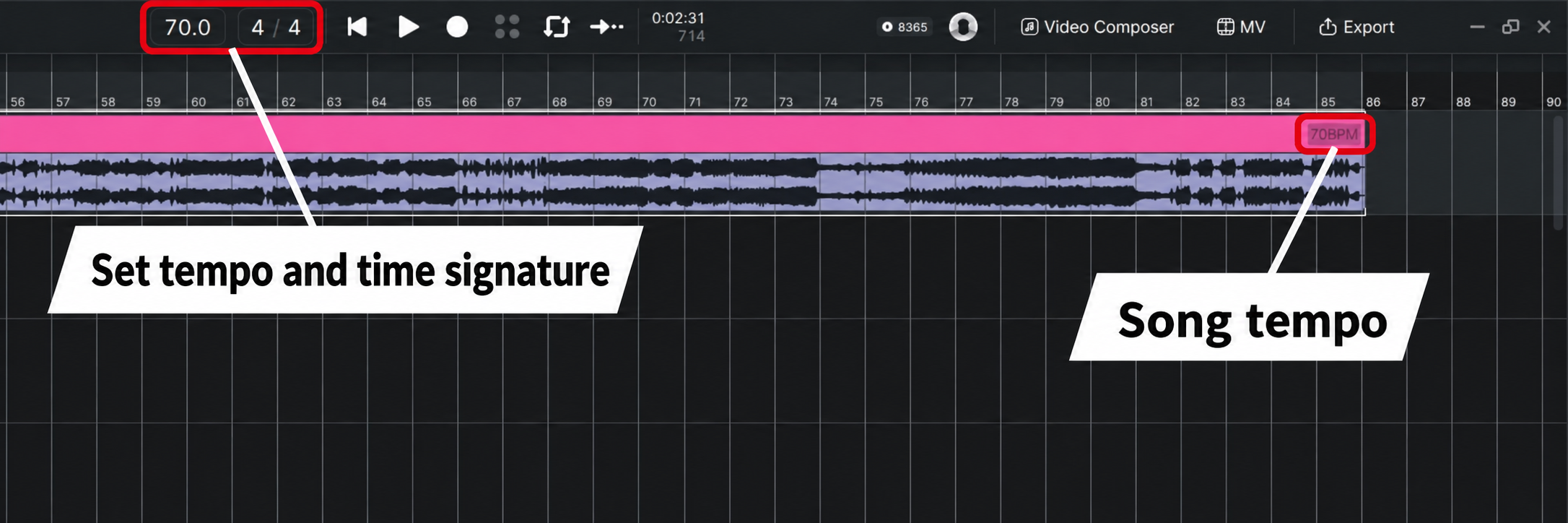
Generated songs do not necessarily start on the first beat of a bar, so use the metronome to align the song's position.
Stem Separation: Turn Finished Audio into Editable Material
With a finished audio file alone, you cannot change the melody or lyrics afterward.
ACE Studio's stem separation lets you split the song into separate tracks for each instrument, giving you material you can work with to revise the melody, lyrics, and performances.
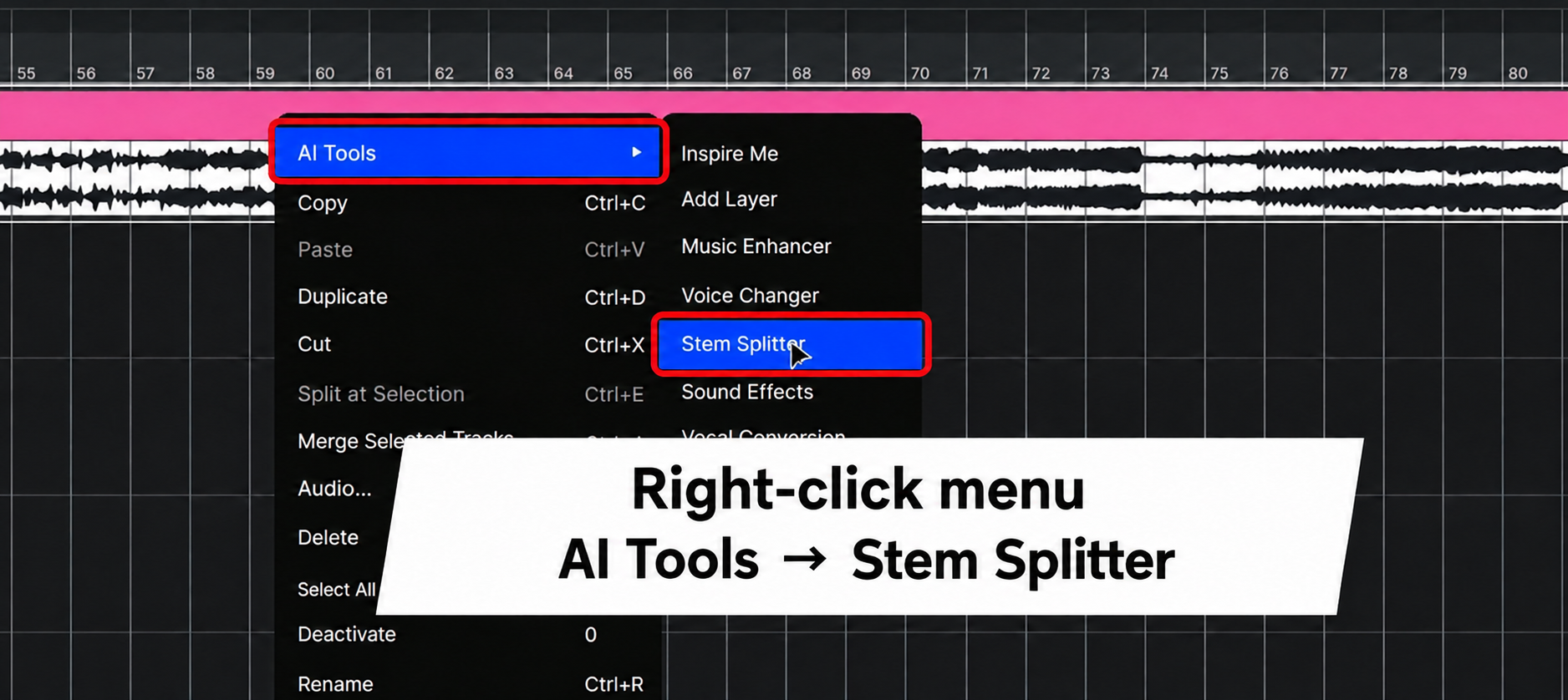
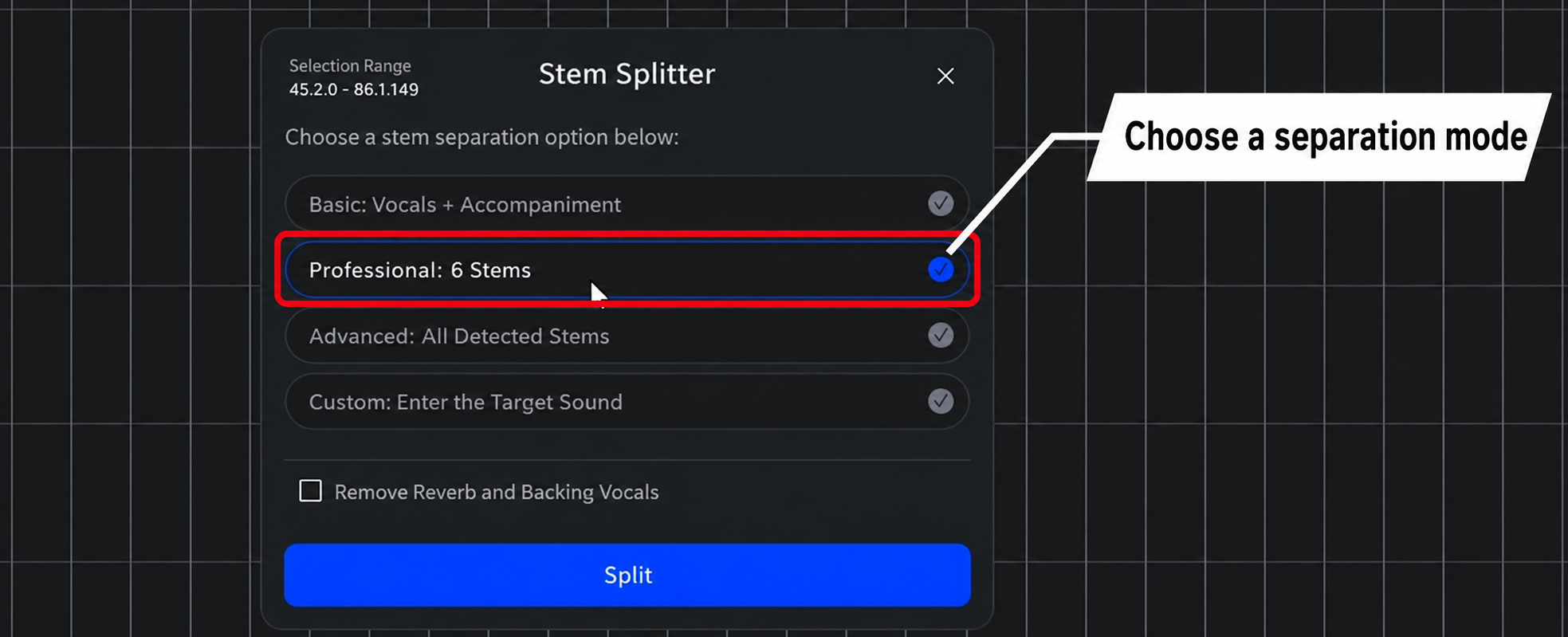
There are four separation modes to choose from:
- Basic: vocals and accompaniment
- Professional: six stems
- Advanced: all detected stems
- Custom: enter the target sound
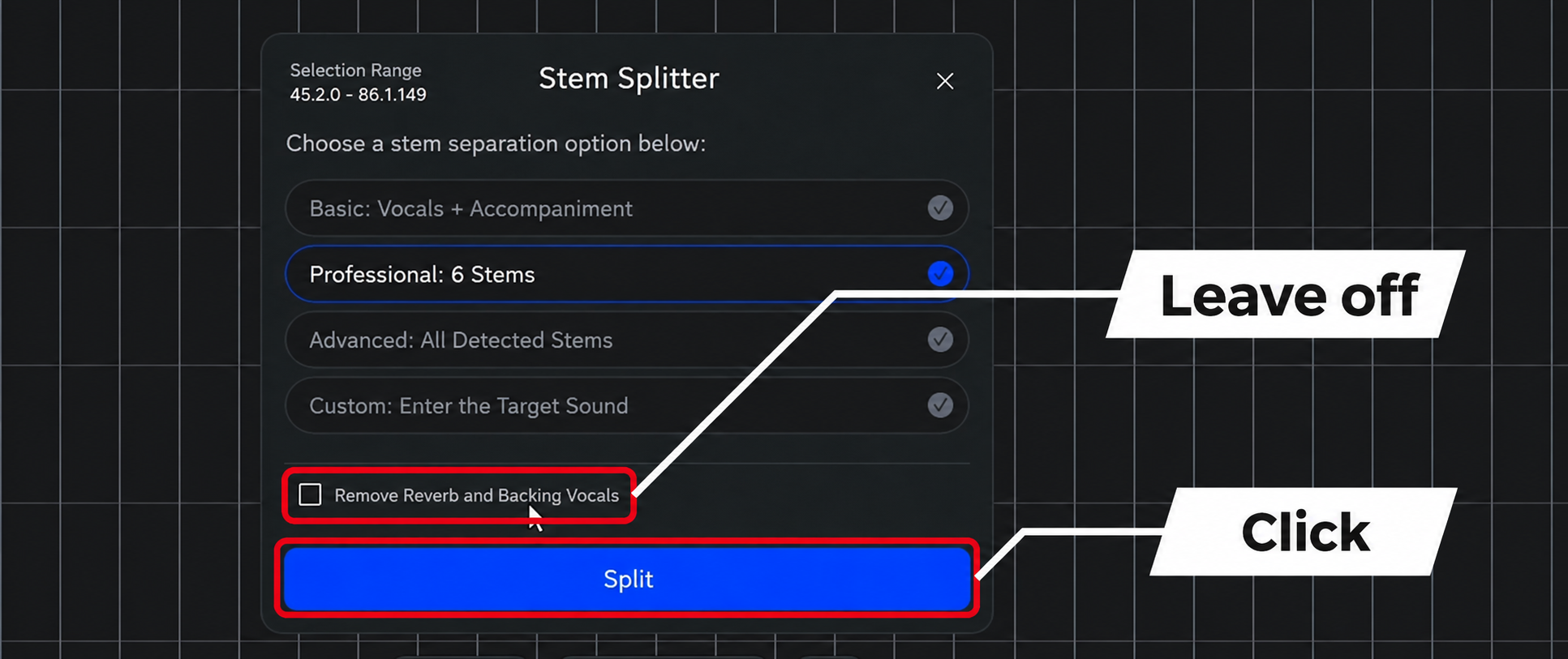
Enabling Remove Reverb and Backing Vocals can sometimes remove parts of the lead vocal as well, so we recommend leaving it unchecked when splitting.
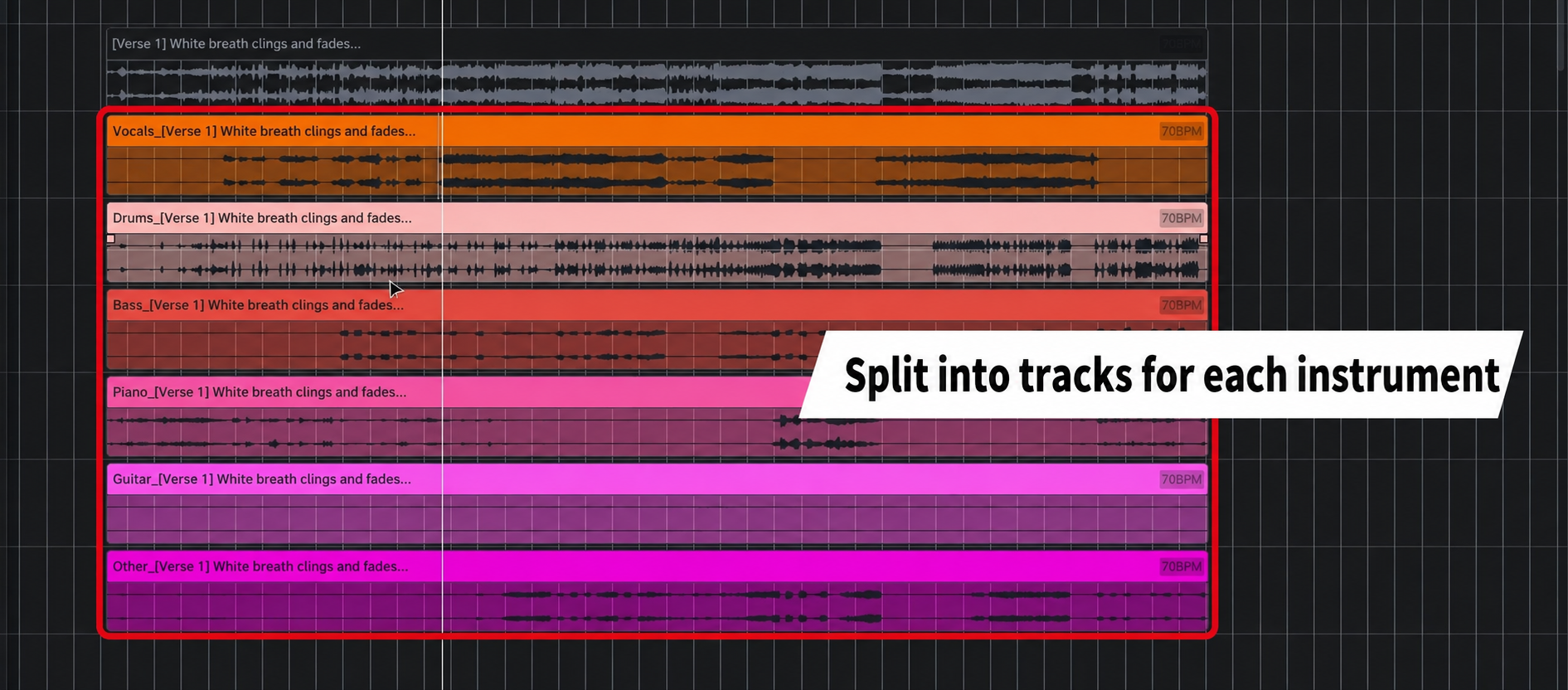
Processing is fast: short clips can be completed in less than a minute.
The accuracy of the separation is a strength, including its ability to isolate low-frequency sounds such as bass.
AI Vocals: From Conversion to Detailed Expression
ACE Studio's standout vocal features let you adjust the singing style intuitively, even without specialized musical knowledge.
Vocal Conversion
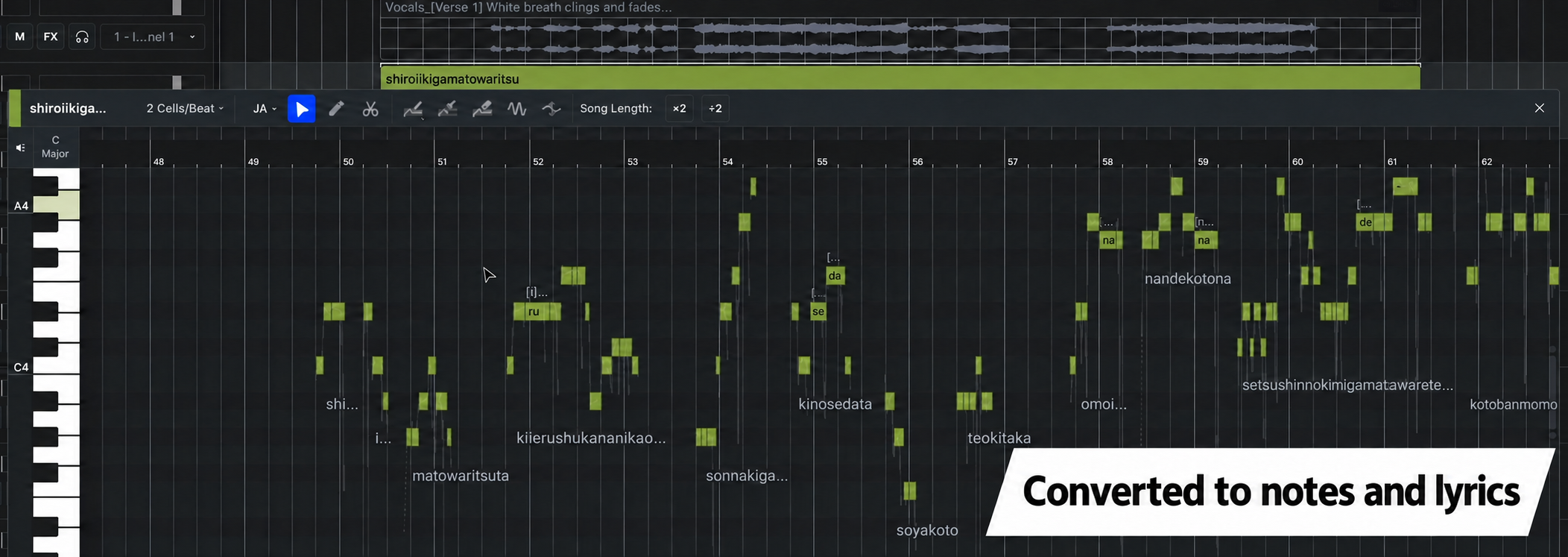
Convert recorded vocals into editable data containing notes and lyrics.
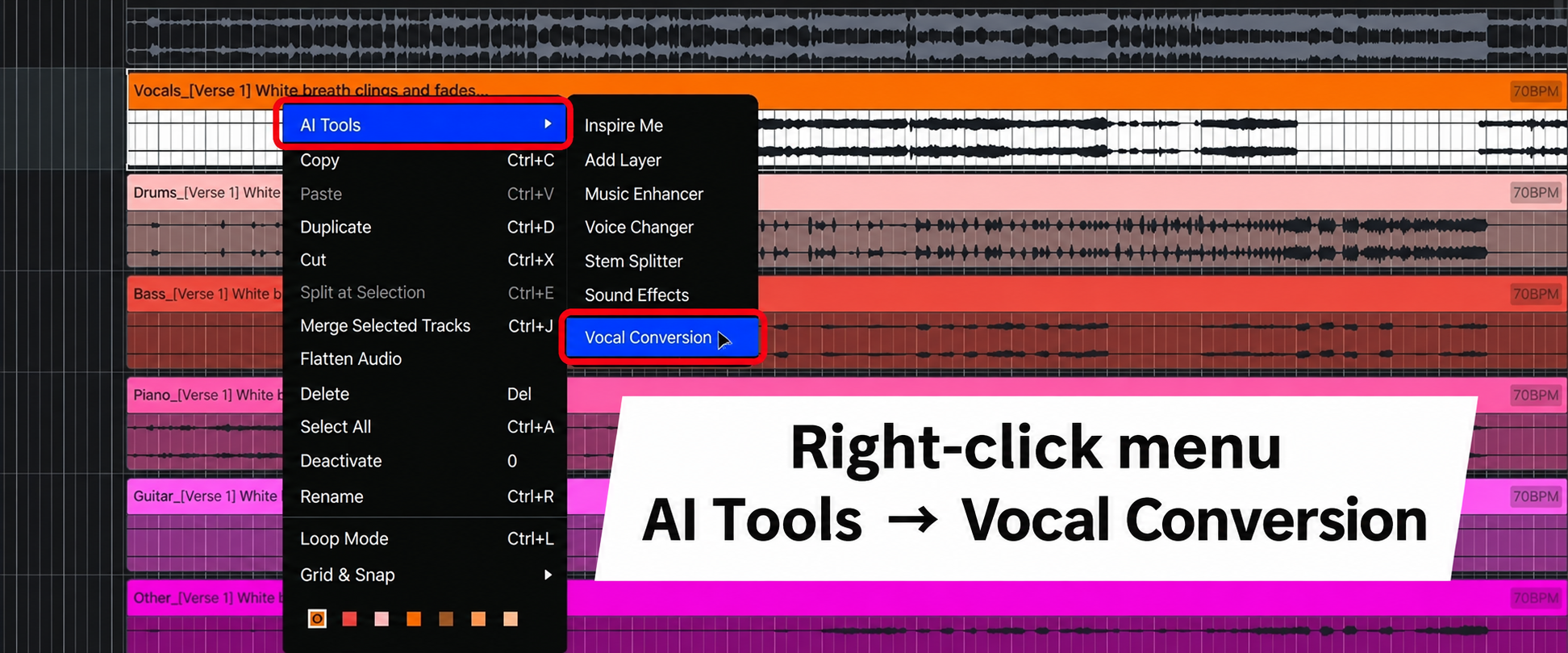
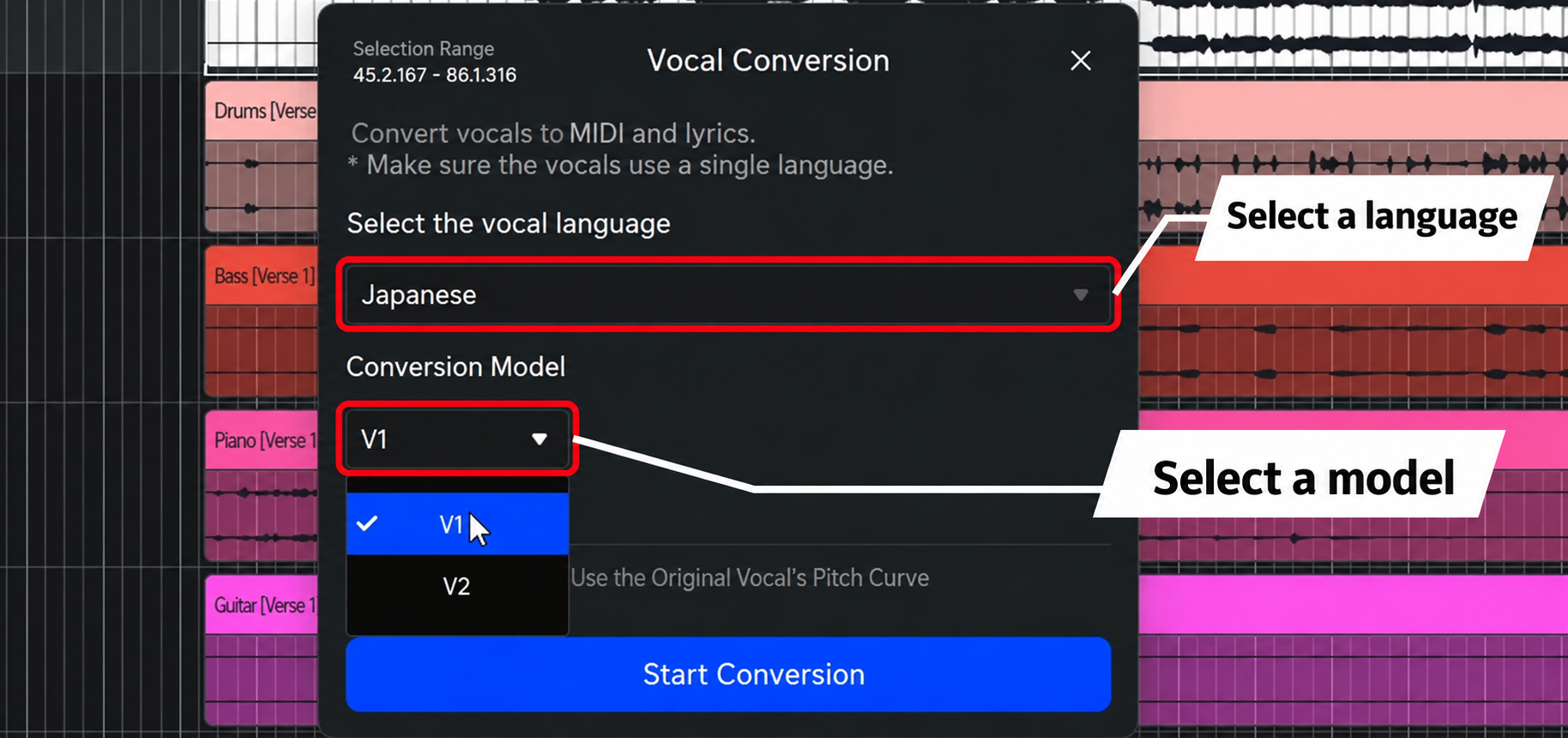
An update has added a new V2 model.
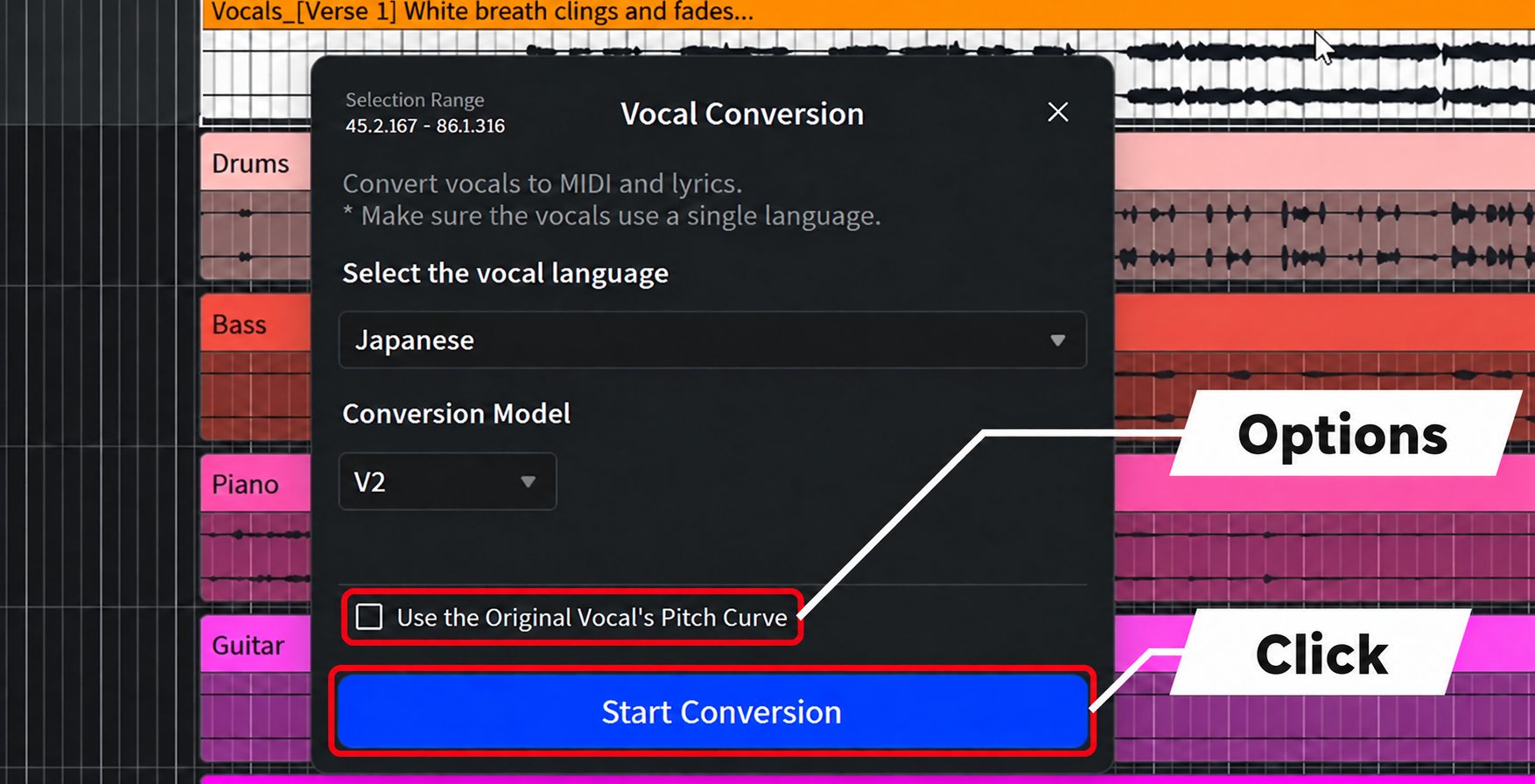
Checking Use the Original Vocal's Pitch Curve lets you convert the vocals while retaining the original phrasing and nuances.
If you want to make detailed adjustments yourself, leaving this option unchecked makes editing easier.
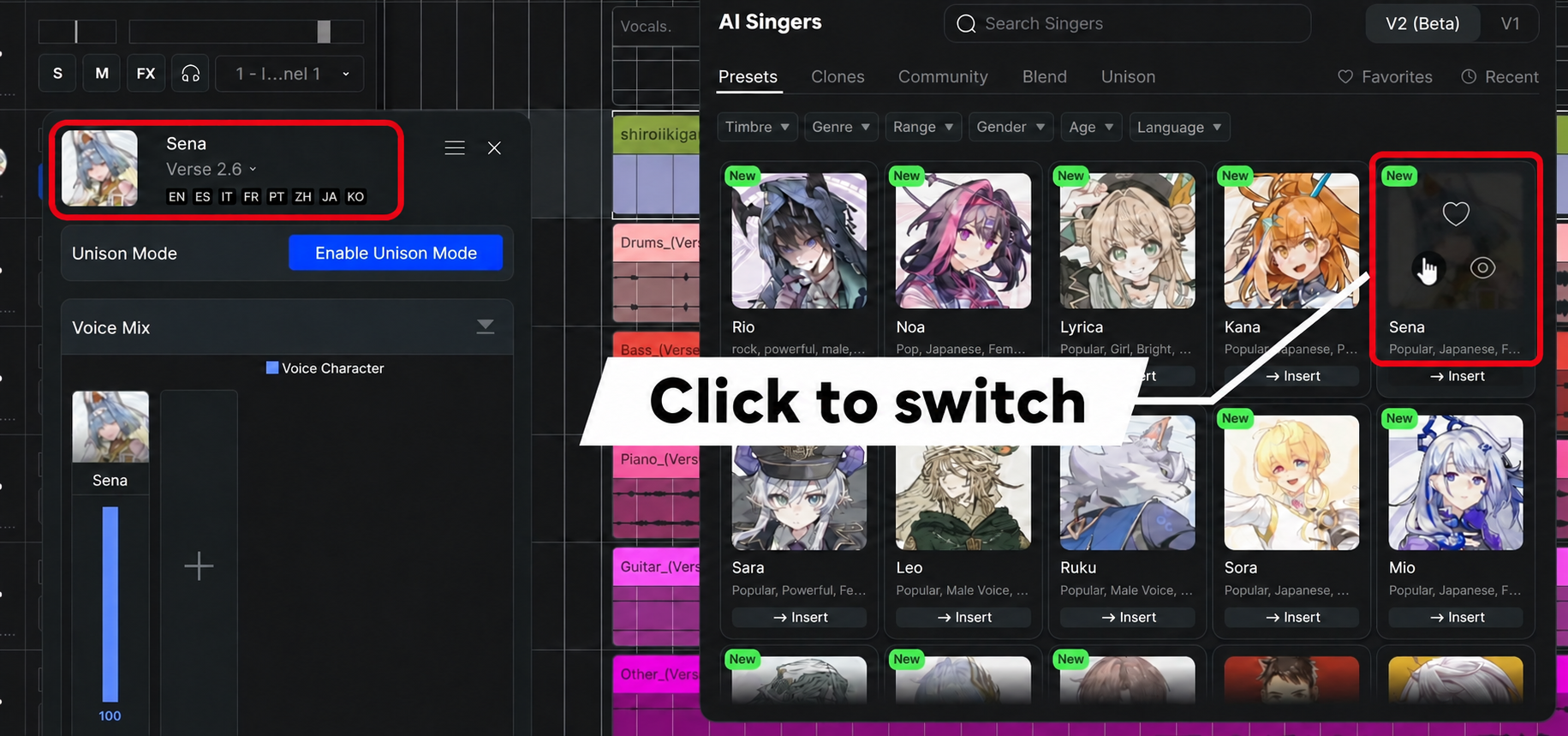
Choosing a Character
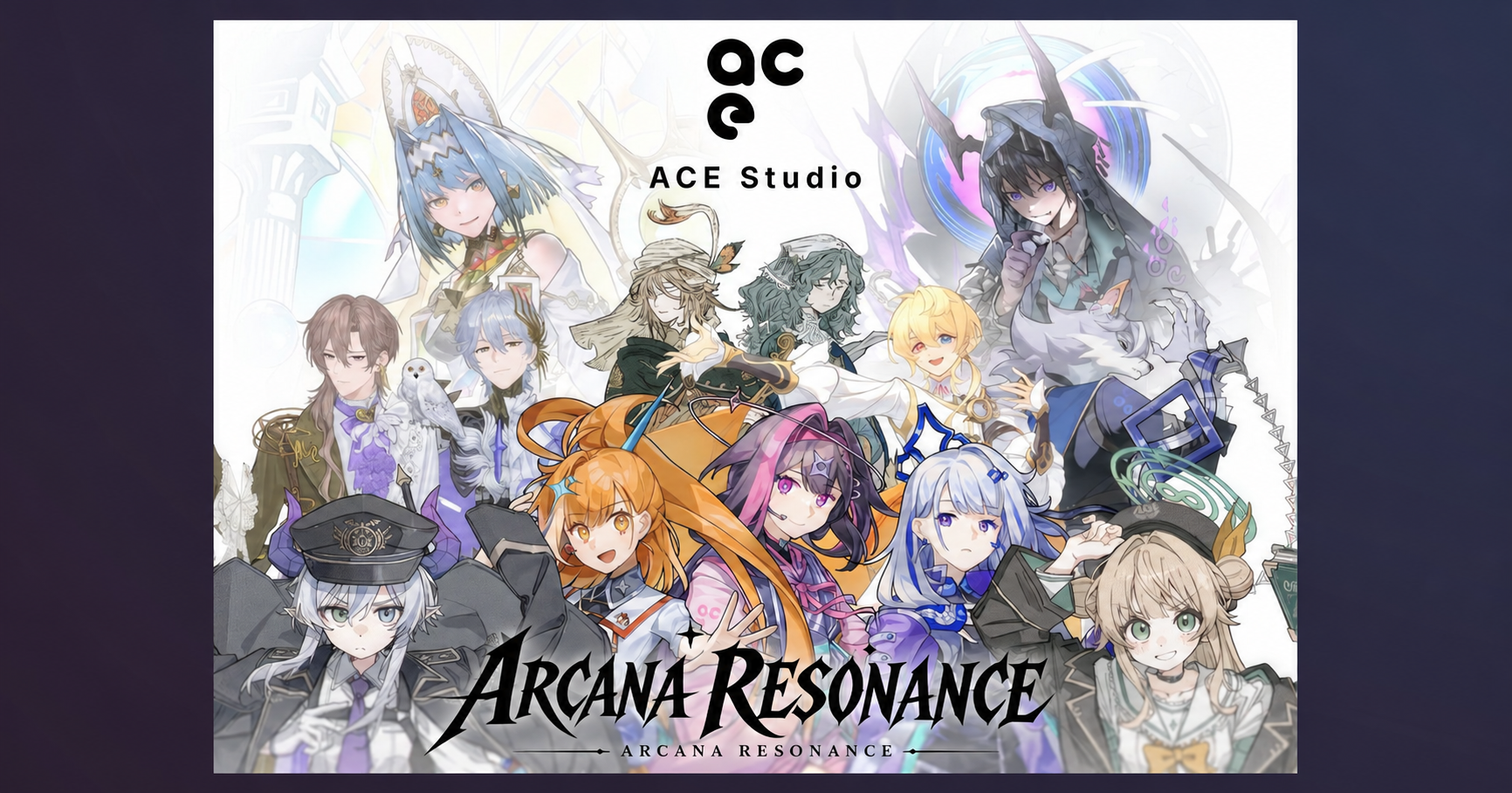
The original character project Arcana Resonance has introduced 13 new Japanese AI singers.
ACE Studio users can use every character immediately without an additional purchase.
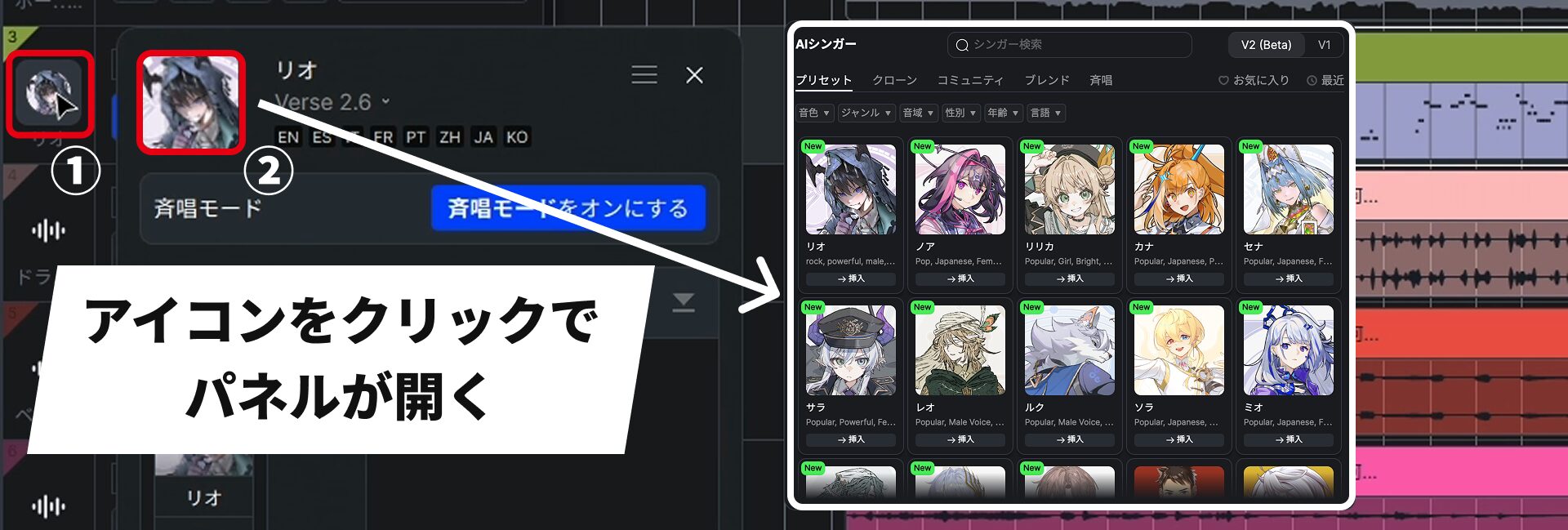
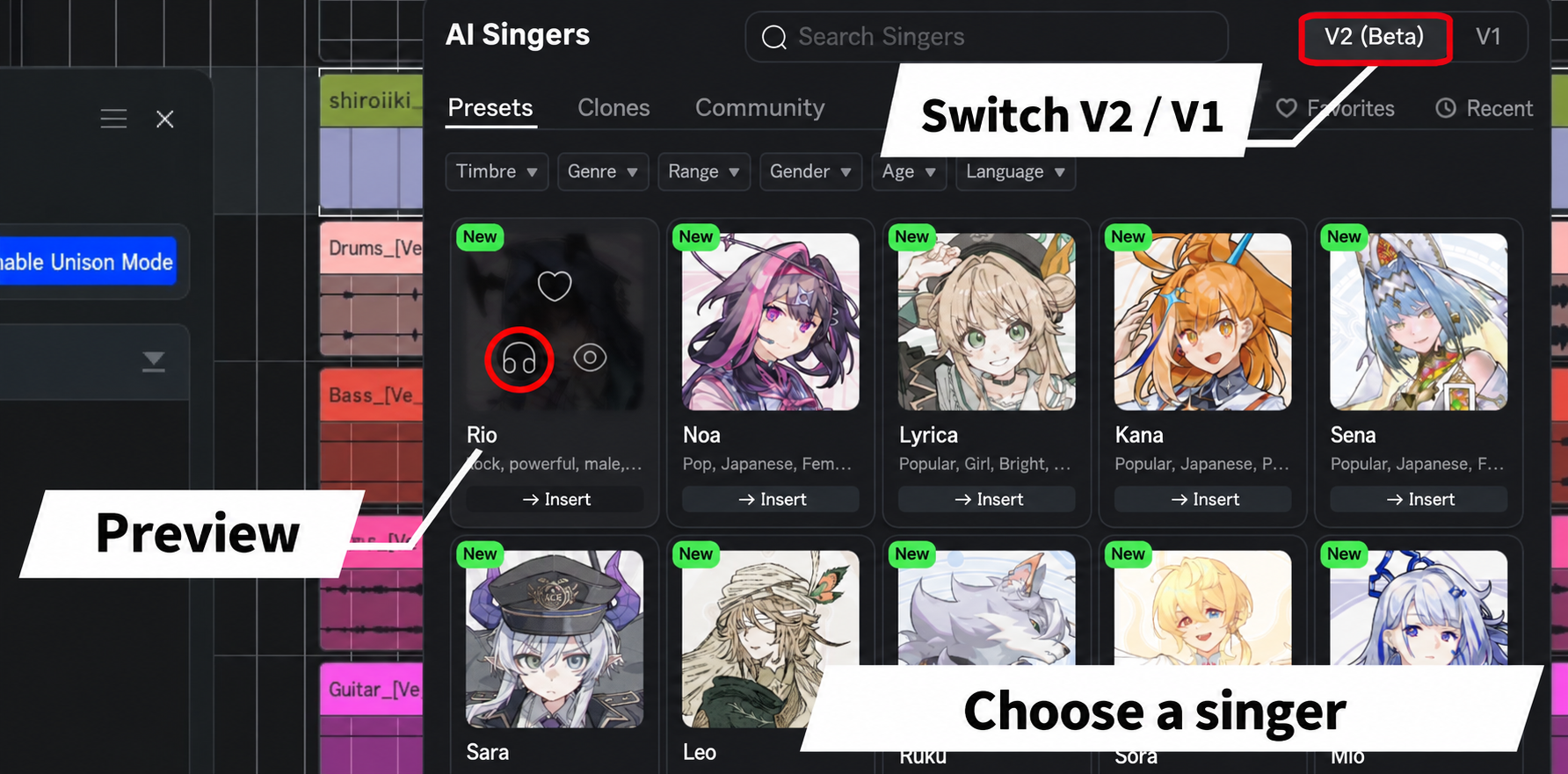
Each character has a clearly distinct voice, making the selection process enjoyable.
You can preview each voice, and the switch at the top right still lets you select V1 models.
Correcting Lyrics and Automatically Applied Effects
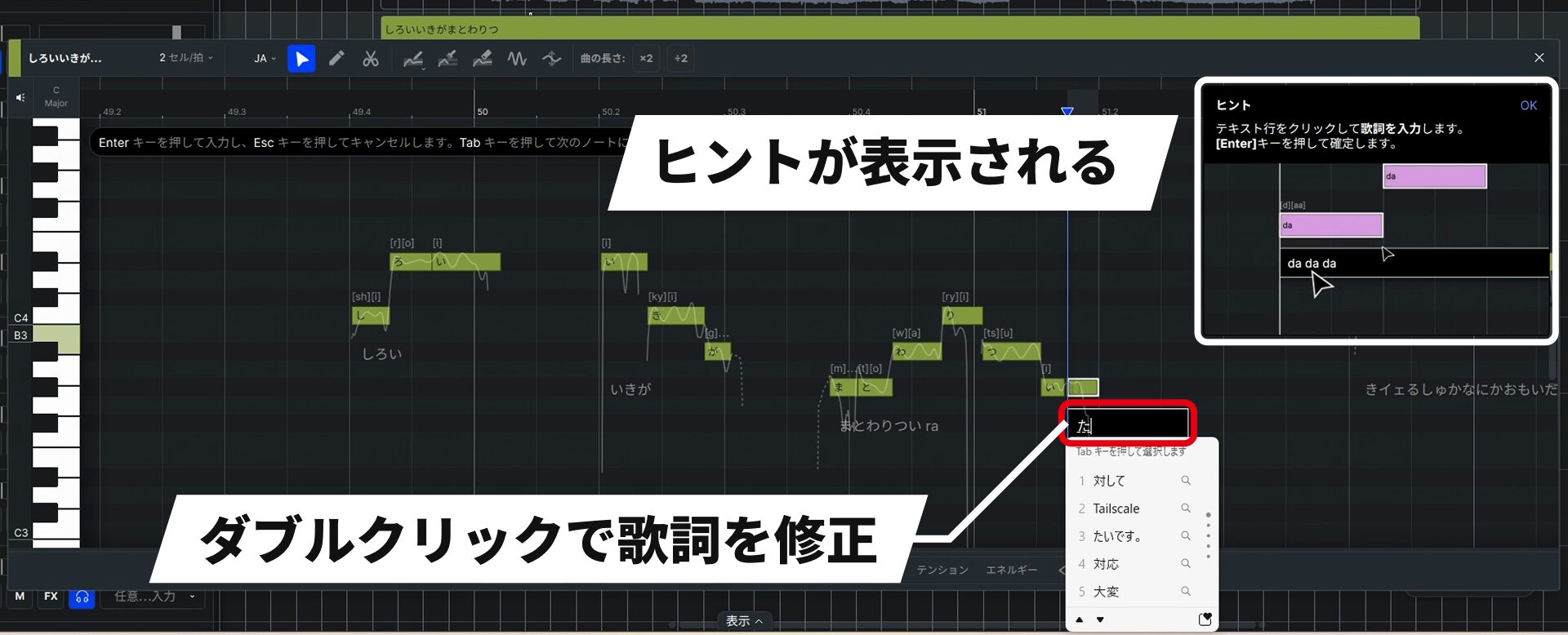
If any automatically entered lyrics were recognized incorrectly, you can correct them one note at a time or by phrase.
Hints appear as you work, making the interface easier to follow for first-time users.
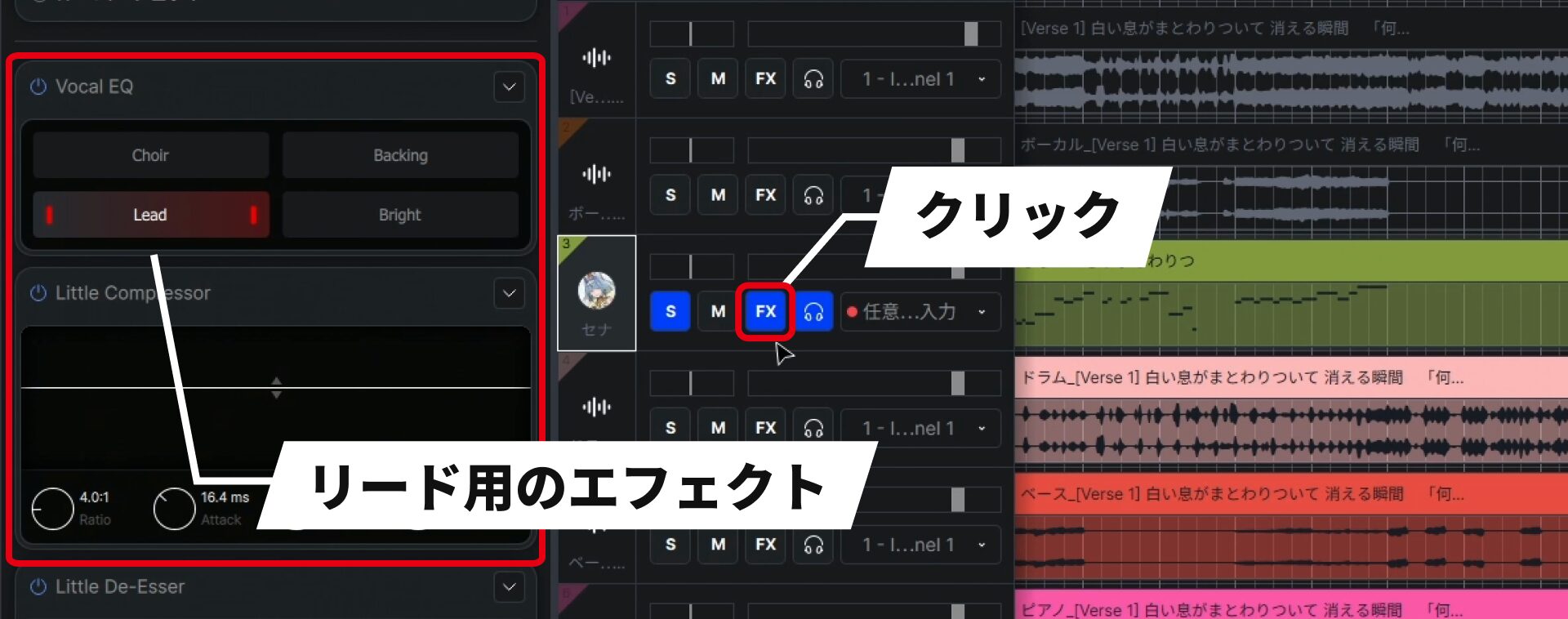
Effects are applied automatically, so the result sounds ready to use even without further adjustment.
Dynamics: Control Expression by Drawing
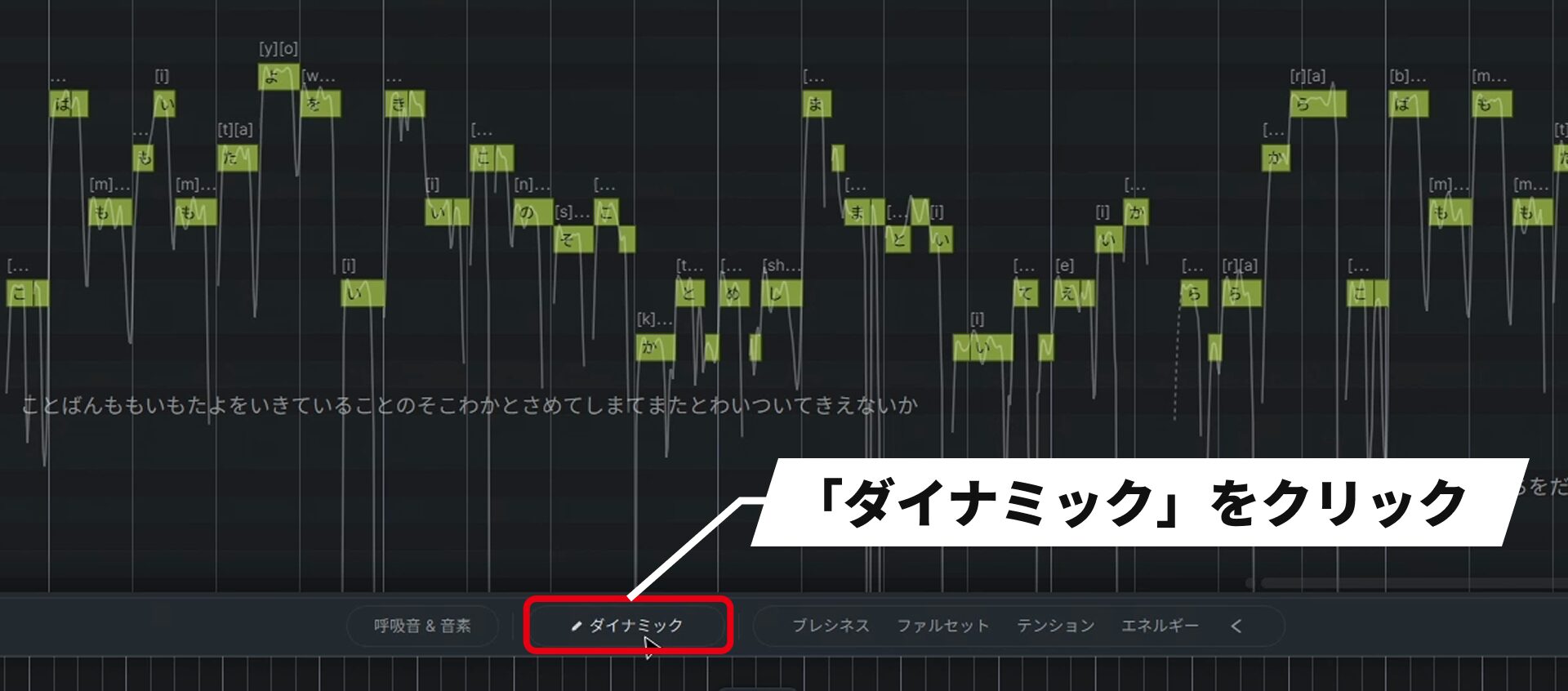
The newly added Dynamics feature changes the vocal's expression based on the curve you draw.
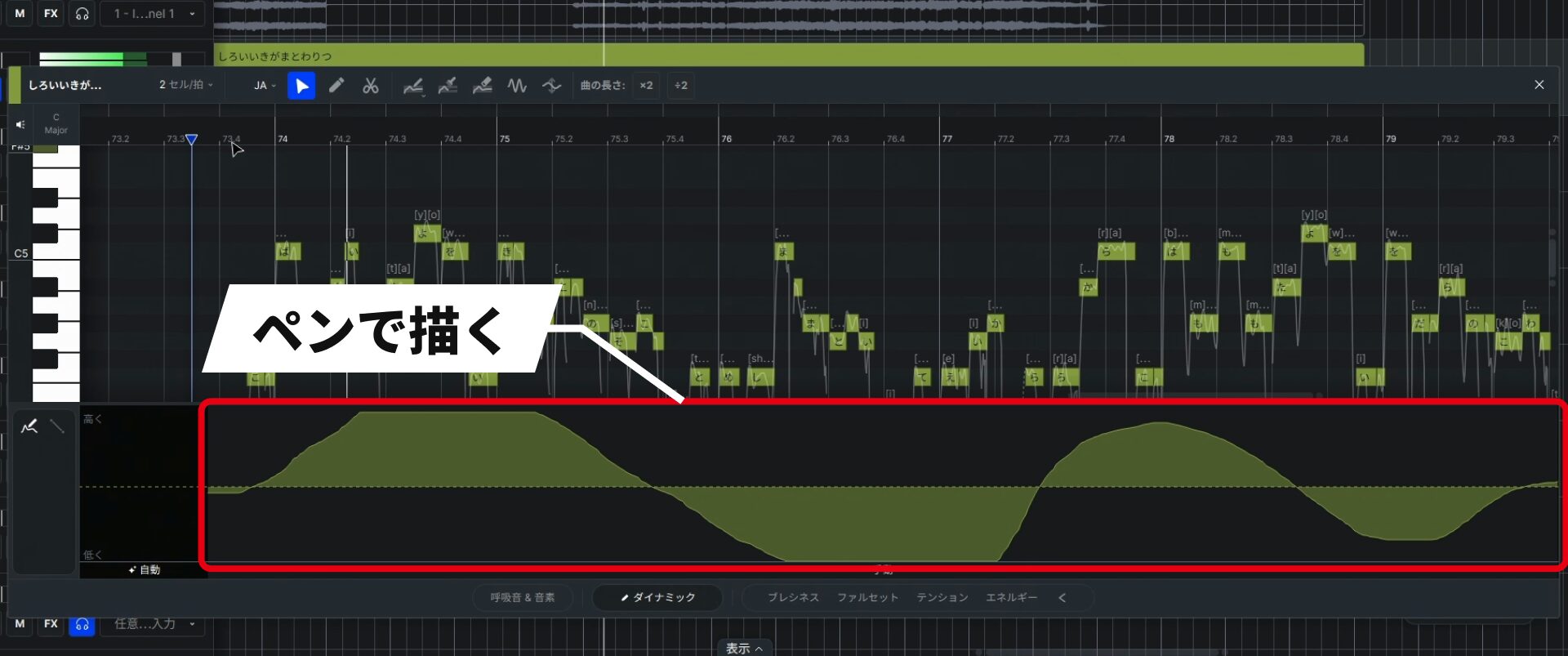
Interpreting and applying your intent from broad instructions is one of AI's strengths.
For Those Who Want More Detailed Control
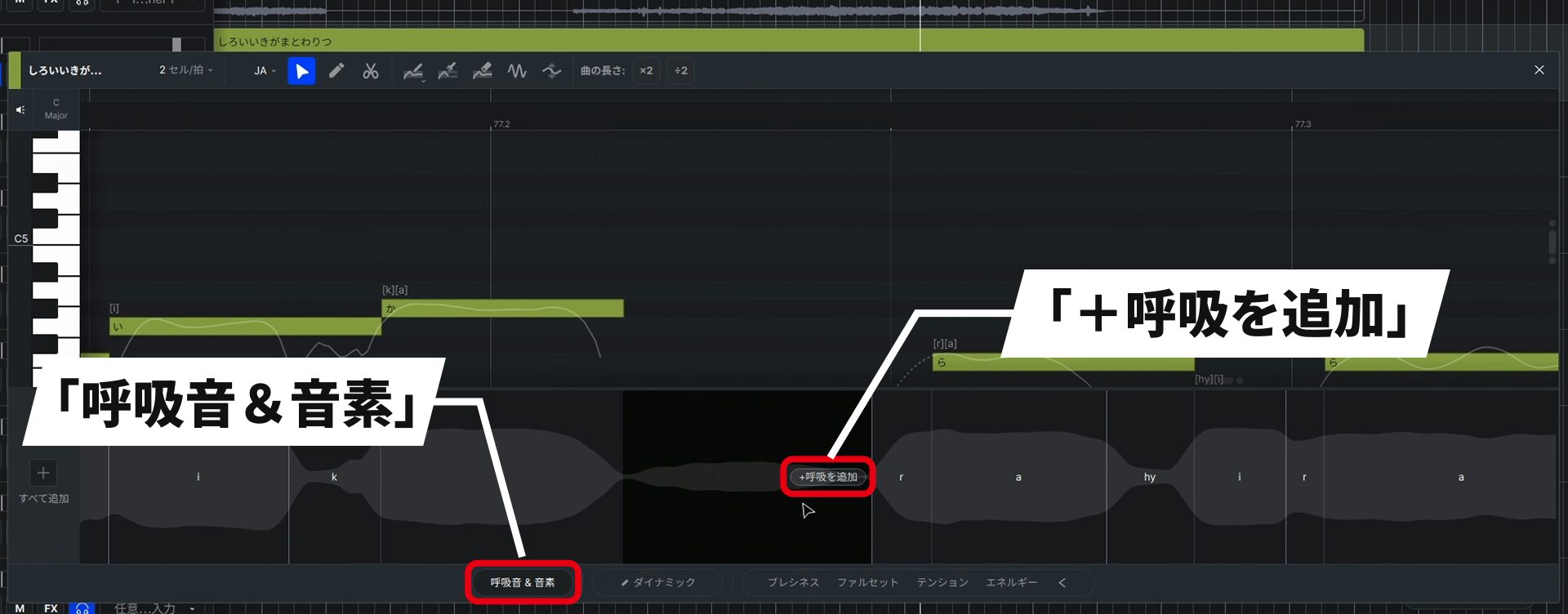
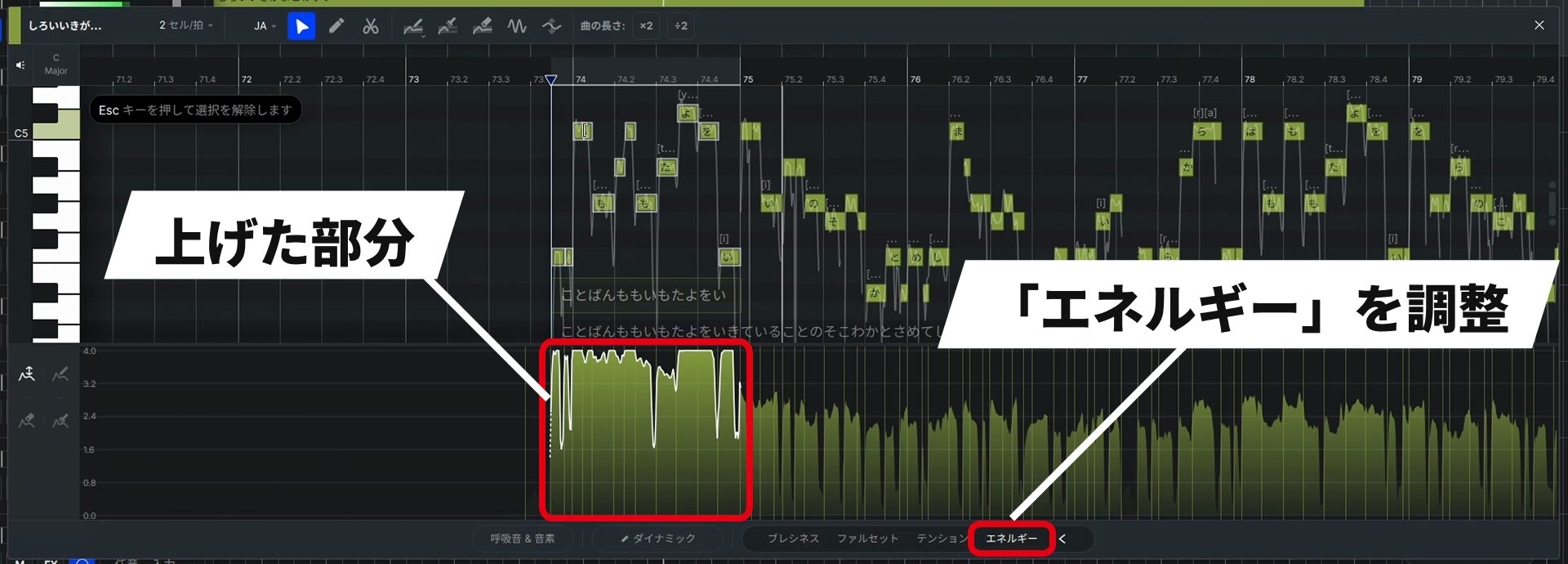
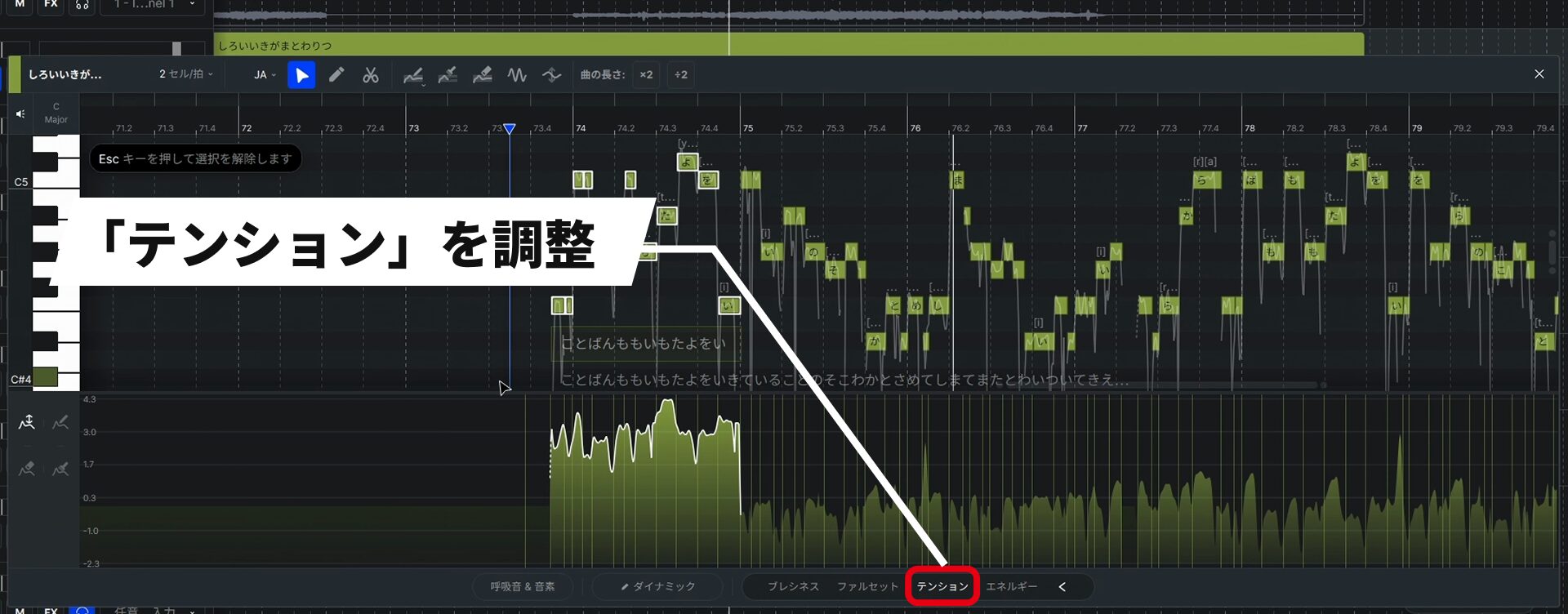
Parameters such as Breathiness, Falsetto, Tension, and Energy all stay within a natural range, so even substantial adjustments are unlikely to produce an unnatural result.
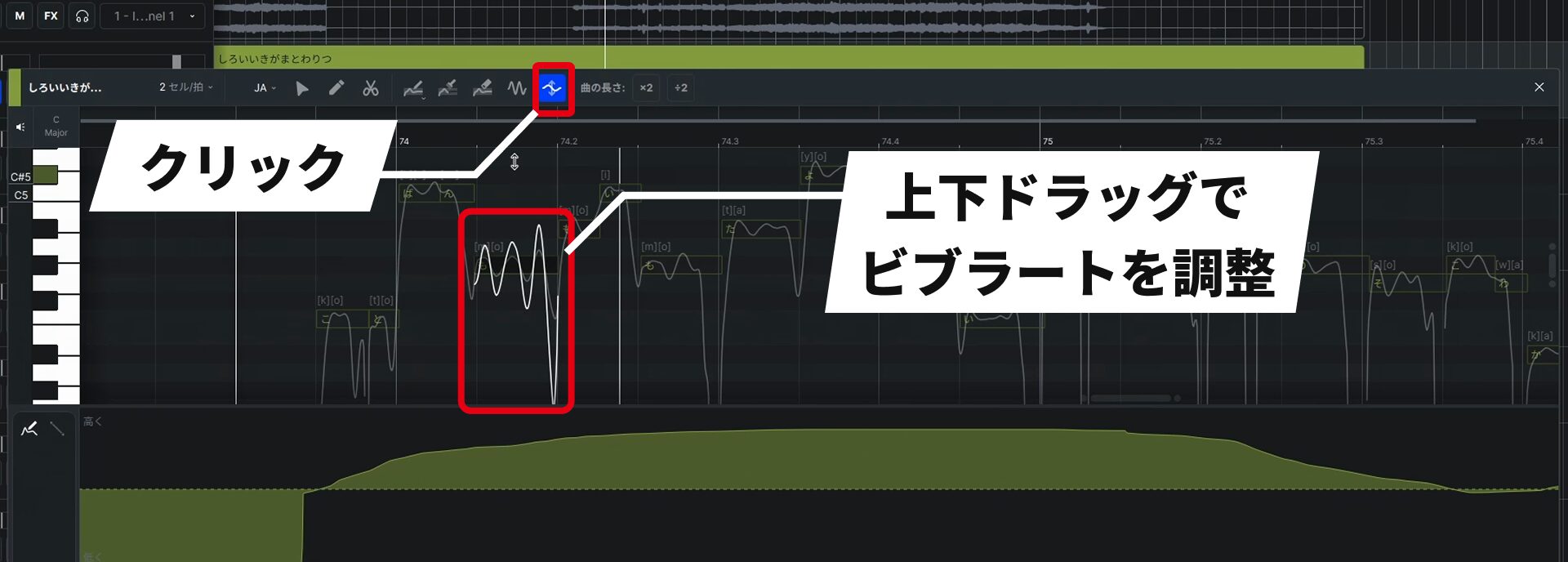
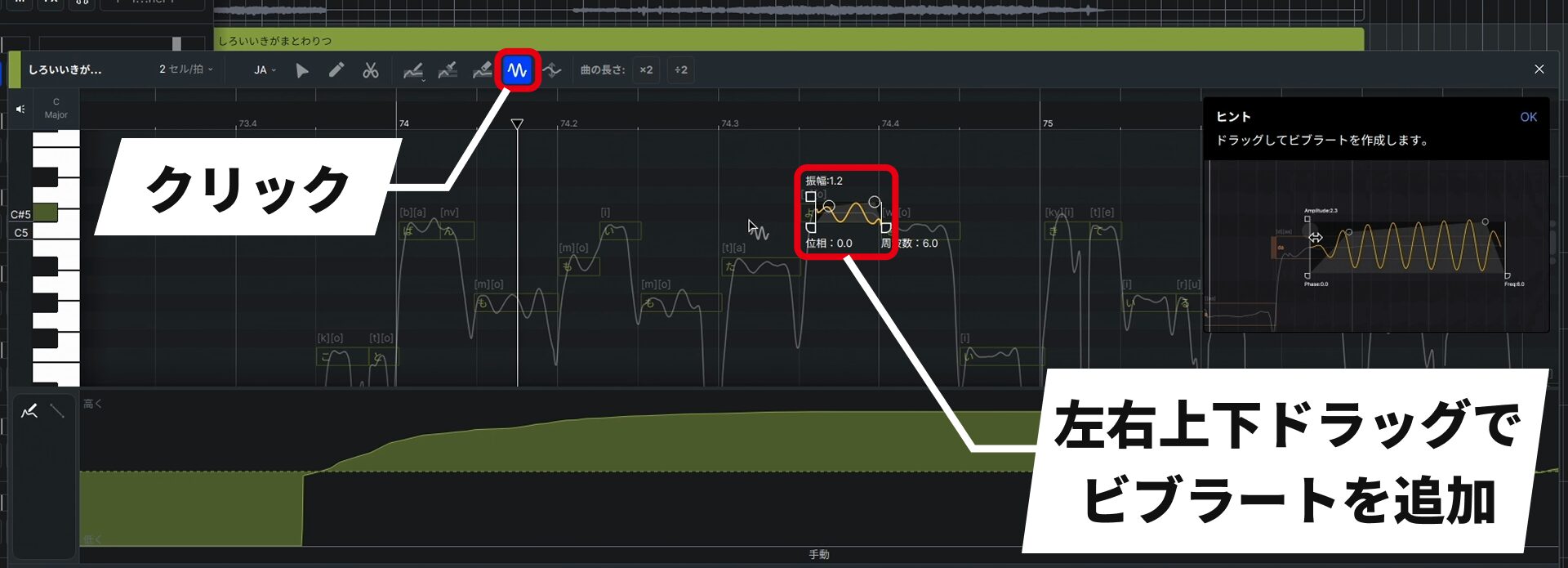
Edited sections change color, so you can see at a glance where you have made changes.
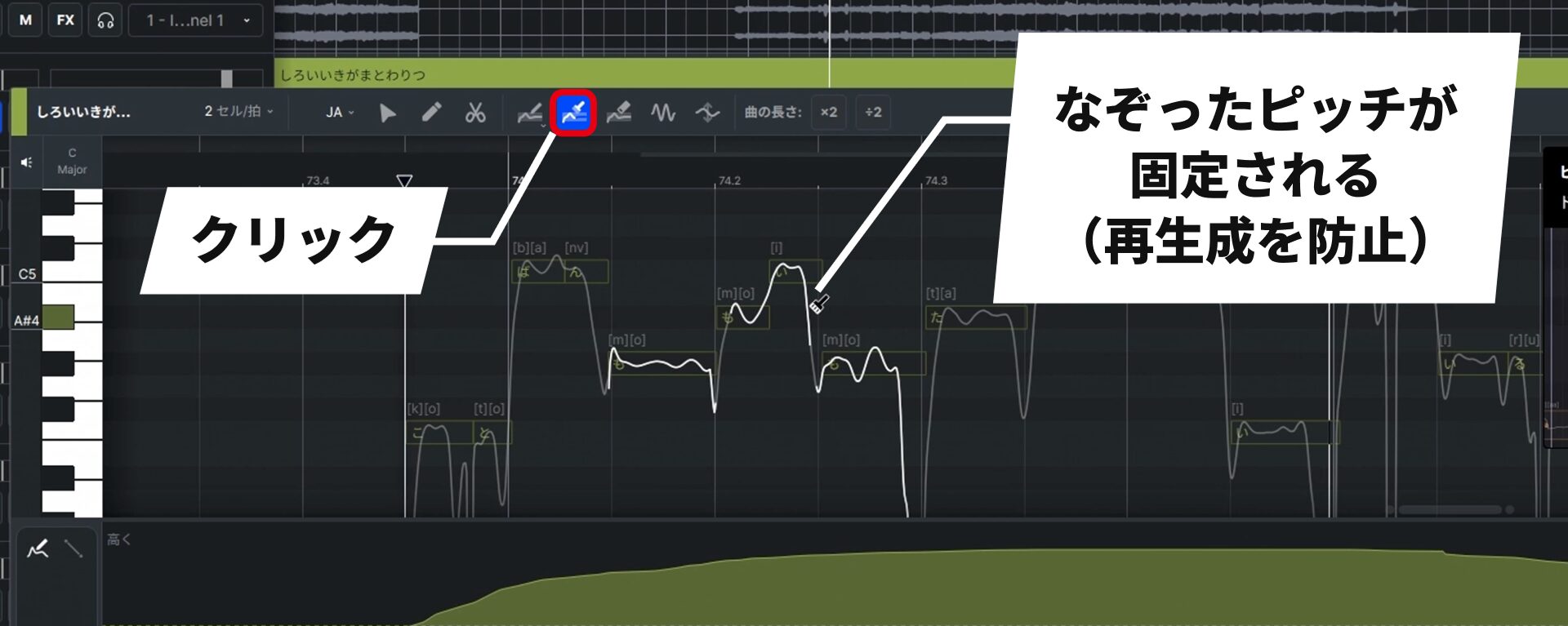
There is also a pitch lock feature that prevents the AI from regenerating the pitch when you change lyrics or notes.
AI Agent Features That Connect with ChatGPT and Claude
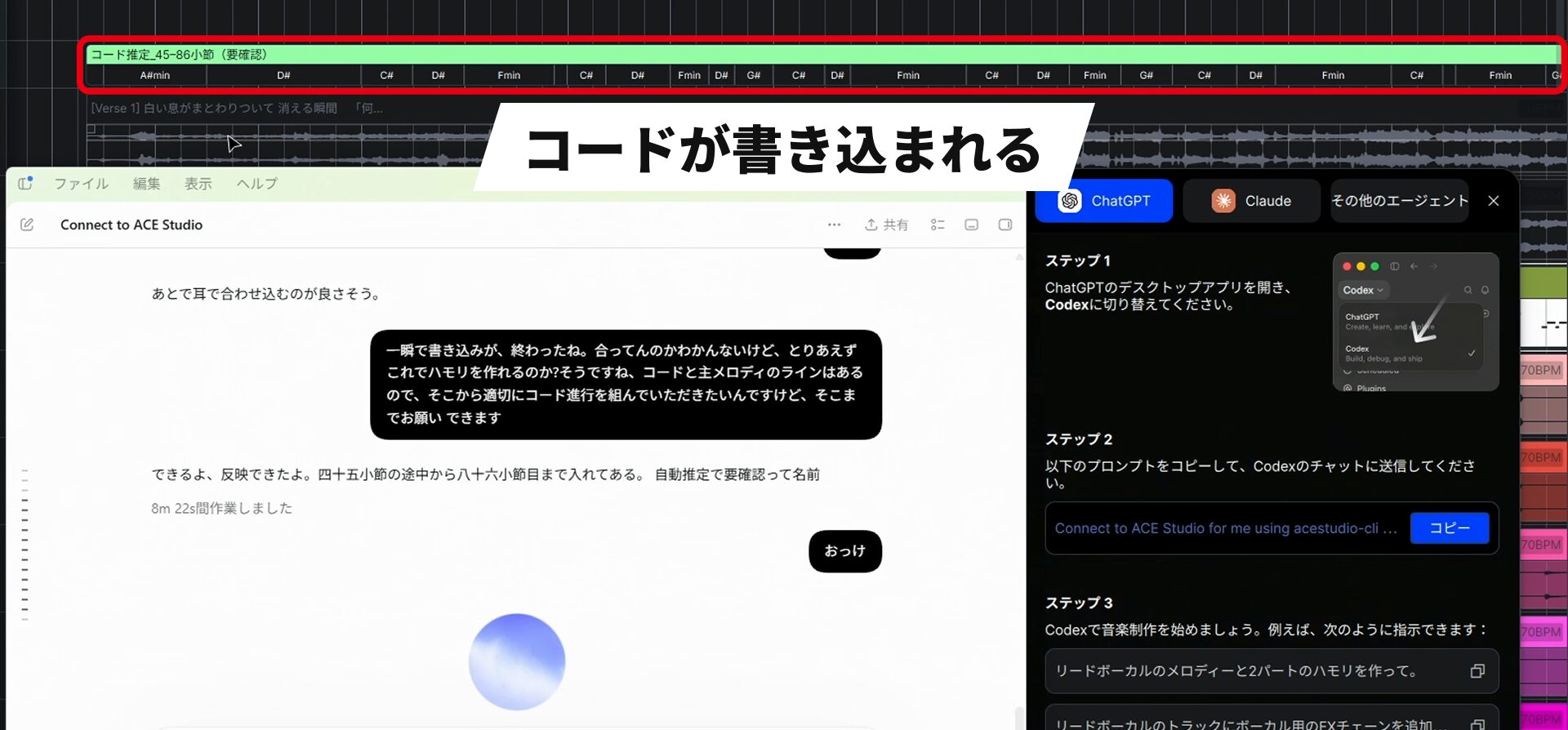
Connect an external AI agent to ACE Studio and request editing tasks in natural language.
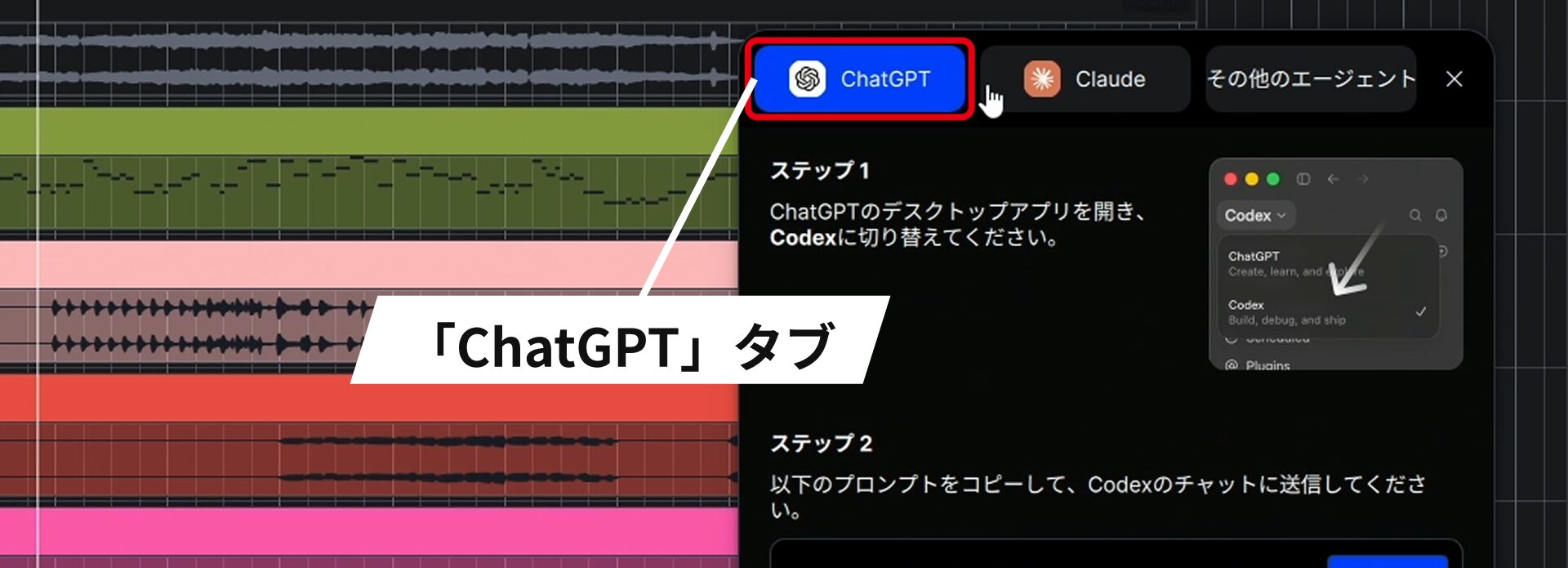
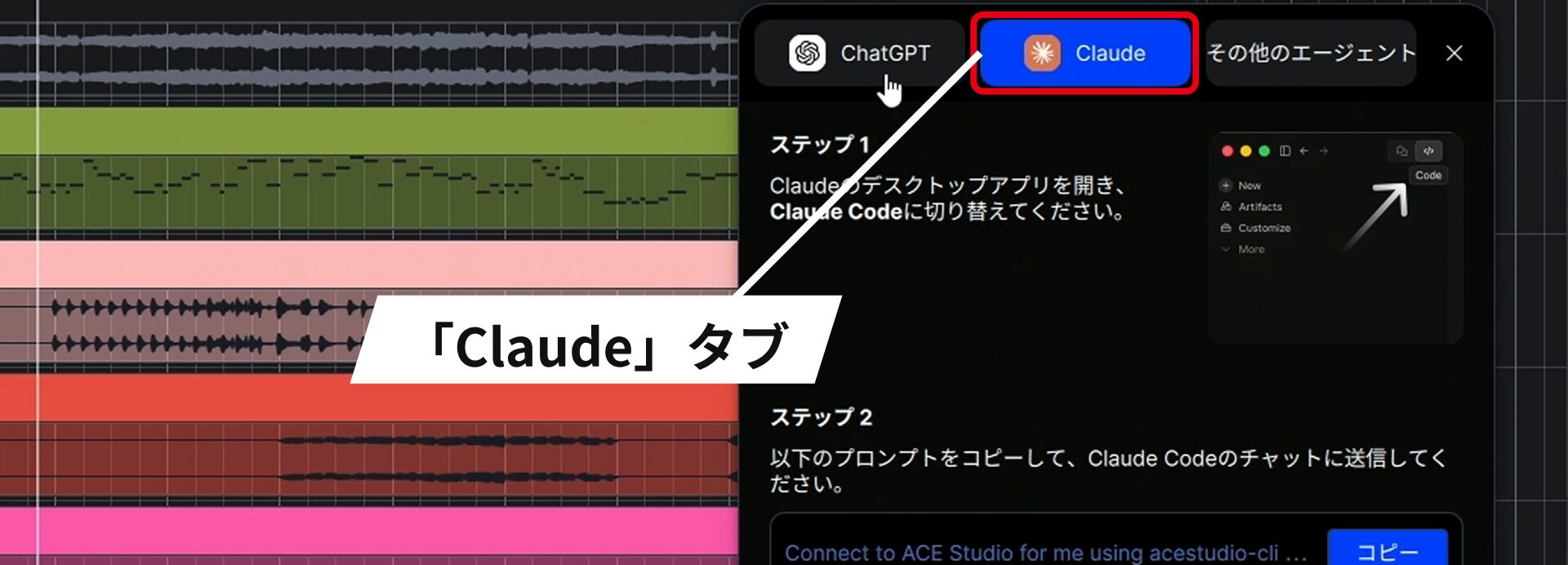
You cannot connect using ChatGPT or Claude in a web browser.
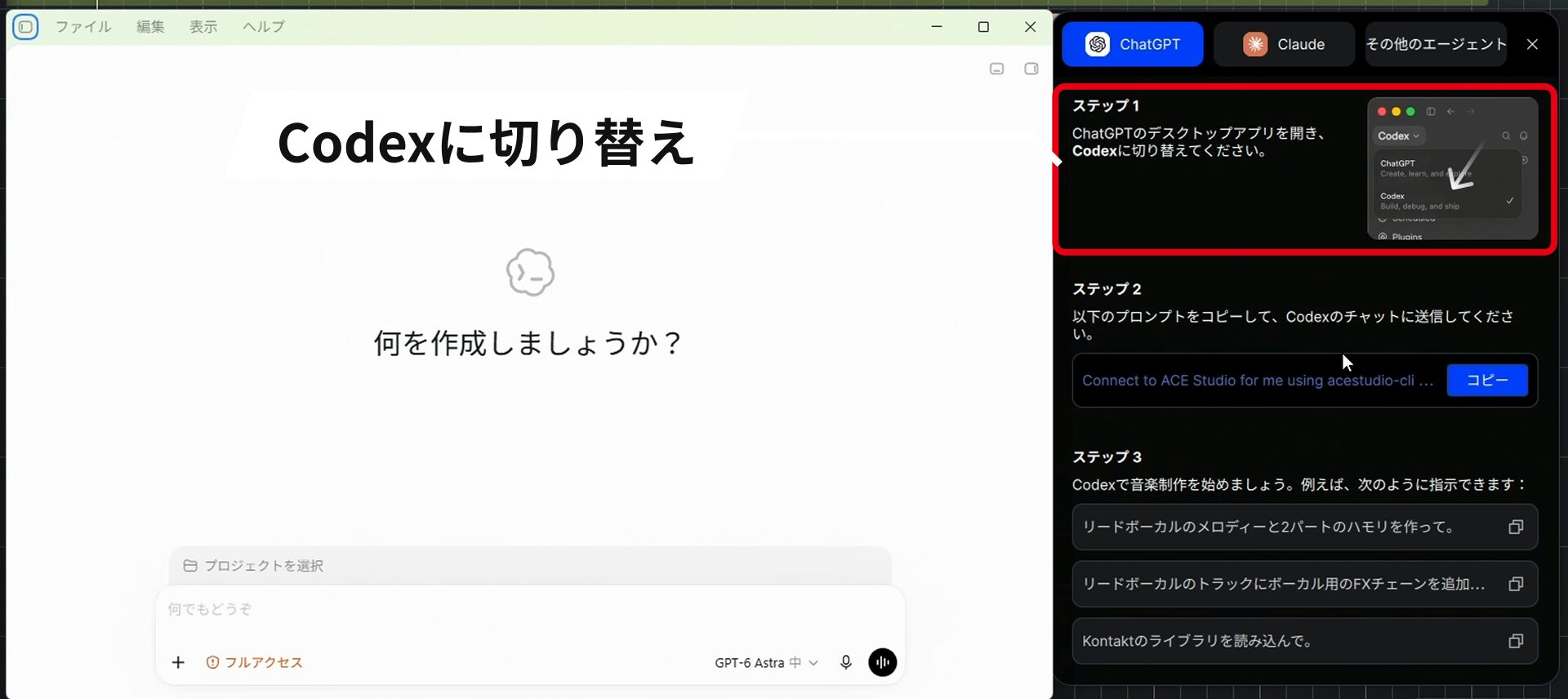
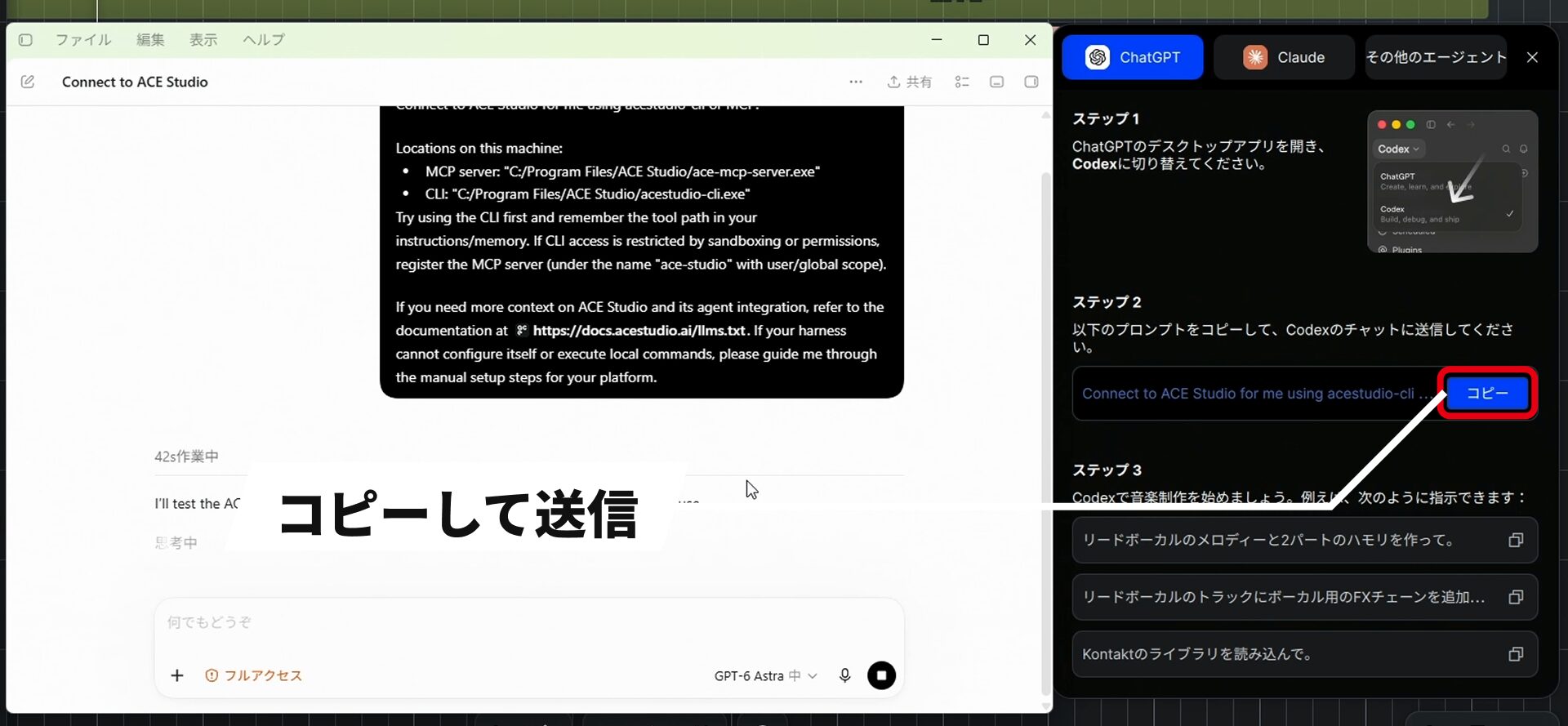
To connect with ChatGPT, follow these steps:
- Open the ChatGPT desktop app and switch to Codex.
- Copy the prompt from the connection panel and send it in the Codex chat.
- Once the agent confirms its connection to ACE Studio, you are ready.
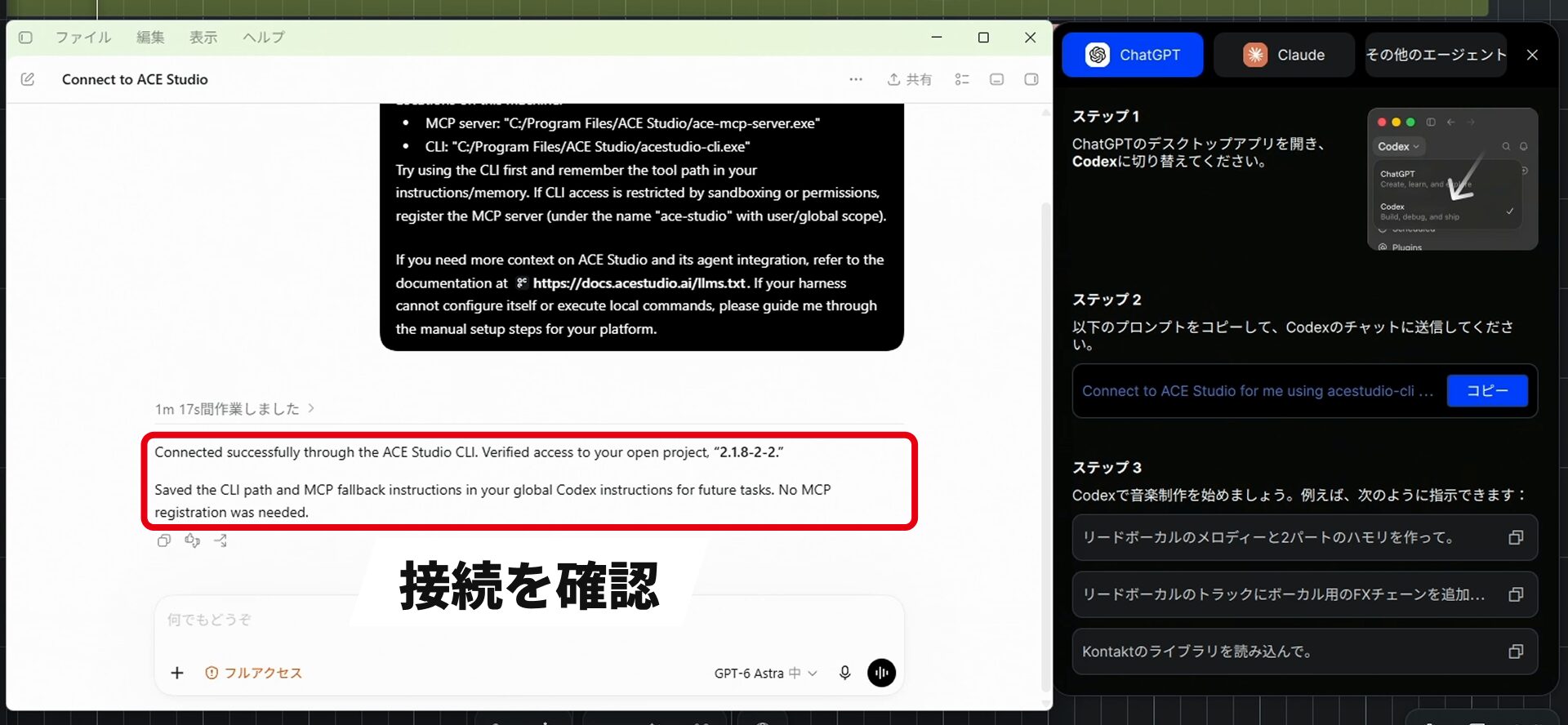
You do not have to explain track names in detail: the agent finds the relevant track in the project and carries out the task.
For example, you can ask it to handle tasks such as these:
- Chord analysis: estimate chords from audio and write them to the chord track.
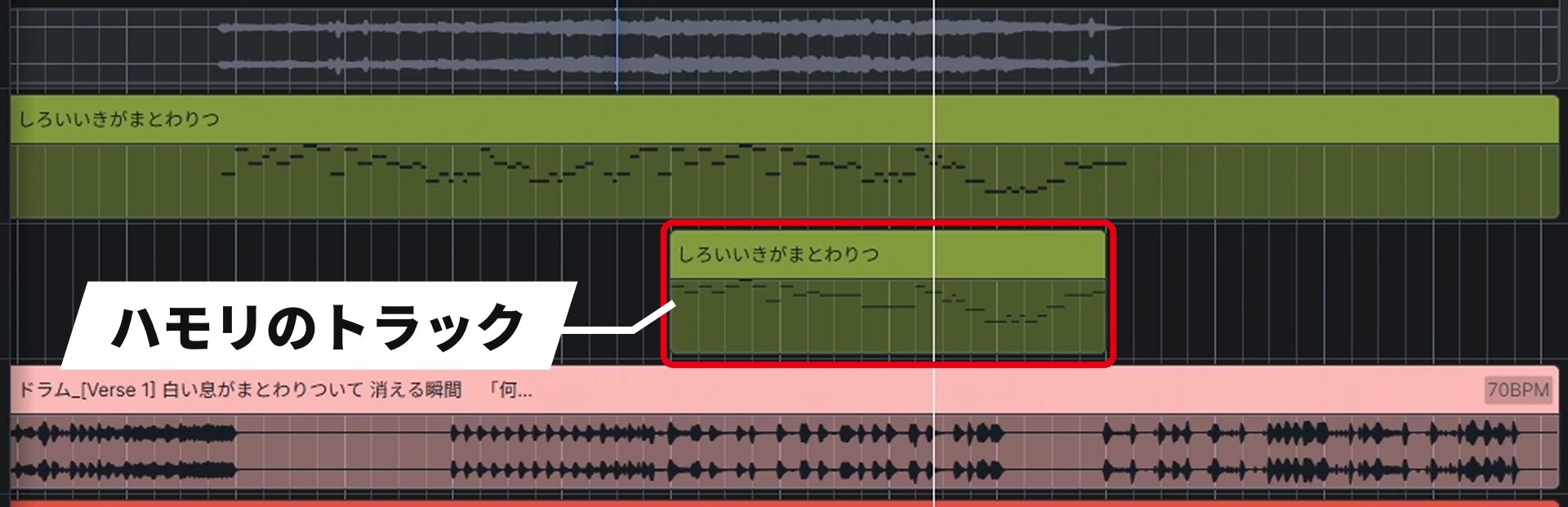
- Create harmonies: add harmony parts to specified bars based on the chords and melody.
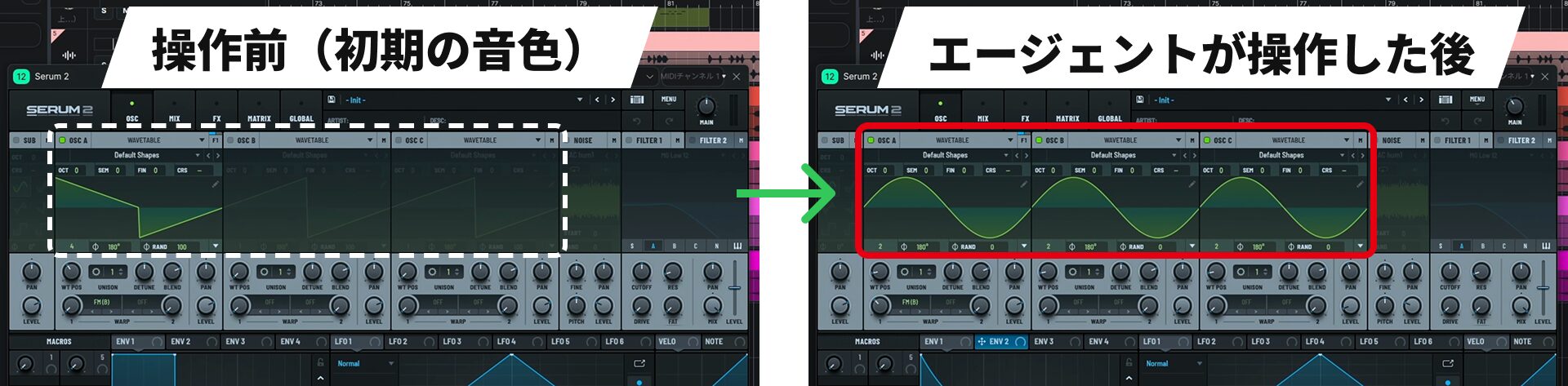
- Sound design: adjust parameters on a loaded third-party synthesizer to create a sound.
- Effects: find and insert a suitable effect from the installed plug-ins.
- Key estimation: suggest the song's key and an appropriate scale based on the chords.
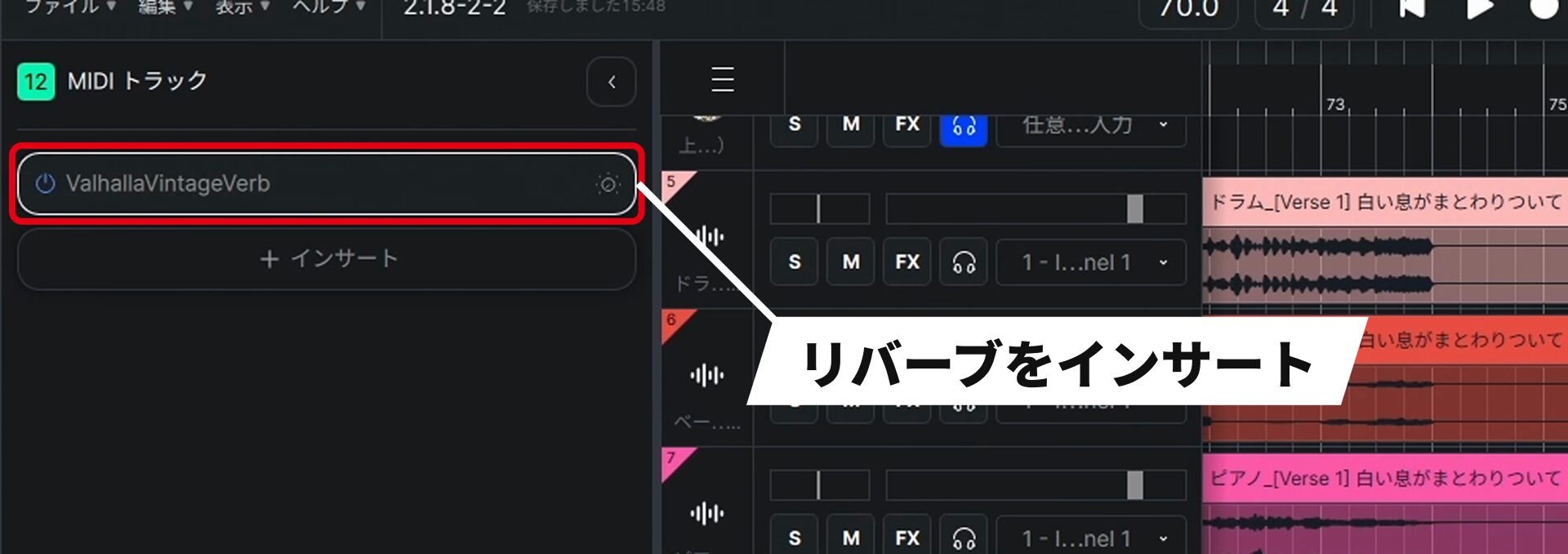
Think of the external AI as handling tasks such as chord analysis that would otherwise require a dedicated feature in the software itself.
Support with tasks that require musical knowledge, such as creating harmonies, can be a significant help for people who find them difficult.
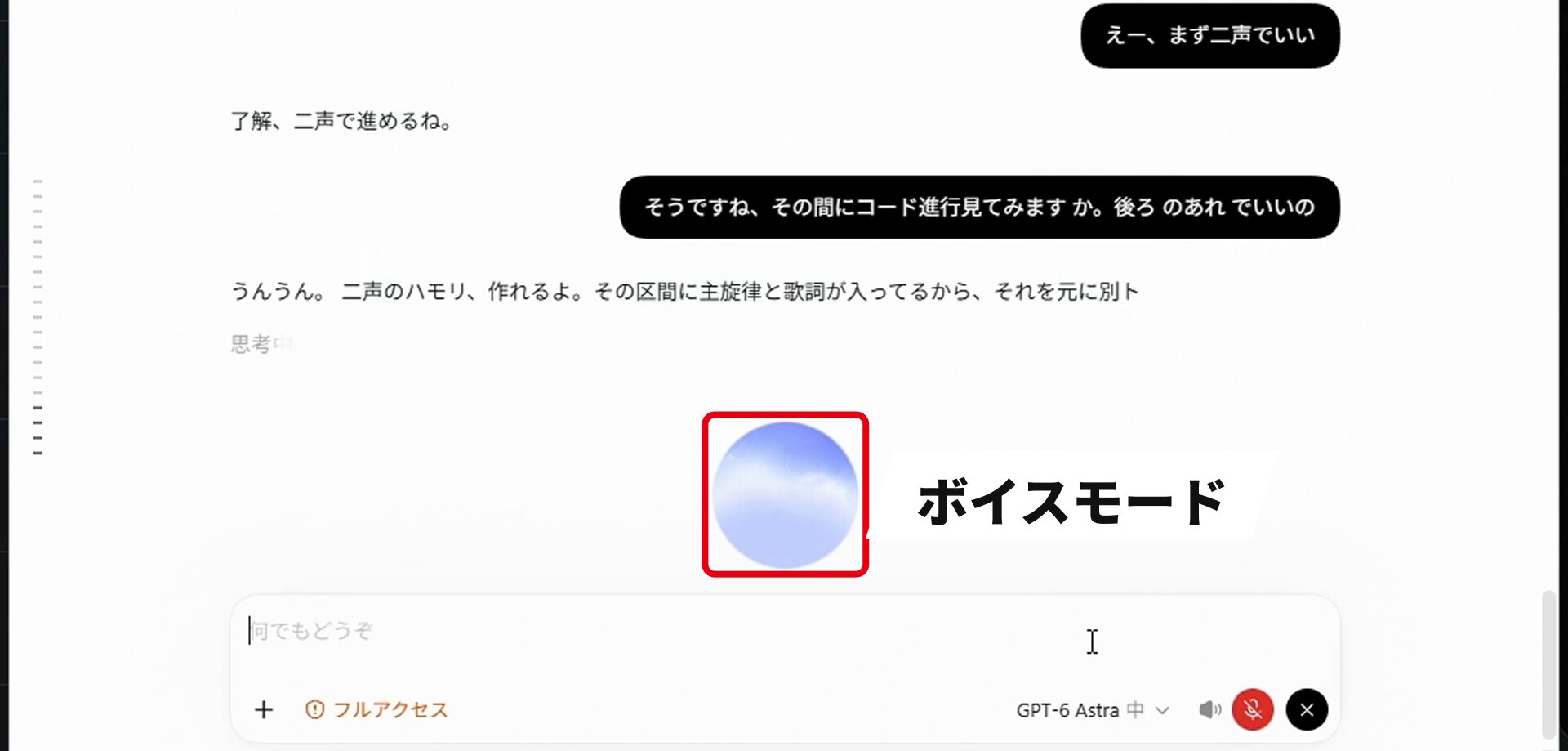
Working conversationally in voice mode also leaves both hands free, letting you work on something else at the same time.
The agent is not directly listening to the audio playing in ACE Studio. It makes decisions based on information about tracks and notes and the results of audio analysis.
The key is to describe details such as the sound you have in mind in words.
Add Layers and Generate Sound Effects on the Spot
AI generation features are integrated into the arranging and sound design workflow.
Add a Layer
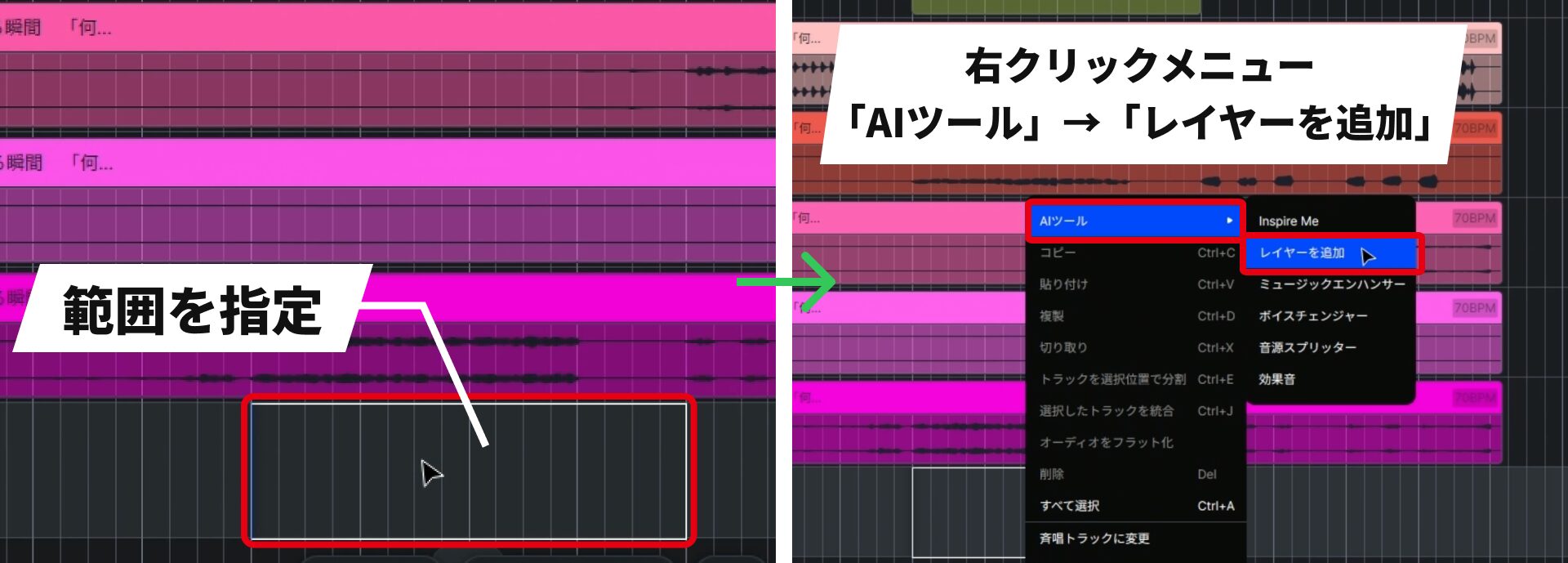
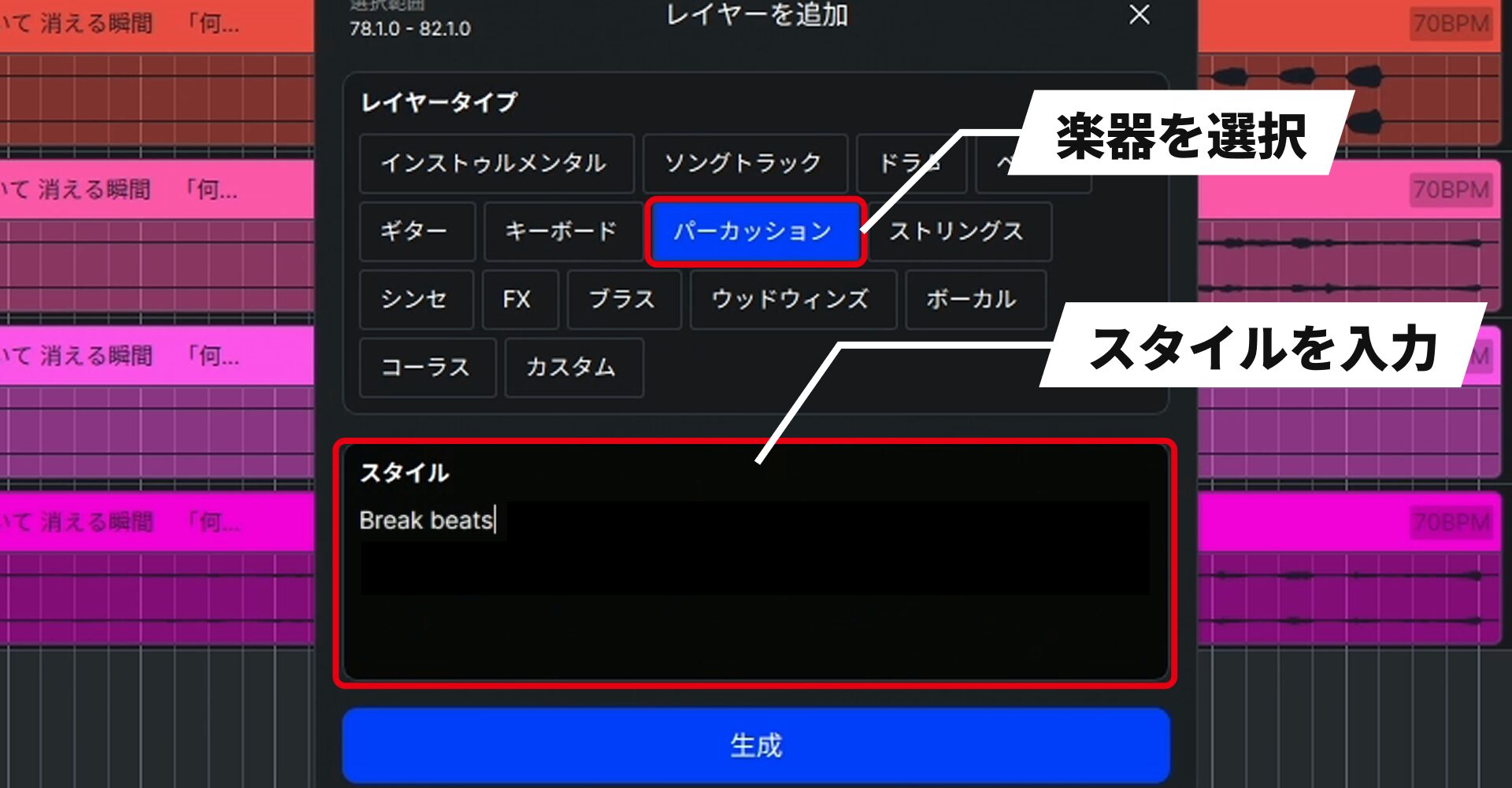
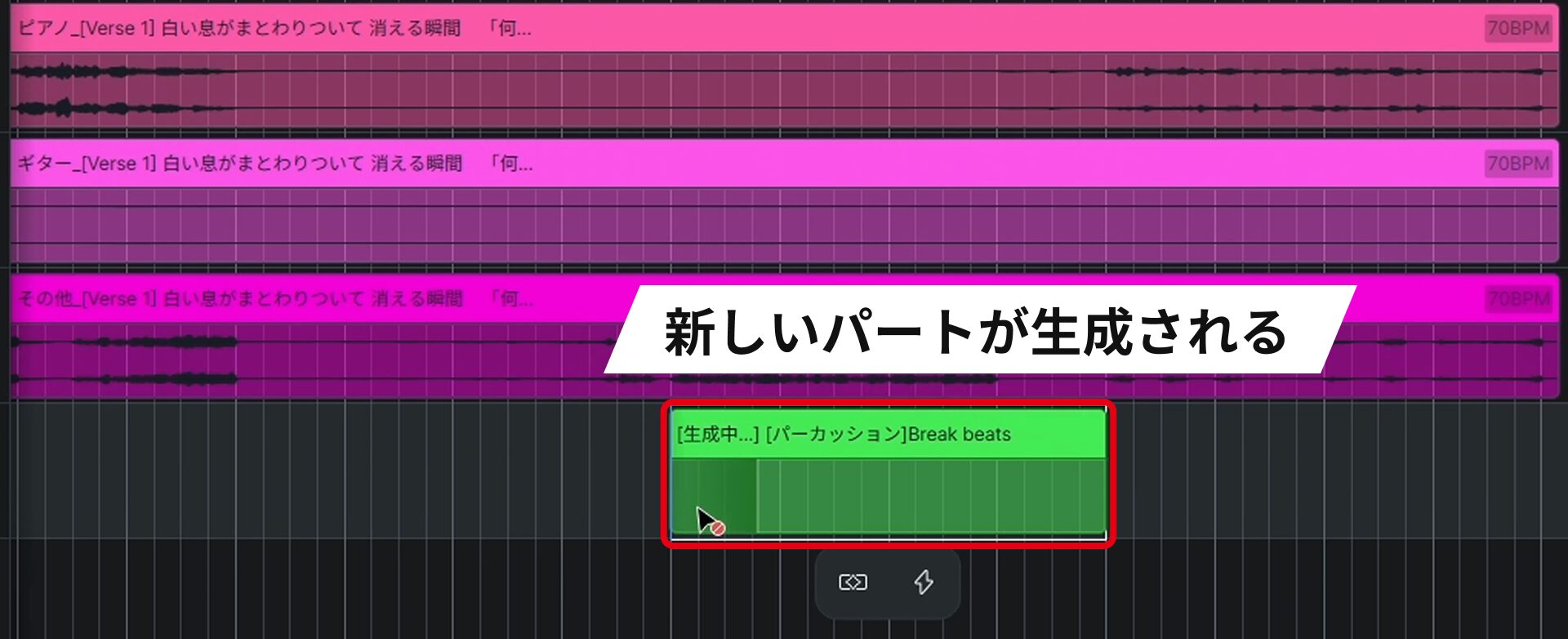
The AI generates a new part after listening to the music in that section.
For example, you could layer breakbeat-style percussion over a chorus that has few rhythmic elements.
Another strength is that the generated part follows the song's flow, such as stopping to match a break in the music.
Specific prompts help you get closer to the result you imagine, so the ability to describe musical ideas in words comes in useful here, too.
Sound Effects
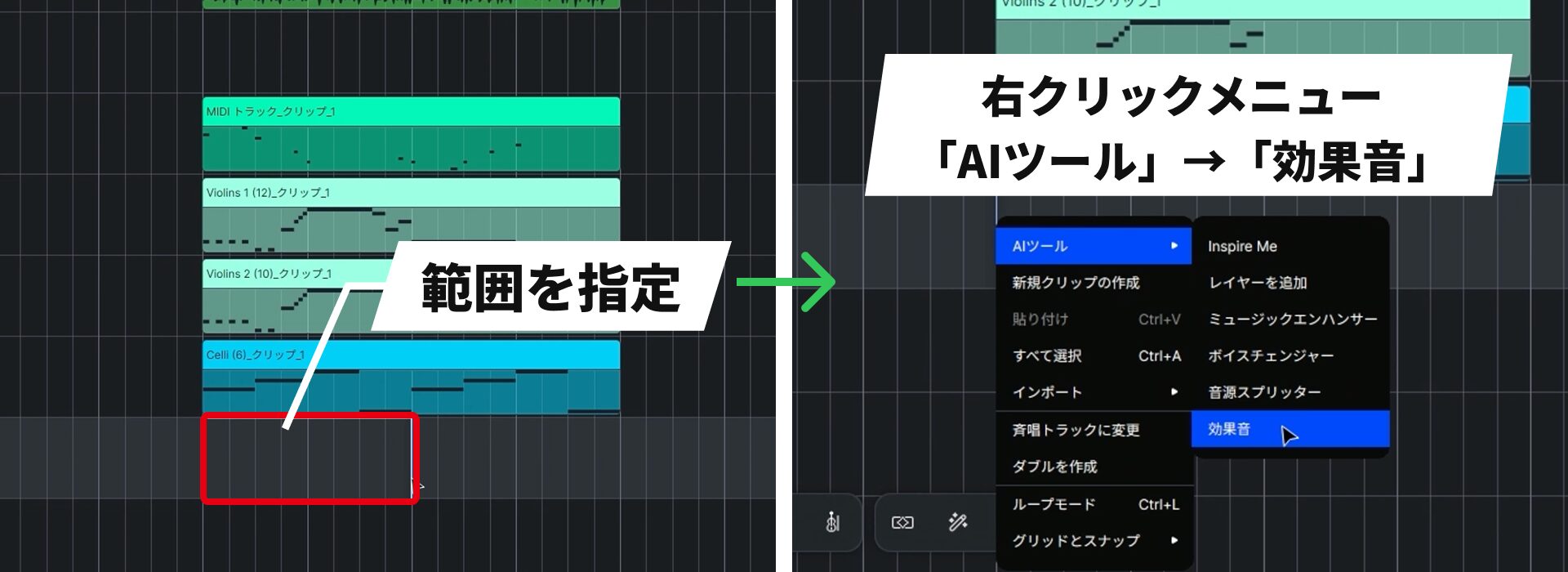
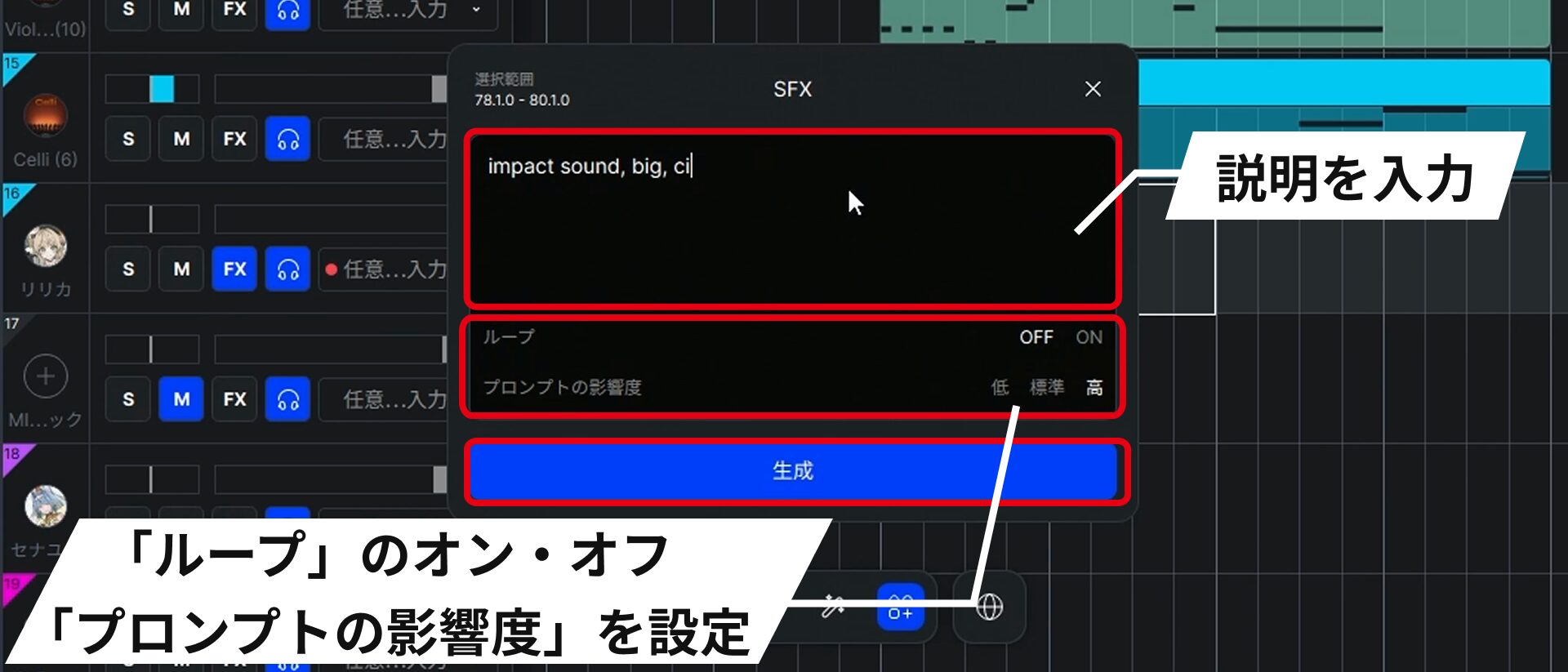
This window also lets you turn Loop on or off and set Prompt Influence.
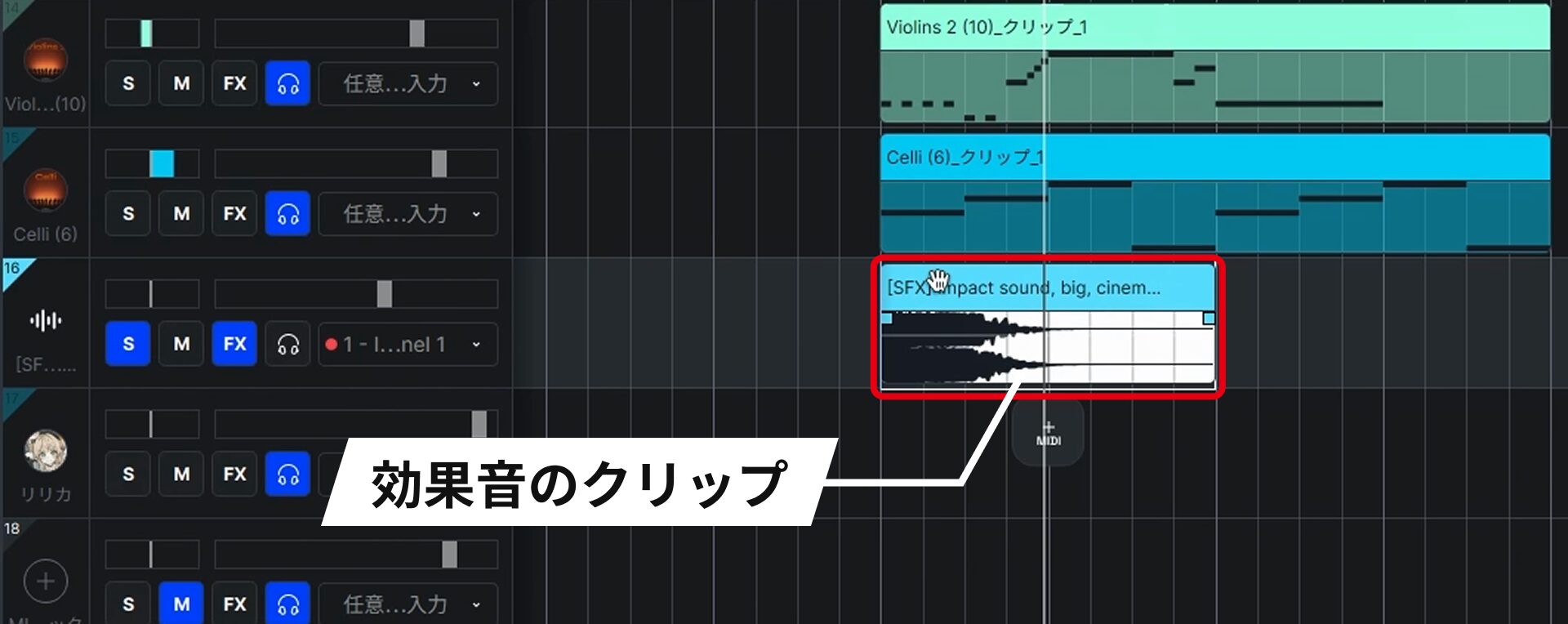
For example, you can generate an impact sound for the start of a chorus, then use EQ and reverb to blend it into the song.
This saves you the work of finding and preparing sound effects yourself: describe the sound you want and create it on the spot.
You can also continue other work while the AI handles a task.
While waiting for a layer to be generated, you can edit another section or start generating in a different range at the same time. You can move on without waiting for the AI to finish.
Asking for too much at once can make things hard to keep track of, so we recommend deciding how much to delegate as you go.
AI Instruments: Add Expression to Strings Simply by Entering Notes
The AI instruments included with ACE Studio automatically add expression to the MIDI notes you enter.
There are two ways to load an AI instrument:
Load from the Track's + Button
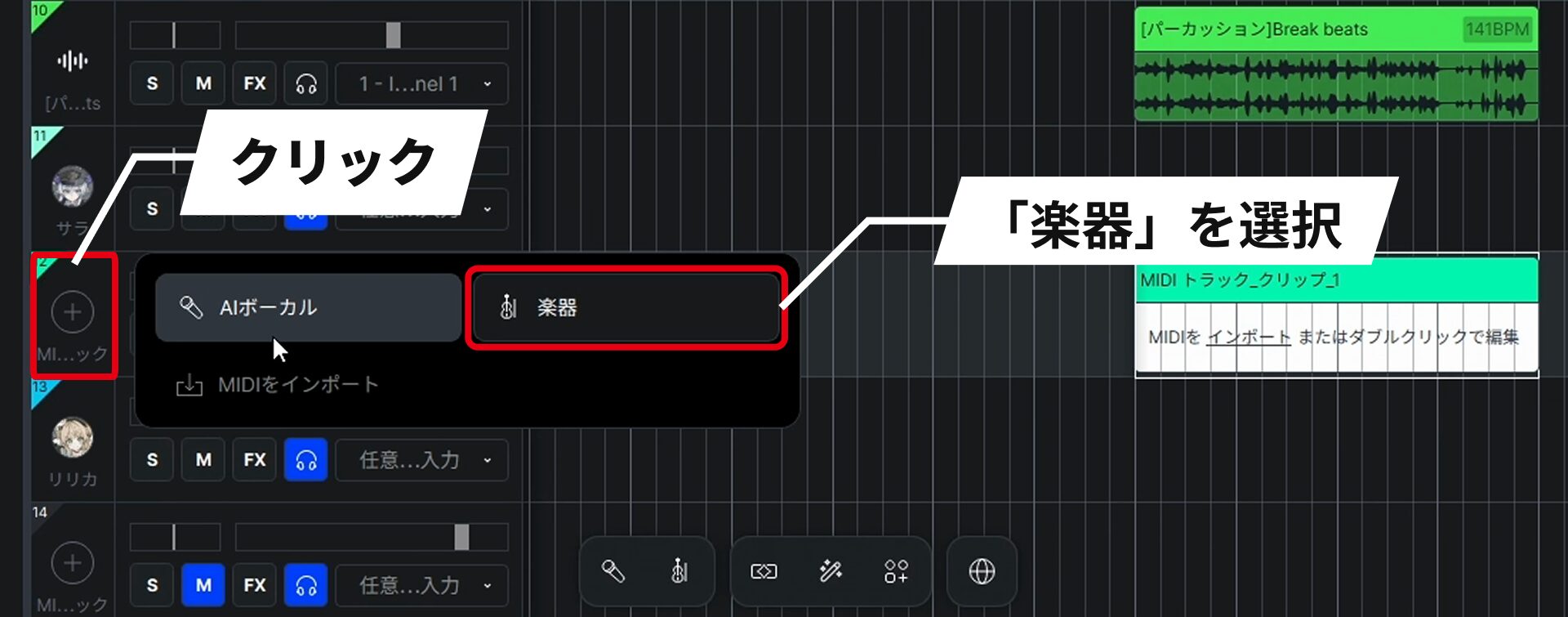
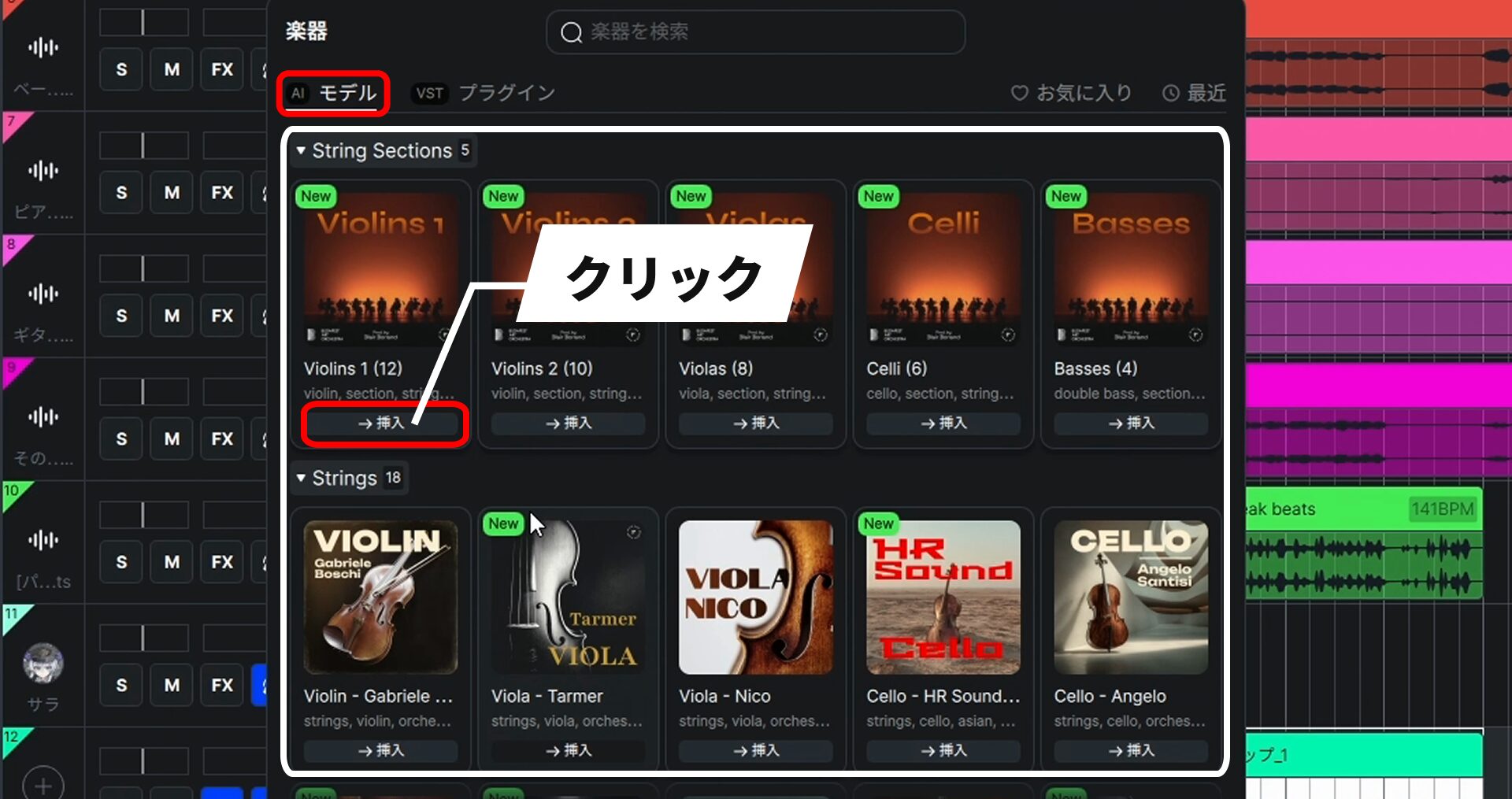
The Model tab offers AI instruments including strings and winds. String Sections includes Violins 1, Violins 2, Violas, Celli, and Basses.
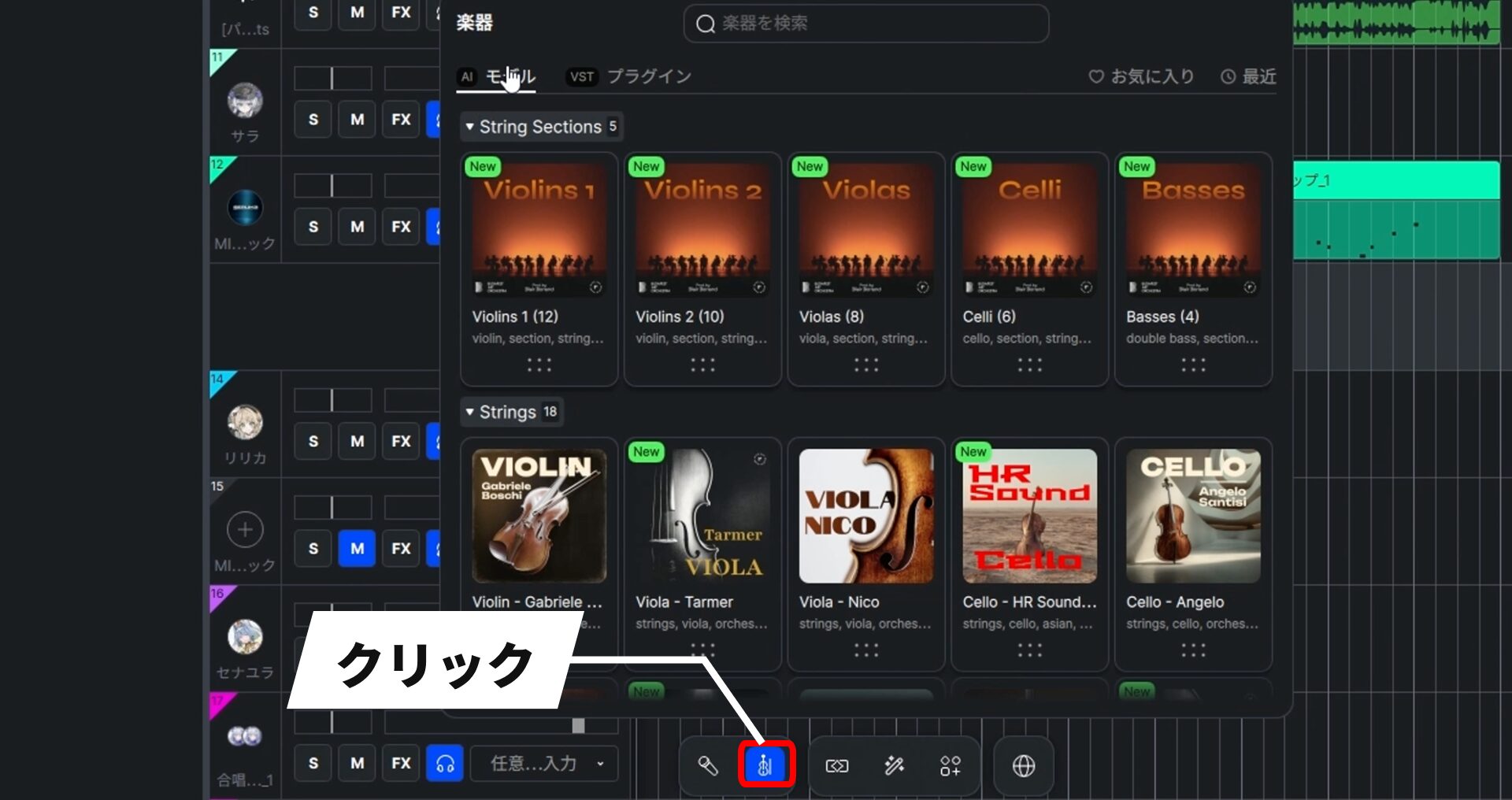
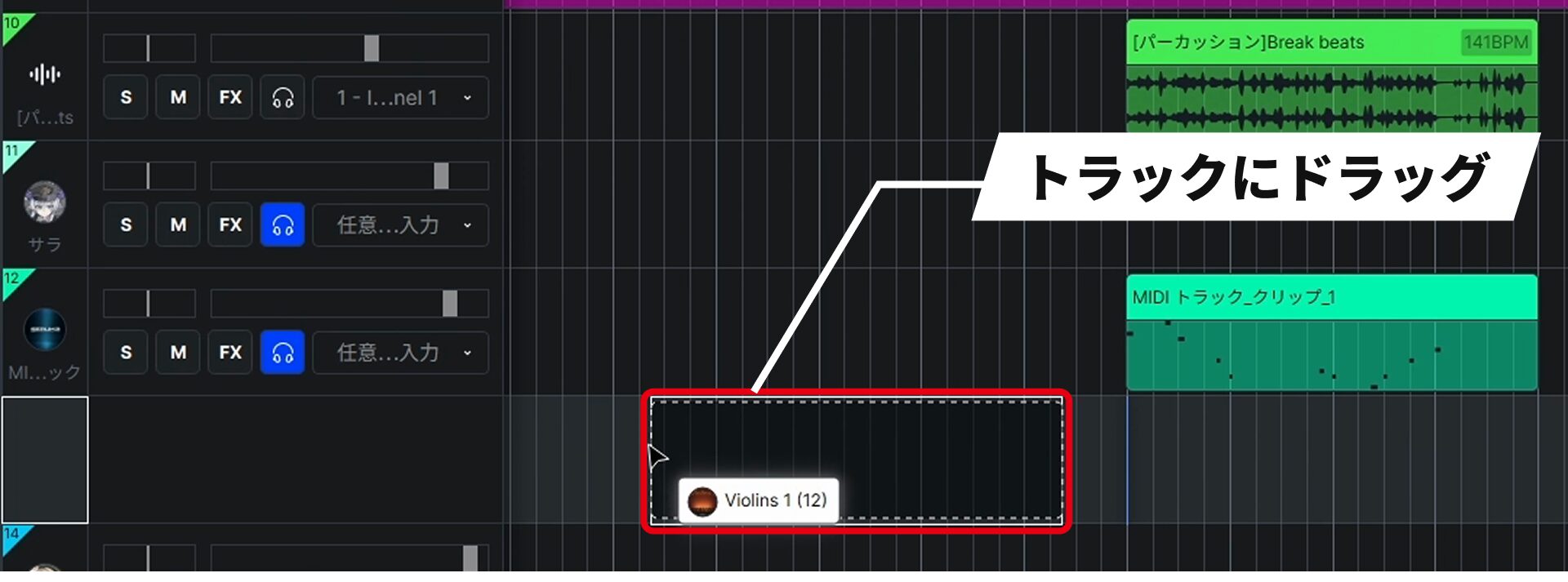
Drag an Instrument from the Instrument Icon at the Bottom
You can also open the instrument window using the instrument icon at the bottom of the screen.
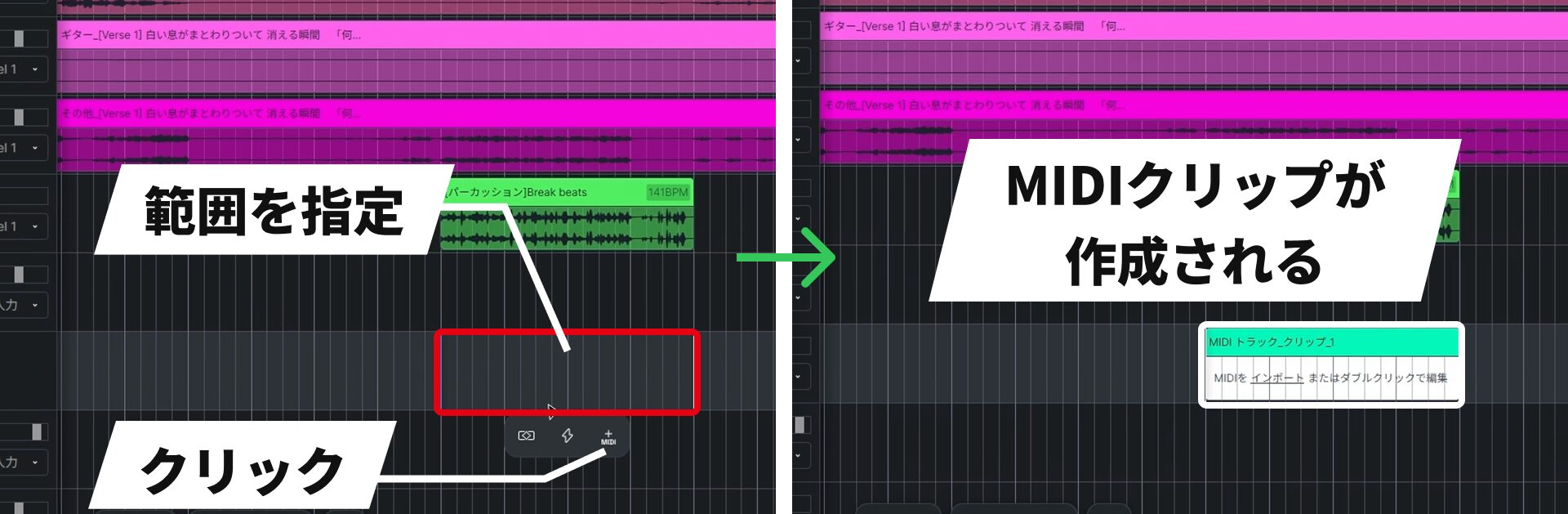
With this method, you do not need to create a MIDI clip beforehand.
Expression Simply by Entering Notes
Whichever loading method you use, just enter the MIDI notes and the AI will add expression automatically.
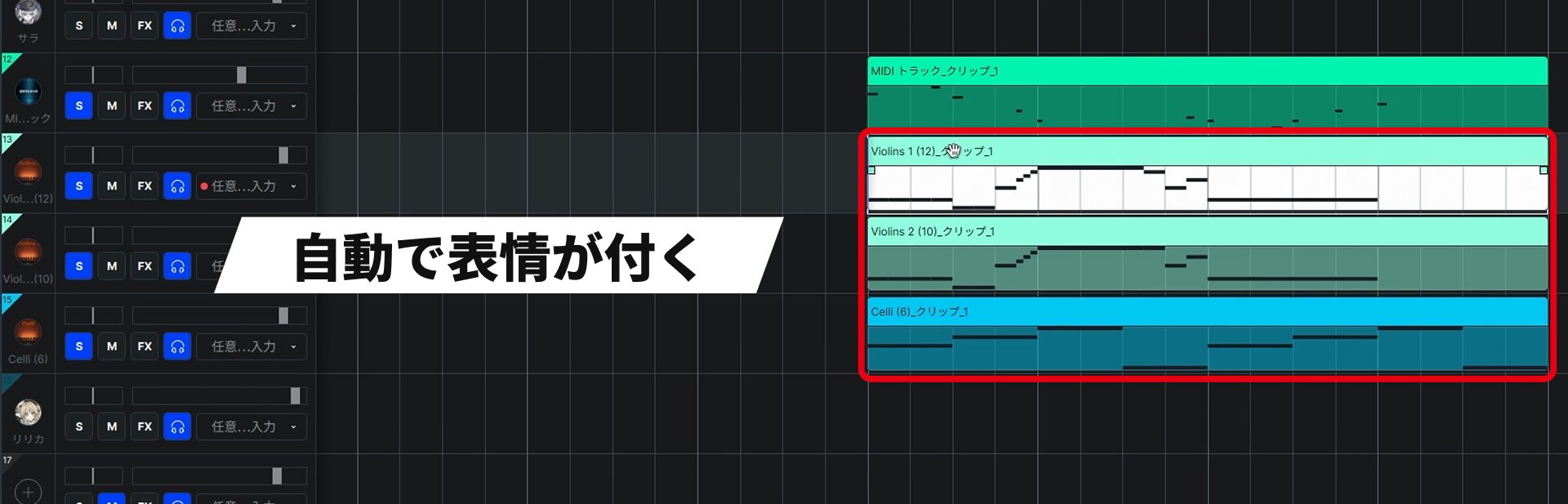
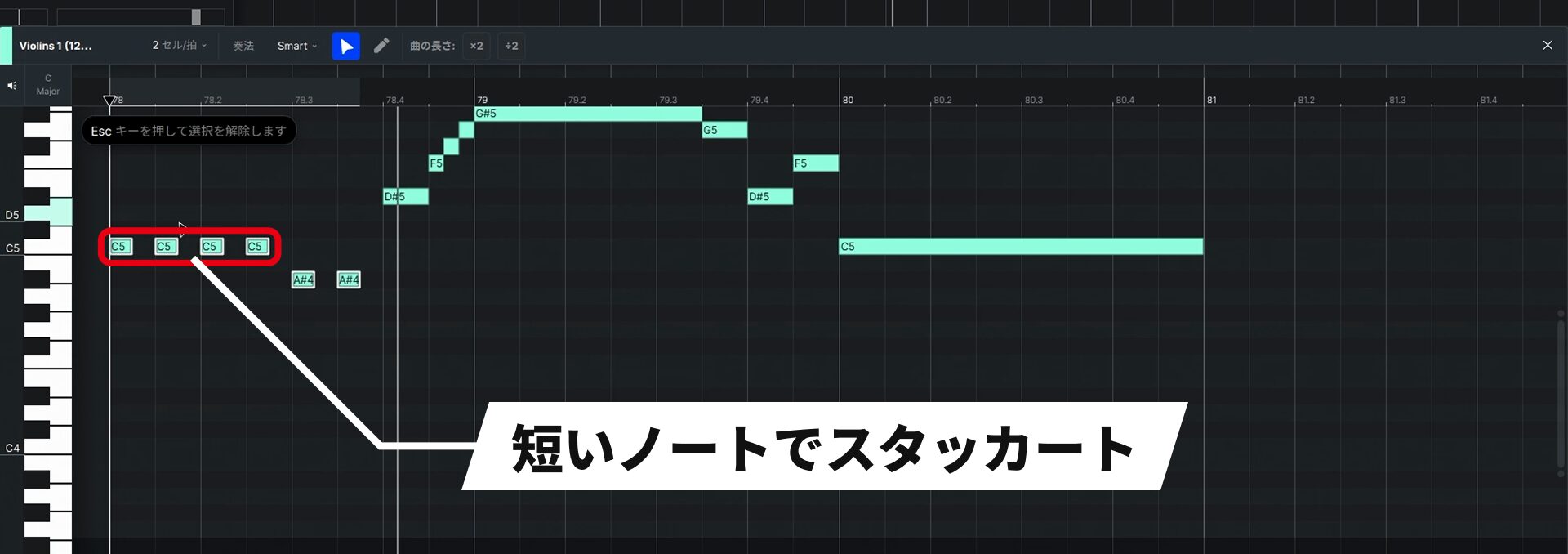
It sounds good without further adjustment and connects ascending phrases naturally. A key attraction is being able to enter the sound you imagine without detailed knowledge of string instruments.
Note that AI instruments regenerate the affected section when you move notes, so each preview takes a little time.
If you need to listen and revise repeatedly, we recommend sketching the part with an existing instrument first, then converting it to an AI instrument once it is finished.
We cover the AI string instruments in detail in a separate article.
Take a look to hear how much they can change a part entered with uniform MIDI notes.

A Full Set of Essential DAW Features
Alongside its AI features, ACE Studio is developing a comprehensive set of DAW tools for finishing a song.
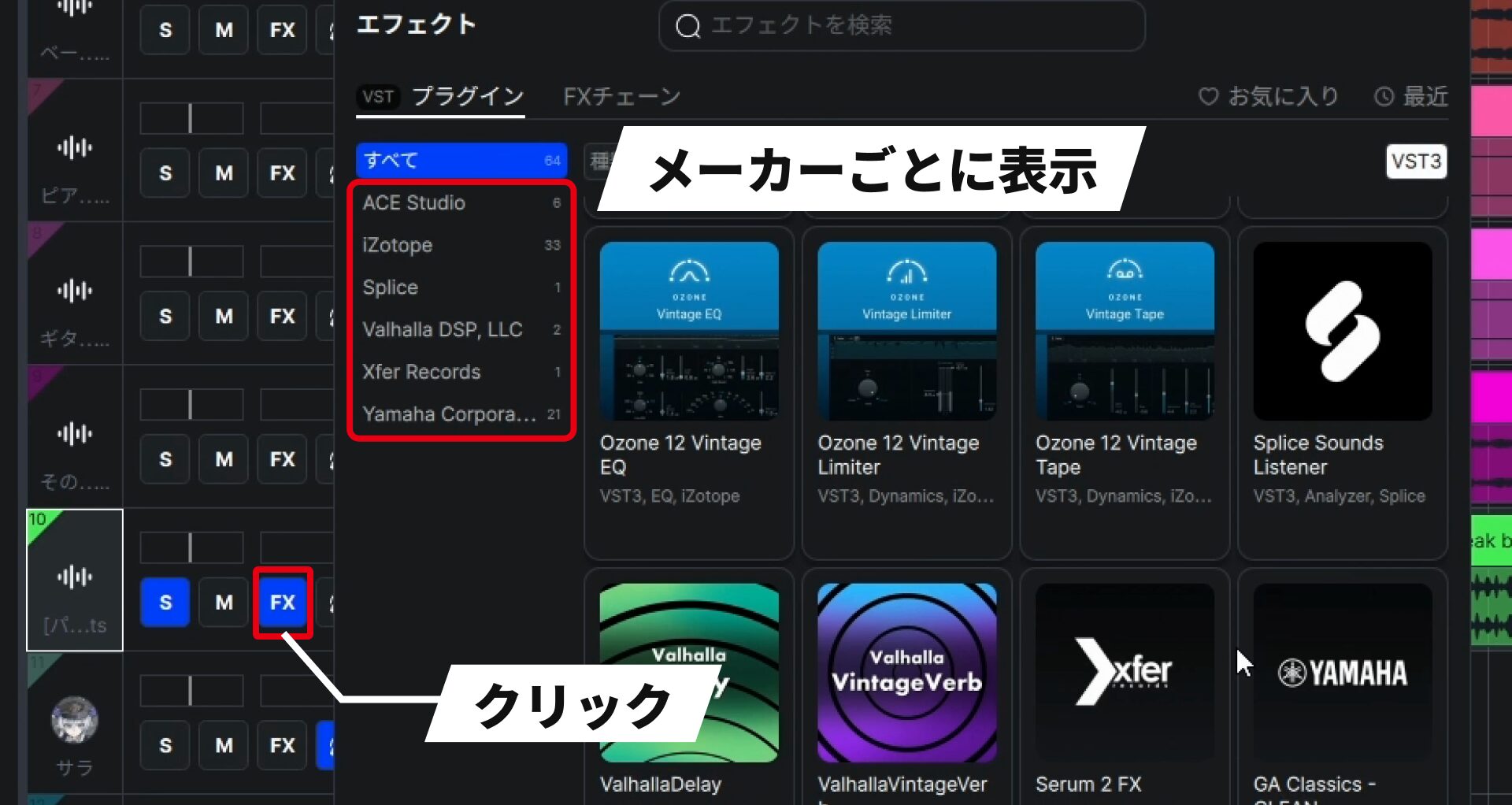
An update added support for third-party VST3 plug-ins, letting you use the effects and instruments you already own.
Scale Features and Quantize
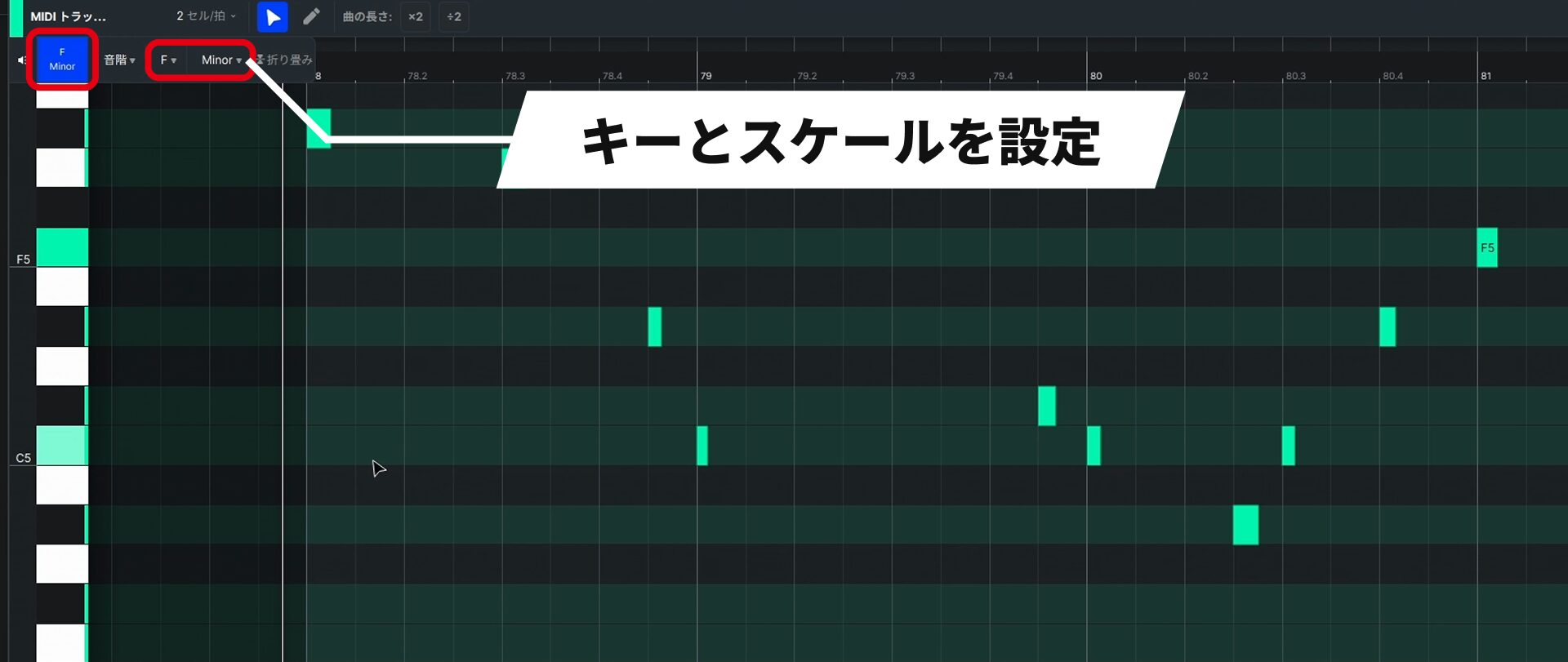
Quantize is not available from the menu. Select the notes, then press ⌘ + U on Mac or Ctrl + U on Windows.
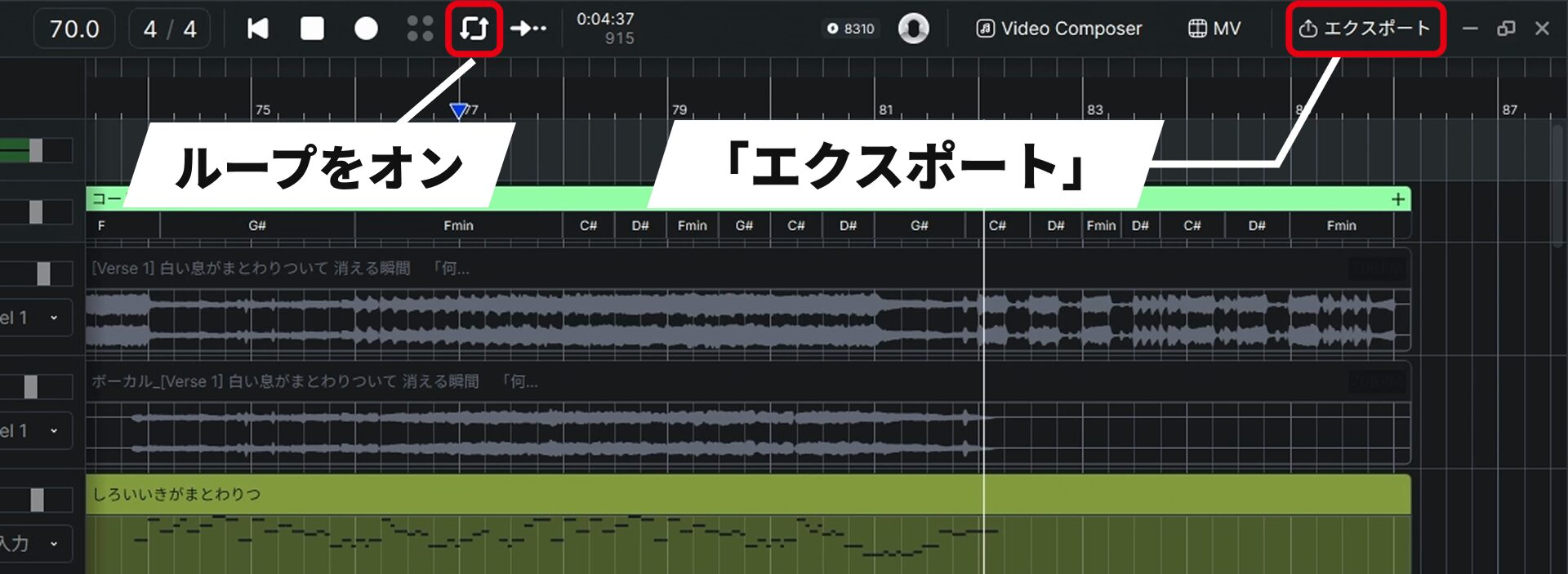
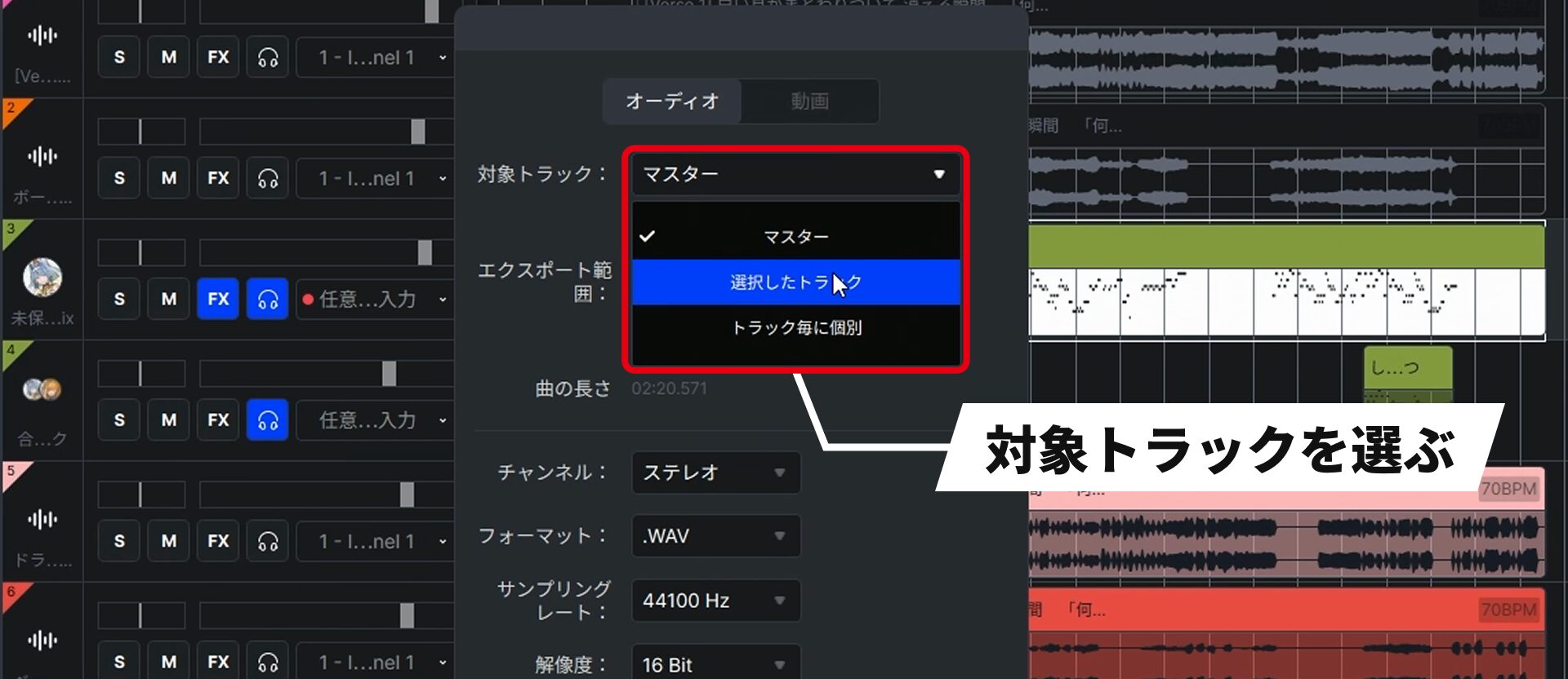
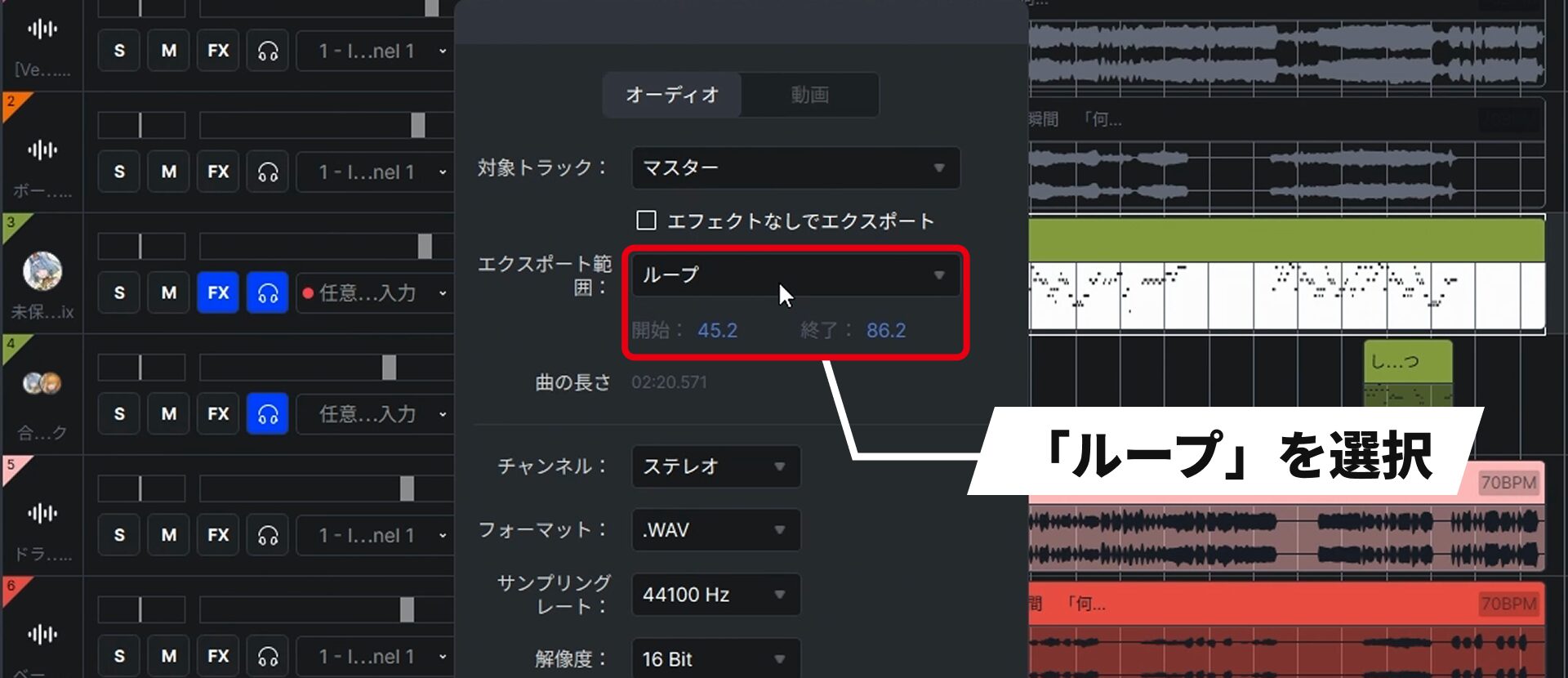
Master Effects and Export
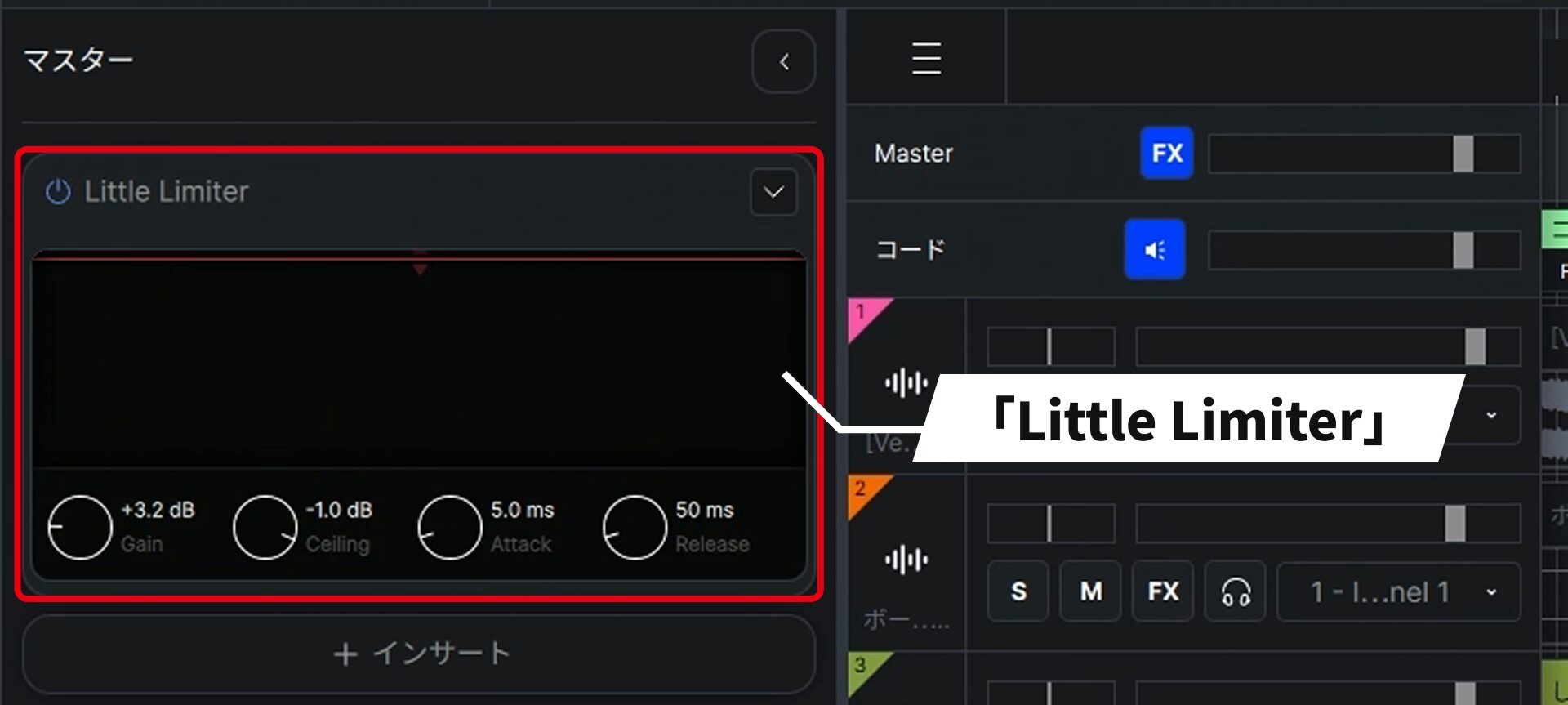
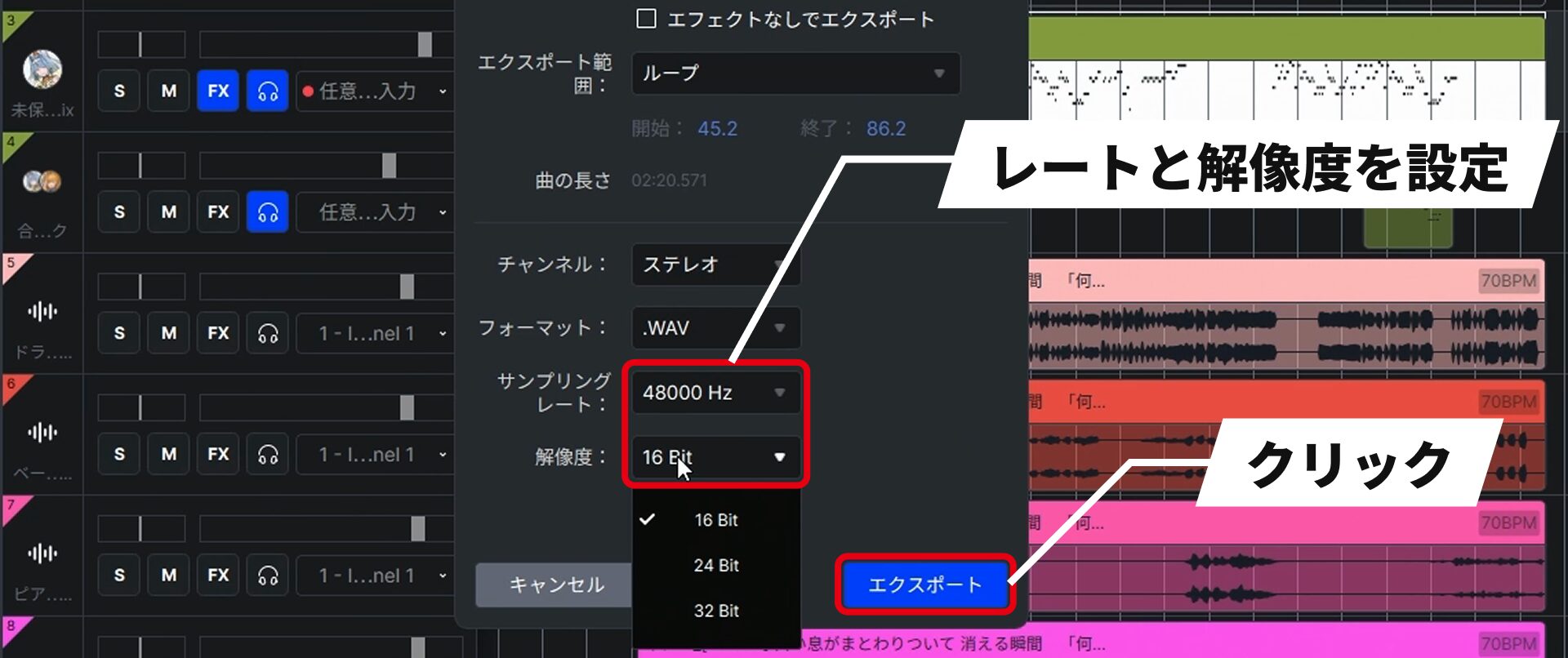
You can apply built-in effects and your own plug-ins to the master track as well, allowing you to handle the final touches entirely within ACE Studio.
Current Limitations
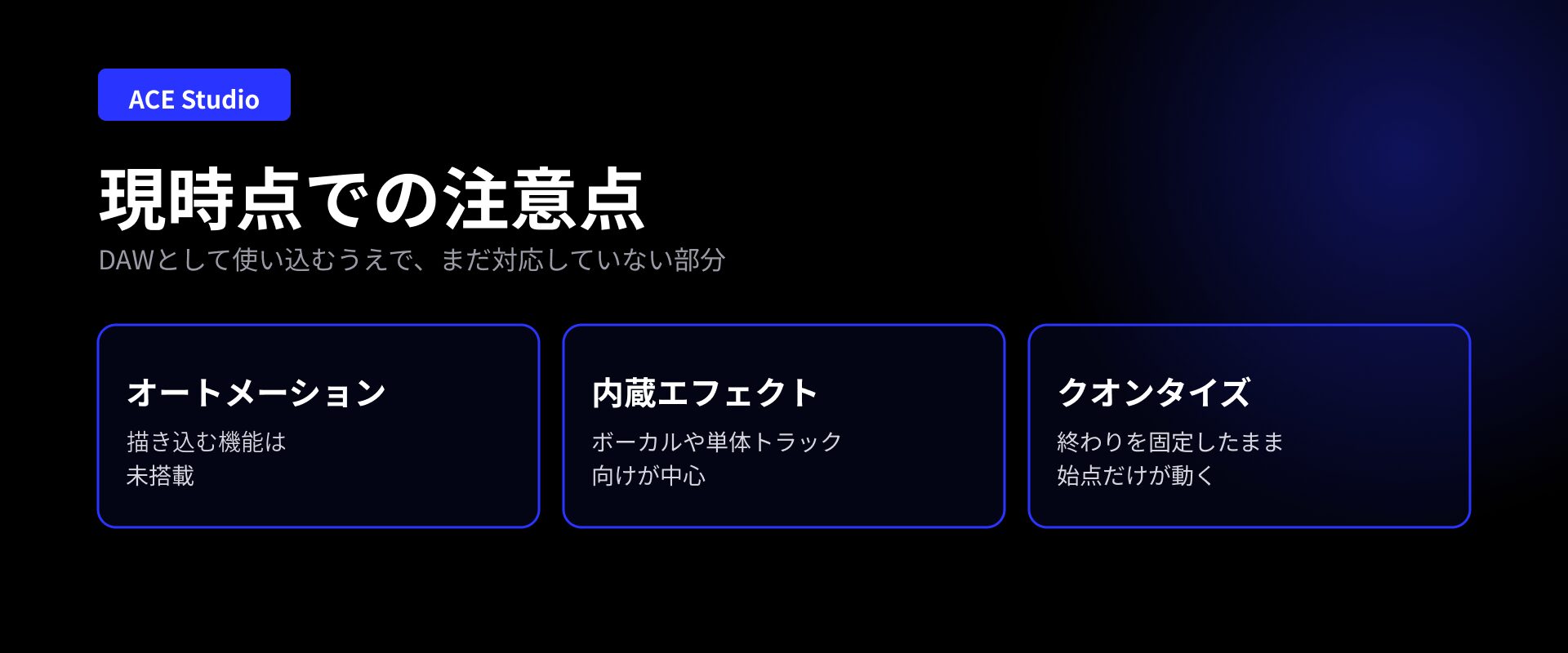
Some features are not yet supported for those who want to use it extensively as a DAW.
The software is being updated quickly, so we look forward to improvements.
- Automation: drawing automation for parameters such as vocal volume is not yet supported.
- Built-in effects: these focus mainly on vocals and individual tracks, so we recommend using third-party plug-ins as well for tasks such as mastering.
- Quantize: moves only the note start positions while keeping their end positions fixed.
AI Models That Respect Artists' Rights, with Royalty-Free Commercial Use

When you plan to publish or sell your work, it is natural to be concerned about the AI's training sources and the rights involved.
According to the official website, ACE Studio's voices and instruments are all built from real performances.
Those performances are used under license, and the AI models are trained in partnership with professional instrumentalists and vocalists.
Artists receive royalties based on actual usage.
The included voices and instruments can also be used royalty-free in commercial projects.
Vocals, stems, and instrumental parts created and exported with them can be used without additional fees in monetized projects, including streaming, YouTube, advertising, games, and client work.
For custom voices trained on recordings such as your own voice, the license depends on the recordings used and the permissions for their use.
System Requirements

Windows
OS: Windows 10 64-bit (Build 1809 or later) through Windows 11
Mac
OS: macOS 13 Ventura through macOS 26 Tahoe
Both Platforms
DAW integration plug-in: ACE Bridge 2.1 (supports VST3, AU, and AAX)
Pricing
ACE Studio offers a one-time Purchase option and an annually billed Subscription option.
| Plan | Purchase (One-Time Payment) | Subscription (Billed Annually) |
|---|---|---|
| Artist | JPY 59,600 (20% off; regular price JPY 74,500) | JPY 2,483.33/month (20% off; regular price JPY 3,104.16/month) |
| Artist Pro | JPY 79,600 (20% off; regular price JPY 99,500) | JPY 3,316.67/month (20% off; regular price JPY 4,145.84/month) |
The subscription uses a RENT-TO-OWN system: after two years, you receive a perpetual license for the software.
There is also a 100% money-back guarantee: you can request a full refund within seven days of payment.
Prices shown are those listed in the original Japanese article as of September 2026.
Check the seller's website for current pricing.
From music generation and stem separation to detailed vocal editing and AI agent integration, ACE Studio suggests the potential to change the music production workflow itself.
Its straightforward interface is easy to use without unnecessary features, and the rapid pace of updates makes us look forward to its continued development.
Try this new style of creating music together with AI.
NEW ARTICLES
Latest English Articles




