
Cubase 12 introduced online activation without a USB dongle, audio-to-chord detection, Free Warp in the Project window, and Scale Assistant for VariAudio, among many workflow improvements. New additions included the Verve instrument, FX Modulator, and Raiser. From vocal editing and phase-coherent multitrack warping to improved MIDI-controller integration, this March 2022 release brought practical changes for a wide range of users. This article covers Cubase 12 as released, including the edition-specific correction noted below.
Plenty of new features beyond dongle-free licensing

Announced in 2021, Cubase 12 finally arrived in March 2022 after a longer-than-usual wait.
Alongside the previously announced removal of the USB dongle requirement, it brought major additions and improvements.
We will focus on the changes we consider particularly useful.
- 1Online activation with Steinberg Licensing
- 2Chord detection from audio [Pro / Artist / Elements]
- 3AudioWarp improvements [Pro
/ Artist] - 4Scale Assistant for VariAudio [Pro / Artist]
- 5Improved MIDI-controller integration [Pro / Artist / Elements]
- 6New instrument: Verve [Pro / Artist]
- 7New plug-in: FX Modulator [Pro / Artist]
- 8New plug-in: Raiser [Pro]
- 9New SuperVision modules [Pro / Artist]
- 10Other improvements
Let’s look at each in turn.
Cubase 12 New Features: Video Overview
Steinberg product distributor in Japan: Yamaha Music Japan Co., Ltd.
- Yamaha Music Japan MPP (YouTube) https://www.youtube.com/user/SteinbergJapan
- MPP (Twitter) https://twitter.com/SteinbergJP
- Sound Roster music-production program (Fresh!) https://freshlive.tv/ymjsoundroster
Product page: https://bit.ly/2UiQvP5
Online activation with Steinberg Licensing
As previously announced, Cubase 12 no longer required a USB e-Licenser and instead used online activation.
Installing Cubase 12 also installs Steinberg Activation Manager, which opens alongside Cubase on its first launch.
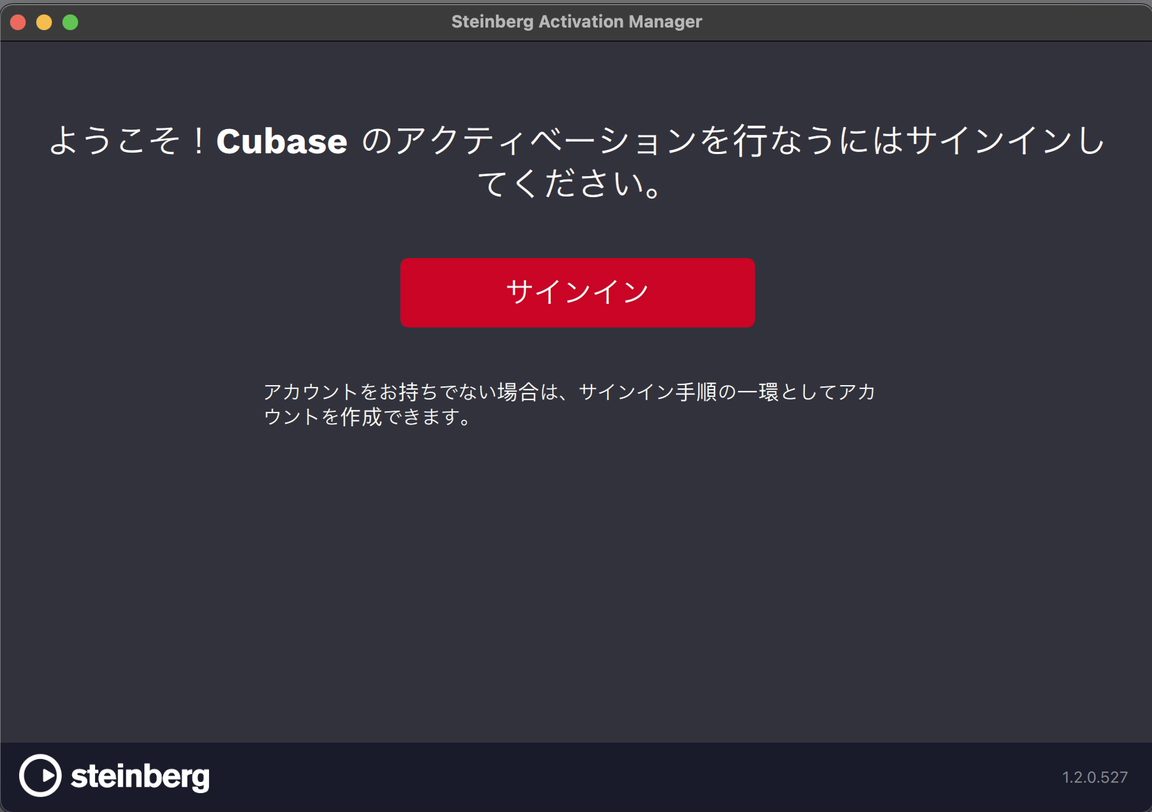
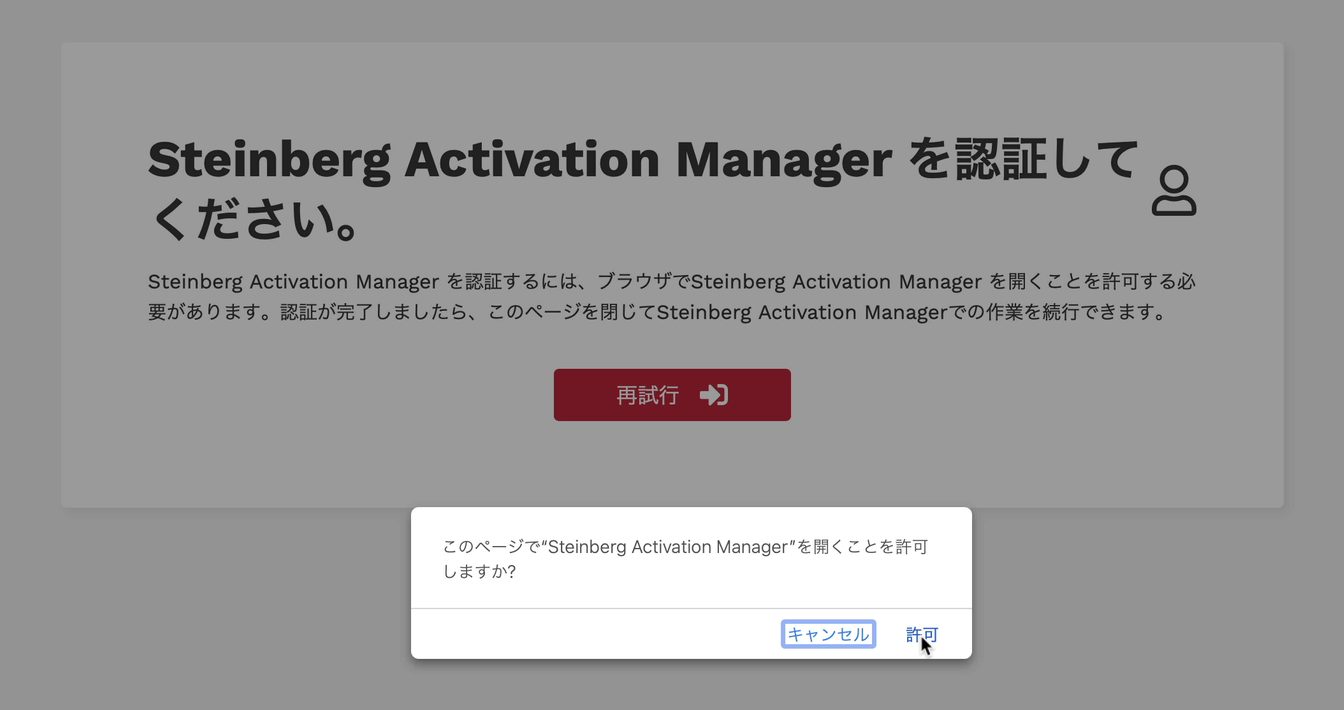
Click Sign In, log in through your browser, and approve the permission prompt.
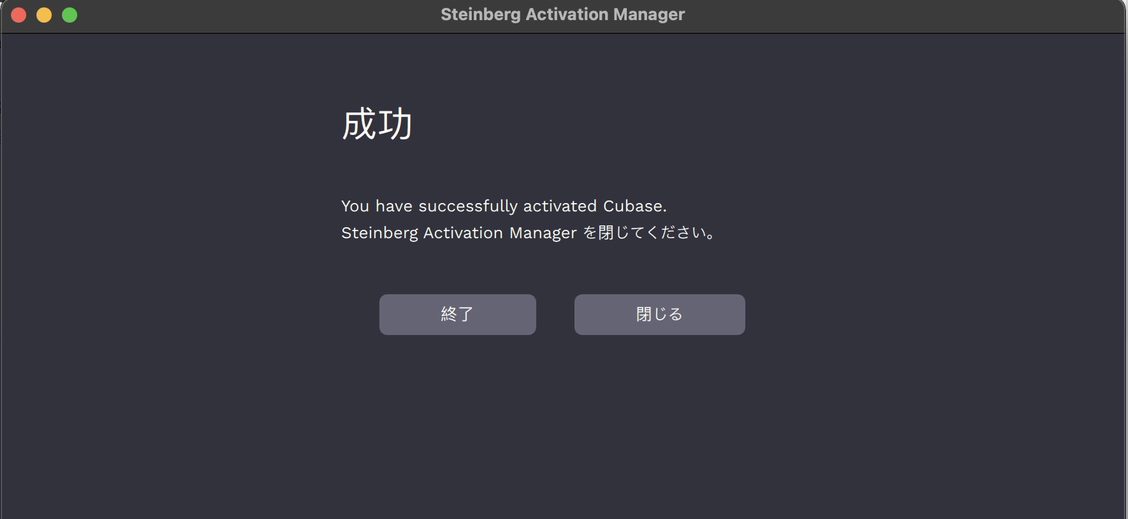
When Activation Manager displays a success message, activation is complete and you can close it. Cubase will continue launching.
Steinberg Licensing allows activation on up to three computers per license.
To activate another computer after all three slots are in use, you need to deactivate one of the currently activated computers.
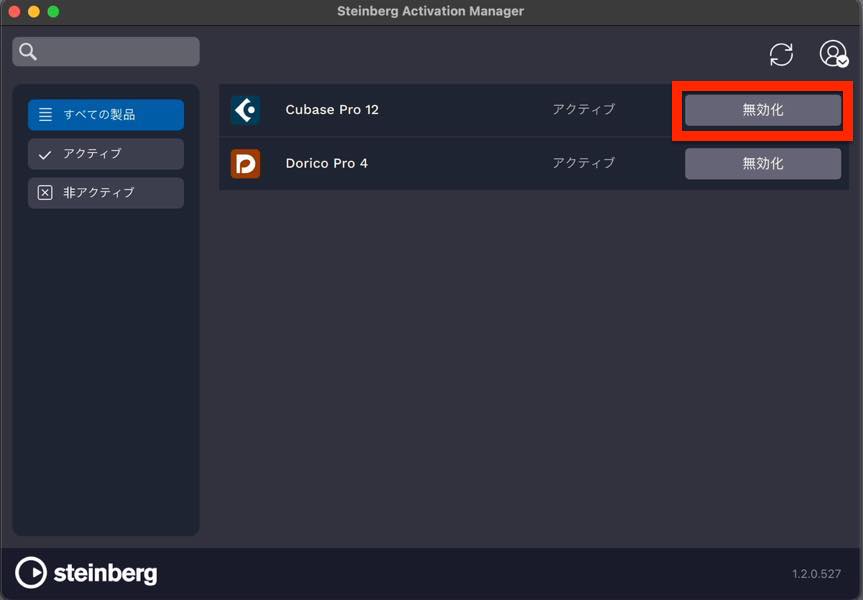
Click Deactivate. Once its status changes to Activate, you can activate the new computer.
Chord detection from audio [Pro / Artist / Elements]
Cubase 12 added chord detection from audio events alongside the existing MIDI-based detection.
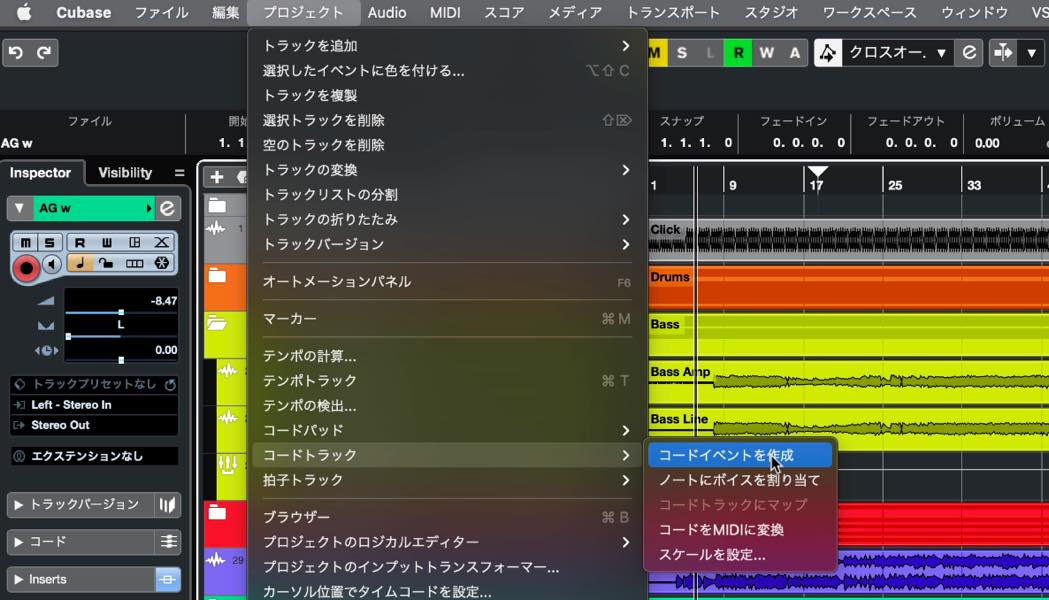
To detect chords, select an audio event and choose Project > Chord Track > Create Chord Events.
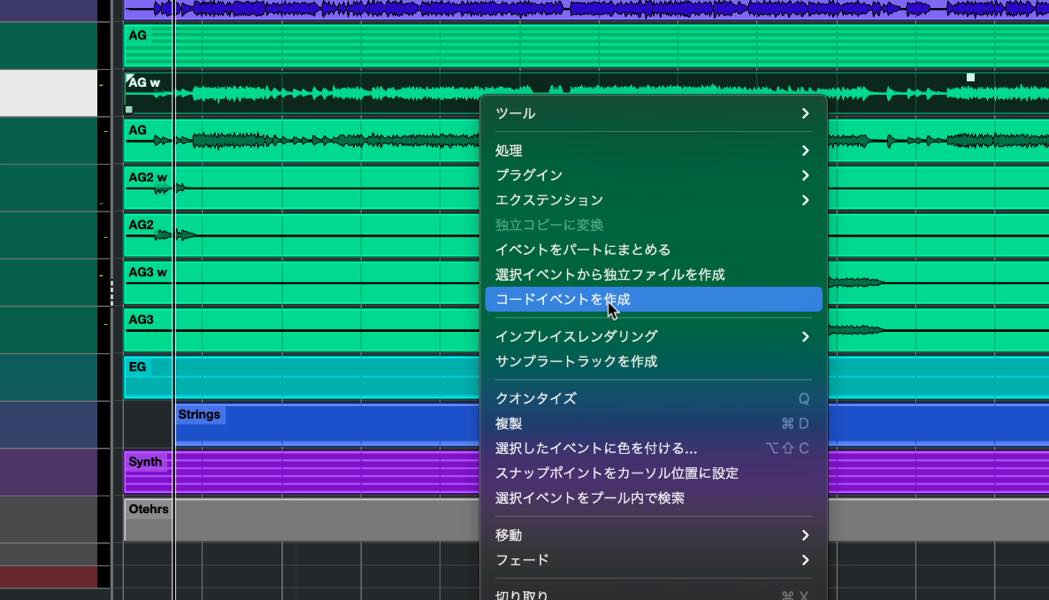
You can also access the command from the audio event’s context menu.
Cubase analyzes the audio, creates a chord track, and places the detected chords on it.
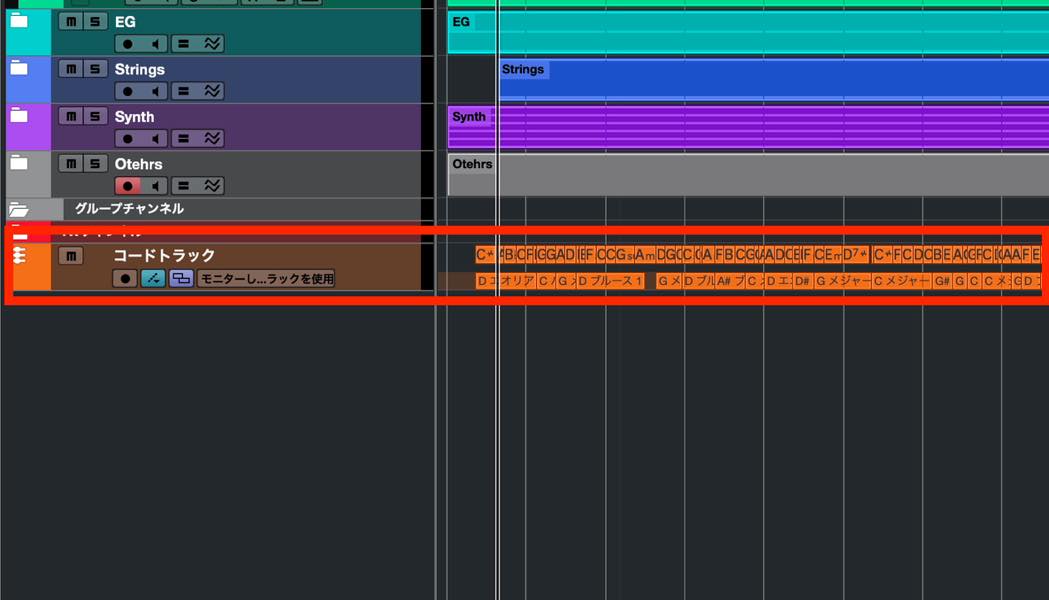
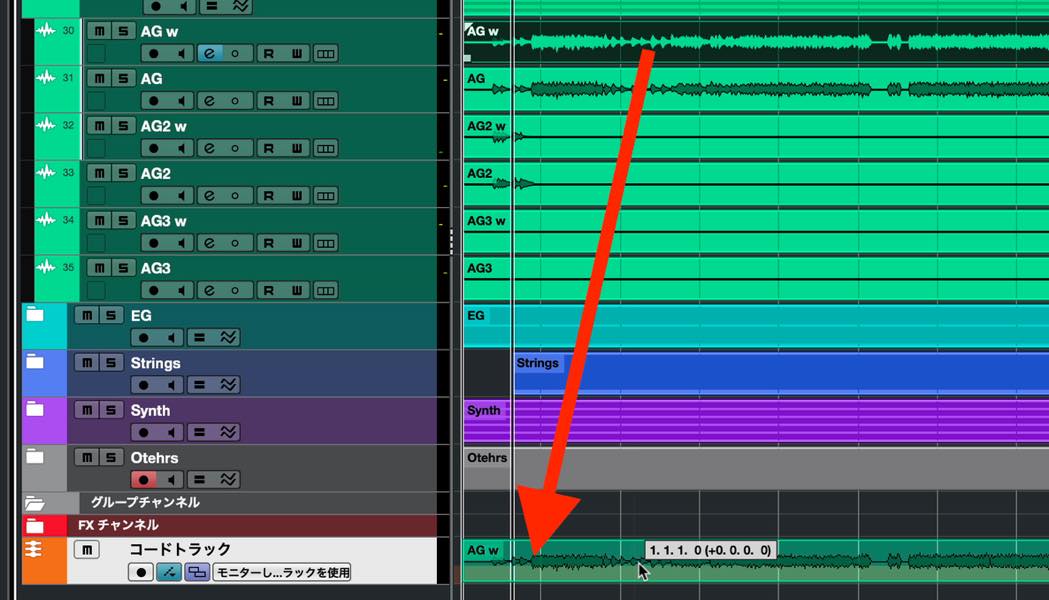
If a chord track already exists, you can simply drag and drop audio onto it to detect chords. Detection also works with multiple audio events.
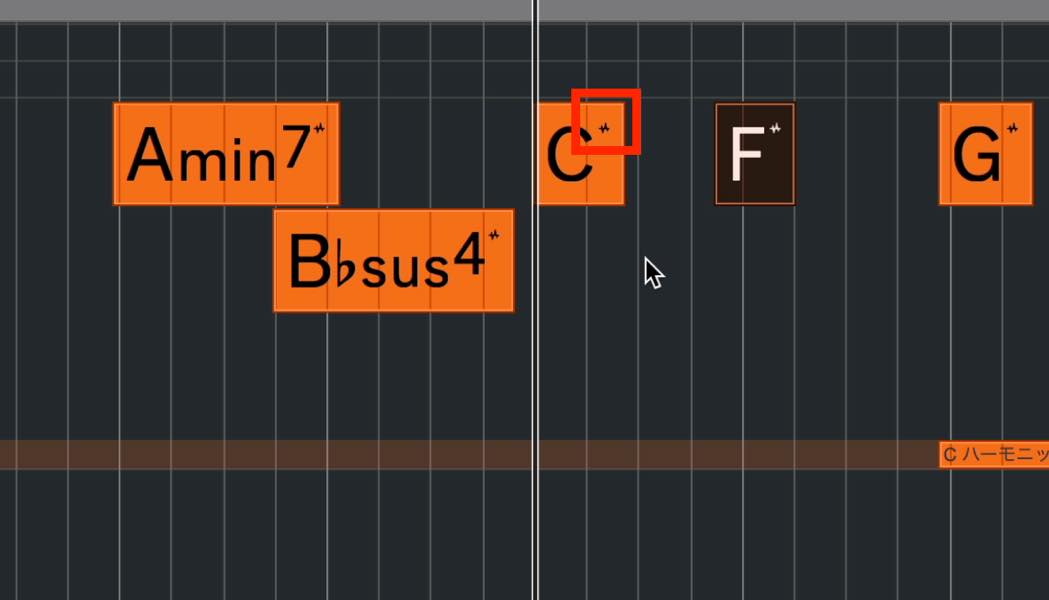
Chord events generated by this function display the indicator shown here.
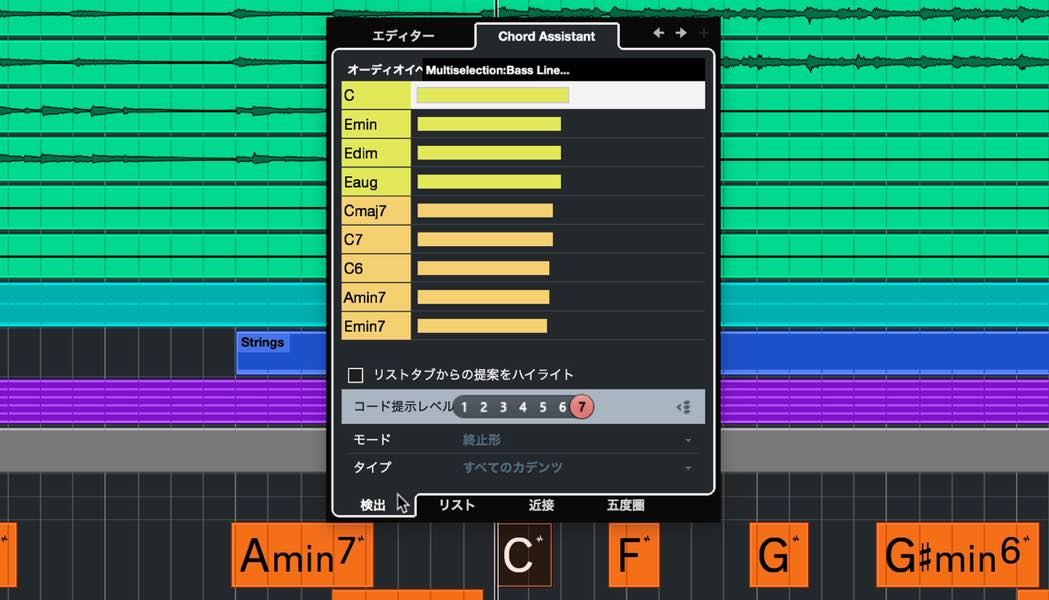
Double-clicking a chord to edit it reveals a Detection tab, which lists other likely chord interpretations. You can choose an alternative there.
The chord timing is also detected. If it is inaccurate, try quantizing the chord events.
AudioWarp improvements [Pro / Artist]
Correction, June 3, 2022: This feature is available in Pro only. We apologize for the original error.
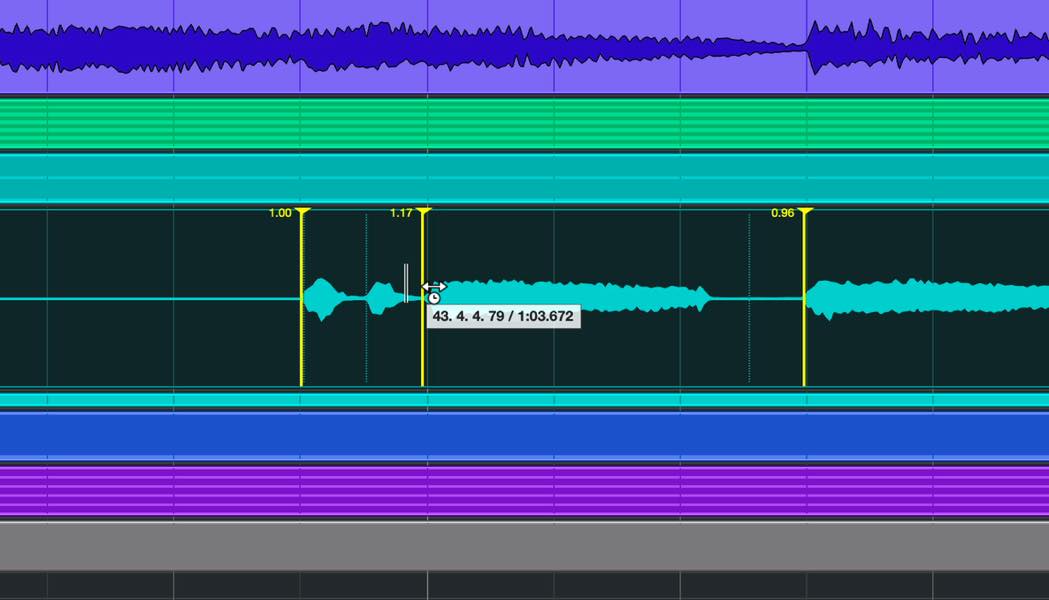
Free Warp can now be performed directly in the Project window.
With the AudioWarp tool selected, click it again and choose Free Warp.
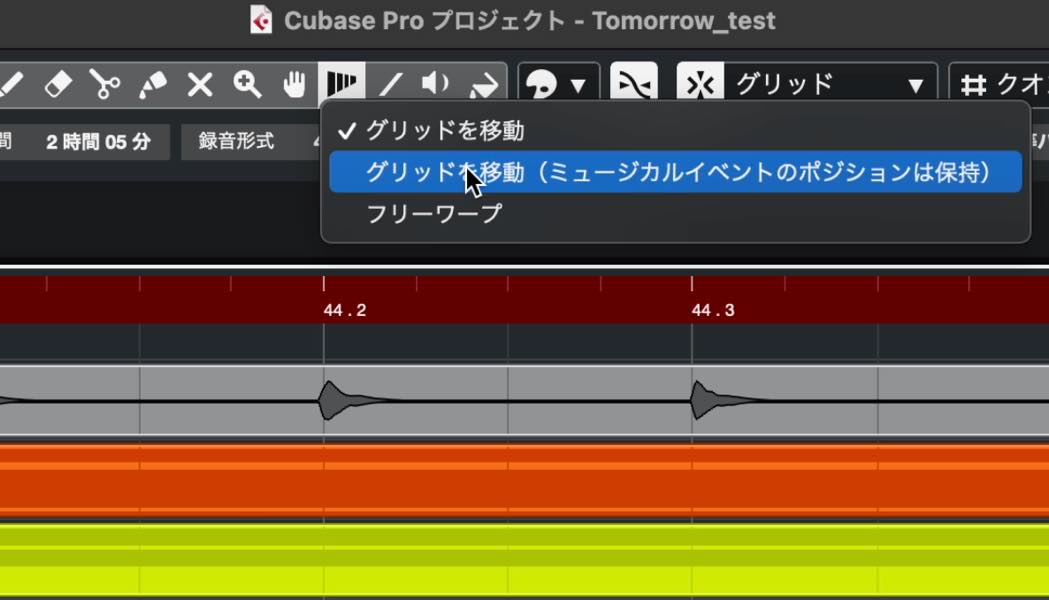
Clicking an audio event in this mode adds a warp marker, allowing timing edits similar to those in the Sample Editor. Being able to move markers while viewing other tracks’ waveforms can improve efficiency.
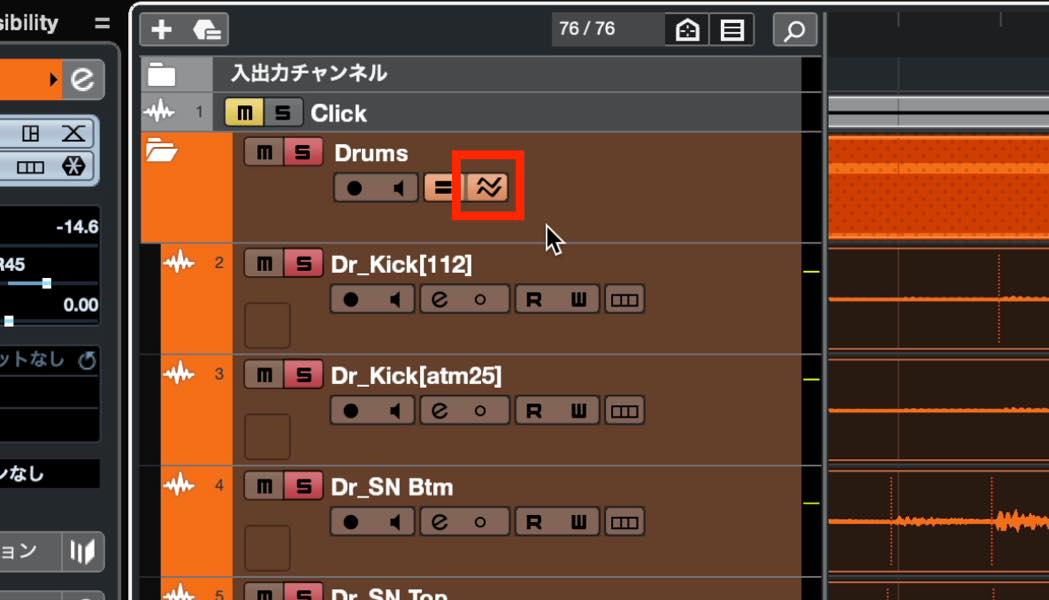
Audio tracks grouped in a folder track can also be warped in phase-coherent synchronization.
Enable the button shown here.
Using Free Warp then warps all the audio events in that folder together.
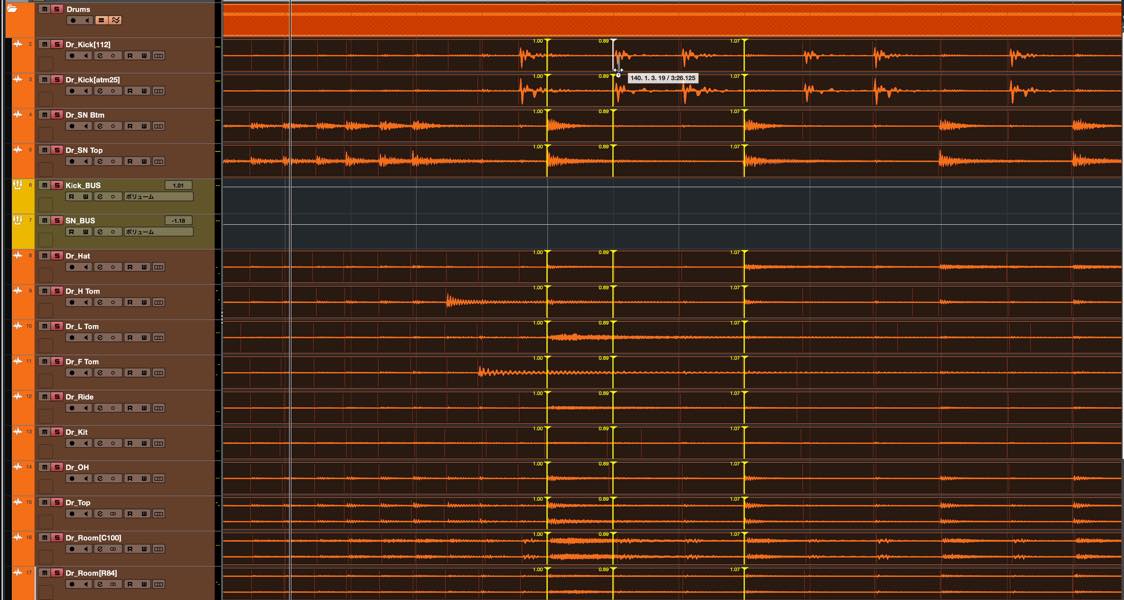
This makes editing multimiked instruments, such as drums, much easier.
When phase-coherent editing is enabled, edits made in the Sample Editor are synchronized as well.
Scale Assistant for VariAudio [Pro / Artist]
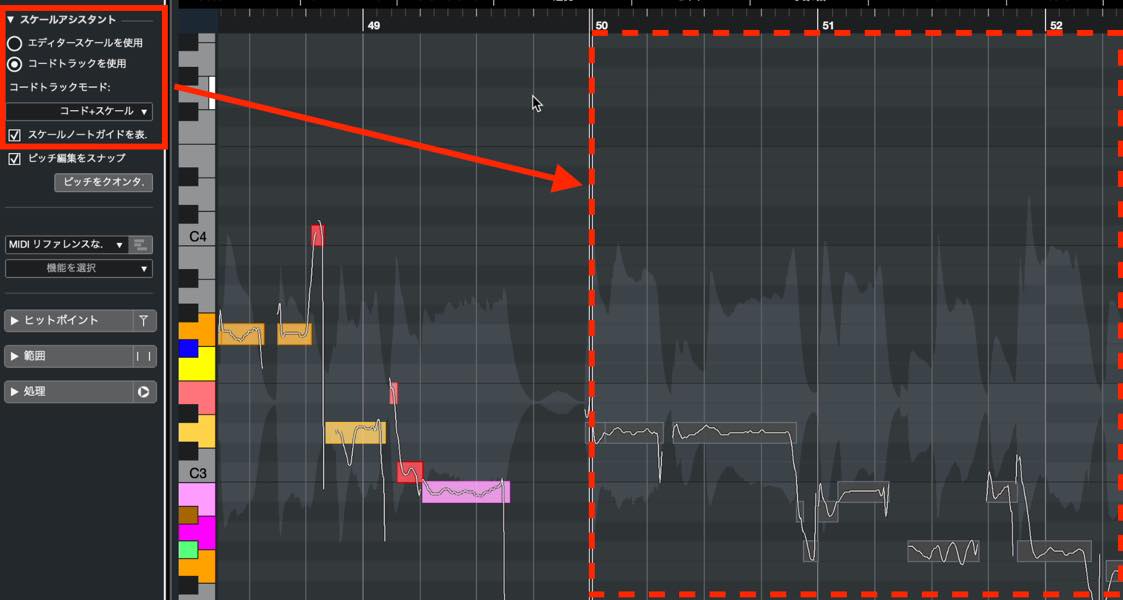
Scale Assistant, introduced for MIDI editing in Cubase 11, became available for VariAudio editing in Cubase 12.
A Scale Assistant section has been added to the audio editor’s Inspector.
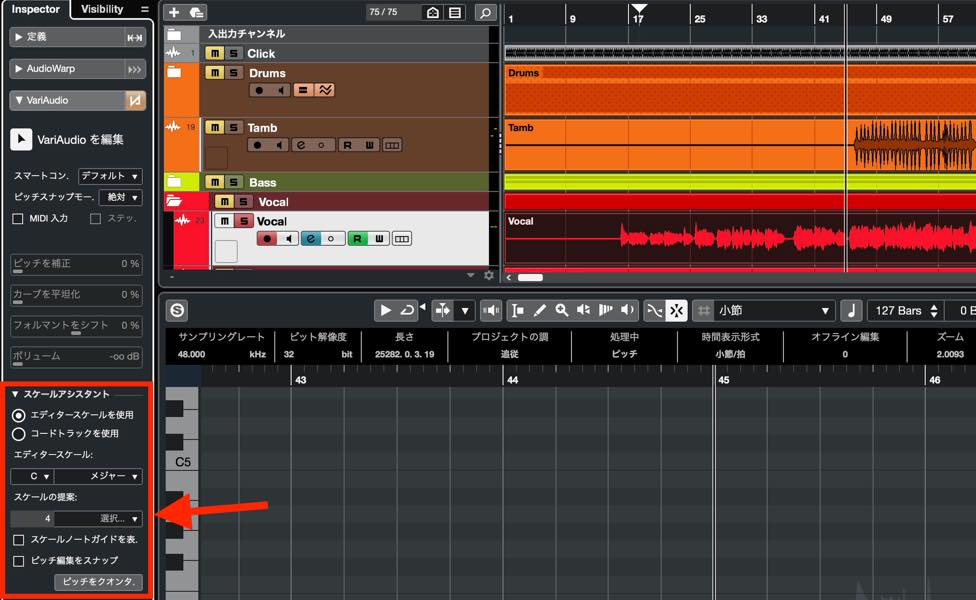
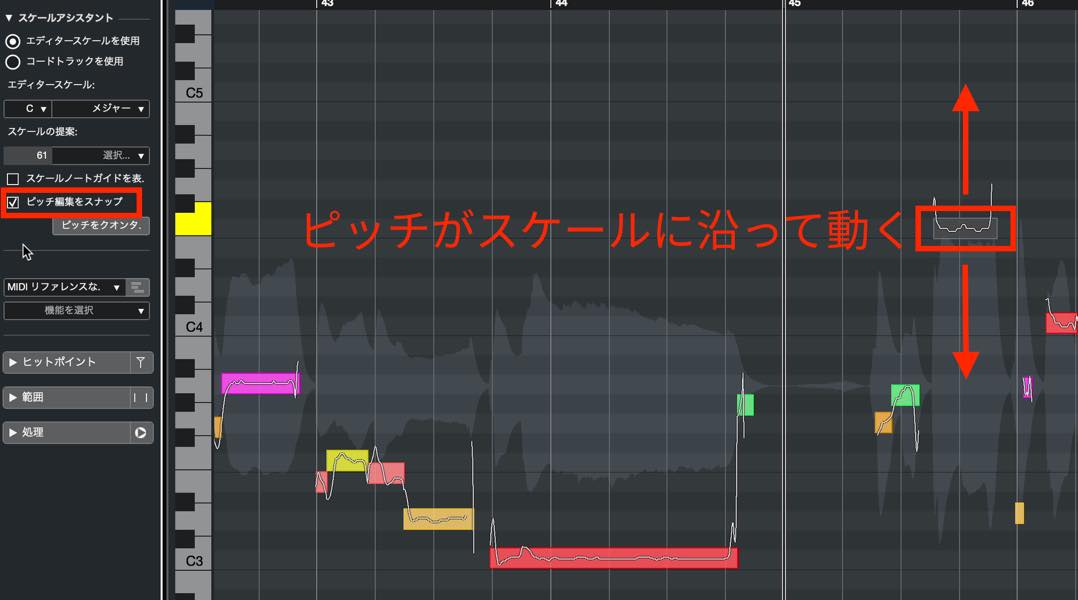
Its basic functions mirror the MIDI version: setting the Editor Scale, displaying scale-note guides, and snapping pitch edits.
Set the song’s key under Editor Scale, enable snapping, and move a pitch segment to keep it within the scale.
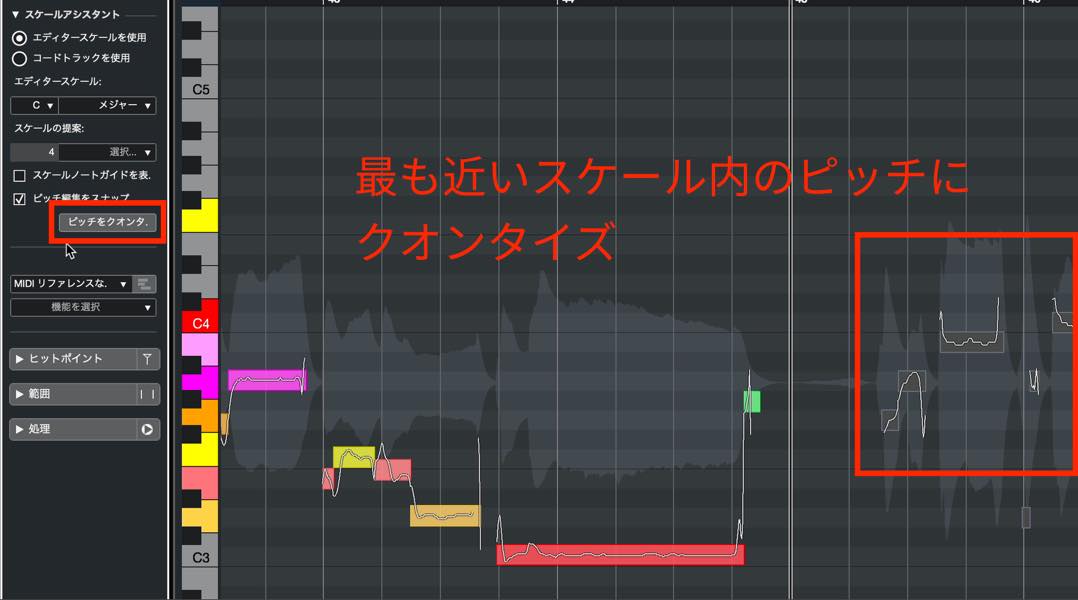
Select the desired pitch segments and click Quantize Pitches to move them to the nearest note in the scale.
Selecting Scale/Chords as the color mode also highlights out-of-scale pitches in red, making them easy to identify.
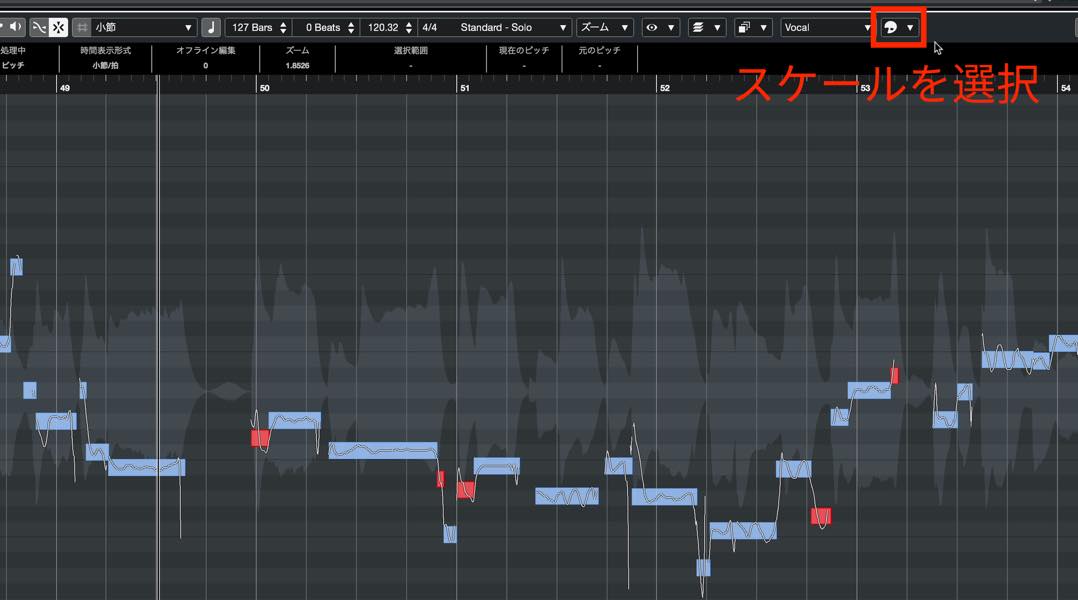
One useful application is creating parallel vocal harmonies.
When you duplicate the lead vocal to make a harmony track, snapping to the scale helps keep notes in key as you move them by the desired interval.
Even without scale knowledge, you can choose from the scales suggested by the analysis.
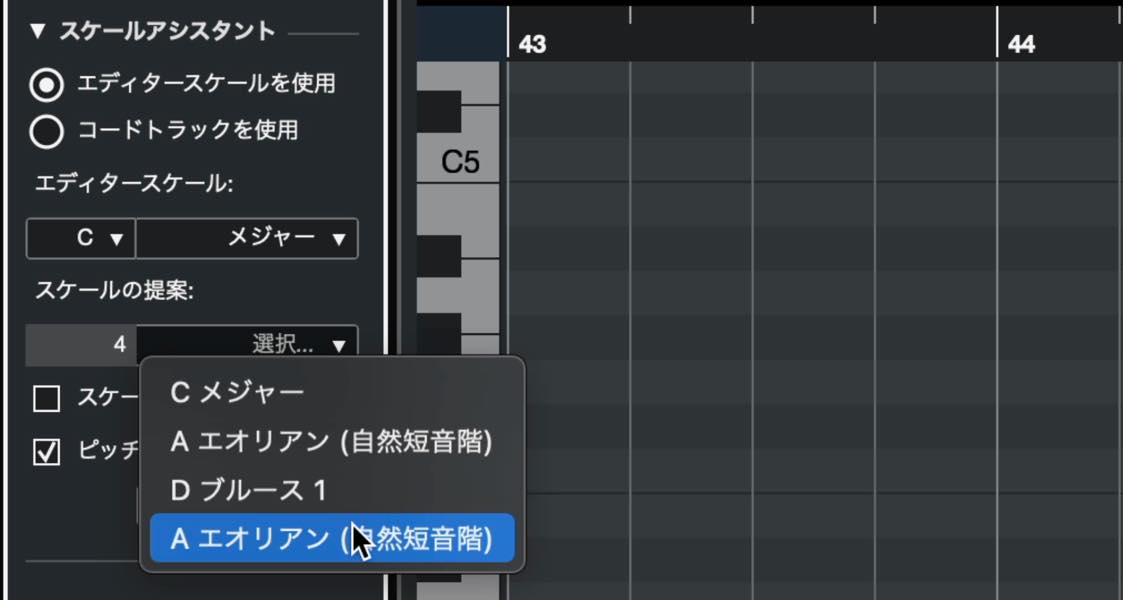
The chord track is also useful.
In Scale Assistant, select Use Chord Track and set Chord Track Mode to Chords & Scales. Pitches then snap to notes that fit both the chord and scale—useful for harmonies that follow the progression.
Improved MIDI-controller integration [Pro / Artist / Elements]
A new MIDI Remote section in the Lower Zone lets you add and configure MIDI controllers through a graphical interface.
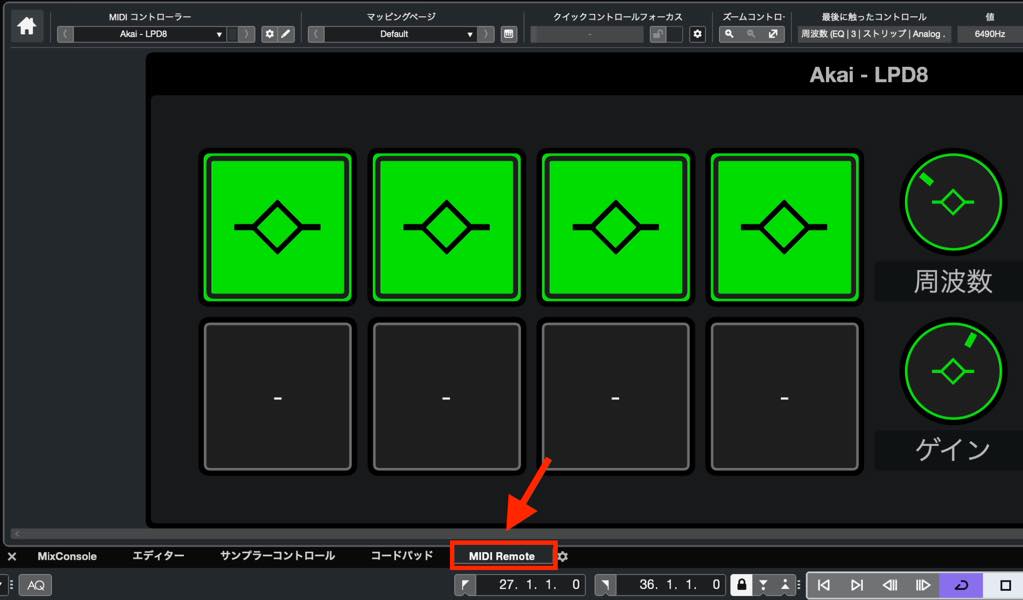
Connecting a controller with an included Cubase script displays it with its controls already mapped, ready for remote operation.
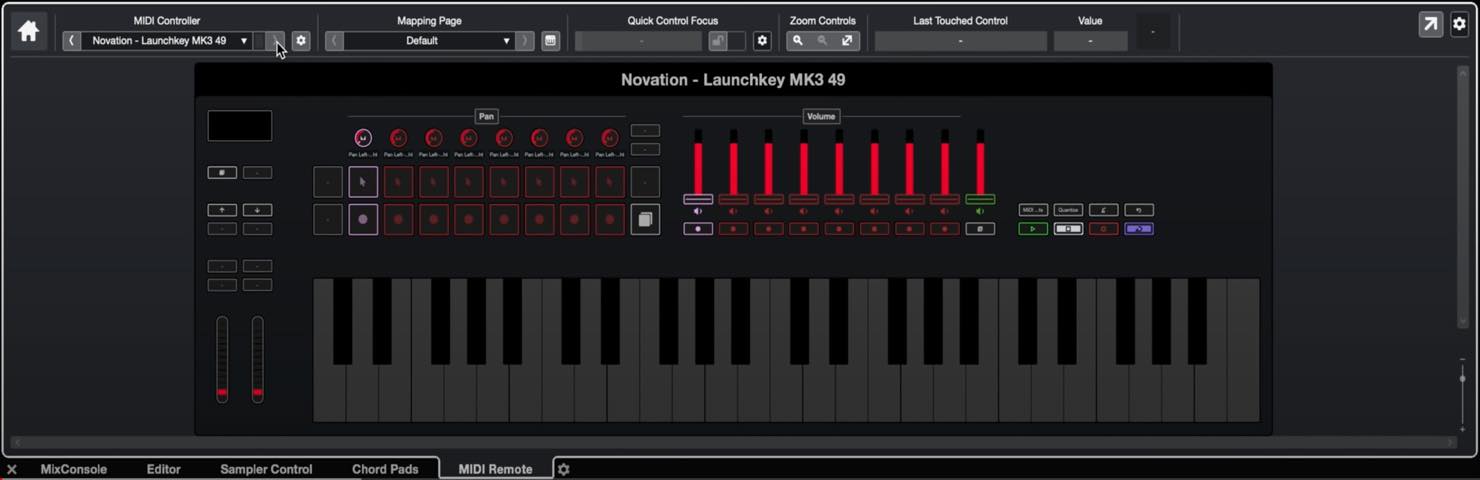
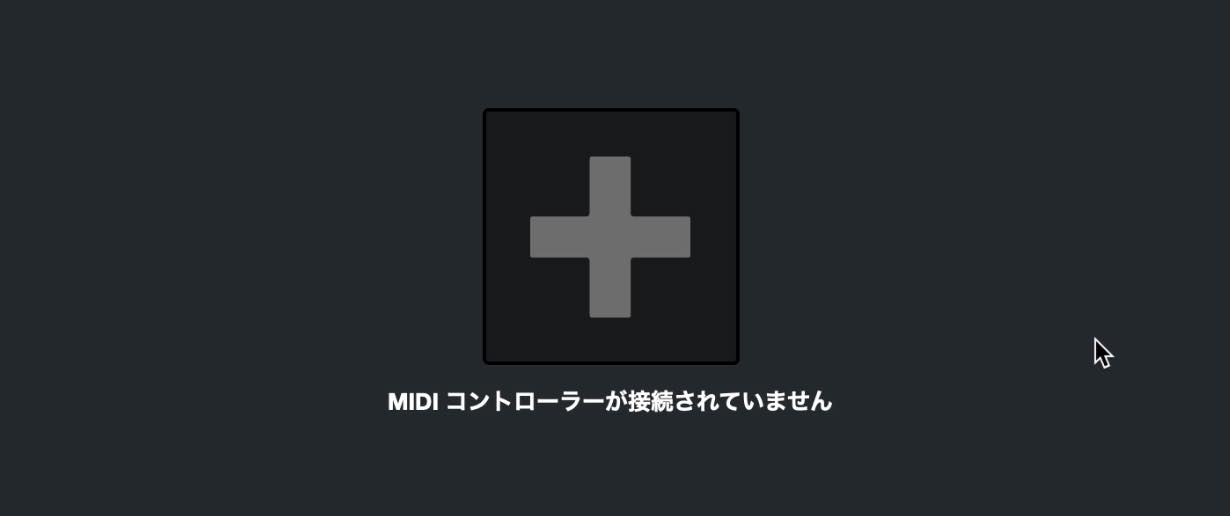
You can also add controllers that are not already supported.
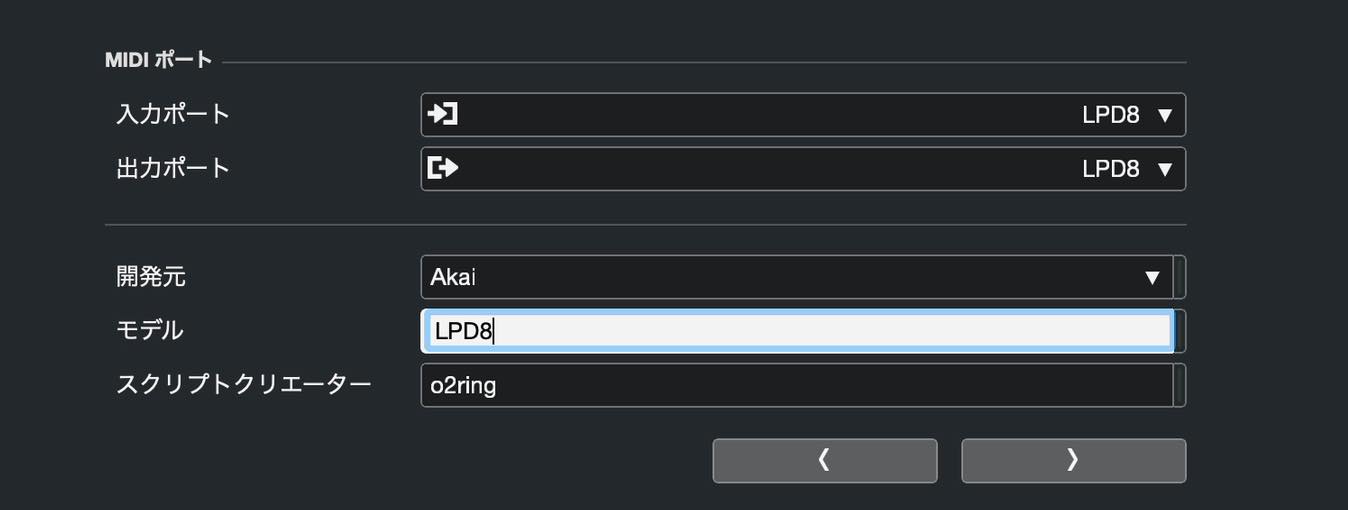
Click the plus button and choose the controller’s input and output ports. Entering its model name helps identify it.
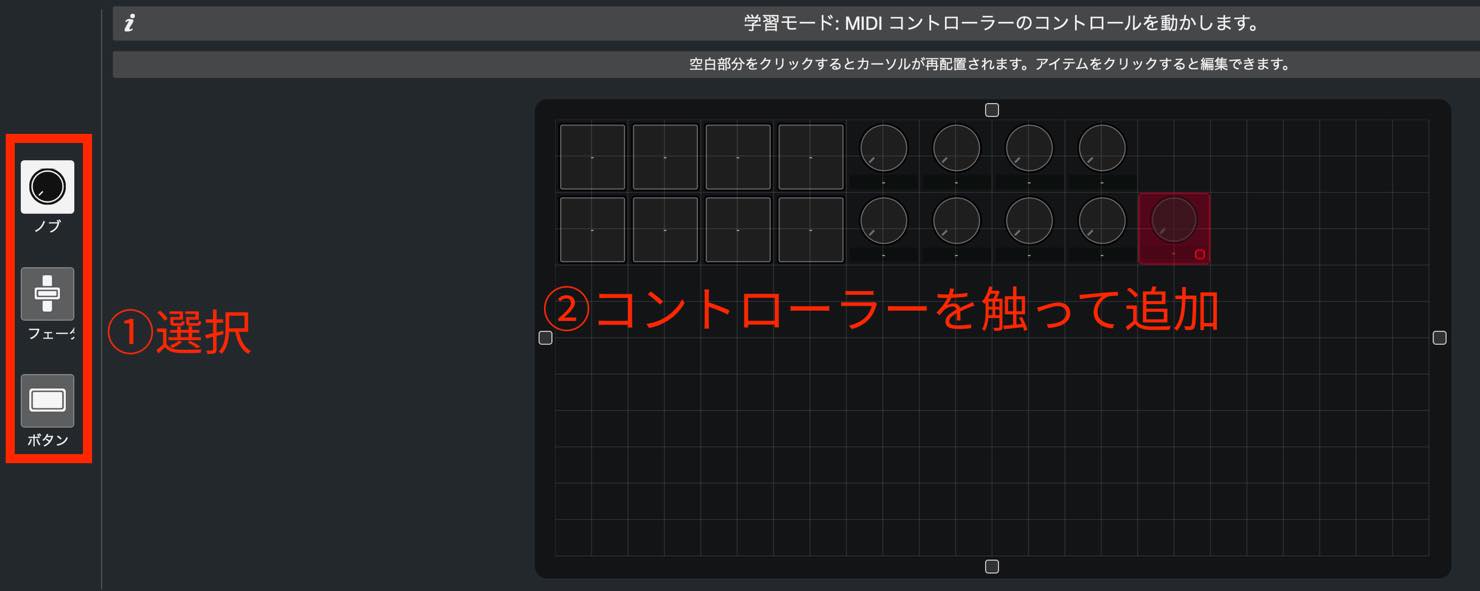
Continue to the next step and place buttons and knobs. Choose a control type from the menu on the left, then operate the hardware to assign it. Matching the layout to the physical device makes it easier to use.
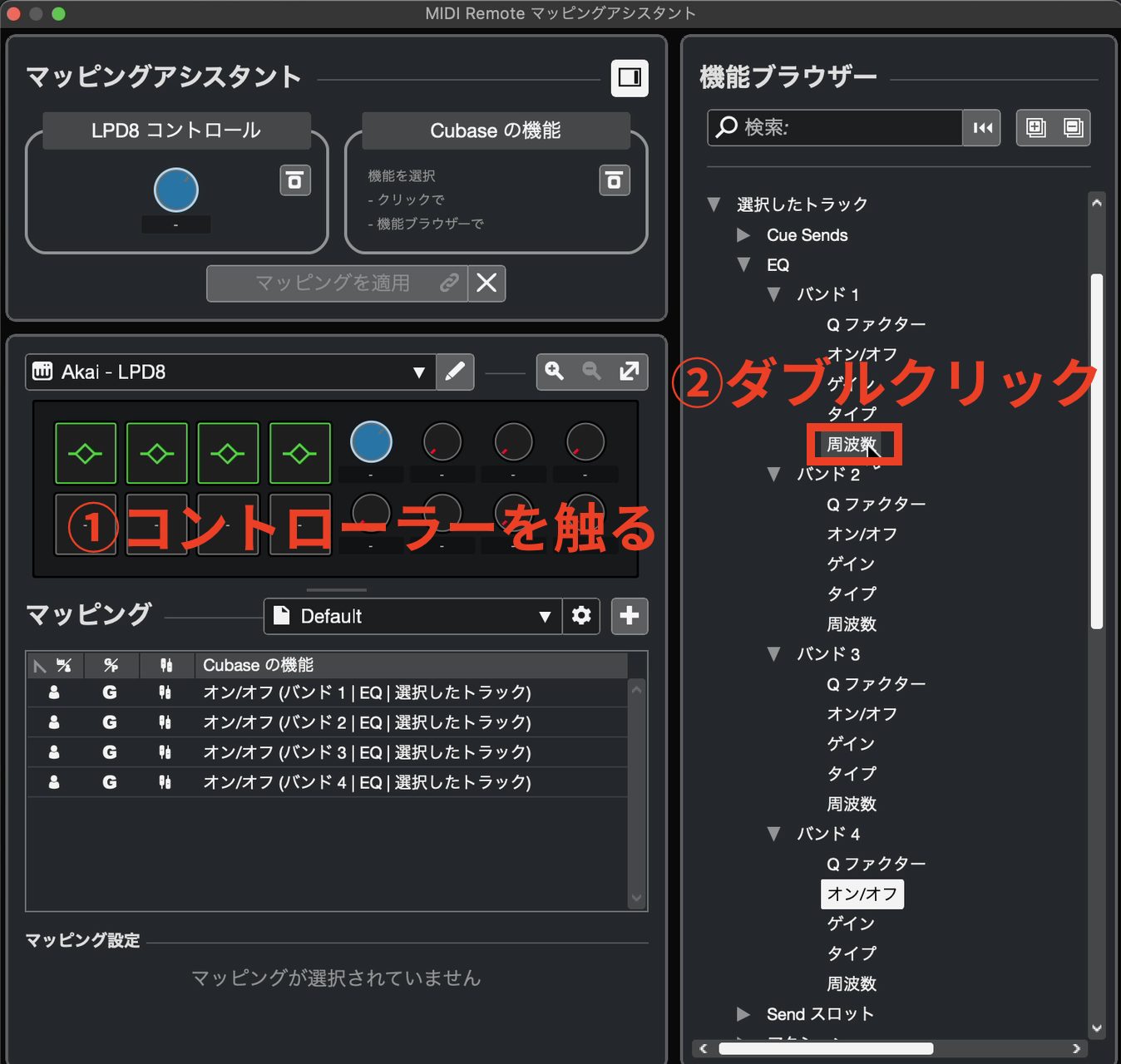
After laying out the controls, continue to the Mapping Assistant. Operate a button or knob to select it, then double-click the function you want to assign in the menu on the right.
If the Functions Browser is hidden, click the button in the upper-right corner.
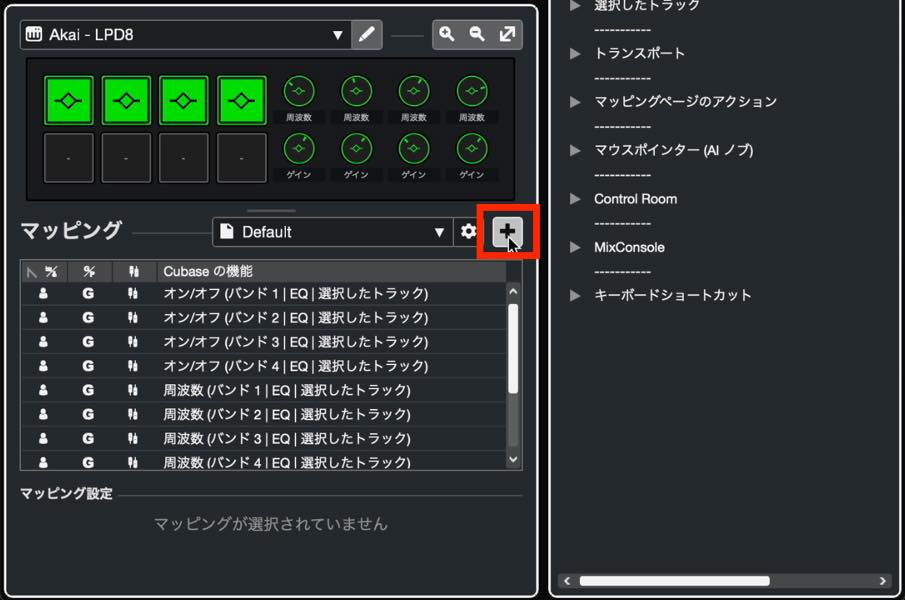
You can store multiple mappings. Open the Mapping Assistant using this button,
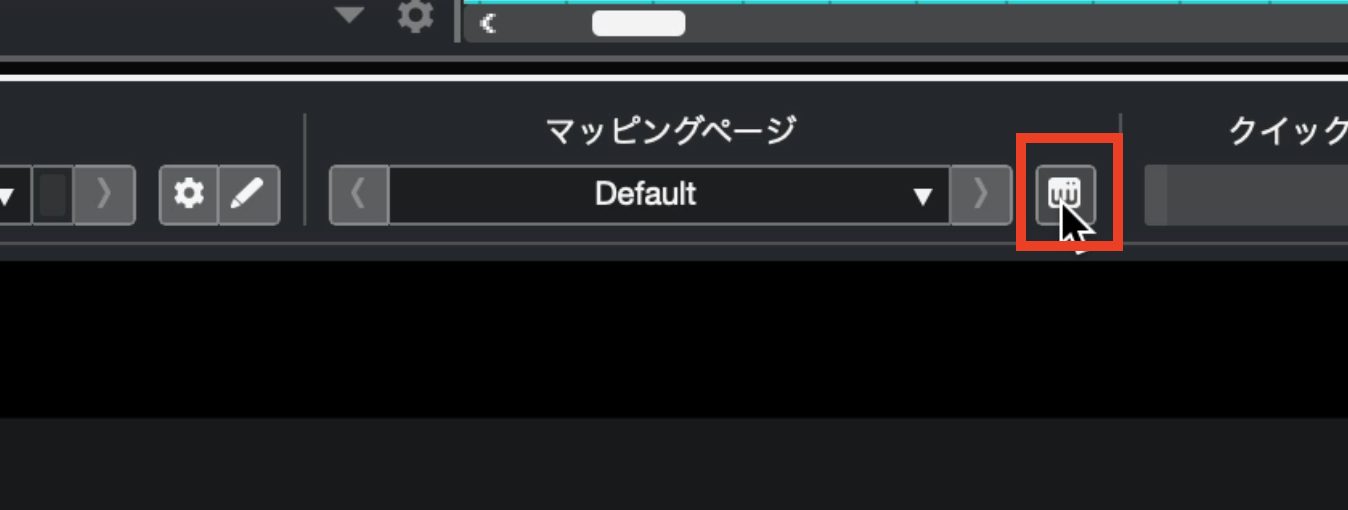
then click the plus button to add a new mapping.
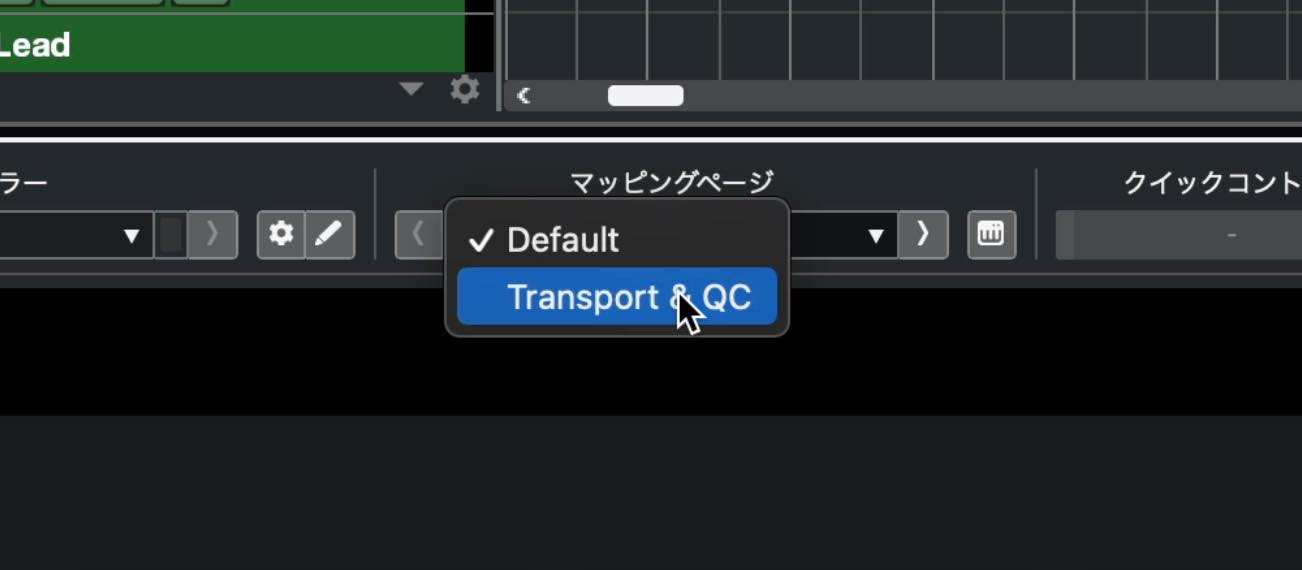
You can change mappings from the mapping-page selector
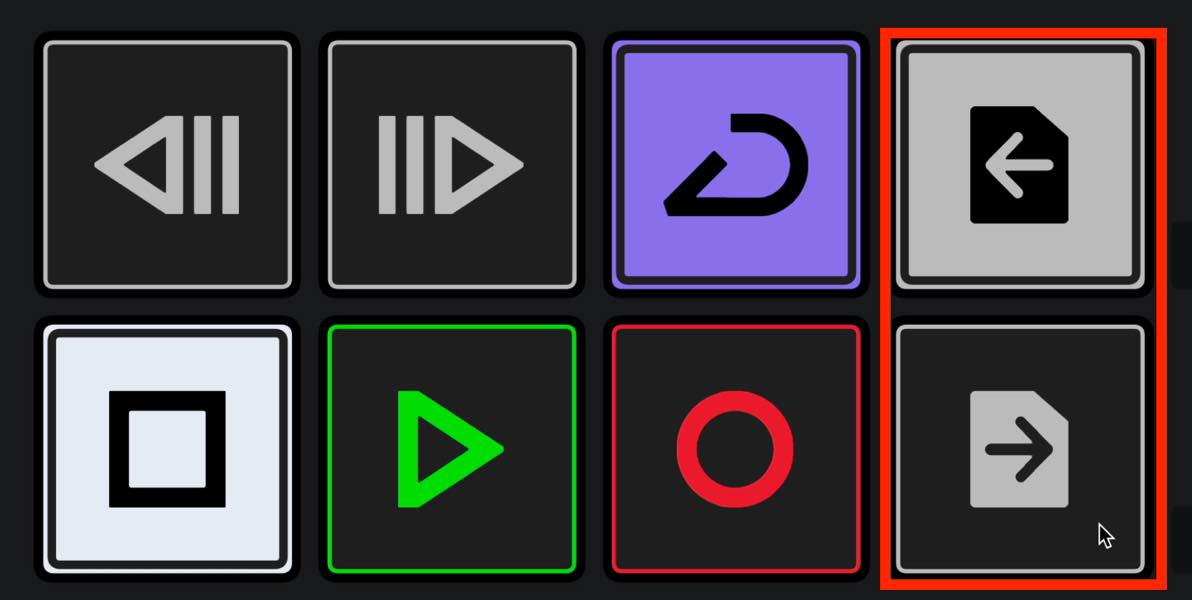
or assign a button to switch between mappings.
New instrument: Verve [Pro / Artist]
Verve is an instrument centered on felt-piano sounds, with a soft, spacious character.
It appears in the HALion Sonic library. Select it to access its presets.
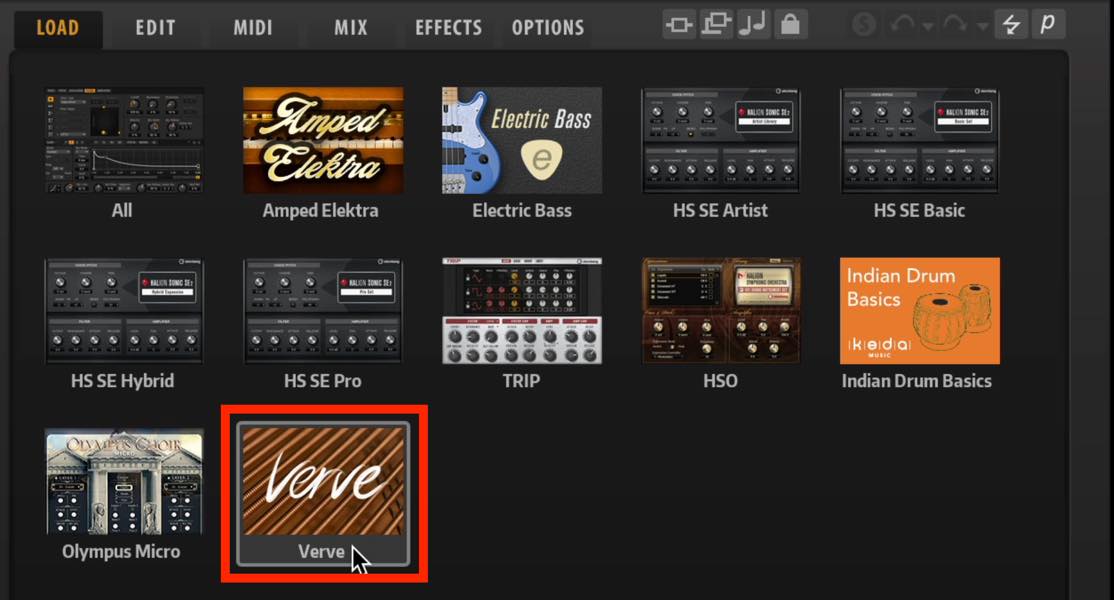
Switch to the EDIT tab for detailed sound settings.
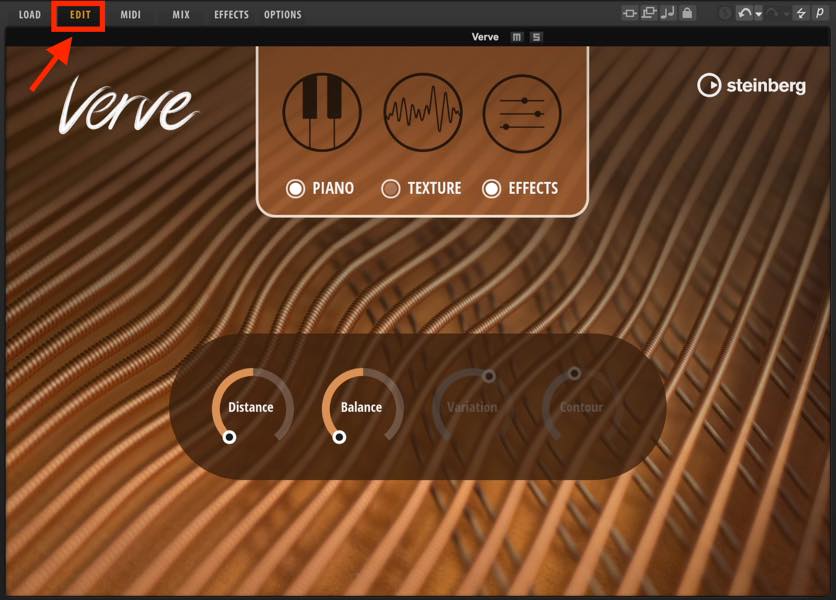
Parameters such as Distance and Color offer a wide range of tonal adjustments.
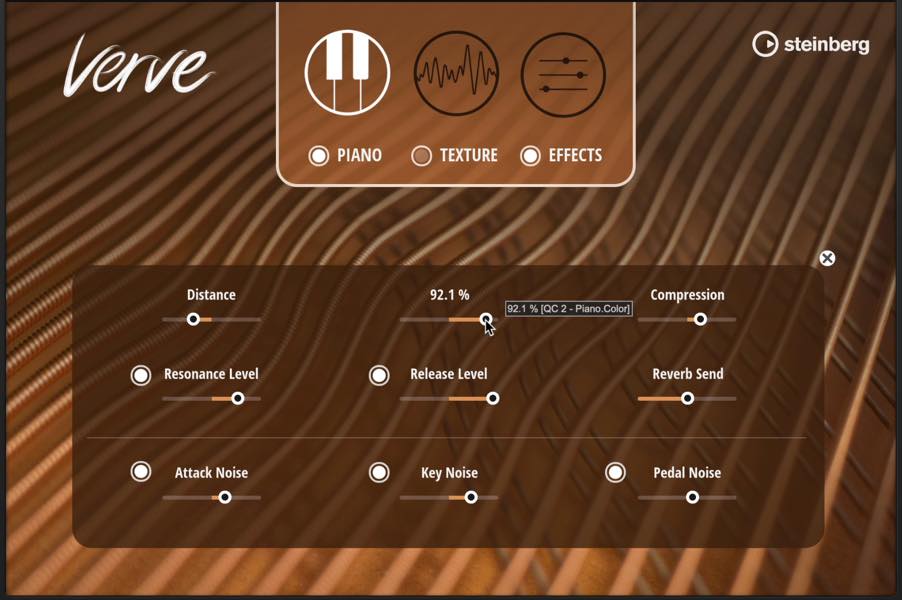
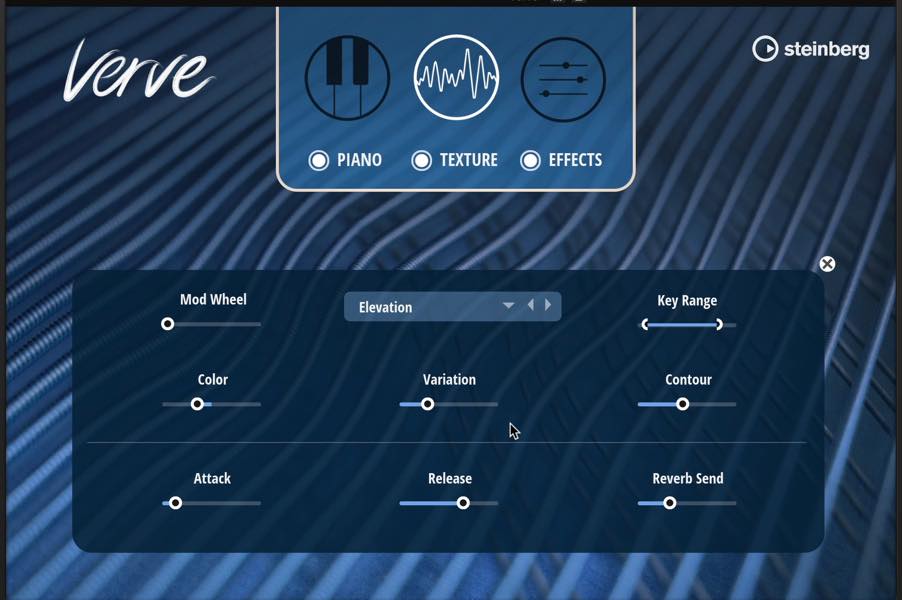
You can layer the PIANO with a variety of sounds called TEXTURE.
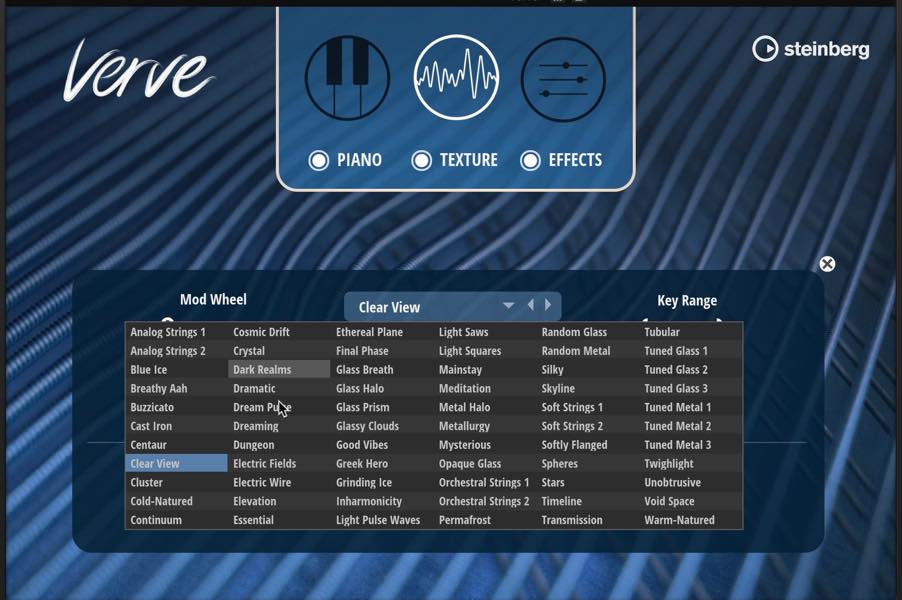
After choosing a TEXTURE, blend it using the balance control on the main page.
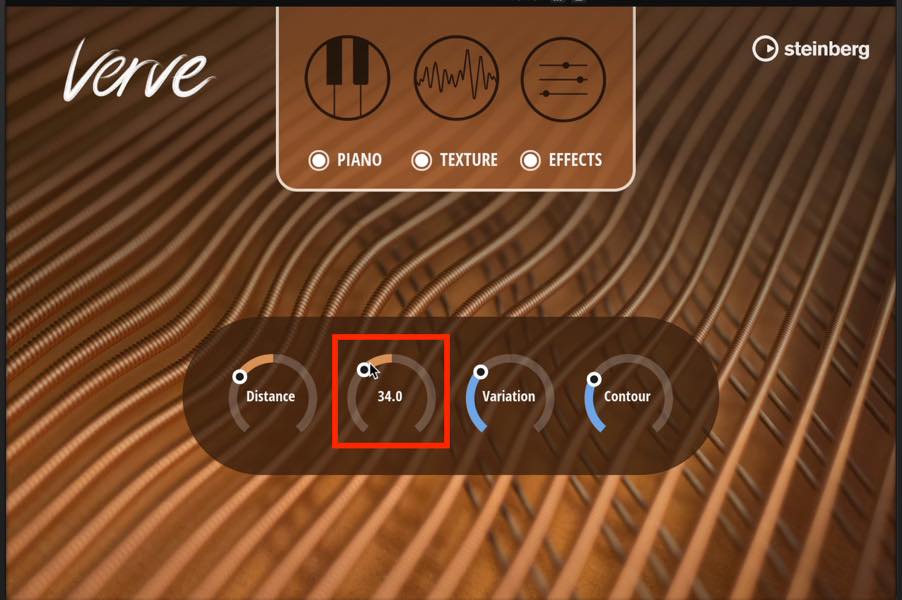
The combinations offer considerable variety. Color, Variation, and other controls let you adjust the texture’s sound as well.
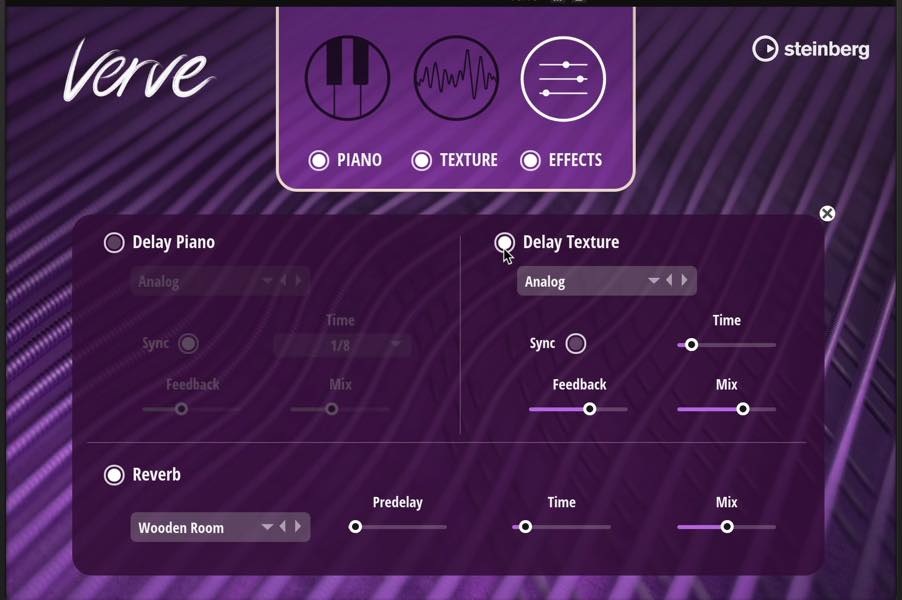
On the EFFECTS tab, you can apply delay separately to PIANO and TEXTURE—for example, adding delay only to TEXTURE.
New plug-in: FX Modulator [Pro / Artist]
FX Modulator is a multi-effects plug-in that makes it easy to add periodic, LFO-like changes to sound. Different effect settings and combinations offer many sound-design possibilities.
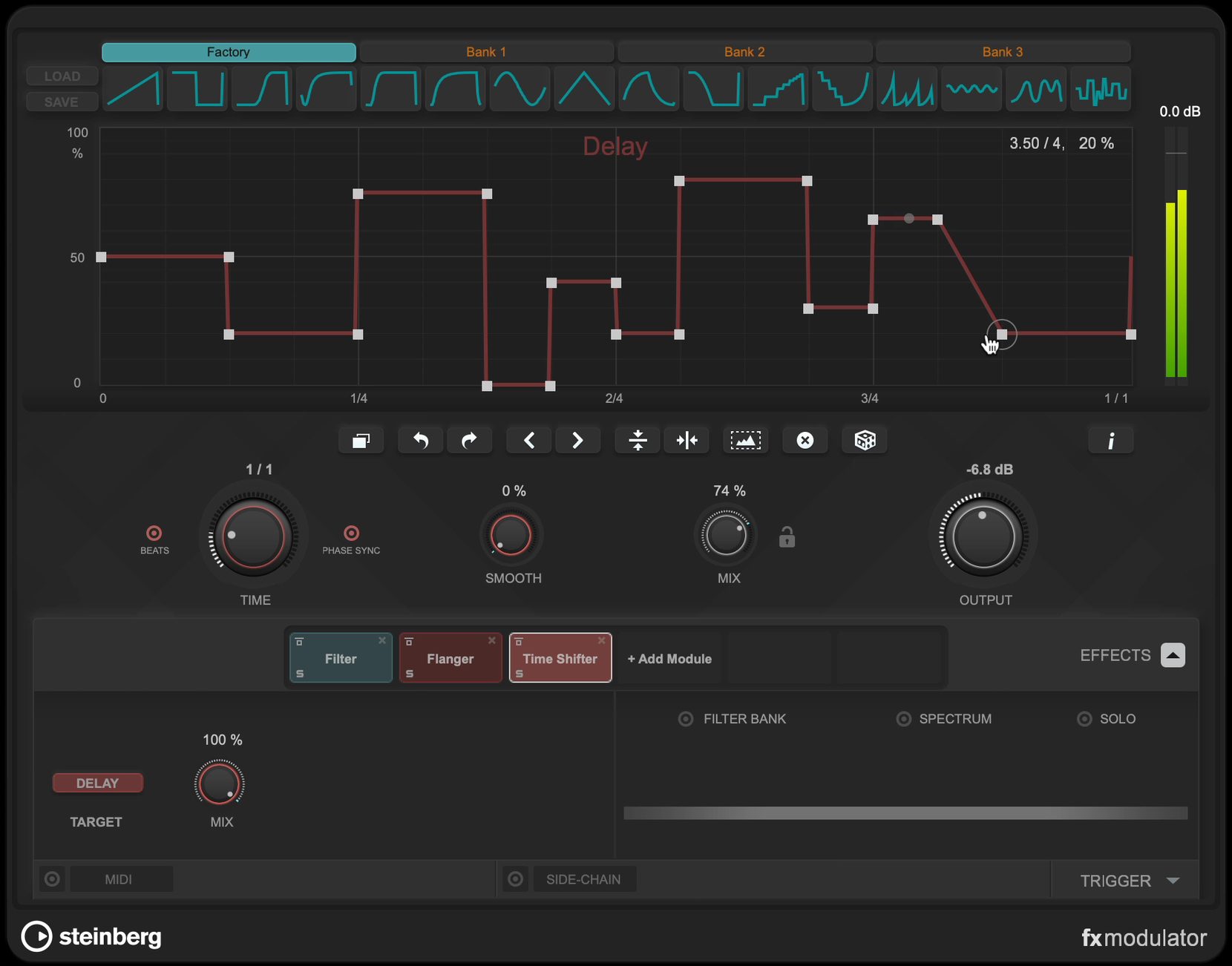
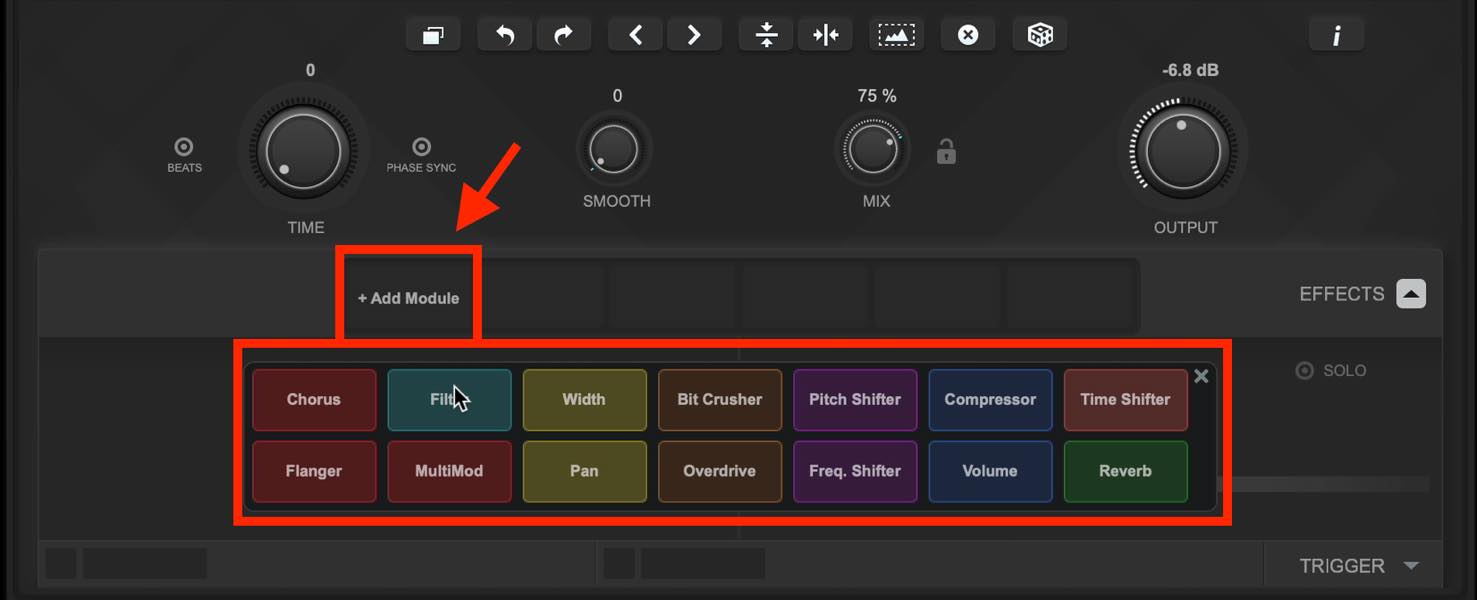
Add the desired effects to the module-chain slots at the bottom.
Then select a movement preset from the curves above and set its period with TIME. When synchronized to the song’s tempo, TIME uses note values; you can also set it in milliseconds.
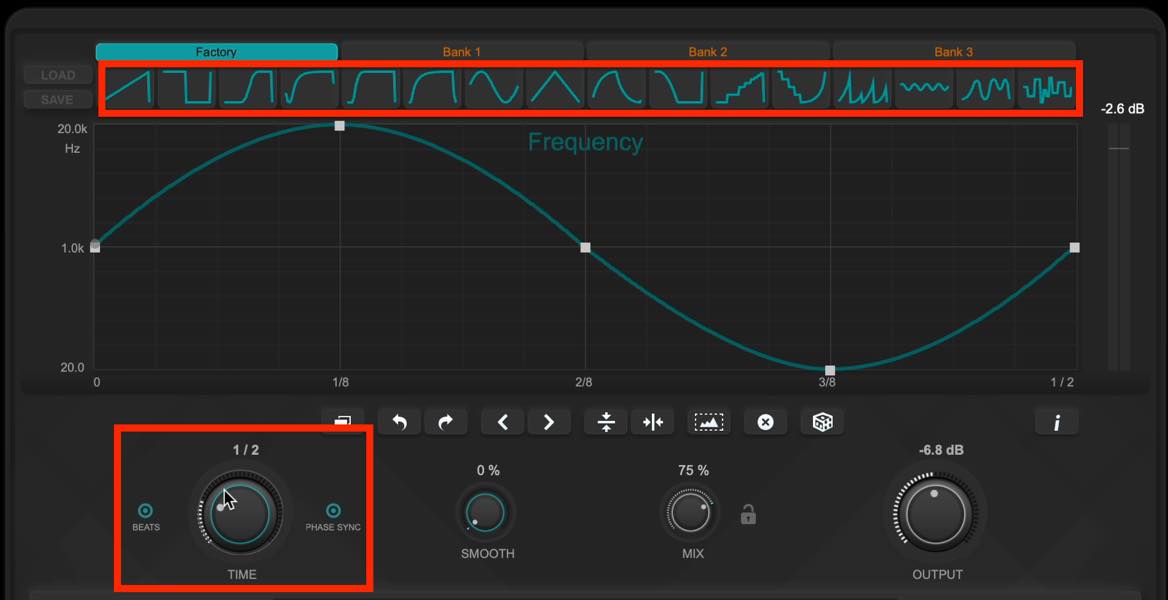
Curve presets can also be applied only to the selected portion, as shown here.

Use the MIX knob to control the effect’s strength.

Adding further effects allows more complex, evolving sounds.
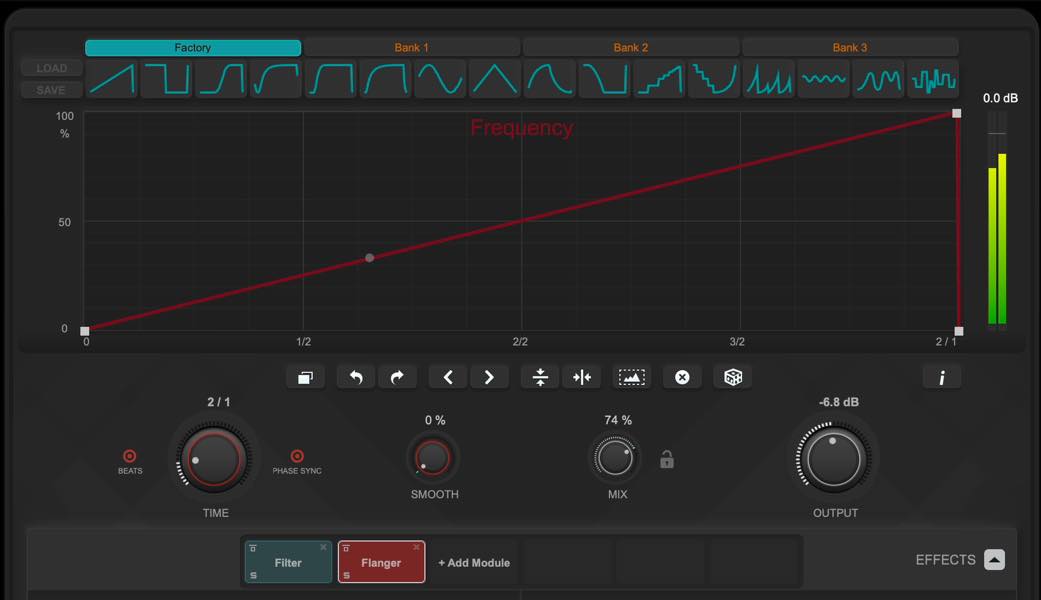
There are also plenty of useful presets to explore.
New plug-in: Raiser [Pro]
Raiser is an easy-to-use maximizer with several assistance functions for achieving the desired loudness.
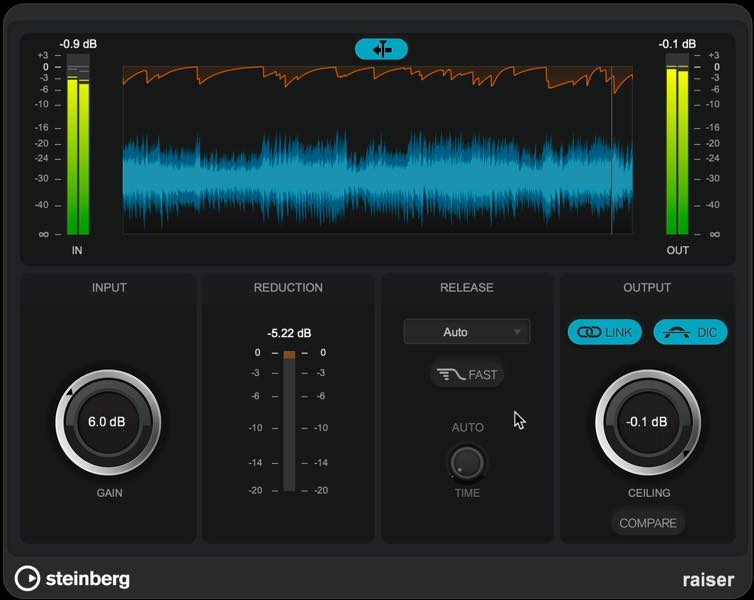
Set the output limit with Ceiling, then raise Gain to increase loudness. The waveform display above shows the limiting graphically.
Use that display to help adjust the amount of limiting and the release.
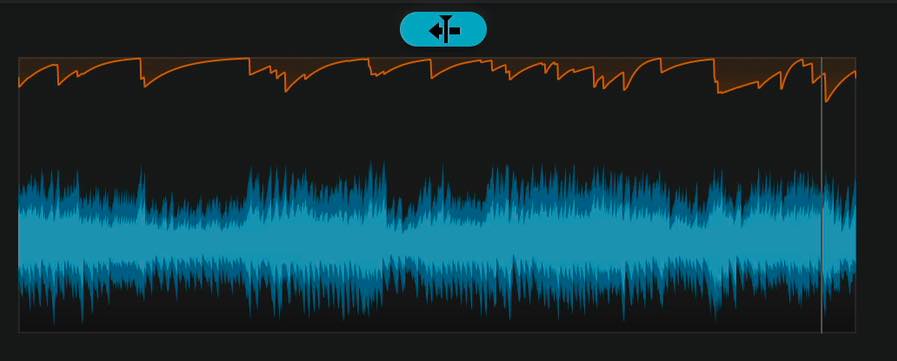
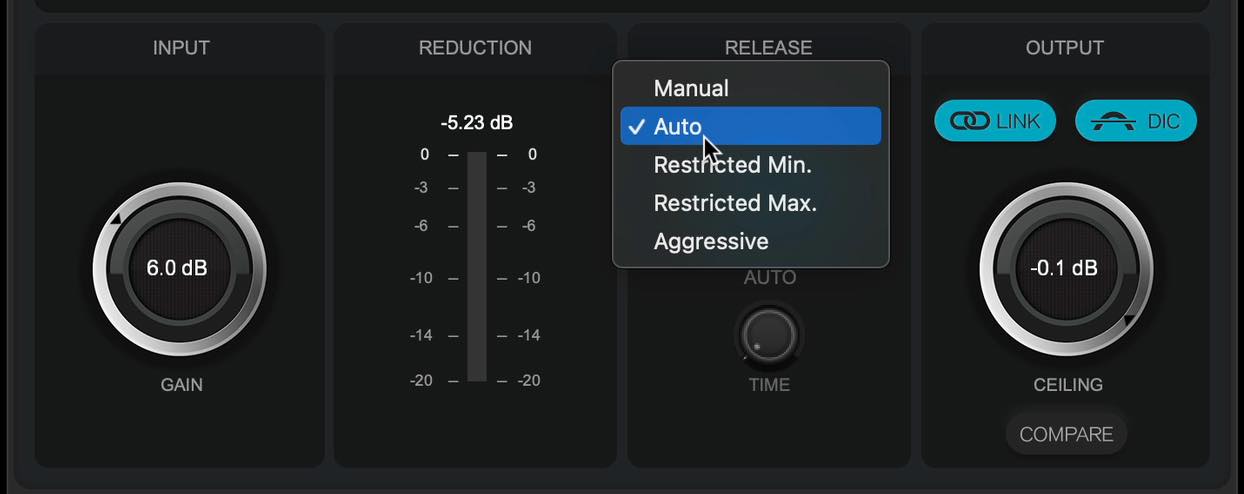
Alongside Manual and Auto release, there are automatic modes with minimum or maximum release limits, plus an Aggressive mode suited to percussive material.
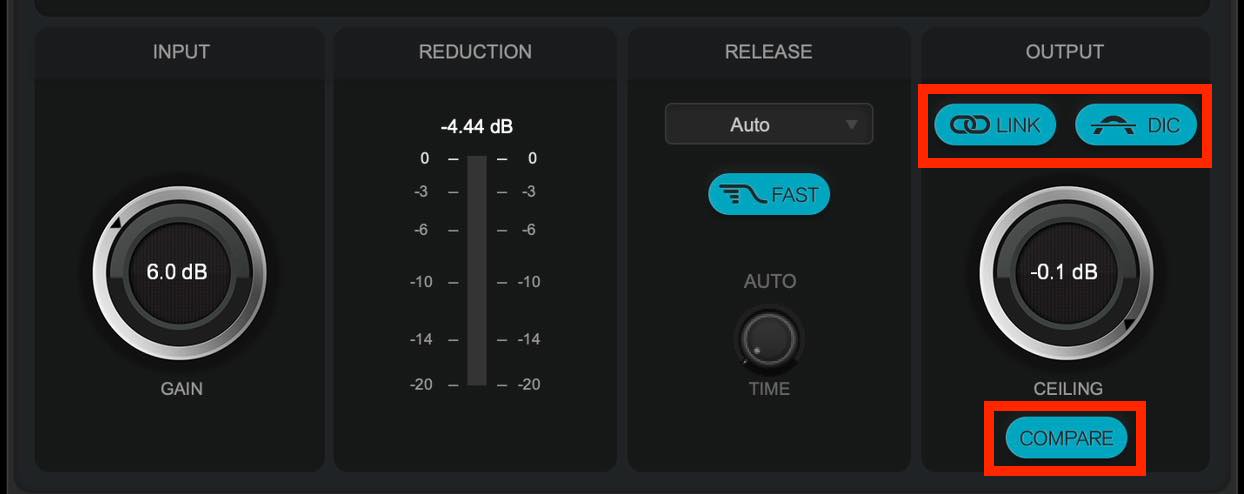
Compare mode matches the level to the bypassed signal, allowing you to focus on changes to transients.
Channel-link switching, inter-sample clipping detection, and other precision-oriented functions make this a well-equipped maximizer for a bundled DAW plug-in.
New SuperVision modules [Pro / Artist]
SuperVision, which combines a range of graphical monitoring tools, gained new modules.
VU
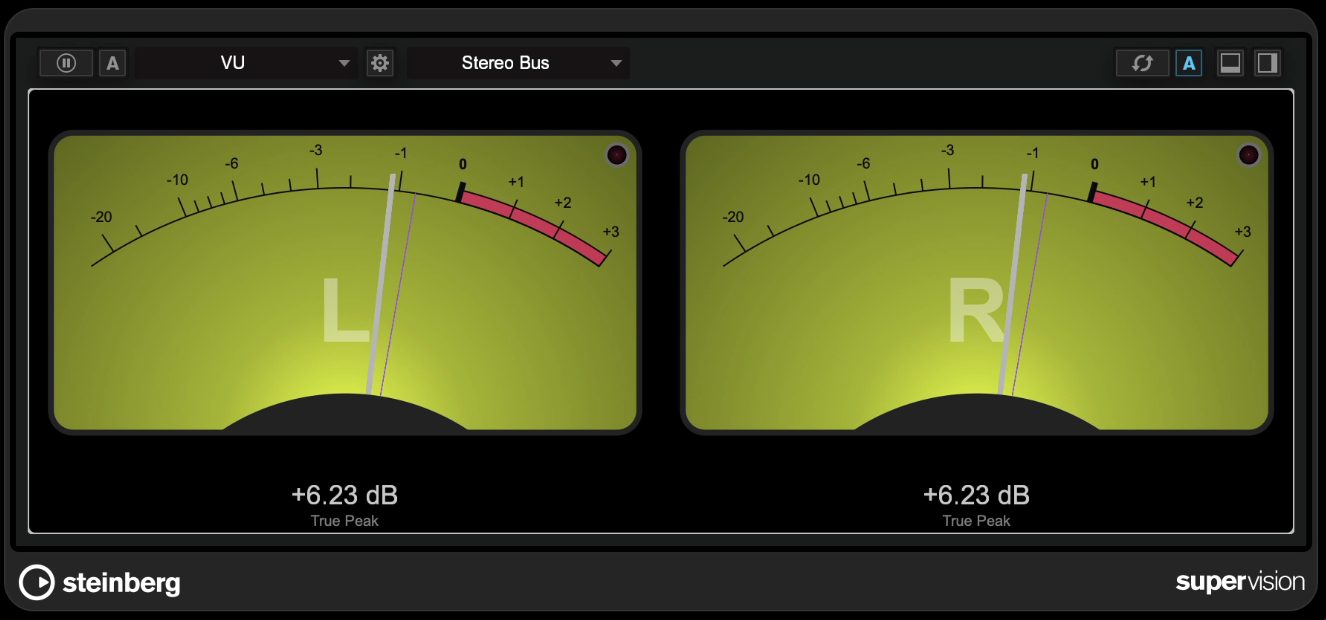
This meter is useful for an intuitive view of signal level. It offers detailed settings: choosing the VU dBFS scale and a −18 dBFS offset makes it useful for conventional gain staging.
Correlation
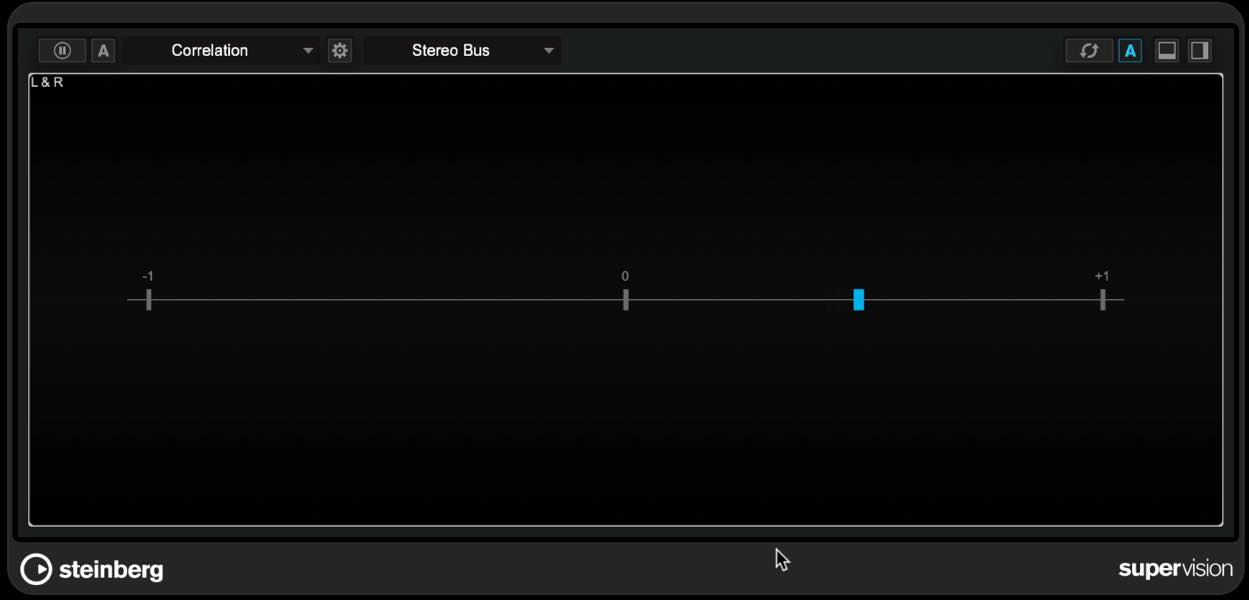
This is useful for checking the stereo image. Positive values indicate greater similarity between the channels; values near zero suggest a wider image, while negative values indicate out-of-phase content between left and right.
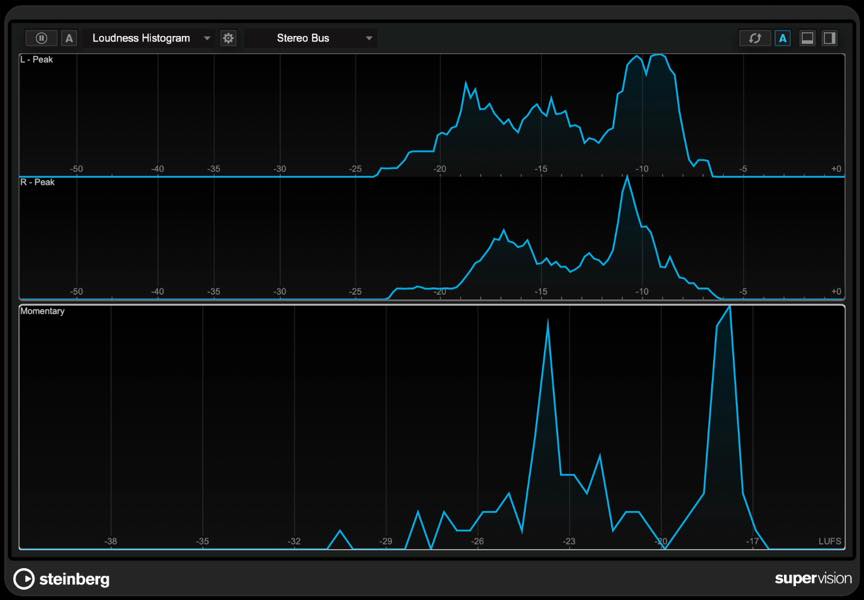
Level/Loudness Histogram
This tool visualizes the distribution of levels over the playback period, helping you assess the dynamics of a whole song.
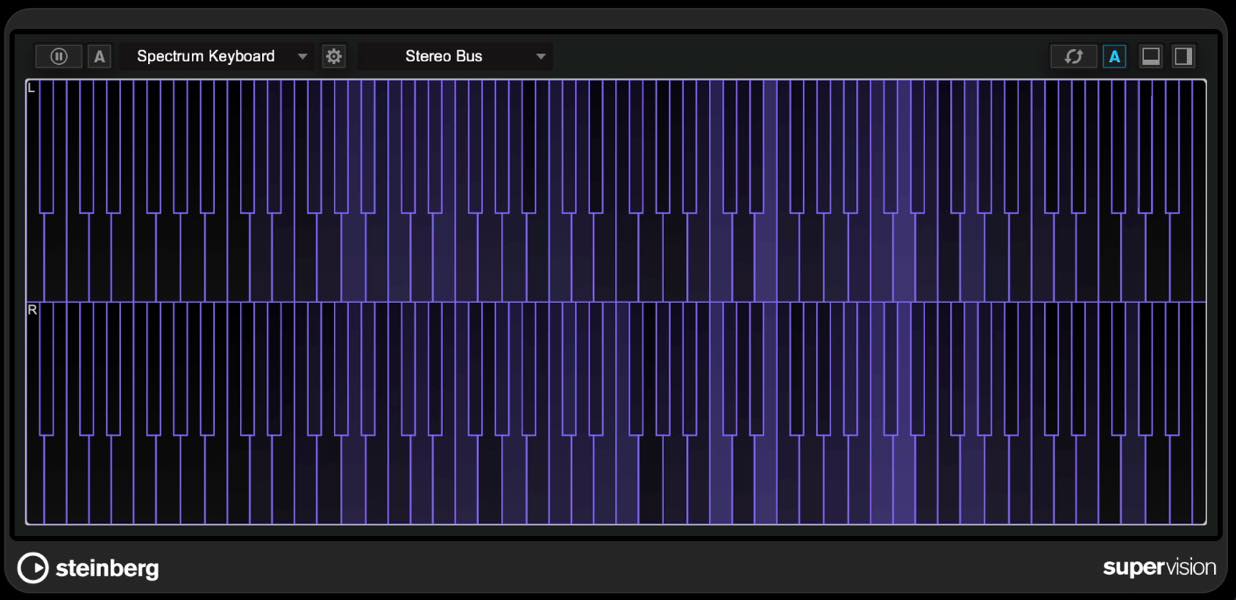
Spectral Keyboard
This displays a track’s frequency content on a keyboard, helping you identify its pitch range. It may also be useful when transcribing by ear.
Other improvements
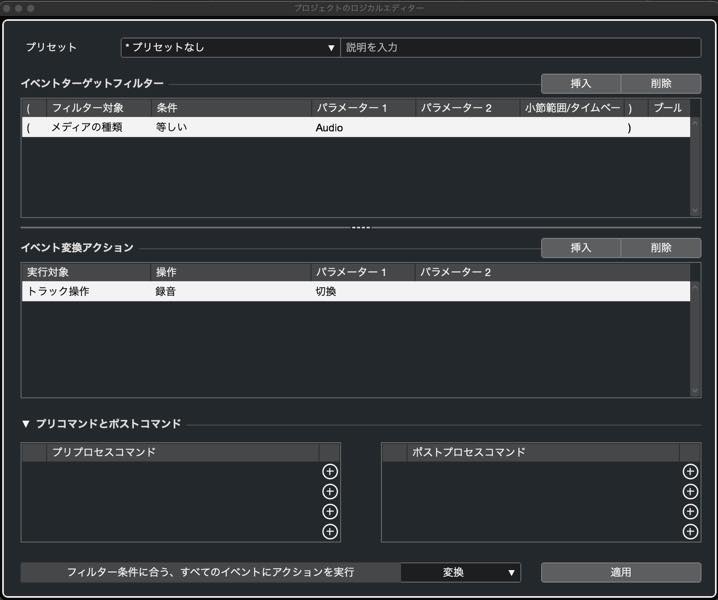
Logical Editor improvements
The Project Logical Editor was improved to allow commands and macros before and after its filters and actions, enabling more complex batch operations.
The Logical Editor interfaces were also redesigned, with resizable windows and easier preset browsing.
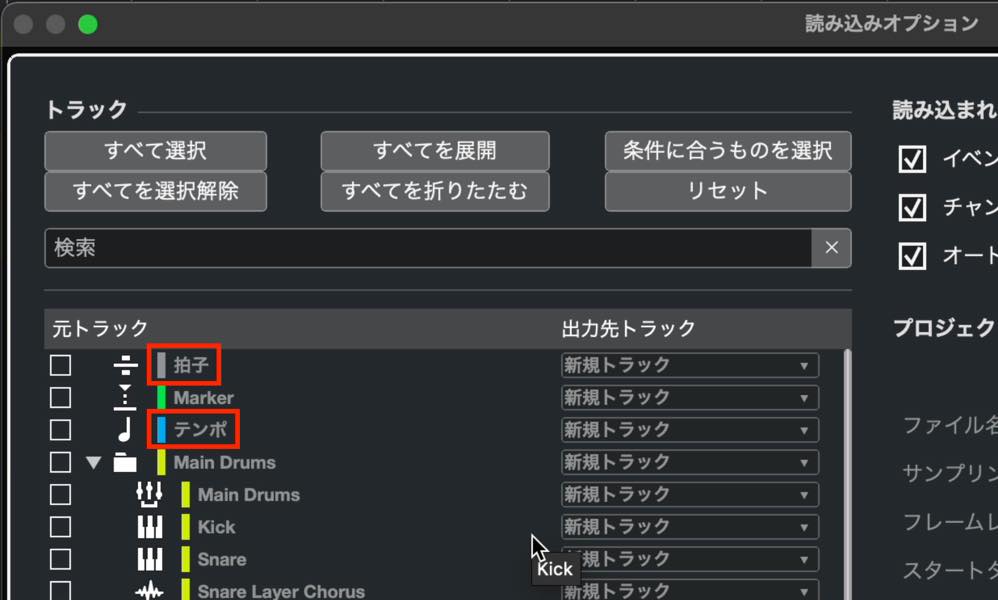
Importing tempo and signature tracks
Import Tracks from Project can now import tempo and signature tracks as well.
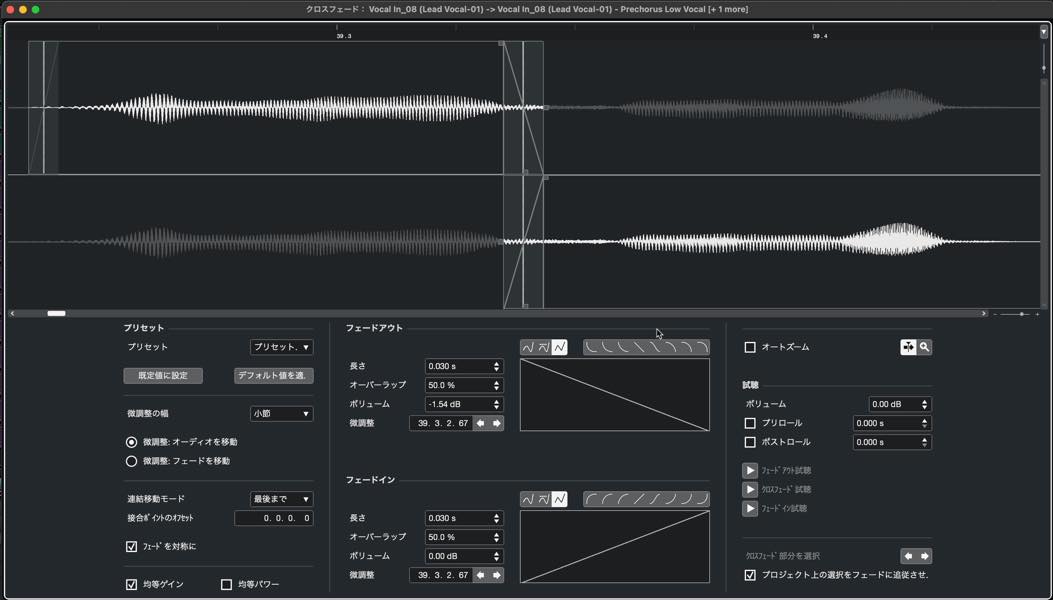
A redesigned Crossfade Editor
The selected events are displayed like tracks, including material outside the currently visible event areas, so you can work while comparing both sides visually.
Applying extensions to tracks
An Extensions section in the Track Inspector lets you apply an ARA extension to all events on a track at once.

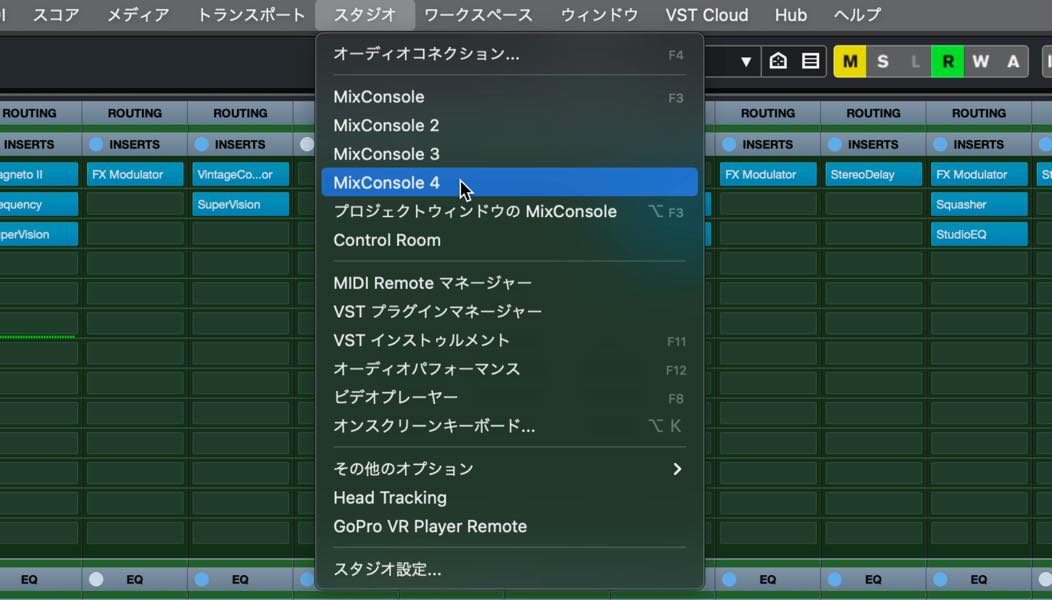
An additional MixConsole window
The number of available MixConsole windows increased from three to four.
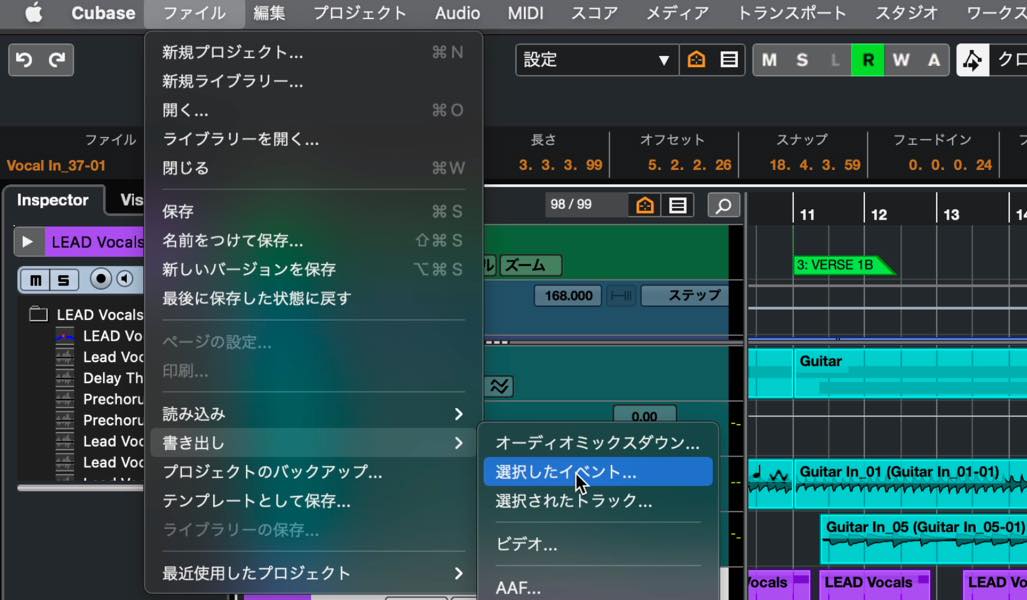
Exporting selected events
You can now export individual selected events. Select the events, then choose File > Export > Selected Events.
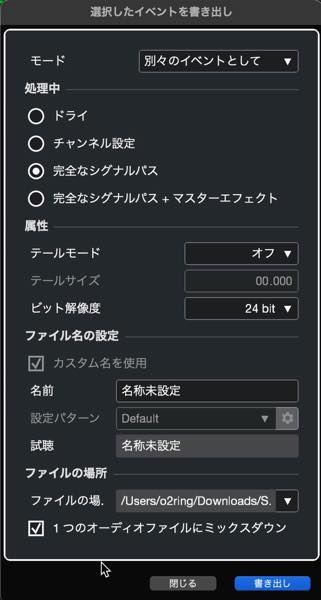
Options similar to Render in Place appear. Except in Dry mode, you can also mix the events down to a single audio file.
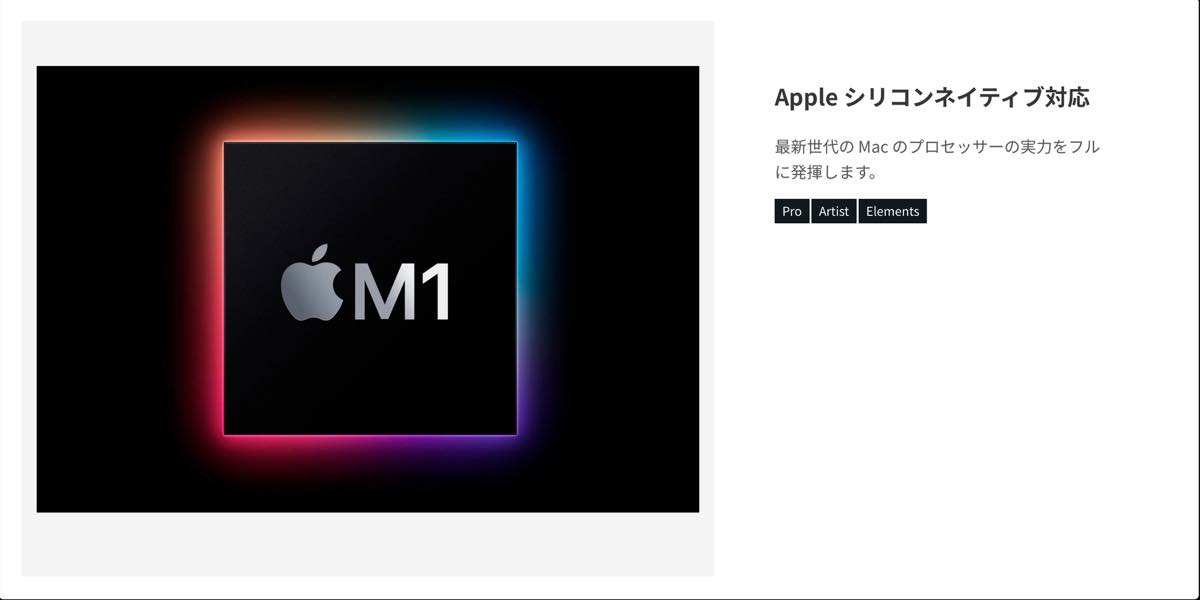
Native Apple silicon support
Cubase 12 introduced official native Apple silicon support, allowing it to run natively on Macs with M1 chips.
Those are the main additions and improvements.
There are further changes we have not covered here. Visit Steinberg’s website for more information.
Beyond the headline removal of the USB dongle requirement, Cubase 12 brought a substantial set of updates. It feels like an evolution shaped by users’ requests.
At the time of this March 2022 release, these were compelling reasons for Cubase users to consider updating.
Steinberg product distributor in Japan: Yamaha Music Japan Co., Ltd.
- Yamaha Music Japan MPP (YouTube) https://www.youtube.com/user/SteinbergJapan
- MPP (Twitter) https://twitter.com/SteinbergJP
- Sound Roster music-production program (Fresh!) https://freshlive.tv/ymjsoundroster
Product page: https://bit.ly/2UiQvP5
Cubase 12 New Features: Major Additions, Improvements, and How to Use Them
Beyond the previously announced removal of the USB dongle requirement, we explore the additions and improvements we consider most useful.Details: https://t.co/U5XQwWsMaB #DTM #MusicProduction #DAW #Cubase #Cubase12 pic.twitter.com/OjDzREi3Lk
— SLEEP FREAKS (@SLEEPFREAKS_DTM) March 12, 2022
Frequently asked questions
Q1. How did activation change in Cubase 12?
Cubase 12 replaced the USB e-Licenser requirement with online activation through Steinberg Activation Manager. A license can be activated on up to three computers.
Q2. What does chord detection from audio do?
It analyzes chords from recorded vocals or instruments and creates chord events on a chord track. In addition to the existing MIDI detection, it can analyze multiple audio events and supports drag and drop.
Q3. How did VariAudio editing improve in Cubase 12?
Scale Assistant was added, allowing pitch segments to snap to a chosen key and out-of-scale notes to be highlighted. This makes vocal editing and harmony creation more efficient.
Q4. Why is editing multimiked recordings easier?
In Cubase Pro 12, phase-coherent AudioWarp editing lets audio events in folder tracks be warped together, so multiple drum microphones and similar recordings can be adjusted in time as a group.
Q5. How did MIDI-controller integration improve?
The new MIDI Remote section in the Lower Zone offers a graphical interface for adding and configuring controllers. Controllers with included scripts are automatically mapped.
NEW ARTICLES
Latest English Articles























































































































