
Running out of USB ports is a common problem when making music on a laptop. This review introduces the Belkin CONNECT Pro Thunderbolt 4 12-in-1 Dock, which brings numerous connections together in one unit. With USB, HDMI, Ethernet, an SD card slot, and power from an AC adapter, a docking station can help create a fully equipped home production setup while keeping your laptop portable. Thunderbolt connectivity lets you connect equipment such as compatible audio interfaces and SSDs; check the requirements of your particular computer and peripherals.
Building a Comfortable Music Production Setup Around One Laptop
When making music on a laptop or tablet with limited expansion options, it's easy to run out of ports such as USB.
Have you found yourself adding more and more hubs until the area around your computer becomes a mess?
This time, we'll introduce docking stations as a neat way to address that problem.
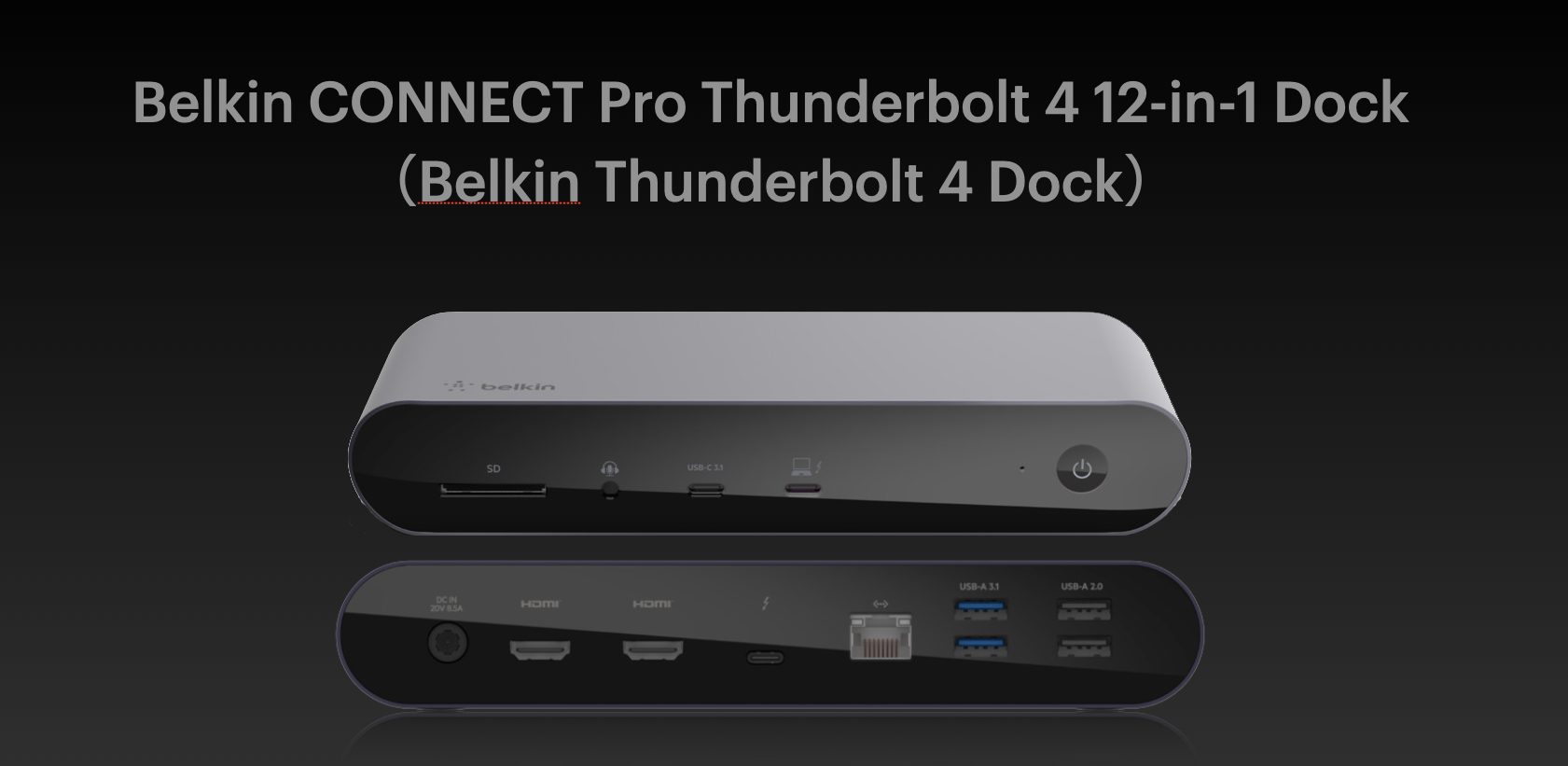
Using the Belkin CONNECT Pro Thunderbolt 4 12-in-1 Dock, which I'd been using for about six months when this review was written in 2022, I'll explain what a docking station does and show how I use it.
Video Guide
About Docking Stations
Like a conventional USB hub, a docking station is designed to expand your available ports.
Creative work such as music production, however, often involves many different types of connections.
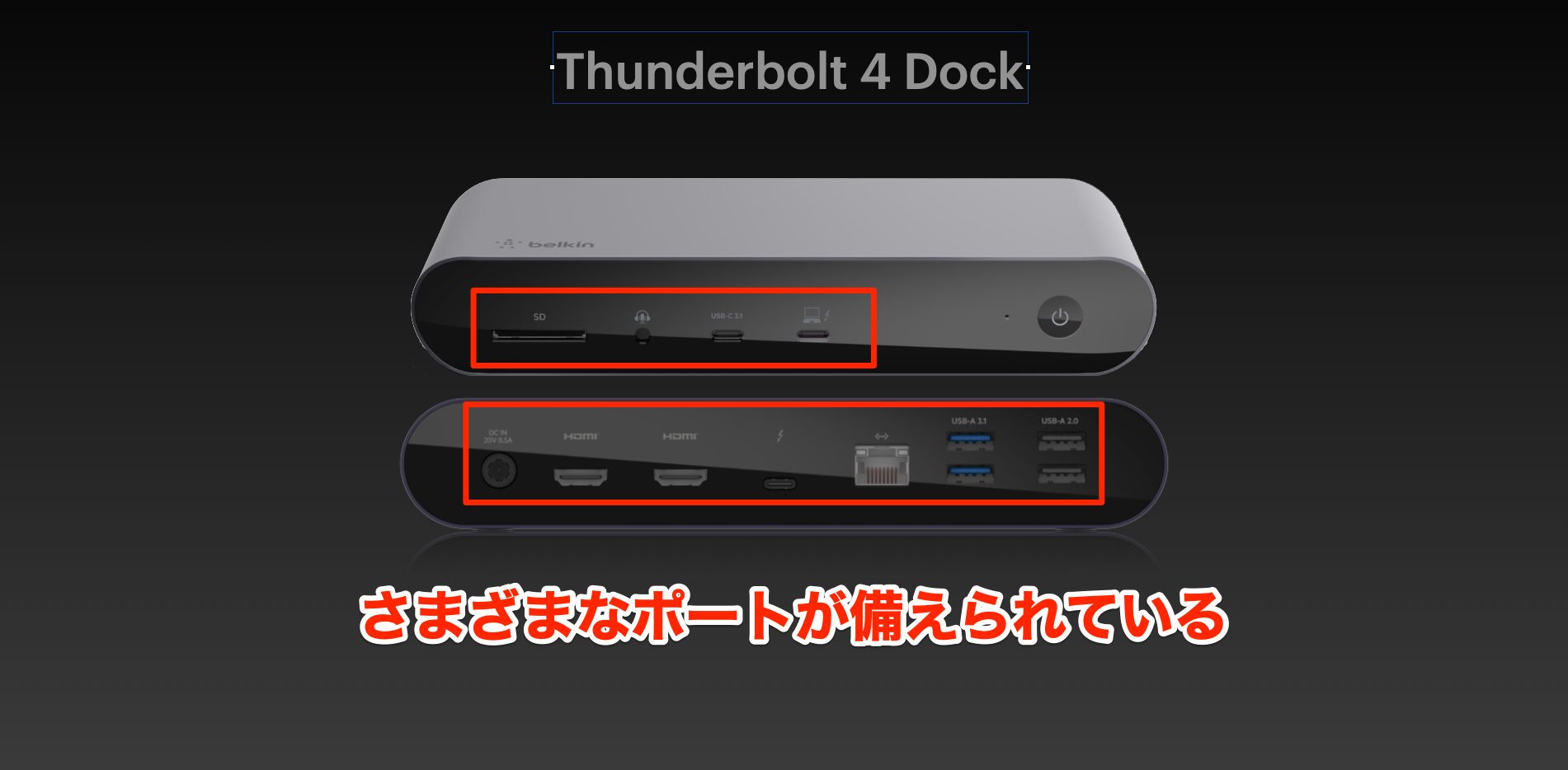
A docking station's main advantage is that one unit provides numerous connections, including USB, HDMI, and Ethernet.
It makes it easy to move between a portable laptop or tablet setup and a more fully equipped home studio with various peripherals.
The Thunderbolt 4 Dock reviewed here was a flagship docking station from Belkin, a brand well known for Mac accessories.
At approximately ¥43,000 for the dock at the time of this 2022 review, it was relatively expensive. In return, the reviewer valued its stability, solid construction, and wide range of expansion options.
If your computer has Thunderbolt 3 rather than Thunderbolt 4, the original guide also suggests a less expensive model. See Other Docking Stations and USB Hubs below. Check each dock's compatibility rather than assuming this Thunderbolt 4 dock cannot work with Thunderbolt 3.
How Is It Different from a USB Hub?
Many people use USB hubs to add ports. How does a docking station differ?
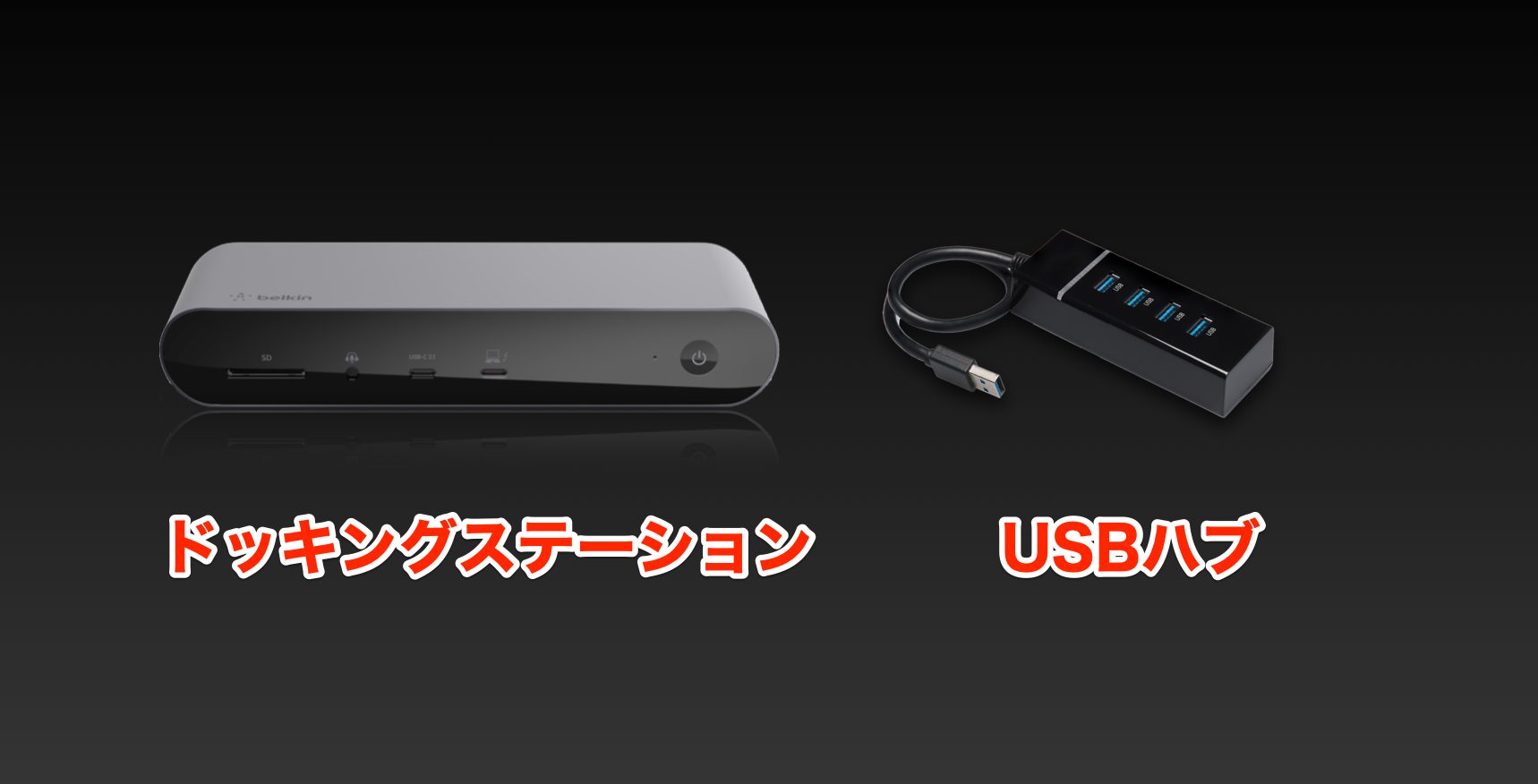
A conventional USB hub mainly adds USB ports, while a docking station typically provides several other types of connections as well.
The selection varies by model, but many include Ethernet, an SD card slot, and video outputs such as HDMI.
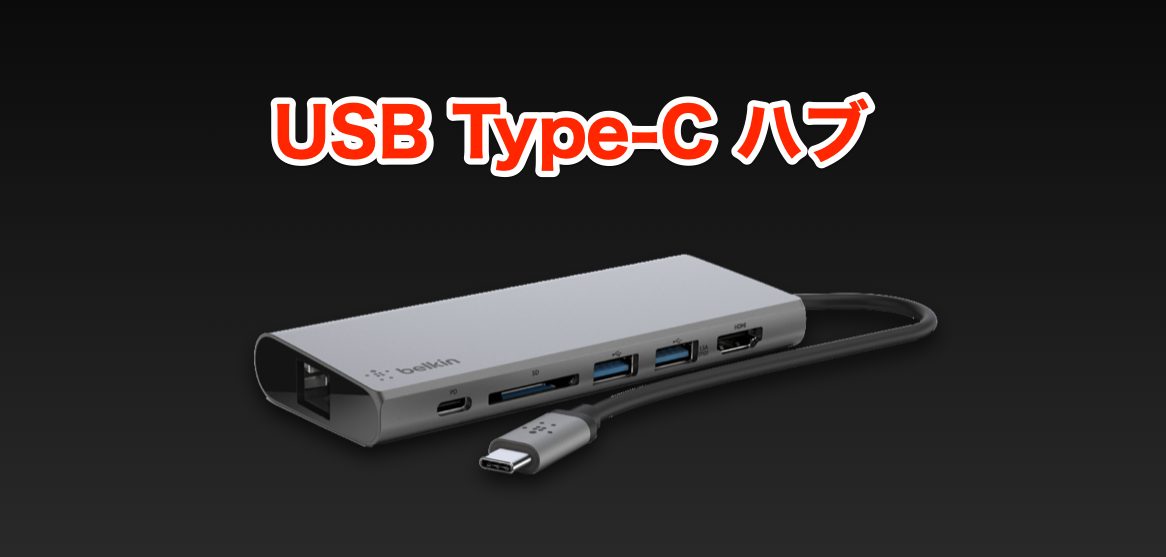
Some modern USB-C hubs also provide a variety of non-USB ports, so the distinction isn't always clear-cut.
For the purposes of this article, we'll use these three criteria:
- A wider variety of ports
- Designed primarily for use at a fixed workstation
- An included AC adapter that enables power delivery
We'll refer to products meeting these three conditions as docking stations.
About Thunderbolt 4
As its name suggests, the Thunderbolt 4 Dock connects to a computer via Thunderbolt.
Like USB, Thunderbolt is the name of a connection standard. At the time of this 2022 article, it had gone through four generations.
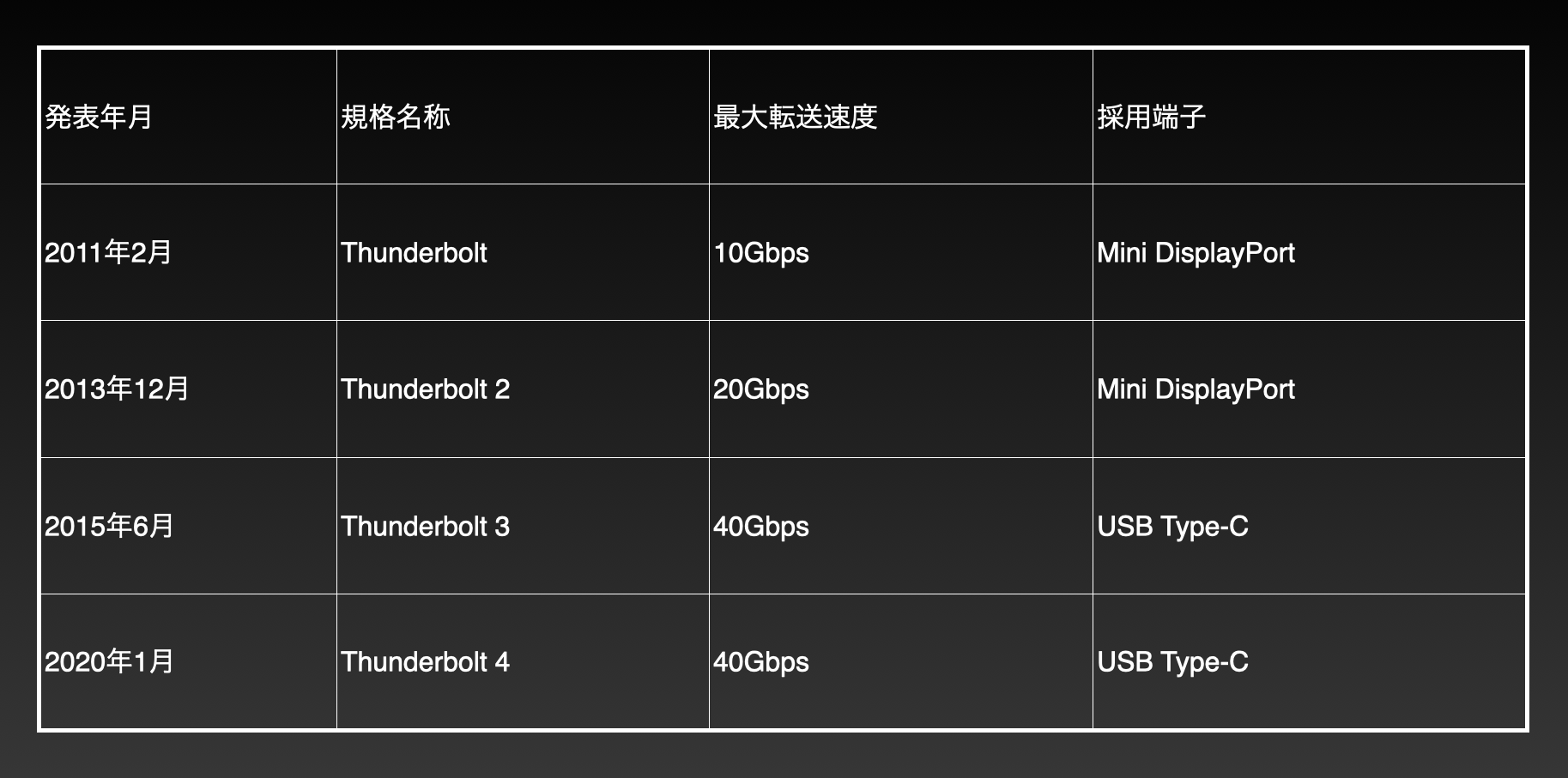
Thunderbolt 3 and 4 devices were widely available in 2022. A higher generation number indicates a newer specification, although actual features and performance depend on the equipment.
Thunderbolt 3 and 4 use the USB Type-C connector shape.
The appearance of the term USB in a discussion of Thunderbolt can be confusing. It helps to distinguish:
- USB Type-A and USB Type-C: connector shapes
- Thunderbolt 4, USB 2.0, and USB 3.1 Gen 1: communication standards
Keep that distinction in mind.
The ports can look very similar. A lightning-bolt symbol on equipment or a cable helps identify Thunderbolt support.
Some products may not show that marking, so check the specifications carefully before buying.
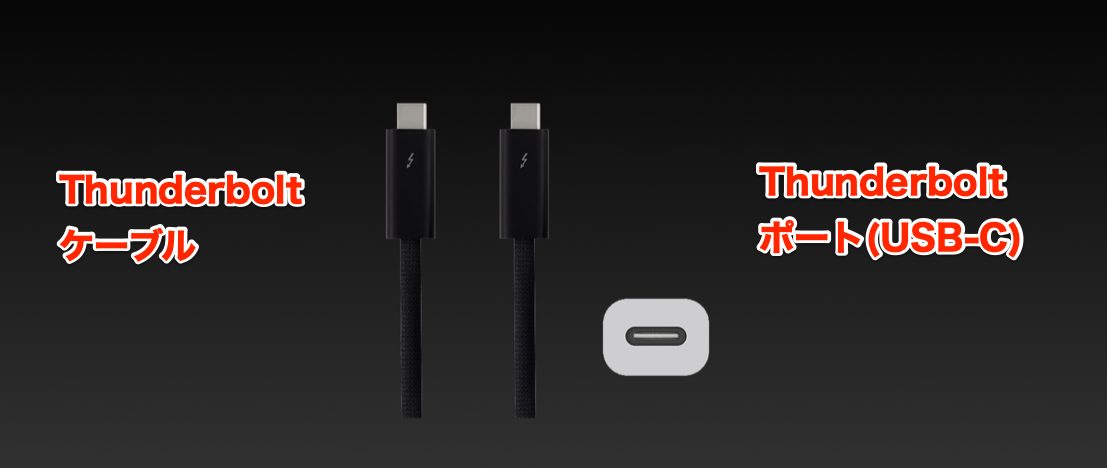
To use a Thunderbolt device over Thunderbolt, both the computer and the device must support it, and you need a suitable Thunderbolt cable.
For the full Thunderbolt 4 functionality demonstrated here, use a computer with Thunderbolt 4 support. Compatibility note: the original article described Thunderbolt 4 as mandatory, but Belkin also lists backward compatibility with Thunderbolt 3 and other connection types. Available functions depend on the host computer; consult the manufacturer's specifications.
Thunderbolt 4 also supports compatible USB devices. That does not mean every USB connector or cable provides Thunderbolt functionality.
You can connect compatible USB equipment through the dock, while a USB-only host port does not provide the Thunderbolt link required by a Thunderbolt peripheral.
Building a Music Production Setup
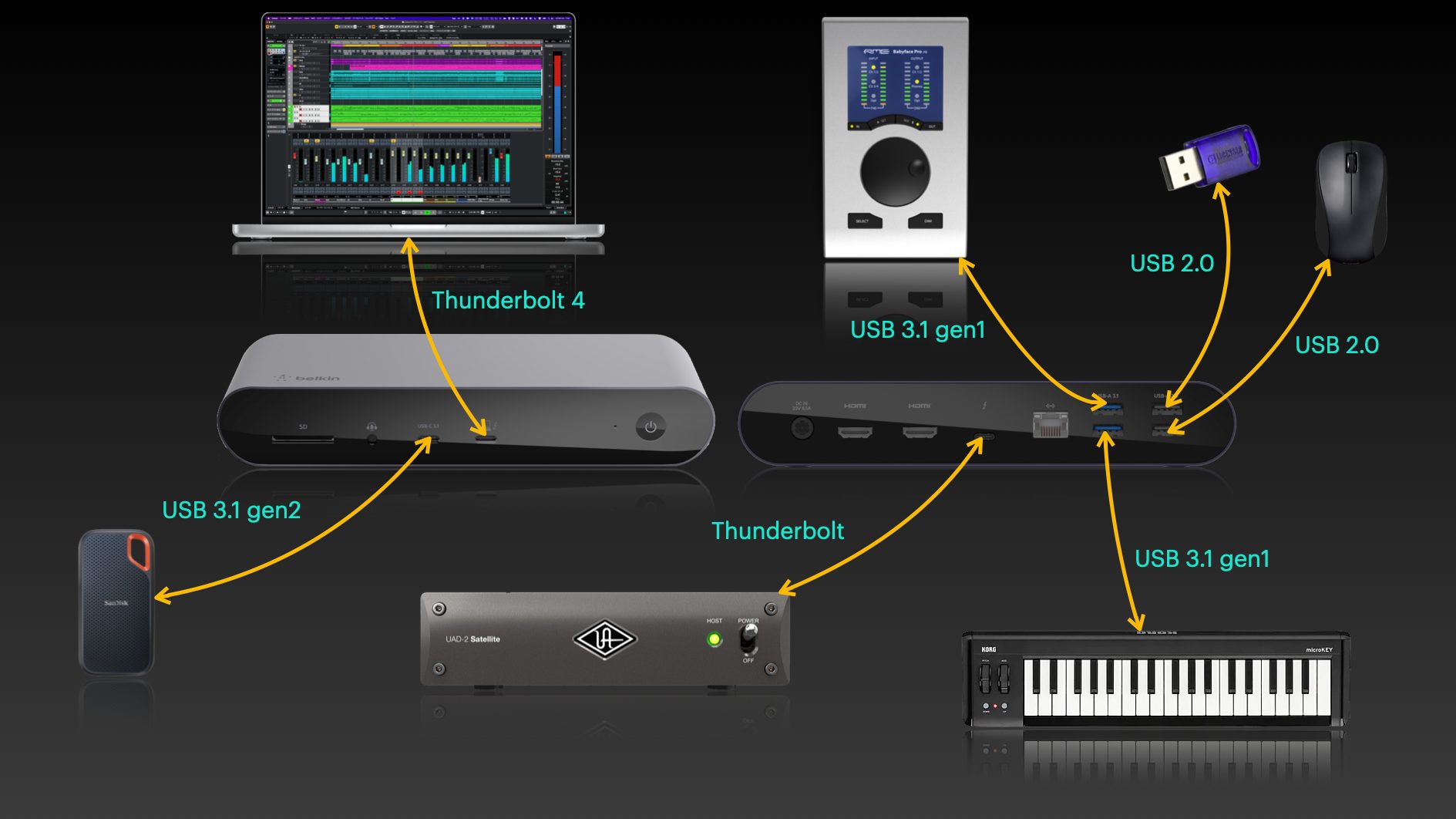
Let's look at the ports on the Belkin Thunderbolt 4 Dock and connect various devices to build a music production setup.
Thunderbolt 4 Port
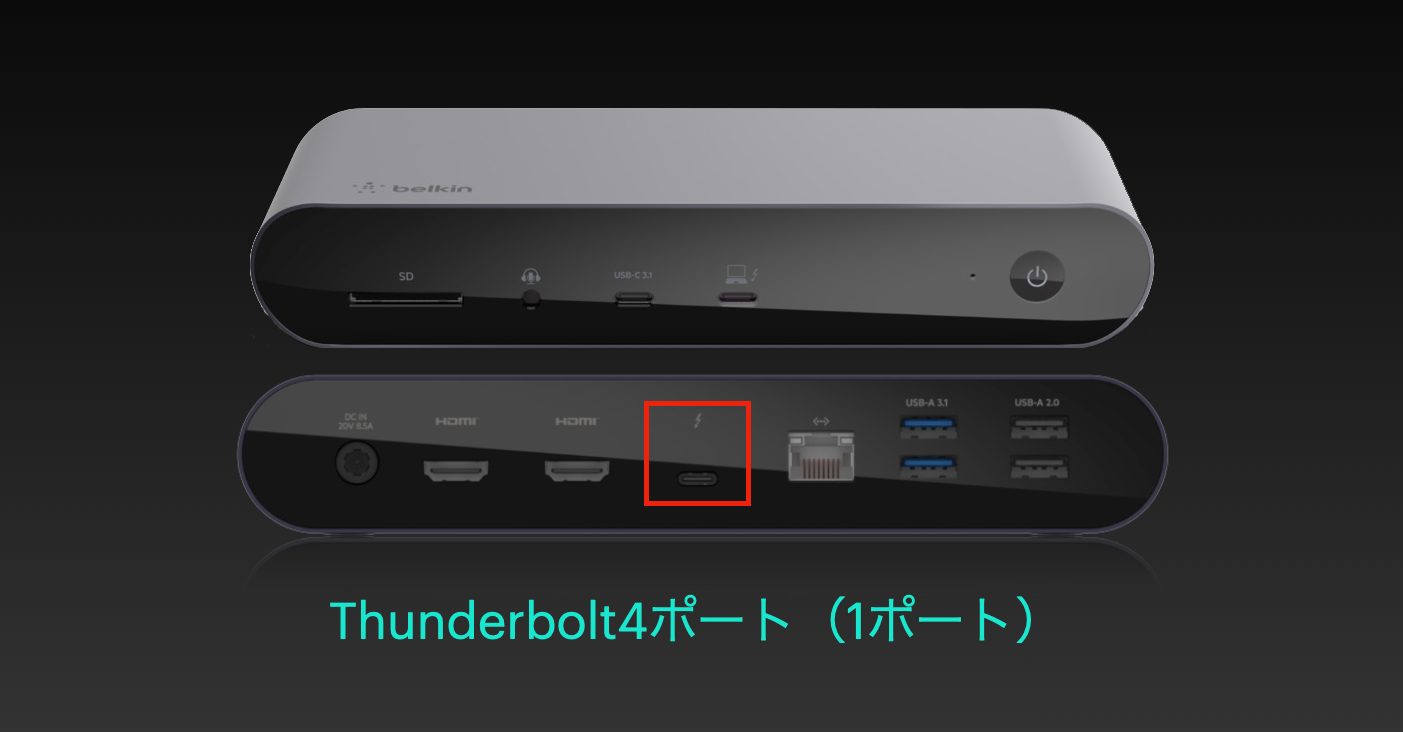
A downstream Thunderbolt 4 port is located in the middle of the rear panel.
Well-known Thunderbolt equipment for music production includes compatible Universal Audio Apollo and Antelope Audio Zen audio interfaces, which make use of the high-speed connection.
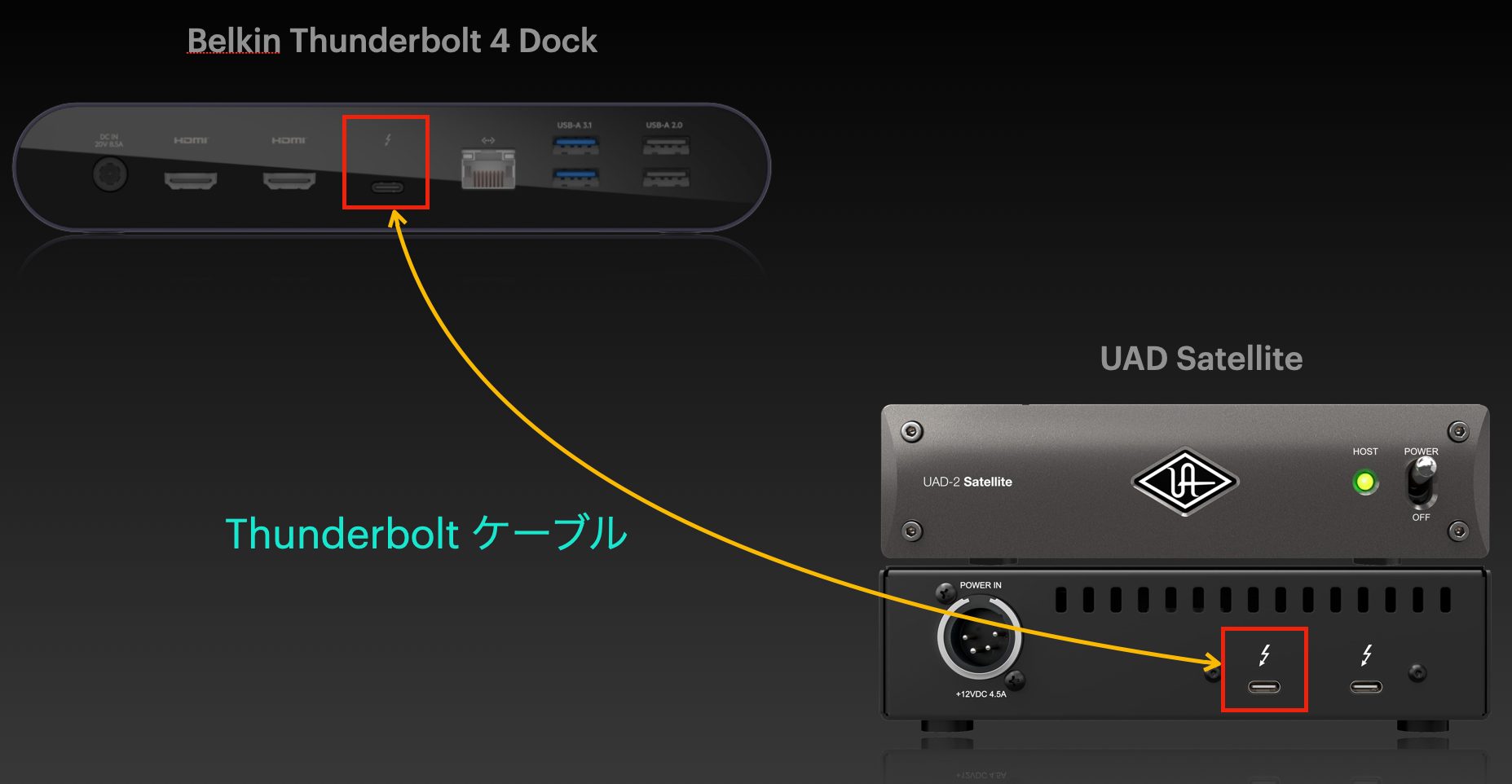
Here, we'll connect Universal Audio's Satellite.
USB Type-C Port
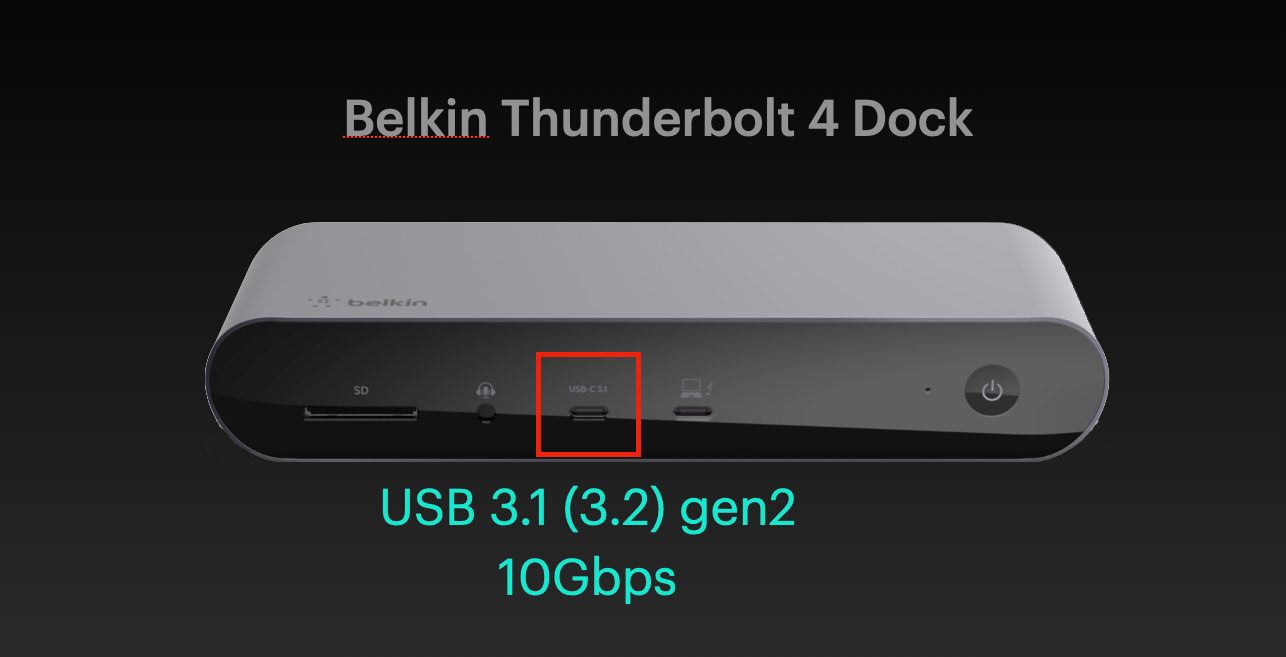
There is a USB Type-C port on the front panel.
Its standard is USB 3.1/3.2 Gen 2. Although slower than Thunderbolt 4, it offers relatively fast USB data transfers at up to 10 Gbps.
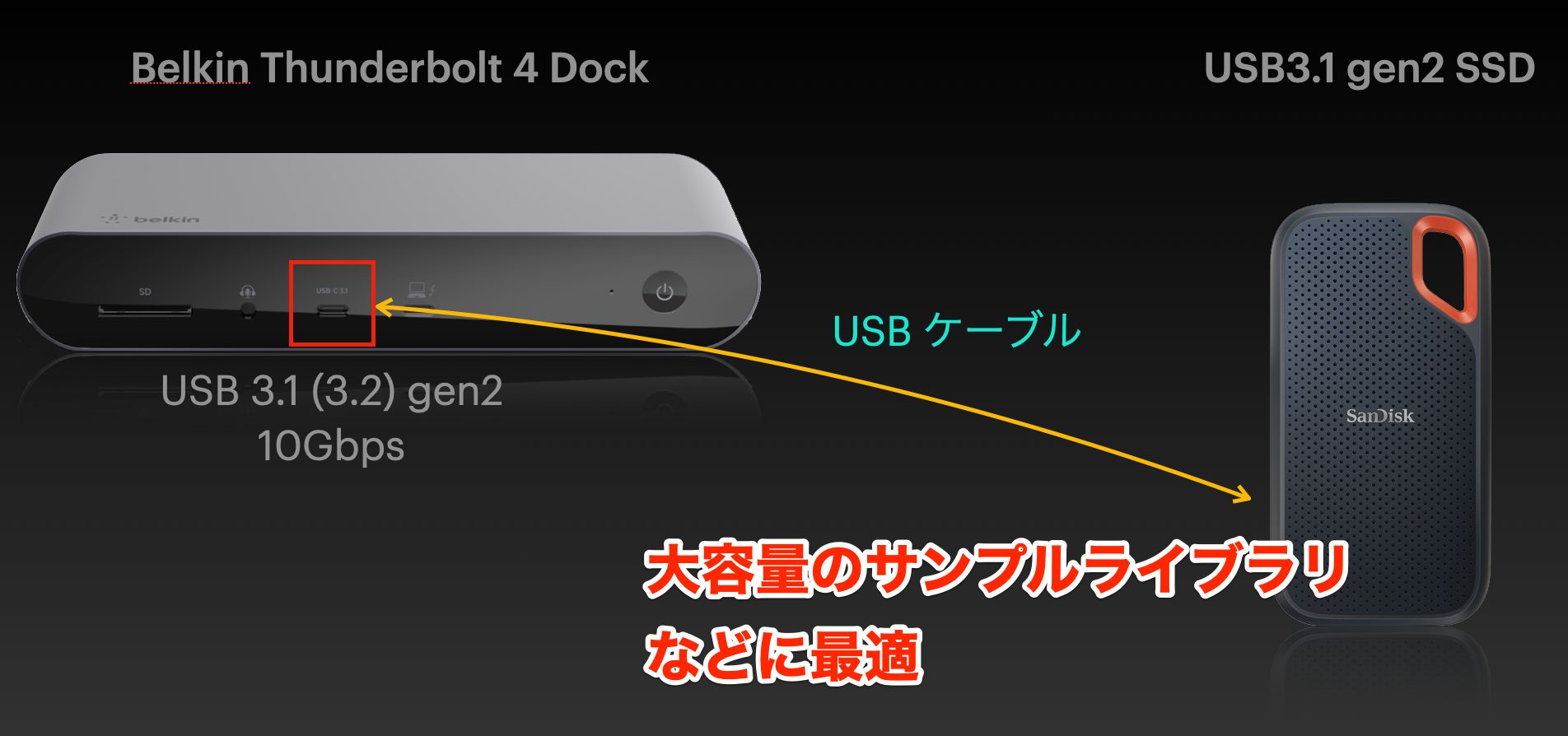
This is a good place to connect devices that need fast data transfers.
One example is an SSD holding large amounts of data such as Kontakt libraries.
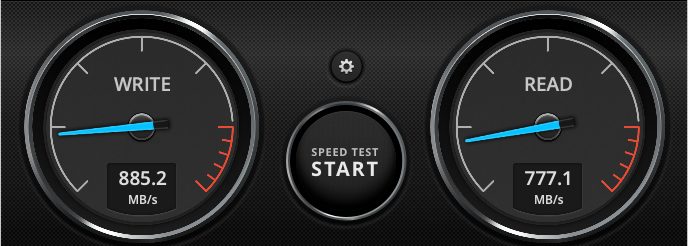
The image below shows the measured results with an SSD rated for 1,000 MB/s reads and writes.
In use, I found this comfortably fast.
USB Type-A Ports
Next, let's look at the USB Type-A ports on the rear panel.
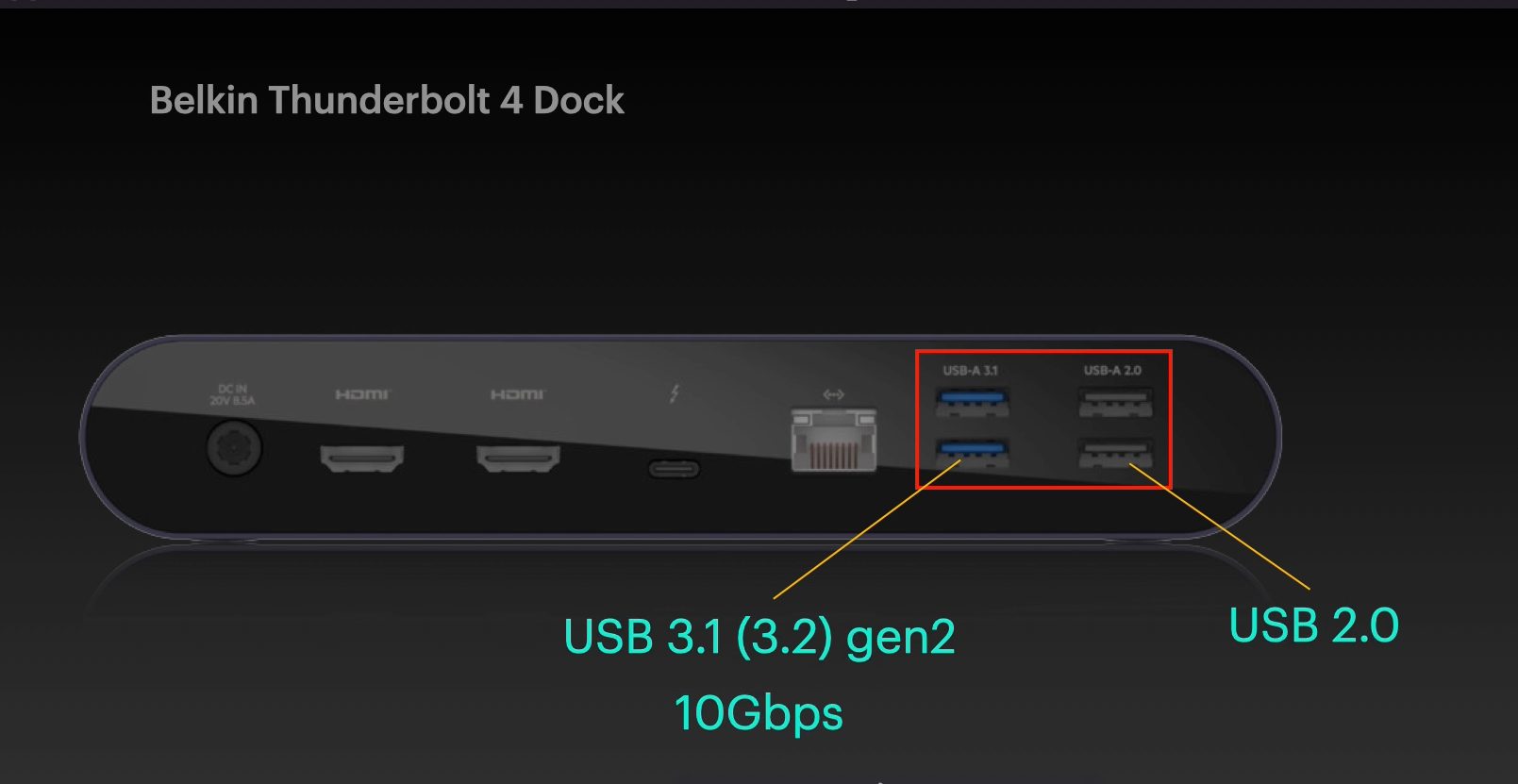
Of the four ports, the two inner ports support USB 3.1/3.2 Gen 2, while the two outer ports use USB 2.0, with different transfer speeds.
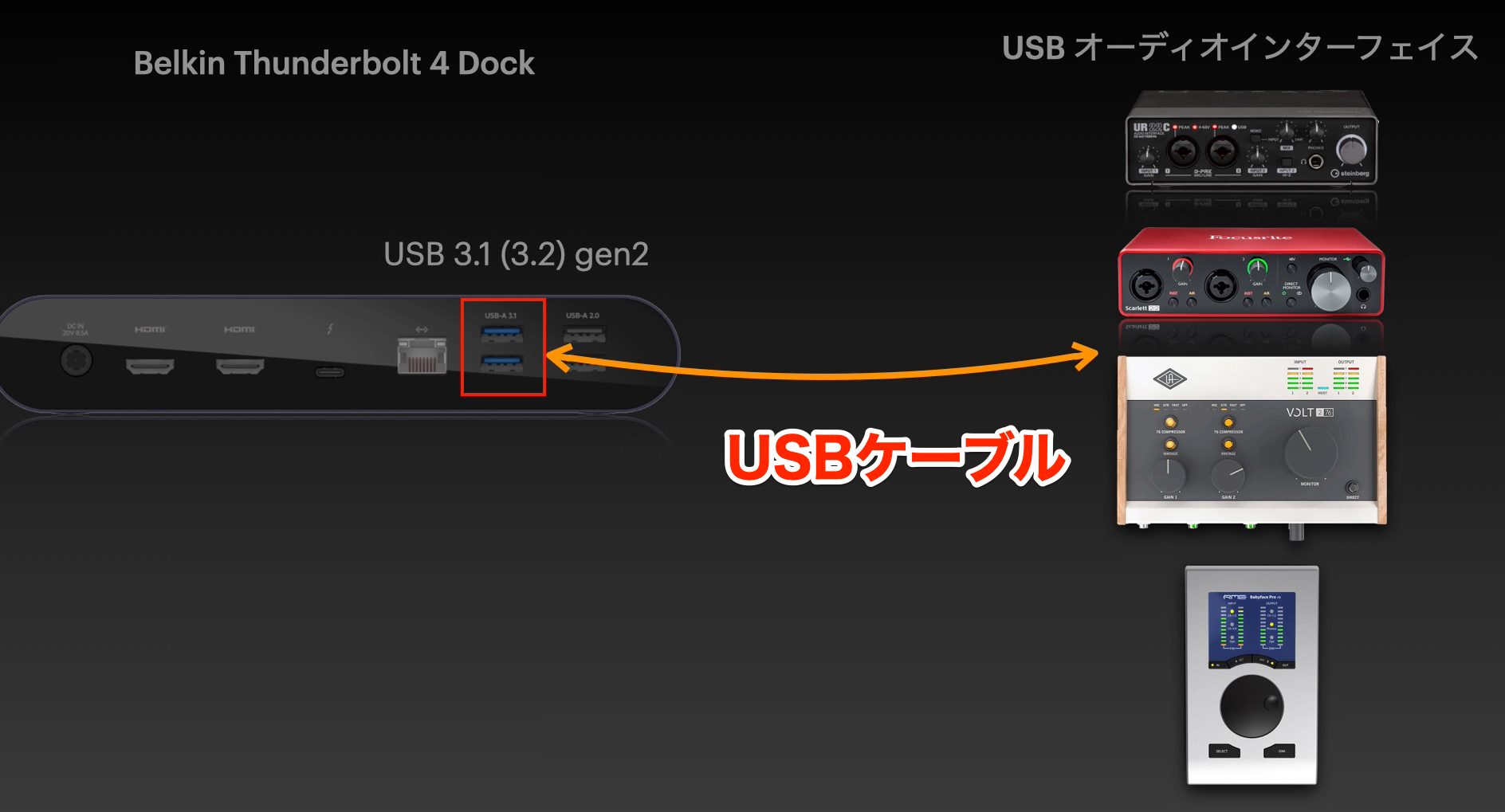
Like the front USB-C port, the USB 3.1 Gen 2 ports support up to 10 Gbps. In the demonstrated setup, these are used for important devices such as a compatible USB audio interface; follow the interface manufacturer's connection guidance.
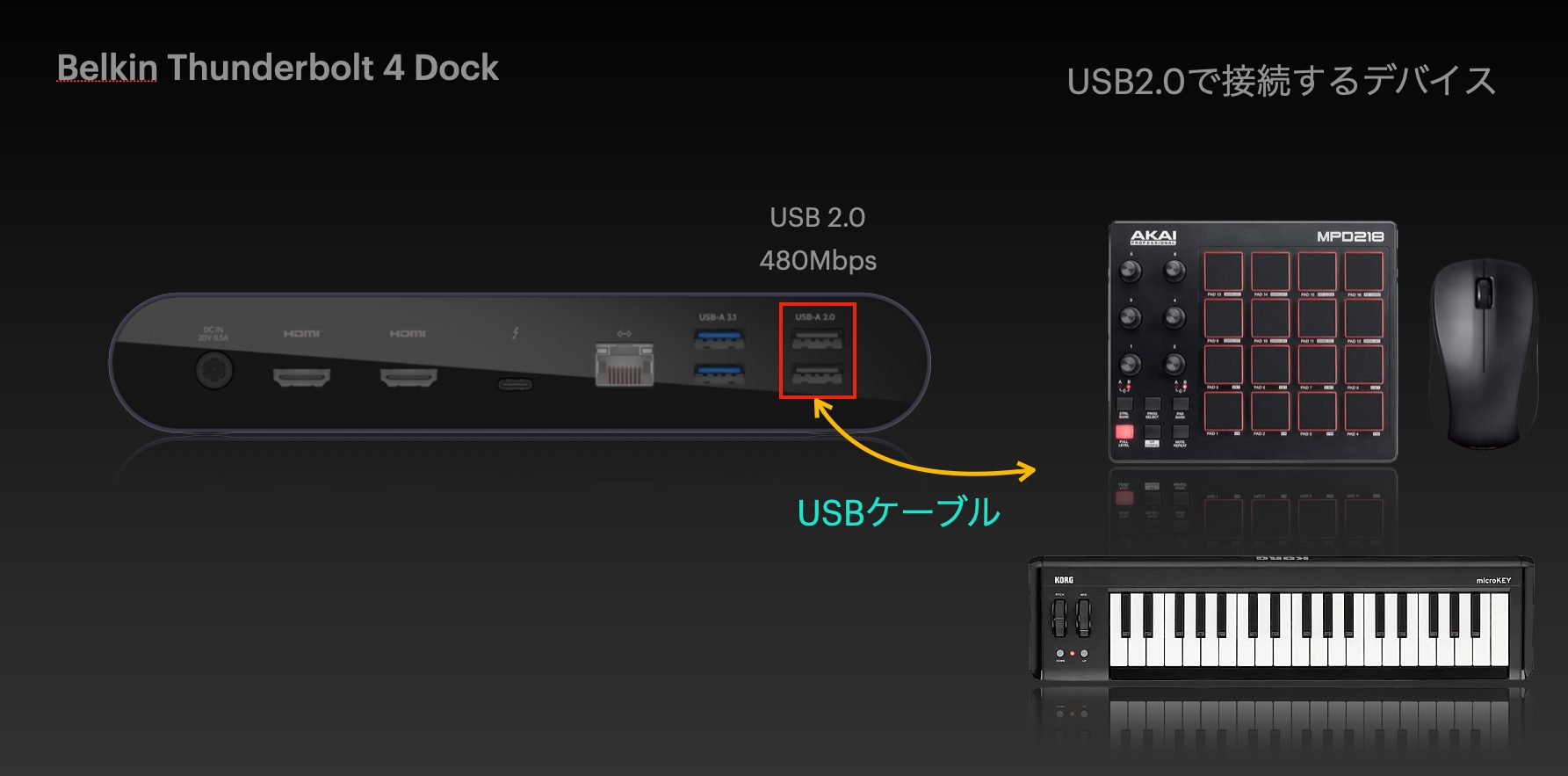
The USB 2.0 ports are suitable for equipment with modest bandwidth needs, such as MIDI devices, a mouse, a keyboard, or USB authorization dongles.
HDMI Ports
Next, we'll connect external displays using the two HDMI ports on the rear panel.
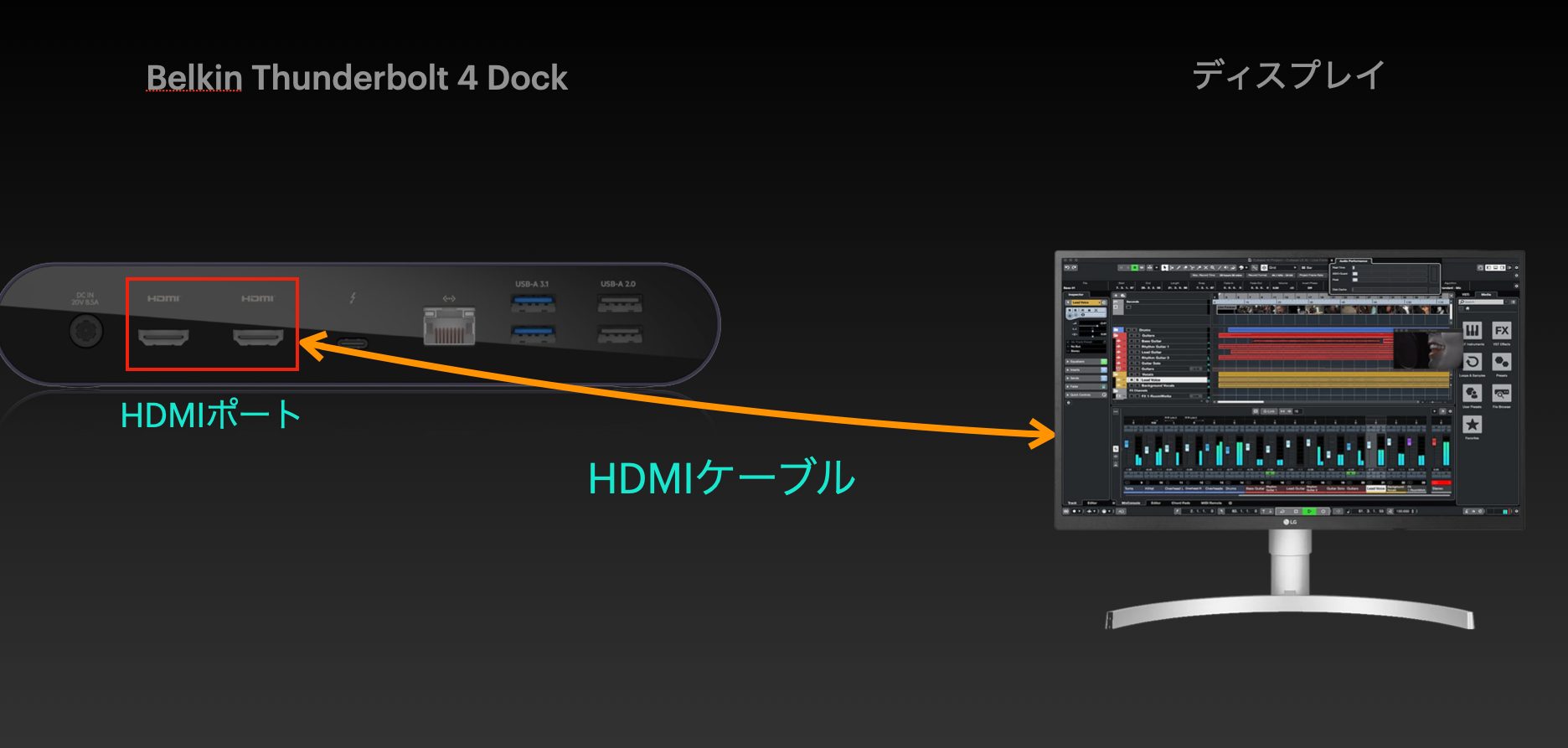
The original guide describes support for one 8K display or two 4K displays. Actual resolution, refresh rate, and display count depend on the host computer and connection configuration.
Windows and Mac have different conditions, and Mac support also varies by model. The following summarizes the configurations discussed in the 2022 review.
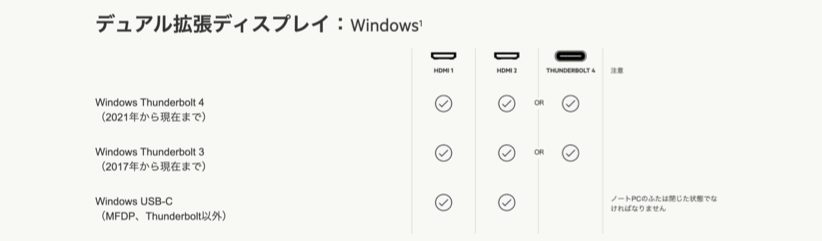
Windows
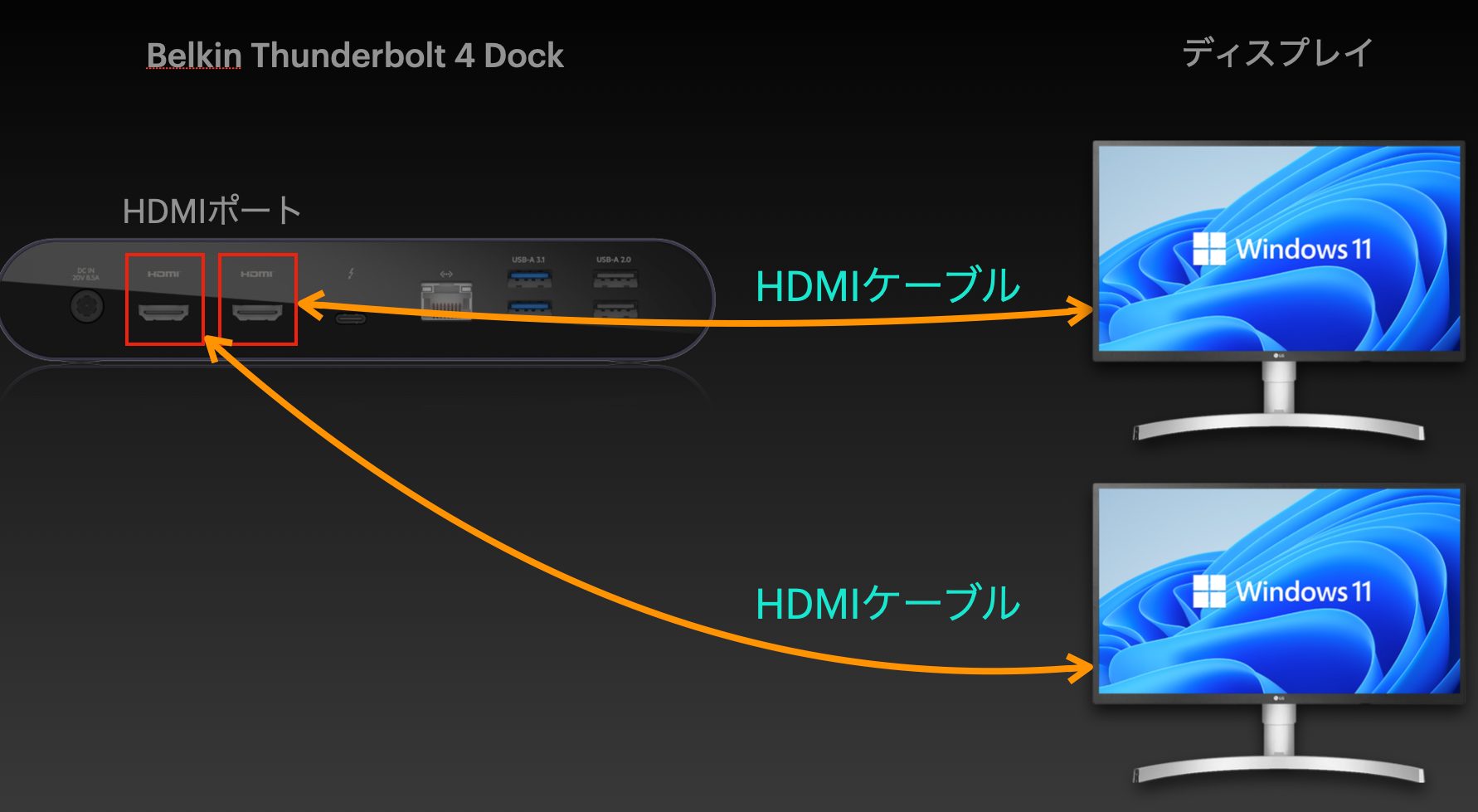
The guide describes using both HDMI ports for two external displays.
For the two-display configuration shown here, using the Thunderbolt port for one display leaves one HDMI output for the other. Check Belkin's compatibility table for your host; the manufacturer's specifications also list additional supported configurations.
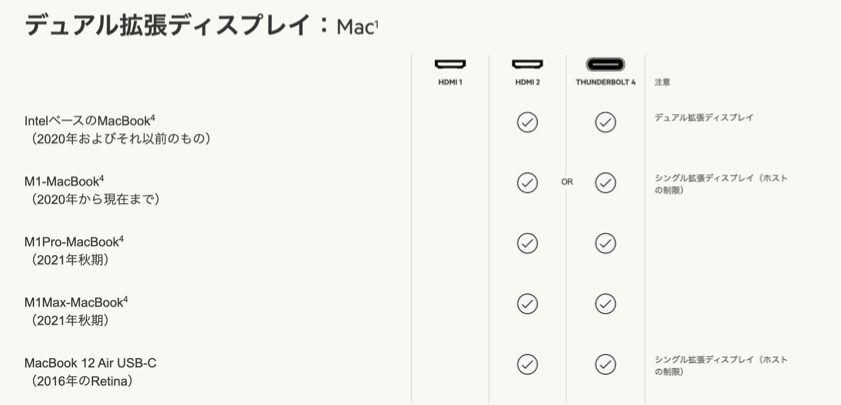
Intel-Based Macs
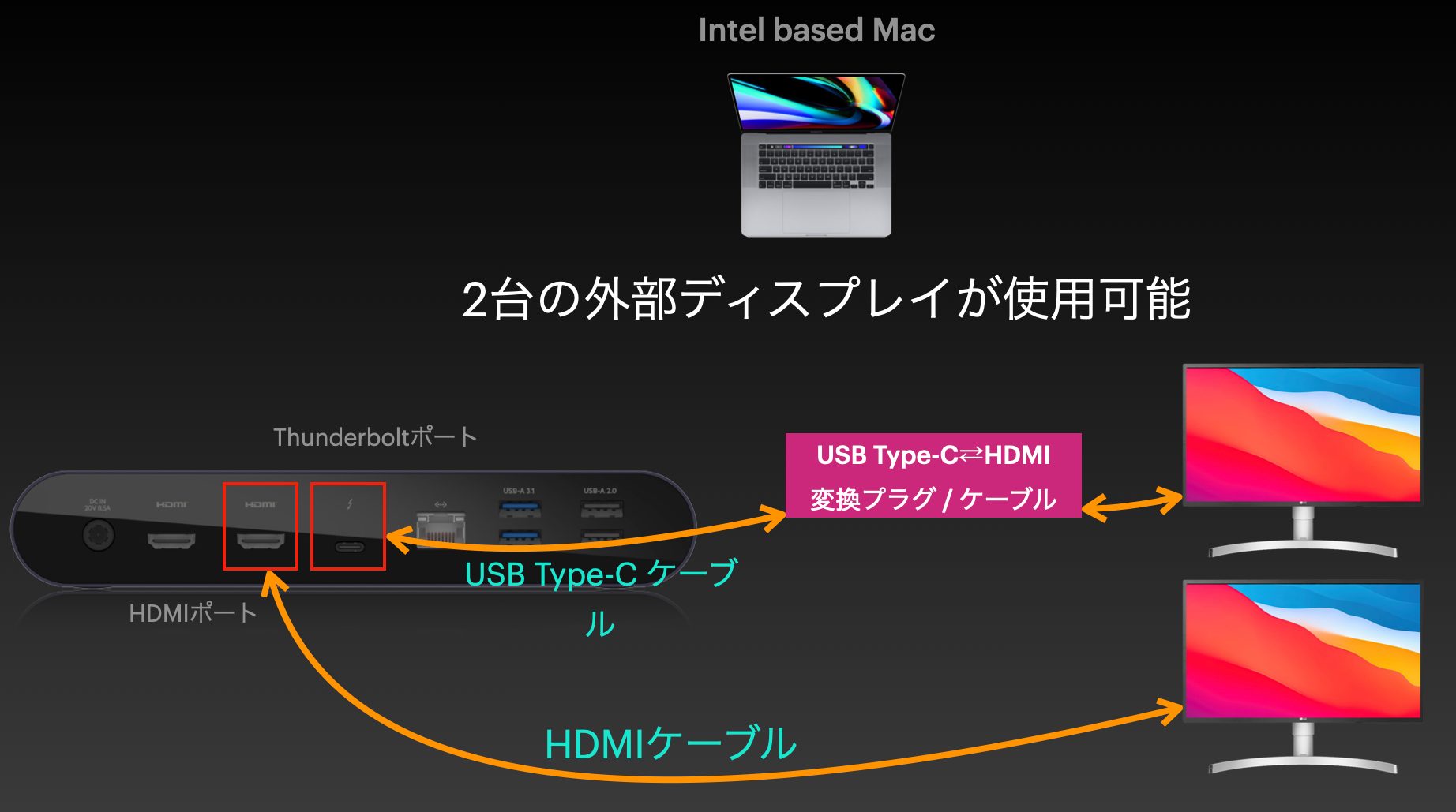
Only one HDMI output is available in the configuration described. A second external display must use the Thunderbolt port.
The video connection from Thunderbolt will generally require a USB-C-to-HDMI or USB-C-to-DisplayPort adapter, depending on your display.
M1 Macs (2020)
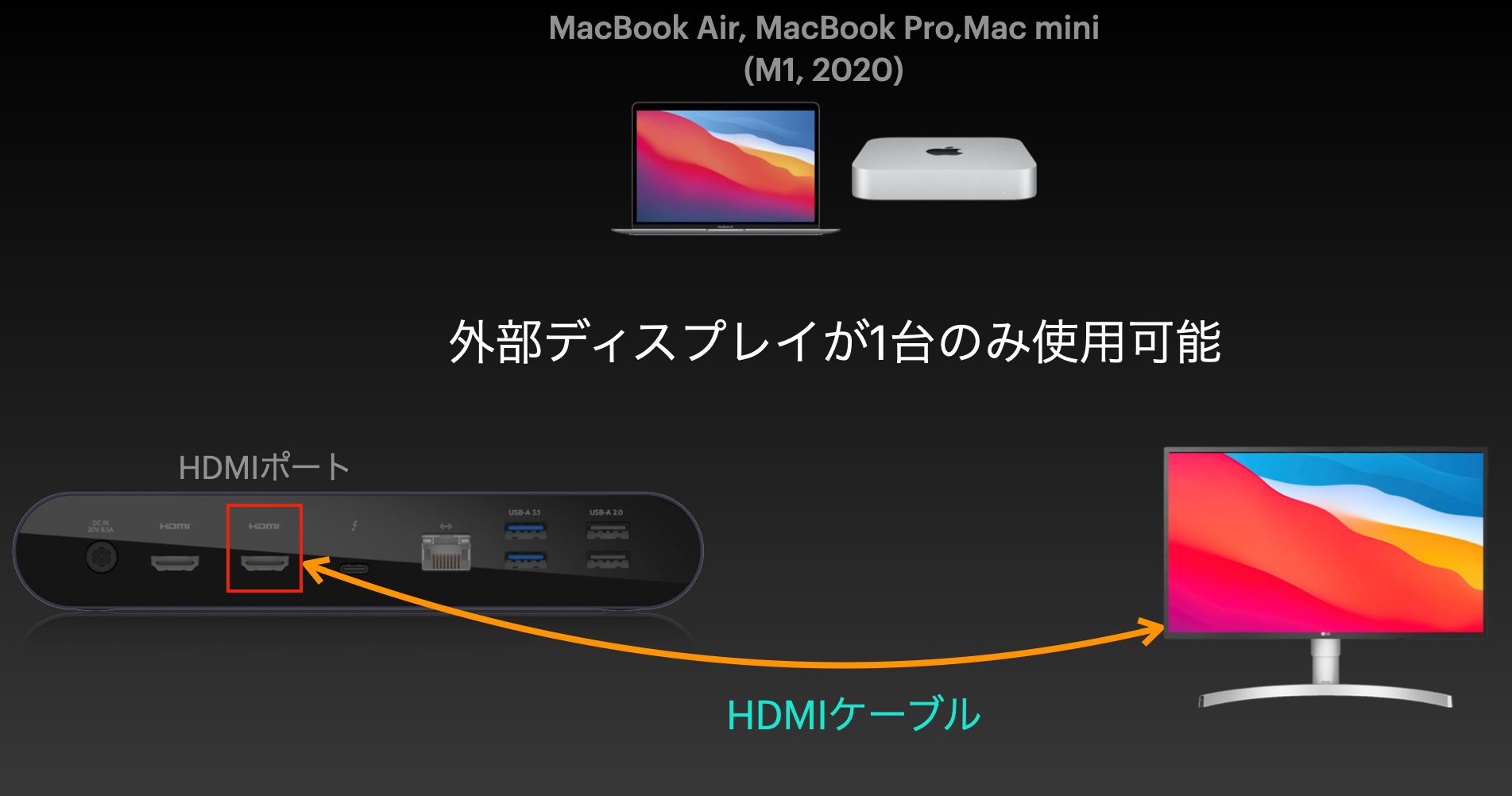
For the M1 MacBooks covered here, only one HDMI output can be used, and a second external display cannot be added through this dock.
If that external display uses the Thunderbolt output, the HDMI output cannot provide another independent external display.
The supported setup is limited to one external display for these M1 MacBooks. Check your exact Mac model rather than applying this limit to every M1-based computer.
M1 Pro/Max Macs (2021)
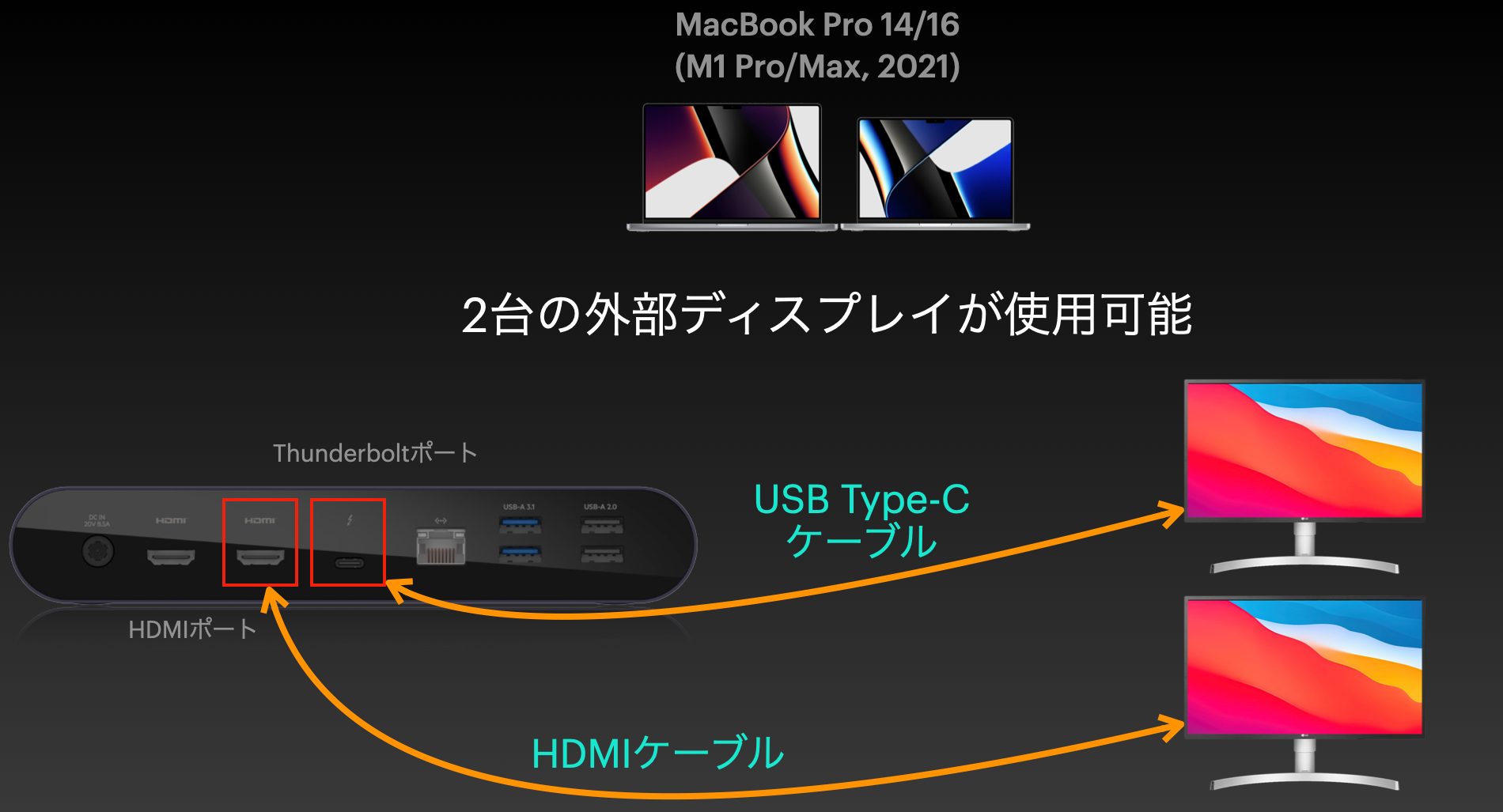
Only one HDMI port, HDMI 2, is available. Use the Thunderbolt output for a second external display in the setup discussed here.
For the Mac models covered in this guide, only one of the two HDMI ports is used. Models that support a second external display use the Thunderbolt output for that display.
Before buying, check which category your own computer falls into and consult its current compatibility information.
The original guide also warns that using the operating-system version originally supplied with a Mac could cause display problems. It advises updating to a supported newer OS version. For a music production system, check your DAW, plug-in, and interface compatibility before updating.
Other Ports
Ethernet Port
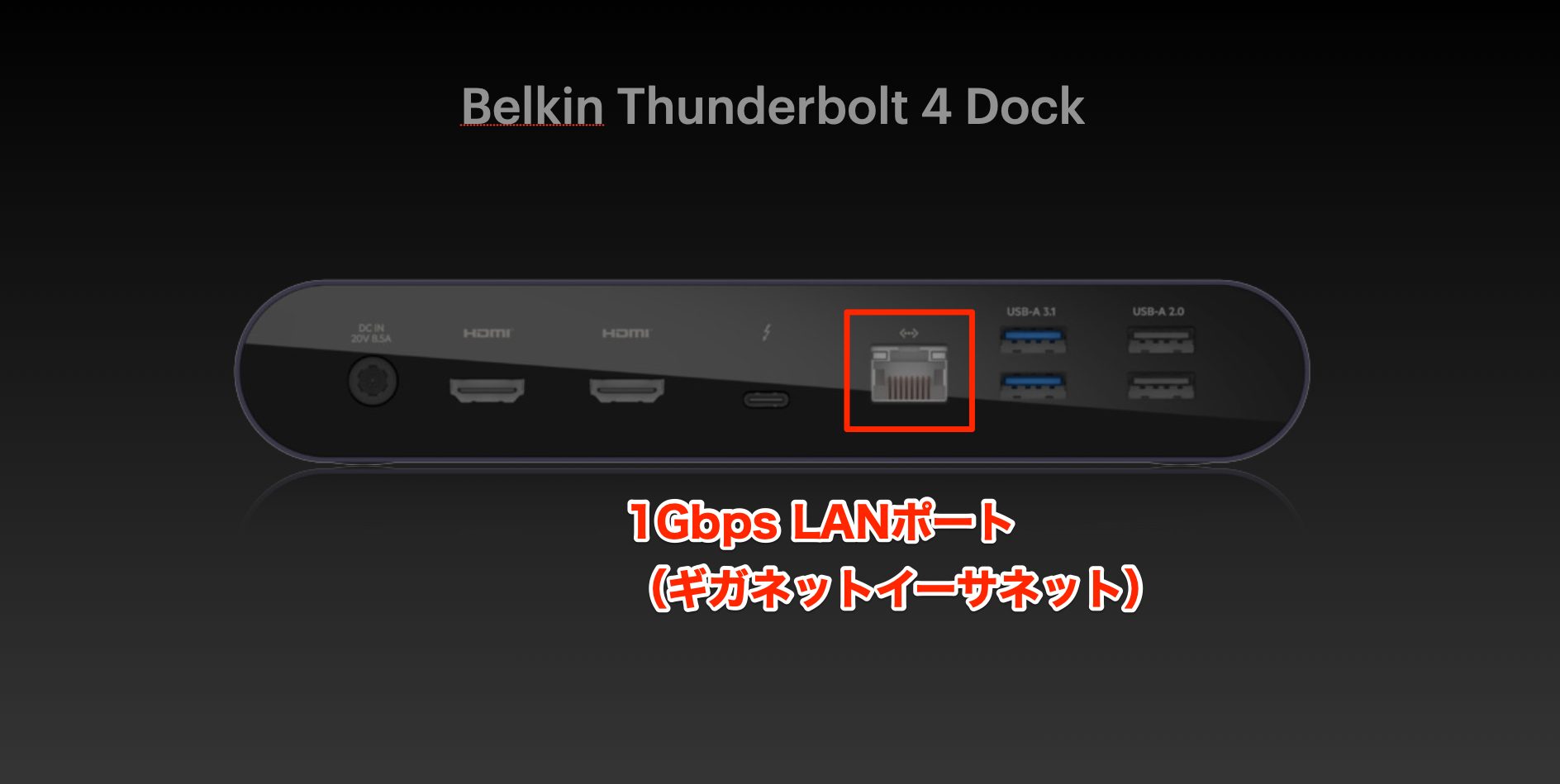
This is useful if your laptop lacks an Ethernet port and you want a wired internet connection, which can be more stable than Wi-Fi.
SD Card Slot
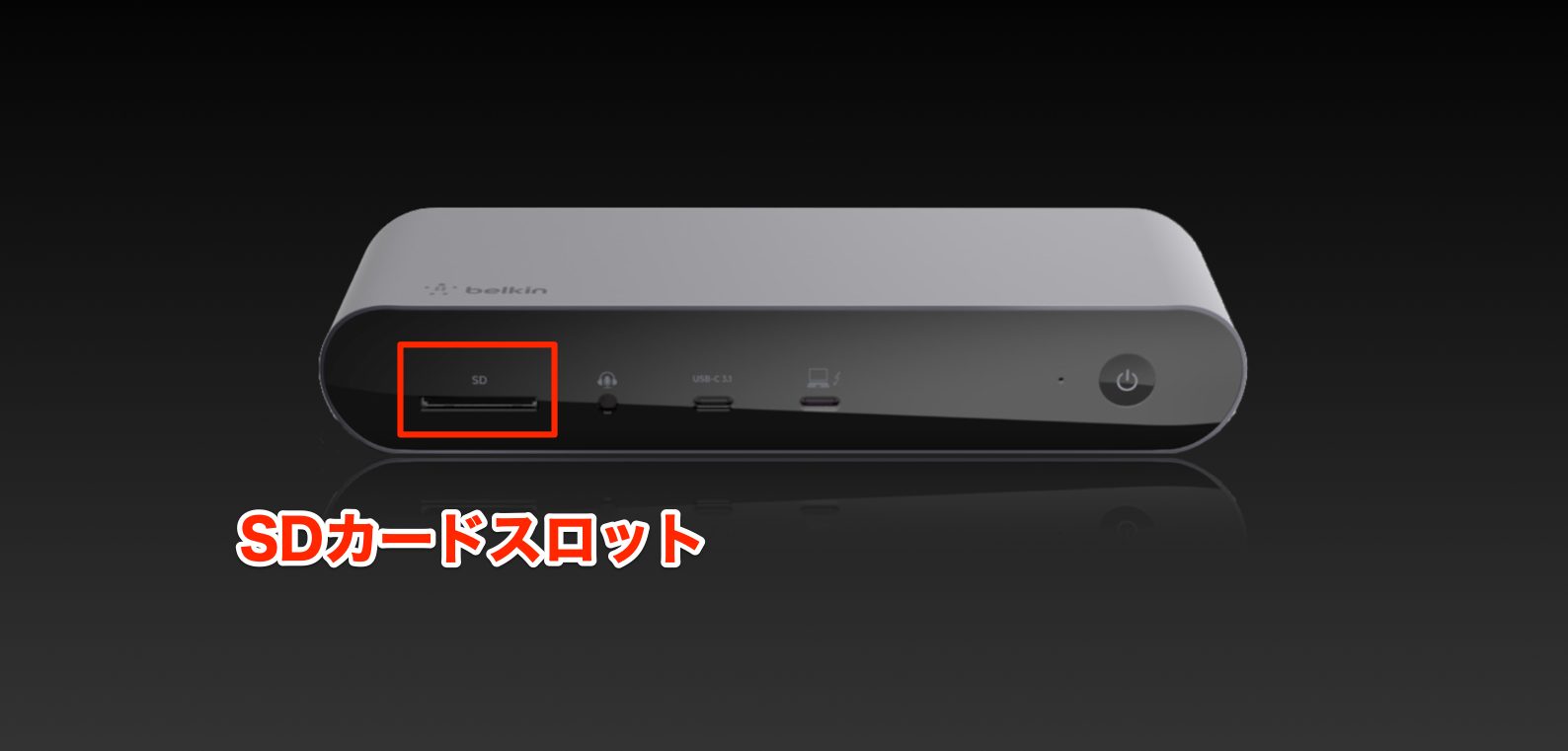
The front panel has an SD card slot for cards used in many types of equipment, not just music production.
It may be especially useful if you also work with cameras and video equipment.
Headphones and Microphone
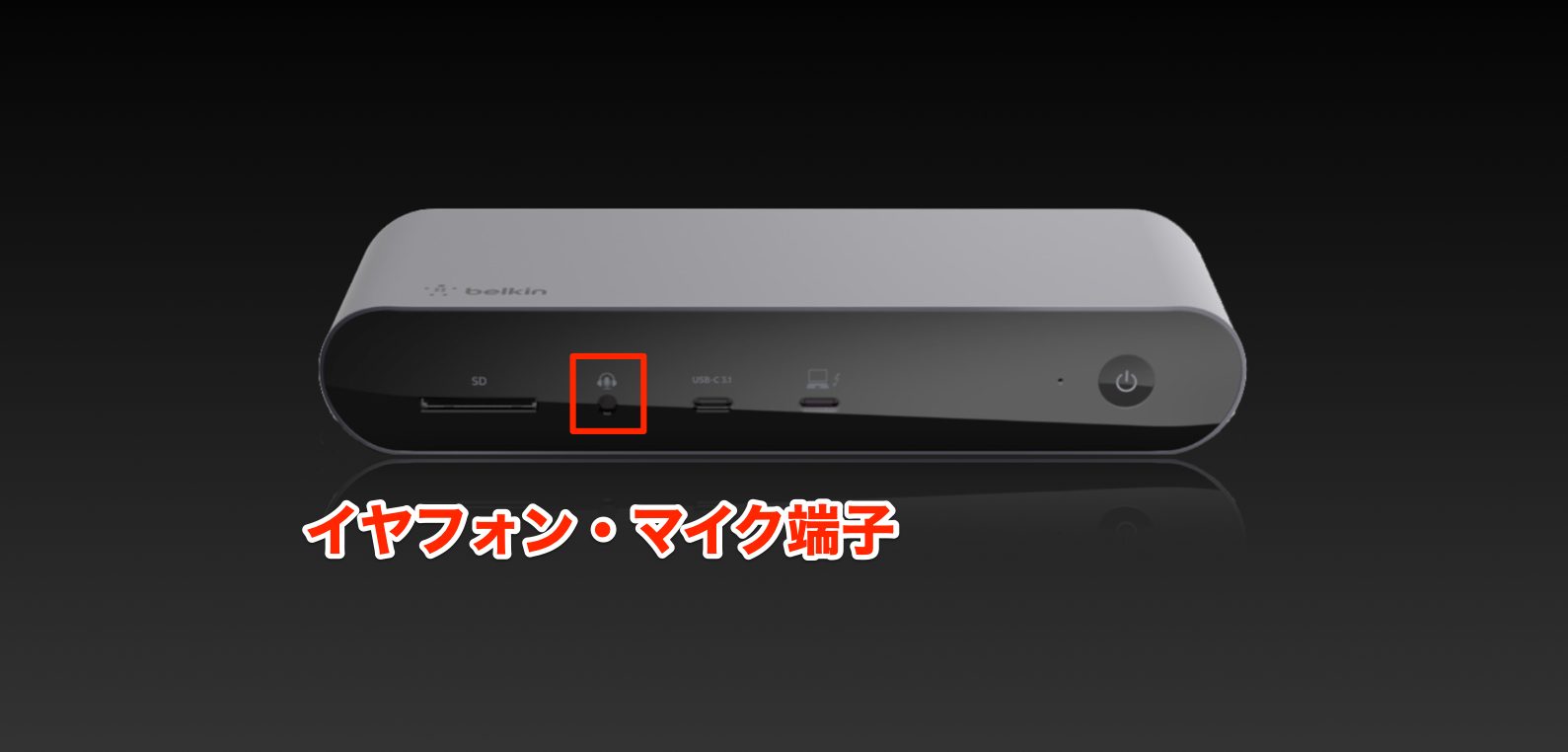
A front-panel audio connection provides headphone output and microphone input, useful for online meetings and similar tasks.
Charging Your Computer
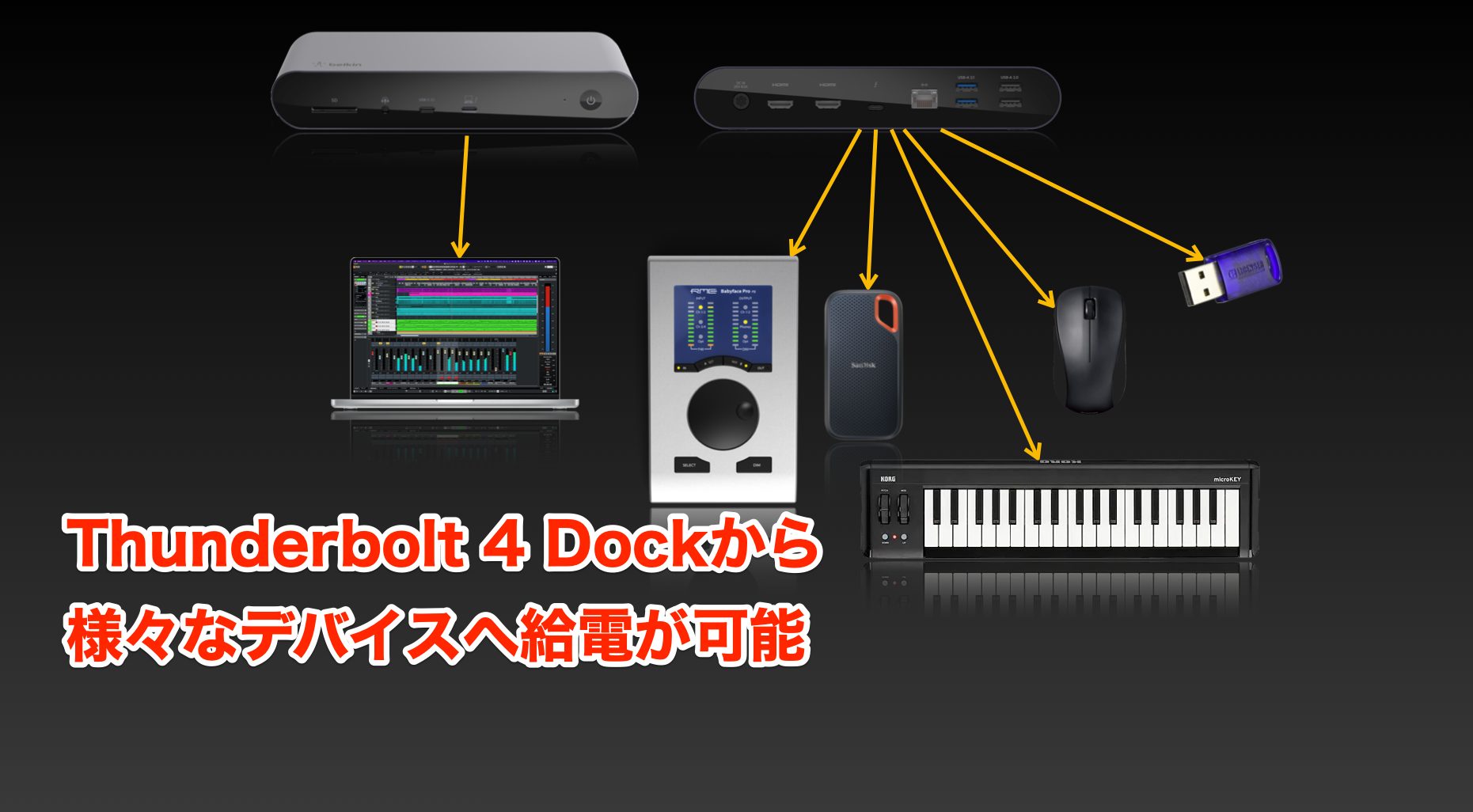
The Thunderbolt 4 Dock can supply power to the connected computer and bus-powered peripherals.
It provides up to 90 W to the computer and up to 20 W through its front USB-C power-delivery port. Depending on your equipment's requirements, this may remove the need for a separate laptop charger.
The 14-inch MacBook Pro (2021) I used in the review came with a 96 W adapter. The dock's 90 W supply is close, but not identical, to that rating; charging behavior depends on the model and workload.
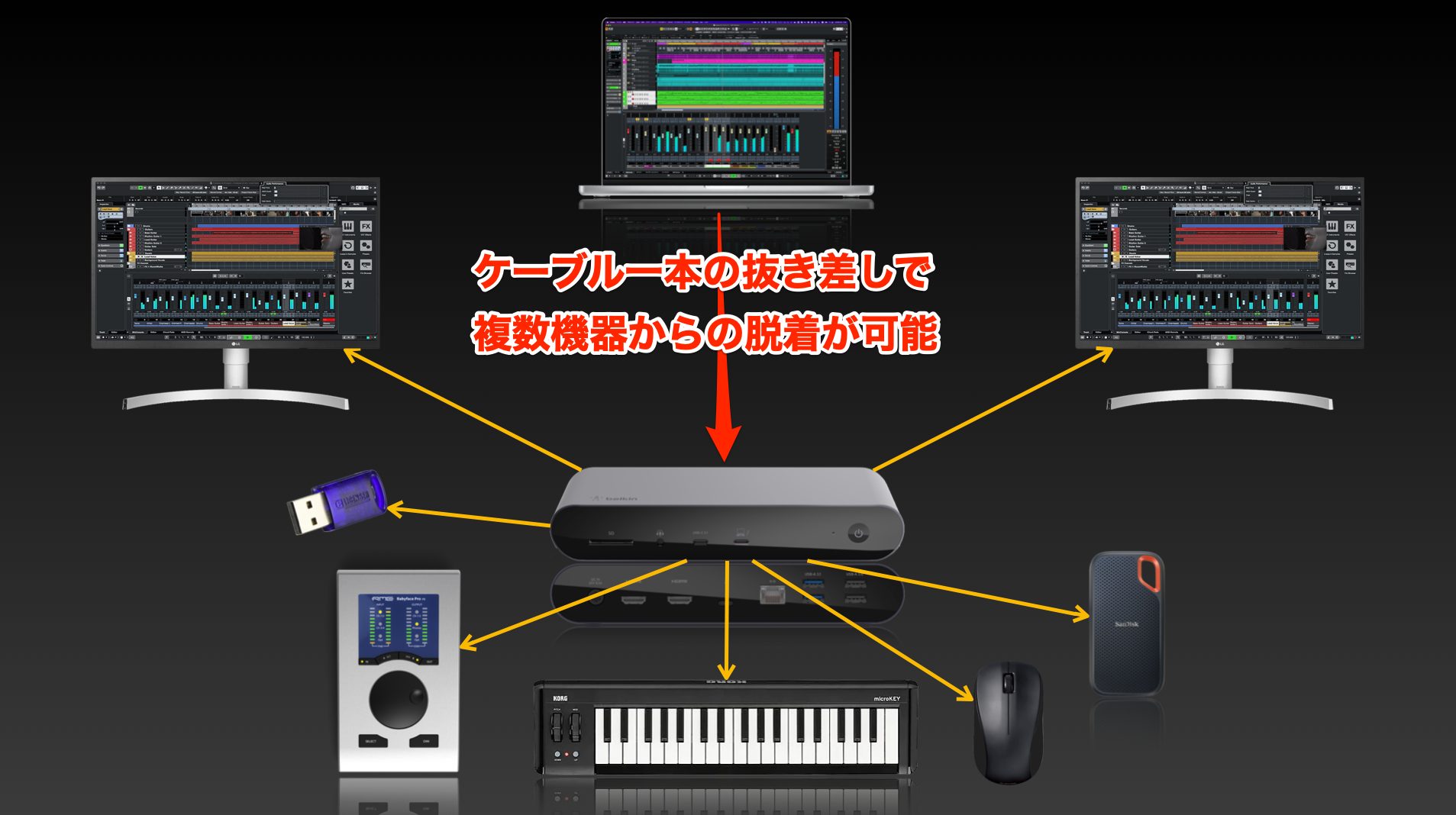
This lets the laptop connect to multiple peripherals through a single Thunderbolt cable.
It's easy to disconnect the computer when going out and reconnect it to the home setup when returning. I like being able to get straight to making music with less hassle.
Other Docking Stations and USB Hubs
The Thunderbolt 4 Dock discussed above was a flagship model in Belkin's dock and hub lineup, offering many features at a correspondingly higher price in this 2022 comparison.
Some people won't need that much expansion, or may only want extra ports while away from home.
Here are the other products the original guide suggests for different uses. Check current availability and compatibility before purchasing.
Thunderbolt 3 Dock Pro
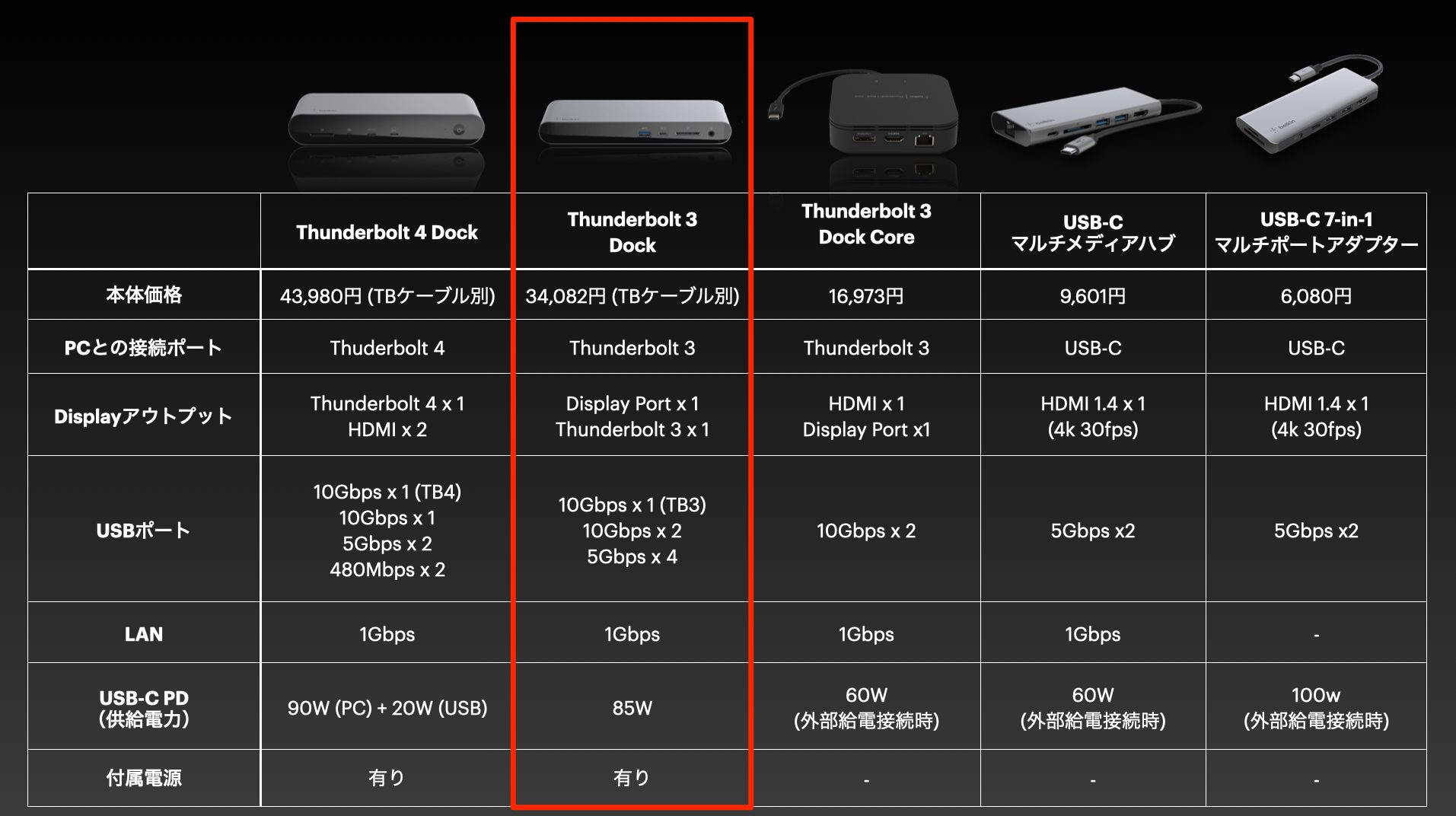
The original guide recommends this option if you want numerous connections and your computer has Thunderbolt 3.
Its dedicated display output is a single DisplayPort connection rather than HDMI.
Thunderbolt 3 Dock Pro Details
Thunderbolt 3 Dock Core
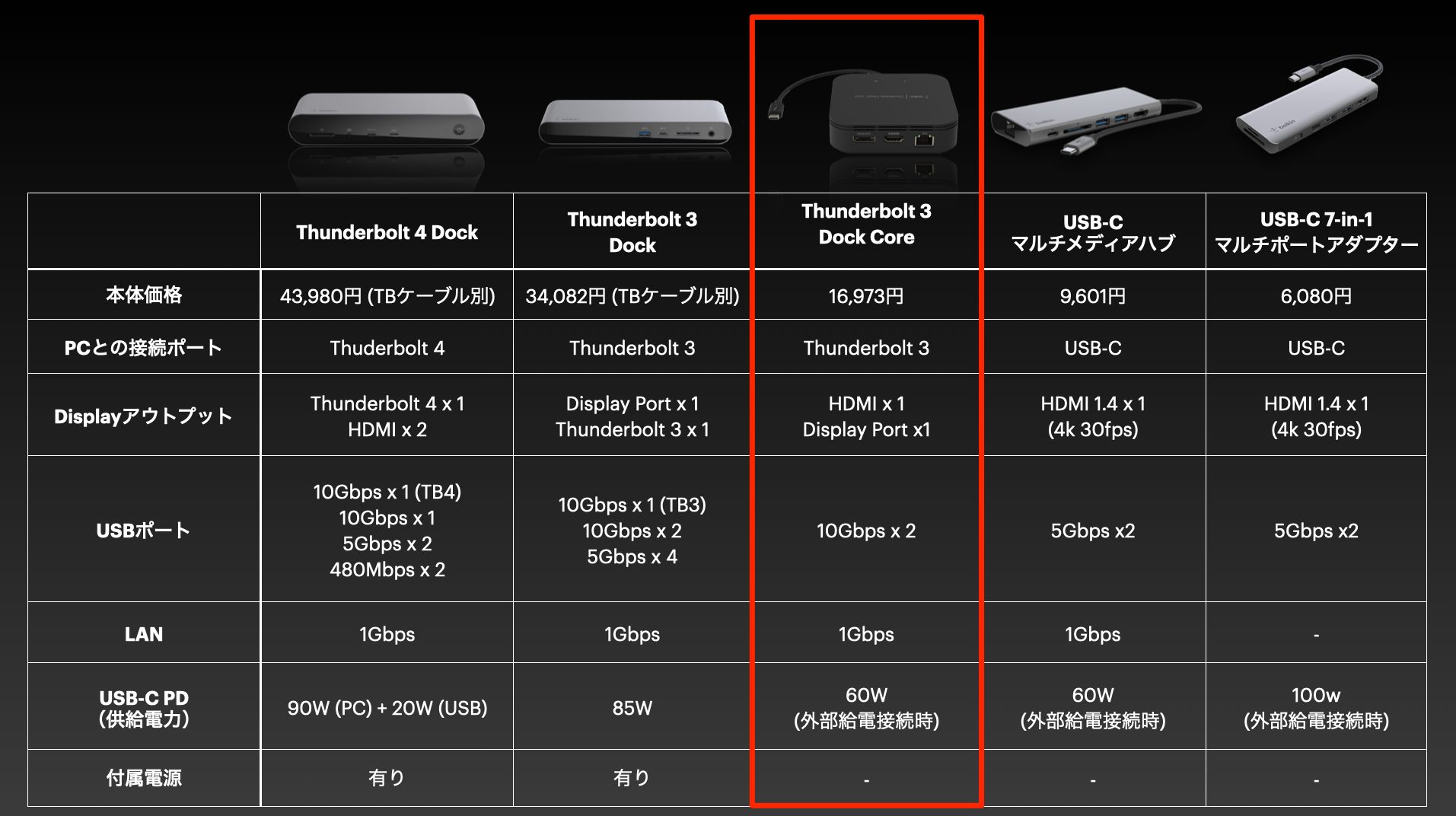
This is the guide's suggested option for expanding your ports on the go, including where a mains power outlet is unavailable.
A separate power source is needed to charge the computer. It has fewer connections than the two models above, but offers a useful balance with portability.
Thunderbolt 3 Dock Core Details
USB Type-C Hubs
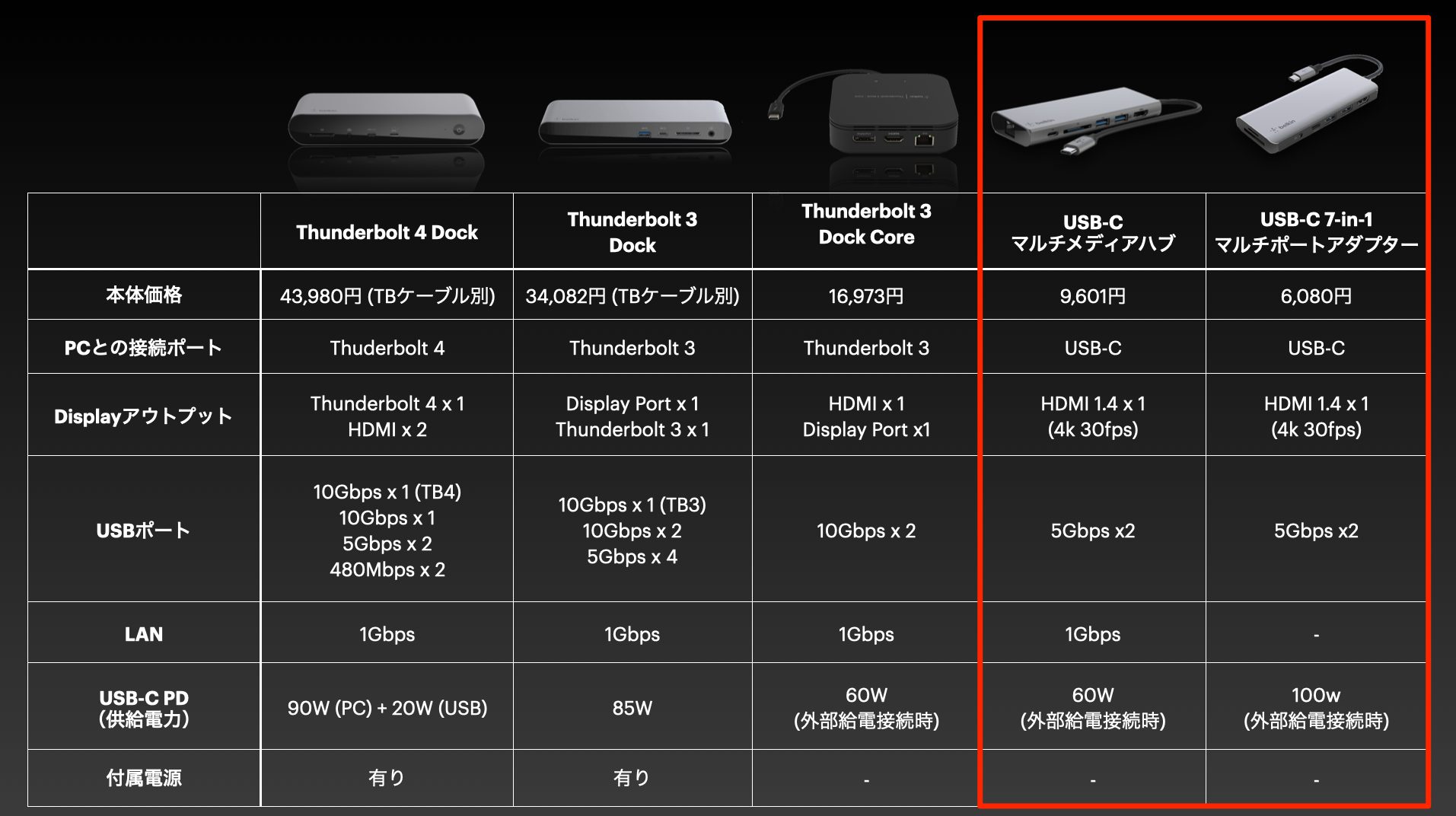
If your computer lacks Thunderbolt, the original guide suggests these two USB-C products as alternatives.
Both are designed for mobile use, with compact bodies that are easy to carry.
Compared with the Thunderbolt docks, their expansion options are more limited. The models covered here also limit 4K display output to 30 frames per second.
Their prices were substantially lower in the original comparison. They may be sufficient if you mainly want extra USB Type-A ports and display performance is less important.
Although similar in size and general purpose, they differ in audio input/output, microSD and Ethernet availability, and the amount of USB Power Delivery available for charging the computer from an external power source.
Check that the specific model provides the ports and power capabilities you need.
USB-C Multimedia Hub Details
USB-C 7-in-1 Multiport Adapter Details
That concludes our look at docking stations and other ways to expand your ports.
By the time of this 2022 review, laptops such as Apple's M1 models had become powerful enough to handle an entire music production workflow.
Desktop computers still tended to have an advantage in built-in expansion, such as USB ports and display connections, thanks to their larger size.
A docking station helps address that laptop limitation: many peripherals can connect through one unit, which is easy to attach and detach.
Small frustrations with peripherals can distract from making music. If you want a more comfortable setup, take a look at the options that suit your needs.
Belkin Thunderbolt 4 Dock Details
Making Laptop Music Production More Comfortable with the Belkin CONNECT Pro Thunderbolt 4 12-in-1 Dock
This time, we introduce docking stations as a neat solution to running out of USB and other expansion ports.
Details: https://t.co/ed1jz2fUYK #MusicProduction #MusicProducer pic.twitter.com/YCnMaJSlqN
— SLEEP FREAKS (@SLEEPFREAKS_DTM) June 15, 2022
Frequently Asked Questions
Q1. How is a docking station different from a USB hub?
In this article, a docking station means a unit with a wider variety of connections—such as HDMI, Ethernet, and an SD card slot—an included AC adapter, and a design primarily intended for a fixed workstation. Conventional USB hubs focus on adding USB ports, although many USB-C hubs also include other connections.
Q2. What are the benefits of Thunderbolt 4?
Thunderbolt 4 provides a high-speed connection and supports compatible USB equipment as well. It can connect suitable audio hardware and other peripherals, helping expand a music production setup. Check the requirements of each device; a matching connector shape alone does not establish compatibility.
Q3. Can this docking station be used with computers other than Macs?
Yes. Belkin lists Windows support as well as Mac support. The original article characterizes Belkin as particularly associated with Mac accessories; this should not be treated as a guarantee about design priorities or compatibility. Check your exact computer and its supported functions before buying.
Q4. Which devices should go into which ports for laptop music production?
Match the connection to the device's requirements: compatible Thunderbolt audio equipment can use the Thunderbolt port, while fast USB SSDs can use the USB 3.1 Gen 2 ports. Follow each device manufacturer's guidance, particularly for audio interfaces.
NEW ARTICLES
Latest English Articles















































































































