
Steinberg UR series dspMixFx uses onboard DSP to process effects without routing monitoring through a DAW, allowing low-latency monitoring and, where supported, recording with effects. It includes Morphing Channel Strip, Guitar Amp Classics and REV-X. This guide covers setup, filtering, polarity inversion, channel linking and monitor settings for recording vocals, guitars, drums and more.
dspMixFx and effects included with the UR series
Here we explore dspMixFx, software for controlling Steinberg’s UR series audio interfaces.
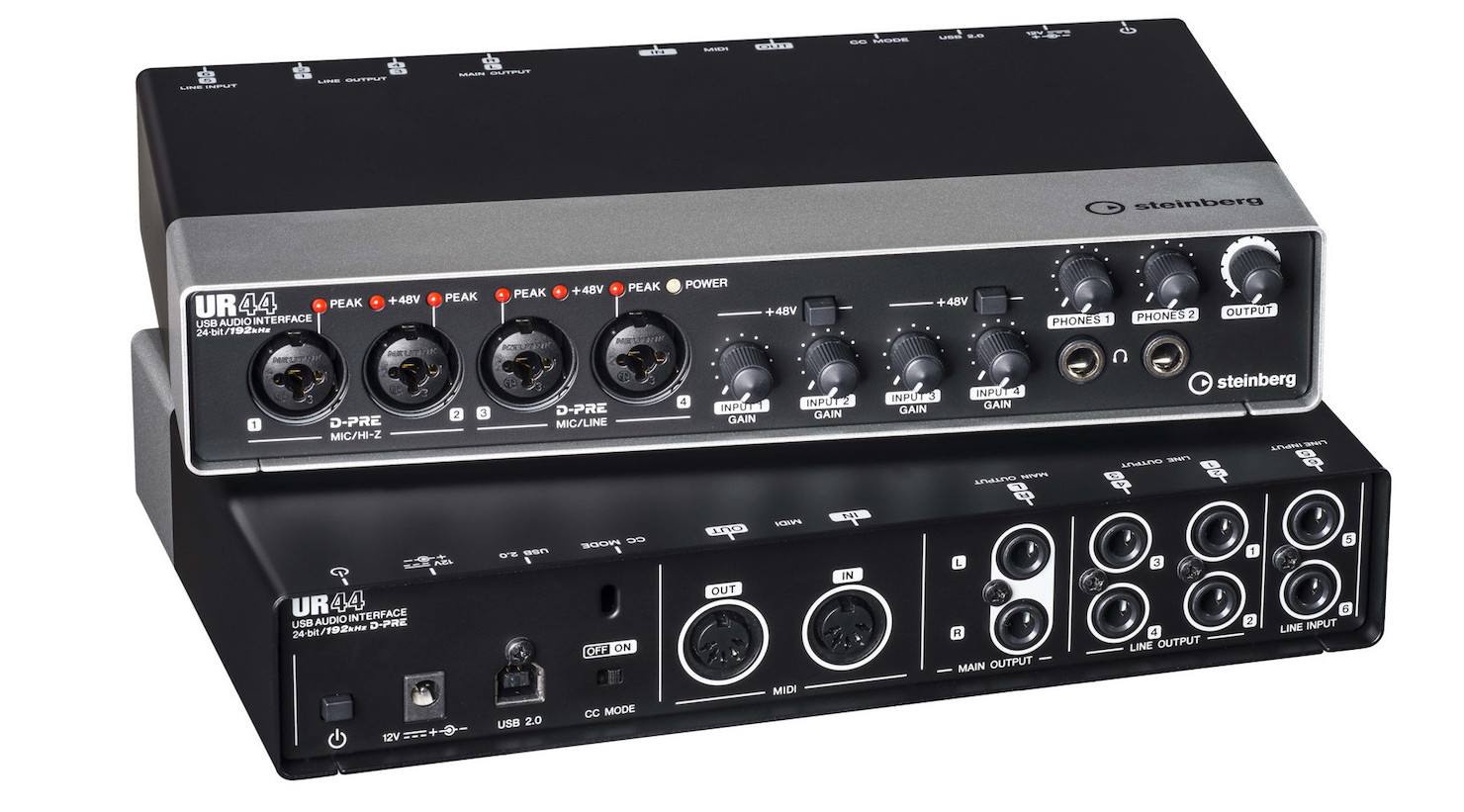
With dspMixFx you can:
- Record with effects using DSP without worrying about monitoring delay.
- Save and quickly recall the interface mixer settings.
These are just some of its benefits.
First, let’s review the basics and setup.
The original article lists UR242, UR44, UR28M, UR824 and UR-RT series as supporting dspMixFx.
Video: dspMixFx overview and setup
Questions and answers from the YouTube video

It says “No Device”… 😢

Please see the newer video if helpful: https://www.youtube.com/watch?v=IG_c2O052FQ Also try installing the latest driver: https://japan.steinberg.net/jp/support/downloads/ur-c.html
Can I mix channels 1–4 and use them as the computer’s audio input? 😭
Yes. In the newer V3, you can use sound entering the UR as the computer input. Please see this video: https://www.youtube.com/watch?v=IG_c2O052FQ
Sorry to ask again, but can an activation code be reissued any number of times?
The original response states that dspMixFx can be used with a connected UR interface and a current driver without a separate activation code. Licensing and setup may vary by product and software version; check the relevant Steinberg instructions.
I can record, but I cannot hear anything through the headphones. They are connected and nothing is muted…
Check whether your interface is selected as the output in Cubase: https://app.box.com/s/dtfxa185z2udh54emojgv725mcw340bo Also check that the interface headphone volume is not turned down.
Thanks for the helpful videos! I am using Windows 10, Studio One 4, a UR242, an MXL-V67G condenser microphone and a CANARE EC03-B(XX) male-to-female XLR cable. I want to record a mic, but after connecting and powering everything I see no input like the one at 2:38. The UR242 knob is at 12 o’clock. Studio One recognizes the UR242 in external connections. What might be wrong?
Is the interface’s 48 V phantom power on? A condenser microphone requires power; check the microphone and interface instructions before enabling it.
Can I use dspMixFx with the latest Pro Tools, and can I use it as a VST plug-in in Pro Tools?
The response at the time said that the plug-in was available as VST and did not support Pro Tools AAX. Check the current plug-in formats and compatibility for your versions.
When recording electric guitar through a UR242 in Logic, I hear the dry signal. Can direct monitoring be turned off?
Open dspMixFx from the Applications folder and try muting the track: https://app.box.com/s/30wma7d9j2wnczhi909l2mggz5jivn3k
I am considering a UR824 after watching this video, but I cannot find a master output. Are outputs 1–8 used? Which should I connect for stereo output?
They are LINE OUTPUT 1–8. Steinberg provides connection examples at the following URL: https://japan.steinberg.net/jp/products/hardware/ur_series/lineup/ur824/setup.html
- 1dspMixFx overview and setup
- 2Morphing Channel Strip: compressor
- 3Morphing Channel Strip: equalizer
- 4Guitar Amp Classics: guitar amp simulator
- 5REV-X digital reverb
Steinberg distributor — Access Yamaha Music Japan content
- Yamaha Music Japan MPP (YouTube) https://www.youtube.com/user/SteinbergJapan
- MPP (Twitter) https://twitter.com/SteinbergJP
- Music production program Sound Roster (Fresh!) https://freshlive.tv/ymjsoundroster
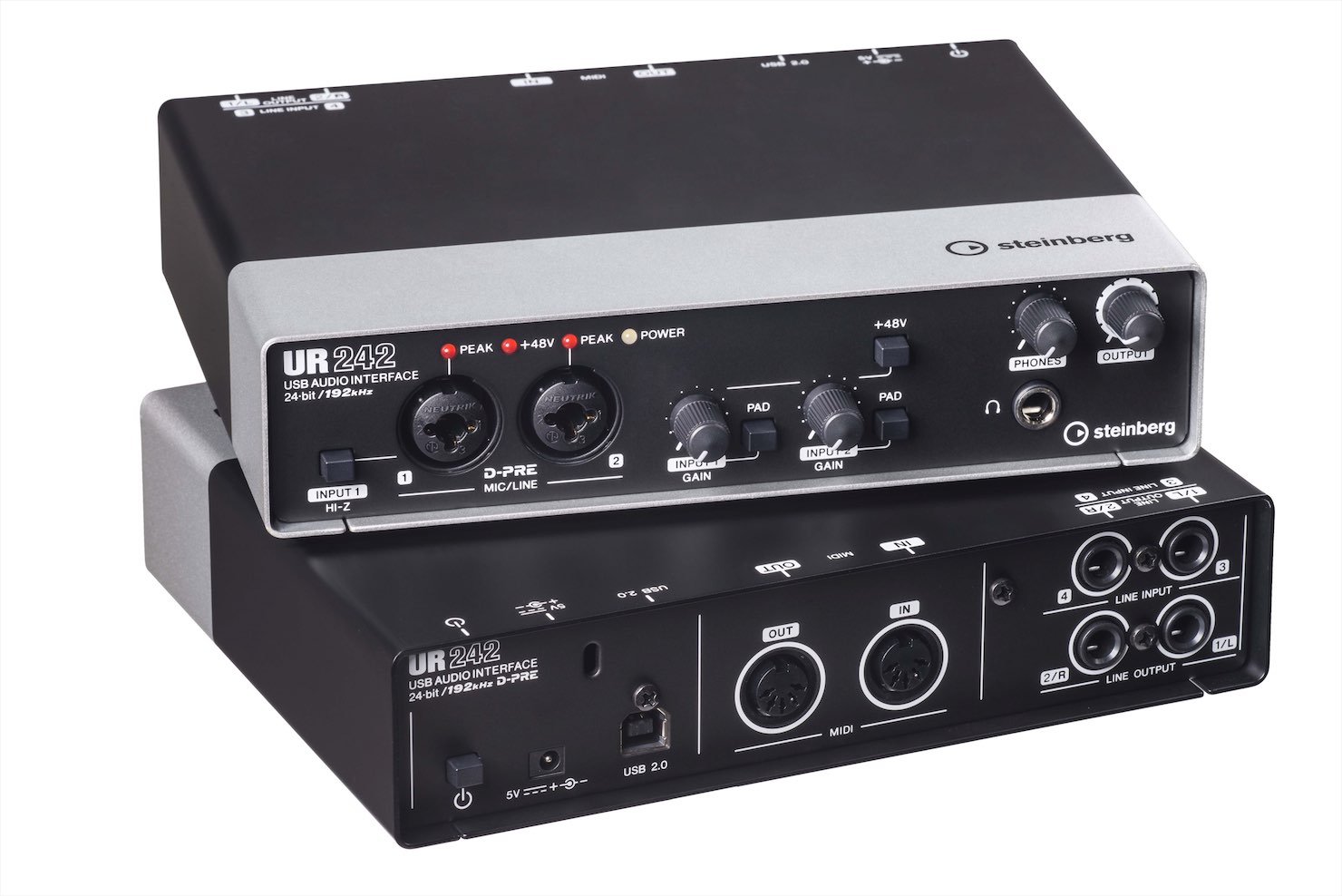
Purchase products: https://japan.steinberg.net/jp/products/hardware/ur_series/lineup.html The original article lists UR242, UR44, UR28M, UR824 and the UR-RT series as supporting dspMixFx.
About dspMixFx
Normally effects run inside the computer. Effects operated through dspMixFx are processed on the UR audio interface instead.
This form of processing is called DSP.
dspMixFx provides three effects:
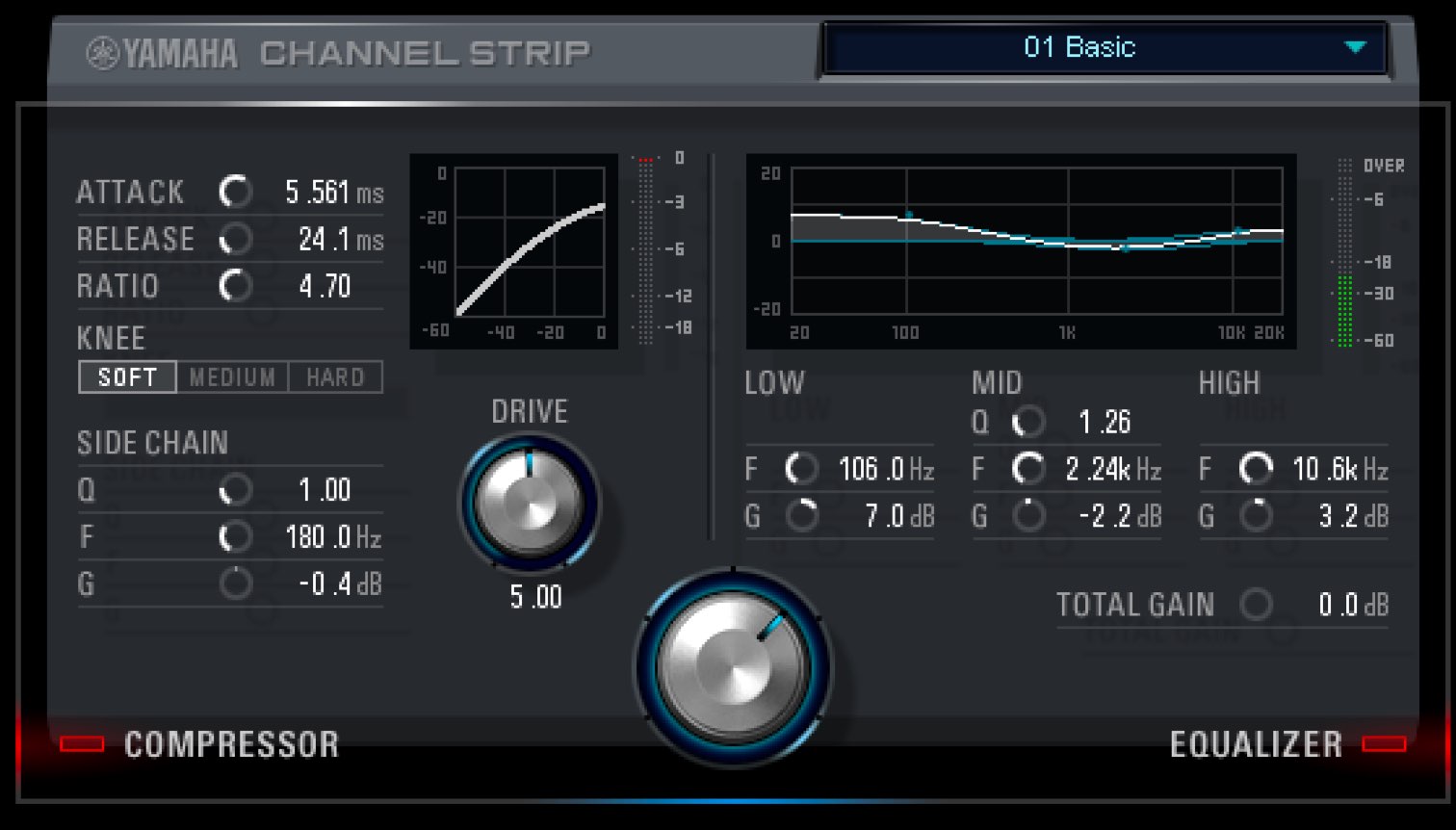
Morphing Channel Strip, combining a compressor and equalizer for processing tracks.
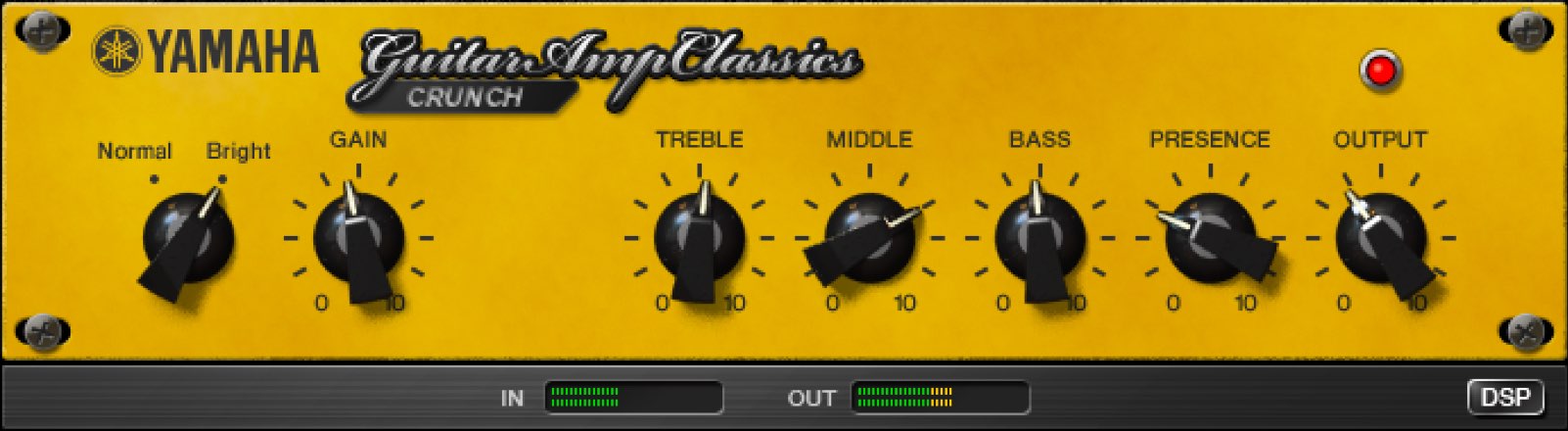
Guitar Amp Classics, an amp simulator for guitar sounds.
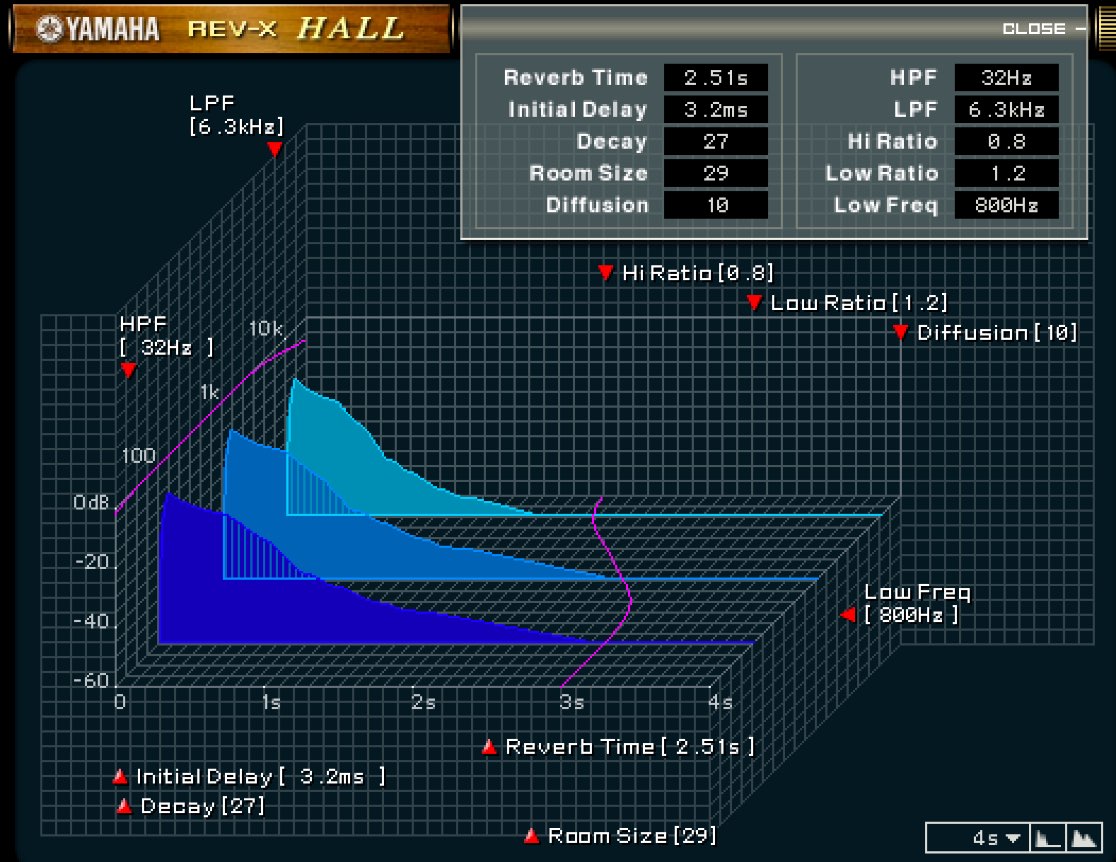
REV-X, a reverb that adds a sense of space to tracks.
Setting up dspMixFx
To use dspMixFx, update the product software as appropriate for your device.
Visit the Steinberg product page and download and install the latest TOOLS for UR and UR-series firmware update for your model.
https://japan.steinberg.net/jp/products/hardware/ur_series/start.html
After installation, the dspMixFx application is available on your computer.

- Mac: Applications folder
- Windows: Program Files (x86) → Steinberg folder
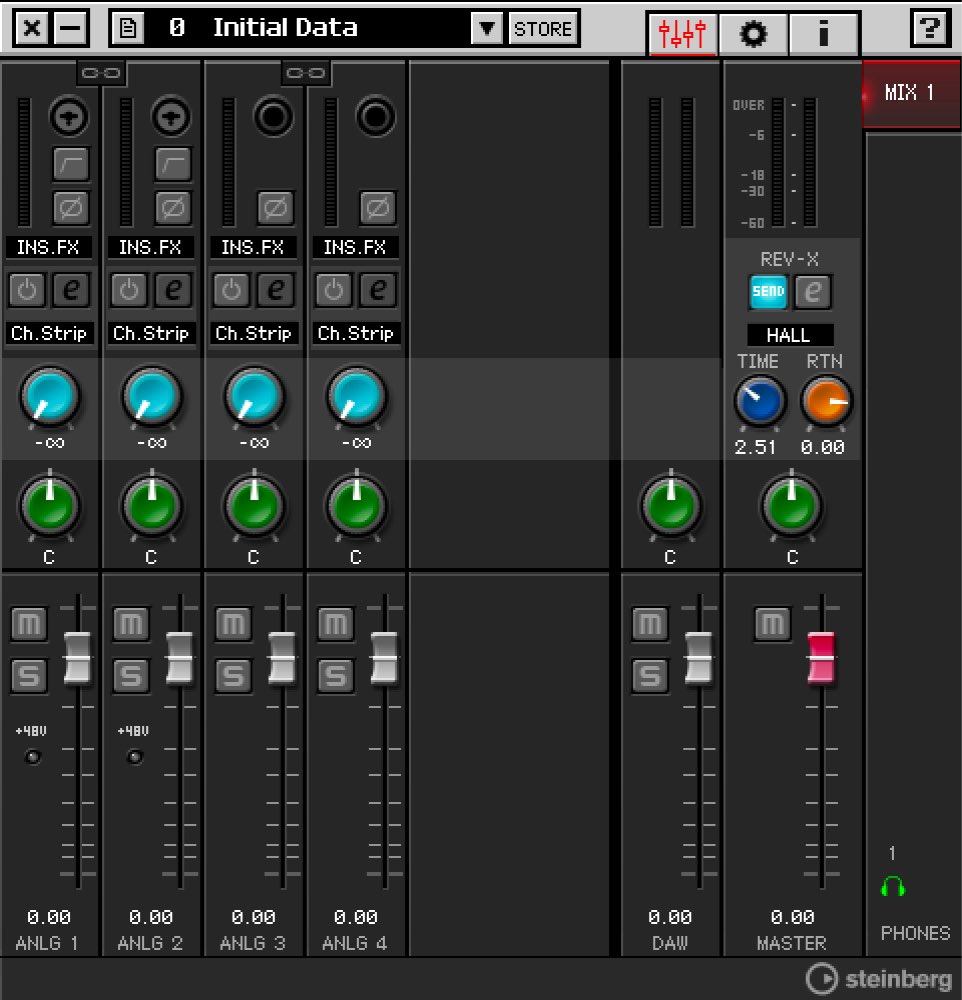
This is the initial view when you launch dspMixFx.
You can apply effects to the sound entering the UR from here.
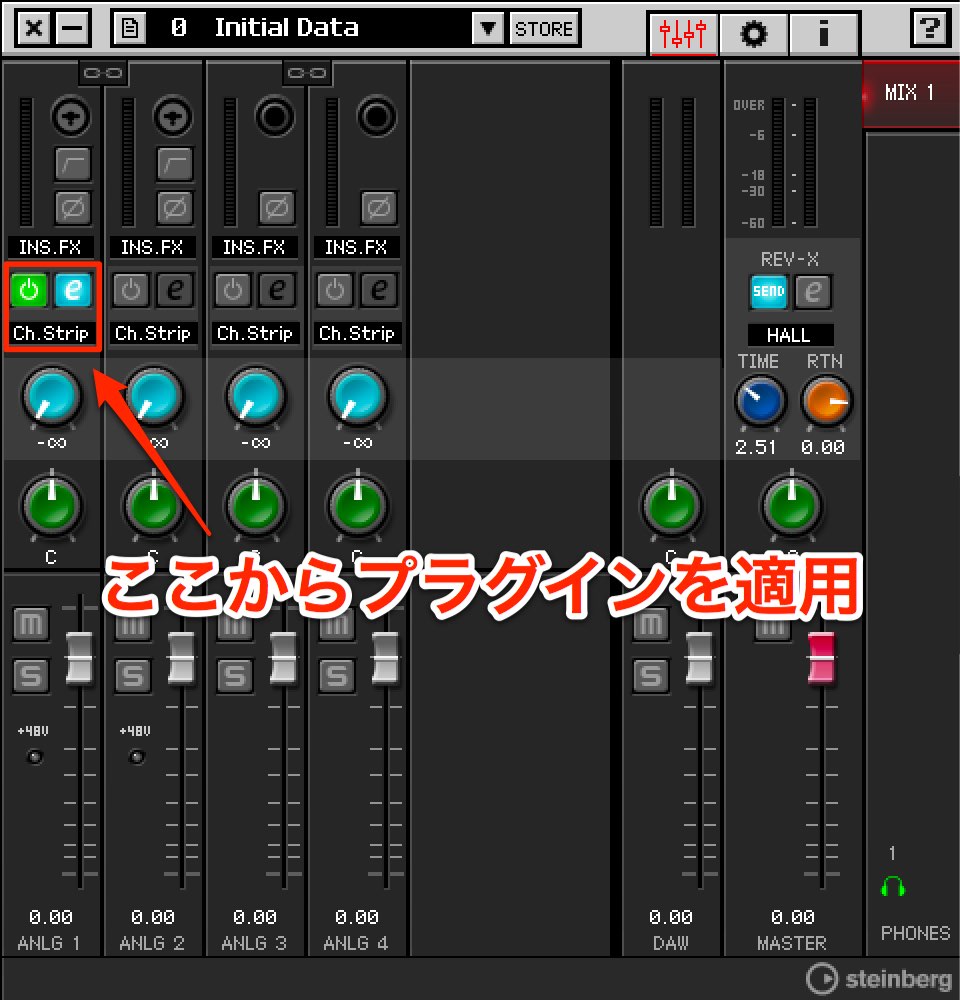
Morphing Channel Strip is the default effect.
Turn on the desired channel to enable the effect for its input.
The edit button “e” opens the effect’s detailed settings.
We will explore each effect in later videos.
Why monitoring has low latency while recording
You can monitor the effect-processed sound with minimal perceptible delay.
Let’s look at why.
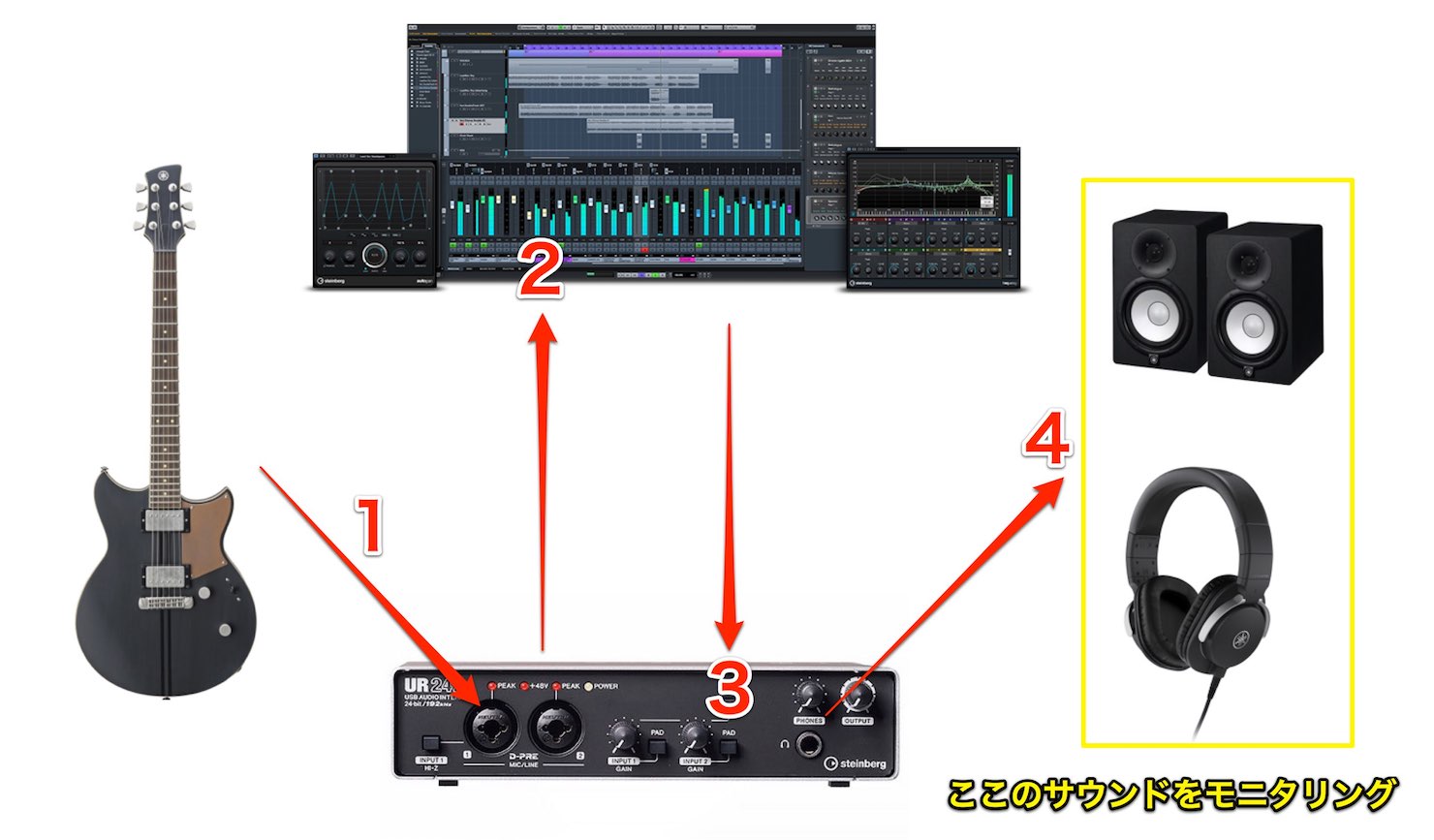
Normal DAW monitoring follows this route:
- 1. The instrument enters the audio interface.
- 2. The sound is sent to the DAW and recorded.
- 3. The DAW sends the sound back to the interface.
- 4. You monitor the interface output through speakers or headphones.
In this setup, the monitored sound has passed through the DAW.
DAWs perform tasks such as processing plug-ins and playing MIDI instruments, so output can be delayed.
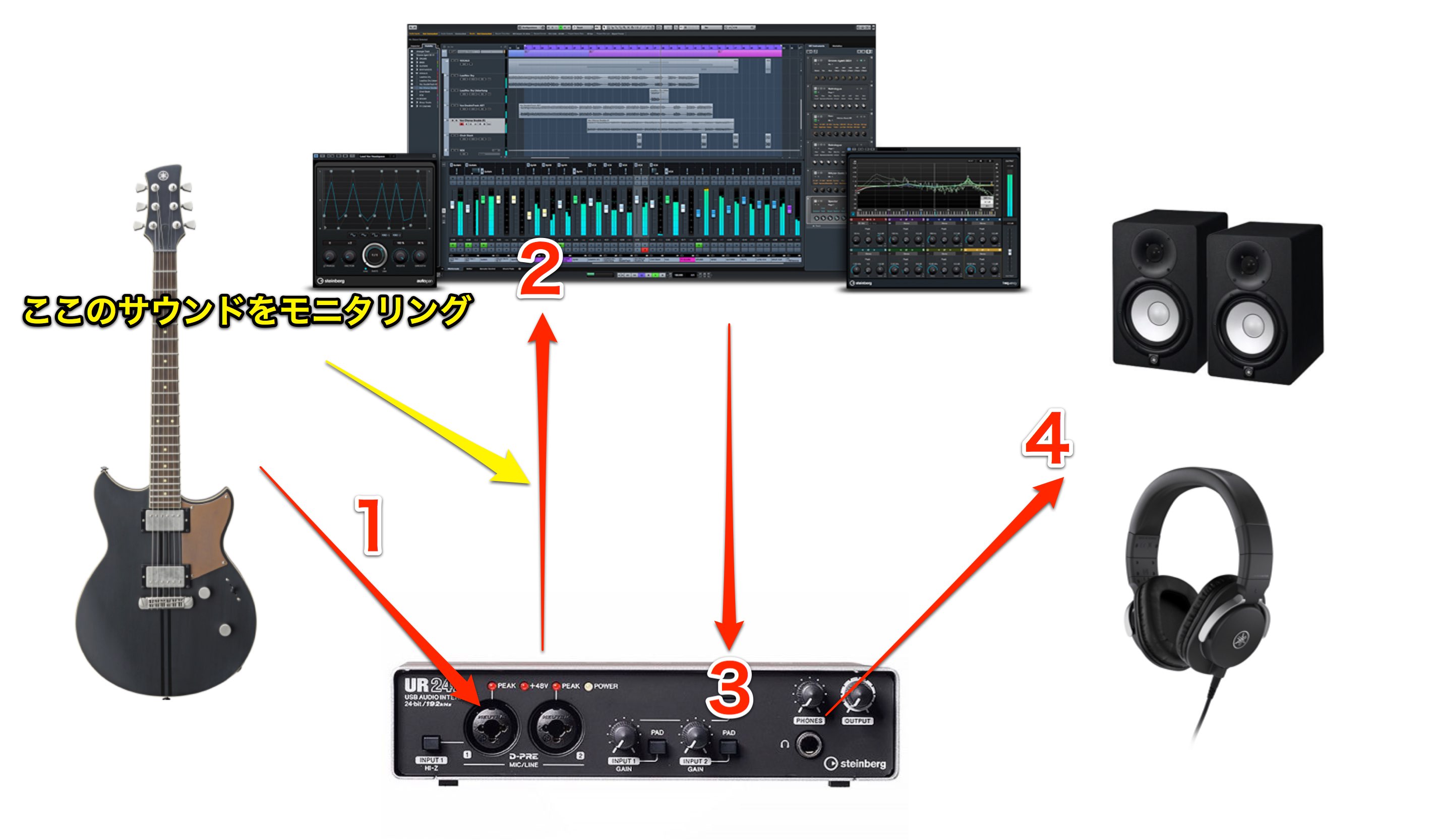
With a UR interface, you can monitor the input before it enters the DAW, avoiding noticeable DAW round-trip delay.
Because dspMixFx effects are processed on the interface, you can hear effects without routing the monitoring signal through the DAW. Some hardware processing latency remains.
dspMixFx settings
dspMixFx also offers useful controls beyond effects.
HPF (low cut)
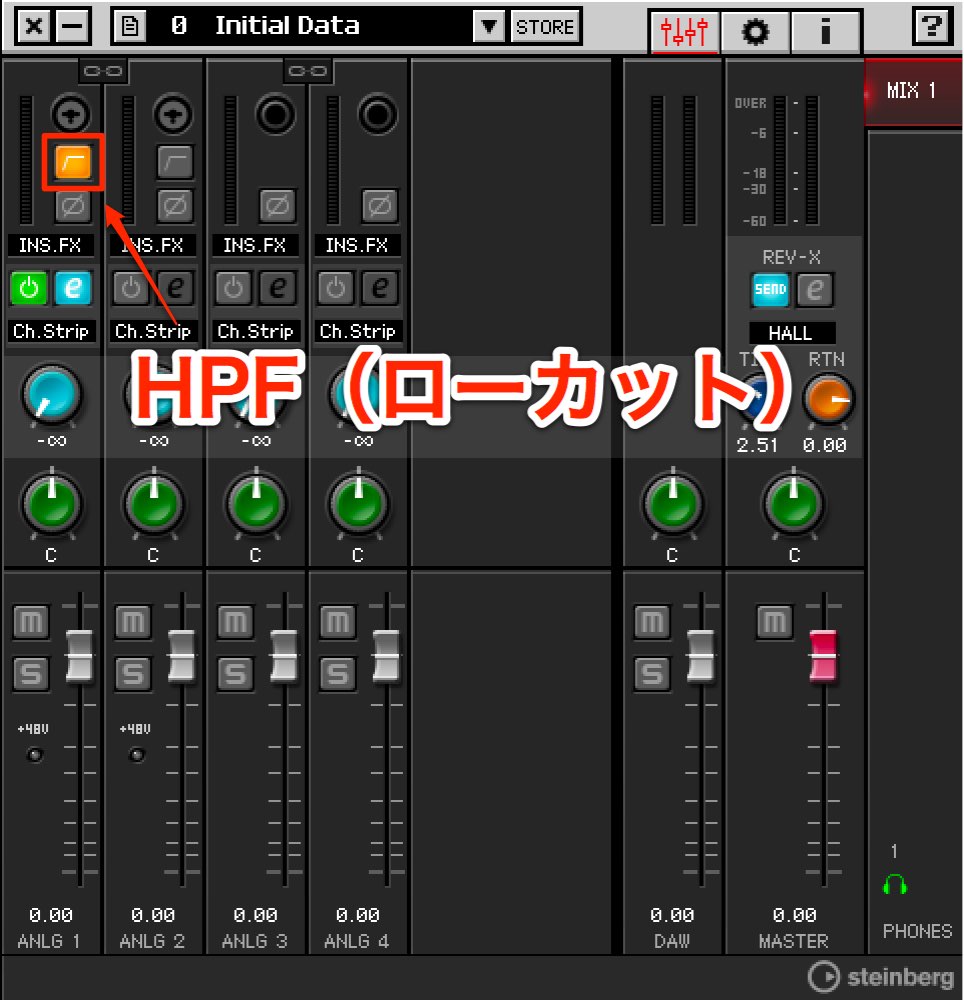
Light this icon to enable the high-pass filter.
Cutting unwanted low frequencies during recording can make later processing easier.
Set the cutoff in Preferences under HPF.
Choose a value appropriate to the recording.
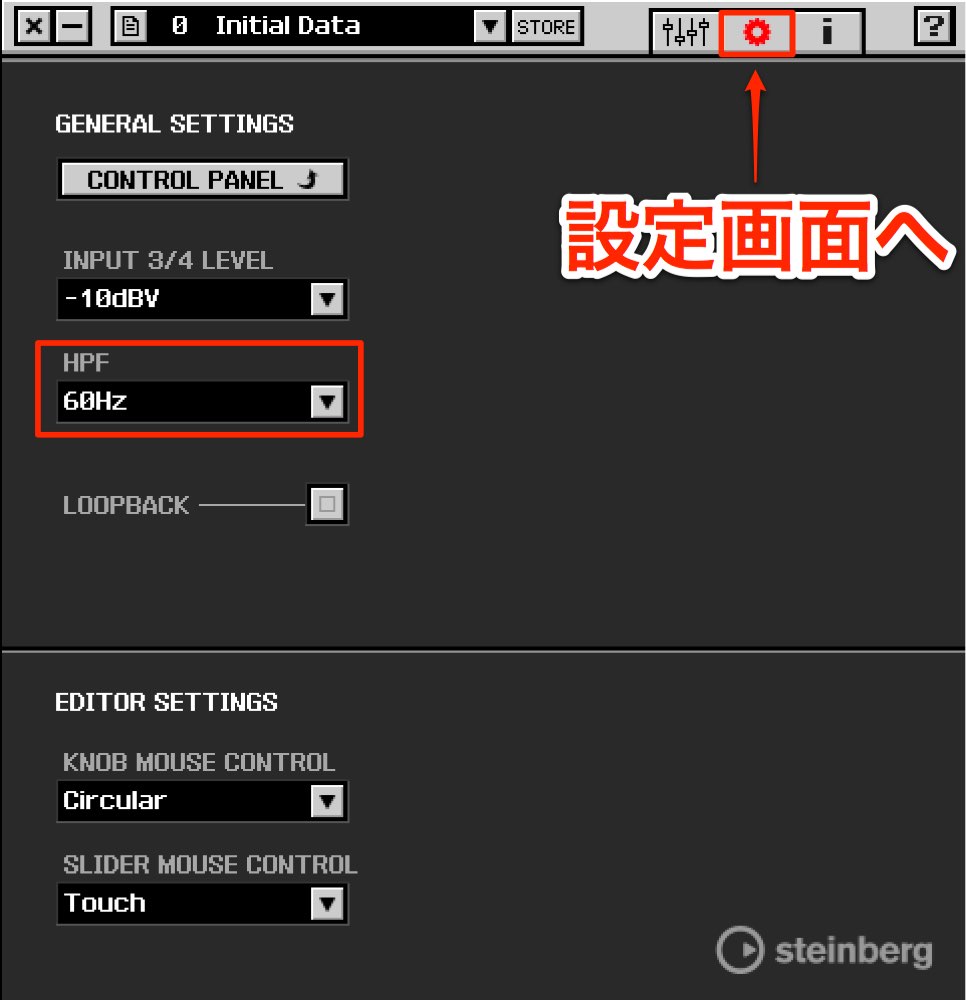
For instruments such as bass, where low frequencies are important, you may want to leave them intact.
For vocals or guitar, try around 60 Hz as a starting point. Higher-pitched instruments may tolerate a stronger low cut; listen and choose according to the source.
Polarity inversion
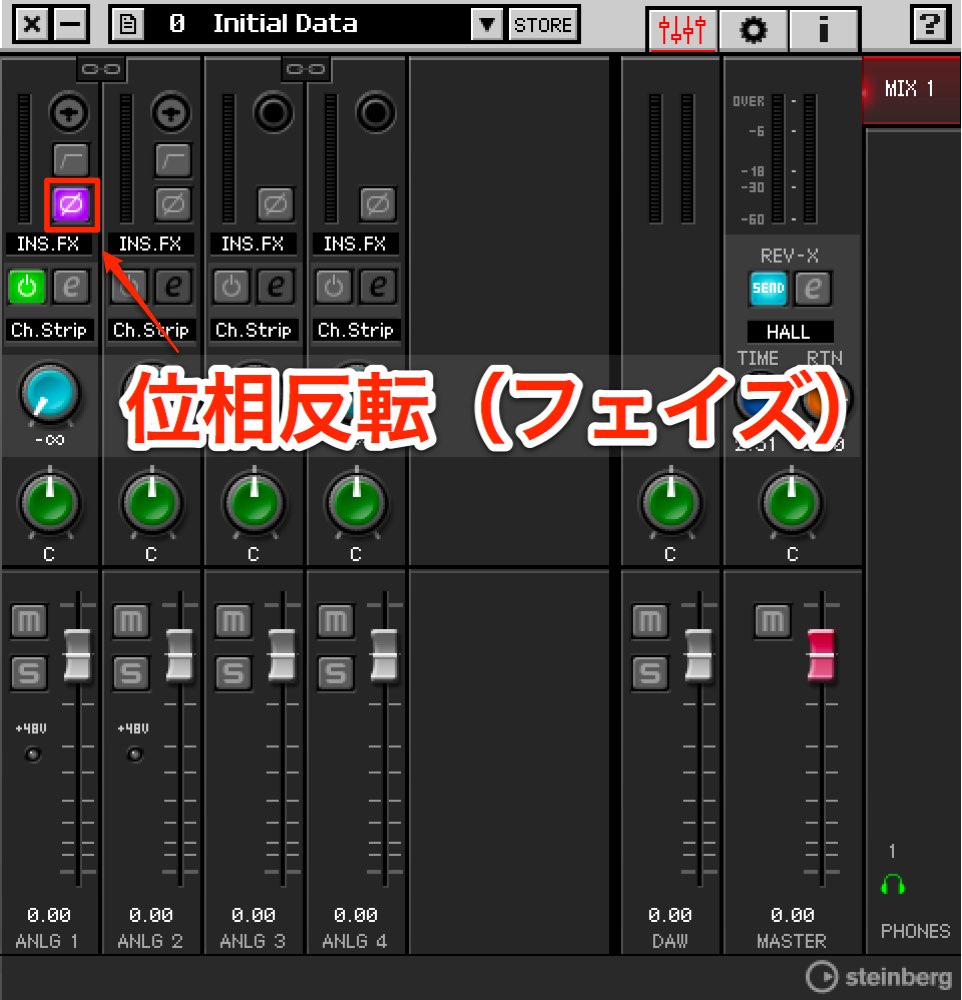
The switch below inverts polarity.
On an isolated signal, the change may not be apparent.
It can change the combined sound when played with other tracks.
A common use is recording with multiple microphones.
For example, you might use two microphones on a guitar amplifier or several on a drum kit.
The switch changes how the microphone signals interact when combined.
Linking channels
A guitar or microphone connected by one cable normally provides a mono signal.
Keyboards and synthesizers may need a stereo input.
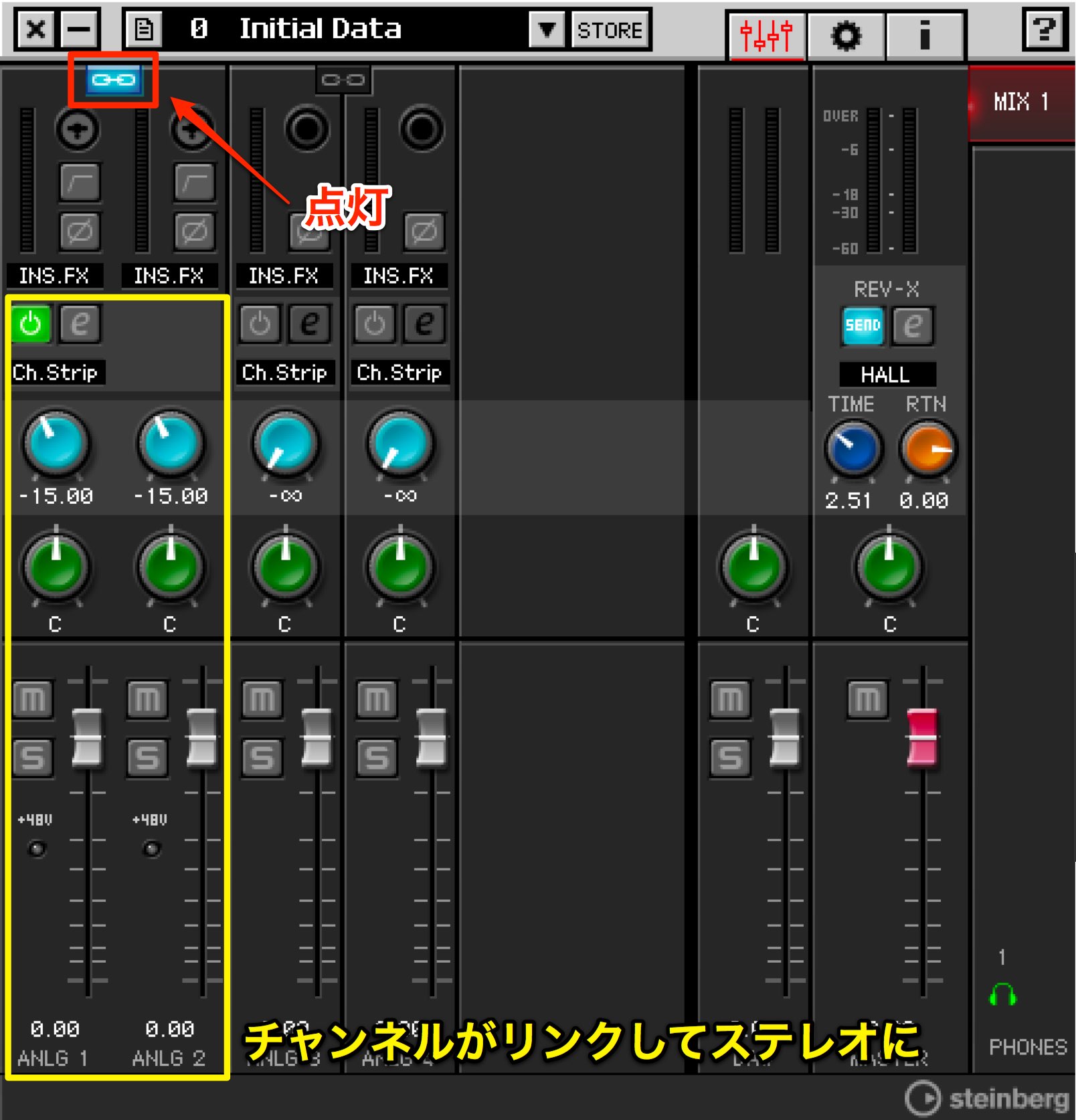
Turn on the link button to link two channels as a stereo pair.
Volume and effect settings are linked as well.
Adjusting reverb
dspMixFx also includes a reverb.
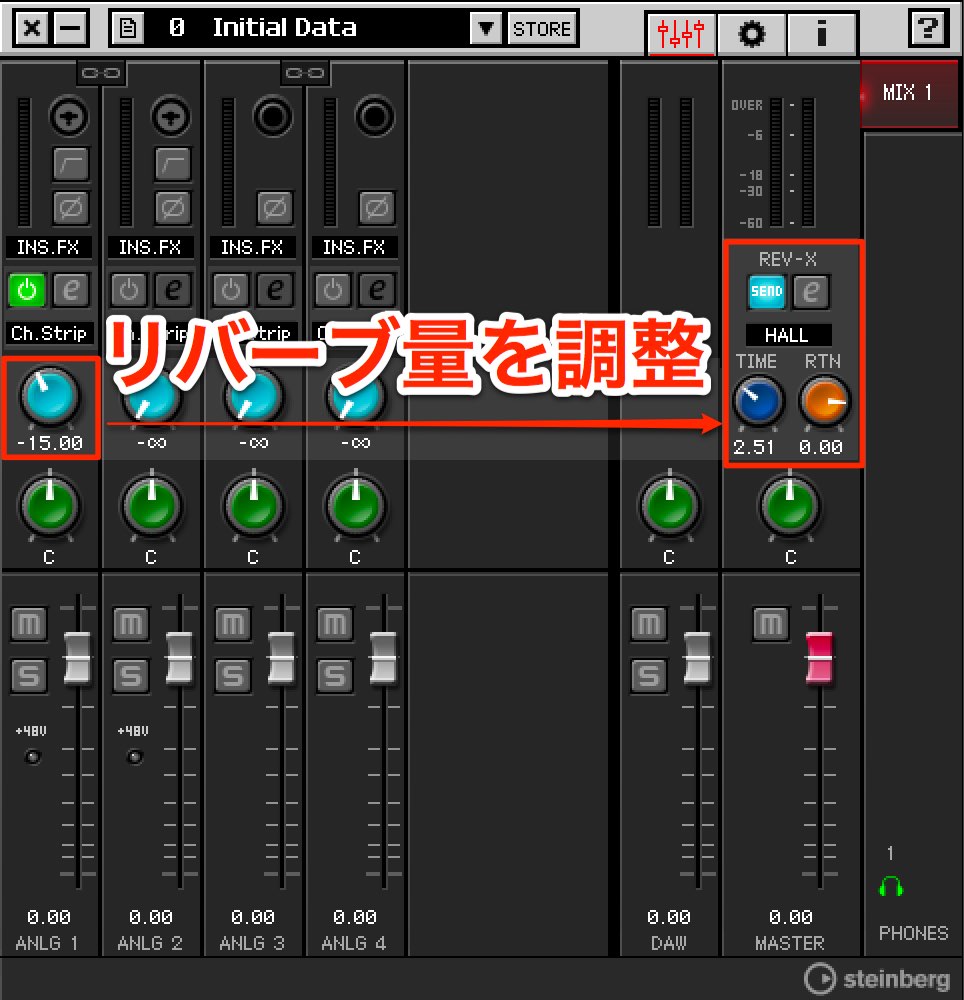
Raising the knob sends more sound to the reverb, increasing the effect.
This is a send/return arrangement.
Note: the REV-X reverb is for monitoring and cannot be recorded directly in the workflow described here.
For example, add a little reverb to a vocalist’s monitor mix to make singing more comfortable.
The recorded waveform remains dry; you can add reverb in the DAW afterward.
Later videos explain further settings and uses.
Switching recording with effects on or off
Another common approach, including with guitar amp simulators, is to create a comfortable monitor sound while recording the dry signal to the DAW.
A dry recording leaves more freedom to change the sound later in the DAW.
This is useful when you want to refine the tone afterward.
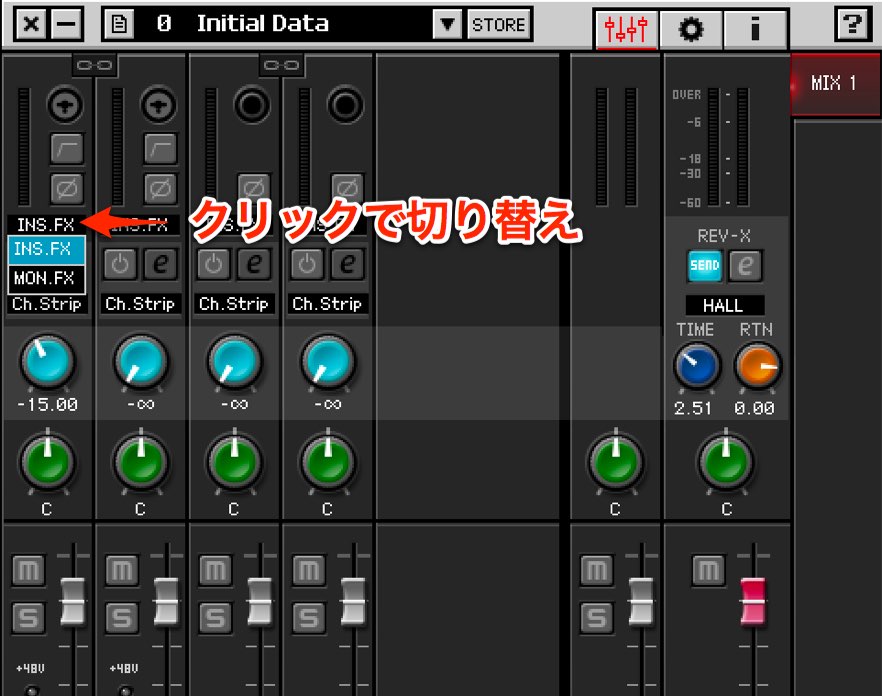
Use the menu shown in the image to switch recording with effects on or off.
- INS.FX: the selected effect is also reflected in the recorded signal.
- MON.FX: the effect is heard only during monitoring; the unprocessed signal is recorded.
Saving mixer settings
Recording settings often stay consistent for a given setup or production style.
The recall feature lets you save and quickly restore them.
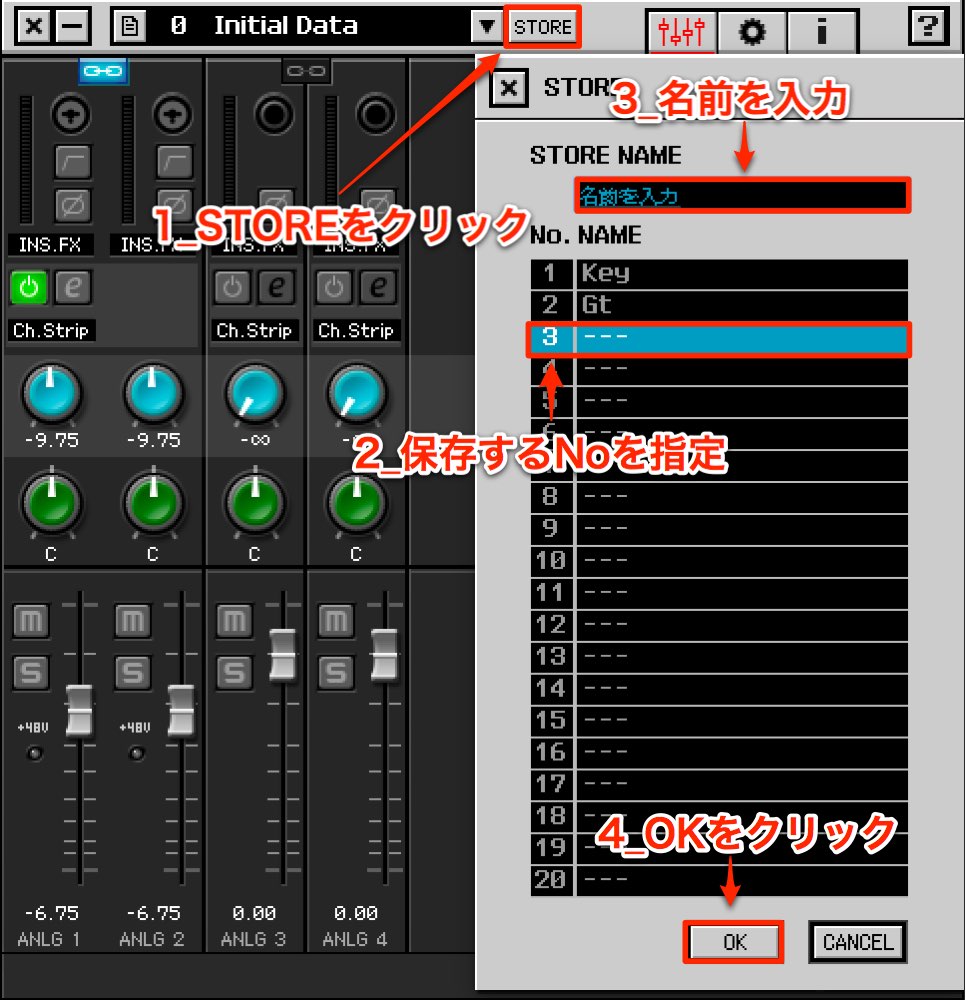
First, create the mixer setup you want.
- 1. Click STORE.
- 2. Select the desired bank number in the window.
- 3. Give it a recognizable name in English.
- 4. Click OK.
The settings are saved.
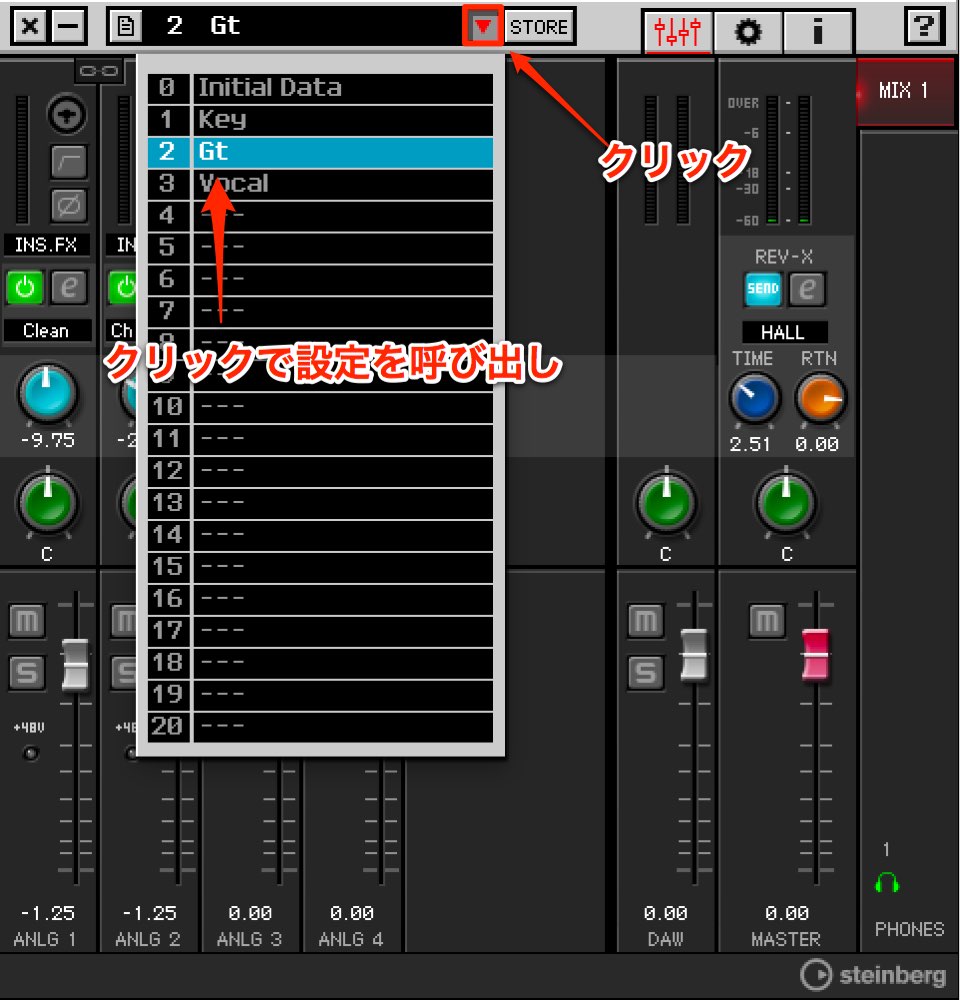
To recall them, click the preset area and select the desired number.
Integrating with Cubase
Cubase users can use True Integrated Monitoring, which incorporates these dspMixFx controls.

The original article lists the following minimum versions for True Integrated Monitoring:
- Mac: Cubase series 7.0.7 or later.
- Windows: Cubase/Cubase Artist 6.5.5 or later.
Cubase Elements/AI 7.0.3 or later.
Also, Cubase and the standalone dspMixFx application cannot be used simultaneously in the workflow described here.
When Cubase starts, dspMixFx is disabled and the settings are controlled in Cubase.
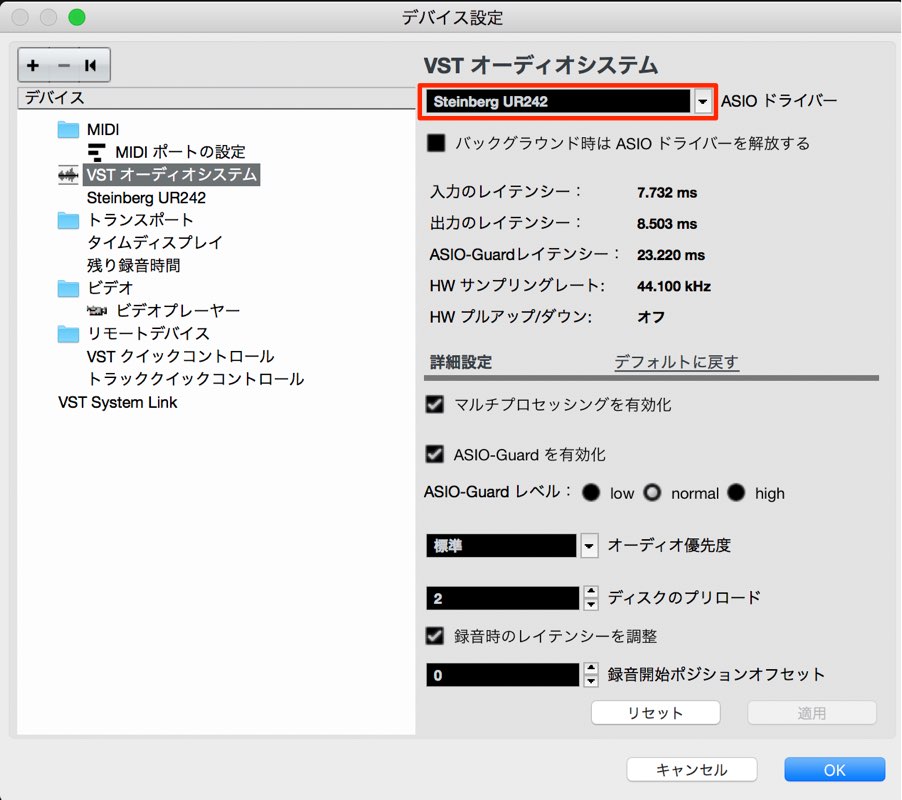
In Cubase settings, select the UR series as the audio device.

In MixConsole, click HARDWARE to expand it.
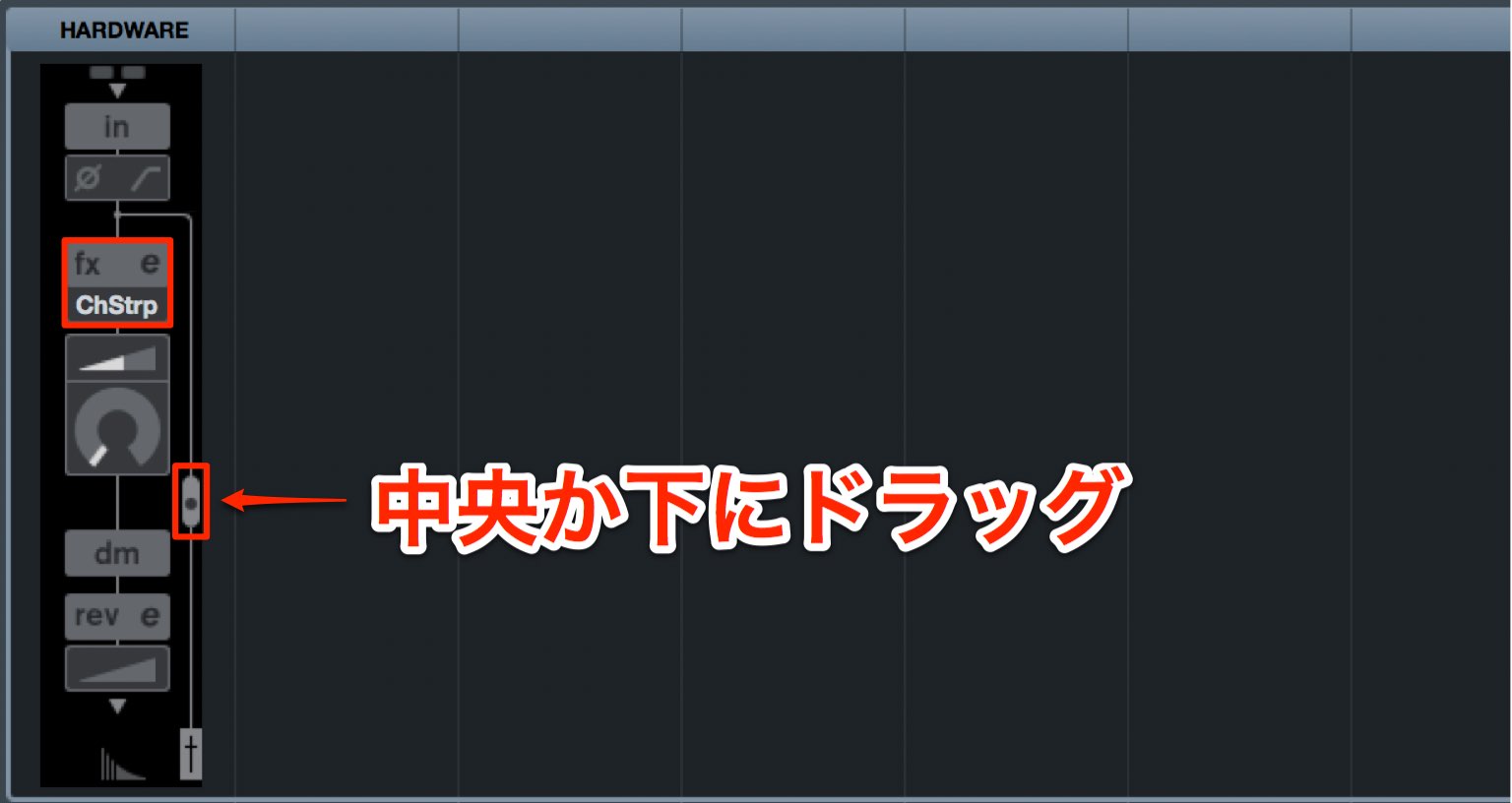
Set the routing switch to the middle or lower position to select an effect.
Initially you may see only the channel strip and not the guitar amp simulator.
If so, use the following setup.
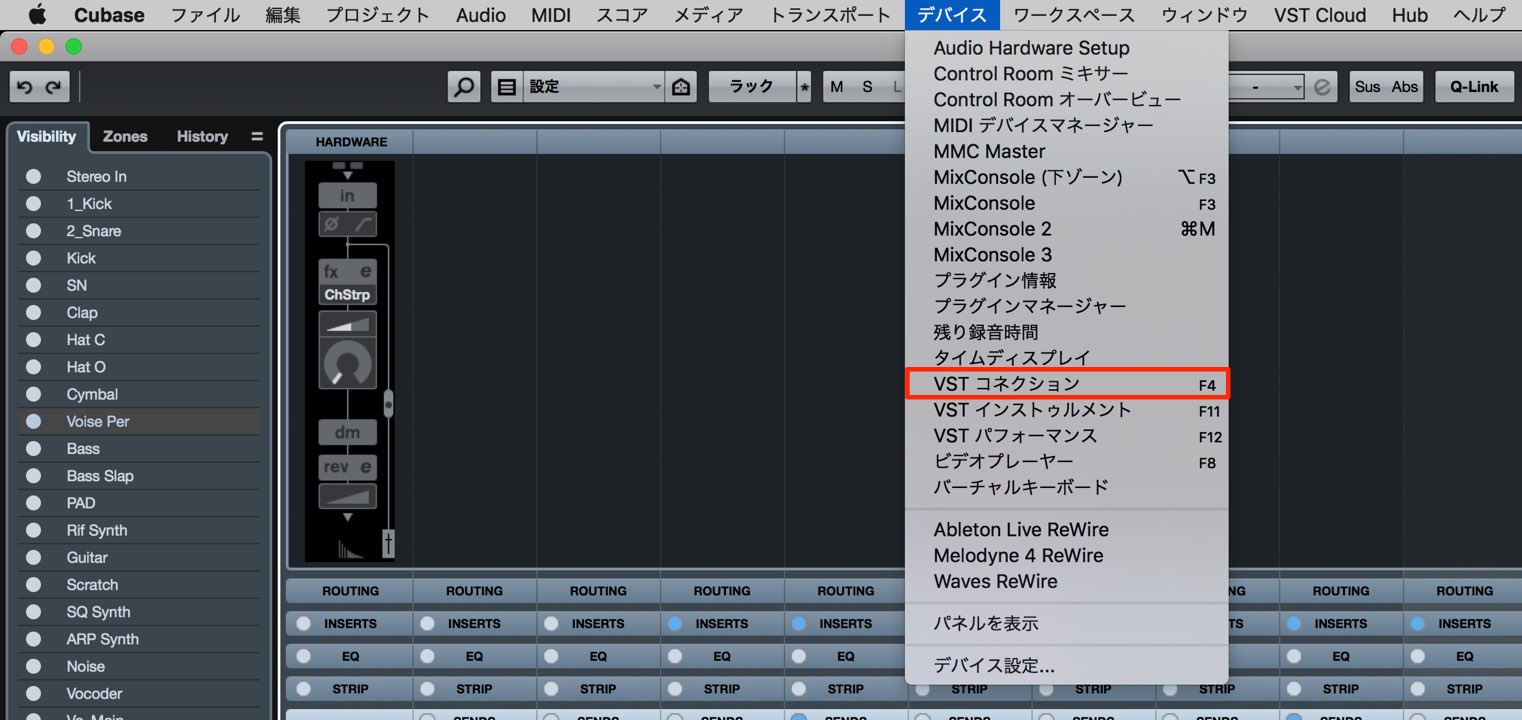
From the top menu choose Devices → VST Connections.
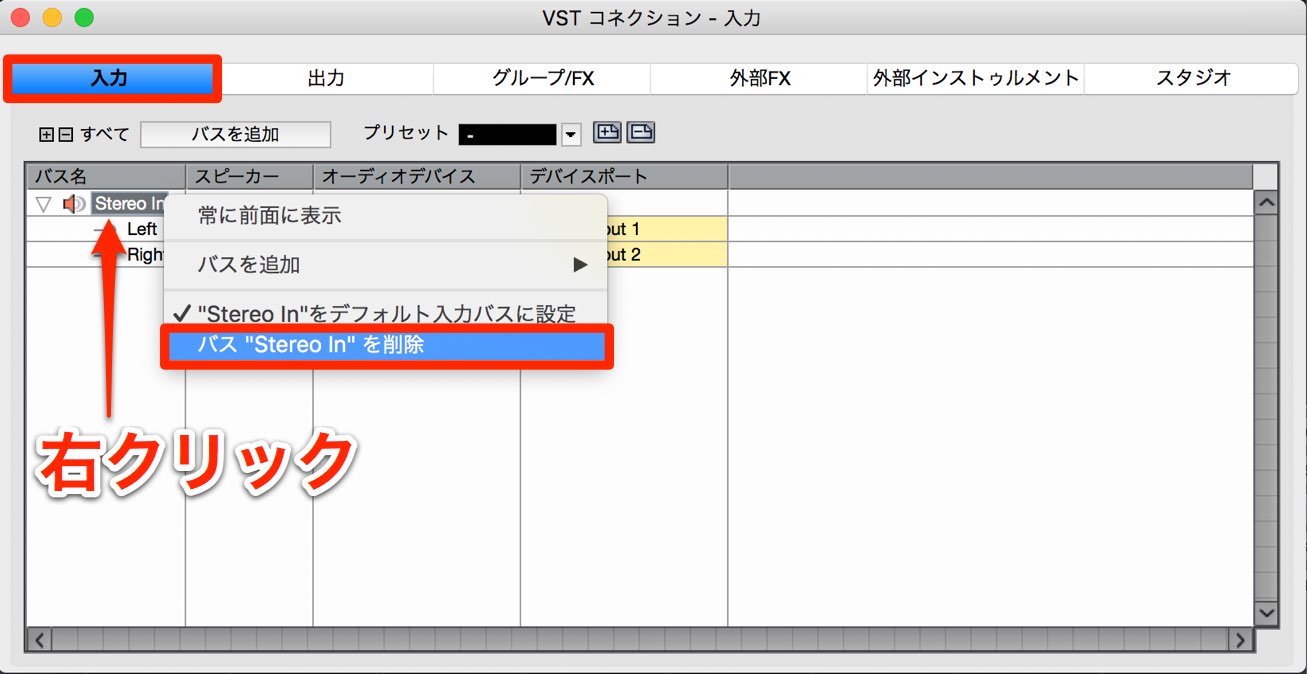
Select the Inputs tab and right-click Stereo In.
Choose Delete from the menu.
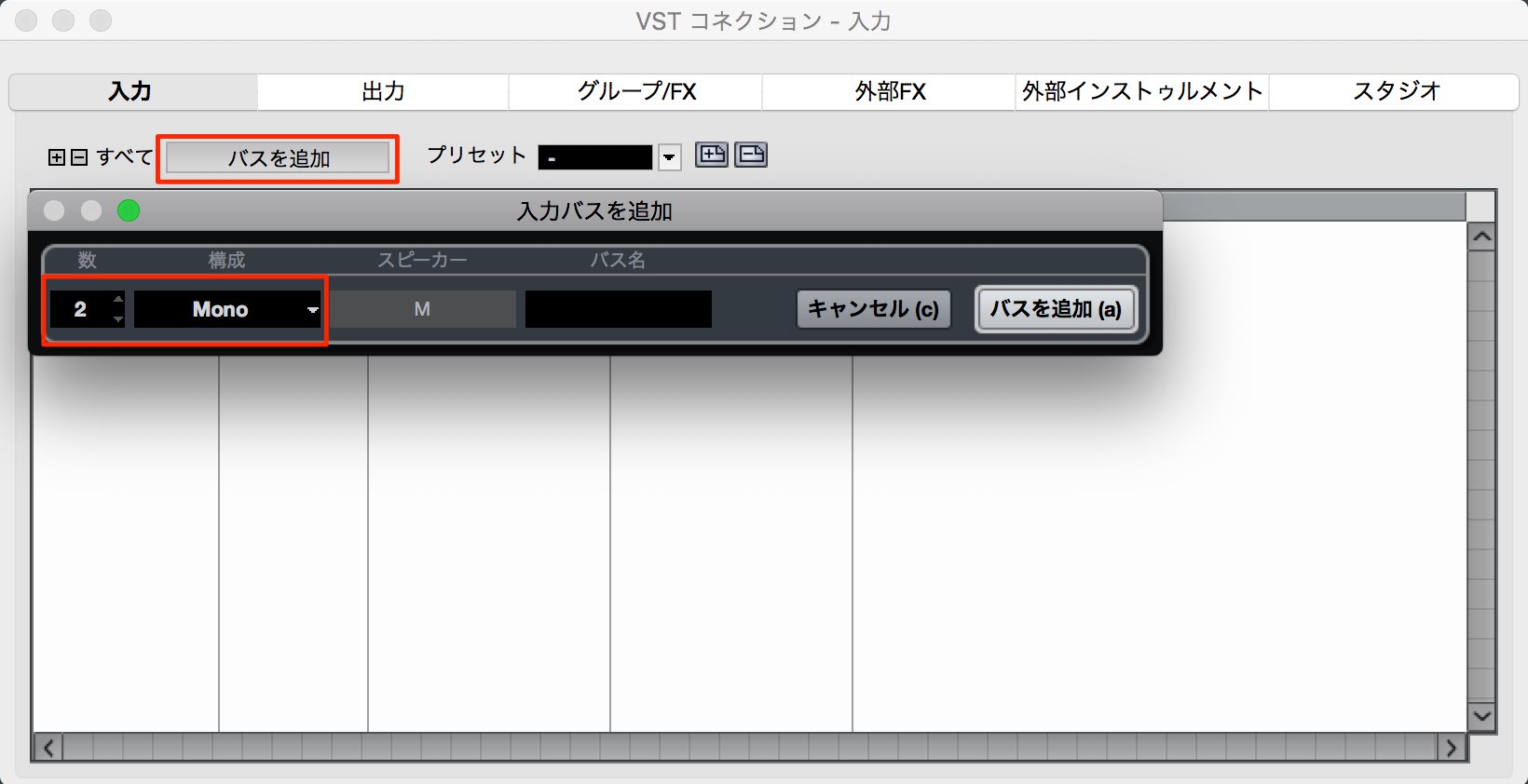
Click Add Bus and create two Mono buses.

The input tracks are now mono, allowing the amp simulator to be used.
You can also select whether to record with effects.
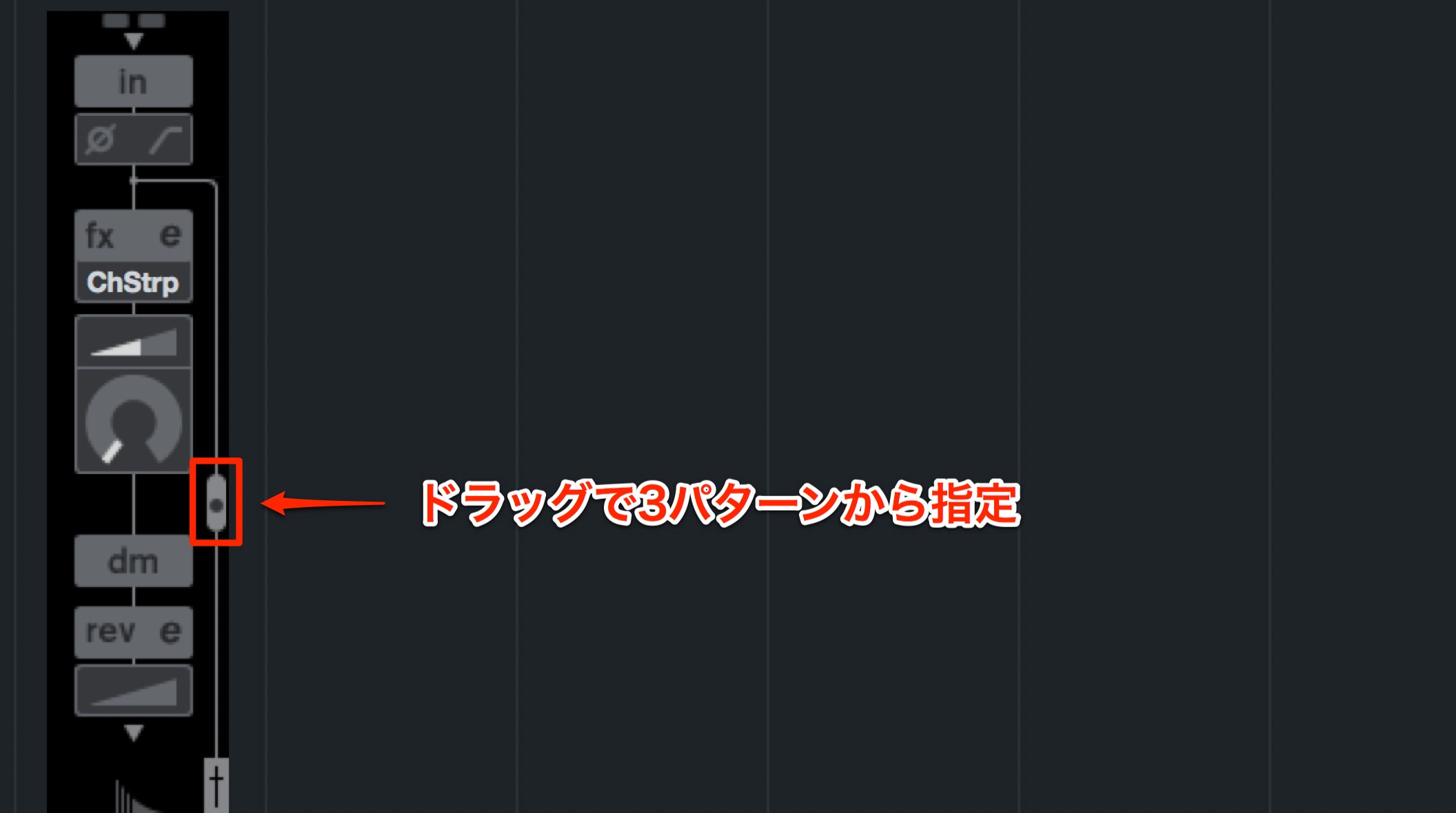
Drag this control up or down to switch between three positions:
- Top: effects are fully disabled.
- Middle: effects are heard during monitoring but are not recorded.
- Bottom: effects are heard in monitoring and included in the recorded signal.
You now have an overview of dspMixFx and its capabilities.
The dspMixFx effects can also be used as VST plug-ins in the DAW.
The plug-in collection is called Basic FX Suite.
Next time, we will explore Basic FX Suite’s parameters and uses.
Frequently asked questions
Q1. What is dspMixFx, and how does it differ from ordinary effect processing?
dspMixFx is software for supported Steinberg UR interfaces that controls effects processed by onboard DSP rather than the DAW. Direct monitoring avoids the DAW round trip and its associated delay, although hardware processing is not literally zero-latency.
Q2. What setup is needed to use dspMixFx?
Download and install TOOLS for UR and any appropriate firmware update for your interface from Steinberg. The dspMixFx application can then be used with the connected, supported device. Check your model’s current instructions.
Q3. Can I record the reverb effect?
In the workflow described here, REV-X is used for monitoring rather than recorded into the waveform. Monitor with a little reverb, record dry and add reverb in the DAW later.
Q4. What is the Guitar Amp Classics simulator used for?
It recreates guitar amp sounds, allowing you to monitor or record an amp-style tone without using a physical amplifier, depending on the routing selected.
Q5. How do I record an instrument that needs a stereo input?
For a keyboard or synthesizer, use the link button in dspMixFx to link two channels as a stereo pair. Their volume and effect settings are linked too.
NEW ARTICLES
Latest English Articles

























































































































































































































































































































































