
FL Studio 20 significantly expanded the Playlist’s capabilities. Consolidate renders patterns and audio clips into new audio clips, reducing CPU load and opening up new creative possibilities. Arrangements let you manage multiple versions of an arrangement in one project, while Time Signatures let you change meter partway through a song. Punch-in/out recording automatically starts and stops recording, making solo recording sessions more efficient. Together, these features can improve both productivity and creativity in music production.
Useful New Features in the Playlist and Mixer
This is the second part of our guide to the new features introduced in FL Studio 20.
It is also the final installment.
Here, we will focus on the features added to the Playlist and Mixer.
We have selected features that are particularly useful during production, so try incorporating them into your workflow.
FL Studio 20 New Features, Part 2: Video Tutorial
Selected Questions and Answers from the YouTube Video

Where can I find Serum?

Serum is sold separately, so you need to purchase it to use it. https://sonicwire.com/product/99927
Is FL Studio 20 available to buy yet?
Yes. At the time of this original 2018 tutorial, FL Studio 20 was already available. https://beatcloud.jp/?brand=28
Consolidate
This very useful feature renders patterns and audio clips placed in the Playlist into a new audio clip.
Consolidate not only reduces the CPU load caused by plug-ins, but also makes it easy to explore new creative approaches. You can make edits that are specific to audio, or bake effects into an audio clip and rearrange the result.
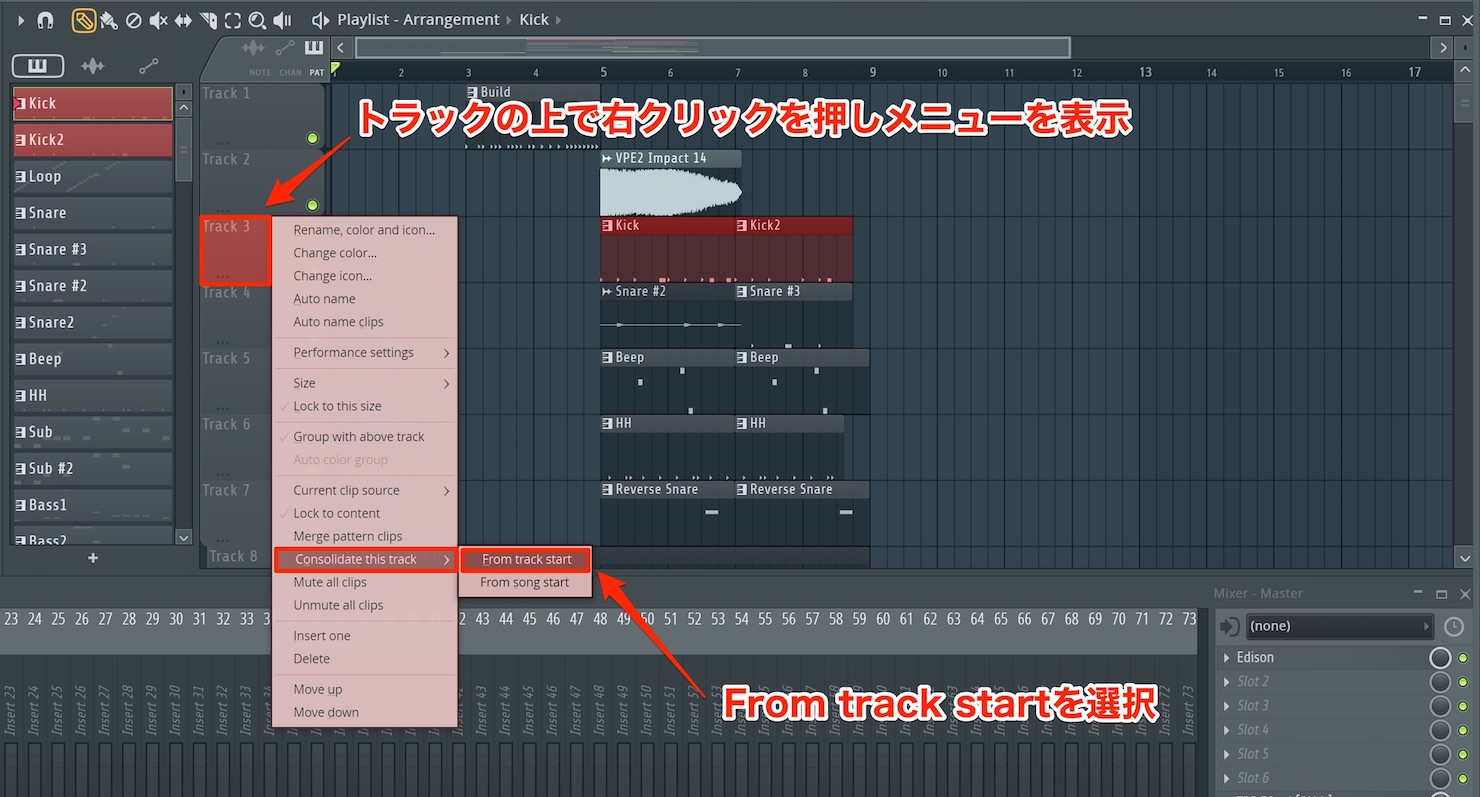
Right-click the track name, choose “Consolidate this track,” then select “From track start.”
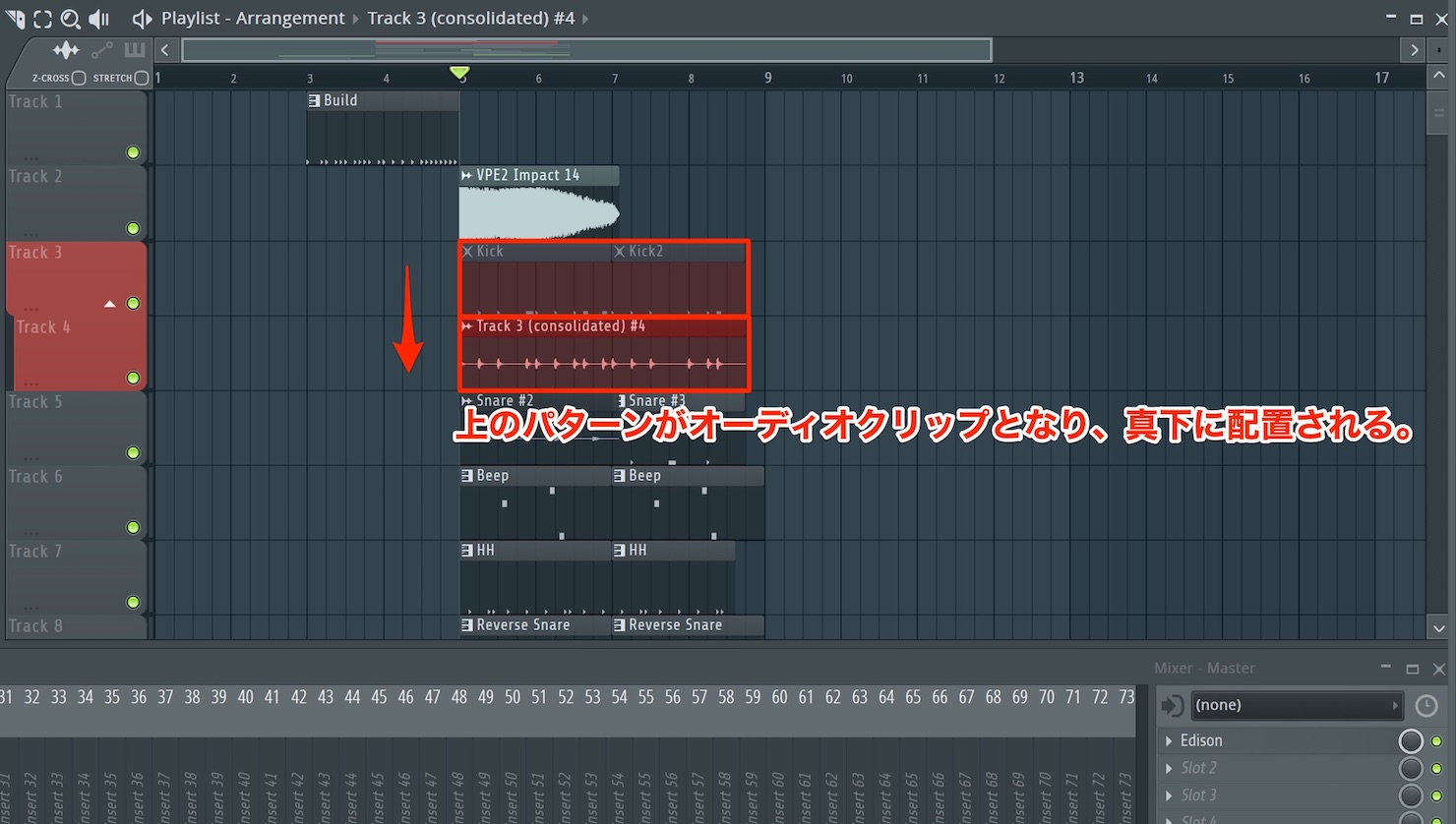
All clips on that track are rendered into a single audio clip.
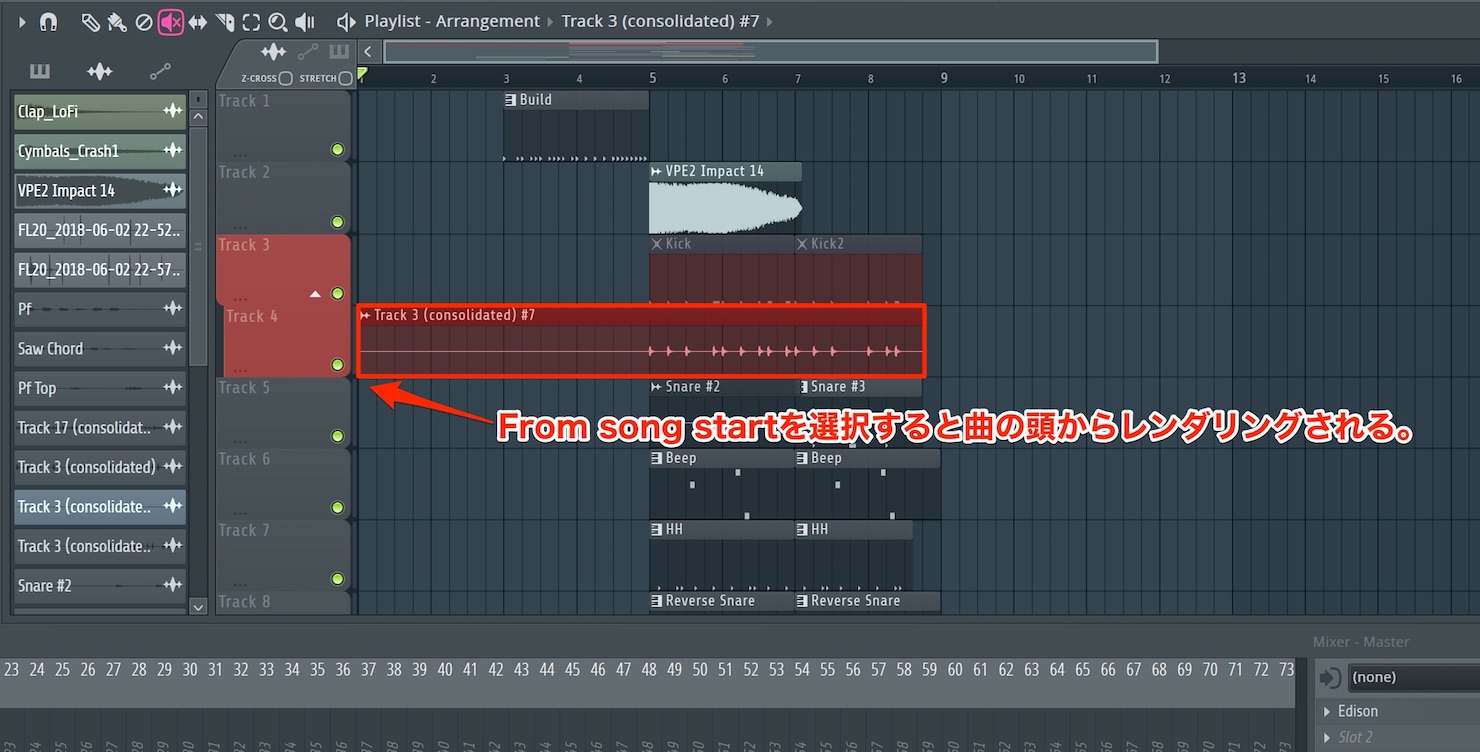
Choosing “From song start” instead changes the range that is rendered.
“From song start” renders from the beginning of the Playlist, while “From track start” renders from the beginning of the first clip.
Rendering Individual Patterns
You can also render individual patterns.
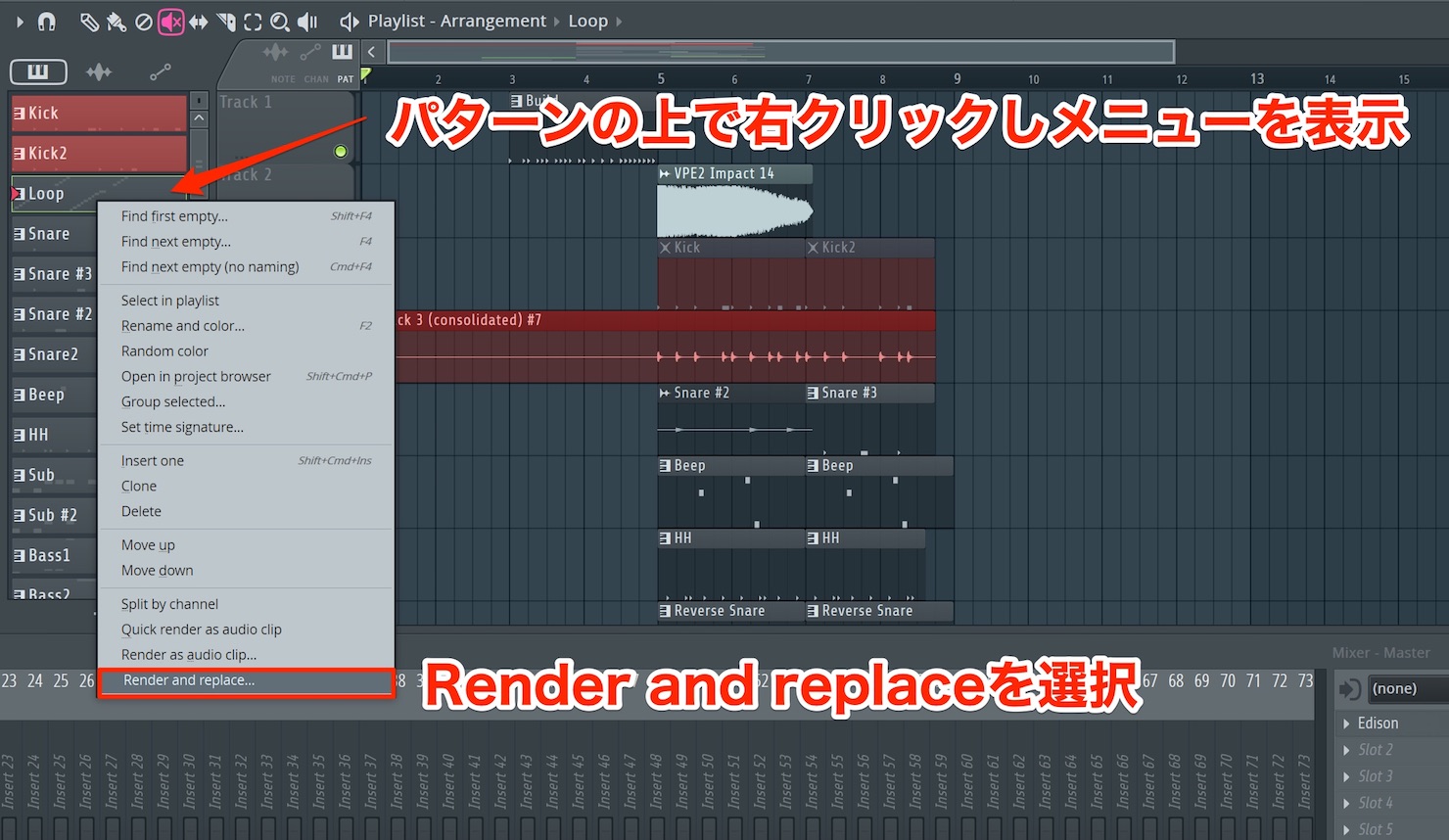
Show the patterns in the list to the left of the Playlist, right-click the pattern you want to render, and choose “Render and replace.”
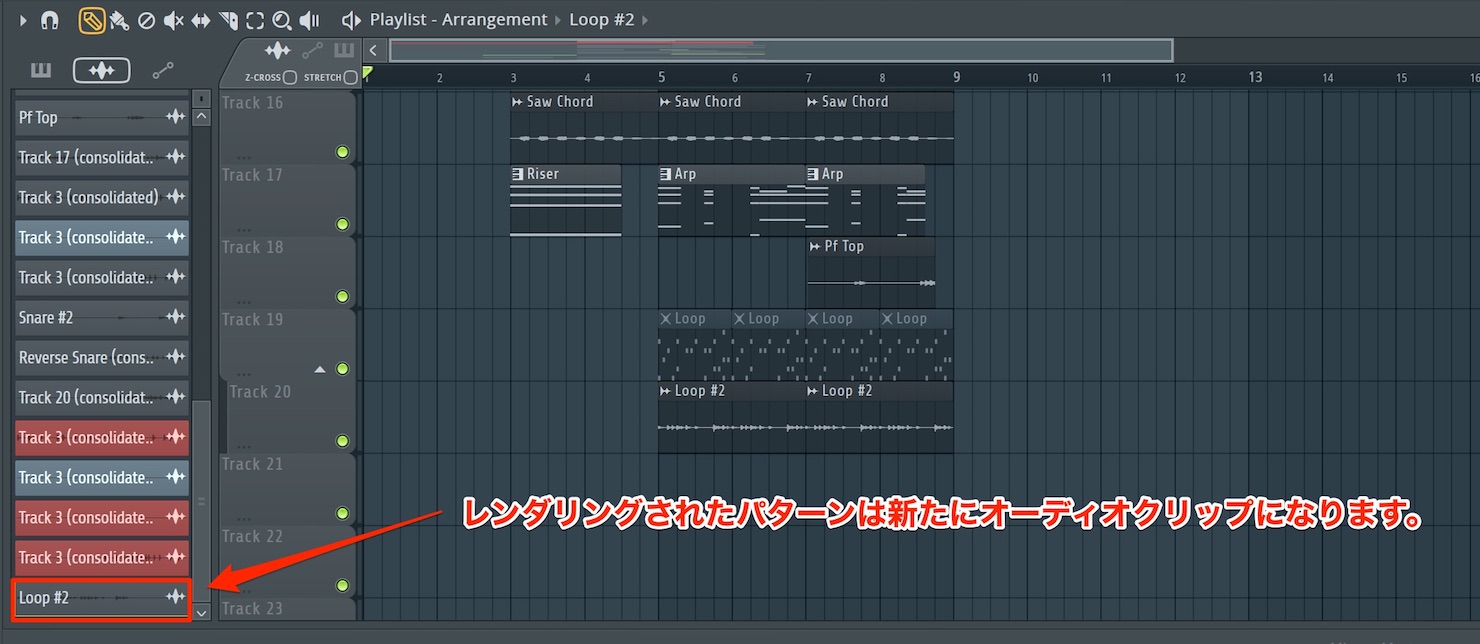
A new clip is created, and all instances of that pattern in the Playlist are replaced with audio clips.
The original pattern remains available even after it has been rendered to audio.
Rendering a Selection
You can also render a selected range into a single audio clip.
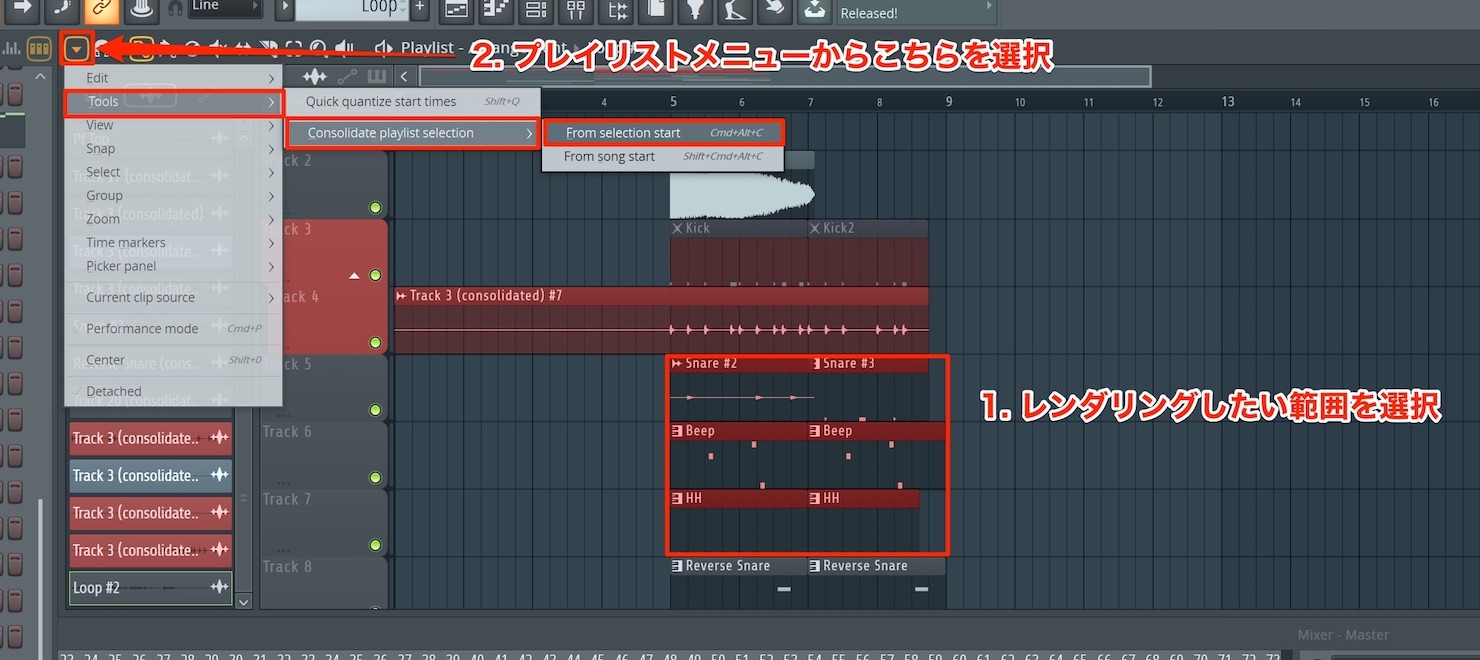
Hold Control on Windows or Command on Mac to select multiple patterns or clips you want to render.
Then open the Playlist menu and choose Tools → Consolidate playlist selection.
Select the rendering start position as before, and the selection is converted into a single audio clip.
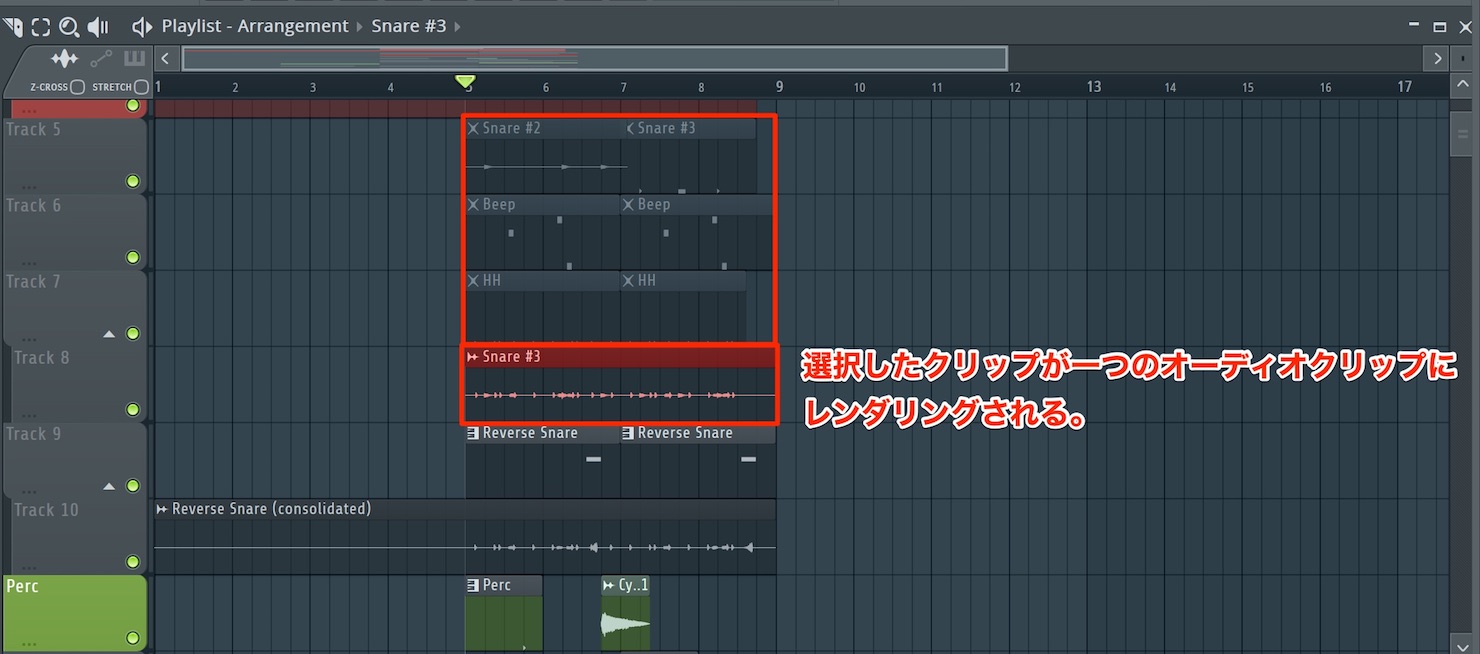
The result looks like this.
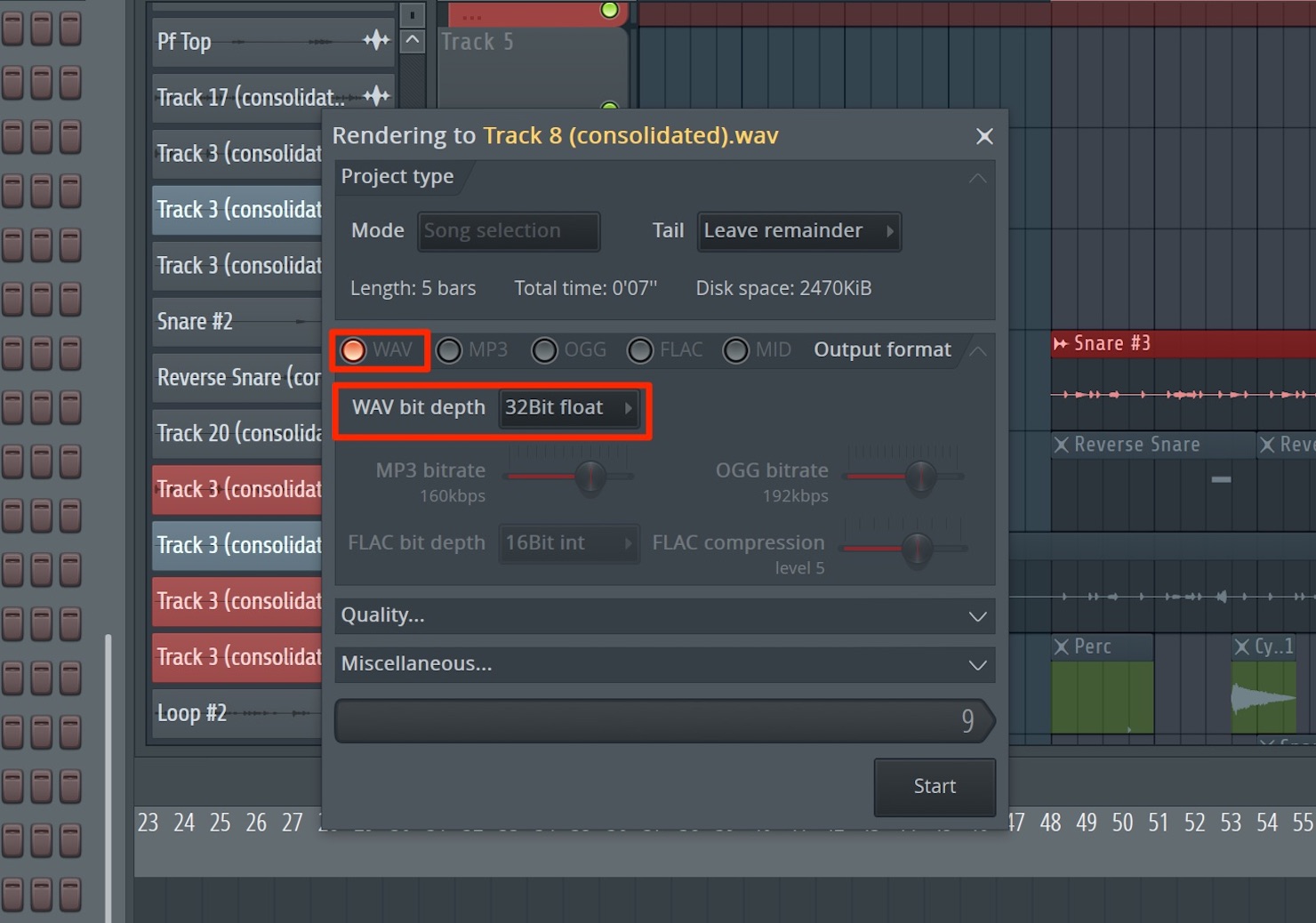
For the best possible audio quality when rendering, we recommend the WAV format with “32Bit float” selected.
Arrangements
Arrangements are a major addition that lets you create multiple Playlists.
For example, you can now try different versions of an arrangement within a single project.
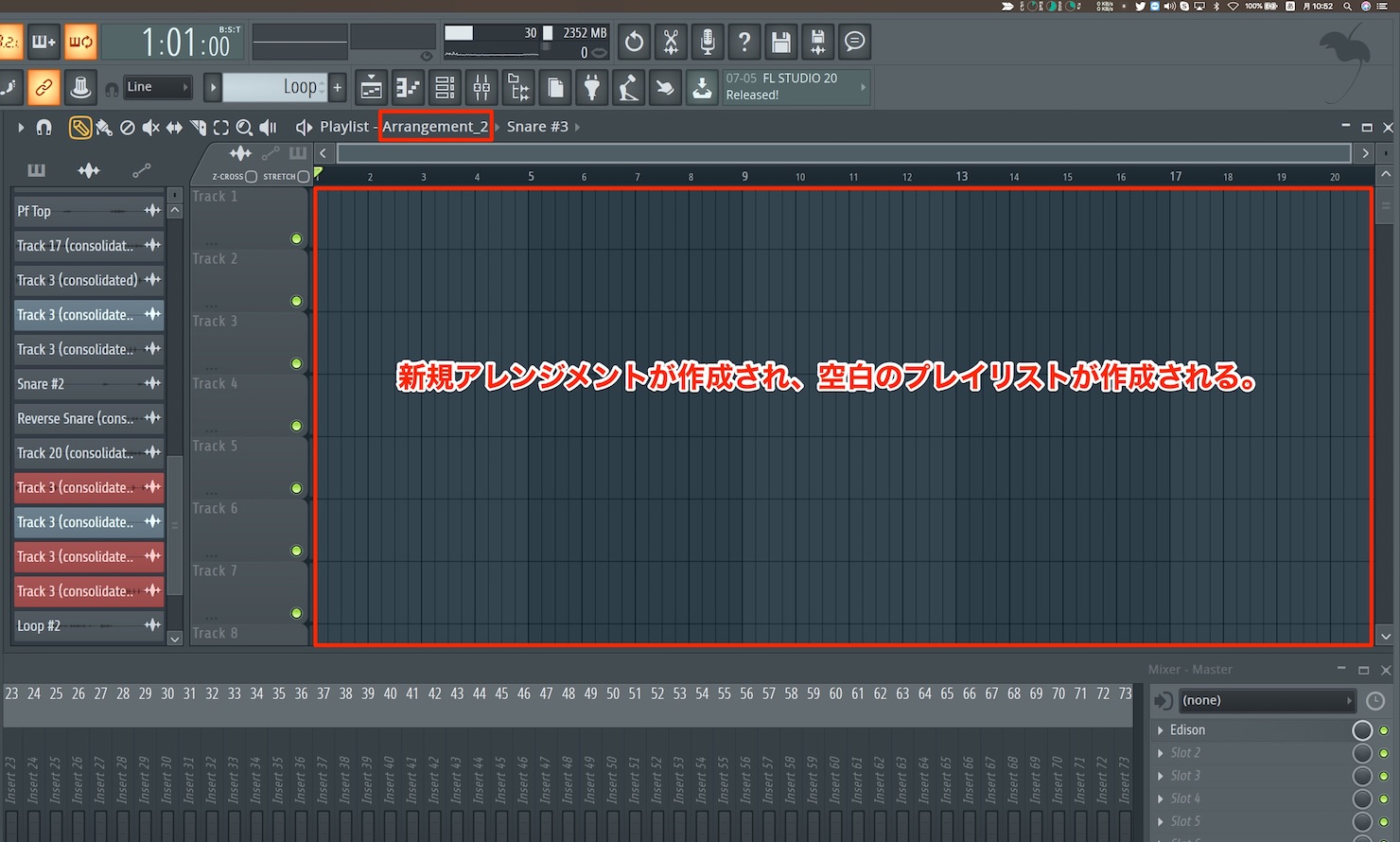
Click the Arrangement area shown in the image and choose “Add one” to create a new arrangement with an empty Playlist.
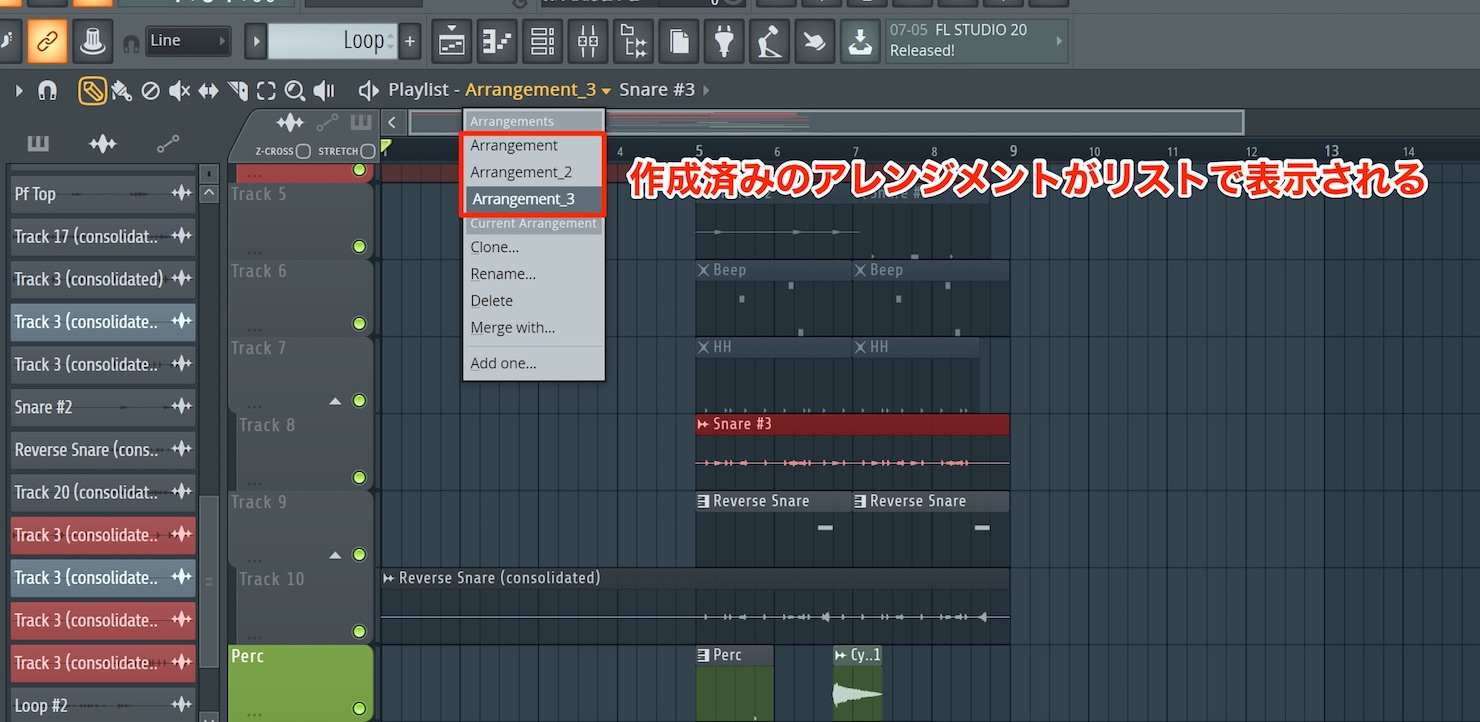
To switch arrangements, click the area shown in the image to display the list, then choose the arrangement you want.
Time Signatures
Time Signatures let you set the meter; this feature was introduced in FL Studio 20.
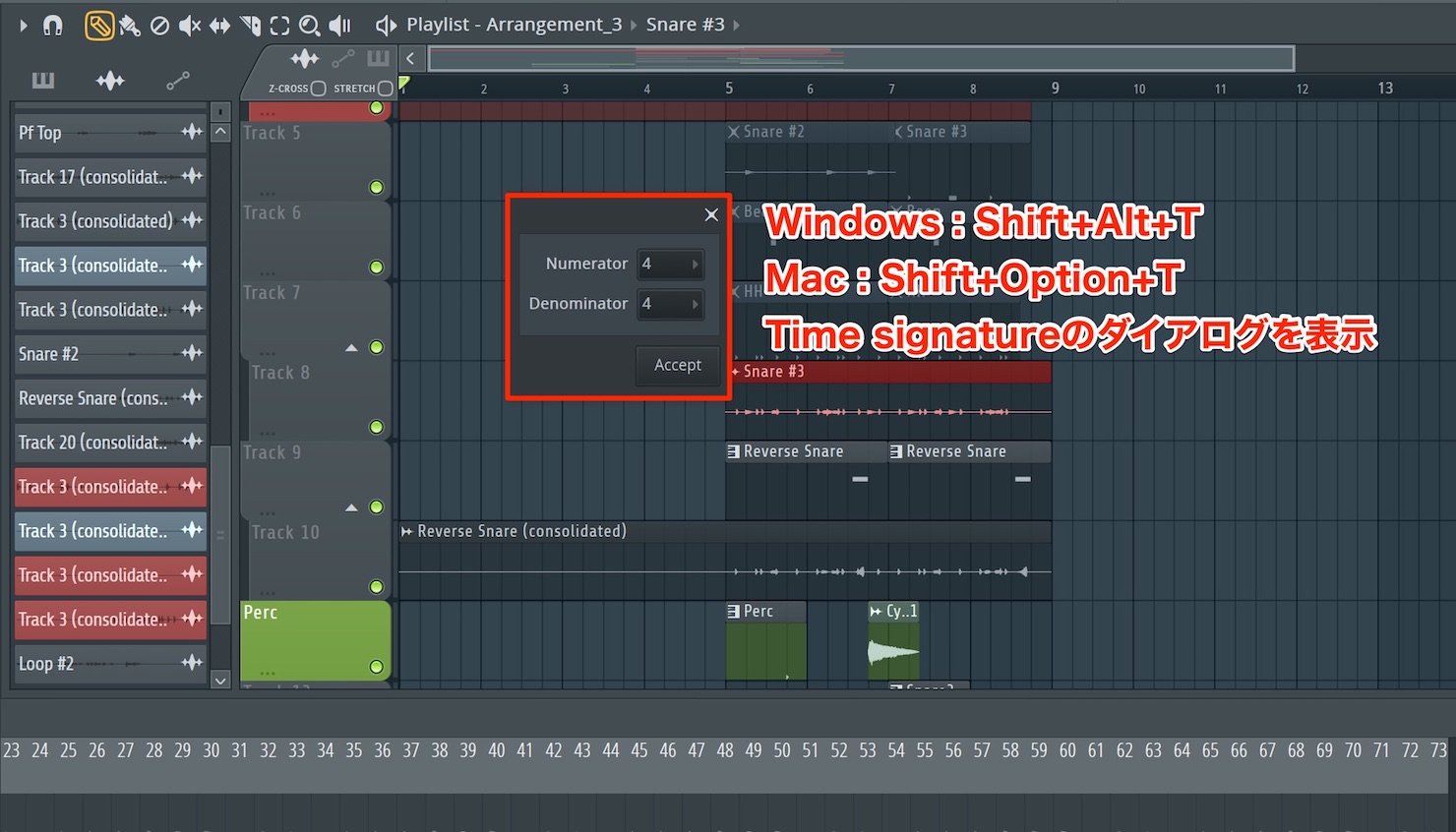
In the Playlist, move the playback position to the point where you want to change the time signature.
- Mac: Shift+Option+T
- Windows: Shift+Alt+T
The Time Signature dialog appears.
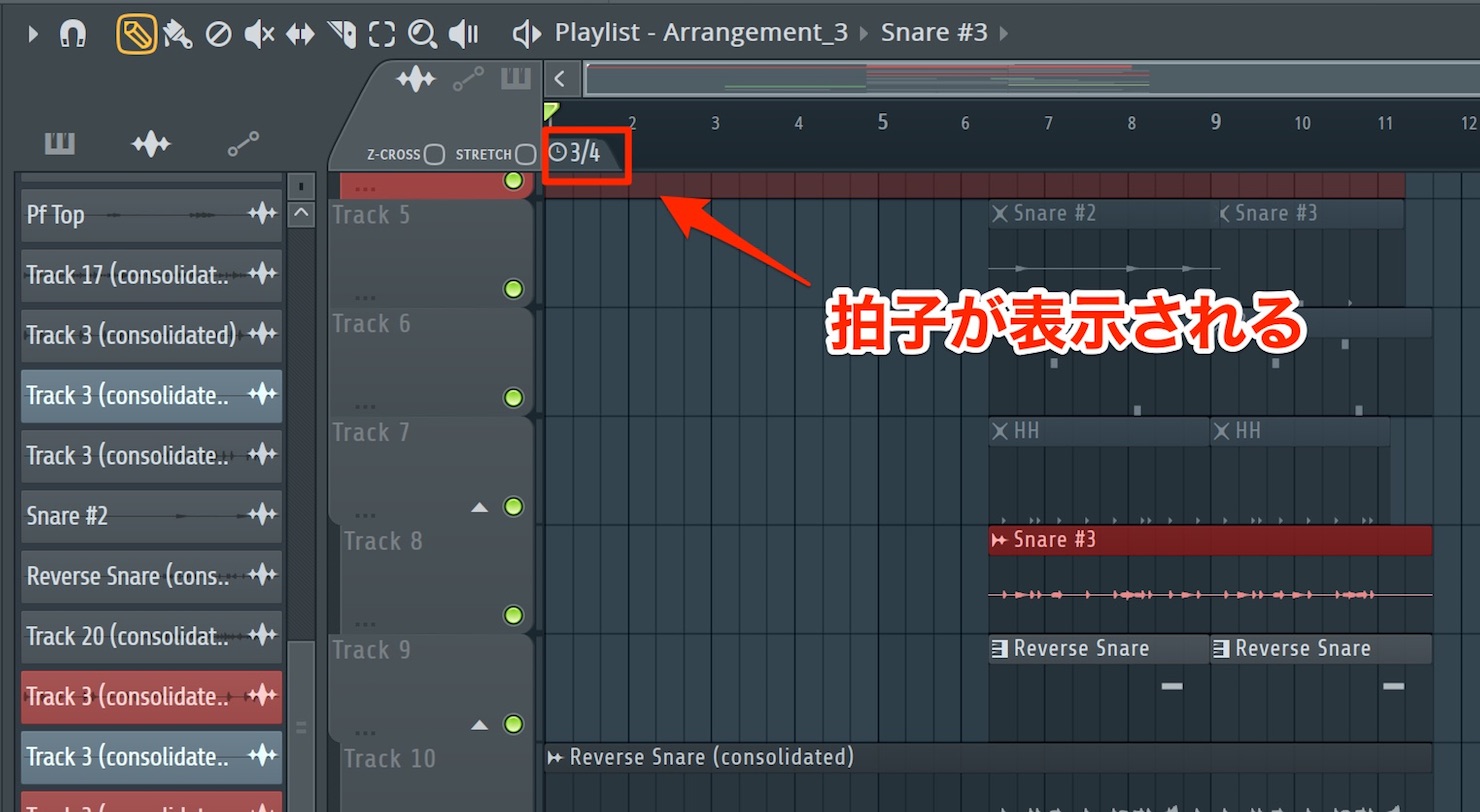
“Denominator” sets the note value shown by the bottom number, while “Numerator” sets the number of those beats per bar shown by the top number.
For example, to set 6/8 time, set Denominator to 8 and Numerator to 6.
Finally, click “Accept” to display a time signature marker at the top of the Playlist.
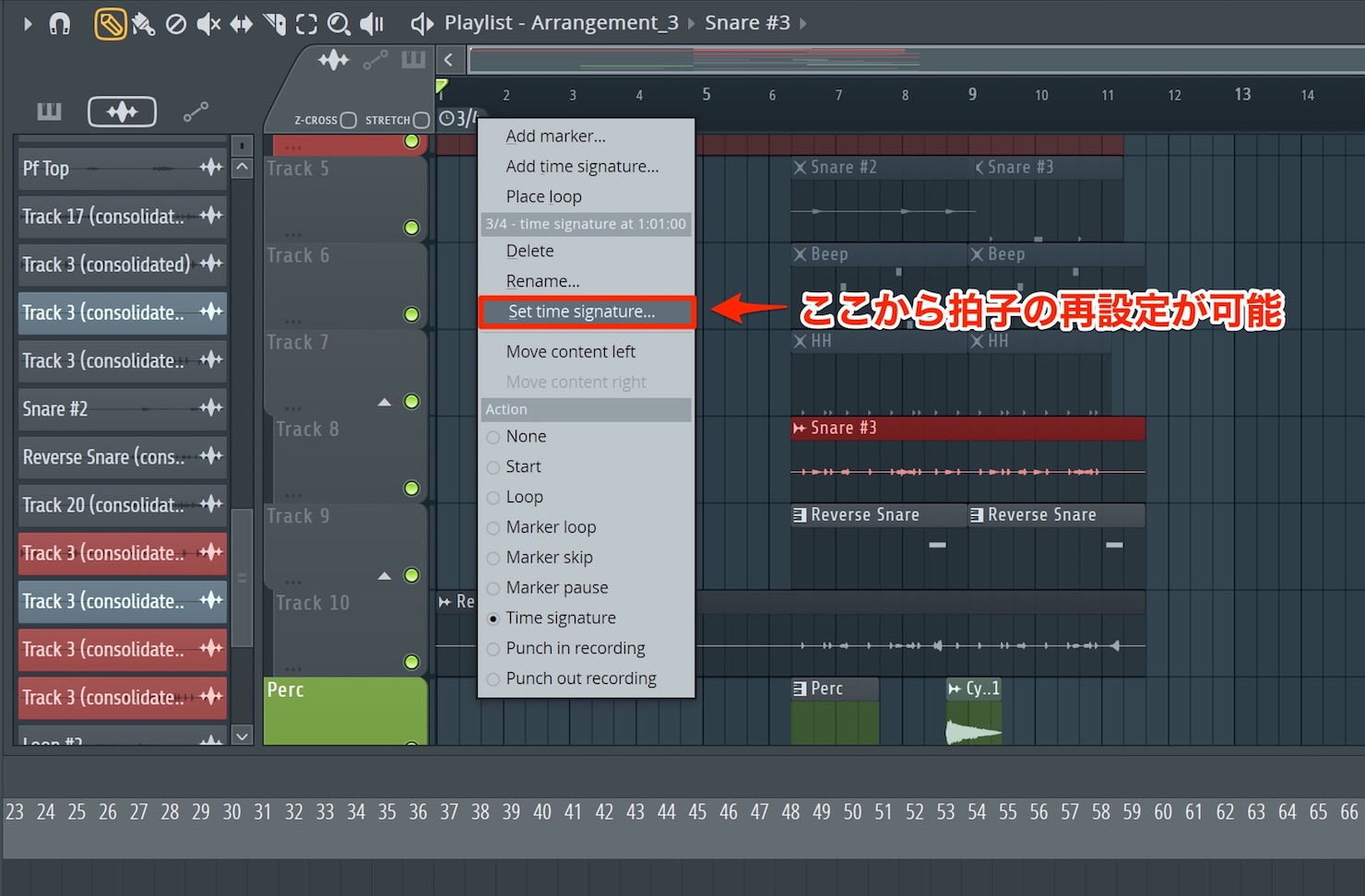
You can edit it again by right-clicking the marker and choosing “Set Time Signature.”
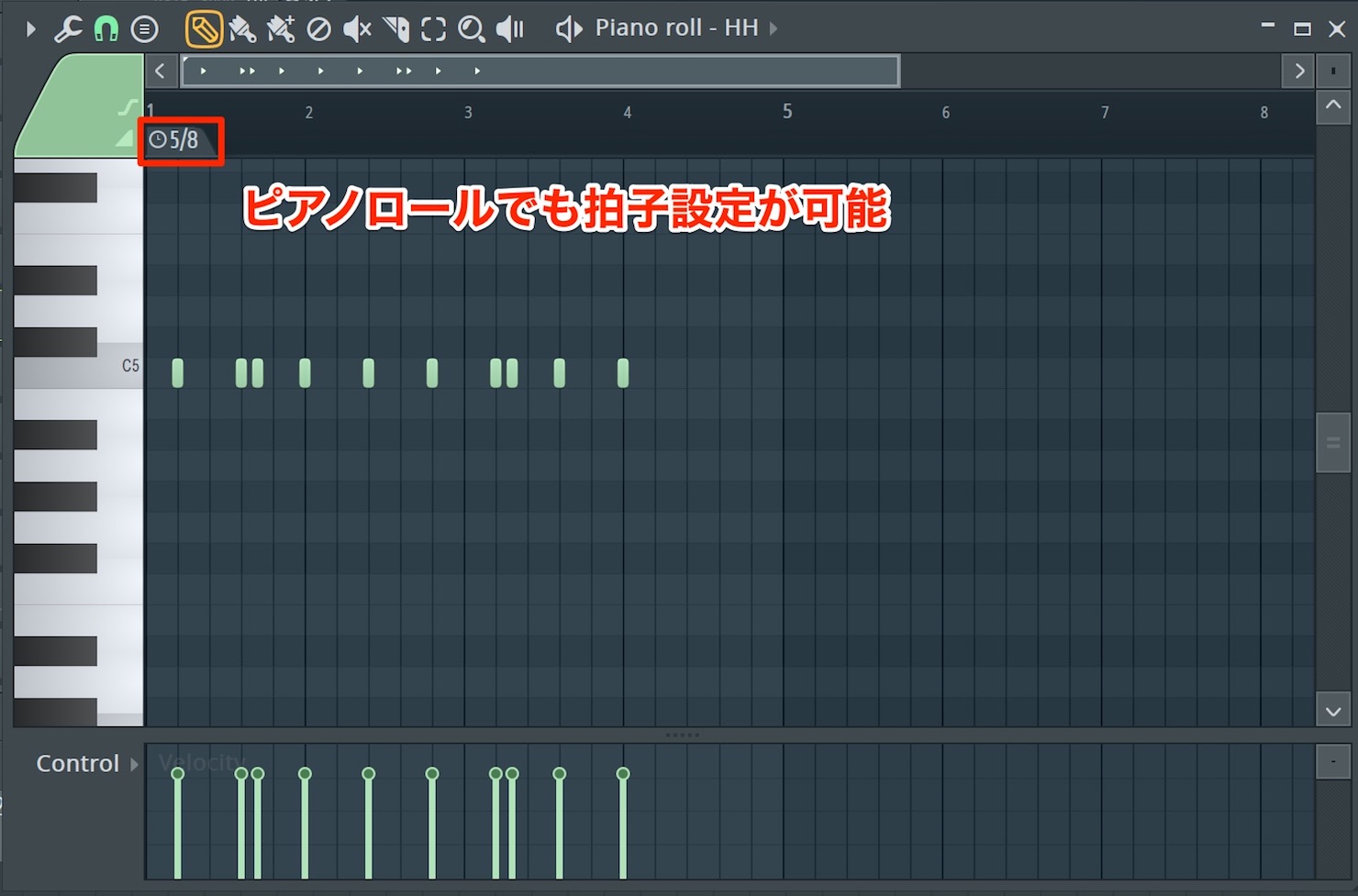
You can also change the time signature in the Piano roll using the same keyboard shortcut.
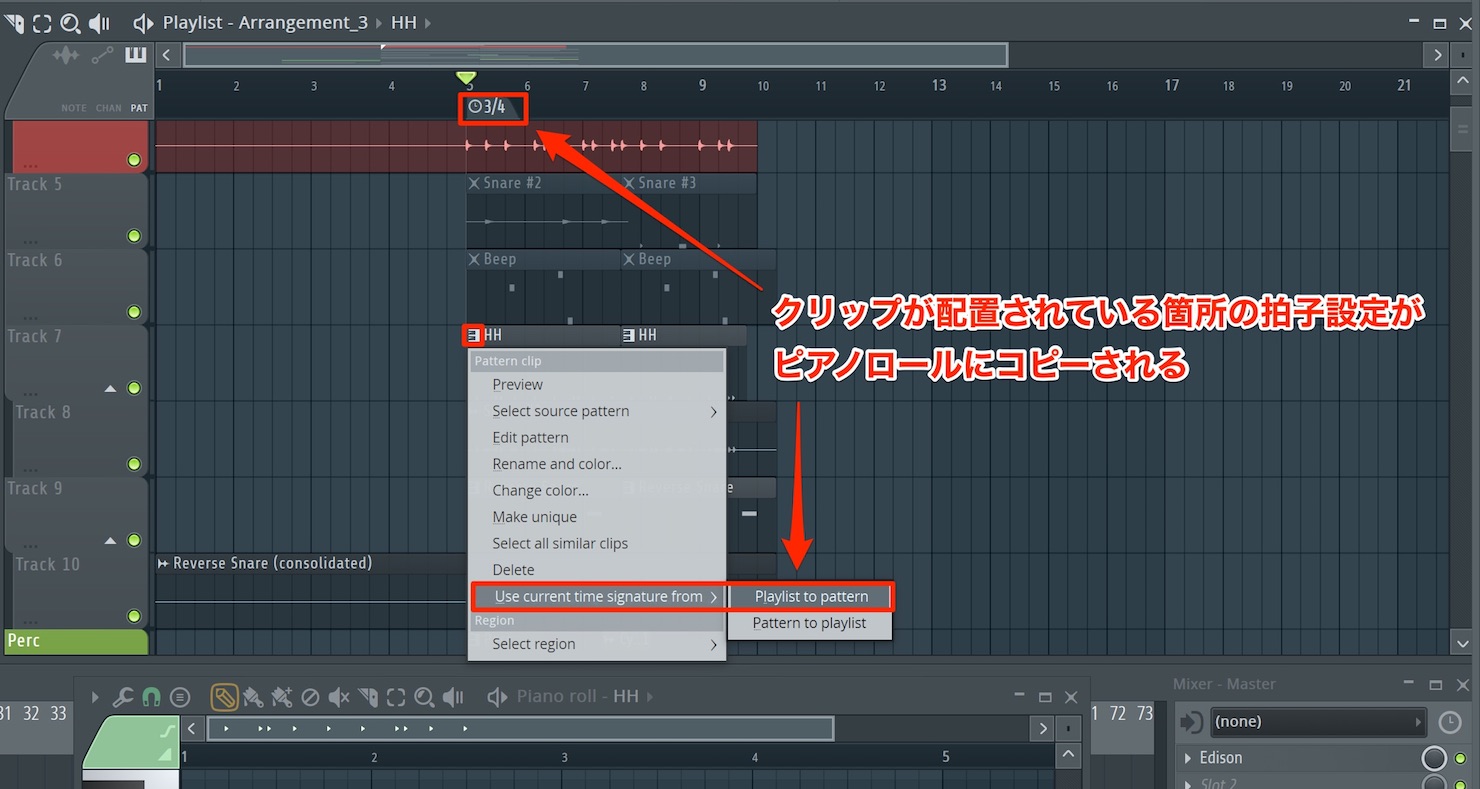
Time signature settings can be copied between the Playlist and the Piano roll’s pattern.
To copy the Playlist’s time signature to a pattern, click the keyboard icon at the top left of the pattern clip, then choose “Use current time signature” → “from Playlist to pattern.”
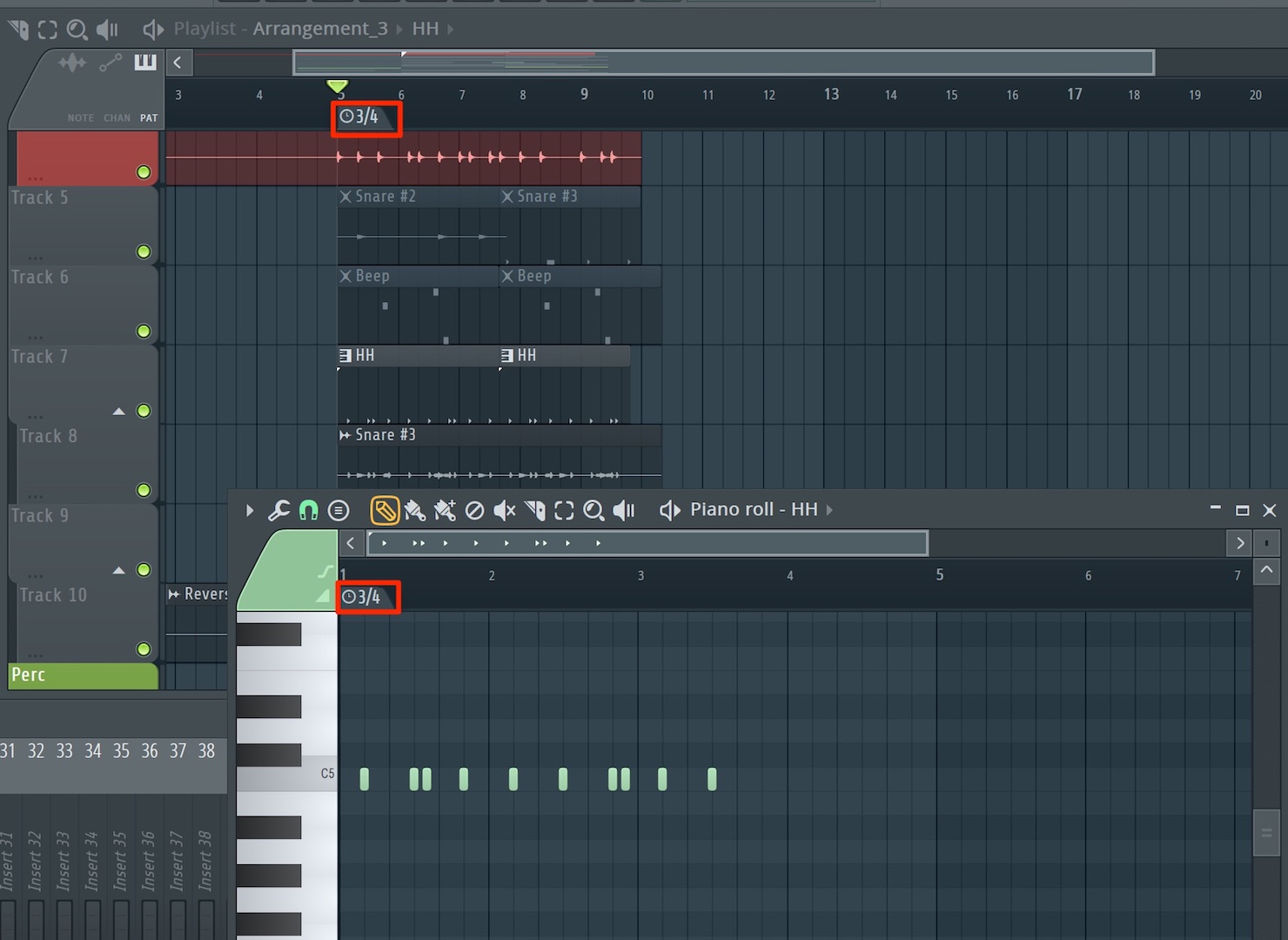
The result looks like this.
To copy the time signature in the opposite direction, from the pattern to the Playlist, choose “from pattern to Playlist.”
Punch-In/Out Recording
Recording also gained several new features, including support for punch-in and punch-out recording.
This automates the start and end of recording, which is particularly useful when you are recording on your own.
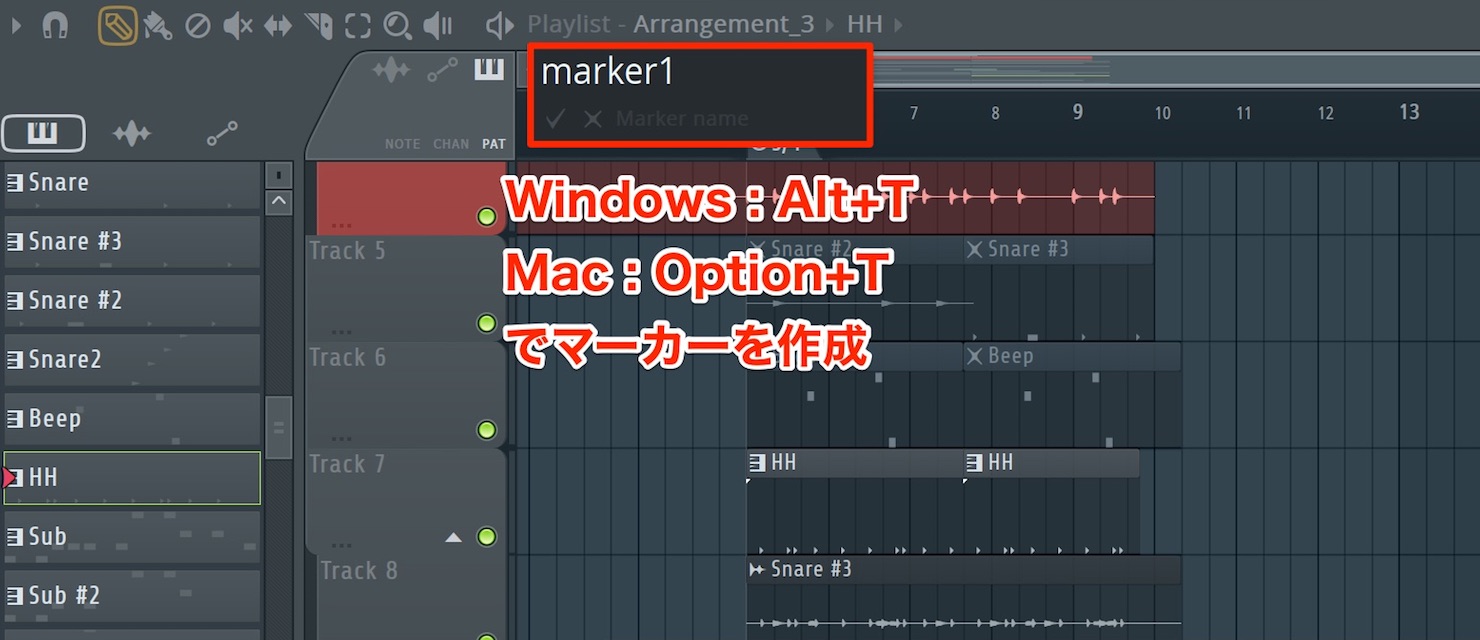
If you have not yet used markers or time signatures in the Playlist, use the following shortcut:
- Mac: Option+T
- Windows: Alt+T
This creates a marker.
If you already have markers, right-click the marker lane to create another one.
Give the marker a name of your choice.
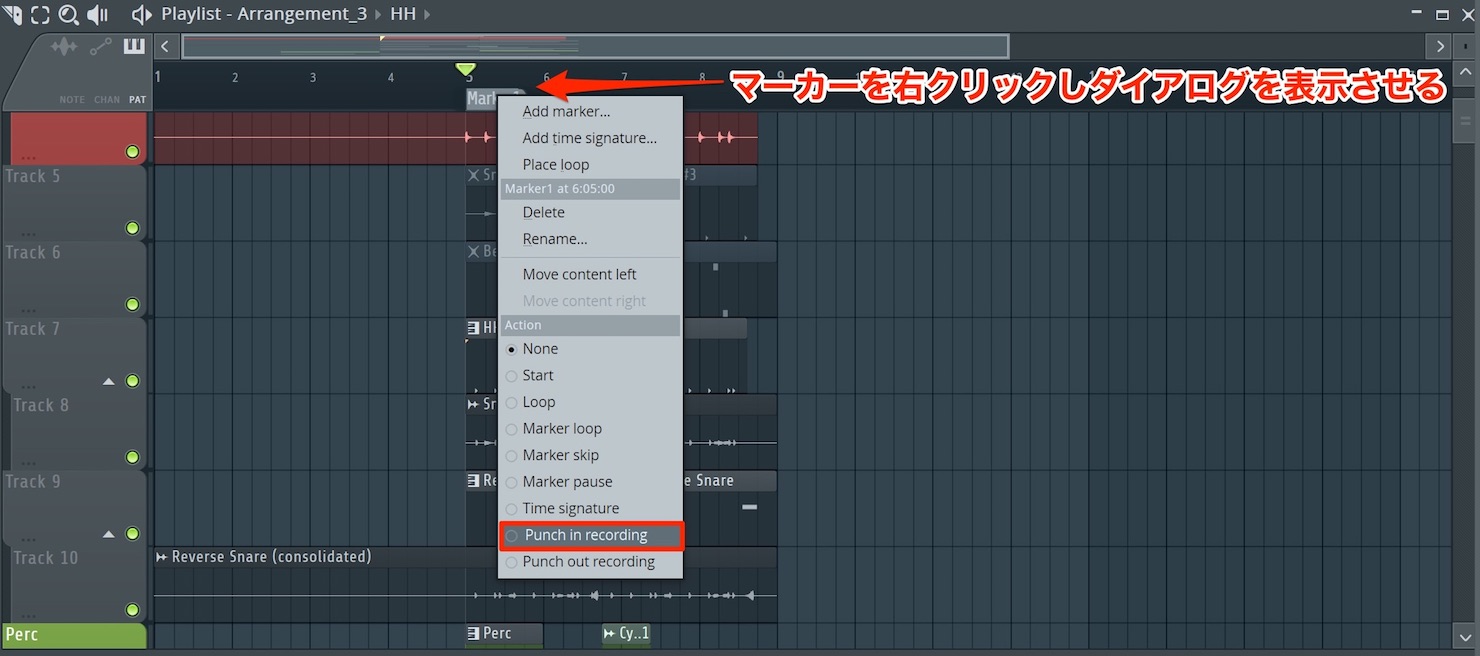
Move the marker to the point where you want recording to punch in, then right-click it.
In the dialog that appears, change Action to “Punch in recording.”
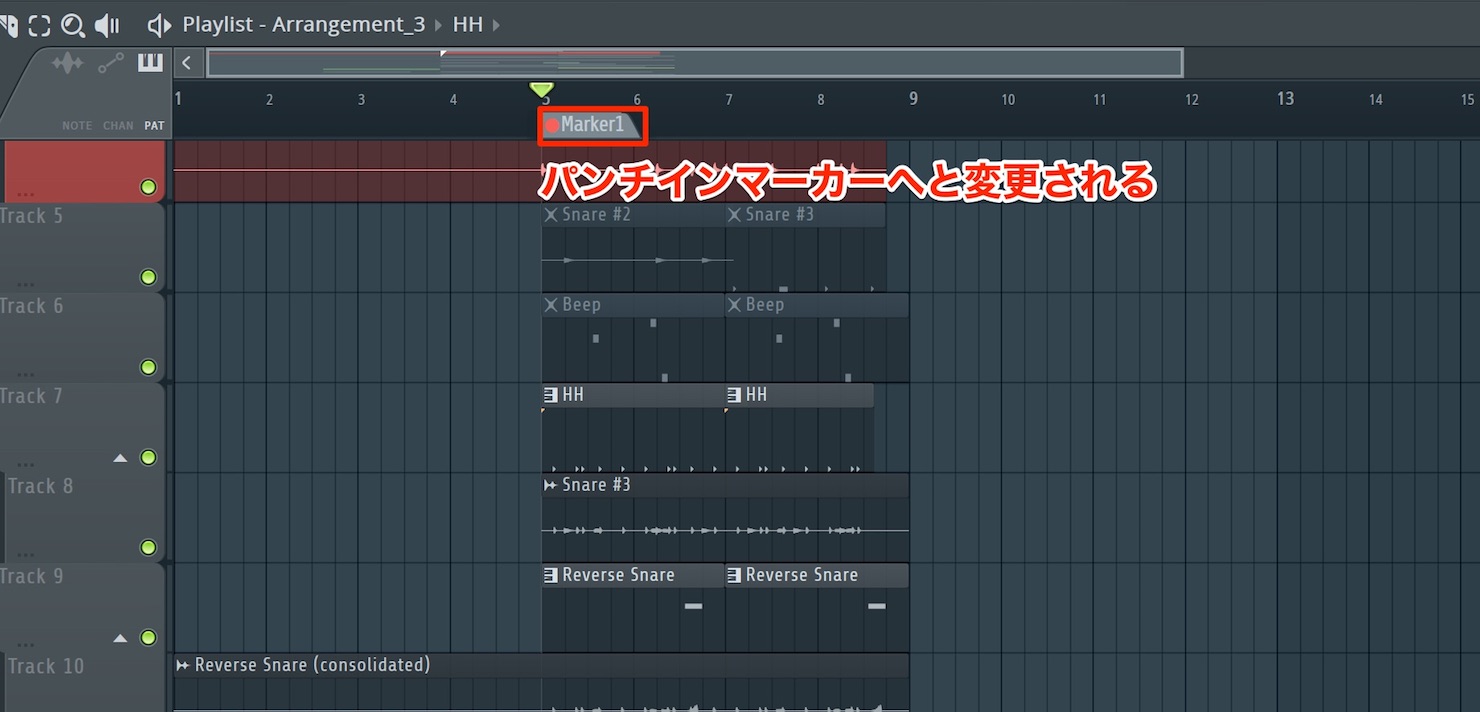
The marker becomes the punch-in point.
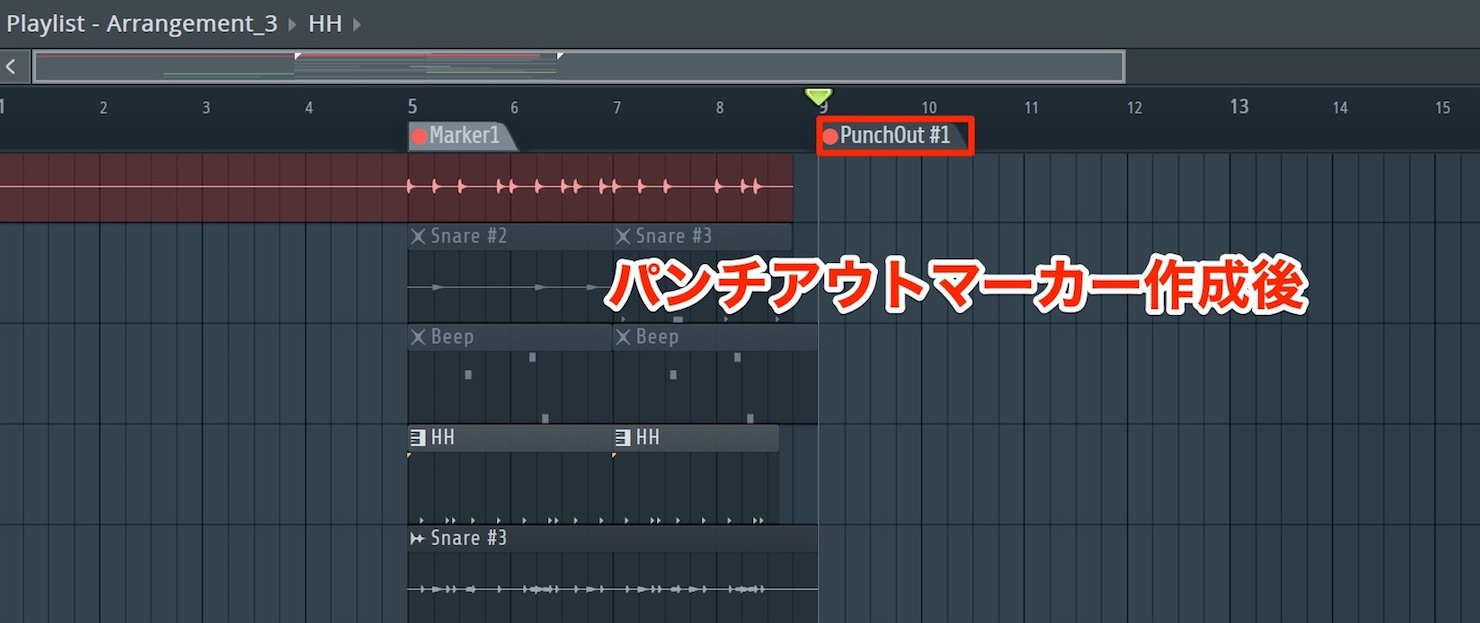
You also need to create a marker for the punch-out point.
Right-click at the point where you want recording to punch out and choose “Add marker.” Right-click the marker again, then choose “Punch out recording” under Action.
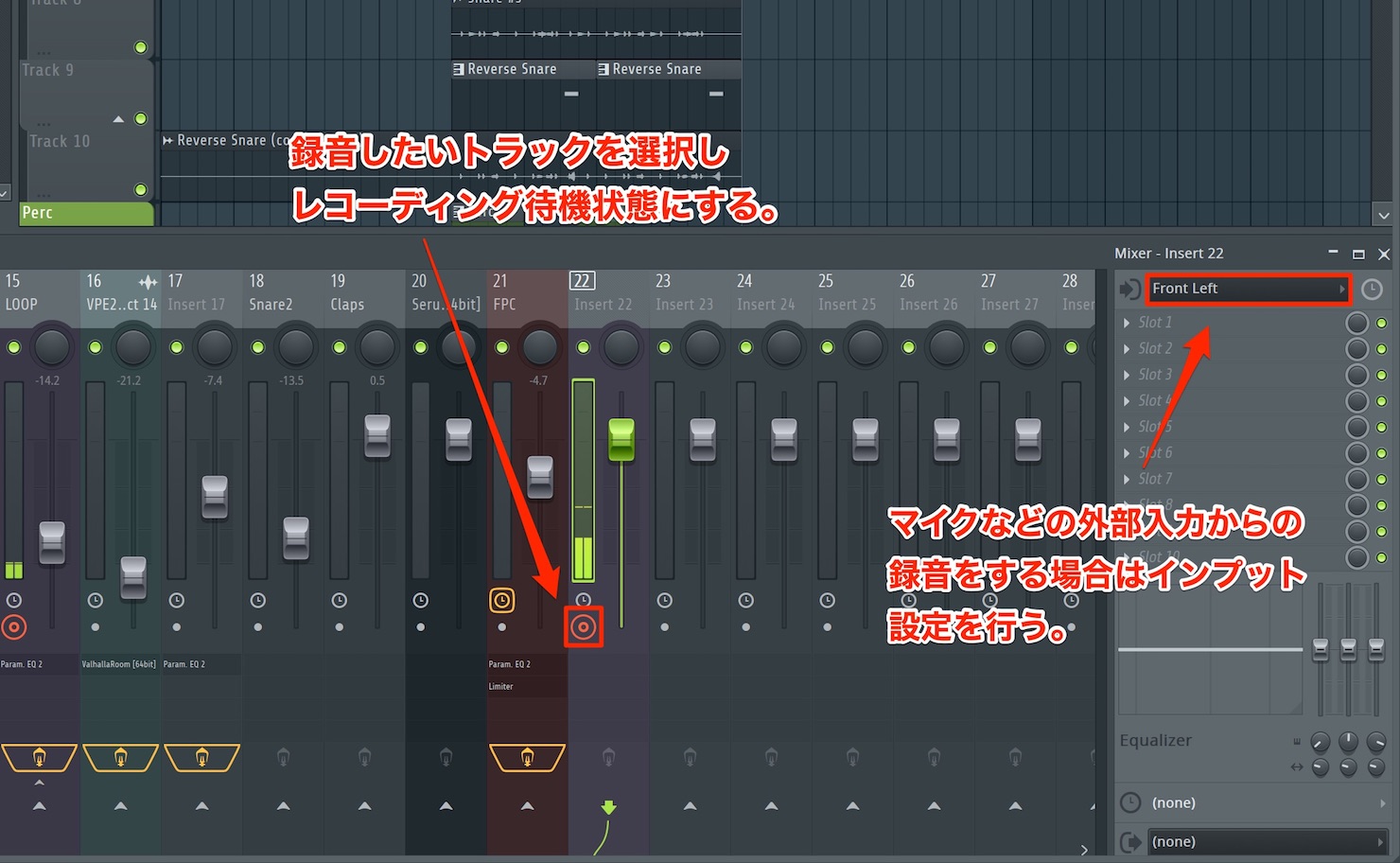
Next, arm the Mixer channel you want to record and select its input.
When playback passes the punch-in marker, recording starts automatically. It stops when playback passes the punch-out marker.
To avoid unwanted recording, change the markers’ Action to “None” when you no longer need punch-in/out recording.
Expanding and Collapsing Grouped Takes
There is also a useful update to the track display.
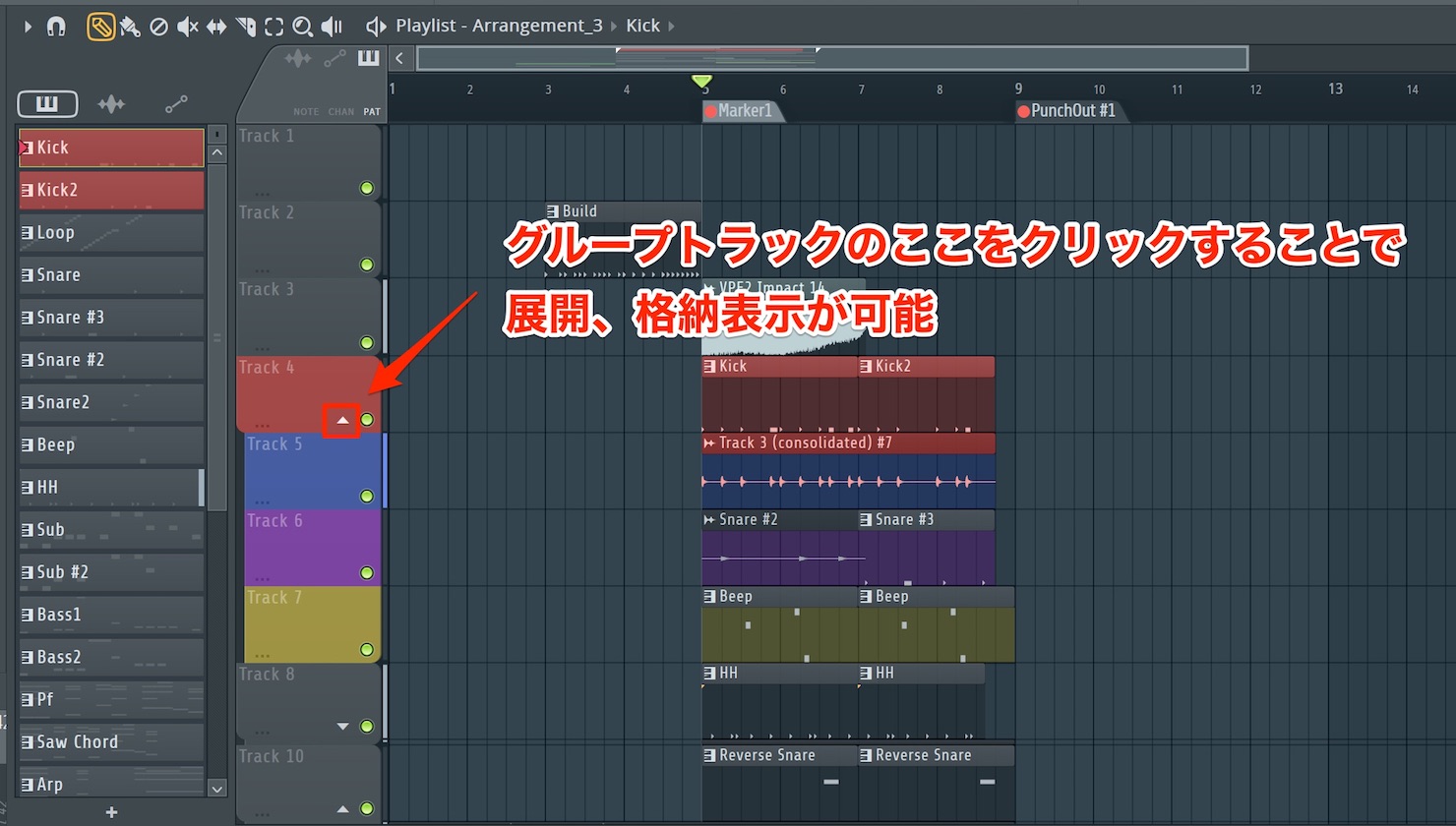
Clicking the area shown in the image lets you expand or collapse grouped tracks.
In addition, all takes created during loop recording are now treated as grouped tracks.
Plugin Delay Compensation
The feature that compensates for delays caused by plug-ins has been updated.
Previously, you could only choose between automatic and manual compensation. You can now set a particular channel manually while leaving automatic compensation enabled.
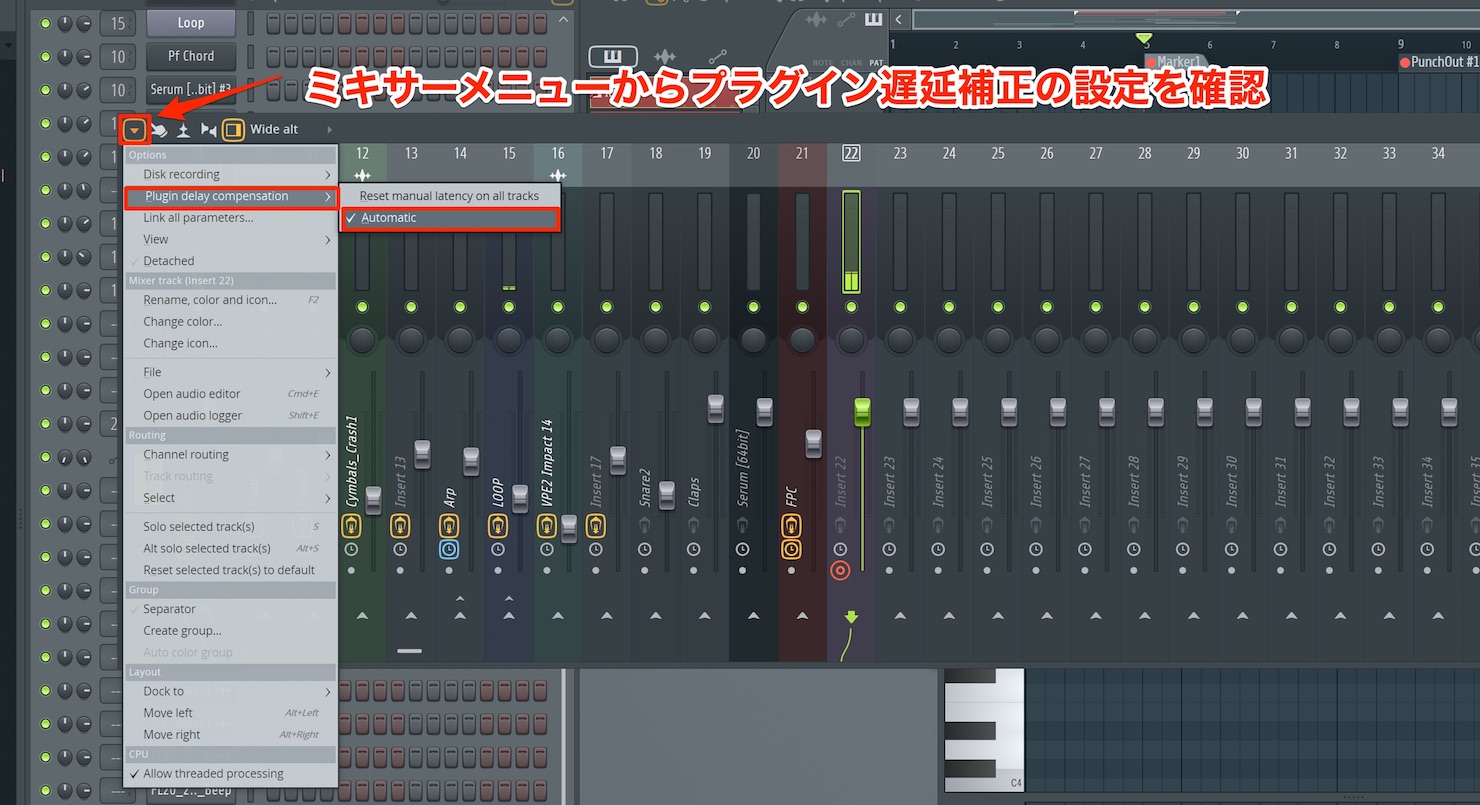
You can check the current setting under “Plugin delay compensation” in the Mixer menu.
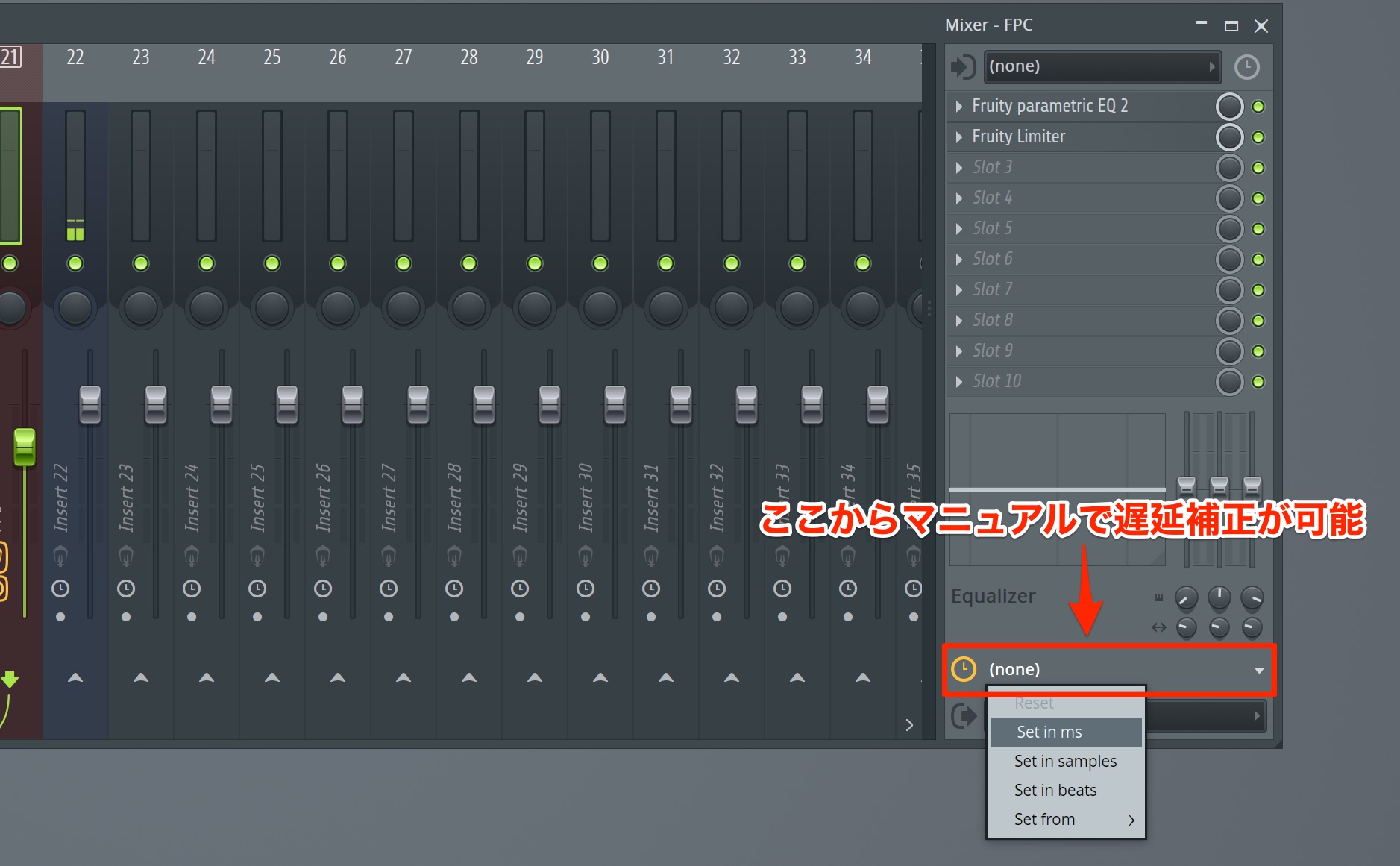
Use the control shown here on each channel to specify the compensation time in milliseconds, samples, or beats.
Across these two articles, we have covered a selection of the new features introduced in FL Studio 20.
With Mac support and time signature changes, it became easier to use for a wider range of creators, not just producers of club music.
For those starting out in music production, the product’s Lifetime Free Updates are also appealing. If you are interested, take this opportunity to try FL Studio.

Frequently Asked Questions
Q1. What are the benefits of FL Studio 20’s Consolidate feature?
Consolidate renders patterns and audio clips into new audio clips, reducing the CPU load caused by plug-ins. It also lets you make audio-specific edits and bake in effects, making it easier to explore new creative approaches.
Q2. When are Arrangements useful?
They are useful when you want to try different versions of an arrangement within one project. You can create and manage multiple Playlists and switch between arrangements easily, improving your workflow and making alternatives easier to compare.
Q3. Is punch-in/out recording easy to use?
Create markers and set their Actions to “Punch in recording” and “Punch out recording.” Recording then starts and stops automatically during playback, making solo sessions more efficient and helping you avoid unwanted recordings.
NEW ARTICLES
Latest English Articles










































































































































































































































































































