Omnisphere 2 by Spectrasonics is a powerful software synthesizer with over 14,000 presets and 400 DSP oscillator waveforms. It offers tools for producers at different experience levels, from searching presets in the Patch Browser to editing synth waveforms and using your own audio with granular synthesis. This guide explores those features and their creative possibilities.
A High-Quality Synthesizer with More Than 14,000 Presets
Omnisphere 2 draws on samples of instruments, performances, and effects, and offers over 14,000 presets.
It can help you create high-quality music in a wide range of genres.
It also includes 400 DSP oscillator waveforms, including models inspired by popular hardware synths, supporting sample-based PCM, analog-style, FM, wavetable, and other synthesis approaches.
This article explains how to use Omnisphere 2.
Omnisphere 2 Video: Patch Browser
Selected Questions and Answers from YouTube

Hello! Your videos are always helpful. In Massive I can control cutoff with a macro. Can Omnisphere 2 do something similar?

In the version reviewed, we did not find a macro function equivalent to Massive’s; the approach shown is to automate parameters individually. Features may differ in later versions.
What are your CPU specifications? How does Omnisphere load so fast in the video? Is it installed on the C drive?
Thank you for watching. The computer used was a Mac Pro (Late 2013) with a 3.5 GHz 6-core Intel Xeon E5 and 64 GB of 1866 MHz DDR3 memory. The loading sequence was shortened in editing, so actual loading takes longer.
Where is Preview Load in Omnisphere 2? I can’t find it.
The item labeled “Lite Version” in the image corresponds to Preview Load.https://app.box.com/s/ok93waljfn35014rfmk7f58v387tnrsf
How can I automate an Omnisphere 2 knob on a DAW track? I cannot find a control like the automation selector in Massive.
Right-click the knob you want to automate and select “Enable Automation.” It will then appear among the DAW’s automation parameters.
Can I save a sound after editing its sample start position or adding effects?
Yes. After editing the sound, click Utility, the gear icon in the upper left of Omnisphere. Choose Save Multi to save the sounds of multiple channels together, or Save Patch for the currently selected channel. Choose a save location in the dialog; select the User folder if you want to browse it in Omnisphere.
Patch Browser Overview
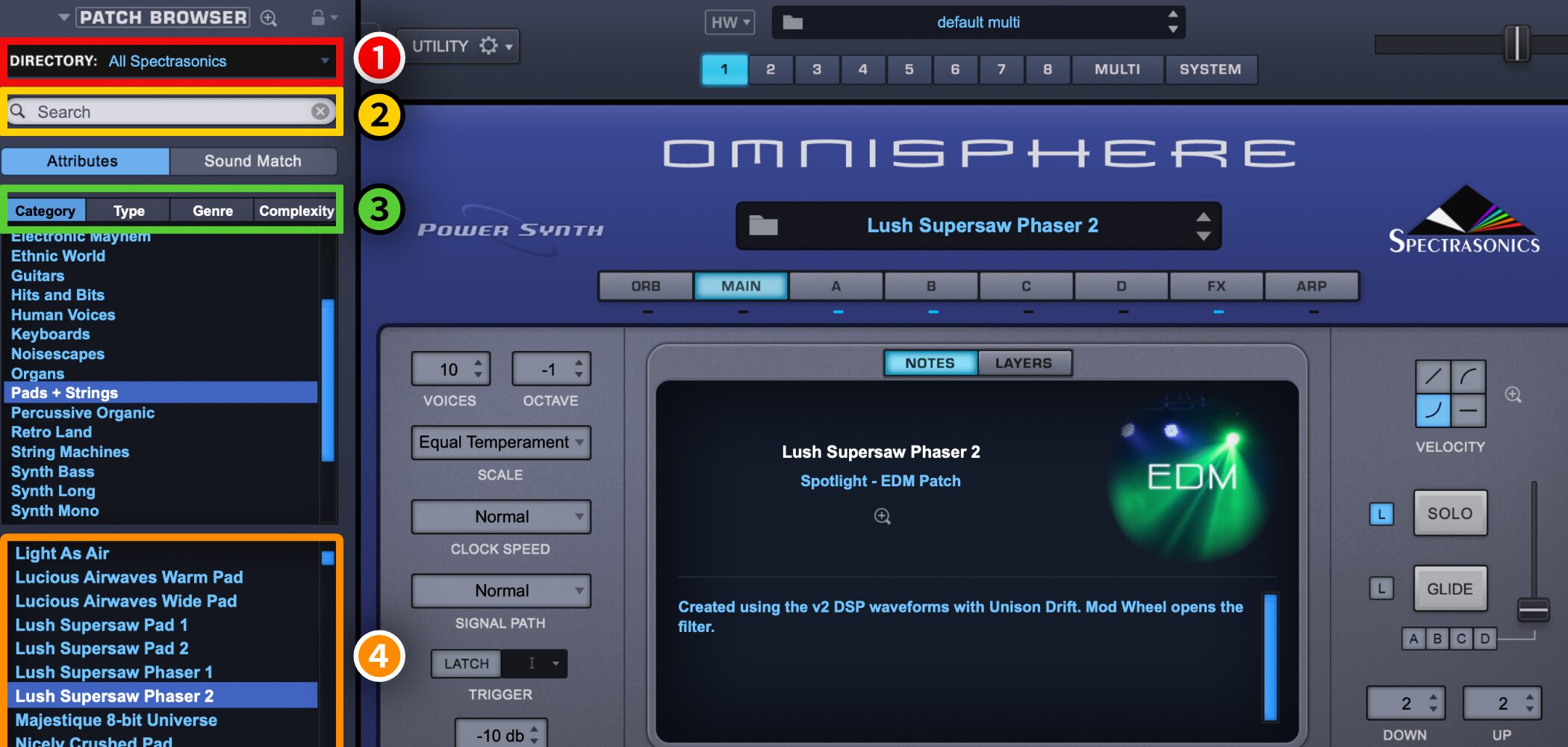
Use PATCH BROWSER on the left to find presets.
You can combine search criteria.
1.Filter by Spectrasonics product.
2.Search by entering a keyword.
3.Search by instrument type, genre, and other attributes. Right-click any of the four tabs to change its category.
4.Search results appear here; click one to load the sound.
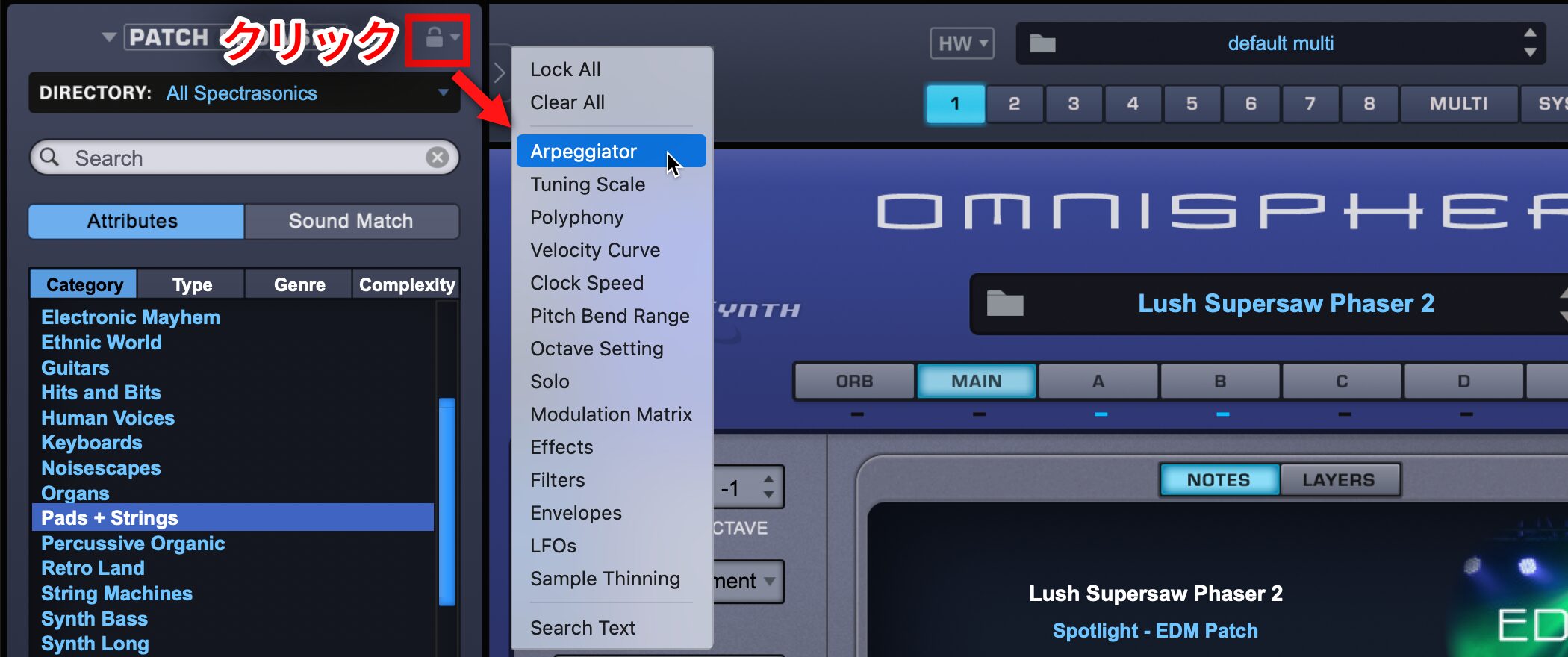
Click the lock icon to restrict which parameters change when a sound is loaded.
This is useful for retaining an arpeggiator setting while trying other presets.
Expanded Patch Browser

Click the magnifying glass to open the expanded browser.
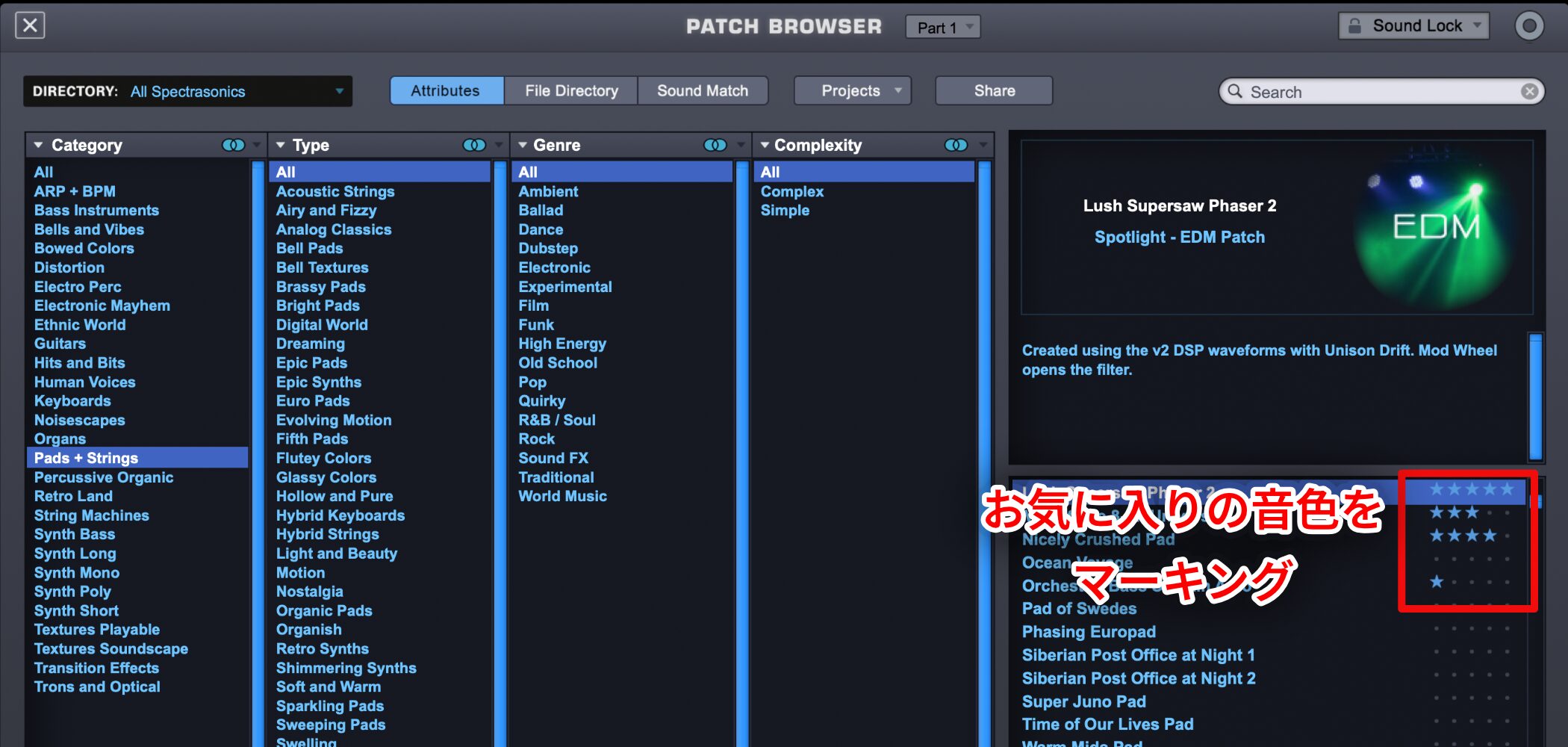
The search works much like the previous browser, and you can mark favorite sounds with a star.
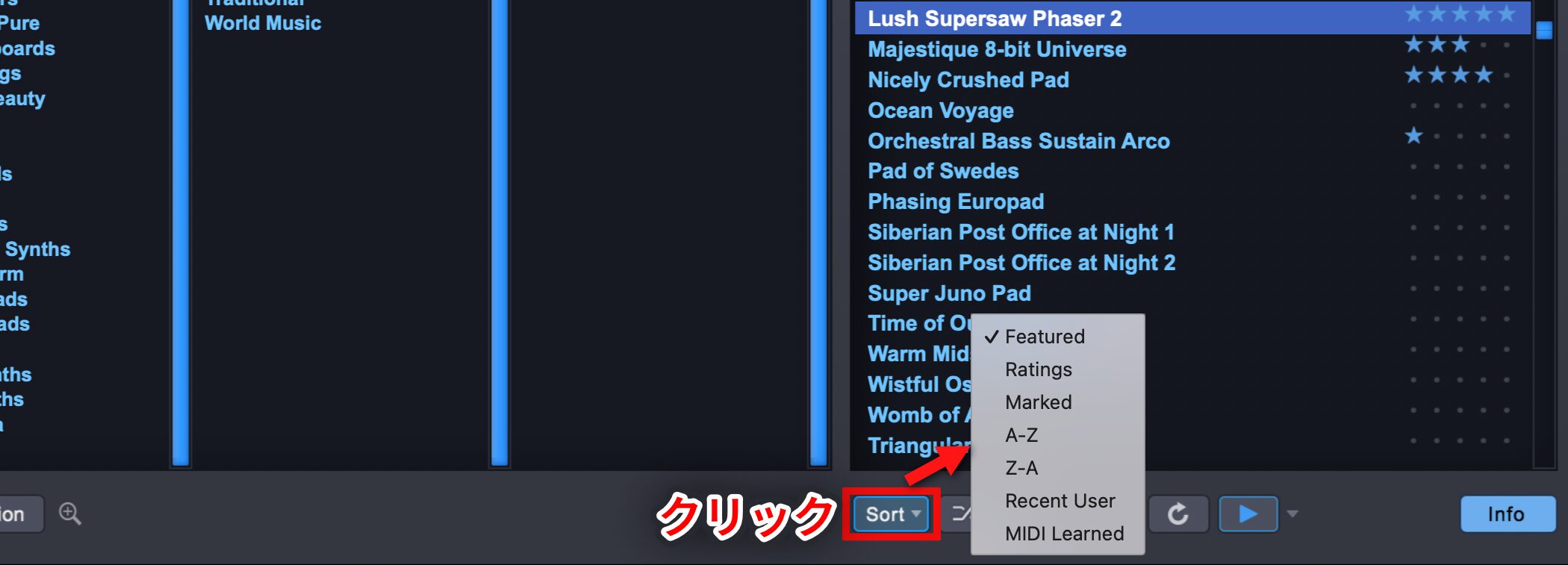
Click Sort at the bottom of the browser to order results using the options in the menu.
Sound Match
Sound Match finds presets with characteristics similar to the currently loaded sound.
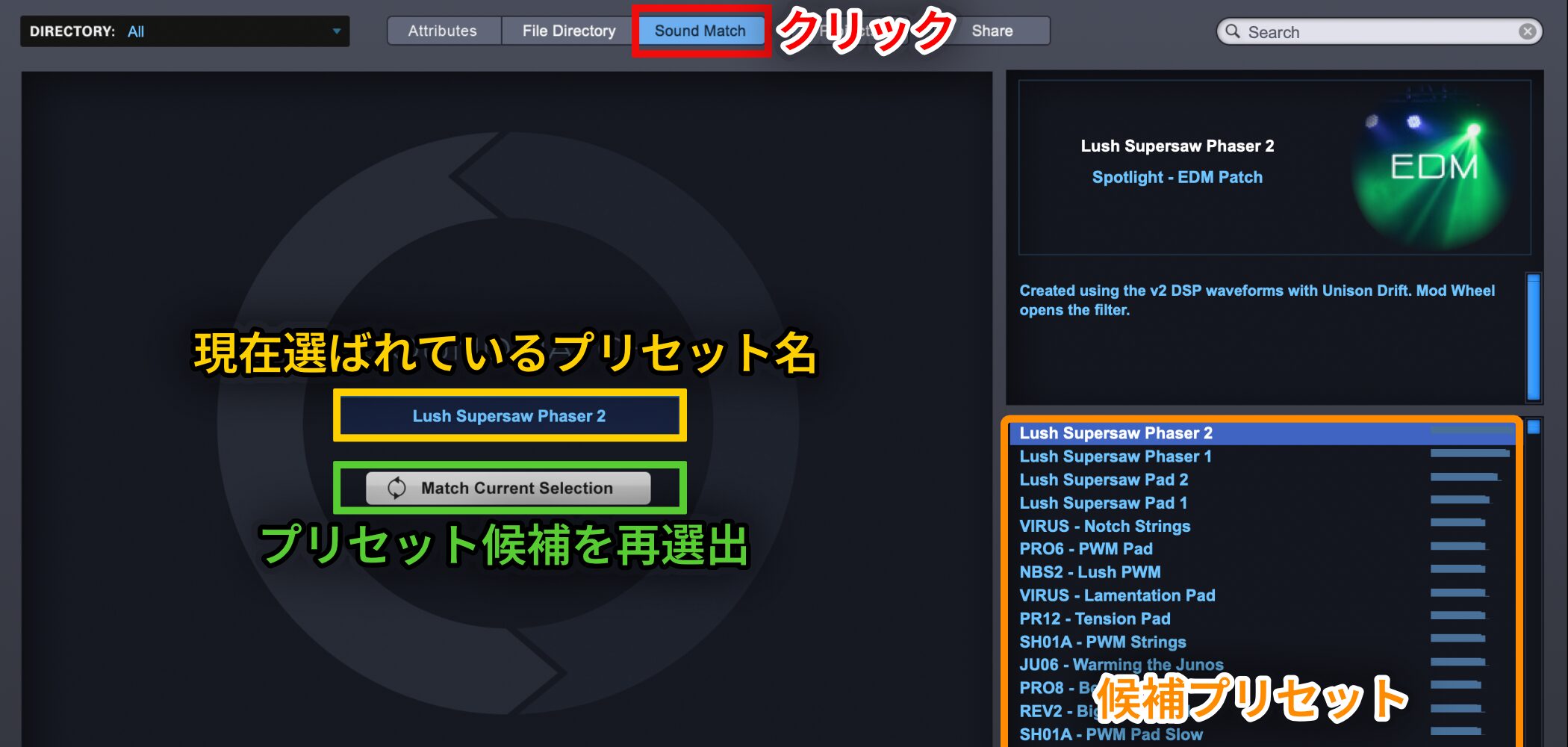
Click Sound Match to display suggestions on the right.
Click Match Current Selection below a preset name to find candidates based on the selected preset.
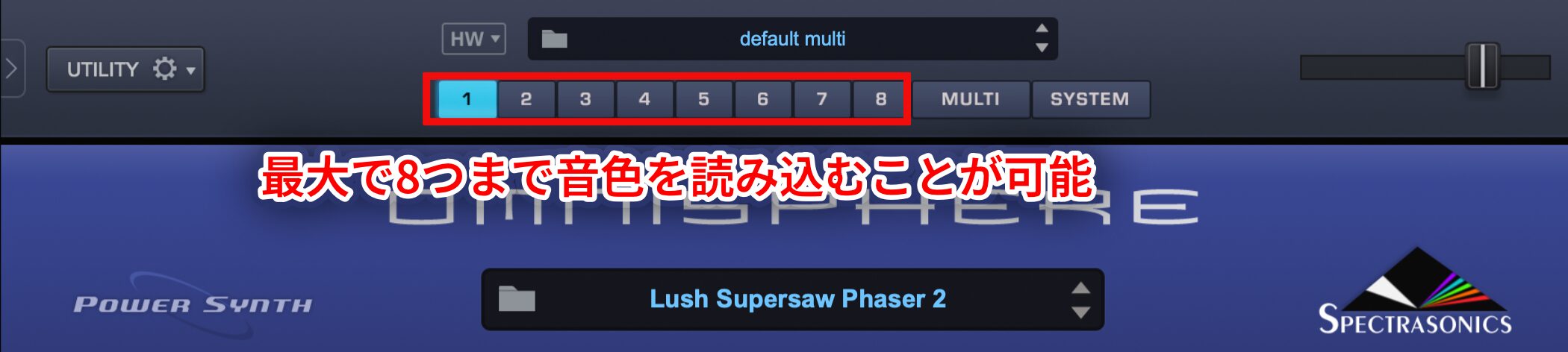
Up to eight sounds can be loaded and managed by MIDI channel in your DAW.
The Synthesizer Section
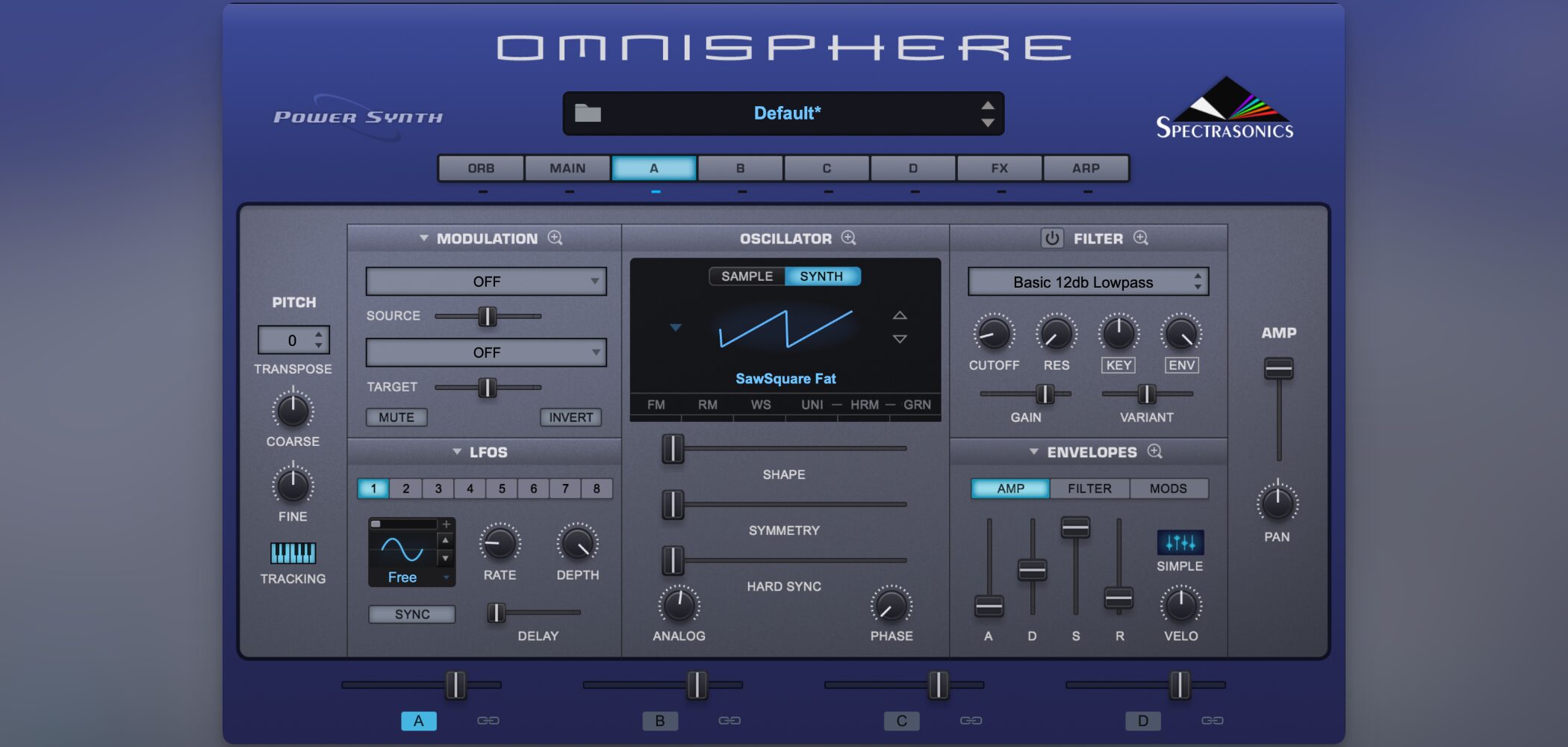
After looking at preset management, let’s explore the synthesizer section.
Although its sample library receives much attention, Omnisphere also has a powerful and extensive synth section.
Omnisphere 2 Video: Sound Editing — Synth
Switching to Synth Mode
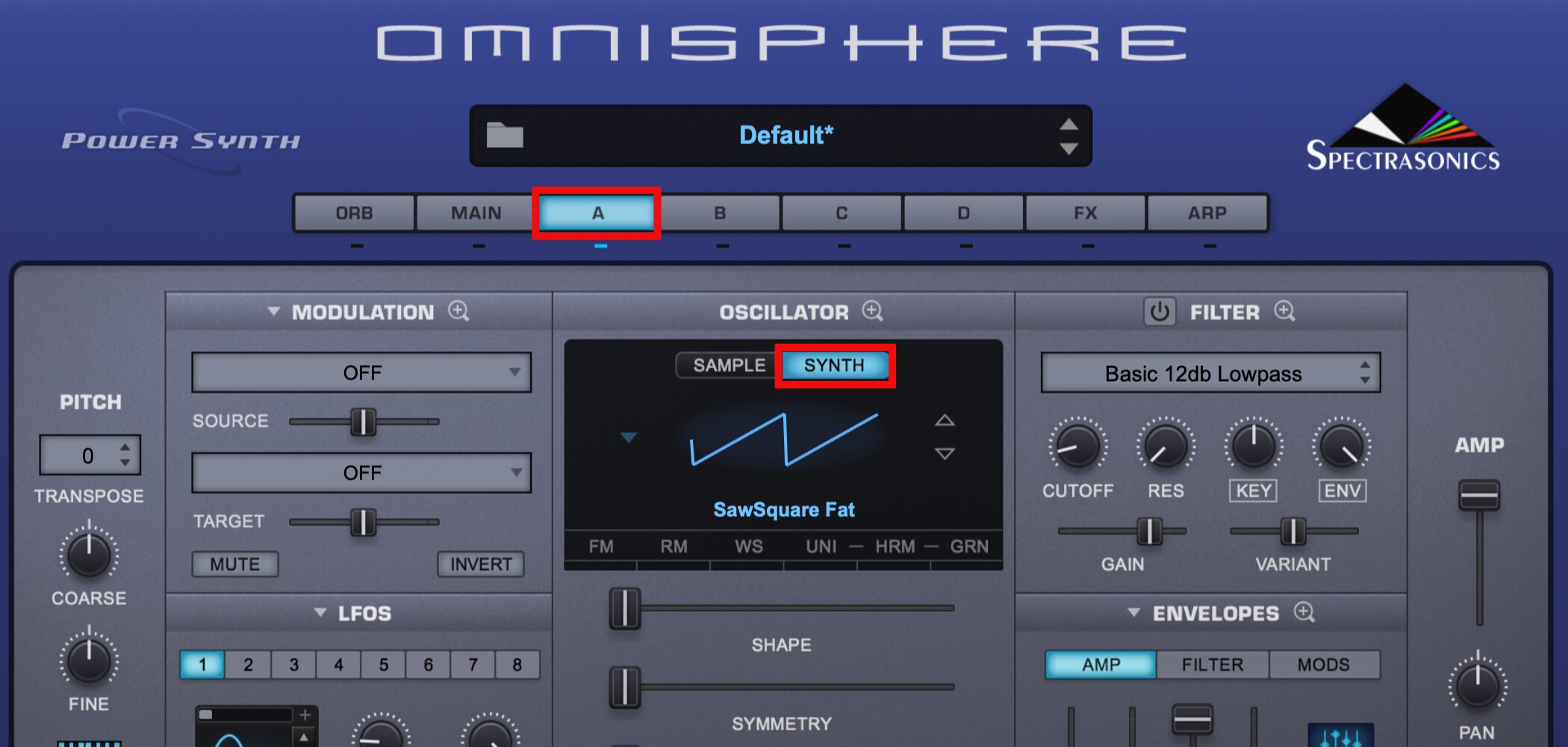
To use a synth waveform, select a layer from A–D, then select SYNTH.
Omnisphere can combine four layers, A–D.
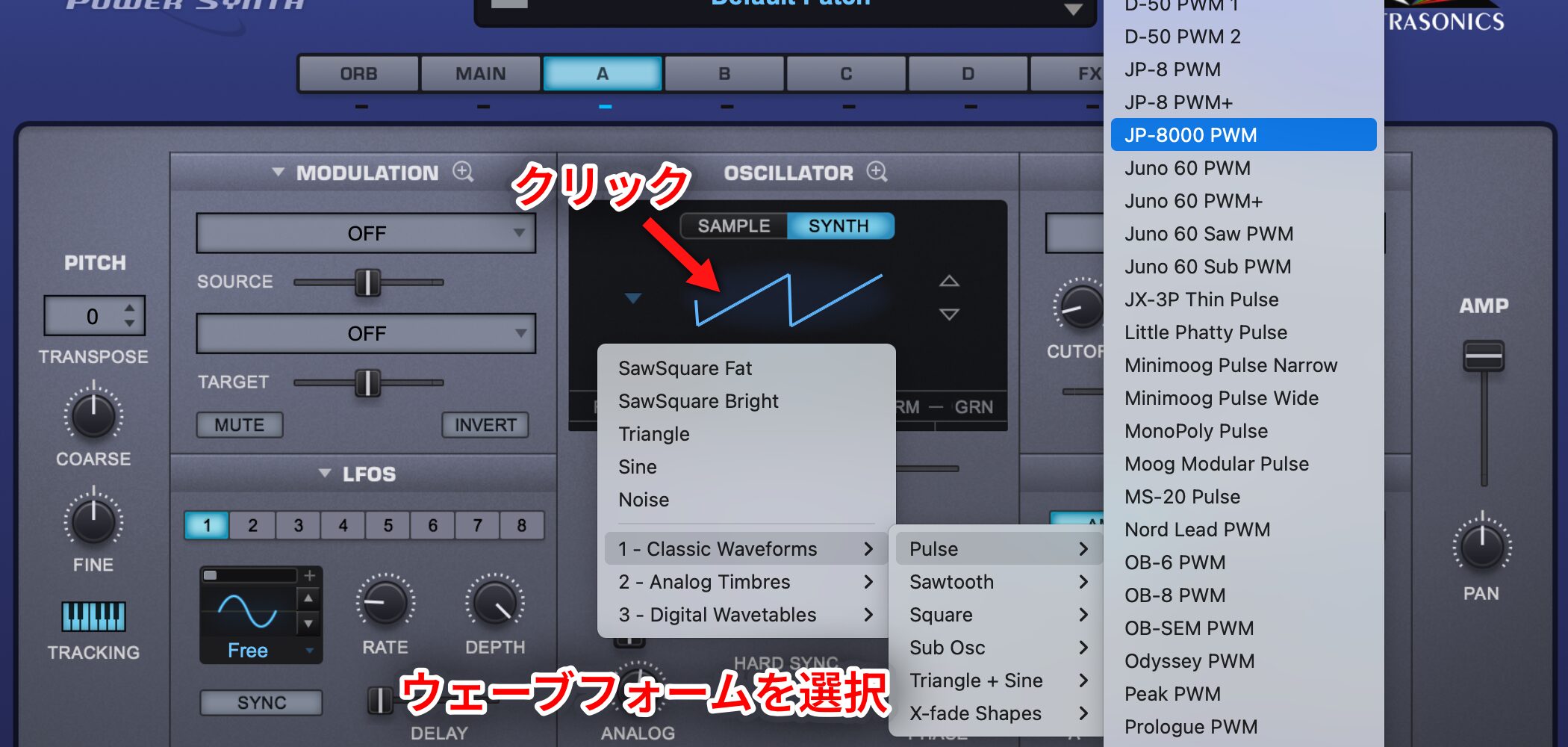
Click the waveform to choose from a variety of waveform types.
Many recreate waveforms from well-known hardware synths.
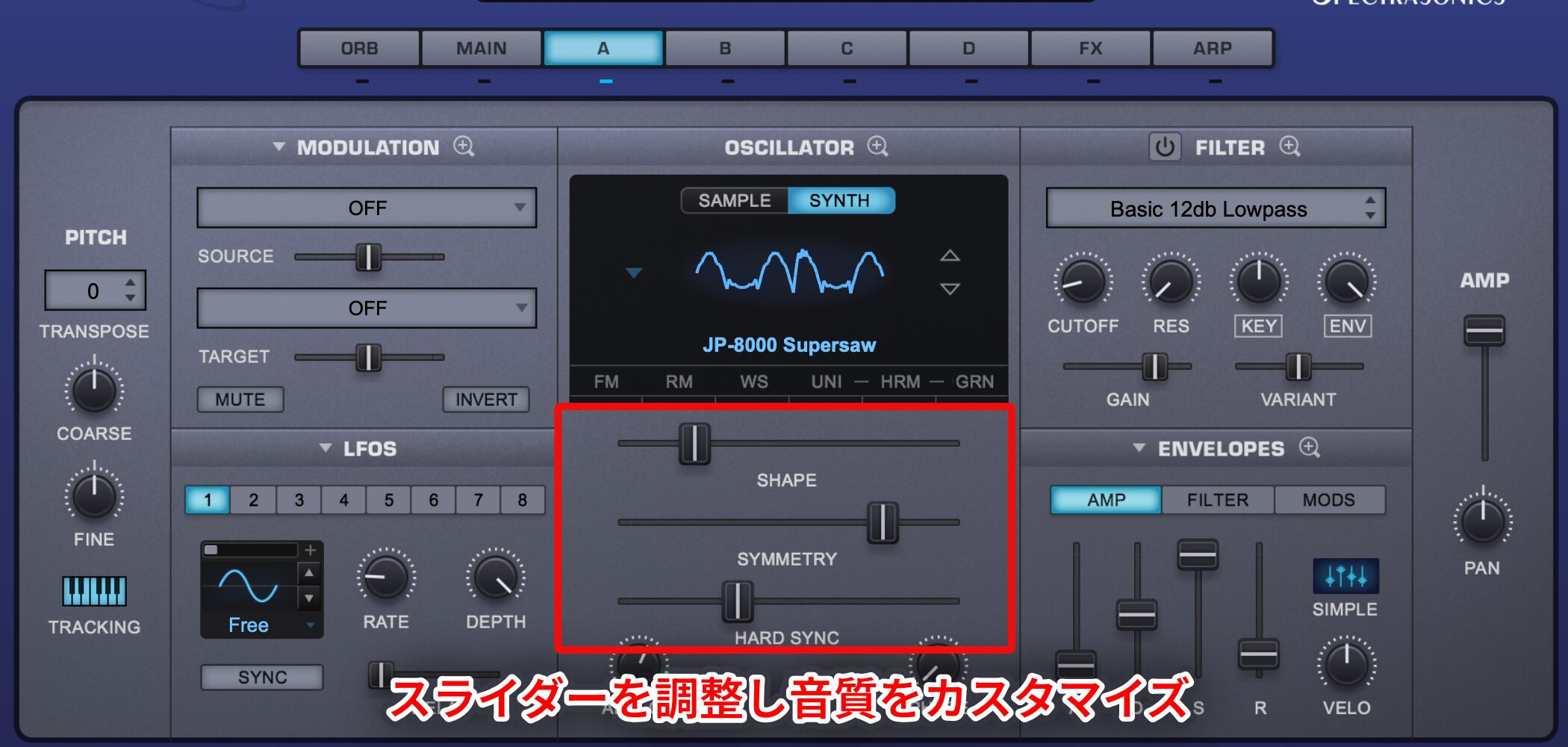
Adjust the slider in this section to further customize the sound.
Applying Effects to a Waveform
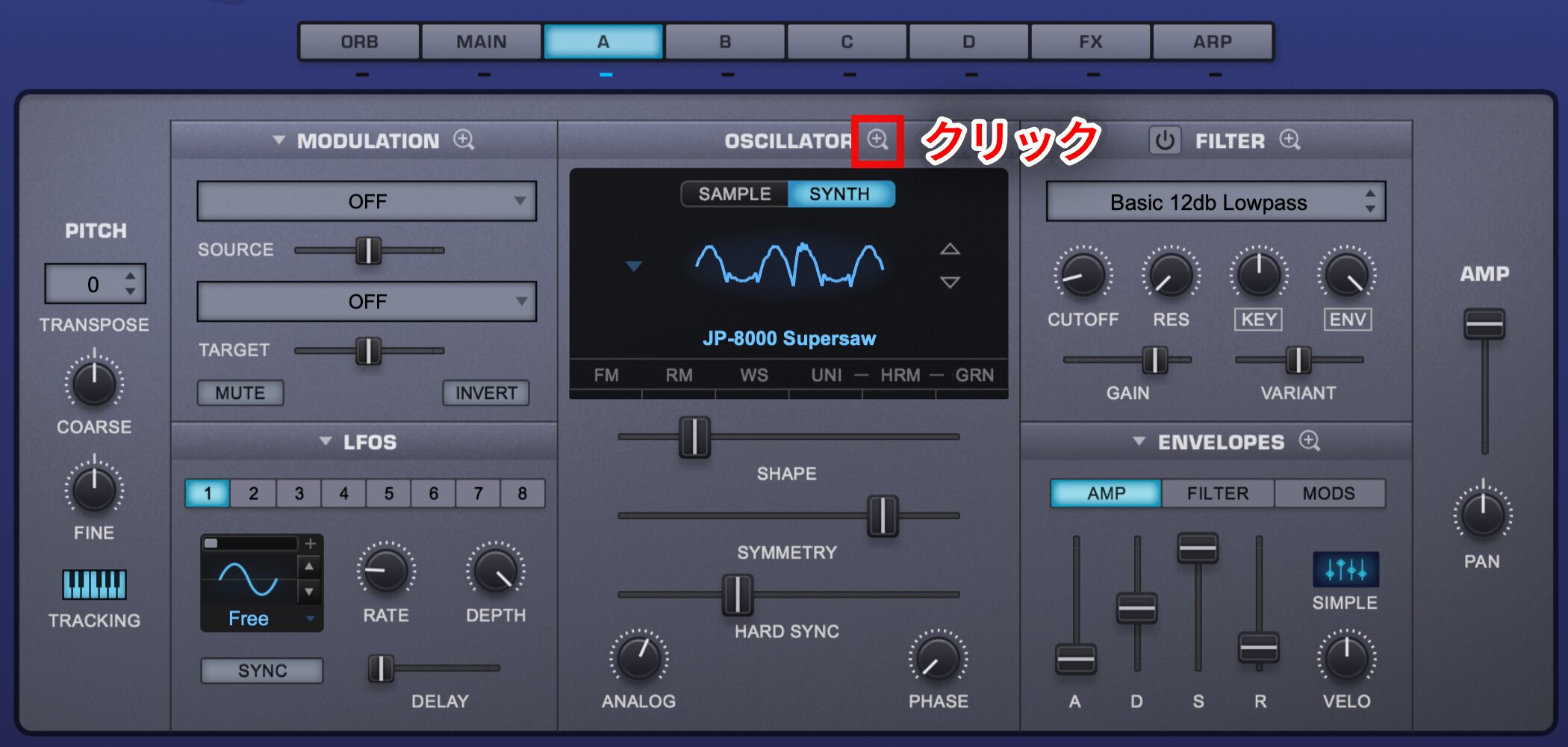
You can apply various treatments to the waveform selected above.
Click the magnifying glass to the right of OSCILLATOR.
UNISON
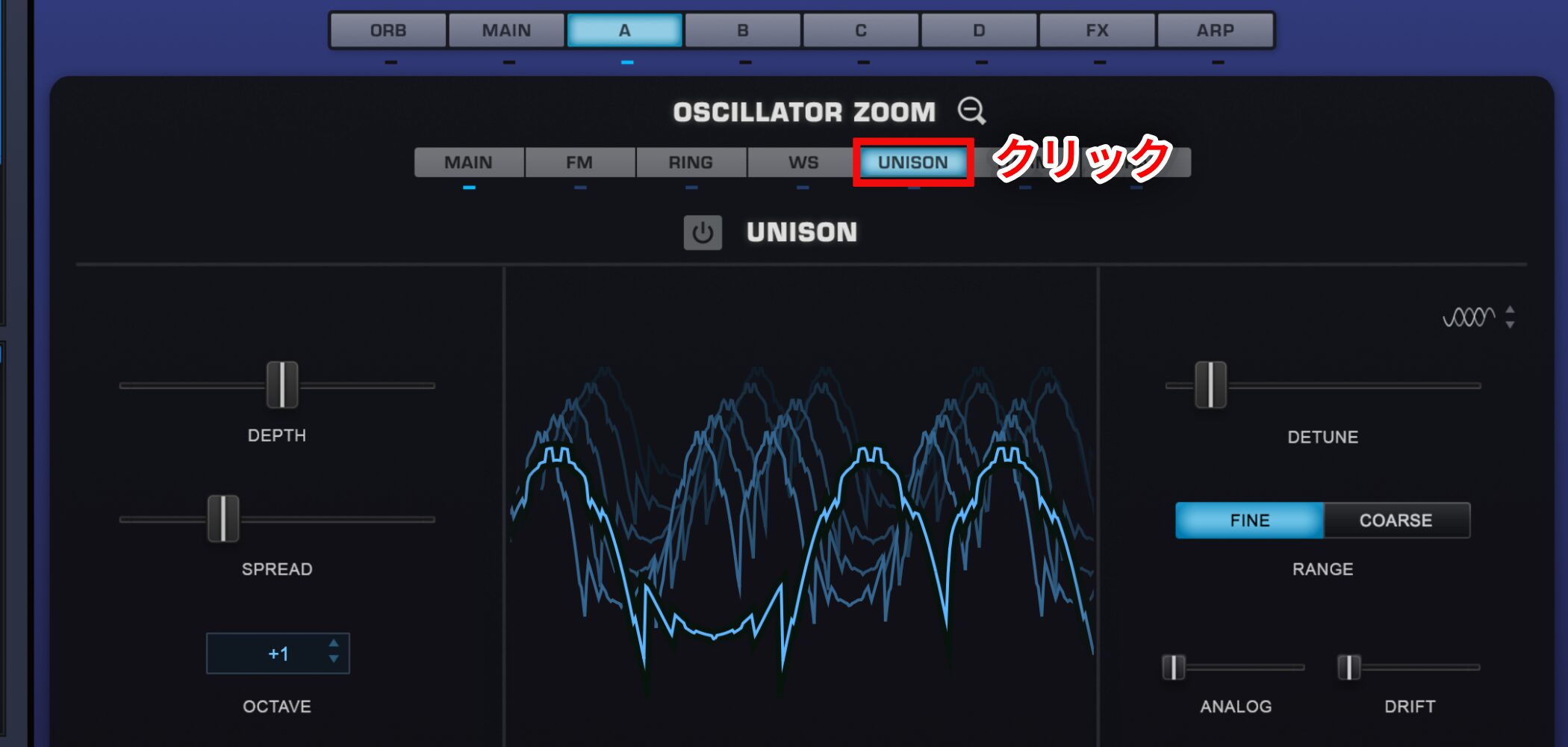
Layer multiple copies of the selected waveform to thicken the sound.
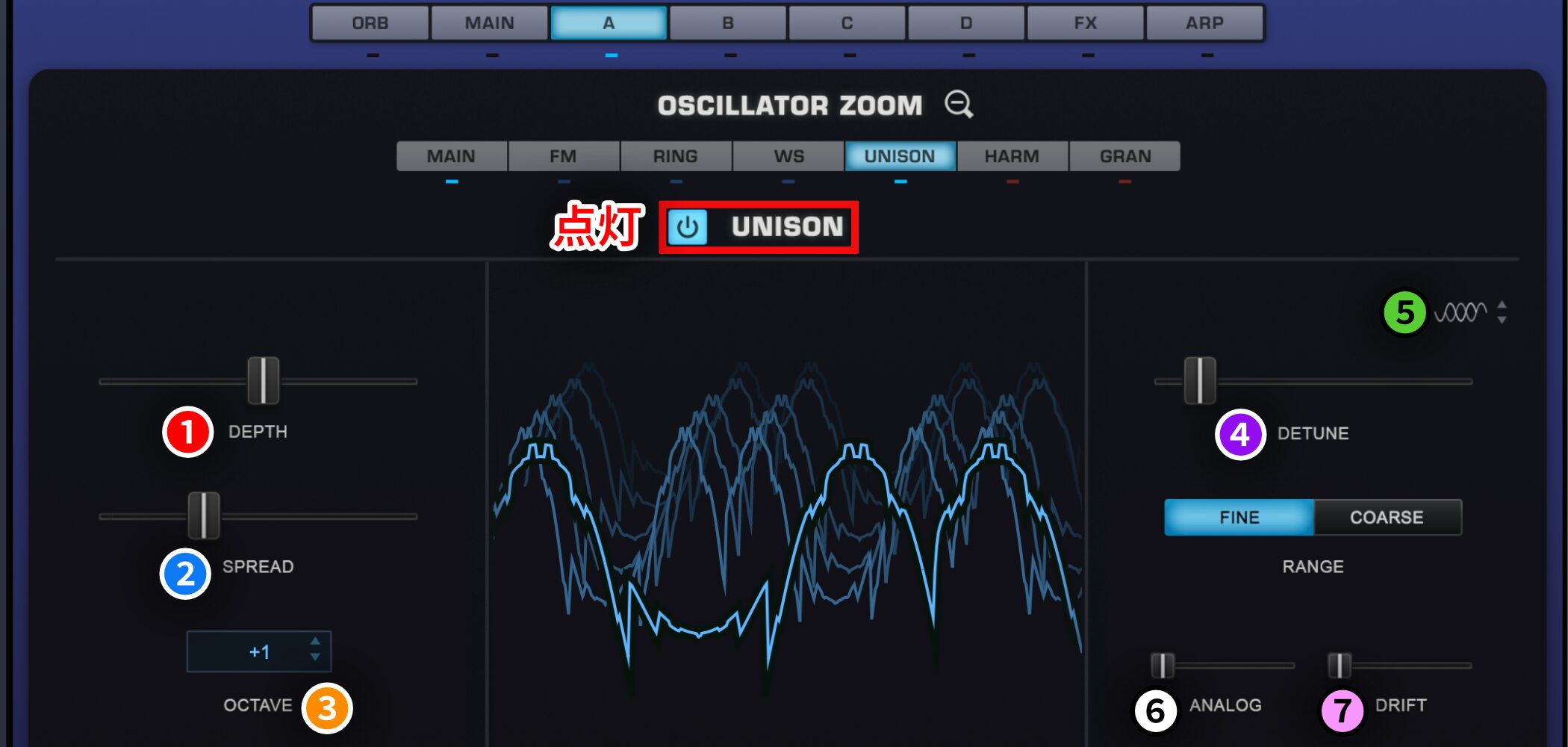
1.DEPTH: Set the number of waveform layers.
2.SPREAD: Widen the sound in stereo.
3.OCTAVE: Layer octaves for a unison effect.
4.DETUNE: Slightly offset the pitches to thicken the sound.
5.Adjust phase alignment to change the definition of the sound.
6.ANALOG: Adds variation. Up to the midpoint it randomizes phase; beyond the midpoint it randomizes pitch.
7.DRIFT: Varies pitch during a note and from note to note.
HARMONIA
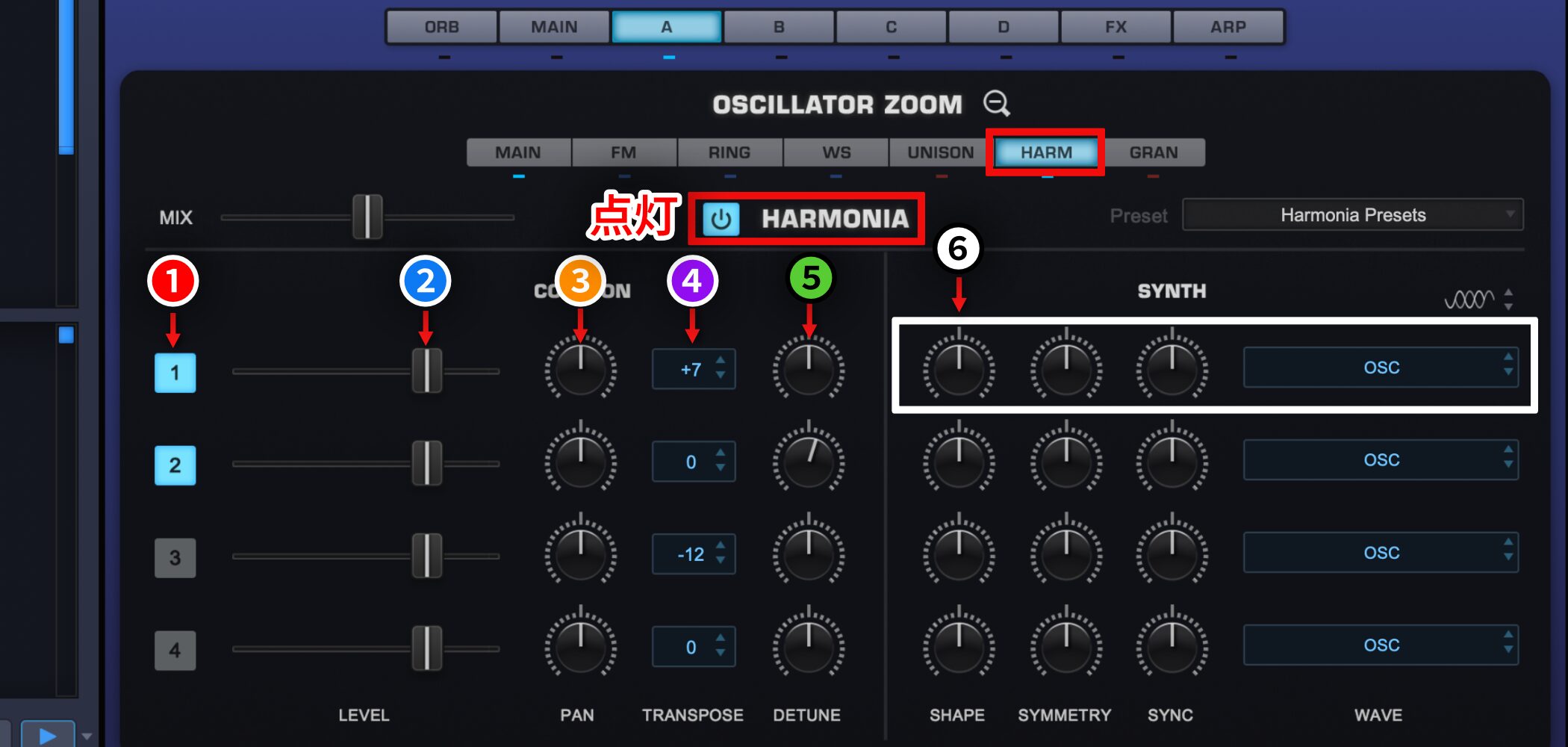
Layer up to four pitches to create harmonies.
1.Turn the feature on or off.
2.Set the level of each pitch.
3.Set its pan position.
4.Set pitch in semitones.
5.Slightly detune it for added thickness.
6.Choose a separate waveform for each layered pitch.
Using Your Own Audio as a Synth Source
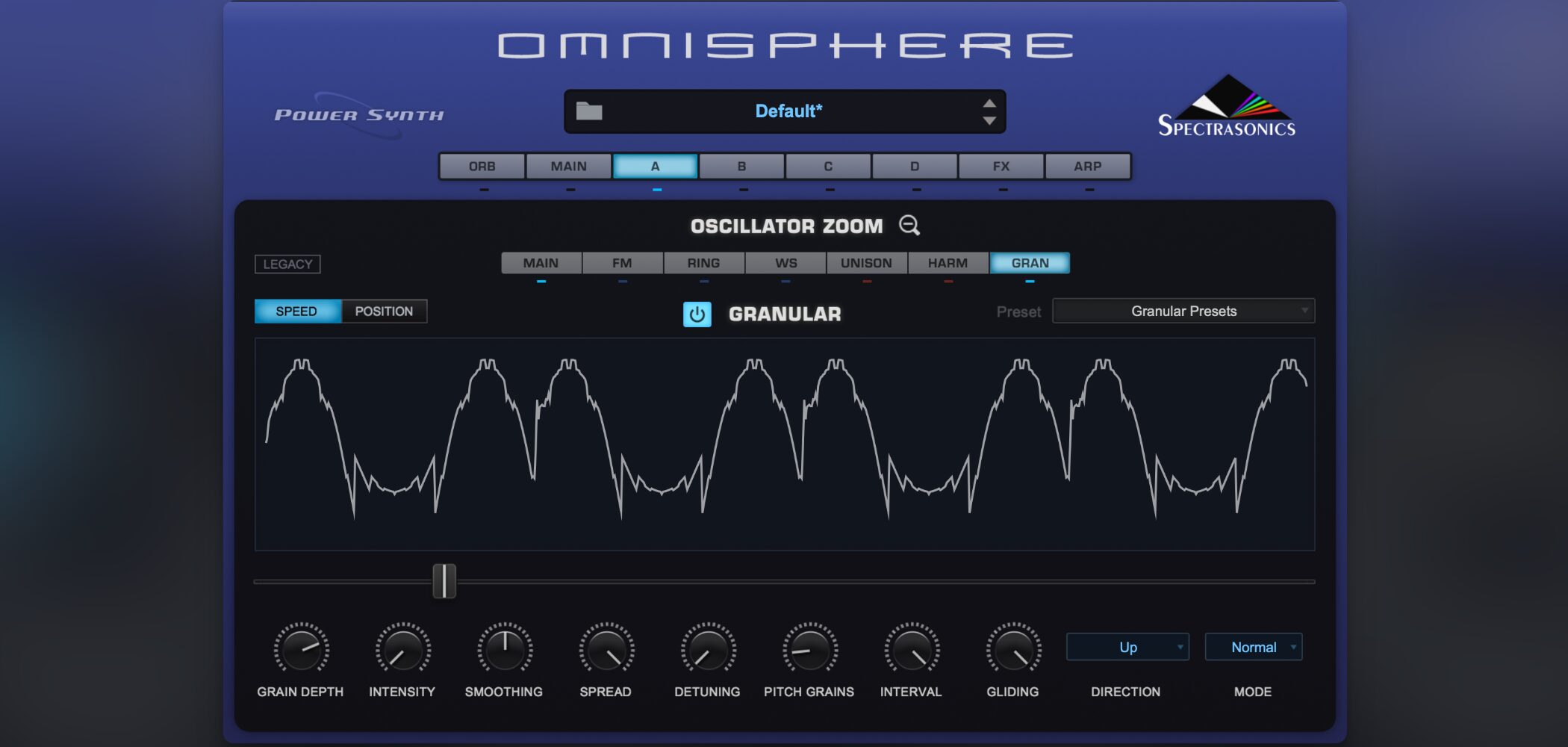
Next is the granular section, one of Omnisphere 2’s notable features.
You can import your own audio and use it as the basis for sound design.
Omnisphere 2 Video: Sound Editing — Sample & Granular
Importing Audio
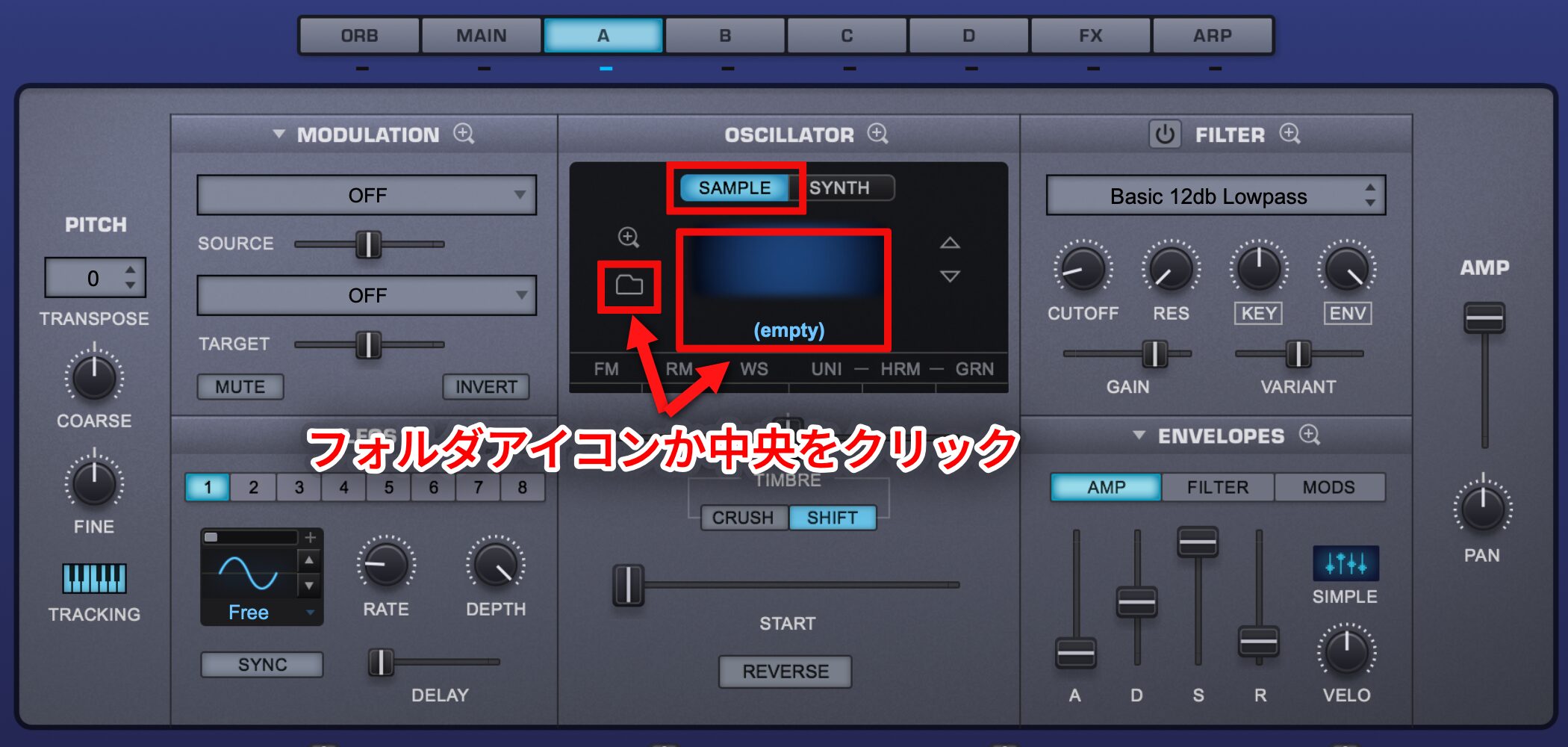
Click SAMPLE, then click the folder icon or the central display to open the sound browser.
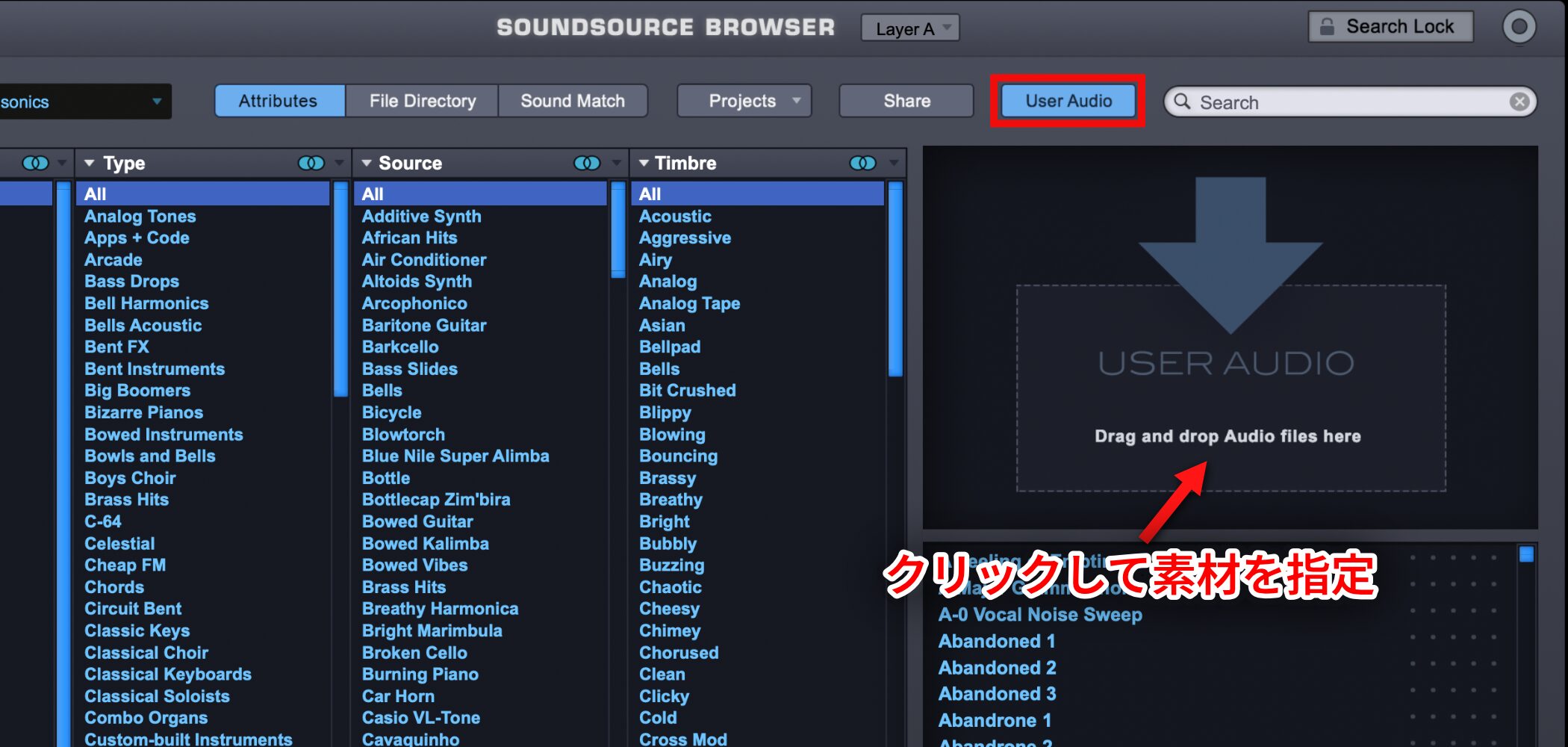
Choose User Audio in the browser and click the window below it to load your audio.
Once loaded, the sample is mapped across the keyboard and can be played at different pitches like a sampler.
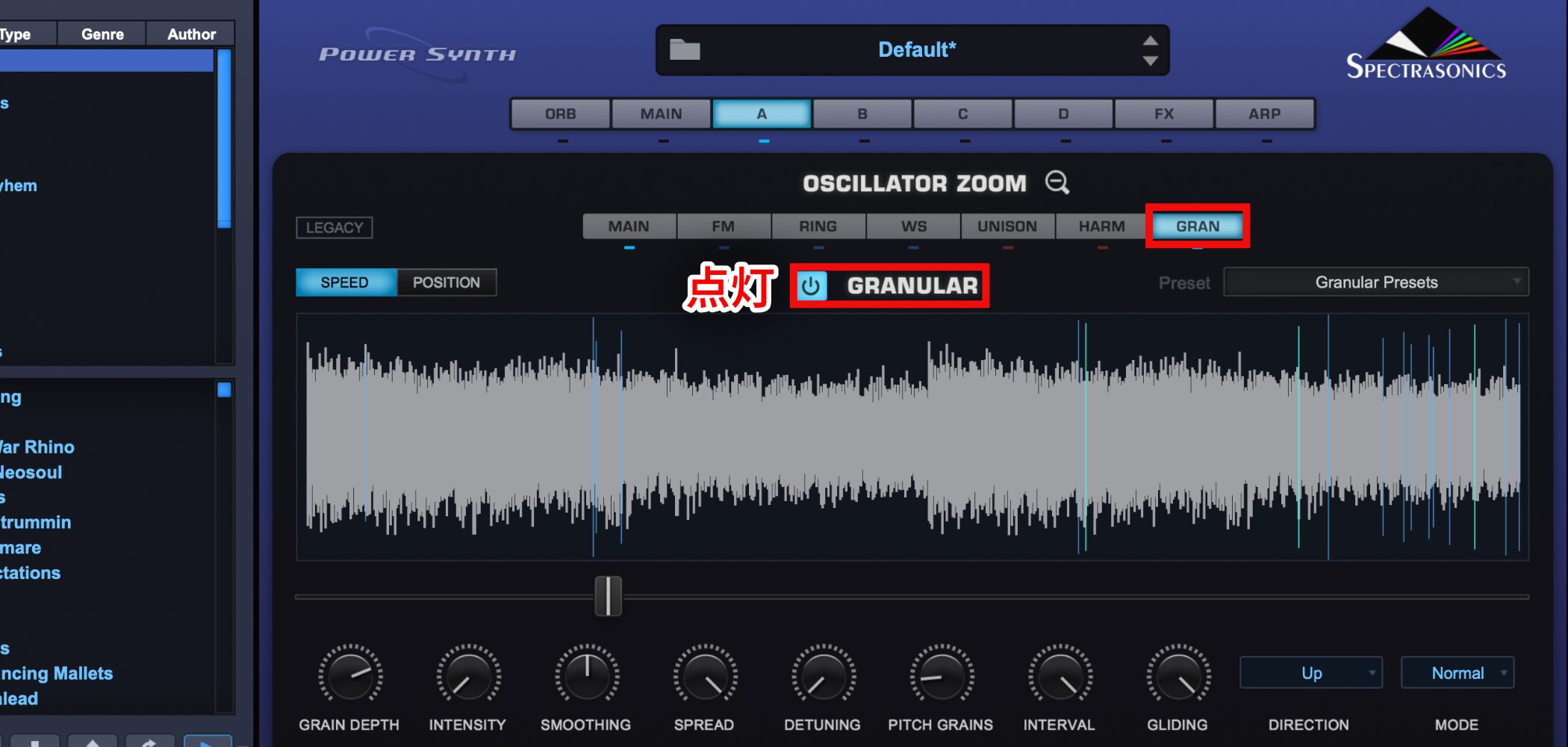
In the edit window described above, select GRAN and turn it on.
Granular Modes
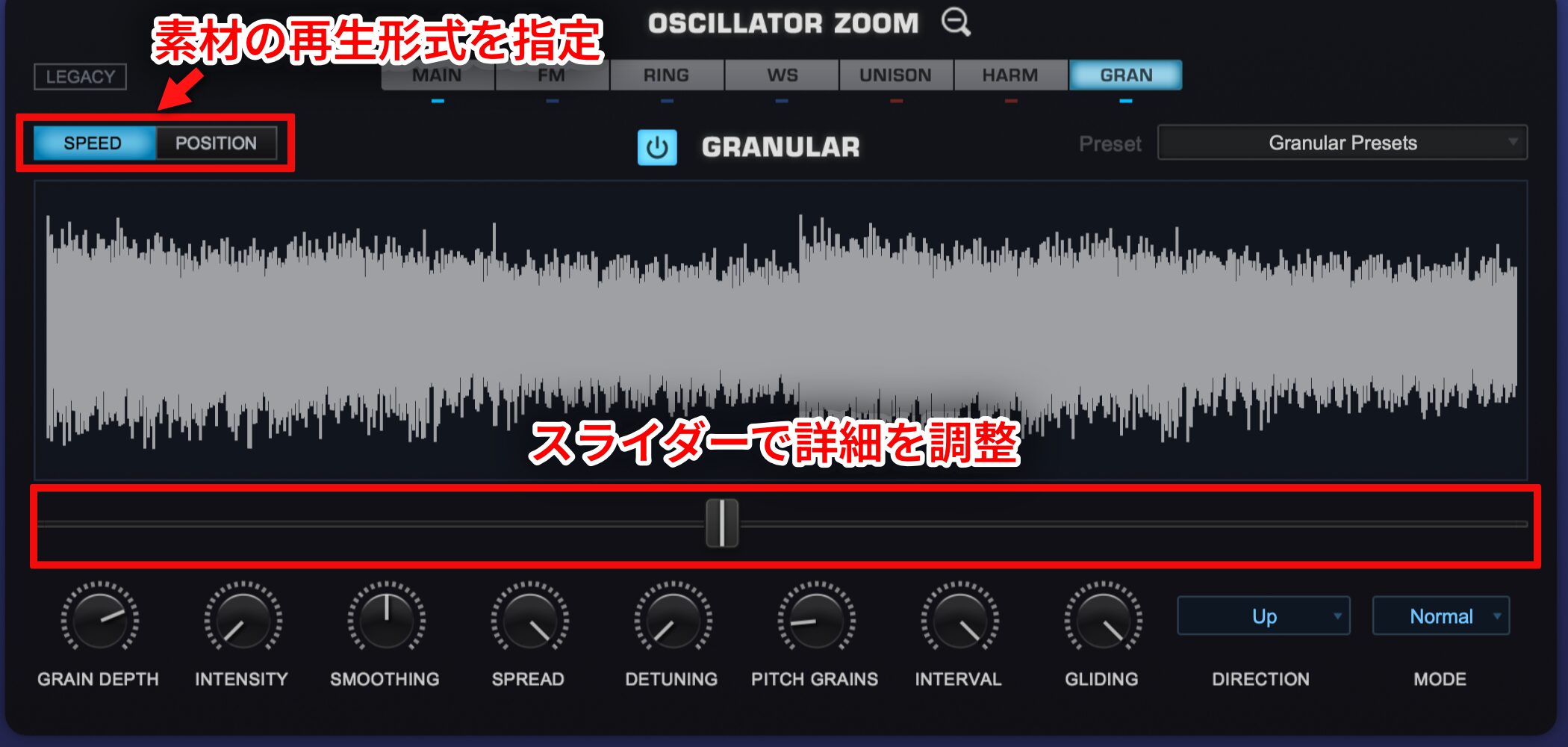
Select a playback mode under SPEED/POSITION, then adjust the slider below the waveform.
- SPEED: Controls the playback speed of the material divided into grains.
Moving right slows grain progression; at the midpoint it freezes, and beyond the midpoint grains move back toward the sample start. - POSITION: Selects a location in the source material for the granular effect.
Use the slider to choose the location.
Parameters
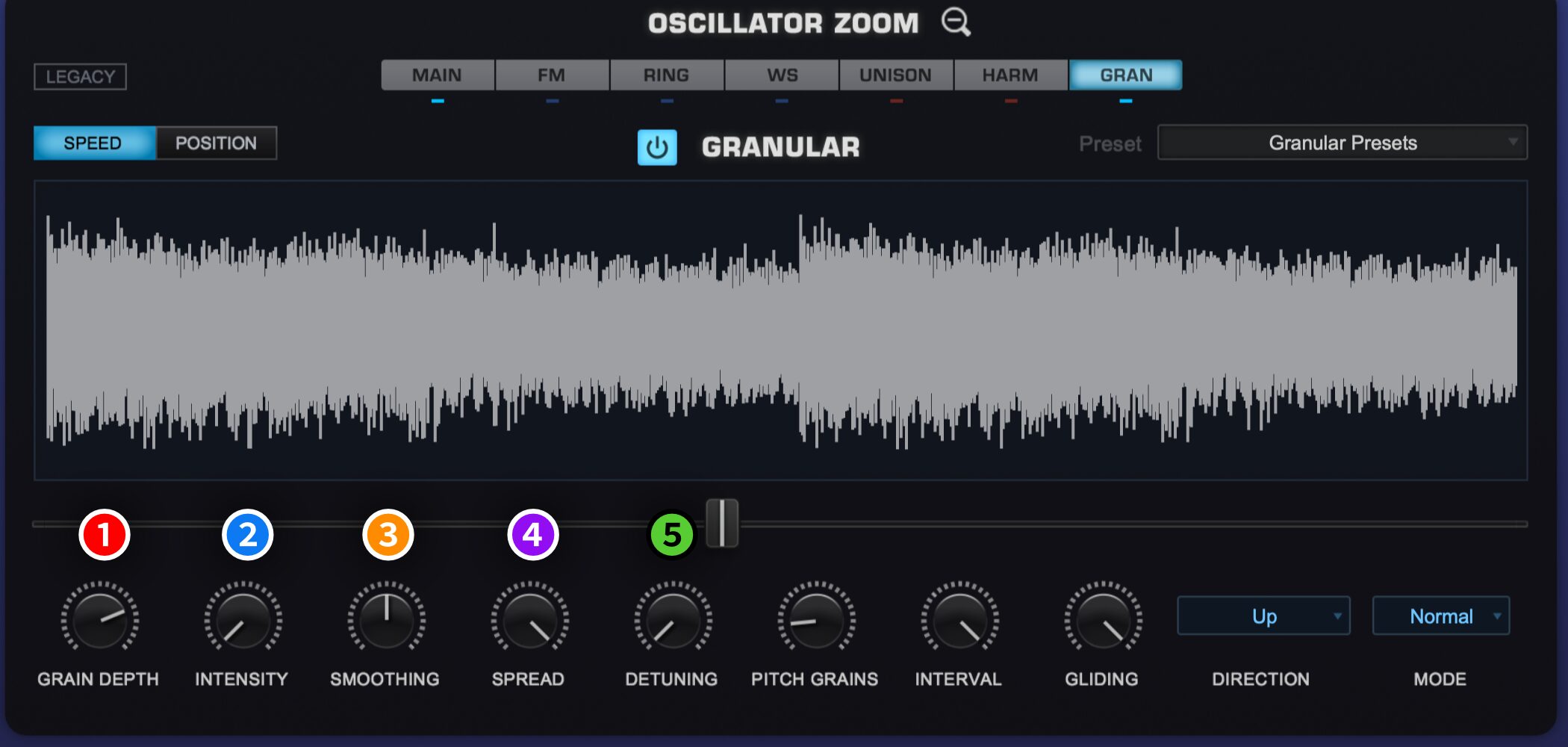
1.GRAIN DEPTH: Increases the number of grains, adding complexity.
2.INTENSITY: Controls grain fineness, producing intense movement.
3.SMOOTHING: Smooths transitions between grains.
4.SPREAD: Adjusts stereo width.
5.DETUNING: Shifts pitch to add thickness.
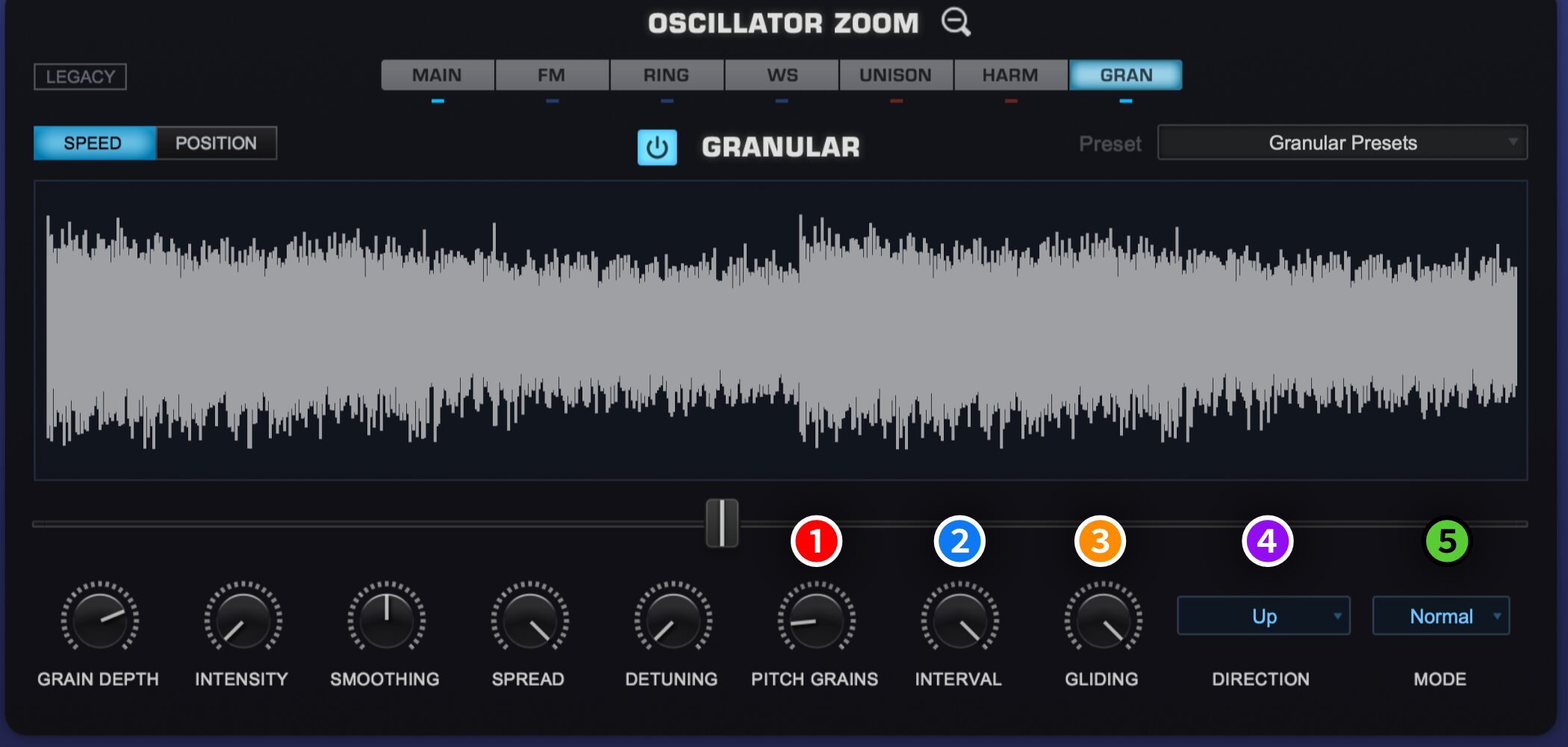
1.PITCH GRAINS: Sets how often grains are transposed in pitch.
2.INTERVAL: Sets the intervals of pitch change.
3.GLIDING: Controls how often grains glide between the played pitch and the transposed interval.
4.DIRECTION: Sets the direction of pitch movement. It has no effect when PITCH GRAINS is zero.
5.DMODE: Determines the character of pitch variation.
Hardware Synth Integration and Other Updates
Although Omnisphere 2 has been available for some time, subsequent updates have added many features.
One particularly distinctive addition is Hardware Synth Integration, which Omnisphere users may want to explore.
Finally, we will create sounds while looking at features added in later updates.
Omnisphere 2 Video: Hardware Synth Integration
Using Hardware Synth Integration
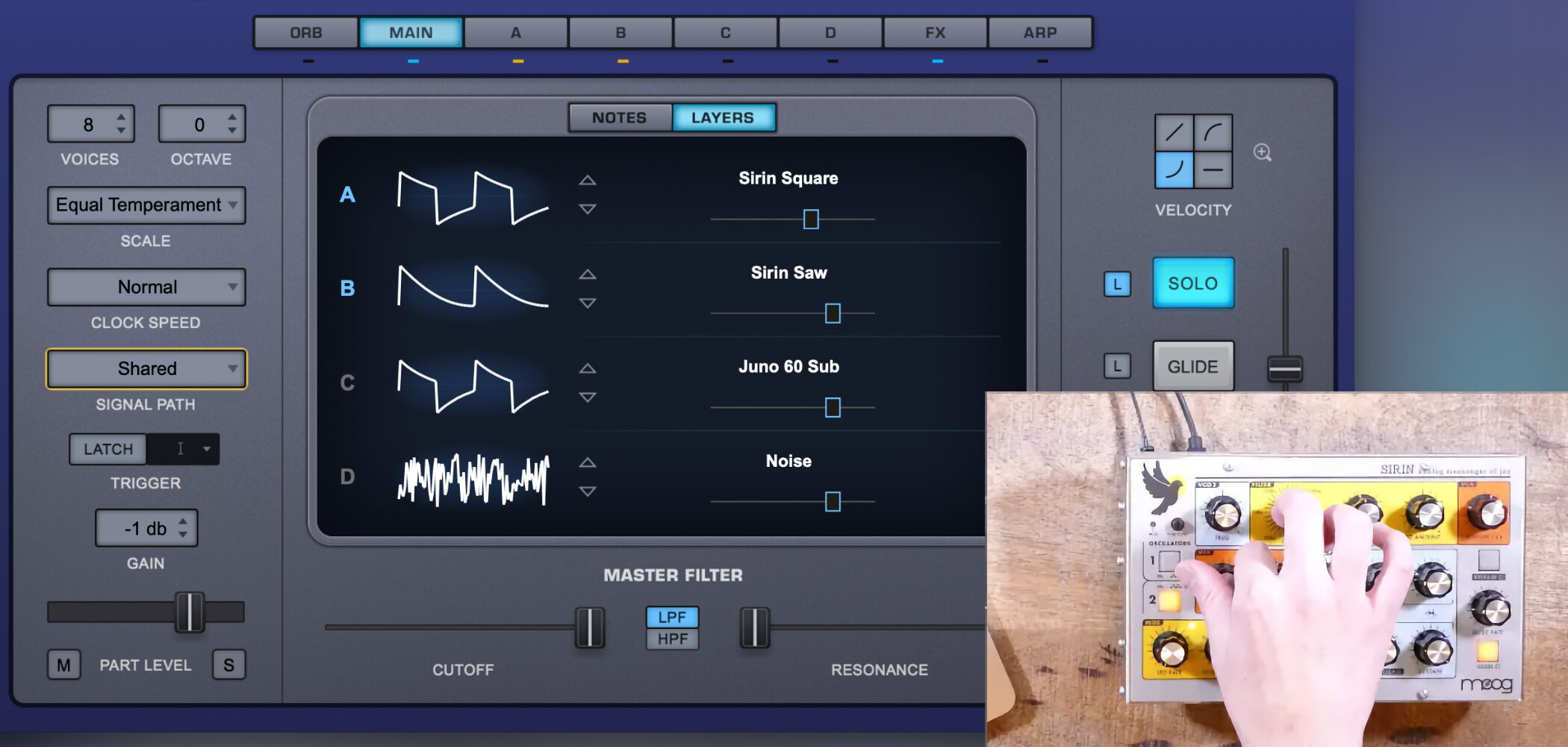
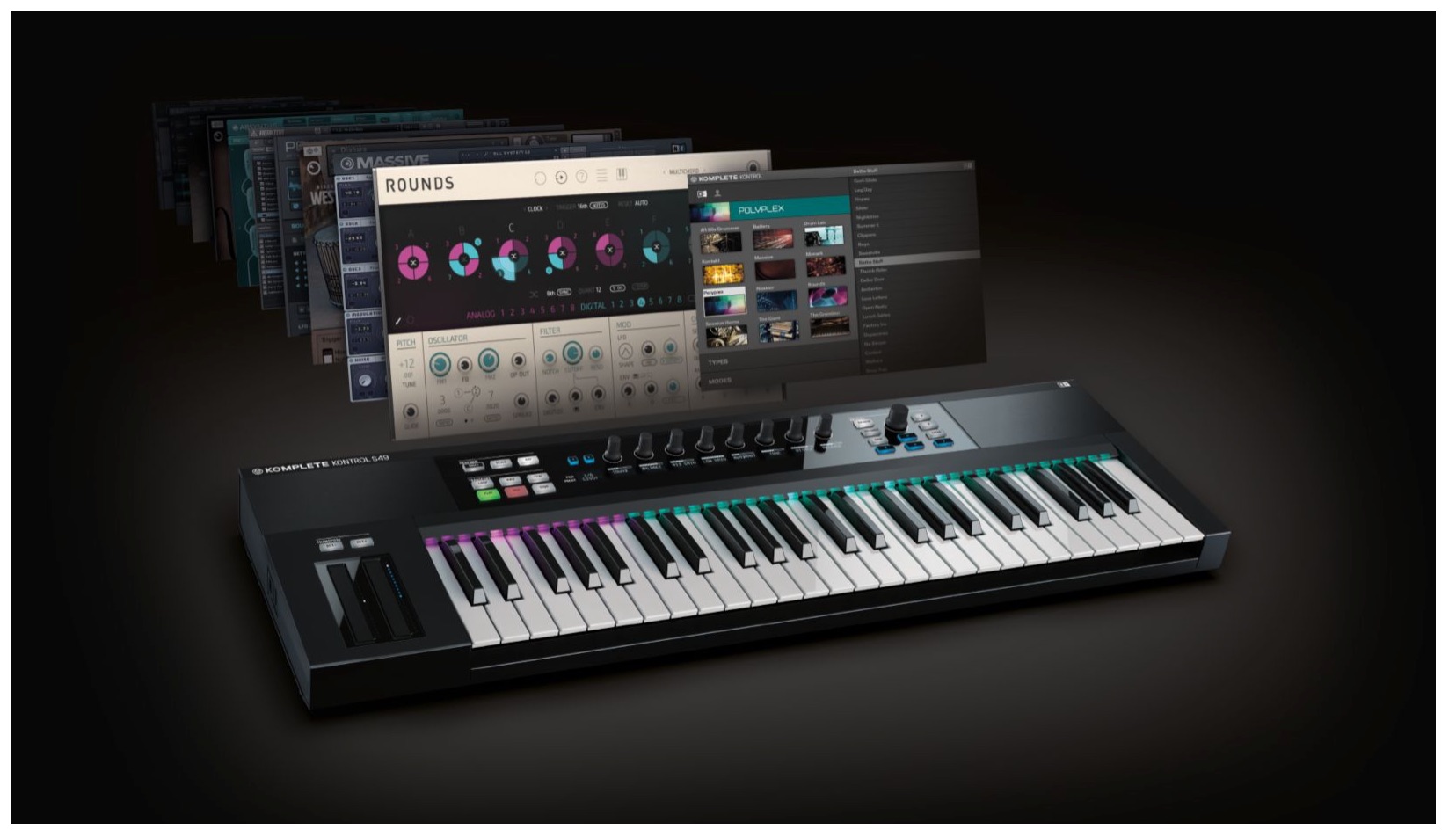
Omnisphere includes presets that emulate waveforms and filters from popular hardware synths.
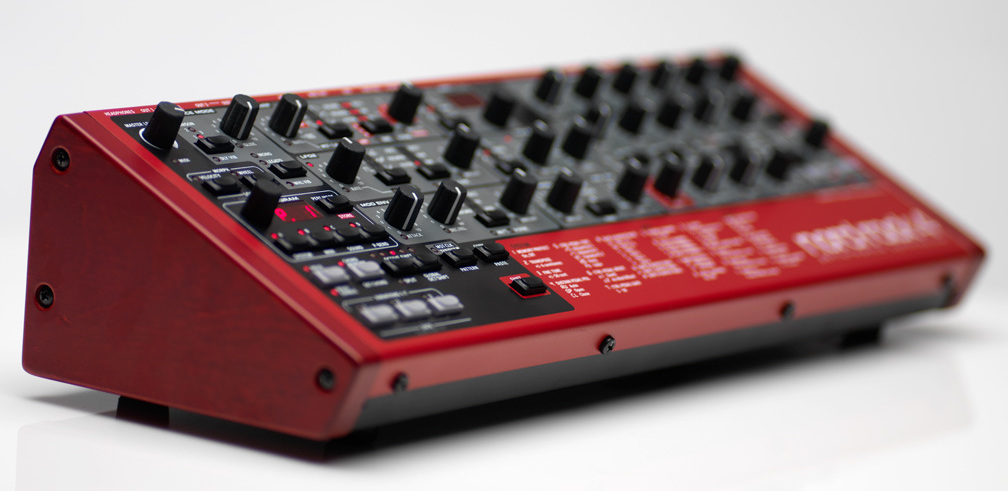
The feature that lets you control these from the hardware itself is called Hardware Synth Integration.
The key point is that Omnisphere produces the sound, while the hardware synth acts as a controller.
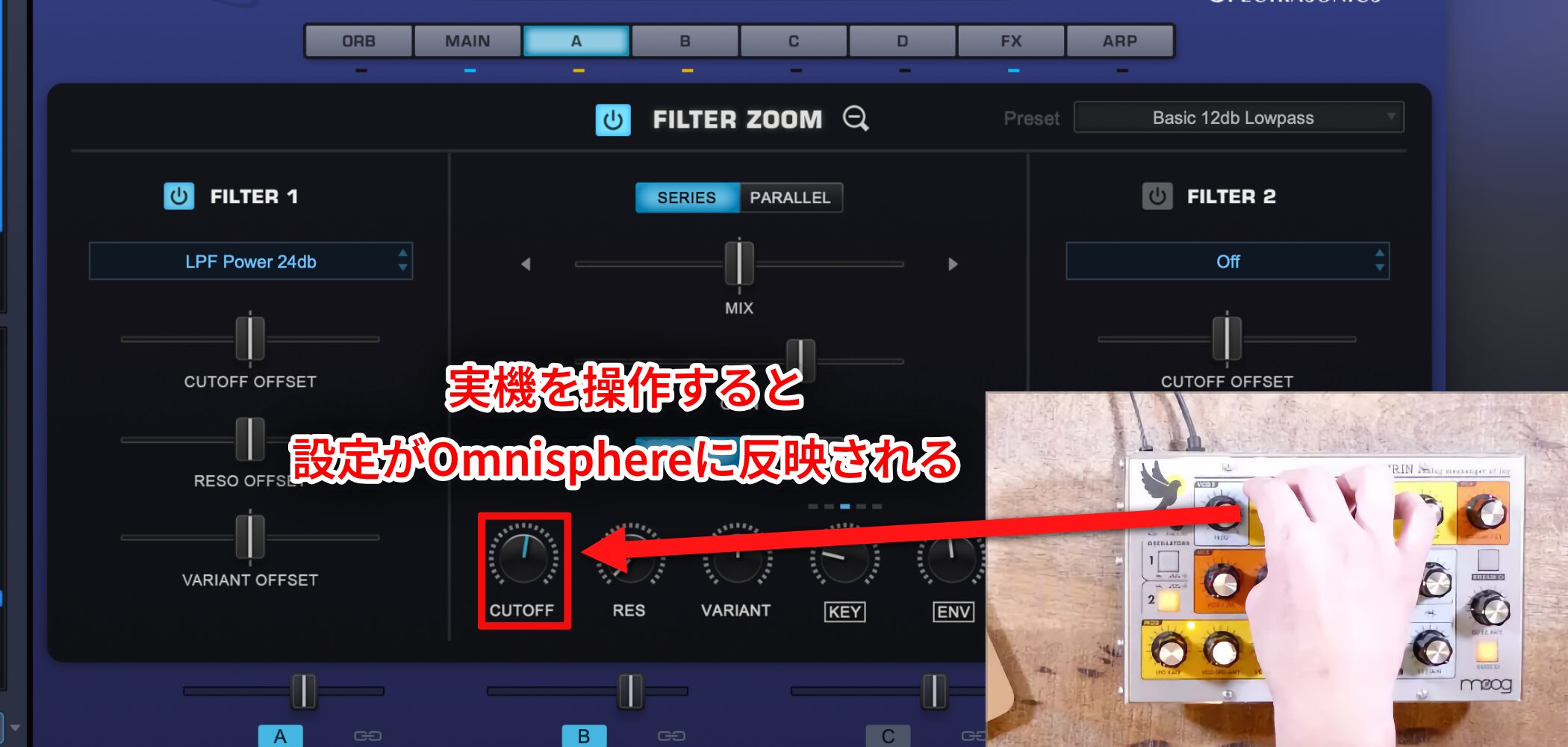
Moving a hardware knob or button immediately changes the corresponding setting in Omnisphere.
Check supported models and setup instructions at the following link.
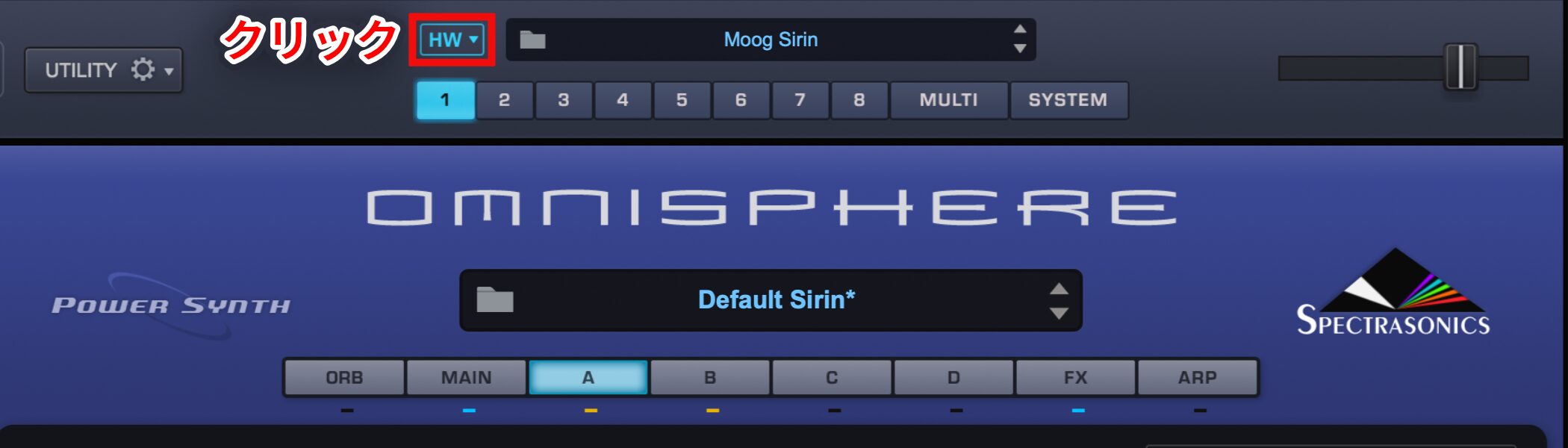
After setting up your synthesizer as instructed, select the corresponding model under HW.
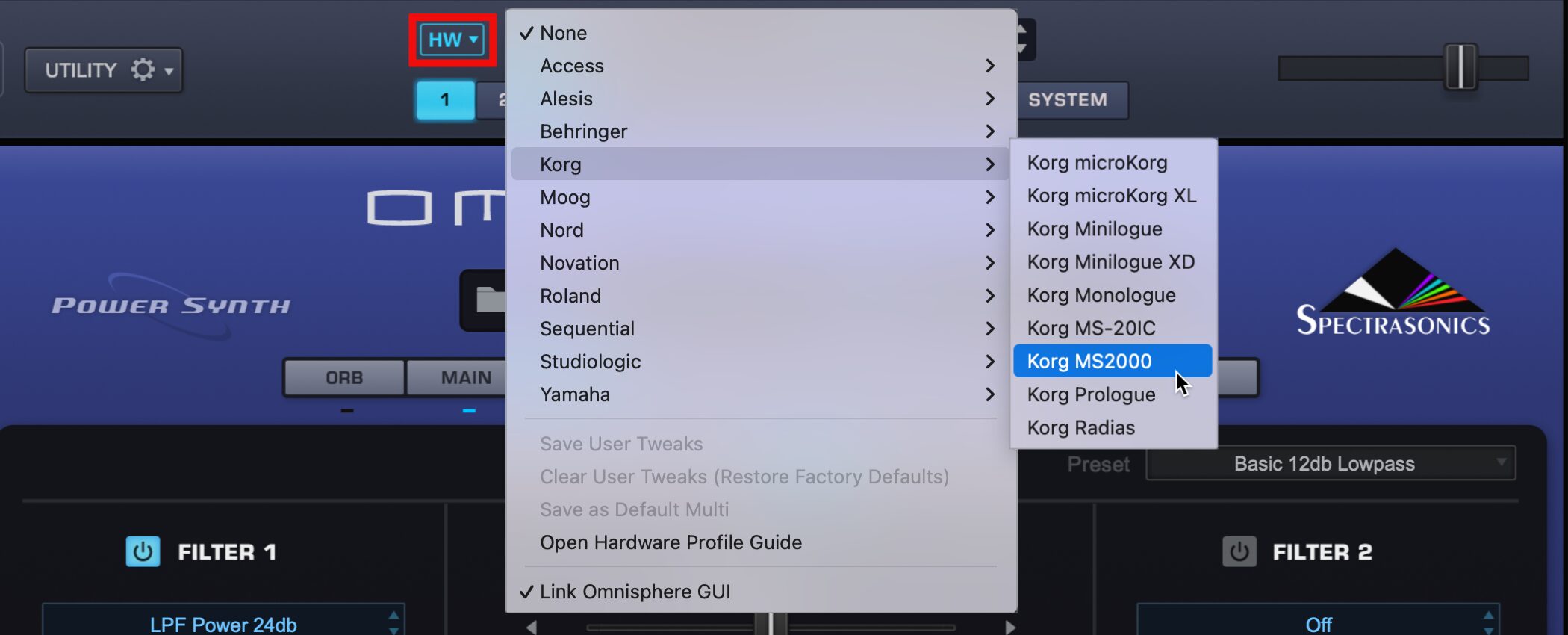
Because the sounds are included in Omnisphere, you can use them even without owning the hardware.
This makes it easy to incorporate sounds inspired by popular hardware synths into a track.
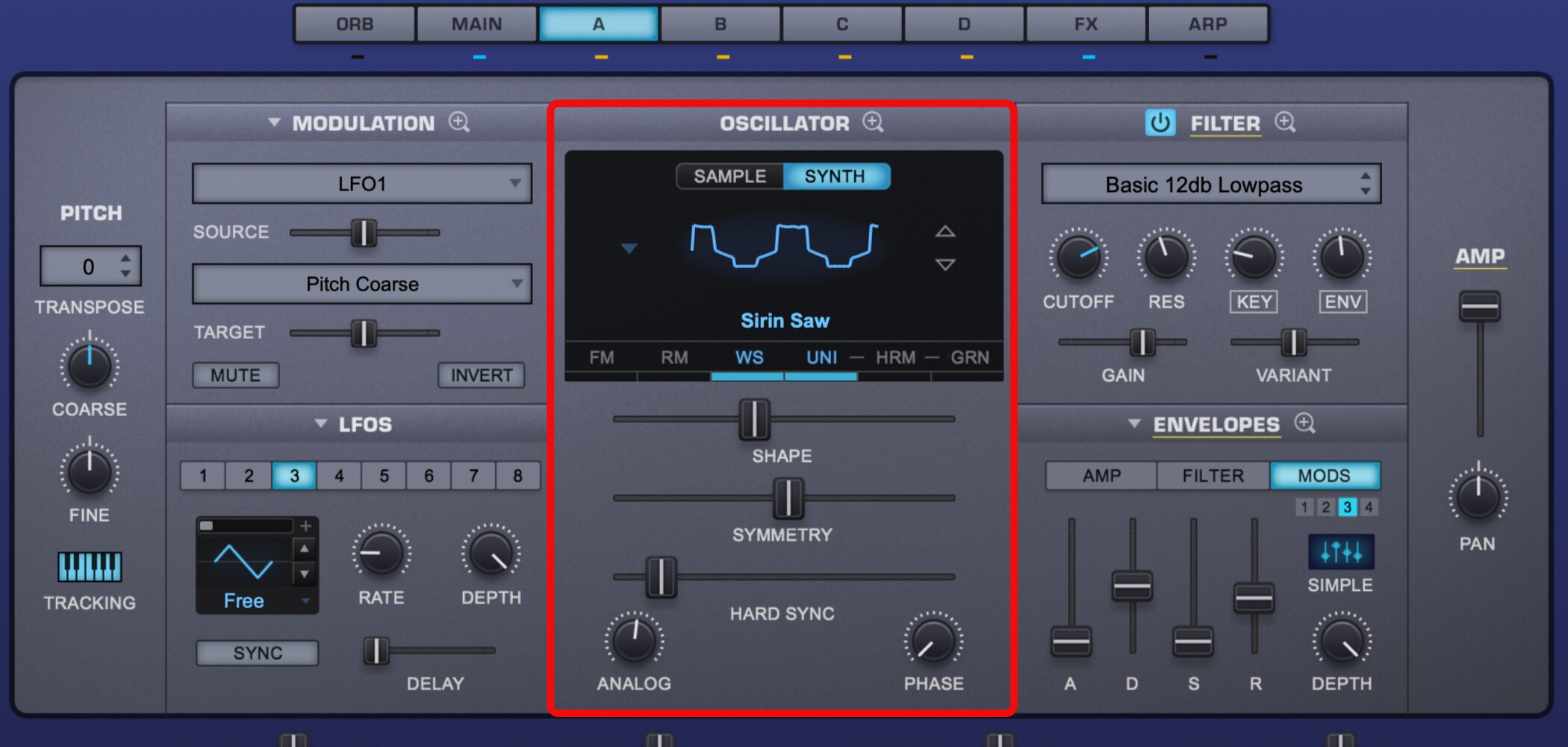
A major strength is that you can apply Omnisphere’s own sound-editing tools and features to the emulated sounds.
This opens up a vast range of variations.
Editing Four Sound Layers
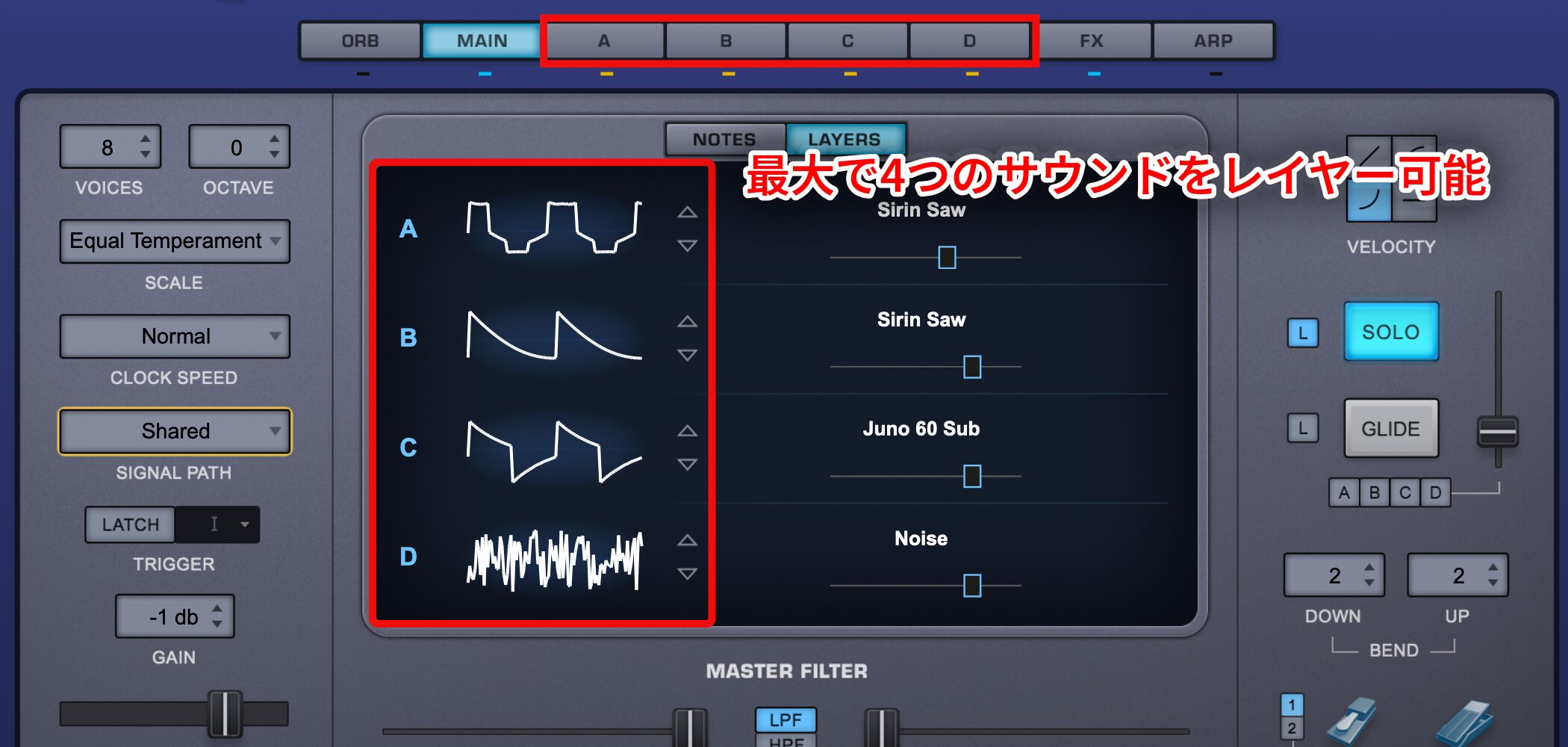
An update expanded the number of oscillators, allowing you to layer up to four sounds.
Each layer can be edited independently.
This greatly expands the possibilities for complex textures and sound effects.
Applying LFOs and Envelopes
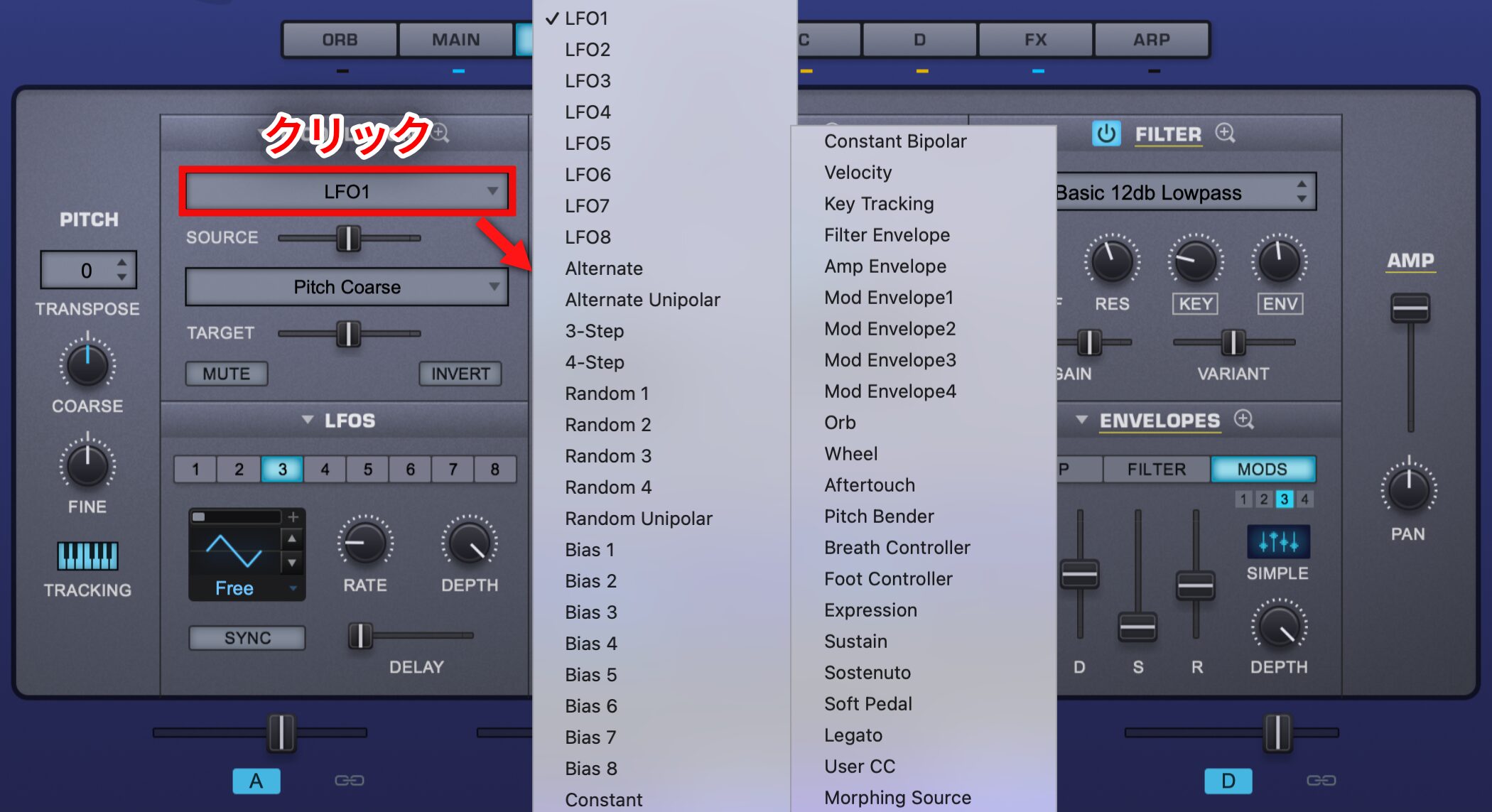
The number and variety of modulators such as LFOs and envelopes have also increased.
They offer greater flexibility in sound design.
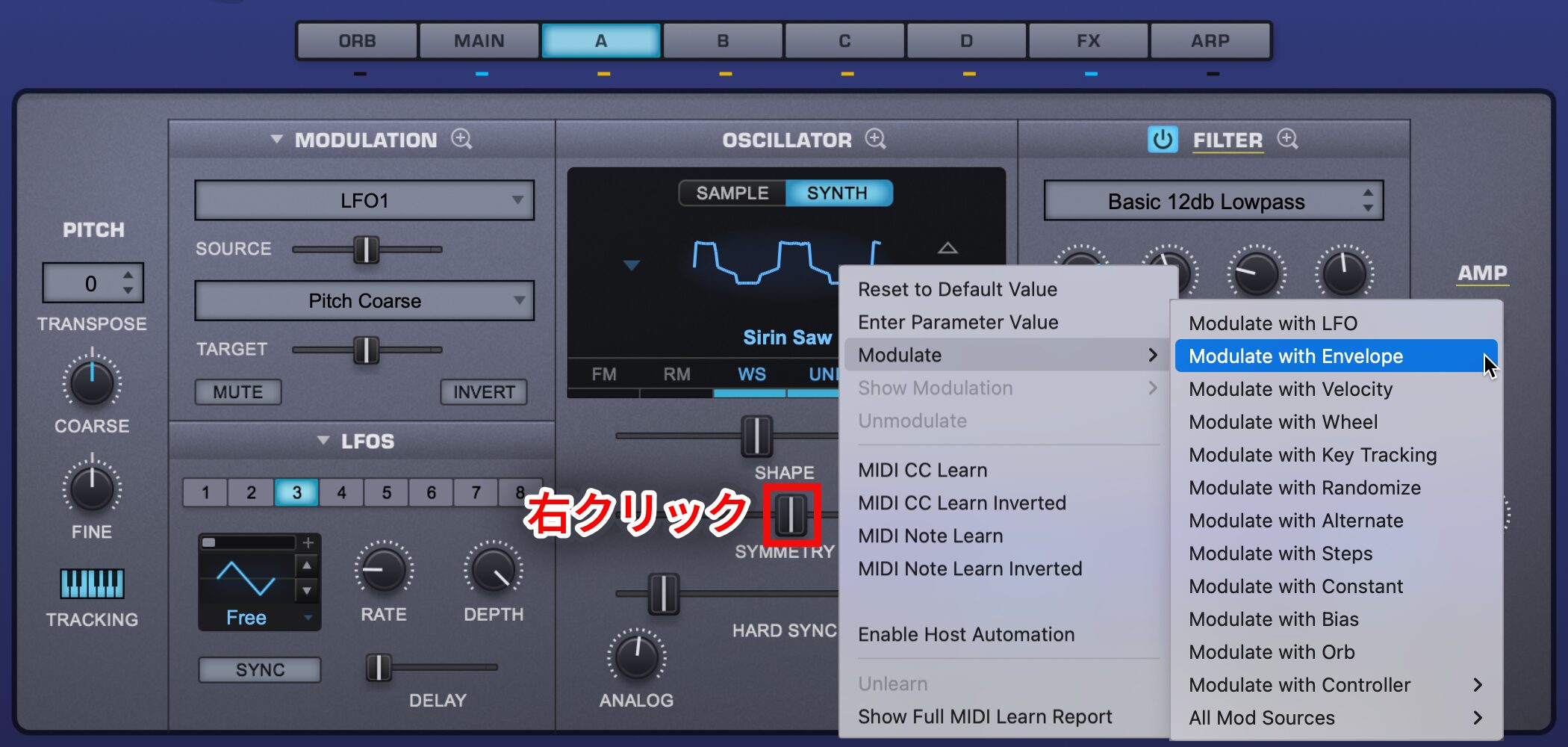
You can quickly assign these modulators by right-clicking a target parameter and choosing Modulate.
Arpeggiator Controls
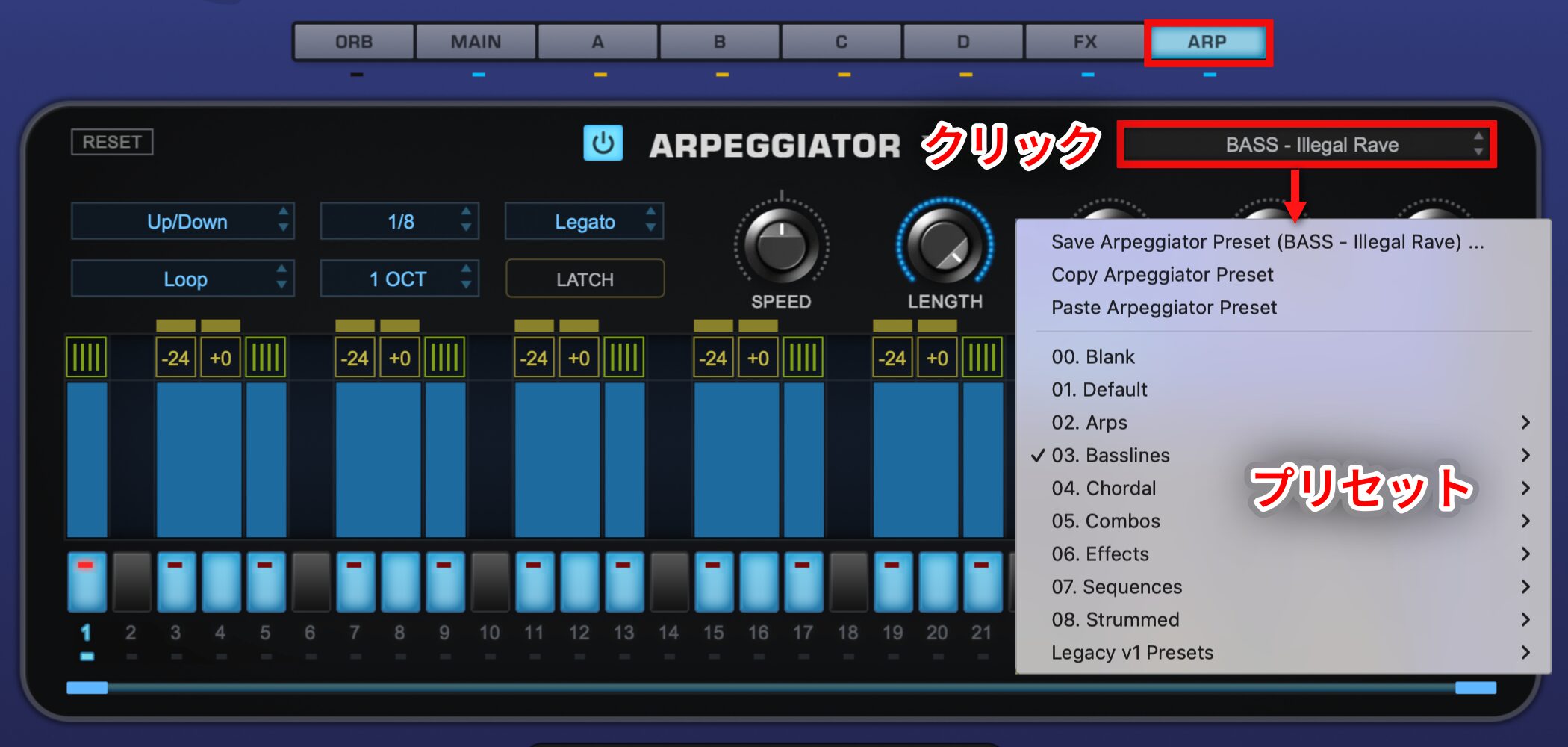
The arpeggiator has also developed considerably through updates.
In our experience, its workflow and sound are among the best of the arpeggiators we have used.
There are also many arpeggio presets ready to use in a production.
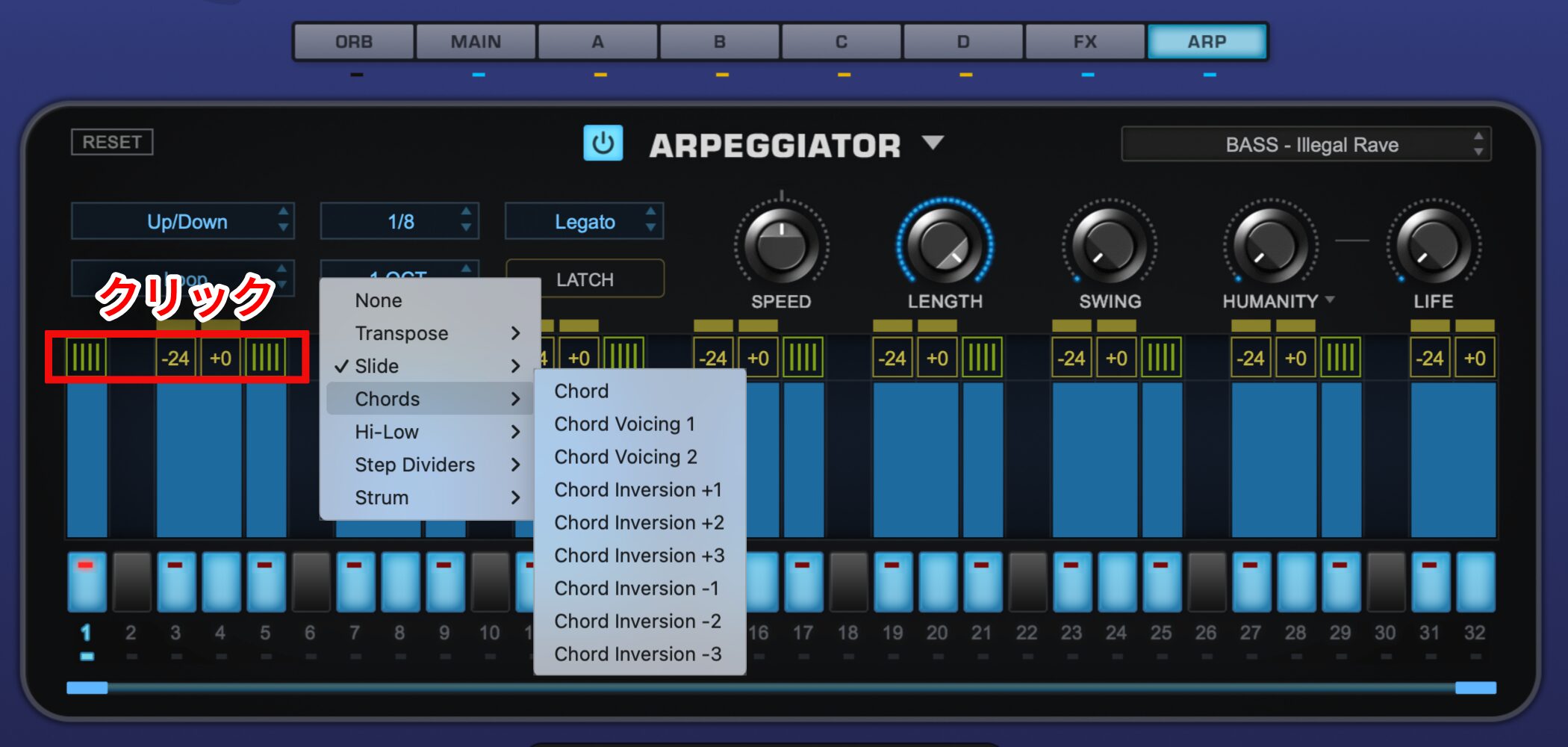
Click the area above each note to apply a variety of performance effects.
- Transpose: Transposes the played pitch in semitones.
- Slide: Adds glide for smooth pitch transitions.
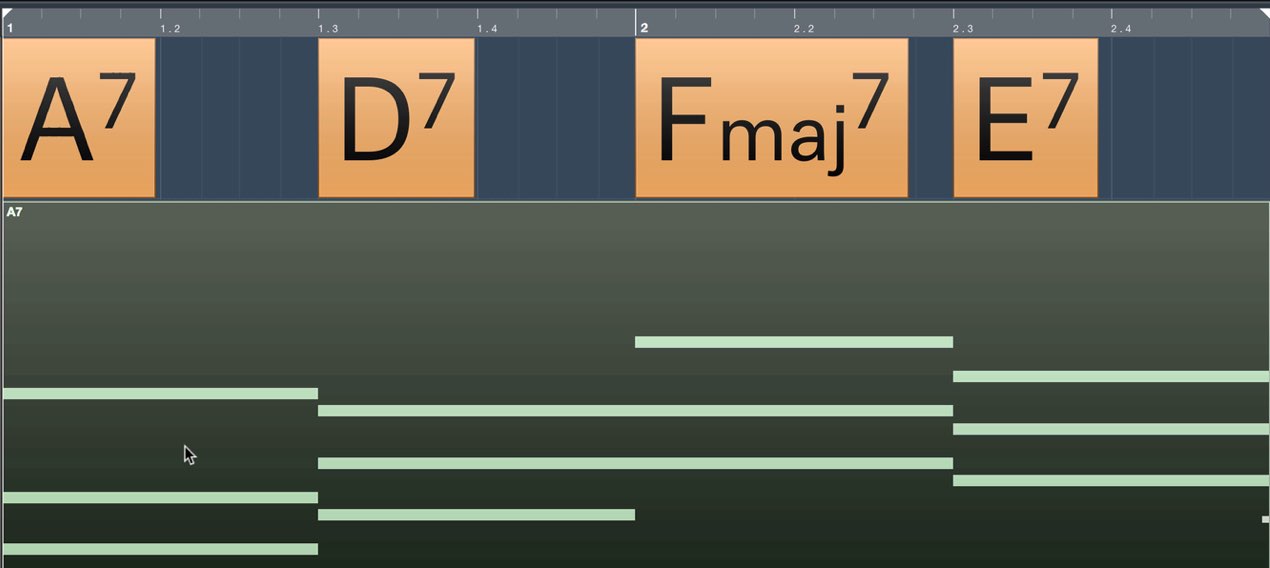
- Chords: Plays chords entered over MIDI, with voicing and octave settings.
- Hi-Low: Selects the lowest or highest played pitch.
- Step Dividers: Divides notes into repeated steps.
- Strum: Simulates guitar strumming.
Combine these to create more complex and expressive phrases.
Sound Lock for Switching Presets
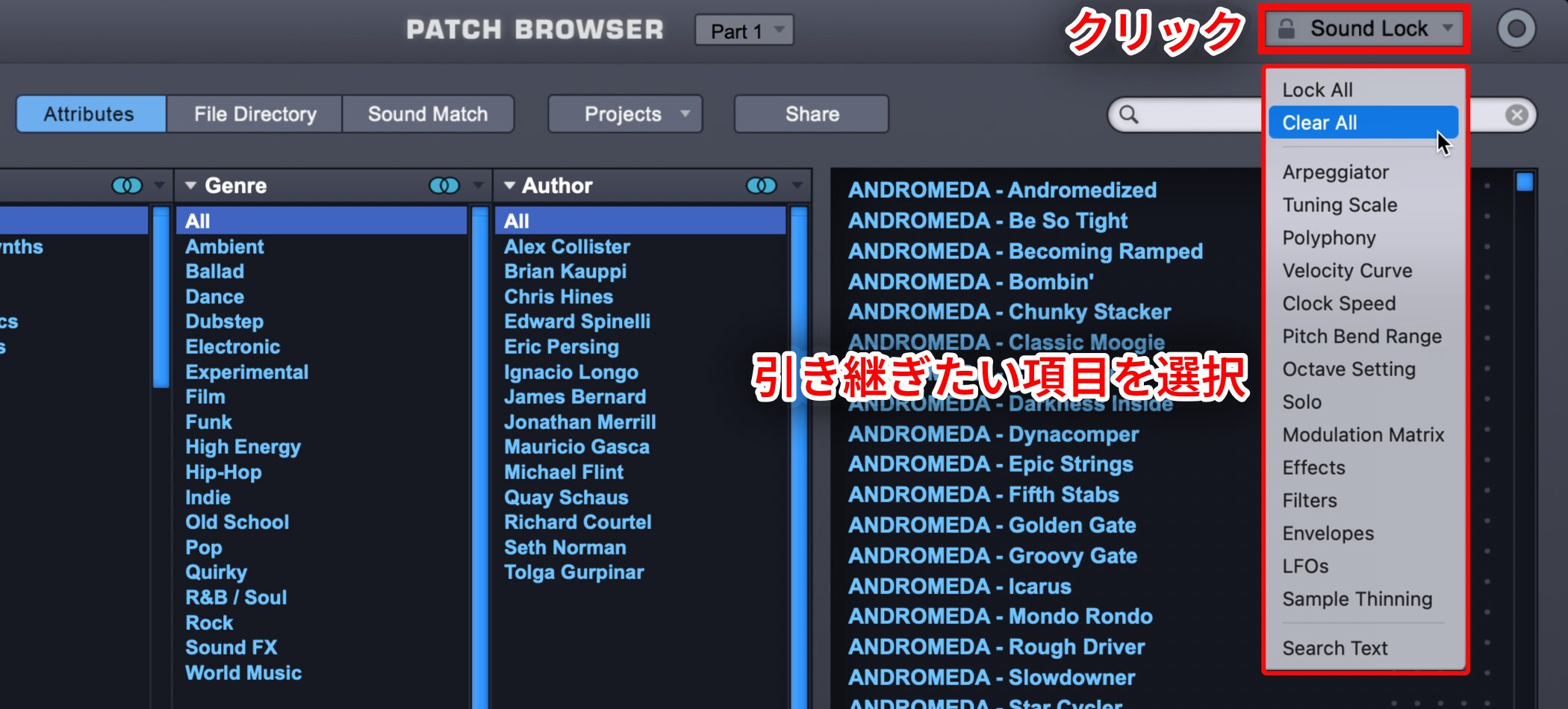
You may want to retain arpeggiator or effect settings when changing presets.
A useful feature for this is Sound Lock.
Select the settings you want to retain in advance, and they stay in place when you change presets, making it easier to compare sounds efficiently.
What did you think?
Omnisphere 2 continued to evolve after its release.
Its additions are practical, and it remains a popular software synthesizer.
Try these features in your own productions.
Frequently Asked Questions
Q1. How many presets does Omnisphere 2 have?
The article reports over 14,000 presets. The Patch Browser can search by instrument type, genre, or keyword, while Sound Match finds similar sounds.
Q2. Can I use my own audio samples in Omnisphere 2?
Yes. Load audio from User Audio in the SAMPLE tab, then use granular synthesis to process it and create new sounds.
Q3. How many synth modes can Omnisphere 2 use?
You can combine four layers, A–D, and work with synth waveforms, samples, and granular processing. Unison and Harmonia provide further sound-design options.
Q4. Can Omnisphere reproduce hardware synth sounds?
Its DSP oscillator waveforms include models inspired by popular hardware synthesizers. Waveform selection, DETUNE, and ANALOG controls can help create classic synth-style sounds.
NEW ARTICLES
Latest English Articles