
iZotope Neutron 4 brings substantial improvements to its AI-assisted mixing tools. Its automatic Assistant no longer requires the preliminary settings used in Neutron 3, making it easier for beginners to get started. In this comparison, Neutron 4 produces a brighter, more contemporary sound. The new Assistant View offers intuitive Punch controls for transients, Distort for saturation, and Width for the stereo image, while the new Unmask module reduces masking between tracks. These additions can help speed up mixing and refine the results.
What Changed in Neutron 4?
iZotope's popular Neutron mixing suite was updated with the release of version 4.
Neutron has won many users through its AI-assisted track processing. In this article, we explore the features enhanced in Neutron 4.
- 1Testing the Automatic Assistant
- 2Shaping the Sound in the New Assistant View
- 3Reducing Masking with the New Unmask Module
- 4Getting Closer to a Reference Sound with Tone Match
- 5New Distortion Inspired by Trash
Neutron 4: New Features — Video
Selected Questions and Answers from YouTube

Version 4 sounds brighter and more aggressive to me. I suspect saturation is part of the reason. If I could at least split it into bands like Neutron's Exciter, it would be easier to control. With only Tone, fine adjustment looks difficult.

Assistant View, which we focused on here, is an additional interface; essentially, the things you could do in version 3 remain available in Detail View. We didn't have time to cover this fully, but Assistant View's controls are linked to parameters in Detail View. You can shape the sound broadly with Assistant, then switch to Detail View to fine-tune it.
Testing the Automatic Assistant
We've prepared a sample song.
It has quite a few tracks. We'll apply Neutron 4 to 12 of the main tracks, including buses, and see how far we can get using only the automatic Assistant.
As a starting point, we've already set a rough volume balance, panned the tracks, and added a little reverb.
Although we don't demonstrate it here, Neutron 4 also includes automatic adjustment using Relay and Visual Mixer, as Neutron 3 did.
First, listen to the starting point.
Original Mix — Bypassed
It's listenable, but still feels fairly close to the raw tracks.
Now let's apply Neutron 4.
First, press the Assistant button at the top to put Assistant into its listening state. Unlike earlier Neutron versions, you no longer need to choose the preliminary settings first.
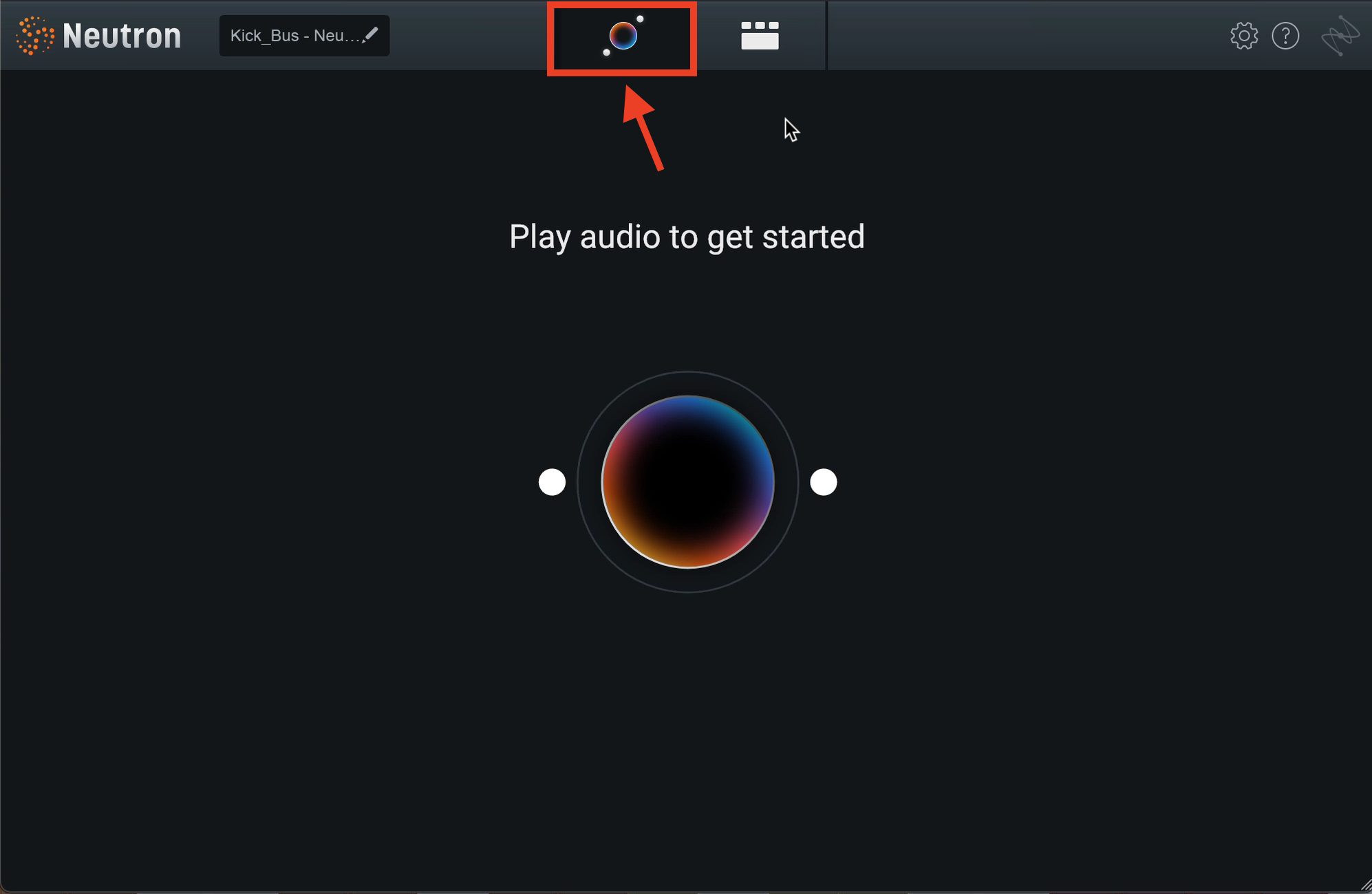
Do this in each instance of Neutron, then play the song for analysis.
Let's hear the processed result.
Neutron 4 — Automatic Assistant
That's a dramatic change from the unprocessed starting point.
Of course, there are still things we'd like to adjust; it isn't perfect. Even so, having this much done automatically is very useful, particularly for beginners or anyone with limited time to spend on a mix.
Comparing Neutron 3
With those preliminary settings removed, we also wondered how the Assistant's results had changed since version 3.
Let's compare this with the same material processed using Neutron 3's Assistant.
For Neutron 3, we chose Balanced for Style and Low for Intensity, since the Neutron 4 result wasn't particularly loud.

Compare the two sounds.
Neutron 3 — Automatic Assistant
Neutron 4 — Automatic Assistant
Neutron 4 sounds a little brighter and more forward in the high frequencies.
This isn't a strictly controlled comparison, but our impression is that the sound leans more toward contemporary production. The original review suggests this may reflect developments in the AI since Neutron 3; this is an interpretation of the listening results.
Shaping the Sound in the New Assistant View
Next, let's look at the new Assistant View.
Version 3 offered Detail View, where customization required some knowledge of effects. Assistant View makes adjustments more intuitive and approachable for beginners.
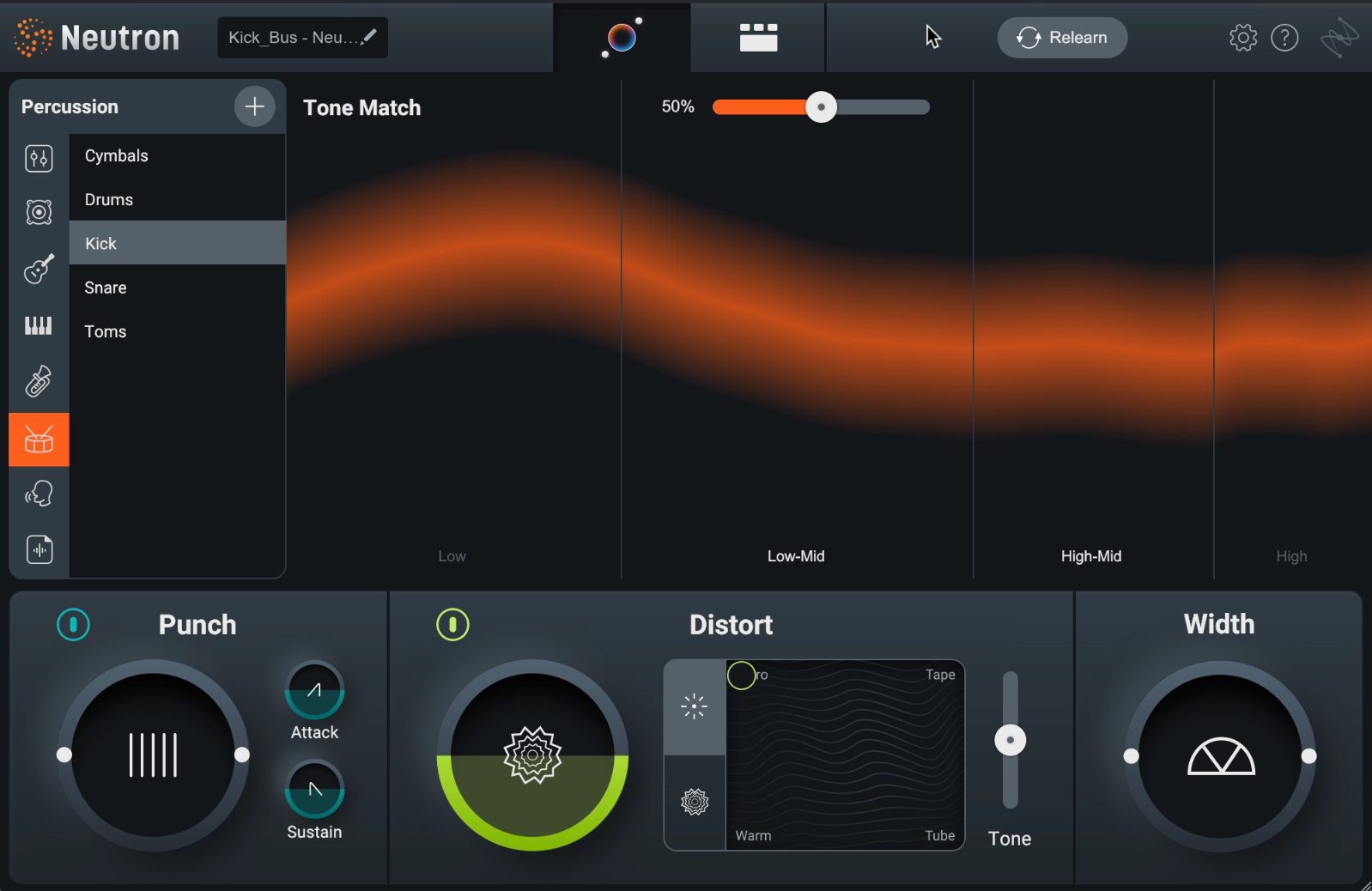
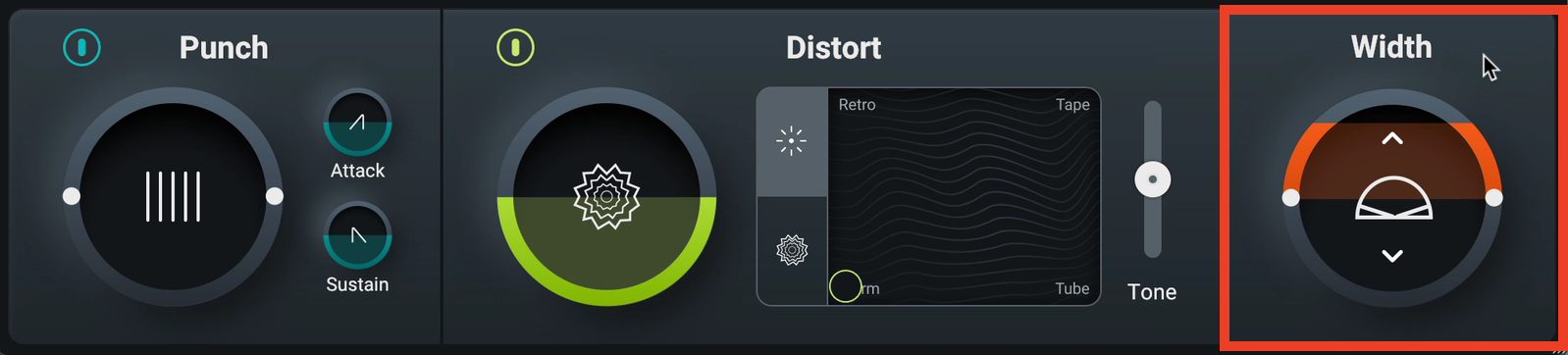
Assistant View has Tone Match, Punch, Distort, and Width controls. We'll return to Tone Match later, so let's start with the other three.
Watch the accompanying video to hear these controls on the actual examples.
Punch
As its name suggests, this control affects the punch of the sound—or, more technically, its transients.

Increasing Amount expands the dynamic contrast and adds punch; decreasing it produces a flatter sound.
Attack and Sustain, to the right, let you refine the response.
Attack sets how quickly the dynamic change specified by Amount begins. Sustain determines how long the Punch effect takes to end.
When Amount Is Above the Center Position (Enhancing Dynamics)
- High Attack (slow): rounder punch
- Low Attack (fast): a sharper onset
- High Sustain (slow): thicker, more sustained punch
- Low Sustain (fast): tighter punch
When Amount Is Below the Center Position (Reducing Dynamics)
- High Attack (slow): less punch while preserving more of the attack
- Low Attack (fast): less punch with more of the attack suppressed
- High Sustain (slow): a more even dynamic response overall
- Low Sustain (fast): suppression focused more narrowly on the attack
Distort
Although this control is called Distort, the aim here is relatively gentle distortion: saturation.
Neutron's Exciter module has offered this kind of processing for some time.
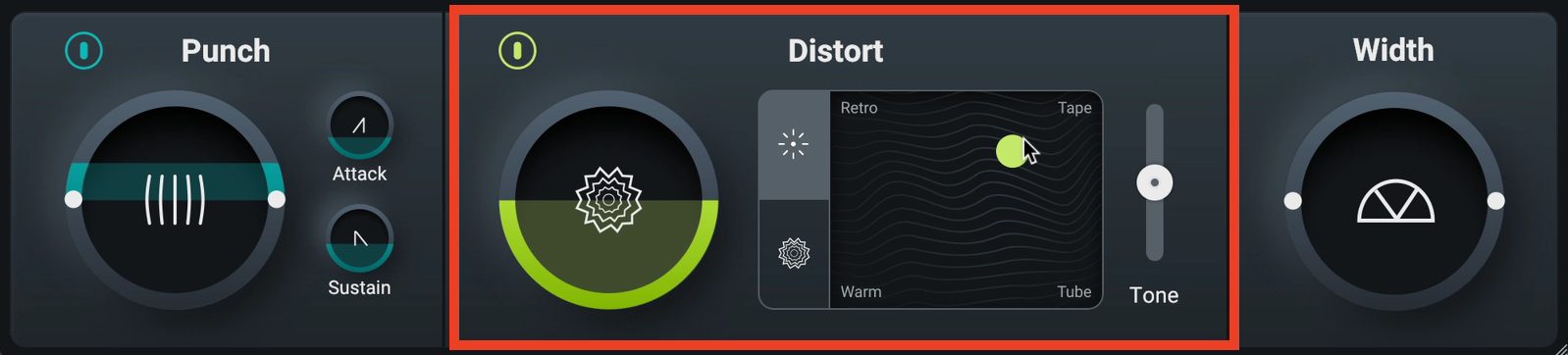
You can blend smoothly between Retro, Tape, Warm, and Tube characters. Rather than overthinking it, explore until you find a sound you like.
Once you've chosen the character, set the strength with Amount and adjust the emphasis of the high or low frequencies with Tone.
Width
This control narrows or widens the stereo image. It's quite sensitive, so even a small adjustment can make a large difference.
Reducing Masking with the New Unmask Module
Next, let's use the new Unmask module to reduce overlap between tracks, known as masking.
Switch to Detail View and add Unmask with the plus button.
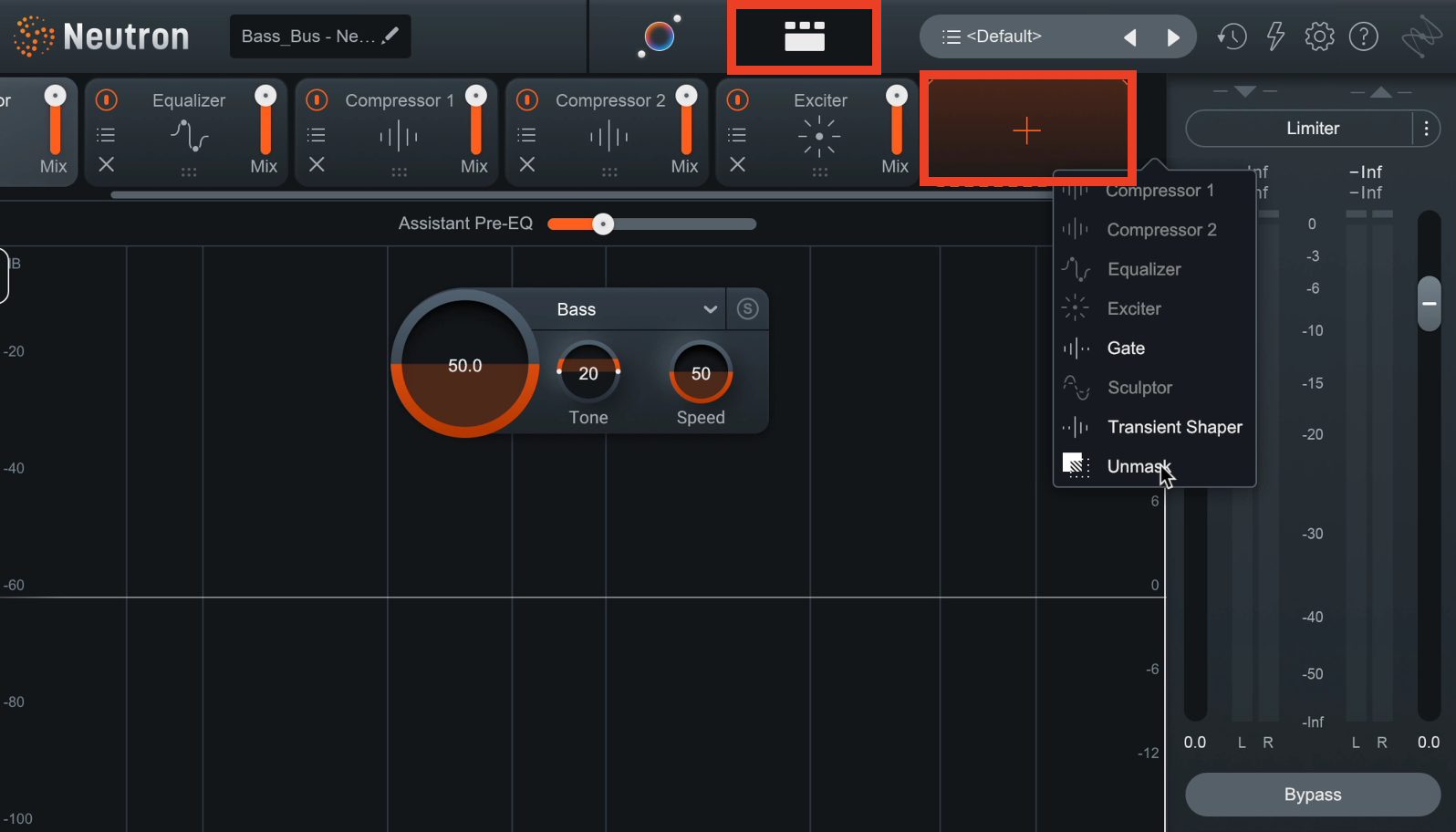
Unmask requires a sidechain input. The setup varies by DAW; refer to the linked articles below.

Once the routing is ready, listen as you adjust the parameters. Thinking of it as similar to a multiband sidechain compressor can help explain the interaction.
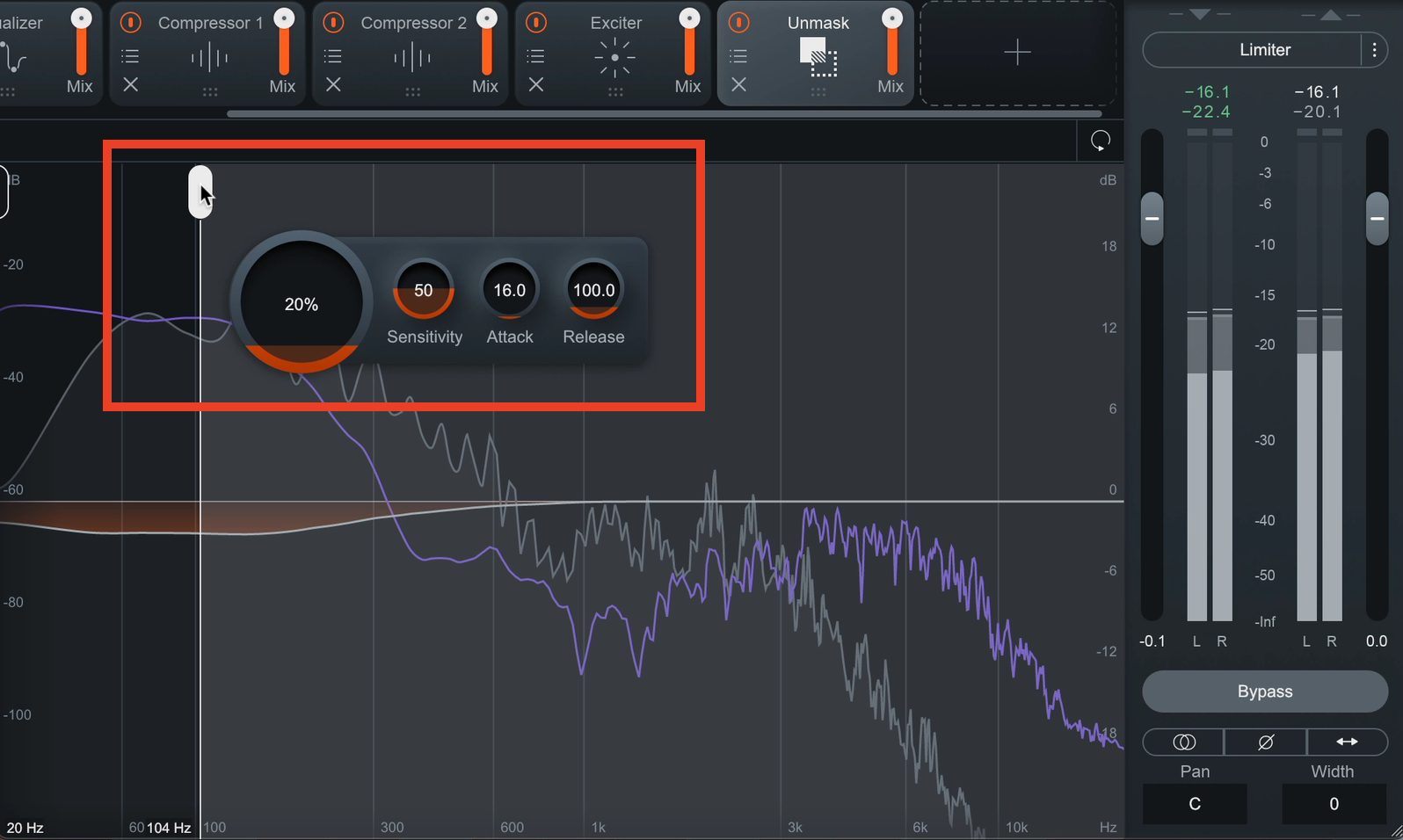
Use the Range Selectors to choose the frequency range to process. Attack sets the response speed, and Release sets how quickly it returns. Sensitivity is comparable to a threshold in this explanation: it determines how strongly the source triggers the processing.
Once these values are set, use Amount to adjust the strength of the effect.
Getting Closer to a Reference Sound with Tone Match
Tone Match lets you choose a reference sound for each track and move the processing toward it.
The automatic Assistant already selects a default target instrument and adjusts toward that target. You can also import your own sound to use as a reference.
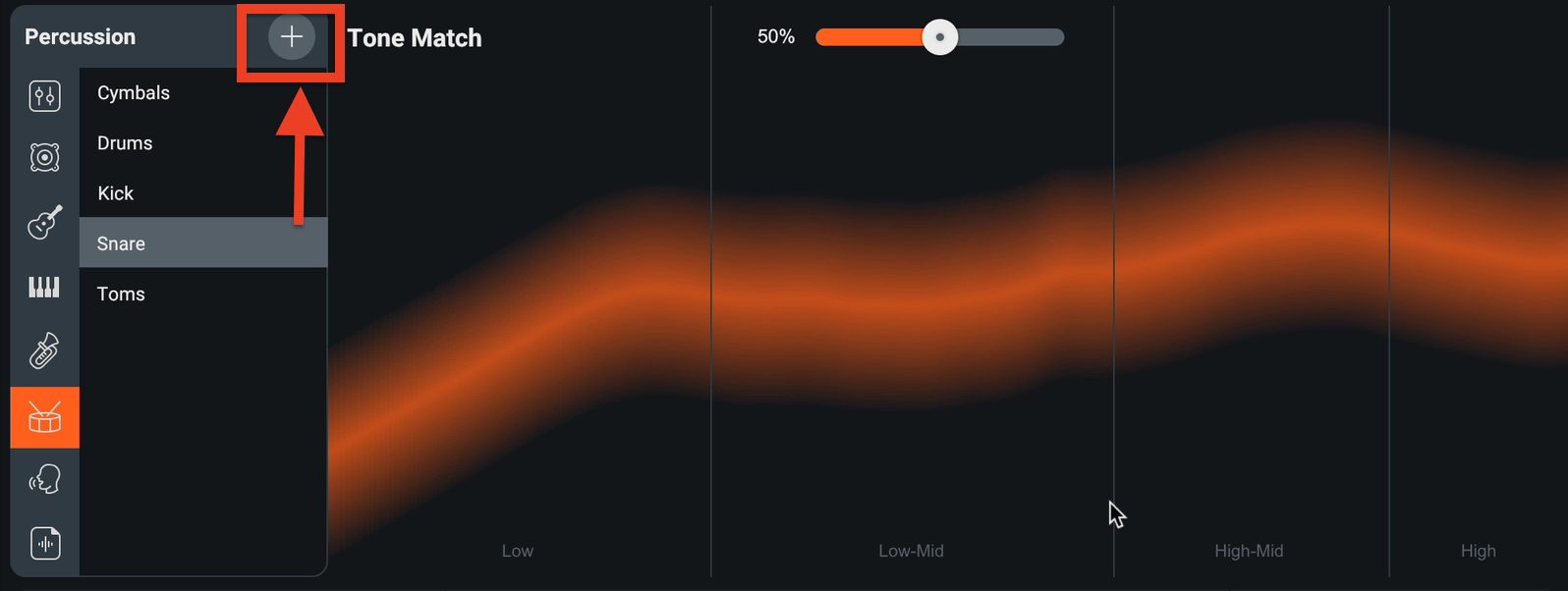
Press the plus button in the target library and choose the audio you want to use as a reference.
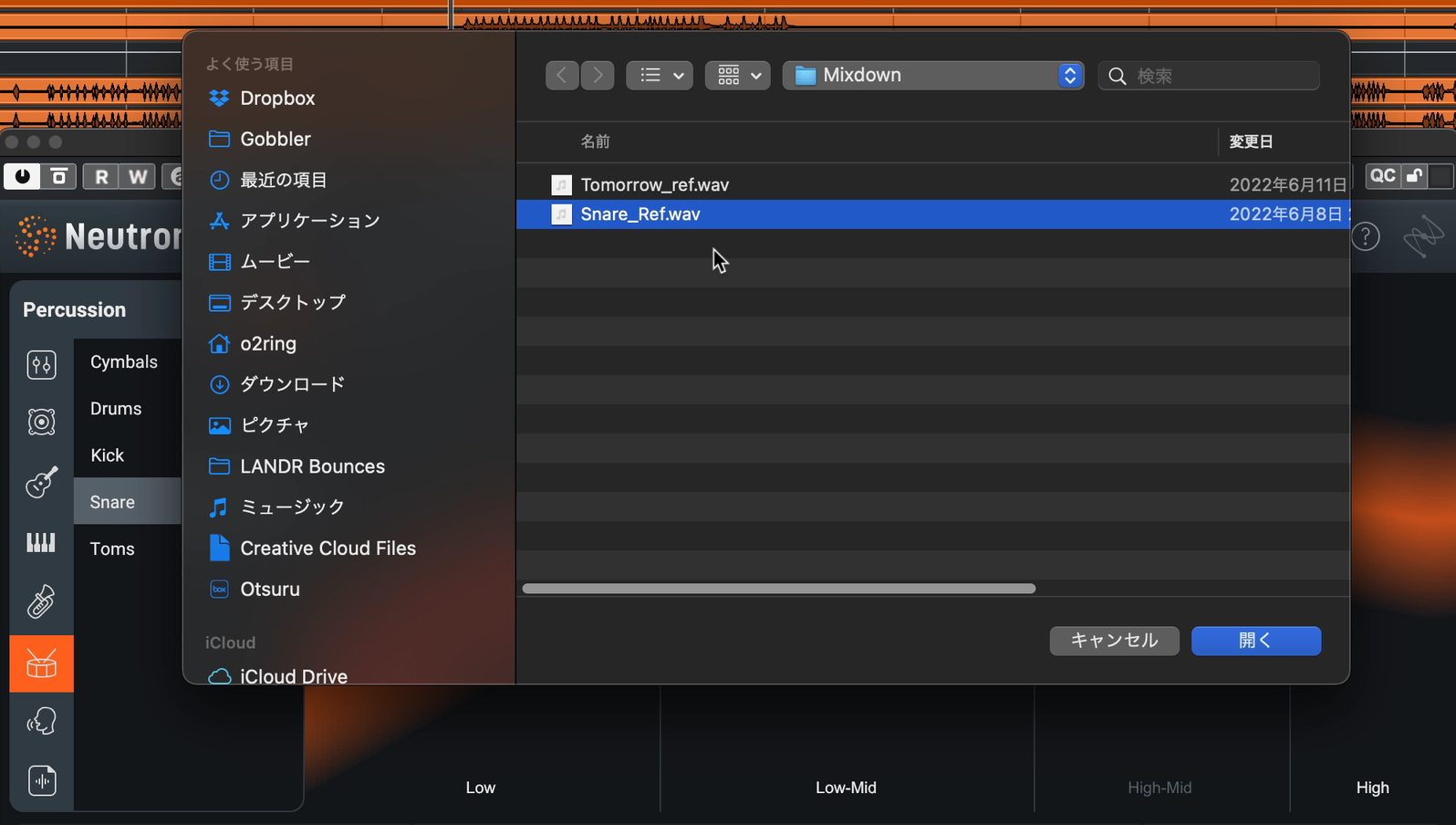
Once it finishes loading, the Tone Match shape changes.
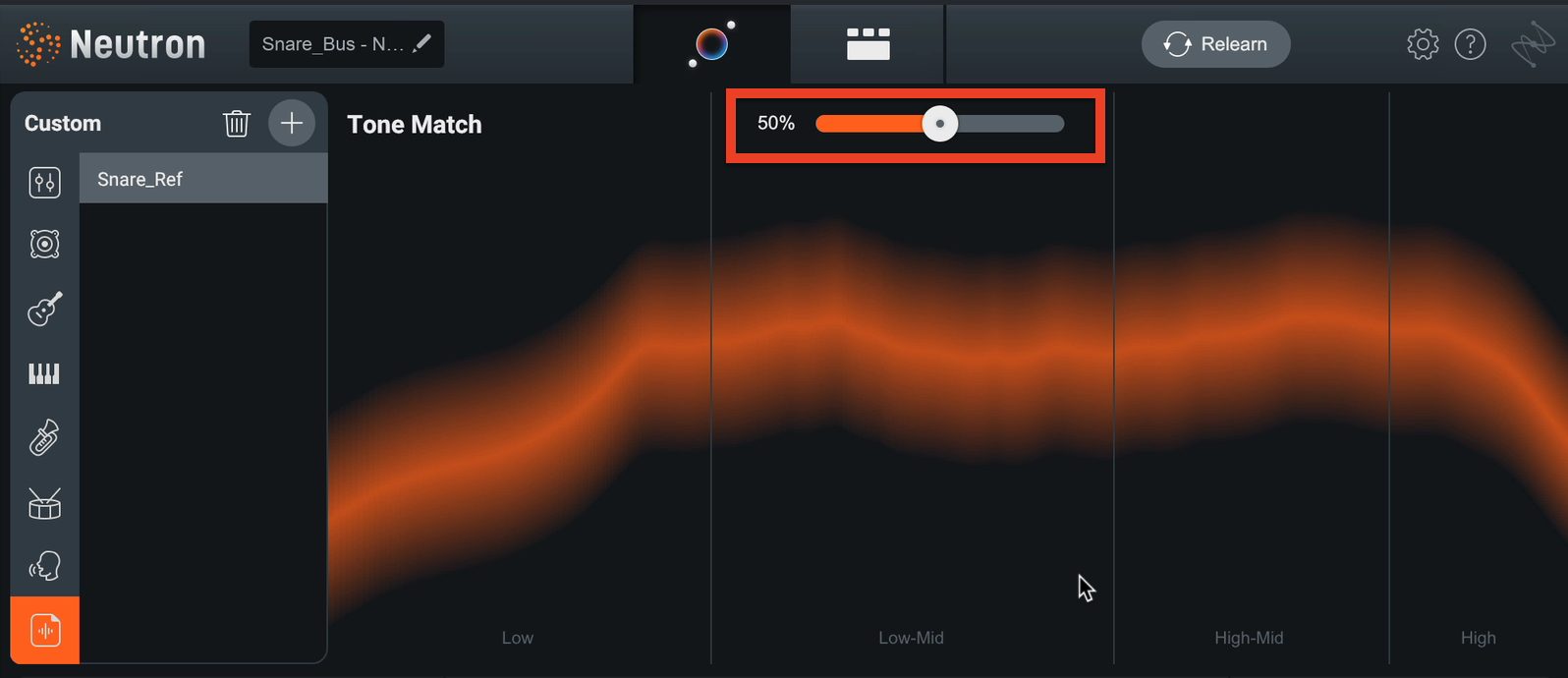
This isn't simply an EQ curve: it corresponds to a target for Neutron's Sculptor processing.
Sculptor combines adjustments to elements such as spectrum and dynamics to move the sound toward a target.
Use the percentage slider above it to adjust how strongly to match the reference.
New Distortion Inspired by Trash
Finally, let's explore the more intense distortion newly added from Trash.
To use it, click the Trash mode button in Assistant View's Distort section.
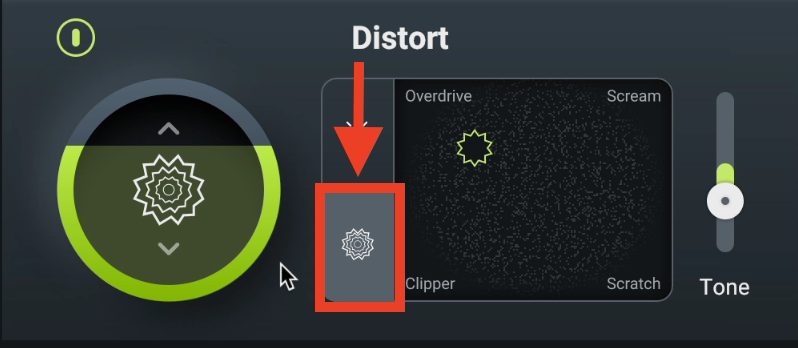
The distortion characters change to Overdrive, Scream, Clipper, and Scratch.
These are generally stronger and more aggressive than the default Classic mode. In this review, the sound still feels pleasantly analog-like rather than simply broken up.
Besides creative sound design, applying it to a drum room-mic track, for example, can add a useful sense of space and definition.
Let's hear how far we've refined the mix with the automatic Assistant, Assistant View adjustments, Unmask in Detail View, and a few EQ tweaks.
Original Mix — Bypassed
Neutron 4 — Automatic Assistant
Neutron 4 — Refined Mix
It fits the song better and sounds more polished. Further work such as automation could take it considerably further.
That concludes our look at the improvements in Neutron 4.
If you found Neutron 3 useful, these additions could make your workflow more efficient. Try it if it interests you.
Testing iZotope Neutron 4, the AI-Assisted Mixing Suite!
Neutron is popular with many music producers. This time, we explore its further-enhanced features.Details: https://t.co/fLLG4Qq3Ev #MusicProduction #ArtificialIntelligence #AI pic.twitter.com/29bzJFbW3r
— SLEEP FREAKS (@SLEEPFREAKS_DTM) June 25, 2022
Frequently Asked Questions
Q1. Has Neutron 4's automatic Assistant improved over the previous version?
It no longer requires the preliminary settings used in Neutron 3. In this comparison, Neutron 4 sounds somewhat brighter and more forward, which the review associates with contemporary production. The suggestion that this reflects further AI learning is the review's interpretation, rather than a measured finding about the training process.
Q2. Who is Assistant View useful for?
Its intuitive controls are particularly useful for beginners with limited knowledge of effects and for anyone short on mixing time. It offers a more immediate way to shape sounds than working directly in Detail View.
Q3. What does Unmask do?
Unmask reduces masking between tracks. Its behavior can be understood by analogy with multiband sidechain compression: you can select a frequency range and reduce interference in that range.
Q4. Who can benefit from Neutron 4?
A wide range of users, including beginners and intermediate producers, can benefit from its automation and sound-shaping tools. It can save time and help refine mixes in both home and professional studios, although the final result still depends on the material and your adjustments.
NEW ARTICLES
Latest English Articles














































































































