
Arturia KeyLab MkII offers features that can greatly improve music production, including drum programming with pads, integration with the bundled Analog Lab synthesizer, and DAW mixer control. Its velocity- and aftertouch-sensitive pads support expressive rhythms, while Analog Lab’s library of more than 6,500 presets can be controlled intuitively with faders and rotary encoders. Automation records parameter movements, and layering two presets opens up further sound-design possibilities. DAW mode lets you control up to eight tracks at once for an efficient, professional production workflow.
Practical Controls for Better Music Production
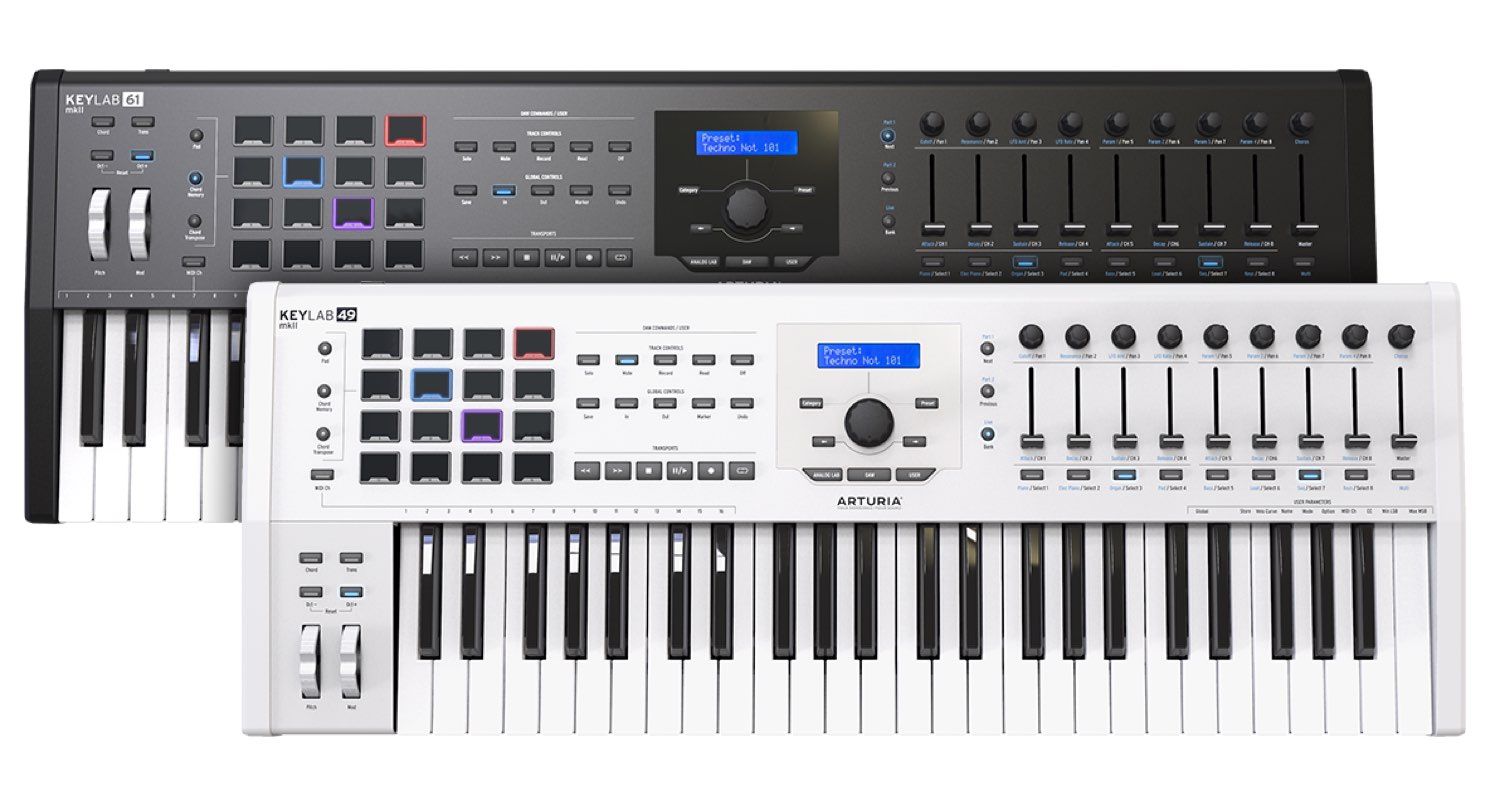
Following our look at transpose and chord memory in the previous tutorial, let’s explore more of Arturia KeyLab MkII’s useful features.
- Program rhythms with pads that faithfully respond to velocity.
- Integrate with Analog Lab, a bundled synthesizer with an impressively capable sound library.
- Control mixing in your DAW, and more.
KeyLab MkII is packed with features that can make a substantial contribution to the quality of your music.
Let’s take a closer look.
Pad Performance, Analog Lab Integration, and DAW Mixer Control
- 1DAW Integration, Transpose, and Chord Functions
- 2Pads, Analog Lab Integration, and DAW Mixer Control
- 3Customizing Your MIDI Controller: MIDI Control Center
Visit the Product Page | Japan inquiries: Korg / KID Customer Support. Tel: 0570-666-569
Selected Questions and Answers from YouTube

I’m interested in this product, but Arturia doesn’t support SONAR, does it? Would switching DAWs be the quickest solution?

We have not tested this, but SONAR was not listed among the supported DAWs at the time of this tutorial. To use these features, you would need a supported DAW.
Programming Drums in Pad Mode
In the previous tutorial, we covered Chord Memory and Chord Transpose using the pads.
Now let’s look at playing MIDI notes in the remaining mode: PAD.
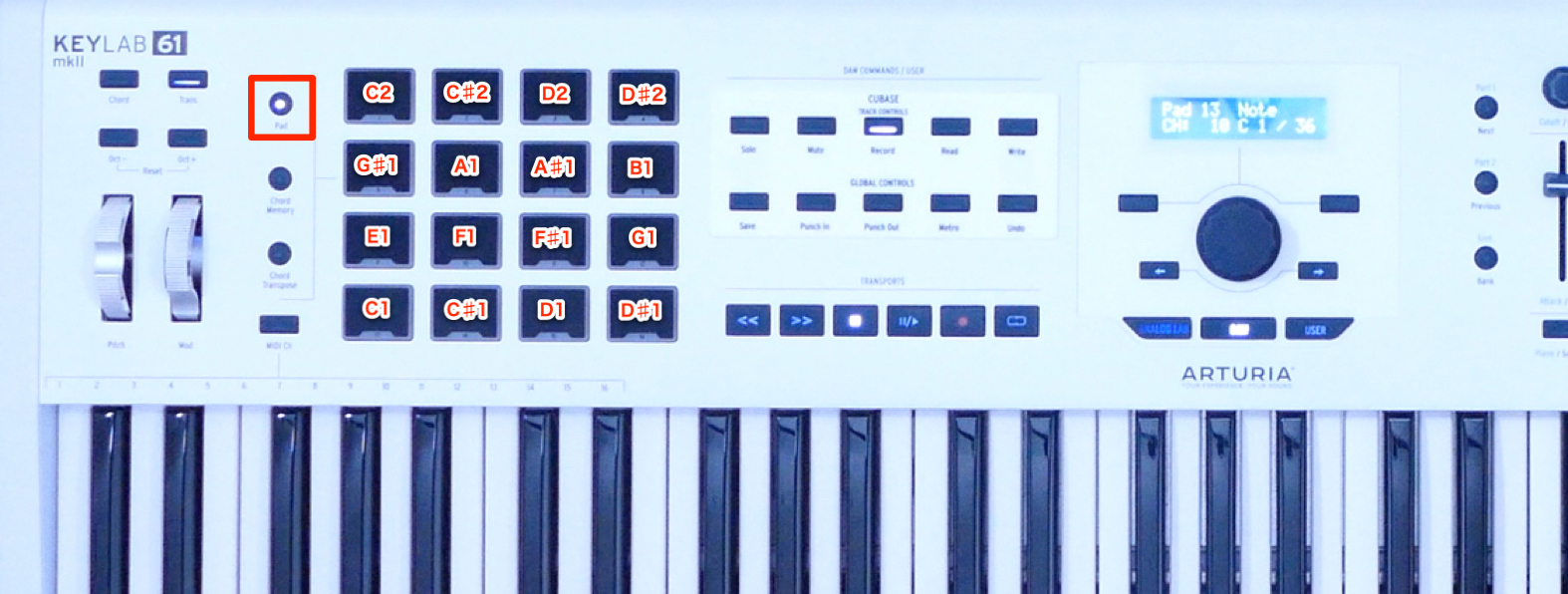
Use the mode button to switch to PAD.
This lets you play MIDI notes from each pad.
C1 is assigned to the bottom-left pad, with the remaining pads assigned notes in ascending semitone steps.
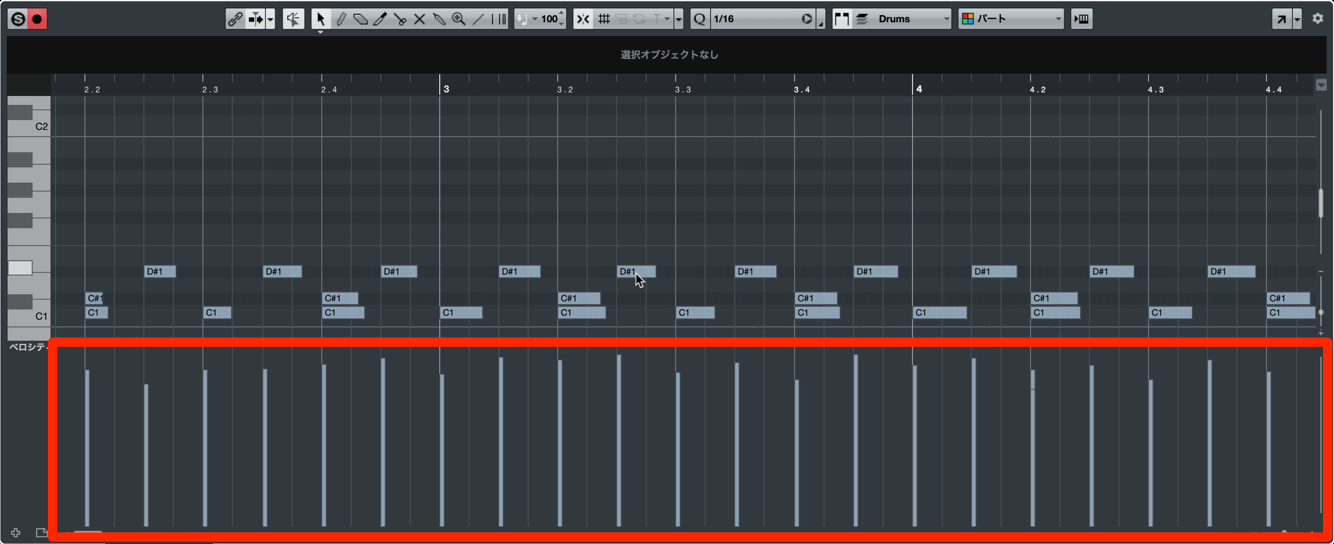
Like the keys, each pad supports velocity and aftertouch.
Load a drum instrument included with your DAW or a third-party instrument, and assign kit sounds to the appropriate notes. The pads are useful for programming percussion tracks that faithfully capture the nuances of your performance.
You can also customize the MIDI note assigned to each pad.
This makes the pads even more versatile, allowing you to match their note assignments to the instrument.
Integrating with Analog Lab
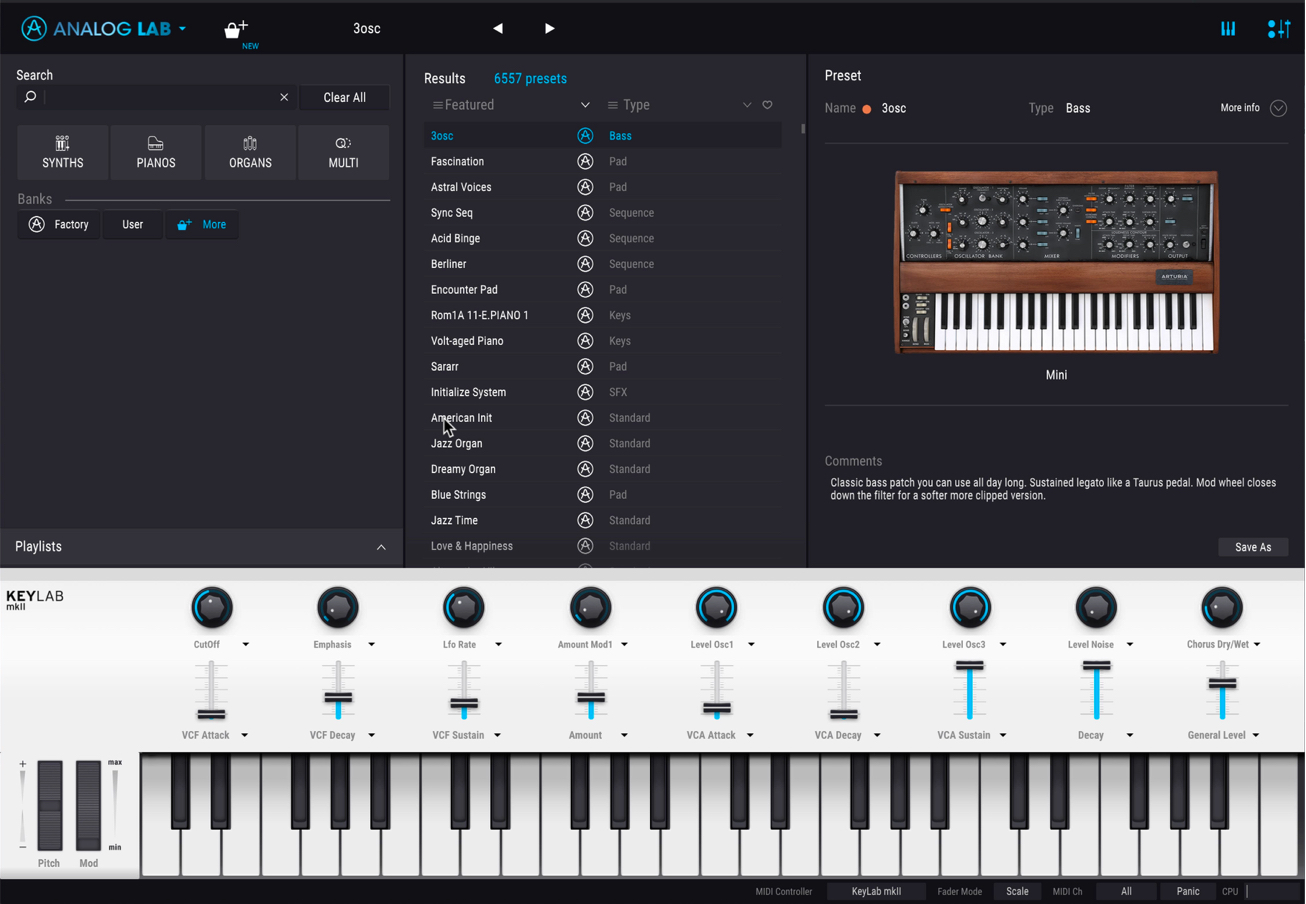
KeyLab MkII includes Analog Lab, which models legendary hardware synthesizers.
More than 6,500 sound presets are available, ready to use in your songs.
KeyLab MkII integrates closely with Analog Lab, letting you select presets and control assigned parameters directly from the hardware.
Controlling Analog Lab
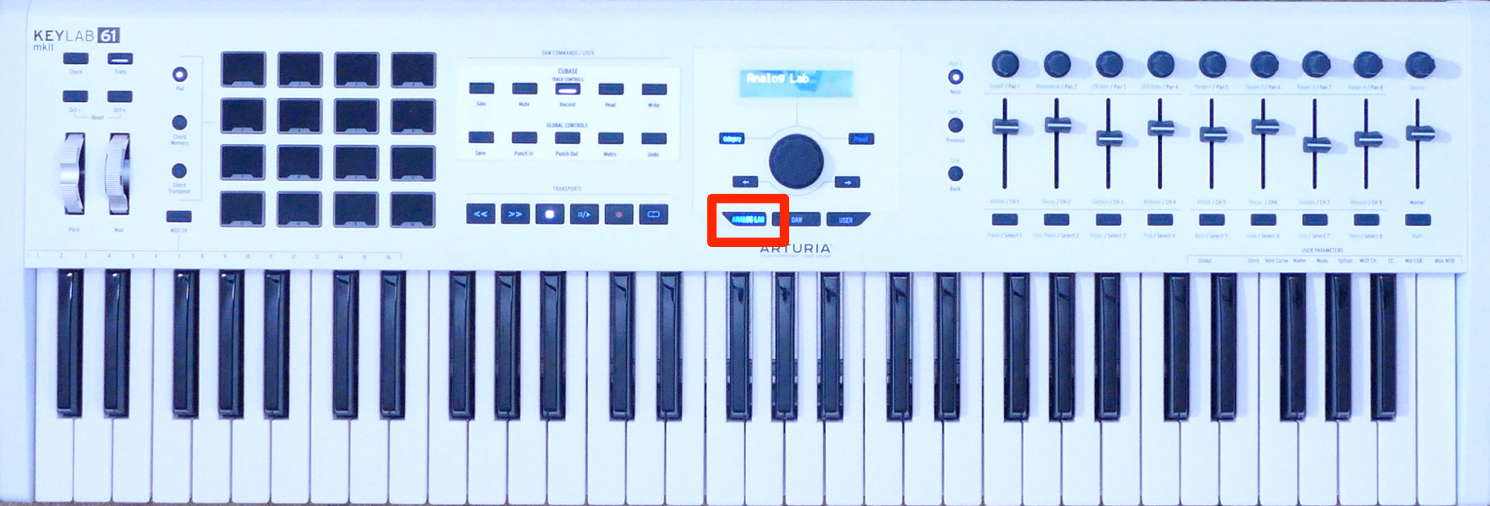
Open Analog Lab in your DAW.
Then simply press the ANALOG LAB button to switch modes.

Press Category and turn the dial.
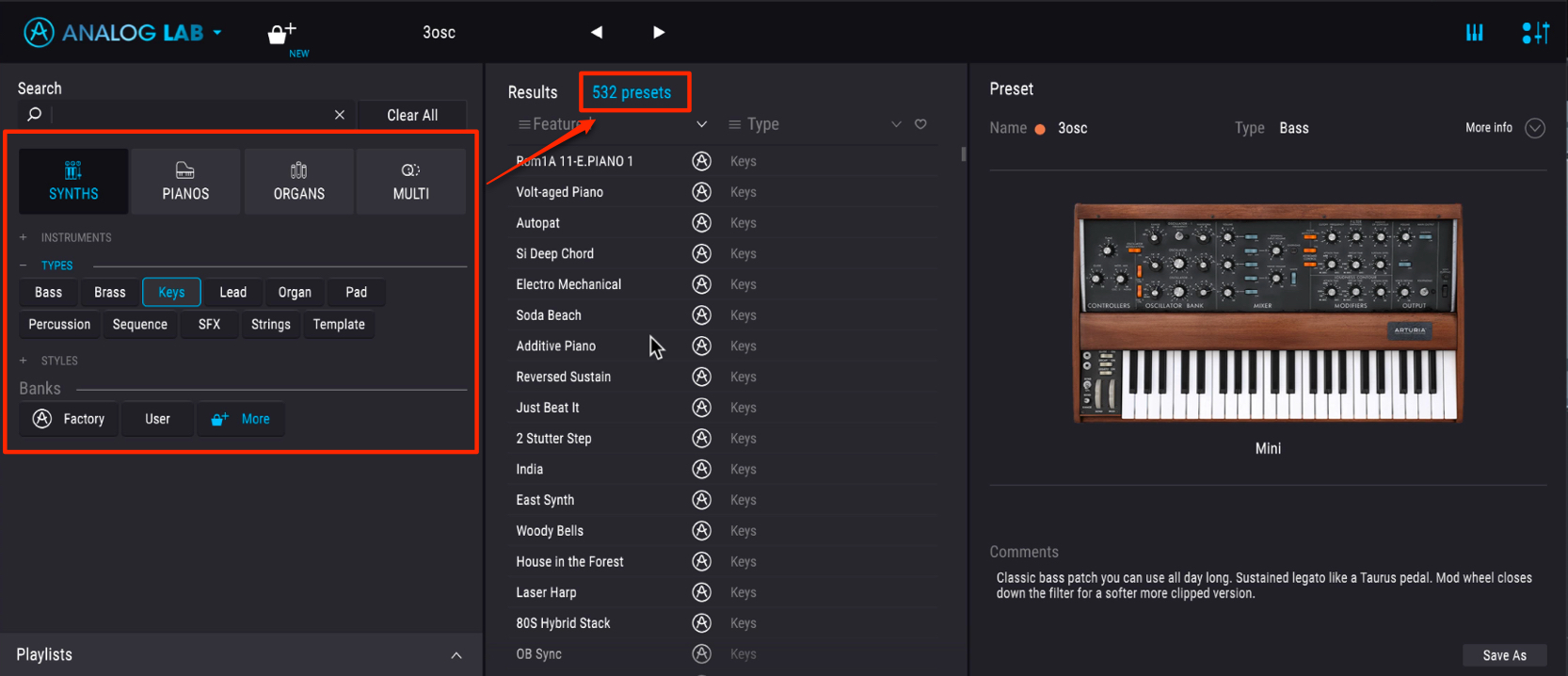
This changes the selected sound type.
Once you have selected an item, press the dial to confirm the sound type.
The preset list is filtered to match your selection.
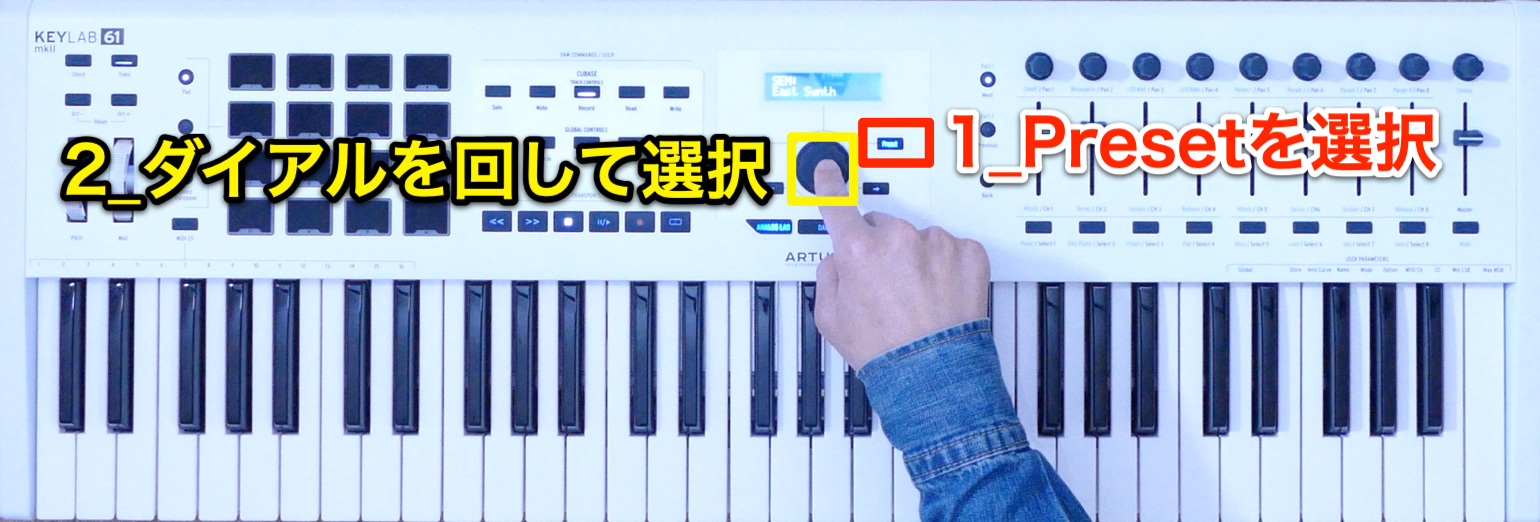
Press Preset to move to the preset section, then turn the dial to select a preset.
As with Category, press the dial to load your selection.

The arrows on either side of the dial select and load a preset in a single action.
This is useful when looping a phrase in your DAW and choosing a sound by listening.
Favorites and Saving Presets
Analog Lab contains a huge library of more than 6,500 presets.
When you find a preset you like, mark it as a favorite so you can find it again easily.
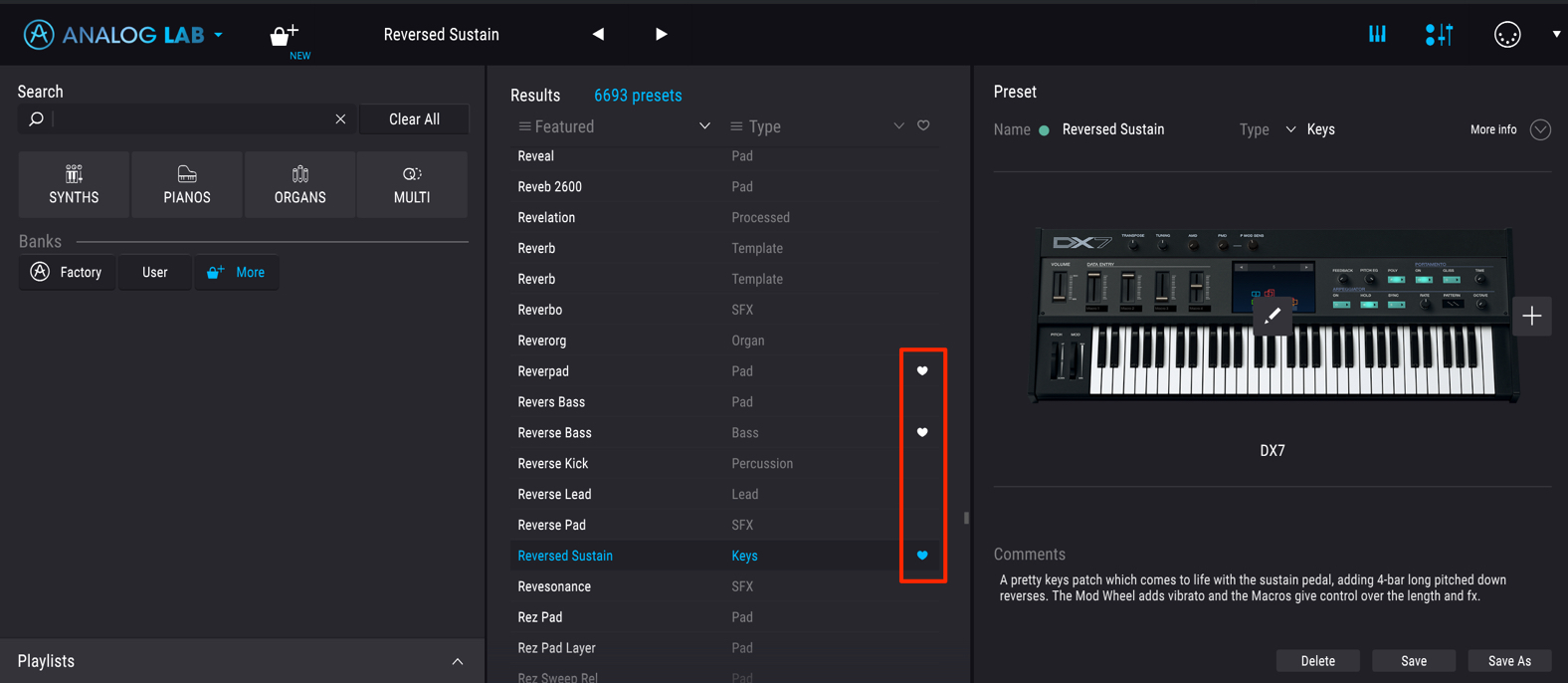
Click the heart icon to add the preset to your favorites.
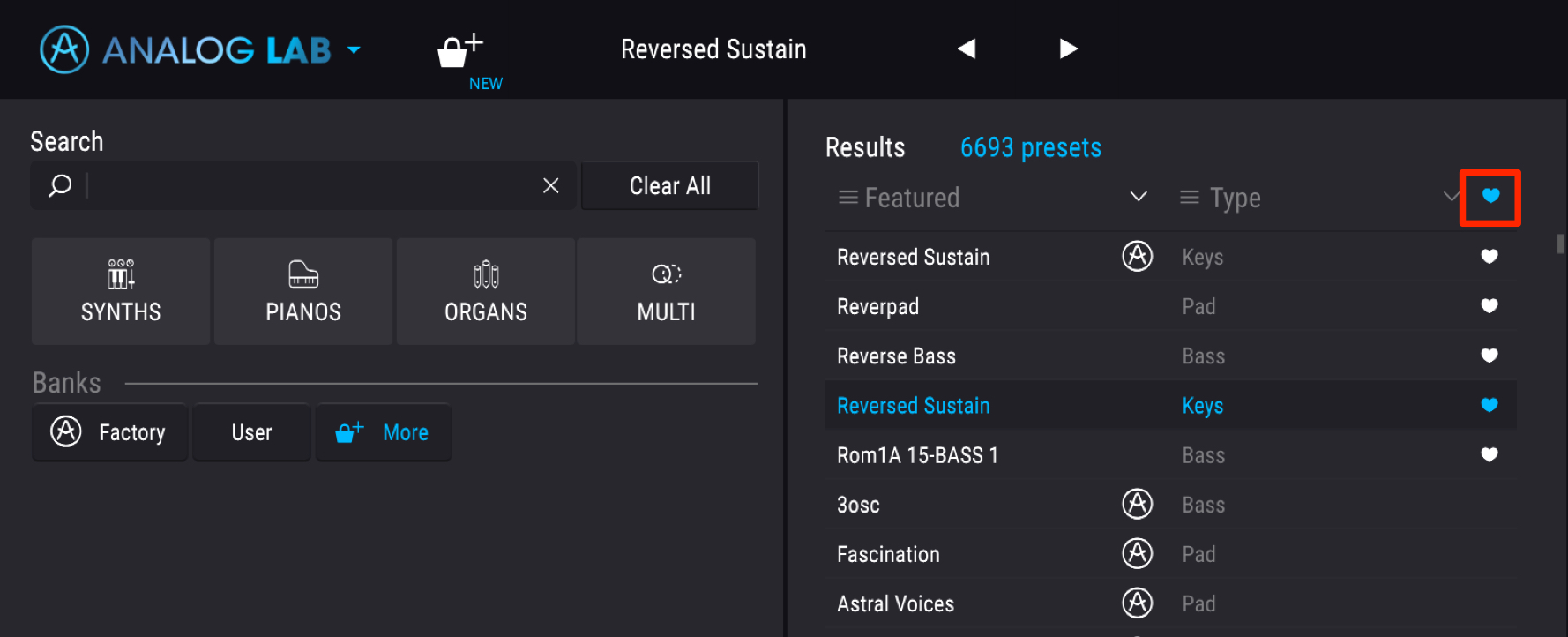
Clicking the heart icon at the top gives priority to the presets you have marked as favorites.
You can also save a preset after editing it.
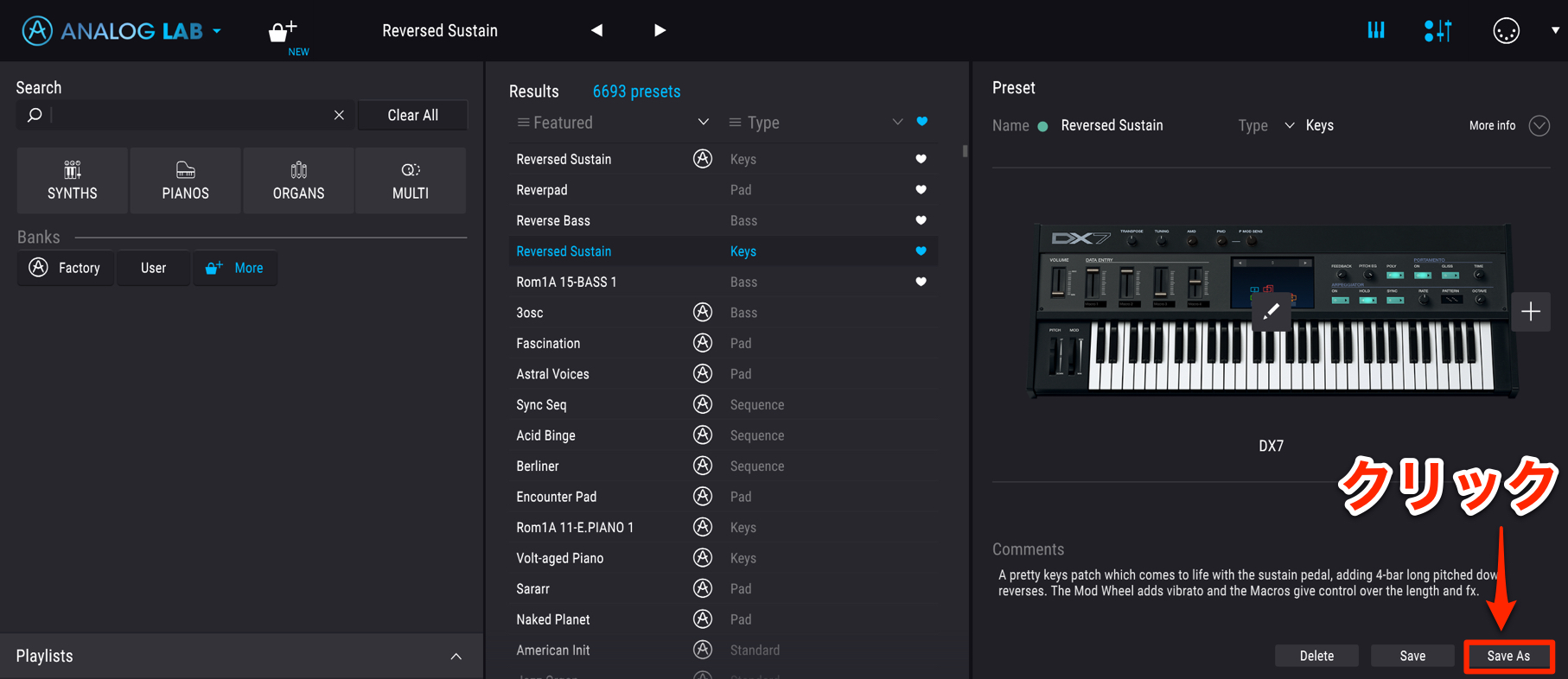
Click Save As.
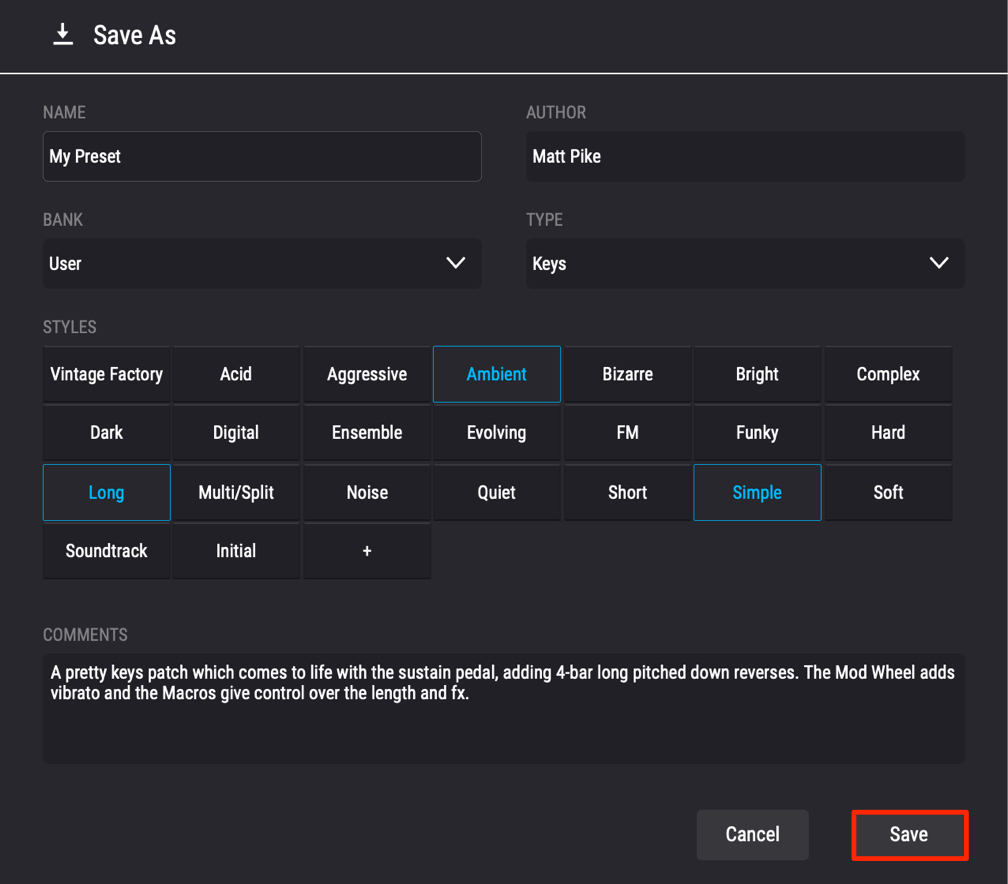
In the dialog that opens, enter a name, select a category, and save.
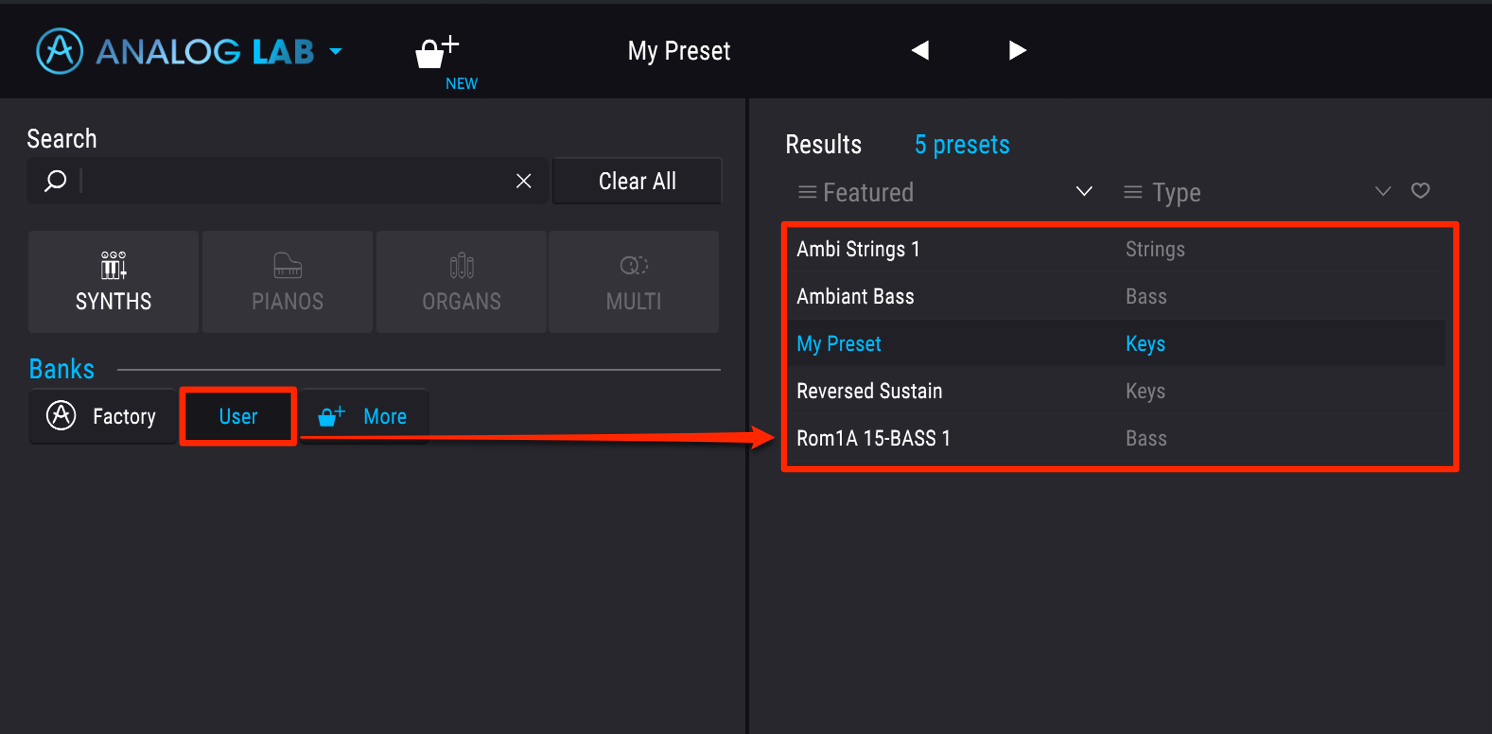
Your saved custom preset will appear under User the next time you need it.
Analog Lab’s basic workflow is to shape sounds from its included presets.
For detailed editing inside each synthesizer, we recommend the separately sold V Collection.
This gives you access to the individual synthesizers and control over all their parameters.
We also have articles and videos about V Collection to help you consider a purchase.
Controlling Parameters and Recording Automation
Each preset’s main parameters are linked to KeyLab MkII’s faders and rotary encoders.
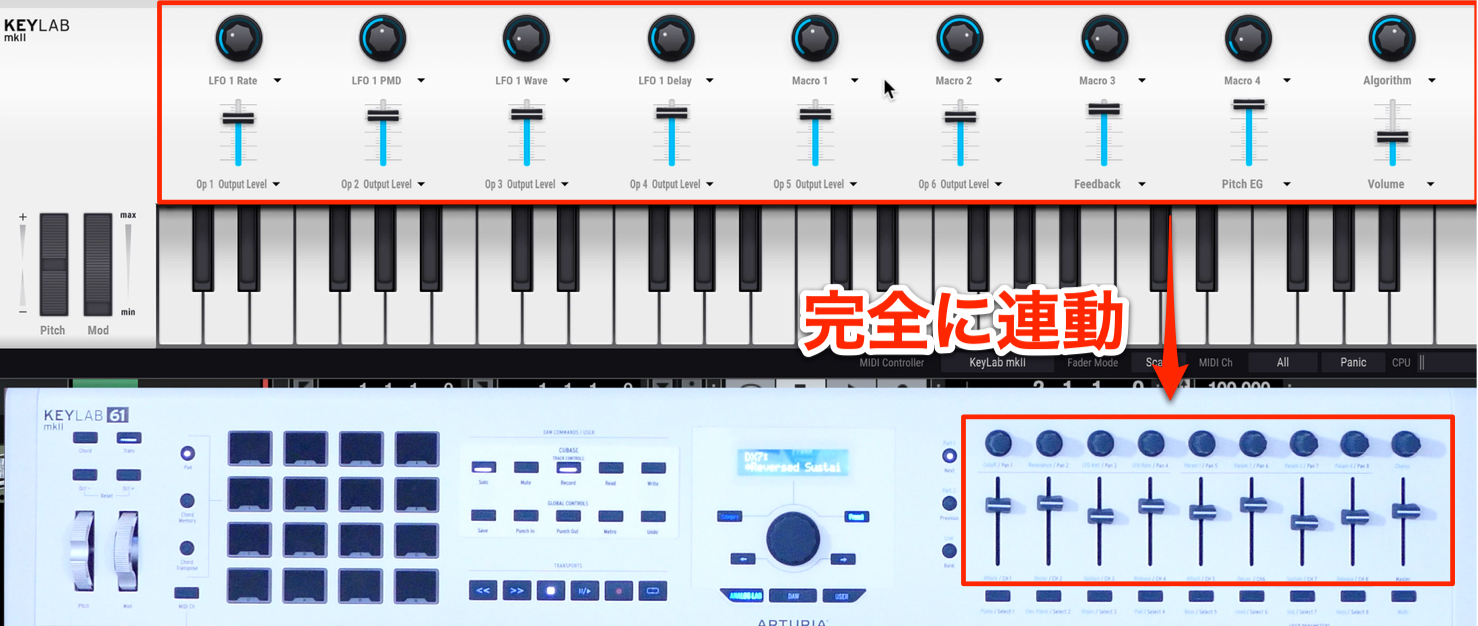
This makes parameter adjustment quick and intuitive.
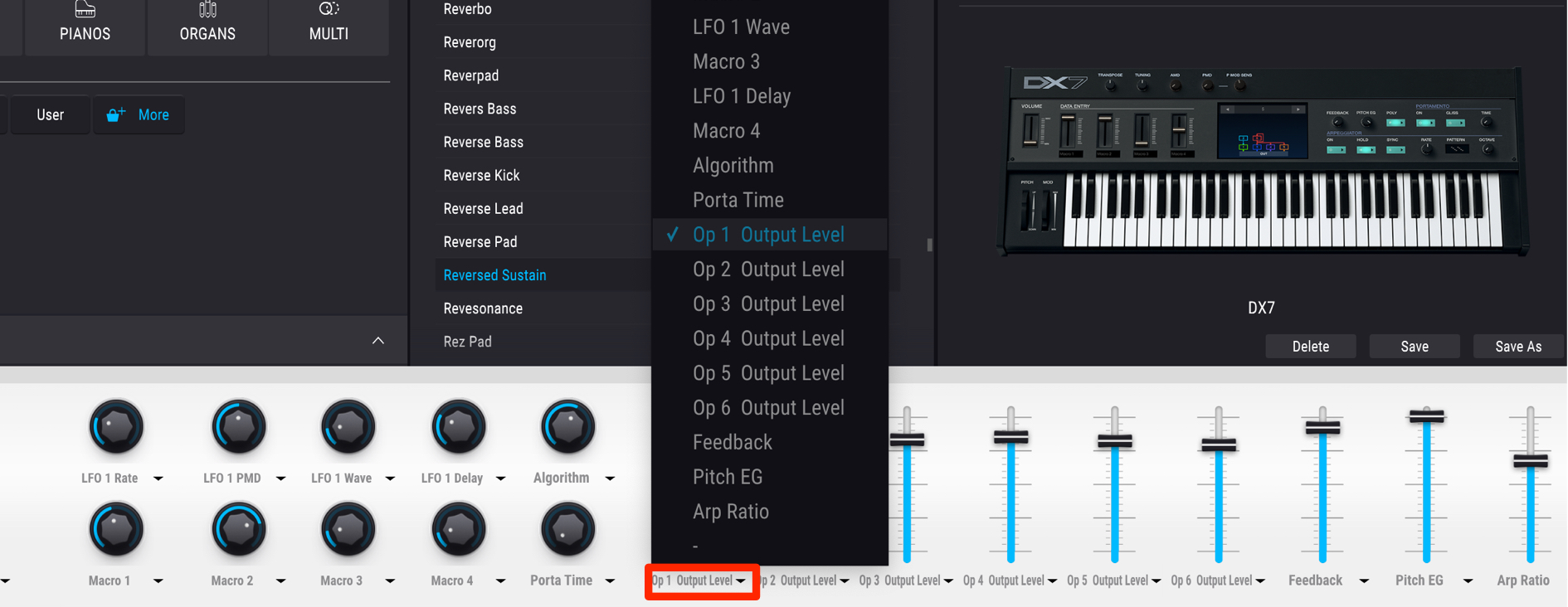
You can also change an assignment: simply select a parameter below the controller you want to use.
You may want to move these parameters during a song and record those movements.
This is called automation.
Using Automation in Each DAW

 Logic
Logic GarageBand
 Cubase
 Ableton Live
 Studio One
 FL Studio
The system is designed to let you record automation immediately, without any special setup.
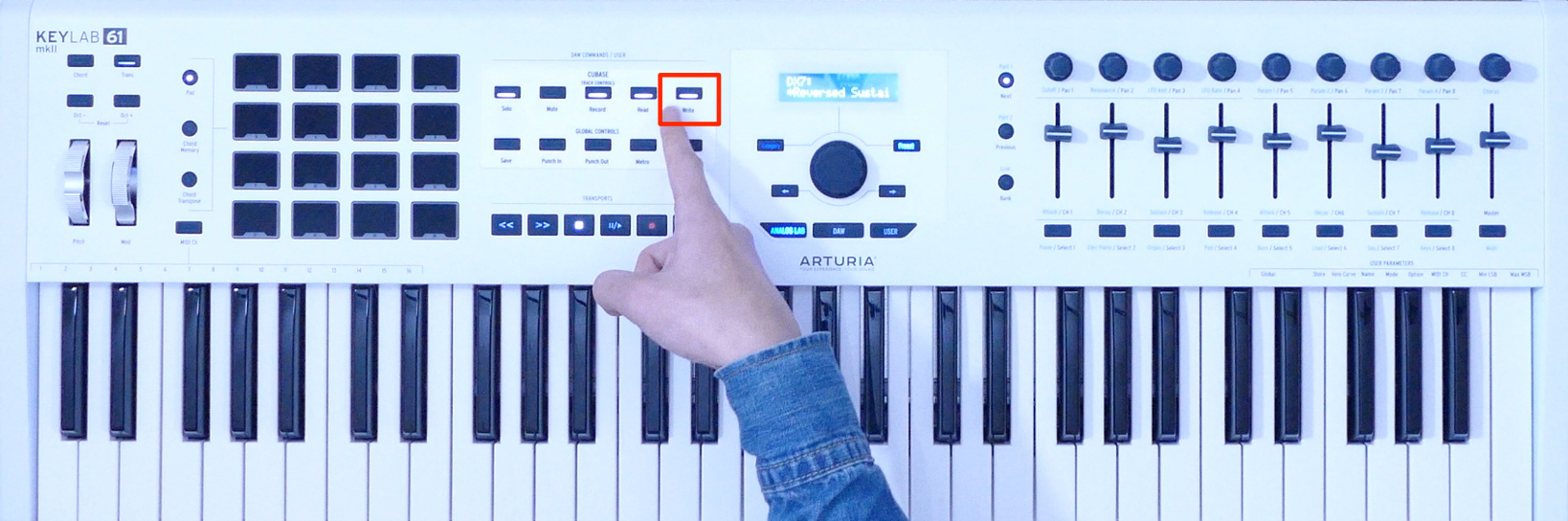
Select the desired track and press Write.
The track is now ready to write automation.
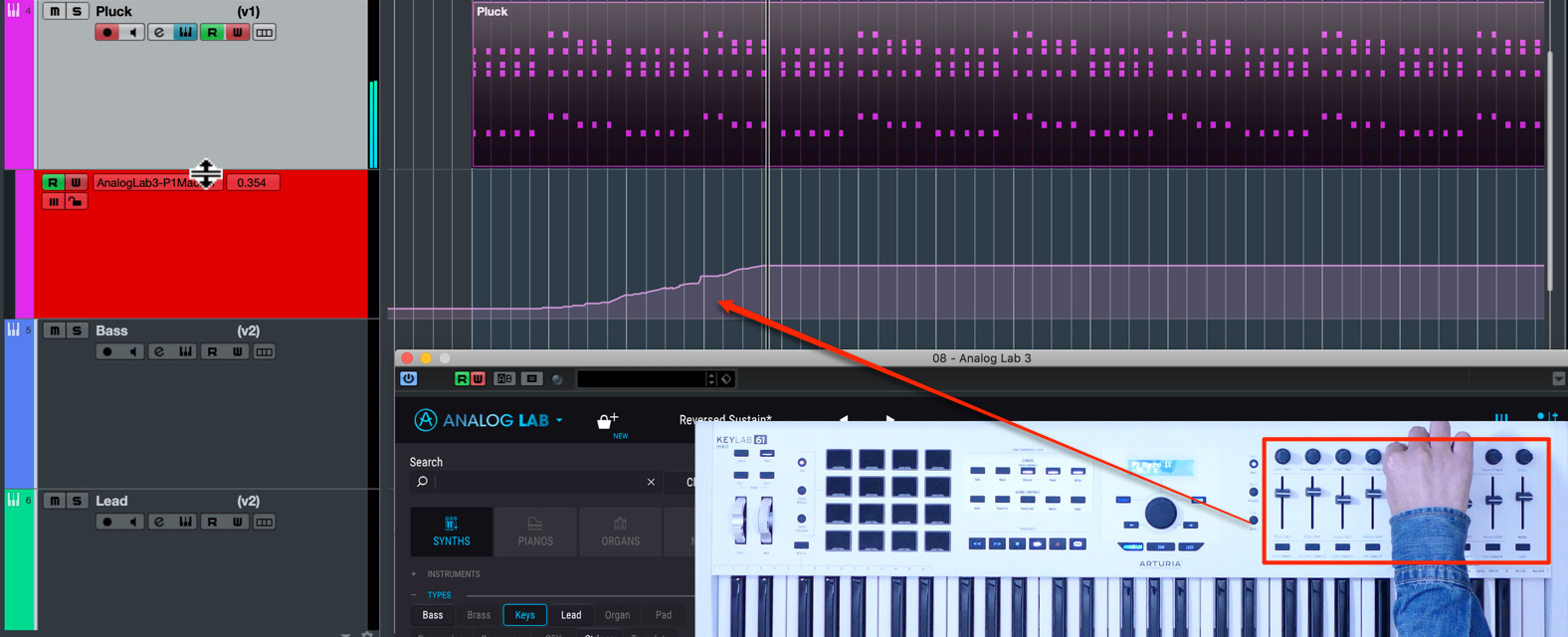
Then play the song and move the parameter you want to automate.
The parameter movements are recorded and reproduced automatically on subsequent playback.
You can record automation for multiple parameters in the same way.
When you finish recording, press Write to disable automation recording so that accidental movements are not recorded.
Layering Presets
Analog Lab lets you layer two presets.
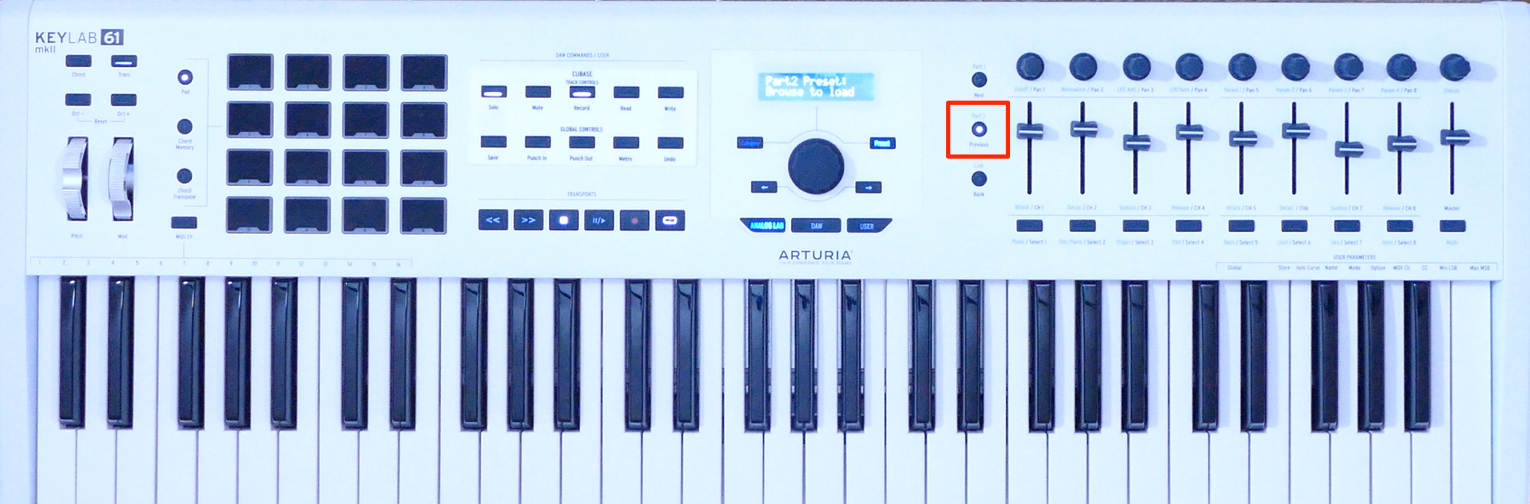
Press Part 2.
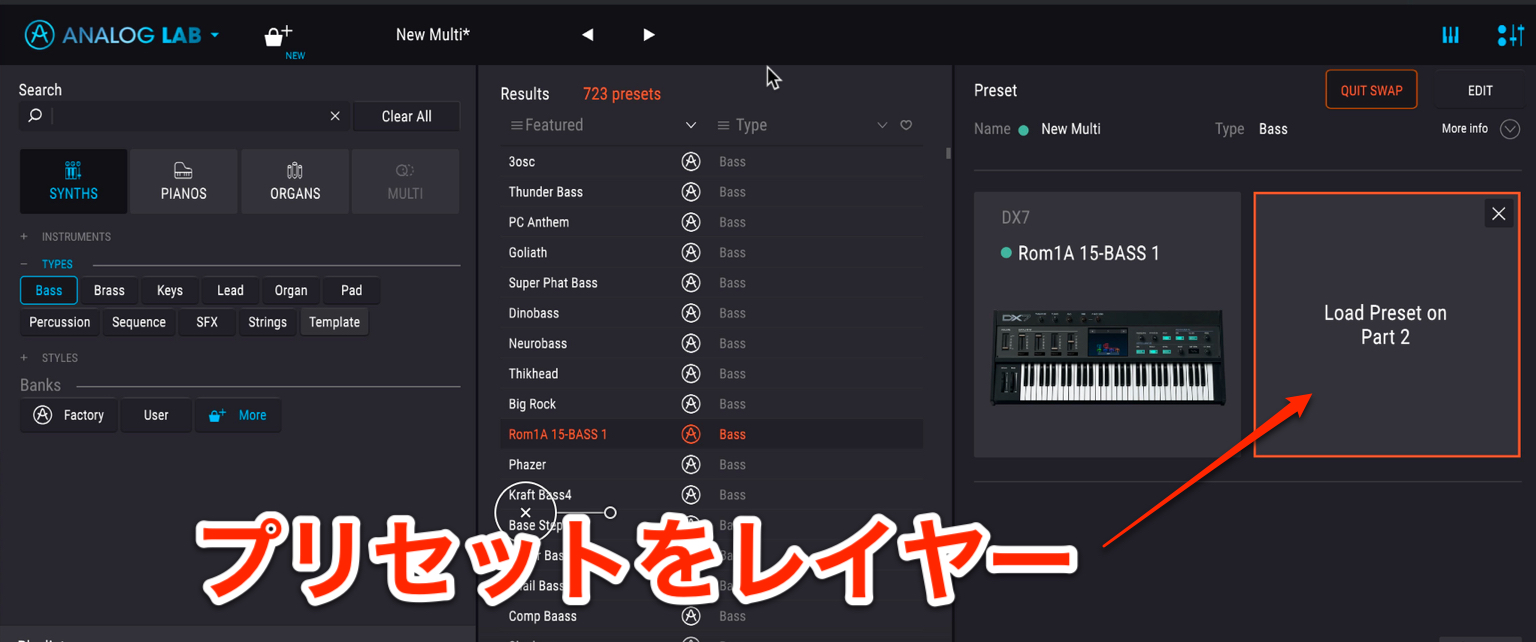
You can now choose an additional preset using the same procedure as before.
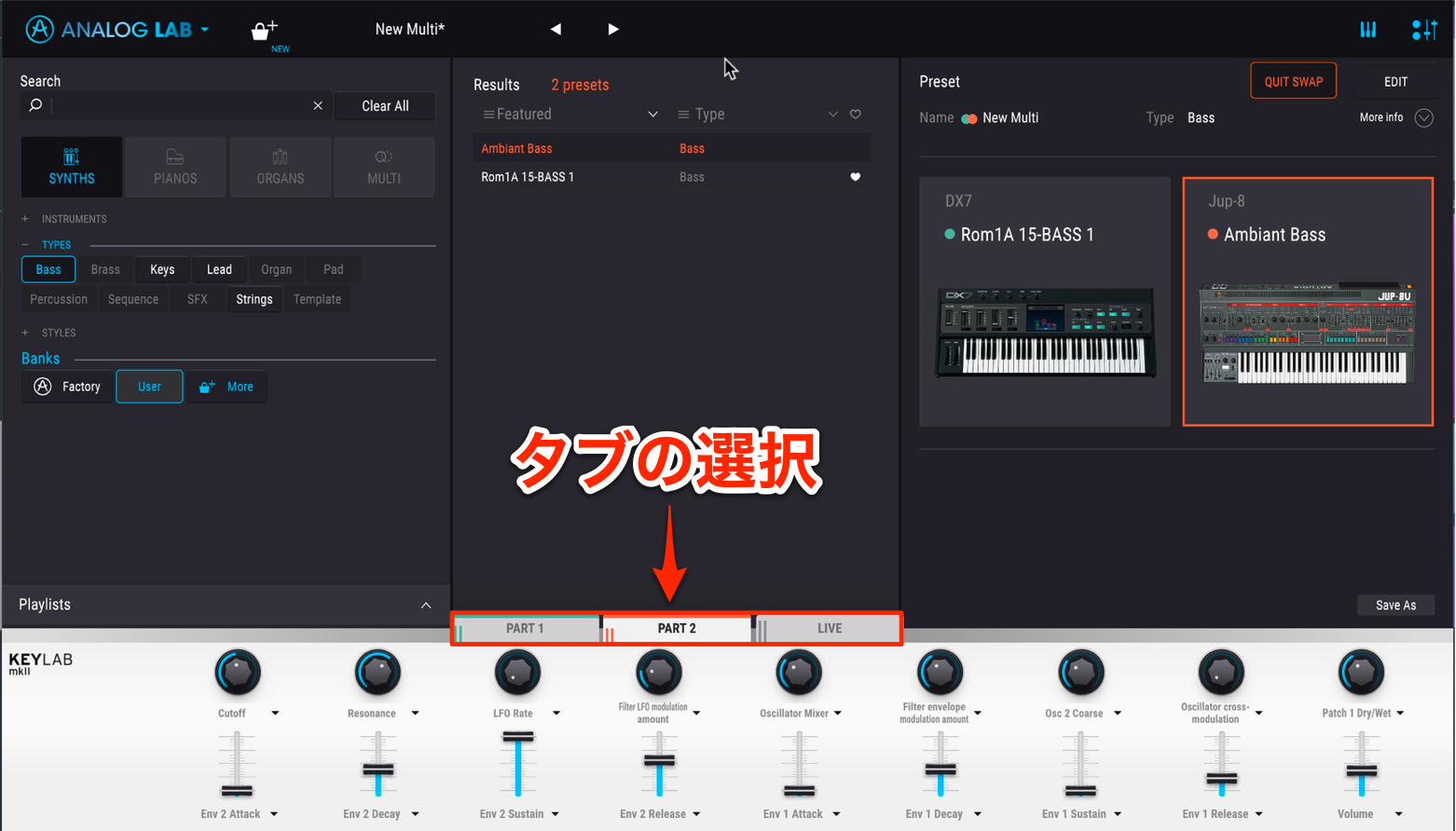
Switching between Part 1 and Part 2 changes which part the faders and rotary encoders control.
Live provides overall sound controls, including the volume balance between the two presets.
This greatly expands your sound-editing options.
Faders and Rotary Encoders in DAW Mode
So far, we have looked at how the faders and rotary encoders work in Analog Lab mode.
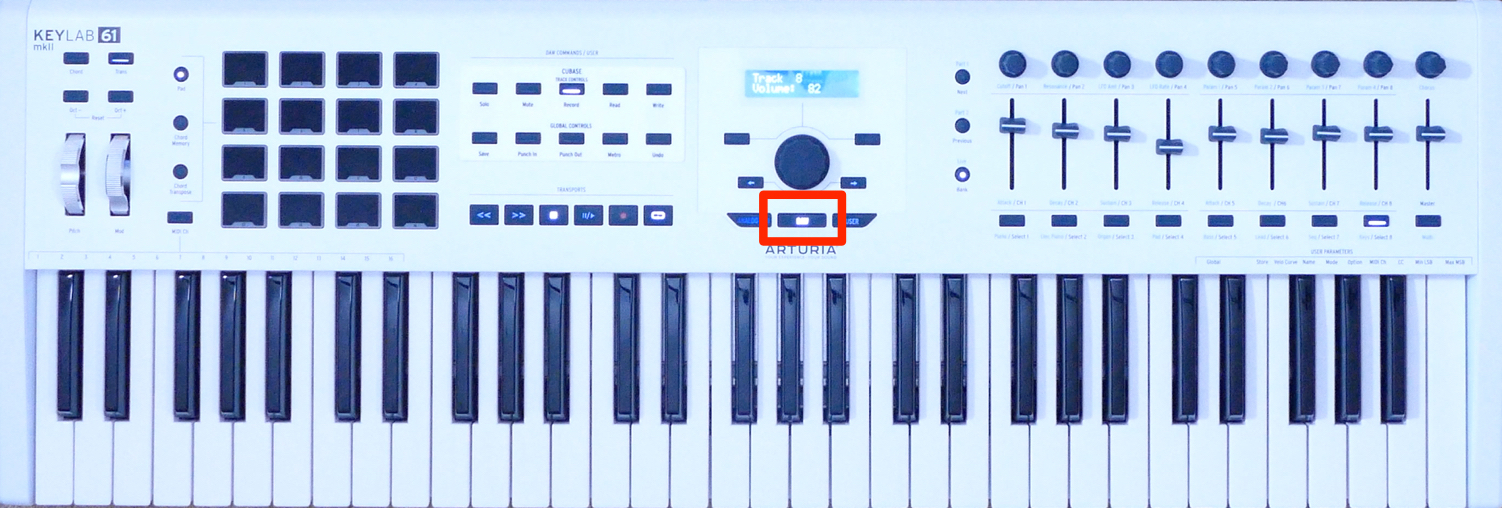
Switch to DAW mode to control tracks in your DAW.
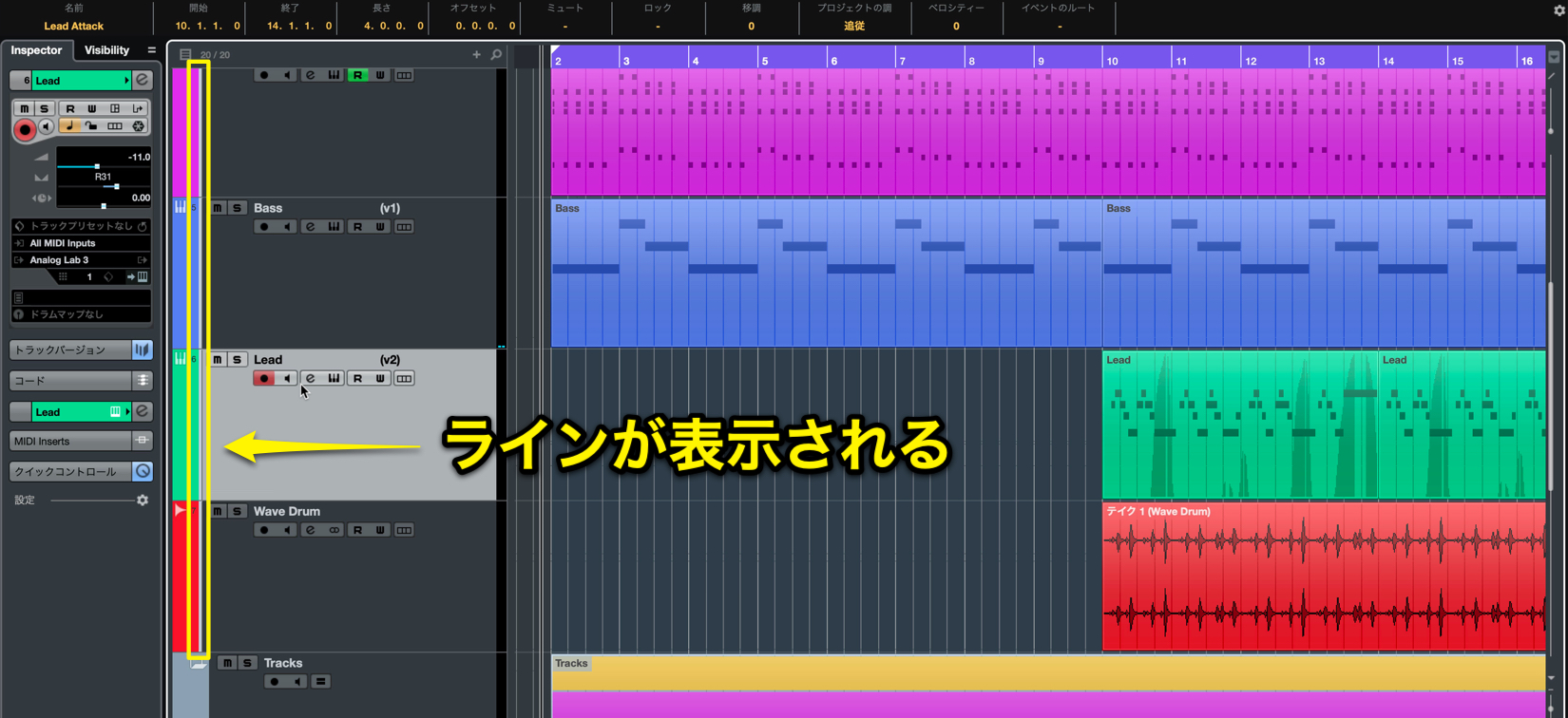
Up to eight tracks are assigned to the controller at a time. A white line indicates the tracks currently under control.
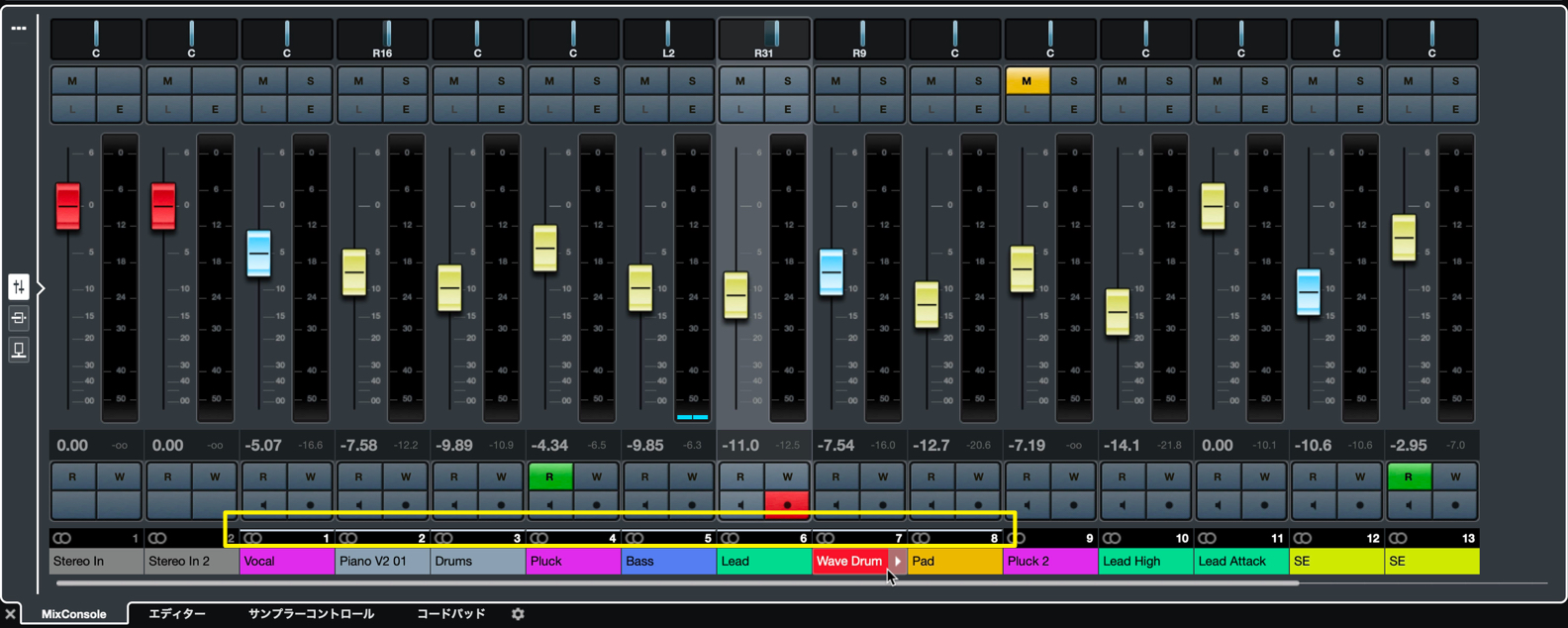
The same indication appears in the MixConsole.
You can also switch this bank of tracks.
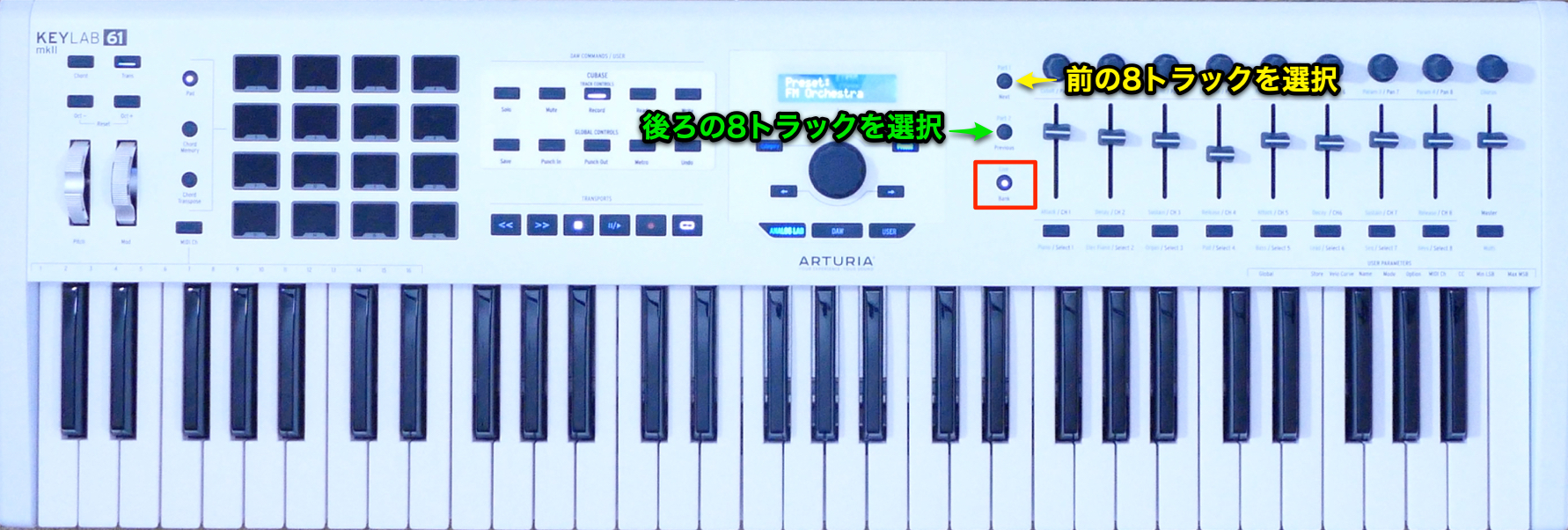
Press Bank so that the button lights up.
Next moves to the next eight tracks; Previous moves to the preceding eight tracks.
Selecting Tracks
You can quickly select any of the tracks in the current bank.
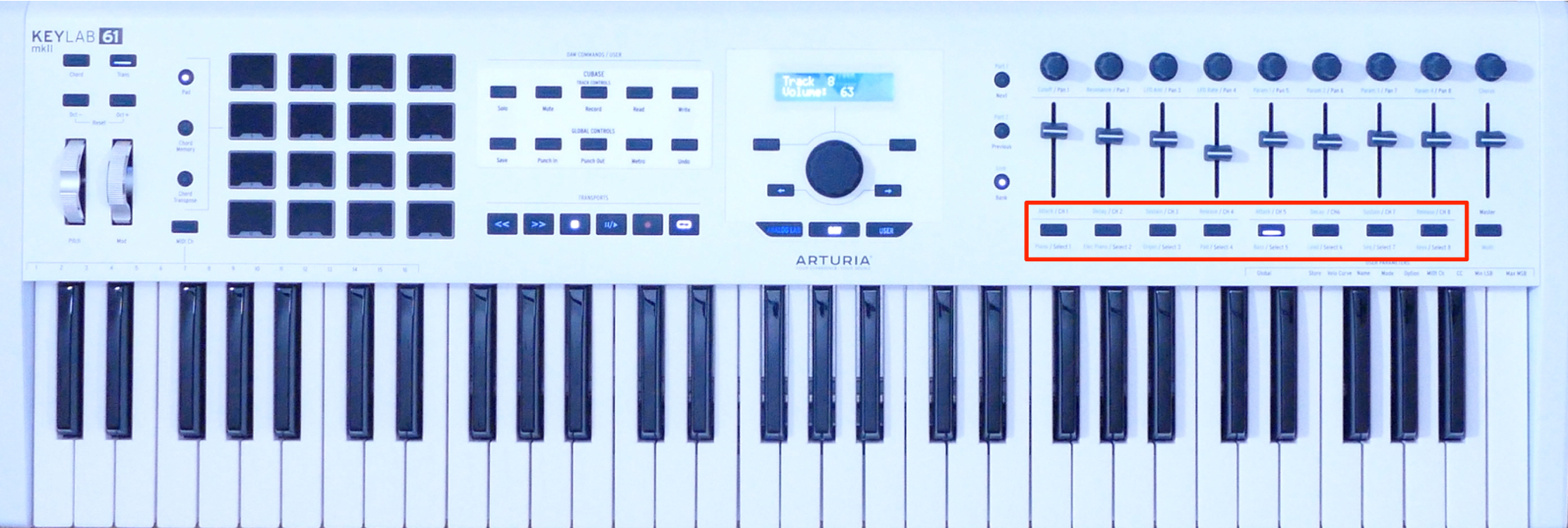
Press Select 1–8 to select the corresponding track within that bank.
Quick access to the desired track lets you apply edits and commands more efficiently.
Controlling Volume and Pan
You can control volume and pan for the tracks in the current bank.
This is useful for intuitive mixing or quickly putting together a rough mix.
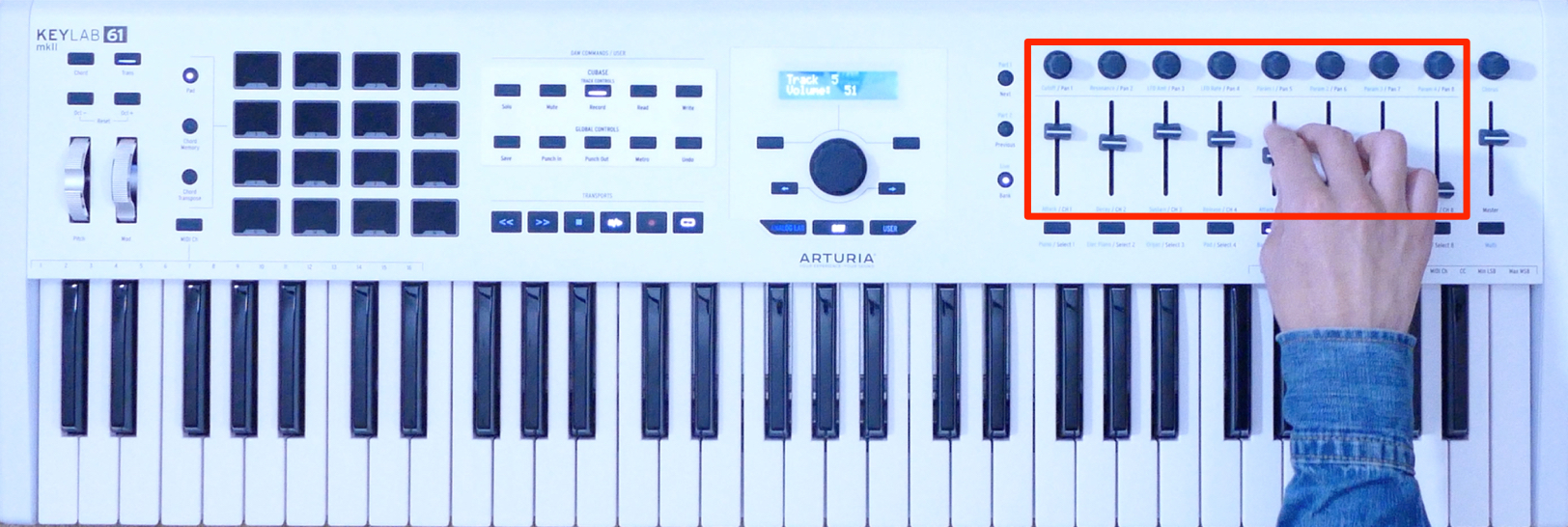
Use the faders to set volume and the rotary encoders to set pan.
Of course, these movements can also be recorded as automation, making the controls useful for detailed volume rides on vocal tracks and other material.
We have now explored more of Arturia KeyLab MkII’s features.
As you can see, each offers practical possibilities you can put to work right away.
They can also make your music-production workflow much more efficient.
In the next and final installment, we will explain how to configure KeyLab MkII for use as a MIDI controller.
- 1DAW Integration, Transpose, and Chord Functions
- 2Pads, Analog Lab Integration, and DAW Mixer Control
- 3Customizing Your MIDI Controller: MIDI Control Center
Visit the Product Page | Japan inquiries: Korg / KID Customer Support. Tel: 0570-666-569
Frequently Asked Questions
Q1. Do KeyLab MkII’s pads accurately reflect velocity when programming drums?
Yes. Like the keyboard, each pad fully supports velocity and aftertouch, allowing you to capture expressive performance nuances. Pair the pads with a drum instrument included with your DAW or a third-party instrument to create professional percussion tracks.
Q2. How can I efficiently browse Analog Lab’s more than 6,500 presets?
Use Category to narrow down the sound type, then Preset to select a preset. Mark sounds you like with the heart icon so they can be displayed with priority next time.
Q3. Is special setup required to record automation for Analog Lab parameters?
No. Select the track, press Write, and move the parameters while the song plays to record them. You can record several parameters at once, and their movements will be reproduced automatically on the next playback.
Q4. How many tracks can KeyLab MkII control at once in DAW mode?
Up to eight tracks at a time. The faders and rotary encoders correspond to the DAW mixer, and a white line identifies the tracks under control.
NEW ARTICLES
Latest English Articles






















































































































































































































































































