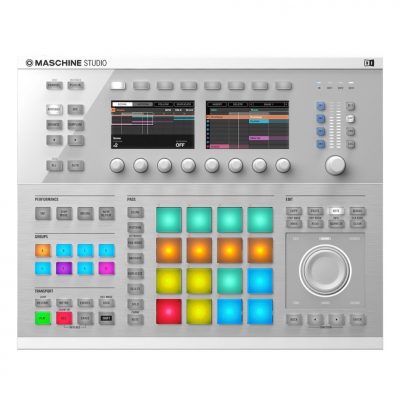
MASCHINE is a standalone music production environment well suited to making drums, and connecting it to another DAW opens up further production possibilities. This tutorial explains how to export patterns and sequences from MASCHINE to a DAW as audio or MIDI. The two MIDI export modes, “Sound to MIDI Channel” and “Sound to MIDI Note,” offer different ways to work with drum kits and pitched instruments, including playing parts from a MIDI keyboard and editing MIDI in detail.
Integrate MASCHINE with Your DAW
Improve Your Workflow with Export
So far, we have kept our work inside MASCHINE.
Exporting it to a DAW gives you more flexibility.
MASCHINE Video Tutorials
- 1Main Windows
- 2Programming Drum Patterns
- 3Understanding Effects
- 4MIDI Integration with a DAW (this article)
- 5Using MASCHINE as a MIDI Controller
Questions and Answers from the YouTube Video

Hello! Is it possible to record Maschine’s output continuously as audio directly into Cubase while adjusting the knobs? I would appreciate your help.

One workaround is to send Maschine’s sound out through your audio interface and connect an output of the interface to an input. Mute the Cubase audio track you are recording onto to prevent feedback. On a Mac, software such as Soundflower can route audio internally, allowing you to record without making those physical connections. https://sleepfreaks-dtm.com/dtm-materials/mac-sound/ Please give it a try.
I recently bought Maschine Studio for music production. I would like to use it alongside a MIDI keyboard, but I am having trouble understanding how to set it up. My DAW is GarageBand. How can I connect all three properly?
GarageBand does not offer detailed MIDI channel configuration, which can make this setup difficult. For a similar workflow, we recommend Logic.
Video Tip: Choosing Audio or MIDI for Export

↑ Choose whether to export as “Audio” or “MIDI.”
Video Tip: Dragging to Your DAW

↑ Drag the cross-shaped handle outlined in red into your DAW to export.
Video Tip: Two MIDI Export Modes

There are two MIDI export modes:
- The upper option, “Sound to MIDI Channel,” exports the sounds in a kit on separate MIDI channels.
- The lower option, “Sound to MIDI Note,” exports all kit sounds on the same MIDI channel.
Video Tip: Export Pitched Instruments with “Sound to MIDI Channel”
This lets you play notes on a MIDI keyboard.
Frequently Asked Questions
Q1. What are the benefits of exporting from MASCHINE to a DAW?
Bringing drum patterns and sequences made in MASCHINE into a DAW lets you combine them with other tracks, edit MIDI in detail, and apply external plug-ins.
Q2. Should I export audio or MIDI?
Choose audio if you want to use the finished drum sound as it is. Choose MIDI if you want to edit the part with a MIDI keyboard or change sounds later.
Q3. What is the difference between “Sound to MIDI Channel” and “Sound to MIDI Note”?
The former assigns individual kit sounds to different MIDI channels; the latter combines them on the same channel. Exporting pitched instruments with the former lets you play them from a MIDI keyboard.
NEW ARTICLES
Latest English Articles