
Real-time recording in Cubase 11 lets you play a MIDI keyboard along with your song and capture the performance, including how hard you play each note, as velocity data. The metronome and count-in help you keep time, while Re-Record makes it easier to restart after a mistake. Techniques such as Merge and Stacked recording let you build up drum parts or more complex keyboard performances in stages and choose the best takes.
In this lesson, we'll explore real-time recording as an alternative to the pencil-tool note entry covered in the previous lesson.
For the method demonstrated here, you'll need the MIDI keyboard introduced in Lesson 2, so have it ready before you begin.
Real-time recording: video tutorial
The basics of real-time recording
As the name suggests, real-time recording captures a part you play on a MIDI keyboard while the song plays back, saving the performance as MIDI data.
The strength of each key press is also recorded as velocity, making this a useful way to preserve the expression in your performance.
The process is simple. First, select the instrument track you want to record.
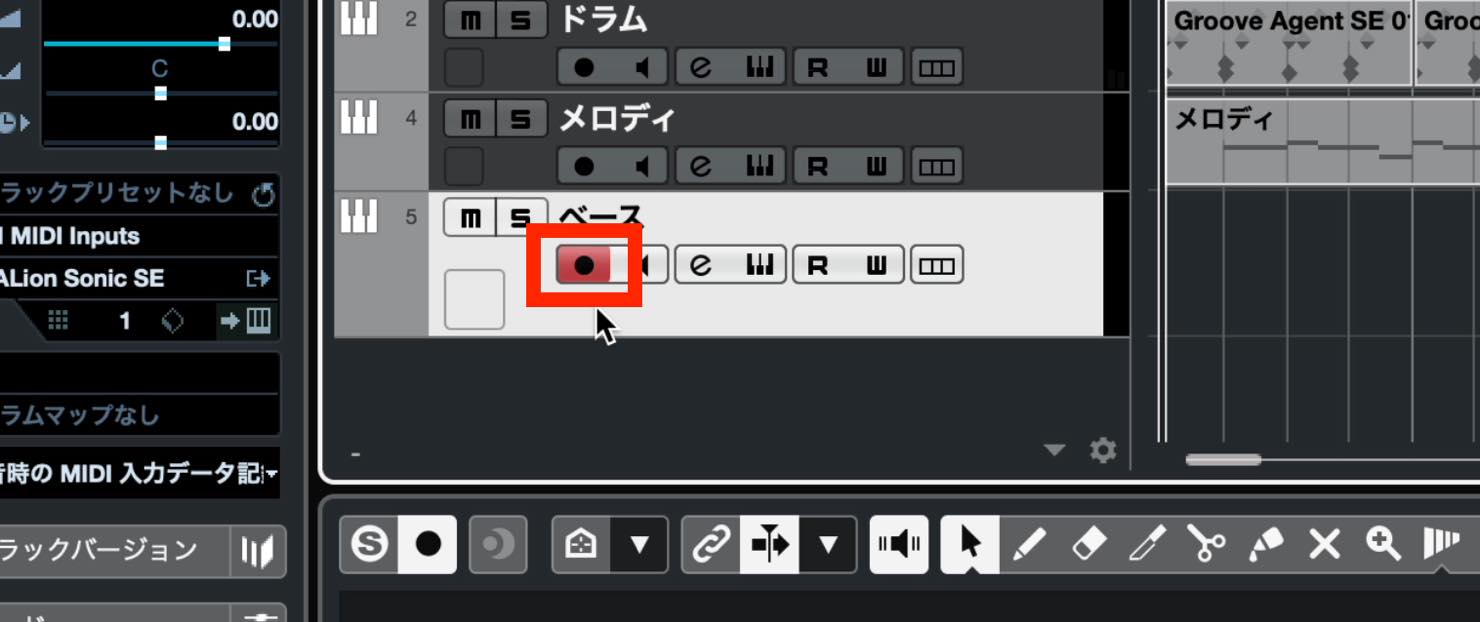
Make sure its red Record Enable button is lit. If it isn't, click it to enable recording.
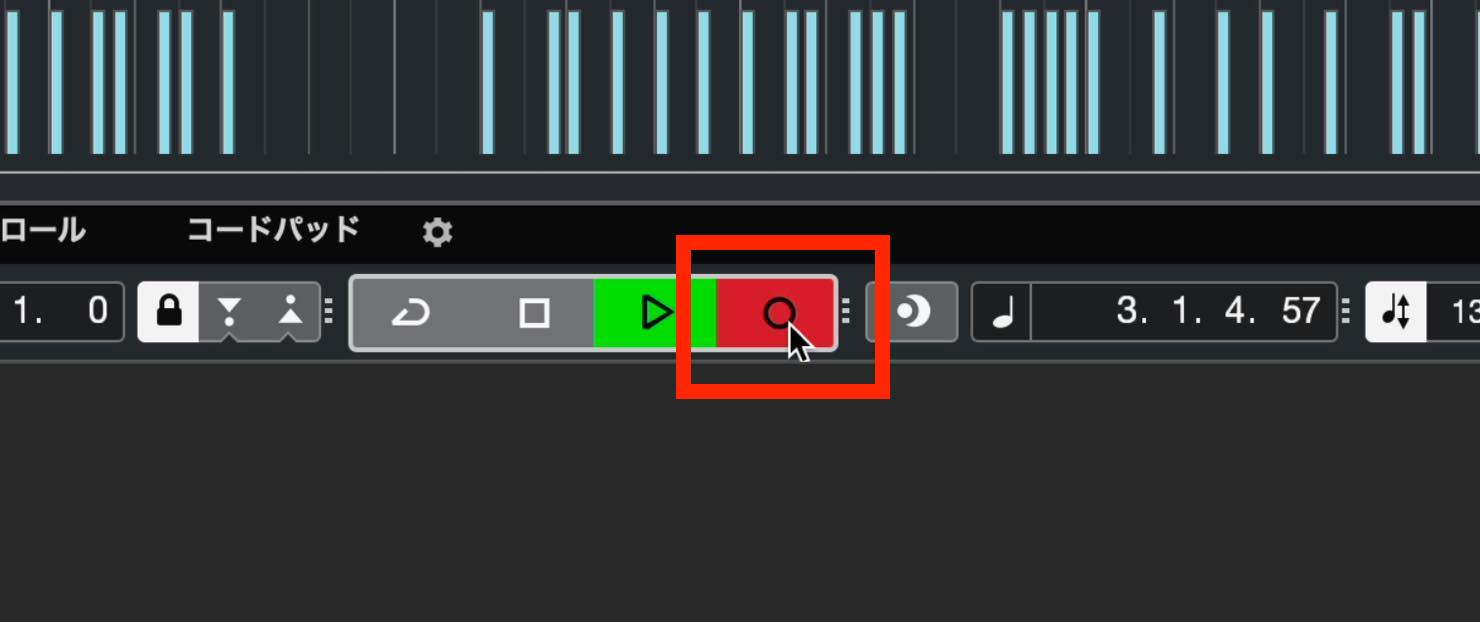
Then click the Record button in the Transport Bar at the bottom of the screen and play your MIDI keyboard.
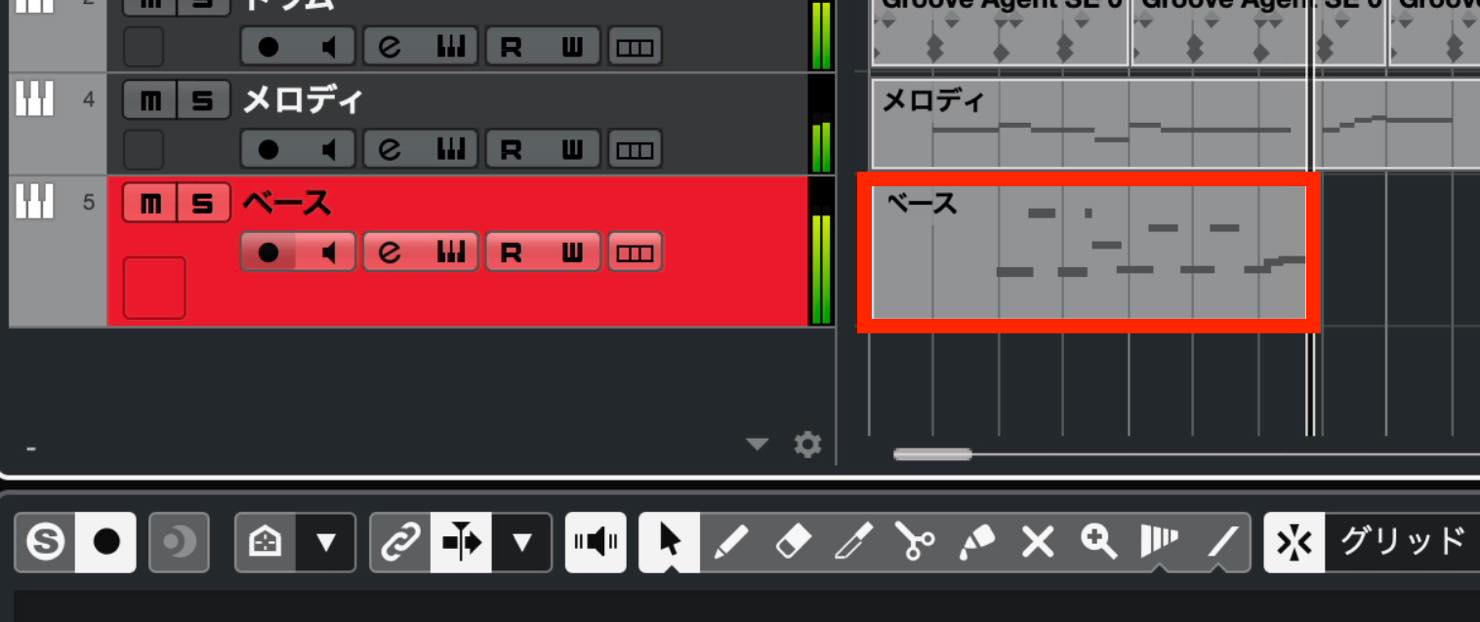
Cubase creates a new part automatically as it records your performance.
Using the metronome
If you haven't added a drum track yet, or simply want a clear rhythmic reference, use the metronome.
Click this button at the bottom right of the screen to turn it on.
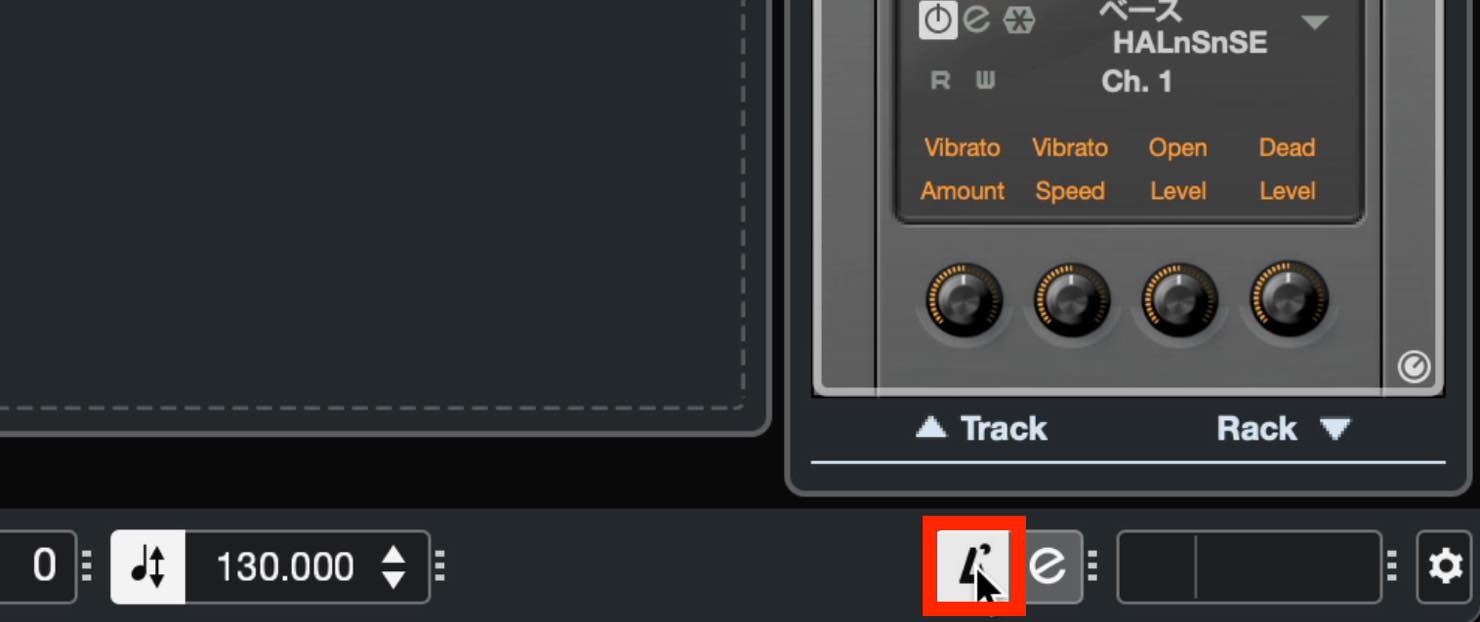
If the metronome button isn't visible, right-click an empty area of the Transport Bar.
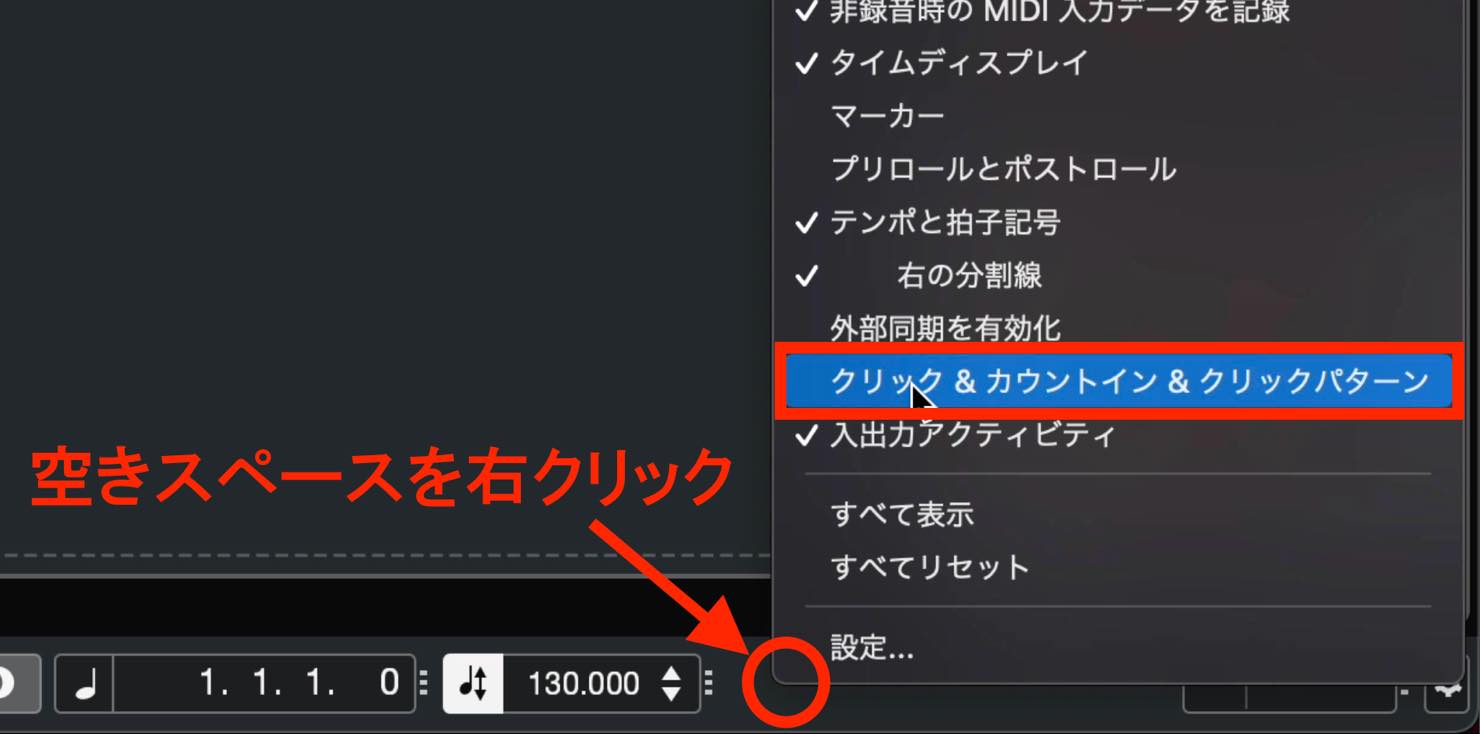
You can choose which controls to show or hide in this menu. Enable “Click & Count-in & Click Patterns.”
Depending on the size of your display, there may not be room for every enabled control. Hide controls you rarely use to make space.
Another useful feature for real-time recording is the count-in.
For example, suppose you want to start recording at this point. It can be difficult to begin playing the instant recording starts.
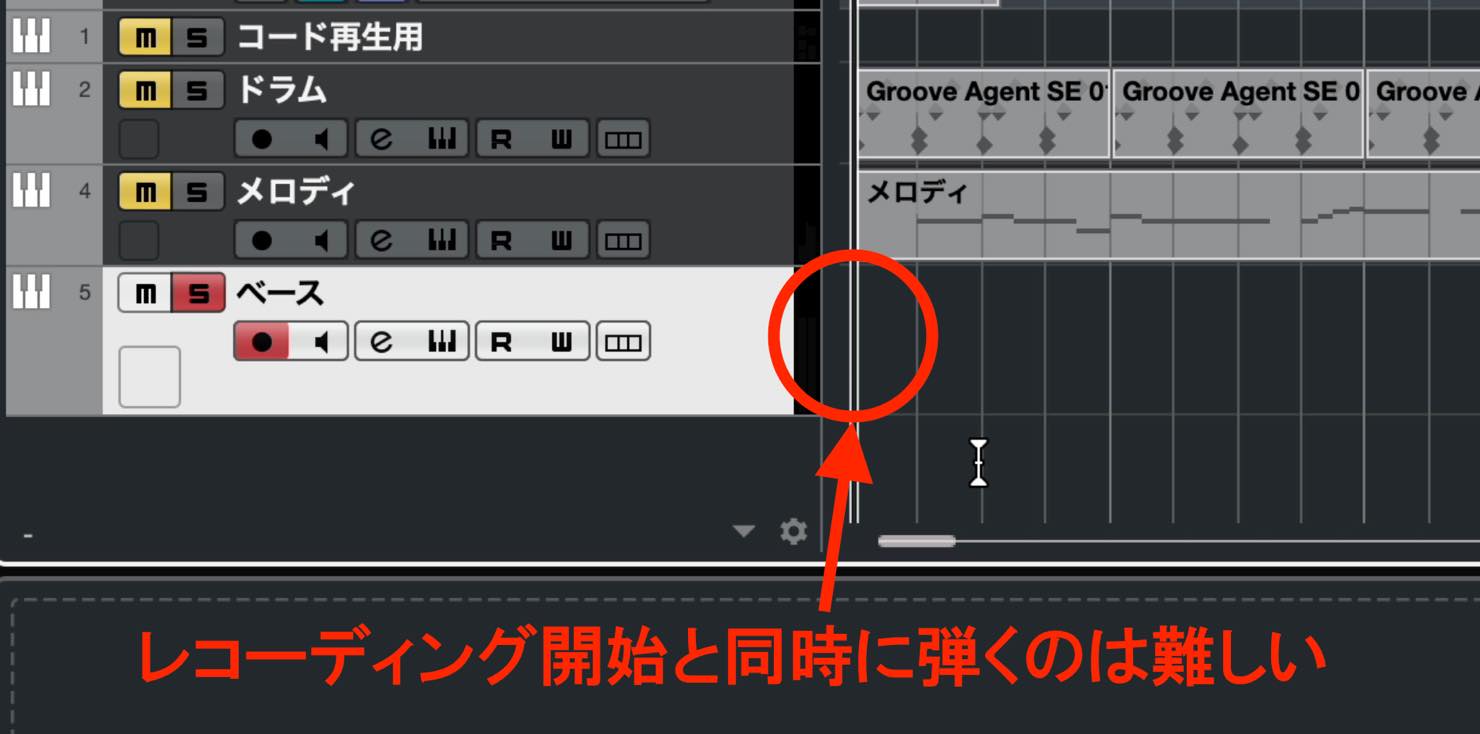
In this situation, enable the Count-in button next to the metronome button.
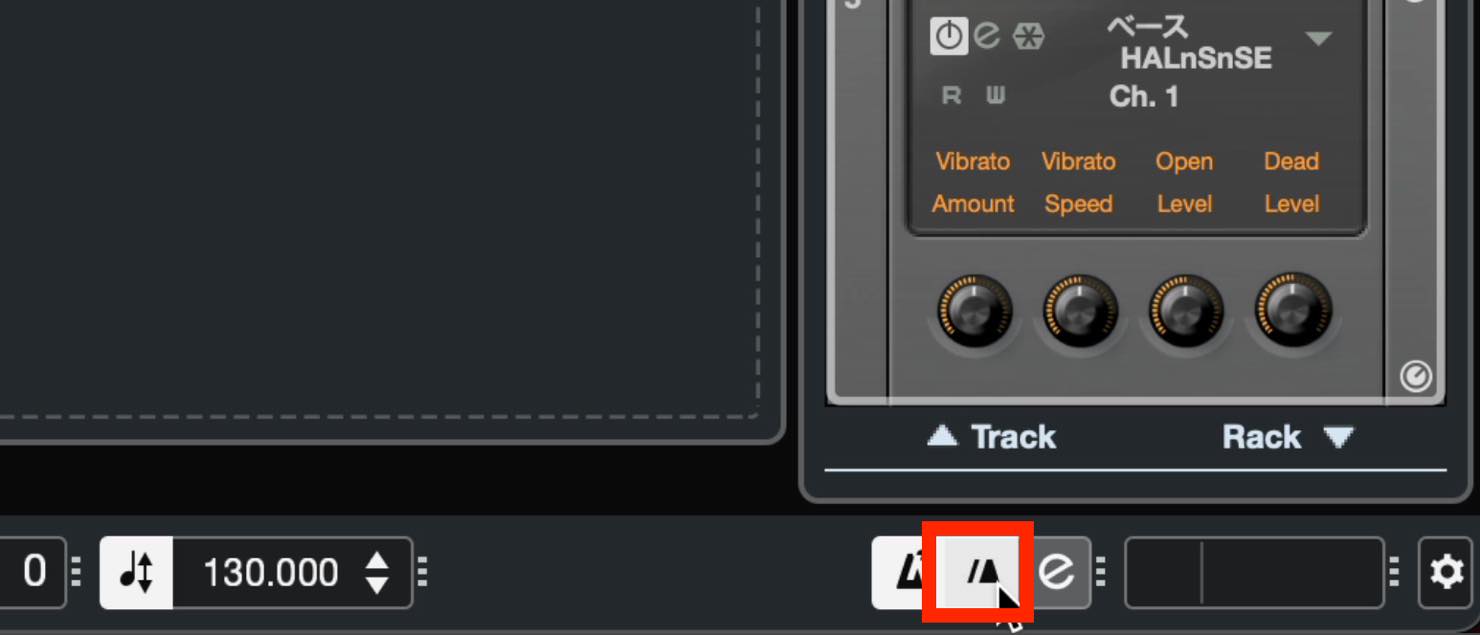
If the Count-in button isn't visible, drag this divider to the right to reveal it.
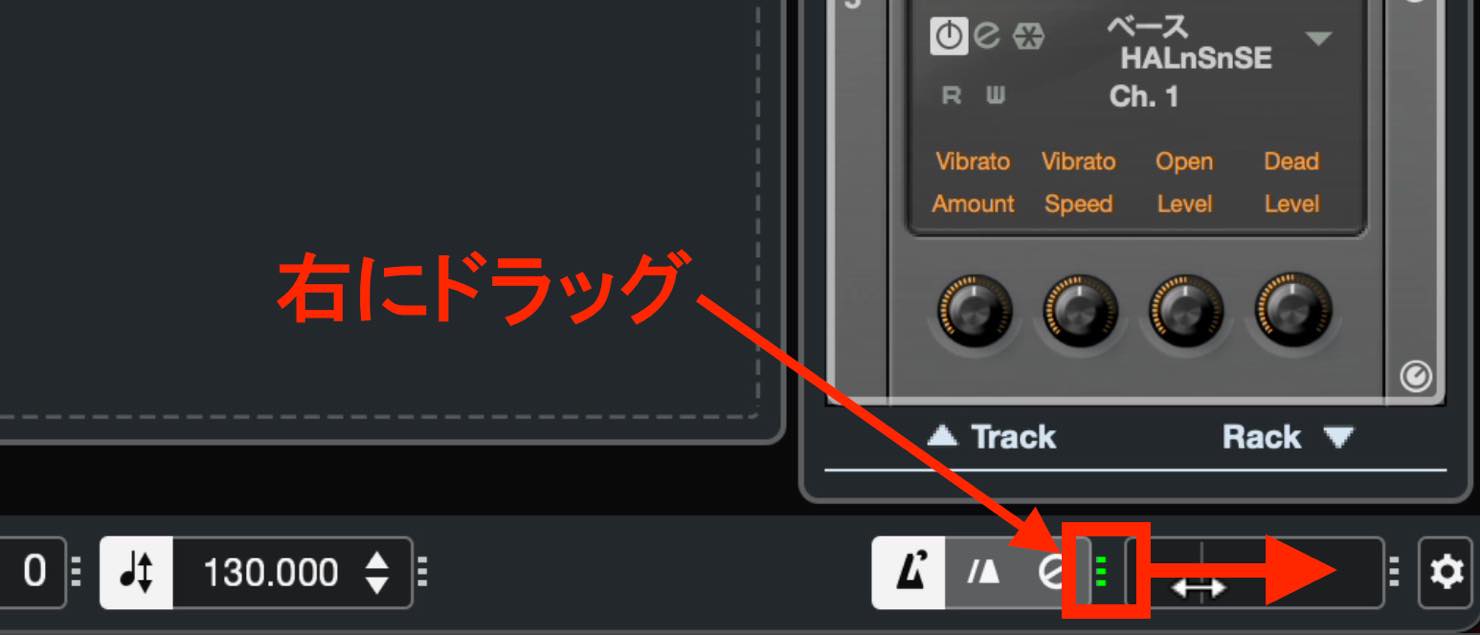
With Count-in enabled, pressing Record does not start recording immediately. In the setup shown here, the metronome sounds for eight beats before recording begins.
If that is too long, you can change it. Click the “e” button to the right of the Count-in button.
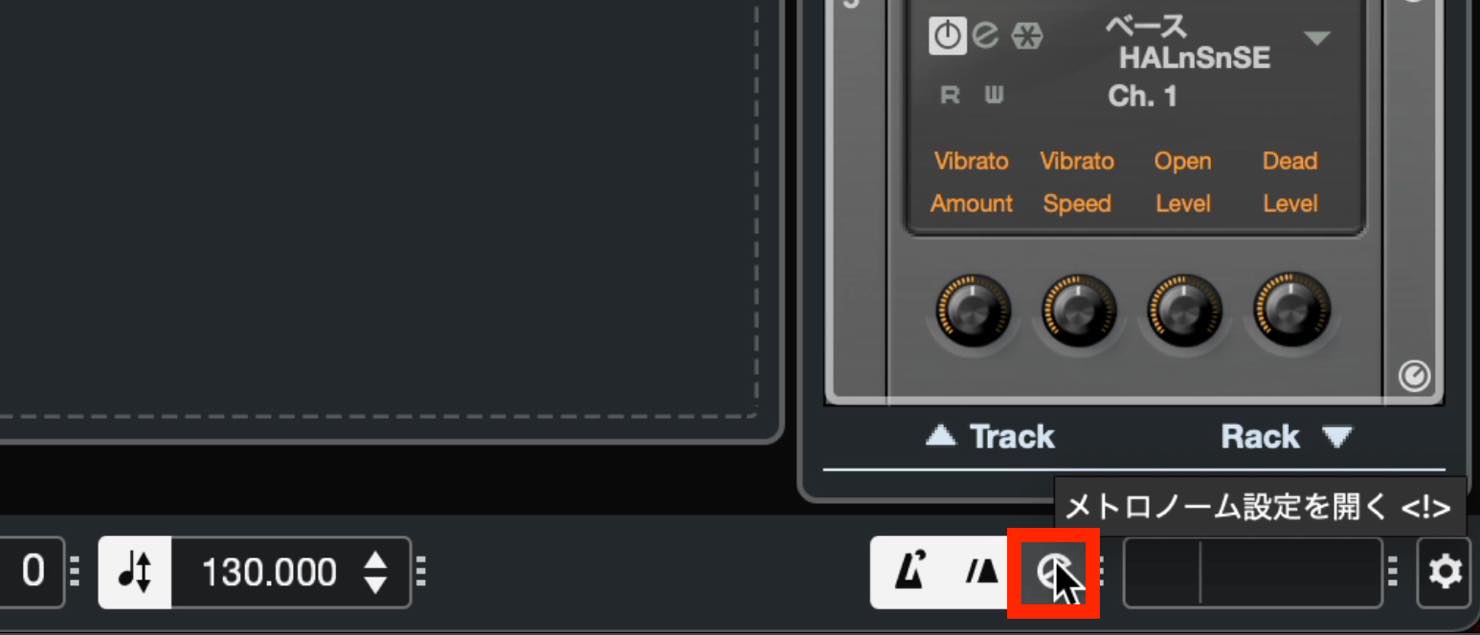
This opens Metronome Setup. In the Count-in section near the bottom, set “Bars in Count-in” to “1.”
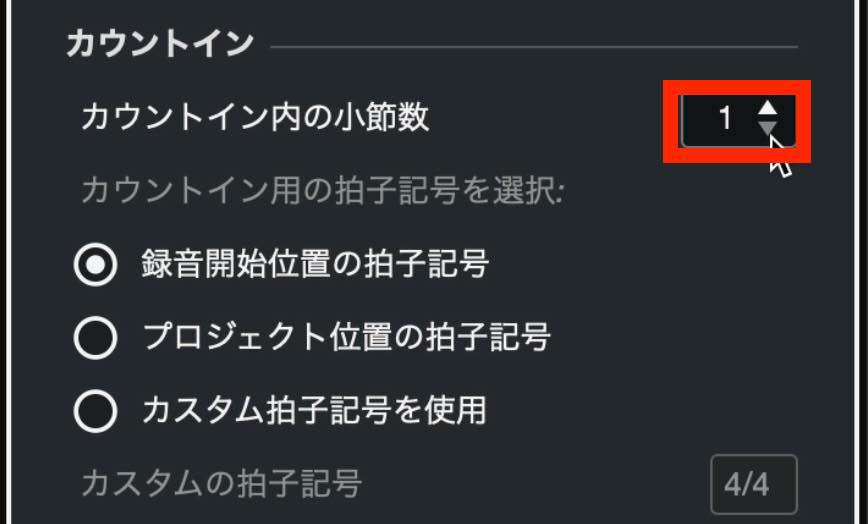
In the 4/4 example shown here, that gives you a four-beat count-in.
Dealing with overlapping MIDI parts
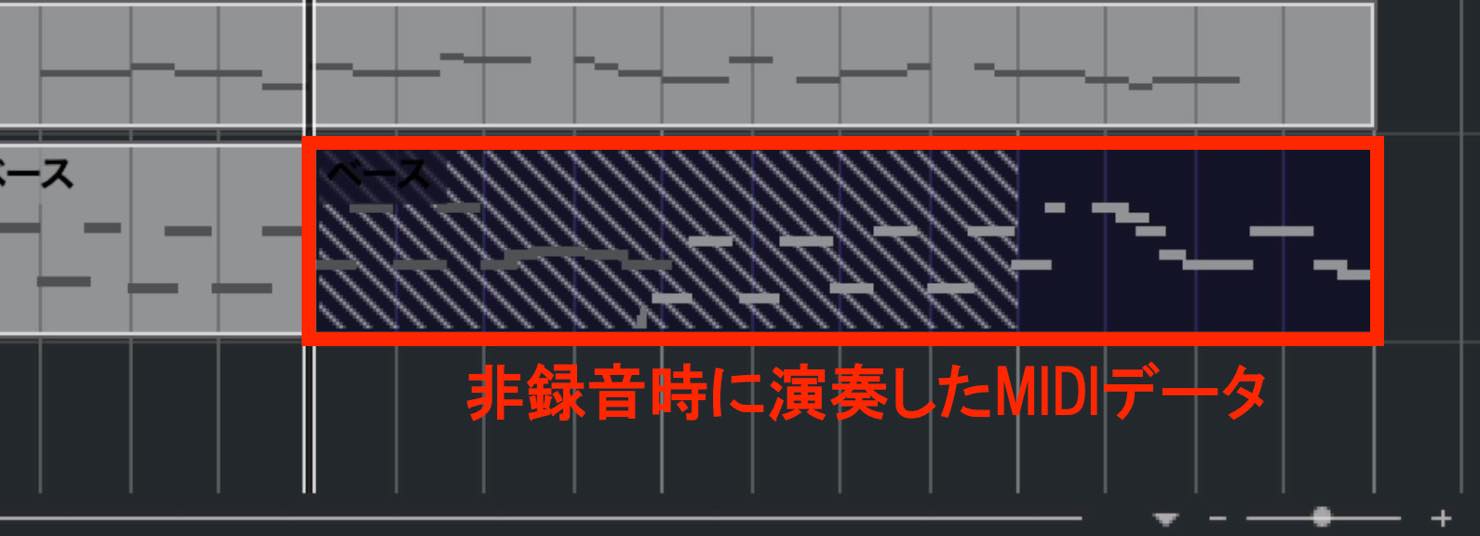
After recording a part in real time, you may see diagonal lines appear when you record a continuation, as shown here.
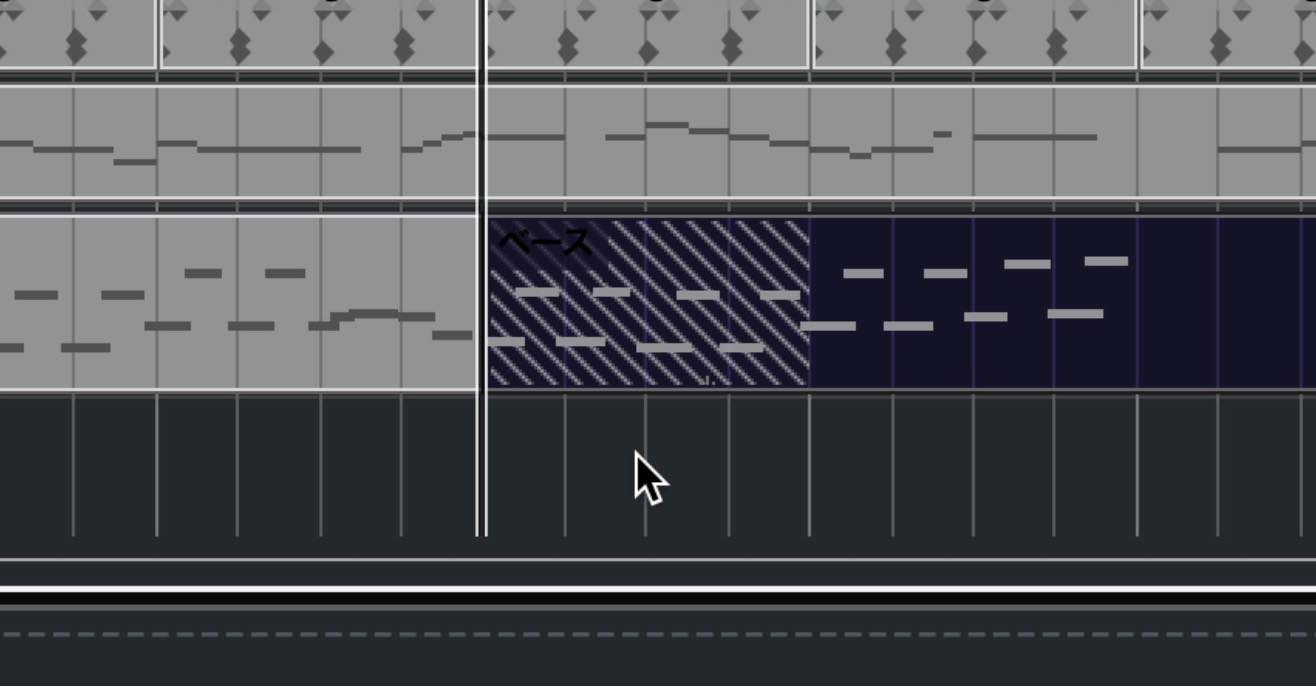
This indicates that parts overlap: the first recording created a part containing an empty section, and the next recording added another part over that section.
Trimming one of the parts makes the overlap easier to see.
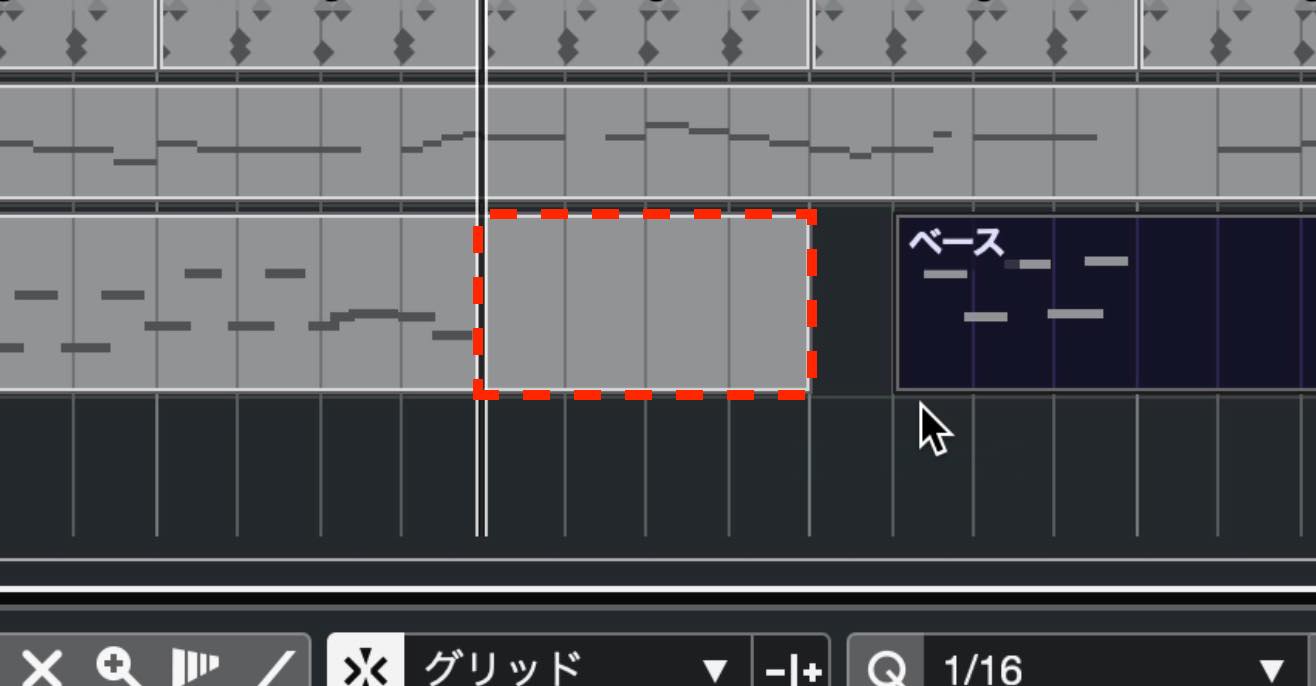
In this example, the overlapping part boundaries do not change the sound, but they make the arrangement look cluttered. Unless you need the overlap, tidy it up.
Trim the parts so that they no longer overlap, and the diagonal lines disappear.
If the parts don't need to remain separate, you can glue them together.
Select the Glue tool in the toolbar,
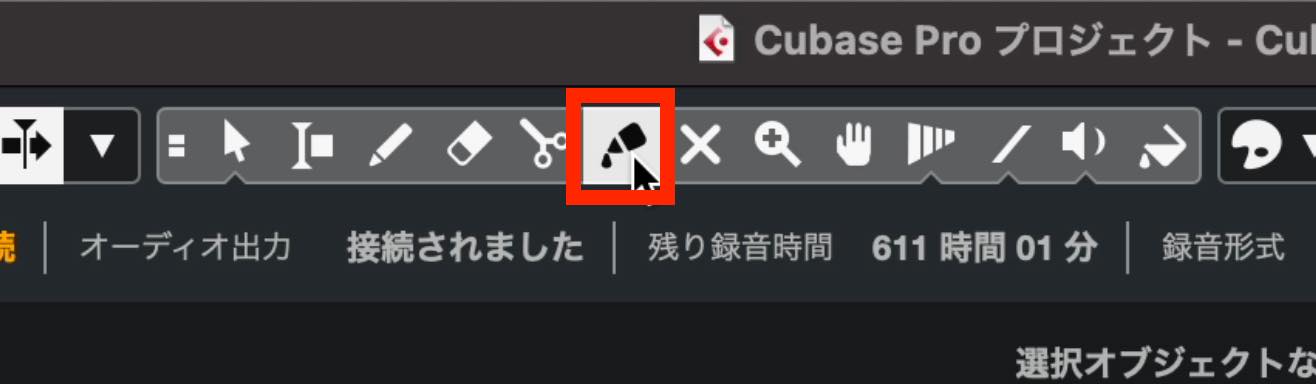
then click the part you want to join to the next one.
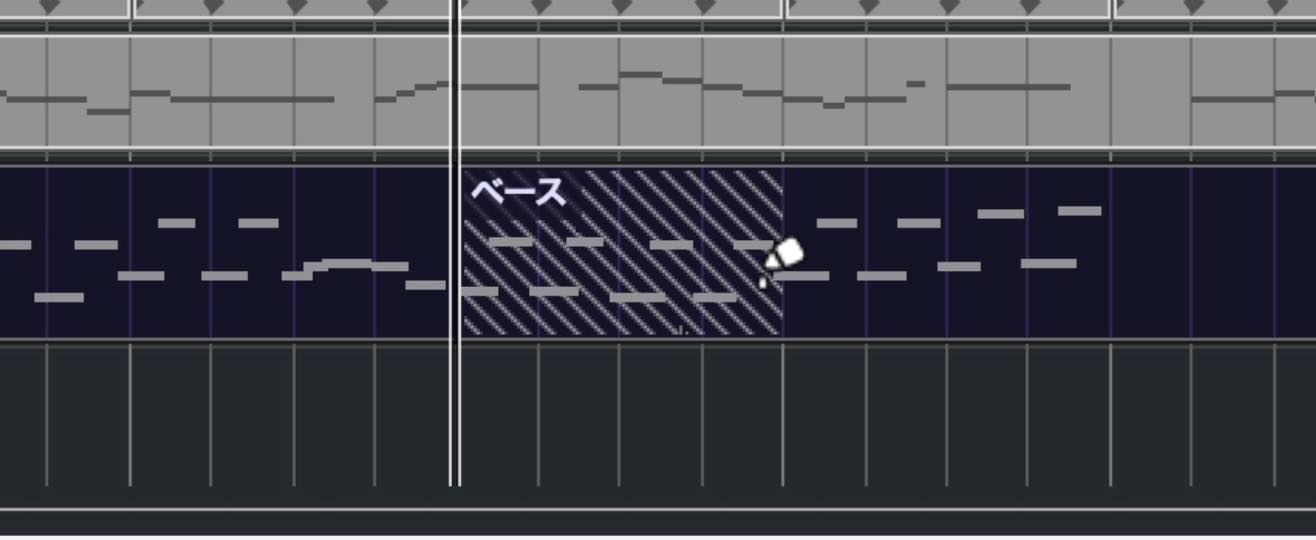
The adjacent parts are joined, and the diagonal lines disappear.
If you have already set the length of a part, you can also record into it rather than create a new one.
Click “MIDI Record Modes” to open the menu,
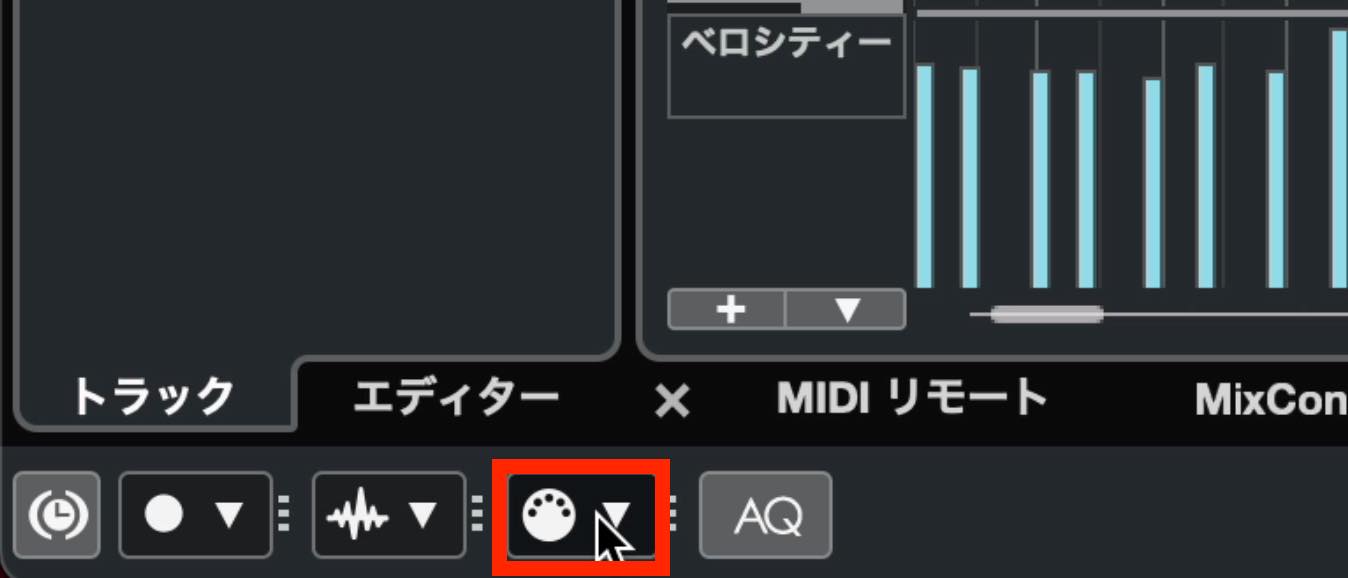
then select “Merge” under “MIDI Linear/Cycle Recording.”
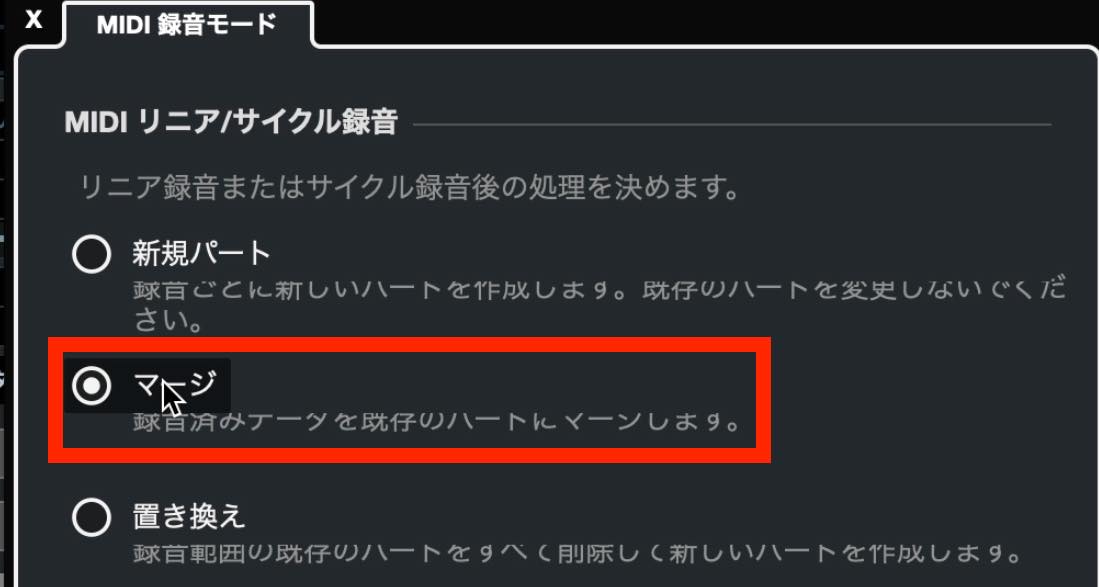
Recording with this setting adds your performance to the existing part, as shown here.

Once recording passes the end of that part, Cubase continues recording into a newly created part.
More real-time recording techniques
That covers the basic process. Now let's explore some additional techniques.
Re-Record
Because real-time recording captures an actual performance, you may make an obvious mistake while playing.
There is a way to start again without manually deleting the mistaken recording each time.
First, open Common Record Modes,
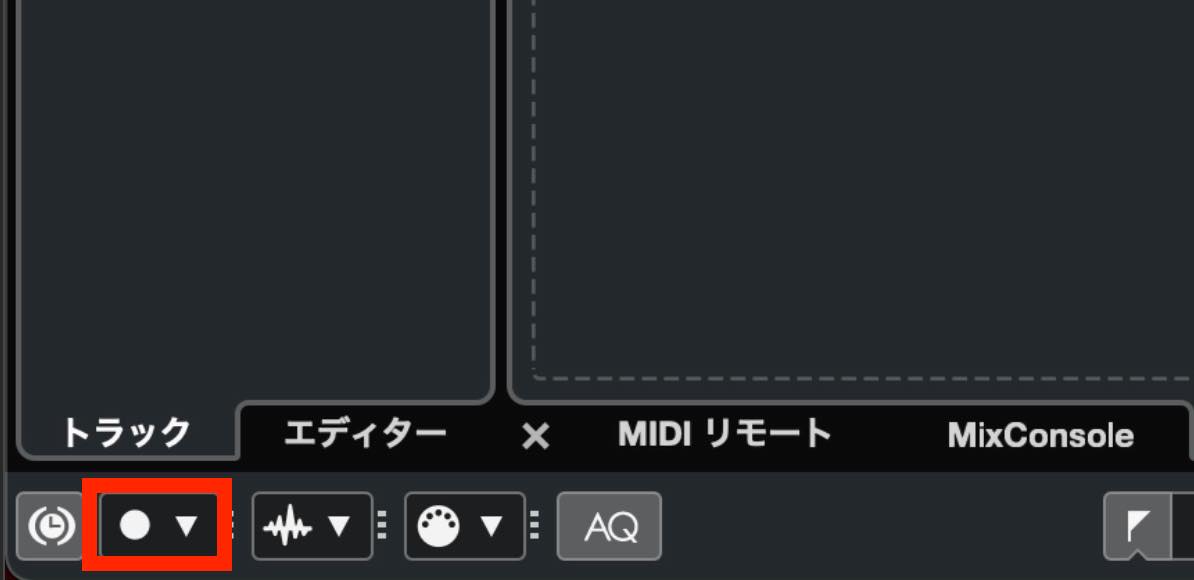
then select “Re-Record.”
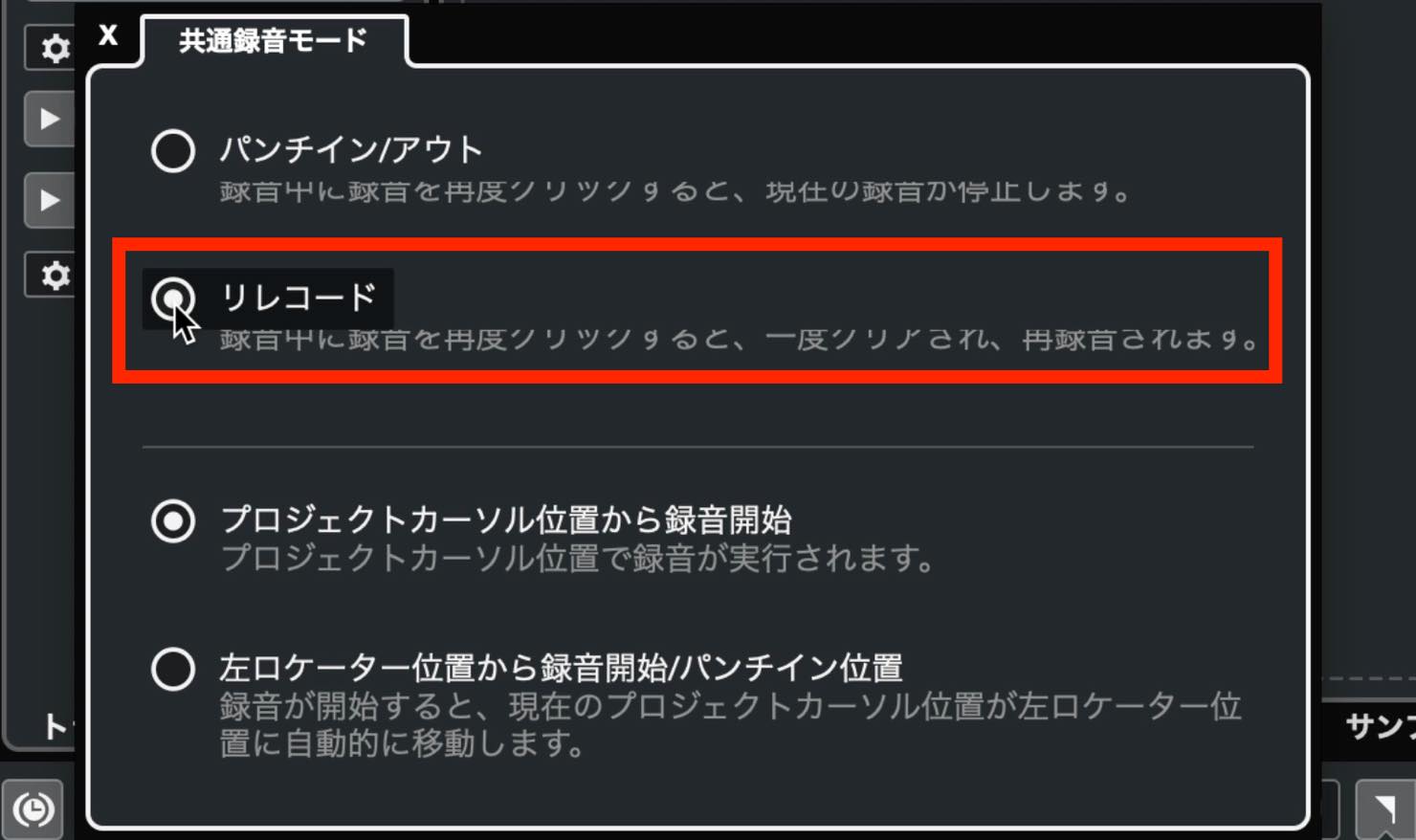
Start recording with this setting. If you make a mistake, press Record again.
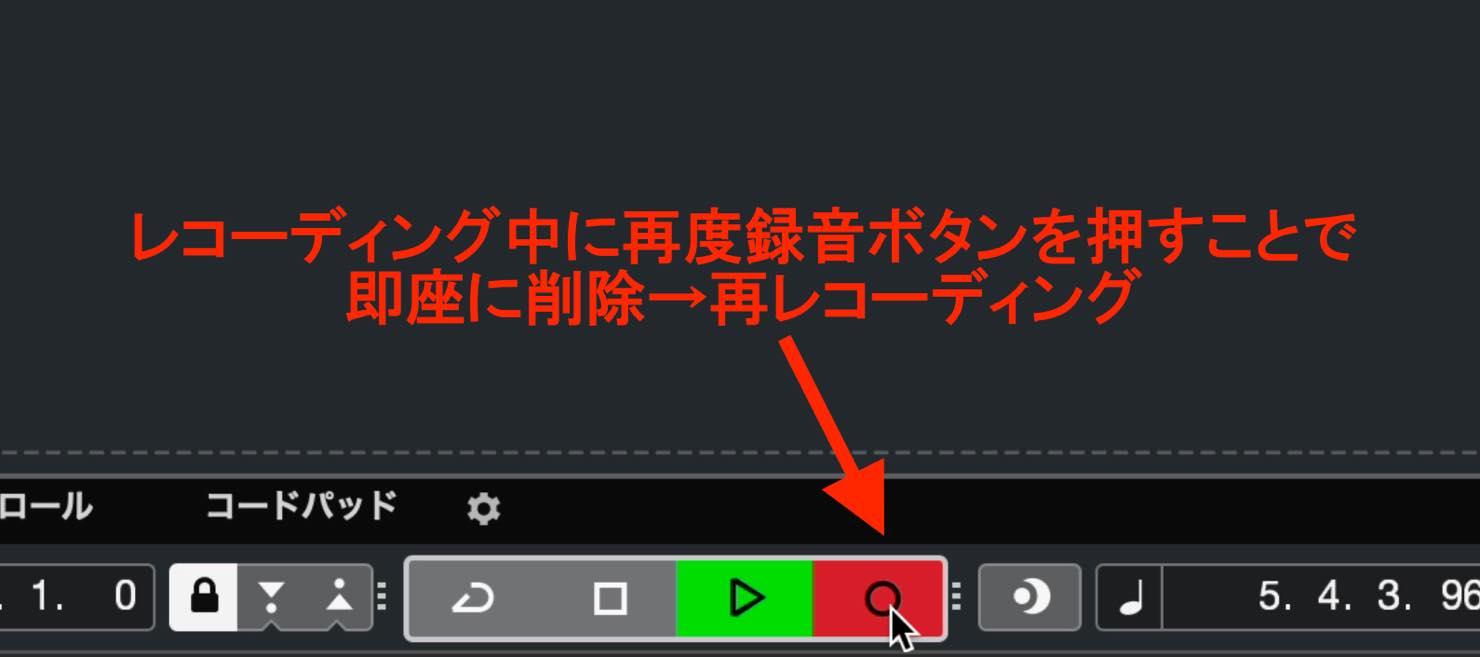
The data recorded during that attempt is discarded, and Cubase immediately returns to the starting point so you can try again.
Recovering a performance you didn't record
You may work out phrases or practice before starting a real-time recording.
Sometimes, you play a phrase you like and wish you had recorded it.
Cubase can retain these MIDI performances in the background. Press this Retrospective Recording button in the Transport Bar
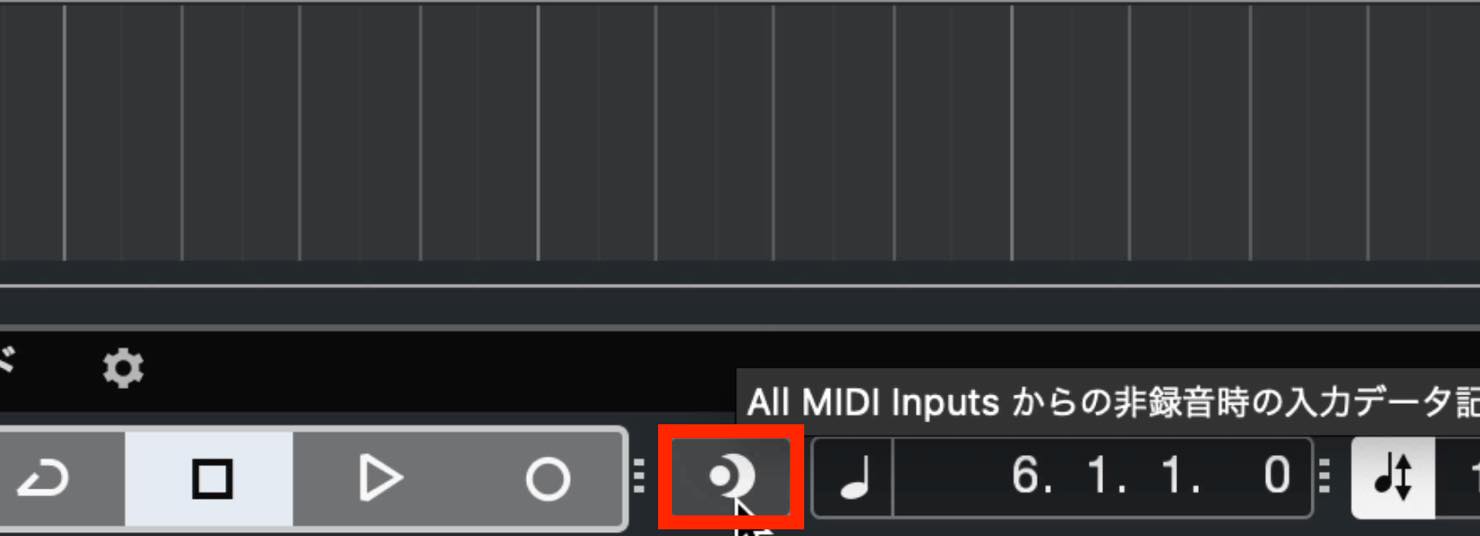
to insert the preceding performance onto the selected track.
Recording with Merge
When recording drums in real time, you may find it difficult to play several drum sounds simultaneously.
By combining loop playback with Merge recording, you can add the drum sounds one at a time over successive passes.
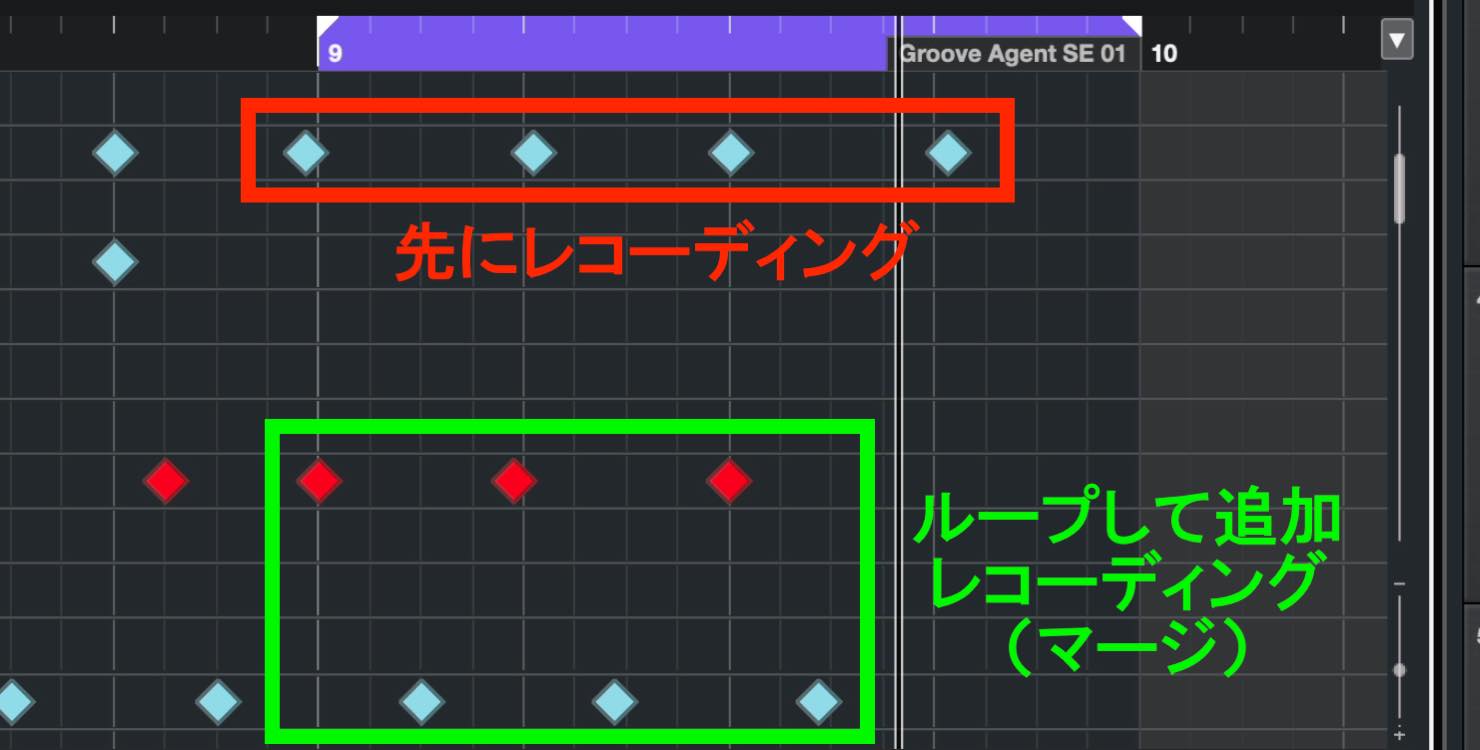
This is also useful if you find it difficult to play a piano part with both hands at once.
Stacked recording
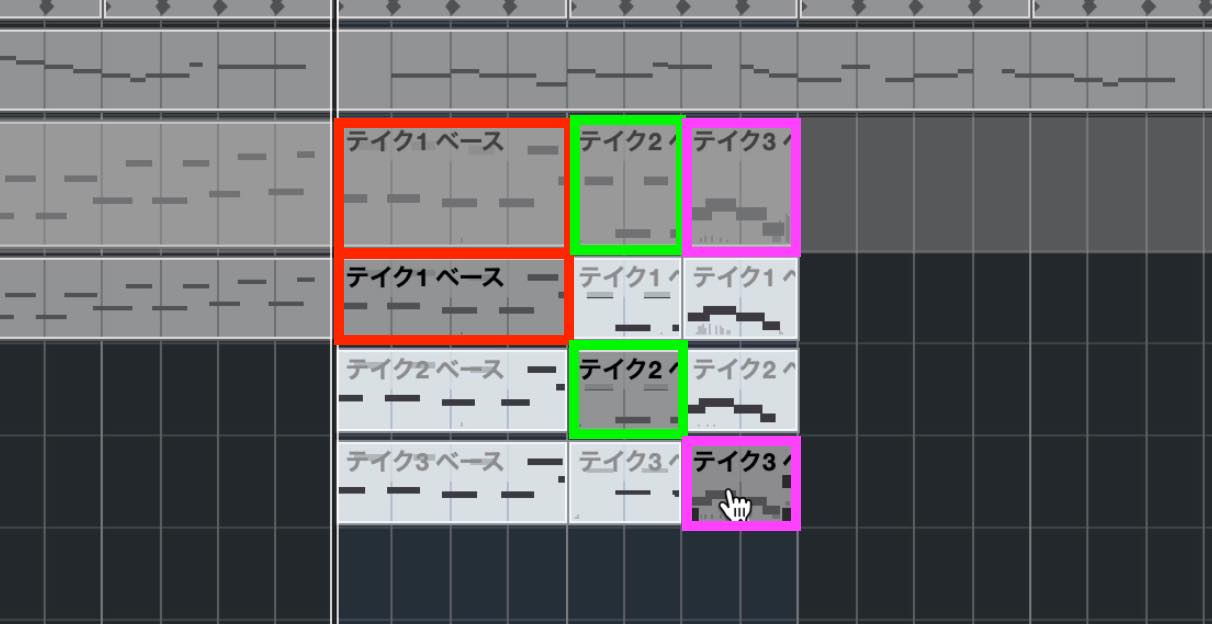
Stacked mode lets you play the same passage several times and then choose the best performance. You can also combine sections from different takes.
Open MIDI Record Modes again and select “Stacked” under “MIDI Cycle Recording Only.”
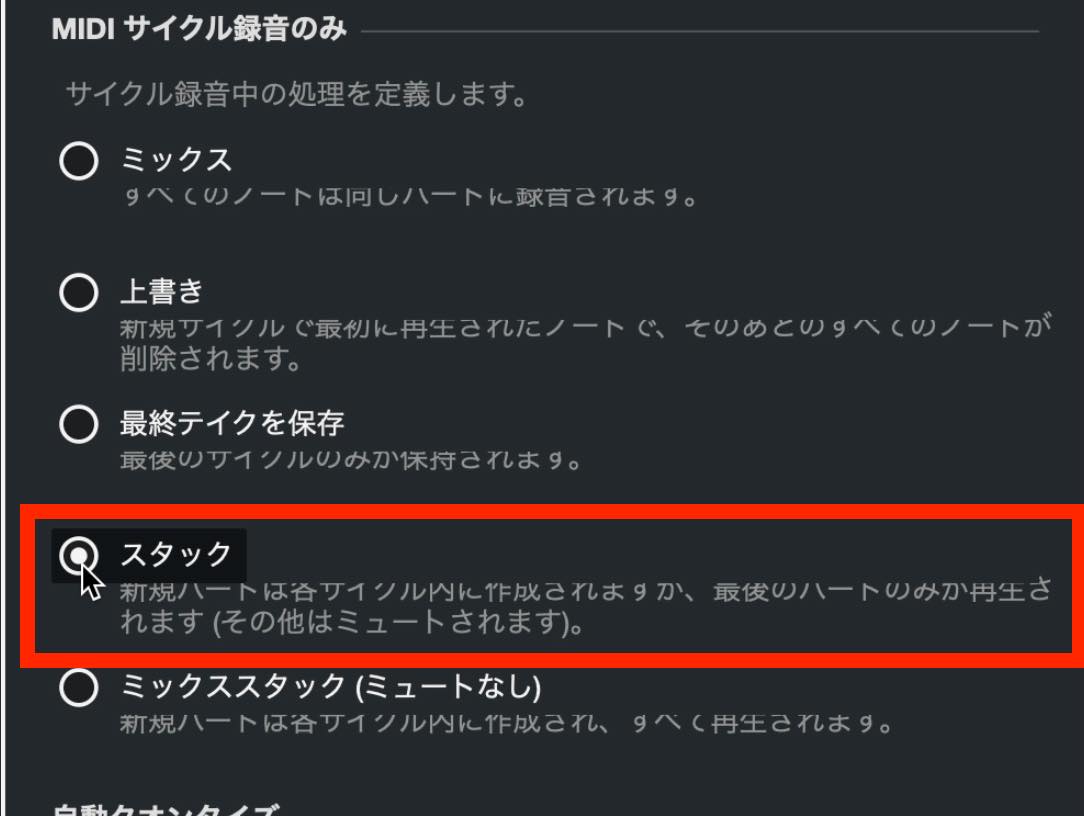
Set up a loop over the passage you want to record, place the cursor at its start, and press Record.
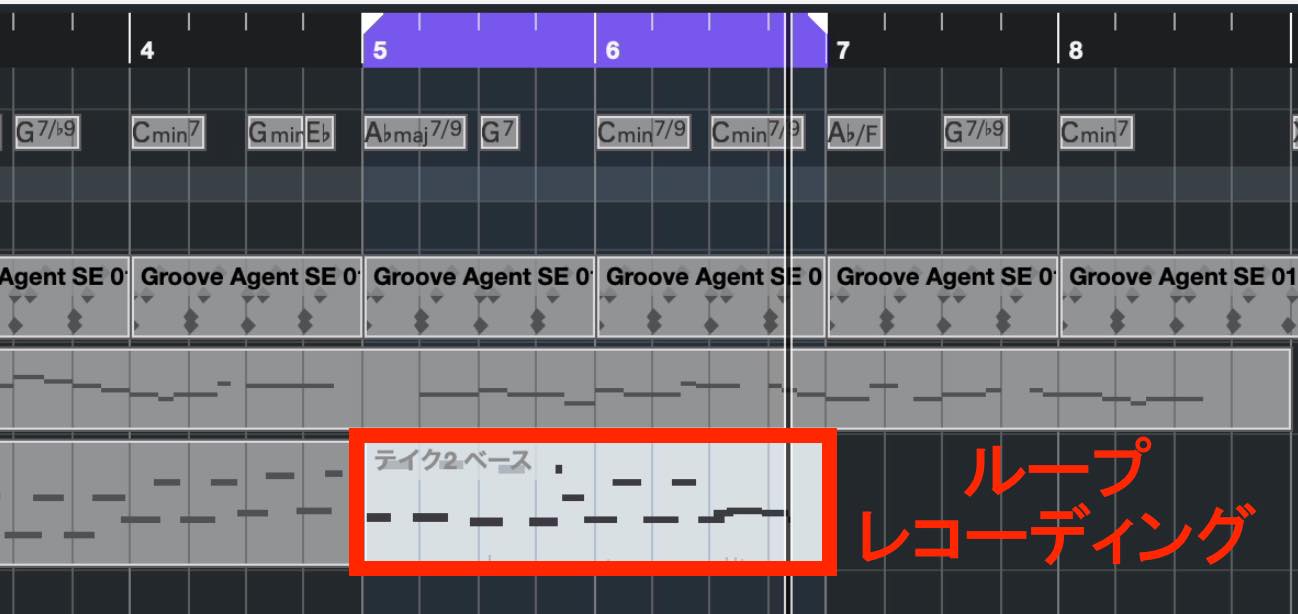
Each performance is saved as a take. Click Show Lanes to display them.
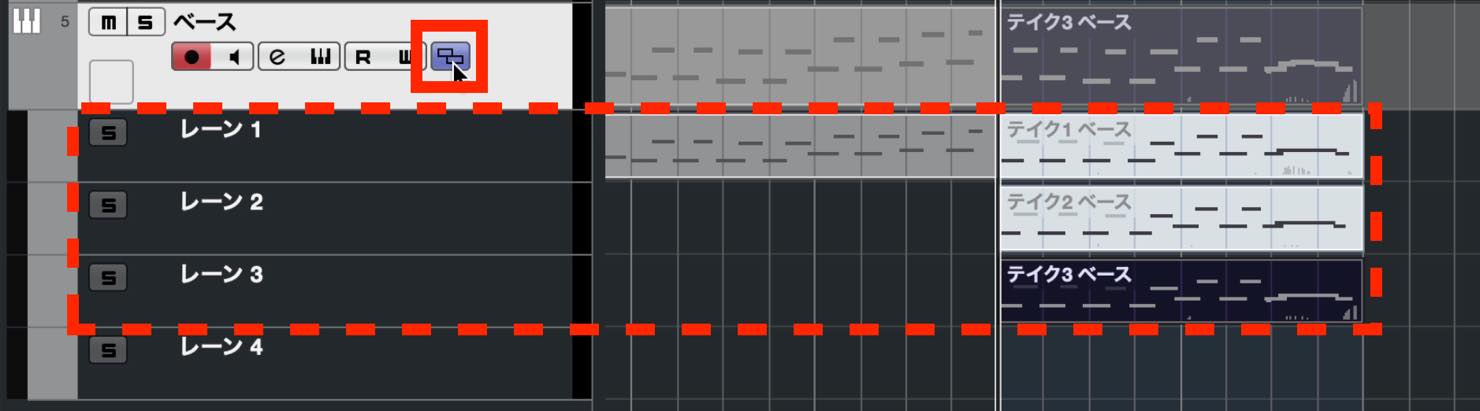 Here, the lanes contain Take 1, Take 2, and Take 3.
To use a take, switch to the Comp tool,
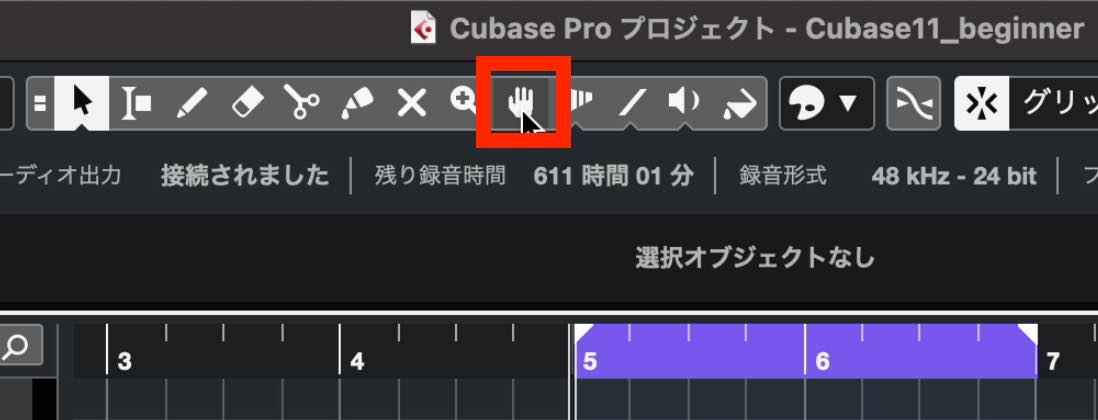
then click the take you want to select.
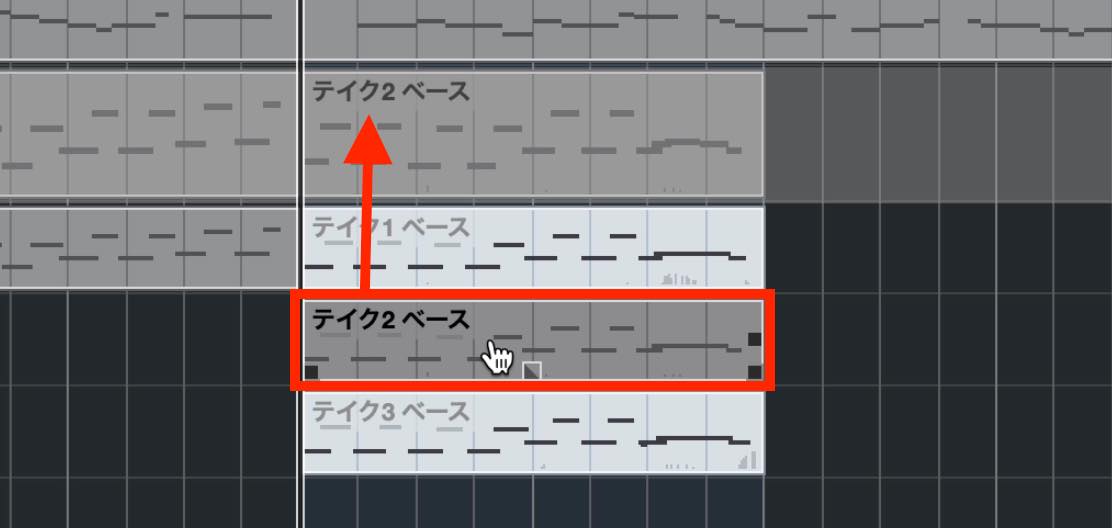
To use only part of a take, first split the MIDI parts.
Earlier, we showed how holding Option on Mac or Alt on Windows temporarily selects the Draw tool. Over a part, this modifier switches to the Split tool instead.
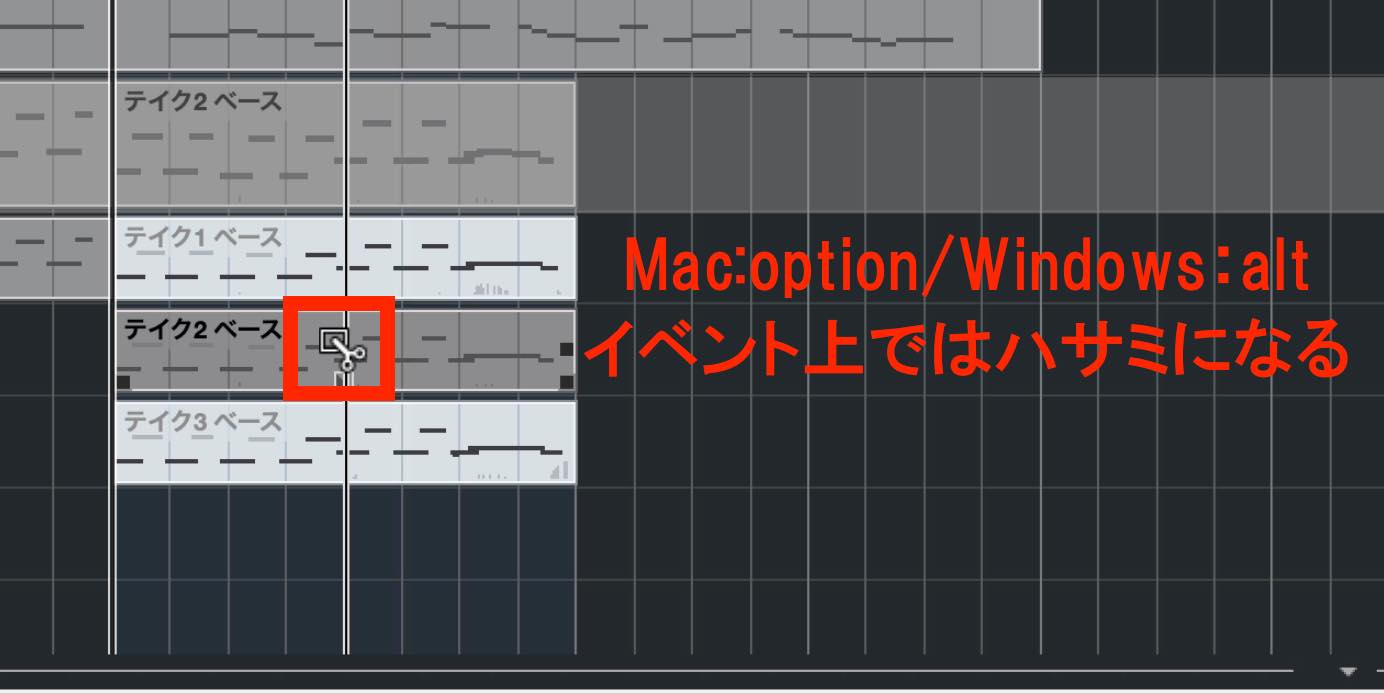
Use the Split tool to divide the parts.
Then use the Comp tool to select each section, combining the best portions of the different takes into one performance.
Track Versions
If you come up with several phrases and can't decide between them, you may want to use one while keeping the other available.
Click the downward-pointing “Track Versions” triangle next to the track name.
Track Versions lets you keep several versions within one track. Choose “New Version” to create an empty version.
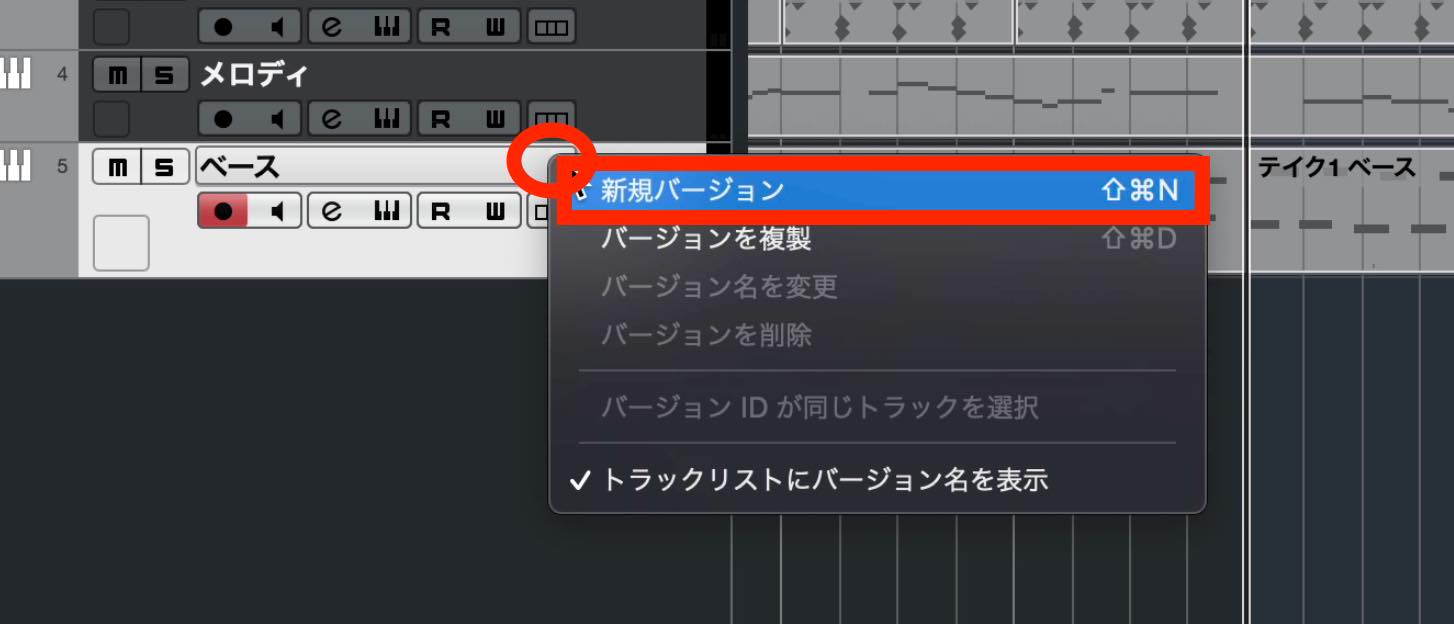
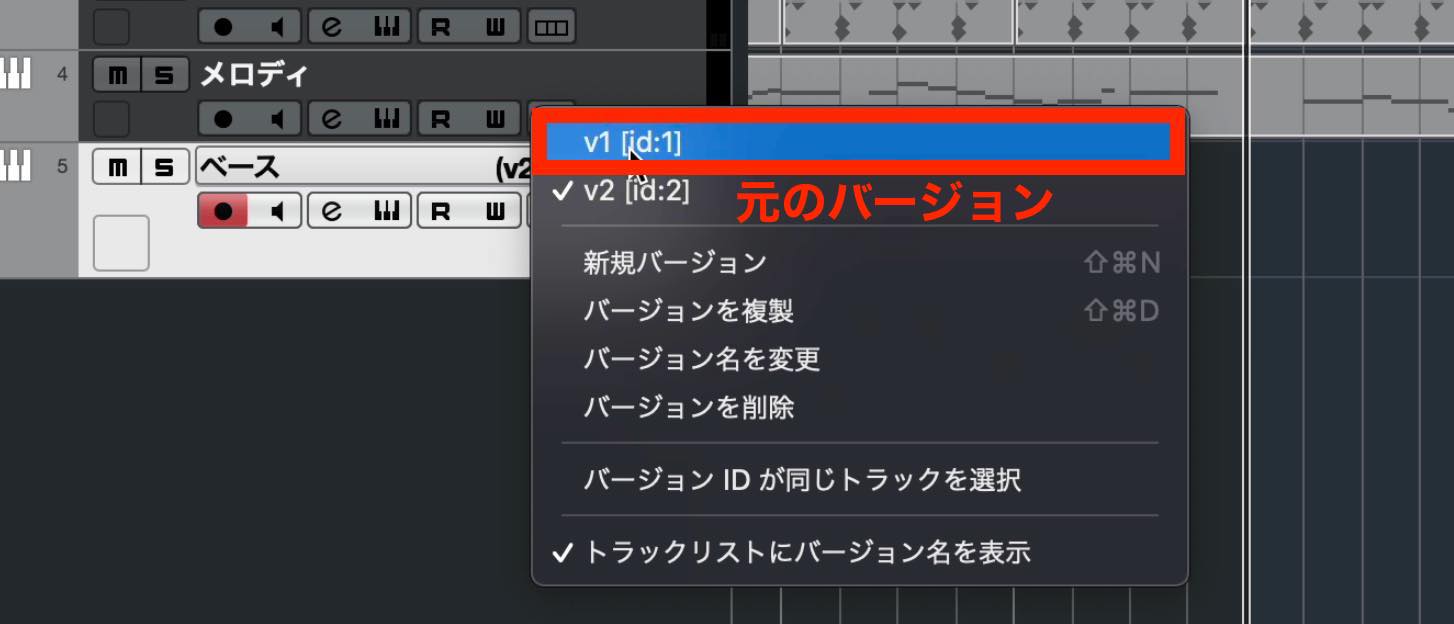
Record another performance into the empty version, and you can switch back to the original whenever you like.
If you want to modify a copy of the original instead, choose “Duplicate Version.”
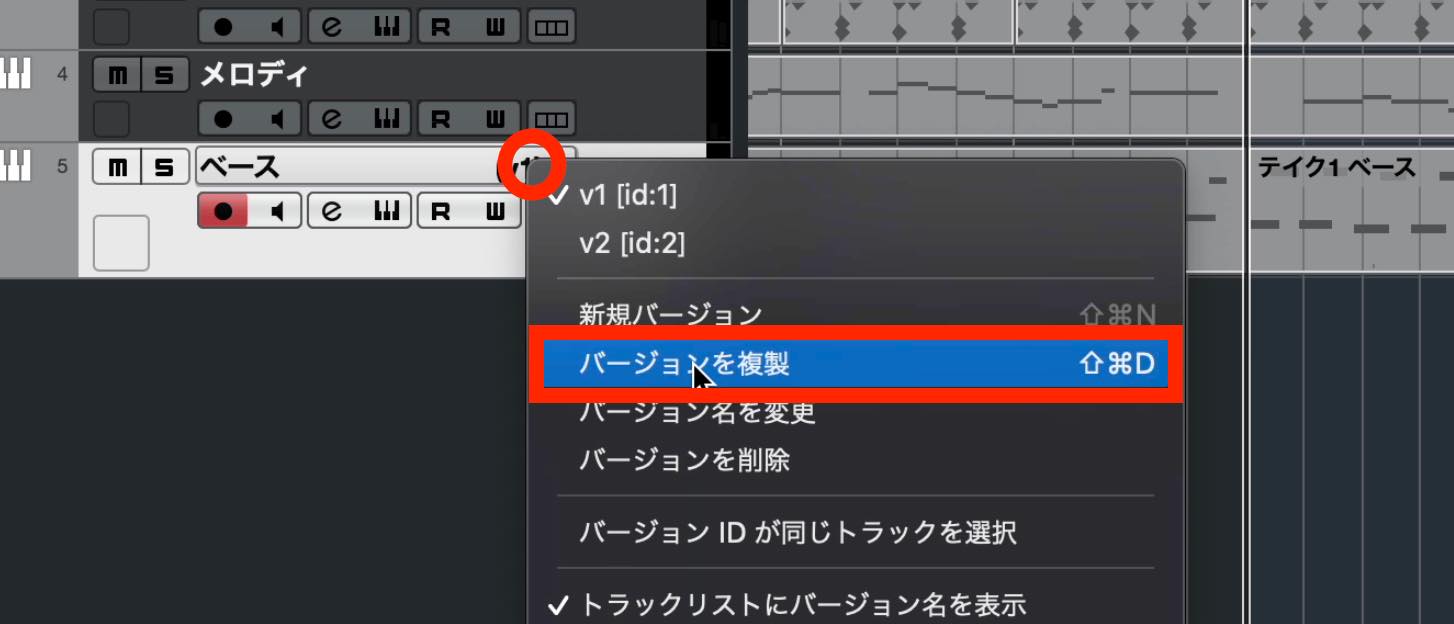
This creates a version with the same contents, which you can record into or edit as you wish.
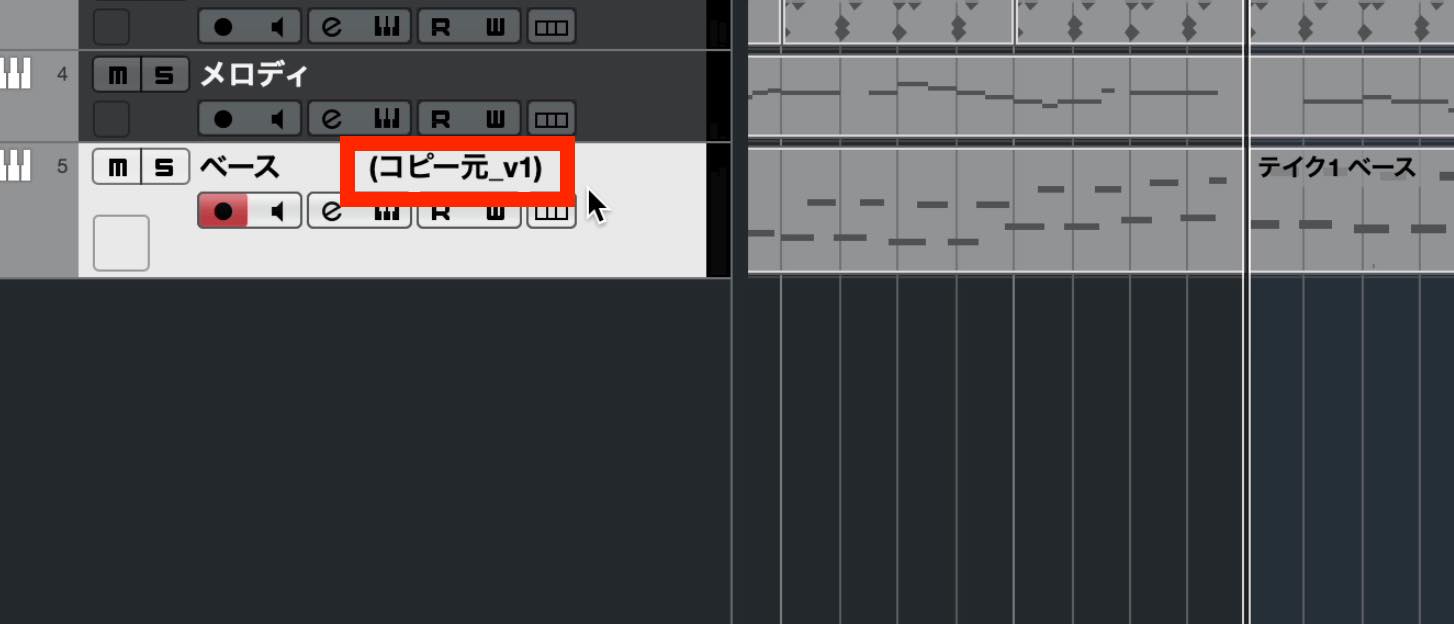
You can still return to the original version at any time.
That covers real-time recording and the useful features that go with it.
If you have a MIDI keyboard, this can be a much faster way to enter notes. A particular strength is how easily it captures expressive velocity differences.
In the next lesson, we'll look at quantization, which corrects the rhythmic timing of your performance.
Lesson 9 in our Cubase beginner series covers real-time recording.
Play a MIDI keyboard along with the song to capture your performance as MIDI data. The strength of each key press is also recorded, making this a useful way to preserve the expression in your playing.https://t.co/TQpkjiNizA #DTM #Cubase— SLEEP FREAKS (@SLEEPFREAKS_DTM) July 11, 2021
Frequently asked questions
Q1. What do I need to start real-time recording in Cubase?
For the method shown in this lesson, you need a MIDI keyboard. Select the instrument track you want to record, make sure its red Record Enable button is lit, and click Record in the Transport Bar to begin.
Q2. What is a count-in?
A count-in plays the metronome for a set number of beats before recording begins, helping you start your performance on time. The example in this guide uses an eight-beat count-in, which you can change in Metronome Setup.
Q3. What should I do if I make a mistake during real-time recording?
Re-Record provides a quick way to try again. Select Re-Record in Common Record Modes, then press Record again when you notice a mistake. The current attempt is discarded, and Cubase returns to the starting point so you can restart immediately.
Q4. What if I can't play several drum sounds at once?
Combine Merge recording with a loop to add drum sounds one at a time. Select Merge in MIDI Record Modes, then record several passes over the looped section to build up the performance in stages.
Q5. How can I choose the best sections from several takes?
Use Stacked mode. Select Stacked in MIDI Record Modes and play the looped section several times to save each performance as a take. Click Show Lanes, switch to the Comp tool, and click the take you want. Split the parts first if you want to combine sections from different takes.
NEW ARTICLES
Latest English Articles


















































































































































