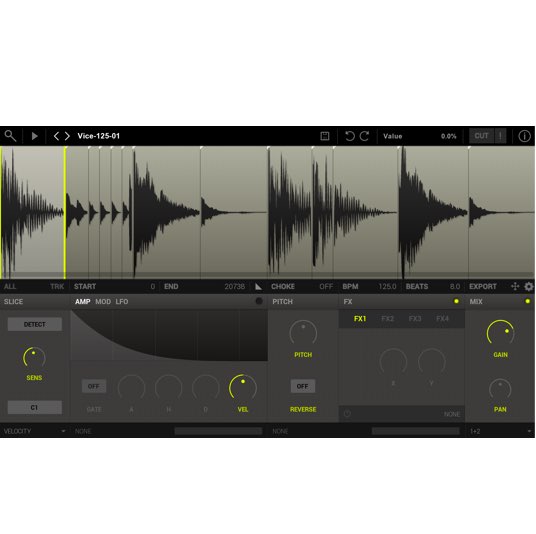
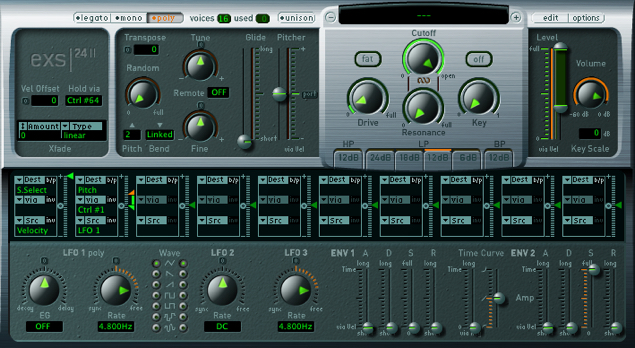
EXS24, the sampler included with Logic Pro, lets you fine-tune and edit imported samples. This article explains how to switch individual samples to one-shot or reverse playback and set up different samples to trigger according to velocity. Layering samples and selecting them by velocity expands your expressive range and helps you create more natural, rich sounds.
Adjusting Samples Imported into EXS24
EXS24, included with Logic
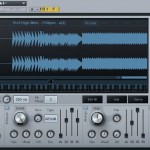
Let's refine and adjust the samples we have mapped.
You can also trigger samples according to velocity!
EXS24 Video Tutorial
Video Highlights: Changing Sample Playback

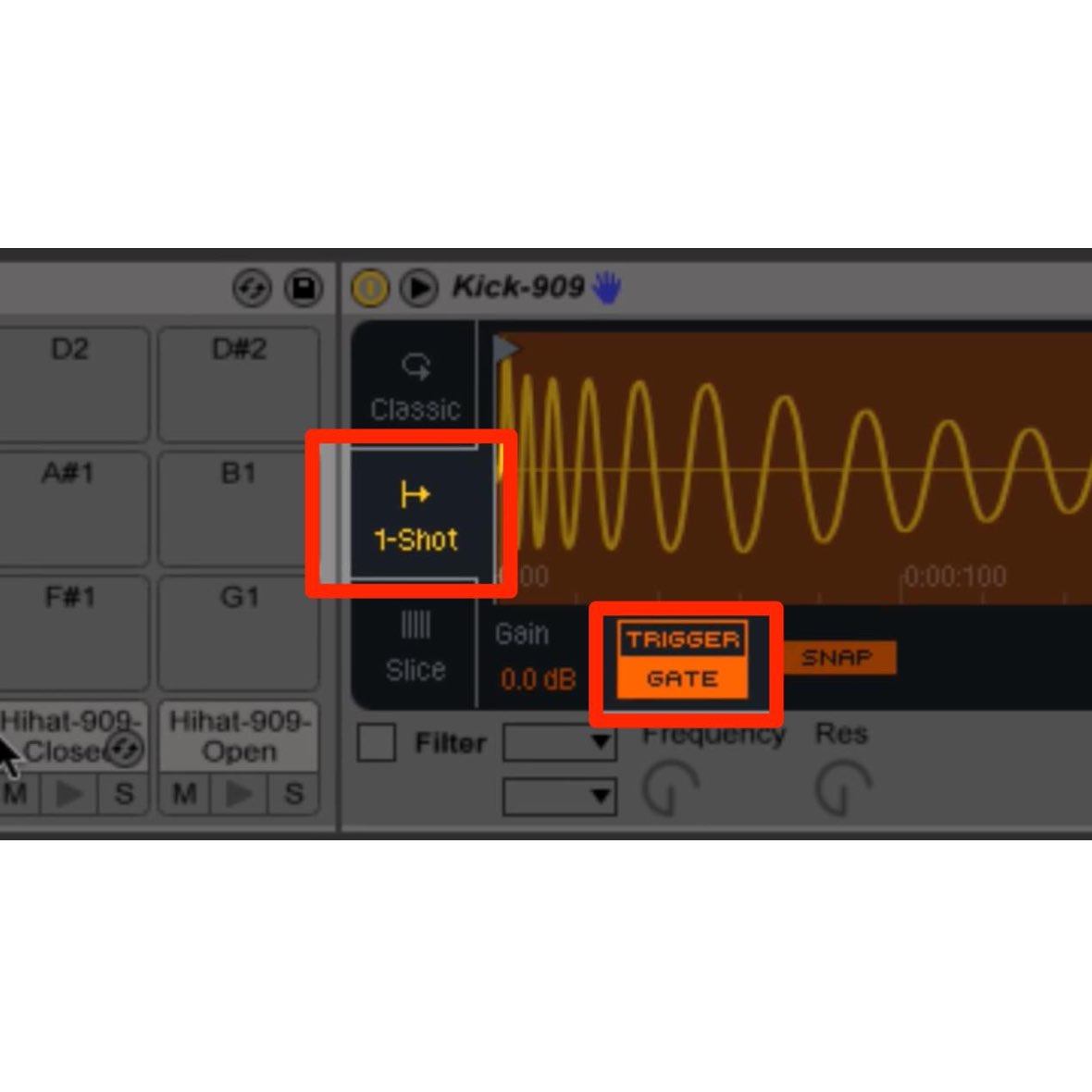
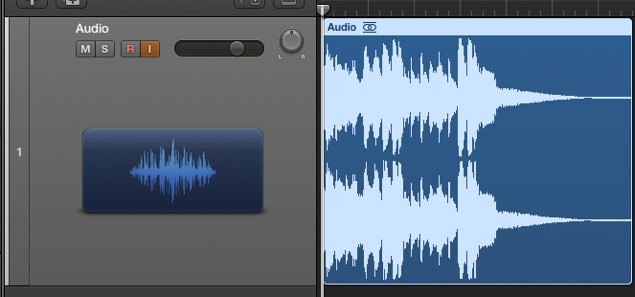
You can switch one-shot and reverse playback on or off for each sample.
Video Highlights: Triggering Samples by Velocity
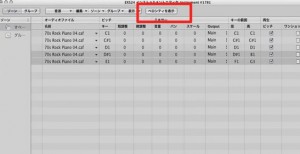
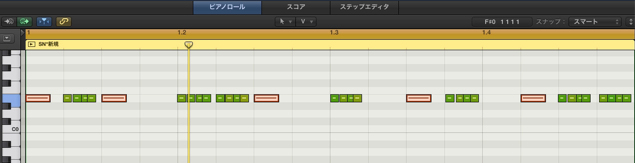
Select Show Velocity.
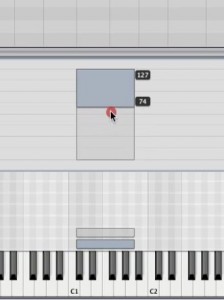
By dragging overlapping samples,
you can adjust their velocity triggering ranges.
You can also set this up with three or four samples.
Frequently Asked Questions
Q1. How do I set up velocity triggering in EXS24?
Select Show Velocity in EXS24, then drag and reposition overlapping samples to adjust their velocity ranges. You can set this up with three or more samples to capture subtle performance nuances.
Q2. Can one-shot and reverse playback be set individually for each sample?
Yes. In EXS24, you can independently change playback settings for each sample. Combining samples with different playback settings within the same instrument can produce more expressive sounds.
Q3. Are there other sampler plugins that offer similar adjustments?
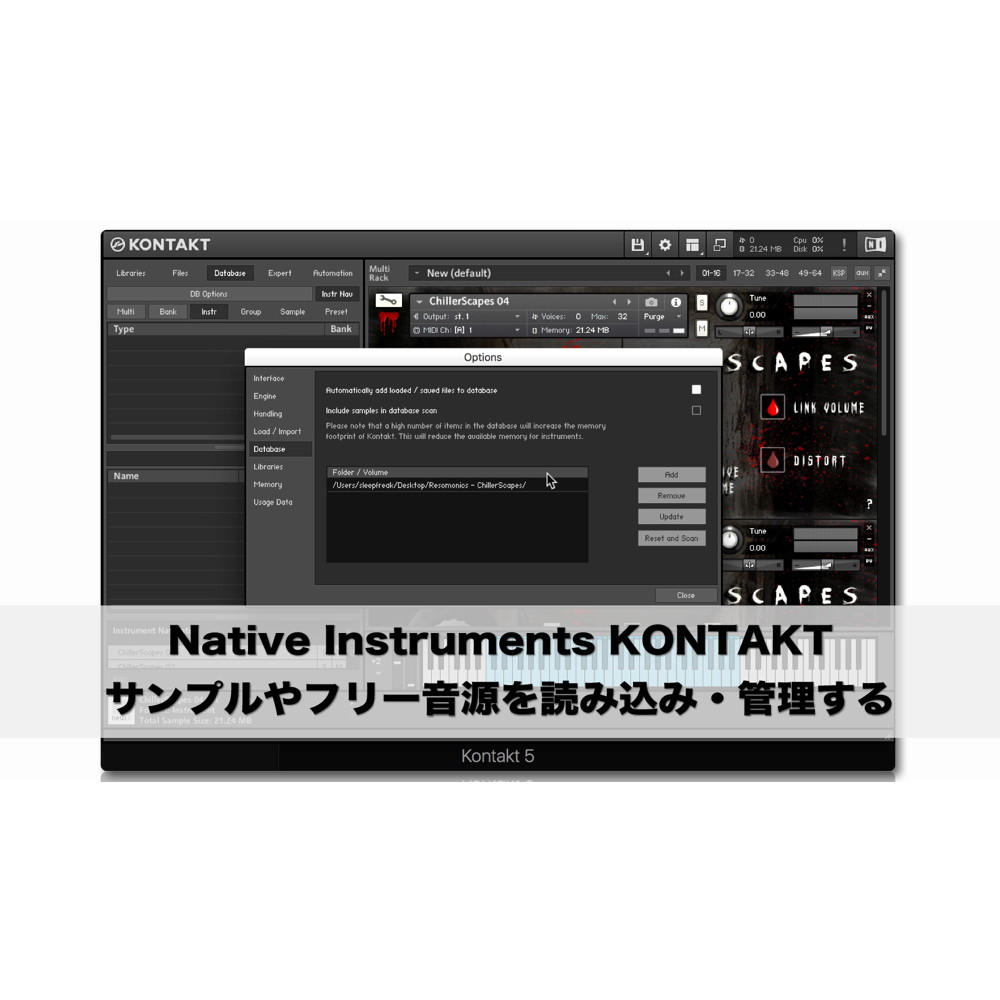
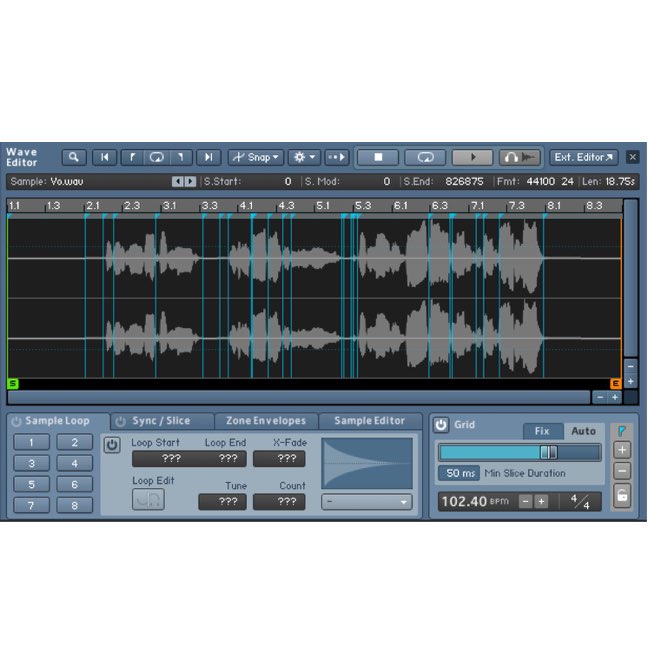
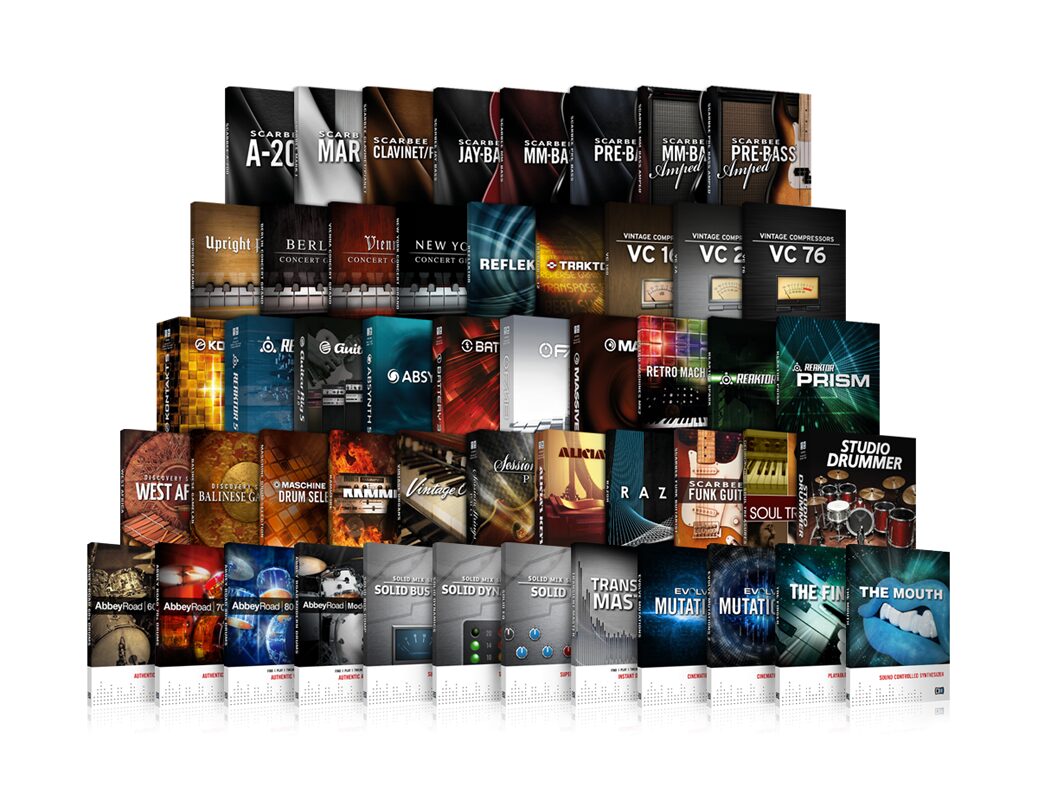
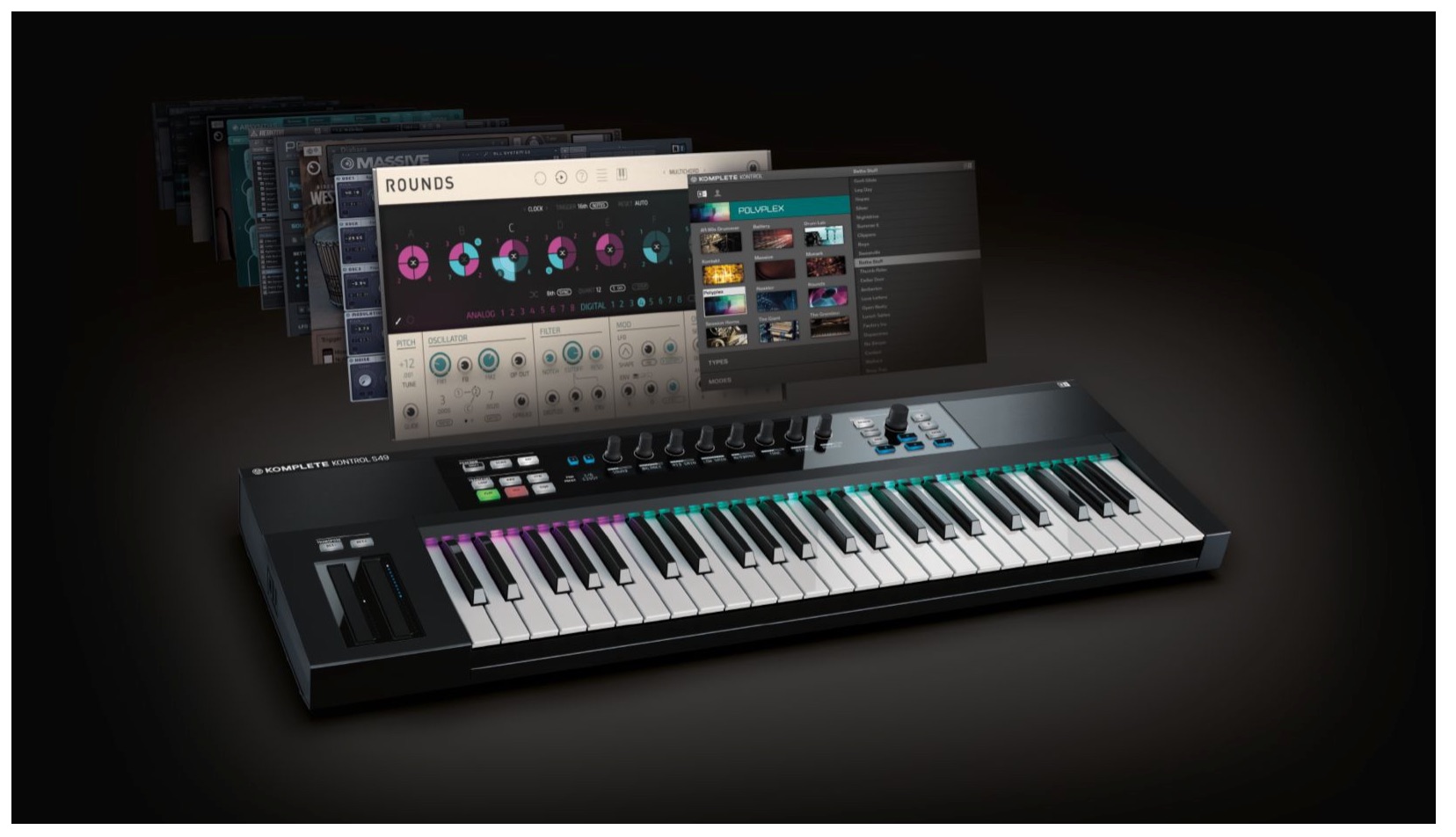
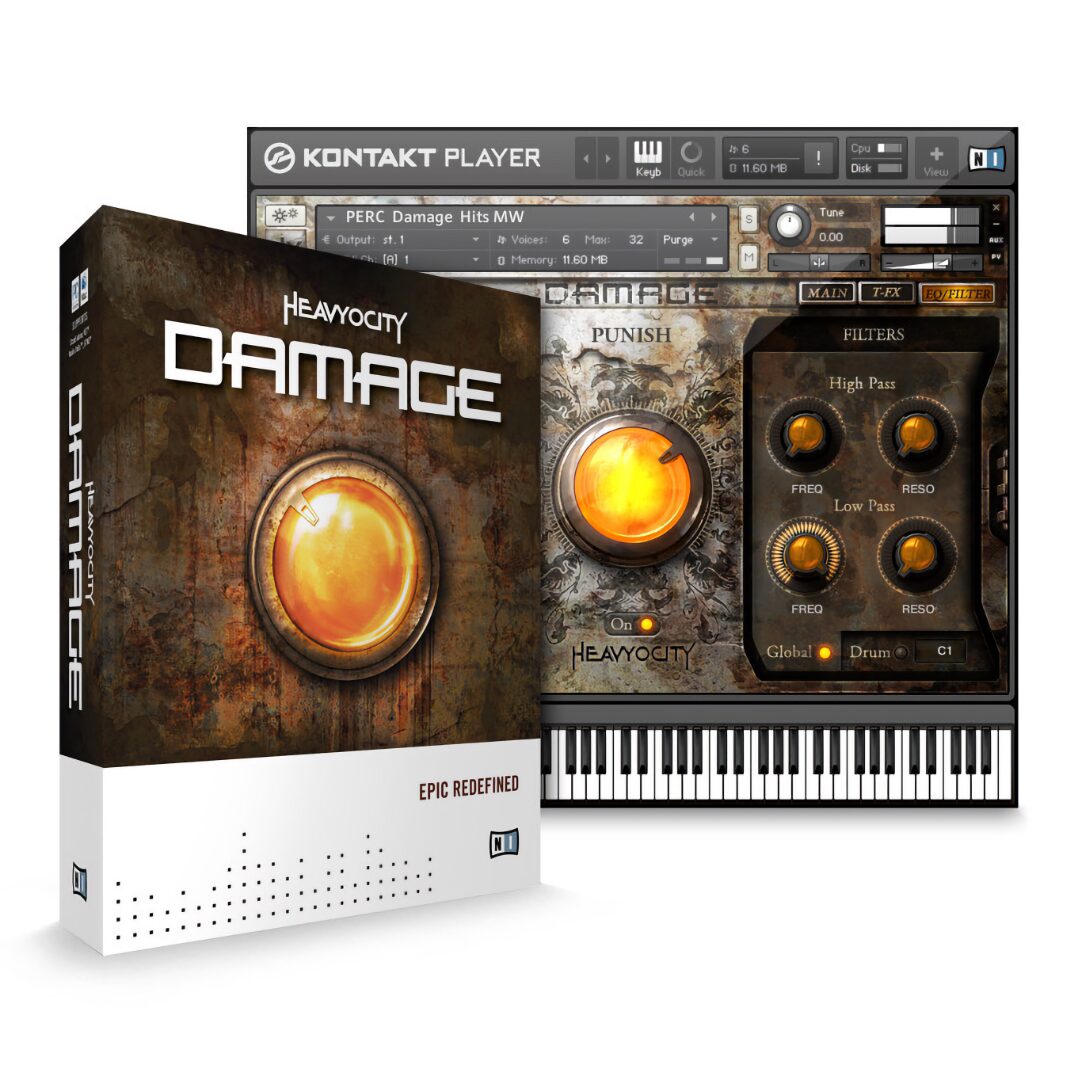
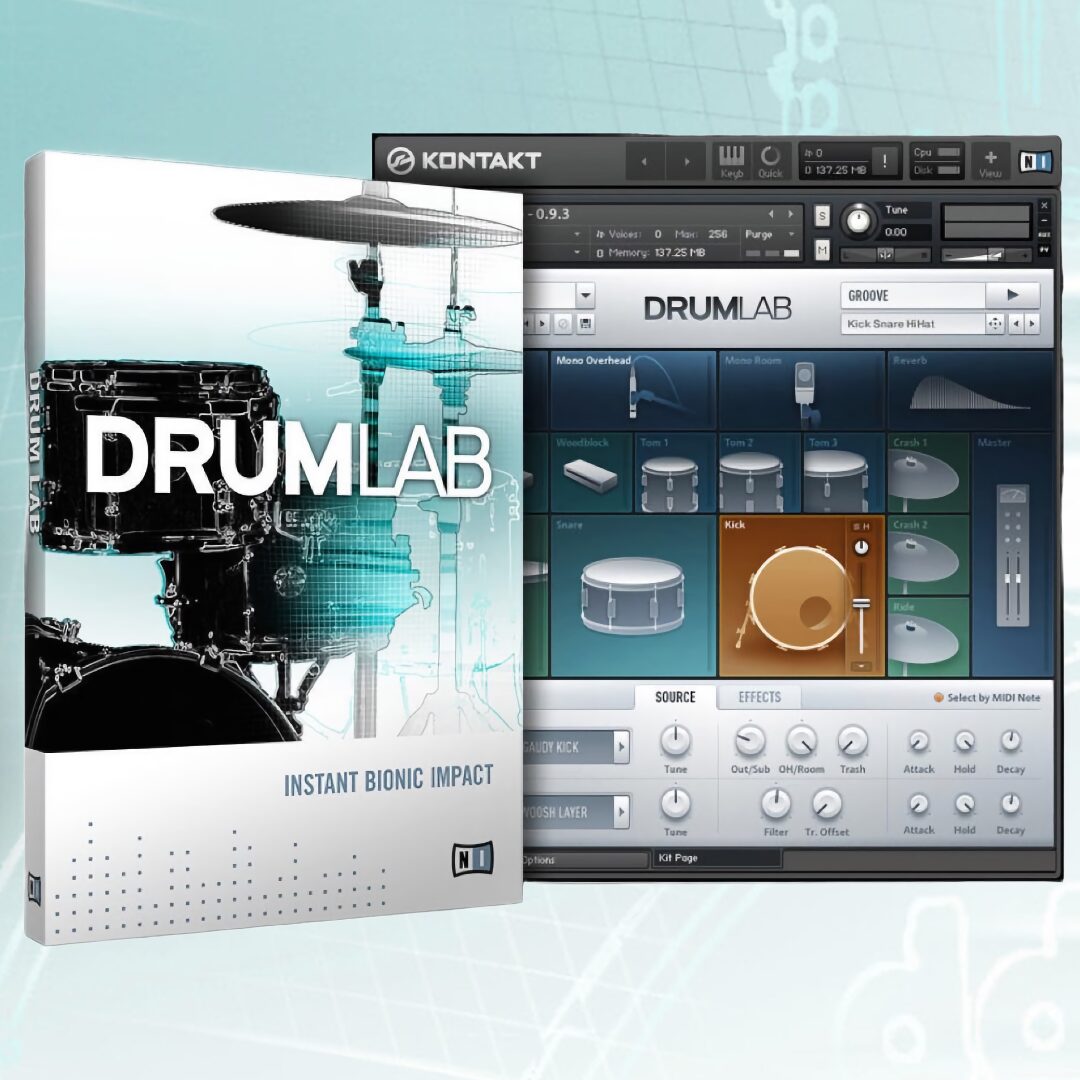
Native Instruments Kontakt and Battery 4 are well-known, highly customizable samplers. Both offer similar velocity triggering and sample editing functions.
NEW ARTICLES
Latest English Articles