
Trilian is a professional bass instrument with a large library of high-quality presets and an intuitive interface. This guide covers finding patches in the browser, searching for similar sounds with Sound Match, shaping sounds with envelopes and filters, using the arpeggiator, and switching articulations with keyswitches. These features help you tailor a bass sound to your music and work more efficiently.
Premium Bass Sounds with Trilian
Bass sounds have a major effect on a track, but it can be difficult to find the right tone or make it sound natural.
Trilian is designed to help with those challenges.
Its extensive library of high-quality presets covers many genres, making it easy to find a strong bass sound.
Trilian Video: Overview and Choosing Sounds
Selected Questions and Answers from the YouTube Video

Thank you for the helpful videos. I have a question: can I make Trilian match the actual sounding pitch on the keyboard? Is it normal for it to sound one octave lower? Changing the patch’s Octave setting from -1 to 0 matches the sounding pitch, but then notes from E0 to A#1 no longer sound. I understand that bass is often notated an octave higher, but I would prefer to program at sounding pitch. Can this be done in Trilian?

Could you try the following approach? https://app.box.com/s/aak1aa12ro8g6ohdbnp4tp1d4eenb0jy 1. Open the MIDI modifiers. 2. Use the modifier to transpose everything down one octave (12 semitones). The notes you play or program will then sound one octave lower, matching the product’s key display.
So it is pronounced “Trilian”!
Yes, the product is pronounced “Trilian.”
Thank you for your videos. With Trilian, even when I enter notes at the same velocity, playback varies in intensity as if humanized. Keyswitch slides also vary each time, as though two variations alternate. I usually use electric bass sounds such as Fender patches. How can I make the picking articulation play consistently, like a machine?
Could you try enabling the “SOLO” button? https://app.box.com/s/gaehbhfkg8lktfjvune0gt3e8ikpz1gp
I use Trilian and learn a lot from your videos. After moving from Windows 8 to Windows 7, the challenge-code characters appear garbled. Do you know why?
A challenge code can contain a combination of symbols that may look garbled. Does authorization fail even if you copy and paste it? Also try signing in to your Spectrasonics account and downloading and installing the latest version. This exchange refers to older Windows versions.https://auth.spectrasonics.net/useracct/index.php?referrerURL=/useracct/index.php
I always enjoy your videos. This may be old, but could you make a tutorial for Superior Drummer 2?
Sorry, we did not have plans to publish a Superior Drummer 2 tutorial at the time of this exchange. We said we would consider Superior Drummer 3 if it were released.
Filtering and Loading Sounds
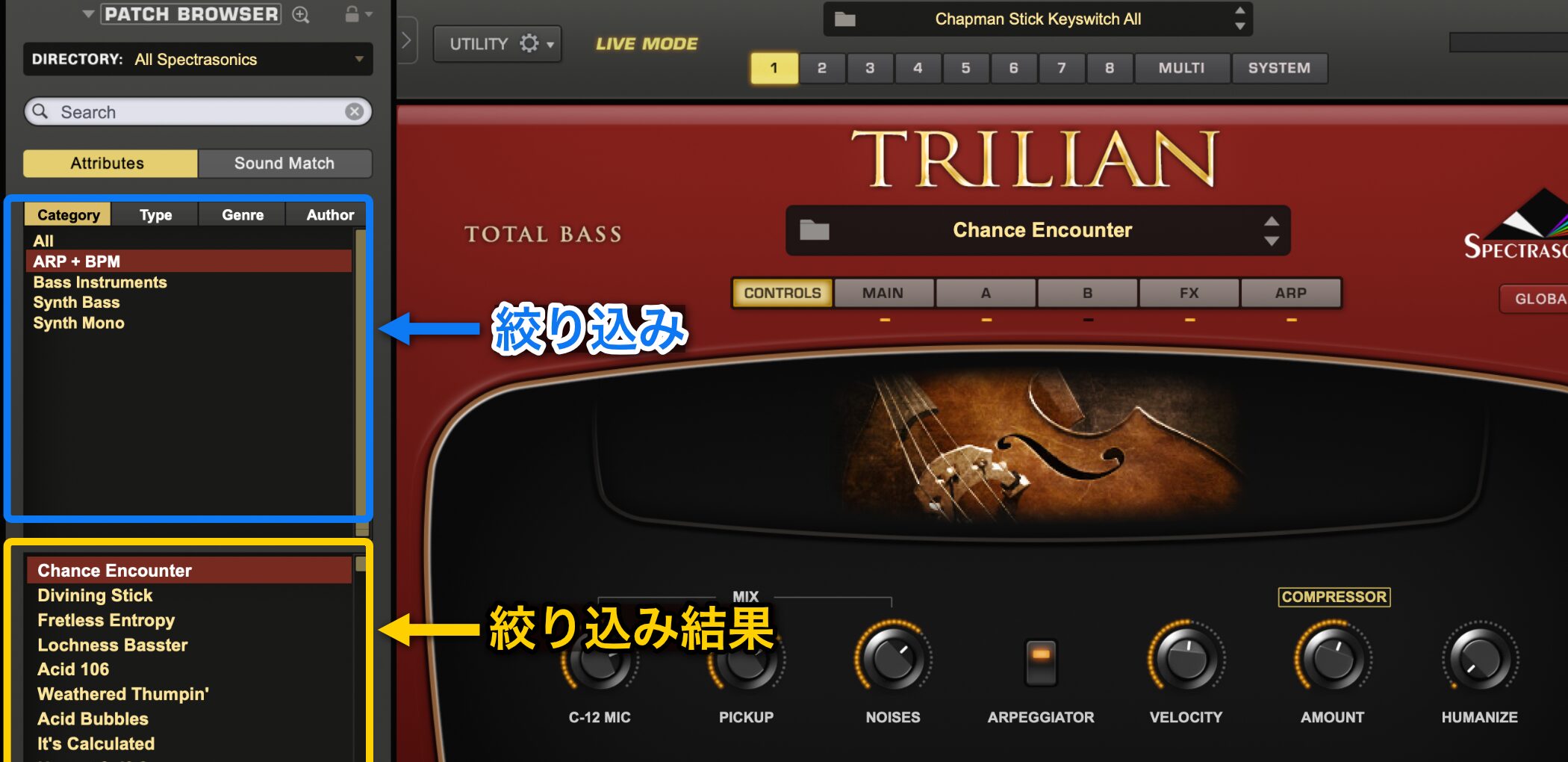
When Trilian opens, use the mini Patch Browser on the left to filter and select sounds.
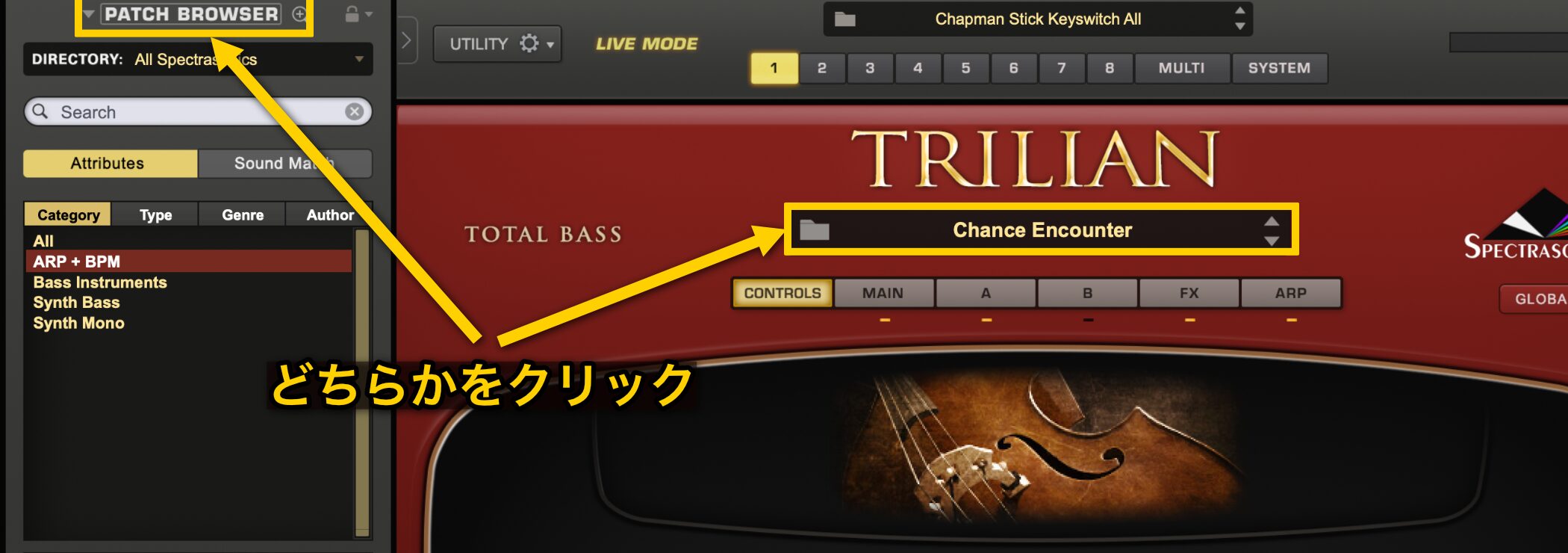
Click “PATCH BROWSER” at the upper left or the folder icon in the center to open the full Patch Browser.
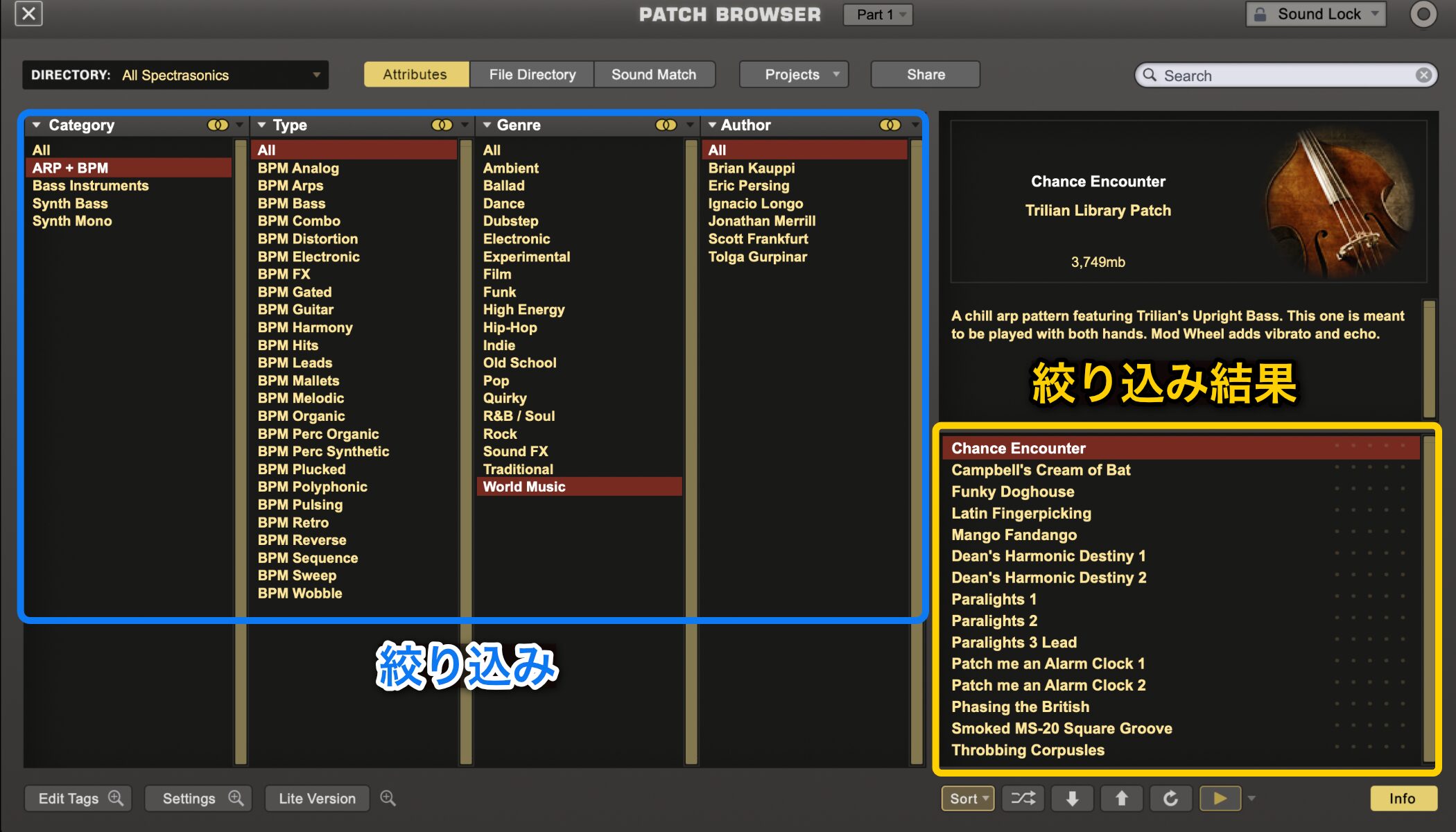
In the full browser, you can narrow sounds by following the categories.
Because there are so many presets, learning these controls can save time.
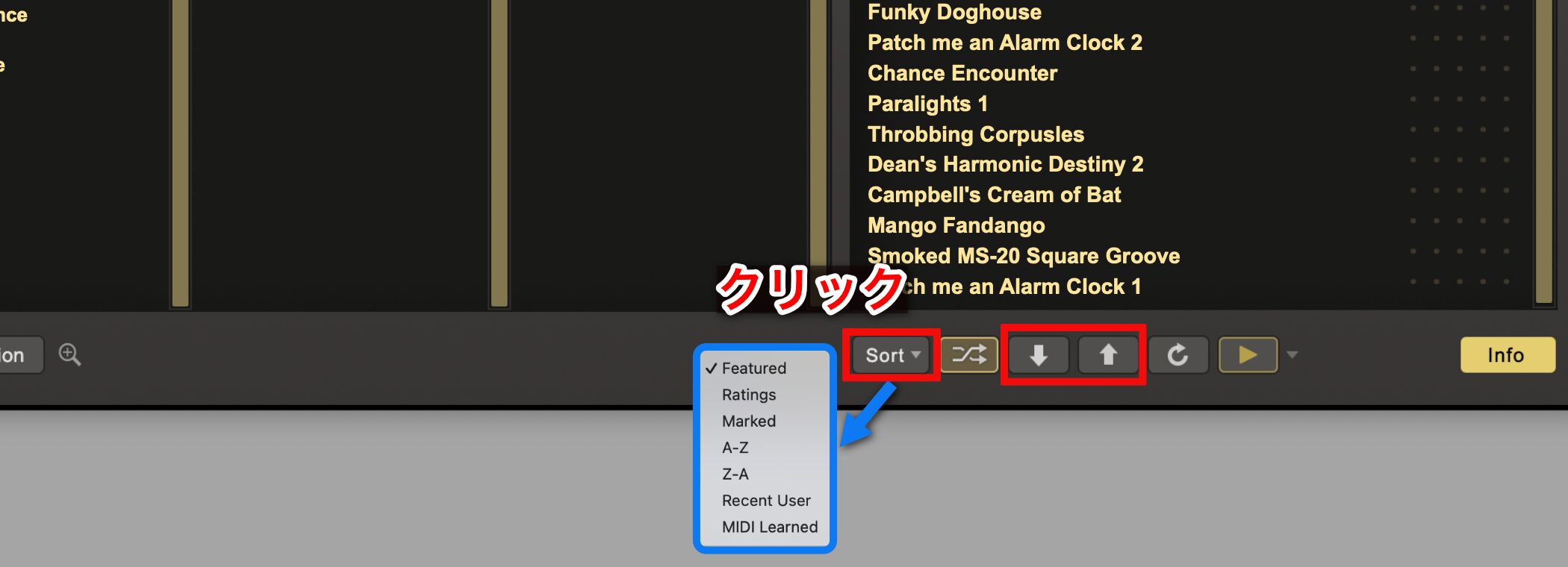
Preview the sounds you have filtered.
You will likely want to do this quickly.
Use the menu opened by the “Sort” button to sort presets, and use the up and down arrows to switch sounds.
Rate Sounds You Like
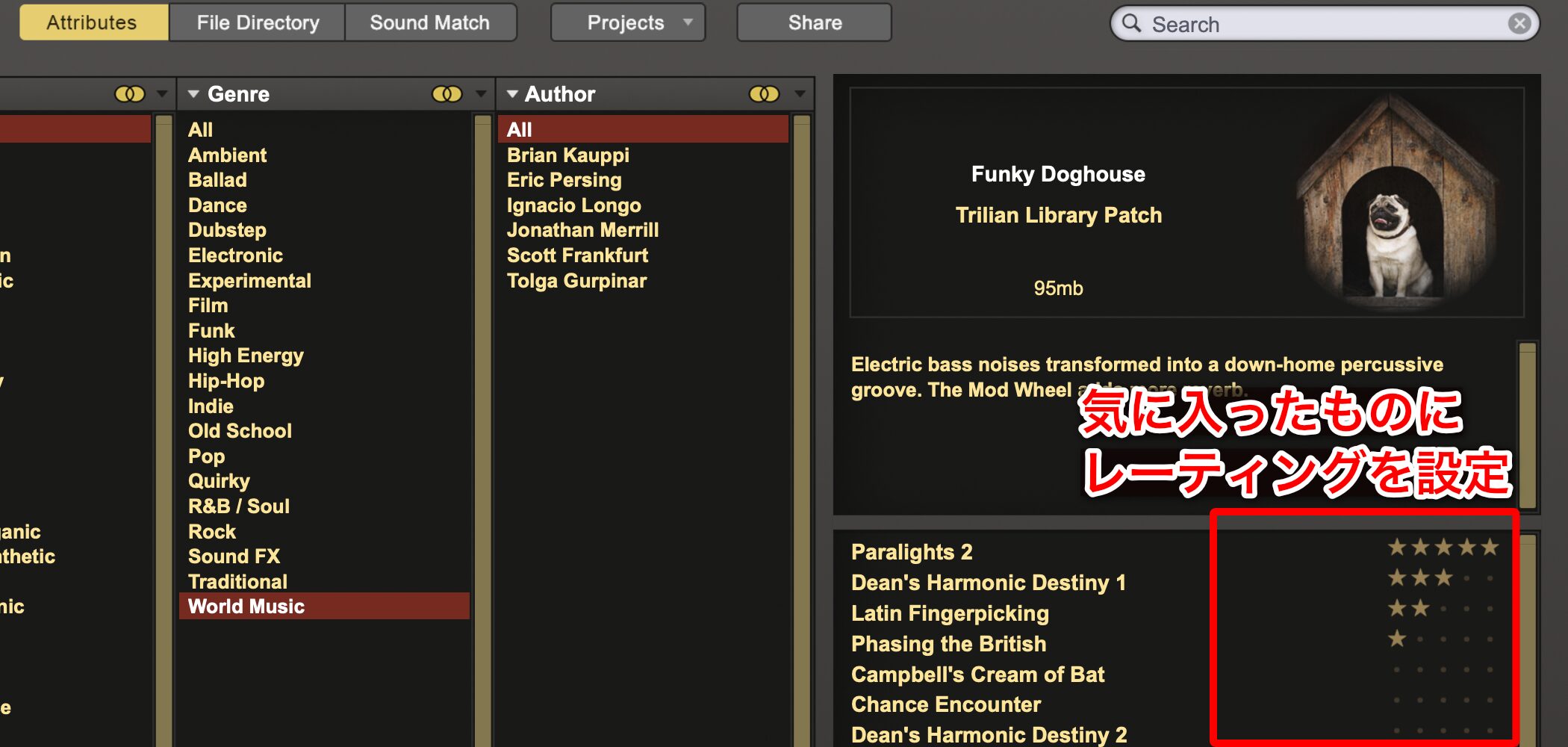
When you find a sound you like, mark it with a rating so you can find it again.
Using Sound Match
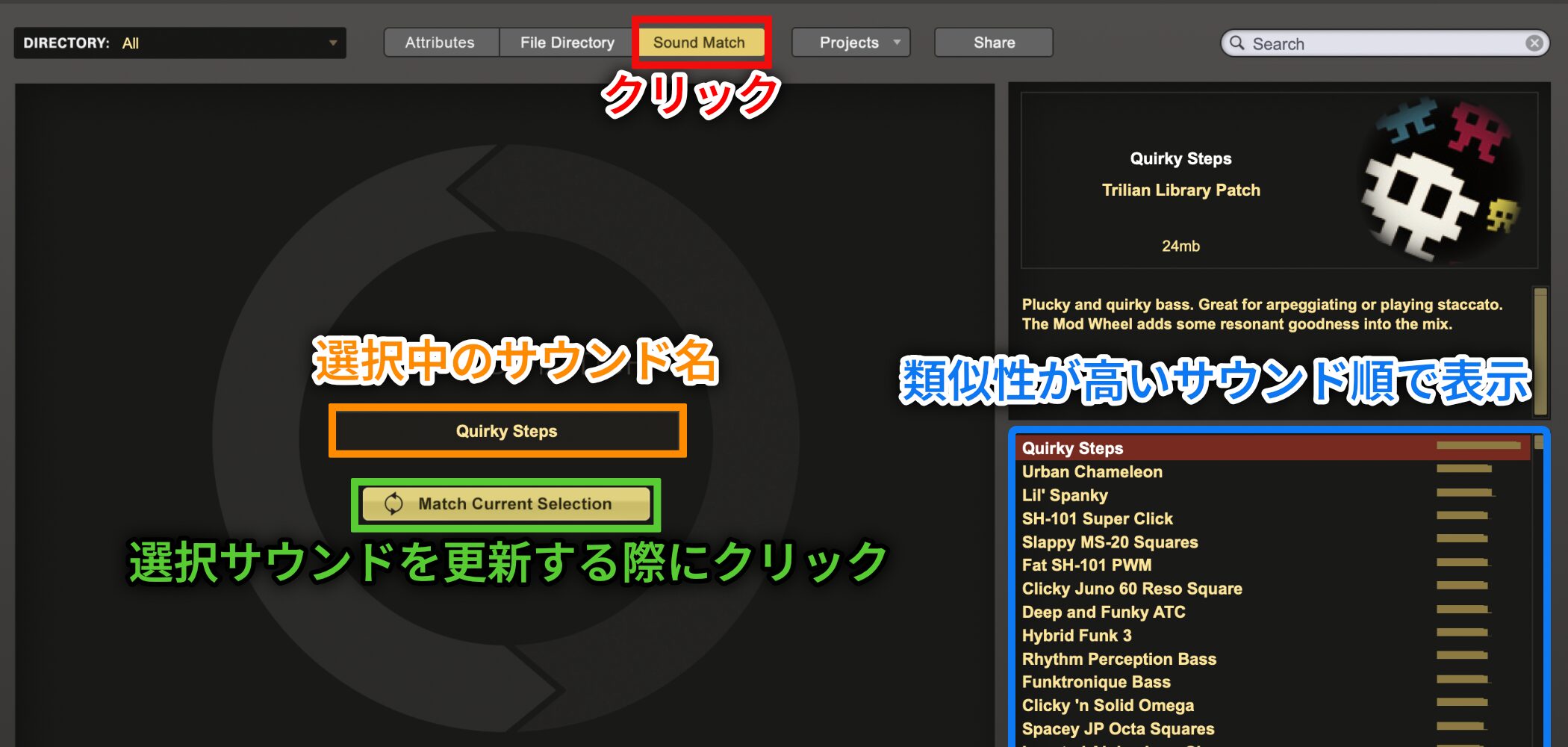
Select a sound and click “Sound Match” to display a list of similar sounds.
The closest matches appear first, with a bar to the right of each name showing match strength.
After selecting another sound, click “Match Current Selection” to find sounds similar to that selection.
It is useful when you want to quickly find related sounds based on the current sound.
Edit a Preset to Fit the Track
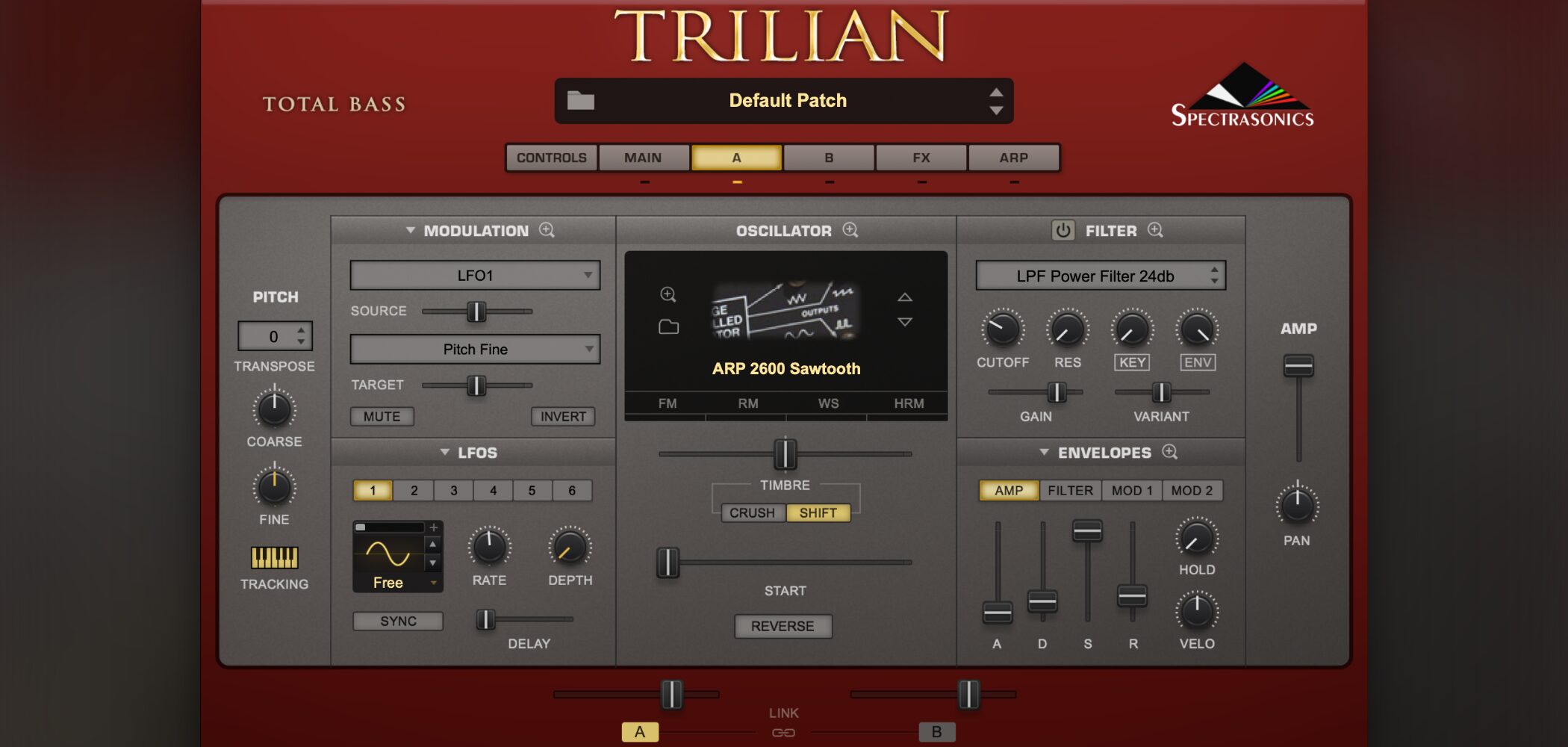
After choosing a preset you like, edit it to suit your song.
Trilian Video: Sound Structure and Editing
The video demonstrates Omnisphere; the operations shown are similar in Trilian.
Sound Structure
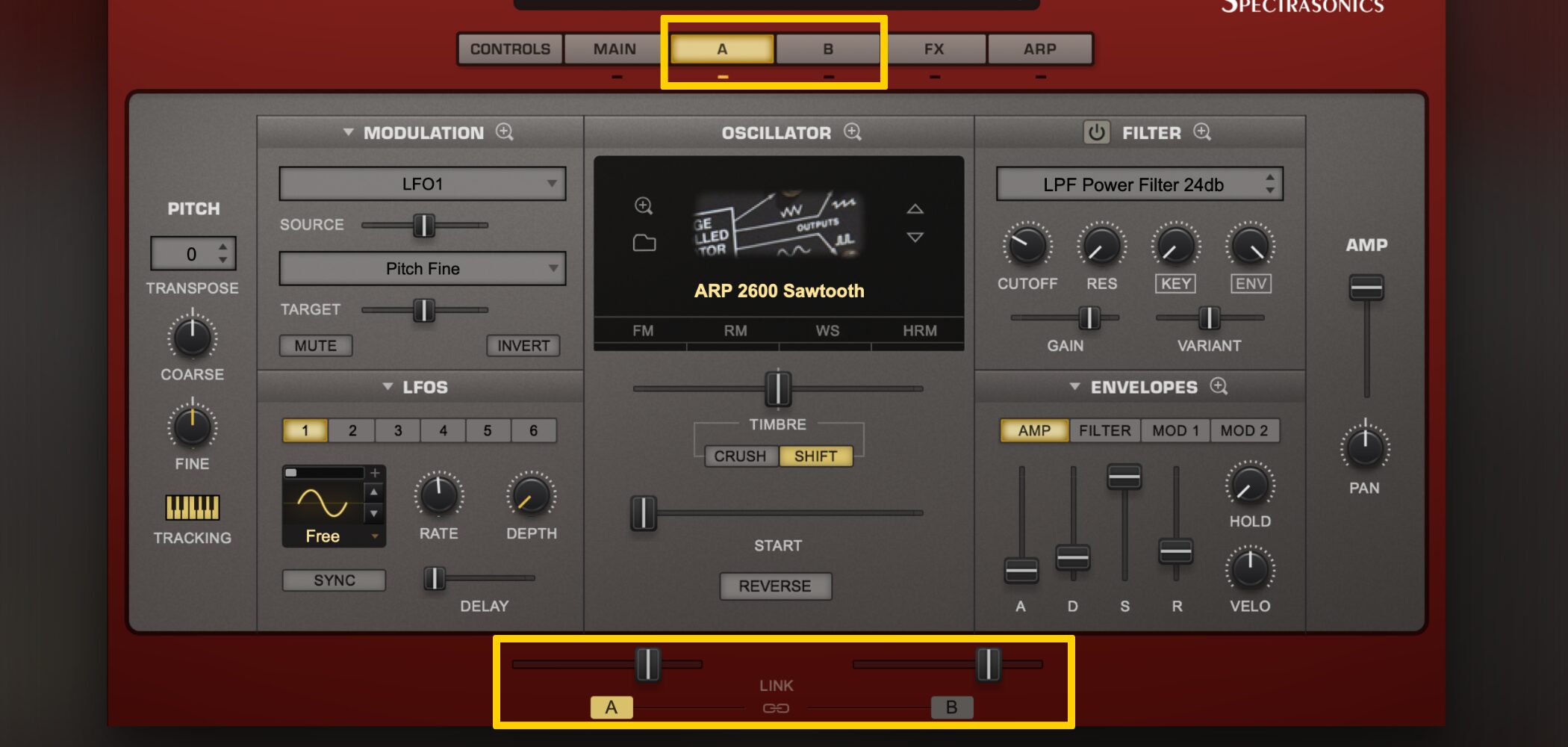
Depending on the preset, Trilian combines two sounds, “A” and “B.”
You can edit these layers individually.
Control Volume with the Envelope
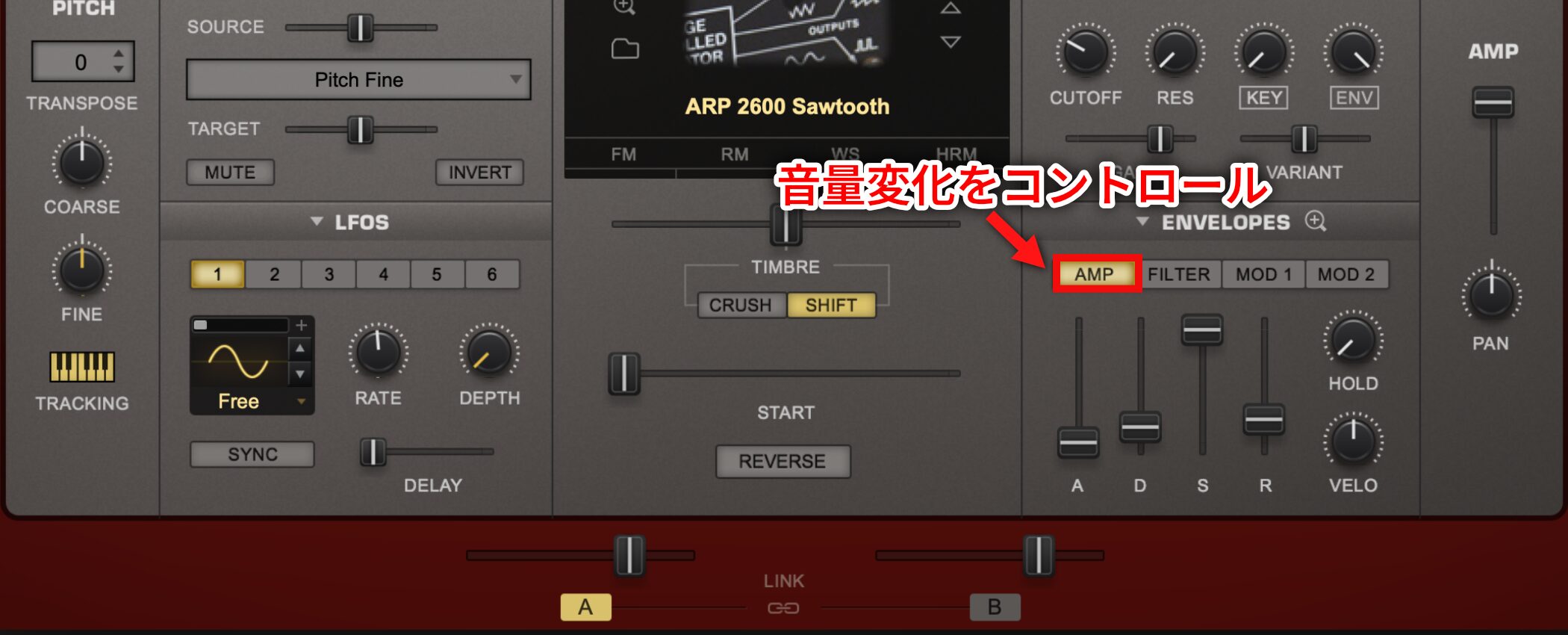
Volume control is important in synthesis and music more generally.
Under ENVELOPES, the AMP section lets you control how volume changes over time.
Shape Tone with a Filter
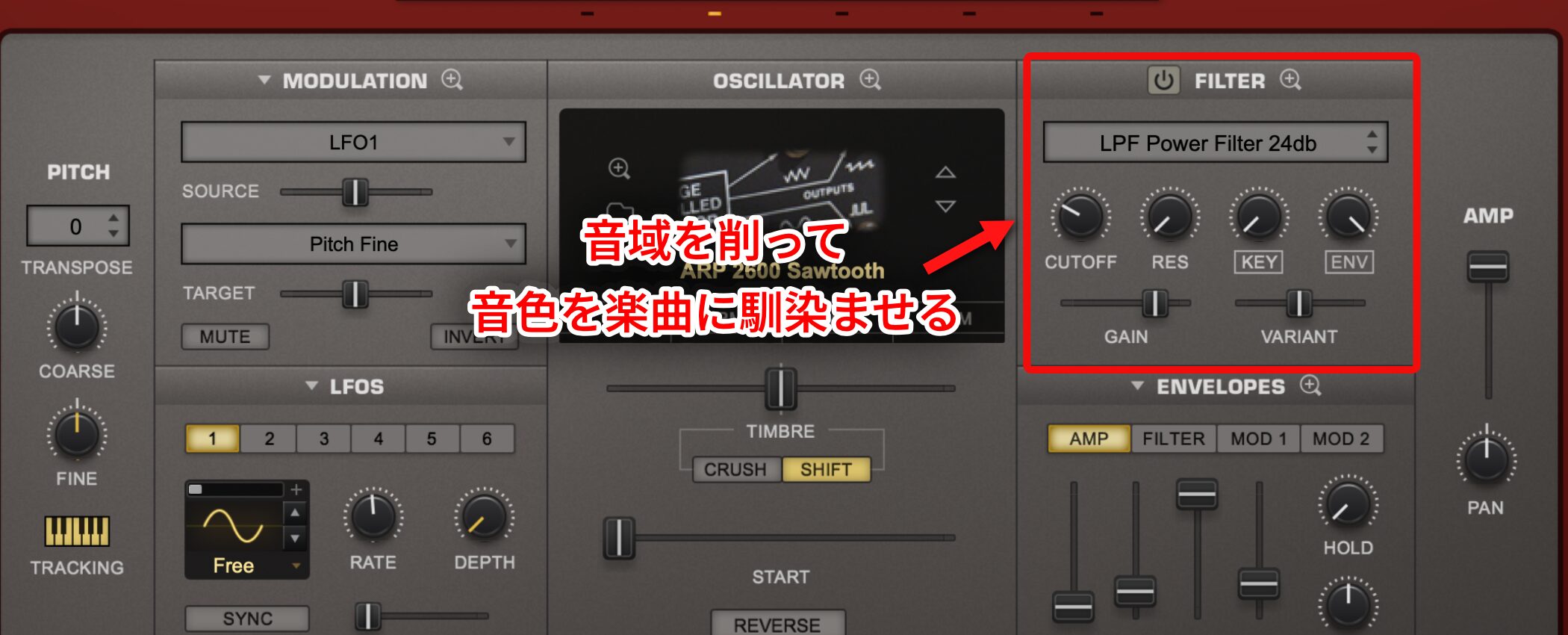
The FILTER removes frequency ranges, helping the sound sit in the track.
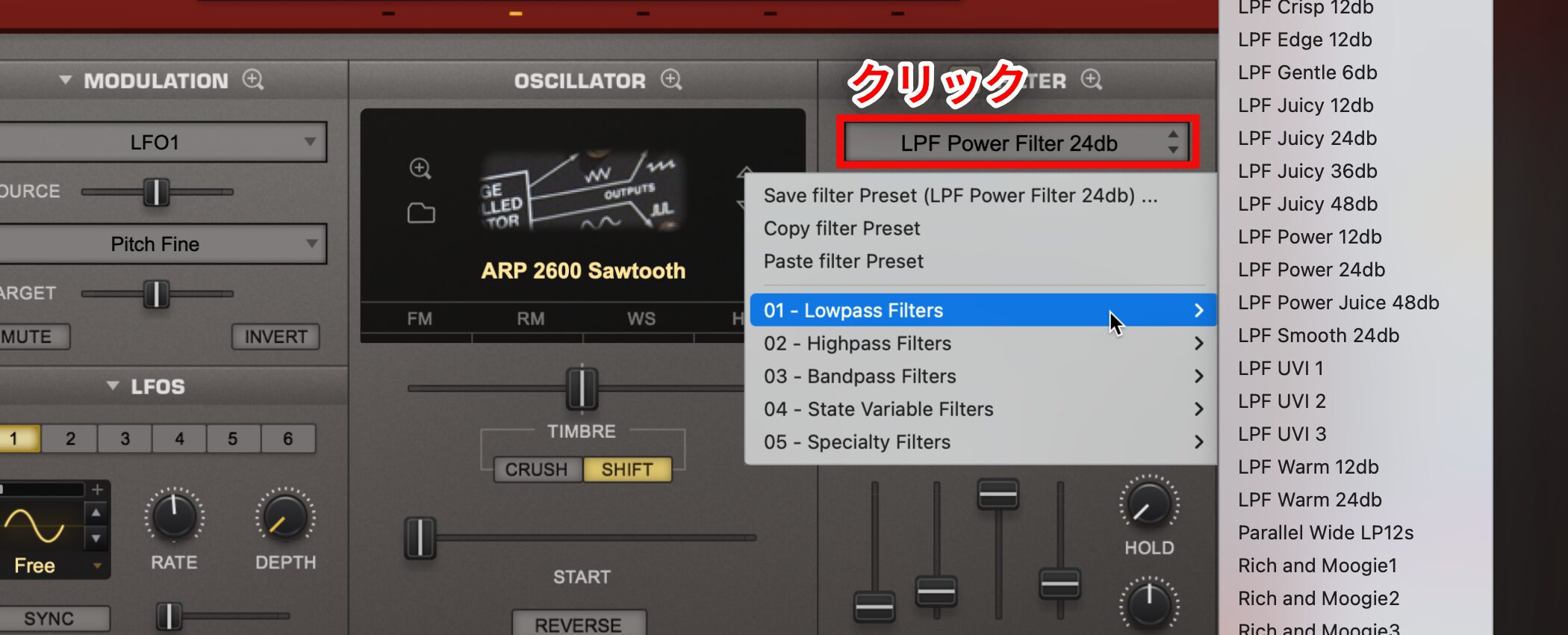
The low-pass filter is one of the most commonly used synth filters.
It reduces high frequencies, rounding the sound and helping it blend with other instruments.
Change Pitch with Glide
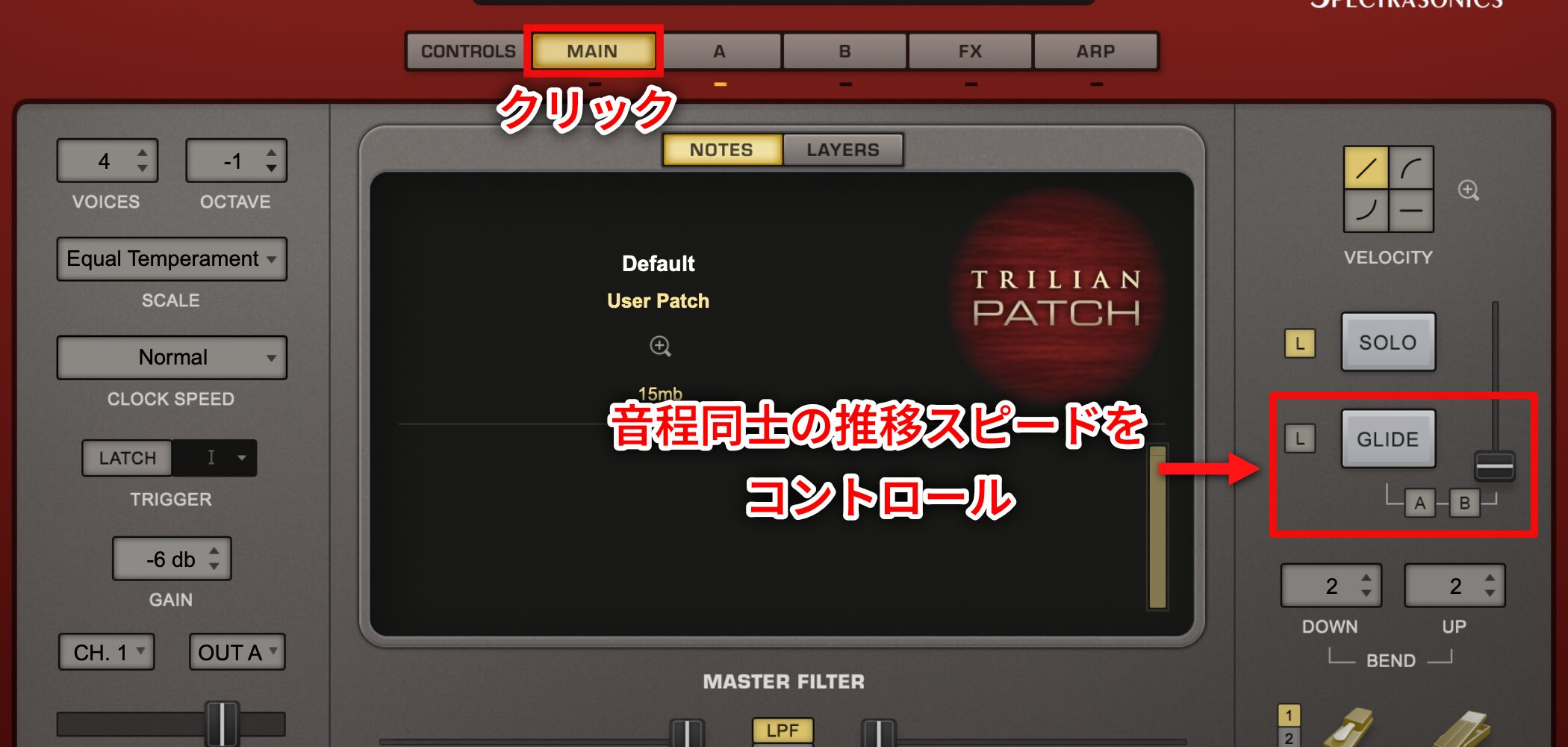
Use “GLIDE” on the MAIN page to control the speed of pitch transitions.
Use the Flexible Arpeggiator
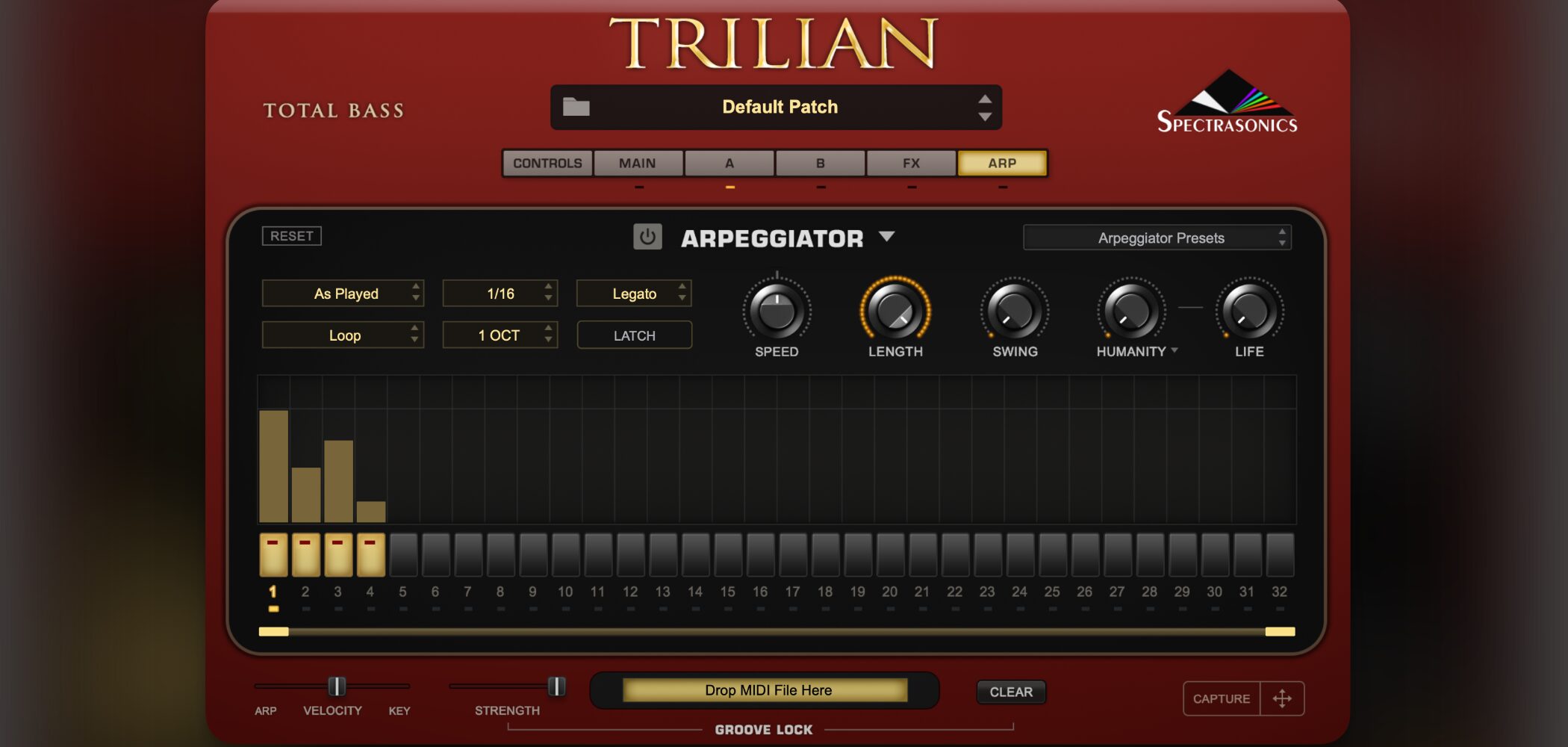
Trilian includes a powerful arpeggiator designed for intuitive use.
Let’s take a closer look at it.
Trilian Video: Arpeggiator
The video demonstrates Omnisphere; the operations shown are similar in Trilian.
Synchronizing to Tempo
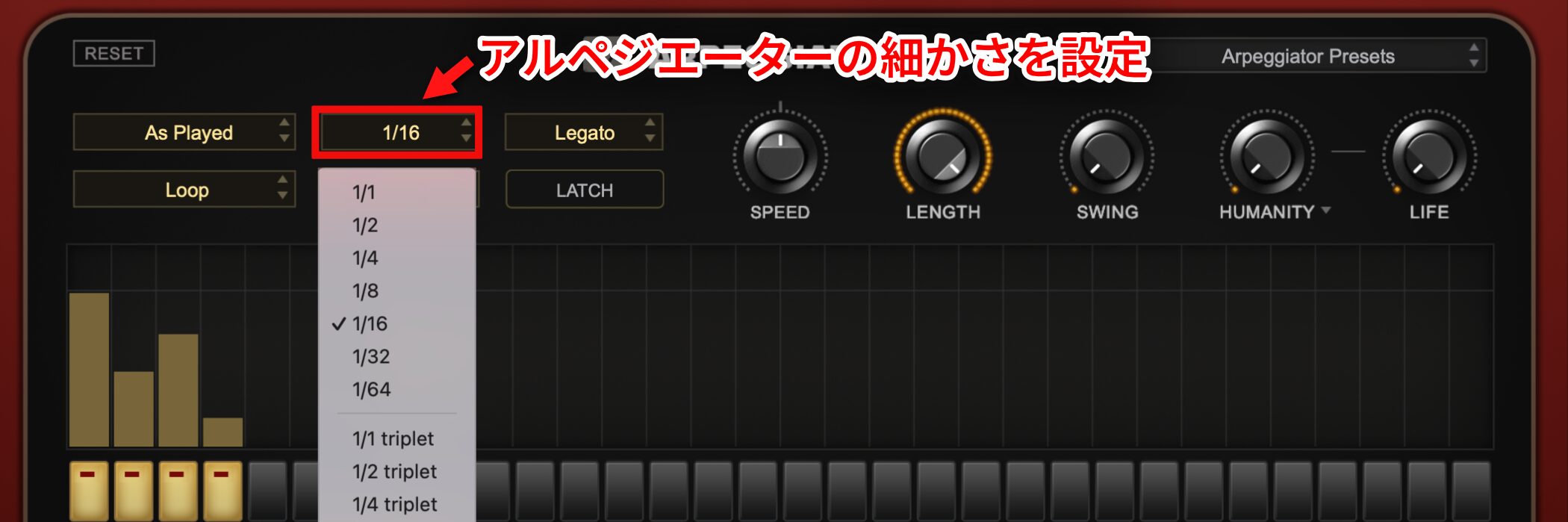
The arpeggiator synchronizes to your DAW tempo.
The setting shown as “1/16” determines the note division used for synchronization.
Creating a Pattern
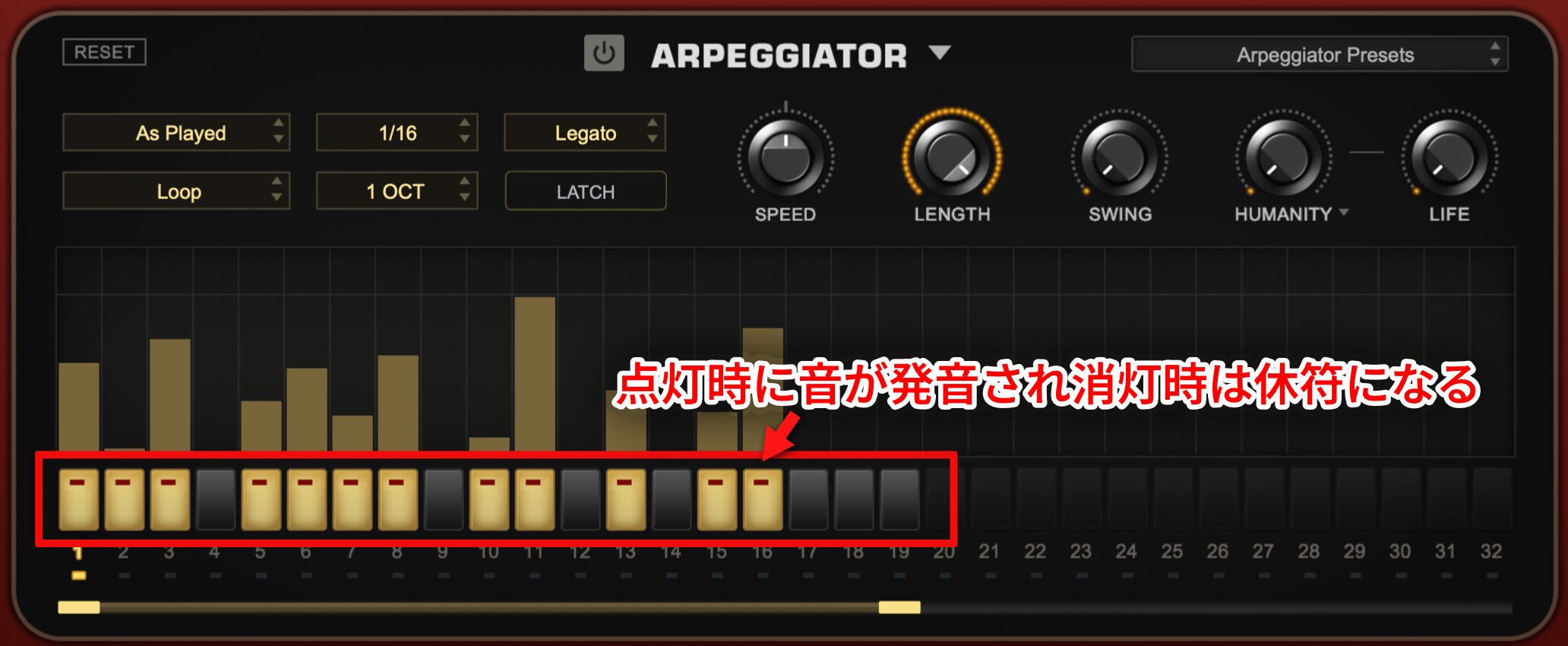
Click a step to toggle it on or off.
An active step sounds; an inactive step is a rest.
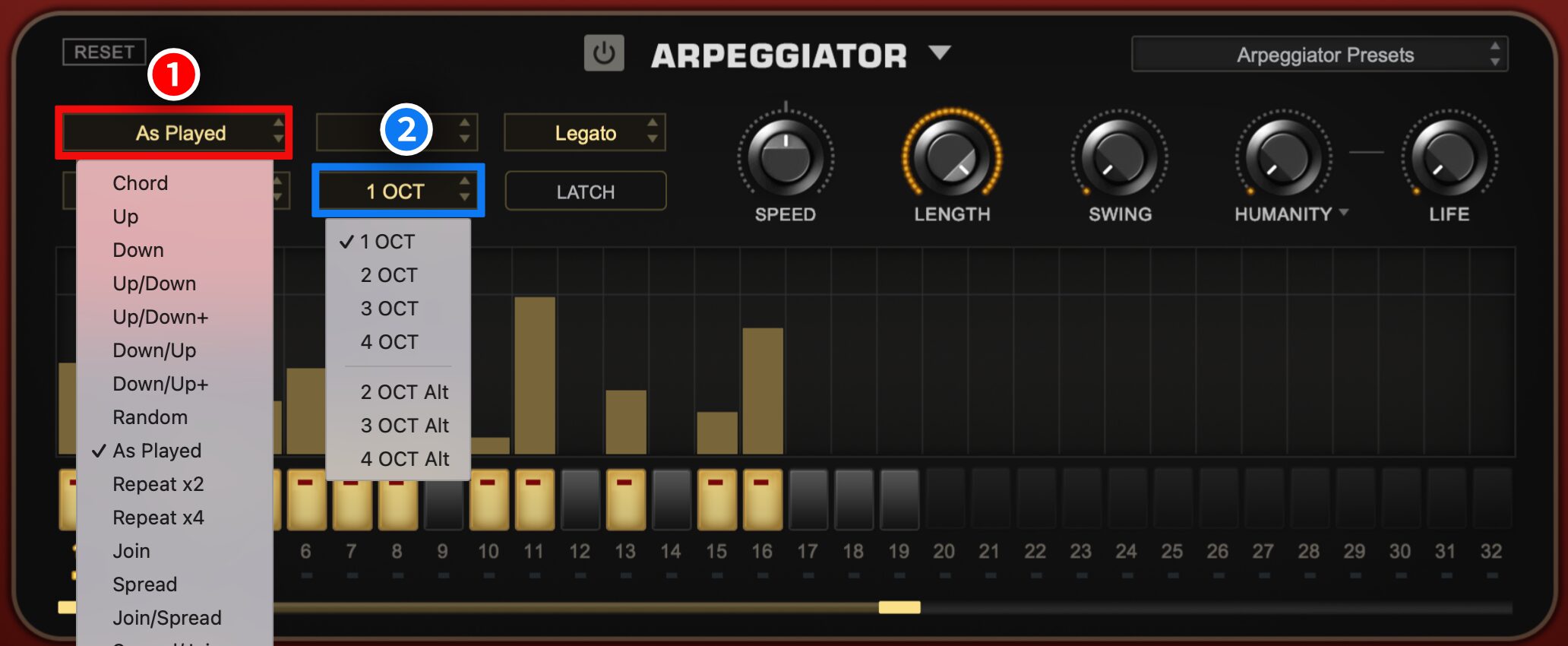
Control ① sets the arpeggio’s pitch direction, and ② sets its pitch range.
Adjusting the Pattern
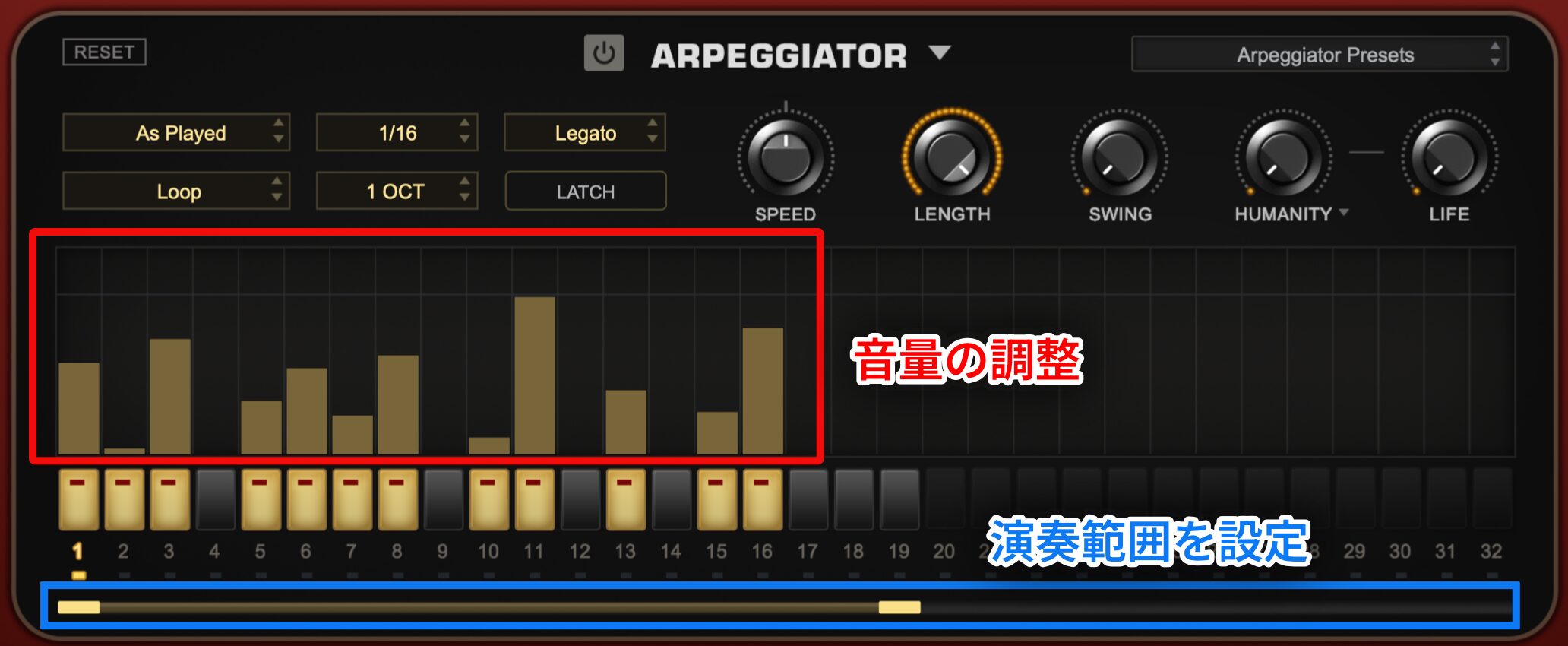
The vertical bars represent volume.
Higher bars produce louder notes.
Drag the area outlined in blue to set the arpeggiator’s playback range.
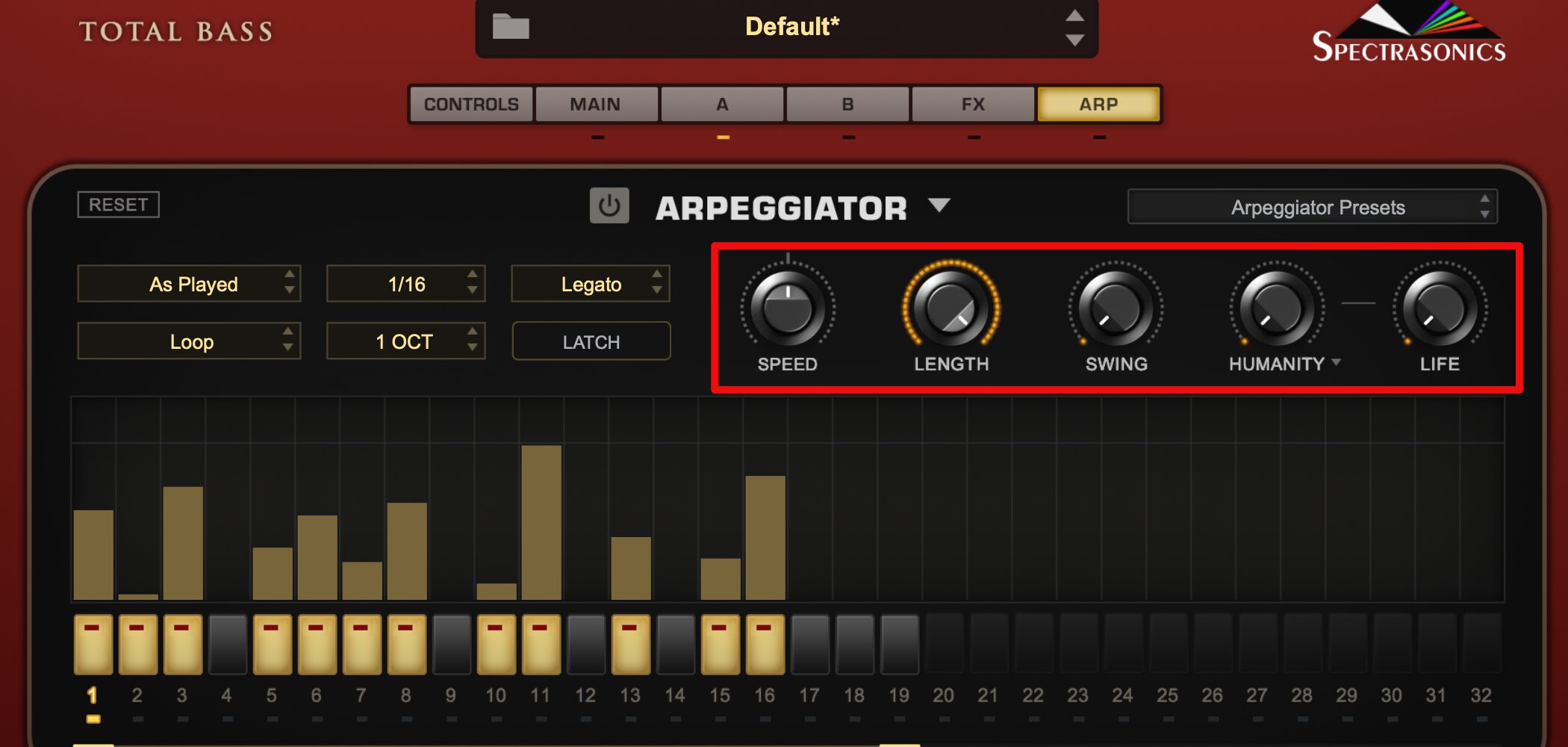
- SPEED: Adjusts the playback speed; at the midpoint, it synchronizes to quarter notes at the DAW tempo.
- LENGTH: Adjusts the overall length of the arpeggiator steps.
- SWING: Adjusts the arpeggiator’s groove.
- HUMANITY: Adds human-like variation to step start times.
- LIFE: Randomizes the velocity of individual steps.
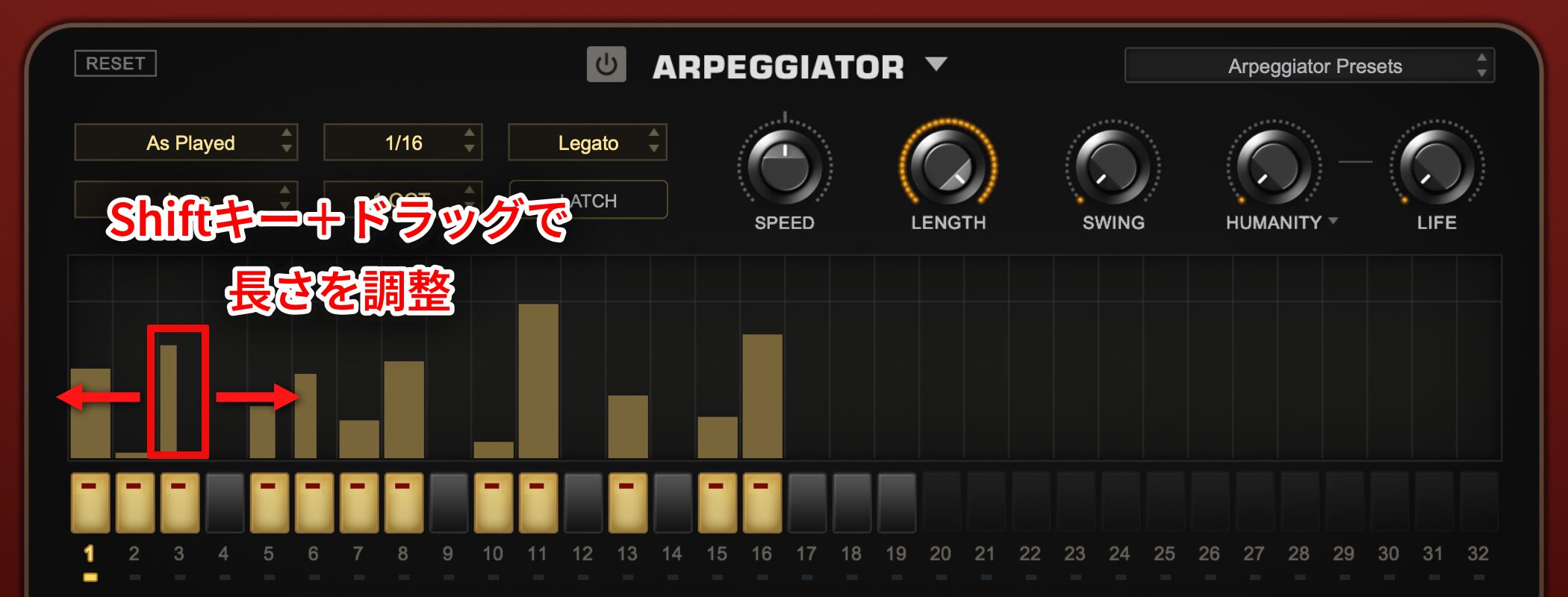
Hold Shift while dragging to set each step’s length.
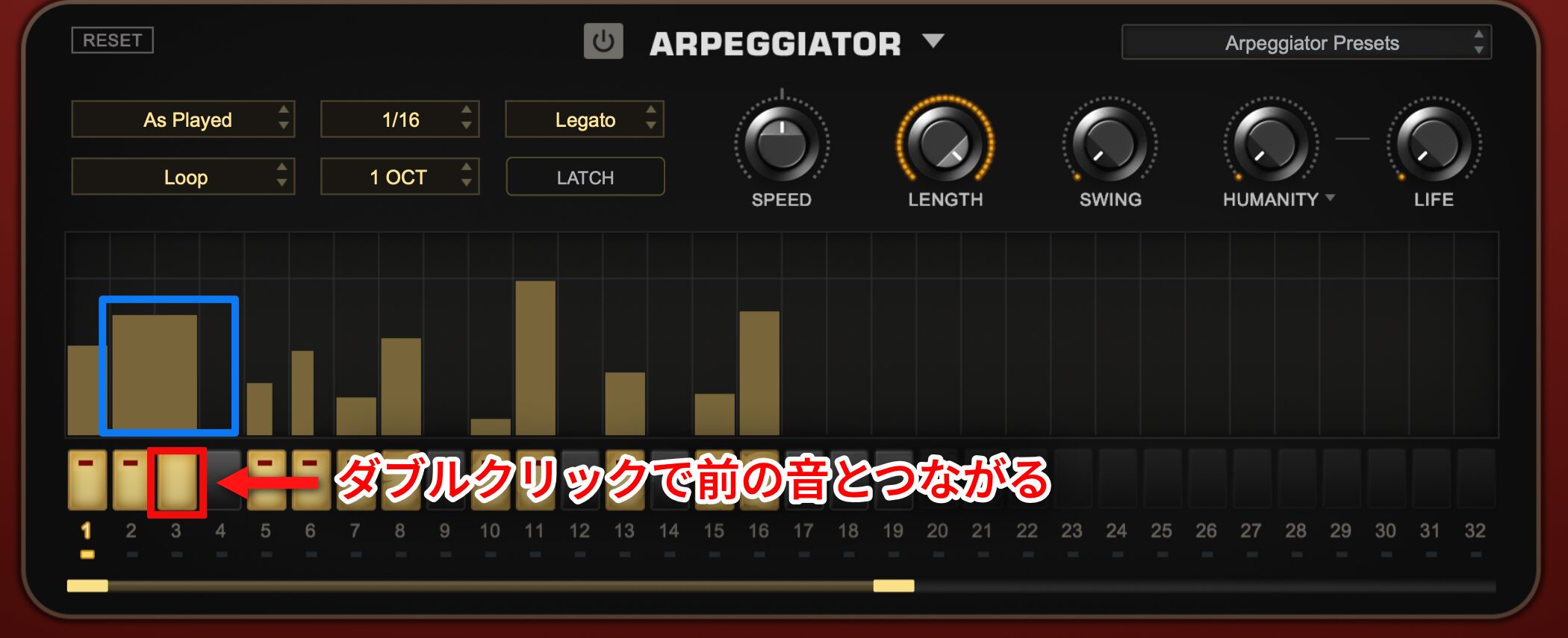
Double-click the area outlined in red to connect that note to the previous one.
This lets you play longer notes.
Switch Articulations with Keyswitches for a More Realistic Performance
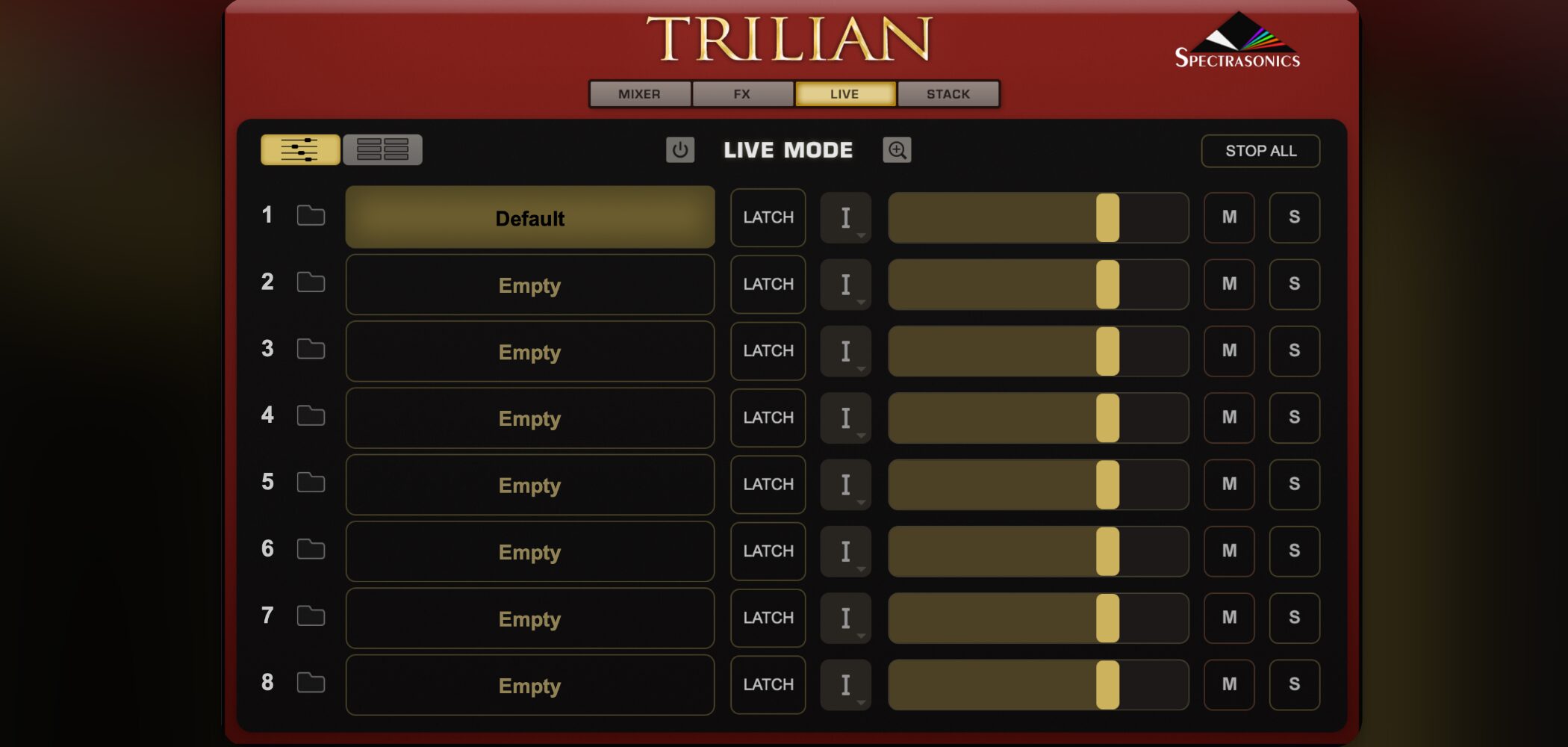
Trilian includes keyswitches that help make performances more expressive.
They let you switch between articulations such as slides and staccato.
Trilian Video: Switching Articulations with Keyswitches
Loading a Keyswitch Sound
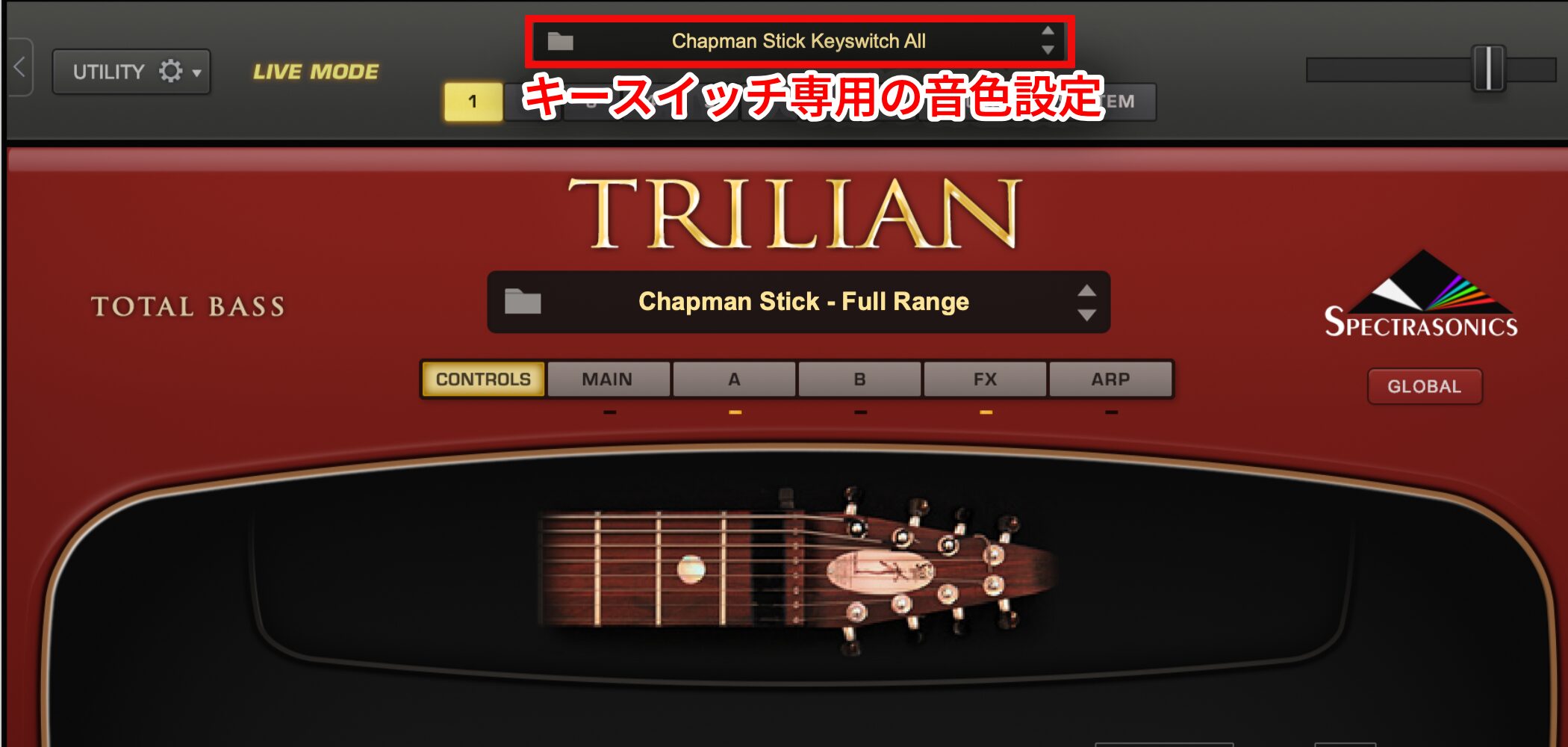
Keyswitch-specific patches can be displayed by clicking the upper area outlined in red.
Switching Keyswitches
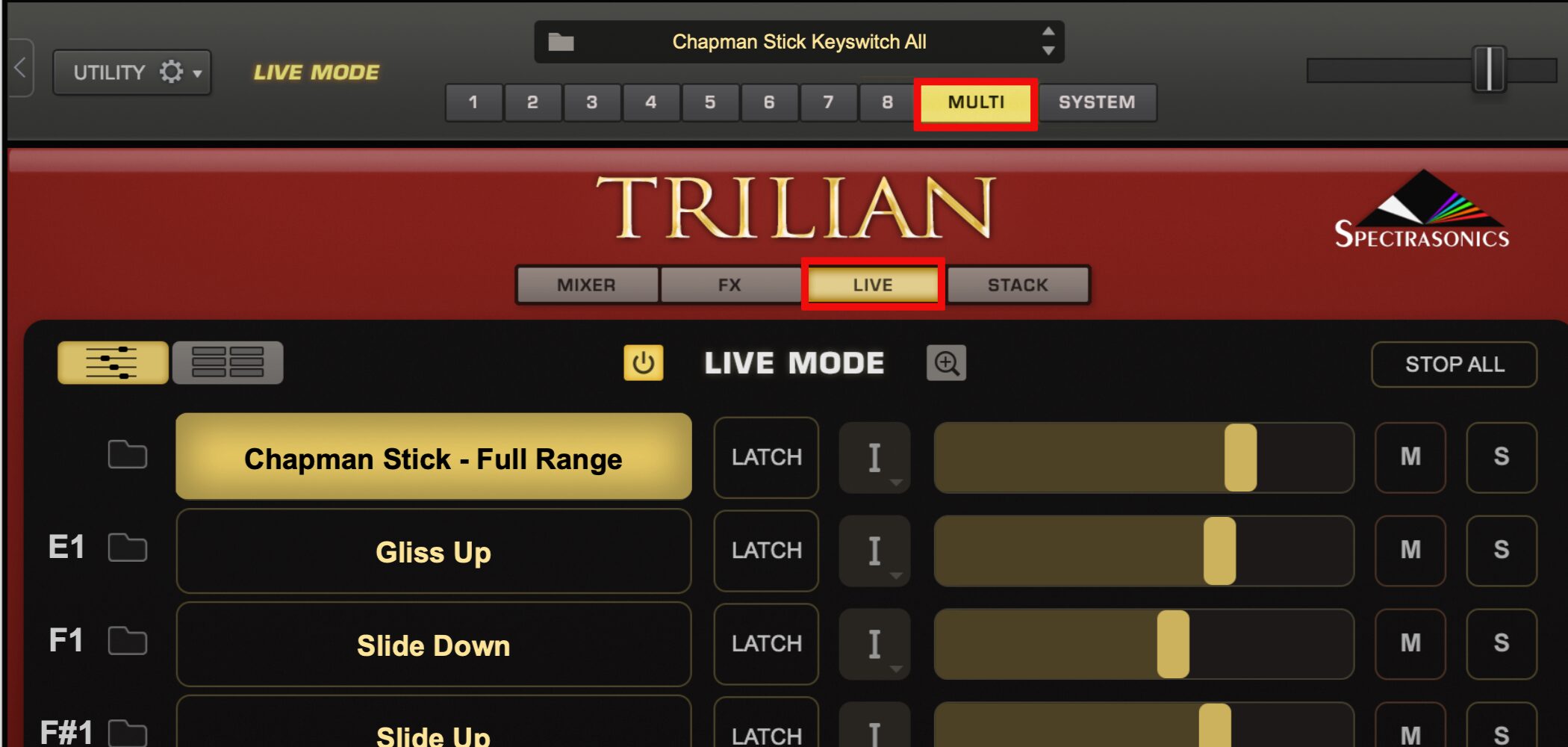
After loading a patch, click “MULTI” → “LIVE” to see the available articulations.
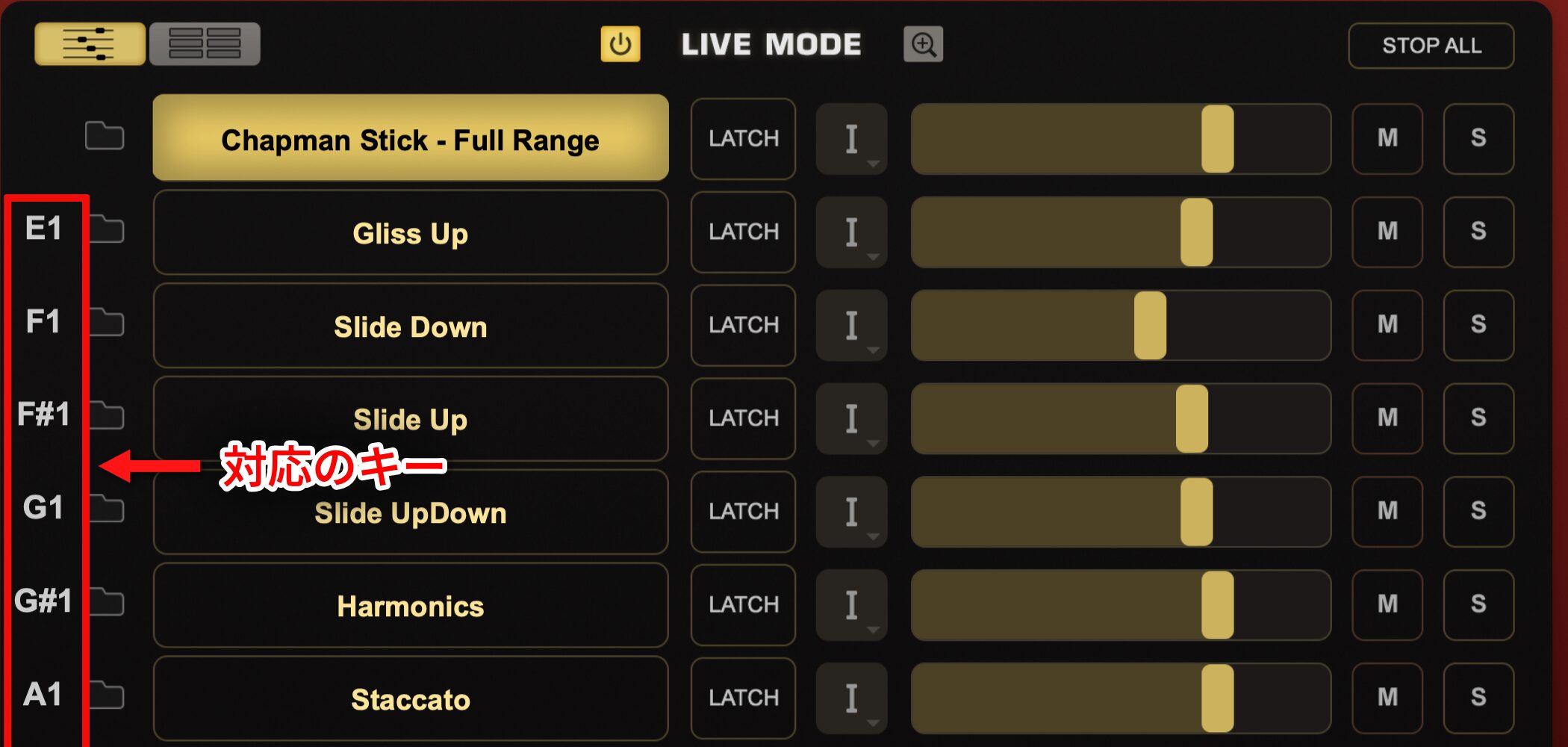
The key displayed next to each articulation is its assigned keyswitch.
While you hold one of these keys, the performance switches to that articulation.
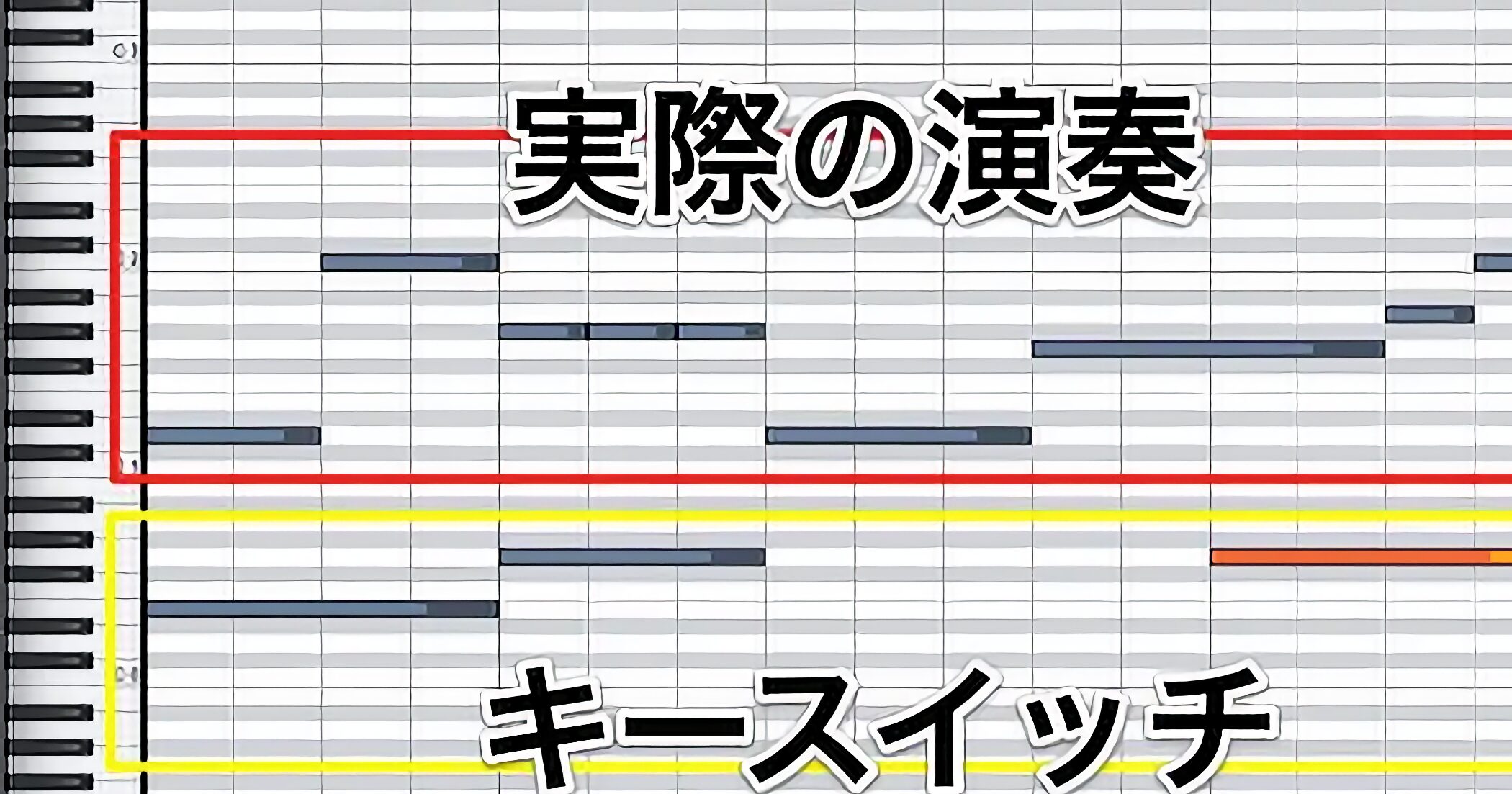
This is an example of a programmed keyswitch performance.
The red box marks the played notes; the yellow box marks the keyswitches selecting the articulation.
Use Separate Outputs for Individual Sound Processing
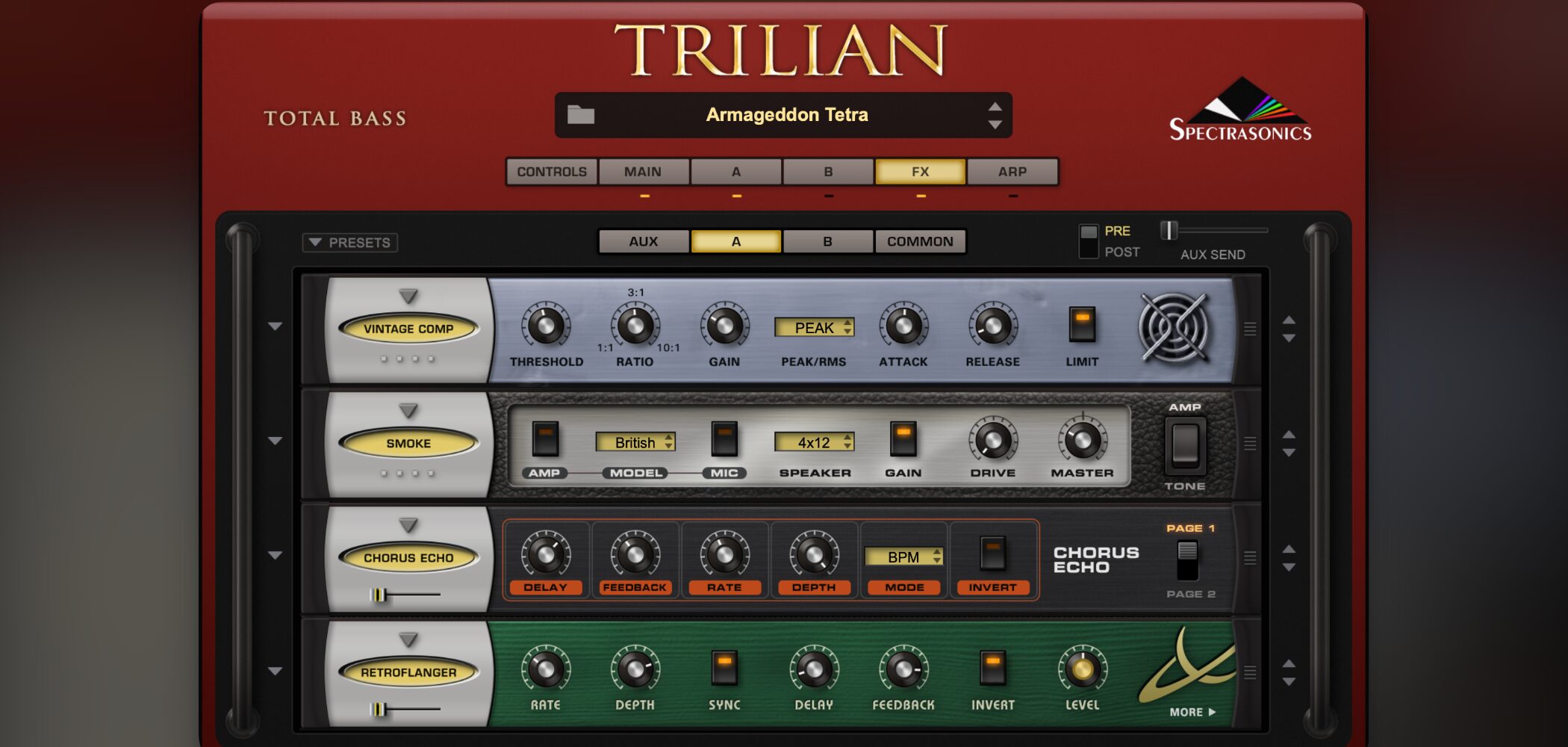
Next, let’s look at Trilian’s effects and how to route sounds to separate outputs.
Trilian Video: Effects and Separate Outputs
The video demonstrates Omnisphere; the operations shown are similar in Trilian.
Understanding Effects
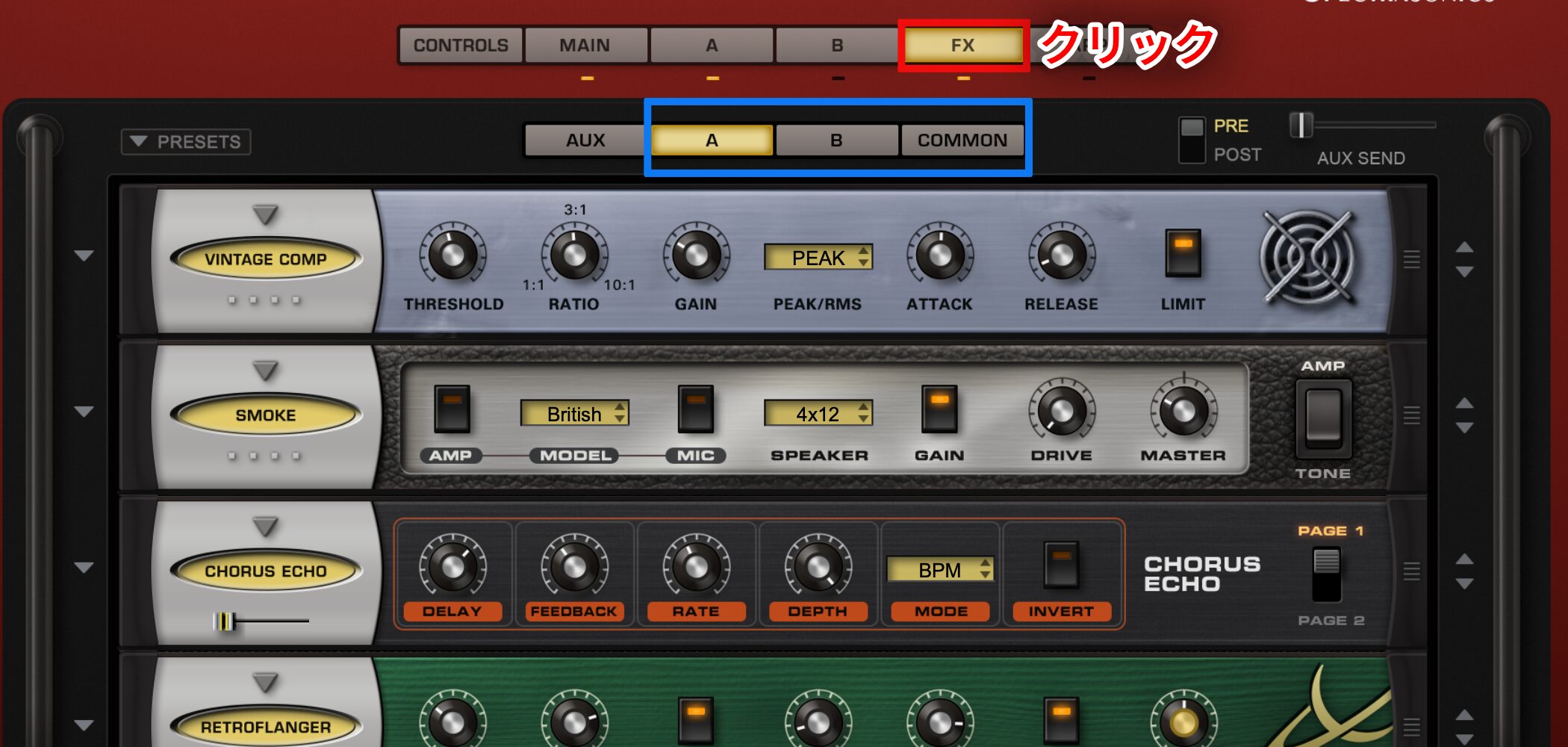
Open the effects page from the FX tab.
Effects can be applied individually to layers A and B; “Common” applies shared effects.
Setting Up Separate Outputs
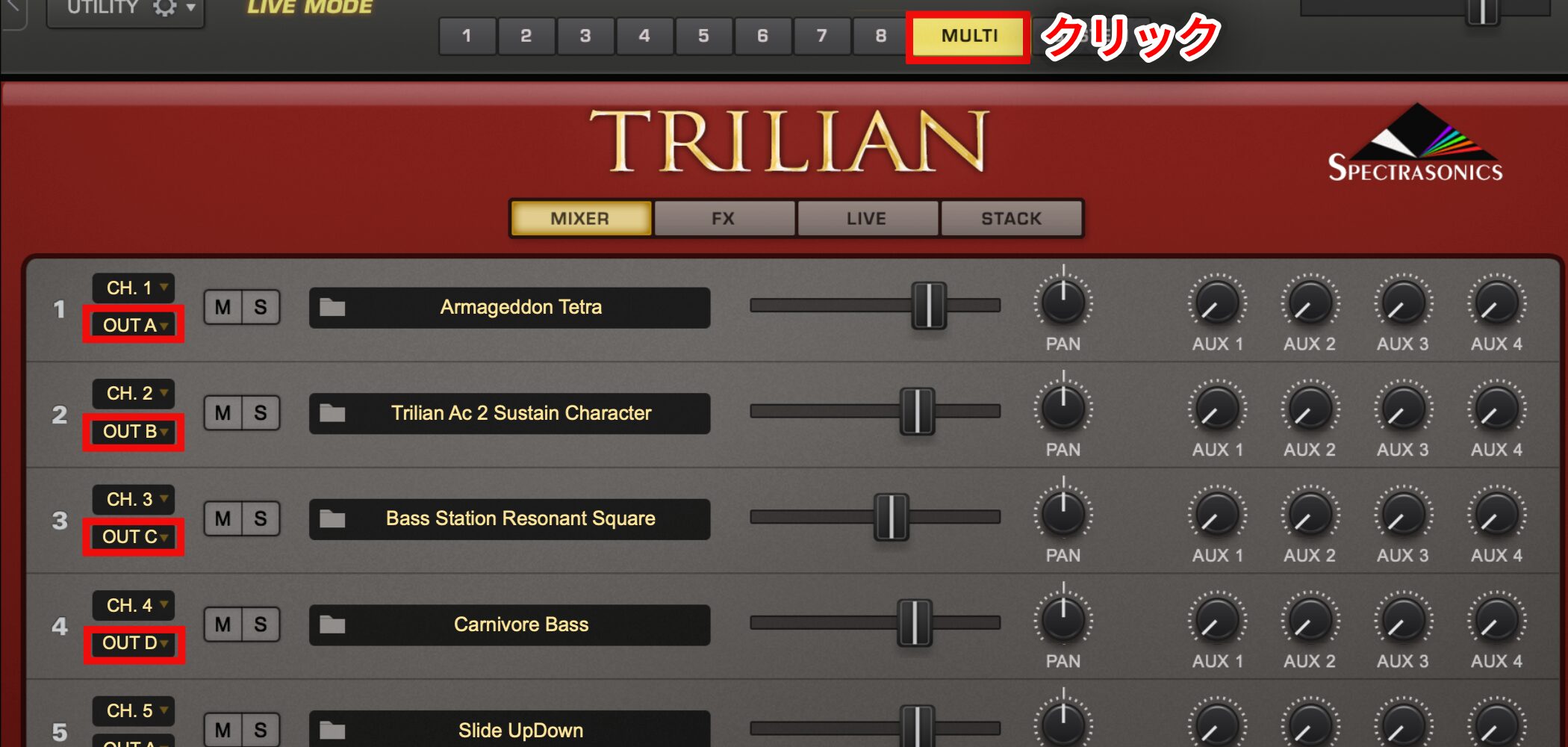
Click the MULTI tab to open the mixer.
In the area outlined in red, assign each sound to a different output.
Then configure the separate outputs in your DAW.
Using Multiple Outputs for Software Instruments

 Logic
 Cubase
 Ableton Live
 Studio One
 FL Studio
Match the Speed of Slides and Other Articulations to Your Song
Finally, let’s look at Trilian’s articulation speed adjustment.
This lets you match the performance to the song and fine-tune its expression.
Trilian Video: Changing Slide Speed
The videos include Omnisphere examples; the operations shown are similar in Trilian.
Loading a Sound
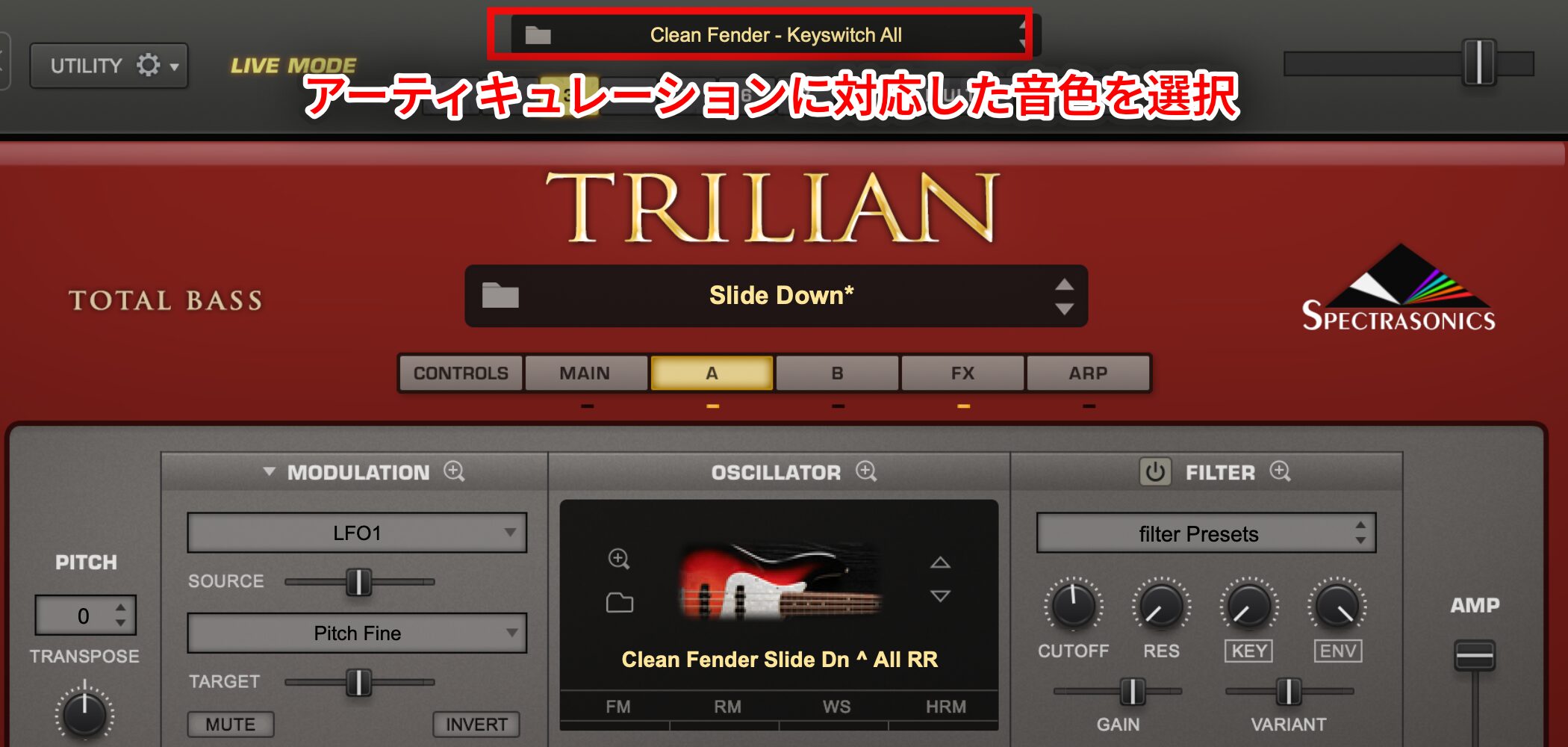
Load a patch that supports articulations.
Click the upper section to load the patch.
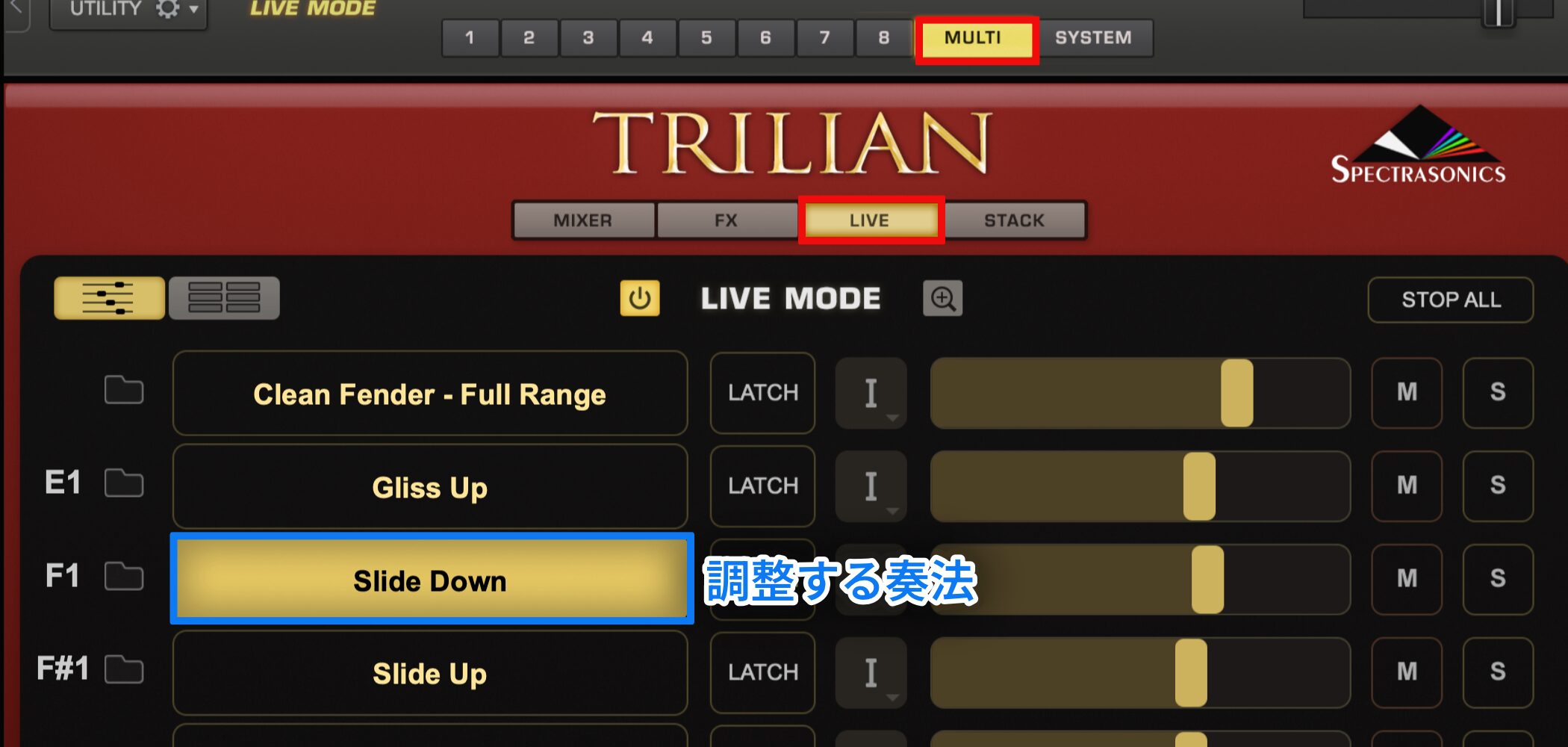
Choose the LIVE tab under MULTI to see the articulations.
Check that the articulation you want to adjust is listed.
In this example, we will adjust “Slide Down.”
Adjusting the Articulation
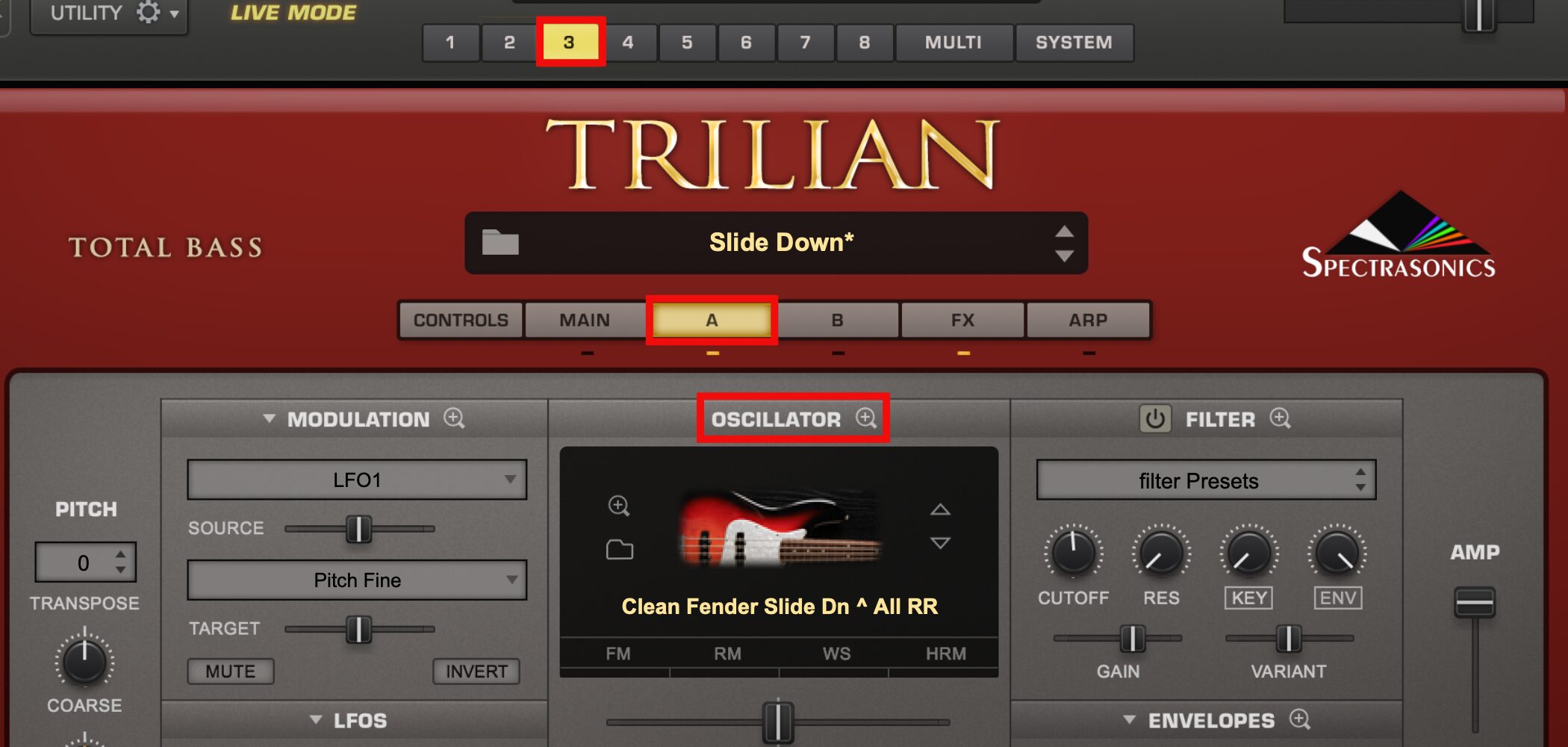
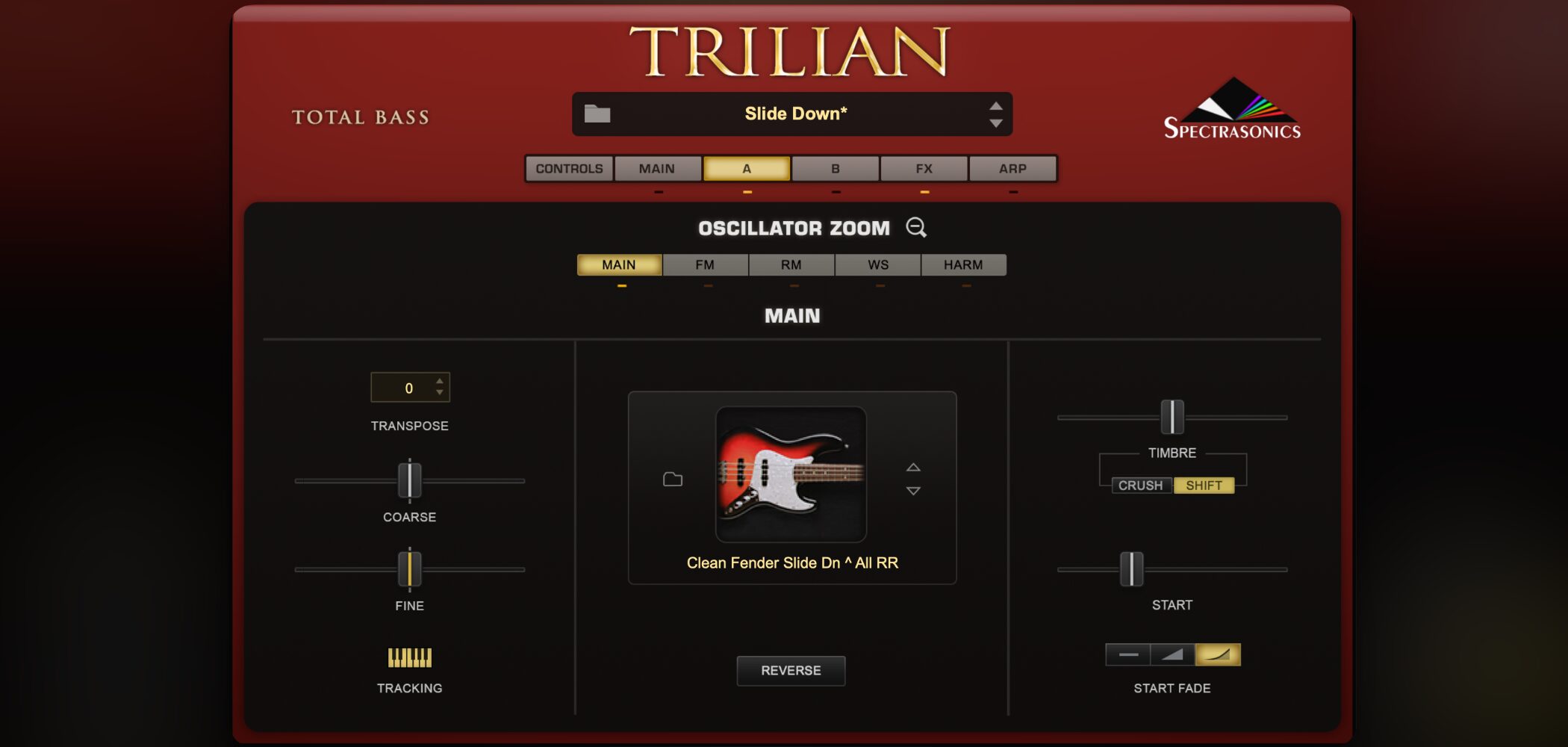
Click the MIDI channel you want to adjust so it lights up; here it is channel 3, Slide Down.
Select “A,” then click the magnifying-glass icon next to OSCILLATOR.
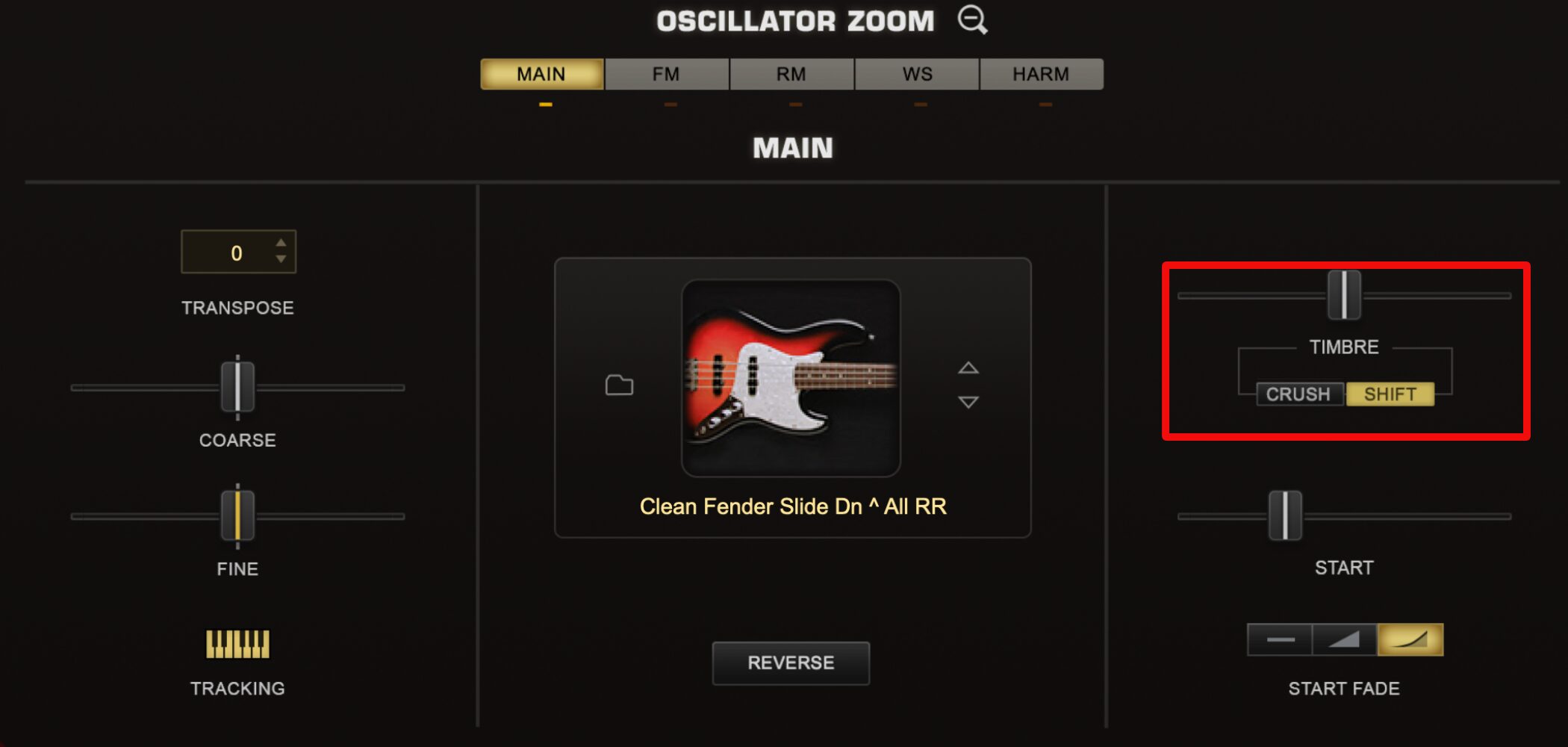
Adjust the parameters on the right side of the window.
“TIMBRE” changes the character of the sound and has two modes:
- CRUSH: Applies bitcrushing (distortion) and filtering.
Left of center: low-pass filtering plus bitcrushing.
Right of center: high-pass filtering plus bitcrushing. - SHIFT: Changes the sample’s transposition range according to the played key and the sound’s pitch in opposite directions.
You may need to retrigger a note to hear the change.
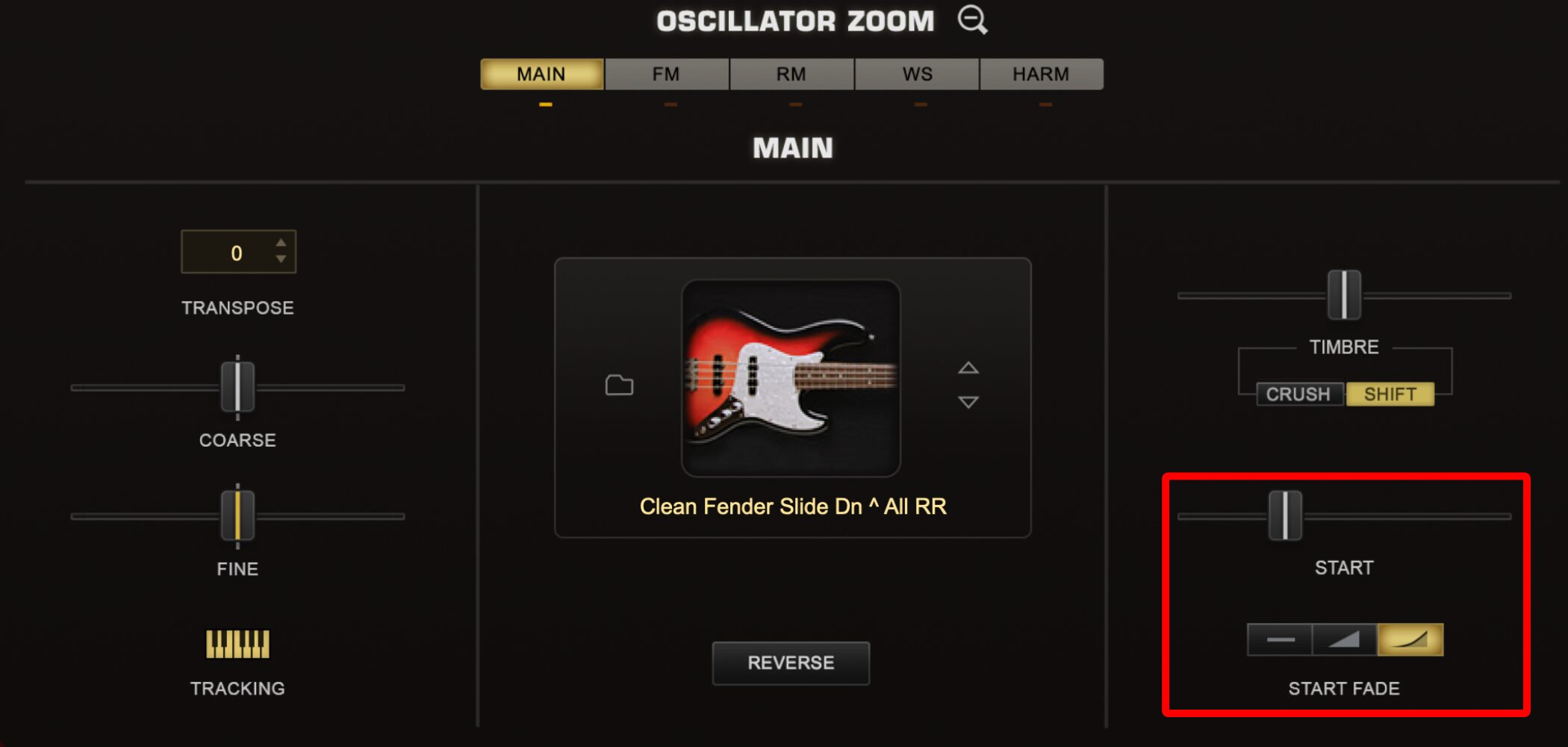
“START” lets you adjust the playback start position within the sample; moving it to the right starts playback later.
Changing the start point can introduce noise or an unnatural attack. “START FADE” can help minimize this.
START FADE offers three modes, listed left to right:
- No Fade-in: No fade-in.
- Medium Fade-In: A medium-length fade-in.
- Maximum Fade-In: The longest fade-in.
Recording Changes with Automation
You can automate these parameters.
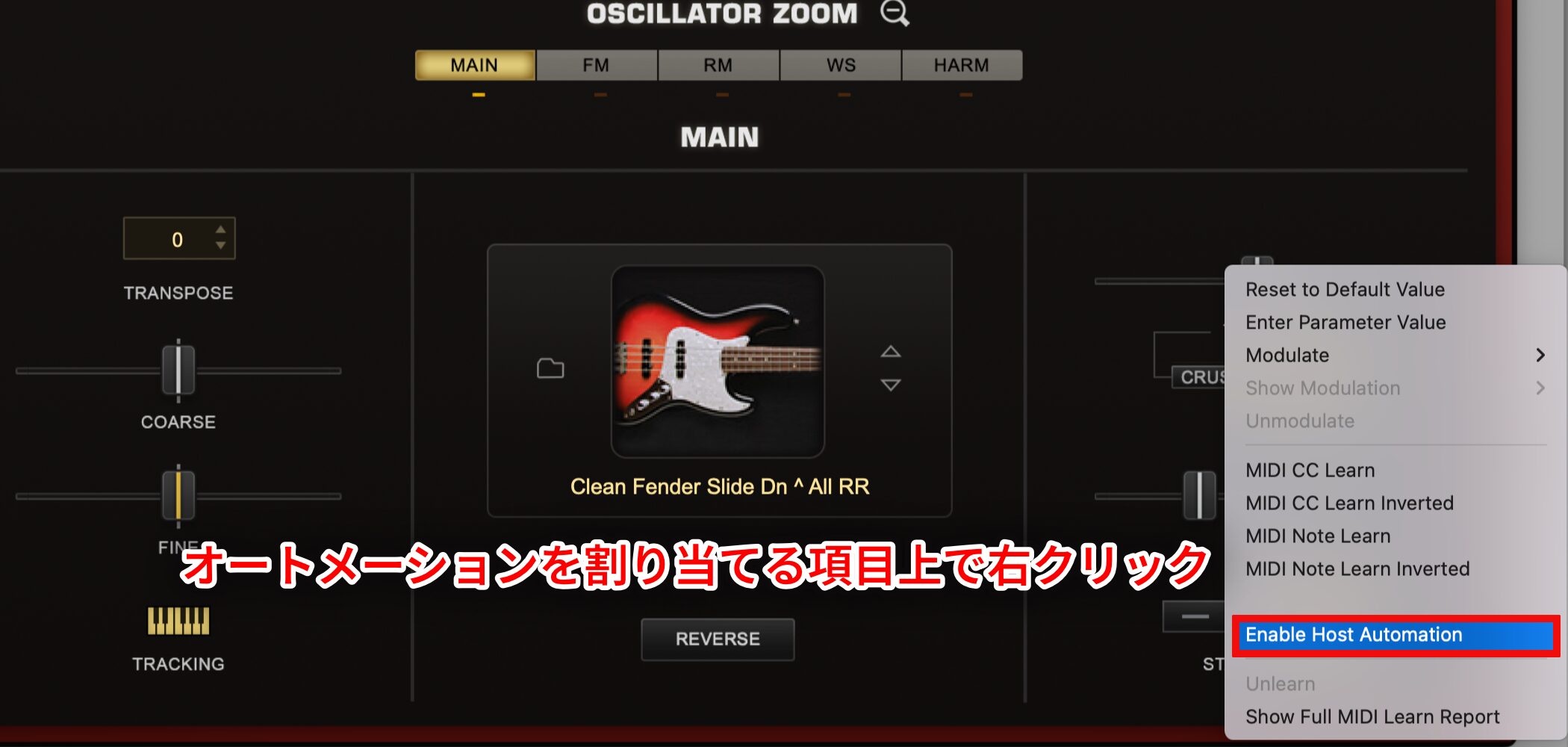
Select the parameter to automate and right-click it.
Choose “Enable Host Automation.”
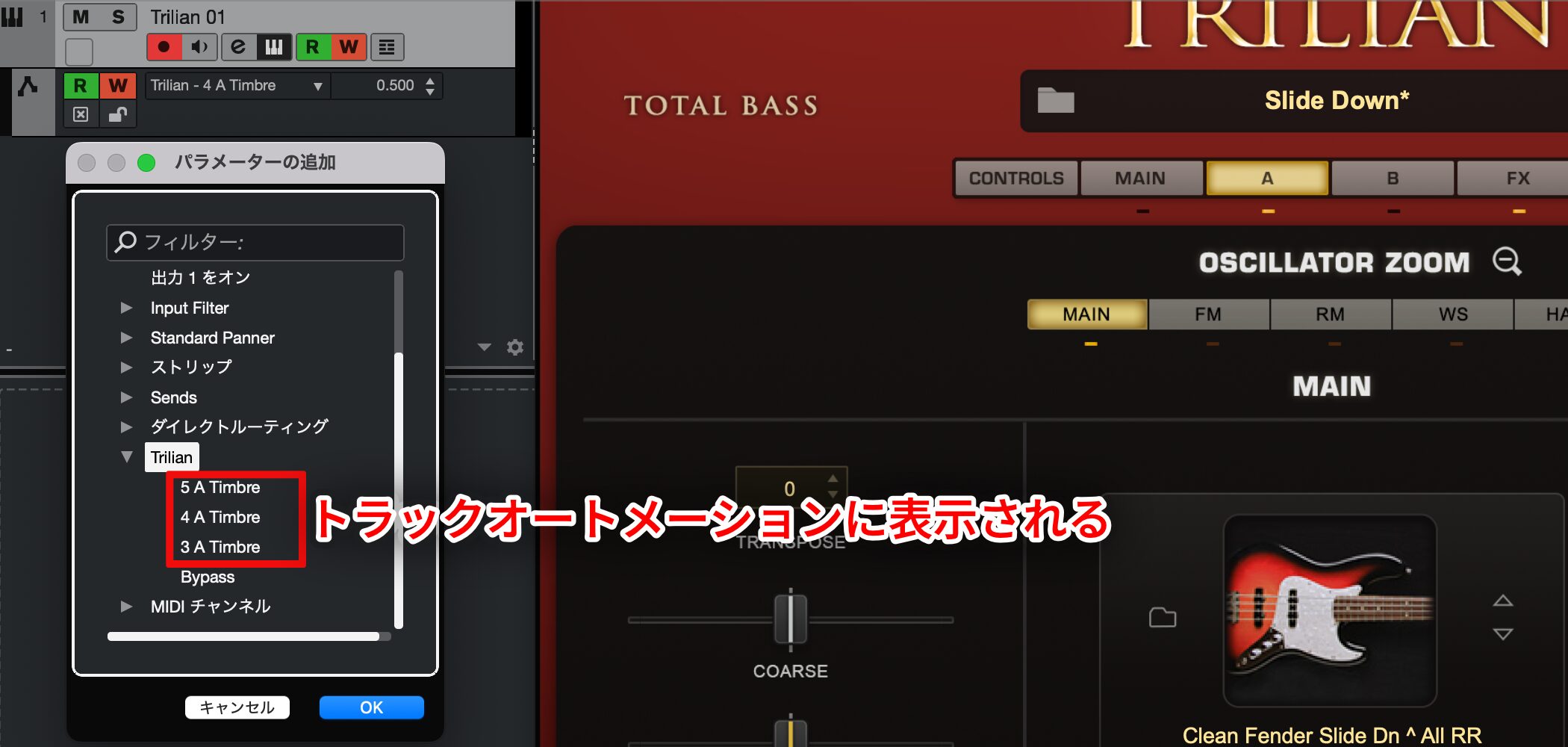
The parameter appears in your DAW’s track automation.
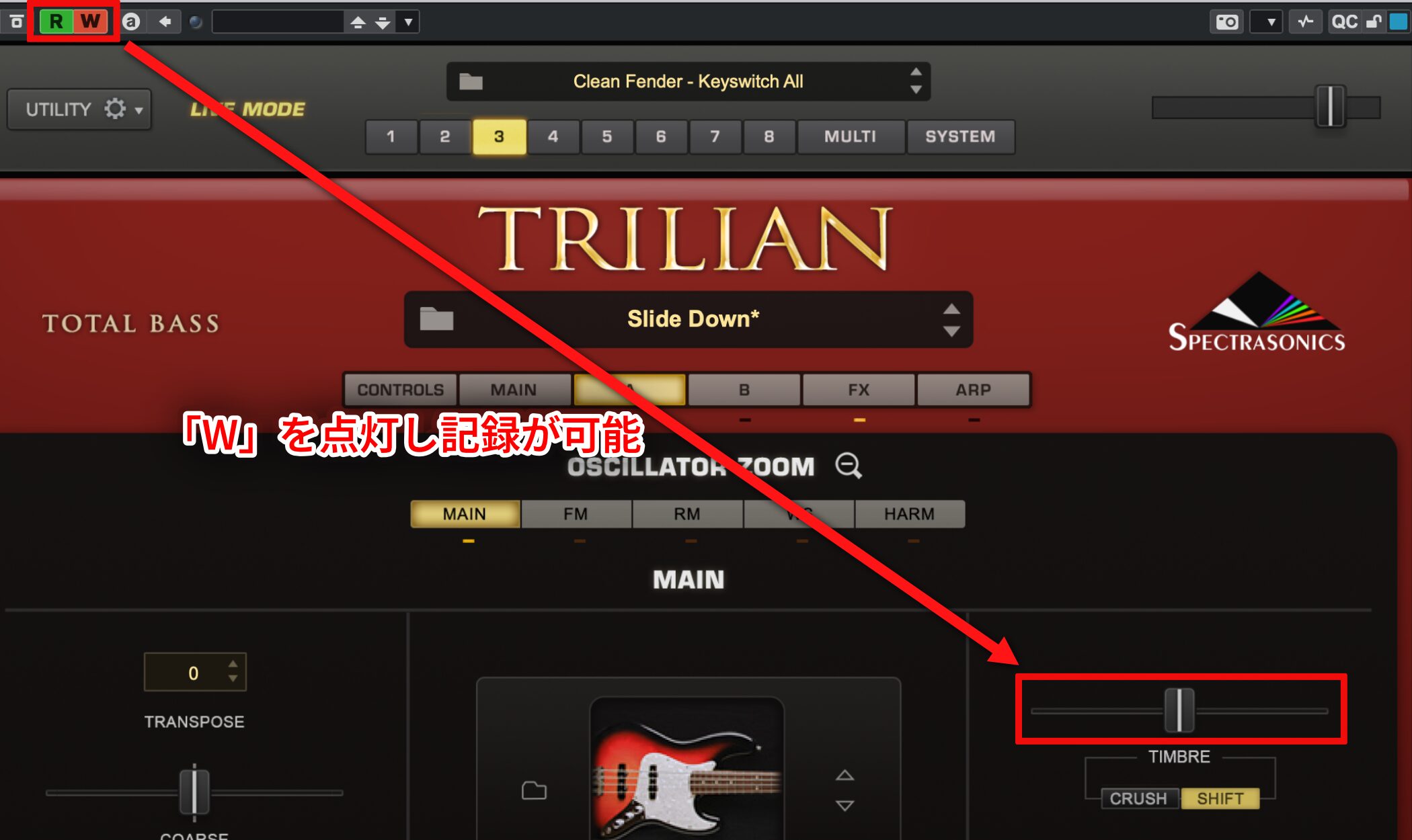
You can also enable “W” and record by moving the slider directly.
This example uses Cubase.
Automation Guides for Each DAW
 GarageBand

Frequently Asked Questions
Q1. How can I efficiently find sounds among Trilian’s many presets?
Filter by category in the mini Patch Browser, use Sort to order presets, and use the arrow keys to switch quickly. Rate your favorites so you can find them later.
Q2. What does Sound Match do?
Select a sound and click Sound Match to list similar sounds in order of match strength. It is useful for quickly finding related alternatives.
Q3. How do keyswitches improve articulation?
Switching between articulations such as slides and staccato can make a bass line more realistic and expressive.
Q4. How do I use envelopes and filters differently?
The AMP envelope controls volume over time, while a low-pass filter reduces high frequencies to round the tone. Combine them to help the sound fit the track.
NEW ARTICLES
Latest English Articles




































































































































































































































































































































































































































































































































































































































































